
5 YouTube Description Templates That Have Helped Our Videos Go Viral
YouTube is the second largest search engine, with over 2 billion users per month — so it’s an undeniably powerful channel for your marketing efforts.
However, if you don’t use YouTube for your current marketing strategy, you’re not alone. In fact, businesses choose Facebook as a channel over YouTube, even for video content.
In 2018, the HubSpot Academy team didn’t take advantage of YouTube, either. But in the latter half of the year, the team feared the major losses in traffic they could face if they didn’t hop on board — so they implemented a strategy that enabled them to grow YouTube subscribers by 25% in just two months. Because YouTube is a search engine, part of that strategy relied on optimizing the videos to increase the chances of discoverability.
One of the most important tactics for optimizing your YouTube channel is writing descriptive YouTube descriptions.

YouTube Channel Description
A YouTube channel description is similar to the “About” page of a website. In fact, it even appears under the “About” tab of your channel’s YouTube page.
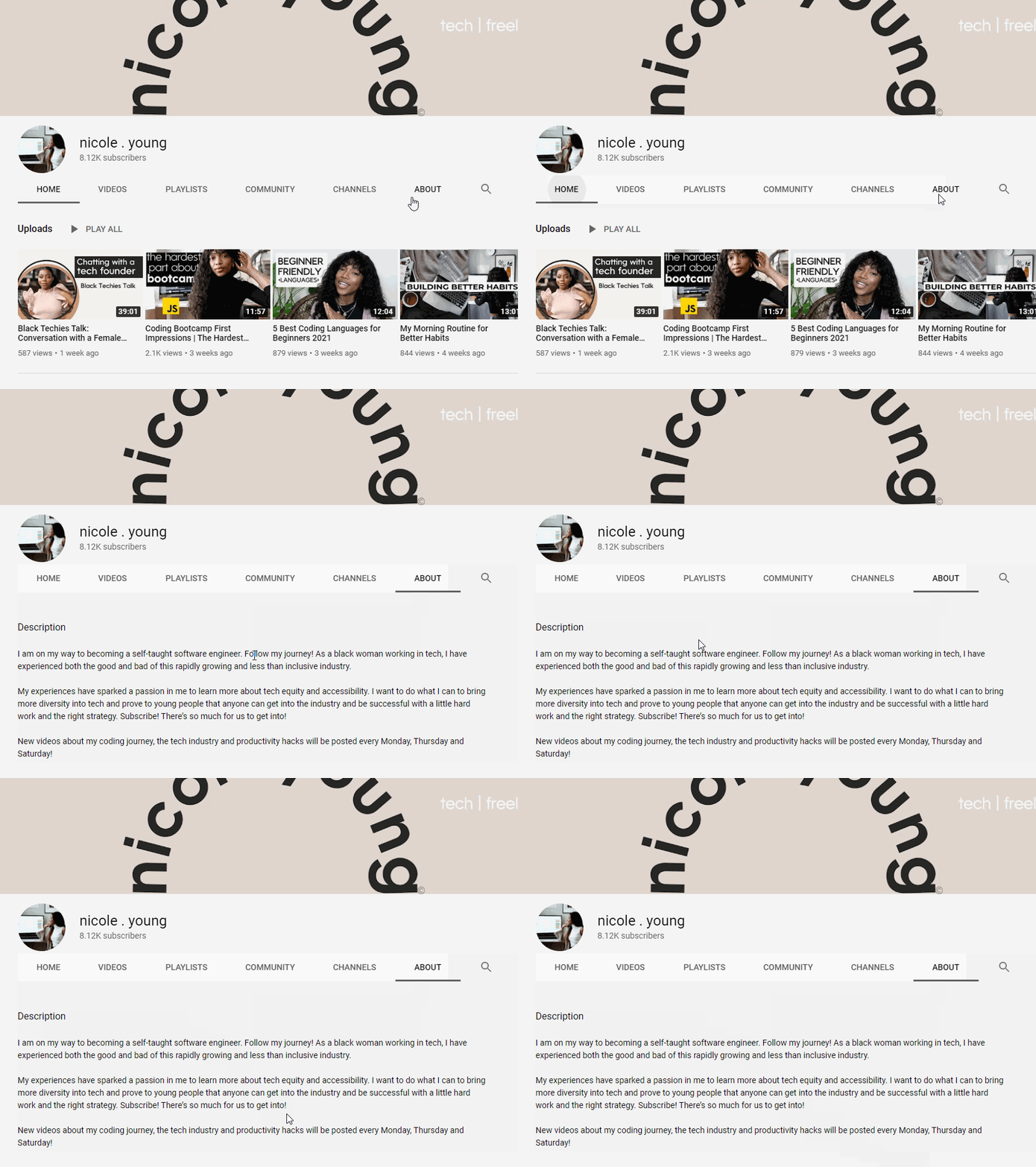 The YouTube channel description is meant to convey to potential viewers what your content is about: the topics you cover, the themes you tackle, and why. You’ll not only need to convey what you discuss but also what you bring to the discussion and why they should listen to you. The goal here is to turn a one-time viewer into a long-term subscriber and consumer of your content. You’ll be able to add this when setting up your YouTube channel.
In addition to its primary goal of turning viewers into subscribers, this text can also be crawled by YouTube and could help your channel get found by people who are looking for channels like yours. With that in mind, be sure to use the terms that you think people would use to search for your content.
YouTube Video Description
The YouTube video description can be found underneath the viewport of the video itself.
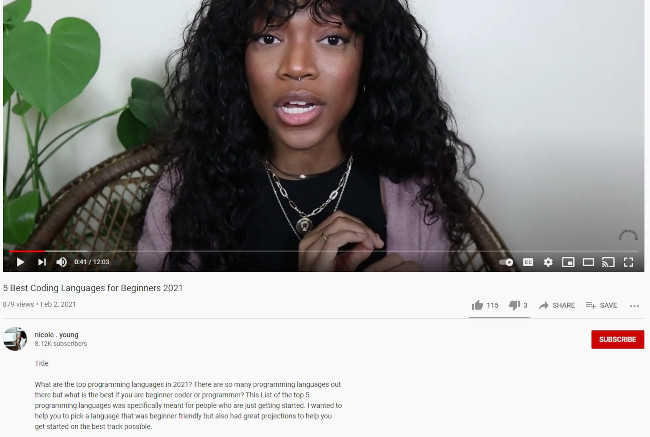 While the YouTube channel description talks about the body of video content that you upload, each video will also need a unique description to increase the likelihood of your video getting found when someone is searching for a particular topic.
In this video, the creator summarizes the question being asked and specifies the audience that the video is meant for. This text will help audiences (and YouTube) understand what the video is about. In addition, it’s also prime real estate to include contact information and calls to action.
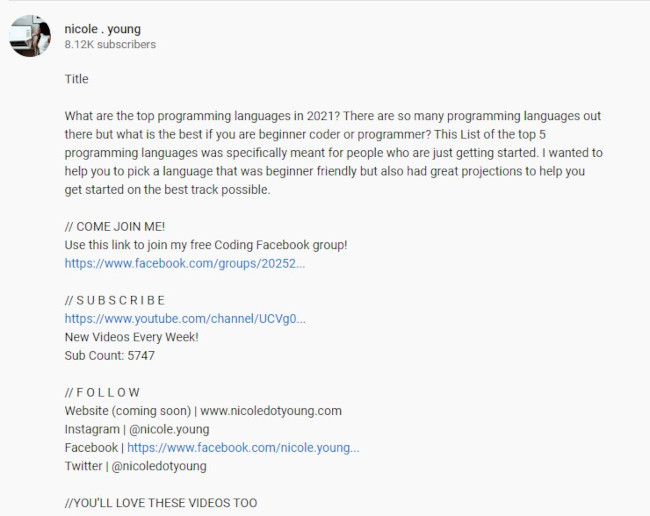
Ultimately, if you’re ready to begin using YouTube to attract and convert an audience, it’s critical you optimize your video descriptions for SEO. If you’re unsure how to start crafting compelling YouTube descriptions, keep reading — here, we’ll explore various tactics you can employ, and provide templates to ensure you have everything you need to excel on YouTube.
How to Create Compelling YouTube Video Descriptions
1. Use YouTube Description Templates [Free Prompts]
HubSpot has compiled seven YouTube video description templates to help your business provide context to your viewers, rank better in search, organize your team, and link out to relevant webpages on your site.
 Download These Templates for Free
2. Explain what your video is about.
To explore the best tactics for writing YouTube descriptions, I spoke with Eric Peters, a Senior Growth Marketing Manager on HubSpot’s Academy team. He told me, “[YouTube descriptions] is one of the primary ways YouTube knows what your video is about. Include links, additional resources, links to other videos and playlists, etc. Make sure the description box is easy to read.”
As Peters notes, explaining your YouTube video and incorporating keywords into your description doesn’t just help with SEO rankings — it also helps with accessibility for people who are deaf and hard of hearing. For that reason, adding closed captions to your videos is an absolute must, too.
For instance, take a look at one of HubSpot Academy’s YouTube video descriptions:

As you can see, a YouTube description is incredibly different from a web page meta description. In a YouTube description, you have the space to go in-depth and explain what your entire video is about, and even link to external resources.
Peters told me, “You get 5,000 characters total, so make use of it. A lot of creators use asterisks or all-caps to differentiate titles from body copy because it’s all plain text. Consider writing up a text version of the key points from the video, or even copying the transcription of the video into the description.”
3. Include a CTA.
Your YouTube description is a fantastic opportunity to ask viewers to continue to engage with your channel or find additional resources that will help them learn more about a topic of interest.
For instance, let’s say you create a brief “How to add filters to Instagram” YouTube video, but you also have an in-depth, “How to Use Instagram for Marketing” blog post — why not link to it in the description? More than likely, anyone who is watching your Instagram video on YouTube would be equally grateful for the opportunity to learn more via a blog post.
Alternatively, perhaps you simply want to ask viewers to subscribe, turn on notifications, or share your content with their networks. These are all acceptable CTA’s for your description.
Additionally, it’s critical you format your description to ensure you put the most important information first — as Peters advises, “The first 200 characters are above the ‘more’ fold on the description box, so if you want your CTA/link to be seen by the most people, keep it within the first 200 characters.”
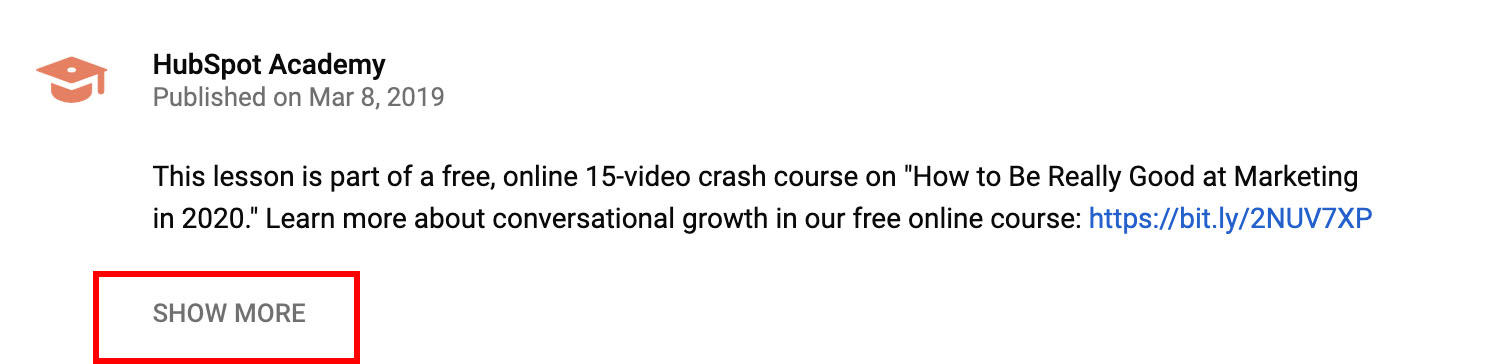
After the first 200 characters, your text will be cut-off, and viewers will need to click “Show more” to see the rest — so it’s vital you make your first 200 characters count.
4. Add your personality.
A YouTube description should be fun, and demonstrate your brand’s personality or unique voice to an audience. Unlike more traditional forms of advertising, this is an opportunity for you to instill creativity and humor into your content.
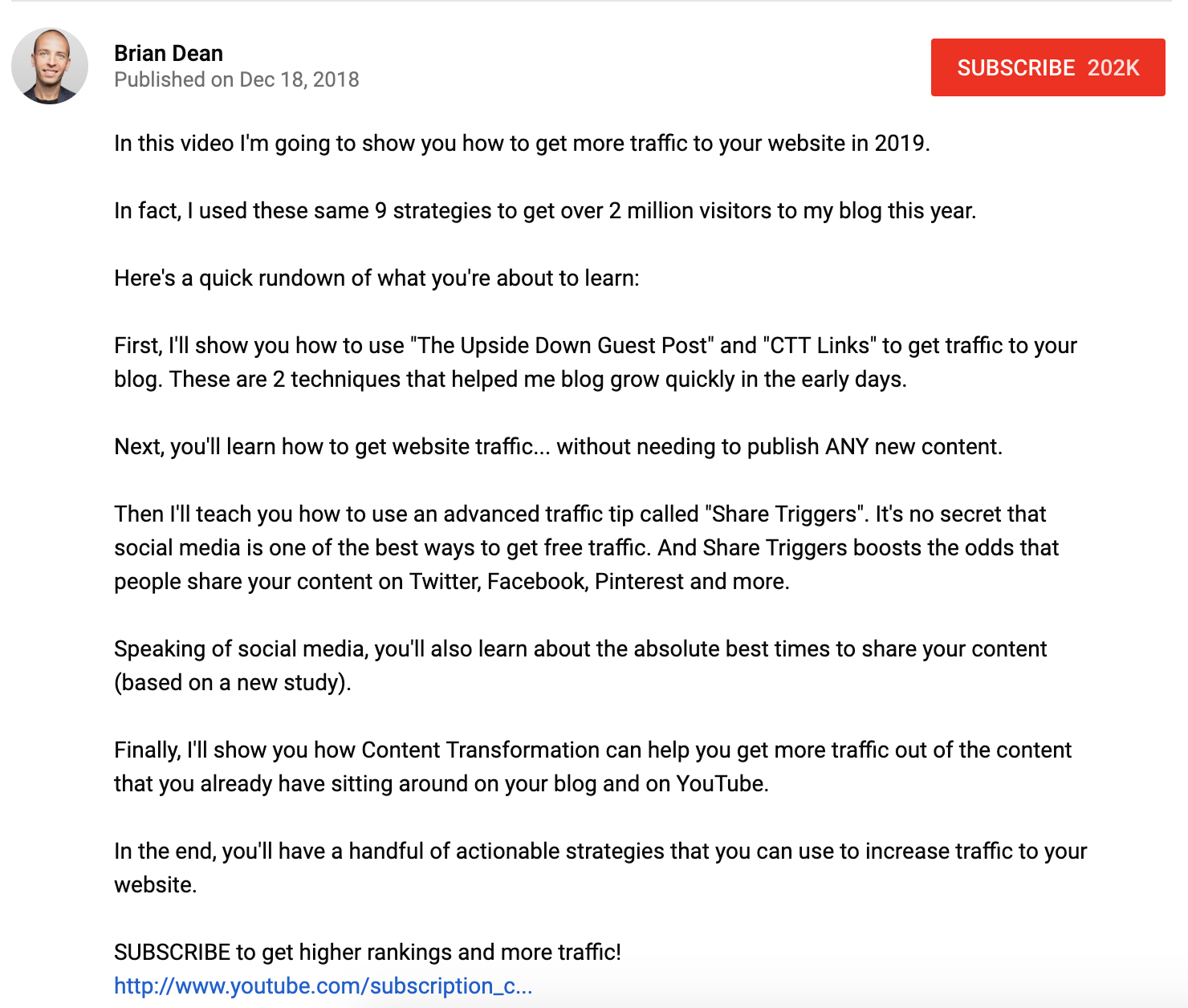
Brian Dean’s YouTube channel is a great example of this — his YouTube descriptions often mirror the way he speaks. The descriptions are candid and casual, and he makes it feel like he’s writing to a friend.
To learn more about using YouTube for marketing purposes, consider checking out HubSpot Academy’s comprehensive YouTube Marketing course.
YouTube Description Templates
Now that we’ve covered the basics, take a look at a few templates you can use to craft compelling YouTube descriptions today.
Templates for Your Channel Description
You might create a playful, easy-going channel ‘About Me’ description, like this one:
Hi, I’m [Name]. This is my channel about X, Y, and Z that you can use to grow your business.
If you’re a marketer who wants to learn X to get [result, i.e. more traffic to your site], subscribe to my channel.
My channel publishes videos that focus on X, Y, and Z. If that sounds like it could be helpful for you, please join me!
Alternatively, you can craft a YouTube description that describes what your company does from a third-person point of view, like this one:
Company A is the worldwide leader in X, Y, and Z. Since 2010, Company A has been on a mission to [insert company vision or purpose here].
To learn more about A, B, C, subscribe to our channel to stay informed.
Templates for Your Video Descriptions
If you’ve conducted an internal interview, you might keep your description short-and-sweet to describe your conversation and why it matters to your audience, as well as a CTA:
Hear how our CEO explains the difference between X and Y, and learn best practices for implementing your own strategy.
Learn more about X and Y in our course: www.XY.com
Alternatively, if you want your description to help new viewers find your various channels, try crafting a description like this one:
Hi there! New to [name of channel]? If so, here’s what you need to know — I like [interests related to channel] a LOT, so I use this channel to explore X, Y, and Z, to help you [desired result for viewer].
Where else you can find me:
INSTAGRAM: http://instagram.com/[accountname]
TWITTER: http://twitter.com/[accountname]
LIFESTYLE CHANNEL: http://www.youtube.com/[accountname]
Join our growing community for new videos every Tuesday and Friday!
BUSINESS INQUIRIES
Please contact [PR representative] at [email or phone number].
Finally, if you want to focus on crafting a description that explains what your video is about and incorporates a keyword description, try this:
Hey there! This lesson is part of a free online course. Take the full course here: www.company.com/course1
Some people are unsure what X is — at its most basic, X is [brief definition of keyword]. In this video, you’ll learn how to X, Y, and Z, to ensure you’re able to grow your brand online.
Additionally, we’ll explain how you can avoid doing A. Sometimes, A is all it takes to lose a customer.
Ultimately, YouTube description templates can help you reduce the amount of time it takes to upload and optimize your YouTube videos, getting them out to your audience quickly and with less effort. Just be sure to customize the text to enhance the reading experience because you want to be as helpful as possible for your audience.
Editor’s note: This post was originally published in March 2019 and has been updated for comprehensiveness.

How to Use Facebook for Business: 25 Facebook Marketing Tips and Tricks
Although some of the younger demographics are passing up Facebook in favor of tools like Instagram and Snapchat, Facebook still dominates the market.
With 1.85 billion people logging in daily (a 16% increase year-over-year), it’s still the most popular social network around. Not to mention, Facebook owns 60% of all social logins.
If you want your business’ content to reach consumers, having a presence on Facebook is a given. But to make the most of your Facebook Page — to attract and engage visitors, drive them to your website, and convert them into leads (and, eventually, customers) — you need to optimize your Facebook presence.
We know that learning all the nuances of various social networks can be a tricky and time-consuming feat, especially considering how frequently they add, remove, and modify features.
To help you stay ahead of the curve, we’ve put together a handy cheat sheet that businesses can use to make the most of Facebook marketing. The list is divided into three main categories depending on your goals for using Facebook:
Even with new social media platforms popping on the scene, Facebook is still the most popular social network. That’s why it’s important for your business to be on Facebook and use it to connect with your audience. With over a billion people on Facebook every day, your audience is probably on the site daily.
So, how can you use this tool to connect with your audience? Let’s dive in below.
How to Use Facebook for Marketing
1. Engage with your audience.
Social media is best known for its ability to help you connect with your audience. On Facebook, you can enter direct conversations with your target audience through comments, reactions, and even messages. By engaging with your audience, you’ll increase brand awareness and help tell your brand story.
2. Listen to your audience.
Now, when you’re on social media, it’s important that you don’t just use the tool to talk at your audience without listening when they respond. To really leverage Facebook for marketing, you should use social media listening tools and track what people are saying. You can track mentions of your company and follow hashtags so you always know what’s trending and going on with your customers.
3. Develop a contest and giveaway strategy.
A great way to use Facebook for your marketing purposes is to run contests and giveaways. Now before you dive in, make sure you develop a strategy. What kinds of things will you giveaway? How will your audience participate? It’s important to think this through and make sure your decision aligns with what your audience wants from you.
4. Promote your events.
Of course if you’re running any online events, it’s important to market that. Facebook is a great place to do that because you can create an event and invite your followers. This is a great way to get the word out about your events.
5. Use Facebook Ads.
Facebook actually might be most popular among businesses for its advanced ads tool. If you’re running online ads, Facebook is one of the best places to do it.
Now that you know how to use Facebook for business, let’s dive into some tips and tricks to help you succeed.
25 Tips and Tricks for Marketing on Facebook
Learn Facebook Marketing in HubSpot Academy
Tips for Your Facebook Business Page
1. Create a business Page, not a personal profile.
First thing’s first: You need to create a business Page — not a personal profile — to represent your brand. Pages look similar to personal profiles, but they include unique tools for businesses, brands, and organizations. Your fans can Like your Page to see updates from you in their News Feeds, which is something they can’t do for personal profiles.
Not only will this maximize Facebook’s business potential for you, but it’s actually against Facebook’s Terms of Service to use a personal account to represent something other than that person, like a business. If you’ve already created a profile for your business, you’ll want to convert it into a business Page, which you can learn how to do easily here.
Setting up a page is simple. Just visit this page and follow the step-by-step setup instructions.
2. Claim your Page’s vanity URL.
Once you’ve created your business Page, it’ll get a randomly assigned number and URL, like facebook.com/pages/yourbusiness/123456789. To make your Page more shareable and easier to find, you’ll want to create a recognizable vanity URL (e.g., http://www.facebook.com/hubspot).
To create a vanity URL, visit this page, then follow the instructions.
3. Add a great cover photo.
Facebook’s page design lets you feature a 820 x 312 pixel cover photo at the top of your business Page. You’ll want to optimize that cover photo to capture the attention of new visitors, encourage them to explore and learn more, and provide an effective mobile experience — all the while ensuring you’re following Facebook’s Page Guidelines.
Learn all about do’s and don’ts for your Facebook cover photo in this blog post.
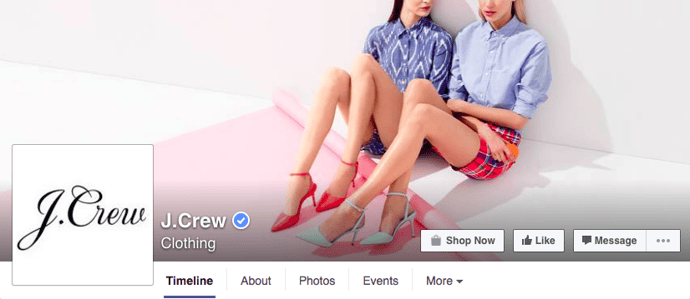
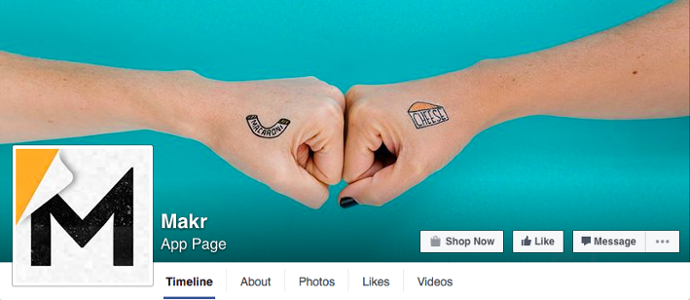
Here are some more awesome examples of business Page cover photos to get your creative juices flowing.
4. Add a recognizable profile picture.
Pick a profile picture that will be easy for visitors to recognize — like your company logo, or a headshot of yourself if you’re a solopreneur or consultant. Being recognizable is important for getting found and Liked, especially in Facebook Search. Your profile image is pictured at the top of your Facebook Page and is also the thumbnail image that gets displayed next to all your Facebook Page updates, so choose wisely.
When choosing a photo, keep in mind that Facebook requires your profile picture dimensions to be 170 pixels by 170 pixels.
5. Optimize your “About” section — especially the preview.
Your “About” section is one of the first places people will look when they arrive on your Page. A preview of it is located on the left-hand side of your page beneath your profile picture, and people can also navigate to the full section by clicking on the “About” tab at the top of your page.
Be sure to optimize the preview section on the left side of your page with brief yet descriptive copy to give visitors a sense of what your Page and your business is about before they decide to Like you. This copy will get pulled from the “Short Description” you provide within your full “About” tab.
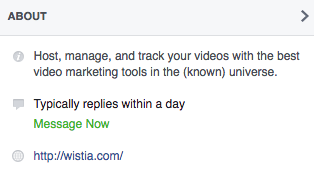
Here’s an example video marketing software company Wistia:
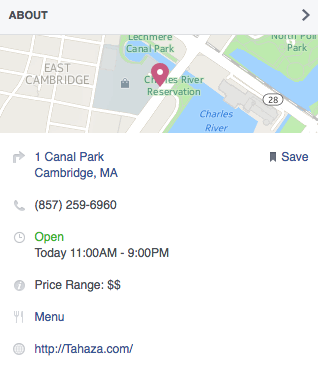
And another from a restaurant called Tahaza Hummus Kitchen:
To edit your own “About” tab, click on it, hover over the section you’d like to edit, and click the pencil icon.
6. Earn the “Very responsive to messages” badge.
If you respond quickly to most users who send you messages on Facebook, then you can earn what Facebook calls a “Very responsive to messages” badge. You’ll earn a “Very responsive to messages” badge below your Page’s cover photo if you have a response rate of 90% and a response time of 15 minutes over the last seven days.
If you’re responsive to messages but haven’t quite earned the badge, Facebook will still show off how responsive you are to visitors. Here’s an example from Zappos’ Page:
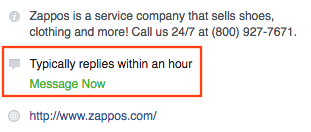
If you’re not very responsive to messages, nothing will appear. So, while it’s not the end of the world if you don’t respond, having that badge lets users know your business is listening and cares about their needs.
By the way, there’s a lot you can do with Facebook’s “Messenger” tool for businesses. We recommend you explore and make the most out of Facebook as a communication and support tool.
7. Add milestones.
The “Milestones” feature lets you highlight some of your business’ biggest accomplishments, like award wins, product releases, major events, or other accolades. Recent milestones will be posted to your Timeline, and users will be able to find them later under your “About” tab.
To add milestones, click on the “Timeline” section of your Page, and click the “Offer, Event +” option in the page update composer near the top of your page.
9. Choose a call-to-action button.
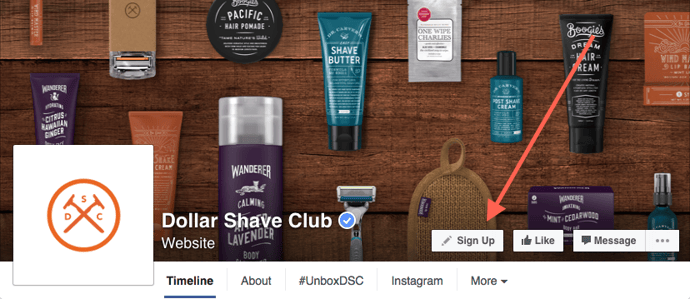
Facebook’s option to place a simple call-to-action button at the top of your Facebook Page is another handy feature. You can learn how to add a CTA button to your business’ Facebook Page here.
You can choose from seven pre-made button options (“Sign Up,” “Shop Now,” “Contact Us,” “Book Now,” “Use App,” Watch Video,” and “Play Game”) and link it to any website that aligns with your business’ goals. It could link to your homepage, a landing page, a contact sheet, a video, or somewhere else.
10. Create custom page tabs.
By default, your page tabs are set as Timeline, About, Photos, Likes and More. But Facebook lets you create and leverage custom tabs — which are basically like landing pages within your Facebook Page, or calls-to-action where you can feature anything from case studies to marketing offers to other promotions you’re running.
They’re right at the top of your page and let you give visitors specific path to do what you want them to do on your Page. For example, if you’re hiring a lot of people, you might create a custom tab for “Jobs” that links to your jobs site, like Zendesk does on their Page:
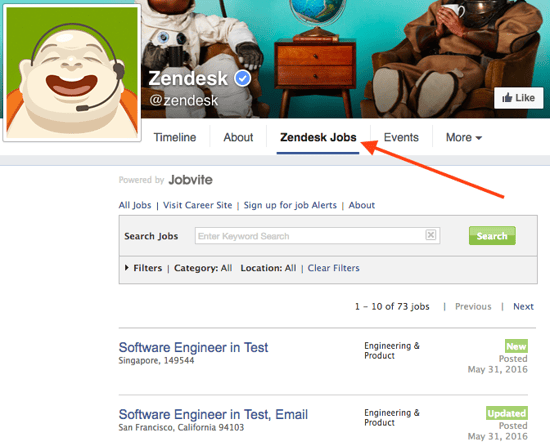
You can create custom tabs by signing in, visiting your Page, clicking the “More” tab and choosing “Manage Tabs” from the dropdown menu.
Tips for News Feed Visibility
11. Prioritize quality over quantity.
Here are two questions we hear a lot: How often should I post to Facebook? Will posting more frequently will help me reach more people?
In short, the answer is no. At the end of the day, how visible your posts are in people’s News Feeds all comes down to the quality of your posts. These algorithms are meant to filter out the irrelevant and the poor quality posts so that the highest-quality stuff is what gets through and gets shown to users.
So don’t overwhelm your customers with content on Facebook, and be selective about what you’re publishing. Spend more time crafting better Facebook posts, and less time crafting a lot of Facebook posts. Remember: It’s a marketer’s job to post content to social that’s interesting, entertaining, helpful, and/or relevant to the audience. This means picking relevant topics, writing delightful copy, and posting compelling images and videos.
12. Post at the best times for your audience.
Another common question: When’s the best time to post to Facebook? Unfortunately, there’s no perfect answer — different businesses may find different days and times work best for them. Timing often depends on what your target audience uses Facebook for, the region(s) you’re targeting, the content of your post (e.g. funny or serious), and your goals (e.g. clicks versus shares), and so on.
That being said, there is data out there on optimal times to post on Facebook:
- The best time to post on Facebook is Wednesday, 11 a.m. and 1–2 p.m. Other optimal times include Tuesday through Thursday, 8 a.m.–3 p.m.
- The worst times to post on Facebook on Sundays, or every day either before 7 a.m. or after 5 p.m.
Think of this data as a general guideline, and use it to help you find the optimal posting times for your business.
13. Post your best blog content.
For businesses, social media continues to be driven by content. It’s a marketer’s job to post content to social that’s interesting, entertaining, helpful, and/or relevant to our audience. Start populating your Page’s timeline with content by handpicking your best, most helpful blog posts.
If you’re strapped for resources but maintain a business blog, you can try connecting your blog to auto-post links to new blog content you publish. Many blogging platforms (like HubSpot) automatically offer this feature within the software — you’ll just need to turn it on and sync it with your Page. You don’t want to put too much emphasis on automation, though. It’s OK to auto-publish some content, but make sure a real human is posting and engaging with your fans, too.
14. Make sure your blog posts’ meta descriptions are complete.
Have you noticed that when you post a link to Facebook, it pulls in a brief description as well as an image?
The description gets pulled from the page’s meta description, which refers to the HTML attribute that explains the contents of a given web page. It’s the short description you see on a search engine results page to “preview” what the page is about, and it’s also the copy Facebook will automatically pull in the populate the description of a post.
Without a meta description, Facebook may pull in the first text they can find, which doesn’t make for a very good user experience. Plus, meta descriptions are your chance to sell your visitors on what you have to offer: informative, valuable content.
Your meta description should be compelling enough to get people to click, and it should be 155 characters or fewer in length. Read this blog post to learn more about writing effective meta descriptions.
15. Remove links from your post copy.
Keep your copy succinct by removing the horrendously long URL you’re sharing from the text in your post.
Your post real estate is precious, and you want to ensure any characters employed are purely for the sake of sparking a reader’s attention. Plus, any user can click on the generated thumbnail or title for that URL to navigate to the blog post, web page, or any URL you’re linking to — so no need to include it in the copy of your post as well.
16. Post your most compelling visual content.
Facebook’s timeline page design places more of an emphasis on visual content like images and videos. After all, Facebook posts with images see 2.3X more engagement than posts without images. One study found that Facebook posts with photos saw the most engagement over any other type of post, accounting for a whopping 87% of total interactions.
That’s why posting compelling visual content is one of the most important things you can do to improve your Facebook strategy. Use this to your advantage posting your best visual content to your Facebook Page, or making more of an effort to make the content you already create more visual. (Click here to download 50 social media image templates for free.)
A successful social strategy will often include photos, videos, and screenshots of infographics or other graphs. In addition to being fun to look at, it’s important that your visual content be compelling and relevant to your audience.
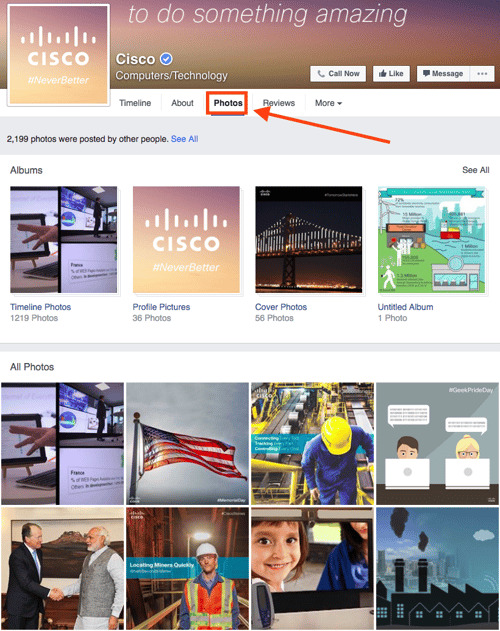
Another reason to post lots of visual content? It’ll help auto-populate the “Photos” and “Videos” tabs, which are automatically added to every Facebook Page. You want those to be rife with visual content when people click on them.
17. Make sure your images are properly formatted.
Don’t just post images for the sake of posting images. To give your users the best experience possible, you need to optimize your images for Facebook so that they’re the right sizes and dimensions. (Click here to download pre-sized cover photo templates for Facebook and other social networks for free.)
Below are a few of the most common Facebook image sizes, but you can find a more detailed guide here.
- Cover photo: 820 px wide by 312 px tall
- Profile image: 170 px wide by 170 px tall
- Shared image: 1200 px wide by 630 px tall
- Shared link thumbnail image: 1200 px wide by 627 px tall
18. Post videos, especially live videos.
The folks at Facebook know that people like watching videos on Facebook. The number of people watching video content is rapidly increasing. In fact, there are more than 4 billion video views on Facebook every day.
Facebook is continuing to tweak how the algorithm measures people’s interest in video content on Facebook, but the main takeaway is to make your videos as visually engaging as possible — especially in the first few seconds.
Why? Because although all videos on Facebook autoplay in people’s News Feeds, they’re on mute until the viewer manually turns the volume on. The more visually engaging your video, the more you can entice people to stick around. Getting people to spend more time watching your video will help your video rank higher in the News Feed because to Facebook, signs of user engagement with a video include spending time watching the video, turning on the audio, switching to full-screen mode, or enabling high definition.
In their continued effort to promote video content in the News Feed, Facebook launched Facebook Live, a live video streaming service that lets anyone broadcast live videos from their mobile device straight to their Facebook News Feed.
19. Use Facebook Insights.
Facebook Insights is Facebook’s internal analytics tool right that helps you measure and analyze your Facebook presence. The tool provides Facebook page administrators with analytics data about Page visits and engagement, which can help you understand which content is and isn’t engaging to your fans.
Access your page’s Insights here, or by clicking into the ‘Admin Panel’ on your Page. We’ve also published an informative blog post and video that walk you through how to analyze Facebook Insights to improve your content strategy.
20. Schedule posts in advance.
Scrambling for Facebook content is not a new phenomenon. We have meetings. We run late. Things come up. That’s why you’ll want to use a third-party Facebook application like HubSpot’s social media publishing tool to schedule your Facebook posts (and other social media posts) in advance.
First, download our free social media content calendar template to help plan your posts in advance. You can fill it in at the same day and time every single week to prep for the following week’s social media content. Then, use that third-party Facebook application to actually schedule out your posts.
However, just as we advised against too much Facebook automation with blog auto-posting, the same holds true for scheduling. Don’t get caught in the trap of turning your page into a robot, and make sure you’re actively engaging with your fans, too.
21. Add Facebook social media buttons to your blog and website.
Adding Facebook social media buttons will help encourage visitors who are on your website to also connect and interact with you on Facebook, as well as spread your content and expand its reach.
The Facebook Follow Button lets you expand your Facebook reach by making it easy for your site visitors to Like your business’ Facebook Page with just one click. It displays your page’s number of Likes, as well as faces of people who already like your page, using social proof to amplify its effectiveness.
The Facebook Like Box lets you promote your business’ Facebook Page on your website and blog, highlight other users who have already Liked your page, display your follower count, and feature recent posts on your page. With just one click, people can Like your business Page — without leaving your site.
The Facebook Like Button lets people easily Like your content. When a user Likes a piece of content, it may show up in your friends’ News Feeds because the algorithm takes it as a signal your friends will find it relevant.
(Note: This button doesn’t allow them to add personalized messages to links before sharing them. To allow users to add a personalized message, use the Facebook Share Button, explained below.)
To customize your Facebook Like Button, visit this page and follow the instructions.
Facebook Share Buttons act similarly to the Like Button by sharing your content on their Timeline and in friends’ News Feeds, except they also let people add a comment or message to the link when sharing it.
To generate a Facebook Share Button, visit this page and follow the instructions.
22. Subscribe to Facebook’s Official Blog for future announcements from Facebook.
Give yourself a competitive edge by staying on top of the latest announcements from Facebook such as new features and tools by subscribing to the official Facebook Blog.
Tips For Advertising on Facebook
23. Choose the right advertising tool.
Facebook offers users the Ads Manager. Facebook’s Ads Manager works great for most companies. Figure out which is best for your business based on your company size and the number of ads you plan to run at once.
24. Use Audience Insights to learn about your audience.
The best Facebook ads are high-quality, relevant ads that fit seamlessly into the user’s environment on Facebook. Learn more about your customers and prospects using Audience Insights, which you can find inside the Facebook Ad Manager in the left-hand navigation.
The tool will help you target your ads more effectively and learn about your audience — even if you are not advertising to them. How? The data can help you build stronger buyer personas, create more compelling content, and uncover some gems for your competitive research.
25. Test multiple versions of a single ad.
Running a single campaign won’t give you much to work with in terms of finding your audience, optimizing your ads, and determining if Facebook advertising works for your business. You need to be able and willing to run multiple campaigns to test and experiment with different parts of a single campaign.
Test your targeting first, using a simple advertisement and basic image. In order to reach and test on a wider audience, you’re going to have to invest a reasonable amount of money on your campaign. The folks at BuzzSumo suggest that number be in the thousands. The reason for this? Facebook ads reward you for testing more ads and targets. Whereas cost-per-click doesn’t change much when you’re advertising on Google or LinkedIn, Facebook ads cost a lot less if you’re diligently testing them.
Then, you can test the creative side of the ad, including images, headlines, and body text. Try testing 20–25 variations on your proven targets.
Facebook is still a great tool for your business and it’s important to figure out how it can work for your company.
Want to learn more? Read this blog post to learn more about creating, optimizing, and analyzing your Facebook ads.


The 10 Best Video Conferencing Tools for Small Businesses
Over the past year, marketers got a crash course in remote work.
As 2021 approached, many of us had already invested in at-home desks, workout equipment, and other tools meant to make work-from-home a little easier.
At the top of that list? Video conferencing software.
Video conferencing tools saw a 500% increase in demand in 2020 as a result of the worldwide pandemic. And, as the workforce continues to shift to a more flexible, hybrid model, it’s critical your business invests in equipment designed to foster collaboration regardless of an employee’s location.
But video conferencing software isn’t always cheap, and the fancy bells-and-whistles aren’t always necessary for small businesses looking for a simple, effective solution.
Here, we’ve compiled 10 of the best video conferencing tools for small businesses, ranging in price and features, to help you find the best fit for your needs.
But first — what are the benefits of video conferencing software, and do you need it, anyway?

Video Conferencing Benefits
Video conferencing offers opportunities for collaboration, productivity, and increased engagement with colleagues, stakeholders, and customers — all without the hassle (and cost) of traveling to an in-person location.
I could write a whole blog post about the benefits of video conferencing, but for our purposes, let’s focus on four:
- Video conferencing is a cost-effective opportunity to have face-to-face interactions with colleagues, prospects, stakeholders, or customers. It’s more personal and engaging than a phone call, and it’s much cheaper and more efficient than paying to commute — or fly — to a physical location to meet someone for an in-person conversation.
- Like mentioned above, video conferencing offers an opportunity for more personal connection. Eye contact, facial expressions, and body language are cues we use to effectively communicate with one another on a daily basis — and those cues are all lost in a phone or email conversation.
- Video conferencing can increase your team’s productivity, since it limits the amount of time you spend running to conference rooms in-between meetings, driving to meet a client, etc.
- Video conferencing can foster increased collaboration, as opposed to email or Slack. For instance, if I hear an interesting project a colleague is working on, I’ll ask them to join a quick Zoom call with me so we can discuss opportunities for collaboration — which is much more efficient than emailing about it.
However, video conferencing software can be expensive, and if you work for a small business with limited resources, it can be difficult to persuade leadership that it’s a worthwhile investment. Fortunately, you don’t have to break the bank to test it out — in fact, a few of the tools in this list are free forever, and others offer free trials.
Let’s dive into the most impressive video conferencing tools we’ve found for small businesses.
10 Best Video Conferencing Tools for Small Businesses
1. Zoom
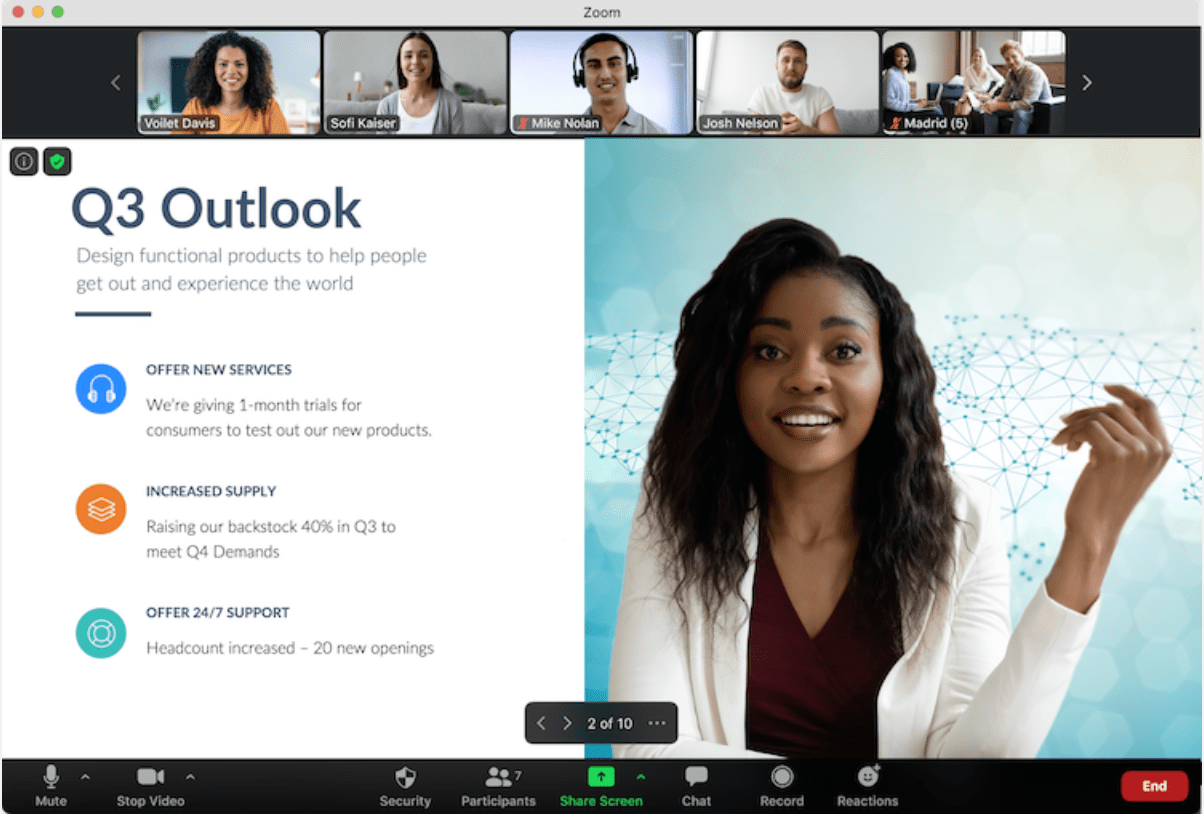
Pros: If you’re on a tight budget, you can’t beat the free option you get with Zoom, one of the highest-rated video conferencing tools available. The tool offers clear audio with background noise suppression, an option to share your screen, and a recording function to save and send the meeting to those unable to participate.
Additionally, Zoom has a few fun, engaging tools for increased participation among attendees — including filters, reactions, polls, hand raising, and chat. Plus, you can schedule a Zoom meeting right from your Outlook, Gmail, or iCal email calendar.
Zoom is also part of the HubSpot ecosystem and connects seamlessly with your CRM.
Cons: Outside of meetings, Zoom doesn’t offer any collaboration tools such as file sharing or messaging to follow-up with colleagues — additionally, the links you might’ve shared in the Zoom chat aren’t saved anywhere for later viewing. You also can’t add a meeting agenda to the invite from the app itself.
Overall, Zoom is a great option for small teams, but as you scale, there are some growing pains. For instance, you can get 100 participants in a meeting for 40 minutes with the free version, but if you have a company of 100+, you’ll need to pay more to increase participants.
Price: Free for Basic, which includes the ability to host up to 100 participants, up to 40 minutes of group meeting time, and unlimited one-on-one meetings. $149.90 per year for Pro version, which is recommended for small teams, and $199.90 per year for Small & Med Businesses version.
2. Jiminny
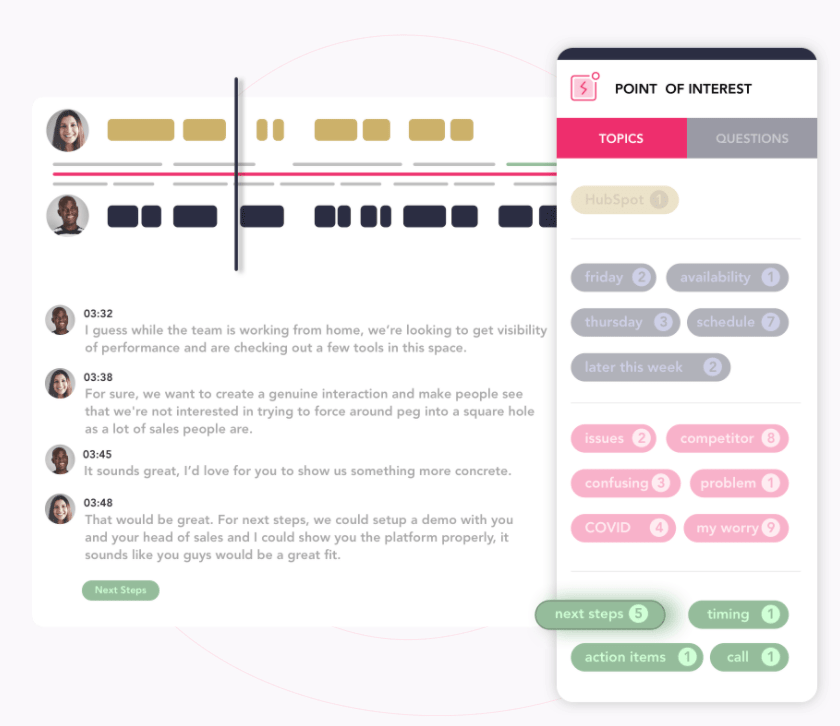
Pros: Jiminny offers a ton of unique, impressive features that can be particularly useful if you’re hoping to use your video conferencing tool for your sales team or for client-facing purposes.
For instance, the software offers a “Themes” feature, which means your meeting recording will be automatically broken up into important parts like “Next Steps” — for anyone who’s ever scanned an hour-long meeting recording looking for a two-minute conversation right in the middle, this can greatly increase efficiency with follow-up materials.
The recording feature can integrate with your CRM to automatically input data from your recordings, enabling you to reduce the time-consuming task of manual note-taking. The software also offers metrics such as ratio of talking versus listening to improve your sales reps conversation (and listening) skills.
Cons: The company is in the early-stages, so as they continue to iterate and improve on their product, you might experience some growing pains. Additionally, if you’re not planning on using the video conferencing tool for prospect/customer-facing purposes, some of these features might be unnecessary for your internal marketing team.
Price: Pro plans starting at $75/month per user if you sign up for a full year; that goes up to $95/month per user if billed monthly.
3. Google Meet
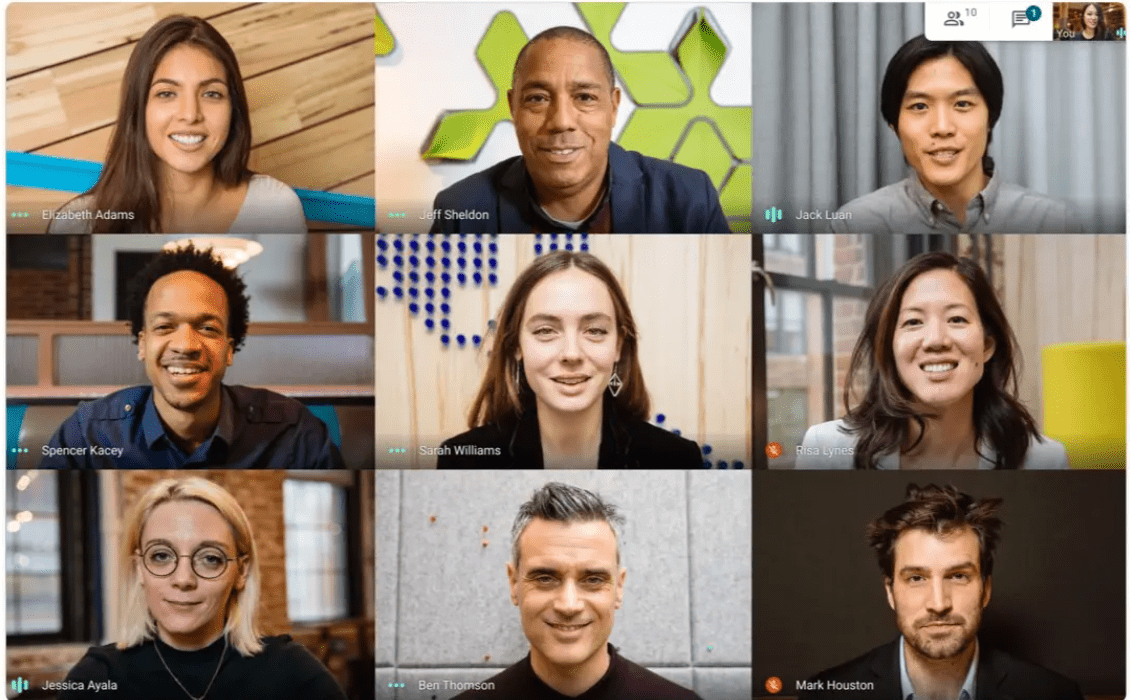
Pros: Google Meet is an incredibly cheap and easy-to-use video conferencing tool for small teams. In fact, if you’re not interested in recording or storing meetings, the tool is free forever for up to 100 participants.
Google Meet integrates with other apps and even lets you build a custom app using Apps Script. The tool also comes with unlimited Google Drive storage.
Additionally, the tool offers a speech-to-text real-time captioning feature for video chats and meetings — ideal for hearing impaired participants, non-native speakers, or participants with noisy backgrounds.
Cons: The free version doesn’t offer the ability to record or save your meetings, which means you’ll need to upgrade if you need either feature.
Google doesn’t offer personalized setup or training, and it doesn’t offer the same robust features as some of the other options in this list. It also can’t support more than 250 participants, so it won’t work if you plan on hosting larger webinars or conferences.
Price: The app is free for up to 100 participants and an unlimited number of meetings. However, if you want to record or store meetings, pricing starts at $8/month per user.
4. Bluejeans

Pros: Bluejeans, a video conferencing software created by Verizon, offers impressive features such as the ability to use AI and voice recognition to automatically take notes, create action items, and identify key moments for later follow-up. Additionally, engagement is a breeze from within the tool with features such as screen sharing, polling, Q&A, and chat.
Bluejeans integrates with messaging, scheduling, and productivity tools, and offers impressive security and scalability requirements.
Cons: Bluejeans doesn’t offer file sharing capabilities, and if you only purchase the Me plan, you’re limited to 25 hours of recordings. Additionally, support is limited.
Price: $13.99/host per month, up to 75 participants and 25 hours of recordings.
5. GoToMeeting
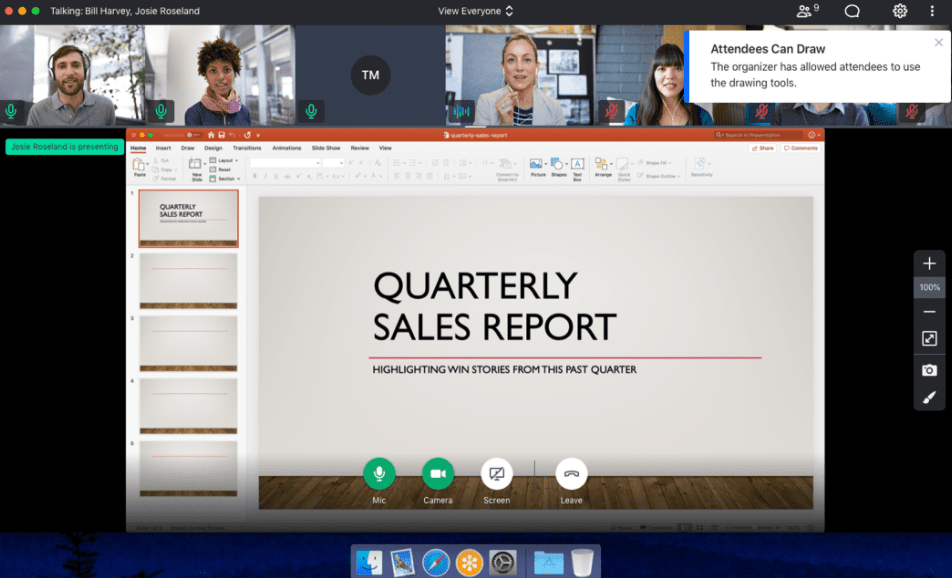
Pros: LogMeIn’s video conferencing software has some impressive features, including a “Smart Meeting Assistant” transcription service that automatically transcribes the meeting so you can search through and share detailed notes with others.
You can record the meeting and store the recording locally or in the cloud, and participants can join the meeting on desktop or through a mobile app.
Overall, GotoMeeting’s HD video and audio software is high-quality and integrates easily with Google Calendar or Chrome for increased efficiency.
Cons: GoToMeeting requires an error-fee data connection to work well, and some reviewers have noted the mobile app isn’t as user-friendly as they’d like. Additionally, the Professional plan doesn’t offer the transcription, note taking, or drawing features.
Price: $16/user per month, for up to 250 participants, for Business plan.
6. Skype
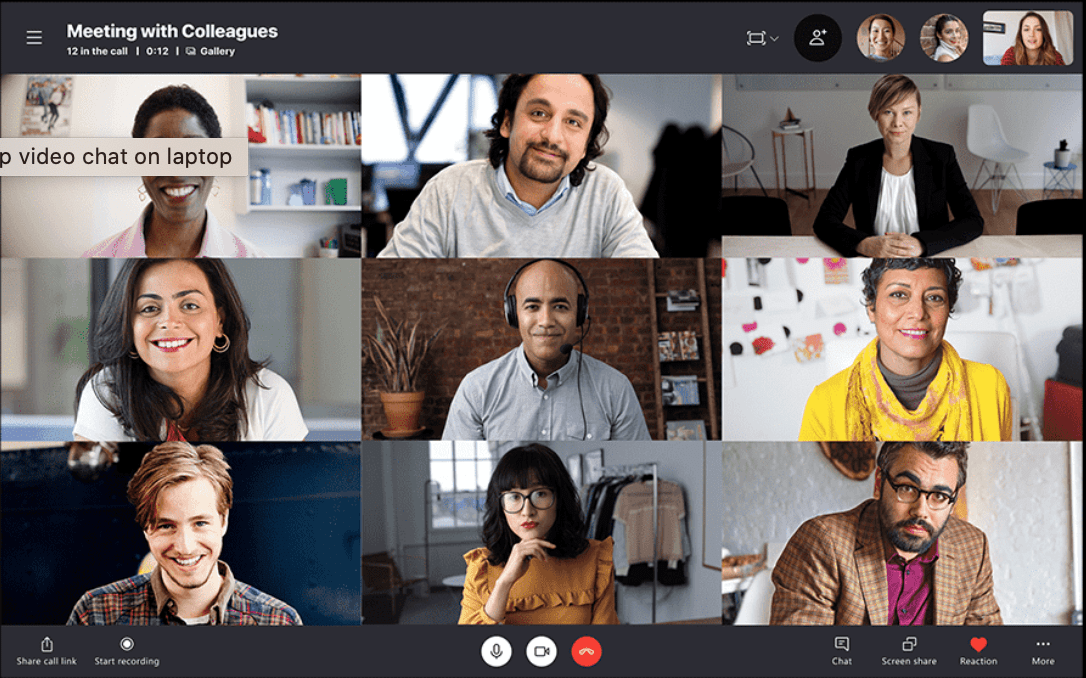
Pros: If you have a tight budget and you’re often calling people from across the globe, Skype could be a great option for you. The software is free to use, and doesn’t charge users for calling anyone from anywhere in the world. Video calls can also include up to 50 participants at once. The tool is easy to install and use.
Cons: The audio quality isn’t always great with Skype, particularly since Skype’s audio quality is based on bandwidth, so if users have a slow speed ISP, then audio quality will be negatively affected. Additionally, since Skype calls occur over the internet, there’s always a possibility that data will be intercepted. This makes it a less secure option than some others in the list.
Price: Free
7. Microsoft Teams
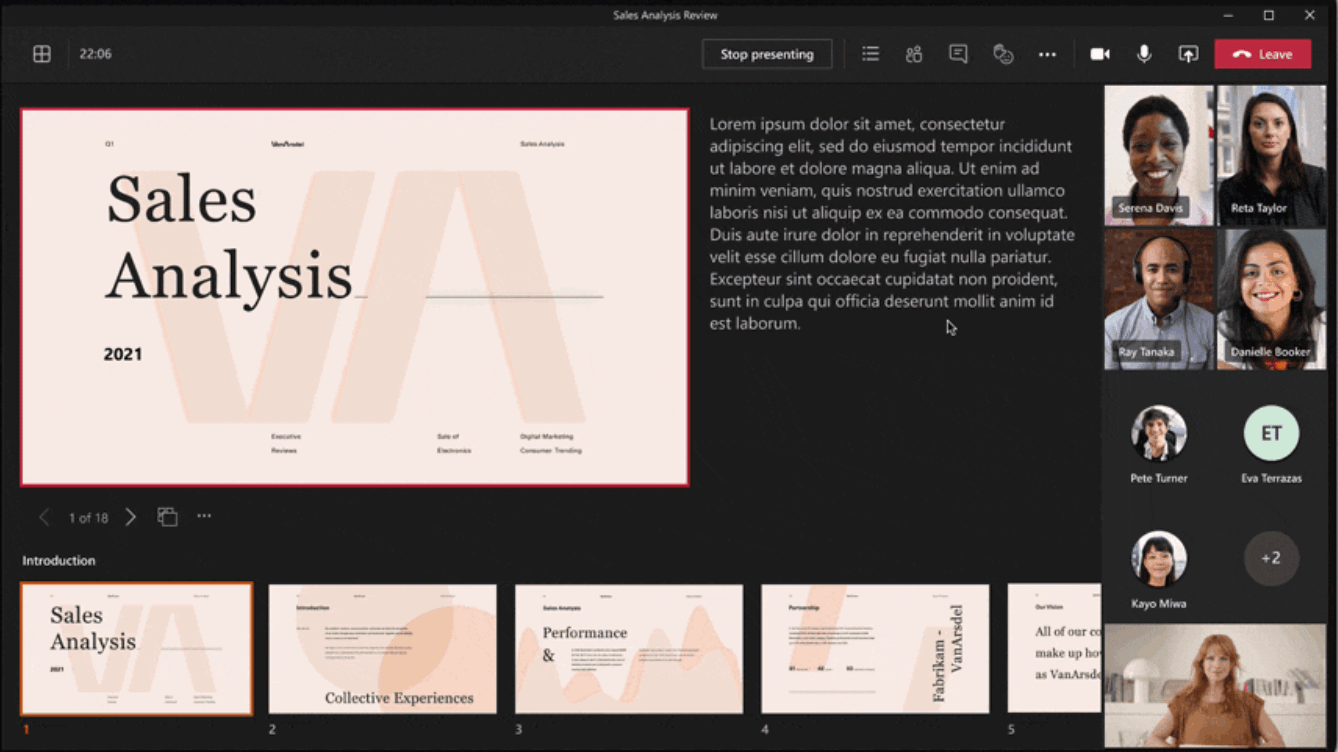
Pros: If you’re planning on hosting large webinars or conferences with over 250+ attendees, Microsoft Teams is a good tool for you to consider. The software allows up to 10,000 participants to meet at once, and lets you host with anyone inside or outside your organization.
Additionally, Microsoft Teams enables you to organize different departments or groups into “Teams” (which can be up to a few thousand people) — within those Teams, you can have separate channels of conversations and focus on different projects.
Microsoft Teams provides a few impressive features for increased engagement, including notifications, mentions, comments, GIFs and emojis in chats, and the ability to chat one-on-one or in groups. The software also offers advanced security features.
Cons: Microsoft Teams is an inclusive option for ensuring everyone within a given “Team” automatically has access to all the files, notes, and channels in the Team. Unfortunately, that means you don’t have permission settings to inhibit certain users from accessing files within a group, and you also can’t invite guest users to selected channels.
Price: Microsoft 365 Business Basic is $5/user per month (annual commitment) and allows for 300 participants, but doesn’t include the advanced security and compliance features, administration, or support. Microsoft 365 Business Standard is $12.50/user per month (annual commitment), and Office 365 E3 is $20/user per month (annual commitment) and includes everything Microsoft Teams has to offer.
8. RingCentral Video
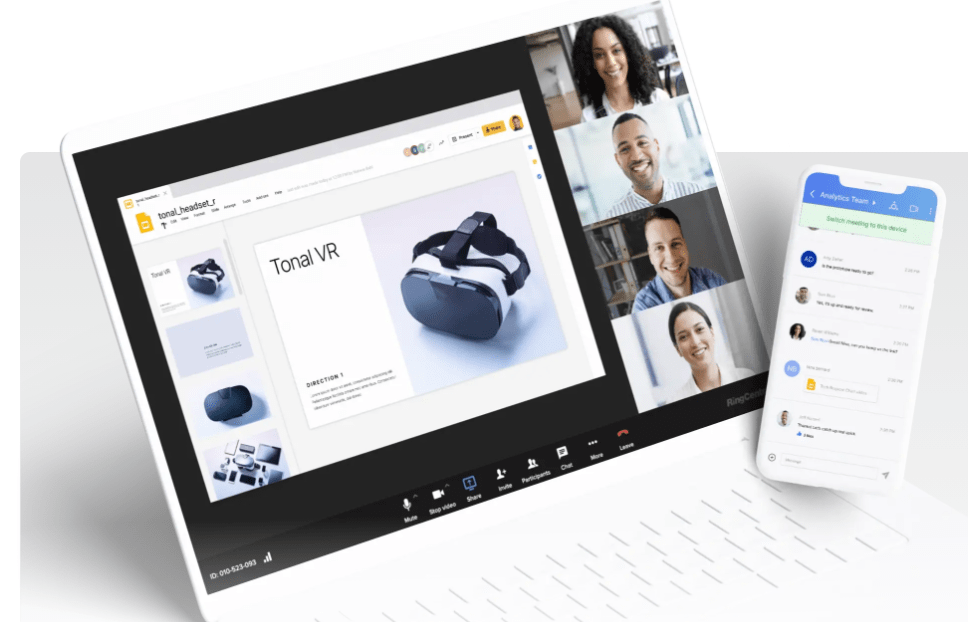
Pros: RingCentral offers HD video and high-quality audio, and it’s a cost-effective option for an unlimited number of users, video meetings with up to 100 participants, and up to 24-hour meeting duration. The software enables you to hop easily between mobile and desktop devices, and provides seven layers of security.
Additionally, RingCentral provides personalized onboarding training and 24/7 live support, so if you feel your team might need support getting set up or in the future, this is a good option to consider.
Cons: RingCentral offers a recording feature but it’s only available as an offline option, meaning you need to download the recording as a local hard disk rather than a publicly available folder like Dropbox. The software also doesn’t come with its own calendar and task management function to integrate video meetings with your calendar events — for that, you’ll need to download the company’s Glip app.
Price: $24.99/user per month for the standard version.
9. Zoho Meeting
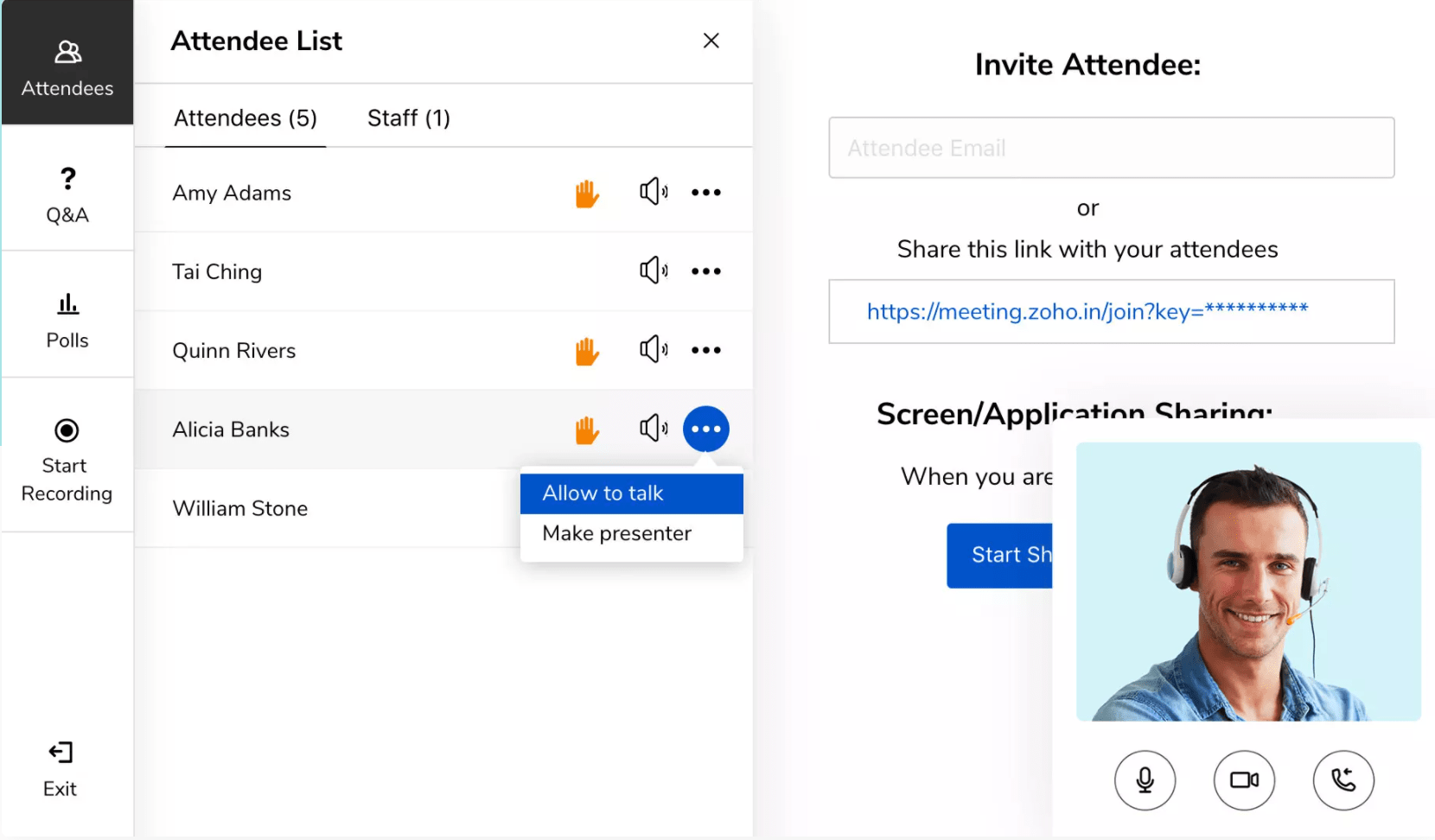
Pros: One of the most cost-effective options in the list, this is a good, user-friendly video conferencing software for small businesses. Users don’t need to download and install any software, since Zoho is hosted on a web browser, and the software offers all the basic features you’d need in a video conferencing tool, including screen sharing and meeting recordings.
Aditionally, you can use 100+ local dial-in numbers and 55+ toll-free numbers to join from different countries. Best of all, the interface is easy to navigate and use.
Cons: Zoho Meeting limits attendees to 100. If you need more participants than that, you’ll need to switch to Zoho Webinar. You also need to purchase an add-on if you plan on storing over 10 recordings.
The tool doesn’t offer some of the fancy features we’ve seen elsewhere in this list, including a smart assistant or cloud video recording. Still, this is a good option for smaller teams who don’t need all the bells and whistles.
Price: $2.50/host per month for 10 participants, $5/host per month for 25 participants, and $10/host per month for 100 participants.
10. Intermedia AnyMeeting
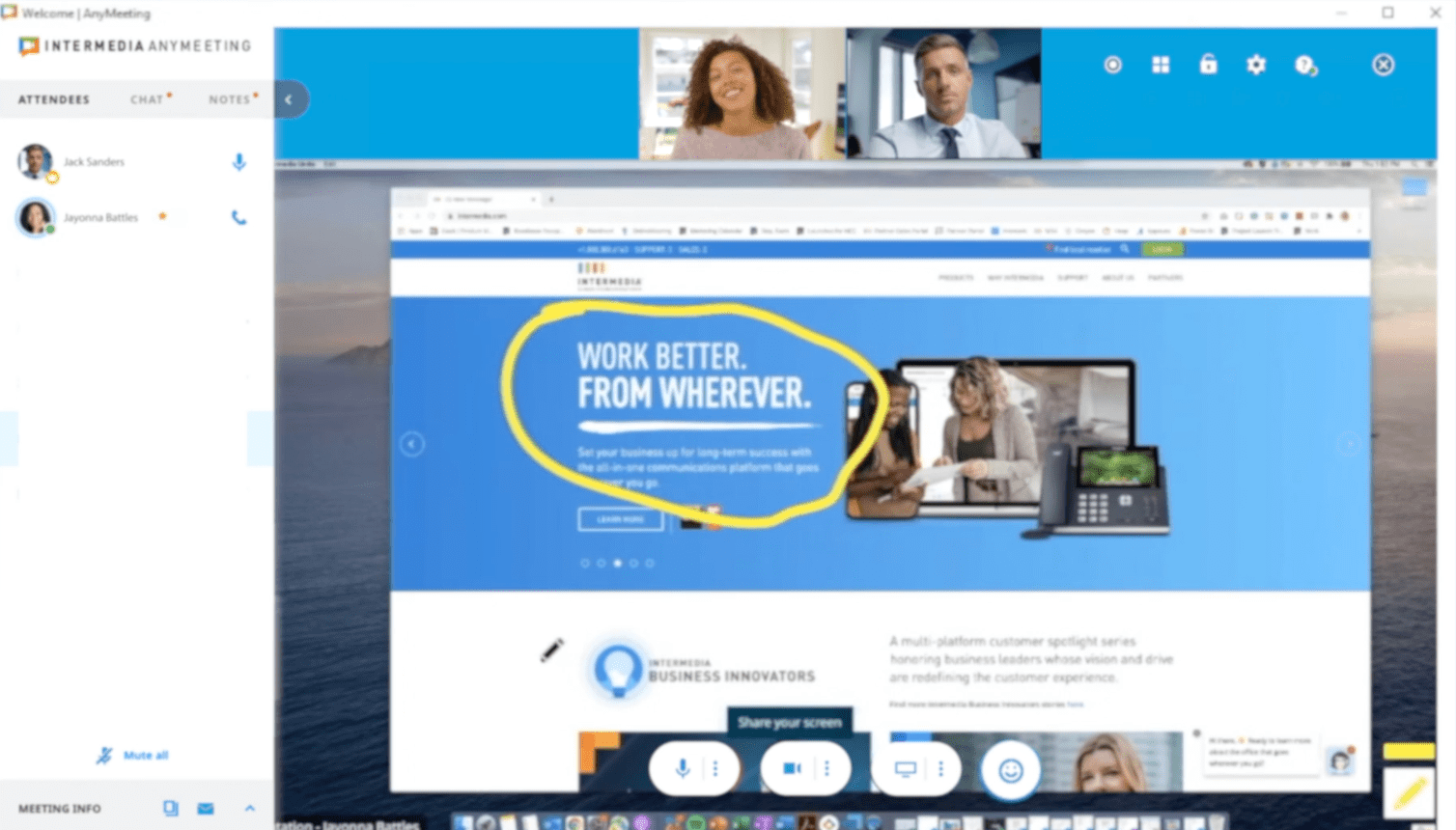
Pros: Intermedia AnyMeeting has a clean, easy-to-use interface and offers an impressive array of features — including an AI-powered smart assistant for meeting transcriptions, and screen annotations so participants can direct attention to key points on a shared screen — for a relatively low cost.
The software integrates with plenty of popular office tools including Outlook, G-Suite, and Slack, and offers unlimited recording storage and sharing capabilities. With the Pro version, you’re also able to create custom branded meetings with a company logo and personalized background.
Cons: Intermedia AnyMeeting doesn’t have end-to-end encryption of ongoing calls, which could raise privacy and security concerns. Additionally, some G2 reviewers have mentioned the audio quality could be better.
Price: $9.99/user per month for the Lite version, which enables up to 10 participants. $12.99/user per month for the Pro version, which enables up to 100 participants.
Remember — when choosing video conferencing software, it’s critical you keep your own team’s needs, resources, and requirements in-mind. If you’re still unsure after reading through this list, consider testing out a few demos or trial versions to see which feels best-suited for your brand.

How to Identify Your Core Marketing Message
As a marketer, you know how important it is to have a marketing strategy.
You also know how important it is for your strategy to align with your audiences’ needs and interests, and the required approach for each channel you use, whether it’s social media or email. Having a marketing strategy also helps you create the content your audiences want to see and share it where they’re most likely to see it.
But, when you have this strategy, how do you figure out what to say in the content you share with them? What you need is a marketing message, and it’s just as important as your overall strategy.
You can think of it like this: if you know you want to post about a new product launch on Instagram, how will you prove to your audience that they need to buy this new product? Your marketing message. Essentially, no marketing message means no way to execute your strategy.
In this post, we’ll define what a marketing message is, give real-life examples from businesses, and explain how you can create your own.

Because of this, you should craft your marketing message with care, specifically for the audiences you’re trying to reach. It should also address their pain points and present your business as a solution.
When your message speaks to their needs, you’ll build trust with your audience and inspire customer retention.
Every business engaging in marketing needs a marketing message, whether you sell B2C or B2B, software as a service (SaaS), or clothing.
Marketing Message Examples
Successful marketing messages attract leads and convert them to paying customers. Below we’ll go over some real-life examples of effective marketing messages.
Nike
As a clothing and apparel brand, Nike is committed to providing equipment to everyone who needs it, regardless of the sport they play and who they are.
Their marketing message is “Where All Athletes Belong,” and it speaks to their target audience and lets them know that they have something for everyone —from professional athletes to first-time players.
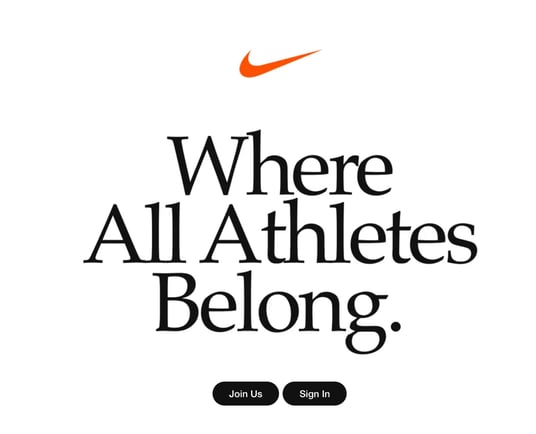
Image Source
Black Girl Sunscreen
Black Girl Sunscreen targets an audience often left out of sun safety discussions: women of color. Their message lets that market know they’re there for them: “Protect your melanin. Sunscreen is always in season.”

Chipotle
People with dietary restrictions or food preferences that don’t align with mainstream ideas of nutrition are often unable to find food they can eat at fast-food restaurants.
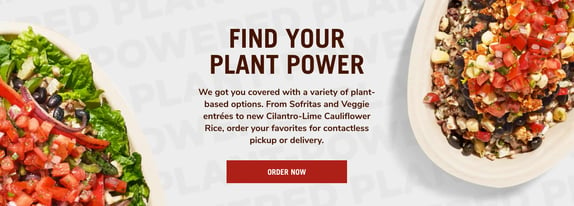
Chipotle’s marketing message, shown in the image below, reads “Find your plant power.” The brand is speaking directly to those with diverse needs, inviting them to try their expanded menu with plant-based options and letting them know that they recognize the gap in the market for their needs.
Lab Muffin
Ingredients in beauty and cosmetic products can be hard to understand if you don’t have a scientific background or relevant experience. Lab Muffin’s marketing message speaks to those who want to understand the chemistry behind the products they use: “The science of beauty, explained simply.”

Zoom
Zoom is a virtual meeting tool that allows users to connect virtually. It markets to an audience who wants to continue having fulfilling conversations, regardless of their physical location: “Meet OnZoom. A marketplace for immersive experiences.”
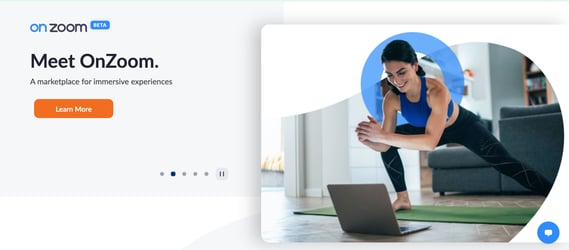
All in all, these marketing messages capture attention and, in just a couple of words, explain why their business is the best fit to meet their audience’s needs.
How to Craft a Marketing Message
As mentioned above, a well-crafted marketing message converts your audience into customers. All businesses should aim to have one, and below we’ll discuss how to create a compelling marketing message for your own business.
Know your target audience.
Just as with most marketing practices, you can’t begin creating your marketing message without identifying your target audience. When you know who they are, you’re not marketing to customers you think are interested in you, but rather to those you know are interested in you.
In brief, your target audience is a group of consumers with similar characteristics and purchasing intent, and stand to gain the most value from your products. While your overall target audience is probably defined by the industry you’re in, it’s important to have a deeper understanding.
To learn more about your target audience and narrow down who they are, you can conduct buyer persona research, analyze your competitors, practice social listening, and invite people to participate in focus groups or interviews.
Overall, what you want to learn from identifying your target audience is understanding what they “look” like. This can be simple demographic information, like age and location, to what they like, desire, and want from the businesses they buy from.
Having this information then makes it easier to personalize your strategies and create a marketing message that will resonate with them, especially when addressing their pain points.
Understand your audience’s pain points.
Your persona research should tell you about your audience’s pain points and challenges.
As a refresher, pain points are issues that affect your target audience’s day-to-day routines, business tasks, or general life desires. These challenges are typically things that your audience is actively seeking solutions for.
For example, if you’re a business selling marketing SaaS, you may discover that your audience has trouble managing their campaigns because they use multiple platforms throughout their process. When you create your marketing message, you should speak to your ability to streamline their efforts with your easy-to-use, all-in-one platform.
If you’re a B2C business that sells eco-friendly clothing, a customer pain point could be that they struggle to find brands without significant environmental impact. In your marketing message, you should speak to their desire to minimize environmental pollution through sustainable shopping opportunities.
When you understand pain points, you don’t have to guess why your customers need you — you’ll know why they need you. As a result, you can create a marketing message that addresses their needs.
The first two steps on this list involve gathering the necessary background information, and the following steps will help you begin crafting your message.
Make value propositions.
Value propositions highlight your product or service’s unique value and tell customers that your brand is tailor-made to meet their needs. It clearly says why they should do business with you instead of a competitor, and that is precisely the point of a marketing message.
When creating your message, present your product or service as a cure for their pain points, and prove it. Continuing with the eco-friendly business example, you can specifically mention that your clothing is locally produced, separating you from the competition that mass produces its goods abroad.
This message tells consumers that you’re solving their pain point, which is a lack of sustainable clothing brands, because you design ethically produced and environmentally friendly products.
Prioritize clarity and concision.
Even though your marketing message needs to say a lot, you need to say a lot while saying a little. You shouldn’t beat around the bush. Instead, get to the point and explain how your product is a solution.
Customers should read your message and find answers to their questions without needing to overanalyze your statements. Prioritize being clear, concise, and easily understood, as you want your words to speak for themselves. To reiterate, get to the point.
You can think of it like this: I said a lot in this explanation just to tell you to get to the point. If this were a marketing message, you would’ve moved along already. However, if I wanted to follow the tips I’ve mentioned, I would simply say, “Tell me why you’re the best – no ifs, ands, or buts.”
Use familiar, conversational language.
Even though your customers are in your industry, you shouldn’t assume that they know or understand the technical jargon related to what you sell. Therefore, it’s important to sound conversational and use language that is familiar and palatable to most audiences. Your message copy should be simple, straightforward, and not require an industry-specific dictionary.
For example, you can use technical terms to describe the features in your latest automobile model. Still, car enthusiasts would be the only ones that genuinely understand what it means to have a 600 horsepower engine and AAA uniform tire quality grading (I certainly don’t know what this means).
Aim to write as people speak during conversations, maintain a friendly tone, and make customers feel welcomed. Robotic and technical language may be confusing and lead them to think that doing business with you will be complicated and confusing as well.
In sum, by being conversational and familiar, you’re reaching everyone, from first-time industry customers to seasoned CEOs.
Showcase your brand’s originality.
Your marketing message’s overall intent is to attract your target audience, but it’s also to set you apart from your competitors. Given this, a key pillar of your final message is originality.
Run-of-the-mill marketing messages seem like they could belong to any of your competitors, and original ones showcase what makes you unique. This can be your brand’s personality, the features that set you apart from your competitors, or a combination of the two.
Your marketing message is unique to your business, your solutions are unique to your business, and your words should prove that.
Use user-generated content (UGC).
Consumers are 14% more likely to trust recommendations from someone like them (another consumer) over a brand employee. With that in mind ,using UGC in your messaging, like testimonials and reviews, can help you support your products’ value.
As your target audience likely shares the same challenges, seeing that someone like them has benefited from your product can help them make their final decision. For example, you could say, “95% of our customers love [xyz], and you will too.”
Appeal to customer emotions and logic.
There are a variety of consumer behavior models that explain how people make purchasing decisions. Some models say that it’s through logical reasoning, and others say that it’s purely emotional. In reality, it’s probably a combination of the two, and you should use this to your advantage.
Through tactics like humorous copy, you can showcase your brand’s uniqueness to appeal to customer emotions, and use value propositions to appeal to logical reasoning and show customers how you’ll solve their problems.
Use Your Marketing Message to Speak to Your Customers
The key takeaway here is that your marketing message should convince your audience to do business with you.
Focus on showcasing your brands’ individuality, creating an emotional connection, and clearly showing your customers what’s in it for them. If you do this, you’ll likely find yourself with a marketing message that speaks directly to your target audience and helps you grow your list of clients.


8 Image SEO Best Practices to Make Your Content More Discoverable
To consider the importance of visual search in 2021, let’s start with an example.
The other day, I Googled “how to conduct a vlookup in Excel”. I skimmed a few articles but still felt dissatisfied — I didn’t want to read about vlookups, I wanted to see it.
Enter: The power of images.
Once I clicked on “Images”, I found what I needed quickly:

I know I’m not alone. In fact, nowadays, half of all Google searches end on the search results page, without the user clicking through to any results.
In 2021 and beyond, it’s critical marketers begin paying attention to the importance of visual images as a powerful opportunity to reach new audiences on the SERPs.
Plus, as HubSpot’s Marketing Manager Kristen Baker told me, “After running an image experiment on the HubSpot Blog, I discovered that ranking in Google’s image packs increases impressions and clicks to our content.”
But … easier said than done, right?
Here, let’s explore what image SEO is, and the best practices you’ll want to follow to make your webpages more discoverable in image search results.

Image SEO Best Practices
1. Use relevant, accurate alt text for user accessibility and SEO.
As a quick refresher: Alt text is written copy that describes an image. For instance, if you click on Pipcorn’s popcorn product and inspect the page, you’ll see the alt text describes the product image accurately as “Popcorn Family Pack Popcorn Pipsnacks LLC”:
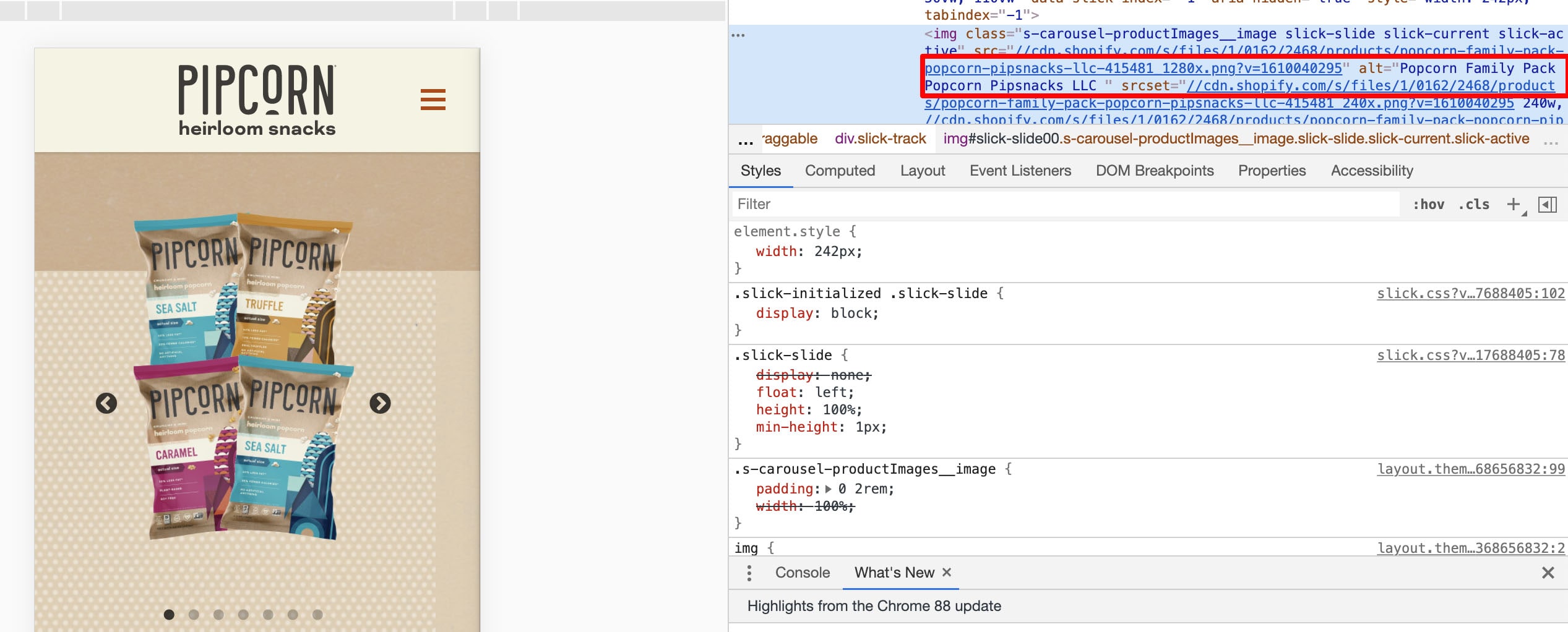
Alt-text plays two critical roles in SEO.
First, alt text — also known as alt tags, or alt descriptions — helps search engine crawlers index your website more effectively, which has a positive effect on search results.
In fact, Google states on its Developers page, “You can aid in the discovery process by making sure that your images and your site are optimized for Google Images … [and] increase the likelihood that your content will appear in Google Images search results.”
Second, alt text improves the user experience. Alt text can describe an image to a visually impaired reader, and also helps if a reader can’t load or see the image correctly on their device.
To get a full run-down of how to write high-quality alt text, take a look at Image Alt Text: What It Is, How to Write It, and Why It Matters to SEO.
2. Consider using captions to describe an image.
Captions aren’t typically necessary if the context of the page can help readers understand what the image is depicting — for instance, in this blog post I haven’t used any captions because I’ve used text to introduce each image I’ve shown.
However, if you have a visual-heavy website, consider using captions to help readers understand an image in context. For instance, on Tom Hull’s photography portfolio, he captions his images so viewers can contextualize where, or what, the image represents:

Use good judgment when it comes to adding captions, but if you feel it can help readers (and bots) better discern an image, then it might be a worthwhile addition to a page.
3. Compress images for faster load time.
Compressing images is a vital component of any good website optimization strategy.
Why?
Because, simply put, it helps your web pages load faster, which provides a better user experience and also helps boost your website’s search engine rankings.
To compress your images effectively, try a tool like Compress JPEG or Squoosh.
Typically, less than 100 KB is ideal in terms of good file size.
However, it’s important to note — Google doesn’t look at each individual image size. Instead, it looks at total page size.
So, if you have a small image where quality differences are less substantial, then you might try compressing that image to 30-50 KB … which gives you extra room to keep another image 30 KB bigger, particularly if that image loses quality after compression.
If you’re still worried about image quality after compression, take a look at How to Ensure Your Images are High Resolution.
4. Post original images — not just stock photos.
Ultimately, Google (and readers) prioritize original content — which means, if you’re hoping your images will rank on image results pages, it’s vital you use original, unique images.
This is particularly important if you work for an ecommerce website and you’re posting visuals of your product. Many shoppers use images to shop for consumer goods. In fact, 50% of online shoppers say images helped them decide what to buy.
If your image doesn’t accurately demonstrate your product, it will get buried under better, higher-quality images from competitors.
Consider using products like Canva to design in-house infographics, graphs, or animated images to help your brand stand out on search results pages and make your images more shareable.
5. Name your file images before uploading them.
Your file name can impact how easy it is for search engine crawlers to interpret your image, so it’s helpful to rename your file before uploading it onto your webpage.
Rather than keeping the name a generic “IMG_0883”, try using relevant keywords to describe what’s in the image, similar to your alt text. This can also help ensure your image appears on the image search results page, which will increase traffic to your site.
6. Use responsive images.
Responsive images are critical for ensuring your readers can see your images on any type of device. Nowadays, it’s vital your pages are optimized for mobile to impact search engine rankings, as well as user experience.
If your images aren’t responsive, the page won’t appear as clean on mobile as it does on desktop — which negatively affects SEO, as well as your reader’s perception of your brand.
Fortunately, some website hosting services, including HubSpot, automatically ensure your images are responsive.
However, if need be, you can make your images responsive by using quick code. For instance, you can add this code to your HTML:
<img src=”nature.jpg” alt=”Nature” class=”responsive”>
Or this code to your CSS:
.responsive {
width: 100%;
height: auto;
}
7. Leverage images as a backlinking opportunity.
Creating high-quality, unique, original images isn’t just great for your own website — it’s also a fantastic opportunity to earn backlinks when other websites use your image for their own pages.
For instance, consider the following graph created by Broadband Search:
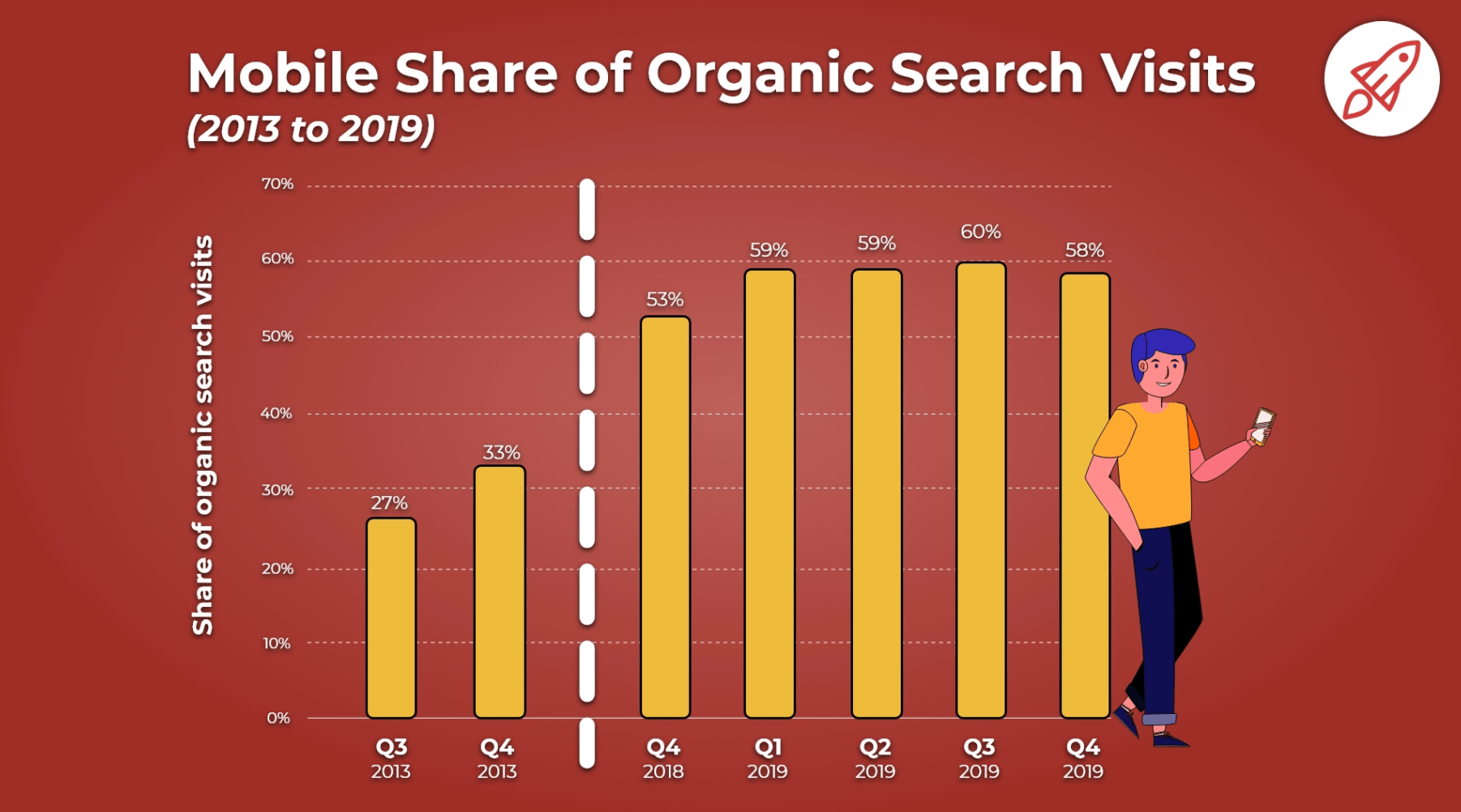
The image currently ranks in the first spot on the image search results page for the keywords, “how many people use mobile to search”.
Additionally, according to Ahrefs, this blog post has over 3,000 backlinks. I’m willing to bet that those backlinks are, in part, due to other companies wanting to use Broadband Search’s unique graphs for their own content.
If you create high-quality images, other companies may want to showcase those images on their own sites — with links back to your business. This means, ultimately, images can have a direct impact on the amount of traffic, leads, and customers you get for your business through your marketing efforts.
8. Add images to an existing sitemap.
Google suggests adding images to an existing sitemap — or creating a separate sitemap just for images — to help search engines discover your images. In particular, this is helpful for images Google can’t find through crawling, such as those accessed via JavaScript forms.
Here’s a sample sitemap, with two images included:
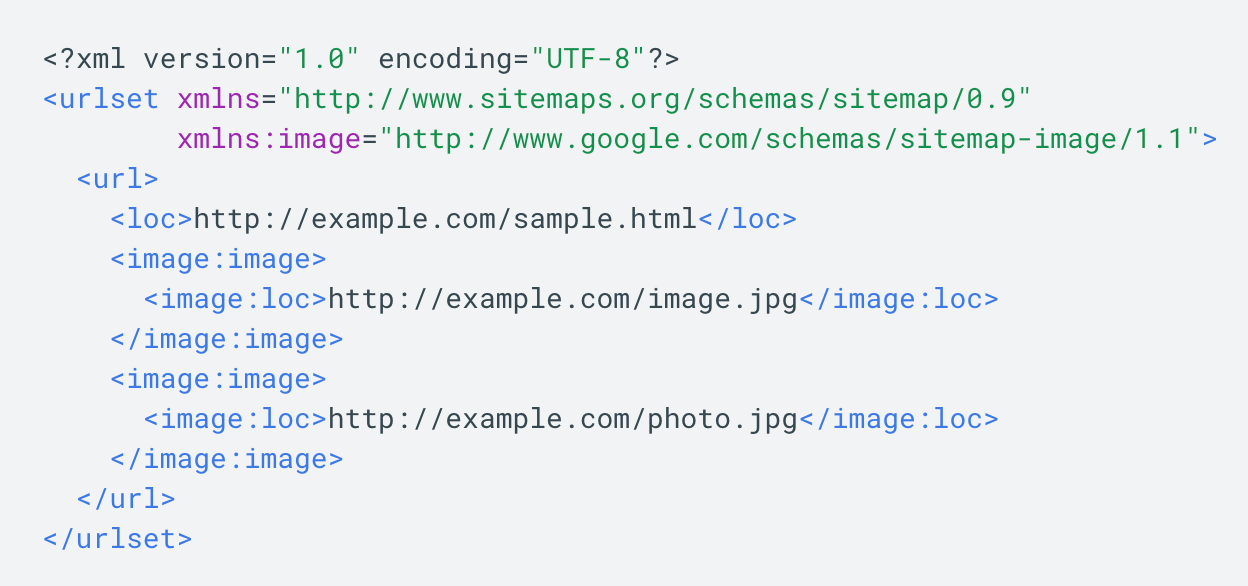
Fortunately, if you don’t want to add images to a sitemap manually, you’re in luck — there are tools, such as Angeldigital.Marketing (one of the only free ones available!), that will automatically generate an image sitemap once you input a URL.
Hopefully, you can use these best practices to level up and earn new traffic through search image results pages. Remember, a picture is worth a thousand words … so just imagine the value of an SEO-optimized picture.

How To Use Hashtags on LinkedIn [Step-by-Step Guide]
Even though LinkedIn has been around since 2003, the platform didn’t allow the use of clickable hashtags until 2016.
Social media platforms like Twitter and Instagram have encouraged hashtag use for years as a way for users to connect with their communities. They even offer analytics, allowing content creators and influencers to gauge their impact.

Now that LinkedIn has fully embraced the use of hashtags, brands can too.
Let’s get into the basics of using hashtags on the platform and dive into how to find the top trending ones in your industry.
Do hashtags work on LinkedIn?
Yes, hashtags do work on LinkedIn. You can add them to your status update, your published article, and your business page to reach an audience beyond your network. You can also browse through hashtag feeds to see what conversations are happening surrounding those topics.
How To Use Hashtags on Your LinkedIn Status Update
There are a few ways to add hashtags to your status update.
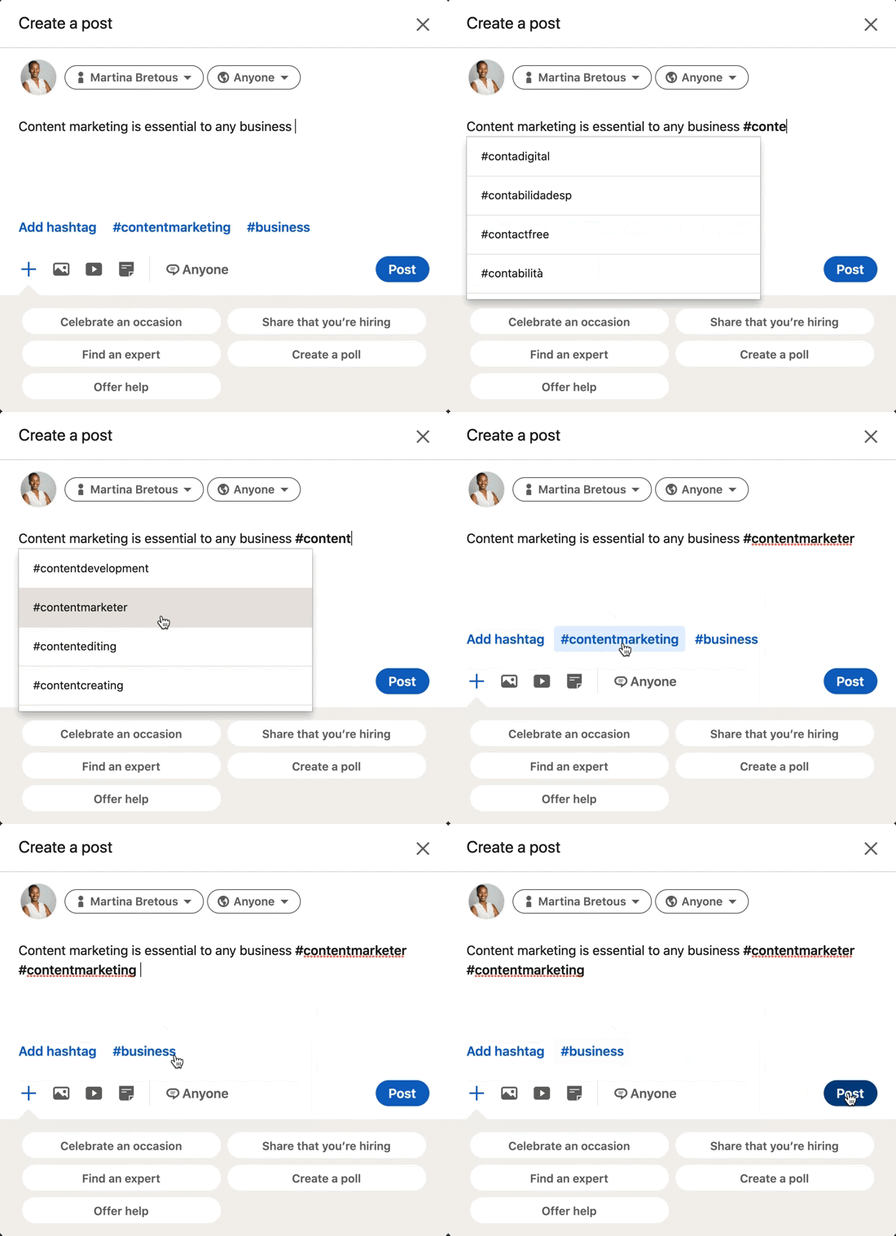
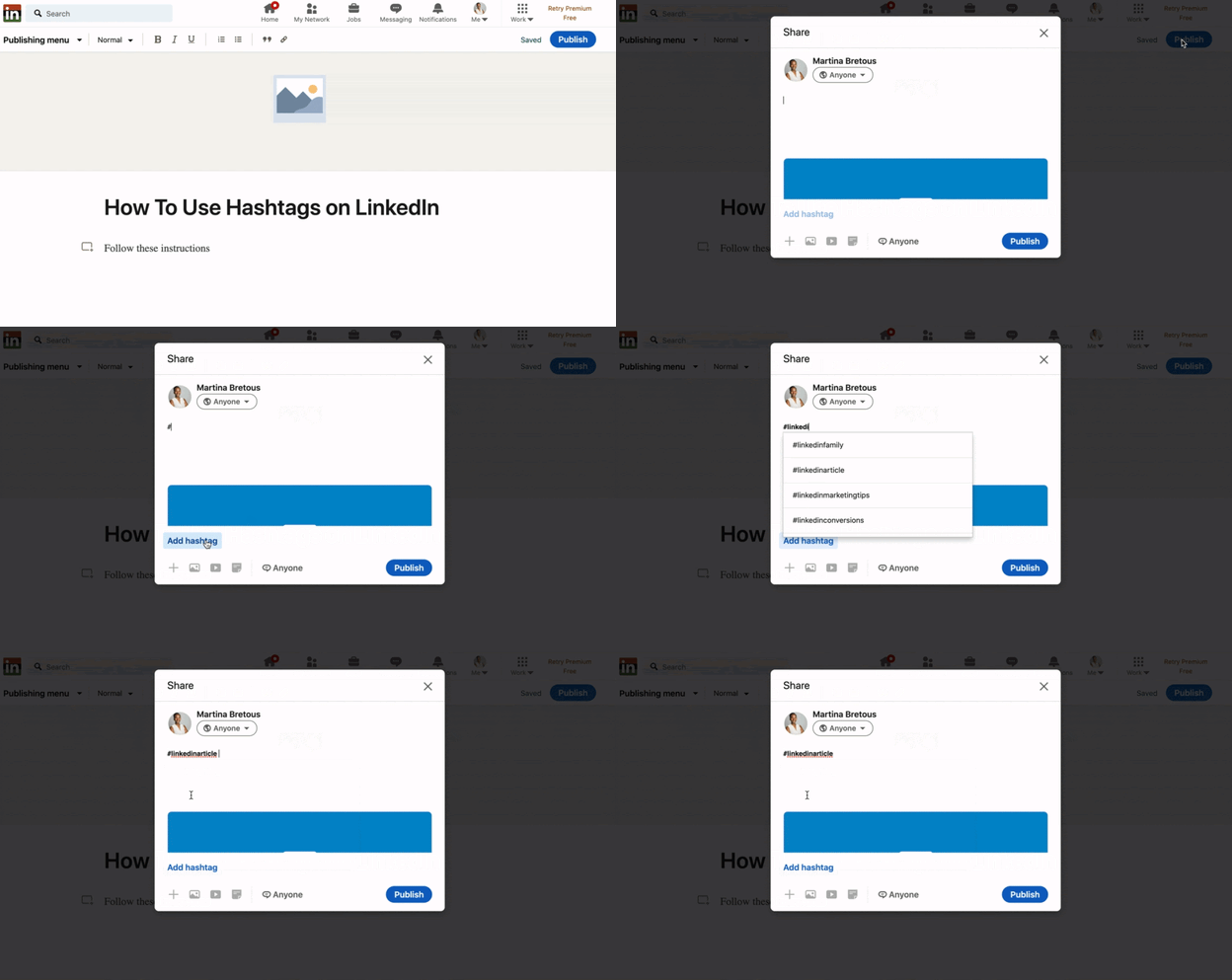
As the GIF illustrates, you can add a hashtag by:
- Typing out the pound sign followed by the word or phrase. As you type out your hashtag, LinkedIn will auto-generate hashtag suggestions based on what’s trending and popular.
- Clicking on the “Add Hashtag” button located on the bottom left of the box.
- Selecting one of the related hashtags next to the “Add Hashtag” button.
Pro-tip: Don’t add spaces or symbols in your hashtags, as they will no longer be clickable.
How To Use Hashtags on Your LinkedIn Article
As it currently stands, users cannot add clickable hashtags in the body of their articles published on LinkedIn. However, they can make it discoverable by adding hashtags to the article description box.
How To Use Hashtags on Your Business Page
If you have a business page on LinkedIn, you can associate it with relevant hashtags. This will put you right in the center of conversations surrounding those hashtags and allow you to connect with relevant audiences. Here are the steps to add them:
-
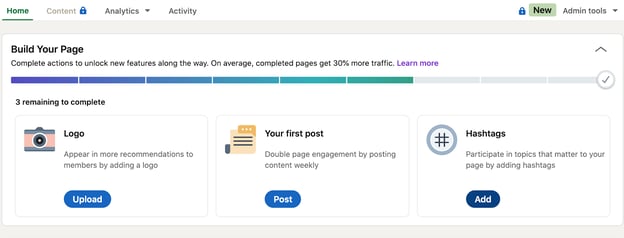
Start on your business page’s homepage.
-
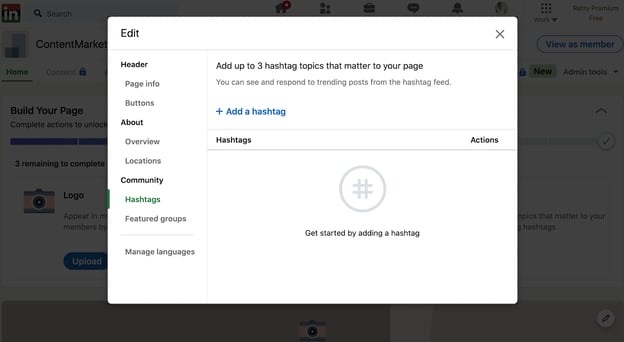
Click on the “Add” button on the bottom right under “Hashtags.” A smaller page will open up.
-
Click “Add a hashtag” and select up to three hashtags.
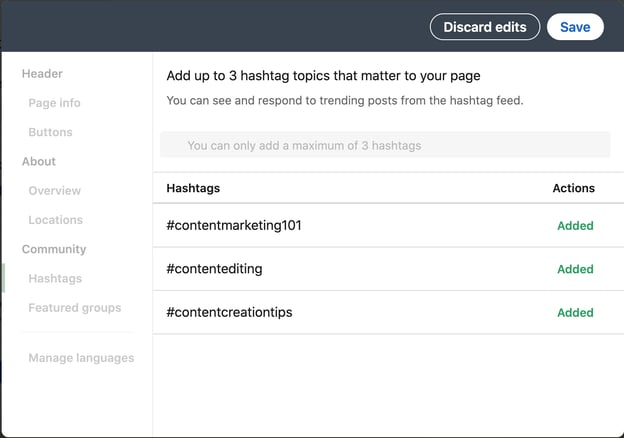 You’re all set.
Should I use hashtags on LinkedIn?
The short answer is yes, hashtags are a great way to reach audiences beyond your direct connections on LinkedIn.
Let’s say you only have 200 connections on LinkedIn. You publish an article on SEO and don’t use any hashtags. For it to make a substantial impact, you’ll need a lot of post engagement from second- and third-degree connections.
Why place such limits on your content? By using hashtags, you maximize your post’s reach potential. If the SEO hashtag has 100,000K followers and you use it, your post engagement can easily triple what it was without hashtags.
With that said, here are a few things to keep in mind when using them:
- Don’t go overboard – LinkedIn’s former senior director of product management, Pete Davies, recommends sticking to three hashtags. That should be enough to target the main keywords without looking spammy.
- Hashtags don’t replace copy – Hashtags don’t provide context, they should only be used to improve your discoverability. You should still have descriptions in everything you post.
- Mix the popular with the niche – When you only use popular hashtags, your content can get lost. If you go too niche, you may not reach enough people. Using a little bit of both strikes the perfect balance.
Once you get comfortable with the use of hashtags, you can start identifying which ones are performing the best. You may find that some lead to higher engagement rates than others. If so, those are worth reusing.
How to Find Top LinkedIn Hashtags
There are three types of hashtags that LinkedIn recommends to its users based on their network and industry: recommended, popular, trending. LinkedIn’s ‘Discover More’ page is the first – and best – place to look when considering which hashtags to use in your posts.
To access this page, follow these steps:
- Click on the “Discover More” button.
- On the mobile app, this will appear when you click on your profile picture on the top left corner of the page.
- On desktop view, it will be at the bottom of the left sidebar.
- On this page, you’ll see trending pages, recommended connections and pages, and hashtags toward the bottom of the page.
As a marketer, LinkedIn recommends me many marketing-related hashtags, such as #digitalmarketing, #seo, and #contentwriter. However, this list will vary from one user to the next.
LinkedIn Trending Hashtags
In 2020, LinkedIn released data on the top trending hashtags for Q1 in 2020.
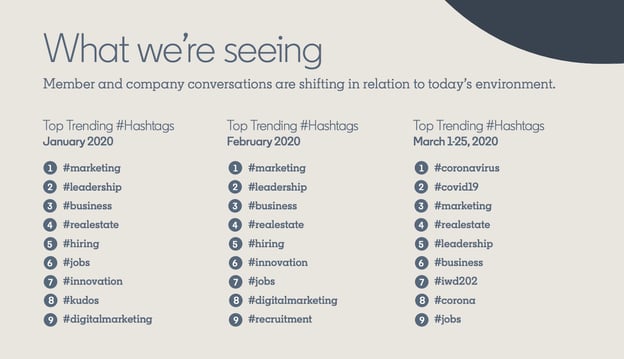
In January and February, the list was virtually identical. However, conversations shifted in March when the pandemic started. Searches for topics on remote working tripled and the #remotework hashtag also started trending.
The best way to optimize your hashtag use is by referring to your recommended hashtags and analyzing their performance on your posts.
How To Follow Hashtags on LinkedIn
Following hashtags will allow you to see what other content creators are posting, how users are responding, and get ideas for future posts.
- Head to the search bar and type the hashtag you want to follow.
- Select an option from the dropdown menu.
- That will take you to the hashtag’s feed where you can see all content published with this hashtag. Click “Follow” at the top of the page.
See the GIF below to see the steps in action.
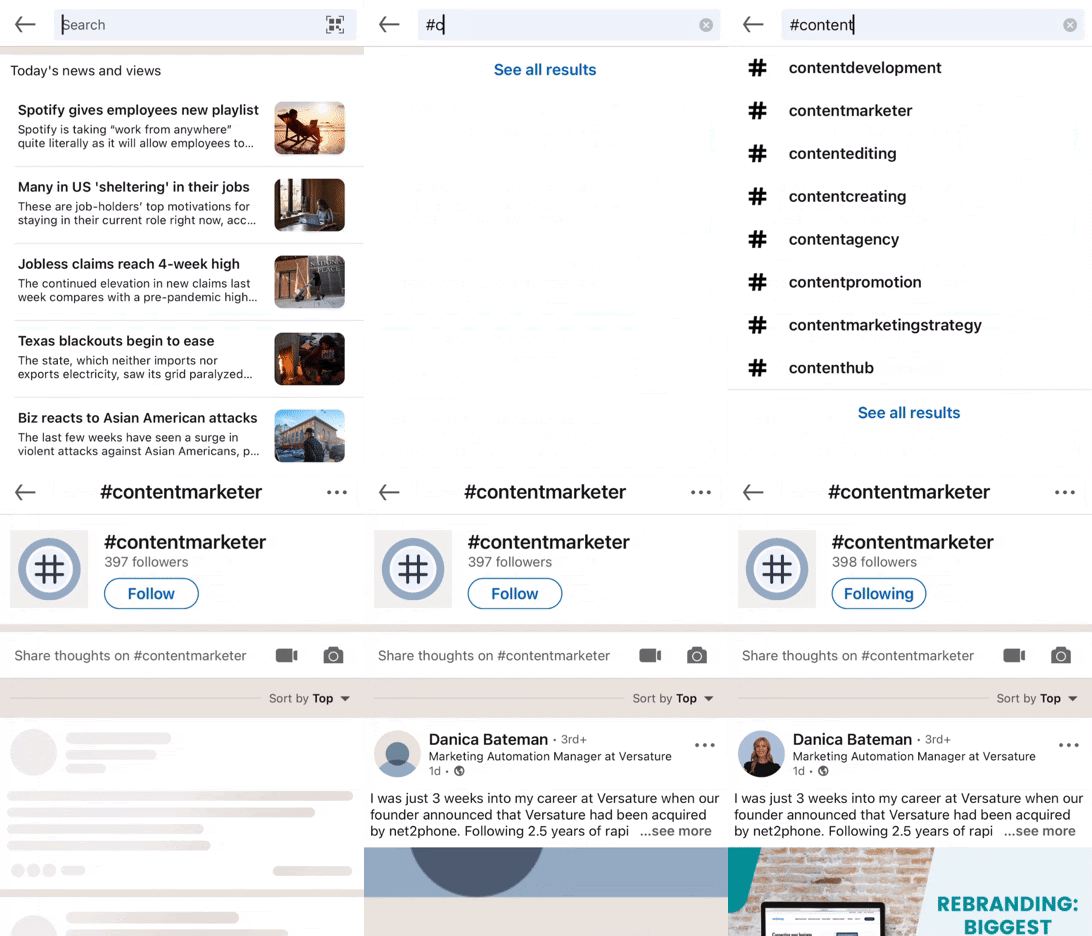
Now that you’re following the hashtag, you’ll see it on the left sidebar under “Followed Hashtags” when navigating on a computer. When using the LinkedIn mobile app, you can access the hashtags you’re following by clicking on your profile picture on the top left of the window and scrolling down to the “Followed Hashtags” dropdown menu.
Hashtags are integral to the success of your content. By relying on LinkedIn’s hashtag recommendations and your analytics, you can ensure your posts are reaching the right audience.

The 20 Best Marketing Articles of All Time, According to HubSpot’s Marketing Team
One of the best ways to tell if a show or movie is worthwhile is if people never get tired of re-watching it. Whether it’s the hit television show Friends or the classic movie Forrest Gump, most people never turn down an opportunity to watch Ross pivot his couch or witness Forrest develop into a ping pong celebrity — even if they’ve already watched it 27 times.
Content marketing is in its infancy compared to television and film, but some of the best writers and publications in our industry have already crafted articles that we revere as the Friends or Forrest Gump of the space.

To pinpoint some of these articles and share them with you, I asked nine marketers at HubSpot what their favorite marketing article is and why. Check out the ones they read on repeat.
To pinpoint some of these articles and share them with you, I asked a few marketers at HubSpot what their favorite marketing article is and why. Check out the ones they read on repeat, plus a few articles that HubSpot’s marketing, content, and blog teams refer to time and again.
1. What Creativity Looks Like in Marketing Today | Harvard Business Review
Recommended By: Caroline Forsey, Editor at HubSpot, Marketing Blog
Why She Loves It:
“It’s tricky to choose a single marketing article as my favorite, but the one that has had a lasting impression on me is HBR’s ‘What Creativity in Marketing Looks Like Today’. Mark Bonchek and Cara France do a great job distilling the wisdom of senior marketing executives from dozens of top brands, varying from Old Navy to OpenTable. One of my favorite lines is this one — ‘People are the new channel. The way to amplify impact is by inspiring creativity in others’. Ultimately, I’m a fan of anything HBR, and this piece in particular is a good one to check out if you want to learn more about what top brands are doing to stand out in the industry today.”
2. We Analyzed 11.8 Million Google Search Results. Here’s What We Learned About SEO | Backlinko
Recommended By: the HubSpot SEO Team
Why They Love It:
“Part original data and part SEO guide, this is one of Brian Dean’s best articles. The algorithm has changed since its publication, but this article helps new marketers understand how SEO works and why. It’s a how-to guide on SEO, only without the how-to in the title, with data that supports each component of an SEO strategy. We love this article because it reminds us that while the Google algorithm changes every day, one factor never changes: search engine optimization must be human-first above all else.”
3. SEO Is Back. Thank God. | New York Magazine – Intelligencer
Recommended By: Braden Becker, Senior SEO Strategist at HubSpot
Why He Loves It:
“This article took a brilliant position on search engine optimization (SEO) and how search engines have stood the test of time as new channels break into a marketer’s arsenal. Lots of articles assert the importance of SEO, but few of them consider the implications sites like Google have on how the public finds, consumes, and expects to see information online. The piece boldly defends the positive role ranking algorithms play in an industry that is often saturated with manipulation and clickbait. It’s something both consumers and marketers can learn from, and I gained a ton of respect for New York Magazine after reading this.”
4. How Google Analytics Ruined Marketing | TechCrunch
Recommended By: the HubSpot Blog Team
Why They Love It:
“In our field, we tend to uphold data above emotional appeal, relatability, and empathy (well, maybe those are all the same thing). As a result, marketing has become less and less human. This article is one of our favorites because it takes us back to the roots of marketing and tells us why it’s critical to take a holistic look at a brand’s performance across different channels. Most important, creativity reigns over numbers and hard data. People will remember a creative, targeted campaign that appeared once more than they’ll remember — and like — a spam-like campaign that appears everywhere.”
5. How to Create 10x Content | Moz
Recommended By: Amanda Sellers, Marketing Manager at HubSpot, Historical Optimization
Why She Loves It:
“This is a content marketing classic — probably the first post you’ll ever read as a content marketing professional. If you’re familiar with Moz at all, you’ve likely watched one of its whiteboard Fridays. Rand Fishkin’s guide for creating what he calls ‘10X content’ came about after the rise of the ‘Content is king’ industry adage. Even years after its initial publication, this guide will tell you how you can write strong, authoritative content that will draw in more readers and improve in rankings as a result.”
6. ‘We want these platforms to be healthy’: Why top marketers won’t quit Facebook | Digiday
Recommended By:Amanda Zantal-Wiener, Senior Content Strategist at HubSpot
Why She Loves It:
“This is an oldie but a goodie — still relevant years after it was written, especially as we continue to be wary toward Facebook. As someone who lives a ‘double life’ as a marketer and a tech writer, I found this article both intriguing and valuable. It explores Facebook’s rocky year from an interesting lens: one that’s of interest to those who live in the trenches of the tech industry and those who cover it alike. I studied and reported on the consumer sentiment toward and use of Facebook, despite these events. But it’s important to ask an audience of marketers and growth companies the same questions. This article does a great job of that.”
7. Marketing in the Age of Resistance | Harvard Business Review
Recommended By: the entire HubSpot Marketing Team
Why We Love It:
“‘Being about it instead of just talking about it’ is a huge priority not just for the marketing team, but for HubSpot as a whole. We love this article because it tells us that our blog, advertising, and website campaigns don’t exist in a vacuum that’s separate from societal injustices. In our team, we often begin with representation — but that’s only the precursor to more institutional and large-scale change within our organization. Marketing teams everywhere will benefit from saving and rereading this article.”
8. How to Become a Customer Acquisition Expert | Brian Balfour
Recommended By: Christina Perricone, Content Marketing Manager at HubSpot, Pillar and Acquisition
Why She Loves It:
“Marketing has expanded into a field with countless designations — simply calling yourself a marketer is no longer a sufficient response to the question, ‘What do you do?’ Balfour explains how to build yourself into an indispensable, T-shaped marketer by layering your skills as you progress. This evergreen piece teaches us that marketers are experimenters, risk takers, and problem solvers, proving that nearly anyone has the propensity to be successful in this field if they have the patience to build and stick to a plan. It’s a gem for any marketer who is struggling to determine their path.”
9. 7 Ancient Archetypes Your Brand Storytelling Should Use | Content Marketing Institute
Recommended By:the HubSpot Blog Team
Why They Love It:
“Writing a blog post is like writing a short story. The introduction is the exposition, the bulk of the post is the rising action, and the conclusion is the denouement. Seems pretty straightforward, right? But without establishing emotional stakes and placing your reader as the hero, you risk your messaging falling flat. We love this post because it’s like a condensed version of Donald Miller’s Building a StoryBrand. Easy to refer to as we write posts.”
10. An Incomplete Guide to Inclusive Language for Startups and Tech | Buffer
Recommended By:Karla Cook, Team Senior Manager at HubSpot, All Blogs
Why She Loves It:
“This article is a must-read for anyone who creates content. It’s a reminder that the seemingly inconsequential choices we make about language on a daily basis actually hold a lot of power. Creating content with inclusive language in mind can seem tricky or even silly to some (especially when the word choices seem minor), but this article poses the question: why not just try?”
11. Why Be Everywhere is Bad Advice | Racheal Cook
Recommended By:the HubSpot Sales Blog Team
Why They Love It:
“Being everywhere and being in front of everyone is very, very bad marketing and sales advice. We have no idea how this became such an accepted stance in the industry. This blog post is a great guide for both marketers and budding entrepreneurs on how to hone messaging so that it appeals to the one buyer who’ll actually buy, use, and appreciate your product. It’s especially useful to content writers, too. Our pieces don’t have to be everywhere. Simply in the right place at the right time. ”
12. Why Marketing Analytics Hasn’t Lived Up to Its Promise | Harvard Business Review
Recommended By: Josh Chang, Manager at HubSpot, Acquisition Analytics
Why He Loves It:
“I love this article because while everyone knows marketing analytics is important, it’s challenging to do marketing analytics right so that it has a significant impact on the overall business. Many companies suffer from having too much data and not knowing what to do with it. But if you have the right data, systems, processes, and people in place, you can better ensure that marketing analytics isn’t wasted and has a tangible and positive impact.”
13. How Redesigning HubSpot’s Website Doubled Conversion Rates | HubSpot
Recommended By: the HubSpot Website Blog Team
Why They Love It:
“‘Not another HubSpot plug,’ you might say, but this post is one of our best ones — we constantly refer to it to remind ourselves how small changes can create a lasting impact. You can see, process-by-process, how the new website came about. Written in a case study format, this article is a great primer for marketing teams everywhere on how and why they should consider a website redesign and what to take into consideration. While the post was published a few years ago, its relevance stays high.”
14. 4 Lessons We’ve Learned, Sometimes the Hard Way, About Inclusive Marketing | Think With Google
Recommended By: Sammi Kim, Marketing Manager at HubSpot, HubSpot Research
Why She Loves It:
“Written by the SVP of Global Marketing at Google, this article speaks to the importance of inclusive marketing. I was impressed by how the first lesson was that the diversity among marketers at Google directly impacted their marketing campaigns. And based on the article’s third lesson on the importance of excluding stereotypes from marketing campaigns, I strongly believe that having diverse marketing teams will help run more nuanced, empathetic campaigns.”
15. 20 Types of Evergreen Content that Produce Lasting Results for Your Business | Copyblogger
Recommended By:the HubSpot Blog Team
Why They Love It:
“Most, if not all, blog posts should try to be evergreen. We took ideas from this article and continue to take ideas as we create an editorial calendar each quarter. Though published a few years ago, this article is still highly relevant and useful. Numbered lists, how-to lists, and original research will always do well. This article has never failed us and it should be in every content marketer’s arsenal.”
16. Reflecting on My Failure to Build a Billion-Dollar Company | Medium – Startups
Recommended By: Nate Medina, Product Marketing Manager at HubSpot
Why He Loves It:
“I love this article because it tells the intimate story of a founder who had ambitious dreams, but ultimately, his plans didn’t pan out the way he expected. In the pursuit of trying to create a billion dollar company, however, he learned that success isn’t just about money. It’s about creating something you’re truly interested in rather than something that you chase revenue with.”
17. How We Used the Pillar-Cluster Model to Transform Our Blog | HubSpot Marketing Blog
Recommended By: Basha Coleman, Marketing Manager at HubSpot, Historical Optimization
Why She Loves It:
“This article is a stellar introduction to a new and improved way of doing content marketing — not just on blogs, but on websites as well. Before the pillar-cluster model, we truly built blogs like a tree, with a multitude of branches that didn’t interconnect. Relevance, authority, and organic traffic all suffered. But the pillar-cluster model changed everything, and we swear by it to this day. Our team constantly refers to the establishment of the pillar-cluster model as the turning point for the HubSpot blogs.”
18. What I Learned From Developing Branding for Airbnb, Dropbox and Thumbtack | FirstRound
Recommended By: the HubSpot Content Team
Why They Love It:
“We love this article because it gives us a close look at how some of the world’s best-loved brands become so well-loved. This post is part original think piece and part how-to guide. While none of us work in brand management directly, we come back to this article again and again for its helpful insight on how we can play a part in making HubSpot a better brand. All marketers would benefit from alluding to this article again and again during their campaigns and positioning efforts.”
19. Will Marketers Return to Offices in 2021? What Companies Need to Know | HubSpot Marketing Blog
Recommended By: Ivelisse Rodriguez, Associate Marketing Manager at HubSpot, Historical Optimization
Why She Loves It:
“This article takes everything that happened in 2020 and turns it into actionable feedback that marketing leaders can use to manage their new hybrid workforce. The trends and data indicate that remote work is here to stay — and while some companies may resist it, they may sacrifice their marketers in doing so. In an industry that’s always changing, adaptability is key and will continue to be key in 2021 and beyond. I love that this post drives that point home for marketing teams and leaders.”
20. The Strange Thing That Happens In Your Brain When You Hear a Good Story — And How to Use It to Your Advantage | HubSpot Marketing Blog
Recommended By: the HubSpot Content Team
Why They Love It:
“Joe Lazauskas and Shane Snow, marketing executives at Contently, wrote a book called The Storytelling Edge. They promoted it by releasing one of the book’s chapters on our marketing blog. This is one of our favorite marketing articles because it uses neuroscience to prove that storytelling is much more than a trendy buzzword. In their excerpt, Joe and Shane weave in compelling psychological and neurological evidence into a narrative about how storytelling is the best way to capture people’s attention, bake information into their brains, and forge close, personal bonds. And in an industry where 5% of branded content attracts 95% of attention, their article makes you realize that content marketers can’t just write listicles and ultimate guides anymore. We must tell gripping stories.”
Editor’s note: This post was originally published in February 2019 and has been updated for comprehensiveness.


Here’s Why People Click Out of YouTube Videos [New Data]
With more than 2 billion active users — or nearly one-third of the global internet audience — YouTube has become a vital platform used within most video marketing strategies.
But, as one of the biggest online platforms, YouTube is also one of the most competitive for brands. For every YouTube channel related to a specific industry, there are a handful of others churning out similar content.
To rise above YouTube’s fierce competition, you’ll need to regularly create content that grabs your viewers’ attention and keeps them engaged.
Ultimately, if viewers disengage with your YouTube videos, they’ll click out of them before they end and find better content from another channel.
Before you begin producing content, it’s important to ask yourself, “Why do consumers click out of YouTube videos?”
To help video marketers answer the question above, I used Lucid software to ask nearly 300 consumers why they disengage from YouTube videos.

Why Consumers Click Out of YouTube Videos
After taking time to film, edit, upload, and optimize videos, it can be frustrating to see a heavy viewer dropoff before the content ends. Not only can this trend hurt your YouTube engagement metrics, but it’s also a sign that you’re wasting valuable time and money making content that people aren’t even going to finish.
But, while higher dropoff rates are often a sign of content disengagement, it’s important to note that — sometimes — video exits aren’t a creator’s fault.
When I asked consumers, “Why do you most commonly click out of YouTube videos before they end?”, more than one-third of respondents, or 36%, said they drop out because “too many ads” play before or in the middle of videos.
Below, we’ll dive into the top response, like the one noted above, to help you create the most engaging YouTube video viewing experience.
1. Too many ads appear before or during videos.
While there’s not much some creators can do about ad placement at the very beginning and end of their YouTube videos, mid-roll ads — which appear by default in videos that are eight minutes or longer — can be turned off in your YouTube settings.
If you’re trying to monetize your content by enabling more mid-roll YouTube ads, you’ll want to weigh the pros and cons of this type of ad. While you might earn more money for your content, this ad placement could also be a major friction point that causes your viewers to click out of your video.
Additionally, if you do opt to include mid-roll ads, you should take steps to make sure your video is intriguing, valuable, or exciting enough to keep the viewer watching — even with a short ad break.
To create engaging videos that will be less vulnerable to ad-related dropoff, keep reading to see the content-related reasons people click out of YouTube content.
2. Videos aren’t entertaining or attention-grabbing
While 18% of respondents tune out of videos that “don’t entertain” them, 17% click out of content that fails to “get and keep” their attention. While the respondents’ need for entertainment lines up with YouTube’s research showing consumers watch videos to relax or “escape” from their daily lives, the need for attention-grabbing content lines up with countless video and social media data.
While most audience’s don’t expect B2C or B2B brand content to be as entertaining as videos from musicians, television studios, or influencers, you should still test out video storytelling approaches that place your viewers into an action-packed, intriguing, or funny scene to get them to invest their attention. Then, once you hook them, you can continue to include interesting information or scenes in your content to keep them watching.
But how can you entertain and intrigue your audience while still highlighting the selling points of your brand, product, or service? Here’s a great example of a brand that does this incredibly well.
In this episode of Purple’s video series, “The Purple Boys,” two mock talk-show hosts, played by comedians Tim Heidecker and Eric Wareheim, tell an over-dramatic story about the “Sunday Scaries.”
The video begins with Heidecker waking up in his host chair. He then abruptly starts screaming due to the Sunday Scaries — or the stresses felt on Sundays before a workweek begins.
As the video continues, viewers learn what the Sunday Scaries are, hear one man tell his story of them, and learn how the Purple mattress helped him sleep even when dealing with the stresses of the upcoming week. To prevent any dull moments, the editors also added strange sound and visual effects to represent what the Sunday Scaries feel like.
This is a great example of how a brand used video to tell an intriguing, dramatic, yet still relatable, story related to a common consumer pain point. At the same time, Purple’s video also explains how its product could help. Not only will this content keep viewers watching, but it might also cause them to remember the Purple brand next time they need a sleep accessory or mattress.
3. Videos are too long.
Sometimes, even if you have great content, viewers can only pay attention for so long — especially on a fast-paced platform like YouTube. That’s why nearly 10% of respondents cited length for tuning out of a YouTube video.
While some people might be watching videos during a break at work, others might watch on their smartphones during a daily commute. Aside from this, research shows that each new generation has seen a slightly shorter attention span when it comes to online content.
If you feel like you’re creating genuinely compelling content, but see viewer dropoff, take note of when the biggest chunks of viewers tune out of your videos.
If viewers regularly drop off at around the same minute-mark for each video, consider adjusting your strategy to create shorter, more concise videos. You can also find some helpful guidelines in this blog post.
Creating Engaging Long-Form YouTube Videos
While length can be the culprit of video dropoff, the small segment of consumers that cited it shouldn’t scare you away from testing long-form content. Although the data above hints that some consumers dislike long video content, data directly from YouTube shows that certain age groups, such as Gen-Z, are watching more long-form content on the platform than they did in previous years.
Additionally, a number of successful brands, Including HubSpot, regularly embraces long-form content on platforms like YouTube,
If you want to leverage long-form content, but still worry about video dropoff, consider placing the most valuable information towards the beginning of the video — or give viewers a tease of what they’ll see if they continue watching. This way, if viewers don’t have time to watch your whole video, they’ll get to see your expertise in action and they’ll have a motive to come back later if they need to pause.
One example of a brand that knows how to draw viewers into the action of a long-form video and then keep their attention is Patagonia.
For example, the 27-minute Patagonia documentary below opens with clips of a mountain climber in action and a brief narration from him saying, “As a veteran, you feel like ‘I’ve really narrowed that gap and I can perceive what nature’s telling me. I can read the signs around me.'”
Suddenly, after the hiker’s initial narration, you see an intense clip — shot from his perspective — of him yelling as he gets caught in an avalanche.
When the screen fades to black, and viewers see the film’s title, along with “Full Film Starts Now,” they realize they’ve only gotten a glimpse of the action they’ll see later on.
Patagonia’s branded documentaries and video teasers are a great example of how a brand can persuade viewers to stick through even the longest types of YouTube videos. When the video reopens, viewers will likely want to continue watching so they can hear the full story and get the context behind the intense scene they just saw.
4. Videos don’t provide helpful information.
Although only 7% of respondents primarily click out of videos that aren’t providing helpful information, this is still important to call out.
While consumers might use YouTube to learn how to do something, study up on a hobby or interest, or learn more about their favorite influencers, others use it to get more information about companies or industries. In fact, YouTube research shows that consumers increasingly use YouTube to learn about products, services, and brands.
Regardless of what kind of content you make, consider providing valuable or educational information in it so users feel like they’re learning something new. If you do this, viewers might continue watching your videos until the end with the assumption that they’ll continue to gain valuable insight from you. Additionally, your viewers might also identify your brand as a thought leader they can go to for more helpful videos in the future.
Need an example of how to offer viewers valuable or educational information in a video?
Check out the HubSpot video below which highlights Instagram hacks for businesses. While the video serves as a detailed list of tips related to the trendy social platform, it also naturally mentions one of HubSpot’s free Instagram templates:
5. Other reasons people click out of YouTube videos.
While 8% of consumers said, “Other,” 3% said “The videos felt over-promotional,” and 2% said, “The content isn’t consistent with video headlines or descriptions.”
Keep YouTube Viewers Watching
While you might not have been shocked by some of the responses above, they reaffirm that video marketers need to take extra steps to engage their viewers while also promoting their brand. Although you might like to think that commercials or heavily promotional videos might be the best way to sell products, they might not yield high engagement or YouTube audience growth.
As you create your next video, keep these tips in mind to help prevent high dropoff:
- Hook your viewers: Start with intriguing information or an attention-grabbing scene, or tease viewers about what’s to come.
- Provide value: Be sure to provide interesting information, educational dialogue, or points of action throughout the video as well as at the beginning to keep viewers engaged.
- Don’t draw things out: If you can concisely get your point across in a short amount of time, opt for a shorter rather than longer video.
To learn more about how to succeed on YouTube, check out this recent research, or this ultimate guide. You can also click below to download a helpful free resource.


34 of the Best Office Pranks & Practical Jokes to Use at Work
If you’ve watched the TV show “The Office” as religiously as I have, the classic “stapler in Jell-O” trick surely sounds familiar. It’s pretty much what the name describes: Simply make a batch of Jell-O, but make sure your colleague’s stapler is hidden inside the mold.
It’s a classic prank. But what other, less conventional pranks are out there to add some kicks to an otherwise average day at the office?
We asked our friends and combed the internet for more examples of some of the funniest office pranks, and pulled together this list to serve as inspiration for your own work pranks.
Every company has a story about that funny office prank of yore. Whether you’re doing some early April Fool’s Day research, or just feeling a little tricksy, it’s time to get a prank of your own in the books. Here are some ideas.
Funny Office Pranks to Pull on Your Coworkers
1. Caramel Onions
When Halloween is around the corner, these caramel onions are no match for other tricks (or treats). Dip each onion in caramel — maybe some red food coloring first, if you need to further disguise them — and stick popsicle sticks down the center. Your colleagues won’t know the difference, but they will wonder why these caramel apples are making them cry so much…

Source: Instructables
2. Nicolas Cage Toilet Seat
Speaking of Halloween, here’s what nightmares are truly made of. Nicolas Cage is easy to come by in the meme community these days. Print a picture of him at his most, well, enthusiastic — and allow him to greet everyone who takes a bathroom break.

Source: Pinterest
3. Fish Drawer
There’s something fishy about this office prank… Just be sure to include fish food; experts suggest you should feed this prank twice a day.
Source: Reddit
4. Pants in the Stall
Usually, when you see feet underneath the stall, you just have to wait your turn. In this case, you might be waiting forever. Set this guy up in your office bathroom and see how long it takes for people to start talking. We just hope nobody called the paramedics on this poor, empty suit.

Source: BuzzFeed
5. Febreze for Days
Tighten the zip-tie, throw it, and run for your life. Or, leave it in your coworker’s office when they’re on break. They’re sure to return to a potent workspace.

Source: Emlii
6. Vehicular Sticky Notes
This is the perfect use for those sticky notes that keep piling up — especially if they’re all for someone who just won’t finish his or her tasks. The prank below is a wonderful way to remind them before they take off for the day.

Source: Reddit
7. Misspelling Macro
Never ask your work buddy to unlock your iPhone for you, or they’ll make you look like the worst speller of all time when you go to type a text or email. Settings > General > Keyboard > Add new shortcut will make this prank a reality against your most detail-oriented colleague.
Source: Gottabemobile
8. Foghorn Entrance
Haven’t you ever wanted to get a room’s attention the second you walk through the door? Well, the prank below will even get the person entering to stand up straight. This is certainly one way to make sure everyone’s alert before a meeting.

Source: Reddit
9. Ballooned Conference
Hey, at least it’s not glitter? This prank works two ways: You can either surprise the next team who reserves this room, or have a day-long meeting in here without anyone knowing your business. You will of course have some static electricity when you exit the room.

Source: Reddit
10. Desk Trolls
For trolls, by trolls. Luckily, you can buy many of these trolls in bulk. Click here if you’re serious about trolling your coworker’s workstation — just keep in mind you will have to buy more than one pack of trolls to make this stunt worth it.

Source: CollegeHumor
11. Water Works
Oh look, a budget trip to the beach. This prank gives a whole new meeting to the term, “staycation.” Surprise your coworker when he/she comes back from a beach getaway with, well, another beach getaway. The downside is it’ll be nothing like where they were. The upside is they won’t need a towel.
Source: Imgur
12. Anti-Gravity Desk
“That’s it — you’re suspended.” Just make sure the person who arrives in the morning to a floating desk doesn’t try to sit down…

Source: Daily Mail
13. Nailed the Cake
Hey everyone, there’s cake up for grabs in the kitchen! The prank, however, is written in frosting. This is a good gesture to someone who loves the expression, “needle in a haystack.” Happy hunting.

Source: Reddit
14. Psychedelic Supervision
“I don’t know, I feel like my boss is always watching me,” your coworker might say. Change their perception of micromanagement when this colorful prank. Suddenly a “quick checkin” doesn’t seem all that bad.

Source: Imgur
15. Voice Toast
Simple, yet brilliant. Change the terms of breakfast ever so slightly, and the kitchen becomes the most confusing room in the office. This little note pranks the entire office — a true masterpiece of prank-dom.
Source: Tumblr
16. Work From Home
As Ron Burgundy from Anchorman says, “I’m not even mad. I’m just impressed.” Help your coworker who loves taking his/her work home, take their home to work instead. As you can tell, you might need to stay late the night before to get this prank just right.

Source: Reddit
17. You’ve Been ‘Felined’
This could actually make your cat-loving coworker’s day. Or, it could make for the greatest prank of all time against the coworker who’s violently allergic to cats (that is, as long as they’re not allergic to photos of cats, too).

Source: Reddit
18. The Seedboard
Work with your IT department to fertilize this prank perfectly. Soon enough, its user will wonder why their keyboard is growing. We suggest targeting someone who sits close to the window — some pranks just need some sunlight. “You said you wanted to spend more time with nature,” you might say in your defense.


Source: BoredPanda
19. Healthy Creme
Who said you couldn’t be helpful while also being a prankster? “The bad news is we’re out of donuts. The good news is you have all these nutritious alternatives to help your immune system cope with the lack of donuts.”
20. The Ceilings Have Eyes
You could freak out just looking at the photo of this horrifying prank. It might be a little too much for your jumpiest colleague, but for the person who can’t stop talking about scary movies, it’s just the revenge you deserve. (Hint: paper mache, white paint, and a black wig. Done.)

Source: Tumblr
21. Chair Scare
Similar to the Entrance Foghorn (prank #8, above), this prank will probably scare more than just the person who sits down. Of course, it’ll be a lesson to anyone who, I suppose, tries to sit too low at their desk.

Source: Reddit
Funny Pranks to Pull on Your Boss
22. No Stalling
For the employee who never has enough time. Or, for the coworker who takes way too many bathroom breaks during the day. Prank them with their very own throne the next time nature calls.

Source: 22words
23. Glitter Bomb
About that whole, “At least it’s not glitter” thing in prank #9? Well, this prank can’t make that promise. For the coworkers who don’t yet know the permanence of getting glitter on yourself, this prank is sure to set them straight.
24. Substitute Worker
Sometimes, you’re not sure how to ask for another day off. For those days where you simply can’t come into work, but don’t have the heart to call out again, the doll who looks just like you is the perfect substitute. Or, just put ’em at your colleague’s desk and give them a much-needed identity crisis.
25. Crushed It
When you finally learn about your colleague’s celebrity crush, make sure they know how much you care.
26. World’s ‘Best’ Boss
When words just aren’t enough to express your sentiment, give your manager the perfect way to say “thank you” every time they go to take a sip of coffee.
27. Cup o’ Spiders
“Hey chief, I found a spider on your desk, but don’t worry, it’s been handled.” This prank doesn’t have to have an actual spider in it — the mystery, alone, is all you need to prank your employee.
28. That’s a Wrap
For the boss who has everything, it’s the gift that keeps on giving.

Source: Giphy
Remote Pranks for Virtual Teams
The above pranks are awesome, but what about pranks that are inclusive for remote employees or teams that are 100% virtual? These pranks are ideal for the digital office:
29. Flash Mob
Here at HubSpot, we love flash mobs. That’s why Head of SEO Aja Frost and Blog Manager Christina Perricone jumped at the chance of organizing a virtual flash mob for one of our quarterly meetings.
This is a perfect prank for a large gathering but requires a bit of prep — from choosing a song, selecting the dancers, and teaching the choreography. However, the end result is worth it for the shocked and delighted expressions on coworkers’ faces alone.
30. Virtual Background Shenanigans
There’s a lot of pranking potential using the virtual background feature in Zoom and other video conferencing platforms. For example, one Twitter user creates a virtual background with the shocking appearance of a doppelgänger… or maybe a time warp?
So, I made a custom Zoom background for my next meeting where I bring myself a cup of tea. pic.twitter.com/DJBxrH5Cqv
— Graham/Jaws 19 (@Jaws19show)
May 7, 2020
31. Jump Scare
One way to take the virtual background prank to another level is by impersonating a horror movie director and relying on one of the oldest scary movie tricks in the book: the unexpected jump scare. The video below walks through the steps for executing this prank successfully:
Just make sure that you know who you’re presenting to. The wrong audience may not appreciate the humor in this one!
32. You’re Not on Mute
We’ve all heard the horror stories of users who thought they were on mute and went on to say something embarrassing. One prank would be to stage this situation and make your coworkers think that you think you’re on mute. You could enlist someone in your household to say really embarrassing or completely outrageous, the goal being to see how long your coworkers will watch in horror before letting you know you’re on mute.
33. Stolen Identity
If you have a workplace chat system, a simple and effective prank is to “steal” someone’s identity by changing your display name and picture to match theirs. The more coworkers you get to follow suit, the more effective, hilarious, and chaotic this prank becomes. Best of all, it’s easy to reverse at the end of the day: Just revert back to your original display name and photo.
34. Think Outside the Box
With video conferencing apps, we’re limited to our own little square of digital real estate… or are we? This Twitter user subverts expectation by dumping water on a coworker in another square, surprising all the other meeting attendees:
I pulled off my own lil #AprilFools prank today in our daily virtual meeting 😂☔️ pic.twitter.com/RjGW2RhgRT
— Phang (@PhilaUnionPhang)
April 1, 2020
All you have to do is find someone who will be in on the joke with you.
Pranking can be extremely good for morale and company culture. After all, why not have a little fun to break up the workday?
Editor’s note: This post was originally published in October 2018 and has been updated for comprehensiveness.

The Social Media Content Calendar Template Every Marketer Needs [Free Template]
“We have a 9 a.m. meeting? Hold on — let me just click around the internet like a maniac to find something for the morning tweet.”
Sound familiar? Scrambling for social content is nothing new. We have meetings. We run late. Things come up. And it’s really hard to get any meaningful amount of work done when you have the next social media update looming over your head every 30, 60, or 90 minutes. It all moves so fast that you might periodically feel a case of the vapors coming on, which is why pre-scheduled social media content should be your new best friend.
To make social media content easier for companies to plan and schedule across the accounts they manage, we created a social media content calendar template. And recently, we updated to be better, faster, stronger, and just generally prettier.


But first…
What is a content calendar?
A content calendar organizes your publishing schedule by date so that you can keep track of deadlines, better manage your content creation team, and create transparency with all parties.
What’s in this content calendar template?
Every content calendar is different and should be adjusted for your unique process. However, in this one, you’ll find a general schedule tab, your monthly planning calendar, a repository for website content, and updates for each of the top social media platforms:
This blog post will walk you through exactly how to use the template to stay on top of your social media content planning for each one.
Note: HubSpot customers can also schedule content through Social Inbox, or use this spreadsheet to organize their content and subsequently upload it to Social Inbox. Detailed instructions for doing this exist in the cover sheet of the template.
How to Use the Social Media Calendar Template to Plan Your Content Schedule
When you open up the social media content calendar template, you’ll notice the bottom of the Excel spreadsheet has several different tabs, most of which are dedicated to a specific social network.

The reason you’ll want a different worksheet for every social network is simply that every social network is a little bit different. You can’t just craft one, single social media update and use it across LinkedIn, Facebook, Twitter, Instagram, and Pinterest.
You can certainly promote the same piece of content across those networks, but that doesn’t mean you’ll craft your update in the same way for every single one of them. (In fact, you may even want to add additional tabs if you’re active on other networks, like Quora or YouTube.)
This following sub-sections will walk you through how to fill out each of the tabs you see in this template — the updates for Twitter, Facebook, LinkedIn, Instagram, and Pinterest. But before we get to that, let’s just walk through the “Monthly Planning Calendar” so you know what that’s for.
Monthly Social Media Schedule
The tab “Monthly Planning Calendar” provides an overall snapshot of your monthly social media campaigns. It’ll help you coordinate better with other stakeholders, not to mention keep all the moving parts straight in your own mind. Here’s what it looks like:
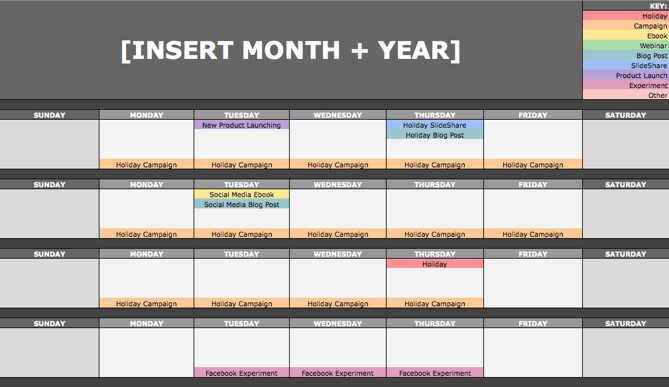
There are three sections to take note of when you edit this template for your own purposes. First, the color-coding key: These are the types of content or campaigns around which you might coordinate, like ebooks, webinars, blog posts, product launches, and so on. Though only some of these might be relevant to you, they’re there to indicate what you may want to put in there — so be sure to edit these categories to align with your own campaigns.
The other two sections you’ll need to edit are the Month and Year at the top of the calendar (duh), as well as the cells below each day of the week. In those cells, you should enter the type of content you’ll be promoting that day and color-code it to align with the campaign it’s supporting.
Instead of deleting all the content in this spreadsheet each month, I recommend copying this worksheet twelve times over, and creating a separate sheet for each month. (If that gets to be too overwhelming, you can always save those tabs as a separate file.)
Planning Your Twitter Content Calendar
Alright, now let’s get to the social media content. This section will be the lengthiest, because all subsequent sections will draw on the instructions we go through here. So if you read one section in this whole post, make it this one.
Let’s say you want to add some tweets to your scheduling template. Skip over to the “Twitter Updates” tab, where you’ll see this:
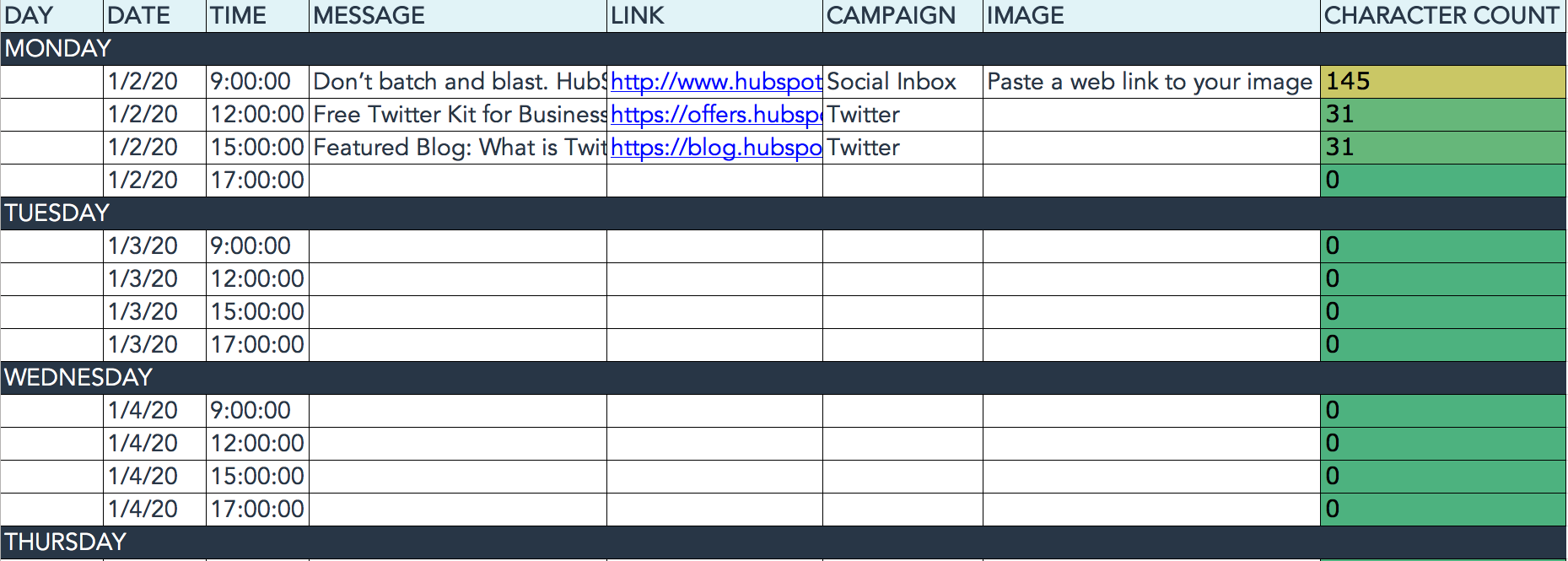
The first four columns, “Day,” “Date,” “Time,” and “Date & Time” are there for your convenience, and if you choose to use a third-party app for pre-scheduling your tweets (like HubSpot’s Social Inbox), then these columns will be useful. For now, just fill in the date on which you’d like your updates to publish to Twitter, and the time at which you’d like them to go out. The “Date & Time” column will automatically change based on what you input in the previous two columns.
Now, let’s move over to the “Message” column. Here, input the copy you’d like to appear in your tweet, bearing in mind you should cap it at 116 characters to allow enough room for a link, and at 115 characters to allow room for an image. (Read this blog post for a full character count guide.) This spreadsheet will auto-calculate the number of characters you’ve entered to keep you on-point, turning yellow when you’ve reached 95 characters, and red when you’ve reached 116 characters.
After you’ve composed your tweet, paste the URL you’d like to include in your tweet in the “Link” column. Be sure to include UTM parameters so you’ll know whether all of these tweets are actually driving traffic, leads, and customers. This is an important step to remember if you’d like to be able to demonstrate ROI from social. You can also use the “Campaign” column to add an associated campaign, which helps which more robust tracking and reporting.
Finally, in the “Image” column, attach the tweet’s image (if you have one). For Twitter, we recommend images that are 1024 x 512 pixels. (Click here for a full cheat sheet of social media image sizes.) If you’re having trouble attaching your image to the spreadsheet, follow these steps:
Step 1: Right-click the cell in which you’d like your image.
Step 2: Click “Hyperlink,” then click the “Document” button, and finally, click “Select” to choose your image.
Step 3: In the “Choose a File” window, select the image from your computer and click “Open.”
Step 4: You’ll now see the image attached to the “Insert Hyperlink” screen. Feel free to edit the “Display” text to change the file name, then click “OK.”
Note: This process is simply for organizational purposes. If you decide to upload the spreadsheet to your social media publishing software, it will not attach — you’ll have to do that with your marketing software. If you’re a HubSpot customer, details for how to bulk upload your Twitter content to Social Inbox can be found within the downloaded template.
Planning Your Facebook Content Calendar
Now, let’s talk about how to plan your Facebook marketing in advance with the template. Navigate on over to the tab in your template labeled “Facebook Updates.”
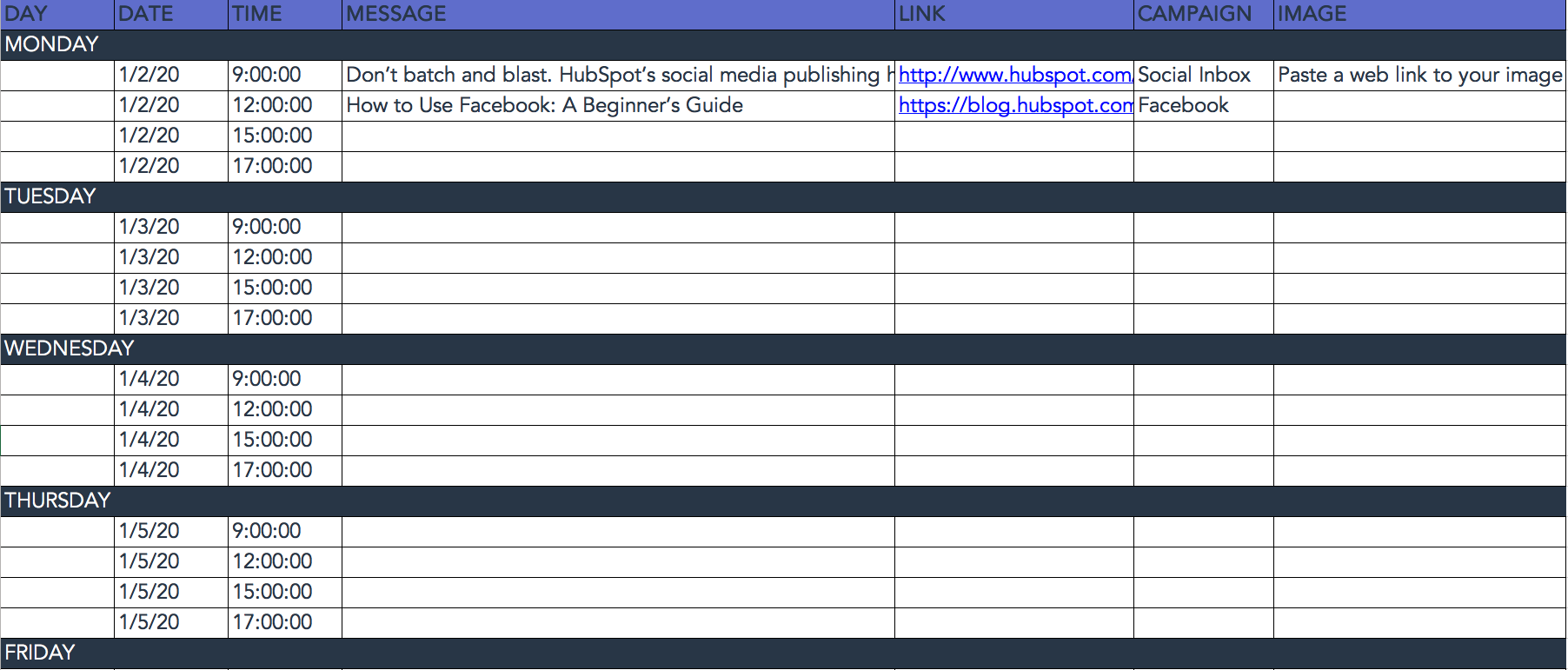
Facebook updates work similarly to Twitter updates, with the exception being bulk uploading your content is not possible in Social Inbox.
The first three columns, “Day,” “Date,” and “Time” are there for your convenience. Head on over to the column labeled “Message” and input the copy you’d like to appear in your status update, corresponding to the days and times you’d like those updates to run. Then, move to the “Link” column and input the link you’ll be, you know, linking to in the update. (Don’t forget that tracking token.) If you’d like the update to be tagged to a certain campaign, include this in the “Campaigns” column. Finally, attach an image just like you did with your Twitter updates — if you’re using one, we suggest you edit it to be 1200 x 900 pixels. (Click here for a full cheat sheet of social media image sizes.)
Planning Your LinkedIn Content Calendar
LinkedIn updates are the most unique, because you have both Company Pages and Groups to consider. To demonstrate the difference between Company Page updates and Group updates, let’s navigate over to the column labeled “Title (For Group Discussions Only).”
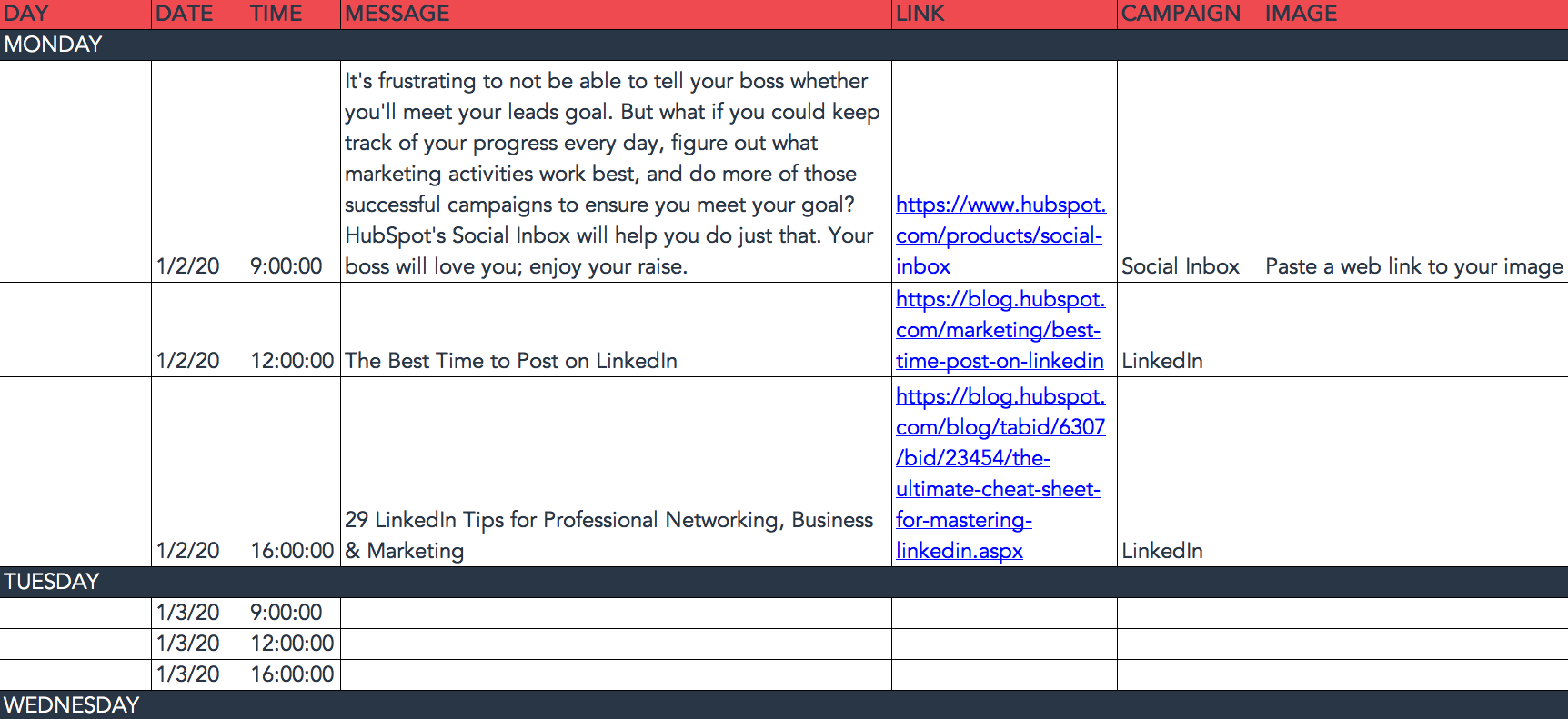
LinkedIn Groups let you post a few kinds of updates, one of which is called a “Discussion.” You will only fill out the “Title (For Group Discussions Only)” column if you’re looking to post a Discussion to your LinkedIn Group — because Discussions are the only update you’ll be posting that requires a title. If you’re not posting a Discussion to a LinkedIn Group, you don’t need to fill out this field, because your update will not have a title.
You’ll fill out the next column, “Message,” for every type of update you post, whether it’s for a Company Page or a Group. Simply input your copy into this column, and then navigate to the next two columns, “Link” and “Campaign” to input the URL to which you’re directing readers with the tracking token you’ll use to track activity, and the associated campaign if one exists. If you’d like to use an image for an update, attach it per the instructions laid out in the “Twitter” section. We recommend editing the image to 700 x 520 pixels.
Planning Your Instagram Posting Calendar
Now, let’s move on to how to set up your Instagram photos and videos in advance with the template. Navigate on over to the tab in your template labeled “Instagram Updates.”
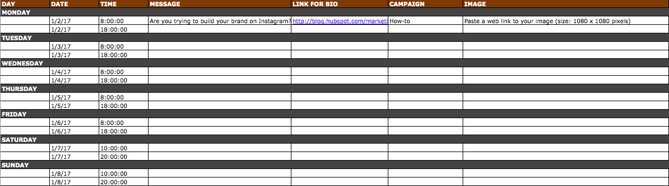
Instagram updates work similarly to Facebook updates, in that content can’t be uploaded in bulk to Social Inbox like it can with Twitter.
The first three columns, “Day,” “Date,” and “Time” are there for your convenience. Head on over to the column labeled “Message,” and input the copy you’d like to appear in your post’s caption, corresponding to the days and times you’d like those updates to run. Keep in mind that although Instagram captions can be up to 2,200 characters long, they cut off in users’ feeds after three lines of text. The exact length of these three lines depends on the length of your Instagram handle. (Read this blog post for a full character count guide.)
Next, move to the “Link for Bio” column and input whichever link you plan to put in the bio when you publish the accompanying Instagram post. (The reason you’d put a link in your bio and not the photo caption itself is because clickable URLs aren’t allowed anywhere except the single “website” box in your bio.) Oh, and don’t forget that tracking token.
If you’d like the update to be tagged to a certain campaign, include this in the “Campaigns” column. Finally, attach an image just like you did with your other social media updates — we suggest you edit it to be 1080 pixels x 1080 pixels. (Click here for a full cheat sheet of social media image sizes.)
Planning Your Pinterest Content Calendar
Alright, now let’s go over how to set up your Pinterest pins in advance with the template. Navigate on over to the tab in your template labeled “Pinterest Updates.”
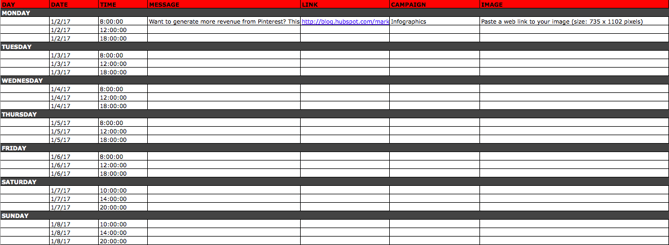
Pinterest updates work similarly to Facebook and Instagram updates, in that content can’t be uploaded in bulk to Social Inbox like it can with Twitter.
The first three columns, “Day,” “Date,” and “Time” are there for your convenience. Go to the column labeled “Message,” and input the copy you’d like to appear in your pin’s description, corresponding to the days and times you’d like those updates to run. Then, move to the “Link” column and input the link you’ll be, you know, linking to in the update. (Don’t forget that tracking token.)
If you’d like the update to be tagged to a certain campaign, include this in the “Campaigns” column. Finally, attach an image like you did with your other social media updates — we suggest you edit it to be 735 pixels x 1102 pixels.
Content Repository (Or, Where to Source Social Media Content)
This template also provides you with a tab called “Content Repository,” which should help you keep track of all your content and maintain a healthy backlog of fodder to make sourcing social media content easier.
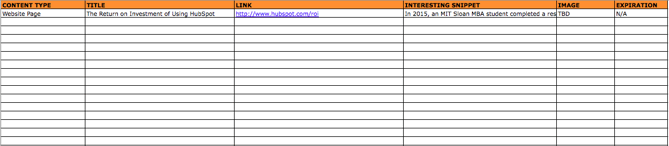
As you create more assets, you’ll likely want to resurface and re-promote those pieces down the line, too. To ensure you don’t lose track of all of that content, record it on this tab so you’re never at a loss for what to publish on social. If the content you’re promoting isn’t evergreen, be sure to include an expiration date in the column marked “Expiration” so you don’t promote it when it’s jumped the shark.
This tab will also help you maintain a healthy balance of content: A mix of your own content and others’, a mix of content formats and types, and mix of lead generation content vs. MQL-generating content vs. traffic-friendly content.
Don’t Forget to Interact With Your Followers
Whether you use this spreadsheet to plan your content out in advance or upload to a third-party app, you’ll still need to supplement these updates with one the fly content. Breaking news hits? Whip up a quick update to share it with your network. Someone in your network tweets something interesting? Give it a retweet with some commentary. Got a fascinating comment on one of your updates? Respond with a “thank you” for their interaction or an additional follow-up comment.
Coming up with and scheduling your social media content in advance is a huge time-saver, but it should go without saying that you still need to monitor and add to your social presence throughout the day.
Finally, we encourage you to experiment with your social media publishing. This template provides publishing dates and times for each social network, but you may find those are way too many updates for you to fill, or perhaps too infrequent for your booming social presence. You should adjust your social media publishing frequency as needed.
Editor’s note: This post was originally published in January 2020 and has been updated for comprehensiveness.
