2021 YouTube Demographics [New Data]
Chances are, you’ve probably spent an afternoon falling down a rabbit hole of YouTube videos.
I certainly have, and I think I’d be pretty embarrassed to see the total amount of time I’ve spent on the platform.
While it’s a great source of entertainment, YouTube has also proved itself to be a valuable tool for marketers. In fact, 70% of viewers bought from a brand after seeing content on YouTube. And, with a global user base of more than 2 billion people, it’s also safe to assume that your target audience is on the platform.
However, just as it is for all social networks, building a presence on YouTube requires understanding which segments of your audience are already there. Having that information makes it easier to create content that speaks to their interests, maximize ROI, and achieve general marketing success. In this post, we’ll go over key YouTube statistics you need to know for 2021 to help you succeed in your marketing efforts.
2021 YouTube Demographics
Below, we’ll go over the most critical YouTube statistics that show marketers how global audiences are using the platform.
General YouTube User Demographics
- YouTube is the second most visited website in the world. (Hootsuite)
- YouTube accounts for more than 25% of total worldwide mobile traffic. (Sandvine)
- YouTube has 2+ billion users, making up almost one-third of the entire internet. (YouTube for Press)
- These 2+ billion users are present in over 100 countries and consume content in 80 different languages. (YouTube for Press)
- YouTube users watch one billion hours of content daily. (Hootsuite)
- YouTube is the second most popular channel for businesses sharing video content. (Buffer)
- 70% of viewers bought from a brand after seeing content on YouTube. (Google Ads)
- YouTube will make 5.6 billion in advertising revenue in 2021 in the U.S. (eMarketer)
- YouTube is the top video streaming app, and the average user spends 23.2 hours per month watching content. (App Annie)
- The most popular YouTube search query is “song.” (Hootsuite)
- The most popular YouTube video is Pinkfong’s Kids Songs & Stories Baby Shark Dance, with 7.85 billion views. (Statista)
- The three most popular videos on YouTube are commentary videos (like vlogs), product reviews (like unboxings), and how-to/tutorial style videos. (MediaKix)
- Global users watched over 100 billion hours of gaming content in 2020. (YouTube)
- YouTube TV ended Q3 2020 with 3 million subscribers. (Alphabet)
- 70% of people used YouTube to exercise in 2020. (YouTube)
- Livestreams on YouTube grew 45% in the first half of 2020. (YouTube)
YouTube Age Demographics
- In Q3 2020, 77% of 15-to-25-year-olds and 70% of 45-to-64-year-olds in the U.S. used YouTube. (Statista)
- 21.2% of YouTube’s global audience is between 25 and 34, and 17% is between 35 and 44. (Hootsuite)
- 80% of U.S. parents with a child age 11 or younger say their child watches videos on YouTube, and 53% of those children use the platform daily. (Pew Research Center)
- Outside of China, 77% of Gen Z, 75% of millennials, 61% of Gen X, and 44% of Baby Boomers visit YouTube daily. (GlobalWebIndex)
- 18-to-34-year-olds use YouTube to view video content on their TVs 7.9% more often than basic cable and 14.5% than premium cable. (Variety)
- 46% of Gen Z and Millennials in the U.S. and UK say they’ve watched a virtual event on YouTube. (GlobalWebIndex)
YouTube Gender Demographics
Please note that audience data for individuals who do not identify as cisgender men and women is not reported.
- 45.8% of YouTube’s total advertising audience is female. (Hootsuite)
- 54.2% of YouTube’s total advertising audience is male. (Hootsuite)
- Male and female internet users in the United States use YouTube at equal levels. (Statista)
YouTube Geography Demographics
- As of February 2021, 16.6% of YouTube site visits come from the United States, 9.4% comes from India, and 4.9% comes from Japan. (Alexa)
- YouTube has launched local versions of the platform in more than 100 countries. (YouTube for Press)
- eMarketer predicts that the number of YouTube users in India will reach 342 million in 2021. (eMarketer)
- 86% of U.S. viewers say they often use YouTube to learn new things. (Think With Google)
Let Data Drive Your YouTube Strategy
Use these statistics to create a YouTube marketing strategy that speaks to your audience’s interests, drives revenue, and increases conversions.

Save Time With Agile Email Marketing: Everything You Need To Know
“Hey, would you mind sending a follow-up email?”
You’re already barely keeping up with your workload when you get the dreaded, last-minute email request.
With everything else on your plate, you now need to pause to get that second email out the door, and then play catch-up with everything else on your plate…
Sound familiar?
We know you’re constantly being asked to send more emails with less resources.
And sometimes, it’s unavoidable. When your business’ and subscribers’ needs change, you must be able to adapt quickly to stay relevant or risk your email marketing program suffering.
But that doesn’t mean it has to be so difficult.
Enter agile email marketing.
Here, let’s break down what agile email marketing means, why it matters, and how you can use it to scale and send more effective emails faster — without breaking a sweat.

What is agile email marketing, anyway?
Agile email marketing is a way to be flexible and adapt to change by focusing on data and your subscribers’ needs while using a modular process so you can send effective emails faster.
Before diving deeper into agile email marketing, we first have to mention the agile methodology.
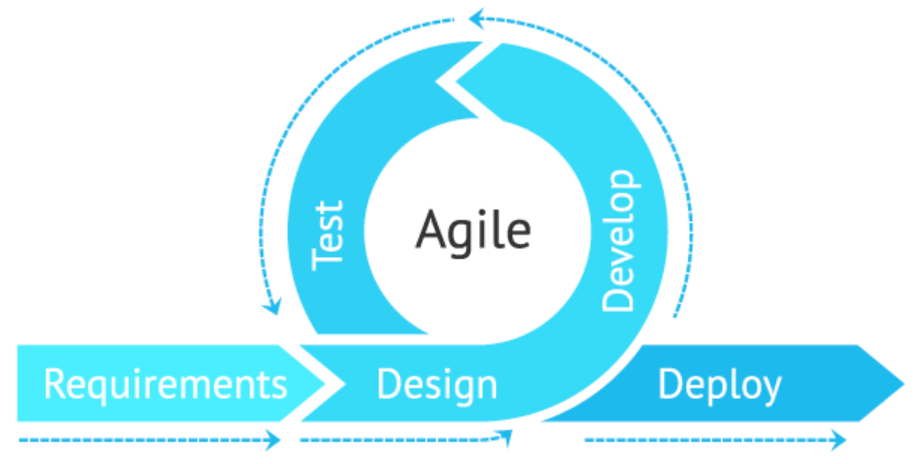
The agile methodology is a project management process that started in software development, giving teams the flexibility to adapt and respond to changes quickly. This way, teams could constantly improve and innovate, staying on top of their users’ needs and beating their competition to market.
There are many ways this agility is possible, but the three things we carry over into agile email marketing are:
- Focusing on customer needs
- Making data-driven decisions
- Collaborating across teams
So while agile email marketing doesn’t require using the agile methodology, it takes its essence to create a more efficient way to send emails.
In other words, agile email marketing helps you prioritize your emails, gets all stakeholders on the same page, and maximizes your teams and resources to streamline your production process. With teamwork and a clear understanding of goals, you won’t bat an eye at last-minute email sends or changing priorities.
Sound too good to be true?
Agile email marketing does require a shift in mindset — instead of planning the big campaigns you’re used to, you’ll need to plan for iterative change in a test-and-learn environment.
For example, instead of mapping out and creating all the emails in your entire welcome or onboarding journey, start small with only the first email. Do some A/B testing to figure out what your audience is most receptive to, optimize, and use what you learn to continue building out the rest of your nurture journey — one email at a time.
Your goal is progress, not perfection. But don’t worry, this shift isn’t all or nothing. Even the smallest steps toward changing how you think about emails and the workflow to become agile can have huge payoffs, as I’ll explain next.
Why Being Agile is Critical to Success
Sure, email professionals may seem like magicians, but emails aren’t done with the wave of a wand. There’s a lot that goes on under the hood. 52% of marketers spend two weeks or more to complete a single email from conception to hitting the send button.
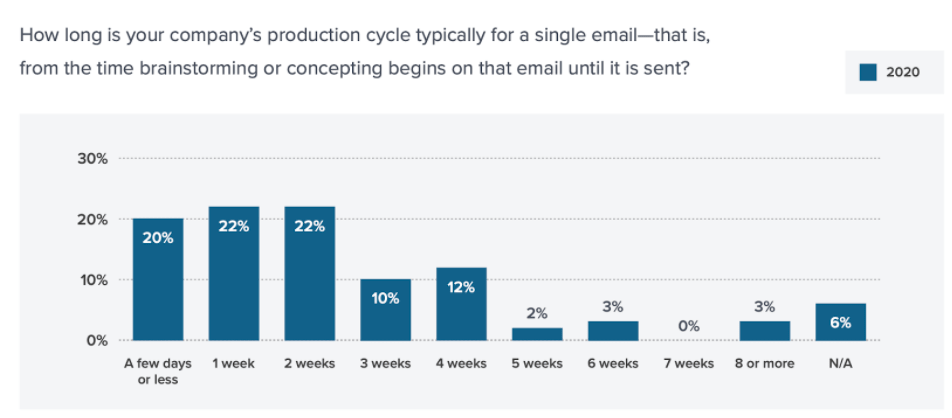
Source: Litmus’ 2020 State of Email Workflows
Not to mention, 55% of marketers are juggling at least six emails at a time. So it’s never “just” one more email.
The traditional email marketing process uses linear and interdependent steps. You can’t move forward without completing the step before. For example, you need to write copy before creating imagery, or have design done before coding the email.
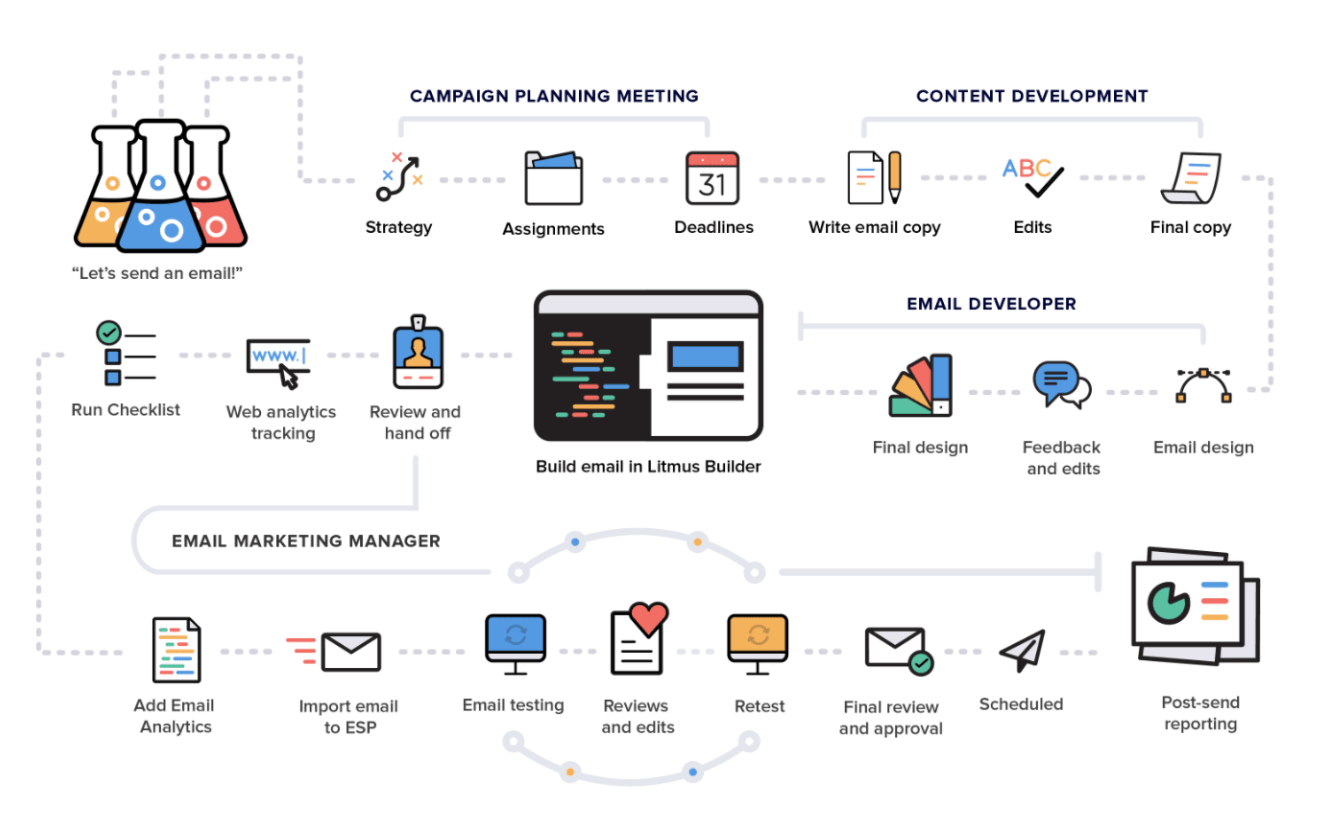
Look at that process! It’s no wonder it can take a long time to create and send an email.
But this pace can hurt your email marketing program — or worse, your brand reputation. Things can change in an instant … Think natural disasters, a health crisis, the socio-political climate, rules and regulations, etc. If you can’t adapt, your email campaign may fall flat or even offend and turn away your subscribers.
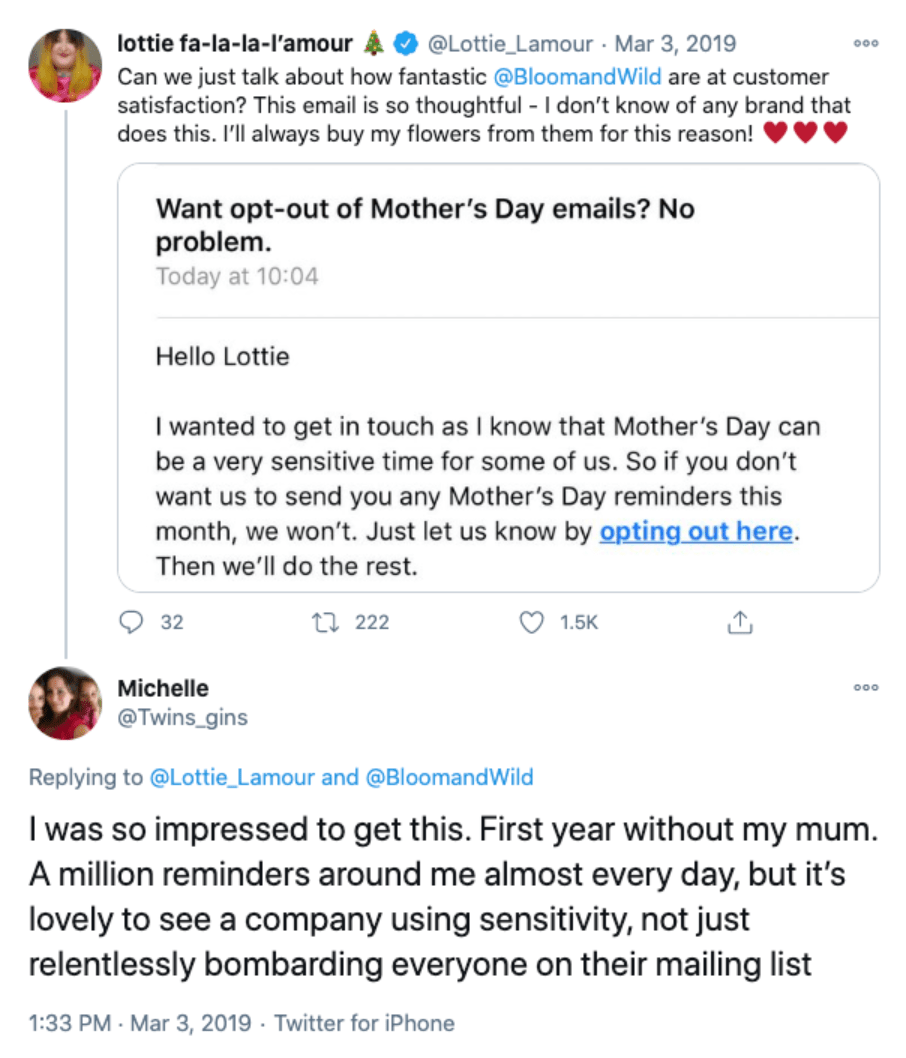
Empathy is crucial, and being agile keeps you attuned to your subscribers’ needs so you can pivot at a moment’s notice — and keep your customers for the long-haul. This also gives your work purpose.
You know you’re always delivering the highest value work instead of falling into the trap of the sunk cost fallacy: continuing work that’s not relevant or worth it anymore simply because of what you’ve already invested in it. Your work is no longer about you, it’s about your subscribers!
Even if you’re in no rush, if your competitor is just one day ahead of you, that can put you at a significant disadvantage. An agile email marketing workflow gives you greater speed to market which can be just the edge you need for campaign success.
How to Make Your Email Workflow Agile
So how do you go from a linear email workflow to an agile one?
You’ll first need to start with your audience and put them at the center of your campaigns, make data-driven decisions, and collaborate across roles and teams.
With these tenets in mind, you can begin building a new workflow that allows many parts of your email marketing process to be either automated or done in tandem, as shown in this agile email workflow chart:
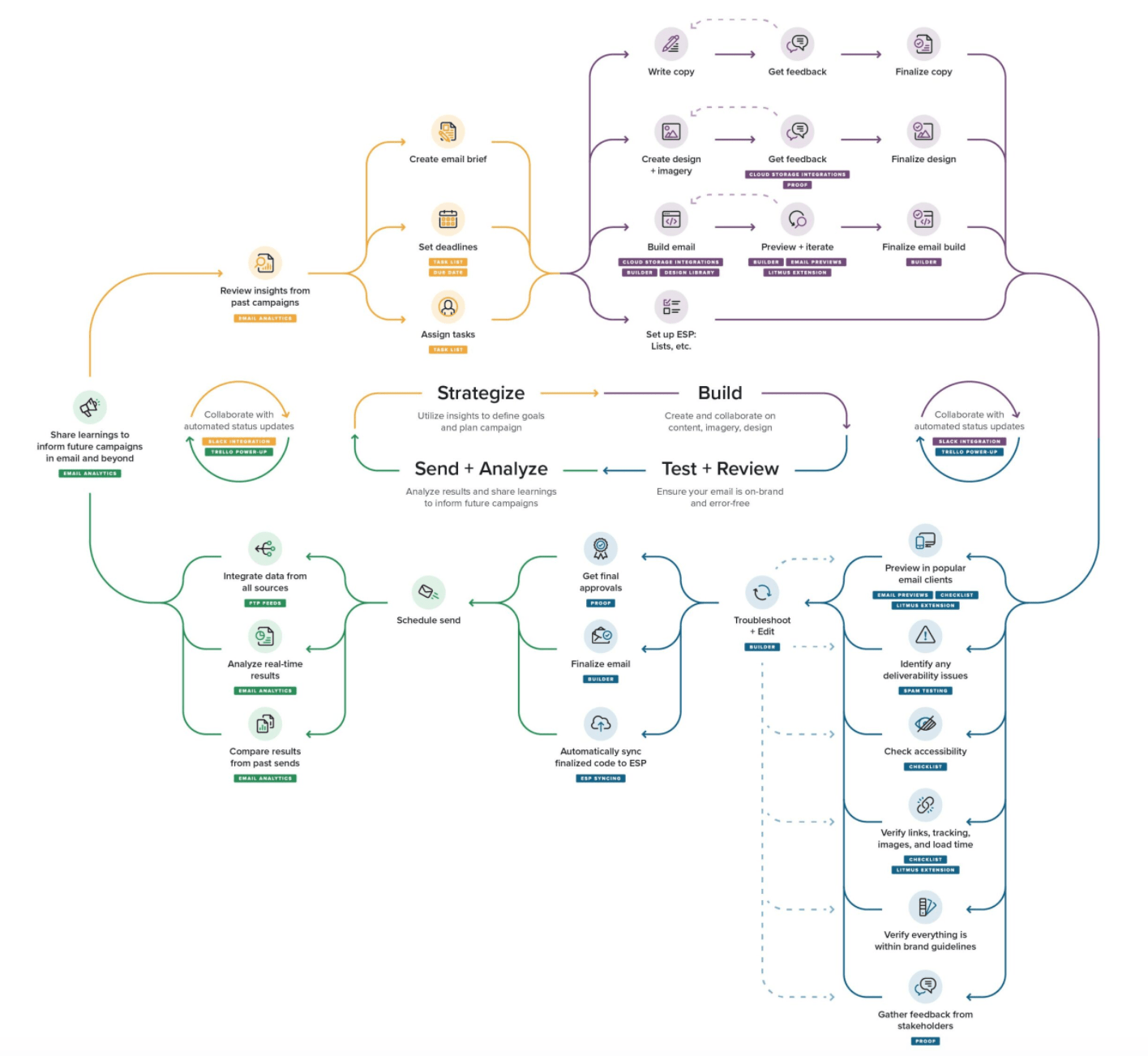
Ready? Let’s dive into how you can go agile.
1. Get your team and tools in place.
Crucial to the success of agile email marketing is your people and your tools. Without this strong foundation, you’ll more likely face challenges with adoption.
Make an assessment of the skills and tools needed so you know who to tap to join you and how you can get emails done together.
Cross-Team Collaboration
One of the cornerstones of agile email marketing is cross-team collaboration, which means taking advantage of a wide variety of existing roles and skills already within your company to create and send emails.
That’s right: You don’t have to hire new people or have a large, dedicated email team. Instead, by leveraging other people’s strengths and, if needed, running through email marketing best practices to hone their craft specifically for email, you can work efficiently as a team. Make sure you communicate your needs and get everyone on board, first!
The skills you need will depend on your email marketing program, but the main ones to consider are:
- Strategy
- Copywriting
- Design
- Development
- Operations
- Analysis
In one scenario, for instance, you might want to pull people from your content and website teams to help with copywriting, design, and development.
Tools and Technology
The second part of an agile email marketing foundation is the tools.
Make an assessment of your current technology and review the rest of the agile email workflow steps below to see where your gaps are. Do you have what you need to send emails, simplify and automate steps in your process, and collaborate effectively across teams?
At the very least, you need an email marketing tool and a collaboration tool.
2. Align on email strategy.
With your team and tools in place, you need to make sure everyone — including reviewers and approvers — is on the same page, setting your team up for success as you all work toward a common goal.
A solid strategy ensures copy, design, and development are aligned. Without alignment, there can be miscommunication and confusion. And this can slow you down or throw your email off track, resulting in even more work and time wasted. Not agile at all.
If putting together an email marketing brief stresses you out, know that it doesn’t have to be complicated or extensive. As long as you have these basics, you’re golden:
- Define your email’s purpose, goal, and audience.
- Define your content strategy for getting opens and clicks.
- Define the hierarchy of your email’s copy and images.
Remember the key to being agile is your subscribers. When their needs intersect with your business’ needs, you get… magic.
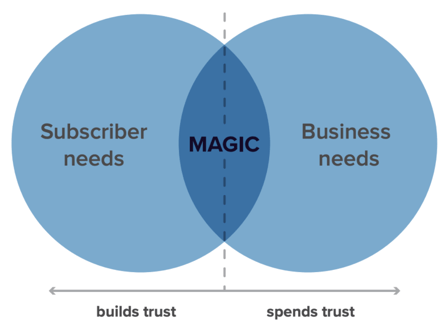
If you find that your email doesn’t meet your subscribers’ needs, consider changing your email — or not sending it at all.
Continuous improvement is essential to being agile, and you can re-center your email around your subscribers by learning from the past and present to inform your future strategy.
You can extract insights from industry news or your email marketing tools to identify design improvement opportunities or improve segmentation, targeting, and personalization.
Now that everyone’s expectations are set and in sync, email production can begin.
3. Write, design, and build at the same time.
The time it takes to write, design, and build an email adds up in a linear process. When they’re each done in tandem, it’s like cutting production time by over 50%.
The secret? Standardized email design and a visual email editor.
Creating every email from scratch is a huge waste of time. And if you want to ensure brand consistency and reduce errors, standardized emails are the way to go.
There are a few ways of doing this, in order of complexity:
- Snippets: reusable lines of code for commonly used elements like HTML buttons or hyperlinks so you don’t have to code the same thing over and over again.
- Partials: reusable lines of code for globally-used content blocks like your header and footer so any updates made to them are automatically applied across every email.
- Templates: reusable coded emails with a set layout on which to simply add or replace copy, images, and links.
- Design systems: a collection of reusable email components with a guide on how they can be mixed and matched to create more flexible — yet still standardized — email designs.
This doesn’t mean you have to settle for boring, ho-hum designs. You can still be creative in your imagery and in how different reusable components come together to create an email.
Standardized email design and development not only frees up your time for innovation, but also sets the stage for being able to write, design, and build at the same time within a visual email editor.
Once a template has been defined for your email, then you already have the specifications for the copy that needs to be written and the images that need to be created. Then, it’s a matter of plugging them into your email template.
Loaded with your email snippets, partials, and/or template, a visual email editor tool can then empower everyone to work on their part of the production process at the same time and collaborate along the way.
Images can be created based on the content outline in your email marketing brief from step two, while the copy is being written. Copy can even be written within your visual email editor to help ensure it’ll fit inside the design, making copy edits a breeze.
Even if you don’t have a visual email editor, development can begin with placeholder images and text. With everyone on the same page on strategy, there’s no need to wait for design and copy first.
4. Collect feedback in one place.
With email strategy alignment across all stakeholders, the review process should be less painful. Still, juggling feedback can be difficult coming from different people across different tools. What if there are contradicting comments? Or you miss an important piece of feedback altogether?
This time-saving tip is simple: Consolidate everyone’s feedback in one place.
Stop sending individual screenshots or test emails. Share one email test with stakeholders in a single location so everyone’s collaborating together.
First, you’ll need to grab the URL in the “view in browser” or “view online” link of your email. You can also create a web-based version of your email to share. The important thing is that you have an email where people can test links and interactive elements.
Then, pick a single spot — not an email thread — to share your email for feedback. This could be as part of a group message in your communication tool or as a single task in your project management tool.
You could collect feedback in those same places. Or you might find it faster and easier to create a separate spreadsheet to track feedback, conversations on specific comments, as well as progress on implementing feedback.
The key thing is that all reviewers and approvers are together and can see each other’s feedback.
There are also tools made specifically for collaboration where you can not only share a live version of your email, but also leave feedback directly on it, check off when changes are made, and track approvals.
5. Analyze & share insights.
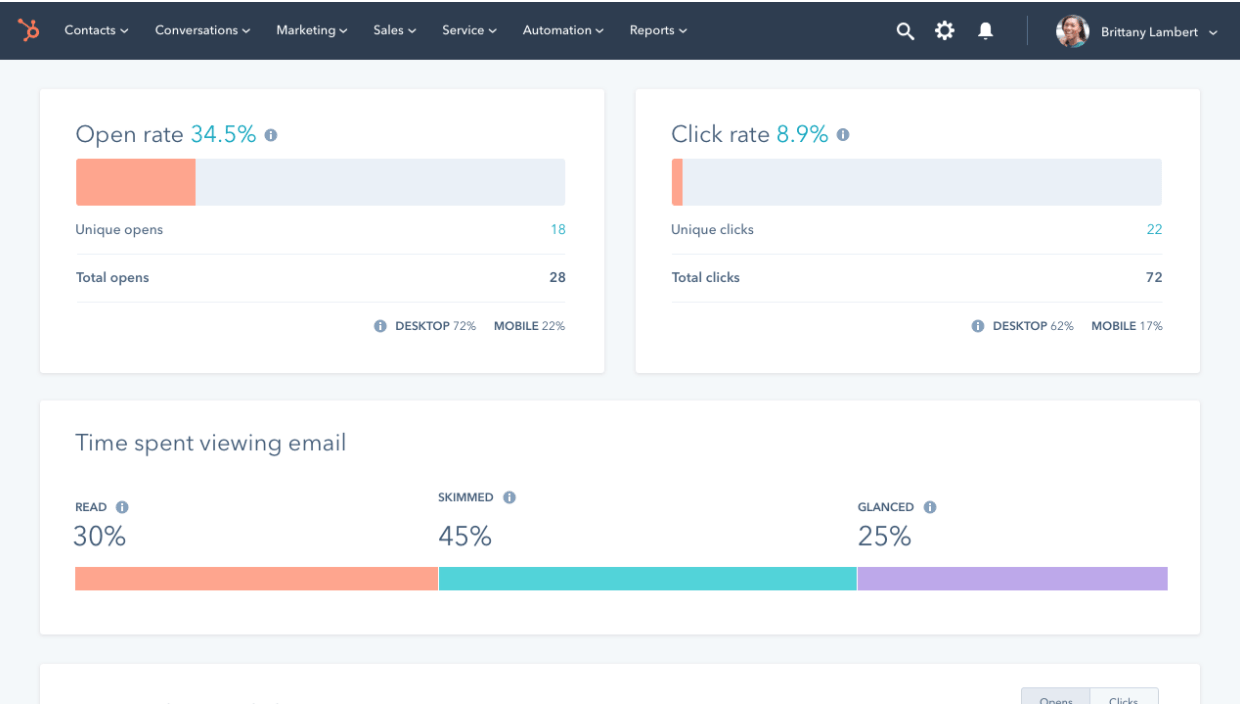
After your email is sent, see how it’s performing so you can evolve to meet your subscribers’ needs. In the agile methodology world, you might consider this the end of a sprint, working in small increments to improve the success of your emails.
The email marketing metrics you should look at depends on your goal. Your email marketing tools will provide at least the basics — opens, clicks, and unsubscribes — and may even provide deeper engagement-level metrics like how long someone spent reading your email (read rate) or how many people shared your email (forward rate).
If you’re tempted to skip this step, don’t.
Email analysis tends to be what people skip if they’re short on time. Onto the next email, right? In the long run, though, this hurts your email marketing program.
It might be hard to believe, but analyzing your emails will actually save you time. It’s what makes agile email marketing work in the first place. If you remember, I mentioned that being agile relies on data, whether that’s internal (e.g. email performance) or external (e.g. the news).
Data is how you can keep a pulse on your subscribers’ preferences, and how those preferences might change over time.
It gives you the power to say no to the emails that don’t matter. Otherwise, you’re shooting in the dark and wasting time on emails your subscribers don’t care about. And this affects your company’s brand reputation, and bottom line.
Final Thoughts on Going Agile
Remember, even achieving some agility in your email workflow has its rewards, like giving your team some time back or being able to quickly flex to your subscribers.
While there’s nothing wrong with the linear email marketing process —completing one step at a time — you won’t be able to move as fast in today’s ever-changing environment. To rise above your competition and ensure you always meet your subscribers where they are, you need speed and efficiency. That’s where agile email marketing comes in.
Make sure you have the right team and tools in place with everyone on the same page on strategy. Then you can be off and running to create great emails in no time.
So the next time someone asks if you can send just one more email, you can confidently say ‘No’ (because it’s not the right fit for your subscribers), or embrace it with open arms (because it is the right fit for your subscribers). Either way, it won’t be your workflow holding you back.

Why You Should Use Early Bird Registration for Your Next Event
A few years ago on Thanksgiving, my entire family flew to my sister’s house, except for me. I couldn’t afford the plane ticket, so I stayed home. When I looked at their pictures on Facebook, I was upset that I missed out on the trip.
That concept is called the fear of missing out (FOMO). FOMO, while upsetting when I missed my family trip, is actually a great marketing tool to use when you’re planning an event.
Usually, people don’t start registering for events until the last minute. As a marketer, you’re probably wondering, “How can I get them to register earlier?”
A great way to sell more tickets faster is to use FOMO as a way of motivating your audience to buy tickets through early bird registration.
Today, let’s learn how early bird registration can help you sell more tickets to your events.

The idea behind early bird registration is that people won’t want to miss out on a deal. Plus, this tactic taps into your audience’s sense of urgency. So if you have people on the fence about whether or not they want to go to your event, then an early bird registration might be all you need to nudge them in the right direction.
However, for an early bird discount to work, it needs to be of great value. The package shouldn’t just be slightly cheaper. In addition to the discount, maybe early bird registrants get access to more content, or perhaps the discount is really steep. Either way, it needs to be worth it, otherwise, people won’t feel like they’re missing out if they don’t partake.
Ultimately, this means you can sell more tickets and attract more people to your events.
Additionally, using early bird registration could help you project how much interest there is in your event and your marketing materials. If you have a hard time getting people to buy early bird tickets, then perhaps you need to switch up your marketing tactics before the event. It’s kind of like a test run for your promotional plan.
If all goes well, you’ll also get attendees excited about your event and give them time to talk about it on social to help you spread the word.
To get people excited about early bird tickets, you can promote your keynote speakers, and market the value of the event. What will people get by attending your event?
Now that we know more about what early registration is and why you should use this tactic, let’s dive into the logistics of running early bird registration.
How long should early bird registration last?
For early bird registrations, you can set a certain time period or you can limit the number of purchasers. For example, you can have the early bird discount available during the first week of sales or you can only offer a discount to the first fifty registrants.
Additionally, you might consider only offering early bird discounts to members or subscribers. This is a great benefit and encourages people to sign up for your service. Or you can reward repeat attendees. If you hold an event every year, perhaps repeat customers can get access to early bird discounts before anyone else.
When you’re strategizing about how long the early bird registration will last and what the package should include, it’s important to factor in how many tickets you can sell at a reduced price without hurting your profits. So before you decide on the time frame or the number of tickets, think about your projected attendance.
When your early bird registration ends, it’s time to take advantage of the momentum you’ve built. Use the marketing materials that were successful for a big push before the event.
Early bird registration is a great way to accelerate and improve your sales for your next event. By utilizing urgency, relying on scarcity, making early bird registrants feel like VIPs, and creating a fear of missing out, you’ll create buzz and excitement around your event.


15 Strategies To Get YouTube Subscribers
In the SaaS industry, the most successful companies prioritize the retention of their existing customers over the acquisition of new customers. Why? Because SaaS companies charge a monthly subscription, so in order to turn a profit, they need their customers paying them for many months in a row. If they can’t retain their customers for X amount of months, they’ll ultimately lose money by acquiring them.
In content marketing, the same principle applies. Retaining your audience’s attention positively impacts your brand a lot more than merely acquiring attention.
When an audience engages with your content for long periods of time on a consistent basis, they can easily turn into a loyal tribe that’s passionate about your work and recommends your brand to all their friends. In other words, staying laser-focused on retaining attention is actually the best strategy for acquiring new attention because your current customers are providing so much word-of-mouth marketing — it’s like a flywheel.
On YouTube, you retain attention by attracting subscribers to your channel. Subscribers are your most loyal fans and made a public commitment to your brand, content, and values. They’re also most likely to be fervent brand evangelists.
In regard to benefiting your YouTube channel, subscribers are crucial because YouTube will send them notifications about your new videos and feature your videos on their homepage. This means they’ll see your videos more frequently, which will help you generate more engagement.
Subscribers also watch twice as much video as non-subscribers, so the more subscribers you have, the more watch time your videos will accumulate, and the more likely YouTube will rank them higher on search and feature them in the related section.
Additionally, YouTube keeps track of the number of viewers who subscribe to your channel right after watching one of your videos. So if one of your videos generates a lot of new subscribers, they’ll reward it with higher rankings and more features in the related section.
To help you grow your YouTube subscription, we’ve fleshed out these strategies that will help you retain attention on the video platform — and not just acquire it.
1. Craft amazing content.
Today, we work in an industry where a lot of people prioritize gaming the system over crafting the best content possible. Fortunately, in regard to their algorithm, YouTube has caught on to this hollow tactic. Their algorithm rewards engagement instead of using only vanity metrics like views and clicks, so creators are incentivized to produce videos that their audience actually enjoys watching.
To craft the most engaging videos for your YouTube channel, consider measuring your videos’ performance against engagement metrics, like watch time, average watch percentage, average view duration, audience retention, and average session duration. Then, analyze this data to figure out which topics and videos generate the most engagement. Once you pinpoint these videos, you can solely focus on creating the content that viewers are most likely to engage with, helping you rake in more subscribers.
2. Use playlists to increase engagement.
Placing your videos in playlists is an extremely effective way to organize your videos in a digestible fashion. They help your viewers easily consume videos about their favorite topics and prompts them to keep watching your content.
One way to get your viewers to watch the majority of your playlists is by starting your playlists with the videos that have the highest audience retention rate and ending them with the videos that have the lowest audience retention rate.
Even better, you could create a binge-able series or show and place entire seasons of it in a playlist. And just like your favorite Netflix show, your playlists can entice your viewers to watch entire seasons of your series, subscribe to your channel, and get excited for your show’s next season.
3. Add a subscription CTA to the end of your videos.
It seems obvious, but adding a subscription CTA to the end of your videos is one of the best ways to generate more YouTube subscribers. After your viewers watch your entire video, they’ll determine if they want to keep watching more of your videos, so to maximize your subscriber growth using CTAs, consider keeping them at the end.
Additionally, if you want more subscribers, just ask. At the end of your video when you include a CTA, ask your viewers to subscribe. This reminds them that you have more exciting content they’ll want to watch.
4. Optimize your videos.
To attract subscribers to your YouTube channel, you first need to be able to get found on YouTube. To start ranking, consider optimizing your videos and channel for popular search queries by placing relevant keywords in your videos’ titles, tags, descriptions, SRT files (which are transcriptions), video files, and thumbnail files.
You should also check out the most popular queries guiding viewers to your videos, which you can find on YouTube’s Search Report. If these queries are slightly different than your video’s topic, consider updating your video to fill these content gaps and adding these keywords to your metadata. If there’s a stark difference between your topics and the queries guiding viewers to your videos, consider making brand new videos about these popular queries.
5. Create beautiful thumbnails.
Another factor that can affect your search ranking on YouTube, and in turn, your subscriber growth are your videos’ thumbnails. Since a video’s click-through rate is one of the most important ranking factors in YouTube’s search algorithm, especially during its first hour on the platform, an eye-catching thumbnail can make a huge difference in ranking number one for a query and not ranking at all.
If your video has an ordinary or sub-par thumbnail, though, it won’t persuade anyone to click through, prompting YouTube to deem the video irrelevant and decide not to rank it in their search results or distribute it through the “Recommended Videos” feed.
To create a striking thumbnail, consider including a talking head. People are naturally drawn to human faces because it’s an ingrained survival mechanism to help us quickly gauge someone’s emotions and determine if they’re a friend or foe. Also, consider contrasting the colors of your thumbnail’s foreground and background to really make it pop.
6. Interact with your audience.
One of the main best practices to retain and acquire new YouTube subscribers is to interact with your audience. You should reply to every comment if you can, even if it’s just liking it. When a viewer watches your videos and scrolls to see your content, they’ll be excited to see that you engage with your audience and have created a community. In fact, it might make them want to join your community and get them to subscribe.
Interacting with your audience will also generate word of mouth and engagement. The more that your audience engages with you, the higher you’ll rank, and the more people will find your content.
7. Promote your videos in your other content.
Whether you have a blog or other social media platforms, it’s important to promote your YouTube videos in your other content. When you post a video, you should also promote it on social media to get your audience to watch it.
Additionally, if you have a blog, you can embed your YouTube videos as complementary content. This will help you increase your views, and tap into the audience you’ve already created. If someone follows you on Instagram, or reads your blog, they’re probably interested in what you have to say. Don’t be afraid to cross-promote on other channels to get more subscribers.
8. Release videos consistently.
One important factor in getting YouTube subscribers that isn’t discussed as much in the influencer industry is trust. When you’re creating content, your audience needs to trust you. They have to trust that you’re going to release quality content, consistently. Otherwise, why would they subscribe?
To build this trust, it’s important that your audience can rely on you. You should release your videos on a consistent basis. This doesn’t mean you need to value quantity over quality. Whatever your publishing schedule is doesn’t matter as much as being consistent with it. Whether you post once a week or twice a month.
9. Be creative.
As we mentioned above, when you’re creating YouTube videos, it’s important to optimize your content and keep in mind what your audience is searching for. However, that doesn’t mean all your videos need to be tied to a keyword.
Sometimes it’s okay to stray and just produce creative content that’s not necessarily supported by keywords. This content can be trendy, or rely on thought leaders. Regardless, don’t be afraid to use content that strays from the organic search strategy. This will help create buzz and hopefully convert viewers into subscribers.
10. Partner with other channels.
When the influencer industry began, brands recognized that they could leverage other people’s audience to market or promote their products. The same principles apply in YouTube. If you partner with other YouTube creators, you can use each other’s audience to promote your channel.
If you do this, make sure you choose channels that align with your audience’s interests, wants, and needs. It might not make sense, for instance, for a B2B company to parter with a B2C company. Your audiences should be similar enough that someone who subscribes to their channel might also be interested in your channel.
11. Make an engaging channel trailer.
After watching an engaging or interesting YouTube video, a viewer might click on your profile to see what your channel is about. In this short time period, you need to close the sale. One of the first things viewers see when they click on a channel is the trailer video. That’s why it’s important to create an engaging, fun channel trailer.
With this trailer, you can get a viewer to go from a casual viewer to a subscriber. In your trailer video, make sure you give your elevator pitch. Why should someone subscribe to your channel? What kind of content will they see?
12. Run YouTube advertising campaigns.
An oldie but a goodie. To promote your YouTube channel, run paid advertising campaigns. You can run banner or display ads promoting your channel across platforms. This will help you get the word out about your channel, get more views, rank higher, and hopefully get a few subscribers as well.
13. Produce subscriber only content.
You know how marketers create lead magnets to entice readers or viewers to download a piece of content? To get more YouTube subscribers, apply the same principle here. You can create specific lead magnetics to get people to subscribe.
For instance, perhaps every subscriber gets a free ebook. Or maybe it’s a template. Whatever it is, think of what will be helpful to your audience and might get them to subscribe to get it.
14. Pick a niche.
As with all content you produce, your YouTube videos should be highly targeted toward your audience. Pick a niche and a theme, and stick with it. While you might have a broad theme, you can create smaller subtopics and create several videos for those topics. Think of it like the pillar/cluster model for blog writing. While your blog will focus on one niche, like marketing, there are several pillar topics that you cover and cluster topics as well.
Using this model will help you create valuable content consistently. It’ll be easier to come up with targeted, personalized video ideas for your audience if you know what they want to see.
15. Know your audience.
Again, this is a classic marketing tip. On any channel you’re creating content on, you need to know your audience. For YouTube, think about whether your audience wants to watch long or short videos. This might vary by industry, so do some research to see what type of YouTube videos and what format your audience is looking for.
How to See Your Subscribers on YouTube
To see your YouTube subscribers, all you need to do is log on to your account, click your profile photo in the top right, and click “Your Channel.” From there, you should be able to see how many subscribers you have underneath your channel name.
It’s important to continue tracking this number as you’re trying to grow your YouTube channel. Now, let’s get into the discussion about buying YouTube subscribers and why you should never do it.
Buying YouTube Subscribers
First and foremost, let’s start with the fact that you should never buy YouTube subscribers. To start, it’s against the Terms of Service with YouTube, so your account will likely be suspended or terminated if you’re caught.
Second, buying YouTube subscribers will ultimately end up hurting your channel regardless of if you’re caught or not. Bought subscribers aren’t going to engage with your content, and after maybe one video, they won’t watch it either. Having a million subscribers doesn’t matter if only 50 people are actually watching the videos and engaging with your content. Those types of numbers are major red flags both for YouTube, but also for your average viewer.
Similar to the best SaaS companies, the top YouTube channels focus on building a subscriber base that can’t get enough of their videos and watches them on a consistent basis. Retaining attention has always been imperative to successful content marketing. Now, it’s time we actually prioritize it over acquiring as many darting eyeballs as possible.

How to Create a Sensible Social Media Strategy for Your Business
Many businesses find social media overwhelming — there are so many networks available, and they’re always adding new features for you to learn and integrate into your plan.
If you don’t have a full-time team of social media experts at your disposal, your success depends on creating a simple and sensible strategy that fits your resources and goals.
By the end of this guide, you’ll know how to develop a social media strategy that’ll not only drive traffic but will also quell that overwhelming feeling you get anytime you open Instagram or Twitter.

What is a social media strategy?
Your social media strategy is your master plan for how you create, post, and engage with your social media content.
It encompasses your social content guidelines, posting cadence, social media marketing campaigns, creative plans, and engagement strategy.
Why You Need a Social Media Strategy
The top three challenges that social media marketers face include reaching their audience, measuring ROI, and reaching business goals.
Crafting a social media strategy can help tackle these challenges and more. Social media strategies also equip you to set goals and guardrails, track their performance, and tweak your benchmarks over time. Without a starting point, you can’t measure what’s working and how to shift your activity to hit your goals.
A social media strategy also helps you set expectations for broader team involvement and get everyone aligned on what they should (and shouldn’t) do on your social networks.
Let’s unpack how to start building a social media strategy from scratch.
1. Define your target audience.
If you haven’t already identified and documented your buyer personas, start by defining the key demographics of the audience you’re trying to reach — age, gender, occupation, income, hobbies and interests, etc.
Consider their challenges and what problems they’re solving daily. Focus on no more than four types of people that represent the majority of your buyers. Don’t get hung up on the exceptions or outliers, or you’ll never get started!
2. Start blogging.
Fresh content is the linchpin of a successful social strategy, so commit to creating new, quality content on a consistent basis. Compile a list of common questions from prospects and commit to addressing these questions with at least one new blog post per week.
3. Create educational content.
Create downloadable content like ebooks, checklists, videos, and infographics that address your buyer’s pains. If your content is truly helpful, people will likely share it on social media and extend your reach.
4. Focus on a few key social channels.
Most startups and small businesses don’t have the bandwidth to establish and sustain a quality social media presence on every single channel. It’s also overwhelming to learn the rules of engagement on a bunch of different networks at one time.
Here’s a video by HubSpot Academy explaining the social channels on which you can post content for your business.
So, start small. Research key networks to learn where your target audience is spending time and focus your effort on building, nurturing, and sustaining a community there before moving on to another channel.
5. Develop a recipe card to guide you.
Social media isn’t an exact science (and doesn’t work the same for every business or industry). To see results for your business, establish a consistent posting and engagement schedule.
Develop a reasonable recipe card — one you can actually stick to and get your team to follow. Set goals for your posting and engagement frequency and hold yourself accountable to following your recipe.
Manage and plan your social media content with our free handy calendar guide and template.
6. Measure your results.
There are countless things to track on your social media channels. Start by looking at how much traffic your social accounts are driving to your website or blog.
Watch your posts to see what people are responding to, and look for trends related to particular topics or keywords that generate more interest than others. Once you get an idea of your average traffic and post performance, set goals for key metrics and keep a scorecard to measure your progress.
Be sure to choose metrics that are easy to gather – if it’s too time-consuming to track, you’ll fall off the wagon! Examples of simple metrics (to start with) include net new fans and followers, number of interactions, and visits to your website from social.
7. Adjust your tactics.
Social media won’t start working overnight. It takes time to build a following, establish your brand, and start seeing results. Experiment a bit to find the right combination of channels, content, and messaging that works for your audience.
Over time, you’ll be able to adjust your recipe card, content, and personas based on the information you’re gathering — which will help you fine tune your strategy and generate more consistent results.
Social Media Marketing Strategy
Social media is a multipurpose business asset. It connects you with your audience, and it also promotes your products, services, and brand. Both functions are equally important.
Building a social media strategy for marketing is a bit different than the process we discussed above. How so? For example, your benchmarks and goals may be more specific to metrics you track for other marketing efforts.
When using social media to market your business, ensure the experience on your social networks is a positive, consistent one. All imagery and content on your social media accounts should be consistent with those on your website, blog, and other digital real estate.
Pay close attention to any questions or comments your audience posts, and be quick to address those (as that engagement could make or break a conversion or purchase).
Take a look at these social media marketing examples of what to stop, start, and keep doing in 2021.
Lastly, align the content you post and how you post it with marketing campaigns you’re running on other channels (e.g., email or ads). This brings us to our next section …
Social Media Content Strategy
Content is the crux of any social media strategy. Without content, you can’t engage with your audience, promote your products, or measure performance.
The somewhat fleeting (and brief) nature of social media may lead you to believe that you don’t have to plan its content as much as you do for, say, your emails or blogs. That’s untrue. Social media content may not be as static as your landing pages or blog content, but it’s still equally important for engaging your audience and representing your brand as a whole.
For that reason, you should also have a social media content strategy. This should include:
- Posting guidelines and specs for each network on which you’re active (e.g., share GIFs on Twitter but avoid on Facebook)
- Target audience nuances per network (e.g., the younger segment of your audience is more active on Instagram than LinkedIn)
- Repurposing plans for long-form content from your blog, podcast, e-books, etc.
- Who on your team is allowed to post and who’s responsible for engaging followers
- The companies, publications, and individuals you’ll repost (and those who you won’t/can’t)
For more on creating a content strategy for social media, here’s a helpful video by HubSpot’s Aja Frost.
Social Media Strategy Templates
Social media is overwhelming; I get it. Starting your strategy from scratch is even more overwhelming, which is why we developed 10 free social media templates to help.
In the free download, you’ll receive:
- Scheduling templates for every channel, since social media channels aren’t one-size-fits-all
- Complete calendar of hashtag holidays, so you never forget to participate with new, fun content
- Social auditing template to track your followers, engagement rates, and more
- A social media content calendar to organize campaigns across every channel
- A social reporting template to track your monthly social successes
- A paid social template to help you manage and optimize your paid budget
Time to Get Social
Still feel like social media is overwhelming? That’s OK; I’m not sure that feeling every fully fades. You can certainly diminish it, though, by leveraging the tips in this guide and the free templates above. Remember: Tackle one social network at a time, prioritize your audience, and focus the content that works. You’ll see results and traffic in no time.

The 20 Best Video Editing Apps for 2021
Using a video editing app is critical for creating a winning video marketing strategy.
And if you’re reading this blog post, chances are you already know you should incorporate more video content into your marketing, especially after the rise of remote living.
But like most new strategies, you’ll need to prove its ROI before you get budget. And that can be tricky, because to make a great video, you need a few things — like a camera and editing software.
You might already have a high-quality camera built into your smartphone, but editing your raw footage and preparing it for publication requires a third-party mobile app. You might even need to hop on the computer for the more extensive post-production projects.
There’s a good chance you already have video editing software installed on your computer. For Windows, that’s Movie Maker, and for Macs, it’s iMovie. But depending on the purpose your video is serving — and the content channel to which you’re distributing it — you may find that these options aren’t packed with enough features.
The good news: There are several free and inexpensive video editing apps you can download that run the gamut from super simple to Hollywood-level powerful.
Editing Apps for Videos: Standard Features
Every editing app will be different, but there are a few features you’ll want to look for. Because most apps will have a free and paid version, it’s important to know what’s essential and what might be worth an upgrade.
Make sure that you can do the following without paying for a premium version:
- Either import videos and photos from your camera, or film them from the app itself.
- Scrub through the video as you edit it.
- Add music to the video.
- Choose an aspect ratio that fits with your target platform (Instagram, Facebook, YouTube, Vimeo, and so on).
- Export video with at least 480p quality.
- Either save the video to your camera roll or to the app’s cloud service.
- Add text and common shapes at the minimum.
- Speed up or slow down the video by 1-2X.
Premium features that you might run into include:
- Stickers, filters, gifs, and unique fonts
- Professional transitions between shots
- Premium music choices and quality stock footage
- High-definition exports (720p, 1080p, or 4K)
- Layering, masks, and green-screen detection technologies
- Multi-track editing and timelines
- Extreme speeding up and extreme slowing down of the footage (>4X)
- No branded watermark
The following solutions can help you make video magic — whether your video is meant for Instagram, YouTube, or a similar channel where you audience is hungry for content. Click one of the links below to jump to a specific type of app, or keep reading to learn about them all.
- Instagram Video Editing Apps
- Top Free Video Editing Software
- Best Video Editing Apps for YouTube
- Video Editing Apps for Android

Instagram Video Editing Apps
The following apps allow you to edit and quickly upload beautiful videos to Instagram. None of these apps are limited to Instagram, but are known for their support of this social network.
1. Magisto
Price: Starts at free | Platforms: iOS, Android, Online
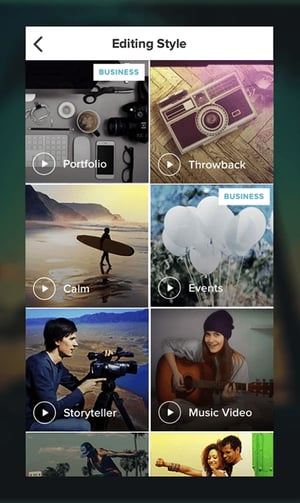
Video automation is here — in the form of the Magisto video editor.
Owned by Vimeo, Magisto allows you to make incredible videos without ever leaving your smartphone in three easy steps: First, you’ll choose your video editing style (the type of story you’re telling), then you’ll choose the photos and video clips you’d like included, and lastly you’ll pick your music from Magisto’s built-in music library.
Using artificial intelligence (AI), this intuitive app helps organize your footage in a video that best delivers the message you have in mind. Why not stop at the free version? Upgrade to Premium or Professional for a small monthly fee and make longer movies with more of your own content.
Pros
- Easy-to-use templates for hassle-free creation
- Intuitive, beginner-friendly interface
- Online version available for creating both on Windows and macOS laptops
- Professional and Business plans come with a free Vimeo Pro subscription
Cons
- The “Created with Magisto” watermark will be visible unless you upgrade to premium
- No multi-track editing or 4K exporting
- Ideal for very short social media videos (< 3 minutes long)
- Stock videos are only accessible with a Professional plan
2. Hyperlapse
Price:Free | Platforms: iOS
Hyperlapse is an app created by Instagram itself that condenses videos into brief, hyper-speed videos that you can upload to Instagram or Facebook.
You can choose among a few different speeds, and the app will show you how long the hyperlapsed video will be for every speed in comparison to the length of the video in real time. (So a 40-second video in real time will become roughly a 7-second video in Hyperlapse at 6X speed.) It’s a really cool way to capture something that usually lasts a while — like a sunset or an event setup.
See what happened when I used Hyperlapse to film daybreak at 12X in the video above.
Pros
- Easy way to speed up process videos
- Minimal layout that’s nearly identical to the iPhone camera
- You can capture videos straight from the app
- No sign-in required to get started
Cons
- Only has one capability: speeding up videos
- You can’t import already-filmed videos into the app
- The video saves into your camera roll, taking up storage space
- No multi-track editing, 4K exporting, or other features typically associated with apps for video editing
3. Wondershare Filmora
Price: Starts at free on mobile | Platforms: iOS, Android, macOS, Windows
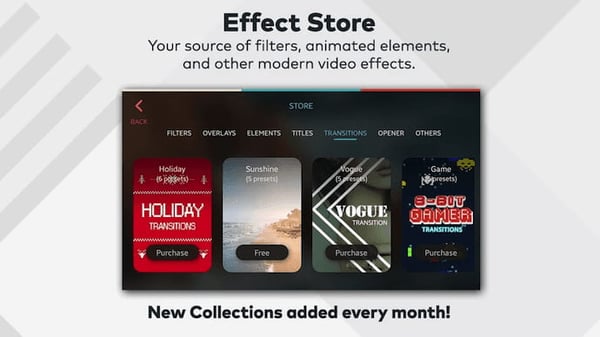
Wondershare Filmora (formerly Wondershare Video Editor) is the perfect option if you want to start out with basic video editing functionality with the opportunity to get more advanced as you go. The app is perfect for Instagram, but can create audience-ready videos for numerous platforms.
Filmora is available for Windows and Mac computers, whereas the company’s FilmoraGo mobile app is free to download for both iOS and Android devices.
Filmora’s “Easy Mode” strips away the complexity so you can drag and drop video clips, add some music, and produce a finished video in a matter of minutes. The FilmoraGo app has many of these features, plus an Effect Store where you can incorporate preset intros, themes, and transitions into your video creation.
Sound too good to be true? Well, you’re right: The free version of Wondershare Filmora adds a watermark to your videos that you can only remove through upgrading to their paid service.
Pros
- A powerful option for both beginner and advanced video editors
- The desktop version offers multi-track editing and more traditional video editing capabilities
- The mobile version includes easy-to-use effects, stickers, and filters
- You can layer music and different sounds in the mobile app
- Relatively affordable (starting at less than $50 per year for Filmora X, and free for the mobile app) compared to competitors such as Adobe
Cons
- The desktop apps are not free, but a trial is available
- Videos are watermarked with the Wondershare branding unless you upgrade to a premium plan
4. InShot
Price: Starts at free | Platforms: iOS, Android
There are the times when you just want to edit a video — no fancy collages and no splicing. For that, there’s InShot, a handy app that lets you trim, speed up, or add music and filters to video. It’s pretty fundamental, but with that comes a high ease of use. You can also add a background, if you like, though we think it’s pretty cool to have an overlap of images, like we did with the video above.
I took a simple video of a tranquil beach scene, but enhanced it with InShot’s “warm filter” and added a fitting musical track to it — a song called “Pikake Stream,” by Kalani. (I recommend viewing the video in its entirety with headphones, especially if you’re having a stressful day.)
Pros
-
Great app for beginners and marketers who don’t have a lot of time for intensive video editing
-
Built-in music library with royalty-free options
-
You have the ability to add voice-overs and your own music
-
The app has a 4.8-star rating on the Apple Store and over 1M ratings
Cons
-
No desktop app available
-
Filters and stickers are only available with a paid subscription
-
Your video will be watermarked unless you upgrade to the paid version
Top Free Video Editing Software
The following tools are most versatile mobile apps of all the free software listed in this article.
5. WeVideo
Price: Starts at free | Platforms: iOS, Android, Chrome OS
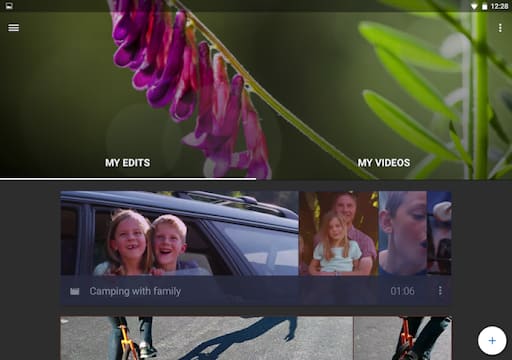
Cloud-based video editing software (i.e., software that you access via a browser instead of downloading directly to your hard drive) is growing more and more popular. One of the programs leading the charge is WeVideo.
WeVideo definitely offers some advanced features and functionality, including audio editing capabilities, a library of commercially licensed music, and the ability to share videos in 4K resolution. However, the free version of WeVideo isn’t without its limitations.
One major downside is that you’re only given 10GB of cloud storage. If you’re making a one-off video, this is fine. But if you’re planning to edit multiple videos, you’ll definitely need more space. The free version also puts a WeVideo watermark on your videos, which isn’t ideal.
WeVideo is also available as a desktop computer product, and comes with free and paid plans. For a complete breakdown of the differences between these plans, check out WeVideo’s pricing page.
Pros
- You can access your videos from any device
- Paid versions are relatively cheap (starting at $4.99 for the Power version)
- 4K exporting available
Cons
- Only 10GB of storage and 5 minutes of published video available on the free version
- The maximum resolution is 480p on the free subscription
- Your video will be watermarked with WeVideo’s branding unless you upgrade
6. Splice
Price: Free | Platforms: iOS
Splice allows you — as the name suggests — to splice together different video clips on your phone to create a moving collage.
We had a lot of fun playing with this one, especially since Splice even contains a library of musical tracks that can be used as a background for your finished product. You can also use the app to trim and edit the different pieces of video, and customize transition lengths from one scene to the next.
My colleague, Amanda Zantal-Wiener, experimented with Splice by compiling the above 15-second video of her dog — using only an iPhone 6.
Pros
-
Easy and intuitive to use
-
Familiar user-friendly interface
-
Multi-track and timeline editing with layers and masks
-
No sign-in required
-
No watermark, even for free subscribers
Cons
-
Subscription starts at $2.99/week, or $12.97/month, which is pricier than other alternatives
-
Effects and music are only available for paid subscribers
7. Adobe Premiere Rush
Price: Free | Platforms: iOS, Android
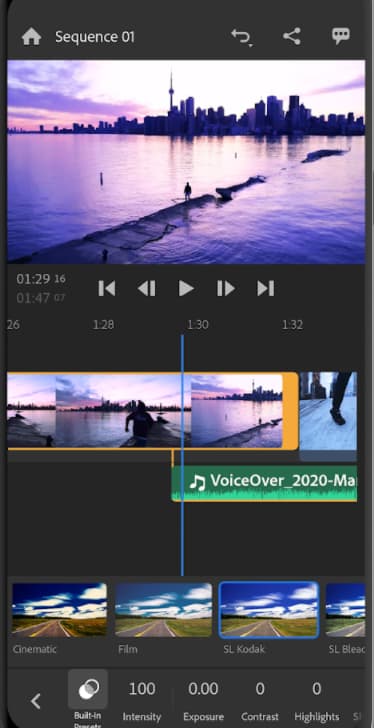
Adobe’s popular video editor, Premiere, isn’t just available on your mobile device — it’s free.
Melissa Stoneburner of Examiner.com calls this app a “gateway” into the full Adobe Premiere Pro video editor for desktop, and we can see this for ourselves. Similar to Magisto (the first video editor on our list), Adobe Rush automatically sets your video to the music of your choice (using Premiere Rush’s library or your own), and offers a Freeform editor that allows you to customize your edits further after this initial audio sync.
Premiere Rush’s equally robust video editing features help you trim, drag, and drop multiple video and image clips — right from your mobile device’s photo and video album — in the order you’d like.
Then, just add proper lighting, manipulate the speed of the video, and share your final product directly on Facebook, Twitter, or YouTube.
Pros
-
A natural choice for current Adobe users
-
Familiar video editing interface for those with experience, and easier learning curve for beginners
-
Paid version supports 4K exports
Cons
-
Some users report exporting and crashing issues on the Android version
-
Limited storage capabilities (<100gb) for free users
8. PicPlayPost
Price: Free | Platforms: iOS, Android
We’ve already covered the coolness of photo collages. But what if you could make a video collage? PicPlayPost is a simple app that lets you do exactly that. Just remember that the sound from both videos will play at the same time, so be sure they won’t clash with one another.
There are many uses for a video collage app, but my colleague, Lindsay Kolowich, particularly likes the way fitness professional Melissa Made uses it on her Instagram account. She posts video collages with her performing a workout on one side, while she explains the workout out loud on the other.
Pros
-
You can create alternative formats such as gifs and live photos
-
4K exporting available
Cons
-
Most valuable features are available on the paid version only
-
You can’t paste text from another app
-
Video will be watermarked with the PicPlayPost branding unless you upgrade
Best Video Editing Apps for YouTube
Although the video editing services below do not offer mobile versions, they do offer easy-to-learn functionality at minimal cost. These apps are the best for sitting down at your computer and editing amazing video content for your YouTube channel.
9. Blender
Price: Free | Platforms: Windows, macOS, Linux

The open source program Blender is more than just a video editor: It’s a full-blown 3D animation suite, which allows for modeling, rendering, motion tracking, and more.
On the video editing side, there are a ton of features, including transitions, speed control, filters, adjustment layers, and more. There are also 32 slots available for adding video clips, audio clips, images, and effects, which means you can produce some incredibly complex video.
For the amateur video editor, all the functionality that’s available can be a bit overwhelming. But if you’re looking to produce truly professional-quality video — without having to deal with watermarks — Blender is a solid option. The best part: “You are free to use Blender for any purpose, including commercially or for education,” according to its website. For the fine print, check out its licensing info.
Pros
-
Long history of use across multiple platforms
-
You can also render, model, sculpt, and animate using this app
Cons
-
Steep learning curve for beginners
10. Lightworks
Price: Free | Platforms: Windows, Mac, Linux
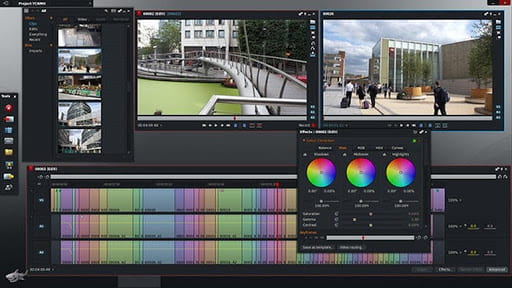
Like Blender, Lightworks is definitely on the more advanced (and powerful) end of the video editing software spectrum. In fact, it’s a program that’s been used to edit some well-known and award-winning films, including Pulp Fiction, The Wolf of Wall Street, and The King’s Speech.
There are two different licenses you can choose from with Lightworks: “Free” and “Pro.” (The latter of which, as you might have guessed, requires that you cough up some cash.) The main difference between the two licenses is that the Pro version offers more features, including stereoscopic output and advanced project sharing. But the free version is still quite powerful, providing 100+ effects and supporting multicam editing.
Pros
-
Like Blender, Lightworks has a long history of use across multiple platforms
-
You can access royalty-free videos and audio from the desktop app
-
You can export up to 4K
-
Multi-track editing and timelines, even in the free version
-
You can buy a lifetime license for $437.99 and never worry about renewing a subscription
Cons
-
Extremely steep learning curve for beginners
-
Not many options for creating titles and subtitles
-
Users have reported formatting issues when importing video clips
11. Shotcut
Price: Free | Platforms: Windows, macOS, Linux
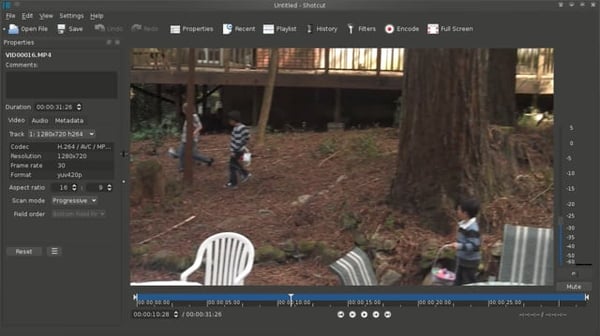
Shotcut is another open source video software — and it’s completely free. It’s possible to use Shotcut to create professional-looking videos, but the interface is tricky to use. Perhaps that’s because it was originally developed for the Linux platform, which looks and feels a lot different from the typical Windows or Mac UX.
With dedication — and time spent in the Shotcut frequently asked questions and how-to guide sections — it’s possible to use this software to create and export high-quality videos, completely for free.
Pros
-
Completely free—you never have to upgrade, ever
-
Diverse list of features that rival those of paid apps
Cons
-
Could be difficult to get the hang of at first
-
Some users find the UI difficult to navigate
-
Less intuitive compared to other apps such as Premiere Pro and FinalCut, even for experienced editors
12. VSDC Free Video Editor
Price: Free | Platforms: Windows Only
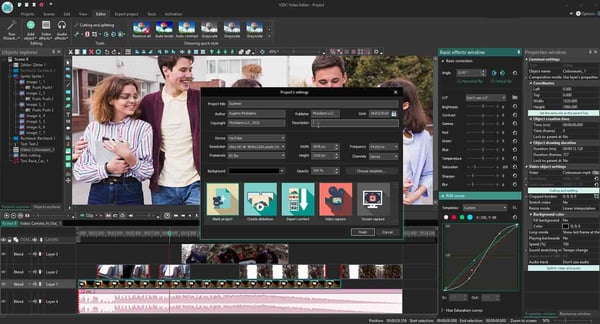
In experienced hands, the VSDC Free Video Editor can produce some seriously professional-looking video. In addition to supporting nearly every major video format, the program offers advanced video effects, including object transformation and color correction, as well as advanced audio effects like volume correction and sound normalization. And unlike WeVideo, the VSDC Free Video Editor is truly free. You can use the program’s full feature set without having to deal with pesky watermarks.
Unfortunately, there is one catch. If you want technical support, you need to pay. (And because there is a bit of a learning curve, there’s a good chance you’ll need to.) Support for the VSDC Free Video Editor costs $9.99 for one month and $14.99 for one year.
Pros
-
Free version is packed with typically premium features such as masking, blending modes, and 4K exports
-
You can share your video directly from the app to YouTube, Vimeo, and other platforms
Cons
-
You have to pay for support if you’re on the free version
-
Not as user-friendly as other alternatives
-
Users have reported a steep learning curve
13. Machete Video Editor Lite
Price: Free | Platforms: Windows Only

At the simple end of the spectrum is Machete Video Editor Lite, a free program allowing you to cut, copy, and paste different sections of video. As the Machete website puts it, Video Editor Lite was “designed for quick and simple ‘slicing’ of your video files.”
The program’s intuitive interface means you won’t have to waste time shuffling through technical support documents. And because Video Editor Lite doesn’t re-encode your video files when you slice them, you don’t have to worry about losing video quality.
The main downsides to the program? It only supports the AVI and WMV video formats, and it doesn’t allow for audio editing. Still, if you have zero video editing experience and only need to make simple edits, it’s a great option.
Pros
-
Offers simple but powerful slicing and editing capabilities
-
Incredibly simple and user-friendly interface; simply download and go
Cons
-
You can only export AVI and WMV files
-
You can’t edit or replace the audio
-
Outdated website with limited support documents
14. Avidemux
Price: Free | Platforms: Windows, macOS, Linux

Like Machete Video Editor Lite, Avidemux allows you to do basic video editing (no audio editing) without having to worry about loss of video quality. But Avidemux also has a few more tricks up its sleeve.
For starters, the program supports multiple video formats, including AVI, DVD, MPEG, QuickTime, and MP4. What’s more, Avidemux comes with several filters that allow you to perform a host of different functions, from flipping and rotating clips, to adding subtitles, to adjusting colors and brightness levels.
And while the learning curve for Avidemux is slightly steeper compared to Machete Video Editor Lite, the upside is that there’s an extensive Avidemux wiki that covers everything you need to know.
Pros
-
Supports multiple file formats such as AVI, MPEG, MP4, and Microsoft’s proprietary ASF
-
Simple interface that’s best for tasks such as cutting and splicing footage
-
Easy learning curve; simply download and start using
Cons
-
Limited capabilities compared to other apps (especially mobile apps)
15. HitFilm
Price: Starts at free | Platforms: Windows, macOS

HitFilm Express is a free video editing and visual effects software — which means you can use it to add more than 180 special effects to your videos, including 3D editing.
Possibly the coolest HitFilm feature is its wealth of tutorial videos — users can practice applying special visual effects in movie tutorials based on Star Wars, Westworld, and more.
Of course, upgrading to HitFilm Pro grants access to more visual effects, better high resolution and 3D rendering, and better audio syncing between audio and video files. It costs $300, but if you’re not ready to fully invest, HitFilm Express users can purchase lower-cost expansions to use more tools in their software.
To see the complete list of differences between HitFilm Free and Pro, check out their “Compare Versions” page.
Pros
-
Powerful capabilities such as mask rendering, export queues, and unlimited tracks and transitions
-
Built-in voice recorder for easy voice-overs
-
Has been described as a mix between Adobe After Effects and Adobe Premiere Pro
Cons
-
Steep learning curve for beginners
-
Users have reported some crashing issues
Video Editing Apps for Android
These video editing apps are particularly appealing for Android mobile users, though some of them are compatible with more than just the Android operating system.
16. VideoShow
Price: Free | Platforms: Android, iOS
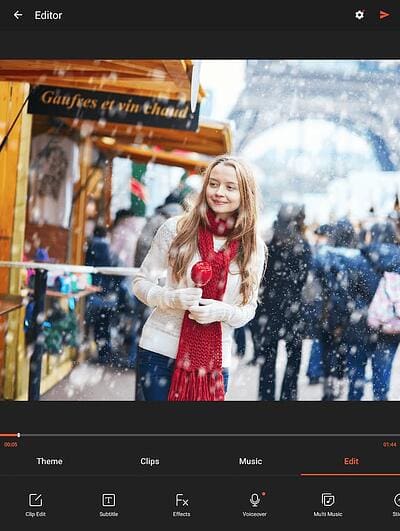
VideoShow allows you to edit video content in a number of creative ways beyond cutting and pasting scenes together. The award-winning app, which has more than 400 million users, allows you to include text overlays, stickers, music, filters, and sound effects to your footage. Because of these features, it lends itself to video producers who want to add a bit more creativity to a vlog series, where the video is primarily of one person speaking directly to the camera.
Pros
-
Easy-to-use yet powerful, with HD exports available for free users
-
Expansive music library
Cons
-
Your video will be watermarked with VideoShow branding if you’re not on the paid version
-
You can’t export the video without upgrading to the paid version
17. PowerDirector
Price: Free | Platforms: Android, Windows, macOS
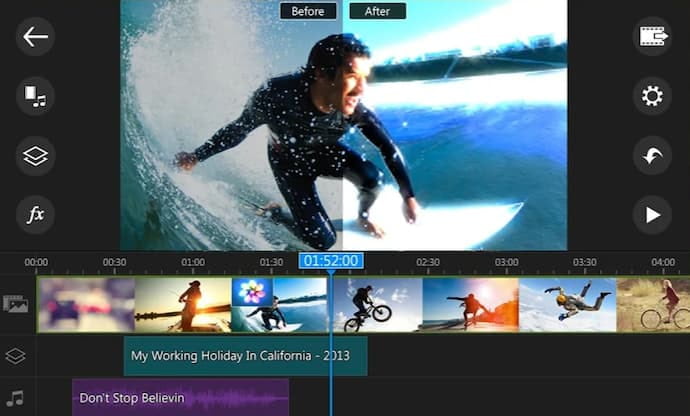
This robust video editor has a suite of creative design tools just for Android and desktop users. Developed by CyberLink, the app can help you create 4K-quality videos from footage taken with numerous devices. Special features include motion tracking, which helps you focus on specific subjects in each frame; video collages, which help you piece together numerous photos into a motion video; and video stabilization, allowing you to remove moments of “shaky camera” in your footage. PowerDirector can also help you add voice overs and creative sound effects using chroma key.
Many of PowerDirector’s features are completely free in the Android app. For a more advanced suite of editing tools, you can invest in one of CyberLink’s paid products starting at $99.
Pros
-
Powerful features such as green screen editing, motion graphics, and keyframe controls
-
Incredibly low price compared to competitors such as Adobe
-
Multi-track editing and timelines
-
The company constantly adds new graphics and templates for users to choose from
Cons
-
Some users have reported that it can be buggy
-
Steep learning curve for beginners
18. Quik
Price: Free | Platforms: Android, iOS, macOS, Windows

Quik is a video editing tool developed by GoPro, making it the software of choice for people who are editing footage from their GoPro camera. But yes, it can edit content from any source.
The app can manage up to 75 photos and video clips in one project, and can even comb through this content to help you make smart editing decisions based on what the app detects in the footage. From time lapses to panoramic pieces, Quik can manipulate your media in lots of creative ways. The app has more than 20 preset themes to choose from and supports eight common file types.
Pros
-
Easy-to-use and intuitive app
-
Automatically imports photos from your camera
Cons
-
This software no longer receives updates from its manufacturer
-
You only have access to the cloud when you upgrade to GoPro PLUS
19. KineMaster
Price: Free | Platforms: iOS, Android, ChromeOS
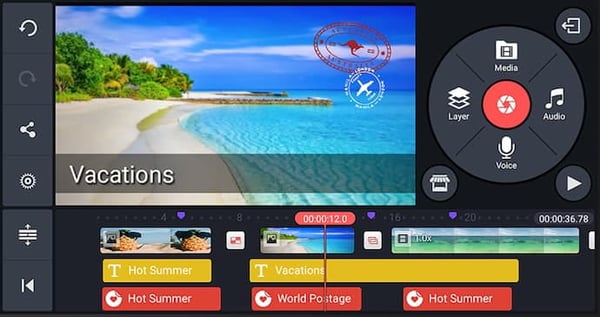
KineMaster is a super-versatile video editing tool that allows you to edit videos on “multiple layers.” What does that mean? Content creators can add an unlimited amount of text overlays, images, audio, and even free handwriting onto their footage for the artistic detail they or their brand needs. You can also blend multiple pieces of footage and use double-exposures to customize the background in a load of creative ways.
For simpler editing tasks, of course, this app offers intuitive trimming and splitting features to make your video progress just the way you want it to.
Pros
-
Powerful features such as multi-track editing, layers, and blending modes
-
Over 3M reviews on Google Play and an average rating of 4.5 stars
-
You can share on YouTube, Instagram, and Facebook straight from the app
-
4K exports available
Cons
-
Your video will be watermarked with the KineMaster branding if you don’t upgrade to Premium
-
Limited access to assets on the free version
20. VivaVideo
Price: Free | Platforms: iOS, Android
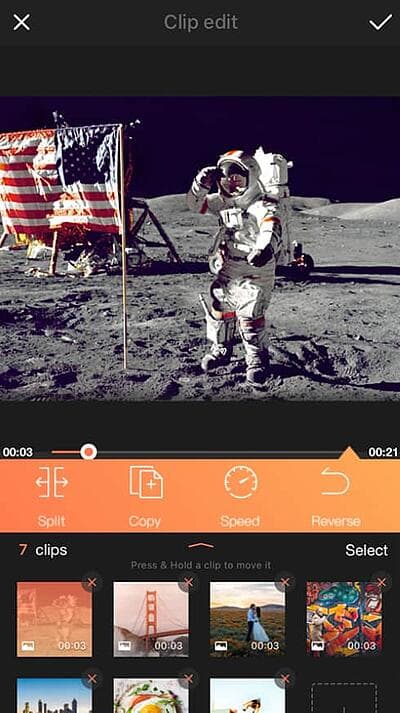
VivaVideo makes professional-level edits easy for content creators. Free for all mobile devices, the app allows you to trim, merge, speed up, slow down, and reverse clips and images in a short amount of time. The app also comes with a simple collage- and slideshow-maker, and offers a variety of camera lenses to capture new, edit-ready footage directly in the app.
Pros
- Fun on-trend filters, templates, and effects
- Expansive music library with hundreds of clips to choose from
- Multi-track editing that allows you to layer voice clips and music
Cons
- Five-minute time limit for videos
With most people working from home, the importance of video can’t be overstated. But unless you get the right app for video editing, you’ll run the risk of publishing videos that look unprofessional and unpolished.
With these apps, you’ll be sure to create video that attracts, converts, and delights your audience. The sooner you download one, the sooner you can sharpen your audio/video creation skills and attract more people to your brand.
Create Better Videos for a Higher ROI
Online video content isn’t just watched more — it’s expected more. Luckily, you have the video editing tools to help you delight your audience and improve conversion rates across your social media accounts. Grab the guide below to make the video learning curve easier and to jumpstart your video marketing efforts.
Editor’s note: This post was originally published in March 2019 and has been updated for comprehensiveness.

What is Marketing, and What’s Its Purpose?
Dictionary.com defines marketing as, “the action or business of promoting and selling products or services, including market research and advertising.”
If you work in a marketing role like I do, it’s probably difficult for you to define marketing even though you see and use it every day — the term marketing is a bit all-encompassing and variable for a straightforward definition.
This definition feels unhelpful.
The selling part, for instance, overlaps a little too snuggly with a “what is sales” definition, and the word advertising makes me think of Mad Men brainstorming sessions.
But upon digging deeper, I began seeing that actually, marketing does overlap heavily with advertising and sales. Marketing is present in all stages of the business, beginning to end.
At first, I wondered why marketing was a necessary component during product development, or a sales pitch, or retail distribution. But it makes sense when you think about it — marketers have the firmest finger on the pulse of your consumer persona.

The purpose of marketing is to research and analyze your consumers all the time, conduct focus groups, send out surveys, study online shopping habits, and ask one underlying question: “Where, when, and how does our consumer want to communicate with our business?”
Here, let’s explore the purposes of marketing, along with types of marketing, the 4 P’s of marketing, and the difference between marketing and advertising.
Whether you’re a seasoned marketer looking to refresh your definitions, or a beginner looking to understand what marketing is in the first place, we’ve got you covered. Let’s dive in.
Modern marketing began in the 1950s when people started to use more than just print media to endorse a product. As TV — and soon, the internet — entered households, marketers could conduct entire campaigns across multiple platforms. And as you might expect, over the last 70 years, marketers have become increasingly important to fine-tuning how a business sells a product to consumers to optimize success.
In fact, the fundamental purpose of marketing is to attract consumers to your brand through messaging. Ideally, that messaging will helpful and educational to your target audience so you can convert consumers into leads.
Today, there are literally dozens of places one can carry out a marketing campaign — where does one do it in the 21st century?
Types of Marketing
Where your marketing campaigns live depends entirely on where your customers spend their time. It’s up to you to conduct market research that determines which types of marketing — and which mix of tools within each type — is best for building your brand. Here are several types of marketing that are relevant today, some of which have stood the test of time:
- Internet marketing: Inspired by an Excedrin product campaign that took place online, the very idea of having a presence on the internet for business reasons is a type of marketing in and of itself.
- Search engine optimization: Abbreviated “SEO,” this is the process of optimizing content on a website so that it appears in search engine results. It’s used by marketers to attract people who perform searches that imply they’re interested in learning about a particular industry.
- Blog marketing: Blogs are no longer exclusive to the individual writer. Brands now publish blogs to write about their industry and nurture the interest of potential customers who browse the internet for information.
- Social media marketing: Businesses can use Facebook, Instagram, Twitter, LinkedIn, and similar social networks to create impressions on their audience over time.
- Print marketing: As newspapers and magazines get better at understanding who subscribes to their print material, businesses continue to sponsor articles, photography, and similar content in the publications their customers are reading.
- Search engine marketing: This type of marketing is a bit different than SEO, which is described above. Businesses can now pay a search engine to place links on pages of its index that get high exposure to their audience. (It’s a concept called “pay-per-click” — I’ll show you an example of this in the next section).
- Video marketing: While there were once just commercials, marketers now put money into creating and publishing all kinds of videos that entertain and educate their core customers.
Marketing and Advertising
If marketing is a wheel, advertising is one spoke of that wheel.
Marketing entails product development, market research, product distribution, sales strategy, public relations, and customer support. Marketing is necessary in all stages of a business’s selling journey, and it can use numerous platforms, social media channels, and teams within their organization to identify their audience, communicate to it, amplify its voice, and build brand loyalty over time.
On the other hand, advertising is just one component of marketing. It’s a strategic effort, usually paid for, to spread awareness of a product or service as a part of the more holistic goals outlined above. Put simply, it’s not the only method used by marketers to sell a product.
Here’s an example (keep reading, there’s a quiz at the end of it):
Let’s say a business is rolling out a brand new product and wants to create a campaign promoting that product to its customer base. This company’s channels of choice are Facebook, Instagram, Google, and its company website. It uses all of these spaces to support its various campaigns every quarter and generate leads through those campaigns.
To broadcast its new product launch, it publishes a downloadable product guide to its website, posts a video to Instagram demonstrating its new product, and invests in a series of sponsored search results on Google directing traffic to a new product page on its website.
Now, which of the above decisions were marketing, and which were advertising?
The advertising took place on Instagram and Google. Instagram generally isn’t an advertising channel, but when used for branding, you can develop a base of followers that’s primed for a gentle product announcement every now and again. Google was definitely used for advertising in this example; the company paid for space on Google — a program known as pay-per-click (PPC) — on which to drive traffic to a specific page focused on its product. A classic online ad.
Where did the marketing take place? This was a bit of a trick question, as the marketing was the entire process. By aligning Instagram, Google, and its own website around a customer-focused initiative, the company ran a three-part marketing campaign that identified its audience, created a message for that audience, and delivered it across the industry to maximize its impact.
The 4 Ps of Marketing
In the 1960’s, E Jerome McCarthy came up with the 4 Ps of marketing: product, price, place, promotion.
Essentially, these 4 Ps explain how marketing interacts with each stage of the business.
Product
Let’s say you come up with an idea for a product you want your business to sell. What’s next? You probably won’t be successful if you just start selling it.
Instead, you need your marketing team to do market research and answer some critical questions: Who’s your target audience? Is there market fit for this product? What messaging will increase product sales, and on which platforms? How should your product developers modify the product to increase likelihood of success? What do focus groups think of the product, and what questions or hesitations do they have?
Marketers use the answers to these questions to help businesses understand the demand for the product and increase product quality by mentioning concerns stemming from focus group or survey participants.
Price
Your marketing team will check out competitors’ product prices, or use focus groups and surveys, to estimate how much your ideal customer is willing to pay. Price it too high, and you’ll lose out on a solid customer base. Price it too low, and you might lose more money than you gain. Fortunately, marketers can use industry research and consumer analysis to gauge a good price range.
Place
It’s critical that your marketing department uses their understanding and analysis of your business’s consumers to offer suggestions for how and where to sell your product. Perhaps they believe an ecommerce site works better than a retail location, or vice versa. Or, maybe they can offer insights into which locations would be most viable to sell your product, either nationally and internationally.
Promotion
This P is likely the one you expected from the get-go: promotion entails any online or print advertisement, event, or discount your marketing team creates to increase awareness and interest in your product, and, ultimately, lead to more sales. During this stage, you’ll likely see methods like public relations campaigns, advertisements, or social media promotions.
Hopefully, our definition and the four Ps help you understand marketing’s purpose and how to define it. Marketing intersects with all areas of a business, so it’s important you understand how to use marketing to increase your business’s efficiency and success.
Editor’s note: This post was originally published in May 2018 and has been updated for comprehensiveness.



A Comprehensive Guide to Local SEO in 2021
Local search is powerful for small businesses: 46% of all Google searches are looking for local information, which means if your business isn’t optimized for local search, you could be missing out on potential customers who are ready to shop in your area. In short, local SEO is critical if you want your business to stay relevant.
To help you optimize your business for local SEO, we’ve created a comprehensive guide, which will cover local SEO tips and tools.
By the end of the guide, you’ll have a firm understanding on how to optimize your business to reach potential consumers who use local search to choose which products or services they’re going to buy.

To gather information for local search, search engines rely on signals such as local content, social profile pages, links, and citations to provide the most relevant local results to the user.
With local SEO, businesses can use this to position their products and services to local prospects and customers who are searching for them.
1. Optimize for Google My Business.
Google My Business has become the creme de la creme of local search — since Google understandably feels most comfortable sharing content it can support and verify, Google My Business is their tool to help your business meet Google’s needs.
To ensure you’re optimized for Google My Business, you’ll want to:
- Create and verify a Google My Business page
- Use Google Posts within your account
- Encourage your customers to share reviews online
- Respond authentically to reviews, specifying location. For example, “We appreciate your feedback on [product/service] in [city, state]. We value your input and look forward to working with you again. Thank you from the [full company name] team.”
If Google can verify your business as authentic, the search engine could potentially reward your business with a coveted sidebar space in Google local search.
Don’t just do this for the SEO, either. By having reviews and keeping your contact information and operating hours up-to-date, you’re improving the experience for potential customers to find you. Finding current information is important to consumers, now more than ever, due to 2020’s disruption in consumer shopping behavior and business operation.
To learn more about using Google My Business, check out our full post here.
2. Engage on social media and add posts to Google My Business.
Google considers content shared on social media more important now than ever before.
Now that you’ve carved out a beautiful Google My Business page, share the page on social media, further aligning social and search.
3. Ensure your name, address, and phone number are consistent online.
You’ve got to make it easy for people and search engines to find you. To do this, set up your NAP, which stands for name, address, and phone number (with area code). This should be included as crawlable HTML text on your site.
Avoid the common mistake of only including the NAP within an image — images can’t be crawled from search engines like HTML text. The most common location for the NAP is in the footer or header of the site.
4. Optimize online directories and citations.
For United States companies, these four map data aggregators provide a large amount of the map data for Apple, Yelp, Bing, Google, Trip Advisor, and more.
Consistency is key: verify that your citations are consistent and complete across these four data aggregators.
Discrepancies like misspellings, abbreviations, lack of suite number or wrong phone number can be problematic.
If Google can’t determine which information about your business is correct, it may not show your business at all in search results.
Additionally, be sure to remove any duplicate listings you find. Bonus points for emphasizing a Chambers of Commerce membership in your community, which will garner you an external inbound link.
5. Perform a local SEO audit.
Once you have the fundamentals down, it may be tempting to put your foot on the brake. However, SEO is an ongoing and intuitive process. Instead of stopping there or simply making changes and seeing what sticks, it helps to perform a comprehensive audit to see where your website stands and what you need to work on to achieve your goals. A local SEO audit may include the following:
- Google My Business Audit – How does your Google My Business appear in the SERPs? Is the information accurate?
- Google Search Console Audit – Is your site crawlable? Does it have any errors that would hinder indexing?
- On-Page SEO Audit – Does your site accommodate all the on-page SEO elements that help ranking?
- Citation Audit – Are all of your citations correct in the top business directories?
- Competitor Analysis – How does your site match up with your competition’s? Are there any gaps that you need to close? How do you match up in terms of inbound links, content, design, and positioning?
- Website Audit – How well is your website performing?
6. Improve your internal linking structure.
Although external links pointing to your site are ideal (which I’ll discuss soon), adjusting your internal linking structure will also boost your SEO rankings.
Why does internal linking matter? It does the following:
- Supports website navigation
- Assists with information architecture and website hierarchy
- Distributes page authority and ranking power among pages
If you want to improve your internal linking structure but aren’t sure where to start, check out Kissmetrics’ The Seven Commandments of Internal Linking for Top-Notch SEO.
7. Optimize URL, title tags, headers, meta description, and content.
When it comes to content, every new blog post is a new indexed page for your site, a new page on which to target a geographic search phrase, and a new opportunity to get found in the search engine results pages (SERPs).
Every time you write a piece of content, you need to optimize the content for search engines by using high-volume keywords in the URL, title, header, meta description, and body. If you’re having trouble coming up with geo-targeted content, consider highlighting customer success stories and case studies.
8. Add location pages to your website.
If you have more than one brick and mortar location, create location pages. Location pages provide readers with your name, address, phone number, store hours, unique store descriptions, parking/transit information, promotions, and testimonials from happy customers.
It’s also important you avoid duplicating content across multiple location pages. For single location businesses, create a locally descriptive About Us page. You’ll get big time bonus points if you add a Google Map to your website on your respective location page(s).
9. Create local content.
Google continues to get smarter, which means content creators are now able to truly write for users, not search engines. But while writing about general topics will attract a wide crowd, sometimes it’s more important to hone your focus and write about local or industry news to attract a local audience.
Be the local authority for your industry by promoting local industry gatherings, news, employees, and other educational content on your blog. Think of top-of-the-funnel content that goes beyond what your business sells.
For example, if you’re a local security company and you’re trying to attract businesses that are new to the area, create a helpful resource to get these businesses well-acquainted with your city. A map of local service providers or a calendar of city-wide events could both provide value for your persona and contain highly relevant on-page local signals.
10. Ensure your website is mobile-friendly.
Local search and mobile search go hand in hand (61% of all Google searches are performed on mobile).
Some of the most common ways people will use your site in a mobile environment is to look up reviews, find directions to your location, and search for contact information. In fact, “near me” searches on mobile have increased 250% since 2017 (Think With Google).
Make it easy for your prospects and customers by making your site mobile-friendly.
11. Get inbound links with relevance and authority.
Inbound links are incredibly powerful opportunities to boost your local SEO — every inbound link tells Google you’re a legitimate company, and inbound links can also raise your domain authority. Here are a few ways to get inbound links:
- Sponsorships or Partnerships
- Guest Blog Posting
- Scholarships
Start with your own personal network, which may include the Chamber of Commerce, business improvement districts, licensing bureaus, trade associations, resellers, vendors, and/or manufacturers and other affiliates.
Consider sponsoring a webinar or meet-up, hosting a community event, promoting something local you love, and building relationships with prominent people and influencers. Additionally, learn to feel comfortable reaching out to partners to see if they can feature you on their partner directory.
Also, being a guest blogger can help attract links. Talk to and about (positively, of course!) other people in your industry, and act as a resource provider for the community. If you’re an active participant in community conversations, the buzz around you grows in the form of inbound links, social media growth, and media coverage.
12. Participate in your local community.
The more you participate in the local community, the more digital PR you’ll receive. Partnering with a nonprofit on a campaign, having a volunteer day in your organization, sponsoring an event (even an online one!), or appearing in the local media as an authority in your industry are all ways to earn press, brand awareness, and inbound links.
For example, given that .edu links are the bee’s knees for domain authority, why not earn some links by featuring a scholarship in your geographic region? It should be relevant to your industry, send the right signals to your domain (given the backlinks from schools) … and make you feel good, too! Moz built up a solid guide on the steps to success for effective scholarship outreach.
Local SEO Tools
Now that we’ve covered how to optimize your business for local SEO, let’s explore some useful tools you can leverage to improve your ranking in the areas where it matters most.
1. Whitespark Local Citation Finder
A local citation is any online mention of the name, address, and phone number for a local business.
Citations matter because they help surface local businesses in online search, and when local businesses actively manage their citations to ensure data accuracy, it promotes trust of these online listings.
Whitespark knows this realm well — really well. Whitespark offers local listing management, recommends where to list your business, examines your competition, and robustly builds and monitors your citation growth for better local search rankings.
2. Screaming Frog
This desktop program crawls websites’ links, images, CSS, script and apps from an SEO perspective. Curious if you have any 404’s? Wondering about missing meta descriptions or H1’s? Screaming Frog will analyze up to 500 URLs for free and offers an unlimited paid version for $200/year.
3. Moz Local
Less expensive than most of its counterparts, Moz Local will ensure your business listing has been verified on Google and Facebook, and distribute your listing across the search ecosystem.
Additionally, Moz Local will collaborate with data aggregators to help push listings, ensuring your business gains visibility.
4. Ahrefs
Ahrefs helps with backlink checking, which is important as these links (which are directed toward your website) serve as an indicator of website authority.
Ahrefs also offers competitor analysis, keyword research, and insight into the anchor text other websites use when backlinking to your site.
5. Buzzstream
BuzzStream facilitates earning local backlinks, which helps you identify and build relationships with local influencers by researching influencers, tracking conversations, and providing reporting insights into your outreach campaigns, team performance, and link placements.
6. BrightLocal
BrightLocal is a comprehensive SEO tool suite specifically built for local business marketing needs.
The tool can help you generate and monitor reviews on local sites, understand your local search performance, and analyze nearby competitors.
BrightLocal also offers client access and white-labeled reporting — making it a solid fit for agencies and brands alike.
Local SEO is an important part of any SEO strategy for local businesses. If you have a storefront or service area, local SEO will help your audience find you when they search online.
Editor’s note: This post was originally published in April 2018 and has been updated for comprehensiveness.


How to Create a Facebook Business Page in 5 Simple Steps [Tutorial]
With 2.6 billion people actively using Facebook every day, Facebook has become a go-to component of almost any inbound marketing strategy.
But as more and more Facebook features change, so does the process of setting up a Page.
Don’t waste another day aimlessly poking around on Facebook trying to figure out how to get your Page posted. We built this guide to help you avoid wasting time on a marketing asset that should work for you.
(If you’re looking for tips and resources for how to leverage your Facebook Page once it’s up and running, check out our comprehensive guide to Facebook marketing).

What is a Facebook Business Page?
Your Facebook Business Page is essentially your company or organization’s “real estate” on Facebook. It constitutes your main Facebook presence — where you’ll post updates, share content from employees and customers, and link to when referring to your business elsewhere on Facebook.
Consider your Facebook Business Page your Facebook “home.” Moreover, your Facebook Page is not a static site. Sure, there will be static elements like your About information and cover image, but to manage your Page correctly, it should be consistently updated with content.
But let’s not get ahead of ourselves. First, we’ll walk you through how to create a Facebook Business Page. We’ll discuss what to post on it later.
Follow these steps to get your Facebook Page up and running in no time.
1. Create a Page.
To begin, head to Facebook. On the left-hand menu, choose Pages > Create New Page. This should launch the Page creator within your Facebook interface.
Enter your Page name and choose up to three categories. Type in a brief description — what your business does, the services you provide, or the purpose of the Page in under 255 characters. You should see this information populate the right side of the Page creator.
Once finished, click Create Page.
once, it’s a difficult and tedious process.
2. Add images.
Clicking Create Page shouldn’t move you off the Page creator. You’ll see two more prompts added to the left-hand menu: to add a profile photo (170 x 170 pixels) and cover photo (1640 x 856 pixels).
Add a logo or widely recognized image for your profile photo. If you have other social media accounts for your business, consider using the same profile photo from those to keep your online presence consistent.
For your cover photo, choose an image that represents the purpose or theme of your Page
You should see these images populate the right side of the Page creator. When finished, click Save.
3. Choose a username and assign a CTA.
After the previous step, Facebook should move you to the Facebook Business Page dashboard where you’ll manage all other aspects of your Page.
This interface can feel overwhelming, so bear with me. First things first, choose a username for your Page. A username helps people find your Page in search and allows them to easily tag your Page when posting about your company. Your username also makes up your Facebook Business Page URL.
For the example below, I chose @cloverconsignment. So, my Facebook Page URL would be https://ift.tt/37MFIDM.
Next, click + Add Action Button to add a CTA to your Page. This should be the action you want your visitors to take when they visit your Facebook Business Page.
Facebook offers 10+ different CTA options, from Shop Now to Learn More to Contact Us, and some allow you to input your website to help drive traffic.
4. Edit your Page info.
After setting a username and choosing a CTA, click More > About in the main menu. This will navigate you to your Page info, where visitors will go to learn more about your organization.
Click Edit Page Info in the top right corner to update this information.
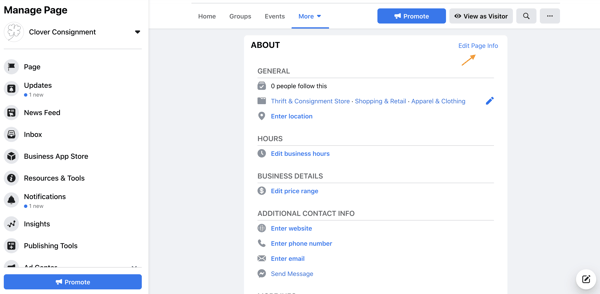
There are many fields to update here. Here’s what to focus on:
- Location: If you’re a local business, input your business address so visitors can find you.
- Hours: Brick and mortar businesses should input their store hours as some shoppers may reference their Page to see when they can visit.
- Price range: You don’t have to fill out this designation, but it may help to specify the price range of your products and services to target the right shoppers.
- Additional contact info: Input your website, phone number, and email so visitors can contact you outside Facebook. This information will also help drive Facebook traffic to your website and products.
- More info: The description you added in step one should be under “About.” You can add more information under “Additional information,” and you can write in a mission or vision statement under “Impressum.”
5. Understand your Page settings.
In the left-hand navigation, click Settings at the bottom. The left-hand menu will change to more detailed categories, and the right side interface will list (seemingly) countless options.
I encourage you to skim through these settings and get familiar with what each may change or update on your Page. In the meantime, however, I’m going to unpack a few core settings to know.
- General > Others Tagging this Page: Make sure this is checked as it will allow others to post about and share your Page.
- General > Similar Page Suggestions: Make sure this is checked so Facebook recommends your Page to new followers and fans.
- Messaging > Show a greeting: Turn this on so your Facebook Page will automatically send your followers a greeting when open Messenger.
- Templates and Tabs: If you need to rearrange the menu on your Page or the information offered to visitors, you can do this here.
- Notifications: This section allows you to customize when and how you’d like to receive Page alerts. Set a frequency that fits your social media marketing schedule.
- Page Roles: Whether or not you’ll be the main manager of the Page, there may be others at your organization who need access to your Facebook Page. Here, you can invite other colleagues to make changes to your Pages. Some common use cases here include:
- A public relations manager who needs to respond to any delicate questions.
- A support representative who can assist those asking technical questions.
- A designer tasked with uploading new photo creative to the Page.
What to Post On Your Facebook Business Page
Congratulations! Your Facebook Business Page is up and running (just like I promised). Now it’s time to work … and by work, I mean post on your Page, consistently.
As I said in the introduction, your Facebook Page should not be a static site. To manage your Page correctly, it should be updated with content on a regular basis.
Moreover, you should have a good amount of content published before you invite users to be a part of your growing community. Who wants to follow a blank Page, anyway?
When posting on your Page, use a variety of content — images, video, GIFs, memes, shared customer content, or graphs.
What images would your audience like to see? What stats would they like to read? What links would they like to click? Ask these questions to jumpstart a Facebook brainstorm.
If you post a particularly impressive or exciting post, you can pin it to the top of your feed. Do this by clicking the little grey arrow in the top-right corner of the post and tapping Pin to Top to move it to the top for seven days.
You can also use this feature for product announcements, business anniversaries, and other major events pertinent to your brand.
When you have enough content on your Page, start strategically inviting users to Like it. I recommend inviting users in the following cadence:
- Invite colleagues to Like your page and its content to build some initial activity.
- Invite supporters in your network. Encourage them to engage.
- Invite customers. With some activity now on the Page, they’ll be more interested.
Promote your Page by sharing its content on your other social networks and including a link to your Page on your website and your email signatures.
How to Measure Your Facebook Business Page
The work you put into your Facebook Page should ease over time. How? By keeping an eye on what kind of content your audience prefers and likes to engage with.
To measure your Business Page activity and growth, click Insights on the left-hand menu. From here, you can monitor how people are engaging with your Page and content, thus showing you what content to focus on sharing in the future (and what content you can do away with).
You should also measure your efforts to ensure you’re making valuable marketing decisions on Facebook. Under Insights, you should see the following:
- Overview: This tab shows a seven-day snapshot of your metrics such as Page Likes, post reach, and overall engagement.
- Followers: This tab gives you information about your followers and how that number has changed over time.
- Likes: This tab shows your overall fan growth and losses. If you’re employing paid efforts, you’ll be able to see the breakdown of paid versus organic growth.
- Reach: This tab highlights the raw number of people your Page is reaching every day. If you notice spikes on a specific day, try cross-checking what you posted that day to see if you can replicate that reach.
- Visits: This tab indicates where on Facebook your viewers are coming from. You can see the difference in visits on Facebook Timelines, your information tab, reviews, and others.
Other tabs like Posts, Events, and Stories show you specific activity around those types of Page content.
Over to You
Facebook is no longer a “nice to have;” it’s a necessity for any business developing a strong inbound marketing strategy. Use this guide to build a successful Facebook Business Page to engage your audience and drive traffic to your website.
Want to see how HubSpot uses Facebook? Like our Facebook Page here.
Editor’s note: This post was originally published in October 2014 and has been updated for accuracy and comprehensiveness.

The 13 Best Smart Home Devices & Systems of 2021
In 2021, smart home systems and devices are more impressive and all-encompassing than ever.
Using a smart system isn’t limited to asking Alexa to tell you the weather or play that new Drake song — now, you can use smart devices to grill chicken at your next family barbecue, turn the lights off in the living room while you’re watching a movie, or vacuum your floors.
Your home devices provide a sense of convenience, but they can also tackle more serious tasks, like acting as your home security system when you’re out of town. In other words, they aren’t just for fun anymore — they also fulfill some substantial needs.
The Difference Between Smart Devices vs. Smart Systems
Before we get into our list, it’s important to define our terms. A smart system is the overarching command center that controls your individual products — think Alexa or Google Assistant. Essentially, a smart system is what you speak to when you want something to happen. A device, on the other hand, is an individual product that reports back to that system — think, Amazon Echo or Philips Hue lightbulbs.
Now, let’s delve into our list of the best smart home devices and systems of 2021, so you can decide for yourself which systems and products will best enhance your life.
Best Smart Home Systems
When looking to purchase a smart-home system, you want to look into reviews and its integrations.
While the reviews will show you how good or bad the technology is, the integration information will show you how many products you can actually connect your system to.
As you’re researching integrations, you should also consider any smart devices you already have that might be compatible or incompatible with the system. Today, most good smart home systems are powered by state-of-the art technology and offer a long list of third-party integration possibilities. For example, Amazon’s Alexa and Google Assistant connect to smart thermostats like Nest or Ecobee — not just thermostats made by their own companies.
If your devices all connect well together, work well, and are easy to use, your smart home experiences will run much more smoothly.
Here are four major smart home systems that we recommend.
1. Amazon Alexa
With more than hundreds of millions of compatible devices, Alexa is undoubtedly one of the most comprehensive smart home ecosystems available today. While you have likely heard of using Alexa in Eco-speaker form (“Alexa, what’s the weather today?”), you might not know that Alexa is now built into plenty of other smart products, including thermostats and TVs.
Alexa makes every aspect of your smart home easy to access and control. You can use Alexa to speak to apps like Spotify just as easily as you can ask her to turn off the lights. Since Amazon’s ecosystem is one of the most prevalent in the industry, most smart products integrate seamlessly with Alexa, including products made by Philips, Samsung, Nest, and Schlage — Alexa can now close your garage, lock your doors, and adjust your home’s temperature. To know if Alexa will work with a certain device, just look for the ‘Works with Amazon Alexa’ tag.
Ultimately, Alexa’s ability to integrate and speak to most other smart devices and apps makes her one of the best choices for your smart home.
2. Google Assistant
If there’s any true runner-up to Alexa, it’s Google Assistant. Even though Google Assistant has less third-party integrations, it can often answer questions and complete commands Alexa can’t, thanks to Google’s major ownership of the search engine space. Google Assistant has an accuracy score of 92.9% while Amazon Alexa scores at 79.8% (ZDNet). Ultimately, Assistant wins when it comes to understanding how people naturally speak.
For instance, if you the Assistant “I don’t like this song” on Spotify, it will skip to the next one, while Alexa will simply tell you, “Thumbs up and down are not supported on Spotify.” Small differences like this could sway you towards Google, since it’s often more helpful (and less literal) than Alexa.
Assistant can also integrate with products from most major brands, including Philips, Belkin, August, Nest, and popular apps such as Spotify and Uber.
3. Wink Hub
Wink Hub is touted as the “first smart home hub designed for the mainstream consumer.” Unlike Alexa or Assistant, Wink doesn’t have any brand loyalty, allowing you to pick and choose different smart product brands and merge them seamlessly with one another.
Wink Hub 2 supports smart home protocols including Bluetooth LE, Kidde, Lutron ClearConnect, Wi-Fi, Z-Wave, and more. If you’re looking to create a fully integrated smart home with kitchen and wall appliances in-sync, this might be your best option. You can also download the Wink Hub app and control commands, like light switches or garage door, from your phone on-the-go.
4. Samsung SmartThings Hub
This Samsung system unites a wide variety of smart devices from different brands including smart thermostats, Wi-Fi router, lightbulbs, and security devices. Users with the smart system get a SmartThings Hub wall mount and can get full access to the smart devices connected to the hub through the SmartThings IOS or Android app.
Samsung’s SmartThings Hub has been growing its own smart-device offerings for the past few years. In fact, the Hub’s product lineup includes the addition of the SmartThing Wi-Fi plug, SmartThings Lightbulb, and SmartThings Cam.
Through the SmartThings Hub, you can also set compatible smart devices to do various actions like turning on or off when you walk in or out of a room. While you can give voice commands to the SmartThings wall hub or app, you can also integrate and Amazon Alexa or Google Assistant to the system.
1. Best Speaker: Amazon Echo (4th Generation)
Price: $99.99
If you’re looking for a relatively affordable device to cater to your everyday needs, you probably don’t need to look further than Amazon Echo. The speaker connects to Alexa to play your favorite music, make phone calls or send messages, answer questions, and set alarms for you: “It’s 6 p.m., time to head to your tennis lesson.” It also connects to other smart products in your home, so you can use it as your liaison between you and your smart TV.
The speakers are capable of being synced for multi-room sound, and the Echo has advanced voice control. With the Echo, you can turn the TV on, order a pizza, and create a shopping to-do list — without ever leaving your couch.
2. Best Lights: Philips Hue
Price: $49.99/bulb
The Philips Hue bulbs enable you to control both intensity of light — dimming or brightening on-command — and the color of your lights. You can create special color-coordinated moods (i.e. choose the “energize” theme on your app for a specific room you’re in, or sync it with your music). You can also set color-coordinated alarms, ensuring you wake up every morning to a bright pink bedroom.
These bulbs work with most smart home systems, making them arguably the most flexible option. If you don’t want color, you can also purchase Philips Hue White.
3. Best Light Switch: TP-Link HS220
Price: $18.99
Philips Hue bulbs and similar smart lights are fantastic and effortless — until someone flips a light switch, in which case, your bulbs won’t work until you flip it back.
For true ease-of-use, consider buying smart light switches, which you can control from your phone or smart home whether or not your physical light switch is up or down. Using the app Kasa, you can create scenes and smart actions — for instance, you might tell the app you’re “watching TV downstairs,” and the switches will automatically turn off all upstairs lights.
TP-Link HS220 works with Amazon Alexa and Google Assistant, but you might need to consider other options if you primarily use Apple HomeKit, Wink, or another smart system.
4. Best Thermostat: Ecobee SmartThermostat
Price: $249.99
Ecobee allows you to control air temperature with voice commands, but unlike other smart thermostats, it also works as its own Amazon speaker (rather than simply working with an Amazon speaker), so it can do many of the same things your Alexa or Assistant can do, including play music, shop, and control other devices. Of course, if you already own a smart speaker, you might want to consider a cheaper thermostat option.
Ecobee integrates seamlessly with apps and other home ecosystems like Alexa or Apple HomeKit. Plus, it’s able to control the room you’re in, rather than the room it’s installed.

5. Best Security: NetGear Arlo Q
Price: $84.99
While some of these smart devices are more for convenience and entertainment, the NetGear Arlo Q is a truly useful tool for home security. The NetGear Arlo Q records high-quality video and audio, and even produces exceptional quality images of people in pitch-blackness.
You can customize whether your camera automatically records when you’re not home or set it to a time-based schedule for when you’re at work. While it’s on the pricier side, it offers seven days of video and audio backup for free, making it a worthwhile investment compared to some of the other smart security systems.

6. Best Grill: Char-Broil Digital Electric Smoker, Deluxe
Price: $299
Anyone who grills regularly knows the inconvenience of it — walking in and out of the house to check the meat, hoping the temperature is hot enough but won’t burn your steak, and adding coals or lighter fluid when necessary. This tool handles all that, alerting you on your smart device when your grill is preheated, what the internal meat temperature is, and when your meat or fish is fully cooked. The 725 square-inch cooking space and four internal chrome racks allow you to grill for both large and small occasions.

7. Best Outlet: ConnectSense Smart Outlet
Price: $59.95
A smart outlet can help you control even your most basic appliances. During the initial install, you specify the device that will be plugged in so that you can control its functionality from the app. A small change like this can make a big difference in your home.
8. Best Vacuum: Ecovacs Deebot N79S
Price: $164.99
I’m personally willing to pay triple this price for any device that can vacuum my floor for me, but at this price, the Ecovacs Deebot N79S is a pretty impressive deal. It integrates with smart home systems and other apps, offers a manual steering option, and cleans surfaces surprisingly well. It also has a long battery life.

9. Best Television: LG Smart TV
Price: Varies based on screen size and features.
LG was the company to offer Alexa and Google Assistant connectivity in its smart TVs.
With a smart TV, you can connect your streaming services like Netflix and Hulu, your cable box, and other video devices all in one place. Many smart TVs, like LG’s products, also offer voice control capabilities that allow you to ask the TV to search for a movie or show.
If you’re just starting to develop your smart home and only want a basic smart TV with integrations to major streaming services, you can purchase an LG TV with 4K, Google Assistant, and Alexa capabilities starting at $479.99.
Smart devices can enhance your productivity and make life more convenient. Plus, the technology is getting less expensive. A few purchases can make your home a smart home.
Editor’s note: This post was originally published in June 2019 and has been updated for comprehensiveness.