What is Clubhouse? [+Should Marketers Care?]
In 2020, you might have heard your favorite influencers talking about a mysterious new social media app called Clubhouse.
But, unless you had a huge online following of your own, you might just be getting access to the app now.
Until a few months ago, Clubhouse was a platform where big-name celebrities, company leaders, Silicon Valley investors, and some of the web’s top global influencers could have uncensored audio group chats about their lives, hobbies, work, or industries.
Now, as the invite-only Clubhouse continues to gain media coverage and a growing pool of non-celebrity users, you might be wondering, “What the heck is it? And, how do I get in on the action?”
Below, we’ll explain where Clubhouse came from, what it actually is, and the pros and cons of using it in your marketing strategy.

Clubhouse was launched in March 2020 by Paul Davison, who previously worked at companies including Pinterest and Google, and Rohan Seth, a former Google engineer. According to a post from Davison and Seth, Clubhouse was created after a handful of social media app experiments.
“After a lot of iteration in the audio space, we launched Clubhouse in March of last year,” the co-founders wrote. “Our goal was to build a social experience that felt more human—where instead of posting, you could gather with other people and talk. Our north star was to create something where you could close the app at the end of the session feeling better than you did when you opened it, because you had deepened friendships, met new people, and learned.”
Initially, Clubhouse was marketed to top-tier influencers, celebrities, Silicon Valley investors, and industry thought leaders, but recently opened to more general audiences. A few of the app’s first high-profile users include Drake, Daymond John, Elon Musk, and Oprah Winfrey. Early on, these notable users were heard chatting in Rooms related to their interests, hobbies, causes, or industries.
Despite Clubhouse’s exclusivity, it was valued at $100 million and received a $12 million investment from Andreessen Horowitz within a year of its launch.
Most recently, Clubhouse has begun to give access to a larger pool of users by allowing each new member to invite two friends of their own. This has caused the user base to jump from 600,000 active users in December 2020 to more than 2 million today.
“This past week, two million people around the world—musicians, scientists, creators, athletes, comedians, parents, entrepreneurs, stock traders, non-profit leaders, authors, artists, real estate agents, sports fans, and more—came to Clubhouse to talk, learn, laugh, be entertained, meet and connect. It’s the most exciting thing we’ve ever been a part of,” wrote the Clubhouse team in a Jan. 24 blog post.
Why Most of Us are Just Learning About Clubhouse
Just hearing about Clubhouse now? You aren’t alone.
As mentioned, Clubhouse was initially targeted to high-profile industry “elites,” such as celebrities, CEOs, and top online influencers. For a while, these types of users were the only ones who could send and receive Clubhouse invites. On top of the app’s invite-only nature, it’s only available to iPhone users.
While Clubhouse’s early exclusivity made it interesting and alluring to the every-day social media user, it caused the app’s awareness and user-base to grow at a slow but steady pace.
Now that the app’s become more accessible to social media users, it’s been getting more awareness online and across news media. At this time, marketers are also starting to wonder if and how they could use Clubhouse — or something like it — in their strategy.
In fact, many professionals, business leaders, and non-profit members can already be heard speaking in Rooms that discuss a topic related to their brand, industry, or mission.
For example, a recent Room I dropped in on featured a group of lawyers aiming to offer education around patent protection. While this content was intriguing to listeners, it also could have brought each lawyer’s firm more awareness:

Aside from marketers, major social media companies are also trying to take advantage of Clubhouse’s audio social media trends.
Shortly after Facebook CEO Mark Zuckerberg spoke in a Clubhouse Room, the New York Times reported that his social media company was allegedly building a similar audio platform. Meanwhile, Twitter just began rolling out Twitter Spaces — a drop-in audio feature with its app — to a small group of beta testers.
At the moment, Clubhouse seems like a promising way to network and build a community online, and its audio social format is already being adopted by competitors. However, in a time where we see a handful of new online platforms each year, is Clubhouse really a game-changer in the social media space? Or is it just another over-hyped app you shouldn’t waste your marketing efforts on?
Below, I’ll give a brief description of how the platform works and then weigh the pros and cons of using Clubhouse for marketing.
How Clubhouse Works
While we’ll be publishing a detailed how-to guide for the Clubhouse platform, which we’ll link to in this post later, here’s a quick description of how some of the major features work.
Clubhouse’s Main Tabs
When entering Clubhouse, users will find a homepage that highlights ongoing Rooms related to their interests or followers. They’ll also find search, message inbox, calendar, and notification icons in the upper navigation.

When tapping the search or “Explore” tab, users can scroll through a feed of suggested Rooms, Clubs, or people to follow. They can also use the search bar to find specific individuals or Clubs. However, it does not seem like users can search for specific Rooms yet.

If users can’t attend a Room when they’re surfing the Clubhouse app but would like to drop into one later, they can tap the calendar icon.to see or create their scheduled Rooms.

Clubhouse Rooms
Entering a Room is essentially like attending a webinar or Zoom meeting with no video and a partially muted audience.
Attendees, who can join or leave a Room at any time, enter (or drop-in) as automatically muted listeners. If they’d like to speak or ask questions, they can tap the “Raise Hand” icon in the lower right corner of the Room page. Room moderators will then be notified of the hand raise request and can ignore it or unmute the attendee.
Below is a look at what Clubhouse Rooms look like:

Visually, attendees of the Room can see only the profile photos and names of current participants, with moderators and speakers appearing at the top of the screen.
Users and moderators can also add people they follow to a Room by tapping the “+” button in the lower navigation. This gives their friends a notification that they’ve been invited to a Room and enables them to open the app and join it directly.
Starting a Room
At the bottom of the homepage, users can also tap “Start a Room” to launch either a “Closed” chat open to specific people only, a “Social” chat open to all of a user’s following, or an “Open” chat that anyone on Clubhouse can drop into.

Users can also tap the nine-dot icon on the lower homepage navigation to have a private audio chat with specific followers who are online.

Room moderators, who either launched the Room or were assigned to a moderator role after the Room launched, see a similar page that attendees see. However, they also get notifications of new Room attendees and a list of attendees who have raised their hand requesting to speak.
One interesting thing to note is that a Room only ends when a moderator ends it or when the final moderator leaves it. Additionally, moderators who want to leave a Room without ending it can assign someone else to become a moderator. This means that a Room with multiple moderators can go on for hours or even days.
Because of how long Rooms last, and the fact that attendees can join or exit whenever they want, you might regularly hear more seasoned Room moderators re-introduce themselves, what they’re discussing, and who else is speaking throughout a Room event.
Clubs and Networking
Aside from creating Rooms, users can also follow individual profiles of friends, influencers, or thought leaders in their industry.
They can also join or create Clubs, which are groups of users with interest in specific topics, hobbies, or industries. Take a look at some of the Clubs that appeared when I searched, “growth marketing.”

Once users join a Club, they can be notified if a Club’s manager launches a Room related to its core topic. For example, if I were to join one of the Growth Marketing Clubs shown above, I’d be instantly notified if they hosted a Room on a growth marketing tactic.
The Pros and Cons of Clubhouse.
Pros of Using Clubhouse
1. Clubhouse could help brands build trust and community.
In 2020, consumers began to favor companies with authentic, trustworthy messaging over big-name companies with decades of brand loyalty. This shift will likely continue through 2021.
Why? In a time of financial uncertainty and constant news events, consumers want to know that brands care about their customers and share values with them. While creating a live, uncensored, unscripted Room related to your brand’s industry might sound nerve-wracking, it could help some brands seem more authentic and trustworthy.
“Clubhouse offers a lot of opportunities for connection with celebrities, a vast variety of people in different industries, and even close friends,” says Krystal Wu, HubSpot’s social media community manager. “It opens the door for live conversations allowing people to be vulnerable within a community space. This type of connection is unique to deliver audio content with small to large groups of people. Its unscripted content that anyone can be a part of.”
Brands that use Clubhouse could earn credibility by discussing topics they’re experts on. But, they could also earn trust because they’ve made themselves available to listen and talk candidly with their audiences.
2. The app’s content is always evolving.
While the app initially hosted conversations related to entertainment, business, and technology due to its initial target audience, the audio content on the platform has broadened and evolved
In fact, CNBC recently reported that some of Clubhouse’s most engaging Rooms have been launched by innovative Black creatives who’ve done heavy experimentation on the platform.
For example, instead of hosting a chat or discussion, one group of Black performers hosted an audio-only production of Disney’s “The Lion King.”
While there isn’t a recording of the Clubhouse performance, led by Noelle Chesnut Whitmore, Kam DeLa and Bomani X, here’s a screenshot from the event, which shows each Room moderator as the character they played:

“What started as a random conversation on Clubhouse has scaled to something much greater. We have so many talented people contributing their time and energy to this performance,” Whitmore said in a press release. “Our goal is just to spread some joy to people through these events. I never imagined this would get such a huge response.”
In another example, a cocktail brand called Loop hosted a Room that encouraged participants to have a cocktail and join a casual conversation with no specific topic. While this strategy is less structured, it enables people who want to learn more about the brand or just want to chat with other cocktail drinkers to connect.

Because Clubhouse is fairly new, there aren’t major content-related expectations just yet. This means that anyone from any group, industry, non-profit, or brand can experiment with it and learn what’s truly engaging to the app’s growing audience.
3. The app is primed for thought leadership.
Clubhouse’s user base was built around influencers and thought leaders. This means that users are likely coming to the app to hear the latest tips, exclusive information, or discussions straight from industry experts.
For example, the scheduled Room shown below features Coinbase Co-Founder and CEO Brian Armstrong.

In a Clubhouse Room like the one shown above, users could learn more about a brand like Coinbase and ask its leader questions about the company or its industry. Through Rooms like this, Coinbase and other brands could boost both company awareness and credibility with audiences who listen.
4. Audiences want online communities and audio content.
In the last year, people who were stuck at home turned to webinars, virtual events, and other online experiences to learn more about their interests, hear from others in their industry, or just feel a sense of connection to people outside of their households.
But, while virtual events were beneficial for many, most of us eventually dealt with screen fatigue.
Because too much screentime can be mentally draining, consumers also checked out podcasts or camera-free webinars. Now, these audiences could be primed for Clubhouse’s audio-only nature.
“Clubhouse’s most appealing quality is that it’s a break from the nonstop screen time we all exist in,” says Kelly Hendrickson, HubSpot social media marketing manager. “Clubhouse is also a wonderful place to have conversations among niche communities and topics.”
And, while consumers are craving personal connections and live content more than ever, many brands are trying to build stronger online communities and launch effective digital event strategies.
Ultimately, Clubhouse’s audio-only layout could help brands meet and build an engaged community of fans on an interactive, authentic, and live platform.
Cons of Clubhouse
1. The app still has limited audiences.
Ultimately, one of Clubhouse’s biggest brand marketing flaws is also what makes it so intriguing: exclusivity.
“I am generally against anything that is invite-only as it creates a culture of ‘others’,” Hendrickson says. “Any time you need to be ‘in the know’ to have a seat at the table, how can you also be inclusive?”
While Clubhouse might pose unique group chat opportunities for community marketers when more people join, the audiences might still be too limited for some marketers at the moment. On top of this, the app is still unavailable to Android users.
“Clubhouse actually hinders its capabilities because there are many talented potential users out there that are missing out all because they are on Android,” Wu says.
If you’re looking to only create content for the largest audiences possible, you might want to hold off on building a Clubhouse strategy right now. However, if you’re only looking to experiment and see if you can reach the audiences it already has, it might be an interesting platform for your team to try.
2. Clubhouse could have strong audio-app competition.
Facebook and Twitter could be just the first platforms to create a similar audio drop-in experience. And, while this hints that Clubhouse creators have stumbled upon a platform many social media users want, the big-name competition could also pose concerns about the platform’s future.
For example, if Facebook or another major competitor can create something similar that’s less exclusive and allows iPhone and Android users, people might leave Clubhouse for a platform with a larger audience or more credibility in the social media world. If this happens, marketers who invest heavily in a Clubhouse strategy might need to do a sudden pivot.
While this shouldn’t scare you away from testing the platform if you think it’s right for your brand, the competition is still important to keep in mind. If you are considering Clubhouse, continue to follow its competitors and determine how you could pivot your strategy to those platforms if your audiences start to flock there instead.
3. Clubhouse can feel like an “unedited podcast.”
“Another challenge I think brands and individuals will have with Clubhouse is how it feels like an unedited podcast,” says Hendrickson. “That means you’re hearing all the great meat, but you also have to listen to the trimmings. It will be interesting to see if long term, people are okay with that in their content.”
If you’re planning to experiment on Clubhouse, consider practicing a few conversation starters, how you’ll enter the call, and determine what you’ll do if you run into dead air, boring conversation, or off-topic discussion that draws attention away from your Room’s goal.
Although Rooms are live and unscripted, having a gameplan will help you moderate an effective, higher-quality conversation than users might find in other Rooms.
4. Brands could be too vulnerable.
Certain generations, like Gen Z, crave authenticity from people and brands they follow on social media. With an app like Clubhouse, brands could create Rooms or Clubs related to their industry that include thought leaders, prospects, and even clients that want to talk with them in a live, unfiltered way.
However, while Clubhouse’s high level of unscripted authenticity has intrigued both marketers and prospective users, it also could put brands in vulnerable positions. Wu describes this as “a balance between good and evil.”
Within a year of its launch, Clubhouse’s live nature has already led to brand-related controversies.
For example, in February, Elon Musk, CEO of Tesla and SpaceX, dropped into a Room with Robinhood Markets CEO Vlad Tenev and raised his hand. When he was invited to speak by the Room’s moderators, Musk began intensely questioning Tenev and asked him to explain why his stock-trading company stopped its users from buying and selling GameStop and other manipulated stocks. You can hear the line of questioning in the video below:
While Robinhood’s CEO remained calm and collected throughout the chat, some brands might not have well-trained speakers who would react as calmly or professionally to this surprising scenario.
Additionally, although Clubhouse doesn’t allow users to record, many either downloaded screen-recording apps or filmed their phones with another video recording device. Because of this, Musk and Tenev’s conversation was covered by the media within hours.
Even though conversations cannot be replayed or recorded in the Clubhouse app itself, marketers on the app must remember that they’re live and anything they say could easily be streamed or quoted in seconds. Because of this, Room hosts should prepare themselves so that they can answer both easy and challenging questions from audience members. Moderators should also determine what they’ll do or how they’ll react if an unmuted audience member says something controversial or unexpected.
Is Clubhouse right for you?
In its current state, Clubhouse could offer some major awareness and community-building benefits to brands. But, because of how new it is, it also poses some challenges and cons to companies that want to reach the largest audiences possible. Ultimately, while some companies might thrive on it, others might realize that it isn’t the best platform for their goals just yet.
As with any new social media platform, you’ll want to spend some time on Clubhouse and see what the app has to offer before putting time and effort into using it.
At this point, it could be wise to see if one of your friends or colleagues can send you a Clubhouse invite so you can familiarize yourself with the app. If you can’t log on, be sure to continue following the news around it.
As you surf through the app or read Clubhouse news coverage, ask yourself questions like these:
- Are topics related to your product or industry widely discussed on the platform?
- Are there any thought leaders or company experts you could host a panel or two with to boost your awareness or credibility on Clubhouse?
- Are our competitors using Clubhouse? And, if so, can we create stronger Room experiences than they can?
- Do you already use marketing strategies that could be adapted to an audio-only platform, such as live video Q&As, webinars, or virtual events?
With questions like those above, you can determine if you’ll be able to create scalable and engaging content for this social media platform.
Can’t get access to Clubhouse just yet? Don’t worry. We’ll continue to cover it on the HubSpot Blog so you’ll be ready when you do.

Will Marketers Return to Offices in 2021? What Companies Need to Know [Data + Expert Tips]
Back in 2018, I chose to work at HubSpot because I loved HubSpot’s content, and its culture.
Oh — and the smoothie bar, waffle Wednesdays, and ping pong tables didn’t hurt, either.
Office space has undeniably seen a change in recent years. Open-floor plans have become increasingly popular, as have standing desks, beer on-tap, game rooms, and even greenhouse spaces. As this decade came to a close, many of my closest friends chose jobs based, at least in part, on office vibe.
And yet, it’s long been said that remote work is the future. In fact, HubSpot has been touting the benefits of remote work since 2012 in its Culture Code, which states: “Work isn’t a place we go, it’s a thing we do.”
In 2020, that premonition became a reality as the pandemic forced an entire global workforce to shift to remote work practically overnight.
And now, as the dust settles and employees find new, innovative ways to work productively from home, many businesses are wondering: Do we even need an office, anymore?
Let’s explore how marketers across the U.S. feel about remote work in 2021, and whether remote work is just a current necessity — or the new long-term reality.

Will employees return to the office?
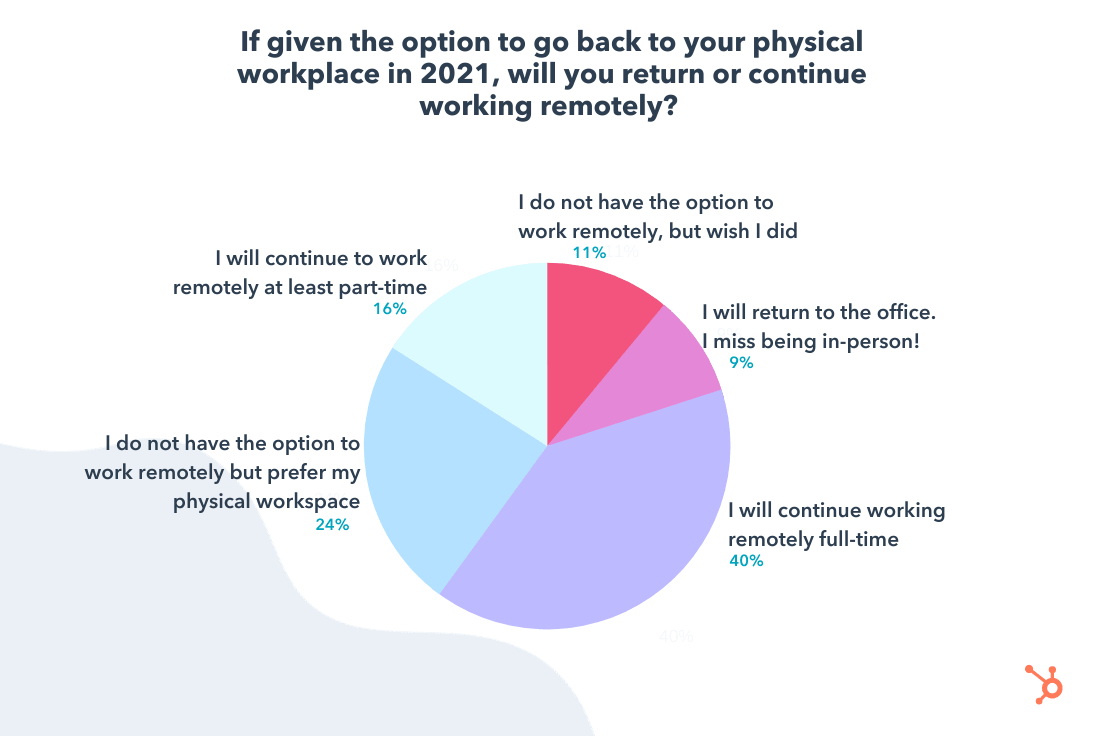
To explore whether or not employees will return to the office in 2021 (if they’re permitted to do so), I started by surveying 496 marketers and asked the question: If given the option to go back to your physical workplace in 2021, will you return or continue to work remotely?
The results were split roughly in half. 40% of marketers will continue to work remotely full-time — and the remaining 11% don’t have the option to work remotely, but wish they did.
However, that leaves 49% of marketers who do want the option to work in an office space, at least part-time.
Let’s break down that 49% for a second: out of that 49%, 24% of marketers don’t have the option to work remote, but prefer their office space anyway; 9% want to return to the office as soon as it’s possible to do so; and 16% prefer a flexible schedule so they have the option to do either.
Other research supports this trend. Pew Research Center surveyed over 10,000 U.S. adults and found 54% of workers want to continue working from home after the pandemic ends. A third echoed they’d like to work remotely at least partially — while just 11% said they’d like to return to the office full-time.
HubSpot’s employee data highlights this shift as well, with many employees now preferring remote work over in-office — in fact, two-thirds of HubSpot employees plan to work remotely more often even after offices re-open, and approximately 16% plan to shift to fully-remote for the first time.
I spoke with Meaghan Williams, HubSpot’s Remote Work and Inclusion Program Manager, to get a better sense as to why many marketers may want to remain remote even after the pandemic has ended. She told me: “Before COVID-19 forced everyone to work from home, a ‘work from home day’ for an office-based employee was often scheduled on a day where perhaps they had appointments, deliveries, or weren’t feeling well.”
“‘Work from home’ quickly became equated with low productivity, distraction, and working from one’s couch. With the long-term commitment to working from home, I suspect many folks have found a way to carve out a productive work space, create a routine, and make the most of their working hours to enable more productivity.”
Williams says, “Working remotely is not for everyone, but for some, the ability to focus without the distraction of the office or freedom to be able to jump on your laptop when creativity strikes (rather than try to hold onto the idea while sitting in traffic!) may have them hooked on remote for the long-haul.”
Of course, logistics will factor into an employee’s decision to return to an office, as well. For instance, many businesses are selling their office spaces and subsequently forcing employees to become fully-remote; alternatively, some companies are relocating to satellite offices, or simply reducing the amount of office locations they own globally.
Ultimately, the data suggests that many employees will want to remain remote after the pandemic has ended, but others will prefer having the option to return to an office.
Which poses a unique challenge: How can companies meet all its employees needs, when those needs seem split so evenly down the middle?
Many companies (HubSpot included), will be increasingly interested in creating a hybrid experience — meaning, employees will have the option to remain fully-remote, return to the office full-time, or experience a little of both.
Let’s dive deeper into what this data means for marketing managers, next.
What the Data Means for Marketing Managers
If you’re in a management position, you’ll likely find that many of your employees want to remain remote even after the pandemic has ended.
Remote life has its perks. For instance, Vrnda LeValley, a Customer Training Manager at HubSpot, told me, “I plan on staying totally virtual because I enjoy using my commute time to meditate and mentally prepare for my day. Additionally, I love the flexibility to work from anywhere.”
“I like that working remotely frees up my ability to select places to live that truly support the inclusive and diverse experience that is so important when establishing a sense of community and belonging.”
Additionally, Leslie Green, HubSpot’s Senior Social Media Campaign Manager, says, “I decided to move to a fully remote employee during the pandemic to be closer to my network and to choose my home, not based off my job, but where I actually want to live. Being near my network and in a city (Austin) that fits my lifestyle allows me to ‘show up to work’ as my best self daily.”
Remote life offers employees the flexibility to work where, when, and how they want; and it enables companies to attract talent from across the globe without barriers like physical proximity to an office remaining a factor in hiring decisions.
However, there are certain challenges you’ll face when leading a remote team — many challenges of which have been highlighted during the 2020 pandemic-activated shuffle. Let’s dive into a few of those, now.
1. Marketing managers will need to invest in high-quality remote tools and platforms.
If you’re managing a remote team, you’ve likely come across some unique challenges regarding communication and technology.
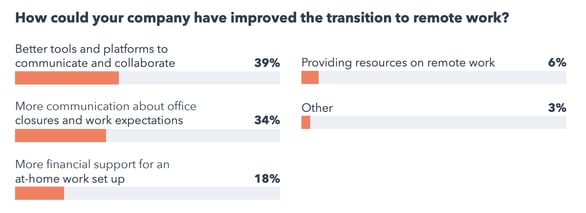
For instance, 39% of employees believe their transition to remote work would be improved with better remote tools and platforms to communicate and collaborate.
High-quality video conferencing tools, messaging platforms, and task and project management software are necessary for ensuring your team continues to perform well regardless of where they work in 2021 and beyond.
Additionally, collaboration tools like Google Suite or Microsoft Office Teams can help you align your team on your company’s vision and the specific functions your team needs to complete to help your company grow over the next year.
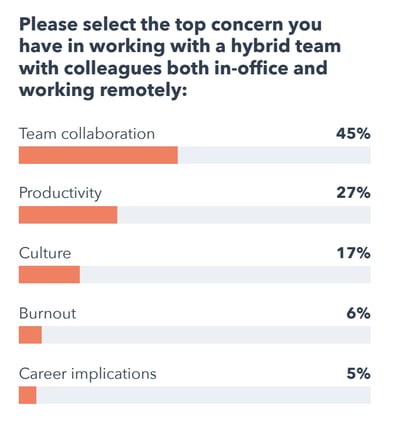
With 45% of remote employees worrying about team collaboration when it comes to working with colleagues both in-office and remote, it’s critical you continue to invest in tools that help you create alignment regardless of where each team member works.
2. Marketing managers should continue prioritizing remote employees’ growth.
As a manager, it’s critical you ensure your employees feel they’re continuing to grow in their roles even when fully-remote.
Seeking out unique growth and development opportunities might feel more difficult when working remote than in-person — in fact, 40% of remote employees feel remote life has negatively impacted their career progression:
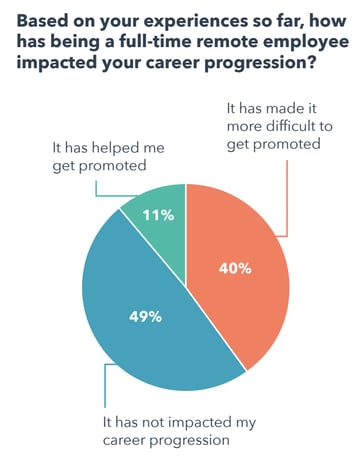
To continue facilitating your employees’ growth over the long-haul, it’s critical you set up yearly or bi-yearly performance and career growth conversations, even when working remotely.
Additionally, consider how you might implement task-tracking or project management documentation to stay on-top of your employees’ progress when you ask them to perform certain marketing activities, since you no longer have the privilege of watching them excel in-person.
Standardizing the tools you use to track your team’s progress can help you quickly identify high-performers on your team and reward them accordingly.
3. Marketers need to lead with empathy.
Your team is dealing with a highly-stressful and difficult time — and not just professionally.
Many team members are likely juggling childcare, mental health stressors as a result of the pandemic, and other major deterrents to their daily work. In fact, 46% of employees surveyed say their work performance has been negatively impacted due to changes at home as a result of COVID-19:
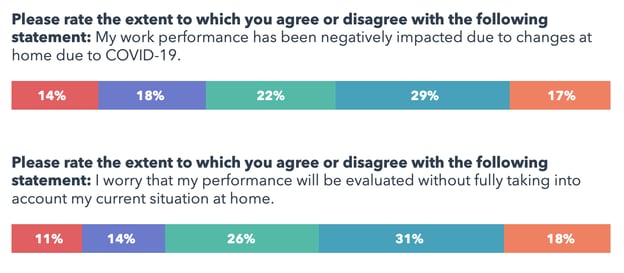
Additionally, roughly 50% of employees worry their performance will be evaluated without taking those challenges into account.
A good manager leads with empathy — when having weekly discussions with your employees or even performance reviews, it’s vital you take the time to understand outside factors that could contribute to less-than-ideal performance, and keep those factors in-mind when evaluating your employees’ performance.
Additionally, understanding your employees’ situation could help you recognize areas you might be able to support them as their leader. For instance, if you know an employee is on “childcare duty” in the mornings, it’s important you take the extra step to ensure you’re not Slacking them during that time or scheduling meetings they can’t attend.
These small details could go a long way towards creating a healthier, more productive work-life balance for all your employees.
While these tips should help you as you learn to lead a remote team, you’ll likely come across some unique challenges as offices reopen and businesses segue into a hybrid workplace. Next, let’s explore some expert tips on how you can create — and embrace — a hybrid workplace for the long-term.
Expert Tips on Creating Hybrid Workplaces
To explore how businesses can create hybrid workplaces in 2021 and beyond, I spoke with Eimear Marrinan, HubSpot’s Director of Culture.
She told me: “One of the biggest things to consider is how to effectively create a culture that enables productivity and, ultimately, engagement in a hybrid work model.”
Marrinan adds, “Being proactive in thinking critically about your culture will make or break many organizations this year.”
When you’re beginning to consider how you might create a hybrid workplace, there are a few factors Marrinan encourages leaders to keep in-mind. These include:
- Create a truly inclusive environment, one that is equitable regardless of location. That means being really purposeful and intentional about how you engage with employees — tactical things like holding team meetings or offsites virtually if not all employees are in-office, leaning into virtually inclusive events and programmings so the experience is the same regardless of where you sit, and making sure any perks and benefits are location-agnostic and not dependant on an office location. For instance, we announced at HubSpot in 2021 and 2022 any new benefits and perks can be enjoyed regardless of location.
- Culture is not tied to an office — it is rooted in an organizations values and behaviors. Making sure that you have the right values and behaviors in-place to begin with becomes so important as organizations shift to hybrid. Bring your culture back to the basics, and consider the fundamentals — e.g. having a culture of flexibility, adaptability, and empathy.
- Ask your employees for feedback. At HubSpot, we invest in seeking feedback from our employees upfront regarding what they value, what they want, and what concerns they have. Listen to your employees — and not only listen, but act on the feedback. This is new for so many companies, so we can’t just assume we know all the answers … we most certainly don’t.
Tamara Lilian, HubSpot’s Manager of Culture and Experience, echoes Marrinan’s advice, adding, “Creating an effective hybrid workplace will take full commitment from the business, along with adaptability and empathy. No matter how strong your in-office experience was prior, this culture you value so deeply will not translate to a hybrid world on its own.”
Let’s explore a few other tips when it comes to creating a hybrid workplace, from marketers and leaders in the industry working to embrace the hybrid experience.
1. Make intentional decisions with the hybrid experience at the forefront of your mind.
Tamara Lilian, HubSpot’s Manager of Culture and Experience, suggests making intentional decisions from the get-go to ensure remote work isn’t just an afterthought in your planning: “Before you create any experience for your employees in a hybrid world, you first need to nail being proactive versus reactive, and really be intentional on your approach to the experience.”
She adds, “Zoom links, considering timezones, and being mindful of an employees work-from-home environment can no longer be an afterthought — these have to be built into your approach from day one.”
To truly invest in a hybrid environment, it’s vital you make decisions without preference towards those at-home or in-office. Instead, you’ll want to create an experience your employees can enjoy from anywhere.
2. Shift your current employee offerings to meet their new needs, and include employees in your process.
A few years ago, most of HubSpot’s onboarding trainings were in-person, which meant you needed to fly to an office and stay in a hotel to attend them.
Now, the trainings are entirely remote.
It’s critical, as you move to a hybrid model, that you figure out how to shift your current offerings so they can offer equal value regardless of a person’s physical location.
Lilian asks, “How can you shift your current offerings to meet your employees’ needs in a hybrid world — for instance, perhaps you consider how you can pivot your growth and development offerings to more of a self-serve model where folks can engage with resources when and where is best for them, and not on your timezone or schedule.”
3. Allow flexibility in your employees’ schedules.
Ivelisse Rodriguez, a Historical Optimization Specialist at HubSpot, urges employers to encourage flexibility when switching to a hybrid workplace.
She told me, “One of the principal benefits of being remote is the ability to create a unique work schedule. When companies remain inflexible — i.e. expecting employees to log in exactly at 9 AM or constantly checking in on them on Slack to see if they’re online — they take away one of the principal benefits of being remote.”
“Remote workers lose social contact, office banter, and in-person camaraderie, but the flexibility makes up for that. Stay flexible, trust your employees to get their work done, and don’t get obsessed with someone’s ‘online’ status. Whether they’re online or not has no bearing on whether they’re actually getting work done.”
4. Remote workers shouldn’t be the exception to the rule.
HubSpot’s Senior Director of Creative, Dmitry Shamis, told me: “I was remote before the pandemic, but something I learned during the last year is that remote doesn’t have to be the exception to the rule.”
“I used to travel the office once a month thinking it was a must for keeping the team together and showing people that I’m accessible, and now that there’s no office I realize how much time I wasted with TSA, weather delays, hotel check-ins, etc. — plus, how much forced activity needed to happen when I was around.”
“From here on out, I think when the team does get together (and keeps it virtually inclusive), it will be a lot more genuine. People need to learn not to lean on a physical office space as a crutch — there are better ways to connect with people regardless of location.”
5. Encourage your employees to take advantage of the perks of remote meetings.
Stephanie Worley, Microsoft Advertising’s Global Brand Storytelling Leader, told me how important it is for her and her team to set boundaries regarding work and home life: “People are certainly working long hours these days. In my role at Microsoft Advertising, I spend my day connecting with colleagues, customers, and partners around the world. Microsoft Teams has become the glue that connects us and supports our conversations and collaborations through video calls, chat, and sharing documents.”
She adds, “One thing we’ve realized during this pandemic is that without the normal work transitions of a commute, walking between meetings and walking to the break room, we can easily sit in front of our desks from early morning to late in the night if we don’t set some boundaries for ourselves.”
Additionally, she says she’s personally found it helpful to take some meetings outside for the fresh air and new perspective: “Microsoft Teams is mobile, which allows us to participate in meetings and collaborate with peers from anywhere. I have begun a new practice of taking a walk during meetings. A daily walk during a meeting helps me get out, get some fresh air, exercise, and stimulate some more creative thinking.”
As your team adjusts to a hybrid setup, consider encouraging each employee to switch up where they take meetings. Whether you’re in-office or remote, a hybrid team gives you all the flexibility to take meetings on-the-go.
6. If feasible, offer at-home stipends. Additionally, prioritize your employees’ mental health as they adjust to this new normal.
Christina Mautz, Chief Marketing Officer & Head of Sales at Moz, shared a few critical components she’s used to help her team adjust over the past year.
She told me, “Moz operated as a remote-first company prior to any changes mandated by the pandemic. We’ve found employees work best when office culture prioritizes things like accountability, empathy, and transparency. Those values are so much more important than asking our teams to be at their desk for a set amount of hours per day.”
“That being said, ‘remote work’ means different things to many different people. The young colleague who is fresh out of college may not have a dedicated office space in their home, while new or working parents might feel the conflict of juggling day-to-day tasks against sharing the same space with their virtual-learning children. To help, Moz offers stipends for home internet, mobile phone service, plus a $500 home office reimbursement.”
Above all, she notes the importance of prioritizing your employees’ mental health: “We’ve addressed the many life-changing experiences we’ve all lived through publicly and made sure our employees know they can speak with HR and leadership openly. We’ve also reminded Mozzers of our Employee Assistance Program that provides mental health benefits for those in need.”
“And, while it might seem easier to work remotely compared to commuting to the office, our team managers encourage employees to take care that work (because it’s now happening at home) doesn’t take over. As a global office across many time zones, not every question gets an immediate answer. Project progress and KPIs still rest on shoulders; but, as an organization, we’ve shared that we know our staff can’t go at 100% all the time.”
Moz’s CMO told me, “Each of these components are intended to help our employees thrive in whatever ‘office’ they are in — during these isolating times, and long after.”
The good news? This “new normal” is offering companies the chance to truly redefine their values and enable employees to make their own decisions regarding where, when, and how they perform best.
The companies that come out on top will be the companies that listen and grow with these global changes to continuously improve workplace culture.
Trust us: Your employees will thank you.

Have Long & Unproductive Meetings? Try a Stand-Up Instead
We’ve all been in meetings that were about 30 minutes too long.
We laugh at “this could’ve been an email” GIFs, sigh, and continue with our days.
Yet, the truth is, unnecessary meetings are costing us way more than just time. Doodle’s 2019 State of Meetings Report estimated that poorly organized meetings are costing U.S. companies $399 billion.

One to two unnecessary meetings a week might seem insignificant, but when you consider a whole year’s worth of meetings, the impact is considerable.
As more companies move toward remote work, the number of meetings are also increasing. So, how can teams ensure their meetings stay productive? Stand-ups are one way to solve that.
To understand why stand-ups exist, you first have to understand the agile methodology.
For a long time, many companies were using a waterfall model for projects. This meant that teams would tackle projects one stage at a time and assume that requirements would stay the same through development. The issue with the waterfall approach is that:
- Teams are not always aligned.
- Unclear requirements often delay progress.
- Testing only begins after development is done.
Agile is built around iterative development, which makes teams more involved in the project’s progress. Teams work in sprints and through stand-ups, issues are addressed quickly and efficiently.
Stand-ups are typically daily. However, some teams have them on a less frequent basis. To maintain the benefits of the process, a stand-up meeting shouldn’t happen less than once a week. The main reason is that it makes it harder to track everyone’s progress and address roadblocks as they appear.
We also know that business priorities can change quickly. Having stand-ups too far apart can create information gaps between teams and slow delivery timelines.
Stand-Up Meeting Format
During a stand-up meeting, each team member should answer the following questions:
- What have you worked on since the last meeting?
- What are you working on now?
- Are there any blockers impeding your progress?
Regular updates help team members and leaders track everyone’s progress and assess what needs to be done to meet sprint goals.
Let’s use my role as a writer on a blog team as an example.
During a stand-up, here’s what I would say: “Yesterday, I finished writing X article and completed my second draft for Y article. Today, I will work on uploading Y article to the content management system (CMS) and will draft two outlines for new articles. My current obstacle is that I lost access to the CMS and need to connect with someone from IT to regain access.”
From there, my manager could suggest connecting me with a specific engineer on the IT side and follow up with me after the stand-up. Following this format gives everyone involved in the meeting a clear overview of what you’re working on and how that will affect the sprint.
Stand-Up Meeting Best Practices
1. Keep the meeting short.
If your stand-up meeting is an hour, you’re doing it wrong. This type of meeting is meant to keep all team members synced up. It is not a meeting to plan, problem-solve, or brainstorm.
Ideally, your stand-up will be between five and 15 minutes. While that may sound short, it works out well when everyone stays on task. That’s why everyone should prepare what they will say beforehand and stick to the script.
To keep the meetings productive, have your scrum master or team lead keep track of time and step in whenever necessary to move things along.
2. Follow-up after the meeting.
As mentioned before, stand-up meetings have very defined goals: to know everyone’s main focus and determine roadblocks that may affect the sprint.
Once issues have been identified, follow-up meetings with smaller team members can be scheduled to address them, whether it’s to brainstorm solutions or resolve them.
For instance, let’s say during your stand-up, your team’s UX designer says they have a roadblock with the app design requirements and need more instruction from the product owner. While it’s great to mention the issue, the stand-up is not the time to get into the details. Skip the problem solving and save that for a follow-up meeting with said product owner.
3. Keep it consistent.
Imagine attending a meeting every day and having no idea what to expect. It’s unsettling at best, chaotic at the worst. For stand-up meetings, three things must stay the same:
- The agenda – There are only three main areas a stand-up should cover: yesterday’s outcomes, today’s priorities, and current obstacles.
- The frequency of the meeting – If the meetings are irregular, how will team members stay on the same page? When you skip meeting days, things can fall through the cracks and lead to more issues down the sprint.
- The time length – Fifteen minutes is the magic number for stand-ups. Make them much longer and it turns them into something else that likely won’t be as productive.
Stand-Up Meeting Ideas
1. Actually stand up.
Have you ever let out a sigh when first sitting down for a meeting? Not because you’re dreading it but because you know it’s going to be a long one and you’re getting comfortable.
Well, that’s exactly what you want to avoid during a stand-up meeting. The reason why they are called stand-ups is that they’re meant to be quick. So quick, in fact, that you could be standing up. If your team is having trouble staying on task, take the no-chairs approach.
Have everyone stand up while each person presents. This will help ensure everyone gets to the point and doesn’t stray off-topic.
2. Use a prop.
Instead of following the go-around-the-table order, have someone start with a prop, like a ball or squeaky toy. Once they’ve presented, they’ll throw it to someone else. It will continue going around the room until everyone has gone.
Props can be very useful during meetings, as they help attendees stay engaged. The anticipation of receiving the prop next can keep everyone on their toes. It’s easy to drift off when you know your turn isn’t for another 10 minutes. This strategy encourages focus while making things fun.
3. Incorporate an icebreaker.
Most stand-ups happen daily. However, if your team conducts them less often, it may be helpful to use an icebreaker to loosen everyone up.
It can be a joke, riddle, question, or GIF. On HubSpot’s blog team, we have a rotating team member ask a question to start the meeting off. Past questions have ranged from, “What is your dream vacation?” to “What would be the name of your memoir in six words?”
It starts every meeting off on a lighthearted note before getting to the nitty-gritty work details.
4. Use a messaging system for asynchronous stand-ups.
If you have team members in different time zones, you may not be able to find a time that works for everyone. That’s where messaging software like Slack or Microsoft Teams come in handy.
To set it up, build a bot or purchase an external bot tool (like GeekBot) that allows you to:
- Send daily prompts to your team based on their working hours.
- Collect their answers and send them to the team channel.
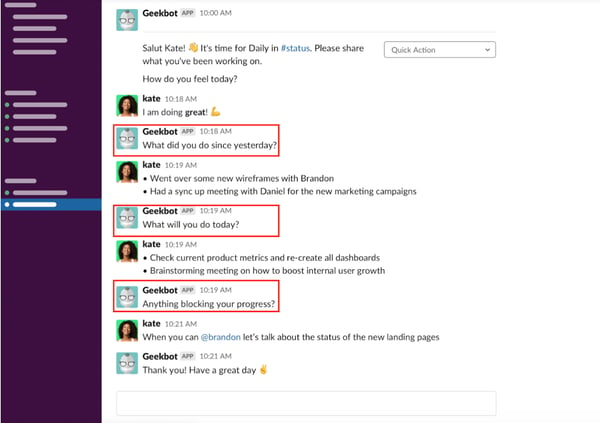
What’s great about this approach is that it keeps everyone on the same page while working within their schedules. The automation is also a huge time saver and streamlines the process.
Text-based stand-ups also help everyone stay on task. Face-to-face meetings, whether in person or virtual, can easily stray off-topic and be huge time wasters. By limiting the number of questions members get, it helps stick to the point and get the key information needed for the stand-up.
On that same note, they prevent side discussions that can steer the conversation off track. Team members can direct message each other or start a thread that won’t disrupt the flow of information.
Following the stand-up format may not remove the need for longer meetings. However, it can improve communication between your teams and keep everyone aligned on the goals of your projects.

How to Write a Letter of Interest in 2021 [Examples + Template]
It’s one of the worst feelings in the world.
You’ve spent weeks perfecting your resume and crafting the perfect cover letter, and you’re finally ready to submit your application for your dream job.
But when you scan the company’s careers page, panic starts pouring over you. The job you wanted to apply for is no longer open. It’s gone. And as you stare at your laptop screen in shock, you can’t help but think you’ll never be able to join your dream company.
What should you do in this situation? You can’t just put your job search on pause until the company opens the position again. How do you express interest in joining a company when the position you want isn’t currently available?
One of the most effective ways to grab a hiring manager’s attention and get your foot in the door is by writing a letter of interest to the company.
What is a letter of interest?
A letter of interest lets a company know that you want to work for them in a role for which they’re currently not hiring. In hopes that the company will contact you when they do open this position or another relevant position, your letter of interest focuses on how your skills can benefit the company, not how the company can benefit you. You can send a letter of interest at any time, regardless of whether the company is actively hiring.
Sending a letter of interest is a great way to introduce yourself to a company, and it shows them you’re willing to take the initiative to proactively reach out. This can keep you top-of-mind when the company starts recruiting for the job you inquired about. If hiring managers are particularly impressed, they might even create a position just for you.
Other times, sending a letter of interest can lead to a coffee chat or an informational interview with the hiring manager of the team for which you want to work.
Writing a letter of interest sounds like an easy way to get your foot in the door at any company, but it’ll only pique a hiring manager’s interest and elicit a response if it actually resonates with her.
To do so, we recommend following a formula called problem-agitate-solve. It’s modeled after an old copywriting framework and has helped one job seeker skyrocket her cover letter response rate from 0% to 55%. We’ll flesh it out below.
How to Write a Letter of Interest
To compel a hiring manager to read your letter, respond to it, and consider you for a job, there are four crucial elements you need to include in your letter of interest:
1. Hook the hiring manager with proof that you understand her problem.
Hiring managers don’t hire people just to be nice. They hire people to help them run their team better. To immediately grab a hiring manager’s attention, you should show how you understand the problems she’s trying to solve, like the hook below:
“As a two-year blogging veteran in the marketing technology industry at companies like Return Path and SlideBatch, I know how hard it is to write well. I also know how challenging it is to get found on Google.”
By describing a similar experience you’ve had at your current or prior job, you can relate to her on a deep level, which will engage and prompt her to read the rest of the letter.
The hardest part of this step is discovering the hiring manager’s problems. One way to figure it out is by listing off the job’s responsibilities and asking yourself why these tasks are important to her team. If you keep analyzing until you reach a dead end, you’ll usually find her needs there.
2. Agitate the problem to remind the hiring manager she needs a solution.
How do you make a hiring manager realize how valuable a solution could be? You remind her just how painful her problems are. And to make her visualize her dreaded problem as vividly as possible, you need to be specific, just like the example below:
“According to HubSpot’s careers page, you’re not currently hiring, but, in the future, if you’re looking for someone who can not only engage an audience with clear, concise, and compelling blog posts, but also optimize them for search engines, while hitting every deadline, you can count on me.”
When she realizes how much pain she’s actually in, she’ll have more of a sense of urgency to resolve it. And this’ll push her to respond to you because you might be her fastest route to a solution.
3. Prove that you’re the solution with an example of your skills and experience.
If you’re really the solution to her problems, you must prove to the hiring manager how you’ve used your skills to solve similar paint points in previous experiences. Then, you should describe how you’ll be able to use those learnings to help solve her current problems. Check out the example below:
“Last year, at Return Path, I was the top performing blogger, writing weekly posts that averaged 7,500 views, 1,000 social shares, and 35 new blog subscribers gained. The year before, at SlideBatch, I devised and implemented a new keyword strategy that increased organic page views for our Visual Marketing 101 blog series by 15%.
I’ve read HubSpot’s blog every day since I started my content marketing career, and I’m inbound, content, and email marketing certified, so I strongly believe I’ll be able to hit the ground running if I were to work on HubSpot’s blog team one day.
Whether I’d be uncovering high opportunity keywords or crafting blog posts to support and develop your team’s new pillar cluster model, I’m confident my skills and experience can help your team crush their goals.”
By quantifying your accomplishments and researching the company’s pain points, you’re proving your worth. But if you just list your skills and work experience, you’re only proving to the hiring manager that you’ve failed to make an impact.
4. Confidently request to move on to the next step.
At the end of your letter, you should express your interest in exploring upcoming opportunities or ask her to keep you top of mind when an opportunity opens up, like the call to action below:
“I’d love to learn about any upcoming roles on your team or be considered for a position later down the road. My resume is attached, and my contact details are listed in my email signature below. Thank you for your time! It was a pleasure connecting.”
These call-to-actions are crucial because they tell her how to get the ball rolling. If you don’t tell the hiring manager what to do next, then nothing will happen.
Letter of Interest Example
All together, a successful letter of interest looks like this:
Hi Greta,
As a two-year blogging veteran in the marketing technology industry at Return Path and SlideBatch, I know how hard it is to write well. I also know how hard it is to find get found on Google.
According to HubSpot’s careers page, you’re currently not hiring, but, in the future, if you’re looking for someone who can not only engage an audience with clear, concise, and compelling blog posts, but also optimize them for search engines, while hitting every deadline, you can count on me.
Last year, at Return Path, I was the top performing blogger, writing weekly posts that averaged 7,500 views, 1,000 social shares, and 35 new blog subscribers gained. The year before, at SlideBatch, I devised and implemented a new keyword strategy that increased organic page views for our Visual Marketing 101 blog series by 15%.
I’ve read HubSpot’s blog every day since I started my content marketing career, and I’m inbound, content, and email marketing certified, so I strongly believe I’ll be able to hit the ground running if I were to work on HubSpot’s blog team one day.
Whether I’d be uncovering high opportunity keywords or crafting blog posts to support and develop your team’s new pillar cluster model, I’m confident my skills and experience can help your team crush their goals.
I’d love to learn about any upcoming roles on your team or be considered for a role later down the road. My resume is attached, and my contact details are listed in my email signature below. Thank you for your time. It was a pleasure connecting!
Sincerely,
Clifford Chi
Letter of Interest Template
Hi [Hiring Manager’s First Name],
As a [X]-year [Your Profession] veteran in the [Space You Work In] industry at [Most Prominent Companies You’ve Worked For], I know how hard it is to [Pain Point #1]. I also know how challenging it is to [Pain Point #2].
According to [Company] careers page, you’re currently not hiring, but, in the future, if you’re looking for someone who can not only [Solution for Pain Point #1], but also [Solution for Pain Point #2], you can count on me.
Last [Specific Timeframe], at [Current or Old Company], I was the best performing [Your Profession], [List Your Responsibilities and Describe the Impact You Made]. The [Specific Timeframe] before, at [Current or Old Company], I [List Your Responsibilities and Describe the Impact You Made].
[Show Hiring Manager that You’re a Voracious Learner and You Regularly Keep Up with Company News], so I strongly believe I’ll be able to hit the ground running if I were to work on [Company] team one day.
Whether I’d be [What the Team is Working on Now], I’m confident my skills and experience can help your team crush their goals.
I’d love to learn about any upcoming roles on your team or be considered for a role later down the road. My resume is attached, and my contact details are listed in my email signature below. Thank you for your time. It was a pleasure connecting!
Sincerely,
[Your Name]
Featured Resource: 5 Professional Cover Letter Templates
 Download These Templates for Free
Steps to Take Before You Send Your Letter of Interest
After you finish writing your letter of interest, you need to make sure the company will actually open it. So before you send your letter, it’d be ideal if someone on the team personally knows who you are.
To do so, ask your connections or alumni that work at the company to introduce you to the team’s hiring manager. If you can’t do that, you could add the hiring manager on LinkedIn, tell her why you want to connect, and send her your letter of interest.
Getting your foot in the door will ultimately help you stand out from the crowd of job seekers who are all sending the same “hire me” pitch to her.
Editor’s Note: This post was originally published in May 2018 and has been updated for accuracy and comprehensiveness.


When Is the Best Time to Post on Instagram in 2021? [Cheat Sheet]
In high school, one of my friends was determined to find the perfect time to post her Instagram photos to maximize the amount of likes she got. She was surprisingly scientific about it, posting at different times of the day and jotting down each of her posts’ “likes per minute.”
After weeks of testing, she figured out which post time raked in the most likes, and, from then on, she could easily get 200 likes on all her Instagram posts.
My friend’s rather scientific method to maximize her Instagram likes still makes me chuckle to this day. But since I’m a marketer now, her desire to build a strong Instagram presence also resonates with me.

To build a sizable Instagram following, you need to create compelling content that your audience actually craves. But if you don’t post your content at the right time, most of them will never see it.
So how do you figure out the optimal post time for your specific audience?
The best way to find an ideal posting time is by testing the timing of your posts to see which post time generates the most audience engagement.
But if you don’t have enough resources or time to conduct your own tests, Sprout Social, a social media management platform with over 20,000 customers, has you covered. Last year, they analyzed their customer data to see what time and day their social media posts generated the most engagement. They also segmented the data by social network and industry.
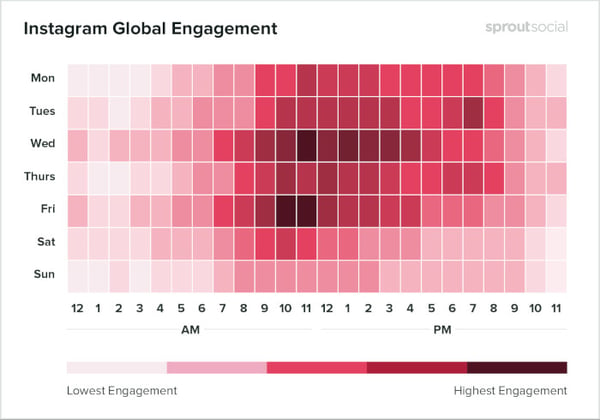
Looking at their aggregate customer data for Instagram, you can see that the following days and times — in Central Daylight Time (CDT) — are ideal for generating the most engagement on the social network:
As stated above, although 10 AM – 3 PM is considered the best time of day to post on Instagram, the day of the week on which you post can change how much engagement you actually get from 10 AM to 3 PM.
Why? Think about the little differences in your daily mood and routine — the ones you might not realize you have — and how they affect your behavior. The same goes for everyone following your Instagram account. Here are some additional insights about optimal post timing from data by Sprout Social to show you what I mean:
- Posting at 7:00 AM CDT from Wednesday to Friday generates some of the highest engagement — people usually check their phones right when they wake up.
- Posting from 11:00 AM to 3:00 PM CDT during the weekdays also generates a lot of engagement — people usually check their phones during lunch or when they start to run out of mental energy toward the end of the work day.
- If you want to post on the weekends, post on Saturday around 10:00 AM CDT when people eat brunch or hang out with their friends.
So, when Instagramming, don’t go by this time range alone. Consider both the day of the week and the industry you’re in (we’ll talk about the latter in just a minute).
On average, here are the best times to Instagram during the week within each time zone globally:
* = particularly high levels of engagement
Want some easy marching orders based on this data? Post to Instagram between 9 AM and 4 PM from Monday to Friday. You’ll get the most consistent engagement that way.
Need a visual to strategize around? Check out this Sprout Social chart which shows Global Instagram Engagement hotspots.
Source: Sprout Social
The general data above about optimal post timing is a great starting point for growing an engaged Instagram audience. But if you want to get more granular, here are the best times to post on Instagram if your organization is in the technology, B2C, education, healthcare, and non-profit industries, according to Sprout Social’s research.
Best Times to Post on Instagram for Technology Companies
- Best Time: Wednesday at 6:00 AM and 9:00 to 10:00 AM CDT, Friday from 7:00 AM to 10:00 AM
- Most Consistent Engagement: Tuesday evening through Wednesday afternoon, Friday from midnight to 10:00 PM CDT
- Best Day: Wednesday
- Worst Day: Sunday
Best Times to Post on Instagram for B2C Companies
- Best Time: Wednesday at 3:00 PM CDT
- Most Consistent Engagement: Tuesday through Friday from 11:00 AM to 3:00 PM CDT
- Best Day: Wednesday
- Worst Day: Sunday
Best Times to Post on Instagram for Educational Organizations
- Best Time: Friday at 10:00 AM CDT
- Most Consistent Engagement: Wednesday, Friday, and Saturday from 9:00 AM to 9:00 PM CDT
- Best Day: Friday
- Worst Day: Sunday
Best Times to Post on Instagram for Healthcare Companies
- Best Time: Tuesday at 8:00 AM CDT
- Most Consistent Engagement: Will depend on audience location and business niche
- Best Day: Tuesday
- Worst Day: Saturday and Sunday
Best Times to Post on Instagram for Non-Profit Organizations
- Best Times: Tuesday at 1:00 to 3:00 PM, Wednesday at 2:00 PM CDT
- Most Consistent Engagement: Monday to Friday from 10:00 AM to 4:00 PM CDT
- Best Day: Wednesday
- Worst Day: Sunday
Every brand’s audience is different. To build a sizable, engaged Instagram audience, you need to know who your followers are. And one of the best ways to get to know your audience and capture their attention is by knowing exactly when they like to surf the app.
Editor’s Note: This post was originally published in February 2018, but was updated for comprehensiveness and freshness January 28, 2021.


Do You Really Need to Hold That Meeting [Quiz + Tips]
“This could have been an email.”
Those six words can take the wind out of an office. They mean that time has been wasted, employees are frustrated, and leadership has been ever-so-slightly undermined.
Unjustified meetings are inefficient and grating. Haphazardly putting time on colleagues’ calendars — only to fumble with its purpose, conduct it without direction, or spend all your time talking at attendees as opposed to collaborating with them — takes a toll on everyone involved.
Here, we’ll review some criteria you should look for when deciding whether a meeting is worth everyone’s time, see a few definitive signs that an issue doesn’t warrant a meeting, and go over some of the more prominent, effective meeting alternatives.
When You Should Hold a Meeting
The issue at hand is urgent and time-sensitive.
If the information you need to convey is must-hear and timebound, don’t think twice — book a meeting. You don’t want to run the risk of sending a mass email about a pressing issue, only to have some employees gloss it over or ignore it entirely.
Some things are need-to-know and can’t wait, and your response to those instances needs to reflect that kind of urgency. Don’t be overly passive. Don’t count on your team members to get to the information on their own time. Book a meeting, and get those points across.
You need a space for thorough discussion and multiple perspectives.
Some issues call for some degree of collaboration and thinking out loud. Those kinds of brainstorm sessions and general discussions warrant actual meetings. The spur of the moment thinking and flexibility for your team to bounce ideas off one another is hard to replicate via mediums like instant message or email.
Collaborative meetings foster creativity and critical thinking. If you feel you need your team to immediately run thoughts by one another on the fly and tease ideas out of each other in person, booking a meeting is probably your best bet.
Decision-making is at play.
When the content of a potential meeting is high-stakes — as in “involving decisions that have significant implications on the company’s future” — you have to get everyone together.
You can’t take these situations lightly. In these cases, stakeholders need to know what’s going on and have a forum to air concerns and provide input. An email chain, message board, or pre-recorded video presentation won’t provide that.
When You Don’t Need a Meeting
You don’t have a definitive agenda.
One of the biggest meeting blunders you can make is going in without a plan. Never wing a meeting. Just going in and trying to figure things out as you go is frustrating and obnoxious for your team members — it’s an unproductive waste of time.
If you don’t put an agenda together, you’re also undermining your ability to determine whether the issue at hand actually warrants a meeting in the first place. When you take the time to organize your thoughts, concerns, and materials, you’re giving yourself a chance to see the situation in a more objective light.
With that kind of clarity and perspective, you can more thoughtfully determine whether the information you need to convey is better suited for a mass email, instant message chain, or any other less time-and-energy-consuming format.
You don’t have all your information together.
This point ties into the one above. If you’re not thoroughly prepared or the information you’ve gathered so far presents an incomplete picture of the situation at hand, you’re best off holding off on booking a meeting.
The most effective meetings are thorough, thoughtful, and provide actionable guidance. If you only have a piece of the bigger picture, you probably won’t be able to definitively set your team on the right track — and there’s no getting that time you with everyone booked back.
If you have some information on hand that you feel your team should know. You might be better off touching base with them over a less personal, time-consuming medium and letting them know you’ll have more insight to offer sometime soon.
The meeting is going to involve too many people.
If you’re finding your list of potential meeting attendees seems excessive, you might want to explore other options for getting the information in question out. Massive meetings are often unproductive and typically involve a fair amount of people who don’t actually need to be there.
If the meeting is going to be packed to the rafters, you probably won’t see much thoughtful, organized discussion. Plus, if that many people need to know what you need to say, it’s probably more of a one-sided announcement than an issue that lends itself to focused collaboration. In most cases, that kind of content is generally better suited for email.
1. Email
Email might be the most prominent alternative to meetings. It’s an excellent resource for announcements and less pressing, more general internal communication — information that doesn’t necessarily require an immediate response. It allows you to easily get your message out while providing an opportunity for individual questions and thoughtful collaboration.
2. Video Presentations
Pre-recorded video presentations can be an excellent way to thoroughly and thoughtfully convey information without getting the team together. Resources like Loom allow you to conduct demonstrations, record messages, and offer updates that your team members can watch on their own — making for less friction and saving some time that a full-scale meeting might waste.
3. Instant Messaging
Instant messaging is one of the better ways to replicate some of the more immediate, spur-of-the-moment aspects of a collaborative meeting. With these kinds of programs, you can receive quick responses from team members in real-time. The format is best suited for quick questions and conversations that aren’t necessarily significant enough to warrant full-scale meetings.
4. Wikis and FAQ Pages
Wikis and FAQ pages offer materials that address common questions and concerns that your team members might run into. These mediums are also effective in the long term. By committing information to a web page, you can offer your team an evergreen reference point for concerns and stave off unnecessary meetings, down the line.
Quiz: Do you really need that meeting?
Meetings need to be booked carefully and with intention. Your colleagues can’t get that time back, so you need to know that you’ll be productive every time you circle up with them.
If you’re thinking of booking time with your team, be sure to consider the points on this list. You don’t want to deal with the groans and eye rolls that come with a meeting that “could have been an email.”

8 VR Startups to Keep an Eye On In 2021
Did you know that the virtual and augmented reality global revenue is expected to grow from over $13 billion this year to more than $67 billion by 2024?
In fact, virtual reality startups are valued at more than $36 billion on paper.
For marketers, virtual reality’s surging popularity and ability to deeply engage people in immersive experiences and transport them to places they could only imagine going to makes it one of the most exciting emerging technologies in the industry.
But branded VR experiences are still in its infancy. Most marketing teams don’t know how to use the technology to its full potential.
To help you learn how to effectively leverage VR, we decided to make a list of the top VR startups and showcase how they’ve been able to use the technology to raise hundreds of millions of dollars in venture capital and build successful businesses.
If you want stay ahead of the VR curve in 2021 and beyond, check out these startups.

8 VR Startups to Keep an Eye On In 2021
1. Magic Leap
Magic Leap, a company valued at over $6 billion, is an augmented reality platform focused on providing VR solutions to businesses.
With its wearable spatial solutions, you can easily incorporate VR/AR into your day-to-day. For example, you can use the headset to meet with coworkers and colleagues remotely, collaborate, share content, and even visualize complex 3D models.
Innovative businesses can use VR/AR to make remote collaboration easier.
2. Niantic
Niantic, the company that launched Pokemon Go in 2016, has become a top leader in augmented reality in that short 5 year time span. The business is even valued at over $4 billion.
This company focuses on building VR/AR games that get people moving. In fact, Niantic’s mission is to use emerging technology to enrich our experiences as human beings in the physical world.
This is a great company to keep an eye on to see how they market emerging VR/AR tech. Plus, you might even be able to use the games in your business as a part of a team building exercise.
3. Lightricks
Lightricks, a company founded in 2013 and valued at $1 billion, is an excellent leader in the VR/AR industry.
This business develops apps for social media marketers, creative content creators, or even small businesses. With these apps, you can use AR technology to edit social media posts, create videos with animated graphics, and more.
4. Surgical Theater
The third highest cause of death isn’t a ravenous disease or motor vehicle accidents — it’s medical errors. These errors are usually due to the extreme difficulty of treating each unique patient with absolute precision, especially during surgery.
It’s even harder to mitigate this prevalent problem because the only way surgeons can prepare for an operation is usually by planning and practicing surgery on a generic two-dimensional model of the human body.
Fortunately, with Surgical Theater, a VR system that can combine a patient’s MRIs, CT scans, and angiograms to reconstruct a 3D model of their brain’s unique anatomy, neurosurgeons can explore each of their patient’s arteries, bones, and tissue, accurately plan the surgery, and even practice the upcoming brain surgery on the 3D model.
Brain surgeons also use Surgical Theater to walk patients through their brain’s anatomy and the entire process of their surgery, making patients feel more informed about the details of their procedure.
Neurosurgeons can train with Surgical Theater similar to the way fighter pilots train with flight simulators, and some of the country’s top academic hospitals, like UCLA, NYU, University Hospitals Case Medical Center, Mayo Clinic, Mount Sinai, and Stanford University, have implemented the technology to advance their neurosurgery efforts.
5. VirtualSpaces
Selling a property that hasn’t been constructed yet is one of the biggest challenges real estate professionals face today. Blueprints don’t do the potential property justice — it’s almost impossible for people to sense its scale, size, height and depth. The human imagination can only visualize so much.
On top of that, most people are too busy during the week to tour property, so a lot of real estate professionals heavily depend on the weekends to showcase their realty. Getting people to walk through properties that are far away is also another challenge for real estate professionals.
But with VirtualSpaces, a mobile VR technology that can build immersive, three-dimensional visualizations of properties with only a blueprint, real estate professionals can overcome these common challenges.
With VirtualSpaces, real estate professionals can send digital properties to their potential clients at any time, transport them to the property from the comfort of their own couch, and walk them through its entire concept. And this allows them to provide unprecedented convenience, get potential clients excited about the property’s potential, and expedite their sales cycle.
6. Virtual Speech
Practicing a speech without an audience can be helpful, but the experience doesn’t truly emulate the pressure of an evaluating crowd. You can nail a dry run ten times in a row on your own, but when you actually step on stage and see an ocean of people staring at you, the nerves can debilitate your public speaking abilities.
Fortunately, VirtualSpeech can help you hone your public speaking skills — the app places you on a virtual stage with a virtual crowd, where you can practice your speech or presentation in front of an audience that imitates the mannerisms and sounds of real people. Their movements and noises are fully customizable, so you can ramp up the distractions and virtual judgement as much as possible.
At the end of your virtual speeches, the app will analyze and score your verbal and nonverbal communication. You can also add your own slides into your virtual presentation, practice for job interviews, learn how to network, and sell in a wide range of sales situations too.
Virtual Speech offers soft skills training courses and packages for individuals, teams, and companies too.
7. Neurable
Mind control of everyday objects might seem like science fiction today, but with virtual reality, it’s already a proven concept.
Using Neurable’s wireless brain-computer interface platform, people can interact with virtual and augmented reality applications with only their brain activity, avoiding lag-prone technologies like eye-tracking and voice commands.
Neurable leverages machine learning and a non-invasive method of monitoring brain activity called electroencephalography or EEG to accurately and instantly detect what your brain wants to do. And since using your brain is faster and easier than using controllers, brain-computer interface platforms like Neurable could be the future of VR.
8. Vivid Vision
Most healthcare VR startups provide solutions for doctors and surgeons, but Vivid Vision focuses on the people who truly need help: patients. By designing VR games that treat lazy eye, Vivid Vision provides a non-invasive cure to a common eye issue people can suffer from for their entire lives.
Vivid Vision also partners with over 180 eye clinics around the world to provide their most advanced and personalized treatment for lazy eye. But if you just want to do their vision therapy at home, you can get a prescription from your doctor to buy their less complex treatment program.
VR/AR has been around for a long time now, and the industry is only growing. As new startups continue to innovate, we’ll begin seeing VR/AR in several areas of our life, including work, healthcare, and entertainment.

The Presenter’s Guide to Nailing Your Next PowerPoint
Have a presentation coming up that involves PowerPoint slides? Creating the content and design for a new presentation can be a daunting task.
Between outlining, deciding on a design, filling it out, and finalizing the details, it’s not uncommon for a few questions to pop up.
Where’s the best place to start? Are some steps better to take before others? How can you make sure you aren’t missing anything? And how on earth do you master those essential — yet slightly technical — design tricks that can take a presentation from good to great?

We’re here to make the process a little easier for you. We’ve talked to some of the best presenters at HubSpot and have included their tips throughout this blog.
With the following tips in your arsenal, you’ll be able to navigate PowerPoint much more fluidly and give a standout presentation that’ll leave your audience wanting more.
How to Structure a Powerpoint Presentation
1. Decide on a working title and the main takeaways.
Beyond picking a topic, your first step should be coming up with a working title for your presentation. A working title is more specific than a topic: Think “How the Right Nutrition Can Strengthen Your Kids’ Bones” instead of “Raising Healthy Kids.” Keep in mind that a compelling presentation title is much like a compelling blog post title: short, accurate, and valuable.
Once you’ve got your working title, make a list of the main takeaways of your presentation to begin to give it some structure. This’ll help you stay focused when writing your outline and elaborating on those sections.
Aja Frost, the Head of English SEO at HubSpot, says, “I try to structure my presentations around a story. Not only does this make the presentation more memorable and engaging, it’s also easier to figure out which information is relevant.”
To do this, Frost says to pick a protagonist. She adds, “It might be your team, your audience, your customer…. Then, identify the rising action, problem, climax, and falling action. It’s just like grade school. This structure works whether you’re talking about an accomplishment, a challenge, a big question—anything, really.”
2. Create a short text outline with your audience in mind.
Once you have your main takeaways and your story in mind, it’s time to begin outlining the content of your presentation in more detail, while keeping your specific audience in mind. A presentation on any topic should sound different if you’re speaking to an audience of college students versus an audience of investors, for example. The tone, words, design, and delivery of your presentation should all cater to your specific audience for maximum impact.
Ask yourself: What do your audience members already know? What new information can you teach them? What are they expecting from your presentation? What’s going to be interesting to them? What will keep them focused and engaged? Then, make choices during every stage of the presentation process accordingly.
Justin Champion, a content professor at HubSpot, says, “Before diving into a presentation, I create an outline of how it’ll flow. I do this by creating an intro (what they’re going to learn), the body (what they’re learning), and finish with a conclusion (recap what they just learned) I use bullet point slide a lot for talking points I can expand on. Pro tip: use animations to guide the story. For example, instead of showing all the bullets at once, click through to each via animation.”
3. Formulate your content as a narrative, if possible.
This may not apply for more formal presentation that have rigid structures (like performance reports), but for presentations that have more flexibility, presenting your content as a narrative can be much more compelling.
Stories appeal to people’s emotional side in ways that information, facts, and figures can’t. They help you relate to your audience — and in turn, they’ll make you and your message far more interesting to your audience. They also help make complicated concepts more easily understandable to your audience, who may not share the same experience level or work in the same industry.
Kyle Jepson, a senior professor at HubSpot, says, “Since I’m an educator, I always structure my presentations around the learning outcomes I want to achieve. If there are three things I want my listeners to understand at the end of the presentation, I’ll have three sections. Whenever possible, I put some sort of interactive element at the end of each section to assess their understanding. In a virtual event, this might be a poll or a question for people to respond to in the chat. In an in-person setting, workshop activities or small-group discussions work well.”
4. Collect data and examples.
While sweeping statements can help you set the stage, supporting those statements with evidence will make your argument more interesting and credible. Data and examples give your argument content, and people will understand what you’re saying much better.
But don’t just slap random stats on your slides and expect to “wow” your audience. Be sure your data comes from a reputable source and that you’re presenting it in a way that’s easy to understand, like through accurate charts and graphs.
Finally, don’t overwhelm your audience with too much data. According to psychologist George Miller, we can only remember approximately five to nine bits of information in our short-term memory at any given time. Keep that in mind as you collect your evidence.
5. Engage with your audience.
During a presentation, it’s important to connect with your audience. But how can you do that when you’re just talking at them?
Anni Kim, an INBOUND professor at HubSpot, says, “Staying engaged during a virtual presentation is tough, so provide plenty of opportunities for participation. You should add a slide at the beginning that points out how people can take advantage of the chat and ask questions throughout the presentation.”
Once you’ve set the expectations, keep up on the chat and answer questions as they arise.
Now that you have a structure in mind, you’ll start to write the content. Below, we’ll give tips for how to start and end your presentation.
How to Start a Powerpoint Presentation
1. Start with a story.
Not to be repetitive, but storytelling is one of the best ways to capture your audience’s attention in general. Presentations are no different. Starting with a hook is a great way to get your audience invested in your content.
Champion says, “The best way to start a presentation is with an interesting story that connects to the content. A great way to keep you audience engaged is to make the content interesting.”
2. Be yourself.
On the other hand, while you want to tell a story, you also want your audience to connect with you as the presenter.
Jepson says, “During the introduction, I think one of the most important things to do is to set expectations for your style as a presenter. You don’t always need to start with a joke or a story. Start out by being you, and then keep being you for as long as you’re on stage.”
3. Include surprising or unusual information at the beginning.
While you’ll most likely use a standard approach with session title, presenter’s bio, and an agenda, you don’t want your audience to get bored.
Jepson adds “I think the standard approach (session title, presenter’s bio, agenda) is pretty effective except that it’s usually super boring. I try to include the standard information but sprinkle in things that are surprising or unusual.”
Some examples include:
- Adding a photo of your family on the About Me slide. “A lot of presenters put a picture of themselves on their About Me slide. But I think that’s silly because I’m standing right there,” Jepson says. “If people don’t know what I look like, they will by the end of the presentation! So I’ve started putting a picture of my wife and kids on that slide and saying something sweet or silly about that.”
- Asking people to use their phones. “A lot of in-person presentations start with a request to silence cell phones,” Jepson comments. “Sometimes I’ll do the opposite and say something like, ‘Before we get started, I want you all to pull out your phones. You probably think I’m going to ask you to silence them. But I’m not. I’m here from HubSpot, and I’m here to help you however I can. So if there’s anyone from your team who might have questions or need help from a HubSpotter, I want you to send them a message and tell them to send their questions to you before we get to the Q&A section of presentation. To give you time to do this, I’m going to send a text to my wife to let her know I made it here safely.’ And then I’ll literally pull out my phone and send a text message on stage.”
Now that you’ve structured your post and have ironed out the details of your introduction, it’s time to work on the end of the presentation.
How to End a Powerpoint Presentation
1. Recap what the audience has learned.
First and foremost, the end of your presentation should tie everything together.
Champion adds, “Recap what they just learned, explain next steps based on learnings, and offer any associated resources to continue learning.”
This will help people remember the content and give them resources to learn more or reach out if they have questions.
2. Q&A.
Another great way to end a presentation is with a Q&A.
Jepson remarks, “I always end with Q&A. The only tricky thing about that is knowing how to cut it off if you’re getting more questions than you have time to answer or if you aren’t getting any questions at all. In both of those situations, I do essentially the same: I cut it off and tell people to come talk to me individually.”
For in-person meetings, Jepson will tell the audience to come find him after the presentation to ask more questions. However, for virtual meetings, he’ll let people know how to reach him, whether that’s via LinkedIn or email.
3. Call to action.
Calls to action are an important component of any piece of content and presentations are no different. What do you want your audience to do with this information?
In your recap, include actionable ways for your audience to incorporate your information into their day-to-day (if applicable). You can also let people know to reach out to you with questions so they know the next steps in case they want to discuss the presentation further.
Now that you have an idea of what you’re going to be talking about and how you’ll be laying it out, it’s time to open up a new PowerPoint presentation and apply those basic design elements.
Outlining Your PowerPoint Design
1. Pick a color scheme.
Before you begin translating your text outline into PowerPoint, you’ll want to start by adding some very basic design elements to your PowerPoint slides. First, choose a color scheme — one that has enough contrast between colors to make colors stand out. Whether you decide to use two, three, or four different colors in your presentation is up to you, but certain color combinations go together better than others. Read the sections on creating color schemes in this blog post to figure out a good color combination.

2. Design your slide backgrounds.
In PowerPoint, less is more. You don’t ever want to let the design distract from your message. But at the same time, you want to get more creative than a plain, white background — even if you’re going for a very simple design.
The three main ways to add a background design to a PowerPoint presentation are: 1) to use a predesigned template from PowerPoint; 2) to create a custom background using a solid color; or 3) to create a custom background using an image. Here’s how to do each of those things.
(We also have a few general PowerPoint templates available for download here, which come with a series of videos to teach you some basic PowerPoint creation tips.)
How to Browse Predesigned Templates in PowerPoint
PowerPoint comes with a series of predesigned templates to choose from.
To browse these templates on a Mac: Click on the slide or slides you want to add the background to. Then, click the “Themes” tab at the top of the screen.
You can either scroll through your options up there, or you can access the themes gallery in a bigger window by hovering your mouse over the theme previews and clicking the dropdown arrow that appears below them.
Right-click the background style that you want. To apply the background style to the selected slides, click “Apply to Selected Slides.” To apply the background style to all of the slides in your presentation, click “Apply to All Slides.”
To browse these templates on a PC: Click on the slide or slides you want to add the background to. Then, click the “Design” tab at the top of the screen. In the “Background” group, click the arrow next to “Background Styles” to open up the theme gallery.

Right-click the background style that you want. To apply the background style to the selected slides, click “Apply to Selected Slides.” To apply the background style to all of the slides in your presentation, click “Apply to All Slides.”
Pro Tip: You can also apply any PowerPoint presentation or template you already have as a theme, even if it doesn’t show up in the theme gallery. To do that, click the “Browse Themes” option you’ll find at the bottom of the dropdown themes gallery, and navigate to wherever the given presentation, template, or theme is located on your computer. Then, click “Apply.”
How to Create a Custom Background Using a Solid Color
Want your slide background to be a simple, solid color? The steps to do this are almost identical on a Mac and a PC.
Simply right-click the slide(s) you want to add a background color to, then click “Format Background.” In the window that appears, click “Fill” and then “Solid.” Notice you can also adjust the gradient or make the background a pattern. Click “Apply” at the bottom to apply the changes.
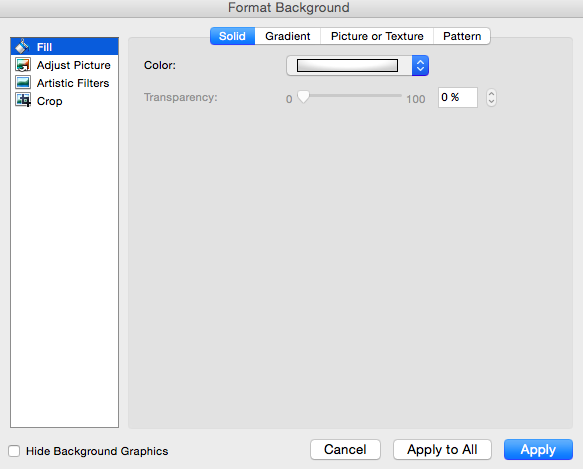
How to Create a Custom Background Using an Image
Sometimes, making the slide background a high-definition image can really make that slide pop. It also encourages you to cut down on text so that only a few keywords complement the image. PowerPoint makes it easy to create a custom background using an image you own.

First, choose your image. Size matters here: Be sure it’s high resolution so that it can fill your slide without becoming blurry or distorted. Here are the 17 best free stock photo sites to help you find some large, great quality images.
To create a custom background using an image on a Mac: Click the slide that you want to add a background picture to. To select multiple slides, click a slide and then press and hold CTRL while you click the other slides.
Next, click the “Themes” tab at the top of your screen. In the “Theme Options” group, click “Background,” then “Format Background.”
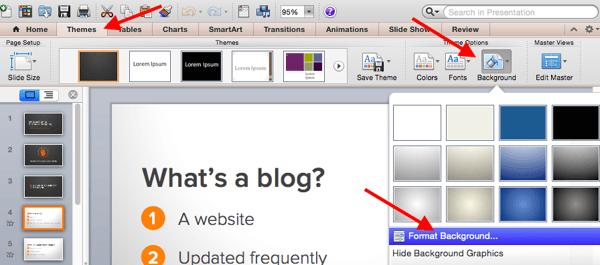
In the window that appears, click “Fill,” then “Picture or Texture.” To insert a picture from a file, click “Choose Picture…” and then locate and double-click the picture you want to insert. If you want to use this picture as a background for just the slides you selected, click “Apply.” If you want to use the picture as a background for all the slides in your presentation, click “Apply to All.”
To create a custom background using an image on a PC: Click the slide that you want to add a background picture to. To select multiple slides, click a slide and then press and hold CTRL while you click the other slides.
Next, click the “Design” tab at the top of your screen. In the “Background” group, click “Background Styles,” then “Format Background.”

In the window that appears, click “Fill,” then “Picture or texture fill.” To insert a picture from a file, click “File” and then locate and double-click the picture you want to insert. If you want to use this picture as a background for just the slides you selected, click “Close.” If you want to use the picture as a background for all the slides in your presentation, click “Apply to All.”
Filling In the Content
1. Fill in the text on your slides using concise language.
Your slides are there to support your speech, not replace it. If your slides contain too much information — like full sentences or (gasp) paragraphs — then your audience members won’t be able to help but read the slides instead of listening to you. Plus … that’s boring. Instead, use slides to enhance keywords and show visuals while you stand up there and do the real work: telling a story and describing your data.
When it comes to your slide text, focus on the main phrases of a bullet point, and cover details verbally. We recommend using up to three bullet points per slide and making any text as simple and concise as possible. A good rule of thumb is this: If you’re using more than two lines per slide or per idea, then you’ve used too much text. Depending on the type of presentation, two lines might even be a little text-heavy.
Are you planning on sending your slides to your audience afterward? If you’re concerned about putting enough information on the slides for people to understand your presentation when they go back to it later, you can always add little details into the slide notes in PowerPoint. You can find the Notes pane at the bottom of your PowerPoint screen, right below your slides. Click and drag the edge of the pane to make it larger or smaller.
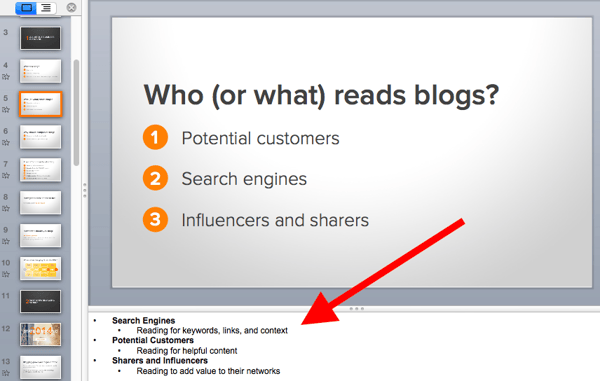
2. Brainstorm your final title with someone else.
Once all your content is there, you’re ready to finalize your title. First, refine your working title as best you can on your own. Is it compelling and interesting enough to engage your audience from the very start? Does it accurately reflect your presentation?
Next — and this is important — connect with someone else to brainstorm the final title together. Read this blog post for a helpful walkthrough on writing a great title and title brainstorming with others.
Filling In Your PowerPoint Design
1. Choose a font that’s easy to read.
Choose either one font to use throughout your presentation, or two (one for your headers and one for your body text) that contrast each other well. Here’s a list of 35 beautiful fonts you can download for free to get you started.
If you decide on two fonts, your header font should be bold and eye-catching, and your body text font should be simple and easy to read. (For more guidance on what fonts work best together, take a look at this visual guide.)
2. Embed your font files.
Fonts changing from one computer to another is one of the most common problems PowerPoint presenters have — and it can really mess up your presentation and flow. What’s actually happening in this case is not that the fonts are changing; it’s that the presentation computer just doesn’t have the same font files installed.
If you’re using a PC and presenting on a PC, then there is a smooth workaround for this issue. When you involve Mac systems, the solution is a bit rougher.
On a PC: When you save your PowerPoint file, click “Save As” and then “Save Options.” Then, select the “Embed TrueType fonts” check box and press “OK.” Now, your presentation will keep the font file and your fonts will not change when you move computers (unless you give your presentation on a Mac).
On a Mac: In PowerPoint for Mac, there’s no option to embed fonts within the presentation. So unless you use ubiquitous typefaces like Arial or Tahoma, your PowerPoint is likely going to encounter font changes on different computers. The best way to avoid this is to save the final version of your presentation slides as JPEGs, and then insert those JPEGs onto your PowerPoint slides. In other words, make each slide a JPEG picture of your slide. (Note that the file size of your PowerPoint will increase if your presentation includes a lot of JPEGs.)
Mac users can easily drag and drop the JPEGs into PowerPoint. If you don’t use actions in your presentation, then this option works especially well.
If you want your presentation to appear “animated,” then you’ll need to do a little tinkering. All you need to do is save JPEGs of each “frame” of the animation. Then, in your final presentation, you’ll just display those JPEGs in the order you’d like the animation to appear. While you’ll technically have several new slides in place of one original one, your audience won’t know the difference.
If you’re a Mac user and want to use this option, then be sure to add this to your checklist as the final step.
3. Adjust the font sizes.
Once you’ve chosen your font, you can start playing around with font size. Carefully choose the font sizes for headers and text, and consistently use the same font face and sizes on all your slides to keep things clean and legible. Be sure your font is big enough so even the audience members in the way back of the room can read them.
4. Adjust line and character spacing.
The biggest PowerPoint no-no is using too much text on a slide. The most effective slides use text sparingly and present it in a way that’s easy to read. One trick to make text more legible without changing the font size or layout is to increase or decrease the space between each line and each letter.
To adjust line spacing:
Select the text you’d like to adjust. On the “Home” tab, in the “Paragraph” group, click “Line Spacing” and choose “Line Spacing Options.” In the Paragraph dialog box’s “Spacing” section, click the “Line Spacing” dropdown list and choose “Exactly.” In the “At” text box, adjust the value accordingly. Click “OK” to save your changes.
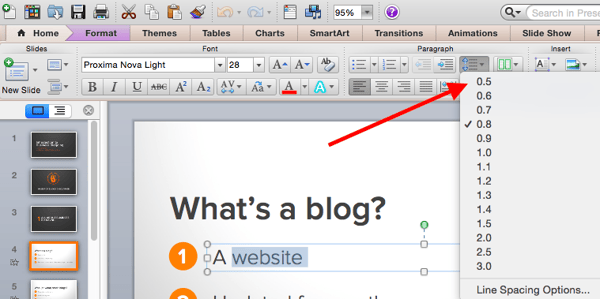
To adjust character spacing:
Select the text you want to change. Then, on the “Home” tab, find and click the “Font” button.” Choose “Character Spacing Options” from the dropdown menu. Adjust spacing as needed.
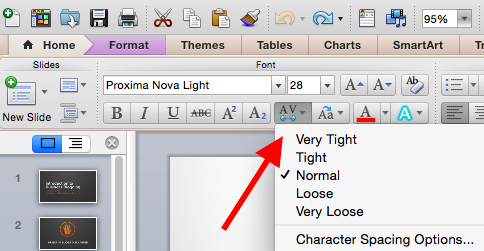
5. Add images.
Great visual cues can have a huge impact on how well your audience understands your message. Using gorgeous images in a slide presentation is the perfect way to keep things interesting.
It’s important, though, that you don’t use images to decorate. This is a very common mistake. Remember: Images are meant to reinforce or complement your message, but they can be distracting. Focus on finding high resolution images so that they look good when expanded without becoming blurry or distorted.
If you don’t have your own images to use, check out our roundup of the 17 best free stock photo sites.
Pro Tip: If you’re finding that the background of an image is distracting, you can actually remove it before putting it into your presentation directly inside PowerPoint — no Photoshop required. Read this blog post for instructions.

6. Use multimedia, but sparingly.
Using multimedia in your presentation, like video and audio, can be an effective way to capture your audience’s attention and encourage retention of your message. In most cases, it’s best to avoid using more than one or two video or audio clips so you don’t detract from your talk or your message.
PowerPoint lets you either link to video/audio files externally, or embed the media directly in your presentation. You should embed these files if you can, but if you use a Mac, you cannot actually embed the video. We’ll get to that in a second.
PC users: Here are two great reasons to embed your multimedia:
- Embedding allows you to play media directly in your presentation. It’ll look much more professional than switching between windows.
- Embedding also means that the file stays within the PowerPoint presentation, so it should play normally without extra work (except on a Mac).
Mac users: You need to be extra careful about using multimedia files. You’ll always need to bring the video and/or audio file with you in the same folder as the PowerPoint presentation. It’s best to only insert video or audio files once the presentation and the containing folder have been saved on a portable drive in their permanent folder.
If your presentation is going to be played on a Windows computer, then Mac users need to make sure their multimedia files are in WMV format. That can get complicated, so if you want to use PowerPoint effectively, consider using the same operating system for designing and presenting no matter what (if that’s something you can control).
7. Design your title slide.
The title of your presentation is often the first impression it gives off — especially if it’s going to be on display as people file in to your presentation — so it’s important to put some time and careful thought into its design.
Here are 20 layout ideas for PowerPoint title slides from Chris Lema:
8. Add any consistent elements, like your company logo.
There’s a reason this is at the end. If you add things like your logo that you want to be in the same place on every slide, any adjustments you make to individual slides could slightly alter the alignment … and you’ll have to go back and adjust them all over again.
Preparing For the Presentation
1. Review and edit your slides.
Spend some time on your own flipping through your slides while practicing your talk. Make sure you can check all of the following off the list:
- Your slides flow well and align with your talk.
- Your slides are free of all grammatical, formatting, or design errors.
- Your multimedia files work.
- You’ve double-checked any mathematical calculations you made yourself.
- You’ve properly attributed any statistics, data, quotes, ideas, etc. to the original source.
- You’ve double-checked you’re actually allowed to use the photos/images you used. (Don’t skip this step. Here’s a cautionary tale about internet copyright law.)
- You’re sure nothing in your presentation could potentially harm any of your partners, stakeholders, audience members, or your company.
- You’ve checked with a friend that nothing in your presentation might offend certain people in your audience — or, if so, that it’s worth it.
2. Know your slides inside out.
The best presenters don’t read off your slides, so it’s important to prepare and practice your presentation ahead of time. You never want to be the person finalizing your talk or presentation half an hour before an event … that’s just poor planning. Plus, what if the projector fails and you have to give your talk without slides? It can happen, and if does, you’ll be incredibly happy you spent so much time preparing.
3. Practice using “presenter view.”
Depending on the venue, you might have a presenter’s screen available to you in addition to the main projected display that your audience can see. PowerPoint has a great tool called “Presenter View,” which includes an area for notes, a timer/clock, a presentation display, and a preview of the next slide.
Make sure “Presenter View” is turned on by selecting it in the “Slide Show” tab of your PowerPoint.
To practice using “Presenter View,” open the “Slide Show” tab within PowerPoint. In the “Presenter Tools” box, click “Presenter View.”
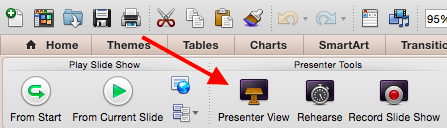
4. Bring your own laptop and a backup copy of your presentation.
This isn’t just a bonus step — it’s an essential one. Technology can mess up on you, and you need to be prepared. Between operating systems or even between different versions of Microsoft Office, PowerPoint can get a little wonky. One way to avoid problems is to ensure you have all the right hardware with you. Bring along your own laptop when you’re presenting, just in case.
Even if you bring your laptop, but especially if you for some reason cannot, bring a backup copy of your PowerPoint file on a flash drive.
What other tips do you have for nailing PowerPoint presentations?
Editor’s note: This post was originally published in October 2015 and has been updated for comprehensiveness.

16 Content Marketing Analytics Tools That Finally Do What You Need
To have a winning marketing strategy, you need to understand the analytics behind that strategy — analytics that highlight important things like: 1) the metrics you care about most, 2) how your current strategy is doing, 3) how close you are to reaching your goals, and 4) areas for improvement.

Content Marketing Analytics
There are a number of marketing analytics tools available with customizable metrics, a variety of visualizations and dashboards, and integrations to help you measure the impact of your marketing strategy. Let’s dive into 16 options.
1. HubSpot Marketing Analytics and Dashboard Software
Today, the most effective marketing is powered by a combination of customer insights and data that show you what you’re doing well and what needs improvement. However, identifying these insights and data isn’t always a straightforward process.
Enter: HubSpot.
HubSpot’s Marketing Analytics and Dashboard Software makes it easy to access all data and insights from a single location in just seconds (no SQL required!).
With HubSpot…
-
Your marketing and CRM data are organized in one, central location.
-
There’s no code necessary to access or pull business insights.
-
It’s an exceptionally easy tool to use and navigate.
HubSpot’s Marketing Analytics and Dashboard Software also offers attribution reporting (including granular, contact, and revenue attribution reporting) so you can connect every customer interaction to the associated record and revenue generated.
Attribution reporting also pinpoints the channels that are hitting and surpassing goals as well as which ones need to be revisited or reconsidered — this provides the necessary insight to allocate your budget effectively.
HubSpot comes with pre-built, beautiful, and customizable dashboards to display your data (you’ll have access to different dashboards based on the Marketing Hub plan you select). These templates are easy to personalize thanks to the drag-and-drop editor.
The Custom Report Builder provides access to your data in one place including contact, company, deal, marketing email, landing page, and blog engagement data. Custom Objects capture data that’s unique to your business and combine it with your CRM, custom data (e.g. inventory data), and contact data so you can create segments and build custom reports, campaigns, and workflows.
Use Behavioral Events to trigger or schedule touchpoints, track custom interactions that are unique to your business, and indicate when a customer is ready for another stage of the buyer’s journey.
Lastly, use Account Based Marketing (ABM) — which bridges the gap between Marketing and Sales and helps close your target accounts — to identify highly-valuable accounts as the tool surfaces prospects that match your customer profile criteria.
Price
There are four Marketing Hub plans with different analytics features and flexibility rangingin price from free (forever) to $3,200 per month.
2. Buffer
Buffer’s content marketing analytics offers the option to build reports according to your goals. Add or remove custom metrics about the performance of numerous social media accounts. You can export those reports to share them easily.
Reports are updated daily so you can be sure you’re receiving timely data. Buffer’s analytics are designed to help you see channel performance at a detailed level on one dashboard.
The software also offers engagement metrics for each account individually. This helps you gain an intricate understanding of how customers are interacting with social content. Measure stories, posts, and hashtag performance as well as access the demographics of your audience across channels.
Price
Buffer’s Marketing Analytics product, Analyze, has two payment options with different features and flexibility that cost $35 per month or $50 per month.
3. Google Analytics
Google Analytics has an expansive system of tools for content marketing analysis. The intuitive interface is easy to navigate and can be used to understand the performance of your content across multiple platforms. The analytics tool integrates with Google’s array of business software so you can access all of your insights in one place.
Price
Google Analytics offers a free and a paid plan. The free plan is ideal for SMBs and you can get started using it immediately. Meanwhile, the paid plan, called Analytics 360, is ideal for enterprise-level companies and requires you to speak with a sales rep for a quote.
4. SimilarWeb
SimilarWeb provides traffic and engagement industry standards and tells you where your website stands among them. This information is useful for discovering how performance stacks up against the competition.
With SimilarWeb, break down your daily active users, sessions per user, use-time, and rank. Discover more information about your audience — such as repeated behaviors or interests — to improve your acquisition strategy.
Price
SimilarWeb offers two plans, one of which is free and another that’s meant for enterprise businesses and requires you to contact a rep for a consultation.
5. Moz
Moz measures the impact of your search-engine-optimized content. Gain insight into how your work is ranking among others in your industry and which keywords are the most effective to use in your strategy.
Moz’s software tracks your site’s keyword rank and how visible it is overtime to learn what is and isn’t performing well among audiences. Additionally, track how competitors rank on search engine results pages (SERPS) — this allows you to spot areas for improvement and the parts of your campaign you can use to target them. To help with this, use Moz’s detailed reports to see how your content is reaching audiences and what you can do to improve.
Price
There are two main Moz solutions, Local and Pro. Both Local and Pro have different plans ranging in features, flexibility, and price. Local ranges in price from $129-299 while Pro ranges in price from $99-599 per month.
6. Hotjar
Use Hotjar to track sessions on your site. Hotjar provides heat maps about how and where customers spend their time while on your website. In fact, there are real-time videos that capture how visitors are navigating and using your website. This allows you to hone in on the content that’s catching your customer’s eye. You can also track conversions and make inferences about which stage of the buyer’s journey customers might be entering or leaving.
Price
Hotjar offers three types of plans. There are two options for those who want a Personal plan that are either free or $39 per month. These options are ideal for personal and low-traffic websites.
The Business plans range in price from $99-$989 per month depending on the number of sessions per day you receive. Lastly, the Agency plan requires you to contact a rep to chat about a plan for your team and clients.
7. Semrush
Semrush is used for search engine optimization (SEO) tracking and helps you track keyword performance in your content as well as monitor brand mentions cross-platform.
Additionally, the tool tracks Google rankings and which of your web pages receive the most traffic. This is helpful because discovering what drives visitors to your site allows you to adjust the content you’re presenting accordingly.
Price
Semrush offers three plans that range in price from $119 to $449 per month.
8. Quintly
Quintly provides you with the insight necessary to analyze your content marketing campaigns. It also helps you make smarter decisions when it comes to social planning by equipping you with customizable metrics so you can better understand how your marketing strategy is working.
Quintly does a deep dive into all of your accounts to uncover metrics that matter to your teams and goals, and you can sort and share reports by team so everyone gets the information they need. Reports can also be automated and measured by impact using Quintly’s machine learning system. Users can access the API, integrate with popular software like Google Search, and overcome data silos.
Price
Quintly’s custom plans start at $300 per month.
9. BuzzSumo
View and analyze marketing trends in real-time with BuzzSumo by topic so you’re able to create content that’s likely to be relevant to your audience. Trends can also be filtered by location — this way, you’ll have an understanding of what’s popular by region.
BuzzSumo lets you customize your feed so you can get the data that matters most to you. Identify relevant keywords to include in your campaigns, access examples of content proven to be successful on BuzzSumo’s site, and use the data you obtain through the tool to discover how you can drive the most traffic to your marketing content.
Price
BuzzSumo offers four plans that range in price from $99 to $499+ per month.
10. Kissmetrics
Kissmetrics allows you to spot a customer’s journey across multiple devices, analyze their behavior on your website, and review conversion metrics (e.g. bounce rate and time on-site).
Kissmetrics focuses on behavioral analytics which is helpful if you want to learn about how customers react to and interact with your content. This will also provide insight into what’s most valuable to users and how to keep visitors coming back.
Price
Request a Kissmetrics demo or check out the payment plans for their two main products, one of which is meant for SaaS and one for ecommerce. The SaaS plan comes with three payment options — those plans are $299, $499, or a custom price (based on your custom plan). Ecommerce also has three plans that cost $299, $499, or a custom price (based on your custom plan).
11. Databox
Databox is a business analytics and KPI dashboard platform that offers insight into the state of your business. The tool organizes all of your business data — from any source — into a single location for accessible performance tracking.
Over 70 available integrations make the process of bringing your data into the tool — as well as displaying, analyzing, and sharing it — simple. There are a number of metrics to choose from as well as custom views that you can apply to your data to display it in a way that works for your team.
The Goal Tracking feature allows you to track progress towards your targets by assigning and focusing on SMART goals within the tool. Scorecards are a feature that notifies you (daily, weekly or monthly) of any updates to your KPIs. There are also other alerts you can receive the moment your data is looking off so you can efficiently resolve the issue before it gets worse.
Price
Databox offers a regular version of their product and an Agency edition. The regular version costs anywhere from free to $248 per month. As for the Agency version of Databox, there’s a free plan but if you need more flexibility, contact a rep for billing details.
12. Supermetrics
Supermetrics is a business analytics tool that you can use to pull marketing data (e.g. SEO, PPC, social media, and web analytics data) from any source and move it into Google Sheets, Google Data Studio, Microsoft Excel, Google BigQuery, or Snowflake. Use Supermetrics as a reporting, analytics, and data storage tool.
Bring your favorite metrics and dimensions into Supermetrics. Then, organize and filter your data within Supermetrics to analyze the success of your efforts and identify areas for improvement.
Price
Supermetrics offers multiple plans for all seven of their products, some of which require you to contact a rep and some of which list pricing on their unique web page.
13. Demand Sage
Demand Sage is a tool used to bring all of your HubSpot datainto Google Sheets. There are one-click, customizable reports to help you understand your marketing and sales success and which areas to focus your efforts. Demand Sage offers one-click data sync and one-click, flexible reports.
Within your spreadsheet, create granular, record-level reports and use the table builder to display your data with any view you’d like. Additionally, attribution and revenue reporting connects marketing and sales data in your reports for greater internal alignment and insight into how your pipeline is working as well as what’s driving revenue.
Price
Demand Sage is free.
14. Grow.com
Grow.com is a business intelligence platform that allows you to import and transform your business’s data from a number of sources and create dashboards with the metrics that matter to you.
Once your data is imported into the platform, it keeps your most relevant data at your fingertips. Build custom metrics, bring disparate data sources together, and select from a number of chart types to visualize your data however you want to. You can also easily share metrics and dashboards with team members to ensure everyone knows where to focus their efforts.
Price
Get a free Grow.com demo and talk to a rep about the price of the right plan for your business.
15. Plecto
Plecto is a dashboard data visualization platform ideal for discovering real-time insights from an unlimited number of sources you pull your data from. Filter across the sources you integrate with Plecto and display data on your dashboards with different variables as needed.
Display data with pre-built KPI dashboards in Plecto or customize your own. There are also gamification features to increase employee engagement and motivation as well as keep team members focused on their goals.
Price
Plecto offers three payment options depending on which plan you choose ranging from $200 per month, $350 per month, or a custom price (based on your Enterprise plan).
16. Adverity
Adverity is an intelligent marketing data analytics platform ideal for data-driven marketing. The tool automates data integration from hundreds of different sources to give you a single view of marketing performance.
Adverity makes it easy to remove any data silos you may have and provide easy access to centrally-located marketing data so your team members can identify and analyze the information they need. Adverity comes with augmented analytics, meaning it uses AI to identify trends, areas for improvement, strengths, and new insights in your data. It also automates the process of creating marketing reports and data visualizations to save you time.
Contact Adverity to get a custom quote on the right plan for your business.
Editor’s note: This post was originally published in June 2020 and has been updated for comprehensiveness.

Is CTR Dead? Why Email Marketers Are Tracking CTOR Instead
Ever since email marketing became a legitimate marketing channel in the 1990s, email marketers have largely measured their performance against two metrics: open rate and clickthrough rate.
The open rate measures the percentage of recipients who opened your email, which helps you gauge the performance of your subject line and preview. Your clickthrough rate (CTR) measures the percentage of recipients who clicked on the links in your email against the total number of subscribers who received the email.

This means that a low open rate can dilute your clickthrough rate, even if a large percentage of the recipients who opened your email clicked through to your website. With this in mind, your clickthrough rate may not be the best indicator of engagement.
So, how do you accurately measure your email campaigns’ true levels of engagement? Cue the click-to-open rate, or CTOR.
At HubSpot, our email marketing team measures their campaigns’ engagement against CTOR because it’s a clear indicator of resonance.
“CTOR helps us understand and measure how our email message and CTAs are resonating and performing with our audience,” says Ari Echt-Wilson, a Conversational Marketing Manager at HubSpot and former Experiment Head of HubSpot’s Global Messaging Team. “Since the only people who see the message are the ones that open the email, it makes sense for us to measure clicks based on those who opened the email.”
How To Calculate the CTOR
To calculate the click-to-open rate, the formula is simple: You start by dividing the number of unique clicks by the number of unique opens. Then, you multiply that number by 100. The answer is your CTOR.
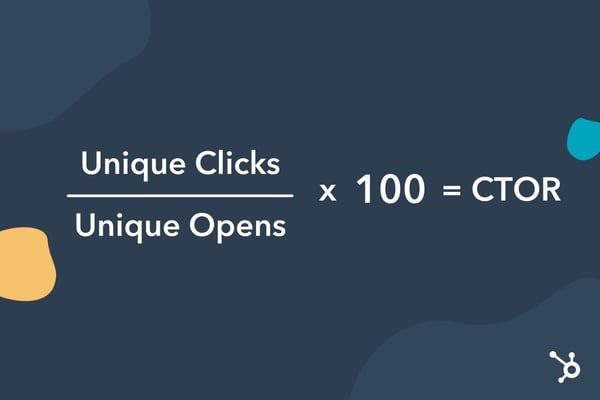
Let’s use an example: You send an email to 1,000 subscribers. Twenty subscribers open the email and there are a total of 15 clicks. Here’s how you find the CTOR: (15/20) x 100 = 75%. This would mean that your CTOR is very high, with the majority of subscribers who opened the email clicking on the links.
When using this formula, it’s important to only count unique opens and clicks. For instance, if one of your subscribers opens your email in the morning and clicks on a link. Then, later that night, they go back to the email and click on it again. You wouldn’t want that subscriber to be counted twice, as that would muddle the data. That’s why the CTOR must only account for unique opens and clicks.
Now that you know how to calculate the CTOR, you may want to set benchmarks for your own emails. A 2020 Campaign Monitor report found that the average click-to-open rate across all industries is 14.3%. Brands in real estate, design, and construction industries see the highest CTOR averages at 17.7%. The same report shows that food and beverage brands experience the lowest CTOR at 8.9%.
Use these numbers as benchmarks for your own campaigns.
CTR vs. CTOR: Which one is better?
According to Echt-Wilson, CTOR is arguably the best metric for measuring an email campaign’s resonance. But this rate can reveal even more insights about your email marketing, helping your team understand how to improve your campaigns.
“If an email is never opened, then it’s hard to grasp how we can move the needle in terms of engagement,” says Tova Miller, a Senior Marketing Manager and former Demand Generation Marketing Manager at HubSpot.
Clickthrough rate is still a valuable metric to track though, especially when you need a holistic view of your email’s performance.
“I look at clickthrough rate to get a high-level understanding of how my email performed overall,” says Jordan Pritikin, the Email and Growth Marketing Manager at HubSpot. “Since CTR accounts for deliverability, subject line performance, and how your email’s content performed, it’s a good metric to look at when I need a quick glance at how my email performed overall.”
How to Improve Your CTOR
Whether you’ve been tracking your CTOR for a while or plan to start, there will always be room for improvement. Here are a few steps to take to enhance your CTOR:
1. Use CTA buttons.
A great email has a few elements: engaging copy, enticing images, and compelling calls-to-action. And in an email full of text, button CTAs are great attention-catchers.
You can use text-based CTAs, like “Click here for more information.” However, some data reports suggest that buttons can lead to higher clickthrough rates. In one A/B test, Campaign Monitor saw a 28% increase in conversions by using a button instead of a text link.
Here are a few tips to keep in mind when using buttons:
- Keep the prompt short: one to three words.
- Use action-based verbs, like “learn,” “discover,” “find,” and “start.”
- Place your CTA after presenting the offer, not before.
Lastly, your CTA button should be prominent enough to stand out, but not so big that it hinders the overall user experience. If you’re not sure, do a squint test to make sure it’s just right.
2. Re-evaluate your offers.
One of the reasons why your click-to-open rate may be low is because your offers don’t align with your audience’s interests. You may find that subscribers are opening up your email but as they scroll, none of the links appeal to them.
There are a few ways to address this:
- Segment your email list – This will ensure you deliver emails that your subscribers are actually interested in. Your leads shouldn’t be receiving the same emails as your customers. They’re in different stages of the funnel and may have different motivations.
- Send a survey – If you’re not sure what offers your audience want to see, who better to ask than the source itself? You can also include link triggers in the email survey that can segment subscribers based on their answers.
3. Stick to one CTA.
There are a few tactics you can use when it comes to email CTAs. Some brands prefer to employ multiple CTAs in their emails, leaving it up to subscribers to click on the one they find most interesting. You’ll see this often in emails for retail offers. The idea is that more CTAs equals more opportunities to increase CTR.
One drawback of this approach is choice overload. It happens when consumers have difficulty making a decision because they are faced with too many options.
With this in mind, consider testing a single CTA. If there’s only one desired action, you may increase your CTOR by using this focused method.
However, keep in mind that this approach may not be appropriate for all campaigns. Experiment, A/B test, and adjust as needed.
Email Marketing Is Always Adapting
Email marketing might be one of the most established marketing channels in the digital era, but it’s always adapting. Clickthrough rate reigned as the superior engagement metric for most of email marketing’s history, but the click-to-open rate is proving to be a lot more revealing and insightful than its predecessor.