
6 Stats that Prove the Importance of Product Videos for Ecommerce
Producing quality videos for your ecommerce site is hard, we know. Equipment is expensive, and specialists who know how to use that equipment cost even more. For that very reason, many ecommerce businesses will settle for photos and graphics just to get the job done.
These video marketing statistics show that video might just be an investment worth making. Sure, you’ll have to dig a little deeper into those pockets at first, but the results will return more than you dreamed.
Product Video Stats Marketers Need to Know
1. Video is the #1 content type used by marketers to sell products and services.
In our Not Another State of Marketing Report, marketers surveyed said that video is the top content type being produced in their content marketing programs, passing blog posts for the first time ever.
2. More than half of marketers invest in some sort of product-related video.
Also in the HubSpot report noted above, we found that nearly one quarter of marketers invested in product promotion videos, while nearly one fifth invested in product demos.
3. 73% more visitors who watch product videos will make a purchase.
Did you know that your products are more likely to sell if you create videos for them? There are quite a few reasons for this, which we’ll cover in the next points. The most important thing to note, however, is simply that videos for your products do prompt more purchases. That’s really the biggest and most important statistic you need.
4. 92% of marketers who use video say it’s an important part of their marketing strategy — up from 78% in 2015.
According to the late-2019 Wyzowl Survey that polled marketers about their video tactics, the number above was up from 78% in 2015. With a stat like this, there’s almost no question that marketers are finding video valuable and worth their investment.
5. 71% of consumers prefer video over other marketing content.
When consumers feel like they understand the products you sell, they’re more likely to take a chance on spending their money. Video clears up a lot of that confusion. Isn’t that what your marketing is all about, anyway? Answering questions with quality content?
6. 87% of Gen Z prefers branded videos or ads that show someone talking about a product.
Gen Z is one of the most digitally connected, and most budget-conscious, generations out there. And, as they reach full purchasing potential, you’ll want to keep their buyer’s journey behavior in mind.
As people in the age group research products, they’ll look for video-based ads, demos, tutorials, unboxings, or video reviews from influencers in order to see how well the product works and what it looks like in real life.
7. 55% of consumers use videos for purchase decisions.
While Gen Z most heavily relies on videos to research products, other age groups aren’t that different. More than half of people in all age groups use video to make a purchasing decision, according to 2019 data from Google.

Ultimately, authentic videos can lead to a greater sense of trust. By providing product videos, you give buyers quality information that doesn’t hide behind good angles and lighting. They understand the products they’re ordering and are happier with their purchases. With every great transaction, you build more and more trust.
Video Stat Knowledge Check
Think you know your video stats? Test yourself with the interactive quiz below to see how well you soaked in the details above. Try not to peak as you answer each question:
Creating an Engaging Product Video
A consumer who trusts your business is worth the investment you’ll make in product video production, isn’t it?
If the stats above have intrigued you, and your ready to invest in your first product video, consider what you’d like to try out first. Here are a few examples of product video formats:
- Demos/Tutorials: These videos walk through how the product or service works so a consumer can see how it functions in a real-world setting.
- Influencer Marketing Videos: If you don’t have the time to produce product videos, but do have some budget to work with, you could consider hiring a macro or micro influencer to post a video on their networks where they talk about or promote your product.
- Ads or Video Promotions: These videos are often shorter than tutorials. They merely highlight the product or service and all of it’s great features, but don’t necessarily need to go into full detail about how it works.
- User-Generated Content: If you have happy customers that are using your product or service, encourage them to film a video review or unboxing that you can then share publicly over social media or on your website. When others see a real person talking about success they had with your brand, they might be more willing to trust your offerings.
To learn more about video marketing, check out this handy ultimate guide.
Editor’s Note: This blog post was originally written in February 2016, but was updated in July 2020 for freshness and comprehensiveness.

16 Important Ways to Use Case Studies in Your Marketing
When you’re thinking about investing in a product or service, what’s the first thing you do?
Usually, it’s one or both of the following: You’ll likely ask your friends whether they’ve tried the product or service, and if they have, whether they would recommend it. You’ll also probably do some online research to see what others are saying about said product or service. Nowadays, 90% of consumers used the internet to find a local business in the last year, and 82% of consumers read online reviews. This shows that the majority of people are looking to peers to make a purchasing decision.Most customers know that a little online research could spare them from a bad experience and poor investment of your budget.
What Is a Marketing Case Study?
A case study is the analysis of a particular instance (or “case”) of something to demonstrate quantifiable results as a result of the application of something. In marketing, case studies are used as social proof — to provide buyers with the context to determine whether they’re making a good choice.
A marketing case study aims to persuade that a process, product, or service can solve a problem. Why? Because it has done so in the past. By including the quantitative and qualitative outcomes of the study, it appeals to logic while painting a picture of what success looks like for the buyer. Both of which can be powerful motivators and objection removers.
Why Use Case Studies?
In essence, case studies are an invaluable asset when it comes to establishing proof that what you’re offering is valuable and of good quality.
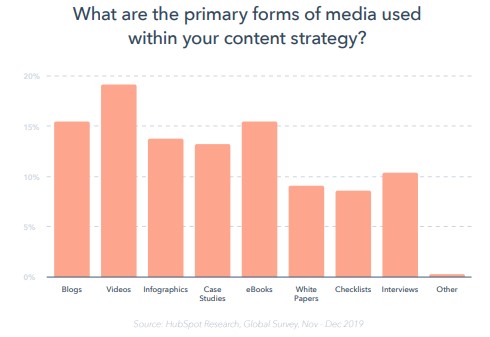
According to HubSpot’s State of Marketing Report 2020, 13% of marketers name case studies as one of the primary forms of media used within their content strategy. This makes them the fifth most popular type of content, outshined only by visual content, blogs, and ebooks.
Okay, so you know case studies work. The question is, how do they work? And how can you squeeze the most value out of them?
When to Use a Case Study
Here are the ways you can market your case studies to get the most out of them.
As a Marketing or Sales Asset
1. Use a case study template to create PDFs for email or downloads.
Do not underestimate the value of providing social proof at just the right time in order to add value and earn their business. Case studies are extremely effective in the consideration stage of the buyer’s journey when they are actively comparing solutions and providers to solve a problem they’re experiencing.
For this reason, case studies in an independent PDF format can be helpful in both marketing and sales. Marketers can use these PDFs as downloads in web content or email campaigns. Sales reps can utilize these assets in demonstrations, in a follow-up, or to overcome objections.
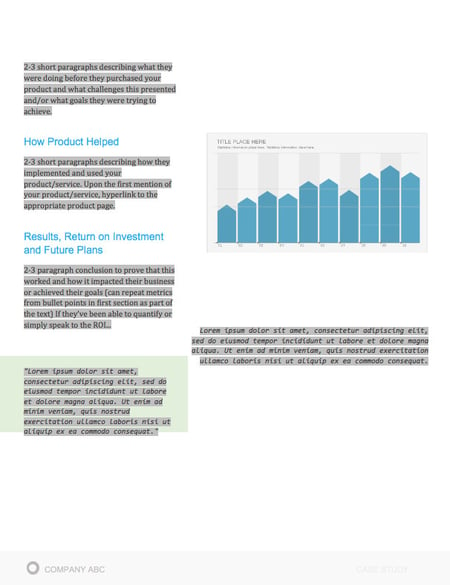
The easiest way to create PDF case studies is by using a case study template. Doing so can decrease the amount of time you spend creating and designing your case study without sacrificing aesthetics. In addition, you can ensure that all your case studies follow a similar branded format.
We’ve created a great case study template (and kit!) that’s already locked and loaded for you to use. All you have to do is input your own text and change the fonts and colors to fit your brand. You can download it here.
On Your Website
2. Have a dedicated case studies page.
You should have a webpage exclusively for housing your case studies. Whether you call this page “Case Studies, “Success Studies,” or “Examples of Our Work,” be sure it’s easy for visitors to find.
Structure on that page is key: Initial challenges are clear for each case, as well as the goals, process, and results.
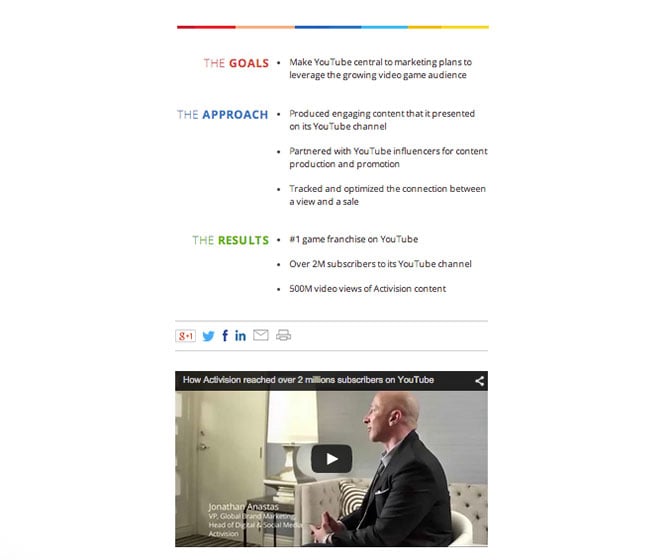
Get Inspired: Google’s Think With Google is an example of a really well structured case study page. The copy is engaging, as are the goals, approach, and results.
3. Put case studies on your home page.
Give website visitors every chance you can to stumble upon evidence of happy customers. Your home page is the perfect place to do this.
There are a number of ways you can include case studies on your homepage. Here are a few examples:
- Customer quotes/testimonials
- A call-to-action (CTA) to view specific case studies
- A slide-in CTA that links to a case study
- A CTA leading to your case studies page
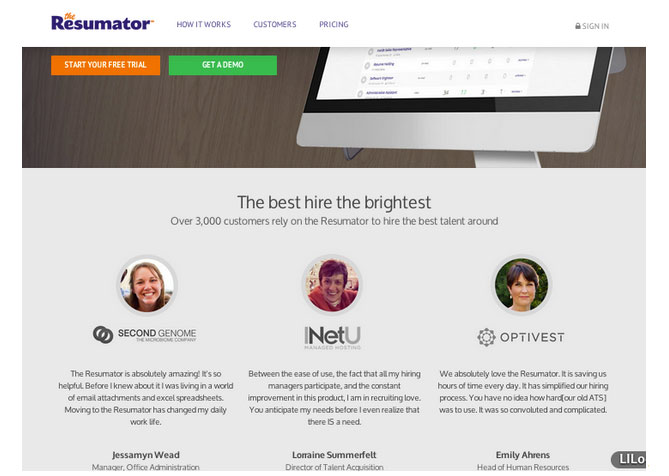
Get Inspired: Theresumator.com incorporates testimonials onto their homepage to strengthen their value proposition.
Bonus Tip: Get personal.
Marketing gurus across the world agree that personalised marketing is the future. You can make your case studies more powerful if you find ways to make them “match” the website visitors that are important to you.
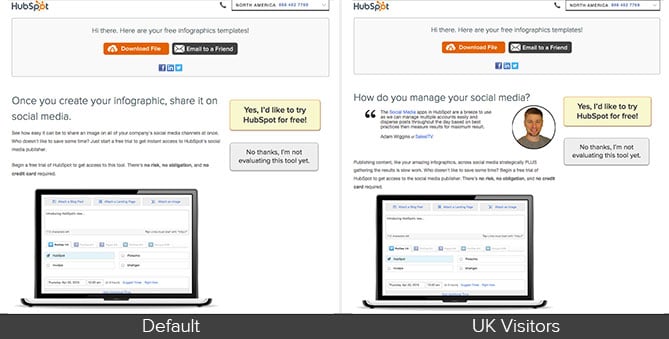
People react to familiarity — for instance, presenting someone from London with a case study from New York may not resonate as well as if you displayed a case study from the U.K. Or you could choose to tailor case studies by industry or company size to the visitor. At HubSpot, we call this “smart content.”
Get Inspired: To help explain smart content, have a look at the example below. Here, we wanted to test whether including testimonials on landing pages influenced conversion rates in the U.K. The landing page on the left is the default landing page shown to visitors from non-U.K. IP addresses. For the landing page on the right, we used smart content to show testimonials to visitors coming from U.K. IP addresses.
4. Implement slide-in CTAs.
Pop-ups have a reputation for being annoying, but there are ways to implement that that won’t irk your website visitors. These CTAs don’t have to be huge, glaring pop-ups — instead, relevant but discreet slide-in CTAs can work really well.
For example, why not test out a slide-in CTA on one of your product pages, with a link to a case study that profiles a customer who’s seen great results using that product?
Get Inspired: If you need some help on creating sliders for your website, check out this tutorial on creating slide-in CTAs.
5. Write blog posts about your case studies.
Once you publish a case study, the next logical step would be to write a blog post about it to expose your audience to it. The trick is to write about the case study in a way that identifies with your audience’s needs. So rather than titling your post “Company X: A Case Study,” you might write about a specific hurdle, issue, or challenge the company overcame, and then use that company’s case study to illustrate how the issues were addressed. It’s important not to center the blog post around your company, product, or service — instead, the customer’s challenges and how they were overcome should take centre stage.
For example, if we had a case study that showed how one customer generated twice as many leads as a result of our marketing automation tool, our blog post might be something along the lines of: “How to Double Lead Flow With Marketing Automation [Case Study].” The blog post would then comprise of a mix of stats, practical tips, as well as some illustrative examples from our case study.
Get Inspired: Check out this great example of a blog post from Moz, titled “How to Build Links to Your Blog – A Case Study.”
6. Create videos from case studies.
Internet services are improving all the time, and as a result, people are consuming more and more video content. Prospects could be more likely to watch a video than they are to read a lengthy case study. If you have the budget, creating videos of your case studies is a really powerful way to communicate your value proposition.
Get Inspired: Check out one of our many video testimonials for some ideas on how to approach your own videos.
7. Use case studies on relevant landing pages.
Once you complete a case study, you’ll have a bank of quotes and results you can pull from. Including quotes on product pages is especially interesting. If website visitors are reading your product pages, they are in a “consideration” mindset, meaning they are actively researching your products, perhaps with an intent to buy. Having customer quotes placed strategically on these pages is a great way to push them over the line and further down the funnel.
These quotes should be measured, results-based snippets, such as, “XX resulted in a 70% increase in blog subscribers in less an 6 months” rather than, “We are proud to be customers of XX, they really look after us.”
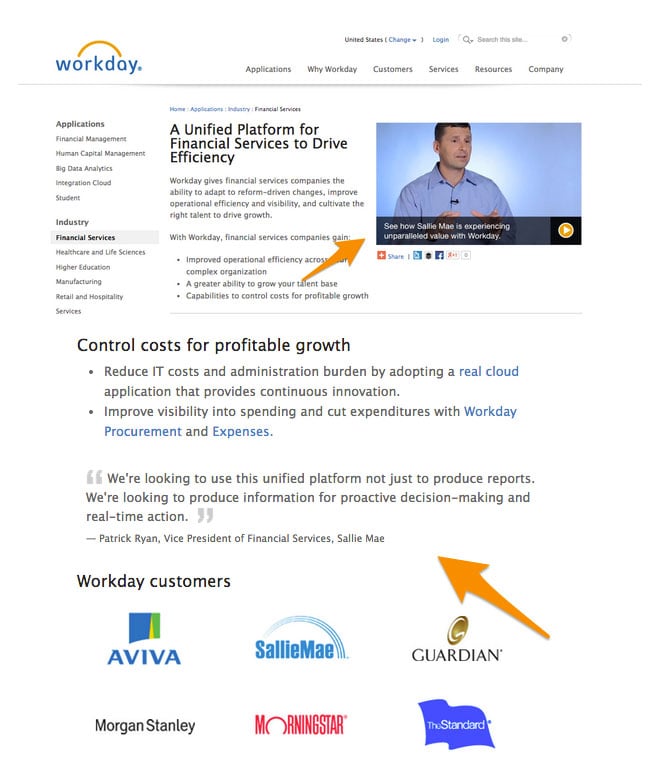
Get Inspired: I really like the way HR Software company Workday incorporates video and testimonials into its solutions pages.
Off Your Website
8. Post about case studies on social media.
Case studies make for perfect social sharing material. Here are a few examples of how you can leverage them on social:
- Share a link to a case study and tag the customer in the post. The trick here is to post your case studies in a way that attracts the right people to click through, rather than just a generic message like, “New Case Study ->> LINK.” Make sure your status communicates clearly the challenge that was overcome or the goal that was achieved. It’s also wise to include the main stats associated with the case study; for example, “2x lead flow,” “125% increase in X,” and so on.
- Update your cover image on Twitter/Facebook showing a happy customer. Our social media cover photo templates should help you with this!
- Add your case study to your list of publications on LinkedIn.
- Share your case studies in relevant LinkedIn Groups.
- Target your new case studies to relevant people on Facebook using dark posts. (Learn about dark posts here.)
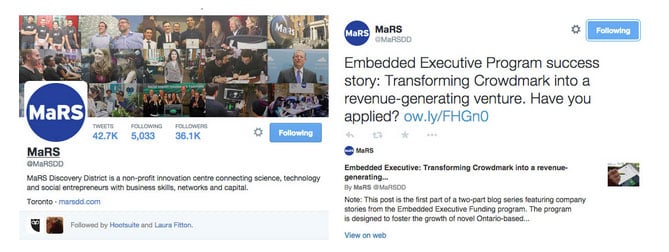
Get Inspired: MaRS Discovery District posts case studies on Twitter to push people towards a desired action.
9. Use case studies in your email marketing.
Case studies are particularly suited to email marketing when you have an industry-segmentable list. For example, if you have a case study from a client in the insurance industry, emailing your case study to your base of insurance-related contacts can be a really relevant addition to a lead nurturing campaign.
Case studies can also be very effective when used in product-specific lead nurture workflows in reactivating opportunities that have gone cold. They can be useful for re-engaging leads that have gone quiet and who were looking at specific areas of your product that the case study relates to.
Get Inspired: It’s important that your lead nurture workflow content includes the appropriate content for where prospects are in the sales cycle. If you need help on how to do this, check out our post on how to map lead nurturing content to each stage in sales cycle.
10. Incorporate case studies into your newsletters.
This idea is as good for your client relations as it is for gaining the attention of your prospects. Customers and clients love feeling as though they’re part of a community. It’s human nature. Prospects warm to companies that look after their customers; companies whose customers are happy and proud to be part of something. Also, whether we are willing to admit it or not, people love to show off!
Get Inspired: Newsletters become stale over time. Give your newsletters a new lease of life with our guide on how to create newsletters that don’t suck.
11. Equip your sales team with case studies.
Tailored content has become increasingly important to sales reps as they look to provide value on the sales call. It’s estimated that consumers go through 70-90% of the buyer’s journey before contacting a vendor. This means that the consumer is more knowledgeable than ever before. Sales reps no longer need to spend an entire call talking about the features and benefits. Sales has become more complex, and reps now need to be armed with content that addresses each stage of the buyer’s process. Case studies can be really useful when it comes to showing prospects how successful other people within a similar industry has benefited from your product or service.
Get Inspired: Case studies are just one type of content that helps your sales team sell. They don’t always work by themselves, though. Check out our list of content types that help sales close more deals.
12. Sneak a case study into your email signature.
Include a link to a recent case study in your email signature. This is particularly useful for salespeople. Here’s what my email signature looks like:

Get Inspired: Did you know that there are lots more ways you can use your email signature to support your marketing? Here are 10 clever suggestions for how you can do this.
13. Use case studies in training.
Having customer case studies is an invaluable asset to have when onboarding new employees. It aids developing their buy-in, belief in, and understanding of your offering.
Get Inspired: Have you completed our Inbound Certification course yet? During our classes, we use case studies to show how inbound marketing is applied in real life.
In Lead-Gen Content
14. Include case studies in your lead gen efforts.
There are a number of offers you can create based off of your case studies, in the form of ebooks, templates, and more. For example you could put together an ebook titled “A step-by-step guide to reaching 10,000 blog subscribers in 3 months…just like XX did.” You could create a more in-depth version of the case study with access to detailed statistics as an offer. (And don’t forget, you can also use quotes and statistics from case studies on the landing page promoting the ebook, which adds credibility and could increase your conversion rates.) Or, you could create a template based on your customer’s approach to success.
Get Inspired: If you think you need to be an awesome designer put together beautiful ebooks, think again. Create ebooks easily using these customisable ebook templates.
You can also use case studies to frame webinars that document how to be successful with X. Using case studies in webinars is great middle-of-the-funnel content and can really help move your leads further down the funnel towards becoming sales qualified leads.
Get Inspired: Webinars are really effective as part of a lead nurturing workflow. Make sure your next webinar is spot on by following these simple webinar tips.
15. Create a bank of evergreen presentations.
It’s important to build up a bank of evergreen content that employees across your organisation can use during presentations or demos. Case studies are perfect for this.
Put together a few slides on the highlights of the case study to stir people’s interest, and then make them available to your sales and customer-facing teams. It’s helpful if the marketer who created the presentation is the one who presents it to anyone who might use them in the future. This ensures they can explain the presentation clearly and answer any questions that might arise.
Get Inspired: What to create presentations people want to use? Here’s a list of tools to make your presentations great.
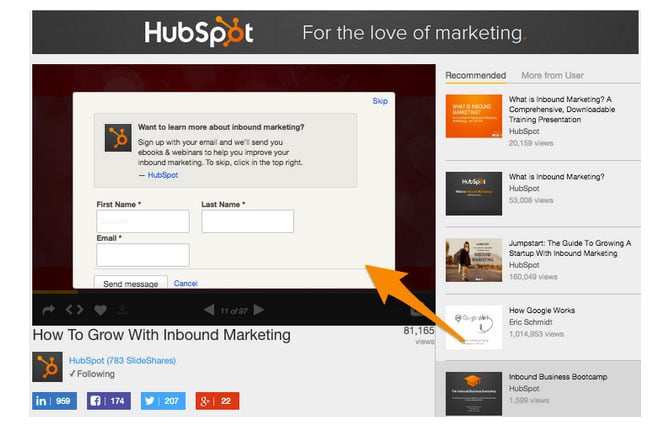
16. Create SlideShares based on case studies.
Following on from a few short slides, you could also put together a more detailed presentation of the case study and upload it to SlideShare. After all, not only is SlideShare SEO-friendly (because Google indexes each presentation), but there is a huge pre-existing audience on SlideShare of over 60 million users you can tap into. SlideShare presentations are also easy to embed and share, and allow you to capture leads directly from the slides via a lead capture form.
Get Inspired: Want to generate more leads with SlideShare, but not sure how to get started? Check out this blog post.
Now that you understand the value of a marketing case study and the different ways that they can be used in your content marketing (and even sales) strategy, your next step is to think about what would convince your target audience to do business with you.
Have you recently accomplished something big for a client? Do you have a process or product with demonstrable results? What do your potential clients hope that you’ll do for them?
The answers to those questions will help you craft compelling content for your case study. Then, all that’s left is putting it into your audience’s hands in formats they want to consume.
Editor’s note: This post was originally published in January 2015 and has been updated for comprehensiveness.

14 Reporting and Business Intelligence Tools For Your Marketing Toolkit
Whether you’re conducting a blog traffic audit or analyzing the success of your most recent social media campaign, it’s undeniable that data is an integral part of any marketing role.
As HubSpot’s Director of Analytics, Bridget Zingale, says, “Reporting and attribution haverevolutionized marketing in every industry. Marketing data allows businesses to make more informed decisions about their audiences’ needs, challenges, and interests.”
Fortunately, there are dozens of analytics tools for marketers with the ability to collect data from different sources, crunch it effectively, and deliver helpful campaign analysis.
Ultimately, reporting tools should do more than just calculate — they should also make the marketer’s job easier, and more productive. Creating attractive and readable reports is key to ensuring that the results of your work are clear for your entire team.
Here, let’s dive into some of the best data reporting tools, as well as some effective business intelligence (BI) platforms, to enable you to properly analyze your work.
Best Business Intelligence & Data Reporting Tools
As Zingale notes, “Data points such as age, ethnicity, gender, location, education, and employment have informed marketing teams and heightened the impact of campaigns across the board.”
Good tools you use should give you the above metrics — but greattools give you more. If you’re one of the 75% of marketerswho report ROI from marketing campaigns, you’re going to need reliable, accurate data. Let’s explore the 14 best tools to help get you the data you need.
1. HubSpot
Price: Free
HubSpot’sfree marketing analytics softwareis useful for keeping all of your needs, including reporting, in one place. HubSpot lets you combine all of your marketing efforts into one report, or mix-and-match your different assets to create different reports for different clients and needs.
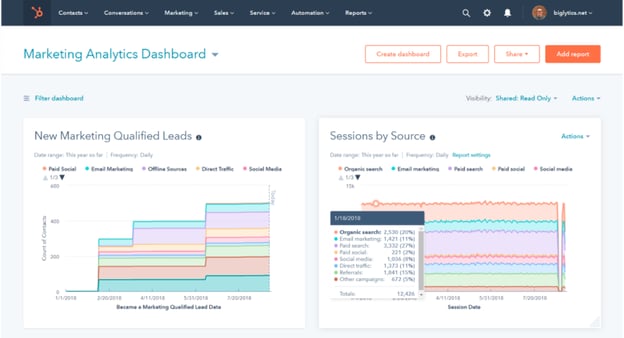
HubSpot’s marketing analytics dashboard is just as customizable, allowing you to add and remove different reports with ease. Best of all, you can get both a general overview and specific insights into your work’s performance, since you can easily move between different marketing reports within HubSpot.
2. Calendar
Price: Free plan, or $6-$8/mo.
Calendar offers analytics of a slightly different sort: productivity. It has a number of features designed to analyze how your team’s time is spent. By tracking your moment-to-moment activities on a daily basis, you can identify key areas in which your schedule could be improved.
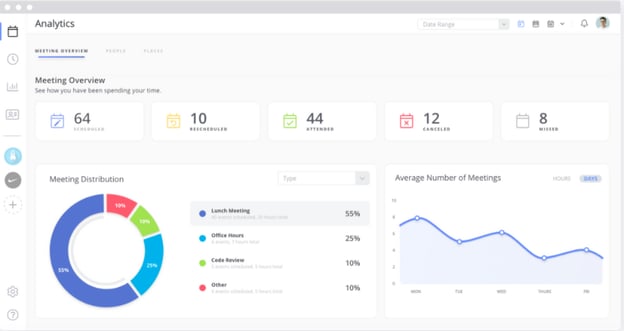
As important as it is to have your marketing analytics at your fingertips, knowing how you use your time is just as important for maximizing output. Calendar’s clear and simple reporting tools give you helpful reports on what your agenda looks like and what you can do to make it better.
3. DashThis
DashThis is an effective tool for keeping up with marketing analytics at a glance. As its name suggests, DashThis is a dashboard that provides clear data on your KPIs for campaigns. You can access quick metrics and reports from your dashboard, shown below:
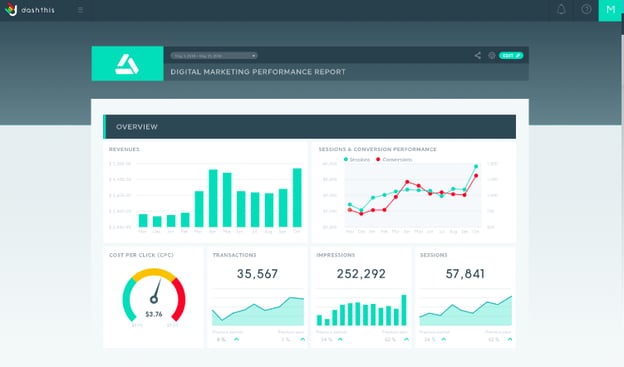
DashThis lets you select a template and then automatically fills that template with your data, greatly streamlining the reporting process. It also exports data into PDF files, which can be easily shared between team members.
4. Raven Tools
Raven Tools offers many of the tools expected from reporting software — SEO analysis, social media engagement, funnel performance tracking — as well as competitor comparison.
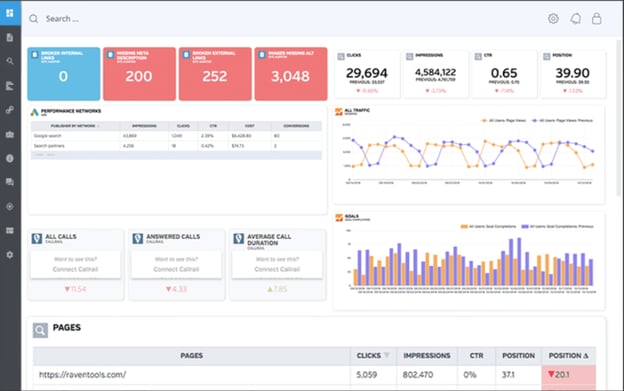
Whether it’s big-picture analyses like domain authority or small-scale comparisons of site functionality, Raven Tools lets you stay on top of how you’re faring in competitive spaces. Additionally, its drag-and-drop editor and report generator makes creating custom, professional-grade marketing reports easier.
5. Megalytic
Megalytic eases the process of combining marketing data from lots of different sources. Plenty of tools on this list allow for the integration of different types of data, but Megalytic is especially designed to import data from a range of marketing software.
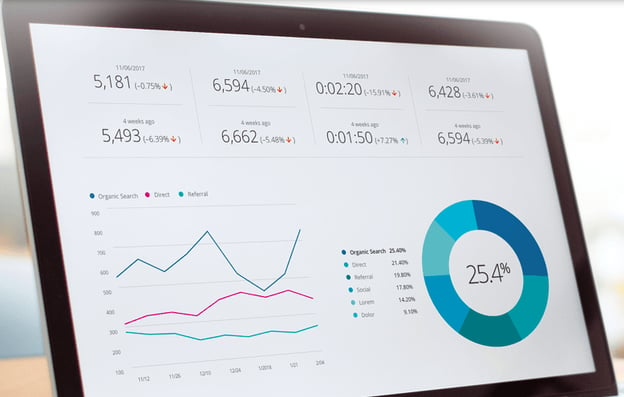
It takes only a couple of moments to access data from Google Analytics, Facebook Ads, Adwords, and more on Megalytic, and it can even process and report data stored in CSV files. If you’re looking to produce a comprehensive report that pulls together loads of disparate data into one place, Megalytic is a smart choice.
6. Klipfolio
As important as it is for reporting tools to effectively take in and analyze data, they need to be able to produce readable reports, as well. Klipfolio is great for making sure your reports can be read and accessed with ease across technologies. Your results can be accessed on a single dashboard that updates in real-time.
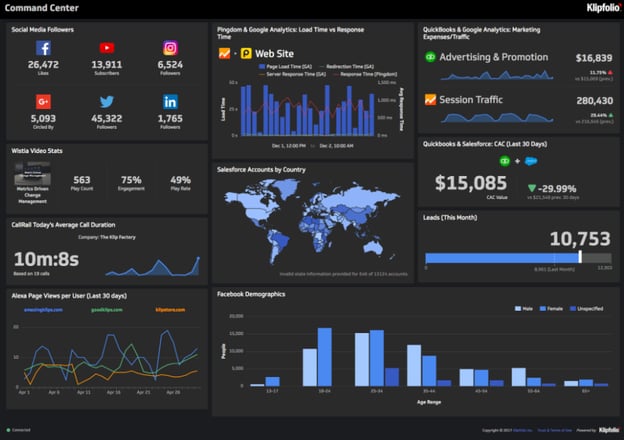
Additionally, Klipfolio allows you to share access to your reports through Slack, email, or custom links, and it also enables you to sync your dashboards in real time across multiple devices such as smartphones, web browsers, and even TV screens. Being able to easily pull up your analytics dashboard at any moment on any number of devices is crucial for being able to report on-the-go or from various locations.
7. Mixpanel
Mixpanel is a tracking and reporting software tool that was initially created primarily for product managers, not marketers. As a result, its interface isn’t as streamlined or marketing-driven as some of the other options on this list, but it makes up for this with powerful analytics tools that give insight into how your work is faring.
Mixpanel is particularly attuned to identifying trends in engagement and count. It tracks how people engage with certain products over time and how different features influence user behavior with bright, colorful graphs.
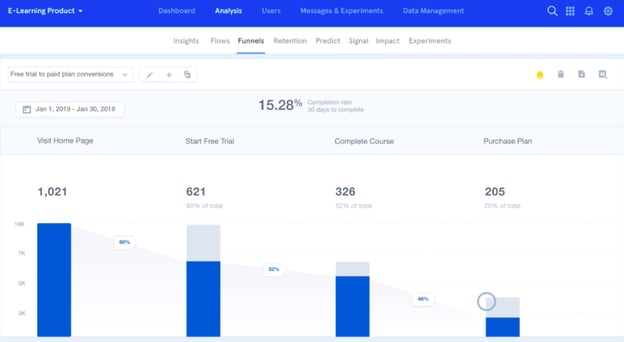
If you’re especially interested in keeping track of how a certain site or product is performing, it can be a valuable tool for reporting on that kind of information. Mixpanel allows you to produce readable reports of uniquely high-level data analysis.
8. Intercom
Although Intercom is a messaging platform first and foremost, it also delivers a deep view of a company’s customer base. Through integrations with over 100 marketing tools, Intercom lets marketers track, segment, and identify similarities between their customers. One of the best use cases for Intercom’s BI features is account-based marketing and messaging.

Intercom displays performance figures for each stage of your sales and marketing funnel, helping you see where the best opportunities lie and how to tap into them. You can also break down metrics by individual representatives, teams, timeframes, and more.
9. G2
Price: Free
G2 is the go-to website for stacking up software tools against one another. G2 gives detailed charts for every category of marketing software, explaining the strengths and weaknesses of each available product.
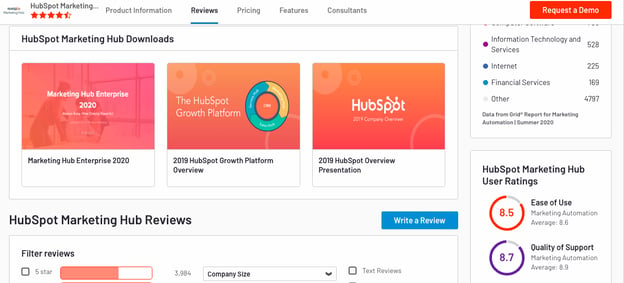
Need an enterprise resource planning tool? G2 covers those. What about an e-commerce platform? G2 can help you pick the best option in that category, too. Certain services, including staffing and translation services, are also reviewed by G2.
10. Databox
Price: Free plan, or $49-$248/mo.
Through integrations with HubSpot CRM, Google Analytics, Facebook, LinkedIn, Instagram, and more, Databox compiles popular marketing services and social media into one interface. It comes with pre-configured report templates, but users can also design custom reports.Think of Databox like a dashboard for your dashboards, where you can see valuable marketing and sales metrics.
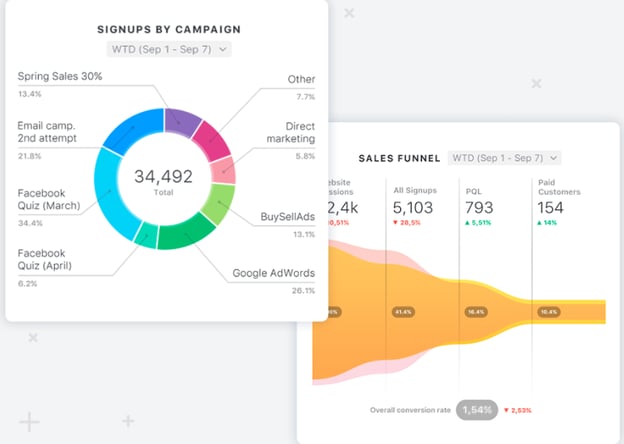
The reporting tool lets you view campaign KPIs, check progress, calculate investment returns, and receive notifications when metrics fall outside of specified ranges. Databox has a desktop version, of course, but it also displays data on mobile and via applications like Slack.
Statisticians and analysts may be more comfortable with reporting and BI than marketers, but these tools make it easy. Pick the right ones, and get data-driven campaign insights with ease.
11. MaxG
Price: Free plan, or $49-$499/mo.
MaxG is a platform that leverages AI to drive results. Their software prioritizes recommendations when delivering insights to eliminate guesswork about how to improve content.
The reports are broken down into metrics, shown below. MaxG’s software keeps track of how many users interacted with various content across your webpages.
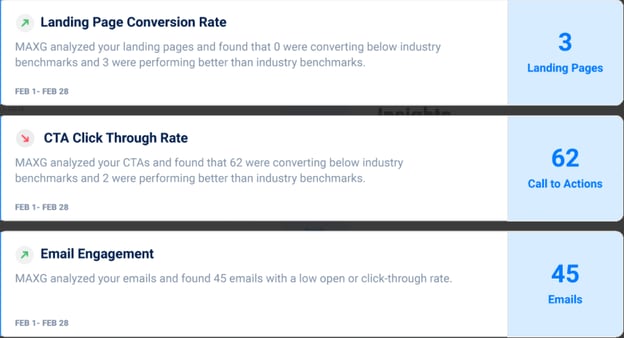
The platform offers insights on multiple metrics, including email campaigns, landing pages, and CTAs. In addition to performance recommendations, the tool also provides resources that educate its users about various topics, like an informative blog post.
12. Microsoft Power BI
This service is offered by Microsoft. If you want to integrate data directly into reports, this is a good tool for you. Power BI is a useful tool, and was formulated by the engineers at the company so users can get powerful, full-scale analytics at a low cost.
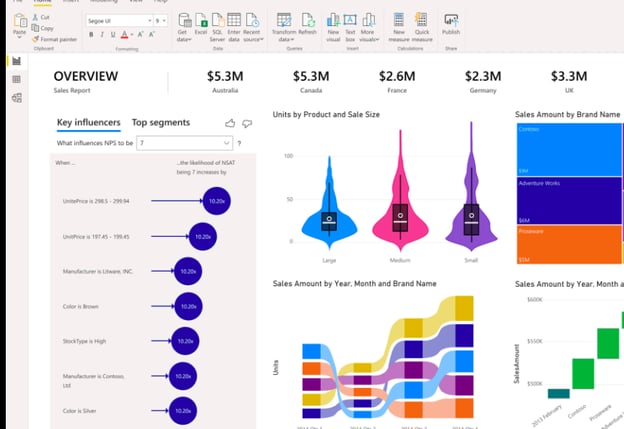
Power BI’s analytics are able to scale for organizations of any size. It boasts built-in AI software that offers custom data metrics. You’ll also have a brilliant display of visualizations to go along with your insights.
You can use Power BI to query your data and edit it without affecting other programs you use. In addition to an Excel integration, the software’s dashboard is easy to navigate.
13. Datapine
With Datapine, you’ll have access to reporting tools that communicate KPIs on a single dashboard. The quick access to real-time, accurate metrics saves you time and keeps your team on the same page.
If you don’t have much technical experience, you won’t have to worry — Datapine is easy to navigate and analyze. The platform is also highly integratable, so you can customize results from other sources.
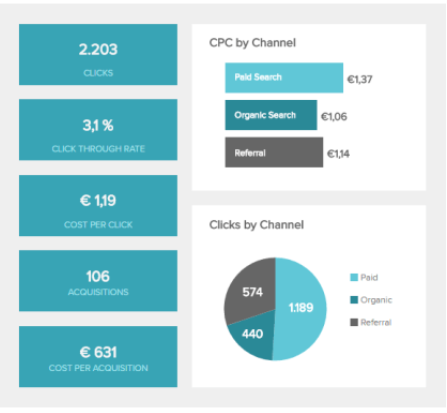
Personalize further by dragging and dropping KPIs that mean the most onto your dashboard. Datapine gives you access to a global performance filter and predictive analysis. Essentially, the AI-powered software combs through data and suggests improvements.
Let’s say you need an inclusive, sophisticated report that’s quick to gather. Datapine lets you export dashboards by emails, URL, or with an embed code, which is handy for your presentation.
14. Zoho Analytics
Zoho Analytics is a part of the larger Zoho Cloud software suite. With it, you can synchronize data that’s spread across multiple sources. The data will sync on a periodic basis so you won’t have to worry about continuously deducing the numbers.
Like other platforms, Zoho’s reports are completely customizable. Some of the options you can include are split columns, cleanup data, and calculated fields. This is so you can receive the data that matters most to your business goals.
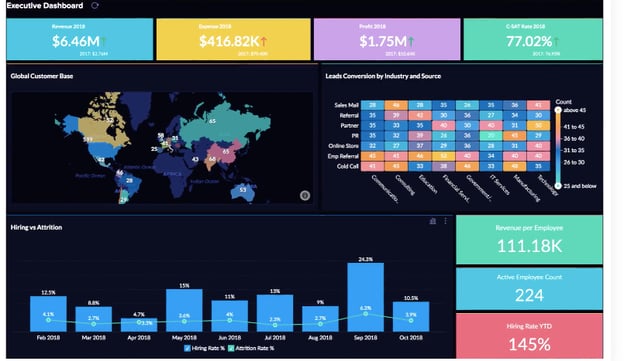
If you want to compare data from multiple sources, add lookup columns so they’ll be included in reports. As another feature of reports, format the data to your liking. With over 40 chart types, like geographical maps, funnels, tables, and heat maps, reports can be extremely detailed and streamlined.
As marketers, we use data daily. It’s an integral part of what we have to do for our jobs. That’s why it’s a necessity to have data that works for you.
If, right now, your data reporting tool is nothing short of a headache, one of these tools can be a great places to start. They’re going to offer you personalized results that you can share with your team, which will keep everyone aligned.

The Key Role Technical Marketing Can Play in Content Strategy
Technical marketing is a key aspect of a successful content marketing strategy, particularly if your organization deals with complex products and services.
But it can be difficult when your marketers don’t have a firm understanding of the technical aspects behind your product.
Without technical expertise, your marketing team likely has a difficult time executing on content that will resonate with your core audience and — ultimately — turning readers into customers.
In this blog, we’ll take a look at why technical marketing is so important, as well as the skills necessary to successfully implement it as part of your wider marketing strategy.
But first, let’s take a look at what technical marketing actually is.
What is technical marketing?
Technical marketing may be a confusing term, with differing definitions.
In more recent times, it has been used to reference the technology increasingly used in the marketing industry.
Historically, however, it refers to a specific type of marketing that focuses primarily on the specifications and, of course, ‘technical’ aspects of a product or service. It’s this second understanding that we will be focusing on.
This type of marketing centers on exactly how a product or service works, and therefore the detail of exactly how it will benefit the user. This is typically more necessary in technical fields where the products are more complex such as engineering electronics, and equally in other complex areas such as finance.
Why is technical marketing important?
Technical marketing is a crucial part of any marketing strategy, particularly when consumers are very knowledgeable about the subject matter and have a detailed understanding of the product or service.
More generalist marketing, and providing more of an ‘overview’ of a product, is not likely to cut it with these consumers — they require more in-depth information. Technical marketing is therefore a necessary component of content strategy, in order to engage, attract, and delight a more technical audience.
Since Google’s Medic Update, there’s been a huge spotlight on EAT-ing, or content that demonstrates Expertise, Authority & Trust.
Positioning content that covers technical aspects of a service or product, then, should also help to improve rankings… if it’s done properly.
So, technical marketing is clearly a key part of your marketing strategy. But how do you achieve it?
Technical Marketing Skills
To successfully incorporate technical marketing into your content strategy, there are some key skills that your technical marketing team will need to hone.
Let’s break this down into content marketing as a whole, qualities required of a technical marketing manager, and those of a technical marketing writer.
Technical Content Marketing
Technical content marketing should play just as big of a role in your content strategy as any other marketing activity.
Marketing is all about understanding your audience’s needs and pain points, and navigating them towards a useful solution. Yet typically, this form of marketing will require an even greater dose of creativity, with a need to continually search for new avenues to make technical and complex products and services fascinating, and arrive in the hands of the right people.
To incorporate technical content marketing into content planning and wider strategy, we’ve put together some key considerations and essentials:
- Targeting a range of areas. Considered purchases such as those that require technical marketing might need content targeting multiple stakeholders, and various pain points, if your product affects several business areas. For instance, sales-driven technical content, marketing, accounts etc. For this reason, you’ll have to really contextualize and hone in on your personas pain points, and how best to approach them.
- Targeted content offers. Talking about in-depth topics through different content platforms and communicating about the product in a more thorough manner assumes a level of knowledge with prospects, thereby attracting a better fit and more qualified visits to your website. Consider technical readouts, product demos, user manuals, setup checklists, training materials, or online courses. Technical video tends to be a great format, but you’ll need to judge what works best for your market!
- Think about all of the buyer’s journey stages. Come up with consideration and decision-stage content or flesh out personas based on common specification questions. Case studies on specific use cases and scenarios will help build trust and establish fit, and help consumers to better weigh up the product or service. And don’t forget the delight stage content! Improve the retention of your products and services, and create real brand advocates through FAQ’s, How-to’s, and videos.
- “Versus” and “Or”. You need to understand and cater to comparison-focused searches such as “versus” and “or” in your content planning. “Your product vs. competitor product” is a key stage in the consideration phase of your prospective buyer’s journey. For example, prospective TV buyers might search for “OLED vs. QLED model benefits”.
- Think about how you can upsell. If customers are engaging with advice and help-driven content, you may be able to identify opportunities to upsell! For example, if an existing customer views or downloads information on higher product tiers, or functionality available in paid add-ons, your sales team might reach out to discuss potential upgrades.
- Work backwards. This may sound counterintuitive, but start from the feature. You’re probably used to the following formula: persona > pain point > search term research > advice-driven content > relevant product or service. Yet, if this starting information isn’t available to you, or your personas pain points aren’t well-defined, you can reverse engineer the process. For instance, let’s say you’re a HubSpot Partner and you want to better promote the chatbot software to your SaaS personas … you may write content about how automating routine support questions improves service team response times. This way, you can target your content around the product in the most helpful way.
Technical Marketing Manager
So what does it take to be a technical marketing manager and to implement all of the above into your content marketing strategy? There are certainly some key characteristics necessary to this role, and some definite skills to hone. Here are some of the most important aspects to consider:
- Public speaking skills. This may be unexpected, but it’s an incredibly important skill in technical marketing, as part of a wider content marketing strategy. Given that the content that tends to perform well are conferences, video, and presentations, a technical marketing manager must be able to communicate technical aspects in this thought leadership setting.
- Training skills. Similarly, another content form that lends itself well to this style of marketing is training courses on the products and services offered. Great training skills are therefore necessary, both for online and in-person technical training.
- Big picture view. It’s essential that a technical marketing manager has wider business knowledge, to understand the ROI for the specific product, as well as the product’s use cases. Wider industry knowledge is also a must, with an understanding of complementary or substitute products on the market. For example, if you think about your prospect’s existing subscriptions or tool stack, a detailed overview of the specifications and limitations of your product will highlight where your offering will complement or overlap with their existing tools.
- Deal with objections. With more involvement in business operations, your concrete understanding of your product’s specifications will be necessary to better explain where the features are adding value.
- Problem-solving. Ultimately, marketing is all about helping consumers solve their problems. It’s therefore important to be consultative and empathetic, allowing you to explore and further advise prospect’s decision-making processes by continually looking at specific needs, and aligning features and uses of the product to this.
- An honest and understanding approach. As well as being empathetic, it’s also important to be helpful so that prospects make the most informed decisions on product fit and commitment. Consider questions like, ‘Does the service offering tick all their boxes? How much time and money will they need to commit to adopt your product?’
Ultimately, all of this comes down to the technical marketing manager’s strategic planning ability. It’s not just about all of this information that you’ve gathered from the industry and personas, but what you do with it.
You have to think about how best to engage a technical audience, which takes real time, planning, and market research, as well as how this may fit in with wider business goals.
Technical Marketing Writer
So we’ve looked at how you incorporate technical marketing into your strategy, as well as who’s responsible for the overarching goals, but we’re forgetting one exceptionally key piece of the puzzle: the technical marketing writer.
A technical marketing writer has a real responsibility to commit these ideas to paper (or video, as the case may be). Their content will be the driving force behind better qualified leads.
Here are a few aspects of content you’ll want any technical marketing writer to understand:
- The content needs to live and breathe the product or service it’s related to, and the audience that desires it. Whether this be through product descriptions, web pages, or more general industry-related content that will drive traffic.
- It’s not just a strategist that needs technical knowledge — the writer themselves will need a full understanding of a product or services’ USPs, abilities and benefits. And this should outweigh the understanding of the customer — there should be no questions left unanswered.
- Similarly, this technical knowledge is essential for those that are putting pen to paper. They need to have the ability to best showcase the technical data of the product or service to position the company as an expert in the field.
- They’ll also need strong research skills to get up-to-date knowledge on wider market trends, as well as the ability to retain and communicate this information to consumers, and showcase it in communication such as newsletters.
- They will, of course, need to be an excellent writer. As we have seen, you need to understand your personas from a content platform perspective, but you’ll also need to know how to write for them. This includes tone of voice: is it appropriate to write it simplistically? Or will it be more fitting to include industry jargon?
Ultimately, technical marketing can be a really important component of your content marketing strategy if your industry or products and services lend themselves to it.
Technical marketing can help you attract more qualified leads and showcase your company as an expert in the industry. Create a clear technical marketing strategy so that you can cut through the marketing noise, and deliver an exciting and engaging message to your audience.

The Ins and Outs of Facebook Landing Pages
How many times have you interacted with an ad on Facebook and gotten lost down a rabbit hole? If you’re like me, your answer is probably up in the dozens. I could click on an ad about ice cream, and five minutes later, find myself looking at YouTube videos of homemade sundaes.
Sometimes, though, I come across an ad that’s seamless — They’re quick to grab my attention, and it tells me everything I need to know when I reach the landing page.
This morning, for example, I checked my timeline. I came across this ad while scrolling, and because I saw my favorite colors in the ad, I had to click on the image.
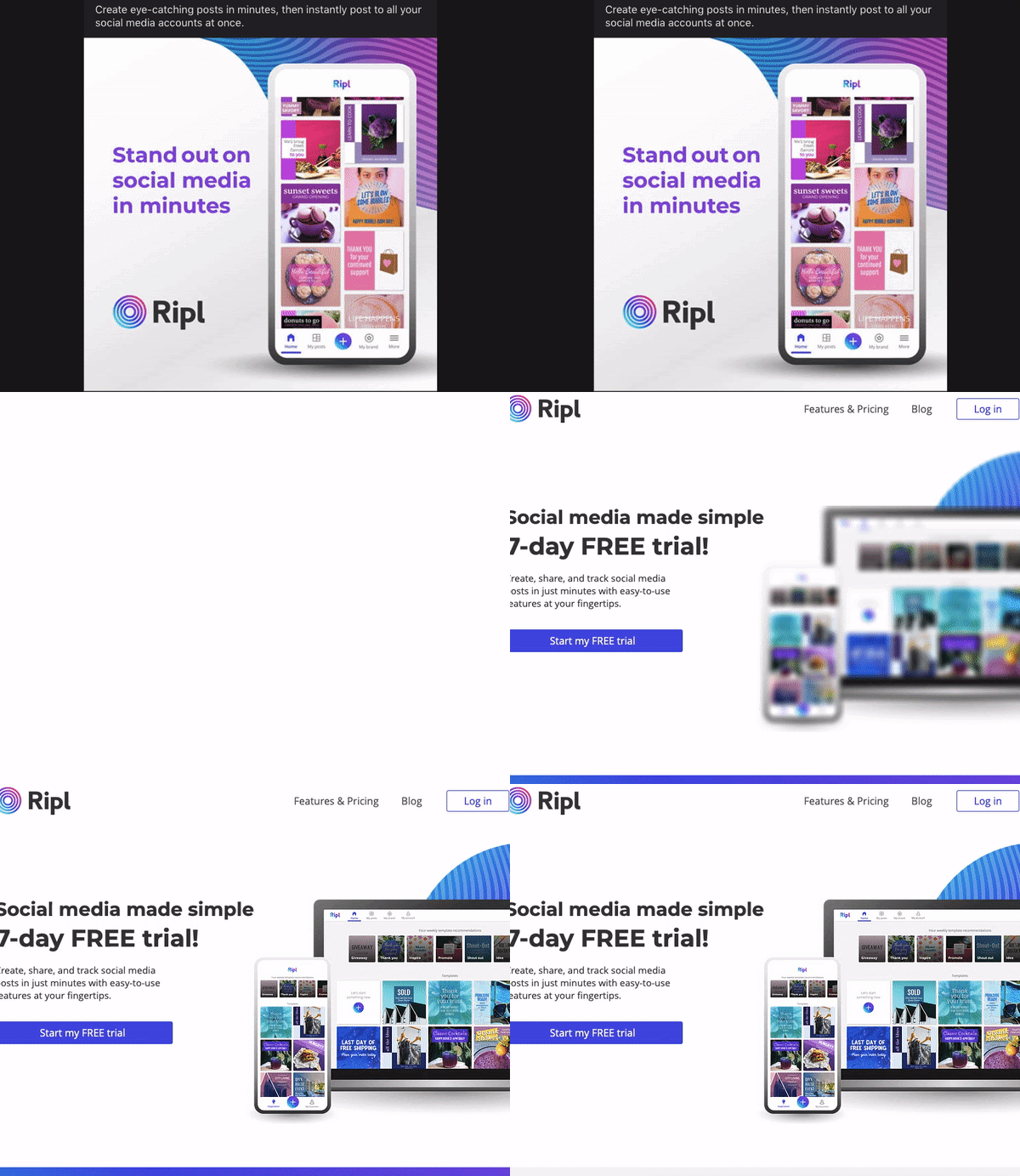
The landing page wasn’t busy. In fact, the simplicity caught my attention. All the page had was text, an image, and a CTA. I noticed how the ad and landing page were centered around the same product.
It was effective because its only purpose was to get me to fill out the free trial offer, and that’s exactly what I did. After all, I wanted to track my personal Instagram posts.
As far as Facebook landing pages go, this one was great.
Have you ever made a landing page specifically for Facebook ads? If the thought of creating another landing page just for social media sounds like a burden you’d rather avoid, don’t worry. In most cases, you won’t need to make more than a few small adjustments to one you already have.
If you’re ready to dive into what makes Facebook landing pages a must for ads, read on, and let’s get started.
A landing page is a web page visitors “land” on when they engage with an ad or offer. The purpose of a landing page is to drive action by offering something of value in exchange for lead information. Usually, they’ll have a form to download a free ebook, receive a demo, get a template, or something similar.
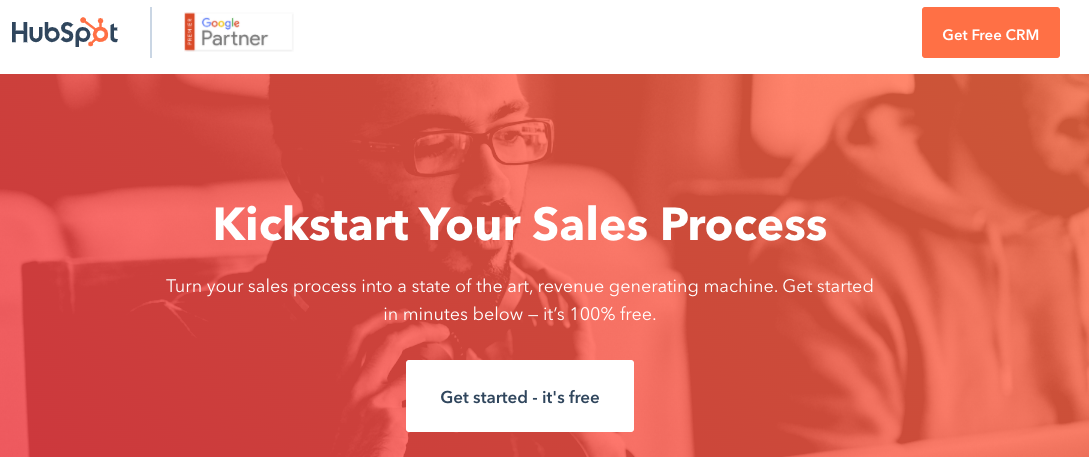
Good landing pages, like the one above, reflect the company and include at least one CTA. Facebook landing pages have the same goal.
Facebook landing pages refer to the ones attached to Facebook ads. They’re still meant to entice audience members to take action, but are optimized for use on Facebook.
Just like there’s best practices for creating landing pages for your website, there’s some for those linked to Facebook ads. They have to do with your ad goals and optimizing the content for audiences.
They shouldn’t differ largely from landing pages on your website, in fact, they should mirror your brand. You’ll just have different things to look for — So instead of traffic being the number one priority, now it might be the number of shares or comments. If you’re someone who benefits from visual examples like I do, don’t worry, we’ll go over best practices, as well.
So let’s dive into how to create a landing page that’ll be an amazing experience for your Facebook audience.
There’s no landing page creation tool for Facebook, but you can insert them into ads via Ad Manager to boost leads and conversions. Even without this function, the website has general pointers for making your pages stand out to audiences.
Facebook suggests making the page easy to navigate. The content should be straightforward and relevant to its supporting ad to prevent confusion. And finally, match the page with the overall branding of your website.
Those are pretty straightforward, right? Upload a page that’s comprehensive and branded. But there’s a little more to it than that — let’s take a deeper look at creating Facebook landing pages.
For this example, let’s pretend I’m creating a Facebook landing page for an ebook offer. The ebook is directly related to the services my fictional PR company, Off The Press Release, provides. This offer and ad are intended to increase conversions.
1. Choose a template.
I am not a website designer, so I decided to use a landing page builder to make mine, and it turned out looking awesome. For this design, I decided to use Wix, but you can use any software with webpage tools, like HubSpot or Mailchimp.
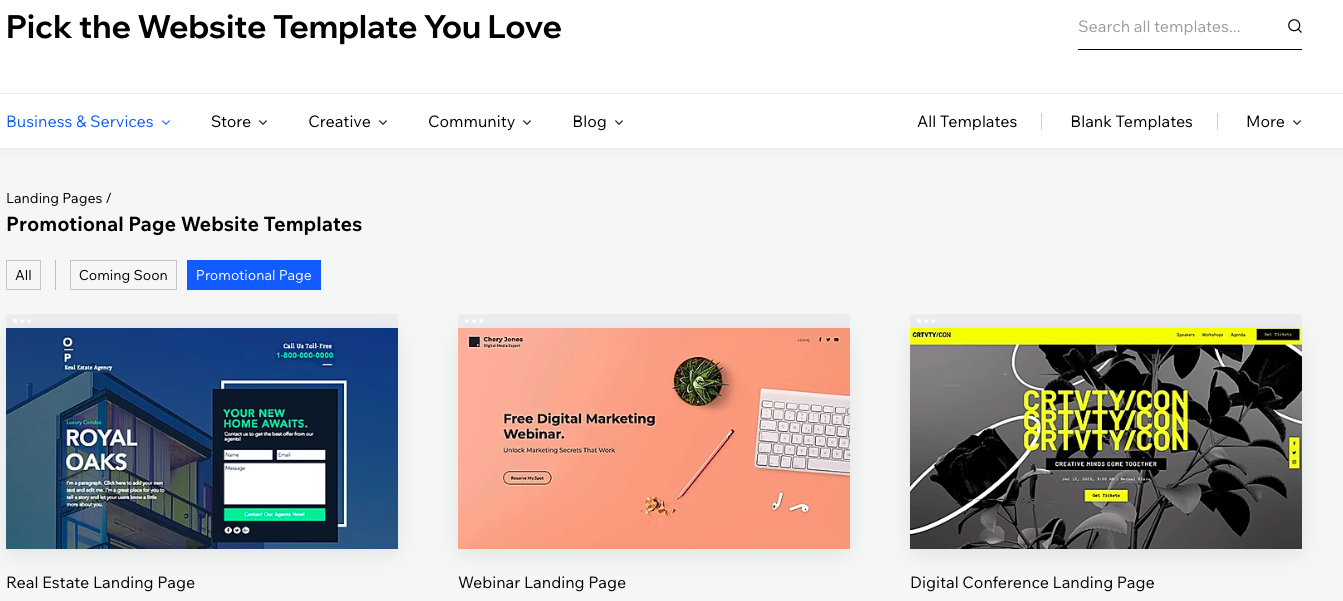
When picking my template, I wanted to go with one that would best serve my offer. I decided that one with a simple form and text — that way, I wouldn’t have much to edit, and the static design wouldn’t distract Facebook viewers.
A simple template for a conversion ad is ideal. Landing pages should be a simple design so they don’t distract audiences from engaging with the right content. In this case, an ebook offer.
2. Brand the content.
With a template picked out, I changed the design to fit with my brand. First, I added new colors: Pink, and midnight blue, to match my company. Then, I changed the text to appear more conversational and relevant to my offer.
I wanted my copy to connect with my Facebook audience. Additionally, I chose colors that were appealing — They weren’t too bright or dim.
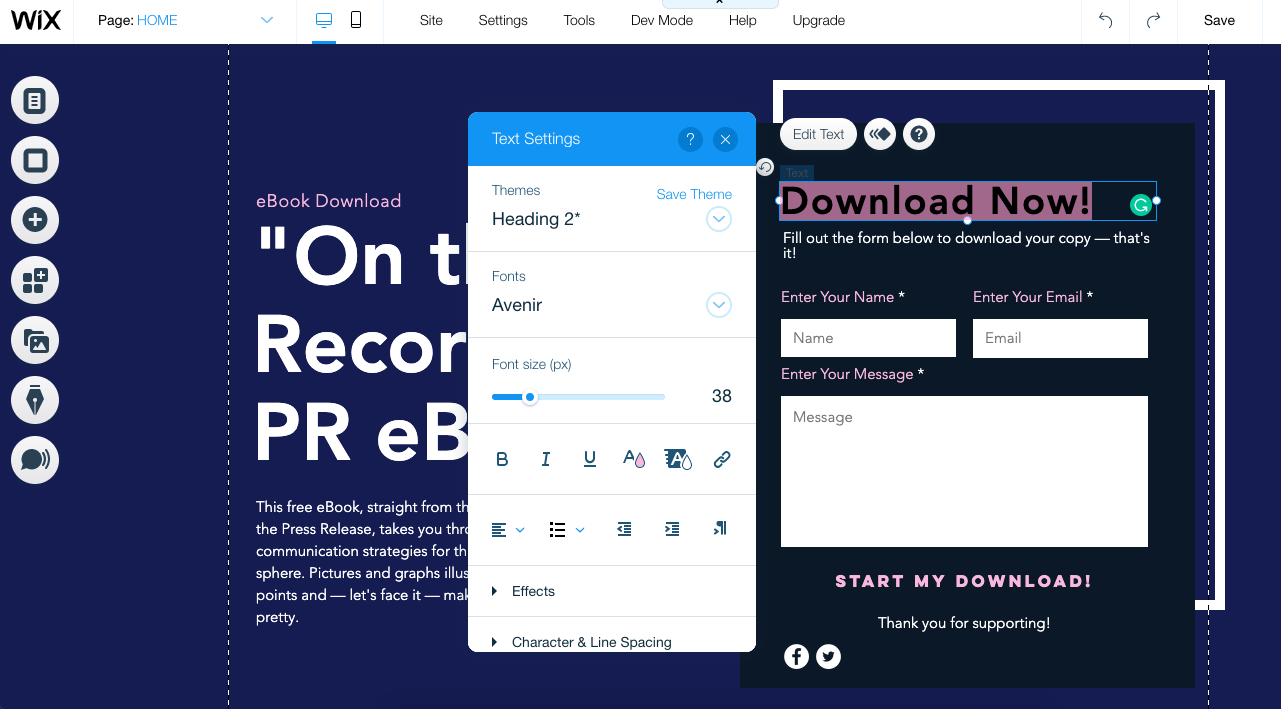
Think about which logo, images, and copy will make your message come across the best to your Facebook audiences. If you’ve noticed your audience responds really well to cool tones, use the darker versions of your company colors for assets like landing pages.
If you’re stuck with coming up with copy that’ll speak to your customers, or want branding advice from experts, we’ve got you covered.
3. Make the CTA the star of the page.
This ad’s goal was to earn as many downloads as possible. To make that happen, I used the design to make the CTA the star by placing it in a visible position on the page. Doing this makes it only easier for audiences to complete the action.
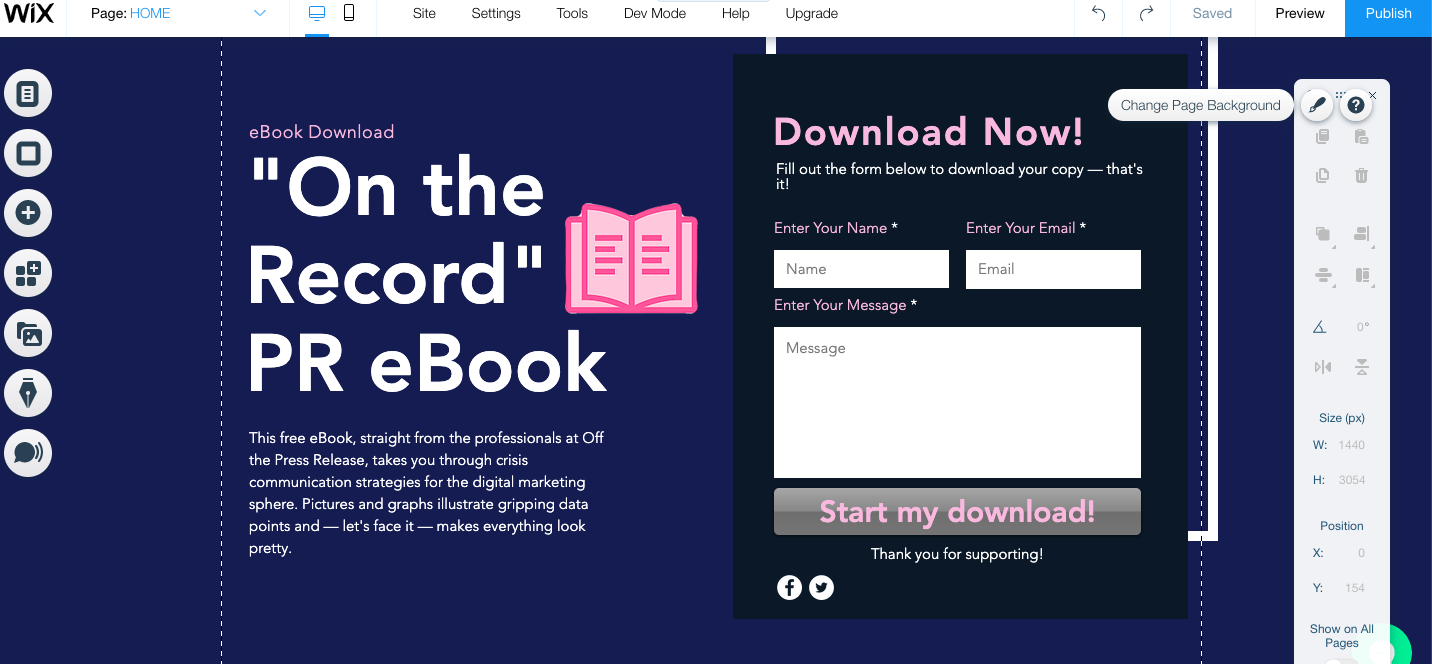
The action you want Facebook users to take on your landing page should be clear. All copy should point to a clear CTA. It’s helpful to make the button a different color. I chose gray, for instance, because it was a color I hadn’t previously used.
Or let’s say you work for a retail company. If the ad intent is to boost sales, the landing page could be an offer for a percentage off in exchange for signing up for emails. Whatever you’re giving the consumer should be front and center, along with the button to get there.
4. Preview and test your page.
When you’re satisfied with your page, view it in preview mode. Seeing it from the viewer’s perspective catches mistakes. Additionally, you can make last minute changes to best fit multiple screen types.
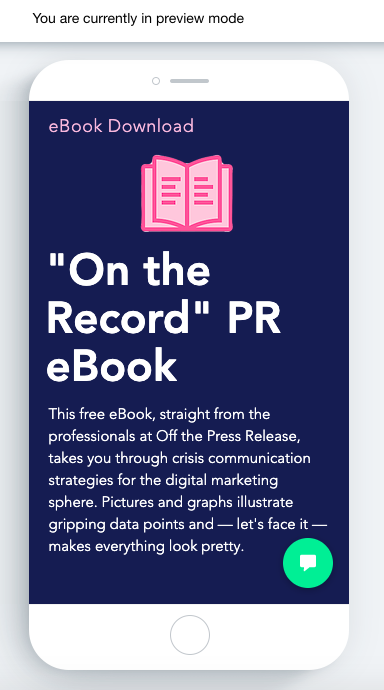
If you have the time, test your page. One of Facebook’s Paid Ads managers, Nicole Ondracek, cites testing landing pages as a must. “Testing is very useful because we have the most concrete data about how to make our pages more effective for Facebook,” she says.
Check to see if your software has testing features. Mine did not, but HubSpot’s CRM and Facebook both have testing tools that could give useful data, like conversions and click-through rates. I could run a landing page A/B test using HubSpot’s software, then test the ad using the winning A/B test page.
5. Upload it into the Ad Manager.
When you’re satisfied with your landing page ad, save it and switch gears over to Ad Manager. From here, the process is pretty intuitive — especially if you’ve created an ad before. After picking your ad type, it’s pretty much just filling in numerous fields.
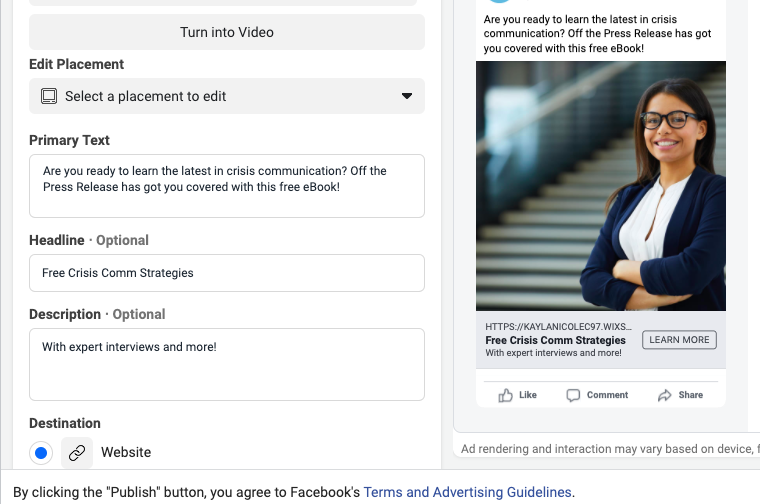
The fields “Primary Text,” “Headline,” and “Description” are going to be visible to audiences, so fill them in accordingly. For example, the primary text of my ad introduces my company, the offer, and what’s inside.
Headlines emphasize the offer’s subject, while the description gives more detail. Every field but primary text is optional, so you don’t have to make the ad as wordy as I have. Add enough text to convey what you’re advertising and the tone of your company.
As soon as you’ve got these fields settled, you’ve chosen your target audience, your ad is ready to run. Click “Publish!” to finish configuring details like budget and duration. And, if you need a full guide on setting up a Facebook ad, this post is an amazing help.
So now, you know how to make a landing page for Facebook ads. Now, it’s time to go over how, and why, to optimize those landing pages for audiences.
Facebook Landing Page Best Practices
Think about the intent of your audience. What kind of landing page will make them interested in your offer? These design and optimization tips are a handy bookmark to make sure the content lines up with customer preference.
1. Give the page its own URL.
If you’re using a landing page that already exists, and you want to track leads from Paid ads, give the page its own URL. Direct response ads, ads that are meant to incite immediate action, are generally used for lead generation.
When you give your Facebook ad landing page its own URL, you’ll be able to see the leads earned specifically from that ad. Additionally, if you want to make small tweaks for Facebook performance, you can do so without modifying the original page.
2. Keep the design free of distractions.
As marketers, we know that landing pages should be simple. For Facebook ad landing pages, this is especially true. Your ad goals most likely center around audiences taking action, and a clean landing page supports that.
If your landing pages outside of Facebook usually include clickable logos and text, remove them for this version. For instance, this landing page on HubSpot’s site has a clickable logo and text. The Facebook version, however, doesn’t. It distracts from the overall purpose of the ad.
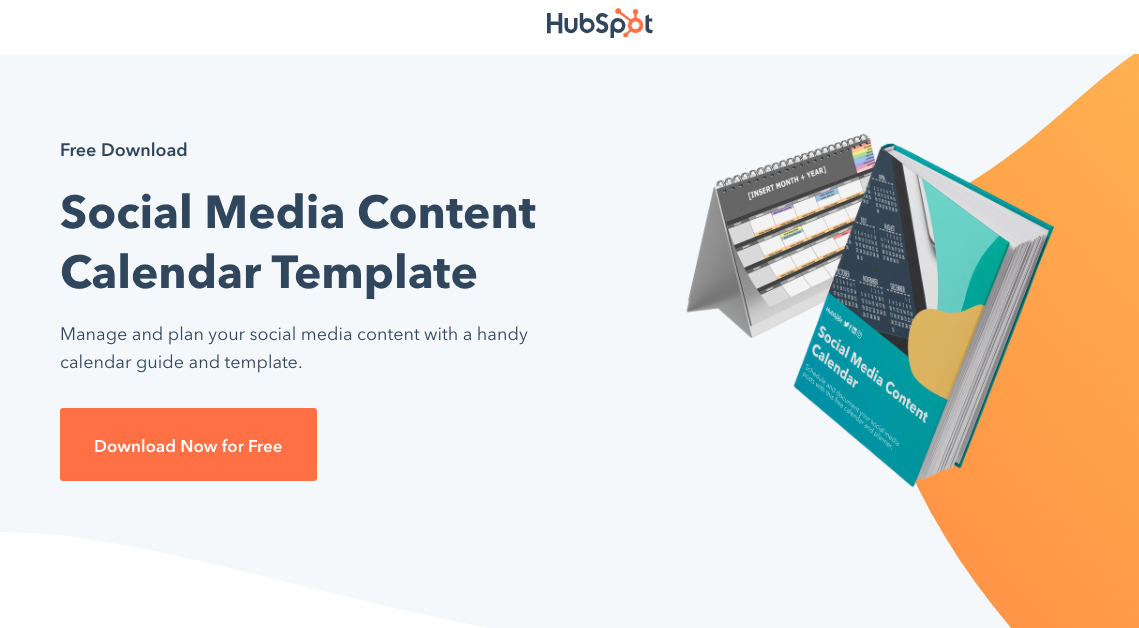
When you’re designing your landing page, use the page space to make CTAs visible. Copy should succinctly reflect what’s being advertised on Facebook. For instance, the Facebook landing page above leverages branding, large fonts and photos, and an actionable button.
3. Create according to your ad goals.
When you create a Facebook ad, you have to choose an ad type. These ad types reflect the ultimate goal of your campaign, like lead generation. Your landing page should be designed according to that campaign objective to maximize their effectiveness.
A landing page should be made with a purpose in mind. For example, a brand awareness ad can be broad — it’s just introducing audiences to a company. However, a page for conversions should specifically lead viewers to download the ebook or demo.
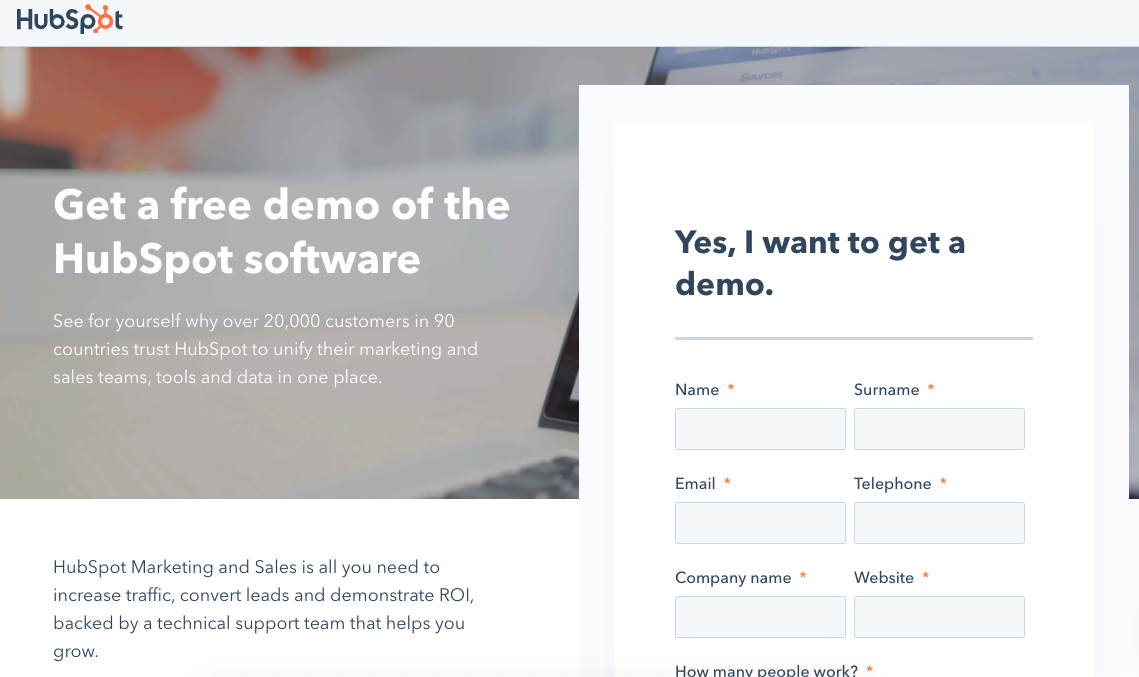
This landing page, for instance, has the form at the top of the page to help grow conversions. There’s little room for distraction — the only interaction available is filing out the form.
4. Add the Pixel feature for optimization.
Pixel is a Facebook feature that was designed to boost ad performance. Adding Pixel to your ads is like adding an extra targeting feature.
Let’s say a 35-year-old woman in an urban area clicked on the landing page and completed an offer for a brand awareness ad. Facebook then tells Pixel to suggest the ad to profiles with similar demographics in order to reach more qualified leads.
Essentially, Pixel targets audience members based on the demographic information of people who’ve previously interacted with the ad, and increases the amount of traffic your landing page earns.
5. Track the right metrics.
If you want to track landing page performance, make sure you’re looking at the right metrics. Facebook will offer you an analytics report based on your ad type, and there’s a few you can attribute to the landing page.
Ondracek recommends looking at the amount of money spent, forms filled, and conversions. Staying in budget for your ad campaign is a no-brainer. The amount of forms completed lets you know if your form was effective for converting leads, and conversions shows you how many.
When tracking performance outside of Facebook, add UTM parameters. This is basically a special tag on a URL that’ll track page performance. UTM codes can be imported into analytics software, like Google and Looker.
You don’t have to track landing pages using different services. However, if you made your page using marketing automation software that offers analytics, they’re worth keeping in mind. Additionally, UTM codes will give you analytics you can compare with Facebook and other software.
Having multiple sources of data, Ondracek recommends, gives you a more holistic view of landing page performance.
6. Test landing pages frequently.
Test your landing page before it goes live, if possible. If you used software that offers testing features, use them to test the effectiveness of your page. Even though it won’t be connected to Facebook, you can make small changes before uploading based on test results.
“We build landing pages using HubSpot, so we use the A/B testing feature before and while we use the page. We choose one thing to tweak at a time to keep results accurate. Over time, we’ll build the most effective Facebook landing pages possible,” says Ondracek.
You don’t have to use specific software to test your landing page. You can even use Facebook’s A/B testing feature for ads. If you decide to go that route, make your ad goal conversions so landing page design will be a factor.
When created for your audience, Facebook landing pages can be an awesome tool. They jumpstart buying journeys, earn leads, and expand reach. When you track their performance, you can learn more insights about how customers interact with your company on Facebook.
Use landing pages to further inform and delight your audience. I, for one, love a good landing page, and will be looking forward to seeing yours on my Facebook timeline next.

How to Create an Ebook From Start to Finish [Free Ebook Templates]
At age 11, I dreamed of being an editor at a major magazine. I even put together my first publication, Teen Scene Magazine, using colored construction paper, yarn, and in-depth feature interviews with … my dad.
Flash forward to today. I’ve swapped my colored construction paper and yarn for PowerPoint and InDesign. I’ve replaced my dad with marketing experts and influencers (in the office, that is). And week after week, I have the satisfaction of being an ebook creator.
What Is an Ebook?
Ebook is short for “electronic book,” and uses either a computer, mobile device, or ebook reader to display long-form texts in book form. Ebooks have multiple digital “pages” that people can navigate through, and are often packaged as a PDF document so they can easily be sent from one user to another.
What Are the Benefits of an Ebook?
Let’s say you have an amazing blog full of long-form content. Why in the world would you want to offer your readers an ebook? Is it even worth your time?
Here’s some advantages ebooks offer content creators:
- Unlike long-form printed media, an ebook is immediately accessible.
- You can put it behind an opt-in of some kind, incentivizing your website visitor to become a lead if they want the information.
- In some ways, ebooks have design capabilities you may not be able to achieve on your blog.
- After the initial creation of the ebook, you can distribute the file a multitude of times with no additional production cost. They also have no associated shipping fees.
- You can embed links to other media in the ebook file, encouraging the reader to further engage with your content.
Perhaps more importantly, ebooks offer a number of advantages for your audience:
- Ebooks are extremely portable, able to be stored on a number of devices with no physical storage space associated.
- The reader gets the choice to print the ebook out if they want to consume the information in a traditional physical format. Otherwise, the digital format is environmentally friendly.
- Ebooks are accessible with the ability to increase font sizes and/or read aloud with text-to-speech.
- They’re also easily searchable if the reader is looking for something specific.
How Is an Ebook Structured?
There’s no set rule for organizing your content into an ebook. It generally mimics the structure of a novel or textbook (depending on what it is you’re writing about). But, there are some aspects of an ebook you should be sure to adhere to.
Ebooks have some system of chapters and supporting images. Similar to a blog post, they also do well when further segmenting their text with subheaders that break down the discussion into specific sections. If you’re writing about professional sports, for example, and one of your chapters is about Major League Baseball (MLB) in the U.S., you might want to establish subchapters about the various teams belonging to the MLB.
What Can an Ebook Be About?
Anything. Well, within reason. Ebooks are simply a marketer’s way of delivering lots of critical information in a form their potential customers are most willing to read it. An environmental company might write an ebook all about water conservation. They also might focus an ebook entirely on how their water-saving product is used, or how it helped a customer solve a problem. Discover more ebook ideas at the end of this article.
No matter what subject your ebook takes on, research is a significant part of ebook creation. Unlike short-form content like articles and videos, the content of an ebook is predicated on trust and evidence. A user who obtains (or requests access to) your ebook wants the full story, not just the bullet points. That includes all the content and testing you went through to produce the ebook.
Can You Edit an Ebook?
Nope. An ebook can’t be edited once it’s been saved in one of the file formats described above, so it’s best to ensure you have an editable version saved in a program like Microsoft Word.
But why would you want your ebook to be uneditable? Making ebooks uneditable ensures the content remains unchanged — both the format and the information — as it’s shared between multiple uses.
You can edit ebooks if they’re saved using an editable PDF, a feature that is specific to Adobe Acrobat — the founding program of the PDF file type. Learn how to edit PDFs in this blog post.
How Do You Read an Ebook?
You can read an ebook on many different devices: iPhone, Android smartphones, a Macbook, PC, and e-readers such as the Nook and Kindle. The latter two devices are typically used to read novels in digital form. Nook and Kindle owners can store thousands of books (literally) on a single Nook or Kindle.
But making an ebook can be overwhelming. Not only do you have to write the content, but you also need to design and format it into a professional-looking document that people will want to download and read. With lead generation being the top goal for content marketing, however, ebooks are an essential part of an successful inbound marketing program.
In this post, we’ll walk you through the ins and outs of creating an ebook by, well, creating an ebook. And if you’re worried about your lacking design skills, fret not …
Got your free ebook templates? Ready to make an ebook? Great — let’s get to it.
In What File Formats Can You Save an Ebook?
Ebooks can be saved in one of several formats. Depending on your end user, though, you might find a use for any of the following file types:
PDFs are likely the most well-known file type. The “PDF” extension stands for “Portable Document Format,” and is best for ebooks that are meant to be read on a computer (digital marketers, you’ll want to remember this one). We’ll talk more about how to save your ebook as a PDF later in this article.
EPUB
This file type stands for “Electronic Publication,” and is the more flexible ebook formats. By that, I mean EPUB ebooks can “reflow” their text to adapt to various mobile devices and tablets, allowing the ebook’s text to move on and off different pages based on the size of the device on which a user is reading the ebook. They’re particularly helpful for viewing on smaller screens, such as smartphones as well as the Nook from Barnes and Noble.
MOBI
The MOBI format originated from the Mobipocket Reader software, which was purchased by Amazon in 2005 but was later shut down in 2016. However, the MOBI file extension remains a popular ebook format with compatibility across the major e-readers (except the Nook).
While the format comes with some limitations, such as not supporting audio or video, it does support DRM, which protects copyrighted material from being copied for distribution or viewed illegally.
Newer Kindle formats are based on the original MOBI file types.
AZW
This is an ebook file type designed for the Kindle, an e-reader device by Amazon. However, users can also open this file format on smartphones, tablets, and computers.
ODF
ODF stands for OpenDocument Format, a file type meant primarily for OpenOffice, a series of open-source content creation programs similar to Microsoft Office.
IBA
IBA is the proprietary ebook format for the Apple iBooks Author app. This format does support video, sound, images, and interactive elements, but it is only used for books written in iBooks author. It is not compatible with other e-readers.
How to Write an Ebook
- Choose a topic that matches your audience’s needs.
- Outline each chapter of your ebook.
- Break down each chapter as you write.
- Design your ebook.
- Use the right colors.
- Incorporate visuals.
- Highlight quotes or stats.
- Place appropriate calls-to-action within your ebook.
- Convert it into a PDF.
- Create a dedicated landing page for your ebook.
- Promote your ebook and track its success.
1. Choose a topic that matches your audience’s needs
Remember: The goal of your ebook is to generate leads for your sales team, so pick a topic that will make it easy for a prospect to go from downloading your ebook to having a conversation with your sales team.
This means your ebook shouldn’t deviate much from the topics you cover in your other content marketing channels. Rather, it’s your opportunity to do a deep dive into a subject you’ve only lightly covered until now, but something your audience knows they need to learn more about.
For example, in listening to sales and customer calls here at HubSpot, I’ve learned ebooks for use in content marketing is a huge obstacle for our audience, who are marketers themselves. So if I can provide not only this blog post, but resources to make ebook creation easier, I’m focusing on the right topic for opening up a sales conversation.
To get your creative juices flowing, here are some example ebook titles to consider. (Note: Replace “x” with an appropriate number.) You can also use our free Blog Topic Generator tool to come up with more ideas. Most blog topics can be made comprehensive enough to serve as longer form ebook topics.
- X Best Practices for [Insert Industry/Topic]
- An Introduction to [Insert Industry/Topic]
- X Common Questions About [Insert Industry/Topic] Answered
- X [Insert Industry/Topic] Statistics For Better Decision Making
- Learn From The Best: X [Insert Industry/Topic] Experts Share Insights
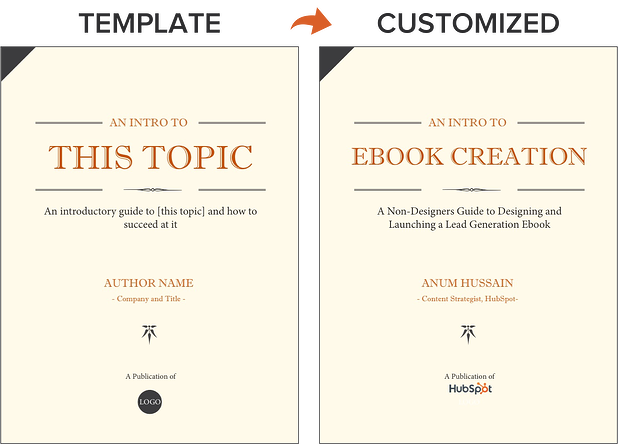
For this blog post, I’m going to use the PowerPoint version of template two from our collection of five free ebook templates. Through each section of this post, I’ll provide a side-by-side of the template slide and how I customized it.
Below, you’ll see my customized cover with my sales-relevant ebook topic. For help with writing compelling titles for your ebooks, check out the tips in this blog post.
2. Outline each chapter of your ebook.
The introduction to your ebook should both set the stage for the contents of your ebook and draw the reader in. What will you cover in your ebook? How will the reader benefit from reading it? For tips on how to write an effective introduction, check out this post.
Some ebook creators say that an ebook is simply a series of blog posts stitched together. While I agree you should treat each chapter like an individual blog post, the chapters of your ebook should also flow fluidly from one to the other.
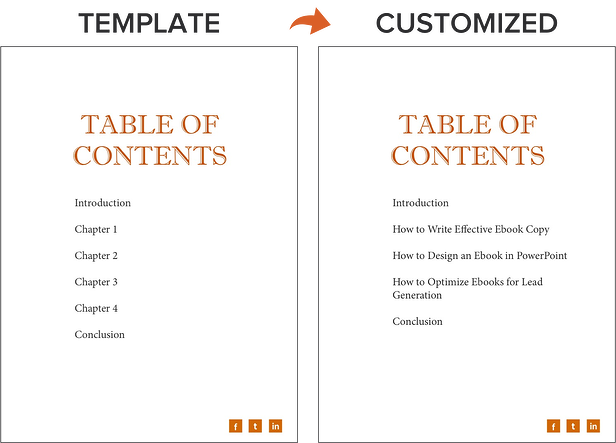
The best way to outline your ebook is by thinking of it as a crash course on the sales-relevant topic you selected. In my example of creating an ebook, I know I need to cover how to:
- write effective copy
- design an ebook
- optimize ebooks for lead generation and promotion
While my example has a few chapters, keep in mind that your ebook does not need to be lengthy. I have one golden rule for ebook length: Write what is needed to effectively educate your audience about your selected topic. If that requires five pages, great! If that requires 30 pages, so be it. Just don’t waste words thinking you need to write a long ebook.
With that, let’s move on to the actual copy you’re writing.
3. Break down each chapter as you write.
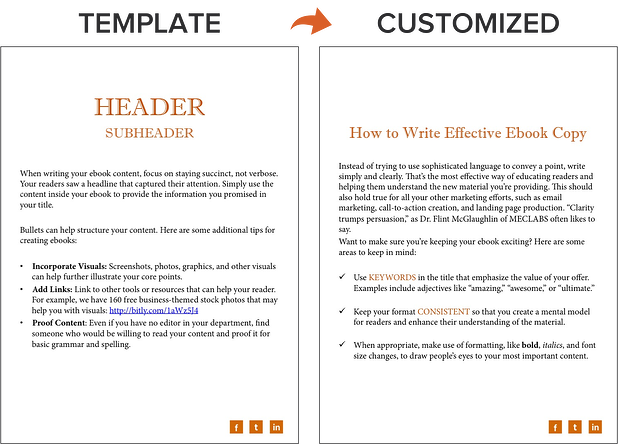
Get writing! Here, you can approach each chapter the way you might write a long blog post — by compartmentalizing each chapter into smaller sections or bullet points, as shown in the picture below. This helps you write simply and clearly, rather than trying to use sophisticated language to convey each point. It’s the most effective way to educate readers and help them understand the new material you’re providing.
Be sure to maintain a consistent structure across each chapter, as well. This helps you establish natural transitions between each chapter so there’s a clear progression from one chapter to the next (simply stiching blog posts together can rob you of this quality).
These practices should hold true for all your other marketing efforts, such as email marketing, call-to-action creation, and landing page development. “Clarity trumps persuasion,” as Dr. Flint McGlaughlin of MECLABS often likes to say.
Want to make sure you’re keeping your ebook exciting for readers? Here are some key tips to keep in mind:
- Use keywords in the title that emphasize the value of your offer. Examples include adjectives like “amazing,” “awesome,” or “ultimate.”
- Keep your format consistent so you create a mental model for readers and enhance their understanding of the material.
- When appropriate, make use of formatting — like bulleted lists, bold text, italics, and font size changes — to draw people’s eyes to your most important content or emphasize certain points you want readers to remember.
4. Design your ebook.
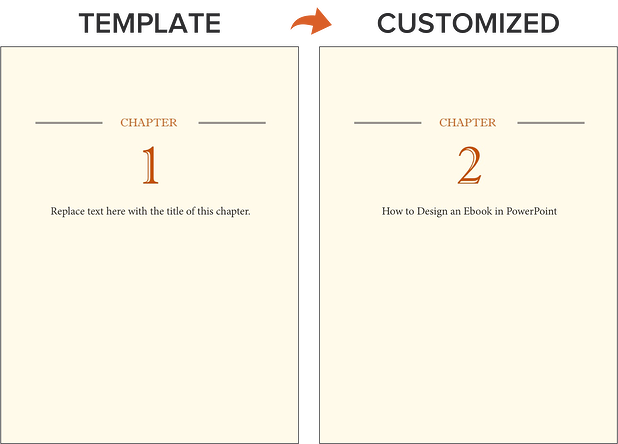
Our downloadable ebook templates are offered in both PowerPoint and InDesign. For this example, we’ll show you how to do it in PowerPoint, since more people have access to that software.
You’ll notice we only have one “chapter page” in the template (slide three). To create additional chapter pages, or any pages really, simply right click the slide and choose Duplicate Slide. This will make a copy of your slide and allow you to drag it to its proper place in your ebook via the sidebar or Slide Sorter section of PowerPoint. You can then customize it for any subsequent chapters.
5. Use the right colors.
Ideally, our free ebook templates would magically match your brand colors. But, they probably don’t; this is where you get to truly personalize your work. However, because ebooks offer more real estate for color than your logo or website, it’s a good idea to consider secondary colors within your brand’s color palate. Ebooks are where this color scheme can truly shine.
To learn how to add your brand’s colors to PowerPoint, check out this blog post. That way, you can customize the color scheme in our ebook templates to match your brand!
6. Incorporate visuals.
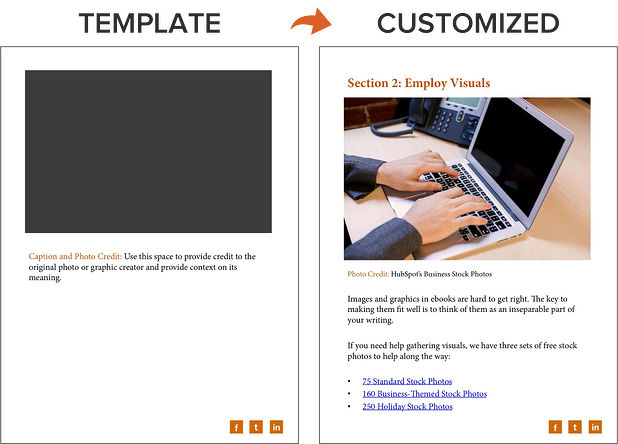
Images and graphics in ebooks are hard to get right. The key to making them fit well is to think of them as complementary to your writing. Whether you add them during or after you’ve finished writing your ebook’s copy, your visuals should serve to highlight an important point you’re making or deconstruct the meaning of a concept in an easy-to-understand, visual way.
Images shouldn’t just be there to make the ebook easy on the eyes. Rather, they should be used to enhance the reader’s understanding of the material you’re covering. If you need help gathering visuals, we have three sets of free stock photos that might help you along the way:
And if you’re compiling a data-heavy ebook, you might want to download our free data visualization ebook for tips about designing compelling charts and graphs for your content.
7. Highlight quotes or stats.
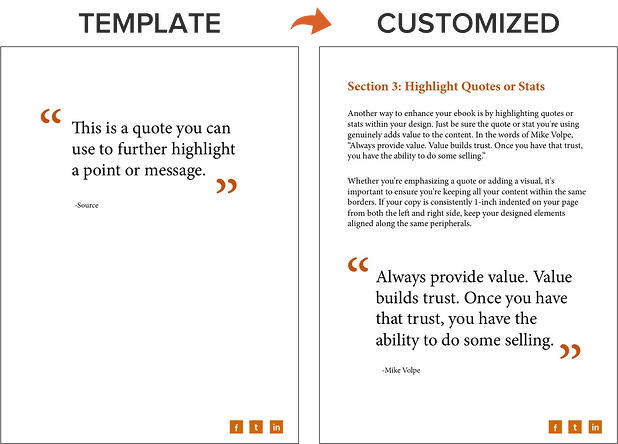
Another way to enhance your ebook is by highlighting quotes or stats within your design. Just be sure the quote or stat you’re using genuinely adds value to the content.
Whether you’re emphasizing a quote or adding a visual, keep all your content within the same margins. If your copy is consistently 1-inch indented on your page from both the left and right side, keep your designed elements aligned using that same spacing.
8. Place appropriate calls-to-action within your ebook.
Now that your content is written and designed, it’s time to optimize it for lead generation, reconversion, and promotion.
Think about how you got here — you clicked on a call-to-action (CTA) in an email, on a social media post, or somewhere else. A CTA is a link or visual object that entices the visitor to click and arrive on a landing page that will get them further engaged with your company. Since your ebook readers have probably converted into leads in order to get their hands on your ebook to begin with (more on this in Step 2 below), use the CTAs within your ebook to reconvert your readers and propel them further down your marketing funnel.
For instance, a CTA can lead to another offer, your annual conference’s registration page, or even a product page. Depending on what this next action is, CTAs can be an in-line rectangle or a full page teasing the next offer (see both images below).
To hyperlink the CTA in your ebook (or any image or text in your ebook) to your destination URL, simply go to Insert >> Hyperlink in PowerPoint.
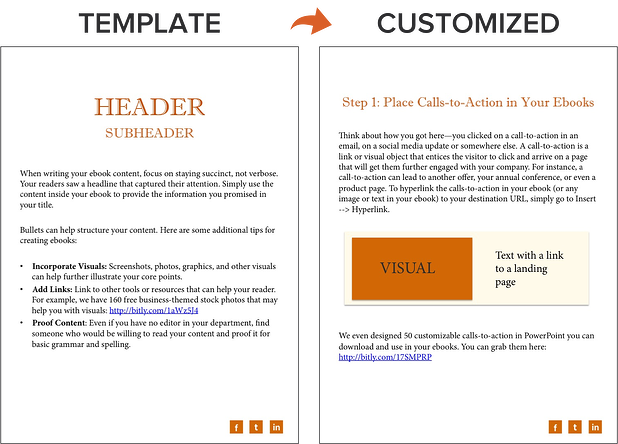
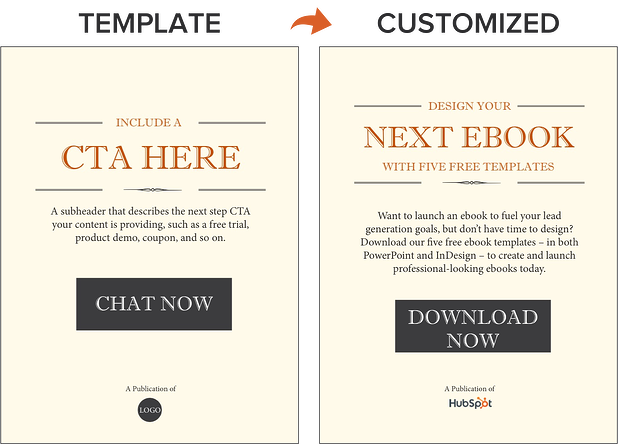
We’ve even designed 50 customizable calls-to-action in PowerPoint you can download and use in your ebooks. You can grab them here.
Now, we don’t have a dedicated CTA template slide in the PowerPoint ebook templates for you to customize … but it’s still simple! All you have to do is duplicate slide four (the Header/Subheader slide) and customize copy or add images as needed. You can also go to Insert >> New Slide and work from there.
9. Convert it into a PDF.
Once you’ve finished writing your ebook — CTAs and all — it’s time to convert it to the right file type so it’s transferrable from you to your recipient.
To convert your ebook to a PDF, click File >> Save As in the ebook template you have open. Under File Format, select PDF and select a destination on your computer for this new file.
Why can’t you just attach what you have to a landing page and be done with it? Word documents, PowerPoints, and similar templates are perfect for creating your ebook, but not for delivering it. Because these templates are editable, the contents of your ebook are too easily corrupted, distorted, or even lost when moving from your computer to the hands of your future leads. That’s where PDFs come in.
You’ve seen these letters at the end of files before. Short for Portable Document Format, the .PDF file type essentially freezes your ebook so it can be displayed clearly on any device. A popular alternative to PDFs is the .EPUB file type. See a comparison of EPUB to PDF here.
10. Create a dedicated landing page for your ebook.
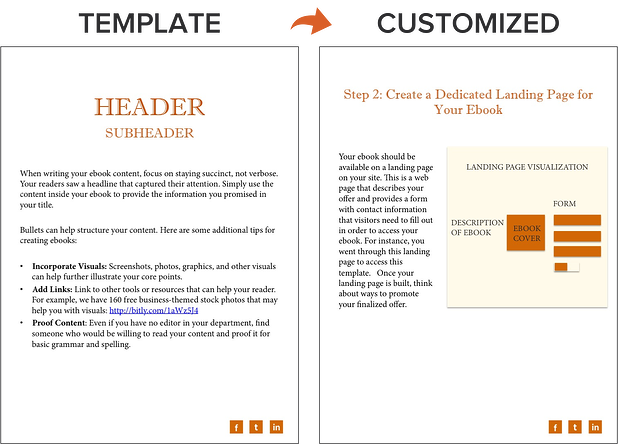
Your ebook should be available for download through a landing page on your site. A landing page is a web page that promotes/describes your offer and provides a form that visitors need to fill out with their contact information in order to access your ebook. This is how you are able to convert your visitors into business leads that your sales team can ultimately follow up with.
For instance, you went through this landing page in order to access this ebook template. To learn more about how to optimize your landing pages for conversion, download this free ebook.
11. Promote your ebook and track its success.
Once your landing page is all set, you can use that destination URL to promote your ebook across your marketing channels. Here are five ways you can do this:
- Advertise your new ebook on your website. For example, feature a CTA or link to your offer’s landing page on your resources page or even your homepage.
- Promote your ebook through your blog. For instance, consider publishing an excerpt of your ebook as a blog post. Or write a separate blog article on the same topic as your ebook, and link to it at the end of your post using a call-to-action to encourage readers to keep learning. (Note: This very blog post is the perfect example of how to promote an offer you created with a blog post.)
- Send a segmented email to contacts who have indicated an interest in receiving offers from your company.
- Leverage paid advertising and co-marketing partnerships that will help you promote your ebook to a new audience.
- Publish posts to social media with a link to your ebook. You can also increase social shares by creating social media share buttons within your ebook, such as the ones at the bottom right of this ebook. Here’s a blog post that shows how to hyperlink them.
After your content is launched and promoted across your marketing channels, you’ll also want marketing analytics in place to measure the success of your live product.
For instance, you should have landing page analytics that give you insight into how many people downloaded your ebook and converted into leads, and closed-loop analytics that show how many of those people ultimately converted into opportunities and customers for your business. Learn more through HubSpot’s Landing Pages App.
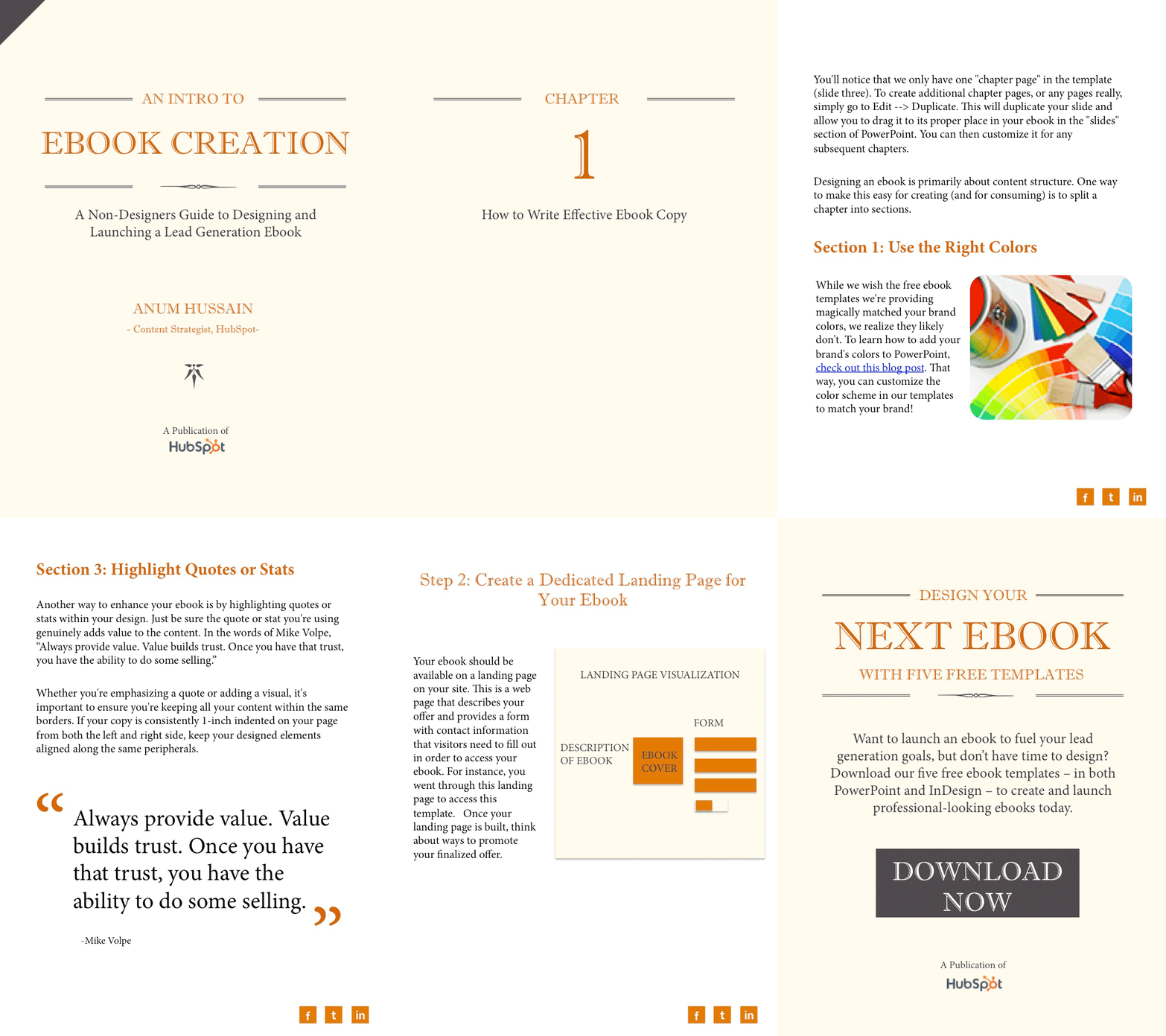
And with that, we’ve built an ebook, folks! You can check out the packaged version of the example I built through this post here:
Ebook Ideas
So, what should you write about in your ebook? I’ll answer that question with another question: What do you want your readers to get out of this ebook? To identify an ebook idea that suits your audience, consider the type of ebook you’re trying to create. Here are a few ideas.
New Research
Conducting an experiment or business survey? This is a great way to develop proprietary knowledge and become a thought leader in your industry. But how will you share your findings with the people who care about it? Create an ebook that describes the experiment, what you intended to find out, what the results of the experiment were, and what these findings mean for your readers and the market at large.
Case Study
People love success stories, especially if these people are on the fence about purchasing something from you. If you have a client whose business you’re particularly proud to have, why not tell their story in an ebook?
Ebook case studies show your buyers that other people trust you and have benefited from your product or service. In your ebook, describe what your client’s challenge was, how you connected with them, and how you were able to help your client solve their challenge and become successful.
Product Demo
The more complex your product is, the more information your customers will need to use it correctly. If your product or service can be used in multiple ways, or it’s hard to set up alone, dedicate a brief ebook to showing people how it’s done. In the first section of your ebook, for example, explain how to launch your product or service. In the second section, break down the individual features and purposes your product is best used for.
Interview
Interested in interviewing a well-known person in your market? Perhaps you’ve already sat down with an influencer to pick their brain about the future of the industry. Package this interview into an ebook, making it easy for your customers to read and share your inside scoop.
Playbook
A “playbook” is a document people can use when taking on a new project or concept that is foreign to them. Think of it like a cheat sheet, full of tips and tricks that help your customers get better at what they do.
When done right, a playbook equips your customers with information they would need to excel when using your product. For example, a software vendor for IT professionals might create a “virus protection playbook” that makes support teams better at preventing viruses at their respective companies.
Blog Post Series
Sometimes, the best ebook for your business is already strewn across a series of blog posts. If you’ve spent the last month writing articles all on the same subject for your business, imagine how these posts would look stitched together?
Each article can begin a new chapter. Then, once this ebook is created, you can promote it on a landing page, link to this landing page from each individual blog post, and generate leads from readers who want to download the entire blog series in one convenient ebook.
Ebook Creation Resources
- 5 Free Ebook Templates in PowerPoint and InDesign [Free Download]
- 13 More Customizable Ebook Templates in PowerPoint [Free Download]
- Data Visualization 101: How to Design Charts and Graphs [Free Download]
- How to Easily Turn Blog Posts Into an Ebook [Blog Post]
- A Simple Guide to Creating Social Sharing Links for Your Ebooks [Blog Post]
Do you have any other tips or resources for making ebook creation easier? Apply them to your content marketing strategy. I’d be remiss not to admit every company’s ebook will come to fruition differently. It all depends on the needs of your brand.
Editor’s note: This post was originally published in November 2018 and has been updated for comprehensiveness.

The Ultimate Guide to On-Page SEO in 2020
So, you’ve read dozens — if not hundreds — of SEO articles online. You’ve digested countless tips and tricks for improving your website’s SEO. You’ve even (over)paid that self-proclaimed “expert” to help you develop an SEO strategy that aligns with your business goals.
But after all of the reading and learning and strategizing, it dawns on you: You haven’t actually done anything yet. Perhaps you’re intimidated. Maybe you’re crunched for time.
Regardless, when it comes to on-page SEO, there’s no excuse for dragging your feet. On-page SEO has the power to bring countless new visitors — and customers — right to your website.
On-page SEO is also completely up to you: You get to establish what the topic and/or goal of each page will be. You get to decide on the target audience for that page. And you get to choose the target keywords and phrases you want to focus on.
All you have to do is get started, and we built this guide to help you.
Google’s algorithm ranks your website on three main factors: on-page SEO, off-page SEO, and technical SEO:
- We’ll cover on-page SEO elements below.
- Off-page SEO refers to social sharing, external linking, and more.
- Technical SEO refers to all the SEO elements not included in on-page and off-page practices, such as structured data, site speed, and mobile readiness — the more technical parts of SEO.
Note: This SEO “trilogy” isn’t always divided into three clean sections; some of these SEO elements will overlap. You’ll see how and why throughout this piece.
Why is on-page SEO important?
On-page SEO is important because it tells Google all about your website and how you provide value to visitors and customers. It helps your site be optimized for both human eyes and search engine bots.
Merely creating and publishing your website isn’t enough — you must optimize it for Google and other search engines in order to rank and attract new traffic.
On-page SEO is called “on-page” because the tweaks and changes you make to optimize your website can be seen by visitors on your page (whereas off-page and technical SEO elements aren’t always visible).
Every part of on-page SEO is completely up to you; that’s why it’s critical that you do it correctly. Now, let’s discuss the elements of on-page SEO.
All on-page SEO elements fall into three main categories:
You’ll see these elements divided into sections below.
Content Elements
Content elements refer to the elements within your site copy and content. In this section, we’ll focus mostly on crafting high-quality page content that benefits your visitors and tells Google that your website provides value.
High-Quality Page Content
Page content is the heart of on-page SEO. It tells both search engines and readers what your website and business are all about.
The first step to creating high-quality content is choosing relevant keywords and topics. Conduct keyword research by searching Google for terms and seeing what surfaces for competitors and other websites. You can also use tools like Ahrefs, AnswerthePublic, and UberSuggest.
Also, read our Beginner’s Guide on How to Do Keyword Research for SEO.
Next, consider how your page content falls into the buyer’s journey and visitors’ search intent. These will impact how you will use your keywords and what types of content you will create:
| Stage in the Buyer’s Journey | Suggested Content/Website Pages |
| Awareness |
Blog posts, videos |
| Consideration |
Buyer’s guides, case studies |
| Decision |
Product demos, comparison tools |
Now, it’s time to write your page content or clean it up if you’re currently auditing your on-page SEO.
Here are a few best practices for writing high-quality page content (we’ll touch on some of these in more detail below, in our Checklist):
- Incorporate short and long-tail keywords naturally.
- Add engaging and relevant visual content.
- Write for your specific buyer persona(s).
- Actively solve your audience’s problem.
- Develop content people will share and want to link to.
- Optimize for conversions with CTAs to offers and product pages.
Page content is your opportunity to communicate value to Google and your site visitors; it’s the heart of the on-page SEO process. All other on-page SEO elements stem from high-quality page content, so invest ample resources to develop and optimize it.
HTML Elements
HTML elements refer to the elements in your source code.
Note: To see the source code for any page in your browser, click View > Developer > View Source in the top menu.
Page Titles
Your website page titles (also known as title tags) are one of the most important SEO elements.

Titles tell both visitors and search engines what they can find on the corresponding pages.
To ensure your site pages rank for the proper intent, be sure to include the focus keyword for each page in the title. Incorporate your keyword as naturally as possible.
Here are some best practices for when developing a page title:
- Keep it under 70 characters (per Google’s update) … any longer and your title will be cut off in search results. Mobile search results show up to 78 characters.
- Don’t stuff the title with keywords. Not only does keyword-stuffing present a spammy and tacky reading experience, but modern search engines are smarter than ever — they’ve been designed to specifically monitor for (and penalize!) content that’s unnaturally stuffed with keywords.
- Make it relevant to the page.
- Don’t use all caps.
- Include your brand in the title, i.e. “The Ultimate Guide to On-Page SEO in 2019 — HubSpot Blog“.
Check out our free data-driven guide to writing effective page titles.
Headers
Headers, also known as body tags, refer to the HTML element <h1>, <h2>, <h3>, and so on.

These tags help organize your content for readers and help search engines distinguish what part of your content is most important and relevant, depending on search intent.
Incorporate important keywords in your
headers, but choose different ones than what’s in your page title. Put your most important keywords in your <h1> and <h2> headers.
Meta Descriptions
Meta descriptions are the short page descriptions that appear under the title in search results. Although it’s not an official ranking factor for search engines, it can influence whether or not your page is clicked on — therefore, it’s just as important when doing on-page SEO.

Meta descriptions can also be copied over to social media when your content is shared (by using structured markup, which we talk about below), so it can encourage click-throughs from there, too.
Here’s what makes for a good meta description:
- Keep it under 160 characters, although Google has been known to allow longer meta descriptions — up to 220 characters. (Note: Mobile devices cut off meta descriptions at 120 characters.)
- Include your entire keyword or keyword phrase.
- Use a complete, compelling sentence (or two).
- Avoid alphanumeric characters like —, &, or +.
Image Alt-text
Image alt-text is like SEO for your images. It tells Google and other search engines what your images are about … which is important because Google now delivers almost as many image-based results as they do text-based results.
That means consumers may be discovering your site through your images. In order for them to do this, though, you have to add alt-text to your images.
Here’s what to keep in mind when adding image alt-text:
- Make it descriptive and specific.
- Make it contextually relevant to the broader page content.
- Keep it shorter than 125 characters.
- Use keywords sparingly, and don’t keyword stuff.
Structured Markup
Structured markup, or structured data, is the process of “marking up” your website source code to make it easier for Google to find and understand different elements of your content.
Structured markup is the key behind those featured snippets, knowledge panels, and other content features you see when you search for something on Google. It’s also how your specific page information shows up so neatly when someone shares your content on social media.
Note: Structured data is considered technical SEO, but I’m including it here because optimizing it creates a better on-page experience for visitors.

Site Architecture Elements
Site architecture elements refer to the elements that make up your website and site pages. How you structure your website can help Google and other search engines easily crawl the pages and page content.
Page URLs
Your page URLs should be simple to digest for both readers and search engines. They are also important when keeping your site hierarchy consistent as you create subpages, blog posts, and other types of internal pages.

For example, in the above URL, “blog” is the sub-domain, “hubspot.com” is the domain, “sales” is the directory for the HubSpot Sales Blog, and “startups” indicates the specific path to that blog post.
Here are a few tips on how to write SEO-friendly URLs:
- Remove the extra, unnecessary words.
- Use only one or two keywords.
- Use HTTPS if possible, as Google now uses that as a positive ranking factor.
Internal Linking
Internal linking is the process of hyperlinking to other helpful pages on your website. (See how the words “internal linking” are linked to another HubSpot blog post in the sentence above? That’s an example.)
Internal linking is important for on-page SEO because internal links send readers to other pages on your website, keeping them around longer and thus telling Google your site is valuable and helpful.
Also, the longer visitors are on your website, the more time Google has to crawl and index your site pages. This ultimately helps Google absorb more information about your website and potentially rank it higher on the search engine results pages.
Download our free guide to Internal Linking for SEO.
Mobile Responsiveness
Google started favoring sites that are optimized for faster mobile speeds — even for desktop searches.
Mobile responsiveness matters.
It’s critical to choose a website hosting service, site design and theme, and content layout that’s readable and navigable on mobile devices. If you’re not sure about your own site’s mobile readiness, use Google’s Mobile-Friendly Test tool.
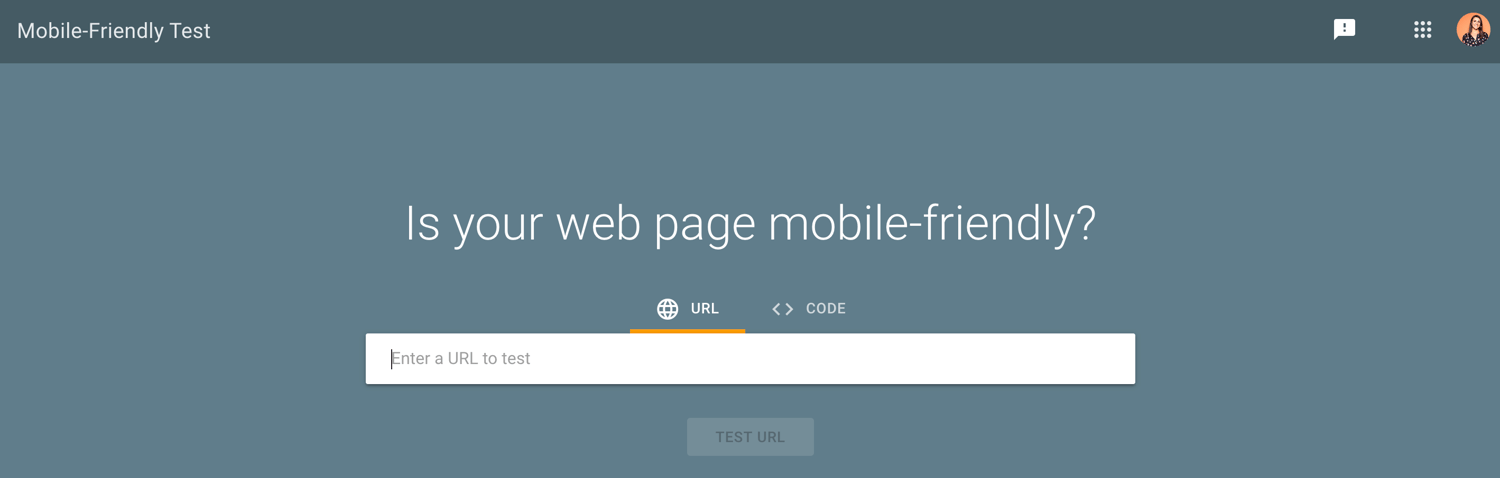
Site Speed
Whether being viewed on a mobile device or desktop, your site must be able to load quickly. When it comes to on-page SEO, page speed counts big-time.
Google cares about user experience first and foremost. If your site loads slowly or haphazardly, it’s likely your visitors aren’t going to stick around — and Google knows that. Moreover, site speed can impact conversions and ROI.
Check your website’s speed anytime using Google’s PageSpeed Insights tool. If your website is movin’ slow, check out 5 Easy Ways to Help Reduce Your Website’s Page Loading Speed.
Note: Mobile responsiveness and site speed are considered technical SEO, but I’m including them here because optimizing them creates a better on-page experience for visitors.

Now that you understand the different on-page SEO elements, let’s talk through the steps of auditing and improving your on-page SEO.
If you’ve been in search of a solution for organizing and tracking the various on-page SEO elements, you’re in luck. The HubSpot marketing team released an updated version of our On-Page SEO Template, an Excel document that allows you to coordinate pages and keywords — and track changes — all in one place.
In this section, we’ll be using this template as a guide as we walk you through a checklist for your on-page SEO management, step by step. Download the template now and follow along.
Note: The fictional website “http://www.quantify.ly” will be used as an example throughout this post. It’s simply meant to help you imagine how your own website will fit into the template.
1. Crawl your website.
Get an overview of all of your website pages that search engines have indexed. For HubSpot customers, our Page Performance tool (under Reports) will allow you to do this. If you’re not using HubSpot, you can try using a free tool like Xenu’s link crawler.
After crawling your site and exporting the results into an Excel (or .csv) file, there will be three key columns of data that you should focus on:
- The web address (a.k.a. URL)
- The page title
- The page meta description
Copy and paste these three columns into your template.
The URL should be pasted into column B, the page title into column C, and the description into column E.

2. Conduct an SEO audit and define your site architecture.
Now that you have a basic index of your site in the template, you’ll want to organize and prioritize your web pages. Start by defining where within your site architecture your existing pages currently sit.
Do this in column A. Note whether a page is your homepage (ideally you’ll only have one of those), a page in your primary (or secondary) navigation menu, an internal page, and so on.
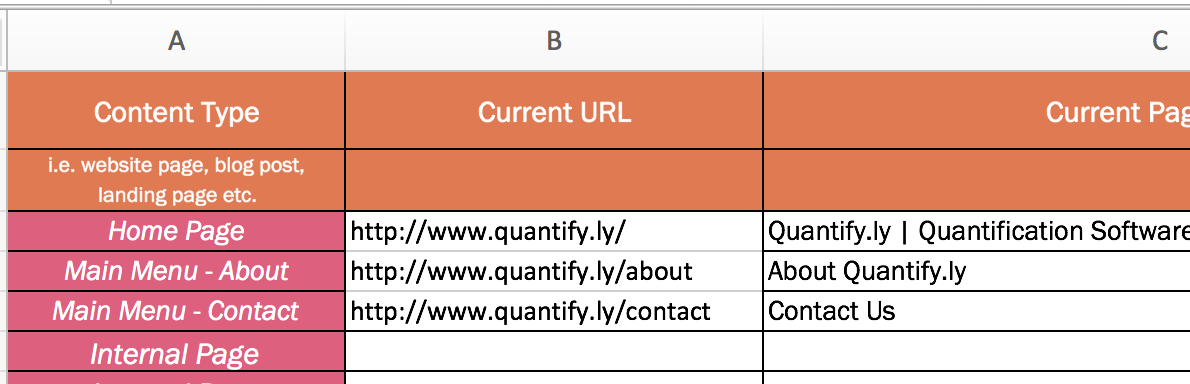
3. Update URLs, page titles, and meta descriptions.
Review your current URLs, page titles, and meta descriptions to see if they need updating.
(This is the beauty of using a template to organize your SEO: You get a broad overview of the type of content you have on your website.)

Notice how column D and column F automatically calculate the length of each element. The recommended length for page titles is anything under 60 characters. (And, actually, a quick and easy optimization project is to update all page titles that are longer than 60 characters.)
The recommended length for page meta descriptions is 155-160 characters. This is the perfect length to ensure none of the description is cut off by the ellipses. Make sure you’re not too repetitive with keywords in this space. Writing a good meta description isn’t tough, but it deserves just as much consideration as the page content itself.
(Note: For some sites, you may also have to update the URLs, but that’s not always the case and thus was not included as part of this optimization template.)
4. Make sure your keyword is in your URL.
As we mentioned above, add your keyword to your URL. For example, image you own a hot yoga studio called ADYoga. You have a web page that includes videos of your classes. The keyword for this page is “hot yoga online classes” — so, you’d want to include that keyword in your URL. The URL for this web page may look like this: https://ift.tt/2D03bp0.
5. Include your keyword throughout your web page.
In addition to your URL, you’ll want to add your keyword throughout your web page(s). This includes your title and headers. Sprinkle your keyword throughout your content as well where it fits naturally.
6. Track keywords and topics for each page.
Think of your target keyword as the designated topic for a particular page. If you’re using the HubSpot template, In column O, define just one topic per page.
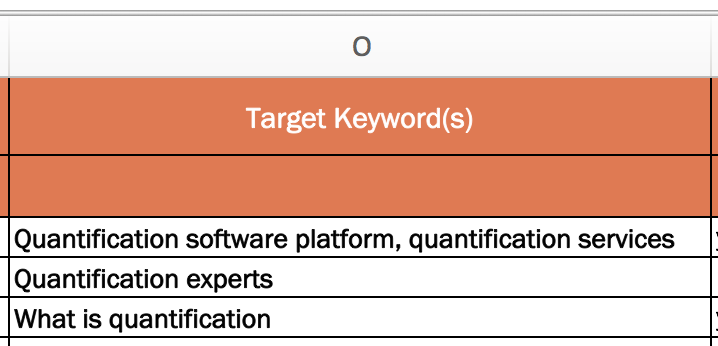
By doing this, you’ll be able to go more in-depth and provide more detailed information about that topic. This also means that you are only optimizing for one keyword per page, meaning you have a greater chance to rank for that keyword.
There are, of course, a few exceptions to this rule. Your homepage is a classic example. The goal of your homepage is to explain what your entire website is about, and thus you’ll need a few keywords to do that. Another exception is overview pages like services and product pages, which outline what all of your products and services may be.
7. Don’t keyword stuff.
We just covered many examples in which keywords are both helpful and necessary for SEO purposes. However, one mistake many first-timers make when improving their on-page SEO is “keyword stuff”.
Keyword stuffing can be detrimental to your website and web page’s SEO and it can feel spammy to readers/ visitors.
8. Establish value propositions for each page.
A very important next step, which is often overlooked, is establishing a value proposition for each page of your website. Each page should have a goal aside from just ranking for a particular term.
If you’re using the template, you’ll do this in column G.

9. Define your target audience.
Define your target audience — do you have a single buyer persona or multiple personas? Keep this persona in mind as you optimize your site’s pages. (Remember, you are optimizing for humans, too — not just search engine robots.)
In column H of our template, you’ll have the opportunity to define your page’s target audience.
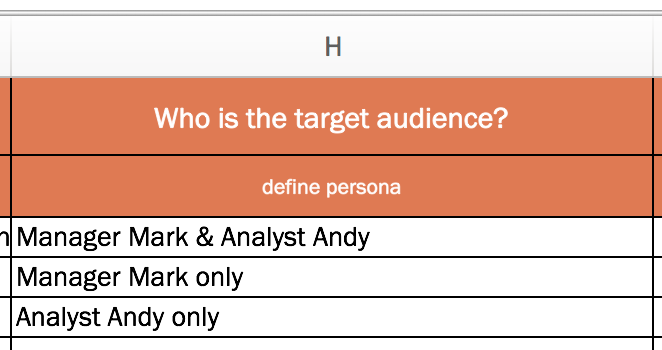
10. Plan new page titles.
Now that you’ve documented your existing page titles and have established value propositions and target audiences for each of your pages, write new page titles (if necessary) to reflect your findings.
You can do this in column K of the template — and double check each title length in column L.
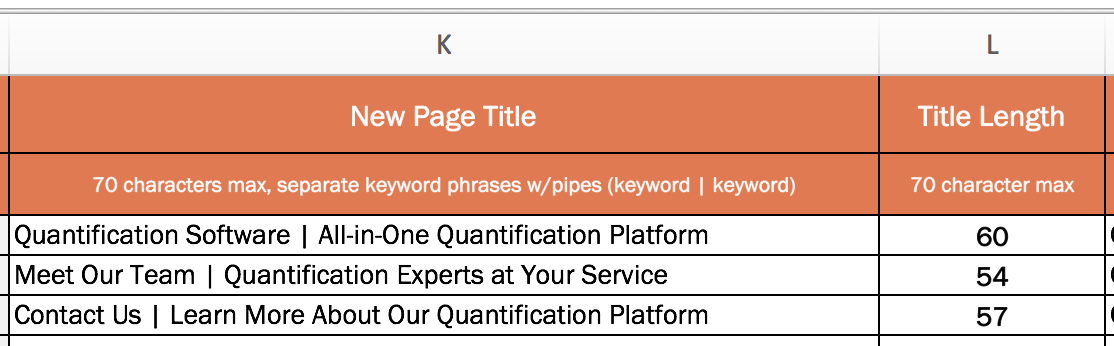
People usually follow the formula of “Keyword Phrase | Context.” The goal of the page title is to lay out the purpose of the page without being redundant. You should also keep the additional recommendations we made above related to titles.
11. Add new meta descriptions.
As we covered above, meta descriptions should be a short, declarative sentence that incorporates the same keyword as your page’s title.
It should not reflect the content verbatim as it appears on the page. Get as close as you can to the 150-character limit to maximize space and tell visitors as much as possible about your page.
If you need to create new meta descriptions, do so in column M of the template.
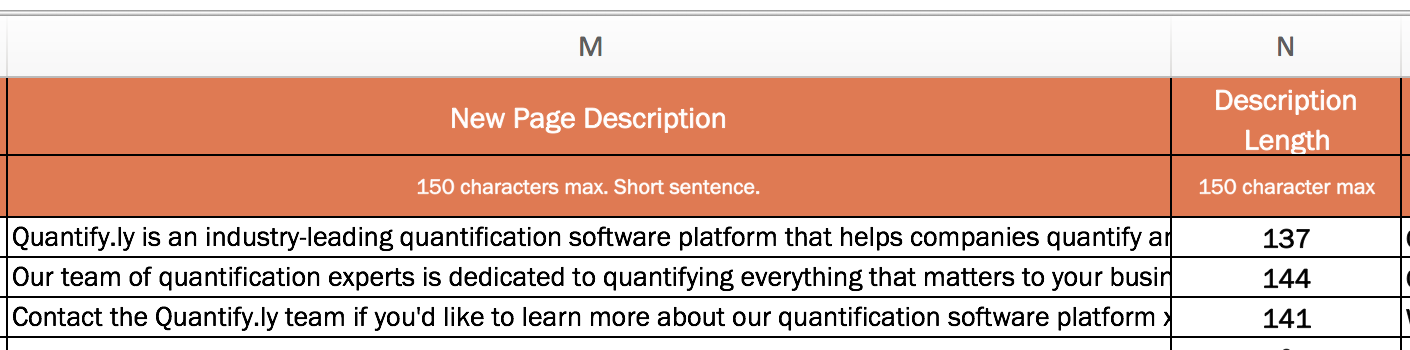
12. Review and edit page content as needed.
Good copy needs to be thorough, clear, and provide solutions … so, be compelling! Write for your target audience and about how you can help them. Compelling content is also error-free, so double check your spelling and grammar.
Aim to have at least 500 words per page, and format content to make it easier to read and digest with the use of headers and subheaders.
Columns P through R can be used to keep track of changes that you’ve made to your content or to note where changes need to be implemented.
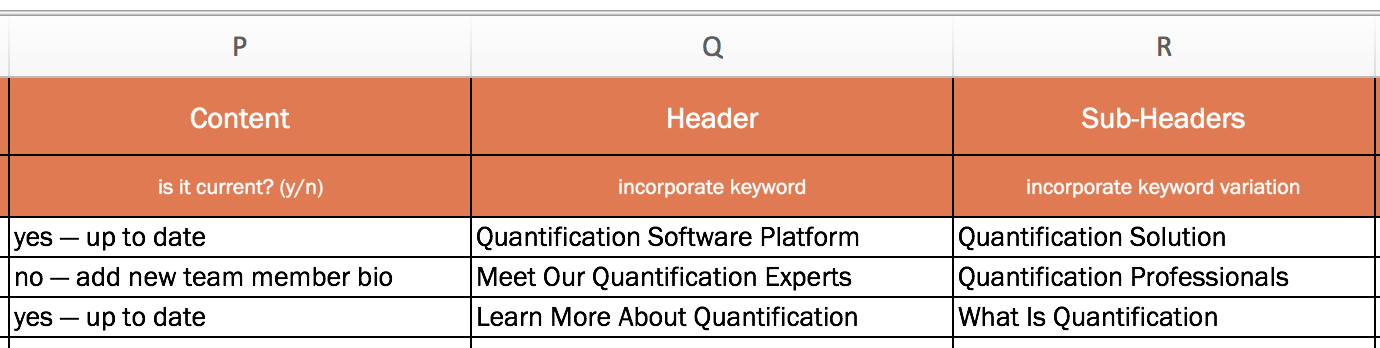
13. Incorporate visual content.
Content can be more than just text, so consider what kind of visual content you can incorporate into each page (if it adds value and serves a purpose, of course). Columns S and T allow you to note which visual elements need to be added. When adding an image to a page, be sure to include a descriptive file name and image alt-text.
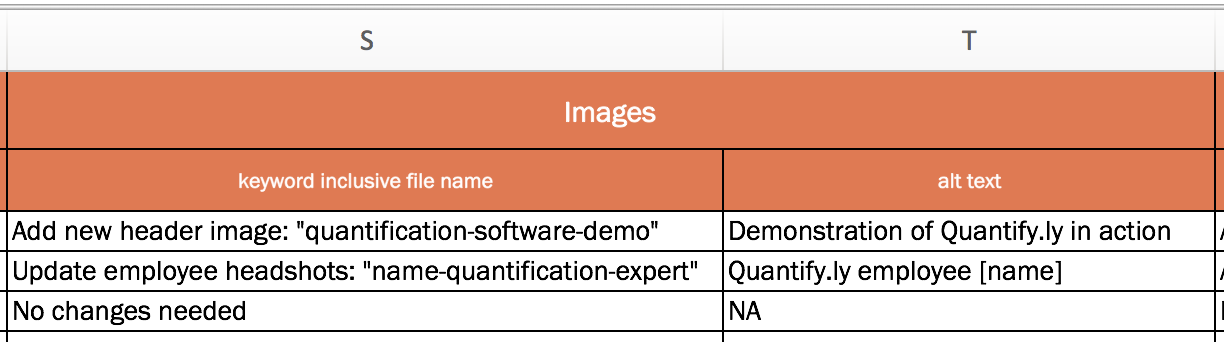
14. Optimize your visual content.
We talked earlier about image alt text. You’ll want to optimize your visual content this way — and be sure to include your keyword in your image alt text. It’ll help with the page’s SEO as well as offer the potential to rank in image search (e.g. on a search engine image results page or image carousel).
15. Add internal links.
As stated earlier, incorporating links throughout your pages is a must, but it’s often something that’s easily overlooked.
Make sure that your anchor text includes more than just your keywords. The goal isn’t to stuff in as many keywords as possible, but to make it easy for people to navigate your site.
Use columns U through W to plan for these elements if you don’t already have them, or to document how you’ll improve them.

16. Include external links.
It may seem counterintuitive to include external links throughout your page considering we just covered multiple reasons why internal linking is so important for on-page SEO. However, external links are also important.
By externally linking, to credible and trustworthy sites, Google will know your page is also credible and trustworthy. Not only does Google want to know your site is well-referenced, but your visitors do, too.
17. Optimize for conversions.
If you’re also not optimizing your site to increase the number of leads, subscribers, and/or customers you’re attracting … you’re doing it wrong.
Remember that each page of your website presents a conversion opportunity. That means every page of your website should include at least one call-to-action (CTA), though many pages may have multiple CTAs.
Columns X through AF allow you to plan for conversions.
Be sure that your site has a mix of CTAs for different stages of the flywheel.
(Note: The On-Page SEO Template refers to the stages of the buying funnel — top of the funnel, middle of the funnel, and bottom of the funnel. If you are a HubSpot customer, you can even use Smart Content to display these specific CTAs only to people in a specific part of the funnel.)
Also, as you add, edit, or update CTAs, be sure to note conversion rate changes in columns Z, AC, and AF.
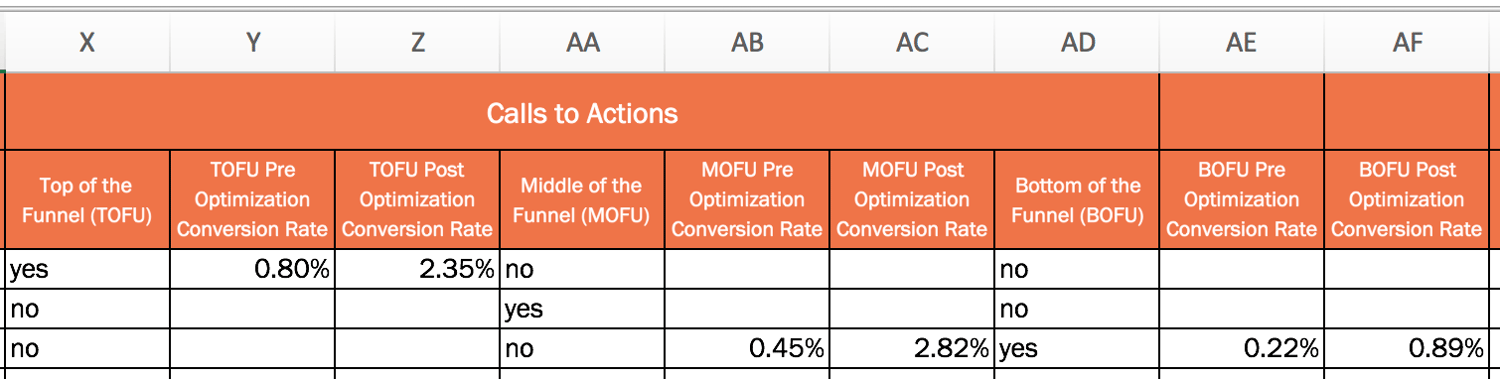
Put Your On-Page SEO to Work
Once you finalize your SEO plans, implement these changes on your website or pass them along to someone to implement for you. This will take time to complete, so aim to work on 5 to 10 pages per week.
Remember: SEO is not a one-and-done deal. It’s something you should continually improve upon. You should treat this On-Page SEO Template as a living, breathing document that will help guide your SEO strategy for months (or years) to come.
Editor’s Note: This post was originally published in October 2012 and has been updated for freshness, accuracy, and comprehensiveness.

Working Remotely? Try These 35 Tools for Better Communication, Collaboration & Organization
Today, you and your team are expected to perform at the same level no matter where you’re working from.
With the help of internet connection, it’s relatively easy for us to get most our daily work done, whether it’s related to publishing a blog post, sending a follow-up email, conducting a video call with a team member of prospect, or setting up a workflow to nurture prospects and customers in your CRM.
But, when it comes to remote work, we all know internet connection doesn’t solve everything .
Tasks and obstacles are bound to arise that are challenging to manage remotely — when it comes to these complex tasks and cross-team collaboration, communication and productivity can get messy.
As the need for remote work has grown, many companies have discovered and started implementing tools and resources that enable employees to be as productive as possible while working from home.
To help determine which tools are ideal for your remote team, we’ve compiled a list of some of the best tools for you to use:
- Tools For General Collaboration
- Tools For Task and Project Management
- Tools For Scheduling and Hosting Virtual Meetings
- Tools For Asset Management
- Tools For Announcements and Internal Documentation
- Tools For Tracking Team Progress
- Tools For Team Decision-Making
35 Helpful Remote Work Tools and Software
The following 35 remote work tools are segmented by use case to help you determine the type of resource you and your team would benefit most from.
Let’s get started.
Remote Work Tools For General Collaboration
1. Google Suite
Google Suite (G Suite) is a budget-friendly Google platform that allows your teams to collaborate on Google Docs, Google Sheets, and Google Slide, among other easy-to-use Google Drive tools. You can also share a team calendar and create work emails through the G Suite.
2. Microsoft Office Teams

While G Suite can be used entirely online within one platform, Microsoft Office Teams allows you to download apps like Excel, Outlook, Word, and PowerPoint to your computer or mobile device. Like G Suite, you also can use this general suite of tools to manage, share, store, and edit documents in team folders.
Aside from the more specific apps, Microsoft Teams also allows you to communicate with your teammates via video calls, email, and through an internal discussion platform where your colleagues can create posts or ask questions.
Remote Work Tools For Task and Project Management
3. Trello
Trello allows you to create a dashboard that highlights large projects or categories and tasks related to them. Each small task, called a “card” can be labeled with a colored tag and text.
For example, if you want to say something is “Urgent” you could create a red card tag that says “Urgent” on it and stick it to the appropriate Trello cards. You can also assign cards and deadlines to members of your team and track each card’s progress through its Activity area.
4. Asana
Asana lets you create and delegate tasks, organize, and check off tasks into shared projects, chat within each task so conversations stay organized, and add attachments from your computer, Dropbox, Box, and Google Drive.
It also has calendar features, dashboards for projects, and your very own to-do list.
5. Assembla
Project management for web developers seems to be Assembla’s niche, though it could handle project management for just about any type of freelancing.
It tracks tickets and time, produces reports, and simplifies product releases and bug-fixing — plus many say it’s easier to set up than Jira.
6. Basecamp
Basecamp is a simple and easy-to-use project management software that helps you arrange your calendars, set meeting schedules, track assignments, and store documents.
All of your project management occurs on one organized dashboard to give you a digestible birds-eye-view of everything that’s happening.
7. RingCentral and Glip
There’s another great tool by Ring Central and Glip. While RingCentral enables company calls to your business line to be forwarded to a mobile phone when you’re working remotely, Glip helps you manage basic project management and text-based team communication.
For task management, shared calendars, file sharing, annotating images, and real-time group chat, Glip is a strong tool. It also helps ensure all those chats are fully searchable.
Along with group chats and standard project management features, you can activate video chats on the Glip app which allows you to talk to your teammates about ongoing tasks.
8. Github
Web developers will love GitHub because it’s designed to build software with remote teams. The platform allows teams to virtual participate in code review and the management of both open source and private projects.
The GitHub Marketplace offers coders a variety of tools that can help them do their jobs more efficiently, regardless of where they log in.
9. Jira
Jira is another project management tool primarily for developers, customer support, and IT reps that allows you to assign and track work as well as issues that need to be solved.
It also has a handy mobile and desktop interface for project management on the go.
10. Podio
Part project manager, part Facebook for companies, you can use Podio to keep track of what you need to do, and chat while doing it.
With the mobile app and website, you can create “workspaces” for different aspects of your work or projects. These workspaces look similar to a Facebook page as colleagues can comment or share information on them similarly to how they would share a Facebook post.
You can also use the platform to communicate with teammates or manage client contacts privately since it has a wide range of privacy settings.
11. Taskworld

The sweet spot for Taskworld is managing projects and keeping track of tasks and subtasks.
Its evaluation feature lets you measure and give feedback on job performance, setting it apart from other similar project management programs.
12. Monday.com
Monday.com is a web task management platform specifically for businesses and agencies. It offers similar features to Asana and Trello in that you can watch the progress of tasks on a dashboard and assign projects to team members.
But, additionally, it also allows marketing teams to plan tasks with their budget in mind.
Remote Work Tools For Scheduling and Hosting Virtual Meetings
13. Zoom

Zoom is an easy-to-use desktop platform and app that allows you to schedule, launch, and record virtual meetings with your team. These meetings can be entered remotely from a computer, smartphone, or voice via a dial in phone.
During Zoom meetings, you can also share your screen with teammates so they can see your work or presentations.
14. GoToMeeting

GoToMeeting allows you to schedule and launch virtual meetings or webinars where users can log in or call to hear only hosts speak.
These meetings can be recorded and sent to participants after they’re completed.
15. Google Hangouts
Google Hangouts is a popular option because Google is usually convenient for those who use Google Calendar to manage your schedule and GMail for emails.
16. Join.me
Join.me is great for fast and easy screen-share meetings.
In addition to being able to schedule and launch quick virtual meetings with screen-share, you can also create a shareable URL to your own personal meeting room that people can log on to when they’d like to meet with you.
17. Skype
At this point, many of us have already used Skype. Along with allowing you to host free small virtual meetings, Skype also enables you to create group chats.
If you want to use the paid version of Skype, you can also have meetings with groups or make international voice calls.
18. UberConference
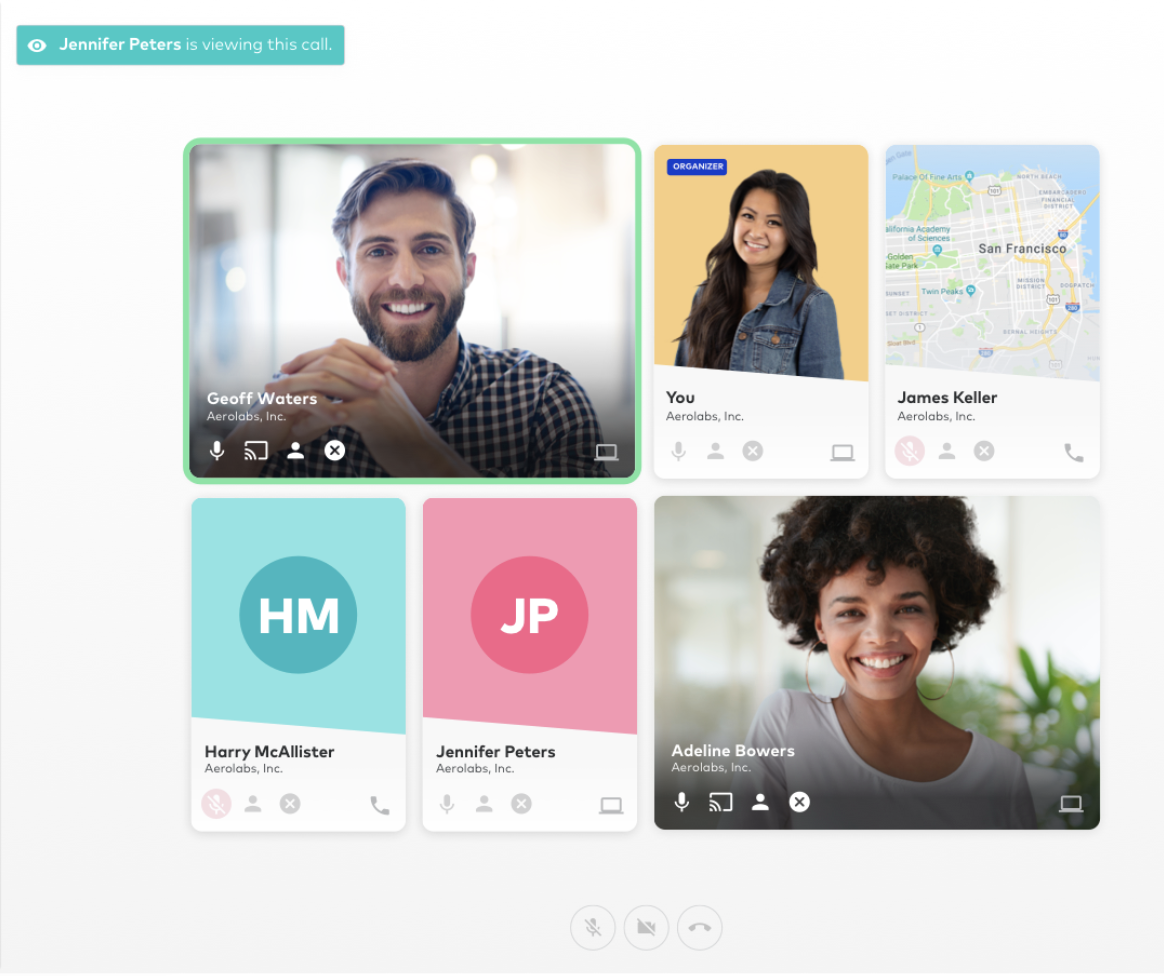
With UberConference, there’s no wondering who joined the call, who said what, or what the heck your meeting PIN number is. It also allows screen sharing and has a mobile app.
You can create video calls in your own name and when someone signs in, you can easily see them on the video calls dashboard. Then, when someone is talking, their video feed will be highlighted so you can easily see what’s happening and stay focused.
19. Google Calendar
Rather than having a full conversation over an instant messaging platform about when to have a meeting, you can use G Suite’s Google Calendar feature.
With the feature, you can share your Google Calendar with your colleagues. Then, when you want to schedule a meeting with them, simply search their names and book a suggested time that works.
When you do this, you can also put notes in the description area such as, “I’d like to book this meeting to discuss the marketing newsletter. Let me know if this time doesn’t work for you.”
20. Howspace
 Howspace is a digital facilitation platform that helps you deliver large initiatives, such as organizational transformation, learning programs, workshops & events for large groups.
You can inspire co-creation, boost engagement and create sustained impact by facilitating an interactive journey for processes that go beyond daily practices. Easy to use drag and drop editor helps you build your workspace, including chats, polls, surveys and videos. AI helps you to summarize insights for large discussions in real time.
Remote Work Tools For Quick Chats With Colleagues
21. Slack
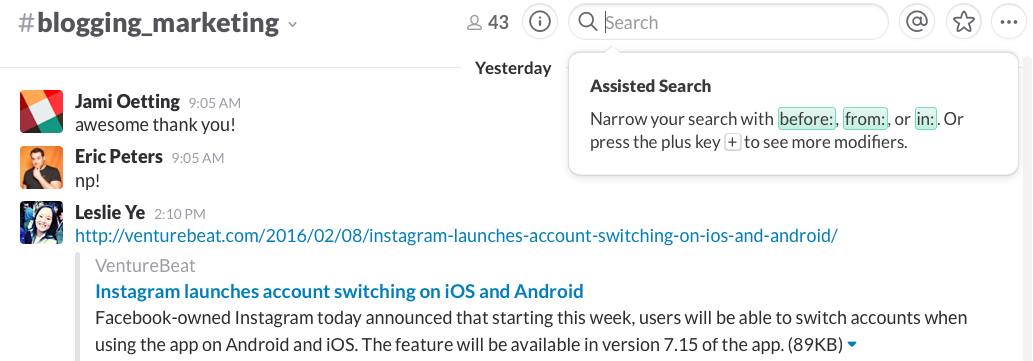
Slack is great for real-time communication for one-on-one conversations or with everyone on your team. You can also organize chats by subject, and integrate activity from platforms like Github, Trello, and Pingdom.
I like the thought expressed here that Slack is as close to a virtual office as you can get. You can even create one channel for every client, and invite only the people on that project to be on that channel.
(Want to learn more about Slack? Here’s a guide to all the hacks you didn’t yet know you could do with the platform.)
22. WhatsApp
If you have a remote or globally dispersed team, or communicate regularly with international clients or prospects, WhatsApp is a great communication platform that allows you to create group chats with them, send text messages, host multiple-person video calls, or make voice calls for free on a Wi-Fi network.
24. Flowdock

Flowdock is simple and easy-to-use instant messaging app and website similar to Slack. It also integrates with Jira, GitHub, Basecamp, Asana, Assembla, Trello and many other apps.
Remote Work Tools For Asset Management
25. Google Drive
I love Google Drive, but it does tend to update rather frequently — meaning, just when you’ve figured it out and have all your things organized, things change.
With that said, it’s free, stores and organizes all of your content and information, and you can work on the same document with multiple people at the same time.
26. Dropbox
Sharing large files doesn’t work so well over email, which is where Dropbox and Dropbox Business come in.
This is a great tool for organizing freelancer work. Just have the freelancer upload their documents into monthly folders and message you when their work is in.
26. Adobe Creative Cloud
Adobe Creative Cloud programs like Photoshop, InDesign, and Illustrator allow you to create design files or visual assets that can then be edited or updated by your team.
27. Canva
Similar to Adobe, but easier to use for design novices, Canva allows you to create team accounts where you can share design templates and assets with your colleagues remotely.
This ensures you’re able to access and edit any design files or brand imagery you might need while working from home.
Remote Work Tools For Announcements and Internal Documentation
28. Confluence
Confluence allows you to create an internal blog or wiki for your team. It’s more of a team manager, keeping documents, notes, best practices, product requirements, and plans all in one easily searchable place.
Pro tip: You can also use the Gliffy integration to do quick wireframes.
29. GitHub Wiki
Savvy inbound marketing companies use GitHub Wiki for employee onboarding by organizing helpful resources for new employees.
30. Loom
Realize that speaking out loud is a better way to communicate a team announcement, but don’t have time to book a meeting?
With Loom, you can record a presentation or just your voice to give an announcement or play-by-play to your team. Then, you can get a link to share the recording and easily circulate it across channels like instant messengers or email.
Remote Work Tools For Tracking Team Progress
31. Time Doctor
Need to keep a close eye on how your team is spending their time, for client billing or productivity purposes? Time Doctor can help you do just that.
With the tool, you and your team and/or remote freelancers can create projects and start a clock when starting a new task. Then Time Doctor’s dashboard shows a report of how many hours your colleague has worked throughout the day and which projects they’ve spent the most time on.
32. Harvest

For keeping track of time and expenses, this is a simple few-frills tool. With Harvest, you simply create projects or to-do list items and start the clock when you start working on each tasks.
Then you can see how much time you’ve spent on different list items, such as writing blog posts, strategizing, or producing marketing emails.
33. iDoneThis
I don’t know about you, but sometimes I can’t remember what I did yesterday. iDoneThis solves that problem for individuals and teams by sending a “digest” of what everyone did.
Remote Work Tools For Team Decision-Making
34. Polly.ai
When your team needs to make a decision that doesn’t require a full meeting, Polly.ai enables you to create a survey that you can then send through platforms like Slack. From there, your colleagues can simply vote on an option.
35. Doodle
Need to plan a group meeting? Doodle is a polling platform that allows you to ask quick questions to your team and see how they vote.
You can also create a meeting-time poll which enables your team to vote on a meeting time that works best for them so you’re able to accommodate schedules.
Navigate the Remote Work Landscape with Helpful Tools
Today, your employees must have the ability to effectively do their jobs remotely — they need access to the right resources to help them be as productive at home as they are in an office space.
It’s no secret that everyone works a little differently and has a unique set of challenges. But when our problems have to do organization and productivity, try implement one of the tools mentioned above.
To learn more about how to master remote work, check out success tips from HubSpot’s remote workforce.
Editor’s Note: This blog post was originally published in 2015 and was updated for comprehensiveness and freshness in July 2020.

13 Online Team Building Games to Try with Colleagues
“As the saying goes, the whole is greater than the sum of its parts. This is especially true in the context of distributed teams,” says Meaghan Williams, HubSpot’s Remote Work and Inclusion Program Manager.
Team building gives your team a greater sense of togetherness.
Most likely, you can envision team building games in your head: exciting team outings, fun outdoor activities, or after-work happy hour chats.
But what does team building online look like?
When members of your team work remotely, it can be a slight hurdle to foster team building without face-to-face contact. Williams notes, “It can be hard to build that same sense of belonging and commitment to the team when you’re remote. That’s where remote team building comes into play.”
Although it can be tough to figure out how to build team morale virtually, the task isn’t impossible.
Remote team building games improve the morale of your team and their sense of belonging, which is essential for your team’s overall productivity and employee satisfaction
We’ve put together a list of exciting team building exercises and games for your remote team to try out. Let’s go over them in the next section.
Online Team Building Games
When coming up with ways to bond with your team online, Williams suggests assuming that anything is an option. This mindset combats restrictive thinking with games and opens up new realms of possibilities.
“This mentality has led to everything from remote yoga to remote holiday parties, and we’ve had so much fun along the way,” she says.
So with that in mind, let’s go over exciting options for building up your team.
1. Remote MTV “Cribs”
Similar to the workings of the hit MTV show “Cribs,” you and your team could spend some time showing off your remote work spaces. This game, inspired by the team at Help Scout, is a fun way to get a look into the workspaces of your teammates.
To give it a “challenging” aspect, have team members vote on their favorite workspace at the end, and the winner can enjoy the bragging rights of having the most impressive remote work setup.
2. Remote Work Bingo
Using a bingo template, create a bingo card and schedule a quick game as a “brain break” for you and your team. You can make it personalized to fit your company and team like the one below:
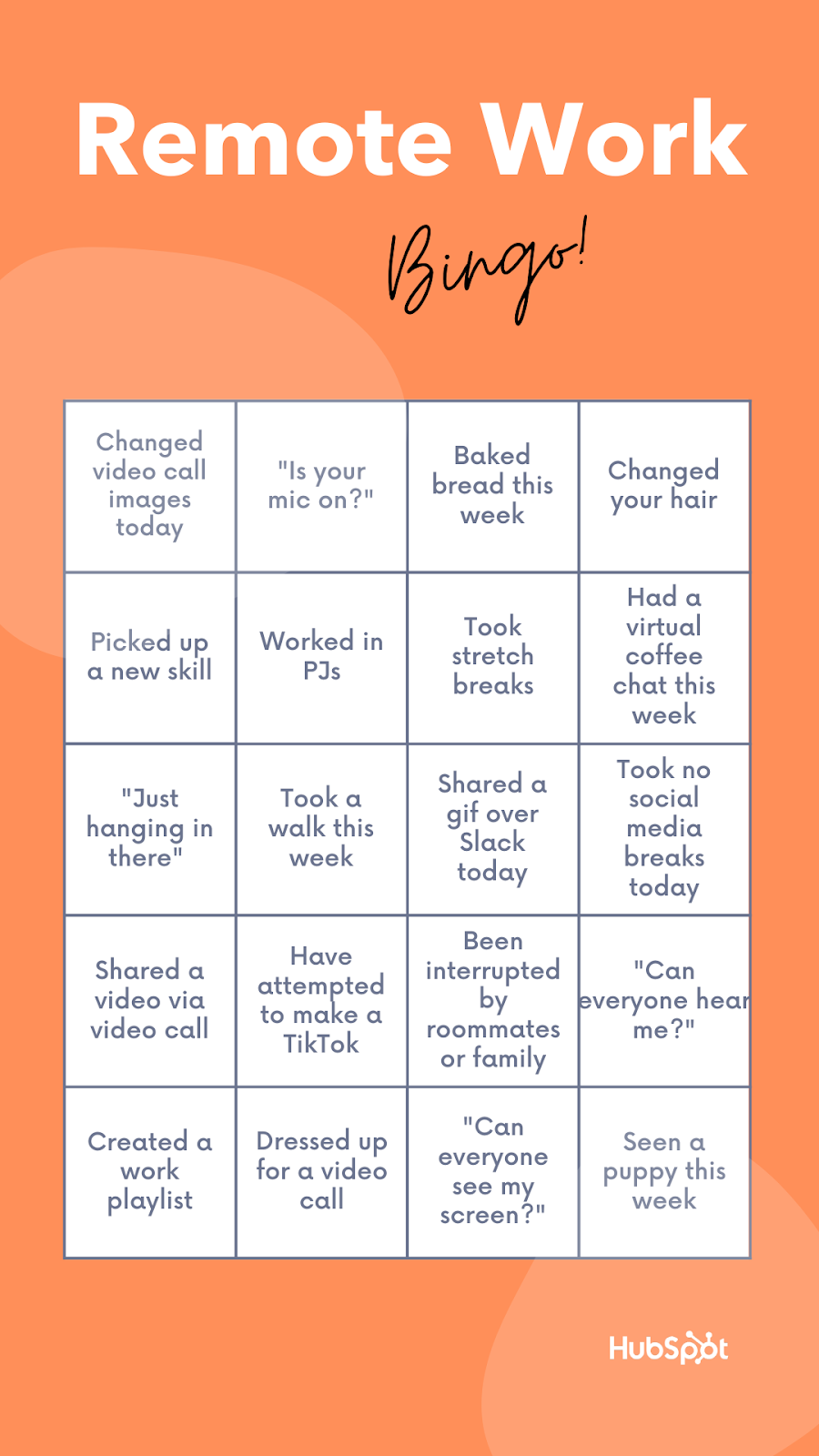
Have your teammates submit ideas for Bingo spaces to make it a collaborative process. You can even offer a prize for the winner, such as an online gift card. Another plus — Bingo is easy enough to build into a routine meeting.
To make Bingo work remotely, pick one person to be the moderator. They would call out a random phrase and wait a few seconds for players to search their card for that phrase. If the player has that phrase on their card, they’d use a tool, such as paint, to mark that space.
Once a player has marked enough spaces in a row, they’d announce “Bingo!” in the video call and wait for the moderator to check their answers. If the row is vertical, horizontal, or diagonal, and matches the spaces, that colleague wins.
3. Mafia
Mafia is known by a couple of different names, and is often played by large groups. Essentially, the game is a “whodunnit” mystery-solving challenge. One of the players is a silent “killer,” and it’s up to everyone else to figure out the culprit.
There’s a couple of roles to assign in Mafia to keep organizational structure, like “Doctor,” “Townspeople,” and “Detective.” The best part about the game? It can all be played over a video call. Click here for a full run-down of how to play Mafia.
At HubSpot, we re-created Mafia to fit in a Zoom call. We used a combination of the chat box, Slack, and turning off cameras to re-imagine the campfire classic in a virtual setting.
4. Happy Hour
One of the most fun remote team building events I’ve done with my team has been remote happy hour. It’s an opportunity for your colleagues to get together and bond outside of work, remotely.
At HubSpot, we use happy hours to foster a deeper relationship with team members. At one point, we even held a virtual wine tasting, where participants brought a glass of German wine and listened to a colleague explain how to taste for specific qualities, and pointed out things about wine that aren’t common knowledge, like how to create air in a wine glass.
Participants can bring any beverage they choose (tea, seltzer, or other non-alcoholic beverages should be encouraged as well), talk about what they’ve brought, and enjoy a relaxed atmosphere.
5. Emoji Stories
Using less than six emojis, begin to write a story in an instant message thread or the chat section of a video call. Then, one by one, your coworkers will add to that story using five more. You can keep going until every teammate has had a turn, or until you run out of ideas.
To get the ball rolling, here’s a potential story starter: 🏘⛈💡🚫 … what happens next to the neighborhood with no power during a storm?
6. DIY Pantry Challenges
Are the members of your team obsessed with shows like MasterChef or Chopped? Alternatively, are they big into YouTube cooking shows, like Bon Appetit’s Gourmet Makes? If so, it could be fun to challenge your colleagues to create their own version of a popular cooking show or a tutorial of their favorite comfort food recipes!
This can be done in a variety of ways, but to give it a “challenging” aspect, pick one dish that’s simple to make, like a patty melt or mac and cheese. Give your team one week to film their own versions of the recipe, upload it to a Google Drive, and choose the winner based on creativity of the dish.
Cooking is an awesome way to express creativity, and as the saying goes, food often brings people together. Plus, leftovers mean there’s no extra thinking to do when it’s lunchtime!
7. Book Club
HubSpotters are no strangers to book clubs. A recent book club we’ve hosted centered around a theme of diversity, inclusion, and belonging. One of our colleagues chose a book to fit this theme, and participants had a discussion to talk about what the book meant to us and how we could transfer the ideas presented in the book to create change in the workplace.
This can be a recurring event or a one-time session, but the purpose is to discuss ideas outside of team projects. It can be a nice break from your day to discuss a good book — whether it’s every month or a couple of times a year.
8. Pop Culture Trivia
What song did Britney Spears perform at the 2001 VMAs? What fictional town does sitcom Parks and Recreation take place in? Unwind with your coworkers in a friendly game of pop culture trivia — 2000’s style.
You can come up with questions with your team, or look up fun prompts online. Assign a moderator, split your team up into groups, and let the games begin!
9. Farm Field Trip
Do you remember taking field trips with your classmates when you were younger? They were fun outings to learn and explore with peers. Nowadays, field trip experiences are moving to an online platform so those young and old are able to enjoy these gatherings virtually.
As an example, you might chat with a local farm to see if they’d be willing to set up a remote farm tour for your team. We’ve done this at HubSpot, and it’s a great way to bond with colleagues as you virtually fuss over the adorable pigs or goats you see on-screen.
10. Scavenger Hunt
When was the last time you went on a deep dive of your company website? If your answer is, “Never,” here’s your chance to challenge your colleagues. Choose pages or tabs from your company’s website for yourself and team members, and come up with a group scavenger hunt.
Break off into teams, or make it a solo venture. After 20 minutes, whoever gets the most points, wins! An idea to get the scavenger hunt ball rolling: “Find the testimonial from X customer.”
11. Lunch and Learn
Send an RSVP to your team to join a webinar and learn a new skill. Alternatively, have your colleagues take turns to host mini lunch and learn sessions for tips about how to perform job functions in a simpler way. For instance, if I were to host a session, it might be “How to Create Awesome Meta Descriptions in Less Than 15 Minutes.”
If your team members have very specific roles that differ, this could be a cool opportunity to learn a little more about what your colleagues do. For instance, your social media manager might host one session about his role regarding social accounts, while your web designer hosts another about her experience designing for UX.
These sessions would give the other insight into how to perform a job function and build a new appreciation for the day-to-day of colleagues.
12. Never Have I Ever
“Never Have I Ever: Remote Work Edition” is another quick stress reliever that helps you learn more about your colleagues. Here are the rules: a team member says something they’ve never done before, but if those playing have done it, they lower one of their fingers. The person with the most fingers left wins the game.
If I were to host a version of the game, my first entry might be, “Never have I ever bought noise-cancelling headphones.”
13. Virtual Dance Party
If you’re like me, you’re known for your pretty amazing work playlists. What better way to wind down after a long workday than with a no-judgement dance party with your colleagues? You can even pull up a song from the Just Dance video game series and learn together (you just need a smartphone!):
There’s no pressure to explode into a fully-choreographed sequence a la Mamma Mia! — all dance styles are encouraged. Blow off steam and enjoy a friendly competition with your team.
“Not every idea is going to be a winner, but what’s important is that you’re willing to be vulnerable with each other and give new ideas a try,” Williams says.
Additionally, she adds, “If you’re just embarking on this journey for the first time, be honest with your team about this and ask them to provide feedback on what’s working and what isn’t. Even better, ask them to contribute their own ideas and lead the way on initiatives that they’re excited about.”
Team building is all about strengthening the bond of your team through different and fun activities. You can host a Pictionary session through a video call or encourage different areas of discussion during meetings. For more ideas on team building games, Williams suggests giving these options a whirl:
Most importantly, remember to just have fun with your team and enjoy the time you have together!
Editor’s note: This post was originally published in May,2020 and has been updated for comprehensiveness.

How to Go Live on Instagram in Five Easy Steps
Earlier this morning, I joined a free workout class from my bedroom.
I placed weights and a yoga mat beside my bed, and took the class in real-time with 6,000 of my closest friends.
You might be thinking I took the class on Peloton’s website, or through another boutique fitness studio.
In reality, I actually took the class on Instagram — and, more specifically, Instagram Live.
There are plenty of benefits for businesses to post Live videos on Instagram. For one, people love watching live videos. The content can feel more authentic and natural than it would if it had been pre-recorded — just consider how addicting Saturday Night Live can be, particularly if the actors make mistakes or break character.
Additionally, 82% of people prefer live video from a brand over standard social media posts.
You might consider using Instagram’s Live feature to host live Q&A’s with industry leaders, stream entire virtual events, or host live product tutorials from social media influencers.
If you’ve never posted a live video on Instagram, you’re in luck. Here, we’ll dive into how you can go live on Instagram in five easy steps. (By the way, I’m no Instagram influencer, so please excuse the sad plant as my only willing Live video subject.)
How to Go Live on Instagram
It’s important to note — these instructions will only work if you’re opening the Instagram app on mobile. However, if you’d prefer to create a live Instagram video from desktop, you’ll need to use a third-party tool like Loola TV.
1. First, open your Instagram app on your smartphone, and click the camera icon in the top left corner.

2. On the bottom navigation, scroll all the way to the left until you see “Live”. Then, click the big white circle to begin recording. (Note: You’ll know you’re Live when you see the pink “Live” button at the top of your screen, as well as the text “We’re telling your followers that you’ve started a live video” at the bottom.)


3. When you see accounts begin appearing at the bottom of your screen, you’ll know people have begun joining your live video. Feel free to send them a Wave!

4. When you want to end the video, click “End” at the top right of your screen. When Instagram asks you, “Are you sure you want to end your live video?”, click the red “End Now” button.

5. Finally, feel free to share your live video to your IGTV, so followers can still watch the video on your Instagram account after-the-fact. Alternatively, you can download the video to share it on your website or other social media pages, or delete the video.

If you choose to share your live video to your IGTV, your followers can continue watching and re-watching whenever they’re available. If you’re creating an exclusive membership-only live event, you might want to skip this step, but otherwise, it’s a good idea to keep the content you’ve created to continue boosting awareness for followers who weren’t able to join live.
For instance, I regularly partake in fitness trainer Kayleigh Guinee’s Instagram Live workout classes, but there are times I’m unavailable for the live version. Fortunately, I know she saves her videos to IGTV, so I’m able to pull up the videos whenever I’m ready to watch:
Best of all, I can pause, fast-forward, or replay the live version whenever I need to. You’ll know you’re watching a previously live Instagram video if you see the small “was live” text in the top left of the screen:

I spoke with Kayleigh to understand why influencers choose live video over other forms of content.
Kayleigh told me, “Online workouts are amazing, but live workouts on Instagram allow my followers to connect with me — and one another — while continuing to build a community, which is more similar to in-person fitness classes.”
Kayleigh added, “We’re all able to see who joins, chat with each other, and workout in real-time. There is also something about having a time set aside to join a workout that helps us all stay more accountable.”
Ultimately, if you’re unsure whether Instagram live will work for your brand, you can always give it a try. It’s easy, and free, so there’s little to lose when experimenting — and potentially a lot to gain.
Finally, there are some great features included in Instagram’s Live tool. Let’s explore what those are, next.
Instagram Live Features
Once you’re rolling with an Instagram Live, you’ll see four icons at the bottom of your screen — including a question mark icon, a paper airplane, two smiley-faces, and a filter icon.

1. The Question Mark Icon lets you share questions from your viewers. (It’s important to note, you’ll only be able to share questions if someone has submitted a question during your Live video.)
2. The Paper Airplane Icon lets you send a direct message to someone about your Instagram Live video, which you might want to do if you’re hoping to invite someone who hasn’t yet joined your Live video to watch.
3. The Two Faces Icon lets you invite someone to co-host your Instagram Live. This will help spread your Live video to a bigger audience (including the co-host’s followers). You might do this if you’re hosting a Q&A with various experts, or partnering with influencers to promote a product.
4. The Filter Icon lets you add filters to your Instagram Live video to make them appear more polished or interesting — like this filter I added to my plant.

Additionally, if you want to turn off commenting, tap the three dots in the “Comment” box, and click “Turn Off Commenting”. Alternatively, you can click the three dots if you’d also like to “Turn Off Requests to Go Live” if you don’t want other participants asking to co-host.
We’d also recommend hiding offensive comments to ensure followers don’t post inappropriate comments during a live video. To do this, go to your Instagram Settings > Privacy > Comments. Then, toggle on “Hide Offensive Comments”.
Additionally, you can manually filter to hide certain inappropriate words or phrases you don’t want to appear during your live video. Just toggle “Manual Filter” and then type in the phrases you’d like hidden.
And that’s it! Hopefully, you’ll have your own Instagram Live videos up-and-running in no time. Remember, there’s no pressure to make your Live videos perfect. In fact, followers often appreciate when they can see real, authentic, behind-the-scenes footage of your brand.
To learn more about creating top-notch live videos and get inspiration, take a look at Which Types of Live Video Are People Actually Watching? [New Data].
