
Personality Tests: a Gimmick or Helpful Management Tool?
My coworkers and I love personality tests. We share them with each other to have fun and get to know each other — an important task since half of our team is remote and sprinkled across the country.
Personality tests have allowed us to gain insight into our lives outside of work. They’ve also helped us better understand our communication and collaboration styles, which has made projects, meetings, and feedback sessions much easier to navigate.
Personality tests can be major assets for teams of any size, location, and skill set. They unlock professional preferences such as how each coworker likes to receive criticism and feedback, and they can boost camaraderie and communication between even the most polar opposite team members.
Let’s dive into the accuracy of personality tests and how to navigate results in the workplace.
How accurate are personality tests?
Personality tests are like going to the gym — you only get out what you put in. If you don’t take personality testing seriously, you shouldn’t expect accurate results.
This is true for any questionnaire you take, but it especially applies to the handful of scientifically-designed personality tests that are often taken within, and applied to, professional settings.
Certain tests — such as the DiSC Assessment, Myers-Briggs, and Holland Code Career Test — were developed by psychologists with a background in mental health and scientific experimentation. Professional opinions about each test vary, but companies around the world still use them, if only just to learn more about their employees and coworkers.
In my opinion (which is not that of a trained psychologist or test-maker), personality tests do have some merit. I’ve taken quite a few professionally-designed tests — and a healthy serving of the fun ones on Buzzfeed, but we won’t count those — and have seen a lot of accuracy in my results.
I’ve also seen some crazy, out-of-character results.
The fact of the matter is, while there are some truths in the Myers-Briggs, DiSC, and Enneagram, our personalities, preferences, and day-to-day dispositions vary too much to take those results as concrete truth.
I think the question here isn’t as much about the accuracy of personality tests (because that question is directly proportional to how seriously your employees take the test, and you can’t count on everyone to do so). I think the more important ask is this — what should you do with the results?
Personality tests are fantastic conversation-starters. They’re good at helping us articulate those intangible preferences, aversions, habits, and weaknesses we otherwise don’t know how to name. They’re also fun for making connections and bridging gaps at work.
As insightful as personality tests are, however, they shouldn’t be the guiding light in how you treat and collaborate with your team — nor should they be the defining factor for hiring and firing decisions. Now, let’s unpack the pros and cons of personality tests.
Pros and Cons of Personality Tests
Personality tests are fun, insightful activities — unless they’re used for major employment and business decisions. If this is the case, it’s wise to scrutinize the benefits and drawbacks of such tools to avoid blindly relying on nuanced results.
| PROS OF PERSONALITY TESTS | CONS OF PERSONALITY TESTS |
| Employers can examine results to see how a candidate may fit into the team and company culture. | Employers can neglect to get to know the candidate and instead assess his or her fit based on test results. |
| Managers can use results to better understand how to communicate with and provide feedback to employees. | Managers can miss out on important communication opportunities if the setting doesn’t perfectly align with the employee’s test results. |
| Personality tests provide a relatively unbiased, consistent means of assessing candidates and employees. | Not every candidate or employee may take the personality test seriously and/or not have the capability to fill the test out to the best of his or her ability. |
| Personality tests look into what a candidate will do in a given situation, versus what he or she has done. | Companies may administer the wrong personality test for the wrong situation. |
| Personality tests can be fun (more so than the SATs) for candidates to take, and they may be personally invested in the results as well. | Personality tests can be costly and time-consuming for companies, candidates, and employees alike. |
When it comes to using personality tests as management tools, don’t allow the results to speak for your employees. Let them complement each person, not replace them — and be careful not to judge a person by their personality test results.

How HubSpot Service, Support, and Sales Reps Stay Productive on a Noisy Floor
As a customer-facing representative — whether you work in sales, service, or support — you’re probably used to working in a busy, noisy office space. Maybe you work on a loud sales floor surrounded by reps chatting on the phone with leads. Perhaps you work in an office space with customer service and support reps working to assist customers over the phone or video chat throughout the day.
Whatever the cause of your workspace being noisy, it’s not always easy to block out the environment around you. That’s why we’ve compiled the following list of tips and tricks HubSpotters use to stay productive and focused in a noisy, busy, and sometimes, distracting workspace.
Before diving into the examples from HubSpotters, let’s take a look at some all-encompassing and actionable techniques to improve your productivity.
Now, let’s hear from HubSpotters about how they use these specific tips and techniques.
1. Block time on your calendar or communicate your need for disruption-free time to your coworkers.
- “One of my staples is creating a ‘working signal’. Since I’m typically on calls and that signifies I’m unable to chat, I usually keep my headphones on to show that I’m still at work. When my headphones come off that means I’m available to speak with or help others. I’ll also find a booth or another area where I know fewer people so I’m less tempted to converse and can focus on the task at hand.” — John Vassar, Customer Onboarding Specialist, HubSpot HQ
- “I find while working in a collaborative environment, people still approach you even if you have headphones on — so, I recommend informing your team in advance when you need time to focus. I set 30 to 60-minute blocks in my calendar that I try to religiously follow. During this time, I won’t get up or go for a wander or banter with any of my colleagues.” — Ricky Huang, Principal Account Executive, HubSpot Sydney
2. Invest in noise-canceling headphones.
- “My headphones have a noise-cancelation feature that I can turn on when it’s really loud. That’s typically what a lot of us on the team do.” —Ado Kawuba, Partner Specialist, HubSpot HQ
- “I have noise-canceling headphones (Sony WF-1000XM3) that I wear when I don’t need to be on a call, but have to work on a proposal or something else with a hard deadline.” — Ricky Huang, Principal Account Executive, HubSpot Sydney
3. Listen to white noise or music (specifically, without lyrics).
- “When I need to just put my head down and focus on doing some work, I usually play white noise which helps block everything else out.” — Sotiria Qirjazi, Customer Onboarding Specialist, HubSpot Dublin
- “I like my classical music — it keeps me focused and blocks out the noise. I stick with music without words so I don’t get distracted singing in my head (typing lyrics into emails!).” — Zoya Khatuntseva, Senior Channel Account Manager at HubSpot, HubSpot HQ
4. Move around, find a quiet space elsewhere, or work remotely when possible.
- “I know firsthand the toll that working on a noisy sales floor can have on reps, so I encourage my team take the time they need to move around the office, visit HubSpot’s Meditation Room, work remotely (and work on a flex-schedule, if possible), or just take a break when they feel overwhelmed. This helps improve overall productivity — remember, sometimes you need to sit out an inning to play the whole game.” — Dan Love, US Sales Manager, HubSpot HQ
- “While working as a rep, I’d get up and take breaks between my calls. Leaving your desk can do wonders for resetting your focus, especially if you’re given a few minutes to write case notes between calls. I’d write my notes quickly and use any extra time to leave my desk, walk around, get coffee, etc. This helped me reduce fatigue and stress whenever I felt it was a very busy or noisy day.” — Clint Fontanella, Service Blog Writer and Editor (former Customer Support Rep), HubSpot HQ
- “I like to grab my laptop and work from somewhere else in the office between my calls to get some time to focus.” — Sebastian Ferreira, Customer Support Specialist, HubSpot Sydney
- “I find that scheduling time to work remotely one day a week or a few times a month really increase productivity levels.” — Serena Shah, Sales Partner Manager, HubSpot HQ
- “I typically take my calls on the sales floor, but when I need time to focus, I’ll move to a quiet area of the office to get work done.” — Tim Ferraro, Principal BDR, HubSpot HQ
5. Make daily to-do lists and micro-goals, then cross them off items upon completion.
- “I stay productive with HubSpot Tasks and I create micro-goals for myself throughout the day to help me stay focused and make things easier to digest. For example, a micro-goal may be, ‘For the next hour, I’m going to either just make calls or strictly focus on my follow-up emails.'” — Cam Karosis, Small Business, HubSpot HQ
- “Make a list of what you want to accomplish that day, so when you get distracted and forget what you were doing, you can reference the list. Additionally, crossing something off a list is very cathartic.” — Serena Shah, Sales Partner Manager, HubSpot HQ
6. Experiment with tactics that are specific to your particular role in the office.
- “When my customers can hear it’s noisy in the background, I work harder to ensure they know I’m focused on their problem rather than what’s going on around me. Sometimes, when they hear noise, I worry they’ll be concerned that I’m not completely understanding or hearing their problem. To show I’m 100% focused on them, I try to be more conversational so they can tell I’m fully invested in our conversation and not what is going on in the background.” — Katelyn Tierney, Customer Support Specialist, HubSpot HQ
Stay Focused and Productive
No matter what your current technique is for staying productive on a noisy floor, don’t be afraid to chat with your fellow reps about their favorite tactics. Or, try using one of these tips from HubSpotters located across the globe. Who knows? You might just find your new favorite strategy.

The State of Video Marketing in 2020 [New Data]
A decade is a long time. I mean, just think back to the end of 2009.
Barack Obama was about to enter his first full year in the White House, Farmville was the flavor of the month with 83 million monthly users on Facebook, and Avatar had just hit movie theatres worldwide, becoming — at the time — the highest-grossing movie ever.
But even then, ten years ago, people were already starting to make big predictions about online video, and its potential to change the world of marketing.
Not all predictions come true — but, as we reach the end of the decade, it’s fair to say that these ones certainly did.
If any marketing trend can lay claim to being the defining tactic of the last ten years, video is surely up there.
A decade ago, video was an expensive, pie-in-the-sky luxury. Since then, it’s become a staple — an accessible, affordable must-have tool to help attract audiences, explain products, and support customers.
And now, as we once again march forward into a brand new decade, new research conducted by Wyzowl strongly suggests:
- Video remains a key priority for marketers.
- Marketers feel more positive about the return on investment offered by video than ever, as it continues to strongly influence traffic, leads, sales, and audience understanding.
- Usage and spend on video marketing are likely to increase yet again in 2020.
- People watch significantly more video than ever before.
- Consumers continue to use video as an integral part of their journey with brands, and are excited to see even more video content in the year ahead.
About the survey
Wyzowl’s State of Video Marketing Survey is an annual report, now in its sixth iteration. Every year, we ask a range of questions — many of them the same from year-to-year — to evaluate how the video marketing landscape is changing and growing.
This time round, our survey was taken by a sample of 656 unique respondents, consisting of professional marketers and consumers.
The key findings…
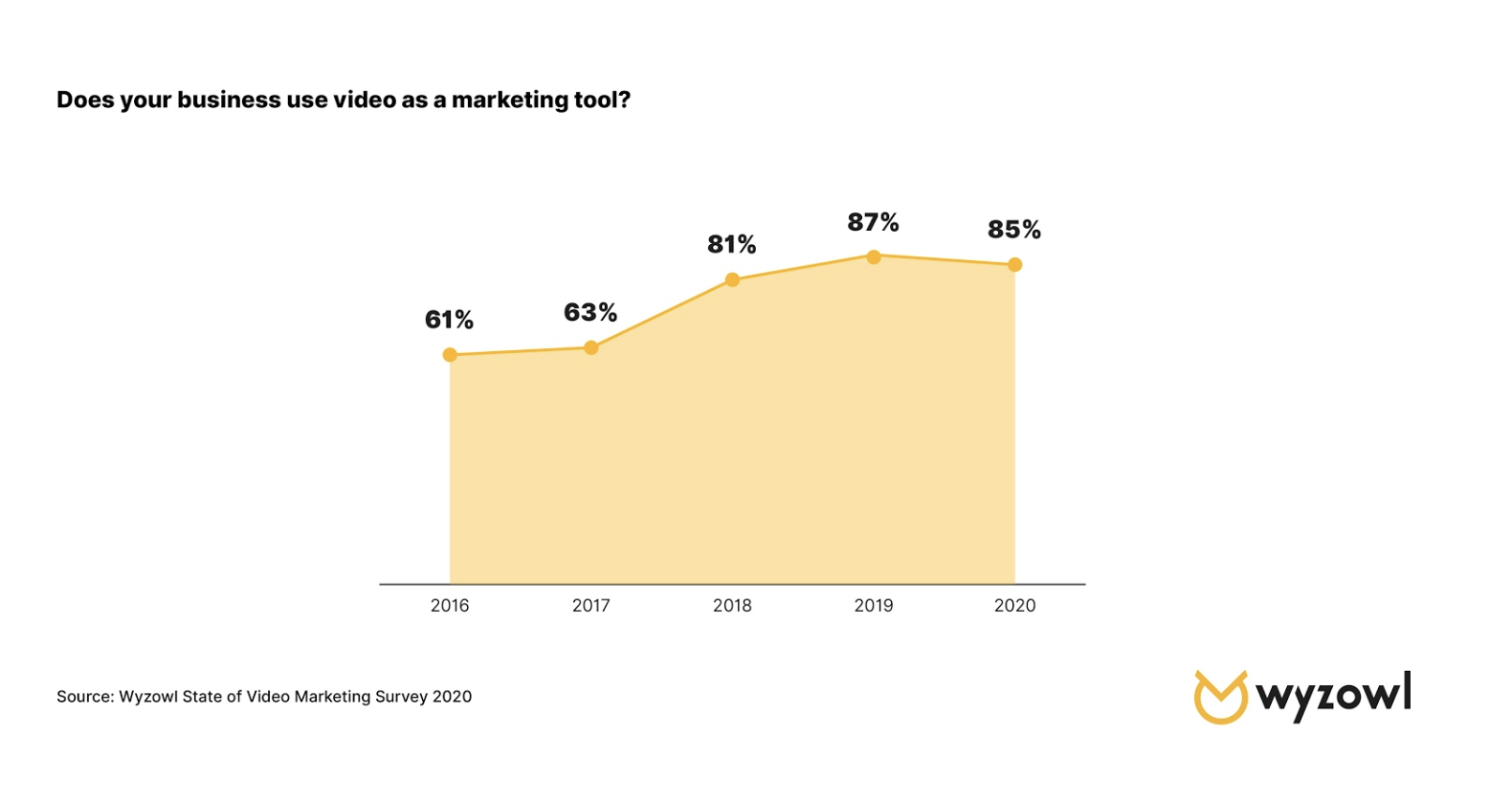
85% of businesses use video as a marketing tool. This is actually a slight decrease from last years figure (87%) but still represents a highly significant number, which has generally grown since 2016 (the first time we asked this particular question in this way.)
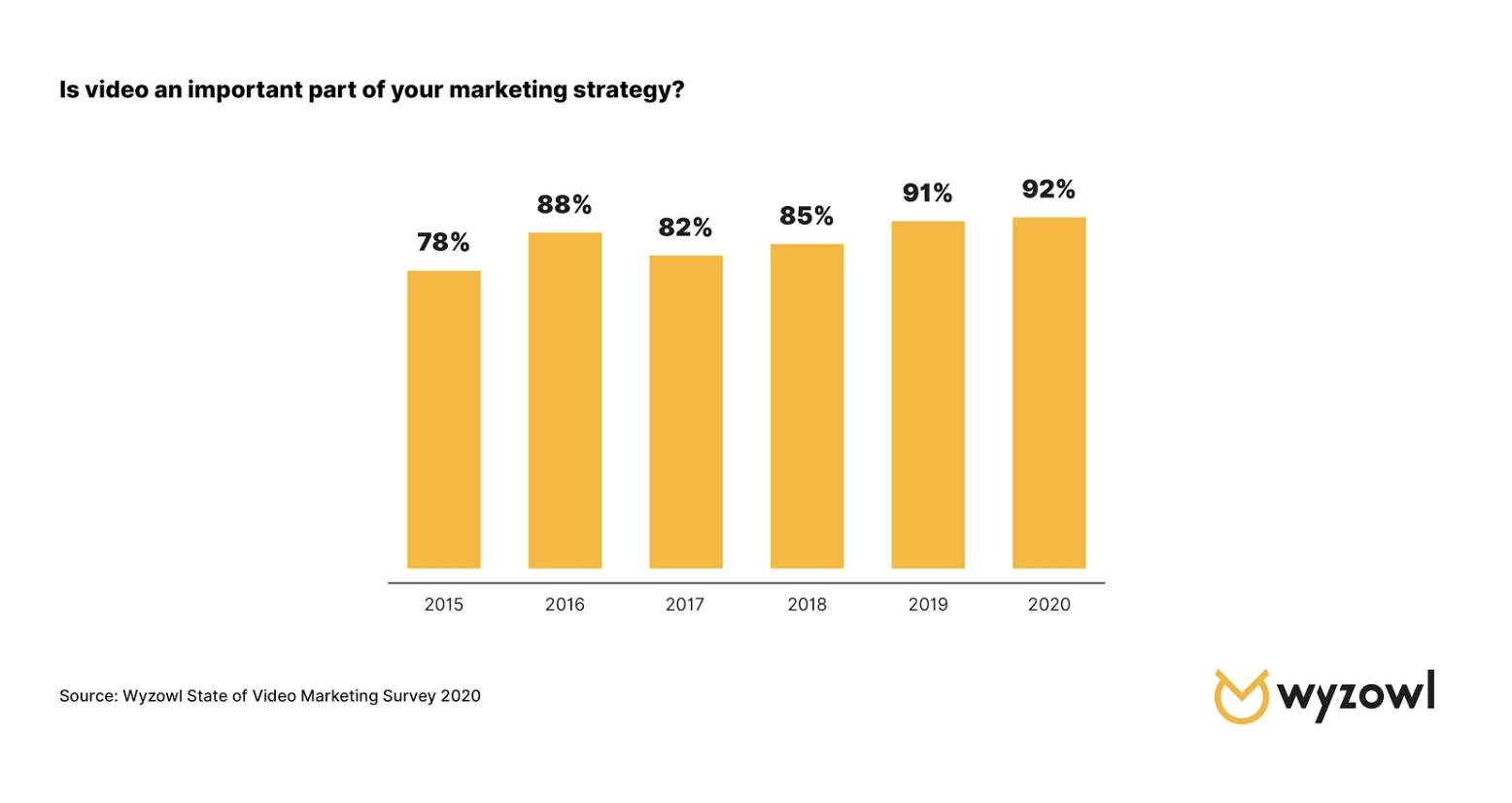
What’s more, 92% of marketers who use video say that it’s an important part of their marketing strategy — the highest percentage of any year since 2015.
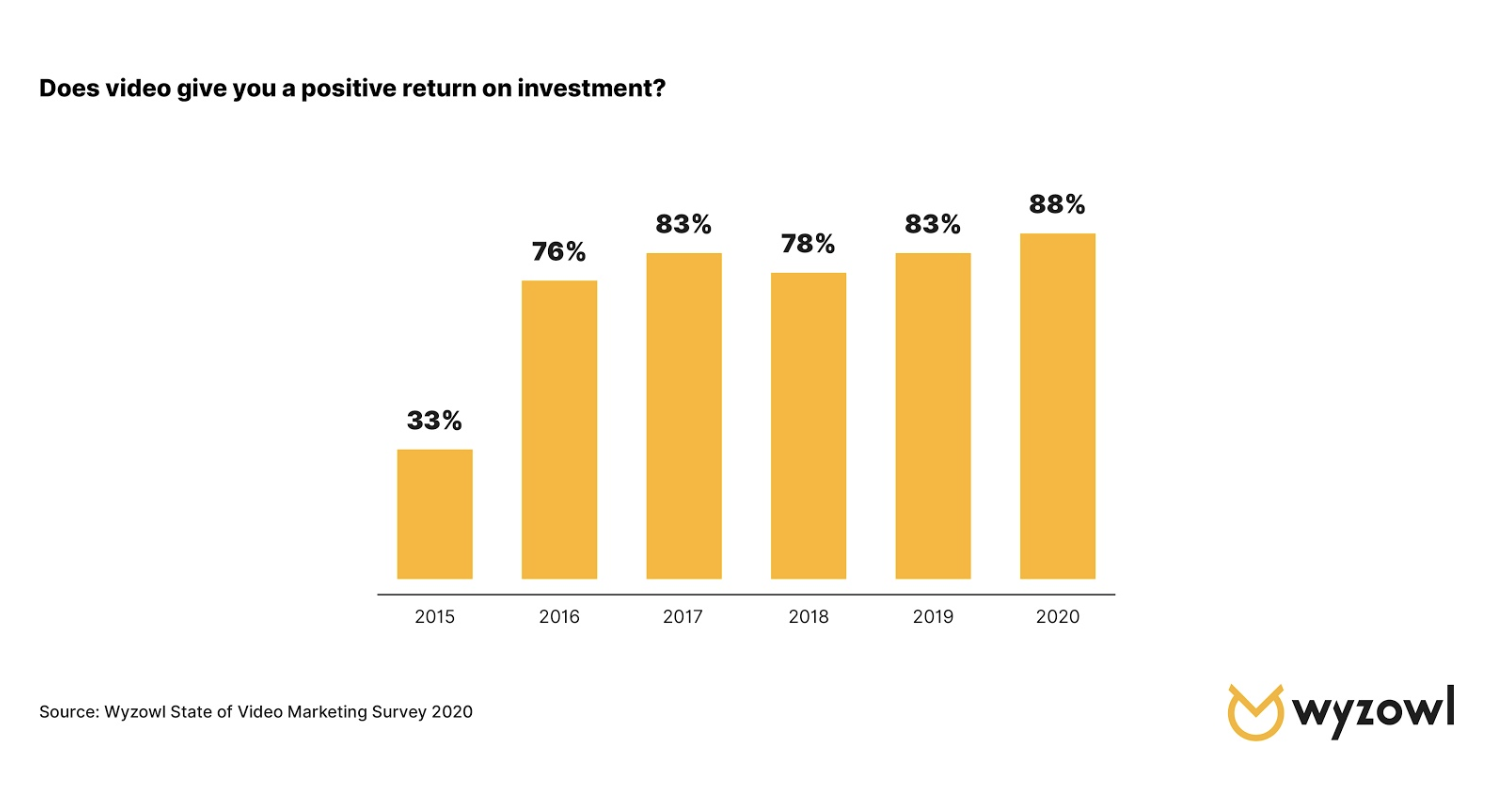
Perhaps most strikingly, 88% of video marketers reported that video gives them a positive ROI — a 5% increase on last years figure, and a world away from the lowly 33% who felt that way in 2015. This could well be attributed to greater understanding of how to use video, as well as how to track and quantify its impact.
Looking forward…
As you might expect given all the above, all the signs suggest that usage and spend are on course to continue their growth in 2020.
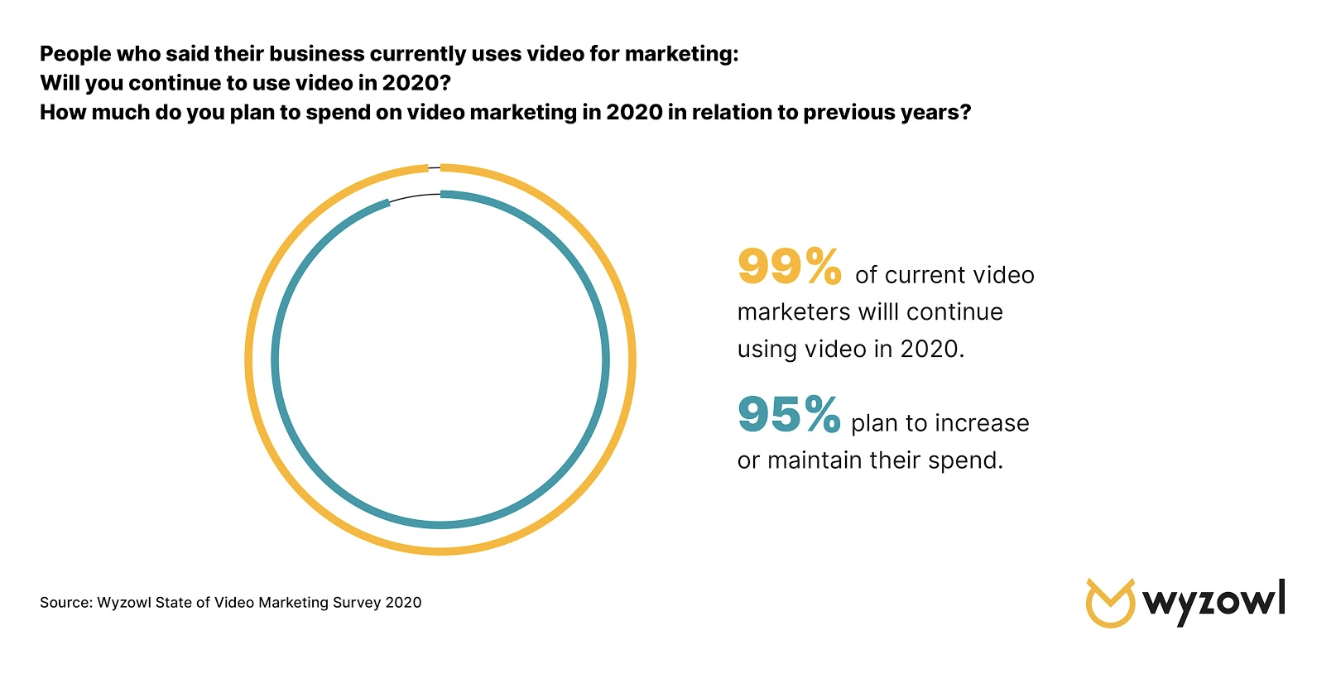
99% of current video marketers told us they’ll continue using video in 2020, and 95% plan to increase or maintain their spend.
What’s more, from the people who told us they don’t currently use video, 59% told us they expect to start in 2020.
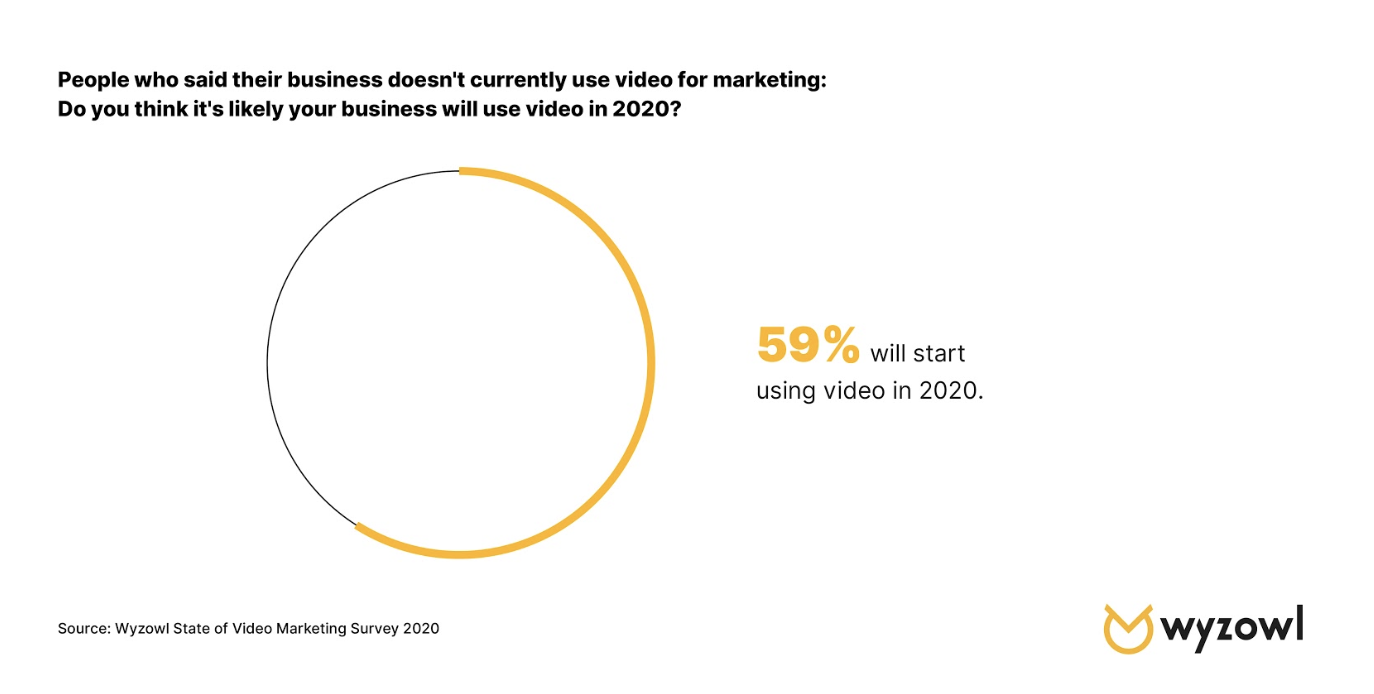
The net result of this is that we can all expect to see more noise and competition for audience attention in the coming 12 months. And, given that 92% of video marketers feel the level of noise and competition increased noticeably in 2019 … that’s a lot of noise!
Of course, while this is a challenge, it isn’t an insurmountable one. It simply raises the bar in terms of content quality. Video needs to be well-planned, and very well-executed.
The big opportunities…
You’d be forgiven for looking at these numbers and feeling that video might be on the verge of reaching saturation point. Most of the data points around usage, spend and consumer opinion are in the 80s and 90s — where they’ve held, consistently, for a number of years.
But the good news is that there still seems to be underutilized opportunities for marketers to explore around video.
Unsurprisingly, YouTube and Facebook are the most widely used platforms among video marketers — used by 85% and 79%, respectively.
But some of the lesser-used video tactics also seem to be reaping real results for video marketers.
Most notably, for the first time ever, LinkedIn has emerged as the most successful channel for video marketers, with an overwhelming 87% of LinkedIn video marketers describing it as an effective channel.
TikTok — often cited as a video platform with huge potential (and not only by Gary Vee) — remains largely untapped, with only around 1 in 10 video marketers having given it a shot. Out of those who’ve tried it out, though, 66% report having seen success.
There are flops to go with the success stories, too, though. Snapchat continues its poor performance of recent years. Only 11% of video marketers say they’ve used Snapchat as a video channel, and, out of those, less than half report success, making it comfortably the lowest-performing video marketing platform for the third year in a row.
To Sum Up
Video looks set to continue its ten-year overnight success story into the coming decade. These stats paint a picture of a media type that’s almost universally popular among both marketers and their audiences, helping achieve a number of incredibly important goals.
You can check out the full report — with plenty more data points — and get a downloadable version by visiting Wyzowls State of Video Marketing 2020 page.

The Guide to Successful Silent Videos for Facebook Video Ads (+ Examples)
In recent years, Facebook has become a powerful platform for posting, sharing, and watching videos. In fact, nowadays, people watch more than 100 million hours of Facebook videos on a daily basis.
However, unlike traditional viewing on television and even YouTube, a large percentage of people watch Facebook videos from their smartphones, and play them silently from their news feed.
This is creating an environment where content creators and brands must compete in a soundless, auto-play Facebook environment.
In addition, after Facebook went public and had pressure to monetize their platform, the social media giant turned to a paid-only ad-revenue model.
Due to Facebook’s pay-to-play environment, brands have to pay for Facebook reach, and also make sure what they’re putting out is getting high return on investment (ROI). Therefore, many brands are turning to video, as opposed to images, for their ads, since video typically results in higher engagement and improved conversions.
This creates a marketplace where brands have to keep two things in mind:
- To get seen, you have to pay
- To get attention, video is better but it’ll have to work without audio
Unfortunately, as more businesses jump into the Facebook marketplace, there are more and more mistakes being made. Graham Mudd, Facebook’s Director of Ads Product Marketing, estimates that up to 40% of Facebook video ads fail to communicate when the sound isn’t on.
When it comes to silent video ads for Facebook, the luxuries of audio are gone, but the pressure for conversions is still there. Therefore, brands and entrepreneurs need to change their thinking on what it means to communicate through video, and more specifically, silent video.
Storytelling Visually, Not Verbally
People watch 85% of videos on Facebook without clicking on the ‘sound’ button.
To satisfy the majority of viewers who will watch videos without sound, brands and entrepreneurs need to master what it means to tell a story without verbally saying anything.
Here are a few tips on how to do just that.
1. Create a script that can work with or without dialogue.
Notably, video production is usually based on a script. But you should avoid depending on the dialogue entirely, since this could set you up for a loss.
Content creators often know readers won’t read every line of content you publish — they might skim, skip paragraphs, or leave the page before reaching the end. Similarly, the majority of Facebook users will not listen to your videos.
Some filmmakers may find this odd, since traditional videos have a beautiful mix of both visuals and audio. But change is inevitable, so you need to adapt to the current methods that people view content.
When creating Facebook silent video ads, you want to get a competitive edge with a script that can still sell your brand even when silent.
Right off the bat, concepts such as interviews or a speaking host should be placed at bay. This includes those that could also pass the message through subtitles. Always remember that context is key, and you need to use a strong visual narrative.
For instance, Reolink’s Argus Security Camera offers a simple, yet effective example of a video that worked with no dialogue. At first glance it looks like the video is just images with captions, but a couple seconds in, a hand swoops in and yanks the camera out of the frame.
It’s a perfect example of communicating a product’s value with a combination of text and movement, without needing to rely on any narration or verbal explanation.
2. Emphasize big, bold visuals.
It’s equally important to make the images bold, big, and highly visual for your video to ‘pop.’ You have to catch the eyes of your viewers as they scroll the sea of jokes, celebrity gossip, their exes, and opinionated posts.
The images you choose should be high-contrast with bold visuals, and noticeable enough to prevent confusion with any regular video content with audio. By building a reputation of digestible silent content, your viewers will always slow down to check out any new videos from you on their feed.
You can see an example of this creative visual approach with the UAG MacBook Drop Test video.
Whatever it is, just make sure your visual editing touches add something that people aren’t used to seeing.
3. Create content that explains itself.
For an immediate impact, you need to come up with content that does not need audio or words to explain the happiness, frustration, or ‘cool factors’ of your brand. You can begin with a question or a shocking statement with great visuals.
This is one of those times where you don’t want to overcomplicate things. Think about your product or service and cut to the core of what you’re offering. There is no room for anything subtle or meta here — just cut to the chase.
Privacy Pop executes this extremely well in their videos. While introducing a relatively innovative product to the market, they cut straight to the core of what they are offering and communicate the value of their bed tents.
Often in the name of creativity, companies can really go off the deep end of messaging and symbolism. For Facebook Video Ads, everything is silent and you really only have a handful of seconds to stop the viewer from scrolling. A confusing message will ensure that they will not stop on your ad.
4. Place your call-to-action wisely.
Though not in the video itself, call-to-action buttons are extremely important in getting conversions. There are two decisions to make regarding your call-to-action. The first regards which CTA prompt will produce the best results.
To find out, Adespresso A/B tested four prompts (in addition to a CTA with no button at all) using a Facebook call-to-action button.
The results were compelling:
● No button at all produced the worst results — 20 leads for $12.50 each
● “Sign Up” generated 26 leads at $9.62 per lead
● “Learn More” generated 36 leads at $9.94 per lead
● “Download” garnered 49 leads at $5.10 per lead
The best performance was for “Download,” which generated 49 leads at a cost of $5.10 per lead.
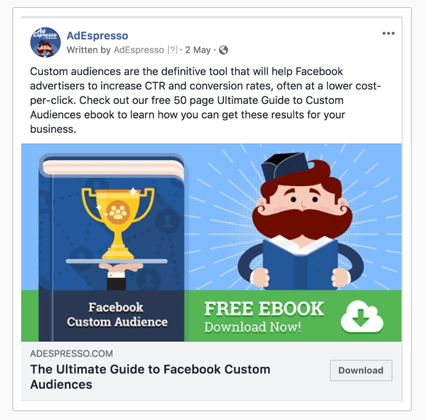
The reason? Researchers suspect it’s because “Sign Up” creates concerns that users will need to provide credit card information and “Learn More” suggests more reading, which would be time-consuming.
The second decision involves where in your video you want to place the CTA. The CTA of the video and the Facebook video ads should tie together.
Remember, your CTA in the video should ultimately urge the person to click the CTA button below the video. This is something you should A/B test — try placing your CTA at the opening, in the middle, and at the end to see which placement your viewers prefer.
You should also try displaying the CTA in graphic text throughout the video. See which placement performs best before launching your campaign.
5. Drop your discount or offer early.
There’s no guarantee consumers will watch an ad all the way through. In fact, Facebook ads on average capture just 60 seconds of viewers’ attention — some people, of course, will leave before that — so it’s important to frontload your most important information, like a discount or special offer.
Additionally, make sure your offer works naturally with what precedes and follows it — in other words, don’t segregate your discount from other video features, like the value and benefits of your product or service.
Visual Storytelling Toolset
Here are some tactics we use in our Facebook video production strategy that you can use to create successful silent video ads for Facebook.
1. Use Animations
Due to their visual-heavy nature, animations allow for an easy and effective transition to silent videos. We have found that for clients who are strapped on budget, animations provide a great alternative. Animated videos do not require actors, cameras, multiple locations, or other typical expenses needed for a video shoot.
Be sure to design an outline or script that can work without a voiceover. This way, the animated silent video ad could make a fast transition to the social platform without much effort.
When creating these silent animated videos there are certain factors that you need to think about beyond a typical video commercial shoot, including:
- Creating a Mood Board/Style Guide: The video you create will be all graphics, so it’s extremely important to keep colors, graphics, text, and transitions on-brand and looking clean. If you have ever tried designing a flier on your own, without design experience, you’ll know that people tend to go overboard with colors and clutter. Animations are exactly the same. Mood boards allow you to stay on theme and remind you of the aesthetic that you’re trying to achieve. Common tools that our team uses is Abduzeedo.com and Pinterest to share ideas when formulating mood boards.
- Create a Storyboard: With animations, video storyboards are extremely important. It reminds you of the message you are trying to tell and helps keep the animation concise.
2. Establish a Quick Connection
You must connect and capture the attention of your audience right away. According to research, 65% of viewers who watch the initial three seconds of a video ad will continue watching for more than 10 seconds. Therefore, you must consider videos and thumbnail images that can hook people to your story.
To connect the silent video to your brand, you might try using brand colors, imagery, and themes.
In this video, Airtable effectively grabs your attention with the use of child actors to detail the product’s features. It provides a nice change of pace from the usual business videos we see every day.
This is where your creativity needs to shine. You need to pique that curiosity. Create an introduction that makes people think, “What is this?”
When ideating on how to do this, our team always likes to review movie trailers and commercials that have caught our eye. When looking for these techniques, you don’t need to keep your search only to Facebook video ads — instead, you might check out Superbowl ads, trending YouTube commercials, or ads on Hulu.
3. Make Graphics Large
Need some extra help to get your point or idea across without using audio? You can get creative and use large titles that emphasize the key features or steps of your video.
To draw more attention to your video, you can also include flashy transitions. However, it’s critical you ensure they remain within your brand’s signature feel and look to retain consistency with your overall marketing strategy.
You might also consider keeping the title or point of the video at the top of the video at all times.
Here’s a great example from BBC Three:
This style of presenting videos is becoming more and more popular for brands and content creators as it helps overcome the silent aspects of videos, since it tells viewers who might not have been paying attention at the beginning of the video what the video is about.
4. Add Subtitles
Understandably, you might feel you can’t completely get your point across without using words. In this case, you can add subtitles as you upload.
Fortunately, Facebook has a feature where you can automatically add captions using their software.
We always recommend reviewing the captions before publishing. Captioning technology isn’t at the point where it gets everything 100% right. There are many tools that exist that can help you transcribe if you want a more exact transcription, but many can get pricey if you want 100% accuracy. Alternatively, if you use Facebook’s feature, you can go through and edit yourself for clarity.
5. Optimize the Ad Description and Title
For more a successful silent video ad, you need to keep the title and description engaging to let viewers know what to expect. These two sections also provide important information on your video topic to the site’s targeting algorithms. Therefore, you need to ensure that all the relevant keywords are included in your ad. Other than ensuring relevance in your copy, always generate enough curiosity since some titles are catchier than others.
To optimize the title and ad description, you need to refer back to your initial goals. Ad descriptions and titles are often an afterthought where companies have someone quickly upload and write the first thing that comes to mind. This is not the way to do it.
Facebook titles and descriptions are like the subject line of an email. They are often written last and with the least amount of time spent, yet they are often the most important part of the email. The same goes for Facebook titles.
6. Keep It Short
Considering most people tune out so fast, what is the ideal length for a Facebook video to tell your story and sell your brand? If you intend to use in-stream videos (those placed during or before other content), it is recommended that you keep it in the five –15 second range. The maximum allowance, however, stands at 31 seconds. Alternatively, standalone ads should last less than 15 seconds, since shorter video ads have higher completion rates.
A great example is the throwback Google Chrome YouTube commercials that the company used to demonstrate the browser’s superior speed.
What we recommend here is to be ruthless when creating your storyboard and script. Having discipline in the beginning of your video ideation will help reign in the excess further down the line.
Don’t wait until the end when all shots are done and you are trying to stuff everything in. You’ll often find that your video is at least 10x longer than needed. Having a strict storyboard and script in the beginning will help drive decision-making when certain members on the team have fallen in love with a scene and don’t want to make any cuts.
7. Copy the “News” Style
Most marketers are familiar with Facebook’s algorithm changes earlier this year, the ones that prioritized news from friends and family over those from publishers. This placed a new onus on advertisers to create ads which mimic what a user typically sees in their news feed.
Of course, this isn’t a new concept in advertising — “native ads” have been around for quite a while, as have best practice strategies for creating them. To get the most out of your Facebook ads, then, you might try copying the “news” style.
That means, among other things, using images and short video clips overlayed with text on colored backgrounds and using third-person delivery, similar to the style used in news feeds.
A great tool that you can use is Lumen5. Many publications use tools like Lumen5 to create real-time videos so that they can be the first to report, despite not having produced a short segment yet.
Below is an example of using the “news” style for brand marketing purposes:
You’ll notice that rather than looking like an overt advertisement, the Tesla video looks almost like a review.
Entrepreneurs can leverage tools like this to help create the same look and leverage the authoritative style that is associated with this style.
8. Blur Your Introduction
People watch a lot of videos on Facebook. According to WordStream, for example, almost half of Facebook users watch at least one hour of Facebook videos every day. That means, to be effective, your ad needs to make an impact in the first few seconds.
As Social Media Examiner notes, “To be effective, video ads have to accomplish two things: grab the user’s attention in 2-3 seconds and have a short duration, probably no more than 20 seconds total.”
There are several ways to grab the user’s attention at the start of your Facebook video ad. One trick you might try is to blur your introduction. This creates suspense as users become curious about what will follow, especially if they’re quickly scrolling through multiple video ads. For best results, limit the blurring to the first couple of seconds.
Ultimately, producing and distributing effective Facebook video ads — the kind that increase clickthrough and conversion rates and boost sales — is challenging, especially given the increasing competition among advertisers. Ideally, you can use the strategies above to get started, and iterate on your process as you learn more about what works for your brand’s unique Facebook audience.
Interested in further inspiration? Check out HubSpot’s 11 Soundless Videos We Love (And Why).

How to Create an HTML Form That Sends You an Email
Sometimes, improving UX can cost a lot of money.
And oftentimes, some of the problems website visitors have are easy, simple fixes.
That begs the question: How can you find out if customers are enjoying their website experience?
The answer may be simpler than you think.
Having forms on your website is an effective way to get customer feedback about their experience during their visit. These forms give you insight about how to improve your website’s UX for higher conversions in the long run.
Whether you want to convert more visitors to leads, collect information for your sales team, or create more loyal brand advocates, forms are imperative to an inbound strategy.
Ultimately, forms are critical for solving dissatisfaction in a customer’s experience, which ensures stronger customer relationships. If you don’t have a form on your website, you could be missing out on more leads, higher conversions, and happier long-term customers.
Here, we’re going to walk you through how to create a certain type of form — one that sends an email to you, as well as the customer, to ensure the form was received.
How to Create a Form in HTML and Send it to Email
It is possible to create an HTML form that sends emails, but it depends on how you work and on what platform you’re working. This is to say that things are a little different if the plan is to use a mix of HTML and different scripts.
Using the Basics
Using just HTML? We’ve got you covered. From starting fresh, here is a sample code for use:
<form action=”mailto:contact@yourdomain.com”
method=”POST”
enctype=”multipart/form-data”
name=”EmailForm”>
Name:<br>
<input type=”text” size=”19″ name=”ContactName”><br><br>
Message:<br> <textarea name=”ContactCommentt” rows=”6″ cols=”20″>
</textarea><br><br> <input type=”submit” value=”Submit”> </form>
This code will create a form that asks for the contact’s name, message, and includes a submit button. Note that this code is basic — it won’t look super snazzy. For a more beautiful one, you’ll have to add some more lines of code specific to your needs.
Another thing to note with this code is that it doesn’t directly send to email addresses, but it can open in an email client or tool window to submit the form.
To make it so the form can work with your email server and send it to a mailbox, PHP is the answer — let’s explore that option now.
Making a Complete Form
To create a form subscribers can contact you with, the PHP script is going to be your best friend. I know, another acronym. This one stands for Hypertext Preprocessor, and this language collaborates with HTML to process the form.
If you need to make a complete form, follow the steps below.
When you’re creating a webpage, instead of using the “.html” extension, type “.php” instead. This is similar to what happens when you save an image as “jpg” versus “png”.
By doing this, the server will know to host the PHP you write. Instead of saving the empty HTML page as such, save it as something like this: “subscriberform.php”. After your page is created and saved, you’ll then be able to create the form.
In this step, you’ll write the code to create the form. The following code is what’s needed for a basic form:
<form method=”post” action=”subscriberform.php”>
<textarea name=”message”></textarea>
<input type=”submit”>
</form>
Because this is similar to the HTML-only write-up, these lines will also create a name for the form and an area for subscribers to type a custom message and send it to you.
An important difference is the “action=contact.php” part. This portion of code is what will make the page send the form when submitted. Recall that in the first example, that wasn’t an option.
After you create the form and add all the proper fixings depending on your design preferences, it’s time to create the email portion.
For this, you’re going to scroll to the beginning of the page (the very beginning). To enable sending data in the email, we have to add code that will process the data. Copy this code or create something similar:
<?php
if($_POST[“message”]) {
mail(“your@email.address”, “Here is the subject line”,
$_POST[“insert your message here”]. “From: an@email.address”);
}
?>
Recall that everything inside the first and last lines will tell the webpage to make these functions perform as PHP. This code also checks to see if a subscriber uses the form. From there, it checks to see if the form was sent.
Further breaking it down, “mail” sends the completed form as an email to “your@email.address,” and the subject line is what follows. In the next line, you can write copy of the email message inside the quotes, to be sent from whichever email address you choose.
With that, you have the basic code you need to create the form.
Note that this is just one way to do this — alternatively, you can also create a form using a CRM like HubSpot.
If you’re a HubSpot customer, keep reading to learn how to use HubSpot’s tool to create an HTML form that sends you an email.
Using HubSpot
HubSpot Forms is part of the Marketing Hub, and doesn’t require any previous technical knowledge.
If you want to learn how to receive an email after a form submission, take a look at our Knowledge Base article.
When you’re using HubSpot Forms, you can build custom forms that connect to your contacts list. You can also customize those forms and trigger automatic emails based on the completion of your forms. Note that the latter requires a premium upgrade. Click here for more information about HubSpot’s forms.
HTML forms are a fairly simple process and an excellent way to connect with subscribers. Having these on your site gives customers an easy way to contact your company or sign-up for emails.
Forms that send an email back to you keeps information in your inbox for reference and ease. Remember that these aren’t your only options for building forms. If you want a list of tools that help build forms, check out our post here.

Hreflang Tags: The SEO Attribute for Content in Multiple Languages
Have you ever visited a webpage that was in a different language, and your browser asked you if you wanted to change it to your first language?
It’s a life-saver, right?
Now think about whether you’ve provided the functionality so your own webpages are ready for a global audience. If you haven’t properly tagged or re-directed your content to be optimized in different languages, it may not be gaining the traffic it could be.
The name for this attribute is called language tagging, and it’s an SEO tag you can use to make sure search engines know what language your content is in.
There are two different types of language tags: HTML tags and hreflang tags.
While both HTML and hreflang tags are intended to optimize content in multiple languages, they have a couple of differences.
Simply put, language (or lang) tag attributes on an HTML tag tells your browser the language of the current document or webpage, while the hreflang tag attribute tells your browser the language of the webpage that’s being linked — for instance, a lang tag on HubSpot.com tells your browser the language of HubSpot.com, but a hreflang tag attribute tells a search engine the language of HubSpot.com when a user searches for HubSpot.
If a user searches for HubSpot.com from Germany, a hreflang tag is responsible for changing the link available in the search engines. However, when someone lands on HubSpot.com in Germany, a lang tag changes the language on the page itself.
It might be easier to visualize, so here’s a sample lang tag:
<html lang=”en”>
Alternatively, here’s a sample hreflang tag:
<link rel=”alternate” href=”http://example.com/” hreflang=”en” />
Google recommends using hreflang when indexing websites that are in different languages.
Next, let’s explore what hreflang tags are used for and how you can use them for your own webpages.
The tag is:
rel=”alternate” hreflang=”x”
Hreflang tags allow you to show Google and other search engines the relationship between webpages that are in different languages. For instance, if your tag needs to link to an English-language blog, you’d use the following tag: hreflang=”en”.
This is a sample of what a website will look like when it’s tagged with an hreflang attribute:
<link rel=”alternate” href=”http://hubspot.com” hreflang=”en-us”/>
The “en” in the first part of the tag refers to the language code, English, and the “US” refers to the country code, for the United States.
Users with an IP address that notifies which language is being used will automatically see a properly tagged webpage, so a hreflang tag is especially helpful if you have a global audience and want to make their user experience delightful.
To illustrate how hreflang works, let’s consider an example. Let’s say you make two homepages that are the same, but one is in English (hreflang=”en”), and the other’s in Spanish (hreflang=”es”).
When a user searches for your homepage in Spanish or from a Spanish-language browser, they’ll receive the Spanish version of your homepage, as long as it’s properly tagged.
Each language and country has its own hreflang tag. Here’s a list of common ones:
German/Germany: de-de
English/USA: en-us
Irish/Ireland: ga-ie
Hindi/India: hi-in
Italian/Italy: it-it
Japanese/Japan: ja-jp
Korean/Korea: ko-kp
Portuguese/Brazil: pt-br
Russian/Russain Federation: ru-ru
Chinese (simplified)/China: zh-hans-cn
Thai/Thailand: th-th
If you are sharing the same page in different regions, note that it is possible to have multiple hreflang tags on the same page. For instance, if your French website sells to customers in Germany and Spain too, you’ll be able to tag your page accordingly in HTML.
Keep in mind that because hrefleg tags are able to be overridden by other SEO options, your page may rank higher in a different language. To avoid this, make sure search engines are equipped with the correct attributes, so they know which language to present your page in.
Ultimately, the point of hreflang tags is to give customers who speak different languages, or who live in different regions of the world, content meant for them. Search engines will give international users the version of the page in their language on the results page.
Now that you know a little bit more about hreflang tags, let’s talk about HTML language tags.
HTML Language Tag
HTML language attributes define the language of a webpage. For example, an HTML language tag for an English webpage would look like this:
<html lang=”en”>
Recall that Google doesn’t look at HTML language tags, but other search engines might, so it’s a good idea to still include them for search engines that don’t look at hreflang tags.
You might also want to use HTML language tags in conjunction with an hreflang tag — they can work together to inform search engines about the content on your webpages. Having both tags tells search engines what language a webpage is in, while directing users from other countries to the appropriate webpage.
When you’re optimizing your content for search engines, it’s important to do everything you can to rank on the SERPs. This helps people across the globe find your business.

What Is Marketing Attribution & How Do You Report on It?
A marketer’s job isn’t easy. You constantly have to create content and promote it through different channels. But with only 24 hours in the day, you need to spend your time promoting the right content through the right channels to declog the right parts of your funnel.
So how do you do that?
You may regularly run reports about the amount of traffic to your website or how many people clicked on a link in your email, but those are only one piece of the funnel pie. There’s a new report that will frankly change your life (or at least the way you do marketing). It’s called an attribution report.
To get you up to speed, let’s take a look at what attribution reports are and in which situations they can be helpful for you.
What is marketing attribution?
Marketing attribution is a reporting strategy that allows marketers and sales teams to see the impact that marketers made on a purchase or sale. For example, if marketers want to see how a blog post or social media strategy impacted sales, they might use marketing attribution techniques.
What Is an Attribution Report?
An attribution report is used to understand the journey someone takes from the first time they set foot on your website to the time they become a customer — basically, measuring the conversion path to see what made someone convert. In order for marketers to be successful, they need to understand all of the influencers that drive conversions throughout the funnel.
The value in this report is marketers can now pinpoint the exact marketing effort that lead to a conversion in the funnel. By using this information, they can then make better-informed decisions about where to invest their time and resources.
You may be thinking, “Wait! Not all page views or marketing channels are treated equally when it comes to conversions!” You are right! Depending on the type of attribution report you decide to run, different credit is given to different marketing efforts — and the ability to give more or less credit to certain parts of the conversion process is where the magic happens.
For instance, if you run a report based on First touch (as it is called by HubSpot) or First interaction (as it is called by Google Analytics), 100% of the credit is given to the page URL or source of the first visit a contact was on.
If you run a report based on All interactions/session (as it is called by HubSpot) or Linear (as it is called by Google Analytics), equal credit is distributed across all pages and sources visited before the conversion. How you assign “credit” here is extremely important because that’ll help you gain a better understand of which pages or sources were used to most to drive traffic to and convert on your website.
There isn’t a right or wrong answer to what type of report to run — it just depends what you hope to distill from the data. If you want to understand how all of the pages or channels viewed before conversion affect conversion, you will run one report. If you want to understand what happened at the exact point of conversion, you will run a different report. You could even run a combination of reports to understand what happens in certain parts of the funnel.
The best way to begin is to think about the problem you want to solve. Do you want to see how many leads you have generated from the blog? Do you want to see what source if driving the most conversions? Do you want to see what content someone viewed before they became a customer? An attribution report will be able to answer any question you have about what drives conversions throughout your funnel.
Lead Attribution
This is a specific type of marketing attribution related to showing how marketers impact the amount of leads in a given campaign. Although leads aren’t sales, they are still important because they show how marketing content or strategies are gaining prospects or new audiences that could very well turn into sales or large monetary gains.
B2B Marketing Attribution
This is another specific form of marketing attribution related to the business-to-business field. Companies in this field sell products or services to other businesses or professionals in their industry. While B2C attribution could very well relate to smaller purchases, B2B attribution might relate to bigger purchases from companies, memberships, or leads.
When Would You Want to Use It?
Marketers look to attribution reports to help them decide which pages and/or marketing channels drive the most conversions. There are many specific use-cases for this type of report, but let’s go over a few that you might want to use.
1. How many leads are generated from my blog? What other content generates the most leads?
Content lives at the heart of inbound marketing. Every marketer wants to know how their content contributes to the number of leads they are generating — especially on their blog. Attribution reports pull that information together to show the number of times a blog post is viewed before the conversion. For bloggers who have not been able to attribute lead generation directly to their blog content, this is a huge win.
The information gathered in these reports helps marketers dissect which types of content perform better. That could include popular topics, content formats, or even time of promotion. With a better understanding of which content generates more leads, marketers can make more informed decisions about their marketing.
2. What marketing channels generate the most leads? Where is the best place to invest my marketing resources?
After you find out which type of content generates the most leads, it’s important to understand which channels are the most successful in lead generation. Once you figure out the answer to this question, you will get deeper insight into why your content performs the way it does.
For example, your email marketing could be the best place to get content in the hands of your customers, but your social media could be tanking. Or vice versa. Understanding the health of these marketing channels is key to understanding where your team should invest their marketing resources. After all, if you’re doubling down on social media without getting many leads in return, but you’re generate a ton of leads from email marketing with very little effort, you may want to take a second look at your priorities.
3. Which pages are viewed the most before someone becomes a customer?
There is other content on your website that may be contributing to conversions besides blog posts, landing pages, and content offers. Your homepage, pricing page, about us page, or any other informational page may be contributing to conversions throughout your funnel. Run an attribution report based on pages that have been viewed on your website to figure out which pages are frequented the most. This will help you understand which pages should be promoted, which pages should be optimized, and which pages are helping to push people down the funnel quicker than others.
How Do You Run an Attribution Report in HubSpot?
HubSpot customers, navigate to Reports > Reports Home. Select “Create a new report,” and choose the Attribution report. You will see the following screen:
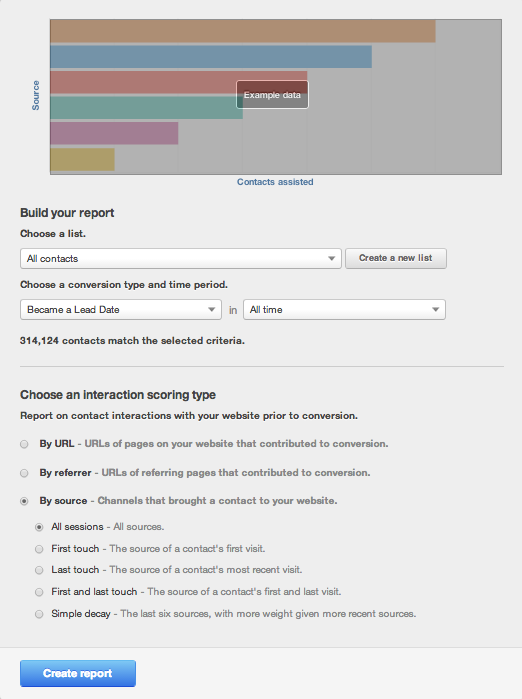
Let’s dig into the screen a bit more. The first step is to choose the people who belong in your report. Think of this part of the edit screen as a filter for your report.
- Select the contacts that you want to appear in the report — that could be all of your contacts or a specific list.
- Choose the conversion that you want to use for your report. That could be “Became a Lead Date” to better understand your lead conversions, “Became an MQL Date” to better understand your marketing qualified lead conversions, etc.
- Choose the time period for when your defined contacts converted.
- The number of contacts that will be included in your report will be listed in the edit screen.
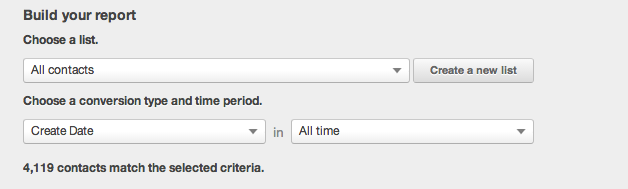
The second part of the screen deals with the different Attribution report models you may want to use to run.
Begin by deciding if you want to pull a report based on URL, Referrer, or Source. URL will pull up the pages on your website that contributed to the conversion. Referrer will pull up the referring page that contributed to the conversion. Source will pull up channels that brought a contact to your website.
Within these options you will see a detailed description of what the model will show including where the credit for the conversion will be given.
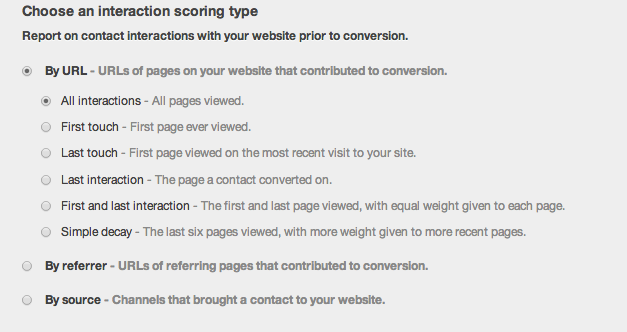
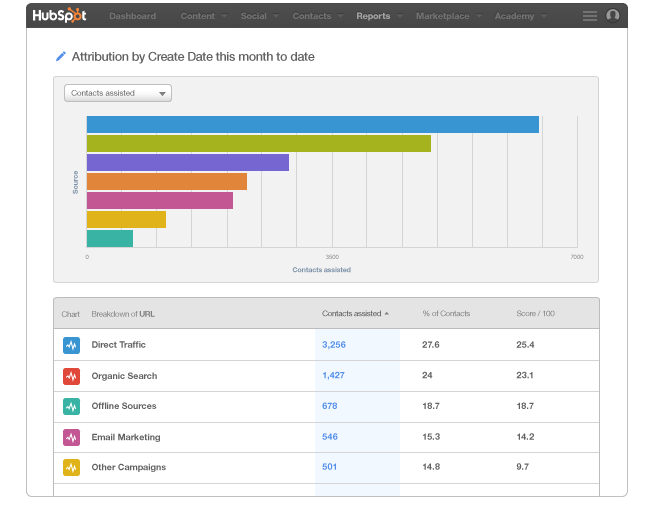
Then, create your report! In the example below, we ran a report by Source and All sessions by Create Date (aka when they became a lead in the system).
- The Contacts assisted column shows the number of contacts who became leads in the defined time period.
- The % of contacts shows the percent of contacts in the report that came from that particular channel.
- Score / 100 is the weighted importance of each channel in the report. The highest scores are your best channels.
How Do You Run an Attribution Report in Google Analytics?
Using Google Analytics, you can also run Attribution Models. You will notice that the terminology in the report differs slightly so let’s review what they mean.
- Last Interaction – In this model, the last page or source that someone visits is given 100% of the credit for the conversion.
- Last Non-Direct Click – In this model, the second-to-last page or source that someone visits before converting gets the credit.
- Last AdWords Click – In this model, the most recent time someone clicked through to your site from an AdWords campaign is given 100% of the credit for the conversion.
- First Interaction – In this model, the first source is given 100% of the credit for the conversion.
- Linear – In this model, each credit is given to each source or page visited in the conversion path.
- Time Decay – In this model, the pages or sources that were visited most recently are given more credit whereas pages or sources visited earlier in time are given less credit.
- Position Based – In this model, 40% of the credit for the conversion is given to the first and last interaction, and 20% of the credit for the conversion is given to the middle interactions.
You can read more about the different types of Google Analytics models and how to use them here. Also, Avinash Kaushik, Digital Marketing Evangelist at Google wrote a blog post describing how to use the different reports.
The biggest difference between using reports on Google Analytics vs. HubSpot is that you cannot connect the report back to specific contacts unless you use HubSpot. That means you cannot apply attribution trends to specific personas, contact groups, lifecycle stages, or other categories that are relevant to your business. So when deciding on what report to use, take that into consideration.
How to Run an Attribution Report in HubSpot
If you’re a member of HubSpot’s Enterprise Marketing Hub, you can now run attribution reporting. To learn how to use the new feature, check out this in-depth and free mini-course.
Editor’s Note: This blog post was originally published August 21, 2014 but was updated for comprehensiveness in December 2019.

The Plain English Guide to Google’s Knowledge Graph
Before I began writing at HubSpot, I worked at two small businesses. Really small. Both had fewer than five employees.
Honestly, any time “SEO” was mentioned the whole team got anxiety. There was no SEO expert — or even an employee who had vast experience in it.
Marketing teams who lack knowledge in SEO often feel like they’re playing catch up and aren’t sure if they can deliver results for their clients. Trust me — I get it.
For example, an old client wanted their business to show up in Google’s knowledge panel.
That’s the panel on the right side of a Google results page with a business’s hours, website, contact information, images, and related searches — all data that exists in Google’s Knowledge Graph (more on this in just a minute).
The client wanted to show up in that panel because 76% of online users determined that the most important aspect of web design is the ability to quickly access information. This extends to more than just web design — including web search.
Unfortunately, no one on our team knew how to do that. That’s why it’s important for marketers to understand the Google knowledge graph and how to create content that winds up in the knowledge panel you see on so many search engine results pages (SERPs) today.
The box you see, where Google synthesizes this information, is known as the knowledge panel, or the Knowledge Graph card.
Below is an example of what the Tom Cruise knowledge graph panel looks like on Google. It includes images, biography, family, quotes, and filmography. Google’s Knowledge Graph uses data it has collected on user intent behind the keyword “Tom Cruise” to deliver this panel.
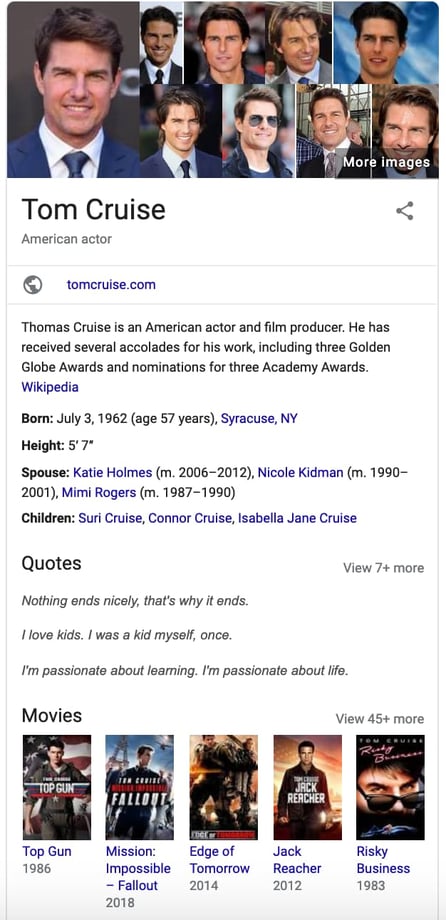
Essentially, the Knowledge Graph gives Google context into user intent so it knows why people are searching for certain information, and can deliver the right results.
To gather all this information, Google officially refers to three high-quality sites to collect data: Wikipedia, Wikidata, and CIA World Factbook. Unofficially, Google also takes other factors into consideration when referring to sources, including social media presence, keywords, and a site’s relative authority based on who else links into that domain.
While it might seem like the Knowledge Graph card will actually lower your clickthrough-rate, it’s still helpful for your site to be featured here.
The main benefit of knowledge panel optimization is that Google will feature somebody here, so even if you don’t receive traffic from it, it’s better that it’s you over a competitor.
Additionally, optimizing for Google’s Knowledge Graph has the added benefit of helping Google better understand your site, which will improve your overall rankings.
That’s why you should consider optimizing your site for Google’s Knowledge Graph. To do so, Google needs to understand what your site is about. Additionally, your content needs to match the intent of your ideal user. For example, when someone searches “knowledge graph,” they’re probably wondering what Google’s Knowledge Graph is, how it works, and how to show up in the resulting Knowledge Graph card. That’s why the content on this page answers those questions.
Your main focus should always be to answer your audience’s questions. If you understand user intent, and write content that solves your audience’s problems, Google’s knowledge graph can help you rank higher on Google.
As an aside, other search engines, like Bing, have their own Knowledge Graphs. Optimizing for one can simultaneously help you optimize for the other. However, each search engine is a separate entity with independent algorithms.
In Google’s case, the company uses three elements when deciding whether a brand is the right fit for a knowledge panel:
- User intent: Google’s Knowledge Graph will inform the search engine whether your brand answers user questions. Does your page answer the questions the user has based on historical searches, keywords, and context?
- Semantic search: Semantic search is what Google uses to understand the intent of a person’s query. At any time, it can use synonyms, context, and natural language processing to sort searches into topics, and produce accurate and relevant results.
- Entity indexing: Google has a catalog of all related entities to produce factual information about each entity. With entity indexing, Google can produce factual information about your entity to see if it’s a right fit for the knowledge graph panel.
Now that we understand the knowledge graph panel, you might be wondering, “How can I create a Google knowledge graph panel for my business?”
I want to start by saying that showing up in the Google knowledge graph panel isn’t as easy as creating a page that Google will display. However, there are some strategies you could implement to make it more likely and easier for Google to use your company in the panel.
1. Optimize your site for humans.
Primarily, Google’s knowledge graph makes it easier for Google to deliver the best results possible for a user’s query. That means your site needs to be optimized for the user. Is your content easy to read? Is it interesting? Does it answer user questions? Google’s knowledge graph will only pull information if it answers a user’s question directly and is easy to read.
To make your site optimized for humans, you can use bullet points and H2 or H3 headers to break up the content, making it easier to read.
Additionally, each piece of content you produce should be designed based on user intent. When a user searches for “X” keyword, what do they really want to know? Your page needs to answer those questions.
2. Utilize schema markup and meta tags to optimize your site for Google.
Once your site is optimized for humans, you can go back and do a few things to optimize it for Google as well.
First, you could fill out meta tags. Meta tags help describe important components of a website for Google, including meta description, author, and page title — a critical component of the knowledge graph. You should incorporate your primary keyword in your meta tags naturally including the title, description, URL, image name, and image alt text to indicate to Google what this page is about.
Second, you can use schema markup. Schema markup is a template of code you can add to your website that helps search engines understand how your content is structured, and return better results for users. Essentially, it gives vital information to search engines to include in your listing that can improve visibility online, as well as clickthrough rates. Schema markup can include reviews, ratings, pricing, events, location, publish date, and various content types you might want to be described as.
3. Create listings on local directories, including Google My Business.
One way Google ascertains whether your business is fit for the knowledge graph panel is by using local listings and directories to ensure your business matches with user intent.
For example, if someone searches for “marketing agency orange county,” your local directory listing tells Google your location, website, hours, and contact information. This helps Google produce personalized results.
Your company should be listed on basic directories, such as Google My Business, Yelp, Bing Places for Business, and Yahoo Small Business. It’s especially helpful when you’re listed on Google My Business, because that’s Google’s owned property, so your information is already in their database.
If applicable, you might also want to get listed on directories that are industry specific. For example, if you work at a school, you might consider a listing on Niche or Great Schools.
4. Be present on social media.
Google’s knowledge graph usually produces all the information someone might be searching for when they type in a query. That includes social media profiles.
Having an active social media presence helps Google provide all the information a user might be interested in. It also creates authority and helps Google understand your business as a whole.
5. Make a Wikipedia and Wikidata page.
Since Google uses Wikipedia and Wikidata to gather information for its knowledge graph, having a presence on these sites is helpful. You don’t need one to inform Google’s Knowledge Graph, but it can help.
Creating a Wikipedia page is actually fairly intuitive. All you need to do is create an account, create the page, provide citations, and submit the page for review. After that, it’s important to update it regularly as well.
To create a Wikidata page, this is a great resource from Wikidata you can use that outlines the process step-by-step.
6. Gather customer reviews.
Customer reviews are also something that a user might be interested in when they search for your company. That’s why it’s important to gather customer reviews, especially on Google Reviews.
These reviews are just another element that Google will display to give user’s a full view of your company.
7. Build authority.
Google is more likely to show high-authority sites in its results. To build authority for your site, you’ll want to create a backlink building strategy, write guest posts on authoritative sites, and be active on social media — especially sites like YouTube because it’s connected to Google through various products. Additionally, your site should have quality links and contain several pages of relevant and informative information.
Google’s Knowledge Graph is one of the top ways that information is disseminated on the popular search engine. That’s why it’s important to optimize your content so you can show up there. Want to learn more about SEO? Click here for our ultimate guide.

How, Where, & When to Find an App Developer for Your Business
A few years ago, I was on the myVEGAS app playing the slot machines. This is one of my favorite apps because I can play a game for free and redeem rewards like free hotel rooms and free buffets in one of my favorite places — Las Vegas.
As I was getting some free spins, I thought to myself, “I wonder how this app was made … “
Now, as a marketer, I understand how much work must’ve went into the making of myVegas.
To make an app, a company needs to come up with a concept, conduct market research, design the wireframe and graphics, and strategize the launch.
All of this is usually done with a team of people, but the app developer is one of the most important players.
In fact, in 2018, Tim Cook announced that there were 20 million registered iOS developers catering to the 500 million weekly visitors to the App Store alone. Additionally, there are about 2.6 million Android and 2.2 million iOS apps.
Suffice it to say, the app developer is an important role. That’s why it’s critical to hire the right one for your app.
Let’s review how, where, and when to find an app developer for your business.
How to Find an App Developer
Finding an app developer can seem like a daunting process. We know that there are a lot of developers out there, but that doesn’t mean they are all quality ones who will understand your business or needs.
Before you can begin looking at app developers, it’s important to ask yourself this question: “Do I want to hire an in-house team or a freelancer?”
To answer this, consider your business needs. For example, are you at an established company that wants to automate your process? An in-house team might work well for you. On the other hand, if you work at a startup, an expert specialist who can get in and get out quickly and cheaply might be the way to go.
Additionally, if you anticipate building more than one app, an in-house team would work well. However, if you’re just creating one app, a freelancer would work.
An in-house team will usually consist of a group of developers who have a deep understanding of your company, culture, and product or service. However, this team will be costly because you have to consider salary, benefits, and equipment. Additionally, you’ll need to have set systems and processes to ensure productive, quality work.
Alternatively, a freelancer or an app agency, consists of expert specialists who can work quickly. Plus, it’s often cheaper because you’re only paying for the project, and not each person’s salary and equipment. The only downside is that you’ll have to manage the communication and most likely project management as well.
No matter which route you decide to go, it’s important to find the right person or team. That’s why we’ve created a list of tips to help you find an app developer.
1. Do some research.
Before you can hire an app developer, it’s important to understand the basics of their job. What programming languages are used? What are the average rates? Having an understanding of the profession gives you the context you need to have productive meetings and interviews.
2. Look at experience.
Just like you wouldn’t want a pilot who hasn’t flown a day in their life, you probably don’t want an app developer who hasn’t ever developed an app. Be sure to ask about their experience and look at the work they’ve done.
3. Focus on communication.
Your app won’t get created well if there isn’t crystal clear communication. That’s why rapport is important to focus on in the first meetings. In addition to qualifications and experience, see how you and potential app developers get along and understand each other.
4. Be clear about your business needs.
When you’re meeting with app developers, make sure you’re clear about the app concept and your target market. The clearer you are about your business’s needs and goals, the easier it’ll be to create an app.
5. Use set criteria to judge each developer.
It’s important to have a list of criteria you’re using to judge each developer or agency you talk to. That way you can have productive meetings and get your questions answered.
Consider criteria such as:
- Reviews and references
- Experience
- Speciality
- Programming tools
- Development process
- Legal process/contracts
- Project management
- Communication
These are all important areas to discuss in your first meetings. Additionally, you might consider writing down a few questions about these topics.
A few questions you could ask are:
- Do you have reviews and references of past and current customers I could read and/or reach out to?
- How much experience do you have? Can I see samples of your work?
- What type of apps have you worked on in the past?
- What programming tools do you use to create an app?
- What is the development process like for you?
- Would you be willing to sign an NDA and contract?
- How do you handle project management?
- How will we communicate during the development process?
- What are your fees?
Where to Find an App Developer
Now that you’ve started thinking about finding an app developer and what that process looks like, you might be wondering, “Where will I find this person or team?”
In actuality, it’s a pretty simple process.
You can begin your search for an app developer or agency in a few places:
1. Freelance websites.
If you’re going the freelance route, looking at top freelance sites like Toptal and Hired is the way to go. Sites like these will have the best candidates because they’re fully vetted. In fact, Toptal only accepts 3% of applicants. Additionally, these sites have clear rates, so you can see how much a freelancer will cost from the get-go.
2. Tech blogs.
Blogs like Wired, The Verge, and TechCrunch are a great resource when you’re looking for an app developer. They’ll typically have articles about app development and the whole process, so you go into the process educated.
3. Creative communities.
There are communities online where designers and developers will upload portfolios and samples of their work, like Dribbble or Behance. If you find someone you like, you can reach out and get to know them more.
4. B2B directories.
If you’re going to hire an agency, consider looking at B2B directories where companies have information, reviews, and ratings listed. Sites like Clutch.co, B2B Marketing, and Relevance are all good options.
5. Colleges.
Sometimes it’s easy to forget that colleges have a lot of top talent. Reach out to professors in the computer science department to see if they know of any student developers.
6. Your network.
Another place that’s easy to forget about is your own network. Ask around. See if anyone you know can think of an app developer they’re in contact with.
7. Google.
Lastly, the holy grail. The only issue with Google is that you have to be careful and thoroughly vet people or companies you find on here.
To recap, we’ve gone over tips on finding an app developer and where to begin your search. Now the only question is when do you start this process?
When to Find an App Developer
Once you have a concept and you’ve done your research, you can begin looking for an app developer.
For instance, at this point, you’ve usually identified a problem your target market has and come up with an app concept that will be a solution to that problem. Then, you might’ve outlined some ideas for the app and even put together rough wireframes of what you want the app to look like.
When you get to this point, it’s probably time to find a developer to work with.
Finding an app developer is a big task. But as long as you thoroughly vet your candidates and are organized with your search, then the process should be fairly straightforward.

15 of the Best Email Newsletter Templates and Resources to Download Right Now
If you had to guess, how many email newsletters do you think you’re subscribed to? Ten? Twenty? Fifty?
To be honest, I’ve lost count — and I know I’m not alone. Email marketers have a lot to compete with in their subscribers’ inboxes. That’s why a solid newsletter template is crucial to designing an email that people are encouraged to click through.
Best Email Newsletter Templates
- Pook by Litmus
- Sonata by Web Canopy Studio
- ZURB Ink
- Wire by HubSpot
- 99designs
- Webinar Invite by WorkCast
- ThemeForest
- Resonant by HubSpot
- Antwort
- Useful Notifications by TemplateMonster
- Sonata by HubSpot
- Themezy
- Email on Acid
- Ridge by HubSpot
- HubSpot Template Marketplace
If done well, though, email newsletters can do wonders to help you build an engaged subscriber base, keep your business top-of-mind, and nurture leads that are already making their way down the funnel.
However, “done well” means more than just serving up great content. In fact, an often overlooked component of the newsletter creation process is the design.
Don’t have time to build out a custom template from scratch? We’ve scoured the internet for the best resources for email newsletter templates and compiled them below. Once you find one you like, download the template and customize it to fit your needs.
1. Pook by Litmus
Price: Free
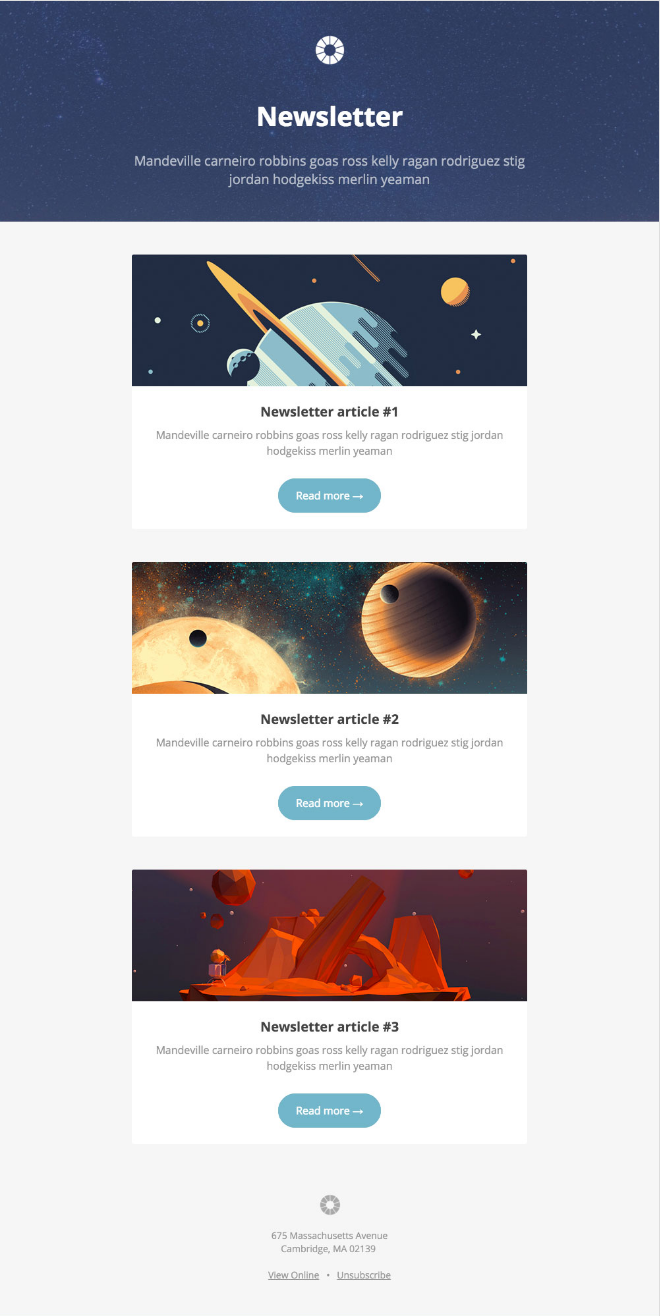
Litmus offers a free email template collection — from newsletter templates to account management templates. The marketing-specific theme, below — referred to as “Pook” — is modern and sleek, while still being kind of fun. All of the templates have been tested with Litmus, and you can easily check out how the email will appear in different email clients here.
While you are required to create a Litmus account with your email address to access the templates, the templates themselves are free of charge.
2. Sonata by Web Canopy Studio
Price: Free
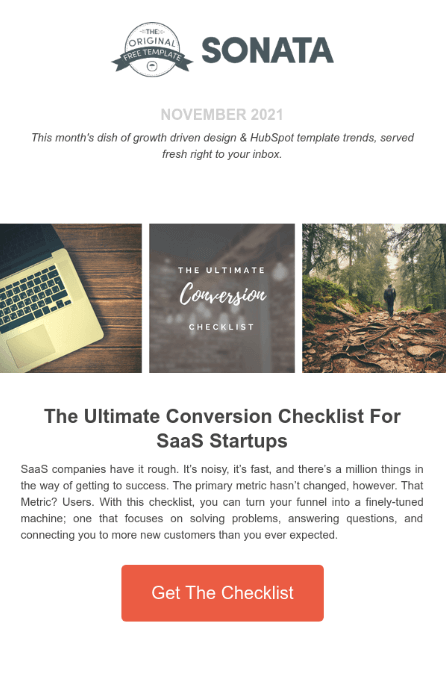
Sonata is an email template by Web Canopy Studio, available on the HubSpot platform to any HubSpot user, free or paid, looking to promote a special offer or resource to their loyal subscribers. As you can see, the newsletter template below embraces a clean aesthetic with image slots to capture the essence of your brand in three separate tiles.
You can customize almost any component of the template below, from the company logo at the top of the email to the “Get The Checklist” CTA at the bottom. Get this template from the HubSpot Template Marketplace, which includes a full gallery of similar templates linked at the end of this article.
3. ZURB Ink
Price: Free
ZURB Studios has five responsive email templates available for free, including the newsletter one below. It has a great, fluid layout you can customize with your own colors, images, and wording. If you want to see how each template looks on different email clients, you can check out screenshots from each template’s email client tests, which are on available the site. These layouts are optimized for most email clients — except for Outlook 2007, 2010, and 2013.
The template comes with a separate CSS stylesheet and HTML file to ease the editing process, and most clients put the CSS inline with the HTML itself after both are uploaded separately. If you’re going to add images to your newsletter, keep in mind you’ll have to create a separate folder and compress with the CSS stylesheet when uploaded.
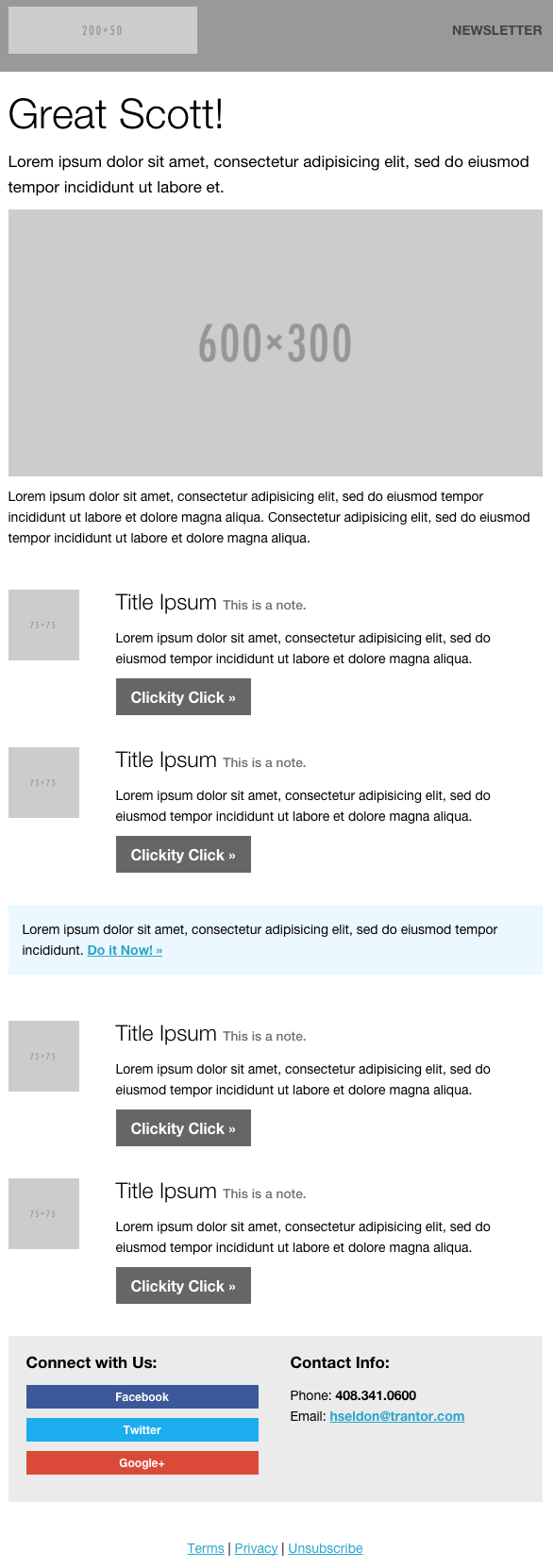
Image Credit: ZURB Studios
4. Wire by HubSpot
Price: Free
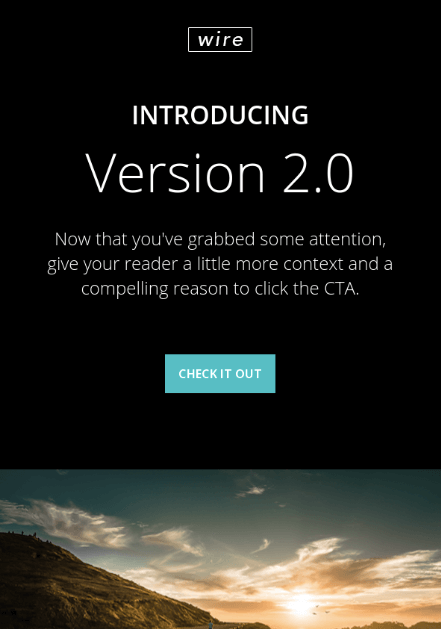
Wire is a HubSpot-designed newsletter template, catering to marketers who are rolling out a new product or service they want their prospects and customers to know about. The thin typeface and contrast between the dark background and vibrant product copy can add a sense of intensity to any new campaign.
5. 99designs
Price: Free
99designs is a growing online community and collaboration platform for designers and small businesses, and they have a great designer blog and business blog. As a free offering to their blog readers, they recently released a set of 45 free email templates — perfect for newsletters, promotional messages, and personalized responses. All of the templates are fully responsive and compatible with all major email clients.
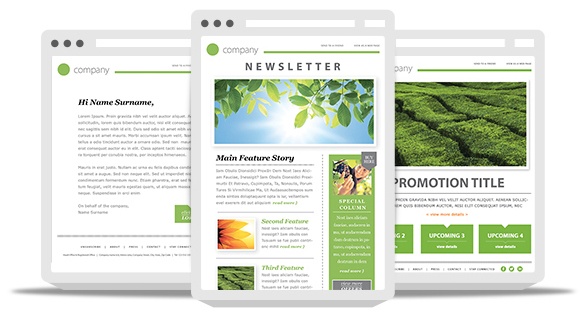
Image Credit: 99designs
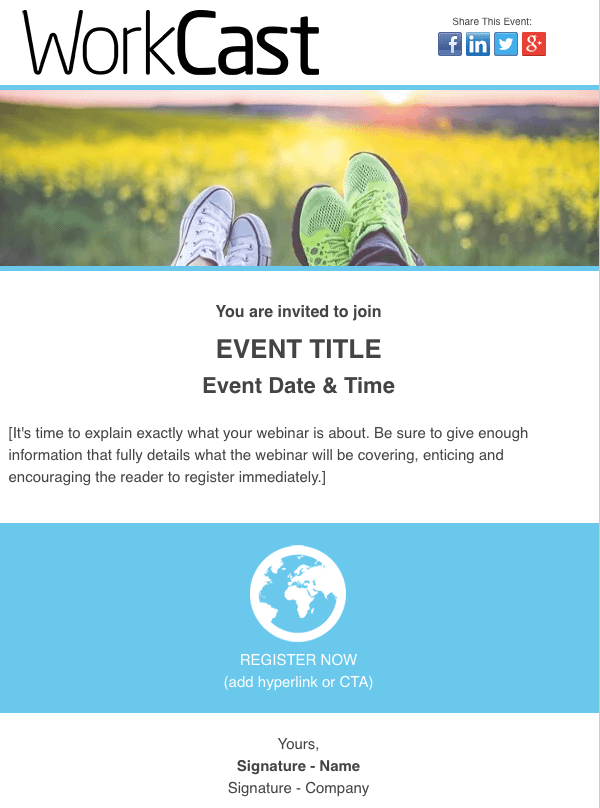
6. Webinar Invite by WorkCast
Price: Free
The email newsletter template below can promote anything from articles to new products, but it’s particularly useful for promoting a webinar you want people to register for.
Developed by WorkCast for the HubSpot platform, the template below offers a healthy balance of text and graphics so you can grab your recipients’ attention and give them the where and when of the webinar you think they’d be interested in attending.
7. ThemeForest
Price: $6-23/template
ThemeForest is an awesome resource for email templates if you have some budget to spend. Their library has over 460 newsletter templates in all different colors, styles, and themes. They’re rated using a four-star system, and you can filter by rating, price, recency, and popularity.
There are a lot to choose from, but here are four of our favorites:
Market – Responsive Newsletter with Template Builder ($19)
This template has eight prebuilt layouts, 24 color variations, 24 full-layered PSD files, and more. Plus, it’s supported by all major email clients.
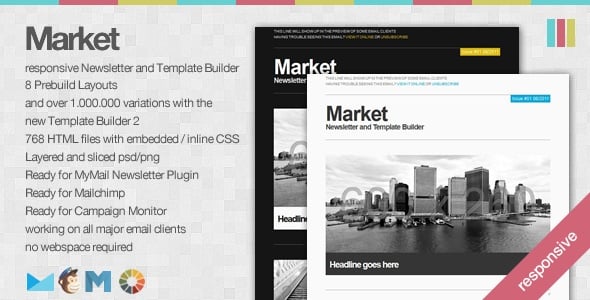
FreshMail, Responsive Email with Template Editor ($18)
Want a more minimalist look? This is a great template with minimalist design that’s also flexible and repeatable, so you can easily arrange the layout and use it to build your own unique template. Even better, it comes with helpful documentation and video tutorials to help you make the most of the design. It works for all major email clients and is responsive to mobile.
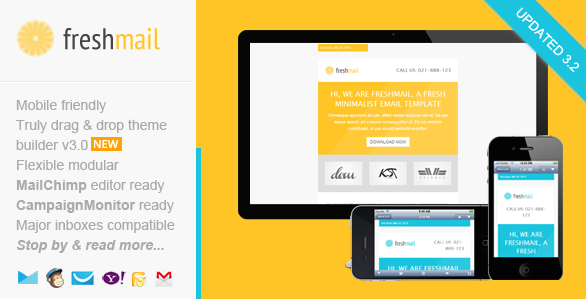
FancyMail – Responsive Email Template ($19)
If you’re looking for something more elegant and sophisticated, this might be the template for you. It comes in seven layout options and eight colors, along with six, fully-layered PSD files so you can customize as you wish. It works with all major email clients, is responsive to mobile devices, and includes helpful documentation so you can make the most of the template.
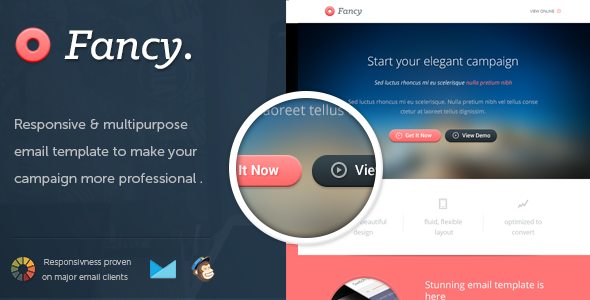
Rocket Mail – Clean & Modern Email Template ($16)
This template is great for marketers who are going for something that looks like your classic, basic newsletter design. It comes with 72 variations comprised of six color themes with six layouts each, and two backgrounds (light and dark) for each color. It has well commented HTML code to make it easier to follow along and customize. It works for all major email clients.
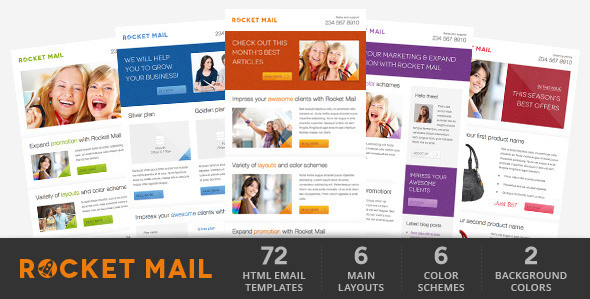
8. Resonant by HubSpot
Price: Free
Resonant is another free email newsletter template by HubSpot. The template’s base design is perfect for welcoming new users to your service. At this stage in the customer journey, you don’t want to overwhelm your newest users with too much content right away — but you do want to give them a taste of who you are. The wide image space at the top and text blurb beneath it help you do just that.
Maybe you want to send this email to help new users complete their registration, or offer them the next tier of your product. The “Download” CTA at the bottom of the email template gives you a modest up-sell opportunity, which you can personalize with any links and copy you’d like.
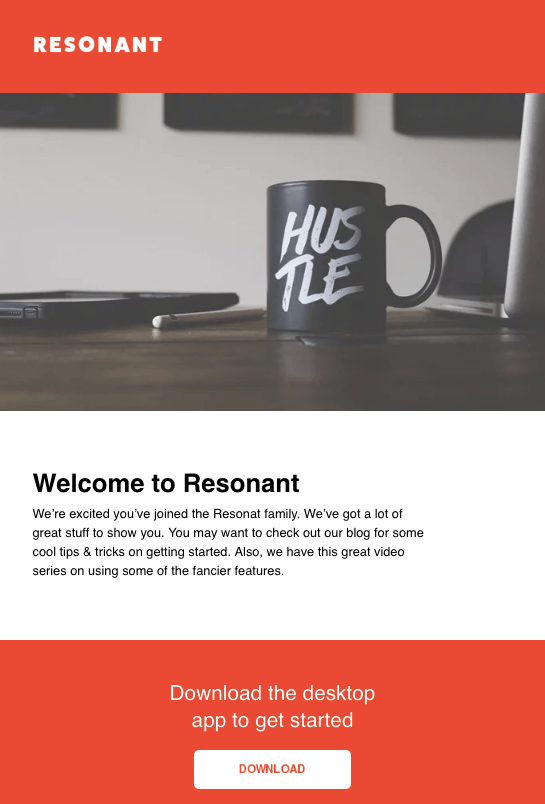
9. Antwort
Price: Free
Antwort offers three newsletter templates: one single-column, one two-column, and one three-column. They’re all responsive to mobile devices, so columns on desktop automatically condense on mobile devices. You’ll notice they’re pretty minimalist in design, which helps if you want to do a lot of customization work. They were also designed with dynamic content in mind.
On desktop, they work for major email clients like Gmail, Yahoo!, Outlook, and AOL. On mobile, they work for Mail on iOS and Email on Android.
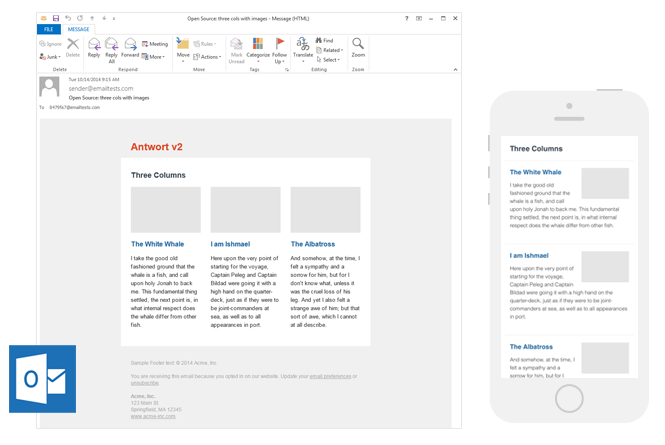
Image Credit: Julie Ng
10. Useful Notifications by TemplateMonster
Price: $14
TemplateMonster offers a variety of email newsletter templates, such as the Useful Notifications newsletter template pictured below, all of which are available for relatively low prices. Their templates are clean, customizable, and easy-to-use, and they’re compatible with most major email clients, such as Gmail and Yahoo Mail. Additionally, the templates come with built-in responsive layouts for screen adaptability, such as on the mobile phone pictured below, and PSD sources for a litany of customization options.
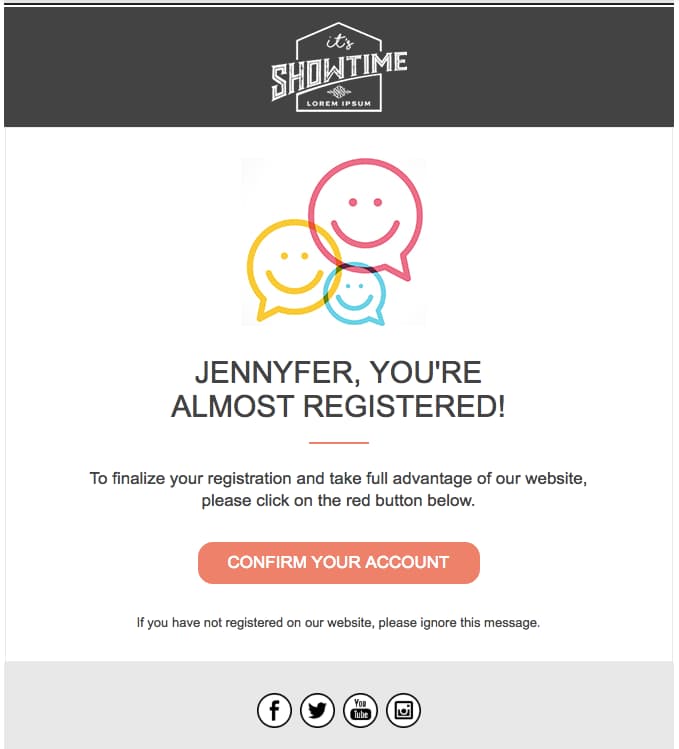
Image Credit: TemplateMonster
11, Sonata by HubSpot
Price: Free
Need a quick, simple, and sleek marketing email to make an announcement while showing off a few great photos? Check out Sonata by HubSpot. This template, available in the HubSpot Marketplace, is web friendly and looks great to the mobile reader.
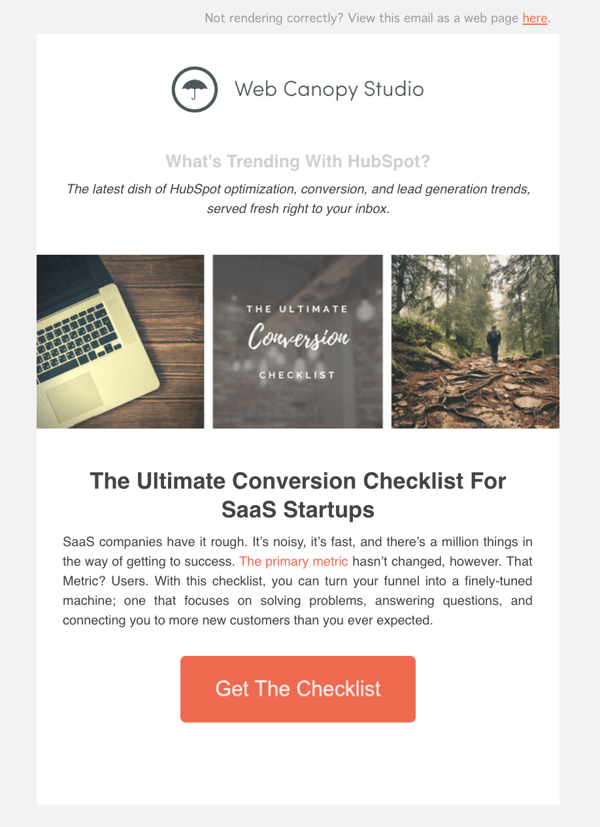
12. Themezy
Price: Free
Download sixteen free HTML, CSS, and PSD sources of customizable email templates on Themezy. You don’t have to submit an email address to get started, and there are various color schemes and layouts to meet your email list’s needs. Plus, they’re designed to be responsive across devices to ensure that your subscribers can read your newsletter.
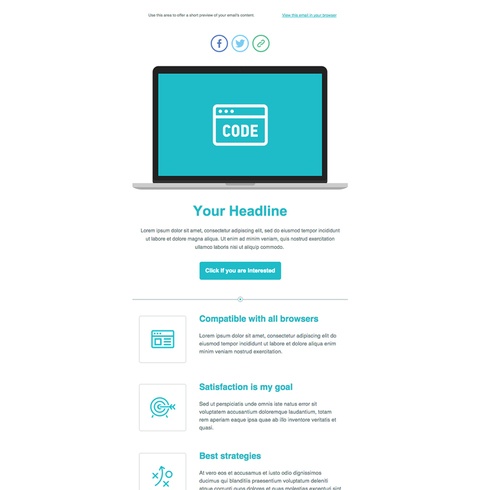
Image Credit: Themezy
13. Email on Acid
Price: Free
Email on Acid offers a free template with a basic, fluid design that’s also responsive to mobile devices. In other words, the three different “layouts” you see below trigger based on the width of the recipient’s screen.
Although there’s only one template here, you can actually mix and match each section of the layout to fit your specific design needs. The layout supports one, two, or three columns, and recipients on mobile devices will see the version that converts to a one-column layout for easy reading.
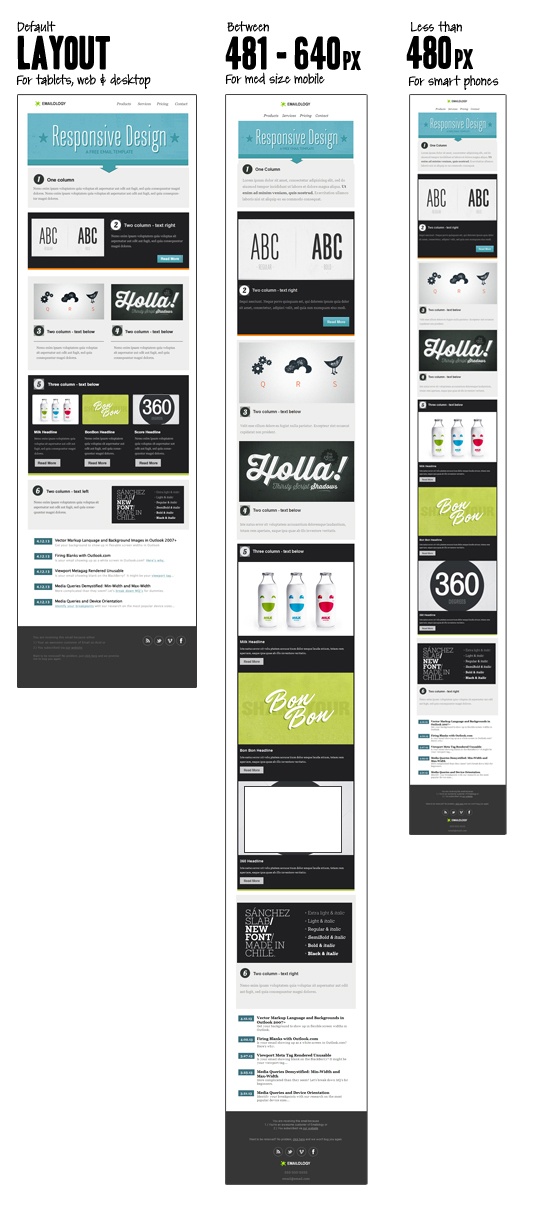 Image Credit: Email on Acid
14. Ridge by HubSpot
Price: Free
This one-column email format is both great for mobile readers and inserting colorful crisp visuals. It’s simplistic, so it could be used for multiple industries or purposes. While this preview displays a Thank You email, this type of format is great for a short and sweet announcement or an offer that deserves gorgeous imagery to go along with it. If you like the style but not the arrangement of images and text, you can also find more Ridge themes on the HubSpot Marketplace.
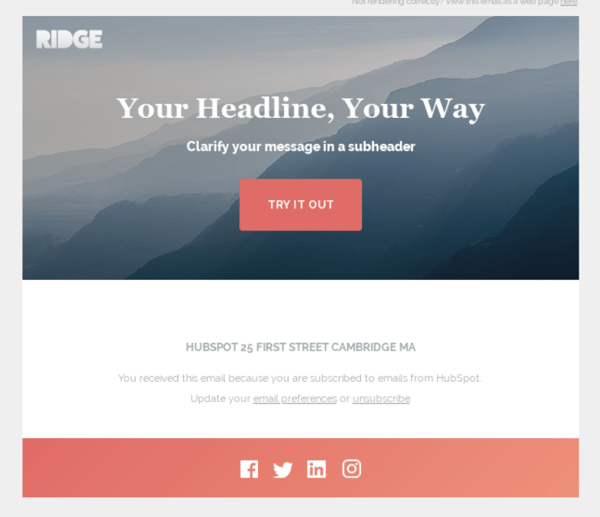
15. HubSpot Template Marketplace
Price: Free & paid options available
If you’re a HubSpot customer, HubSpot offers a great collection of email templates you can download or purchase from our template marketplace. Paid templates are available for as low as $1, and once you buy a template, you can start using it immediately right in HubSpot — no HTML or CSS required.
The second, fourth, sixth, and eighth templates on this list all came from our Marketplace.
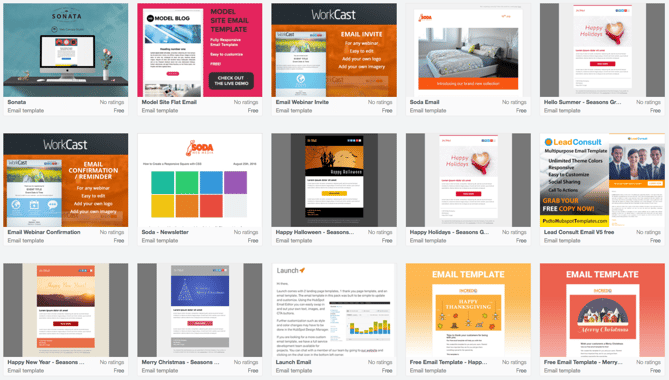
Get Started on Your Email Marketing Newsletter
Ready to draft your next 2019 email newsletter campaign? Download one of the excellent newsletter templates from the template galleries and landing pages above. Then, grab your free guide below for creating an email newsletter your audience will want to engage with.
Interested in finding templates for canned responses or pitches related to marketing and sales? Check out these two great resources.
Editor’s Note: The post was originally published in December 2018 but was updated for comprehensiveness in December 2019.
