
The Plain-English Guide to Conjoint Analysis
Sometimes, commercials really get me.
T-Mobile‘s Super Bowl commercial this year is a prime example — “What’s for Dinner?” demonstrates the infuriating process of choosing what to do for dinner for a young couple, and it’s gold.
The reason T-Mobile’s ad was so relatable is because of their market research. They looked at what their target audiences wanted — including their thought processes, what informs their decisions, and the trade-offs they’re willing to make for their products.
To accomplish all of these important factors in one go, many companies use conjoint analysis.
Think about buying a new phone. Attributes you might consider are color, size, and model. The reason phone companies include these specs in their marketing is due to research such as conjoint analysis.
Would consumers purchase this product or service if brought to market? That’s the question conjoint analysis strives to answer. It’s a quantitative measure in marketing research, meaning it measures numbers rather than open-ended questions. Questions on the phone company survey would include price points, color preference, and camera quality.
Surveys intended for conjoint analysis are formatted to reflect the buyer’s journey.
For instance, notice in this example for televisions, the specs are the options and the consumer picks what best reflects their lifestyle:

This direct method of giving consumers multiple profiles to then analyze is how conjoint analysis got its name. These answers are helpful when determining how to market a new product.
If answers on the phone company survey proved that their target audience of adults ages 18-25 wanted a green phone from $400-600 and a camera with portrait mode, advertisements can cater directly to that.
The conjoint analysis shows what consumers are willing to give up in order to get what they need. For instance, some might be willing to pay a little more money for a larger model of a phone if their preference is larger text.
Types of Conjoint Analysis
Choice-based conjoint (CBC) and Adaptive Conjoint Analysis (ACA) are the two main types of conjoint analysis.
Choice-based is the most common form because it asks consumers to mimic their buying habits. ACA is helpful for product design, offering more questions about specs of a product.
Choice-based conjoint analysis questions are usually presented in a “Would you rather?” format. For example, “Would you rather take a ride-share service to a location 10 minutes away for $13 or walk 30 minutes for free?” The marketer for the ride-share service could use answers from this question to think of the upsides to show off in different campaigns.
ACA leans towards a Likert-scale format (most likely to least likely) for its attribute-based questions. Respondents can base their preference on specs by showing how likely they are to buy a product with slight differences — for example, similar cars with different doors and manufacturers.
Examples of Conjoint Analysis
Sawtooth Software offers a great example of conjoint analysis for a phone company:
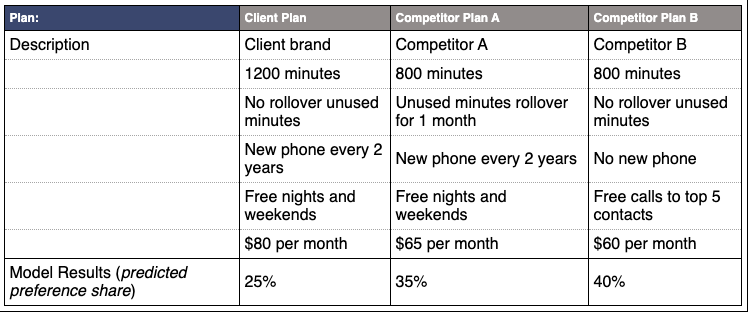
The analysis puts three different phone services next to each other. The horizontal column of the model identifies which service is offering a certain program, described by the vertical values. The bottom row shows a percent value of consumers’ preferences.
QuestionPro offers this fun, interactive conjoint analysis template about retirement home options. The survey gives you a scenario and asks your course of action. For instance, it asks if you would sign a rental agreement for retirement home housing immediately, and considers specs like rent, meals, size, etc.
Conjoint analysis isn’t limited to existing products. They’re also very helpful for figuring out if a brand-new product is worth developing. For instance, if surveys show that audiences would be into the idea of an app that chooses clothes for consumers, that could be a new venture for clothing companies in the future.
Looking to create a conjoint analysis of your own? Software is available that’ll offer templates and collect data from your results. Qualtrics is a popular one, as well as QuestionPro.
It’s important to note — when creating a conjoint analysis, you’ll need to define a list of attributes about your product. Attributes are usually 4-5 items that describe your product or service. Consider color, size, price, and market-specific attributes, such as lenses if you’re selling cameras.
Additionally, try to keep in mind your ideal respondents. Who do you want to answer your survey? A group of adult men? A group of working mothers? Identify your respondent base and ask specific questions catered to that target market.
For more ways to introduce product marketing into your company, check out our ultimate guide here.

How to Make an Ad: A 10-Step Guide
Advertising is changing — in fact, in 2020, companies will spend more than $250 billion on media advertising for the first time in U.S. history.
More companies are spending money on advertising than ever before. As a result, there are now innumerable platforms you can use to promote your product, service, or business.
But how do you choose the right medium to promote your platform? And once you decide, how do you actually make the ad?
There’s a lot that goes into making an advertisement — from market research, to choosing the right medium, to developing creative assets. To simplify the process for you, we’ve outlined the necessary steps you’ll need to take in order to bring your ad to life and start promoting your business in the right way.
Keep reading to learn our recommended 10-step process on how to make an ad.
Featured Resource: Advertising Planning Templates & Kit
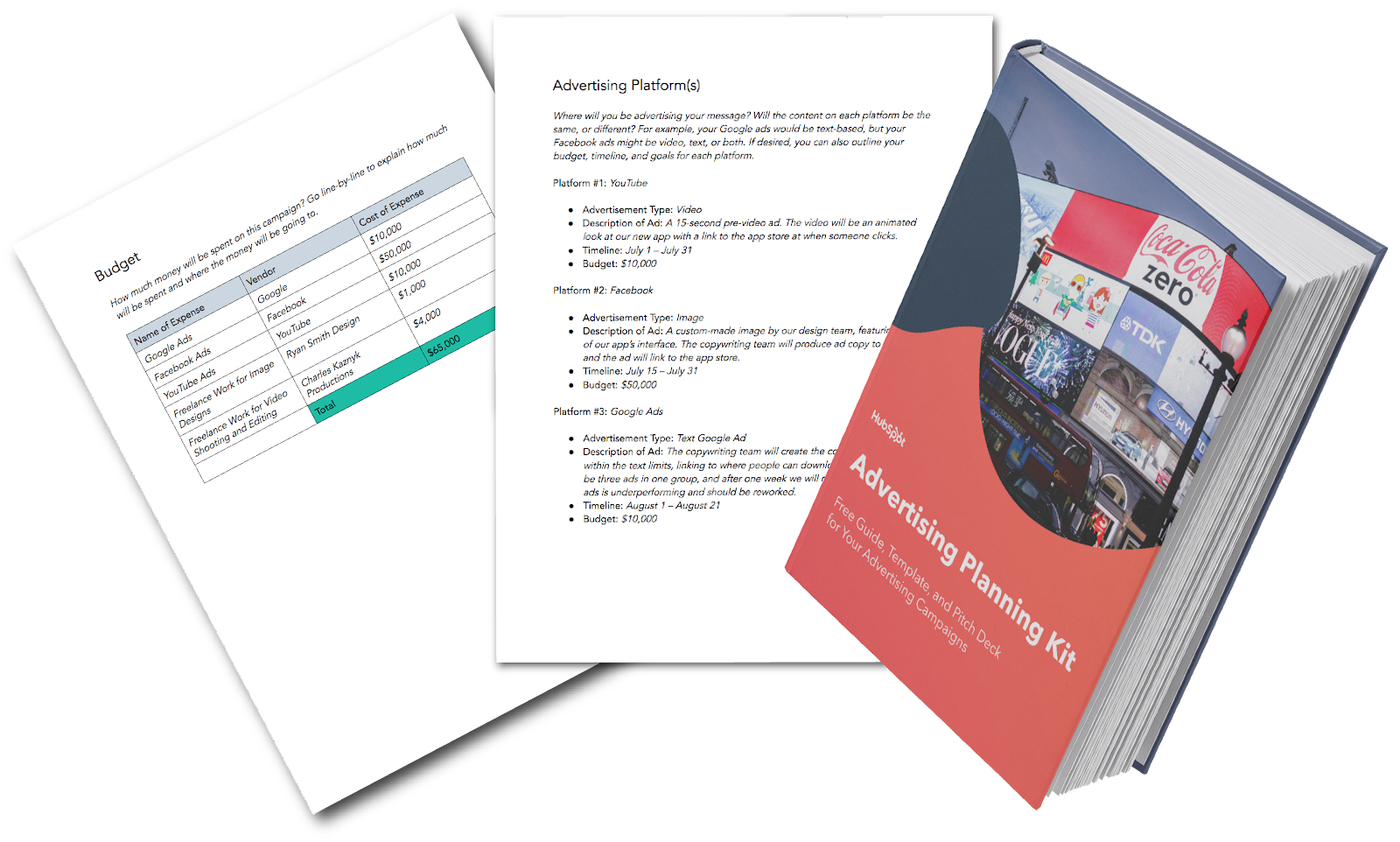
To make your advertising planning easier, use HubSpot’s free Advertising Planning Kit. Included are templates to help you plan and present your ad pitch, schedule your release dates, and inform your stakeholders. We’ve also thrown in an advertising best practices guide to help you choose the advertising method that works best for your business.
1. Choose Your Target Audience
When making an ad, you’ll first need to decide the audience you’re making the ad for. People see up to 10,000 ads in a day (yup, that’s a real number), so your advertisement may end up being white noise if not targeted correctly.
One way to help your ad find the right audience is to get granular on whom you want to target with your messaging, which will help you incorporate the best messaging and select the best advertising platform. This should be based off of your buyer personas — semi-fictional representations of your ideal customer based on market research and real data about your existing customers.
If you need help building your personas, try using HubSpot’s Make My Persona tool.
2. Conduct Marketing Research
Market research is an essential part of campaign promotion. Feeding into your buyer personas, market research can answer key questions about your target market, such as:
- How old are they?
- What do they spend most of their time doing?
- What social media platforms do they use, if any?
- Do they live in suburban, urban, or rural areas?
Knowing the above information about your target audience can help you answer questions like — TV or YouTube? Instagram or LinkedIn? Billboard or bus? — because you’ll understand more about how to appeal to the right people.
You can use this Market Research Guide and Set of Templates to get started on market research for your ad.
3. Choose Your Platform
Your market research should give you the insight and confidence you need to choose the most effective platform to reach your target audience. You should also do some supplemental research on the costs, ROI, and benefits of certain ad platforms and methods.
You may come to the realization that using multiple ad platforms and methods would be the right move for your campaign – such as social media and search engine ads. This is actually a great strategy, as it casts a wider net and opens up the possibility of reaching even more prospects where they already are.
4. Decide on a Budget
For advertising, you need to spend money to make money.
Getting your budget approved can be difficult, so make it easier to get what you need by clearly outlining:
- The total budget you need
- How the costs are broken down
- A projected ROI (or business impact)
Be sure to come to any budget meeting prepared to answer whatever questions could be thrown at you and to defend the specifics.
For instance, saying “We need $10,000 to run a Google Ads campaign” doesn’t sound nearly as compelling as “We’d like to run a series of ads on Google. Here’s a list of our keywords and negative keywords, their monthly search volume, and our preliminary bids for each. With these projections, we’re expecting to bring in 400 new contacts next month for a total cost of $10,000.”
5. Craft a Message
By this point, you know your target audience and your preferred platform, but you’re still not sure what you’re saying. Here’s where you’ll want to think about the broad purpose of your campaign to inspire your ad.
Do you want people to come to your store, or visit your website? Is your immediate goal to drive free signups for your software, or ebook downloads? Think about the message and how that can feed into the end goal(s) of your ad campaign.
For inspiration, take a look at The 18 Best Advertisements of All Time.
6. Develop Creative Assets
Whether it’s copy for a Google Ad or a flashy landing page from your in-house designers, all ads need creative assets. Chances are, most of the ads you run will need one or more of the following:
- Short, promotional copy (for image ads and online ads)
- Long-form copy (for video scripts)
- Photographs (for online ads)
- Custom-designed images and/or animations (for online ads and video ads)
- Video (for…video ads)
- GIFs (for online ads)
All of these assets can be overwhelming, and if you’re thinking “I’m not a videographer/writer/designer/photographer!”, that’s totally fine. If these resources aren’t available to you in-house to help make your ad, consider hiring a team of freelancers or an agency to help you produce these deliverables and make an outstanding advertisement.
7. Determine Measurements of Success and Set Up Tracking
No matter if your ultimate goal is Page Likes, online purchases, or promo code uses, you should never launch an ad without first being crystal clear on two questions:
- What do we want to see in order to call this ad successful?
- How are we measuring success?
You already thought of your advertisement’s goal in Step 5, so now, make the expectations of your campaign known by setting up the proper ad tracking.
If you’re advertising online, there’s a good chance the platform you’re using — like Facebook, Google, or LinkedIn — has an ad management and tracking platform, allowing you to see how many interactions your ads have had and how much they cost.
However, you’ll also want to take a few extra steps to aid in your analysis down the line:
- Use an automated free ad tracking platform to measure advertising ROI and see how your ads tie into larger marketing projects and campaigns. You can also use this platform to compare ads from different sites, say, if you were running ads on both Instagram and Twitter.
- Set up a custom tracking spreadsheet offline to measure engagements with your ad and other data points like cost, conversion, and advertising ROI, especially if your ad is online.
- Use custom tracking tokens for links promoted in your ad so that you can analyze engagement and conversions on your own website.
8. Launch Your Ad
The stage is set, and you can finally launch your ad for the world to see.
Needless to say, the process of launching an ad on Google is different than on Bing. The same can be said for every social media channel, TV ads, or transportation ads.
Here’s a list of the more detailed, step-by-step process for launching an ad on some of these platforms. Click through to learn more about the platform or platforms that you’re creating an ad for:
- How to Launch a Facebook Ad
- How to Launch a LinkedIn Ad
- How to Launch an Instagram Ad
- How to Launch a Twitter Ad
- How to Launch a YouTube Ad
- How to Launch a Google Ad
- How to Launch a TV Ad
- How to Launch a Billboard Ad
9. Track & Analyze Performance
For campaigns that have a set run time (transportation, television, etc.), determine how the ad’s results performed against expectations. Since it’s difficult to draw a one-to-one comparison for these ad types, you may want to look at general business trends, change in revenue, or even social media/press mentions to gauge success.
For online ads, this process is a bit easier. Results start coming in immediately, so you can see how well your ads are performing instantly, and over time. Take note of the ads that are bringing in high numbers at low costs and — just as importantly — ads that are costing a lot but not performing that well.
Remember, you can take the headache out of the manual ad tracking with a free online ads tracking tool.
10. Make Changes, Rinse, and Repeat
Once your ad campaign is over (or if it’s an ongoing online campaign), take your learnings and apply them to your next advertisement.
For instance, maybe you realized your online ads that were wordier performed worse than ads that were more concise, or that YouTube just didn’t work this time around. Lean into what worked (or is working) and abandon what’s not to continue to strengthen your company’s advertising program.
Making Your Ad, Simplified
And there you have it — a simple 10-step process for planning, creating, launching, and analyzing an advertisement. Remember to use an advertising planning template to outline your ad campaign, keep all contributors informed, and rally behind the same end goal for your business.

How to Use Excel: 18 Simple Excel Tips, Tricks, and Shortcuts
Sometimes, Excel seems too good to be true. All I have to do is enter a formula, and pretty much anything I’d ever need to do manually can be done automatically. Need to merge two sheets with similar data? Excel can do it. Need to do simple math? Excel can do it. Need to combine information in multiple cells? Excel can do it.
If you encounter a situation where you need to manually update your data, you’re probably missing out on a formula that can do it for you.
Before spending hours and hours counting cells or copying and pasting data, look for a quick fix on Excel — you’ll likely find one.
In the spirit of working more efficiently and avoiding tedious, manual work, here are a few Excel tricks to get you started with how to use Excel. (And to all the Harry Potter fans out there … you’re welcome in advance.)
Excel Basics
If you’re just starting out with Excel, there are a few basic commands that we suggest you become familiar with. These are things like:
- Creating a new spreadsheet from scratch.
- Executing basic computations in a spreadsheet, like adding, subtracting, multiplying, and dividing in a spreadsheet.
- Writing and formatting column text and titles.
- Excel’s auto-fill features.
- Adding or deleting single columns, rows, and spreadsheets. Below, we’ll get into how to add things like multiple columns and rows.
- Keeping column and row titles visible as you scroll past them in a spreadsheet, so that you know what data you’re filling as you move further down the document.
For a deep dive on these basics, check out our comprehensive guide on How to Use Excel.
Okay, ready to get into the nitty-gritty? Let’s get to it.
1. Use Pivot Tables to recognize and make sense of data.
Pivot Tables are used to reorganize data in a spreadsheet. They won’t change the data that you have, but they can sum up values and compare different information in your spreadsheet, depending on what you’d like them to do.
Let’s take a look at an example. Let’s say I want to take a look at how many people are in each house at Hogwarts. You may be thinking that I don’t have too much data, but for longer data sets, this will come in handy.
To create the Pivot Table, I go to Data > Pivot Table. Excel will automatically populate your Pivot Table, but you can always change around the order of the data. Then, you have four options to choose from.
- Report Filter: This allows you to only look at certain rows in your dataset. For example, if I wanted to create a filter by house, I could choose to only include students in Gryffindor instead of all students.
- Column Labels: These could be your headers in the dataset.
- Row Labels: These could be your rows in the dataset. Both Row and Column labels can contain data from your columns (e.g. First Name can be dragged to either the Row or Column label — it just depends on how you want to see the data.)
- Value: This section allows you to look at your data differently. Instead of just pulling in any numeric value, you can sum, count, average, max, min, count numbers, or do a few other manipulations with your data. In fact, by default, when you drag a field to Value, it always does a count.
Since I want to count the number of students in each house, I’ll go to the Pivot Table and drag the House column to both the Row Labels and the Values. This will sum up the number of students associated with each house.

2. Add more than one row or column.
As you play around with your data, you might find you’re constantly needing to add more rows and columns. Sometimes, you may even need to add hundreds of rows. Doing this one-by-one would be super tedious. Luckily, there’s always an easier way.
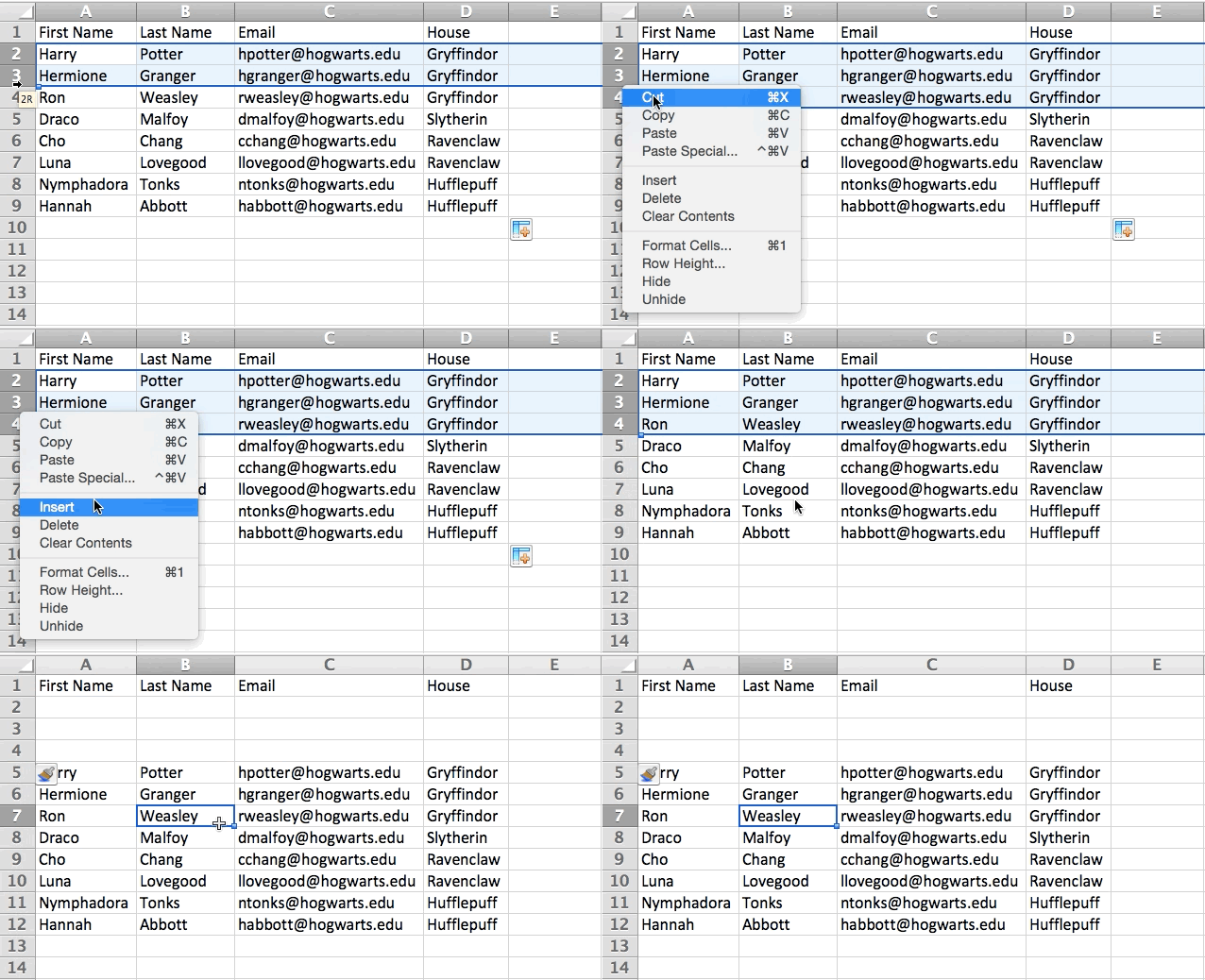
To add multiple rows or columns in a spreadsheet, highlight the same number of preexisting rows or columns that you want to add. Then, right-click and select “Insert.”
In the example below, I want to add an additional three rows. By highlighting three rows and then clicking insert, I’m able to add an additional three blank rows into my spreadsheet quickly and easily.
3. Use filters to simplify your data.
When you’re looking at very large data sets, you don’t usually need to be looking at every single row at the same time. Sometimes, you only want to look at data that fit into certain criteria. That’s where filters come in.
Filters allow you to pare down your data to only look at certain rows at one time. In Excel, a filter can be added to each column in your data — and from there, you can then choose which cells you want to view at once.
Let’s take a look at the example below. Add a filter by clicking the Data tab and selecting “Filter.” Clicking the arrow next to the column headers and you’ll be able to choose whether you want your data to be organized in ascending or descending order, as well as which specific rows you want to show.
In my Harry Potter example, let’s say I only want to see the students in Gryffindor. By selecting the Gryffindor filter, the other rows disappear.

Pro Tip: Copy and paste the values in the spreadsheet when a Filter is on to do additional analysis in another spreadsheet.
4. Remove duplicate data points or sets.
Larger data sets tend to have duplicate content. You may have a list of multiple contacts in a company and only want to see the number of companies you have. In situations like this, removing the duplicates comes in quite handy.
To remove your duplicates, highlight the row or column that you want to remove duplicates of. Then, go to the Data tab, and select “Remove Duplicates” (under Tools). A pop-up will appear to confirm which data you want to work with. Select “Remove Duplicates,” and you’re good to go.

You can also use this feature to remove an entire row based on a duplicate column value. So if you have three rows with Harry Potter’s information and you only need to see one, then you can select the whole dataset and then remove duplicates based on email. Your resulting list will have only unique names without any duplicates.
5. Transpose rows into columns.
When you have low rows of data in your spreadsheet, you might decide you actually want to transform the items in one of those rows into columns (or vice versa). It would take a lot of time to copy and paste each individual header — but what the transpose feature allows you to do is simply move your row data into columns, or the other way around.
Start by highlighting the column that you want to transpose into rows. Right-click it, and then select “Copy.” Next, select the cells on your spreadsheet where you want your first row or column to begin. Right-click on the cell, and then select “Paste Special.” A module will appear — at the bottom, you’ll see an option to transpose. Check that box and select OK. Your column will now be transferred to a row or vice-versa.

6. Split up text information between columns.
What if you want to split out information that’s in one cell into two different cells? For example, maybe you want to pull out someone’s company name through their email address. Or perhaps you want to separate someone’s full name into a first and last name for your email marketing templates.
Thanks to Excel, both are possible. First, highlight the column that you want to split up. Next, go to the Data tab and select “Text to Columns.” A module will appear with additional information.
First, you need to select either “Delimited” or “Fixed Width.”
- “Delimited” means you want to break up the column based on characters such as commas, spaces, or tabs.
- “Fixed Width” means you want to select the exact location on all the columns that you want the split to occur.
In the example case below, let’s select “Delimited” so we can separate the full name into first name and last name.
Then, it’s time to choose the Delimiters. This could be a tab, semi-colon, comma, space, or something else. (“Something else” could be the “@” sign used in an email address, for example.) In our example, let’s choose the space. Excel will then show you a preview of what your new columns will look like.
When you’re happy with the preview, press “Next.” This page will allow you to select Advanced Formats if you choose to. When you’re done, click “Finish.”

Excel Formulas
7. Use these formulas for simple calculations
In addition to doing pretty complex calculations, Excel can help you do simple arithmetic like adding, subtracting, multiplying, or dividing any of your data.
- To add, use the + sign.
- To subtract, use the – sign.
- To multiply, use the * sign.
- To divide, use the / sign.
You can also use parenthesis to ensure certain calculations are done first. In the example below (10+10*10), the second and third 10 were multiplied together before adding the additional 10. However, if we made it (10+10)*10, the first and second 10 would be added together first.

8. Get the average of numbers in your cells.
If you want the average of a set of numbers, you can use the formula =AVERAGE(Cell Range). If you want to sum up a column of numbers, you can use the formula =SUM(Cell Range).
9. Use conditional formatting to make cells automatically change color based on data.
Conditional formatting allows you to change a cell’s color based on the information within the cell. For example, if you want to flag certain numbers that are above average or in the top 10% of the data in your spreadsheet, you can do that. If you want to color code commonalities between different rows in Excel, you can do that. This will help you quickly see information the is important to you.
To get started, highlight the group of cells you want to use conditional formatting on. Then, choose “Conditional Formatting” from the Home menu and select your logic from the dropdown. (You can also create your own rule if you want something different.) A window will pop up that prompts you to provide more information about your formatting rule. Select “OK” when you’re done, and you should see your results automatically appear.

10. Use IF THEN Excel formula to automate certain Excel functions.
Sometimes, we don’t want to count the number of times a value appears. Instead, we want to input different information into a cell if there is a corresponding cell with that information.
For example, in the situation below, I want to award ten points to everyone who belongs in the Gryffindor house. Instead of manually typing in 10’s next to each Gryffindor student’s name, I can use the IF THEN Excel formula to say that if the student is in Gryffindor, then they should get ten points.
The formula: IF(logical_test, value_if_true, value of false)
Example Shown Below: =IF(D2=”Gryffindor”,”10″,”0″)
In general terms, the formula would be IF(Logical Test, value of true, value of false). Let’s dig into each of these variables.
- Logical_Test: The logical test is the “IF” part of the statement. In this case, the logic is D2=”Gryffindor” because we want to make sure that the cell corresponding with the student says “Gryffindor.” Make sure to put Gryffindor in quotation marks here.
- Value_if_True: This is what we want the cell to show if the value is true. In this case, we want the cell to show “10” to indicate that the student was awarded the 10 points. Only use quotation marks if you want the result to be text instead of a number.
- Value_if_False: This is what we want the cell to show if the value is false. In this case, for any student not in Gryffindor, we want the cell to show “0” to show 0 points. Only use quotation marks if you want the result to be text instead of a number.

Note: In the example above, I awarded 10 points to everyone in Gryffindor. If I later wanted to sum the total number of points, I wouldn’t be able to because the 10’s are in quotes, thus making them text and not a number that Excel can sum.
11. Use dollar signs to keep one cell’s formula the same regardless of where it moves.
Have you ever seen a dollar sign in an Excel formula? When used in a formula, it isn’t representing an American dollar; instead, it makes sure that the exact column and row are held the same even if you copy the same formula in adjacent rows.
You see, a cell reference — when you refer to cell A5 from cell C5, for example — is relative by default. In that case, you’re actually referring to a cell that’s five columns to the left (C minus A) and in the same row (5). This is called a relative formula. When you copy a relative formula from one cell to another, it’ll adjust the values in the formula based on where it’s moved. But sometimes, we want those values to stay the same no matter whether they’re moved around or not — and we can do that by making the formula in the cell into what’s called an absolute formula.
To change the relative formula (=A5+C5) into an absolute formula, we’d precede the row and column values by dollar signs, like this: (=$A$5+$C$5). (Learn more on Microsoft Office’s support page here.)
Excel Functions
12. Use VLOOKUP function pull data from one area of a sheet to another.
Have you ever had two sets of data on two different spreadsheets that you want to combine into a single spreadsheet?
For example, you might have a list of people’s names next to their email addresses in one spreadsheet, and a list of those same people’s email addresses next to their company names in the other — but you want the names, email addresses, and company names of those people to appear in one place.
I have to combine data sets like this a lot — and when I do, the VLOOKUP is my go-to formula. Before you use the formula, though, be absolutely sure that you have at least one column that appears identically in both places. Scour your data sets to make sure the column of data you’re using to combine your information is exactly the same, including no extra spaces.
The formula: =VLOOKUP(lookup value, table array, column number, [range lookup])
The formula with variables from our example below: =VLOOKUP(C2,Sheet2!A:B,2,FALSE)
In this formula, there are several variables. The following is true when you want to combine information in Sheet 1 and Sheet 2 onto Sheet 1.
- Lookup Value: This is the identical value you have in both spreadsheets. Choose the first value in your first spreadsheet. In the example that follows, this means the first email address on the list, or cell 2 (C2).
- Table Array: The range of columns on Sheet 2 you’re going to pull your data from, including the column of data identical to your lookup value (in our example, email addresses) in Sheet 1 as well as the column of data you’re trying to copy to Sheet 1. In our example, this is “Sheet2!A:B.” “A” means Column A in Sheet 2, which is the column in Sheet 2 where the data identical to our lookup value (email) in Sheet 1 is listed. The “B” means Column B, which contains the information that’s only available in Sheet 2 that you want to translate to Sheet 1.
- Column Number: If the table array (the range of columns you just indicated) this tells Excel which column the new data you want to copy to Sheet 1 is located in. In our example, this would be the column that “House” is located in. “House” is the second column in our range of columns (table array), so our column number is 2. [Note: Your range can be more than two columns. For example, if there are three columns on Sheet 2 — Email, Age, and House — and you still want to bring House onto Sheet 1, you can still use a VLOOKUP. You just need to change the “2” to a “3” so it pulls back the value in the third column: =VLOOKUP(C2:Sheet2!A:C,3,false).]
- Range Lookup: Use FALSE to ensure you pull in only exact value matches.
In the example below, Sheet 1 and Sheet 2 contain lists describing different information about the same people, and the common thread between the two is their email addresses. Let’s say we want to combine both datasets so that all the house information from Sheet 2 translates over to Sheet 1.

So when we type in the formula =VLOOKUP(C2,Sheet2!A:B,2,FALSE), we bring all the house data into Sheet 1.
Keep in mind that VLOOKUP will only pull back values from the second sheet that are to the right of the column containing your identical data. This can lead to some limitations, which is why some people prefer to use the INDEX and MATCH functions instead.
13. Use INDEX MATCH formulas to pull data from horizontal columns.
Like VLOOKUP, the INDEX and MATCH functions pull in data from another dataset into one central location. Here are the main differences:
- VLOOKUP is a much simpler formula. If you’re working with large data sets that would require thousands of lookups, using the INDEX MATCH function will significantly decrease load time in Excel.
- INDEX MATCH formulas work right-to-left, whereas VLOOKUP formulas only work as a left-to-right lookup. In other words, if you need to do a lookup that has a lookup column to the right of the results column, then you’d have to rearrange those columns in order to do a VLOOKUP. This can be tedious with large datasets and/or lead to errors.
So if I want to combine information in Sheet 1 and Sheet 2 onto Sheet 1, but the column values in Sheets 1 and 2 aren’t the same, then to do a VLOOKUP, I would need to switch around my columns. In this case, I’d choose to do an INDEX MATCH instead.
Let’s look at an example. Let’s say Sheet 1 contains a list of people’s names and their Hogwarts email addresses, and Sheet 2 contains a list of people’s email addresses and the Patronus that each student has. (For the non-Harry Potter fans out there, every witch or wizard has an animal guardian called a “Patronus” associated with him or her.) The information that lives in both sheets is the column containing email addresses, but this email address column is in different column numbers on each sheet. I’d use the INDEX MATCH formula instead of VLOOKUP so I wouldn’t have to switch any columns around.
So what’s the formula, then? The INDEX MATCH formula is actually the MATCH formula nested inside the INDEX formula. You’ll see I differentiated the MATCH formula using a different color here.
The formula: =INDEX(table array, MATCH formula)
This becomes: =INDEX(table array, MATCH (lookup_value, lookup_array))
The formula with variables from our example below: =INDEX(Sheet2!A:A,(MATCH(Sheet1!C:C,Sheet2!C:C,0)))
Here are the variables:
- Table Array: The range of columns on Sheet 2 containing the new data you want to bring over to Sheet 1. In our example, “A” means Column A, which contains the “Patronus” information for each person.
- Lookup Value: This is the column in Sheet 1 that contains identical values in both spreadsheets. In the example that follows, this means the “email” column on Sheet 1, which is Column C. So: Sheet1!C:C.
- Lookup Array: This is the column in Sheet 2 that contains identical values in both spreadsheets. In the example that follows, this refers to the “email” column on Sheet 2, which happens to also be Column C. So: Sheet2!C:C.
Once you have your variables straight, type in the INDEX MATCH formula in the top-most cell of the blank Patronus column on Sheet 1, where you want the combined information to live.

14. Use COUNTIF function to make Excel count words or numbers in any range of cells.
Instead of manually counting how often a certain value or number appears, let Excel do the work for you. With the COUNTIF function, Excel can count the number of times a word or number appears in any range of cells.
For example, let’s say I want to count the number of times the word “Gryffindor” appears in my data set.
The formula: =COUNTIF(range, criteria)
The formula with variables from our example below: =COUNTIF(D:D,”Gryffindor”)
In this formula, there are several variables:
- Range: The range that we want the formula to cover. In this case, since we’re only focusing on one column, we use “D:D” to indicate that the first and last column are both D. If I were looking at columns C and D, I would use “C:D.”
- Criteria: Whatever number or piece of text you want Excel to count. Only use quotation marks if you want the result to be text instead of a number. In our example, the criteria is “Gryffindor.”
Simply typing in the COUNTIF formula in any cell and pressing “Enter” will show me how many times the word “Gryffindor” appears in the dataset.

15. Combine cells using &.
Databases tend to split out data to make it as exact as possible. For example, instead of having a data that shows a person’s full name, a database might have the data as a first name and then a last name in separate columns. Or, it may have a person’s location separated by city, state, and zip code. In Excel, you can combine cells with different data into one cell by using the “&” sign in your function.
The formula with variables from our example below: =A2&” “&B2
Let’s go through the formula together using an example. Pretend we want to combine first names and last names into full names in a single column. To do this, we’d first put our cursor in the blank cell where we want the full name to appear. Next, we’d highlight one cell that contains a first name, type in an “&” sign, and then highlight a cell with the corresponding last name.
But you’re not finished — if all you type in is =A2&B2, then there will not be a space between the person’s first name and last name. To add that necessary space, use the function =A2&” “&B2. The quotation marks around the space tell Excel to put a space in between the first and last name.
To make this true for multiple rows, simply drag the corner of that first cell downward as shown in the example.

We hope you found this article helpful! Bookmark it to keep these handy Excel tips in your back pocket.
16. Add checkboxes.
If you’re using an Excel sheet to track customer data and want to oversee something that isn’t quantifiable, you could insert checkboxes into a column.
For example, if you’re using an Excel sheet to manage your sales prospects and want to track whether you called them in the last quarter, you could have a “Called this quarter?” column and check off the cells in it when you’ve called the respective client.
Here’s how to do it in Excel’s 2018 and 2019 software.
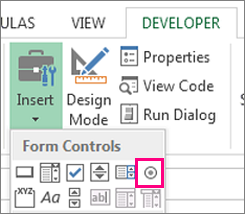
Highlight a cell you’d like to add checkboxes to in your spreadsheet. Then, click DEVELOPER. Then, under FORM CONTROLS, click the checkbox or the selection circle highlighted in the image below.
Once the box appears in the cell, copy it, highlight the cells you also want it to appear in, and then paste it.
17. Hyperlink a cell to a website.
If you’re using your sheet to track social media or website metrics, it can be helpful to have a reference column with the links each row is tracking. If you add a URL directly into Excel, it should automatically be clickable. But, if you have to hyperlink words, such as a page title or the headline of a post you’re tracking, here’s how.
Highlight the words you want to hyperlink, then press Shift K. From there a box will pop up allowing you to place the hyperlink URL. Copy and paste the URL into this box and hit or click Enter.
If the key shortcut isn’t working for any reason, you can also do this manually by highlighting the cell and clicking Insert > Hyperlink.
18. Add drop-down menus.
Sometimes, you’ll be using your spreadsheet to track processes or other qualitative things. Rather than writing words into your sheet repetitively, such as “Yes”, “No”, “Customer Stage”, “Sales Lead”, or “Prospect”, you can use dropdown menus to quickly mark descriptive things about your contacts or whatever you’re tracking.
Here’s how to add drop-downs to your cells.
Highlight the cells you want the drop-downs to be in, then click the Data menu in the top navigation and press Validation.

From there, you’ll see a Data Validation Settings box open. Look at the Allow options, then click Lists and select Drop-down List. Check the In-Cell dropdown button, then press OK.
Other Excel Help Resources
- How to Make a Chart or Graph in Excel [With Video Tutorial] (Blog Post)
- 7 Little Tricks to Spruce Up an Ugly Excel Graph (Blog Post)
- Marketing With Excel: 6 Ways It Can Make Your Life Easier (Blog Post)
- 4 Essential Microsoft Excel Skills Every Marketer Should Learn (Free Guide + Video Tutorials)
Want more Excel tips? Check out this tutorial on how to make a chart or graph in Excel.
Editor’s Note: This post was originally published in August 2017 but was updated in October 2019 for comprehensiveness.

Email Marketing vs. Social Media: Can They Intersect?
This morning, I woke up to this email from Glossier in my inbox:

After clicking on the email, I checked Glossier’s Instagram and saw the same promotion, plus customer comments raving about the products, which convinced me to purchase.
Ultimately, if done correctly, email and social can work together to drive leads and build brand loyalty with your target audience.
While you’ve likely felt email marketing and social media marketing are at opposing ends of the marketing spectrum, they can undoubtedly work together to benefit your next marketing campaign.
Here, we’re going to take a look at how social media and email marketing are great separately, and integrating the two can transcend your marketing strategy to new heights.
Social Media Marketing
Social media marketing is the act of promoting content on social media channels, including Twitter, Instagram, Facebook, and YouTube. Content should be tailored to the specifications of each channel to boost lead generation and increase brand awareness.
The marketing should also meet the needs of the audience on that medium. For example, you’ll want to have high-quality visuals for Instagram and keep the captions short — inversely, on LinkedIn, storytelling is the way to go.
One benefit of social media marketing in a digital-forward society is that 3.2 billion people around the globe use social media. The challenge? Social media organic reach is getting harder to come by. For example, the amount of people using Facebook to search for new brands is down 11%; not the best odds.
While social media marketers can’t rely on organic reach anymore, it’s still a viable avenue compared to email marketing. Social channels allow businesses to engage with customers directly, thus building brand loyalty.

Fun, engaging content, like live videos and in-app ecommerce options, are channel-specific perks of social media marketing. For instance, technology company Dell used social media to promote their new laptop during “National Coffee Day”, a social media-inspired holiday.
Email Marketing
Now that we’ve explored how important social media marketing is, what about those emails I scroll through every morning?
Since I willingly signed up to receive emails from these businesses, I’m genuinely interested in newsletters and other promotional materials from these brands — additionally, these brands are able to cultivate a sense of loyalty through email marketing by providing personalized, useful content to my inbox each day.,
Email marketing is the process of leading prospects down the sales funnel by sending marketing materials directly to those who’ve subscribed to that content. For example, a fan of Adobe might sign up for their newsletters to catch promotional offers as they arrive.
3.8 billion people are like me — starting their day by checking their email. Plus, 60% of that three billion prefer to receive marketing materials through email.
Why email marketing? For starters, it leads to sales. Two-thirds of customers make purchases as a direct result of email marketing. And, with a 4400% ROI, that’s a pretty sweet deal. That means for every $1 spent, you can expect a $44 return.
At this point, you’re probably juggling how to use both of these methods to maximize the benefit of your campaigning. Don’t worry — we’ll cover that, next.
How to Integrate Social Media and Email Marketing
As a brand, you don’t have to just Tweet out your email link in hopes that your followers will sign up. There are engaging, eye-catching methods you can use to integrate both marketing strategies in ways that will delight your customers.
By including social media profile links in your marketing emails, you can give subscribers new opportunities to engage with your brand, and your content.
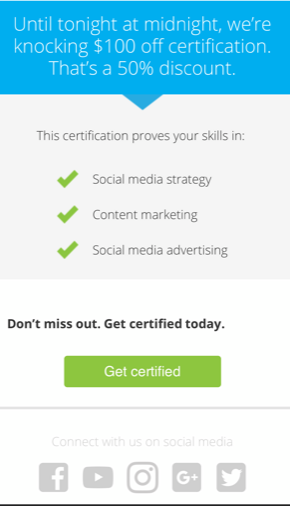
Email promotion should entice readers to check out more about your products, like this email I received from Hootsuite. The links to the company’s social pages invite subscribers to check them out and connect with them there.
A holistic approach to digital marketing incorporates both social media and email marketing to reach your customers in a creative and memorable way. Believe it or not, the two rival methods work very well together.
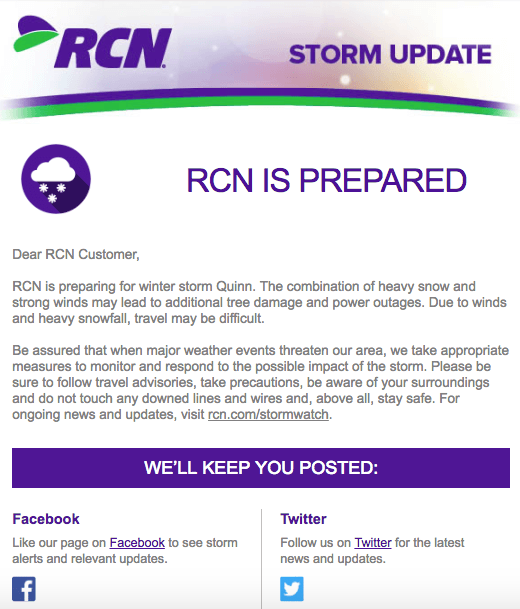
Take this example from Residential Communications Network (RCN). To prepare for a tropical storm, RCN sends emails to their subscribers and lets them know how social will keep them in the know — Liking the page on Facebook will provide alerts and updates, and Twitter facilitates minute-by-minute updates.
It’s Friday! That means #Netflix just added a bunch of new movies and shows. Take 30 seconds to sign up for our weekly All Things Netflix email newsletter to find out what to stream (and what to skip): https://t.co/hvRBmI7KIf pic.twitter.com/x5w6dwWQOf
— Decider (@decider)
October 4, 2019
Decider’s tweet to sign up for the email newsletter gives followers the heads up about the content they’ll receive after signing up, boosting newsletter sign-ups and building a relationship with the customer.
Instagram reminding you to check your email? If you’re a Birchbox Ace user, absolutely. The subscription box company uses their social channel to market to subscribers and potential customers. If I were following Birchbox but was on the fence about signing up, this post on Instagram might implore me to see the special offers customers receive.
Brands can integrate both social media and email marketing to elevate their engagement. The next time you scroll through your email promotions, think about how your audience can receive similar content from your social as well.

HubSpot’s Blog Team on How to Be a Better Blogger
Did you know that brands who use blogging as part of their content marketing strategy gain 67% more leads than those that don’t?
On top of lead generation, a blog can also help your site climb in search rankings. Not to mention, sharing tips and insights related to your industry makes your brand look more credible and trustworthy to prospects.
At the HubSpot Blog, which gets a whopping eight million page views per day and has seen a 25% boost in traffic year after year, we’ve experimented with and written many key strategies that can make any blog successful. We’ve learned how to harness the power of SEO and research to give our readers valuable content while also generated large amounts of organic traffic at the same time.
Even if you’re just starting a blog or not a natural-born writer, you can still use similar blogging tactics to gain your first visitors, grow website traffic, and boost brand awareness.
To walk you through producing and effective blog, I decided to compile a list of 15 tips from a handful of HubSpot Blog managers.
Choosing Topics
Pick topics that speak to your target audience directly..
“Know your target audience, and write for them,” says Karla Cook, the HubSpot Blog’s Senior Team Manager. “Invest time in figuring out who your target audience is, what type of problems they’re experiencing, and what they’re interested in learning.”
Creating a customer persona for your target audience could help you in this process. Remember, your blog should strive to connect with folks who are likely to eventually purchase something from you.
Your persona development should determine factors like what job your ideal customer has, what goals they want to achieve, and what pain points or annoyances they deal with on a daily basis.
“Once you have a solid understanding of who you want to target, this knowledge can inform not only your topic selection, but the tone, format, and complexity level of your content,” Cook explains. “Without this foundational understanding of your audience, you’re not going to connect with the right people in the right way.”
Meg Prater, the HubSpot Blog’s Managing Editor, adds, “It’s so easy to want to cast a broad net and write about anything and everything in your industry. What sets a great content manager apart from a good one is their ability to focus the content they’re creating.”
“Identify the niche your company fills and write highly specialized content about that niche,” Prater explains. “It can be tough to stop writing about any topic that pops into your head, but the end result will be quality content that raises your voice and your profile in your industry.”
Brainstorm evergreen topics.
Evergreen topics often touch on overarching ideas that won’t become outdated or irrelevant in the near future. On our marketing blog, one example of this is, “What is Digital Marketing.” Although we’ve updated the piece to include new digital marketing strategies, the definition of digital marketing won’t change at its core.
Rather than breaking news content, which includes recent announcements, events, or information that might become outdated or unimportant months after it happens, evergreen content often includes tips, tricks, or stats that won’t require major updates or rewrites quickly after publishing. Because they hold valuable advice, these posts might also be relevant for longer than a post that discusses a news topic that could change drastically overnight.
For example, news about a petition to change an FCC sponsored content law might become out of date when the law is struck down or goes into effect. This is because readers will skip this post to read about the newer news items covering this topic. On the other hand, a post that highlights examples of sponsored content as well as current laws, such as The Ultimate Guide to Sponsored Content, is evergreen.
Why? Although sponsored content laws might occasionally change, it’s not highly likely successful and commonly used content sponsorship strategies will change drastically.
In the near future, we’ll still see sponsored social posts, blog posts, videos, and branded podcasts. And, although we might update a post like this to add new types of sponsored content, or update aged stats and figures, it’s unlikely that the bulk of the information in this post will become outdated or need to be completely rewritten.
At the HubSpot Blog, we often call our overarching evergreen topics “pillars.” This is because an overarching evergreen topic can lead you to brainstorm a number of smaller post ideas and story angles.
One example of an evergreen pillar topic the blog has identified is Instagram Marketing. Because we consider this as a major topic that our readers love, we’ve been writing blog posts related to it, including, “Instagram Stories: What They Are and How to Make One Like a Pro” and “15 Ways to Get More Followers on Instagram.”
Christina Perricone, a Manager on the HubSpot Blog, explains, “Evergreen topics serve as your content pillars. These pillars provide comprehensive information on a topic and help you build domain authority.”
While we identify pillars for content inspiration, we also take it one step further by creating and regularly updating long-form posts, called Pillar Pages, that give our readers comprehensive information about evergreen topics and link to a wide variety of our best blog posts on each topic. When it comes to our Instagram Marketing cluster, we created a Pillar titled, “Instagram Marketing: The Ultimate Guide.”
Although stats and facts might need slight updating from year to year, foundational topics like Instagram marketing aren’t likely to change drastically. This means the content will be relevant for a longer period than non-evergreen topics like breaking news.
Content that stays relevant for longer will also be shareable and linkable for longer. This might mean that it will also gain a higher search authority and hold a higher result page ranking for a longer amount of time.
Zone in on industry trends.
We love to tap into evergreen content, but we also mix in industry trends, such as new social media platforms or recently published research. This allows our blog to keep readers in the loop of new trends, while still covering more stable marketing topics.
“Evergreen content is a necessary backbone of any successful content strategy, but don’t ignore the trends happening in your industry — because your readers certainly aren’t,” says Cook.
She adds that “offering your take on industry trends is an opportunity to build a thought leadership presence and show your target audience that you’re a knowledgeable, active player in your space.”
As the HubSpot Blog’s Audience Growth Writer, I pitch and write about various industry trends.
Recently, I wrote a series of posts that covered the rise of TikTok, a quirky one-year old social media app that’s been highly discussed in the news for its quick-growing user base.
In another example, ahead of the 2019 Emmy Awards, I wrote a post that highlighted takeaways video marketers could gain from Emmy nominated commercials.
While TikTok and the Emmys are hot news and entertainment topics, and less evergreen because they focus on a viral trends and an event, they still keep marketers in the know of what’s new and unique in their field. Additionally, this content might become more shareable on social media or other websites because it gives insight on hot topics that other blogs might not be covering if they’re only focused on evergreen content.
Writing Posts
Outline your posts.
Before you start writing, it can be helpful to make an outline with the basic structure and main points you plan to use in your full blog post. This can help you write a clear, well-formatted post fairly quickly.
“More experienced bloggers might dismiss this, but creating an outline can have a big impact on the clarity, organization, and flow of your final piece — particularly when you’re trying to teach a complex concept,” says Cook. “I can always tell when someone’s skipped an outline.”
If you’re new to outlining posts or still are unsure of where to start, consider formats like listicles or step-by-step guides, These can be more readable to audiences and easier to write.
Err on the side of over-explaining.
While you might be an expert in your field, someone who finds your page on a search engine results page might not be. Make sure readers with different levels of expertise can understand your language and learn from your posts. Jargon or technical terms that aren’t well-explained can cause a person to be intimidated or confused by your content — and ultimately leave your site.
As Caroline Forsey, a Staff Writer on the Marketing Blog, points out, you should write posts so that they get to the point and can be easily read by people in a fast-paced environment.
“Oftentimes, someone who’s reading your blog post is on the train heading home, walking in the hallway of their office, or otherwise busy and rushed — as a result, they’re more likely than not skimming the piece,” says Forsey.
“To help your readers have an ideal experience, try starting each new paragraph with a quick reminder of what you’re talking about, in case they’re skimming the page,” she adds. “If you’re starting a new paragraph, instead of saying ‘That helps improve your SEO,’ explain what ‘That’ is — ‘Using long-tail keywords in your headers helps improve your SEO.'”
Seek out content from contributors.
If you’re not an expert on a topic related to your industry, but think your readers would enjoy to read about it, consider working with a contributor who’s knowledgeable on the subject.
“Seeking out guest pieces from qualified experts on subjects you want to cover can help fill knowledge gaps on your own content team,” says Cook.
If that contributor is well-known in your industry or considered a thought leader, this might also make the post more shareable on social media or through backlinks.
On the blog, we regularly host expert contributors and thought leaders who give research insights, tips and discuss their successes. For example, here’s a post by WordStream Founder Larry Kim.
In the post, titled “The Straightforward Guide to Twitter Analytics,” Kim gives his expert insight on how to leverage and understand data from Twitter. While HubSpot bloggers write regularly about this social media platform, we still chose to host an expert author from WordStream, a company which sells a number of online advertising, analytics, and SEO tools.
Why? Because Kim and WordStream are both known for expertise related to analytics, SEO, and social media strategy. And, while a blogger can do hours of research on a topic and write a helpful post with a number of great tips, Kim can note Twitter analytics insights and strategies that he has gained and leveraged first-hand throughout his career.
If you can’t get a full blog post from a contributor, you can also consider reaching out to experts for quotes that will add a touch of expert insight to your pieces.
When we consulted Forsey, who coordinates and edits a number of thought leadership posts for the blog each month, she explained the importance of working with experts.
“I’ve found including original quotes from experts helps you reach a new audience whenever that expert shares your post on their own social channels. Best of all, it helps the user experience. For instance, if I’m writing a post about social media consultants, I’d much rather interview and use quotes from someone in the field, rather than relying on my own second-hand knowledge,” she says.
SEO
Identify and leverage highly-searched keywords and phrases in titles and headers.
When people want to learn more about a topic, they go to Google, Bing, or another search engine and type a phrase or a question. Leveraging keywords or phrases in your blog post’s subheads, body text, and image alt text can help to optimize your piece so search engine crawlers can find it and rank it more easily.
Once you have a list of topics you think might be interesting to your audience, research phrases or keywords related to them using a tool like SEMRush. If you find that a phrase has a high MSV (monthly search volume), you should work that phrase or keyword into titles or subheaders of your post.
Want to learn more about this? Here, you can find a detailed guide on how to do keyword research for your blog posts.
Link to your own website’s posts and credible sources.
“Interlinking your own content is an important strategy from both an SEO and content discoverability perspective,” says Cook.
From an SEO perspective, any link to your page is like a vote. The more votes you get, the higher your search ranking and authority will be. Linking to your own content can count as a vote for yourself. So, this is a no-brainer. To learn more about how this process works algorithmically, you can check out this helpful post.
Include data and original quotes from experts to earn backlinks.
A backlink, or inbound link, is earned when another site links to your blog post. And as mentioned above, these links are like algorithmic votes. If more pages link to you, search engines will identify you as a source with good authority. Because search engines want to show people the most credible, original content first, these backlinks will help you move up in search rankings.
Aside from SEO, quotes, thought leadership, and original research will also improve the reader’s experience.
Optimize alt text and images.
You might not realize it, but even your images can be holding your search engine ranking back. While search engines like Google analyze the alternative text of your photos to ensure that they have consistent keywords in them, they also look at how fast these photos actually load.
If a photo loads slowly, it creates a poor user experience. If users bounce from your page quickly because photos aren’t loading, search engine crawlers will catch this and move you down on search result rankings.
To avoid this, we like to compress our images as much as possible before they lose quality. If you’re not a Photoshop expert, don’t worry. You can do this quite simply with websites like Squoosh.app.

Update old posts with new insights.
Part of my role involves the historical optimization of old blog posts. This strategy involves working with the SEO team to identify old blog posts that may have out of date research, tips, or keywords and updating them to include new insights. Not only does this prevent a reader from finding and quickly exiting old posts, but new data can also help to revive an old blog post’s search ranking.
When you update old posts, you also have a chance to identify great SEO opportunities that you missed the first time around. For example, if a phrase or keyword has a high search volume, but it wasn’t included in headlines or subheaders of the first post, you can tweak the text to include the wording.
Photo and Video Content
Experiment with infographics and videos.
“You don’t need to have a full-time team of multi-media content creators to experiment with different formats,” says Cook. “Use free tools like Canva or Venngage to create visuals and play around with different post structures — just remember to experiment with a purpose, not just for the sake of it.”
When determining if you should create a video or infographic, you should ask yourself what this content could accomplish that text can’t.
For example, if a piece of trend research has a lot of facts and figures associated with it, you might want to consider an infographic that shows the stats in an eye-catching way. In another scenario, if you land an interview with someone who’s outgoing, very interesting, or visually recognizable to people in your industry, this could be a great opportunity to record a video interview rather than posting a text-based Q&A.
Perricone explained that videos and graphics can also provide organic traffic opportunities.
“We’ve found that visual content gets more backlinks, ranks higher in search engines, and drives more traffic,” she says. “Use charts, graphs, and images to supplement your copy.”
At the HubSpot Blog, we’ve experimented with placing infographics and videos into our blog pieces. These visuals add another layer to the reader’s experience, beyond the text. They also can be helpful for audiences who don’t have time to read a full post but want to watch a video.
As Cook mentioned above, it doesn’t have to costly or time consuming to experiment with this type of content. For graphics, there are a number of affordable, easy-to-use software and design templates that can help you.
When it comes to video, creating this content could be as simple as filming yourself explaining a topic, or interviewing a customer on camera. While you’ll still want to consider lighting and the quality of your content, you don’t need to hire an expensive film crew to film it. If you want to zest things up after recording, you can use free or affordable video editing tools to make quick clean edits and add interesting effects like transitions.
Alternatively, you can also consider embedding and sourcing videos that were already made. For example, if you’re writing a post about hot products that people in your industry might enjoy, you could embed demos created by other companies that you find on YouTube or Vimeo. Here’s an example of a blog post where we did something similar.
Lead Generation
Cover customer stories or successes.
If leads or sales are your primary goal, a blog might be a great place to host a few customer success stories. For example, if you’re managing a blog for a gym, you could interview a customer who’s lost weight or achieved an athletic accomplishment after developing a fitness routine with the help of your company’s personal trainers.
When your audience reads this post, they might think it’s valuable to them because they’re learning about a successful fitness routine. They will also trust your gym more because the routine was created with help from your staff.
Or, if you work for a software company, you could write a post about how a customer achieved a business milestone after using your app or computer program. This gives you an opportunity to show off both customer success and a strategy that can be improved upon with the help of your product.
Include offers for related resources, products, or services.
If you write a blog post that relates to your product or service, offering readers a free resource or discount that might encourage them to convert to a lead. For example, on a small scale, if your company sells food products, you could write recipe-styled blog posts that include one or two of your ingredients. Then at the bottom of the post, you could offer them a coupon or free sample if they subscribe to your e-newsletter.
If your company sells a high-priced service that requires more lead nurturing, consider using the writing a blog post that lists helpful industry tips. Then, at the bottom, include a CTA offering them a free resource, like an ebook on a similar topic. Once they click on the CTA, they could be sent to a landing page where they can get the ebook in exchange for basic contact information. This blog-based inbound marketing strategy might help to attract, engage, and delight a prospect so that they become interested in purchasing your product.
Promotion
Promote your blog posts on multiple channels.
Search engines can be incredibly competitive, and algorithmic changes that can affect how your content is rank. So, even with a great SEO strategy, you should still promote your blog on other platforms including social media channels and in marketing emails.
Yes, creating a promotion strategy might seem like another daunting extra step. But it doesn’t have to be challenging. To get started, think back to when you created your blog’s reader persona. Which platforms would they use most often? And, which types of social posts do they engage with? These answers will help you determine which platforms you should focus on when sharing blog content.
The HubSpot Blog works closely with HubSpot’s social team to determine and post content on platforms that our target audience will be on. For example, when we have content related to social media trends or tips, we promote it on Instagram Stories or Twitter. In another scenario, if we have content that dives deeper into strategy, we might share it on LinkedIn, where many professionals in the marketing field go to gain insight from others in similar roles.
If you’re still not sure where to start, you can find more advice on specific platforms by using our guide to email marketing as well as my post on the five major types of social media.
Time to Write Your First Blog
The list above was fairly comprehensive, but here are a few key themes to keep in mind as you begin writing.
- Write for your reader: What evergreen topics and trends would your target audience like to learn about? Brainstorm a list of ideas based on what they want to learn and what advice will truly give them value.
- Aim for a smooth user experience: Outlined posts with easy to understand formats will be easiest for a reader to skim through, digest, and understand. So, be sure to keep your thoughts clear and to the point.
- Zest up your posts with videos, visuals, original research, or expert quotes: A listicle can be easy to read. But if you’re just repeating old information, it might not provide tons of value to your reader. Think of elements that can make your post stand out or feel valuable to a reader.
- Consider your distribution plan: Draft posts with SEO or social shareability in mind. Then come up with a strategy to promote posts once they’re published. This will help them get seen by search engine users, those who subscribe to your email list, and social media users.
Want more information on blogging? We’ve also written posts on picking your blogging platform, avoiding common blogging mistakes, and the benefits of blogging.

The Ultimate Guide to Creating Instagram Videos
Instagram is a marketer’s best friend. The free app’s video capability means smaller brands can expand long-form, creative content beyond just photos. And Instagram is making sure their video capabilities are accessible to these brands.
From in-feed videos to IGTV, Instagram Live, and Stories, there are several opportunities and styles available to marketers who want to expand their video reach on a budget. Videos on Instagram have the highest overall engagement rate across all functions of the app — 38% higher than image posts.
If this sounds like music to your ears, that’s great. If the one discordant note is that you have no idea how to create incredible videos for Instagram, that’s what this guide is for. We’ll cover the correct recommended video requirements, sizes, and software to use in order to make sure your Instagram videos become a rockstar asset to your brand.
Why Instagram Videos
If you want to expand your reach and attract a bigger audience, Instagram is your field of dreams. To grow your business, Instagram content needs to be creative and catch the attention of your audience. We’ve rounded up some ideas to get the ball rolling — which one(s) could fit into your strategy?
1. Inspirational message
WorkParty is a guide book to creating a dream career. In keeping with the theme, the corresponding Instagram provides tips on how to be a rockstar in the workplace. This video is an inspiring podcast excerpt hosted by WorkParty, with guest Bobbi Brown.
This content wouldn’t have nearly enough impact if it were a photo. A consumer mindlessly scrolling through their feed could’ve easily scrolled past another image, but the video and its uplifting message stays with consumers.
2. Memes
These are your ticket to engagement. You can use memes to promote your brand culture, mission, and products.
Bustle uses memes to promote their culture as a digital destination for young women. By using a relatable funny caption, young women might see this meme and feel connected to Bustle, and motivated to learn about their entertainment.
3. Interviews
Do you have a new podcast episode coming out? Post a snippet of the interview on Instagram video. This will attract users who are interested in your market.
Here, The New Yorker posted a captioned snippet of their upcoming interview with a lighting technician working on Hamilton. Giving a behind-the-scenes look at one of Broadway’s hottest musicals is sure to drive engagement for musical theater buffs and New Yorker fans alike.
4. Tell a story
Every business has a story, and Instagram videos bring that story to life. Sharing videos of people who are impacted by your product gives you target audience more reason to look into your company.
Microsoft tells a tale of the sea in this video, and how their technology helps fishermen complete their jobs more effectively.
5. New launches
A perfect way to tease upcoming products is to post them on Instagram. You don’t have to do a full-fledged commercial to make an impact. Headwear company Love Your Melon used one model and an array of colors to promote their new line of products.
Even posting video countdowns to tease new products gets customers interested and excited about what’s to come. Featuring the products on Instagram can be the visual element that pushes a browsing consumer to buy. Personally, that pink wrap is calling my name.
6. Existing products
Your existing products could be given similar treatment. Potential customers might not be aware of the extent of your catalog, and bringing that content to them, instead of leaving them to search, means more engagement for you.
Boston local plant-based restaurant Whole Heart Provisions uses videos to promote the creations on their menu. Someone looking for a new breakfast spot can catch menu items and a short, interesting video of the layers it has.
7. Promotions or sales
If your market has a huge Instagram presence in a B2B industry like cosmetics, let your audience know about upcoming sales. Or, run an Instagram-exclusive sale and post a video featuring the products like Benefit Cosmetics does here.
8. How-to videos
5-Minute Crafts has 34 million Instagram followers. Their content consists of life-hacks you can perform in 5 minutes, and they’re all videos.
How-to videos or product demonstrations — especially for products in a niche market — are a great way to introduce an audience to your business. Plus, like 5-Minute Crafts, you can promote other social channels that display similar content in the caption.
You may be asking how these brands are creating content and how you can create something similar. Stay tuned.
How to Create and Post an Instagram Video
First, you’ll want to open your Instagram app and press the icon in the center of the controls that has a plus sign in the middle.
 Next, you can either choose a video from your library or create one in-app. Here, I’m creating one in-app. So, you’ll slide your finger over to the section labeled “Video” and press and hold down the center button to record your video. Once you release your hold, the video will replay on the screen.

After that, you’ll be taken to a screen to pick a filter for your video. My favorite filter is “Gingham,” because it brightens any dark shadows and gives videos a pastel finish.

If you notice the control panel of this screen, after you choose your filter, clicking “Next” will bring you to the “Trim” section of the control panel. Here, you can edit the length of your video and cut and paste different sections together.

Now is a good time to choose sound options. Clicking the megaphone button above your video will turn the sound off. Leaving the megaphone as is means your video will have sound.
After trimming, you can choose a cover. This screen shows you the frames from your video for you to choose which one Instagrammers will see while scrolling their feeds.

Here, I chose the middle frame because it’s still and captures the subject of my video nicely. After choosing a photo, you’re ready to post. The last screen is where you add a caption, location, and choose which Instagram account to upload to.
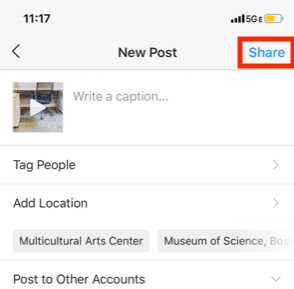
By clicking “Share,” your post will be uploaded and automatically appear in your feed. You should be able to see the cover of your video before the video autoplays and your filter is added.
When editing a video, think of what’ll fit with your brand. For example, your brand colors will really come into play when editing a video. Incorporating themes that fit into your page and audience’s interests will boost engagement.
That’s where apps can come in handy. For example, StoryLuxe provides free templates for Stories that give them a cool filter and allow you to post multiple types of content at once. Apps and websites like Canva offer simple graphic design tools help in making a story stand out. Check out their landscape video on typography:
Pixaloop and Giphy are two apps that create gifs for you in any format your camera is set to. To use, simply open the apps, record your video, and then the software will create a GIF for you that you can upload straight to Instagram. Check out Pixaloop’s software update launch:
Now that you know how to create and post a video, let’s look at the dimensions Instagram recommends for uploading a video.
Instagram Video Requirements
When Instagram launched videos in 2013, each could only be 15 seconds long and appear in-feed. Now, videos are a bit more complex. Each type has been refined to recommended specs that work the best depending on where you post your content.
The best part of the deal is how easy creating videos can be. Shoot right from an iPhone or Android and automatically fit within the specs for video. iPhone X and Android 9 phones shoot in 4K and have Instagram’s dimensions, 30 and 60 fps built in.
Size-wise, since Instagram is a phone-forward app, a smartphone has the aspect ratio of 9:16 Instagram recommends. Next, we’re going to get into the specifics of those size numbers, in case you aren’t using a phone for your content.
Other Instagram video requirements stay in the same ballpark, we’ve listed a quick cheat sheet for you below.
Instagram video resolution
- Landscape video – Minimum resolution is 600 x 315
- Square video – Minimum resolution is 600 x 600
- Vertical video – Resolution is 600 x 750
- Carousel ad resolution – Minimum is 600 x 600, while the max resolution is 1080 x 1080
- Instagram Stories – Minimum resolution is 600 x 1067, and the recommended resolution is 1080 x 1920
- Instagram TV video – Resolution is recommended to be 1080 x 1920, while the minimum resolution is 720
Aspect ratios are a different way of looking at the dimensions for videos. If you have someone who speaks in aspect ratios, aspect ratios for the three main types of in-feed video are as follows:
- Landscape video – Aspect ratio 16:9
- Square video – Aspect ratio is 1:1
- Vertical video – Aspect ratio 4:5
- Instagram Live – Aspect ratio 9:16
You might use a landscape video if you’re posting a video in-feed for a product launch countdown or podcast preview. Landscape videos are also the format for Instagram Live and Stories, like this Starbucks Story Highlight that incorporates a meme and features their premiere drinks.
If you’re looking for a longer video option that displays full-screen videos like Stories, Instagram TV (IGTV) might be a good alternative. IGTV allows you to have extremely long-form content, such as a detailed product video or a live-streamed platform question and answer session.
Cooler company Yeti uses their IGTV channel to share customer stories, recipes, and even showcase their SXSW sessions. Notice how the videos are longer because of IG’s 60 minute length and landscape.
Square videos are the specialty of NPR Music’s Tiny Desk series. To give highlights of their live performance sessions, NPR uses their Instagram and puts their content in square format.
Content previews and highlights from other channels are a great way to use square video formats. If you’ve got wider videos that you want to include in-feed, or a client/employee spotlight, square videos are the way to go for their compact aspect ratio.
How to Compress Videos for Instagram
Compressing videos means you lower the size of the file to make it easier to upload and faster to stream. Generally, you’ll upload your media to a compression tool or software — such as YouCompress or Clipchamp that automatically remove certain data details of your video. Compression might lead to the loss of some resolution quality or sound clarity.
Types of compression
A video coder is then used to compress larger video files into different formats. Two common formats are mp4 files and WMV, Windows Media Video files. There are two different types of compression: lossless and lossy.
Lossy Compression
Lossy compression compresses video by removing data from the video files. Removing repeated images or sounds the software sees as redundant improves the video’s effectiveness. Lossy compression is aptly named; but it’ll make your file extremely small.
Compression formats, like lossy, are good at removing a large bit of redundant data to reduce your file size. For instance, if your video has a five second shot of the same object, a lossy compression might remove three seconds of it.
Lossless Compression
Lossless compression, on the other hand, produces a near-identical compression of the original file, because data is not lost in the process. Lossless won’t have as big of an impact on file size as lossy, but it’s still useful for smaller videos.
Common lossless formats are:
- Windows Media Audio Lossless (WMAL)
- Apple Lossless Audio Codec (ALAC)
- Free Lossless Audio Codec (FLAC).
When your file needs to focus on quality, use FLAC, because you won’t lose any quality in the compression process.
There are a number of video compression tools that will compress videos for you. For example, UniConverter has an Instagram compression option that’s easy and free to use.
Best Adobe Premiere Pro Export Settings for Instagram
If you’re editing your video using Adobe Premiere Pro, you already know Adobe likes to get into the specifics of exporting. We do too. When you get ready to export, here’s the info on the best settings to choose for crystal-clear images.
Open “Export Settings” in the “Format” drop-down box and select “H.264’ and “Match Source High bitrate” in the preset box. These two settings will match Instagram’s video settings.
The “Use Maximum Render Quality” checkbox fixes the scaling of your video automatically, so be sure to check that box as well.
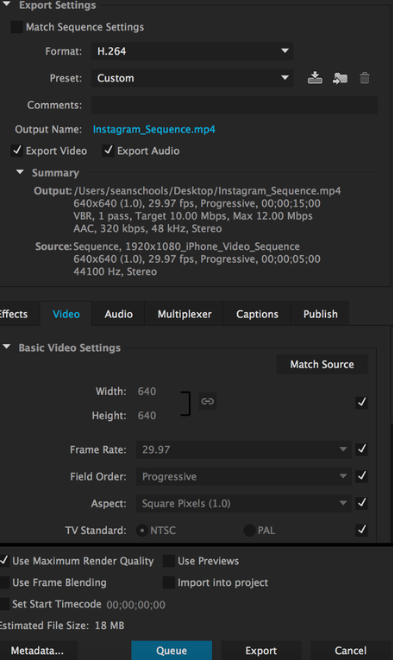
Image Source: Premiere Bro
Once those settings are saved, your post will be Instagram-ready. Because you can’t upload videos directly to Instagram, consider a third-party app like Later or Hootsuite. You can also send the video to your phone and upload it from there.
Our Instagram tips don’t stop here. If you want a more in-depth guide on how to post, ideas on what to post, or looking for inspo for how to stay ahead of the curve with your Instagram videos (my favorite is Ben and Jerry’s), check out our other posts.

The 15 Best Job Search Sites for Your Industry & Goals
We all know the usual suspects: Craigslist. Monster. Career Builder. Newspapers (half-kidding on that one).
Or perhaps you’re more of a networking kind of person when looking or hiring for a job: frequenting marketing events to get some face time with heavy hitters who might want you to join their teams. Marketers — or anyone — looking for work have probably spent time in all of these places at one time or another.
But like … what else? Those can’t be the only ways to find a new job. Or, if you’re looking to hire someone, to find your next great team addition. To paraphrase every infomercial ever, there’s gotta be a better way.
There is. The “better way” to hire and get hired is to get found in the places candidates and employers are looking for you. Kind of like inbound marketing — what a coincidence …
Below, you’ll find 15 places you might not have thought of, but often prove to be excellent marketing venues for finding job openings and the candidates to fill them.
1. Mashable Jobs
Perfect for: Jobs sorted by employer
If you’re job hunting, there are several ways to browse current job openings from the dashboard shown above. To start, you can simply type keywords related to your job into the blue search bar. You can also search by employer (if you have your heart set on that one company you’ve always wanted to work for). If you’re an employer trying to expand a job opening’s reach, click that big pink rectangle in the top-righthand corner of the page.
Mashable’s job site is dedicated to jobs in social media, marketing, technology, and business. And they post for companies that are, well, kind of a big deal — like Yelp, Viacom, and Digitas.
2. LinkedIn Jobs
Perfect for: Jobs & candidates sorted by industry
Speaking of social networking … you didn’t think we’d neglect the holy grail of social recruiting and job hunting, did you? LinkedIn is unbelievable if you’re looking for a marketing job. Seriously, I can’t state it enough. It. Is. Awesome.
LinkedIn Jobs lets you search for jobs by industry and location, plus it suggests jobs you might be interested in based on the information in your LinkedIn profile, such as where you’re located and the experience you already have.
What’s great about applying for jobs through LinkedIn is that your resume’s already done — if you’ve completed your LinkedIn profile, that is. Let me explain what some of the greatest features are so you can leverage them now if you aren’t already:
Online Resume
If you haven’t already, fill out your LinkedIn profile as completely as you possibly can. They make it foolproof, too, including a progress bar that tells you how complete your profile is, what more you can do to beef it up, and why doing those things will benefit you.
Sanctioned Stalking
Don’t feel bad about stalking — it’s business stalking. For instance, LinkedIn has a groovy feature that lets you see who has been viewing your LinkedIn profile (provided your privacy settings are set so others can see when you’re viewing their profile).
Want to see exactly who’s been viewing your LinkedIn profile? LinkedIn Premium shows you exactly who might be interested in you as a professional. Whether they’re recruiters, HR managers, or work for a company you’ve been eyeing, this visibility enables you to reach out to them proactively.
Networking Events
If you’re one of those people who prefers face-to-face networking, you can also leverage a tool called LinkedIn Events. This allows you to see who on LinkedIn is attending industry events — if your hopeful future boss is going, it might be a good idea for you to show up, too.
Groups and Company Pages
If you’re vying for a specific company, follow that company on their LinkedIn Company Page. Not only will you be able to get a feel for what the people that work there are like and what their employee turnover and promotions looks like (just go to the ‘Insights’ tab), you might see new jobs pop up, too!

Or if you’re not looking to join one company in particular, consider joining some inbound marketing groups to establish your name as a thought leader — and get to know people who are hiring, or know people who are hiring. We recommend a little group called Inbound Marketers – For Marketing Professionals.
3. Twitter
Perfect for: Jobs & candidates sorted by industry

Career opportunities for marketers don’t end with LinkedIn. Believe it or not, Twitter is also a great way to find jobs (and people to fill them). And because most people won’t think to head to Twitter when they’re job hunting, it’s a way to stand out from other applicants. There’s a few tactics you can use here:
- Follow specific jobs Twitter accounts. Do a quick search for “inbound marketing jobs” or “marketing jobs” and you’ll come across tons of Twitter accounts whose sole job is to tweet out open roles in our fine industry.
- Follow specific jobs hashtags. You know what else you might find when you conduct that search? Hashtags associated with those jobs. Hashtags like #marketingjobs or #jobsearch are good places to periodically check in for recent opportunities.
- Follow the companies you want to work for, and the people who work there. Look for job postings that come from them, particularly if these companies have a referral bonus. At HubSpot, for instance, many employees take it upon themselves to tweet out new jobs because, if they bring in a new hire (even from Twitter), there’s a nice referral bonus at the end of the tunnel.
4. Job.com
Perfect for: Jobs & candidates sorted by qualifications

You’ve never seen something like job.com, I can assure you. This intriguing recruitment site uses blockchain technology to match candidates with employers based on the attributes both parties are endorsing.
Although it caters to professionals in every industry, job.com is a perfect fit for writers, optimizers, and analysts who leave no stone unturned when advertising themselves to a new employer or candidate. In other words, if you love optimizing your resume or job listing with specific language that appeals to professionals like you, you might want to give this site a try.
5. Behance
Perfect for: Design & creative jobs / Networking
You might associate Behance with downloadable design templates, creative tools, and collections of artwork. But where would Behance be if it didn’t also help find employment for the people who seek inspiration on its website? For that, there’s Behance’s job list, which surfaces job listings across dozens of industries that depend on creative professionals.
What really sets this job site apart from other creative recruitment platforms is its company profiles. Inside each job listing is a project page for the company that posted the job. The employer can list current projects they’re working on, who’s following them, and even their most active team members. It’s a great way to get to know companies and candidates as individuals so they don’t become just another application.
6. ProBlogger
Perfect for: Writing jobs
This job site tells you precisely what it is in its name. Want to be a professional blogger or find writers to create content for you? ProBlogger makes it easy for companies and candidates to find each other for various content marketing initiatives. Jobs are clearly sorted by contract, freelance, full-time, and part-time.
7. AngelList
Perfect for: Jobs at startups
It can be hard for startups to attract awesome talent on big recruitment sites like Indeed or even LinkedIn, especially when they’re competing against big brands for exposure. But there are millions of skilled professionals who want to work for startups but just can’t find them. That’s where AngelList comes in.
AngelList is a job site exclusively for startups and those who want to work for them to find each other. Growing companies like DuckDuckGo, a search engine; Asana, a productivity tool; and Hinge, a dating app, all find top-tier talent on this job site.
8. Your Own Web Properties
Perfect for: Personal branding
Why wait for someone else to post a job listing? Take matters into your own hands. Marketers can be notoriously bad at marketing themselves, but if you’re really good at marketing, why not use your skill to your own advantage?
If you want a new job, help yourself get found all on your own. Think of your job hunt as its own marketing campaign. In fact, we’ve had plenty of our own inbound marketing hires execute full-fledged inbound marketing campaigns to get the attention of recruiters, hiring managers, and even recruiters here at HubSpot.
So, if you’re not maintaining an online portfolio or a website that showcases you in all your [marketing] glory, hop to it. I can tell you firsthand that every new potential marketing hire that crosses my desk gets promptly Googled. What am I looking for? An active, up-to-date online presence that demonstrates their knowledge. That could mean they’re blogging for their current company, their own online portfolio, frequent activity on sites like LinkedIn and Quora, even a healthy Twitter following. All of these are indications that they “get it.”
1. American Marketing Association (AMA)
Perfect for: Marketing jobs
The AMA is a well-known and respected marketing association that publishes content and hosts networking and teaching events that keep members up to date on what’s going on in the world of marketing. The positions range across many marketing specialties and different industries. Those looking to recruit candidates can also post jobs at a discounted rate if they’re an AMA member.
Another added benefit of the AMA jobs board? It also offers educational resources like resume writing tips, information about reference checking, and how to use social networking in your job or recruitment search.
2. Talent Zoo
Perfect for: Marketing & advertising jobs

Doesn’t this job site sound like a recruiter’s dream? Talent Zoo does indeed have a zoo of talent — and job listings in need of that talent — specifically for marketers, advertisers, designers, and even web developers. In addition to a place to upload a resume for repeat use, the site has a slew of articles offering career advice to help employers and applicants put their best foot forward when reaching out (and, ultimately, working together).
Talent Zoo also takes a playful approach to its user experience — you need not look further than its search button, “Bring It, Daddy-O!”
3. Mediabistro
Perfect for: Marketing jobs & freelance candidates
Mediabistro has been around for a long while, and although it’s changed a lot as the internet has grown, it has remained committed to an audience of marketers, content creators, and media professionals since day one. The site organizes its job listings across five navigation buttons to give you a sense of what opportunities to expect:
- Writing Jobs
- Editor Jobs
- Marketing Jobs
- Creative Jobs
- All Jobs
Not shy about its commitment to contract workers, Mediabistro also reserves a section of its website for freelance — accessible from the top navigation bar. There, you’ll see a database of freelancers across each of the industries listed above where you can find a professional that’s perfect for the work you need done. Are you a freelancer, yourself? Become a Mediabistro member and create a profile.
4. Marketing Jobs
Perfect for: Internal marketing jobs
 With marketingjobs.com, you get what you expect. On this site, you can find marketing jobs in any industry, from recreation to retail and even education. This is perfect for marketers who want to work for a company in-house as opposed to an agency. You can sort by location, industry, and job function (advertising, marketing, sales, and PR).
In addition, this site also offers resources for job seekers. On their blog, you can find articles on everything you need to make your resume stand out, ace the interview, and navigate your digital communication.
5. Marketing Hire
Perfect for: Marketing jobs
 Marketinghire.com has evolved from a marketing career publication in 2004 to an online resource and job board for marketers today. You can use this tool to sort by job type, level, education, and location. This site also partners with other marketing sites such as AMA, Data and Marketing Association (DMA), Business Marketing Association (BMA), and American Advertising Federation (AAF). These partnerships result in a comprehensive list of openings in the marketing industry.
However, this site offers more than job listings. You can find marketing career news, expert career advice, free training videos, and advanced coaching services if you want a one-on-one career coach to guide you through your job search.
6. Venture Beat
Perfect for: Marketing jobs in tech
 Venture Beat produces news and events that provide context to help developers, enthusiasts, and business leaders make smart decisions, according to their site. The site typically covers the latest in tech and gaming news.
Due to their expertise in tech, Venture Beat also has a job board for openings in the tech industry. They have partnered with Jobbio, a job board, to connect high-quality candidates to open roles. You can sort by job type (including marketing) and location.
7. Krop
Perfect for: Creative marketing jobs
 Krop is a job board and portfolio site for professionals in creative industries, including marketing, graphic design, advertising, and writing. You can sort by job type and location. This is perfect for job seekers who are looking in the creative, design, and tech industries.
What’s unique about this site is that they can also host your portfolio. For those in creative industries, one way to stand out from other candidates is to have a portfolio website. Plus, the better you can market yourself, the better you can market other organizations.
No matter how hard a time you’re having finding a new gig on third-party sites, remember that you always have you to fall back on.
Click here for more job sites that are particularly helpful for recruiters, and sign up below to learn how to become your own best professional advocate.
Editor’s note: This post was originally published in October 31, 2012 and has been updated for comprehensiveness.

How to Create a Wikipedia Page for Your Company
If you’re anything like me, you probably mainly consider Wikipedia a good source for a behind-the-scenes look at the production of Game of Thrones, or a collection of random facts on Zebras.
In short, you likely haven’t given it much thought as a channel for brand awareness.
But, if you think about it, Wikipedia is one of the best third-party sources for ranking on page one of Google. Typically, when you search an intended keyword, you don’t have to scroll far before you see its accompanying Wikipedia page:

Additionally, it’s a recognizable website, so it’s often one of the first pages someone will click on if they want to learn more about what your business does.
If you want to increase brand awareness and visibility online, take a look at this quick guide so you can create a Wikipedia page for your company, today.
1. Create an account.
Go to Wikipedia’s homepage and click “Create account” in the top right.

Enter the necessary information, including username and password, then click “Create account”.
2. Get promoted to an autoconfirmed user.
When you first join Wikipedia, you’ll see a box pop-up that reads, “Help improve Wikipedia” with a link to start editing an article:
Before creating your page, you’ll need to become an autoconfirmed user.
These are Wikipedia’s typical guidelines for an autoconfirmed user: “Although the precise requirements for autoconfirmed status vary according to circumstances, most English Wikipedia user accounts that are more than four days old and have made at least 10 edits (including deleted ones) are considered autoconfirmed.”
Here, you’ll need to practice patience — spend the first couple days once you open an account editing other people’s pages. Once you click “Edit a page”, there are links on the top right of every paragraph with the word “Edit”, so it shouldn’t be too time-consuming.
Once you’re autoconfirmed, proceed to the next step.
3. Create the page.
Now we’ve reached the most challenging part — creating the page.
First, go to Wikipedia’s “Writing an article” page. As you scroll down the page, you’ll see a blue button that reads, “Article wizard: an easy way to create articles.” Click this button (as long as you’re autoconfirmed):
Next, you’ll be redirected to Wikipedia’s Article Wizard. Here, you have two options — immediately begin creating your page by clicking “Next”, or practicing editing your page in Wikipedia’s sandbox, first.
For our purposes, we’ll click “Next”:
It’s important to note — since there’s likely no Wikipedia page already available for your company, you can include as much or as little information as you want. Additionally, you’ll want to structure the page for easy readability, featuring some of the most important and basic information (like what your company does), first.
For instance, take a look at how HubSpot’s Wikipedia page is structured:
The page starts with a two sentence overview of what HubSpot does, followed by a table of contents on the left, and a “fact sheet” on the right. Below the table of contents you’ll first find HubSpot’s history, followed by a description of HubSpot’s software and services.
On HubSpot’s Wikipedia page, the information that is above-the-fold is likely most useful for a new visitor who hasn’t heard of HubSpot before — a quick glance at the page can tell her, for instance, what HubSpot does, how much revenue HubSpot makes, what third-party sources such as Forbes say about HubSpot, and who HubSpot’s founders are.
While readers can continue scrolling for more product-specific information, it’s critical Wikipedia is mainly used as a broad brand awareness platform.
4. Provide citations.
Wikipedia is ultimately an encyclopedia, so to prove the validity of your topic, you must include citations to various articles and third-party sources.
Before you begin creating your page, Wikipedia warns you of this, stating — “the topic of an article must already be covered in reliable sources that are independent of the subject. These include journals, books, newspapers, magazines, and websites with a reputation for fact checking. Social media, press releases, or corporate/professional profiles do not qualify”:
Ultimately, citations give your business credibility and allow the reader to trust your company is real. Look for magazine or newspaper articles that mention your company, other websites that backlink to your website as a resource, or directories that link to your company’s profile.
5. Submit the page for review.
When you’re finished with your page, submit it for review. Once Wikipedia deems it a credible source, it will be uploaded as an official Wikipedia page.
6. Update it regularly.
Remember — the hard work isn’t over, just yet. As your Wikipedia page begins ranking on page one of Google for your company name, it’s vital you regularly update it to ensure it provides the most up-to-date information regarding your products or services.
Additionally, by updating it regularly with company developments, you’re maintaining transparency, which is comforting for both your customers and leads.
Nowadays, a quick Google search provides us with an abundance of information — including social media profiles, directories, and press releases — on a given subject. By ensuring you have an up-to-date Wikipedia page, you’re covering your bases and giving viewers a trustworthy source of information related to your business or brand.

27 Ways to Drive Traffic to Your Website
You know you’re a marketer when you’re sitting in traffic on the highway, it’s completely bumper to bumper, and all you can think about is “Why can’t I drive traffic to my website like this?“
If you’ve struggled with driving traffic to your website, you’re not alone. According to 2019 research done by Content Marketing Institute, 61% of content professionals are challenged with knowing what is most important to their audiences, 50% are challenged with knowing the goal of the audience at a particular stage of the customer’s journey, and 49% are challenged with knowing the steps in the customer’s journey.
Between writing a new blog post, posting on social media, and strategizing for a new email campaign, it’s hard to look back and see what’s driving traffic to your site and what isn’t.
The list below will help you increase the traffic to your website, generate more leads, and improve ROI.
1. Content creation
Inbound marketing focuses on attracting the right people to your company. One of the best ways to do this is by creating content through blogging.
To come up with content that will attract the right visitors to your website, you should know your buyer persona. Once you know your audience, you can create content that will attract them to your website.
But how do you write a good blog post that will attract the right audience? Follow these five steps:
- Identify your buyer persona: Find out more about your audience, from job title to pain points.
- Conduct SEO research: Learn what your audience is searching for on search engines so you provide the right content.
- Write a draft: Begin by drafting a post that answers your audience’s questions.
- Publish: Publish your post on your blog.
- Promote: Promote your blog post on social media and email newsletters to generate traffic. The more traffic your post generates, the higher it will rank in search engines.
You can learn more about how to implement a blogging strategy here.
2. Topic expertise
Ranking higher in Google will increase the organic traffic to your site. At HubSpot, we do this by using the pillar/topic cluster model. Google favors sites that are known to be topic experts on the subject matter they’re writing about.
To be seen as an expert, you can create a pillar page, which is essentially a longer blog post that broadly covers all aspects of a topic. Then, you write “cluster content,” or supporting blog posts, targeting long tail keywords that show you’ve covered a topic exhaustively. Focusing on long-term traffic will help you rank higher on search engines
Christina Perricone, team manager of HubSpot’s pillar page content, says, “The pillar cluster model organizes content on your site around a single topic and search term through internal linking. This organization helps search engines easily crawl and categorize all of the content that you have on a particular topic, thereby making it easier for you to rank for that search term. When the model is done right, it also helps visitors navigate your site and move through related pages, boosting traffic for all of the pages in your topic cluster.”
Want to get started on pillar pages for your company? Learn more here and here.
3. Paid advertising
You can drive traffic to your website quickly with paid advertising. With search engines, you can run pay-per-click or retargeting ads. With social media you can run display ads or sponsored posts. Your strategy will most likely include a combination of different types of advertising.
In fact, according to the 2019 CMO survey of 341 executive-level marketers conducted by Deloitte, American Marketing Association, and Duke’s Fuqua School of Business, spending on social media will rise by nearly 90% in the next five years.
The same study found that companies making 10% or more of their sales online will increase their social media spend by even more, allocating 27.6% of their marketing budget to social media by 2024.
Getting started with paid advertising can be a simple process. Learn more about it here.
4. Organic social media
Organic social media is not a new strategy, but it’s still something marketers should pay attention to. Besides posting on social media platforms, you can also use Instagram Stories (Hello, swipe up feature!), live video, IGTV, or Facebook Messenger. The key with organic social media is to be an early adopter of new features
For instance, Facebook is releasing an automated lead generation feature on Messenger, allowing businesses to create an automated chatbot experience within Messenger to link to content offers on your site. This is a great feature for sending traffic to your website.
It’s also important to have a diverse social media strategy and use the right social media platforms — not just Facebook, Instagram, and Twitter. Platforms like YouTube or Pinterest generate a lot of traffic. Pinterest has great engagement rates — 66% of Pinterest users make a purchase after seeing a brand’s Pins.
Henry Franco, a brand marketing associate at HubSpot, recommends two things regarding organic social media. “First, don’t spam your audience — it costs a user nothing to scroll past your post, and if you don’t offer them any value, that’s exactly what they’ll do. Know your audience, and craft content that speaks directly to them,” Franco says. “Second, stay active with community management. People love when brands like and reply to them — it’ll humanize your business, and keep people coming back for more content.”
Check out our ultimate social media marketing guide to learn more.
5. Website analysis
Let’s do a little reverse engineering of our thought process. Before you drive traffic to your website, it’s important to learn about your audience. To do this, there are platforms that will analyze your website, such as Crazy Egg, to see where you’re losing visitors. With this information at your disposal, you can create the right content to drive the right traffic to your website.
6. Contests/giveaways
A simple way to drive traffic to your website is through contests and giveaways. This can give you a quick boost, while also rewarding your followers. You can host giveaways on social media, through your email list, or both.
Implementing a strategy like this can be simple. Just follow these six steps:
- Decide what platform on which to host your giveaway (can be multiple)
- Choose a prize (free tickets, discount, etc … )
- Select the criteria (website comments, email sign up, etc … )
- Write ad copy
- Create graphics
- Post and promote
7. Influencers
Influencer marketing isn’t a passing fad. In fact, it’s a budget-friendly option to drive traffic to your website. According to Think with Google, collaborations with YouTube influencers are four times more effective at driving brand familiarity than those with celebrities. When influencers post discount codes, links, reviews, or giveaways, you are tapping into their audience to drive traffic to your website.
Remember Brian Halligan’s INBOUND 2018 keynote speech? Customers are more likely to buy from organizations with excellent word of mouth. How do you create great word of mouth? First, delight your customers. Second, work with influencers.
8. Email list building
Using your current readers and customers is a great way to drive traffic to your website. When you post a new blog or content offer, you can promote it to your followers/subscribers for a quick traffic boost. With content-heavy websites, having repeat readership is helpful for traffic goals, conversions, and lead generation.
To get started with this, build an email list or grow your current list. Below are a few strategies you can use:
- Content offers (see #23 for more information): Generate gated content for visitors that requires them to provide an email address to receive. Include CTAs (calls to action) for your content offers on your website.
- Easy-access newsletter sign-up: Include sign-up forms on your website, from your homepage to your about page. If a visitor had a delightful experience on your site, they might want to sign up for a newsletter. Make this an easy process.
- Social media: Promoting your email newsletter on social media, whether through a post or contest/giveaway, is a great way to convert your current followers into subscribers.
Learn how to build an email list from scratch here or grow your email list here.
9. Community engagement
The more brand recognition you have, the more traffic you will drive to your website. One way to achieve brand recognition is to be active and engaged in your community. You can implement an engagement strategy today by participating in Facebook group discussions in your industry, answering questions on public forum websites, and interacting with your followers on social media.
One of my favorite brands on social media is Taco Bell. Taco Bell engages with users on social media to delight their customers every day. See a couple examples from Twitter below.

Image source: Twitter

Image source: Twitter
Just remember to be helpful and human. No one likes spammy links when they’re asking a quick question online.
10. Guest posting
In that same vein, writing guest posts can generate traffic to your site. Guest posting shows you’re active in your community, while also linking to your website — more on generating backlinks below.
To implement a guest posting strategy, you need to find a site that would be a good fit for your company, draft a blog post, and then write a pitch. Caroline Forsey, staff writer on the HubSpot Marketing Blog, says, “I’m always particularly intrigued with a guest pitch if it shows me the writer has done their research ahead of time.
For instance, I’d pay much closer attention to a pitch if it tells me how this piece could appeal to my readers. Additionally, I’m impressed when a writer can recognize gaps in our content and how their piece will fill those gaps, rather than competing with existing content.”
11. On-page SEO
On-page SEO can help your website rank higher in search engines and bring in more traffic. Some on-page SEO elements include page title, header, meta description, image alt-text, and the URL (plus more). Showing up in search engines will generate more traffic for your site. To get started with on-page SEO, check out our ultimate guide on on-page SEO here.
12. Quality backlinks
In order to drive traffic to your site, you need to rank high in search engines. In order to rank higher in search engines, you need to be an authority in your industry. One way to do that, besides the topic/cluster model described above, is by acquiring quality backlinks. If websites with high authority link to your site, that gives you more credibility.
Irina Nica, senior content strategist at HubSpot says, “There are two main ways in which high-quality backlinks can help drive more traffic to a website: boosting ranking and driving referral traffic. On the one hand, backlinks are one of the most important ranking factors for every major search engine out there. By constantly earning high-quality backlinks from relevant websites, you’ll improve your rankings in SERP and, as a result, see a lift in your organic traffic.”
Nica adds, “On the other hand, backlinks can also drive a substantial amount of referral traffic. That’s something to be expected if you get a mention in popular news website. You can also see referral traffic coming through if you’re mentioned (and linked to) in an article that’s already ranking well for high search volume keywords and is getting a constant flow of traffic.
Want to learn how to earn backlinks? Find out more here.
13. Video marketing
It’s time to add video marketing to your content strategy. According to a report by Cisco, video will account for 82% of traffic by 2022. Start implementing video marketing into your strategy as soon as possible because this is the content people are clicking on.
You can create video for Instagram or Facebook Stories, live videos, IGTV, Facebook Watch, news feed videos, YouTube, etc. Want to get started today? Learn everything you need to know in our ultimate guide to video marketing.
14. Content repurposing
Need content to drive traffic to your site but struggling to come up with ideas? I get it. A great way to overcome this hurdle is to repurpose old content. Take a well-performing blog post and repurpose that into a video. Or if you have a podcast that did really well, write up a blog post on that topic. Using content that has already performed well will continue to drive traffic to your site.
15. SEO tools
To drive traffic to your website, it’s important to be a student of SEO. Learning SEO tools such as Google Analytics, Ahrefs, and SEMrush will help you develop a strategy to generate traffic to your website.
These tools will help you learn and analyze what’s working on your site and what isn’t. Plus, these help you come up with ideas for content that has potential for high traffic. Check out our roundup of the best SEO tools to monitor your website.
16. Historical optimization
Historical optimization is the process we use at HubSpot to update old blog content and generate more traffic and leads. If you’re anything like us, a majority of your monthly blog views and leads come from older posts.
Pamela Vaughan, a principal marketing manager on HubSpot’s Web Strategy team, a.k.a. the woman who introduced us to the concept of historical optimization, has written about this extensively.
She says, “Historical optimization is a tactic best-suited for a blog that’s been around for several years, because you need to be generating a significant amount of organic search traffic, have built up a critical mass of blog subscribers and social media followers, and you need a sizable repository of old posts at your disposal.”
Vaughan adds, “Historical optimization should be a piece of your overall blogging strategy — not the whole strategy.”
Here, she lays out her step-by-step process to historical optimization.
17. Voice search optimization
Remember in “The Little Mermaid” when Ariel wanted to go where the people were? That same principle applies to digital marketing. In order to drive traffic to your website, it’s important to show up where people are searching.
Voice search is an increasingly important area in which to rank. In fact, according to PwC, 65% of 25- to 49-year-olds speak to their voice-enabled devices at least once per day. That’s why optimizing your content for voice search is essential.
Here are a few tips to get started:
- Research long tail keywords: When people use voice search, they speak in full sentences. To optimize for voice search, start researching longer tail keywords.
- Write answer-focused content: The content you write should answer your audience’s questions.
- Optimize for snippets: Smart speakers like Alexa and Google Home look for short, concise answers. Writing quick summaries in your posts make it easier for search engines and smart speakers to find the answer they need.
18. Local SEO
If your company is a brick and mortar store, local SEO is an important factor to consider. My colleague, Kelsey Smith, wrote about it in this blog. She says, “To gather information for local search, search engines rely on signals such as local content, social profile pages, links, and citations to provide the most relevant local results to the user.”
For example, when someone types in “best pizza near me” on Google, the results are generated by the user’s location. Tools such as Google My Business and Moz Local help businesses manage their directory listings and citations so they show up in local searches.
To rank for local search:
- Ensure your name, address, and phone number (NAP) is consistent on your Google My Business and social media pages.
- Use a directory management tool to monitor directories like Yelp, Foursquare, Best of the Web, etc.
- Research and use location-based search terms on sites like Google Trends, which analyzes popular search terms across various regions.
19. A/B testing
Besides driving traffic to your website, you know you’re a marketer when your motto is “Test, test, and test again.”
A/B testing is a split test that helps you determine what version of a campaign performs best. These tests can give you key information about your audience so you can create tailored content and offers that drive traffic to your site. There are a lot of tools you can use to get started. Check out our roundup of the best A/B testing tools here.
20. Internal linking
When a visitor comes to your blog, your goal is to get them to continue reading on other pages of your website. That’s why internal links — links to other pages on your site — are very important. When visitors continue to other pages of your website they’re more likely to convert and become a brand enthusiast.
For example, you can create an internal linking structure using the pillar/cluster model described above. Pillar and cluster pages link back and forth, which boosts your site’s credibility on search engines, while also increasing the likelihood of a conversion.
21. Technical SEO
Technical SEO focuses on the backend of your website to see how the pages are technically set up and organized. Factors include elements like page speed, crawling, indexing, and more. Matthew Howells-Barby, HubSpot’s director of acquisition, has written about technical SEO in this blog. In it, he says, “Don’t underestimate the power technical SEO changes. [Technical SEO] resulted in us growing our organic traffic by more than 50% in just one month.”
To get started with your technical SEO, use some of the tips from Howells-Barby’s article, including:
- Fix broken links and redirects
- Create an XML sitemap for your subdomains
- Set up language meta tags
- Add custom H1 and introductions to topic pages
22. Community building
Building a community of brand enthusiasts is a great way to continuously drive traffic to your website. You can build a Facebook group, Twitter chat, LinkedIn Group, or Quora Space specifically for your followers and others in your industry where you create value, while also linking back to your site.
A great example of community building comes from career coaching business CultiVitae. They have a closed Facebook group where Emily, the founder, answers questions and provides networking opportunities. With over 3,000 members in this group, CultiVitae creates value for its followers, while also promoting its product.


Image source: Facebook
These types of communities keep you top of mind in your customer’s eyes. Plus, it’s a great way to engage with your followers and learn more about your audience as they evolve over time.
23. Content offers
Content offers, sometimes referred to as lead magnets, are a way to use content to drive traffic to your site and generate leads. Content offers vary depending on what stage of the buyer’s journey your customer is in, but can include webinars, guides, reports, trials, demos, checklists, and more. You can learn about different types of content offers here and how to create content for every stage in the buyer’s journey here.
24. Media coverage and public relations
Earned media coverage is a great way to drive brand awareness for your company and traffic to your website. If your marketing and public relations teams work together, you can generate traffic to your site and create excellent word of mouth.
Ellie Flanagan, a senior corporate communications manager at HubSpot, says, “Although most outlets these days try to stay away from including backlinks in their stories (it’s usually against their editorial guidelines), that doesn’t mean that a good story won’t drive folks back to your site. Media coverage provides great third-party validation for your company. Stories about new products or services, your company culture, or even industry thought leadership can all be great drivers for a reader who maybe hadn’t heard of your company before and wants to learn more.”
25. Social share buttons
Social share buttons are links that make it easy for your readers to share your content on social media. When your readers become promoters of your content, your traffic will increase. Here’s a quick cheat sheet on creating social share buttons.
Once you’ve created your social share buttons, how do you get people to share your content? Here are a few tips to get started:
- Ask people to share on social media
- Create strong content
- Include quotable content
- Add multimedia such as images, videos, infographics, etc.
26. CTR optimization
Once your content is posted and you begin ranking on search engines, make sure people are clicking through to read your posts. Your click through rate (CTR) measures who clicked on your post and read it against the number of people who viewed the link to your post (e.g., the landing page, email, or advertisement) in total.
A great tool to measure your organic CTR is Google Search Console. To get more people to click through and drive traffic to your site, it’s important to write compelling and apt meta descriptions and titles. To write quality meta tags that are click-worthy, make sure your titles are short and snappy, and your description leaves visitors wanting more. This ties into on-page SEO, described above.
27. Academy/knowledge base posts
One form of content that can drive traffic to your website is educational content. If you create courses, certifications, or knowledge based posts that are helpful to your audience, you’ll likely see an increase in traffic.
For example, HubSpot uses HubSpot Academy to generate content that is helpful to our audience. We provide videos, certification courses, and knowledge base articles to answer questions. See an example of a knowledge base article below.
Image source: HubSpot
If you’re struggling to get traffic to your website, you’re not alone. Implementing the tips above can help you increase your traffic as soon as possible. Once your traffic has started to improve, it’s time to think about conversions. Learn more about conversion rate optimization here.

15 of the Best Free Website Builders to Check Out in 2020
It’s almost impossible to maintain a successful business without a fully functional, responsive, SEO-compatible website — but you don’t have to shell out the big bucks to afford one.
There are plenty of options for building and designing a website for free, many of which require little to no coding knowledge. And these website builders are often comparable in quality to their paid alternatives, particularly for small businesses or personal brands.
The free website builders we’re sharing today offer SEO benefits, embedded analytics systems, mobile optimization, and professional-looking templates. If you’re on a tight budget and can’t quite swing the paid builders, these are the next best thing.
Read on to check out 11 of the best free website builders, so you can build a website for free without forfeiting quality.
Best Free Website Builders
- Wix
- Weebly
- WordPress
- WebNode
- Jimdo
- Mozello
- WebStarts
- Webflow
- IM Creator
- SITE123
- Strikingly
- Duda
- Squarespace
- GoDaddy
- Strikingly
1. Wix
Wix is one of the most popular free website builders out there, with 110 million users. The fully hosted platform offers an easy drag-and-drop editor, and a large collection of professional-looking templates that are well-suited for small businesses, online stores, restaurants, or personal portfolios.
Wix supplies built-in Google Analytics to monitor your site, and even offers additional apps for individual preferences. If you want, Wix can even design your site for you. The biggest downside of Wix’s free version is it doesn’t come ad-free, and each page of your site will have a prominent Wix ad. Ad-free is only an option if you pay for the premium version.

2. Weebly
This open source SaaS offers web hosting, domain registration, web design, and even ecommerce functions, making it suitable for businesses and startups. Weebly’s a particularly flexible website builder, compatible with every device and platform, and easy to use.
Like Wix, Weebly has drag-and-drop functionality, as well as an integrated CMS solution, and hand-coded HTML files. The in-house editor comes with SEO tools and Google Analytics. With PayPal integration, an automatic tax calculator, digital gift cards, and more, Weebly is a smart choice for ecommerce businesses. And unlike some of its other free competitors, Weebly is ad-free.

3. WordPress
WordPress is a commonly used free website builder that also allows you to buy a web domain. For those who don’t want to pay for a domain, you can also run your site live with a WordPress-owned URL.
Like Wix and many of the other builders on this list, you can create visually stunning websites, blogs, and landing pages with WordPress. You can also place assets like contact forms, videos, and embedded content on to many WordPress pages.
For those who are less experienced in webpage building, WordPress offers and easy-to-understand backend interface with minimal to no coding needed.
WordPress is especially great for web editors with less design experience. When creating sites on this platform, you can build one from a professionally predesigned template or theme, or you can get more technical and personalize your own website. Below is an example of one of its pre-designed templates:
 When you first get started, WordPress will show you a variety of themes which you can preview and test out. Then, once you select a theme, WordPress will give you a tutorial of how to edit your website. You can then change your theme at any time fairly quickly.
If a theme or the WordPress platform doesn’t have something you’re looking for, like an intricate customer relationship management system, you can easily get a plugin. A plugin is like an add-on feature that is compatible with WordPress but usually managed by another company.
For example, HubSpot offers a great WordPress marketing plugin which allows you to capture contacts through WordPress and send track them in HubSpot’s free CRM. You can learn more about the plug-in here.
4. WebNode
WebNode is a popular choice for both personal brands and professionals — it’s easy to use, and you can create a website in a different language or on a different platform to suit your business’s needs. WebNode supports ecommerce stores, and the sites are compatible with Android, Mac, and IOS devices. WebNode will provide statistics to track your site’s success, free of charge, and even with the free version, you won’t have ads.
5. Jimdo
Based in Germany, Jimdo is a valuable option for international companies, with options to create a site in more than nine different languages. The builder is compatible with smartphones and tablets, and there’s a mobile app you can use to build a mobile-optimized site, as well.
With no page limit and 500 MB of space, you’ll likely have more than enough space to build your site, and it even provides HTTPS/SSL encryption, meaning your visitor’s information will be kept safe. Plus, you’re able to integrate your site seamlessly with social media accounts. If you do decide to use Jimdo, beware of one thing: the builder prevents free websites from being indexed by search engines.

6. Mozello
One of the biggest selling-points for this Latvian-based company is the builder allows you to create a multilingual site for free — something unmatched by other website builders.
Mozello’s features include a blog, online store, SEO options, and 500 MB of storage. There is an advertisement, but it’s just a link in the footer, so most visitors won’t see it. The only drawback is the drag-and-drop system isn’t as intuitive or complex as some other options, and there aren’t a ton of design customization options.

7. WebStarts
With a wide collection of beautiful templates and a user-friendly drag and drop functionality, WebStarts makes building a website as simple as possible: best of all, whatever you see when you’re designing is exactly what your visitors will see when you publish the site. This can take some of the guess-work out of the process.

8. Webflow
While most of the other builders in this list are for people without a ton of coding knowledge, Webflow is specifically for designers and agencies who build sites for clients — this means the HTML and CSS is entirely in your control.
After you’ve built a site on Webflow, you will need to transfer it to a content management system. There are some features, like drag-and-drop widgets for adding social components, maps, and videos, that don’t require coding knowledge. But if you want the full benefits of Webflow, you’ll need to know HTML or CSS. There’s a limited set of themes, a responsive interface, and your Webflow site can be customized for desktop, tablets, or smartphones.
Apart from the necessity of knowing code, one other drawback of Webflow is you can only have two pages, and there’s a limit of 500 visits for free users.

9. IM Creator
With more than 11 million sites built on IM Creator, it’s a popular option for a few reasons: there’s an easy point-and-click interface, an extensive range of templates and images, and unlimited web hosting and domain services. Plus, the platform is scalable, and you can have either single or multipage layouts. This builder is unique for its built-in ecommerce tools, and offers SEO and Google Analytics to fully optimize your site for search engines.

10. SITE123
Arguably one of the most flexible and easy-to-use builders, Site123 lets you customize anything and offers a one-click installation wizard with graphics and templates. Site123 stands out as particularly helpful with its free images library, professional fonts to add visual elements to your site, and creative DIY plans for creating multiple pages (which are unlimited). Plus, since it offers web hosting domain registration, 500 MB storage space, Google Analytics, and is ad-free, you won’t feel pressured to switch to a paid plan.

11. Strikingly
Strikingly prides itself on helping its users build a website with no programming skills required. Thousands of sites have been launched through this website creator, and users can start designing their own by selecting from countless templates contributed by site owners around the world. You can find website designs suited for startups, ecommerce stores, blogs, events, product launches, and personal branding.
Strikingly’s free offering comes with unlimited free sites but a modest 5 GB of monthly bandwidth. You’re also limited to a strikingly.com domain unless you upgrade to a paid plan, which starts at $8 per month.

12. Duda
Duda is a feature-rich website creator with numerous site widgets and media files, allowing you to piece together a website to fit your specific needs. On top of site templates and a lengthy content library, Duda comes with a team-collaboration tool and basic analytics to show you how visitors are engaging with different parts of your website.
Duda offers a free trial, as well as plans that start as a low as $14 per month billed annually.

13. Sqaurespace
Squarespace is fairly similar to WordPress and Wix in that it allows you to work off of pre-designed themes or build a site from scratch with its wire-framing features. Squarespace claims to require no plugins while offering 24/7 service to its users.
Squarespace’s pre-designed themes usually emphasize imagery or video, so it might be great for people in visual media, entertainment, dining, or fashion industries. Many templates, such as the one below, are both simplistic and mobile optimized. While simplicity might be difficult for a software company or a business which offers many services, it could be great for consumer facing companies that sell products related to one major industry:

14. GoDaddy
While GoDaddy is known as a website where you can go to buy cheap domains, it also has its own website builder for website owners that want to purchase domains and design their site at the same time.
 GoDaddy’s website templates are simple, clean, and effective. They can also be uploaded to WordPress sites for those who prefer to use WordPress’ software.
15. Strikingly
Strikingly is another easy-to-use and code-free website builder that allows you to create a website using templates that are optimized for different sizes of screens. It also offers basic image editing features to make your photos look crisp and clean.
Because of its simple interface, Strikingly and its customer testimonials claim you can build your site within an hour on the platform.
Picking Your Website Builder
There you have it! Since all of these website builders are free, try out a couple if you’re unsure of the best fit. In particular, take note of what you really want to get out of your site to ensure your needs will be met by one of these free builders.
Editor’s Note: This post was originally published in November 2018 but was updated in October 2019 for comprehensiveness.
