
Corporate Image: Why Your Brand’s Public Perception Matters More Than Ever Now
Yesterday, Contently, a content marketing software company that connects freelance creators with enterprise brands, tweeted a letter from their CEO that won over the freelance community just as fast as the issue they were addressing sparked backlash against them.
In a move to help them reach profitability, and, in turn, provide more creative opportunities to their freelancers, Contently announced last Wednesday that they would charge freelancers a mandatory service fee for every assignment they book.
But after the freelance community promptly pointed out how Contently’s new service fee could hamper their earning potential and end their freelance careers, Contently did something that some companies would never do — they listened.
In their letter, Contently’s CEO Joe Coleman announced they’ve decided not to implement the new service fee, and that they should’ve consulted their freelancers — who are the backbone of their company — before they even considered implementing the change.
Although there was a #NoContentForContently campaign trending on Twitter just hours before they released their statement, Contently’s decision to scrap their service fee has received an outpour of praise from the freelance community on the social media site.
Contently’s realization that they weren’t prioritizing the needs of the lifeblood of their company could potentially save their corporate image in the freelance industry. Because even though they made a crucial mistake that’s consequences seemed irreversible, the positive response to their correction proves that if you’re willing to listen to your customers, admit your mistakes, and remedy them, it can extinguish even the wildest of fires.
What Is Corporate Image?
Your company’s corporate image is your brand’s public perception. You can help shape it by telling the public what kind of company you are through marketing and advertising. But what really sculpts your corporate image is your company’s actions, like performing well financially, developing innovative products and services, following ethical business practices, actually operating by your values, appropriately responding to company criticism, providing tremendous customer service, treating your employees with dignity and respect, and attracting elite talent.
All of these actions fuel the flywheel of word-of-mouth marketing for your brand, which is the most effective and trusted form of marketing, especially when the internet has enabled every brand to scream for your audience’s attention today.
Developing a stellar corporate image also opens up more opportunities for customer testimonials, case studies, product reviews, and awards that can provide the social proof needed to earn new customers’ trust.
Why Corporate Image Is More Important Than Ever Before
Nowadays, most people support brands that share the same values as them. And by letting the world know about their beliefs, they can solidify an ideal image of themselves within their social circle and their own minds.
In fact, according to Cone Communications’ millennial corporate social responsibility study, 88% of U.S. adults said they’d stop buying products from a company that practices irresponsible or deceptive business practices.
Additionally, Opinion Research discovered that 87% of customers would choose a product from a brand with a better reputation, even if the competing brands’ product was identical.
3 Ways You Can Bolster Your Corporate Image
1. Identify your company’s purpose.
If you truly want to build a loyal following for your brand and, in turn, strengthen your reputation, your company’s core message should focus on your purpose — not how you make your product or what your product is. This notion, that people buy the “why” behind your organization — not the “what” or “how”, isn’t some idealistic trend catching fire in the business world today, though. It’s actually rooted in human biology.
To explain further, the most primal part of the brain is called the limbic system, and it controls all decision making. It also happens to control all of our emotions and feelings. So, resonating with your audience will also appeal to the part of the brain that’s responsible for action. In other words, if you can evoke emotion, you can drive behavior.
Conveying a clear and convincing purpose through all your brand’s actions will forge the emotional connection required to persuade an audience to support you. And the more people who support you, the stronger your reputation will become.
2. Make sure you can walk the walk.
Sometimes, brands that want to reap the rewards of being a mission-driven company don’t actually adhere to the values they claim they’re so passionate about, which has never jived well with consumers.
A Yale psychology study suggests that highlighting your morality is essentially a short-cut to high status. But if people realize you don’t actually possess the traits that shot you up the social ladder, they’ll lose trust in you and respond harshly to your hypocrisy.
So before you start boasting about your company’s dedication to putting the customer first, make sure your actions are actually aligned with these values, or that you have a plan in place to do so.
3. Own your mistakes.
Even the smartest brands make mistakes. But what separates the good companies from the great ones is their ability to admit that their wrong and change course in light of new information. Unfortunately, a lot of companies won’t admit their mistakes or change their minds, even if it’s the right choice, because they have too much pride or don’t want to seem weak.
However, admitting you’re wrong actually requires a lot more strength than sticking to something that hurts your customers just because you’ve invested a lot of time or effort into some initiative. By owning your mistake and correcting it — instead of blaming the issue on external factors — your customers will understand the rationale behind your decision and appreciate your honesty and humbleness.
Just like Contently, making a mistake that hurts you customers can spark harsh backlash and even start a trending Twitter hashtag that undermines your brand’s integrity. But, ultimately, you can still earn back your customers’ trust and support if you put your pride aside and own and correct your mistakes.

Getting Started With Adobe Creative Cloud
In college, I took a semester-long video editing course which required me to work in Adobe Premiere Pro. If you’re unfamiliar, it’s a video editing software for TV, film, and web. By the end of the semester, I realized my classmates and I had only mastered a small portion of the software. That’s because Adobe Premiere Pro has hundreds of features and capabilities to create virtually any type of video you could imagine.
And Premiere Pro isn’t the only software like this. In fact, Adobe sells over 20 more applications that cover a variety of skills, such as photography, design, and website development, each of which also has hundreds of features and capabilities. You can gain access to all of these applications— along with other creative tools — by becoming an Adobe Creative Cloud user.
So, what is Adobe Creative Cloud? Which apps and services are included with it? And what do each of them do?
We’ll cover the answers to these questions and more momentarily. But first, it’s important to note Adobe Creative Cloud is a detailed and complex software that is frequently updated with new features. This guide will help you get started with Adobe Creative Cloud and provide you with a broad overview of some of its features — it’s by no means an exhaustive explanation of the software.
Now — time to answer the most important question.
Although Adobe Creative Cloud is complex and has so many features,the software has capabilities for users of all levels, from beginner to professional. Meaning, you don’t need to be an expert in photography, videography, design, or web development to use Creative Cloud.
Now, let’s review a list ofAdobe Creative Cloud appsso you can learn more about the software’s functionality.
Here are some of the main features of each of these applications to help you get a better understand of what makes them unique.
Photoshop
Photoshop is an imaging and graphic design software ideal for working on, creating, and modifying photos, sketches, and illustrations. It allows you to simulate images, manipulate 3D artwork, and edit videos.
InDesign
InDesign is a layout design software for creating and publishing posters, books, magazines, and PDFs. The application can help you make simple animations.
Illustrator
Illustrator is a vector graphics software, which makes it ideal for creating illustrations for web, video, mobile, and print. You can make one of a kind drawings, logos, color swatches, and typography with the application.
Lightroom
Lightroom is a cloud-based photography software — meaning you can access your photo content from anywhere via any device. The application allows you to edit, share, organize, and store your photos.
Adobe XD
Adobe XD is a comprehensive website development software ideal for user experience (UX) designers. You can create and share web page prototypes throughout the design process to ensure you achieve the UX you envision for your site.
Adobe Rush
Adobe Premiere Rush is a mobile-friendly software for creating and publishing high-quality video content while on the go. The app has a built-in camera so you can shoot, edit, and share videos and then upload them to your social media channels all from your mobile device.
Adobe Premiere Pro
Adobe Premiere Pro is a video-editing software made for working on film, web, and TV content. The application includes features which allow you to improve your video’s audio quality, change its color grading, and implement motion graphics.
After Effects
After Effects is a motion graphics and visual effects software for creating unique transitions, film titles, and introductions. You can make text, logos, and characters move in virtually any way with the app.
Adobe Audition
Adobe Audition is an editing software for creating, mixing, and restoring audio. The app includes waveform, multitrack, and spectral displays so you can choose the option that’s compatible with your audio.
Adobe Spark
Adobe Spark is a storytelling software for creating social graphics, video stories, and web pages. The app allows you to brand any content you make and design images or videos for web and mobile.
Character Animator
Character Animator allows you to transform any piece of art, or one of the software’s built-in character templates, into an animation. You can also use your webcam to add your movements and expressions to the animation in real time.
Dimension
Dimension is built for graphic designers looking to create photorealistic images. The software allows you to make product mockups, package designs, and custom logos. Realistic 3D images can also be created by incorporating the right materials, backdrops, lighting, and perspective in any piece of work.
Acrobat Pro
Acrobat Pro is a cloud-based document-reading and PDF tool — meaning you and your team members can review, share, and organize important PDF files from anywhere and any device. You can have multiple reviewers on one document and easily collect everyone’s comments on the shared PDF.
Dreamweaver
Dreamweaver is a web design application. It’s ideal for building responsive websites — meaning your site is sure to look great no matter the device or screen size it’s being viewed on. The software supports HTML, Javascript, CSS, and other programming languages so you can code and design your site any way you want.
Animate
Animate allows you to create unique, interactive vector and bitmap animations for web, video games, and apps. You can sketch characters or draw animations and make them come to life with a variety of tools the app offers.
Lightroom Classic
Lightroom Classic is a cloud-based photo editing app for mobile and desktop. You can enhance colors, remove parts of an image completely, stitch photos together to create a panorama, and alter distorted images.
Bridge
Bridge is an organizational program for all of your Creative Cloud apps and work. It allows you to determine personal and team assets as well as browse, organize, preview, and make batch edits to files created within any of your Creative Cloud apps.
Media Encoder
Media Encoder is a media processing application used to manage your content across all of your Adobe applications. You can ingest, transcode, and output media in any format you need for your projects and designs.
In Copy
InCopy is a software made for working with copywriters and editors. You can track changes, make layout suggestions, style text, and share documents. You can also review a document simultaneously with other editors, without writing over each other’s comments and suggestions.
Prelude
Prelude is a video logging, metadata entry, and ingesting tool used for creating a rough cut of your content. Its integration with Adobe Premiere Pro makes it easy to transition into more thorough video edits whenever you’re ready.
Fuse
Fuse allows you to create 3D characters for Photoshop. The modeling app makes building human-like characters and models for your projects simple. You can then pose, animate, and continue to modify them once in your Photoshop project.
If you’re looking to access the Creative Cloud while on the go, check out this list of Adobe mobile apps which will allow you to do just that.
15 Things You Can Do With Adobe Creative Cloud
We’ve curated this list of 15 things you can do with Adobe Creative Cloud to give you an idea of the wide range of functionality it provides. As you read through this list, remember there are thousands more features that Creative Cloud offers.
1. Access the Adobe Creative Cloud mobile app.
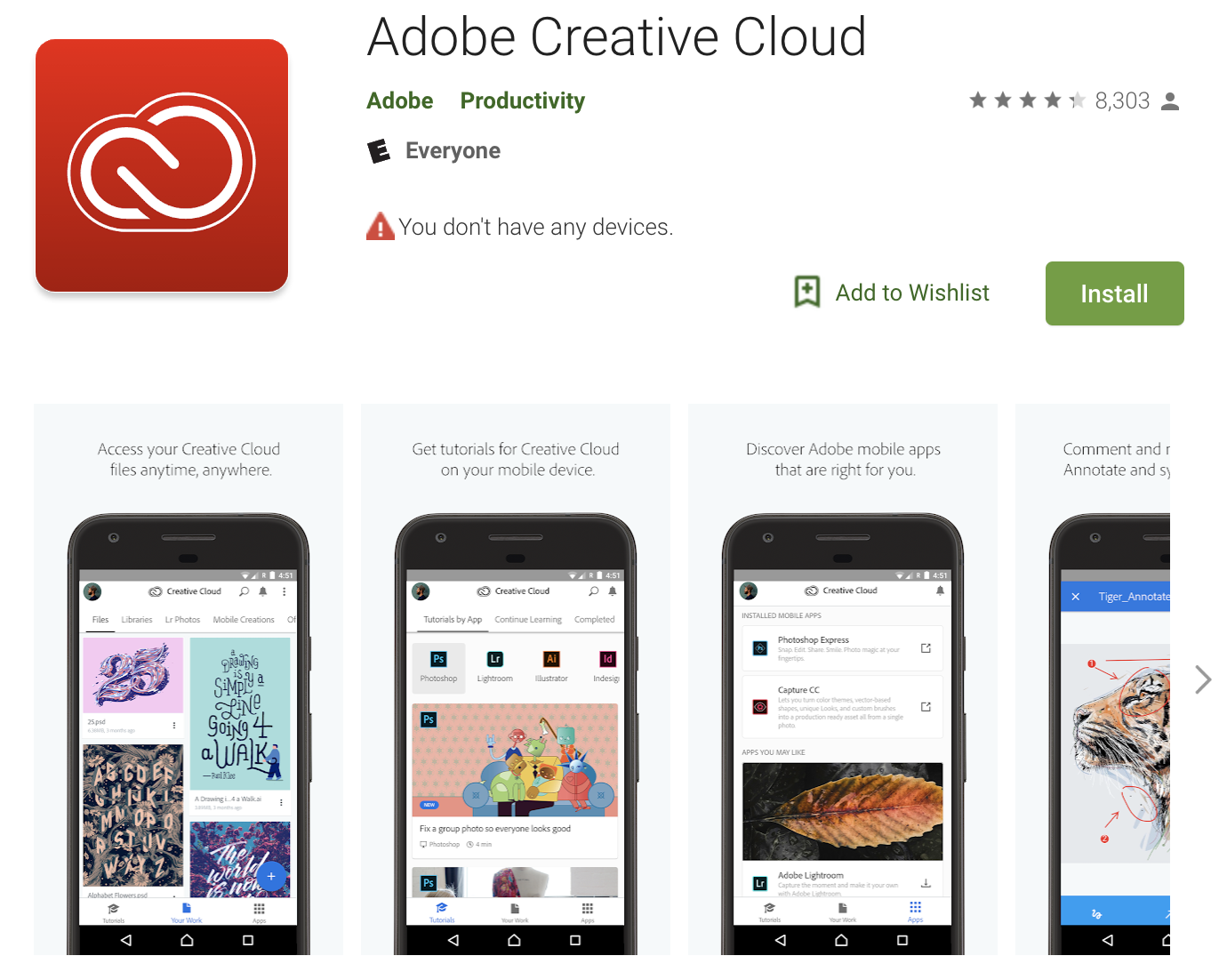
As an Adobe Creative Cloud user, you may find yourself thinking of new designs, modifications to a current creation, or ideas you want to add to your project while on the go. If this is the case, you can always access your work through the Adobe Creative Cloud mobile app which allows you to view, sync, and modify your work via a mobile device.
The Creative Cloud app is available for download through iTunes and Google Play. However, there’s a catch — depending on your Creative Cloud plan, you may or may not have access to the app for free. If you have one of the less expensive subscriptions, you may have to obtain the Creative Cloud mobile app independently. Another option would be to purchase a mobile app for the specific Adobe Creative Cloud application you need, such as Photoshop or Lightroom.
2. Conduct real-time content reviews.
Whether it’s reviewing written content, photos, videos, or website design, you can receive real-time reviews and feedback from your team members in just seconds with Creative Cloud.
No matter what you’re creating or where you are in the process, the software makes it easy to collaborate and conduct content reviews in real time. This is because of the Creative Cloud’s synced, live editing feature which allows you to view changes, edits, and commentary immediately after they’re added. As previously mentioned, there are even ways to easily leave content reviews on PDFs, which is often a time-consuming, and sometimes impossible, task.
3. Use Adobe Fonts.
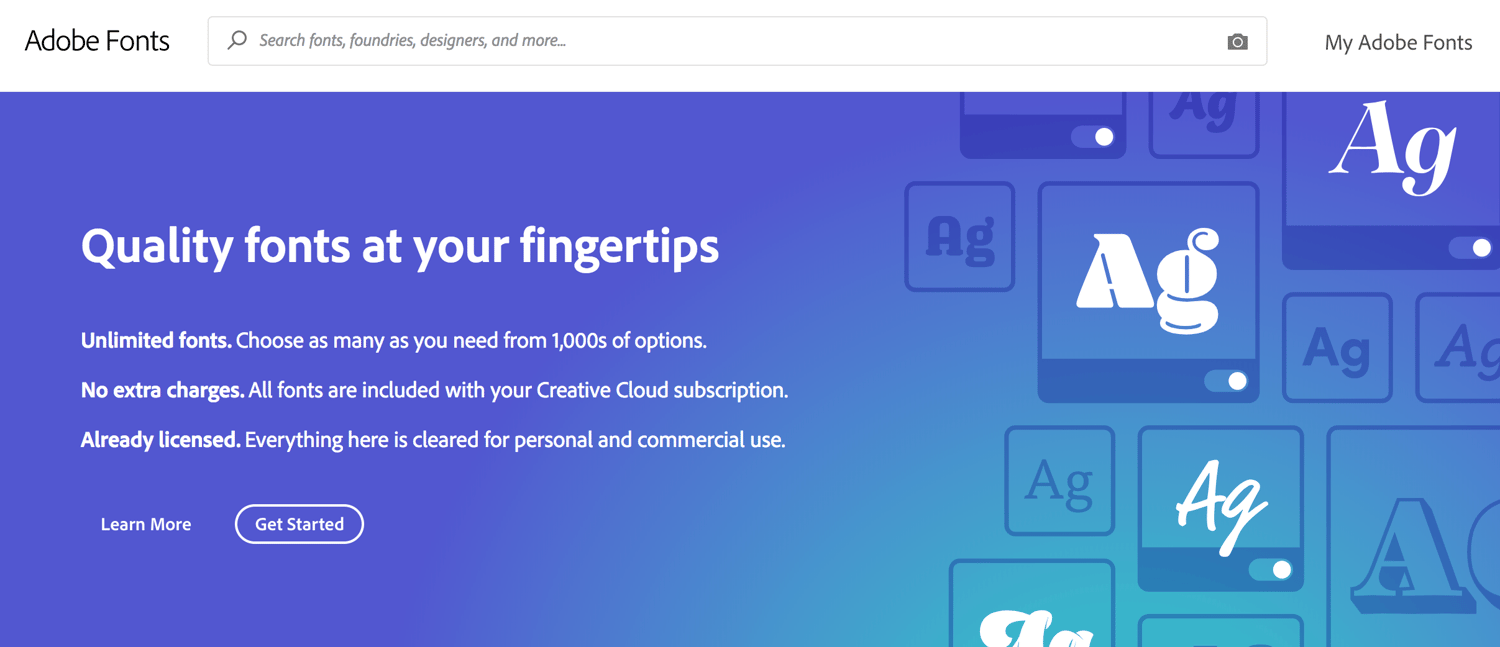
As a Creative Cloud user, you’ll have access to thousands of fonts you can download and use in any of your projects, in any app, with Adobe Fonts. You can browse, activate, or deactivate your fonts within your various apps whenever you choose. Once a font is activated, you can use it offline if needed — your edits will be reflected once you reconnect to WiFi.
4. Create animations for your designs and website.
There are a number of ways you can create animations with Adobe Creative Cloud depending on your needs. Start by sketching a figure or background in an app like Photoshop or Illustrator, or use a provided template. Then, you can turn it into a life-like character or a 3D object in After Effects or Animate. There are animation options within these apps suited for web, cartoons, TV, film, and mobile.
5. Create a website with Adobe Portfolio.
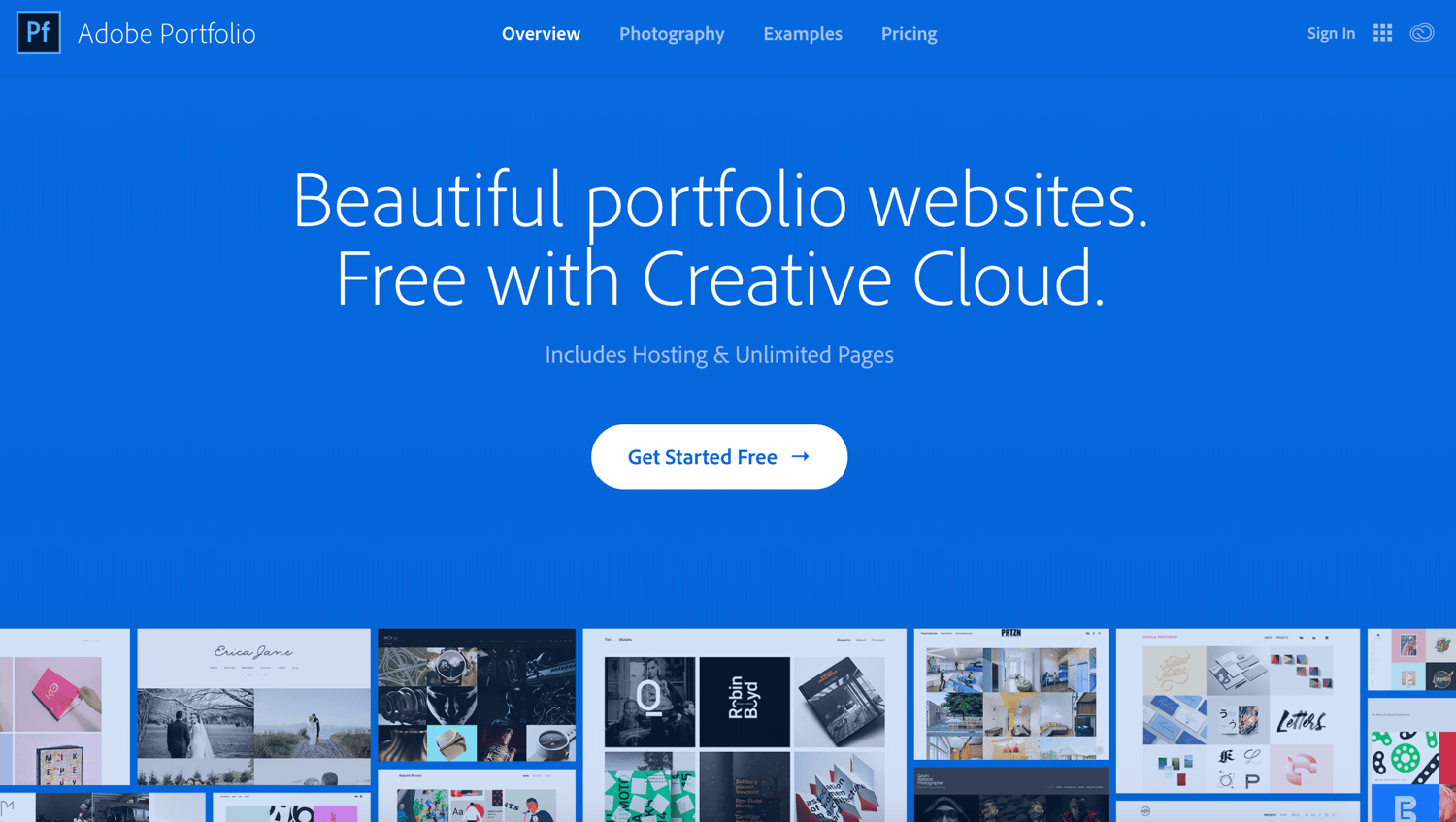
It’s safe to assume you’ll be working on various designs and projects once you get Adobe Creative Cloud. So wouldn’t it be nice if you had a place to display all of your efforts? Well, there is — it’s called Adobe Portfolio and you’ll have access to it once you download the Creative Cloud.
Adobe Portfolio is a digital portfolio-making website. You upload your Adobe work directly to Portfolio and display it in any way you want. With dozens of customization options, a responsive design, live editing, and custom domain options, you’ll be able to display your content in a way that makes you proud to share it with potential employers, coworkers, professors, friends, and family.
6. Access your Creative Cloud Assets.
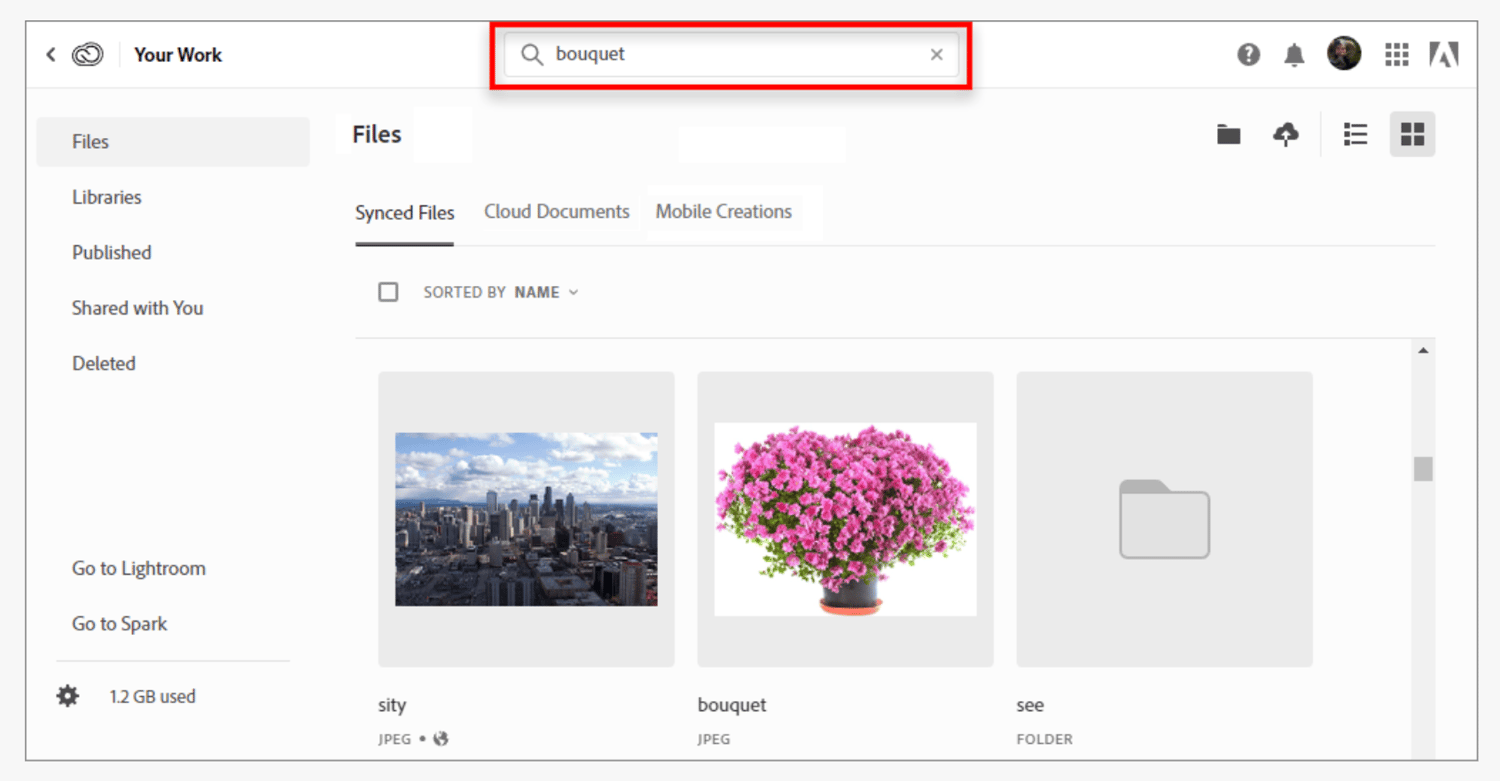
As a Creative Cloud user, you’ll have access to Adobe Assets (which you can only view and use by signing into your account at assets.adobe.com). Adobe Assets include thousands of unique, royalty-free creative aids such as vector graphics, patterns, and icons. They’re used to enhance your work, add to your creativity, and help you build or design anything you desire.
7. Apply CSS to your site to style your web pages.
When using Dreamweaver to build your website, you may want to apply Cascading Style Sheets (CSS) to help you style your web pages. Although this feature is for more advanced Creative Cloud users, it works in tandem with HTML and is a great option if you want to have more control over the visual elements on your web pages.
8. Sketch images and backgrounds by hand.
With the Adobe Creative Cloud, you have the opportunity to hand-draw images and backgrounds in specific apps like Illustrator or Photoshop. Depending on your Creative Cloud plan, you may have access to one of the mobile apps, such as Illustrator Draw, which allow you to use your finger to draw images directly on your mobile device’s screen and implement them in your project immediately.
9. Create custom color swatches.
A color swatch saves and displays a variety of chosen colors, patterns, gradients, and tints. You can create and manage custom color swatches for your projects in various Creative Cloud apps like Illustrator, Photoshop, and InDesign.
While working on your projects, you may find yourself hopping between different Creative Cloud apps — meaning you might also want your custom color swatch to move between apps. Creative Cloud allows you to do this with the click of a button. For example, if you create a custom color swatch in Illustrator and you need to move over to Photoshop to continue working on an image, you can simply import your color swatch and use your custom palette there.
10. Build responsive website layouts.
These days, it’s critical for websites to have responsive layouts — meaning they automatically adjust in size to fit the screen they’re being viewed on, such as a desktop computer or mobile device. If you’re building a website with the Adobe Creative Cloud, ensuring your site has a responsive design is simple. This is because of the standard capabilities and features that come with software like Dreamweaver, which is the application you’ll most likely be building and coding your site with.
11. Turn your photos into vector images.
There are several ways you can take a photograph and transform it into a vector graphic — or a drawing — using Photoshop, Illustrator, or InDesign. This prepares the image you’re working with to be modified and scaled as much as you want, without causing it to lose any quality.
12. Use wireframing and prototyping techniques to design your site.
Wireframing and prototyping are major components of website, app, and software design. They provide designers with a simplistic view of what their site will look like and how their pages will be structured prior to it going live. Wireframing and prototyping also give you the opportunity to review some of the real content being created for the website so you can realistically envision how it’ll function. You can apply wireframing and prototyping techniques with Adobe XD, InDesign, or Photoshop.
13. Learn from the hundreds of free Adobe Creative Cloud tutorials.
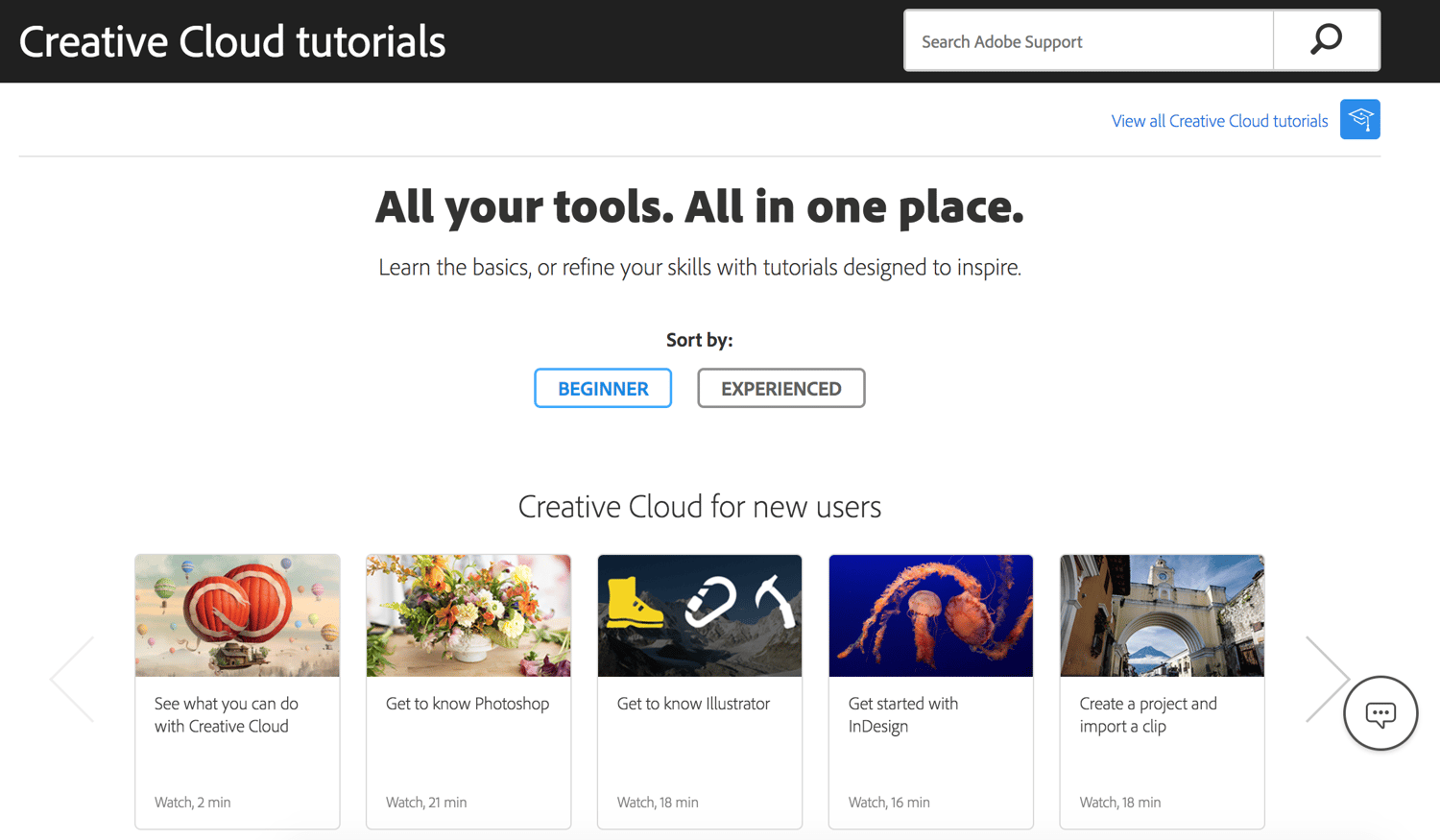
When you get started with Adobe Creative Cloud, you may feel slightly overwhelmed by the vast amount of tools, features, and capabilities included with the software. This is expected — and it’s also why there are dozens of resources available to you — for free — to help you work through everything from the simplest, surface-level problem to the most specific, high-level roadblock. We’ll review a list of available resources and types of support shortly.
14. Identify and use fonts from your photos.
Have you ever seen a logo, billboard, or another piece of advertising with a font you just loved? Maybe you thought, “That font would be perfect for my project!”
Good news — with Adobe Creative Cloud, you can actually match the font from an image you import to Photoshop. This feature allows you to review the font options Adobe “matches” to the font in your imported photo. It also browses the Adobe Font library to find any other possible matches for you to choose from.
15. Adjust the color of your videos.

Many people adjust the gradient, saturation, and luminance of their photos every day, whether it’s on Instagram, their smartphone, or an editing app like Photoshop. But the Creative Cloud allows you to adjust the color of your video footage just as easily. With the help of the tools available in Premiere Pro and After Effects, you can correct the color and luminance of your video footage so it fits the look of your site, meets broadcast standards, or is simply easier for viewers to watch.
Now that we’ve reviewed just some of the many things you can do with Creative Cloud, let’s discuss the various plan and subscription options you have as a user.
Adobe Creative Cloud Plans and Pricing
Here’s a look at the Adobe Creative Cloud plans and pricing options. They’re based on type and number of users you have, as well as your specific needs.
Depending on the plan you choose, you may have the option to pay monthly or annually. We’ve created the following chart to give you an overview of your options. There are more specific customization options within each plan to consider, so be sure to review the Adobe Creative Cloud plans and pricing page in depth prior to making your decision.
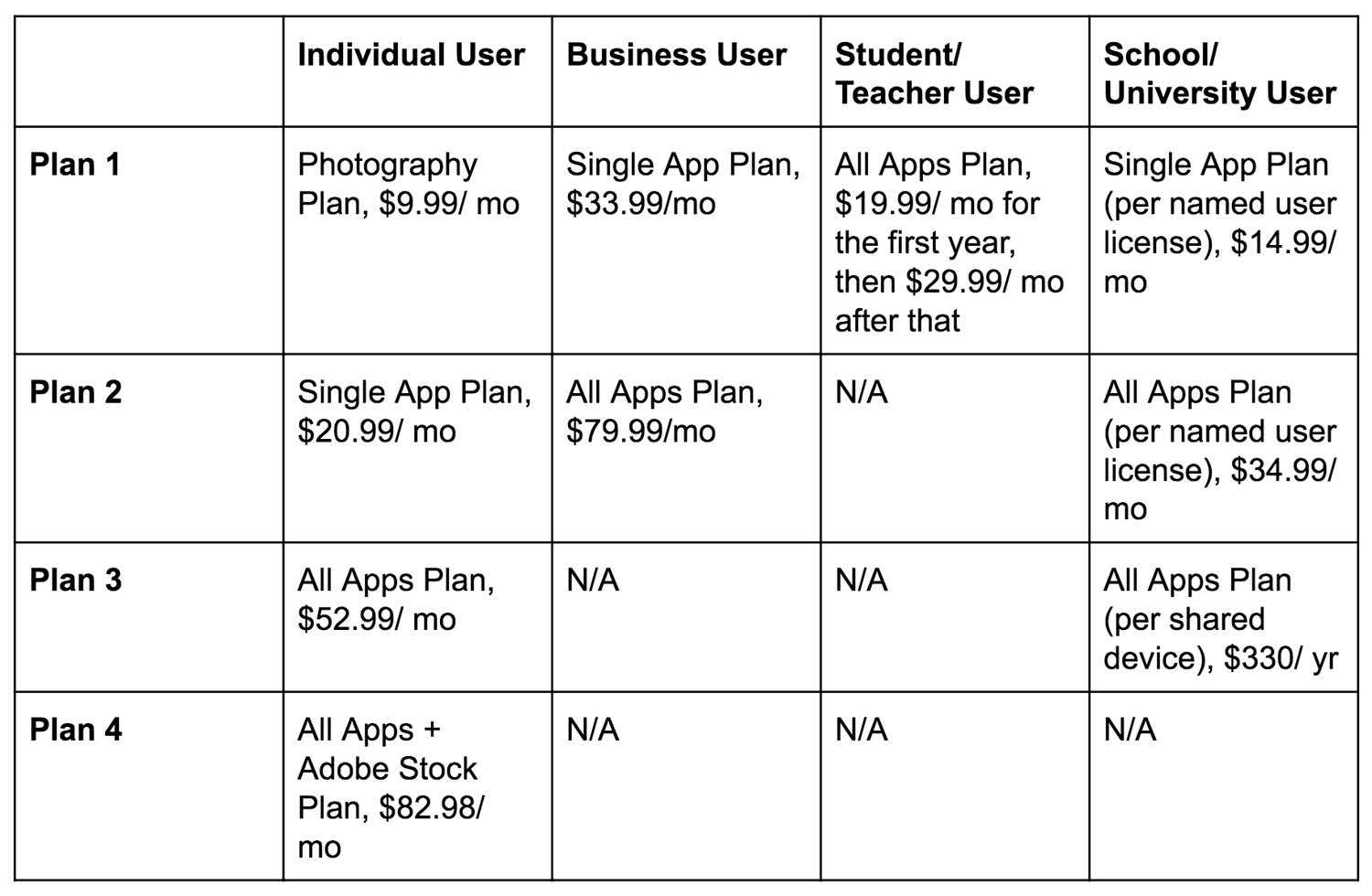
Note: If you’re buying Adobe Creative Cloud as an institution, you’ll have to use Creative Cloud Enterprise.
Adobe Creative Cloud Resources
As mentioned earlier, learning Adobe Creative Cloud may seem like an overwhelming task, considering the level of functionality and number of features the software offers. Don’t let this deter you from getting started — there’s no shortage of resources and tools to help you throughout your experience.
There are resources to help you determine which apps and services are ideal for your needs, including review sites like Capterra, TechRadar, and G2Crowd. You can use these sites to read customer and professional reviews about their experiences, likes and dislikes about the Creative Cloud. You can also learn about the individual applications and what makes the software unique.
Once you have determined your Adobe Creative Cloud plan of choice, you can use one of the many resources — created by Adobe — to help you become comfortable working in the applications. Here are a few of the tutorials Adobe offers:
- Adobe Creative Cloud Tutorials
- Adobe Creative Cloud User Guide
- Adobe Community Support and Forums
- Adobe Customer Help Center
- @AdobeCare Twitter
- Adobe Creative Cloud YouTube Channel
Lastly, online learning platforms, such as Lynda, offer access to a number of Adobe Creative Cloud training sessions, classes, and tutorials for you to browse and purchase.
Start Creating
Adobe Creative Cloud is an ideal software option if you’re in video, photography, design, or web development. It includes a wide range of tools and resources to help you reach your creative goals.
Determine how Adobe Creative Cloud can help you, choose a plan that meets your specific needs, and get started creating today. And when in doubt, review one of the many resources available to assist you through any challenges you may encounter along the way.

Your Google Rank Doesn’t Matter Anymore
For a long time, keyword rankings were a staple part of any SEO campaign. In a lot of cases they were a primary metric used to judge performance.
Today, your Google keyword ranking is just one of several reasons your traffic can increase or decrease.
Google Keyword Ranking
Google keyword ranking indicates where on Google’s search engine results pages (SERPs) an individual webpage is positioned when a user enters a keyword. Typically, 10 results comprise a SERP, and the higher your position on that SERP, the more organic traffic your webpage will get. Lately, however, there are other SEO variables marketers need to pay attention to.
Just six or seven years ago, we had so much more information on the keywords users were searching to reach our web content. All of this information was available transparently within Google Analytics, and you could get relatively accurate search volume estimates from within Google’s Keyword Tool.
appearance of “not provided” within Google Analytics. This means you can no longer find out which keywords are bringing in the organic traffic your website is receiving. The “not provided” tag looks a little something like this:
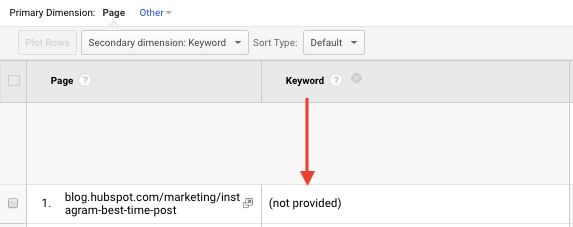
This created a ripple effect across many SEO software providers that made a lot of their tools less effective — or at least tougher — to measure the impact coming from organic search on a granular level.
Google’s next major change — a more recent one — was its decision to move search volume estimate within their Keyword Planner tool to show estimates in broad ranges. Instead of learning that a keyword was being searched for 1,400 times each month, we’re told that it’s searched between 1k-10k times per month. This isn’t overly helpful when developing your content strategy.
These changes have forced marketers to adapt their search strategy to focus less on individual keywords and shift to a topic-centric content strategy, especially for content sitting at the top of their marketing funnel.
Keyword Rankings are Inaccurate
One of the major criticisms of keyword ranking data is the fact that it is largely inaccurate. Many industry leaders and even software providers of rank tracking data have admitted that this is the case.
The reasons behind this can be broken down into three broad buckets:
- Personalization.
- Device.
- Location.
Personalization
Around the time of the launch of Google+, the SEO industry was talking a lot about personalization within search. Even after the death of Google+, personalization has remained a big consideration.

Bonus points if you remember Authorship snippets (circa 2012).
Ultimately, Google will deliver results that are personalized to a user based on their search history. This means that if I were to search for a query like “electric cars” and I’d previously been browsing the Tesla website, it’s a possibility that Google would tailor the rankings of the search results to show Tesla near the top.
This wouldn’t be the case for someone that hasn’t previously visited Tesla’s website, which makes it very tough to determine which website actually ranks #1 (because it can be different from one person to the next).
Device and Location
Whilst personalization plays a part in the ambiguity of keyword rankings, it’s nothing compared to the role of implicit query factors like device and location.
One of Google major advancements in search over the past five years has been its ability to take into account aspects of a search query that aren’t explicitly stated. To make sense of what I’ve just said, let’s take a query like, “Boston restaurants”.
Go back to 2010 and a search for “Boston restaurants” would yield a list of relatively generic websites that either talk about Boston restaurants or maybe are a restaurant.
Fast-forward to 2018 and a simple search for “Boston restaurants” will arm Google with a whole lot more information than before. They’re able to see which device you’ve searched from, where you’re located whilst you’re searching, even if you’re currently on the move.
Let’s say that you searched on an iPhone and you’re walking around in the center of Boston at 11:30 am. Here’s what this query would actually look like to Google:
“Which restaurants are currently open for lunch within walking distance of my current location in the center of Boston, MA?”
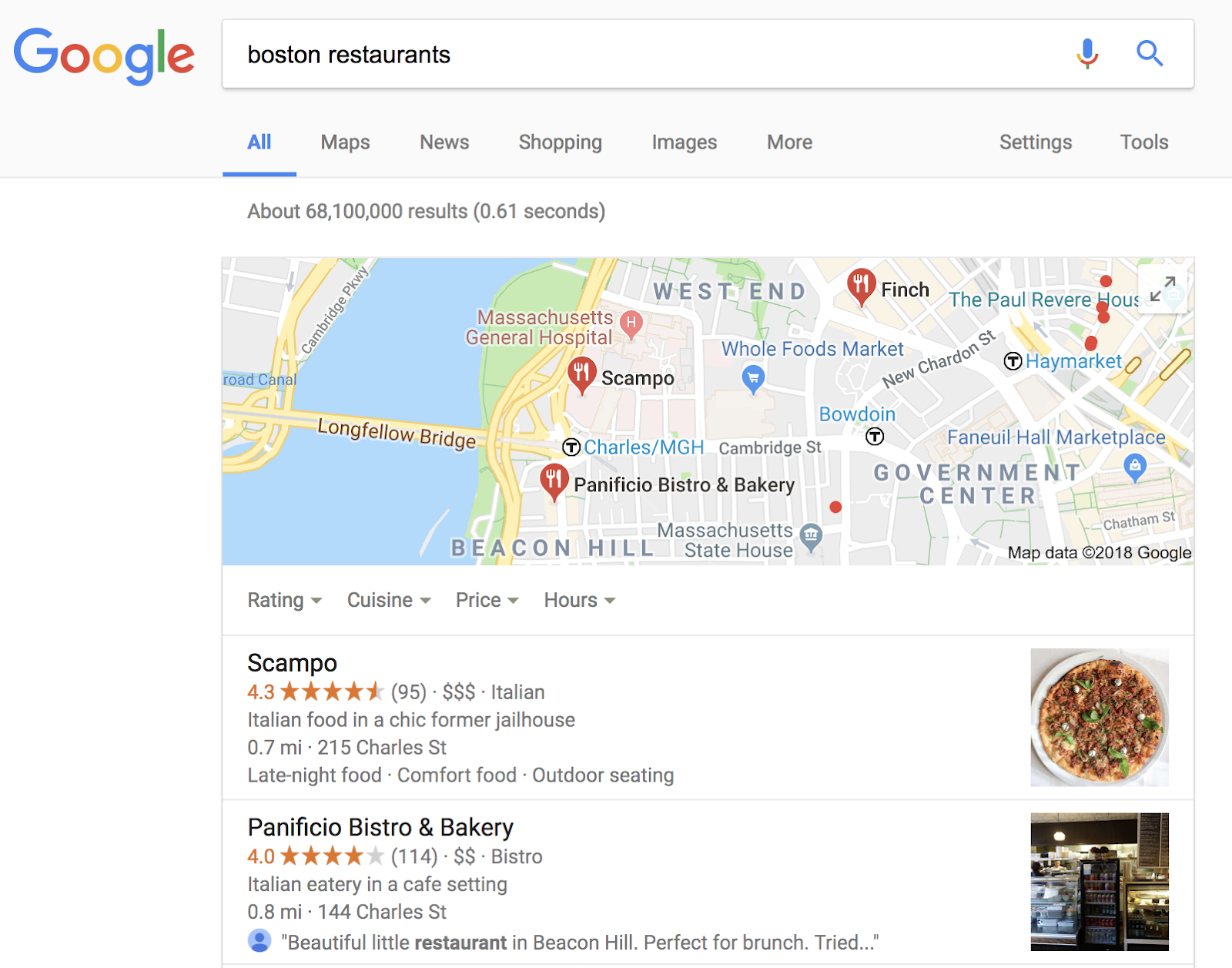
They’ve gathered all of this information without the individual even having to type it. As a result, they’re able to completely tailor the search results to this individual searchers’ current situation.
So … to answer the question of who ranks #1 for “Boston restaurants” becomes an even more challenging task.
Keyword Rankings are Directional at Best
Strong keyword rankings don’t always equate to high volumes of organic traffic, let alone improvements in revenue. As I mentioned at the beginning, we’ve lost a lot of visibility on search volume metrics, which makes it very difficult to accurately estimate the amount of traffic you can gain from an individual keyword. Factor in the changing appearance of the search engine results page (e.g. the widespread increase in featured snippets) and it becomes an even more daunting task.
If keyword rankings are your North Star, you may be traveling in the completely wrong direction.
Here are three search features that can interfere with your keyword rankings while presenting you with opportunities to capture traffic from Google in new ways:
Featured Snippets
Featured snippets are the enhanced search results that appear at the very top of Google SERPs. They’re a form of “rich snippet,” a grouping of structured data that Google has collected from a webpage. And due to their size, they can take an extraordinary amount of traffic away from the the results beneath them.
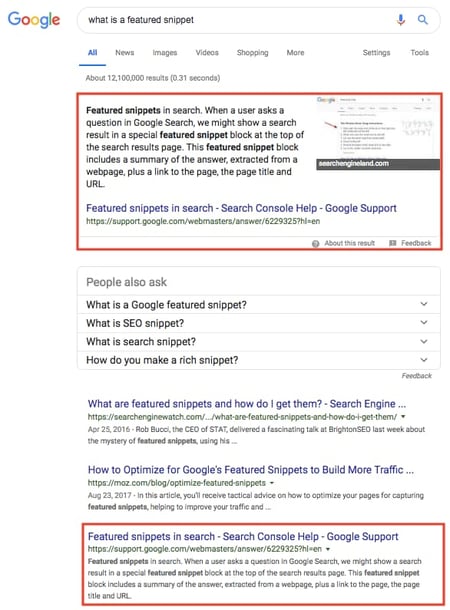
What makes featured snippet results so important? Publishers can earn them regardless of their Google rank. That’s right, it is entirely possible for a site below position #1 on the SERP to win this top-dwelling space, making Google rank noticeably less important for topics that are vulnerable to them. Check it out below — as you can see, the featured snippet is pulling in a result that technically ranks in position 3, allowing it to steal organic traffic from the results in positions 1 and 2.
Videos
Video is playing an increasing part in content marketing strategies, and not for superficial reasons. Videos published to any platform, not just YouTube, are now ending up on SERPs where Google has determined the intent behind a search query is best served in this medium.
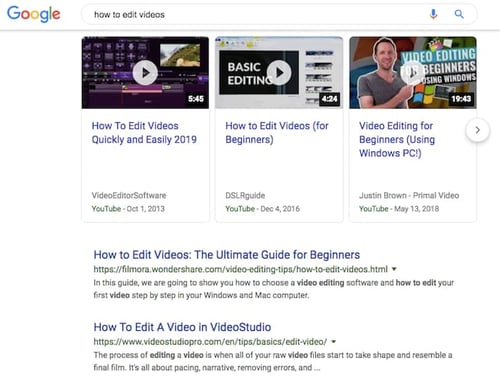
These video results might take away traffic from publishers, but they also allow you to “rank” for keywords you might not have written content to target.
Image Packs
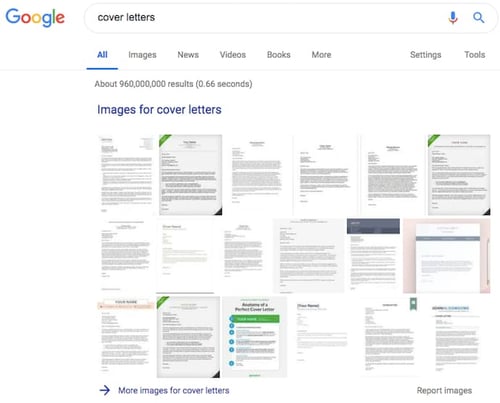
Image packs are large groupings of images that Google pulls into its SERPs from the Images tab in a Google search. As you can see below, they can be so large that they take up all the space “above the fold” of a SERP. This makes results ranking in position 1 for a particular keyword hard-pressed to capture organic traffic from that keyword unless they’ve published images dedicated to (and optimized for) this keyword.
When all you’re obsessing over is where each page is tracking against a ranking goal, you’ll likely be misses a ton of other value that your content is bringing in. For example, what if you’ve built out some content with the primary goal of driving backlinks or social traffic, but it isn’t necessarily designed to rank for much itself (e.g. a research report)? Using keyword rankings as a determining factor of success could evaluate content in a completely inaccurate way.
Measuring Performance at the Topic Cluster Level
To combat a lot of the issues I raised above, we shifted the way that we measured content at HubSpot. For the past couple of years we’ve taken a step back from analyzing the performance of content on a page-by-page level and looked at the performance of content at the topic cluster level.
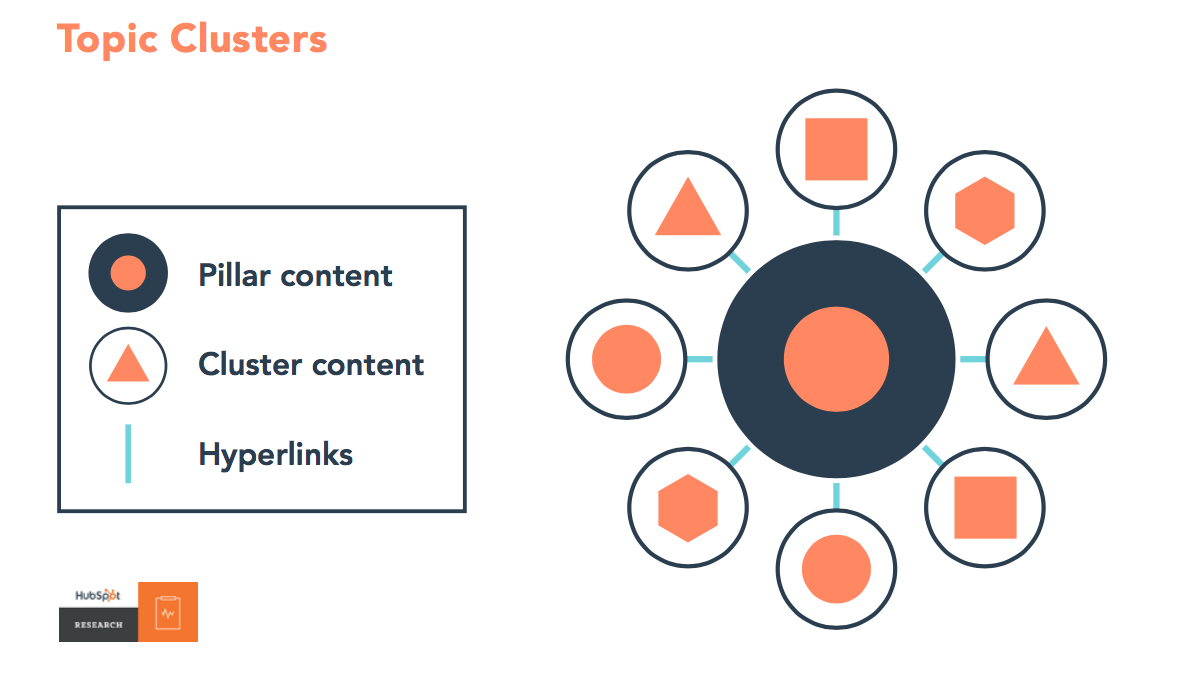
Organic search traffic and conversions are our primary search goals, so when we group our content into clusters to try and gain visibility for any searches related to a given topic, we look at the collective performance of these groups of webpages vs just the performance of individual pages.
This model of analysis helps us account for the varying goals of each individual piece of content. Also, running this analysis at scale tells us which topics tend to drive more traffic growth compared to others, and which topics tend to convert traffic at a higher rate.
This information tends to provide much clearer insights for the team as to what they should focus on next without obsessing over individual keyword rankings.
Is There Still a Place for Keyword Rankings?
Despite everything I’ve said above, I’m not actually saying that keyword rankings are dead (I can already see the tweets ready to be fired at me!). Keyword data can be useful for digging into any SEO problems that happen to your site, and also to look into the intent behind certain types of searches.
That said, the new version of Google Search Console that has just recently been rolled out should give you pretty much everything you need here.
More than anything, as a marketer you need to be aware that the data that you’re looking at related to keywords is not 100% accurate. As a result, this should never be your primary performance metric.

The Best Time to Post on LinkedIn in 2019 [Cheat Sheet]
With all the walk-and-talk videos and anecdotal status updates flooding LinkedIn nowadays, the professional social networking site isn’t just a platform for connecting with your colleagues anymore — it’s a place where companies can build a brand.
After Microsoft bought LinkedIn for $26.2 billion in 2016, LinkedIn released a new native video feature, a trending stories section, and a more robust analytics tool to help brands engage larger audiences for a longer amount of time. In fact, LinkedIn has 303 million monthly active users today, which is only 23 million users shy of Twitter’s monthly active user count.
Just like on every other social media network, attracting an engaged audience on LinkedIn requires you to craft compelling content. But if you don’t post your content at the right time, most of your followers will never see your updates. So how do you figure out the optimal post time for your specific audience?
The best way to determine your brand’s ideal post time on LinkedIn is by testing and uncovering the exact time and days your content generates the most engagement. However, if you don’t have enough resources or time to conduct your own tests, Sprout Social, a social media management platform with over 25,000 customers, has you covered.
Last year, they analyzed their customer data to see what time and day their customers’ social media posts generated the most engagement. And after examining their aggregate engagement data on LinkedIn, Sprout Social pinpointed the days and times — in Central Daylight Time (CDT) — that could generate the most engagement on the platform for your brand:
Best Time to Post on LinkedIn
On average, the best time to post on LinkedIn is between 3 PM and 5 PM CDT on Wednesdays. Other high engagement times on the platform are between 8 AM and 10 AM CDT on Tuesdays, 10 AM and 12 PM CDT on Wednesdays, and 1 PM and 3 PM CDT on Thursdays.
During the time periods above, people are usually getting ready for work, just starting their day, taking an afternoon break, or going home, so it makes sense that engagement on LinkedIn is high then.
If you want to know the best days to post on LinkedIn, the data in the snippet above suggests that the best day to post on LinkedIn is Wednesday. Other days of high engagement are Tuesday and Thursday. On the flip side, Friday, Saturday, Sunday, and Monday are usually the days with the lowest engagement.
Most people use LinkedIn during the middle of the week because that’s when they’re the most productive. On the other hand, people usually don’t use LinkedIn on the weekends or on Mondays because they take a break from work on the weekends, and Mondays are, well, Mondays.
Timing Is Everything
If you post content to LinkedIn when the majority of your audience isn’t online, will you receive the amount of views and engagement you were hoping for? Probably not. So remember, if you want to build a brand on LinkedIn, it’s crucial to find out when your specific audience prefers to surf the site. Because if you do, you’ll nail the timing of your posts almost every single time you want to update your followers on the platform.

How to Buy High-Quality Twitter Followers Fast [Guide]
Nowadays, 75% of B2B businesses and 65% of B2C businesses use Twitter for marketing purposes — which means Twitter outranks YouTube, Instagram, and Snapchat in terms of popularity among businesses.
Undoubtedly, the popularity of Twitter for business makes the platform a crowded place. And, ultimately, your success on Twitter is measured by follower size and audience engagement — two metrics that can be difficult to achieve with so much content posted daily on the platform.
Of course, it’s critical you create high-quality content for Twitter, but if that content isn’t seen by the people you’re trying to reach, then it’s wasted effort.
So how can you grow your Twitter audience and ensure your content is seen by the right people?
Ultimately, when you’re eager to gain followers and increase engagement, you might be tempted to take a shortcut and buy followers. However, it’s a dangerous tactic and could actually decrease engagement and destroy your brand’s reputation.
Here, we’re going to explore how to buy Twitter followers, why it’s a bad idea, and what you can do, instead.

How to Buy Twitter Followers Fast
If you want to buy Twitter followers, you might use one of the following services:
- CheapFollowersLikes.org — Has multiple Twitter package options, including 100 Twitter followers for $15, or 2,500 followers for $50. The service promises worldwide followers, and a lifetime replacement guarantee.
- AudienceGain.com — Provides the option to purchase Twitter followers, Twitter retweets, or Twitter auto-likes/retweets. Has multiple package options, including 100 followers for $20 or 1,000 followers for $120.
- GetAFollower.com — Only enables you to purchase 100 followers per order, but for the incredibly low price of $3.
It’s important to note, these services only provide you with fake Twitter followers — the followers you purchase off these sites will never become real customers for your business. As much as you might think purchasing followers is a good decision, it ultimately won’t result in any additional customers, so it’s not a smart strategy.
Additionally, the fake followers you purchase from these sites won’t engage with your tweets and can’t retweet your content with their own audience. Which means that, ultimately, purchasing Twitter followers could backfire by decreasing your engagement numbers.
For instance, let’s say you have 2,000 followers, but 1,000 of them are fake or inactive accounts. Then you post a Tweet, and it receives 200 retweets. That means only 10% of your total audience engaged with your tweet.
Alternatively, let’s say you stick with your 1,000 real followers, and receive 200 retweets. That’s 20% of your total audience — a much more impressive number to Twitter’s algorithm, and it’s also a true sign of your content’s worth.
Additionally, it’s important to note, your business can get in trouble and risk getting suspended on Twitter if it violates rules by buying fake followers.
Having real followers is a much more worthwhile long-term investment than purchasing Twitter followers. Real followers enables you to properly measure your business’s success on Twitter, and engage with potential customers.
However, this likely seems easier said than done — how can you increase your organic reach and find these real followers?
Fortunately, there is a paid strategy you can implement to buy high-quality Twitter followers fast — Twitter Followers Campaign. While not free, it’s undoubtedly cheaper than most fake follower sites, and will offer a much greater ROI.
How to Increase Your Twitter Followers
If you want to invest money in your Twitter strategy, you might consider paying for a Twitter Ads campaign rather than buying followers.
To create an Ads campaign, go to Twitter’s Campaigns dashboard and click “Start a Campaign” in the top right. Then, click the “Go to Twitter Ads” CTA button.
You can specifically choose “Followers” as your Ad objective.
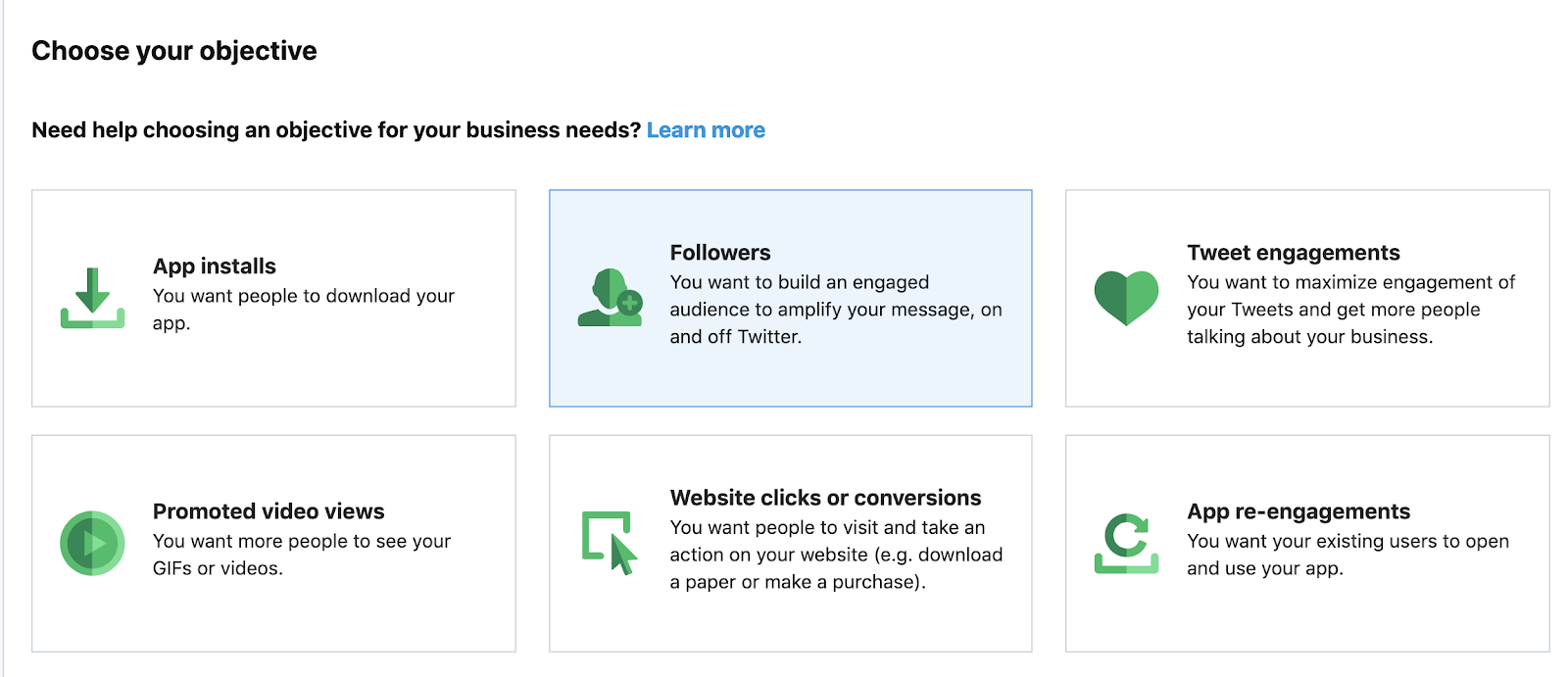
Next, fill out the necessary information, including Campaign title and how much money per day you want to invest. Then, click “Targeting” in the left navigation bar.
Here, you’re able to choose a specific demographic. You can target an audience based on interests or followers, which enables you to reach people who are similar to other specific Twitter accounts. This allows your business to reach people who are similar to your existing Twitter audience, which will likely attract the right people to your profile.
Alternatively, you could use Tailored Audiences to target people on a predetermined Twitter list you’ve created. You might create a list based on people who’ve visited your website, or certain influential people in your industry.

Take a look at Twitter Ads Campaigns: A Simple Setup Guide to learn more.
Ultimately, you’re not buying followers using Twitter Ads Campaign, but you are buying the opportunity to reach the right people — real people.
This is undoubtedly a more successful strategy for your business.
Ultimately, Twitter isn’t meant to be a popularity contest. The site is designed to encourage meaningful conversation and connection among users. If you can attract 100 high-quality followers who appreciate your business’s content and eagerly share it with their own audiences, then you’re doing much better than a company with 1,000 fake followers.
Buy real Twitter followers
- 1. There are multiple services, including CheapFollowersLikes.org or AudienceGain.com, that enable you to pay for followers.
- 2. However, these followers can’t engage with your content or share it with their own audiences because they’re fake. Additionally, they’ll never become real customers for your business, and your account could get suspended on Twitter if you’re caught buying followers.
- 3. Alternatively, it’s a smart strategy to invest your money in Twitter Ads Campaigns. Those campaigns enable you to use a variety of targeting methods to ensure your business is reaching Twitter users with the highest potential of conversion down-the-line.
- 4. By using a tool like Twitter Ads Campaigns, as well as organic best practices to attract real followers to your content, you’re able to increase both reach and engagement on the platform — a win, win.

What Do Snapchat Emojis Mean? 👻 😎
There are hundreds of emojis available on iOS and Android mobile device keyboards — everything from tacos, to national flags, to artists are represented in cartoon emoji form.
On Snapchat, however, the emojis you see appear next to your friends’ names mean a myriad of different things — and they can be hard to decipher.

If you know me, you know I love two things more than anything: cats and sleeping. So it’s fitting that the two emojis I use most often in my normal texting keyboard are:


Another thing you may already know about me is that I love using Snapchat. So when emojis started popping up in my list of chats with friends in the app, I needed to get to the bottom of it.
In this post, we’ll dive into the history of Snapchat emojis and what they all mean. Bear in mind that these emojis vary slightly across iOS and Android devices, so we’ve written out what the faces look like, too.
What do Snapchat emojis mean?
Snapchat emojis track the activity and behavior between you and your Snapchat friends. The frequency, timing, and pattern of your Snapchat interactions determine which emojis appear in your list of Snapchat chats. For example: 😊 smiling face means the user is one of your best friends, 💛 yellow heart means the user is your #1 best friend.
Want to see these Snapchat emojis in their proper context? Check out the Snapchat screenshot below, along with a few different emojis you might see in your own app. To access this page, open up your Snapchat app and swipe right.
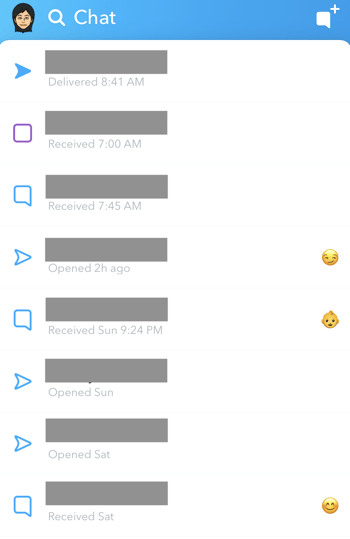
As you can see in the screenshot above, each emoji appears to the far right of the user with whom you have a unique Snapchat relationship.
When Snapchat was first created, the app used to show whom a user’s best friends were publicly (your “best friends” on Snapchat are the users to whom you’ve sent the most snaps back and forth). You can imagine why users took issue with this; can you imagine the awkwardness of finding your best friend or significant other was best friends on Snapchat with somebody else?
So, in 2015, Snapchat (now Snap. Inc) made the “best friends” emoji private, in the name of user privacy, and hid the lists of other users’ best friends. This, of course, brought about more outraged reactions. Snap Inc. CEO Evan Spiegel has said the app will reintroduce public best friends, but how and when this will take shape remains to be seen.
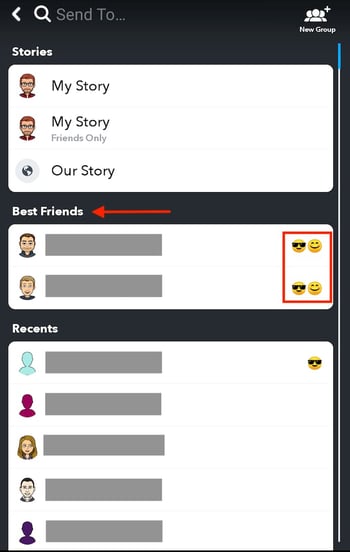
Today, the friend emojis we decoded for you below can appear inside a specific group of best friends, as shown in the screenshot above, to provide greater detail about the nature of your relationship with each of your Snapchat friends.
But with more more insight into how users interact with friends, you need to know how these behaviors are represented in the app. Let’s dive into each emoji so you can understand your Snapchat contacts list better. And remember: These emojis are only visible to you.
Snapchat Emoji Meanings
Snapchat Friend Milestones
1. Smiley Face Emoji on Snapchat

What it means: This user is one of your best friends on Snapchat. You frequently send Snaps back and forth to each other.
2. Yellow Heart Emoji on Snapchat

What it means: This user is your #1 best friend. You send the most Snaps to this user, and they send the most Snaps to you.
3. Smirking Face Emoji on Snapchat

What it means: You’re one of this user’s best friends, but they aren’t one of your best friends. They send you more Snaps than you send them.
4. Grimacing Face Emoji on Snapchat

What it means: Your #1 best friend is their #1 best friend, too. You both send lots of Snaps to the same user.
5. Sunglasses Face Emoji on Snapchat

What it means: One of your best friends is one of their best friends. You send a lot of Snaps to someone they also send a lot of Snaps to.
6. Red Heart Emoji on Snapchat

What it means: You’ve been #1 best friends (yellow heart status) with this user for two weeks in a row.
7. Pink Hearts Emoji on Snapchat

What it means: You’ve been #1 best friends with this user for two months in a row.
8. Fire Emoji on Snapchat

What it means: You and this user are on a Snapstreak — you’ve been sending each other Snaps for several days in a row. The number of fire emojis you have next to your friend’s name dictates the number of days you’ve been on a Snapstreak with them. After a certain number of days, a numeral will appear next to a single fire emoji to tell you how long your streak has lasted.
9. 100 Emoji on Snapchat

What it means: You’ve been on a Snapstreak with this user for 100 days in a row.
10. Hourglass Emoji on Snapchat

What it means: Your Snapstreak with this user will end if you don’t send them a Snap very soon. You can send them a Snap or a Chat to keep it going.
11. Baby Emoji on Snapchat

What it means: You and this user have recently added each other as Snapchat friends.
12. Gold Star Emoji on Snapchat

What it means: Someone has replayed this user’s Snap within the past 24 hours.
13. Gold Sparkles Emoji on Snapchat

What it means: You’re in a Snapchat Group Chat with this user. Learn how to start a Snapchat Group in this article.
14. Birthday Cake Emoji on Snapchat

What it means: Today is this user’s birthday. This emoji will only appear if the user indicated their date of birth in their Account information. Learn how to add your birthday to your account in this article.
Snapchat Story Emojis
While the 14 emojis above describe your relationship with each of your Snapchat friends, there are other emojis that represent the “verified” accounts of Snapchat’s most famous users. Here are some of them:
- Key 🔑 — Musician DJ Khaled (username: djkhaled305)
- Balloon 🎈 — Musician Rihanna (username: rihanna)
- Cactus 🌵 — Actor and musician Jared Leto (username: jaredleto)
- Bicep 💪 — Actor and bodybuilder Arnold Schwarzenegger (username: arnoldschnitzel)
- Pink Heart 💟 — Actor and musician Selena Gomez (username: selenagomez)
- Clapboard 🎬 — TV personality Ryan Seacrest (username: ryanseacrest)
- Shortcake
— Musician Steve Aoki (username: aokisteve)
- Disc
📀
— DJ and musician David Guetta (username: davidguettaoff)
- Crescent Moon
🌙
— Musician Ariana Grande (username: moonlightbae)
- Fleur-De-Lis ⚜ — New Orleans Saints football team (username: saints)
- Lipstick 💄 — Actor and model Ashley Benson (username: benzo33)
- Praying Hands 🙏 — Musician Justin Bieber (username: rickthesizzler)
- Pear 🍐 — Musician Rick Ross (username: ferrarifatboy)
- Cherry 🍒 — Actor and musician Demi Lovato (username: theddlovato)
- Chequered Flag 🏁 — Racing driver Lewis Hamilton (username: lewishamilton)
- Rowboat 🚣 — Musical group The Lonley Island (username: tliboys)
- Up Arrow ⬆️ — Musical group One Direction (username: onedirection)
Snapchat Status Icons
Last, but not least, in your Snapchat emoji lexicon are the chat icons. These icons appear underneath the name of the Snapchat user on your friends list, as shown below.
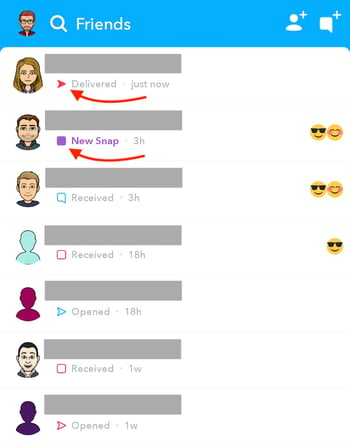
These icons represent the status of a chat you’ve sent or received from one of your Snapchat friends, and they can help you determine to whom you sent or received a snap, the type of snap, and if the snap has been opened. Here they are and what they mean.
1. Purple Arrow Emojis

What they mean: The emojis above indicate that you have successfully sent a video snap — or a snap that includes sound — to another Snapchat user. When the emoji turns from solid to white, the snap has been viewed by that user.
2. Red Arrow Emojis

 What they mean: The emojis above indicate that you have successfully sent a still-image snap — or a snap that does not include sound — to another Snapchat user. When the emoji turns from solid to white, the snap has been viewed by that user.
3. Blue Arrow Emojis


What they mean: The emojis above indicate that you have successfully sent a text-based snap to another Snapchat user. When the emoji turns from solid to white, the snap has been viewed by that user.
4. Purple Square Emojis


What they mean: The emojis above indicate that you have received a video snap — or a snap that includes sound — from another Snapchat user. After you open and view the snap, the emoji will turn from solid to white.
5. Red Square Emojis


What they mean: The emojis above indicate that you have received a still-image snap — or a snap that does not include sound — from another Snapchat user. After you open and view the snap, the emoji will turn from solid to white.
6. Blue Square Emojis


What they mean: The emojis above indicate that you have received a text-based snap from another Snapchat user. After you open and view the snap, the emoji will turn from solid to white.
7. Interlaced Arrow Emojis


What they mean: The emojis above indicate that the Snapchat user to whom you sent a snap has opened and taken a screenshot of your snap using their mobile device.
How to Change Emojis for Friends and Snapchat Streaks
If these emojis aren’t speaking to you, you can change them within your Snapchat account. For example, your best friends could be represented by a pizza slice instead of a yellow heart if you really love pizza (and your friends, I suppose). Here’s how it’s done:
1. Open up your Snapchat app and swipe down. You’ll see your profile screen and Snapcode.
2. Tap the Settings gear in the upper right-hand corner.
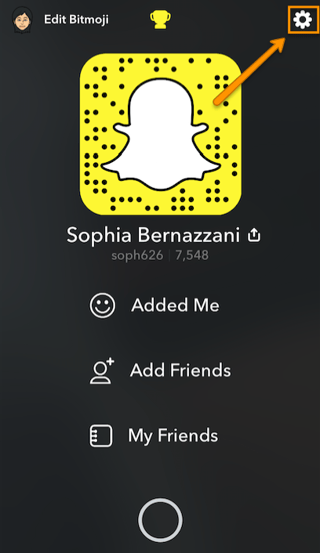
3. Select “Manage” under the “Additional Services” menu.
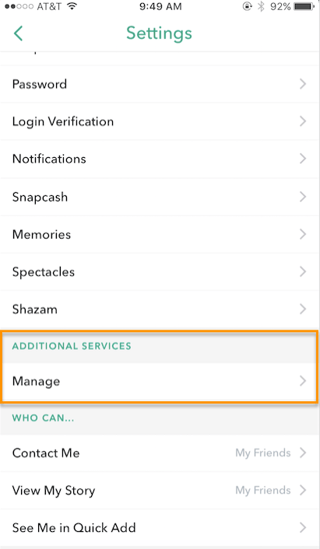
4. Select “Friend Emojis.”
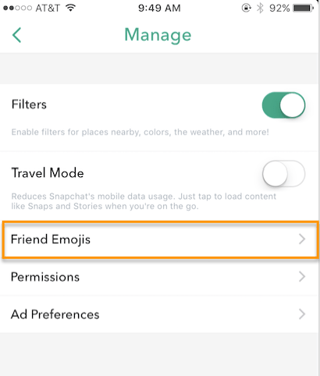
5. From there, you can tap into each signifier and choose a new emoji to represent what it means.
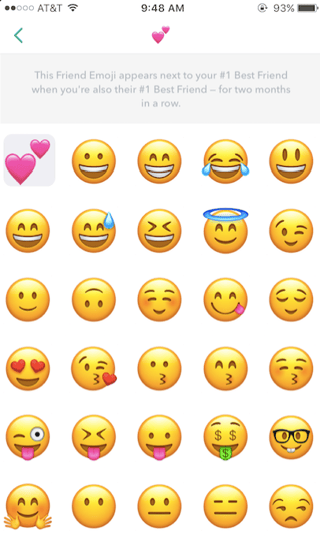
Source: Snapchat Support
There you have it. We’ll keep this post updated with new developments in the world of Snapchat emojis. In the meantime, keep snapping to see how your emojis change, and let us know how long your longest snap streak is.
Want more advice on Snapchat marketing? Check out some of the best brands on Snapchat right now.


7 of the Best AI Chatbots for 2019
Whether it’s on Facebook Messenger, their website, or even text messaging, more and more brands are leveraging chatbots to service their customers, market their brand, and even sell their products.
But even though most chatbots can handle moderately sophisticated conversations, like welcome conversations and product discovery interactions, the if/then logic that powers their conversational capabilities can be limiting. For instance, if a customer asks a unique yet pressing question that you didn’t account for when designing your chatbot’s logic, there’s no way it can answer their question, which hangs your customer out to dry and ultimately leaves them dissatisfied with your customer service.
Fortunately, the next advancement in chatbot technology that can solve this problem is gaining steam — AI-powered chatbots. By leveraging machine learning and natural language processing, AI-powered chatbots can understand the intent behind your customers’ requests, account for each customer’s entire conversation history when it interacts with them, and respond to their questions in a natural, human way.
If you’re currently using a standard chatbot, but want to upgrade to an AI-powered one, we’ve put together a list of the best AI chatbots for 2019. Read on to find the right one for you.
Best AI Chatbots
- Watson Assistant
- Bold360
- Rulai
- LivePerson
- Inbenta
- Ada
- Vergic
1. Watson Assistant
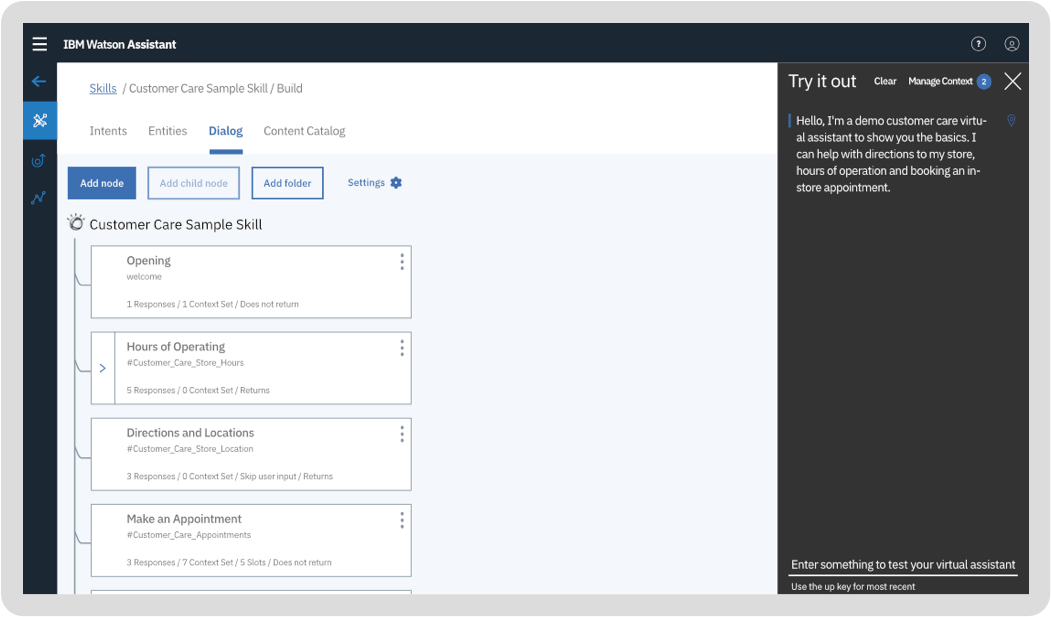
Image Credit: IBM
Developed by one of the leaders in the AI space, IBM, Watson Assistant is one of the most advanced AI-powered chatbots on the market. Pre-trained with content from your specific industry, Watson Assistant can understand your historical chat or call logs, search for an answer in your knowledge base, ask customers for more clarity, direct them to human representatives, and even give you training recommendations to hone its conversational abilities.
Watson Assistant can run on your website, messaging channels, customer service tools, and mobile app. The chatbot also comes with a visual dialog editor, so you don’t need any coding experience to develop it.
2. Bold360

Image Credit: Bold360
Trusted by customers like Intuit, Edible Arrangements, and Vodafone, Bold360 patented its own natural language processing technology to help brands build chatbots that can understand your customers’ intent without the need of keyword matching and learn how to deliver the most accurate answers to them.
Bold360’s conversational AI can interpret complex language, remember the context of an entire conversation, and reply to customers with natural responses. Customers can even buy your products through the chatbot. You can also give your chatbot its own personality and run it on most messaging channels.
3. Rulai

Image Credit: Rulai
Armed with deep-learning based natural language understanding and adaptive multi-taking capabilities, Ruali, an AI-powered chatbot for enterprise brands, can understand the context of a conversation, predict user behavior, grasp customer preferences, take actions, switch to different tasks, and ask customers for more clarification.
Rulai also integrates with most messaging channels, customer service software, enterprise business software, and cloud storage platforms. You can either build a Ruali chatbot from scratch with its drag-and-drop design console and let its AI adapt to your customers or you can implement a pre-trained chatbot that has been fed data from your specific industry.
4. LivePerson

Image Credit: LivePerson
By collecting over 20 years of messaging transcript data and feeding it to their AI-powered chatbot, LivePerson can automate almost every industry’s messaging and integrate with most messaging channels like your website, mobile app, Apple Business Chat, text messaging, Google Rich Business messaging, Line, Facebook Messenger, WhatsApp, and Google AdLingo.
LivePerson’s BotStudio also lets you build chatbots from scratch, without any coding knowledge, and its analytics dashboard can track metrics like real-time sentiment, bot containment rate, bot conversation time, total conversation time, average order value, and bot contained sales, allowing you to grasp the impact your chatbot has had on your business’ bottom line.
5. Inbenta

Image Credit: Inbenta
Designed specifically for enterprise brands, Inbenta’s chatbot leverages machine learning and its own natural language processing engine to detect the context of each customer conversation and accurately answer their questions. Inbenta also offers a dialog manager, which allows you to craft custom conversation flows and paths.
Additionally, when Inbenta’s chatbot realizes that one of your customers needs to talk to a human, it’ll escalate the conversation to the appropriate support agent. To make your chatbot seem more human, you create a custom avatar for it, too.
6. Ada

Image Credit: Ada
Trusted by customers like Medium, Shopify, and MailChimp, Ada is an AI-powered chatbot that features a drag-and-drop builder that you can use to train it, add GIFs to certain messages, and store customer data.
Ada can also integrate with most messaging channels and customer service software, send personalized content to your customers, ask for customer feedback, and report on your bots’ time, effort, and cost savings. According to their website, Ada has saved their customers over $100 million in savings and 1 billion minutes of customer service effort.
7. Vergic

Image Credit: Vergic
Vergic offers an AI-powered chatbot that can serve as your businesses’ first line of customer support, handle transactional chats, and transfer more complicated problems to your actual customer service agents. It’s like a hybrid chatbot that can boost your employees’ productivity.
By leveraging natural language processing and natural language understanding, Vergic can also perform sentiment analysis, share documents, highlight pages, manage conversational workflows, and report on chatbot analytics.

The Ultimate Guide to Google Ads for 2019
If you’re considering spending any amount of money on ads to reach your target audience, then you’d better spend it in the right place. That is, somewhere with over 246 million unique visitors, 3.5 billion daily interactions, and an estimated 700% return on investment.
Somewhere like Google Ads.
Google Ads was launched just two years after what has become the most popular website in the world: Google.com. The advertising platform came on the scene in October 2000 as Google Adwords, but after some rebranding in 2018, it was renamed Google Ads.
Google Ads is a paid advertising platform that falls under a marketing channel known as pay-per-click, where you (the advertiser) pays per click (PPC) or per impression (CPM) on an ad. The better your ad campaign, the more clicks you generate, and the greater your probability of obtaining a new lead or customer. (And, yes, this guide will show you how to create an optimized ad campaign.)
Brush up on your PPC knowledge with our guide to PPC advertising.
Ads from the platform span several channels, including Google, YouTube, Blogger, and millions of other websites known as the Google Display Network. Given Google’s expansive reach, chances are you’ve seen (and probably clicked on) a Google ad … and so have your potential customers.
This guide will teach you what you need to know to get started advertising on Google. We’ll cover features specific to this platform and teach you how to optimize your paid campaigns to achieve the best results with your ads.
Does Google Ads work?
To answer this, let’s consider a few statistics. Google Ads have a click-through rate of nearly 8 percent. Display ads yield 180 million impressions each month. For users who are ready to buy, paid ads on Google get 65% of the clicks. 43% of customers buy something they’ve seen on a YouTube ad. So, yes, Google Ads works. With an optimized ad campaign and lead flow, you can create a high-ROI marketing campaign.
Why advertise on Google?
Google is the most used search engine, receiving 3.5 billion search queries a day. Not to mention, the Google Ads platform has been around for nearly two decades, giving it some seniority in the area of paid advertising. Google is a resource used by people around the world to ask questions that are answered with a combination of paid advertisements and organic results. And, according to Google, advertisers make $8 for every $1 they spend on Google Ads. So, there are a few reasons why you’d want to consider advertising on Google.
Need another reason? Your competitors are using Google Ads (and they might even be bidding on your branded terms). Thousands of companies use Google Ads to promote their businesses, which means that even if you’re ranking organically for a search term, your results are being pushed down the page, beneath your competitors.
If you’re using PPC to advertise your product or services, Google Ads should be a part of your paid strategy — there’s no way around it (except maybe Facebook Ads, but that’s another article).
Reasons Why Your Google Ads Aren’t Working
If you’ve tried unsuccessfully to advertise on Google, don’t give up. There are many reasons why your Google Ads could be underperforming. Let’s cover some common offenders.
- Broad Keyword Terms. You really need to nail it when it comes to your keywords, which is why testing and tweaking should be a part of your strategy. If your keywords are too broad, Google will be placing your ad in front of the wrong audience which means fewer clicks and a higher ad spend. Review what’s working (i.e. which keywords are generating clicks) and adjust them to best match your ads with your target audience. You likely won’t get the mix right the first time but you should keep adding, removing, and tweaking keywords until you do.
How to fix it: Review the keyword strategies that we cover below. - Irrelevant Ads. If your ad doesn’t match the searcher’s intent, you won’t get enough clicks to justify your ad spend. Your headline and ad copy need to match the keywords you’re bidding on, and the solution your ad is marketing needs to solve whatever pain point that searcher is experiencing. It’s a combination that will yield the results you’re looking for, and it may just be a few tweaks away. You have the option to create multiple ads per campaign — use this feature to split test which ads work best. Or, better yet, use Google’s Responsive Search Ads feature.
How to fix it: Read our best practices for ad copy. - Low Quality Score. Your Quality Score (QS) is how Google determines how your ad should rank. The higher your rank, the better your placements. If your quality score is low, you’ll have fewer eyeballs on your ad and fewer chances to convert. Google will tell you your Quality Score, but improving it is up to you.
How to fix it: Keep reading to learn how to improve your QS. - Poor Landing Page. Your efforts shouldn’t stop with your ad — the user experience after a click is equally important. What does your user see once they click your ad? Is your landing page optimized for conversions, meaning does it use the same keywords? Does the page solve your user’s pain point or answer their question? Your user should experience a seamless transition through to the conversion.
How to fix it: Review landing page best practices and implement them to increase your conversion rate.
These common terms will help you set up, manage, and optimize your Google Ads. Some of these are specific to Google Ads, while others are related to PPC in general. Either way, you’ll need to know these to run an effective ad campaign.
AdRank
Your AdRank determines your ad placement. The higher the value, the better you’ll rank, the more eyes will fall on your ad, and the higher the probability that users will click your ad. Your AdRank is determined by your maximum bid multiplied by your Quality Score.
Bidding
Google Ads is based on a bidding system, where you as the advertiser selects a maximum bid amount you’re willing to pay for a click on your ad. The higher your bid, the better your placement. You have three options for bidding: CPC, CPM, or CPE.
- CPC, or cost-per-click, is the amount you pay for each click on your ad.
- CPM, or cost per mille, is the amount you pay for one thousand ad impressions, that is when your ad is shown to a thousand people.
- CPE, or cost per engagement, is the amount you pay when someone takes a predetermined action with your ad.
And, yes, we’ll review bidding strategies below.
Campaign Type
Before you begin a paid campaign on Google Ads, you’ll select between one of three campaign types: search, display, or video.
- Search ads are text ads that are displayed among search results on a Google results page.
- Display ads are typically image-based and are shown on web pages within the Google Display Network.
- Video ads are between six and 15 seconds and appear on YouTube.
Click-Through Rate (CTR)
Your CTR is the number of clicks you get on your ad as a proportion of the number of views your ad gets. A higher CTR indicates a quality ad that matches search intent and targets relevant keywords.
Conversion Rate (CVR)
CVR is a measure of form submissions as a proportion of total visits to your landing page. Simplistically speaking, a high CVR means that your landing page presents a seamless user experience that matches the promise of the ad.
Display Network
Google ads can be displayed on either search results pages or a web page within Google’s Display Network (GDN). GDN is a network of websites that allow space on their webpages for Google Ads — these ads can be text-based or image ads and are displayed alongside content relevant to your target keywords. The most popular Display Ad options are Google Shopping and app campaigns.
Extensions
Ad Extensions allow you to supplement your ad with additional information at no additional cost. These extensions fall under one of five categories: Sitelink, Call, Location, Offer, or App; we’ll cover each of these ad extensions below.
Keywords
When a Google user types a query into the search field, Google returns a range of results that match the searcher’s intent. Keywords are words or phrases that align with what a searcher wants and will satisfy their query. You select keywords based on which queries you want to display your ad alongside. For example, a searcher that types “how to clean gum off shoes” will see results for advertisers that targeted keywords like “gum on shoes” and “clean shoes.”
- Negative Keywords are a list of keyword terms that you do not want to rank for. Google will pull you from the bid on these keywords. Typically, these are semi-related to your intended search terms but fall outside of the realm of what you offer or want to rank for.
PPC
Pay-per-click, or PPC, is a type of advertising where the advertiser pays per click on an ad. PPC is not specific to Google Ads, but it is the most common type of paid campaign. It’s important to understand the ins and outs of PPC before launching your first Google Ads campaign.
Quality Score (QS)
Your Quality Score measures the quality of your ad by your click-through rate (CTR), the relevance of your keywords, the quality of your landing page, and your past performance on the SERP. QS is a determining factor in your AdRank.
Click to get our free guide on how to use Google Ads.
How does Google Ads work?
Google Ads displays your ad to potential leads or customers who are interested in your product or service. Advertisers bid on search terms, or keywords, and the winners of that bid are placed at the top of search results pages, on YouTube videos, or on relevant websites, depending on the type of ad campaign selected.
Many factors impact your ability to create effective and high-performing Google Ads. Let’s cover them below.
AdRank and Quality Score
AdRank determines the placement of your ads, and Quality Score is one of the two factors (the other being bid amount) that determines your AdRank. Remember, your Quality Score is based on the quality and relevance of your ad, and Google measures that by how many people click on your ad when it’s displayed — i.e. your CTR. You CTR depends on the how well your ad matches searcher intent, which you can deduce from three areas:
- The relevance of your keywords
- If your ad copy and CTA deliver what the searcher expects based on their search
- The user experience of your landing page
Your QS is where you should focus most of your attention when you first set up your Google Ad campaign — even before you increase your bid amount. The higher your QS, the lower your acquisition costs will be and the better placement you’ll get.
Ad Campaign Types: Search, Display, and Video
You can select from one of three campaign types on Google Ads: search, display, or video. Let’s cover the optimal uses for each and why you might choose one over the other.
Search Ads
Search ads are text ads that are displayed on Google results pages. As an example, a search for “pocket squares” returns sponsored results, or ads, like these:
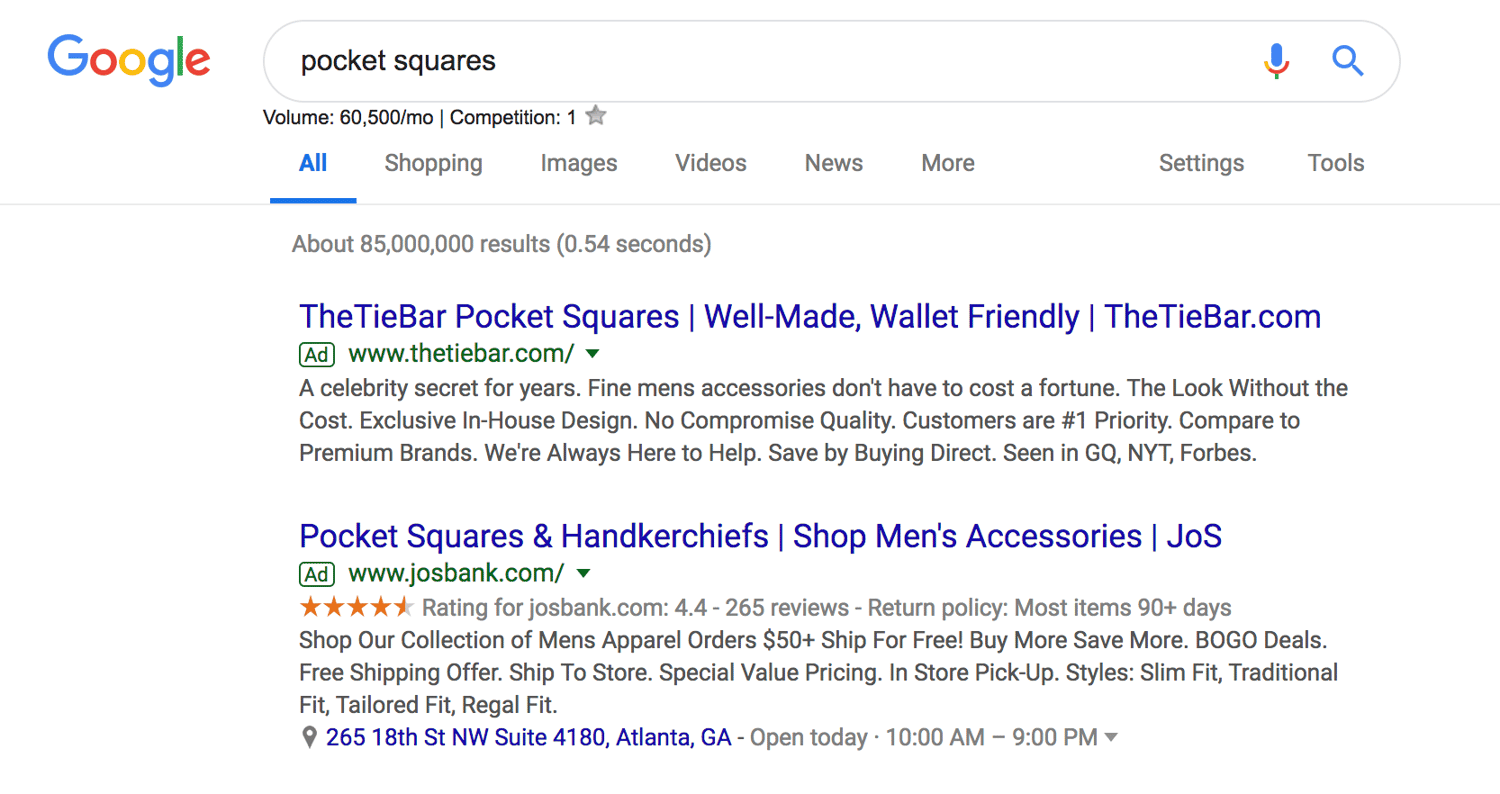
The benefit of search ads is that you’re displaying your ad in the place where most searchers look for information first — on Google. And Google shows your ad in the same format as other results (except for denoting it as an “Ad”) so users are accustomed to seeing and clicking on results.
Responsive Search Ads
Responsive search ads allow you to enter multiple versions of headlines and ad copy (15 and four variations, respectively) for Google to select the best performers to display to users. With traditional ads, create one static version of your ad, using the same headline and description each time. Responsive ads allow for a dynamic ad that is auto-tested until you arrive at the version that is best suited for your target audience — for Google, that means until you get the most clicks.
Display Ads
Google has a network of websites in various industries and with an array of audiences that opt in to display Google Ads, known as the Google Display Network. The benefit to the website owner is that they’re paid per click or impression on the ads. The benefit to advertisers is that they can get their content in front of audiences that are aligned with their personas. These are typically image ads that draw users attention away from the content on the webpage.
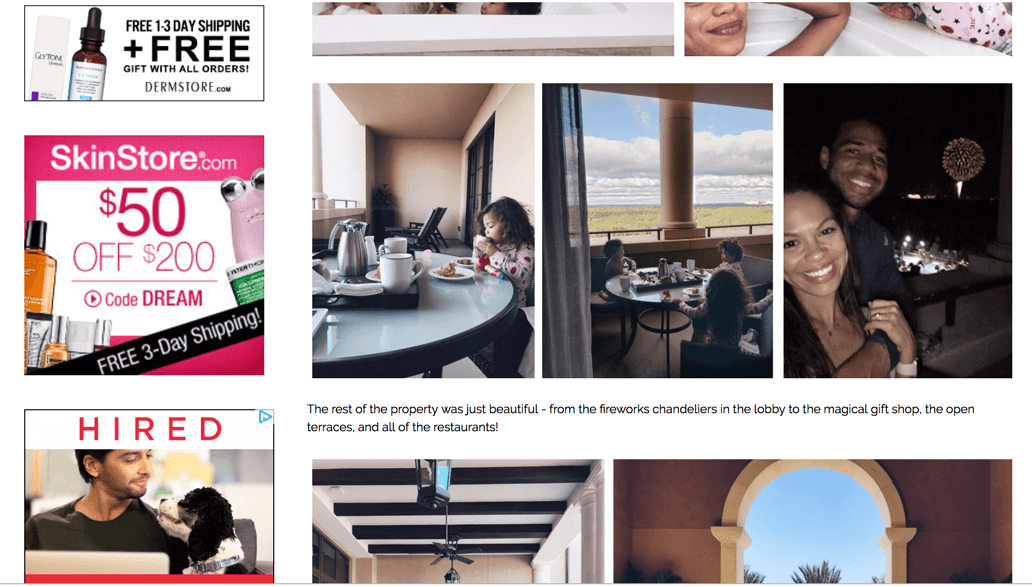
Additional options for Display Ads include shopping campaigns and app campaigns, which are displayed on search engine results pages.
Video Ads
Video ads are displayed before or after (and sometimes in the middle of) YouTube videos. Remember, YouTube is a search engine, too. The right keywords will place you in front of a video, disrupting the user’s behavior just enough to grab their attention.
Location
When you first set up your Google Ad, you’ll select a geographical area where your ad will be shown. If you have a storefront, this should be in a reasonable radius around your physical location. If you have an ecommerce store and a physical product, your location should be set in the places where you ship. If you provide a service or product that is accessible worldwide, then the sky’s the limit.
Your location settings will play a role in placement. For instance, if you own a yoga studio in San Francisco, someone in New York that enters “yoga studio” will not see your result, no matter your AdRank. That’s because Google’s main objective is to display the most relevant results to searchers, even when you’re paying.
Keywords
Keyword research is just as important for paid ads as it is for organic search. Your keywords need to match searcher intent as much as possible. That’s because Google matches your ad with search queries based on the keywords you selected. Each ad group that you create within your campaign will target a small set of keywords (one to five keywords is optimal) and Google will display your ad based on those selections.
Match Types
Match Types give you a little wiggle room when it comes to your keyword selections — they tell Google whether you want to match a search query exactly or if your ad should be shown to anyone with a search query that’s semi-related. There are four match types to choose from:
- Broad Match is the default setting that uses any word within your keyword phrase in any order. For example, “goat yoga in Oakland” will match “goat yoga” or “yoga Oakland.”
- Modified Broad Match allows you to lock in certain words within a keyword phrase by denoting them with a “+” sign. Your matches will include that locked-in word at the very least. For example, “+goats yoga in Oakland” could yield “goats,” “goats like food,” or “goats and yoga.”
- Phrase Match will match with queries that include your keyword phrase in the exact order but may include additional words before or after it. For example, “goat yoga” can yield “spotted goat yoga” or “goat yoga with puppies.”
- Exact Match maintains your keyword phrase as it is written in the exact order. For example, “goat yoga” will not show up if someone types “goats yoga” or “goat yoga class.”
If you’re just starting out and don’t know exactly how your persona will be searching, move from a broad match to a more narrow approach so you can test which queries yield the best results. However, since your ad will be ranking for many queries (some unrelated) you should keep a close eye on your ads and modify them as you can gain new information.
Headline and Description
Your ad copy can be the difference between a click on your ad and a click on your competitor’s ad. It’s important that your ad copy matches the searcher’s intent, is aligned with your target keywords, and addresses the personas pain point with a clear solution.
To illustrate what we mean, let’s review an example.

A search for “baby swim lessons” yielded this result. The copy is concise and uses the limited space wisely to convey their message and connect with their target audience.
The Swim Revolution knew to put the keyword in their headline so we instantly know that this ad matches what we’re looking for. The description tells us why this is the best option for swim lessons because it addresses the concerns of their persona — a parent looking to enroll their baby in a swim class. They use words like “skills,” “fun,” “confidence,” and “comfort in the water” to ease our nerves about putting a baby in a pool and to prove to us that we will get what we want out of this class — an infant that can swim.
This kind of ad copy will get you clicks, but conversions will result from carrying this level of intention into your landing page copy.
Ad Extensions
If you’re running Google Ads, you should be using Ad Extensions for two reasons: they’re free, and they give users additional information and another reason to interact with your ad. These extensions fall within one of these five categories:
- Sitelink Extensions extend your add — helping you stand out — and provide additional links to your site that offer users more enticing reasons to click.
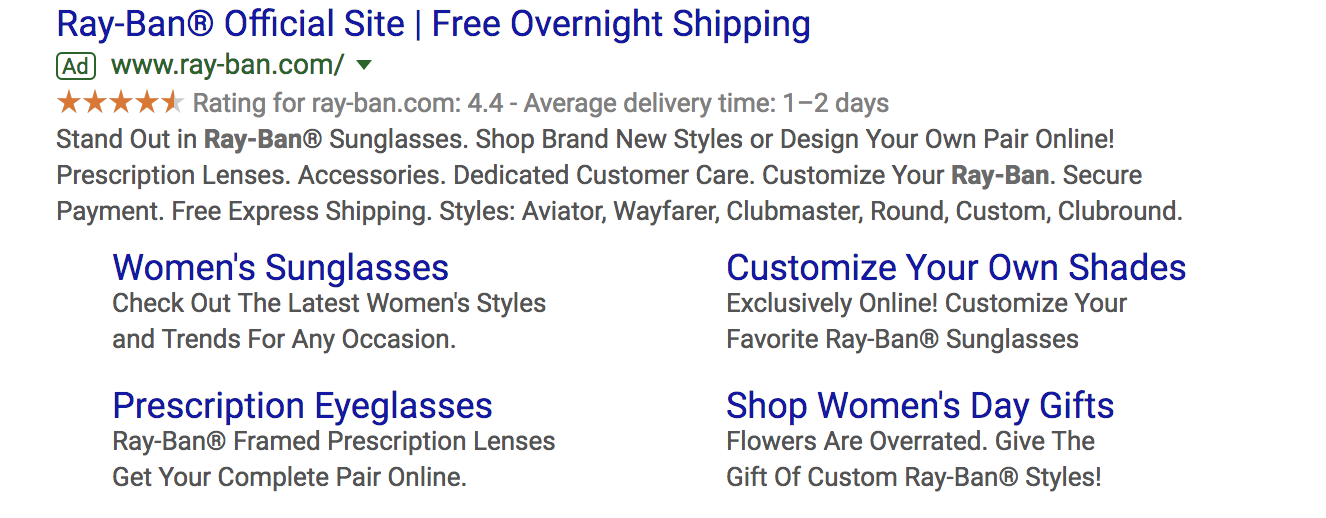
- Call Extensions allow you to incorporate your phone number in your ad so users have an additional (and instant) way to reach out to you. If you have a customer service team that is ready to engage and convert your audience, then include your phone number.

- Location Extensions include your location and phone number within your ad so Google can offer searchers a map to easily find you. This option is great for businesses with a storefront and it works well for the search query “…near me.”

- Offer Extensions work if you’re running a current promotion. It can entice users to click your ad over others if they see that your options are discounted compared to your competitors.
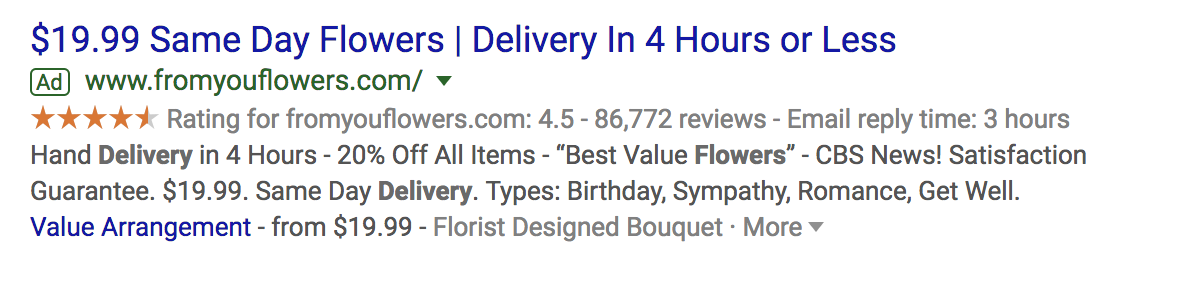
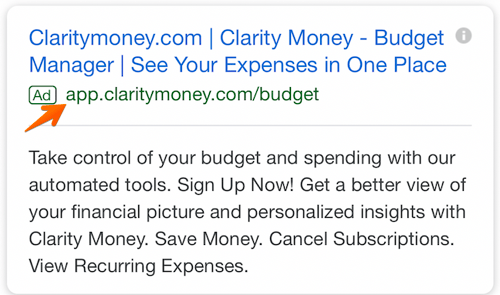
- App Extensions provide a link to an app download for mobile users. This reduces the friction from having to perform a new search to find and download the app in an AppStore.
Google Ads Retargeting
Retargeting, a.k.a. remarketing, in Google Ads is a way to advertise to users who have previously interacted with you online but have not yet converted. Tracking cookies will follow users around the web and target these users with your ads. Remarketing is effective since prospects need to see your marketing at least seven times before they become a customer.
How to Set Up Your Google Ads
Setting up your paid campaigns on Google is relatively easy (and quick), mostly because the platform takes you through the setup and provides helpful hints along the way. Once you visit the Google Ads site and click “Start Now,” you’ll be taken through a series of steps to get your ads up and running. If you have your ad copy and/or images created, set up should take you no more than 10 minutes.
What may be less obvious are all the additional things you need to do to make sure your ads are optimally set up and easily trackable. Let’s cover these together. These are the steps you’ll take once your ads are submitted for review.
Link Google Analytics
You likely have Google Analytics set up on your website so you can track traffic, conversions, goals, and any unique metrics. You also need to link your Analytics account to Google Ads. Linking these accounts will make tracking, analyzing, and reporting between channels and campaigns much easier because you can view these events in one place.
Add UTM Codes
Urchin Tracking Module (UTM) codes are used by Google to track any activity associated with a specific link. You’ve probably seen them before — it’s the part of a URL that follows a question mark (“?”). UTM codes will tell you which offer or ad led to a conversion so you can track the most effective parts of your campaign. UTM codes make it easier to optimize your Google Ads since you know exactly what’s working.
The trick, though, is to add your UTM codes at the campaign level when you set up your Google Ads so you don’t have to do so manually for each ad URL. Otherwise, you can add them manually with Google’s UTM builder.
Set Up Conversion Tracking
Conversion tracking tells you exactly how many customers or leads you’ve acquired from your ad campaigns. It’s not mandatory to set up but, without it, you’ll be guessing the ROI of your ads. Conversion tracking allows you to track sales (or other activities) on your website, app installs, or calls from your ads.
Manage and organize your ads with our free Google Ads Kit and Templates.
Integrate Your Google Ads With Your CRM
There is something to be said about keeping all of your data in one place where you can track, analyze, and report on it. You already use your CRM to track contact data and lead flows. Integrating Google Ads with your CRM gives you the ability to track which ad campaigns are working for your audience so you can continue marketing to them with offers that are relevant.
Google Ads Bidding Strategies
Once you’ve set up your ad campaigns and have tracking in place, it’s time to start bidding. Remember, your ability to rank in Google Ads depends on how you bid. While your bid amount will depend on your budget and goals, there are a few strategies and bid settings you should be aware of when launching your paid campaign.
Automated vs. Manual Bidding
You have two options when it comes to bidding on your keywords — automated and manual. Here’s how they work:
- Automated Bidding puts Google in the driver’s seat and allows the platform to adjust your bid based on your competitors. You can still set a maximum budget, and Google will work within a range to give you the best chance at winning the bid within those constraints.
- Manual Bidding let’s you set the bid amounts for your ad groups and keywords, giving you the chance to reduce spending on low-performing ads.
Bidding on Branded Search Terms
Branded terms are those with your company or unique product name in them, like “HubSpot CRM.” There is much debate on whether to bid on your branded terms or not. On one side of the debate, bidding on terms that will likely yield organic results could be seen as a waste of money.
On the other side, bidding on these terms gives you domain over these search results pages and helps you convert prospects that are further along the flywheel. For instance, if I’ve been doing research on live chat tools and am heavily considering HubSpot’s Live Chat, then a simple search for “HubSpot live chat software” will yield exactly the result I’m looking for without the effort of scrolling.
The other argument in favor of bidding on your branded terms is that competitors may bid on them if you don’t, thereby taking up valuable real estate that should belong to you.
Cost Per Acquisition (CPA)
If the idea of spending money to convert prospects into leads makes you uneasy, then you can set a CPA instead and only pay when a user converts into a customer. While this bidding strategy could cost more, you can take comfort in knowing that you only pay when you acquire a paying customer. This strategy makes it easy to track and justify your ad spend.
Additional Resources to Optimize Your Google Ads
Your ad copy and headline is not the only component that will make your paid campaign successful. Getting a user to click is only the beginning … they should arrive on a landing page that’s optimized for conversion and then be taken to a Thank You page that tells them what to do next.
If you want your Google Ads to produce qualified leads and customers, then check out these additional resources and use them as guidelines as you set up your Google Ads campaign.
- Landing Page Best Practices will teach you how to set up a landing page that’s prime for conversions so you don’t waste those precious clicks.
- Optimized “Thank You” Pages shows you what to do with your new lead post-conversion, how to keep them on your site, and ways to maintain their attention.
- Tips for Mobile Google Ads teaches you the key differences between desktop and mobile ads and how to optimize both.
- Optimizing Google Ads Costs will show you how we, at HubSpot, maximize our Google Ads spend to get the best ROI.
- Quality Google Ads Examples That Convert shares examples of Google advertising campaigns that got it right.
Start Your Campaign
Given its reach and authority, Google Ads should be a part of your paid strategy. Use the tips we covered to get started, and remember to refine and iterate as you go. There’s no such thing as a Google Ads campaign that doesn’t work — there are only ones that need a bit more work. Using the strategy and information provided above, you have what you need to create a successful Google Ad campaign that drives clicks and converts leads.

The 19 Best Content Marketing Tools in 2019
While no content marketing tool can replace a solid strategy and talented humans, having the right tech stack can certainly help you get the job done better, easier, and more efficiently.
There are hundreds of content marketing tools available, some free or cheap and some very expensive. They also serve tons of different purposes, from content ideation to production to promote, optimization, and more. The content marketing technology landscape is growing every year.
This is exciting, since it means that if you have a problem, you can probably find a software solution to help you solve it. But it’s also overwhelming. How do you know which of the couple hundred tools are worth trying?
This post will help clarify those decisions for you. We’ll outline the top 19 content marketing tools in 2019.
The 19 Best Content Marketing Tools in 2019
- HubSpot
- WordPress
- Google Docs
- Airstory
- Grammarly
- Yoast
- Buzzsumo
- Ahrefs
- Vidyard
- Loom
- Trello
- Airtable
- Google Analytics
- HotJar
- Google Optimize
- Mutiny
- The Stocks.IM
- Canva
- Adobe Photoshop
1. HubSpot
HubSpot offers many content marketing tools, and many of them are free to try. These include:
- A powerful form builder
- Popup tools
- Live chat and chatbots
- And all-in-one WordPress plugin for marketing
In addition to free content marketing tools, if you really want to build a growth machine, HubSpot has a world-class CMS and the most powerful marketing automation platform in the industry and allows you to centralized everything to a free CRM. This means that, at each and every level of a company’s growth, HubSpot has some solution that can help you build your content marketing program.
HubSpot also makes products for sales and service teams. As such, it can really be the ground control for your whole business.
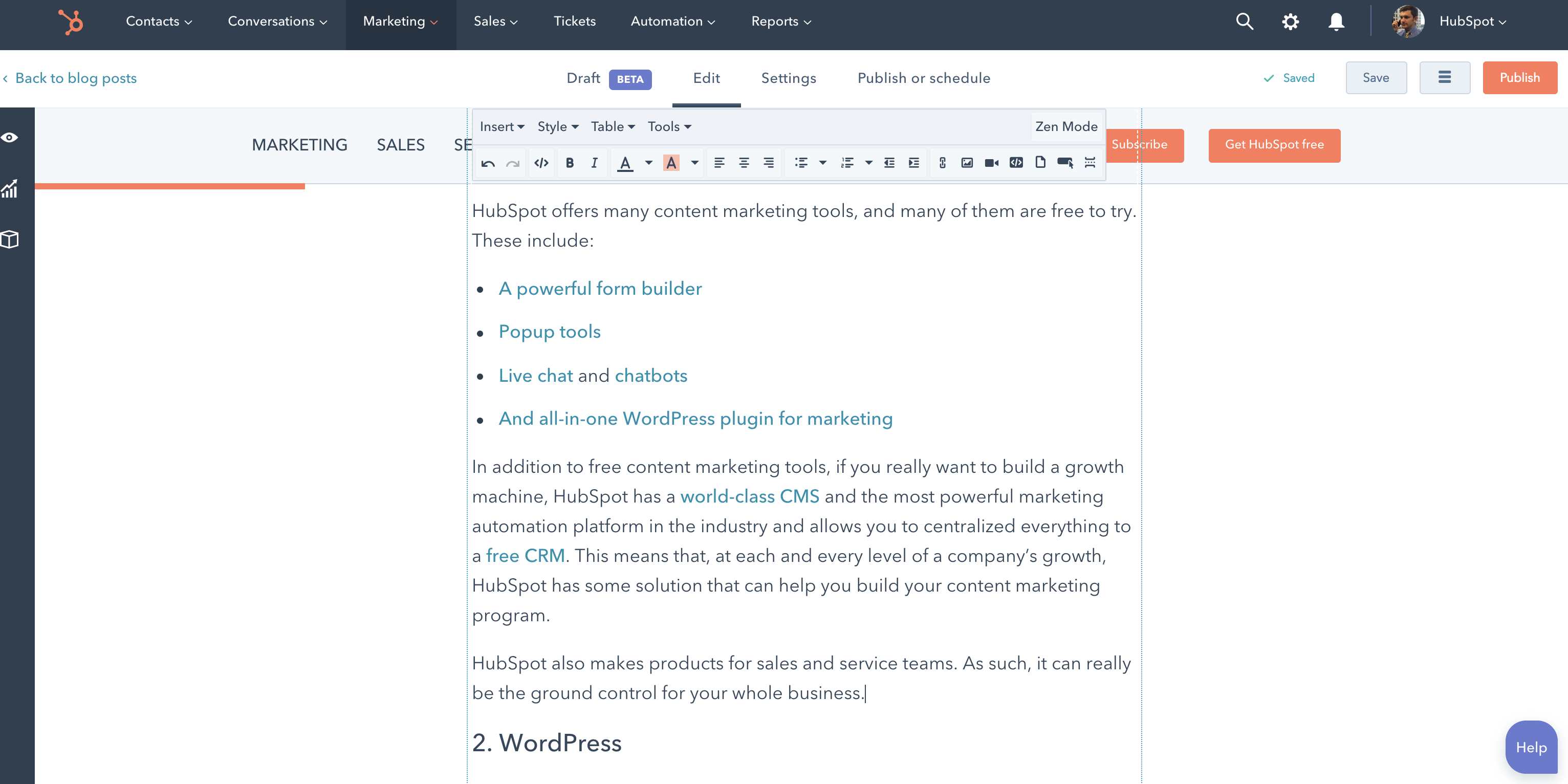
Meta, right?
2. WordPress
WordPress is the most widely used CMS in the world. As of August 2018, VentureBeat reported that WordPress powers about 30% of the internet in general.
Social proof can sometimes lead us astray, but in this case, it turns out that WordPress is a pretty powerful tool, both at the beginning stages and as your grow your content marketing program (it’s used by sites like The New Yorker and The Next Web)
At its core, WordPress is an open source CMS that allows you to host and build websites. You can self-host or host your site via WordPress.com. WordPress contains plugin architecture and a template system so you can customize any website to fit your business, blog, portfolio, or online store.
It’s a highly customizable platform and is widely used by bloggers.
3. Google Docs
Google Docs is to content marketing what a kitchen is to chefs: it’s where all of the work gets done before the final presentation.
Personally, I don’t know any content marketers who don’t use Google Docs to draft their articles. It’s the best platform for collaboration by a long shot, but it’s also easy to use has a pleasant user experience.
In addition, you can usually find a way to upload Google Docs directly to your CMS. In the case of HubSpot, you can do that by default. If you use WordPress, you can use a tool like Wordable to help you out.
Google Docs is free, quite ubiquitous, and pleasant to use. Not many reasons not to use it.
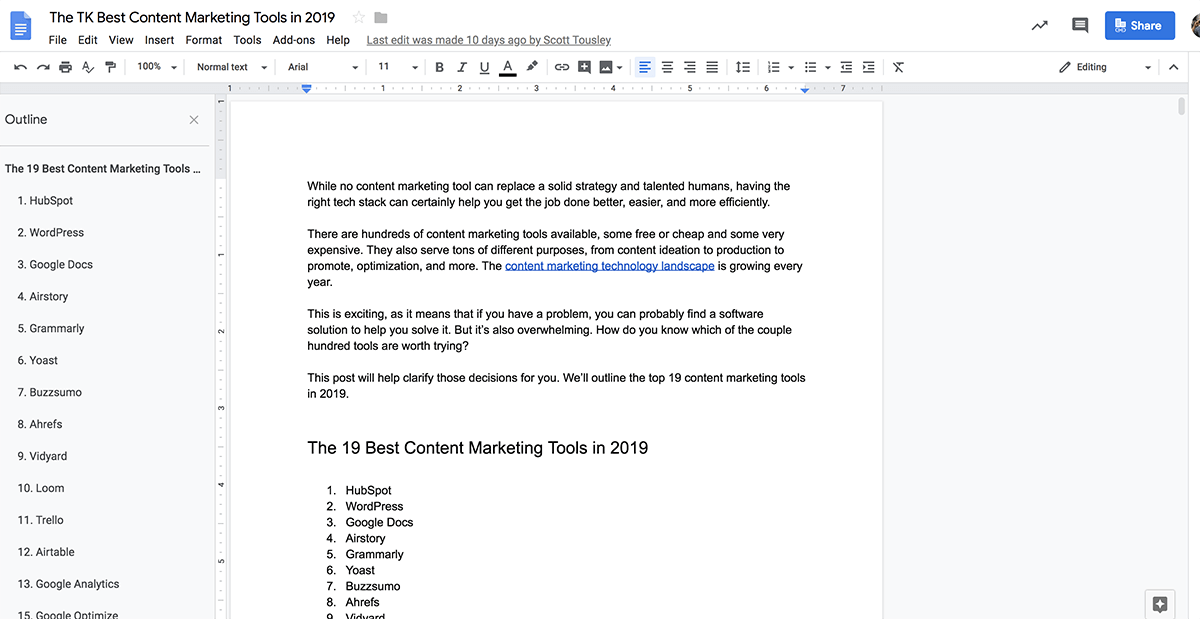
4. Airstory
If you do want to step up your writing and collaboration game, Airstory is a more powerful platform for writers. If you find yourself moving too often between Evernote, Google Docs, Google Drive, and you always seem to have a hundred tabs open for research, it might be time to look into Airstory.
It helps you save quotes, images, and multimedia and drag and drop it into any application where you do writing. As such, it’s an incredible tool for collaboration, but also for writers who are working on longer form content (such as books or ebooks).
5. Grammarly
Grammarly has changed the game for me. I’m not naturally what you would call “detail-oriented,” so if it weren’t for talented editors, you’d be tearing me apart right now for the multitude of grammar mistakes littering my articles.
Grammarly, however, reduces my error rate by probably 50-80%. I still have some mistakes slip through, but to a large extent, Grammarly saves me from embarrassment (not just when writing articles, by the way – it also works for social media and forum comments).
6. Yoast
Yoast is one of my favorite tools for writing SEO-focused content.
It’s a sort of “all-in-one” WordPress plugin for SEO that helps do pretty much everything, including optimizing content for a keyword, previewing and editing meta-descriptions and URL slugs, abstracting away technical SEO tasks, and suggesting relevant internal links.

They have over 9,000,000 downloads, 4.9 out of 5 stars in the WordPress marketplace, and just anecdotally, everyone I know who uses WordPress uses Yoast. It’s just a great plugin.
7. Buzzsumo
Buzzsumo is a great multi-purpose content marketing research tool.
One of the main things it can do is help you analyze what content performs best for any topic or competitor. You can see metrics like social shares, backlinks, and which influencers are sharing as given piece of content.
They also have great influencer reports so you can see who the thought leaders are for a given topic area.
8. Ahrefs
Ahrefs is my personal favorite SEO tool, and I use it just about every day. It’s great for everything from tracking the rankings of your keywords to analyzing your competitors’ keywords and traffic and much more.
Everytime I think I’ve mastered the full functionality of Ahrefs, I find a new feature that surprises and delights me. The basics, such as keyword research or site analyzer, are wonderful. But I also love reports like “top pages” (where you can analyze the most valuable pages on a website), or “content gap” (where you can see what competitors rank for that you don’t).
9. Vidyard
Vidyard is a video marketing platform that helps you host, share, and promote video content on your website.
They have a sales solution as well to help you close more accounts, but the marketing solution is what I’m most used to. Vidyard’s video analytics are robust, you can run A/B tests and personalize videos, and you can even gate videos at a certain time length to help capture leads.
10. Loom
Loom is a tool that I’ve more recently begun using, but at this point it’s a staple for me.
It’s a simple tool, but one with powerful use cases, even beyond content marketing. What it does is allow you to create, edit, and share screen share videos. For content marketing, I love this, because I can create and embed tutorials for technical walkthroughs.
Organizationally, I love it as well. It’s great for communicating quick questions or explaining concepts to other team members (without requiring a full, synchronous meeting).
11. Trello
When you really start producing content, you’ll need some way to manage the process. This is particularly true if you’re working with many staff writers or guest writers.
My favorite tool for this is Trello.
Trello is a simple kanban and project management tool, which means it can be used for many purposes. In fact, I’ve used it for tons of things, like growth experiments, sales pipelines, and product feature roadmaps.
But I really like it as an editorial calendar tool.
12. Airtable
Airtable is another project management tool, though it’s a little more complicated (though also customizable). It’s kind of like a mixture between spreadsheets and Trello. Again, with Airtable, the use cases are many, but I really like it for two content marketing purposes:
- Editorial calendars
- Influencer/writer management
I’ve also used Airtable for several other things in the past, including growth experiments and general team operating documents.
13. Google Analytics
When talking about content marketing tools, you can’t leave measurement out of the discussion.
Surely, you can get some good insights from SEO tools like Google Search Console as well as previously listed tools like Ahrefs. But you’ll also want a digital analytics platform so you can track business metrics.
Google Analytics is one of the most widely used platforms online. It’s easy-to-use (at least the basic configurations), and it’s free. Two big benefits.
However, it’s also very powerful if you’re technical and know how to setup a proper configuration. You can not only track goals, like form submissions or product purchases, but you can also set up behavioral events, like scroll-depth.
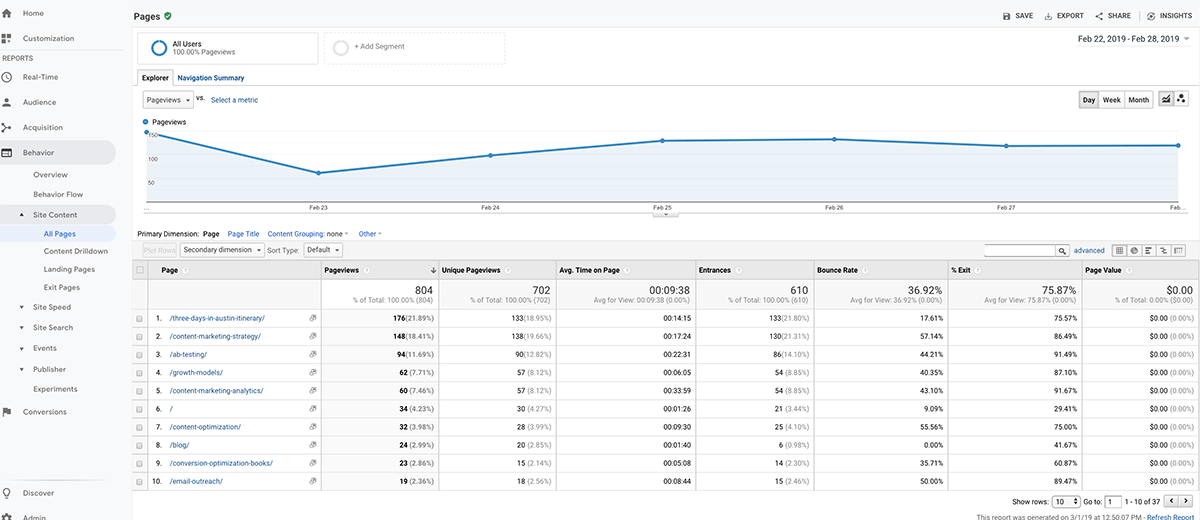
14. HotJar
HotJar is my favorite user experience analytics tool. It’s got some qualitative tools, such as on-site poll, surveys, and session replays. Where Google Analytics can help you uncover the “what” and “where” of user behavior, these tools can help you start to tiptoe into the “why.”
In addition, they also provide some quantitative tools such as heat maps. These allow you to get a good visual picture of where you visitors are clicking and scrolling.
One use case I love HotJar (outside of CRO) for is to source interesting content ideas:
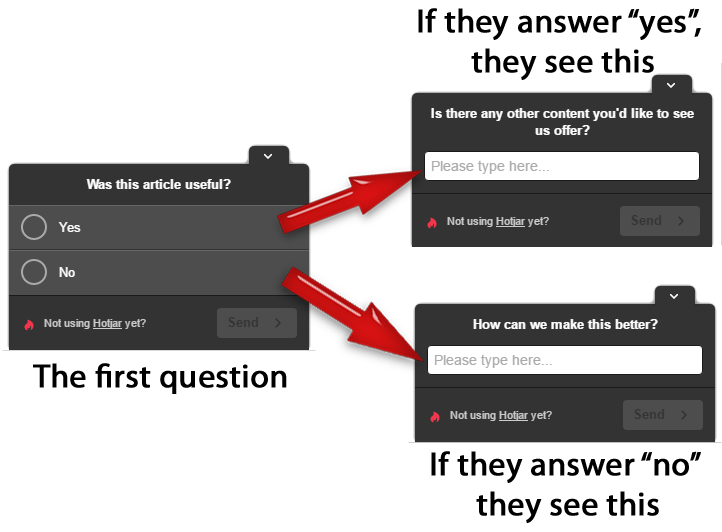
15. Google Optimize
We’ve got a quantitative digital analytics tool (Google Analytics) and a qualitative insights platform (HotJar), so we presumably can know a lot about our readers and our website at this point. But what if we want to make a change to our blog or landing pages?
My background is in optimization, so if there’s sufficient traffic, I like to set up A/B tests for site changes.
There are many tools out there for this, but I wanted to list Google Optimize because it’s free. It’s also a good starter option to get used to. If you do want to explore other options, here’s a good article comparing the market solutions. But Google Optimize is a great start.
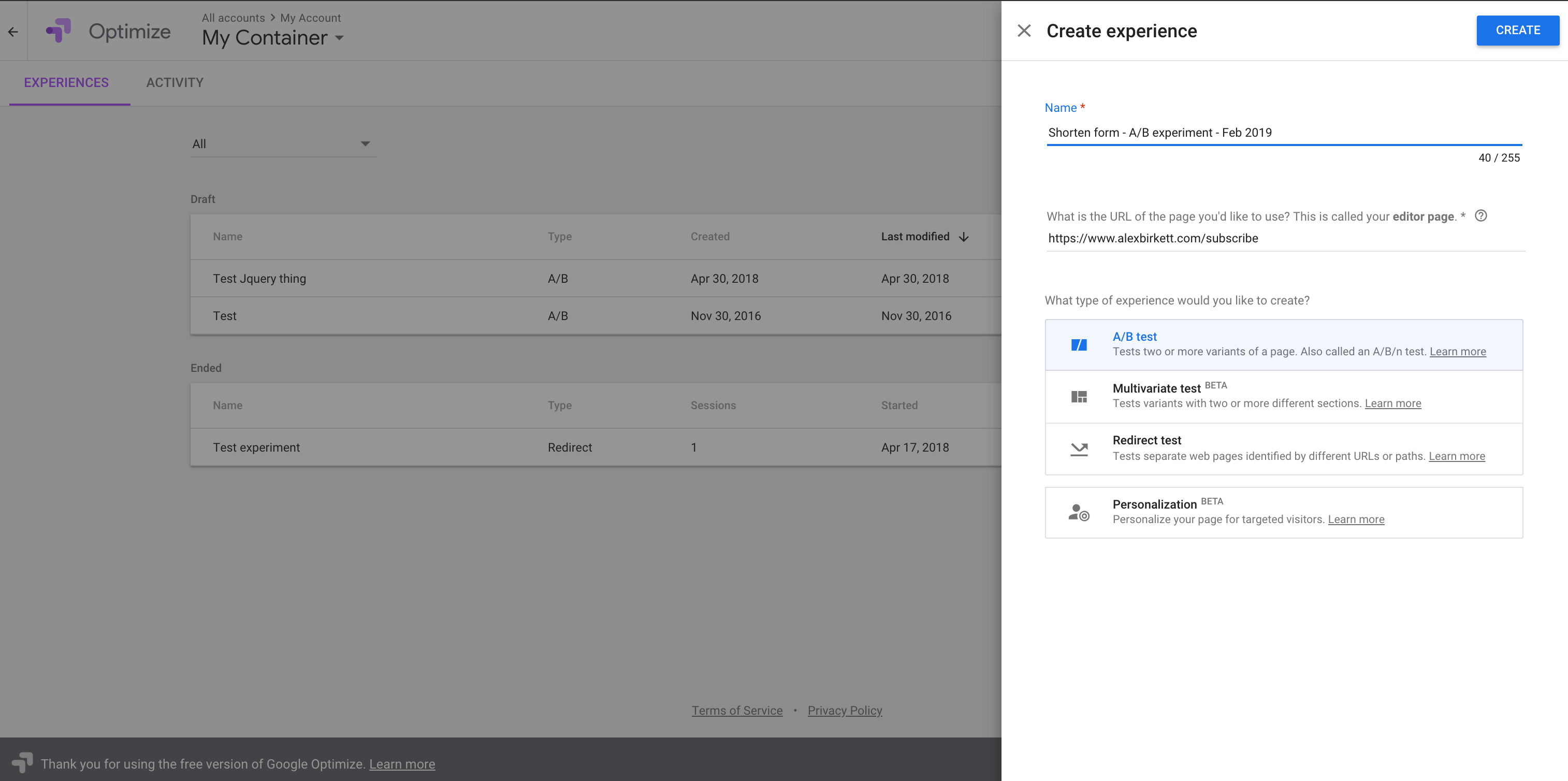
16. Mutiny
A/B testing is one thing; personalization is also an interesting avenue to explore.
Where A/B testing is a controlled experiment with a limited time-horizon, personalization allows you to deliver different unique experiences to subsets of your overall audience.
For example, you could target mobile users with different popup forms. Or you could target visitors who have read three blog posts with an offer for a specific e-book. Or you could target people who scroll 75% of the way down a certain blog post with an in-text CTA.
The options are endless, only limited by your time, resources, creativity, and prioritization.
Anyway, Mutiny is my favorite platform in this space. It’s designed for B2B, so if you’re in ecommerce you may want to look at another tool like Evergage. But Mutiny is a good and promising newer player with lots of functionality.
17. TheStocks.IM
Most good content marketing includes imagery, so it only makes sense to include a stock photo site here in our list of content marketing tools.
I like TheStocks.IM because it aggregates several free stock photo sites, including Unsplash (my favorite) and Pixabay.
18. Canva
What about when a stock image doesn’t cut it, and you want to make your own imagery?
Canva is a great option here.
With Canva, you really don’t need to have excellent graphic design skills. I’m a horrible designer, and I can make decent looking graphics with Canva. It’s really designed for the layperson.
This tool is great for all kinds of content marketing imagery, like social media images, blog cover photos, Twitter cover photos, etc. It’s pretty all-purpose.
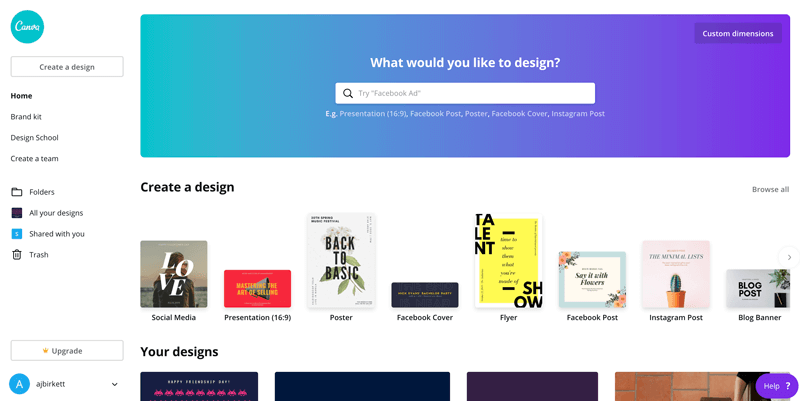
19. Adobe Photoshop
Now, what if you want to make your own imagery, but you actually are good at graphic design?
Well, in this case, Photoshop is the gold standard. It’s great for editing photographs as well as creating images such as Facebook photos, blog cover photos, and even screenshot tutorials.
I find that, just as with SQL, little bit of skill with Photoshop goes a long way.
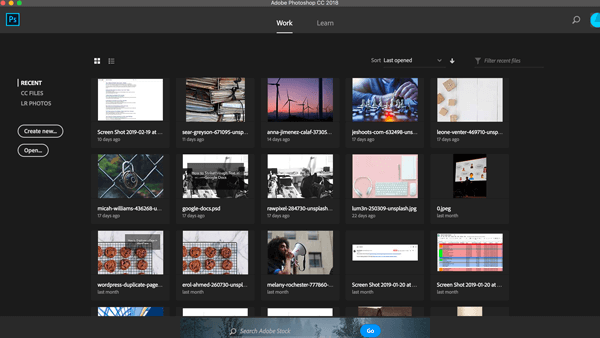 Not all of the content marketing tools on this list are free, though many of them are.
As such, if you’re a content marketer on a budget, look into the following tools, which can all be used or at least tested out for free.
13 Free Content Marketing Tools in 2019
- HubSpot
- WordPress
- Google Docs
- Grammarly
- Yoast
- Loom
- Trello
- Airtable
- Google Analytics
- HotJar
- Google Optimize
- The Stocks.IM
- Canva
Content marketing tools won’t save a bad content strategy or a bad product
… but they’ll certainly help you get the job done faster and more effectively.
Obviously there are many more content marketing tools out there, but for this list, I tried to only list those that you really need as well as the tools that I like the most.

18 Quotes About Networking That’ll Help You Connect With People
Science has shown the most successful people are often also those who rely heavily on the power of networking.
Ultimately, pursuing opportunities to connect with industry leaders or professionals with varying interests and perspectives is critical to your own career growth.
However, networking can be exhausting — and, at the end of a long work day, it might be the last thing you want to do.
When you’re sitting at your desk unsure if you’re actually going to go to the networking event you’ve had penciled on your calendar, it’s important you muster up both the energy and the motivation to power through and channel the confidence you need to make authentic connections.
Here, we’ve cultivated a list of 18 networking quotes to help you connect with people — and remember why it matters.
Networking Quotes
- “The currency of real networking is not greed but generosity.” — Keith Ferrazzi
- “Networking is a lot like nutrition and fitness: we know what to do, the hard part is making it a top priority.” — Herminia Ibarra
- “Networking is an investment in your business. It takes time and when done correctly can yield great results for years to come.” — Diane Helbig
- “The successful networkers I know, the ones receiving tons of referrals and feeling truly happy about themselves, continually put the other person’s needs ahead of their own.” — Bob Burg
- “I’m convinced that about half of what separates successful entrepreneurs from the non-successful ones is pure perseverance.” — Steve Jobs
- “Your network is your net worth.” — Porter Gale
- “You can have everything in life you want if you will just help enough other people get what they want” — Zig Ziglar
- “My Golden Rule of Networking is simple: Don’t keep score.” — Harvey Mackay
- “Courage starts with showing up and letting ourselves be seen.” — Brene Brown
- “Instead of better glasses, your network gives you better eyes.” — Ronald Burt
- “Networking is marketing. Marketing yourself, your uniqueness, what you stand for.” — Christine Comaford-Lynch
- “Networking is not about just connecting people. It’s about connecting people with people, people with ideas, and people with opportunities.” — Michele Jennae
- “Pulling a good network together takes effort, sincerity and time.” — Alan Collins
- “Networking is an enrichment program, not an entitlement program.” — Susan RoAne
- “The single greatest ‘people skill’ is a highly developed and authentic interest in the other person.” — Bob Burg
- “Technology is nothing. What’s important is that you have a faith in people, that they’re basically good and smart, and if you give them tools, they’ll do wonderful things with them.” — Steve Jobs
- “Know where you want to go and make sure the right people know about it.” — Meredith Mahoney
- “Success isn’t about how much money you make; it’s about the difference you make in people’s lives.” — Michelle Obama
1. “The currency of real networking is not greed but generosity.” — Keith Ferrazzi
2. “Networking is a lot like nutrition and fitness: we know what to do, the hard part is making it a top priority.” — Herminia Ibarra
3. “Networking is an investment in your business. It takes time and when done correctly can yield great results for years to come.” — Diane Helbig
4. “The successful networkers I know, the ones receiving tons of referrals and feeling truly happy about themselves, continually put the other person’s needs ahead of their own.” — Bob Burg
5. “I’m convinced that about half of what separates successful entrepreneurs from the non-successful ones is pure perseverance.” — Steve Jobs
6. “Your network is your net worth.” — Porter Gale
7. “You can have everything in life you want if you will just help enough other people get what they want” — Zig Ziglar
8. “My Golden Rule of Networking is simple: Don’t keep score.” — Harvey Mackay
9. “Courage starts with showing up and letting ourselves be seen.” — Brene Brown
10. “Instead of better glasses, your network gives you better eyes.” — Ronald Burt
11. “Networking is marketing. Marketing yourself, your uniqueness, what you stand for.” — Christine Comaford-Lynch
12. “Networking is not about just connecting people. It’s about connecting people with people, people with ideas, and people with opportunities.” — Michele Jennae
13. “Pulling a good network together takes effort, sincerity and time.” — Alan Collins
14. “Networking is an enrichment program, not an entitlement program.” — Susan RoAne
15. “The single greatest ‘people skill’ is a highly developed and authentic interest in the other person.” — Bob Burg
16. “Technology is nothing. What’s important is that you have a faith in people, that they’re basically good and smart, and if you give them tools, they’ll do wonderful things with them.” — Steve Jobs
17. “Know where you want to go and make sure the right people know about it.” — Meredith Mahoney
18. “Success isn’t about how much money you make; it’s about the difference you make in people’s lives.” — Michelle Obama
