
Will Amazon Take Over the Digital Ad Space? [New Data]
A new report from CNBC says that many advertisers are shaking up their digital budgets, and dedicating more money to Amazon ads.
According to the report, some of these advertisers are reallocating as much as half of the money they previously dedicated to Google search ads, to Amazon: a shift that reflects a few key findings on the growth of Amazon’s ad platform in recent months.
Amazon is now the third-largest digital ad platform, behind Facebook and Google. And according to Ben Winters of Ideoclick — a company that works with companies to optimize online sales — Amazon’s ad revenue is growing at 5X the rate as Google’s.
But can Amazon really overtake two large competitors — Facebook and Google — in the digital ad space? The answer to that question could depend on two things: User behavior, and how it could change over time.
To find out what that looks like, we decided to gather some data. Here’s what we found.
Where Are People More Likely to Buy?
We asked 834 internet users across the U.S., UK, and Canada: Have you ever bought a product based on an ad you saw online?
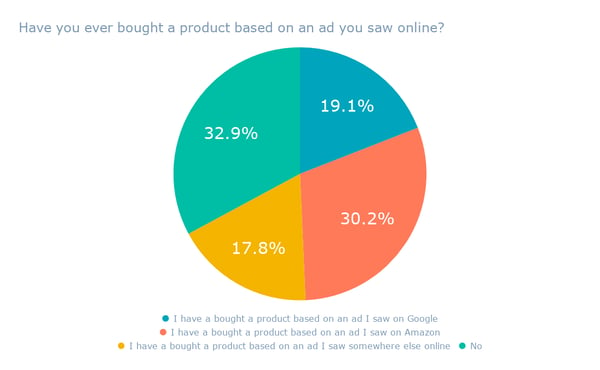
Based on those who indicated they have bought a product based on an online ad, 30.2% indicated they did so because of an ad they saw on Amazon. That’s more than those who say they bought a product based on a Google-based ad.
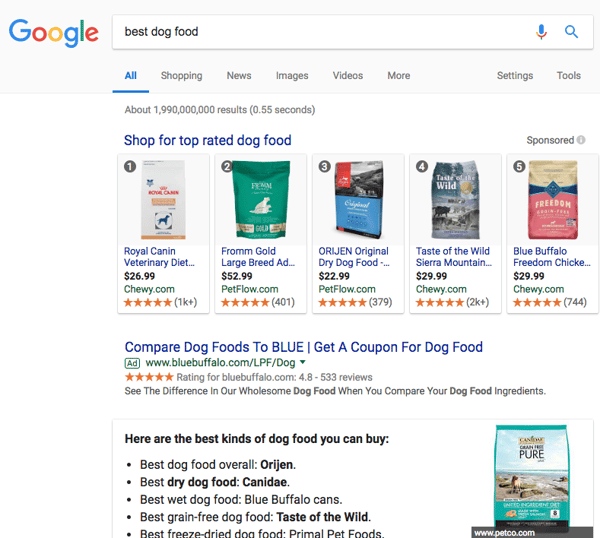
To dig a bit deeper into the results, let’s think about user intent. Here are the ads that result from a search for “best dog food” on Google:
And here’s what they look like on Amazon:
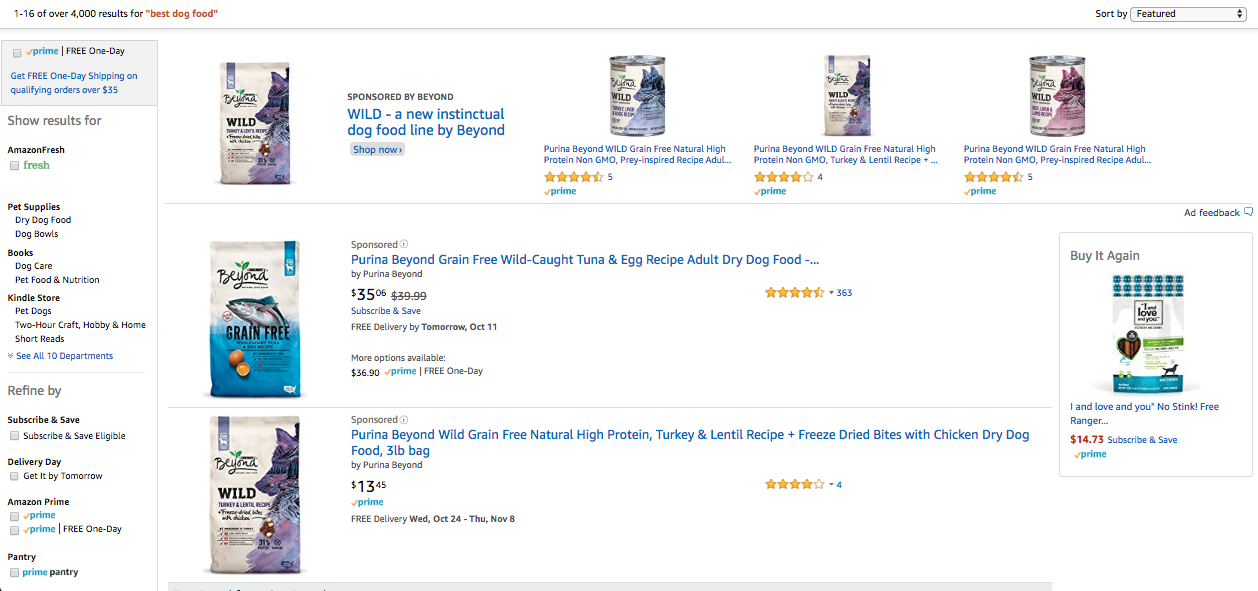
The results on both platforms lead with sponsored products. But here’s the thing: On Amazon — a site essentially dedicated to online shopping — it’s more likely that I’m searching for something like “best dog food” with the intention to buy it. On Google, conversely, it could be that I’m just looking for information.
It could be argued, too, that ads are a bit more native on Amazon. When users search for a product there — and nearly half of all online product searches begin on Amazon — they typically expect to see a list of products in the results. On Google, that might be different, and users might expect to see information over product listings, making sponsored results more salient, and less cohesive with the rest of the search experience.
Market Dominance Could Take Time
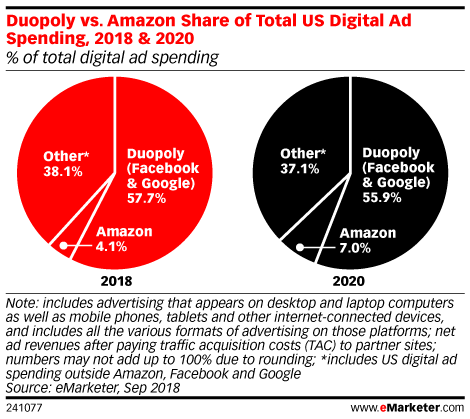
Even if Amazon does take the lead in U.S. digital ad spending over Facebook or Google, it appears to be a long-tail victory.
Source: eMarketer
As per the chart above, eMarketer’s predicts that through 2020, Amazon will see its ad revenue growing by about 50% per year, growing its market share from 4% to 7%.
But even if that somewhat impressive, projected growth comes to fruition, there will still be a considerable gap between Amazon’s digital ad revenue market share, and the percentage owned by Facebook and Google.
There’s reason to believe Amazon’s share in the digital ad spend market will continue to grow, however, even if gradually. That could be especially true if Amazon can scale its video ad offerings, potentially positioning it as a threat to Facebook’s own video ad platform and the Google-owned YouTube.
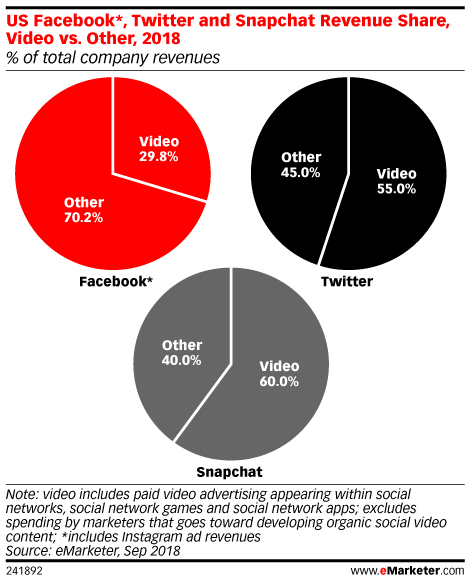
eMarketer also predicts to see significant growth in video ad spend — by 30% this year alone — with Facebook currently accounting for 25% of the share. But within that, eMarketer only measures Facebook share among other social networks, like Twitter and Snapchat — not among broader ad platforms, like Google or Amazon.
Source: eMarketer
In any case, Amazon’s ad platform shouldn’t be ignored by marketers and small-to-midsize businesses, even if its growth is slow and steady. As a start, advises IdeoClick’s Andrea Leigh, look at where your brand has a larger or engaged audience, and figure out how that could eventually lead to an Amazon advertising strategy.
“If you have a social following, or do a lot of events, you can send that audience to Amazon,” she says. “We call that ‘juicing the flywheel.’”
And like its competitor Google, there’s a search optimization element to advertising on Amazon — especially when it comes to knowing what your target buyers are searching for on Amazon. Leigh suggests checking out Keywordtool.io‘s tools for finding Amazon search keywords, to help businesses understand what their target buyers are searching for.
But in the end, know that it’s good news. As more platforms compete for advertiser dollars, it could come down to which one provides the best experience and ROI for them — which, if approached with the right growth mindset, can ultimately work in your favor.

The Ultimate Guide to Augmented Reality
Picture this: It’s rainy Saturday afternoon and you’re spending your day indoors at a local art museum. You meander from room to room staring at all the art, but not really absorbing any information. The information next to the art is too small, too crowded, or frankly, too boring. You quickly lose interest and make your way to the cafe.
If you’re anything like me, the situation I just described sounds pretty familiar. Let’s face it, it’s hard to stay engaged at a museum when the information provided isn’t that engaging or easily accessible. But what if there was a different way to consume information about artwork? Imagine if you could receive interesting information about a painting simply by pointing your phone at it — creating a frictionless and delightful experience.

Source: Cuseum
Sound far-fetched? It’s not. In fact, the technology is already in use. And not only is it used in museums, it’s part of your favorite social media apps too. What helps you become a dog and get cultural information at the touch of a button? Augmented reality (AR) of course!
But while this technology is familiar in some settings, it’s definitely not simple. Behind every fun filter is augmented reality, or AR, hard at work — altering and enhancing our reality in real-time. And AR can do much more than transform your face or recognize your favorite paintings. It allows people to interact with digital objects in their home, in stores, and in public spaces.
We understand that augmented reality (AR) can be confusing. That’s why we created this AR guide. Here we’ll walk through what AR is, how it differs from virtual reality, its applications, and how growing businesses should use it.
History of Augmented Reality (AR)
You’re probably thinking, I guess I’ve used AR, but can we do a deeper dive? As we stated above, augmented reality (AR) is an enhanced or altered form of reality where superimposed content gets added to users’ real-world views.
Those Snapchat filters? Yeah, that’s augmented reality. Pokemon Go? Totally augmented reality. Oculus Rift? Well, no. That’s actually virtual reality, and we’ll get to that later. Augmented reality (AR) assists fighter pilots flying at nearly twice the speed of sound and helps surgeons to perform complicated procedures, but it wasn’t always this advanced or accessible.
AR technology was born at Harvard University in 1968. Ivan Sutherland, an electrical engineering professor, created a head-mounted display system, nicknamed “The Sword of Damocles.” Sounds intimidating, right? It was. The massive headset weighed so much that it was anchored to the ceiling to operate. Users also had to be strapped into the system for it to work, making the experience pretty uncomfortable.
Over the next several decades, advancements in AR led to helpful aviation, military, and industrial simulation tools, but the technology didn’t gain a national audience until the late 1990s. One of the first widely visible uses of augmented reality came from an unexpected source: the NFL. The yellow line signifying a first-down, the one we have all grown to depend on over the past 20 years, is probably one of the most visible and helpful uses of AR.
Since then, AR has evolved at a rapid pace and is being used for both commercial and individual purposes. Between 2011 and 2013, AR was embraced by companies like Disney, Coca-Cola, and National Geographic to execute campaigns at large events and in public spaces like shopping malls and Times Square. In 2014, Google released Google Glass — the first mass-produced, wearable AR device — making it easy to get digital information simply by nodding your head. Snapchat added the geofilter feature a few months later, allowing users to add graphics showcasing geographic locations to their photos. They then introduced Lenses, a feature that maps users’ faces to add motion graphics to photos and videos. As of the end of 2017, 187 million people used Snapchat daily. And that’s just Snapchat. AR is now so popular that multiple social networks, businesses, and retailers use the technology. That’s a lot of augmented reality.
Cameras and Sensors
To create augmented reality, you first need to capture some actual reality with sensors and cameras that gather information on the users’ actual surroundings. This real-time information is a backdrop for the experience. Smartphone applications simply use your phone’s built-in camera, while more complicated devices like Microsoft’s HoloLens use a variety of specialized built-in cameras. In general, AR experiences work better with cameras that can read images in 3D, like the iPhone X’s TrueDepth camera, since the depth information allows for more realistic experiences.
Processing
Realistic augmented reality also requires enough processing power to analyze inputs like acceleration, position, tilt, and depth in real-time to create immersive interactions. Fortunately for us, this is something our smartphones are now capable of doing without additional hardware. For this reason, we no longer need to mount our AR devices to the ceiling like the Sword of Damocles. But it wasn’t easy getting to this point. It took Google years to shrink the three cameras and spacial awareness sensors to a size small enough to fit into a phone. As AR becomes more advanced, more devices will continue to incorporate the impressive technology.
Projection
After capturing real-world information, the augmented reality device then uses projection to layer digital renderings onto the scene. Currently, the projections display onto a smartphone screen or multiple screens within a wearable device. It’s also possible to project directly onto surfaces, removing the need for any headset or screen at all.
Types of Augmented Reality (AR)
Although all AR devices share a few things in common, there are actually many kinds of augmented reality, and each one is better suited for different uses. In this section, we’ll quickly go over five different types of AR and some of their strengths and weaknesses.
Marker-based, or image recognition augmented reality, uses a trigger object as a cue to display content. The trigger could be something like a QR code or even a cereal box. This type of AR requires the least amount of processing power and is fairly easy to implement, but it isn’t as versatile as other kinds of AR because it relies on specific triggers being present.
Markerless augmented reality is more versatile than marker-based AR. Instead of trigger objects, this type of AR uses cameras, GPS, and accelerometer information to track where the user is and display relevant information. This combination of inputs is known as Simultaneous Localization And Mapping, or SLAM for short. Most types of AR available today use SLAM for markerless experiences.
As the name implies, projection-based AR projects digital images directly onto objects or surfaces within the user’s environment. With projection-based AR, you could project a functioning keyboard on your desk. This type of AR negates the need for a screen or headset and allows users to create surreal experiences for large audiences. While impressive, projection AR isn’t always the most practical option for smaller scale uses.
Outlining AR is also fairly self-explanatory. Instead of changing an entire scene, this type of AR uses image recognition to outline boundaries and shapes. It is most commonly used to help drivers see the edges of the road in low-light and to guide pilots towards landing strips. If the Titanic was setting sail now, they could have used outlining AR to avoid that iceberg … but then Leo and Kate would never have wowed us with their moving performances.
Superimposition based AR uses object recognition to partially or entirely replace an object within the user’s environment with a digital image. For example, a doctor can use this type of augmented reality to add a digital x-ray over part of a patient’s body during an operation.
Augmented Reality (AR) vs. Virtual Reality (VR)
We’ve covered some ins and outs of augmented reality, but you may still be thinking, “all of this still sounds a lot like virtual reality.” So what’s the difference? For starters, VR typically gets most of the attention from high-profile products like the Oculus Rift and Samsung Gear VR headsets. Virtual reality also goes one step beyond AR to create entirely new digital worlds.
When using VR, what you see and experience is different from what’s actually around you. What you see and hear is entirely simulated. While this freedom creates lots of exciting opportunities, it also makes VR impractical for many common tasks and means you need to be careful when using headsets to avoid embarrassing situations. AR is less intrusive and easier to apply to everyday life since it combines added digital elements with the physical world around you.
Augmented Reality (AR) Applications and Examples
As you may have guessed, augmented reality has many uses beyond just digitally imposing flower crowns on your head or catching Pokemon. Because the technology is so adaptable, you can use AR just about everything. Here we’ll talk about some of the more popular applications for augmented reality and provide some examples of it in use.
Transportation
As a frequent flier, I don’t look for too much in my airlines. Just the basics like quality food, complimentary drinks, in-flight movies, a checked bag or two, free Wi-Fi, live TV, priority lounges, and pilots who can take off and land the plane. Augmented reality is helping with at least one of those things. Companies like Aero Glass have created augmented reality headsets that display airports, cities, navigation points, terrain features, other aircraft, and landing approaches for pilots. These features help pilots operate their planes, even when clouds or fog reduce visibility, which keeps flights safe and on time. That’s something I think we can all get behind.
And air travel isn’t the only mode of transportation AR is helping. If you’re like most Americans, you likely spend around 293 hours, or a little over 12 days, driving each year. Tools like WayRay’s Navion are changing the way we drive by projecting navigation instructions onto the windshield of the car. Navion also introduces gesture control commands to prevent drivers from looking down at their phones to enter or change a route. In addition to more intuitive navigation, these kinds of AR integrations have the potential to make roads safer by reducing the amount of time drivers spend looking away from the road.
Retail
While augmented reality can’t assemble your IKEA furniture for you, it can help you decide which Ypperlig or Ekedalen table would look best in your dining room. With IKEA’s new “IKEA Place” app, customers can preview over 2,000 pieces of virtual furniture in actual rooms within their home. This “try before you buy” model isn’t limited to Scandinavian furniture stores — architects and engineers are also using augmented reality to sample building materials, finishes, and layouts before committing to a direction.
And you don’t need to go into a store to try on makeup anymore. Sephora’s Virtual Artist app allows users to try a variety of eye, lip, and cheek makeup by digitally adding it to an uploaded photo. The app also has pre-generated looks created by Sephora makeup artists and interactive tutorials that show how to use different makeup products. Apps like Virtual Artist remove barriers for consumers and help provide a clear path to purchase.

Education
Augmented reality also has the potential to enhance education and learning. AR can transform textbooks and classrooms by turning previously static charts and images into interactive experiences. Geology suddenly sounds a lot more engaging when you can take apart the layers of a volcano or dive hundreds of miles beneath the Earth’s crust using augmented reality.
Even flashcards, one of the simplest studying tools, can be improved with AR. Apps like AR Flashcards Animal Alphabet help young children learn the alphabet by bringing their flashcards to life. The ABCs sound like a lot more fun when the penguin from the “P is for penguin” card is standing in front of you.
Entertainment and Sports
Augmented reality is even changing the way we buy tickets to the Super Bowl. For Super Bowl LII, StubHub rolled out a feature on their mobile app that allowed ticket buyers to see a virtual 3D model of the U.S. Bank Stadium as well as the surrounding area. This wasn’t the first time the ticket exchange company has experimented with AR. Previously, StubHub introduced “virtual view,” which allowed users to see a preview of the view from their seats before they bought a ticket. After launching that feature, StubHub saw engagement double in a year.
Major sporting leagues have also embraced augmented reality as a way to enhance the viewing experience for their fans. The MLB’s popular “At Bat” app plans on adding AR features this season that will allow users to see statistics on each player, ball velocity and distance traveled, and other information in real-time simply by pointing their phone at the field.
Marketing
Augmented reality’s ability to create unique, immersive experiences makes the technology an excellent tool for marketers. Companies like IKEA, TopShop, and Converse use AR to allow customers to “try” their products before purchasing. These digital trial runs make sampling significantly easier and faster for shoppers, which can lead to more sales.
Even advertisements are made using AR. Many popular brands used AR in public spaces to delight viewers and grab their attention. In 2014, Pepsi installed outward facing cameras in a London bus shelter and used a live feed to project UFOs, giant robots, balloons, and a tiger on the loose inside the shelter. The experience made it look as if those scenes were actually happening on the street. The creative use of AR paid off for Pepsi. A YouTube video of the installation topped 6 million views, making it one of the most watched ad campaigns on YouTube at the time.
Healthcare
Some of the most promising applications for AR are within the healthcare industry. Today, medical students and doctors are using AR to learn or practice medical procedures. But AR’s usefulness isn’t just limited to life-threatening situations. AccuVein, a New York-based company, uses AR to help nurses find veins more easily when inserting IVs. This makes nurses’ and patients’ lives easier, increasing successful IV applications by 350%.
AR is also helping some patients with their recovery process. One company, called NuEyes, uses special AR glasses to help people with severe vision impairment. With the technology, NuEyes can help legally blind children see well enough to read and recognize their classmates.
There’s even evidence that AR can help reduce excruciating phantom limb pain felt by amputees. By projecting a digital limb on to the patient, researchers were able to trick their brain into thinking the amputated limb was still there. This projection, paired with electrodes, allowed patients to practice relaxing the digital limb to ease their pain.
How SMBs Should Use Augmented Reality (AR)
With new AR developer platforms from Apple and Google, enterprise companies are beginning to experiment with the technology. Like I mentioned above, IKEA and Wayfair are allowing customers to place furniture in their homes without ever making an order, The New York Times is experimenting with AR news stories, and Starbucks is opening an immersive “coffee wonderland.” But SMBs can also benefit from AR without writing a single line of code. According to HubSpot Research, businesses who worked with Pokemon Go to make their storefronts into PokeSpots saw a $2,000 average increase in weekly sales due to additional foot traffic. Talk about a growth opportunity! Growing businesses should make it a practice to look out for similar ways to inexpensively partner with existing AR experiences.
If you’d like to create an AR experience of your own, we recommend starting with your customer journey and working outwards from there. Any company can build an AR application, but not all of them will provide value to their customers. AR should make it easier for your customers to interact with your brand in a meaningful way that drives them to purchase. For example, if you sell physical products, let your consumers imagine or try them at home.
If you’re trying to decide between prioritizing AR or VR, we recommend AR. VR requires expensive, unique operating systems that only a small portion of the population has access to through expensive headsets, while the majority of people have an AR device right in their pocket … a cell phone. For businesses with a great idea and technical abilities, adopting AR early could pay off in a big way.
Conclusion
While augmented reality has been around for several decades, we are only just learning about and experiencing its true potential. AR’s ability to connect both the physical and digital worlds makes it adaptable for many use cases. The technology’s numerous adaptations are helping to increase our productivity, standard of living, and quality of entertainment.
Businesses with the right development capabilities and content ideas should consider how AR could help improve both their business operations and their customers’ experience. Adoption of AR technology may have gotten off to a slow start, but with new developer platforms, there’s no telling how popular this technology could be.

How to Use Facebook: A Beginner’s Guide
Facebook has changed quite a bit since I first signed up for an account in 2008. Back then, Facebook was still called “The Facebook”, and my bio literally said, “Check out my MySpace, it’s waaaay better than my Facebook.”
Needless to say, Facebook has evolved at breakneck speed since my middle school years, and it’ll keep adapting at a swift pace for as long as it exists.

If you need a refresher on how to use Facebook today or you want to sign up for an account, check out this in-depth explanation of how to use the most popular social media network in the world.
Signing Up for a Facebook Account
To sign up for a Facebook account, follow these three easy steps.
- Visit Facebook’s website.
- On the homepage, fill out your first name, last name, mobile number or email, password, birthday, and gender.
- Press “Sign Up”.

Setting Up Your Privacy Settings
After you’ve signed up for a Facebook account, you can adjust your privacy settings to control who can see your profile and information. Follow these four simple steps to change your privacy settings.
- Click on the downward pointing arrow that’s located on the top right corner of any Facebook page.
- Click “Settings”.
- In the left sidebar, press “Privacy”.
- Set who is allowed to see your past and future posts. You can also control how people can find and contact you.

Personalizing Your Profile
Odds are, there’s probably someone on Facebook who has the same name as you. To differentiate yourself from these people and help your friends and family find you on Facebook, personalize your profile by adding a profile picture, cover photo, and some personal information.
Picking a Profile Picture
- Go to your profile and click on your profile picture.
- To pick your profile picture, choose a photo that you’re already tagged in on Facebook, one that you’ve uploaded to Facebook, or a photo from your computer. You can also add a frame to your profile picture.

Choosing a Cover Photo
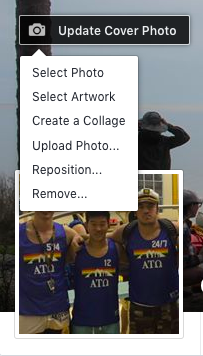
- Click the camera button on your cover photo, which is on your profile.
- To choose your cover photo, you can pick a photo from your Facebook profile, a selection of Facebook’s own cover artwork, create a collage, or upload a photo from your computer. You can also reposition or delete your current cover photo.
Updating Your Profile
- Click the “About” section on your profile page.
- In this section, you can fill in information about your work and education, the places you’ve lived, contact and basic info, family and relationships, details about you, and life events.

Liking and Following Public Pages
On Facebook, you can follow and get updates from your favorite brands, celebrities, sports teams, and publications. The best way to do this is by searching for them on Facebook and liking or following their public page, which will have a blue verified check mark next to their name. After you like or follow their page, you’ll start to see their updates in your news feed.

Your Timeline
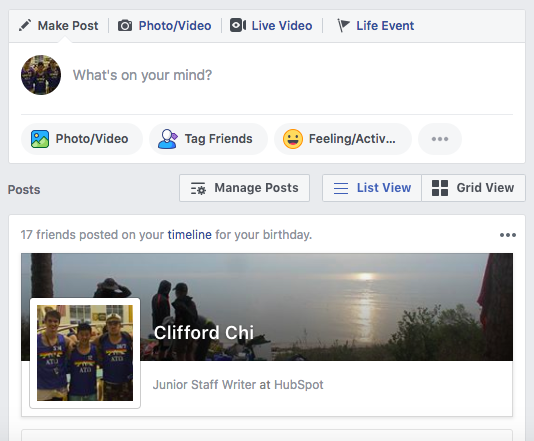
Your timeline is a digital log of your Facebook activity in reverse-chronological order. Your status updates, uploaded photos and videos, and the photos you’re tagged in will appear on your timeline.
Adding Friends on Facebook
There are three ways you can add friends on Facebook. You can either search for them, find them in the “Find Friends” tab, or import a list of contacts from your email, iCloud, or phone.
To find friends on Facebook, go to your profile, press the “Friends” tab, and click the “Find Friends” button. You’ll see a list of friend requests from other people and a list of people you may know that you can add as a friend on Facebook.
If you upload a list of contacts onto Facebook, you can add your friends as you sort through each of your contacts.

Posting on Facebook
The main purpose of Facebook is to help friends and family connect with each other. And the best way to connect with your friends and family is by updating them about your life with status updates. To share a Facebook status, go to the text box at the top of your news feed page or on your profile page.

With status updates, you can share text with 15 different colored backgrounds, photos, videos, GIFs, stickers, and links..
You can also share other types of posts, like:
- Feeling/Activity: share how you’re currently feeling or what you’re currently doing.
- Check in: when you visit a city, location, or place, check in and let your friends know where you’re at.
- Tag Friends: if you’re hanging out with your friends, tag them in your status and share what you’re doing.
- Tag Event: if you’re at an event, you can tag it in your status and share what event you’re attending.
- Ask for Recommendations: if you just moved somewhere or you’re about to visit a location, you can ask your Facebook friends for recommendations on where to go.
- Poll: ask your Facebook friends what their opinion is on a certain topic.
- Support Nonprofit: choose a nonprofit organization of your choice and share it through your status. Your Facebook Friends can then press the donate button to support the chosen organization.
- Answer a Question: choose a predetermined question to answer or create your own question to answer and share it with your Facebook friends.
- Lists: choose a predetermined topic to make a list for or create your own topic and share it with your Facebook friends.
- Facebook Stories: all the content that you can share through a status update is shareable through your Facebook story. You can also upload content to your stories by clicking the Add to Your Story button on the right sidebar. Additionally, you can watch all your friends’ Facebook Stories by clicking on their picture in the Stories section, which is also located on the right sidebar of your home page.

Photos and Videos
On Facebook, you can add photos, videos, albums, and live video broadcasts to your profile for all your friends to see.
Uploading photos or videos
To upload photos or videos to your profile, follow these four simple steps:
- Go to your profile.
- Press the “Photos” tab.
- Press “Add Photos/Video”.
- Upload pictures or videos from your computer.

Creating photo or video albums
To create a photo or video album, follow these four simple steps:
- Go to your profile.
- Press the “Photos” tab.
- Press “Create Album”.
- Upload pictures or videos from your computer.
Facebook Live
To do a live broadcast on your Facebook account, follow these three simple steps.
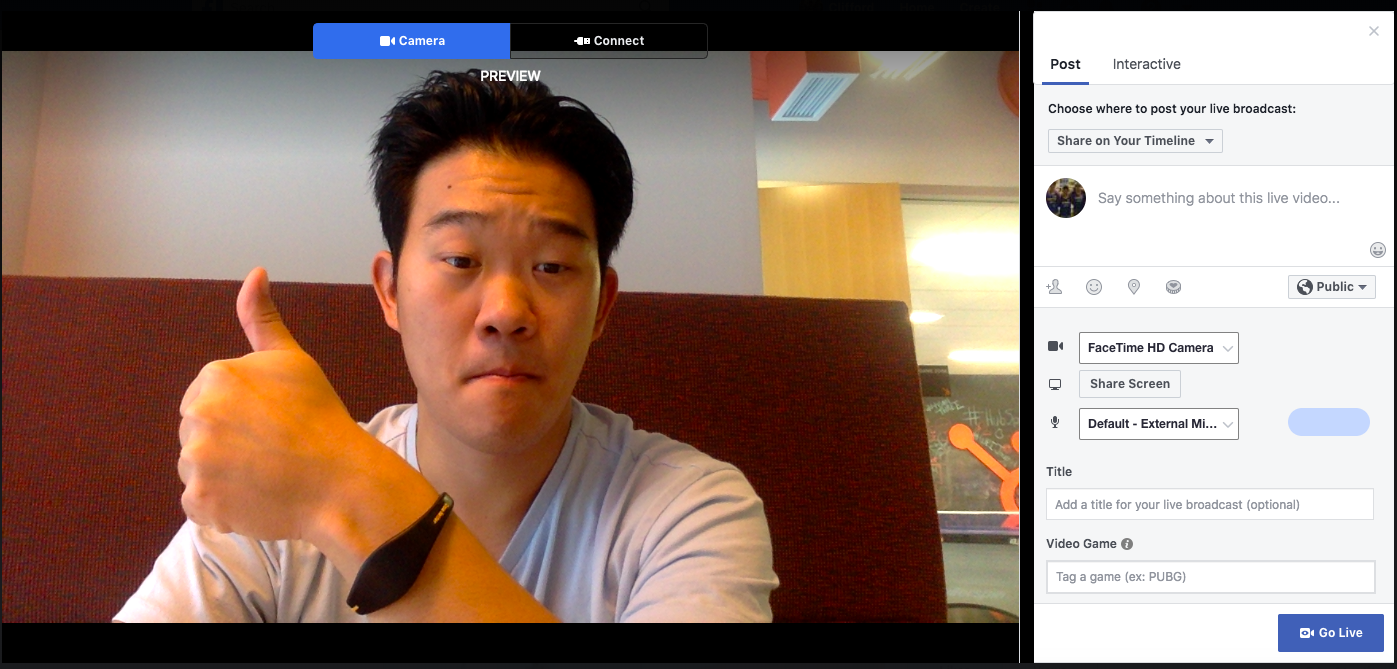
- In the box that says “What’s on your mind?”, press “Live Video”.
- Once you press “Live Video”, you can write a description about your broadcast, tag people in it, add a feeling or activity, check in to an event, support a non-profit, or add a poll. You can also title your live broadcast or tag a video game if you’re live streaming someone or yourself playing a video game.
- Press “Go Live” when you’ve finished describing your live broadcast.
Connecting With Friends
On your news feed, you’ll see updates from your friends, family, or public pages you follow. To interact with them, you can like and react to their posts, share content on their timelines, and communicate with them through text or video chat.
Like, Comment, Or Share
If you like someone’s post, give them a thumbs up, comment on their post, or share it.

Other Reactions
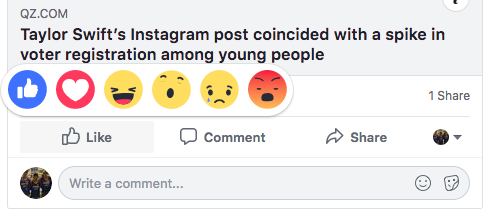
If your Facebook friend’s post evokes a stronger reaction in you than a like, you can also express that you love, laughed, are amazed, sad, or angry at their post by holding down the “Like” button.
Sharing Content on Your Friends’ Timelines
Anything you can post on your status, you can also post on your friend’s timeline.
Facebook Messenger
To chat with your friends or public pages on Facebook, use Facebook Messenger. You can access it by clicking the “Messages” button at the top right corner of any Facebook page or pressing the “Messages” button on the left sidebar of the home page.
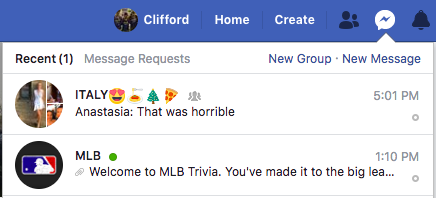
Next, press “New Message” and type in your friend or brand’s name that you want to connect with. Facebook Messenger also lets you create group chats by clicking on “New Group”. After that, all you have to do is name your group and add the friends you want to include in the group.

When you message your friends or group on Facebook Messenger, you can upload pictures, videos, and files from your computer, as well as stickers, GIFs, emojis, and take pictures and videos from your computer’s or phone’s camera.

You can also view Messenger on its own page, where you can search for past conversations and manage your settings. To view Messenger on its own page click the “Messages” button in the top right corner of any Facebook page and then press the “See All in Messenger” button. Or, you can press the “Messages” button on the left sidebar of the home page.
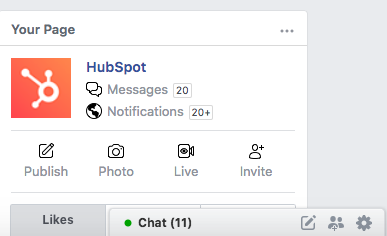
To instant message your friends’ who are logged onto Facebook at the same time as you, press the “Chat” button on the bottom of any Facebook page and strike up a conversation with your friends who are online.
Phone and Video Calling
When you have Messenger open on its own page, you can search for any of your friends or groups, click on their name, and press the phone or video chat button to call them.

News Feed
Your news feed is a curated feed of posts from your friends, family, and public pages you follow that Facebook’s algorithm thinks you’ll be interested in. You’ll also see ads from brands who think you’ll enjoy consuming their content or products.
To customize your news feed, press the downward pointing arrow in the upper right corner of any Facebook page and click on “News Feed Preference”.
From there, you can prioritize whose posts you’ll see first, unfollow people and groups to hide their posts, reconnect with people and groups you unfollowed, discover public pages that match your interests, and hide apps from your news feed.

Other Useful Features on Facebook
Facebook isn’t just a platform for viral content and connection. It’s also a hub for community communications, video streaming, marketplaces, and games.
Events
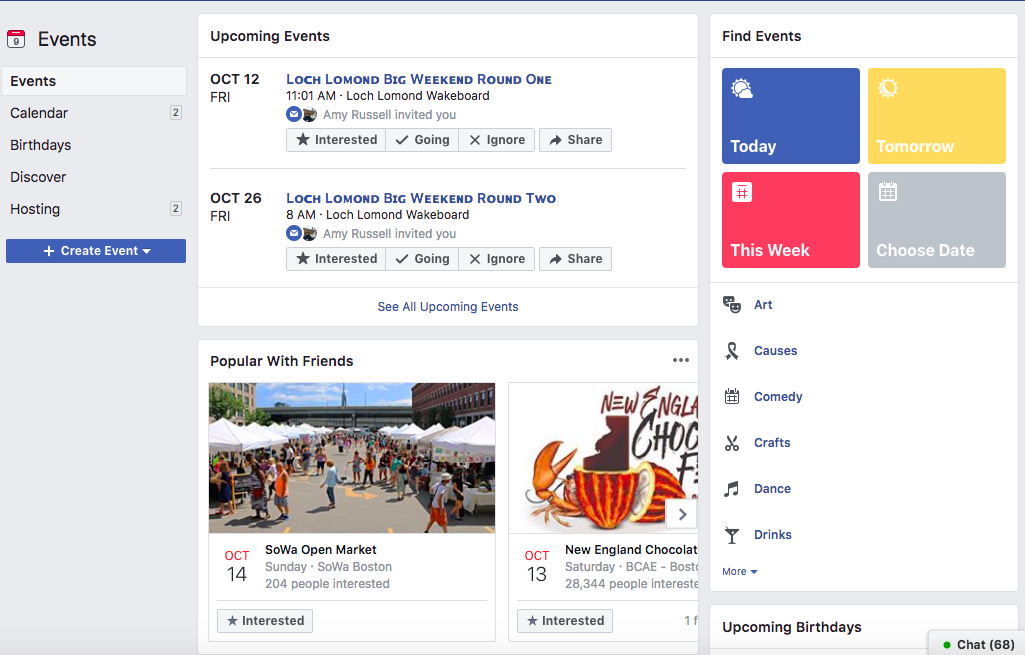
The Events page on Facebook will show you any upcoming events that are popular with your Facebook friends or have been set up by the groups you belong to. You can also find events based on their date, location, and category.
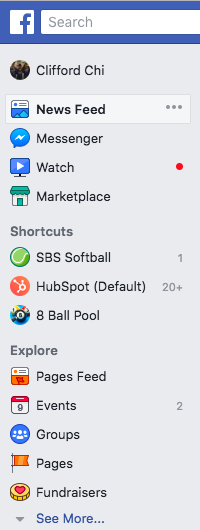
To find the Events page, press the “Home” button. Then, on the left sidebar, you’ll see the Explore section, where you can click “Events”.
Groups
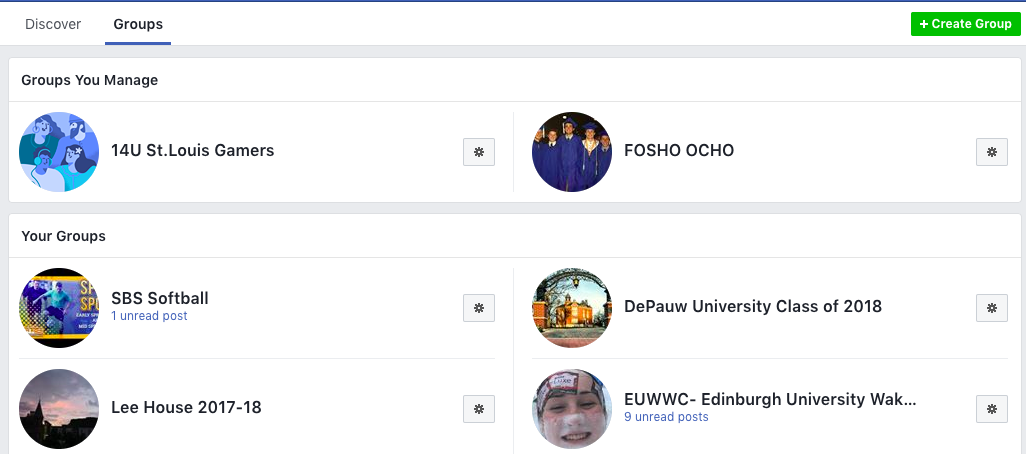
The Groups page on Facebook will show you which groups you manage and belong to. You can also discover groups to join based off Facebook’s suggestions and a ton of other categories.
To access the Groups page, press the “Home” button and then on the left sidebar, you’ll see the Explore section, where you can click “Groups”.
Facebook Watch
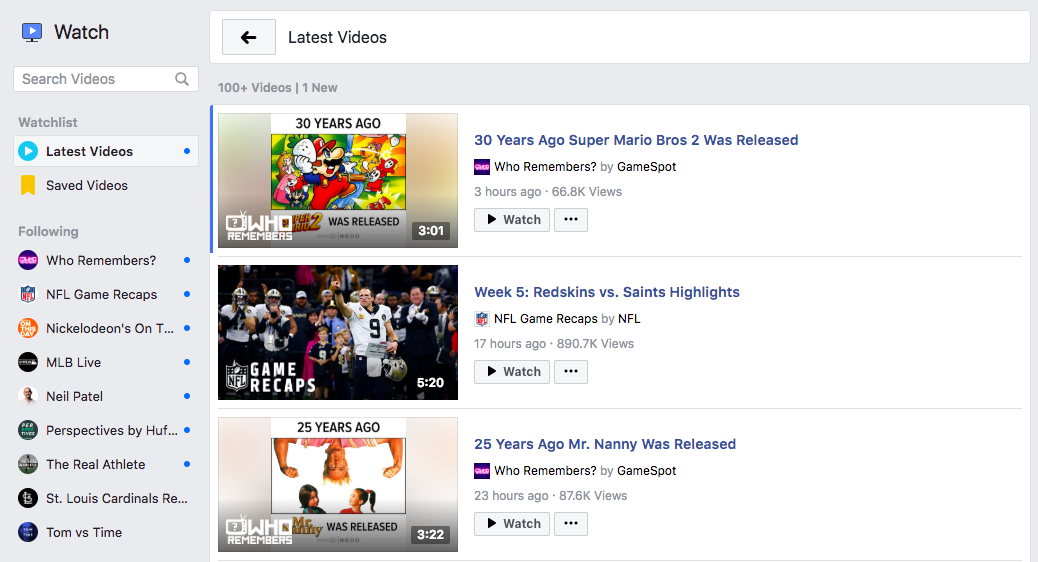
In 2017, Facebook rolled out their video streaming service, Facebook Watch. On the platform, you can watch videos from the shows you’re following and search for other shows and videos.
To access Facebook Watch, press the “Home” button. Then, on the left sidebar, you’ll see the “Watch” button right under the “Messenger” button.
Marketplace
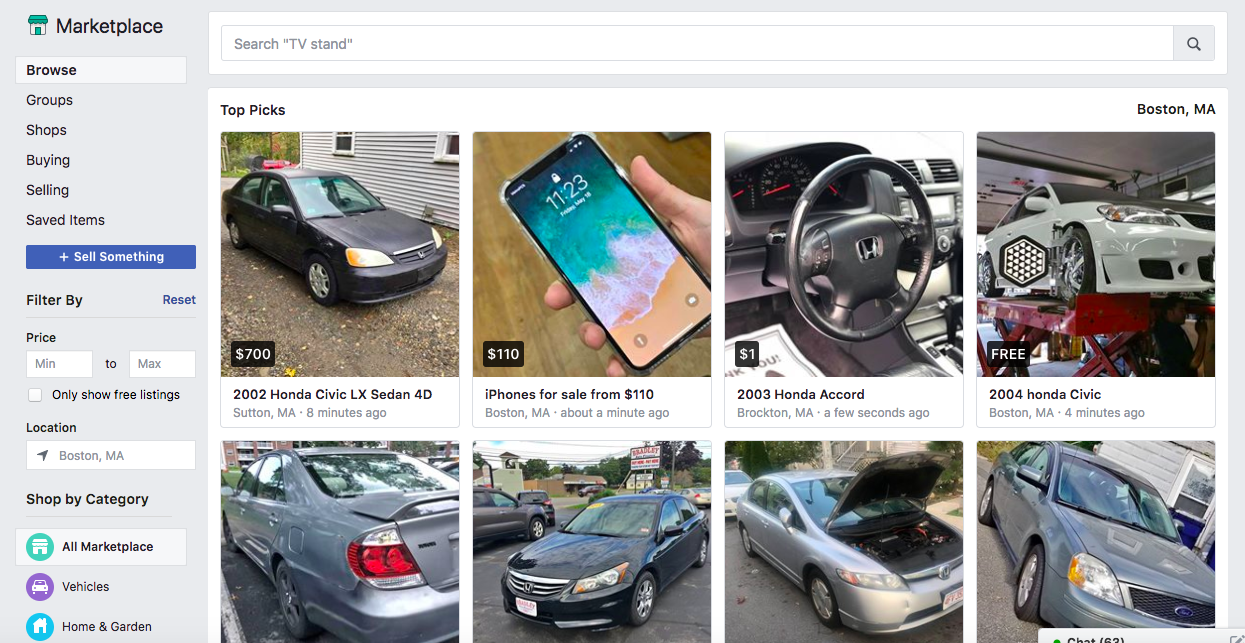
Not only does Facebook compete with Netflix in the streaming industry, but they also compete with eBay in the marketplace industry. With Facebook Marketplace, you can browse for all kinds of products, join groups to buy and sell products with people in your area or who share similar interests, shop for products sold from different shops, shop by category, and sell your own products.
To access Facebook Marketplace, press the “Home” button. Then on the left sidebar, you’ll see the “Marketplace: button right under the “Watch” button.
Games
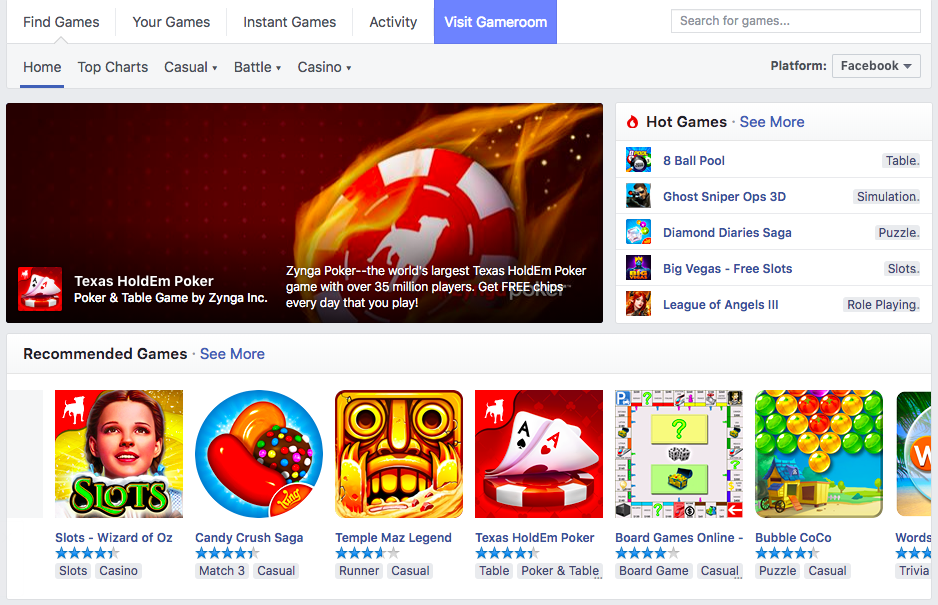
Facebook Games is one of Facebook’s best features. They host a huge collection of massively popular games, and you can browse the most popular games on the platform by top charts and categories. You can even play most of the games with your friends, too.
Conclusion
There you have it. We hope this deep dive into using Facebook will help you build a social media presence and allow you to better connect with your friends, family, and favorite brands.


The Ultimate Guide to Wellness at Work
There’s a lot of buzz around “workplace wellness” in the HR industry recently, and for good reason.
The modern day work environment, with long periods of sitting, quick takeout meals in-between meetings, and computer screen eye strain, isn’t conducive to the mental and physical well-being of your employees.
Having happy and healthy employees has proven to result in better productivity, lower healthcare costs, and less turnover. A wellness plan is a critical strategy for making employees happier, which will ultimately improve your company’s bottom line.
But if you’ve got a tight budget and limited resources, a wellness program might seem inconceivable at the moment.
In actuality, wellness programs can save you money in the long-run — in fact, Health Affairs found every $1 invested in wellness programs saves $3 in healthcare costs for corporations.
Additionally, there are plenty of cost-effective ways to implement workplace wellness initiatives. Here, we’re going to explore the why, what, and how of encouraging wellness in your workplace, so you can create a healthier, more productive culture.
The Five Areas of Well-Being
First off, it’s important we define “well-being” and explain its broad scope, so you can see all the areas of the workplace you might initiate change.
Gallup and Healthways have developed a “Gallup-Healthways Well-Being 5“, which defines five essential elements of well-being:
- Purpose: liking what you do each day and being motivated to achieve your goals
- Social: having supportive relationships and love in your life
- Financial: managing your economic life to reduce stress and increase security
- Community: liking where you live, feeling safe, and having pride in your community
- Physical: having good health and enough energy to get things done daily
When you evaluate these five elements, you soon realize workplace wellness encompasses a lot more than a fancy treadmill room or healthy snacks.
Each of these five elements reinforce one another. For instance, if your employees feel safe and have a sense of community at the office, they’re more likely to participate in group workout classes.
Additionally, financial stress might be a factor playing against your employees physical health — it’s more difficult to eat healthy, go to bed early, and exercise regularly if you’re stressed about your budget. Offering a free budgeting class could mitigate stress and help your employees achieve their long-term health goals.
It’s critical you take a holistic view when considering the well-being of your employees. Gallup has found, when comparing adults thriving in just physical well-being to those thriving in all five elements, that those in the latter group report 41% fewer unhealthy days, are 36% more likely to say they always fully bounce back after an illness, and are 81% less likely to look for a new job when the job market improves.
However, implementing a wellness program is easier said than done. Now, let’s look at some effective wellness program ideas that tackle each of these five wellness elements.
Employee Wellness Program Ideas
There are innumerable options to encourage and promote a healthier lifestyle at your workplace. Some of these ideas require more money or resources, while others are more cost-effective.
It’s critical you take your work culture into consideration when choosing a wellness strategy. For instance, a more competitive workplace might thrive off a monthly team challenge, while another workplace would prefer volunteering for a day.
Employee wellness programs
An employee wellness program aims to improve the overall health of a company’s employees. Employee wellness programs include strategies aimed at increasing physical activity of employees, reducing employee stress, offering information on nutrition and health, and providing health assessments to uncover employees’ specific health-related issues.
Here’s a list of 15 wellness program ideas, varying in cost and impact. For more ideas, consider attending a workplace wellness workshop in your area.
1. Offer flexible hours.
If it’s feasible for your office, consider offering flexible hours. Enabling employees to avoid busy traffic times could reduce stress, and flexible hours can also encourage better work-life balance. For instance, flexible hours might allow an employee to go on a run during her lunch hour, or leave earlier for a yoga class. (If you’re considering flexible hours, take a look at “Flexible Schedules: The Good, Bad, & the Surprising“).
2. Invest in standing desks.
Give your employees the option to stand and improve posture (and core strength) with standing desks. Along with improving health, standing desks have also been found to increase productivity.
3. Organize a team for a charity walk, or plan a volunteer day.
By organizing a charity walk, you’re encouraging both physical activity and a stronger sense of community. Alternatively, you might plan a volunteer day, which helps employees feel proud of their community and socialize with peers.
4. Create lunchtime mindfulness or yoga sessions.
Big corporations like Google, Nike, and Apple already implement mindfulness into their culture, and for good reason. Mindfulness can reduce stress and even change how your brain functions.
Plus, it’s cheap to implement. Maybe you can find an employee who teaches mindfulness or yoga already, and ask her to teach a lunchtime class. If not, you could gather a group and find a mindfulness app to teach the session.
5. Have personalized nutrition counseling.
If possible, hire a nutritionist to offer free counseling for your employees. For instance, HubSpot brings a Holistic Health & Nutrition Coach into the office twice a month (employees are able to sign up for a slot). With employees, the Holistic Health & Nutrition Coach discusses topics such as overall nutrition goals, daily water intake, supplements, energy level, sleep, allergies, and more.
6. Provide access to health assessments.
Office health checks allow employees to get a general overview of their health status, detect disease or risk factors early, and learn about potential issues.
This can have a life-saving impact. For instance, more than 102 million American adults have high cholesterol, putting them at risk for heart disease. By offering health checks, you could help employees avoid long-term health issues down the road.
7. Build a fitness center.
If you have the resources, offering a gym with workout equipment is an exceptional way to promote workplace wellness. Employees can workout during their lunch break or in the afternoon and then get back to their desks. Mid-day workouts could improve employee productivity all day long.
Additionally, you’re relieving a major financial burden by offering a free gym, so employees don’t have to pay for monthly memberships elsewhere. Yale New Haven Hospital built a livingwell Fitness Center to encourage employees (and their spouses) to get more active, and many other corporations offer similar exercise facilities.
8. Create a “Wellness” award.
The MD Anderson Cancer Center implemented a peer-based wellness awards program, in which employees are encouraged to nominate co-workers who they find especially active and healthy. Awards provide incentive for every employee to become more physically active, and also encourage a workplace culture that focuses on well-being as something to strive for.
9. Offer free health and wellness books.
By offering free health and wellness books, you can provide employees the resources necessary to learn how to implement and sustain a healthier lifestyle long-term.
10. Provide healthy snacks.
If you have an office kitchen, consider stocking it with healthy protein bars, fruits, vegetables, or other healthy snacks. Alternatively, try offering healthier meals at lunchtime meetings, rather than relying on pizza.
11. Host “walking” meetings.
Whenever possible, consider making your meeting a “walking” meeting. Take a lap around the block with your team, and use your smartphone as a meeting guide if necessary.
12. Start a wellness newsletter.
One of the most cost-effective options in the list, a wellness newsletter gives you the opportunity to provide employees with tips on reducing stress, increasing physical activity, and eating healthier throughout the day. Additionally, you might ask employees to get involved with writing and distributing the newsletter to foster a stronger sense of community.
13. Offer on-site medical care.
Some larger corporations, such as American Express, offer on-site medical care to curb healthcare costs and provide easy accessibility for workers. If you have the resources, you might consider offering on-site appointments with dentists, psychiatrists, and other healthcare specialists.
14. Have in-house subsidized massages.
At Google, employees give each other “massage credits” when they believe an employee does an exceptional job on a project. The massage credits can be redeemed for a free one-hour massage on Google’s campus. Massages can help relieve stress, improve blood flow, and prevent injuries — and, as evident at Google, you can use them as incentive for teams to work harder.
15. Create monthly challenges.
Hewlett-Packard Co. created a Global Wellness Challenge to encourage workplace wellness, and the challenge resulted in active participation from 50,000 HP employees in nearly 90 countries. Friendly competition can provide strong incentive for employees to focus on wellness, so consider how you can create your own monthly challenge. You might offer a cash prize, a half-day off from work, or a donation to the winning team’s chosen charity.
How to Successfully Implement Your Wellness Program
Over the past decade, Gallup has surveyed hundreds of employees across industries. They’ve found employees who feel their manager truly cares about their well-being are more likely to be top performers and produce higher quality work, and they are less likely to get sick, change jobs, or be injured at work.
To successfully implement a wellness program, it’s critical you ensure your managers are active promoters of the program. Additionally, it’s important you ask managers to create a culture in which an employee’s well-being is seen as a critical component to the company’s success, not a hinderance to it.
By encouraging lunchtime meditation breaks, healthy meeting snack options, and afternoon workouts, a manager shows her employees that there’s nothing commendable about allowing your health to suffer at the workplace. It’s important your managers see the long-term productivity benefits of encouraging a more well-rounded employee.
Additionally, your managers need to lead by example — if they don’t actively participate in your wellness initiative, your employees might not even know it exists, or lack the motivation to partake.
If necessary, consider offering training or resources so managers can learn how to promote wellness for their own team. Take a look at HealthCulture.com’s Wellness Culture Coaching Toolkit for more information.

The 10 Best Form Analytics Tools of 2018
Web forms allow you to manage your email lists, accept online payments, review shipping and billing information, learn more about your customers and keep track of new leads registering for accounts. Web forms are integral to maintaining a healthy business and increasing your conversions.
To understand what is and isn’t working when it comes to your forms, you need to analyze the interactions between your forms and website visitors. That’s what web form analytics tools are for — they help you maximize the impact of your web forms through optimization efforts, in-depth tracking and form insights.
There are a number of tools available that help you manage your forms and learn about what and why specific aspects of the forms are (or aren’t) working for your leads.
10 of the Best Form Analytics Tools in 2018
Get the most out of your web forms. Here’s our list of the top ten best form analytics tools of 2018.
1. Formisimo

Source: Formisimo
Formisimo provides you with specific reasons why your website visitors are not completing your forms. With user-behavior insights, you can see how your forms can be improved to increase conversions.
Formisimo has eight types of reports that work with any type of form. You are also able to segment your reports based on format, whether that be desktop, mobile or tablet. The tool provides you with ideas and tips on ways to rectify the issues you’re experiencing with the forms, as well as the ability to export and share the data to keep everyone on your team in the loop.
This in-depth reporting tool and traffic analytics tracker has a simple installation process — simply copy and paste the provided source code on the page, and Formismo starts tracking immediately.
There are different payment and subscription plans available with Formisimo, in addition to a seven-day trial period.
2. HubSpot
Source: HubSpot
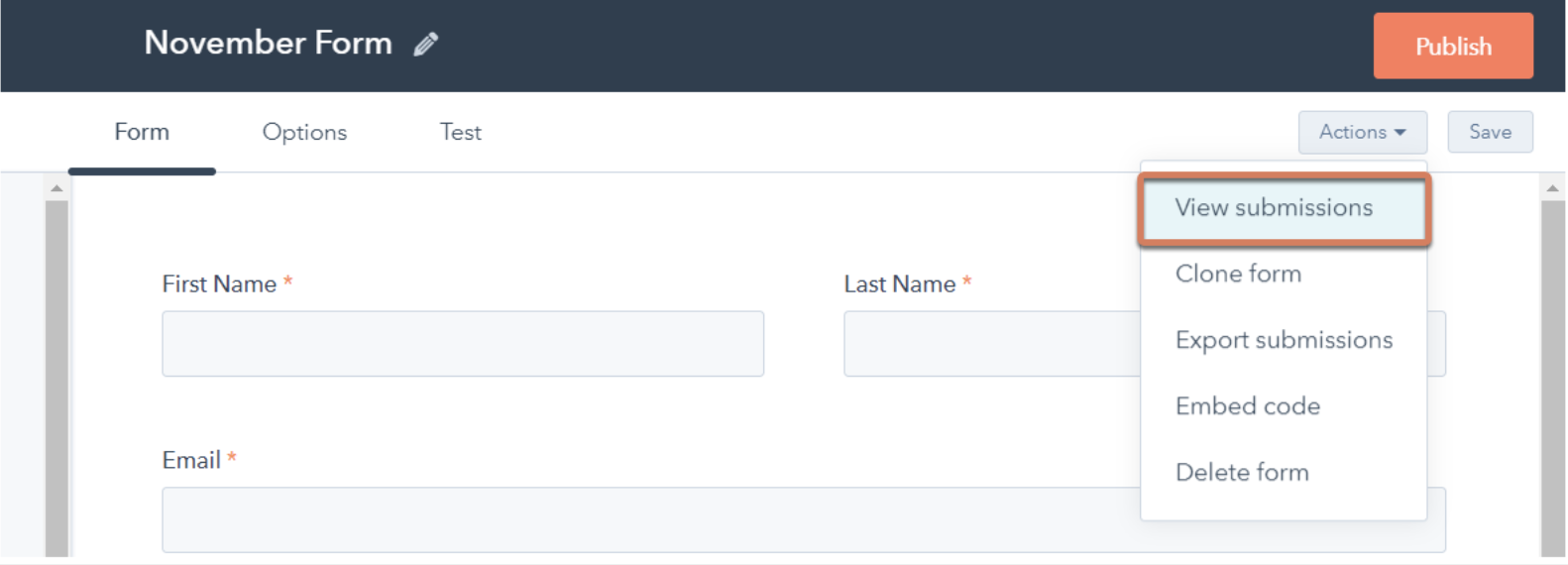
HubSpot’s form builder has a traffic analytics integration that allows you to track your web form’s performance and better understand the results.
You can organize your form submissions by specific time periods and see details such as the lead’s name, the page they converted on, the date and time of their conversion and any files they may have uploaded to the form (this is common with “contact us” forms). Lastly, you can share all of the form analytics with anyone internally with the click of a button.
Since HubSpot’s form analytics tool is built into the form builder, you get more value for what you pay.
3. Woopra
Source: Woopra
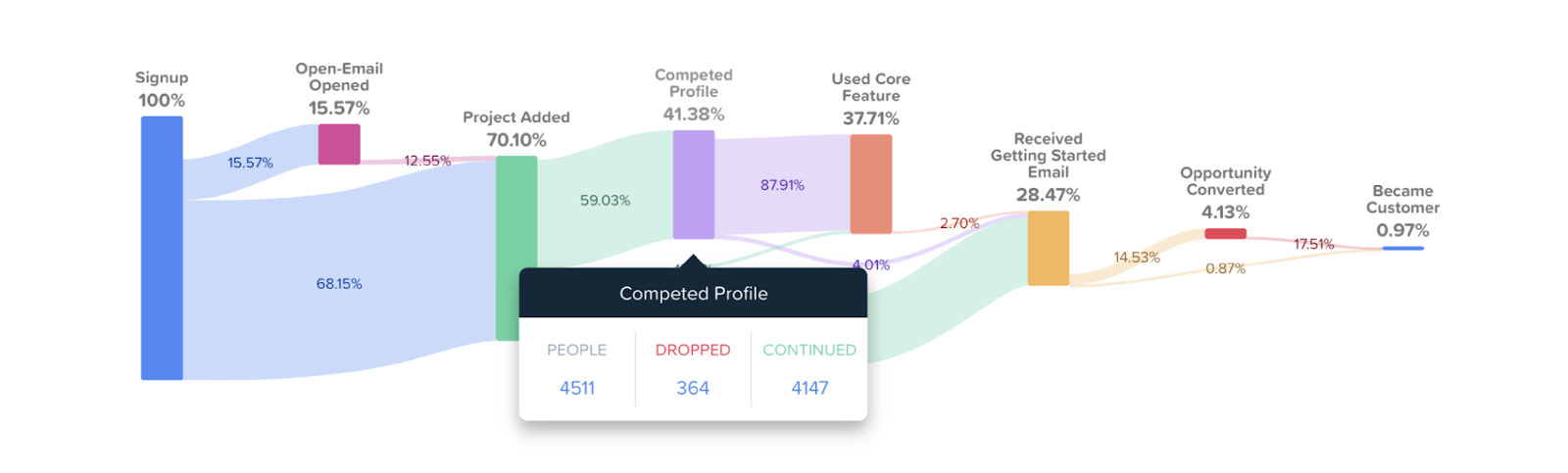
With Woopra, you can track traffic at every point of the buyer’s journey. Whether it’s related to customer experience, growth or customer success, the tool has tracking abilities that will show you how your form is performing and the traffic it’s experiencing at certain points in time.
Woopra has behavioral segmentation options that allow you to group leads based on any criteria you choose. For example, segmentation may include grouping people who signed up for an account through an email CTA and grouping another set of people who registered for a free trial through a CTA on your website.
There are three Woopra plans that vary in price based on the type and level of analysis you need.
4. Hotjar
Source: Hotjar
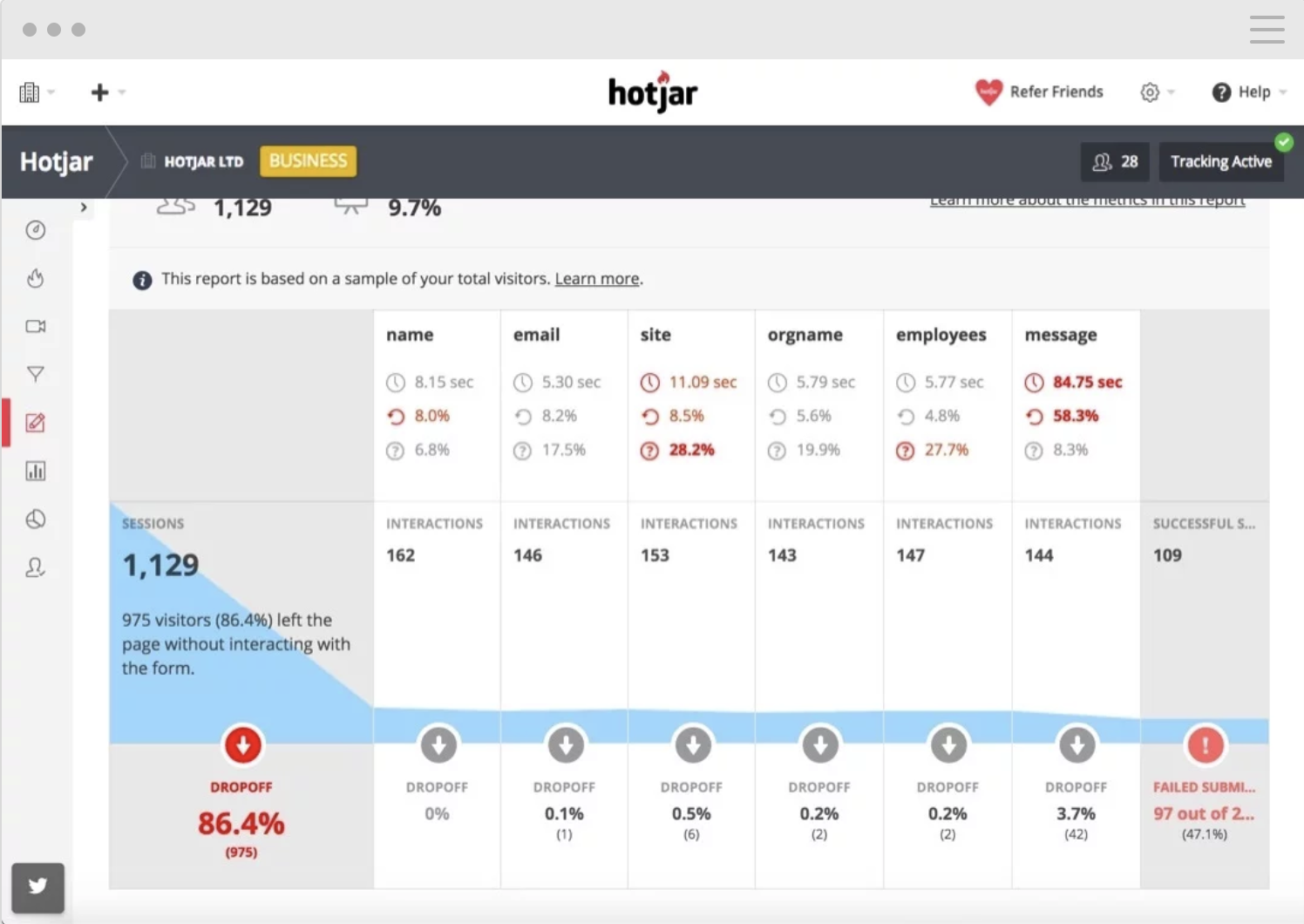
Hotjar is an analytics and feedback tool that gives you insight into your web forms and your entire customer experience for both desktop and mobile. There are also traffic-related insights that help you understand who is visiting your site.
Hotjar’s analysis feature provides you with the reasons why people tend to abandon your forms and the exact point in time they are most likely to do so. Hotjar has several plans with different payment options: you can get limited use for free, but there are paid options that provide more features.
5. Clicktale
Source: Clicktale
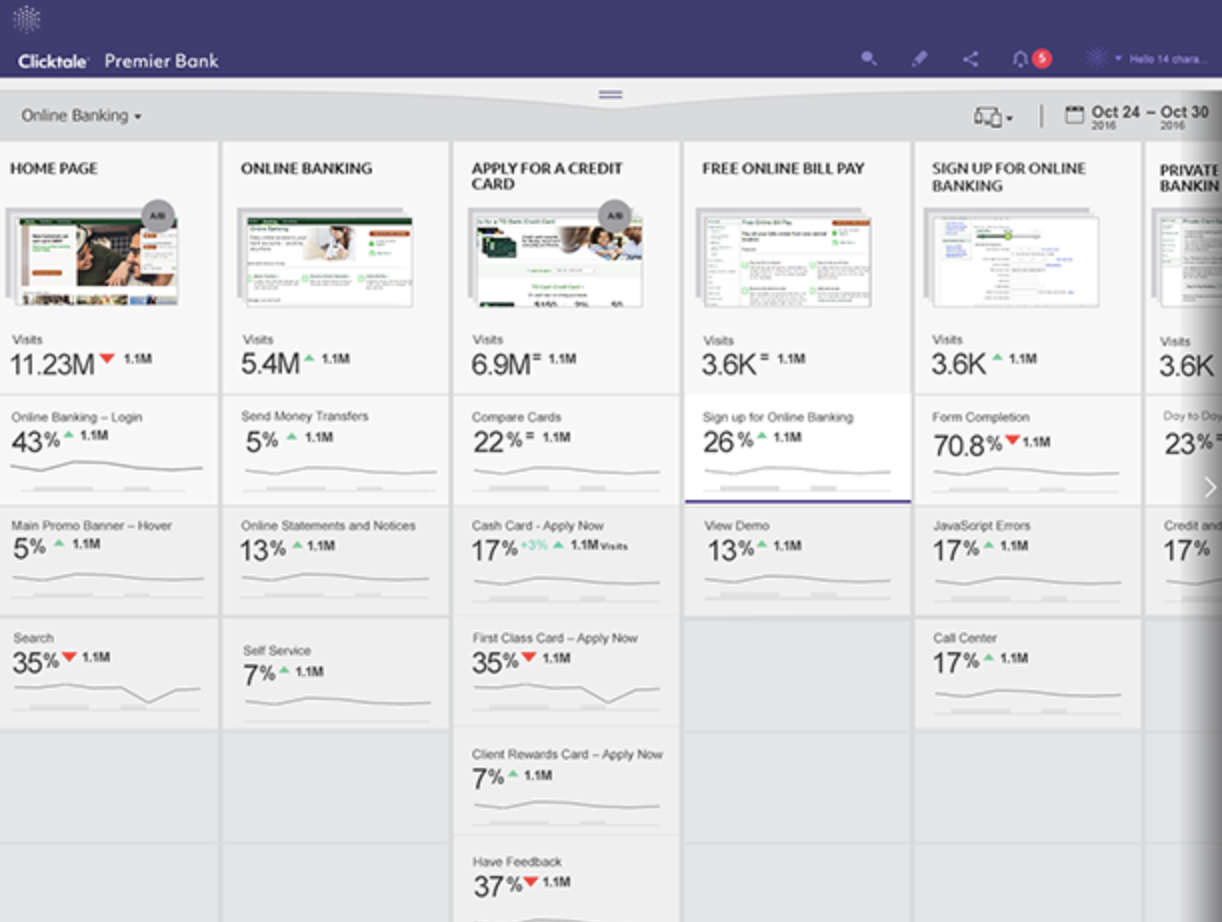
Clicktale is an in-depth traffic and conversion analytics reporting tool. It provides you with data to determine whether or not your forms are performing successfully. The form provides detailed feedback about the number of visitors who interacted with the form and converted, as well as the number of people who failed to submit your completed form after an attempt.
Another unique feature in Clicktale is the ability to pinpoint client and Javascript errors so they can be fixed quickly. The tool has features that help you pick out unnecessary words or fields in your forms, and it gives you recommendations on ways to make the form completion process more efficient.
As for pricing, there are several levels to choose from based on features your business may or may not need. There’s also a free trial period for you to test out the tool.
6. SessionCam

Source: SessionCam
SessionCam tells you exactly why website visitors are abandoning your forms. The tool studies the type of traffic to a form and overall visitor behavior. Drop-off metrics, number of retries and the average amount of time it takes for people to complete specific fields are other metrics that this tool tracks.
With SessionCam, you better understand your form metrics, making it easier to troubleshoot issues and improve traffic, user experience and conversions. The tool records all data and changes to the form so you can look back on how certain changes impacted your form’s performance. SessionCam has integrations with several other analytics tools, such as Google Analytics and Adobe Analytics, which make it easy for you to keep track of everything in one place.
After a 21-day free trial, you can pick the SessionCam plan that works best for your business.
7. Inspectlet
Source: Inspectlet
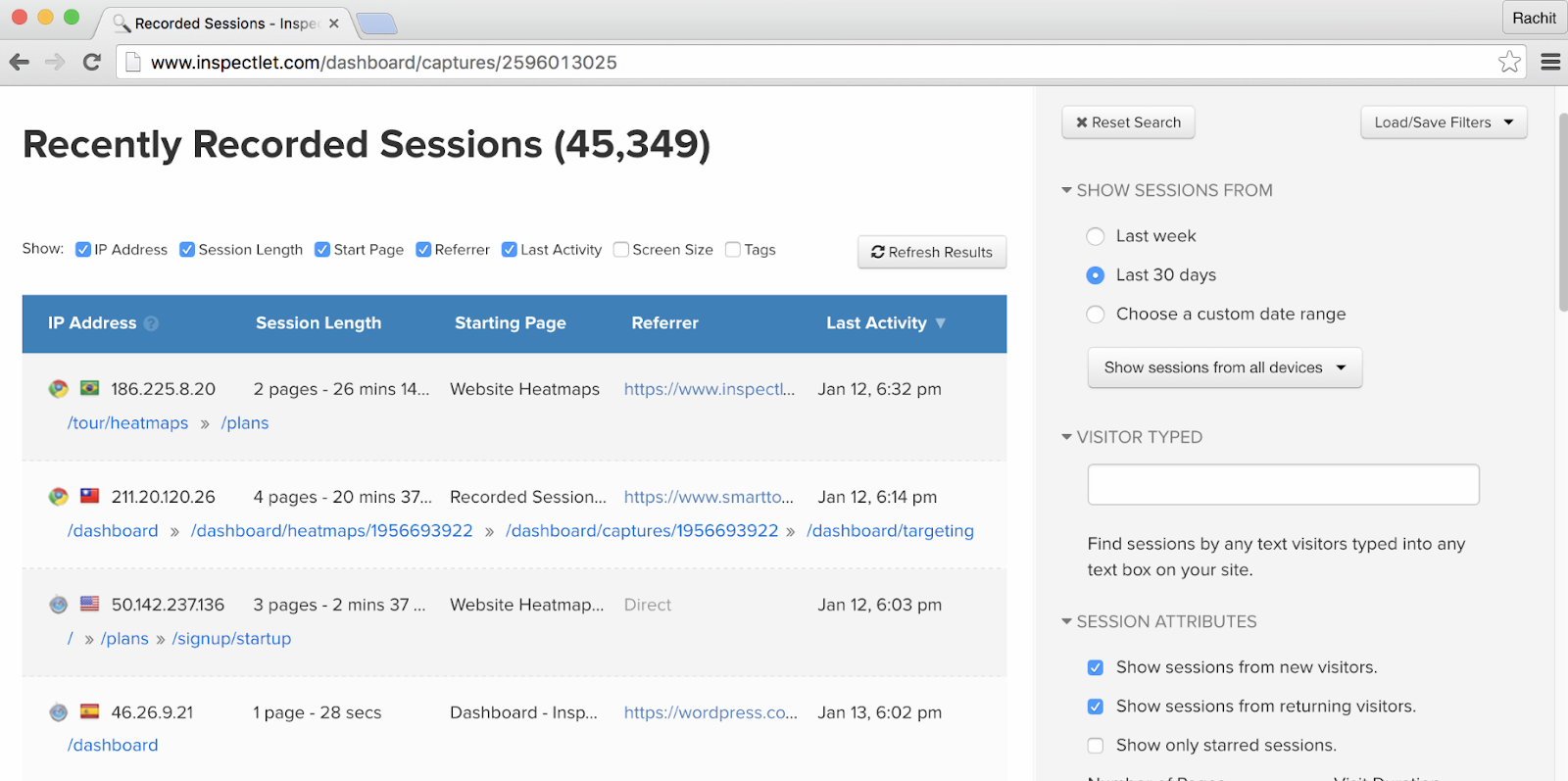
Inspectlet helps you determine how effectively your forms engage your website traffic and convert visitors. The tool also gives you an overview of the number of website visitors that make it through each stage of the form completion process.
Inspectlet provides analytics about which form fields are causing issues for leads so you can manage problems and fix them as quickly as possible. The tool also analyzes which fields are causing leads to completely abandon the web form.
Pricing ranges from $0 up to $499 per month with six unique Inspectlet plans to choose from.
8. Decibel Insight
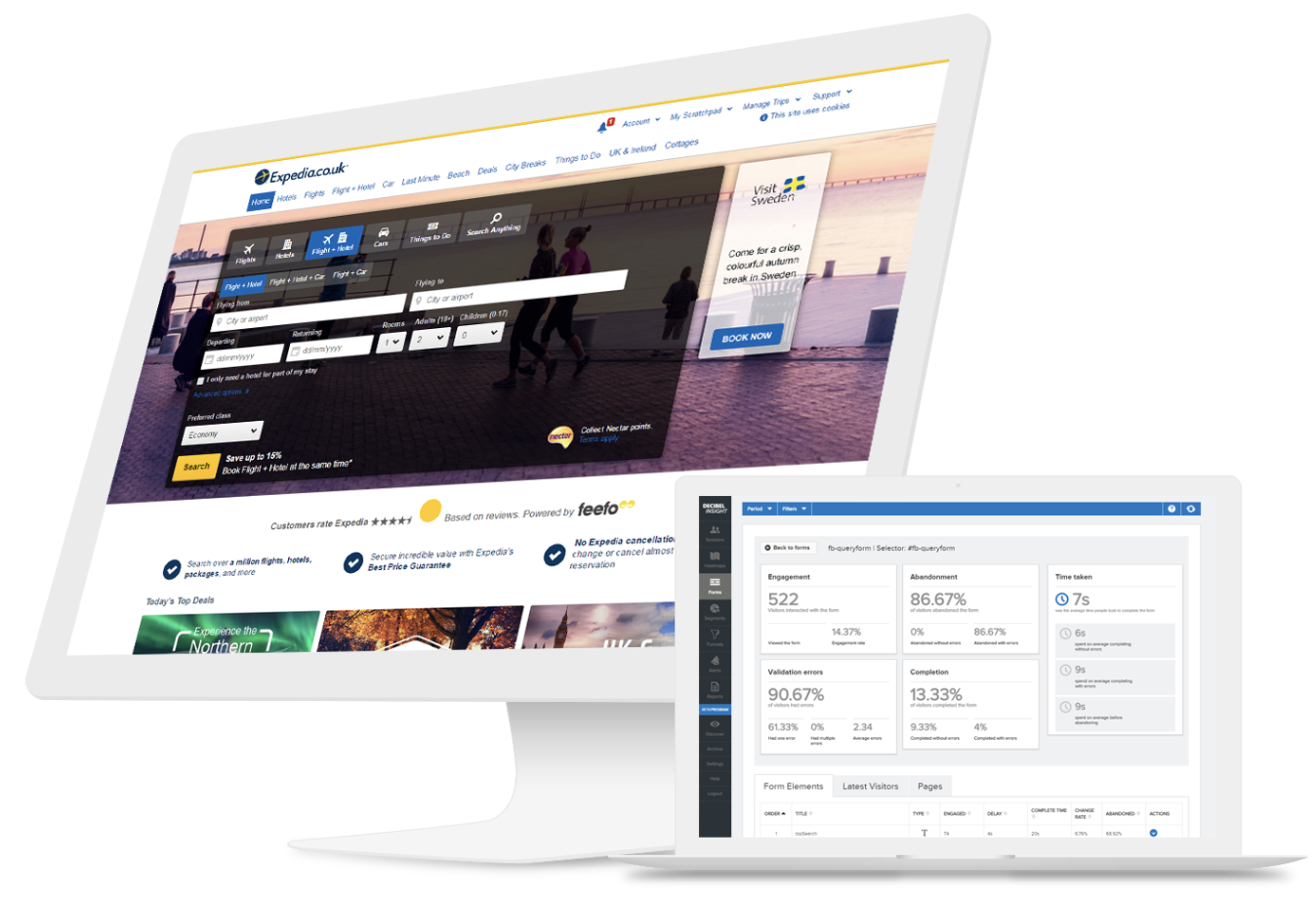
With Decibel Insight, you can measure your overall traffic performance as well as individual interactions with your web forms. The tool collects data and tells you which fields cause leads to have issues and abandon your forms.
One unique feature that Decibel Insight brings is the ability to go back and watch session replays of form interaction. You can see exactly what is and isn’t working for your website visitors and make any necessary changes based on what you see happening during these replays. You can schedule a demo of the tool and chat with an expert about which package would best suit your needs.
8. Mouseflow
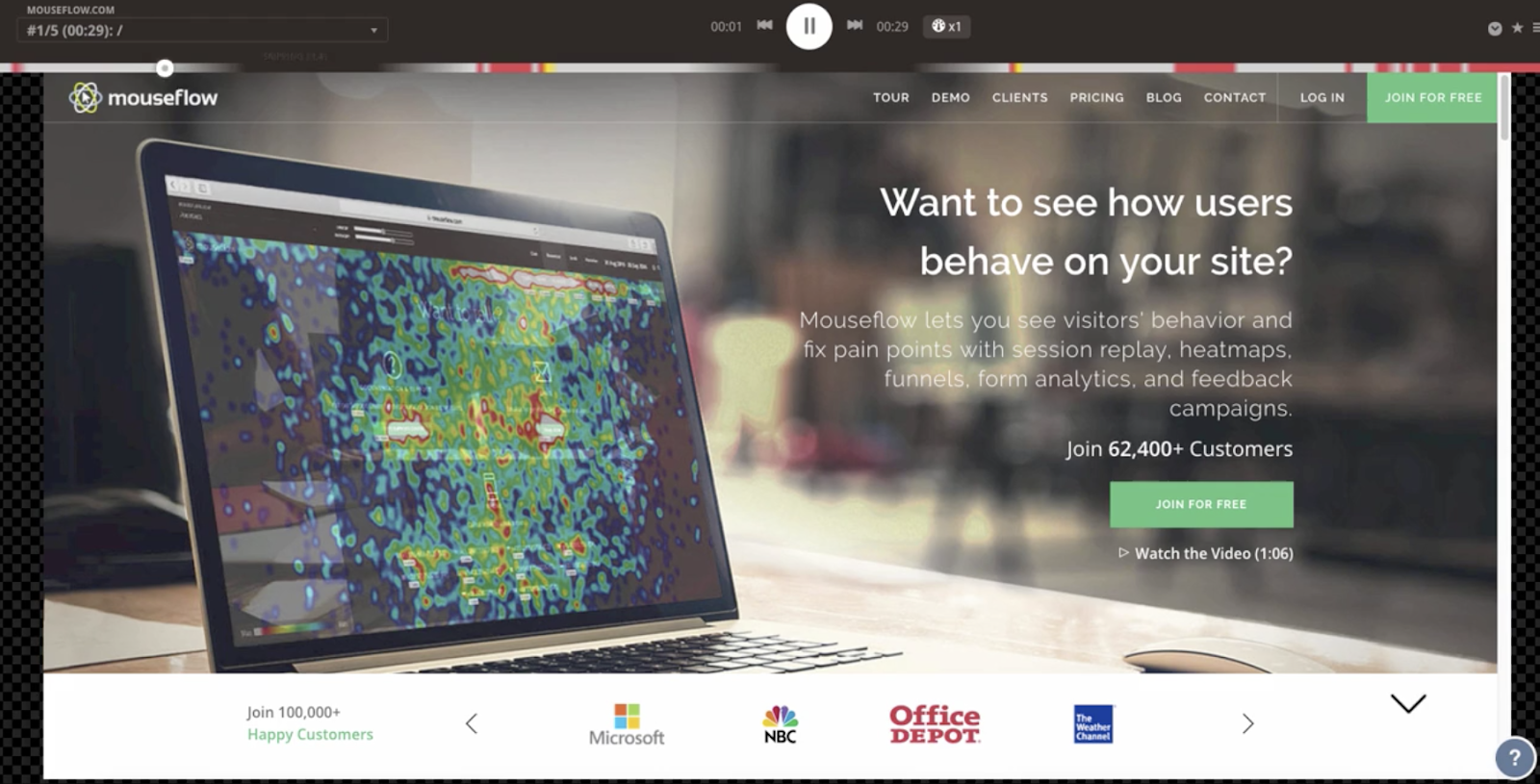
Mouseflow works in real-time to give you data about form drop-off, issues with specific form fields, errors, and blank submissions. The tool provides information about form traffic and details about any difficulties a lead may be facing with certain parts of the form.
By monitoring form interactions, Mouseflow is able to provide you with actionable tips on how to increase traffic and conversions, eliminate form pain points and improve overall user experience and usability.
With five plans for you to choose from, and one being “free forever”, there is a Mouseflow option for everyone.
10. Lucky Orange
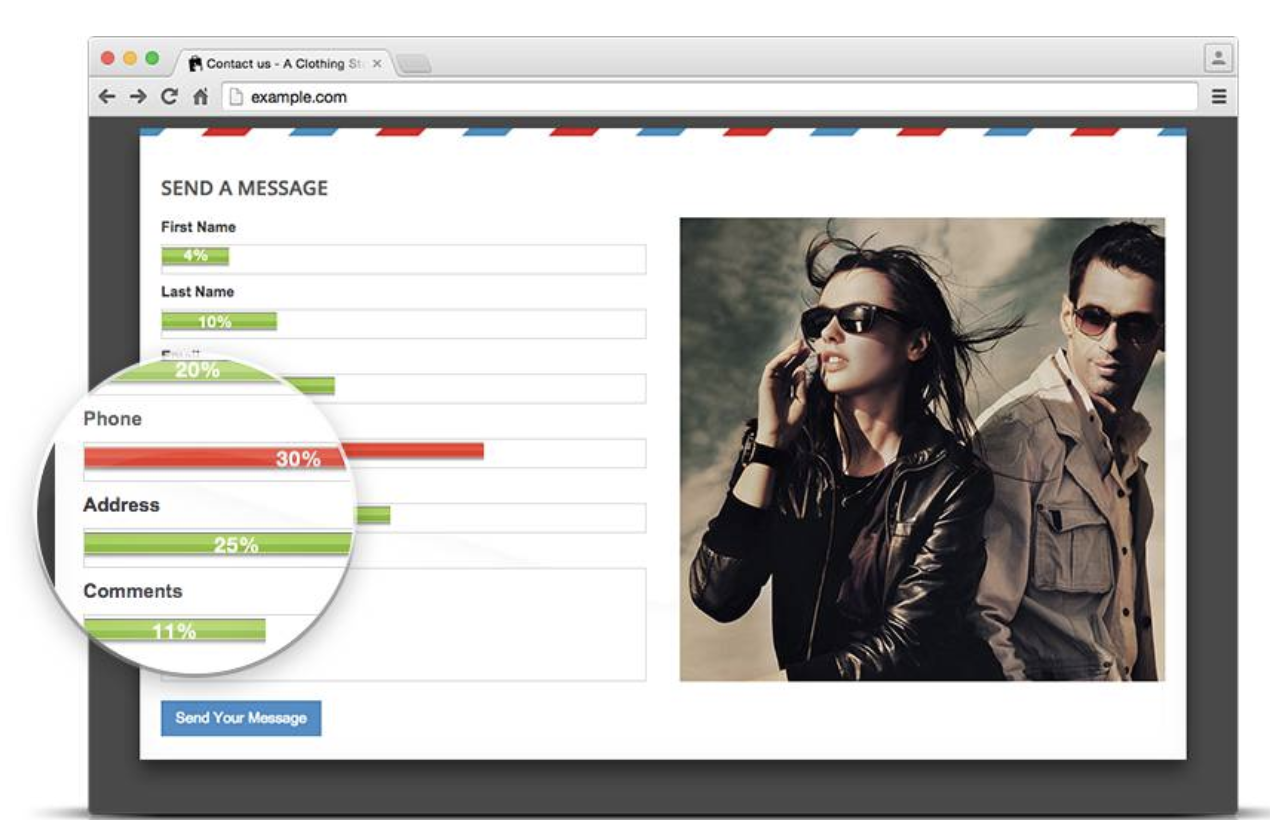
Source: Lucky Orange
Lucky Orange allows you to watch website visitors interact with your web forms. The tool records visitors’ actions so you can play the video back and see the exact moment that a visitor decided to abandon your form.
Lucky Orange also includes five other form analytics reports that help you better understand your website and form traffic, including explanations behind abandonment (when someone leaves a process on your website such as checkout), time to start (amount of time it takes a lead to start filling out your form) and field time (how long it takes a lead to complete one of your fields). They also allow you to pinpoint specific changes that should be made to your form to boost conversions.
After a seven-day, free trial period, you are able to select from one of five plans that can be paid on a monthly or yearly basis.
Conclusion
With the myriad of form analytics tools available, there’s something that works for everyone. These tools allow you to learn about the type of traffic your forms are bringing in and what you can do to improve conversions. There are several analytics tools that are useful and effective — you should think about what you really need from the tool, consider your monthly budget and sign up for a few free trials to determine which option is your ideal fit.

HubSpot’s Guide to Facebook Ad Sizes (With Examples)
How many characters of text can News Feed ads have again? What about image dimensions for the Right Column sidebar?
Between various image sizes and character requirements, figuring out how to optimize your Facebook ads for the various page spaces and ad objectives available to you can get pretty confusing.
To take the headache out of preparing to run a Facebook Ad Campaign, here’s a handy cheatsheet of Facebook image ad sizes and dimensions for every type of ad you can purchase on Facebook — no matter what your ad’s objective or call to action is.
Whether you’re running a campaign (or just thinking about it), this resource references everything you need to know to ensure that your ads will look their best across all placements and devices.
Facebook Ad Image Size/Dimensions
Facebook ad images have a recommended resolution of 1,200 x 628 pixels for News Feed, Right Column, Instant Articles, Marketplace, Native Ads, and Sponsored Messages. The minimum image size is 600 x 600 px. Ad dimensions vary for Facebook Stories.
Most of the ads available to advertisers on Facebook share universal image dimensions, as explained above. However, there are specifics related to file type, character count, and image-to-text ratio that differ depending on where you place your ad.
The following is a bookmarkable key of Facebook image dimensions, sorted by the type of ad you might want to place.

Standard Facebook Ad Specs
Applies to: News Feed, Right Column, Instant Articles, Marketplace Ads
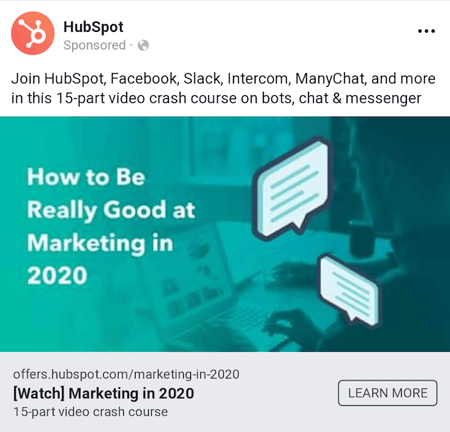
Standard Facebook image ads — such as the one designed for News Feed, above — should be uploaded as either JPG or PNG files with an image ratio of 9:16 or 16:9. In other words, the image’s height should be nine-sixteenths its width, or vice-versa.
- Image-to-text: 5:1 — If your image design includes text, keep it under 20% of the image to optimize the ad’s audience potential.
- Maximum headline: 25 characters
- Maximum text: 150 characters
- Recommended image resolution: 1,200 x 628 px (600 x 600 px minimum)
- Maximum link description: 30 characters
Facebook Stories

Image ads posted as Facebook Stories last a total of five seconds or until the viewer swipes away from the Story. Your ideal image ratio is 9:16, which means the image’s height should be nine-sixteenths its width.
- Image-to-text: 5:1 — If your Facebook Story includes text, keep it under 20% of the image to optimize the Story’s audience potential.
- Minimum image resolution: 600 x 600 px
Audience Network Native Ads
Native Ads on Facebook place your brand on the mobile News Feeds of users who have viewed sites and apps that are within your target audience’s network. These ads’ images should be uploaded as either JPG or PNG files with an image ratio of 16:9. In other words, the image’s height should be nine-sixteenths its width.
- Image-to-text: 5:1 — If your image design includes text, keep it under 20% of the image to optimize the ad’s audience potential.
- Maximum headline: 25 characters
- Maximum text: 125 characters
- Recommended image resolution: 1,200 x 628 px (254 x 133 px minimum)
- Maximum link description: 30 characters
Sponsored Messages
Applies to: Sponsored Messages and Messenger Inbox
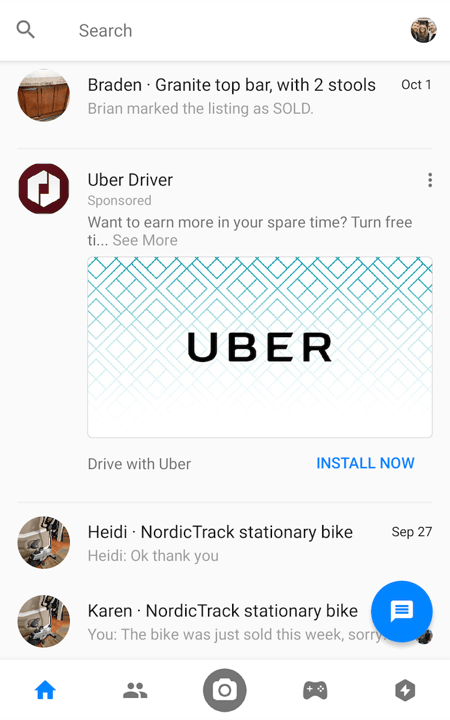
Sponsored Messages on Facebook, such as the ad by Uber, above — appear in your audience’s private inboxes in Facebook Messenger. Images should be uploaded as either JPG or PNG files with an image ratio of 9:16 or 16:9. In other words, the image’s height should be nine-sixteenths of its width, or vice-versa.
- Image-to-text: 5:1 — If your image design includes text, keep it under 20% of the image to optimize the Sponsored Message’s delivery potential.
- Maximum headline: 25 characters
- Maximum text: 125 characters
- Recommended image resolution: 1,200 x 628 px (254 x 133 px minimum)
- Maximum link description: 30 characters
Facebook Carousel Ad Size
Facebook carousel ads have a recommended image resolution of 1,080 x 1,080 pixels for News Feed, Right Column, Instant Articles, Marketplace, Native Ads, and Messenger Inbox ads. Advertisers can place between 2 and 10 image cards per carousel.
Facebook carousel ads allow viewers to click through a rotating “carousel” of images all designed to elaborate on a special offer by the company paying for the ad. These ads display in most of the same places as standard Facebook ads: a user’s News Feed, the right column sidebar, through Instant Articles, and even in a user’s Facebook Messenger inbox.
Standard Carousel Image Specs
Applies to: News Feed, Right Column, Instant Articles, Marketplace, Native Network Ads

Standard Facebook Carousel ads — such as the one designed for News Feed, above — allow you to display two to 10 images in rotation all in one ad placement. Images should be uploaded as either JPG or PNG files.
- Maximum headline: 40 characters
- Maximum text: 125 characters (excluding Right Column)
- Recommended image resolution: 1,080 x 1,080 px
- Maximum link description: 20 characters (excluding Right Column, Messenger Inbox)
- Maximum image file size: 30MB
- Maximum video length: 240 minutes per card in a carousel (excluding Messenger Inbox)
- Maximum video file size: 4GB (excluding Messenger Inbox)
Instagram Stories Carousels
Instagram Stories can use carousel ads to show between two and three images or videos all in the same Story on Instagram.
Recommended image resolution: 1,080 x 1,920 px
Maximum video duration: 15 seconds per card in a carousel
Instagram Feed Carousels
Just like Facebook’s Carousel ad dimensions, Instagram Feeds can support between two and 10 cards per carousel, displayed on the homepage of a user’s Instagram feed. Images should be uploaded as either JPG or PNG files.
- Maximum text: Two rows of text (the rest will be truncated)
- Maximum number of hashtags in text: 30
- Recommended image resolution: 1,080 x 1,080 px
- Maximum image file size: 30MB
- Maximum video length: 120 seconds per card in a carousel
- Maximum video file size: 4 GB
So many ad specs, so little time. Bookmark this Facebook ads key for later and get to drafting your next eye-catching advertisement designed for you audience.

Google Wants to Take Over Your Home (And the Rest of Your Life)
If Google were a person, it would be standing at the front door of your home, asking, “Can I come in?”
In a way, that was one of the chief takeaways from today’s Made by Google event: an annual product unveiling hosted by Google where it formally announces the launch of its new hardware, like mobile devices and smart speakers.
In previous years, all eyes have been on the Google Pixel: the company’s own smartphone that, when first launched, was seen by many as its answer to Apple’s iPhone.
But seeing as the weeks leading up to the event were plagued by a cascade of product leaks regarding the Pixel 3 (of which Google tried to make light with an opening video montage of leaked video), putting the spotlight on this one product would have been anti-climactic, to say the least.
And while the event didn’t stray from the Pixel 3 entirely, any talk of it was part of a broader focus shift — to how to Google-fy your home, and your life.
Here’s how to do just that — and the three biggest takeaways from this year’s Made by Google event.
The Rise of the Ecosystem
Let’s have a look at three of the biggest companies within the tech sector: Amazon, Apple, and Google.
All three of these companies started out known for one, core product or service: buying books online, computers, and a search engine. But now, they’re all known for so much more — many of them within the same product category.
All three make tablets. All three make smart TVs, or accessories to support them. And all three make smart speakers, each one powered by the brand’s own voice assistant (Alexa, Siri, and Assistant, respectively). And each brand’s hardware products are built to work in tandem with each other — and not work as well with similar products with other brands.
That’s what we call a product ecosystem.
Google Hub works with Nest, which Google owns. Amazon’s Echo Show works with Ring, which Amazon owns. Battle between Google and Amazon is more than just for hardware, it’s for the whole platform in your home. #MadeByGoogle pic.twitter.com/COtO99DUyB
— Eli Blumenthal (@eliblumenthal)
October 9, 2018
3 New Products Announced at Made By Google
- The Google Home Hub, its video-equipped smart speaker, which seemed to dominate a good chunk of time at the event.
- The Pixel Slate, its tablet.
- The Pixel 3.
The Google Home Hub is arguably at the center of the company’s product ecosystem. It’s powered by Google Assistant, and allows users to both see and hear responses to queries (ranging from “What’s the weather?” to “What’s a recipe for banana bread?”).
But the Hub is also equipped to control other Google-owned or branded devices, including those that are made specifically for the Home (such as Nest, a company owned by Google that makes “smart” devices like thermostats and security cameras).
Owners of these Google-made devices have always been able to control them through Assistant. But depending on what they’re using to prompt Assistant, it may have been a fragmented experience. For instance, if you don’t own a Google Home smart speaker or a Google phone, you’d have to open a separate app to use Assistant.
One of the goals of the Hub, it seems, is to make that process more seamless, and create a single hardware destination where users can control every device in their home, and get information in an audio-visual way. They can play music on their Google Homes. They can cast a TV show to their smart TVs using Google Chromecast. They can turn their Nest cameras on and off.
This particular product has the potential to make longtime iPhone users finally jump into a fully Google-branded home ecosystem. As a stubborn iPhone user myself, I can also admit to owning a Google Home, Nest cameras, and a Google Chromecast. So why not own add a device to the collection that can cohesively manage all the others?
Then, add the Pixel 3 to the equation. Sure, its official debut today was preceded by an unprecedented number of leaks. But it serves as another channel or platform to seamlessly manage many of the devices I already own in one place. Plus, it’s equipped with a feature that lets you screen for telemarketers and automatically ask them not to call you again — without even picking up. (And how cool is that?)
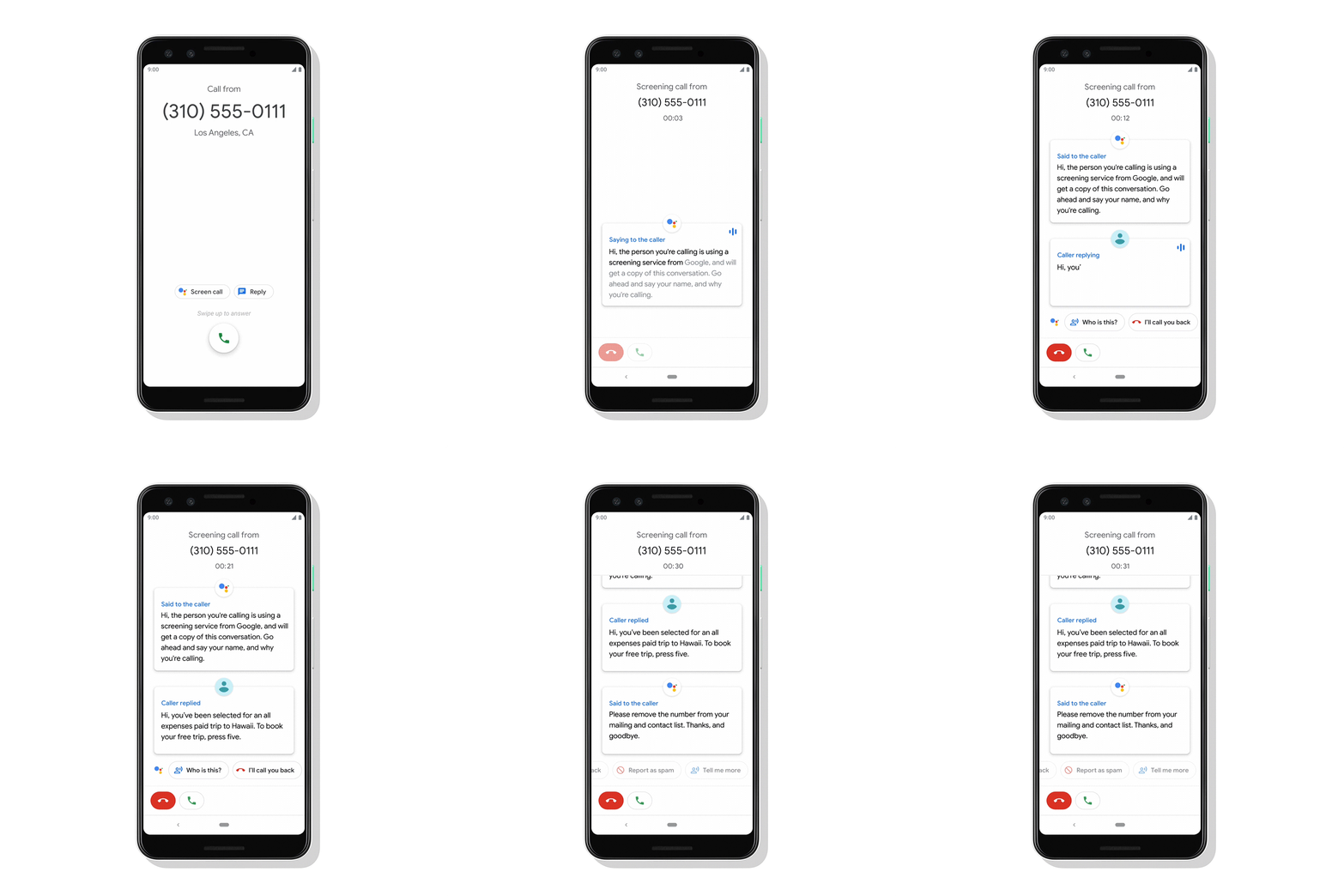
Source: Google
Google Knows It Started as a Search Engine — and That Will Bleed Into All of Its Products
One of the first statistics cited at today’s event paid tribute to Google’s origins as a search engine. Search queries made on Google Home, said Google’s VP of Product Management Diya Jolly, have gone up 400% over the past year.
In many ways, the evolution of Google’s foray into hardware is rooted in its position as a leader in search. Many of these devices, while equipped with multiple functionalities, serve as physical distribution channels for users to find information through Google.
These aren’t just simple links with possible answers to questions like, “Who was the 26th president of the U.S.?” For a while now, Google has shown signs of potentially (and eventually) removing a list of links from its search results completely, by way of surfacing quick answers in a featured snippet at the top of the results page.
Source: Google
Devices like the Hub serve as yet another way to get those quick answers, but in a variety of formats. A search for how to do something could yield an instructional video result from YouTube (also owned by Google), which can be immediately played on the Hub, the Assistant app, or on Google phones that come equipped with Assistant (similar to how iPhones are equipped with Siri, Apple’s voice assistant).
Even the Pixel 3 plays a part here. Not only is Assistant built into it, it automatically equipped with assistant, but its camera will come equipped with Lens: Google’s artificial-intelligence (AI)-powered image recognition technology that allows the camera to recognize objects and text.
For example, if a camera with Lens capabilities hovers on a takeout menu, it can recognize the restaurant, Google says, and pull up its phone number. If your friend is wearing a shirt you like, the camera will recognize its brand and tell you where to buy it.
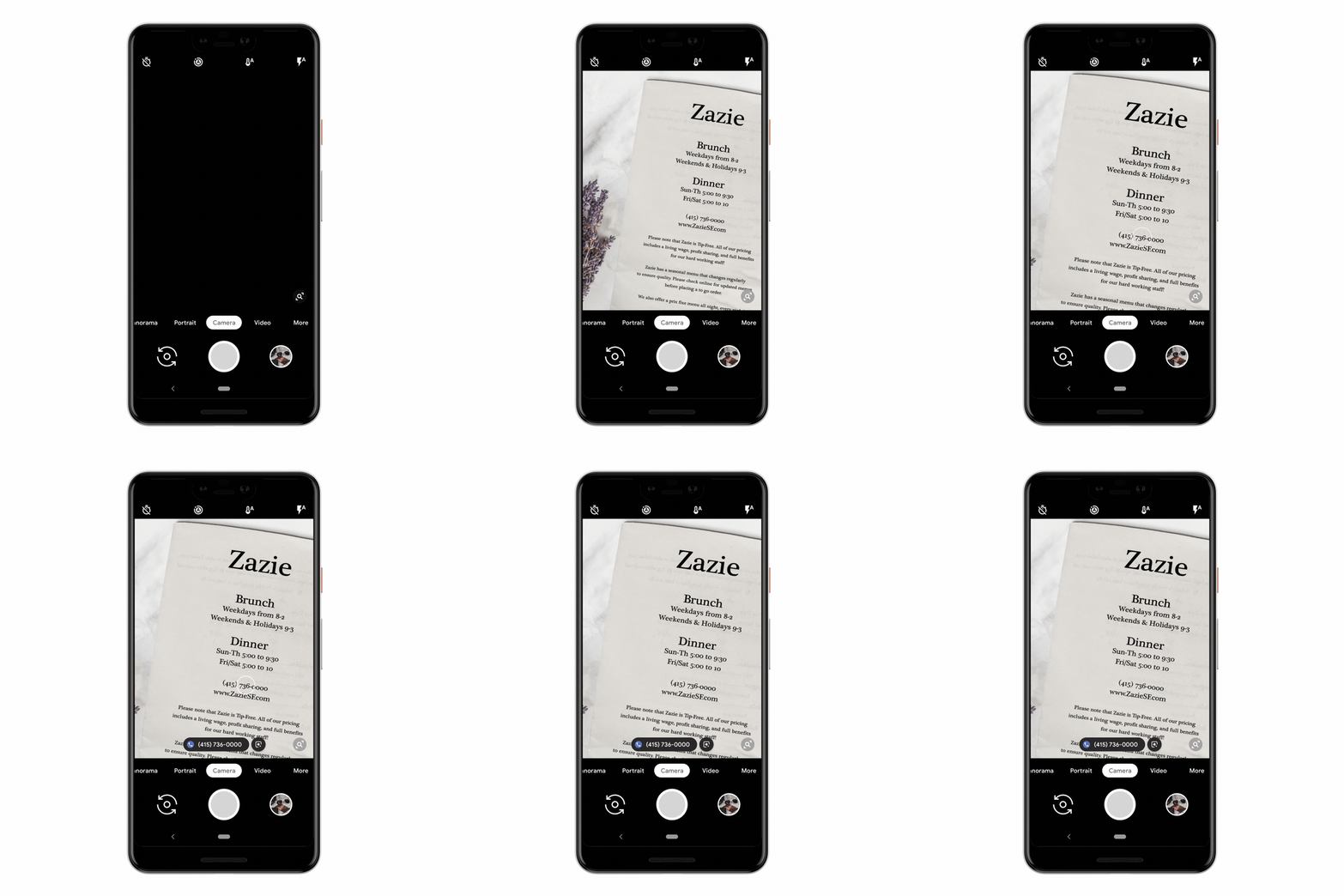
Source: Google
Lens serves as another way for users to find information, albeit a quasi-futuristic one that has yet to be proven by public use. But information-finding is at Google’s core — and it seems that it will continue to be for future generations of its hardware to come.
Putting the User First
What Google will tell you about the connected nature of these products is that they’re all designed with one thing in mind: making life easier for the user.
Does that mean permeating all facets of the user’s home and life? Maybe. But it also means making sure that the user can quickly and seamlessly find the information she needs across the suite of these devices and the technology that powers them — whether it’s a question about history, a flight reminder, or a question about the weather.
What’s more, is that information-finding mission is paired with personalization. Many of Google’s historical search algorithm updates, for example, have been made with the purpose of making search results more relevant to the user. That’s underscored by the company’s VP of Hardware Rick Osterloh calls a “deep responsibility to provide you with a helpful, personal Google experience … that guides the work we do.”
Now, that personalization will surface in more places. Call it what you will — commercialization, or an effort to sell more products under the same company’s umbrella. But here’s the thing: It could work.
Convenience, relevance, and personalization more important to consumers than ever. And those three things are connected. Information that isn’t relevant seems like a waste of time. And if it’s not personalized, that sends the message that it was conveyed by someone who doesn’t care about what we want or need — also not a good use of our time.
So maybe we can all observe a lesson from Google here — despite its missteps. Make life easier for your audience through whatever product, service, or content you offer. If that comes in multiple forms, make sure life is even better when they’re used in tandem (but that they still function just as well on their own). And above all else: Solve for the humans at the other end of everything you do.

How Marketers Can Take Advantage of Google Assistant’s New Tools
Google Assistant — the search engine giant’s digital personal assistant that can answer questions, set alarms, play music, and more — turned two earlier this month.
And to celebrate its birthday, Assistant got what Google is calling “a makeover”: a refresh of its core mobile app that seeks to strike a fair balance between both voice commands and those done by touch or text.
As is the case with most voice assistants, Assistant’s capabilities — or “Actions,” the name Google has ascribed to the things it can do — were built around what the name suggests: verbal user commands made either through its core mobile app, or the “smart” hardware equipped with Assistant technology (like the Google Home smart speaker, as well as certain smart headphones and TVs).
But Google found that “nearly half” of all Assistant engagements somehow included both voice and touch — and it’s refreshed the core Assistant app to make it easier to use both.
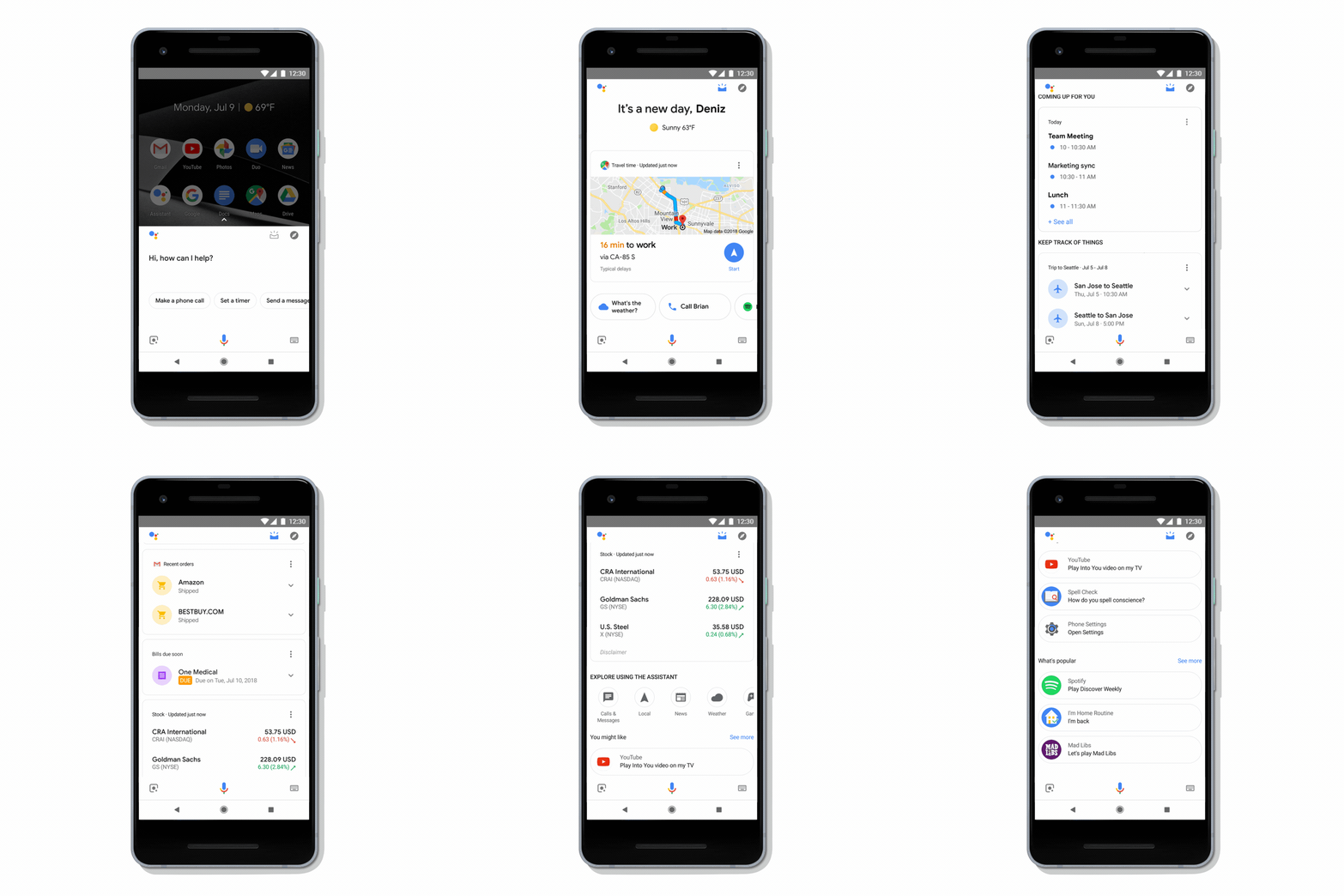
Source: Google
These changes weren’t just made with consumers in mind, though. The “makeover” also includes new tools and use cases for brands and marketers. Here’s a look at them.
Better Personalization
According to Google, there’s an experiential gap that causes users to abandon interactions with third-party brands on voice assistants.
In order to complete these transactions, users usually have to log into their accounts with these brands, or create a new one — which, when doing so through a voice assistant, typically “requires the user to open a web browser and manually log in to a merchant’s website,” writes Google Product Manager Mikhail Turilin.
That one an extra step, says Turilin, is often enough to make the user drop the process completely. After all, can you remember your passwords for all of your ecommerce or online retail accounts? I can’t.
That could explain the appeal of voice assistants — like Amazon’s Alexa — that make these transactions more seamless. It’s also why some users prefer to use single sign-on options that allow them to log into multiple sites or apps using their credentials from networks like Google or Facebook.
To help brands combat this fragmented login experience, Google has introduced Google Sign-In for the Assistant, which allows users to sign into their third-party brand accounts (or create new ones) within the Assistant app, while engaging in a brand Action.
This sign-in integration allows brands to personalize interactions with users on yet another channel. By logging into their accounts on a voice assistant platforms, users are also importing their preferences there, like previous orders, saved forms of payment, and loyalty program memberships.

Source: Google
Google recently made some changes to the way third-party app requests for permissions are displayed for users, which can be reviewed here. Meanwhile, check out Google’s guide to getting started with this integration.
Creating Visual Experiences
Sometimes, it’s not enough for an Assistant experience to be truly personalized — it also has to be engaging. We’ve written before about how factors like like good copy and visual content make for a positive, engaging messaging experience. Interacting with a brand on the Assistant platform, it seems, is no exception.
Luckily, Assistant’s makeover also includes new tools for brands to create and pre-load visual content that can be used in their Actions; for example, responding to different user inputs with animated GIF images, or supplementing answers to user queries with photos and videos.
Here’s a great channel where brands can position themselves as knowledgable sources of content pertaining to a given topic in a way that delights users — even if it isn’t a direct extension of their products or services.
A local car dealership or garage might not necessarily use Assistant to sell automobiles or oil changes, but it can use these visual experience tools share a “virtual test drive” video, or share helpful, tactical content like a video on how to change a tire in an emergency.
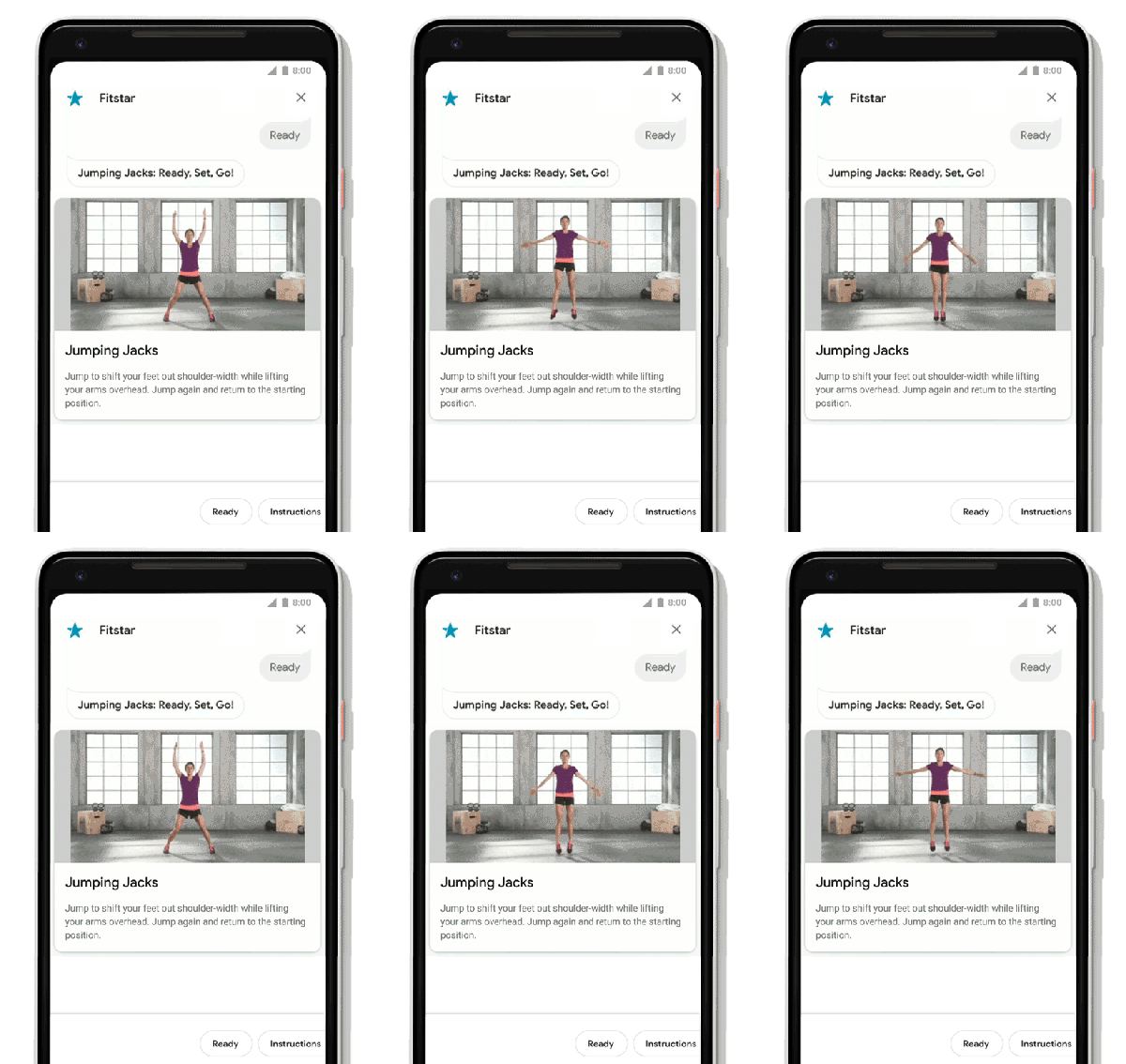
Source: Google
Selling Digital Products and Services
It’s possible that your business doesn’t sell physical products — or that it sells digital items to complement them (like product bundles or service subscriptions sold online).
Google has introduced new tools for digital product and service transactions, as well. Within Assistant Actions, brands can sell “digital goods” like product upgrades, which is particularly helpful if your product is something like an app, game, or software. Now, if a user wants to purchase a paid add-on or subscription, that can be done through a brand’s Assistant Action.
Here’s a look at how meditation app Headspace uses Assistant to offer plan subscriptions:
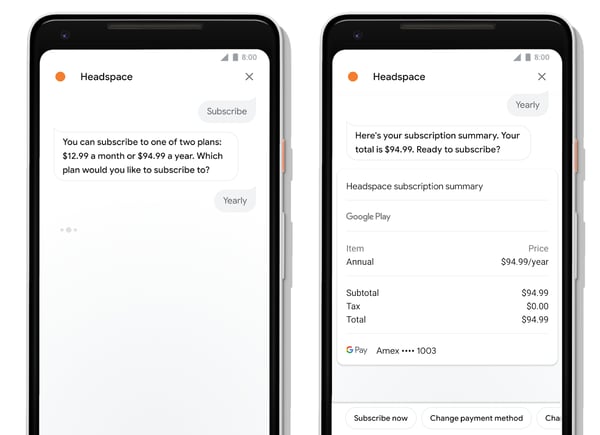
Source: Google
You may have noticed that the transaction in the image above was completed with Google Pay. Assistant now also allows users to make in-app purchases with Google Pay within a brand’s Action, once again making the experience more seamless. Instead of fumbling for a credit card, users can complete the purchase with Google Pay, where payment information is already stored ( if they have accounts set up).
Learn more about building these transactions here.
The Bottom Line
When evaluating these news tools and features, it’s important to remember why voice assistants were created in the first place: “For removing the friction of daily in-the-moment activities,” says HubSpot VP of Marketing Meghan Keaney Anderson, like “finding a place to get an oil change on the way to your next appointment.”
By introducing these new marketing resources, Assistant is making it easy for brands, too, to reduce this type of friction — to make it easier to engage with and buy from them on a platform they might already be using for other tasks or activities.
I’ve written before about using my Google Home smart speaker — which is powered by Assistant technology — as an all-in-one stereo, alarm clock, and white noise machine. So why haven’t I used the app more, especially to engage with some of the brands whose products and services I prefer?
The answer, and the missing piece: Those brands weren’t on Assistant. There was no way for me to engage with them there.
But now that Google has introduced this suite of tools for businesses, it’s entirely possible that those brands will have a presence on Assistant, and create new ways for me to engage with them through a platform (my Google Home) in a way that wasn’t previously available.
As for where brands can begin, Keaney Anderson advises marketers to think about how (and if) Assistant might make sense as a distribution channel for their expertise, products, or services.
“If you’re a B2B company, the first step would be to think about whether you have a good in-the-moment use case for Assistant, and then address how to systematically reduce friction in that use case,” she says. “Let’s say you’re a subscription product that allows people to store contacts in a CRM. Using Google Assistant, users could add contacts by voice after meeting them at a network event.”
This particular in-the moment use case also shows the value of being able to seamlessly upgrade through a single platform, too. “What happens when a user finds that they’ve reached their limit of contacts they can add without upgrading? That’s friction,” Keaney Anderson notes. “Google’s latest expansion would enable users to upgrade, all without ever leaving that flow.”
And even if Assistant isn’t necessarily the best platform for your particular brand, the lesson stands: Remove friction. Make life (and engagement with you) easier for your audience. And, as always — meet your audience where they already are.
Featured image credit: Google

How to Connect With Your Dream Clients Through Social Media Video Ads
Here’s the nice thing about video advertising — it’s the ad format with the highest engagement rates on the internet, and since mobile video viewing is breaking records in 2018, more and more people are ready to watch your video ads.
Does that mean that your next video advertisement will magically perform better than your image ads? Not necessarily. It’s easier said than done.
A video ad requires more work than an image ad, a bigger budget, and coordination with more people. There’s also a higher probability of doing it wrong and undermining the success of your next marketing campaign.
To ensure the highest likelihood of success, I’ve created an infographic outlining the critical actions you must take — or avoid — when creating a video ad.
This infographic will teach you how to design your next video ad for maximum performance, and the most important tips to promote it successfully on your favorite social media channel.
Let’s dive right it.

complete guide to video advertising to learn
every strategy you should use to make your next video a success.

The 5 Best Retail Interview Questions and Answers
Hiring for a retail store isn’t easy.
You might find a candidate with a ton of prior experience in retail, but a poor ability to connect with your customers. Or, perhaps you interview someone who is sociable and helpful, but doesn’t have the ambition to drive sales.
Your retail employees are the face of your brand, and often the number one defense against e-commerce stores like Amazon. If customers like your salespeople, they might return for the excellent customer service alone.
Additionally, you’ll need competent employees who can work efficiently to avoid long store lines. If you think this isn’t a big problem, think again — according to a new report conducted by Adyen, retailers are losing a collective $37.7 billion in potential sales due to long checkout lines.
To ensure you’re hiring the best, most efficient retail workers, take a look at the five best retail interview questions you should ask, and how an ideal candidate would answer them.
1. Why do you want to work in retail/at our company?
Working in retail is challenging, and isn’t for everyone. You need employees who are capable of handling difficult customers, standing on their feet for long periods of time, and generally willing to drive sales even when they’re tired.
For this reason, it’s critical you ask this question. An ideal candidate will focus her answer on your company, highlighting why your brand is important to her and what she likes about your merchandise. Additionally, you’ll want a candidate who says she enjoys interacting with people, and will go out of her way to be helpful to your customers.
2. What do you consider good customer service?
Ultimately, customer service is about listening to the customer and doing your best to accommodate that person’s unique needs. It’s about remaining engaging and helpful, but also empathetic when a customer is frustrated.
An ideal candidate will say something like this, “Good customer service is valuing every person who enters the store, and doing my best to ensure their needs are met. Additionally, good customer service means remaining friendly and engaging, so a customer leaves the store feeling appreciated.”
If your candidate can’t adequately answer this question, it’s a sign she isn’t ready for the customer-facing aspect of the job.
3. Can you provide an example of a time when you went above and beyond for a customer?
You don’t want an employee who only does the bare minimum required. If you want to retain customers long-term, it’s critical your employee goes above and beyond.
For instance, if you don’t have an item in-store and your customer wants it, you want an employee who goes out of her way to order it online and ship it to the customer, free of charge.
Additionally, you want someone who goes beyond the “Hello” greeting at the door. Collecting clothes to put into a fitting room, asking if the customer needs different sizes, and mentioning store discounts are all ways your employee can show your customers they matter.
Ideally, your candidate will be able to offer multiple examples of times she went above and beyond for customers. You want this to be the norm in your store, not a rare occurrence.
4. If a customer is rude, unruly, or confrontational, what do you do?
When working in customer service, it’s guaranteed your employee will occasionally come across frustrated or rude customers. You’ll need a candidate who knows how to show empathy and de-escalate the situation, rather than make matters worse.
For instance, your candidate should say something like this — “If a customer is being rude or confrontational, I first recognize there’s a reason for it, even if I don’t know what that is. I do my best to show empathy, and try to figure out the root of the problem. Then, I focus on potential solutions, rather than ruminating over the issue. The quicker I can reach a resolution, the faster the customer will likely calm down and become more polite.”
You don’t want a candidate who believes it’s okay to fight back, or ask the customer to leave the store. Instead, you need a candidate who is calm and empathetic during stressful customer interactions, and remains focused on finding a solution.
5. How do you make sales and promote a high-value average transaction?
Remember, the best retail employees aren’t just there to be helpful to your customers — they’re also there to help your business grow.
You want a candidate who can remain focused on making a profit for your company. For instance, an ideal candidate will say, “I focus on what the customer wants, and do my best to mention related products. For instance, if they’ve chosen a book as a birthday gift for a friend, I might mention fuzzy socks or a nice candle as a complementary gift. By focusing on the customer’s goal, I’m typically able to make sales by offering helpful and relevant suggestions.”
