
How to Add a Secondary Axis to an Excel Chart
Have you ever wanted to create a single chart for two different (yet related) pieces of data? Maybe you wanted to see the raw number of leads you’re generating from each channel and what the conversion rate of the channel is.
Having those two sets of data on one graph is extremely helpful to picking out patterns and identifying full-funnel trends. 
But there’s a problem. Those two sets of data have two Y axes with two different scales — the number of leads and the conversion rate — making your chart look really wonky.
Luckily, there’s an easy fix. You need something called a secondary axis: it allows you to use the same X axis with two different sets of Y-axis data with two different scales. To help you solve this pesky graphing problem, we’ll show you how to add a secondary axis in Excel on a Mac, PC, or in a Google Doc spreadsheet.
(And for even more Excel tips, check out our post about how to use Excel.)
Note: Although the following Mac and Windows instructions used Microsoft Excel 2016 and 2013, respectively, users can create a secondary axis for their chart in most versions of Excel using variations of these steps. Keep in mind the options shown in each screenshot might be in different locations depending on the version of Excel you’re using.

How to Add Secondary Axis in Excel
- Gather your data into a spreadsheet in Excel.
- Create a chart with your data.
- Add your second data series.
- Switch this data series from your primary Y axis to your secondary Y axis.
- Adjust your formatting.
On a Mac Computer (Using Excel 2016)
1. Gather your data into a spreadsheet in Excel.
For the purposes of this process, we’ll create three rows of data on Nike shoe sales in a blank spreadsheet:
- Shoe sizes
- Number of shoes sold per size
- Percentage of that size’s inventory that was sold
Make Row 1 your X axis and Rows 2 and 3 your two Y axes. For this example, Row 3 will be our secondary axis.

2. Create a chart with your data.
Want a detailed guide to creating a chart in Excel? Click here.
Otherwise, you can highlight the data you want to include in your chart and click “Insert” on the top-lefthand corner of your navigation bar. Then, click “Charts,” navigate to the “Column” section, and select “Clustered Column” — the first option, as shown below.
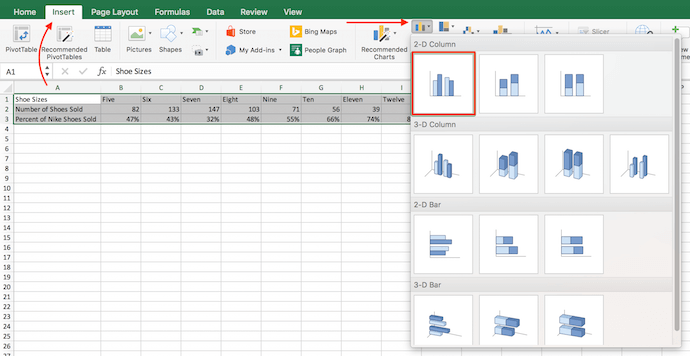
Your chart will then appear below your data set.
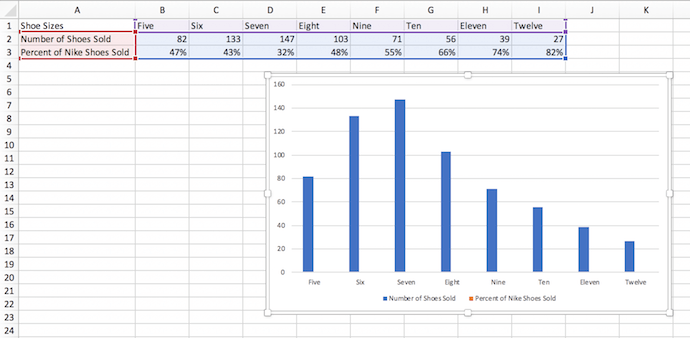
3. Add your second data series.
Now it’s time to turn the “Percent of Nike Shoes Sold” data — currently row 3 in the spreadsheet — into your chart’s secondary Y axis. Head over to your top navigation bar and click on “Format.” This should pop up in dark green next to “Chart Design,” as shown to the far right in the screenshot below.
Having selected “Format,” navigate to the dropdown menu on the top-lefthand corner of your menu bar, where it might currently say “Chart Area.” Click this dropdown and select “Series ‘Percent of Nike Shoes Sold'” (or whichever series you want as your secondary axis).
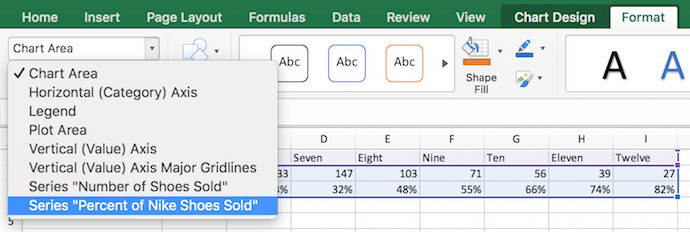
After you select “Series ‘Percent of Nike Shoes Sold,'” click on the “Format Selection” button — it’s right below the dropdown. A pop-up will come out that gives you the option to select a secondary axis. If you’re using a version of Excel that doesn’t provide you with this formatting button, move on to the fourth step below.
4. Switch this data series from your primary Y axis to your secondary Y axis.
You’ll see your new data series added to your chart, but currently, this data is being measured as a low-laying series of columns on your primary Y axis. To give this data a secondary Y axis, click on one of these bars just above the X axis line until they become highlighted.
Having highlighted this additional data series on your chart, a menu bar labeled “Format Data Series” should appear on the right of your screen, as shown below.
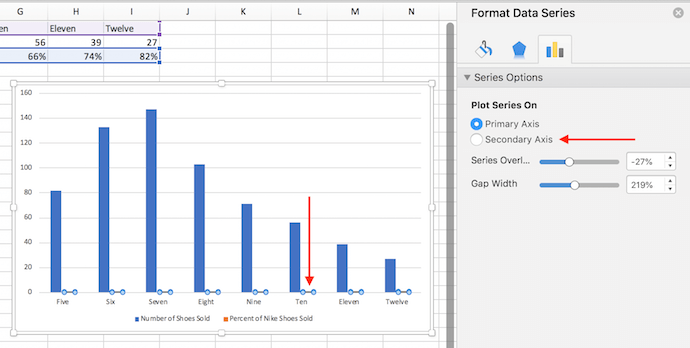
In this menu bar, click the “Secondary Axis” bubble to switch your Percentage of Nike Shoes Sold data from your primary Y axis to its own secondary Y axis.
5. Adjust your formatting.
You now have your percentages on their own Y axis on the right side of your chart, but we’re still not done. See how you have “Percent of Nike Shoes Sold” overlapping with the “Number of Shoes Sold” columns? Ideally, you want to present your secondary data series in a different form than your columns. Let’s do that.
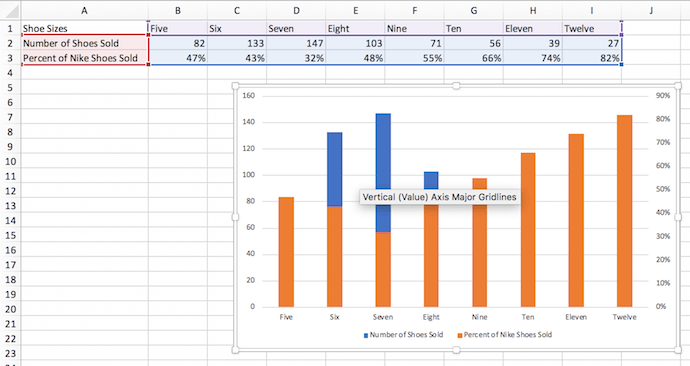
Click your orange columns — as shown in the screenshot above — to highlight your second data series again. Then, click into “Chart Design” on the menu bar on top of your Excel spreadsheet.
On the far righthand side, select the “Change Chart Type” icon and hover over the “Line” graph option. Select the first line graph option that appears, as shown below.
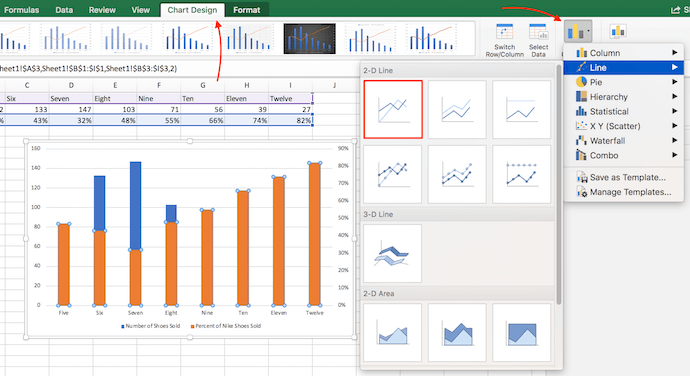
Voilà! Your chart is ready, showing both the number of shoes sold and percent, according to shoe size.

On a Windows PC (Using Excel 2013)
1. Gather your data into a spreadsheet in Excel.
Set your spreadsheet up so that Row 1 is your X axis and Rows 2 and 3 are your two Y axes. For this example, Row 3 will be our secondary axis.
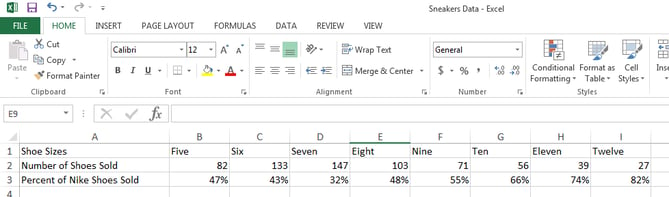
2. Create a chart with your data.
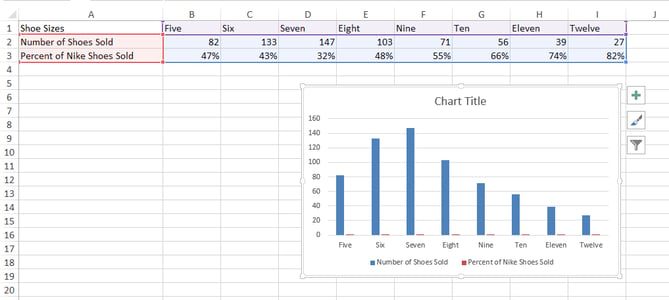
Highlight the data you want to include in your chart. Next, click on the “Insert” tab, two buttons to the right of “File.” Here, you’ll find a “Charts” section. Click on the small vertical bar chart icon at the top left of this section. You’ll now see a few different chart options. Select the first option: 2-D Column.
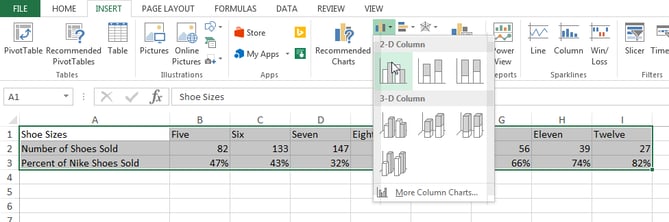
Once clicked, you’ll see the chart appear below your data.
3. Add your second data series.
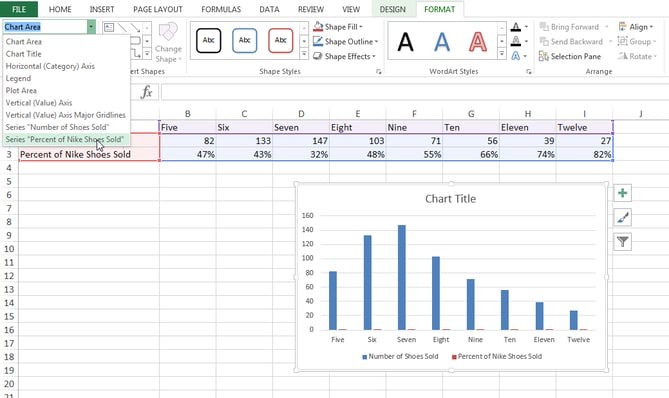
Now it’s time to add the “Percent of Nike Shoes Sold” data to your secondary axis. After your chart appears, you will see that two new tabs appear at the end of your dashboard: “Design,” and “Format.” Click on “Format.”
Then, on the far left where it reads “Current Selection,” click on the dropdown that reads “Chart Area.” Select “Series ‘Percent of Nike Shoes Sold'” — or whichever you want your secondary axis to be.
4. Switch this data series from your primary Y axis to your secondary Y axis.
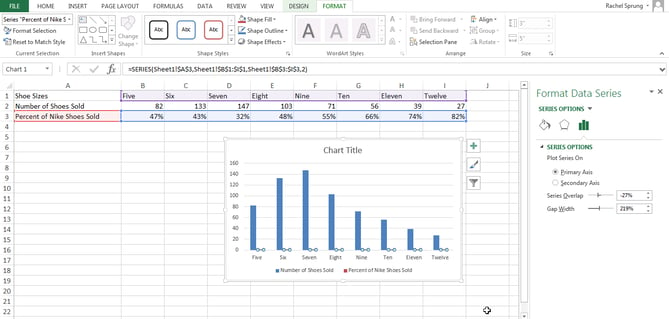
You’ll see your new data series added to your chart, but currently, this data is being measured as a low-laying series of columns on your primary Y axis. To give this data a secondary Y axis, double-click on one of these bars just above the X axis line until they become highlighted.
Having highlighted this additional data series on your chart, a menu bar labeled “Format Data Series” should appear on the right of your screen.
In this menu bar, click the “Secondary Axis” bubble to switch your Percentage of Nike Shoes Sold data from your primary Y axis to its own secondary Y axis.
5. Adjust your formatting.
Notice how your “Percent of Nike Shoes Sold” data is now overlapping with your “Number of Shoes Sold” columns? Let’s fix that so your secondary data series is presented separately from your primary data series.
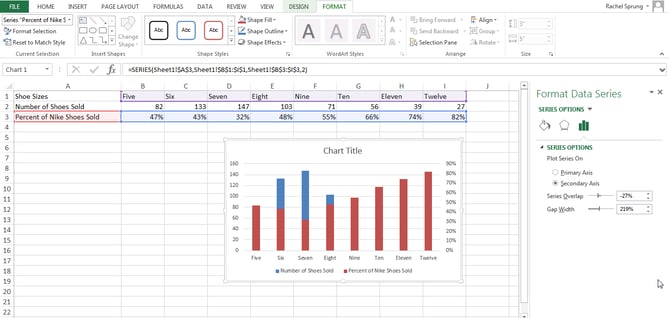
Click and highlight your secondary bar data — the red columns — and select the “Design” tab (which is located next to the “Format” tab at the top of your screen). Then, click “Change Chart Type.”
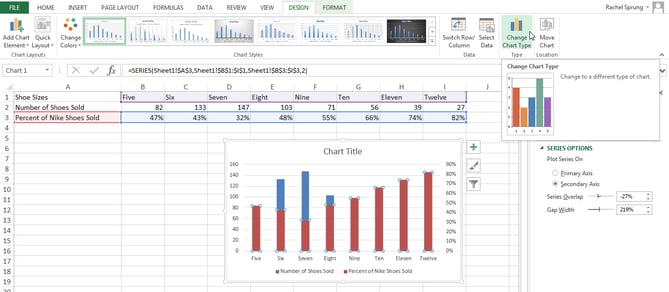
You will see the following pop-up modal. Next to “Percent of Nike Shoes Sold” at the bottom, click on the dropdown, and select an option below “Line.” This will change this data series into a line graph.
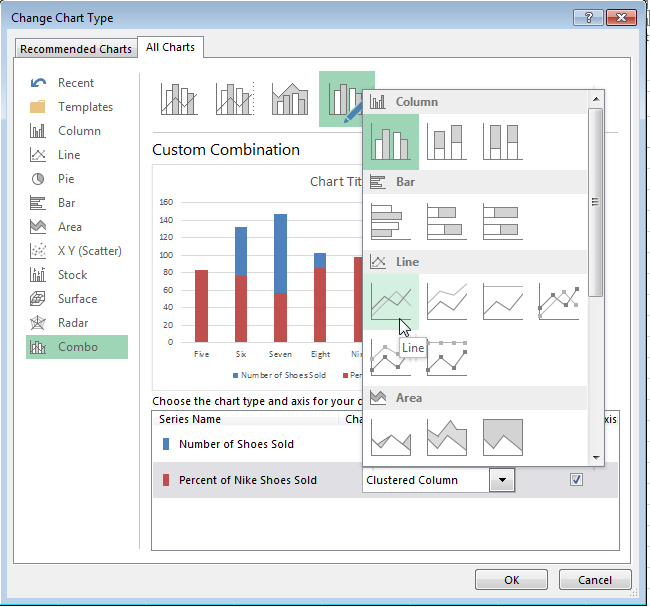
Make sure the “Secondary Axis” check box next to the dropdown is selected as well.
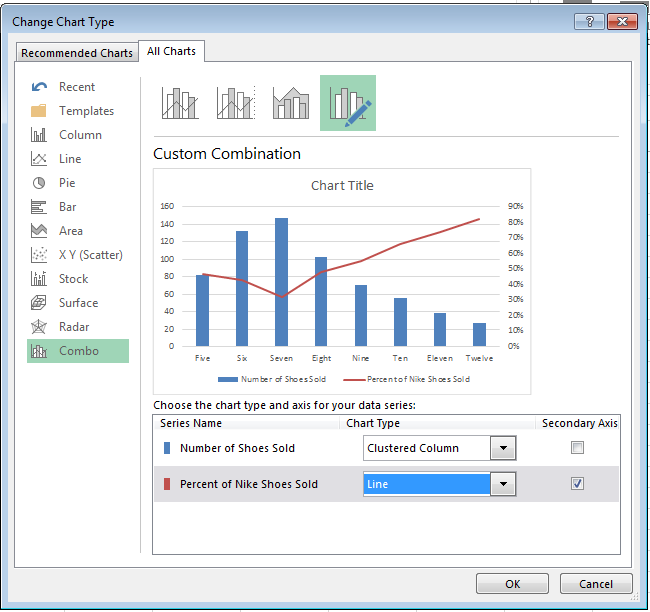
Voilà! Your chart is ready.

How to Add a Secondary Axis in a Google Doc Spreadsheet
Step 1: Gather your data into the spreadsheet.
Make Row 1 your X-axis and Rows 2 and 3 your two Y-axes.
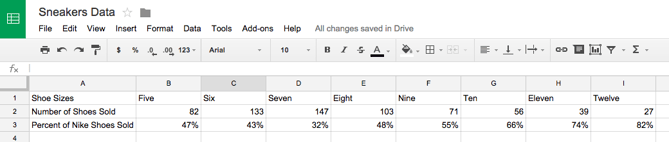
Step 2: Create a chart with your data.
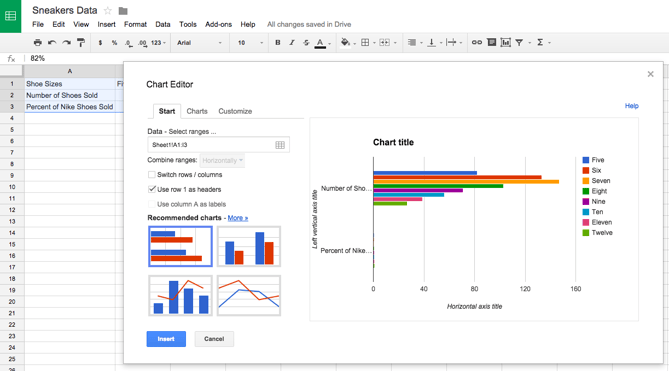
Highlight your data. Then click on “Insert” on your menu, and click “Chart” — it’s located toward the bottom of the drop-down. This module will appear.
Step 3: Add your secondary axis.
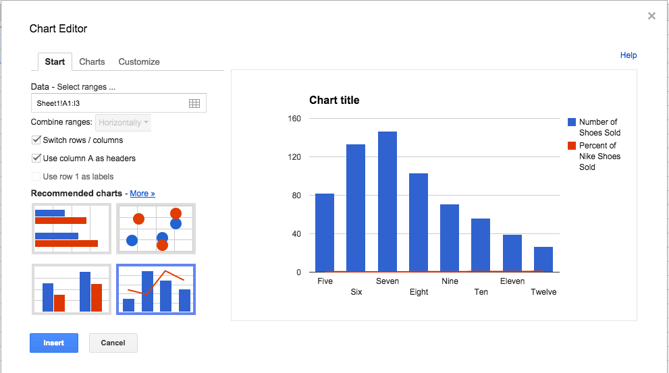
Under the “Start” tab, click on the graph at the bottom right showing a bar graph with a line over it. If that doesn’t appear in the preview immediately, click on “More >>” next to the “Recommended charts” header, and you will be able to select it there.
Make sure that “Use column A as headers” is checked at the top. If the chart still doesn’t look right, you can also check the option to “Switch rows / columns.”
Step 4: Adjust your formatting.
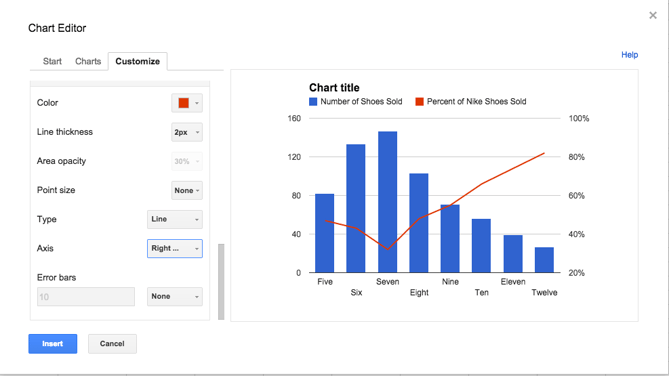
Now it’s time to fix your formatting. Under the “Customize” tab, scroll down to the bottom where it says “Series Number of Shoes Sold.” Click on that dropdown, and click on your secondary axis name, which, in this case is “Percent of Nike Shoes Sold.” Under the “Axis” drop-down, change the “Left” option to “Right.” This will make your secondary axis appear clearly. Then click “Insert” to put the chart in your spreadsheet.
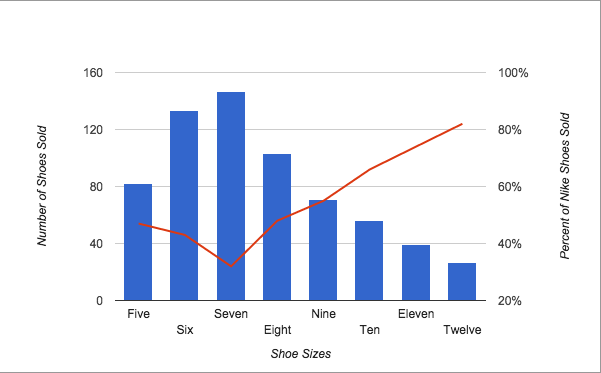
Voilà! Your chart is ready.
Want more Excel tips? Check out this tutorial on how to create a pivot table.



Why I’m Worried About the Future of VR
It’s not often that I leave a tech conference keynote feeling like I had just attended an academic seminar in which I had mistakenly enrolled.
Of course, being a natural cynic, I have left them with skepticism. Will that product actually ever roll out? Does the technology really work the way it appears to in video demos?
But today’s opening keynote at Oculus Connect — Facebook’s annual virtual reality (VR) mega-conference — was different. I left not feeling incredulous, but rather thinking to myself, “That … was anticlimactic.”
The Timing of Oculus Connect
It’s been a dramatic week for Facebook.
On Monday, it was revealed that the co-founders of Instagram — which was acquired by Facebook in 2012 — were stepping down. (Oculus, for context, was acquired by Facebook in 2014.)
Today, Forbes published a controversial interview with Brian Acton, the co-founder of WhatsApp who departed the company earlier this year, only to prompt a contentious response from David Marcus: the former VP of Messenger who now oversees a small Blockchain group at Facebook. WhatsApp is also among Facebook’s acquisitions.
Maybe it was the context of a week of concentrated executive theatrics –among what has been a year of turmoil and bad PR for Facebook — that not-so-subtly caused the anti-climactic sentiment of today’s keynote.
But more than that, as others have been keen to point out, it could have been caused by the seemingly “slow roll” of VR, which the public has been slow to receive in a tangible way, and whose user base still largely consists of early adopters.
Oculus’ annual #OC5 conference feels anti-climactic as slow VR adoption and tech advances minimize progress. These Expressive Avatars are cool, but there aren’t enough VR owners to use them https://t.co/hxGRz3IVyz pic.twitter.com/AF99M9tJVN
— Josh Constine (@JoshConstine)
September 26, 2018
Looking Back, Looking Forward
The Road to One Billion
At last year’s Oculus Connect, Facebook CEO Mark Zuckerberg waxed bold about his goal of one billion people using VR, though by when, he didn’t quite say. Today, almost laughably, he pointed to the reality — no pun intended — that he’s less than 1% of the way there.
Zuck is feeling funny today. Here’s a graphic showing the progress to his projection/goal last year of getting 1 billion people into VR #oc5 pic.twitter.com/hsHmmIo0s9
— Amanda Zantal-Wiener (@Amanda_ZW)
September 26, 2018
But in order to get to one billion, Zuckerberg said, the “how” needs to be prioritized over the “when.” And that, he explained, requires a better overall VR ecosystem — to get more users on each Oculus headset, and to build the technology in a way that allows new models and platforms to cooperate with old ones.
I like to think of this concept in terms of iPhones — how older models of the device tend to stop working as well as newer generations of the iOS are loaded onto it. In order to make the market for VR truly permeable, Zuckerberg said, the platforms can’t work that way.
So, what does that look like — today, at least? It starts with the Oculus Quest: the company’s “first all-in-one VR system … that lets you look around in any direction and walk through virtual space just as you would in the physical world.” It will ship next spring — at Facebook’s annual F8 developer conference, I predict — and comes with a $399 price tag.

But is that really the way to the hearts of the non-early-adopter’s heart — a nearly-$400 price tag on hardware that many people haven’t even started tinkering with?
People First
After Zuckerberg unveiled the Oculus Quest, Facebook’s VP of Consumer Hardware took the stage to discuss the responsibility of tech to put people first — to use developments like VR to break down distance and barriers between people, rather than silo them.
But it seems that the focus on connecting people in this realm seems to be, if you’ll excuse the play on words, virtual. The Oculus’s gaming capabilities and features like Oculus Venues — which allows users to “attend” live events like sports games and concerts in VR — does connect people and allow them to use VR in a social way.
It’s still purely online, however — arguably siloing users in a virtual world that doesn’t invite human interaction in a way that our species has evolved to exist and function.
And should VR go mainstream — it’s that potential encouragement of “getting inside and getting online” that I find most worrisome about its future.
A Future of VR That Doesn’t Shine So Bright
What We Expected
When I outlined my key predictions for Oculus Connect yesterday, I was perhaps approaching it from an over-optimistic point-of-view (which, if you know me at all, is out of character).
I had hoped to see more use cases for VR that involved training people in the workplace, of helping them get to know each other in a safe (virtual) environment before meeting in person — a possible integration with Facebook for Dating — and donating VR headsets to underserved schools to aid learning.
But what we heard today didn’t reflect that. Instead, we received one major announcement — the future launch of the Oculus Connect — a heavy emphasis on new gaming features, and an extensive history lesson on how Big Tech came to be, and how it will dictate VR’s future, from Oculus Chief Scientist Michael Abrash.
What We Got
The man clearly has a lot to say — “once Abrash gets started, all bets are off” I heard a PR rep say in the press lounge later — and seems bullishly optimistic on the future of VR.
In a few years, that is.
In order to make the mass market for VR truly permeably, Abrash suggested, it has to become a social norm. That is, it has to be accessible and acceptable in a way that allows it to be used any where, any time — including in public.
Part of that future — which Abrash says he foresees coming true within the next four-to-five years — includes modifications to both the technology and the hardware. Here’s where he started to lose me … and others.
I no longer understand what’s happening at this Oculus event 🤘🏼 pic.twitter.com/OIyG8k99od
— Kurt Wagner (@KurtWagner8)
September 26, 2018
First, the technology has to evolve to be able to mix different layers of reality, Abrash said. It has to allow users to enjoy VR experiences in a “see-through” way that also allows them to see the physical environment around them, sometimes combining the two.
It also has to integrate what we do on our other devices, such as our phones, where we receive message and social media notifications.
A look “under the hood” of the Oculus Connect. This image depicts how the technology/camera combines in-real-life object detection with the position of the user to overlay VR features with that environment #oc5 pic.twitter.com/LNQiovgm9h
— Amanda Zantal-Wiener (@Amanda_ZW)
September 26, 2018
And for the hardware, it has to be okay to wear in public without 1) walking into trees, walls, and other people, or 2) looking weird. That means that the ultimate mixed reality headset — the one that truly leads to a mass adoption of VR — can’t be a headset at all. It has to be a pair of glasses.
The Many Sides of VR Coming to the Masses
As with most emerging technologies, there are both positive and negative sides to a future where, as Abrash put it, we’re able to “combine the real with the virtual whenever you want.”
On the plus side, you have benefits for those with something like panic disorders: a future in which these users instantly converge something calming, like a positive environment replete with a guided breathing exercise, with the actual environment or situation around them that’s causing panic.
But when evaluating the drawbacks of such usability, I point to the fact that so many of us — myself included — already engage in the unhealthy habit of constantly looking down at or checking our phones, no matter what we’re doing or who we’re with.
Now, layer that present reality with the future one — where we’re already over-connected, but are also potentially both existing in silos from real-life engagement with others and, even when we do venture into public, can easily replace what’s actually happening around us with a virtual “improvement”?
It’s a future that’s a bit of a way’s off — and that’s even if Abrash’s vision of mass consumption of VR comes to fruition — but if so, the long-term implications should be considered.
Technology has already caused us to evolve to a point of being addicted to mobile devices in a way that’s diminished our attention spans and empathy — especially among younger generations who could actually live to see this future.
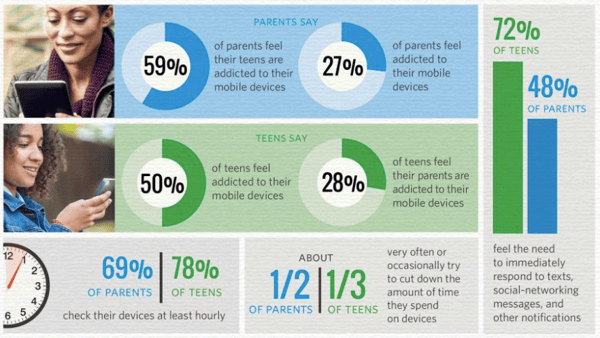
Source: Common Sense Media
Should this future come true — one where we can quickly overlay actual reality with something that we prefer — also evolve us to the point of no longer being able to cope with conflict, stress, or other scenarios in which we’ve historically relied on survival instincts?
Many other things would need to happen first. More people would have to start using VR, perhaps at the extent to which we use smartphones. More people will have to be able to afford it, too. And there might have to be rules, too — perhaps within the same vein of barring texting while driving, or using phones in the classroom among a certain age group.
But again, these possibilities should be considered. If Oculus truly wishes to put people first, and bring us back to the human side of technology — its long-term impact on the very people into whose hands these products will go should be carefully and thoroughly evaluated.
We’ll be at Oculus Connect tomorrow, too. Check back for our coverage of Day 2.

Unriddled: A Secret Google Memo, Alexa Microwave, and More Tech News You Need
“Unriddled” is HubSpot’s weekly digest of the tech headlines you need to know. We give you the top tech stories in a quick, scannable way and break it all down. It’s tech news: explained.
Unriddled: The Tech News You Need
1. Amazon is building a new kind of delivery fleet — starting with a whole bunch of vans.
Amazon ordered 20,000 Mercedes-Benz vans for its new delivery program, which allows contractors around the country to sign up to deliver packages for the retail giant. Amazon hopes the program will help it expand its same-day delivery capabilities, and rely less heavily on conventional delivery services like the U.S. Postal Service, FedEx, and UPS. Read full story >>
2. Uber and other US employers have been advertising jobs to men only on Facebook.
A ProPublica review found that Facebook was permitting employers to target job-related ads exclusively to men. The Supreme Court ruled in 1973 that it’s illegal for employers to advertise jobs exclusively to one sex. Fifteen US employers — including Uber — were found to be targeting only men with job ads on the social network. Read full story >>
3. Google reminds us that, yes, third-party apps can still read our emails.
Google stopped scanning Gmail messages for ad-targeting purposes earlier this year, but apparently that doesn’t apply to third-party apps. Google’s VP of public policy and government affairs confirmed this week that third-party Gmail apps still have the ability to read your emails — as long as they get consent from you first. Read full story >>
4. Instagram wants to influence the US mid-term elections — in a positive way.
According to a study by Nature, the simple message, “Get out the vote,” above Facebook News Feeds might have driven up to 340,000 additional votes in 2010. In light of this promising data, Instagram plans to run Stories ads encouraging U.S. users who are over 18 to register to vote in the upcoming midterm elections. Read full story >>
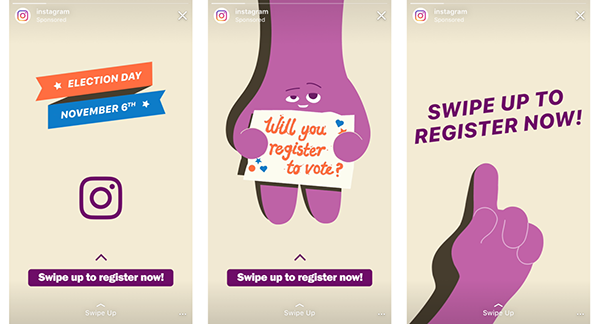
Image via TechCrunch
5. Snapchat’s new feature wants you to buy even more stuff on Amazon.
Starting this week, Snapchat is testing a new visual search feature that will let you identify and buy Amazon products with your phone’s camera. The new shopping feature is being rolled out gradually to users, and will let you complete purchases without leaving the Snapchat app. Read full story >>
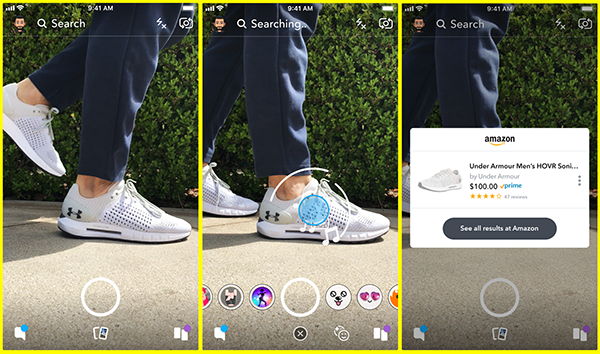
Image via Snapchat
6. Facebook saw Messenger partnerships with banks as an opportunity to obtain sensitive financial data from users.
Back in 2016, Facebook made a big push to get banks to develop Messenger bots for customer service purposes. A new Wall Street Journal article says Facebook saw these partnerships with banks as a way to gather users’ sensitive financial data and leverage users’ spending habits for ad targeting. Read full story >>
7. A Twitter bug might have exposed some DMs to third-party apps.
Twitter announced last week that a now-resolved issue with one of its APIs might have sent some users’ direct messages (DMs) to third-party developers who “weren’t authorized to see them.” Read full story >>
8. Google asked employees to delete a memo about secret plans to launch a censored search app in China.
Back in mid-August, Google CEO Sundar Pichai said in an all-hands meeting that Google was “not close to launching a search product in China.” A recently surfaced internal memo seems to contradict this, asserting that Google engineers had been working to get a search product “launch ready” for Chinese officials by late July. The memo also explained that the Chinese search system would require users to log in to make searches, and would share their location and search history directly with a Chinese partner. Read full story >>
9. Amazon is determined to hit a hardware home run as big as the Echo — even if it means making every hardware product imaginable.
Amazon unveiled a slew of new products at its annual hardware event, including an Alexa microwave, Alexa clock, a security camera, and an Echo Dot that’s exactly the same as the original Echo Dot, but louder. The company also announced some notable new features for Alexa, like a new security mode and a feature that tracks your home habits and makes suggestions when something seems out of place (e.g., forgetting to turn off a light). Read full story >>
10. Facebook wants to find you a life partner.
Colombia will be the first country to experience Facebook’s new dating app, with a country-wide test run launching there this week. The dating app, which was announced at the company’s F8 developer conference this May, will soon be rolled out internationally if all goes to plan. Ready full story >>
11. Instagram’s co-founders are leaving the company, and it looks like they might be launching a native resharing feature.
Instagram co-founders, Kevin Systrom and Mike Krieger, announced yesterday that they are departing from the company — which they created in 2010, before it was acquired by Facebook in 2012 for a cool $1 billion. Meanwhile, The Verge obtained screenshots of what looks like a native content resharing feature for Instagram — something Instagram has resisted developing for years for fear of corrupting the personal nature of the app. Read full story >>
That’s all for today. Until next week, feel free to weigh in on Twitter to ask us your tech news questions, or to let us know what kind of events and topics you’d like us to cover.

The Ultimate Guide to Virtual Reality
Imagine your favorite vacation. Where was it? What did you do? Who went with you? How was the weather? What were you wearing? Can you remember every little detail? If you’re anything like me, you can remember the overall vacation, maybe some specific moments here and there, but most of the fine points have faded. It’s a bummer, right?
What if you could relive your first time seeing the Eiffel Tower or that rock concert you attended last summer whenever you wanted? With virtual reality (VR), you can. The technology lets you travel to distant destinations, escape to new worlds, and even recreate your favorite moments.
Sound unbelievable? It kind of is. While the technology has existed for decades, it’s only recently made its way into consumers’ homes. VR headsets like Google Cardboard and Oculus Rift make it easier than ever for users to completely immerse themselves in their favorite video games and take a hands-on approach to learning new skills. Users can now interact with people and items in a totally different reality.
But while most people associate virtual reality (VR) with gaming and tourism, it’s currently used for a wide variety of applications. From medicine to marketing, there is no limit on what you can do with this technology.
We understand VR can be intimidating. Virtual worlds sound like they belong in a science fiction film, not in marketing. That’s why we created this guide to walk through the history of virtual reality, how it works, its applications, and how growing businesses can use it. Follow along to learn more.
The History of Virtual Reality (VR)
Virtual reality may seem like the hottest new piece of technology, but in fact, it was used long before innovators coined the term. That’s right, people have been obsessed with the idea of escaping reality and entering immersive experiences for decades. In fact, 360-degree murals from the 19th century could be considered some of the earliest attempts at virtual reality. The paintings aimed to make viewers feel like they were present in the scene. When you think about the amount of urbanization and cultural change that took place during the 1800s, it’s no wonder why people were so interested in visualizing different cities and civilizations. But to understand modern virtual reality, we have to travel back to the 1930s.
In 1931, Edward Link created the Link Trainer — the first commercial flight simulator. The simulator mimicked in-air turbulence and other common issues, allowing the military to train pilots during World War II safely.
Several years later, Sawyer’s View-Master debuted at the World’s Fair in New York. The childhood toy was a pair of plastic binoculars that allowed users to view single 3D images by inserting stereoscopic reels. In 2015, Mattel announced that sales had reached 100 million devices.
Following the introduction of the View-Master, cinematographer Morton Heilig developed the Sensorama. The machine allowed viewers to experience fully immersive films by sitting in an arcade-style theater cabinet that stimulated all the senses. Then in the 1960s, the first head mounted display was invented, allowing viewers to experience 3D worlds with stereo sound through a single, wearable device.
Throughout the 1960s and 1970s, engineers created several variations of VR headsets, but it wasn’t until the 1980s that people started using the name virtual reality. In 1987, Jaron Lanier coined the term while developing numerous VR accessories at his company VPL. And inventing the name virtual reality isn’t the only thing VPL is known for — the company also made history by becoming the first to sell VR goggles and gloves.
Over the next decade, VR wiggled its way into mainstream entertainment as users interacted with it in arcade games and gaming consoles. VR was so popular in the 1990s that Hollywood made a blockbuster hit about the technology — “The Matrix“.
In the 21st century, we’ve seen rapid advancements in virtual reality.
Facebook,
Google,
Samsung, and
Microsoft have all started developing their own VR devices, and with the rise of smartphones, it has never been easier for users to have an entirely immersive, interactive experience.
By now you know that virtual reality can instantly transport you to the moon or the bottom of the ocean, but how does it work? The most common types of virtual reality rely on headsets so we’ll start there. Virtual reality head-mounted displays, or HMDs, create immersive experiences with the help of two tiny screens — one for each eye. HMDs are also known as a stereoscopic display. Each screen shows images at a slightly different angle from the other to imitate depth. Virtual reality headsets use foam or other materials around the edges of these screens to block out all external distractions like the light.
Accelerometers and position sensors within the headset provide the necessary inputs to make the experience responsive. By tracking where the user is looking and how quickly they are turning their head or moving it up and down, these sensors allow the screens to respond instantly with new images, mimicking natural vision.
More advanced forms of virtual reality devices can incorporate actions, gestures, and sound into the experience. To interact with objects in the virtual world, users wear special gloves that serve two purposes. The first is to track their hands so they can project into the virtual world and the second is to simulate textures and objects by activating hundreds of tiny components within the glove. With VR gloves, users standing in a virtual reality rainstorm can actually feel the drops of water against their skin and can even reach out within the experience to grab a digital umbrella.
To simulate 360-degree sound, special binaural microphones are used to record the way sounds refract around the human head and ear. These microphones are actually shaped like human heads and can create the illusion that sounds are coming from different places around the user — or even from inside their own head. When combined with ambisonic or 3D audio that responds based on where a user is looking, virtual reality experiences can become even more realistic.
Augmented Reality (AR) vs. Virtual Reality (VR)
We’ve covered some ins and outs of virtual reality, but you may still be thinking, “all of this still sounds a lot like augmented reality.” So what’s the difference? Augmented reality (AR) is essentially the precursor to the fully immersive VR experience. In simple terms, augmented reality (AR) is an embellished or altered form of reality where content lays over users’ real-world views. The less intrusive technology allows people to add digital assets to their physical environment.
In comparison, VR actually makes the user feel like they’re in a completely different world by creating a new digital experience. When using VR, what you see and experience is different from what’s actually around you.
But how do you create these immersive virtual worlds? It’s important to note that filming a video for a VR experience is very different from filming a typical video. For starters, filming VR videos requires different equipment and is more expensive to produce. The special video equipment, VR talent, and video editing will cost you, on average, between $13,000 and $20,000.
Most importantly, VR experiences always need to be designed with your audience in mind. Before you dive into creating an expensive VR experience, think about why you need VR over another type of content like video. Remember that people have almost 180 degrees of vision and unlike standard video, VR requires a 360-degree view. It’s also essential to consider motion sickness when designing a VR experience. Because the platform completely alters people’s perception and senses, it can cause some viewers to feel nauseous. Try filming fairly still shots so viewers can interact with the content at their own pace.
Make sure the investment is worth your time, energy, and money. While virtual reality is challenging and expensive to create, it can be an incredible piece of content for your company if you have a clear vision and a high-quality production.
Virtual Reality Applications and Examples
It isn’t hard to think of fun and entertaining ways to use virtual reality — years of watching the holodecks on Star Trek along with more recent examples like Ready Player One have shown off the fun side of VR. However, many companies struggle to find practical applications for the technology. Let’s talk through a few ways some industries are already using VR.
Education
While VR has been helping pilots learn to fly for years through flight simulators, imagine the impact VR could have on other forms of education. Lowes recently introduced virtual reality “how to” experiences into 19 of their stores to help teach hopeful DIYers how to correctly complete tasks ranging from painting their home to tiling a bathroom. When compared to people who simply watched YouTube videos on the topics, the virtual reality DIY videos had a 36% higher recall.
And VR isn’t just used by consumers. Walmart is using the technology to help train its employees. According to Forbes, “Soon, all 200 of the company’s U.S. training centers will use VR instruction to educate the estimated 150,000 employees going through the program annually.” VR training will help ensure that all Walmart employees receive the same level of training and development.
VR is also being used by doctors, architects, educators, and other professionals to practice complicated procedures and learn challenging subjects. A recent study found that “93% of teachers say their students would be excited to use virtual reality, and 83% say that virtual reality might help improve learning outcomes.” For people who are visual learners or have learning disabilities, VR could present a new, viable substitute to traditional learning methods.
Medicine
Recently, hospitals have started using VR to help patients cope with all kinds of illnesses. A study from Duke University showed that, by moving simulated limbs with VR, paraplegic patients were able to regain some control over their own bodies. The test was so impactful that half the patients got upgraded to partial paraplegics instead of full paraplegics. VR has also been used to treat PTSD and serve as an alternative to drugs to minimize pain. In fact, a 2011 study involving burn victims found VR to be more effective than morphine in reducing pain.
For medical residents, practical VR experiences can also help them train for future procedures. Companies like Immersive Touch simulate the way different tools interact with patients’ bodies to better prepare residents for surgeries. VR training even allows hospitals to save money by replacing pricey plastic mannequins which can cost over $400,000 annually to maintain.
Travel and Tourism
Virtual reality’s ability to digitally transport users to far away places is also being used to encourage people to visit the physical locations. In 2017, Visit Wales created six VR videos to encourage travelers to visit the country. The videos showcased Wales’ natural beauty with shots of the ocean, dolphins, birds, and other wildlife. According to Visit Wales, 85% of people who viewed the videos indicated that they would visit the locations they saw.
VR is used to encourage tourism in places ranging from Australia to the state of Delaware. In addition to attracting visitors, VR also helps travelers plan their trips. In 2017, Expedia introduced VR “try before you buy” experiences for select hotel rooms booked through the site that allows viewers to take a virtual walk around the room and even sample the view outside.
Marketing and Customer Experience
If you’re like me, you’d never buy a car without test driving it first. The test drive is the only way to get a feel for the car. But it may not be the only way for long. Volvo’s EX90 experience allows users to take a virtual ride in their newest car using a VR device or their phone. While VR may not entirely replace a test drive, this teaser could help bring more people to dealerships to see the car in person.
In addition to bringing in new customers with immersive product trials, VR can also help retain existing customers by keeping them happy. How many times have you been on a customer support call where you wish the other person could see what you’re seeing? With virtual reality, that’s now possible. By simultaneously viewing the same experience, issues can be resolved faster and with less frustration.
The Future of Virtual Reality: How SMBs Should Use VR
OK, you’re probably getting pretty excited to start experimenting with VR, but before you go out and create your own VR experience, there are a few important facts to consider. The reality of virtual reality is that it may not make sense for all SMBs. Because VR requires specialized hardware to create and use, it’s more expensive to develop than alternatives like augmented reality. The number of VR users, while growing rapidly, is also still relatively small with only a couple million VR headsets currently in use. For most businesses, the costs to create custom experiences for this limited audience probably isn’t worth it yet.
However, for some businesses, VR could be a perfect fit. Industries like gaming, hospitality, entertainment, and real estate are great candidates for virtual reality. For the rest, it never hurts to get ahead of the trend by creating a VR strategy to implement down the line. If you do want to incorporate VR now, here are a few tips:
1. Start with your existing audience.
Where and how do your customers engage with your brand? If you have a mobile app or produce video content, these could be great starting places to add VR experiences. For example, StubHub looked at the seat preview feature their users were already interacting with and decided to incorporate a 360 view into the experience.
2. Use VR to expand your customer base.
Virtual product trials, demos, and store walkthroughs allow people all over the world to experience your brand and products at their leisure. This potential gives VR a tremendous power to draw in new customers from across the globe who may have never heard of your brand before.
3. Think like a content creator.
The novelty of VR will only draw in so many people. For long-lasting results, your virtual experiences will need to provide real value and captivate your audience. Think of ways to introduce emotion and intrigue into your VR content. For example, the National Museum of Australia used VR to let people swim with virtual sharks and explore the Great Barrier Reef. VR is an incredible way for people to experience things they never imagined seeing.
Although consumer adoption of virtual reality will likely be a slow process, several roadblocks have already disappeared. In 2015, YouTube began supporting 360-degree videos and Facebook followed suit shortly after. The ability to view VR videos on these leading platforms made the content significantly more accessible. Costs are also coming down for VR equipment. You can now buy a 360-degree camera that shoots in 4K video for under $400. As VR becomes easier to create and view, SMBs with VR content plans will benefit from being able to hit the ground running (even if that ground is just a digital projection).
Conclusion
Virtual reality has a long way to go before it’s entirely part of mainstream content, but many companies using the technology are already seeing impressive results. Growing companies should keep up with the technology as it develops and continue to look for opportunities to create a VR experience. While it doesn’t make sense for every business to invest in VR now, new advancements could make it easier (and cheaper) to create content in the future.
Virtual reality presents users with the fantastic opportunity to immerse themselves in entirely new experiences. It may take awhile for consumers to adopt this technology, but we only see it continuing to grow in popularity. After all, who couldn’t use a break from reality?

What is a Product SKU? A 2-Minute Rundown for Retailers
The business world is chock-full of unnecessary and silly acronyms that describe meaningless ideas, like TED (tell, explain, and describe to me). But for retailers, SKU is actually an incredibly useful acronym — it represents one of the most important concepts that allow stores to operate as smoothly and efficiently as possible.
What is a Product SKU?
A SKU (which stands for stock keeping unit) is a distinct string of letters and numbers that helps retailers identify every product in their inventory and each product’s specific traits, like its manufacturer, brand, price, style, color, and size. Retailers create their own internal SKU codes to quickly and accurately pinpoint and track every single piece of inventory in their retail stores, e-commerce stores, catalogs, warehouses, and product fulfillment centers.
Besides helping retailers account for all their inventory, SKUs can also help salespeople run stores more efficiently, and help retailers manage their inventory better.
For instance, salespeople can use portable scanners to scan a floor sample’s SKU to see how much of that specific product is left in stock instead of going to the back and manually checking how much inventory is available.
SKUs also help retailers track how fast certain products sell out, which shows them what their most and least popular products are. And when retailers can predict how fast their most popular products will sell out, they’ll always be able to buy more inventory when stock gets low, ensuring they’ll never run out of their most popular products.
Additionally, SKUs can help retailers determine their business’ anticipated demand and sales forecasts, allowing them to contact their vendors and verify that they can fulfill their minimum orders.
What’s the difference between a SKU and a UPC?
While SKUs are a set of unique codes that companies create for their own internal inventory tracking, UPCs are universal and help businesses track basic product information. Each product, regardless of the retailer, has its own UPC code. In other words, SKUs are unique to each individual store, while UPCs are the same for all retailers.

Picture Credit: FitSmallBusiness
A UPC Explained in More Detail
A UPC, or universal product code, consists of a 12-digit numeric code and a barcode that you scan when you go through a store’s self check-out. The American branch of GS1, an organization that develops and maintains global business communication standards, assigns a permanent UPC to a product for its entire shelf life. So even if multiple retailers sell the product, it’ll still have the same UPC at each store. For example, every box of a certain brand’s blackberries will have the same UPC at every store they’re sold at.

9 Fun (Not Cheesy) Ice Breaker Games Your Employees Will Enjoy
Asking “How is everyone?” at the beginning of every meeting isn’t always the best way to encourage connection and team bonding. Sometimes, you need to take it a step further with an ice breaker.
The best ice breakers have the power to strengthen coworker bonds, stimulate better brainstorming sessions, and create an atmosphere of inclusivity. But it’s easier said than done, and the wrong ice breaker questions can lead to awkwardness or even increased tension.
To get the most value out of your team bonding moments, we’ve compiled a list of the best ice breaker games for the workplace. Next time you get together with your team, use one of these games instead of asking “How is everyone”, and you’re sure to hear some better, more insightful responses than “I’m good”.
Ice breaker games for work
- Fun Questions
- Personality Quiz
- Marshmallow Challenge
- Would You Rather
- Scavenger Hunt
1. Fun Questions
Asking fun questions is an easy and effective ice breaker game. To play, simply go around the room and have each person provide an answer to a fun question. The questions are up to you, but if you’re stuck, here are a few ideas:
- If you’re stranded on a desert island and have the option of bringing three items with you, what three items would they be?
- If you could be any animal, what would you be and why?
- What was the first concert you ever went to?
- If you could have any celebrity over for dinner, who would it be and why?
These questions serve two purposes — first, they allow your coworkers to get into a sillier, more creative mindset. Second, they encourage conversation on topics typically reserved for outside the office, which enables members of your team to get to know one another on a deeper level.
2. Personality Quiz
This ice breaker can promote team bonding, and it’s one of the easier options in the list. Simply choose a brief personality quiz on your phone or computer (if you’re stuck, here’s a list), and pull it up on a projector or send the link to everyone.
Once everyone has completed the personality assessment, have each colleague mention one thing they agree or disagree with in their results. This game allows your team members to gain a new perspective on their peers, and it’s also a fun and easy way to get an interesting conversation started.
3. Marshmallow Challenge
Tom Wujec, a business visualization expert, initially presented his Marshmallow Challenge at TED. To play, you simply divide your team into groups of four and give each group 20 sticks of spaghetti, one yard of tape, one yard of string, and a marshmallow. Whichever team can build the tallest structure, wins — the trick is, the marshmallow must be on top.
There are a few reasons this game works as both a great ice breaker and a team-building exercise. First, the most successful teams are the groups of people who don’t spend time competing for power. The game forces your colleagues to work collaboratively when brainstorming potential solutions. Second, the Marshmallow Challenge encourages people to think quickly and offer alternative solutions when their initial idea fails.
With the Marshmallow Challenge, you can strengthen your team’s brainstorming and problem-solving skills, and your team can also have some fun. A win, win.
4. Would You Rather
A classic game played at summer camps everywhere, “Would You Rather” is actually an excellent, quick ice breaker for the workplace. Next time you’re settling into a meeting or team bonding outing, take turns going around the table and asking each person a “Would You Rather” question.
Here are a few “Would You Rather” questions to get you started:
- Would you rather only have summer or winter for the rest of your life?
- Would you rather go on a hike or see a movie?
- Would you rather never use social media sites and apps again, or never watch another movie or TV show?
- Would you rather have a horrible short term memory or a horrible long term memory?
5. Scavenger Hunt
At HubSpot, we conduct a scavenger hunt for new hires on the first day of their training. It’s fun and encourages collaboration, but additionally, it can help employees learn their way around the office.
Fortunately, you can conduct a scavenger hunt for your team even if they’ve worked at your office for years. Simply split up your team into groups, and give each group a short list of items to find — if you work in a smaller space, maybe you can hide some funny items around the office ahead of time. You might even provide incentive for the winning team, like a $50 Amazon gift card.
A scavenger hunt is also an exceptional opportunity for cross-department interaction. Consider reaching out to managers’ from other departments, and creating groups of employees who don’t often get to work together.
Quick ice breaker games for meetings
- One Word Game
- Pop Quiz
- 18 & Under
- Two Truths and a Lie
6. One Word Game
The One Word ice breaker allows you to provide initial context into a meeting’s topic, and get everyone in the right mindset for discussion.
To play, you’ll want to divide meeting participants into smaller groups. Then, tell them to think for a minute or two, and then share with their group one word that describes X.
For instance, let’s say you’re leading a meeting on culture. Tell the groups to describe work culture, or your office culture in particular, in one word. Once they’ve shared with their groups, you can invite them to share their word with the entire room.
This game encourages everyone to think about a certain topic in smaller groups ahead of time, which could increase participation during the meeting.
7. Pop Quiz
To successfully loosen everyone up and get them in the right mindset for a meeting, you might consider putting a short Pop Quiz on the board.
If your goal is simply to encourage team bonding, your quiz can be more fun — like, “Match the lyrics with this 80’s song”. However, you might also use the Pop Quiz as an opportunity to introduce participants’ to the meeting’s theme. If you’re discussing company changes, for instance, maybe you’ll start by quizzing team members on company history facts (i.e. “What year was this company founded?”).
8. 18 & Under
18 & Under is an engaging and unique way to encourage team members to share fun or interesting stories with one another. Before a meeting, simply go around the room, and ask each person to share one accomplishment they had before they turned 18. Undoubtedly you’ll get some of lesser importance, like “I bought a skateboard”, but you never know what hidden skills you might discover in your colleagues.
9. Two Truths and a Lie
One of the more classic ice breakers in the list, Two Truths and a Lie can be used anywhere from family parties to company events. To play, you simply ask each person to brainstorm three “facts” about themselves — two of the facts will be true, and one will be a lie.
For instance, I might say, “I once auditioned for the TV show Zoom. I have three brothers. I ziplined in Switzerland once.” Coworkers can take turns guessing which is the lie. (FYI, I have two brothers, not three, so that’s the lie. Unfortunately, I did audition for Zoom.)
Two Truths and a Lie is a fun and engaging game, and more importantly, it can help your team learn facts about one another, so they can begin forming deeper bonds.

5 Predictions for Facebook’s Big VR Event
Tomorrow marks the beginning of the fifth annual Oculus Connect: Facebook’s annual virtual reality (VR) conference.
Facebook acquired Oculus, a maker of VR hardware like headsets, as well as certain programs that pair with it, in 2014. Some have argued that the investment has yet to show any truly measurable return for Facebook, perhaps because of VR’s slow path to going mainstream.
But at Oculus Connect, we’re encouraged to dream big. At last year’s opening keynote, Facebook CEO Mark Zuckerberg announced his goal to have one billion people using VR — by when, however, wasn’t quite as clear.
Goal = 1 billion people in VR. #oculusconnect
— Amanda Zantal-Wiener (@Amanda_ZW)
October 11, 2017
But in order to do that, VR needs to become both more accessible and affordable, the latter of which the company has addressed by way of its less expensive $199 Oculus Go headset.
What’s next, then, on Facebook’s path to take VR mainstream, and get it into the hands of one billion people?
We have a few ideas. Here are five predictions we have for Oculus Connect.
Note: These are purely predictions that are not based on any information from Facebook or Oculus.
1. Integration With Facebook for Dating
At Facebook’s annual F8 developer conference this year, Mark Zuckerberg announced that the company would build a native dating app within Facebook.
Earlier this month, that app was unveiled for testing in Colombia. Some of the key features: the ability to see which events your potential matches might be attending or common interests you share, and finding a place to meet as a result. (Of course, there are privacy issues associated with that — but that’s another story.)
One way to create more use cases for VR — Oculus headsets specifically — is to merge them with features already available within Facebook. Dating could be one such use case if it’s integrated with Oculus Venues: an app that allows users to experience live events (like sports games or concerts) in VR, and interact with other users who are tuning it.
Pairing Facebook for dating with Oculus Venues could be one way to help potential matches get to know each other: by creating virtual first dates within Venues to help break the ice and see if they want to meet in-person.
2. More Business Use Cases
Superstore chain Walmart recently remarked that it’s putting Oculus headsets to use for workplace training, to help employees improve skills in areas like new technology, compliance, and emotional intelligence.
At last year’s Oculus Connect, the opening keynote pointed to workplace use cases for VR, such as virtual meetings and offices.
Workplace training, however, didn’t come up quite as much — but there have been other business use cases for VR, such as those from Tobii Pro, which pairs VR with eye-tracking technology to help retailers learn where a shopper pays the most visual attention and plan store layout accordingly.
Walmart, for its part, is slated to ship 17,000 Oculus Go headsets to its stores, to provide every employee with access to the VR training. This year, I’m curious — and believe it could be possible to see more business use cases, in which multiple units of Oculus headsets have been ordered and used by businesses to help with things like workplace training.
3. More Education Use Cases
Similar to workplace and B2B use cases, I’m eager to see more ways to leverage VR technology within classrooms. The company does have its Oculus Education division, and in August, it announced that it would be donating Rift and Oculus Go headsets to schools, libraries, and museums — “to better understand how teachers, students, and various institutions can use VR for learning and collaboration.”
If this strategy sounds familiar, it might be due to similar, earlier plays from other Big Tech companies. Apple also has a history of distributing mass quantities of units, like its computers, to schools. And while the company had a bumpy road to its $1 trillion valuation, some argue that it was the education distribution strategy that helped Apple amplify its brand awareness.
…especially on the large-scale distribution & standardizations side. Remember when Apple gave close to 1 billion computers to schools? https://t.co/TYQoaDwDiV
— Amanda Zantal-Wiener (@Amanda_ZW)
October 18, 2017
It would be interesting to see a similar move from Oculus and hear more about these educational pilot programs during this week’s keynotes — particularly in ways that benefit underserved communities. That could point to a collaboration between Oculus Education and the company’s VR for Good Creators Lab.
4. Integration With Portal, Facebook’s Smart Speaker
Facebook originally planned to unveil its video smart speaker — said to be named Portal — at F8 in May. However, those plans were shelved after weeks of PR crises around privacy concerns.
Now, rumors are swirling that Portal will be formally announced this week, according to a scoop from Cheddar‘s Alex Heath. The timing seems suspect, given that Oculus Connect is also scheduled for this week — perhaps we’ll receive some official word of Portal’s Debut at the VR event.
It seems odd, however, to unveil non-VR hardware at a VR-specific event. So what would make the announcement make sense? The answer to that question could exist in some sort of integration.
So, what would an integration of a video smart speaker with VR technology look like? Well, for one, it could serve as another way to share in VR experiences together. After all, virtual reality isn’t for everyone — headsets have been known to cause nausea among some users (yours truly, included), and some simply don’t want to pay for the hardware.
Heath had made the point of Portal technology being used to communicate with older family members — “grandparents,” he said — which could serve as one VR-smart speaker integrative use case.
Will Portal be able to make calls to other devices, like these relatives’ televisions or mobile phones? And if so, will the technology be equipped to share VR experiences and visuals with them?
We’ll see if we hear about it at this week’s events.
5. Leaning Into Augmented Realty (AR)
Big Tech companies have been known to, in a word, emulate features that one might have “invented” first. Take the idea of Stories, for example — the ephemeral content first introduced by Snapchat that was later adapted by Instagram, Facebook, and — most recently — by Google.
One of those “must-have” technologies is AR: the type of semi-virtual that doesn’t require a headset and create a similarly immersive experience. Instead, it uses something more accessible, like a smartphone, to place virtual objects into your physical environment via a screen.
One pop cultural example of AR is the game Pokémon Go, which allowed users to “catch” virtual creatures within the real world.

Source: Vice
Google, for its part, recently announced an integration of AR features into its own Daydream VR headsets, and Microsoft already makes its HoloLens headset to combine AR with VR (creating what is known as a “mixed reality headset”).
So, is Facebook next? Can we expect the unveiling of an Oculus mixed reality headset?
Possibly. Facebook does have among its staff a “Director of Camera,” Ficus Kirkpatrick, who is scheduled to speak about AR at a TechCrunch event in October. In the event announcement — which alludes to previous remarks from Zuckerberg about Facebook’s work in AR — Kirkpatrick is credited as the company’s “head of Camera AR Platform.”

Source: Facebook
The question now is: What would an Oculus mixed reality headset be named? Personally, I’m pushing for the “Oculus Almost.”
I’ll be covering Oculus Connect this week — stay tuned.

16 of the Best Slack Apps, Integrations & Bots to Try
These days, teams of all shapes and sizes — from NASA to charity: water — are using the real-time messaging app Slack as a tool to better collaborate with their colleagues and better communicate with their customers.
Over the past few years, however, Slack has become robust enough to work directly with the other platforms your business knows and loves — thanks to many fun and useful integrations folks have built on top of it.
From polling your teammates, to tracking bugs, to fielding questions from potential customers, there’s more to Slack than meets the eye.
The Slack App Directory is the best place to find apps and integrations you can connect to Slack. But with so many available, finding the best of the best can seem like a bit of a crapshoot. That’s why we created the list below of 16 of the best apps and integrations on Slack today. Check ’em out, and consider implementing the ones that make sense for your team.

Before we get into the apps and integrations themselves, let’s quickly make sure we all know how to add an app or integration to our Slack teams.
(P.S. We’d love for you to join HubSpot’s open Slack team, #inbounding. Request an invite here.)
How to Add an App or Integration to Slack
You can add an app or integration to Slack either through the Slack App Directory or by clicking on an individual app’s “Add to Slack” button.
To add via the App Directory: Either click here, or open Slack and click your team name at the top left-hand corner, and choose “Apps & integrations.”
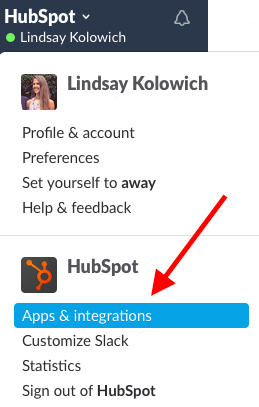
To add apps via an “Add to Slack” button: Look for these “Add to Slack” buttons around the web to add your favorite apps in one click. They look like this:

If you’re having trouble adding apps and integrations to your team’s Slack, it may be because you don’t have the proper permissions. Team owners and administrators can limit who can add apps to a Slack team, so talk to one of them if you have questions.
Note: Want to see which apps and integrations your team is currently using? Check out the Slack App Directory and click “Configure” at the top right. You can filter this list by app name, who added it, or the permissions it uses.
Best Slack Apps, Integrations, and Bots
- Simple Poll
- GrowthBot
- Troops
- Marker
- Intro
- Giphy
- Diggbot
- Tettra
- Humblebot
- Google Drive
- Google+ Hangouts
- Statsbot
- Tomatobot
- Monkey Test It
- Lunch Train
- Trello
1. Simple Poll
Poll people easily right within Slack.
Simple Poll is a polling app that’s super easy to use. It’s easy to create a poll, for your team members to respond, and to figure out which answer got the most votes.
Once you add the app, all it takes to poll your team is a simple slash command. Type /poll “Poll question?” “Option1” “Option2” “Option3” and a poll will be created for you and sent out by a bot, without any specific team member’s name linked to it.
For example, a poll written in Slack like this:
/poll “where should we have lunch?” “chipotle” “2nd street cafe” “that new hummus place”
… Will end up looking like this:

By default, it’ll add the “1,” “2,” and “3” icons to the bottom of the post so folks can easily respond by clicking on the number emoji that corresponds with their preference, instead of having to fish for it in the “Reactions” option.
2. GrowthBot
Ask questions about marketing, sales, and growth.
Here’s a Slack app from the desk of HubSpot Founder & CTO Dharmesh Shah. Slack users who work in marketing, sales, and other growth-focused organizations can ask GrowthBot simple questions about different systems, analytics, and trends.
To ask GrowthBot for help, users can either:
- Start a private message by chatting @growthbot.
- Use Slack’s “slash” command to chat with GrowthBot by typing /growthbot.
Here are some examples of questions GrowthBot can answer:
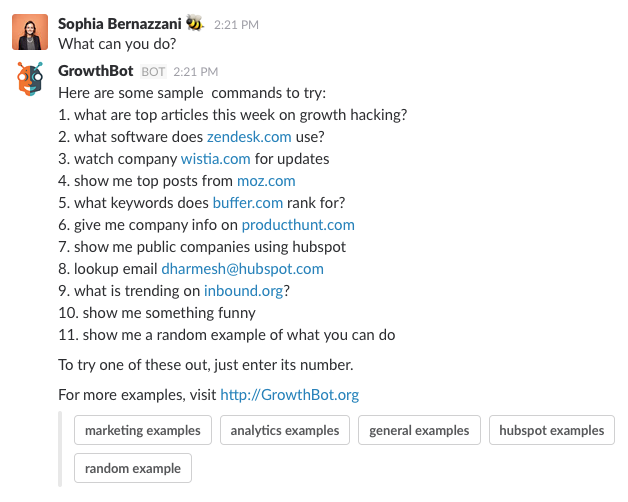
3. Troops
Manage your sales pipeline in team conversations.
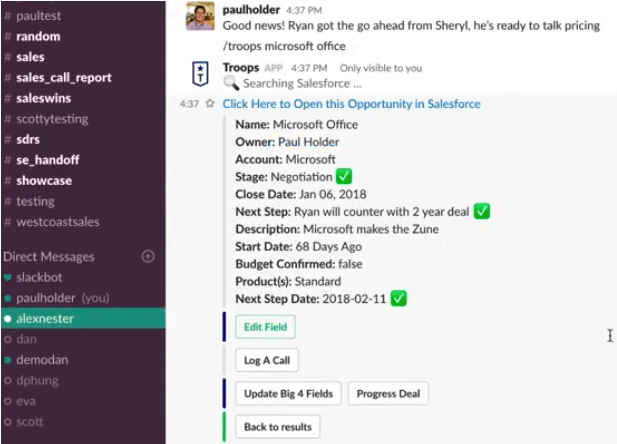
Troops is a task manager specifically for salespeople, allowing every member of a sales team to collaborate, manage, and report on their sales pipeline. The tool’s most unique feature is its artificial intelligence (AI) chatbot, which notifies the salesperson as tasks approach or need to be changed.
Because the sales process moves so fast, it can be difficult to make sure every tool the sales staff is using is kept updated with new leads, calls, deals, and close dates. Troops’ integration with Slack allows sales staff to manage their pipeline while collaborating with the rest of their team at the same time.
By receiving Troops’ chat-based alerts within Slack — and creating Troops tasks in Slack conversations — salespeople can make sure the whole team is on the same page at all times.
4. Marker
Send annotated screenshots directly to Slack.
If your desktop is anything like mine used to be, it’s flooded with screenshots that you take — which are tedious to look through and move later. But the process of saving screenshots, annotating them, and sharing them with your team doesn’t have to be so manual.
Enter Marker, an incredibly useful Chrome extension for folks who regularly find themselves sharing screenshots with teammates on Slack. (It also integrates with Trello, GitHub, and other apps.) Once you install the extension and the app, you can capture your whole screen or a selection, annotate it, and send it to a person or channel on Slack.
On top of letting you annotate the screenshot with arrows, text, and emojis, the app automatically attaches the URL of the page where the screenshot was taken and sends it along with the picture.
Here’s a video showing how it works:
Although the main use case the folks at Marker talk about is bug-tracking, you can use it for a lot more than that: reporting small typos, capturing parts of interesting articles, sharing ideas for where to go to lunch, and so on.
5. Intro
Pool your team’s connections into a single network.
If you’re looking for ways to leverage your network and soft connections better, here’s one way to do it using Slack. This app lets you set up a private professional network for your Slack team. Mitali Pattnaik — the app’s co-founder — calls it, “the professional network for the messaging/conversation era.”
When you install the app, it’ll give your Slack a full member directory of your team, and it creates a private network for each Slack team by combining team members’ social connections. The members of your team will get a notification to create and edit their profile. For folks who aren’t Intro members, the app will collect data from various public sources like LinkedIn and Twitter, according to Pattnaik.
Then, you can use your new Slack team network to source potential job candidates, find new prospects, and ask for introductions from you coworkers. So if you want to know whether anyone on your team knows someone in Google’s San Francisco office, or whether anyone on your team went to business school in Europe — then you can at least start your search right in Slack.
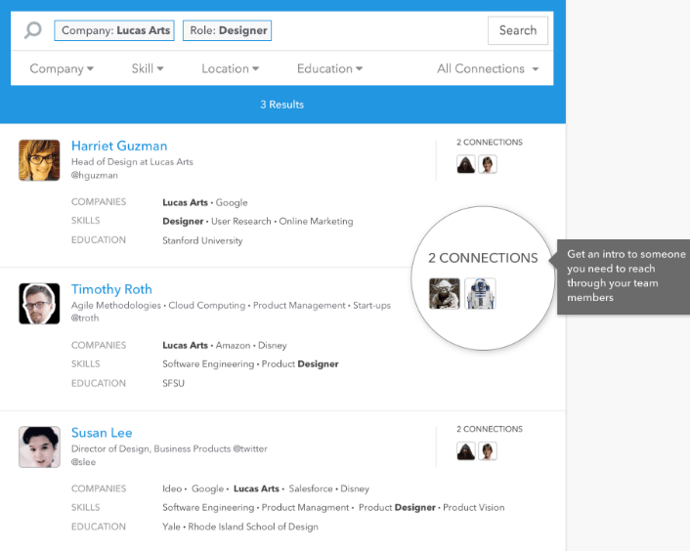
Image Credit: Intro
To search for people and companies in your team’s network, you can use the slash command /intro with a person’s Slack username, full name, email address, or you can search for people at a company using /intro (company name).
6. Giphy
Add fun, random GIFs to your conversations.
Ever wanted to share an emotion or a reaction that would be better described with images rather than words? Enter Giphy.
In Giphy’s Slack app, all you have to do is type in the slash command /giphy and any phrase — from “awesome” to “bagels for days” to “WHAT IS HAPPENING.” (Yes, they have GIFs for pretty much everything.) Then, the app will use that phrase to call in a random GIF from their gigantic library of GIFs, and it’ll post it along with the command.

Image Credit: Giphy
Use it to express yourself, to lighten things up, and to set a maturity rating for your team.
What’s fun — and sometimes weird — about the Giphy app is that you never quite know what you’re going to get. You could type in /giphy need pizza ten times and get ten different GIFs. So if you’re looking for accuracy, here’s a pro tip: Use the /giphy command a few times in direct messages to Slackbot, then save and share the GIF you like best.
7. Diggbot
Discover great web content curated by Digg.
If you’re looking for a way to discover new content like news and video right in Slack, Diggbot is the best app for it.
Every day, Digg aggregates 10 million RSS feeds from virtually all publishers, and collects 200 million tweets daily — 40 million of which include links. Their algorithms process all of these links in real time (about 7.5 million per day), and then human editors come in and cherry-pick the best stories and videos.
Diggbot sits on top of all this data and gives you the resulting stories and videos right within Slack. They’ve done it in a way that feels natural and conversational. You can use Diggbot to search for the latest news on any topic or from any publisher, get trending news alerts, and get the twice-daily Digg Edition right to your Slack channel.
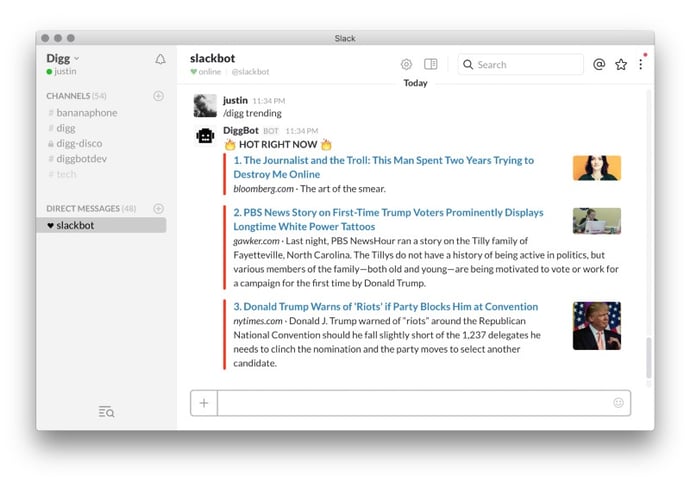
Image Credit: Gary Liu
Here are a few of the top slash commands from Digg CEO Gary Liu:
- /digg: Gives you a cool, fresh link. Simple.
- /digg (keyword): Lets you search content by keyword.
- /digg (domain): Lets you see top trending stories for a domain (e.g., “/digg nytimes.com”).
- /digg trending: Gives you a list of stories that are trending on the internet.
- /digg fun: Gives you something fun.
8. Tettra
Organize and share important knowledge in an internal wiki right within Slack.
When you have a small team, it’s easy to keep in touch with one another by way of in-person chats, quick one-on-one Slack conversations, and so on. But the larger your team gets, the harder it is to keep everyone in the loop. That’s where having an internal wiki for folks to document updates — everything from new ideas to experiments you ran to important team updates — can be so important to both keeping everyone informed and scaling the culture of your team.
If your team is already on Slack, why not have your internal wiki right within that app? Tetra is an internal wiki for teams that use Slack. It’s a simple team collaboration tool with a great design that can help your team organize and share important knowledge in one place. You can even search the wiki right from Slack if you want to.
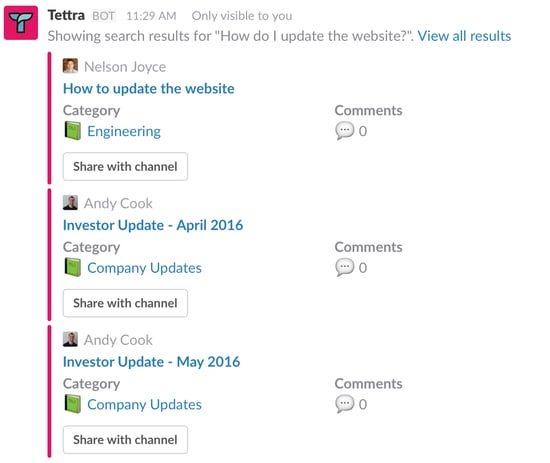
For example, let’s say you wanted to update your company’s website. You can use a simple slash command to ask the question right within Slack — and it’ll search Tettra for internal information related to your question. Here’s what that might look like:
9. Humblebot
Get daily messages with ideas for practicing humility.
Success, happiness, and effective collaboration rest upon things like humility, integrity, patience, modesty, and courage. Humblebot is a really simple Slack app that addresses the first of these character ethics.
Here’s how it works: When you install the app, you’ll receive a little message in Slack every morning with a tip or task for how to be a better person. Examples include “Send someone a thank you note today” and “Ask someone for their opinion today.”
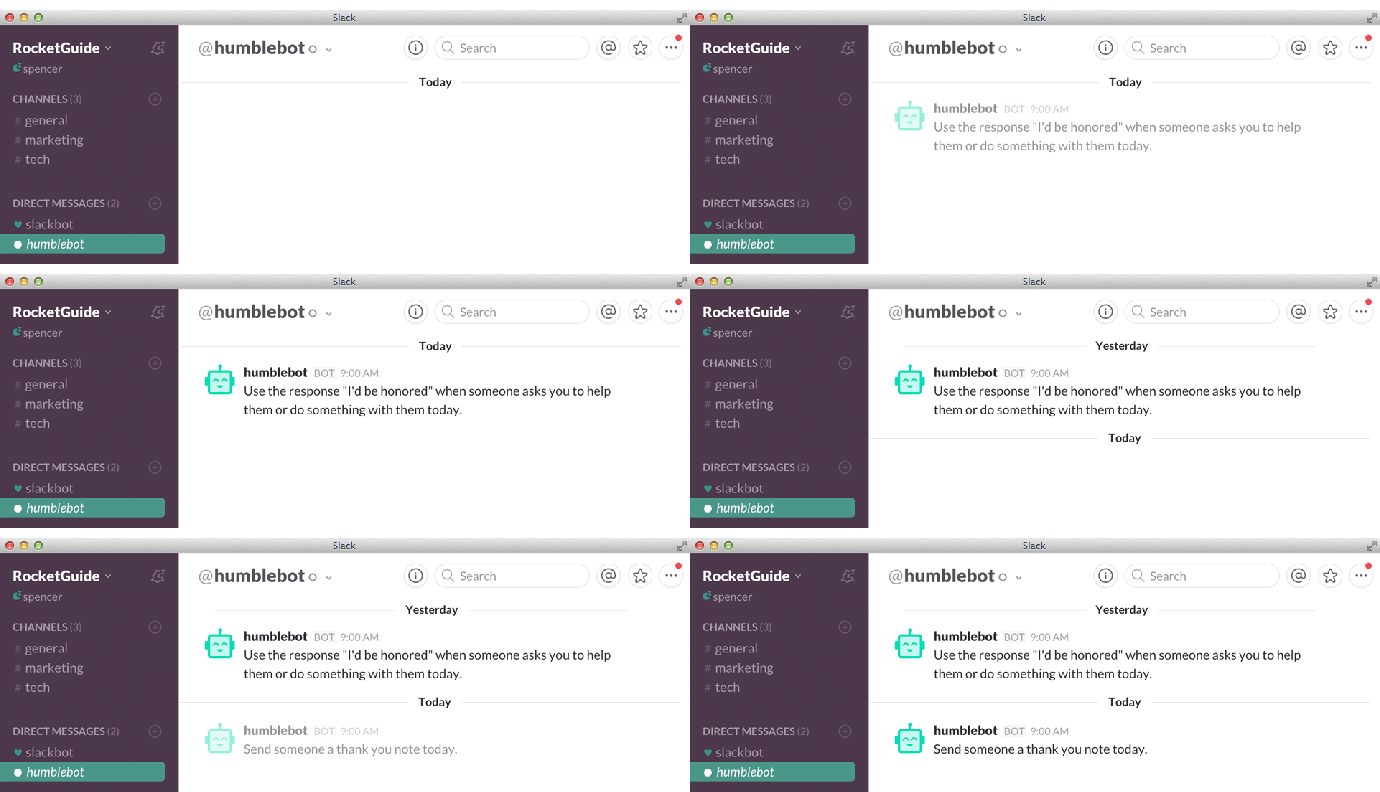
Image Credit: Humblebot
These little reminders will help you be more humble on a more regular basis. Being humble shows you have a clear perspective and you’re self-aware, which is a sign of emotional intelligence. And despite the app’s simplicity, it can make a big difference in your day — and your coworkers’.
10. Google Drive
Share Google Drive files in Slack, and find them easily later.
A lot of people use Google Drive to store files securely online, access them from anywhere, and collaborate with others. If you’re one of these people, the Google Drive app is a great way to make sharing files among teammates a lot easier.
First and foremost, the app lets you share Drive files right in Slack. All you have to do is paste the shareable link in a Slack conversation, and it’ll import the files in Slack. Here’s the message you’ll get the first time you share a Google Drive file in Slack:

If you haven’t already connected your Google Drive to Slack, then Slack will guide you through the quick process of letting it “read” the file. (It’ll only read and index files you decide to import.)
Once you have everything set up, you’ll be able to share the document right in Slack. The message will look like this:

The best part about this app is that the files you import are easily searchable. Note, though, that they won’t be actually stored in Slack — they’ll continue to be stored in Google Drive. (Read this blog post for more Google Drive tips.)
11. Google+ Hangouts
Easily start a Google+ Hangout with team members in your Slack channels.
Here’s another great Slack integration for those times when you want to take a conversation face-to-face on a video conference call with a team member who isn’t in your office. To do so, simply type /hangout to launch a Google+ Hangout in a new window:

That command will provide you with a link that you can use to quickly hop on a video call.
12. Statsbot
Get analytics updates for specific metrics on-demand.
If you use analytics tools like Google Analytics, New Relic, or Mixpanel, then Statsbot is a great app to add to Slack. Quite simply, Statsbot integrates with these tools and monitors your metrics. Then, whenever you want an analytics update, all you have to do is ask Statsbot for the number and you’ll get it instantaneously.
This saves you the time of opening up a new browser window, signing in to your analytics application, and searching for that number manually. Plus, you can ask for an unlimited number of data requests, reports, and alerts and the app stays free.
In the example below, you’ll see the user opened up a conversation (either with his or her team, or with Slackbot) and @-mentioned Statsbot. He typed in: @Statsbot: new users this week. Check out the conversation that follows to uncover some of the bot’s capabilities.

Image Credit: Statsbot
13. Tomatobot
Set work and break timers to boost productivity.
Ever heard of the Pomodoro Technique? It’s a productivity technique where you work for 25 minutes, followed by a five-minute break. This is more effective than forcing yourself to commit to long periods of uninterrupted work, which can often have an adverse effect on your productivity.
When you add the Tomatobot app to Slack, you’ll be adding a few useful tools that’ll track your work using the Pomodoro Technique. For example, you can chat the Slackbot and tell it when you start working with the simple slash command /startwork, and you’ll receive a message when it’s time to take a break. Use the command /completed to indicate when you’re done with a task.
You can also record any reminders that might distract you so you can forget about them until your next break by typing in /distraction. (Learn more about the slash commands for this app here.)
Note: Without adding the Tomatobot app, you can set up manual reminders using the native /remind command, kind of like you would with Siri on your iPhone. For example, type in /remind me to take a break in 20 min and you’ll get a message from Slack that says:

Twenty minutes later, you’ll get another message that says:

14. Monkey Test It
Test your website for common bugs.
Here’s a great Slack app for smaller organizations. Monkey Test It offers what they call a “hands-off approach to automated testing,” which tests for common issues like broken links, missing images, and JavaScript issues. It sends out “monkeys” to click every element of your page and look for any common errors that pop up.
Normally, you’d go to their website, plug in the URL of your website, and click “Test now” — but if you use Slack anyway, why not trigger a test using the free integration?
With the Monkey Test It app installed, anyone in your organization can test your website for common bugs using the simple slash command /monkeytest (https://ift.tt/1ZIrtTJ). From there, the results will show up right in your chat window, no code required.

Image Credit: Product Hunt
15. Lunch Train
Plan group lunch outings without spamming your channels.
Use Lunch Train to plan group lunch outings with the help of one simple Slack message. Instead of asking a large channel to lunch, then proceeding to pester them with notifications as people chime in, users can kick off a group outing by typing /lunchtrain. The bot will send one Lunch Train invitation that other users can “board” without the Slack channel itself receiving multiple notifications whenever another user joins the lunch plan:

Lunch Train only sends users notifications when they join a Train and when the Train is leaving the “station” (get ready for funny train puns):


Source: Lunch Train
16. Trello
Work on your team’s collaborative to-do list without changing tabs.
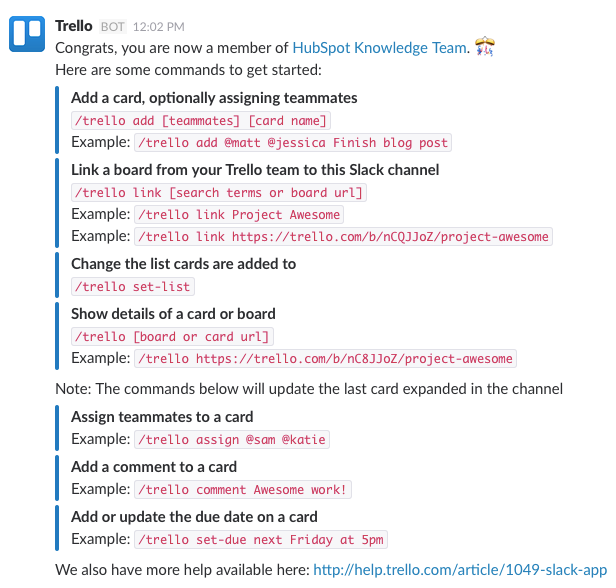
If your team shares to-do lists using Trello, try this Slack bot to easily share and add Trello cards and approve users. You can authorize Trello for Slack by typing /trello help and one-click logging into your Trello account. Here are some examples of how you can use the Trello bot for Slack:
Find a Slack app integrations that would suit your company? Tell your marketing or customer service team. There’s no better time to make your business more accessible to the people trying to reach you.



Facebook Bots 101: What They Are, Who’s Using Them & What You Should Do About It
Back in 2016, Mark Zuckerberg announced the launch of Facebook’s Messenger Platform — a new service that enables businesses of all sizes to build custom bots in Messenger.
In the days following the announcement, the tech and marketing space lost its mind. Thousands of articles were penned about the news, each one speculating on what an open Messenger platform could mean for businesses’ customer service teams.
Why all the ardor? For starters, Facebook Messenger already has about 1.3 billion monthly active users worldwide. Not registrants. Not people who got forced to download it when Facebook spun it out of the standard Facebook app. We’re talking about active users who have adopted Messenger as a primary communication channel.
Anytime a company as forward-looking as Facebook opens up a platform as heavily adopted as Messenger it should raise eyebrows. So the early excitement, well, it’s justified. But what comes next is entirely undefined. And as marketers, we have an exciting opportunity to help shape it.
As Zuckerberg put it in his keynote, “No one wants to have to install a new app for every business or service they want to interact with.” And bots are much different than disjointed apps. In other words, building into the already popular Facebook Messenger app could enable businesses to get in front of customers without that added friction.
At least, that’s the potential …
What Is a Bot?
“Bot” is a generalized term used to describe any software that automates a task. Chatbots, which anyone can now build into Facebook Messenger, automate conversation — at least the beginning stages of it.
What’s special about the bots you can build on Facebook Messenger is that they’re created using Facebook’s Wit.ai Bot Engine, which can turn natural language into structured data. You can read more on this here, but in short, this means that not only can bots parse and understand conversational language, but they can also learn from it. In other words, your bot could get “smarter” with each interaction.
You’ve undoubtedly heard of artificial intelligence (AI). And this is a type of AI. Natural language interface is common in most chatbots, but by opening up the Messenger Platform and providing developer tools like the bot engine, Facebook has made building an intelligent bot easier.
How People Find Bots in Facebook Messenger
So, now comes the classic marketer question: If you build it, will they come?
The answer? Maybe.
Users are able to search for companies and bots inside Facebook Messenger by name, so you’ll probably get some users that way. But, as with any new pathway into your company, you’re likely to find that adoption of this communication channel within your customer base won’t happen without some promotion. Facebook is trying to make that easier for businesses and organizations as well.
Here are a few tools and updates they’ve released to help simplify that connection:
Messenger Links
If you’ve created a Page for your business on Facebook, Messenger Links will use your Page’s username to create a short link (m.me/username). When someone clicks that link — regardless of where they are — it will open a conversation with your business in Messenger.
Customer Matching
If you have phone numbers for customers and pre-existing permission to reach out to them, you can find them on Facebook Messenger via customer matching. Conversations initiated through customer matching will include a final opt-in upon the first Facebook Messenger communication.
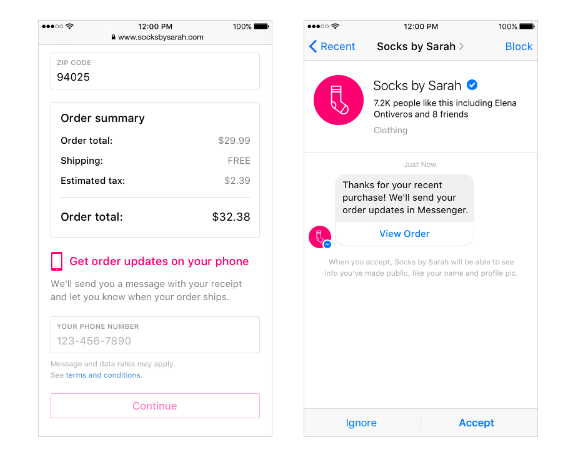
Image Credit: Facebook
Messenger Codes
Messenger codes are unique images that serve as a visual thumbprint for your business and bot on Messenger. If you are familiar with Snapchat codes, these visual cues act in the same way, redirecting anyone who scans them using Messenger to the corresponding company page or bot.

Image Credit: Facebook
Messenger Buttons
You can embed these buttons, provided by Facebook, into your website to enable anyone who clicks them to start a Messenger conversation with your company.

Image Credit: Facebook
For all of the above, if you haven’t developed a bot, the result will be a standard Messenger-based conversation. So you’ll want to be sure you’re monitoring that channel.
5 Examples of Branded Facebook Messenger Bots
Written definitions of bots are one thing, but sometimes it helps to understand how a bot works in action. Let’s take a look at a few early examples …
1. 1-800-Flowers
The example Mark Zuckerberg lauded in his keynote was the ability to send flowers from 1-800-Flowers without actually having to call the 1-800 number. A user, Danny Sullivan, subsequently tried it by sending flowers to Zuckerberg himself and documented the five-minute process here.
The bot took Sullivan through a few floral options and then confirmed shipping details.

Image Credit: Marketing Land
2. Wall Street Journal
With the Wall Street Journal bot, users can get live stock quotes by typing “$” followed by the ticker symbol. They can also get the top headlines delivered to them inside of Messenger.
3. HP
HP created a bot for Messenger that enables users to print photos, documents, and files from Facebook or Messenger to any connected HP printer.
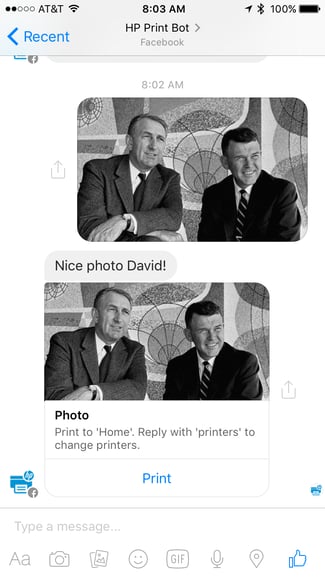
Image Credit: HP
4. Facebook M
Facebook is releasing its own bot for Messenger, a personal assistant bot named “M.” M can answer a wide range of requests — from restaurant recommendations, to complex trivia, to last-minute hotel rates in the city.
Its flexibility is due to the fact that M is actually a bot-human hybrid. As Facebook’s chief technology officer Mike Schroepfer told Recode: “It’s primarily powered by people, but those people are effectively backed up by AIs.” While the bots act as a first line of defense in fielding questions, the difficult questions are quickly routed to human assistants.

Image Credit: The Next Web
5. Healthtap
Healthtap is an interactive healthcare provider that connects users to advice from medical professionals. On the heels of the platform announcement, Healthtap created a bot that enables users to type a medical question into Facebook Messenger and receive a free response from a doctor or browse articles of similar questions.
You can see here how the conversational interface works. The user in this example is inquiring in natural language about a specific health concern. From the user’s standpoint, this is similar to texting a friend.

Image Credit: mobihealthnews
This set up also helps the company filter inbound requests by solving some patient questions with existing responses first and then surfacing unique queries for live response.
(Intrigued by these examples? Engadget has a longer list of bots that are either released or under development for Facebook Messenger.)
Should You Build a Facebook Messenger Bot for Business?
Ah, see that’s not the sort of question I can answer for you. Building a bot for Facebook Messenger, like any marketing or product endeavor, is going to take resources — mainly staff time and expertise — and may not result in the outcomes you’d like to see.
That said, here’s my best guidance for how you can determine if a Facebook Messenger Bot would benefit your business:
Do you have a clear use case for your bot?
One of the biggest reasons so many companies went astray in building mobile apps for their businesses is that they saw it as just another version of their website. They didn’t take the time to study how being on a mobile device would change the types of interactions their customers would want to have with their company.
Some tasks are just not well-suited for mobile. As a result, many apps sit unused. When you’re thinking about a use case for Facebook Messenger, make sure you’re thinking about it from the standpoint of the customer or user, not from the company’s standpoint.
Here are a few examples of use cases you might consider for a Facebook Messenger bot:
Lead Nurturing
Perhaps you’re having trouble moving leads from one part of your buyer’s journey to another, and need a way to nurture their interest after they first discover your website or content and return to learn more.
Sharing Your Knowledge Base
Traditionally speaking, a knowledge base is a section of your website that organizes all the resources and information a customer would need to properly learn and solve problems related to your product. And sometimes, these knowledge bases can be cumbersome or hard to search through. A Facebook Messenger Bot is one way to better educate customers who have questions about your product.
Diversifying Service Lines
If your customer service team has more incoming requests than they can handle, it might be because they’re only taking them through the phone. Live chat bots can open more request lines, lower call volume, and allow service and support representatives to balance more questions at a time.
Sharing Questions Across the Customer Service Team
If your customer service employees need a better way to share questions with one another as they field them, the right Facebook Messenger bot can loop in more employees more quickly to solve problems.
Retaining Ecommerce Shoppers During Checkout
You suffer from “abandoned shopping carts” on your ecommerce website, and need a way to retain shoppers who might have trouble during the checkout process.
Is your audience on Facebook?
This question is often too quickly dismissed by companies that see Facebook as a purely social platform, rather than one for businesses. Even if your audience doesn’t currently use Facebook for business needs, you need to start by determining whether or not the potential for Facebook marketing is there.
If you have an audience who uses Facebook heavily in their personal lives, they’re likely to adopt Messenger as a communications tool. And how they use Messenger may expand beyond how they use Facebook. Today, usage of messaging apps has actually outpaced that of social networks. And as new use cases arise, behavior evolves with them.
Can you support inbound inquiries from Messenger?
Don’t open a communication channel with your prospective and existing customers if you can’t support it. Even with the automation of a bot, you’ll still need to carve out time to do three important things:
- Promote your chatbot
- Monitor any questions your bot can’t answer
- keep tabs on the overall customer experience you’re creating with it
If you’ve thought through the above three questions and think you’ve got a good foundation for a Facebook Messenger bot then dive in. There’s a benefit to being an early adopter in this space. And as a newly open platform, Facebook Messenger needs thoughtful and strategic companies to shape it.

9 Companies Using Live Website Chat in a Creative Way
Live chat technology has been around for a while. And while customers increasingly demand immediate attention, businesses have been relatively slow to adopt a live chat strategy — particularly in the SMB space, where deals are still built on relationships.
Live chat is often solely thought of as a customer support tool and tends to be overlooked from a sales and conversion perspective.
Why Website Engagement Matters
Approximately 82% of customers consider an immediate response as “important” or “very important” when they have a marketing or sales question. A full 90% say that an immediate response is just as important when they have a customer service question.
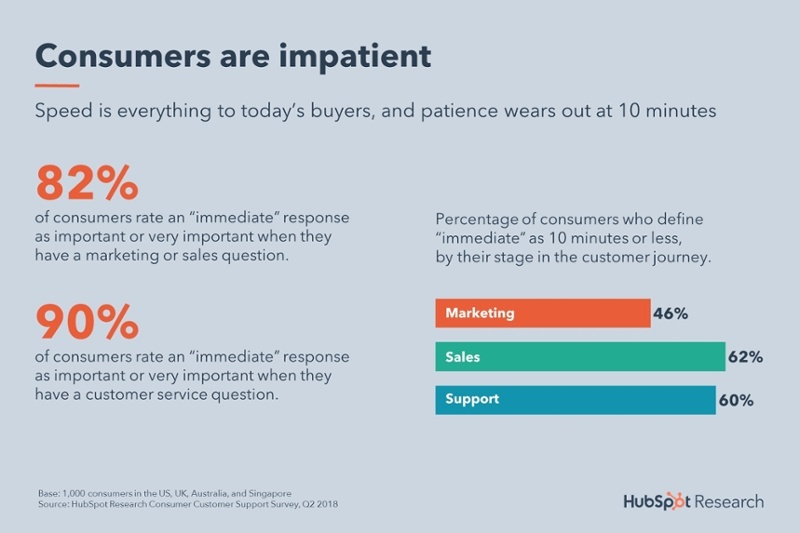
Image via HubSpot Research
Sure, customers can call an 800 number, send an email or fill out a contact form when they run into hiccups in their decision-making or purchasing process, but for every second that it takes a business to respond, the customer’s likelihood to purchase exponentially decreases.
Live chat fills that void, providing an immediate line of communication to get customers’ questions answered without leaving the page or picking up another device.
9 Websites Using Live Chat for Business
99% of first-time website visitors are not ready to buy. A marketer’s job is to recognize their prospects’ intent, nurture them through their education and evaluation stages and deliver high quality leads to their sales team so they can close the deal.
Depending on your goals, users may or may not flow through your funnel as you’d like. While it does make sense for businesses to build sophisticated conversion paths, launch personalized email/website nurturing campaigns and use A/B testing to refine website copy and calls-to-action, the overwhelming majority of businesses are missing a key step in between – simply talking to their visitors.
Live chat allows you to pull up a virtual stool and talk to your website visitors at their peak point of interest.
So, how do you begin evaluating whether live chat is a good fit for your sales and marketing objectives?
We’ve gathered nine inspiring examples showcasing some creative ways that businesses are leveraging live chat in their environments. Take a look and try to think of how you might mimic or adapt these strategies to enhance your customer experience and drive growth within your organization.
1. Betterment
Chat Service: New Client Onboarding Assistance
Betterment, a leading online investment advisor, uses targeted proactive chat invitations to engage with top-tier clients when they sign up for a new account. Dealing with people’s money demands the utmost credibility and trust.
Rather than solely relying on their established user experience (UX) flow to move clients down Betterment’s investment funnel, proactive chat offers the opportunity for advisors to provide instant, personalized financial services to new clients so they can invest with confidence.
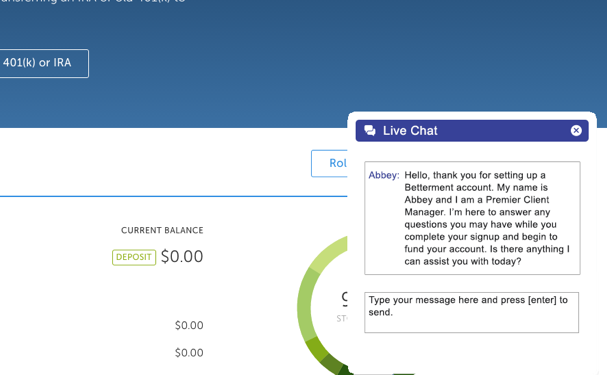
2. SnapEngage
Chat Service: Proactive Chat on 404 Page
There are few things more frustrating than not being able to find what you’re looking for, and arriving at a 404 page often results in visitors exiting a website. Rather than providing a list of suggested links that may or may not be relevant to their visitors’ search, SnapEngage immediately fires an automated proactive chat invitation when website visitors land on their 404 page so they can quickly guide them to the content they’re looking for.
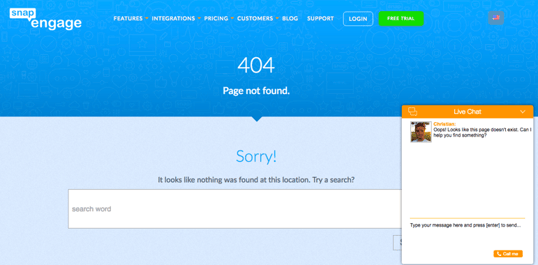
3. Canyon
Chat Service: Multilingual Chat Support
Canyon Bicycles has a popular following around the globe, supporting a diverse set of customers speaking different languages. They use intelligent chat routing rules to immediately connect customers to the most appropriate members of their sales and support teams in their visitors’ preferred language.
4. Petplan
Chat Service: Facebook Fan Page Chat
“With 1.09 billion people logging in daily (a 16% increase year-over-year), [Facebook] is still the most popular social network around. Not to mention, Facebook owns 77% of all social logins.” (Check out How to Use Facebook for Business: 25 Facebook Marketing Tips and Tricks)
Petplan Pet Insurance has a ‘Chat with us’ tab on their Facebook page, allowing fans to communicate with their team in real-time without leaving Facebook, and serving as yet another lead generating channel for their sales and marketing teams.
5. U.S. Patriot Tactical
Chat Service: Text-to-Chat Customer Support
U.S. Patriot Tactical uses SMS-to-Chat services, allowing clients to start a live chat with their support team via a simple text message. They display their ‘Text-to-Chat’ phone number on their website, order receipts and packing slips to quickly facilitate communications around order inquiries, status and returns.
6. Ruffwear
Chat Service: Targeted Proactive Chat Invitations
Ruffwear not only uses creative [dog] agent photos to engage with visitors; they also trigger targeted proactive chat invitations specific to visitors’ needs on particular pages of their website (i.e. Dog Boots Fit Guide). Their helpful messages provide a good balance between self-help resources and the opportunity to receive personalized support with the click of a button.
7. Aid In Recovery
Chat Service: Real-Time Online Counseling
Aid In Recovery uses live chat to offer immediate assistance and assessment for people struggling with addiction. Operating in an environment where every second counts, Aid In Recovery relies on chat to get patients the help they need, the moment they ask.
8. Maids In Black
Chat Service: Simple Pre-Chat Form
Maids In Black uses a simple pre-chat form to gather basic information and offer visitors the opportunity to send an email or connect with a live chat agent. Keeping the form short with only a couple fields eases the path to engagement for visitors while also allowing the Maids In Black team to route chats and emails to the appropriate teams.
9. Mavenlink
Chat Service: Advanced Lead Qualification
Mavenlink relies on live chat to serve as a powerful front-line lead qualification tool for their marketing and sales teams. They pass an extensive list of contact details and custom operator variables (recorded by agents during a chat) to their CRM so they can appropriately assign leads and assign follow-up tasks to their sales team after a chat closes.

Want to learn more about leveraging live chat to turn your website visitors into actionable leads? Download the free ebook by SnapEngage.
