How Building an Offline Community Can Help Your Online Marketing
UCLA scientists found that sixth graders who went five days without using a smartphone or digital screen were better at reading human emotions than those who stayed online. As evident by UCLA’s study, offline communication is critical for maintaining relationships.
In business, nearly 100% of people say face-to-face meetings are essential for long-term relationships. However, most business interactions exist primarily online.
Online communities can create meaningful connections that lead to long-term relationships — but if you only have conversations online, you risk losing that personal touch.
If you want to have more personal interactions with your customers, it might be time to add a human touch to your marketing by turning email flows and comment chains into offline communities.
At Typeform, we host Meetups with industry experts to connect people with similar interests, and to elaborate on topics relevant to our product. If you want to host events for your own customers, you have a ton of options.
To create a more well-rounded marketing strategy, let’s dive into the benefits of offline marketing communities and consider how they can sync up with your online methods.
1. Align your offline community with your company’s mission.
Every successful business has a purpose and something unique to offer. So if you want to create a successful offline community, figure out how you can create an event centered around something that nobody else offers.
If you’re not sure where to start, ask your customers. Consider sending out a survey, or reach out to them on social media. Ask them: What do they come to you for? What do they like about you? Why do they choose you over your competitors?
Of course, your product or service won’t appeal to everyone. But to foster a successful offline community, you’ll need to bring people together who truly believe in your business and what it stands for.
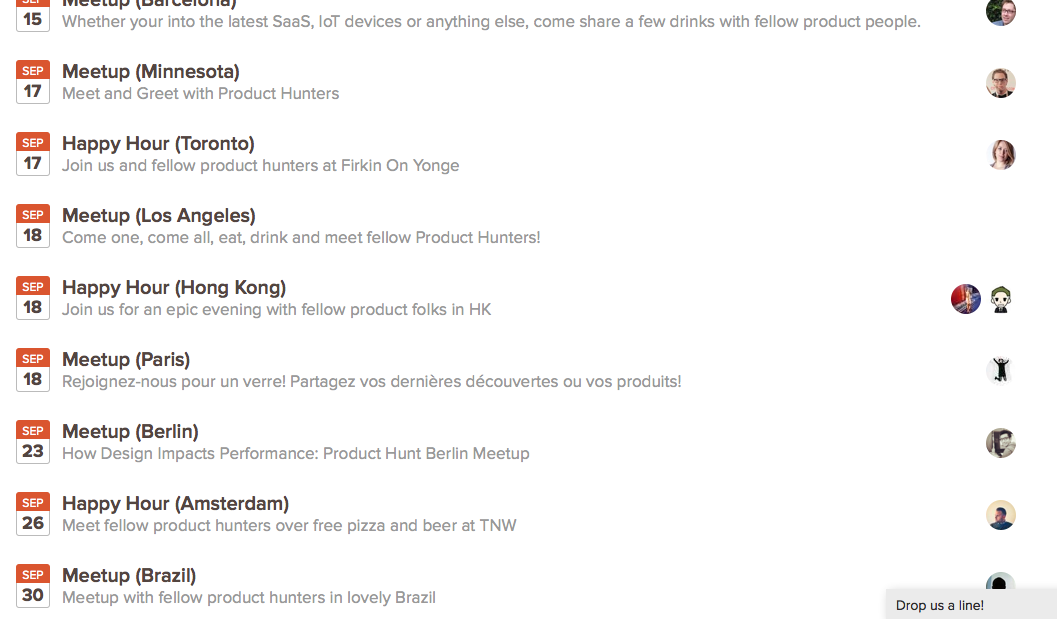
For instance, Product Hunt recognized that giving its early adopters special status and connecting them with each other was a powerful way to drive growth.
The company began hosting happy hours and offline events to bring together their product users in real life and build a sense of community. By listening to this group of dedicated customers and delivering value, Product Hunt went from 40,000 to 400,000 users in the span of four months.
2. Determine a goal for your event.
What do you want to achieve with your offline community? Whatever your goal, it should tie into your brand and your online marketing objectives. It should also be tailored to your business’ target audience.
If you’re hosting events, make sure the events have a clear purpose that’s obvious to attendees.
Clearly outline what your attendees can expect to get from the event — will you provide networking opportunities, insight from industry experts, or is the event just for fun. Rather than considering what’s in it for you, take the time to contemplate what’s in it for them.
Whatever incentive you provide, map out how it will bring people closer to your company, and how it’ll encourage them share your company values with friends and coworkers.
Hootsuite’s member-organized workshops are a fantastic example of this. They have a clear educational purpose that offers people a reason to engage with their brand. The events are free, and they bring together people who are passionate about social media.
People can network and get industry insights — all while learning more about the Hootsuite app.

3. Decide on a location.
Offline communities can reinforce loyalty in places where you’re already popular, or boost brand awareness in more uncharted territory.
Wherever you choose to host your event, make sure you understand the local community.
Take inspiration from local businesses to see which issues they’re promoting. Once people know you care about the same things, you’ll be able to create a grassroots community that is loyal to your brand.
For instance, the Orlando City Soccer Club organized a scavenger hunt on social media by hiding three pairs of tickets across their home city. Then, they linked the real life search to their online communities using Periscope, Twitter, and Instagram to offer clues on how fans could find the tickets.
4. Encourage your customers to organize events.
If your business is running on a tight budget, you might not have the resources to organize an event. So why not encourage your loyal customers to run their own?
If your product or service is good enough, people will want to share the experience, and your following will grow organically — both online and offline.
There’s no marketing tool more powerful than your own customers.
Take kitchen appliance Instant Pot, for instance. Their product is worshipped by online communities, with fans setting up their own Facebook Groups. This has inspired offline communities who meet to swap recipes, and even Instant Pot cooking classes for students.
5. Avoid a hard sell approach.
You’ll want to think of offline communities as another channel that targets the top of the marketing funnel. Instead of centering these communities around selling your product, make it about giving back to the community or offering a unique service — even better if it’s free.
Creating a face-to-face, human connection is key to getting people invested in your brand. If you offer a positive human interaction that really connects with people offline, then they’re much more likely to want to engage with you online.
Grain Surfboards hosts events that teach people how to shape their own surfboards. The workshops don’t focus on selling, but instead on creating a community of like-minded people who are interested in making their own surfboards.
These events drive sales during the classes themselves, and also serve as a powerful brand awareness tool. After a surf student leaves a class, Grain will be top of mind next time they run out of board wax.

6. Make your offline and online communities talk to each other.
Bringing online and offline communities together works in two ways.
First, you can reward your loyal online community members and customers with exclusive access to your offline events, such as:
- Early registration
- Discounts on ticket prices
- Special members-only events
Additionally, you can provide your offline event attendees with special access to online communities, events, or perks. This will help you build a holistic community.
By forming a deeper relationship with your customers in this way, they’re more likely to respond positively if you ask them to leave a review, share your content, or take a survey.
7. Moving forward: building a community that scales.
A community is a powerful thing. When people feel like you care about them, they care more about your business.
But any community must be able to scale to succeed. Once you’ve put in the hard work to build strong relationships offline, you need to make those people advocates of your brand. You need to empower them to spread the word through their own communities to get your name out there.
HubSpot does this with their global HubSpot User Groups, HUGs. HubSpot users can apply to become HubSpot Agency partners, who lead local user groups. Each meeting is by users and for users, and covers themes related to marketing, sales, or services, with industry experts.
This provides an emotional connection that endures both online and offline.
Connecting like-minded people with groups like these is the foundation of healthy offline communities.
An offline community represents a loyal following of people who are emotionally invested in your product. While an online connection to your company needs a good WiFi signal, emotional connections endure far beyond the limits of a laptop screen.

7 of the Best Bitcoin Mining Hardware for 2018
Despite the profit potential of mining Bitcoin, your Bitcoin mining hardware’s upfront and energy costs can actually do harm to your bank account. Picking the wrong hardware could cost you more money to operate than the amount of funds you earn mining Bitcoin with it.
To avoid losing a profit on your Bitcoin mining, we curated a list of the best Bitcoin mining hardware, with their price, hash rate, and energy consumption, to help you decide which hardware is best for you, no matter how much mining experience you have. Read on to find the right Bitcoin mining hardware for you.
7 of the Best Bitcoin Mining Hardware of 2018
1. Bitmain Antminer S9i

Picture Credit: ASIC Miner Value
Since it’s considered the most popular Bitcoin mining hardware in the world, the Antminer S9 is entirely sold out on Bitmain’s website. Fortunately, though, Bitmain released the Antminer S9i for only $499 this May. The S9i boasts a hash rate of 14 TH per second and an energy consumption of 1,320 watts, which makes it one of the most efficient Bitcoin mining hardware out there.
If you’re an intermediate or expert miner trying to make a profit, the low upfront cost and high efficiency of the Antminer S9i could offset its somewhat lofty energy costs and help you make some money.
2. Halong Mining DragonMint T1

Picture Credit: ASIC Miner Value
Out of all the Bitcoin mining hardware on the market, the DragonMint T1 has the highest hash rate of 16 TH per second. And with an energy consumption of 1480 Watts, which translates to a 0.075 Joules per Gigahash ratio, it’s the most powerful and efficient Bitcoin mining hardware out there.
Naturally, there’s a lot of demand for the DragonMint T1, so you’ll have to pay a hefty price of $2,729 to buy it. But if you’re an expert miner with low electricity costs, the power and efficiency of the DragonMint T1 could offset its high upfront cost and help you turn a profit.
3. Bitmain Antminer T9

Picture Credit: ASIC Miner Value
With a hash rate of 12.5 TH per second and energy consumption of 1,576 Watts, the Antminer T9 is less powerful and efficient than the Antminer S9i, but it’s considered the more reliable option. It has higher quality chips compared to the S9i, so it’s more stable and doesn’t burn out as fast.
You should expect to pay around $500 for an Antminer T9. If you’re an expert miner who wants a durable mining hardware, this is a good option.
4. Pangolin Whatsminer M3X

Picture Credit: ASIC Miner Value
Even though it uses the most power out of all the hardware on this list, requiring 2,050 watts of energy, the Whatsminer M3X is also one of the most powerful, possessing a hash rate of 12.5 TH per second.
The M3X is also more affordable than other powerhouse hardware, costing $1,022, which can offset its high energy costs and help you earn a profit. If you’re an expert bitcoin miner with below average electricity costs, this could be the best hardware for you.
5. Bitmain Antminer R4

Picture Credit: ASIC Miner Value
Bitmain’s Antminer R4 falls right behind the Antminer S9i in terms of efficiency, with a hash rate of 8.7 TH per second and a small energy consumption of 845 watts. Another one of the R4’s best features is that it runs almost silently, making it the ideal hardware for mining bitcoins at home.
The R4’s convenience and efficiency comes at a cost, though — you’ll need to spend $2,999 to buy it on Amazon. If you’re a hobbyist or intermediate miner trying to make money at home, consider using the Antminer R4.
6. Avalon6

Picture Credit: Buy Bitcoin Worldwide
Listed at $300 on Amazon, the Avalon6 is one of the most affordable Bitcoin mining hardware, and it’s the easiest to set up. But it also has low efficiency, possessing a hash rate of 3.5 TH per second and a relatively high energy consumption of 1050 watts.
Unless your electricity costs are extremely cheap, using the Avalon6 to mine more Bitcoin than it costs to operate is nearly impossible. The Avalon6 is best for beginners or hobbyists, since you’ll most likely never make a profit using the hardware.
7. Bitmain Antminer S7

Picture Credit: ASIC Miner Value
Another solid Bitcoin mining hardware for beginners or hobbyists is the Bitmain Antminer S7. Its low $200 cost matches its low efficiency — it has a hash rate of 4.73 TH per second and energy consumption of 1293 watts. But if Bitcoin’s price shoots up and you can find extremely cheap electricity, it’s possible to make a profit using the hardware.

Everything We’ve Discovered About Instagram’s Secret Shadowban
When you’re trying to grow a following on Instagram, you depend on hashtags and engagement to expand your audience and reach. So it can feel more than a little disheartening when it suddenly seems like your content isn’t showing up anywhere.
If you feel like your posts are receiving fewer likes and comments, or aren’t appearing for certain hashtags, you might be shadowbanned.
Shadowbanned
Shadowbanning is the act of blocking a user’s content on social media sites, in such a way that the user doesn’t know it’s happening. If you’re shadowbanned on Instagram, your content won’t appear on anyone’s feed unless they already follow you.
From Instagram’s point of view, shadowbanning makes sense. Shadowbanning allows Instagram to filter out accounts that don’t comply with their terms. Some people use inauthentic measures to expand their Instagram following, like automated bots or hundreds of hashtags irrelevant to their content. If that’s the case, it seems only fair for Instagram to block those accounts, so users can continue receiving genuine and helpful content.
While Instagram doesn’t openly admit to shadowbanning, they released a statement in February that addressed the problem users were having with their content not showing up for certain hashtags. Their statement at least confirms the hashtag dilemma as a real one — but many speculate that the statement is Instagram’s way of admitting to shadowbanning, without actually admitting it.
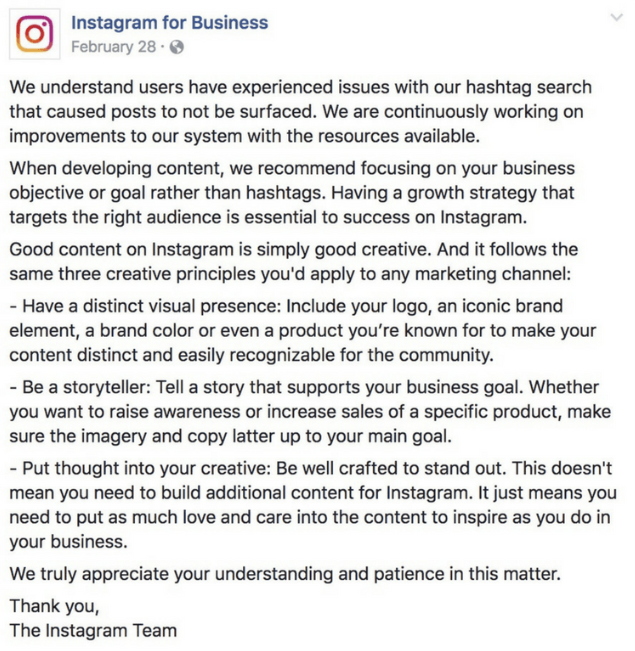
It’s important to note that Instagram changes its algorithm often, so those alterations could be the reason you have witnessed a drop in your engagement. However, there’s a possibility shadowbanning is a real tactic meant to hide users’ content from the wider Instagram audience, and if you’re being shadowbanned, it’s important you take the necessary measures to get your content seen.
Let’s explore how to know if you’re shadowbanned, as well as our tips for getting yourself off the list.
Am I Shadowbanned?
There’s an easy trick to figure out if your account is shadowbanned. First, post an image with a hashtag that isn’t often used. (If you post an image with a hashtag that has millions of posts associated with it, it will be hard to see if your content is hidden from a shadowban, or simply from competition).
Once you’ve posted something with a certain hashtag, ask five Instagram users who don’t follow you to search that hashtag. If none of them see your post under the hashtag, its likely you’ve been shadowbanned.
However, if one or two of the accounts can see your post, you might simply be dealing with a drop in engagement (if that’s the case, check out our Instagram Marketing: The Ultimate Guide).
If you run this test and believe you’ve been shadowbanned, don’t worry — we have a solution for you.
Why You Got Shadowbanned, and How to Fix It
There are a few potential reasons your account could have been shadowbanned. To ensure this doesn’t happen again, let’s explore some actions you might have taken that led you to being shadowbanned:
You use bots or another automated “Instagram growth” tool. If you aren’t putting in the hard work yourself, you’re not growing a following authentically. Instagram frowns on this — in their statement above, for instance, they encourage users to have a strategy that focuses on connecting with the right audience. Using bots is a spammy tactic, and could result in a shadowban.
You use broken hashtags. Occasionally, a popular hashtag will become overrun with inappropriate content. When this happens, Instagram can remove the hashtag or limit its use. If you use a broken hashtag, it will prevent your other hashtags from ranking, and could also result in a blocked account.
Your account is often reported. When users repeatedly report an account, Instagram will assume your account is posting inappropriate content or violating their terms of service. They might disable your account, or they could shadowban it.
You’ve exceeded your daily or hourly limit. Instagram places time constraints on how often you can follow, unfollow, like, comment, or post within an hour or day. This makes sense — if you’re following 80 people within an hour, it’s likely a bot doing the work, not you.
These actions might help you grow a following quickly, but they can’t help you connect with the right people, which is why you’re on Instagram in the first place. Additionally, these behaviors likely result in shadowban, which severely restricts your exposure to a new audience.
To get your account back to normal, you’ll want to reverse the damage. Here’s how:
If you use a bot or another automated service, stop using them and delete them immediately. To make sure the accounts aren’t still attached to you, go to your desktop Instagram and click “Edit Profile”, and then “Authorized Applications”. If you see any of your bot accounts in the list, click “Revoke Access” to remove them completely. Remember, it’s better to have 100 followers who love your brand and purchase your products, than 1,000 followers who never buy from you or interact with your content.
Take a look at Preview’s list of banned hashtags for 2018, and make sure to remove all broken hashtags from your content. Moving forward, be selective and careful with the hashtags you choose, and when in doubt, take a look at the hashtag’s page — Instagram will likely post a message like, “Recent posts from #summer2018 are currently hidden … “, which will indicate to you that the hashtag is no longer in use.
Take a two-day break. People have reported a full 48-hour break from using their Instagram accounts can reset the system and get you back on track, and it’s worth the temporary social media cleanse anyway, isn’t it?
Read and follow Instagram’s Terms of Use and Community Guidelines.
Most importantly, it’s critical you’re posting helpful, authentic content, and abiding by best practices when growing your audience. It will take longer to do this, but slow and steady wins the race — and doesn’t get shadowbanned — right?

27 Fun Corporate Team-Building Activities & Outing Ideas Everyone Will Enjoy
Starting to notice some droopy shoulders around the office? Sounds like it’s time to plan a team outing.
Team outings are a great way to facilitate bonding with your team members, reduce employee stress, and give them the chance to get to know one another outside of the office.
And, you know, they’re really fun.
But how do you find ideas for a great team outing? Maybe you start with a Google search for “team outing ideas” and stumble upon an article that suggests “field trips” and “professional development activities.” Sounds like a starting point, but where’s the real excitement?
Next time you plan an outing for your team, cut the trust falls and get one of these ideas on the calendar instead.
Team Building Activities
- Scavenger Hunt
- What’s My Name?
- Cook-Off
- Sneak a Peek
- Board Game Tournament
- Office Trivia
- Improv Workshop
- Two Truths and a Lie
- Karaoke Night
- The “Suddenly” Story
- Go-Kart Racing
- Concentration (Marketing Edition)
- Professional Development Workshop
- Jigsaw Puzzle Race
- Room Escape Games
- The Egg Drop Challenge
- Laser Tag
- Catch Phrase
- Volunteer
- Mystery Dinner
- Kayaking/Canoeing
- Trampoline Park
- Something Touristy
- Painting Class
- Cooking Class
- Explore a New Place
- Sports Game
Large Group Games
1. Scavenger Hunt
Find a beautiful day, break everyone out into groups, and have a scavenger hunt around the city. You can organize one yourself, or use an app like Stray Boots. Your team will feel nice and rejuvenated after some fresh air and fun challenges. Be sure to take plenty of silly pictures — you can even have a slideshow when everyone regroups at the end.

2. What’s My Name?
You might have seen this game played before. It goes by different names, and the more people who play, the better it is.
What’s My Name is an activity where each player is assigned the name of a person — dead or alive — and displays that name on their back, head, or part of their body such that only the other players can read the name. You can write these names on index cards or Post-it notes. Once everyone has been assigned a name, the players mingle with one another, treating their coworkers the way they’d treat the person listed on that coworker’s card. They can also ask questions about their own hidden identity until they correctly guess who they are.
What’s My Name has no complicated rules or potential for competitiveness. It’s simply an empathy-builder — a critical ingredient of good company culture — allowing employees to find out what it would be like to be treated the way someone very different from them might be treated every day.
3. Cook-Off
Here’s a culinary team-building activity that could end in dessert or disaster — in a fun way. Creating new dishes together requires creativity and will require everyone to put their team and leadership skills into action. Divide your team into smaller teams, pick a food category, and challenge each team to whip up something delicious. The category could be anything from ice cream, to salsa, to pizza.
One fun twist you could add? Pick a single ingredient that all teams must use, like maple syrup or Oreos. Or, have each team get creative with the shape of its food — you can make pizzas into almost any shape.

Source: Teambonding.com
4. Sneak a Peek
What do you get when you add a test of memory to a game of pictionary? Sneak a Peek. In this game, people break off into groups of at least four and take turns recreating objects from memory.
Using LEGOs, clay, building blocks, or a similar set of construction items, one game leader will craft an object or structure for every group to recreate. A member of each group then has 10 seconds to “sneak a peek” at the structure (which is concealed from view), return to their groups, and describe what they saw to their group members so they can recreate it.
Each group has their own LEGOs, clay, or building blocks. If after a minute of recreating the structure, it isn’t complete, another member of each group sneaks a 10-second peek at the game leader’s object and comes back to further instruct the group. This rotation continues until a group is confident they have recreated the item. The object of the game? Be the first group to recreate it.
Not only does this game help employees practice project management, but it shows you how to accomplish tasks using input from a variety of sources. It’s also just a fun way to see how good your coworkers are at retaining information.
5. Board Game Tournament
Here’s one way to spark your team members’ competitive sides without having to leave the office. Organize a team-wide board game tournament. Especially if your team is pretty big, it might be easiest to pick a single game, then have people sign up for specific time slots when they’re free to leave their desks and spend some time playing the game.
Some great games with reasonable play times include Boggle, Jenga, or even games using good ol’ playing cards. Don’t forget to incentivize with prizes for first, second, and third place.

Source: Glassdoor
6. Office Trivia
Who says trivia night only takes places at the bar? Office trivia is the perfect way to bring a large group of colleagues together and challenge the brain in areas that don’t necessarily apply to their daily jobs. Break the company into teams of four or more and offer small prizes for the teams who score the most points.
Want to write your own trivia questions? For reference, trivia questions are generally sorted into categories — four or five trivia questions per category — with optional bonus questions at the end of the game. While you can give each question a point value, you can also assign each team a certain amount of points per category that they can bet, instead. Each team can then bet as many or as few points as they want per question until they’ve used all their points for that category.
Not prepared to create your own trivia questions? Hire a trivia organization to host a trivia night at your office. There are tons of national trivia companies who’d be happy to host an event right on site — District Trivia, The Trivia Factory, and the Big Quiz Thing are just a few of them.
Small Group Activities
7. Improv Workshop
Comedy and improv events are fun, interactive experiences that’ll have your employees roaring with laughter while teaching them useful communication and soft skills, like focus and trust. Depending on your budget, you could do anything from simply playing improv games with your employees to bringing in professionals to run competitive, fast-paced activities.

Source: Al-Jazeera
8. Two Truths and a Lie
This is a classic house party game, but it’s also an excellent icebreaker when integrating coworkers who don’t yet know one another.
Two Truths and a Lie is simple: Start by organizing the group into a circle and give each person the floor to introduce themselves. In addition to giving their name, however, each employee also says three things about themselves — only two of which are true. It’s up to everyone else in the circle to guess which statement is the lie.
9. Karaoke Night
What better way to get your employees to break out of their shells than to have them get up and sing some karaoke? You can even have a contest for best group karaoke performance. Bonus points if there are feather boas and cowboy hats involved. This works best for a more extroverted group, so if your team isn’t into strutting their stuff on stage, consider an idea on this list that caters more toward those personalities.

Source: derekgavey
10. The “Suddenly” Story
If you’ve ever told stories around a campfire, you might have told a variation of The “Suddenly” Story. This activity is the choose-your-own-adventure book of team building activities. You’re not just telling a story — you’re piecing a story together using the (often hilarious) imaginations of your coworkers.
To tell The “Suddenly” Story, gather your team in a circle, and offer the opening three sentences to a story about anything. At the end of the three sentences, say “Suddenly …” and pass the story onto the person next to you. It’s their job to take your three sentences and build on the story with another three sentences, followed by “Suddenly …” Each mention of “Suddenly” allows the story to take a turn. What that turn looks like is up to the next person in the circle.
The “Suddenly” Story helps people find ways of building on content that came before them, while also being creative when all ears are on them. Try it the next time you want to get your department together for a break, and you’re sure to get everyone laughing.
11. Go-Kart Racing
Nothing like a little competition to bond a group together. An adrenaline-pumping event like kart racing is a great way to get employees to interact with one another in a totally new and fun way. Just make sure everyone pays attention during the safety lecture.

12. Concentration (Marketing Edition)
Here’s a professional spin on the 1960s game show. The original game show, called Concentration, put 30 numbered tiles up on a board, each tile with an identical tile somewhere else on the board. What made them identical? They had matching prizes on the back. Over time, as contestants opened up more tiles, they had the opportunity select tiles they knew would match up and win the prize written on the back.
Businesses — especially marketing departments — can have a field day putting logos, slogans, and company names on the back of their own tiles and having players match up every piece of the brand. As your business grows, you can even put the names of your own products, employees, and job titles on the backs of your tiles to see how well your coworkers know the company they work for.
Teamwork Games
13. Professional Development Workshop
Want to encourage your employees to bond while providing them with an opportunity to learn and further their career? Offer a shared learning experience either at your office, or at an off-site workshop or conference. The activity could be specifically related to your employees’ jobs, or it could be something broader, like a negotiation or leadership skills workshop.

14. Jigsaw Puzzle Race
Jigsaw puzzles can be a tedious thing to put together alone. Maybe you have one set up at home and make progress on it for a couple of hours every weekend. Put your numerous brilliant colleagues on the case, however, and a jigsaw puzzle becomes a fun problem-solving challenge. Break the company into teams for a multi-puzzle race, and suddenly you have a test of teamwork that electrifies the entire office.
Grab several copies of the same jigsaw puzzle and turn your weekend activity into a contest to see which team can complete the puzzle first. Offer prizes just like you would in a game of office trivia. Just be sure each team has the same number of people and choose your puzzle size wisely. A 1000-piece puzzle, for example, might be a bit time-consuming for a team of just five or six people.
15. Room Escape Games
Here’s a great bonding activity that requires leadership skills, teamwork, logic, and patience. Room escape games — Escape the Room, Puzzle Break, AdventureRooms, etc. — have become a wildly popular team-building exercise for groups around the globe.
Here’s how it works: A group of people gets “locked” in a room for one hour. During that one hour, they have to find hidden objects, solve puzzles, and figure out clues to locate the key that will set them free. And it’s not easy: Only 20% of players actually make it out before the hour is up.

Source: Escape the Room St. Louis
16. The Egg Drop Challenge
Chances are, you played this in school or summer camp. The Egg Drop Challenge is a beloved tradition that challenges teams of kids to create small structures around an uncooked egg in order to protect the egg from a high fall onto hard ground. Each team is given specific items they can use to build the structure that protects the egg, but nothing more. So, why not offer the same challenge to your coworkers?
Straws, newspaper, tape, and cardboard are just some common items provided during the Egg Drop Challenge — as you can see in the sample egg fortress below. For your coworkers, however, consider making it even more challenging and allow them to use simply anything available in the office.
The height of the fall is up to you, too, but be sure to set an altitude that’s consistent with the materials each team has to work with.

Source: Buggy and Buddy
17. Laser Tag
Another great way to get your adrenaline pumping? A good old game of laser tag. Not only is it great fun, it’s also an opportunity for employees to exercise their strategy and logic skills, as well as teamwork skills. Bonus: Determine teams ahead of time and have people dress up.

18. Catch Phrase
In this classic party game, players team up and take turns describing words and phrases to their teammates without saying the word or phrase itself. Phrases can include celebrities, expressions, or just simple things found around the house. If my phrase is “needle in a haystack,” for example, a clue I might give to my teammates could be “a pointy object buried inside farm equipment.”
Catch Phrase is the perfect way to get your employees together and teach them how to communicate with one another. (Don’t worry, everyone will be having so much fun, they won’t realize that’s what you’re doing.)
This game is often played with a basket of phrases on slips of paper, but it became so popular, Hasbro made an electronic version.
Outings and Events
19. Volunteer
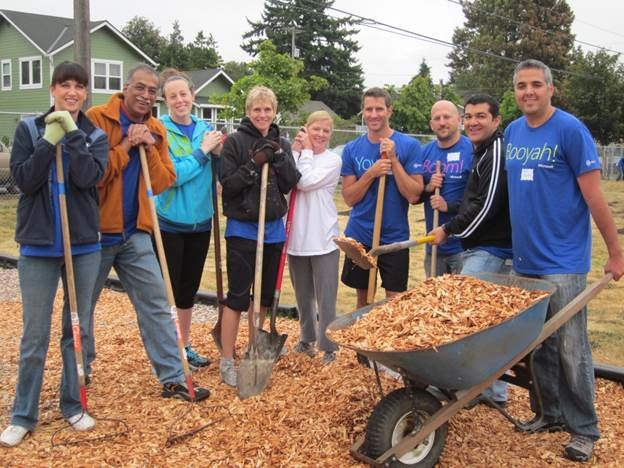
Giving time to support a good cause isn’t just good for the soul; it’s also a great way for your team members to bond. Place-based volunteering ideas include things like volunteering at a local soup kitchen, helping build a Habitat for Humanity house, or delivering gifts to children’s hospitals during the holidays. Skill-based volunteering is a cool way to stretch your employees’ expertise: It’s when your team volunteers its time and uses its professional skills — anything from marketing to app development to writing — to help a nonprofit.
Try VolunteerMatch.org for either type of volunteering opportunities, and Catchafire.org for skill-based volunteering opportunities.
Source: VolunteerSpot
20. Mystery Dinner
Mystery dinners are one of the most beloved traditions here at HubSpot. On a single night, you send a group of folks from different teams within your company to dinner somewhere in your city (or at someone’s house). The dinner is hosted by one of your company’s leaders and paid for by the company. These dinners allow random groups of people from the same company to spend an evening chock full of good food and conversation together.
What makes them a mystery dinner? The only thing participants should know about the dinner ahead of time is the date and time. Then, on the afternoon the dinner is supposed to take place, send each group an email with the name of the restaurant they’re going to and who they’ll be going with, so they can arrange transportation together.
Optional: Give every dinner host the name of a restaurant or bar to invite everyone to congregate at once the dinners are over.

21. Kayaking/Canoeing
Nothing says “let’s work together” quite like trying not to end up in the water. Want to take advantage of the outdoors? Grab a paddle and head down to the closest river for a great spring or summer outing.
Many public rivers and ponds have boat houses where you can rent kayaks and canoes — and you can encourage folks to rent multi-person ones and pair up with people they don’t usually work with.

22. Trampoline Park
Hey, who says trampolines are just for kids? Take your team to a trampoline park for some jumping fun and a chance to work off the day’s stress. Many cities have local places with trampoline activities — if you’re in the Boston area, check out Skyzone for trampoline dodgeball and basketball games.

Source: Mustbeart
23. Something Touristy
Embrace your city! Pick a hot tourist destination and go as a team. You can even do a Segway tour. (Fanny packs: optional.) It’ll be fun to laugh at how silly it feels to be a tourist in your own city, and you might even learn something new.

Source: Wikimedia
24. Painting Class
If you’re looking for a slightly more relaxing activity, take a group painting class. Paint Nite hosts painting classes by local artists at various bars throughout major cities for painting on canvases, wine glasses (like in the picture below), and so on. It’s a great way to let your team members unwind, catch up over some drinks, and express their creativity.

25. Cooking Class
In the mood for something a little more… culinary? Change up the usual outing to a bar or your local restaurant, and try a cooking class. Through a service such as Kitchensurfing, you can hire a professional chef to come cook a fancy meal for you in your home or office kitchen. Between the multiple courses prepared before your eyes, your team will have plenty of time to strike up a conversation and enjoy the delicious aromas.

26. Explore a New Place
Few things more fun than getting out of the city and exploring for a day. So, why not do it with your team?
For bigger events — maybe on a quarterly basis, when you have more budget to use for outings — charter a bus and take your team to a new place. You can all take a historical tour of the new place, grab lunch at a restaurant serving the town’s finest, or take in a local attraction together.

27. Sports Game
Round up the team and head out to a sports game. What a fantastic way to rev up team spirit while combining both competition and camaraderie.

Source: Wikimedia
Now you’re ready to show your team a great time while increasing their happiness and creating a great company culture. And hey, you might just be the “cool boss” now. How cool would that be?
Want more? Read The Power of Teamwork: 31 Quotes That Celebrate Collaboration.

The Tech Giants Are Going (Back) to Washington. Here’s What to Expect.
Washington, D.C. is becoming a familiar place for Big Tech executives.
Representatives from Facebook, Google (and companies it owns, like YouTube), and Twitter have testified at Congressional hearings for a range of issues — from data privacy, to election meddling, to their “filtering practices.”
Now, as major executives from all three prepare to return to the U.S. Capitol to testify before the Senate Select Committee on Intelligence (SSCI), it begs the question: What does it mean for the rest of us?
Who’s Testifying, and Why?
Who
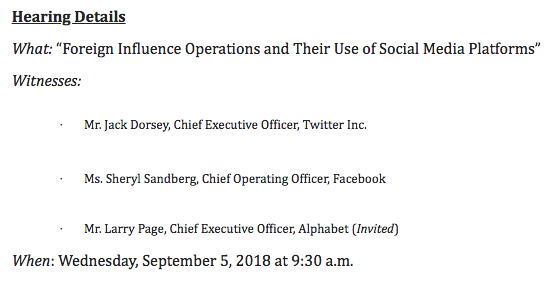
Buzzfeed first reported that Facebook COO Sheryl Sandberg and Twitter CEO Jack Dorsey were due to testify before the SSCI on the weaponization of each platform to influence elections — namely, the 2016 U.S. presidential election.
That representation has been confirmed, though who will testify on behalf of Google — if anyone — is yet to be determined. The company reportedly proposed sending SVP of Global Affairs Kent Walker, which was rejected by the committee. According to a media advisory issued this afternoon, Alphabet Inc. (Google’s parent company) Larry Page has been invited.
Source: Senate Select Committee on Intelligence, Media Advisory
It will be the first of two congressional appearances of the day for Dorsey, who’s also confirmed to testify before the House Energy and Commerce Committee that same afternoon on Twitter’s algorithms and content moderation.
Why
In the months following Facebook’s initial reveal that Russian actors were behind the 2016 platform abuse and election meddling, the company — along with Twitter and Google, among others — have discovered additional foreign, coordinated misinformation campaigns.
In July, Facebook said it removed 32 Pages and accounts — eight Facebook Pages, 17 Facebook profiles, and seven Instagram accounts — for what it describes as “inauthentic behavior” that intends to mislead network users.
While it wouldn’t confirm the origin of that activity, the company did remark that it showed similarities to the previously-announced Russian interference.
One day in August, both Facebook and Twitter came forward with announcements of coordinated misinformation campaigns on their respective networks — this time, with origins in Iran. Two days later, Google came forward to say it had removed dozens of YouTube channels, blogs, and Google+ accounts for similar activity, also from Iran.
FireEye, a cybersecurity firm, is largely credited with the initial discovery of this activity, and has published a report on its findings.
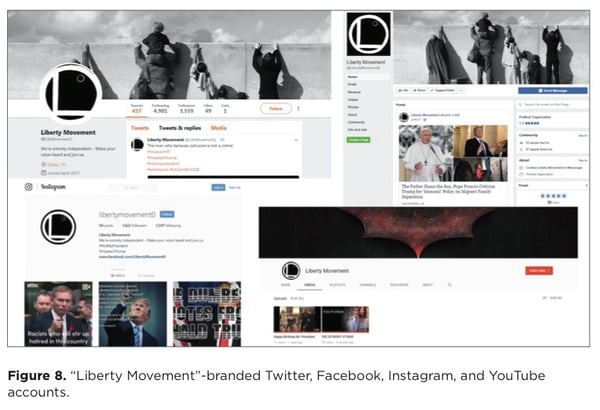
In both coordinated campaign instances, government-backed organizations and actors from each country typically created inauthentic accounts, like Pages and YouTube channels. Those accounts were then used to distribute misinformation to promote a certain narrative, usually on divisive topics within the U.S.
Source: FireEye
“This is further evidence that foreign adversaries are actively using social media to divide Americans and undermine our democratic institutions,” said SSCI Vice Chairman Mark Warner in a statement. “I look forward to questioning the leadership of Facebook, Twitter, and Google about this at the Intelligence Committee’s hearing on September 5th.”
Will Big Tech Be Regulated?
Regulation is an ongoing point of contention among lawmakers — and not just when it comes to social media, though the divisiveness on the issue was particularly salient at Facebook CEO Mark Zuckerberg’s two-day testimony before U.S. lawmakers.
At the time, it seemed that before any firm, sustainable outcomes along the lines of regulation could result from these ongoing incidents — like the discovery of coordinated misinformation campaigns — more hearings would take place. They have, and continue to do so.

Zuckerberg listens to opening remarks from House Energy and Commerce Committee Chairman Greg Walden on April 11, 2018. | Amanda Zantal-Wiener
The larger context is important, especially in light of the European Union’s General Data Privacy Regulation (GDPR), which came into force in May — as well as California having passed its own privacy law in June. It reflects an era in which consumer demands for protection — of personal data and election integrity alike — are growing.
There may not ever be regulation that satisfies everyone — though tech companies have reportedly been lobbying elected officials to pass privacy laws on their own terms.
Who Would Regulation Impact?
In a word, says HubSpot CMO Kipp Bodnar: “Everyone.”
That may not have been the case only a few years ago, points out HubSpot VP of Marketing Meghan Keaney Anderson. Whereas sweeping regulation may have previously impacted only the tech giants themselves — now, the organizations that use them for marketing could also feel ripple effects.
“In the past, marketers and business owners may have been able to let events like these glide by in the background,” says Keaney Anderson. “But in a world where the lion’s share of all internet traffic runs through just a few major platforms — Google and Facebook, in particular — succeeding means being both highly informed and highly adaptable to all the ways in which these giants are evolving.”
“Succeeding means being both highly informed and highly adaptable to all the ways in which these giants are evolving.”
– Meghan Keaney Anderson, HubSpot VP of Marketing
But back to Bodnar’s point about regulation impacting everyone. When the platforms most in question — Facebook, Google, and Twitter — are widely used by businesses and consumers alike, it creates a cycle.
“It’s likely that any platform changes design to prevent election meddling would have an impact on the abilities of marketers executing ads for their products and services,” he says. But at the same time, “These hearings also continue to fan the flames of public distrust in the quality of content on these platforms, making it harder for marketers to have their message heard.”
In other words: Where there’s distrust in the platforms, there’s growing consumer distrust among the content appearing on them.
What’s Next?
The long-term, potential impact of these ongoing hearings could be felt by the marketing and business community — so take time to understand the possibilities.
“The biggest risk for marketers post-hearing is that these companies decide to change their algorithms further,” says HubSpot VP of Marketing Jon Dick. “Any time this happens, marketers need to understand the impact of these changes, and adjust their content strategies accordingly.”
Consider Facebook’s January News Feed algorithm change, for example, to de-emphasize content from Pages, and promote more from friends and family.
Since then, according to one investigation, Facebook Page engagement has dropped by an average of 50%. But that data doesn’t come without recommendations, or insights on which types of content continue to perform better than others.

Source: Buffer
And as Big Tech executives continue to be pressed to testify — is there an end to these congressional appearances in sight? Probably not, says Bodnar.
“As for what’s next — I would imagine more hearings,” he says. “But long-term, it seems like additional regulation is possible as these platforms continue to mature.”

The Ultimate Guide to Google Docs
Everything Google touches seems to turn to gold.
Not only have they helped online businesses generate billions of dollars through their search engine, but they also have — and continue to — branch out and create other products.
One of these products is Google Docs, a free word-processor and alternative to Microsoft Word that allows anyone to easily create and edit their own shareable document.
This guide will teach you about some reasons why using Google Docs may be beneficial to you as well as some tips and tricks that will make you more efficient while using the product.
What Is Google Docs?
No software downloads. No payments. No specific browser or computer necessary. Is there really any product out there these days that is this simple to obtain and use?
The answer is yes.
Google Docs is a completely free, cross-platform (syncs documents across phones, tablets, and desktops) word processor that works both online and offline. All you need is a Google account, the same free account that you use for your G Suite or Gmail.
The cloud-based tool includes a clean layout and unique features for users, such as the ability to work, share, and collaborate from anywhere. The platform even automatically syncs and saves all of your work, so you don’t even have to worry about pressing “Save”.
With these features, it’s clear why millions of users prefer Google Docs over other word processors.
Google Docs vs. Microsoft Word
But what about Microsoft Word? Word been around longer than Google Docs and remains exceptionally popular today. Millions of individual users and companies still pay big money to use Word. So why would you ditch Word for Google Docs?
Microsoft Word must be purchased as part of a Microsoft Office package which includes several products you might not even use, such as PowerPoint, Excel, and Outlook.
For example, the Home and Business packages run from $69.99 (for an individual user at home) up to $150 (for an individual user at work) for an annual membership. Google Docs, on the other hand, allows you to collaborate with any number of people, anywhere in the world, for free.
Another benefit of Google Docs is that all of your work is saved to the Cloud, which means you won’t lose your 20-page report … even if your laptop croaks. (Whew!)
For a blogger like myself, I can’t imagine using anything but Google Docs every day. Unlike Word, my editors can hop in my document whenever it’s most convenient for them and leave suggestions or comments. I can also respond to these whenever I want — at home or on the move using the Google Docs app.
Now that we’ve covered some benefits of using Google Docs, let’s go into more detail on how to use it.
Sharing and Collaborating with Google Docs
There are a plethora of tips and tricks that users can take advantage of while using Google Docs — whether working as an individual or with a team.
Google Docs allows multiple people to work, collaborate, and edit within a single document in real-time through any web browser. Here are a few ways to do this:
Sharing Your Google Doc
Individuals can share their document with as many people as they want, as well as edit their permissions to limit what they can do.
To get started sharing, click “File”, followed by “Share.”
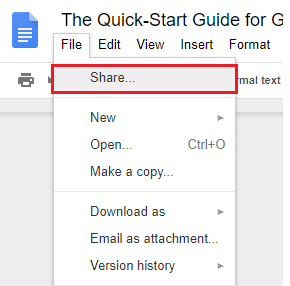
There are multiple sharing options — the one you pick is totally your choice.
1. Create a Shareable Link
The simplest way to share a Google Docs page is to generate a shareable link. This allows anyone to click a unique URL and view your document.
After opening the “Sharing” box, hit the “Get Shareable Link” button in the top corner.
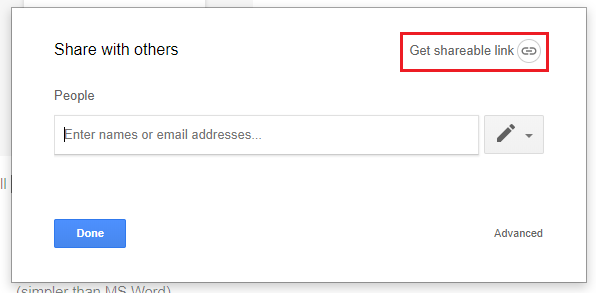
Then, select a sharing permission for your document.
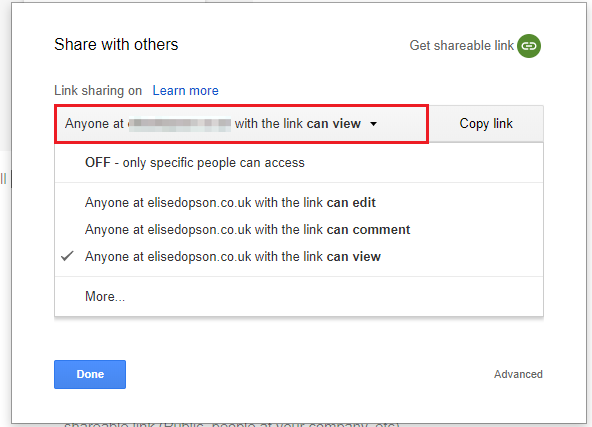
After defining permissions, press “Copy link”.
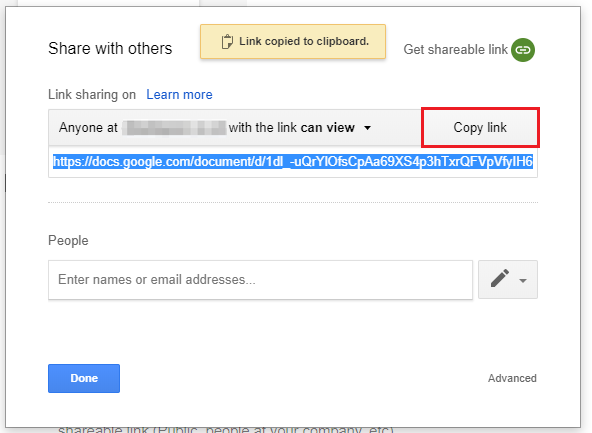
The URL will then be copied to your clipboard for you to send to anyone who wishes to view the document.
2. Sharing via Email Address
You also have the option to share your document with an email address. This will send an invite to that person’s inbox, and add the document to their Google account.
To do this, head back to the sharing box.
Enter the email address of the person you’d like to share your document with and select an option from the drop-down to edit their permissions.
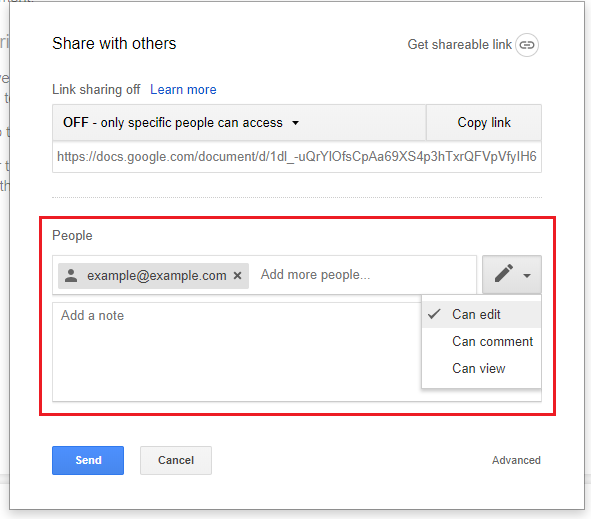
If you add a note to this invite, it will be displayed in the email invitation.
3. Advanced Sharing Options
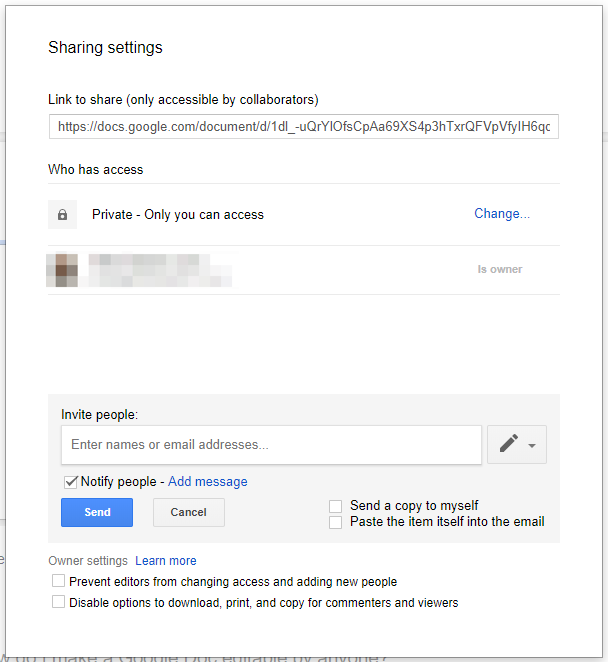
Head back to your sharing box and hit “Advanced”.
Here, you can see all sharing settings — including who has access to your document, their permission settings, and the option to invite more people or remove others.
4. Make Your Document Editable by Anyone
Want to grant anyone permission to edit the contents of your document? Hit “File” and “Share”, to get your shareable link.
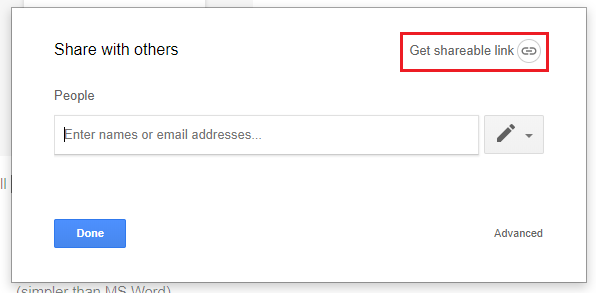
In the drop-down menu displayed, press “Anyone with the link can edit”.
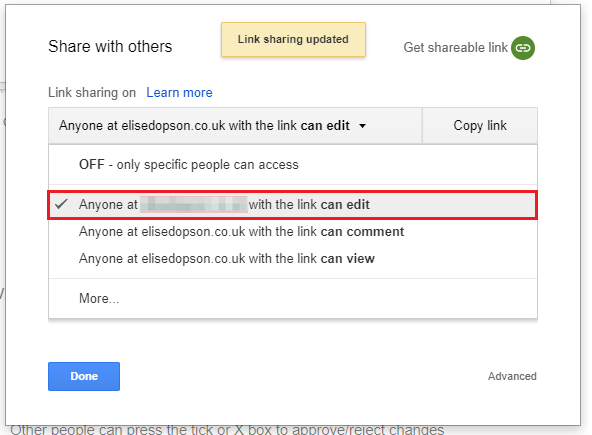
As this option clearly states, anyone with your unique URL will be able to make changes, edit, and even delete your document … so be careful about who you’re sharing it with.
Using Shortcut Keys
There are a number of shortcut keys to help increase your productivity while working in Google Docs. Review the following chart to learn some of the most popular shortcuts.

For a complete list of Mac, PC, Android, iPhone, and iPad shortcut keys, check out this page.
Creating and Writing in Google Docs
Which Google Docs features will help you and your team create powerful documents, no matter your location? Here are some options for you to try:
Work Offline
A bonus to using Google Docs is that you’re able to edit, save, and create documents through your web browser even when you’re not connected to the Internet. This might come in handy if you need to get some work done while traveling. The changes you make are still saved and will sync when you go back online.
But, this isn’t an automatic feature. You’ll need to set-up offline connections in your account.
To do this, visit the Google Docs homepage and locate the menu button on the left-hand side.
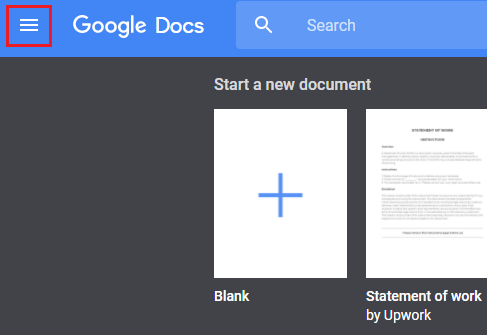
Then press “Settings”.
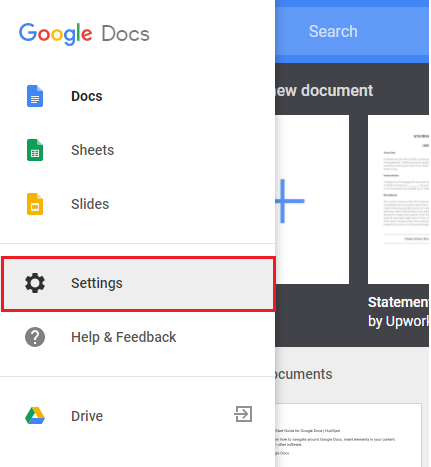
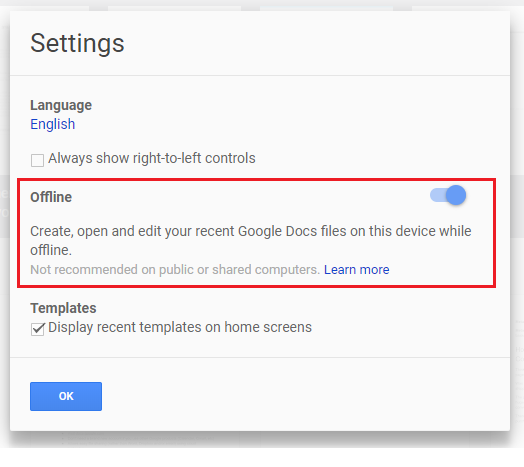
A pop-up box will then be visible on your screen. To set up offline editing, toggle the “Offline” button to “On”. (This should turn the button blue, rather than gray.)
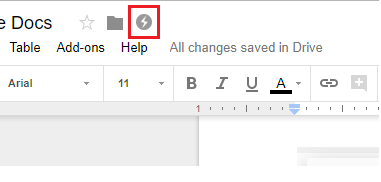
Your browser will then adjust to offline editing and you’ll see the following icon when editing your document without Internet.
Use Voice Typing
Voice technology is a growing industry, and Google has been at the forefront of this trend. You can speed up your writing process by using voice typing in Google Docs.
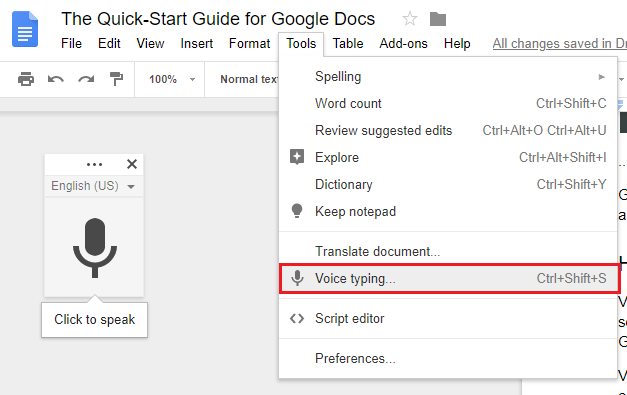
To use the feature, begin by checking your device settings to confirm that your microphone works.
Then head to “Tools” and “Voice Typing”. You’ll see a microphone icon.
Use the Google Docs App
With the Google Docs app, users can continue to edit, share, collaborate in real-time, add images, and create content all while on-the-go.
The free app even works offline once you’ve turned on that setting — the same way you did on your laptop or desktop — and it automatically saves your work to the Cloud.
“Explore”
Have you ever been writing about a topic and stopped to think, “Wow, I could use a suggestion or two on how to improve my piece.”
Google Docs has you covered.
By clicking the “Explore” button — found by clicking “Tools” then “Explore” — Google Docs will scan the content you provide and suggest information that you could add to your piece.
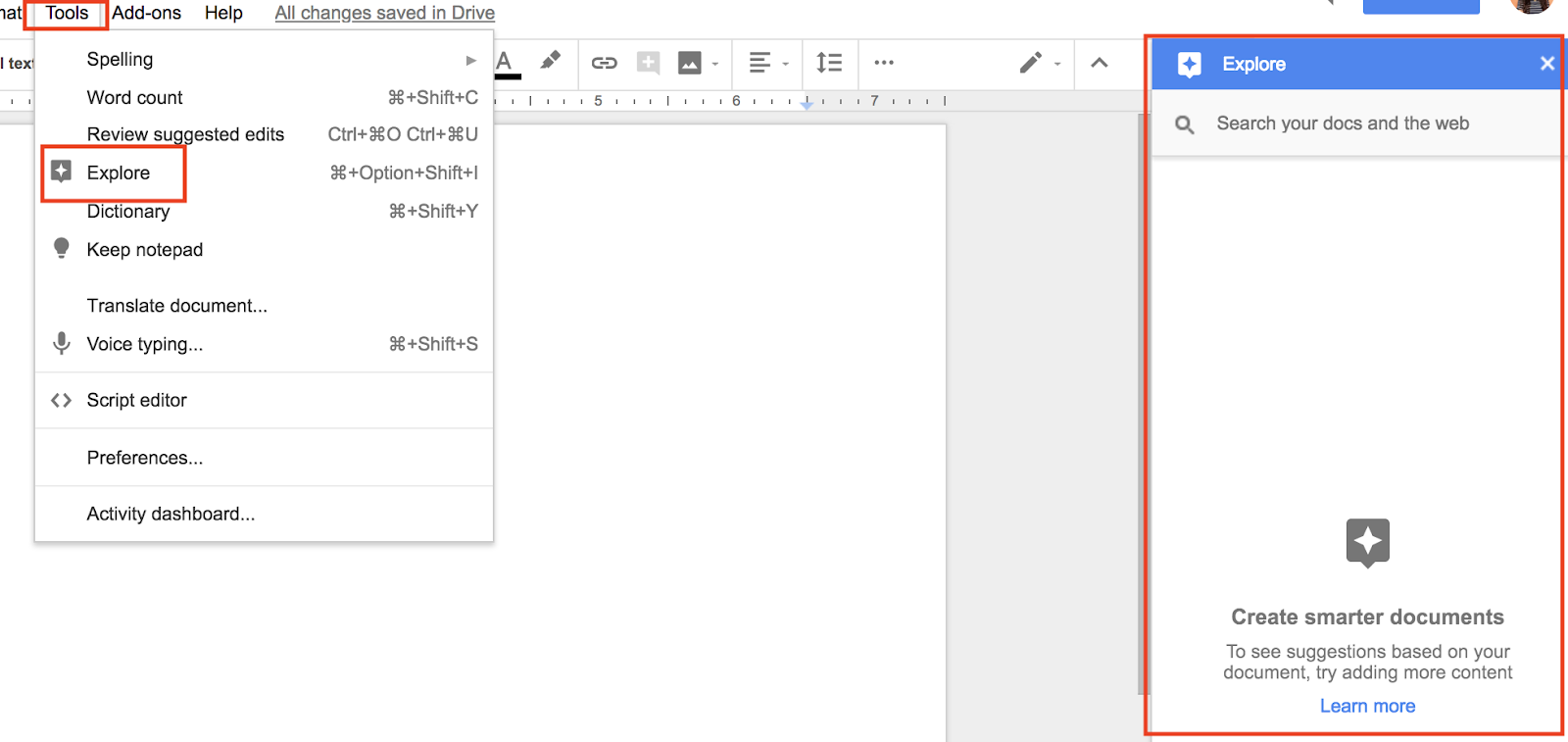
These suggestions might include details you may have forgotten, images to enhance your piece, or possible research that you could include to back your points and claims.
Formatting Your Document
Make a Google Docs page that works for you and the content you’re creating. Whether it’s the page orientation, images, or page numbers, these tips will help you format your document any way you want.
How to Change Margins
If you’re looking to make the most of the blank space in your document or format your document for printing, you might need to change the margins.
Before doing this, you’ll need to make sure the ruler is visible above your document.
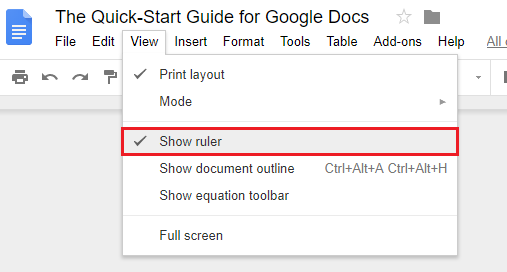
Simply head to “View” and press “Show Ruler”.
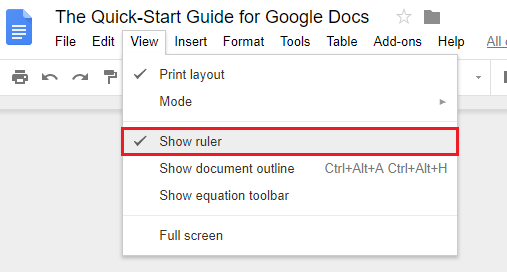
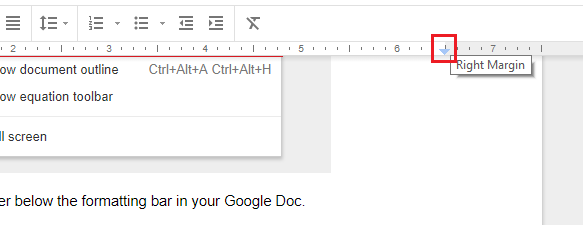
You should see a ruler below the formatting bar in your document.
Then, to change the margins of your page, locate the small blue button on the left-hand side of the ruler and slide the button to alter your left margin.
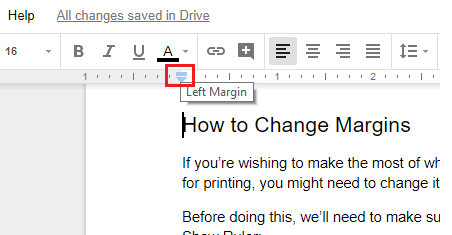
To change your right margin in Google Docs, repeat this process using the blue button on the right side of your ruler.
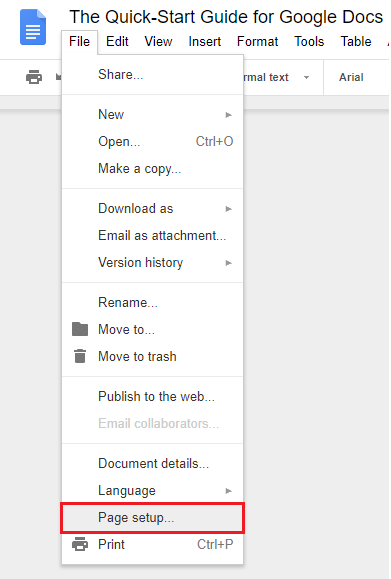
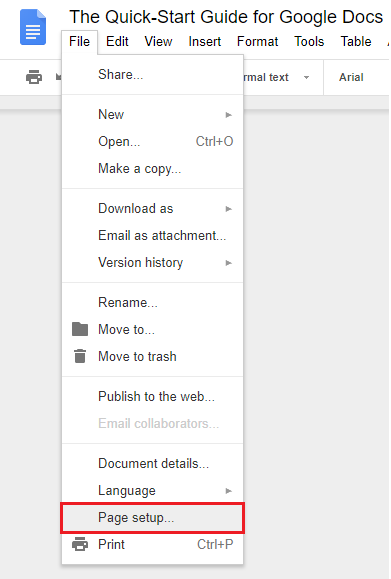
To do this, hit “File” then “Page Setup”.
You’ll then see the following pop-up box where you can change the margins.

If you need the same margins in every document you create, save time and hit the “Set as Default” button. This will automatically copy your margin set-up to all new documents.
How to Change Page Orientation to Landscape
Looking to change the orientation of your document? Head to “File” and select “Page Setup”.
Then, select the “Landscape” option under “Orientation” and press “OK” to make your changes.
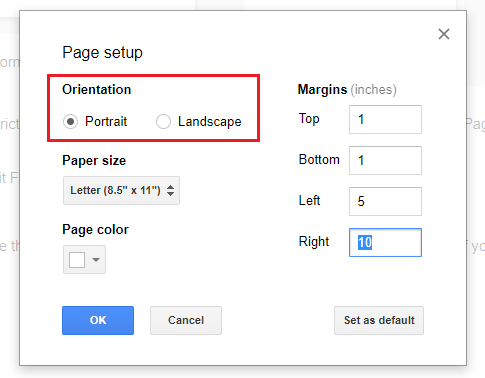
If you want all of your documents to have the same orientation, press “Set as Default”.
How to Add a Text Box
Text boxes are a great option if you’re looking to add an extra visual element to your document. They allow you to position additional text anywhere on your page without altering the format of your existing document.
In Google Docs, text boxes are classified as drawings. You can insert one by clicking “Insert” and “Drawing”.
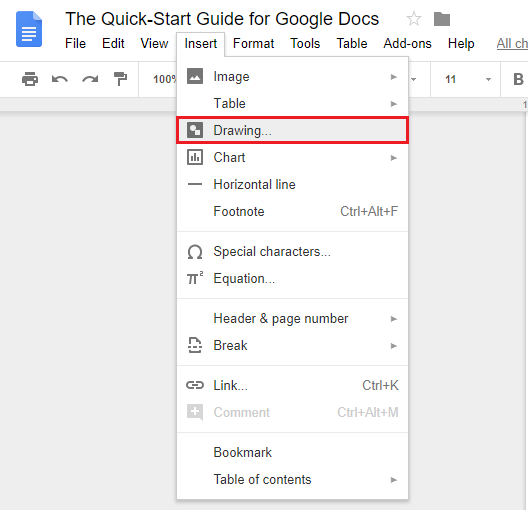
This will open the “Drawing” feature. Then press “Text Box”.
Drag your cursor into the drawing space to create a box big (or small) enough for your requirements
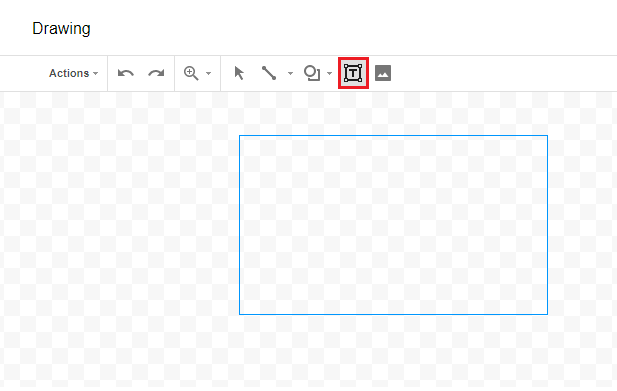
Once your box has been created, it’s time to enter your text.
You can change the font, color, and alignment of the text in your box by using the navigation bar in the pop-up window.
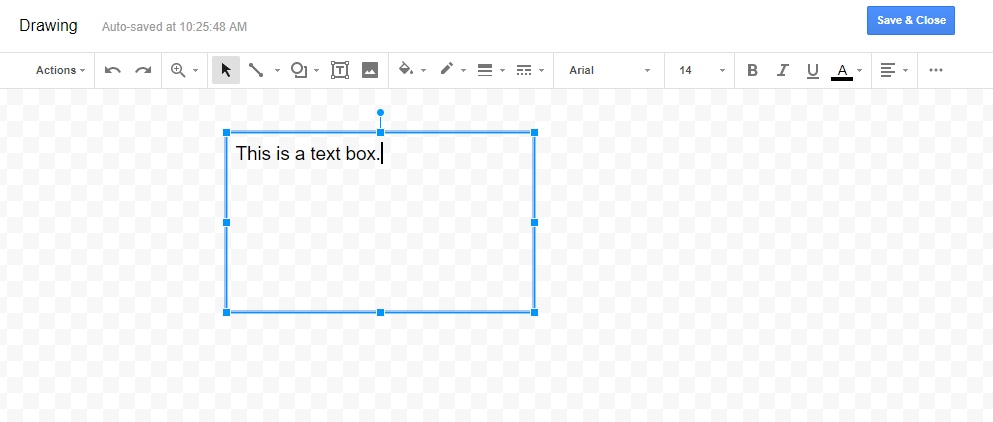
Happy with your text box? Hit “Save & Close” to insert the “drawing” in your document.
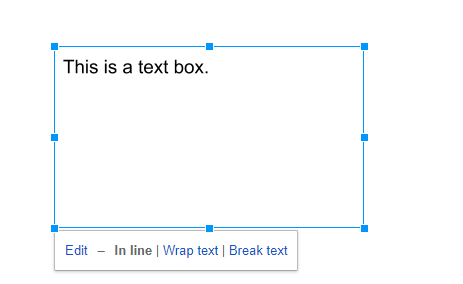
From here, treat your text box as an image. Select the image to change the alignment or move the box around your document for ideal placement.
How to Add Page Numbers
Page numbers make your document easy to navigate and allow for better organization when printed — you’ll avoid asking yourself, “Does this page go here … or there?”
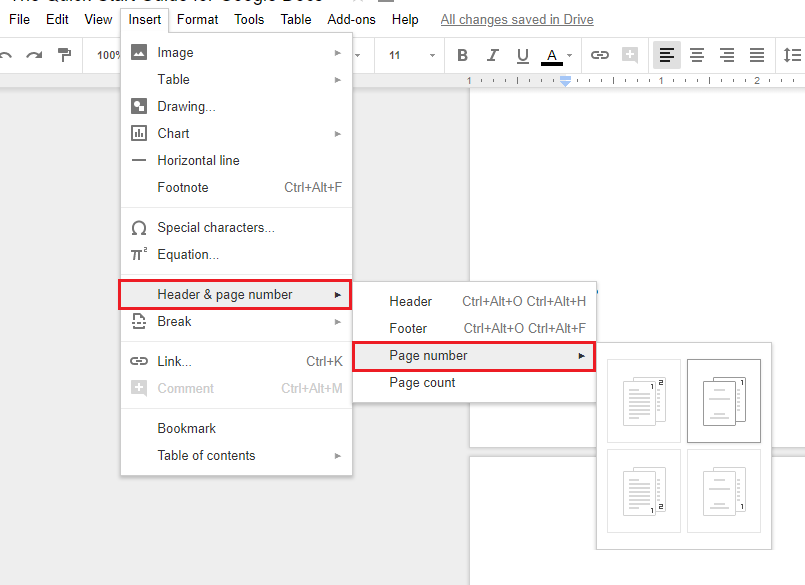
Add page numbers to your document by clicking “Insert”, “Header”, and “Page Number”. Then choose the option of your choice.
How to Create a Hanging Indent
Hanging indents are indents that automatically change the margin of a paragraph without interrupting the format used elsewhere on your page. Here’s an example:

To add a hanging indent in Google Docs, make sure your ruler is visible by pressing “View” and “Show Ruler”.
Then, head back to your main document and highlight the text you want to format.
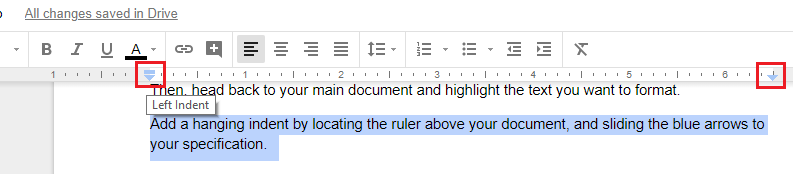
Add a hanging indent by locating the ruler above your document and sliding the blue arrows to your specification.
Slide the arrow on the left side to alter the left indent, and the arrow on the right side to change the right indent.
How to Insert an Image
To add an image to your document, simply put your cursor wherever you want to insert the image.
Scroll up to the top of the page and click “Insert” and “Image”.
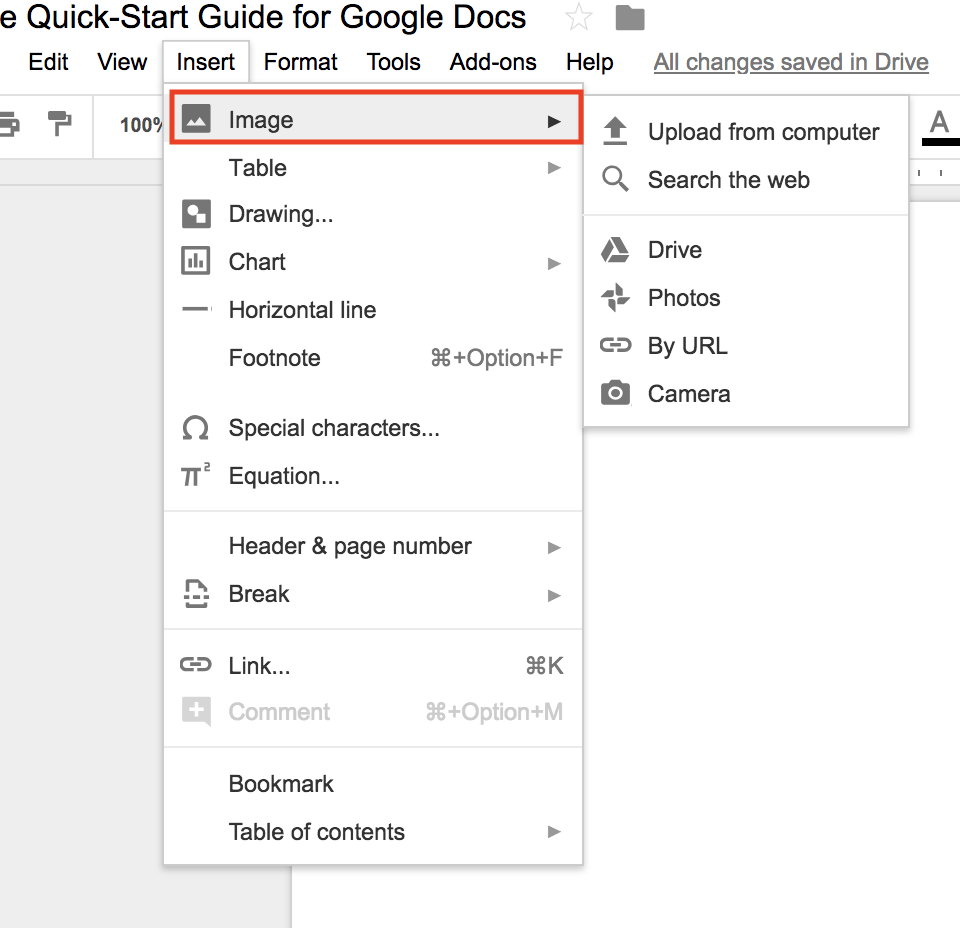
Choose the image location — there are multiple options that include your computer, the web, Google Drive, or by URL.
Select your image, click “Open”, and voila! Your image should appear.
For more on this process, check out this page.
How to Create a Table of Contents
If you’re writing a presentation or whitepaper, a table of contents is a great way to display each section you’re creating and the page number that it can be found on.
You can insert a table of contents in your Google Doc by ensuring all subheadings are formatted with a “heading tag”. To do this, highlight your subheading and press the appropriate tag in your formatting bar.
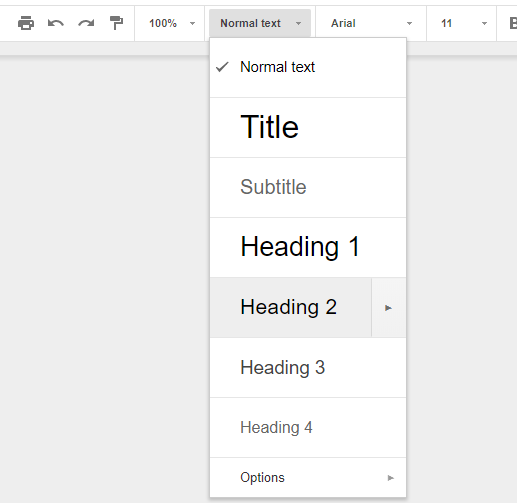
As a general rule of thumb, the “Heading 1” tag should be your main title. “Heading 2” tags should be subheadings, and “Heading 3” tags should be sections below a subheading.
Now you’re ready to create a table of contents. Hold your cursor where you’d like to insert it and head to the “Insert” tab. Click “Table of contents” and choose an option based on your preference.
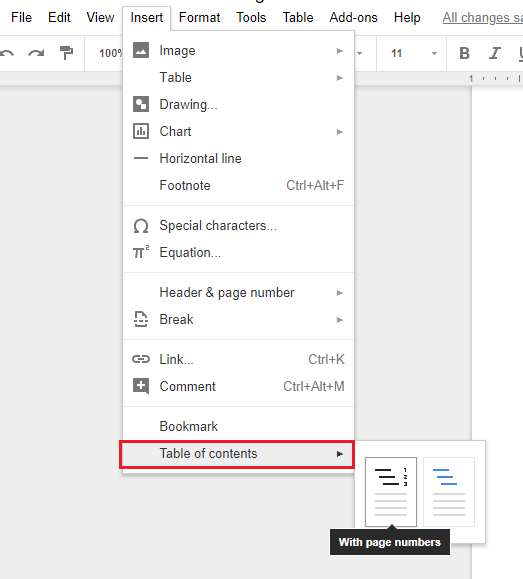
Editing Your Document
Tracking changes, leaving your team members and co-workers comments, running spell check, and other important editing features are all available in Google Docs to ensure your work reaches full potential.
How to Track Changes
If you’re working with another person on your document, you can ask them to “Track Changes”. This will show you who made the edits, when they made those edits, and what the text was prior to their edits.
You can track changes in Google Docs by changing “Editing” to “Suggesting” in the top right-hand corner of the page.
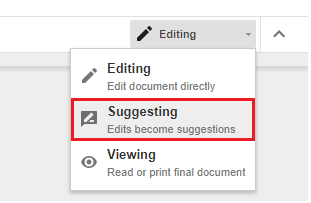
Then, when someone edits your document, any changes will show up in a different color, with a box on the right-hand side to show their name, photo, and editing details.

You can then browse the tracked changes and accept or reject them as necessary.
How to Add Comments
With Google Docs, you and your team can leave comments in any document for each other to view. These are often used as reminders to come back to a specific section, leave more detailed revision ideas, or add URLs to other sites and images for reference.
To do this highlight the word, sentence, or paragraph you want to comment on and click the “Add Comment” button (the text box with the plus sign inside).
You can then write a comment — or paste a URL — in the comment box. Click “Comment” when you are ready to post your box.
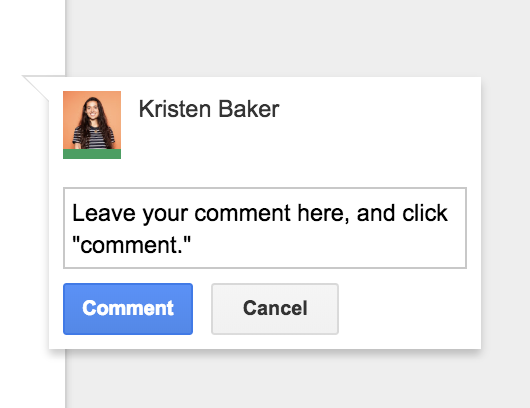
To edit the information in the box, click the three dots on the right and select “Edit”. You can also thread comments beneath the original comment by typing in the “Reply” box.
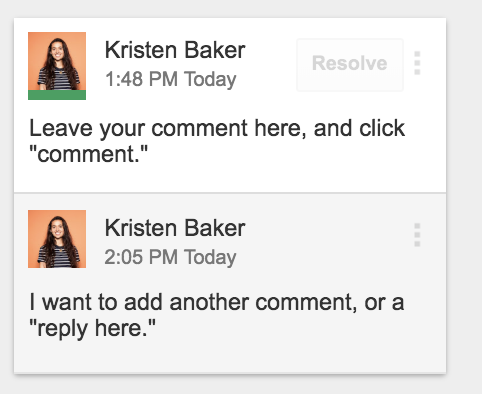
To get rid of a comment box you can either “delete” it or “resolve” the comment. Click the three dots on the right and select “Delete” to delete the box. Click “Resolve” in the top right of the box when the issue has been resolved and you no longer need the box.
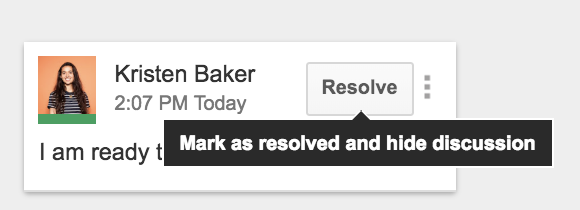
If you are looking for more in-depth information on adding and resolving comments in Google Docs, look at this page.
How to Find Word Count
Have you ever struggled while writing a paper, report, or blog post because of a required word count that you were trying to reach?
Although reaching a required word count may not always be easy, Google Docs makes the count itself simple.
Once you’re in your document, find “Tools” in the navigation bar. Then, select “Word Count”.
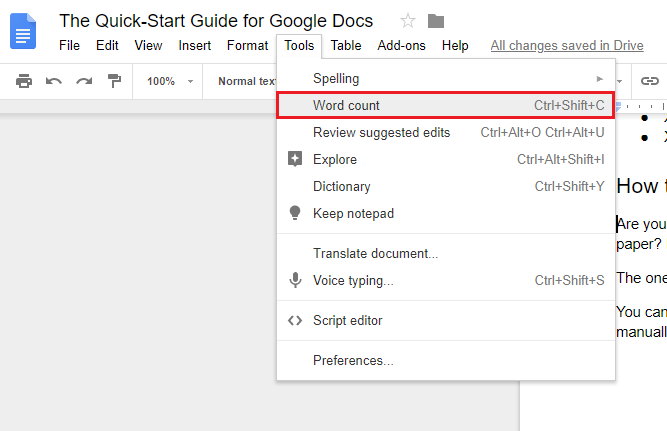
Google will then display the total number of words (along with the total number of pages, characters, and characters excluding spaces).

To count the words within a specific sentence, paragraph, or page, highlight the text you want to include and follow the same steps above.
How to Run a Spell Check
It’s not uncommon even for professional writers to make an occasional spelling mistake. Google Docs can help all writers with this dilemma.
Run a spell check to locate and correct any errors you may have missed. Think of it as your personal proofreader or editor.
To run a spell check in Google Docs, press the “Tools” button in your navigation bar and hit “Spelling”. Then select the “Spell check” option.
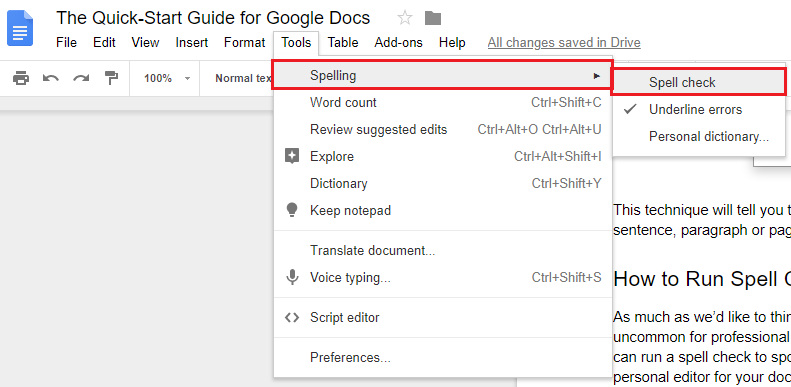
Google Docs will then scan your entire document for misspelled words and grammatical errors.You’ll be given the choice to accept or ignore Google’s suggestion.
If you find that you’re frequently using a word that Google doesn’t recognize, you can add it to your dictionary. This will prevent Google Docs from highlighting the word in future spell checks.
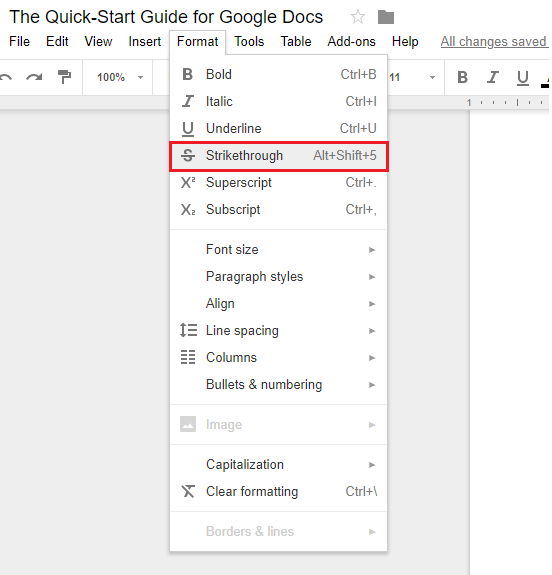
How to Add a Strikethrough
In Google Docs you can add a <style=”text-decoration: line-through;”=””>strikethrough by highlighting the text you want to strike, clicking the “Format” button in the navigation bar, “Text”, and selecting “Strikethrough”.
Use Google Docs Add-Ons
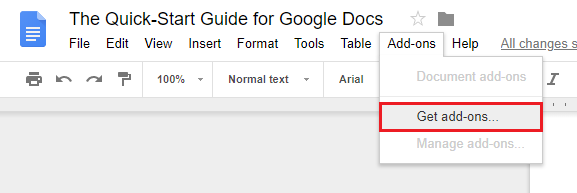
You can add third-party tools, or add-ons, to your documents. These add-ons contain unique features to help you improve your work in various ways.
You can find these add-ons by locating the “Add-Ons” tab in your navigation bar and clicking “Get add-ons”.
Here are a few popular add-ons you may find helpful:
Google Keep
Writing a document that needs supporting data? Install this add-on to your browser to collect notes, case studies, and references you’re planning to cite. Then, use the add-on to pull them in as needed. You can also edit the notes you’ve saved with Google Keep.
Extensis Fonts
Consistent branding is important, but that can be tricky when you’re using unique fonts. The Extensis Fonts add-on imports thousands of fonts from the Google Fonts library into your document to enhance your piece’s overall aesthetic.
HelloSign
Writing a contract, agreement, or any other paperwork that requires a signature? This Google Docs add-on will help you collect electronic signatures in an easy and secure way.
Translate
Need a translator? Install this add-on to easily translate your content into another language.
Lucidchart
This add-on allows you to add unique diagrams to your document that are easy to design and edit. It’s perfect for anyone working with data or looking for a fun way to display information.
Language Tool
Proofreading made easy in over 20 languages. You won’t have to wonder about your spelling or grammar anymore. The Language Tool add-on catches errors and mistakes no matter the language.
EasyBib
EasyBib is an automatic bibliography generator with over 7,000+ style options, including MLA, APA, and, Harvard-style.
Google Docs, Google Sheets, and Google Forms in Google Docs
With Google Docs, it’s easy to integrate with other useful tools such as Google Sheets and Google Forms. If you create a spreadsheet or chart in Google Sheets, you can insert that information directly into Google Docs.
With Google Forms, you can create surveys that are automatically saved to your Google Drive for easy access and review from Google Docs.
Google Sheets
Google Sheets is a great option for anyone who needs to build any type of chart, list, plan, or spreadsheet. It is a spreadsheet generator — similar to Excel — and it’s free.
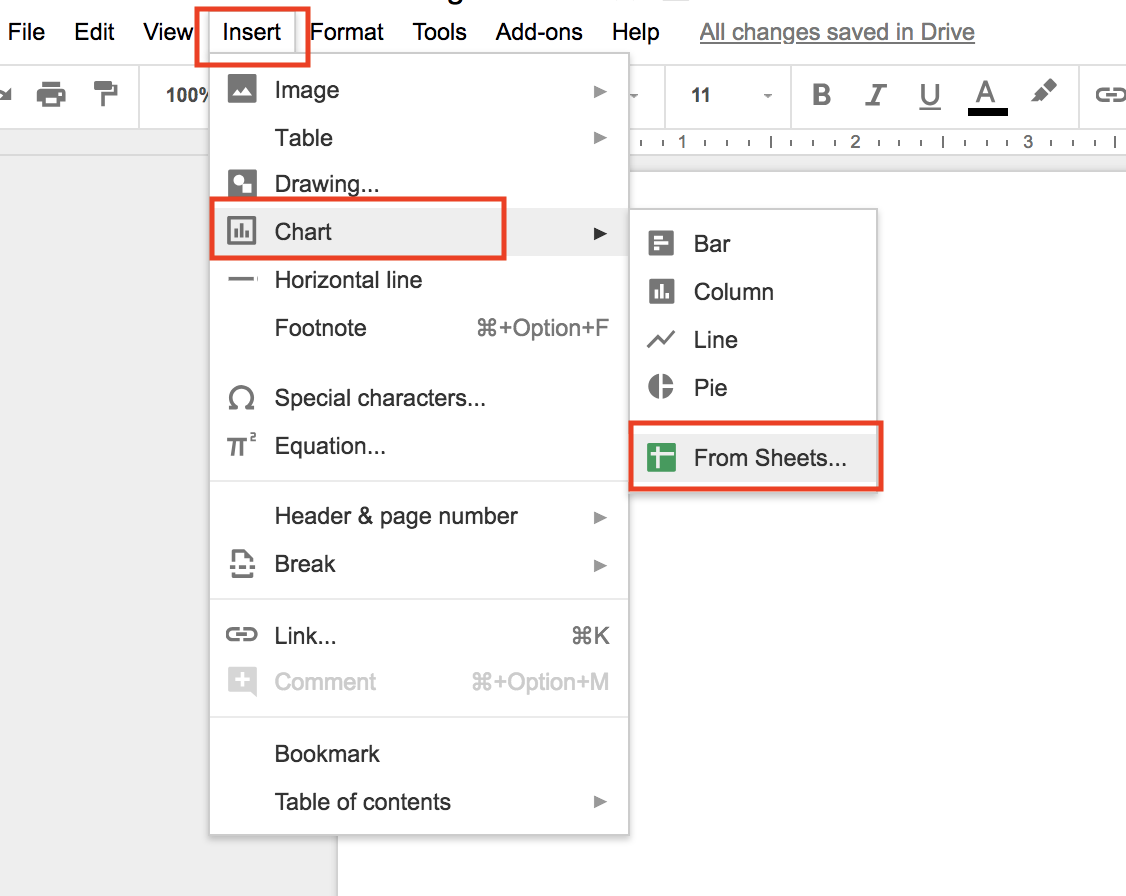
Once you’ve opened Google Sheets and created your chart, you can easily insert it into your document.
Do this by heading up to the toolbar, clicking “Insert”, “Chart”, and “From Sheets”. You should be able to view and select the chart you want to add to your document.
Google Forms
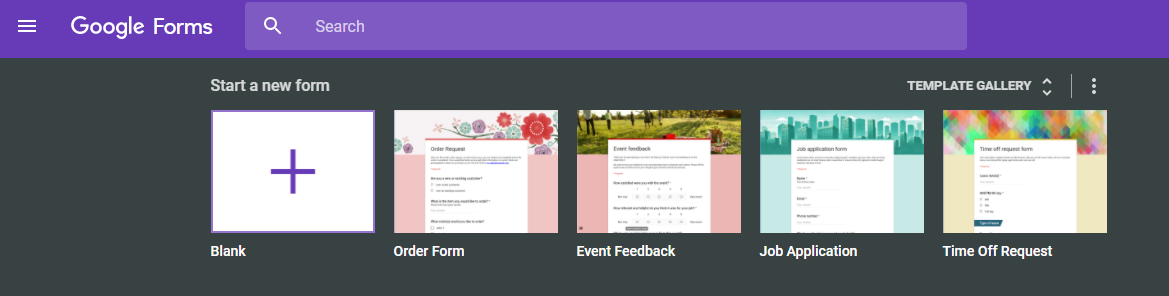
Google Forms is a great way to collect information and survey responses. Just go to the Google Forms site and begin creating your form or survey in a matter of seconds.
You and your team can collaborate and select a template from Google’s gallery — or create a unique template from scratch to style it to your taste.
Google Forms is also free to use and can integrate with software like Asana and HubSpot.
Additionally, all of your Google Forms documents and responses are automatically saved to your Google Drive so you can easily access them while in your Google Docs page.
To do this, click on the “Apps” icon when you open Google Docs. Scroll down to “Forms” to find the form or survey you want to open.
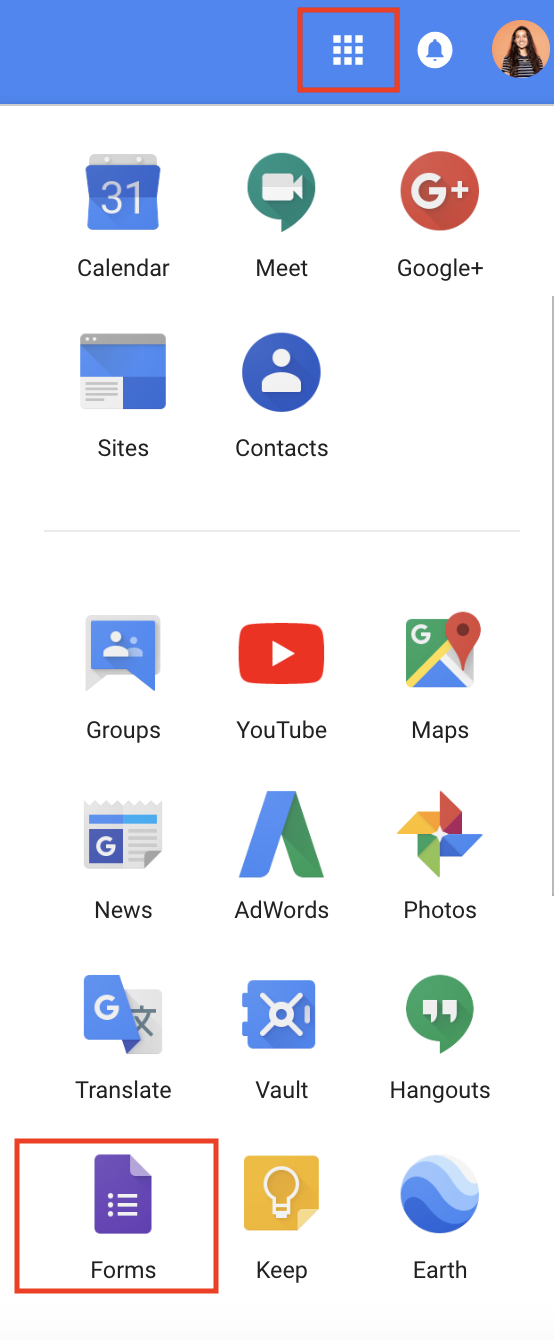
One last feature to note is that the people responding to your form or survey can do so on any type of device, making Google Forms a convenient option for everyone.
Conclusion
Congratulations! You’re now a Google Docs pro. Whether you’re a marketer or CEO, these tips will allow you to take advantage of Google’s software and create incredible documents of any kind, no matter your professional background.
Google Docs gives you the ability to share your work with as many people as you want, whenever you want, making it a great tool for collaborative teams. It also keeps your life simple by automatically saving any changes to your document to the Cloud … meaning no more stress about losing your work. Lastly, you can work on your documents from anywhere — whether or not you have Internet.
With all of these features, you can see why so many people have jumped on the Google Docs bandwagon. Plus, it’s free! Why not give it a try?

Unriddled: Facebook Removes Another App (And More Accounts), Tesla Will Remain a Public Company (For Now), and More Tech News You Need
“Unriddled” is HubSpot’s mid-week digest of the tech headlines you need to know. Each week, we highlight the top stories in a quick, scannable way and break it all down. It’s tech news: explained.
Unriddled: The Tech News You Need
1. Facebook’s Latest Removals
Preventing Violence in Myanmar
Earlier this month, Reuters published a special report on Facebook’s ongoing struggle to curb violence-inciting hate speech on its platform in Myanmar. Previous reports — including one from The New York Times in April — indicated that Facebook was being used to incite violence against the Rohingya, a Muslim minority group in Myanmar.
This week, Facebook announced that as part of its efforts to prevent this platform abuse (and correlated violence), it removed 18 Facebook accounts, one Instagram account and 52 Facebook Pages that were followed by almost 12 million people. Many of these accounts belonged to Myanmar-based individuals and organizations, and were banned from Facebook “to prevent them from using our service to further inflame ethnic and religious tensions.”
The removal didn’t end there — Facebook also said that it purged 46 Pages and 12 accounts for coordinated misinformation campaigns designed to “covertly push the messages of the Myanmar military.” Read full statement >>
The App Audit
After it was revealed that an app developer had allegedly improperly obtained and shared users’ personal data, Facebook said that — among other changes — it would conduct an audit of all connected apps to make sure others hadn’t and wouldn’t do the same.
Since that audit began, Facebook says it has removed over 400 apps — including the most recent one, myPersonality: an app that the company says didn’t agree to an audit request and showed evidence of improperly sharing information.
An estimated four million users shared their data with myPersonality, who Facebook says will be notified. Read full statement >>
2. Tesla Won’t Be Taken Private, After All
When Tesla CEO Elon Musk tweeted that the company might be taken private, it set into motion a series of events ranging from investor outrage to the The Securities and Exchange Commission serving Tesla with a subpoena.
Am considering taking Tesla private at $420. Funding secured.
— Elon Musk (@elonmusk)
August 7, 2018
But after all that — and more — Musk published a blog post over two weeks later indicated that, actually, Tesla would remain a public company.
“Given the feedback I’ve received,” Musk wrote, “it’s apparent that most of Tesla’s existing shareholders believe we are better off as a public company.”
Javier E. David of CNBC has more. Read full story >>
3. YouTube Releases Its Own “Time Well Spent” Tools
At I/O, Google’s annual developer conference, the company announced that it would roll out a number of tools for the “digital wellbeing” of its users. On Monday, YouTube — which is owned by Google — announced that those tools are available in users’ account settings.
One of the new items is a profile that lets users know how much time they’ve spent watching YouTube videos, with filters for that day, the previous day, and the past week.

Source: YouTube
There’s also a new feature that will remind users to take a break after a certain amount of viewing time. Read full statement >>
4. Something in Common
Facebook has been pressing the message that it’s a place for friends and family members — connecting with old ones and making new.
To help bolster the latter, the company is reportedly testing a feature that allows users to see if they have something in common with other people they’re interacting with — typically on a public forum like the comments section on a Page post.
It will come in the form of a label on things you have in common with non-friends in the same conversation, like the same alma mater or hometown. Richard Nieva of CNET has more. Read full story >>
5. Aloha
Facebook could be building its own voice assistant — rumored to be named Aloha — according to code discovered by computer scientist Jane Manchun Wong.
It’s possible that the assistant is being built in tandem with Facebook yet-to-be unveiled smart speaker, much like Assistant is to the Google Home, or Alexa is to the Amazon Echo.
Facebook Messenger Voice Assistant UI pic.twitter.com/DOMe4Nsg7v
— Jane Manchun Wong (@wongmjane)
August 21, 2018
Josh Constine of TechCrunch has more. Read full story >>
6. Can Facebook Really Stop Election Meddling?
A day after Facebook and Twitter removed accounts in the hundreds for a coordinated misinformation campaign, we wanted to know: How confident are people that the problem can be ended for good? We asked over 600 people to weigh in — here’s the data. Read full story >>
7. Why Facebook Removed 5,000 Ad Targeting Options
Facebook announced this week that it will remove more than 5,000 targeting options from its custom audience ad tools. Why does that matter, and what comes next? Read full story >>
8. Is Social Media Censorship a Real Problem?
Who — if anyone — is being censored on social media? Here’s what our survey says. Read full story >>
9. As Streaming Services Make It Harder to Skip Ads, What Does the Future of Online Video Look Like?
YouTube is the latest streaming video platform to make it more difficult for viewers to skip ads. What does that mean for the future of online video? Read full story >>
Featured image credit: Facebook

What It’s Really Like to Work for Elon Musk
All eyes are on Elon Musk. The billionaire SpaceX and Tesla mogul has gone from commended CEO and thought leader to one of the most controversial news topics of late. Musk recently came under fire for his involvement in the Thailand cave rescue. Musk’s attempt to aid the recovery of a boys’ soccer team stuck in a cave backfired after the rescue team and the media questioned whether Musk’s mini-submarine was intended to help the children or Musk’s public image. Musk went on to engage in a Twitter rant that raised eyebrows.
In June, Tesla laid off 9 percent of its employees while reportedly pushing remaining workers to the limit to meet slipping production quotas. The workplace demand became so intense Musk reportedly took to sleeping on the floor of the Fremont, California factory and fueling exhausted workers with Red Bull.
While colleagues have voiced their discontent with Musk’s behavior and work demands, the CEO says the complaints about him are exaggerated and issues in the workplace were swiftly resolved. As Musk reminded Glassdoor in an interview in 2017, “Your title makes you a manager but your people make you a leader.” So what’s it really like to work for Elon Musk? We turn to employee reviews for SpaceX and Tesla to get the scoop.
Musk was rated #49 in Glassdoor’s 2018 Top CEO’s list for his role at SpaceX, and currently holds a 97% approval rating – one employee even dubbed him “Uncle Elon.” He dropped from his position at #8 CEO in 2017, when he received a 98% approval rating. Musk has a slightly lower approval rating in his role at Tesla at 84%.
Currently, SpaceX employees give the company a 4.4 rating in Q2 2018 (based on a 5-point scale: 1.0=very dissatisfied, 5.0=very satisfied). Tesla employees, however, give their company a 3.4 rating in Q2 2018.
We’ve seen the numbers. But what’s behind an employee’s day to day? Read recent anonymous employee reviews to see workers’ opinions on their jobs and their CEO.


The bottom line from employees is that while the work environment is intense and demanding, Musk is an inspiring leader in spite of his public antics. Employees are motivated first and foremost by the missions of Tesla and SpaceX, and are less focused on anything outside of disrupting the industry. Looks like Elon’s innovation trumps his public persona.
Featured Image via Wikimedia Commons.

The Free Instagram Analytics Apps You Need in 2018
Using Instagram for marketing purposes is rapidly growing in popularity, with over 70% of companies using the platform in 2017, compared to less than 50% in 2016.
It’s important that you leverage Instagram for your own business, but once you start, it can be difficult to discern whether you’re truly successful. Without the right metrics, you’ll never know if you could be doing more to engage your audience or grow your following.
There are plenty of Instagram analytics apps to help you keep track of your progress and discover areas for improvement. Here, we’ll focus on the best free Instagram analytics apps, so you can focus your money and efforts on the Instagram content itself.
Free Instagram Analytics Tools
1. Instagram Insights
If you have a business account on Instagram, you automatically have access to their free analytics tool, Instagram Insights. The Insights tool can show you when your audience is on Instagram, which of your posts are most popular, and your account’s impressions and reach.
Additionally, you can compare your original post with a promoted version of the post to figure out if your paid efforts are working. Unfortunately, you can only use the tool within the app (there’s no desktop version), and it’s not the most user-friendly, but it provides a good basic overview of your Instagram analytics for both individual posts, and your account as a whole.
2. Squarelovin
Squarelovin’s free Instagram Insights tool provides most of the information you’d need to conduct an analysis on your progress over the year — for instance, you can obtain a monthly analysis on your posts, or a history of your posts broken down by month, day, or even hour. Additionally, the tool offers insights into your followers’ interests, and how to drive further engagement to your posts. You can even figure out the best time to post, depending on when your followers are most likely on the app.
3. Pixlie
Used by Kenneth Cole, Sonos, and plenty of other big brands, Pixlie offers an impressive free tool. It allows you to create shareable reports that you can distribute to your entire marketing team, and analyze metrics to figure out how to drive more engagement and attract new followers. Additionally, the tool helps you find influencers or brand advocates promoting your products, so you can create more effective influencer campaigns.
4. Union Metrics
While it doesn’t provide its Instagram Analytics tool for free, Union Metrics does offer a free monthly Instagram checkup. The checkup tells you which hashtags will increase your engagement, which posts resonate best with your audience, and what time your followers use the app. While the tool can’t give you analytics beyond 30 days, it’s a useful option for taking a look at short-term themes and patterns, and learning how you can quickly improve your metrics.
5. Socialbakers
While admittedly not the most visually appealing tool in the list, Socialbakers still offers critical information, including your most liked and most commented on posts, and your top performing filters. Additionally, Socialbakers offers an Instagram Report, which compares your own Instagram account to your competitors’, to see where you fall in the industry and what you can do to improve.

How to Set Gmail as Your Browser’s Default Email Client for Mailto Links
Fellow Gmail users … ever click on a “mailto” link to share web content via email, only to have your browser attempt to open the wrong email client?
For instance, my computer always used to try opening up Outlook, even though I’m a Gmailer. So annoying.
“Mailto” links are hyperlinks that use mailto instead of http://, so when someone clicks them, a new email compose window pops up instead of a link to a website. If you want to learn how to create these “mailto” links for your own marketing, this blog post walks you through exactly how to do it.

Suffer no more. Here’s how to fix it so your preferred browser uses Gmail as its default email client for mailto links. Just click the jump-to link to find instructions for your browser of choice.
Jump to instructions for: Chrome | Firefox | Internet Explorer | Safari
How to Make Gmail Default Email in Chrome
- Open Chrome and navigate to “Settings.”
- Click “Content settings” under “Privacy and security.”
- Select “Handlers” and switch on the Ask protocol.
- Open Gmail in Chrome and click the Protocol Handler icon.
- Allow Gmail to open all email links.
1. Open Chrome and navigate to “Settings.”
Before you can actually set Gmail as your default email client, you need to allow Gmail to ask you permission. To do so, open a window of your Chrome browser and click the three-dots icon next to the URL address bar. Then click “Settings,” second from the bottom.
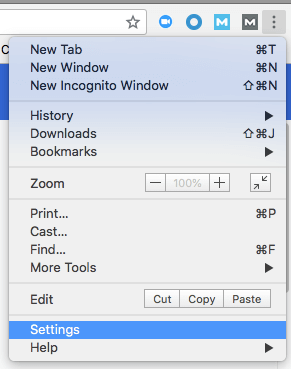
2. Click “Content settings” Under “Privacy and security.”
In the Settings tab that appears in your Chrome browser, scroll down to the bottom and click “Advanced.” This will expand your settings options. In the first group that appears, “Privacy and security,” click “Content settings” second from the bottom.
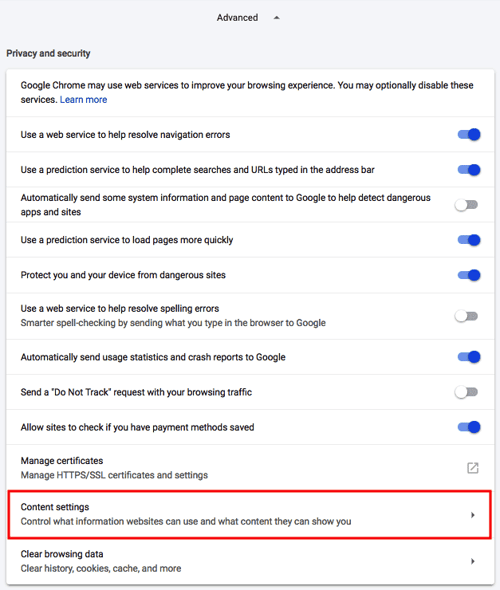
3. Select “Handlers” and switch on the Ask protocol.
In the next group of options that appears, find the “Handlers” setting near the bottom of the list. It’ll look like this:

Click this setting and you’ll see at least one horizontal switch where you can allow any website you visit to ask you if it can become Chrome’s default “handler.” Switch this setting to the on position, as shown below. (If it’s already switched on, switch it off and on again — this can prompt Gmail to re-ask you to become your default handler, if you’ve been asked before and want to change your answer.)
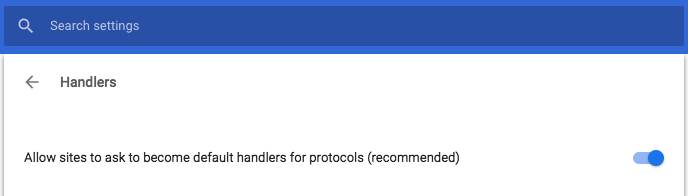
4. Open Gmail in Chrome and click the Protocol Handler icon.
Once your Ask protocol has been switched on for default handlers, open Gmail in a new tab and make sure you’re signed in.
5. Allow Gmail to open all email links.
At the end of your URL’s address bar, you’ll see a new icon that looks like two gray diamonds intertwined with each other. Click this icon and you’ll see the following dropdown menu:
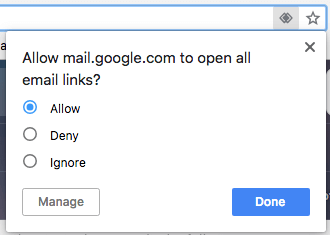
Click “Allow” in response to the question Chrome asks you, as shown above, and then hit Done. You’ll officially have all “mailto:” links open in Gmail if they come from your Chrome browser.
Note: If you’re still having trouble (for example, your “Protocol handlers” window appears blank with no options), try installing Google’s Mailto Extension for Chrome instead.
How to Make Gmail Default Email in Firefox
- Open the Firefox menu on the upper-righthand corner of your browser.
- Select “Preferences” and scroll down to “Applications.”
- Find or search for “mailto” in the search bar.
- Next to “mailto,” open the dropdown menu and select “Use Gmail.”
1. Open the Firefox menu on the upper-righthand corner of your browser.
Launch Firefox and look to the upper-righthand corner of your browser for an icon consisting of three horizontal lines on top of one another. Click this icon and a dropdown menu of 11 different browser settings will appear.
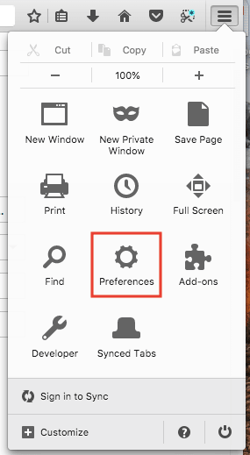
2. Select “Preferences” and scroll down to “Applications.”
Select the “Preferences” icon from this dropdown menu, and you’ll see a full page of settings filed under a “General” tab to the lefthand side. Staying on the General settings page, scroll down until you see the “Applications” section.
3. Find or search for “mailto” in the search bar.
Under the “Applications” settings of Firefox, you might see a list of previously used applications depending on how you’ve used Firefox. Look for the “mailto” application in the lefthand column (if you don’t see it listed, search for it in the “Applications” search bar above the list).
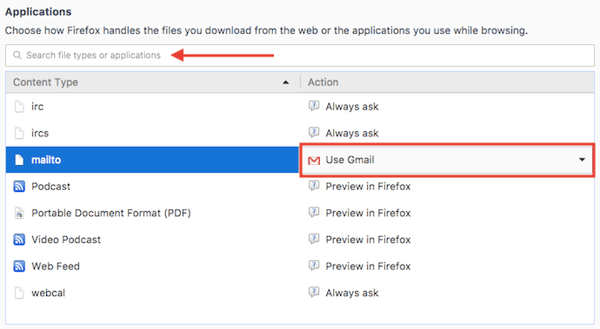
4. Next to “mailto,” open the dropdown menu and select “Use Gmail.”
In the righthand column of the applications list, click on the “mailto” row and select “Use Gmail.” This will set Gmail as your default email client for all mailto links that come from Firefox. No need to save your settings — Firefox does this automatically.

Note: You also might see the option to “Use Chrome” if you also have the Chrome browser downloaded on your computer. If you see both Chrome and Gmail as default options, stick with Gmail. If not, verify that you’re signed into Gmail and load these settings again. If all you see is the option to use Chrome, select this as your default email client.
How to Make Gmail Default Email in Internet Explorer
- Open Internet Explorer and download the Google Toolbar.
- Click the wrench icon on the upper-righthand corner of your browser.
- Scroll down to the “Web-browsing tools” section and select “Use Gmail for ‘Mail To’ links.”
- Click “Save.”
1. Open Internet Explorer and download the Google Toolbar.
There’s actually no native setting in Internet Explorer to set Gmail as your default email client. To do so using this browser, you’ll first download the Google Toolbar, available here.
2. Click the wrench icon on the upper-righthand corner of your browser.
Once the Google Toolbar is installed on your Internet Explorer browser, find and click the wrench icon on the upper-righthand corner of your browser. Depending on the version of Internet Explorer you have installed, the icon will look something like this: 
3. Scroll down to the “Web-browsing tools” section and select “Use Gmail for ‘Mail To’ links.”
The wrench icon will open up your Toolbar Options, starting with General settings according to the tab on the lefthand side, as shown below. Scroll down to the section called “Web-browsing tools” and check the box labeled “Use Gmail for “Mail To” links.
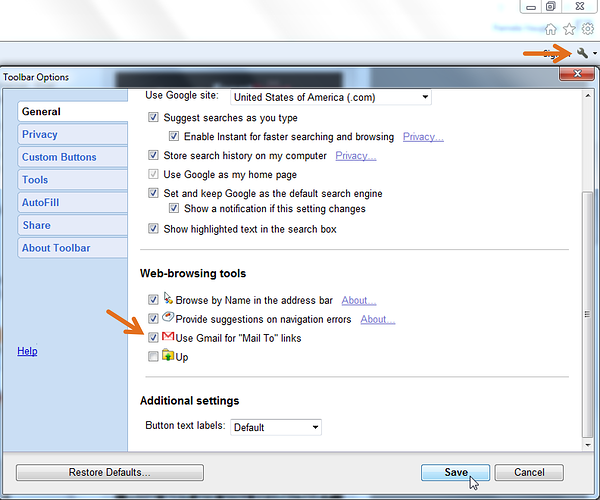
4. Click “Save.”
Save your new Toolbar Options using the button to the bottom-right of the options window, and you’re all set.
How to Make Gmail Default Email in Safari
- Open Safari and download Google’s Mailto Extension.
- Click the arrow at the top right of your Safari browser and select your downloaded file.
- Click “Install” in the pop-up window.
- Select Gmail from the list of options.
- Restart your browser.
1. Open Safari and download Google’s Mailto Extension.
Similar to Internet Explorer, you’ll need a third-party plugin to make Gmail your default email client in Safari. To do so, download Google’s Mailto Extension, available here.
2. Click the arrow at the top right of your Safari browser and select your downloaded file.
Once Google’s Mailto Extension has been downloaded to Safari, find it using the downward-facing arrow on the top-right of your browser, next to your address bar.
Because this extension was downloaded from the internet, your Mac computer might ask you to trust this application, as shown below. Click “Trust” and the extension will start installing to your browser.
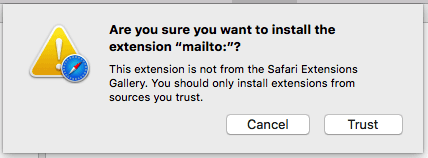
3. Click “Install” in the pop-up window.
If after selecting “Trust” from Apple’s file warning, the Mailto extension doesn’t begin downloading, it might simply need your cue to do so. Below is another possible window that might appear after selecting your downloaded file from the “Downloads” list. Select “Install.”
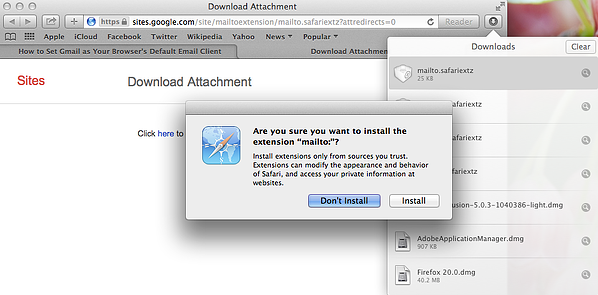
3. Select Gmail from the list of options.
Below is the simple list of options your new Mailto Extension will display to you in Safari. Check “Gmail” from this list and Safari will automatically save your new settings.
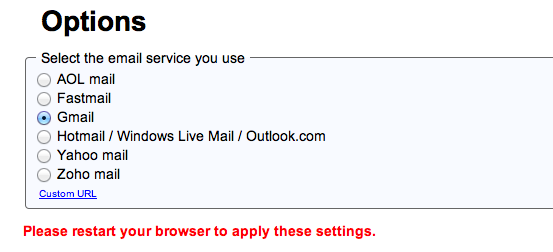
4. Restart your browser.
Restart your Safari browser to officially make Gmail your default email client.
Whichever browser you work in most often, gone are the days of closing unwanted applications to send a simple email through a hyperlink. You can now enjoy the ease of opening mailto links in Gmail, automatically.