
5 Clues You Micromanage and How to Stop [Quiz]
Ever heard the term “helicopter parents”? They’re the hyper-present, overbearing moms and dads who take pay excessively close attention to their kids’ experiences and problems.
Well, helicopter parents are to their kids what micromanagers are to their direct reports. While being engaged in your colleagues’ lives is important, micromanaging their every move can backfire.
Micromanage Definition
To micromanage is to assume control over a task, project, or operation to a very particular degree. Micromanaging people isn’t just the act of controlling their work, but also the decisions they make and their execution of that work. It’s generally frowned up in the modern workplace, as it can inhibit a person’s initiative and creativity.
Over-involvement often sends the underlying message that you don’t trust that they can successfully accomplish anything on their own. That can take a serious toll on an employee’s self-confidence.
Other consequences of micromanaging include inhibiting their growth, slowing their productivity, increasing their anxiety, and making them feel like they need to wait to be told what to do.

You might be wondering if your own manager — or you, yourself — micromanages. Luckily, Wrike, a collaboration platform for businesses, has a free and easy quiz you can take to help you find out, which we’ve shared below. But before we dive into those questions, take a look at some common examples of micromanagement for context around what this work style even looks like today:
Micromanagement Examples and Telltale Clues
Micromanagement can look different depending on the work, the size of the team, and of course, the manager. Here are some common signs that you might be the “helicopter parent” of your team.
1. Your team doesn’t ask you questions.
This is a fairly common byproduct of micromanaging. If it seems like your colleagues don’t have any questions for you, it could be because you work with them so closely that they don’t have anything left to ask you.
No questions sounds like a good thing, right? Not necessarily. Just because your team has nothing to ask you doesn’t mean they know everything. Questions from your team are a sign that your team feels like it has something to contribute to the project. If they’re not asking questions, you might be walking them through too much of their own work — and that’s not a good thing in the long run.
2. Your coworkers don’t volunteer to take on new tasks.
The road to becoming a manager involves taking initiative and being bold, both of which you learn by having to make various decisions on your own. If your coworkers aren’t taking the ball on new tasks, it might mean you’re making too many decisions for them — discouraging them from taking shots on certain tasks by themselves.
3. You have more to say about a project during its development than its final review.
Managers often review a product extensively when employees finish making it. Naturally, you want to see if the work your employees did meets your (or the company’s) expectations.
But if most of your criticism took place during the product’s development, rather than at the end (or after certain checkpoints), you might’ve had too much oversight on the project. Of course you didn’t have anything to say about it at the end; the product was formed under your strict guidance.
Although this, too, might sound like a good thing, it can actually prevent you from seeing value in other people’s approaches — and prevent them from solving problems on their own. It feels reassuring to see work get done exactly the way you wanted it to, but having nothing to review at the end but a product dictated by you will ultimately make the product weaker.
4. You find yourself checking up on a coworker at their desk several times a day.
How often are you wheeling yourself over to an employee’s desk to “help” them with something? It’s one thing if you’re being invited over to your colleagues’ workstations to sharpshoot an issue — if so, keep it up; people obviously value your input — but it’s another if you’re simply visiting them to check up on progress.
“Checking up” is the operative term, here. According to Harvard Business Review, there’s a small but important difference between checking “up” and checking “in” with an employee, and it has everything to do with the questions you ask when visiting with them. While “how’s that report coming?” is a quintessential checking-up question, “is there anything I can do to help you?” is a more constructive check-in question that passes less judgment and keeps an employee motivated to keep working.
5. You feel like nothing is getting done on time.
As the expression goes, “a watch-pot never boils.” Micromanagers can be especially prone to feeling as if a task is taking forever to complete. But if you’re simply watching your team as they work on it, time can pass awfully slowly.
At the same time, there’s a difference between micromanaging and simply taking a hands-on approach to a team effort. So, what do you think? Are you a micromanager? Take the quiz below from Wrike, and then total your points to find out whether you’re a micromanager, a team player, or someone who’s being micromanaged yourself.


How’d you do? If Wrike’s quiz gave you startling news about your management style, don’t panic. Seeing evidence that you need to loosen the reins on your team a little is the necessary first step. So, where do you start?
How to Stop Micromanaging
Consider all the examples and questions you resonated with above, and address them one by one. To get you started, here are a few easy ways to curb your tendency to micromanage:
Solicit Questions From Your Team
Do employees tend to ask you very few questions during the week? Carve out a few minutes at the end of every team meeting — or at one-on-ones with individual employees — to solicit questions from them. The more questions you have the opportunity to answer for your staff, the more trusting of their work you’ll become and the less likely you’ll feel the need to watch their every move.
Set Project Check-in Meetings
If you’re constantly “checking up” on employees, rather than “checking in” with them, you might just need to organize your team’s work a bit better. Set up regular (but infrequent) meetings with your team to answer questions, troubleshoot, and take a look at a project’s progress. This gives you something to look forward to, so you’re not making impromptu visits to others’ desks out of worry that their work isn’t staying on track.
Write Up Best Practices and Instructions
This can be especially helpful for on-boarding new employees. Putting your performance expectations in writing prevents you from hand-holding new hires for too long before letting them get started by themselves. Written instructions also allow staff to solve problems and refer to your tips on their schedule, so the management you do have over your reports doesn’t interrupt them when they’re just trying to crush their next big assignment.

Why Facebook Removed 5,000 Ad Targeting Options (And What to Expect Next)
Facebook announced this week that it will remove more than 5,000 targeting options from its custom audience ad tools.
Advertisers on Facebook can use these targeting tools to customize (and personalize) who sees their ads; for example, women in a certain age group, in a certain region, who are interested in a certain category of products.
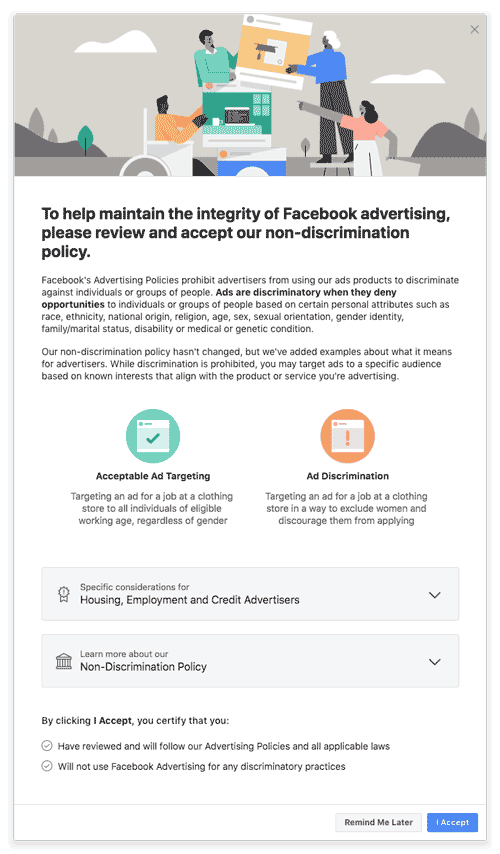
In the coming weeks, Facebook said in a blog post, many of those targeting options will no longer be available, such as those related to ethnicity, religion, and national origin.
Source: Facebook
The announcement comes after the U.S. Department of Housing and Urban Development filed a complaint against Facebook for allowing discrimination in targeted ads related to housing.
These targeting tools, the complaint says, allow advertisers to violate the Fair Housing Act, which prohibits the discrimination of potential renters or homebuyers by landlords and sellers.
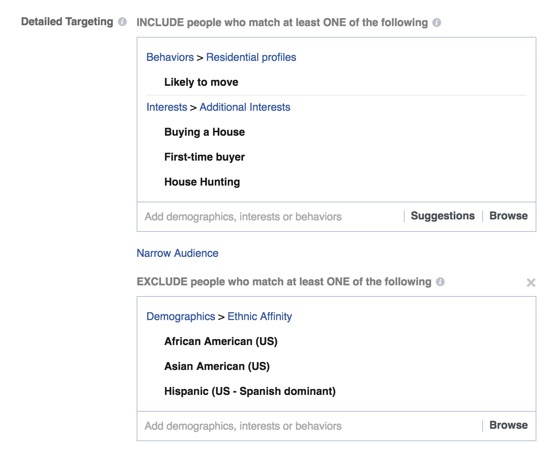
In 2016, ProPublica also identified the ability within Facebook’s targeting tools to exclude ads from certain “Ethnic Affinities.”
Source: ProPublica
What This Means for Advertisers
Facebook says that it already requires advertisers within the categories of housing, employment, and credit to complete a compliance certification on its non-discrimination policy.
With these changes, all U.S. advertisers will be required to complete that certification, which they will find in the Ads Manager tool. And until they do, they won’t be able to continue to advertise on Facebook.
Eventually, that certification requirement will be rolled out to other countries and advertisers using such other Facebook tools as its APIs.
One of the factors that makes Facebook so valuable to advertisers is the amount of data it owns on its users, from their lifestyle preferences to their political beliefs. (Here’s what happened when I downloaded my Facebook data file.)
And while that data isn’t personally identifiable to advertisers — unless it’s misused, which is what happened in the Cambridge Analytica scandal that took place earlier this year — it allows for an arguably unrivaled level of ad personalization.
But to many, the removal of these targeting options is likely to have a generally favorable outcome.
“These changes seem to be aimed at limiting particularly unethical targeting,” says HubSpot VP of Marketing Jon Dick, “which will have nothing but positive implications on the user experience.”
But How Effective Will It Be?
We started to think about some of the broader problems that could potentially be solved by the removal of targeting options. One of them was the presence of echo chambers on social media: a term describing what happens when users are exposed only to content and conversations that reflect their current points of view or belief systems.
We asked 708 internet users across the U.S., UK, and Canada: If Facebook makes paid ads less hyper-targeted to specific demographics or groups of people, do you think it could help expose users to different points of view?
For the most part, people believe that the removal of these targeting options could solve some problems — but not all of them.
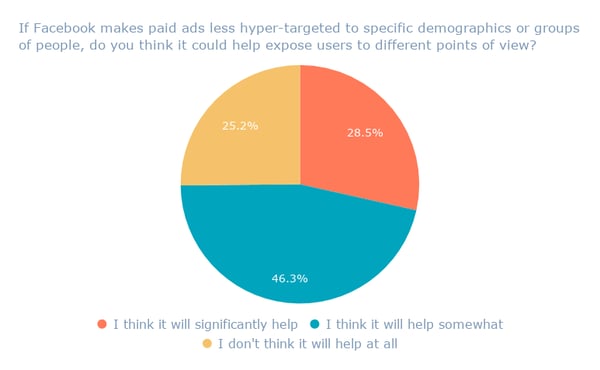
Data collected with Lucid
The highest amount of optimism came from the U.S., where 37% of respondents indicated that they believe these changes will make significant improvements.

Data collected with Lucid
But in terms of prioritizing the issues Facebook says it’s looking to address, discriminatory ads seems to fall to the bottom of the list, with only 4% of respondents on average citing it as the problem to fix first.

Data collected with Lucid
Instead, it seems, data privacy is a top priority across all regions surveyed.

Data collected with Lucid
Still, says Dick, addressing the issue of discriminatory ads is relevant to Facebook’s broader scope of issues.
“Advertising on Facebook has been the wild west for a decade. Never before have marketers had so much access to such personal and granular data,” he explains. “And just like the wild west, there are ‘good guys’ and ‘bad guys’ in its advertising ecosystem.”

5 Ways to Make the Most of Your Time at #INBOUND18
After months of convincing your CEO, they’ve finally approved your team’s request to go to the epic #INBOUND18 conference this year (September 4th – 7th in Boston).
Ecstatic, you exchange high fives with your teammates, book the flights and hotels, and start your countdown clock to the event.
Now what?
Instead of getting back to your regular work routine, you’ll want to take some time to plan for your week at Inbound before you go. Why? Trust, us, you’ll be glad you did.
An Event like No Other
INBOUND has become one of fastest-growing business events of the year.
It’s a fantastic chance for marketing teams to learn, network, and create meaningful relationships. What’s more, over 21,000 people attended the event last year from 100+ different countries. That’s a whole lot of sales, marketing, and customer success pros all in the same place!
With so many people and so many talks, sessions, and unique opportunities for networking happening in one week, it’s easy to get caught up in the commotion. Instead of ‘winging it’, you’ll want to plan out what you actually want to achieve from the event. Here are some key reasons why you should formulate an INBOUND game plan in advance:
Budget investment: Your company will likely be paying for your transportation, accommodation, food, and miscellaneous things while your team attends INBOUND. For smaller marketing teams with modest budgets, this is a big investment — you’ll want to make sure you’re getting the best return on investment from the event. Planning your days in advance will help keep your team’s budget in check.
Time: In addition to investing money, having you team away for a week at Inbound means that you won’t be fully able to attend to your regular work. Be sure to plan ahead so you can adjust deadlines and work around the event.
One of a kind opportunity: Unless you go to large scale conferences all the time, when else would you get the chance to network with so many marketing professionals in one week? Whether you’re looking to get new customers or partners, you’ll want to make sure that amidst all of the talks and the sessions that you’re blocking time off to make meaningful connections with the right people. Networking can easily get lost
So now you know why you should plan for INBOUND, but how can you make the most of your time there?
In this blog post, we’ll share our own tactics pre-, post and during the event to help you get the absolute most of your time at INBOUND ’18. Let’s jump in.
How to Get the Most of Your Time at INBOUND ’18
Define your objectives and strategy.
Whether you’re looking for new customers, partners for your affiliate marketing program, or just planning to learn new marketing strategies, going to Inbound can help you tremendously.
Before heading off to Boston, get your team together to review your marketing objectives and figure out how what you will do at the event to achieve them.
Our team’s main objectives are to learn new content marketing strategies and to find new co-marketing partners. So once we set those objectives, we drafted out the next steps we will take to help us get there.
If you’re unsure about why you’re going and the main reason is for the after parties and the happy hours(we don’t blame you), you’ll want take a step back and ask your team the following questions:
- What do you plan to achieve at the event?
- How will you use the event to help you achieve your business objectives?
- How will you measure your achievement?
Now that your objectives are set, it’s time to follow through with the next steps.
Create valuable content before, during, and after.
Now that you’re set go to INBOUND, spread the word! It’s time to start creating content to promote your company’s presence. This can be a great way to create buzz around the event and allow people to get in touch with you beforehand. Here are a few different of content you can create before, during, and after the event:
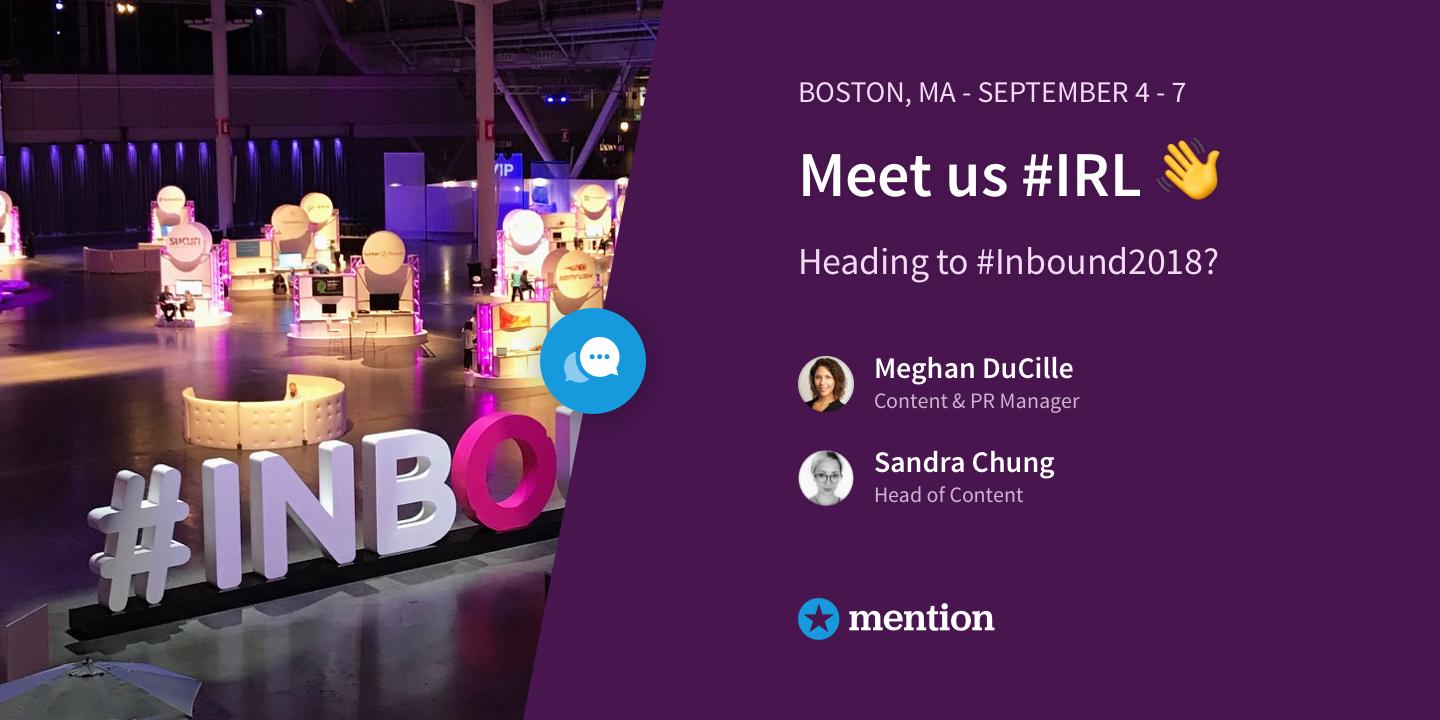
Promotional Images
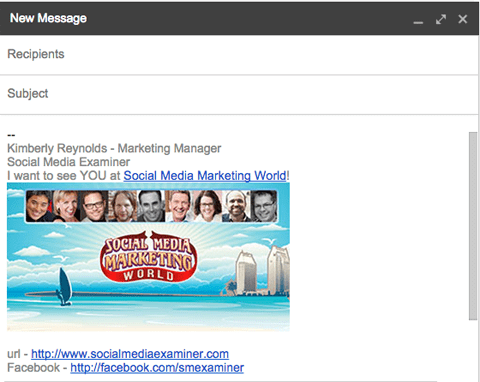
Create different images you can use across your website, in social media messages, and in email signatures. These promotional images should encourage people to reach out to you and connect at the event in person. Be sure to include a CTA of how they get in touch with you either before or during the event.
Blog Content
Before the event: Write a blog post to help the organizers to create buzz and promote the event(like this one!). You can provide your experiences from past editions as well as new strategies you plan on testing out at this event.
During the event: With so many talks and workshops going on at the same time, it’s impossible to do everything. Live-blogging during the event can help other event attendants catch up on what they’ve missed in the sessions they couldn’t attend.
After the event: Sum up your experiences from the event by writing a recap blog post. This can include your summary of the best talks, workshops and the key takeaways you gathered. Got a great piece of downloadable content that is related to the learnings? Add it in!
Email Newsletter
Let your customers and users know that you’ll be attending the event by sending out a dedicated email. If you were thinking of hosting an user group or a customer meetup, this helps you put some feelers out to see who would be interested beforehand.
Live Content
Live content is an excellent way to engage your audience with the event. Try doing AMAs, interviews and tweet chats with event speakers and influencers using different platforms such as videos, Facebook Live, Instagram Stories, and Snapchat.
Stay on top of the event hashtag: #INBOUND18
A lot can happen and change during the time leading up to a large scale event.
New keynote speakers could be added, venues can change, and there could be side networking gigs that you didn’t know about. You’ll need to be a part of the event conversation in order to know what’s going on, but also to network and engage with attendees.
For these reasons, it’s important to follow the event hashtag on social media closely, and this is where social listening will come in handy.
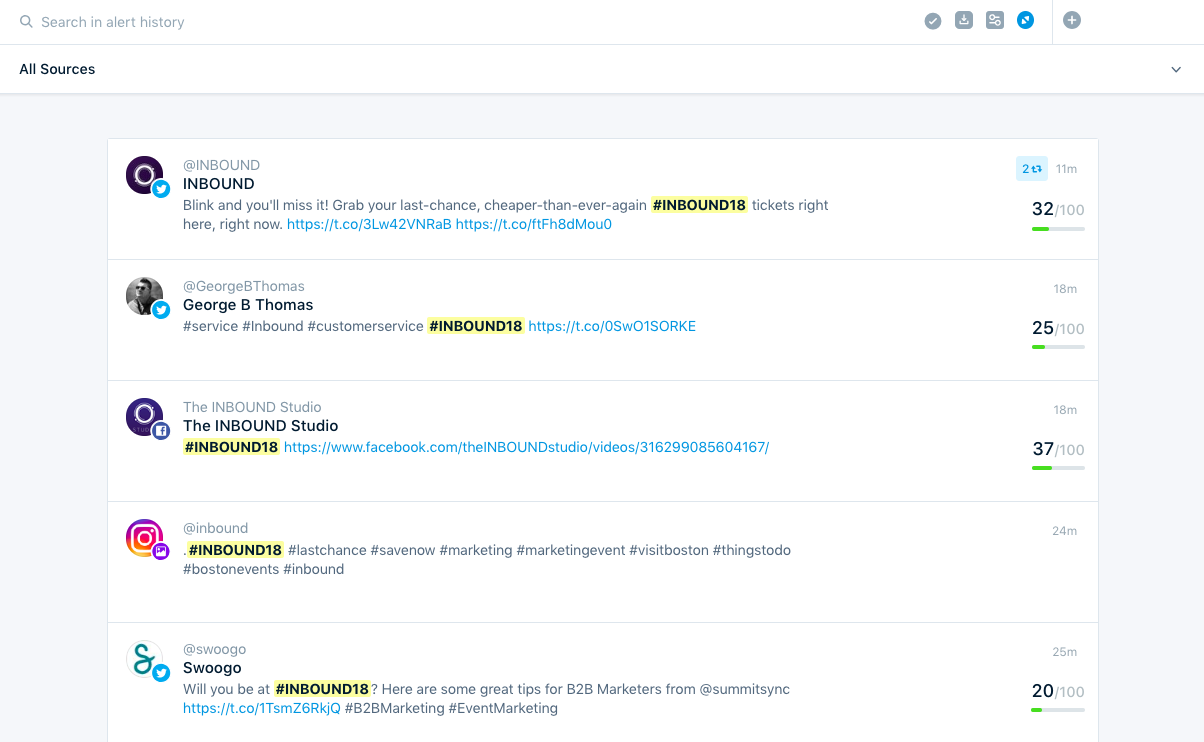
Not only can using a social listening tool help you stay on top of the main conversations around the event, it also a great way to do research before the event. You’ll want to use a tool that can help you:
- See what people are saying pre, during, and post event
- Respond quickly to answer questions and engage with attendees
- Identify influencers amongst attendees to connect with
After the event, you can create a recap report with the event hashtag (#INBOUND18). Show interesting insights such as how the volume of event hashtag evolved during the event, which influencers were mentioned the most, and which social platforms were most used to talk about it.
Finally, turn all of this valuable data into a blog post or downloadable PDF so you can get even more out of your experience.
See different sessions from your teammates.
One of the challenges about going to large events is that there are way too many great speakers and sessions to see, usually all at the same time. Life is hard, we know.
And one of the great things about going to conferences with a team is that you can divide and conquer!
As you can’t possibly attend every session, split up with your team so you can learn different things from different talks. Be sure to jot down key takeaways from them and have a debriefing session over coffee or lunch the day.
To go one step further, plan a knowledge sharing or retrospective session with the rest of your team who couldn’t attend to share your key learnings. I’ve personally made this one of my objectives for Inbound, so my teammates will be holding me to it!
Don’t forget business cards.
Everything about events is digitized nowadays. From the organization, scheduling, to networking, everything can be done without interacting with someone in person. This makes the face-to-face aspect of attending events extremely valuable.
Social media is fleeting, so it’s a good idea to give people you interact with something physical that will remind them of your interaction. Whether it’s a business card, pens, or USB drives — who doesn’t love free event swag?
If you’ve never ordered event swag before, try to go for something out of the ordinary. We all have enough tote bags!
FYI. We’re bringing macarons from Paris. Do we have your attention now?
Are you prepared for INBOUND18?
Don’t let time leading up to INBOUND18 pass you by! Make the most of your time by using some tips from this guide to prepare for your trip.
Start registering for the sessions you want to attend, reach out to people you want to connect with, and track the conversations around the event.

Blockchain Explained: A 2-Minute Rundown
Since blockchain technology hasn’t been widely implemented, it makes sense that the SMB community considers it to be the most difficult emerging technology to understand.
But with over $1.3 billion invested in blockchain companies during the first five months of 2018, leaders in tech and finance believe the technology will become mainstream and revolutionize the way we do business.
Small- to medium-sized businesses that implement blockchain technology could safely and securely store their customers’ most sensitive information, like personal data and passwords. And companies that decide to adopt blockchain technology after it becomes commonplace could lose customers to the businesses who already protect their customers’ data with the technology.
It’s possible that Blockchain technology will eventually impact your industry and business in one way or another, so if you don’t know exactly what blockchain is or how it works, here’s a quick two minute rundown.
What is blockchain?
Blockchain is the underlying technology for digital currency like Bitcoin, Litecoin, and Ethereum and other digital properties. The technology records every transaction of a digital currency or property in a database or digital ledger. It also copies and distributes the database to a network of computers to validate each transaction. This decentralizes, secures, and publicizes each digital currency’s or property’s database of transactions.
Think of Blockchain as a spreadsheet that is copied and sent to every computer in the network. To make sure the spreadsheet’s true state is verified and updated, the network references and communicates with each other to see if all the spreadsheet copies are the same.
If one of the copies isn’t the same, due to someone manipulating a transaction’s record after the fact, the network rejects the transaction. This halts hackers from altering the spreadsheet to send someone else’s digital currency to themselves.
By connecting consumers directly with suppliers, Blockchain also removes the need for a middle man, like a bank, to complete transactions. This makes economic transfers faster, cheaper, and more secure.
How does blockchain work?
Below, we’ve fleshed out a concrete example of how blockchain works. Before we show you the example, though, you first need to know the three components that make up a blockchain:
- A record, which is all the information of a digital transaction.
- The block, which is a bundle of records.
- The chain, which is all the blocks linked together.
Blockchain in Action
1. Jack agrees to sell two coins for $50 to Jill. The record of this trade lists its transaction details, which includes a time stamp and a unique cryptographic signature.
2. The transaction is distributed to every computer in the network.
3. The network of computers or “nodes” scans and cross-references every copy of the database to make sure the transaction is unique and valid.
4. If the network approves the record’s validity, minders add it to a block. Each block has a unique code called a hash on one of its sides and the hash of the previous block in the chain on its other side, which link the blocks together in a chronological and permanent fashion.
5. Jill receives two coins from Jack, and Jack receives $50 from Jill.
It’s better to prepare than to regret.
Blockchain technology’s potential impact on the business world could drastically change the expectations of your customers. If you learn about the emerging technology’s use cases and benefits now, rather than later, you won’t risk falling behind.

Tips & Tools for Detecting Fake Followers on Instagram
In 2017, businesses acquired an average $7.65 ROI for every dollar spent on influencer marketing. Nowadays, influencer marketing is an indisputably viable marketing method.
However, it can be tricky to know who to trust when you’re choosing an Instagram influencer for your next marketing campaign. You don’t want to use an influencer who doesn’t have real followers or a fully engaged audience. This would be a detriment to your marketing budget, but even worse, it could put your brand’s integrity at risk.
Fortunately, there are some quick and easy methods to determine whether an account has fake followers on Instagram. Once you’ve collected a list of potential influencers for your next Instagram marketing campaign, take a look at some of our tips and tools for detecting fake followers or bots, so you can ensure you’re only working with the best.
Instagram Bot
In the last few years, it has become popular practice for some people to buy bots to increase their followers on social media accounts — in January 2018, The New York Times published “The Follower Factory,” to highlight this shady tactic. Essentially, someone will buy a bot, and the bot will like and comment on posts with a specific hashtag, or follow people with the hope that those people will then follow them back.
You don’t want to pay an influencer if she uses a bot to collect followers. A bot might increase her follower count, but her audience probably isn’t truly engaged or authentic. Plus, using an insincere influencer could throw your business’s integrity into question.
To figure out if an Instagram account uses a bot, consider these five tips:
- Take a look at the account’s comments on other people’s posts. If the comments are repeatedly generic, i.e. “Pretty pic”, its a sign there’s a bot behind the profile.
- Check if the account has tons of followers, but terrible content. Trust your judgment — if your influencer has 10,000 followers but only uploads below-average posts, her followers might not be legitimate.
- See if after you follow the account, they unfollow you. If you follow your influencer but then she unfollows you, it could be a bot, cleaning up her follow-to-follower ratio.
- Be wary if they follow you again after you don’t follow them back. A bot is programmed to repeatedly follow and unfollow you, until you return the favor.
- Consider them a bot if they follow thousands of accounts, but only have a few followers in return. If the ratio seems way off, its likely a bot.
Ultimately, using your judgment is the best way to determine whether an account uses a bot. If the account takes actions you can’t necessarily justify, its likely because it’s not a human behind the screen.
Instagram Audit
There are a few different Instagram auditing tools out there to quickly scan your influencer’s account, and provide statistics regarding their authenticity and engagement score (i.e. how often their audience actually comments or likes a post). Let’s take a look at three now.
1. IG Audit
Price: Free
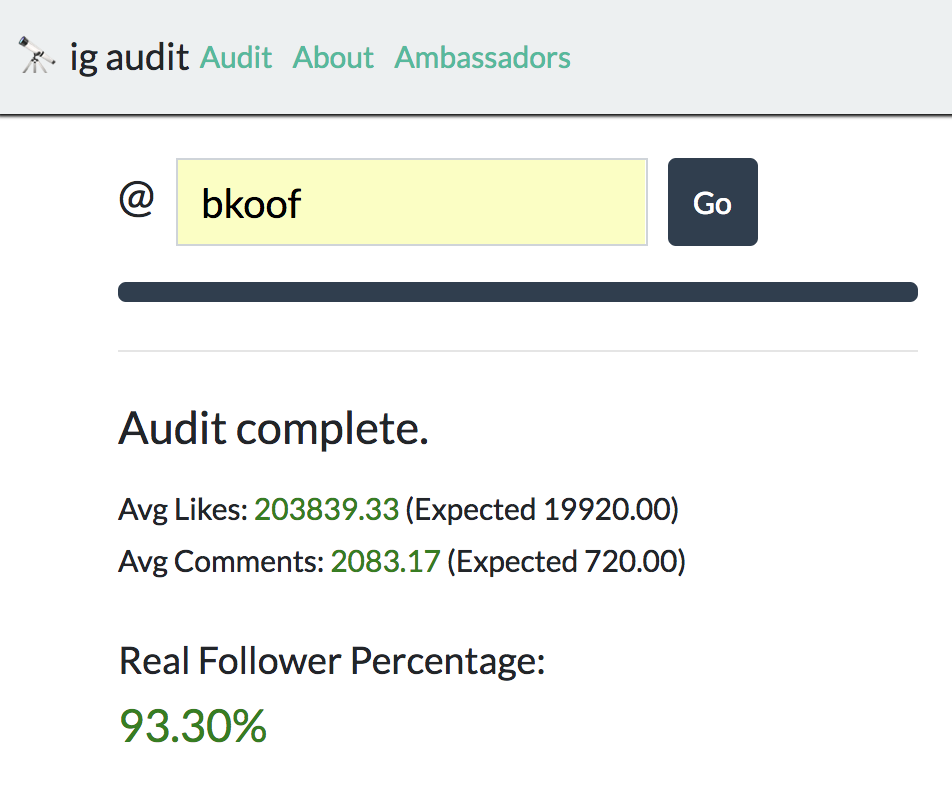
IG Audit has a nondescript user interface, but it does the trick — for public accounts, that is. Most influencers already have a public account, in which case, you simply enter their username into IG Audit’s search box and they’ll provide you with an estimated real to fake follower ratio. Built by a former NASA Scientist, the tool randomly scans 200 followers — based on those followers, it gives the Instagram account a score out of 100. For instance, I scanned Rebecca Kufrin, America’s newest Bachelorette, and she received a real follower score of 93%.
2. FakeCheck.co
Price: $1 per credit to unlock information
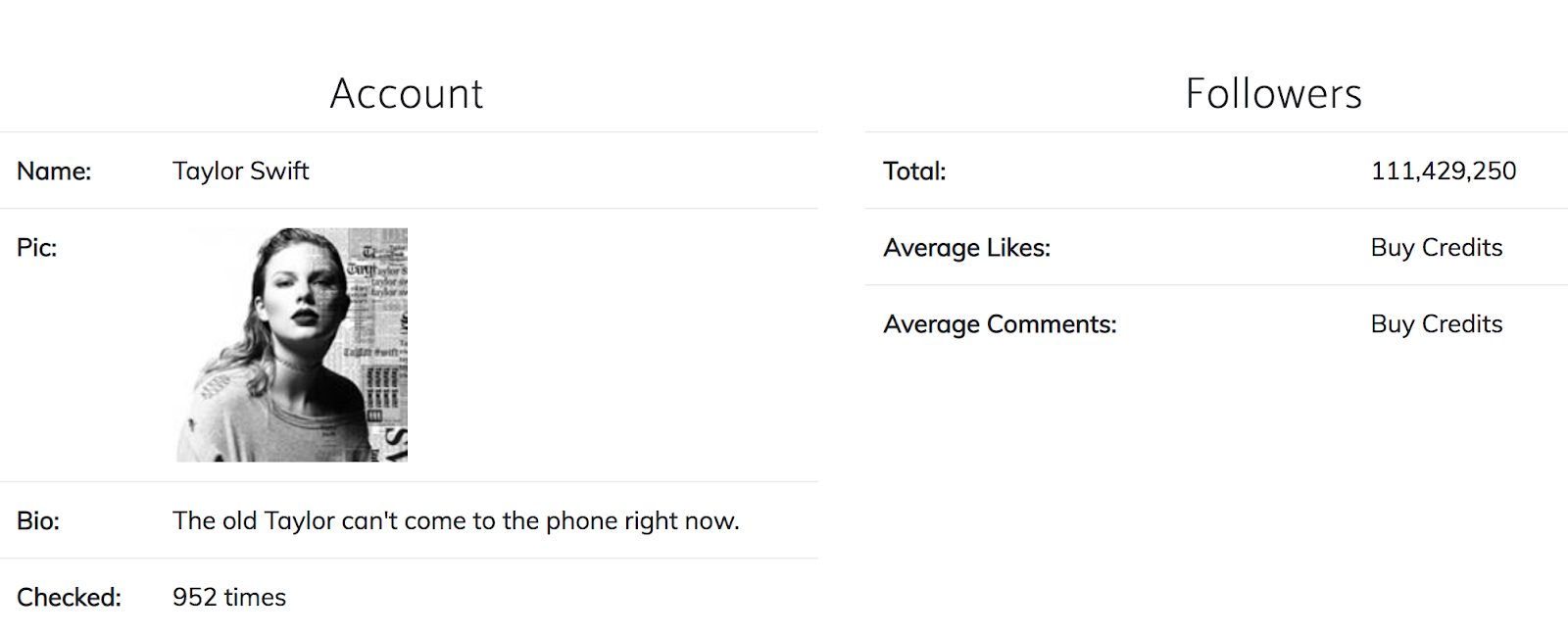
FakeCheck.co analyzes Instagram accounts by collecting data regarding the account followers’ engagement level. As they rationalize, “If the resulting ratio for likes and comments based on the number of follower is outside the industry standard, it is likely that the account has paid Instagram followers”. The site is user-friendly, and offers additional information, such as the top ten Instagram social engagement accounts from the past 30 days. However, unlike IG Audit, you’ll need to pay to unlock information. Fortunately, the cost is low, starting at only one dollar. For instance, I scanned Taylor Swift’s Instagram account, but I’m unable to see average likes or comments without paying for it.
3. Social Audit Pro
Price: $5 for 5,000 followers, $20 for 20,000 followers
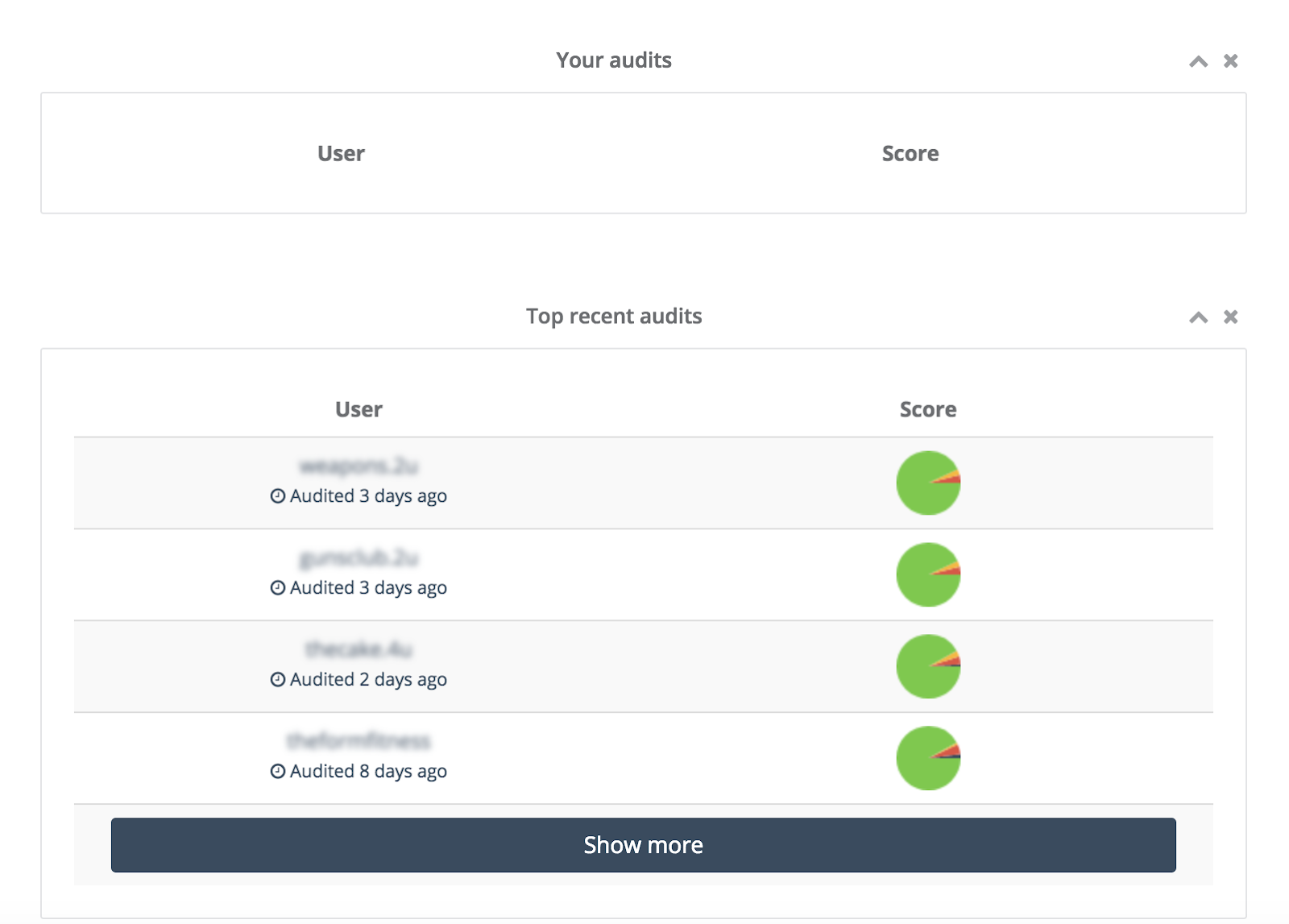
Social Audit Pro is a paid service, but you get your money’s worth. They offer useful analytics about other public accounts on Instagram, and also provide a cleanup tool to remove any of your followers that might’ve been flagged as fake or dormant. The cost is reasonable, and you can use the tool to compare your Instagram influencers and fairly determine how many people they’re truly reaching and engaging.
Remember, fake followers can’t become real customers, so it’s critical you find influencers who can connect your business with the right people. Take the time to collect data and thoroughly examine Instagram accounts before choosing an influencer, so you know you’re not inadvertently getting involved in disreputable social media tactics.

Scheduling Instagram Posts: Absolutely Everything You Need to Know
Although the exact day and time you post content to Instagram matters less than it used to — your followers’ newsfeeds are organized by relevance and engagement, rather than post age — it’s still very important.
And now, you can schedule Instagram posts to make it even easier.
Let’s say 10% of your audience is online on Tuesday at 3 p.m. You post a creative GIF showcasing your latest product. Because not many people are scrolling through Instagram, it gets fewer likes and comments than your average post. Instagram’s algorithm interprets this as the post is less appealing than your typical content, so it’s displayed to a smaller percentage of your network.
For this reason, it’s a good idea to figure out when your followers are most active and post on those days and times. (Need a tool for this? Try Iconosquare or Squarelovin.)
While having this information is useful, you do have to wait — poised over your phone or computer — for the specific hour to strike. I don’t know about you, but I prefer the “set it and forget it” approach.
Luckily, Instagram’s API that lets users of marketing tools like HubSpot schedule Instagram posts in advance. In other words, if you use social media scheduling software, you can upload your content and choose when it will go live on Instagram.
To start, you’ll need a third-party scheduling tool to do the scheduling. Below are a few handy options, most of which offer mobile apps for both iOS and Android devices.
Tools for Scheduling Instagram Posts
- Later
- Tailwind
- Buffer
- ScheduGram
- Sprout Social
- Autogrammer
- HubSpot
1. Later
Price: Free for individuals, business plans start at $19/month
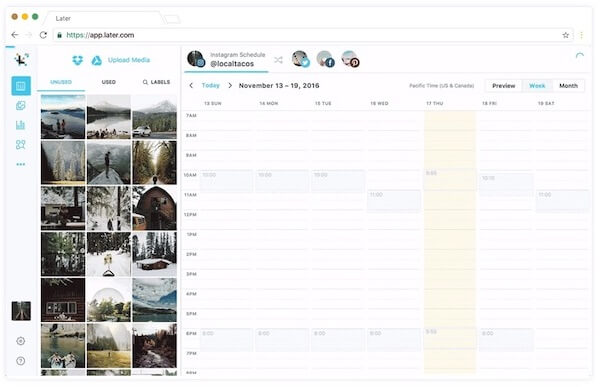
Later is a social media post scheduler, dedicated to Instagram. The platform includes a full social content calendar, drag-and-drop post planning, and the ability to publish automatically to your Instagram Business profile. In addition, the service’s Linkin.bio feature allows you to link certain posts to specific product pages.
2. Tailwind
Price: $9.99/month for bloggers & small businesses
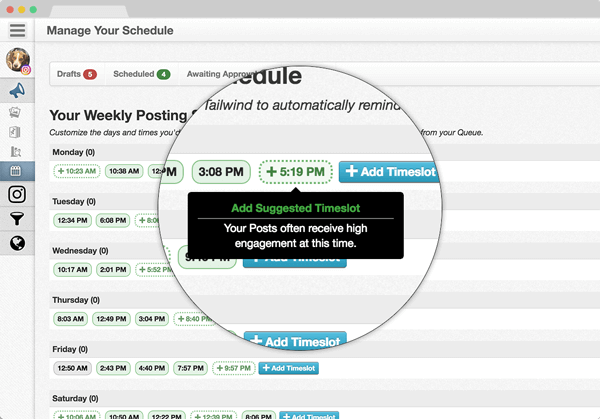
Tailwind is a social media scheduling toolkit specifically for Instagram and Pinterest. Using smart features like bulk image uploading and a built-in Hashtag Finder, the tool allows small businesses to quickly personalize their Instagram profiles to their audience.
3. Buffer
Price: Free with limited scheduling, business plans start at $15/month
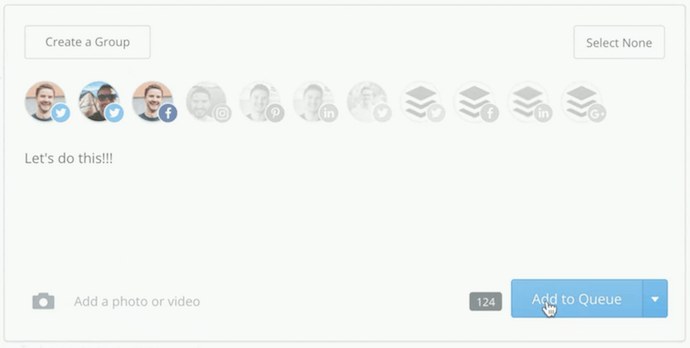
Buffer schedules social media posts across six social networks: Facebook, Instagram, Twitter, LinkedIn, Pinterest, and Google+. The tool allows users to manage their social posts from one dashboard and schedule content as they discover it online. In addition to a mobile app for iOS and Android, Buffer also offers an extension for your internet browser.
4. Schedugram
Price: $20/month for one social account
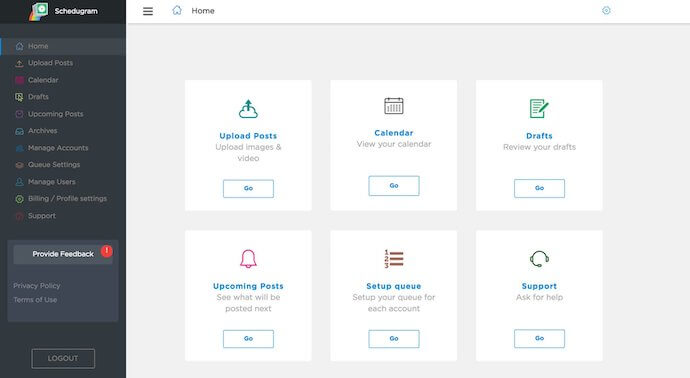
Schedugram is an Instagram post scheduler that includes a photo editor. The tool allows you to plan out a long-term posting calendar while modifying image details prior to publishing. With features like Product Tagging, a user’s potential customers can also make purchases from Instagram posts.
5. Sprout Social
Price: Plans start at $99/month per user
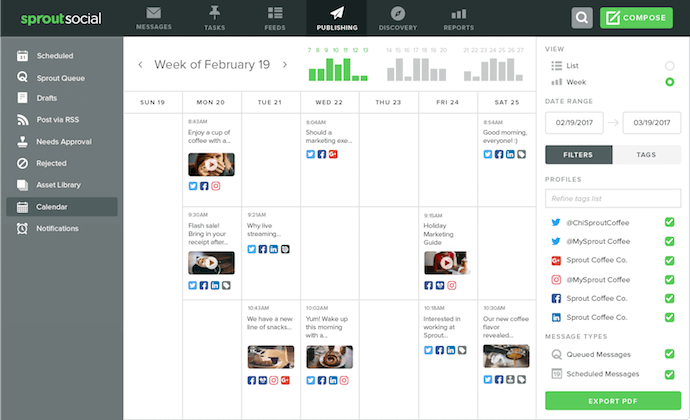
Sprout Social, compatible with six major social networks, is a social media content calendar that allows you to schedule posts and measure multiple aspects of their engagement once they go live. The platform’s “social listening” abilities help users identify unique trends across their social content and apply these trends to the rest of their marketing strategy.
6. Autogrammer
Price: Plans start at $9.99/month
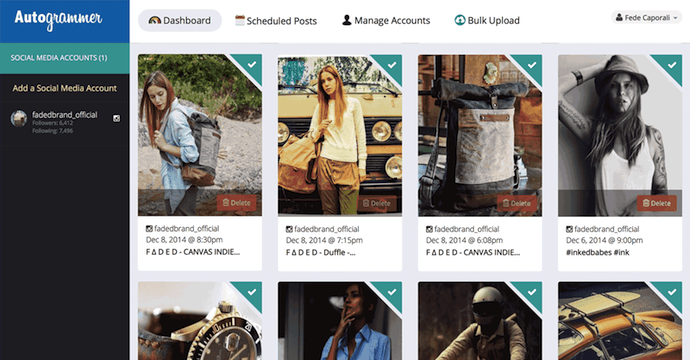
Autogrammer is a social media post scheduler for Instagram, Facebook, and Twitter. Users can bulk-upload images and automatically schedule posts for multiple social media accounts on the same calendar. Like Schedulgram, Autogrammer also includes a photo editor where you can crop, rotate, recolor, and apply filters to photos before they’re scheduled.
7. HubSpot
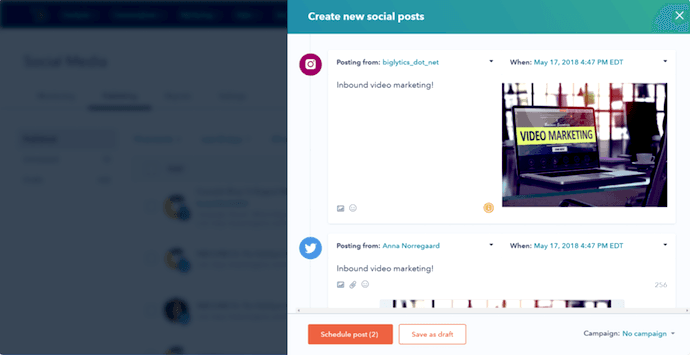
HubSpot is our growth platform, bringing together numerous sales, marketing, and customer service tools — one of which is a social media publishing calendar. You can learn exactly how our scheduling tool works in the step-by-step instructions below.
Now, let’s dive into how to schedule Instagram posts for an Instagram Business page — which you’ll need — using HubSpot:
How to Schedule Instagram Posts
- Ensure you have admin access to your Facebook Business Page.
- Switch to your Business profile on the Instagram mobile app and connect this account to Facebook.
- Open HubSpot and use the “Social” tool to integrate your Instagram profile.
- Create your first social post for your Instagram account.
- Compose a message with your desired visual assets, captions, and hashtags.
- Set the date and time of your Instagram post.
- Preview your post to make sure it looks right.
- Click “Schedule message.”
1. Ensure you have admin access to your Facebook Business Page.
Instagram and Facebook might be separate accounts to you personally, but businesses that want to automate their Instagram posting schedule will need to tether both accounts together. So, you’ll need the username and password of your business’s Facebook account to do this.
2. Switch to your Business profile on the Instagram mobile app and connect this account to Facebook.
If you have a personal Instagram account, you probably know you can manage more than one profile from the app — and the other profile is your business account (keep in mind you’ll need an Instagram Business account to schedule Instagram posts in HubSpot).
To switch to your Instagram Business page from your personal page, navigate to your profile on your mobile device and tap the thee dots in the upper-right corner of your screen. Then, in the next screen, select “Switch to Business Profile,” as shown below:
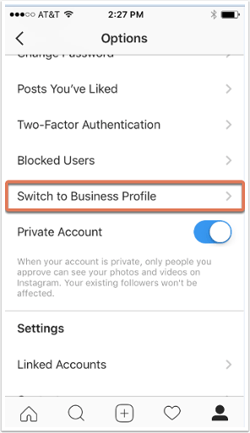
Under “Settings,” select “Linked Accounts.” Here’s where you can select Facebook and link your two accounts together. You might be asked to “Log in With Facebook,” at which point you’ll enter your business account’s username and password. Otherwise, select “Continue as [yourself].”
3. Open HubSpot and use the “Social” tool to integrate your Instagram profile.
Now that your Instagram profile is anchored to Facebook, you’re ready to integrate it with your post scheduler. For our purposes, we’ll be using HubSpot’s Social tool.
Open HubSpot, select the “Marketing” dropdown, and click “Social,” as shown below.
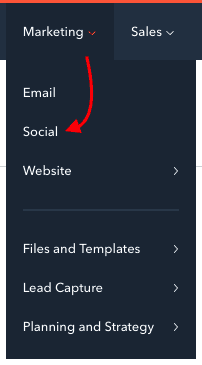
On your first time opening HubSpot’s Social tool, you’ll see an orange button to “Connect accounts.” Click it, and it will bring you to the following progress screen:
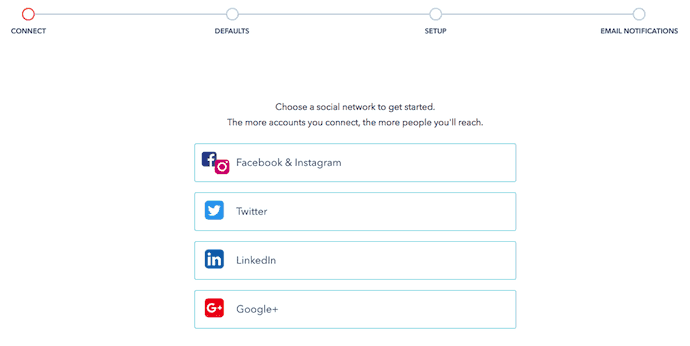
Click the first option, “Facebook & Instagram,” and follow the prompts to complete this integration. For more details, see the full connection instructions by HubSpot Academy.
4. Create your first social post for your Instagram account.
Once your Instagram account is integrated into HubSpot, you’ll see an option to “Create social post” in the top-righthand corner of your HubSpot dashboard. Click it, and you’ll see icons for which social network you want to start with. Select the Instagram icon to compose your first post for your Instagram account.
5. Compose a message with your desired visual assets, captions, and hashtags.
Upload your image using the landscape icons on the bottom-lefthand corner of the white text field that appears, as shown below:
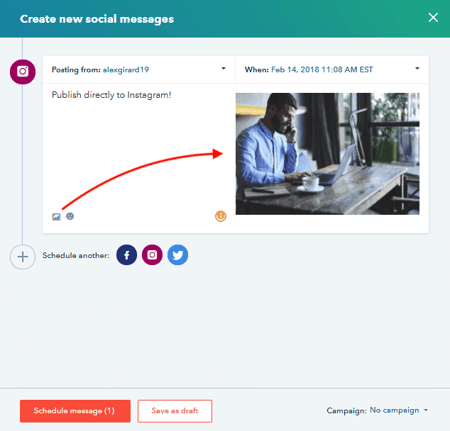
Then, caption your image with the text, hashtags, and user mentions you’d like to post your photo with, as they should appear on Instagram.
6. Set the date and time of your Instagram post.
Just above the photo you’re posting, you’ll see a field labeled “When:”. Use this field to set the exact date and time you want your post to automatically go live on your Instagram profile.
Pro tip: Social media content posted a few minutes before or after a round hour often gets better engagement than content that’s posted at, say, exactly 9:00 a.m. This makes your post seem more human to your followers, increasing the chances of them clicking on it (ex: 9:03, 10:58, 2:31, etc).
7. Preview your post to make sure it looks right.
Any grammatical errors? Are all your intended hashtags included? Is the image successfully uploaded? Check to make sure, and you’ll be ready to schedule.
8. Click “Schedule message.”
As you might be able to tell from the screenshot in Step 5, you can schedule your social posts in bulk. Got any more Instagram posts planned? Draft them now and schedule all of them at the same time. Once every post you want to schedule has been loaded into HubSpot, you can hit the orange “Schedule message” button on the bottom lefthand corner of your compose window.
Post automating isn’t available for Ads, nor will you be able to use it within Instagram itself. This means unless you’ve got a tool hooked up to your account, you’ll still have to time that picture from brunch strategically.


Can Facebook Really Stop Election Meddling? We Asked 600+ People. [New Data]
On Wednesday afternoon, both Facebook and Twitter came forward with announcements of coordinated election interference campaigns on their respective networks.
Facebook’s Head of Cybersecurity Policy Nathaniel Gleicher, wrote in a statement that the company removed a total of 652 Pages, groups, and accounts for such behavior. Their origin: Iran. Their targets: Facebook users in the Middle East, Latin America, UK, and U.S.
But it wasn’t just Facebook. Twitter also announced that it suspended 284 accounts for similar activity — also based in Iran.
Working with our industry peers today, we have suspended 284 accounts from Twitter for engaging in coordinated manipulation. Based on our existing analysis, it appears many of these accounts originated from Iran.
— Twitter Safety (@TwitterSafety)
August 22, 2018
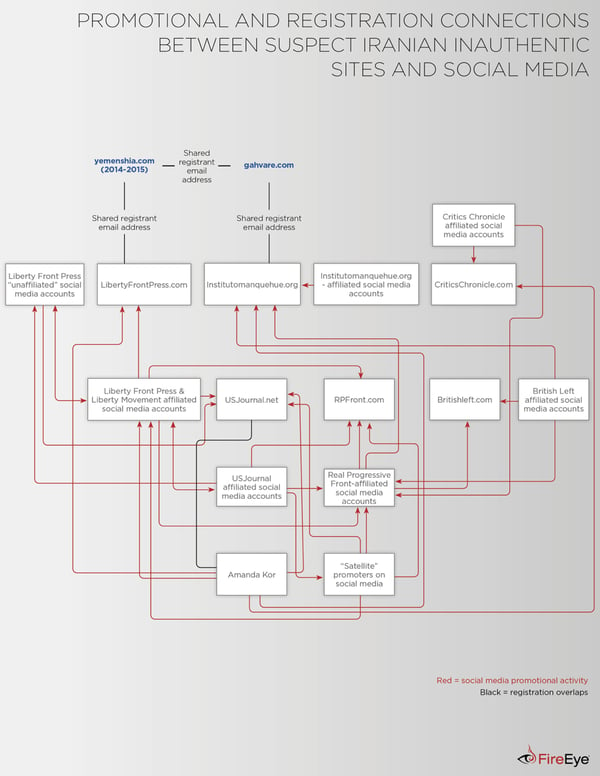
The campaign was discovered thanks in large part to a tip from cybersecurity firm FireEye, which published an analysis of its findings.
Source: FireEye
But in that study, the authors note, the intent might not have been specifically to influence the U.S. 2018 midterm elections — “as it extends well beyond U.S. audiences and U.S. politics” — but rather, “to promote Iranian political interests.”
The discovery has raised questions.
It was less than a month ago that Facebook announced the removal of 32 Pages and accounts for similar “inauthentic” activity — a number that somewhat pales in comparison to yesterday’s 652.
But are these multiple, recent stories of social networks stopping coordinated misinformation campaigns in their tracks a sign that their efforts to do so — and to curb election interference on their platforms — are working?
We asked more than 600 people what they thought.
Confidence in Coordinated Interference Prevention
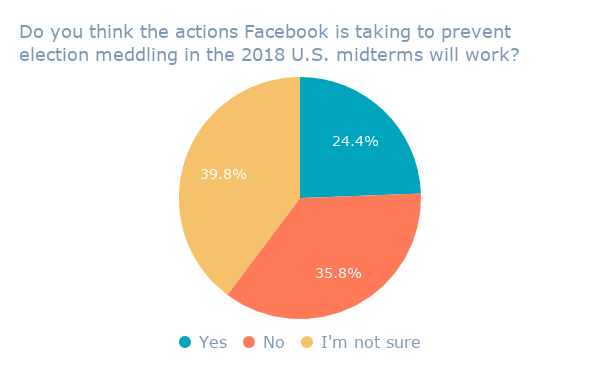
We asked 664 internet users across the U.S. and UK (which were both targets of the latest misinformation campaign discovered by Facebook), as well as Canada: Do you think the actions Facebook is taking to prevent election meddling in the 2018 U.S. midterms will work?
There’s a bit of uncertainty when it comes to those efforts, it seems. Most — about 40% — appear to be undecided.
Data collected using Lucid
The greatest amount of skepticism is in the U.S., where Facebook was infamously weaponized by Russian actors to influence the 2016 presidential election.

Data collected using Lucid
This is not the last we’ll hear of any of this. On September 5, Facebook COO Sheryl Sandberg, Twitter CEO Jack Dorsey, and a representative from Google will testify before the U.S. Senate Select Committee on Intelligence — largely about, it’s predicted, election integrity.
And while the target of this latest misinformation campaign on Facebook may not have been the 2018 U.S. midterm elections — it does show that actors are still looking to weaponize the network.
“This is further evidence that foreign adversaries are actively using social media to divide Americans and undermine our democratic institutions,” said U.S. Sen. Mark R. Warner, Vice Chairman of the Senate Select Committee on Intelligence, in a statement. “I look forward to questioning the leadership of Facebook, Twitter, and Google about this at the Intelligence Committee’s hearing on September 5th.”
Featured image credit: Facebook

Unriddled: The Latest on Google’s Location Tracking, Amazon Goes to the Movies, and More Tech News You Need
“Unriddled” is HubSpot’s mid-week digest of the tech headlines you need to know. Each week, we highlight the top stories in a quick, scannable way and break it all down. It’s tech news: explained.
Unriddled: The Tech News You Need
1. News From Google
The Latest in Location Tracking
Last week, a report from the Associated Press (AP) emerged revealing that Google has been tracking the location of Android and iOS device users — even those who had Location History turned off. (Here’s what happened when I looked at what Google was tracking on me.)
And while Google hasn’t stopped this tracking per se, it has revised its Location History settings management support page, according to a subsequent AP report — noting that “This setting does not affect other location services on your device [and] some location data may be saved as part of your activity on other services, like Search and Maps.”
But that hasn’t exactly stopped the fallout — and a complaint was filed last Friday accusing Google of false claims that users won’t be tracked with “Location History” turned off. Jonathan Stempel of Reuters has more. Read full story >>
The Political Ad Archive
Back in May, Facebook unveiled its political ad archive: a searchable database of any ads of political nature, both active and inactive, published after May 7, 2018.
Now, Google has appeared to follow suit with the launch of its own political ad archive last week, which will include any advertisement for a candidate — including incumbents — running for a federal elected office.
The database includes such ads that ran on Search and YouTube, as well as other Google platforms, but does not include issue-based ads that often spark debate during elections. David McCabe of Axios has more. Read full story >>
The Display-Enabled Smart Speaker Cometh
I’ve written my fair share on smart speakers. I’ve quoted our experts on how to optimize for voice search, I’ve tried using three smart speakers at once, and I’ve waxed philosophical on the future of voice shopping.
Now, Google is throwing its hat into the ring of smart speakers that are also equipped with visual displays. It began, some might say, with the Amazon Echo Show, which was released slightly over a year ago and boasts capabilities like hands-free video calling and a touchscreen. (How that sets it apart to similarly-equipped mobile devices or Smart TVs, well — that’s a conversation for another day.)
According to Cheng Ting-Fang and Lauly Li of Nikkei Asian Review, Google’s version will come equipped with the company’s Assistant, as well as the ability to use voice commands to play YouTube videos, check schedules, and look at maps. The smart speaker is rumored to be making its official debut in time for the holiday season, as many new tech products do following fall press events. Read full story >>
2. A Sneak Peek at Rumored New Apple Products
Speaking of potential fall product announcements: Apple is rumored to be unveiling a new, low-cost MacBook this year — most likely in October, write Mark Gurman and Debby Wu of Bloomberg.
The move is said to be one of Apple’s attempts to breathe new life into its MacBook sales, which the company says hit its lowest point since 2010. Along with the potentially low-cost MacBook, Apple might also debut a “pro” version of its Mac mini desktop.
These product announcements are expected to come alongside new iPhone releases (three of them, no less), Apple Watches, and iPad Pros. Read full story >>
3. Amazon Goes to the Movies
Amazon might be a top contender for the acquisition of Landmark Theaters: a chain of brick-and-mortar movie theaters that specialize in screening independent films.
When looking at Amazon’s historical foray into independent production — typically in the form of exclusive shows available to its Prime members — the potential acquisition makes sense. The company has also produced its own independent films, and ownership of such a theater chain could create greater distribution opportunities for Amazon as well.
In addition, Amazon is said to be developing a DVR-like advice that would record live television, save it to Fire TV boxes, and stream what’s been recorded to users’ smartphones. Read full story >>
4. Facebook’s Continued Content Moderation Problem
Reuters published a special report last week on Facebook’s ongoing struggle to curb violence-inciting hate speech on its platform in Myanmar.
Previous reports — including one from The New York Times in April — indicated that Facebook was being used to incite violence against the Rohingya, a Muslim minority group in Myanmar.
A United Nations investigator confirmed this — and months later (after Facebook CEO Mark Zuckerberg claimed the company was hiring more Burmese-speaking content reviewers to help tackle the problem), Reuters discovered more than 1,000 posts, comments, and images on Facebook targeting the Rohingya, as well as other Muslim communities.
Facebook provided its own update on the situation — acknowledging that it had been “too slow” to sustainably resolve the problem — and created a “dedicated team across product, engineering and policy to work on issues specific to Myanmar earlier this year.” The post went on to list the successes the company has experienced in this area, including its alleged proactive identification of 52% of Myanmar-related content removed for hate speech in Q2 2018.
The European Commission, meanwhile, is currently looking into imposing fines on social media networks that allow extremist or terrorist comment to remain on their sites for over one hour.
Despite its efforts to add greater transparency and authenticity to its advertising products and practices, Facebook seems to be experiencing more and more scrutiny for all of the content — paid or not — appearing on its site.
According to The New York Times, the company is under fire for its microtargeting ads, and the U.S. Department of Housing and Urban Development has filed a complaint against Facebook for allowing discrimination in targeted ads related to housing.
Meanwhile, Facebook yesterday announced its discovery of another coordinated election interference campaign on its network, and the removal of 652 Pages, groups and accounts related to it. We’ll be reporting on that campaign in more detail this week. Read full Reuters report >>
That’s all for today. Until next week, feel free to weigh in on Twitter to ask us your tech news questions, or to let us know what kind of events and topics you’d like us to cover.

Intro to Adobe Fireworks: 6 Great Ways Designers Can Use This Software
I’ve heard multiple people declare Adobe Fireworks the “Swiss Army knife” of design software, and after doing my research, I’ve come to believe it.
A Swiss Army knife is capable of meeting most of your demands, but its simplicity makes it less of a burden than carrying around the tools individually.
Adobe Fireworks is much like that — it provides versatile features to create website mockups, vector art, and interactive prototypes, but its simple interface makes it quicker and easier than other design software like Adobe Illustrator.
Many users assume Adobe Fireworks is simply a starting point for creative projects, but that isn’t necessarily the case. Here, we’ll explore the six great ways designers can use this software as a fully fledged design tool all its own.
What is Adobe Fireworks?
Adobe Fireworks is software to help you create mockups of websites and user interfaces, as well as wireframes and interactive prototypes. You can use vector and bitmap editing tools, simulate interactivity, and export your mockup in PDF format. You might also use it to create Rich Internet Applications (RIAs), or collect design objects like the company logo to be used repeatedly across projects.
Adobe Fireworks CS6
Adobe Fireworks CS6 provides tools for web designers to create mockups or graphics for web pages. Once you’ve created a design or prototype in Fireworks, you can export it as single-page or multi-page PNG file. Additionally, you can further edit Fireworks code in Dreamweaver, Coda, or another code editor. Fireworks also offers a variety of extensions.
A Fireworks file can be exported to JPG, GIF, PNG8, PNG24, PNG32, TIFF, and other graphic formats, making it more versatile than Photoshop for exporting options. You can also compress a file for iPad or iPhone.
Basic features of Adobe Fireworks include:
- The tools to create and edit bitmap and vector images or objects
- The ability to create web effects on a web page prototype, including rollovers and pop-up menus
- The option to animate your graphics
- Pre-built custom templates for website mobile, desktop, or web frames to get started with your next design project
- The ability to create an animated GIF
For a comprehensive list of everything you can do in Adobe Fireworks, check out Adobe Fireworks CS6 PDF manual.
Why You Should Use Adobe Fireworks
Now that we’ve explored basic features of Adobe Fireworks, let’s consider six great ways you can use the software for your own design purposes.
What is Adobe Fireworks used for?
Primarily, Adobe Fireworks is used to create mockups of web pages. It offers options to create interactive website prototypes, including tools to include buttons and navigation bars, and then provides the ability to export the mockup in PDF format. Additionally, you can use Adobe Fireworks to create and edit vector and bitmap graphics, and design animated GIFs.
1. Design Realistic and Interactive Website Mockups
If you need to show a client how their website will look in-action, Fireworks provides all the necessary tools. You can create buttons, navigation bars, master and sub pages, and add text, symbols, and images. If your design team works in Illustrator or Photoshop, you can import designs from those applications into Fireworks. Your web pages will be editable in both vector and bitmap modes. Plus, you can create interactive prototypes to simulate how the design will interact with a user. When you’re ready to show a client, simply export your Fireworks design as a PDF.
If you typically use Dreamweaver to create web pages, it’s easy to use Fireworks in conjunction. Dreamweaver has a command for importing Fireworks HTML, so you can move back and forth between the two to create your ideal web pages or graphics.
2. Create Vector Art
Fireworks offers a comprehensive collection of vector-based objects and shapes, such as polygons and flow charts, to provide everything you need for most vector editing tasks. You can easily modify a vector object, and you might find Fireworks an easier user interface than Illustrator for vector creation.
If you’re considering a logo redesign for your own company or a client’s, Fireworks makes it easy to experiment with different vector graphics to create an icon that suits your needs.
3. Use it for Online Designs
Matthew Inman, an illustrator and designer, prefers to use Fireworks over Illustrator or Photoshop when designing The Oatmeal’s online comics. If you need to create illustrations or designs for your website, you might consider checking out Fireworks rather than Photoshop, especially since Fireworks is a cheaper and sometimes easier alternative.
4. Create Print Materials or Organize Your Print Layout
As long as you modify your artwork’s resolution in Fireworks, you can print your designs for posters, flyers, business cards, etc. It might be a good idea to use Fireworks as your design tool for print promotional materials, particularly if you want to A/B test your products and need a cheap and easy method to do so.
If you need your print materials to be higher quality than Fireworks offers, you can still create an initial layout in Fireworks to organize your text and images on the page and experiment with different designs before creating the final version elsewhere.
5. Design Animated GIFS
While Fireworks isn’t inherently an animation software, it can meet your basic needs for creating an animated gif. You can either use the gif as a website graphic, or export the gif into a Flash player.
Creating an original animated gif might be a creative way to attract an audience to your social media accounts, as well. Check out Total Training’s tutorial if you’re interested in creating an animated gif in Fireworks.
6. Collect Design Objects
One of the easiest ways to avoid tedious repetition when it comes to your design is to use Fireworks’ Symbols panel to collect your most popular design objects and store them. For instance, you might save a company logo in the Symbols panel to use across multiple web pages, or save a vector image you often use. When you’re ready, simply click, drag, and drop your saved design anywhere on your Fireworks page.

The 15 Best Free PDF Readers of 2018
Even though they’re over 25 years old, PDFs are still one of the main types of documents on the internet. Whether you’re trying to access your W-2, a contract, or an eBook, it’ll probably be in the form of a PDF. But to view these important documents, you need to download a PDF reader on your computer.
There are hundreds of PDF readers and some can cost you almost a thousand dollars per year, so we sifted through the internet to find the best free PDF readers that you can download online.
Below, we created a list of 15 of the best free PDF readers whose capabilities range from only viewing PDFs to creating, editing, and securing them.
The 15 Best Free PDF Readers
The 5 Best Free PDF Readers for Windows and Mac
1. Foxit Reader

Image Credit: Foxit Reader
Foxit Reader is like the Google Docs of PDF readers. You can create, share, and secure your PDFs all on the cloud. To create PDFs, you can upload scans, convert Word documents, PowerPoint presentations, and Excel sheets, and even combine multiple PDFs into a new file.
If you want to collaborate with someone on a PDF, you can grant and revoke document access, track who opens your document and view their activity, edit, comment, and also notify readers about new updates to your PDF.
Foxit reader also provides multiple security options to keep your PDFs safe and private, like passwords, digital signatures, and encryption. If you create PDFs regularly for your job and need a way to collaborate on the same file, Foxit would be a good option.
2. Adobe Acrobat Reader DC

Image Credit: Top Best Alternatives
Adobe’s free PDF reader, Adobe Acrobat Reader DC, connects to the Adobe Document cloud and other cloud storage systems like Box, Dropbox, and Microsoft OneDrive, letting you open, view, share, and comment on PDFs from anywhere and on any device you want.
Acrobat Reader DC coolest feature is that it can read text out loud, guiding you along any document that’s challenging to read. Adobe’s free PDF reader is great for any busy professional who needs to annotate PDFs on the go or on their commute.
3. Javelin PDF Reader

Picture Credit: Drumline Security
Javelin PDF Reader is a straightforward PDF reader that lets you launch and print standard and encrypted PDFs, annotate them, and bookmark them. Since its download size is two MB and it doesn’t have extra features like editing, the PDF reader is fast with a simple and clean user interface. If you want to read and take notes on PDFs quickly, Javelin is probably the PDF reader for you.
4. Google Drive
Google Drive is the most accessible PDF converter and PDF storage system. On the platform, you can convert any of your documents, presentations, and sheets into PDF files and upload any PDFs to it for your own viewing purposes. If your only use for PDFs is viewing them or converting files into them, Google Drive is the best option for you.
5. Your Web Browser
Web browsers like Google Chrome, Firefox, and Safari all have integrated PDF readers. To view a PDF on your browser, all you have to do is click on the PDF link. You can also open PDF files that are already stored on your computer by dragging them to an open tab in your browser.
Additional features included in most browsers’ PDF readers are rotate, download, print, and adjust text size. If you don’t need to convert files into PDFs and you only need to view PDFs, you don’t need to download a PDF reader. You can just use your web browser.
The 5 Best Free PDF Readers for Windows
1. Nitro Reader

Picture Credit: Techworld
Nitro Reader has a reputation for striking a good balance between usability and advanced features. The platform has an intuitive and slick interface, but you also have access to a wide variety of tools to create, review, secure, and share PDF files. To create new PDFs, all you have to do is drag and drop your documents into the reader. Then, you can design your PDF draft with custom colors, font embedding, and orientation.
When you want to review a document, the PDF reader’s review pane helps you edit, comment, and address feedback. To secure your PDF files, Nitro Reader uses QuickSign to password-protect and sign your documents. Sharing documents is also simple and secure — you can share documents with anyone since the PDFs you create in Nitro Reader are compatible with almost every other PDF reader. If you’re a PDF power user, Nitro Reader could be your best option.
2. PDF-XChange Editor

Picture Credit: Tracker Software
PDF-XChange Editor is one of the more robust free PDF readers out there. You can create, view, add notes, record and attach audio, highlight text, attach files, strikethrough words, and add signatures. But the PDF reader’s coolest feature is its Optical Character Recognition tool — it can scan printed documents and convert the text into a searchable document. If you need to create, edit, and share PDFs at work a lot, PDF-XChange Editor could be the PDF reader for you.
3. MuPDF

Picture Credit: Stack Overflow
MuPDF is a standard PDF reader for viewing and editing PDF files. You can fill out text forms, annotate documents, and use it to convert PDF files into other file types like HTML, SVG, and CBZ. You can also write scripts in Javascript to alter your documents. If you want a low-memory PDF reader that you can easily edit and view files on, MuPDF is your best option.
4. SumatraPDF

Picture Credit: Sumatra PDF
Even though SumatraPDF lacks some advanced features like annotation, document signing, and form-filling, Sumatra PDF provides an intuitive and fast reading experience — it has multiple viewing modes like single page, book, and presentation and shortcuts that help you navigate any PDF file. If you just need to read PDFs for work, consider using SumatraPDF.
5. Slim PDF

Picture Credit: Softpedia
Slim PDF says its the smallest PDF reader in the world, taking up just 1.43 MB of space on your computer, so it loads documents almost instantly. But since it’s so tiny, its core functionality is very basic — the PDF reader’s most advanced features are search, print, and rotate. If the only thing you do with PDFs is view them, Slim PDF could be a good choice.
The 5 Best Free PDF Readers for Mac
1. PDF Reader Premium

Picture Credit: App Advice
With over 50 million downloads, PDF Reader Premium is one of the most popular PDF readers for Apple Devices. It has powerful functionality that lets you view your PDF in multiple tabs, annotate your document with images and sticky notes, organize your files with tags, sign signatures and fill out forms on your PDF, and store and transfer PDFs through a variety of cloud services. Anyone who frequently uses PDFs for work should consider downloading PDF Reader Premium.
2. Preview
Picture Credit: iMore
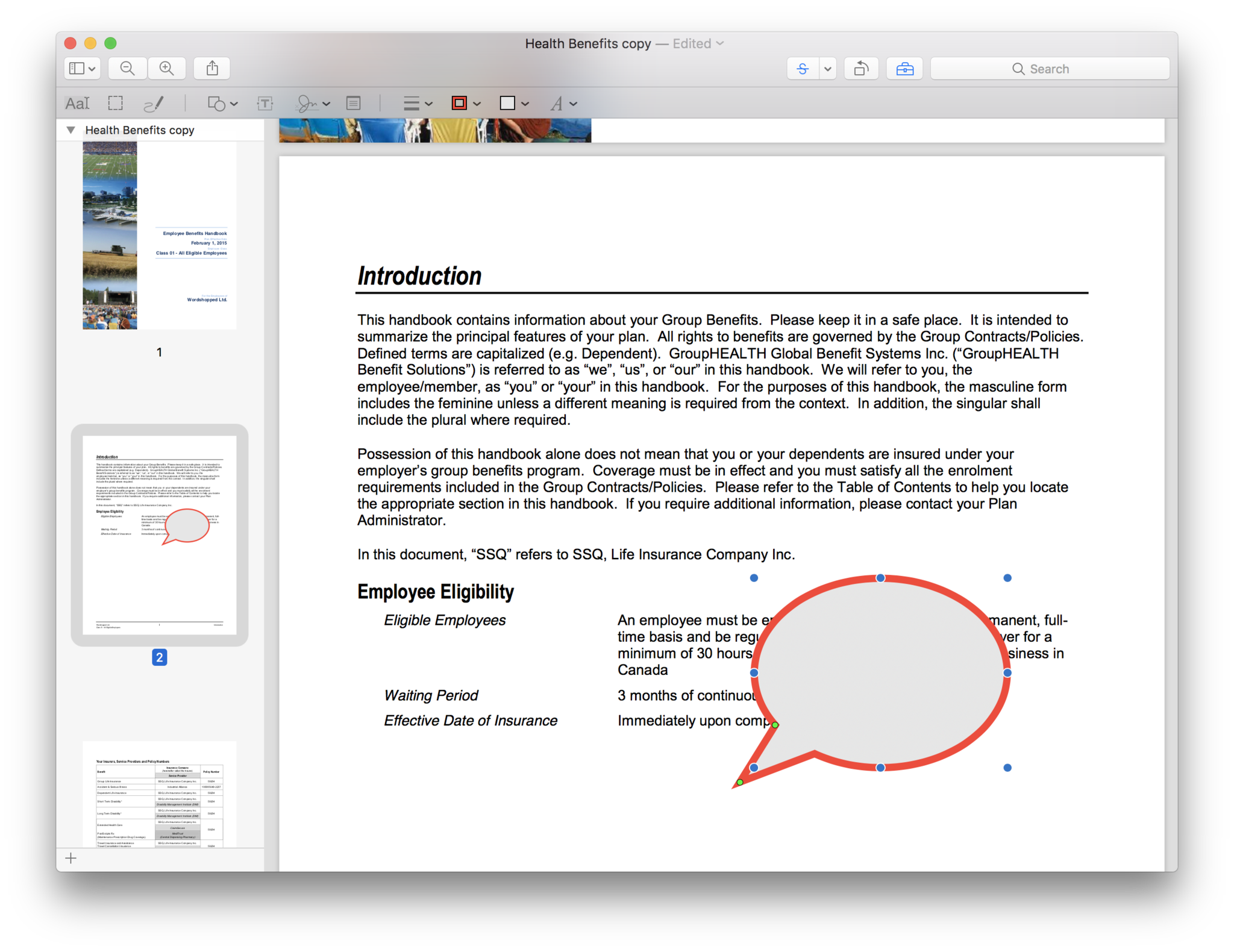
Even though Preview is the pre-installed PDF reader on every Mac, it’s more powerful than you think. On Preview, you can view and annotate your documents, combine documents, fill out and sign forms, edit images, share files, and even export a password protected PDF, if there’s sensitive information on your document. Preview is the best choice for someone who wants to use one PDF reader for personal and professional matters.
3. Skim

Picture Credit: Organizing Creativity
Skim is PDF reader that was originally designed to help academics read and annotate scientific papers in PDF format, but they’ve now improved their functionality to let anyone view any type of PDF file on the reader. On Skim, you can highlight text, take notes, take snapshots, export notes as text, and integrate with third party apps like BibDesk, a bibliography manager.
4. Soda PDF

Picture Credit: Soda PDF
Soda PDF is one of the best PDF readers for reading visual documents like digital catalogues, magazines, and comic books — you can even view files in 3D. The app also lets you create and edit PDFs from scratch. Soda PDF sells an online PDF platform too, so they drive demand for it by offering free PDF tools on their website like convert to PDF, convert from PDF, merge, split, & compress, sign & secure, and insert elements like watermarks and page numbering. You can use these online tools as a proxy for a downloadable PDF reader if you want to save space on your computer.
5. Haihaisoft Reader

Picture Credit: TopAppsLike
Haihaisoft Reader is a fast, low memory PDF reader. It’s only three MB, so it has basic functionality like rotate, full screen, presentation mode, search, and zoom. Even though it’s small, it still supports over 40 languages and has high security — it only connects to the internet with the user’s permission. Haihaisoft is best for casual PDF users.
