
30 of the Most Common Grammatical Errors We All Need to Stop Making
Even after years of education, there are some things that some people still mess up. For me, it’s algebra. For others, it’s the laws of physics. And for many, it’s grammar.
It’s not easy. Words and phrases that sound fine in your head can look like gibberish when written down — that is, if you even realize you made a mistake in the first place. It’s easy for little grammar mistakes to slip by, especially when you’re self-editing.
But how do you prevent grammatical errors if you’re not even aware you’re making them?
Well, you can start by reading through this post to see which common grammar mistakes resonate with you the most. (It’s okay — we’re all guilty of at least one.) Make a mental note to avoid that mistake in the future, or heck, just bookmark this page to remind yourself of them over and over (and over) again.

Common Grammar Mistakes
- They’re vs. Their vs. There
- Your vs. You’re
- Its vs. It’s
- Incomplete Comparisons
- Passive Voice
- Dangling Modifiers
- Referring to a Brand or Entity as ‘They’
- Possessive Nouns
- Affect vs. Effect
- Me vs. I
- To vs. Too
- Do’s and Don’ts
- i.e. vs. e.g.
- Peek vs. Peak vs. Pique
- Who vs. That
- Who vs. Whom vs. Whose vs. Who’s
- Alot vs. A lot vs. Allot
- Into vs. In to
- Lose vs. Loose
- Then vs. Than
- Of vs. Have
- Use of Commas
- Assure vs. Insure vs. Ensure
- Less vs. Fewer
- Semicolons
- Compliment vs. Complement
- Farther vs. Further
- En Dash vs. Em Dash
- Title Capitalization
- Between vs. Among
1. They’re vs. Their vs. There
One’s a contraction for “they are” (they’re), one refers to something owned by a group (their), and one refers to a place (there). You know the difference among the three — just make sure you triple check that you’re using the right ones in the right places at the right times.
I find it’s helpful to search through my posts (try control + F on PC or command + F on Mac) for those words and check that they’re being used in the right context. Here’s the correct usage of “they’re,” “there,” and “their”:
They’re going to love going there — I heard their food is the best!
2. Your vs. You’re
The difference between these two is owning something versus actually being something:
You made it around the track in under a minute — you’re fast!
How’s your fast going? Are you getting hungry?
See the difference? “Your” is possessive and “you’re” is a contraction of “you are.”
Again, if you’re having trouble keeping them straight, try doing another grammar check before you hit publish.
3. Its vs. It’s
This one tends to confuse even the best of writers. “Its” is possessive and “it’s” is a contraction of “it is.” Lots of people get tripped up because “it’s” has an ‘s after it, which normally means something is possessive. But in this case, it’s actually a contraction.
Do a control + F to find this mistake in your writing. It’s really hard to catch on your own, but it’s a mistake everyone can make.
4. Incomplete Comparisons
This one drives me up a wall when I see it in the wild. Can you see what’s wrong with this sentence?
Our car model is faster, better, stronger.
Faster, better, stronger … than what? What are you comparing your car to? A horse? A competitor’s car? An older model?
When you’re asserting that something should be compared to something else, make sure you always clarify what that something else is. Otherwise, it’s impossible for your readers to discern what the comparison actually means.
5. Passive Voice
If you have a sentence with an object in it — basically a noun that receives the action — passive voice can happen to you. Passive happens when the object of a sentence is put at the beginning of a sentence instead of at the end. With passive voice, your writing comes across as sounding weak and unclear.
Hold up. Re-read that last paragraph I just wrote:
“… Passive happens when the object of a sentence is put at the beginning of a sentence instead of at the end …”
There’s way too much passive voice. See how the sentence doesn’t have a subject that’s acting upon the object? The object is mysteriously being “put at the beginning,” making the sentence sound vague and clunky.
Passive voice happens when you have an object (a noun that receives the action) as the subject of a sentence. Normally, the object of the sentence appears at the end, following a verb. Passive writing isn’t as clear as active writing — your readers will thank you for your attention to detail later.
Let’s try that again, using active voice:
Passive happens when the writer puts the object of a sentence at the beginning, instead of at the end.
In this example, the sentence correctly uses a subject, “the writer,” to actively describe the object.
Make sense? It’s kind of a complicated thing to describe, but active voice makes your writing seem more alive and clear. Want to get into the nitty-gritty of avoiding passive voice? Check out this tip from Grammar Girl.
6. Dangling Modifiers
I love the name of this mistake — it makes me think of a dramatic, life-or-death situation such as hanging precariously off a cliff. (Of course grammar mistakes are never that drastic, but it helps me remember to keep them out of my writing.)
This mistake happens when a descriptive phrase doesn’t apply to the noun that immediately follows it. It’s easier to see in an example taken from my colleague over on the HubSpot Sales Blog:
After declining for months, Jean tried a new tactic to increase ROI.
What exactly is declining for months? Jean? In reality, the sentence was trying to say that the ROI was declining — not Jean. To fix this problem, try flipping around the sentence structure (though beware of passive voice):
Jean tried a new tactic to increase ROI after it had been declining for months.
Better, right?
7. Referring to a Brand or Entity as ‘They’
A business ethics professor made me aware of this mistake. “A business is not plural,” he told our class. “Therefore, the business is not ‘they.’ It’s ‘it.'”
So, what’s the problem with this sentence?
To keep up with their changing audience, Southwest Airlines rebranded in 2014.
The confusion is understandable. In English, we don’t identify a brand or an entity as “he” or “she” — so “they” seems to make more sense. But as the professor pointed out, it’s just not accurate. A brand or an entity is “it.”
To keep up with its changing audience, Southwest Airlines rebranded in 2014.
It might seem a little strange at first, but once you start correctly referring to a brand or entity as “it,” the phrasing will sound much more natural than “they.”
8. Possessive Nouns
Most possessive nouns will have an apostrophe — but where you put that apostrophe can be confusing. Here’s an example of possessive nouns used incorrectly:
All of the lizard’s tails grew back.
In this sentence, “all” implies there’s more than one lizard, but the location of the apostrophe suggests there really is just one.
Here are a few general rules to follow:
- If the noun is plural, add the apostrophe after the s. For example: the dogs’ bones.
- If the noun is singular and ends in s, you should also put the apostrophe after the s. For example: the dress’ blue color.
- On the other hand, if the noun is singular and doesn’t end in an s, you’ll add the apostrophe before the s. For example: the lizard’s tail.
Simple, right? If you want a deeper dive into the rules of possessive nouns, check out this website.
9. Affect vs. Effect
This one is another one of my pet peeves. Most people confuse them when they’re talking about something changing another thing.
That movie effected me greatly.
Effect, with an “e,” isn’t used as a verb the way “affect” is, so the sentence above is incorrect. When you’re talking about the change itself — the noun — you’ll use “effect.”
That movie had a great effect on me.
When you’re talking about the act of changing — the verb — you’ll use “affect.”
That movie affected me greatly.
10. Me vs. I
Most people understand the difference between the two of these, until it comes time for them to use one in a sentence.
When you get done with that lab report, can you send it to Bill and I?
The sentence above is actually wrong, as proper as it sounds.
Try taking Bill out of that sentence — it sounds weird, right? You would never ask someone to send something to “I” when he or she is done. The reason it sounds weird is because “I” is the object of that sentence — and “I” should not be used in objects. In that situation, you’d use “me.”
When you get done with that lab report, can you send it to Bill and me?
Much better.
11. To vs. Too
We’ve all accidentally left the second “o” off of “too” when texting in a hurry. But in case the mistake goes beyond that, let’s review some usage rules.
“To” is typically used before a noun or verb, and describes a destination, recipient, or action. Take these examples:
My friend drove me to my doctor’s appointment. (Destination)
I sent the files to my boss. (Recipient)
I’m going to get a cup of coffee. (Action)
“Too,” on the other hand, is a word that’s used as an alternative to “also” or “as well.” It’s also used to describe an adjective in extremes. Have a look:
My colleague, Sophia Bernazzani, writes for the HubSpot marketing blog, too.
She, too, is vegan.
We both think it’s too cold outside.
You might have noticed that there’s some interesting comma usage where the word “too” is involved. We’ll cover commas a bit more later, but when you’re using the word “too” to replace “also” or “as well,” the general rule is to use a comma both before and after. The only exception occurs when “too” is the last word in the sentence — then, follow it with a period.
12. Do’s and Don’ts
I’m not talking about the do’s and don’ts of grammar here — I’m talking about the actual words: “do’s” and “don’ts.” They look weird, right? That’s because of two things:
- There’s an apostrophe in one to make it plural … which typically isn’t done, and
- The apostrophes aren’t put in the same place in both words.
Unfortunately, it’s AP Style, so we just have to live with it. It’s a hot angle for content formats, so I wouldn’t shy away from using it. But when you’re checking your writing for grammatical errors, just remember that the apostrophes should be in different places.
Note: There are different schools of thought about how to punctuate this one depending on what style guide/usage book you’re using. The Chicago Manual of Style, for instance, recommends “dos” and “don’ts.” The important thing is to be consistent and stick to one style guide, whether it’s AP Style, Chicago, or your own house style guide.
13. i.e. vs. e.g.
Confession: I never remember this rule, so I have to Google it every single time I want to use it in my writing. I’m hoping that by writing about it here, the trend will stop.
Many people use the terms interchangeably when trying to elaborate on a point, but each one means something different: “i.e.” roughly means “that is” or “in other words,” while “e.g.” means “example given” or “for example.” The former is used to clarify something you’ve said, while the latter adds color to a story through an example.
14. Peek vs. Peak vs. Pique
This mistake is another one I often see people make, even if they know what they mean.
- Peek is taking a quick look at something — like a sneak peek of a new film.
- Peak is a sharp point — like the peak of a mountain.
- And pique means to provoke or instigate — you know, like your interest.
If you’re going to use one in your writing, stop and think for a second — is that the right “peek” you should be using?
15. Who vs. That
This one is tricky. These two words can be used when you’re describing someone or something through a phrase like, “Lindsay is a blogger who likes ice cream.” When you’re describing a person, be sure to use “who.”
When you’re describing an object, use “that.” For example, you should say, “Her computer is the one that overheats all the time.” It’s pretty simple, but definitely something that gets overlooked frequently.
16. Who vs. Whom vs. Whose vs. Who’s
Whoa. This one looks like a bit of a doozy. Let’s break it down, shall we?
“Who” is used to identify a living pronoun. If you asked, “Who ate all of the cookies?” the answer could be a person, like myself (“I did”), or another living being (“the dog did”).
Hey, both are realistic scenarios in my world.
“Whom” is a little trickier. It’s usually used to describe someone who’s receiving something, like a letter — “To whom will it be addressed?” But it can also be used to describe someone on the receiving end of an action, like in this sentence:
Whom did we hire to join the podcast team?
“Whose” is used to assign ownership to someone. See if you can spot the error in this question:
Who’s sweater is that?
Because the sweater belongs to someone, it should actually be written this way:
Whose sweater is that?
“Who’s,” on the other hand, is used to identify a living being. It’s a contraction for “who is” — here’s an example of how we might use it in a sentence here in Boston:
Who’s pitching for the Red Sox tonight?
See the difference? “Whose” is used to figure out who something belongs to, whereas “who’s” is used to identify someone who’s doing something.
17. “Alot” vs. A lot vs. Allot
I hate to break it to all of you “alot” fans out there, but “alot” is not a word. If you’re trying to say that someone has a vast number of things, you’d say they have “a lot” of things. And if you’re trying to say that you want to set aside a certain amount of money to buy something, you’d say you’ll “allot” $20 to spend on gas.
If you’re trying to remember to stay away from “alot,” check out this awesome cartoon by Hyperbole and a Half featuring the alot. That face will haunt you for the rest of your content marketing days.
18. Into vs. In to
Let’s clarify the “into” versus “in to” debate.
They’re often confused, but “into” indicates movement (Lindsay walked into the office) while “in to” is used in lots of situations because the individual words “to” and “in” are frequently used in other parts of a sentence. For example, “to” is often used with infinitive verbs (e.g. “to drive”). Or “in” can be used as part of a verb (e.g. “call in to a meeting”).
So if you’re trying to decide which to use, first figure out if the words “in” or “to” actually modify other words in the sentence. If they don’t, ask yourself if it’s indicating some sort of movement — if it does, you’re good to use “into.”
19. Lose vs. Loose
When people mix up “lose” and “loose,” it’s usually just because they’re spelled so similarly. They know their definitions are completely different.
According to Merriam-Webster, “lose” is a verb that means “to be unable to find (something or someone), to fail to win (a game, contest, etc.), or to fail to keep or hold (something wanted or valued).” It’s like losing your keys or losing a football match.
“Loose” is an adjective that means “not tightly fastened, attached, or held,” like loose clothing or a loose tooth.
A trick for remembering the difference is to think of the term “loosey-goosey” — both of those words are spelled with two o’s.
20. Then vs. Than
What’s wrong with this sentence?
My dinner was better then yours.
*Shudder.* In the sentence above, “then” should be “than.” Why? Because “than” is a conjunction used mainly to make comparisons — like saying one thing was better “than” another. “Then” is mainly an adverb used to situate actions in time:
We made dinner, and then we ate it.
21. Of vs. Have
I have a bad habit of overusing a phrase that goes like this: “Shoulda, coulda, woulda.” That basically means I regret not doing something, but it’s too late to dwell on it now. For example, “I shoulda done my laundry on Sunday.”
But “shoulda,” “coulda,” and “woulda” are all short for something else. What’s wrong with this statement?
I should of done my laundry on Sunday.
Since it’s so common for us to throw around fake worlds like “shoulda,” the above mistake is an easy one to make — “shoulda” sounds like a shortened version of “should of.” But really, “shoulda” is short for “should have.” See how it works in these sentences:
I should have done my laundry on Sunday.
I could have taken a shorter route.
I would have gone grocery shopping on Friday, if I had time.
So next time, instead of saying, “shoulda, woulda, coulda,” I should probably say, “should’ve, would’ve, could’ve.”
22. Use of Commas
There are entire courses on correct comma usage, but let’s go over some of the most common comma use cases here.
To Separate Elements in a Series
Each element in a series should be separated by a comma. For example: “I brought a jacket, a blanket, and an umbrella to the park.” That last comma is optional. It’s called an “Oxford comma,” and whether you use it depends on your company’s internal style guide.
To Separate Independent Clauses
You can use commas to separate independent clauses that are joined by “and,” “but,” “for,” “or,” “nor,” “so,” or “yet.” For example, this sentence is correctly written: “My brother is very smart, and I’ve learned a lot from him.”
An independent clause is a sentence that can stand on its own. Here’s how to test it: Would the second part of the sentence (following one of those coordinating conjunctions) make a full sentence on its own? If so, add a comma. If it doesn’t, leave it out.
To Separate an Introductory Word or Phrase.
At the beginning of a sentence, we often add an introductory word or phrase that requires a subsequent comma. For example:
In the beginning, I had no idea how to use a comma.
Or:
However, after reading an awesome blog post, I understand the difference.
Other common introductory words and phrases include “after,” “although,” “when,” and “while.”
To learn about more use cases for the comma, check out this blog post from Daily Writing Tips.
23. Assure vs. Insure vs. Ensure
All of these words have to do with “making an outcome sure,” which is why they’re so often mixed up. However, they aren’t interchangeable.
- “To assure” means to promise or say with confidence. For example, “I assure you that he’s good at his job.”
- “To ensure” means to make certain. For example, “Ensure you’re free when I visit next weekend.”
- Finally, “to insure” means to protect against risk by regularly paying an insurance company. For example, “I insure my car because the law requires it.”
24. Less vs. Fewer
You know the checkout aisle in the grocery store that says “10 Items or Less”? That’s actually incorrect. It should be “10 Items or Fewer.”
Why? Because “items” are quantifiable — you can count out 10 items. Use “fewer” for things that are quantifiable, like “fewer M&Ms” or “fewer road trips.” Use “less” for things that aren’t quantifiable, like “less candy” and “less traveling.”
25. Semicolons
Semicolons are used to connect two independent clauses that, though they could stand on their own, are closely related. For example, you could use a semicolon in the sentence: “Call me tomorrow; I’ll have an answer for you by then.”
Notice that each clause could be its own sentence — but stylistically, it makes more sense for them to be joined. (If there’s a coordinating conjunction between the two clauses — like “and,” “but”, or “or” — use a comma instead.)
You can also use semicolons to separate items in a list when those items contain commas themselves:
There are two options for breakfast: eggs and bacon, which is high in protein and low in carbs; or oatmeal and fruit, which is high in carbs but has more fiber.
26. Compliment vs. Complement
These two words are pronounced exactly the same, making them easy to mix up. But they’re actually quite different.
If something “complements” something else, that means it completes it, enhances it, or makes it perfect. For example, a wine selection can complement a meal, and two colors can complement each other.
The word “compliment” though, refers to an expression of praise (as a noun), or to praise or express admiration for someone (as a verb). You can compliment your friend’s new haircut, or pay someone a compliment on his or her haircut.
27. Farther vs. Further
People often use “farther” and “further” interchangeably to mean “at a greater distance.”
However, in most countries, there are actually subtle differences in meaning between the two. “Farther” is used more to refer to physical distances, while “further” is used more to refer to figurative and nonphysical distances. So while Paris is “farther” away than Madrid, a marketing team falls “further” away from its leads goal. (Note: The word “further” is preferred for all senses of the word in the U.K., Australia, Canada, and elsewhere in the Commonwealth of Nations.)
The word “further” can also be used as an adjective or as an adverb to mean “additionally.” For example, “I have no further questions.”
28. En Dash vs. Em Dash
Both “–” and “—” are versions of the dash: “–” is the en dash, and “—” or “–” are both versions of the em dash. You can use either the en dash or the em dash to signify a break in a sentence or set off parenthetical statements.
The en dash can also be used to represent time spans or differentiation, such as, “That will take 5–10 minutes.”
The em dash, on the other hand, can be used to set off quotation sources, such as, “‘To be, or not to be, that is the question.’ —Shakespeare.”
29. Title Capitalization
This one is tough, since so many different outlets apply different rules to how titles are capitalized. Luckily, I have a secret weapon — TitleCap.
The site outlines capitalization rules as follows:
- Capitalize the first and the last word.
- Capitalize nouns, pronouns, adjectives, verbs, adverbs, and subordinate conjunctions.
- Lowercase articles (“a,” “an,” “the”), coordinating conjunctions, and prepositions.
- Lowercase the ‘to’ in an infinitive (“I want to play guitar”).
Let’s use the title of this post as an example: “Grammar Police: 30 of the Most Common Grammatical Errors We All Need to Stop Making.” If left to my own devices — and remember, I write for a living — I would have left “We” lowercase. I always have to double-check, which is why guides like this one are so valuable.
30. Between vs. Among
Let’s clear this one up: The word “between” is used to refer to two (or sometimes more) things that are clearly separated, and the word “among” is used to refer to things that aren’t clearly separated because they’re part of a group or mass of objects.
So you choose between a red shirt and a black shirt, but you choose among all your shirts. You walk between Centre Street and Broad Street, but you walk among your friends.
English, like many other languages, has its own set of tricky rules and intricacies. But with a little bit of practice and help from guides like this one, you can become a grammar master.
Want to learn more about grammar? Check out the 23 Witty Grammar Jokes & Puns to Satisfy Your Inner Grammar Nerd.

YouTube Poised to Unseat Facebook as #2 Website in the U.S.
A new study reveals that there may be a shakeup on the list of the top five U.S. websites.
According to research conducted by Market Intelligence Central, the top highest-visited websites in the U.S. have largely held steady for a few years. That order is as follows:
- YouTube
- Yahoo
- Amazon
But now, YouTube is poised to surpass Facebook for the #2 spot.
According to this research, Facebook.com has seen a loss of roughly 2.8 billion visits each month over the past two years.
At the same time, engagement with Facebook Page posts has dropped 50%, and during its Q2 2018 earnings call, the company revealed a plateaued number of daily active users in the U.S. and Canada: its largest market.
Combine that with YouTube’s increased number of site visits — and growing viewership of its content on diversified platforms, like the YouTube app, as well as streaming tools like Chromecast.
Should it outrank Facebook, the study says, it’s likely to do so within the next three months.

Source: Market Intelligence Central
Meanwhile, the research shows that usage of the core Facebook app has increased — and notes that the company has focused its growth efforts on the expansion of its overall portfolio of products and applications.
In 2012, Facebook acquired visual content-sharing app Instagram, which has been pointed to as crucial to the company’s success.
But with decelerating user growth, falling Page post engagement, and a decreasing number of website visits — is staying afloat the most Facebook can ask for?
Or, does Facebook have a chance to continue growing — and if so, where should those growth efforts be focused?
One might point to emerging technology, like virtual reality (VR), which while slow to catch on as a consumer hit, has received investments from Facebook — including its Oculus VR headsets.
The company’s annual VR conference, Oculus Connect, is scheduled to take place next month, where the company is expected to announce new investments in and product releases around this technology.
But where many — including HubSpot VP of Marketing Jon Dick — believe Facebook should focus its growth efforts, is on further diversification and monetization of apps.
“If I was Facebook, I would care so much more about growing my apps, than growing my .com traffic,” says Dick. “The thing it needs to stress about, from a valuation perspective, is that its desktop advertising products are well established — which could put pressure on its revenue while it figures out monetization of messaging.”
Earlier this month, Facebook began to launch monetization channels within messaging platform WhatsApp, including ways for users to connect and communicate with businesses.

Source: WhatsApp
“Facebook’s strategy is to get as much of the world as possible communicating through its apps,” Dick says. “And between Instagram, Messenger, and WhatsApp, it’s working.”

How to Add a Text Box in Google Docs [FAQ]
A text box is an effective way to draw attention to important information on a page, or organize your thoughts visually.
Adding a text box to a Google Doc can also make your document look more formal and professional — which is particularly important if you’re sharing the Doc with colleagues.
If you need to differentiate a set of text for your next marketing meeting notes or brainstorming session, you’ll need to know how to add a text box in Google Docs. Fortunately, it’s incredibly easy to do. In fact, it should take less than a minute once you get the hang of it. Here’s how.
How to Add a Text Box in Google Docs
1. Go to “Insert” and then click “Drawing … “.
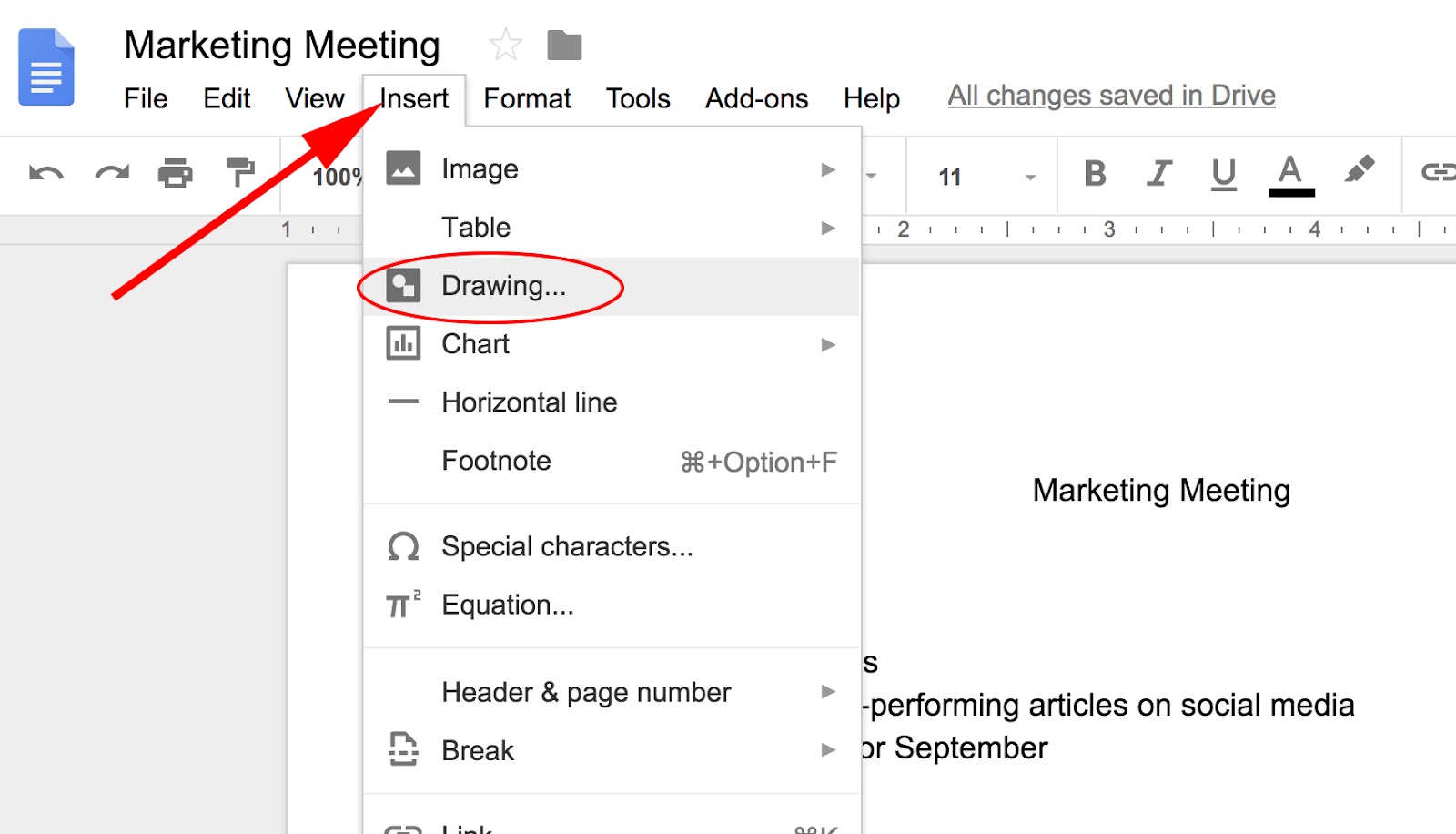
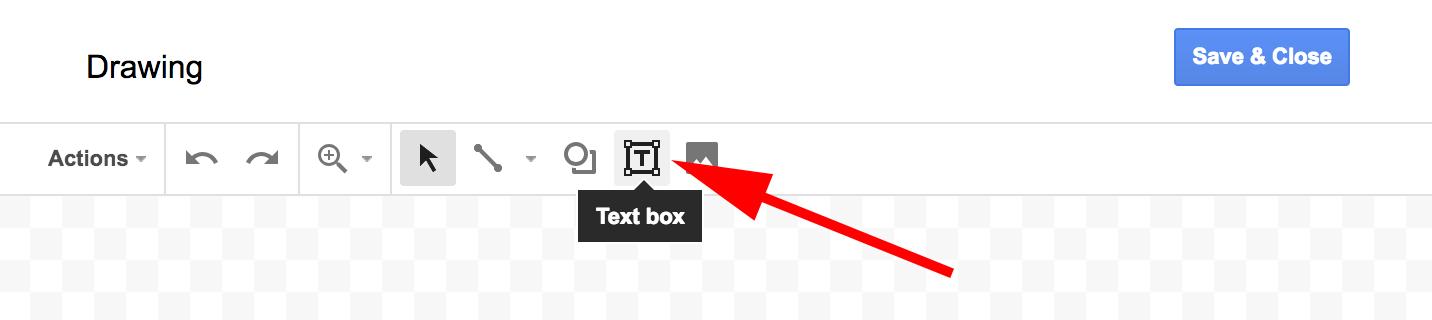
2. Within the Drawing tool, click the “Text box” (it’s the box in the tool bar with a “T” in the middle).
3. Draw your desired text box shape. Then, type your text into the box.
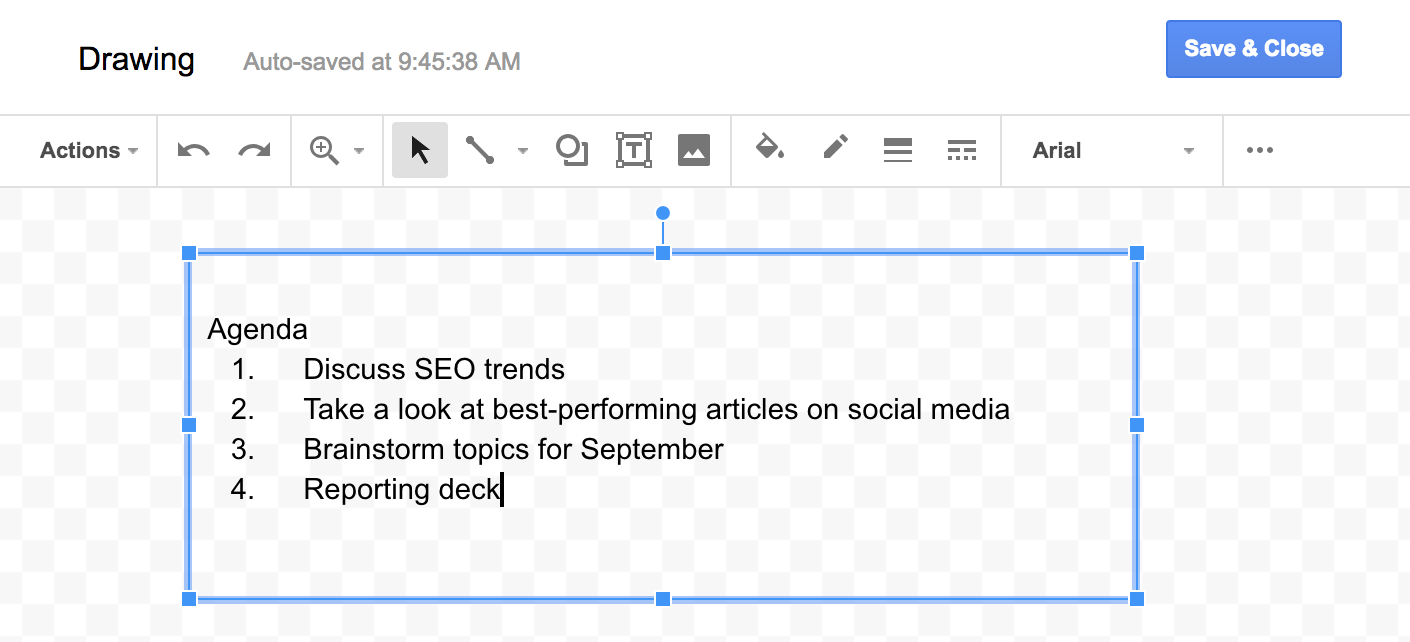
4. In the toolbar, you’ll see a paint bucket. Click that to change the color in your text box, or text box border, if you want.
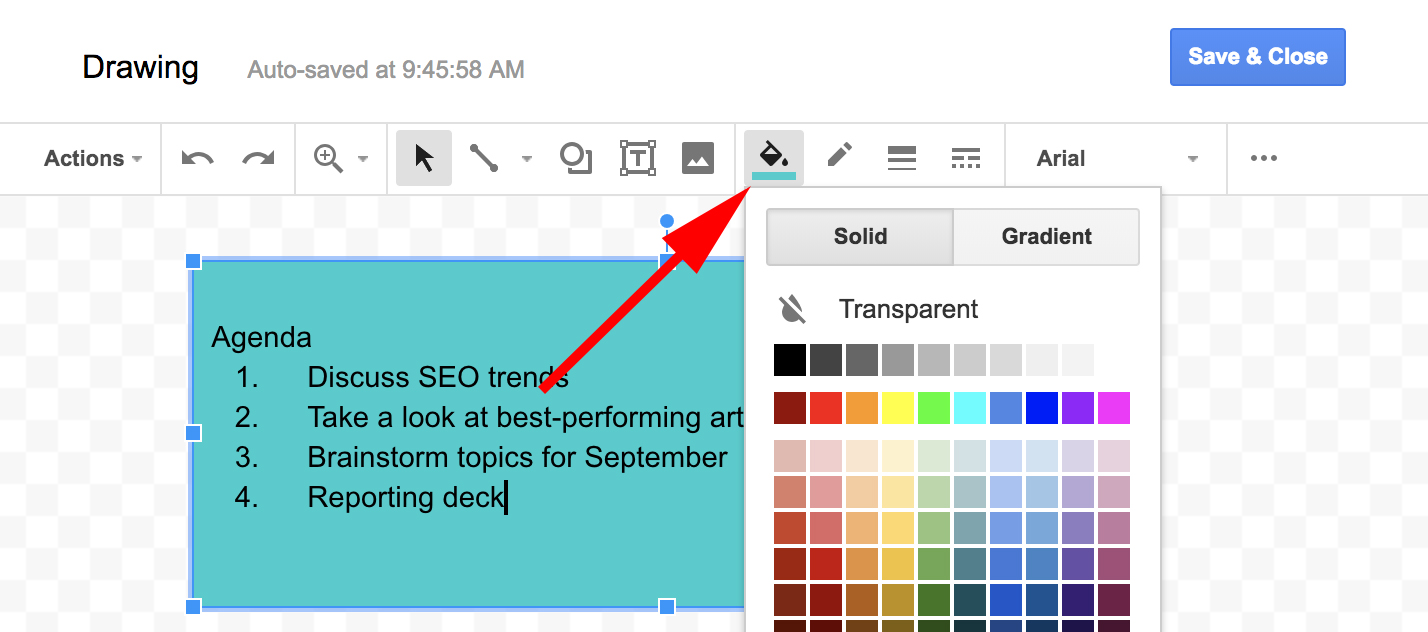
5. When you’re happy with your text box, click “Save & Close”.
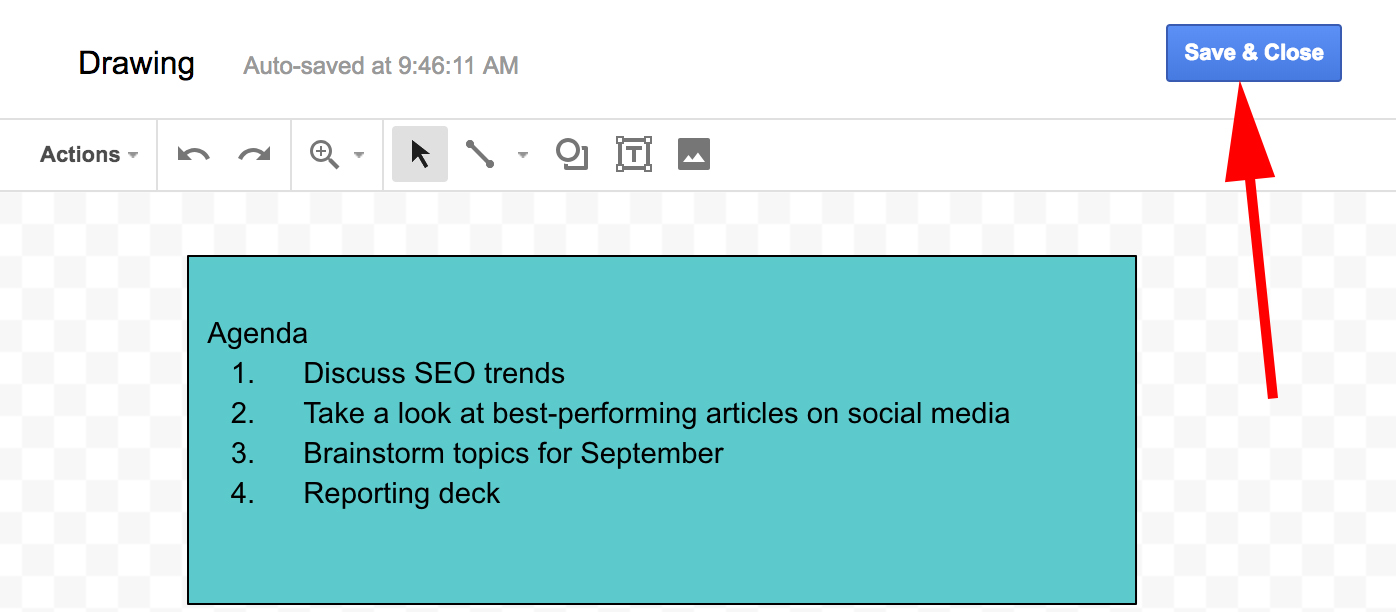
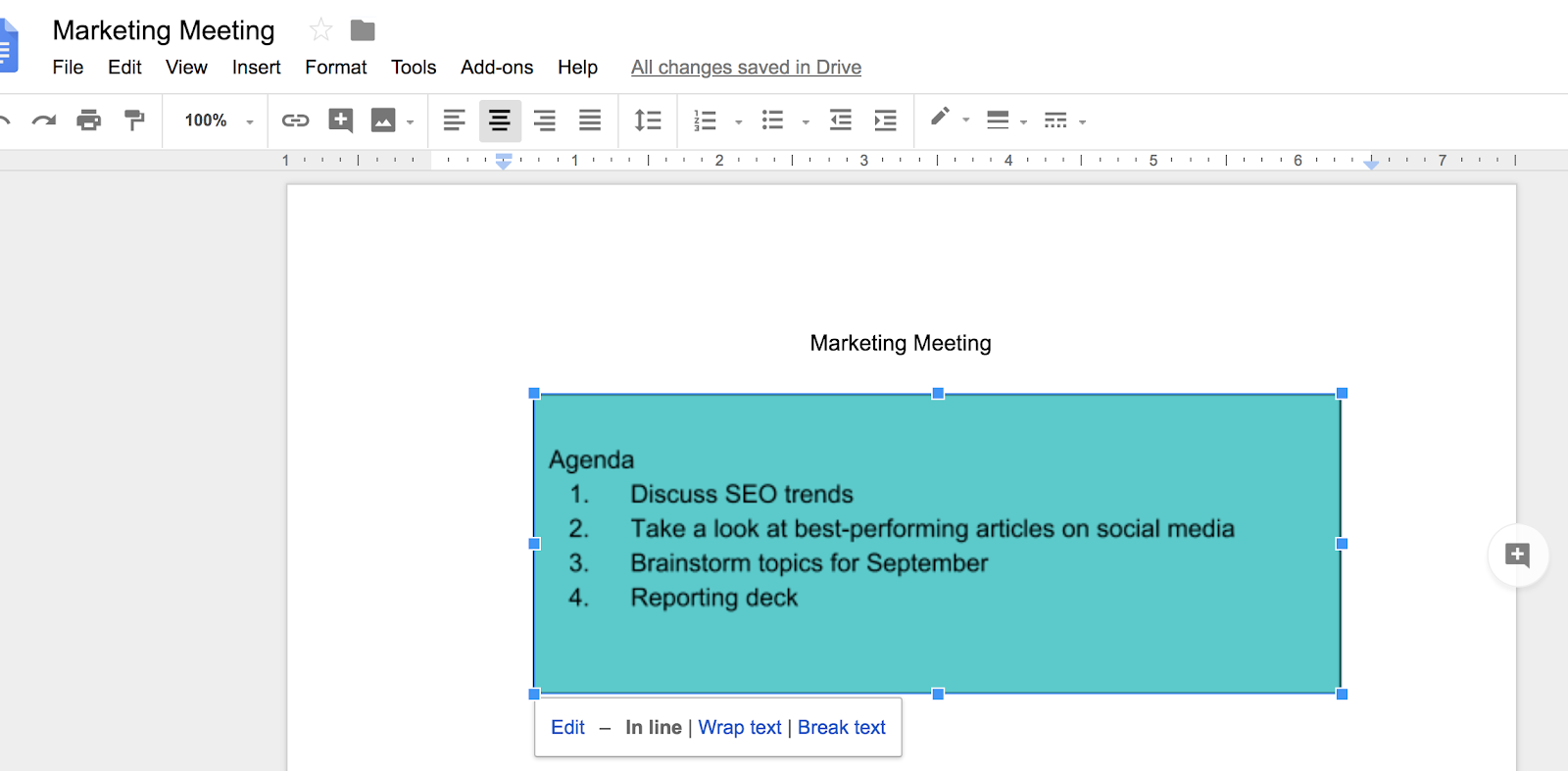
6. And voila! Your text box is instantly placed in your Google Doc. If you want to move it around, simply drag it or pull the corners to change the size.
That’s it! Check out our “Ultimate Guide to Google Docs” next, if you’re looking for a more in-depth dive into the ins and outs of Google Docs.

How to Sort in Excel: A Simple Guide to Organizing Data
When it comes to Excel, here’s a good rule to live by: If you find yourself doing something manually, there’s probably an easier way.
Whether you’re trying to remove duplicates, do simple calculations, or sort your data, you can almost always find a workaround that’ll help you get it done with just a click (or two) of a button.
But if you’re not a power user, it’s easy to overlook these shortcuts. And before you know it, something as simple as organizing a list of names in alphabetical order can suck up a ton of your time.

Luckily, there is a workaround for that. In fact, there are a few different ways to use Excel’s sorting feature that you may not know about. Let’s check them out below, starting with the basics.
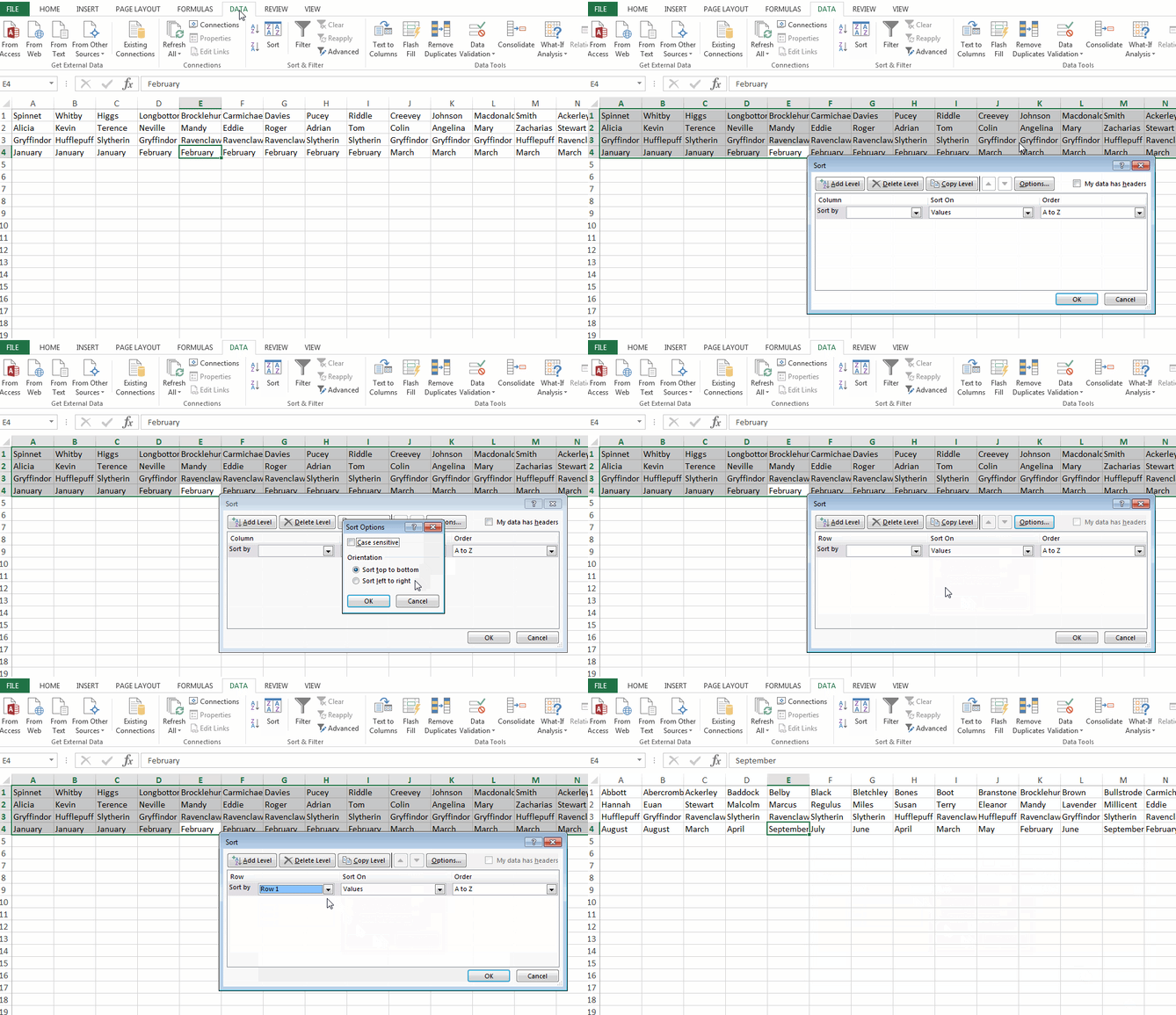
How to Sort in Excel
- Highlight the rows and/or columns you want sorted.
- Navigate to “Data” along the top and select “Sort.”
- If sorting by column, select the column you want to order your sheet by.
- If sorting by row, click “Options” and select “Sort left to right.”
- Choose what you’d like sorted.
- Choose how you’d like to order your sheet.
- Click “OK.”
For this first set of instructions, we’ll be using Microsoft Excel 2017 for Mac. But don’t worry — while the location of certain buttons might be different, the icons and selections you have to make are the same across most earlier versions of Excel.
1. Highlight the rows and/or columns you want sorted.
To sort a range of cells in Excel, first click and drag your cursor across your spreadsheet to highlight all of the cells you want to sort — even those rows and columns whose values you’re not actually sorting by.
For example, if you want to sort column A, but there’s data associated with column A in columns B and C, it’s important to highlight all three columns to ensure the values in Columns B and C move along with the cells you’re sorting in Column A.
In the screenshot below, we’re going to sort this sheet by the last name of Harry Potter characters. But the first name and house of each person needs to go with each last name that gets sorted, or each column will become mismatched when we finish sorting.

2. Navigate to ‘Data’ along the top and select ‘Sort.’
Once all the data you want to sort is highlighted, select the “Data” tab along the top navigation bar (you can see this button on the top-right of the screenshot in the first step, above). This tab will expand a new set of options beneath it, where you can select the “Sort” button. The icon has an “A-Z” graphic on it, as you can see below, but you’ll be able to sort in more ways than just alphabetically.

3. If sorting by column, select the column you want to order your sheet by.
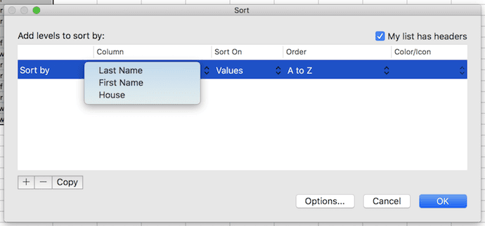
When you hit the “Sort” button, shown above, a window of settings will appear. This is where you can configure what you’d like sorted and how you’d like to sort it.
If you’re sorting by a specific column, click “Column” — the leftmost dropdown menu, shown below — and select the column whose values you want to be your sorting criteria. In our case, it’ll be “Last Name.”
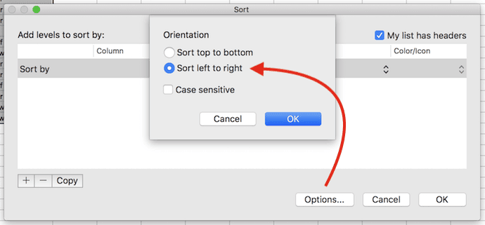
4. If sorting by row, click ‘Options’ and select ‘Sort left to right.’
If you’d rather sort by a specific row, rather than a column, click “Options” on the bottom of the window and select “Sort left to right.” Once you do this, the Sort settings window will reset and ask you to choose the specific “Row” you’d like to sort by in the leftmost dropdown (where it currently says “Column”).
This sorting system doesn’t quite make sense for our example, so we’ll stick with sorting by the “Last Name” column.
5. Choose what you’d like sorted.
You don’t just have to sort by the value of each cell. In the middle column of your Sort settings window, you’ll see a dropdown menu called “Sort On.” Click it, and you can choose to sort your sheet by different characteristics of each cell in the column/row you’re sorting by. These options include cell color, font color, or any icon included in the cell.
6. Choose how you’d like to order your sheet.
In the third section of your Sort settings’ window, you’ll see a dropdown bar called “Order.” Click it to select how you’d like to order your spreadsheet.
By default, your Sort settings window will suggest sorting alphabetically (which we’ll show you shortcuts for in the next process below). But you can also sort from Z to A, as well as by a custom list. While you can create your own custom list, there are a few preset lists you can sort your data by right away. We’ll talk more about how and why you might sort by custom list in a few minutes.
To Sort by Number
If your spreadsheet includes a column of numbers, rather than letter-based values, you can also sort your sheet by these numbers. To do that, you’ll select this column in the leftmost “Columns” dropdown menu. This will change the options in the “Order” dropdown bar so that you can sort from “Smallest to Largest” or “Largest to Smallest.”
7. Click ‘OK.’
Click “OK,” in your Sort settings window, and you should see your list successfully sorted according to your desired criteria. Here’s what our Harry Potter list now looks like, organized by last name in alphabetical order:

How to Alphabetize in Excel
To alphabetize in Excel, highlight a cell in the column you want to sort by. Click the Data tab along the top navigation, and you’ll see buttons for sorting in forward or reverse alphabetical order. Clicking either button will order your sheet according to the column of the cell you first highlighted.
Sometimes you may have a list of data that has no organization whatsoever. Maybe you exported a list of your marketing contacts or blog posts. Whatever the case may be, you might want to start by alphabetizing the list — and there’s an easy way to do this that doesn’t require you to follow each step outlined above.
To Alphabetize on a Mac
- Select a cell in the column you want to sort.
- Click on the “Data” tab in your toolbar and look for the “Sort” option on the left.
- If the “A” is on top of the “Z,” you can just click on that button once. If the “Z” is on top of the “A,” click on the button twice. Note: When the “A” is on top of the “Z,” that means your list will be sorted in alphabetical order. However, when the “Z” is on top of the “A,” that means your list will be sorted in reverse alphabetical order.

To Alphabetize on a PC
- Select a cell in the column you want to sort.
- Click on the “Data” tab in your toolbar. You will see Sort options in the middle.
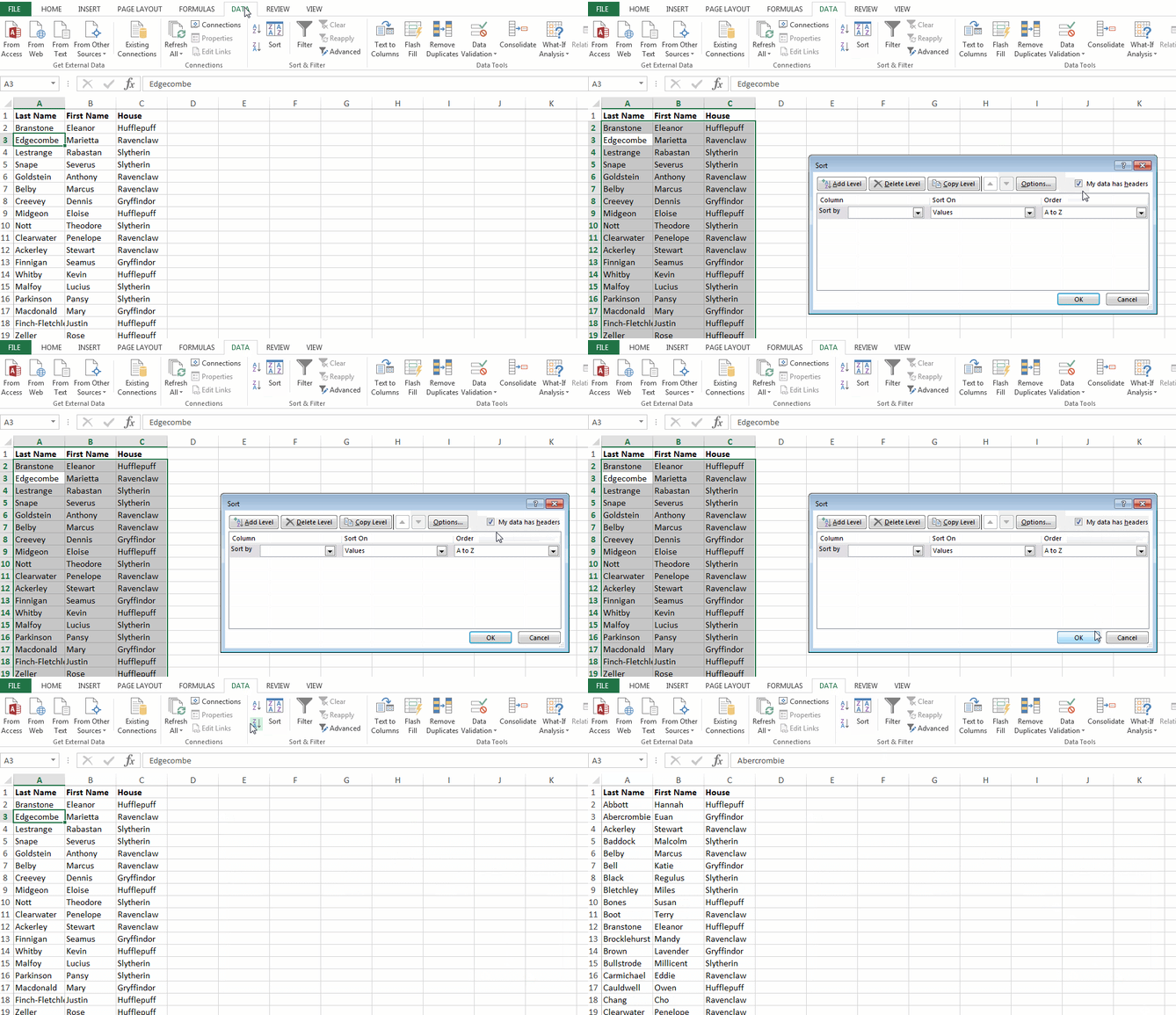
- Click on the icon above the word “Sort.” A pop-up will appear: If you have headers, make sure “My list has headers” is checked. If it is, click “Cancel.”
- Click on the button that has the “A” on top and the “Z” on the bottom with an arrow pointing down. That will sort your list alphabetically from “A” to “Z.” If you want to sort your list in reverse alphabetical order, click on the button that has the “Z” on top and the “A” on the bottom.
Sorting Multiple Columns
Sometimes you don’t just want to sort one column, but you want to sort two. Let’s say you want to organize all of your blog posts that you have in a list by the month they were published. First, you’d want to organize them by date, and then by the blog post title or URL.
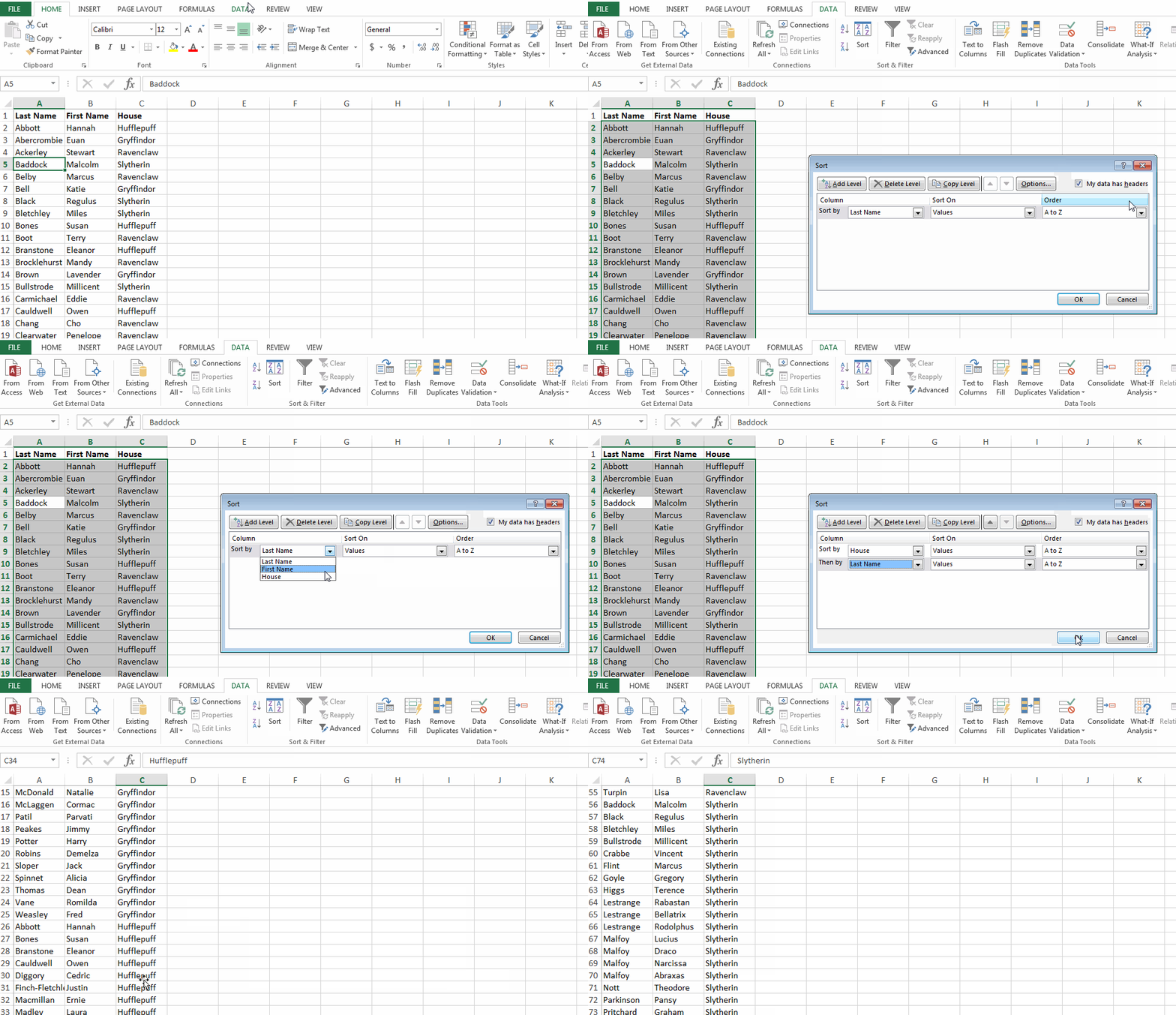
In this example, I want to sort my list first by house, and then by last name. This would give me a list organized by each house, but also alphabetized within each house.
To Sort Multiple Columns on a Mac
- Click on the data in the column you want to sort.
- Click on the “Data” tab in your toolbar and look for the “Sort” option on the left.
- Click on the small arrow to the left of the “A to Z” Sort icon. Then, select “Custom Sort” from the menu.
- A pop-up will appear: If you have headers, make sure “My list has headers” is checked.
- You will see five columns. Under “Column” select the first column you want to sort from the dropdown menu. (In this case, it is “House.”)
- Then, click on the “+” sign at the bottom left of the pop-up. Under where it says “Column,” select “Last Name” from the dropdown.
- Check the “Order” column to make sure it says A to Z. Then click “OK.”
- Marvel at your beautiful organized list.

To Sort Multiple Columns on a PC
- Click on the data in the column you want to sort.
- Click on the “Data” tab in your toolbar. You will see “Sort” options in the middle.
- Click on the icon above the word “Sort.” You will see a pop-up appear. Make sure “My data has headers” is checked if you have column headers.
- You will see three columns. Under “Column” select the first column you want to sort from the dropdown menu. (In this case, it is “House.”)
- Then click on “Add Level” at the top left of the pop-up. Under where it says “Column” select “Last Name” from the dropdown.
- Check the “Order” column to make sure it says A to Z. Then click “OK.”
- Marvel at your beautiful organized list.
Sorting in Custom Order
Sometimes you don’t want to sort by A to Z or Z to A. Sometimes you want to sort by something else, such as months, days of the week, or some other organizational system.
In situations like this, you can create your own custom order to specify exactly the order you want the sort. (It follows a similar path to multiple columns but is slightly different.)
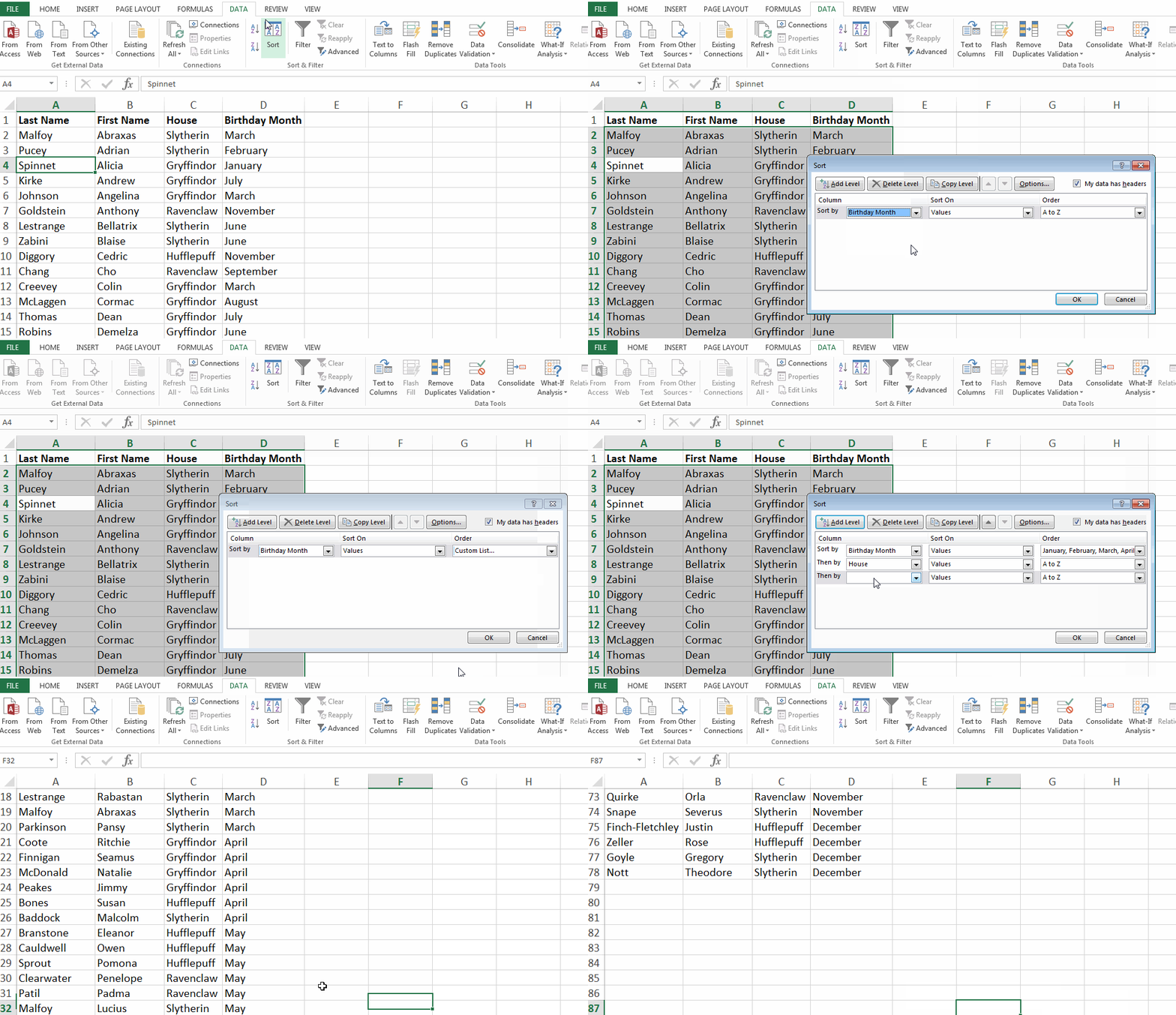
Let’s say we have everyone’s birthday month at Hogwarts, and we want everyone to be sorted first by Birthday Month, then by House, and then by Last Name.
To Sort in Custom Order on a Mac
- Click on the data in the column you want to sort.
- Click on the “Data” tab in your toolbar. You will see “Sort” all the way to the left.
- Click on the small arrow to the left of the “A to Z” Sort icon. Then, select “Custom Sort” from the menu.
- A pop-up will appear: If you have headers, make sure “My list has headers” is checked.
- You will see five columns. Under “Column,” select the first column in your spreadsheet you want to sort from the dropdown menu. In this case, it is “Birthday Month.”
- Under the “Order” column, click on the dropdown next to “A to Z.” Select the option for “Custom List.”
- You will see a couple of options (month and day). Select the month list where the months are spelled out, as that matches the data. Click “OK.”
- Then click on the “+” sign at the bottom left of the pop-up. Under “Column,” select “House” from the dropdown.
- Click on the “+” sign at the bottom left again. Under “Column,” select “Last Name” from the dropdown.
- Check the “Order” column to make sure “House” and “Last Name” say A to Z. Then click “OK.”
- Marvel at your beautiful organized list.

To Sort in Custom Order on a PC
- Click on the data in the column you want to sort.
- Click on the “Data” tab in your toolbar. You will see “Sort” options in the middle.
- Click on the icon above the word “Sort.” You will see a pop-up appear: If you have headers, make sure “My list has headers” is checked.
- You will see three columns. Under “Column,” select the first column you want to sort from the dropdown. In this case, it is “Birthday Month.”
- Under the “Order” column, click on the dropdown next to “A to Z.” Select the option for “Custom List.”
- You will see a couple of options (month and day), as well as the option to create your own custom order. Select the month list where the months are spelled out, as that matches the data. Click “OK.”
- Then, click on “Add Level” at the top left of the pop-up. Under “Column,” select “House” from the dropdown.
- Click on the “Add Level” button at the top left of the pop-up again. Under “Column,” select “Last Name” from the dropdown.
- Check the “Order” column to make sure “House” and “Last Name” say A to Z. Then click “OK.”
- Marvel at your beautiful organized list.
Sorting a Row
Sometimes your data may appear in rows instead of columns. When that happens you are still able to sort your data with a slightly different step.
To Sort a Row on a Mac
- Click on the data in the row you want to sort.
- Click on the “Data” tab in your toolbar. You will see “Sort” all the way to the left.
- Click on the small arrow to the left of the “A to Z” Sort icon. Then, select “Custom Sort” from the menu.
- A pop-up will appear: Click on “Options” at the bottom.
- Under “Orientation” select “Sort left to right.” Then, click “OK.”
- You will see five columns. Under “Row,” select the row number that you want to sort from the dropdown. (In this case, it is Row 1.) When you are done, click “OK.”

To Sort a Row on a PC
- Click on the data in the row you want to sort.
- Click on the “Data” tab in your toolbar. You will see “Sort” options in the middle.
- Click on the icon above the word “Sort.” You will see a pop-up appear.
- Click on “Options” at the bottom.
- Under “Orientation” select “Sort left to right.” Then, click “OK.”
- You will see three columns. Under “Row,” select the row number that you want to sort from the dropdown. (In this case, it is Row 1.) When you are done, click “OK.”
Sort Your Conditional Formatting
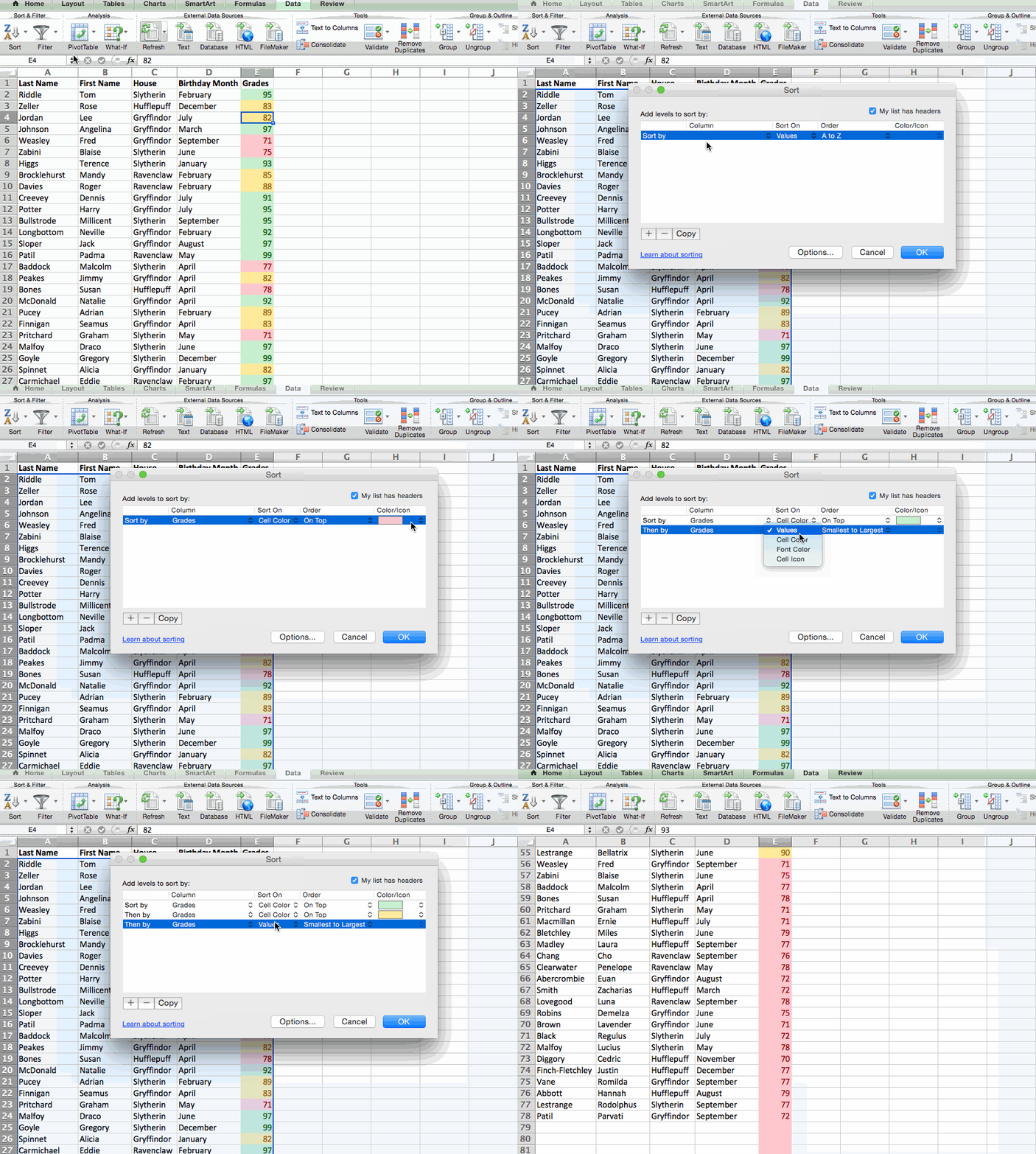
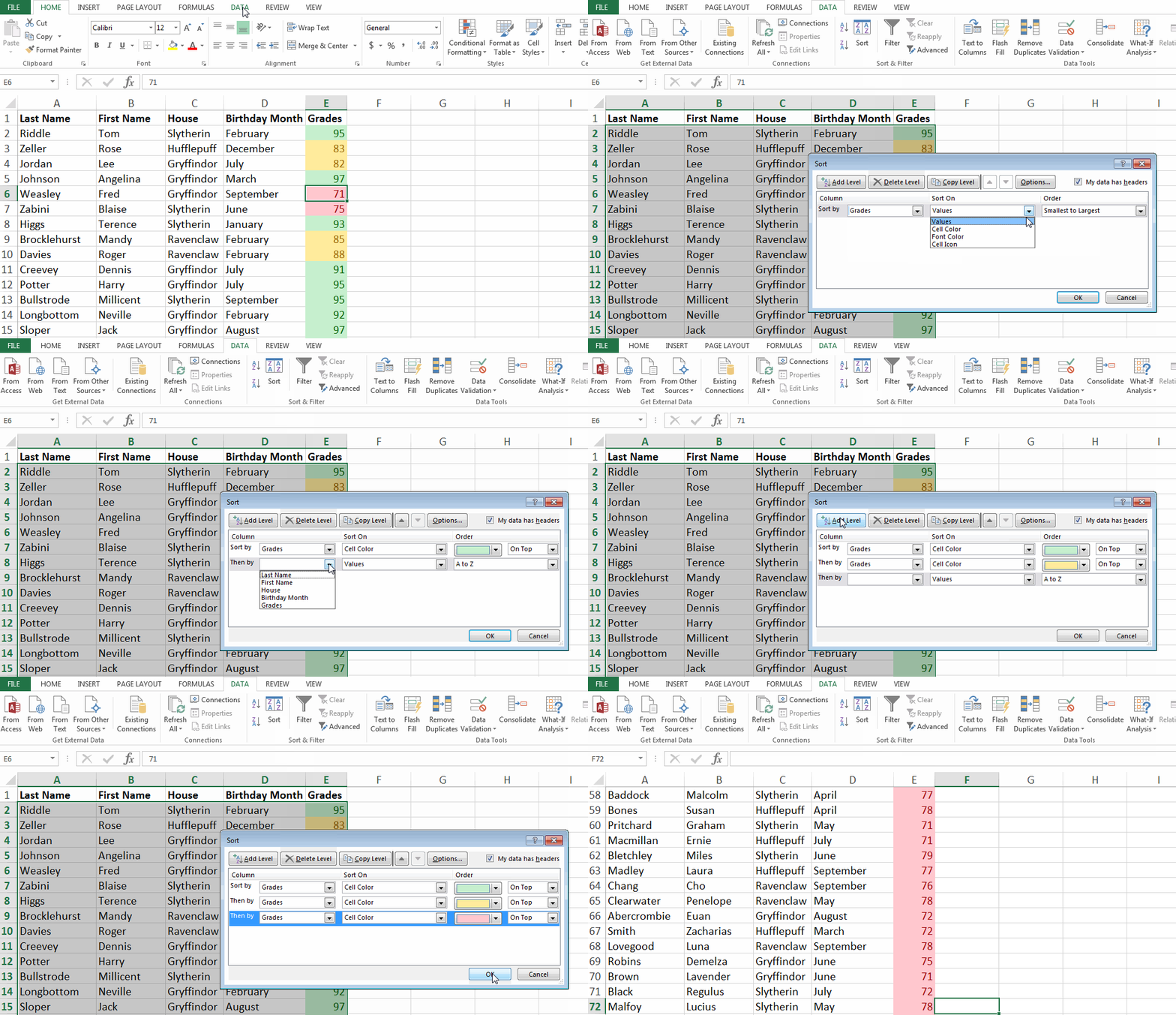
If you use conditional formatting to change the color of a cell, add an icon, or change the color of a font, you can actually sort by that, too.
In the example below, I’ve used colors to signify different grade ranges: If they have a 90 or above, the cell appears green. Between 80-90 is yellow. Below 80 is red. Here’s how you’d sort that information to put the top performers at the top of the list. I want to sort this information so that the top performers are at the top of the list.
To Sort Conditional Formatting on a Mac
- Click on the data in the row you want to sort.
- Click on the “Data” tab in your toolbar. You will see “Sort” all the way to the left.
- Click on the small arrow to the left of the “A to Z” Sort icon. Then, select “Custom Sort” from the menu.
- A pop-up will appear: If you have headers, make sure “My list has headers” is checked.
- You will see five columns. Under “Column,” select the first column you want to sort from the dropdown. In this case, it is “Grades.”
- Under the column that says “Sort On,” select “Cell Color”.
- In the last column that says “Color/Icon,” select the green bar.
- Then click on the “+” sign at the bottom left of the pop-up. Repeat steps 5-6. Instead of selecting green under “Color/Icon,” select the yellow bar.
- Then click on the “+” sign at the bottom left of the pop-up. Repeat steps 5-6. Instead of selecting green under “Color/Icon,” select the red bar.
- Click “OK.”
To Sort Conditional Formatting on a PC
- Click on the data in the row you want to sort.
- Click on the “Data” tab in your toolbar. You will see “Sort” options in the middle.
- Click on the icon above the word “Sort.” A pop-up will appear: If you have headers, make sure “My list has headers” is checked.
- You will see three columns. Under “Column” select the first column you want to sort from the dropdown. In this case, it is “Grades.”
- Under the column that says “Sort On,” select “Cell Color”.
- In the last column that says “Order,” select the green bar.
- Click on “Add Level.” Repeat steps 4-5. Instead of selecting green under “Order,” select the yellow bar.
- Click on “Add Level” again. Repeat steps 4-5. Instead of selecting yellow under “Order,” select the red bar.
- Click “OK.”
There you have it — all the possible ways to sort in Excel. Ready to sort your next spreadsheet? Start by grabbing nine different Excel templates below, then use Excel’s sorting function to organize your data as you see fit.

63% of People Wouldn’t Use a Facebook Dating App
When Facebook announced earlier this year that it would introduce a dating feature, the reaction was mixed.
In some places, there was excitement. In a way, it made sense — Facebook’s mission, so it says, is to “bring the world closer together.”
It was enough to jolt the competition, anyway. The day it was announced at the company’s annual F8 developer conference, the stock price of Match Group — one of the largest corporations in the online dating space — plummeted.

$MTCH stock price behavior on F8 2018 day one. Source: Google
But on the other end of the reaction spectrum, there were concerns. Despite Facebook’s reassurance that users’ friends wouldn’t see that they’re using the dating app — and that their dating profiles would be independent of their core network ones — people had privacy concerns.
After all, the announcement came after a year of privacy-related scrutiny for Facebook. There were offline safety concerns, too — especially when it was revealed that the app would be designed to allow users to see nearby events that their matches might attend.
And since it was revealed last week that Facebook is, in fact, testing a dating app — internally, anyway — how enthusiastic are people about potentially using it?
Facebook is internally testing Facebook Dating.
I can’t go past the signup screen because they are not activating all non-employee Dating profiles because, well, it’s “pre-launch” 😉 pic.twitter.com/VQFHUJIkuX
— Jane Manchun Wong (@wongmjane)
August 3, 2018
Who Wants to Use a Facebook Dating App?
The Data
We asked 672 internet users across the U.S., UK, and Canada: Would you ever use a Facebook dating app?
On average, 63% of respondents said no.

Data collected with Lucid
The highest degree of reluctance came from U.S. respondents, 68% of whom said they would not use a Facebook dating app.
Those from Canada, meanwhile, showed the most enthusiasm, with 30% of respondents saying they would give it a try.

Data collected with Lucid
The Context
Since the semi-official prospect of a Facebook dating app was first announced, Match Group — which owns competing dating apps like Tinder — has largely rebounded, especially since revealing Q2 2018 revenue growth and the introduction of premium features.
But there’s an item to consider regarding Tinder and similar apps. Many of them allow users to create accounts and log in with Facebook — permitting the app access to some of their personal data, like photos and friend lists.

Now, let’s consider the breadth of user data that Facebook owns — which it has vehemently and repeatedly stated it does not sell, but uses to help personalize ads.
When I downloaded my own Facebook data, for instance — seeing how much information was in there got weird, fast.
When you couple that with the idea of Facebook building an app designed to build romantic connections, it could understandably give users pause. But at the same time — it could be quite effective.
Despite the concerns — which are valid — Facebook’s treasure trove of information on its users, like their respective interests and relationship status histories, could help it build a “dating preferences” algorithm that far outshines any used by other apps.
Then, pair that with Facebook’s facial recognition technology. Not only does the network understand what brands or activities users like — it also could also potentially use machine learning, with the help of the aforementioned relationship history, to understand what physical attributes they’re most drawn to.
Looking Ahead
My prediction: Facebook will forge ahead with its dating app anyway.
Looking at the history online dating’s popularity, it’s clear that its growth is incremental. In 2015 — before many of the apps and options available today existed — Pew Research Center found that the use of online dating tools by young adults tripled over a period of two years.

Source: Pew Research Center
And as of January 2018 — nearly two years after that data was released — additional research has found that an average of 23% of U.S. users have met a significant other through dating apps or services.

Source: Statista
Point being: New technology historically takes time to catch on. This is not the first time a new feature from Facebook has been met with resistance — remember when it first rolled out the News Feed? — but users adapted.
In fact, at the company’s annual virtual reality conference next month — Oculus Connect — I won’t be surprised if we see the official launch of Facebook’s dating app. Nor will I be surprised if it’s integrated with Oculus Venues: the VR feature that allows users to watch live events as a group and engage with each other.
Stay tuned.
Featured image credit: Facebook

18 Helpful Tips for Getting the Most Out of an Industry Conference
This post originally appeared on HubSpot’s Sales Blog. To read more content like this, subscribe to Sales.
So you’re going to a conference.
What’s in store for you? You’ll attend dozens of sessions led by professionals in your industry, meet a ton of new people, and take home lots of great swag.
If you’re a conference-going expert, you probably have your own short list of tried-and-true tactics for making the most of a conference. (If so, we’d love to hear in the comments.) But if not, never fear — we’ve got your back with our best tips for how to do it right.

How to Prepare for an Industry Conference
Be prepared. Be prepared. Be prepared.
It bears repeating. The quickest way to throw away hundreds of dollars (besides actually throwing them away) is to go to a conference without sitting down and formulating a plan first.
It’s not exactly military statecraft, but it’s essential. I guarantee there will be no time to stop and pause once you arrive at the event, so take some time to complete the following items before you board that plane/train/bus.
1. Review the agenda.
This one’s a no-brainer. Set a goal for what you’d like to learn at the conference, and use the agenda to devise a plan specifically tailored to that goal. Make sure to attend conference-wide events like keynote addresses. Most conferences won’t hold breakout sessions during these presentations, so you won’t have to worry about missing out on anything else.
When it comes to smaller sessions, consider both the speaker and the subject matter. Highly tactical sessions are generally useful to attend regardless of who leads them. However, sessions less directly related to your profession can be valuable as well if they’re led by an industry figure you’re angling to meet.
2. Orient yourself.
Familiarize yourself with the conference space so you don’t get lost. You don’t want to miss important information, or for a roomful of people to form a negative first impression of you by showing up late.
If you’re attending a smaller conference, it should be enough to take a half hour or so the night before or early in the morning on day one to walk around the space. For larger conferences, this might not be feasible, especially if the show will be held across multiple venues. Grab a map from the host, and keep a copy on your phone or print one out to reference between sessions.
3. Find out who’s going.
The people you’ll attend sessions with are as important as the sessions themselves. There’s no better time to network with your peers, connect with new prospects, or touch base with customers than at a conference.
Most conferences will have a Facebook event page and/or a Twitter hashtag set up. The conference hosts will start promoting these pages in advance of the event, and they’re a great way to keep track of acquaintances and people you’d like to meet.
Don’t count on simply running into prospects at the conference. Instead, reach out to them ahead of time to let them know you’ll both be in attendance. This way, you can book time on their calendars and have their full, undivided attention instead of trying to cram a 15-minute conversation into a stop-and-chat.
4. Set an out-of-office reply.
Let’s be honest: You’ll probably be checking your work email during the conference. But even if you are, you definitely won’t be able to respond at the same clip as you do in the office. Make sure prospects and customers know why they might not hear from you for a few days by setting up an out-of-office reply.
(For inspiration, check out these hilarious examples of out-of-office replies.)
What to Bring to a Conference
Conferences are multi-day affairs where you’ll be booking long hours each day. To remove as much stress as possible from your experience, make sure you’ve taken care of these things before you start your travels to the event:
5. Phone and Laptop Chargers
You’re going to spend a huge part of your day on your devices — don’t get caught with dead batteries. If you plan to stay the entire day, or you’re speaking/exhibiting at this event, bring portable chargers. You might even consider bringing wireless battery packs in case there aren’t outlets available.
6. Business Cards (and Enough of Them)
Make sure you have some business cards on hand and a stash of stationery in your luggage. You never know how many people you’re going to meet and want to network with.
7. Demo Materials
By no means should you spend the conference pitching to people whom don’t want to be pitched to. However, if one of those pre-set prospect meetings turns into a real sales opportunity, it’ll be more efficient — and impressive — if you can provide a walkthrough on the spot.
8. The LinkedIn Mobile App
No networking opportunity is complete without LinkedIn, and you should have the mobile app downloaded on your phone by the time you enter the event. If you meet a business leader you want to talk more with later, being able to pull up their LinkedIn profile on the fly and send them a connection request can help you make the best of each interaction.
9. Nice Clothes
Maybe this already occurred to you. There are rarely dress codes at industry events, but looking sharp with a nice button-down shirt or shiny shoes allows you to put your best foot forward (no pun intended) when you encounter businesses and professionals on whom you want to make a good impression.
What to Do at a Conference
You’re here … Now what? The next few days will be a whirlwind of activity, but don’t be overwhelmed. You’re armed with a goal and a plan — there are only a few additional things to keep in mind to help you make the most of your time.
10. Register early.
You don’t want to be stuck at the registration desk while everyone else is off to the races. Register as early as possible so you can minimize your time standing in lines and maximize your time learning and meeting people.
11. Divide and conquer.
If you’re attending with coworkers, try and see as much as possible. If each of you attends the same sessions and events, your company might as well have only sent one of you. Splitting up for sessions will maximize how much you’re able to learn and ensure that each of you has unique insights to take back to your company. Plan to get lunch or dinner each day to regroup on key takeaways.
Flying solo also means you’ll each be able to meet more people. Huge conferences can foster pack mentality, but the more attendees you can meet and speak with, the more of an asset you’ll be to your sales team. Discovering how your business fits into the larger industry and how other companies run their sales divisions are invaluable insights. A conference is an unparalleled opportunity to pick the brains of your competition and your market. Don’t waste it.
12. Connect with your customers.
Sure, you might have exchanged emails with your customers in the last few months, but nothing beats a face-to-face interaction. If things aren’t going so well, this is a great opportunity to address any issues before you get a cancellation call. But don’t feel as though you have to solve every problem today; talk through any high-level concerns your customer may have and then set a follow up time for after the conference.
And if things are going well, checking in will not only reinforce your relationship — it’ll also be fun! Enjoy spending time with a happy customer, and listen for upsell opportunities.
13. Follow up with prospects.
You’ve set up meetings with prospects. Now, put that time to use. Listen to their anxieties and concerns, and demonstrate how your product can help address those issues and bring their business to the next level.
Don’t go into these meetings expecting to close deals on the spot. Like you, your prospects are attending this conference to learn and gain expertise. Use these conversations to set yourself up for future targeted conversations addressing specific pain points or questions. Close each conversation with a list of takeaways, and let prospects know you’ll be following up with relevant materials.
14. Participate in the larger conversation.
Most conferences will have a dedicated hashtag. During the event, make sure you’re tagging your tweets and Instagrams properly. You can also monitor the hashtag throughout the conference to see what people are talking about. Striking up a conversation online is a great way to reach out to someone you’re interested in meeting but haven’t come across in person yet.
(And if you’re not active on social media, here’s a primer on why you should be.)
15. Stay organized.
Conferences are information avalanches. Between breakout sessions, workshops, one-on-one conversations, and happy hours, you’ll come away with more notes, names, and numbers than you can possibly remember. This wealth of information will serve you well going forward, but if you come home with a mess of business cards and a set of notes without labels or tags, you’ll spend double the time organizing everything and trying to recall what you discussed with “Jennifer Chicago CEO.”
Thankfully, it’s not hard to keep yourself on track, so long as you strike when the iron’s hot. Write on the back of people’s business cards to remind yourself of the salient points of your conversation, or digitally capture the cards and take notes in an app such as CamCard. Include details about what session or happy hour you met them at — anything that will jog your memory a day or a week after the fact.
If you take notes by hand, you should at the very least include headings and start a new page at the beginning of every session, lest your notes become one long run-on list of bullet points. If you’re more inclined to keep everything digital, Evernote is one of the apps all salespeople should have. You can create a dedicated notebook for your conference notes, and tag each note with multiple labels to organize any way you want — by topic, speaker, or even which day the session took place.
What to Do After Attending a Conference
Take some time to decompress after you arrive home. … But not too much, because your work’s not finished. The days and weeks after a conference are when you’ll be able to put everything you’ve learned to use and turn your short meet-and-greets into fruitful business partnerships.
16. Do some housekeeping.
All that information you gathered from customers and prospects? It’s time to transfer it into your CRM. Jot down everything you can remember from your conversations so that when you follow up, you’re able to view new insights in the context of the larger relationship.
17. Follow up.
Connecting with people you met during the conference is best done in the days immediately following your return. Send follow-up notes and LinkedIn requests while the conference is still fresh in everyone’s minds. Include a personalized message to accompany your request on LinkedIn. Remember, everyone’s inbox will be flooded, so make yourself memorable by reminding your new connection what you discussed. Check out this guide to writing the perfect LinkedIn invitation for more advice.
Now is also the time to make use of the insights you gained from your prospects. Whether it’s sending them content or scheduling a demo, make use of what you learned from your one-on-ones to get them closer to signing on with your company. Make sure your follow-ups are appropriately tailored to what you discussed — another reason you’ll want to organize your notes.
18. Teach.
The insights you gained at the conference are likely to be useful for your team, so make sure to set aside time to pass on what you learned. Whether it’s leading an in-person session or writing an email or post to document the most valuable information, proactively sharing information will help your colleagues do better work while establishing you as a leader on your team.
There’s no better place than a conference to take stock of the state of your industry and your profession. Make the most of your time, and have fun!


The Ultimate Guide to Marketing Jobs
If someone were to ask you, “Do you know what marketing is?” you’d probably say yes, right? But when asked to define marketing, you might struggle. That’s okay — I would, too.
Marketing is a seemingly simple concept on the surface, but it becomes more complex as you break it down. What do marketers do every day? How has technology expanded the marketing field? How do you land a marketing role, and how do you excel within one? Can you switch between marketing fields?
Let me be the first to tell you that marketing is fun. Marketing a company is essentially grabbing a bullhorn and saying, “Hey! We love this company, and here’s why you should, too!” Marketing is also an incredibly dynamic, diverse field that offers positions for people of all strengths. Whether you’re equipped with creative ability or analytical prowess, marketing’s got a spot for you.
In this article, we’ll break down what marketers do, how you can get into the marketing field, and the different marketing jobs that are available in today’s economy. By the end, you’ll be able to map out your budding marketing career and pinpoint your goals. Let’s get started!
According to the dictionary, marketing is “the process or technique of promoting, selling, and distributing a product or service.” But the job involves much, much more than that.
The day-to-day activities of a marketer depend on what they’re marketing, whom they’re targeting, and what platforms they use to promote products or services. There are too many marketing roles and functions to provide a single definition applicable to everyone in this field.
Before we dive into the various positions you can find within a marketing department, let’s discuss tools and education necessary to become a marketer.
What You Need to Be a Marketer
There’s not a single, definitive path to any job field. Marketing is comprised of people with all kinds of backgrounds — journalism, psychology, and more. I’ve mapped out a career path as it’s the most straightforward way to jump into a marketing job. Later in this article, I’ll dive into how to get a marketing job.
Education
If you’re serious about a long-term marketing career primed for growth and variety, a bachelor’s degree is the way to go. Four-year programs teach you the skills and competencies needed to join and excel in the competitive, fast-paced landscape that is the marketing world, including public speaking, creative problem-solving, logistics, sales, and analytics.
The following degree programs can lead to a career in marketing:
- Marketing
- Management
- Business
- Economics
- Psychology
- Communications
- Public Relations
- Journalism
Nowadays, it doesn’t matter as much what you major in as it does where you go to school or what you get involved in. Organizations like the American Marketing Association, National Association of Sales Professionals, or Pi Sigma Epsilon (a co-ed marketing fraternity) can help you get connected outside the classroom and off-campus.
Some marketers choose to extend (or return to) their schooling by pursuing a Master of Business Administration (MBA) or graduate degree in marketing. Both programs offer in-depth studies of marketing, but they differ in education specifics and structure. MBA programs focus on the humanity of business, such as people management, organizational behavior, and leadership. Graduate marketing programs study consumer behavior, changes in the domestic and international marketplace, and growing digital trends.
These programs can be combined, of course, but their cost and completion time can be an issue for most students. While we can’t tell you if graduate school is the right choice for you, we can encourage you to research your options for career success. Here’s a great quiz by The Princeton Review to help you better understand if an MBA or master’s program is for you.
Internships and Co-ops
While a degree (or three) may not be in the cards for you, an internship or co-op most certainly should. There’s no better education than real-life experience, and internships allow you to learn on the go while you’re still learning in the classroom.
Marketing internships are valuable because they help you determine what kind of marketing you want to do. Do you like the creative side of marketing, or do you like working with numbers and analytics? Does promoting a single product excite you, or would you prefer to work on overall brand awareness? Marketing departments are made up of lots of moving parts, and internships and co-ops help you determine exactly which projects and promotions you’d like to join.
Lastly, internships are valuable currency in today’s job market. Think about it: Thousands of students graduate each year and enter the workforce. That’s not even considering how many workers are changing their minds and careers to pursuing marketing jobs. With some real-life experience under your belt, you automatically become a highly desirable candidate to employers. Some internships can lead to full-time jobs, too!
Many educational institutions offer internships through their business or communications departments, so if you’re still in college, start there. Universities worldwide hold valuable relationships with local businesses that will hire students while still in school.
If going through your college or university isn’t an option, sites like WayUp and Internships.com can help you find open positions. Idealist is an internship site that focuses on non-profit roles, and Global Experiences helps you find international opportunities. And, of course, you can always find open internships through LinkedIn, Glassdoor, and Indeed.
Skills and Aptitudes
Surgeons possess incredible patience and stability, psychologists are fantastic listeners, and chefs have an excellent memory. Like any other professional role, great marketers tend to carry a particular set of skills. These can be skills you’re born with or skills you develop and fine-tune through schooling and real-life practice.
Either way, the following skills and aptitudes are typically required to excel in any marketing role:
- Creativity. Whether you’re writing a business plan or a campaign brief, being able to creatively spell out your vision is a must in the marketing field. In today’s world, grabbing consumers’ attention isn’t very easy. Marketers have to constantly think up new ways to attract their audience and entice them to make a purchase — great marketers are creative.
- Problem-solving. Imagine the conundrum marketers faced when DVR was released and commercials became futile. What about the overwhelming switch to mobile versus desktop? These trends in the marketplace forever changed the way businesses sold to us, and marketers were on the front lines of those shifts, huddling and figuring out to how to solve new problems that came their way. Great marketers are problem-solvers.
- Passion for numbers. Even the most right-brained marketers have a passion for numbers and ROI. How else do companies know that their promotional efforts are working? Whether they’re tracking retweets, click-throughs, or video views, marketers live and breathe metrics. Great marketers are analytical so they can prove the value of their work.
- Curiosity. The marketing landscape is ever-changing, and opportunities arise every day for businesses to promote their products in new and exciting ways. But marketers wouldn’t be able to seize these opportunities if they don’t continually ask, “What if?” Great marketers stay curious and are lifelong learners.
Now that you know what’s recommended (if not required) to thrive in a marketing role, let’s take a look at the job market for marketers. How many people are looking for marketing jobs, and what companies are looking for them? Is there room for growth and innovation?
The Marketing Job Market
According to Monster, there were over 200,000 marketing jobs in the United States in 2012. The same study projected that, by 2022, that number would increase by 12% — to 224,000.
But the marketing job market is increasing faster than anyone expected. The Bureau of Labor Statistics found that in 2016, almost 250,000 marketing jobs existed. That’s 10% more jobs than were expected — and eight years sooner.
The marketing profession is growing faster than the average for all other occupations, and it likely won’t stop anytime soon. Marketing and promotional campaigns are essential to every company, regardless of industry, as organizations seek to grow and maintain their market share.
That’s why marketing jobs are available at all kinds of organizations — large firms, startups, small businesses, and non-profits. But there are cities that have more opportunities than others, mostly due to size and population. This article from USA Today compiles a list of the top 10 cities for marketing jobs based on open listings and salary trends.
Do some companies offer better marketing jobs than others? No, not really. But there are some companies that excel at different types of marketing and offer opportunities for different kinds of employees.
Here are a few collections of top companies for marketers, based on a variety of factors:
- 10 companies hiring marketers right now (Forbes)
- 10 companies that pay marketers really well (Forbes)
- 10 companies that are defining innovation in marketing (Fast Company)
- 15 companies deemed the best places for UK marketers to work (Marketing Week)
- 25 of the best companies for content marketers (IZEA)
- 15 agencies that excel in social media marketing (The Manifest)
- 5 companies revolutionizing marketing analytics (Forbes)
- 7 companies hiring remote marketers (FlexJobs)
Today’s job market is thriving, and there’s more opportunity than ever to dip your toe into the proverbial marketing waters. But what are these specific opportunities, you ask? Below we’ll break down the various marketing jobs and marketing career paths available.
Marketing Jobs and Careers
Any given marketing department is made up of a variety of positions, projects, and goals. The difference between these roles can be minute or major — it all depends on what medium they’re working with, what they’re promoting, and who they’re promoting to.
Digital Marketing
Digital marketing refers to marketing through digital channels like search engines, websites, email, and mobile apps. In the last 30 years, the rise of the internet, smartphones, and big data has completely changed the way companies market and promote their products and services … and, in turn, created many new marketing careers.
Search Engine Optimization (SEO) / Search Engine Marketing (SEM) Specialist
Search engine optimization refers to organically optimizing web content to be indexed by search engines and easily found by your audience. Search engine marketing is paying for advertising space on said search engines. SEO, SEM, and their ever-changing trends have become such an influential part of online marketing that people are specializing in it — and companies are hiring for it, too.
The responsibilities of an SEO specialist include improving the ranking of a website on a search engine results page (SERP), conducting keyword research, making technical SEO recommendations and designing the site architecture, and analyzing and applying metrics on website and keyword performance. The responsibilities of an SEM specialist include leveraging search engines like Google and Bing to increase website visits, conversions, and revenue through paid advertisements.
The skills and qualifications required of both SEO and SEM specialists include experience interpreting and applying analytics, the ability to manage and allocate a marketing budget, the ability to read and apply website and search analytics, proficiency in Google AdWords and Google Analytics, and knowledge of search engine trends and news.
SEO specialists make between $31,000 and $64,000, with the median salary being $43,500. SEM specialists make between $34,000 and $65,000 with the median salary being $46,000.
Email Marketer
Email as a marketing medium may seem more traditional, but its effect is far from dead. Email marketing utilizes a single channel to reach current and potential customers through creatively-written emails and digital promotions.
The responsibilities of an email marketer include creating emails that recipients not only open but also engage with, increasing revenue and sales through digital marketing, growing and segmenting email lists, and reading and analyzing data to optimize promotions and open rates.
The skills and qualifications required of email marketers include proficiency in email marketing and tracking programs, excellent creative communication and design skills, HTML, and data analysis and interpretation.
Email marketers make between $39,000 and $70,000, with the median salary being $50,500.
Growth Marketer
Growth marketing (or hacking) is a relatively new term and refers to marketing that targets the entire funnel — not just the top few tiers. Growth marketing takes into account the fact that retention is a major factor of growth and therefore prioritizes both customer success and customer acquisition.
Growth marketers work with a variety of media and teams, including but not limited to SEO and SEM, social media, PR, and email. Because of this, the responsibilities of growth marketers can range from A/B testing to conversion funnel optimization to content creation and user experience design.
The skills and qualifications required of growth marketers include innovative and creative mindsets, quantitative and qualitative problem-solving skills, knowledge of a variety of digital marketing systems, and experience interpreting and applying data.
Growth marketers make between $41,000 and $140,000, with the median salary being $80,000.
Content Marketing
Content marketing, since it’s mainly executed online, could be considered a segment of digital marketing. But the career path has become so impactful that we believe it deserves its own section. In fact, according to LinkedIn, content marketing managers are one of the five fastest-growing jobs in 2018. Content marketing is paving its own way in the marketing world.
Content Marketer
Content like blogs, ebooks, white papers, and guides are critical components of a solid inbound marketing strategy, and content marketers are the people who create them. Content marketing refers to marketing via long-form content, websites, blogs, and even audio and video content.
The responsibilities of a content marketer include strategizing and executing content creation and delivery, tracking metrics that influence content strategy, and managing a team of writers, designers, and strategists.
The skills and qualifications required of a content marketer include strong writing and editing skills, proficiency with content creation and management tools, project management, and experience in online audience growth.
Content marketers make between $44,000 and $92,000, with the median salary being $64,000.
Graphic Designer
Graphic design is a subset of content marketing that focuses more on the visual appeal of web and print content. Graphic designers typically work on website design, ad designs, and any graphics or images used in marketing or promotions.
The responsibilities of a graphic designer include creating any visuals used in marketing materials or campaigns, both print and digital. Some graphic designers work on corporate identity and establish how a company will visually communicate its overall message and brand.
The skills and qualifications required of graphic designers include proficiency in graphic design programs like Photoshop, Illustrator, and InDesign, knowledge of design elements, excellent verbal and visual communication skills, and experience creating visual art for marketing purposes.
Graphic designers make between $31,000 and $61,000, with the median salary being $42,500.
Social Media Marketer
Social media marketing is another new marketing avenue that’s paved the way for its own specialists and experts. Social media marketing is leveraging social platforms like Facebook, Twitter, and Instagram to promote a company and its products and services as well as connect with its audience in new and authentic ways.
The responsibilities of social media marketers include managing a company’s social presence, monitoring online conversation, organizing customer service through social media, creating content for social channels, and staying up-to-date on social media trends and news.
The skills and qualifications required of a social media marketer include excellent verbal and digital communication skills, a creative and innovative approach to digital marketing, proficiency in all social channels, and experience in public relations or public brand management.
Social media marketers make between $33,000 and $78,000, with the median salary being $50,000.
Conversion Rate Optimization (CRO) Specialist
The main goal of content marketing is to use content to educate, interest, and convert readers into customers. But content can’t always do that on its own. That’s where CRO specialists come into play.
CRO specialists focus on optimizing websites, user flows, and content offers to drive the most conversions — whether a conversion means making a sale, securing a lead, or getting a subscriber. The responsibilities of a CRO marketer include auditing content to measure effectiveness and ROI, influencing content creation to ensure impact, measuring how visitors and readers interact with your content, and using this data to optimize for improved performance.
The skills and qualifications required of CRO specialists include experience auditing and creating digital content, ability to A/B test and measure content impact, and proficiency in online content platforms and analysis tools.
CRO specialists make between $32,000 and $130,000, with the median salary being $64,000.
Product Marketing
Product marketing is all about setting the tone for how, where, when, and why a company’s products and services are promoted. Product marketers are typically assigned to one product or product line and act as chief advocate and strategist for that product.
The responsibilities of a product marketer include determining overall messaging and positioning of the product, mapping the buyer’s journey to purchase the product, and collaborating with the product creators, designers, and other marketers.
The skills and qualifications required of product marketers include excellent verbal and written communication skills, collaborative working style, prior experience strategizing and analyzing marketing campaigns, and competitive intelligence skills.
Product marketers make between $55,000 and $120,000, with the median salary being $86,000.
Brand Marketing
In today’s economy, a company’s brand plays a major role in how consumers shop. In fact, 59% of shoppers would rather buy from brands they know, and 21% have purchased products solely because they like the brand itself. This budding consumer behavior has paved the way for roles in brand management and public relations.
The responsibilities of a public relations (PR) manager or brand marketer include creating and maintaining a company’s public image, working with other teams to ensure content and messaging is consistent, and crafting campaigns to promote and boost brand awareness.
The skills and qualifications required of a PR manager or brand marketer include excellent written and verbal communication skills, experience with brand and crisis management, proficiency with email and social media marketing, and ability to manage projects and people.
PR managers make between $40,000 and $97,000 with the median salary being $65,000. Brand marketers make between $48,000 and $110,000 with the median salary being $70,000.
Event Marketing
Company-run events are a popular way to interact with and entertain potential customers and clients. Events bring together your community, delight your customers, and put a friendly face to a brand name. In a study of marketing budget trends, almost 20% of respondents planned to increase their event budgets in the following year, citing events as majorly effective for B2B marketers. For this reason, companies need event marketers.
The responsibilities of an event marketer/manager include organizing and promoting events, creating messaging, designing and organizing marketing campaigns, connecting with audience members, and managing a team of marketers.]
The skills and qualifications required of event marketers/managers include excellent digital and written communication skills, willingness to work under pressure and on deadlines, and high-level negotiation and organizational skills.
Event marketers make between $35,000 and $72,000 with the median salary being $50,000.
Marketing Analysis
In the marketing world, numbers are king. No other factor has the power to shift campaigns, change budgets, hire and fire employees, and draw investors. That’s why the role of a data scientist is the fastest growing job in the United States.
Marketing analysis is a unique role. While most companies hire internal analysts, third-party consultants and agencies also exist to help businesses interpret and apply data findings. Regardless of whom they work for, data scientists — specifically marketing analysts — read and interpret digital data to help businesses and marketing departments make better business decisions.
The responsibilities of a marketing analyst include using data to influence campaign impact, allocate funds, determine how to design and optimize a website, set the prices of products and services and much, much more. Analysts also identify new opportunities and initiatives as well as develop metrics, benchmarks, and standards for future performance.
The skills and qualifications required of a marketing analyst include data analysis and management, fluency with programs like Microsoft Excel, SPSS Statistics, and SAS, and knowledge and experience with trends in big data.
Marketing analysts make between $39,000 and $76,000, with the median salary being $53,000.
Clearly, there’s no deficit of marketing jobs. But that doesn’t mean it’s not a highly competitive field. With ever-changing trends and ever-changing consumers, marketers must be at the top of their game when applying to and thriving within their roles. Next, we’ll dive into how to find, apply for, and get a marketing job in your chosen field.
How to Get a Marketing Job
Getting a marketing job might be complicated, but it’s not impossible. There are a few things you can do to ensure you’re applying for the right jobs and promoting the best version of yourself in the process.
Figure Out What Type of Role You Want
Before opening a job application, you must figure out what type of marketing job you want. As we explained above, there are plenty of marketing jobs available — and we hardly scratched the surface.
Do yourself (and your potential employers) a favor and perform some self-analysis before deciding which jobs to pursue. Review the jobs we’ve described above and research others that spark your interest. Take a look at how marketing impacts your day-to-day life and see which components intrigue you.
Do you find yourself gravitating towards the creative parts of marketing, or are you excited by the analytical side? Both play an important role in marketing, but the jobs for each will differ.
Make a list of what you’d like to do in your role. If I were building a list of “wants,” I’d say:
- I like writing and telling stories
- I like research
- I like working with analytics only to help me create better content
- I like working with a team
Determining what kind of marketing jobs interest you will give you much more clarity in your job search and will help you decipher which specific roles best match your interests and skills.
Find Jobs Matching Your Interests
There are a few ways to go about finding marketing jobs. First, throw your search query in Google. If you’ve decided you’d like to design marketing materials for a company, search “marketing design jobs” or “graphic design marketing jobs” and see what comes up.
Second, check out job board sites like Indeed, Glassdoor, and SimplyHired. These sites aggregate available jobs and make it easy to set filters for salary, location, company size, and more. They also include suggested jobs in the search results so you can easily discover related roles.
Lastly, check out available jobs on company websites. If you’ve discovered a few companies for which you’d love to work, go to their websites directly and see what kind of roles they have listed.
Also, some roles might have different names at different companies and might not come up in common search results on job boards. For example, a “blogger” at one company might be referred to as a “content creator” at another.
Review Job Descriptions
Once you’ve found a few open jobs to which you’d like to apply, take a close look at the job descriptions. This is when you’ll compare your list of “likes” from earlier to the terms in the job descriptions.
From my list above, I’d look for words like “writing,” “editing,” “content creation,” “research,” and more. This process will help you find the best-fit roles, which will, in turn, increase the likelihood of securing an interview — and the job.
Market Yourself
Outside of a job application, cover letter, and interview, there are other ways to boost your chances as an applicant. As a marketing candidate, you must be able to market yourself. In fact, your “marketability” speaks volumes to companies and managers, sometimes more so than your application material.
As you search for and apply to jobs, make sure your digital presence is spotless. Review your LinkedIn, Twitter, and other social channels and ensure they all promote the same message and self-image. Google your own name and make sure all results reflect positively on you.
Also, depending on what role(s) you’re pursuing, consider creating a portfolio or sample of your marketing chops. If you’d like to find a position in social media, create some sample posts to include in your application. If you’re pursuing a public relations role, build a contingency plan to discuss in your interview. These steps will help you stand out from the crowd of marketing applicants and will skyrocket your chances of landing the job.
Marketing Job Resources
You don’t have to pursue a marketing job on your own. Looking for some resources to help you better understand specific marketing components or brush up on your skills? Check out the tools and materials below. Bonus: Some of these certifications can make you a more desirable marketing candidate, too!
Courses and Communities
- HubSpot’s free inbound marketing course and certification
- Hootsuite’s free social media training and paid certification course
- Google’s free Analytics Academy
- Udemy’s SEO training course by Moz
For a carefully curated list of marketing books, check out our recent blog post.
Over to You
Marketing is an asset that’s in every company’s toolbelt. For that reason, the career path isn’t going away anytime soon… but it is becoming a more competitive and complex industry.
Between the influx of digital trends and the variety of available roles, you can no longer simply apply to be a “marketer.” To score a marketing job, you must define which specific positions you’d like, acquire the necessary skills and qualifications, and strategically pursue the role.
Thankfully, marketing remains one of the most dynamic and diverse fields. Whether you’re equipped with creative ability or analytical prowess, there’s a job for you.

The 9 Best Password Managers for Every Browser and Budget
If you’re anything like me, you’ve been re-using the same password variation across accounts for years, adding or exchanging the odd number or exclamation point.
An uncomplicated password is simple for you to remember, but it’s also easy for someone to hack, making you more susceptible to crimes like identity theft.
Additionally, it’s frustrating when you can’t remember the password to your Apple ID, because it’s a slight variation from your Gmail account and your WiFi password. Why go through all that trouble when you can choose one “master” password for all your accounts?
A password manager can generate, retrieve, and keep track of long, super-random passwords across all your accounts for you — passwords that would take hackers a lifetime to crack. Password managers also secure critical online information like credit card numbers, three-digit CVV codes, home addresses, and answers to security questions. This information is right at your fingertips, making form-filling faster and easier than ever.
Now, you’re probably thinking — okay, sounds great. But which one should I choose, and how much will it cost? Here, we’ll explore the nine best password managers for every browser and budget, to ensure you have all the information you need to make the best decision.
Chrome Password Manager
- LastPass
- 1Password
- DashLane
- Sticky Password
- PadLock
Android Password Manager
- Dashlane
- LastPass
- 1Password
- Sticky Password
- Roboform
- Padlock
Firefox Password Manager
- Firefox Password Manager
Mac Password Manager
- LastPass
- 1Password
- Dashlane
- Keychain
- Sticky Password
- Roboform
- Padlock
- Dashlane
- <keychain< li=””>
Free Password Manager
- LastPass
- Firefox Password Manager
- Sticky Password
- Roboform
- KeePass
- PadLock
- Dashlane
- Keychain
Open Source Password Manager
- KeePass
- PadLock
1. LastPass (Free)
Accessible in the Chrome Web Store, LastPass is a free password manager that will auto-login to all your sites and sync all your passwords under one “master” password. You can add credit card information to LastPass to checkout online faster, and even attach important documents, images, or PDFs. Best of all, LastPass is free to use on any phone, laptop, or tablet, and you can install the extension on all your computers, so you can save and keep track of important information across all devices.
It’s equally important to mention LastPass in app form for Android — as a standalone app, it’s incredibly intuitive and useful. The app offers a security analysis feature, meaning it will scan all your passwords and suggest areas you can improve security. It integrates with Google’s Oreo-level autofill function and Android’s accessibility system, so it works consistently for any sign-in you come across on your Android.
Works on: Any browser, iOS, Windows, Android.
2. 1Password ($36/year)
You can use 1Password’s own cloud server to sync your data, but this password manager also offers the option of syncing information to your Dropbox, iCloud, or WiFi connection, providing you with additional control over where your data is stored. However, the extra options come at a cost, both monetarily and to your user experience. 1Password costs $36 per year for individuals, and it doesn’t operate as smoothly or intuitively as some of the others in this list.
Works on: Any browser, iOS, Windows, Android.
3. Firefox Password Manager (Free)
If you primarily use Firefox, it might make sense to use Firefox’s free built-in password manager. To access the manager, click your Firefox menu and select “Preferences”, “Privacy & Security”, and then “Saved Logins …”. Here, you’ll find your free built-in password manager, with options to create secure passwords to keep your identity safe, see saved and hidden passwords, and import passwords from Chrome or Internet Explorer.
While the Firefox Password Manager is a safe and easy bet for keeping your identity safe from external password hacking, it’s important to note someone with access to your computer will be able to log into your accounts. To protect against this, Firefox offers a “Use Master Password” option, to protect your saved logins in case your laptop is lost or stolen.
Works on: Firefox browser.
4. Dashlane (Free or $39.99/year for premium)
Dashlane is incredibly easy-to-use and has a clean user interface, making it one of the most popular managers out there. It has an auto-login feature that enables you to log into any of your online accounts or emails automatically. Dashlane claims this feature, along with the form filler, saves one user “50 hours a year”.
It also provides the option to set an emergency contact for important accounts, so you can give a coworker or family member temporarily access to an account. However, the free version doesn’t let you access your Dashlane passwords online or sync information across different devices — you’ll need premium to do that, for $39.99 per year.
Works on: Any browser, Android, iOS, Mac, Windows.
5. Keychain (Free on iOS)
If you typically only use passwords for websites on iOS and OS X devices, you could use Apple’s free built-in password manager, Keychain. While it suits basic needs on an iOS device — including suggesting a stronger password and managing passwords in one place — it doesn’t work outside an iOS web browser log-in, and won’t sync with non-iOS devices. Additionally, you can’t offer temporary access to coworkers or family members like you can on LastPass or 1Password.
Works on: Any iOS and OS X device.
6. Sticky Password (Free)
While some free versions of tools are meek alternatives to their paid counterparts, Sticky Password provides most necessary components for free, including impressive features like auto-fill and form filling, password management, and two-factor authentication. Additionally, the manager is capable of saving your credit card payment information, making online checkout faster. The cloud backup is only available in the paid version, but the free version offers the option to sync your data across WiFi. It’s user-friendly, and was even voted PCMag’s Editors’ Choice.
Works on: Any browser, Windows, iOS, Android.
7. Roboform (Free)
Featured in impressive publications including The New York Times and The Wall Street Journal, Roboform offers some of the best features of any free password manager, including unlimited logins, an auto-fill form tool for both payment information and addresses, single-click logins, and a password generator to calculate password strength. It has a user-friendly, clean interface, and allows users to share their login credentials. If you pay $24 per year, you’ll also have 24/7 support and the ability to backup data.
Works on: Windows, iOS, Android.
8. KeePass (Free)
KeePass is primarily designed for Windows systems, and it can run on a USB stick, so you can carry important passwords and information around with you and sync it up to different devices. It’s one of the best open source managers, offering strong encryption options, easy exporting, advanced search features, and more. The software also lets you sort and organize your passwords into groups, and arrange those groups into trees.
Works on: Windows systems.
9. PadLock (Free)
This open source manager is simple and no-fuss and stores all your important information on their Padlock Cloud, enabling you to access your information from anywhere. The source is available on GitHub under a GPLv3 license. The program is able to sync data across devices. On their website, PadLock claims, “while other apps boast about their long list of shiny cool features, we focus on security, usability and performance instead.”
Works on: Any browser, iOS, Windows, Android.
Password Manager Reviews
Since I don’t have the time to try all of these myself, I thought I’d reach out to our marketing team here at HubSpot to get some reviews from real-life users. Here’s what some of my colleagues had to say about the password managers in our list:
LastPass Reviews:
Mark Metcoff: “I’ve been an avid LastPass fan for years now. It makes it easy for me to keep my accounts way more secure than I could on my own. It also comes loaded with bonus features like a built-in security audit, password generator, the ability to add notes for each site, and a mobile experience that is in some ways better than the desktop. 10/10 would highly recommend.”
Crystal King: “I LOVE LastPass. It’s convenient, can be used across multiple devices, creates and stores strong passwords, and can manage autofill for credit cards. I’d be lost without it. LastPass can also manage family accounts, so you can have one account for multiple people and allow someone to have access in case something happens to you.”
Daniela Kretchmer: “I use Lastpass – it also auto-updates the passwords.”
Jeffrey Vocell: “I use LastPass which has been great.”
Dashlane Review:
Eric Peters: “I’ve been using Dashlane for years because it keeps my passwords organized, automatically enters them on webpages, and warns me if I should update a password if a particular site has been compromised.”
1Password Review:
Margot Mazur: “I use 1Password. It’s easy to set up across devices, so no matter what computer or mobile device I’m on, I have all of my passwords available and ready to go. It lets me easily create strong passwords, so I don’t have to worry about the security of my sites.”
David Ly Khim: “1password is bomb.”
KeePass Review:
Constance Starcky: “I use KeePass. Never hacked, always easy to use, open-source project, etc.”

Facebook Page Engagement Has Dropped 50%, According to New Data
Buffer, the maker of a social media management platform, released its findings from an analysis of 43 million Facebook Page posts.
In partnership with BuzzSumo, a content reach measurement tool, the company examined these posts from the top 20,000 brands on Facebook, to determine where things stand in terms of Page engagement — and what might be causing it to fall.
In January, Facebook updated its News Feed algorithm to prioritize content from friends and family over that from Pages, causing the reach of the latter to drop for many businesses.
Nearly seven months later, here’s what Buffer discovered about where things stand. (Check out the full report here.)
5 Key Findings from an Analysis of 43 Million Facebook Posts
1. Page Engagement Continues to Decline
When Facebook announced the aforementioned News Feed algorithm change, we assumed that branded content would go down — but by how much, remained to be seen.
Buffer found that, over the past 18 months, Page engagement has dropped by more than 50%.
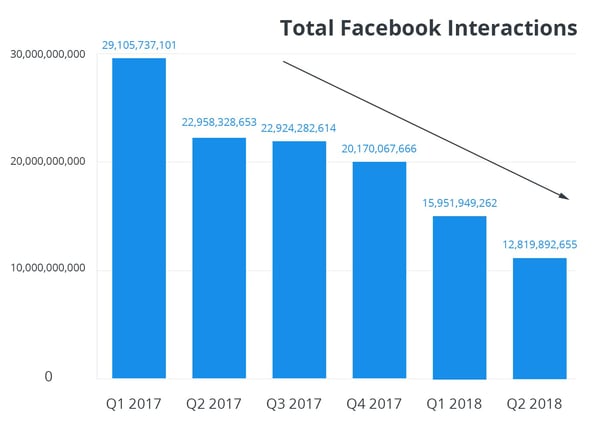
Source: Buffer
The numbers don’t look great for individual page posts, either — as Buffer found that the average engagement there fell nearly two-thirds from 4,490 engagements per post, to 1,582.
2. Images, Not Video, Get the Highest Engagement
Despite Facebook’s encouragement to invest in more video — particularly live video — when it first announced its January algorithm change, the study found that images are the highest-engaged content type from Pages.
In retrospect, Facebook would later announce the launch of several new video tools, such as Watch and IGTV, which may have been foretold by its urging businesses to focus on live video — which, at the time, it said received 6X the engagement as non-live ones.
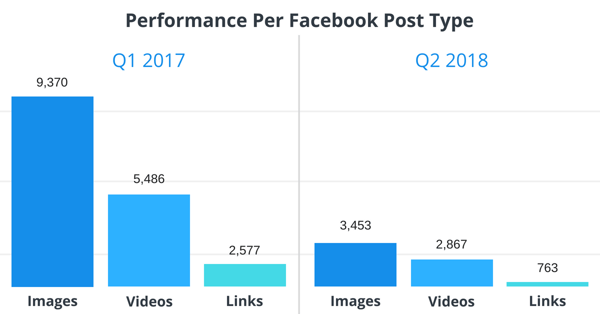
Source: Buffer
However, as the above chart indicates — interaction is down for most types of Page content. The average engagement per image post fell from 9,370 in Q1 2017, to 3,454 in Q2 2018: a drop of over 63%.
3. In Troubled Times, Pages Are Posting More Content
Over the past year, the number of posts per quarter from the Pages analyzed has jumped from 6.5 million to 8.1 million: an increase of 24%.
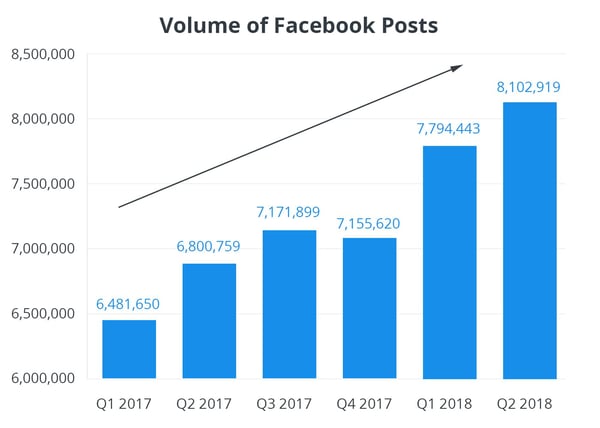
Source: Buffer
As Buffer notes, there’s long been a quantity vs. quality debate among social media marketers, with the question remaining: Does posting a greater volume result in more engagement?
That leads us to finding #4.
4. Posting 5X per Day = Optimal Engagement
There’s an idiom about “too much of a good thing”: that even the finest things in life, when presented in excess, can achieve the opposite effect.
According to this analysis, the same is true of posting frequency. Pages that posted less than once each day experienced the highest per-post engagement.
Source: Buffer
But there’s a catch: The Pages that posted at this rate also received the lowest amount engagement overall. So, while the per-post metrics showed promise, general Page engagement looked different.
5. Artists Had the Biggest Drop in Engagement
Finally, the study ranked 10 Page types to determine which category suffered the highest drop engagement. The hardest hit, it found, were artist Pages — which saw their average engagement fall by 70.6%.
The category experiencing the softest blow was retail brand, which saw a drop just shy of 50% — the overall average fall in Page engagement during the study’s time range.
Source: Buffer
Looking Ahead
As we project ahead to future quarters, it would not come as a great surprise if Page engagement continues to drop.
During its Q2 2018 earnings call, Facebook predicted a deceleration in platform growth over the next two quarters — which could result from the combination of decreased Page engagement, a narrowing number of advertising channels, and plateauing user growth.
And while Pages could expect to experience a similar, continued slowing of their own growth — it doesn’t mean that marketers should allow their social media strategies and efforts to lapse.
Instead, it’s recommended that social media strategies are reevaluated, and that the above findings and evolution of Facebook’s algorithm changes — as well as its own growth patterns — are incorporated into their execution.
“The best way to reach our audiences on Facebook is to study the data, experiment constantly, be open to learning,” write the study’s authors, “and take a growth mindset.”

Billion Dollar Business Models Explained: Uber, Amazon, Netflix, & More
Uber, Amazon, Netflix, Airbnb, and Tesla all have one thing in common: even though they’re some of the best brands in tech, the strength and viability of their business models are what propel them to the top of their industries.
A compelling brand image can attract a lot of attention and new customers, but without a sound and realistic business model to monetize all that attention and retain those customers, you’ll never grow or reach your potential as a business.
If you need some help refining your business model, check out how these top tech companies run the business side of things.
Billion Dollar Business Model Examples: Uber, Amazon, Netflix, Airbnb, and Tesla
Uber’s Business Model
2017 Revenue: $37 Billion
In 2009, Uber made it their mission to scrap the idea that taxis were the only way to get around a city. Today, Uber facilitates 15 million rides a day — without owning a single cab.
Uber achieved its monumental success so quickly by staying laser-focused on the speed, convenience, and cost of their service.
For example, customers can book a ride with the nearest drivers, see exactly how much their fare costs, and track their driver’s location all without leaving the app. Drivers can either reject or accept the ride request based on the user’s rating, and if they reject them, the rider’s request goes to the next nearest driver.
Riders can also cancel rides before or after their driver arrives, but they’ll have to pay a fee if they cancel their ride two minutes after requesting or if they take five minutes or longer to meet their driver.
Uber charges riders based on the estimated time and distance of their route and the current demand for rides in the area, which is billed directly to their credit card. To attract new drivers and retain current ones, Uber only keeps 20 – 25% of the fare and gives their drivers the rest.
Uber also charges customers a different fare depending on the type of car they want to ride in, which are Economy, Premium, Extra Seats, and More.
- Economy offers carpool opportunities with other riders or rides for one person or a group in a sedan.
- Premium offers Uber Black, which is a luxury ride with a professional driver.
- Extra Seats offers luxury rides for 6 people with professional drivers in a Black SUV or an Uber XL.
- More offers local taxi cab and wheelchair accessible rides.
Another way Uber makes money is through surge pricing. During times of high demand, like days with bad weather, rush hour, or holidays, they charge more per mile, based off the number of available drivers and ride requests in the area. It’s one of their most profitable revenue streams.
They also leverage their 40 million monthly active users and the visibility of their app as another way to make money. Restaurants, hotels, and other businesses can all advertise on the Uber app.
Uber’s other revenue streams include UberEATS, UberFreight, UberElevate, and their own line of self-driving cars.
Amazon’s Business Model
2017 Revenue: $177.8 Billion
With a market value that’s 46% larger than Wal-Mart, Target, Best Buy, Macy’s, Nordstrom, Kohl’s, JC Penney, and Sears combined, Amazon is one of the most successful companies in the world. And they can credit their company’s financial health to their constant innovation and entrance into different markets, which gives them a variety of revenue streams.
Here are the top four ways Amazon makes money:
Retail (67% of Net Sales)
The bulk of Amazon’s revenue comes from selling goods directly to consumers on their website. Since they order massive amounts of products from wholesalers, they can negotiate a cheaper cost and sell them for a lower price than their competition. They also ship their products faster because they can store inventory in their own network of warehouses. Amazon even manufactures and sells their own products, like the Amazon Echo and Alexa.
Amazon Marketplace (17% of Net Sales)
Amazon Marketplace is a platform that lets third-party sellers sell products on Amazon’s website. Sellers can also buy a service called Fulfillment By Amazon, which stores, packs, and ships your products from Amazon’s world class facilities.
Amazon earns commission off each of their third-party sellers’ sales, which is a hefty sum since 51% of their sellers make over $100,000 a year on the platform. Sellers can also buy ads that list their products on the top of Amazon’s search results and homepage.
Amazon Web Services (9% of Net Sales)
Amazon Web Services offer cloud computing infrastructure services to businesses for a yearly subscription fee. Migrating your company’s data to the cloud lets your customers access your software on any computer at any time through the internet, like Netflix.
Amazon Prime (5% of Net Sales)
By paying a subscription fee every month, Amazon Prime gives customers access to free two-day shipping on all items, free same-day shipping in eligible zipcodes, streaming services like Amazon Video, Amazon Music, and Twitch Prime, unlimited photo storage on Amazon Photos, the Kindle library, audio books, and much more.
Netflix’s Business Model
2017 Revenue: $11.6 Billion
If you work in the SaaS industry, Netflix’s business model is probably pretty similar to your company’s. Their subscribers pay for the service each month and can cancel their subscription anytime. To retain as much loyalty and revenue as possible, Netflix needs to focus on keeping their customer relationships long and healthy.
Fortunately, big data and analytics lets Netflix keep their customers happy. Knowing their subscribers’ behavior and preferences on the platform allows Netflix to personalize each of their customers experience with unique recommendations. They can also predict and understand if the content they buy and create will actually resonate with their subscribers.
Streaming and DVD services are Netflix’s only two revenue streams, but they rake in almost $1 billion per month.
To attract new subscribers to their streaming services, Netflix offers people a free month trial of any of their plans, and after it ends, they can continue their membership by paying for one of three plans:
- The basic plan for $7.99 per month, which lets you watch Netflix on one screen only
- The standard plan for $10.99 per month, which lets you watch Netflix on two simultaneous screens
- The premium plan for $13.99, which lets you watch Netflix on four simultaneous screens
The majority of Netflix’s revenue comes from streaming, but they won’t abandon their DVD service anytime soon. It helped them enter the movie rental market, eventually tear down Blockbuster, and still makes a profit today.
Netflix’s DVD and Blu-Ray arm offers free 2-day shipping and no late fees. You can subscribe to one of three plans:
- A starter plan for $4.99 per month, which lets you watch one disc at a time with a two disc limit per month
- A standard plan for $7.99 per month, which lets you watch one disc at a time with an unlimited amount of discs per month
- A premier plan for $11.99 per month, which lets you watch two discs at a time with an unlimited amount of discs per month
Airbnb’s Business Model
2017 Revenue: $2.6 Billion
Airbnb is like the Uber of accommodation. They connect over 140,000 travelers with hosts in more than 190 countries everyday, without owning a single property.
Airbnb blew up in popularity because they gave hosts an opportunity to run a side hustle that has no overhead costs and attracted travelers with more affordable and authentic visits.
Guests can book a room in a local hosts’ home that’s much cheaper than a hotel — most hosts don’t depend on Airbnb as their main source of income, like a hotel does. And staying at a local’s home better immerses guests in their destination’s culture.
Airbnb also has a relatively simple listing and booking process for hosts and guests. When a host lists their property details like pricing, amenities, and location on Airbnb, the platform will send a freelance photographer to take professional photos of their home to put on their listing.
When travelers search for a place to stay, they can filter properties by price, amenities, and city. Once they book the property through Airbnb, the host has to approve the guest. Hosts can gauge their potential guests’ character by looking at their reviews from past hosts on Airbnb and their social media profiles. The guests and hosts can rate and review each other after the stay.
Airbnb’s business model is unique because they earn revenue from both their hosts and guests. Since they offer free listings to their hosts and free membership to their guests, they collect a commission fee from hosts and a transaction free from guests. Airbnb charges hosts a 3% fee for every booking they get through the platform and charge guests 5-15% of their booking cost.
They also offer a subscription to their own travel magazine, partner with hosts who provide work-ready homes for business travelers, and partner with locals who lead guests through immersive experiences in their community.
Tesla’s Business Model
2017 Revenue: $11.7 Billion
Tesla is unlike any other car company. They engineered and introduced luxury sport cars that run entirely on electricity and entered the automotive industry with an uproven business model: a direct sales approach complemented by superior customer service and their free Supercharger network.
Direct Sales
Most car manufacturers sell their cars through franchised dealerships, but Tesla wanted to cut the middleman out and create a better buying experience by selling their cars in flashy showrooms and galleries. Tesla also lets people customize and purchase cars on their website.
Service Centers
At Tesla’s service centers, customers can charge or service their cars. And by building service centers in certain areas, they hope their commitment to customer service will catch the attention of other luxury car owners and generate more demand.
The car company also offers the help of Tesla Rangers — mobile technicians who service their customers’ vehicles at their house. They can even fix a car’s software issues online since Teslas can send data to technicians through the internet.
Supercharger Stations
Tesla’s network of supercharger stations lets customers fully charge their cars for free in just 30 minutes. Tesla built this network and offer free charging because they know no one will buy their cars if it’s hard to charge them. An ample amount of charging stations around the country will accelerate the acceptance of electric cars, just like how gas stations enabled the world-wide adoption of gas cars.
Other Revenue Streams
Tesla also sells home charging installation services, energy storage systems for homes or businesses, solar panels, solar roofing, powertrain systems and components to other auto manufacturers, and will start producing an electric semi-truck in 2019.
What Business Model is Right For Your Company?
Choosing the right business model for your company is crucial, but you should take your time when considering your options. Even though each of these companies rake in billions of dollars of revenue each year, they all have different business models.
There’s no business model that’s perfect for every company. But if you can discover some untapped opportunities in your market and truly understand your customer’s pain and pleasure points, you could find the perfect business model for your company.
