
Flexible Schedules: The Good, Bad, & the Surprising
There’s plenty of science to suggest flexible work schedules are critical for happier, more productive employees, and a more successful company overall.
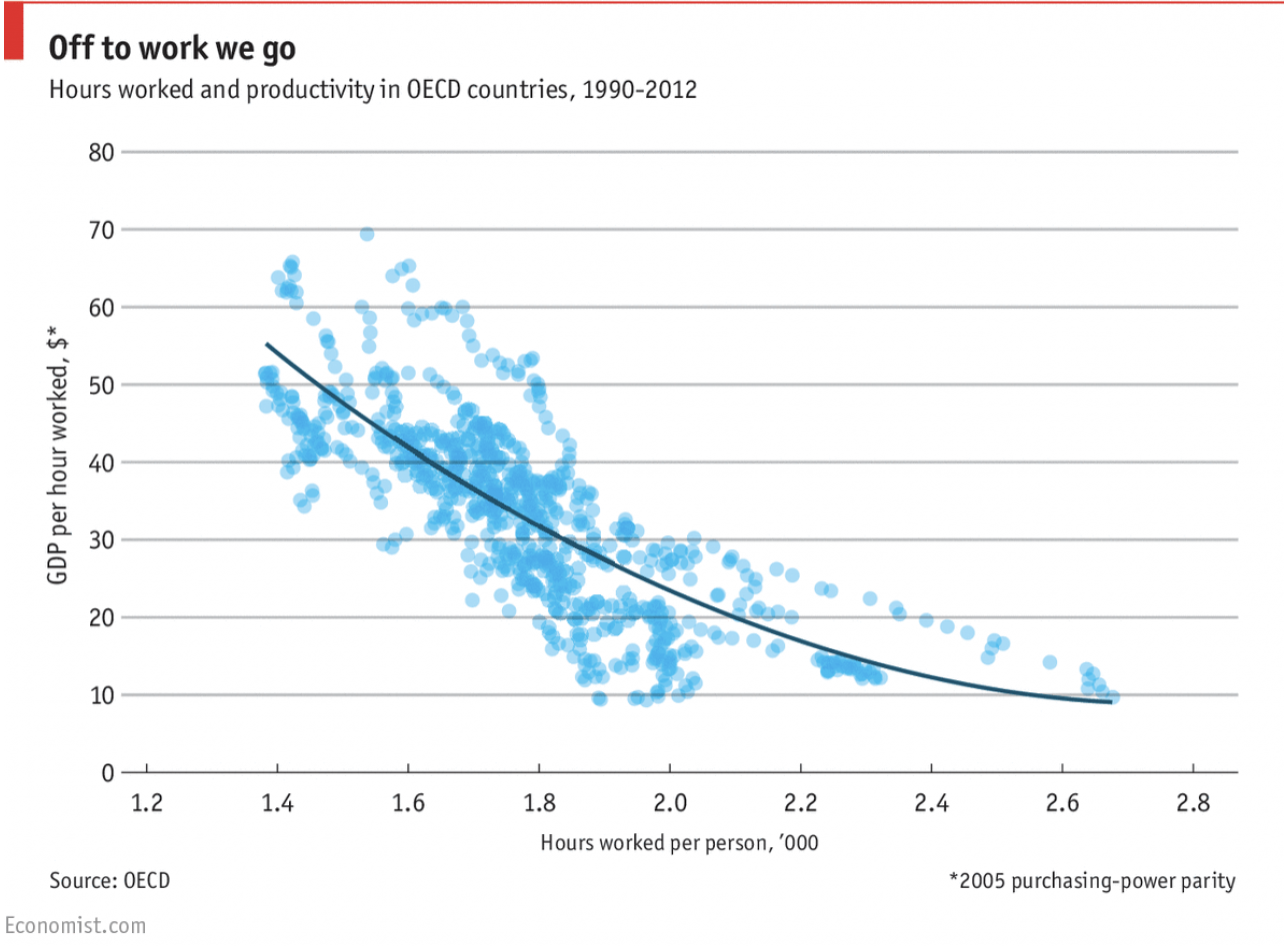
For instance, take a look at this graph from The Economist, which shows that working fewer hours correlates with higher levels of productivity in the form of increased GDP (gross domestic product). I guess there’s something to be said for the old “work hard, play hard” motto.
Additionally, Jabra, a Denmark-based electronics company, found that, in 2018, four times more employees believe working from home to be the most productive option, compared to people’s perceptions in 2015. In recent years, more people prefer to work from home and believe it to be more productive than working in an office.
But let’s put the data aside for a second. I’m willing to bet we’ve all had those afternoons when we’ve felt entirely unproductive, but still sat at our desks until five p.m. anyway just to clock in the hours.
Or, we’ve wished we could have the mornings free to run errands and spend time with family, but a traditional work schedule doesn’t leave us the option to meet those demands.
Ultimately, we’ve all been in situations where our rigid work schedule has been a hinderance to our productivity in the office, and our priorities outside of it. A flexible work schedule could allow you to work when you’re most productive, and give you the autonomy you need to create an ideal work-life balance, however that looks to you.
There are pros and cons to flexible schedules, just like there are pros and cons to a rigid nine-to-five job. But, as the Jabra study indicates, flexible schedules are becoming more typical nowadays, so we’ve compiled a list of everything good, bad, and surprising about implementing flexible work hours at your office.
What is a flexible work schedule?
A flexible work schedule allows employees a level of autonomy to create their own schedules and find a work-life balance that works for them. Rather than a traditional, 40 hour nine-to-five work week, a flexible schedule allows employees to vary the times they begin and end their work day. There is still structure to a flexible work schedule: employees must work a certain number of hours, or come up with an alternative agreement with their employer regarding office hours verus remote time.
Flexible Schedules: The Good
1. You can adapt your schedule to fit family needs.
If you make your own hours, you can ensure those hours adapt to your family and social life demands. For instance, we have parents at HubSpot who make their hours fit around their children’s daycare schedules: they work early in the morning, take a break in the afternoon to pick up their kids, and then resume work later in the evening. Or perhaps your flex schedule is less rigid than that — maybe you just want time to see your son’s soccer games, or your sister’s graduation, and you need flexibility to manipulate your work schedule without taking time off.
Emily MacIntyre, HubSpot’s Marketing Team Development Manager, agrees that there are pros and cons to flexible schedules in regards to parenting: “There are often in-office events after work that I have to miss out on, because I need to be home. But I get to see my daughter, and spend time with her each night, so it’s a trade-off.”
Ultimately, a flexible schedule can go a long way towards maintaining a healthy work-life balance and protecting important relationships in your life.
2. You can indulge in self-care.
It might sound strange, but having the option to occasionally put your personal needs before work can help you find more joy throughout your day. Plus, in a University of Warwick study, happiness made people approximately 12% more productive. Self-care can be anything from a noon cycling class to finding time to meditate in the park — anything that makes you feel better able to tackle your responsibilities with a clear mind.
3. Your employees can pursue passions outside of work.
Unfortunately, your employee’s passions can’t always fit outside a nine-to-five work schedule. Sometimes that poetry class starts at four, and other times your hiking group leaves at noon on a Friday.
There are a few reasons it’s important to give employees the freedom to pursue other passions. First, passion can encourage innovative ideas. The more well-rounded your employees are, the more likely they are to apply unconventional solutions to your company’s problems. Also, as previously mentioned, happier employees are more productive. And, third, if your employees can find outlets outside of work to pursue their passions, they’re less likely to feel unsatisfied in their current role.
4. Your employees can work whenever they’re most productive.
For me personally, this is the single most important benefit to flexible schedules: I work insanely well in the mornings. On some mornings, it feels like I can finish two-weeks worth of work before noon. But then, around three or four p.m., it becomes a struggle to even write a grocery list. My brain just doesn’t seem to function past that time. On the other hand, one of my coworkers does best when he can come into the office around 10 a.m., and then work, head-down, later into the night.
Tony Schwartz, author of The Way We’re Working Isn’t Working, writes about the importance of working like a sprinter. He says it’s important to work intensely and distraction-free for a period of time, but equally critical to take regular renewal breaks to recover from that intense work period.
Ultimately, your employees aren’t all going to be productive at the exact same time. Flexibility allows them to become better workers — they will get everything accomplished during the hours they want, and they won’t feel burnt out from sitting at their desks during times they are unproductive.
5. Your employees can avoid rush hour.
This might seem trivial, but it’s not — in 2017 in Boston alone, a rush hour commuter wasted approximately two and a half full days out of a year sitting in a car. That’s almost a full 60 wasted hours where they could have been spending time mentally preparing for their day. A truly painful commute could even eventually drive employees to search for companies closer to home or with different hours. An easy way to improve employee satisfaction is to allow commuters the option to avoid traffic by leaving even just thirty minutes later.
One study by McGill University’s Charis Loong and colleagues found that “satisfaction with travel mode is associated with higher odds of feeling energized and being punctual,” and “the strain of the daily commute can negatively impact performance at work.” Unfortunately, a terrible commute can interfere with your employee’s levels of energy and productivity, so it’s important to consider alternative options.
6. You give employees a sense of autonomy.
People like control over their schedules — it enables them to feel fully in charge of their work and personal lives, and makes them feel like their company trusts them. HubSpot’s Culture Code recognizes the importance of autonomy, saying, “Results matter more than the number of hours we work. Results matter more than where we produce them.” And, referring to the Economist graph we mentioned earlier, we can see it’s true — people are more productive even when they work fewer hours, so why not let people choose whichever time they need to commit to deliver the best results?
Siobhán McGinty, a Campaign Marketing Manager in HubSpot’s Dublin office, says her flexible schedule gives her the opportunity to “live my best life. I enjoy getting up at 7 a.m., clearing my emails, enjoying my coffee and getting some work out of the way early on in the day. I also enjoy taking two hours off in the middle of the day to go to the gym, or do yoga, or — if it’s pay day — get a massage.”
7. You can recruit and retain better talent.
Flexible schedules have been shown to increase employee productivity and overall morale. Ultimately, you can use the benefits of a flexible schedule as a selling point for hiring better talent.
The Creative Group surveyed marketing and advertising executives, and found 33% are offered flexible schedules and remote options. Offering flexible schedules is a good way for your company to attract talent and stand out from competitors in the industry, particularly as flex hours and remote work rise in popularity and employees begin to expect it from their next job.
Flexible Schedules: The Bad
We’ve covered seven different ways flexible schedules can benefit both employers and employees. But like any work arrangement, there are also some downsides to consider before committing to becoming a flexible workplace. Here are a few risks associated with flexible schedules.
1. It’s more difficult for you to arrange meetings with your team.
If everyone has different schedules, figuring out everyone’s availability can get tricky — for instance, perhaps you can’t have any nine a.m. meetings because three people on your team don’t arrive until 10 a.m. This gets even harder if your team works around the globe, or if you need to schedule meetings with clients who work the traditional nine-to-five.
2. Lines between work and life blur more drastically.
Maybe you’re working from home and your roommate asks you to go to a cycling class at noon, and suddenly it’s three p.m. and you’ve still got a ton of work to do. Or maybe your kids interrupt meetings and calls with pleas for trips to the pool. Whatever the case, life intervenes more drastically when you’re working flexible hours, particularly if you’re working remote. Plus, if all the people in your life work nine-to-five, they might try to pressure you into plans that are inconvenient for your schedule, since you “make your own schedule anyway.” Drawing boundaries between personal life and work can get difficult.
Besides having a tough time getting into work mode when you’re tempted by your personal life, it’s also often challenging to shut off “work mode” when you can technically work whenever you want. Maybe it’s eight p.m. and you simply can’t relax when your desk, and all those piles of work, is within view. During those instances, it’s important you separate work from the rest of your life as much as possible, even creating a separate office space and closing the door when you leave.
3. You won’t find much structure at home.
If you’re working remote, there’s very little structure. With that freedom to take breaks, you might suddenly find you’re getting very little done. Working remotely often requires more focus and discipline than working in an office. You’ll need to set your own rigid structure and stick to it, or you might risk your performance sliding as you take more TV breaks or spend precious productivity hours folding laundry.
4. It can be difficult to create a bonded team.
If you’ve got a team that works from wherever, whenever, it can be hard to pencil in time to develop organic, authentic relationships between your team members. It just doesn’t happen as naturally as it would if everyone sat beside one another 9 to 5 and digressed into talks about the latest Bachelorette episode. One way to counteract this is to plan fun corporate team-building activities, but you might still need to work with everyone’s flex hours or remote time.
Siobhán McGinty admits remote work in particular can get lonely, so, “to overcome that, I set up virtual “water cooler chats” with people on the team if I have 15-30 mins between meetings. It also helps to maintain rapport.” She also says she “practiced” going remote by initially working from home a few days a week, and eventually working her way up to full-time remote, and admits while rewarding, it’s also difficult.
Flexible Schedules: The Surprising
We’ve explored some pros and cons of a flexible schedule for employees and employers, but there are some additional surprising facts you should know when deciding if flexible schedules is right for you and your company.
1. The more flexible your employees’ schedules are, the longer they’ll work.
If you’re worried about employees taking advantage of flexible hours and working an hour a day before hitting the beach, don’t be — Heejung Chung, a senior lecturer at University of Kent in the UK, conducted research with her colleague Yvonne Lott, and found there’s a tendency for people with more autonomy over their schedules to work longer hours, regardless of level of influence or job type. In fact, “this increase in working hours was greatest when workers had full atonomy over their working hours.”
One explanation for this is known as the gift exchange theory, which is the idea that you’re grateful when your employer gives you a flexible schedule and you see it as a gift, which you feel obligated to repay by working harder and longer. You want to prove you deserve the flexible schedule, so you push yourself to work over eight hours a day.
2. Flex hours make your employees happier — and their children.
A study conducted by the American Sociological Review found workers with flex hours slept better, felt healthier, and were less stressed than their nine-to-five counterparts. Overall, the group with flex hours felt happier than the group with a rigid schedule. But, most surprisingly, as noted by the New York Times, is “the effects even cascaded down to employees’ children, who reported less volatility around their own daily stresses; adolescents saw the quality of their sleep improve.” Happiness is contagious, and so is stress, so it makes sense parents with lower levels of stress and higher levels of happiness were able to spread those emotions to their children.
7. It might be harder to get flexible hours if you’re a woman.
A 2014 experiment by Furman University sociologist Christin Munsch showed 600 participants a transcript of a conversation between an employee asking for flexible hours and an HR representative. Shockingly, when participants assumed it was a man asking for flexible time, almost 70% said they’d be likely or very likely to approve the request, compared to 56% when they believed it was a woman making the request. There are other studies supporting the same hypothesis — that it’s harder for a woman to receive flex time than a man — here.
Munsch speculated the study’s results come from inherent gender biases when it comes to childcare: the participants might’ve felt impressed by a man’s desire to spend more time at home with children, while they might’ve felt a woman should find a better way to balance her home and work obligations. Of course, this varies immensely company to company and even country to country, but it’s important for employers to keep it in mind if they’re in charge of approving flexible work schedules for employees.
So what now?
Ultimately, providing flexible schedules for employees won’t work for every company or every department. For instance, if your employees work in the services industry and often speak both on the phone and in-person with clients, perhaps you need them to maintain a nine-to-five schedule. Hopefully, weighing these pros and cons will help you make the best decision for your team, or even brainstorm alternative ways to combat some of the negative consequences of a traditional work schedule.

What Is Digital Marketing?
What Is Digital Marketing?
Digital marketing encompasses all marketing efforts that use an electronic device or the internet. Businesses leverage digital channels such as search engines, social media, email, and their websites to connect with current and prospective customers.
With how accessible the internet is today, would you believe me if I told you the number of people who go online every day is still increasing?
It is. In fact, “constant” internet usage among adults increased by 5% in just the last three years, according to Pew Research. And although we say it a lot, the way people shop and buy really has changed along with it — meaning offline marketing isn’t as effective as it used to be.
Marketing has always been about connecting with your audience in the right place and at the right time. Today, that means you need to meet them where they are already spending time: on the internet.
Enter digital marketing — in other words, any form of marketing that exists online.
At HubSpot, we talk a lot about inbound marketing as a really effective way to attract, engage, and delight customers online. But we still get a lot of questions from people all around the world about digital marketing.
A seasoned inbound marketer might say inbound marketing and digital marketing are virtually the same thing, but there are some minor differences. And conversations with marketers and business owners in the U.S., U.K., Asia, Australia, and New Zealand, I’ve learned a lot about how those small differences are being observed across the world.
How Do You Define Digital Marketing?
Digital marketing is defined by the use of numerous digital tactics and channels to connect with customers where they spend much of their time: online. From the website itself to a business’s online branding assets — digital advertising, email marketing, online brochures, and beyond — there’s a spectrum of tactics that fall under the umbrella of “digital marketing.”
Digital Marketing Tactics and Examples
The best digital marketers have a clear picture of how each digital marketing campaign supports their overarching goals. And depending on the goals of their marketing strategy, marketers can support a larger campaign through the free and paid channels at their disposal.
A content marketer, for example, can create a series of blog posts that serve to generate leads from a new ebook the business recently created. The company’s social media marketer might then help promote these blog posts through paid and organic posts on the business’s social media accounts. Perhaps the email marketer creates an email campaign to send those who download the ebook more information on the company. We’ll talk more about these specific digital marketers in a minute.
Here’s a quick rundown of some of the most common digital marketing tactics and the channels involved in each one.
Search Engine Optimization (SEO)
This is the process of optimizing your website to “rank” higher in search engine results pages, thereby increasing the amount of organic (or free) traffic your website receives. The channels that benefit from SEO include:
- Websites.
- Blogs.
- Infographics.
Content Marketing
This term denotes the creation and promotion of content assets for the purpose of generating brand awareness, traffic growth, lead generation, and customers. The channels that can play a part in your content marketing strategy include:
- Blog posts.
- Ebooks and whitepapers.
- Infographics.
- Online brochures and lookbooks.
Want to learn and apply content marketing to your business? Check out HubSpot Academy’s free content marketing training resource page.
Social Media Marketing
This practice promotes your brand and your content on social media channels to increase brand awareness, drive traffic, and generate leads for your business. The channels you can use in social media marketing include:
- Facebook.
- Twitter.
- LinkedIn.
- Instagram.
- Snapchat.
- Pinterest.
- Google+.
Pay-Per-Click (PPC)
PPC is a method of driving traffic to your website by paying a publisher every time your ad is clicked. One of the most common types of PPC is Google AdWords, which allows you to pay for top slots on Google’s search engine results pages at a price “per click” of the links you place. Other channels where you can use PPC include:
- Paid ads on Facebook.
- Promoted Tweets on Twitter.
- Sponsored Messages on LinkedIn.
Affiliate Marketing
This is a type of performance-based advertising where you receive commission for promoting someone else’s products or services on your website. Affiliate marketing channels include:
- Hosting video ads through the YouTube Partner Program.
- Posting affiliate links from your social media accounts.
Native Advertising
Native advertising refers to advertisements that are primarily content-led and featured on a platform alongside other, non-paid content. BuzzFeed-sponsored posts are a good example, but many people also consider social media advertising to be “native” — Facebook advertising and Instagram advertising, for example.
Marketing Automation
Marketing automation refers to the software that serves to automate your basic marketing operations. Many marketing departments can automate repetitive tasks they would otherwise do manually, such as:
- Email newsletters.
- Social media post scheduling.
- Contact list updating.
- Lead-nurturing workflows.
- Campaign tracking and reporting.
Email Marketing
Companies use email marketing as a way of communicating with their audiences. Email is often used to promote content, discounts and events, as well as to direct people toward the business’s website. The types of emails you might send in an email marketing campaign include:
- Blog subscription newsletters.
- Follow-up emails to website visitors who downloaded something.
- Customer welcome emails.
- Holiday promotions to loyalty program members.
- Tips or similar series emails for customer nurturing.
Online PR
Online PR is the practice of securing earned online coverage with digital publications, blogs, and other content-based websites. It’s much like traditional PR, but in the online space. The channels you can use to maximize your PR efforts include:
- Reporter outreach via social media.
- Engaging online reviews of your company.
- Engaging comments on your personal website or blog.
Inbound Marketing
Inbound marketing refers to the “full-funnel” approach to attracting, engaging, and delighting customers using online content. You can use every digital marketing tactic listed above throughout an inbound marketing strategy.
What Does a Digital Marketer Do?
Digital marketers are in charge of driving brand awareness and lead generation through all the digital channels — both free and paid — that are at a company’s disposal. These channels include social media, the company’s own website, search engine rankings, email, display advertising, and the company’s blog.
The digital marketer usually focuses on a different key performance indicator (KPI) for each channel so they can properly measure the company’s performance across each one. A digital marketer who’s in charge of SEO, for example, measures their website’s “organic traffic” — of that traffic coming from website visitors who found a page of the business’s website via a Google search.
Digital marketing is carried out across many marketing roles today. In small companies, one generalist might own many of the digital marketing tactics described above at the same time. In larger companies, these tactics have multiple specialists that each focus on just one or two of the brand’s digital channels.
Here are some examples of these specialists:
SEO Manager
Main KPIs: Organic traffic
In short, SEO managers get the business to rank on Google. Using a variety of approaches to search engine optimization, this person might work directly with content creators to ensure the content they produce performs well on Google — even if the company also posts this content on social media.
Content Marketing Specialist
Main KPIs: Time on page, overall blog traffic, YouTube channel subscribers
Content marketing specialists are the digital content creators. They frequently keep track of the company’s blogging calendar, and come up with a content strategy that includes video as well. These professionals often work with people in other departments to ensure the products and campaigns the business launches are supported with promotional content on each digital channel.
Social Media Manager
Main KPIs: Follows, Impressions, Shares
The role of a social media manager is easy to infer from the title, but which social networks they manage for the company depends on the industry. Above all, social media managers establish a posting schedule for the company’s written and visual content. This employee might also work with the content marketing specialist to develop a strategy for which content to post on which social network.
(Note: Per the KPIs above, “impressions” refers to the number of times a business’s posts appear on the newsfeed of a user.)
Marketing Automation Coordinator
Main KPIs: Email open rate, campaign click-through rate, lead-generation (conversion) rate
The marketing automation coordinator helps choose and manage the software that allows the whole marketing team to understand their customers’ behavior and measure the growth of their business. Because many of the marketing operations described above might be executed separately from one another, it’s important for there to be someone who can group these digital activities into individual campaigns and track each campaign’s performance.
Inbound Marketing vs. Digital Marketing: Which Is It?
On the surface, the two seem similar: Both occur primarily online, and both focus on creating digital content for people to consume. So what’s the difference?
The term “digital marketing” doesn’t differentiate between push and pull marketing tactics (or what we might now refer to as ‘inbound’ and ‘outbound’ methods). Both can still fall under the umbrella of digital marketing.
Digital outbound tactics aim to put a marketing message directly in front of as many people as possible in the online space — regardless of whether it’s relevant or welcomed. For example, the garish banner ads you see at the top of many websites try to push a product or promotion onto people who aren’t necessarily ready to receive it.
On the other hand, marketers who employ digital inbound tactics use online content to attract their target customers onto their websites by providing assets that are helpful to them. One of the simplest yet most powerful inbound digital marketing assets is a blog, which allows your website to capitalize on the terms which your ideal customers are searching for.
Ultimately, inbound marketing is a methodology that uses digital marketing assets to attract, engage, and delight customers online. Digital marketing, on the other hand, is simply an umbrella term to describe online marketing tactics of any kind, regardless of whether they’re considered inbound or outbound.
Does Digital Marketing Work for All Businesses?
Digital marketing can work for any business in any industry. Regardless of what your company sells, digital marketing still involves building out buyer personas to identify your audience’s needs, and creating valuable online content. However, that’s not to say all businesses should implement a digital marketing strategy in the same way.
B2B Digital Marketing
If your company is business-to-business (B2B), your digital marketing efforts are likely to be centered around online lead generation, with the end goal being for someone to speak to a salesperson. For that reason, the role of your marketing strategy is to attract and convert the highest quality leads for your salespeople via your website and supporting digital channels.
Beyond your website, you’ll probably choose to focus your efforts on business-focused channels like LinkedIn where your demographic is spending their time online.
B2C Digital Marketing
If your company is business-to-consumer (B2C), depending on the price point of your products, it’s likely that the goal of your digital marketing efforts is to attract people to your website and have them become customers without ever needing to speak to a salesperson.
For that reason, you’re probably less likely to focus on ‘leads’ in their traditional sense, and more likely to focus on building an accelerated buyer’s journey, from the moment someone lands on your website, to the moment that they make a purchase. This will often mean your product features in your content higher up in the marketing funnel than it might for a B2B business, and you might need to use stronger calls-to-action (CTAs).
For B2C companies, channels like Instagram and Pinterest can often be more valuable than business-focused platforms LinkedIn.
What Are the Benefits of Digital Marketing?
Unlike most offline marketing efforts, digital marketing allows marketers to see accurate results in real time. If you’ve ever put an advert in a newspaper, you’ll know how difficult it is to estimate how many people actually flipped to that page and paid attention to your ad. There’s no surefire way to know if that ad was responsible for any sales at all.
On the other hand, with digital marketing, you can measure the ROI of pretty much any aspect of your marketing efforts.
Here are some examples:
Website Traffic
With digital marketing, you can see the exact number of people who have viewed your website’s homepage in real time by using digital analytics software, available in marketing platforms like HubSpot.
You can also see how many pages they visited, what device they were using, and where they came from, amongst other digital analytics data.
This intelligence helps you to prioritize which marketing channels to spend more or less time on, based on the number of people those channels are driving to your website. For example, if only 10% of your traffic is coming from organic search, you know that you probably need to spend some time on SEO to increase that percentage.
With offline marketing, it’s very difficult to tell how people are interacting with your brand before they have an interaction with a salesperson or make a purchase. With digital marketing, you can identify trends and patterns in people’s behavior before they’ve reached the final stage in their buyer’s journey, meaning you can make more informed decisions about how to attract them to your website right at the top of the marketing funnel.
Content Performance and Lead Generation
Imagine you’ve created a product brochure and posted it through people’s letterboxes — that brochure is a form of content, albeit offline. The problem is that you have no idea how many people opened your brochure or how many people threw it straight into the trash.
Now imagine you had that brochure on your website instead. You can measure exactly how many people viewed the page where it’s hosted, and you can collect the contact details of those who download it by using forms. Not only can you measure how many people are engaging with your content, but you’re also generating qualified leads when people download it.
Attribution Modeling
An effective digital marketing strategy combined with the right tools and technologies allows you to trace all of your sales back to a customer’s first digital touchpoint with your business.
We call this attribution modeling, and it allows you to identify trends in the way people research and buy your product, helping you to make more informed decisions about what parts of your marketing strategy deserve more attention, and what parts of your sales cycle need refining.
Connecting the dots between marketing and sales is hugely important — according to Aberdeen Group, companies with strong sales and marketing alignment achieve a 20% annual growth rate, compared to a 4% decline in revenue for companies with poor alignment. If you can improve your customer’s’ journey through the buying cycle by using digital technologies, then it’s likely to reflect positively on your business’s bottom line.
What Types of Digital Content Should I Create?
The kind of content you create depends on your audience’s needs at different stages in the buyer’s journey. You should start by creating buyer personas (use these free templates, or try makemypersona.com) to identify what your audience’s goals and challenges are in relation to your business. On a basic level, your online content should aim to help them meet these goals, and overcome their challenges.
Then, you’ll need to think about when they’re most likely to be ready to consume this content in relation to what stage they’re at in their buyer’s journey. We call this content mapping.
With content mapping, the goal is to target content according to:
- The characteristics of the person who will be consuming it (that’s where buyer personas come in).
- How close that person is to making a purchase (i.e., their lifecycle stage).
In terms of the format of your content, there are a lot of different things to try. Here are some options we’d recommend using at each stage of the buyer’s journey:
Awareness Stage
- Blog posts. Great for increasing your organic traffic when paired with a strong SEO and keyword strategy.
- Infographics. Very shareable, meaning they increase your chances of being found via social media when others share your content. (Check out these free infographic templates to get you started.)
- Short videos. Again, these are very shareable and can help your brand get found by new audiences by hosting them on platforms like YouTube.
Consideration Stage
- Ebooks. Great for lead generation as they’re generally more comprehensive than a blog post or infographic, meaning someone is more likely to exchange their contact information to receive it.
- Research reports. Again, this is a high value content piece which is great for lead generation. Research reports and new data for your industry can also work for the awareness stage though, as they’re often picked-up by the media or industry press.
- Webinars. As they’re a more detailed, interactive form of video content, webinars are an effective consideration stage content format as they offer more comprehensive content than a blog post or short video.
Decision Stage
- Case studies. Having detailed case studies on your website can be an effective form of content for those who are ready to make a purchasing decision, as it helps you positively influence their decision.
- Testimonials. If case studies aren’t a good fit for your business, having short testimonials around your website is a good alternative. For B2C brands, think of testimonials a little more loosely. If you’re a clothing brand, these might take the form of photos of how other people styled a shirt or dress, pulled from a branded hashtag where people can contribute.
How Long Will It Take to See Results From My Content?
With digital marketing, it can often feel like you’re able to see results much faster than you might with offline marketing due to the fact it’s easier to measure ROI. However, it ultimately depends on the scale and effectiveness of your digital marketing strategy.
If you spend time building comprehensive buyer personas to identify the needs of your audience, and you focus on creating quality online content to attract and convert them, then you’re likely to see strong results within the first six months.
If paid advertising is part of your digital strategy, then the results come even quicker — but it’s recommended to focus on building your organic (or ‘free’) reach using content, SEO, and social media for long-term, sustainable success.
online advertising and purchasing email lists, there is undoubtedly some expense. What it costs comes down to what kind of visibility you want to receive as a result of the advertising.
For example, to implement PPC using Google AdWords, you’ll bid against other companies in your industry to appear at the top of Google’s search results for keywords associated with your business. Depending on the competitiveness of the keyword, this can be reasonably affordable, or extremely expensive, which is why it’s a good idea to focus building your organic reach, too.
How Does Mobile Marketing Fit Into My Digital Marketing Strategy?
Another key component of digital marketing is mobile marketing. In fact, smartphone usage as a whole accounts for 69% of time spent consuming digital media in the U.S., while desktop-based digital media consumption makes up less than half — and the U.S. still isn’t mobile’s biggest fan compared to other countries.
This means it’s essential to optimize your digital ads, web pages, social media images, and other digital assets for mobile devices. If your company has a mobile app that enables users to engage with your brand or shop your products, your app falls under the digital marketing umbrella, too.
Those engaging with your company online via mobile devices need to have the same positive experience as they would on desktop. This means implementing a mobile-friendly or responsive website design to make browsing user-friendly for those on mobile devices. It might also mean reducing the length of your lead generation forms to create a hassle-free experience for people downloading your content on-the-go. As for your social media images, it’s important to always have a mobile user in mind when creating them as image dimensions are smaller on mobile devices, meaning text can be cut-off.
There are lots of ways you can optimize your digital marketing assets for mobile users, and when implementing any digital marketing strategy, it’s hugely important to consider how the experience will translate on mobile devices. By ensuring this is always front-of-mind, you’ll be creating digital experiences that work for your audience, and consequently achieve the results you’re hoping for.
I’m Ready to Try Digital Marketing. Now What?
If you’re already doing digital marketing, it’s likely that you’re at least reaching some segments of your audience online. No doubt you can think of some areas of your strategy that could use a little improvement, though.
That’s why we created Why Digital Marketing? The Essential Guide to Marketing Your Brand Online — a step-by-step guide to help you build a digital marketing strategy that’s truly effective, whether you’re a complete beginner or have a little more experience. You can download it for free here.

The Ultimate Guide to the Best Productivity Apps
To say that I’m a planner is an understatement. I’m always making to-do lists and live by my calendar that has repeat reminders for weekly and monthly things I need to get done. When “The Life Changing Magic Of Tidying Up” became popular, I felt instantly validated.
The problem was that all this planning and list making and calendar organization — well it wasn’t actually very organized. I’d have a few different notebooks and sticky notes scattered throughout my apartment, car, and various bags for work. My calendar was stuffed with random papers and often got left at home or work — never where I was when I needed it most.
So you can imagine that it was actually “life changing” when I discovered a few key productivity apps for my phone. Now, I had my to-do lists with me at all times. (Let’s face it: Are we ever more than a few feet away from our phones?) I could sync my calendars and share them with friends and family to keep us all on track. I could get push notifications to remind me to make that doctor’s appointment 6 months from now and send a friend a birthday message.
It’s no surprise that productivity apps have become so popular. Most of us have too many priorities, commitments, work, and other things — and not enough time. But luckily, there are apps — most of them free — you can download to make your life easier, more balanced, more productive, and most importantly, more in control of your time. Check out this list of some of the year’s most popular apps, organized by category. And download a few to become the most efficient version of yourself.
Time Management & Scheduling Apps
If you’re someone who admittedly needs a little help in the organization department, or if you’re a “Type A” personality who loves planning, then time management and scheduling apps could be a great option for you. These apps help with short- and long-term planning, as well as efficiency, so you can enjoy as much free time as possible.
Blink
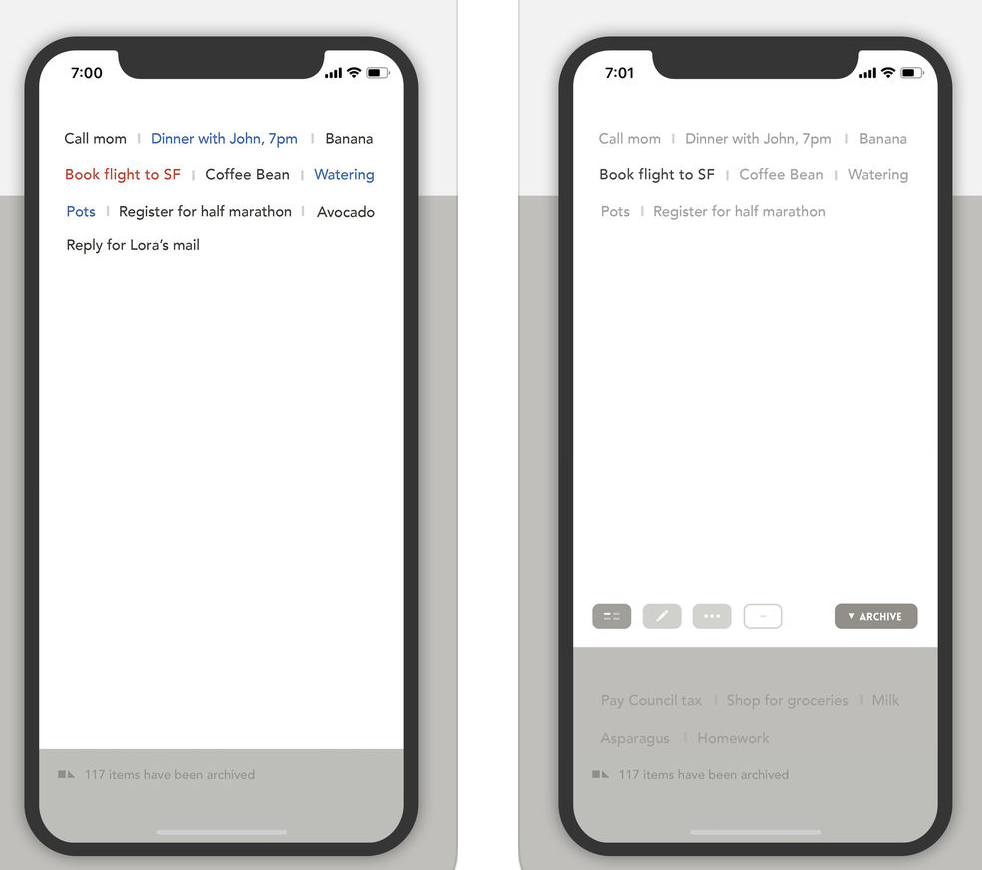
You want to plan out your days and create to-do lists, but you’re also a minimalist. Blink is the app for you.
For just $0.99, you can create quick memos and reminders in a non-list format. The horizontal layout of information is beneficial to someone who prefers a unique way to list tasks and create reminders or repeating notifications.
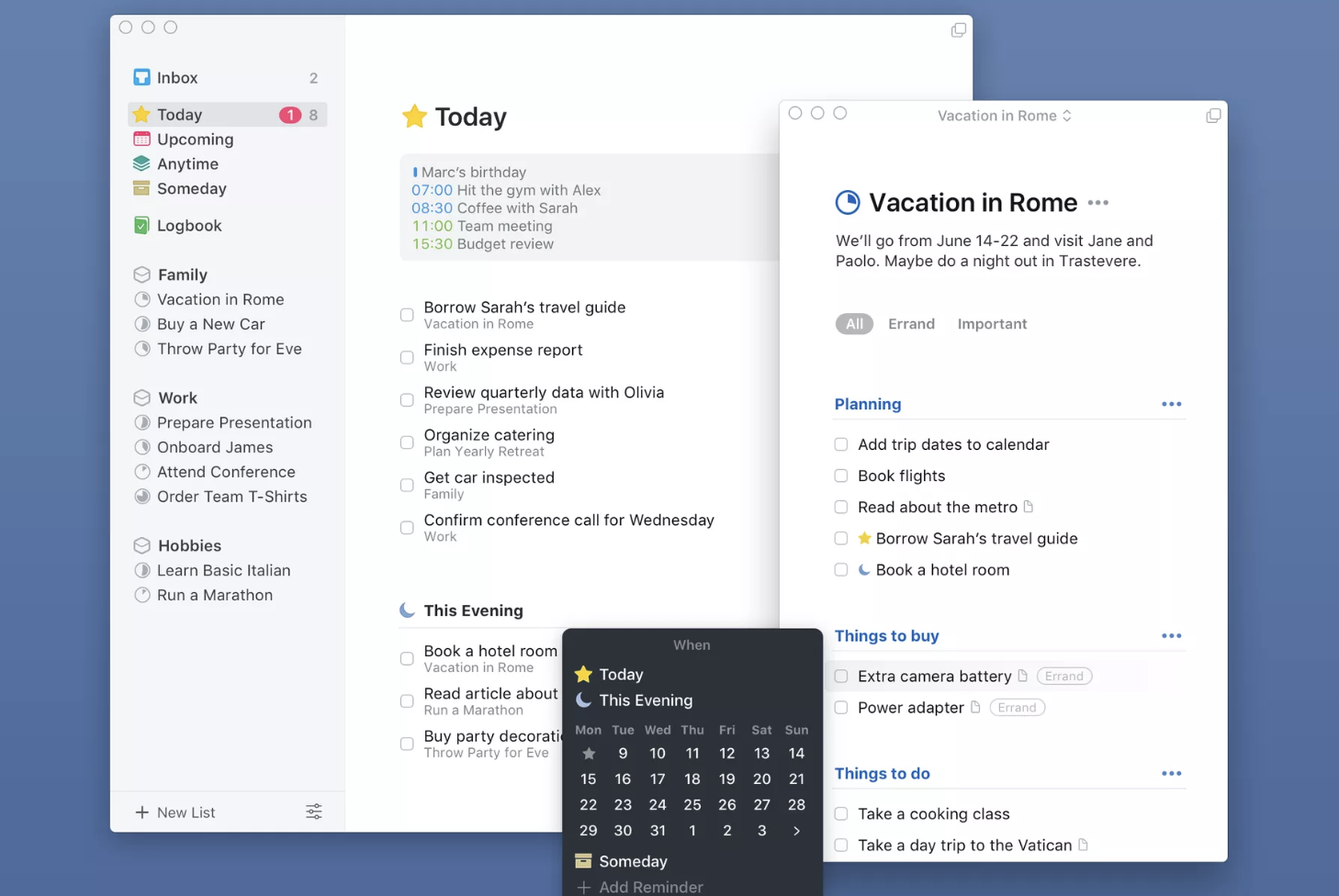
Things
If you’re somebody who loves to organize your tasks by the time of the day, Things may be of interest to you. The app, which costs $9.99, has a feature that helps you manage your time by separating your daily tasks into three sections: Today, This Evening, and Tomorrow.
Things also links your to-do lists with your other devices, like your laptop, iPad, etc. In addition to tracking tasks, you can set both short- and long-term goals, and check off the steps that you complete along the way.
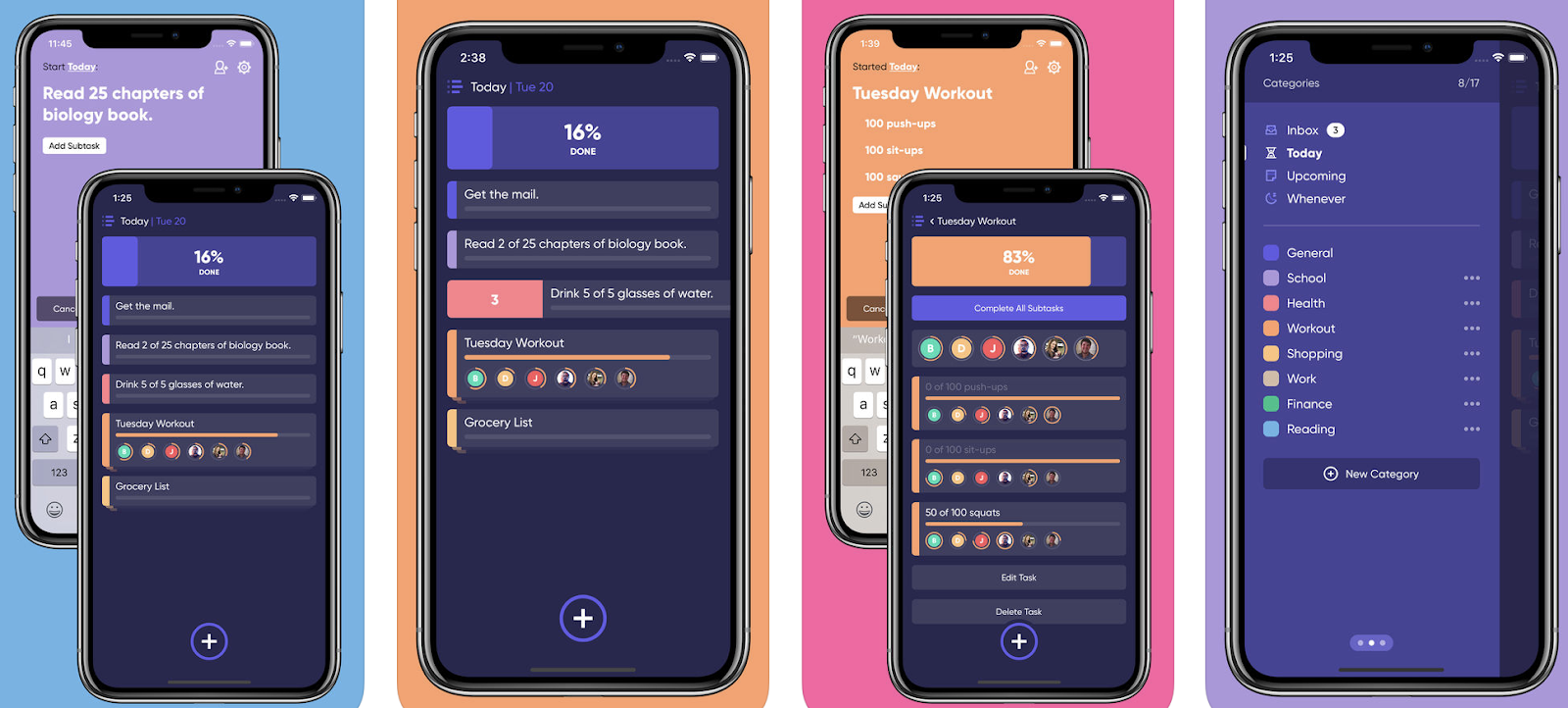
Taskful
Taskful’s progress bar takes completing your to-do list to a new level. The bar moves forward as you continue to check off your tasks throughout the day, giving you a sense of accomplishment. The app even tracks your steps so you can stay in line with both your work and health goals.
Users can create an inbox in Taskful that syncs with other devices and sends email reminders. The app even pushes encouraging messages throughout the day to your device to keep users motivated. If you’re a fan of bright colors, you’ll enjoy the app’s aesthetic as well. Added bonus: Taskful is free.
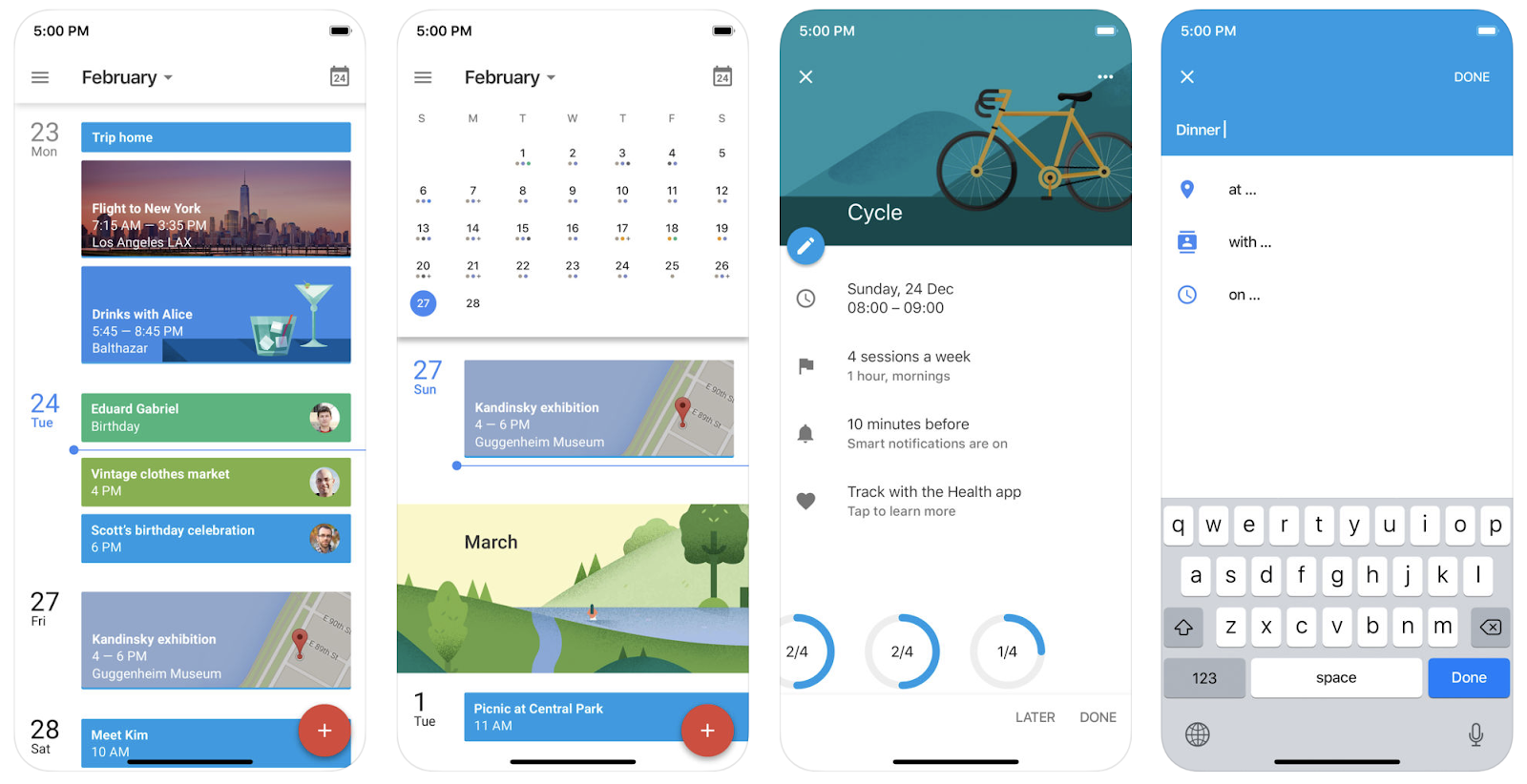
If you have a Gmail account, chances are you’ve heard about Google Calendar. The app gives users smart suggestions to help them be more productive during the day. These suggestions include ways to easily find times for meetings as well as how to quickly book meeting rooms and locations.
You can invite people to join events on your calendar and create repeating notifications for personal (and group) events or reminders. If you create tasks from your email and want everything to seamlessly integrate, Google Calendar may be the best fit for you.
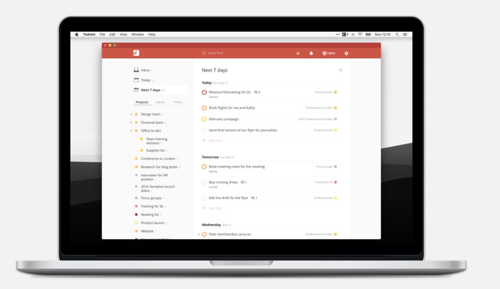
Todoist
With Todoist, a user can remind themselves of tasks they need to complete by quickly jotting them down in the app in the same way that you might text a friend. The app will interpret your message and set a task for you based off of the language you used. You can even use a hashtag to categorize the reminder.
For example, if you write, “Send in final draft of paper tomorrow by 4 p.m. #journalism,” the app will then set a reminder for you at 4 p.m. tomorrow in your “Journalism” project. Todoist, which is free, also allows you to effectively manage group work by assigning tasks to different people.
Additionally, you can integrate Todoist with over 60 other apps, including Amazon, Alexa, Dropbox, and Slack, making this a great option for someone who wants to connect their personal to-do list with their workplace to-do list.
Focus Apps
Do you ever find yourself aimlessly browsing the internet? Scrolling through your Instagram feed even though you know there is significantly more important work to be done? Staying focused is hard these days — distractions are everywhere. Focus apps will help you stay in control of your tasks and manage your time more effectively.
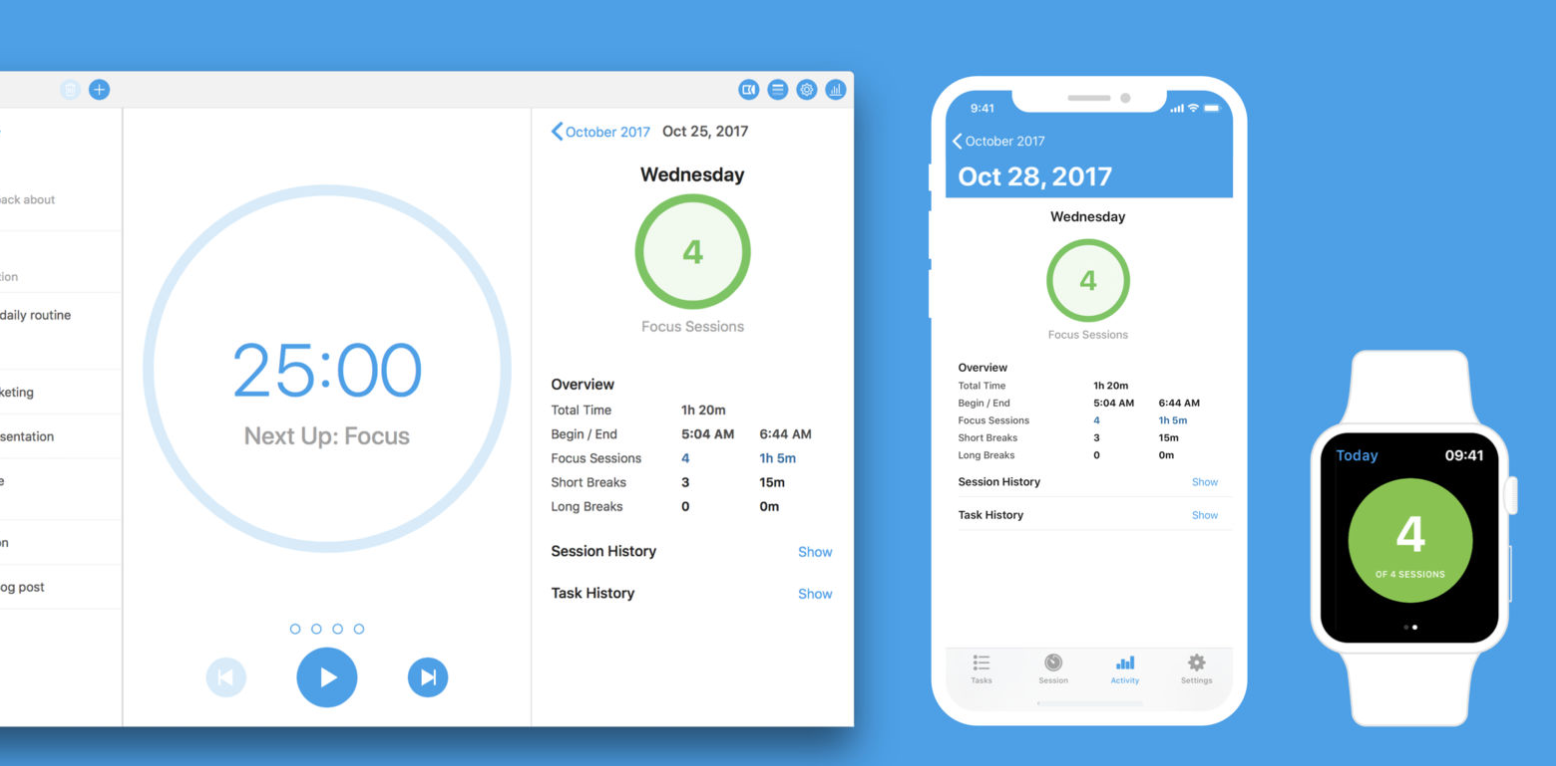
Focus
Are you someone who likes to work in short bursts? Then maybe take a walk, listen to some music, check your emails, or send a text? Focus might be a great addition to your routine.
This free app uses the Pomodoro Technique and places individuals in “Focus Sessions” for 25 minutes at a time. During that 25-minute period, users focus on a task and try to get as much done as possible. After the session ends, they can take a short break. Once the individual completes four 25-minute sessions, they get a 15-20-minute break to do whatever they want.
This task manager also allows you to keep track of the work you have completed throughout the day, so you know what still needs to get done. This is a great option for someone seeking structure and motivation.
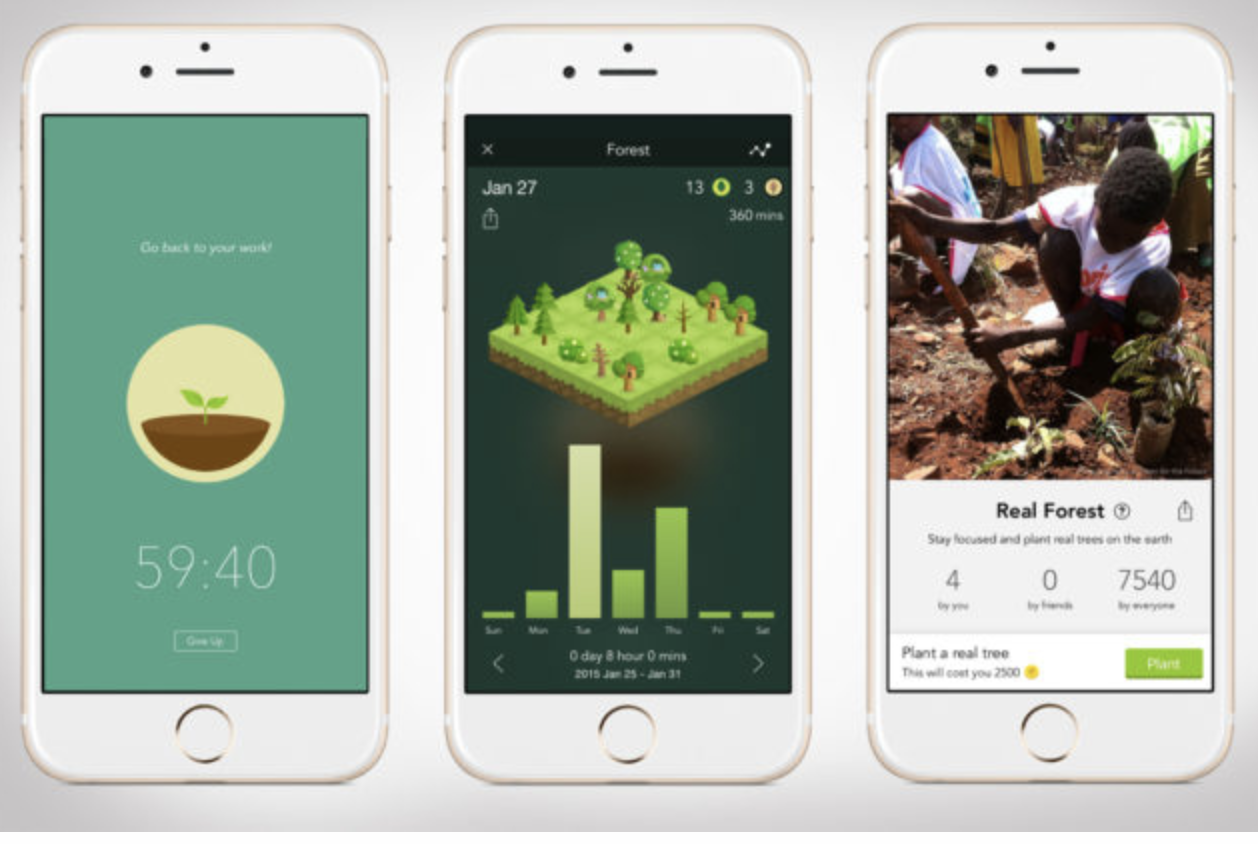
Forest is a pretty unique productivity app that works on any iOS device. If you consider yourself an environmentalist, you’re going to love this. When you want to focus, you open the app and virtual trees begin to grow. If you close the app while a tree is growing, you’ll watch it deteriorate.
The app works well for group projects too. It has a feature where the trees can only grow if everyone in the group is on task. As you continue to use Forest, you collect virtual gold coins. When you decide to spend a gold coin, Forest will work with its partner organization, Trees for the Future, to plant a real tree.
Over 273,000 trees have been planted thanks to Forest users. This app is great for people who need a little bit of visual stimulation and motivation, and it only costs $1.99.
Freedom
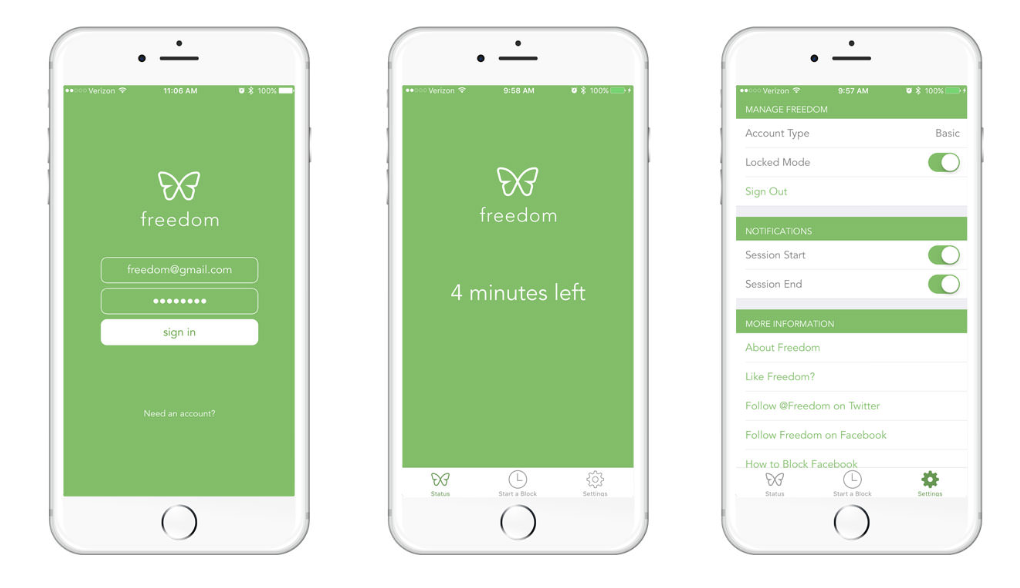
Freedom is a good option for people you who find a way around other focus apps and seriously struggle with distractions.
Freedom allows you to block specific sites during the time you want to focus and get work done. There is a pre-generated list of sites you can choose to be blocked from. You can also add to that list if your time-wasting sites aren’t there. You can schedule these focus sessions in advance and even make recurring sessions.
“Lockdown Mode” ensures even the sneakiest of users won’t be able to work around the system and become distracted. Freedom offers users seven free blocking sessions before requiring a subscription fee.
Stay Focusd
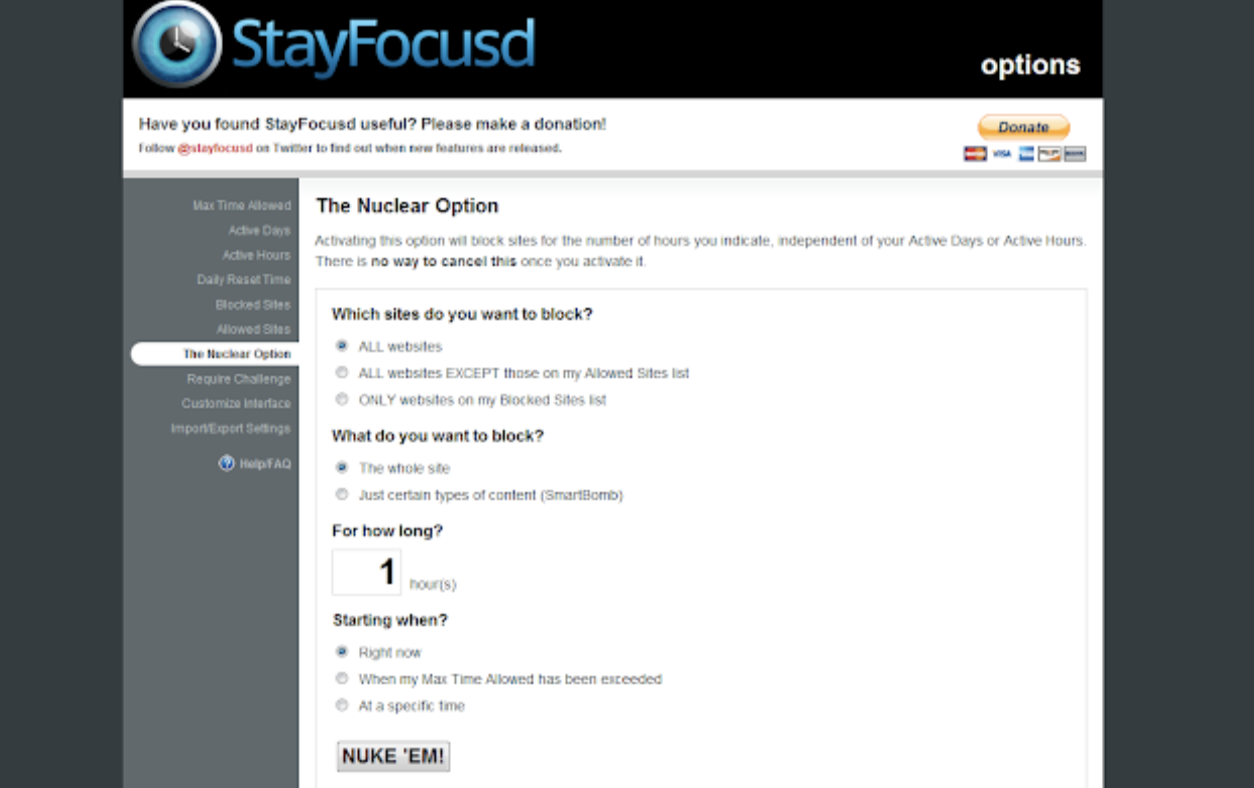
Stay Focusd is a Google Chrome extension that promotes productivity through focus and discipline. The app restricts how long users can stay on the sites that they waste time on.
Once the allotted amount of time on a specific site is up, the user cannot go to that site for the rest of the day. The app blocks all types of sites, subdomains, specific pages, as well as in-page content (videos, games, etc.).
Stay Focusd is a good option for those of you who like to keep a bunch of tabs open while working to occasionally scroll through a social media newsfeed or watch a video on YouTube.
The app forces you to practice good focus habits. And if you don’t feel like working on those habits, don’t worry — the app will block you from all of your time-wasting sites anyway!
Personal Apps
Personal productivity apps help you organize your life when things get messy or stressful. They remind individuals of which groceries they need to pick up, what errands they have to run, or who they need to call to say happy birthday.
They tell users how many more steps they need to take to reach that arbitrary, daily goal of 10,000 that we all supposedly need to hit. There are even personal productivity apps that help us meditate and stay in control of our stress levels.
Mindfulness
Are you feeling a little high strung? Anxious? Someone who needs a reminder to breathe and relax every now and then?
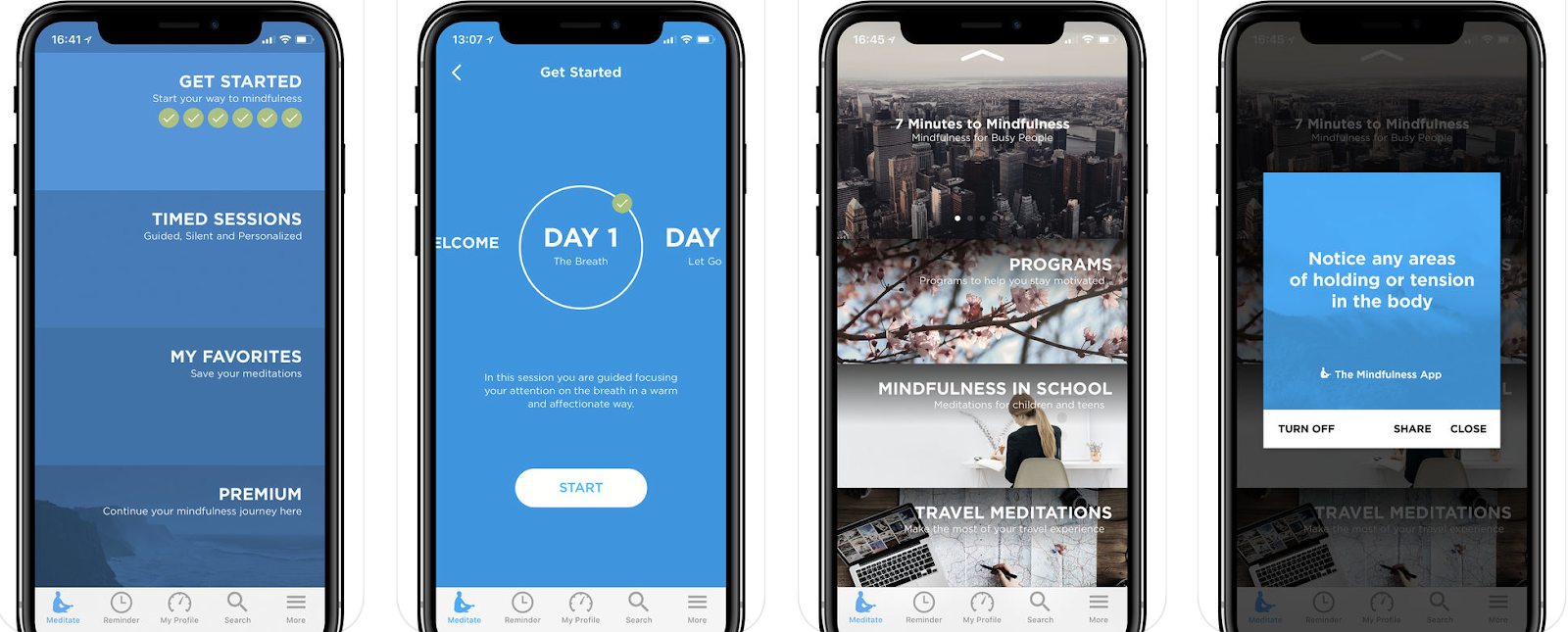
Mindfulness can help you do just that. Individuals use the app to meditate, relax, and be more present in their daily lives. There are over 200 timed and guided meditation sessions with statistics that help you keep track of your journey.
Mindfulness also has an integration with Apple’s Health App, so you can continue to keep track of all of your personal health goals in one place. The app is free, and the guided meditations range in time from 3-30 minutes. That’s right – 3 minutes. Now you have every excuse to start meditating.
Strides
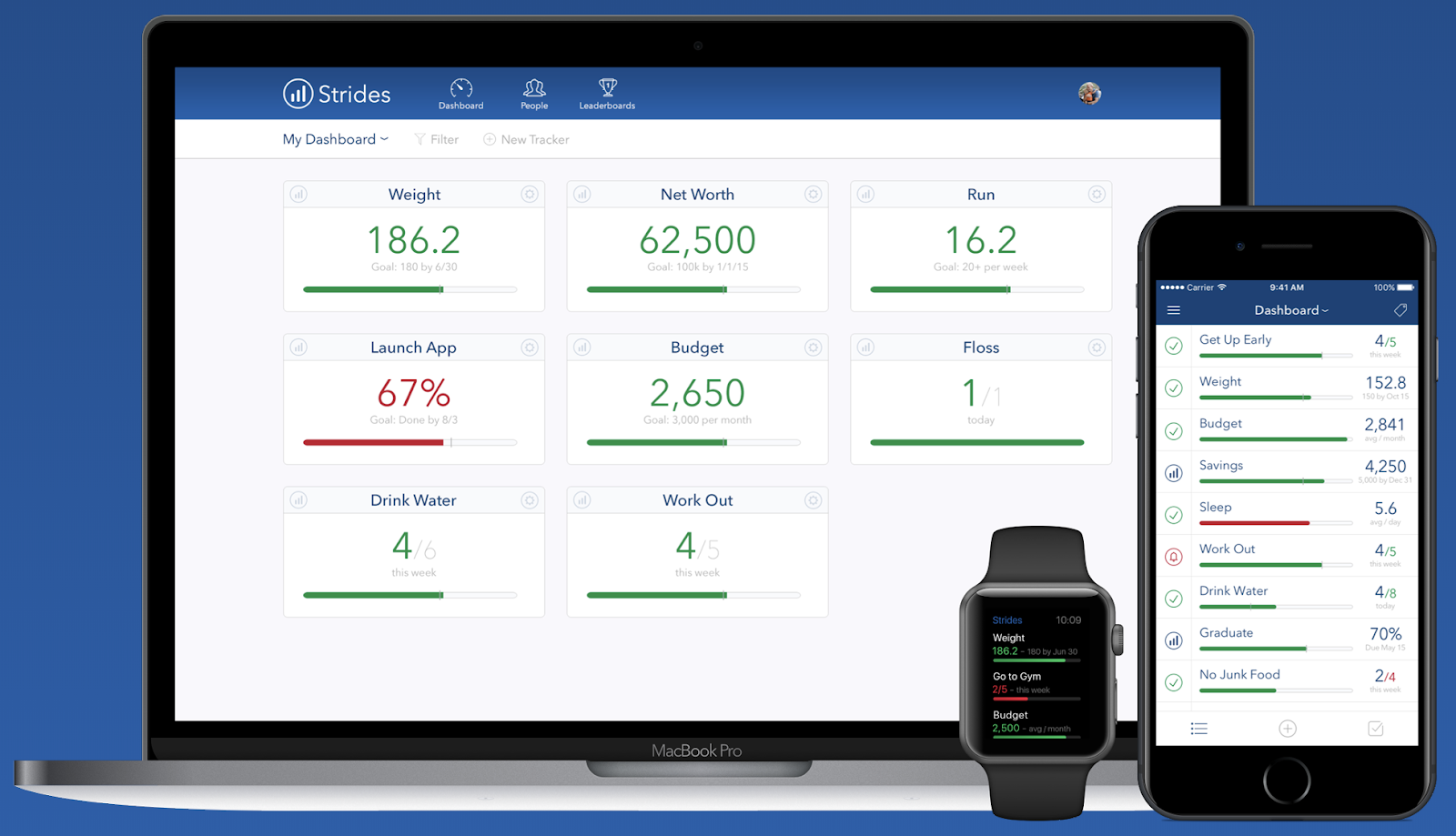
Do you have a bad habit you’re hoping to get rid of completely? Or a good habit you want to retain? Strides combines all of your good habits, the routines you want to continue, and your personal goals into one app.
It has a SMART tracker, meaning the app holds you accountable with reminders and charts to keep you motivated and focused on achieving your goal. The app works well for people who are more visual. Green and red pace line systems track your progress. Strides is a good (and free) option for those of you who want detailed reminders for your daily routines.
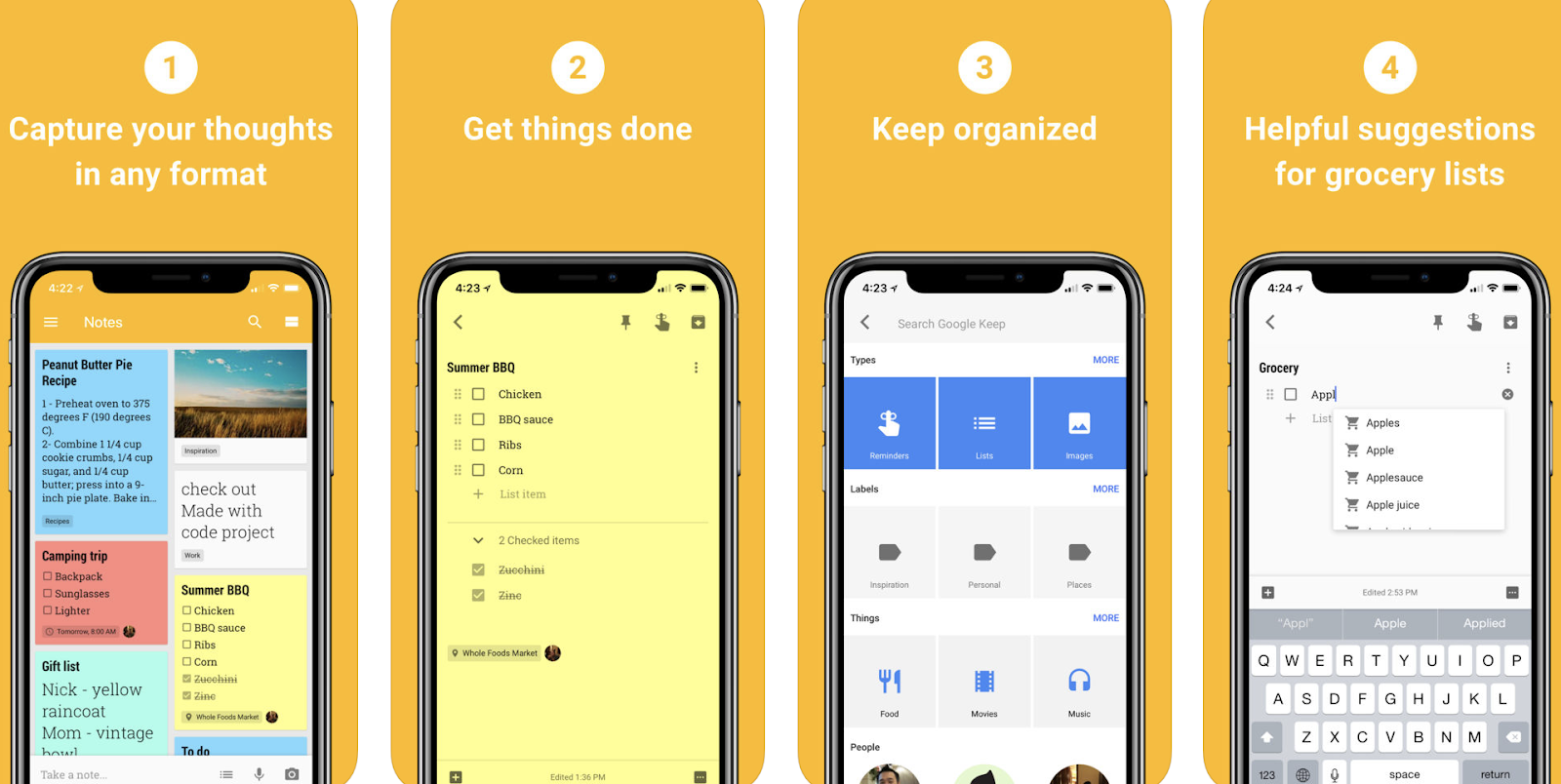
Google Keep works a bit like a virtual Post-It Note. Individuals can use this free app on any iOS device. You can write quick lists, create reminders, record a voice memo, and organize all of your notes by color, category, and label.
This app is great for those who need to quickly jot down something while on the move. You can also set reminders for specific notes. Google Keep is a simple way to stay organized and remember tasks that need to be completed.
Kiwake
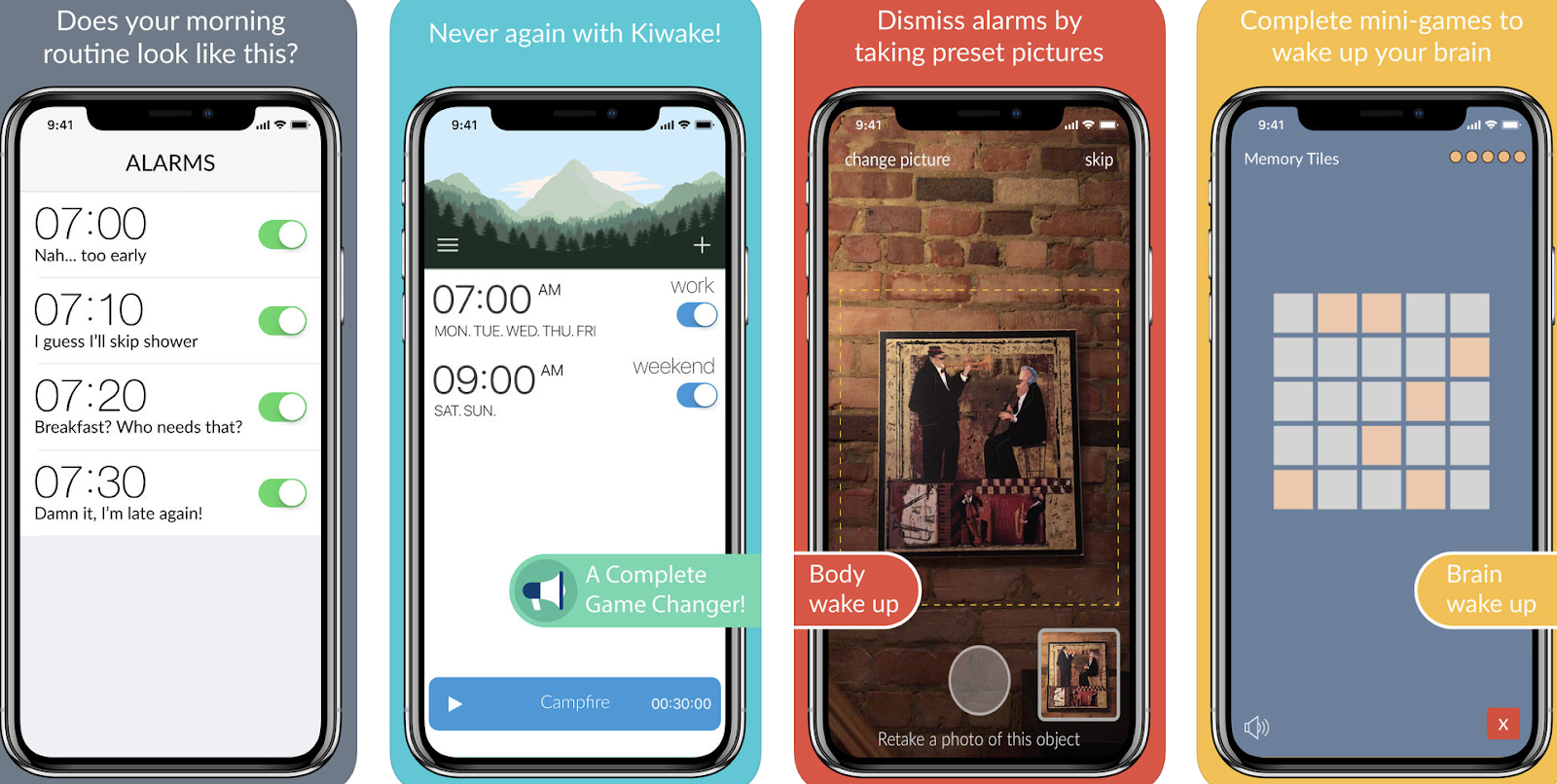
We are all guilty of oversleeping now and then. Some of us simply aren’t morning people, hitting snooze over and over again and ending up being late for work or other important events. That’s where Kiwake comes into play.
This inexpensive app ($2.99) gets you out of bed with a complete wake-up process that has three main categories: body, brain, and motivation. The app has you take a picture of an object far away from bed prior to going to sleep so you can prove that you got out of bed in the morning.
You can also play a mini-game to wake up your brain while laying in bed. And lastly, you can review your tasks for the day to get motivated and up to speed on what needs to be accomplished. Kiwake does not have a snooze button, so there’s no way around getting up for the day.
It’s safe to say you’ll have time to make breakfast every morning after downloading this app. Extra points for your personal health goals!
Workplace Apps
One of the most notorious places where people get distracted and fall behind on their work is while they are actually at work. Anyone who sits at a desk behind a computer for an entire week has plenty of opportunities to be inefficient and lose focus.
Workplace productivity apps not only keep you on track with work tasks, but also assist you with managing teams of people, communicating with colleagues, organizing important documents and files, working with PDFs, and more.
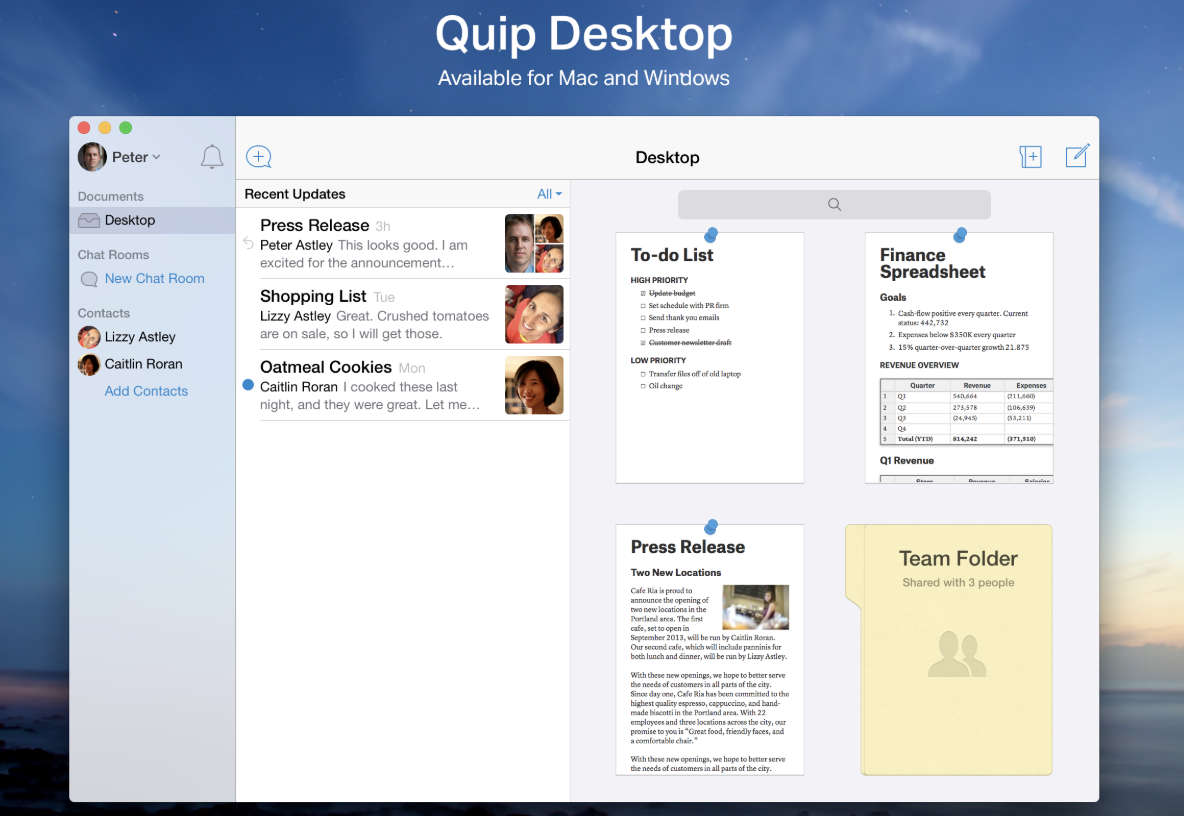
Quip
Quip is a free app that works well for teams of all sizes that are looking to collaborate easily and share thoughts. Users can edit documents, create spreadsheets, revise task lists, take notes, and message other team members in real time.
You can gain access to all that Quip has to offer on any device, at any time. Quip has integrations with numerous other apps, such as Dropbox and Slack, to make your team’s experience even more streamlined. This is a really simple option for anyone looking to improve organization and communication among team members at work.
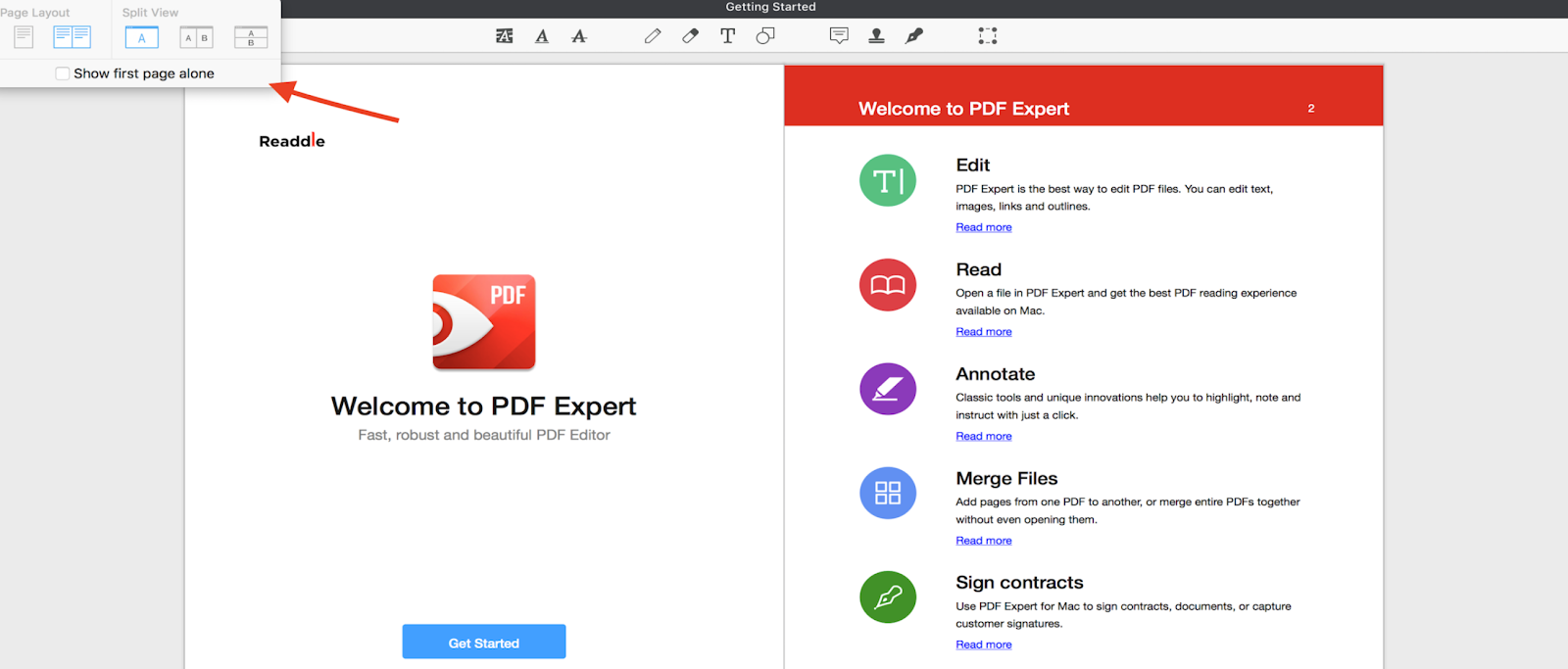
PDF Expert
If you have ever tried working with a PDF document, you know how finicky they can be.
The PDF Editor is $9.99 and allows you to do all of that. For starters, you’ll be able to change text and images on any PDF that comes your way. Users can even sign, send, and export documents straight from the app.
PDF Expert allows you to write notes and set reminders about different sections of the PDF as you work through the file. This app is great for anyone who needs to give feedback, annotate, or mark up a PDF.
Trello
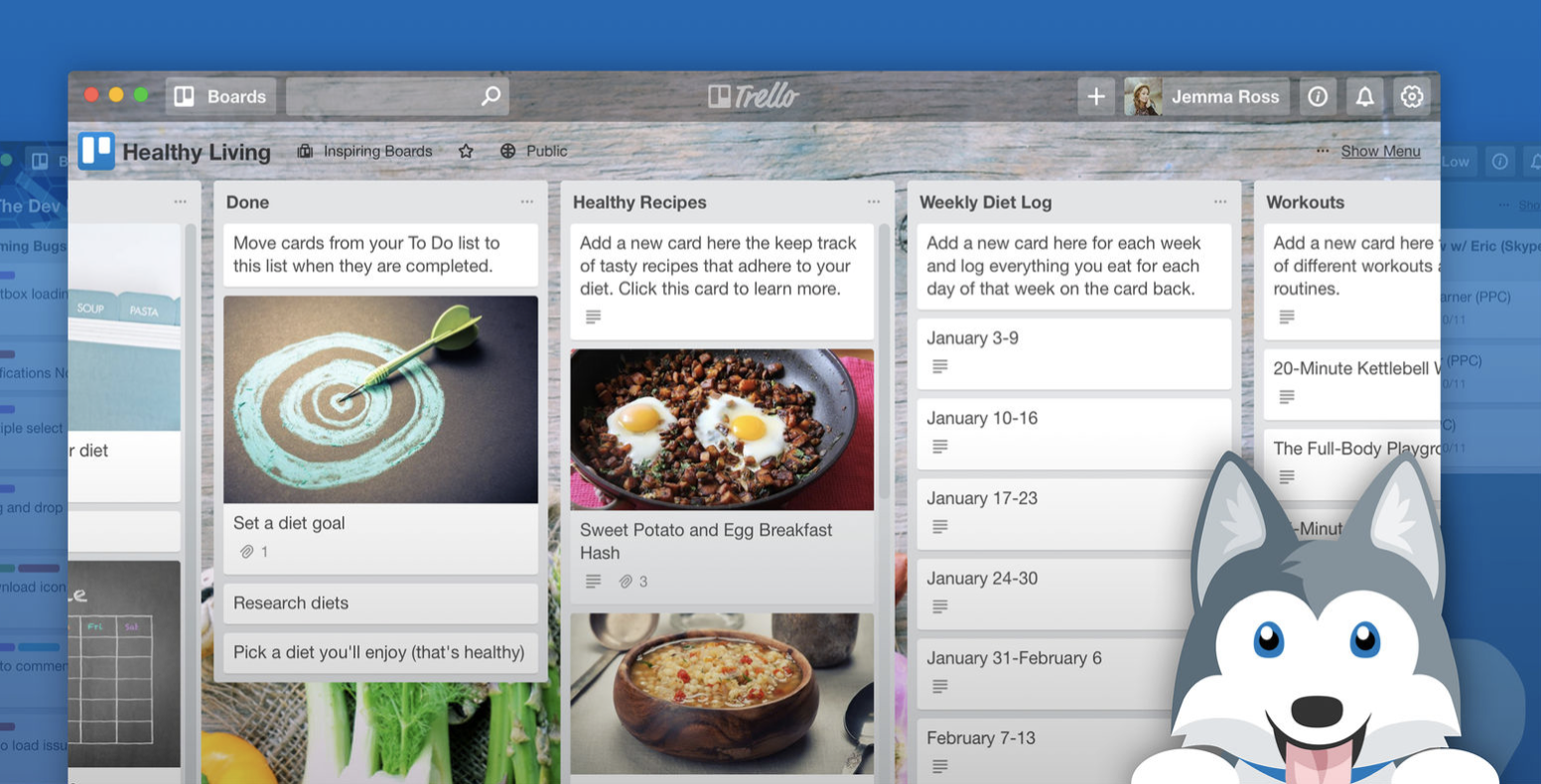
Trello is a free app made for solo or group work. Whether it’s making a to-do list for a quick-turnaround project, managing an editorial calendar, or tracking a 6-month redesign, the app has a layout that works.
Users can list multiple projects at once and make them visible to their whole team on the app’s dashboard. There are project boards with deadlines to clearly lay out the steps necessary to achieve success at the end of the project.
The boards and steps within them can be assigned to a group or one person. Trello has features that give users the ability to attach documents, videos, and pictures. If you’re on a team where people are all working on different pieces of the puzzle at once, Trello is a great way to ensure everyone is on the same page and aware of overall progress.
Documents 6
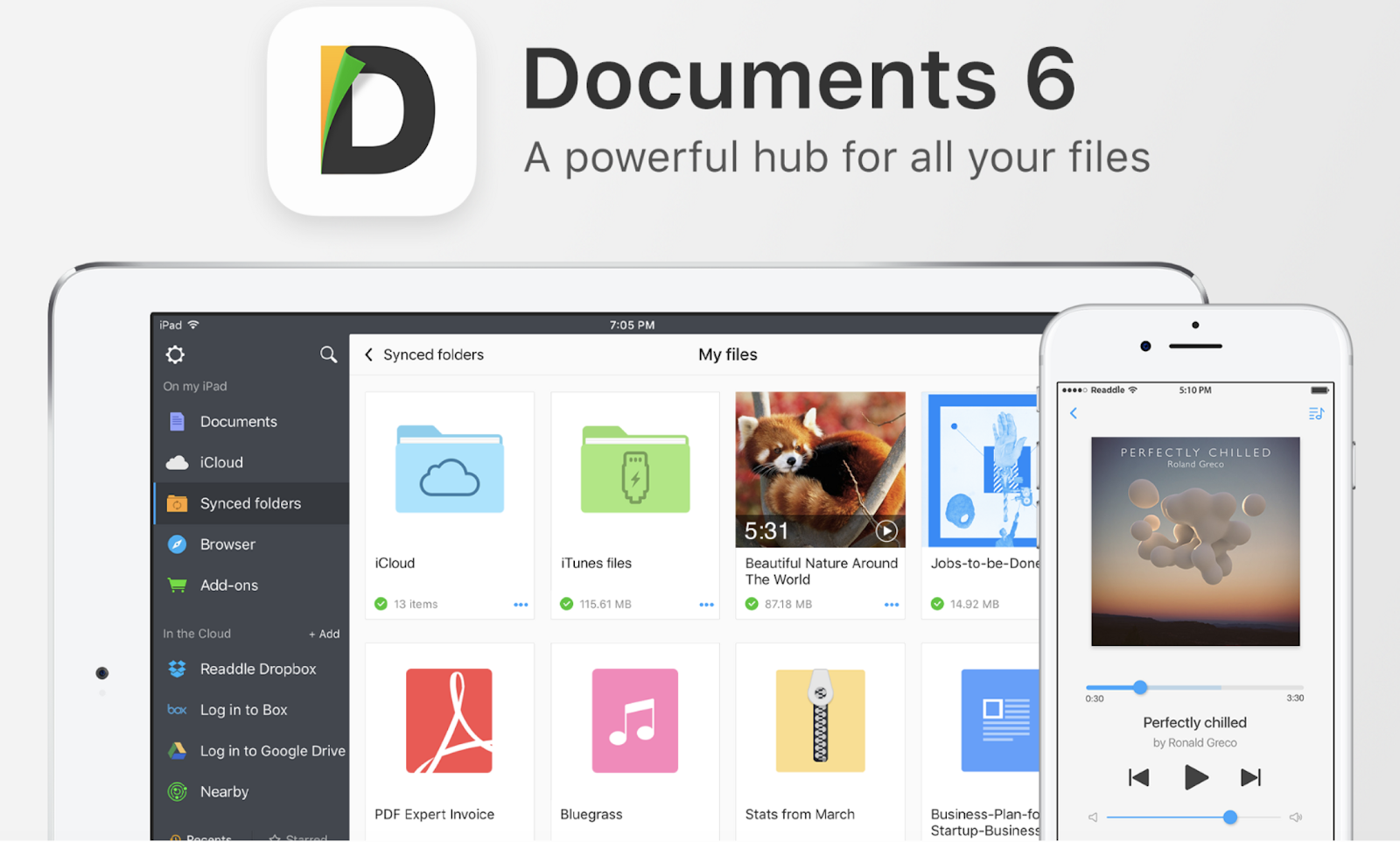
Do you use cloud-based file storage? Dropbox? iCloud? Google Drive? If you need to share text files, music, videos, or photos frequently, this app can help.
Documents 6 lets you sync the files and folders you save to the cloud. The app also has a web browser for file downloads and a feature to read, annotate, and edit files.
This file manager is free and a great addition to your toolbox if you’re frequently using cloud-based storage.
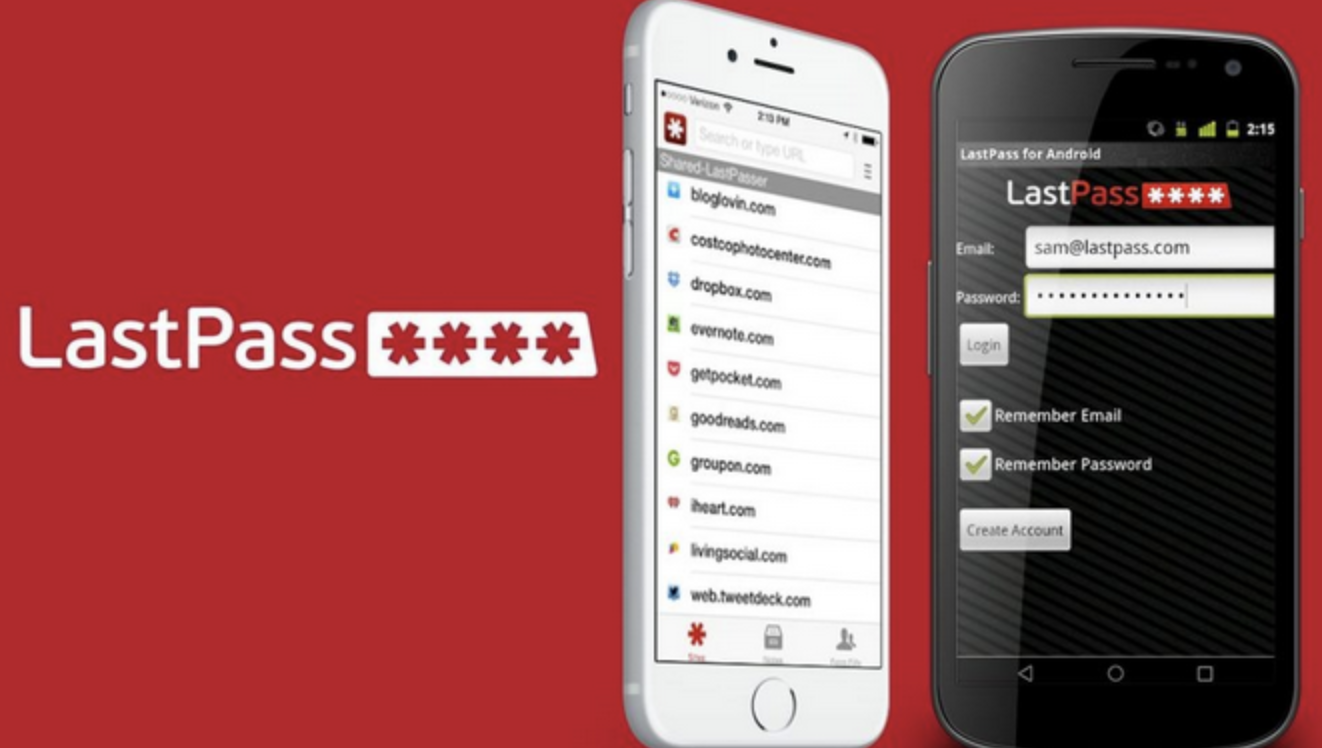
LastPass
Whether it’s your email, your workspace, or one of the numerous other accounts you have to sign into every day, it’s safe to say there are a few of us with lists of our usernames and passwords hidden somewhere “safe.” (Yes, I’m guilty too. No, I’m not telling you where my password list is.)
The app is free and securely stores all of your usernames and passwords in the “Vault.” It helps you generate strong passwords and creates online shopping profiles for the sites you frequent most. LastPass automatically enters your login information for you when you visit a site, so there’s no scrambling to find that hidden password list you created.
For those of you who are slightly skeptical about security, LastPass lists their advanced protection system features online, which includes an AES-256 bit encryption (you’re the only one with the password to your encryption key) and the option for additional security, like an optional pin, multi-factor authentication, TouchID, and offline options. With LastPass, you only need to remember one password (your encryption key) to get into all of your online profiles.
Slack
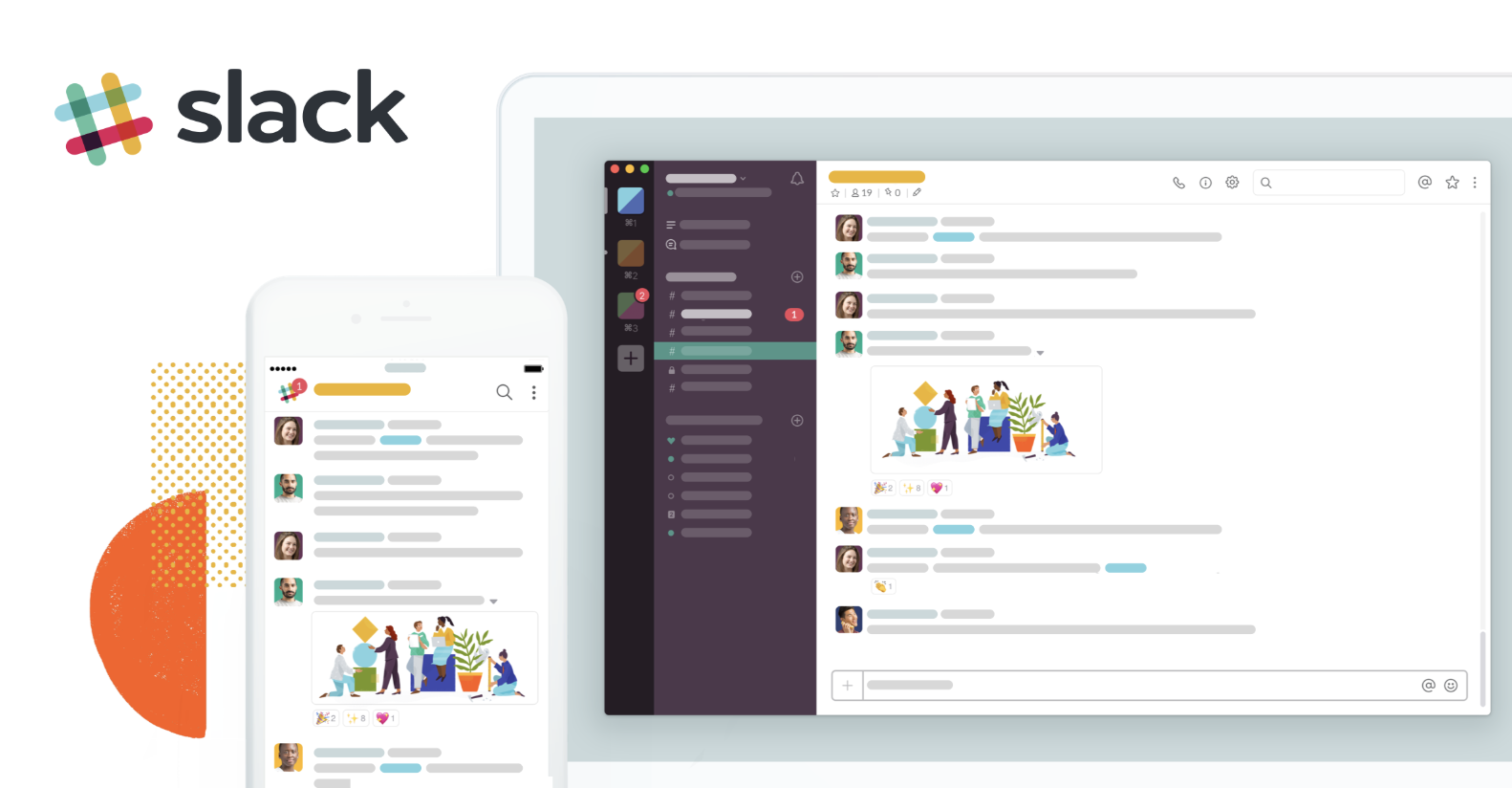
Slack is the ultimate team communication app. Whether you have a team of three or 3,000, you can all easily communicate and connect on Slack.
You can communicate in groups of users or channels, which you can name by team or topic. The channels can be company-wide or include just a select group of people. You can also send a direct message to one other person, cutting down on email and speeding up the communication process.
Not only is the chat function easy to use, but you can also share documents, photos, videos, and more. Personally, I’m a fan of the feature that allows you to send GIFs to your co-workers.
There is also app integration with numerous other resources you may be using at the office, such as Dropbox, Google Drive, and Twitter. Slack is ideal for those looking to easily communicate and collaborate with a team of any size.
Email Apps
Between work-related emails, personal emails, special offers, and spam, most people have at least one new message every time they open their inbox. There are several productivity apps that help you spend as little time as possible organizing and reading those emails so you can get back to your life and complete your most important tasks.
Trove
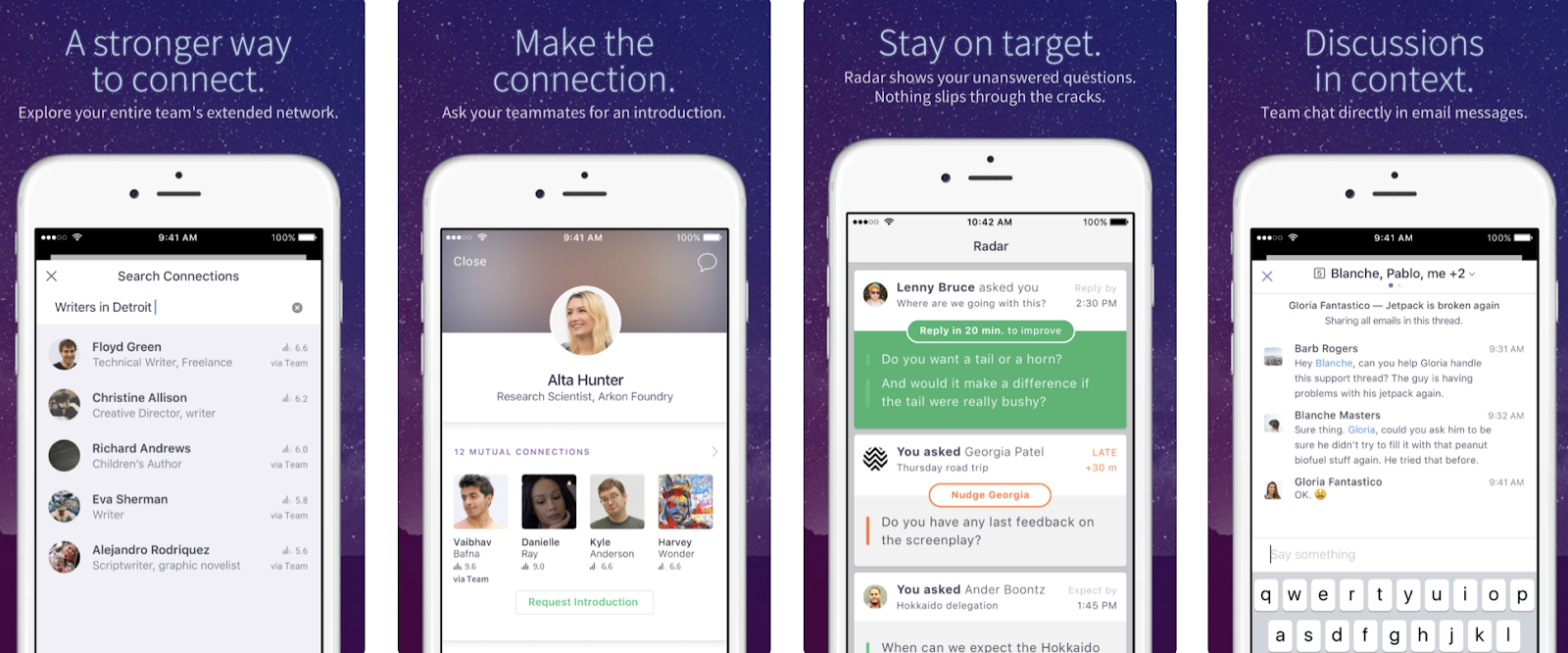
For those of you who feel bombarded by emails throughout the day, fear not! Trove was created to relieve that stress and help you flag the most important emails you need to read and respond to immediately — or later on.
The app provides insights on the mail you are receiving and sending. You can flag an email as Radar, Nudge, or Connect. You can use these flags to remind yourself about which messages you need to respond to and which people you need to follow up with for a response.
If you’re someone who not only receives a lot of emails but also needs to respond to them quickly, then Trove is a great (and free) opportunity to keep your connections and thoughts organized.
Astro
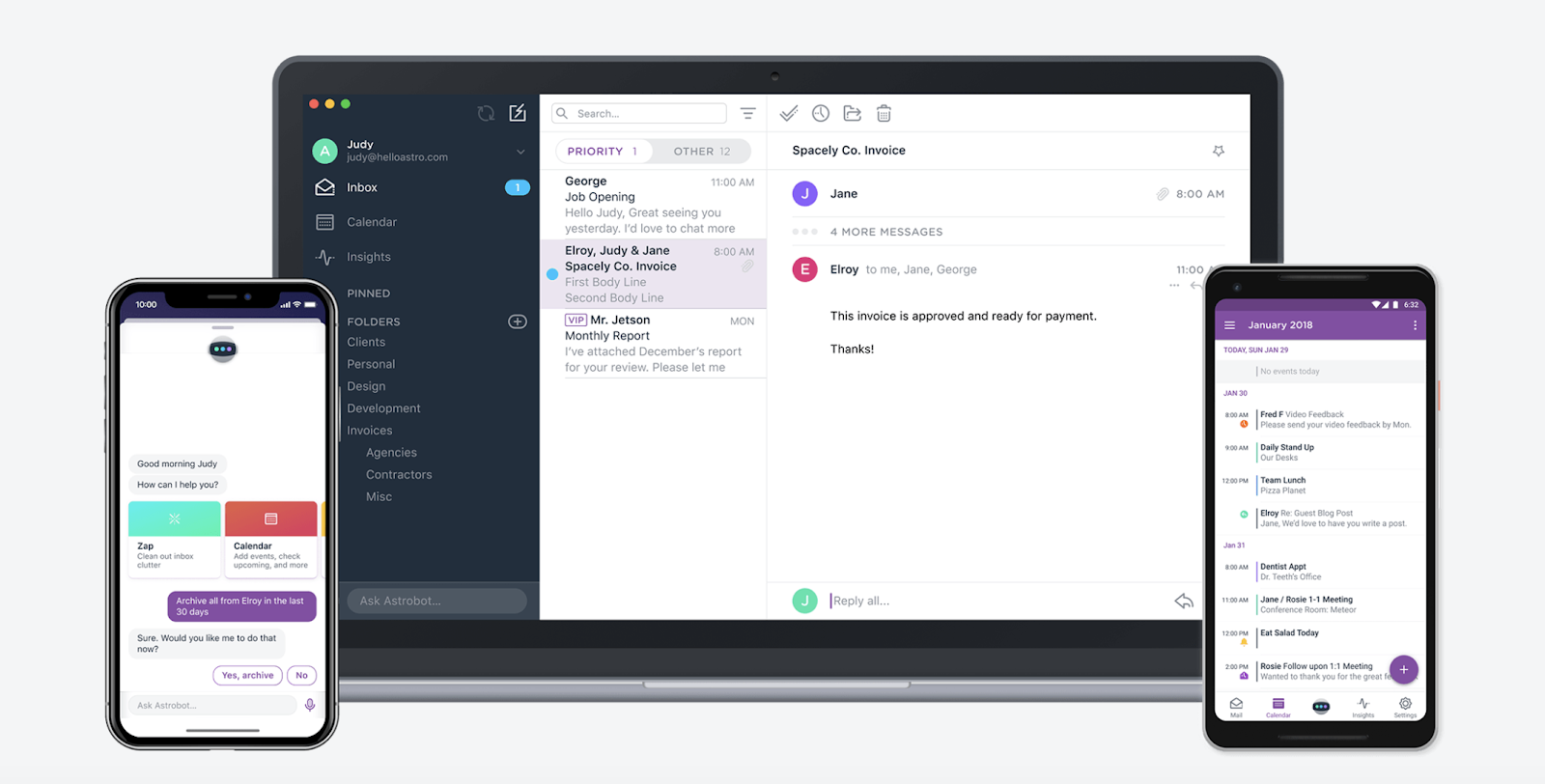
Astro assists with both your email and calendar productivity. The app provides users with an assistant – virtual, of course – that helps you organize your emails by importance. The assistant works with you to create follow-up reminders and adds them to your in-app calendar.
Astro efficiently manages your email and calendar so you know exactly what needs to get done first. Any email that needs immediate attention is highlighted. You can unsubscribe from emails while in the app, as well as move your most important messages into a “Focus Inbox.” Astro is free and has a Slack integration.
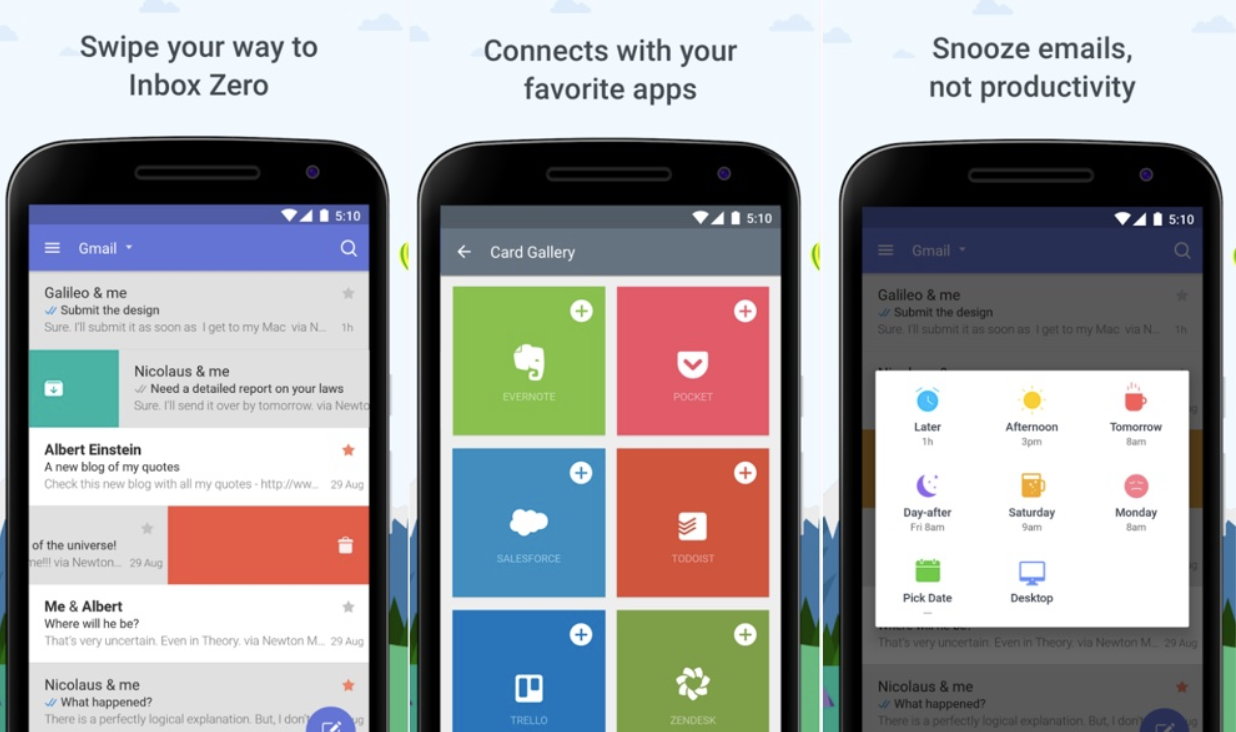
Newton
Newton is another popular email productivity app that has several more features than the other two options mentioned above. It’ll cost you a monthly subscription fee, but it may be worth it.
Newton has read receipts, sender profiles, instant push notifications, undo send, snooze (so your emails come back to you at a more convenient time), and a “Tidy Inbox,” which separates important emails from junk mail and spam.
Users can access Newton through all devices, and it works with other email platforms, such as Gmail, Outlook, iCloud, Google Apps, and more. Newton is a much more in-depth email productivity app for those who find themselves overwhelmed by a constant flow of incoming messages.
Writing Apps & Note-Taking Apps
Are you someone who’s constantly jotting down notes, thoughts, and to-do lists, and then forgetting where those lists are? Sometimes you need to quickly record information, and other times you need extensive notes on a specific topic. Writing and note-taking productivity apps have functions that help users record information in an efficient manner, with plenty of editing, sharing, annotating, organizing, and exporting options.
Bear
Bear is a free app that works well for anyone looking to type out a quick list of things to remember or even those who need to write a long essay. Users can link their notes together, organize their thoughts in a way that makes sense to them, and write in plain text so exporting and converting notes to a PDF or uploading to a CMS is simple.
Bear has a clean, minimalist aesthetic for those who prefer a minimalist look. The app organizes your notes through hashtags, so you always know in which section your work is located.
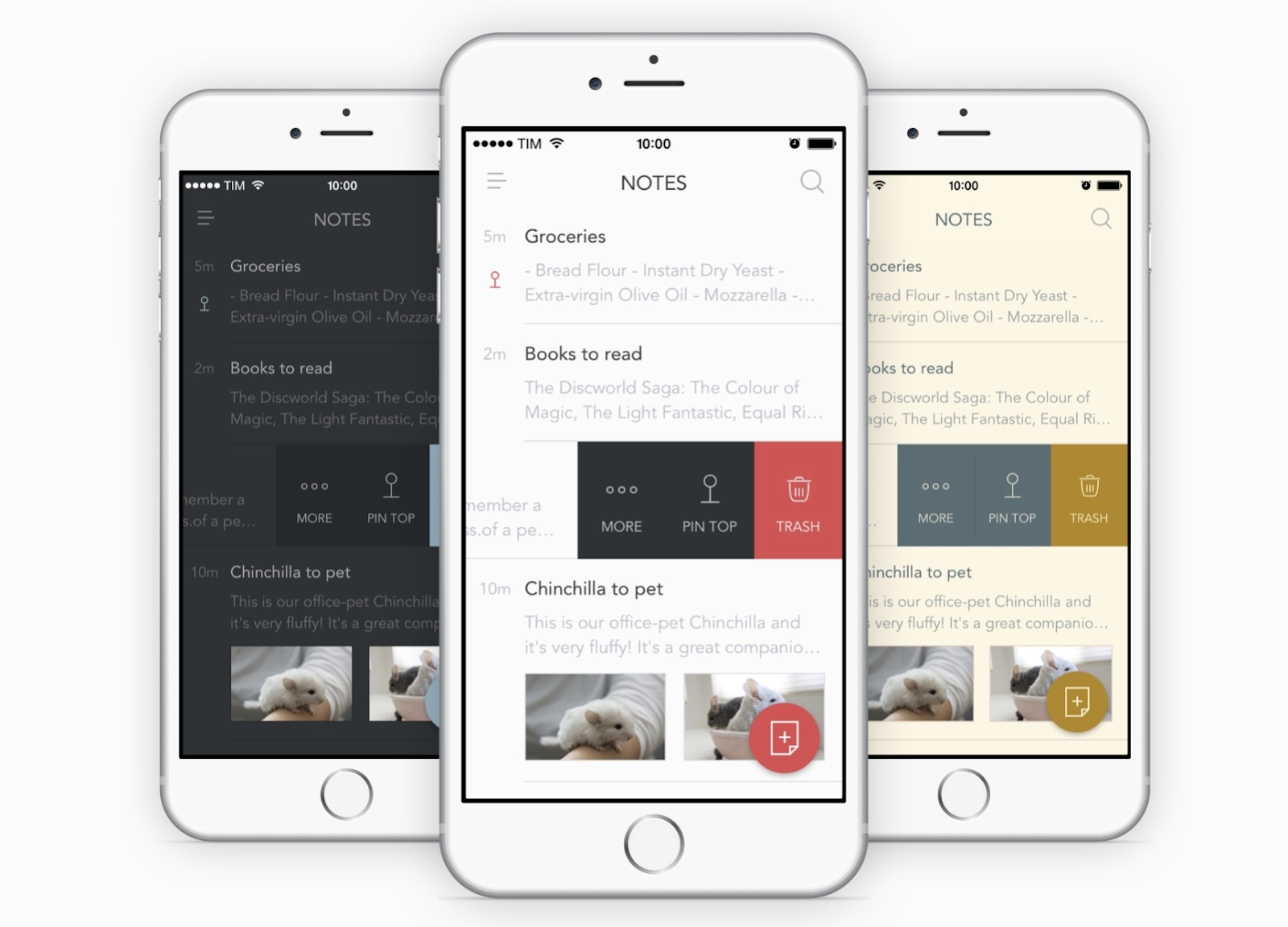
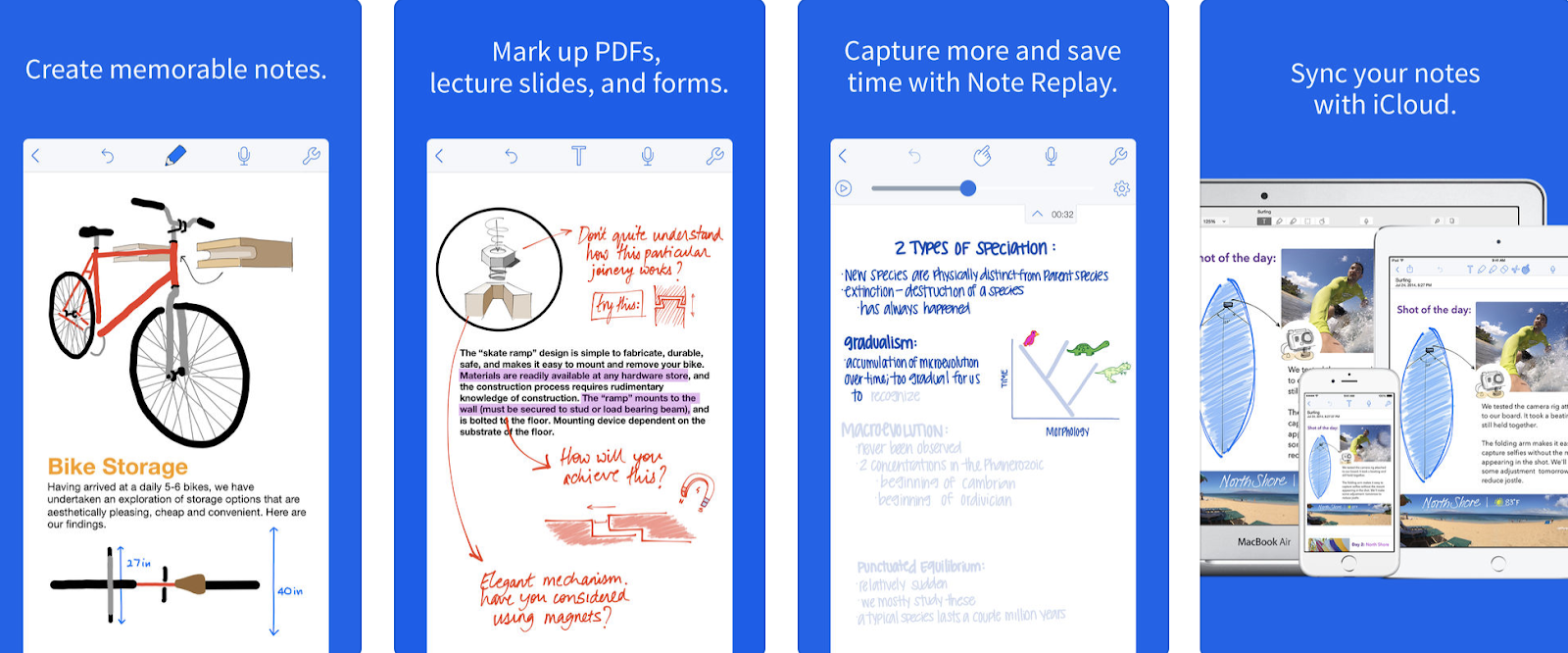
Notability
Professionals, teachers, and students can all benefit from this writing app. The app, which costs $9.99, is a simple tool used for paperless note-taking, PDF annotating, free handwriting, and sketching (if you aren’t a fan of typing). Users can complete and sign all types of documents with Notability, and send them straight from the app.
If you’re someone who enjoys both writing and typing notes, then Notability could be a great option for you. The app has a feature that turns written notes into typed notes, so you can keep all of your information in one place. Additionally, if you’re in an important meeting or class and want to ensure you don’t miss a beat, you can record audio as well.
The app even has a function to build checklists and detailed outlines if you want to write in-depth pieces while in class or at work. And don’t worry about saving all of your information to Notability and losing it. All of your work is backed up to the cloud, making it easy to access it from anywhere.
This app is the modern way to take notes and has useful features for personal, educational, and professional use.
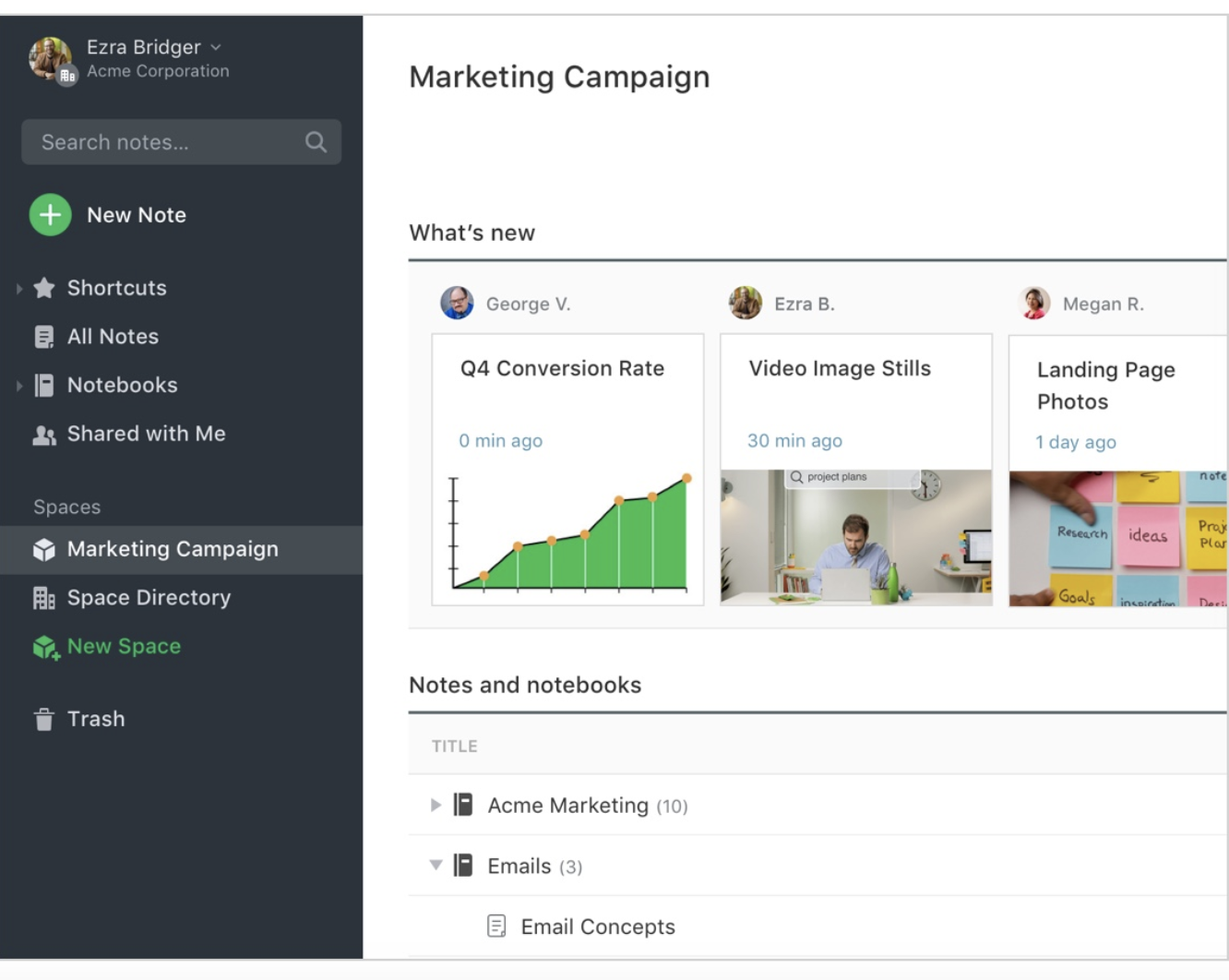
Evernote
Evernote is more of a notepad-planner hybrid. If you find yourself writing shorter notes or wanting a place to jot down a to-do list, Evernote might be more tailored to your needs than Notability (though they do share many of the same features).
The app allows users to write or dictate notes, sketch, and share documents with other devices. You can also make an agenda and create a checklist. If you like having your notes and to-do lists in the same place, then Evernote works well.
Evernote is free, but you can always upgrade for a monthly fee to get access to premium features.
Hemingway Editor
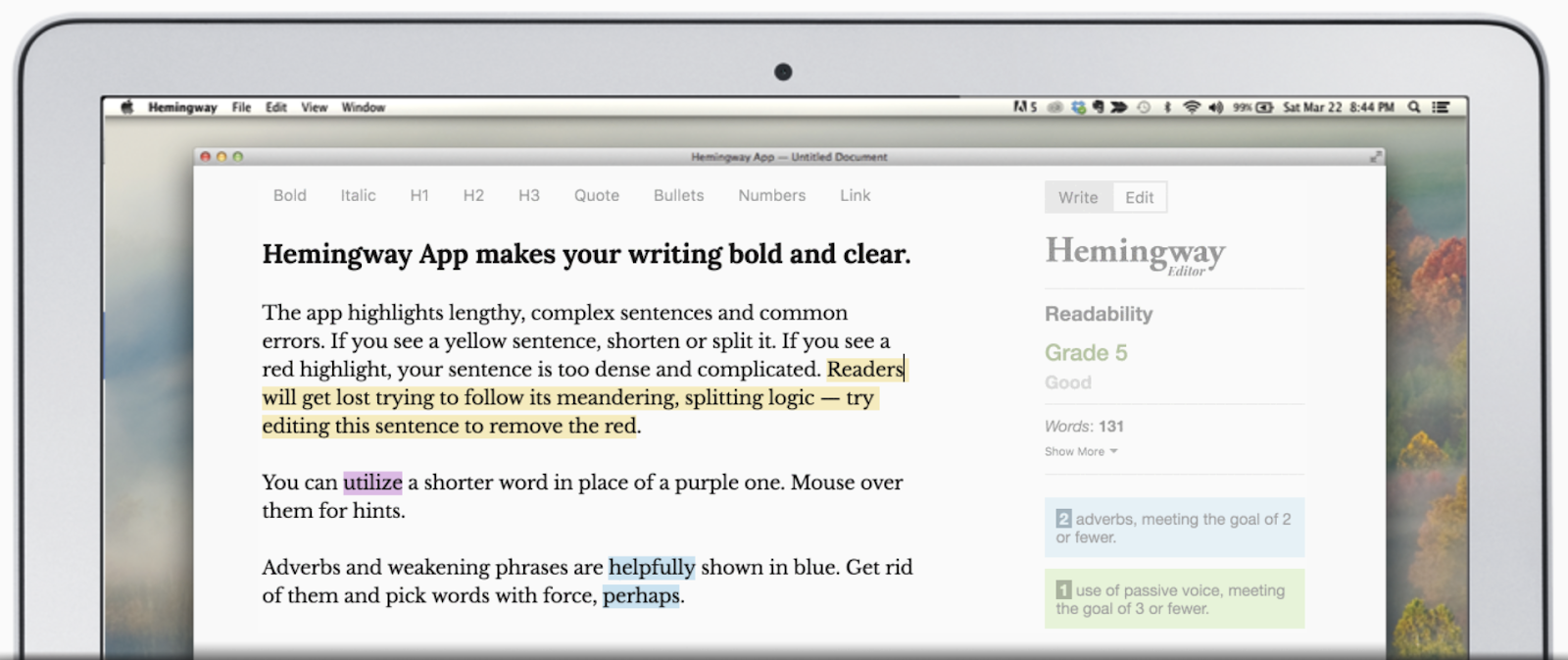
The Hemingway Editor app is exceptionally useful to anyone who writes often. The app makes your writing as clear and concise as possible by bringing wordy prose to your attention. It’s kind of like having your own virtual editor.
Additionally, the app highlights adverbs, passive voice, and complicated statements to help you become a more impactful writer. The Hemingway Editor also allows you to publish directly to Medium and WordPress. All of these features make the $19.99 price tag worth it.
And don’t worry if you’re thinking, “Sounds great, but I like to write from the beach or the mountains.” The app works offline, so you can continue writing from your favorite internet-free, inspirational locations.
Voice-to-Text Apps
Are you someone who finds handwriting notes inefficient? Maybe you’re a fast typer but you still find yourself in situations where you can’t keep up with a speaker or lecturer?
Voice-to-text productivity apps are a great solution to these problems. Just hit record, and the app will transcribe the audio, so you can go back and listen later.
Otter
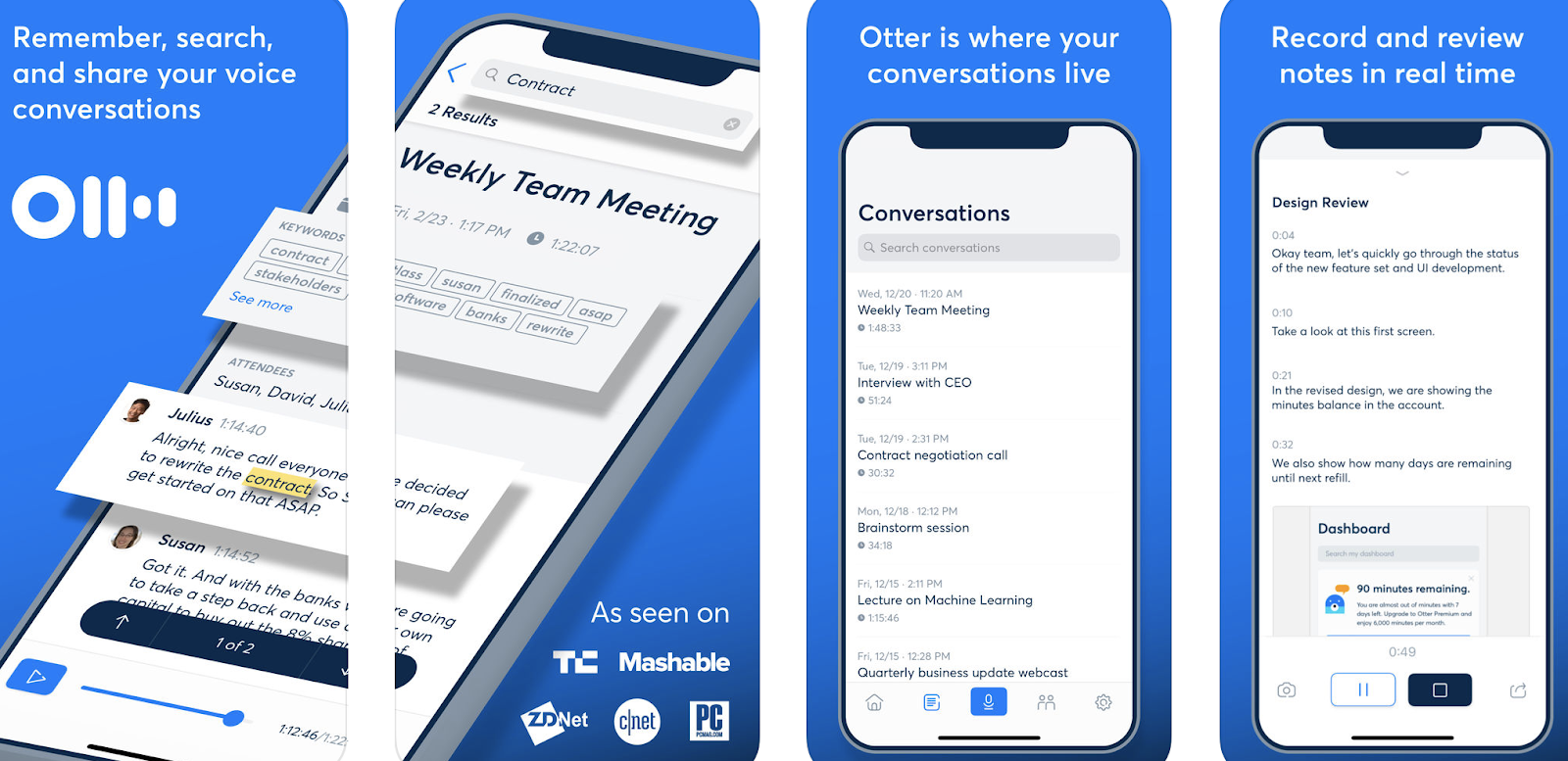
Otter is a note-taking app that combines audio, speaker identification, and transcription. The app is a useful tool for journalists and students alike. If you ever need a “chill” day where you can sit back and listen rather than furiously take notes, you should try this app.
The app is designed to transcribe long-form conversation, so don’t worry if you find yourself in a long lecture. Otter will identify each of the people based on their voices if you’re listening to multiple speakers or are interviewing multiple people. If you’re a visual person, then the app will also work well for you — it highlights the words it transcribes in real time.
And if 600 free minutes of transcription isn’t enough for your lectures, classes, and interviews, you can upgrade your account to premium and get 6,000 minutes of recording time.
Descript
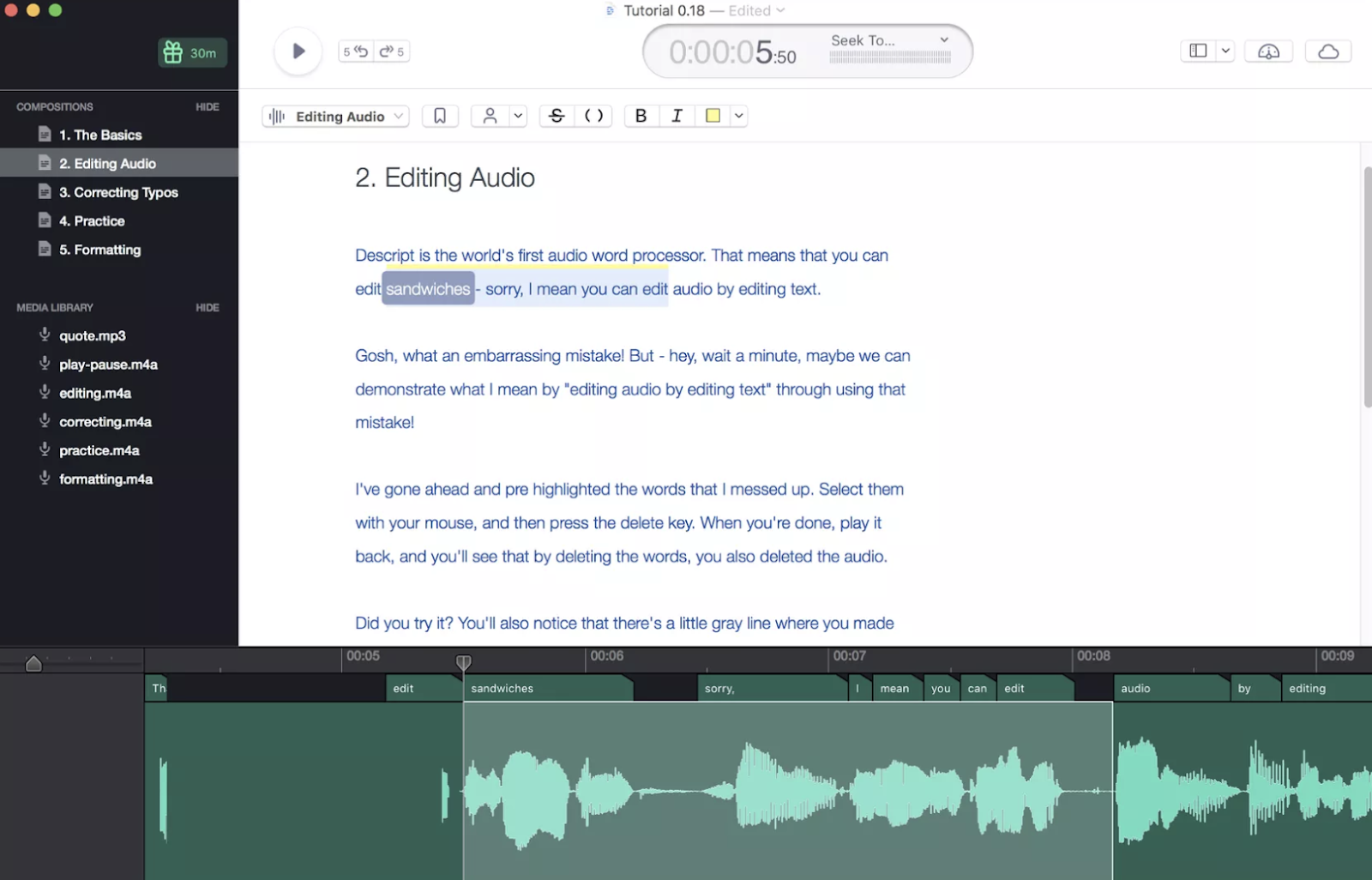
Descript is another transcribing app with audio word processing and web publishing functions. It’s a useful tool for those who conduct regular interviews, want accurate quotes from their subjects, and hope to share their audio with listeners online. This is a great option for those times that require you to take in a lot of information both efficiently and accurately.
Descript is exceptionally helpful in interview scenarios. Once the app transcribes your audio, you can edit, cut, and remix the recording. The editing “Wordbar” is a feature that sets this app apart from competitors. The horizontal bar allows you to easily drag words closer together to get rid of unnatural pauses or separate them to give the listener a moment to breathe and understand what they just heard.
With Descript, you can also publish your audio and collect comments from listeners on the web. You can also export your audio from Descript to multiple other platforms, including Avid Pro Tools and Apple Logic Pro X.
The app costs $0.07 per minute (after you use your first free 30 minutes of transcription).
Meeting & Scheduling Apps
The last type of productivity app I’ll mention is helpful for those of you who need scheduling support. This includes social media planning, scheduling in-person workplace meetings, and event planning.
These apps will make it easy to stay on top of your editorial calendar and reduce the frustrating back and forth that happens when trying to schedule meetings.
Crowdfire
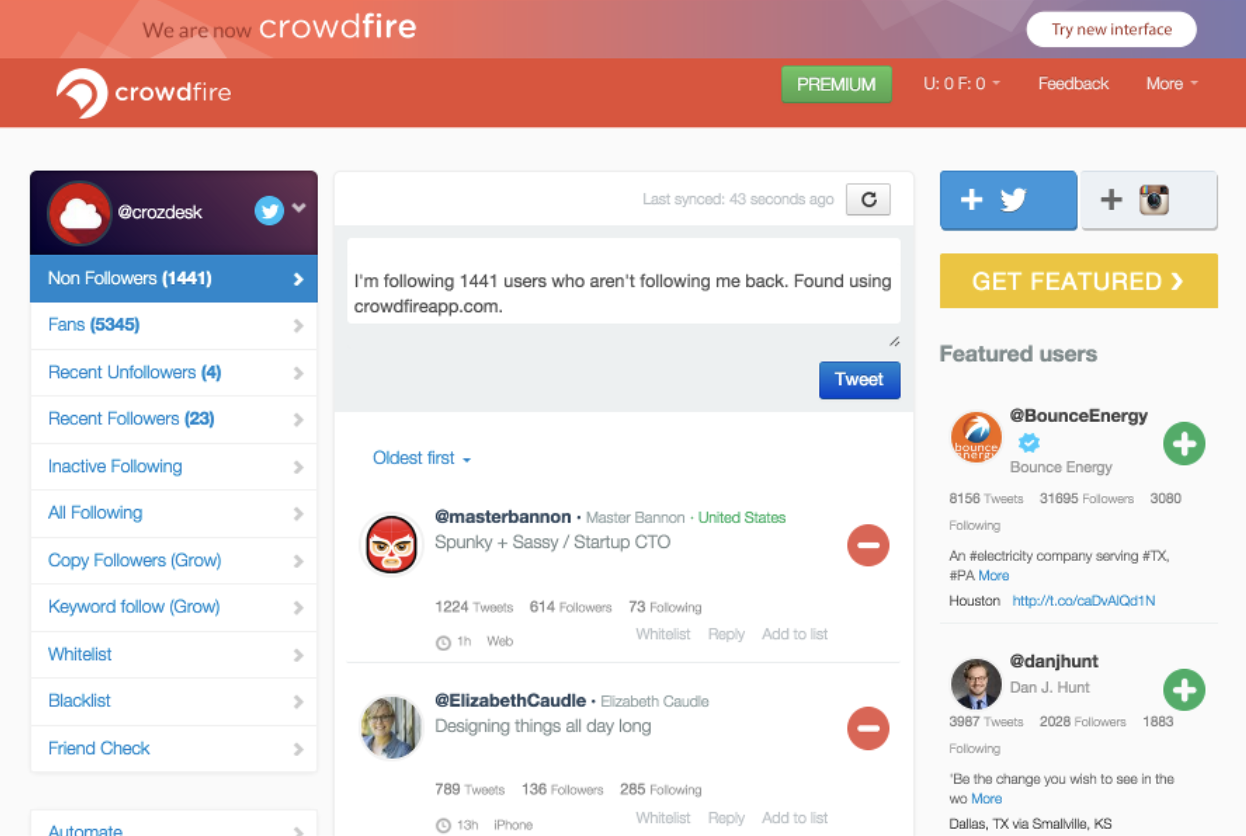
Do you run multiple social media accounts? Post to one or more platform multiple times per day? Search the web for images and fun articles to inspire your work and engage your followers? Crowdfire can help you with all of these tasks.
The app, which is free, is a way for users to schedule their social media posts — which may include multiple pictures and videos — in advance. Crowdfire then gives users the analytics behind their posts so they are able to track engagement and see what’s working and what needs to be modified.
Crowdfire is a simple app with features that go a long way since successful social media planning takes time and effort. With a planning app like Crowdfire, you can sit down and work on your company’s social media accounts for a specific amount of time, then have your work automatically post whenever you choose. No more headaches when it comes to social!
Doodle
When you’re trying to book a meeting, get together with friends, schedule a book club, or plan any other event that includes multiple people, it can be hard to find a day and time that works for everyone. Sending texts and emails back and forth to find a date that works is inefficient and time-consuming. That’s where Doodle comes in.
This free app allows users to find the best date and time for any event by suggesting a number of options for invitees to select their preferences. Doodle is so user-friendly that your invitees don’t even need the app to choose their preferences. It works via iMessage, Facebook, WhatsApp email, and more. There is even a calendar integration to avoid any confusion between you and your invitees. Doodle is the ultimate way to get as many people as possible to attend your important meeting, party, or event.
Conclusion
Distractions, mismanaged time, and procrastination are all cutting into our ability to be productive. No matter your personality or work ethic, there is a productivity app that can help you. Think of them as friendly bits of technology that can measurably improve your ability to work efficiently.
Productivity apps are tools that not only impact the quality of your work but the time you spend away from work. Who doesn’t want to spend less time worrying about being productive and more time actually getting things done?

Selling on Instagram: How to Use Instagram’s Shoppable Posts
Selling on Instagram just got a lot easier with the launch of Instagram’s shoppable posts feature.
In the past, the only way to connect your followers with your products was through the link in your bio, or links in Instagram Stories, this new feature provides a seamless experience for people to shop products directly from your posts.
Of course, with more than half a billion monthly active users and over half a million advertisers, it was only a matter of time before users could start buying products right from the app!
Ready to get started with selling on Instagram? Here’s everything you need to know about how to create shoppable posts:
Why Your Business Should Be Using Instagram Shoppable Posts
Shoppable posts are Instagram’s next big step in becoming a more business-friendly platform.
Thanks to the new feature, Instagram users can complete their buying journey, from discovery to checkout, without ever leaving the Instagram app.
And with 80% of Instagram’s 800 million users already following an “active shopping business” account (and 200 million users visiting one or more business profiles daily), giving people the ability to shop natively within the Instagram app makes a lot of sense.

With the new feature, Instagram has made it easier than ever for businesses to reach their consumers, noting “once a business has a product catalog connected to their account, tagging a product is as simple as tagging a person in a post.”
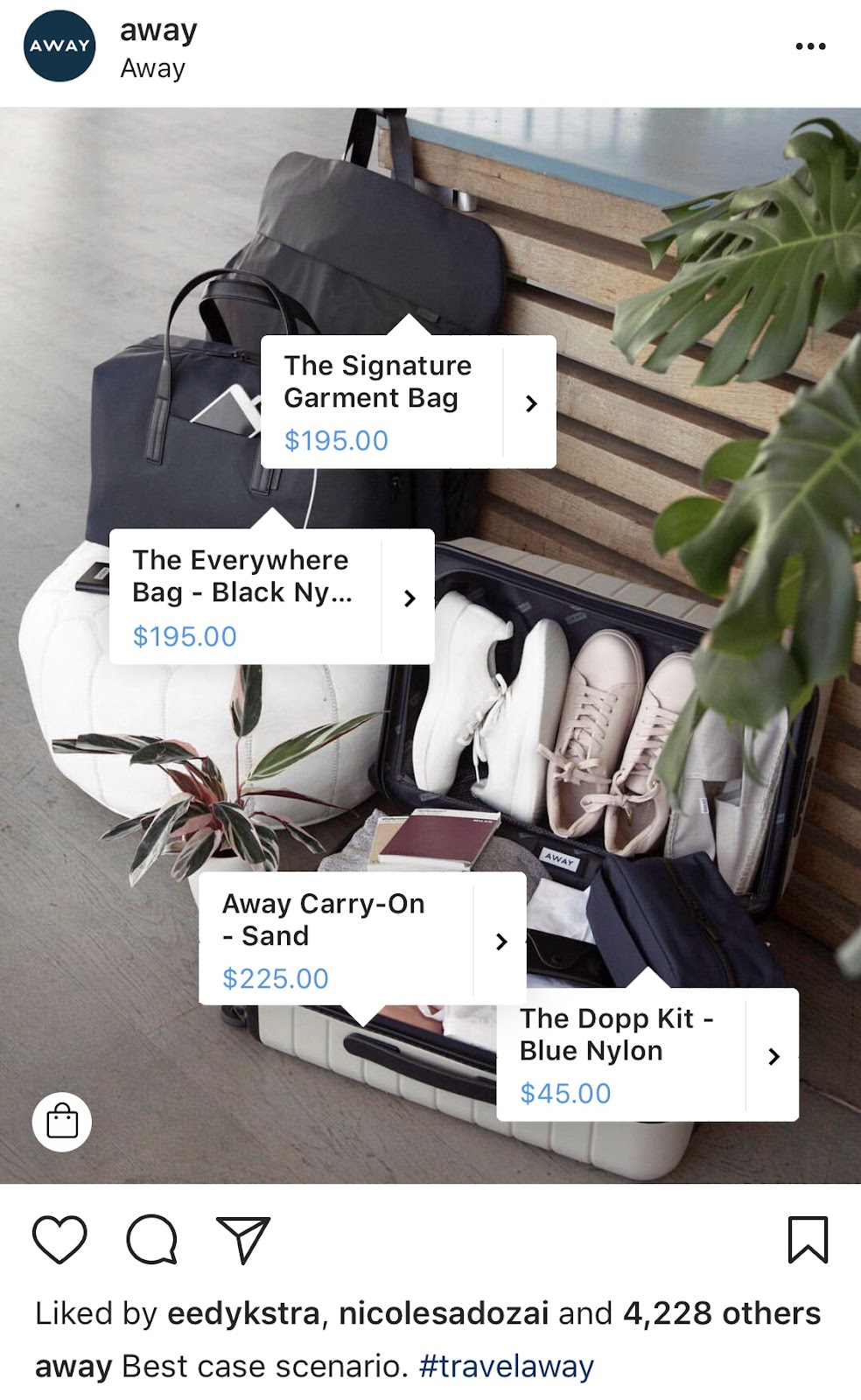
Instagram shoppable posts are marked with a “Tap to View Products” pop-up or small white circle with the shopping bag icon:

On a business’s Instagram account, Instagram shoppable posts will be marked by a shopping bag icon in the top-right corner. Users will also be able to browse your “Shop” feed directly from your Instagram profile:
At the end of the day, Instagram’s new shoppable posts feature offers an incredible opportunity for businesses to turn their followers into customers.
If you’re a small business or publisher looking for an alternative solution to drive traffic from Instagram, using a feature like Linkin.bio might work best for you. With Linkin.bio, you can send your followers anywhere by linking your Instagram posts to specific product pages, blog posts, or websites.
How To Get Started With Selling on Instagram
There are a few eligibility requirements you’ll need to check off before you can get started with Instagram shoppable posts:
- 1. You must be located in one of these countries: United States, Canada, Brazil, the United Kingdom, Germany, France, Italy, Spain, or Australia
- 2. You need an Instagram business account
- 3. You must be on the latest version of the Instagram app on either iOS or Android.
- 4. Your business must sell physical goods that comply with Instagram’s merchant agreement and commerce policies.
- 5. Your business profile must be connected to a Facebook catalog. This can be created and managed on Business Manager, directly on your business’s Page on Facebook, or through Shopify or BigCommerce.
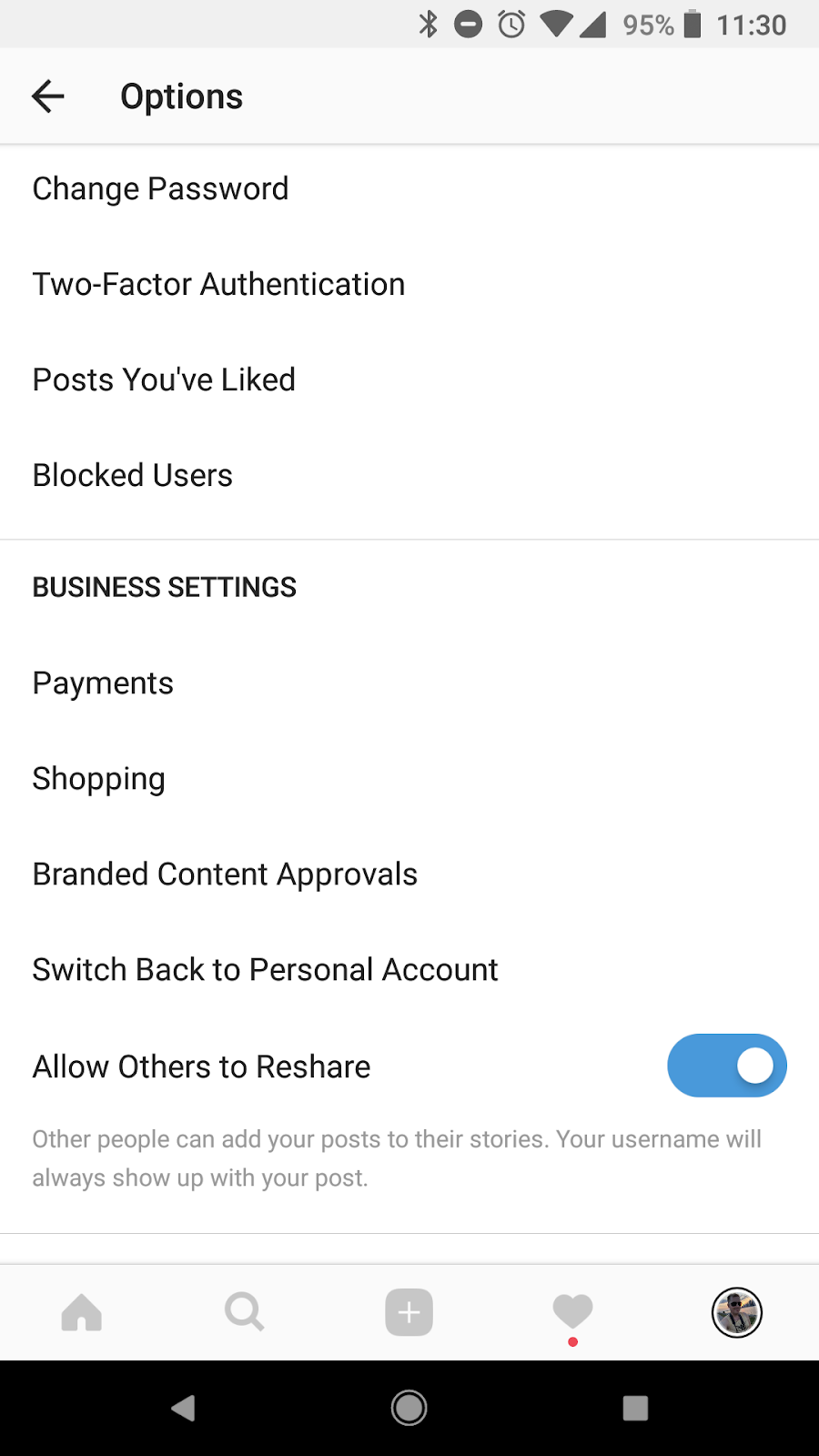
If you meet the above requirements, you can simply add the Instagram sales channel to your Shopify or BigCommerce store at no additional cost, and then, once your store is approved, enable the feature by selecting Shopping under Business Settings in the Instagram app.
Here’s how to connect your business profile to a Facebook catalog:
Tip: Once you start adding shoppable posts to your feed, let your audience know with an Instagram story! It’s a great way to spread the word and drive more traffic to your posts.
Option #1: Create a Facebook Catalog with Facebook Business Manager
A Facebook catalog in Facebook Business Manager is essentially a file that contains a list of all the products you want to sell.
To get started, head to the Business Manager account that owns the Facebook Page that’s linked to your Instagram business account.
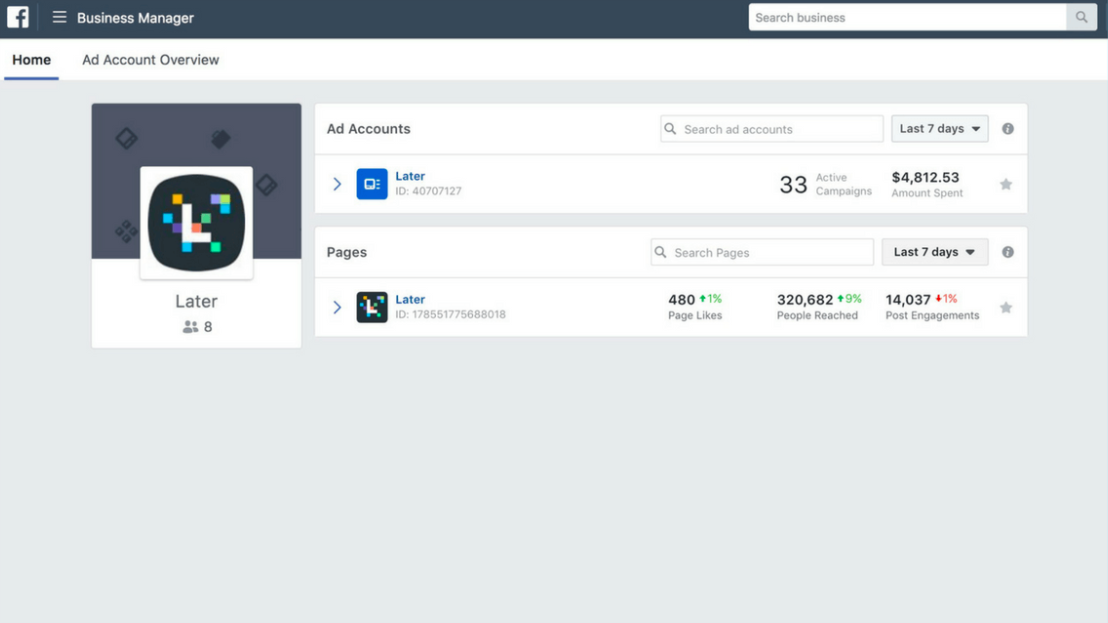
From your Business Manager account, you can create a new catalog or identify an existing catalog you’d like to use.
Start by opening your Business Manager Settings and clicking on People and Assets. Here you’ll find a Catalogs option. Click on “+ Add” and choose Create a New Product Catalog.
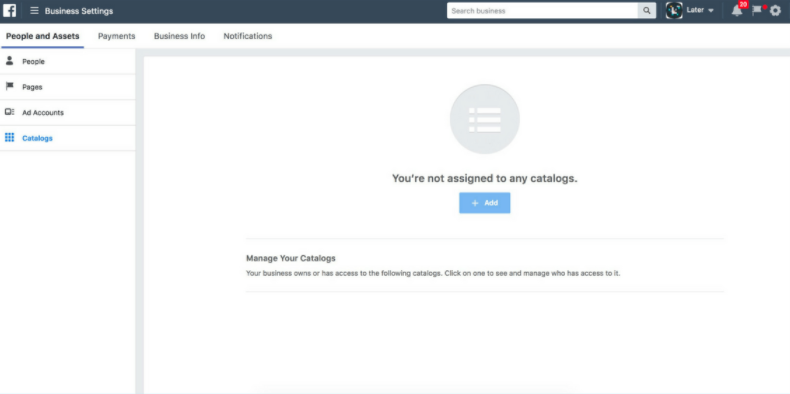
You have to give your product catalog a name and select the types of products you’re adding to your catalog before you can add it to your product feed.
Here’s a Facebook guide on how to do it.
Note: It’s very important to keep your product catalog synced with your Facebook Page, and that your product descriptions and prices are accurate. If you’re running a sale or promotion, make sure your product catalog reflects it.
Option #2: Create a Shop on Facebook with Shopify or BigCommerce
A second way to connect you Instagram business profile to a Facebook catalog is to do it directly with Shopify or BigCommerce.
Shopify
Before you get started, you need to have the Facebook sales channel (included in all paid Shopify plans) installed on your Shopify store, which creates a Shop tab on your Facebook page that displays your Shopify products.

For specific details on how to connect your Facebook page to your Shopify account, you can view the Shopify guide here.
Once you’ve done the above, you can easily add the Instagram sales channel to your Shopify store, which connects the product that you have in Shopify to your Instagram business profile.
To do this, head to your Shopify admin and click to “+” button beside the “Sales channels” heading.
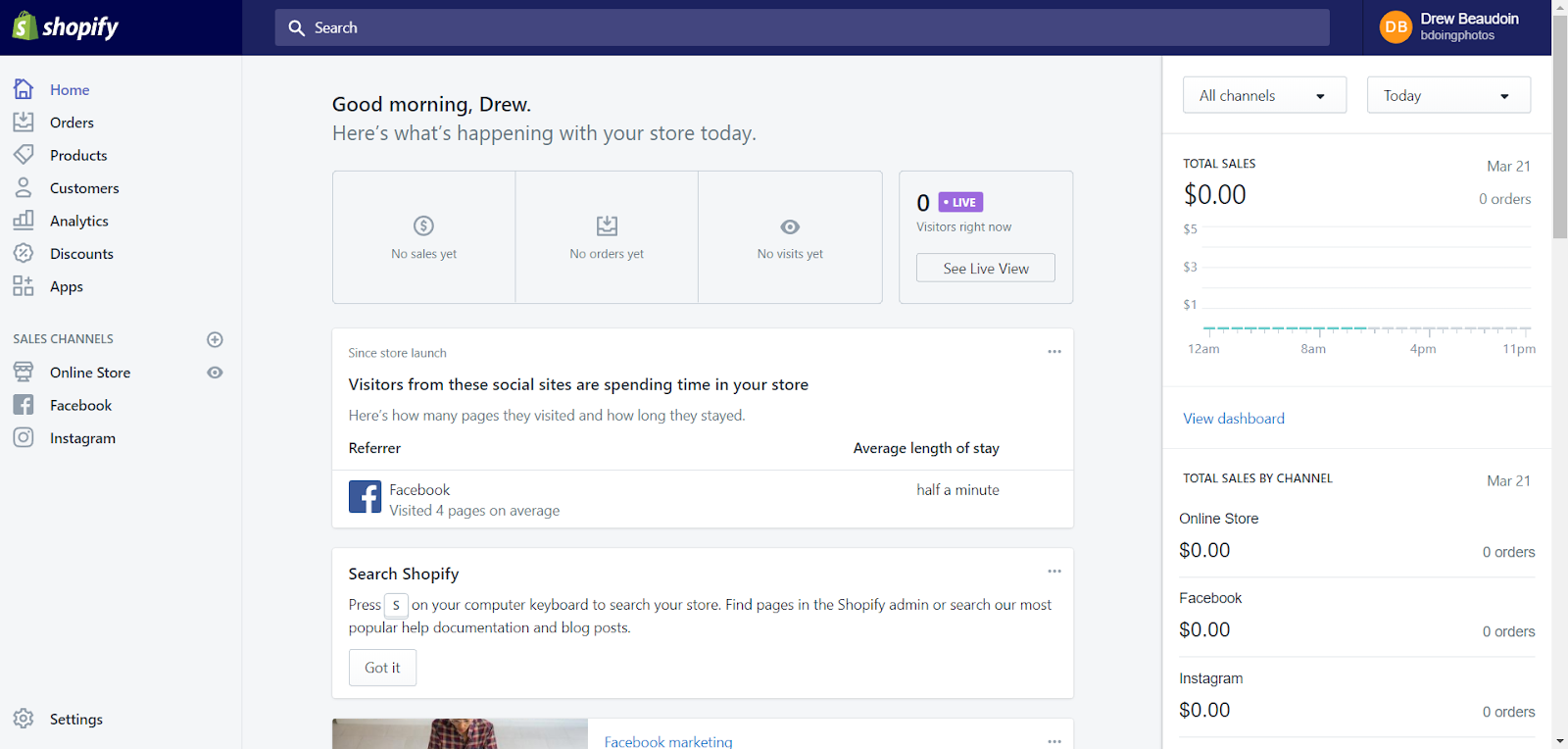
Next, on the “Add sales channel” dialog, click Instagram and then Add channel.
You’ll need to log into your Facebook account page to authenticate your Instagram account in the sales channel.
Once the Instagram sales channel is installed, you can enable the feature by visiting Shopping under Business Settings in the Instagram app.
BigCommerce
You can also use BigCommerce to connect your store’s catalogue to your Facebook Page.
Start by opening Channel Manager on your BigCommerce account and clicking Get Started next to Facebook.
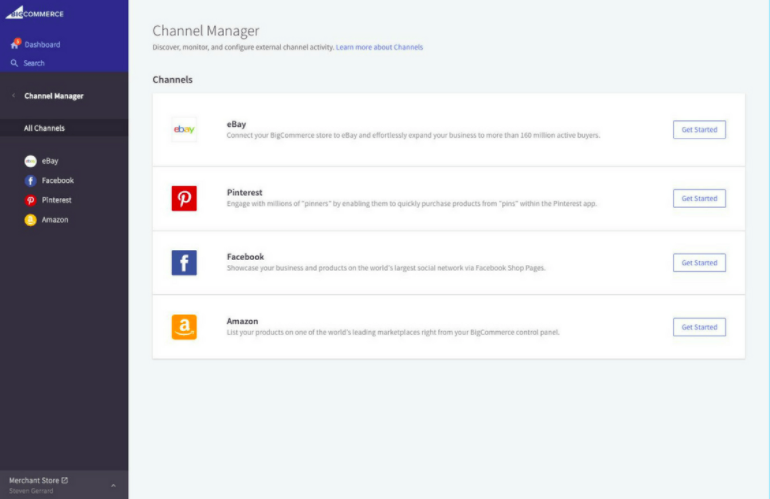
On the next screen, confirm that you’re using a compatible currency, sign up for a Facebook account (if you don’t have one), review the product requirements, then click Get Started.
Next, fill out your details on the Configuration page, including your Business’ contact email, phone number, and the Facebook Page you’d like your Shop to appear on.
Here’s the complete BigCommerce guide on how to it.
Once Facebook approves your catalog, head back to Channel Manager, click Get Started next to Instagram, and confirm that your store meet the necessary requirements.
Connecting your Shop to your Business’ Instagram Account
Once you’ve completed the steps above, your account will be reviewed by Instagram before you can access their shoppable posts feature. The approval process can take anywhere from a few hours to a few days according to Instagram. Once you’ve been approved, you will receive a notification letting you know you’re ready to start selling on Instagram.
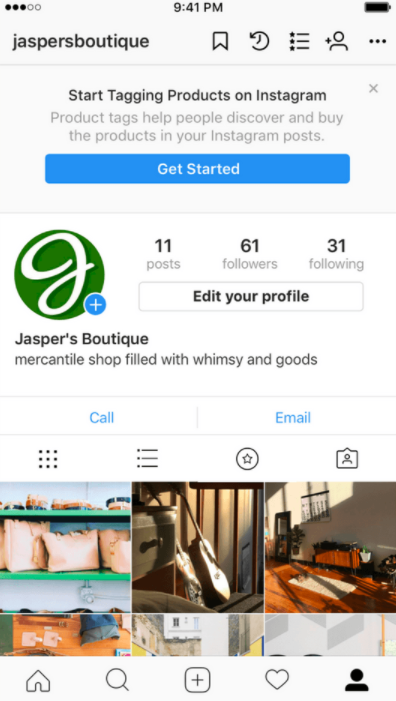
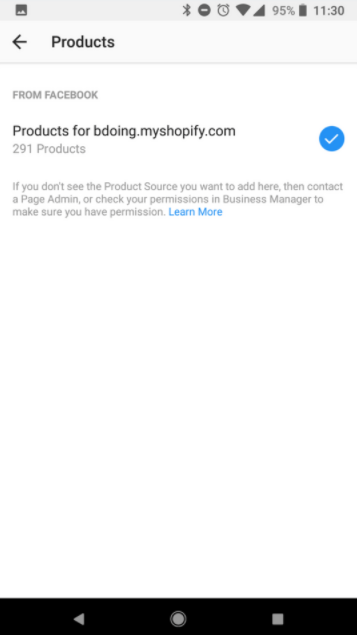
The next step is to connect your product catalog to your Instagram account. Head back to the Shopping section in your Instagram settings and tap on Products.
Here you’ll be able to select a product catalog to connect to your business profile. Once you’re finished, tap Done.
Tip: Create at least nine shoppable posts to activate the “Shop” tab on your Instagram profile! This will group all your shoppable posts under one tab for easy shopping and product discovery.

How to Tag Products with Instagram Shoppable Posts
Once you get access to shoppable posts on Instagram and you’ve completed all the steps listed in this post, adding tags to your posts is super quick and easy!
You’ll begin uploading a photo to Instagram as you would for any other post. After you’ve added your effects and filters, hit “Next.”
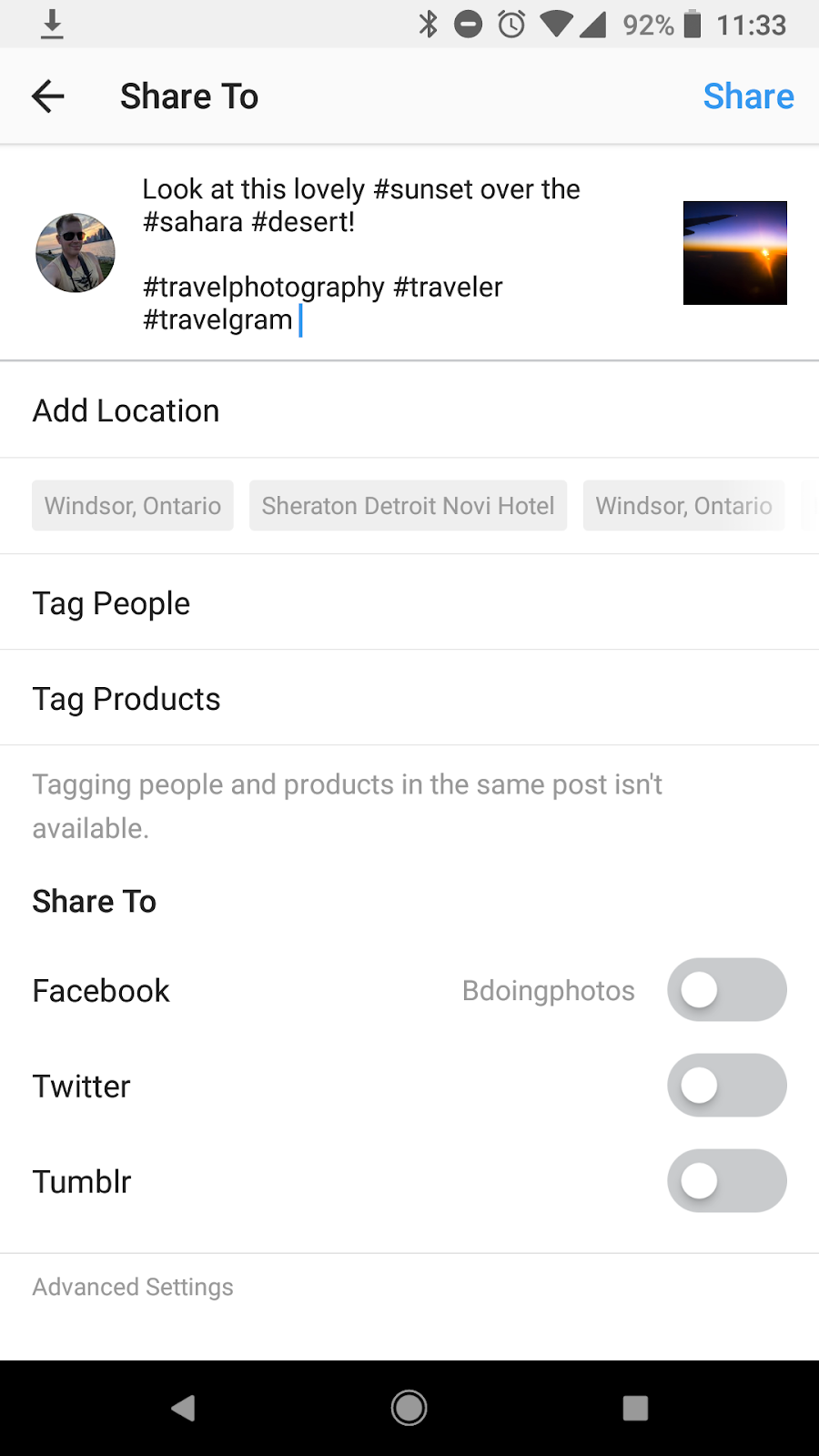
When you have the product feature enabled on your account, you’ll find the option to tag products on the screen where you normally add your caption and other information. Next, enter the names of the products you want to tag, then select them as they appear in the search box.

Once you’re finished, tap “Done” and share your post!
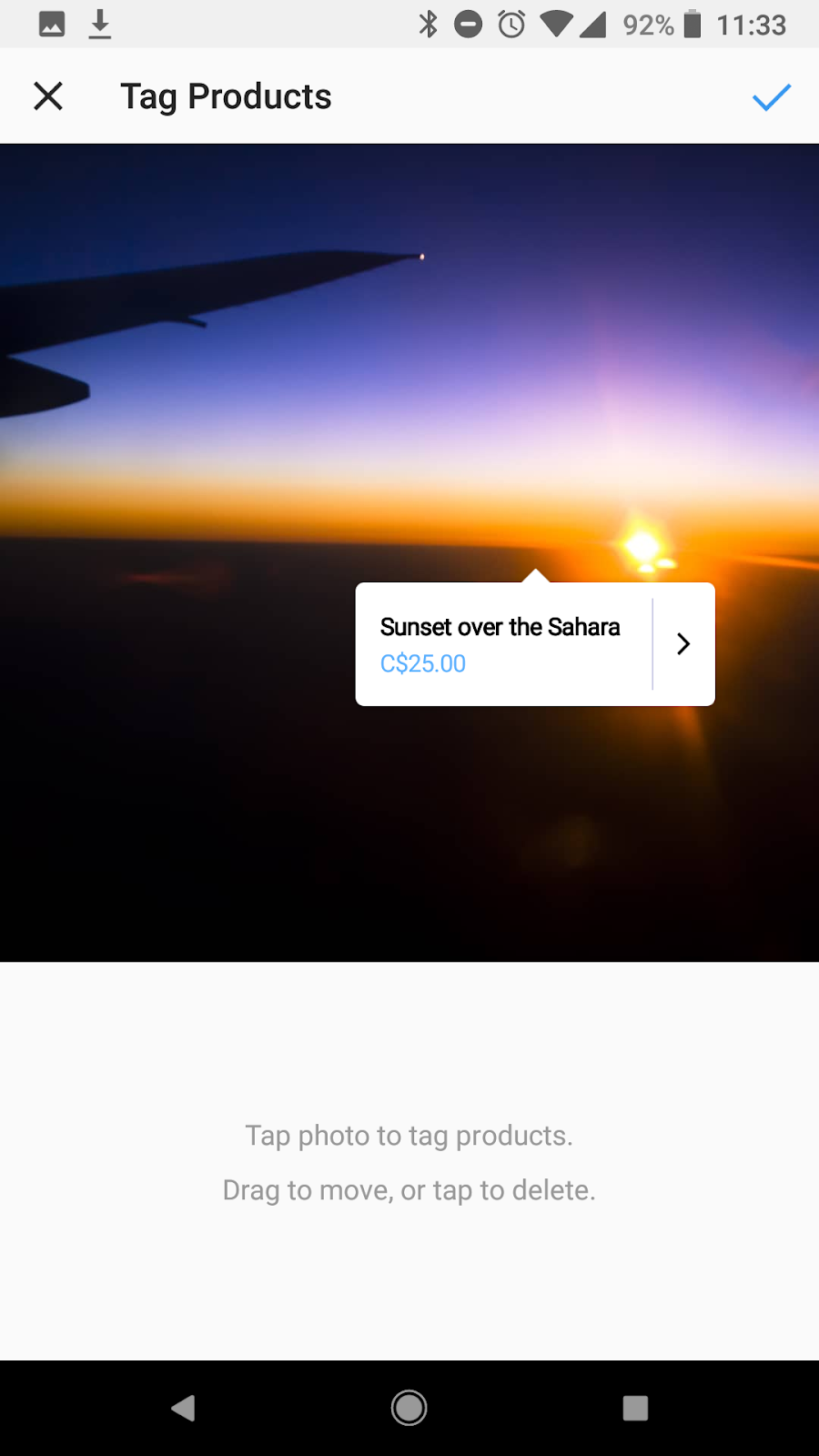
Tip: You can tag products in both new and existing posts from your Instagram business profile. You can also tag up to 5 products per single image post or 20 products per multi-photo (or “carousel”) post:
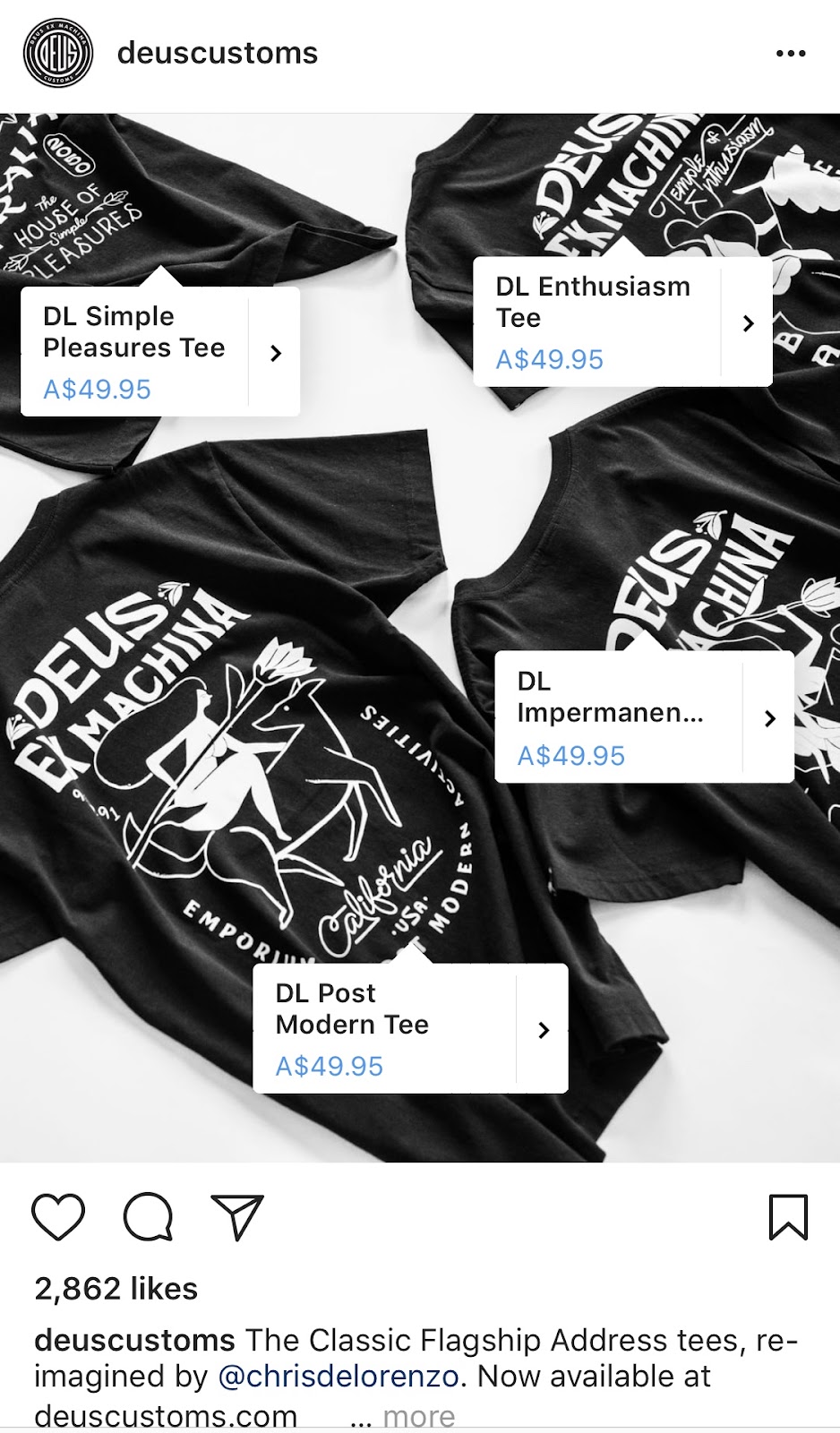
Turning Your Instagram Posts Into Purchases
While selling on Instagram is easier than ever, it’s important to remember your audience shouldn’t feel like they are being sold to. Businesses should maintain their current content strategy, incorporating shoppable tags on photos that are a natural fit for their profile.
A great way to organically add shopping tags to your post is by leveraging high-quality UGC. Millennials trust UGC 50% more than other types of media, so it makes sense that these images would work well for shoppable posts.
For example, Madewell recently shared this phoppable post from a fan photo, showing off their summer jeans:

Madewell does a great job at seamlessly incorporating Instagram’s shopping feature into their current strategy, without being too “salesy.”
You can also optimize your Instagram sales strategy by using influencer posts. Instagram influencer collaborations and sponsorships have nearly replaced traditional ads and are a huge part of a social media strategies today.
Below, popular fashion model Michelle Dee is shown sporting a Herschel Supply suitcase on the company’s profile:

An Instagram influencer’s stamp of approval goes a long way and is a great strategy to drive sales from your Instagram shoppable posts!
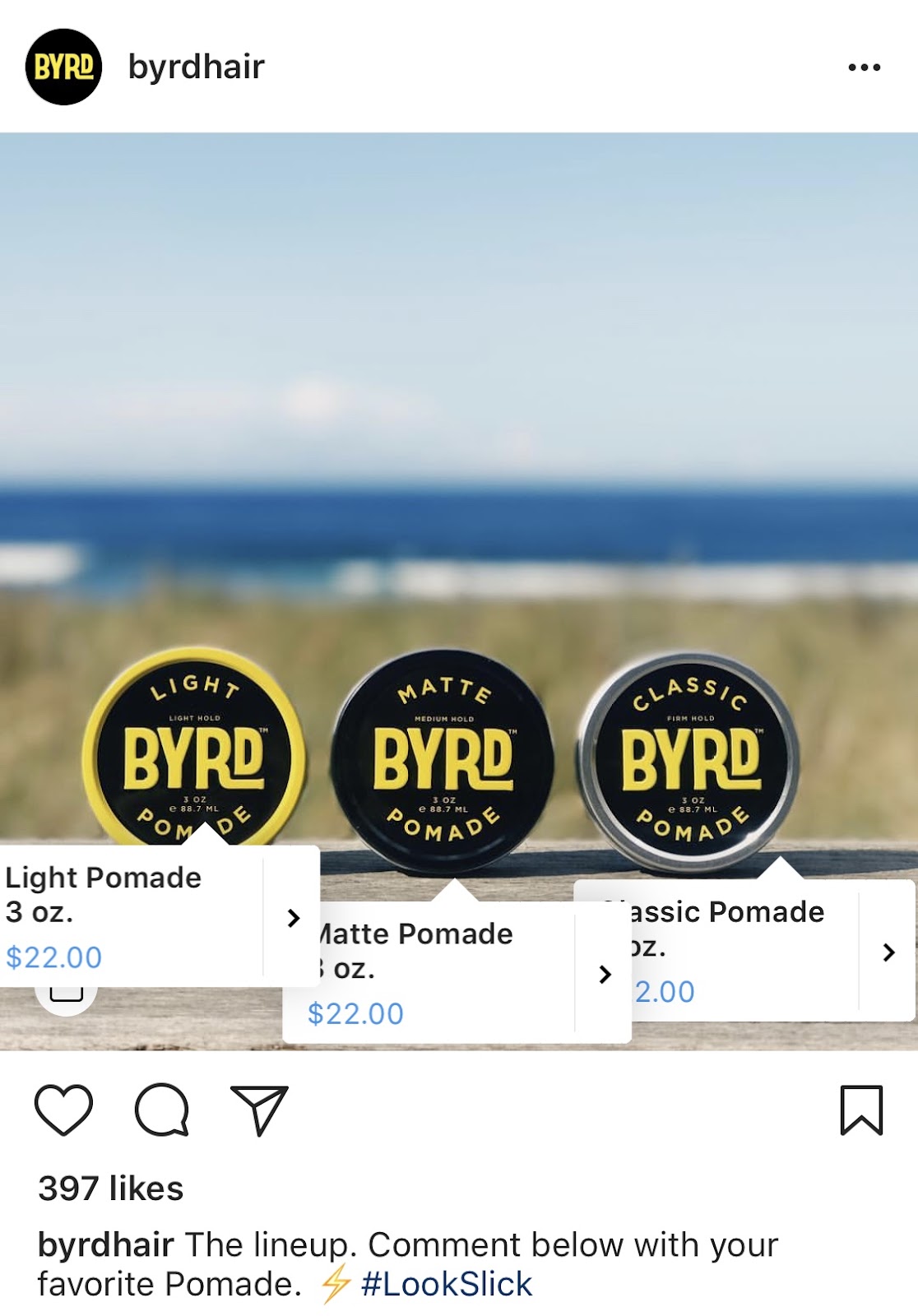
Lastly, including multiple shopping tags in your photos will help your audience explore and browse through your products quickly. You can also try adding shopping tags to carousel posts to test their performance again single-photo posts.
Measuring the Results of your Shoppable Posts
Instagram business accounts also have access to analytics for their shoppable posts, including how many people viewed product information or clicked-through to its product page. This information is super helpful in determine what type of products (and product tags) resonate with your Instagram followers, or where there might be a disconnect in the buyer’s journey.
As with all of your social media marketing efforts, performance data should be measured to see what drove the best results (and why), and then used to inform future posts.
Once your business begins selling on Instagram, it’s important to keep experimenting with images, copy, shopping tags per post, or any other factors that may contribute to your Instagram sales success.
No matter what type of products you sell, delving into your Instagram analytics allows you to understand your audience’s wants, improves your content, and ultimately helps you drive more traffic and sales.

13 of the Best Portable Apps in 2018
There are a few different reasons you might want to use a portable app, which is software that can run on a computer without being installed.
First, if you often switch back and forth between your work and home computer, you can transfer a portable app via USB flash device, portable hard drive, or the cloud from one computer to another. This enables you to work on projects from different devices at your leisure.
Second, the portable app leaves no trace when you remove it, making it handy when you’re using a public computer but don’t want information stored there long-term. Plus, you can use a portable app on a PC with restricted user permissions, so you’ll have no problem getting your work done anywhere.
And, lastly, installed programs take up space on your computer, which could potentially cause it to run slower. By using portable apps, you’re clearing up space on your computer and enabling every bit of your downloaded software to run faster.
Whether you’re looking for any of these benefits, or simply curious, take a look at our list of the best 13 portable apps for every device and browser.
Are portable apps safe?
Portable apps, like any software, can spread viruses to your computer. However, as long as you follow the same anti-virus protocol you follow for the rest of your computer, including using anti-virus software, scanning your portable drive for viruses, and backing up your system, it is safe to download and use Portable apps.
13 of the Best Portable Apps
Portable Apps for Chrome
1. Google Chrome Portable (Web Browser)
If you use Chrome already, the portable version is identical — it links to your Google account, offers bookmarks, and supports extensions. Plus, Chrome offers built-in malware protection and auto-updates, so it’s a secure choice for browsing the web, checking emails, or anything else you might need to do.
Portable Apps for Firefox
2. Mozilla Firefox Portable (Web Browser)
Mozilla Firefox Portable is identical in function to its non-portable alternative. The portable app employs pop-up blocking and automatic updates, so it’s secure. Plus, Firefox Portable ensures your bookmarks and extensions are saved, so wherever you take your portable app, you take those with you.
Portable Apps for Linux
3. LMMS (Linux MultiMedia Studio) Portable (Media Player)
Music creation and production software takes up a lot of hard drive space — LMMS is the portable alternative, allowing you to create melodies and beats, mix sounds, and edit and add effects to your samples. It also offers instrument and effect plugins. LMMS is open source and compatible with many standards, including SoundFont2, VST(i), LADSPA, GUS Patches, and MIDI.
4. Apache OpenOffice Portable (Office Suite)
Apache OpenOffice app, which is also available for Windows, is one of the most impressive alternatives to the Office suite, offering a word processor, spreadsheet, presentation tool, and more. It supports many different languages including Chinese, French, German, Italian, Portuguese, and Spanish. Best of all, it’s free, so you save money by using it instead of the Office alternative.
5. Stickies Portable (Stickie Notes)
I’m willing to bet you already know the usefulness of sticky notes, either virtual or physical — when you need a quick reminder or to jot down some random thoughts, they can’t be beat. The Portable version supplies sticky notes that can store text and images, and you can attach a sticky note to a website or document so you can minimize them until you need it.
Portable Apps for Mac
6. VLC Media Player Portable (Media Player)
VLC is one of the most popular media players around, largely due to its ability to play almost any audio or video format, including WMV, MPEG-1, DivX, ogg, as well as DVDs. Since it can handle files from almost any location, including local drives, network storage, and streams, it’s a good idea to download the portable app for any time you’re having trouble displaying an audio or video file on your computer. This app is also available for Windows.
7. XMind (Mindmapping Tool)
XMind offers a variety of helpful productivity and decision-making tools for mindmapping and diagramming, including organizational charts, tree charts, and logic charts. Along with brainstorming templates, XMind also lets you create business charts and presentations. It has an intuitive interface and provides easy-to-use templates.
8. Gimp (Photo Editor)
One of the most comparable alternatives to Photoshop, Gimp provides an impressive array of photo-editing tools. Since editing and exporting images takes up a lot of storage space, you might opt for Gimp’s portable app version to edit your photos — plus, it’s free. You can use it to create new designs using the paint program, or simply convert image formats. It’s also available for Windows.
9. Inkscape (Vectors Graphic Editor)
Inkscape is essentially identical in function to Adobe Illustrator, and is an impressive free alternative. Inkscape portable offers advanced features including alpha blending, markers, and trace bitmaps, and has an intuitive interface. If you’re a freelance designer, it’s not a bad idea to carry Inkscape portable around on a USB, so you’ve got the tools for for vector graphics, creating illustrations, charts, and logos at your disposal at all times.
Portable Apps for Windows
10. LibreOffice Portable (Office Suite)
LibreOffice, a notable Office alternative, offers many of the same features as Office including a word processor, spreadsheets, presentations, vector drawing, and databases. It performs most of the necessary functions you’d require from Office, but it’s free and you can carry it around with you on an external drive or via the cloud. It supports over ten languages.
11. CCleaner Portable (Software Cleaner)
It seems contradictory to download a large software file just to clear up space on your computer, so it makes sense you’d use CCleaner’s portable version to clean up your files and ensure your computer’s protected from viruses. Along with clearing up space, CCleaner cleans out cookies and files that could put your privacy at risk.
12. Foobar2000 (Audio Player)
Foobar2000 is a media player that supports most popular audio formats, and lets you rip audio CDs, create playlists, and play natively from within the app. It also touts an easily customizable user interface with advanced tagging capabilities and customizable keyboard shortcuts, allowing you to customize your user experience more than you could with iTunes or Spotify.
13. GeekUninstaller (Software Cleaner)
If you uninstall something using Windows’ add/remove button, it isn’t completely eliminated from your computer — there are still junk files or folders left behind. GeekUninstaller permanently rids your computer of unwanted files, including any unintentional residue left over. The app also offers a “Force removal” button for difficult-to-remove programs. Plus, since it’s portable, it doesn’t contribute to clutter.

How to Make a Chart or Graph in Excel [With Video Tutorial]
Building charts and graphs is part of most people’s jobs — it’s one of the best ways to visualize data in a clear, easily digestible manner. (Check out this guide for making better charts to learn more.)
However, it’s no surprise that some people get a little bit intimidated by the prospect of poking around in Microsoft Excel. I actually adore Excel, but I work in Marketing Operations, so it’s pretty much a requirement.

That’s why I thought I’d share a helpful video tutorial as well as some step-by-step instructions for anyone out there who cringes at the thought of organizing a spreadsheet full of data into a chart that actually, you know, means something. Here are the simple steps you need to build a chart or graph in Excel. And if you’re short on time, check out the video tutorial below.
Keep in mind there are many different versions of Excel, so what you see in the video above might not always match up exactly with what you’ll see in your version. In the instructions below, I used Excel 2017 version 16.9 for Max OS X.
We encourage you to follow along with the written instructions and demo data below (or download them as PDFs using the links below) so you can follow along. Most of the buttons and functions you’ll see and read are very similar across all versions of Excel.
Download Demo Data | Download Instructions (Mac) | Download Instructions (PC)

How to Make a Graph in Excel
- Enter your data into Excel.
- Choose one of nine graph and chart options to make.
- Highlight your data and ‘Insert’ your desired graph.
- Switch the data on each axis, if necessary.
- Adjust your data’s layout and colors.
- Change the size of your chart’s legend and axis labels.
- Change the Y axis measurement options, if desired.
- Reorder your data, if desired.
- Title your graph.
1. Enter your data into Excel.
First, you need to input your data into Excel. You might have exported the data from elsewhere, like a piece of marketing software or a survey tool. Or maybe you’re inputting it manually.
In the example below, in Column A, I have a list of responses to the question, “Did inbound marketing demonstrate ROI?”, and in Columns B,C, and D, I have the responses to the question, “Does your company have a formal sales-marketing agreement?” For example, Column C, Row 2 illustrates that 49% of people who have an SLA (service level agreement) also say that inbound marketing demonstrated ROI.
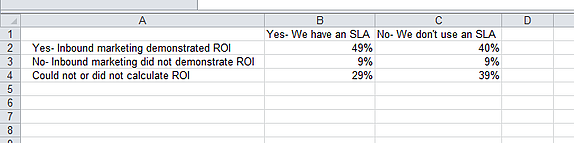
2. Choose one of nine graph and chart options to create.
In Excel, you have plenty of choices for charts and graphs to create. This includes column (or bar) graphs, line graphs, pie graphs, scatter plot, and more. See how Excel identifies each one in the top navigation bar, as depicted below:
(For help figuring out which type of chart/graph is best for visualizing your data, check out our free ebook, How to Use Data Visualization to Win Over Your Audience.)
3. Highlight your data and ‘Insert’ your desired graph.
The data I’m working with will look best in a bar graph, so let’s make that one. To make a bar graph, highlight the data and include the titles of the X and Y axis. Then, go to the ‘Insert‘ tab, and in the charts section, click the column icon. Choose the graph you wish from the dropdown window that appears.
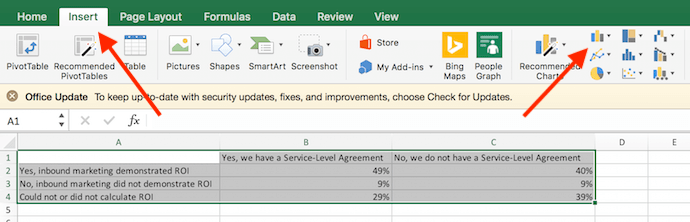
In this example, I picked the first 2-dimensional column option — just because I prefer the flat bar graphic over the 3-D look. See the resulting bar graph below.
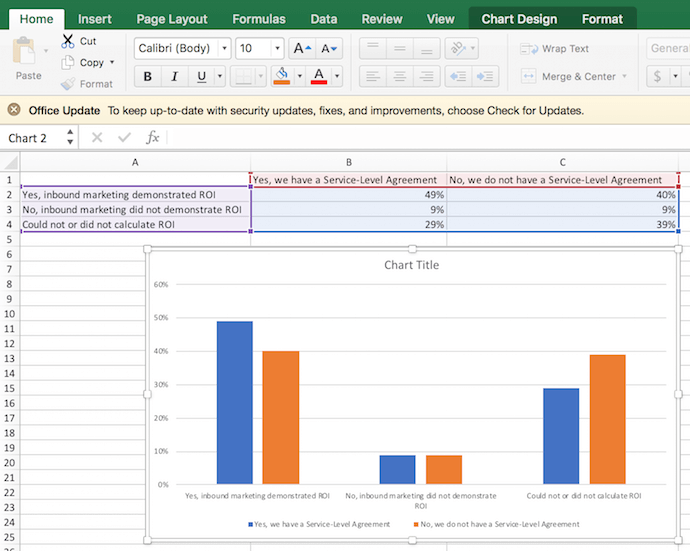
4. Switch the data on each axis, if necessary.
If you want to switch what appears on the X and Y axis, right-click on the bar graph, click ‘Select Data,’ and click ‘Switch Row/Column.’ This will rearrange which axes carry which pieces of data in the list shown below. When you’re finished, click ‘OK’ at the bottom.
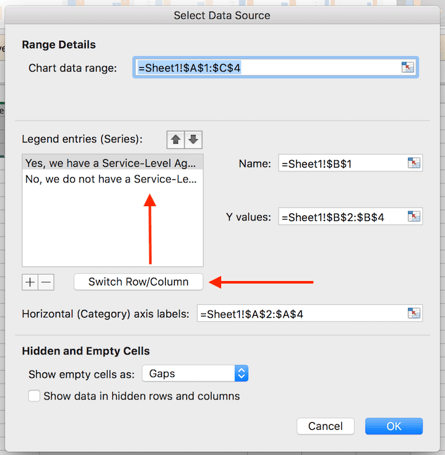
The resulting graph would look like this:
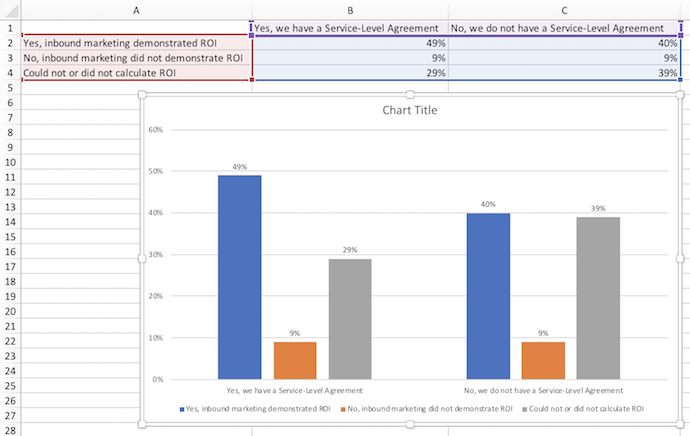
5. Adjust your data’s layout and colors.
To change the layout of the labeling and legend, click on the bar graph, then click the ‘Chart Design‘ tab. Here, you can choose which layout you prefer for the chart title, axis titles, and legend. In my example (shown below), I clicked on the option that displayed softer bar colors and legends below the chart.
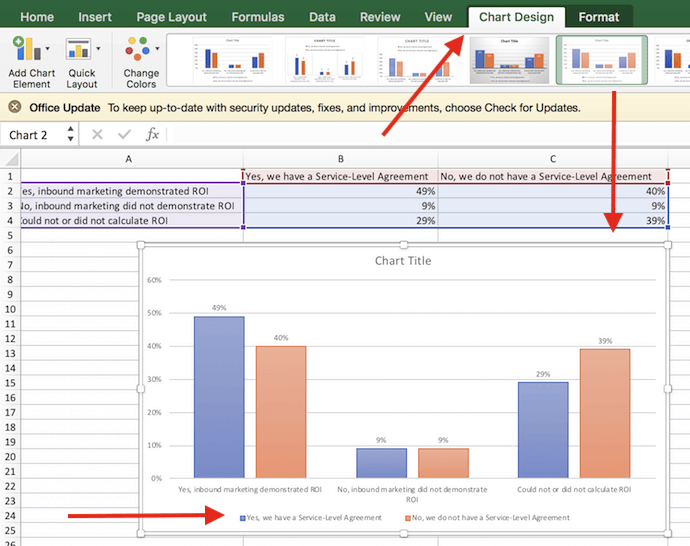
To further format the legend, click on it to reveal the ‘Format Legend’ sidebar, as shown below. Here, you can change the fill color of the legend, which will in turn change the color of the columns themselves. To format other parts of your chart, click on them individually to reveal a corresponding Format window.
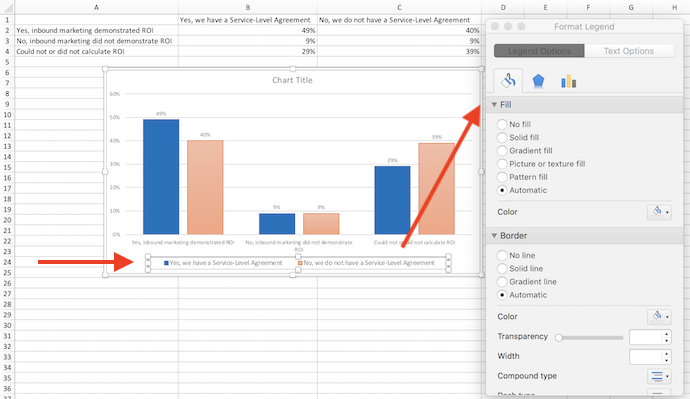
6. Change the size of your chart’s legend and axis labels.
When you first make a graph in Excel, the size of your axis and legend labels might be a bit small, depending on the type of graph or chart you choose (bar, pie, line, etc.). Once you’ve created your chart, you’ll want to beef up those labels so they’re legible.
To increase the size of your graph’s labels, click on them individually and, instead of revealing a new Format window, click back into the ‘Home‘ tab in the top navigation bar of Excel. Then, use the font type and size dropdown fields to expand or shrink your chart’s legend and axis labels to your liking.
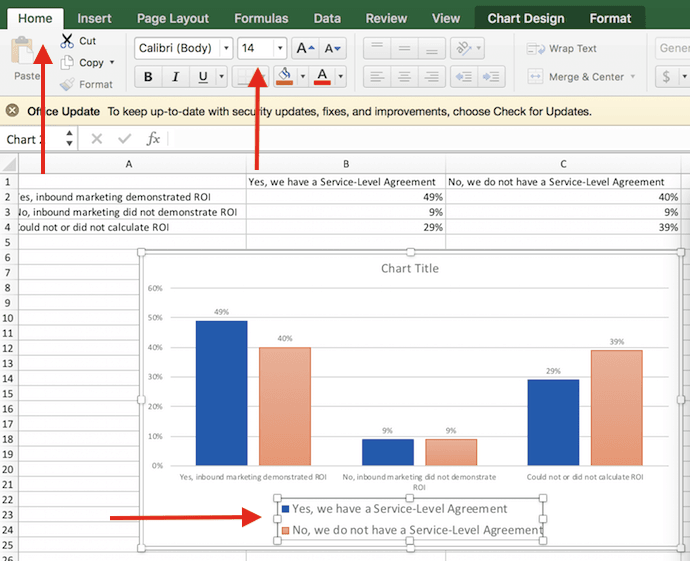
7. Change the Y axis measurement options, if desired.
To change the type of measurement shown on the Y axis, click on the Y axis percentages in your chart to reveal the ‘Format Axis‘ window. Here, you can decide if you want to display units located on the Axis Options tab, or if you want to change whether the Y axis shows percentages to 2 decimal places or to 0 decimal places.
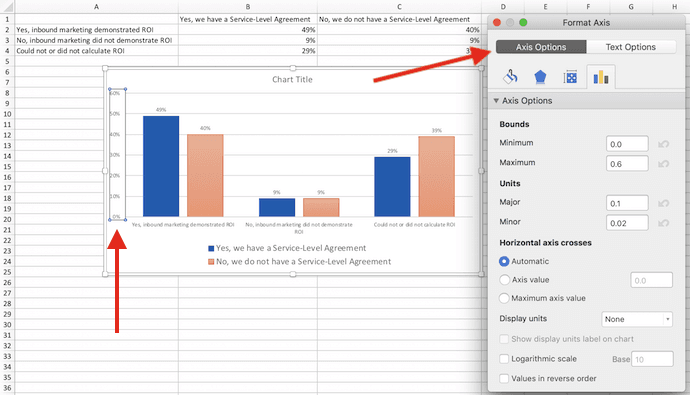
Because my graph automatically set the Y axis’s maximum percentage to 60%, I might want to change it manually to 100% to represent my data on a more universal scale. To do so, I can select the ‘Maximum‘ option — two fields down under ‘Bounds‘ in the Format Axis window — and change the value from 0.6 to 1.
The resulting graph would be changed to look like the one below (I increased the font size of the Y axis via the ‘Home’ tab, so you can see the difference):
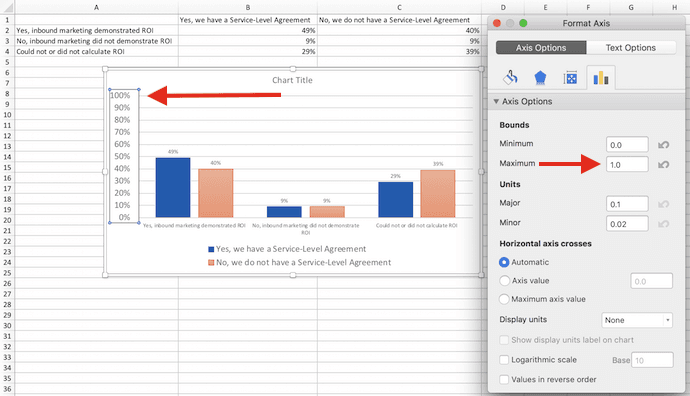
8. Reorder your data, if desired.
To sort the data so the respondents’ answers appear in reverse order, right-click on your graph and click ‘Select Data’ to reveal the same options window you called up in Step 3 above. This time, click the up and down arrows, as shown below, to reverse the order of your data on the chart.
If you have more than two lines of data to adjust, you can also rearrange them in ascending or descending order. To do this, highlight all of your data in the cells above your chart, click ‘Data,’ and select ‘Sort,‘ as shown below. You can choose to sort based on smallest to largest or largest to smallest, depending on your preference.
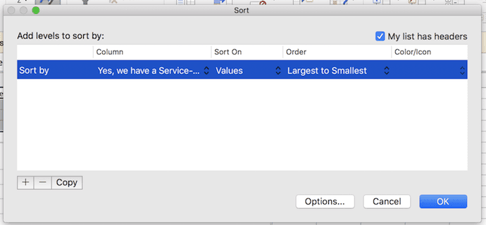
9. Title your graph.
Now comes the fun and easy part: naming your graph. By now, you might have already figured out how to do this. Here’s a simple clarifier.
Right after making your chart, the title that appears will likely be “Chart Title,” or something similar depending on the version of Excel you’re using. To change this label, click on “Chart Title” to reveal a typing cursor. You can then freely customize your chart’s title.
When you have a title you like, click ‘Home‘ on the top navigation bar, and use the font formatting options to give your title the emphasis it deserves. See these options and my final graph below:
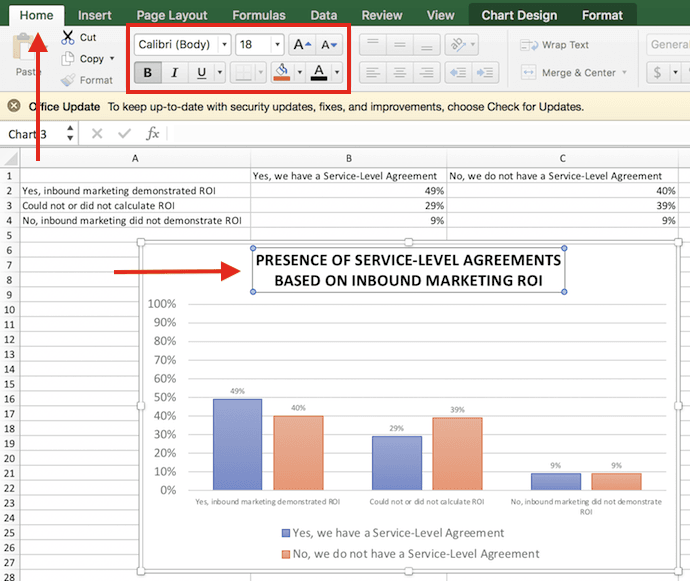
Pretty easy, right? Check out some additional resources below for additional help using Excel and visualizing your data in smart ways.
Additional Resources for Using Excel and Visualizing Data:
- How to Build a Pivot Table in Excel [Video]
- How to Use the VLOOKUP Function in Excel [Video]
- Why Most People’s Charts and Graphs Look Like Crap [Blog Post]
- How to Use Data Visualization to Win Over Your Audience [Ebook]
Want even more Excel tips? Check out this post on how to add a second axis to an Excel chart.

Will We Use Big Data to Solve Big Problems? Why Emerging Technology is at a Crossroads
A couple days ago, my girlfriend and I had a debate (let’s call it a discussion) about caffeine.
I read that it decreases your appetite. She disagreed, saying that caffeine actually increases our urge to raid the fridge.
Who’s right?
It depends not only who you ask, but how.
This will sound obvious, but the way you phrase a Google search directly affects your results.
A question like, “does caffeine increase appetite” will boost the number of hits that link caffeine and hunger. The opposite is true if you include words like “decrease” or “suppress.”
Typing “how does caffeine affect appetite” or “caffeine and appetite” is your best shot at uncovering the truth — or at least what most researchers now understand to be true.
Our conversation highlights the fact that search engines aren’t objective. They’re tools designed for human use, and people are always influenced by their own beliefs, biases and experiences.
It’s easy to see how our worldview can sway familiar tools, like search engines, but the connection gets trickier — and more important — when we look at emerging technologies.
Artificial Intelligence (AI) and machine learning have now given ordinary citizens (i.e. those who aren’t necessarily rich or powerful) a disproportionate ability to influence people’s hearts and minds on a major scale.
We’re at a critical point in history, where we can collectively choose to use this technology for good, or to exploit people’s biases and belief systems.
A Spectrum of Opportunity
These are the early days of data science and machine learning. As both individuals and organizations start to experiment with emerging technologies, there’s a full spectrum of applications.
Atone end of the spectrum (let’s call it the far right), there’s the 2016 U.S. election. Almost two years later, we’re still learning how the Trump campaign used psychographic profiles to motivate voters.
Analyzing massive data sets enabled Trump’s team to create targeted Facebook ads, which reinforced some voters’ political and cultural beliefs. Many people see this as a misuse of increasingly powerful technologies.
Groups like DataKind live at the other end of the continuum. This data science community works with social change organizations to tackle challenges across education, poverty, health, human rights, cities, and the environment.

Most applications land right in the middle. Companies are learning how to use data and machine learning for capitalistic gains.
That’s not necessarily a bad thing. After all, most companies are incentivized to make as much money as possible to serve their employees, stakeholder, and/or founders.
Data-enabled capitalism feels darker when companies use social platforms to pursue vulnerable people; to spread unhappiness.
We’ve always had advertising, but the niche targeting and sheer volume of data we encounter online is killing our attention spans. It’s also fuelling the need for instant gratification.
I lead the HubSpot team that’s building GrowthBot — a chatbot for marketing and sales. As you may know, a bot is an automated computer program designed to simulate conversation with human users.

It uses AI (a computer system that can perform tasks that normally require human intelligence) to process data. GrowthBot integrates with over a dozen systems and APIs to help people accomplish more with less distraction.
Are we using GrowthBot to make money? Yes. HubSpot is a for-profit business. At the same time, we’re building this technology to help people regain their focus.
Everyone is overwhelmed with noise and data. Our bot works behind the scenes to conduct research, connect accounts, pull files and perform routine tasks, so users experience that elusive state of flow.
The Backlash Against Big Data
As technology leaps forward, there’s a growing backlash against machine learning. Some people think AI will be humanity’s downfall. Others are afraid it will replace their jobs.
I understand. We’ve all watched technology overhaul industries ranging from auto manufacturing to entertainment.
Yet, there are essential differences between people and machines.
Computers excel at processing, storing and explaining data and information.
Humans have the unique ability to develop insights, review data, determine next steps, and think creatively.
Computers can’t have “ah-ha” moments or come up with insights, just as humans will always struggle to store and process large amounts of data.
We can make the same distinctions about AI and algorithms. If you’re concerned about how they influence behavior, let’s clear up a common misconception: technology alone can’t change people’s hearts and minds.
Instead, it enables motivated groups (like the Trump campaign) to identify and potentially exploit our biases. Everything we share, search, like, and post online creates a comprehensive profile of who we are and what we believe.
Combine that with our social graph — the online networks we create and nurture — and data science can make surprisingly accurate conclusions about our deepest psychology.
For example, data scientists can predict (with a high degree of accuracy), whether someone believes in climate change, based on their support for the National Rifle Association (NRA).
How can we get smarter about machine learning?
As I said earlier, we’ve reached an important crossroads. Will we use new technologies to improve life for everyone, or to fuel the agendas of powerful people and organizations?
I certainly hope it’s the former. Few of us will run for president or lead a social media empire, but we can all help to move the needle.
Consume information with a critical eye.
Most people won’t stop using Facebook, Google, or social media platforms, so proceed with a healthy dose of skepticism. Remember that the internet can never be objective. Ask questions and come to your own conclusions.
Get your headlines from professional journalists.
Seek credible outlets for news about local, national and world events. I rely on the New York Times and the Wall Street Journal. You can pick your own sources, but don’t trust that the “article” your Aunt Marge just posted on Facebook is legit.

Search with open-ended questions.
Researchers have found that caffeine does not typically increase hunger. My girlfriend is usually right, but I guess it was my turn to win this debate. Bottom line: try to use the internet as objectively as possible. Use neutral words and open-ended questions. Don’t encourage biased links with your language.
Educate kids about online subjectivity.
Online literacy is increasingly critical. Kids of all ages (and even many seniors) need to understand how to do open-ended searches, how to vet information sources, and how to think more critically about what they see online.
Think beyond profits.
Maybe you’re a business owner who’s trying to integrate machine learning, bots or big data into your offering. Or, you’re a tech founder who’s actively working with AI. In either case, you have the opportunity to help us make new technologies more ethical, equitable and productive.
Look at text analysis software. We could be using this technology to analyze ancient history and learn how people evolved. Instead, we’re trying to correct grammar editors and suggest sales copy that converts browsers into buyers.
Clearly, there’s nothing wrong with those applications. They’re probably not hurting anyone. They could, however, move our world forward. Text analysis could help to crack the code on tricky social challenges.
If you have an opportunity to add value and enrich lives, make it happen. Do what you can to use data for good.
We’re All in it Together
Please know that I’m not giving myself or my company a pass here. I know that GrowthBot won’t cure cancer. But, we are working to help people focus, accomplish more, and realize their own genius.
If we can help a cancer researcher to stay deep in their work and discover new insights, for example, then we have achieved our goal.
AI and machine learning are still in their infancy. That’s why this moment is so critical. We can all influence how new technologies evolve. We can manage our own consumption and lobby to see big data used for constructive pursuits.
Learn what you can and watch what’s happening in politics, business, and in your own sphere of influence. Stay informed. I know it’s easy to feel overwhelmed or disillusioned, but we can’t afford to check out. We need your voice. We need your ideas.

Careful, YouTube: Facebook and Instagram Might Be Coming for You
Facebook and Instagram are looking to become destination video sites — or, at least, it’s looking that way.
This month, both social networks announced new video initiatives and features that cater towards content creators and offer new ways for users to interact with the sites.
Earlier in June, Facebook announced it would launch funded news shows within Facebook Watch, which is the site’s video service that features original programming, both pre-recorded and live.
Then, on Tuesday, it unveiled a slew of new services for video creators and their audiences. Live videos will now be even more interactive, with new native features like real-time polling and game-show-style Q&A filters. The next day, Instagram — which is owned by Facebook — revealed IGTV: “a new app for watching long-form, vertical video from your favorite Instagram creators.”
While IGTV does have its own, separate app, it’s also available in the core Instagram app on iOS and Android operating systems. You’ll have to download the latest version of Instagram — I had to restart the app twice before the in-app version appeared — where you’ll see a small TV icon in the top-right corner, next to the direct message icon.
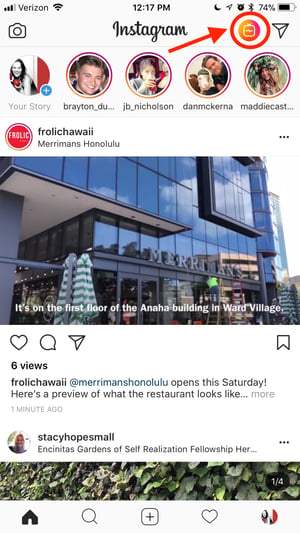
Video is, unquestionably, one of the most popular forms of content consumption online today. In January, when Facebook announced a major algorithm change to shift focus to content from friends and family, it stated that live video, specifically, receives 6X the engagement as pre-recorded video — which could explain this new emphasis on real-time interaction with creators. More engagement tends to lead toward more time spent on the site, which is good news for Facebook.
But many questions arise from these latest features — for Facebook and Instagram alike — in regards to their respective endgames, the benefits to creators, and the possibility of new problems as a result.
Facebook and Instagram Are the New TV
The Question of YouTube
The emphasis on video makes sense for both Facebook and Instagram, given the aforementioned statistics about live video, for instance. But it’s also a reflection of evolving user behavior.
In 2019, Zenith predicts, internet use will outpace time spent watching TV worldwide — by about 0.27%. And while that might seem like a trivial difference, it happened fairly quickly.

Which brings up the idea of filling that time spent online with original video content. While TV, for many, is still a destination — for the first time, there are multiple options for viewing it through means other than cable, and after it originally aired, usually through online platforms (read: Hulu, YouTube Live, and clips on the YouTube pages of networks or TV shows).
That repositions these digital platforms as destinations where TV used to be in their respective places. That’s certainly what happened to YouTube, which remains a — if not the — top platform for video consumption.
Consider this: YouTube boasts 1.8 billion users signed in each month — and while nothing to scoff at, Netflix’s 125 million streaming subscribers pales in comparison.
Among its boasting points, YouTube ranks as a major search engine in its own right. It’s owned by Google, and many users discover content by way of YouTube search — so much so, that search is a key element in the lesson on discovery within the platform’s Creator Academy.
Which leads to another one of YouTube’s boasting points: its relationship with creators. The video platform consistently emphasizes its value as a resource to content creators, including the aforementioned Academy, as well as its “invest[ment] in creators” that it uses as a key statistic in press materials.
Now, let’s go back to those user statistics. Instagram has 1 billion monthly active users — which was revealed alongside the IGTV announcement — and Facebook has 2.2 billion. With a new investment in creators, both networks have something to gain, and it could have an edge on YouTube.
Both already have their own search features, which Instagram has used as a discoverability feature, too — something that it’s emphasizing with IGTV, which automatically plays videos the app thinks you’ll like as soon as you open it.
Among those videos, users can choose to follow different “channels,” or accounts from whom they’d like to see more content. But many of these channels and the creators behind them will be creating long-form video, including regular series, which online personality Lele Pons says she’ll be developing for IGTV.
“Youtube viewing has typically been a pretty deliberate form of consumption. You go to YouTube and actively search for the content you want,” says HubSpot VP of Marketing Meghan Keaney Anderson. “Sure, there is some related and recommended content discovery, but the active search is still there.”
“That doesn’t really exist on Instagram in the same way yet, where a lot of viewing, to date, has been pretty passive, particularly with the user interface of stories,” Keaney Anderson continues.”I’m curious if their approaches begin to merge, or if Instagram stays as more of a passive feed over time.”
That passive consumption is key in Instagram eventually winning in the area of what HubSpot Product Lead Daria Marmer calls “filling your ‘bored time.'”
“If you don’t have videos on Instagram, then you might bounce to YouTube for that content,” Marmer explains. “Having videos right there keeps users in the walled garden.”
The Benefits to Creators
Pons — the aforementioned creator who says she’ll be developing a cooking show for IGTV — also says she won’t be receiving any payment for it. It raises the question: What’s in it for creators?
Of course, there is the element of discoverability, for which most content can be optimized in one way or another — and optimizing for IGTV could soon become a new strategy for creators. But what is the source of monetization?
With discoverability comes following — and with a vast following come brand interest, which is what built the influencer phenomenon (which is now becoming increasingly frowned upon by certain companies). But even so, the interest from brands hasn’t and likely won’t disappear entirely, which is why Marmer says these creators — who Instagram and Facebook are trying to win over from the likes of YouTube, it seems — “are going to be influencers, who are paid by brands, rather than the platform.”
But becoming an influencer is not a quick outcome for those who seek it, which circles back to the question of benefits to creators hoping to best leverage these newer video platforms.
“We’ve seen creators leave platforms before in favor of those that provide revenue models, so I imagine payment is on Instagram’s mind,” Keaney Anderson says. “Discovery might be enough for fledgling creators, but sustaining those who carry an audience will require a rev-share of some sort. The historical models we can’t seem to quit are advertising and subscription, but I always hope for something more imaginative as both come with trade-offs for user experience.”
That seems to be one thing that Facebook is trying to accomplish with its new interactive features for Live video, as well as its new Watch program in general. In the new features it revealed earlier this week, Facebook also announced that publishers and video creators would have access to its “Ad Breaks program,” which essentially allows those who produce longer-form video content to incorporate commercial breaks.
It’s not clear if Facebook will earn a portion of whatever ad revenue results from these commercial breaks, but considering how much of the company’s income is rooted in ads, its likely it will keep a percentage.
New Vulnerabilities
One thing that most social networks (and even search giants like Google) have in common is higher-than-ever scrutiny for platform abuse.
Facebook has been investigated and questioned more than others, especially in light of this year’s Cambridge Analytica scandal, as well as the weaponization of the platform to spread false, divisive content to influence the 2016 U.S. presidential election. Just today, for instance, the company published new insights into how it’s allegedly working to combat the spread of fake news on the site.
But Facebook is hardly alone in the false content epidemic. YouTube, for all its benefits and leading points, has also come under fire for content shared on its site from a similar origin, and with the same divisive purpose as the kind that was used to weaponize Facebook.
There’s also the issue of hate speech, bullying, and generally abusive comments appearing on the sites, which most content platforms are struggling to address in a sustainable way. Facebook even went so far as to publish its internal content review policies for public consumption, but it’s a large amount of material to get through and certain content censorship decisions are still widely misunderstood by users.
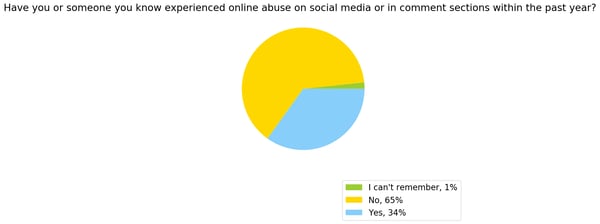
Our survey of 300 U.S. internet users indicates that 34% have experienced online abuse.
This issue arose at F8, where keynote speakers pointed to the implementation of artificial intelligence (AI) to combat things like hate speech on the platform. This comes with its own issues, such as implicit biases that AI can pick up from the humans and machines that train it.
These new video platforms, depending on how interaction and engagement with their content will be moderated, carry the possibility of opening Facebook and Instagram to new vulnerabilities in these areas — the very ones that they say they are working to resolve.
To compound that, Instagram recently confirmed that it would soon launch a “time well spent” tool to help users determine — as the name suggests — how much time they’re spending on the app. And while the name also suggests that the feature is designed to help users modify the time they spend on Instagram, it would appear that these new video features and platforms have been introduced to, among other reasons, encourage more time spent using them.
The results remain to be seen, as do the respective networks’ progress in its efforts to combat this type of misuse.
Until then — here’s a peek of my experience with IGTV.

How to Write a Request for Proposal, with Template and Sample
Whether you’re working for a small agency or a major marketing firm, you’re probably eventually going to need to fill out a Request for Proposal, or RFP.
Your company can’t do everything internally, and when your business needs to purchase a product or service from elsewhere, you might need to shop around. An RFP allows you to collect offers from various vendors and select the vendor that best meets your criteria, both in regards to skill and budget.
Here, we’ve provided an RFP template you can follow for initial structure, as well as a sample RFP for further inspiration. But it isn’t one-size-fits-all — you’ll need to tailor your RFP to best articulate your company’s needs.
RFP Template:
Project Name or Description:
Company Name:
Address:
City, State, Zip Code:
Procurement Contact Person:
Telephone Number of PCP:
Email Address of PCP:
Fax Number:
1. Background/Introduction
2. Project Goals and Scope of Services
3. Anticipated Selection Schedule
4. Time and Place of Submission of Proposals
5. Timeline
6. Elements of Proposal
7. Evaluation Criteria
8. Possible Roadblocks
9. Budget
1. Background/Introduction
In your introductory paragraph, you’ll want to include useful background information about your company — who founded it, what product or service your company offers, what sets you apart from competitors, and where you’re located. If any vendor is serious about working with you, they’ll want this information before moving forward.
2. Project Goals and Scope of Services
Next, you’ll want to outline the project you need completed, and the goals you expect to accomplish from the project. It’s important you get as specific as possible — even outlining individual tasks and criteria involved. You’ll want to include phrases such as, “The award will be given to X firm”, with the “X” establishing how you’ll determine the best candidate.
3. Anticipated Selection Schedule
It’s crucial you include a detailed schedule, so vendors know if they can meet your deadlines. You’ll also need to give vendors a window for when they can ask questions regarding your project. This’ll limit the hassle, for you and for them.
4. Time and Place of Submission of Proposals
Similar to paragraph #3, this is important information you’ll want to clearly present, so vendors know how and where to submit themselves for consideration.
5. Timeline
By including a time frame in your RFP, you’re able to eliminate any vendor who can’t work within your time constraints. If you’re flexible on your time, you can write something like, “Our company hopes to finish the project within six months, but we’re open to negotiation for the right candidate.”
6. Elements of Proposal
If you don’t outline clearly and specifically what you expect bidders to include in their proposal, you can’t necessarily fault them if they don’t include it. It’s critical you outline a checklist so vendors know which elements you’re expecting to receive. It’s also a good test for who’s capable of handling your demands — if a vendor can’t complete all elements of your proposal, you probably can’t trust them to finish your project, either.
7. Evaluation Criteria
Outlining your expectations will help eliminate vendors who don’t meet them. For this section, you’ll want to do some brainstorming with your team to come up with a mandatory list of items you feel are the best indicators of impressive candidates. Your list could include samples of past work, a proven success record with companies in similar industries, the expertise and technical skills to meet your demands, and a cost of services within your price range.
8. Possible Roadblocks
Here, you’ll want to outline any roadblocks, such as limited resources or a custom website, that might prevent certain vendors from successfully completing the project. This allows you to eliminate unsatisfactory bidders, and it will also help you determine which vendors have the skills and expertise to tackle those challenges.
9. Budget
Any vendor needs to know how much you’re able to pay them for their services before they’ll move forward with their bid.
RFP Sample:
Project Name or Description: Marketing Services
Company Name: Caroline’s Websites, Inc.
Address: 302 Inbound Ave.
City, State, Zip Code: Boston, MA 29814
Procurement Contact Person: Caroline Forsey
Telephone Number of PCP: 227-124-2481
Email Address of PCP: cforsey@consulting.com
Fax Number: N/A
1. Background/Introduction
Caroline’s Websites, Inc. is a web design firm created by Caroline Forsey in 2010. Caroline’s Websites, Inc. prides itself on a team-oriented, solutions-based approach to web design. We provide our clients with web design services including coding, development, and branding. Our staff is located in two offices in Massachusetts.
2. Project Goals and Scope of Services
Caroline’s Websites, Inc. is seeking the services of a full-service communications and marketing firm to develop and execute a comprehensive integrated marketing plan that increases our SEO presence; attracts more social media followers; and effectively completes a lead generation campaign. The award will be made to a responsive and responsible firm based on the best value and professional capability.
The selected firm will be responsible for the development and implementation of a comprehensive and cost-effective marketing plan.
Tasks include but may not be limited to the following criteria:
• Lead generation campaign
• Paid media strategy
• Production of creative material including collateral and direct mail
• Online marketing campaign
• Website enhancement
• Search engine optimization
• General account management
• Other communications and/or marketing-related assistance as required
3. Anticipated Selection Schedule
The Request for Proposal timeline is as follows:
Request for RFP: June 1, 2018
Deadline for Bidders to Submit Questions: July 5, 2018
[Company Name] Responds to Bidder Questions: July 20, 2018
Selection of Top Bidders / Notification to Unsuccessful Bidders: July 31, 2018
Start of Negotiation: August 5, 2018
Contract Award / Notification to Unsuccessful Bidders: August 31, 2018
4. Time and Place of Submission of Proposals
The RFP will be posted on our website, Carolinewebsites.com, and can be downloaded from there directly as of 10 a.m. on June 1, 2018.
Respondents to this RFP must submit one original and five copies of their proposal. Responses must be received no later than July 25, 2018. Responses should be clearly marked “RFP-MarketingServices” and mailed or delivered to the contact person listed above.
5. Timeline
Caroline’s Websites, Inc. needs the project completed within 8 months.
6. Elements of Proposal
A submission must, at a minimum, include the following elements:
• Description of the firm that includes a general overview, names and credentials of creative team, number of full-time employees.
• A one-page narrative outlining the firm’s strengths and distinguishing skills or capabilities as they might relate to Caroline’s Websites, Inc.
• A representative selection of social media ads, direct response material, collateral, and website development created for current and past clients.
7. Evaluation Criteria
The successful respondent will:
• Have been operating continuously as a marketing agency for a minimum of 24 months and possess full-service, in-house capabilities for marketing, creative services, production, media planning and placement, direct response and research.
• The education, experience, knowledge, skills, and qualifications of the firm and the individuals who will be available to provide these services.
• The competitive cost of services.
• The expertise of the firm in working with similar customers.
8. Possible Roadblocks
At this time, Caroline’s Websites, Inc. currently has custom coding on our website, of which bidders should be aware.
9. Budget
Caroline’s Websites, Inc.’s budget for the project is $8,750.00.

The Ultimate Guide to UX Design
Think about a website or app you love. What do you love about it? The ease of gathering relevant information? Or how you can buy something in one-click (and have it delivered tomorrow)? Or how quickly it answers your questions?
Now think about the people who created that website. What was their goal?
They were trying to create a site that had the features you love about it. A site that is easy to use, effectively delivers the information you need, and allows you to make smart decisions tailored to your challenges or concerns.
UX, or user experience, focuses on the end-user’s overall experience, including their perceptions, emotions, and responses to a company’s product, system, or service. UX is defined by criteria including: ease of use, accessibility, and convenience. The concept of UX is most often talked about in terms of tech, such as smartphones, computers, software, and websites. This is why UX is not only a fairly new field, but changes quickly due to technology advancements, new types of interactions, and user preferences.
It’s no secret that customers today want quick and simple ways to meet their needs and solve their pain points. That’s why UX matters so much.
Whether or not you’re in tech, the company you own or work for most likely has a website right? Well, customers could write you off in a matter of seconds if they don’t find your website useful and easy to use. In fact, most website visitors determine whether or not they want to leave within a minute of opening a page.
Follow along to learn more about the importance of the emerging field of UX, what designers are being hired to do at a wide range of companies today, and why every type of business can benefit from thoughtful UX design.
What Is UX Design?
UX design, or user experience design, is the process of increasing a user’s level of satisfaction with a product or service by improving its functionality, ease of use and convenience. UX design is about creating products, “that provide meaningful and relevant experiences to users.” Within UX design, there are a few different categories of study to understand.
1. Interaction Design
A subset of UX design is interaction design, or IxD. It is defined as … yup, you guessed it… the interaction between a user and a product, with the goal of that interaction being a pleasant experience for the user.
2. Visual Design
In visual design, creators use illustrations, photography, typography, space, layouts, and color to enhance user experience.To have successful visual design, artistic design principles including balance, space, and contrast are crucial. Color, shape, size, and other elements also impact visual design.
3. User Research
User research is the last major element of UX design. User research is the way in which companies determine what their customers and users want and need. At its core, your website should solve a problem, and so this is an important step in determining what exactly your users require. Without it, your designs are simply guesses.
4. Information Architecture
Designers use information architecture to structure and label content so that users can find information easily. Information architecture is used on websites, smartphones, apps, and even in the physical places we go. Ease of use and findability are two important factors of information architecture, which is why it is so closely related to UX design.Think about the New York City Subway map. This is a great example of information architecture that helps people understand how to get from one place to the next. According to the Information Architecture Institute, “If you’re making things for others, you’re practicing information architecture.”


Source: NYC Subway Guide
UX Design Processes
There are typically three stages of the UX design process to consider: researching your target audience, understanding the company’s goals and how those goals impact the user, and applying out-of-the-box thinking to create an enjoyable end user experience.
UX design takes a human-centered design approach to create purposeful things for users during all three stages. This is about considering the needs of the people you are designing for, coming up with a wide range of solutions to resolve the issue they are facing, designing prototypes for the users to test, and then finally putting the best solution in place for the user. If you look at the issue from the perspective of the user, and design with them in mind, you will create solutions they will want to adopt.
UX Design Principles
UX is an ever-changing field, but the fundamental UX design principles remain the same. Designers also have to determine what they want in terms of visual balance. Being clear and concise is crucial … less is more! You want your design to be intuitive, and most importantly, your design should meet the user’s needs.
While UX is definitely subject to trends and new technology, there are a few core principles that stay the same. These help designers look at various different problems through a methodology that’s consistent and focused.
- Be contextual: You want individuals to know exactly where they are in their user journey. They should never feel lost or overwhelmed. Your design is there to guide them along their journey.
- Be human: No user enjoys feeling like they are interacting with a machine. You’ll gain the trust of the end user if you show them your brand’s personality and approachability.
- Be findable: Users don’t want to waste time. With successful UX design, your work will be easy to find and navigate.
- Be easy: Being consistent and straightforward will go a long way with your users. You build relationships with your users by providing them with enjoyable and easy experiences.
- Be simple: No fluff, tangents, or unnecessary descriptions. Get to the point. Let’s be honest here … these days, everyone has a short attention span.
UX Deliverables
Once a UX project is completed, the designer and team will present a list of deliverables for review to a client or an internal team. They need to showcase their process and get buy-in for their ideas.
UX deliverables, which are a critical part of the design process, are the tangible records of the work that has occurred. These deliverables help UX designers to effectively communicate their design ideas and research findings and make it clear to stakeholders why recommendations for changes and improvements are made.
1. User Research
User needs, tendencies, and motivations can be determined through different types of user research. This might include quantitative and qualitative data from user testing sessions and focus groups. It could detail feedback on sign up flows, the onboarding process, and customer service inquiries. The goal is to have a detailed analysis of what’s both working on the site and what could be improved — and to have this all backed by information gathered from users. Researchers may create buyer personas based off of real user data to help them accurately determine who will be using their device, website, or app. Through user research, designers understand and empathize with the user.
2. Competitor Assessment
Assessing the strengths and weaknesses of your competitors is a way to enhance your own UX strategy. A great way to do this is by creating a competitive analysis report that details the interaction design of your competitors and provides an analysis of where you see pitfalls and missed opportunities — things your business can take advantage of.
3. Interaction Design
An interaction design deliverable could come in the form of a prototype so that people can review how interactions with the site would occur — showing how people would complete key tasks, get information, use a product, the flow of finding information, and how easy the product is to use. You want your prototype to be as similar to the final product as possible, so you can get sign off on the design before you begin building it.
4. Information Architecture
IA is the process of taking information and organizing it in a way that is easy to understand. For large websites, this is especially important, as you need to understand what content exists and how to organize it in a way that makes sense for your visitors. The end result might be a content inventory, a sitemap with suggested navigation, or sample user flows that reveal how visitors move through a site.
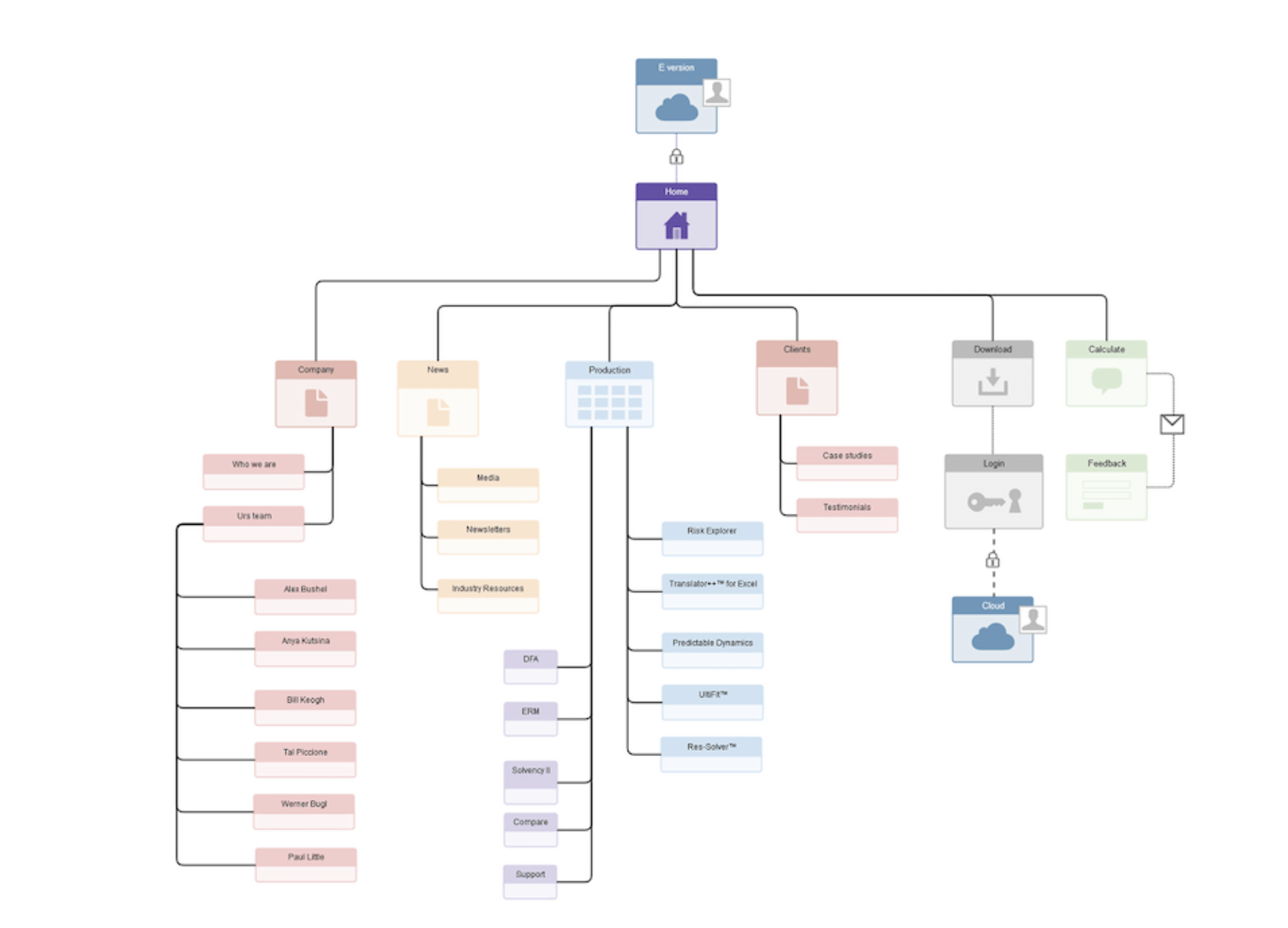
Source: Adobe Blog
What Is User Interface Design?
Remember when Apple unveiled their click wheel for the iPod? When it was introduced, the feature was intuitive and highly functional — not to mention cool looking. This is a great example of successful user interface, or UI. UI refers to the ways in which people interact with computers, machines, websites, apps, wearables, and other programs or devices. User interface design is the process of making these things as easy to use and efficient as possible.
UI vs. UX Design
UX, user experience, refers to the user’s journey through an application or process. UX designers focus on the overall form and function of a product or technology. UI, or user interface, focuses on the ways a product’s surfaces look and function. UI designers work with the tangible and visible elements of the process.
Common UI Elements
Although UX and UI have similar definitions, it’s important to note the key differences that separate the two topics. Again, UI focuses on a product’s appearances and surfaces, while UX is more concerned with how people interact with a site. Here are some common UI terms you should know to better understand how the two differentiate:
- Informational Components: UI designers use informational components to enhance the reading experience or give more information. Examples of informational components are progress bars, notifications, and message boxes. Designers use these when they want to make it clear to the user that they have completed a task, or if they want to notify the user that an action on their part is necessary.
- Breadcrumb Navigation: This is a design tool often used by UI designers to visually increase the usability of a website. It allows users to see their location on a site in a hierarchical structure. It doesn’t need to have special visual features or over-the-top design — it should just clearly state where a person is located on a site. You may have noticed these links along the top of a webpage while online shopping or on another site.
- Input Controls: Input Controls give individuals multiple options in response to a question you are asking. These are things like checkboxes, drop-down lists, and toggles. Keep the information you are asking in your input controls simple and to-the-point so it’s easy to find what the user needs.
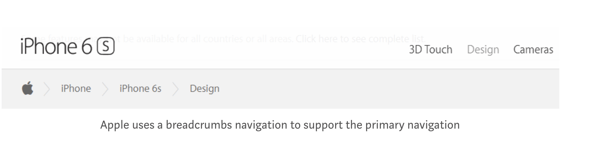
Source: UX Planet
User Experience Research
Without research, all of this focus on what the user needs and wants would be impossible. UX research is the investigation of users and what they need, which informs the UX design process. Companies and designers use this research to come to specific conclusions about what is working for users and what needs to be changed. There are several ways companies and designers perform UX research.
Usability Testing
Usability testing evaluates how successful a product is by testing it on actual users. It gives companies real input on how individuals are using a product or system and how that product or system works for that user. There are two primary testing methods.
Hallway usability testing is a quick and cheap way for companies and researchers to get information from users who may have no knowledge of your company or products. Random individuals use the products and give feedback on their experience.
Remote usability testing allows companies to conduct research with users in their natural environment (such as in their home or office). These tests can be moderated in any way the company chooses.
Usability Testing Tools
Usability testing tools allow researchers and designers to compile accurate feedback from users, and then analyze that feedback to make data-driven changes. If you’re looking for a tool that can help you test how easy-to-use your site or product is, check out these options:
- Crazy Egg: This tool allows companies to see exactly what users are clicking on while on their website. Crazy Egg also records exactly where site visitors are coming from, including geographic location, and if they were referred from another site.
- Hotjar: This tool combines analytics and feedback to give an overview on ways to improve user experience. They do this through the use of heatmaps, visitor rates, conversion funnels, and more.
For more usability testing tools to consider, check out this post.
How to Enhance User Experience
Through the research and testing mentioned above, user experiences can always be improved. Some of the most common ways to improve user experience include: Taking a consultative approach to improving the experience, determining calls to action, implementing responsive web design, taking Fitt’s Law into consideration (more on this next), avoiding overwhelming data entry, and more.
Using Fitt’s Law to Enhance UX
Fitt’s law is a predictive model that determines the amount of time it takes for a specific user to move their mouse or cursor to a target area on a website. There are multiple versions of Fitt’s law that exist but they all revolve around the general idea that, “The time required to move to a target depends on the distance to it, yet relates inversely to its size.” Fitt’s law is widely used in UX design to improve ergonomics in addition to usability for users.
Here’s an example of this at work: Have you seen the new Touch Bar on Apple’s MacBook Pro? This is a touchscreen above the keyboard that speeds up a user’s experience when using Google, bookmarking a page, changing screen brightness, volume, and more. Touch Bar options change depending on what page you are browsing while on your laptop, whether that be an app, a site you are visiting, or even just your personal settings.
With the Touch Bar, the user’s experience is simplified because many commonly used settings are in one compact location. Fitt’s law states the further away and smaller an object or button is for a user, the harder it is for that user to click on it. That’s why the Touch Bar is such a great example of taking Fitt’s Law and successfully applying it to your device to enhance user experience.
UX Design Tools
Whether you are researching, prototyping, wireframing, storyboarding, or creating graphics, there are multiple UX tools available to assist you during the design process. In fact, there are so many tools on the market, some free and some that require a subscription fee, that it may be overwhelming for designers who are unsure of exactly what they need. To get you started, here’s a list of some popular and valuable tools to use in your UX design work:
1. Adobe Fireworks
Adobe Fireworks CS6 gives web designers a way to create graphics for their web pages without getting into the code or design details. There are a few reasons why UX designers use Adobe Fireworks: The tool has impressive pixel accuracy, has image compression abilities (JPEG, GIF etc.), allows users to create functional websites, and build vectors. This is a great option especially if you are already familiar with other programs in the Creative Cloud.
2. Adobe XD
With Adobe XD, you can design websites and mobile apps, as well as create prototypes, wireframes, and vector designs. Users can share interactive prototypes on multiple platforms, including Windows, Mac, iOS, and Android, so it’s perfect for team collaboration.
3. Axure
Axure RP Pro is another great UX design tool — that’s also free. Axure has several capabilities including wireframing, prototyping, and documenting. It can even help you create user flows and sitemaps. Axure is perfect for creating web and desktop applications, and it gives users the ability to easily export to PDF or HTML for review.
4. Adobe Illustrator and a Free Alternative
If you’re looking for an affordable alternative to Adobe software, such as Adobe Illustrator (which is primarily used to create vector graphics), we’ve got you. Inkscape is known for doing most of what Illustrator does, but for free. This software is open source and can be used to create impressive vector graphics. The only issue you could run into is lag, as some users have reported that the program is slow. If you’re partial to Illustrator, that’s OK too.
5. Sketch
Sketch is an end-to-end software with specific features including non-destructive editing (meaning Sketch won’t change the pixels in the photo you are working with), code export, pixel precision, prototyping, vector editing, and more. With Sketch, you can reuse and update your designs easily.
6. Storyboard Software
You might be wondering why you would need to storyboard in UX design. It’s a great way to visually predict and review the way a user would interact with and experience a product in a broader context. There are several storyboard tools available, with varying levels of features and complexity.
Storyboarder is a free storyboard software option, which has basic features made for designers of all levels. This software allows users to quickly create drawings and stick figures to lay out a plot or idea.
Another storyboard software option is Toon Boom Storyboard Pro. It combines drawing, animation, camera controls, and numerous other features, all for an annual or monthly fee. It has a wider range of features for more complex storytelling and detailed prep work. Both options are great for designers looking to visually tell a story through interface design.
How to Become a UX Designer
If you love designing, researching, working with other people in a fast-paced environment, and listening to others’ experiences, then you might want to consider a career in UX design. In this career path, you’d focus on the conceptual aspects of design and create better experiences for users.
To become a UX designer, there are a few necessary steps you will have to take. There are plenty of higher education courses available around the world, though they typically require a four-year undergraduate design curriculum as a prerequisite. However, some programs allow for more flexibility, such as the online Quinnipiac University Graduate Program in User Experience Design. There are also UX certification programs for professionals. These vary in commitment length and level of expertise upon receipt of the certificate.
Once you’re ready to start applying for your dream UX job, you’ll need a stand-out resume and a flashy portfolio. You can use a site like Dribbble or Behance to showcase your work, or you can create your own site using a website building tool like SquareSpace.
When building your portfolio site, keep these tips in mind:
Make it visually stunning.
Presentation is everything. Your work should speak for itself … show don’t tell! Your choice in color, typography, and layout all play a factor here.
Include an “about” page.
Hiring managers and recruiters want to get to know you, how you think about design, what inspires you, and what makes you unique. Why should they hire you? What value can you add to your new potential company and team?
Have clear navigation and links throughout your portfolio site.
Can you imagine the hiring manager at your dream company having a hard time navigating the portfolio site of a UX designer? Awkward. In your navigation bar, include options such as: “portfolio,” “about,” “contact,” and “resume” to avoid any confusion.
Explain your personal UX process.
Your future employer wants to know how you think. Include information that lets the hiring manager in on your UX researching, brainstorming, wireframing, designing, and prototyping processes.
Create additional portfolios to expand your network.
Use other tools to make your work available on sites where designers and those looking to hire designers spend their time. Behance and Dribble are great portfolio sites for people looking for inspiration, networking, and new career opportunities.
Conclusion
Whether you’re a graphic designer, blogger, developer, or someone in an entirely different field, UX design can help you and your company grow. A happy end-user is the key to success, and without well-crafted UX design, this would be impossible to achieve.
As technology becomes more ubiquitous in our lives, successful UX design will continue to create seamless transitions between individuals and their devices and apps. UX design has never been more important, making it an exciting time to join the field and consider the benefits for your own business.
