
The Inventory Management Guide for Ecommerce
Here’s a basic math question for you: Sammie has 50 sprockets. She sells eight of them. How many sprockets does she have left?
Now, here’s another question: Sammie has 50 sprockets. She receives an order for eight sprockets and ships four of them out to customers. How many sprockets are in Sammie’s inventory?
These types of questions aren’t just relics of elementary school — they’re also challenges inherent to inventory management. And it’s the reason Sammie has 42 sprockets at the end of the first question but 46 sprockets at end of the second.
Inventory management goes beyond simple arithmetic. Sammie has 46 sprockets in her inventory because she only subtracts four of the eight sprocket orders until the other four are delivered to customers. It’s this kind of contingency that makes organization, automation, and technique crucial when you have so much product to keep track of.

To help you dive into inventory management, let’s explain what inventory management is in the ecommerce world, the software that supports this ongoing process, and some common techniques for managing inventory successfully.
Inventory Management Definition
Inventory management is the act of overseeing the volume, diversity, pricing, and location of a business’s available products. If a product is in stock, it’s counted as part of the business’s inventory and managed as it moves through the supply chain.
The product’s availability is then noted on the item’s purchase page online.
This is why, in our example of Sammie’s 50 sprockets, she still has 46 sprockets after selling eight. Knowing what’s currently in her inventory, how many units of her product have been ordered, and how many units her inventory is shipping and receiving is all part of basic inventory management.
Inventory management does not include company property, manufacturing equipment, and other forms of business capital. It can, however, include separate parts of a product that has not yet been assembled for a customer. How these parts are counted in relation to the finished product depends on the form in which the product is delivered to the customer.
Inventory Management Software
As your business grows, it will inevitably become harder to manage inventory manually — especially if you sell online, where your customers expect to see a product’s availability and status at every point in the buying process.
Luckily, there are numerous inventory management tools on the market today that integrate with an ecommerce website and help you monitor your supply chain. To make your software choices easier, we’ve listed seven of the best solutions for ecommerce businesses below.
Delivrd
Price: Free
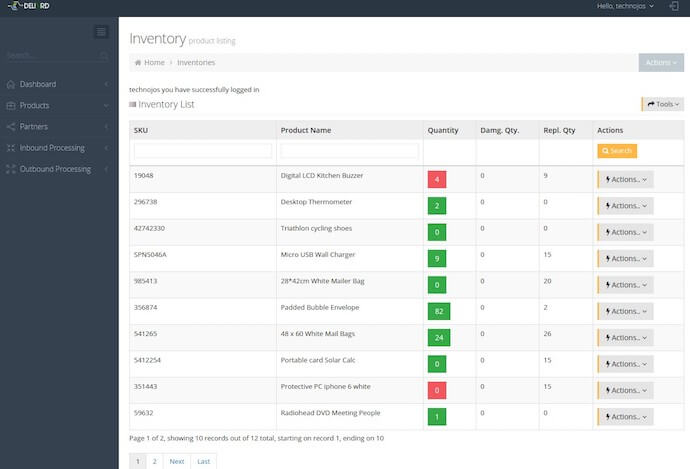
Delivrd is a free cloud-based order-fulfillment solution for businesses of all sizes. The platform tracks your inventory, prints barcodes, analyzes each product’s profitability, and even bundles unfulfilled orders together to consolidate future shipments.
Notify Me
Price: Free
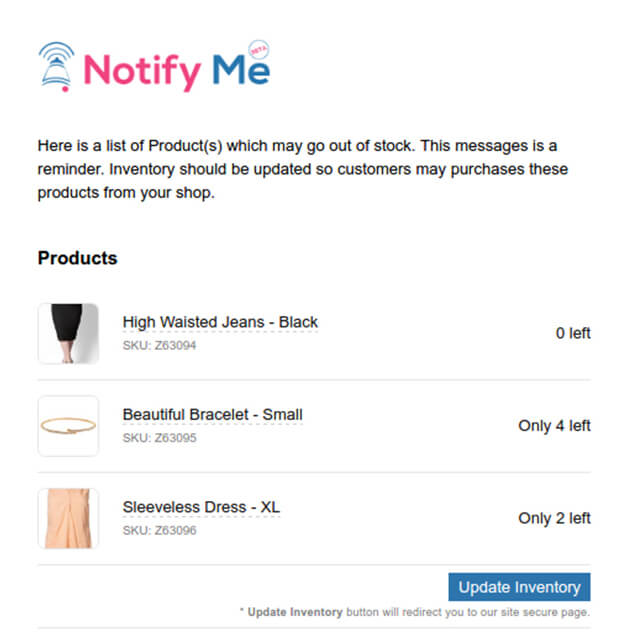
Notify Me is a free inventory manager for ecommerce businesses who use Shopify as their sales channel. In addition to watching over your store’s available products, Notify Me uniquely allows you to set automated alerts for when items go out of stock. Shopify users can download the web app here.
Oberlo
Price: Free up to 50 orders/month
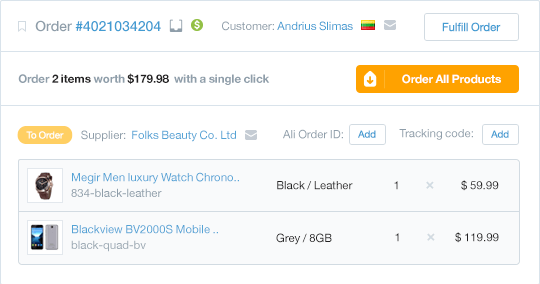
Oberlo is one of the best inventory management services for dropshipping stores — or those ecommerce businesses that deliver products directly to the customer from a manufacturer, without storing any product on-site. You can create rules for when to reprice products, sort products by their delivery times, track shipments, change product suppliers, and more. Oberlo also has a web app for Shopify users.
Ordoro
Price: Starts at $25/month
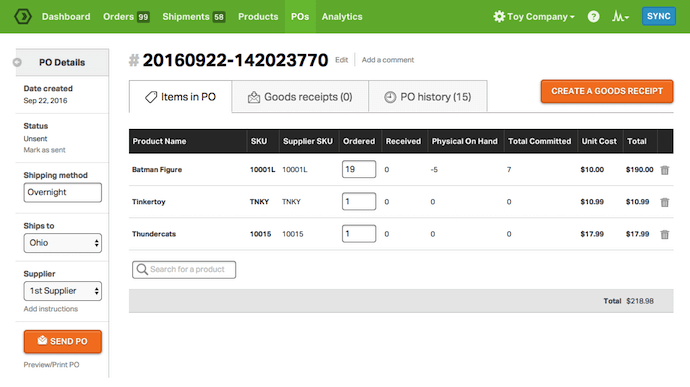
Ordoro is a cloud-based shipping tool for managing inventory at every point in the sales process. The service automates shipping requests, dropshipping, barcode scanning, and supplier management — and can provide revenue data in real time. Ordoro integrates with more than two dozen sales channels and shipping carriers. It also has a web app for Shopify users.
inFlow
Price: Starts at $69/month
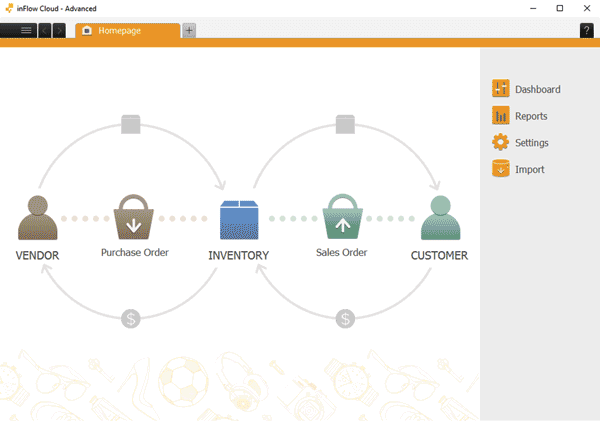
You get a lot for what you’re paying when you use inFlow. This cloud-based inventory manager organizes bills, barcodes, work orders, product serial numbers, product destinations, and more — whether the item is in your inventory or in transit. In addition to working offline, inFlow also offers robust Windows and Android apps to manage your inventory from your mobile device.
Skubana
Price: Request a Quote
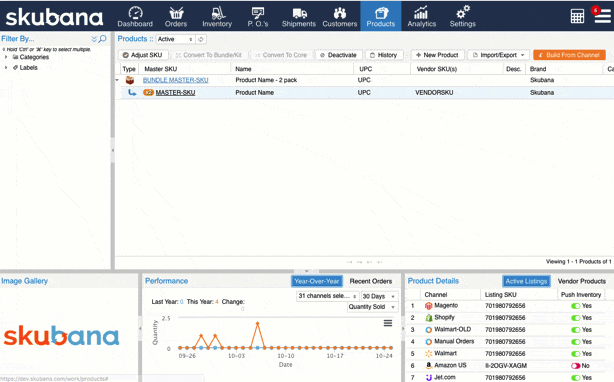
Skubana connects your ecommerce business with retailers all over the world. The software helps you manage customer orders and your own restocking process, while integrating with the retail brands who might also want to sell your product. Skubana tracks order fulfillment from multiple warehouses and generates demand forecasts that help you grow your product line. It also has a web app for Shopify users.
Unleashed
Price: Starts at $85/month
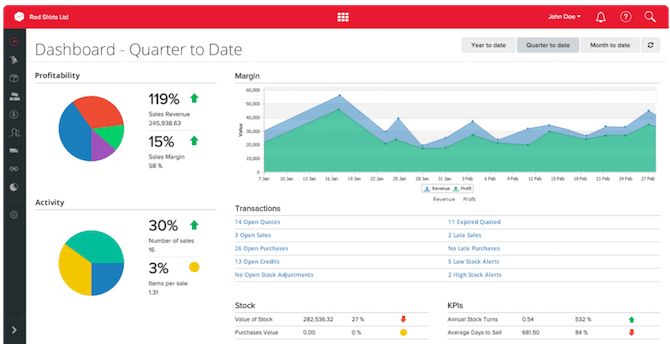
Unleashed is a sleek, flexible inventory management solution that allows ecommerce customers to make big decisions about their product line based on real-time data. The software is perfect for manufacturers, according to Unleashed’s website, and offers the most important inventory information in a convenient sales app for your mobile device.
Inventory Management Techniques
Although a business’s available stock on any given day is just a snapshot of its inventory, managing inventory on an ongoing basis — and comparing multiple periods of inventory to one another — can help an ecommerce business make valuable long-term decisions about its supply chain.
Ecommerce companies can manage their inventory in several ways, but not every method of management will provide the insight you need to help your business grow. Here are a few different inventory management techniques you can try, and the advantages of using each one.
Just-In-Time
This inventory management technique stocks a product each time a customer orders it, so the volume of your inventory is more or less equal to the number of orders you’re filling.
The advantage to the Just-In-Time (JIT) technique is that you’re managing only the products you know you need to ship to customers. Sustaining JIT over the long term, however, requires you to keep a close watch on buying behavior so you can anticipate your inventory needs ahead of time.
First In, First Out
First In, First Out (FIFO) means the first products your inventory receives are the first to be shipped out to their respective customers.
This technique ensures products don’t sit in your inventory for too long before they’re delivered to a customer. FIFO is popular in the food industry, where businesses are up against the expiration dates of perishable items and need to ship food while it’s fresh.
Par Levels
Setting par levels gives businesses a safety net by ensuring their inventory always carries a minimum amount of each product at all times. So, even if a company uses the JIT method, where it only stocks what customers order, the company will always have the product available.
Ultimately, par levels aren’t for emergencies where you’d need a spare product. Rather, they establish a warning line for when it’s time to order more of something. Once your inventory dips below a certain number of a given product, you order more of it.
It’s important to set your par levels based on how long it takes to restock. The product that takes the longest time for a business to make, for example, might have a higher inventory par level than the business’s other products since there’s a greater chance of depleting your inventory in the time it takes to develop the new product.
ABC Analysis
ABC Analysis groups a business’s products into three categories based on a product’s importance. Here’s one common breakdown of these categories:
- Category A: products that are high in value but low in quantity
- Category B: products that are moderate in value and moderate in quantity
- Category C: products that are low in value but high in quantity
Also known as “selective inventory control,” this inventory management technique allows businesses with diverse product lines to easily prioritize the contents of their inventory. Similar to the JIT technique, succeeding under ABC analysis requires a close eye on buyers’ interest in each product, and not every product fits perfectly into each category. Snowboards, for example, might always have the high value of Category A, but inherit the high quantity of Category C during the winter.
Dropshipping
In a way, dropshipping is the anti-inventory. A specialty of Oberlo, an inventory management tool mentioned earlier in this article, dropshipping ships products from the manufacturer directly to the customer without the business ever storing the product itself.
Dropshipping can pose an advantage to businesses who don’t (yet) have their own storage space. But because you’re not managing your deliveries yourself, communication with the shipping party is critical to delivering products on time and keeping customers happy.
Demand Forecasting
Your inventory management software might help you do this, but it’s important to create long-term (or even year-long) forecasts for when sales of each product you sell will fluctuate.
One way to conduct a demand prediction? Look at last year’s sales as a whole and use them as a guideline for when to expect your inventory to change over the course of the current year. These changes might be influenced by market conditions or simply seasonality, but you should always factor them into your product strategy — especially if the software you use to automate your inventory operations doesn’t consider these variables.
Here’s one final inventory management tip to take with you: Nurture your relationships with everyone who touches your business’s product. Whether it’s the shipping merchant or a new employee, the state of your inventory depends on you to have open communication with your colleagues, and to support them as much as you support your customers when they browse your online store.

How to Clear Your Cache, Cookies, and History on Any Device or Browser
If you’ve had your computer for a while, it might be time you clear some space.
Your browser automatically stores past websites you’ve visited, images you’ve saved, your passwords, and a ton of other information.
While this information might be useful, over time, it takes up space on your hard drive, and could lead to issues like 404 errors (resulting from a corrupted cache).
Plus, do you really need to know which websites you visited in 2016?
It’s insanely easy to delete your cache, cookies, or browser history on any browser or device. In fact, it should take less than five minutes. So let’s get to it.
Desktop browsers
How to clear your cache in Chrome
1. Go to: chrome://settings/clearBrowserData
2. Click “Advanced”
3. Select “Browsing history”, “Download history”, “Cookies and other site data”, and “Cached images and files”.
4. If you want, you can select a time range, i.e. “Last hour”, or “Last 4 weeks”.
5. Click “Clear Data”
6. Exit all browser windows, and reopen
How to clear your cache in Safari
1. Go to the Safari menu, and select “Clear History”
2. Select a time range, then click “Clear History”
3. Exit all browser windows, and reopen
How to clear your cache in Firefox
1. From the “History” menu, select “Clear Recent History”
2. If you want, you can select a time range with the drop-down menu, or select “Everything” to clear all your history
3. Next to “Details”, click the down arrow to choose which items you wish to clear (or select all)
4. Click “Clear Now”
5. Exit all browser windows, and reopen
Mac or PC
How to clear your cache on a Mac
There are two ways to clear your cache on a Mac — via a cleaning utility system like CleanMyMac 3, or manually.
If you want to clear it in three steps with a cleaning utility system, try this:
- Launch CleanMyMac 3
- Select “System Junk”
- Click “Scan” and then “Clean
However, if you want to clean it manually, here are four easy steps:
- Open the Finder Window and Select “Go” on the navigation bar
- Click “Go to Folder” in the Go menu
- Type in: ~/Library/Caches and hit enter
- Go into each folder, and delete everything
If you clean your cache manually, we suggest you remove the inside of your folders, but not the folders themselves — better yet, highlight all your folders and copy everything over, in case something goes wrong.
How to clear your cache on a PC
- Go to your “Start” menu and search in the box, “Run”
- In the Run box, type “Prefetch”
- Select all folders in Prefetch and click “delete”
Mobile Devices
How to clear your cache on Android
While this may differ depending on your device, you can likely clear your data history from your application manager on your Android device.
1. Go to Settings and choose “Apps” or “Application Manager”
2. Swipe to the “All” tab
3. In the list of installed apps, find and select your web browser
4. Click “Clear Data” and then “Clear Cache”
5. Exit all browser windows, and reopen
How to clear your cache on Chrome for Android
1. Select “Chrome menu” and then “Settings”
2. Click “(Advanced) Privacy”
3. If you want, you can select a time range with the drop-down menu, or select “All time”
4. Check off “Cookies and Site data” and “Cached Images and Files”
5. Select “Clear data”
6. Exit all browser windows, and reopen
How to clear your cache on Safari for iOS
1. Open your “Settings” app
2. Click “Safari”
3. Select “Clear History and Website Data” and confirm
4. Exit all browser windows, and reopen
How to clear your cache on Chrome for iOS
1. Select “Settings” in your Chrome menu
2. Select “Privacy”
3. Click “Clear Browsing Data”
4. Choose the data type you want to clear, and click “Clear Browsing Data”
5. Exit all browser windows, and reopen

The 17 Best Photoshop Filters & Plugins of 2018
There’s no denying that Adobe Photoshop is a powerful photo editing tool, with loads of built-in features and effects. In fact, if you’re a marketer with little (or zero) photography or graphic design experience, Photoshop can sometimes feel a bit overwhelming.
However, if you’ve spent years learning the ins and outs of Photoshop, you might now be arriving at a point where you feel like you’ve exhausted all of Photoshop’s built-in benefits.
Regardless of your experience level, there are free Photoshop filters and plugins that can help. As a beginner, these free add-ons can help simplify complex editing processes. As an expert, they can help expand your available Photoshop tool set even further, and help lead you in new artistic directions.
Keep the following steps in mind when downloading the Photoshop filters and plugins we’ve included below. Each file must be saved in a specific location on your computer.
How to Install Photoshop Plugins
- Open Photoshop.
- Select Edit from the dropdown menu, and select Preferences > Plugins.
- Check the “Additional Plugins Folder” box to accept new files.
- Download a plugin or filter to your desktop.
- Open your Program Files folder and select your Photoshop folder.
- Open your Plugins folder, found inside your Photoshop folder.
- Drag your new Photoshop plugin from your desktop into the Plugins folder.
- Reopen Photoshop and find your new plugin under Filters in the dropdown menu.

Free Photoshop Filters
Note: The filters below are technically Photoshop “actions” (.ATN files). An action is a pre-recorded series of steps that allows you to apply effects — in this case, filters — automatically.
1. Dramatic Sepia (via Efeito Photoshop)
Price: Free
Sure, you can easily create that classic, reddish-brown sepia effect in Photoshop manually by selecting Image > Adjustments > Photo Filters, and then choosing “Sepia” from the dropdown menu. But if you’re looking for a sepia filter that’s a bit more — well, dramatic — the free Dramatic Sepia action from Efeito Photoshop is a popular option.

Image Credit: Romenigps
2. Blue Evening (via Photographypla.Net)
Price: Free
Opposite the warm tones of the sepia filter above, Blue Evening cools down your photos with a pretty blue hue. This Photoshop filter adds a dose of solemnness to your images. You can also use it to soften a sunlit photo and emphasize a cold temperature outside.

Image Credit: Photographypla.Net
3. Old Photo (via DeviantArt)
Price: Free
If sepia is a bit too much for your taste, but you’re still trying to create a nostalgic, old-timey feel, the Old Photo action has got you covered. The action will adjust the color and contrast of your image, transporting it back in time (visually-speaking).

Image Credit: sakiryildirim
4. Nightmare (via Shutter Pulse)
Price: Free
Did you ever want to give your photo a haunting look? The setting of your shot only does so much to affect how people perceive the image. For added creepiness, you have the Nightmare filter. Download this Photoshop filter to make any photo look like it came from a horror movie.

Image Credit: Shutter Pulse
5. HDR Tools (via DeviantArt)
Price: Free
HDR Tools is a set of four “actions” that transforms dull backgrounds to reveal intense, eye-catching details. You can turn natural grey tones into beautiful backgrounds that create a contrast against the foreground you didn’t have before. The duller the image, the heavier the HDR filter you should apply.

Image Credit: Forfie
6. Dream Blur (via DeviantArt)
Price: Free
As its name suggests, the Dream Blur action adds a filter to your image that creates a subtle, dream-like atmosphere. Specifically, the action produces a dark, blurry vignette at the edges of your image while also upping the saturation levels.

Image Credit: JoshJanusch
7. Vintage (via DeviantArt)
Price: Free
Unlike the Old Photo action from earlier on this list, the Vintage action does more than just visually transport your image back in time — it also adds a distinctive neon effect (perfect for giving your next project a groovy feel).

Image Credit: beckasweird
8. Lithprint (via DeviantArt)
Price: Free
The Lithprint action imitates the vintage look produced by the black-and-white lith printing process. But compared to the other vintage filters on this list, Lithprint is much more drastic. In addition to adjusting contrast, highlights, and shadows in your image, it adds a gritty texture.

Image Credit: rawimage
Free and Inexpensive Photoshop Plugins
9. virtualPhotographer
Price: Free
If you’re struggling to produce particular effects in Photoshop (e.g., black and white, high contrast, polarization, etc.), virtualPhotographer by OptikVerve Labs could be the plugin you’ve been looking for. VirtualPhotographer’s primary claim to fame? It allows you to add complicated effects to images with a single click.

Image Credit: optikVerve Labs
10. ON1 Effects
Price: Free
Like the virtualPhotographer plugin, ON1 Effects is a free Photoshop plugin that makes it easier for you to add complex effects to your images. What sets ON1 Effects apart is that it boasts a library of filters — including vignette, adjustable contrast, and HDR look — that you can stack on top of each other, allowing you to easily build layers of different effects.

Image Credit: ON1
11. Snapheal
Price: $20
Snapheal is one of the best ways to remove unwanted flaws and blemishes from your photos. Cleaning up a person’s headshot or the background of a scenic shot? This photoshop plugin helps you polish your work in three steps: Upload your photo, remove unwanted objects, and enhance the final product.

Image Credit: Snapheal
12. Ink
Price: Free
This tool is a detail-oriented person’s best friend. Ink is a Photoshop plugin that allows you to see additional information on a design you’re creating — this includes text size, font name, color codes, and the size of your image in pixels. It also gives you grid lines to help you center and level your artwork.
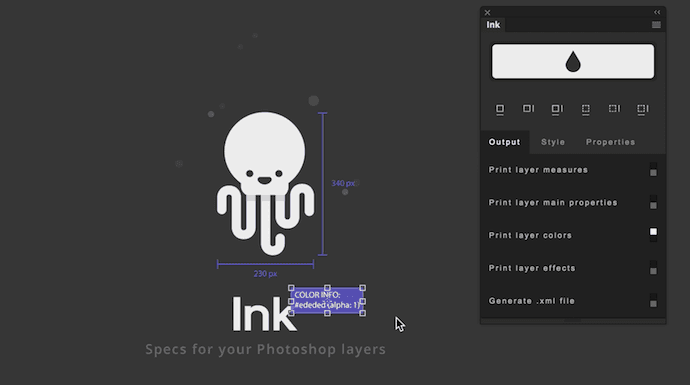
Image Credit: Chrometaphore
13. Flaticon
Price: Free
Wish you could sort through thousands of free icons and add them to your projects without having to leave the comfort of Photoshop? Then Flaticon by Freepik is definitely worth a look. The free plugin’s icons are available in .SVG, .PSD, and .PNG formats.

Image Credit: Flaticon
14. RH Hover Color Picker
Price: $16
Photoshop’s color palate has been known to irritate users — especially those who need a more customizable dashboard to capture the color they need when editing and designing. RH Hover Color Picker is the solution. This photoshop plugin by Rico Holmes (hence “RH”) acts as a convenient flywheel that you can simply “hover” over your image as you perfect your illustration. It even gives you the RGB code of the color you’ve selected so you can easily find it later.
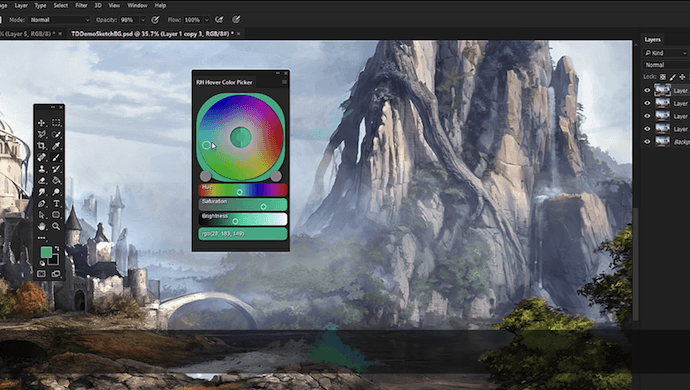 Image Credit: Rico Holmes
15. Pexels
Price: Free
You might know Pexels as a free stock photography gallery. What you might not know is that you can integrate this free content right into Photoshop. The Pexels plugin has more than 30,000 free images to choose from, and syncs your Liked photos with Photoshop so you can call up your favorite stock photos for quick editing.
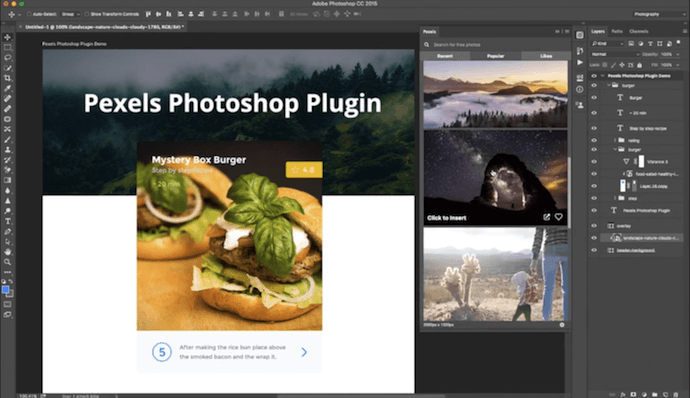 Image Credit: Pexels
16. Focus
Price: $60
Focus is “portrait mode” on steroids. A smartphone camera can use portrait mode to blur the background of closeup imagery, but it often can’t handle wide, complex shots where you need to highlight specific parts of the photo. For that, you have Focus. This plugin, now available in the form of Focus 2, allows you to blur backgrounds, set the blur’s intensity, and sharpen the edges of the object you’re focusing on to make it truly pop out of the picture.

Image Credit: Skylum
17. Tych Panel
Price: Free
The free Tych Panel plugin makes it easy for you to create double panel (diptych), triple panel (triptych), and quadruple+ panel (ntych) projects in Photoshop. Just select the number of rows and panels you want, as well as the alignment style, and Tych Panel will format everything for you automatically.

Image Credit: Lumens
Ready to get started? Download some of the filters and plugins above and grab your free guide to photoshop below.

How to Hire a Freelance Developer
So your company is growing. Things are exciting. Everyone is motivated and ideas are coming in from left and right.
Then it happens.
You say something along the lines of, “Wouldn’t it be cool if we could build [revolutionary idea here]? It would cut costs/generate a ton of new leads/change the way we operate.”
The team is rallying around the idea, the boss is giving you the wink and the gun, everything feels right in the world — until the dread hits. Who’s going to build it?
Hiring your first freelance developer can seem difficult, but it doesn’t need to be. With the right plan in place and an understanding of your company’s needs, finding the right freelancer for the job can be a largely painless process.
I’ve worked on both sides of this equation as an independent, freelance web developer and as someone who’s run a large development team. Follow these steps to make the process smoother for both you and your new freelance partner.
How to Hire a Freelance Developer
First ask yourself: What do you need?
Before identifying a freelancer to work with, you should first know what you’re asking for. This should always be step number one. Are you looking to update some images on a web page? Do you need an entirely new site? Is it a mobile app? Is something wrong with your analytics? Do you need a new tool created?
The answer to any of these questions will set the tone for how you start your search, and who you ultimately hire.
Now that you’ve identified the type of project, it’s time to think about the scope, and how your freelancer will fit into the equation. When you find that special someone, you’ll want to tell them exactly what you need. Is it five pages and two emails? What’s the content of those pages? Do you have a design? Is any of the content dynamic? And most importantly, what’s the deadline?
Before you jump into the hiring process, make sure you can define everything up front. Don’t leave anything to chance or assumptions — because we all know what happens when you assume, right?
Having all of this information ahead of time will help you identify the skill set you’re looking for in a developer (we’re not a one-size-fits-all solution), and ensure your project is completed to your expectations on schedule.
Another major benefit to scoping is that it will also help you avoid scope creep as your project progresses. Scope creep is bad. It’s bad for you and it’s bad for the freelancer. It’s bad for you because it will cost extra money and will (probably) force you to miss your deadline. It’s bad for the freelancer because they were working on a specific set of criteria that now is expanded upon or blown up. It will also (probably) prevent them from starting other projects on time which costs them money.
Let’s find someone!
Now that we know what exactly we’re hiring someone for, let’s go find your developer! Assuming you don’t already have someone in mind, there are a number of places online where you can find strong developers.
Check out websites like Upwork, Fiverr, or Freelancer.com for freelance help. You can search developers by reviews, location, and by skill set. Remember that little scoping exercise you did earlier? Well now you know if you’re looking for someone with CSS chops or if they need to know JavaScript.
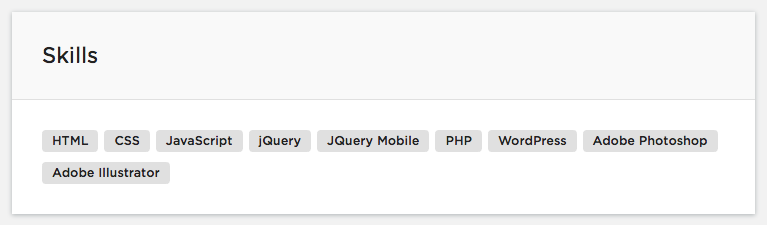
Screenshot from upwork.com
Take a look at some previously completed projects. If you like what you’re seeing, reach out and ask questions, but be respectful. You haven’t hired this person yet, so the time they’re spending with you is time they’re not spending on another project. When you’re confident you’ve found your developer, it’s time to make a deal.
Let’s make a deal.
You’ve found your developer. You know what they’re building. Now it’s time to get it down on paper. Handshakes are cool, as are verbal agreements, but make sure you get it in writing. This isn’t to say that you’re going to get swindled. The reason you want a contract is so that you have your scope, your deliverables, and your timelines outlined. A contract will also give you the opportunity to build in check-ins,testing time, and a payment schedule (we’ll get back to this).
It’s also important to remember that this isn’t a one way street. Your freelancer will — and should — have a say about the timeline and scope of the project. Remember: you’re hiring them because they have expertise in a field that you do not.
While I wouldn’t say you should have implicit trust in someone you probably just met, you should respect their evaluation of the situation, and take it into account as you map out your project and the role they will play. If they tell you something isn’t possible within a certain timeframe, or provide alternative options to accomplish your goals, you should listen and evaluate those options in relation to your goals.
Now here comes the tricky part, right? The money! Freelancers traditionally work in two ways, hourly or per project. The definitions are just how they sound. Hourly freelancers get paid for the time they work so you negotiate an hourly rate (Rate x Hours Worked = Pay). Per project freelancers work on a, you guessed it, per project basis, meaning you pay them an agreed upon fee for the project in total.
Two things to consider here:
- You get what you pay for. This isn’t the place to skimp out. If you’re trying to save a buck, don’t be surprised if the final project doesn’t meet expectations or if the freelancer takes on a higher paying project in addition to yours. Before getting upset, put yourself in their shoes. You’d expect to be paid fairly for your work, the freelancer expects the same.
- Be honest about your budget. If you only have a certain amount of money available, let the freelancer know and see if you can’t work something out. Maybe the scope will have to change, maybe the fee will work after all. You don’t know until you ask.
No matter what payment structure you agree to, put together a payment schedule. This will keep things on track. Freelancers will have different expectations. For some it will be a 50/50 split between the start and finish of a project. For others they’ll split it up into three (33%) or four (25%) installments. No matter what you agree to, do not pay for your project in full before the work is completed and delivered. Once you’ve made a deal, it’s time to get to work.
This is where the magic happens.
You’ve hired your freelancer. They understand the ask. The final delivery date is agreed upon. It’s time to send emails and texts every five minutes, right? Wrong.
Development, design, video editing, writing, and others, are all highly technical skills that require time and concentration. Let your freelancer do the job you hired them for. It’s okay to reach out every once in a while if you haven’t heard anything, but this is probably a good time to refer to the check-in schedule you added to your contract.
With that said, it’s still important that you make yourself available in case they have any questions. And remember, this isn’t the time for scope creep or assumptions. This is the part where the work gets across the finish line.
What happens next?
The work has been delivered. It looks and functions great. Now what? Make sure you pay your freelancer. Whether this is where you part ways or before you start the conversation about your next project, please pay your freelancer.

Excel Online: Tips, Tricks, and Hidden Features You Should Know
If you’ve been using Excel from your desktop for years, switching to the online version can seem like a scary — and even unnecessary — transition.
But Excel Online is free, and offers additional advantages to using the desktop version. If you use the Online version, you can sync your spreadsheet to other web apps, allowing you to gather additional data or automate workflows.
Better yet, using Excel Online helps you collaborate with coworkers on larger projects.
Is Excel Online free?
Yes, Microsoft Excel Online is free. It offers almost every Excel function, including tools to help you analyze, gather, and visualize spreadsheet data, and collaborate with coworkers. Compared to the desktop version of Excel, which costs hundreds of dollars, the Online version is its almost equal free alternative.
Excel Online is a fantastic option for gathering, viewing, and analyzing your data. Even if you haven’t paid for Excel’s desktop version, you can begin using Excel Online for free today. And Excel Online offers almost all the same features, so if you’re interested in collaboration or taking advantage of the web add-ons, it could be worth the switch.
Here, we’ll investigate how to use Excel Online, compare the features of Excel Online versus desktop Excel, and take a look at some of the hidden online features you’ll definitely want to know about.
How to Use Excel Online: Beginner’s Guide
There are two ways to locate Excel Online: first, click this Products.Office link, and select “Excel.” It will ask you to sign in, and then you can begin creating a spreadsheet.
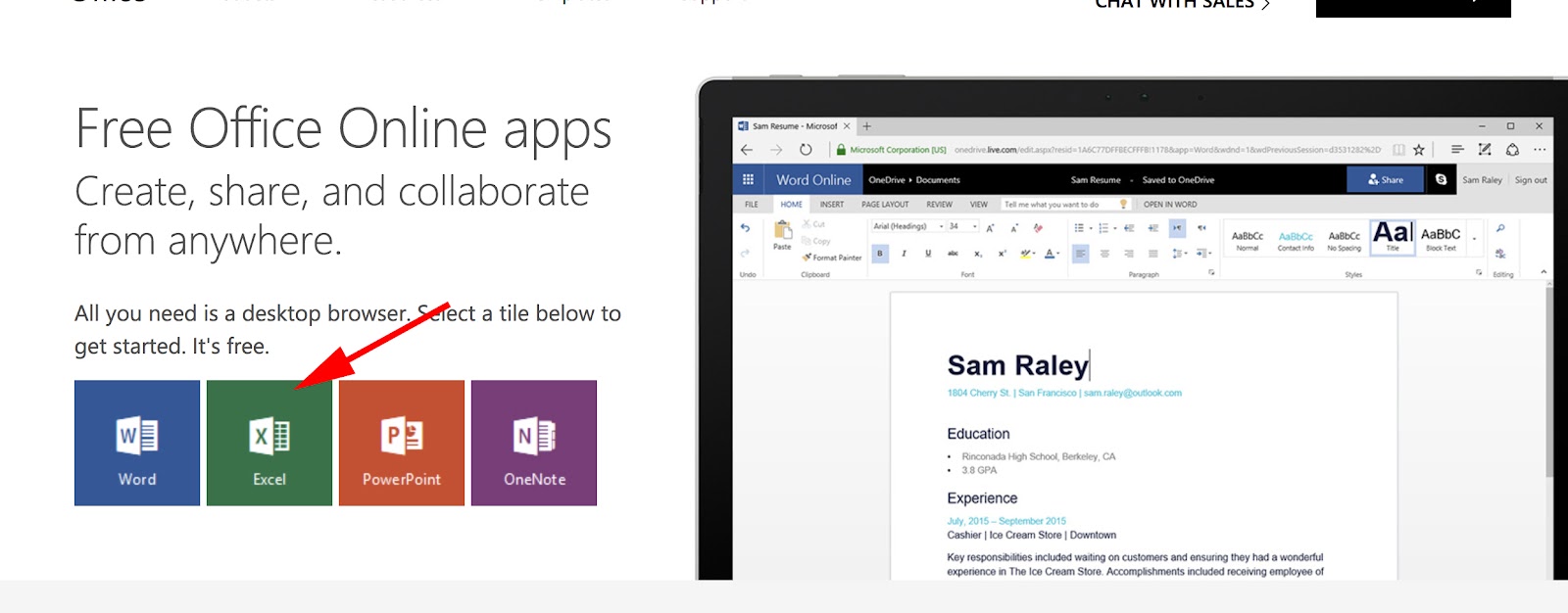
Or, open OneDrive, and select a spreadsheet you’ve saved.
If you want to move your desktop spreadsheets to Excel Online, you can use OneDrive.com to do this — there are two different ways.
First, you can open OneDrive.com and drag and drop your spreadsheet files from your desktop to OneDrive.
However, dragging and dropping files means if you edit those files online, your edits won’t transfer to your desktop. If you want to switch back and forth between the two, this can become problematic.
Another option for moving desktop spreadsheets to Excel Online is downloading the OneDrive app, logging in with your Microsoft account, and copying your Excel files to the OneDrive folder to sync them.
This option is likely more favorable. After downloading the OneDrive app, you can sync your files to the cloud. Then, any edits you make online will automatically transfer to your desktop files, and vice versa.
Once you’re all set up in Excel, you can use it the same way you use the desktop version — the design is the same, and most of the functions are the same.
Now, let’s take a closer look at Excel Online’s features, so you know exactly what Online includes.
Excel Online Features
Excel 2016 desktop version offers 471 functions.
Excel Online offers over 400 functions, and it supports many additional functions if you input them correctly, except a few. This makes desktop and Online almost completely comparable in function.
Here’s Microsoft Office’s complete list of features offered in Excel Online, verus Excel desktop.
It’s important to note while charts, tables, PivotChart reports, and PivotTable reports are displayed similarly in Excel Online, there are a few charts unsupported Online. These include: charts that are part of a group of charts, charts that rely on external references, and charts that use certain kinds of data sources that are not supported for workbooks.
However, the majority of Excel’s most important features are supported equally in Excel Online. For instance, calculations, cells, dates, external references, fields lists for a PivotChart or PivotTable report, filters, slices, and timeline controls, formatting, named items, sparklines, and tables, are all available features in Excel Online.
If there’s a feature unsupported in Excel Online, but the majority of your project can be completed in Excel Online, perhaps you can work back and forth between Online and desktop, using OneDrive to sync your data automatically.
Excel Online vs. desktop
The majority of Excel desktop features and functions are displayed and supported similarly in Excel Online, and for most data spreadsheet projects, you won’t notice a difference between Online or desktop. Excel Online is designed identically, and offers similar functions for gathering, analyzing, and visualizing data. Additionally, Excel Online offers collaboration abilities, and lets you sync spreadsheets to other web apps.
Excel Online Conditional Formatting
If you’re worried about conditional formatting with Excel Online, you shouldn’t be.
Excel Online supports conditional formatting. To use conditional formatting Online, select your data range, and then go to Home > Conditional Formatting. From there, you can pick your style.
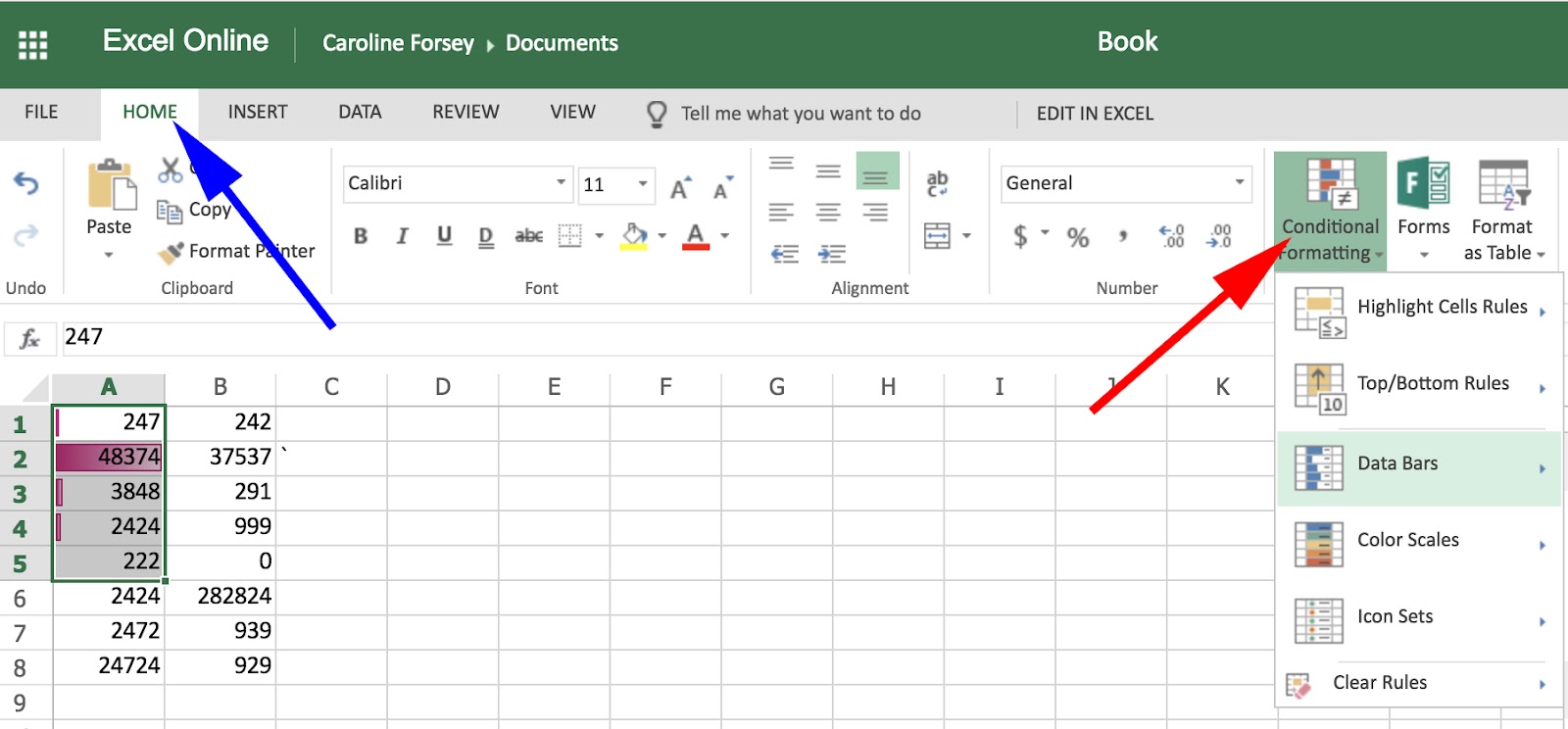
If you use conditional formatting on your desktop Excel, you will still see the changes to your workbook when you open it in Excel Online.
Hidden Functions Online
Last, but certainly not least, let’s dive into some functions you might not know about for Excel Online specifically.
We’ve talked a lot about similarities between Excel Online and desktop, but if they were just similar, there’d be no point choosing Online over desktop.
Here are a few features that make Excel Online unique.
1. Surveys
If you use Excel on a desktop, you need to use third-party survey makers to gather survey information. If you use Excel Online, you don’t need the extra step — you can create a survey directly within the site.
To create a survey in Excel Online, click New > Forms for Excel.
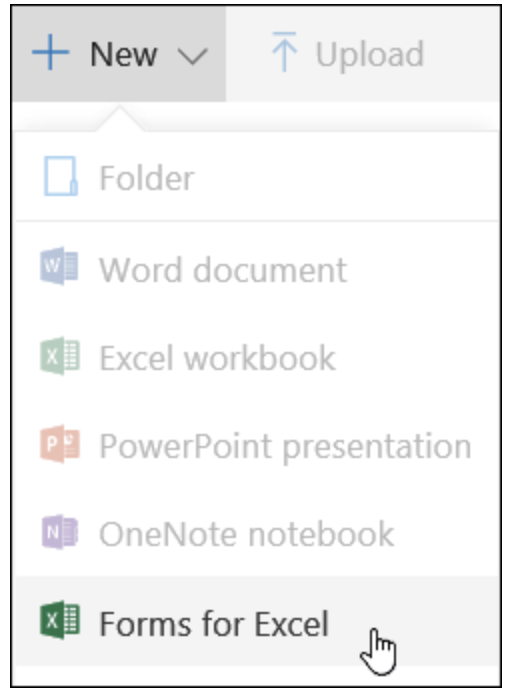
Next, name your Survey and click “Create”. Select “Add Question” to add a new question to the survey. You can choose to add Choice, Text, Rating, or Date questions.

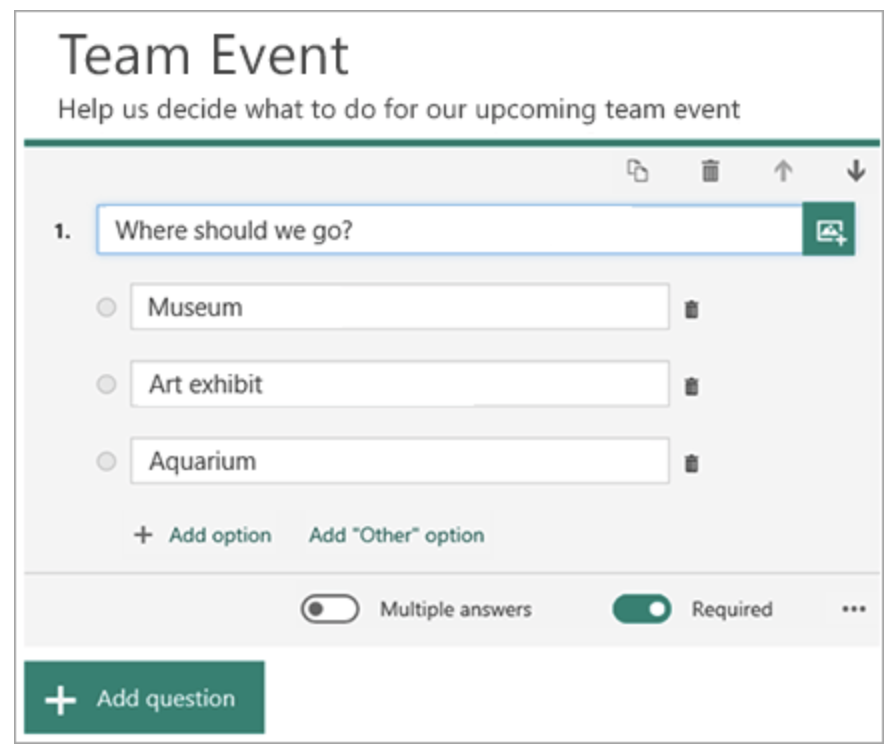
Images courtesy of Microsoft Office Support.
Click “Preview” at the top of the window to see how your survey will look on a computer. Once you’re happy with it, click “Submit”.
2. Install Add-ons
There are plenty of add-ons available for Excel Online. To find them, go to Insert > Office Add-ins. You can choose an add-on by category or name, and then click the “Add” button. After installing, you must click the “Start” button to use the add-on.
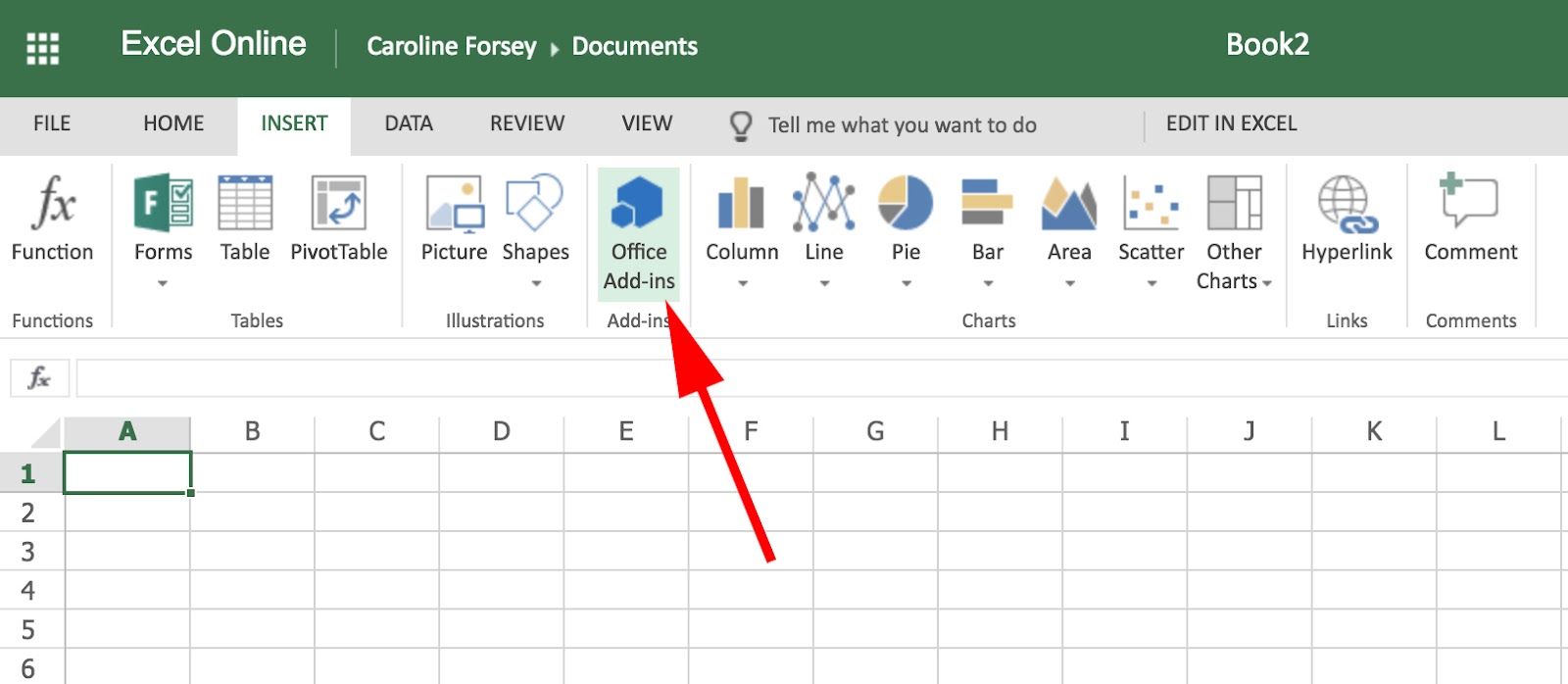
3. Share Your Spreadsheet
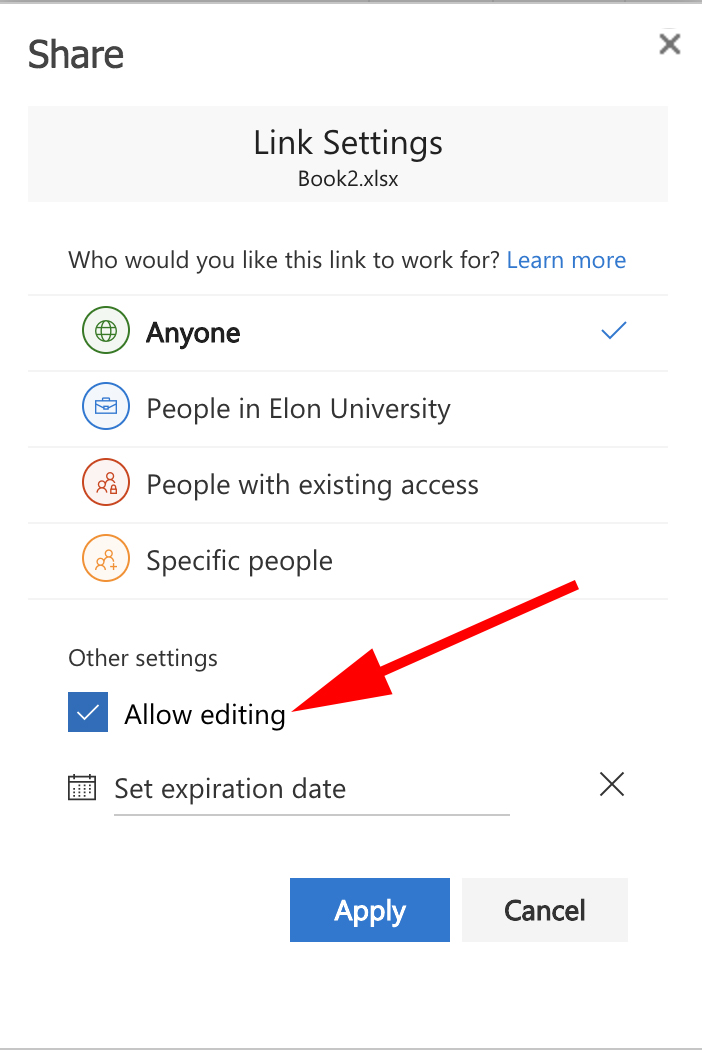
Similar to Google Docs, you can share your Excel files with other people, and either let those people edit, or simply view your data. Within your sheet, simply click the “Share” button at the top right corner. Within the pop-up, you can either choose “Edit” or “View” permissions, and then generate a link to share with anyone.
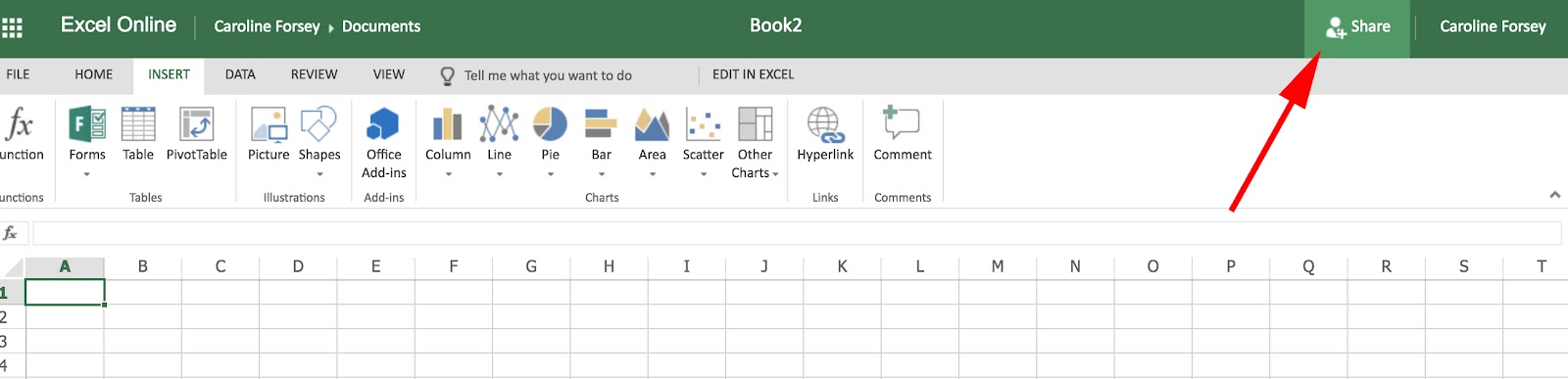
4. Leave a Comment
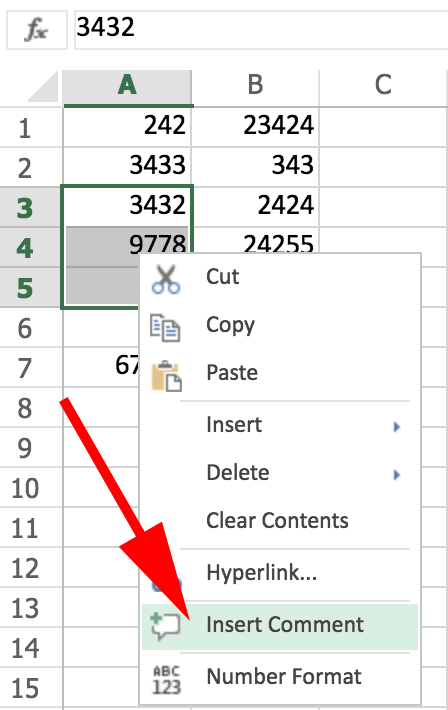
Let’s say you’ve created an Excel sheet with a coworker, and you want to tell her something about a particular section of data. Rather than confusing her with a lengthy email explaining what and where, you can simply comment within the spreadsheet.
To add a comment, select a cell or section and then right click and select “Insert Comment.” You can also go to Insert > Comment.
There are certainly plenty of other tips, tricks, and fun features available solely within Excel Online. Give it a try for yourself, and let us know on Twitter if you find any other impressive online features.

20 of the Best Website Designs to Inspire You in 2018
Every once in a while, I’ll come across a website that really makes me stop and think. So, I found 20 of them to show you.
These sites push the boundaries of what is known to be possible on the web. Whether it’s the design aesthetic, usability, interactivity, sound design, or value that the site provides, each one is a masterpiece in its respective industry, and something to be inspired by.
Not surprisingly, many organizations exist to highlight these sites and the contributions they make to the web. To help surface some of the most inspirational designs, I gathered 15 award-winners that have made their way through several key awards organizations — including Awwwards, UX Awards, The Webby Awards, SiteInspire, Best Website Gallery, and FWA.
I also found five more websites whose homepage designs are just plain cool and worth learning from.
As you browse through the list, know that each site excels in its own way and seeks to serve a unique purpose. While one site may be an excellent example of visual design, another may be an excellent example of interactivity. This means that not all of these sites may be “conversion machines” or blueprint ideas that you can easily copy over to your site.
Rather, they’re great ways to gain some website design inspiration and see the cutting-edge marketing that’s happening in the different corners of the web.
The Best Website Designs to Inspire You
- Feed
- crypton.trading
- ETQ
- Mikiya Kobayashi
- Inside Abbey Road
- Citrix: The New Mobile Workforce
- The History of Climate Change
- Beagle
- Southwest: Heart of Travel
- Woven Magazine
- JOHO’s Bean
- NOWNESS
- Virgin America
- World of SWISS
- Reductress
- Minimums
- Guillaume Tomasi
- The District
- Tej Chauhan
- Amanda Martocchio Architecture

Beautiful Award-Winning Websites
1. Feed
Award: Site of the Day (6/6/2015), Awwwards
Not only is Feed an interesting concept, but it also has a stunning execution that challenges our understanding of what is possible on the web. Through a creative blend of animation and video, the site immerses the user into a very engaging experience. As an atypical site, it contains several unique usability elements as well, including a navigation that doubles as a scroll progress bar.

2. crypton.trading
Award: Site of the Day (4/3/2018), Awwwards
Meet crypton.trading, your robot accountant.
Crypton.trading is a trading hub for cryptocurrencies such as Bitcoin, using artificial intelligence to predict changes in a currency’s value and identify key buying and selling opportunities. The website was rated high for its development and design, as it gradually explains more of the developer’s methods the further down visitors scroll.
This award-winning website makes tech-savvy visitors feel right at home the moment Crypton’s greeting appears across the homepage, one letter at a time.

3. ETQ
Award: Site of the Day (5/19/2015), Awwwards
ETQ takes a very minimalistic approach to ecommerce with their stripped-down site with big, compelling visuals of their product. Simple, flat, color-based backgrounds accompanied by strong typography help to keep the focus on exactly what the user came there to see: shoes.

4. Mikiya Kobayashi
Award: Site of the Day (7/4/2015), Awwwards
Mikiya is a Product Designer with a minimalistic portfolio that showcases his work through strong photography and subtle animations. His full site was originally created in Japanese and then translated into English, helping demonstrate the international scalability of his design.

5. Inside Abbey Road
Award: Best Music Website, 2016 Webby Awards
Google knocked it out of the park with this highly interactive site, which allows users to step into the Abbey Road Studios. Brilliant sound design, navigation mechanics, and visuals mixed with the usual “Google flair” all help draw visitors in to this well-made web property.

6. Citrix: The New Mobile Workforce
Award: Site of the Day (11/23/2017), Best Website Gallery
This website — dedicated to Red Bull’s partnership with Citrix, a cloud-based software company — is amazing.
The New Mobile Workforce, a site owned by Citrix, uses panoramic photography to show visitors how Citrix is supporting Red Bull Racing’s new race car. Even if you’re not a car-racing enthusiast, the website’s clever animations to explain a complicated automotive technology are hard to ignore.
 Featured by Best Website Gallery
7. The History of Climate Change
Award: Site of the Day (6/23/2015), Awwwards
Follow the footsteps of Luc Jacquet as Wild-Touch takes you along this visual and educational journey about the history of global climate change. A mixture of historical media and unique animations help tell the story.

8. Beagle
Award: Site of the Day (4/19/2015), Best Website Gallery
Beagle does an exceptional job of visually and progressively telling the story of their product in a simple and easy-to-digest way. This is a major challenge for many startups, especially when they’re introducing new concepts to existing markets. People want to know, “What is your product? How does it work? Why do I care?” Beagle answers all those questions while simultaneously showing off their product and compelling the user to purchase. Plus, they’re one of few sites that actually implemented “scroll hijacking” correctly.
 Featured by Best Website Gallery
9. Southwest: Heart of Travel
Award: Best Visual Design – Aesthetic, 2018 Webby Awards
When Southwest Airlines wanted to prove its customers were “more than just a dollar sign,” the company created a website whose design was assembled using the shapes of their customers’ flightpaths.
The website, called Heart of Travel, even allows visitors to create their own artwork out of a trip they might plan on taking. In this way, Southwest’s website is a product of their most loyal passengers.

10. Woven Magazine
Award: Site of the Day (4/4/2015), Best Website Gallery
Woven is an online publication that celebrates artists, craftsmen, and makers alike. To me, they represent a confirmation that publications can (and should) have beautiful, engaging sites with easy-to-read content. Free of distractions like pop-ups and obtrusive ads, this site all about the experience of the content itself.
 Featured by Best Website Gallery
11. JOHO’s Bean
Award: FWA of the Day (8/7/2015), Favorite Website Awards
The website for JOHO’s Bean has incredible imagery, interactivity, story telling, visual design, and most of all, sound engineering. These all come together to create a compelling, emotional, and engaging site that tells the story of a coffee bean’s journey.

12. NOWNESS
Award: Best Cultural Blog/Website, 2017 Webby Awards
Nowness is perhaps the coolest crowdsourced video blog on the internet today. That was a mouthful … what does all that mean?
NOWNESS‘s “crowdsourced” nature is part of what makes it an award-winner. This means most of its content comes from independent creatives — an increasingly popular way for businesses to publish content. NOWNESS is also a video blog, meaning all of its blog content is in video format. Together, these qualities help make Nowness a captivating hub for the stories that brands everywhere strive to tell.

13. Virgin America
Award: Most Significant Industry Evolution, 2014 UX Awards
In a world where airline websites are known to be riddled with major usability issues, Virgin America has one of the best websites that pushes usability, accessibility, and responsive design forward. In fact, it’s been named as the first truly responsive airline website, a new precedent in the industry.

14. World of SWISS
Award: Best User Interface, 2015 Webby Awards
Another airline?! What is happening?! Yep, SWISS airlines built an incredibly immersive site that tells their story and describes what it’s like to fly with them — and they simply did too great of a job to be ignored. Strong visuals and animations introduce the user to different sections of the site that are packed with information beyond the usual sales and marketing pitch that is so common today.

15. Reductress
Award: Best Humor Website, 2018 Webby Awards
It’s not that hard to make someone laugh on the internet; so much of what we read and consume online is meant to be entertaining. But it is hard to do it consistently for a large audience. Reductress is a satirical magazine whose headlines and general reading experience are top-tier in the humor department — making the website itself a quality property.
 Featured by The Webby Awards
Other Cool Website Designs
16. Minimums
Minimums takes a very bold approach to the way that they display their content, leveraging a grid-based website design, big typography, and full-width, high-quality images. Their site serves as a really nice example for how to properly execute a grid structure while still maintaining a nice visual hierarchy in the design.

17. Guillaume Tomasi
As a Photographer in Montreal, Guillaume Tomasi has built a portfolio that’s truly fit to house his unique and awe-inspiring photography. His surreal photo style is juxtaposed by his simple, flat, empty, and minimalistic portfolio design that places all of the focus on the work itself.
His unique series navigation coupled with art-gallery-inspired work introductions and perfect scrolling interactions yield an experience reminiscent of that of a real gallery.

18. The District
This branding agency takes its imagery seriously, and it should — it handles all channels of media for their clients. The District’s website, alone, is a journey through some of the most beautiful artwork and photography you’ve ever seen.
These provocative tiles change rapidly as you explore the website, and the wackier they seem, the more interested you become in learning about their past work.

19. Tej Chauhan
Tej Chauhan has turned impressionist artwork into a business model with this intriguing website. Each image on this product developer’s homepage slides out to cover the previous image, offering little context around the object you now see in front of you.
But isn’t that lack of context exactly what makes you want to learn more? The tagline, “Souvenirs of The Near Future,” suggests these objects are a part of their product line — and an opportunity for you to get these innovative objects into your life.

20. Amanda Martocchio Architecture
An architecture firm might not specialize in web development, but its website should still demonstrate its commitment to visually pleasing design. Amanda Martocchio took that to heart with this gorgeous website.
It’s no secret that Amanda Martocchio Architecture loves its work — each picture on the homepage of its website is an enchanting shot of the houses the company designs. The website labels every house you scroll through with the type of design that was intended, along with numerous angles to each building.

Want more website design examples? Check out these amazing product pages you’ll want to copy immediately.



Confirmed: Mark Zuckerberg Will Appear Before European Parliament
European Parliament President Antonio Tajani released a statement today confirming that Facebook CEO Mark Zuckerberg has accepted an invitation to appear before its Committee for Civil Liberties, Justice and Home Affairs (LIBE).
The announcement comes after weeks of speculation and rumors that Zuckerberg would make such an appearance. In a post published yesterday, HubSpot predicted that Facebook’s high volume of news releases and statements this week — compounded by a recent executive re-organization — could indicate that an international testimony from Zuckerberg was imminent.
Mark Zuckerberg, Facebook CEO and founder, has accepted our invitation. He will come to the European Parliament. My full statement ⤵️ pic.twitter.com/FdmuDPl8Wb
— Antonio Tajani (@EP_President)
May 16, 2018
While an official date has not been confirmed, Tajani’s statement does indicate the Committee hopes Zuckerberg will appear as soon as next week.
It is worth noting that pivotal EU data privacy laws — the General Data Privacy Regulation (GDPR) — come into force next week, on May 25.
According to Tajani’s statement, the Conference of Presidents — essentially, European Parliament’s governing body — will organize a hearing with both Facebook and “other parties,” with a focus on the role of the social network in European electoral policies.
The timing of the announcement is particularly interesting after Facebook’s U.K. Head of Public Policy Rebecca Stimson issued a letter earlier this week to members of UK Parliament indicating that “Mr. Zuckerberg has no plans to meet with the committee or travel to the UK at the present time.”
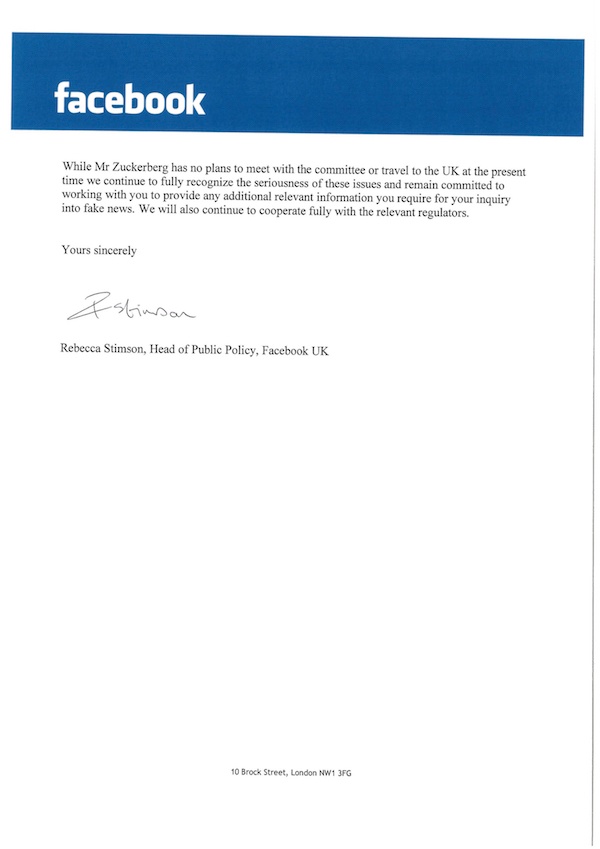
Source: UK Parliament
That letter was written in response to an earlier one from House of Commons Culture Committee chairman Damian Collins, in which he wrote that “the committee will resolve to issue a formal summons for [Zuckerberg] to appear when he is next in the UK.”
I have today written to @facebook requesting that Mark Zuckerberg appears in front of @CommonsCMS as part of our inquiry into fake news and disinformation. Read it here: https://t.co/jXZ5TjiZld pic.twitter.com/m0NU5Uyf2L
— Damian Collins (@DamianCollins)
May 1, 2018
As for how this latest slated appearance from Zuckerberg will ultimately impact Facebook — if at all — some remain skeptical. The company posted strong Q1 2018 earnings, as well as an enthusiastic response from the audience at F8, its annual developer conference.
“Zuckerberg’s U.S. testimony, and the entire situation at-large, didn’t seem to have much of a negative impact on user growth or financial data,” says HubSpot Social Media Editor Henry Franco. “I’m interested to see if this will play out in a similar fashion, or the same, especially in light of GDPR and an increased regulatory focus on how companies collect, store, and manage data.”
This is a developing story and we will provide updates as more information becomes available.

Unriddled: Google’s Mass Exodus, Another Snapchat Redesign, and More Tech News You Need
Welcome one, welcome all, to your unofficial midweek marker: HubSpot’s Wednesday weekly tech news roundup.
The industry has had a very, very busy week. But you’re short on time. We’re short on time. Everyone is short on time. And that’s why we’re bringing you Unriddled: a quick-and-dirty edition.
This week, we’re going to provide a very short rundown of each news item that grabbed our attention over the past few days. Whether you simply scan it or read more, we can all but guarantee that you’ll sound very informed at happy hour.
So, without further ado: Let’s break it all down. Here’s our Wednesday tech news roundup.
Unriddled: The Tech News You Need
1. Google Employees Are Resigning in Droves in Protest of Project Maven
Roughly three months ago, Google’s work on a hotly-contested military drone footage analysis program — Project Maven — became public. But many of the company’s (now former) employees have taken great issue with its participation in the project and are resigning in protest. Read more about their reasons and the project’s history from Gizmodo‘s Kate Conger. Read full story >>
2. Snapchat Rolls out Another Redesign
Recode‘s Kurt Wagner.
Read full story >>
3. We Looked Through the Russian-Bought Facebook Ads. Here’s What We Noticed.
The U.S. House Permanent Select Committee on Intelligence (HPSCI) Minority has released over 3,000 Russian-bought Facebook ads leading up to the 2016 U.S. presidential election. Here’s a look at some of them. Read HubSpot’s full story >>
4. Instagram Introduces an Emoji Slider
Last week, Instagram rolled out a new Emoji Slider sticker that can be added to Stories. As the name suggests, the sticker allows users to place an interactive sliding scale using an emoji of their choice to get feedback on questions like, “How 🌶 do you like your salsa? Read the official announcement >>
5. Facebook Has Suspended 200 Apps in Data Misuse Audit
As Facebook continues to investigate any apps with significant user information access, an announcement comes that it has suspended 200 apps for possible data misuse. Read HubSpot’s full story >>
6. Twitter Announces New Approach to Combat Platform Abuse
Twitter will begin evaluating different user and account behaviors to limit the visibility of abusive content. In a tweet from Tuesday afternoon, CEO Jack Dorsey announced plans to host a Periscope about this plan in the near future. “Our ultimate goal is to encourage more free and open conversation,” he wrote. “To do that we need to significantly reduce the ability to game and skew our systems. Looking at behavior, not content, is the best way to do that.” Read HubSpot’s full story >>
7. Facebook Removed 1.9 Million Pieces of Terrorist Propaganda Content in Q1 2018
Facebook released its first public-facing Community Standards Enforcement Report yesterday, indicating the volume and nature of violating content on its site. Read HubSpot’s full story >>
8. Uber Riders, Drivers and Employees Can Pursue Individual Claims of Assault in Open Court
Uber has reversed one of its highly controversial forced arbitration policies for riders, drivers, and employees. Any member of these parties with sexual assault claims against the company can sue Uber and pursue their cases in open court. Uber also recently announced that users can rate their drivers mid-ride, rather than having to wait until the ride has concluded. Read more about the arbitration reversal from Recode‘s Johana Bhuiyan. Read full story >>
9. Facebook Unveils Youth Portal to Help Teens Navigate the Network
Facebook has launched its Youth Portal to help teens use the network’s features, understand how their data is used, and decide what to share. Read HubSpot’s full story >>
That’s all for today. Until next week, feel free to weigh in on Twitter with your tech news questions or thoughts on what kind of events and topics you’d like covered here.

Here’s Why Editors Reject Your Guest Blog Pitches [New Research]
Inbound marketing: You know it’s all about using content to educate others and attract people to your brand. You create and distribute unique, valuable, educational content, and members of your audience take notice.
If you’re practicing inbound marketing, you probably also know that guest posting your content to outside publications is one of the most effective ways of reaching those people where they already are and drawing them directly to you.
When you do it well, guest posting can be a great addition to your content marketing strategy. You can reach new audiences, establish credibility, drive qualified site traffic, generate leads, and earn links that help you build a stronger organic presence.
And at a time when 55% of marketers say growing traffic is a top marketing priority and 61% say SEO is a top inbound priority, guest posting can be a seriously effective solution.
Unlike blogging on your own website, though, guest blogging requires you to earn placement. This means that you have to work alongside a publication editor to deliver content that fits.
For the second year in a row, my team at Influence & Co. has surveyed online publication editors across multiple industries to uncover trends in what they’re looking for in the guest posts they accept.
We asked them all kinds of questions: How much and what kind of guest content do they plan to publish? What do the best guest posts have in common? What’s the biggest problem with guest content? Are there certain times of year when more content is needed?
We’ve compiled the full findings from this survey — plus an analysis of more than 3.5 million pieces of published content — in “The State of Digital Media 2018” to help our fellow marketers produce, pitch, and publish guest content that better meets their company goals.
So, if you’ve ever wanted to know what’s going on inside the minds of the gatekeepers of your guest posts, this one’s for you. Check out the infographic below to learn more about what editors and their audiences are looking for — and how you can deliver it.


How HubSpot Grew Online Customer Reviews By 157%
Nowadays, reviews matter more than ever. In fact, over 85% of U.S. adults say they trust online reviews as much as personal recommendations.
At HubSpot, we know reviews are important for driving leads to our product in the first place. But we’re starting to recognize the importance of reviews at the end of a buyer’s journey, as well.
Review websites rank super well on Google for purchase-intent software terms we care about, like “crm software”, “best crm software” and “crm systems”.
People searching for terms like these are ready to buy CRM software and as a result, are highly likely to turn into customers.

You can hardly blame Google for serving this content first. With over 500 providers of CRM software, it’s tough for customers to hop from vendor to vendor to choose the right CRM. They need a single resource that lists top CRM software. A number of sites have capitalized on this opportunity.
With these review sites dominating search for almost every CRM keyword with commercial intent, we needed to improve our presence on these websites and grow our customer reviews.
Here, we’ll walk you through our experience choosing the best channels to collect reviews, designing review request emails for optimal growth, and developing a strong review acquisition strategy that elevated our company to the top three on CRM software review sites.
The Best Channels for Review Collection
We tested out a number of different channels for collecting reviews. Ultimately, email, events, and triggering reviews based on product usage proved most effective.
1. Email
Email is a staple at HubSpot, and we often communicate with our customers via email. This seemed like the obvious channel for us to ask for customer reviews.
We were able to identify core groups of users who would be a great fit to ask for reviews.
The first group we emailed for reviews were our NPS promoters — a group of people who rate us highly when asked how likely they are to recommend us to a friend.
The second group we emailed for reviews were people who had recently experienced delight from using our product. For example, when someone closed a deal in our CRM (ding), that was a good time to ask them to write a review about us.
These two groups of people, and the channel of email, were critical to successfully collect reviews on an ongoing basis, since those people were deriving value from our products.
2. In App
Using your software to ask users to review your product in-app is another great way to gather reviews. You can test out asking people to review your product at different times based on their actions. At HubSpot, we asked people to review us on occasion after they closed a deal in HubSpot CRM. Instagram also does this occasionally after someone has posted a photo to boost reviews in places like the App Store.
3. Events
Events were another core channel we used to grow our reviews. Each year thousands of HubSpot customers attend our INBOUND event in Boston. We suspected this would be another great place for us to collect reviews, as there was a high amount of foot traffic from HubSpot customers.
125 Positive Reviews in Three Days
Leveraging our INBOUND event, where we have a ton of happy customers and partners, turned out to be a successful avenue for collecting reviews. We knew getting a lot of reviews in a couple of days would could close the gap between us and those we compete with within the CRM space.
During the course of three days, we collected customer reviews on Capterra and G2Crowd using iPads in an area of the event where HubSpot customers congregate.
As a result, we collected 125 reviews for HubSpot products. This enabled us to surpass Zoho and Nimble’s review numbers on Capterra.
We became the third most-reviewed CRM on Capterra, despite being much later to the CRM space than many of our competitors.
Three Things We Learned About Asking for Reviews
When asking for reviews, we didn’t just vary the channels we used to reach customers — we also varied the design and copy of our requests.
There are three critical lessons we learned from extensive A/B testing. As a result of our efforts, we saw an exceptional increase in the amount of people willing to write a review.
If you want to ask your customers for a review, you’ll want to take note of the following three lessons.
1. Rewarding people for leaving a review works wonders
We ran an A/B test via email to find out if rewards would make customers more likely to review us. For the enabled group, we offered a $10 Amazon gift voucher to the first ten people who reviewed us. For the control group, we used the same design and almost identical copy, but removed mentions of the reward.
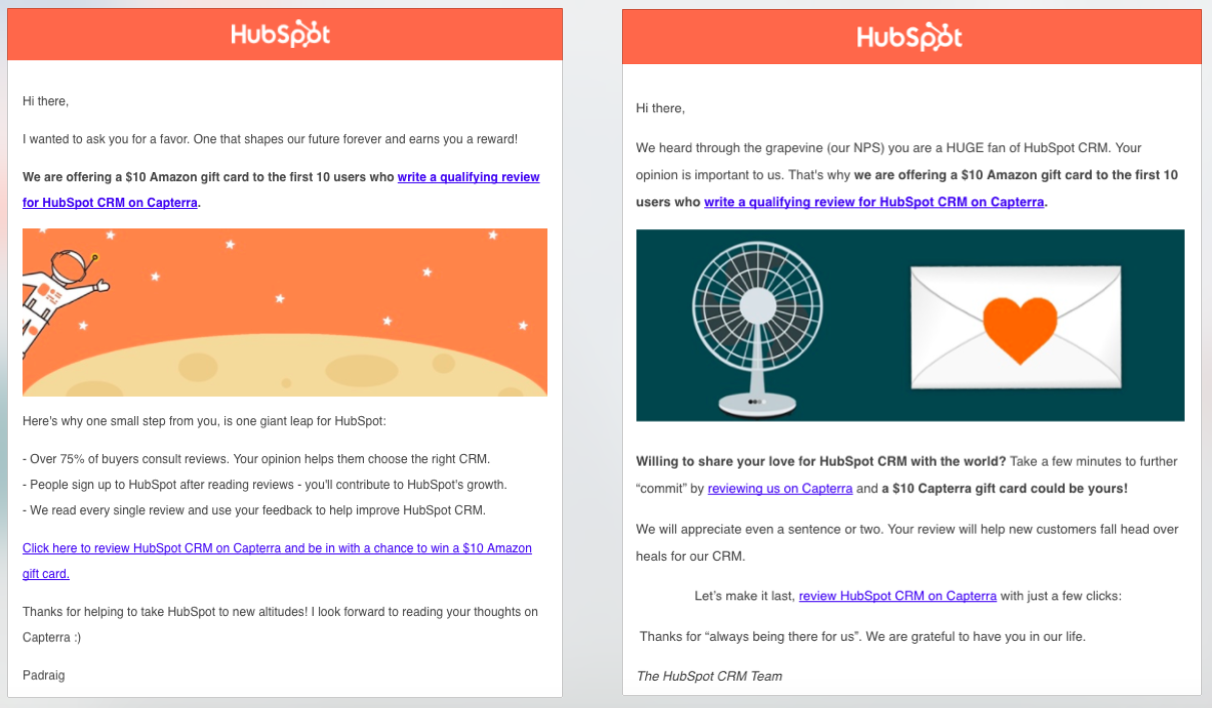
The chance of a small reward boosted our review numbers by a staggering +733%. Despite the huge increase in the quantity of reviews being left, the high quality of reviews being left did not change.
Normally, our conversation rate for review email sends stands at 3%, but when a reward was offered, it jumped to 25%. Mentioning the reward in the subject line did not peak people’s curiosity (open rates were the same).
Some rewards might resonate more with your customers than others and improve your results. We recommend testing out different rewards to see which ones gain the best results. Potential rewards include Amazon, iTunes, Panera, Target, or a Virtual Visa international gift card. Rybbon integrates with HubSpot to make this process seamless.
One thing to note is that many review sites don’t allow you to reward customers for providing a review. This is a controversial issue in the review space. Before offering customers a reward in exchange for reviewing your company, it’s best to check out the review guidelines provided by that particular review website.
2. The format of the ask matters
We wanted to find out what type of emails work best when asking customers to review us. To do this, we pitted multiple emails with fancy design and copy against each other.
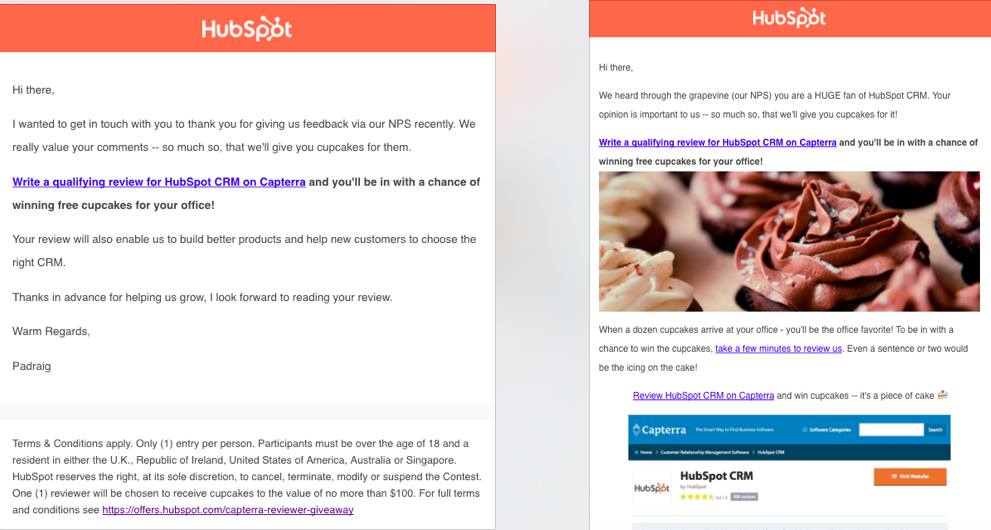
Despite our best efforts at copywriting and design, nothing worked as well as a plain and simple email without cheesy copy or attractive design. It was the plain text email (left) without design or extravagant copy that won the hearts of our customers.
3. You have to make it easy for people to review you
Bringing customers through the right flow for review collection is critical for a high conversion rate. Through A/B testing, we evaluated whether sending people to a profile page or review collection page would influence their likelihood to leave a review.
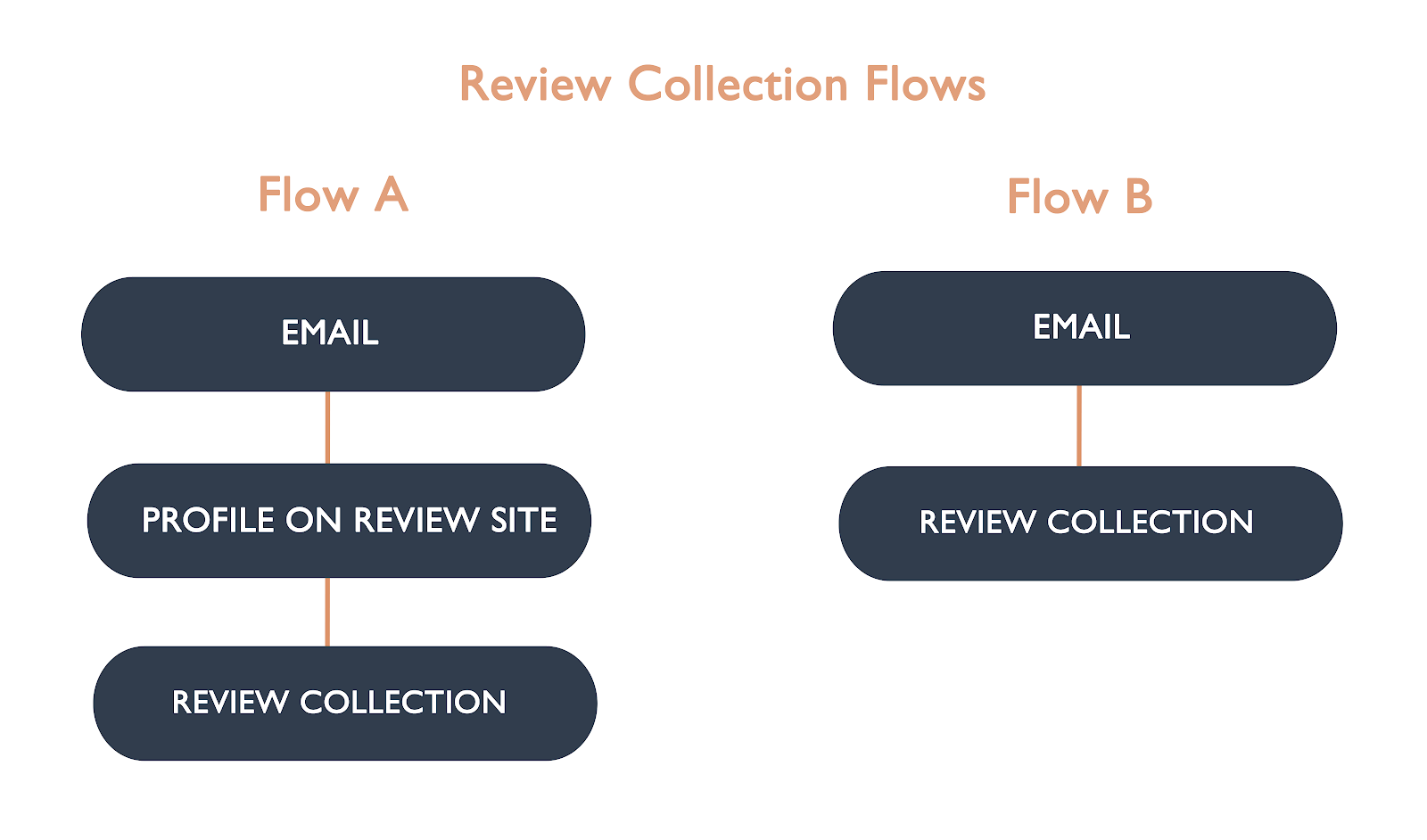
We brought one group of customers to our profile page on a review site (Flow A, below). Here, they had to click a call-to-action before being asked for their review of our software. We sent another group of customers right into the review collection process (Flow B, below). Once people clicked through from the email, they were able to leave their review right away.
We found having the least possible steps was most effective for review collection. The extra step in flow A lead to a drop-off rate in the region of 90%. It’s super important to make it easy for people to leave a review, otherwise they won’t do it.
We learned a lot about how we should collect customer reviews from running these experiments. The rewards one alone boosted our conversion rate from 3% to 25%. But, even with everything we learned from our experiments, we realized using email for growth wasn’t enough.
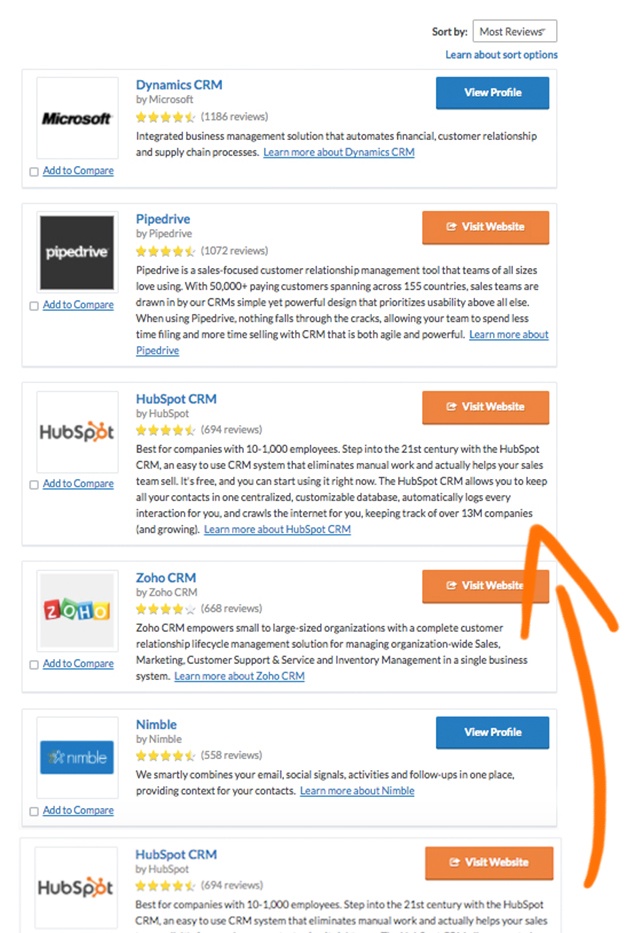
Having a freemium product worked to our advantage. We acquire a lot more users than many of our competitors because our CRM is a free product. This is very useful when it comes to collecting reviews, as you have a much bigger pool of users to ask.
Asking our customers to review us didn’t just contribute to customer acquisition, it also helped our sales team close more deals and grew our website traffic.
We ran an SEO experiment where we added review schema markup to our product pages, and this increased clicks to those pages by 10%.
Having a review acquisition strategy was hugely beneficial for us at HubSpot. Hopefully, you can use some of our learnings to boost your own customer reviews.
