
I Tried a Weirdly “Psychic” Google Home App at SXSW So You Don’t Have To
At SXSW, one will inevitably come across things that are … weird.
Afterall, the host of this annual interactive, music, and film festival is Austin, Texas: a city with a motto of, “Keep Austin weird.”
So when I got word of a Google Home app that could allegedly read my mind, I was skeptical — but I wasn’t surprised, either.
Its name is Akinator.
I first discovered Akinator after attending a panel at the Austin Fairmont, where Google had installed a series of phone-booth-like cubbies in which users could interact with its Assistant technology and experience its capabilities.

I was lucky enough to be ushered into the one where this supposed mind-reading app was featured.
To be fair, Akinator doesn’t actually boast being able to hear all of your thoughts. Rather, it can guess which movie or TV character you’re thinking about.
When I prompted Akinator to begin, I was thinking of George Banks: the titular character in the 1991 version of Father of the Bride, played by Steve Martin.
To figure this out, Akinator asked me a series of (seemingly never-ending questions), such as, “is your character a villain?”, “does your character eat people?”, and “does your character have white hair?”
Long story short: Akinator did figure out that I was thinking of George Banks.
So, why is Google promoting this app?
According to my research, Akinator isn’t exclusive to Google Home — I was also able to find it in the Apple app store.
But it’s also worth mentioning that Google may be looking to move into Amazon’s territory. Remember when I tried using three smart speakers at the same time? One of the better differentiating features of Alexa was its broad repertoire of app-like skills, including a digital, voice-activated boxing coach.
By incorporating such interactive, game-like apps as Akinator, perhaps, Google could be looking to build its own portfolio of entertainment use cases.
I’ll be at SXSW all week and tweeting about these, well, weird things as I discover them. Feel free to follow along on the wild, bizarre ride.

3 Ways to Spot a Liar In an Interview (And What to Do About It)
Let’s be honest (which, we admit, may be slightly ironic for an article about lying) and confess we’ve all been tempted to lie in an interview.
But most of us also know telling whoppers will get us nowhere fast, and so, we give it to a recruiter straight — for better or worse. Unfortunately for recruiters and hiring managers, not all job candidates are so scrupulous.
So how can they spot and liar? And what should they do once they do? Sharlyn Lauby, president of ITM Group Inc. and founder of HR Bartender, has some expert advice for exactly how to navigate this tricky situation.
First, “if a candidate is truly lying, it’s important for the company to realize it prior to the person being hired,” Lauby says. “If the candidate lies about their knowledge, skills, or abilities, they could be placing the company and themselves at real risk.”
To spot a liar in an interview, Lauby suggests paying attention to three key factors:
How to Spot a Liar in an Interview
1. Check for consistency.
Over the course of the interview process, consider asking the candidate the same question multiple times to see if you get the same answer each time. “For example, ask, ‘Are you able to work nights, weekends, and holidays?’” Lauby says. “If a candidate says ‘Yes!’ during the first interview but hesitates during another one, it’s a red flag that the company should try to get an honest answer.”
2. Watch out for too-good-to-be-true stories.
You know the saying: if it sounds too good to be true, it probably is. “This isn’t to say that incredible candidates don’t have great stories to tell,” Lauby says. “But if a story sounds too good to be true, a hiring manager can ask some follow-up questions to make sure the candidate can explain the story in detail. For example, if a sales manager exceeded their sales goal by 500 percent, he should be able to provide specifics. In fact, he should want to.”
3. Study body language and tone.
According to Lauby, “short answers and fidgety body language might be an indicator that a candidate is uncomfortable responding to certain questions, such as, ‘Why did you leave your last employer?’” But that’s not always the case—so be careful when studying a candidate’s body language and tone.
“[Nervousness] can also be a sign the interviewer isn’t doing a good job of making the candidate feel welcome,” Lauby warns. “Hiring managers need to learn how to make candidates feel at ease, so they are open [and honest] with their responses.”
If you feel you’ve got a liar in your midst—or your office, as the case may be—your first step is to ask clarifying questions and for specifics to see if the candidate is able to back up any inconsistent or wildly positive past experiences, Lauby says. “For the body language situation, offer to give the candidate a tour,” she suggests, “and then resume the interview. See if that helps [the candidate to relax and open up]. Or have the candidate speak with another manager and see if he or she gets the same vibe.”
The important thing to keep in mind, Lauby says, is “the hiring manager [should be] absolutely, positively, totally, completely sure that the candidate was lying” before discounting or dismissing a job candidate. “I understand being suspect about a response,” she says, “which is why hiring managers should ask probing questions to get additional information. And don’t forget all of these questions need to be legal.”

How to Write a Resume: The Ultimate Checklist of Resume Tips
How to Write a Resume
- Write your name, email address, and phone number at the top.
- Verify that your email address and related contact information sound professional.
- Include the jobs that are most relevant to your target industry.
- Describe each company, job title, your responsibilities, and your accomplishments. Be specific!
- Summarize this experience in a separate “Key Skills” section.
- Copy your text into a resume template that fits the tone of your industry.
- Verify that your text is aligned, consistent in format, and clickable when linking to samples.
- Incorporate keywords that automated resume scanners might look for.
- Proofread for grammar, brevity, and specific action verbs.
- Convert your resume to a PDF file.
I can’t think of many tasks people dread more than writing a resume. There are so many little things you need to add, rephrase, check, double-check, triple-check … and yet, somehow, your resume still goes out with your name as “Corey Wainwrite” from “HubStop.” It’s anxiety-inducing.
So, I did what I do when I’m anxious: I made a list of all the little things you need to do when writing and editing your resume.

Here’s my checklist of resume tips — and I wish you the best of luck with your job search.
The Ultimate Checklist of Resume Tips
I’ve divided all the must-do tasks into four sections and did my best to order them chronologically. Some could probably exist in more than one section or be completed in a different order, so I’ve ordered items where I thought they most naturally fit during the resume-writing process.
Is Your Contact Information Professional? Things to Check:
Have you included your basic contact information — including your name, email address, and phone number — at the top?
Is your email address professional? (e.g. sara@gmail.com vs. sarabear@gmail.com)
Is your email address associated with a familiar domain, like Gmail? (Outdated domains can be a red flag for tech-savvy companies.)
Do your resume details align with your LinkedIn profile? (Hiring managers will likely review both.)
Have you included links to social media profiles, portfolios, and a personal website if relevant?
Have you audited your social profiles to ensure no unprofessional content is available to the public?
Have you customized any communication within your resume that addresses the company or hiring manager by name?
If you’re sending your resume as a Google Doc, have you granted the recipient the proper permissions to view it (or opened up permissions to everyone)?
Is Your Resume Written for the Industry? Things to Check:
Are you writing in a tone that matches that of the company to which you’re applying? (For instance, while still writing professionally, you might use a different tone when applying to work at a new tech startup versus an established accounting firm.)
Have you customized your resume for the specific job to which you’re applying? (Highlight work experience and skills that are relevant to the position — don’t just write down every job you’ve ever held.)
Do you have a clear objective at the top of your resume that is company-focused, rather than you-focused? (You don’t need one, but you do need a “Key Skills” section that summarizes who you are and what you can offer the company.)
Have you included both accomplishments and responsibilities under each job? (Both should be easy to ascertain when scanning your resume.)
Have you used numbers and metrics where possible to better convey your success? (For example: “Generated 150 marketing-qualified leads.”)
Do you illustrate career progression? Is it clear that you were promoted, gained additional responsibility, or switched jobs laterally to acquire more skills?
Have you listed not only the names of companies, but a short description of what each company does?
Have you included your tenure at each company?
Have you included relevant information about your education?
Have you added anything that points to your personality or interests outside of work?
Does your unique value proposition shine through? (E.g., something that makes you stand out from other applicants, or highlights that you’re uniquely qualified for the position.)
If relevant for the position, have you included links to a portfolio or samples of your work?
Have you included reference names and their contact information, or simply, “references available upon request”? (Both are okay — just be sure to use at least one to indicate that you even have references.)
Is Your Resume Properly Formatted and Designed? Things to Check:
Have you used a resume template so the layout of your resume is visually appealing and easy to read? (Get 10 free templates here.)
Is your resume too creative? (For instance, if you’re applying for a creative position and have formatted your resume as an infographic … is it really simple enough to read, or is it best to save that creativity for your portfolio?)
Have you selected a clear, easy-to-read font? Is your name clearly stated at the top? (It’s a good idea to make your name slightly larger than all other text — employers read many resumes every week, and you need to be memorable.)
Have you made use of common formatting conventions that makes content easier to read, such as bullet points and header text?
Has your formatting remained consistent across all positions? (For example, if you’ve bolded job titles, are all job titles indeed bolded?)
Are your margins even?
Are all items properly aligned? (For example, if you’ve right-aligned dates, are they all lining up in tandem with one another?)
Are all links you’ve included clickable?
Have you converted your resume to a format that allows all recipients to read it as intended, without downloading specific fonts or needing special software? (A PDF format is recommended.)
Is Your Resume Edited and Polished? Things to Check:
Have you included keywords in your resume? (If you’re submitting to an automated system, it might be critical to getting past filters. Be sure your resume directly reflects some of the software and skills mentioned in the job description.)
Have you edited it for brevity? (Try to keep your resume to about one page per 10 years of job experience, if possible.)
Have you removed irrelevant job experiences?
Is each section of your resume ranked in a way that highlights your skills and what you have to offer the employer? (For instance, if you’re a recent graduate with internships in different fields, you might list your most relevant experience at the top, instead of ordering everything by date.)
Have you edited out generic action verbs in favor of more specific ones? (For instance, “managed” instead of simply “worked.”)
Have you made use of a thesaurus to prevent monotony?
Have you found more professional alternatives to unprofessional-sounding terms? (“Tasked with,” for example, can make you seem less proactive than someone who “coordinated” various projects regardless of who told them to.)
Are your special skills all truly special? (While speaking a foreign language is indeed noteworthy, these days, it might be redundant to mention that you’re proficient in Microsoft Word or capable of using email.)
Have you done a sweep for annoying jargon or business babble? (Everything should be clearly articulated, so it’s easy for the hiring manager to quickly understand what you do.)
Is everything 100% true? (If you write that you’re fluent in a foreign language on your resume, you should be prepared to speak that language during your interview. If you say you like baking, you should be ready to explain which ingredients you need for certain dishes.)
Have you conducted spelling grammar checks?
Finally, have you asked a friend who hasn’t read your resume before to provide a final glance for errors, inconsistencies, or confusing phrasing?
If you’ve checked the boxes of all the resume tips that apply to you, you should be ready to submit your application.
P.S. We’re hiring.

20 Hidden Instagram Hacks and Features Everyone Should Know About
Instagram has become the favorite social network of many — and not just for teens and Millennials. In fact, according to the Pew Research Center, 35% of online adults use Instagram — up 3% from 2016. Compare that, for example, to 24% on Twitter.
Plus, folks don’t just use Instagram casually, as 38% of them use it several times each day. 
But for those who have never used the platform before, or those who just want to take their usage to the next level, Instagram has some lesser-known tricks and settings. That’s why we set out to find them and list them all in one place.
Whether you’re a recruiter looking to showcase your company’s culture, a marketer in the ecommerce industry, or an individual who’s just looking to use Instagram in the best ways possible, there are tips and features here for you.
And for a quick overview of these hacks, check out this rundown from HubSpot Content Marketing Strategist Megan Conley.
Note: Before getting started, make sure you’re operating on the latest version of Instagram. At the time of posting, the latest version is 35.0 on iOS, and varies according to the device.

20 Hidden Instagram Hacks and Features
1. Get Notifications When Your Favorite People Post
Never want to miss an Instagram post from your favorite influencers again? You can choose to get a notification every time a specific user posts a new photo. All you have to do is turn on notifications for each user individually.
To turn on these notifications, visit a user’s profile, click the three dots in the upper right-hand corner of the post, and choose “Turn on Post Notifications” from the menu that appears.
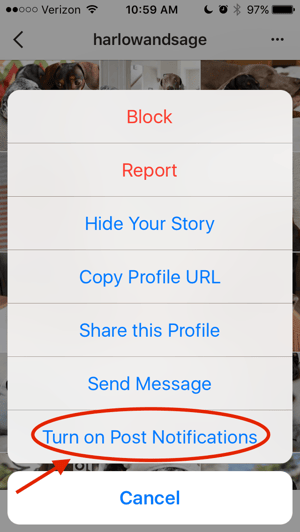
Want to turn post notifications off? Just follow the same steps. It’s important to note that you must enable notifications from the Instagram app in your phone’s settings — here’s how.
- To allow notifications on iPhone/iPad: Go to “Settings,” then “Notifications.” Choose “Instagram” and then turn on the setting to “Allow Notifications.”
- To allow notifications on Android: Go to “Settings,” then choose “Apps,” then “Instagram.” Select the option to show notifications.
2. See All the Posts You’ve Liked
Ever wanted to see the posts you’ve Liked, all in one place? All you have to do is go to your own profile and click the “Options” button — a gear icon on iPhone/iPad, and three dots on Android — then, click “Posts You’ve Liked.”
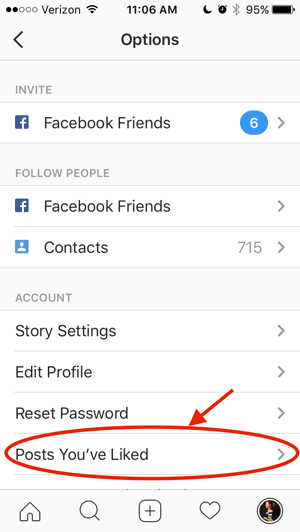
To un-Like any of the posts you’ve Liked, simply go to the post and deselect the “heart” icon below it. Don’t worry — the user won’t be notified that you’ve un-Liked the post.
3. Add and Manage Multiple Accounts From the Same Device
Have a separate account for your dog? Don’t be embarrassed; stand by your puppy profile. In fact, whether it’s a pet account or a business account, you can add and manage this one right alongside your personal account. Here’s how:
- From your profile, tap the gear icon (or the three dots on an Android device) and select “Options.”
- Scroll to the very bottom and tap “Add Account.”
- Add your other account by username and password, and you’re all set!
To toggle between both profiles, hold down your profile picture in the navigation bar to view all connected accounts. You can also switch to a different account through the Options page mentioned earlier. See what this screen looks like in the Instagram feature below.
4. Schedule Posts in Advance
Instagram being a mobile app, you’re probably in a routine of taking photos and posting them to your Instagram Story on the fly. But, you can also pre-post them from your computer for a set day and time in the future.
This feature is available with a social media scheduling tool, as well as HubSpot if you have an Instagram business account. If you have this business profile, switch to it via the Instagram mobile app and follow the prompts to connect it to Facebook.
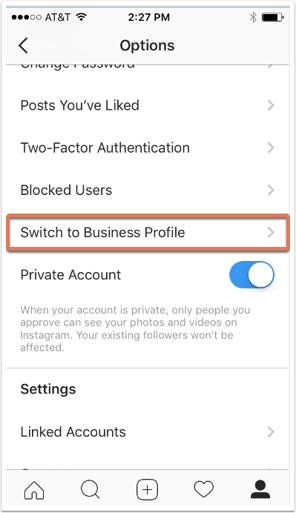
Depending on the social scheduling tool you use, you might not include this step. Once you’ve toggled to the right account, however, you’ll launch your scheduling tool, navigate to your current connected profiles, and see Instagram as an available integration.
5. Create a Collection of Saved Posts
In addition to being able to view all of the posts you’ve liked, Instagram also has an option to save or bookmark certain posts in collections that you create.
Start by going to your profile, and tapping the bookmark icon on the top-right menu above your photos.
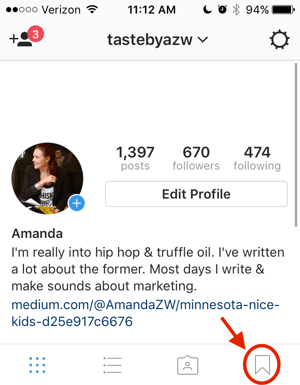
Select the “Collections” tab, and tap “Create Collection.” Below, I’ve created one for food-related posts I particularly like.
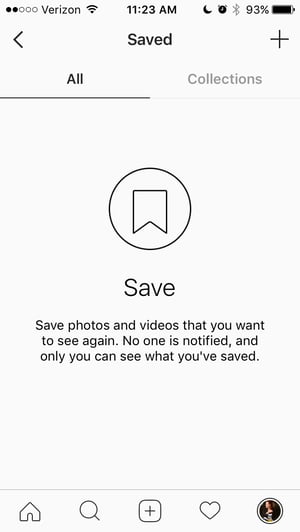
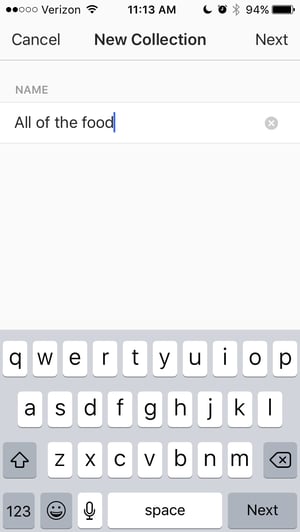
Hit “done,” and you can start adding photos to your collection. To do so, tap the bookmark icon below the post you want to add.

Then, go back to your saved photos by following the previous steps. You’ll see the photos you’ve saved — to add them to your collection, select the collection you want to add to, and tap “Add to Collection.” From there, you can add any of your saved photos.
6. Create Stories Highlights to Show Stories for Longer Than a Day
Like in Snapchat, posts to your story only stick around for your followers to see for 24 hours. But sometimes, you have a story that deserves more daylight to be told.
That’s where Stories Highlights comes in, a new feature by Instagram that allows you to save stories together in the same space on your profile page. If you ever wondered what that “New” button with the “+” icon was below your profile image, this explains it.
To make a Stories Highlight, tap this New option and select any number of past stories in your album:
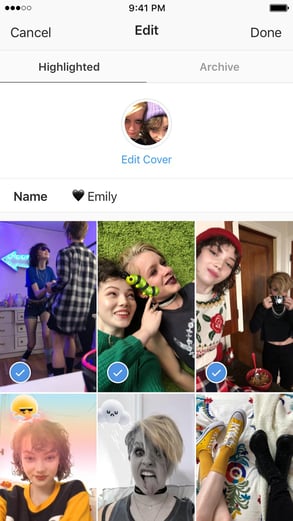 Image via Instagram
Then, give it a cover photo and a name to display as its own Instagram Story on your profile page. You can remove Stories Highlights at any time by tapping and holding down this story.
7. See the Posts Your Friends Recently Liked or Commented On
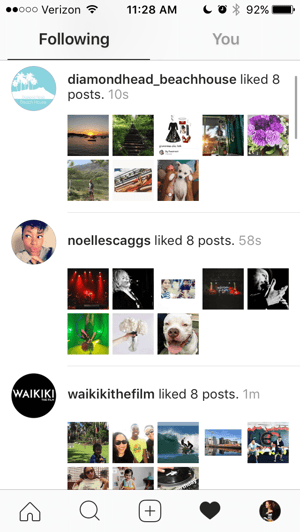
When you’re looking to discover new people to follow on Instagram, there’s nothing like asking your friends. There’s a quick way to do that — by viewing the recent liking and commenting activity of the people you follow.
To do that, click the heart icon at the bottom of the home screen — the first thing that should appear is a list of likes and comments on your photos. Choose the tab near the top that says “Following,” and you can see the activity of users you follow.
8. Look Through Pictures Without Accidentally Liking Them
It’s pretty easy to learn how to like something on Instagram — so easy, in fact, that people do it accidentally: It’s just a quick double tap of the photo once you’ve entered its full view.
The thing is, it’s so easy to do quickly by mistake. So, here’s a quick Instagram cheat for you: To look through someone’s photos without “double-tap paranoia,” scroll through Instagram feeds with your phone set to airplane mode. Without internet access, you won’t be able to Like a photo, even if you accidentally double-tap it.
The pictures won’t load in the first place if you start on airplane mode, though. You’ll have to go to the feed first to load the posts, then turn on airplane mode, then start scrolling. When you reach the end of the first rows of posts and want to load more, simply turn airplane mode off, let more load, and then turn it on again. Cumbersome? Maybe a little, but it could be worth the paranoia mitigation.
- To turn on airplane mode on an iPhone/iPad: Swipe up from the bottom of the screen and click the airplane icon. Or, go to “Settings” and then “Wi-Fi,” and switch “Airplane Mode” on.
- To turn on airplane mode on an Android device: Swipe down from the top of the screen. Then, swipe from right to left until you see “Settings,” and then touch it. Touch “Airplane Mode” to turn it on.
9. Hide, Delete, or Disable Comments on Your Posts
Twitter may carry a more “anything goes” culture of commentary, but your Instagram is your domain — and it’s much easier to control who says what on your content. This is especially important if you manage a business account.
To Filter Comments by Keyword:
In the Instagram mobile app, navigate to “Options” and select “Comments.” From here, you can toggle on “Hide Inappropriate Comments” and even enter specific keywords you’d like the app to police within each comment.
To Delete Comments:
Tap the speech bubble icon below the comment you’d like to delete, and swipe lightly to the left over this text. Select the garbage can icon that appears to delete this post. You can also do this to your own comments.
To Disable Comments Entirely:
To clarify, you can’t turn off comments across your entire profile; you can only disable them for individual posts.
To do so, start posting an image on which you’d like nobody to comment. When you reach the page to add a caption, tags, and location, tap “Advanced Settings” at the very bottom. This will open a screen where you can easily switch on an option labeled “Turn Off Commenting.”
10. Clear Your Instagram Search History
We swear — this blog post isn’t all about how to convince people you’re not an Instagram creeper. But many of us can relate to the desire to clear our online search history everywhere, including on this particular social channel. Luckily, you can.
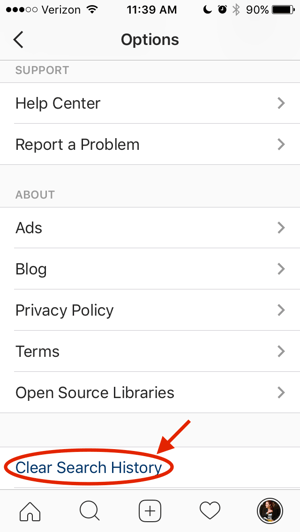
To clear your Instagram search history, go to your own profile and click the “Options” button (a gear icon on iPhone/iPad and three dots on Android). Scroll down and click “Clear Search History.” When prompted, click “Yes, I’m sure.”
11. Reorder Filters, and Hide the Ones You Don’t Use
If you use Instagram a lot, chances are, you have a few favorite go-to filters, and others you never touch. To make editing photos easier, you can reorder the filters in your editing window, and hide the ones you never use.
To reorder or hide filters, add a new post and begin editing it. When you get to the filters page, scroll to the very far right of your filters options and click “Manage.”
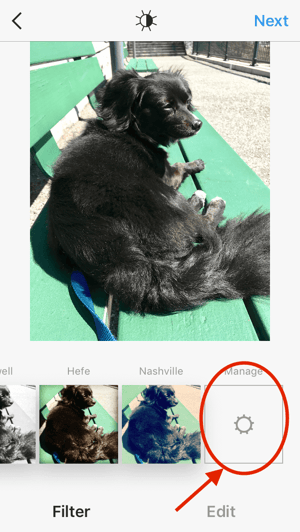
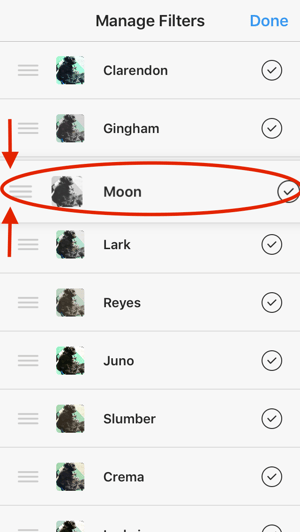
To reorder filters, hold your finger down on the three grey lines on the far right of the filter you’d like to move, and drag it to reorder. To hide them, deselect the checkmark to the right.
12. Use Instagram as a Photo Editor (Without Having to Post Anything)
Perhaps you love Instagram’s filters and editing capabilities, but aren’t quite ready to post the photo to your account — right now, or ever. To use Instagram as a photo editor without posting anything, all you need to do is publish a picture while your phone is on airplane mode.
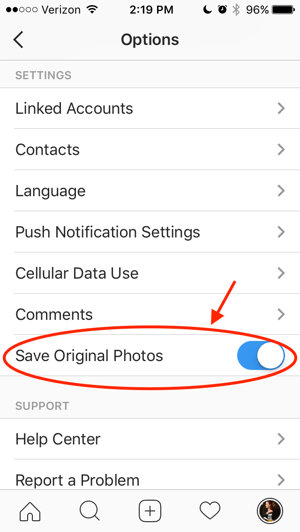
First, be sure you have “Save Original Photo” turned on in your Instagram settings.
Then, turn on airplane mode — see instructions in #5.
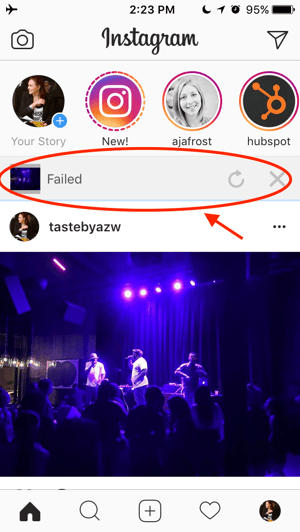
Next, follow the normal steps to post a photo to Instagram: Upload the photo, edit it, and press “Share.” An error message will appear saying the upload failed, but you’ll be able to find the edited image in your phone’s photo gallery.
13. Insert Line Breaks Into Your Bio and Captions
When you write a caption in Instagram, you’ll see the keyboard doesn’t give you an option to press “Enter” or “Return.” The same is true for your bio. So how do all those people put line breaks in there?
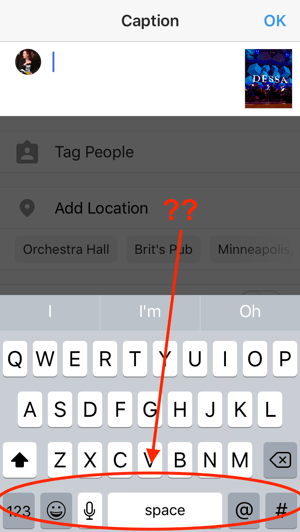
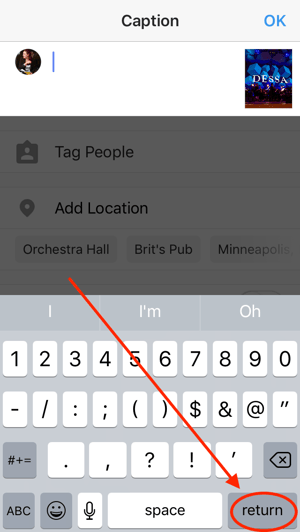
It turns out that all you have to do is press the “123” key in the bottom lefthand corner of the keyboard, and the “Return” key will appear on the bottom right.
I know this tip sounds simple, but a lot of people miss it — myself included, until a colleague clued me in. We’ve seen some elaborate solutions out there for hacking through this problem, like writing the caption copy in another app, then copying and pasting it into Instagram. Thankfully, it’s much simpler than that.
14. Hide Photos You’ve Been Tagged In
When someone tags you in a photo or video on Instagram, it’s automatically added to your profile under “Photos of You,” unless you opt to add tagged photos manually (see the next tip).
To see the posts you’ve been tagged in, go to your own profile and click the person icon below your bio.
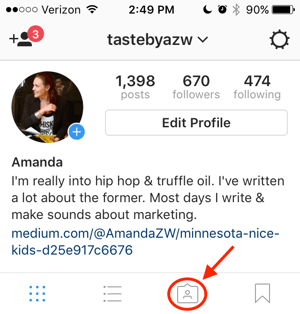
Then, to hide the posts you’ve been tagged in from other users, click the three dots in the top right of your screen and choose “Hide Photos.” Select the posts you’d like to remove from your profile, and when you’re done, tap “Hide Photos” at the bottom of your screen. When prompted, tap “Hide From Profile.”
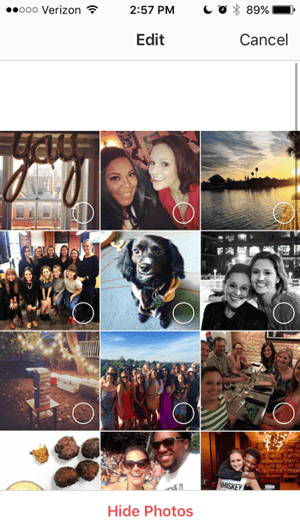
This won’t remove the posts themselves from Instagram, but it will remove them from your profile, so you and others can’t access them.
15. Adjust Your Settings to Approve Tagged Photos Before They Show Up in Your Profile
As we mentioned in the previous step, when someone tags a photo or video of you on Instagram, it’s usually added to your profile automatically. But, you can change your Instagram settings to enable manually selecting which photos you’re tagged in that show up on your profile.
To add tags manually, follow the same steps above to get to the photos in which you’ve been tagged, and click the three dots in the top right of your screen. Tap “Tagging Options,” and select “Add Manually.”
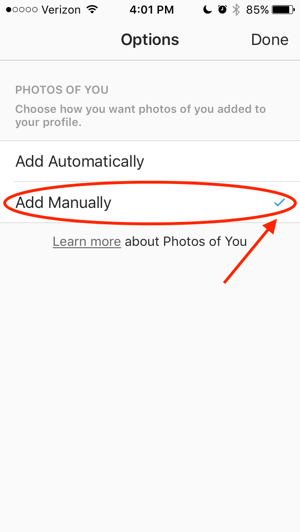
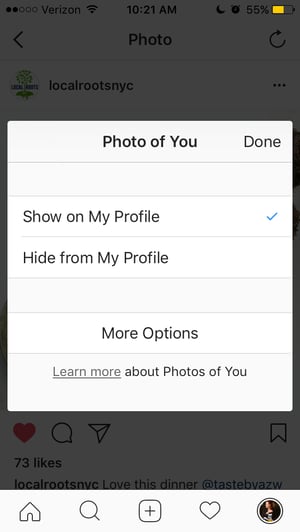
You’ll still be notified when someone tags you in a photo. Once that happens, to manually add a tagged photo to your profile, tap the photo you were tagged in, then tap your username and select “Show on My Profile.” And if you’d rather it not be visible, choose “Hide from My Profile” instead.
16. Browse Posts From Certain Locations
One fun thing you can do on Instagram is browse photos and videos from a specific location, or taken near your current location. I like to do that when I’m planning a trip somewhere, or want to check out a new restaurant and scroll through the pictures taken there.
Here’s how to do both of these things.
To Browse Posts From at a Specific Location:
You can either search for a specific place, or you can click into a geotag on an existing photo.
To search for a specific place: Tap the magnifying glass icon at the bottom of your home screen, which will bring you to the general search page. When you click into the search bar at the top, four tabs will appear. Choose “Places,” and type in the name of a place. When you press “Search,” it’ll show you all the top and recent posts that were geotagged with that location.
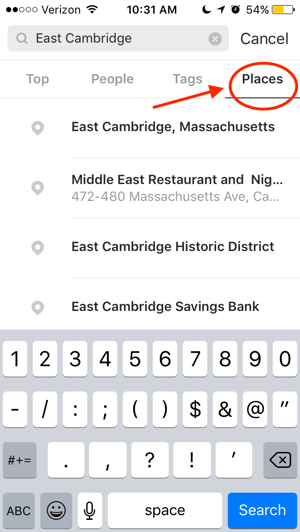
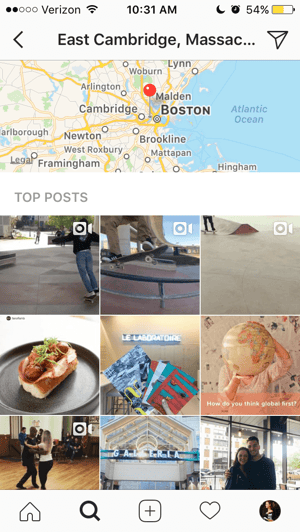
To look at posts with a certain geotag: Go to the photo that’s geotagged with that location, and click the geotag. It’ll show you all the top and recent posts that were geotagged with that location.

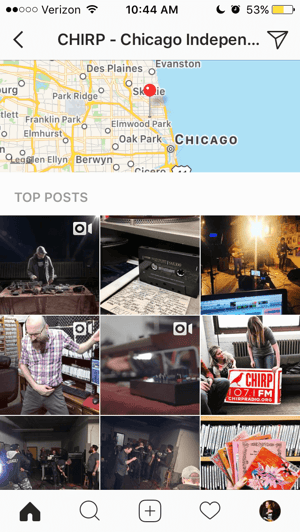
Browse Posts Near Your Current Location:
Follow the same instructions above to get to “Places.” Tap the search bar, and select “Near Current Location.”
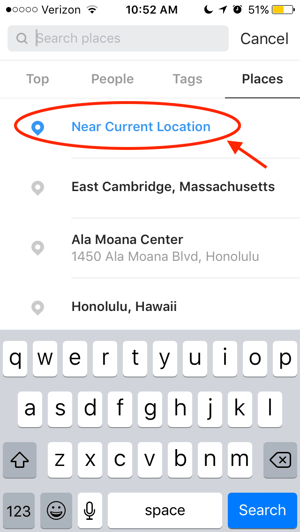
Choose which geotag you’d like to browse from the options that appear. Let’s say I chose to browse posts with the Museum of Science geotag. When I click “Museum of Science, Boston” on the menu, I’ll see the top and recent posts that were geotagged at that location.
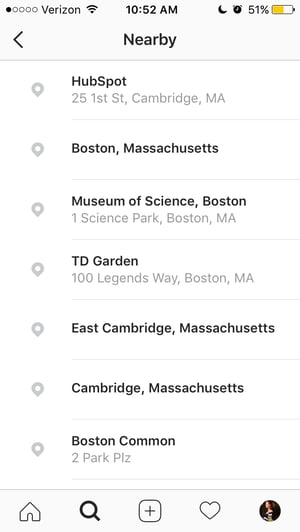
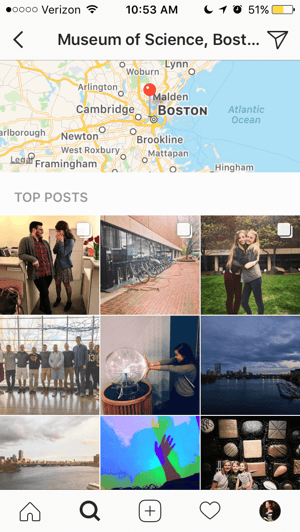
17. Drive Traffic to an External Website
One of the biggest frustrations people have with marketing on Instagram is that clickable URLs aren’t allowed anywhere except the single “website” box in your bio. If you put a URL in a photo caption it’ll appear as plain text, meaning users would have to painstakingly copy the URL, open a web browser, and paste or type it in there.
One sneaky way to get people to visit your Instagram profile, which is where that one clickable URL is allowed, is to use your photo captions to encourage people to visit your profile for a link. Then, update that URL frequently to point to your latest blog content, YouTube video, product, or offer.
Check out the example from food magazine Bon Appétit below. This photo’s caption provides a text call-to-action to visit the user’s profile so you can click the link related to the post.
Then, in Bon Appétit‘s profile, you’ll see the link itself. Update this link frequently to point to your latest content or offer.
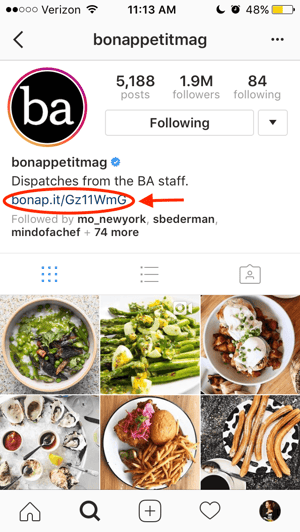
Plus, if you have a verified Instagram account, you can also add links to your Story. Right now, that feature is still being tested, so you can read more about it here.
18. Pin Your Instagram Post to Pinterest
Instagram doesn’t have a natural intregration with many social networks (except Facebook, it’s parent company) for publishing Instagram posts to other social accounts.
But with respect to Pinterest, image-loving platforms stick together. Here’s a backdoor way to Pin your latest Instagram Story to Pinterest:
On the Instagram mobile app, tap a post to view it in full, then tap the three dots to the top-right of the image. Select “Copy Share URL” to attach the picture’s link to your clipboard.
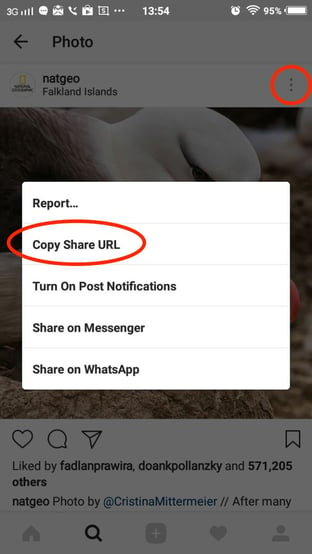 Image via Boleh.com
Open the Pinterest mobile app — or download it; you’ll need it for this step — and navigate to your profile page. If you have the latest version of Pinterest downloaded, it might ask you as soon as you open the app if you’d like to produce the image from your clipboard.
If not, select the “+” icon to the top right to add a new pin, and you’ll see a menu of options where you can add your “Copied Link” to a new Pin or board on your profile.
19. Hide Ads You Don’t Find Relevant
Instagram tries to show you ads that are interesting and relevant to you. You might see ads based on people you follow and things you Like on Instagram, or the third-party websites and apps you visit.
If you see sponsored posts you don’t find relevant, though, you can let Instagram know and slowly teach its algorithm what you like and don’t like to see.
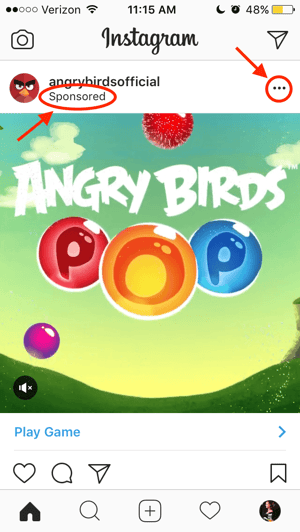
To hide ads on Instagram, tap on the three dots to the right of a post labeled “Sponsored,” and choose “Hide This.”
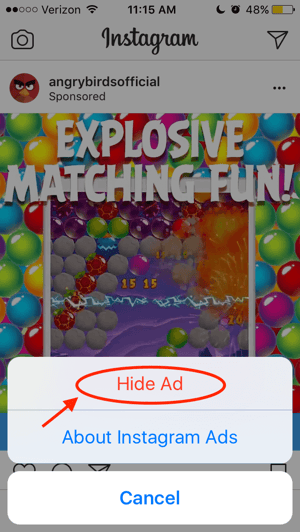
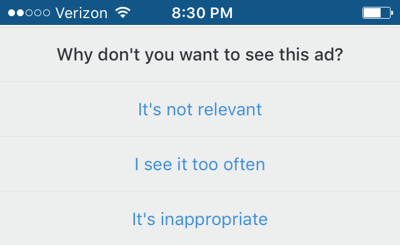
From there, it’ll ask you to share why you don’t want to see the ad anymore.
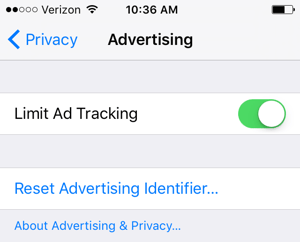
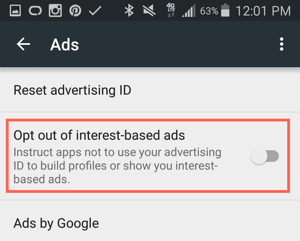
You can also opt out of seeing ads based on sites and apps off of Instagram and Facebook from your device’s settings. Note that even if you choose to opt out of seeing these types of ads, you’ll still see ads based on your Instagram and Facebook activity.
- To limit ad tracking on an iPhone/iPad: Go to “Settings” and choose “Privacy,” then “Advertising.” From there, choose the option to “Limit Ad Tracking”
- To turn off interest-based ads on Android: Go to “Google Settings,” then “Ads.” From there, choose the option to “Turn off interest-based ads.”
20. Send Photos Privately to Your Friends
Posting photos with all of your followers or with the public isn’t the only way to share content on Instagram. You can also share them with individual or multiple users, kind of like a Facebook message or group text message.
You can either send a new photo to friends, or send a photo that you or someone else has already posted.
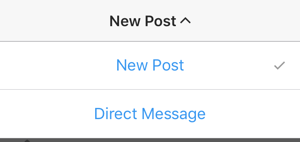
To send a new photo privately, upload a photo and begin editing it, as you would when editing a new post. When you get to the “Share” page, tap the top where it automatically says “New Post,” but when prompted, select “Direct Message.” From there, you can pick and choose whom you’d like to send the photo to.
You can access your direct messages at any time by clicking the mailbox icon at the top right of your homepage.
To send an existing photo privately, start by opening the post you want to share — it can be your own or someone else’s, as long as the latter has a public account. Next, click the paper-airplane-like icon below the post, then select who you want to receive it when the “Send to” box appears.

Insta-Hacks
I might be biased, but Instagram is one of the most fun (and visually appealing) social apps around. And now, with these tricks, you can use it to an even fuller extent.
Plus, many of these features can help to enhance your brand’s presence on Instagram. Now, you know how to use the app more efficiently, to make sure you’re only tagged in photos you want to appear on your profile, and have even more ways to engage with the people by whom you’d like to be discovered.


FAQ This! What Is Blockchain?
With every tech event I cover, there seems to be a central emerging trend that people just can’t stop talking about. Something like 5G. Or AI. Or VR.
Or blockchain.
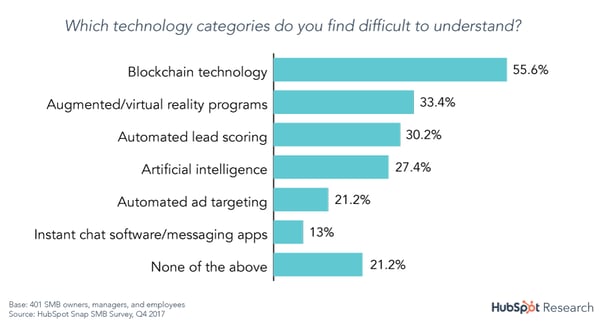
If you’ve come across talks and headlines on blockchain lately but just can’t seem to wrap your mind around it — you’re not alone. According to HubSpot’s research, it’s one of the most confusing emerging technologies out there.
And while it’s still a fairly new concept, blockchain is one of those technologies that could shape the way marketers and businesses work in the not-so-distant future.
That’s why we’ve put together this explainer with answers to some of the most frequently asked questions about blockchain — from what it is, to how it could impact the work you do.
FAQ This! What Is Blockchain?
1. What is blockchain?
Blockchain is a digital method of economic transaction record-keeping — also known as a ledger. What differentiates it is its security. While blockchain records can be openly viewed by everyone within a given network, no one can edit or delete existing records.
Think of it as a public spreadsheet that can only be updated by solving a very complex math problem. To add a new record — “block,” as it were — to the ledger, an encryption must be solved.
That’s done with computing power — a machine uses its computing capabilities to mine for the answer to the problem. If that concept sounds familiar, it might be because you’ve heard the term “mining” before in a similar context.
Once an answer to the encryption problem is discovered, it’s verified by everyone within the network. If the answer is correct, the new block with transaction details or other new information is added to the ledger, and what’s essentially a receipt is generated as proof — often known in this case as a token or coin. (If you’d like to dive deeper on how blockchain ties into cryptocurrency, check out this explainer.)

2. Why is blockchain a big deal?
While there are various elements of blockchain that make it a rather important technology, its two key capabilities are:
- The recording of digital asset transfers — like secure files or cryptocurrency — that proves transactions took place and ownership exists.
- The inability to overwrite or tamper with its ledger.
Let’s take a closer look at the second item on the list. Because a blockchain ledger is distributed to everyone within its network, even if an individual party manages to falsify a block, the technology maintains several copies of the correct version. That also means the technology can reject a “fake” input like this one — since it recognizes that it doesn’t match the other records of it in existence.
That’s a key element that makes blockchain so unique. It’s unusually transparent, but that’s also what keeps it secure: the public, uneditable record of transactions.
What’s more, that public distribution lends itself to the decentralization of the ledger — which means that there isn’t a core database that’s vulnerable to attacks. That contributes to blockchain’s somewhat tamper-proof nature.
3. How does blockchain work?
When it comes to emerging technologies that are not quite easy to understand, use cases are often helpful to determine how, exactly, they work. We like to use the “banana shipment” example: the sequence of events in a shipment of bananas from the warehouse, to the delivery truck, to the grocery store.

As the shipment of bananas makes its way from Warehouse A, to Delivery Truck B, to Grocery Store C, its movement is captured and stored on the electronic blockchain ledger — which, as we’ve covered, it’s publicly accessible to all involved parties. All three institutions, as well as anyone else on the ledger, have access to that information online.
Delivery Truck B, for whatever reason, loses the bananas — but doesn’t want anyone to know that. So, it informs Grocery Store C that the bananas were, in fact, delivered, even though they were not.
Delivery Truck B might even go so far as to falsify its version of the ledger to create “proof” of a delivery.
But here’s the thing: Because of the public visibility and distribution of the “correct” ledger documenting the actual movement of the banana shipment — which Warehouse A and Grocery Store C both have — the other parties involved can inspect these records to determine whether or not the delivery actually happened.
That means that even if Delivery Truck B did manage to falsify its own ledger — which, as we explained about the encryption process earlier, is very difficult to do — there are systems in place to prevent a false block from appearing on the rest of the ledgers within the network.
4. How can I use blockchain?
Blockchain’s somewhat iron-clad ledger and security features underscore its potential benefits to any business that transmits secure, sensitive data.
But because blockchain is still widely misunderstood — not to mention, in its earliest stages of use — for the most part, its use cases remain niche in nature.
The technology shows great promise, however. And while it could be sometime before blockchain becomes mainstream, there are certain areas where it can impact and benefit small-to-midsize businesses (SMBs).
One such area is supply chain management. An SMB concerned with tracking the movement of goods through a supply chain — especially where things like environmental sustainability or fair labor are involved — will want to pay closer attention to improvements in blockchain technology.
The same principle applies to data storage, which is one of the biggest potential use cases for blockchain. Again, here’s an area where the inability to modify ledger-based storage makes blockchain methods superior to secure databases that, when considering recent data breaches, are often looked upon as questionable.
Within that same vein, blockchain shows strong potential in the area of password protocols. It’s one of the top two contenders in the possible disruption to the current, fragmented system of password management — the other being biorecognition methods (think: Face ID and digital fingerprinting).
If blockchain technology successfully addresses and works to remedy fragmented password management, SMBs may want to consider an investment — especially businesses with user accounts and login protocols.
“Blockchain technology is going to change consumer behavior around ownership and security,” says Matthew Barby-Howells, HubSpot’s Director of Acquisition. “Now, we feel much safer having a business own and manage our sensitive information, rather than bearing the burden ourselves.”
“The rise of decentralization and the ability to have more control over your own personal assets will change that mindset,” he continues. “More and more businesses will be pressured to shift data ownership back to their customers. Those that resist may get left behind.”
As this technology continues to emerge, we’ll continue monitoring it.

Want to Win at Social Media? Here’s What Followers Want, According to Experts at SXSW
People have a lot of feelings about social media.
Love it. Hate it. Use it for business. Build a brand on it. Quit it. Come back to it.
With so many mixed messages, how are marketers supposed to stay on top of the right way to use social media — and moreover, what users actually want from it?
To answer that question, a panel of social media experts — Teen Vogue‘s Rajni Lucienne Jacques, Facebook’s Tutti Taygerly, and Instagram’s Joshua Dickens — shared their insights on what followers want the most in today’s climate, in a discussion moderated by Work & Co’s Gene Liebel.
What Followers Want
1. Communities
Think back, if you can, to a time when the folks who managed a brand’s Facebook page were known as “community managers.” That’s because we once lived in an era when, not even that long ago, that was the purpose of pages like these.
And while there are still Groups available on Facebook — smaller, often private destinations designed for communication among smaller groups of people — it can be argued that they’ve lost a bit of their luster and are not the first destination for brands looking to build audience engagement.
But within the current global climate, the panelists appeared to agree that users are drifting back toward the idea of using social media to build a community: to give voices to a cause, to connect with others who care about the same issues they do, and to create a movement around it.
In fact, said Jacques, “Social media is the one thing that galvanizes a movement. [It] allows people to gather in a way that is faster and more efficient.”
And while galvanizing a movement might not exist within the strategic models of goals for a small-to-midsize, business-to-business organization, there are still ways to leverage your social media presence to build on the idea of a community.

Take, for example, something that was said by WP Engine CEO Heather Brunner at an earlier SXSW panel: Businesses need to ask themselves, “What’s right for your employees? What’s right for your customers?”
Once those questions are answered, marketers can determine the issues around which the brands they represent can build communities.
If nothing else, brands can provide a venue for connection, which Taygerly said she believes social media users still want.
“As a company, we’re not just trying to promote passive consumption of content,” she explained. “We’re trying to pay a lot of attention to that.”
That actually aligns with certain ranking factors resulting from the changes Facebook made to its algorithm earlier this year. While people’s News Feeds display less branded content overall, it does prioritize Page posts with more authentic engagement within the comments section (as opposed to such “share-bait” copy as “Tag a friend”).
It makes sense, then, that Taygerly says Facebook is trying to discourage the passive consumption of content on its network, by rewarding the kind that stirs and signals the direction of community-building activity and discussion.
At the root of potential success for marketers in this area, the panelists said, is solving problems for the people and humans in the audience first.
“Anchor on the core people problem, and then figure out, ‘What is the work?'” Taygerly advised. “What are the use cases?”
Solving for people, Dickens said, is likely to become a new success metric among marketers — and one that’s already used at Instagram.
“We’ve never solely measured time spent [on the network] as a metric of success,” he said. “Metrics are, ‘How close are we to solving a problem for a particular person?'”
2. Privacy. (Seriously.)
At one point in the discussion, Liebel asked, “Is anything private anymore?”
And while the response was mixed, the consensus did seem to indicate that users — even those trying to build a brand or share a story on social media — do care about privacy.
For her part, Jacques said that question could be answered with both “yes and no.”
“It depends on what you choose to show. You have your Insta … and you have your Finsta, which is your fake Instagram,” she explained, suggesting that some users create different social media accounts — or personalities, in some sense — to share different moments in their lives.
“In a way, you are private, depending on how you use [it],” she said.
That raises the question, Taygerly said, of when social media can add positivity to a user’s life, and when it “becomes too much.”
To illustrate that, she pointed to the ongoing challenge that Snapchat has experienced to the nature and degree of publicity user content should be.
“What should be shared just with friends and family, and what should be public?”
And what, she continued, “is the demarcation between those two worlds?”
In terms of how marketers can solve for that challenge, one of the best things they can do is respect their audiences’ need for privacy, and provide a way for them to engage with both the brand and others in the audience in a way that makes them the most comfortable.
And while it might seem redundant, that does go back to the idea of building a community for your followers, regardless of your industry. But it also involves a cultural element, and understanding what protocols can be put in place to provide the privacy that different members of your audience need in that context.
“We do research all over the world and in different cultures than North America, showing your face as a woman invites some negativity, to put it mildly,” Taygerly explained. “So having a mask [like different filters available on Instagram and Snapchat] and the ability to control the circle that you show your face to … helps you share your message.”
It also involves understanding when your users need to leave — or “detox” from social media, said Jacques.
“Social media [sometimes] becomes too much,” she said. “You’re not liking yourself because of this, or that. So users take a detox and live their lives.”
But that, Jacques explained, can actually make for better engagement, if marketers view this phenomenon in the long-tail. “To restart and reboot, you get better content,” she said. “It’s nice for anyone who devours social media to go through to realize your best self.”
3. A Place to Share Their Stories
To that end, marketers should also maintain an awareness of a core reason for using social media: to connect with others, by way of sharing something.
“People are sharing their creativity and expanding it to their audiences,” Dickens said. And the job of marketers, it seems, is to remind their audiences that social media is a place where they can do that — and encourage them to do so.
And while I’ll once again caution against the use of doing so in a click-bait manner — “share your photo and tag a friend in the comments” — it is possible for marketers to prompt a conversation and provide a platform for users to story-tell in a thoughtful way.
That could start by a brand sharing its own story, and asking if anyone else wants to share theirs: a way of letting your audience know that it’s heard.
Social media, explained Jacques, “gives a voice to those who never thought they had a voice.”
“So we don’t tap into that?” she asked. “Why don’t we say, ‘We’re inviting you in to tell your stories that you’re already telling your peers’?”
4. Smaller Networks
That said, there are likely users who are uncomfortable with the idea of amplifying their voices in such a public venue, like a branded Facebook Page that can be viewed by nearly everyone — which introduces the need for what Taygerly calls “smaller, more intimate networks.”
Keep in mind that the challenge for many Page administrators and creators, in light of Facebook’s refined News Feed, is to create the content that stirs the type of authentic engagement algorithm is said to favor. That’s “the hope” behind it, Taygerly said — that it “triggers a conversation.”
But she also pointed out that “sometimes, it’s easier to share more intimately in a group.” And the answer to that, she said, may lie in “smaller, more intimate social networks.”
To illustrate that idea, she raised the example of HQ Trivia: an app that hosts a live trivia game show that awards cash prizes to winners. And while arguably addicting, it’s also “something that’s happening real-time with a group of people,” she said.
So, how can marketers create such an experience? To answer that, I’ll float the same statistic that Facebook itself used when it first announced the changes to its algorithm in January: live videos receive 6X the engagement as non-live ones.
And what’s another word for “live”? Real-time.
Aha!
There’s a correlation, it would appear, between providing an audience to experience and comment on a live, real-time event as a community — and rates of engagement.
But that could very well go beyond live video, and while marketers can work with that statistic and create such content, they should also think about the ways it can create these small, intimate venues for followers to experience something in which they share an interest or passion, and in a way that allows them to discuss it as it takes place.
That goes back to one of the first philosophies mentioned in this post: to home in on a core issue shared by your audience, and figuring out how to allow it to connect and engage around it.
“You can look at what’s happening in the world, [and] what ends up happening is we build a sense of community,” Jacques said. “[We] want to do things, and make a difference in the world, in a full-throttle group.”
Do the panelists have a positive outlook on how that will ultimately play out?
“Yes, we’re optimistic,” Taygerly said. “We’re designers because we envision a better world.”
I’ll be at SXSW all week. What are the topics and events here that interest you the most? Feel free to weigh in on Twitter.

Rumor Has It: Facebook Is Testing Disappearing Content (and More)
Messaging blog WABetaInfo released new information today indicating that Facebook has plans for major changes to Messenger.
Among them are a new design, auto-translate tools, and the addition of disappearing visual content.
While a new iOS version of the Messenger app was recently released, according to the post, these rumored features are not yet available.
Facebook’s Big Plans for Messenger
The Possible New Design
In January, Messenger Product VP David Marcus alluded to a potential new design, admitting that the application had become so oversaturated with features that a “Lite” version was released. Interestingly, Messenger added video chat to the Lite version earlier this month.
“Expect to see us invest in massively simplifying and streamlining Messenger this year,” he wrote.
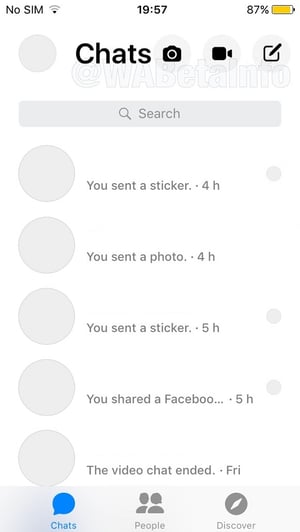
By the looks of the preview images provided by WABetaInfo, it appears that this new design could be the simplification that Marcus alluded to.
“This is a new slick user interface,” says Connor Cirillo, HubSpot’s conversational marketing manager. “It’s a step back to a product with clear value.”
Source: WABetaInfo
According to this report, the new design will also allow for quicker actions on a given conversation, like deleting or muting it. All users will have to do is tap and hold the conversation, and a non-intrusive interstitial will appear with those options.
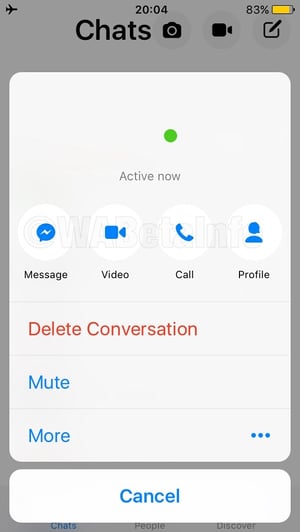
Source: WABetaInfo
Finally, users can also expect a made-over Discover tab, making it easier to connect with brands for purposes like customer service, Cirillo says.
“Organic discovery for brands on Messenger has been tricky,” he explains. “A revamped Discover tab should make it easier for users to find companies that solve their problems.”
Currently, the Discover option is located below the user’s conversations.
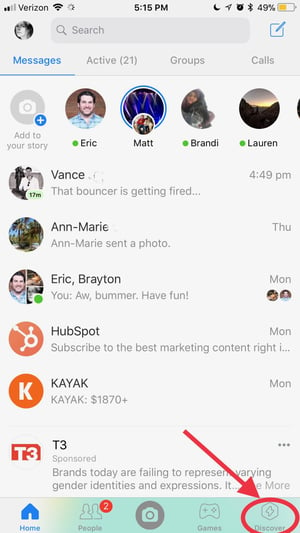
In this new version, it’s said that it will appear in a carousel above a user’s open chats, along with the Games option, which is also rumored to be making a move to the top of the screen.
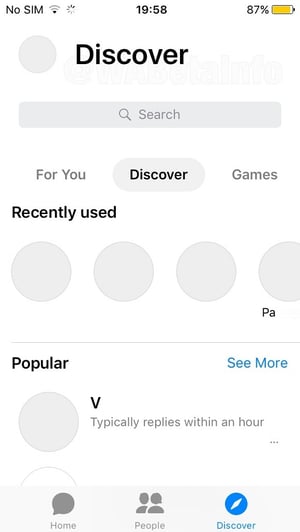
Source: WABetaInfo
Auto-Translate Features
Users will also be able to automatically translate all of their messages into what WABetaInfo calls “the current local language,” though what that specifically refers to is unclear. Based on the simple on/off toggle appearance of the feature, however, it might mean that the conversation will be translated based on the user’s geographical location.
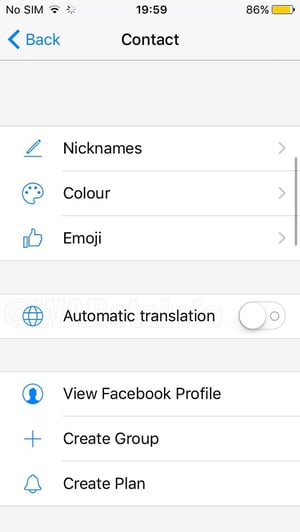
Source: WABetaInfo
“I’m skeptical of automatic translations,” says Cirillo, while also acknowledging the growing presence and importance of communication in different parts of the world.
“That’s an incredible step towards a globally-connected community,” he adds, “if they can pull it off.”
Disappearing Content
This potential addition to Messenger doesn’t exactly come as surprise, given Facebook’s penchant for emulating various Snapchat features since its 2013 (failed) acquisition attempt.
“Disappearing messages seem like increased pressure into Snapchat territory,” Cirillo says. And with users recently voicing their displeasure with changes made to Snapchat, “this could be a land-grab opportunity for Messenger to scoop up disgruntled users.”
Allowing users to send photos and videos as disappearing — or ephemeral — content is one way to do that. The addition of tools like Stories within Messenger almost seems like a predecessor to a feature like this one, with WABetaInfo alluding to Facebook’s longer-term interest in it.
“Snapchat has become the Facebook R&D lab,” Cirillo says. “The Facebook platform saturated the market with stories on its portfolio of products — Facebook, Instagram, Messenger — and now, with its emphasis on things like video calls and filters, Messenger continues to push to be the way users build one-on-one relationships.”
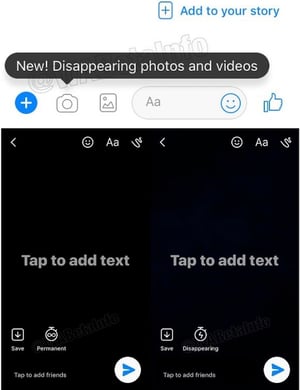
Source: WABetaInfo
According to the post, Messenger will let users know that the new feature is available for all with a notification that will appear after opening a conversation.
I’ll be keeping an eye on this feature as future versions of Messenger are released. As always, feel free to weigh in on Twitter.
Featured image credit: “David Marcus, Head of Messenger” by Maurizio Pesce, used under CC BY / Cropped from original

Do We Trust Anything Anymore? Surprising New Data From SXSW
Events kicked off today for SXSW — a multi-day series of festivals and conferences in Austin, TX — with a jam-packed, star-studded lineup of interviews and panels on the convergence of interactive, film, and music.
Among those sessions was the “SXSW Report on Trust: Gov’t, Tech & Media” a discussion with none other than journalist Dan Rather, joined by a panel of experts to weigh in on the annual Trust Barometer: a flash poll of event attendees conducted by SXSW and communications firm Edelman to measure trust in future technologies, media, government, and business.
Rather was joined by SXSW Director Hugh Forrest, WP Engine’s Heather Brunner, and Edelman Digital’s Jess Clifton to discuss the results of the poll in a panel moderated by Edelman CEO Richard Edelman.
Here are the findings that stood out.
Live From SXSW, Day One: Do We Trust Anything Anymore?
The Majority of SXSW Attendees Trust the Media
What the Survey Results Say
The Trust Barometer indicates 61% of SXSW attendees trust the media (compare that to the global average of 43%), with a scant 14% believing that media, in general, cannot be improved or repaired.
However, the panel was sure to make a distinction between the media as a collection of reporters, publications, and news applications — and social media platforms.
“Social media and search [are] not media,” said Clifton, during the panel discussion. “Social platforms are not media publishers. It’s a community that’s publishing content, and we have to delineate.”
Apparently, the audience polled was able to make that distinction, with 98% responding that “media” meant journalists.
That could explain why 84% are more trusting of traditional media outlets, and significantly less so of search engines (44%) and social media (20%).
That low faith in social media, however, could be tied to the ongoing allegations of it being weaponized to spread misinformation by outside agents. Nine out of 10 members of that same polled audience seemed to have significant concerns in this area, saying they’re worried about false information or fake news being published with negative intent.
That aligns with new research from MIT which shows false news is 70% more likely to be re-tweeted than accurate information. So, while at first glance, a high rate of trust in the media may come as surprise, the distinction between traditional sources of news (and those who report it) and the platforms used to share it is crucial.
Trust in Business, Government, and Future Technology Is Down
What the Survey Results Say
While the Trust Barometer surprisingly indicated trust in the media is up, the audience also reported a declined level of faith in business (31% — 21 percentage points lower than the global average). Government is even lower, with 26% of respondents saying they trust it, which is 17 percentage points lower than the global average.
There wasn’t a great deal of context around these results discussed, though many of them echo the overall sentiment discussed around the trust in media and concerns about social platforms and search engines. The latter two are often managed by publicly-traded businesses, falling under the category 31% of respondents say they trust.
What was even more surprising, considering the interactive nature and enthusiasm at SXSW, is a fairly low percentage of the audience polled trusts future technology. The lowest was blockchain technology, which garnered only 27% of attendee trust.
That was followed by autonomous vehicles at 33%, and the same percentage reporting trust in virtual reality (VR) platforms. While blockchain and self-driving technology do raise concerns about security and safety (a Reuters/Ipsos poll from January indicated two-thirds of Americans are less-than-thrilled about the idea of riding in an autonomous vehicle), the wariness of VR is not quite as easy to explain.
It could come down to the idea many don’t see the practical relevance or applicability of VR. That might also explain why it has yet to become truly mainstream (we’ll be covering a SXSW session on that very topic next week), and why some marketers doubt its usefulness in campaigns and communications.
Self-driving technology and blockchain were designed to solve problems — like traffic management and driver safety — as well as the security of transaction-related information. VR, it seems, originated largely in entertainment, but hasn’t reached a price point that makes it accessible to all interested consumers.
Where We Go From Here
While most content creators are not frequently considered traditional journalists or members of the press, the panel believes brands, and those responsible for messaging, play a crucial role in this widespread distrust of social platforms often used for marketing purposes.
Consider the changes to Facebook’s algorithm made earlier this year, for example, surfacing less content from brands in the News Feed and more from individual users’ friends and family. Since those changes took effect, people are actually spending less time on Facebook — an aggregate drop in usership by about 50 million hours each day.
One must wonder if that’s due to the phenomenon that Edelman called “self-sourcing,” in which many consumers only engage with the news and information that aligns with what they already believe — a sentiment echoed by Henry Franco, HubSpot’s brand marketing associate, when YouTube began labeling state-funded content.
“It all boils down to psychology,” he said at the time. “People tend to believe what aligns with their existing values.”
And that, said Edelman, can make some content creators “more inclined to be in the thought bubble.” So, what is a brand to do to address this issue?
“The intersection of humanity and expertise is what people are looking for,” said Brunner. “A guide for that is: What’s right for your employees? What’s right for your customers?”
That begins, she explained, by building advocacy from within and building trust among your own team and employees. That advocacy is mirrored in the content the brand and employee advocates broadcast externally.
“If [employees] trust the business, they’re going to be more bought-in,” Brunner said, “and bring that level of authenticity to your customers.”
Even Rather weighed in here, agreeing brand consistency across all facets of communication is key.
“You can’t be one thing with your employees,” he said, “and another one with your clients and customers.”
I’ll be here throughout SXSW to cover the latest events, announcements, and insights. Feel free to weigh in on Twitter with questions, or let me know what type of news you’d like to read.

10 Things I Wish I Knew Before Building My First Facebook Messenger Bot
They say you learn more through failure than success. After building bots for a few years, I’d say I definitely agree.
While I’ve had a head start, I know many businesses are thinking about bots for the first time. That’s why I want to share ten things I wish I knew before I started. Learn from my mistakes and build better Facebook Messenger bots, sooner.
1. Do Fewer Things Better
Spend more time planning than building. Figure out the single most impactful function you can expose or create through Messenger.
When I first started building bots, I got carried away with all the exciting things that I could do. I didn’t spend enough time focusing on the one thing that I should do. Remember, bots are a tool. You need an business application and strategy to put them to use.
2. Conversational Copywriting is Different
Talking to our friends is natural because we do it every day. It’s much harder to zoom out and break down the art of how we message our friends.
We use more than words to express ourselves. Messenger supports a variety of expressive mediums, like emojis, stickers, and gifs. In 2017, users shared over 1.7 billion emojis every day on the platform. My friends say about 5% of them came from me. Figure out what’s the most appropriate and delightful way to engage with your users.
3. Realize Who’s on Messenger (and Who Isn’t)
In my early days, I didn’t realize the sheer number of people that user Messenger on a regular basis. With over 1.3 billion monthly active users, it doesn’t feel that far off.
It’s a global behemoth, but every country has their preferred messaging app — and it’s not always Facebook Messenger. For example, WhatsApp (technically another Facebook-owned platform) dominates usage in Latin American countries. Before you commit to a platform, take the time to understand your audience and where they spend their time. You want to meet them where they already are — not force engagement on an app they don’t even use.
4. Your Bot Doesn’t Need to Be a Genius Right Now
Most companies and journalists in this space have let you down. They’ve set an expectation that all-knowing AI is here — and that your bot needs to be powered by state-of-the-art artificial intelligence in order to be valuable.
That’s bullsh*t. When I first started building bots, I didn’t realize that plain old IF/THEN logic trees are actually a great way to build a Messenger bot your users will enjoy engaging with. If you can read a “pick-your-path” adventure book, you can build a bot.
5. Don’t Deceive Users
Most people don’t care who — or what — solves their problem. There’s a misguided stigma that bots will always be a bad experience for users. That’s not true.
It’s the bots that pretend to be human that frustrate us. It only takes consumers a few questions to figure out what’s going on. Make sure your users know they’re talking to a bot from the very start of their interaction, and be clear about what users can and can’t expect from your Messenger bot.
6. Solve for Utility, Then Delight
Your bot can — and should — have personality without trying to be a person. Conversational copywriting lets you weave in enjoyable experiences at every turn. But delight shouldn’t be your bot’s primary purpose.
I’ve built plenty of bots that were fun but provided no value. Those experiences taught me to focus on utility early on, not delight. Solve a real problem first and iterate on the rest over time.
7. You Can’t Just Replace Your Humans With Bots
Automating everything would be a bad experience. And handling everything yourself would not be scalable. That’s why humans and bots need to work together.
I learned that it starts with thinking about what you’re asking the user to do. Bots are great for repeatable and predictable conversations. But when it’s a delicate situation, like sales or customer care, opt for people if you can. Bots empower humans to focus more on important conversations.
8. Plan for Growth
In “Field of Dreams”, Kevin Costner said “if you build it, they will come.”
Great advice for building a movie baseball field, but horrible advice for marketing. The biggest problem with Messenger bots is people finding them in the first place. But it’s easy to get more messages to your bot. Start with small wins, like a CTA on your website or Facebook page.
9. Everyone Expects Certain Things
No matter what purpose your bot serves, users always want the ability to unsubscribe, restart the conversation, or talk to a human. There are certain implied things that consumers expect all Messenger bots to be able to handle.
The best way to plan for these is to crack open a thesaurus and make a list of all the ways users might request these core functions. Then make sure your bot can handle them. There’s nothing more frustrating for a user than not being able to unsubscribe.
10. It Will Break. A Lot.
Bots are still very new, and there’s a good chance that many of your users have never talked to one before. New users might not fully understand the limitations of a bot right away, and they will it’s likely that their conversation will start to stray away from how you want it to go.
Error messages are an overlooked part to building great Messenger bots. Spend time on them. Make sure they’re a seamless part of the experience.

How To Download and Save YouTube Videos
You probably expect technology to be accessible everywhere. Whether you’re outside on a run, traveling somewhere by train, or in a cafe with limited wi-fi service, you don’t want to stop what you’re doing if you run into connection problems, especially if you’re in the middle of watching YouTube videos.
Which is why it doesn’t surprise me that you want to know how to download and save YouTube videos. Because, let’s face it, there’s nothing worse than losing wifi or data coverage when you’re halfway through the new Taylor Swift music video and your train goes under a tunnel (you know, as a random example … ).
By saving your favorite YouTube videos for later, you’re ensuring you can watch YouTube videos start-to-finish anywhere without any pesky obstacles like wifi or restricted data plans.
Download and save YouTube videos now = uninterrupted Taylor later.
Here, we’ll cover how you can download and save YouTube videos, on both mobile and desktop devices, to ensure you’re never without that quick entertainment fix when you need it.
How to Download and Save YouTube videos
- Download VLC, or another open-source media player
- Open VLC and click “Open Media”
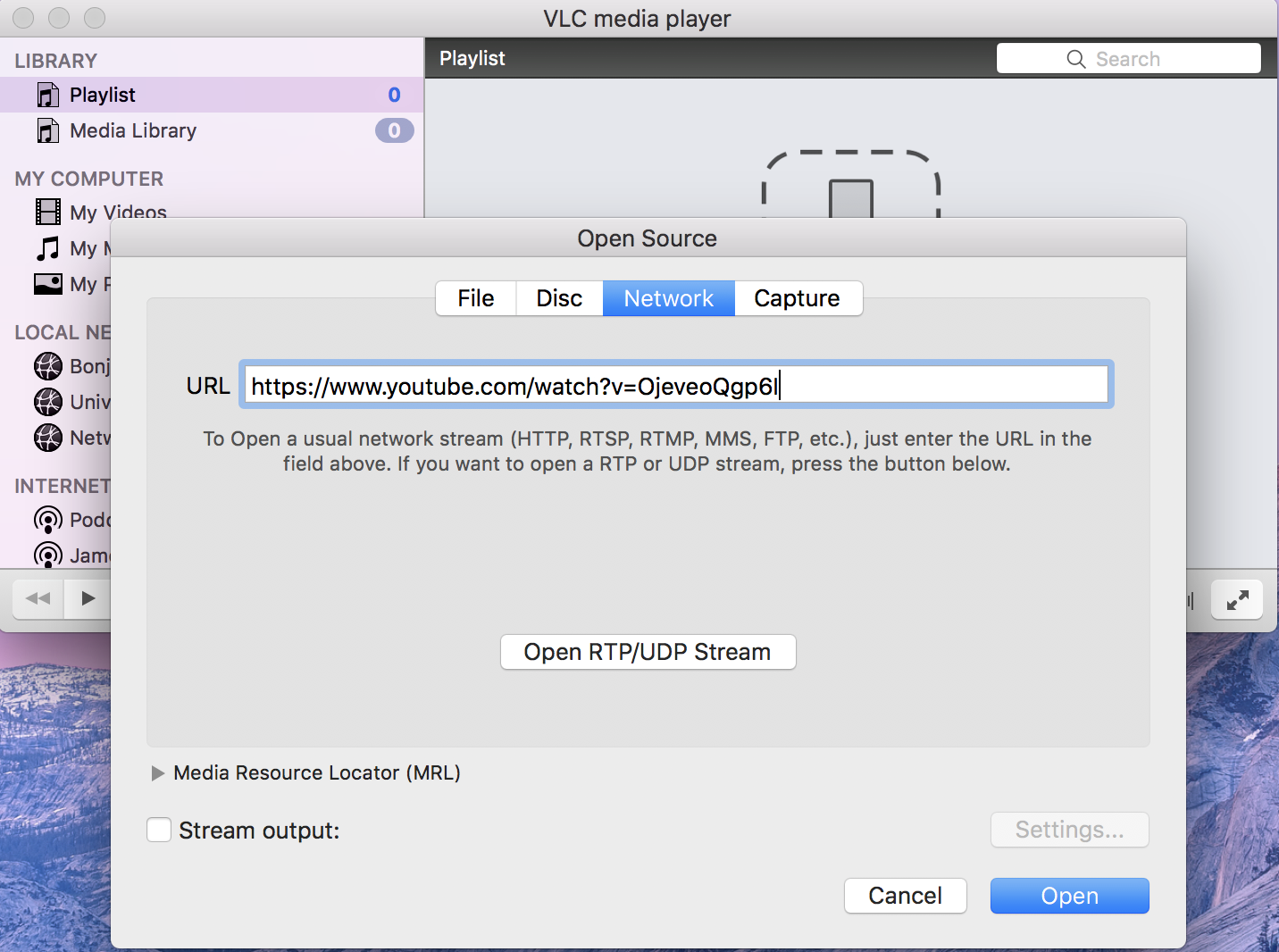
- Click “Network” and paste YouTube URL
- If using Windows, select “Tools” and then “Codec Information”
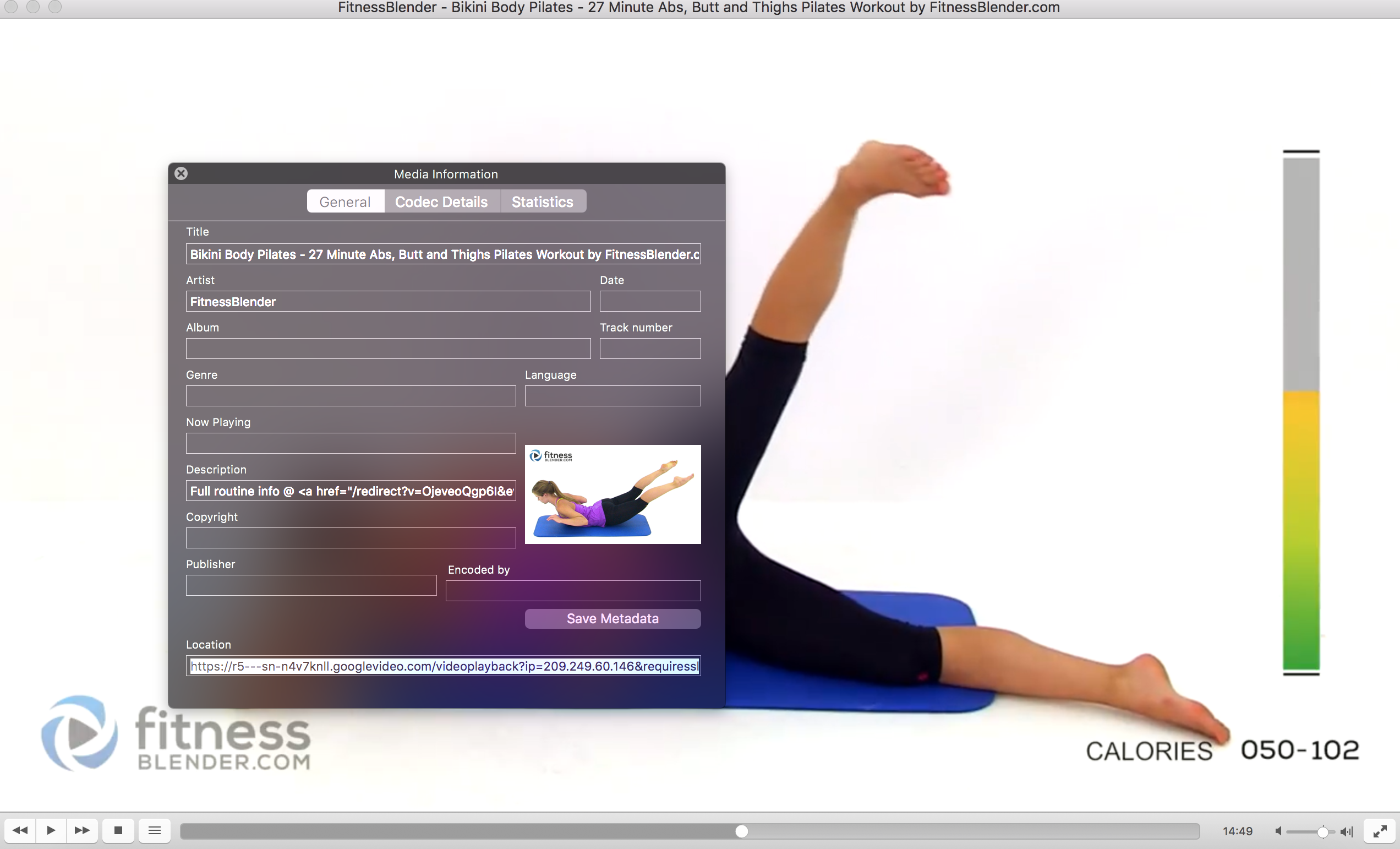
- If using Mac, select “Window” and then “Media Information”
- Find the “Location” bar at bottom and copy that URL
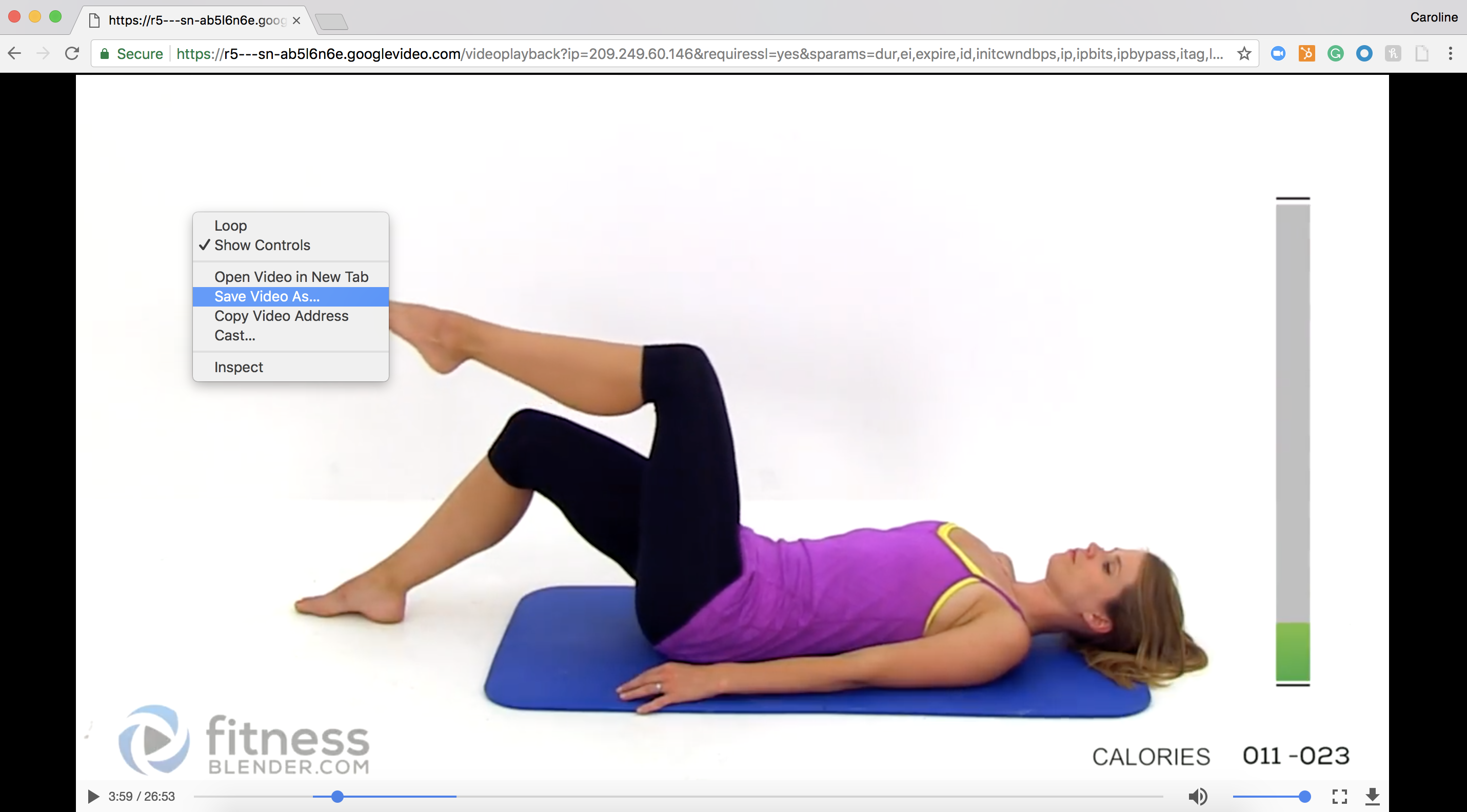
- Paste that URL into browser
- Right click video and select “Save As”
- Name the file and save to desired location
Download MP4 from YouTube
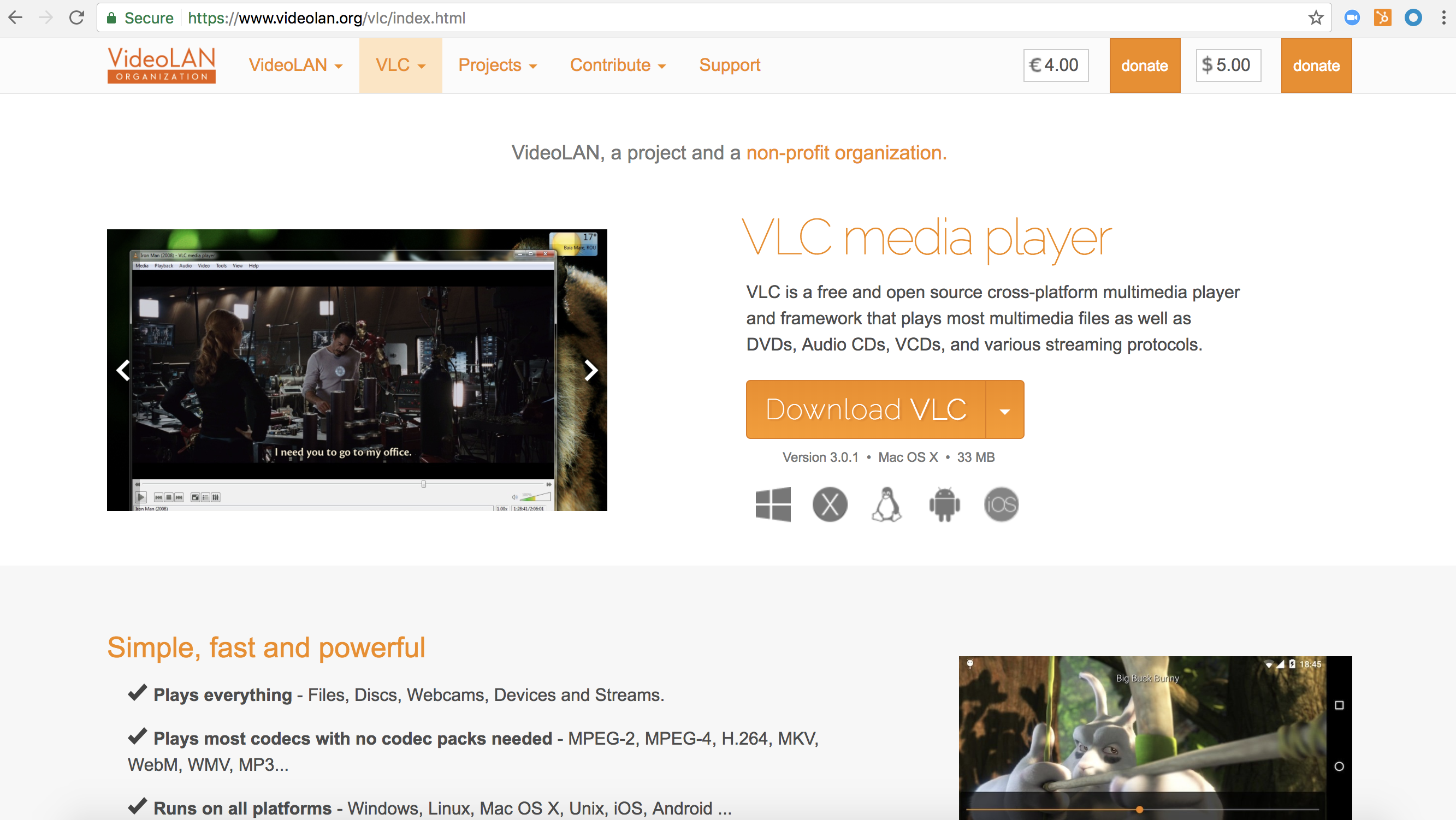
VLC, KeepVid, or MP4 Downloader Pro are all great options for downloading an MP4 video from YouTube to your desktop. Feel free to check them out to decide the best option for you. For the sake of time, I only downloaded VLC for this example.
Once you’ve downloaded VLC (click the link above and follow download instructions), follow these steps:
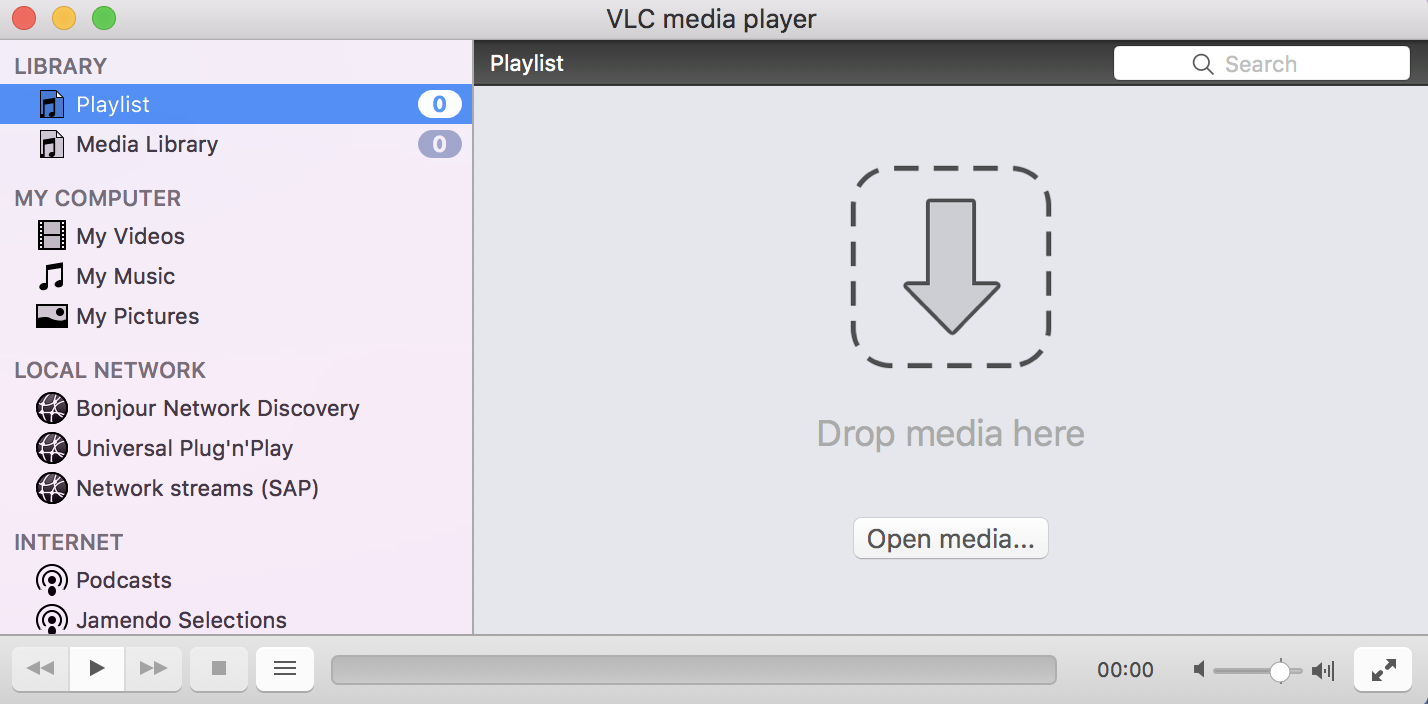
- Open VLC and select “Open Media.”
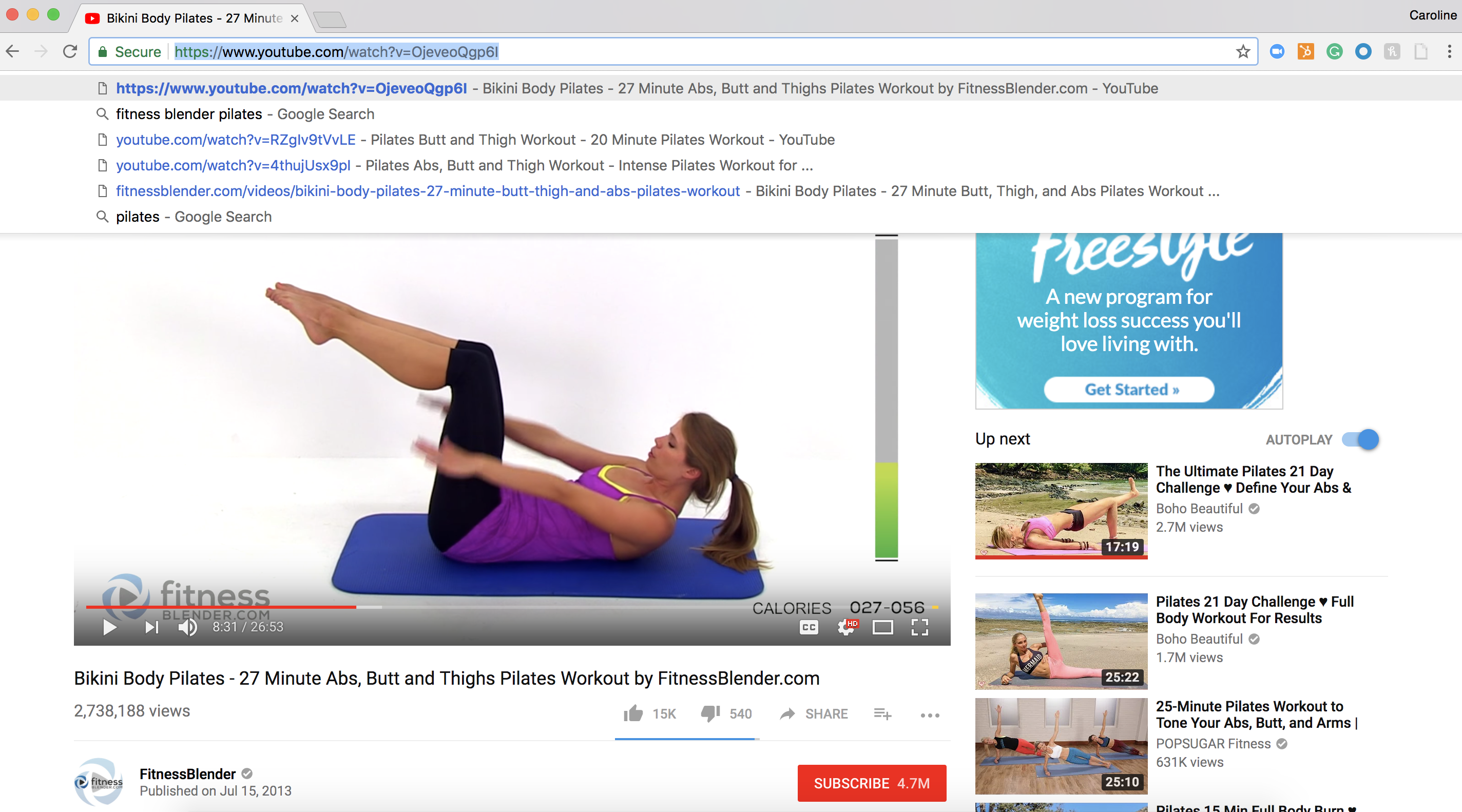
- Click “Network” and paste your YouTube URL.
- (If you’re using Windows) Select “Tools” and then “Codec Information”
- (If you’re using Mac) Select “Window” and then “Media Information”
- Find the “Location” bar at the bottom, and copy the URL
- Paste the URL into your browser
- Right click the video, and click “Save As.” Name the file and save to desired location
Transporting downloaded MP4 to Mobile Phone
I don’t know if this is the “official” way to do it, but if you want that same MP4 video on your phone, you can email it to yourself and open it up as an attachment, and you’re good to go!


Download MP3 from YouTube on Desktop
GenYouTube is the easiest and quickest way to convert YouTube videos to MP3 downloads, particularly because you can do it from the YouTube video. Here’s how:
- Find a video on YouTube you want to convert.
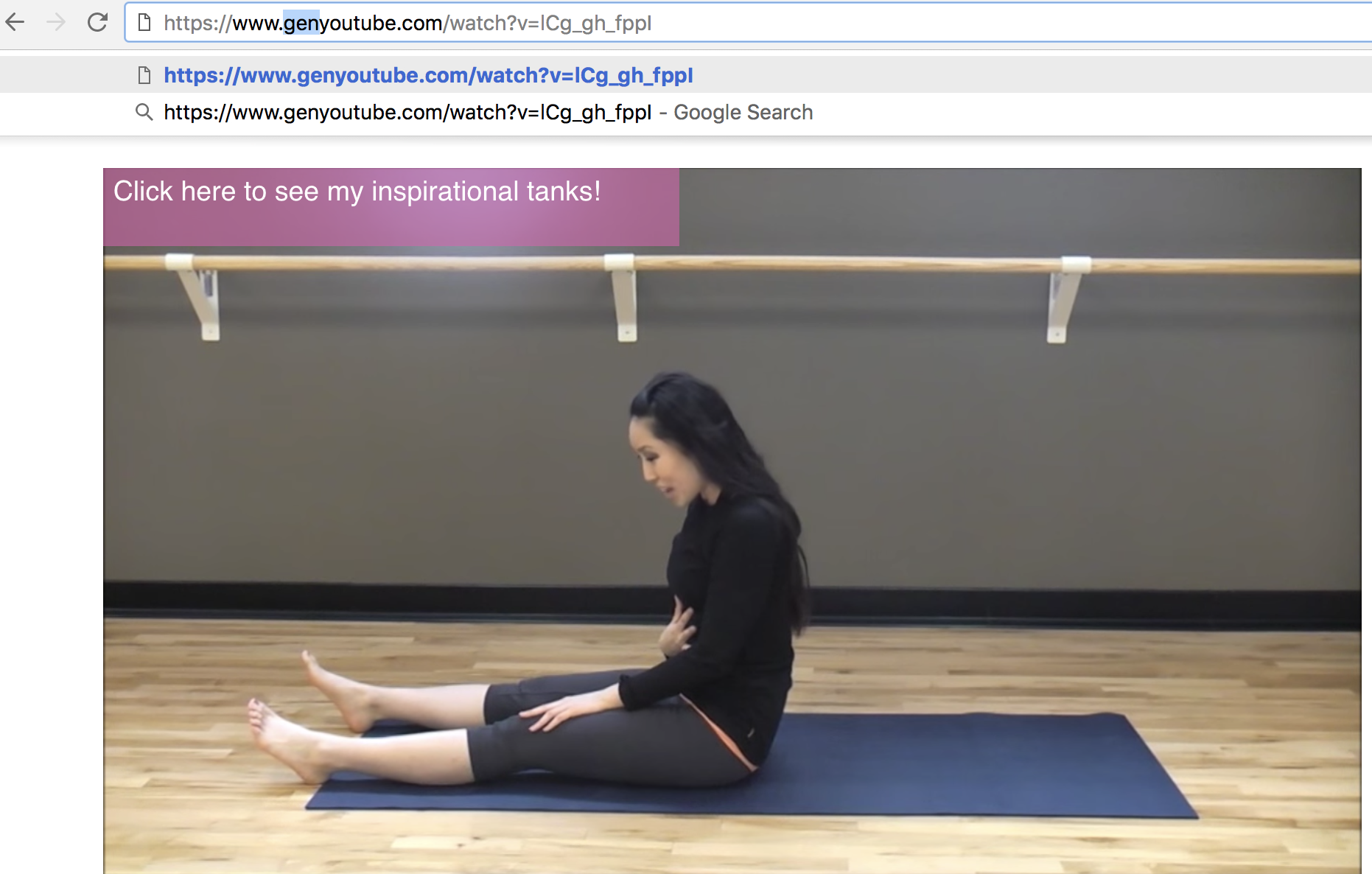
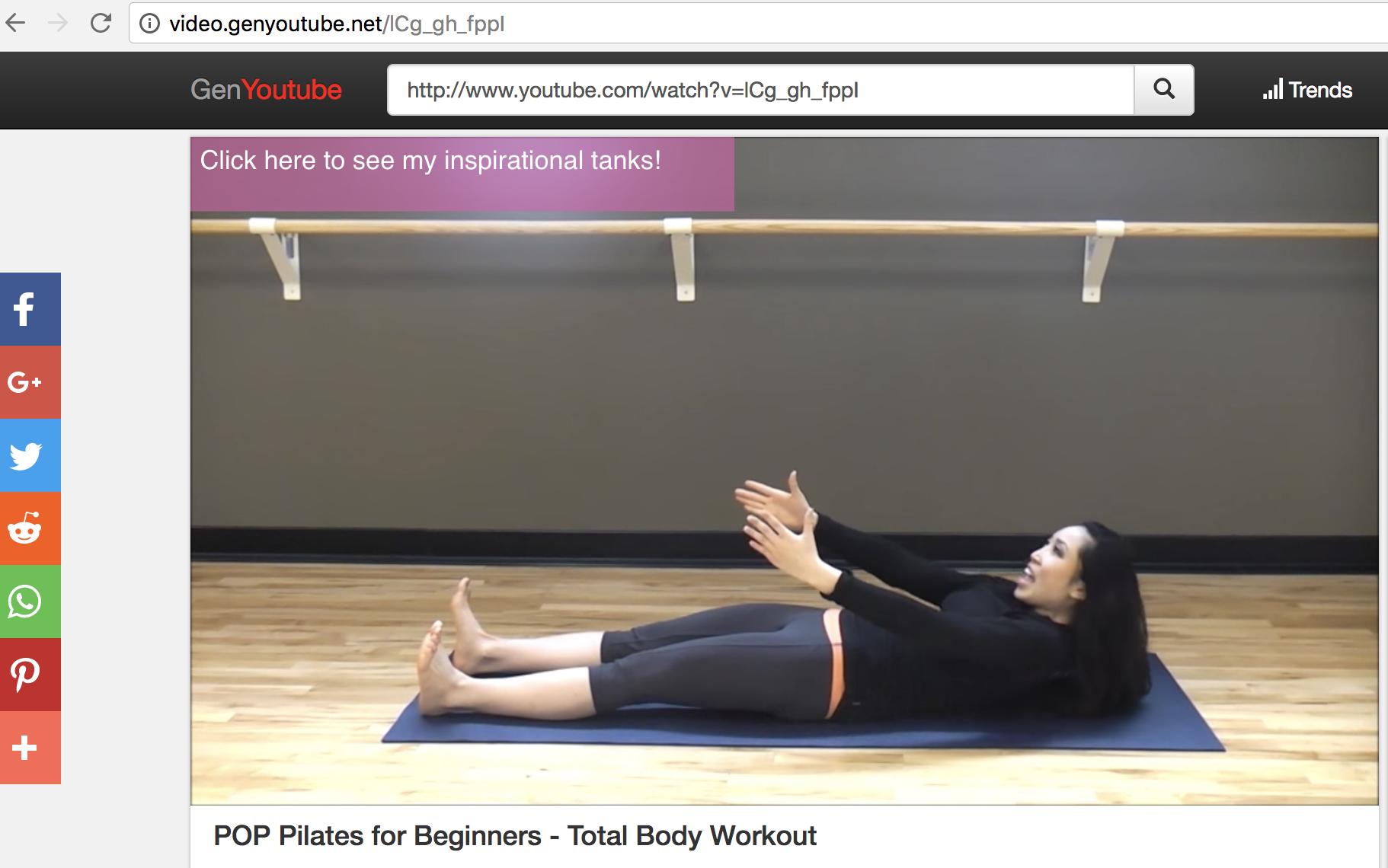
- In the URL, add the word “gen” right before the word YouTube (e.g. http.://www.genyoutube.com/watch?…)
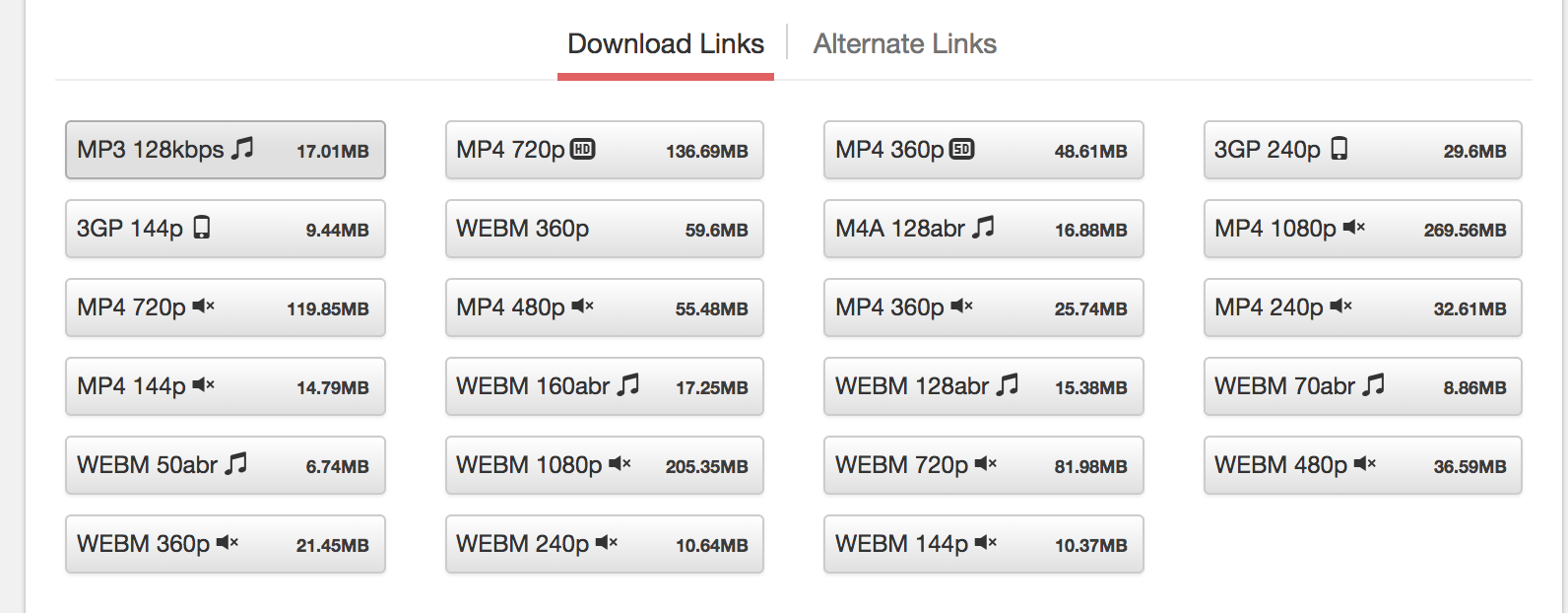
- This URL will lead you to the same video on GenYouTube’s page. Scroll down the page, and see your options for audio and video formats (including 3GP, WEBM, MP4, M4A).
- Select “MP3” to immediately start download.
Download MP3 from YouTube on Mobile Phone
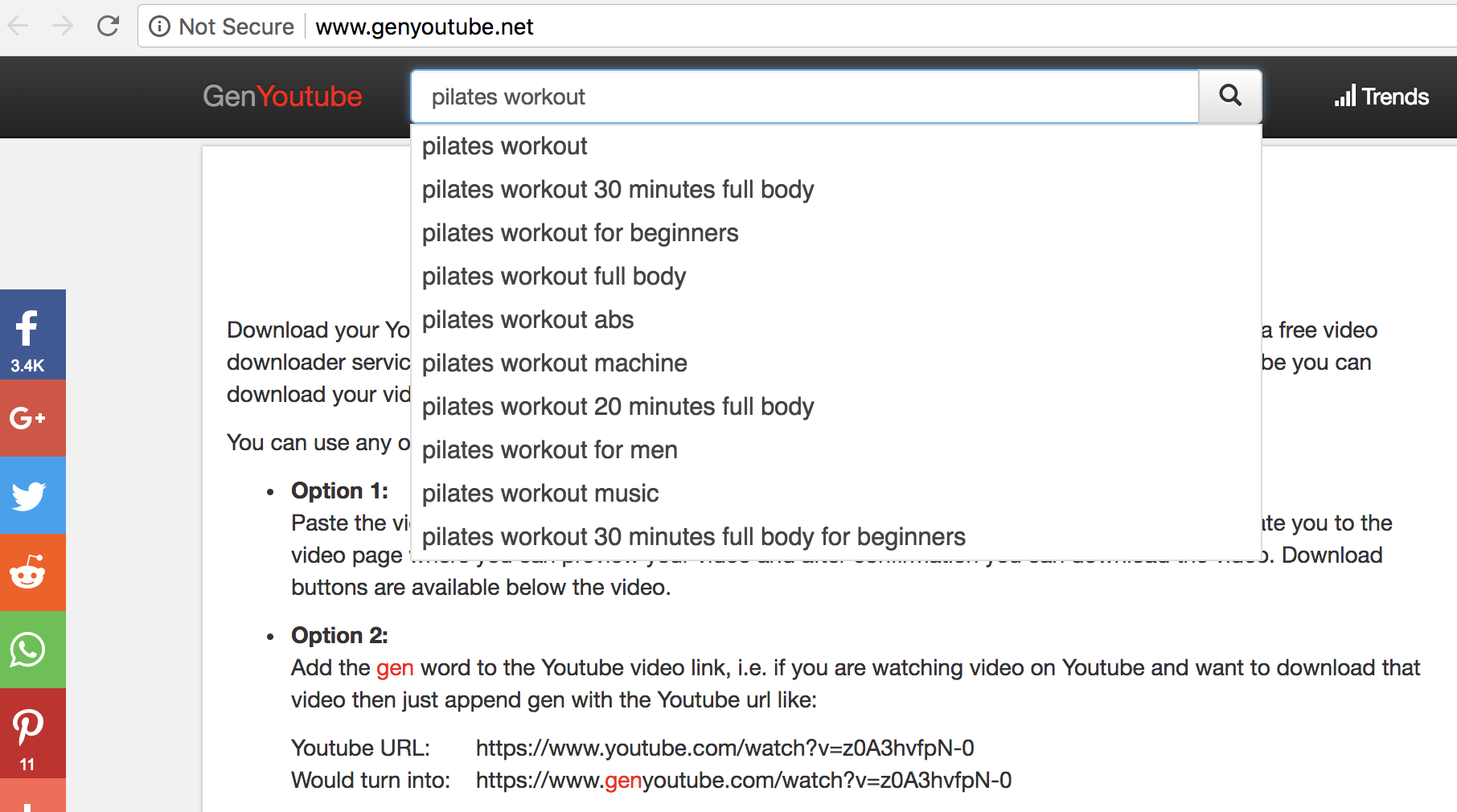
You can also visit GenYouTube’s website from your mobile phone, and download from there.
Option 1 (search from YouTube):
Option Two (search from GenYouTube … then follow same instructions as above):
And that’s it! You’re all set to listen and watch your favorite YouTube videos wherever, and whenever, you want.
