
Facebook Says It’s Fixing the Fake News Problem, but This Fake Video Got 16 Million Views
There’s really nothing like a truly spectacular lunar event.
I remember the first time I saw a lunar eclipse, for example — I was in the third grade and, for the first time, didn’t immediately tune out my Dad’s seemingly endless enthusiasm for science and history.
I also remember the first time I first witnessed a lunar new year celebration during a childhood trip to San Francisco. It, too, was enchanting and captivating.
And a supermoon — who can miss that? In fact, earlier this week, people in certain parts of the world were treated to the phenomenon of a “super blue blood moon,” in which a lunar eclipse, blood moon, and super moon are all combined.
Naturally, there was a great deal of chatter about in social media, with brands and other Pages jumping on board to celebrate this lunar event — including a little-known Page for EBUZZ, which racked up 16 million views for its “coverage.”
But here’s the thing: The EBUZZ “live feed” of the supermoon — casting over the Temple of Poseidon in southern Greece — was actually just a continual broadcast of a still image with certain nature sound effects playing over it.
In other words, while Facebook has made several major announcements in 2018 about its efforts to curb inauthentic Page content, this largely inactive Page was earning views in the millions for what was essentially fake content.
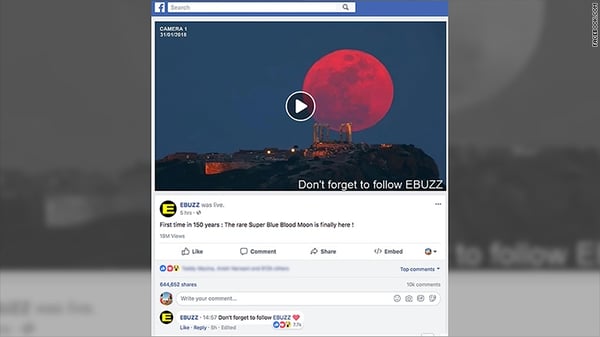
Source: CNN
What’s worse, the content wasn’t original or recent. The photo being used for the live stream actually belongs to photographer Chris Kotsiopoulos.
The stream remained active for roughly four hours before Facebook removed it, though the EBUZZ Page — which hadn’t previously posted anything since September 2017 — does appear to still be intact.
For context, Facebook tallies views according to the number of users who watch a video for at least three seconds, either directly on the Page or what it appears in their News Feeds.
That 16 million users engaged with the content long enough for the video to reach that metric raises questions about the strength and veracity of recent efforts announced by Facebook. In January alone, for example, the social channel committed to curbing the amount of Page content in users’ News Feeds — instead placing greater emphasis on content from personal networks — surfacing more local news in certain regions of the U.S., and completely banning all ad content related to cryptocurrency.
And on January 19, Mark Zuckerberg also announced Facebook’s efforts to ensure that news items appearing on Facebook would only be from “trusted sources.”
Facebook has not officially commented on this incident.

What Is Strategy? Why It’s More Than a To-Do List [Video]

Why It’s Easy to Market Your Clients But Not Yourself
If a client so much as sneezes an idea in my direction, I’ll have a fully fleshed out strategy in under an hour.
You know how all the productivity gurus describe “being in flow”? That’s kind of what happens. My brain starts overflowing with answers.
“Oh! You need to do X. You need to say Y on this specific page. You need to NOT do ABC. You need to hire Z. You need to be in XYZ channels, ignore ABC channels. You need … ”
Boom. Stick that brain dump in a deck, get it to the creative department, and let’s get to work.
Some people are given the gift of a beautiful voice or an eye for design, but not me. I got a penchant for marketing strategy.
Any strategy really. Brand, social, content, you name the buzzword and I can get you a strategic plan for it. A damn good one, too. One that works — if you implement it.
However …
Dun. Dun. Dun.
[That’s dramatic mood music]
The second I need to market for my business, all my ideas turn to sh*t.
No idea what channel to spend my time in. No idea who my target market is. And I can’t write a headline to save my life.
“Why You Don’t Want to Be a Wantrepr —” ugh no, that’s stupid.
Oooo maybe, “How To Build a Business That Fits Your Life.”
No. Bad. Try again.
“10 Reasons To…” ASFDHISDLFASLDFJAHHHHHHHHHH I HATE EVERYTHING!!!!!!!!!
Blarg.
All the skills that make me a great marketer are apparently reserved for clients. The part of my brain that generates brilliance for others turns to mush when it comes to me.
I’m not alone either.
Every week I have the privilege of talking to founders from all over the world and we all have the same problem.
We suck at marketing for ourselves.
And we know it.
I have four hypotheses as to why this happens:
- We get obsessed with industry standards and trends instead of doing what we know works.
- We think a lot about our colleagues, since they’re the ones commenting on our posts and sharing our articles.
- We ignore our instincts.
- We focus on “what we want to do” instead of “what people will pay for.”
In the original version of this article I went through each of these in detail but then I deleted it all when I realized they’re just different words for the same thing:
We stop trusting ourselves.
This week I sat down with a friend and started listing a ton of legitimate reasons why I couldn’t launch a new service. He looked at me, irritated, and said, “Margo. Just f*cking launch.”
Hmph. He was right.
I had legitimate excuses, but all excuses sound like legitimate ones. Look:
- I need more time!
- There’s not enough people on my list.
- We can do it, but after the podcast is released…in 3 months.
- That’s fine, but not till we get an editor.
- It can’t be done!
- This isn’t the way it’s supposed to be done!!
Yeah, it isn’t.
Spoiler alert: No marketing is done the way it’s supposed to be done.
At least, I’ve never seen it. Not in a decade.
[Note: If you’ve seen a marketing strategy that was created with plenty of time and executed without issue, please email me at margo@thatseemsimportant.com becuase I’d like to hear about it.]
For the rest of us, we have to learn to ship with mistakes.
We’ve spent so much of our careers teaching our clients what “perfect” and “best in class” looks like, we’ve forgotten that that’s not reality.
Reality is messy. Last minute. Understaffed. (Dare I say) reactive.
Most of us are flying by the seat of our pants. But our energy is going to convincing each other (and our prospects) that we’ve got this figured out. That we have “systems” and “process” and perfect benchmarks and …
Whatever — just between you and me: I know you don’t have any of that. Even if your website says you do.
I know your launch emails haven’t been written yet even though your FB ads went live yesterday. I know that yellow on your website isn’t the style guide yellow. Hell, I know you don’t have a style guide. I know you list all those funnel optimization services on your website, but really make money from ghostwriting blogs.
I know.
We all know.
It’s how this works.
So let’s end this cycle of “the shoemaker has no shoes,” by going back to the basics you already know, but have been ignoring:
What do your customers want?
NOT: What do they need?
NOT: What you think your they should care about?
NOT: What your competitors are offering?
NOT: What will your colleagues think if they land on your site?
NOT: Will former clients be impressed with me now?
NOT: What do I want people to think I’m up to?
Just: What do your customers want?
Your job has always only been one thing: Connecting your solutions to the real problems your customer’s have.
Telling others how to do their marketing is a different skill. One we’ve gotten really good at. But it’s not the same as doing it.
Lucky for us the schism between the two isn’t so big. It just requires some …discomfort.
We gotta get comfortable with being wrong (in front of former colleagues). And playing around…thinking outside of the “trends” and risking being perceived as weird.
Which can be embarrassing and awkward for our reputation as the “expert.”
But (hear me out) it can also work out really well for the people we actually care about: our customers.

Latest Instagram Update Lets You Schedule Posts in Advance
Although the exact day and time you post content to Instagram matters less than it used to — since your followers’ newsfeeds are now organized by relevance, engagement, and other factors versus post age — it’s definitely still important.
Here’s why. Let’s say 10% of your audience is online on Tuesday at 3 p.m. You post a creative GIF showcasing your latest product. Because not many people are scrolling through Instagram, it gets fewer likes and comments than your average post. Instagram’s algorithm interprets this as the post is less appealing than your typical content, so it’s displayed to a smaller percentage of your network.
For this reason, it’s a good idea to figure out when your followers are most active and post on those days and times. (Need a tool for this? Try Iconosquare or Squarelovin.)
While having this information is useful, you do have to wait — poised over your phone or computer — for the specific hour to strike. I don’t know about you, but I prefer the “set it and forget it” approach.
Luckily, Instagram’s latest update makes that a reality. The company announced a change to its API that will let third-party tools enable post scheduling. In other words, if you use an app like Hootsuite, you can upload your content and choose when it will go live on Instagram.
Post scheduling isn’t available for Ads, nor will you be able to use it within Instagram itself (meaning that unless you’ve got a tool hooked up to your personal account, you’ll still have to time that picture from brunch strategically).
How to schedule a post on Instagram
- Step 1: Connect your business Instagram profile to a third-party tool like Hootsuite.
- Step 2: Go to your tool’s dashboard.
- Step 3: Compose a new post with the visual assets, captions, and/or hashtags as you want them to appear on Instagram.
- Step 4: Preview your post to make sure it looks right.
- Step 5: Use the scheduling feature to select the date and time you’d like the post to go live.

2 Simple Frameworks That Will Make You a Better Storyteller
As content strategists, we spend a lot of time talking to business people about the importance of storytelling to their business. When the subject comes up, a lot of folks get nervous. They say things like, “Well, I’m no Hemingway!” or some other nervous response.
The pressure of storytelling can keep a lot of people from even trying.
But here’s the thing: we don’t have to be Hemingway to be good at stories. Storytelling is part of what makes us human. If you have human DNA, you’re built to tell a story. Unfortunately, some of us give up on our storytelling ability too early. But even if you’re not a professional storyteller, there are a couple of storytelling frameworks that can help you bridge the gap. The two frameworks discussed below will help you regain some storytelling confidence, and start telling engaging stories in business and in life.
The Hero’s Journey
See if you can guess what story this is.
We have a hero who starts in humble beginnings and answers the call of adventure. She leaves home, gets out of her comfort zone, receives training from a wise old mentor, and then goes on a great journey. On this quest, she faces a bad guy, almost loses everything, but eventually succeeds and returns home having changed for the better.
What story are we talking about?
Is this Star Wars? Harry Potter? The Hunger Games? The Odyssey? The Matrix?
It’s actually all of them.
This is a template for storytelling called The Hero’s Journey. It comes from author Joseph Campbell, and it’s everywhere. It’s one of the most relatable storylines because it basically mirrors the journeys of our own lives. Understanding The Hero’s Journey can give you insight into how to frame your own stories, whether it’s the true story about your company or a fictional story that stirs your imagination.
The following diagram breaks down this Hero’s Journey template, step by step.
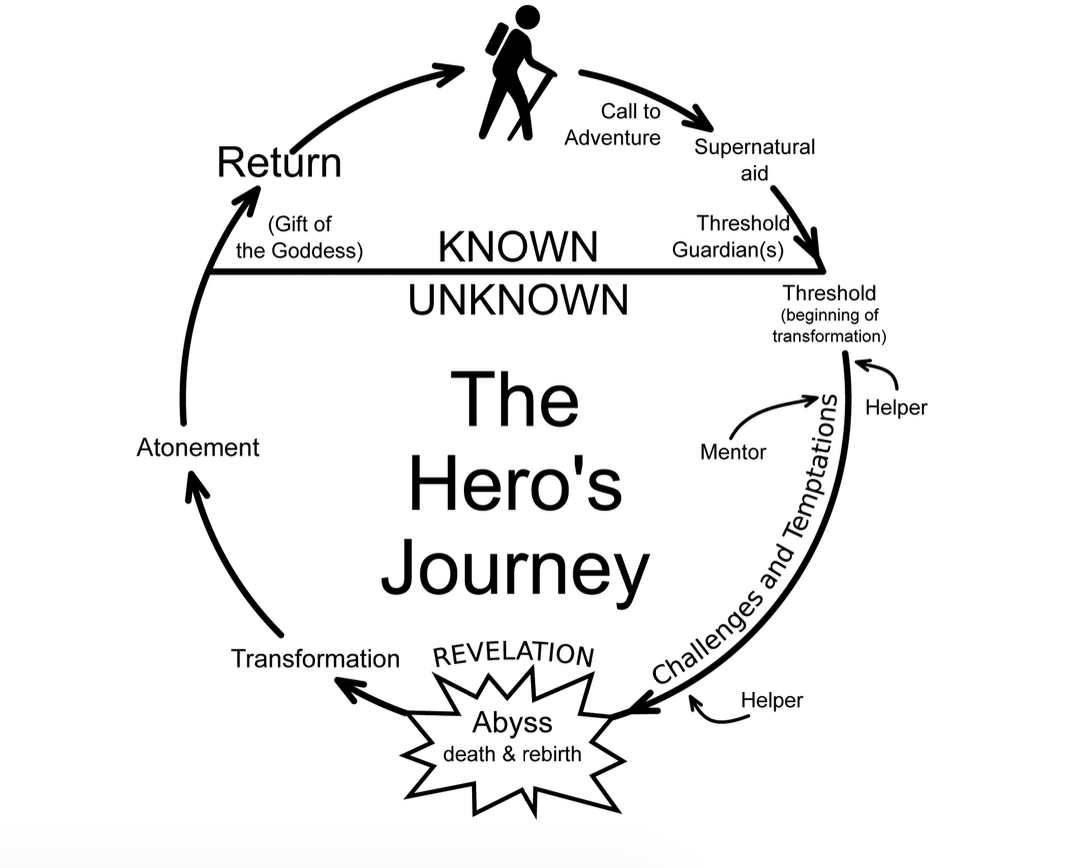
We start in an ordinary world. A humble character gets called to adventure and initially refuses, but meets a wise mentor who trains them and convinces them to go on said adventure. They’re then tested. They meet allies, and they make enemies. They approach a final battle and almost lose but, eventually, find it within themselves to succeed. They return home to an appropriate hero’s welcome, transformed by the journey.
Let’s walk through this from the lens of the greatest story ever told.
Yes, we’re talking about Star Wars. Let’s step through a crude synopsis to see how well it matches Campbell’s pattern:
In the first Star Wars film, we begin with the rather ordinary Luke Skywalker. He lives on a farm on a desert planet. One day he meets some robots who need help. They need to find a local hermit named Obi-Wan Kenobi. So Luke takes the robots to Obi-Wan, who basically says, “Luke, you need to go out and help save the universe.” Luke initially says, “No, I have all this stuff going on,” but Kenobi, who becomes Luke’s mentor, convinces Luke that he should go. Kenobi trains him how to use a lightsaber, and Luke goes on an epic space adventure.
On the journey, Luke meets the villain, Darth Vader. He battles evil stormtroopers. He makes friends: Han Solo, Chewbacca, Princess Leia. And then he has to help defeat the super-weapon, the Death Star. Nearly everything goes wrong, but in the end, Luke succeeds in blowing up the Death Star. The last scene of the movie is of Luke getting a metal put over his neck by the princess, who kisses him on the cheek. Now he is in his new home, a changed man, emboldened by the great power of the Force, which he can use on future adventures.
This is the Hero’s Journey, which—modified in various ways—we see repeated in stories throughout history. The simple version of this is that pattern of tension that we learned from Aristotle. We have an ordinary person (what is), and we have adventure that lies ahead (what could be). The transference from one to the other is the journey.
In business, the case study is a rather common way marketers use this kind of story to sell a product or service. (Most of them are a little less entertaining stories than Star Wars, unfortunately.) A case study is the story of where a customer was, where they wanted to be—the tension!—and how they overcame that gap.
If you listen to podcasts, you’ll hear this story told in most every ad. One of the most common ads is for Harry’s razors, which tells the story of “Jeff and Andy, two ordinary guys who got fed up with paying way too much for razors at the pharmacy and decided to buy their own warehouse to sell affordable razors.”
The problem with most brands’ stories is they either don’t fully utilize the four elements of great storytelling, or they don’t walk us through enough of the steps of the Hero’s Journey to capture our attention.
That’s why these frameworks are so useful. They’re a really easy way to ensure that we’re more creative when we’re coming up with stories or trying to convey information.
It’s sort of like a haiku: If we told you right now to come up with a poem on the spot, you would probably have a tough time. But if we told you to come up with a haiku about Star Wars, you’d likely be able to do it. This framework helps you focus your creativity.
Another great story template comes from comedy writing. It starts similarly: A character is in a zone of comfort. But they want something, so they enter into an unfamiliar situation. They adapt, and eventually get what they’re looking for but end up paying a heavy price for it. In the end, they return to their old situation having changed.
This is the plot of pretty much every episode of Seinfeld.
For example: During the sixth season of the show, George gets a toupee. This new situation is unfamiliar, but he likes it and quickly adapts to it. Once he has what he wants, though, he starts getting cocky. He goes on a date with a woman and behaves like a haughty jerk.
It turns out that his date, under her hat, is actually bald, too. When George is rude about this, she gets mad. His friends also get mad at him. “Do you see the irony here?” Elaine screams at him. “You’re rejecting somebody because they’re bald! You’re bald!” She then grabs George’s toupee and throws it out the window. A homeless man picks it up and puts it on.
The next day, George feels like himself again. “I tell you, when she threw that toupee out the window, it was the best thing that ever happened to me,” he tells Jerry. “I feel like my old self again. Totally inadequate, completely insecure, paranoid, neurotic, it’s a pleasure.”
He also announces that he’s going to keep seeing the bald woman. He returns to apologize to the woman, only for her to tell him that she only dates skinny guys.
So then George goes back home, having changed. He has his regular bald head now, but he’s learned a lesson. (But because it’s Seinfeld, he goes back to his old habits by the next episode.)
Both of these types of journeys are the journeys that we all go through in our lives, our businesses, and our families. As a storyteller, you can rely on these journey templates to shape your plots so you can fully unleash your creativity within.
The Ben Franklin Method
When Benjamin Franklin was a boy, he yearned for a life at sea. This worried his father, so the two toured Boston, evaluating various eighteenth-century trades that didn’t involve getting shipwrecked. Soon, young Ben found something he liked: books. Eagerly, Ben’s father set his son up as an apprentice at a print shop.
Ben went on to become a revered statesman, a prolific inventor, and one of the most influential thinkers in American history. He owed most of that to his early years of voracious reading and meticulous writing—skills he honed while at the print shop.
Franklin wasn’t born an academic savant. In fact, in his autobiography, he bemoans his subpar teenage writing skills and terrible math skills. To succeed at “letters,” Franklin devised a system for mastering the writer’s craft without the help of a tutor. To do so, he collected issues of the British culture and politics magazine, The Spectator, which contained some of the best writing of his day, and reverse engineered the prose.
He writes:
I took some of the papers, and, making short hints of the sentiment in each sentence, laid them by a few days, and then, without looking at the book, try’d to compleat [sic] the papers again, by expressing each hinted sentiment at length, and as fully as it had been expressed before, in any suitable words that should come to hand.
Basically, he took notes at a sentence level, sat on them for a while, and tried to recreate the sentences from his own head, without looking at the originals.
Then I compared my Spectator with the original, discovered some of my faults, and corrected them. But I found I wanted a stock of words, or a readiness in recollecting and using them.
Upon comparison, he found that his vocabulary was lacking, and his prose was light on variety. So he tried the same exercise, only instead of taking straightforward notes on the articles he was imitating, he turned them into poems.
I took some of the tales and turned them into verse; and, after a time, when I had pretty well forgotten the prose, turned them back again.
As his skill at imitating Spectator-style writing improved, he upped the challenge:
I also sometimes jumbled my collections of hints into confusion, and after some weeks endeavored to reduce them into the best order, before I began to form the full sentences and compleat [sic] the paper. This was to teach me method in the arrangement of thoughts.
He did this over and over. Unlike the more passive method most writers use to improve their work (reading a lot), this exercise forced Franklin to pay attention to the tiny details that made the difference between decent writing and great writing:
By comparing my work afterwards with the original, I discovered many faults and amended them; but I sometimes had the pleasure of fancying that, in certain particulars of small import, I had been lucky enough to improve the method or the language, and this encouraged me to think I might possibly in time come to be a tolerable English writer.
When he says a “tolerable English writer,” he’s being humble. In a trivial amount of time, teenage Franklin became one of the best writers in New England and, shortly after that, a prodigious publisher.
But more importantly, being a better writer and a student of good writing helped Franklin become a better student of everything. Good reading and writing ability helps you to be more persuasive, learn other disciplines, and apply critical feedback more effectively to any kind of work. When we’re hiring for Contently, our first impression of a candidate is dramatically impacted by the clarity of their emails.
After building his writing muscles through his Spectator exercises, Franklin reported that he was finally able to teach himself mathematics:
And now it was that, being on some occasion made asham’d [sic] of my ignorance in figures, which I had twice failed in learning when at school, I took Cocker’s book of Arithmetick [sic], and went through the whole by myself with great ease.6
Perhaps Ben’s little secret for learning to write isn’t so dissimilar from what MIT professor Seymour Papert’s research has famously revealed: that children learn more effectively by building with LEGO bricks than they do by listening to lectures about architecture. It’s not just the study of tiny details that accelerates learning; the act of assembling those details yourself makes a difference.
This is an excerpt from the Amazon #1 New Release, The Storytelling Edge: How to Transform Your Business, Stop Screaming Into the Void, and Make People Love You by Joe Lazauskas and Shane Snow. Order it today to take advantage of some awesome pre-order bonuses.

The Ultimate Social Media Holiday Calendar for 2018 [Resource]
Whether it’s International Cat Day, Pizza Day, or Talk Like a Pirate Day, it seems like almost every day, the internet is celebrating a holiday.
Whenever I log onto Twitter, I quickly scan what’s trending on the left-hand side of the screen. Have you ever had this experience — when you see an obscure holiday or observance day trending, and you think to yourself “Yup, I’m celebrating that”?
Some of these holidays might be simply too silly for your brand to engage with (and we certainly don’t suggest sharing content on social media and then tacking on a completely irrelevant hashtag for the sake of traffic — that’s just plain annoying). But others might not be. You could be missing valuable opportunities to take advantage of trending topics with fun and relevant “holiday” content on social media.
From food to politics to animals and everything in between, there is a plethora of observance days worldwide during which marketers can share content relevant to their industries, get involved in a movement, or simply generate more awareness.
To help you plan for trending holidays, we created a list that you can bookmark, as well as a downloadable calendar so you can get automatic reminders. The list isn’t exhaustive (there are a lot of food-specific holidays out there) and these dates and hashtags may still be subject to change. But this is a great starting point for social media marketers who want to learn more about what’s trending and how they can plan their content in a way that will be fun and engaging on Twitter and other social platforms.
Tap the + symbol in the lower right-hand corner of the calendar below to add it to your own Gmail calendar.
Downloadable Holiday Calendar
National & Global Holiday Calendar: 2018-2019
January 2018
February 2018
March 2017
April 2017
May 2017
June 2017
July 2017
August 2017
September 2017
October 2017
November 2017
December 2017
2: Science Fiction Day #ScienceFictionDay
4: National Trivia Day #NationalTriviaDay
5: National Bird Day #NationalBirdDay
8: Clean Off Your Desk Day #CleanOffYourDeskDay
11: Human Trafficking Awareness Day #HumanTraffickingDay
13: National Sticker Day #NationalStickerDay
15: Martin Luther King, Jr. Day #MLKDay
National Hat Day #NationalHatDay
18: Get to Know Your Customers Day (third Thursday of every quarter) #GetToKnowYourCustomersDay
20: Cheese Lovers Day #CheeseLoversDay
World Day of Social Justice #SocialJusticeDay
21: National Hugging Day #NationalHuggingDay
24: National Compliment Day #NationalComplimentDay
25: Community Manager Appreciation Day #CMAD
Opposite Day #OppositeDay
28: Data Privacy Day #PrivacyAware
National Pie Day#PieDay
2: Groundhog Day #GroundhogDay
World Wetlands Day #WorldWetlandsDay
4: World Cancer Day #WorldCancerDay
Super Bowl Sunday #SB52
5: National Weatherperson’s Day #NationalWeatherpersonsDay
7: National Send a Card to a Friend Day #SendACardToAFriendDay
8: National Boy Scouts Day #BoyScoutsDay
9: National Pizza Day #NationalPizzaDay
11: Inventors Day #InventorsDay
13: Mardi Gras #MardiGras
World Radio Day #WorldRadioDay
14: Valentine’s Day #ValentinesDay
16: Chinese New Year #YearOfTheDog
17: Random Acts of Kindness Day #RandomActsOfKindnessDay
18: National Battery Day #NationalBatteryDay
19: Presidents Day #PresidentsDay
20: Love Your Pet Day #LoveYourPetDay
21: International Mother Language Day #IMLD
1: National Peanut Butter Lover’s Day #PeanutButterLoversDay
2: National Read Across America Day #ReadAcrossAmerica & #DrSeuss
National Employee Appreciation Day #EmployeeAppreciationDay
3: World Wildlife Day #WorldWildlifeDay
4: National Grammar Day #NationalGrammarDay
National Pancake Day#NationalPancakeDay
6: National Dentist’s Day #DentistsDay
7: National Be Heard Day #NationalBeHeardDay
National Cereal Day #NationalCerealDay
8: International Women’s Day #BeBoldForChange
National Proofreading Day #NationalProofreadingDay
Popcorn Lover’s Day #PopcornLoversDay
10: National Day of Unplugging#NationalDayOfUnplugging
National Pack Your Lunch Day #NationalPackYourLunchDay
National Women and Girls HIV/AIDS Awareness Day #NWGHAAD
11: National Worship of Tools Day #WorshipOfToolsDay
Daylight Savings#DaylightSavings
12: National Girl Scout Day #GirlScoutDay
National Napping Day #NationalNappingDay
14: Potato Chip Day #NationalPotatoChipDay
Pi Day #PiDay
15: World Consumer Rights Day #WCRD2018
16: National Freedom of Information Day #FreedomOfInformationDay
World Sleep Day#WorldSleepDay
17: St. Patrick’s Day #StPatricksDay
18: Awkward Moments Day #NationalAwkwardMomentsDay
19: National Let’s Laugh Day #NationalLetsLaughDay
20: International Day of Happiness #InternationalDayofHappiness
World Storytelling Day #WorldStorytellingDay
First Day of Spring #FirstDayofSpring
21: International Day for the Elimination of Racial Discrimination #RacialDiscriminationDay
World Poetry Day #WorldPoetryDay
22: World Water Day #WorldWaterDay
23: National Puppy Day #NationalPuppyDay
24: Red Nose Day #RedNoseDay
Earth Hour Day #EarthHour
25: Tolkien Reading Day #TolkienReadingDay
26: National Spinach Day #NationalSpinachDay
Purple Day #PurpleDay
27: American Diabetes Association Alert Day #AmericanDiabetesAssociationAlertDay
30: Doctor’s Day #NationalDoctorsDay
National Take a Walk in the Park Day #NationalWalkInTheParkDay
31: World Backup Day #WorldBackupDay
Transgender Day of Visibility #TDOV
1: April Fools Day #AprilFools
2: World Autism Awareness Day #WAAD
3: Find a Rainbow Day #FindARainbowDay
National Walking Day#NationalWalkingDay
4: Hug a Newsperson Day #HugANewsperson
7: World Health Day #LetsTalk
10: National Siblings Day #NationalSiblingsDay
Encourage a Young Writer Day #EncourageAYoungWriterDay
Equal Pay Day#EqualPayDay
11: National Pet Day #NationalPetDay
12: International Day of Human Space Flight #InternationalDayOfHumanSpaceFlight
16: National Wear Your Pajamas to Work Day #PJDay
17: Haiku Poetry Day #HaikuPoetryDay
National Tax Day#TaxDay
18: National Columnists’ Day #NationalColumnistDay
19: Get to Know Your Customers Day#GetToKnowYourCustomersDay
National High-Five Day#NH5D
20: National Look-Alike Day #NationalLookAlikeDay
22: Earth Day #EarthDay2018
23: National Picnic Day #NationalPicnicDay
World Book Day #WorldBookDay
25: National Telephone Day #NationalTelephoneDay
World Malaria Day #EndMalariaForGood
National Administrative Professionals Day #AdministrativeProfessionalsDay
Denim Day#DenimDay
26: National Take Our Daughters and Sons to Work Day #COUNTONME
27: Arbor Day #ArborDay
29: International Dance Day #InternationalDanceDay
30: National Honesty Day #NationalHonestyDay
National Adopt a Shelter Pet Day #AdoptAShelterPetDay
International Jazz Day #JazzDay
1: May Day #MayDay
International Workers Day #IntWorkersDay
World Asthma Day #WorldAsthmaDay
3: World Press Freedom Day #WPFD2017 #PressFreedom
World Password Day #WorldPasswordDay
4: Star Wars Day #StarWarsDay
International Firefighters Day #InternationalFirefightersDay
Space Day#SpaceDay
5: Cinco de Mayo #CincoDeMayo
6: National Nurses Day #NursesDay
8: Thank a Teacher Day#ThankATeacher
9: Europe Day #EuropeDay
National Receptionist Day #NationalReceptionistDay
12: National Limerick Day #NationalLimerickDay
13: Mother’s Day #MothersDay
15: International Day of Families #FamilyDay
16: Love a Tree Day #LoveATreeDay
17: International Day Against Homophobia and Transphobia #IDAHOT2017
18: National Bike to Work Day #BTWD
Endangered Species Day #EndangeredSpeciesDay
20: National Lemonade Day#NationalLemonadeDay
21: National Memo Day #NationalMemoDay
24: National Scavenger Hunt Day #NationalScavengerHuntDay
Heat Awareness Day #NoFryDay
28: Hamburger Day #NationalHamburgerDay
Memorial Day #MemorialDay #MDW
29: Paperclip Day #PaperclipDay
31: World No-Tobacco Day #NoTobacco
1: Global Day of Parents #GlobalDayOfParents
International Children’s Day #ChildrensDay
National Donut Day #NationalDonutDay
3: National Cancer Survivor’s Day#NCSD2018
4: Leave The Office Early Day#LeaveTheOfficeEarlyDay
Civic Day of Hacking #HackForChange
5: World Environment Day #WorldEnvironmentDay
6: Higher Education Day #HigherEducationDay
8: World Oceans Day #WorldOceansDay
Best Friends Day #BestFriendsDay
14: World Blood Donor Day #GiveBlood
National Flag Day #FlagDay
17: Father’s Day #FathersDay
20: World Refugee Day #WithRefugees
21: National Selfie Day #NationalSelfieDay
World Music Day #WorldMusicDay
International Yoga Day #InternationalYogaDay
First Day of Summer
22: Take Your Dog to Work Day #TakeYourDogToWorkDay
27: National Sunglasses Day #NationalSunglassesDay
28: National Handshake Day #HandshakeDay
30: Social Media Day #SMDay
1: National Postal Worker Day #NationalPostalWorkerDay
2: World UFO Day #WorldUFODay
4: Independence Day (United States)
7: World Chocolate Day #WorldChocolateDay
11: Cheer Up the Lonely Day #CheerUpTheLonelyDay
12: Malala Day #MalalaDay
15: Give Something Away Day #GiveSomethingAwayDay
17: World Emoji Day #WorldEmojiDay
18: Nelson Mandela International Day #MandelaDay
20: Get to Know Your Customers Day #GetToKnowYourCustomersDay
Moon Day #MoonDay
27: Talk in an Elevator Day #TalkInAnElevatorDay
30: International Day of Friendship #DayOfFriendship
1: Respect for Parents Day #RespectForParentsDay
2: National Coloring Book Day #NationalColoringBookDay
8: International Cat Day #InternationalCatDay
9: National Book Lovers Day #NationalBookLoversDay
10: National Lazy Day #LazyDay
11: National Sons and Daughters Day #SonsAndDaughtersDay
12: International Youth Day #YouthDay
World Elephant Day #WorldElephantDay
13: International Lefthanders Day #LefthandersDay
15: National Relaxation Day #NationalRelaxationDay
16: National Tell a Joke Day #NationalTellAJokeDay
19: World Photo Day #WorldPhotoDay
World Humanitarian Day #WorldHumanitarianDay
20: National Radio Day #NationalRadioDay
26: National Dog Day #NationalDogDay
National Women’s Equality Day #WomensEqualityDay
3: Labor Day #LaborDay
4: National Wildlife Day #NationalWildlifeDay
5: International Day of Charity #CharityDay
6: Read a Book Day #ReadABookDay
8: International Literacy Day #LiteracyDay
9: National Grandparents Day #NationalGrandparentsDay
11: National Day of Service and Remembrance #911Day
12: National Day of Encouragement #DayOfEncouragement
National Video Games Day #NationalVideoGamesDay
14: Stand Up To Cancer Day#KissCancerGoodbye
19: Talk Like a Pirate Day #TalkLikeAPirateDay
21: International Day of Peace #PeaceDay
Miniature Golf Day #MiniGolfDay
22: Car-Free Day #CarFreeDay
Hobbit Day #HobbitDay
First Day of Fall
26: European Day of Languages #EDL2017
National Women’s Health and Fitness Day#FitnessDay
27: World Tourism Day #WTD2017
28: World Rabies Day #WorldRabiesDay
National Good Neighbor Day #GoodNeighborDay
30: International Podcast Day #InternationalPodcastDay
1: International Day of Older Persons #UNDOP
International Coffee Day #InternationalCoffeeDay
World Vegetarian Day #WorldVegetarianDay
World Habitat Day#WorldHabitatDay
2: International Day of Nonviolence #InternationalDayOfNonviolence
3: National Techies Day #TechiesDay
4: World Animal Day #WorldAnimalDay
National Taco Day #NationalTacoDay
5: World Teachers Day #WorldTeachersDay
World Smile Day #WorldSmileDay
10: World Mental Health Day #WorldMentalHeathDay
11: International Day of the Girl #DayOfTheGirl
World Sight Day #WorldSightDay
13: National Train Your Brain Day #TrainYourBrainDay
14: National Dessert Day #DessertDay
15: Global Handwashing Day #GlobalHandwashingDay
16: World Food Day #FoodDay
Bosses Day #BossesDay
17: International Day for the Eradication of Poverty #EndPoverty
18: Get to Know Your Customers Day #GetToKnowYourCustomersDay
20: World Statistics Day #StatisticsDay
21: Reptile Awareness Day #ReptileAwarenessDay
24: United Nations Day #UNDay
25: Greasy Foods Day #GreasyFoodsDay
29: Internet Day #InternetDay
30: National Publicist Day #NationalPublicistDay
Checklist Day #ChecklistDay
31: Halloween #Halloween
1: World Vegan Day #WorldVeganDay
National Authors Day #NationalAuthorsDay
National Cook For Your Pets Day #CookForYourPetsDay
3: National Sandwich Day #NationalSandwichDay
4: National Candy Day #NationalCandyDay
Daylight Saving Time Ends #DaylightSavings
7: Stress Awareness Day#StressAwarenessDay
8: National Cappuccino Day #CappuccinoDay
Science, Technology, Engineering, and Medicine (STEM) Day #STEMDay
11: Veterans Day #VeteransDay
13: World Kindness Day #WKD
14: World Diabetes Day #WDD
15: Clean Out Your Refrigerator Day #CleanOutYourRefrigeratorDay
America Recycles Day #BeRecycled
16: International Day for Tolerance #ToleranceDay
17: International Students Day #InternationalStudentsDay
19: International Men’s Day #InternationalMensDay
20: Universal Children’s Day #UNChildrensDay
National Entrepreneurs Day#EntrepreneursDay
21: World Hello Day #WorldHelloDay
22: Thanksgiving Day #Thanksgiving
24: National Day of Listening #DayOfListening
Small Business Saturday #ShopSmall
26: National Cake Day #NationalCakeDay
Cyber Monday #CyberMonday
27: National Day of Giving #GivingTuesday
29: Electronic Greeting Card Day #ElectronicGreetingCardDay
30: Computer Security Day #ComputerSecurityDay
1: World AIDS Day #WAD2017
3: International Day of Persons with Disabilities #IDPWD
4: National Cookie Day #NationalCookieDay
5: World Soil Day #WorldSoilDay
6: Microwave Oven Day #MicrowaveOvenDay
8: Pretend to Be a Time Traveler Day #PretendToBeATimeTravelerDay
10: Human Rights Day #HumanRightsDay
Nobel Prize Day #NobelPrize
11: International Mountain Day #InternationalMountainDay
14: National Salesperson Day #SalespersonDay
21: Crossword Puzzle Day #CrosswordPuzzleDay
First Day of Winter
30: No Interruptions Day – Last Work Day of the Year #NoInterruptionsDay
31: New Year’s Eve #NYE
Sources: National Day Calendar, Sprout Social, TrackMaven, Holiday Insights, Brownielocks, National Peace Corps Association, Sparkflow

How to Become an Influencer in Your Industry
Influencer marketing has skyrocketed since it first made its mark.
That’s very much due to the way purchasing decisions have changed over the years. You might recall, for example, a story about how many women no longer trust celebrity endorsements. That’s because most consumers, research shows, seek product and service recommendations from those who are, above all, knowledgeable and credible.
And today, those qualities often come in the form of social media influencers.
When it comes to getting advice or recommendations on what to do — which product to buy, which movie to see, and where to travel on vacation — there are still areas where we trust our peers more than we do “experts.”
But that’s part of what makes an influencer so powerful: Despite perhaps being an expert in his or her field, by sharing content and insight in a certain way, consumers view that person more as a peer. We have things like constant access to video and other visual content to thank for that — the tools that help us “get to know” people online in ways that weren’t quite as accessible only a few years ago.
So, how can you tap into this area, and become an influencer in your own field?
What Is an Influencer?
Influencers are ordinary people who have earned a substantial loyal following because of their expertise and transparency. Unlike celebrities actively endorse products on their social media accounts, influencers achieved their fame because of the valuable information they share with their followers.
It’s for this reason why one of the influencer marketing trends experts anticipate in 2018 is the increase in demand for social media influencers, specifically micro-influencers (influencers with less than 100K followers). Not surprising, more and more people want to become social media influencers.
The question is: where do you start?
In this blog post, I’ll be laying out ten ways how to become a social media influencer. On their own, they will help you slowly make your mark and establish you as an influencer in your industry. But do all these together, and you have a powerful strategy that will help speed things up exponentially.
How to Become an Influencer in 10 Steps
1. Find your niche.
If you want to become a social media influencer, the very first thing you need to do is to choose a specific niche where you want to be known.
Although most social media influencers start out posting content, they’re passionate about, what sets them apart is the fact that they tend to focus on a particular niche within the industry they’re passionate about.
To find your little corner of influence, you’ll need first to determine who is your target audience by developing a unique persona—a semi-fictional representation of your ideal reader. Tools like HubSpot’s Buyer Persona Generation Tool can help you identify the individual wants, needs, challenges, and goals of your ideal reader that you can help solve and address, pointing you to the right niche to establish yourself and grow as an influencer.
2. Use the “First Principles Thinking” approach.
In an interview with Kevin Rose, Elon Musk explained that there are two reasoning approaches people use. The first and most common is the analogy approach. People that use this reasoning method decide to do things based on what has happened in the past.
That’s why we often see many people in a particular industry doing nearly the same thing, talking about the same topics, and even using similar formats when it comes to publishing and promoting their content.
The second reasoning approach is what Musk refers to as the First Principles Thinking approach. Instead of basing decisions on past successes or failures, Musk and others that use this reasoning approach study objective fundamentals and make their decisions based solely on that.
What’s good about following Musk’s way of thinking and reasoning is that it opens you up to other possibilities and approaches by “forcing” you to disregard the status quo, and think differently. Doing that can help set yourself apart from other influencers in your niche, and allow you to bring something new and fresh to the table for your target audience.
3. Choose your social media channel.
Instagram is the channel where 93% of social media influencers focus their content — because it gives them the best results.

Source: Marketing Profs
However, just because those are the current statistics doesn’t mean that Instagram is a perfect choice all the time.
The reason is simple: Your ideal audience may not be spending most of their time here.
If you want to quickly grow your following and establish yourself as a social media influencer, you need to make sure that you choose the right social media channel based on your niche and ideal audience.
Here are three questions to ask to help guide you in choosing the right social media channel:
Who is your target audience?
Again, this is where creating a holistic persona of your ideal audience is crucial. Instagram and Pinterest are excellent choices if you’re aspiring to reach out to millennials. On the other hand, if your target audience consists mostly of business executives, LinkedIn may be your best bet.
Where are the other influencers in your niche?
Aside from sharing the same target audience, being active in social media channels where the big influencers in your niche open the door for you to reach out to them, and even collaborate with them in the future.
One tool I found extremely useful for this is BuzzSumo. When you do a search here using your targeted keyword, you’ll not only see what topics other influencers have tackled, but where they also share these pieces of content.

What type of content will you create?
Some social media channels like Facebook and LinkedIn allow you to post a diverse range of content formats while others like YouTube and Instagram only focus on providing users a specific content format.
That said, it’s vital that you select the social media channel that best suit the content strategy you’ll develop, which we will look into in the next section.
Regardless of which social media channel(s) you choose, remember not to go overboard with your selection. Stick to using two to three networks. Otherwise, you’ll be spreading yourself too thin, and will find it difficult to build your credibility and following.
4. Develop your content strategy.
Just like in inbound marketing, the format and quality of the content you publish will make or break your chances of successfully building yourself as a social media influencer.
Decide on the format you’ll use when creating your content. It should be one through which you’re able not only to deliver valuable information, but also, express your personality and voice — which help add uniqueness to the content you produce for your target audience.
Part of developing an effective content strategy is giving your audience the right balance of informative content and personal content. Remember, one reason why people trust influencers is due to their relatability.
One efficient way to do this is through the 5-3-2 principle: Out of every 10 posts you publish in your social media account, five of these should be valuable content written by someone else, three are educational and informative content you created yourself, and two should be posts about yourself.
Now, you may be thinking, “How will this help me become an influencer if half of the content I’ll be publishing is curated content?”
For starters, influencers are known for being able to provide valuable content to their audience. That includes sharing content written by others that they believe their followers will find useful.
More important, sharing content published by other influencers in your niche will help you slowly get their attention. As a result, it will be much easier to reach out to them and ask them to do the same for you later on.
If you need help discovering topic ideas for your content, try these resources.
Google Related Search Keywords
This is found at the bottom of the page after you search on Google. It lists down the most frequently used long-tail keywords used by your target audience when searching for content on the internet.

Answer the Public
Answer the Public is a website that gives you a comprehensive list of the different questions that are commonly asked around your chosen keywords, which you can then answer through your content.
Quora
Similar to Answer the Public, Quora gives you a list of different questions asked surrounding your selected keyword. The main difference between the two is that unlike Answer the Public, which offers you a list of questions based on search algorithms, the questions you find in Quora are those that were left explicitly by individuals currently facing a problem or challenge.
At the same time, Quora allows its members to leave answers to these posted questions. This gives aspiring social media influencers the chance to flex their muscles, and showcase knowledge on this topic — and, eventually, your niche.
5. Distribute your content.
No matter how great your content is, if you’re not getting people to see it and engage with it, it’s not exactly useful.
That said, it’s important that you carefully plan out when you’ll be publishing and distributing your content on social media.
The best time to post content on social media hugely depends on which social media channel you chose to use. This infographic provides a detailed breakdown of the best days and times when to distribute content for each of the most popular social media networks.
It’s just as critical to know how to post your content on social media. While each social media channel has its own rules and guidelines, here are some general best practices that are applicable regardless on which social media channel you use.
Stick to one theme per social media channel.
Focusing on one specific theme for each of your social media channels allows you to give your followers a more holistic picture of who you are, what you do, and what you stand for. That way, you’re able to publish more diverse content while still keeping your profiles very sleek and cohesive.
More important, it helps you categorize the different types of content you publish. That way, your followers know which social media channel they’ll find the content they need from you.
Customize your message.
Even if you’re posting the same piece of content on different social media channels, always take the time to make sure that you customize the message you include in it. Not only does it make each of your posts more personalized, but as Aaron Haynes, founder of Fenix Pro points out, it prevents your followers from feeling like their being spammed on their social media feeds.
“You need to make sure that you tailor every single content you post caters to the wants and needs of your followers, whether it’s a regular post or a paid post,” he explains. “The worst thing is that they can report your account as spammy, which could mean the end of your social media influencer dream.”
Optimize posts for mobile.
The average person spends over three hours on his or her mobile device.

Source: eMarketer
And within that time, 80% of it is spent on social media. That said, make sure that the posts you publish are just as appealing in mobile as they would be when viewed on desktops or laptops.
6. Grow your network.
While you’re still in the process of establishing your credibility and expertise as a social media influencer, you’ll need to actively grow your follower base.
One of the most effective ways of doing this is through blogging. Even though more Internet users are turning to social media networks for information, the fact remains that you don’t entirely own your space here. One misstep can easily cause these social media networks to take down your account, causing you to lose all of your content and followers.
Blogging can help you kickstart your follower base by helping you get discovered. By including social media sharing buttons on each of your blog posts, your visitors can share your content with their respective social media networks.
If you have the budget, and you have a premium content offer on your blog, Justin Morgan — a.k.a., the Dental Marketing Guy –recommends promoting it as a sponsored post. That way, your content can find its way onto the feeds of those that match your ideal persona, introducing yourself and what you have to offer to them.
Blogging is also an efficient way to reach out and connect with is influencers in your niche as well as those related to yours. Blogging was how I connected with key influencers in my niche and exponentially grew my follower base.
Creating guest posts is another way of growing your followers. Getting featured on a reputable site within your niche helps you further establish your credibility and authority. At the same time, it will help you capture the attention of the more prominent influencers in your niche, and even open the door for collaboration with them.
7. Engage with your followers.
When your followers leave a question or comment on your posts, take the time to acknowledge and respond to them. That can make them feel like they’re valued and that you sincerely want to help them. It will also help you develop a relationship with them.
Of course, not all of the comments and questions will be positive. As an influencer, expect that you’ll have your fair share of negative comments and criticisms. Make it a point to keep your cool and address them professionally.
8. Evaluate your progress.
This step is crucial, especially if you’re looking to collaborate with brands for their influencer marketing campaigns, since this is one of the things that brands look for in an influencer to partner with.
Most social media channels give you insights and analytics to monitor your progress — things like demographics, reach, and engagement rate, that will show how quickly (or slowly) you’re building your audience. It will also shed light on which content formats get the highest engagement rates, so that you can create more of these.
9. Stay updated.
If you’ve been active on any social media channel, you know how often networks update their algorithms, as well as their posting terms and conditions. As an aspiring influencer, you need to keep yourself updated with these changes to avoid penalizations.
You’ll also need to familiarize yourself with FTC guidelines and policies, especially if you’re going to be collaborating with brands to promote their products and services on your social media accounts.
With influencer marketing proving itself as a highly effective marketing strategy, the FTC has become even more vigilant in monitoring brands and partner influencers that might be violating marketing guidelines.
10. Be consistent.
According to Adam Steele, founder of Loganix, if there’s one thing that surpasses quality content, it’s consistency.
That’s because your followers need to be able to count on you to deliver quality content on a consistent basis. If you don’t, they’ll eventually stop following you, or at least paying attention to you.
Scheduling your posts using a social automation tool like eClincher or HubSpot’s social publishing tools can help ensure that you stay consistent with your posts. Instead of manually publishing on each of your social media profiles, these tool allow you to create, upload, and schedule posts in batches.
Positioning yourself as a social media influencer will take some time, so you’ll need to be patient with the process, and stay consistent with it.
Most important, understand that becoming a social media influencer in your industry is not the end destination. Instead, it’s a stepping stone to more significant opportunities and responsibilities.

20 YouTube Tricks, Hacks, and Features You’ll Want to Know About This Year
When people talk about today’s most popular social sharing websites, YouTube often gets left out of the conversation in favor of sites like Facebook and Twitter.
But don’t be fooled: YouTube has a lot going for it. Although Facebook might be the largest social networking site, YouTube has the second greatest reach after Facebook in terms of general usage. It’s also the second biggest search engine behind its parent company, Google.
And there are a ton of cool things you can do with YouTube that you might not know about, whether you use YouTube to watch videos, post them, or both. For example, did you know YouTube has its own virtual reality (VR) setting to view any video in 360 degrees? Or that you can create a YouTube time link that brings viewers to a specific moment in the video? 
Mind-blowing stuff, people. To help you make the most out of the still very popular platform, we’ve put together a list of 20 of the lesser-known hacks, tips, and features YouTube has to offer.
20 YouTube Tricks, Hacks, and Features You’ll Want to Know About
1. You can turn any YouTube video into a GIF using the URL.
Everyone loves GIFs, but making them isn’t common knowledge. Well, it should be, because all it takes is a little YouTube URL trick.
To create a GIF from a YouTube video: Select a video to watch on YouTube and find the URL at the top of your browser. Add the word “gif” right before the domain name so that it reads, “www.gifyoutube.com/[your-video-tag].”
This will bring you to gifs.com, with your video already uploaded and ready for editing. Here, you’ll find a menu of options to the left-hand side with a timeline bar along the bottom of your video. You can set the GIF duration, crop its frame, add captions, and more.

Click “Create GIF” on the top-right and it’ll prompt you for a GIF title and set of tags. Click “Next” and you have a handy landing page from which to share your newly minted GIF. Keep in mind you can only download this GIF to an offline file by signing up with gifs.com.
2. You can create a link that starts a YouTube video at a certain time.
Ever wanted to send someone a YouTube video, but point them to a specific moment? Let’s say you’re trying to recruit your friends to learn the dance in Justin Bieber’s “Sorry” music video with you.
Instead of sending your friends the general YouTube link and instructing them to fast-forward to the 0:50 minute mark, you can actually send them a specific YouTube time link that starts the video at whichever time you choose. Click here to see what I mean.
Alright, here’s how to do it:
To create a link that starts a YouTube video at a certain time: Open up the video and click “Share” to the far right of the video title. Then, in the window of options that appears, check the box next to “Start at:” and type in the time (in hours:minutes:seconds) you want. Alternatively, you can pause the video at the time you want it to start and that field will autofill.

After a few moments, you’ll see a tag add itself to the end of the generic YouTube link (in this case, ?t=50s). Simply copy that link and paste it wherever you’d like.
It’s worth noting that you can’t embed a video so it starts at a certain time; you can’t only link to it.
3. You can easily see the written transcripts of people’s videos.
Did you know YouTube automatically generates a written transcript for every single video uploaded to its website? That’s right — and anyone has access to that transcript unless the user manually hides it from viewers.
I can think of a number of different situations where video transcripts can come in handy. For example, maybe you want to write down a quote from a video, but the tedium of pausing-and-typing, pausing-and-typing would drive you up a wall. Or perhaps you need to find a specific section of a video, but don’t want to rewatch the whole thing to find it. With a transcript in hand, you can find information like this without doing it all by hand.
To see a video’s transcript: Open the video in YouTube and press the “More” tab underneath the video title. Choose “Transcript” from the drop-down menu.

(If you aren’t seeing this option, it’s because the user chose to hide the transcript.)
This transcript will appear as a new module in the same window. In many cases, the user who uploaded the video will not have gone back and manually polished the transcript, so it won’t be perfect. But it’ll certainly save you some time and pain.

4. You can help your video get found in search by editing or uploading a transcript.
Both YouTube and its parent company Google look at a number of factors when ranking videos in search to determine what your video is about, and your transcript is one of them. (An even bigger ranking factor is your video’s description, which is why Digital Marketing Consultant Ryan Stewart suggests that you actually paste your transcript right into the description box, too.)
To add a transcript to your video: Open the video on YouTube, and you’ll see a row of icons just below the play button. Click the icon on the far right for “Subtitles/CC.” (CC stands for “Closed Captions.)

Set your language if you haven’t already. Then, you’ll then be prompted to choose among three different ways to add subtitles or closed captions to your video …
- Upload a pre-written text transcript or a timed subtitles file. (Learn more about the file types you can upload and more here.)
- Paste in a full transcript of the video, wherein subtitle timings will be set automatically.
- Type them in as you watch the video.
The folks at YouTube have done some great things to make that third option (typing as you watch) as painless as possible. For example, if you check a box next to “Pause video while typing,” it’ll make the whole process a lot faster. Here’s a GIF showing that in action:

Learn more about optimizing your YouTube videos for search in the below video.
4. You can use YouTube to easily get free transcriptions of your videos and audio files.
This is the last one about transcripts, I promise — but I’ll bet you never thought about them this way. As you know from #2, YouTube automatically adds a transcript to every video. But if you’re looking for a one-off transcription of an audio or video file and don’t want to pay for a service, YouTube’s built-in captioning system isn’t a bad place to start. You can always clean it up later.
To get an automated transcription for a video: Simply upload your video to YouTube, open it on YouTube’s website, press the “More” tab underneath the video title, and choose “Transcript” from the drop-down menu. The transcript will appear as a new module in the same window. If you want to clean it up, follow the steps outlined in #3 for a user-friendly experience.
To get an automated transcription for an audio file: You’ll need to upload your audio recording to YouTube using a service like TunesToTube. It’ll take anywhere between 2–30 minutes for YouTube to upload it. Then, follow the instructions for getting an automated transcription for a video, outlined above.
5. You can create, share, and collaborate on video playlists.
Just like on your other favorite media sharing sites like Spotify and iTunes, you can create a “playlist” on YouTube — which is really just a place to store and organize the videos (your own and others’). You can keep playlists private, make them public, or even share them directly with others.
Playlists are useful for many different types of users, from an individual collecting cooking videos for their upcoming dinner party to a brand that’s segmenting its YouTube video content by topic. For example, Tasty’s YouTube playlists break up recipes by meal type, making it easier for people to browse and find what they’re looking for:

To create a playlist on desktop: Go to your Playlists page by clicking here or clicking your account icon in the top right, choosing “Creator Studio,” clicking “Video Manager” on the left, and choosing “Playlists.” Then, click “New Playlist” on the top right and choose whether you’d like to keep it private or make it public.

To create a playlist on mobile: Click here for instructions explaining how to create new playlists using your iOS or Android mobile devices.
To add a video to a playlist: If you’re adding a video to a playlist while you’re watching it, click the “Add to” icon below the video title and check the box next to the playlist to which you’d like to add it.

If you want to add a video to a playlist right from your Playlists page, simply click “Add Video” and either paste in a video URL, choose a video from your uploads, or search for a video on YouTube. Once you find the video you want to add, select the “Add to” menu from that video and add it to the playlist.
Your friends can contribute to your playlists, too. All you have to do is turn on the ability to collaborate on playlists. Once you turn it on, anyone you share a playlist link with can add videos to that playlist. (They can also remove any videos they’ve added, too.)
To add friends to a playlist: Go to your Playlists page again and open the playlist you want to collaborate on. Click “Playlist Settings” and choose the “Collaborate” tag. Toggle on the setting that allows collaborators to add videos to the playlist, and from there, you can send them a link where they can add videos to the playlist.

Once your friend’s been invited to a playlist, they’ll be able to add new videos to it and remove videos they’ve added in the past. They just have to follow some on-screen instructions first to confirm they want to be a contributor and to save the playlist to their own account.
When you add a video to a playlist you’re collaborating on, your name will appear next to the video in the playlist, and everyone who’s been invited to collaborate on that playlist will get a notification that a new video has been added.
(To learn more about how to manage contributors, stop accepting contributions to a playlist, and so on, read this YouTube Support page.)
6. You can save videos to watch later.
Ever seen YouTube videos you wished you could bookmark for later? Maybe you aren’t able to turn the sound on at the moment, or perhaps you just don’t have time to watch it. Well, YouTube took a page out of Facebook’s … book … by adding something very similar to Facebook’s “Save for Later” feature. On YouTube, you can save videos to a “Watch Later” playlist to access whenever you want.
The “Watch Later” playlist operates just like a normal playlist, so the instructions are identical to the previous step (except you can’t invite others to collaborate on your “Watch Later” playlist).
To add a video to your “Watch Later” playlist: Open the video on YouTube and click the “Add to” icon below the video title and check the box next to the playlist you’d like to add it to, just like you did in the previous step. The steps are very similar on mobile, but click here if you want the full instructions from YouTube’s Support page.
To access those videos: Simply go to your YouTube homepage and choose “Watch Later” from the menu on the upper left-hand side of your screen.

From there, you can watch the videos you were saving, as well as easily remove videos from that list that you’ve already watched.
7. You can create your own custom YouTube URL.
Want to give people an easy-to-remember web address to get to your YouTube channel? You can actually create a custom URL, which you can base on things like your display name, your YouTube username, any current vanity URLs that you have, or the name of your linked website. HubSpot’s, for example, is https://www.youtube.com/hubspot.
Important Note: Before you do this, make sure you’re positive this is the custom URL you want — because once it’s approved, you can’t request to change it, nor can you transfer it to someone else. Keep in mind that it’ll be linked to both your YouTube channel and your Google+ identity, too.
Unfortunately, not everyone’s eligible for a custom URL. To get one, you have to have 100 or more subscribers, be at least 30 days old, have an uploaded photo as your channel icon, and have uploaded channel art. If that sounds like you, keep reading.
To claim your custom URL: Open up your YouTube account settings and click “Advanced” in your name section.

If you’re eligible for a custom URL, you’ll be prompted to claim yours by clicking a link.

Select the box next to “I agree to the Terms of Service.” Then, once you’re absolutely sure it’s the URL you want (since you can’t ever change it), click “Change URL” to make it final.
8. You can add an end screen or cards to promote content.
In 2008, YouTube began allowing clickable links YouTube called “annotations” within your videos. These annotations worked kind of like call-to-action buttons for directing people to subscribe to your channel, see merchandise or a fundraising campaign, see another resource to learn more, and so on.
In order to make them more natural parts of the viewing experience, YouTube has replaced annotations with end screens, where you can insert more visually pleasing call-to-action cards in the last 30 seconds of your content.
How to Add an End Screen
Do your favorite YouTube creators have a fancy closing screen that encourages you to keep watching their videos? For example, here’s one from Saturday Night Live:

You can create a customized end screen, too. They help keep viewers on your channel by suggesting other videos and sites they can check out. Here’s how to do it:
Navigate to your Video Manager, tap “Edit,” and select “End screen & Annotations” from the drop-down menu:

From there, you’re taken to the End screen creator studio, where you can play around with different templates and background to determine how you want your end screen to appear. Then, click the “Add element” menu to decide where you want to send viewers from your end screen.

Any YouTube creators can add an end screen to customize their channels. Here’s an explainer article with more details and inspirational ideas.
How to Add a Card
You can use cards to advertise products used in your videos or links on your website you want to market on YouTube. If viewers tap the “i” in the upper-right hand corner of a video, the cards expand, as in the example below:
To add a card to a YouTube video, head to your Video Manager, tap “Edit,” and select “Cards” from the drop-down menu.
Then, choose where in the video you want cards to appear, and tap the “Add card” drop-down menu to choose what you want the card to promote. From there, customize the content that will appear to viewers when they tap the “i” while viewing your video:

9. YouTube has a big library of high-quality, royalty-free sound effects and music you can browse and download.
Want to add some cool sound effects or music to your YouTube video (or any video)? YouTube is there for you. It has a whole library of high-quality, 320kbps audio tracks and sound effects that you can download royalty-free and add to your videos. (Or listen to in your free time. We won’t judge.)
To add music or sound effects to your video: Open YouTube’s Audio Library by clicking here or opening your Creator Studio, clicking “Create” in the menu on the left-hand side, and choosing “Audio Library.”
Now, the fun begins. By default, it’ll start you on the “Sound effects” tab. Here, you can search sounds using the search bar, like I did in the screenshot below for motorcycle sounds.

You can also toggle by category (everything from human voices to weather sounds) or scroll through favorites that you’ve starred in the past. For easy access in the future, select the star to add the track to your Favorites. The bars next to the songs show how popular a track is.
If you switch over to the “Music” bar, you can browse through all of its royalty-free music. You won’t find the Beatles in here, but you will find some good stuff — like suspenseful music, uplifting music, holiday music, jazz, and more. Instead of toggling by category, you can toggle by genre, mood, instrument, duration, and so on.
(Note: Some of the music files in there may have additional attribution requirements you have to follow, but those are pretty clearly laid out on a song-by-song-basis. You can learn more on YouTube’s Support page here.)
Once you’ve found a track you like, click the arrow to download it and it’ll download directly to your computer as an MP3 file. Then, you can do whatever you want with it.
If you want to source sounds for your videos outside of YouTube, you’ll just have to make sure to you’re following all the rules for sourcing them. Refer to this YouTube Support page for best practices for sourcing audio, and this one to learn YouTube’s music policies.
10. Add adjustments and creative effects with YouTube Enhancements.
YouTube has faded a number of features it experimented with at one time — including annotations and a not-so-popular slideshow creator — but one nifty editing tool that remains quite handy is Enhancements. Nine effects you’d normally find on third-party video editing software, you can now take advantage of natively through YouTube:
- Auto-fix lighting and color
- Stabilize shaky camera motions
- Apply slow motion
- Apply time lapse
- Trim out parts of your video
- Rotate the view
- Apply filters
- Custom blurring
- Blur faces
To make enhancements to an existing video: Click into your Video Manager and find a video you’d like to edit. Select the drop-down icon next to “Edit” to the right of the video, and select “Enhancements.”


Images via filmora
If you’re editing on a computer, this button will open all nine tools to the right of your video, where you can add various fixes, filters, and blurring effects and see how they change the final product in real time.
Note that not all enhancements are available on mobile devices. On Apple and Android smartphones and tablets, you can only trim, add music, and apply filters. Read this article to learn more about YouTube enhancements.
11. Play YouTube videos in the background on mobile devices.
Sometimes, your own music playlist just isn’t cutting it. Or maybe you want to listen to your favorite artist’s performance at an awards show.
Either way, if you’ve tried listening to music on YouTube via your mobile device, you may have noticed one thing: You can’t navigate out of the app. You have to keep YouTube open, and you can’t use your phone for anything else, in order to listen to something on YouTube. Kind of frustrating if you’re trying to multitask on your commute home, right?
Now, there are hacks so you can listen to YouTube content in the background while still using your mobile device. Here’s what you do:
How to Watch YouTube Videos in the Background: iOS
Open Safari on your mobile device, and navigate to a video you want to watch on https://www.youtube.com. Start playing the video you want to listen to, then tap the Home button to close out of Safari. (I chose Katy Perry.)

Then, swipe up on your home screen to reveal the Action Center.
Then, swipe left to reveal the second screen on your Action Center. The details of the video you selected on YouTube should appear, and from there, simply tap Play to keep jamming.


How to Watch YouTube Videos in the Background: Android
Launch Firefox or Chrome on your mobile device, and navigate to a video you want to play on https://www.youtube.com. Then, tap the “Settings” menu in the upper right-hand corner (the ellipses) and select “Request Desktop Site.”

Image via DigitalTrends
Then, start playing the video on YouTube, and tap the Home button to return to your home screen. The audio will keep playing in the background as you use other apps.
12. You can live stream videos to YouTube.
Live streaming video has been a big topic of conversation for the past few years. It’s seen massive growth, especially in the past few years with the advent of Twitter’s Periscope, Facebook Live, and Instagram live videos.
Learning how to go live on YouTube is a little more complex (and confusing) than live streaming using similar platforms. On YouTube’s easier streaming option, there’s no simple “start” button; instead, you actually have to download encoding software and set it up to use live streaming at all. YouTube has identified 13+ encoders that are Live Verified.
If you’re streaming a live event, though, all you need is a webcam. We’ll get to that in a second.
Live Stream From Your Desktop Computer
Log in to YouTube and click the “Upload” button at the top-right of your screen. Normally, this is where you’d upload a pre-existing video — but instead, you’ll want to find the “Live Streaming” module on the right-hand side of your screen. Click “Get Started” in that module.

Before you go live, YouTube will first confirm that your channel is verified and that you have no live stream restrictions in the last 90 days. Once that’s all set, you have two options for streaming: “Stream now” and “Live Events.”
Stream Now
Stream Now is the simpler, quicker option for live streaming, which is why it’s YouTube’s default for live streaming. You’ll see a fancy dashboard like the one below when you choose “Live Streaming” on the left-hand Creator Studio menu:

Again, you’ll notice there’s no “start” button on the dashboard. This is where you’ll need to open your encoder and start and stop your streaming from there. Here’s YouTube’s Live Streaming FAQ page for more detailed information.
Live Events
Live Events gives you a lot more control over the live stream. You can preview it before it goes live, it’ll give you backup redundancy streams, and you can start and stop the stream when you want.
Choose “Live Events” from your live streaming dashboard once you’ve enabled it. Here’s what the events dashboard looks like, and you can learn more about it here.

When you stop streaming, we’ll automatically upload an archive of your live stream to your channel. Note that your completed live stream videos are automatically made public on your channel by default as soon as you’re done recording. To make them disappear from the public eye once you’re done, you can select “Make archive private when complete” in the “Stream Options” section of your live dashboard.
Live Stream From Your Mobile Device
YouTube has also rolled out live streaming from mobile devices for YouTube creators with 10,000 or more subscribers (as of the date of this posting — that will be available to all creators soon, according to YouTube’s blog post).
Live streaming is more intuitive from mobile devices than on desktop computers. Qualified creators can simply open their YouTube app on mobile, tap the camera icon at the top of the screen, and choose “Go Live.”
From there, creators can enter details about the broadcast before immediately recording live for their subscribers, as shown below:

Image via YouTube
For more instruction on how to go live on YouTube across devices, YouTube published a Help article here. Want to see what live videos others are recording on YouTube? You can browse popular YouTube videos that are live right now by clicking here.
13. You can upload and watch 360-degree videos (live and pre-recorded).
YouTube first announced its support for 360-degree videos back in March 2015, and it was a total novelty — not to mention a game-changer. Since then, brands, athletes, and other users have created some awesome 360-degree content, like this video from Samsung:
As you can see, the experience as a viewer is really, really cool. On desktop, you can click around the video to see all the different angles while the video plays. On mobile, it’s even cooler: You can move your camera around to change the angle. You can browse the trending 360-degree and VR videos here.
To actually create a 360-degree video on YouTube yourself, though, you need some serious equipment. Cameras with 360-degree capability that are compatible with YouTube are listed here on YouTube’s Support page, along with how to create and upload a 360-degree video file.
What about live video in 360 degrees? That announcement would come a year after the first one, in April 2016 — the very same week Facebook announced its own design for a 360-degree camera. Luckily for the folks at YouTube, it beat out Facebook by supporting both live video and 360-degree footage all at once.
14. Want to turn any YouTube video into a 360-degree experience? Try the Cardboard setting on your mobile device.
The Verge called 360 live-streamed videos “the gateway drug to virtual reality” for YouTube. Other than the YouTube website or app, you don’t need any fancy equipment to be able to watch a 360-degree live video and feel like you’re basically there.
That doesn’t mean a headset isn’t an option — and an awesome one at that, since YouTube released its Cardboard feature. Cardboard is available on any YouTube video you watch or upload, and works with Google Cardboard (an actual VR headset by Google) and several other VR headsets available today.
To use Cardboard while watching a YouTube video via mobile: Select any video in your YouTube mobile app, then tap the three dots in the upper-right hand corner of the video. In the drop-down, select “View in Cardboard.” You may already see this option visible in the bottom-right of 360-degree videos.

This will prompt you to connect your mobile device to a compatible VR device. Once you do, prepare for a stellar experience, and just imagine what this could mean for the content with which you populate your own YouTube channel.
15. YouTube ads target you based on an algorithm similar to Google and Facebook.
How does the YouTube algorithm decide which ads play on the videos you watch?
Turns out it works a lot like Google and Facebook ads do. Like on other free sites, the advertisers help fund the YouTube experience in return for exposure to ads. You’ll see certain ads over others because of your demographic groups, your interests (which is judged in part by what you search on Google and YouTube) and the content you’ve viewed before, including whether or not you’ve interacted with the advertiser’s videos, ads, or YouTube channel.
YouTube’s algorithms also try to make sure people aren’t overloaded with ads while watching videos — so it actually sometimes won’t show ads on monetizable videos, even when there’s a demographic match.
Here are the five ad formats you can expect to see on YouTube, and how they work:
A. Display ads, which show up next to the video and only appear only on desktop and laptop computers. The advertiser gets paid when you see or click on the ad, depending on their selection.

Image via YouTube’s Creator Academy
B. Overlay ads, which appear across the bottom 20% of the video window and currently only appears only on desktop and laptop computers. You can X out of the ad at any time.

Image via YouTube’s Creator Academy
C. TrueView in-stream, skippable video ads, which are most common ads. These are the ones you can skip after watching for five seconds. Advertisers can put it before, during (yikes!), or after the video plays, and they get paid only if you watch at least 30 seconds of the clip or to the end of the video ad — whichever comes first.

Image via YouTube’s Creator Academy
D. Non-skippable video ads, which are those longer, 15-or-more-second ads you see before plays and can’t skip after any period of time, no matter how much you shout at your screen.

Image via YouTube’s Creator Academy
E. Midroll ads, which are ads that are only available for videos over 15 minutes long that are spaced within the video like TV commercials. You need to watch the ad before continuing through the video. How the advertiser gets paid depends on the type of ad: If the midroll is a TrueView ad, you’d have to watch 30 seconds of the end or the entire ad — whichever is shorter. If it’s a CPM-based ad, you have to watch the entire ad no matter how long it is.

Image Credit: YouTube’s Creator Academy
F. Bumper ads, which are short, non-skippable ads up to six seconds long that play before the video the viewer has selected. Bumper ads are optimized for mobile devices and must be watched in their entirety before viewers can progress to the video they want to view.

16. You can remove ads from YouTube videos (and watch videos offline) for 10 bucks a month.
Video ads are the reason you can watch videos for free on YouTube. It’s a fact many of us have come to accept. But with YouTube’s subscription service YouTube Red, that doesn’t necessarily have to be true anymore.
For $9.99 a month, you can watch YouTube videos … without any ads. And, in addition to ad-free videos, you can save videos on your mobile device and watch them in the background and/or offline, and you can use YouTube’s Music App (on iOS and Android) in the background, offline, and/or on audio mode. This is not a drill.
You’d think the lure of ad-free videos would have caused more of an uproar since its launch in late 2015, especially given YouTube’s domination in the music space. Surprisingly, I haven’t heard much noise about it. But YouTube hasn’t disclosed subscriber numbers (the service reportedly has around 1.5 million subscribers) so it’s hard to tell how well it’s doing. Either way, it’s good to know about — especially if you like collecting songs and music videos like I do, but don’t like when they get broken up by ads.
17. You can use Google Trends to explore and compare popular YouTube search terms over time.
You might already use Google Trends to look at the popularity of specific search terms over time. (It can be a great marketing tool for making smarter keyword choices, for instance.) But did you know you can use it to compare the popularity of YouTube search queries, specifically?
All you have to do is open Google Trends and type a search term into the “Explore topics” search bar at the top. Once that page opens up, click on “Web Search” to open a drop-down menu, and choose “YouTube Search” so it filters by YouTube searches specifically.

You might find that, for some search terms, the search trends are very different on Google (above) than on YouTube (below).

18. There’s a “safer” version of YouTube available for your kids.
Any parent will tell you how scary it is for their kids to theoretically have access to everything public on the internet. But for your younger kids, there are ways to curb that access and have more control of what they’re watching and finding — including a kids’ version of YouTube called YouTube Kids.
The folks at YouTube call YouTube Kids “a safer version of YouTube.” It’s not a wide-open library of online videos like YouTube is; instead, it uses filters powered by algorithms to select videos from YouTube that are safe for kids to watch. It’s also totally free, thanks to ads (which are regulated as carefully as possible).
You can either turn the search feature on or off, depending on whether you’re cool with your kids searching for videos themselves — or if you’d rather limit them to a certain set of videos selected by the app, along with those the app recommends based on what they’ve watched already. You can set a timer to limit how much time a child spends on the app, which is music to many parents’ ears.
The algorithm is darn good — remember, Google is YouTube’s parent company — but, as it warns in its parents’ guide, “no algorithm is perfect.”
19. You can now clear your YouTube History.
You might eventually want to delete items from your YouTube search or watch history. YouTube lets you completely clear your history, pause your history so it stops recording what you search for and watch from that point forward, or go through your history and delete certain videos.
To delete your history on your desktop or mobile device: Navigate to the “Watch History” menu. Here’s where it lives on your desktop browser homepage and in your mobile app, respectively:


From there, you can “clear all watch history” (permanently delete the record of everything you’ve watched), “pause watch history” (stop recording the videos you watch going forward), or individually remove videos from your history by tapping the X or ellipses next to videos. Here’s what it looks like on desktop and on mobile, below:


YouTube published a Help article if you need more instruction for deleting items from your YouTube watch history, too.
20. You can learn about YouTube’s copyrights terms from a cast of ridiculous puppets.
Made it this far? Here’s a little reward: YouTube’s “Copyrights Basics” FAQ page, which is, fittingly a YouTube video — and features a pretty colorful cast of characters. It’s actually super informative, and it looks like YouTube’s video team had a lot of fun making it.
My favorite line is probably, “You know there are links on this webpage, right? You don’t have to watch this.” Although the chorus of gorilla puppets was pretty great, too.
Enjoy.
We hope we’ve opened your eyes to some of the more awesome YouTube hacks, tips, and features out there that you may not have known about. Now log on to YouTube and do some exploring yourself. The platform certainly isn’t going anywhere.


3 Steps to Do Your Best Work, No Matter Where You Are in Your Career
I’ve worked at a number of different companies including private businesses, bootstrapped startups, venture round start-ups, and pre-IPO startups. And I’ve worked at these companies in a variety of capacities: recruiting, sales, and account management.
Along the way, I’ve noticed the same few situational factors influence employee performance at work. They are:
- The ability to have an impact on decisions
- Understanding how leadership is making decisions
- Opportunities for career growth and development
- Creating a clear understanding of expectation
You will never find a job where all of these factors are perfectly tailored to your liking. Which means there will always be things beyond your control preventing you from doing your best work.
Have you ever allowed situational factors to prevent you from doing your best work? I have. And it’s helped me realize I’m tired of not having a personal system that enables me to consistently work at peak performance.
This realization also inspired me to research how people do and think about doing great work. Based on that research, I’ve identified several steps that can be combined to create an effective system that consistently promotes great work. I’m confident that if you follow these steps and create your own system you’ll be able to excel beyond your wildest dreams.
Ready to dive in? Here are the steps that I’ll take you through:
- Establish Personal Values
- Define Your Workflow
- Identify & Automate High-Value Actions
3 Steps to Consistently Do Your Best Work
1. Establish Personal Values
In my opinion, doing great work begins with establishing personal values. We make ~35 professional decisions every single work day. That’s a lot of opportunity to make bad decisions and chances are many of us are making bad decisions — all the time.
Create personal values, and you’ll become a skilled decision maker who knows how to act under any circumstance.
Think of it like this: Personal values are the guiding light for architecting the future you want. If you define and live by your personal values, it’ll become second nature for you to make informed decisions that result in your values (and goals) being realized.
One of the main values that I’ve identified for myself is “act consistently.” At HubSpot, I help our hiring managers find talent that will pave the way for the future of the company and have a lasting impact on our mission.
That can be daunting at times, especially at a company where culture and people are core business values — and we’re growing at hyperspeed. I juggle a number of key pieces that contribute to our fast-growing company’s vision:
- Facilitating decision making
- Increasing the velocity of a search
- Establishing interview processes that surface candidate competencies, skills, and aptitude
- Engaging passive talent
- Building partnerships with hiring managers
- Nurturing a world-class candidate experience
- Closing candidates in a competitive market
The “act consistently” core value reminds me to prioritize my time, remain focused, make decisions faster, follow through, integrate learnings in my work, build partnerships with others, and maintain a high bar for myself.
These are the questions I use to define my personal values:
- What do I want my personal brand to be?
- What do I hate to compromise?
- What do I want the outcome of my decisions/actions to work in support of?
Here’s how you can immediately make better decisions:
- Define ~3 personal values, using the questions above
- Refine how you do your work so that it aligns with your personal values
Gary Vaynerchuk put it this way:
“The more trust you have with yourself in making decisions, the easier it’ll become to act when the time calls for it.”
2. Define Your Workflow
Now that you’ve defined your personal values, it’s time to define the work it’ll take to achieve a successful outcome. Psychologists have found athletes who visualize and mentally rehearse themselves performing their sport outperform athletes who don’t by 13.5%. So take the time to mentally rehearse your work and increase your self efficacy, states of flow, and overall confidence. Not to mention, you won’t be caught flat-footed when you’re faced with obstacles.
Here are the questions I use to define how I’m going to achieve a successful outcome:
- What is a successful outcome?
- What is the best way to work towards the desired outcome?
- What could go wrong?
- What has worked well in the past?
Here’s a rough diagram of my Recruitment Workflow:
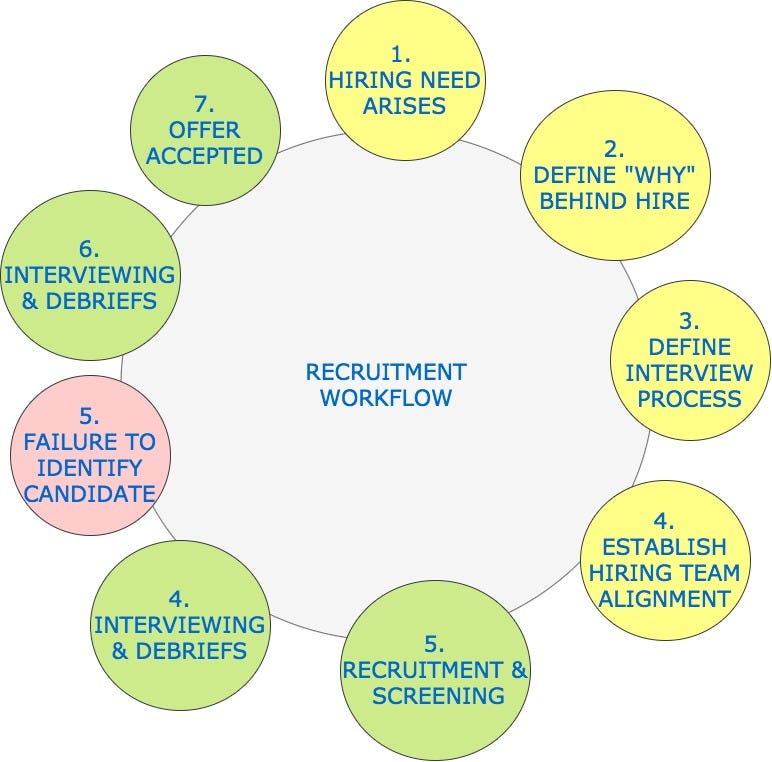
Key: Yellow = upfront work, Green = active work, Red = anticipated obstacle
Here’s how you can achieve a higher percentage of successful outcomes:
- Before you take action, establish the steps you need to take to achieve a successful outcome
- Define common obstacles and their solutions, so you’re prepared to address them proactively
- Contemplate previous success factors and recreate them where possible
Simon Sinek, author of “Leaders Eat Last,” similarly acknowledges the power of rehearsing success:
“Champions are not the ones who always win races — champions are the ones who get out there and try. And try harder the next time. And even harder the next time. ‘Champion’ is a state of mind. They are devoted. They compete to best themselves as much if not more than they compete to best others. Champions are not just athletes.”
3. Identify & Automate High-Value Actions
You’re more than halfway to consistently achieving your best work — keep going! Since you’ve established your personal values and mapped out the necessary steps to arrive at a successful outcome, you’ll want to focus on identifying high value actions.
Tired of spinning your wheels and not making progress? Identify high value actions that will help you progress.
According to Atlassian, 60% or less of work time is spent productively.Imagine a world where you rarely need to recreate the wheel, you’re executing on the work that matters the most, and you’re simultaneously empowering your customers to succeed.
If you take the time to identify and automate your high value actions, this could easily be reality. Decrease time spent on non-essential actions and free yourself up to access higher cognitive functions and develop tools that help your customers and your colleagues achieve their goals. If you’re not already, you’ll become a team hero!
Usually, high value actions fall into one of these four major buckets:
- Gives: Key tools and/or information you need to share with your customer/stakeholders
- Gets: Key tools and/or information you need to receive from your customer/stakeholders
- Questions: Key questions you need to ask your customers/stakeholders and vice versa
- Actions: Key actions you and/or your customers/stakeholders need to take
These are the questions I ask myself to identify my high value actions:
- What absolutely needs to be accomplished before I move forward?
- What enables me to partner successfully with my customers/colleagues along the way?
- What specific tools make it easier for me, my customers, and my colleagues to work towards our goals?
Here’s an example of an automated, high value give:
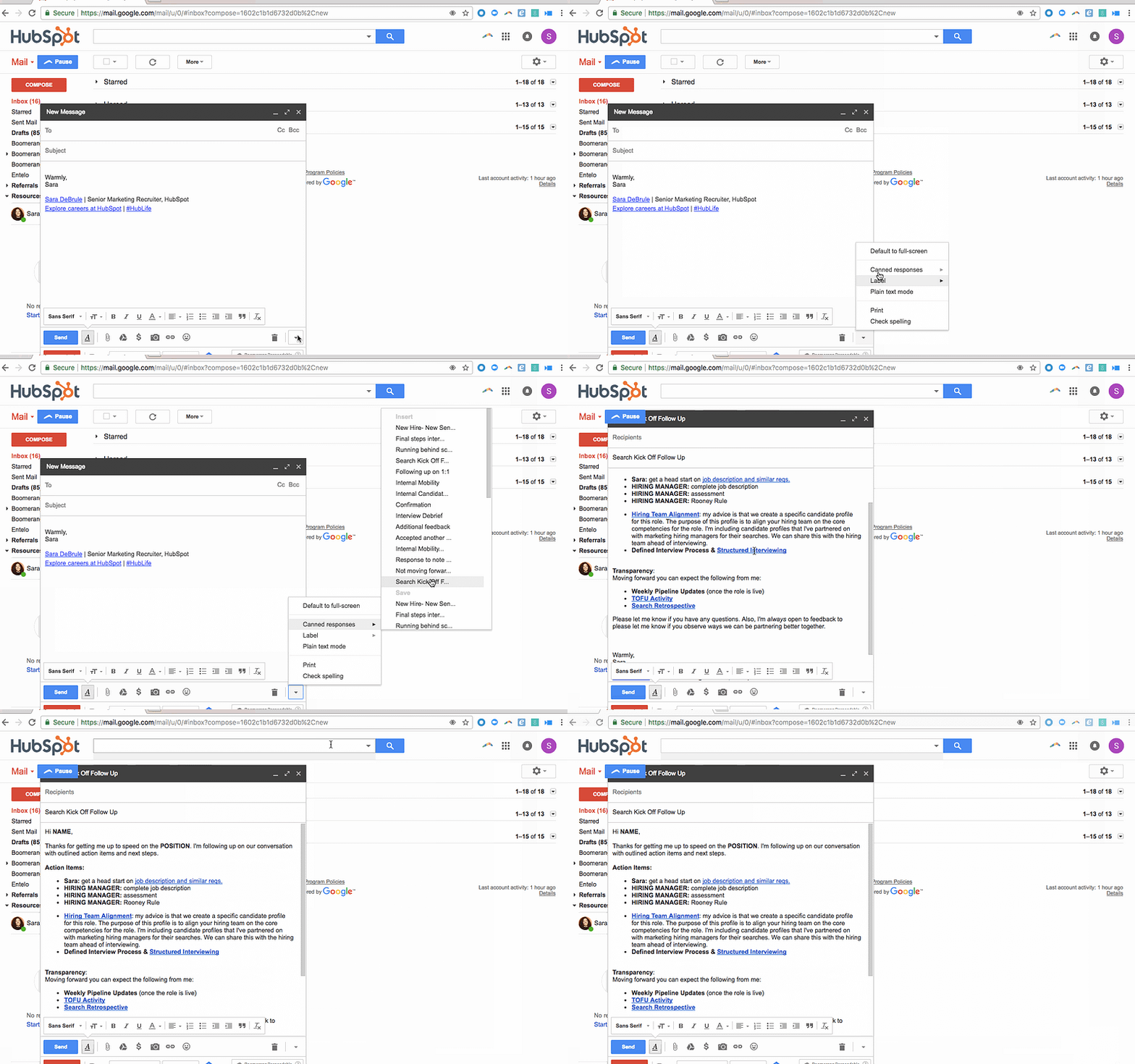
Here’s how you can routinely produce high impact work:
- Define your high value actions that facilitate forward progression: Gives, gets, questions, actions
- Actively return to and improve upon your high value actions
In Arianna Huffington’s book Thrive, she surfaces the dangers of not identifying what work is most important. She quotes the author Iain Thomas, saying:
“And every day, the world will drag you by the hand, yelling, “This is important! And this is important! And this is important! You need to worry about this! And this! And this!” And each day, it’s up to you to yank your hand back, put it on your heart and say, “No. This is what’s important.”
Now go do your best work.
I believe producing great work consistently is within reach for everyone. If you follow these steps, you’ll make great decisions, achieve a higher percentage of successful outcomes, routinely produce high impact work, and increase your productivity.
I won’t lie and tell you these steps are simple.
They’re not.
It takes committing to establishing and improving your personal values, workflow, high value actions, and values alignment. But, the benefits are far too great to ignore!
Commit to focusing on one step over the course of a month and then move on to the next one until you’ve seen all of the steps through to the end. Each of these steps are powerful on their own. When you return to the beginning and start the process of mastering the system you’ve laid out for yourself, you’ll find it’s much easier because you’ll already have a foundation.
I can’t wait to hear about your wild success!
A version of this article first appeared on ThinkGrowth.org.

How to Use Instagram Insights
It’s no secret that we love data.
Data helps you understand your audience. It tells you how they do things, what they prefer, and who they are.
And when it comes to social media, our love for data doesn’t fade.
That’s why we love analytics and insights. They help you measure the impact of your marketing efforts across different channels to see if there’s something you need to do differently — like target a different audience, post at a certain time of day, or experiment with a new content format.
Instagram Insights are no exception. Here are the analytics on this channel that marketers need to know and understand — and how to use them.
How to Convert to a Business Profile on Instagram
To use Instagram Insights, you must first have a business profile. If you’re already using a personal account, you can switch to a business profile with a few steps:
- Make sure your Instagram profile is public. Private profiles cannot be used as business ones.
- Go to your profile and tap the gearshift wheel icon to visit your settings.
- Tap “Switch to Business Profile.”
- When prompted, select the Facebook Page you want to be associated with your Instagram profile. In order to have a Business Account, you must also have a Facebook Page for your brand — Instagram will give you the option to create a new one during this process if you don’t already have one.
- Review and change any contact information on the “Set Up Your Business Profile page,” then tap “Done.”
How to Use Instagram Account Insights
To view insights into your overall Instagram account, start by visiting your profile. Then, at the top, click the icon of a bar chart, which will take you to your overall insights.
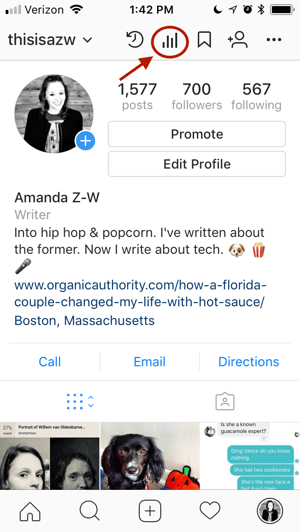
From there, you’ll see some general information about people are engaging with your profile, like how many followers you gained or lost in the past week.
Next, we’ll get into the more specific profile insights you can explore.
1. Impressions
This insight represents how many times your ads appeared on users’ screens.
2. Reach
This insight reflects the number of unique users that have seen any of your Instagram posts.
3. Website Clicks
This insight reflects the number of times any links you’ve included in your business profile have been clicked.
4. Profile Visits
This insight reflects the number of times your profile has been viewed.
5. Followers
This insight reflects how many followers you’ve gained or lost over the past week, as well as the average times of day when your followers are using Instagram — data that can be highly beneficial when planning posts.
To view insights into a specific Instagram post, start by visiting your profile. Tap on the post you’d like to look into, then click “View Insights” below the image.
You may have also promoted a certain post — if that’s the case, an arrow icon that looks like this will appear:

For these posts, you can either view insights on the original version of the post, or specific ones from its promotion. For the latter, tap “Promotion.”
Next, we’ll get into the more specific post insights you can explore.
1. Likes
This one speaks for itself, and reflects the number of users who liked your post.
2. Comments
As with likes, this insight reflects the number of comments left on your post.
3. Saves
The number of unique users or accounts who saved your post, or clicked the bookmark-like icon that appeared below it in their feeds.
4. Actions
These insights indicate the number of actions that users took on your profile as a result of seeing your post — things like visiting your profile, then taking an action like clicking on your website link or following you.
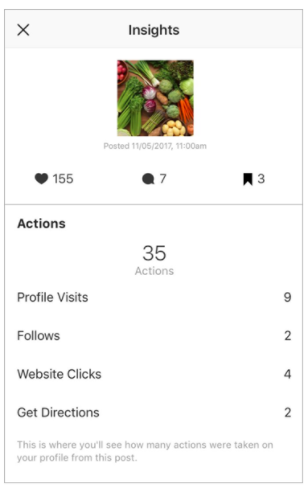
Source: Instagram
5. Discovery
As the name might suggest, these insights indicate where your post was seen — or discovered — the most, including how many accounts weren’t already following you when they first saw the post.
This section includes metrics on Impressions, which reflect the number of times your post was discovered from a particular place within Instagram, like the user’s home feed, a search, your profile, a location tag, or a hashtag.
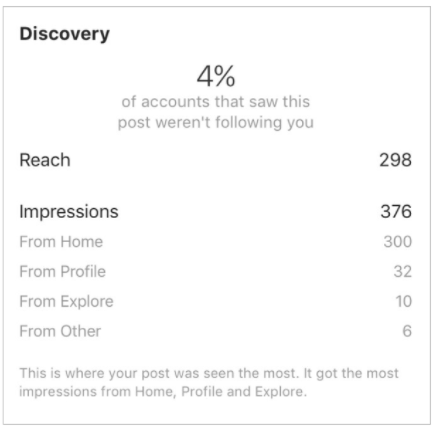
Source: Instagram
Discovery insights also include data on a post’s reach — which reflects the number of unique accounts that saw your post
How to Use Instagram Stories Insights
Finally, Instagram users with a business profile are able to view insights into their ephemeral Stories. Instagram does not, however, offer such analytics for live videos.
To view your Story insights, start by visiting your profile. Then, at the top, tap the icon of the bar chart, which will take you to your overall profile insights.
Scroll down to the Stories section, and you’ll be able to see insights for older stories, as well as any that have not yet expired.
Next, we’ll get into the more specific Story insights you can explore.
1. Impressions
This insight represents how many times your Story was seen.
When viewing these insights, keep in mind that you’re able to add multiple images or videos to your Story. When you do this, every piece of visual content in your Story is counted as a single photo or video in your post.
Let’s say you add six photos to your Story. Whether someone only views one or views all six, Instagram only counts your entire Story having received one impression.
The same goes for Story content that has been viewed by a single user more than once. Instagram still only counts that interaction as the entire Story having received one impression.
2. Reach
This insight reflects the number of unique users that have seen your Story.
3. Taps Forward
This insight reflects the number of times a user taps your Story photo or video to skip to the next piece of media.
4. Taps Back
This insight reflects the number of time a user taps your Story photo or video to go back to the previous piece of media.
5. Replies
This insight reflects the number of times users send messages through the “Send Message” text box on your Story.
6. Swipe away
This insight reflects the number of times users swipe to skip to the next account’s Story — not to be mistaken for “tap forward,” which reflects users skipping ahead to your next piece of Story media.
7. Exits
This insight reflects the number of times a user leaves the Stories section entirely to return to the home feed.
