
The Ultimate Cheat Sheet of Photo & Image Sizes on Facebook, Twitter, LinkedIn & Other Social Networks [Infographic]
When you’re designing cover photos, graphics, and other social media assets, sometimes knowing the bare bones image dimensions isn’t enough.
What if you wanted to place text or an arrow on your Facebook cover photo without it getting covered by the profile photo? And what about the shared link thumbnails on Facebook or in-stream photos on Twitter … how big should those be?
Download pre-sized cover photo templates for Facebook, Twitter, LinkedIn, Google+, and YouTube for free here.
If you’re looking for a detailed guide to social media photo sizes — including recommended dimensions, minimum and maximum dimensions, image scale, and more — then this is it.
The infographic below from Jamie Spencer of MakeAWebsiteHub.com is a great reference to bookmark or keep close-at-hand the next time you’re creating an image for your social media profile.
Photo & Image Dimensions for Facebook, Twitter, LinkedIn, YouTube, and More

Quick References
Facebook Image Sizes
- Cover photo: 815 px wide by 315 px tall
- Profile image: 180 px wide by 180 px tall
- Highlighted image: 1200 px wide by 717 px tall
- Shared image: 1200 px wide by 630 px tall
- Shared link thumbnail image: 1200 px wide by 627 px tall
LinkedIn Image Sizes
- Background image: 1500 px wide by 425 px tall
- Profile image: 400 px wide by 400 px tall
- Career cover photo: 974 px wide by 330 px tall
- Banner image: 646 px wide by 220 px tall (minimum)
- Standard logo: 400 px wide by 400 pixels tall (maximum)
Pinterest Image Sizes
- Profile image: 165 px wide by 165 px tall
- Board display: 22 px wide by 150 px tall
- Pin sizes: 236 px wide
Instagram Image Sizes
- Profile image: 110 px wide by 110 px tall
- Photo size: 1080 px wide by 1080 px tall
- Photo thumbnails: 161 px wide by 161 px tall
Twitter Image Sizes
- Header photo: 1500 px wide by 500 px tall
- Profile image: 400 px wide by 400 px tall
- In-stream photo: 440 px wide by 220 px tall
YouTube Image Sizes
- Video uploads: 1280 px wide by 760 px tall
- Channel cover photo: 2560 px wide by 1440 px tall
Tumblr Image Sizes
- Profile image: 128 px wide by 128 px tall
- Image post: 500 px wide by 750 px tall
Google+ Image Sizes
- Profile image: 250 px wide by 250 px tall
- Cover image: 1080 px wide by 608 px tall
- Shared image (on home stream): 497 px wide by 373 px tall
- Shared image (on feed or your page): 150 px wide by 150 px tall
Editor’s Note: This post was originally published in October 2013 and has been updated for accuracy and comprehensiveness.
Publisher Events: The Future of Media Revenue?
As a media company, one of your biggest strengths is your ability to create communities of people. From the comments sections of your articles to videos, meetups, and forums, you are bringing together great minds from many backgrounds and perspectives. Why not extend your value and offer in-person events to complement your content? Here’s why events are great revenue sources for media companies:
- You’re already collecting data you need to learn what interests your audience
- Your writing teams regularly conduct interviews with industry leaders who are also speakers
- Your audiences are hungry to learn from and connect with one another
From FastCompany to The Next Web, countless media leaders have benefited from hosting industry events. And this number will only increase. Our Publishing Benchmarks Report shows that over a third of publishers think events are poised to increase most-in-value as a revenue source over the next two years. To help you get in on the action, we’ve compiled some tips from the best.
Here’s What You Can Learn From Some of The Most Popular Media Events Today
1) Gigaom’s Structure Data Conference
Takeaway: Diversify your revenue streams beyond events
In March 2015, Gigaom hosted its first-ever ‘pop-up’ data science event in NYC. Partnering with Domino, eBay, VentureBeat, O’Reilly Media and others, the media leader featured thoughtful listening talks to spark conversation around the data, robotics, predictive analytics, machine learning, and model-driven decisions.
The story, however, isn’t what you see at face value–who the event attracted and how it monetized. What’s interesting is what’s untold: in the week leading up to the Structure Data Conference, Gigaom announced that it was closing its doors and at the last minute, secured a media partner to oversee the event.
Gigaom has long-relied on events to monetize but still ended up out of business. Why? Even though the company had widely publicized and attended events throughout the year, its other business arms (a research consultancy and advertising) just weren’t viable enough to keep the company afloat.
The moral of the story?
Diversify your revenue investments and ensure that each channel is fully optimized to perform its best. Events are only part of your revenue equation. You’ll need to counterbalance your strategy with other business initiatives, no matter how awesome your events may be.
2) Rosenfeld Media’s Product Management And User Experience Conference
Takeaway: Host a virtual event
Not sure whether your in-person event will monetize or be profitable to run? Get a little practice by hosting a virtual event instead. An example to check out here is Rosenfeld Media, a book publishing company that specializes in research, product, management, and user experience.
Virtual events are especially appealing to B2B audiences who are looking for skill-building opportunities but may not have time to attend an in-person event. The value proposition is also strong for employers who want to invest in training for their teams.
Here’s what makes Rosenfeld Media’s virtual event especially appealing to the company’s target audience:
- Workshops led by known, expert practitioners within the field of UX
- A clear value proposition for user experience and product management professionals
- Access to a library of streaming content and downloadable recordings
The company also optimizes its monetization potential be offering two ticket types: while a $129 ticket is ideal for groups, a $379 ticket gets attendees a ‘group’ or ‘meeting room’ experience. From a buyer’s perspective, these price points are highly cost effective: typically conferences can cost thousands of dollars.
The best part for publishers? While in-person events are often limited in terms of capacity, virtual events are not: a media company could easily accommodate tens of thousands of attendees (for instance, The Lean Startup Conference regularly has thousands of attendees on its livestream).
3) O’Reilly Media’s Strata Conference
Takeaway: Build a funnel into your other products and services
O’Reilly Media is a role model in revenue diversification. The publishing leader has created multiple streams for monetization including events, countless book series, and instructional videos.
The beauty of these channels is that they’re funnels into one another. Book sales can help bolster event attendance, and events can help facilitate book sales. It’s a never ending distribution cycle that continues to build upon itself.
Consider O’Reilly’s Strata Conference, one of the most popular and known ‘big data’ events in the world. This forum provides an ideal opportunity for the publisher to sell its data education and technical books. It’s living proof of the power of multiple revenue streams.
O’Reilly Media is a company that has experienced slow, steady, and sustainable growth. Launching as a technical consulting firm in 1978, the company is still thriving: over the years, it has launched many different products and business units, including a VC firm that focuses on software, cleantech, and other trends. The company’s events arm builds a funnel into the organization as a whole.
Get Creative
Your company has many different ways to get into the events business. How do you get started? One low-risk option is to partner with peer companies in your industry. Consider co-hosting established industry players. Start small with one-day options, and grow from there. The beauty of an event is that you can always run another one, so keep learning, growing, and iterating.
Google Gives Road Map to Retailers With New Analytics
The more information a business has about its customers, the better that business can sell, right? It’s why marketers work so hard to develop buyer personas and then segment contact lists a million different ways—everything is designed to reach the customer exactly where they are and exactly when they’re ready to make a purchase.
The problem, until now, is that data takes a long time to aggregate. You can’t know everything you need to know about a particular buyer the very first time he or she visits your ecommerce website. You need several visits, some onsite searches, a social media interaction, and maybe even an abandoned cart to really know what your buyers are looking for, right?
Google Knows Best
Who knows more about what consumers are looking for than Google? Whether those buyers want to order something online or head out to the closest retailer, one thing remains: they tell Google exactly what they’re looking for. That means Google has known way more about your buyers than you have. All they’d tell you was what you found in your Google Analytics report.
All that has changed. Google added a new feature to their analytics. Now, retailers and etailers can determine who’s searching for what…and where they’re searching. Not only can brands now identify where the majority of their buyers live and what products they’re searching for, Google also tells those companies what type of device their customers are most likely to use.
Make the Most of Your Analytics
There’s a sense of immediacy that’s removed when you track data over a long period of time, isn’t there? How many potential buyers did you miss out on because they were actually ready to make a purchase upon their first visit to your website? With the added convenience the latest technology has provided, buyers make snap decisions based on their current emotions and wants.
The latest analytics from Google will allow you to recognize those “I want to buy…” moments so you can act quickly. When you know where your buyers are and what they’re buying, you can create new marketing strategies that reach across all channels—search, social, display, content, video—to snag those buyers as their making a choice.
Your messaging will be more relevant when you know what is being searched, the terms used in those searches, and what questions the buyers are asking. And since 69% of online shoppers say that message quality, timing, and relevance influence their purchases, understanding who your buyers are also makes providing purchase opportunities easier than ever.
How to Disagree Without Being Disagreeable: 7 Tips for Having More Productive Discussions
George S. Patton once said: “If everyone is thinking alike, then somebody isn’t thinking.”
In business, stirring the proverbial pot can be a good thing. And while negotiating these matters can be challenging — especially when they involve our teammates or bosses — differences in opinion will often lead to progress.
The most important thing to remember is that there is a big difference between healthy, productive disagreements and heated arguments. In order for two parties to come to a mutually beneficial agreement, there has to be a level of professionalism and respect.
While navigating this territory can feel like a slippery slope, we’ve defined a few tips below to help you speak your mind without letting the situation spiral out of control.
How to Disagree Without Being Disagreeable
1) Be mindful of your tone.
Research has found that the sound of a person’s voice has a lot to do with how he or she is perceived. In fact, the sound of a speaker’s voice matters twice as much as their message, according to a study of 120 executives’ speeches.
So if you’re raising your voice during a disagreement, will it negatively impact the delivery of your message? Or will it help you command attention?
MIT research fellow, Michael Schrage, suggests that your tone is often dependent on the situation, as well as the person you’re disagreeing with.
“If you’re yelling because humiliating and demeaning people is part of who you are, you’ve got bigger professional issues than your decibel level,” he explains. “But if raising your voice because you care is part of who you are as a person and communicator, your employees should have the courtesy and professionalism to respect that.”
The lesson? Be in control of your own voice. If you feel yourself becoming agitated, take a moment to pause and think about the situation before choosing to raise your voice.
2) Don’t use “you” statements.
Falling back on “you” statements when you’re disagreeing with someone can easily be perceived as combative. Just look at the statements below to see what I mean.
“You always ask me to complete an last-minute assignment when you know that I already have my hands full,” sounds more argumentative than “I’m feeling a little overwhelmed by the amount of work on my plate. Is there anyone else that can take that on?”
Notice the difference?
Let’s look at a few more:
- “You never fact-check your reports before sending them in.” vs. “I noticed a few errors in your last report. Would it help if I showed you my approach for fact-checking?”
- “You always forget to attach documents when you send an email.” vs. “I had trouble locating the document you referenced in the email, mind sending it again?”
- “You should pay more attention to what’s being said in the meetings.” vs. “I find it helpful to take notes during meetings to make sure I don’t miss anything.”
“Most people don’t like being judged or told what to do, and when we use ‘you’ language plus directives, it’s easy to arouse in others feelings of resentment and defensiveness,” explains professional communication specialist, Preston Ni.
While there are situations where someone should be held accountable for their actions, leaving “you” statements out of small disagreements can help to ensure things don’t escalate into an argument.
3) Avoid filler words or hesitant phrases.
Filler words like “um,” “ah,” and “uh” tend to signal doubt. These disruptions can instantly take away from the credibility of your claim, and also serve as a distraction for those listening.
Researchers John Sparks and Charles Areni set out to prove the influence of these hesitations by asking 118 undergraduate students to read a transcript of a testimonial about a scanner. One version of the testimonial used hesitations such as “I mean” and “um,” and the other was fluid with no filler words. The results of the study revealed that when hesitant language was used, it was more difficult to convince them that the scanner was worth buying — even when it was positioned as a better, lower priced scanner.
Point being, it’s important to be aware of these placeholders — and limit the use of them during disagreements. One way to work these fillers out of your speech? Try wearing an elastic band around your wrist and shifting the elastic to your other wrist any time you catch yourself using “um” or “uh.”
4) Do your research.
To make a strong case against your opposition, it’s important that you do your research.
Let’s say, for example, that you and your team are planning your marketing strategy for the quarter. Your boss is set on keeping up with your direct mail and print efforts, but you think it’s time that the business head in a new direction — an inbound direction.
Rather than base your suggestions on what you think could happen if you shifted gears, start the conversation with a data-backed assessment of why the current strategy isn’t working and what you can do today, next month, or next quarter to fix it.
But don’t just throw around numbers: “Tie data like this into the overall vision and goals of the business. A statistic in and of itself isn’t all that impressive. If you’re looking to resonate with your more traditional boss, provide context,” explains John Bonini, Growth Director at Litmus.
This type of strategic preparation will make it difficult for others to poke holes in your assessment. It will also help to communicate that you’re passionate about your resistance, and that you’re not just disagreeing to disagree.
5) Don’t get personal.
When a disagreement gets heated, it’s easy for people to call upon “low blows.” These personal attacks are often used as an intimidation tactic or defense mechanism, but that doesn’t make them appropriate in business situations — or any situation for that matter.
When disagreeing with someone, your claims should be based on the outcome over that you are debating, not on what the other person has done (or not done) in the past.
“Try to make sure the conversation stays focused on facts, not personalities,” encourages management professor Nate Bennett. And if the other person gets personal, remember that you are not your job.
“It’s a lot easier to embrace criticism of your work when you don’t let your work define who you are,” insists Jeff Atwood, co-founder of Stack Exchange and Discourse. Even if someone says something out of line, avoid the itch to retaliate by keeping this notion in mind. Instead, refocus the discussion back to the subject matter at hand.
6) Be mindful of your body language.
When communicating disagreement, it’s important to be aware of our non-verbal body language. You might be saying one thing, but if your gestures or facial expressions suggest another, it’s easy to rub someone the wrong way.
“Avoid putting up a barrier like a hand, your bag, or whatever else you have between yourself and the person with whom you are speaking,” urges former U.S. Army interrogator and body language expert Greg Hartley.
If you want to disagree politely, try raising your eyebrows slightly to convey receptivity, or smile and nod along while others are speaking. This way, when it’s your turn to talk, those around you will feel that you’ve actually listened to their take on things. (Want more body language tips? Check out this infographic on body language in business.)
7) Know your non-negotiables.
When you disagree with someone or something, there’s no guarantee that it’s going to be well received. In fact, often times, it probably won’t be. But then what?
In an effort to disagree respectfully, you’ll need to learn how to compromise. Aside from the obvious differences, business relationships are a lot like any other relationship we share with someone — even a significant other.
“Lots of happy couples have differences in relationships — the trick is to learn which ones are more important to you than the relationship,” explains relationship expert April Masini.
That said, go into every disagreement knowing your non-negotiables — things that you absolutely aren’t willing to compromise on. While this approach may vary depending upon the exact situation, it will often make it easier for you to prioritize what matters and what you’re willing to reconsider. At the end of the day, it’s all about give and take.
What are your top tips for disagreeing in the workplace? Share them with us below.
How to Crowdsource Your Blog Content: Tips for Finding and Collaborating with Your Crowd
B2B marketing survives and thrives on the steam engine of content. But it can be hard to fuel that engine with constant inspiration day after day, and week after week.
Nonetheless, you’ll still need to produce high-quality blog posts and articles on a regular basis to build credibility and visibility, with 91% of B2B marketers using content marketing and 84% using it to spread brand awareness.
How do you keep up? One good answer is crowdsourcing.
As a B2B marketer, you can leverage your online relationships to have content produced for you, whether it’s user-generated content (UGC) produced by customers, or commentary from industry thought leaders. In one study, 70% of U.S. consumers noted that they trust brand recommendations from friends, above and beyond a company’s own content marketing, which means, at least some of your content should come from people similar to your readers.
By crowdsourcing, you’ll get content that’s relevant, targeted, and full of new insights. What’s more, you’ll gain fodder for your own creativity, as well as more free time to put inspiration to work in your marketing endeavors. Here, we’ll share some best practices for crowdsourcing your next blog post.
Step 1: Determine Who Your “Crowd” Is, and Why You’re Crowdsourcing
The very first step in crowdsourcing is determining the makeup of the crowd itself. It might consist of your customers, employees, thought leaders, industry professionals you’re connected with on social media, or any number of other groups. The purpose of the eventual blog post will help guide the composition of the crowd.
Is the goal to increase customer engagement? If so, you might look through your CRM to get a sense of customers’ expressed opinions, and ask the enthusiastic ones to expound on the benefits of your products and services.
Are you looking to increase your company’s thought leadership gravitas? In that case, you might reach out to a few top bloggers and/or academics in your field to offer their informed opinions on a meaty topic.
Step 2: Develop a Plan for Reaching Out to Your Crowd
Once you’ve defined your crowd and the goals you want to achieve through your content marketing, it’s time to make contact.
Here’s three of the main things you need to do when creating an outreach plan:
-
Think about the length of the eventual post, and number of content pieces you’ll need. Perhaps you’ll need one long customer testimonial about a certain aspect of your product, or maybe you can gather 3 quick quips from industry insiders to construct an informative and impactful blog post. Or, if you gather a series of 5 or 10 tips from respected bloggers, you can put together an article that will help you connect with big audiences online.
-
Determine the best ways to reach out. You might find that your influencers engage a lot with commenters on their LinkedIn blog posts, or that your customers are highly interactive on social media with brands similar to yours. Depending on your crowd’s preferred means of interaction, send a private social message, shoot off an email, or make a phone call offering the prospective content creator an opportunity to gain more exposure through contributed thoughts or ideas. (With the most popular influencers online, you’ll get the best results by building up a relationship first.)
-
To engage customers, consider surveys and contests in exchange for content. Either method is a good way to show customers you care about their opinions and will reward their loyalty.
Step 3: Collect, Edit, and Promote Your Crowdsourced Content for Maximum Impact
Once you’ve sent out your requests for content, it’s time to sit back—of course, while you’re hard at work on other aspects of your campaigns—and let the material come to you. As it comes in, make sure to do the following:
- Put the content in context. Whether you have two short essays from influential bloggers presenting dissenting opinions or 10 short sentences from your customers emphasizing what they loved about recent projects, it’s up to you to contextualize everything. You’ll want to weave the content pieces into a purposeful whole, with a beginning, middle, and end. The end result: a thoughtful, engaging piece that will stand out in your digital ecosystem.
- Edit without changing the essence. Honesty is paramount in crowdsourcing content. Keep all the material true-to-life, even as you place your own spin on it. Once the piece is finished, not only will you maintain your integrity by presenting content creators’ views as they were originally expressed, you’ll keep your crowd happy and willing to work with you again.
- Promote your crowdsourced content everywhere. Whether it’s on Facebook, LinkedIn, Google+, or Twitter, post on your social profiles with links to your crowdsourced blog post. If you have your customers on an email newsletter list—and you should be—invite them via the next issue to check out the post, especially if it’s relevant to their needs and interests.
- Finally, keep the content creators in the loop. Send out a friendly Tweet, email, or other type of message to let your crowd know that the blog is published. Encourage those who contributed to the blog post to respond to the eventual blog comments as well. The more engaged your crowd is with the finished product, the more exposure they’ll get—and your chances of repeat business with them increases.
And there you have our roadmap for crowdsourcing a blog post, a method which will add greater efficiency, variety, and engagement to your content marketing campaigns. Take this method out for a spin and reap the benefits of involving multiple, highly-interested content creators in your marketing efforts.
Interested in learning more from Penguin Strategies? Check out their whitepaper, The Quick and Dirty Guide to Curated Content.
Budget Planning, Hiring, Training & More: The Ultimate Kickoff Toolkit for Marketers [Free Download]
Ah, the start of a fresh quarter — a time when setting realistic and attainable goals is at the top of every leader’s to-do list.
To help you stay organized and focused through all of your January priorities, we’ve gathered a complete collection of executive tools in our latest guide: 2016 Kickoff Kit for Marketing Leaders.
Included in this guide, the Growth of Inbound Report will help you communicate your goals with valuable insight from a diverse collection of global marketers. Once you determine the year’s targets, use the 8 Budget Templates to manage your marketing spend at a monthly and quarterly level. In this offer, you’ll have access to the templates in both Microsoft Excel and Google Sheets.
As you build out your budget, you may begin to see some holes in your team. Use our 29 Job Descriptions for Hiring Excellent Marketers to identify what positions you might be missing and easily copy-and-paste descriptions into your next job listing.
Finally, start this year with a commitment to higher quality training for your team. In our Top Training Needs for Marketing Teams report, we’ve compiled the questions marketers miss most from our Inbound Marketing Certification test and provided a refresher for the sections that proved most difficult. As you prepare your decks for the training sessions, use our beautiful PowerPoint templates to ensure your presentations are engaging and impactful.
Sounds too good to be true? It’s not. For access to all of these resources, download our 2016 Kickoff Kit for Marketing Leaders today.
20 Fascinating Things You Didn’t Know About Your Facebook News Feed
The feature TIME once compared to “a glitzy laundry list” is now the crux of Facebook’s success.
Facebook’s News Feed launched in September 2006, about a year and a half after the launch of the site. At first, people thought of it as a timeline of mundane details about their friends’ lives. But it’s evolved into what TIME has more recently called “the most valuable billboard on Earth” — for brands, publishers, celebrities, and the rest of us.
In an effort to provide the best experience possible, the algorithm behind the News Feed has grown increasingly complicated over the years. In a nutshell, it scans and collects every single post put out by your Facebook friends, the people you follow, the groups you belong to, and the pages you’ve Liked. Then, it does its very best to rank posts according to each user’s preferences.
The result? Facebook’s best estimation for what you actually want to see on your feed.
That explanation barely skims the surface, though. There’s a lot of cool stuff out there about Facebook’s News Feed, including how it’s changed, what Facebook’s doing to improve it, and all the neat features they’ve added along the way.
Check out these 20 facts about and features of Facebook’s News Feed you may not have known about before, and get ready for your mind to be blown.
Facebook Facts You May Not Have Known
1) People really, really didn’t like it when it first came out.
Before the News Feed, Facebook spent a little over a year and a half as basically a cleaner-looking version of MySpace for college and high school students. You had a profile photo, profile information, groups, and walls you and your friends could write “Hey, what’s up?” on — to which your friend could respond back on your wall, “Not much, you?” in an entirely disjointed series of posts. But I digress.
It wasn’t until September 2006 when Facebook introduced the News Feed and the Mini-Feed: places where all your own and your friends’ latest activity on the site was collected in a single timeline.
And people hated it. Consider this quote from TIME, published the week Facebook first rolled out the News Feed:
On Tuesday morning the popular social networking site unrolled a new feature dubbed the “News Feed” that allows users to track their friends’ Facebook movements by the minute. For many of Facebook’s 8 million-plus student users, it was too much. Within 24 hours, hundreds of thousands of students nationwide organized themselves to protest the new feature. Ironically, they’re using Facebook to do it.
Soon after its launch, Facebook CEO Mark Zuckerberg was compelled to write an open letter to users, apologizing for failing to build in proper privacy controls around the new News Feed features.
“We really messed this one up,” begins Zuckerberg’s letter. And later, after reassuring users his team coded “nonstop for two days” to give them better privacy controls: “This new privacy page will allow you to choose which types of stories go into your Mini-Feed and your friends’ News Feeds, and it also lists the type of actions Facebook will never let any other person know about.” And so began the development of the News Feed algorithm.
Image Credit: Shareaholic
2) The Like button didn’t show up for 6 years after Facebook’s launch.
The concept of “liking” something — a post, a photo, a video — has become so ubiquitous that it’s hard to imagine social media without it. And yet, Facebook went a whole six years without it. While Facebook was first launched in 2004, it wasn’t until April 2010 that Zuckerberg introduced it at the F8 Developer Conference in San Francisco.
Image Credit: Adelagent Blog
Before the Like button, there was no real way for Facebook’s engineers to measure user’s interest in certain friends’ posts or certain types of posts. In those days, the News Feed algorithm was a crude calculation based mostly on the intuition of Facebook’s engineers. The team would tweak those assumptions and test how the changes influenced the time users spent on the site.
The Like button blew the doors wide open for figuring out which posts were delighting users, boring them, offending them, and so on. Now, it’s the epicenter of Facebook’s user experience — not only because it’s what they see when they first log in, but also because it allows people to personalize their own experience … and influence everyone else’s.
3) Facebook pays people to surf Facebook for News Feed research.
With over 1 billion daily active users all over the world, Facebook has a pretty hefty sample size of people surfing their News Feeds, reacting to stuff, clicking on stuff, and so on. And while the company does a great job of requesting feedback from users right within the site, they also get their feedback by paying people to do it in a controlled environment.
Facebook launched the program back in 2014, at which time they paid over 700 contract workers to go into a room and use a desktop computer to scroll through their own News Feeds. Participants then reported on how well the site placed stories relative to their personal preferences — information that was then fed back to a team of engineers and data scientists in California, who used it to improve the News Feed algorithm.
4) Facebook had to change the algorithm because people were using the News Feed like email.
If you’re still skeptical as to why Facebook launched a program using control groups to solicit feedback about the News Feed, consider this: The folks at Facebook discovered that a small subset of Facebook users were treating the News Feed more like an email inbox. How? Folks were interpreting the “hide” button beside each post like the “delete” or “archive” button in an email inbox. In other words, once they were done reading a story, they would “hide” it.
This posed a problem for Facebook because the “hide” button was created with the intention that users could click it if they found a post particularly annoying or bothersome. To Facebook’s algorithm, those users who were hiding every single post after reading it looked like they just hated everything they read.
Data scientists at Facebook discovered the problem because they found that 5% of users were doing 85% of the hiding. Within that 5%, an even smaller subset (what Facebook calls “superhiders”) were hiding almost every single story they saw.
To address the problem, the folks at Facebook published a blog post explaining that they made a small update to the News Feed so that, for that small subset of people only, they don’t take “hide” into account as strongly as for others. They also added the text “See fewer posts like this” to clarify what hiding a post does.
Never stop learning, folks.
5) Each post in your feed was given a “relevancy score” to compare it with thousands of other posts.
Many people think the News Feed algorithm is all about predicting whether users will Like a post. In reality, though, it takes into account literally hundreds of variables — and can predict whether a given user will Like, click, comment, share, hide, or even mark a post as spam.
Not only that, but the algorithm predicts each of these outcomes with a certain degree of confidence — and then combines them all to spit out a single relevancy score that’s specific both to you and to that post. Once every post that could potentially show up in your feed has been assigned a relevancy score, Facebook’s sorting algorithm ranks them and puts them in the order they end up appearing in your feed.
In other words, that post you see at the top of your News Feed was chosen over thousands of others as the one most likely to make you react and engage.
Ads are given relevancy scores, too. That way, Facebook can show users only the ads that could matter most to them — which allows for a better experience for both those users and the businesses who are paying for the ads. It’s calculated based on the positive feedback (video views, conversions, and so on) and negative feedback Facebook expects an ad to receive from its target audience. Learn more about relevancy score for Facebook ads here.
6) Facebook pays attention to how you watch videos on your feed.
In summer 2015, Facebook surveyed users on how they interacted with video on their News Feeds and found that that many people who were interested in a given video didn’t necessarily Like it, comment on it, or share it with their friends. Since engagement is one of the primary ways Facebook measures people’s interest in posts, they had to come up with other ways to figure out whether people enjoyed the videos they were seeing.
To help do that, they started monitoring other forms of video engagement — like turning on the audio, switching to full-screen mode, or enabling high definition. So if you turn up the volume on a video or make it full-screen, the News Feed algorithm will take that as you enjoying the video, and will show you similar videos higher up in your feed.
It’s not perfect, but it’s another way for Facebook to do their darndest to give users the most interesting and relevant News Feed experience possible.
7) Facebook updated their algorithm for folks with bad internet, and now holds “2G Tuesdays” to help simulate browsing Facebook with bad internet.
In many parts of the world, mobile users still use a 2G connection for their internet use. But connecting with users in regions with really slow networks is a huge potential area of growth for Facebook — so in October 2015, the company updated its algorithm to improve the News Feed experience for the millions of mobile users with slower internet connections. Now, when Facebook detects users with a really weak connection, they’ll bring up previously loaded News Feed or cached stories. It’ll also focus only on the stories and posts those users are actively looking at, instead of loading multiple stories simultaneously.
If that’s not cool enough, the folks at Facebook paired this algorithm update with the launch of an optional program called “2G Tuesdays” to help their employees experience what Facebook is like on a 2G connection. This weekly program, which only lasts an hour, gives employees the chance to put themselves in the shoes of those who may be using Facebook differently as a result of slow internet.
8) More people are turning to Facebook’s News Feed to consume news.
The ways in which people are finding and reading news stories has changed radically in recent years. Today, Facebook is one of the biggest sources of stories and videos on the internet, alongside Twitter and Google.
How big? Research from the Pew Research Center found that 63% of Facebook and Twitter users used those social media sites as news sources in 2015, up from around 50% in 2013. This cuts across nearly every demographic group. For example, news use on Facebook grew among both men (44% to 61%) and women (49% to 65%). When it comes to age, though, they found that younger users place greater importance on finding news via social media sites like Facebook.
Facebook Features You May Not Have Known About
9) You can search for old posts, pictures, and more using keywords.
A few years ago, the only things you could find using the search bar at the top of a Facebook page were people, pages, groups, events, and apps. Since 2014, you’ve been able to type in keywords to search for old News Feed posts in a feature called Graph Search.
Now, if want to check out pictures from your cousin Patrick’s wedding, you can search for something like “Patrick wedding” or “Patrick wedding pictures,” and Facebook will spit out results for those terms.
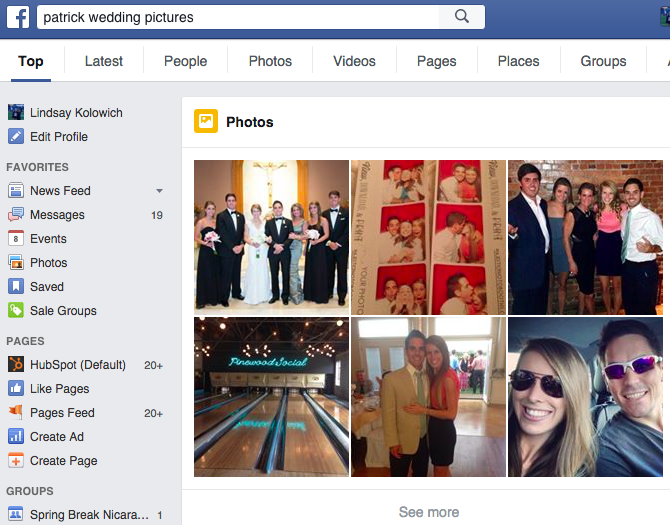
Boom: Exactly what I was looking for.
You can also search for friends who Like specific pages, or are talking about different celebrities, and so on. Learn more about how Graph Search works by reading this blog post.
10) You can browse popular articles by looking at “what’s trending.”
One way to read the news on Facebook is by browsing the articles that are trending. On the right-hand side of your News Feed and under event invites and birthdays, you’ll find a list of articles that are trending on Facebook. It looks like this:
(Note: Trending is currently only available in English in select countries.)
The articles Facebook shows you are based on a number of different factors, including engagement, timeliness, pages you’ve Liked, and your location. They’re also divided into five different topics: all news, politics, science and technology, sports, and entertainment.
While you can’t turn trending off, you can customize your list of trending articles by toggling by topic. To toggle by topic, click on the icon that corresponds to whichever topic you’d like to see, which are located to the right of the word “Trending” in the “Trending” section.
11) You can save stories to check out later.
Ever seen articles in your News Feed you wished you could bookmark for later? Facebook realized that many users who were browsing the News Feed simply didn’t have time to drop what they were doing to read an article.
That’s why they added a feature that lets you save links to articles, events, TV shows, music, and more to revisit later.
To save a story to read later: Click and then select Save link.
12) You can switch from seeing top posts to seeing most recent posts.
When you first log on to Facebook, your News Feed will default to showing “Top Stories”: popular stories and posts from your favorite friends and pages, many of which have gained a lot of engagement. But you can also choose to have the stories on your feed sorted by recency.
To toggle between the two: Go to your Facebook homepage. In the column on the left-hand side of your home screen, you’ll see “News Feed.” Click to the right of “News Feed,” and choose either “Top Stories” or “Most Recent.”
13) You can override the algorithm by handpicking whose updates show up first in your feed.
When Facebook learned that many users were concerned they were missing important updates from the friends they cared about most, they changed the News Feed algorithm so that updates from close friends would appear higher in the News Feed. Then, even more recently, they decided to give users the option of handpicking people and pages whose updates they want to appear first on their feeds, rather than having that decision fall back on the algorithm.
Now, when you select a person or page to “see first,” their posts will appear at the top of your News Feed. Selecting people to “see first” is different than selecting them as a close friend: When you select a person as a close friend, you’ll just receive notifications when they post something new.
To select people or pages to “see first”: First, click in the top-right corner of any Facebook page and select “News Feed Preferences.”
In the window that appears, click “Prioritize who to see first.” Then, select the people or pages you’d like to, well … see first on your feed.
(P.S. If the phrase “Prioritize who to see first” makes your blood boil, then you’re probably kind of a grammar nerd. It’s okay. We are, too. Here’s a list of jokes about grammar to help you return to a healthy baseline.)
14) You can “unfollow” people or pages so you never see their posts.
We’re not gonna name names, but every one of us has a few people we’re “friends” with on Facebook who’ve made a hobby out of posting daily gym selfies, love proclamations, and political rants. Let’s be honest … we could all do with fewer of those.
Luckily, you can unfollow people to hide their posts. FOREVER. (Er, at least until you reconnect with them later. We’ll get to how to do that in a second.) Better yet, they won’t know if you’ve chosen to unfollow them. There are two ways to unfollow a person, page, or group.
a) To unfollow directly from the News Feed: Click on the top right of their story, and select “Unfollow.”
b) To unfollow from your News Feed preferences: Click in the top-right corner of any Facebook page and select “News Feed Preferences.” In the window that appears, click “Unfollow people to hide their posts.”
To reconnect with a person, page, or group that you unfollowed in the past: Click in the top-right corner of any Facebook page and select “News Feed Preferences.” In the window that appears, click “Reconnect with people you unfollowed” and select whomever you’d like to reconnect with.
15) You can find out why you’re being targeted for different ads.
Ever wondered why you’re seeing certain sponsored posts in your News Feed? Businesses can choose ad targeting options like location, age, gender, interests, and people already connected to their page, event, or app — and for every sponsored post you see, you can actually find out why you’re being targeted.
To find out why you’re seeing an ad: Click on the top right of their sponsored post, and choose “Why am I seeing this?” from the dropdown menu.
A small window will appear with an explanation. In the case below, one reason I’m seeing that ad from Dollar Shave Club is because they’re targeting women aged 18 years and older in the United States who Like their page.
(If you’re on the business side of things, click here to download an ebook on how to create Facebook ads that actually work.)
16) You can hide ads so you never see them again.
While you can’t block Facebook ads entirely — they help keep Facebook free, after all — but you can opt out of seeing a specific ad or any ads from a single advertiser.
To hide a specific ad: Click on the top right of their sponsored post, and choose “Hide ad” from the dropdown menu.
In the window that appears, give Facebook feedback on why you want to hide the ad, and press “Continue.”
Click “Done” in the thank-you window that appears. You can undo hiding an ad as long as you don’t refresh the page.
To hide all ads from a single advertiser: Follow the same steps above by clicking on the top right of their sponsored post, and choose “Hide ad” from the dropdown menu. In the window that appears, choose “Hide all ads from [advertiser],” and you’re done.
In some cases, when you click on the top right of a sponsored post, you’ll be given an option to let Facebook know you already own the product that’s being advertised. Simply choose that option to let them know, and you’re done.
On the contrary, you can also let Facebook know when you come across an ad that’s useful. After all, one of their major goals is to make ads as interesting and valuable to users as the organic content they’re finding on their News Feed.
To tell Facebook an ad is useful: Click on the top right of their sponsored post, and choose “This ad is useful” from the dropdown menu. Nothing else will happen, except that you’ll see a check mark next to that option if you click the dropdown menu again. You can undo it by clicking on that option a second time.
17) You can create a Facebook ad for any reason, no matter who you are.
Want to put yourself out there for a new job? Get more exposure to your blog? Advertise your neighbor’s daughter’s Girl Scout cookies campaign? Turns out anyone — not just businesses — can run ads on Facebook, and for any reason.
One cool use case is if you want to get a job at a specific company: You can create a Facebook ad campaign that advertises your skills and expertise, and then target that ad at specific people or people who work at specific companies.
- If you’re applying to a larger, more well-known company like Apple, you might make your audience “people who work at Apple.”
- If you’re trying to target people who work at a small company, though, then that may not show up on Facebook as an option. In that case, you can create a custom audience using Facebook’s power editor. The power editor lets you handpick the people who see your ad campaign using their Facebook IDs, which you can find using this tool. So if you know the names of, say, 20 specific people you want your ad to be shown to, then you can go find each user’s Facebook ID, add them all to your custom audience, and then pay to serve your ad to that audience.
To create an ad campaign: Go to http://ift.tt/19Ir8sj, or go to the Ads Manager and click “Create Campaign.” You’ll be taken to a window that looks like this:
From there, you can choose your objective, name your campaign, choose your audience, set your budget and ad schedule (or set a manual bid), choose your images, add text and links, and place your order. (Click here for detailed instructions from Facebook.)
18) You can get notified when your favorite people post.
There may be a handful of people in your life — your brother, spouse, good friends, etc. — whose Facebook posts you wanted to know about right away. All you have to do is add those people to your Close Friends list and turn on notifications, and you’ll receive a notification whenever they add a photo, post a status update, change their profile picture, and so on.
To get notifications when certain people post, you’ll have to add those people to your Close Friends list. To do that, go to your friend’s Facebook Page and click the left-most dropdown menu located over their cover photo. Choose “Close Friends” from the dropdown menu.
To get notifications for people on your Close Friends list: Click in the top-right of any Facebook page and choose “Settings.” Then, choose “Notifications” from the column on the left-hand side of your screen.
Click “Close Friend Activity.” (If notifications are already on, you’ll have to click “On Facebook” and then “Close Friend Activity.”) Select “On Facebook” to enable notifications, or “Off” to turn off notifications.
19) You can get notified when things happen in the groups you like.
Sick of missing out on all those fun local alumni events? I have good news for you: Just like getting notifications when close friends post, you can also choose to get notifications when people post to certain groups you’ve joined.
To get notifications for groups: Click in the top-right of any Facebook page and choose “Settings.” Then, choose “Notifications” from the column on the left-hand side of your screen. Select “Group activity,” and a window will pop up listing all the groups you’ve currently joined. You can choose from the corresponding dropdown menus whether you’d like to receive notifications for all posts, just friends’ posts, or no posts at all.
20) You can follow events, even when you haven’t committed to going.
It used to be that when you were invited to an event, you RSVP’d by choosing “Yes,” “No,” or “Maybe.” But in November 2015, Facebook replaced the “Maybe” button with “Interested,” which indicates to the event organizer that you’re interested in going but can’t decide yet. If you RSVP as “Interested,” then it’s kind of like “following” the event: You’ll get notifications and updates from the event anytime something is posted.
So there you have it: 20 awesome Facebook facts and features you might not have known before. Sure, it’s a little creepy to think about how much Facebook knows about us; but it’s that level of detail that allows them to get closer and closer to delivering the best experience possible. Pretty fascinating, right?
What other helpful facts or features do you know about Facebook’s News Feed? Share with us in the comments.
4 Ways Your Office Is Making You Sick & How to Fix It [Infographic]
We’ve all heard over and over again about the poor quality of the air we breathe outdoors. But what about the air we breathe inside — especially in places where we spend hours upon hours a day, like our offices?
Research shows the quality of the air in our offices may be getting worse thanks to toxic chemicals in carpets and on furniture, poor ventilation, and employees not washing their hands.
In fact, there have been so many illnesses reported in office buildings that the Environmental Protection Agency estimates that one in four new or renovated indoor buildings in the U.S. may be classified as “sick buildings.”
Luckily, there are things we can do to help keep sickness to a minimum, from dusting our desks with a damp cloth once a week to decorating with plants that are great at removing air pollutants, like Boston ferns or palm trees.
To learn more about why our offices are making us sick and what we can do about it, check out the infographic below we created in partnership with Market Domination Media. And don’t be afraid to speak up to your superiors, as fixing these problems will benefit them, too.
What Makes a Team Truly Great? 9 Defining Traits [Infographic]
This post originally appeared on Agency Post. To read more content like this, subscribe to Agency Post.
What makes a team truly great?
Is it the mix of personalities? Is it how teams are measured and rewarded? Does the team leader ultimately determine their success?
There is a lot of research and opinion on what ingredients are necessary to build a high-performing team because it is one of the most difficult things to do — you are essentially forcing people together — but it’s one of the biggest drivers of success in an organization. A poor performing team can negatively impact an entire organization, not to mention be the cause for missing goals or revenue targets.
Weekdone created the below infographic detailing some of the defining characteristics of great teams. Learn what you should look for in a high-performing team and how to recruit to create your own.
Are Pessimists More Productive Than Optimists?
This post originally appeared on HubSpot’s Sales Blog. To read more content like this,subscribe to Sales.
This post isn’t for the person who wakes up each day holding a list of ideas that are going to shape the future of the world. This post isn’t for daydreamers or optimists.
Nope. This post is for people who go against the grain and think … well, a little differently.
There’s no arguing that positive thinking is a key to productivity. In fact, the results of positive thinkers speak for themselves.
But what about the people who are more … realistic? With a multitude of studies backing positive thinking as a key to being productive, is the converse true? Do pessimists get less done than their optimistic counterparts?
As it turns out, according to new research, pessimists might actually be more productive than their colleagues.
Can Optimisim Actually Hold You Back?
Research from New York University’s Gabriele Oettingen discovered that a little pessimism can improve productivity. Oettingen, who spent 20 years researching and testing her theory, found that optimism and positive fantasies didn’t help people reach their goals but instead got in the way:
Oettingen theorizes that fantasizing about what’s ahead results in losing track of goals. Optimists tend to daydream about the benefits of their goals without putting in the work to be successful, according to the research.
To be clear, Oettingen isn’t advocating for thinking negatively and moping around all day, but her research suggests that introducing a little pessimism can be beneficial. Oettingen uses a strategy known as W.O.O.P to harness the benefits of negative thinking for maximum productivity:
- W: Think about your wish.
- O: Think about your ideal outcome.
- O: Think about the obstacles in your way.
- P: Plan for those obstacles.
W.O.O.P requires you to think negatively about your goal, which helps you plan for the obstacles that lie ahead.
Positivity is great, but it’s not the be-all end-all. Thinking negatively can help us set realistic objectives and prepare for pitfalls as we ultimately reach for a goal. So when you have a less-than-stellar Monday, don’t be surprised if it’s one of your best days of work.
What do you think about this research? Share your thoughts in the comments section below.