
11 Pricing Page Examples To Inspire Your Own Design

Whether you’re in the market for software or a new coffee pot, searching for price is a natural part of any customer’s buying decision.
The means that the majority of people who have made it down the funnel far enough to consider buying from you will likely look at your pricing page. It’s a huge opportunity for you to take control of the price conversation and make it even easier for people to buy.
If your pricing page isn’t well designed and user-friendly, you’re going to lose people.
What does a great pricing page look like? To help inspire you, we found 11 of the best examples of pricing page design. You’ll notice the best pricing pages have clean layouts, use simple language that speaks to the customer, and aim to inspire trust between the business and the user. Check them out.
Download more awesome website design examples here, and get tips for making yours great, too.
11 Examples of Great Pricing Pages
1) Box
Box’s pricing page is informative, intuitive, and attractive — starting with that hero image right at the top of the page. One thing they did really well was to allow users to choose their buyer persona by offering two call-to-action buttons at the top: “Personal Plans” and “Business Plans.” This makes user experience far simpler. After all, if you’re thinking about buying Box for your business, there’s really no reason you’d need to see the personal pricing plans (and vice versa).
Another thing they do well is highlight the profit maximizing option on the page — not only by labeling it “Most Popular,” but also by designing that option to pop out. That’s a great way to generate more clickthroughs on that pricing option.
2) Zendesk
The first thing you see when you arrive on Zendesk’s pricing page is the header text: “Flexible plans with no surprises”. Pricing pages can sometimes make users a little uncomfortable, and it’s reassuring copy like this that helps build trust between a business and its prospects.
We love that the pricing page is divided among four tabs: “Zendesk Pricing,” “Compare Plans,” “Chat Pricing,” and “FAQs.” Providing a lot of information like this on your pricing page is really helpful for your users, but it can be hard to do it in a way that doesn’t confuse people or create clutter on the webpage. Dividing the information into clearly marked tabs like this is a great way to make the information manageable for your users.
Finally, if you scroll down a little on Zendesk’s pricing page, you’ll see a second pricing table for their Zopim live chat product. We love how they clearly aligned pricing plans with specific personas: “Best for individuals,” “Great for lean teams,” “Ideal for established teams,” and “Perfect for industry leaders.” Proper alignment like this help your salespeople sell the right product to the right customers, which ultimately helps satisfy customers long-term and reduce churn.
3) Detectify
Detectify’s pricing page design is a little out of the ordinary, but it makes for a really cool user experience. Users can slide the slider left or right to choose the number of domains they’re interested in purchasing, and the numbers in blue adjust automatically. This works really well for a single product with set features and a price that only changes when you buy more of that product. (Plus, we’re suckers for the play on words in the header copy: “Pay as you grow,” based on the common saying “pay as you go.”)
4) Wistia
Like any page on your website, design is just as important as the information you provide. Wistia has one of the most visually pleasing pricing pages we’ve seen thanks to a nice, clean, and colorful layout, and whimsical illustrations that align with their playful brand.
They also use language that makes it easy for visitors to find a pricing plan that suits their needs. Under each option, they provide a short description of the ideal customer for that option. For example, the free version is “for businesses looking to test the water with video marketing.”
Finally, we love that the video allotment is included in the feature comparison because it shows Wistia is speaking their customers’ language. Why? Because it clearly states the value.
5) Casper
Thanks to minimal copy and great use of negative space (i.e. the blank space surrounding objects in design) this page is both well designed and easy to follow. But what we really love on this page is their well-worded refund policy: “Sleep on it, lounge on it, dream on it — if you don’t love it, we’ll pick it up and give you a full refund. No springs attached.”
The fact that the company will go to a dissatisfied customer’s house and pick up the mattress for no charge along with a full refund is a great testimonial to their dedication to customer service. This serves as a way to build trust with prospects before they even buy, and is sure to help create advocates down the road.
If you have a refund policy, be sure to include it on the pricing page to reassure users who may be on the fence about buying. (And it doesn’t hurt to include a great pun.)
6) Squarespace
Like Zendesk, Squarespace employs strong header copy: “Simple Pricing.” Right away, they’re reassuring users that their plans are trustworthy and easy to follow. We love that they include frequently asked questions right on the same page as the pricing matrix so users can get many of their questions answered without having to dig.
7) Ticketleap
Here’s another take on header copy from Ticketleap that captures users’ attention right away. When you arrive on their pricing page, the first thing you see are the words, “Fees suck, so we’ve made them as low as possible.” This phrasing aims to make users feel like Tickleap is on their side. It’s also adds a touch of personality to what might normally be one of the more boring pages on your site.
8) Slack
Slack’s pricing page is another example of great page design. The pricing options are an array of nice, pastel colors that are pleasing to the eye, and their feature comparison is easy to skim. Notice that, at the time of publishing, their Enterprise package wasn’t yet released: This is a great example of featuring a future pricing option as a teaser. For this pricing package, the CTA is “Contact Us” rather than “Buy.”
Finally, although the header copy is simple, we love that they framed the pricing page as a “Pricing Guide,” which helps frame the pricing information as a helpful resource.
9) BombBomb
The folks at BombBomb took a different approach than most: The very first thing you see when you land on their pricing page is a large header saying “Try Free For 14 Days” along with a call-to-action about a free trial. This is a great example of a business designing its webpages based on specific goals — if your goal is to increase the number of free trials, this is one way to help your cause. Take note of the reassuring subheader copy, too: “No credit card required. Cancel anytime.”
10) Pagevamp
Trust elements are great additions to any pricing page because they help build trust with folks visiting the page. Pagevamp took the cue and placed a customer testimonial front-and-center on their pricing page — a quote from a customer saying, “Pagevamp saved me thousands of dollars in designer and webmaster fees.” Copy like this might prime a user to look at the price packages that follow and think to themselves, Hey, I may be paying this amount up front, but over time it’ll pay off.
11) Acquia
The simpler your business’ pricing page, the better user experience you’ll offer — but this gets harder the more complex your product and pricing model. Acquia is one such company, but they do a great job using a slider to simplify their pricing page so users can adjust for the features and amounts they’re looking for. Notice that users can adjust pricing and currencies by region, too — this is a great UX move for any businesses selling to folks in different countries.
Which pricing page is your favorite, and why? Share your thoughts with us in the comments.
Want More Web Traffic? How I Used the ‘Skyscraper Technique’ to Drive 70K+ Page Views
Finding it increasingly difficult to capture the attention of your target audience? Can’t seem to actually deliver on their expectations? In today’s marketing landscape, the competition is heating up.
As a result, marketers are getting more creative, experimenting with new content mediums, and varying their approaches to bringing in targeted new customers. From listicles to infographics to video content, those who are taking action to find out which type of content resonates best with their audience are coming out on top.
What can you do to stay in the game? Try the Skyscraper Technique.
Designed to help you create content that actually drives traffic, this method has helped me earn over 70,000 page views from just one post. To help you get started, I’ll walk you through the technique below, show you how I’ve used it, and provide a helpful checklist to ensure you don’t miss a beat.
What’s the Skyscraper Technique? (And Why Does It Work)
Created by Backlinko’s Brian Dean, the Skyscraper Technique is a system for turning content into high quality backlinks.
Here’s how it works: You start by researching popular trends, topics, and already well-received pieces of existing content across the topic areas your business typically covers. Then, you look for new and unique ways to create content that communicates a similar message — with a twist. This might mean that you leverage a new, more engaging medium, update the statistics, or employ a better design.
Once you’ve created a new and improved piece of content, reach out to the folks that have already linked out to similar content to put your piece on their radar … and hopefully earn a link.
This technique works really well for a few reasons:
- There’s already demand. By discovering existing successful content, I’ve already established that there’s proven demand in the marketplace for content around the topic I’m considering addressing. From here it’s important to examine why that individual piece of content was so successful. Did it solve a problem for the readers? Was it particularly entertaining?
- You’re dealing with a primed audience. If you can create something even better than the original resource you come across, you’ll have the potential to really excite the existing audience for that piece. If the topic you select is timely, I recommend simultaneously building out a target list of brands, publications, and influencers who either shared the previous piece or linked to it so you can reach out right away.
- There’s serious ranking potential. Google has likely already indexed the existing resource well. In creating something that’s even better, you have the potential to topple that older piece of content, outrank them, and drive in more traffic — especially if you win those high quality backlinks by reaching out.
How I Used the Skyscraper Technique to Drive 70K+ Page Views
Earlier this year, I saw Fast Company post an article about a new freelance hourly rate calculator that was making its way through the freelancing community. In just a matter of weeks, it had been written about or mentioned by almost every online publication, brand, and influencer that weighs in on freelancing-related topics.
The Fast Company article already had thousands of shares and was the clear winner in terms of search rankings. Because this specific niche topic aligned well with much of the business content we produce over at CreativeLive, this was a great opportunity to piggyback off of the proven demand and clear success of that existing piece of content.
I hypothesized that presenting the same solution to freelancers — helping them calculate the hourly rate they should charge for their services — in a more visually appealing manner, could be a big hit.
To take advantage of this, I worked with our design team to develop a high quality infographic on calculating your freelance hourly rate and strategically built many distribution opportunities into the design of the infographic. I made sure to mention several notable online tools and services that are useful for freelancers, with the intention of asking them to share once the infographic went live.
We also quickly put together an ebook on the essentials steps to launching a freelance career. This was done the week before the infographic was published so that we could tie a topically relevant call-to-action to the bottom of the post and capture more leads for our freelance-related classes.
After publishing, the infographic was an instant success with our existing audience. From there, I used BuzzSumo to identify all of the other brands and blogs that publish and share content related to ‘freelance hourly rates’ and reached out to each of them, asking if they’d be up for sharing or republishing a uniquely written post featuring our infographic.
The result? This post has been shared over 8,200 times and we’ve now outranked the Fast Company article for our key search term of ‘freelance hourly rate.’
We’ve driven a total of 72,000+ page views and 3,648 new email subscribers from this post since it was published, not to mention the dozens of valuable backlinks and re-published versions of our infographic that continue to go up on freelance-related sites around the web.
6-Step Checklist for Using the Skyscraper Technique
Ready to try the technique out? Here’s a quick checklist to guide your execution.
1) Research and uncover opportunities.
Set up Google Alerts for keywords related to topics you want to cover, use BuzzSumo to research the pieces of content that have been most-shared around specific keyword phrases, and analyze opportunities based on search volume with HubSpot’s Keyword App or Google’s Keyword Planner.
2) Build a list of potential distribution partners.
Start with who you know. Are there any brands, blogs, or influencers you know that would genuinely find this piece of content interesting? From there, jump back into BuzzSumo add the other websites and people that have published or shared content like yours. Chances are, they have an audience that would love to hear about your great new piece of content.
3) Create better content.
If you stumble upon a blog post from a competitor on a topic that you’d love to cover, perhaps you could make an infographic, video, or even a more in-depth guide that could deliver more value. Consider which content medium your audience engages with most, and start by relying on the skills your organization is best at.
4) Promote to your audience.
Getting that initial buzz going with your own audience is essential to showing social proof before reaching out to other brands and influencers. Share on all of your social channels, with your email list, and internally with your employees.
5) Reach out to the right people.
Now that you have some momentum picking up with your great new piece of content, it’s time to spread out and start sharing with your list of targeted influencers, brands, and bloggers who publish and share related content. In your reach out message, be sure to show genuine interest in them, make your ask very clear, and provide them with sample copy they’ll be able to copy/paste.
6) Stay current.
Over time, the usefulness of your amazing piece of content will decline. Others will publish new content on the topic, the industry will change, and new alternatives will arise. Updating your content so that it stays relevant to your audience is crucial to maintaining the value you worked so hard to create.
Have you tried the Skyscraper Technique? Share your experiences in the comments section below.
How to Figure Out What Keywords Your Potential Customers are Using
A big piece of the inbound marketing puzzle is SEO and content. At the center of those pieces are keywords. But when I – as an Inbound Marketing – am putting together campaigns, strategies, and content calendars, I’m often asked, How can you tell people are using or searching for certain keywords?
There’s a plethora of blogs on SEO and keywords out there – but not much on this specific topic, hence this blog. And because I’m a “the more details the better” kind of girl – I’m going to take a few steps back and start at the beginning, so you’re equipped with as much knowledge as possible.
So, What is a Keyword?
Technically speaking, a keyword is “an informative word used in an information retrieval system to indicate content of a document.” Thanks, Google. Now, in English; a keyword – in HubSpot’s words – is most often, “a word or phrase that is a topic of significance.”
Seems pretty simple, right? It is – although you should know there are four different kinds of keywords:
- Broad Keywords are shorter words – most often one word on its own. Although these keywords are easily applied to your industry or company, they are likely easily applied to many companies within your industry.
- Fat Head Keywords are similar to broad keywords but are usually made up of two or three general, broad keyword.
- Chunky Middle Keywords are where those keywords that are most competitive and least competitive cross over. Jabez LeBret describes them as the “keywords and phrases that real potential customers are typing into search engines everyday.”
- Long-Tail Keywords are typically longer phrases or a series of words that are a bit more specific to who you are – both your company and within your industry.
Here’s a few examples:
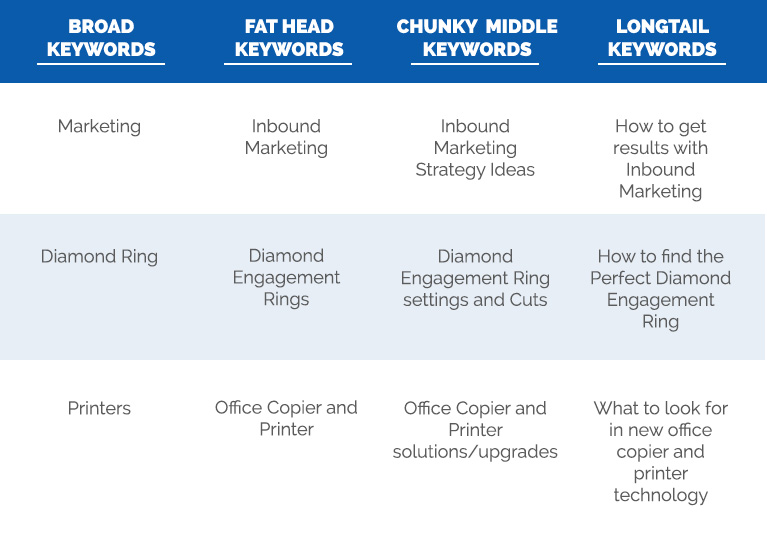 Ok, What is the Importance of Keywords?
Keywords are important because they’re the key (see what I did there?) to gaining insight into your potential customers’ – or your ideal buyer personas’ – questions, pain points, or interests. As searchers, your target audience use keywords when they verbalize topics in the form of online searches as they seek more information.
HubSpot, narrows down the answer to Why do I Need Keywords? to three simple reasons…
1) Keywords = Content Foundation
Each page of content (or blog, or offer, or email) has a main topic, and that topic generally ties back to a keyword or keyword phrase. Keywords help establish the foundation of your content and give your visitors an understanding of the page.
2) Keywords Give Purpose & Understanding
When reading information they find, visitors are quick to scan content for keywords or phrases they originally searched for. Keywords = gold, in this case.
3) Keywords Help Search Engines
As search engines crawl your site, they index pages based on the keywords they find to help determine the purpose of the content.
As Wendy Boswell puts it, “Whether you’re looking for just the right keywords to target in an article or site content, gauging what popular keyword searches are at any given moment, or getting a good idea of what future keyword searches might be, keyword search tools can help you accomplish all these goals and more.”
Five Ways to Figure out What Keywords People are Using
When it comes to figuring out what keywords potential buyers, clients, and customers are using, there’s a whole lot of due diligence to be done, and it’s something I take very seriously. Lucky for you, I’m here to loan you a few keyword research secret weapons so you can DIY, if need be. Below are a few tried and true ways to gain some insight into what keywords people are using.
1) Use Your People
Yes, your people. Who qualifies as “your people?” Your customers, potential buyers, staff, etc. Anyone who is familiar with your business, uses your product, purchases your goods… even those who choose a competitor – those are your people. So, do some homework – what questions are they asking? What are ‘hot topics’ or trends?
These notes will be big players in your keyword game. When you’re doing this, be sure to remove yourselves from the process and put yourselves in your persona’s shoes – use the words and terms they use, ask questions in the way they ask them, etc. Oftentimes, the keywords a business thinks they should rank for or talk about are not the terms their customers are actually using.
2) Get Social
Don’t overlook your social media channels – especially when it comes to trying to figure out what your people are talking about, asking, or complaining about. Advancements and updates to social channels have brought with them a look into trending topics and more, including:
Facebook: Facebook has made a whole lot of updates to their graph search tool, which allows you to search pretty much anything your connections might be talking about. Take a few minutes to learn more about Facebook Graph Search and how to best use it. They also have a Trending toolbar on the right side of their newsfeed that show popular topics, and the option to narrow into Politics, Science & Technology, Sports, and Entertainment.
Twitter: Twitter actually has two different ways to get an inside look at what people are talking about. And the good news is, you don’t actually have to tweet yourself to see them (although you will need to follow others from an account.) On the left sidebar of Twitter’s homepage, you can see trending topics; these can be tailored based on location and interest. You can also use Twitter’s search functionality for trending topics, keywords, and hashtags.
Google+: When you login to your Google+ account, you can head to the Trending page – similar to Facebook and Twitter – to see who is talking about what on Google+.
YouTube: Like its social media platform friends, YouTube also has a Trends Dashboard – right here – that will show what the most popular videos and topics are. You can narrow in on these trends by selecting a city, state, or country, an age group, and gender. According to YouTube, “Trending Topics are algorithmically-generated topics from keywords in the title, tags, and description of the video within sets of videos that are currently rising in popularity. Trending videos are based on embedded video views and views on YouTube.”
3) HubSpot Keyword Grader
HubSpot’s Keyword Grader allows users to get real time information and statistics on keywords that are most relevant to their business and industry. You can compare keywords, search volume, rank, and more – all in one place – and, in a way that integrates with the rest of your content.
4) Google Tools
It probably comes as no surprise that Google has a whole suite of tools to help you get to the bottom of the keywords and phrases. And in this case, they have a few golden tickets to keyword insight…
Google Trends: This tool is one of my favorites – it fascinates me. This allows you to get an inside look at Google’s databases of searches. You can look at Google searches by regions, categories, languages, and set the time and search properties (image, etc.). You can look at one single keyword, or compare multiple terms.
Google Autocomplete: You know when you go to search for something, and Google starts to finish your question or thought? That’s autocomplete. Google explains, “Autocomplete predictions are possible search terms … The search queries that you see as part of Autocomplete reflect what other people are searching for and the content of web pages.” Pretty cool.
Google AdWords Keyword Planner: The great thing about the AdWords planner is that you don’t need to actually spend any money on AdWords – you just need a Google account. With an account, users can access the Keyword Planner and enter a keyword and Google will populate search volume (how often it is used) and the competition of that word (how many people or businesses want to rank for that word). Because Google is great, this tool lets you filter by language, location, and mobile or desktop use. My fellow expert, Travis, dives into how AdWords works and the many benefits
here.
5) Wordtracker
Wordtracker is a tool that gives insight as to whether or not a keyword or particular keyword phrase is worth content efforts. This tool gives users an estimate of how many times a keyword or keyword phrase is searched each day, plus any related phrases or keywords. Wordtracker does require a membership, but you can try it a few times for free.
Even the biggest questions can be answered with some time and tools. And despite what you might think about SEO, nothing is impossible – not even keywords. But especially not keywords, when it comes to using your resources and being savvy. Although you’ll have to jump in and use a little elbow grease, there’s a lot of knowledge out there to harness … happy keywording!
Have additional questions about keywords, content, or SEO? Comment below and let me know – I’d love to help answer them!
How to Create Sales Presentations That Close Deals [Free Ebook]
As a marketer, you work hard every day to generate, qualify, and deliver leads to your sales team. You can’t afford to let your leads flounder after you hand them off.
Unfortunately, thanks to today’s hypercompetitive sales landscape, prospects are inundated with more information and content than ever. In other words, your dry, jargon-filled deck isn’t going to cut it anymore.
That’s why we’ve partnered with Prezi to bring you this free guide on creating sales presentations. It’ll walk you through how to build a dynamic sales presentation, provide tips and best practices, and introduce suggested layouts.
Here are a few things you’ll learn:
- How to create an intro that commands attention
- Why social proof is so important
- How to make your ideal price point stand out
- The best approach to competitive analysis, and how to use it to your advantage
- How to seal the deal with a call-to-action
- And even more about how to create a persuasive sales deck
 Click to Tweet:
“Learn how to build a persuasive #sales deck & close more deals with this ebook from @Prezi & @HubSpot http://hubs.ly/H01q7k90”
Ready to start turning prospects into customers? Click here to download the free guide.
How to Reduce Your Website’s HTTP Requests
Every time you surf the web, there’s a whole world of technical stuff going on behind the scenes. Developers and engineers are usually the ones living and operating in that world, while some marketers — especially those who aren’t super confident in their technical expertise — tend to shy away from it.
But marketers need to have, at minimum, a general understanding of what’s going on behind the scenes of their website.
Why? For one, metrics marketers tend to be responsible for can depend heavily on the back-end development of a website. For example, the number of HTTP requests your webpage requires affects page load time, which ultimately influences user experience, bounce rate, and other key metrics.
What is an HTTP request? How does it affect user experience? And what can a marketer do to reduce their website’s HTTP requests? Let’s go through each of these questions one by one. By the end, you’ll have a better grasp on why these response protocols matter, and what you can do to give your website visitors a better experience.
To see how strong your website is, check out our Website Grader tool for a detailed report of your website’s overall performance.
What is an HTTP Request?
Each time someone visits a webpage, here’s what typically happens: That person’s web browser (Chrome, Firefox, etc.) pings the web server that hosts the webpage they’re trying to visit — in this case, a webpage on your website. It requests that the server send it the files containing the content for that site. These files contain any text, images, and multimedia that exist on that webpage.
That request is called an HTTP request. HTTP stands for “Hypertext Transfer Protocol,” which is just a fancy name for a web browser sending a request for a file, and the server sending (or “transferring”) that file to the browser.
Once your server receives an HTTP request from a user’s browser, your server then responds and delivers the files to that user’s browser. The user’s browser then renders the webpage.
Here’s the thing: The browser needs to make a separate HTTP request for every single file on your website. If your website doesn’t have many files, then it won’t take very long to request and download the content on your site. But most good websites do have a lot of files. Large, high definition images are usually the culprit.
How HTTP Requests Affect User Experience
In a nutshell, the more files on your website, the more HTTP requests your user’s browser will need to make. The more HTTP requests, the longer your site takes to load. And larger files will take even longer to transfer.
A long load time can be a disruptive and frustrating experience for your users. Mobile users will have a particularly bad experience, as most of them will have to wait until every asset on a webpage is downloaded before the page will even begin to appear in their mobile browser.
And research shows load time matters when it comes to website performance. According to KISSmetrics, 47% of consumers expect a webpage to load in two seconds or less, and 40% abandon a website that takes more than three seconds to load.
So, what’s the magic number of HTTP requests a website should aim for? The answer is not “one.” Some people think they can solve the problem by only using one JavaScript file to control their entire website. But remember: File size affects load time, too. For complex websites, that one file will be insanely long.
While there isn’t necessarily an optimal number of files your webpage should be reduced to, HubSpot’s principal product marketing manager Jeffrey Vocell suggests aiming for between 10–30 files. For most top-performing websites, getting there is difficult and generally requires dedicated engineering resources. Steve Souders, an internet performance expert formerly at Yahoo! and Google, tweeted last year that the average number of page requests is actually 99+ per page.
How to Reduce Your Website’s HTTP Requests
1) Check how many HTTP requests your site currently makes.
Google Chrome’s Network panel makes it easy for anyone to check how many HTTP requests a site makes. It’s a really cool way of seeing what’s on your page and what’s taking a long time to load.
Basically, it shows you all the files that a browser had to request and transfer in order to download the page — and it also shows a timeline of when this happened. For example, the API can tell you precisely when the HTTP request for an image started, and when the image’s final byte was received. It’s a really cool way of seeing what’s on your page and what’s taking a long time to load.
To see the Network panel for a given webpage, open the webpage in Google Chrome. In the main Chrome menu at the top of your screen, go to View > Developer > Developer Tools.
The Network panel will open in your browser. Since it records all network activity while DevTools is open, the panel may be empty when you first open it. Reload the page to start recording, or just wait for network activity to occur in your application.
Here’s an overview of what everything in the Network panel means:
Image Credit: Google
Curious how many requests your website requires? The Network panel will tell you that, too. Take a look at the very bottom left of the screenshot above and you’ll see the total number of requests; in this case, 25 requests.
To learn how to read the panel and evaluate your network performance in more detail, read through this Google Chrome resource.
2) Remove unnecessary images.
At this point, you should have an idea of which files are taking longest to load, including image files. The easiest way to reduce the number of requested files? Eliminate unnecessary images.
Images are a valuable webpage asset because they make for a strong visual experience on your webpages. However, if you have images on your page that aren’t contributing much value, it’s best to just cut them out altogether — especially the ones that are really large.
3) Reduce the file size for remaining images.
For the images you do keep, use high-quality photos that have a compressed file size. This will help reduce the time it takes to make a HTTP request, thereby reducing load time.
If you’re a HubSpot user, you don’t have to worry about compressing images — the HubSpot COS will automatically resize and compress your images. Otherwise, use a tool like TinyPNG or Compressor.io to reduce file size.
4) Evaluate other parts of your page that are contributing to page load time.
Cutting and compressing images are a great first step to reducing HTTP requests and page load time. But what else did you see on the Network panel that’s adding requests? For example, you might find that a video or Twitter integration adds an entire second or two to your load time. That’s good to know. From there, you and your team can decide whether those assets are worth keeping.
5) Make JavaScript asynchronous.
If you have JavaScript on your page that’s not asynchronous then you’ll want to take it to your developer to make it asynchronous — or remove it from the webpage altogether, if possible.
Why? It all comes down to user experience. When a person’s browser loads a webpage, it loads the page’s assets from top to bottom. When it hits a JavaScript file and wants to load it, if that JavaScript is not asynchronous, then the browser will stop loading everything else on the page until it loads that JavaScript file in its entirely.
If that JavaScript is asynchronous, then the browser will load it at the same time as it continues loading other elements on the page. Asynchronous JavaScript files make for a better user experience.
To learn more about making JavaScript code asynchronous, I recommend checking out this presentation by Steve Souders and this blog post by Visual Website Optimizer.
6) Combine CSS files together.
Every CSS file you use for your website adds to the number of HTTP requests your website requires, thereby adding time to your page load speed. While this is sometimes unavoidable, in most cases, you can actually combine two or more CSS files together. (You may have to get help from a developer for this.)
Why? Because CSS code can be anywhere on your site or in any number of files, and it’ll still works just as well. In fact, often the only reason a site has multiple CSS files in the first place is because the site’s designer found it easier to work with separate files. (To learn about combining CSS files in more detail, take a look at this front-end website performance guide.)
If you want a more detailed report of your website’s overall performance, check out HubSpot’s newly redesigned Website Grader. You’ll receive a free, personalized report that grades your site on key metrics including performance, mobile readiness, SEO, and security.
Should Publishers Blog?
Once upon a time, blogging was considered amateur. Trained journalists and editors viewed platforms like Blogger and LiveJournal as communities where ‘just anyone could write.’
Well, that was precisely the point.
The biggest value proposition that blogging brought to the table was the democratization of great ideas. Anyone could launch their own blog and start writing–there was no formal education or media job required. That’s why blogging caught on.
Today, mainstream media companies are harnessing the power of blogging. The Atlantic, a 158-year-old company, recently made the decision to launch a section of its site called Notes, which will be a place for “first thoughts, running arguments, stories in progress.”
Now, you have no excuses to say that ‘blogging isn’t for you.’ If The Atlantic can make such a bold move, so can you. Here are some ideas to keep in mind along the way:
The ‘Story Behind the Story’
The Internet has spoiled modern audiences. Curious and research driven, they’re looking for more than just the polished stories in front of them. They want to venture behind the scenes–something that mainstream media companies don’t have an outlet for on their core websites.
Publishers can take a lesson from content marketers in that many business blogs provide community forums, in addition to opportunities for employees and awesome writers to share their favorite ideas. For a great example of a business blog providing a fun reading experience, check out Canva’s Design School. The content gives the software company a much-needed, ‘behind the scenes’ experience. In addition to experiencing Canva’s core product, you also learn what the company values.
As a media company, you have your own brand, too. Even though you’re publishing high-volume content, you may not be letting your inner voice and personality shine through. Every story has a story behind it–how an idea came to exist or where someone had to travel to find a source. It’s valuable to go off the record.
For a good idea of this idea in action, check out Slate’s ‘Dear Prudence’ column. Emily Yoffe frequently took her readers behind the scenes to share her thoughts and to catch readers up to where her letter writers are now. What’s interesting about the Slate example is that it’s integrated with the core site. But some media hubs aren’t able to pull this dynamic off and will need to launch an ‘off platform’ experience.
A Sense of Community
While news outlets are optimized around facts, blogs are optimized around opinions. It’s okay for writers to get a bit relaxed when creating blog content. Of course, writing needs to be factually accurate. But does it need to be grammatically perfect? No. Is it alright for witty writers to have their own opinions? Absolutely.
By letting your organization’s human voices shine through, you’ll naturally attract more people. Share thought provoking ideas on your blog, and encourage your audiences to leave comments and share their own ideas.
Blogs can create a sense of community on your website. Just look at The New York Times, as an example–a media company that is well-known for its rich commenting activity. When the New York Times recently went through a major redesign, one of the top complaints was that audiences were having trouble finding and tracking comments.
Readers love the NYTimes comments so much that they complain when there’s a UX change.
Test Beds for New Ideas
Media companies need to innovate too. While your taxonomy may be static, it will evolve over time–to keep audiences engaged, you may need to venture into new content areas. But how do you know, ahead of time, if a new idea is worth testing with your specific audience?
Blogs provide a testbed for new editorial ideas. Run your favorite new story ideas, promote what you write on your distribution channels, and measure the interest that you’re generating from readers. You can even use your blogs to test new technologies, run surveys, or collect interest-based data.
Your blogs, while providing awesome content to the world, will also provide sandboxes for testing. Make sure that your media company stays innovative and continues to build on its successes by deploying your ideas, faster.
So, Should Publishers Blog?
The decision of whether to blog will be different for different media companies–there is no such thing as a simple “yes” or “no.” If you’re wondering where to get started, take a look at your reader base’s existing content consumption patterns. Conduct a few qualitative interviews with them to understand what types of blogs and media sites they like to read. If you determine that a blog is in your audience’s best interest, go for it without thinking twice. Follow The Atlantic’s bold footsteps.
The Difference Between Earned, Owned & Paid Media (And Why It Matters for Lead Gen)
An effective content strategy doesn’t rely on only one tactic.
Generating qualified leads requires you to regularly publish compelling, valuable content, explore guest blogging opportunities, identify co-marketing campaigns, and devise a strategy for promoting said content.
While content is a fairly general term, it’s important to note that there are different types of media that can be leveraged in the process. Knowing the differences between each type of media — earned, owned, and paid — and how to combine them is critical to the success of your lead generation efforts.
To help you effectively execute on all three, we’ll walk you through the nuances of each below, as well as some suggestions on how to leverage them for your company.
The Difference Between Earned, Owned, and Paid Media
Combining earned, owned, and paid media will help you attract, nurture, and close leads, but what do those terms really mean? And when it comes to your company’s content strategy, how do they fit into the equation?
While all three media efforts are important to your overall goals and should converge in your strategy, there are still distinct differences.
Earned Media
Quite simply, earned media refers to media exposure you’ve earned through word-of-mouth. Whether it was the fantastic content you’ve distributed, the influence of your SEO efforts, the customer experience you’ve delivered, or a combination of all three, earned media refers to the recognition you receive as a result.
You can earn media by getting press mentions, positive reviews, reposts, recommendations, etc. You can also facilitate earned media by helping journalists and content writers author their articles, or contributing your own thought leadership content to industry publications.
Thanks to the rise in popularity of social media platforms like Twitter and Quora, it has become easier for content writers and journalists to reach out to your business for quotes and insights to mention in their articles. This type of accreditation helps build trust around your expertise.
At Influence & Co., we earn most of our media through press mentions with our partners and our own guest-contributed content. For example, our co-founder, John Hall, has a regular column on Forbes, where his contributed content helps to drive both traffic and leads for our company.
So whether you’re earning mentions on external sites or you’ve earned an opportunity to contribute to them regularly, this type of media helps to fuel the top of your funnel and introduce you to new leads.
Owned Media
Owned media is content you’re in full control of. Think of content for your company website, your blog, and your social media accounts.
While owned media content can take on a variety of forms — blog posts, case studies, whitepapers, etc. — the primary goal of this content is to continue providing value to leads as they move down the funnel. These assets offer a more controlled — but not overly promotional — message about your company.
So if you’re looking to warm up leads that you’ve generated with earned media or win over some more, it’s important that you’re focusing on producing these educational, valuable resources. At the end of the day, this content can help leads determine whether or not working with you is the right choice for them.
Paid Media
While today’s media influx may make it difficult to get your company’s message heard organically, it also brings with it an influx of methods to promote it. Paid media serves as a method for promoting content and driving exposure. And there are variety of paid techniques you can use to amplify your owned media and help you win more earned media.
For example, social media platforms such as Twitter, LinkedIn, Facebook, and Pinterest offer advertising options that can be leveraged to boost your exposure. We’ve found that LinkedIn and Twitter are the most effective promotion platform for our audience of B2B marketers, but you can utilize a similar strategy on Facebook or Pinterest. It all depends on where your target audience is the most active and engaged with your brand.
How to Use Paid Media to Amplify Your Owned Media
As I mentioned before, combining these elements can prove to be really powerful in terms of generating and engaging leads. To help illustrate this, let’s dive into two examples of content promotion tactics that my company has successfully utilized to amplify our owned media.
LinkedIn Sponsored Updates
Our marketing team utilizes sponsored updates on LinkedIn to promote our gated content. We set a budget for each campaign; target users based on interest, industry, and job title; and deliver a link to a landing page with a relevant piece of gated content.
Our reasoning behind promoting gated content via sponsored updates verses our blog content goes back to the idea of delivering the right content to your audience, through the right medium, at the right time. We’ve found that when our audience is on LinkedIn, it’s the perfect time to serve up a piece of gated content.
For example, when looking at the performance of our sponsored posts, we found that the offers that linked straight to a landing page converted at a 500% higher visitors-to-leads conversion rate than sponsored posts that link to blog content.
Promoted Tweets
We’ve also recently seen success with promoting tweets that have the most engagement. For instance, we promoted this tweet about our “5 Unexpected Content Marketing Trends from CMI’s 2016 Report” blog post after we saw that it was garnering a lot of initial engagement. It generated an additional 111 clicks to the post with only $50 in ad spend.
Promoting tweets is a great way to boost the reach of your most engaging tweets and get them in front of a new audience. To determine whether a tweet is worthy of promotion, we ask ourselves two questions:
- Did it perform well? When a post is performing well organically, it will automatically perform better than your other posts when you sponsor them. Our rule of thumb is to only promote the top 1-3% of tweets that have gotten the most engagement recently.
- Is the content you’re promoting converting well? If we’re considering promoting a tweet, we look at the piece of content it references to determine the conversion rate of that piece. If it didn’t perform well, we try to pick a new tweet that links to a high-performing piece of content or look at how we can optimize the blog post for better conversion before putting dollars behind promoting it on social media.
How does your company leverage earned, owned, and paid media? Share your experiences in the comments section below.
Why You Should Invest In Inbound Marketing Before CRM Implementation
Since the beginning of time, humanity has sought to answer unanswerable questions, like which came first, the chicken or the egg? Recently, I’ve come across a question with increasing frequency, that may not be as significant, but is probably even more important if you’re looking to embark upon a journey of accelerated sales growth.
What should you focus on first, building an effective inbound marketing/lead generation process or implementing a CRM to manage your sales and customer acquisition process? While both are important, the question is should you focus on one before the other?
To be clear, both are very important to making growth predictable, sustainable and scalable. If you have the resources and bandwidth you should be pursuing and enhancing both of them simultaneously. However, if you must choose between them, the decision you make will have a significant impact on your growth outlook.
Before answering the question, let’s take a look at the fundamental purpose of each initiative.
The Purpose of CRM
There are several advantages of an effective CRM system with the primary purposes being:
- Building sales efficiency
- Providing management insight into the status and progress of the overall sales effort
- Ensuring compliance with the sales process
- Providing clear reporting
- Creating greater predictability throughout the entire sales process
The Purpose of an Inbound Marketing Program
Here too, there are lots of reasons you’d want to embark on an inbound marketing effort, with the primary purposes being:
- Generating greater awareness and engagement with your desired markets
- Standing out from your competition by creating and reinforcing relevant thought leadership
- Increasing lead velocity and generating more sales qualified opportunities for the organization
To reiterate, all of these results are very important, but I think it’s pretty clear which initiative should be focused on first. That is Inbound Marketing.
3 Reasons Why You Should Focus on Inbound Efforts First
1) CRM Doesn’t Fix Bad Processes, But Inbound Can
An effective CRM system provides tremendous value in increasing the efficiency of a good process. However, it does nothing to address an average or poor process.
For more than 20 years I’ve been working with companies looking to improve their results through CRM utilization. All too frequently significant investments are made in software, time is spent training on the system and absolutely nothing changes. The initial reaction is to blame it on bad CRM, when the reality is that it’s bad process that is the real culprit. Designing a CRM system effectively requires that you have a clear and effective demand generation process that can be mapped to the CRM.
While working on the CRM does little to address bad sales process, the process of implementing an inbound marketing approach does a tremendous amount to improve your sales process (and thus your CRM efforts).
Inbound marketing requires that you start at the top of the funnel and work your way through to the bottom. It makes you view demand and revenue generation from a holistic viewpoint, to understand your market better and to align your sales efforts to how your market behaves today. All of these things drive greater revenue opportunities and create the path to gain the very efficiencies that CRMs promise to create.
2) Effective Inbound Methodology Creates Better CRM Application
I deal with a lot of companies that have been using CRM for years. It is a rare event for me to come across someone who has either designed or implemented their CRM effectively. The data is, to put it bluntly, 90% crap.
A tremendous amount of the value you get from using a CRM comes from the ability to slice and dice the data to segment effectively and increase personalization. However, if you haven’t done the basic work of defining your buyer personas, designing the message to enable you to personalize and to determine how you are going to effectively nurture, you won’t have the clarity to use your CRM effectively.
In my experience, effective CRM reinforces an effective inbound marketing and sales approach, it does not create one. I’ve lost count of the number of times a client has had to substantially change their CRM as a result of the creation of an effective inbound marketing strategy.
3) You Cannot Have Predictable Growth Without Predictable Lead Generation
If I were to summarize the two most valuable benefits of a CRM it would be predictability and efficiency. As I’ve shared, inbound marketing creates the environment for an efficient process, but what about creating predictability?
Simply put, you cannot have predictable sales results or predictable growth if you do not first have predictable lead generation. While creating an effective lead generation strategy certainly involves more than just inbound marketing, inbound is a crucial component.
Inbound marketing enables you to build a true funnel that allows you to build a predictable pipeline for growth. Consider the following:
- The Content Marketing Institute reports that 80% of decision-makers prefer to get company information in a series of articles versus in an advertisement (and by extension a sales call).
- Inbound leads cost 60% less than outbound leads. (source: State of Inbound Marketing Report)
- Companies that excel at lead nurturing (a core part of the inbound methodology) generate 50% more sales ready leads at 33% lower costs (source: Forrester Research).
- Nurtured leads make 47% larger purchases than non-nurtured leads (source: The Annuitas Group)
- SEO driven leads have a have a 14.6% close rate, while outbound leads have a 1.7% closing rate. (source: Search Engine World)
The natural focus of building engagement that is created by fully adopting an inbound marketing approach builds a more efficient and effective sales process and make CRM adoption a much easier, more profitable effort.
Additionally, a major benefit of inbound marketing is that it creates revenue. No matter how you slice it, CRM is a cost (a valuable one, but a cost nonetheless). Building an effective revenue generation process creates the environment that allows efficiency and predictability to be sustainable.
Investing the time, money and energy into inbound marketing first, puts you in a stronger position to both implement an effective CRM initiative and to accelerate growth.
Get to Know Women in Tech: 33 Facts About Female Leaders in the Tech Industry [Infographic]
For a long time, the tech industry was heavily dominated by men. Nowadays, though, more and more women are entering both regular and high-level positions in tech. In fact, the eight largest tech companies are hiring women 238% faster than they are men, including Google, Apple, Facebook, LinkedIn, and Twitter.
Who are these women? How about Sandra Kurtzig, the first female entrepreneur to take a Silicon Valley company public? Or Stephanie Hannon, the first woman to manage technology for a U.S. presidential campaign?
Coupofy aggregated data from 30 trusted sources and looked at the most successful women in the industry and their roles as founders, leaders, and venture capitalists. Check out the results of their research in the infographic below.

Overwhelmed by Email? Here Are 11 Great Tools for Organizing Your Inbox
Most people have a love-hate relationship with their email inbox. On the one hand, email can be exciting — whether you’re making progress with a client, replacing a meeting with a (much more efficient) email thread, or receiving an invitation to a fun social gathering.
On the other hand, though, email can be overwhelming — especially if you lose control.
And boy is it easy to lose control. After all, email is one of the top ways we communicate with a lot of the people in our lives, from our best friends to people we’ve never spoken with before. Many of us get bombarded by new emails on a regular basis, and it’s stressful to know that we might be missing out on the truly important stuff amid the flood of less pertinent stuff.
Luckily, there are a lot of tools out there that can help us get more organized. In this post, we’ll go through 11 of our favorite tools for organizing your inbox. Try ’em out, and help pave your own way to a more productive and less stressful email experience.
11 Tools for Organizing Your Inbox
1) Unroll.me
Price: Free
The first step to relieving your inbox from all that email is to unsubscribe from all the newsletters you’ve subscribed to over the years. But unsubscribing manually from tens, maybe hundreds of newsletters would take forever.
Enter Unroll.me, a free tool that lets you mass unsubscribe from all the newsletters you don’t read. You can either wipe the slate clean and unsubscribe from everything at once, or you can pick and choose. Read this blog post to learn more about how it works.
2) The Email Game
Price: Free
If you’re overwhelmed by the amount of email in your inbox but dread the thought of clearing it out, and you’re a competitive person, The Email Game might be right up your alley. This free tool for Gmail and Google apps gamifies the act of clearing out your inbox.
All you have to do is enter your email address, and the game will begin. It gives you five seconds per email to decide what to do with it: reply, “boomerang” (i.e. archive now and resurface in your inbox at a later, specified time), archive, delete, or skip. You get a certain number of points for each action and you’re penalized if you go over time. If you click “reply,” then you’re given three minutes by default to respond. You can always add time if you really need to, but speed is in your best interest here.
3) FollowUpThen
Price: Free; Paid Versions Available
Here’s another simple but useful tool, this time for reminding you — and even your clients, if you want — to follow up on specific emails.
Here’s how it works: Compose an email, and then include [any time]@followupthen.com in the “Bcc,” “Cc,” or “To” fields of your email. The “any time” wording here is pretty flexible: It can be “tomorrow@followupthen.com,” “nextwednesday@followupthen.com,” “3hours@followupthen.com,” “everyday@followupthen.com,” “every3rdwednesday@followupthen.com,” and so on.
What happens to that email when you click “send” depends where you put that @followupthen.com email address:
- Bcc: You’ll get a follow-up regarding the email (without bothering the original recipient).
- Cc: The tool will schedule a reminder for you and the recipient.
- To: The tool will send an email to your future self.
It works for every email client, and it’s free for up to 50 follow-ups per month. You can increase the number of follow-ups and add features like calendar integration for between $2–$9 per month.
4) Boomerang
Price: Free
Boomerang is a powerful tool I’ve been using for years to manage my Gmail inbox. This Chrome extension for Gmail users does two things really well:
- It lets you schedule emails to be sent later.
- It lets you archive emails that will reemerge in your inbox later as an unread message.
The second concept here is similar to that of FollowUpThen, except you have a lot more control over tracking and changing the times at which emails reemerge in your inbox. It’s free and works on desktop and mobile, including Android.
5) Sidekick
Price: Free; Paid Versions Available
Ever wanted to know who opens your emails and when, how many times, and from where? When you download the Sidekick Chrome extension, you can opt in to get live notifications whenever someone opens or clicks on the links in your emails.
Another cool feature is the contact information sidebar that pops up when you open an email thread. It includes all the relevant information about the person you’re emailing, including past contact history (kind of like LinkedIn’s “relationship tab” function), social media content, mutual connections, and so on. Soon, the extension will let you schedule emails to send later.
Image Credit: Sidekick
The free version gets you 200 open/click notifications per month and unlimited email profiles. For unlimited open/click notifications, you can upgrade for $10 per month. There’s also a version created for sales teams that includes email templates, document sharing, and other functionalities you can learn about here.
6) SaneBox
Price: $2/month
If you’re looking to automate prioritizing each email as it comes in, you may want to give SaneBox a try. There’s nothing to install here: Basically, it works with any email client to create three new folders: SaneTop, SaneLater, and SaneNews. When a new email comes in to your inbox, SaneBox quickly analyzes it to determine how important it is. This analysis is based on your past interaction with your inbox. If SaneBox finds the new email important, it’ll keep it in your inbox. If not, it’ll send it to one of those three folders.
Later, you’ll get a digest of the emails that were sent to those three folders so you can decide whether any of them need your attention when you have the time. Over time, you “train” SaneBox to filter certain types of emails into each of these folders.
Image Credit: SaneBox
SaneBlackHole is a fourth folder that’ll help you delete emails and unsubscribe from them in one fell swoop. When you manually drag an email into your SaneBlackHole folder, it’ll delete the email and unsubscribe from the source automatically.
There are other cool features in here too, like the “attachments” feature that automatically sends all email attachments into a Dropbox folder.
You can try SaneBox for free for two weeks, but after that, it’s $2 per month.
7) Checker Plus
Price: Free
Checker Plus is a Chrome extension for Gmail that helps you manage multiple Gmail accounts at once so you don’t have to flip through multiple inboxes. One of the main features is instant email notifications even when Gmail isn’t open. So if you’re a fan of notifications, then you’ll like this one.
Without opening Gmail in your browser, Checker Plus will give you desktop notifications when you get a new email, along with the option to read, listen to, or delete emails.
I’m a big fan of the extension’s voice notification feature. If I get an email while I’m busy cooking dinner or something, I can choose to have the extension read the email out loud to me, even if Gmail isn’t open. (Just remember to shut this off when you head into the office.)
It’s worth noting, by the way, that Checker Plus has pretty extensive online support and documentation. If you’re having an issue with the extension, it’s not hard to find a solution.
Image Credit: PC World
8) Hiver
Price: Free; Paid Versions Available
If your team (or heck, even your family) uses Gmail as their main email client, then this could be a useful app for collaboration. Hiver lets you share Gmail labels with other users to streamline collaboration. That way, you can share emails with other people — even if they weren’t an original recipient — by adding a shared Gmail label to that email. A great way to use these labels is by assigning tasks, delegating emails, and tracking their status.
Hiver also lets you create and share email templates with your team, as well as share notes on emails that help you summarize or explain what’s going on in an email thread. This can be helpful for anyone working on proposals, tasks, or support tickets.
Hiver’s free version lets you share labels, notes, and so on with three other users, and lets you share three labels and ten email templates. For added features and functionality, paid versions range from $6–$18 per user per month.
Image Credit: Hiver
9) Mailbird
Price: Free; Paid Versions Available
There are other email clients out there, like Mailbox, Boxer, and CloudMagic, but Mailbird manages to stand out.
While it only works for Windows users, this email client unifies your inbox with your apps by rolling your email and all your calendar, task, and messaging apps into an all-in-one interface. And it’s a simple user interface, which you can customize in different colors and layouts.
Here’s an example of what one layout looks like with email and WhatsApp integration:
Image Credit: IT World
Other popular choices for app integration include Google Calendar and a video conferencing app called Veeting rooms.
Mailbird works for Windows users on desktop and mobile. The Lite version is free and will allow you to sync three email accounts. If you want to sync more than that and want other, more advanced functionalities — like the ability to “snooze” your email, Boomerang-style — then you’ll have to get the paid version for $9 per year.
10) SimplyFile
Price: Free
While Outlook doesn’t have nearly as many organization tools as other email clients, here’s one for Outlook users only that’ll help you spend less time filing your email. The tool adds a toolbar (or “ribbon tab”) to your inbox, with different, customizable files, which is easily accessible so you can file new emails quickly.
When an email comes in, simply drag it into the appropriate folder. You can organize both messages you’re receiving in your inbox, as well as messages you’re sending — which you can file as you send them.
Image Credit: SimplyFile
11) Gmail Special Stars
Price: Free
I couldn’t write a blog post about inbox organization without including my go-to strategy for getting to — and maintaining — inbox zero. This tool isn’t an add-on, but rather it uses a built-in feature in Gmail called “special stars,” which is just a slightly fancier labeling system than Gmail labels. Read this blog post to for step-by-step instructions for enabling special stars and using the methodology to get to inbox zero in a few hours.
Which tools do you use to organize your inbox? Share them with us in the comments.