
Welcome to My Blog
How to Accept Payments Online [7 Top Payment Processing Providers]
With only 16% of consumers carrying cash and the popularity of ecommerce, if you don’t have a payment processor for your business, you’re missing out.

In this post, we’ll talk about the software options available for accepting payments online — including some free options, and how payment processing can help streamline your business processes and increase sales.
But first, let’s cover the basics of how payment processing works.
What is payment processing?
A payment processor is a company that facilitates electronic payments (credit card, digital wallets, ACH) between a business and the bank. Essentially payment processors handle all of the backend logistics between merchants, banks, and credit card companies that enable businesses to accept payment.
How does payment processing work?
When you shop at a retailer and pay with a credit card, the payment processor works in the background to authenticate and complete the transaction, moving the money from your account to the business’ account.
Here’s what happens behind the scenes when a customer makes a card payment:
- A customer gives the merchant their credit or debit card to make a purchase. This is either done using a payment terminal in-person or through an online payment page.
- The card information goes through a payment gateway or portal which encrypts the customer’s personal data to ensure privacy and sends it to the payment processor.
- The payment processor then sends a request to the customer’s issuing bank to see if they have enough credit (or cash if using a debit card) to pay for the purchase.
- The card issuer either approves or denies the purchase.
- The payment processor sends this “approved” or “denied” info back to the retailer to complete the transaction with the customer.
- Once complete, the processor tells the customer’s bank to send funds to the retailer’s banking institution.
While this sounds like a lot of steps, it all happens in a matter of seconds and requires no work on your end or the customer’s.
Benefits of Payment Processing
Here’s a look at some of the advantages payment processing software will bring to your business.
1. Convenience
Convenience is one of the main factors that influence conversion rate. The more steps a customer has to take to make a payment, the more likely they are to abandon their purchase and go elsewhere.
2. Speed
Payment processors can transfer most payments between shoppers and sellers instantly. On the other hand, transfers to and from bank accounts can sometimes take 24 hours or more.
3. Trust
Many payment processors are brands that are globally recognized. If a customer already uses payment software, they’re more likely to trust your payment system.
4. Security
Payment processing companies add an extra layer of protection to online transactions. You can set limits, flags for activity on your account, and sometimes even a time frame to recall payments.
5. Record-Keeping
With payment processors, you’ll have access to your account online and can manage your contacts, recurring payments, and other account activity via desktop or mobile.
Costs to Consider When Using Payment Processors
While payment processors offer convenience and security among other perks, they also come at a cost. Each player in the payment chain — banks, credit card companies, and the payment processor takes their cut. Here are some of the transaction fees to look out for.
- Interchange Fee: These are fees paid to the card issuer (Chase, TD Bank, Bank of America, etc.) The card issuer gets paid by getting a percentage of each sale.
- Assessment Fee: These fees are paid to credit card associations (Visa, Mastercard, Amex).
- Acquirer or processor Fee: These are fees paid to the processor (PayPal, Square, Stripe).
- Merchant Fee: This is a fee paid to your merchant bank. The percentage charged will depend on the volume of transactions, the number of sales, and the industry.
The interchange, assessment, and merchant fees are bundled together and quoted as one percentage. The Processor fee is quoted separately. For example, your transaction fees could be 3% total with a $0.20 processor fee per transaction. This will be good to keep in mind when considering what pricing structure to go with, which we’ll explore in the next section.
Payment Processing Pricing Structure
Another factor to consider is pricing structure, which will vary from one processor to another. This structure typically falls within the categories below:
1. Interchange Plus
With Interchange Plus pricing, the retailer pays an additional fee plus the interchange amount. For example, you would be paying a 3% interchange rate plus a $0.25 per transaction.
- Pros: This can be a more cost-effective option than other structures.
- Cons: Because there are hundreds of interchange rates, the costs will vary significantly from one transaction to the next.
2. Flat-Rate
This is a fixed rate percent for all transactions paid in a certain manner regardless of the interchange rate. For example, you could pay 2% plus $0.20 for in-person purchases and 2.5% plus $0.25 for online purchases.
Pros: Your costs are predictable.
Cons: Your costs may be higher than the interchange plus model if you have a high volume of sales.
3. Tiered
Tiered pricing combines aspects of flat-rate and interchange plus. In this model, interchange rates are categorized into buckets or tiers. The processor then assigns a cost to each tier. For example, on a $75 purchase, you could have fees ranging from $2 to $3 depending on which tier it has been classified as.
Pros: Rates are easier to understand since the hundreds of possible interchange fees are bundled into predetermined tiers, making costs more predictable.
Cons: Since the processor sets the tiers, the overall costs can be higher than the other options.
Now that we’ve explained the costs, let’s look at some of the best online payment processors on the market.
Top Online Payment Processing Providers
Once you’ve developed a strategy for accepting payments online, you’ll need to decide which payment processing provider to use. Here are seven of the most popular options:
1. PayPal
Price: 3.49% plus $0.49 per transaction.
PayPal is one of the most trusted and widely recognized payment processing companies. It’s free to join and they provide all the tools you’ll need to integrate PayPal payments into your website and set up a secure payment gateway for visitors. Additionally, comprehensive coverage makes the platform a good choice for international companies.
2. Stripe
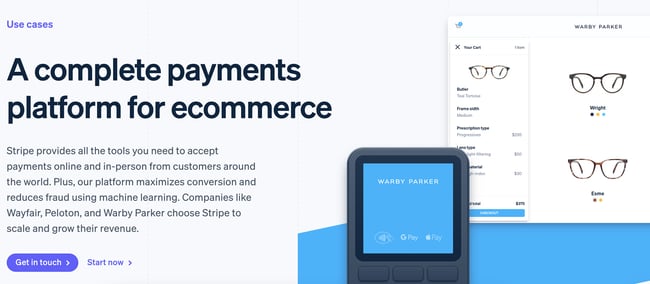
Price: 2.9% plus $0.30 per transaction.
Stripe offers a wide range of options for online businesses such as customizable checkouts as well as subscription management and recurring payment features. Stripe supports all major credit cards, mobile paying apps, wallets, and more.
3. Square
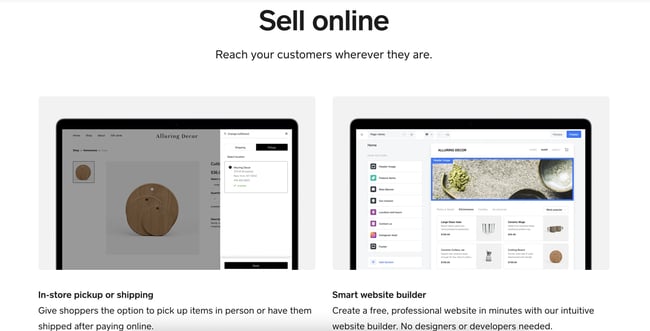
Price: 2.9% plus $0.30 per transaction.
Square entered the payment processing space by introducing a dongle that sellers could insert into a mobile phone to accept credit card transactions.
They’ve since expanded their software to cover all the major payment processing options and have included some useful tools for online businesses as well as high-street stores.
You can even create a basic website for free and integrate all of their point-of-sale (POS) solutions at the same time. They also have paid options for a custom website.
4. Google Pay
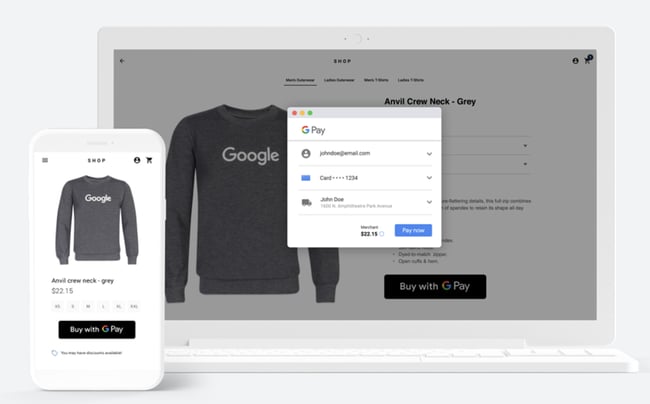
Price: Google Pay doesn’t charge any fees — merchants only pay transaction fees as usual with credit/ debit sales.
Google Pay has a payment tool for businesses, websites, and apps. Google Pay’s APIs work to create a delightful checkout and payment experience for your customers.
If you use Google Pay on your website, you’ll gain secure and easy access to hundreds of millions of cards saved to Google Accounts worldwide so customers can pay for your products safely and at the touch of a button.
5. Apple Pay
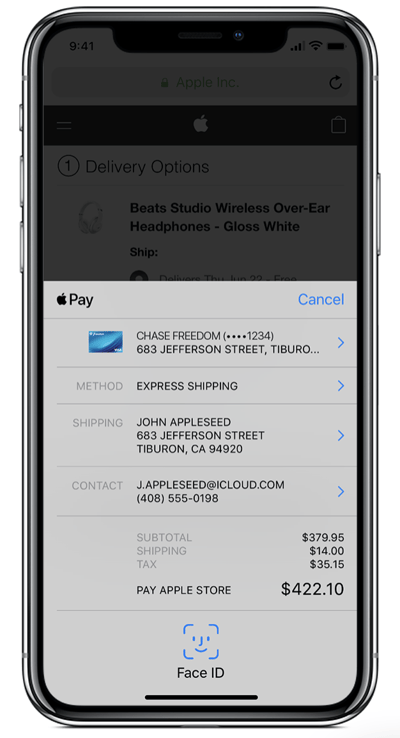
Price: Apple Pay doesn’t charge any fees — merchants only pay transaction fees as usual with credit/ debit sales.
Apple Pay can be used on websites, in stores, by app, and via Business Chat or iMessage. It allows Apple users to quickly and safely input contact, payment, and shipping information during checkout.
Rather than having your ecommerce customers look around for their credit cards, Apple Pay allows them to checkout at the click of a button within apps and websites. On a website, an Apple users will simply click “Apple Pay” as their payment option, confirm the payment with one tap (via their iPhone, Apple Watch, etc.), and they’re good to go.
6. Venmo For Business
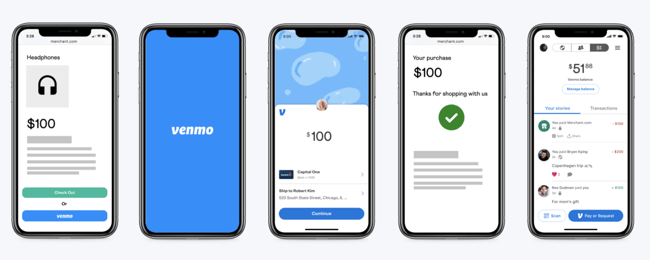
Price: 1.9% plus $0.10 of the payment.
Venmo For Business is a mobile payment software and app owned by PayPal. You can choose to allow users to pay via your mobile app or your website.
You can set up a business profile on Venmo so users can quickly find your profile on the app. And if you add Venmo to your website, it’ll appear as a payment option right next to where it’ll give customers the option to pay with PayPal.
Once a customer selects the Venmo option at checkout, they’ll be directed to their Venmo app to complete the transaction. The Venmo payment option can be added to any of the pages of your ecommerce site that would also show the option to pay with PayPal, including your product pages, shopping cart page, and checkout page.
7. Helcim
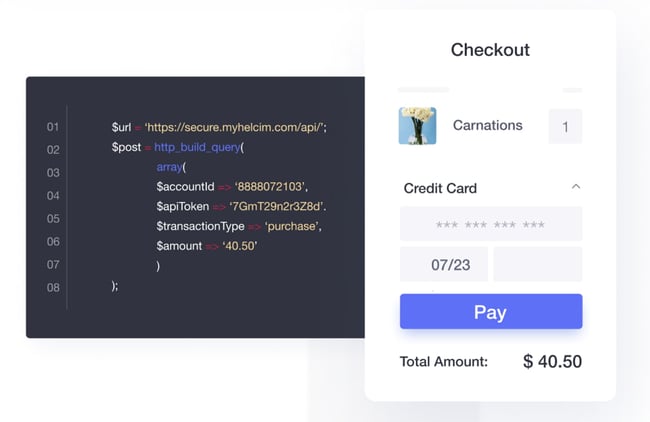
Price: 2.38% plus $0.25.
Helcim is an online payment solution for ecommerce businesses — you can choose to start an online store from scratch or add a payment solution to your current website.
The easy-to-use and secure online payment system integrates into your website, shopping cart, billing system, and/or app, thanks to Helcim’s API. In addition to in-app and via website, Helcim works over the phone, in person, and by invoice, and it integrates with your accounting tools to save you time when it comes to bookkeeping.
Next, let’s cover the steps involved in receiving payments online.
1. Create a secure online payment gateway.
There are a couple of ways you can approach creating a secure online payment gateway. You can hire an outside developer or use your website development team to create a bespoke gateway. Or, you can use third-party software.
Setting up a secure gateway is essential. You’re also putting automated processes in place, which will save time on manual processing, especially as you scale your business and handle more transactions.
The more payment methods you make available within your payment portal, the wider the audience, and the easier it’ll be for your customers to send you money.
2. Facilitate credit and debit card payments.
Although it may change as mobile payments become more prevalent, using debit/ credit cards is still the most popular way people pay for products and services online.
You can easily facilitate accepting card payments through established payment providers such as PayPal or Stripe. These will accept the most-used credit cards worldwide — Visa, MasterCard, and American Express.
3. Set up recurring billing.
If you offer subscription plans or ongoing monthly services, the most efficient and reliable way to invoice and receive payments is via recurring billing.
Most of the major payment processing software also includes recurring billing features. For example, Growth Marketing Pro built an SEO tool that charges subscribers on a monthly basis and they used Stripe to set this up.
Sites like Paysimple also offer a suite of tools to set up custom, automated recurring billing if you already have a payment processing system in place.
Using automation is essential. It removes most human error and the stress of keeping track of invoicing and payments.
Your customers can commit to recurring payments with just a few clicks, and you won’t have to worry about manually managing your customer base.
4. Accept mobile payments.
These days, people are often more likely to have their phones on hand than debit cards — plus, mobile payment apps are more convenient than ever.
For instance, Apple Pay has quickly become one of the most popular mobile payment systems in the United States. With an estimated 43.9 million users, you’d miss out if you didn’t accept Apple Pay.
Google Pay, Venmo, and PayPal also have mobile apps with a decent market share.
5. Use email invoicing.
Email invoicing is a proactive way to request payments. You can share a payment form through email or add a link redirecting the recipient to a payment portal.
However, there are a couple of issues with this method: Email isn’t the most reliable form of communication, and customers can have trust issues making payments via email.
Expect a failure rate, but it’s a vital part of payment processing for a lot of businesses.
6. Accept electronic checks (eChecks).
To accept eChecks for payment, you need a form where the user can input their information, which you can see using payment processing software.
It’s basically a way to pay by check online. It’s a quicker and more reliable way than sending a paper check through the post, so offering this to your customers will make the process run smoother.
7. Accept cryptocurrency payments.
If you’re okay with handling cryptocurrencies, it’s a way you can extend your reach to a broader online audience.
Sites like Bitpay provide all the tools you need to accept crypto payments online, send invoices, request payments, and receive money on the go-through apps.
Because they’re a decentralized exchange, cryptocurrencies offer some unique benefits for businesses. You can accept payments from anywhere in the world without incurring currency exchange fees or bank handling fees. There’s also a reduced risk of fraud.
Start Accepting Payments Online for Free
No matter which payment processing software you choose, the most important part is making it easy for the customer to pay. And the more ways they can pay, the more likely your customers will follow through on a purchase.
Editor’s note: This post was originally published in April 2020 and has been updated for comprehensiveness.

30 Popular Job Boards That Will Help You Hire The Most Qualified Candidates
As a recruiter, your job isn’t limited to simply finding the best candidates. You also have to promote these roles on job boards and convince applicants to join your company.

In other words, you’re not just a recruiter — you’re also a marketer and a salesperson. But, how do you know which job boards will help you find the most qualified applications for your specific position? Read on to find out.
Table of Contents:
- What is the best job search engine?
- Best Job Boards
- Best Job Boards for Hiring College Students
- Best Job Boards for Hiring Freelancers
- Best Job Boards for Hiring Remote and Hybrid Workers
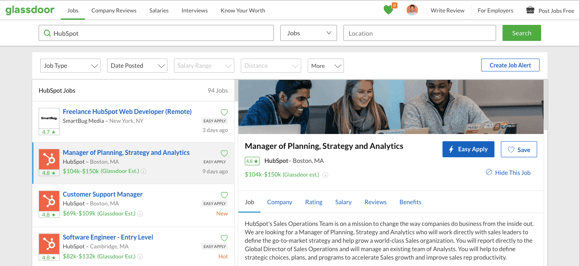
1. Glassdoor
Key Features:
- A large pool of potential candidates (55M+ per month)
- List your jobs and include detailed descriptions of preferred skills and qualifications.
- Review resumes, send messages to candidates, and schedule interviews to begin recruitment.
- Create an employer brand profile to help candidates learn more about your business and culture.
- You can pay to feature jobs for more visibility.
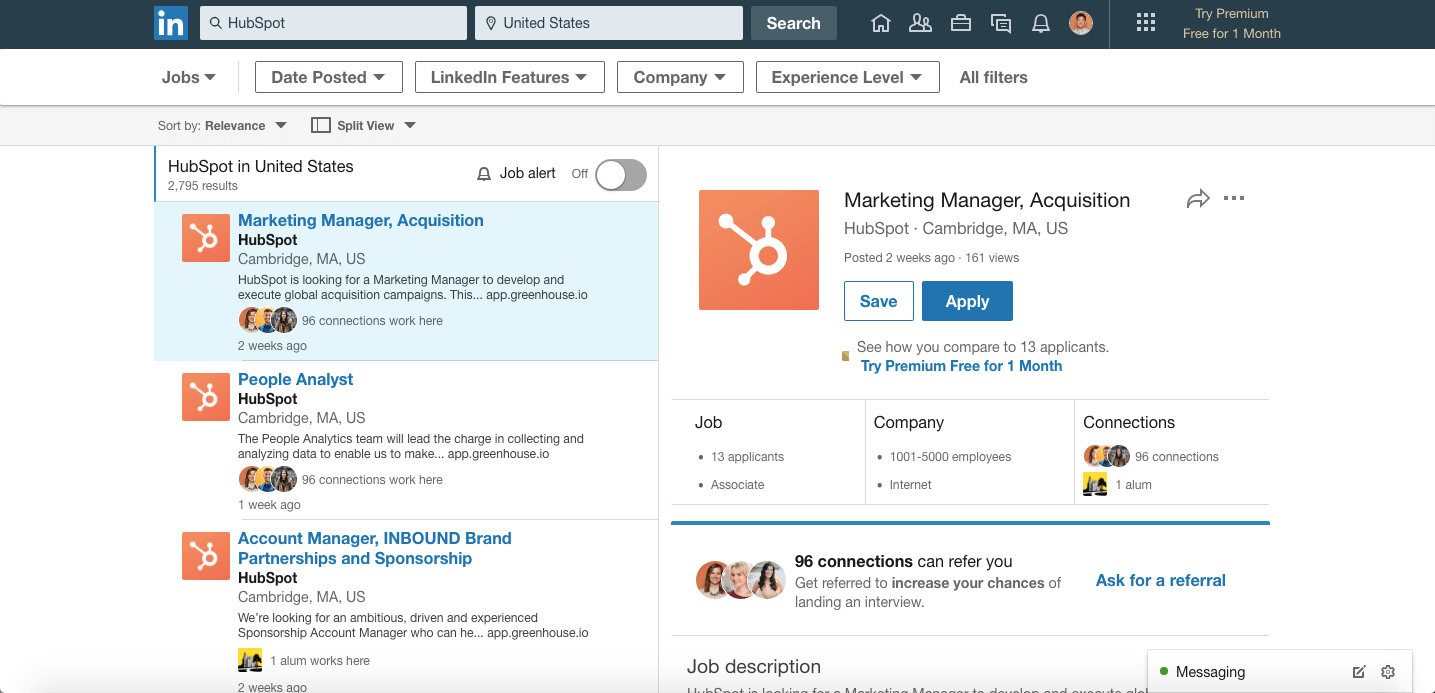
2. LinkedIn Jobs
Price: Contact for pricing.
Key Features:
- A network of over 700 million professionals.
- Your job listings are matched with the most qualified professionals who have noted in their profiles to be open to work and looking for new roles.
- A rating system helps you prioritize who you want to interview.
- Advanced filtering options help you search for candidates with your preferred qualifications, and you can send them a message via InMail.
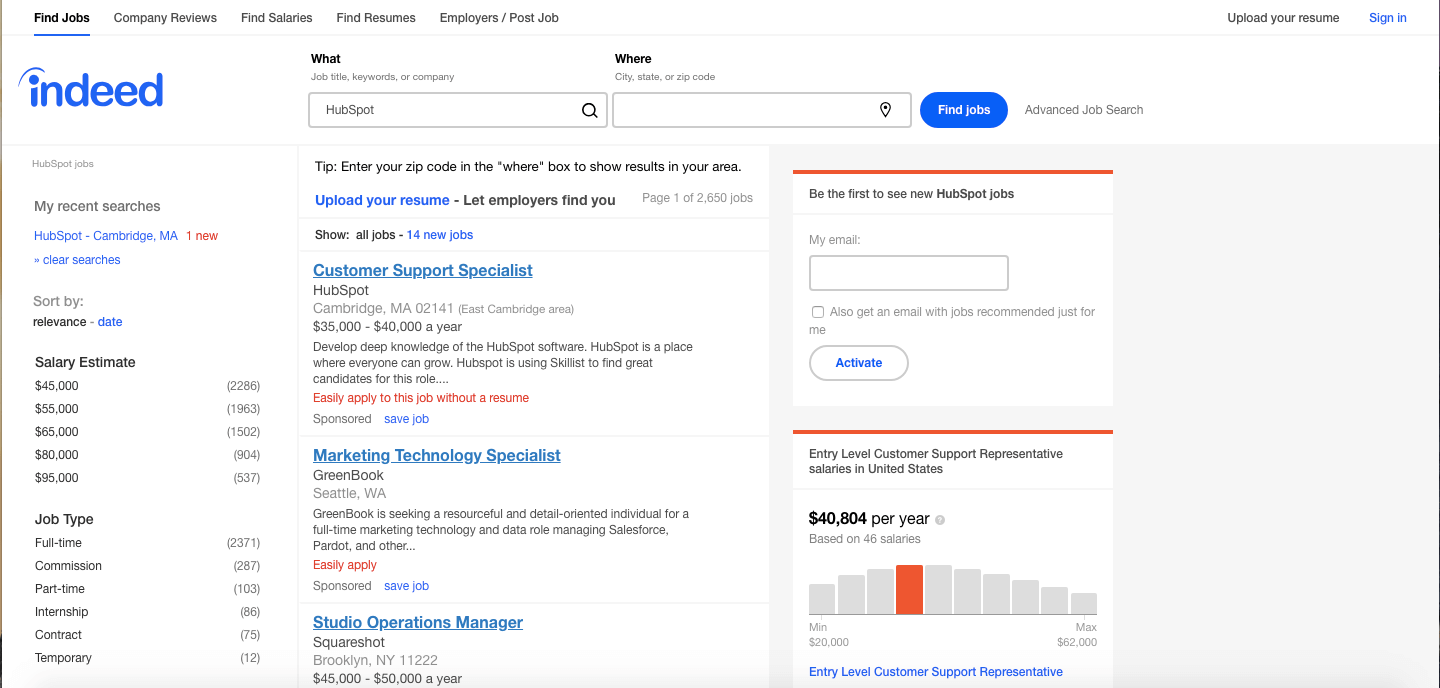
3. Indeed
Key Features:
- 75.4 million users — a large pool of candidates.
- Get matched with best-fit candidates that meet your job specifications.
- Sort candidates to move forward and schedule and conduct interviews within the platform.
- Manage all your job postings for different roles and locations in one dashboard.
- Create a custom company page to build brand identity and help candidates learn more about your company culture.
- Pay for applications that meet your criteria, but you can reject unwanted applications before being charged.
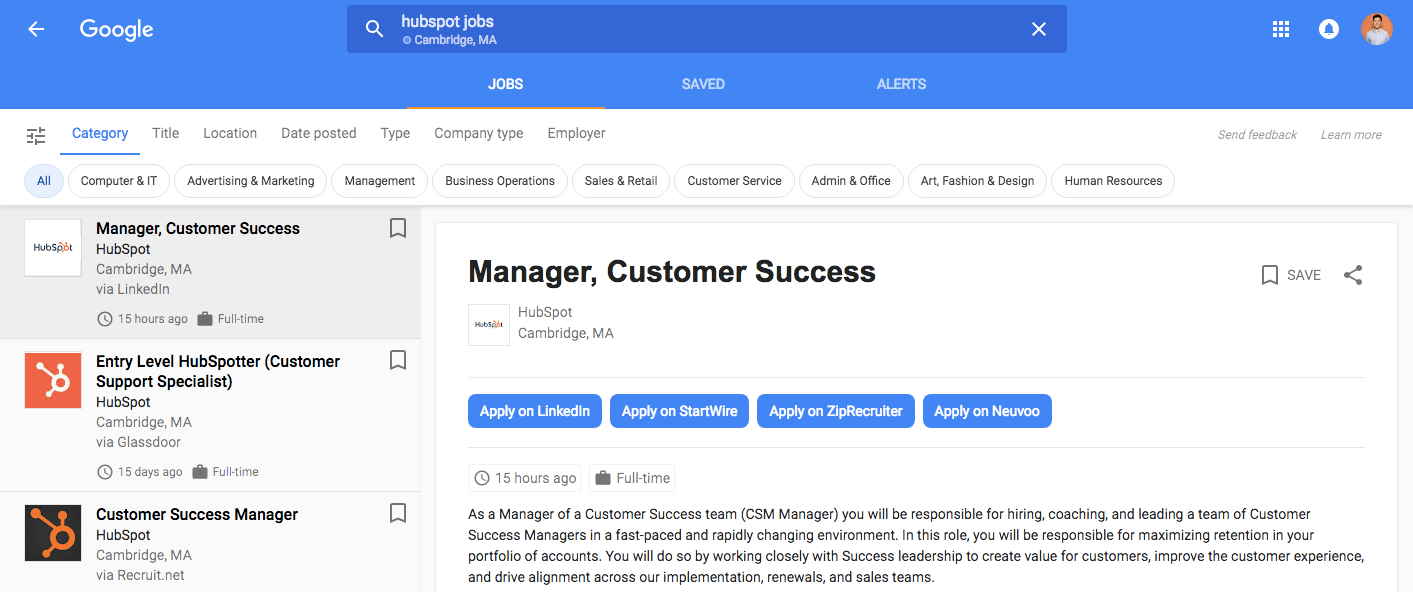
4. Google Job Search
Price: Free
Key Features:
- Aggregates job postings from company websites and career pages to share with millions of job seekers.
- Millions of job seekers search for open roles on Google every day.
- Using job post structured data on your career pages ensures your listings are ready to be picked up by Google.
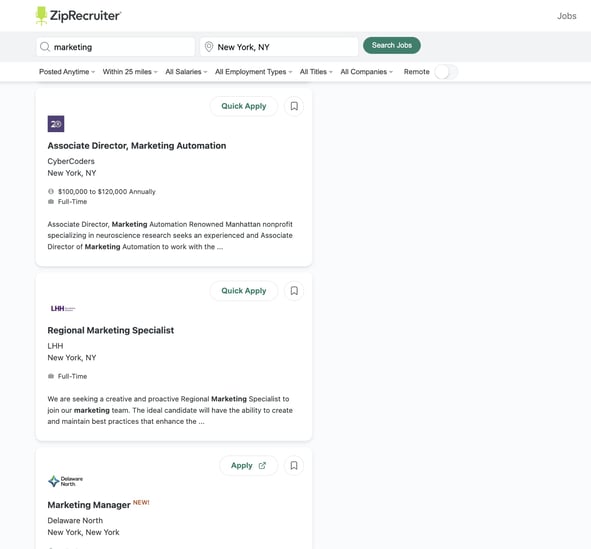
5. ZipRecruiter
Price: Contact for pricing.
Key Features:
- Create and list your jobs that are then sent to 100+ job sites.
- Matching technology invites the most qualified candidates to apply to your positions.
- Manage and rate applications by their qualifications.
- Ten million candidates reached each week.
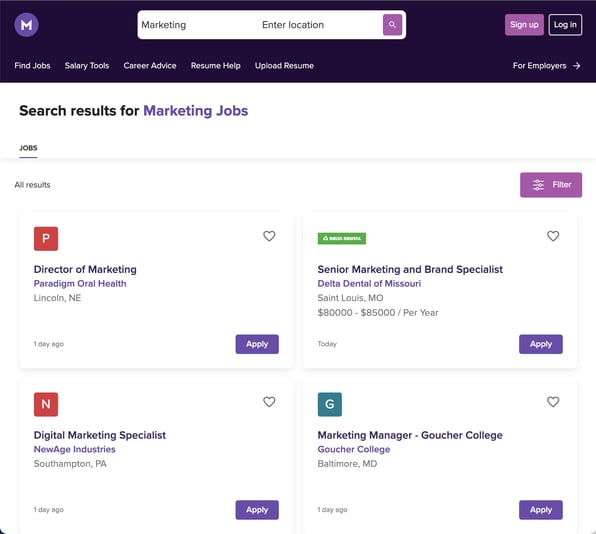
6. Monster
Price: 4-day trial, then $649/mo
Key Features:
- SearchMonster analyzes your job requirements, finds resumes, and ranks and scores qualified candidates based on your specifications.
- Instant notifications when a candidate matches your criteria.
- Jobs are distributed across the monster network, email, and partner sites and reach millions of global visitors per month.
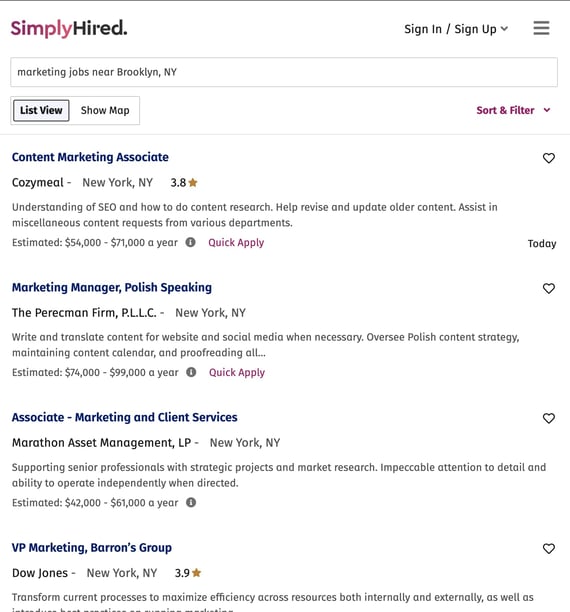
7. SimplyHired
Price: $4.99 to move forward with a candidate
Key Features:
- Post unlimited jobs for free and only pay when you move forward with a candidate.
- Candidates answer screening questions to help you learn more about them outside of their resumes.
- Easily review applications, cover letters, and resumes, and obtain contact information from your preferred candidates when you’re ready to move forward.
- Additional tools for hiring and onboarding.
- Jobs are distributed across partner sites for visibility.
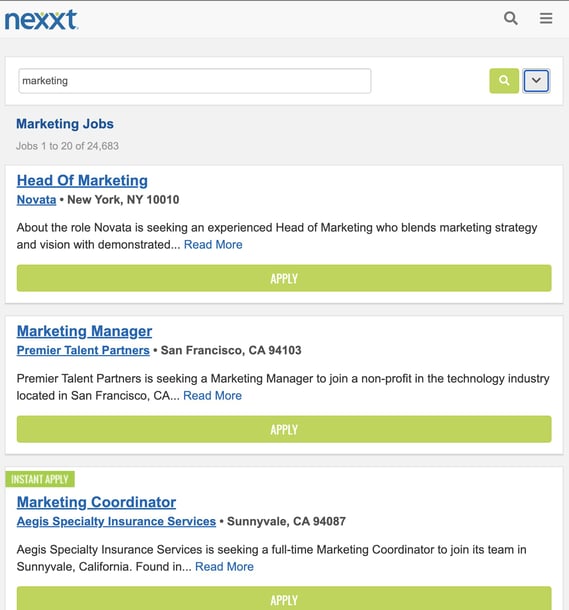
8. Nexxt
Price: $199-400/mo
Key Features:
- Standard job listing option.
- Unique job slot listing model can be continuously updated as your hiring needs change.
- Search for candidates with intelligent filters to focus your results on those with your preferred skills.
- Text2Hire helps instantly connect and communicate with candidates via text.
- Programmatic advertising increases your listings’ exposure in display ads on high-traffic channels like Spotify.
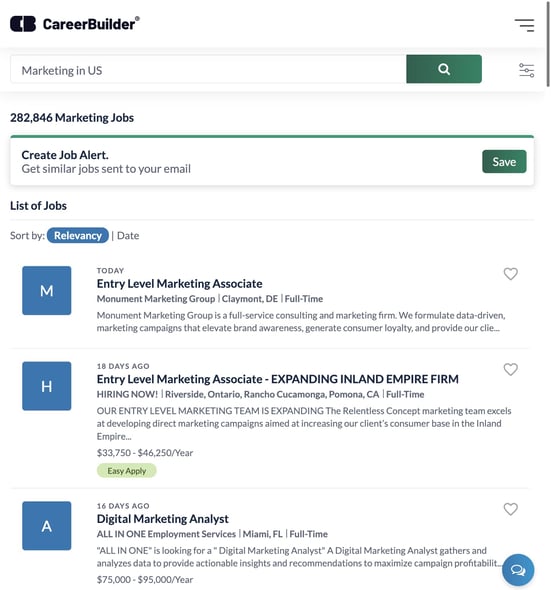
9. CareerBuilder
Price: $299 – $599/mo
Key Features:
- Keywords from your listings are used to browse resumes and match you with candidates with your target skillsets.
- AI tools send your jobs to targeted candidates, and you can receive up to 25 matches per day, per job.
- Can conduct resume and profile searches and create custom lists for candidate management.
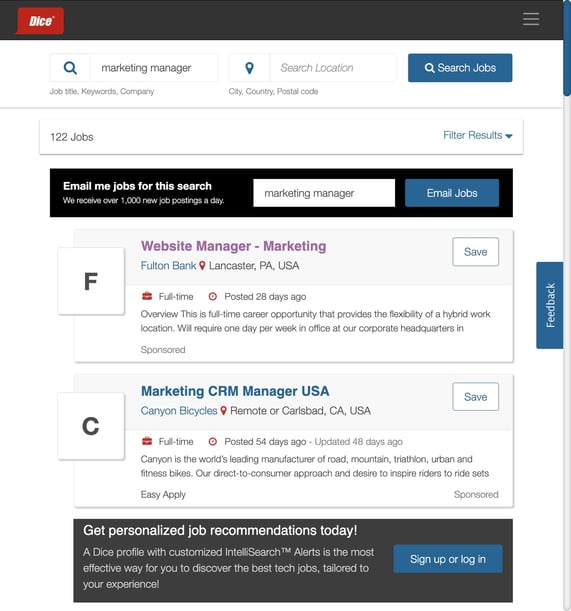
10. Dice.com
Price: $495
Key Features:
- Built for sourcing technology professionals.
- Dice Match Score rates candidates based on their relevance and qualifications for the jobs you list.
- Preview resumes and prioritize preferred candidates based on their qualifications.
- Download and share applications with everyone involved in your hiring process for team-wide involvement.
- Jobs are cross-posted to partner sites for job amplification.
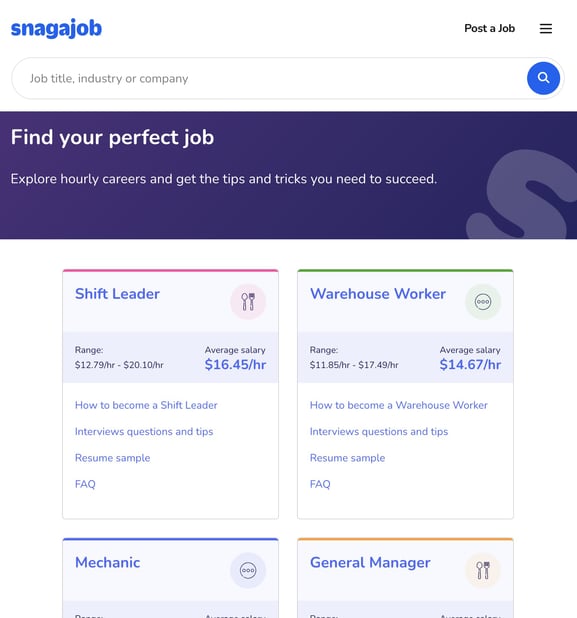
11. Snagajob
Price: Starts at $89/mo
Key Features:
- Find qualified candidates for hourly jobs and shift work.
- Listings include relevant filters for location and level of expertise.
- Track applications, monitor candidates, and schedule interviews within the platform.
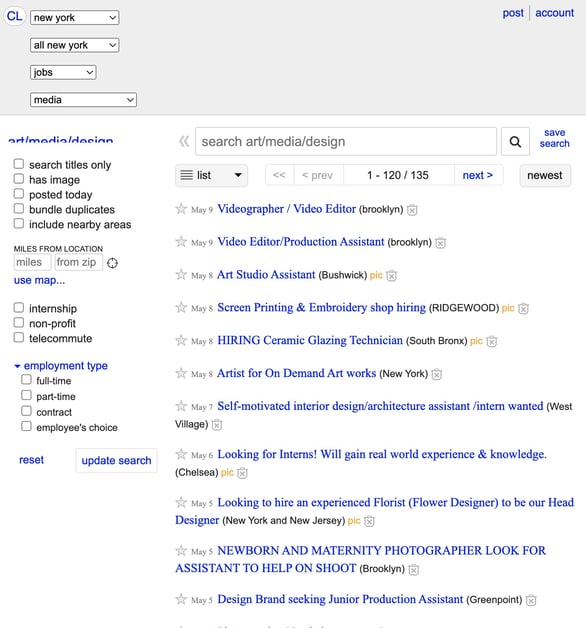
12. Craigslist
Price: Varies by location.
Key Features:
- Find local talent and freelancers.
- Create a listing explaining what you’re searching for and include detailed information to help candidates determine if they’re qualified.
- Invite candidates to reach out to you on your preferred channel.
- Job seekers can upload resumes, so you can browse through them and find talent without posting a job.
13. Mashable
Price: $259-399
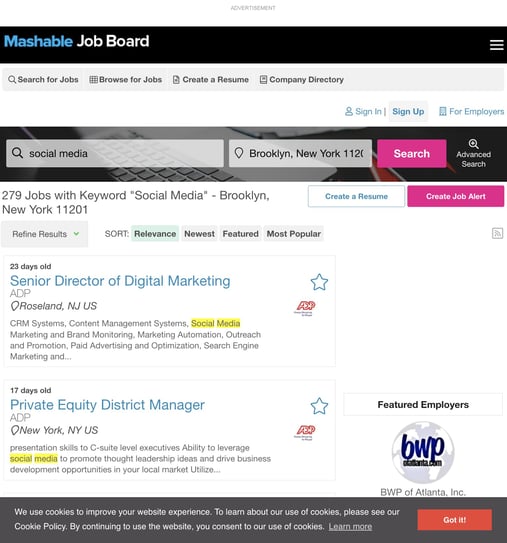
Key Features:
- Write a detailed job description with skills and qualifications candidates need to possess.
- Candidates that match your criteria receive email alerts for your jobs.
- Save candidates to view later, and track the process once someone applies.
- Jobs are distributed to partner job boards.
14. Talent.com
Price: Contact for pricing.
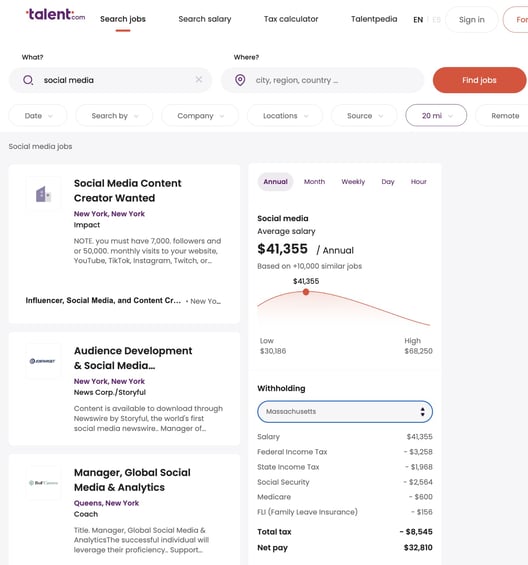
Key Features:
- Easily note the expertise and skills you’re looking for.
- Track applications and preview qualifications before paying.
- Opted-in candidates that match your qualifications receive email alerts for your jobs.
- Additional advertising options help you promote your listings.
- Network of job partners for maximum visibility.
15. Lensa
Price: Contact for pricing.
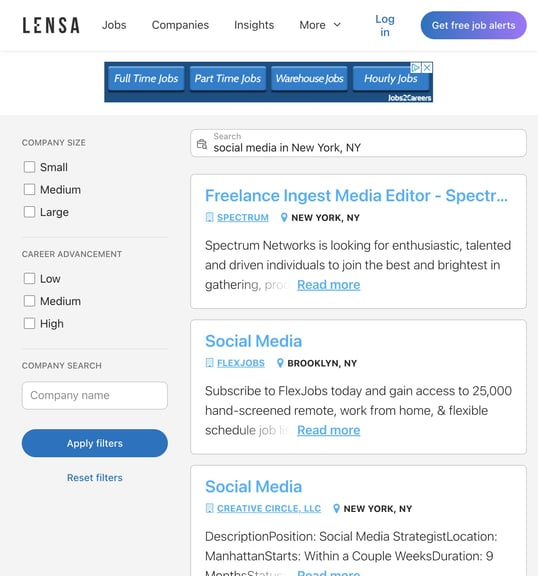
Key Features:
- InstaMatch uses your job description skills and qualifications to browse the resumes of job seekers to find matches.
- Candidates are invited to apply by qualifications, so you’re not searching through hundreds of applications for the right fight.
- It can automatically pull jobs from your career page.
16. Ladders
Price: Free – $499/mo, Enterprise pricing available
Key Features:
- Reach candidates in the U.S. and Canada
- Sort candidates based on specific criteria, like industry, location, experience, and desired salary.
- Algorithms share your listings with the most qualified professionals.
- Pre-answered interview questions help you learn more about candidates before conducting an interview.
17. TheJobNetwork
Price: $249-599, upgrades available.
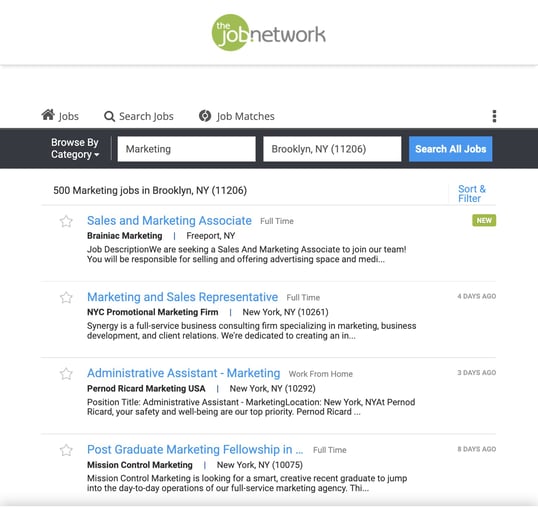
Key Features:
- Your detailed job descriptions help screen, grade, and rank candidates based on your specifications and resumes.
- Listings last 30 days and include priority candidate search and management tools.
- Jobs are distributed to other national, industry, and relevant local sites to put your listings in front of the most candidates.
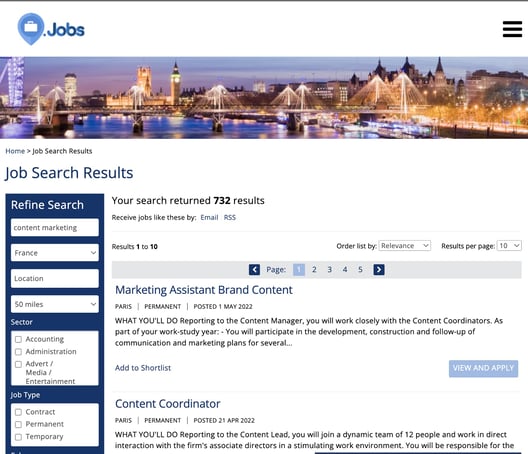
18. Find.Jobs
Price: Free trial, then $149-596/mo
Key Features:
- Searchable candidate database with resumes and CVs to browse and connect with qualified talent.
- JobBoard.com network for more visibility.
- Can pay for featured placement or banner ads to gain more exposure.
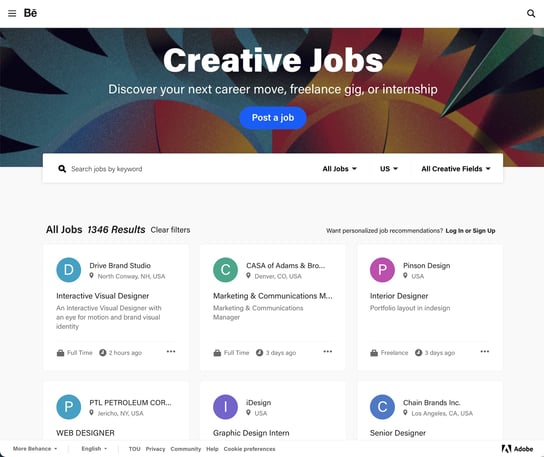
19. Behance
Price: Contact for pricing.
Key Features:
- Partnership with Adobe Talent helps you hire within the creative community.
- Custom candidate recommendations based on your desired qualifications.
- Save candidates to share with anyone involved in your hiring process.
- Average public posts receive 150 applications.
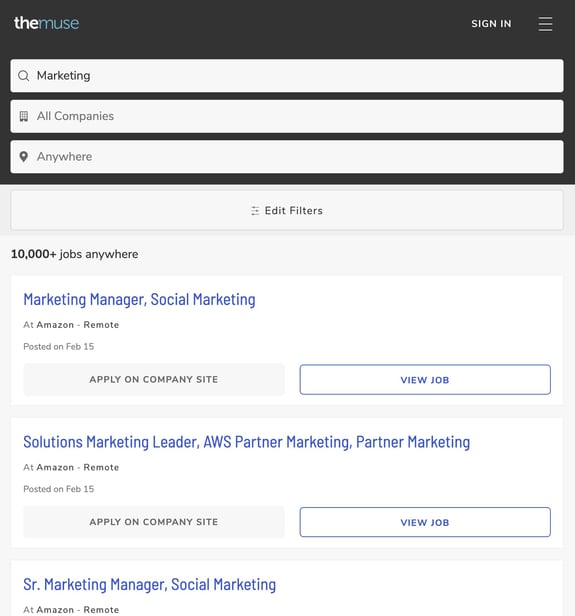
20. The Muse
Price: Contact for pricing.
Key Features:
- Build a unique company profile to help applications learn more about your business, culture, and what it’s like to work for you.
- Your company story is shared on career pages and relevant recruiting channels for exposure to top talent.
- National reach of 7M+ monthly users.
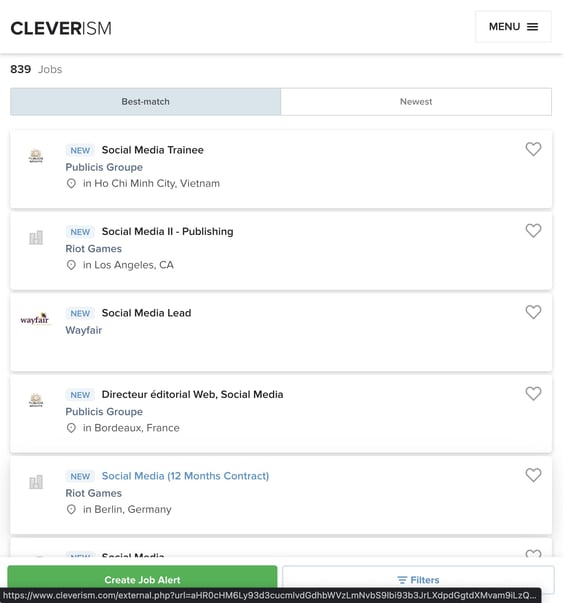
21. Cleverism
Price: Contact for pricing.
Key Features:
- Branded company profile to share information about your business’ culture for candidates to learn more before applying.
- 400k+ potential reach, and you can use advanced search filters for your preferred skills and requirements to find the best-fit talent.
22. CareerBliss
Price: Contact for pricing.
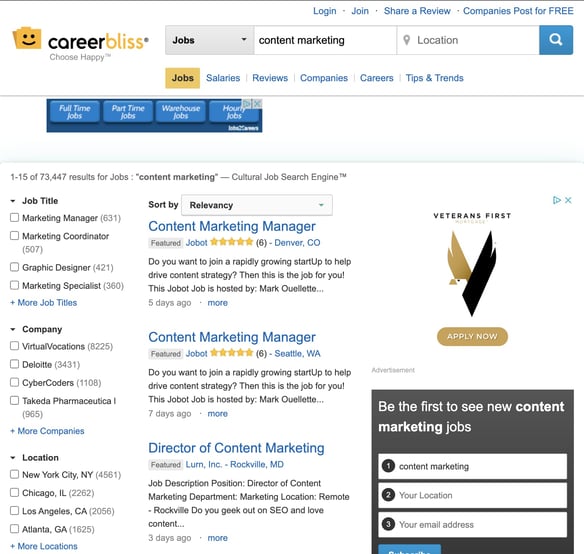
Key Features:
- Post and distribute your jobs to 100+ listing sites for exposure.
- You can invite top talent to apply to your positions.
- Company profile helps interested candidates learn more about what you offer.
- Application management tools for the entire recruitment process.
- Small business and enterprise solutions.
23. Getwork
Price: Contact for pricing.
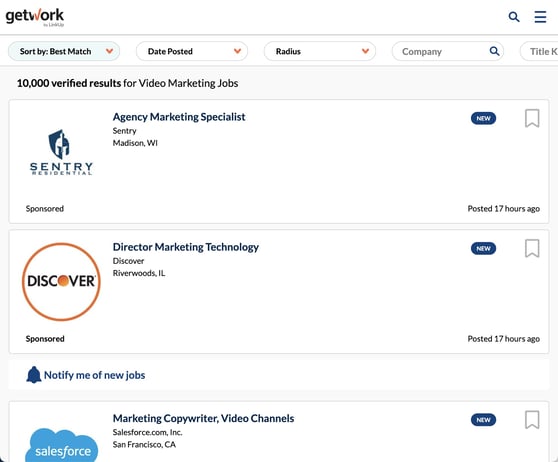
Key Features:
- Custom search features help you filter by location, persona, and behavior.
- Targeted email campaigns for segmented audiences that meet your preferred criteria.
- Pay-per-click recruitment campaigns.
Best Job Boards for Hiring College Students
24. Handshake
Price: Contact for pricing.
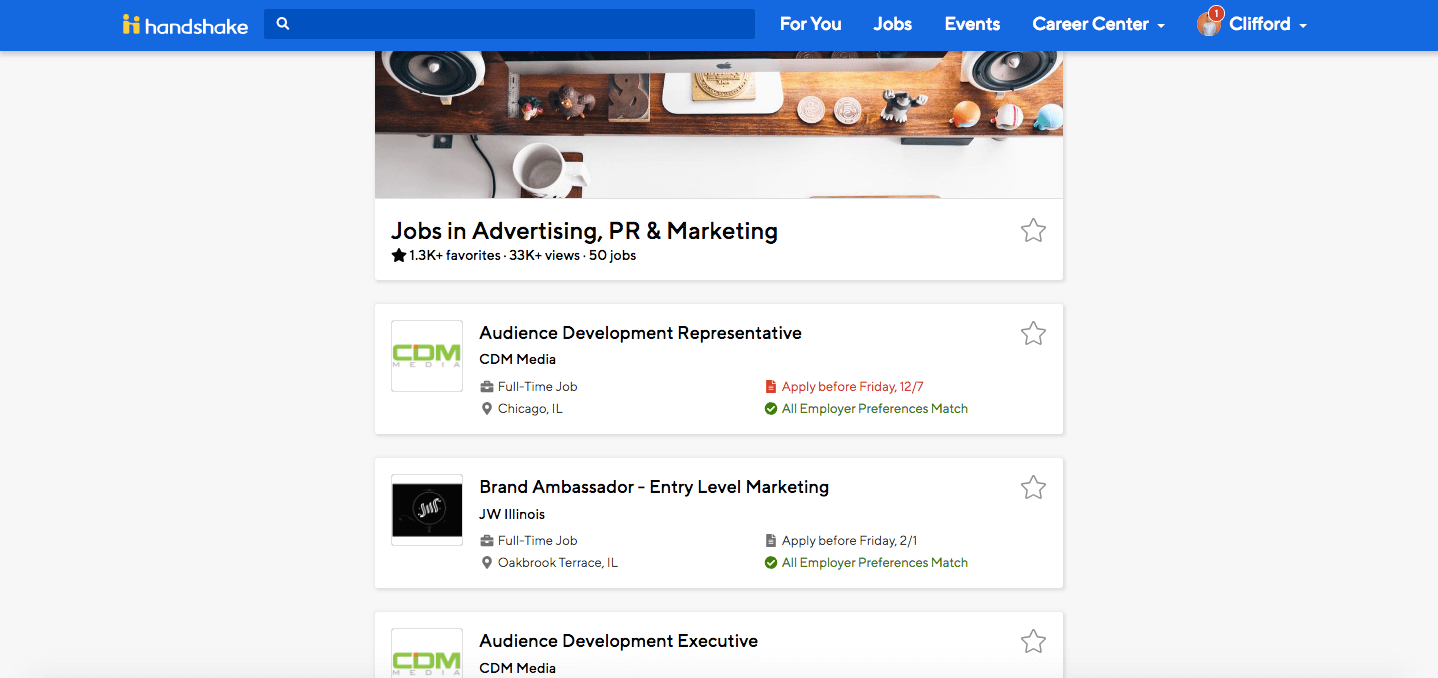
Key Features:
- Post jobs and pinpoint your best-fit candidates with advanced filtering for factors like location, institution, and skillset.
- Intelligent messaging to communicate with candidates directly on the platform and schedule interviews.
- With 9M+ active users and 1,400 educational partners, you have the potential to connect with exactly who you’re looking for.
- Integrations with Glassdoor help you create a company profile page.
25. CollegeRecruiter
Price: Contact for pricing.
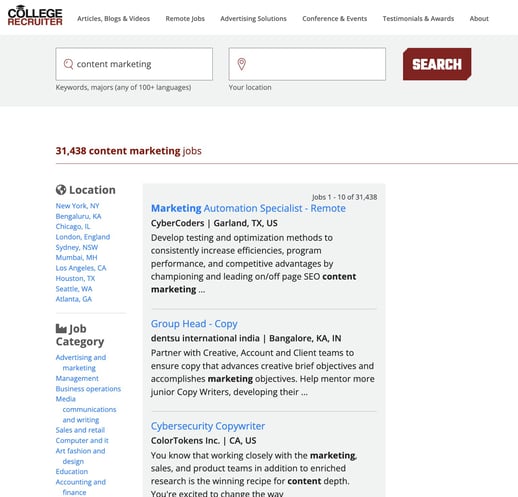
Key Features:
- Reach recent or soon-to-be college graduates.
- Advanced search filters to find candidates by school, area of study, preferred field, and graduation year.
- Promote job listings as ads on different channels for maximum visibility, like email, mobile banner ads, and display ads.
Best Job Boards for Hiring Freelancers
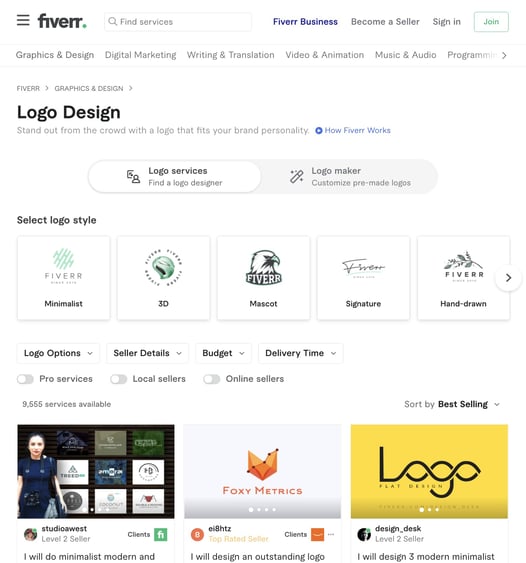
26. Fiverr
Price: You set the price for your gig.
Key Features:
- Create a gig and select from 200 different job categories (from voice-over artists to website designers) to share your job with the right freelancers.
- Ability to browse through listings of qualified freelancers.
- Fiverr seller badges provide quality assurance.
- Only pay once you approve the freelancer you want to work with.
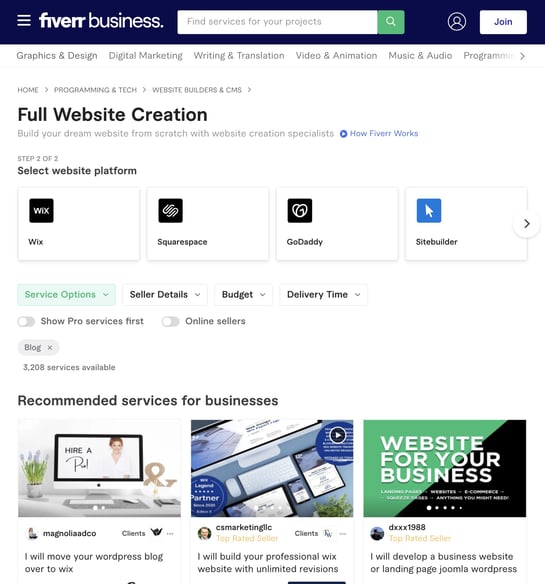
27. Fiverr Business
Key Features:
- Browse a catalog of verified and pre-vetted talent that can help you meet your business needs.
- Fiverr Business Success managers match you with the best talent for your team’s needs.
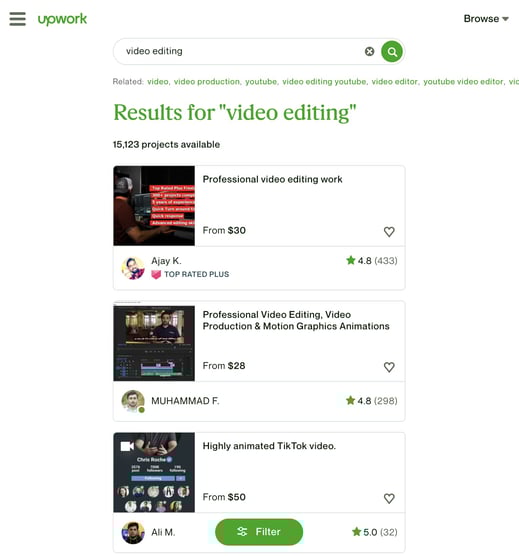
28. Upwork
Price: Contact for pricing.
Key Features:
- Find freelancers across various industries and professions that are pre-qualified to meet your needs.
- Create detailed job descriptions that dictate the level of expertise you’re looking for.
- Select whether you want your listings shared with registered Upwork users or general members.
- Send invites to specific people if you find a standout freelance candidate you like.
Best Job Boards for Hiring Remote and Hybrid Workers
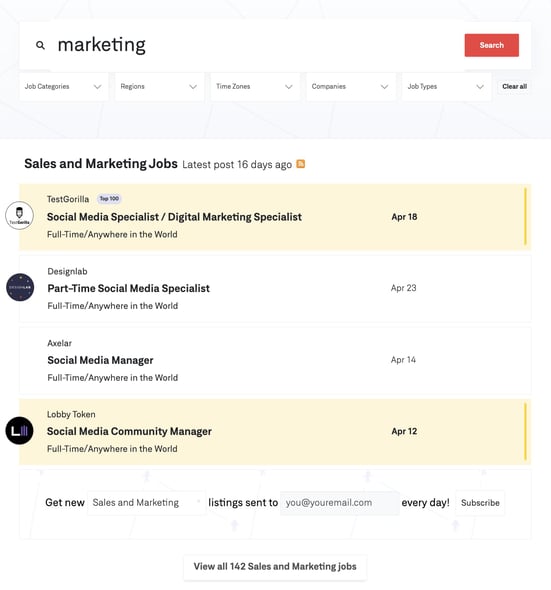
29. We Work Remotely
Price: $299 – $448/mo, with optional upgrades
Key Features:
- Job listings are live for 30 days and contain the job details, required skills, and location restrictions.
- Intelligent candidate filtering manually sorts through applications and prioritizes those that match your qualifications.
- Jobs are posted on popular partner job boards and relevant independent niche sites.
- Additional upgrades for advertising help increase visibility.
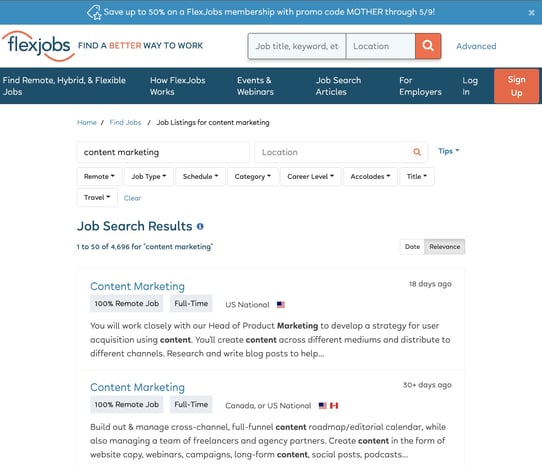
30. FlexJobs
Price: $399/mo
Key Features:
- The flat rate includes unlimited job posts and resume searches, helping you discover relevant candidates.
- Import a job from your preferred ATS.
- Create an employer profile to build your brand and help candidates learn about your culture.
- Membership upgrades for further job promotions for visibility.
What is the best job search engine?
The best job search engine depends entirely on your business needs and the role you’re hiring for. So, for example, if you’re looking to hire business professionals, you may want to focus on LinkedIn, but LinkedIn won’t make sense if you’re looking to fill a single shift.
Many of the larger search engines aggregate job listings from other sites, but you can still stand out by optimizing your job descriptions with key skills or paying for featured spots.
Your final decision is ultimately dependent on what you’re looking for. But, when making your decision make sure to weigh key factors like:
- Price
- The type of job you’re hiring for (i.e, creative position, hourly work, technology professional)
- The features you want your platform to have (like custom candidate sorting).
Choosing the right job board is crucial for faster and better hiring.
There are hundreds of job boards on the internet, but not all of them are created equal. Fortunately, most job seekers trust and have found rewarding roles on these five popular job boards, giving you a deep pool of talent to recruit and hire from.

Keep track of the songs you want to listen to later with ‘MusicBox’
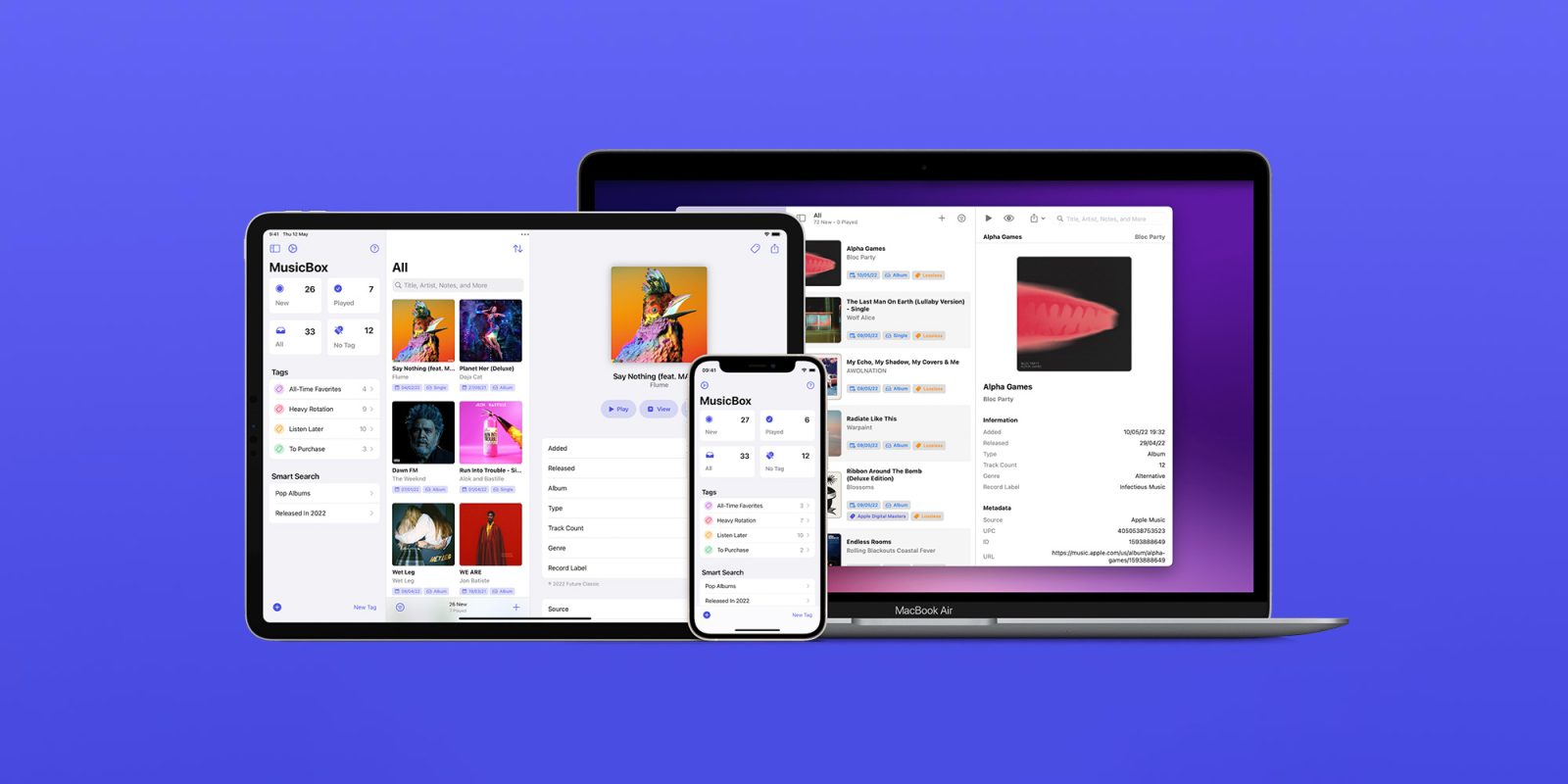
iOS has many ways to help you discover new songs, including the built-in Shazam integration. But what about when you can’t play that song at that moment for some reason? With the new MusicBox app, users can finally keep track of songs they want to listen to later.
The post Keep track of the songs you want to listen to later with ‘MusicBox’ appeared first on 9to5Mac.
How to Create an Email Newsletter People Actually Read
You’re sitting around a conference room, trying to figure out how to best engage your leads and customers, sell more products, or just “stay top-of-mind” for your target audience, and someone decides there’s a solution that can solve all of those problems at once: an email newsletter!
Suddenly you’re “volunteered” to do it. And you’ve got to make sure that open and clickthrough rates don’t dip. Oh, and the first one needs to go out tomorrow.

I’ve been in that situation before, and I was terrified. Even though e-newsletters are one of the most common types of emails to send, they are actually some of the hardest to do right. In this post, we’ll teach you how to create an email newsletter your customers will enjoy reading.
Want to ace your new email newsletter project, or rejuvenate an old one? Beloware 10 things you need to make sure to do. And if you’re looking for some inspiration, here are some awesome email newsletter examplesyou can check out.
1. Review successful newsletter examples.
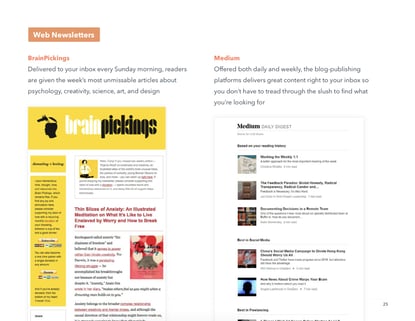
Where do you start? Before you get started creating an email newsletter, look at some examples in (and outside of) your industry. We’ve compiled a list of dozens of our favorite email newsletters into an ultimate lookbook.
2. Evaluate whether or not you need an email newsletter.
I know it can be kind of scary pushing back on your boss about a project you’ve been handed, but if an email newsletter isn’t right for your marketing, you shouldn’t waste your time working on one.
To figure out what you need to do, first do some research. In your industry, are there successful email newsletters that people like to subscribe to? What’s in them? With the resources you have available to you — budget, time, and internal support — could you be successful?
Then, re-examine your business’ goals. Are they trying to increase the number of leads? Better qualify leads to speak with salespeople? Close more deals? Retain more customers?
If your industry isn’t really interested in email newsletters, or if your goals don’t line up with what a newsletter could accomplish, your time might be better spent creating something else like alead nurturing email workflowor content for your blog.
So gather some data, create a plan-of-action (either for a successful newsletter or another activity), and go chat with your superior. Even if you disagree with his or her vision in doing an email newsletter, your boss will be glad you came prepared with a plan for success.
Okay, let’s say you’ve found that you should do an email newsletter. What next?
3. Figure out what kind of newsletter you want to send.
One of the biggest problems with email newsletters is that they’re often cluttered and unfocused because they’re supporting every aspect of your business. Product news goes right next to PR stories, blog posts go next to a random event week … it’s kind of a mess. Email — whether it’s a newsletter or not — needs one common thread to hold it together.
Oneway to help reduce the randomness of an email newsletter is by keeping it to one very specific topic. So instead of it being about your company in general, maybe it’s dedicated to one vertical.
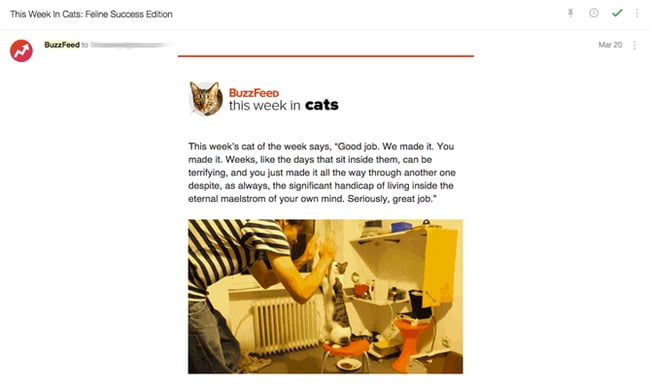
An example of a great, topic-based email newsletter is BuzzFeed’s “This Week in Cats” newsletter. (Don’t judge … I recently adopted a kitten and I’ve become full-on obsessed with cats.) Though BuzzFeed writes about pretty much everything under the sun, they offer up one specific newsletter for people who love reading about cats.Because the niche is aligned with a specific interest, the articles have an opportunity to get way more engagement than they would in a newsletter featuring content from all over the website.
4. Balance your newsletter content to be 90% educational and 10% promotional.
Chances are, your email newsletter subscribers don’t wantto hear about your products and services 100% of the time. While they may love you and want to hear from you, there’s only so much shillingyou can do before they tune out.
Case in point: I have a thing for shoes, and I especially love this one shoe site. I willingly opted into the company’s email list, but it now sends me emails 2-3 times a day to buy, buy, buy … and when I see its sender name pop up in my inbox, I want to scream. If they sent me educational content — about the latest styles of shoes, or how to pair certain styles with certain outfits — I might be more inclined to buy from them, or at least start opening their emails again.
Don’t be that company. In your email newsletters, get rid of the self-promotion (most of the time) and focus on sending your subscribers educational, relevant, timely information. Unless youactuallyhave an exciting, big piece of news about your product, service, or company, leave out the promotional parts.
5. Set expectations on your “Subscribe” page.
Once you’ve figured out your newsletter’s focus and content balance, make sure you’re properly communicating about them on your subscribe landing page.
Get specific. Tell potential subscribers exactly what will be in the newsletter as well as how often they should expect to hear from you. Take a page out of SmartBrief’s book: On the subscribe landing page, it says what’ll be in the newsletterandgives potential subscribers a preview link. Check it out:
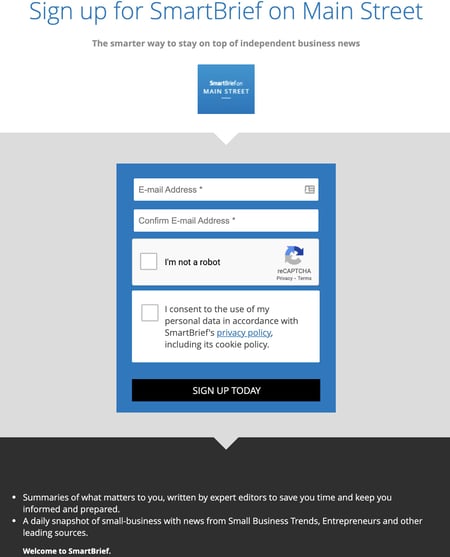
As a subscriber, wouldn’t that be awesome? You’d go in with open eyes knowing exactly who you’ll be receiving email from, what they’ll be sending you, and how often they’ll be sending it. As a marketer, having this information up front will help diminish your unsubscribe and spam rates as well.
6. Get creative with email subject lines.
Even if your subscribers sign up for your emails, there’s no guarantee that they will open your emails once they get them in their inbox. Many marketers try increasing familiarity with their subscribers by keeping the subject line the same each day, week, or month that they send it.
But let’s face it, those subject lines get old for subscribers — and fast. Why? Because there’s no incentive from the subject line to click on that specific email right this instant. A better approach would be to try to have a different, creative, engaging subject line for each newsletter you send.
One company that does this really well is Thrillist. Here’s a collection of email newsletters I’ve received recently:
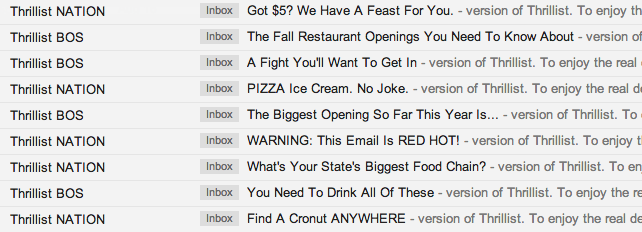
I’ve opened every single one of these because of the company’s subject lines. Even though I know that these emails are coming into my inbox every morning, the subject lines are what entice me to click.
If you need help with your email newsletter subject lines, check out this recipe.

7. Pick one primary call-to-action.
Okay, part of what makes a newsletter a newsletter is that you’re featuring multiple pieces of content with multiple calls-to-action (CTAs). But, that doesn’t mean you should let those CTAs share equal prominence.
Instead, let there be one head honcho CTA — just one main thing that you would like your subscribers to do. The rest of the CTAs should be “in-case-you-have-time” options. Whether it’s simply to click through to see a blog post or just to forward the email to a friend, make it super simple for your subscribers to know what you want them to do.
Check out the Scott’s Cheap Flights email newsletter below, which was promoting their newest travel deals. It’s got a photo to draw you in and chock-full of information … but it’s also pretty obvious what they want you to do: purchase the premium plan for exclusive travel deals. By placing this CTA above all the other pieces of information, Scott’s Cheap Flights increases the chance that their email recipients will click on it.

8. Keep design and copy minimal.
Like we said before, a newsletter can easily feel cluttered because of its nature. The trick for email marketers to look uncluttered revolves around two things: concise copy and enough white space in the design.
Concise copy is key — because you don’t actually want to have your subscribers hang out and read your email all day. You want to send them elsewhere (your website or blog, for instance) to actually consume the whole piece of content. Concise copy gives your subscribers a taste of your content — just enough that they want to click and learn more.
White space is key in email newsletters because it helps visually alleviate the cluttered feel, and on mobile, makes it much easier for people to click the right link.
Look to Schwab’s investing insights newsletter to see how this should be done. The design is clean, with just one thumbnail next to a paragraph of text, a link to read the article, and plenty of white space. The design feels uncluttered and easy to read.

9. Make sure images have alt text.
Given that visual content is incredibly important to the rest of your marketing activities, it’d make sense that you’d want to include them in your emails … right?
Right. But email’s a little bit trickier. Most of the time, people won’t have images enabled, so you’ve got to make sure your images have one essential component: alt text. Alt text is the alternative text that appears when images aren’t loaded in an email. This is especially important if your CTAs are images — you want to make sure people are clicking even without the image enabled.
Each email marketing program is different, but here is one tutorial for adding alt text to email.
10. Make it easy for people to unsubscribe.
This seems kinda counter-intuitive, but it’s key if you want to maintain an active, engaged subscriber list. Don’t use weird language like “Alter your communication with us.” Don’t hide an unsubscribe button behind an image without alt text. Besides keeping your list healthy, having a clear unsubscribe process will help ensure your email isn’t marked SPAM before it hits the rest of your list’s inbox.
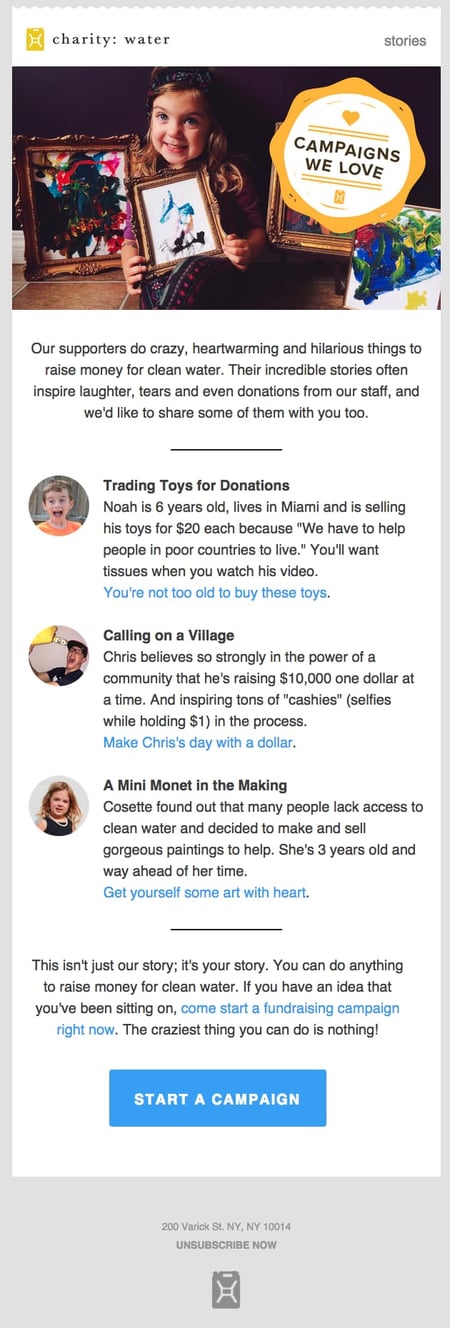
Take a look at charity: water’s newsletter below to see how to do this right. The link to unsubscribe is bolded and capitalized, making it really easy for you to take action on it (if you wanted). No footer hunting required to uncover where the heck you can change your email settings.
11. Test, test, test.
I know I just listed out nine things you should do to make sure you’re doing email newsletters right, but you’ve also got to find out what works for your company and your list. Just like different cultures of people prefer different things, different groups of email subscribers prefer different things.
So use these email newsletter best practices as a jumping off point … and then experiment to find your secret sauce. Here are a few things you can try:
Short, Funny Subject Lines
All of your subject lines should be on the short side. (They work better that way.) But have you ever tried infusing a little humor into your copy? It could put a smile on your recipients’ faces — and potentially improve your open and clickthrough rates. Below’s a really funny subject line example from MasterClass:


This clever F-word subject line was used to introduce their new line of fashion-centered classes with Anna Wintour.
CTA Copy & Design
Maybe your readers like loud, bright colors on your CTA — or maybe drab, bland ones are the way to go. Maybe they prefer really fun, excitable, action-oriented copy — or maybe a simple “click here” works. Definitely test out your CTA language and copy to see what resonates.
As a good example to follow, Etsy has multiple CTAs in its email newsletter, but the way that they use color and copy makes them seem very natural and easy-to-read.


No Images
Most of the emails featured in this post have lots of gorgeous, compelling images … but that doesn’t mean you need them in your emails.Try stripping away images in favor of seriously well-written copy.
Mobile Version
More and more people are surfing the web and checking their emails on mobile devices, so you should make sure that whatever design you work with is both visually pleasing and functional. This will ensure that your mobile email is engaging to both desktop and mobile users.
Want to learn more about this? Here’s a detailed guide that walks you through how to optimize your email for mobile devices.
Sender Name
Another way to get a subscriber’s attention is to send an email with a name they recognize — whether it’s their own or a brand leader they’d recognize.
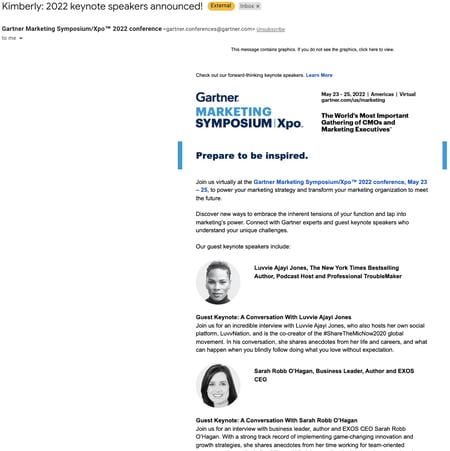
This email from Gartner used the subscriber’s first name in the subject line to grab their attention. If you have a company mascot that’s widely recognized, you could test sending a newsletter from them.
Want to start designing but aren’t sure how? Use a template! Check out our long list of effective email templates that are free or very affordable.
Now that you know how to put together your newsletter, it’s time to brainstorm what content your readers will enjoy. What you choose to offer will depend on your business, industry, and target audience.
If your website already has a blog, consider sending out a content roundup of your best articles and videos. Educational content is also valuable. Sending a how-to guide in your newsletter can help establish your brand as the authority on a given topic and provide readers with content that is most relevant to their interests.
Get your subscriber list engaged with contests or scour your social media channels for user-generated content featuring your brand. Customer promotion adds social proof to your brand, making it more trustworthy.
Email Newsletter Best Practices
Once you’re ready to put together your newsletter, be sure to follow the above steps. Here are some best practices to guide your efforts, regardless of your newsletter’s formatting:
1. Keep things short and sweet.
Don’t overwhelm people with too much text or imagery. Level things out. Even if you choose a photo-less newsletter, keep your message quick and to the point so the email cuts to the chase and grabs attention the whole time.
2. Make your content valuable.
No one wants to open an email with a bunch of advertisements in it. So, include gems of wisdom, tips, and helpful blog posts along the way so the reader feels like they’re actually learning something. This will make the subscription feel much more valuable to them.
3. Always test your emails.
It’s embarrassing when a link doesn’t work or a design aspect looks wonky. So be sure to send test emails to yourself and a colleague who can give you helpful feedback. Check them on both a computer and a smartphone inbox so you can confirm that both the mobile and desktop designs look good.
4. Don’t skip A/B testing.
Aside from testing emails to make sure the design looks as it should and all links work, you’ll want to experiment with A/B testing. Performing A/B tests will help you determine the types of emails your audience prefers. You can also use A/B testing to see what works or doesn’t when it comes to CTA placement and other details.
5. Make it mobile-friendly.
With more users checking their email on mobile devices, it’s imperative that your newsletter is mobile-friendly. Nearly 60% of emails are opened on mobile devices. One way to ensure your emails display properly is by using a responsive email template. HubSpot’s drag and drop email templates are responsive by default and a great option if looking for an easy solution.
6. Monitor email frequency.
Another aspect to pay attention to is how many emails you’re sending and how often. Sending too many emails can cause recipients to unsubscribe.
Send an Email Newsletter Your Subscribers Will Love
Email newsletters are something we’re all familiar with, yet it can be challenging to create a successful one for your own brand. Use the examples above for inspiration and create an email newsletter that delights your subscribers.
Editor’s Note: This article was originally published in September 2019 and has been updated for comprehensiveness.

Apple sets new deadline for in-app account deletion requirement

Apple last year announced a change in the App Store guidelines that would require all apps that support account creation to offer an in-app option for letting users delete their accounts. However, this requirement has been delayed twice. Now the company has set a new deadline for developers to update their apps according to the new guideline.
The post Apple sets new deadline for in-app account deletion requirement appeared first on 9to5Mac.
iPhone SOS credited with saving woman during assault attempt – Here’s how to set it up

*Content Warning: This article contains information that may not be suitable for all readers.
One woman credits iPhone SOS with saving her life after a terrifying night at the beach, according to Wavy.
The post iPhone SOS credited with saving woman during assault attempt – Here’s how to set it up appeared first on 9to5Mac.
Download WWDC 2022 inspired wallpapers for your iPhone right here

With just two weeks to go until WWDC 2022, Apple on Tuesday confirmed the schedule for its annual developer conference with an opening keynote on June 6. The company also shared a cool image to promote the event, and now you can use it as wallpaper on your iPhone.
The post Download WWDC 2022 inspired wallpapers for your iPhone right here appeared first on 9to5Mac.
You can now subscribe to your favorite LIVE TikTok creators

TikTok LIVE lets creators and fans connect in real-time. You can now subscribe to your favorite LIVE TikTok creators in a Twitch-like format. LIVE Subscription is a monthly subscription that allows users to support their favorite LIVE TikTok creators.
The post You can now subscribe to your favorite LIVE TikTok creators appeared first on 9to5Mac.
Apple giving AirPods Pro to Swift Challenge winners along with WWDC22 outerwear and pin set

We’re just under two weeks until Apple kicks off WWDC22, and today the company has been notifying winners of its annual Swift Student Challenge. Along with the traditional prizes for winners we’ve seen in recent years, Apple is including a pair of AirPods Pro as an extra gift.
The post Apple giving AirPods Pro to Swift Challenge winners along with WWDC22 outerwear and pin set appeared first on 9to5Mac.
Apple to expand its Cork campus and hire up to 1,300 new employees

Apple has announced today that it will build a new office building on its campus in Cork, Ireland. As the tech giant expands its workforce in the country, this new building can accommodate up to 1,300 staff.
The post Apple to expand its Cork campus and hire up to 1,300 new employees appeared first on 9to5Mac.
Apple confirms full WWDC 2022 schedule and keynote for June 6: ‘Swiftly approaching’

We’re just two weeks from the start of Apple’s annual Worldwide Developers Conference. Ahead of June 6, Apple has now confirmed the schedule for WWDC 2022, with full details on the opening day keynote, the Apple Design Awards, and the State of the Union. Head below for the details.
The post Apple confirms full WWDC 2022 schedule and keynote for June 6: ‘Swiftly approaching’ appeared first on 9to5Mac.
Deals: Nike Pride Apple Watch Bands $37, Samsung iMac-inspired M8 Monitor $100 off, more

A series of first discounts headline all of today’s best deals, with the official Nike Sport Loop Pride Apple Watch Band hitting $37. That’s alongside $100 off Samsung’s new iMac-inspired M8 Smart AirPlay 2 Monitor and Brydge MAX+ iPad keyboards for $120. Hit the jump for all that and more in the latest 9to5Toys Lunch Break.
The post Deals: Nike Pride Apple Watch Bands $37, Samsung iMac-inspired M8 Monitor $100 off, more appeared first on 9to5Mac.
Deals: Nike Pride Apple Watch Bands $37, Samsung iMac-inspired M8 Monitor $100 off, more
A series of first discounts headline all of today’s best deals, with the official Nike Sport Loop Pride Apple Watch Band hitting $37. That’s alongside $100 off Samsung’s new iMac-inspired M8 Smart AirPlay 2 Monitor and Brydge MAX+ iPad keyboards for $120. Hit the jump for all that and more in the latest 9to5Toys Lunch Break.
The post Deals: Nike Pride Apple Watch Bands $37, Samsung iMac-inspired M8 Monitor $100 off, more appeared first on 9to5Mac.
Apple Music now available as built-in audio player on Waze
Apple Music is the latest streaming service to partner with Waze. With that, users can seamlessly integrate both services, so they can keep their eyes on the road while enjoying the ride.
The post Apple Music now available as built-in audio player on Waze appeared first on 9to5Mac.
Google Maps Street View gets historical browsing on Android & iOS, Studio tool, compact camera

To mark the 15th anniversary of Street View, Google Maps is rolling out a slew of features including the ability to view historical data on Android and iOS, as well as a new camera system.
The post Google Maps Street View gets historical browsing on Android & iOS, Studio tool, compact camera appeared first on 9to5Mac.
Titanium iPhone, iPad, and MacBook prospect again raised by Apple patent

We last year saw an Apple patent showing that the company was exploring the possibility of creating a titanium iPhone, iPad, and MacBook – and another one has been granted today.
Specifically, today’s patent grant describes a process for creating a textured surface on titanium, and one of Apple’s illustrations depicts an Apple Watch, iPhone, iPad, and MacBook …
The post Titanium iPhone, iPad, and MacBook prospect again raised by Apple patent appeared first on 9to5Mac.
iPod resale value has depreciated 89% on average, 3% boost since brand discontinued

Apple announced the end of the iPod earlier this month, ending an iconic 20 years. Consumers have been buying into nostalgia, either by purchasing iPods for collectibles or selling their old music players. SellCell has taken a look at how the iPod has depreciated over the last two decades and where resale values stand today.
The post iPod resale value has depreciated 89% on average, 3% boost since brand discontinued appeared first on 9to5Mac.
AirPods Pro 2: Design, features, release date, price, more

Apple is set to release AirPods Pro 2 in 2022. This new generation is rumored to bring a new design, innovative Lossless support, as well as fitness sensors for the first time. Head below as we round up the latest rumors about this product.
The post AirPods Pro 2: Design, features, release date, price, more appeared first on 9to5Mac.