
Welcome to My Blog
How to Use VLOOKUP in Excel 2013 and 2016 [Video Tutorial Included]
This post is an excerpt from the video series 4 Essential Microsoft Excel Skills Every Marketer Should Learn. If you want to become a master of the almighty spreadsheet, watch the full video series here.
I know, I know … “VLOOKUP function” sounds like the geekiest, most complicated thing ever.
But trust me: as was the case with pivot tables, Microsoft Excel’s VLOOKUP function is easier to use than you think. What’s more, it is incredibly powerful, and is definitely something you want to have in your arsenal of analytical weapons.
So, what does VLOOKUP do, exactly? Here’s the simple explanation: The VLOOKUP function searches for a specific value in your data, and once it identifies that value, it can find — and display — some other piece of information that’s associated with that value.
VLOOKUP Example
You could use the VLOOKUP formula to transfer revenue data from a separate spreadsheet and match it with the appropriate customer based on a common identifier like customer ID or email address. In this example, VLOOKUP enables you to easily see revenue by customer without searching, copying, and pasting for each individual cell.
In practical terms, this means you can take the revenue data from your second spreadsheet and integrate it with the customer data in your first spreadsheet in order to reveal the bigger picture about your business’s performance.
Below, you’ll see a five-step guide to performing this VLOOKUP example, followed by a video tutorial for using VLOOKUP to organize a list of blog posts.
How Does VLOOKUP Work?
The secret to how VLOOKUP works? Unique identifiers.
A unique identifier is a piece of information that both of your data sources share, and — as its name implies — it is unique (i.e. the identifier is only associated with one record in your database). Unique identifiers include product codes, stock keeping units (SKUs), and customer contacts.
Since HubSpot and most CRMs both use email addresses to uniquely identify the contacts in their databases, HubSpot customers can use “email address” as their unique identifier to execute a VLOOKUP.
Steps to Using VLOOKUP in Excel
Take the VLOOKUP example above. Let’s say you’re looking through your HubSpot data and are checking out which of your site pages your contacts have viewed. You’re also paying attention to whether or not any of those contacts have converted into customers.
Then it hits you: In addition to knowing which of those contacts have closed, you want to know how much MRR (monthly recurring revenue) each of them brings in. That way, you can tie your revenue back to your site pages and do some analysis to see which pages are having the biggest impact on your bottom line.
There’s only one problem: Your MRR data lives in your CRM. And while you could manually look up each and every contact in your CRM to find their MRR, and then manually match those values to their corresponding contacts in your HubSpot data, the whole process would be ridiculously time-consuming and impractical.
That’s where the VLOOKUP function comes in. For your reference, here’s what a VLOOKUP function looks like:
VLOOKUP(lookup_value , table_array , col_index_num , range_lookup)
In the steps below, we’ll assign the right value to each of these components, using customer names as our unique identifier to find the MRR of each customer.
Step 1: Identify a Column of Cells You’d Like to Fill With New Data
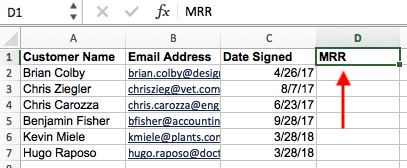
If this data is coming from a pivot table made in Excel, copy the data into a new spreadsheet so the VLOOKUP function can freely read this data.
Then, label a column next to the cells you want more information on with a proper title in the top cell, such as “MRR,” for monthly recurring revenue. This new column is where the data you’re fetching will go.
Step 2: Select ‘Function’ (Fx) > VLOOKUP and Enter Your Starting Cell
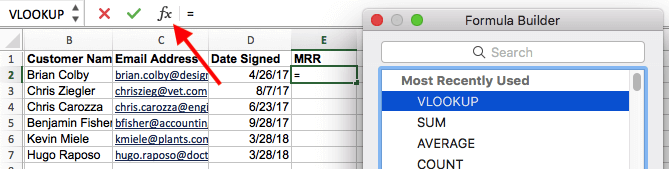
To the left of the text bar above your spreadsheet, you’ll see a small function icon that looks like a script “Fx.” Click on the first empty cell beneath your column title and then click this function icon.
Select “VLOOKUP” from the list of options that appears, and then re-click the cell you’ve highlighted and enter the cell you’re trying to find a match for. In this case, it’s A2. You’ll start migrating your new data into E2, since this cell represents the MRR of the customer name listed in A2.
Step 3: Enter the Table Array and Column Number You’re Searching Through
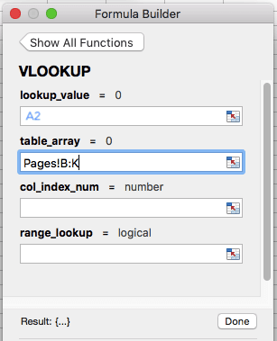
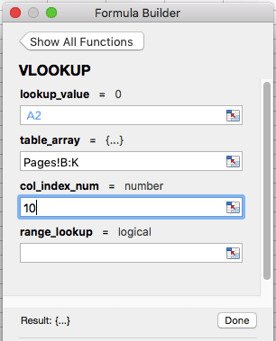
Then, next to the “table array” field, enter the range of cells you’d like to search and the sheet where these cells are located. The VLOOKUP form will help you fetch the correct page.
Beneath this field, you’ll also enter the “column index number” of the table array you’re searching through. For example, if you’re focusing on columns B through K (notated “B:K” when entered in the “table array” field), but the specific values you want are in column K, you’ll enter “10” in the “column index number” field, since column K is the 10th column from the left.
Step 4: Enter Your Range Lookup
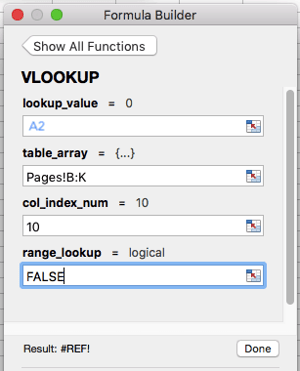
In contexts like monthly revenue, you want to find exact matches from the table you’re searching through. To do this, enter ‘FALSE’ in the “range lookup” field. This tells Excel you want to find only the exact revenue associated with each sales contact.
Step 5: Click ‘Done’ (or ‘Enter’) and Fill Your New Column
In order to officially bring in the values you want into your new column from Step 1, click “Done” (or “Enter,” depending on your version of Excel) after filling the “range lookup” field. This will populate your first cell. You might take this opportunity to look in the other spreadsheet to make sure this was the correct value.
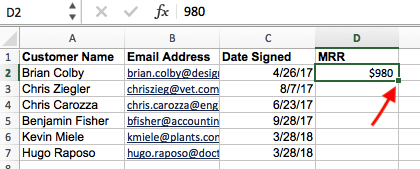
If so, populate the rest of the new column with each subsequent value by clicking the first filled cell, then clicking the tiny square that appears on the bottom-right corner of this cell. Done! All your values should appear.
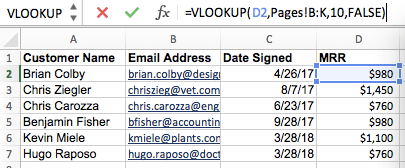
Alright, enough explanation: let’s see another example of the VLOOKUP in action!
In the video below, we’re taking the pivot table we made in video #2, pasting the values into a new sheet, and using it as an example report. We then use the VLOOKUP function to match blog post authors (from our second data source) to their corresponding post titles. In this instance, we’re using post title as our unique identifier.
Author’s note: Keep in mind there are many different versions of Excel, so what you see in the video above might not always match up exactly with what you’ll see in your version. That’s why we encourage you to download the written instructions and demo data so you can follow along.
Download demo data | Download instructions (Mac) | Download instructions (PC)
Want to learn to do more in Excel? Download the full video series, 4 Essential Microsoft Excel Skills Every Marketer Should Learn.


Tim Cook says merging the Mac and iPad would require ‘trade offs and compromises’

Amid reports that Apple is planing to support cross-platform apps for Mac, iPhone, and iPad, a new interview with Tim Cook sheds light on the Apple CEO’s thoughts on the distinction between iPad and Mac…
Hands-on: DaVinci Resolve’s eGPU-accelerated timeline performance and exports totally crush integrated GPU results [Video]

Even though Final Cut Pro X curiously doesn’t support external GPUs yet, DaVinci Resolve is another popular NLE that already works with eGPUs on macOS. In fact, the $299 Studio edition supports multiple GPUs, which can have a noticeable effect on both timeline and render/export performance.
I’ve been super impressed with the relentlessness that Blackmagic Design, the creators behind DaVinci Resolve, has displayed while iterating on its hardware and software products. For example, DaVinci Resolve has progressed from what was primarily viewed as a colorist’s tool that you’d use and round trip back to your primary NLE, to a competent standalone NLE. The upcoming version 15, now in beta, even sports a motion graphics platform called Fusion that’s baked right in.
As I recently traversed the show floor in Las Vegas at NAB 2018, there was a noticeable buzz about DaVinci Resolve — several popular vendors specifically named-dropped Resolve in reference to its eGPU support, and noted the impressive performance gains made possible by this feature.
In this hands-on video walkthrough, I showcase using DaVinci Resolve with multiple eGPUs. As you’ll see, an eGPU can turn a MacBook Pro — a machine that’s basically unusable for editing in DaVinci Resolve on its own — into a capable editing machine. more…
How to make iPhone buttons easier to use

There are a variety of ways to utilize the Home and Side buttons on iPhones. In addition to single clicks, iOS allows users to use double- and triple-clicks. Follow along for how to make iPhone buttons easier to use.
Apple’s Environmental Responsibility Report touts improving energy efficiency, sustainability, more

Apple prides itself on being environmentally focused and is continuously working to reduce its environmental footprint. According to Apple’s 2018 Environment Responsibility Report released today, the company is focusing on climate change, resources, and safer materials.
Apple’s cloud database FoundationDB now open source

Apple has just released a new open-source project on Github. FoundationDB is described as “a distributed database designed to handle large volumes of structured data across clusters of commodity servers”. The database system is focused on performance, scalability and fault-tolerance. This means projects that use the database for their backend are faster and less expensive to maintain.
Report: Verizon takes most activations for Q1, data points to why T-Mobile and Sprint have resumed merger talks

CIRP is out today with new data on carrier activations and growth for Q1. Unsurprisingly, Verizon and AT&T took the top two spots for the most activations, but T-Mobile did gain more new customers than any other provider. Additionally, the report points why T-Mobile and Sprint have fired up merger discussions again.
Apple unveils new iPhone disassembly robot Daisy, donating to Conservation International for each recycled or traded-in device [Video]

It’s been two years since Apple introduced us to its iPhone disassembly robot Liam, and now it’s time to meet the company’s newest bot: Daisy. Apple says Daisy — who you can see in action below — offers “the most efficient way to reclaim more of the valuable materials stored in iPhone” with the robot capable to disassembling and sorting parts from up to 200 iPhones per hour.
Daisy’s introduction is accompanied with Apple adding Earth Day donations through its GiveBack program to the non-profit Conservation International. Apple’s GiveBack program lets customers return old devices to Apple Stores or Apple.com for recycling, and newer devices can even be traded in for Apple Store credit.
9to5Toys Lunch Break: Apple Watch from $149, 12-inch MacBook $780, Apple TV 4K $105, more

Keep up with the best gear and deals on the web by signing up for the 9to5Toys Newsletter. Also, be sure to check us out on: Twitter, RSS Feed, Facebook, Google+ and Safari push notifications. more…
Opinion: James Comey’s book offers interesting background on the Apple/FBI case

Yesterday I finished reading A Higher Loyalty, the book written by former FBI director James Comey.
I did manage to resist the temptation to jump ahead to the juicy bits, and my patience was rewarded: a lot of what he says about his interactions with President Trump and his administration are a lot more meaningful when placed into the context of what comes before. Especially the contrast with his relationship – or lack of it – with the Obama administration.
But it was the brief section dealing with the FBI’s infamous battle with Apple which stood out for me …
Are You Marketing Effectively Across Generational Lines? [New Data]
You’ve heard it from us before:
- “The way consumers prefer to access content has changed.”
- “We’re seeing a fundamental shift in the way we market and sell products.”
- “Buyers are no longer okay with outbound emails and cold calls. Instead, marketers need to create and deliver content that meets the consumer where they already are.”
While all of those things are true, you may want to know which preferences have changed and how to meet consumers where they already are, right?
After all, not all consumers have the same preferences. Marketing is not a one-sized-fits-all-solution.
Our HubSpot Research team knows that marketers need more information on what consumers want. But we also know that not all consumers have the same preferences. That’s why every year our Research team surveys consumers from all over the world to collect original data on content consumption preferences.
What stood out this year is this: while the average consumer preferences might show certain trends, you need to get granular with your data if you want to truly understand how different segments of consumers interact. Namely, consumers in different age groups have vastly different preferences when it comes to consuming, accessing, and discover content.
For example, millennials, an age group which roughly spans 18 to 34, aren’t just buying sneakers and gadgets anymore. Increasingly, millennials comprise a cohort of people purchasing homes, baby clothing, and B2B software. And their strong preference for video, social, and mobile-first content has implications for marketers working across an expanding array of industries.
Are you marketing effectively to different age demographics? Let’s dig in and find out.
Mobile First
For years, we’ve heard hype about mobile taking over desktop in traffic and search. But is the increase in mobile usage because everyone is using mobile more, or is it really just that certain age groups are?
Below, you can see the breakdown of device usage by age. Overall, mobile usage beats out desktop by only 5%, but when you break the data down by age group, the differences are clearer: it’s not everyone, it’s young people.

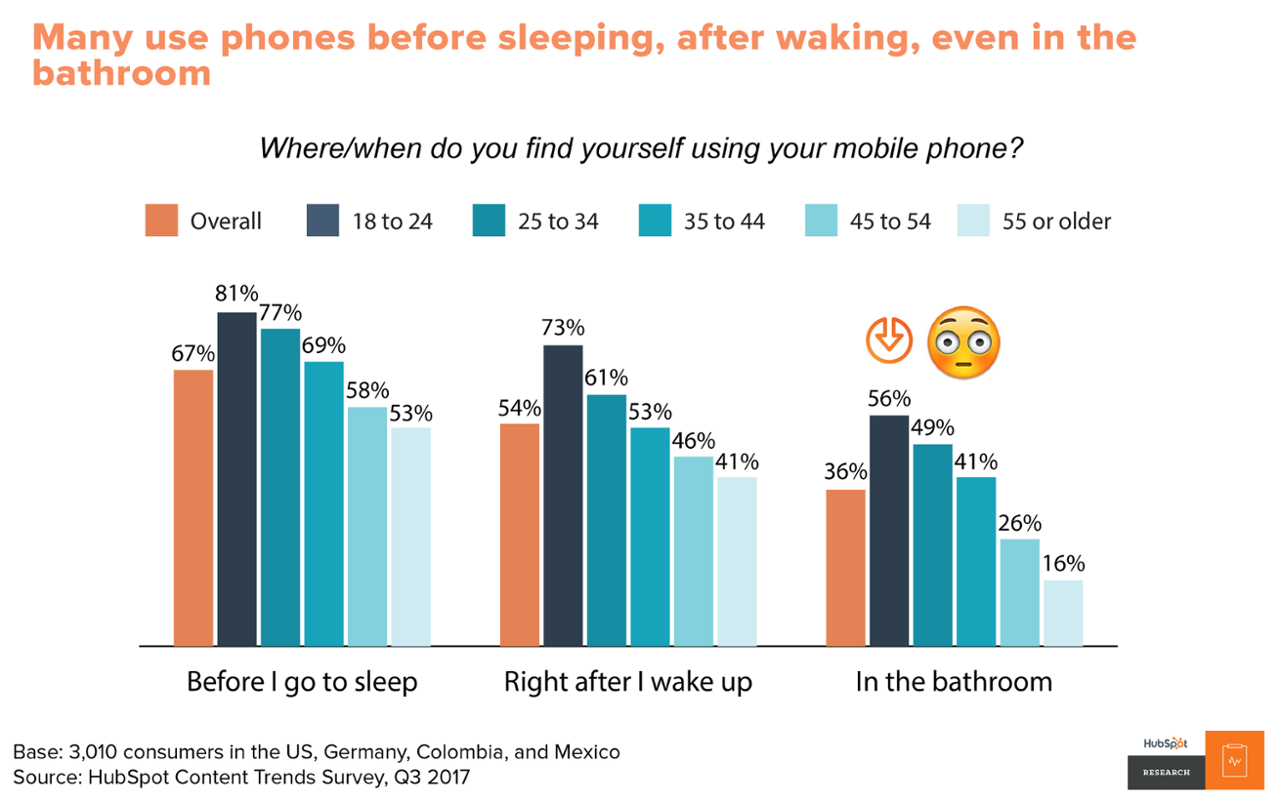
Mobile phones are an integral part of modern life. Consumers aren’t just using their phones to browse the internet when they’re commuting or on the go. Many admit they use their phones before they sleep, after they wake up, and even in the bathroom throughout the day.
Delivery and Discovery
What about accessing content? How do age groups differ in the way that they access or search for content?
Unsurprisingly, consumers in all age groups go to Google and Facebook to catch up on news and lifestyle stories. However, this is true even more so for younger age groups, while older age groups are still more likely to access stories via publication websites, mobile notifications, and email newsletters.

Format Preferences
What about your content creation efforts?
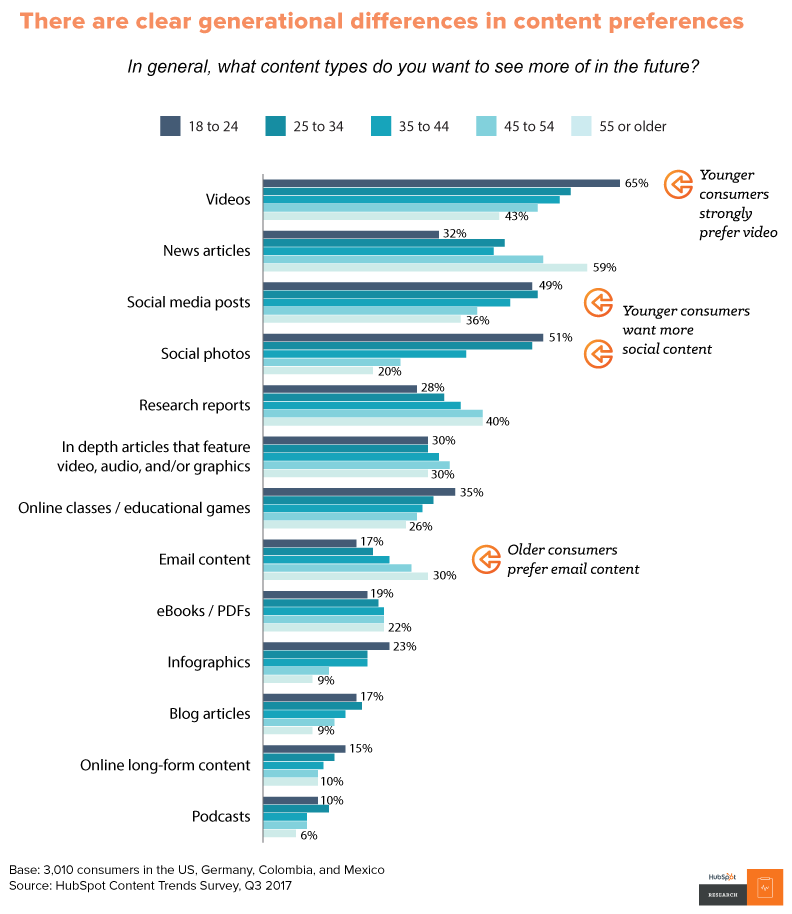
HubSpot Research also found clear differences in the content formats age groups prefer to access. Namely, millennial respondents show the strongest preference for video and social content.
In contrast, Gen X and Boomers prefer more news articles, research reports, and email content. Most traditional written content teams still have interested readers, they just might have more interetested readers in the older age brackets.
The Death of Email
Lots of brands, including HubSpot, have been discussing whether email is “dead.” While we think email is still a valuable channel when used wisely, that’s not to say every audience wants to see more email over other channels. Millennials want to see more videos from brands they support and far fewer want to see emails.
Meanwhile, more Gen Xers want emails/newsletters from a brand than any other type of content.

Content consumption preferences have changed over time.
However, much of that change has to do with what different age groups are used to consuming. As millennials get older, we’ll very naturally see a shift towards their content consumption preferences. Remember, though, This is true for every new generation. Marketers have to adjust their marketing patterns to the way consumers buy, sell, and consume.
We’ve talked through some of the main trends by age group, but what about other trends? What about ad creative preferences, geographic differences, and ways of audience engagement?
HubSpot and Ceros recently teamed up to create a fully-interactive guide on the most important Content Marketing secrets of 2018. In it, you can unlock additional data we haven’t yet covered in this blog post. Click here to unlock 10 Content Marketing Secrets Every Marketer Should Know in 2018.



Sleep Cycle debuts Apple Watch app with snore prevention, silent alarm

Sleep Cycle for iPhone introduced snore detection a year ago to help sleep trackers discover whether or not snoring is affecting their sleep quality. Today Sleep Cycle is building on that feature with a brand new Apple Watch app that will silently nudge you when snoring is detected…
How you tap or swipe on your phone could identify when you’re lying, say researchers

Research conducted by computer scientists at the University of Copenhagen suggests that how people tap and swipe when using a smartphone app can be used to detect when they are being dishonest …
Amazon’s new ‘Alexa Skill Blueprints’ feature allows anyone to create custom questions & responses

Amazon is adding new personalization options to Alexa, starting first with users in the United States. The new Alexa Skill Blueprints feature makes it easy for anyone to create a range of custom responses for Alexa, ranging from jokes to instructions and much more.
eBay for iOS update allows you to list an item just by scanning its barcode

iPhone X Diary: I’ve gone on an app and notifications diet, and my iPhone is now an oasis of calm

There’s been a lot of chatter lately about smartphone addiction, digital detoxing and the like. An interesting piece by Dieter Bohn over at The Verge got me thinking about whether I really need all those notifications.
I decided initially to try a ‘notifications diet’ – dramatically cutting back on the number of apps allowed to send me notifications. But as I started going through the list in Settings, I realized I also had apps I never use. I opted to extend the plan to an ‘app diet’ too …
Apple ramps up iOS 12 and macOS 10.14 testing as we get closer to WWDC unveiling

Whilst there may not be as many new features this year in the flagship Apple operating systems as some years past, there is no mistaking that iOS 12 and macOS 10.14 are very much under active development and distribution amongst internal Apple employees is growing.
Our website analytics have recorded a noticeable uptick in Safari browser visits from iOS 12 and macOS 10.14 machines, particularly with bigger spikes just this week.
