
8 of the Best Retail Blogs Every Retailer Should Be Reading
The retail industry evolves fast. Ten years ago, every town’s mall was a bustling hub of commerce, chock full of busy shops and pesky tweens. Nowadays, Cyber Monday generates $1.5 billion more in sales than Black Friday does.
With the explosive growth of online shopping and 2017’s brick-and-mortar retail apocalypse, how can you, a retailer, adapt to the ever-changing preferences of consumers today? One of the first steps to take is staying informed. Retail blogs can keep you updated on the industry’s latest stories and prepare you for the upcoming trends that will transform the industry in 2019 and beyond.
Below, we’ll list the best retail blogs on the internet right now. And, hopefully, they can help you reinvigorate your brick-and-mortar store or help you take advantage of the current boom in eCommerce for your online store.
8 of the Best Retail Blogs Every Retailer Should Be Reading
1. Shopify Plus
Shopify Plus, Shopify’s enterprise software arm, structures their editorial calendar like a season of television, weaving their articles into narrative-driven series and publishing multiple stories about one eCommerce topic over time.
With a trusted team of staff writers and freelancers, they write heavily-researched yet easy-to-understand stories about eCommerce success stories, behavioral economics, buyer psychology, and industry data, helping you understand the industry’s best tactics and why they work.
Each of Shopify Plus’ articles is valuable on its own, but just like episodes from your favorite Netflix show, they can entice you to read the entire series, arming you with the full scope of knowledge about a certain topic.
Recommended Read: How 2 Chainz Used Shopify Plus to Generate 2 Million Dollars in 30 Days
2. National Retail Federation
The National Retail Federation, or NRF, is the largest retail trade association in the United States. For over a century, they’ve advocated for retailers by lobbying congress in support of the industry and providing mentorship and networking opportunities for their members.
To update retailers about the latest news and trends, the NRF publishes blog posts about the economy, connected commerce, consumer trends, holiday and seasonal trends, retail technology, and small businesses.
They also conduct studies and surveys to grasp the current state of the retail industry and publish the insights on their blog. They use their podcast, Retail Gets Real, and their online magazine, Stores, to tell stories about thriving retail brands too.
Recommended Read: Facial recognition is becoming a competitive tool in the fight against fraud
3. The Retail Doctor
Bob Phibbs, the self-proclaimed “Retail Doctor”, is a retail consultant who has helped brands like LEGO, Mastercard, and Paul Mitchell optimize their brick and mortar stores, train their sales team, and boost their in-store sales.
Phibbs’ consulting services are definitely impressive, but his blog might be even more admirable. Feedspot named The Retail Doctor’s blog the best retail blog & website for 2018, and reading it will teach you a broad range of retail topics, spanning from holiday shopping strategies to dealing with bratty kids in your store.
Recommended Read: How Should You Handle Shoppers With Bratty Kids In Tow?
4. Retail Dive
An offshoot of Industry Dive, a digital media company that publishes business news and original analysis for over 3 million executives in 16 industries, Retail Dive analyzes the top retail trends and new stories and publishes extensive articles about them. They mostly cover topics like technology, trends, marketing, eCommerce, payments, mobile, logistics, corporate news, loss prevention, and the holidays.
They also write opinion pieces about retail, conduct their own studies, post industry events, have a job board, and produce their own podcast, Conversational Commerce.
Recommended Read: Why most shoppers still choose brick-and-mortar stores over e-commerce
5. Square
Square, one of the leading credit card readers for small businesses, has millions of customers, and the company’s blog has been influential in their customers’ growth. Covering topics like customer success, data insights, finances, growth strategies, management, and marketing, Square’s blog can also help you run your retail store more effectively.
If you’re a Square customer, you can read their blog to learn about their latest product updates, how other businesses succeed using Square, and best practices for using their products.
Recommended Read: The State of Malls in America
6. Medallion Retail
With over five decades of experience helping retail brands like Starbucks, Converse, and Mark Avion run their in-store marketing, Medallion Retail is a proven thought leader in the retail industry.
Their blog gives retailers an inside look at their coveted expertise, which is in-store experience, signage, and pop-up retail. If you want to learn from an established retail expert, Medallion Retail can be your trusted resource.
Recommended Read: The Original Holiday Pop-Up: What Retailers Can Learn from Spirit Halloween
7. Forrester Retail
Forrester is a market research company that provides reports about how existing and future technologies can potentially impact the business world.
To help retailers leverage technology to adapt to their consumers’ ever-changing preferences, Forrester publishes blog posts about the latest news in retail and predictions of the industry’s direction. They also attach more in-depth research reports to most of their blog posts for readers to download.
Recommended Read: Amazon Is A (Big And Scary) Red Herring
8. Shopify Retail
Originally founded to sell snowboards online, Shopify has transformed into the leading eCommerce platform for retailers, powering over 500,000 businesses who have generated more than $40 billion in sales.
Countless customers use their blog as a guide to run their business, and if you follow it, you can hone your chops in marketing, sales, customer experience, pop-up shops, Black Friday & Cyber Monday strategy, omni-channel retail, and technology.
Recommended Read: How HERO Backpacks Founder Used Her Personal Story to Build a Brand

14 Unforgettable Color Palettes to Help You Design Your Own
It’s a well-known fact that colors can influence mood — consider how you feel differently when you enter a bright orange room, versus a muted gray.
But did you know color also plays a major factor on your customer’s first impressions of your brand? People generally make up their minds on how they feel about a product within the first 90 seconds — and about 62-90 percent of their assessment is based on colors alone.
The right colors can engage your audience and showcase your brand’s individuality in a way words cannot. To stand out against your competitors, and to ensure consistency across all your marketing materials, it’s critical you put time and effort into creating an impressive color palette.
A color palette can help you ensure uniformity across your website, promotional materials, social media content, and more. This consistency is key to attracting and retaining a loyal audience across all your platforms and channels.
Now, you might be thinking — great, I’m convinced. But how do I get started? To make it easy for you, we’ve compiled 14 unforgettable color palettes to help you design your own.
Pastel Color Palette
#BAF2BB, #BAF2D8, #F2BAC9, #F4F7F9, #F4F39A

Blue Color Palette
#161925, #23395B, #406E8E, #8EA8C3, #CBF7ED

Green Color Palette
#E3EECD, #ACD1B6, #71A596, #40676E, #408E61

Red Color Palette
#E96166, #C53538, #963543, #FDA696, #FDCDD1

Purple Color Palette
#4A4063, #CCB8D6, #513E43, #783F8E, #49275B

Brown Color Palette
#EFE0B9, #524636, #B7521E, #643B0F, #E4B04A

Gold Color Palette
#E2953D, #524636, #AC7330, #B19A78, #DBC2A4

Pink Color Palette
#870040, #CE4A87, #FF82BF, #F7CFE1, #DBC2A4

Fall Color Palette
#D8C9CB, #96A88E, #A75037, #753740, #DB9C77

Spring Color Palette
#EBDFE7, #CCC2CD, #81A190, #A2C0A0, #DBE8D9

Winter Color Palette
#493319, #907F60, #C7CCD3, #F0F1F2, #9D0200

Autumn Color Palette
#DB9C77, #A75037, #6F3B48, #F3E4DF, #60958B

Summer Color Palette
#F7E06C, #F8CED2, #ED5B46, #8BD0B4, #D8EEE7

Sunset Color Palette
#983275, #811D5E, #FD2F24, #FF6F01, #FED800

Color Palette Generators
To gain further inspiration or create unique color palettes for yourself, you might consider using an online color palette generator. Color palette generators are extraordinarily helpful — they suggest colors that look good together, and even provide the hex color numbers, so you can plug the colors directly into a program like Photoshop.
Before you begin your next design project, you might want to try generating different palettes of your own using one of these free online tools:

The Ultimate Social Media Holiday Calendar for 2019 [Template]
Whether it’s International Cat Day, Pizza Day, or Talk Like a Pirate Day, it seems like almost every day, the internet is celebrating a holiday.
Whenever I log onto Twitter, I quickly scan what’s trending on the lefthand side of the screen.
Have you ever had this experience — when you see an obscure holiday or observance day trending, and you think to yourself “Yup, I’m celebrating that”?
Some of these holidays might be simply too silly for your brand to engage with (and we certainly don’t suggest sharing content on social media and then tacking on a completely irrelevant hashtag for the sake of traffic — that’s just plain annoying). But others might not be. You could be missing valuable opportunities to take advantage of trending topics with fun and relevant “holiday” content on social media.
From food to politics to animals and everything in between, there is a plethora of observance days worldwide during which marketers can share content relevant to their industries, get involved in a movement, or simply generate more awareness.
To help you plan for trending holidays, we created a list that you can bookmark, as well as a downloadable calendar so you can get automatic reminders. The list isn’t exhaustive (there are a lot of food-specific holidays out there) and these dates and hashtags may still be subject to change. But this is a great starting point for social media marketers who want to learn more about what’s trending and how they can plan their content in a way that will be fun and engaging on Twitter and other social platforms.
Want to finish out your 2018 calendar with some upcoming holiday posts? Tap the “+” symbol in the lower right-hand corner of the calendar below to add it to your own Gmail calendar.
Downloadable Holiday Calendar
National & Global Holiday Calendar: 2019-2020
- January 2019
- February 2019
- March 2019
- April 2019
- May 2019
- June 2019
- July 2019
- August 2019
- September 2019
- October 2019
- November 2019
- December 2019
January 2019
1. Tuesday, New Year’s Day #NewYearsDay
2. Wednesday, Science Fiction Day #ScienceFictionDay
4. Friday, National Trivia Day #NationalTriviaDay
5. Saturday, National Bird Day #NationalBirdDay
11. Friday, Human Trafficking Awareness Day #HumanTraffickingDay
13. Sunday, National Sticker Day #NationalStickerDay
14. Monday, Clean Off Your Desk Day #CleanOffYourDeskDay
15. Tuesday, National Hat Day #NationalHatDay
17. Thursday, Get to Know Your Customers Day (third Thursday of every quarter) #GetToKnowYourCustomersDay
20. Sunday, Cheese Lovers Day #CheeseLoversDay
21. Monday, Martin Luther King, Jr. Day #MLKDay
21. Monday, National Hugging Day #NationalHuggingDay
23. Wednesday, National Pie Day #PieDay
24. Thursday, National Compliment Day #NationalComplimentDay
25. Friday, Opposite Day #OppositeDay
28. Monday, Community Manager Appreciation Day #CMAD
28. Monday, Data Privacy Day #PrivacyAware
February 2019
2. Saturday, Groundhog Day #GroundhogDay
2. Saturday, World Wetlands Day #WorldWetlandsDay
3. Sunday, Super Bowl LIII #SBLIII
4. Monday, World Cancer Day #WorldCancerDay
5. Tuesday, Chinese New Year #YearOfThePig
5. Tuesday, Safer Internet Day #SID2019
5. Tuesday, National Weatherperson’s Day #NationalWeatherpersonsDay
7. Thursday, National Send a Card to a Friend Day #SendACardToAFriendDay
8. Friday, National Boy Scouts Day #BoyScoutsDay
9. Saturday, National Pizza Day #NationalPizzaDay
11. Monday, Inventors Day #InventorsDay
13. Wednesday, World Radio Day #WorldRadioDay
14. Thursday, Valentine’s Day #ValentinesDay
17. Sunday, Random Acts of Kindness Day #RandomActsOfKindnessDay
18. Monday, National Battery Day #NationalBatteryDay
18. Monday, Presidents Day #PresidentsDay
20. Wednesday, World Day of Social Justice #SocialJusticeDay
20. Wednesday, Love Your Pet Day #LoveYourPetDay
21. Thursday, International Mother Language Day #IMLD
March 2019
1. Friday, National Peanut Butter Lover’s Day #PeanutButterLoversDay
1. Friday, National Employee Appreciation Day #EmployeeAppreciationDay
2. Saturday, National Read Across America Day #ReadAcrossAmerica & #DrSeuss
3. Sunday, World Wildlife Day #WorldWildlifeDay
4. Monday, National Grammar Day #NationalGrammarDay
5. Tuesday, National Pancake Day #NationalPancakeDay
5. Tuesday, Mardi Gras #MardiGras
6. Wednesday, National Dentist’s Day #DentistsDay
7. Thursday, National Be Heard Day #NationalBeHeardDay
7. Thursday, National Cereal Day #NationalCerealDay
8. Friday, International Women’s Day #BeBoldForChange
8. Friday, National Proofreading Day #NationalProofreadingDay
8. Friday, National Day of Unplugging #NationalDayOfUnplugging
10. Sunday, National Pack Your Lunch Day #NationalPackYourLunchDay
10. Sunday, National Women and Girls HIV/AIDS Awareness Day #NWGHAAD
10. Sunday, Daylight Savings #DaylightSavings
11. Monday, National Worship of Tools Day #WorshipOfToolsDay
11. Monday, National Napping Day #NationalNappingDay
12: Tuesday, National Girl Scout Day #GirlScoutDay
14. Thursday, Popcorn Lover’s Day #PopcornLoversDay
14. Thursday, Potato Chip Day #NationalPotatoChipDay
14. Thursday, Pi Day #PiDay (To go the extra mile, post this at 1:59, as Pi equals 3.14159…)
15. Friday, World Consumer Rights Day #WCRD2019
15. Friday, World Sleep Day #WorldSleepDay
16. Saturday, National Freedom of Information Day #FreedomOfInformationDay
17. Sunday, St. Patrick’s Day #StPatricksDay
18. Monday, Awkward Moments Day #NationalAwkwardMomentsDay
19. Tuesday, National Let’s Laugh Day #NationalLetsLaughDay
20. Wednesday, International Day of Happiness #InternationalDayofHappiness
20. Wednesday, World Storytelling Day #WorldStorytellingDay
20. Wednesday, First Day of Spring #FirstDayofSpring
21. Thursday, International Day for the Elimination of Racial Discrimination #RacialDiscriminationDay
21. Thursday, World Poetry Day #WorldPoetryDay
22: Friday, World Water Day #WorldWaterDay
23. Saturday, National Puppy Day #NationalPuppyDay
25. Monday, Tolkien Reading Day #TolkienReadingDay
26. Tuesday, National Spinach Day #NationalSpinachDay
26. Tuesday, Purple Day #PurpleDay
26. Tuesday, American Diabetes Association Alert Day #AmericanDiabetesAssociationAlertDay
30. Saturday, Doctor’s Day #NationalDoctorsDay
30. Saturday, Earth Hour Day #EarthHour
30. Saturday, National Take a Walk in the Park Day #NationalWalkInTheParkDay
31. Sunday, World Backup Day #WorldBackupDay
31. Sunday, Transgender Day of Visibility #TDOV
April 2019
1. Monday, April Fools Day #AprilFools
2. Tuesday, World Autism Awareness Day #WAAD
3. Wednesday, Find a Rainbow Day #FindARainbowDay
3. Wednesday, National Walking Day #NationalWalkingDay
4. Thursday, Hug a Newsperson Day #HugANewsperson
7. Sunday, World Health Day #LetsTalk
9. Tuesday, Equal Pay Day #EqualPayDay
10. Wednesday, National Siblings Day #NationalSiblingsDay
10. Wednesday, Encourage a Young Writer Day #EncourageAYoungWriterDay
11. Thursday, National Pet Day #NationalPetDay
12. Friday, International Day of Human Space Flight #InternationalDayOfHumanSpaceFlight
15. Monday, National Tax Day #TaxDay
16. Tuesday, National Stress Awareness Day #StressAwarenessDay
16. Tuesday, National Wear Your Pajamas to Work Day #PJDay
17. Wednesday, Haiku Poetry Day #HaikuPoetryDay
18. Thursday, National Columnists’ Day #NationalColumnistDay
18. Thursday, Get to Know Your Customers Day #GetToKnowYourCustomersDay
18. Thursday, National High-Five Day #NH5D
20. Saturday, National Look-Alike Day #NationalLookAlikeDay
22. Monday, Earth Day #EarthDay2018
23. Tuesday, National Picnic Day #NationalPicnicDay
23. Tuesday, World Book Day #WorldBookDay
24. Wednesday, National Administrative Professionals Day #AdministrativeProfessionalsDay
24. Wednesday, Denim Day #DenimDay
25. Thursday, National Telephone Day #NationalTelephoneDay
25. Thursday, World Malaria Day #EndMalariaForGood
25. Thursday, National Take Our Daughters and Sons to Work Day #COUNTONME
26. Friday, Arbor Day #ArborDay
29. Monday, International Dance Day #InternationalDanceDay
30. Tuesday, National Honesty Day #NationalHonestyDay
30. Tuesday, National Adopt a Shelter Pet Day #AdoptAShelterPetDay
30. Tuesday, International Jazz Day #JazzDay
May 2019
TBD: Red Nose Day #RedNoseDay
1. Wednesday, May Day #MayDay
1. Wednesday, International Workers Day #IntWorkersDay
2. Thursday, World Password Day #WorldPasswordDay
3. Friday, World Press Freedom Day #WPFD2019 #PressFreedom
3. Friday, Space Day #SpaceDay
4. Saturday, Star Wars Day #StarWarsDay & #Maythe4thBeWithYou
4. Saturday, International Firefighters Day #InternationalFirefightersDay
5. Sunday, Cinco de Mayo #CincoDeMayo
6. Monday, National Nurses Day #NursesDay
7. Tuesday, World Asthma Day #WorldAsthmaDay
7. Tuesday, Thank a Teacher Day #ThankATeacher
8. Wednesday, National Receptionist Day #NationalReceptionistDay
9. Thursday, Europe Day #EuropeDay
12. Sunday, National Limerick Day #NationalLimerickDay
13. Sunday, Mother’s Day #MothersDay
15. Wednesday, International Day of Families #FamilyDay
16. Thursday, Love a Tree Day #LoveATreeDay
17. Friday, International Day Against Homophobia and Transphobia #IDAHOT2019
17. Friday, National Bike to Work Day #BTWD
17. Friday, Endangered Species Day #EndangeredSpeciesDay
21. Tuesday, National Memo Day #NationalMemoDay
24. Friday, National Scavenger Hunt Day #NationalScavengerHuntDay
27. Monday, Memorial Day #MemorialDay #MDW
28. Tuesday, Hamburger Day #NationalHamburgerDay
29. Wednesday, Paperclip Day #PaperclipDay
31. Friday, World No-Tobacco Day #NoTobacco
31. Friday, Heat Awareness Day #NoFryDay
June 2019
1. Saturday, Global Day of Parents #GlobalDayOfParents
1. Saturday, International Children’s Day #ChildrensDay
2. Sunday, National Cancer Survivor’s Day #NCSD2019
3. Monday, Leave The Office Early Day #LeaveTheOfficeEarlyDay
5. Wednesday, World Environment Day #WorldEnvironmentDay
6. Thursday, Higher Education Day #HigherEducationDay
7. Friday, National Donut Day #NationalDonutDay
8. Saturday, World Oceans Day #WorldOceansDay
8. Saturday, Best Friends Day #BestFriendsDay
14. Friday, World Blood Donor Day #GiveBlood
14. Friday, National Flag Day #FlagDay
16. Sunday, Father’s Day #FathersDay
20. Thursday, World Refugee Day #WithRefugees
21. Friday, National Selfie Day #NationalSelfieDay
21. Friday, World Music Day #WorldMusicDay
21. Friday, International Yoga Day #InternationalYogaDay
21. Friday, First Day of Summer
21. Friday, Take Your Dog to Work Day #TakeYourDogToWorkDay
27. Thursday, National Sunglasses Day #NationalSunglassesDay
27. Thursday, National Handshake Day #HandshakeDay
30. Sunday, Social Media Day #SMDay
July 2019
1. Monday, National Postal Worker Day #NationalPostalWorkerDay
2. Tuesday, World UFO Day #WorldUFODay
4. Thursday, Independence Day (United States)
7. Sunday, World Chocolate Day #WorldChocolateDay
11. Thursday, Cheer Up the Lonely Day #CheerUpTheLonelyDay
12. Friday, Malala Day #MalalaDay
15. Monday, Give Something Away Day #GiveSomethingAwayDay
17. Wednesday, World Emoji Day #WorldEmojiDay
18. Thursday, Nelson Mandela International Day #MandelaDay
18. Thursday, Get to Know Your Customers Day #GetToKnowYourCustomersDay
26. Friday, Talk in an Elevator Day #TalkInAnElevatorDay
30. Tuesday, International Day of Friendship #DayOfFriendship
August 2019
1. Thursday, Respect for Parents Day #RespectForParentsDay
2. Friday, National Coloring Book Day #NationalColoringBookDay
8. Thursday, International Cat Day #InternationalCatDay
9. Friday, National Book Lovers Day #NationalBookLoversDay
10. Saturday, National Lazy Day #LazyDay
11. Sunday, National Sons and Daughters Day #SonsAndDaughtersDay
12. Monday, International Youth Day #YouthDay
12. Monday, World Elephant Day #WorldElephantDay
13. Tuesday, International Lefthanders Day #LefthandersDay
15. Thursday, National Relaxation Day #NationalRelaxationDay
16. Friday, National Tell a Joke Day #NationalTellAJokeDay
19. Monday, World Photo Day #WorldPhotoDay
19. Monday, World Humanitarian Day #WorldHumanitarianDay
20. Tuesday, National Lemonade Day #NationalLemonadeDay
26. Monday, National Dog Day #NationalDogDay
26. Monday, National Women’s Equality Day #WomensEqualityDay
September 2019
2. Monday, Labor Day #LaborDay
4. Wednesday, National Wildlife Day #NationalWildlifeDay
5. Thursday, International Day of Charity #CharityDay
6. Friday, Read a Book Day #ReadABookDay
8. Sunday, International Literacy Day #LiteracyDay
8. Sunday, National Grandparents Day #NationalGrandparentsDay
11. Wednesday, National Day of Service and Remembrance #911Day
12. Thursday, National Day of Encouragement #DayOfEncouragement
12. Thursday, National Video Games Day #NationalVideoGamesDay
13. Friday, Stand Up To Cancer Day #KissCancerGoodbye
19. Thursday, Talk Like a Pirate Day #TalkLikeAPirateDay
21. Saturday, International Day of Peace #PeaceDay
21. Saturday, Miniature Golf Day #MiniGolfDay
21. Saturday, Civic Day of Hacking #HackForChange
22. Sunday, Car-Free Day #CarFreeDay
22. Sunday, Hobbit Day #HobbitDay
23. Monday, First Day of Fall
25. Wednesday, National Women’s Health and Fitness Day #FitnessDay
26. Thursday, European Day of Languages #EDL2019
27. Friday, World Tourism Day #WTD2019
28. Saturday, World Rabies Day #WorldRabiesDay
28. Saturday, National Good Neighbor Day #GoodNeighborDay
30. Monday, International Podcast Day #InternationalPodcastDay
October 2019
1. Tuesday, International Day of Older Persons #UNDOP
1. Tuesday, International Coffee Day #InternationalCoffeeDay
1. Tuesday, World Vegetarian Day #WorldVegetarianDay
2. Wednesday, International Day of Nonviolence #InternationalDayOfNonviolence
3. Thursday, National Techies Day #TechiesDay
4. Friday, World Animal Day #WorldAnimalDay
4. Friday, National Taco Day #NationalTacoDay
4. Friday, World Smile Day #WorldSmileDay
5. Saturday, World Teachers Day #WorldTeachersDay
7. Monday, World Habitat Day #WorldHabitatDay
10. Thursday, World Mental Health Day #WorldMentalHeathDay
10. Thursday, World Sight Day #WorldSightDay
11. Friday, International Day of the Girl #DayOfTheGirl
13. Sunday, National Train Your Brain Day #TrainYourBrainDay
14. Monday, National Dessert Day #DessertDay
15. Tuesday, Global Handwashing Day #GlobalHandwashingDay
16. Wednesday, World Food Day #FoodDay
16. Wednesday, Bosses Day #BossesDay
17. Thursday, International Day for the Eradication of Poverty #EndPoverty
17. Thursday, Get to Know Your Customers Day #GetToKnowYourCustomersDay
20. Sunday, World Statistics Day #StatisticsDay
21. Monday, Reptile Awareness Day #ReptileAwarenessDay
24. Thursday, United Nations Day #UNDay
25. Friday, Greasy Foods Day #GreasyFoodsDay
30. Wednesday, National Publicist Day #NationalPublicistDay
30. Wednesday, Checklist Day #ChecklistDay
31. Thursday, Halloween #Halloween
November 2019
1. Friday, World Vegan Day #WorldVeganDay
1. Friday, National Authors Day #NationalAuthorsDay
1. Friday, National Cook For Your Pets Day #CookForYourPetsDay
3. Sunday, National Sandwich Day #NationalSandwichDay
3. Sunday, Daylight Saving Time Ends #DaylightSavings
4. Monday, National Candy Day #NationalCandyDay
8. Friday, National Cappuccino Day #CappuccinoDay
8. Friday, Science, Technology, Engineering, and Medicine (STEM) Day #STEMDay
11. Monday, Veterans Day #VeteransDay
13. Wednesday, World Kindness Day #WKD
14. Thursday, World Diabetes Day #WDD
15. Friday, Clean Out Your Refrigerator Day #CleanOutYourRefrigeratorDay
15. Friday, America Recycles Day #BeRecycled
16. Saturday, International Day for Tolerance #ToleranceDay
17. Sunday, International Students Day #InternationalStudentsDay
19. Tuesday, International Men’s Day #InternationalMensDay
19. Tuesday, National Entrepreneurs Day #EntrepreneursDay
20. Wednesday, Universal Children’s Day #UNChildrensDay
21. Thursday, World Hello Day #WorldHelloDay
26. Tuesday, National Cake Day #NationalCakeDay
28. Thursday, Thanksgiving Day #Thanksgiving
29. Friday, National Day of Listening #DayOfListening
29. Friday, Electronic Greeting Card Day #ElectronicGreetingCardDay
30. Saturday, Computer Security Day #ComputerSecurityDay
30. Saturday, Small Business Saturday #ShopSmall
December 2019
1. Sunday, World AIDS Day #WAD2019
2. Monday, Cyber Monday #CyberMonday
3. Tuesday, International Day of Persons with Disabilities #IDPWD
4. Wednesday, National Cookie Day #NationalCookieDay
5. Thursday, World Soil Day #WorldSoilDay
6. Friday, Microwave Oven Day #MicrowaveOvenDay
8. Sunday, Pretend to Be a Time Traveler Day #PretendToBeATimeTravelerDay
10. Tuesday, Human Rights Day #HumanRightsDay
10. Tuesday, Nobel Prize Day #NobelPrize
11. Wednesday, International Mountain Day #InternationalMountainDay
13. Friday, National Salesperson Day #SalespersonDay
21. Saturday, Crossword Puzzle Day #CrosswordPuzzleDay
21. Saturday, First Day of Winter #WinterSolstice
30. Monday, No Interruptions Day – Last Work Day of the Year #NoInterruptionsDay
31. Tuesday, New Year’s Eve #NYE
Sources: National Day Calendar, Sprout Social, TrackMaven, Holiday Insights, Brownielocks, National Peace Corps Association, Sparkflow


The Voice Search Barometer: Where Do Users Stand? [New Data]
At this week’s annual Samsung Developer Conference, there was one technology that arguably stole the spotlight: Voice.
Samsung is making a somewhat apparent push to power more devices — from smartphones to smart speakers to home appliances — with its own voice assistant, Bixby.
It got us thinking: Where do users stand on voice assistants, anyway? How widespread is this technology’s use? And as Samsung keeps its audience waiting for its own smart speaker, the Galaxy Home, how enthusiastic are consumers about these digital assistive devices?
We ran some surveys to answer these questions, and with the help of new data from Zazzle, drew some conclusions on the current sentiment toward voice.
How Many People Plan to Buy a Smart Speaker?
We asked 831 people across the U.S., UK, and Canada: Do you plan to buy a smart speaker?

Most respondents — about 43% — indicated that they do not plan to buy a smart speaker.
It’s interesting to note, however, that while a smart percentage, the second-highest number of respondents indicated that they plan to buy one within the next six months.
That could align with more of the top contenders in the voice assistant market continuing to release newer models of their smart speakers, with improved functionalities and additional features (such as video).
The Value of Voice Assistants and Smart Speakers Remains Ambiguous
For many consumers, the purpose and tangible use cases of voice assistants (and the smart speakers they power) remain unclear. When we asked 818 users across the U.S., UK, and Canada, “If you do not own a smart speaker, why not?” we found that most people simply don’t see the benefits of having one.

These findings align with two other sets of data.
The first is data from Zazzle, where out of “thousands of social media users” in the UK, 35% said that they don’t believe they would ever actually use such voice assistant devices as smart speakers.
 Source: Zazzle
The second is an additional survey we ran among 481 people across the U.S. and Canada, where 21% of respondents said that they don’t completely understand what voice assistants do.

The Outlook
The findings above point to some possible key indications about the outlook for voice assistants and the devices they power.
First, it seems that many users are unclear about the value of voice assistants, or what they do — a finding that’s suggested by the number of survey respondents who, if they didn’t say that their understanding of voice is muddled, said that they want to learn more about the technology before investing in it.
It is possible that some users do not assign the formal terminology of “voice assistants” to the technology with which they might be on a first-name basis; for example, Siri, Alexa, or “Okay, Google.” That’s suggested by Zazzle’s finding that 68% of users acknowledged the convenience of a voice assistant, saying that they were able to find information quicker by using this technology over typing out a query.
 Source: Zazzle
That finding is supported by our own findings that about a quarter of users who do use voice assistants do so to answer questions.

To repeat our earlier point: More top contenders in the voice assistant market continuing to release newer models of their smart speakers, with improved functionalities and additional features. As the technology improves and scales, it could become more widespread and accessible to consumers, broadening the value and use cases.
And as it does, points out HubSpot’s head of SEO Victor Pan, so do the different platforms where customers can be reached.
“Pay attention to when your customers start to adopt,” Pan says — such as voice. “The point of marketing is to be where your customers are.”

How to Set Up Google Analytics for WordPress
Have you ever wondered what people actually do when they enter your WordPress website?
Have you thought about which website pages they tend to stay on longest, what campaigns bring them there, and which of your website pages covert the best?
Google Analytics can help you understand all of this information and so much more. By simply installing a Google Analytics plugin on your WordPress website, you can start collecting this data immediately. As is most things with WordPress, installing Google Analytics is a painless process.
In just five easy steps, you can uncover insights about your website visitors and what is and isn’t working for them so you can improve user experience, increase conversions, and learn about the people who are interested in your business.
How to Set Up Google Analytics for WordPress
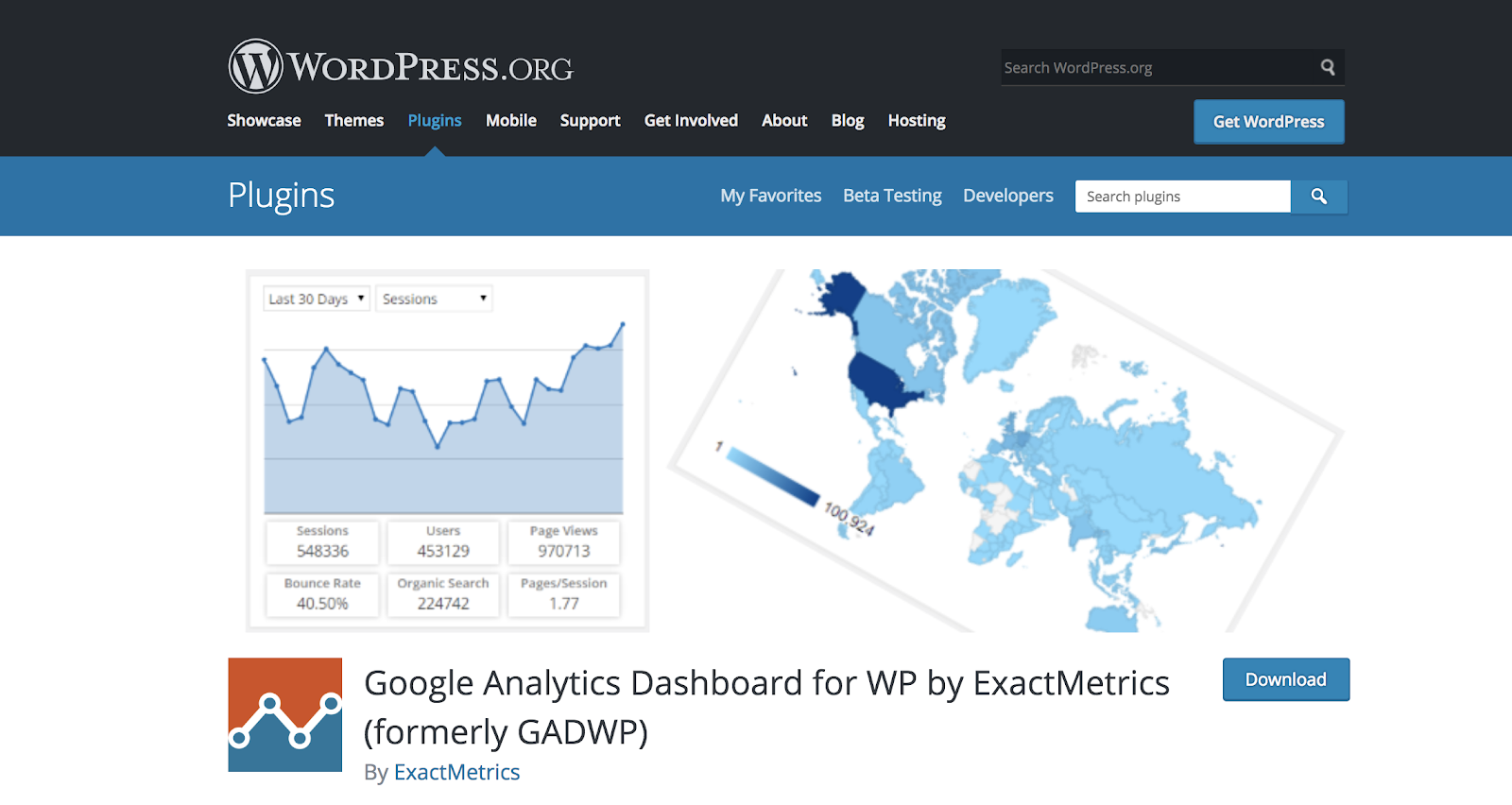
Depending on the Google Analytics plugin you choose, set up may differ slightly. The WordPress plugin library has several options, such as Google Analytics Dashboard for WP, MonsterInsights, WooCommerce for Google Analytics, and Analytics Cat.
For the sake of this example, we’re going to review how to set up Google Analytics Dashboard for WP by ExactMetrics. No matter which plugin option you end up picking for your own WordPress website, the process will look fairly similar.
1. Sign Up For Google Analytics
The first thing you’re going to need to do is sign up for Google Analytics. If you already have a Google account, you’re off to a great start because that’s the only way you can actually use Google Analytics.
Either sign up for or sign into your Gmail account.
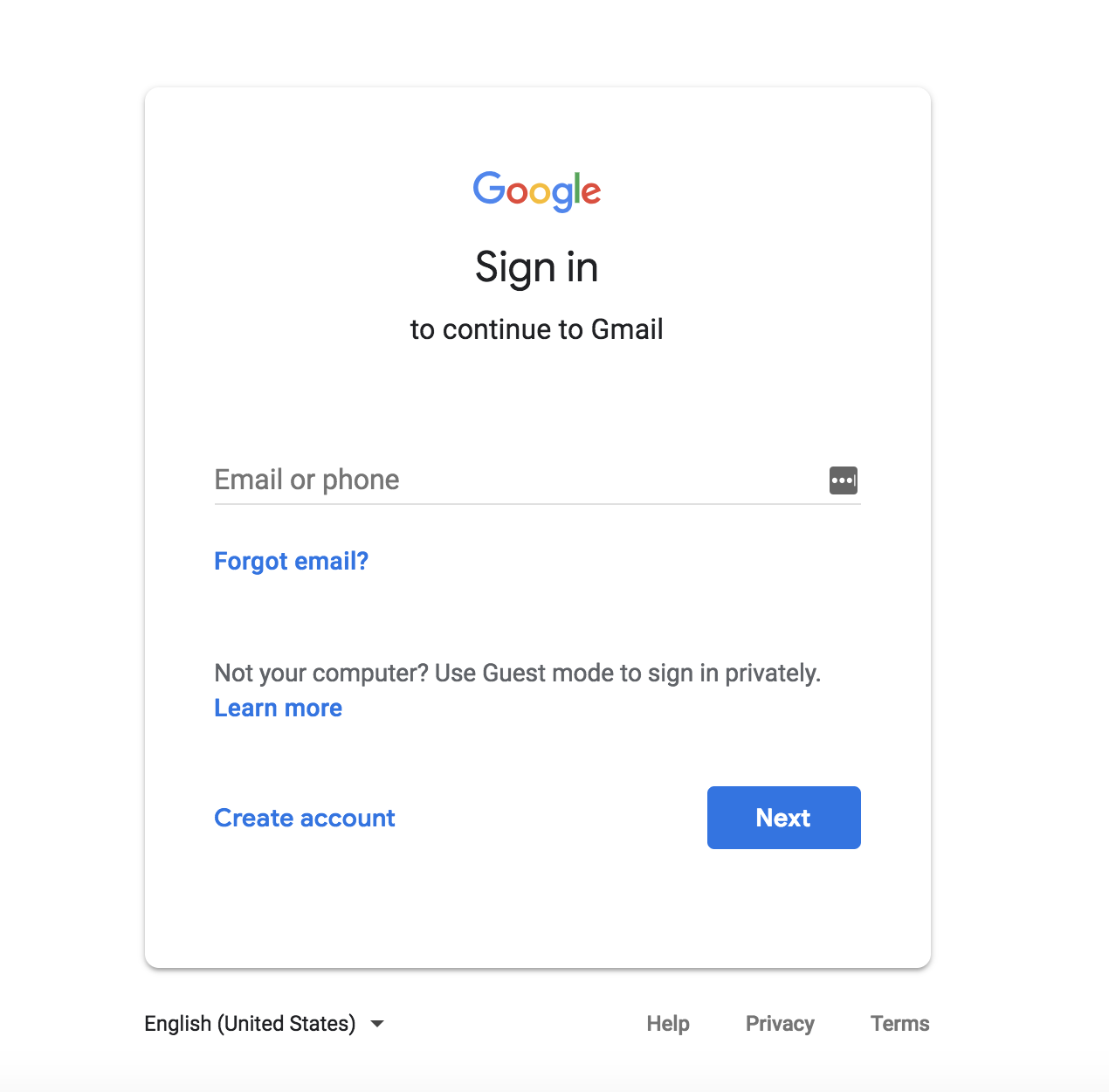
Then, head to the Google Analytics sign up page and click “Sign Up”.
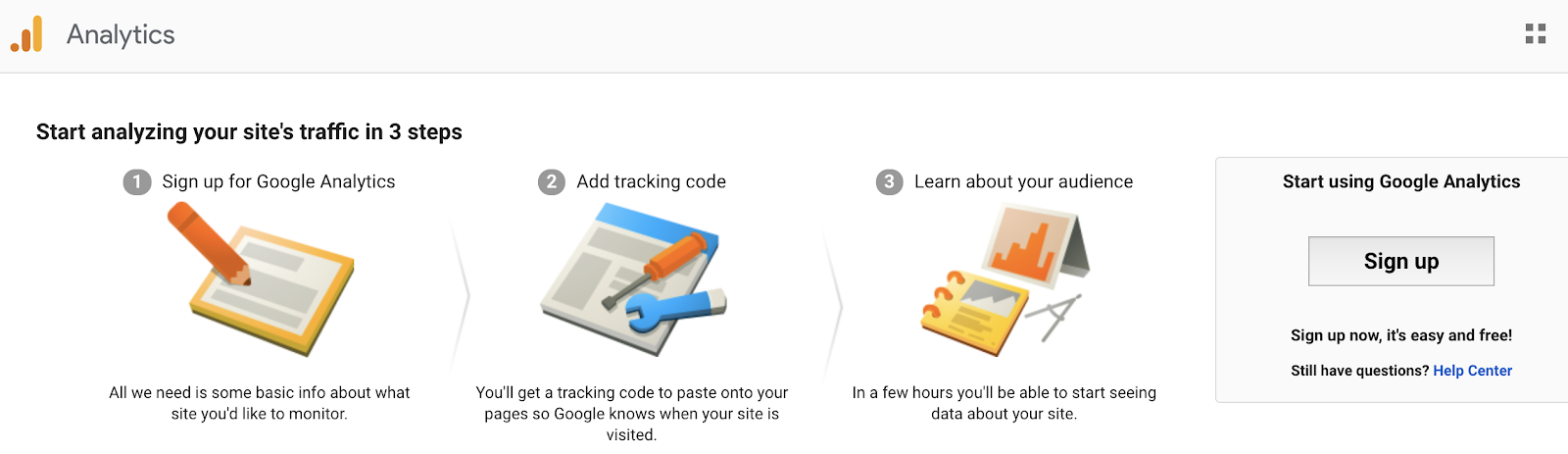
You’ll be given the option to choose between using Google Analytics for your “Website” or “Mobile app”. We’re going to stick with “Website” for this example.
Complete the necessary information — Your “Account Name” will be the Google Analytics profile name for your website. You can choose whatever name you like, but best practice is to use your domain name.
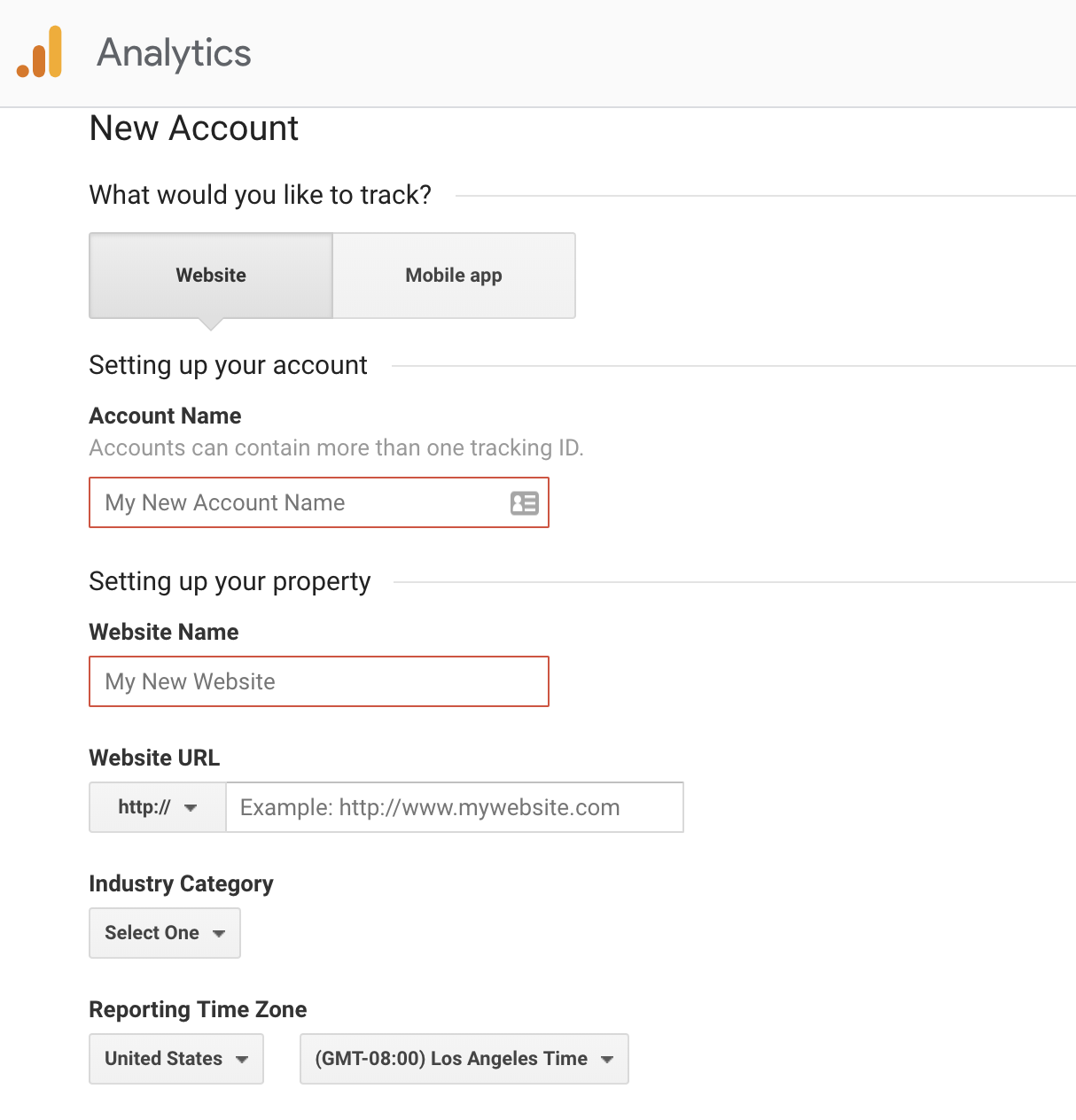
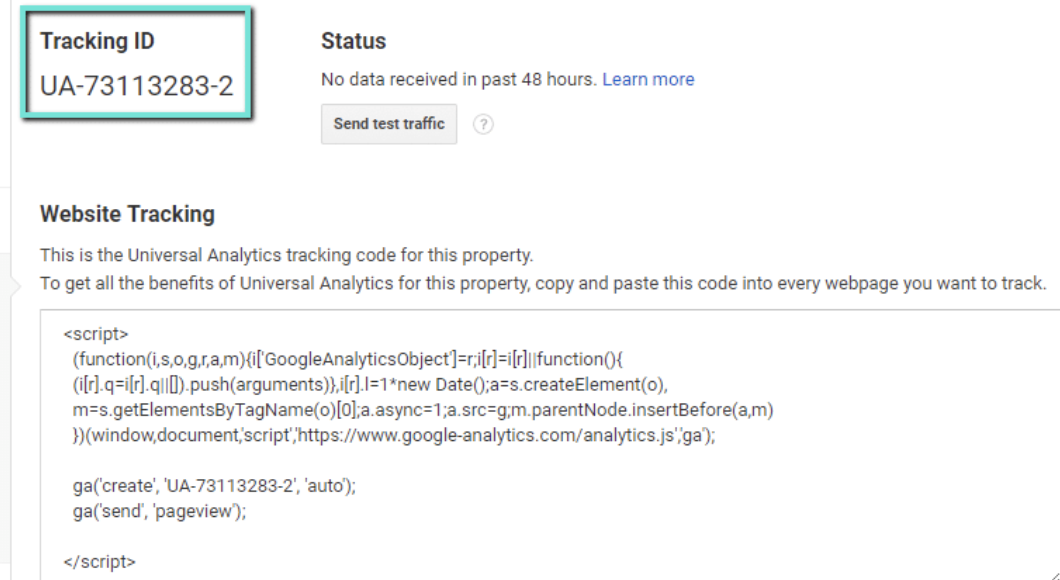
Once you have completed the form fields, click “Get Tracking ID”. Your tracking ID and website tracking code will appear on the next page.Your tracking ID is included in your tracking code — this is what tells Google Analytics which account and property to send the data that is collected to. Depending on the plugin you chose, you may need add this information to the plugin, so it’s a good idea to keep this tab open.
2. Install Your Plugin
Next, you’ll need to actually install your plugin. If you are unsure how to install a WordPress plugin, check out the “Install Your Plugins” section in this WordPress guide.
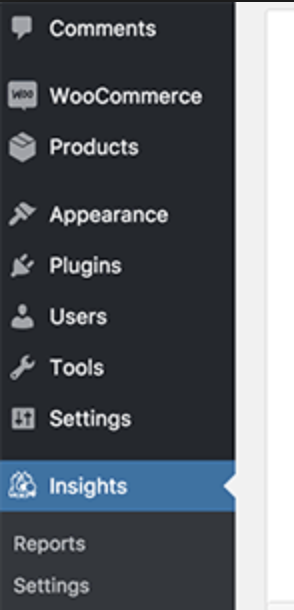
Once your plugin is installed, click “Settings” and then “Insights” to gain access to your new Google Analytics plugin.
Now that you have installed your plugin, you’ll need to authenticate your Google account through WordPress so Google Analytics can access WordPress.
3. Authenticate Your Google Account
To authenticate your Google account, head to “Insights”, Click “Authenticate with your Google account”.

This will take you to the Google login page again where you can complete your information and click “Next”.
Google will ask if you want to allow the Google Analytics Dashboard for WP plugin — or whatever plugin you chose — to access your information. Click “Allow”.
Note: When your plugin is installed and authorized, and a default domain is selected, the Google Analytics tracking code is automatically inserted on all web pages.
Some plugins may require you to insert the tracking code yourself if they don’t come with the same level of automation.
For example, Insert Header sand Footers is a Google Analytics plugin that does not install the tracking code for you. Instead, you’ll need to head to “Settings,” then “Insert Headers and Footers,” copy your tracking ID code and paste it into the “Scripts in Header” box.

Click “Save” to store your tracking ID.
4. Select the Profile You Want to Track
Once you’ve allowed your plugin to access your Google Analytics information, you need to select the profile you want to track. Select your website and click “Continue”.

You’ll then be redirected back to your WordPress website.
5. Start Tracking
Now, Google Analytics will start tracking data your website data.
You can view your Google Analytics data by heading to your Google Analytics dashboard through your Google account and clicking “Reporting”.

There is also a menu on the left side of your dashboard that includes different tabs with reports on your audience, acquisition, visitor behavior, and conversions.
Depending on your plugin of choice, you can also view your Google Analytics data in WordPress. In your WordPress menu, click “Dashboard” and your analytics should be visible.

Google Analytics for WordPress: What Can You Track?
Whether you’re looking for details about who is visiting your site, what they’re doing while on your site, or how long they’re staying on specific pages, Google Analytics will provide you with the report you need. The tool allows you to track many interactions between your website and visitors.
Let’s review some more of the specific types of reporting Google Analytics provides.
Audience
The audience tab will help you understand who your visitors are, their demographics, and other characteristics such as their interests, preferred language, and how they navigate to and from different pages on your website.
Acquisition
The acquisition tab will help you understand where your visitors are coming from.This information is helpful when setting up your marketing campaigns because it can show you exactly what’s working best for your acquired visitors.
Conversion
The conversion tab will help you understand your conversion rates. You can compare them to your goal and understand what is and isn’t working. You’ll learn more about which CTAs and landing pages on your site are successful and what is keeping your visitors most engaged.
Behavior
The behavior tab will help you understand what your visitors do when they arrive on your website. It dives into information about how they choose to get around your website, where they end up going on your site, and how they tend to interact with the different aspects of your site.
Analytics Specific to Your Plugin
In addition to the plethora of information that you receive from Google Analytics, your chosen plugin will also provide you with unique insights. For example, let’s review what Google Analytics Dashboard for WP provides. Some of these insights and features come standard with other analytics plugins in the WordPress library as well.
In-Depth Performance Reports. These reports provide you with in-depth performance details, such as bounce rates, referrals, page views, organic searches, and more, for each post and page on your website so you can segment your analytical data in a way that makes sense for your website and business.
Real-Time Stats. With Google Analytics Dashboard for WP, you’ll be able to review real-time statistics any time you open the plugin. Some of these stats include the current number of visitors on your website, your acquisition channels, and the source of your current traffic.
Custom Dimension Tracking. You can create custom dimensions to get specific data that matters to you and your business. For example, you can create custom dimension tracking about certain events and types of user engagement that are important to you.
Set Permissions Based On User Roles. If you have a large team, or team of people with different qualifications and needs when it comes to your analytics, you can set permissions based on user roles. This way you can ensure only the right people can make changes.
Back To You
Google Analytics provides you with insights and data that can help you drastically improve the state of your website. You can learn more about what is and isn’t working for your visitors as well as discover more about who they are so you can continue to tailor your content to their needs. With WordPress, installing Google Analytics on your website is quick and easy. In just minutes, you can start collecting the information that you need to enhance user experience and increase conversions on your WordPress website.

Your Easy Guide to Making a YouTube Thumbnail
Sometimes, your YouTube thumbnail just doesn’t cut it. You could’ve uploaded the most interesting video on YouTube, but it might not get the views it deserves if you’re relying on a simple freeze-frame to tell viewers what it’s about.
Thumbnails, the small, clickable snapshots that viewers see when they search for videos on YouTube, can be just as important as a video’s title. They preview your video and entice viewers to click through.

Creating vibrant YouTube thumbnails can also instantly grab people’s attention — the brain is programmed to respond to striking visuals — and it can help you differentiate yourself on a platform clogged with standard thumbnails all screaming for attention.
Since your video’s click-through rate is one of the most important ranking factors in YouTube’s search algorithm, especially during its first hour on the platform, an eye-catching thumbnail can make a huge difference in ranking number one for a query and not ranking at all.
If your video has an ordinary or sub-par thumbnail, it won’t persuade anyone to click through. YouTube could deem the video irrelevant and won’t rank it in their search results or distribute it through the “Recommended Videos” feed.
Fortunately, pulling freeze frames from your YouTube videos isn’t the only way you can create thumbnails. There are online tools, made specifically for people who might not have a ton of design experience, that can help you craft custom thumbnails — all for free.
Below, we’ll guide you through an easy five-step process for creating visually appealing YouTube thumbnails that will cut through the noise, boost your video’s click-through rate, and lift your rankings.
How to Make a YouTube Thumbnail
- Visit one of the free online YouTube thumbnail makers featured below.
- Upload a photo or choose one of the thumbnail makers’ templates.
- Add text, clipart, or a background to your thumbnail.
- Download the finished product to your computer.
1. Visit a free online YouTube thumbnail maker.
There are seven free online YouTube thumbnail makers listed below, but we featured FotoJet in this guide because it’s one of the only YouTube thumbnail makers that doesn’t make you sign up for a free account before you can create a thumbnail. Their robust thumbnail maker lets you customize and download your thumbnails completely for free — no email address necessary.

2. Upload a photo or choose one of the thumbnail makers’ templates.
YouTube will let you upload any picture from your computer as your video’s thumbnail. But if you don’t have a vivid visual on your computer or you need some inspiration, Fotojet’s got you covered. They have over 23 free templates that can serve as your thumbnail’s foundation.

One of the best tactics for creating striking thumbnails is including a talking head in it. People are naturally drawn to human faces because it’s an ingrained survival mechanism to help us quickly gauge someone’s emotions and determine if they’re a threat or friend. Research Gate also discovered that Instagram photos with faces are 38% more likely to receive likes and 32% more likely to receive comments.

3. Add text, clipart, or a background to your thumbnail.
Once you’ve picked your picture or template, you can make your thumbnail stand out even more by adding text, clipart, or a background to it.

Consider adding your video’s title to the thumbnail to further clarify your video’s subject matter. Additionally, if your photo, graphic, or text is bright, consider placing it on top of a dark background. The color contrast will make your thumbnail pop. The same logic applies to dark objects and bright backdrops.

4. Download the finished product to your computer.
After you finish polishing your thumbnail, press the “Save” button at the top of the page.

Title your thumbnail and save it as a JPG or PNG. Its resolution will already match YouTube’s recommended resolution — 1280 x 720 pixels — so you don’t have to worry about resizing it.
7 YouTube Thumbnail Makers
Along with Fotojet’s free online YouTube thumbnail maker, there are seven other thumbnail makers that can help you customize your own YouTube thumbnails. Before you create a thumbnail with these tools, though, you need to sign up for a free account on their websites.
1. Canva

With more than 2 million images in their library, hundreds of fonts, and customizable backgrounds and colors, Canva gives you more than enough resources to unleash your creativity.
2. Adobe Spark

Adobe Spark lets you select from thousands of photos on the web and a variety of built-out themes with their own unique layouts, colors, and fonts to craft eye-catching YouTube thumbnails.
3. Crello

With Crello, you can create engaging thumbnails by blending a multitude of designs, photos, backgrounds, text, and objects together.
4. Visme

Choose from a wide selection of templates, photos, graphics, colors, and fonts to create a thumbnail in Visme.
5. Fotor

Fotor provides templates under certain themes to help you create captivating thumbnails.
6. Picmaker
With over 100,000 graphics, 1,000 stock photos, stickers, borders, backgrounds, text, icons, and filters, and an automatic background remover, you can create a gripping thumbnail on Picmaker in plenty of ways.

7. Snappa

Snappa has over 500,000 stock photos, an assortment of professionally designed templates, and customizable graphics, shapes, and text to help you create a YouTube thumbnail. They also have a drag and drop functionality to help you create your own custom thumbnail template.

How to Download and Save Facebook Videos
Over the past year, Facebook Watch has seen some significant success — since the start of 2018, total time spent watching videos in Watch has increased by 14x.
Facebook Watch offers thousands of impressive, high-quality videos for both entertainment and educational purposes. It also provides content you can’t find anywhere else, like Huda Kattan’s behind-the-scenes show Huda Boss, or Bear Grylls’ show, Face The Wild.
So what happens when you stumble across a great Facebook Watch video but don’t have the time to watch it fully, or find the content so useful you want to save the video and use it as a reference tool later? Fortunately, there’s a quick and easy way to download and save Facebook videos on desktop — here, we’ll show you how.
How to download Facebook Live videos
Unfortunately, Facebook removed the workarounds to download Live videos in 2016. However, if you want to save a Facebook live video to watch at a later time, you can — simply click the three dot icon on the video, and select “Save Video”. Later, you’ll find the video under your “Saved” category.
1. Go to Facebook Watch, find a video you want to download, and click the three-dot Settings icon. Then, select “Copy link”.

2. Go to https://fbdown.net/ and paste your URL into the text box. Then, click the “Download” button beside it.

3. You’ll have two options — “Download Video in Normal Quality” or “Download Video in HD Quality”. For our purposes, I clicked the “Download Video in Normal Quality” link.

4. Once your video downloads, click on it in your downloads and it will open within your web browser. Now, right click, and select “Save Video As … “.

5. Give your video a name, and save it wherever you want to find it later.

6. After a couple minutes of downloading, your video will appear wherever you saved it. That’s it, you’ve officially downloaded and saved a Facebook video!
How to download Facebook videos on Android
- Open your Facebook app.
- Find a video you want to download, and click the three-dot Settings icon in the top right.
- Select “Copy Link”.
- Now, open the web browser on your Android and go to https://catch.tube/.
- Paste the URL and click the red “Catch Video” button.
- Scroll down and find the red “Show Media List” button. Click it.
- Choose the video version you want to download.
- Once the download is finished, you’ll have an indicator saying it’s complete. Click the download indicator to open the video you downloaded.

Meet the People Building the TV Controlled by Your Brain
Let’s take a moment to think about some of the things many of us like to do with our downtime.
I’ll start. Picking a glass of wine from an extensive list at a bar. Texting a friend to hang out. And, of course, browsing Netflix for something to binge-watch.
Now, imagine having limited mobility, and being restricted in carrying out what many of us considering to be mundane, day-to-day activities.
Selecting a movie to watch on Netflix, for instance, would be close to impossible with restricted motor skills, without the ability to manually scroll through options — and in some cases, to dictate to someone else what we want to watch.
For many, that thought is a reality — and now, a team of researchers is building technology to address it. Here’s what we learned about the technology at this week’s Samsung Developer Conference, and what’s next for the people developing it.
Meet the People Who Are Building a Way to Control a TV With Your Brain
The name is Project Pontis: an initiative to develop a device that can control a TV only with the brain.
“How can we provide accessibility to people who cannot move?” asks Ricardo Chavarriaga, a scientist at Ecole Polytechnique Fédérale de Lausanne (EPFL) — which is working in partnership with Samsung and the Swiss Paraplegic Centre. “We try to develop systems that allow people with severe motor disabilities to interact with their environments.”

One of those interactions is something as seemingly simple as choosing a movie to watch, which was the activity demonstrated at today’s event. “It will be an assistive tool for people with disabilities,” says EPFL’s Ruslan Aydarkhanov, “so that they can be independent and use the TV without external help.”
At the center of Project Pontis is a physical prototype pictured below, which records electrical activity from the brain that the technology uses as signals that could indicate the user’s intent.

Ruslan Aydarkhanov demonstrates the Project Pontis prototype
Then, using artificial intelligence and machine learning, those signals are converted into what Aydarkhanov calls “meaningful information”: the details that translate into what the user wants to do.
This particular prototype uses a combination of the aforementioned brain signals and eye movements to assist with the activity of selecting a movie to watch.
“For the simple selections of menus, we just use eye movements, because it’s much more efficient,” explains Aydarkhanov. “But when you want to find a movie, it’s a more complicated task, because you’re not sure exactly what you want to see.”
That’s where the artificial intelligence and machine learning come in.
“We use the reaction of the brain to see what is interesting to you,” Aydarkhanov says, “and we show a sample of movies so that the system can, based on your reaction, understand what is this particular thing that you want to watch.”
But what presents one of the biggest challenges to developing this prototype are the nuances of human interaction — whether it’s with other humans, or with machines.

Ricardo Chavarriaga speaks about the technology of Project Pontis
“A brain is not static, so every day, it’s changing little by little,” Aydarkhanov says. “That means the signal that we record is also changing, and we have to adapt the artificial intelligence system to still make sense of the signal.”
What the prototype is trying to replicate is that nuanced brain “signature” that is produced as a result of external stimulus. It’s far from simple, and actually involves a combined process triggered by that external stimulus and what the user is experiencing internally.
“How does the user’s brain react when it has this ‘click’?” asks Chavarriaga. “I need to be sure that what I’m getting from the electrodes [read by the prototype] actually means what I think it means … in this case, what the person wants to do with the TV.”
Should that “click” be successfully replicated, Chavarriaga suggested, it could be carried over to other intelligent devices, such as prosthetics, which would likely be heavily reliant on technology that can understand user intent of movement — something that also changes quickly and frequently, based on internal and external stimuli.
“Everybody is different. This variability has to be taken into account, [which is why we need] technology that is more intelligent,” Chavarriaga explains. “We have to find ways to properly match technology to the users, and we have to take into account the variability of the users.”

Project Prontis is one of Samsung’s Corporate Citizenship programs, which works to develop technological advancements to meet various social and mission-driven needs.
The current trajectory of Project Prontis is to develop a second prototype into the first quarter of 2019. After that, the plan is to test the technology in hospitals and specialized institutions throughout Switzerland.
Featured image source: Samsung

11 of the Best Free Website Builders
It’s almost impossible to maintain a successful business without a fully functional, responsive, SEO-compatible website — but you don’t have to shell out the big bucks to afford one.
There are plenty of options for building and designing a website for free, many of which require little to no coding knowledge. And these website builders are often comparable in quality to their paid alternatives, particularly for small businesses or personal brands.
The free website builders we’re sharing today offer SEO benefits, embedded analytics systems, mobile optimization, and professional-looking templates. If you’re on a tight budget and can’t quite swing the paid builders, these are the next best thing.
Read on to check out 11 of the best free website builders, so you can build a website for free without forfeiting quality.
Best Free Website Builders
- Wix
- Weebly
- WebNode
- Jimdo
- Mozello
- WebStarts
- Webflow
- IM Creator
- SITE123
- Strikingly
- Duda
1. Wix
Wix is one of the most popular free website builders out there, with 110 million users. The fully hosted platform offers an easy drag-and-drop editor, and a large collection of professional-looking templates that are well-suited for small businesses, online stores, restaurants, or personal portfolios.
Wix supplies built-in Google Analytics to monitor your site, and even offers additional apps for individual preferences. If you want, Wix can even design your site for you. The biggest downside of Wix’s free version is it doesn’t come ad-free, and each page of your site will have a prominent Wix ad. Ad-free is only an option if you pay for the premium version.

2. Weebly
This open source SaaS offers web hosting, domain registration, web design, and even ecommerce functions, making it suitable for businesses and startups. Weebly’s a particularly flexible website builder, compatible with every device and platform, and easy to use.
Like Wix, Weebly has drag-and-drop functionality, as well as an integrated CMS solution, and hand-coded HTML files. The in-house editor comes with SEO tools and Google Analytics. With PayPal integration, an automatic tax calculator, digital gift cards, and more, Weebly is a smart choice for ecommerce businesses. And unlike some of its other free competitors, Weebly is ad-free.
3. WebNode
WebNode is a popular choice for both personal brands and professionals — it’s easy to use, and you can create a website in a different language or on a different platform to suit your business’s needs. WebNode supports ecommerce stores, and the sites are compatible with Android, Mac, and IOS devices. WebNode will provide statistics to track your site’s success, free of charge, and even with the free version, you won’t have ads.
4. Jimdo
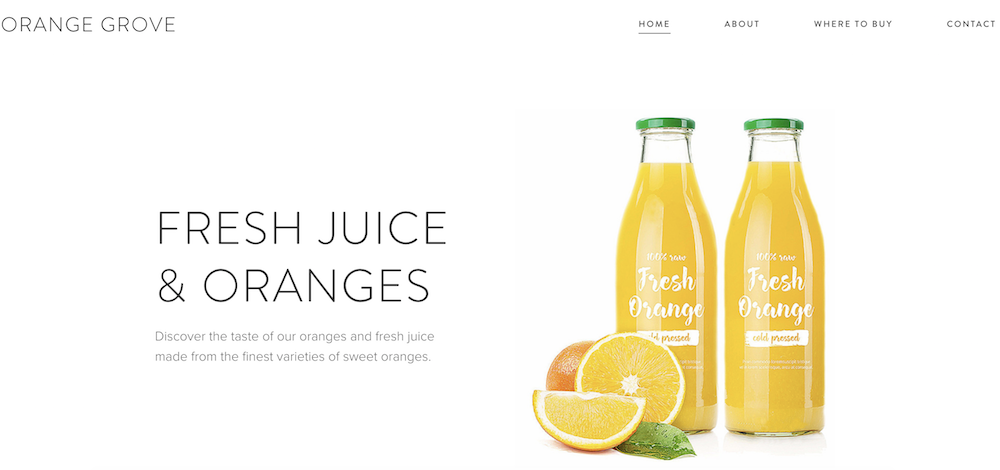
Based in Germany, Jimdo is a valuable option for international companies, with options to create a site in more than nine different languages. The builder is compatible with smartphones and tablets, and there’s a mobile app you can use to build a mobile-optimized site, as well.
With no page limit and 500 MB of space, you’ll likely have more than enough space to build your site, and it even provides HTTPS/SSL encryption, meaning your visitor’s information will be kept safe. Plus, you’re able to integrate your site seamlessly with social media accounts. If you do decide to use Jimdo, beware of one thing: the builder prevents free websites from being indexed by search engines.
5. Mozello
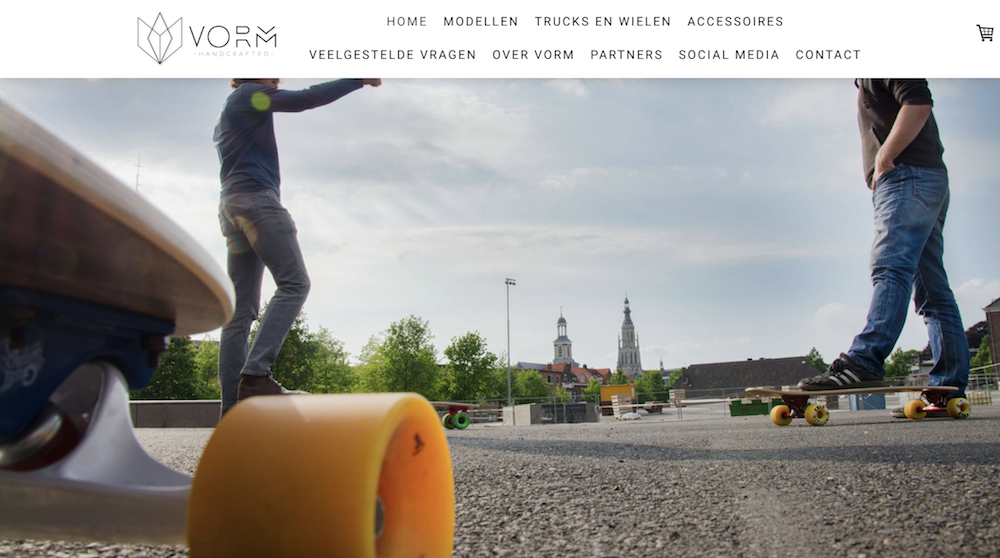
One of the biggest selling-points for this Latvian-based company is the builder allows you to create a multilingual site for free — something unmatched by other website builders.
Mozello’s features include a blog, online store, SEO options, and 500 MB of storage. There is an advertisement, but it’s just a link in the footer, so most visitors won’t see it. The only drawback is the drag-and-drop system isn’t as intuitive or complex as some other options, and there aren’t a ton of design customization options.
6. WebStarts
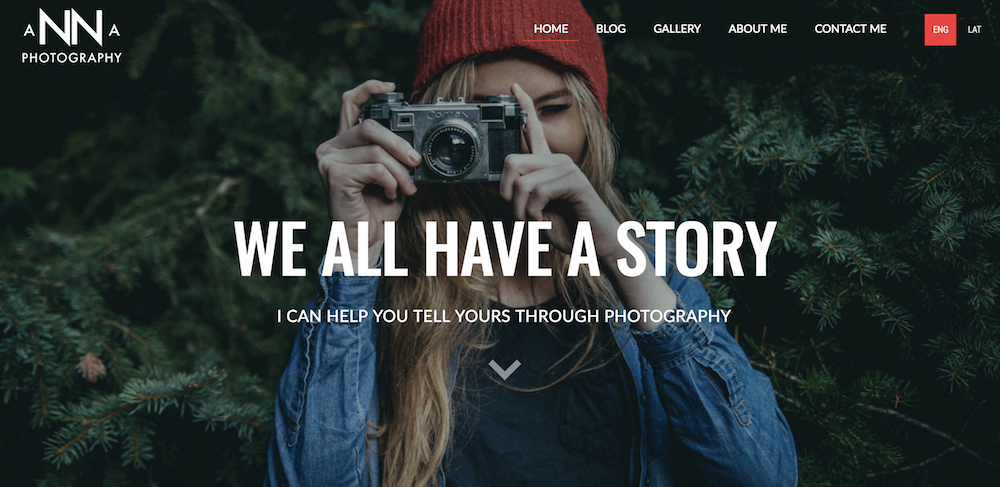
With a wide collection of beautiful templates and a user-friendly drag and drop functionality, WebStarts makes building a website as simple as possible: best of all, whatever you see when you’re designing is exactly what your visitors will see when you publish the site. This can take some of the guess-work out of the process.

7. Webflow
While most of the other builders in this list are for people without a ton of coding knowledge, Webflow is specifically for designers and agencies who build sites for clients — this means the HTML and CSS is entirely in your control.
After you’ve built a site on Webflow, you will need to transfer it to a content management system. There are some features, like drag-and-drop widgets for adding social components, maps, and videos, that don’t require coding knowledge. But if you want the full benefits of Webflow, you’ll need to know HTML or CSS. There’s a limited set of themes, a responsive interface, and your Webflow site can be customized for desktop, tablets, or smartphones.
Apart from the necessity of knowing code, one other drawback of Webflow is you can only have two pages, and there’s a limit of 500 visits for free users.

8. IM Creator
With more than 11 million sites built on IM Creator, it’s a popular option for a few reasons: there’s an easy point-and-click interface, an extensive range of templates and images, and unlimited web hosting and domain services. Plus, the platform is scalable, and you can have either single or multipage layouts. This builder is unique for its built-in ecommerce tools, and offers SEO and Google Analytics to fully optimize your site for search engines.
9. SITE123
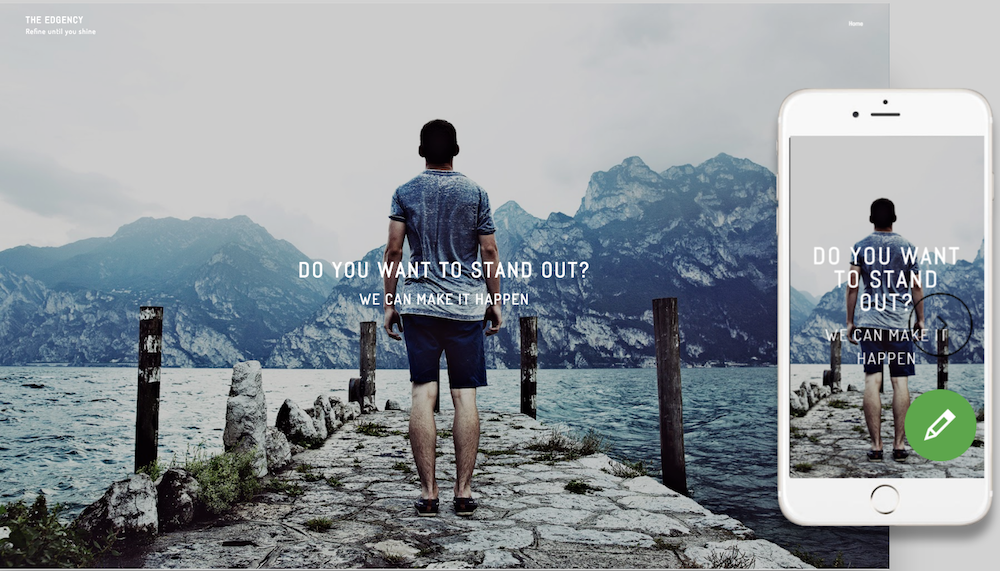
Arguably one of the most flexible and easy-to-use builders, Site123 lets you customize anything and offers a one-click installation wizard with graphics and templates. Site123 stands out as particularly helpful with its free images library, professional fonts to add visual elements to your site, and creative DIY plans for creating multiple pages (which are unlimited). Plus, since it offers web hosting domain registration, 500 MB storage space, Google Analytics, and is ad-free, you won’t feel pressured to switch to a paid plan.
10. Strikingly
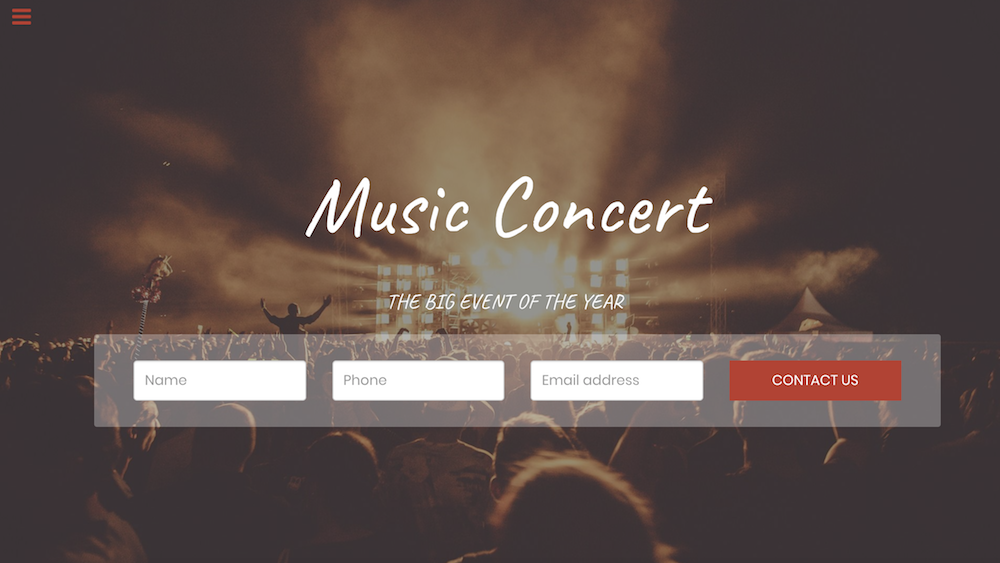
Strikingly prides itself on helping its users build a website with no programming skills required. Thousands of sites have been launched through this website creator, and users can start designing their own by selecting from countless templates contributed by site owners around the world. You can find website designs suited for startups, ecommerce stores, blogs, events, product launches, and personal branding.
Strikingly’s free offering comes with unlimited free sites but a modest 5 GB of monthly bandwidth. You’re also limited to a strikingly.com domain unless you upgrade to a paid plan, which starts at $8 per month.

11. Duda
Duda is a feature-rich website creator with numerous site widgets and media files, allowing you to piece together a website to fit your specific needs. On top of site templates and a lengthy content library, Duda comes with a team-collaboration tool and basic analytics to show you how visitors are engaging with different parts of your website.
Duda offers a free trial, as well as plans that start as a low as $14 per month billed annually.

There you have it! Since all of these website builders are free, try out a couple if you’re unsure of the best fit. In particular, take note of what you really want to get out of your site to ensure your needs will be met by one of these free builders.


How to Install WordPress: The Four Methods
WordPress is known for being one of the most popular content management system (CMS) software options available to date. One of the main reasons for this is because WordPress is easy to use and meets the needs of almost any type of website and business.
Installing the CMS is a simple process that only takes about five minutes. But if you’re new to the software, installing WordPress may seem daunting.
That’s why we’ve created this guide to take you through the installation process step-by-step so you can quickly get your website up and running.
We’re going to review four common WordPress installation methods together.
5 Steps to Prepare You to Install WordPress
Before you get started with the installation process, you’ll need to tackle these five simple tasks. These steps will help speed up the installation process and ensure you are completely ready to go.
1. Obtain Web Server Access
You’ll need to make sure you have web server access before installing WordPress. A web server is a software dedicated to hosting, or “serving”, websites. Web servers store, process, and deliver your web pages to those searching for your site online.
One of the most popular web server software options is Apache. It’s possible to create your own web server to install WordPress on, however, it’s more common for users to purchase a hosting provider that runs on a web server, such as Bluehost or SiteGround.
If you are using a hosting provider, you’ll need to make sure it meets WordPress’ three requirements prior to installation. These requirements include:
- PHP version 7.2 or greater.
- MySQL version 5.6 or greater OR MariaDB version 10.0 or greater.
- HTTPS support
2. Obtain a Text Editor
You’ll also need to make sure you have a text editor, such as Notepad. Text editors allow you to open, view, and edit plain text files without any formatting. This is how you will edit your WordPress files. If you use a word processor such as Microsoft Word, which comes with its own formatting, you could potentially cause damage to your files and code.
3. Obtain an FTP Client
FTP, or file transfer protocol, is the method in which you will upload, download, and manage your WordPress files on your server. If you choose a hosting provider, this should be taken care of for you.
4. Choose a Web Browser
You can choose any web browser (e.g. Safari, Chrome, Firefox) of your choice to download and install WordPress.
5. Download the Latest Version of WordPress
You can always make sure you have the latest version of WordPress by visiting their website and downloading their most recent update.
Now, let’s review your WordPress installation options.
How To Install WordPress
WordPress keeps installation simple — no matter which method method you choose, the process should only take about five minutes. We will discuss the four WordPress installation options below and who they are most beneficial for.
We recommend the simplest option — finding a hosting provider that offers automatic WordPress installation. But, really, it’s up to you.
1. Choose a Hosting Provider With Automatic WordPress Installation
There are a number of website hosting providers that offer automatic WordPress installation, such as Bluehost, WP Engine, or Dreamhost, making this the easiest installation method. This is a great option if you’re new to WordPress or don’t have a background in web development. If you’re unsure whether or not your provider offers automatic WordPress installation, check out their website — that information is typically listed on their support page.
2. Install WordPress on your computer
You can install WordPress directly to your computer. This method is uncommon because, although you’ll have a fully-functioning website, WordPress will only be accessible locally. This method is typically only useful if you’re just looking to play around with the CMS on your own and don’t want a website that others can access.
3. Use the cPanel and Auto-Installers
Installing WordPress through the cPanel is a good option if you want a bit more of a hands-on experience. This is more common for web developers or people who have some sort of technical background who want to tailor the installation process.
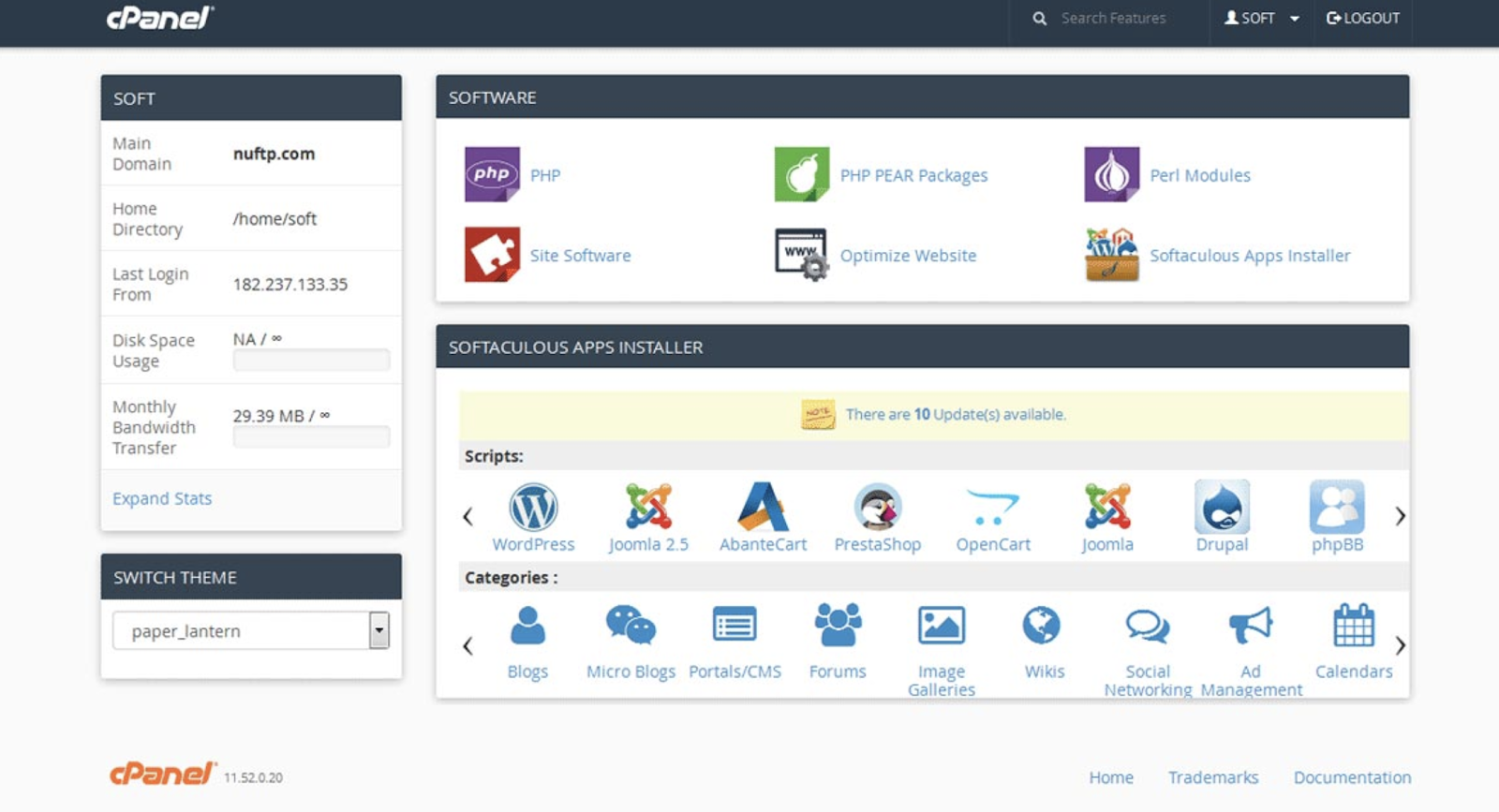
The cPanel is a dashboard that many hosting providers give you access to upon sign up. Once you login to your panel with the credentials provided by your host, you should see a section in your cPanel called “auto-installers”. All cPanels look something like this:
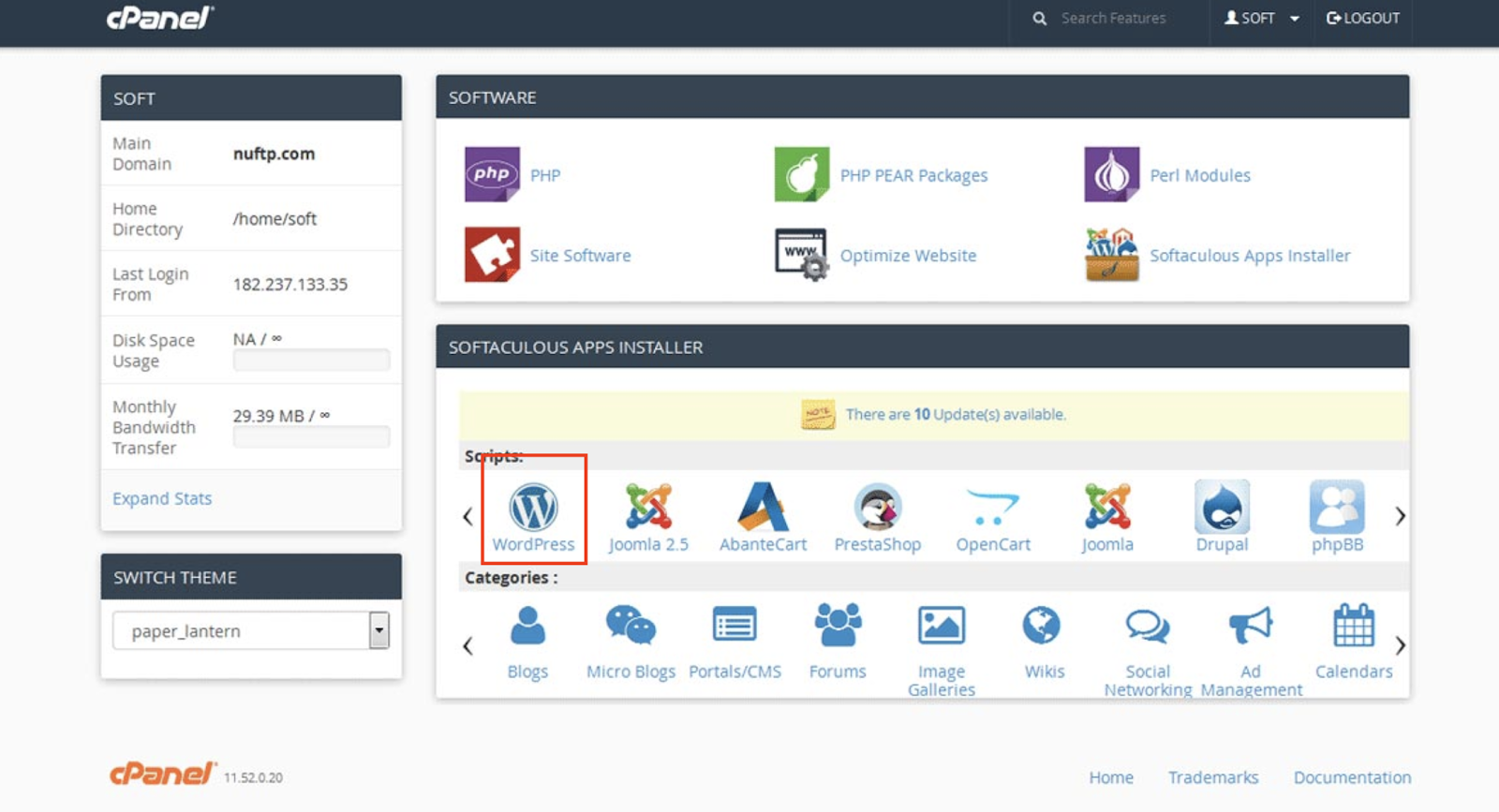
Under the auto-installer section in your cPanel, click on the WordPress icon.
You should be redirected to a page where you can click “Install Now”. Once you have clicked that button, you will be asked to enter the domain name where you want WordPress to be installed. No matter the cPanel or auto-installer you are using, this page should look similar.
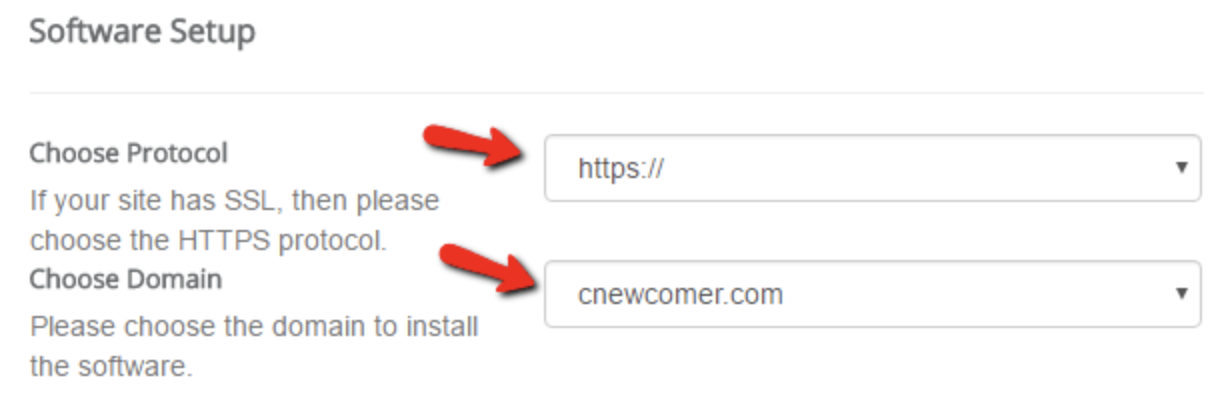
Under “Protocol”, the default is “http”. We recommend you stick with this unless you have installed an SSL certificate — in which case, you should use “https”. You’ll also be asked if you want to enter a “Directory”. In most cases, you’ll want to leave this blank to ensure WordPress is installed to your main domain. If you leave the field blank, your URL will look like this: www.mysite.com. If you enter a directory, your URL will look like this: www.mysite.com/blog, meaning WordPress will only be installed on a portion of your site.
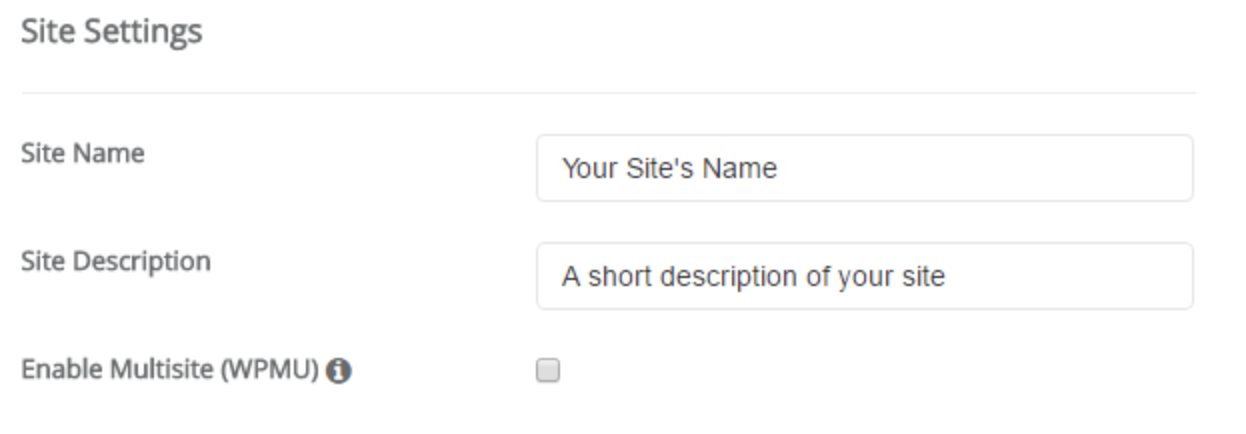
You can also enter the name of your website (read: business name) and description (read: purpose of your website) under “Site Settings”. If you want to change these later, you can always go back in and update them.
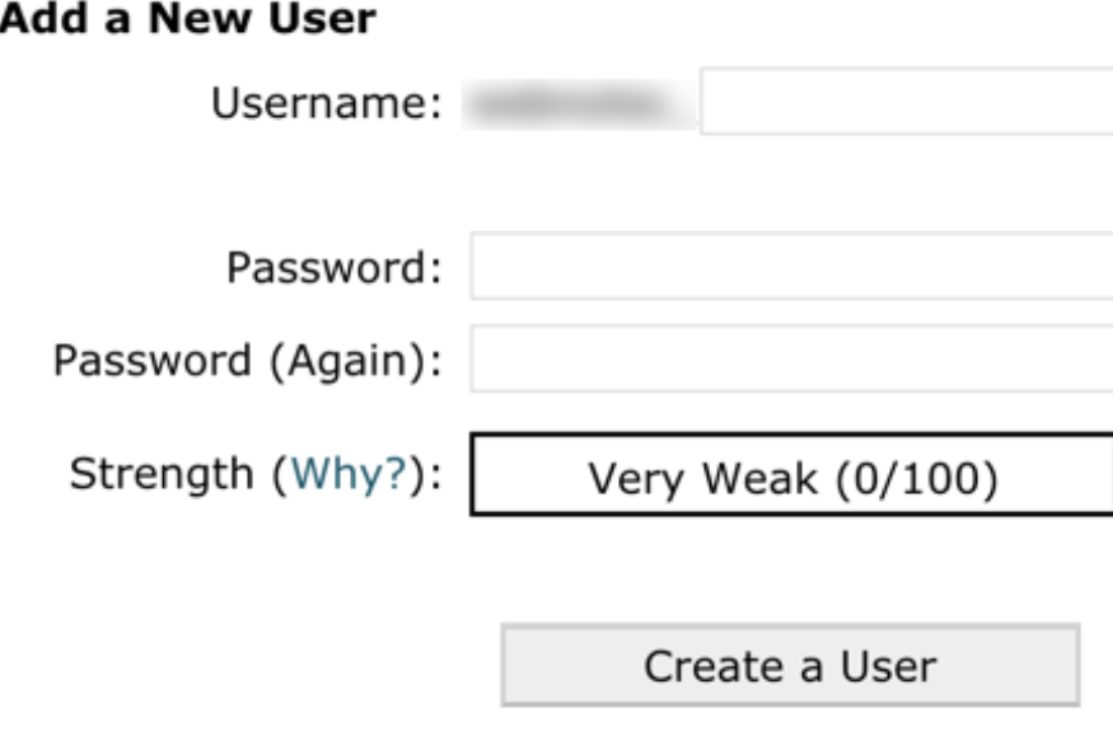
The last thing you’ll need to do is complete your admin page information. Enter your admin username, password, email address, and anything else required — there may be a few more questions to complete based on the auto-installer you chose. Then, click “Install”.
You should now be able to access the backend of your site on WordPress at www.mysite.com/wp-admin. This is also where you can edit your admin details if needed.
4. Manually Install With FTP
Between the number of website hosting providers that automatically install WordPress for you, as well as the auto-installers available in your cPanel, there isn’t really a need to manually install the software with an FTP. However, if you do choose this installation route, you can follow the steps below.
First, you’ll need an FTP program such as SmartFTP or FileZilla (as mentioned in the five tasks you need to complete prior to beginning installation).
Next, head to the WordPress website and download the latest version of the CMS.

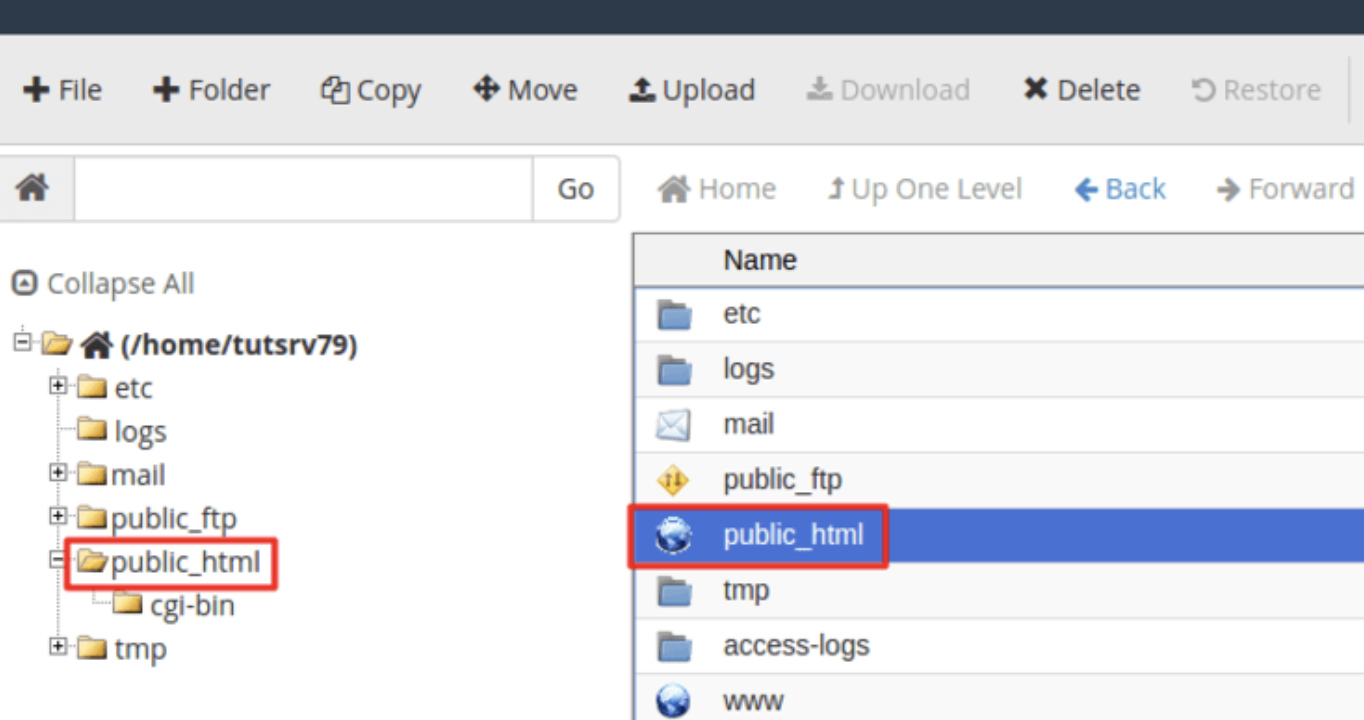
Then unzip the WordPress file and upload it to your public directory, which should look something like this: public_html.
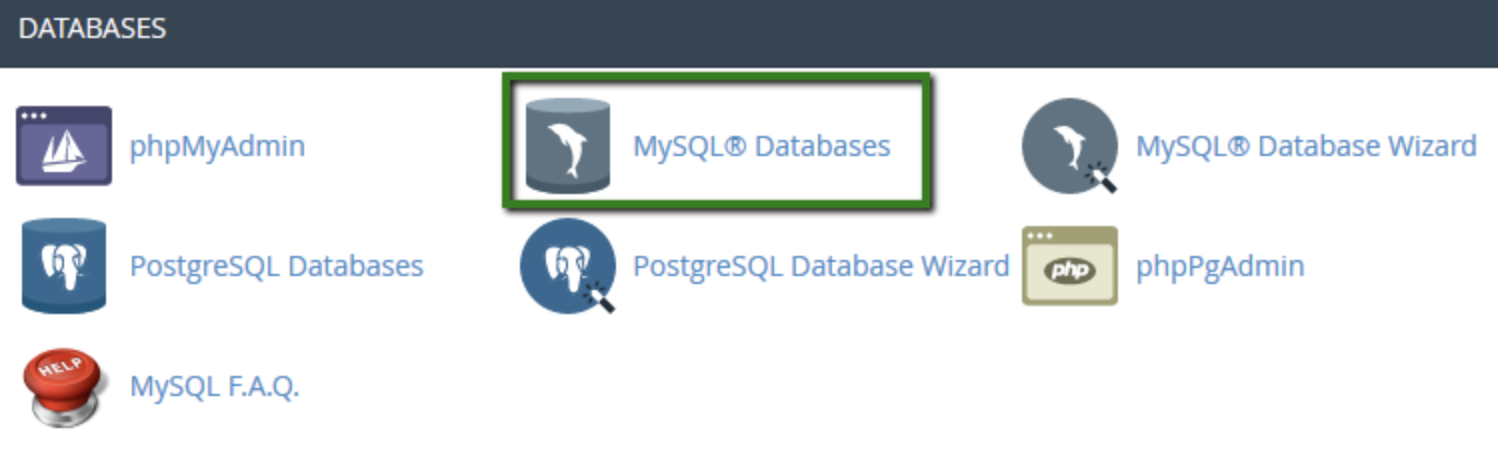
Go to your cPanel and find the “MySQL Databases” button. All cPanel’s should have a similar look, although your MySQL button may be located in a slightly different location.
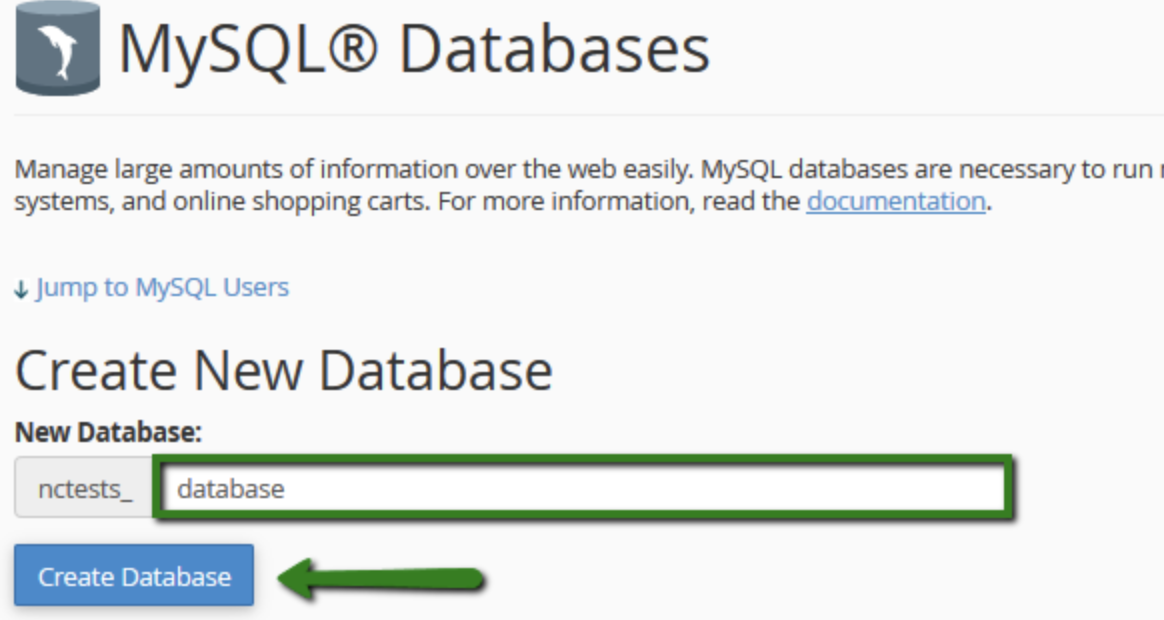
Follow the prompt that asks you to enter your database name. Once you have done that, click “Create Database”.
Now that the database has been created, you’ll be asked to create a “user” for your MySQL account. Complete your username and password and click “Create User”.

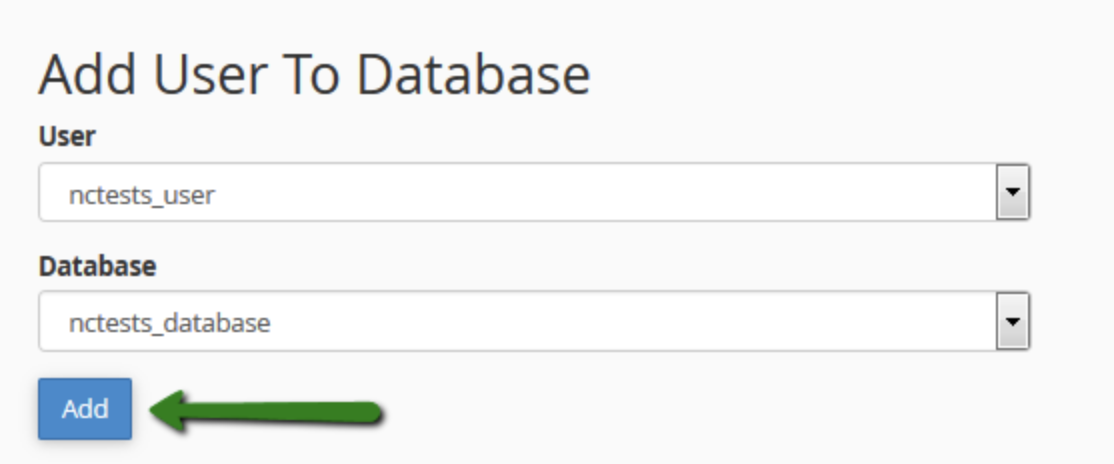
Give that user access to your database by adding their information as well as the name of the database you’re adding them to.
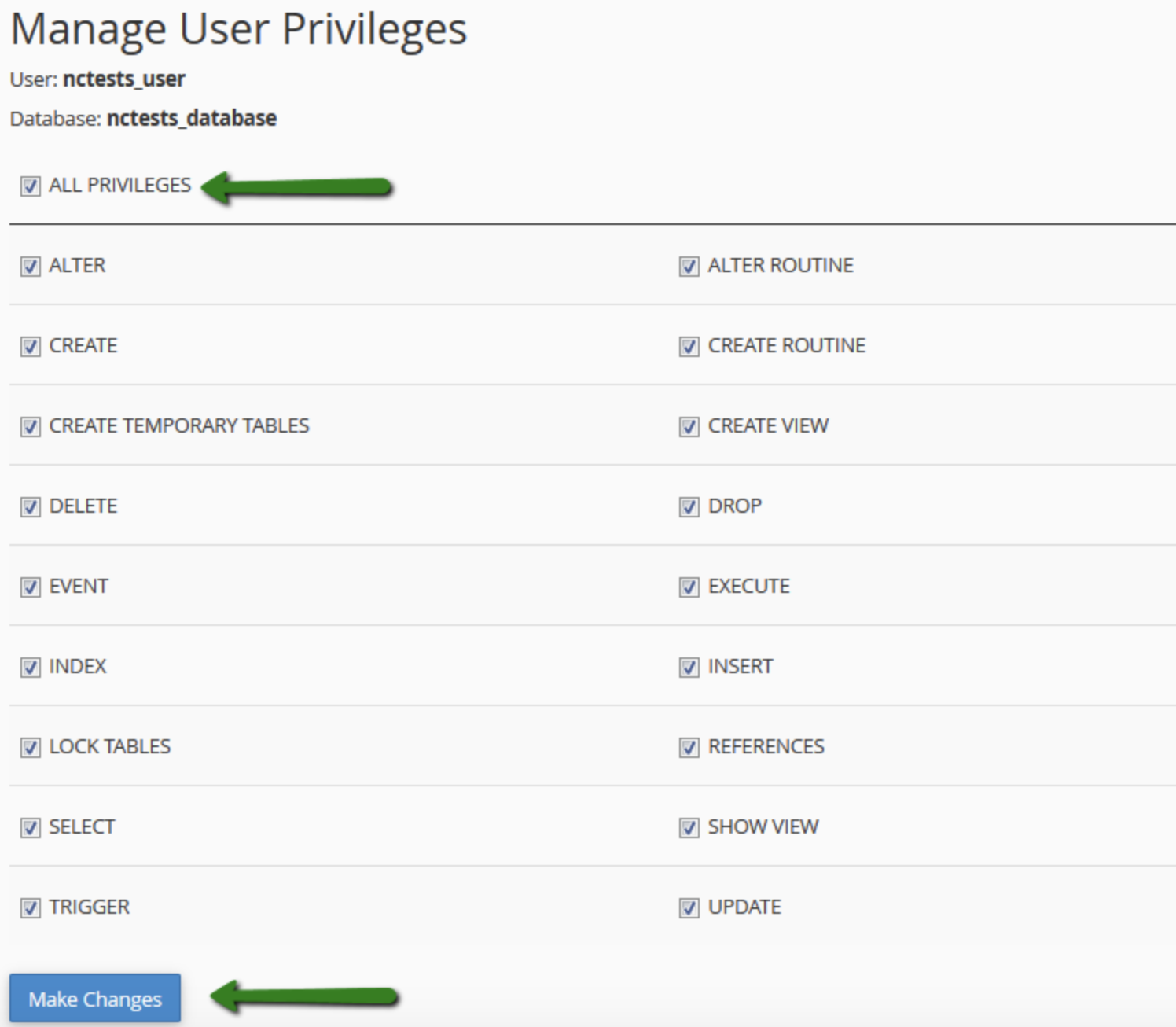
On the following page, you’ll be asked about the privileges you want to provide that user — make sure they are all checked.
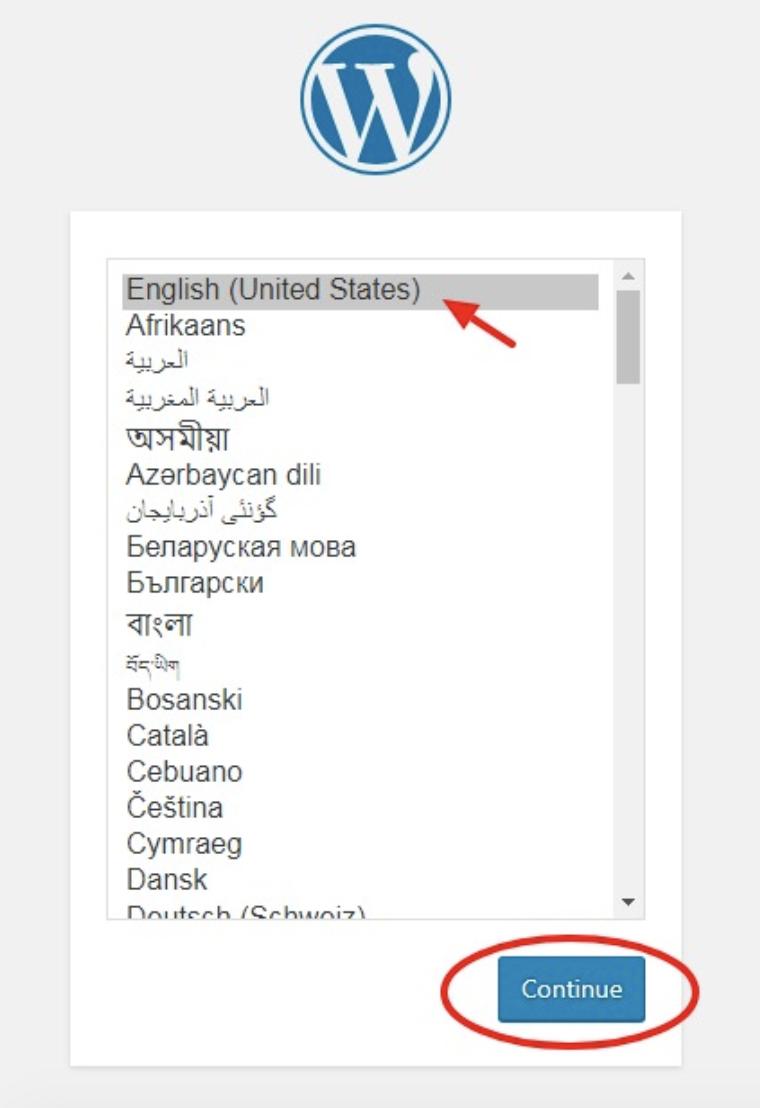
By now your FTP transfer should be complete and it’s time to visit your domain to complete the install. If the transfer was successful, WordPress will prompt you to choose your language when you visit your domain.
Pick your desired language and click “Continue”.
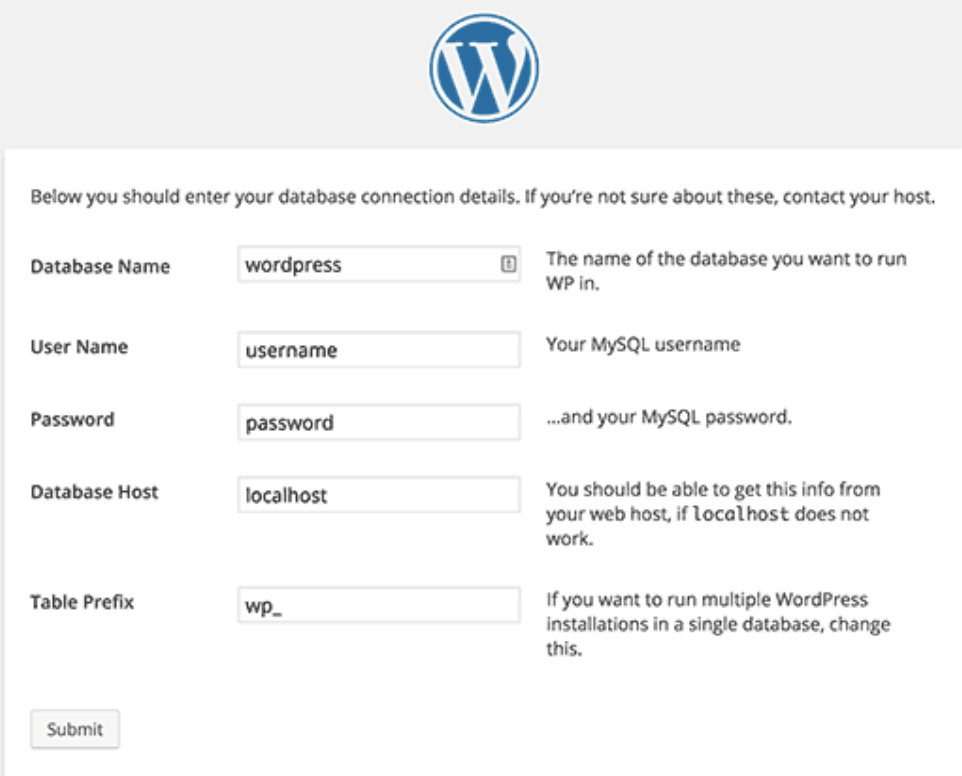
You’ll then be asked to enter your Database “Name”, “Username”, “Password”, “Database Host”, and “Table Prefix”.
Once you’ve completed those fields, click “Submit”.
Click the button that says “Run the Install”. You’ll be asked to give WordPress your admin information. This will include your “Site Title”, “Username”, “Password”, and “Email” that you created previously.
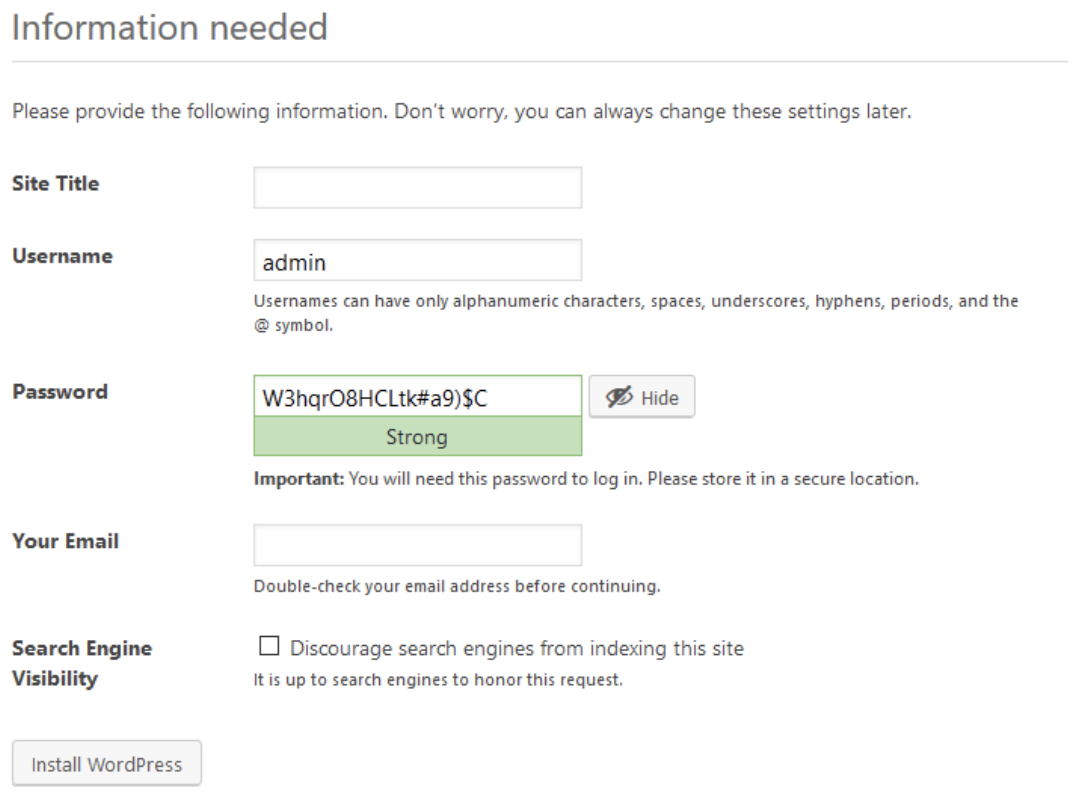
Finally, click “Install WordPress”. You should now be able to log into WordPress with your username and password.
Congrats! You’ve manually installed WordPress.
Final Thoughts on WordPress Installation
If you’re able to choose a hosting provider that meets your needs, WordPress installation will be easy and automatic — this option is highly recommended for anyone completely new to WordPress, or website creation in general. However, should you choose to install WordPress yourself, your options are still straightforward and easy to follow.
If you need help at any point during the installation process, you can check out the WordPress FAQ or troubleshooting pages. No matter your background, the WordPress installation process is quick and easy, allowing you more time to focus on the things that matter, such as customizing your website and creating a great user experience for your visitors.
