
Welcome to My Blog
You Can Now Set Goals in Google Calendar: Here’s How to Set It Up
While setting and working towards personal goals is often hailed as a way to stay motivated and productive, the science behind goal-setting paints a different picture.
For starters, a study from the University of Liverpool revealed a connection between depression and setting generalized, abstract goals. It turns out that when we don’t have precise criteria for what it means to achieve a goal, it’s difficult to ever feel a sense of accomplishment. It’s like kicking a soccer ball toward a goal line, but the goal line keeps moving further and further backwards.
Couple that with the fact that, as psychologist Robert Cialdini explained in his best-selling book Influence, sticking to any goal you set is incredibly difficult — unless you take the time to write your goals down and/or share them publicly.
Fortunately for all of us who have been struggling with defining and sticking to our goals, Google has released a new feature for Google Calendar that can help. It’s called “Goals,” and it could be the solution to the goal setting problems I outlined above.
What are “Goals” in Google Calendar?
Google announced the addition of the “Goals” feature to its Google Calendar application on April 12, 2016. The feature lets you set clearly defined goals (e.g., “practice speaking French three times per week”) and then Google Calendar automatically schedules those goals based on when you have open slots in your calendar.
When you’re setting a goal, you also have control over how much time you want to dedicate to each session. Just like with a meeting, you can have a goal session last 15 minutes, 30 minutes, an hour, or however long you want. You can also specify what time of day — morning, afternoon, or evening — you’d prefer to work on your goals.
What happens if a new meeting pops up on your calendar in the spot where a goal session has been scheduled? No, you don’t get to use that meeting as an excuse (any more) for skipping out on your goals. Instead, Google Calendar automatically reschedules that goal session for you.
(Source: Google)
The same thing happens if you decide to defer a session. Instead of disappearing from your calendar, that session gets automatically rescheduled. And as you keep using the Goals feature, Google Calendar gets better at understanding your scheduling preferences, so it can provide more personalized scheduling.
One caveat here: You can only create goals using the Google Calendar application on an iPhone, iPad, or Android device. That being said, you can still view, edit, and — if needed — defer goal sessions using Google Calendar on a desktop or laptop.
Now that you have a basic understanding of what Google Calendar’s “Goals” feature is all about, let’s go through the steps of actually creating a goal.
How To Set a Goal in Google Calendar
1) Open the Google Calendar app and tap the red “create” icon.
2) Tap the blue Goal (flag) icon.
3) Choose the type of goal you want to set.
4) Get more specific.
5) Get even more specific.
6) Choose how often you want your goal to appear on your calendar.
7) Choose how long you want each goal session to last.
8) Choose the ideal time of day for when goal sessions should be scheduled.
9) You’re done! Here’s what the confirmation screen looks like:
Once your goal is set and you’ve landed on the confirmation screen (see above), you can fine-tune your goal settings by tapping that “More Options” link. From there you’ll be able to edit notifications, colors, and more.
When you’re finished, goal sessions will start appearing on your calendar and you’ll be off to the races (or off to French lessons, depending on your goal).
Have any tips or tricks for getting the most out of Google Calendar’s Goals feature? Tell us about them in the comments section below.
Snapchat Delivers 10 Billion Video Views Daily: This Week in Social Media
Welcome to our weekly edition of what’s hot in social media news. To help you stay up to date with social media, here are some of the news items that caught our attention. What’s New This Week Snapchat Now Serves 10 Billion Daily Video Views: “Now users are watching 10 billion videos a day on […]
This post Snapchat Delivers 10 Billion Video Views Daily: This Week in Social Media first appeared on .
– Your Guide to the Social Media Jungle
from http://ift.tt/26Dvlee
via socialmediaexaminer
Developer hacks Apple Watch to boot and run Windows 95
Developer Nick Lee has managed to hack a working version of Windows 95 onto his Apple Watch. The utility of this is close to zero — but it is hilarious to watch. It highlights how smart wristwatches like Apple Watch are now as powerful as (if not more than) desktop computers from the turn of the century. Watch the full video of the ‘microsoftOS’ Apple Watch in action after the jump …
Filed under: AAPL Company, Apple Watch, iOS, iOS Devices, Tech Industry Tagged: Apple watch, developer, hack, native apps, watch kit, Windows 95
Review: Aukey EP-B20 Bluetooth Headset – inexpensive, but worth it?
If you’re looking for a pair of inexpensive wireless earbuds for workouts, then Aukey’s EP-B20 Bluetooth Headset is worth a look. These aren’t the most prestigious earbuds that you can pick up, but they sound decent, feel great in ear, and come with a reasonable $27.99 price. more…
Filed under: Reviews Tagged: Aukey, Aukey Bluetooth Headphones, Bluetooth, Bluetooth 4.1, review, Wireless
Fiat Chrysler CEO opens up on potential Apple or Google partnership to build cars
The automotive industry is a capital-intensive industry. Fiat Chrysler CEO Sergio Marchionne knows it and that’s why he is open to work with Google or Apple:
“Google can buy every automaker out of petty cash. And Apple — they made a net profit of $24 billion in one quarter. This is nonsense. What are we defending? What?”
In a not yet released 2-hour interview with Automobile Mag‘s Georg Kache, Marchionne discusses the recent rumors of a FCA partnership with Google for self-driving cars and how the automaker wants to position itself in an industry disrupted by the likes of Apple, Google, Tesla and Uber. more…
Filed under: Apple Car Tagged: Apple, Fiat Chrysler, Google, partnership, Sergio Marchionne
Designer Apple Watch bands by Coach reportedly coming soon for around $150 [Photos]
Apple has previously partnered with designer brand Hermes for a set of premium Apple Watch bands, sold separately from $340 per strap. It now appears that a second high-profile fashion designer, Coach, is coming on board with its own range of Apple Watch bands.
David Boglin De Bautista reports a sales associate in a Coach boutique told him about the upcoming collection, set to debut as early as June. The sales representative sent photos of the as-yet-unreleased bands (shown above), priced at $150 each.
Filed under: AAPL Company, Apple Watch, iOS, iOS Devices, Tech Industry Tagged: Apple watch, bands, coach, designer, iOS, straps
New Scosche MagicMount portable battery w/ Lightning attaches magnetically to your iPhone
As someone that often carries around a portable battery or two when on-the-go for extended periods of time (because I don’t particularly like the added bulk of using a battery case), this new MagicMount product from Scosche looks very interesting.
A super slim magnetic pad goes on your iPhone, and the battery pack then magnetically attaches to it when needed and connects to your device over a built-in Lightning connector. That gives you the benefits of a battery case by having the portable battery attached to the device, but also allows you to easily remove it once you’ve added enough juice to your device.
Filed under: iOS Devices Tagged: Scosche
9to5Toys Lunch Break: 11” MacBook Air 256GB $850, Mini DisplayPort/HDMI adapter $5, iOttie Car Mount $13, more
Keep up with the best gear and deals on the web by signing up for the 9to5Toys Newsletter. Also, be sure to check us out on: Twitter, RSS Feed, Facebook, Google+ and Safari push notifications.
TODAY’S CAN’T MISS DEALS:
Apple 11-inch MacBook Air 1.6GHz/4GB/256GB from $850 shipped w/ .edu (Reg. $1,099), more
Apple 13-inch Retina MacBook Pro 2.7GHz/8GB/256GB $1,200 or $1,150 w/ .edu (Reg. $1,499), more
Amazon matches Best Buy's $300 discount on several 13-inch Retina MacBook Pro models wp.me/p1xTlR-QPK https://t.co/0cdqg3F9Ch
—
9to5Toys (@9to5toys) April 29, 2016
Sabrent DA-MDHA Mini DisplayPort/Thunderbolt to HDMI Adapter w/4K Support): $5 shipped
iOttie’s latest Easy One Touch Mini Car Mounts for iPhone/Android: $13 Prime shipped (Reg. $20)
Apple 12.9-inch iPad Pro 128GB Wi-Fi + Cellular in all colors for $820 shipped (Reg. $1,079)
Apple 27-inch Retina 5K iMac 3.2GHz/8GB/1TB: from $1,450 (Reg. $1,799)
Apple 21-inch Retina 4K iMac 3.1GHz/8GB/1TB (newest version): from $1,150 shipped w/ .edu (Reg. $1,499)
Anker’s new 60W USB-C/A 5-port charger can quickly refuel your MacBook, more
App Store Free App of the Week: Dragon Hills goes free for the very first time ($2 value)
Star Wars Pinball for iOS goes free for the first time in nearly a year (Reg. $2)
Star Wars KOTOR for iOS now matching its lowest price ever: $3 (Reg. $10)
Alto’s Adventure for iOS now matching its lowest price ever: $1 (Reg. $3)
Air Display 3 for iOS gets its first price drop to $10 (Reg. $15)
MORE NEW GEAR FROM TODAY:
Toshiba Canvio 3TB Desktop External Hard Drive $80 shipped (Reg. $100)
- Super-inexpensive 1080P HDTVs at Walmart: Vizio 24″ Smart (refurb): $90, more
- Samsung 55-inch 4K 3D 240CMR Smart LED UHDTV: $998 (Reg. $1,500+), more
- Daily Deals: Keurig K250 Brewer $75, D-Link Wi-Fi Audio Extender w/ AirPlay $30, more
- Smartphone Accessories: Aukey 10400mAh Power Bank w/ Quick Charge 2.0 $15, more
- Watch & play w/ your pets from your smartphone w/ Petcube’s camera: $137 (Reg. $199)
- Games/Apps: Disney Infinity 3.0 Starter Pack from $30, iOS freebies, more
- LG Google Nexus 5X 16GB 5.2-Inch LTE Unlocked Smartphone: $240 shipped
- Take $5 off your next $100 purchase at ebay with this email giftcard from Paypal
- Magazine subs from $4.50/yr: Wired, GQ, ESPN, Dwell, Forbes, more
- Crest 3D Professional White Strips + Extra 1-hr. Kits $30, more
- Rubbermaid 22-piece Glass Storage Set w/ Lids $30 Prime shipped (Reg. $45)
MORE DEALS STILL ALIVE:
Treat your Apple Watch with Nomad accessories: Nomad Pod portable battery pack $34 (Orig. $60, CA Tax only), more
Networking: D-Link 802.11ac Wireless Router $25 (Reg. $30+), PowerLine Kit w/ Wi-Fi Extender $80, more
- Transcend storage upgrades: 512GB Thunderbolt SSD $284, 256GB Expansion Card $170, more
- iHome SmartPlug with HomeKit, Alexa and Nest support: $25 w/ in-store pickup (Reg. $40)
- Spring Cleaning: storage solutions you need for a perfectly organized garage
- Grab Kaskade’s Automatic as a free MP3 download + $1 albums from Ed Sheeran, more
- Keysmart provides multi-tool-style storage for your keys: $16 (Orig. $22)
- Add five remote control outlets to your setup w/ Etekcity’s best-selling kit: $21 (Reg. $30)
- Green Deals: Ryobi Cordless String Trimmer + Blower $80 (Reg. $130), more
- Motorola Arris SURFboard DOCSIS 3.0 Cable Modem (Refurb) $30 (Orig. up to $100)
- VRS Cases in a variety of styles for Galaxy S7/LG G5/Nexus 6P & more: $5 Prime shipped
- Free PS Plus Games for May: Tropico 5, Table Top Racing World Tour, more
- Green Deals: Amazon’s best-selling outdoor solar light $12 or 2 for $24, more
- JBL OnBeat 50W Bluetooth Speaker w/ Lightning Dock: $115 shipped (Orig. $400)
- Seiki 42-inch 4K UHDTV w/ 3 HDMI inputs $225 shipped (Reg. $349), more
- Garmin vívofit Activity Tracker in multiple colors w/ Heart Rate Monitor: $50 (Reg. $80)
- Smartphone Accessories: Vinsic 20000mAh Ultra Slim Power Bank $37 (Reg. $45), more
- Fashion: PUMA Private Sale up to 75% off – dryCELL Polo Shirt $25 (Reg. $35+), more
- Humble Nintendo Bundle Pay What You Want: Retro City Rampage, Shantae, more
- Best Buy offers $1 iPhone 6s (16GB) on Sprint (Reg. $199), or $100 gift card w/ installment plan
- Home Theater: Yamaha 7.2-Ch. A/V Receiver w/ AirPlay + Bluetooth $479 (Reg. $700), more
- Bobine flexible charging stands for iPhone/Apple Watch starting at $18 (Orig $25)
- Oittm Apple Watch stand/charger $25, Solar Case for iPhone SE $18, more
- Acer Aspire One Cloudbook 11.6″ Notebook (Refurb) $100 shipped (Orig. $190)
- Free Xbox Live Gold Games for May: Peggle, Defense Grid 2, Costume Conquest 2, more
- Green Deals: GRDE Super Bright LED Headset w/ Rechargeable Batteries $20, more
- Command hooks, hangers & more up to 55% off: 40-Pack cable clips $26 (Reg. $32+)
NEW PRODUCTS & MORE:
Triby is the first non-Amazon portable Bluetooth speaker with built-in support for Alexa
The SteelSeries Apex M500 is a lean mechanical gaming keyboard w/ Cherry MX Red switches
- Dyson’s new Supersonic hair dryer will leave your hair healthy and wallet empty
- This LEGO Imperial Star Destroyer custom build is nearly 5-feet long
- The Hover drone uses a unique foldable carbon fiber design to keep its wings safe
- The new LEGO Technic Porsche 911 GT3 RS is everything we could’ve hoped for
- PICTAR’s vintage-inspired SLR camera accessory for iPhone
- Ilumi extends its line of Bluetooth-connected smart lightbulbs to outdoor spaces
- SanDisk’s new iXpand Flash Drive for iPhone & iPad sports a fresh design and speed boost
- Bang & Olufsen’s new A1 Bluetooth speaker brings 24-hour playback and USB-C charging
- Edelkrone wants to replace your tripod with its slick new camera stand
- VIZIO introduces the new M-Series with an updated design and 4K HDR displays
- DJI’s new professional-grade drone is incredibly powerful and intelligent
- Samsung goes big with the “world’s first” bezel-less curved 4K Ultra HDTV
Filed under: Tips and Tricks Tagged: 9to5Toys, Amazon, app deals, Best Buy, Daily Deals, free apps, Gold Box, iOttie, MacBook Air, Sabrent, video games
VideoTweet: Share videos from Final Cut Pro X to Twitter [Video]
VideoTweet is a new utility from the folks over at Arctic Whiteness that brings Twitter sharing to Final Cut Pro X. Appearing as a destination within Final Cut Pro X’s export options, it’s a quick way to get video from a project to your Twitter followers. more…
Filed under:
How-To, Apps, Mac Tagged: Final Cut Pro X, how to, Mac, OS X, photos app, share extension, tweet, Twitter, video, videos
Review: Kito+, the iPhone case that doubles as a portable ECG machine and more
Prior to the official announcement of the Apple Watch, there were multiple rumors that the device would be packed with health-related sensors. When it finally launched, however, it got just a heart-rate monitor – albeit a sophisticated one. A teardown revealed that there’s also a pulse oximeter in there, to measure oxygen saturation in your blood, but Apple hasn’t yet activated that functionality.
The apparent turnabout on sensors was explained by Tim Cook, who last year told the Telegraph that Apple wanted to avoid the need for FDA approval as a regulated health product as that would slow innovation. Any additional sensors, he strongly hinted, would be external.
If you don’t want to wait that long, however, health-tech company Azoi has launched the Kito+, a credit-card sized unit that pairs with an iPhone app to measure heart-rate, ECG, blood oxygen, respiration rate and skin temperature. Costing £99 ($145), you can either use it as a standalone unit, or slot it into the supplied iPhone case for the iPhone 6/6s/Plus …
Filed under: Reviews Tagged: ECG, Health, Health tech, heart rate, heart rate monitor, Kito+, Medica, O2 saturation, Pulse oximeter
How to Retain Customers Using User-Generated Content [Free Guide]
What if you could have your current customers sell your products for you? With user-generated content (UGC) it’s possible! User-generated content deepens your relationship with your existing customers, while leveraging their networks to help you acquire new customers.
From reviews to social media, user-generated content brings a myriad of opportunities to engage with your customers. Once you’ve activated these customers, you’ll be able to tap into the social proof from their content and word of mouth marketing to their networks.
We’ve partnered with Yotpo to bring you How to Retain Customers Using User-Generated Content: The Guide for Ecommerce Marketers. It covers everything that you’ll need to get started with user-generated content for your ecommerce company, including:
- The “rules” of retention
- Why word of mouth matters
- How to leverage word of mouth marketing
- How to deal with negative reviews
- The right (and wrong) ways to ask for a review
- Best practices for building a base of brand advocates
Download How to Retain Customers Using User-Generated Content: A Guide for Ecommerce Marketers to leverage your exisiting customers for customer acquisition.
7 Great Examples of ‘Welcome’ Emails To Inspire Your Own Strategy
We’ve all heard how important it is to make a good first impression. Show up late for a job interview? That’s a bad first impression. Eat a ton of garlic and forget to brush your teeth right before a first date? Also a bad first impression. Go to meet your significant others’ parents for the first time dressed in Crocs and sweatpants? That might also result in a bad first impression (depending on prevailing fashion sensibilities).
It turns out that the “make a good first impression” principle holds true not only in face-to-face encounters, but in email interactions as well.
When you send off a welcome email to a new blog or newsletter subscriber, or to a new customer, you’re making a first impression on behalf of your brand.
To help ensure you’re making the best first impression possible, we’ve rounded up some examples of standout welcome emails from brands big and small. As you’ll soon discover, each example showcases different tactics and strategies for engaging new email subscribers. Let’s dive in …
7 Examples of Standout Welcome Emails
1) Kate Spade
Let’s face it: We, the internet-using public, are constantly bombarded with prompts to sign up for and subscribe to all sorts of email communications. So as a brand, when someone takes the time to sift through all the chaos in order to intentionally sign up for your email communications, it’s a big deal.
In order to acknowledge how grateful they are to the folks who actually take the time to subscribe, Kate Spade uses a simple — but effective — tactic with their welcome emails: They say “Thank You” in big, bold lettering. And by placing that “Thank You” on an envelope, Kate Spade recreates the feeling of receiving an actual thank-you letter in the mail. (The 15% off discount code doesn’t hurt either.)
2) Virgin America
A welcome email is the perfect medium for introducing folks to the characteristics (and eccentricities) that make your brand unique.
For Virgin America, that means putting the “sign of the horns” hand gesture, which loosely translates to “Rock and roll!”, front and center. The playful accompanying copy, “Welcome aboard,” and casual call-to-action, “Grab a seat,” also help to position Virgin America as a hip, fun-loving brand right off the bat.
3) Michaels
The Michaels approach to the welcome email borrows elements from both Kate Spade and Virgin America. In addition to expressing gratitude to the folks who took the time to sign up, Michaels uses their welcome email to showcase their brand. And they do a great job: the lengthy email feels like one big arts and crafts project, complete with paint, yarn, and chalkboards.
Another standout feature of this welcome email is that Michaels makes it immediately clear what value their future email communications are going to provide. After thanking subscribers, there’s this nice bit of copy that sums it up: “We’re going to send fun stuff like DIY tips and tricks, invites to in-store events, and exclusive deals and coupons.”
4) InVision
When you sign up for InVision’s free prototyping app, their welcome email makes it very clear what your next step should be: using the app.
To facilitate this action, InVision’s welcome email doesn’t simply list out what you need to do in order to get started. Instead, it shows you what you need to do with a series of quick videos. Given the visual, interactive nature of the product, this makes a lot of sense.
5) Food52
Sometimes the tiniest of elements in a welcome email can speak volumes about a brand. And when it comes to Food52’s welcome email, their preview text at the top of the email, “We brought snacks,” definitely accomplishes this.
Also known as a preheader or snippet text, preview text is the copy that gets pulled in from the body of an email and displayed next to (or beneath) the subject line in someone’s inbox. So when you see Food52’s welcome email in your inbox, you get a taste of their brand’s personality before you even open it.
Food52’s welcome email also does a good job of building trust by putting a face (make that two faces) to their name. As soon as you open the email, you see a photograph of — and welcome message from — the company’s founders.
6) IKEA
It might not be the most beautifully designed email on this list, but that doesn’t mean IKEA’s welcome email isn’t effective.
Instead of going for the hard sell (e.g., “By stuff now!”), or explaining what it is they do (which is something IKEA probably assumes most people already know), IKEA uses its welcome email to turn folks onto its other, lesser-known programs and content channels. For example, there’s a call-to-action right at the top that explains the value of its member benefits program. There are also prompts to visit their design blog and to contribute to their collaborative “Share Space” site.
Of course, if you’re not interested in any of that stuff, IKEA’s welcome email also makes it easy for you to simply log in and start shopping (there’s a login field right up top).
7) Drift
No fancy design work. No videos. No photos. The welcome email Drift sends out after signing up for their newsletter is a lesson in minimalism.
The email opens with a bit of candid commentary on the state of email. “Most people have really long welcome email sequences after you get on their email list,” Dave from Drift writes, before continuing: “Good news: we aren’t most people.” What follows is simply a bulleted list of the company’s most popular blog posts. And the only mention of the product comes in a brief post-script at the very end.
If you’re trying to craft a welcome email that’s non-interruptive, and that’s laser-focused on adding value vs. fluff, this is a great example to follow.
Know of any other standout examples of welcome emails? Share them in the comments section below!
Streaming of Drake’s new ‘Views’ album exclusive to Apple Music, available for download on iTunes
Streaming of Drake’s latest album Views has hit Apple Music, and will be exclusive to the streaming service for one week, the rapper announced on Beats 1. This confirmed an earlier Buzzfeed report.
Drake told Zach Lowe that the album is a very personal one, based very much on his own feelings about himself and his home city of Toronto.
I’m a very honest person. I can’t write fiction.
The short one-week exclusivity period was perhaps agreed in the light of some high-profile U-turns by artists who had initially promised full exclusivity elsewhere …
Filed under: iOS Devices Tagged: Apple Music, Beats 1, Drake, iTunes, Views
Strategies to Drive Member Engagement
Over time, you’ve collected a wealth of data on your members. That’s because your members are engaged with your organizations for reasons that are beyond materialistic. They care about your mission and work. They’re regularly reading your content. They’re giving you donations to do what you do best and expect nothing but goodwill in return.
So why are you analyzing this data in a spreadsheet?
Engagement has so many interesting dimensions and can be eye-opening to a marketer who is looking to make the most out of a limited marketing judgement. Instead of letting your invaluable trends fall to the wayside with data that is going unanalyzed, take a look at the following tactics and strategies. With the right tools, processes, and systems, you can integrate your data into your high-level strategy.
Still need a way to engage your members? Check out our ebook, A Crash Course on Inbound Marketing for Nonprofits >>
Create Exclusive Groups on Social Media
Your most engaged members deserve special recognition because the offer the most value to your organization. Of your overall audience, they are likely the most engaged, likely to donate, and passionate about your work.
Imagine how fruitful it would be to have a direct, ongoing conversation channel into this audience where you could conduct research, ask for opinions, share content, and discover what’s on their minds.
One way to tackle this challenge is to create exclusive social media groups in your sector. These include groups on Facebook and LinkedIn and hashtag-based Twitter chats. If you’re feeling especially ambitious, you could launch your own niche online community. Keep these cohorts small so that you can keep the benefits exclusive and interaction alive.
Build an On-Site Personalization Strategy
If you’re tracking information about all your members in a central marketing or communications data, you’re in a strong position to create customer segments. Why not craft one that’s focused around your most valuable audiences?
Create personalized welcome screens, share interesting content, and offer custom resources for your most engaged members. Understand what appeals to them personally, and make sure that your messages aligns with their interests on an individual level.
Here are some resources that can help you get started:
- Here’s an introduction on how to use smart content to engage audiences with more relevant, personalized resources
- Here’s a strategic guide on how to use personalization with your content
- Here are some ways that you can automate the creation of smart text
Personalization has many moving parts, so make sure to do your research upfront. Spend time with your highest value members and donors in person so that you can continue to develop your most current and compelling messaging. Master this creative side, automate process, and devote as much time as you can to learning about your audience.
Send Personalized Emails
Email still remains as the best channel for communicating with audiences 1:1. It’s especially valuable for connecting with members who have a high personal stake in your organization. Think about it: they’re committing their time and money to your cause. It’s the ultimate form of brand engagement.
Why not make the most out of these touch points by increasing the value of your interactions? When you’re sending personalized emails to strangers or minimally engaged audiences, you risk wasting resources. But when you’re sending personal emails to audiences who are already engaged, your probability of having a successful outcome is high.
Think about it: if you’re sending member renewal emails, wouldn’t you want to give your long-timers a special thank you? The extra effort will only take a couple minutes of your time. If you’re looking for some ideas to get started, check out this list of example email templates.
Spend Time Together in Person
When it comes to engaging your members, nothing replaces an in-person interaction. Use your online strategy to help guide your strategy for setting up exclusive meetups in key geographies where your most engaged audiences are living.
Use your member database to identify potential hosts and speakers. Come up with a monthly schedule for longer and shorter events. You can even create a monthly meetup (at a venue like your office or a park), host a potluck, and invite members to spend time together. It’s a marketing program that you can build at almost no additional cost, while complementing your marketing funnel.
When you spend time together in person, you’ll come up with some great ideas for additional marketing initiatives, content to write, and campaigns to run. You’ll get feedback on your programs to date and figure out exactly how to iterate and make your processes better.
Final Thoughts
Data and personalization campaigns can help tie together many moving parts of your member engagement strategy. Focus on giving this group your best marketing experience: after all, they’re your most powerful advocates. Engagement fuels more engagement. Automate as much as possible so that you can focus on what you do best–building engagement.
14 Stress Management Apps to Relax Your Mind & Body
Stress and anxiety — to some degree — are natural parts of everyday life. Think about it: You get that feeling when a driver cuts you off on your way to work, or when you have a looming deadline, or when you spill coffee on your shirt.
These stressful moments can range from uncomfortable and annoying (even motivational) to completely debilitating. What’s worse, these negative feelings can build on themselves really quickly until they feel out of control.
That’s why it’s crucial to monitor our emotional health whether or not we have a diagnosed disorder. According to experts at the Mayo Clinic, unmanaged stress symptoms “can affect your body, your thoughts and feelings, and your behavior,” and can lead to some serious physical repercussions.
Self-help can be our biggest asset, and luckily for us, there are some great apps out there that can help you manage your stress and anxiety on a daily basis. Here’s a list of some of our favorites.
Note: These apps are not intended to be substitutes for medical advice — they’re for educational purposes only. Consult your healthcare professional before making any health, medical, or other decisions based on the data within these apps.
14 Stress Management Apps You Need to Try
1) Pacifica
Here’s a daily tool that’ll help you address stress and anxiety at a gradual pace. The folks who invented it based it on cognitive behavioral therapy combined with relaxation and wellness techniques.
The app itself is pretty low maintenance: The idea is to track your daily activities by writing or via audio. The app then helps you understand what activities might be triggering different moods and emotions, especially stress and anxiety. The goal here? To help you recognize what’s making you anxious or stressed so you can break the cycle. It also gives you goals to set and emotional homework. And, unlike many of the self-help apps out there, it’s refreshingly non-fluffy.
Image Credit: Bustle
2) My Mood Tracker
- Price: Free for lite, $4.99 for full version
- Available for: iOS (Android alternative: T2 Mood Tracker)
Here’s another app that lets you track your emotions and activities throughout the day, with the goal of helping you figure out what’s driving these emotions. Monitoring your mood in an app can help you find some useful correlations — for example, some folks find their mood changes depending on whether or not they worked out that day.
You can put in your sleeping times and sleep quality, medications taken, amount of exercise performed, stress levels, menstrual cycles, and more in here. It’s a pretty robust app, hence the $4.99 price tag — although you can download the lite version for free. The Android alternative, T2 Mood Tracker, is also free.
Image Credit: iTunes
3) GPS For the Soul
- Price: Free
- Available for: iOS
The GPS For the Soul app was created by Arianna Huffington and Deepak Chopra, both outspoken advocates for emotional well-being.
The app helps to connect you with “guides” that make it easier to manage your stress. Each guide includes a combination of things like pictures of nature, breathing exercises, meditation, and yoga. While there are many guides to choose from, you can also create your own by uploading photos of loved ones or by adding your own music or quotes. Once the guide has launched, a breathing pacer will help you measure your breathing.
Your feed will help you see what your friends are feeling and what’s helping them, too. The point here is to help you put things into perspective and remember all the things that you can be grateful for.
Image Credit: Bustle
4) Pay It Forward
Several bodies of research show simple acts of kindness make people feel good. And there may also be particular benefits to varying our acts of kindness, as novelty seems to be linked to happiness as well.
That’s why folks involved in the Pay It Forward movement created this app, which encourages users to do acts of kindness every single day. Each morning, it offers a short list of suggestions for what to do — stuff like pay for the next person’s cup of coffee, for example. It keeps track of your progress as you go and connects you with people to share recommendations with, including friends and family who have downloaded the app, too.
Don’t expect anything fancy from this app: The interface is as simple as the idea. But what a great reminder to give back in small ways every day. (And what a great thing to wake up to every morning.)
Image Credit: Google Play
5) Buddha Board
- Price: Free
- Available for: iOS
Buddha Board is an app inspired by the Zen concept of living in the moment. It lets you “paint” virtually, using your fingers, on the surface of your mobile device. Once you’ve “painted” your design, watch as it slowly disappears.
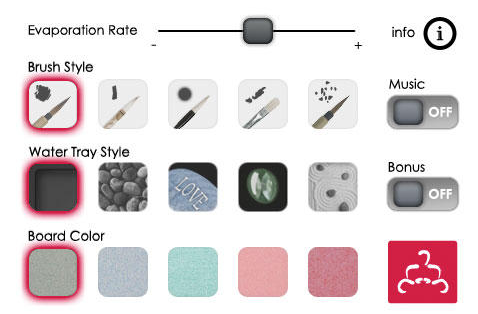
Image Credit: iTunes
Gradually, you’ll be left with a clean slate — and, theoretically, a clear mind to go with it. “Allow yourself to ‘let go’ and not be concerned with each outcome – live in the moment and enjoy,” reads the description on iTunes.
It’s simple, easy, and fun to use. But be warned: One iTunes reviewer complained that although you can use it on your iPad, the screen resolution is pretty poor on a larger screen. If you’re looking for something to use on your iPad, check out Zen Space. Instead of painting, Zen Space lets you create your own zen garden — accompanied by soothing music — and save your images if you want to look at your masterpieces later.
6) Self-Help Anxiety Management
Created by a university team of psychologists, computer scientists, and student users, the Self-Help Anxiety Management app (nicknamed SAM) helps you figure out what’s making you anxious or stressed while also suggesting ways to combat it.
It’s a great resource for external information, covering everything from information about anxiety to physical and mental relaxation techniques. Along with these resources comes guidance for putting these techniques into practice. Over time, you’ll be able to see a graph of your anxiety so you can self-monitor.
Image Credit: Bustle
7) Breathe2Relax
Has anyone ever told you to close your eyes and breathe when you’re having even the smallest of panic attacks? That’s because focusing on and controlling your breathing can really help calm a person down. In fact, diaphragmatic breathing (i.e., breathing from your stomach) has actually been proven to decrease stress.
The Department of Defense’s Center for Telehealth and Technology created this app to help soldiers and their families learn stress-relieving breathing techniques — but, of course, it works for everyone. It also offers some great information and resources on depression, anxiety, stress, and more. So the next time you feel like you’re getting super stressed, try letting this app guide you into some mindful breathing exercises.
Image Credit: Bustle
8) Happify
- Price: Free
- Available for: iOS
This app helps you improve your mood using positive-thinking activities. Their philosophy, based on scientific research, is this: We each have a genetic set point for happiness — but we also have the ability to offset it. In other words, we have more control over our happiness than we might realize.
By practicing certain exercises and interventions that promote positive emotional qualities (like kindness and mindfulness), we can choose our thoughts, behaviors, and actions. Over time, these choices will become habitual and will gradually increase our resilience and make us happier.
That’s exactly what the Happify app aims to do. It helps you set specific goals and offers tips for achieving those goals. The positive-thinking activities include games, posting about something you’re grateful for, or imagining what a situation would be like in someone else’s shoes. CNN named this app among the top apps to train your brain and better cope with stress.
Image Credit: Bustle
9) Personal Zen
- Price: Free
- Available for: iOS
If you’re a fan of playing games on your phone to relieve stress, try adding this one to your repertoire. The premise of the game is super simple: It takes place in a garden where two faces, one happy and one angry, drop into the ground. The happy face creates a trail of grass you have to quickly trace with your finger. The more you play, the more attuned you become to look for the happy face instead of the angry one. Imagine this setup set to soothing background music.
That’s literally it. And it works, according to science: It’s based on an emerging cognitive treatment for anxiety called attention-bias modification training (ABMT).
“Essentially, this treatment involves training patients to ignore a threatening stimulus (such as an angry face) and to focus instead on a non-threatening stimulus (such as a neutral or happy face),” writes Mihir Patkar for Lifehacker.org. “This type of training has been shown to reduce anxiety and stress among people suffering from high anxiety.”
All it takes is 25 minutes of play time to reap the positive benefits, according to a study published in the Clinical Psychological Science journal about the app.
Image Credit: iTunes
10) Relax Melodies
- Price: Free
- Available for: iOS
If stress or anxiety gets in the way of you falling asleep or staying asleep, you might want to try an app like Relax Melodies to help you relax before bedtime. The app lets you choose from 48 relaxing ambient and nature sounds — everything from ocean waves to white noise — as well as calming music and guided meditation sessions. You can customize these sounds into a mix, or choose just one.
You can also set a timer for them to stop playing after a certain amount of time, or set a time during the night or morning for them to wake you up.
Image Credit: Bustle
11) Headspace
- Price: 10 free, 10-minute sessions, with upgrade for $12.99/mo. or $94.99/yr.
- Available for: iOS | Android
Meditation is another great stress relief technique — and Headspace is one of the best apps out there for guided meditation sessions, especially if you’re a beginner. These guided sessions will teach you how to turn off that brain chatter and meditate effectively.
The free version includes access to Take10, a starter course including ten 10-minute meditation activities geared toward beginners. From there, you can pay a monthly subscription of $12.99 to receive more and longer meditation sessions, as well as sessions for specific purposes like less stress and conscious eating.
Image Credit: iTunes
12) The Worry Box
- Price: Free
- Available for: Android (iOS alternative: Worry Watch)
How great would it be if you could just take all your worries, put them in a box, and leave them in that box — instead of having to carry them with you wherever you go? That’s what The Worry Box is for.
It’s exactly what it sounds like: A virtual “box” where you can record all the things you’re stressing about and leave them behind — kind of like the “letting go” philosophy from the Buddha Board app. Then, the app lets you think them through. If the worry is controllable, it’ll help you list out some steps for managing it. If it’s not controllable, you can select from a list of coping statements to help you approach it from a different angle. It’s based entirely on cognitive behavioral therapy techniques that are proven to relieve and manage stress, anxiety, and depression.
Image Credit: Google Play
13) Acupressure: Heal Yourself
Here’s an app that’ll help you garner some physical release from your everyday stresses. Acupressure is an ancient healing art where you use your fingers to press on “pressure points” on the surface of your skin to stimulate the body’s natural, self-curative abilities. It’s totally safe to do — and pressing on these pressure points has both physical and mental benefits, including releasing nerve endings, easing tension in your body, and increasing blood flow.
The app itself helps you locate the pressure points that’ll help alleviate specific symptoms (which you can search for), and then teaches you how to actually alleviate that pressure.
Image Credit: iTunes
14) Gratitude Journal
- Price: $1.99
- Available for: iOS (Android alternative: Attitudes for Gratitude)
Sometimes, all it takes to alleviate some of that building stress is to reflect on what we’re grateful for. After all, there are many studies out there proving that keeping a gratitude journal can result in higher alertness, enthusiasm, determination, attentiveness, and energy.
Here’s a great gratitude journaling app that’ll prompt you to record the highlights of your day. You can even take pictures of those things to keep a visual reminder of what you’re grateful for.
Image Credit: iTunes
What are your favorite stress management apps? Share with us in the comments.
Google AMP: What Bloggers Need to Know
Have you heard of Google AMP? Want to know how it will impact your blog? To discover more about Google AMP and the future of blogging, I interview Leslie Samuel. More About This Show The Social Media Marketing podcast is an on-demand talk radio show from Social Media Examiner. It’s designed to help busy marketers […]
This post Google AMP: What Bloggers Need to Know first appeared on .
– Your Guide to the Social Media Jungle
from http://ift.tt/24oDeCj
via socialmediaexaminer
Report: FBI actually paid less than $1 million for tool to unlock San Bernardino iPhone
In a new report, Reuters this evening is claiming that the FBI paid less than $1 million for the tool it used to unlock the San Bernardino gunman’s iPhone 5c. Apple, of course, denied to create a tool to do so, so the FBI went through a third-party to gain access. The report, citing “several U.S. government sources,” further claims that the technique can be used on any iPhone 5c running iOS 9.
Filed under: AAPL Company Tagged: iPhone 5C, San Bernardino
Apple expands Flyover, Spotlight Suggestions, & traffic data to new locations
Apple today has expanded its popular Apple Maps Flyover feature to a pair of new cities, while it has also rolled out Spotlight Suggestions to new countries and its traffic data to a single new location. For Flyover, the iOS 9 feature is now available in Akron, Ohio and Puerto Vallarta, Mexico. This brings the grand total of Flyover locations to over 260 cities as Apple has been expanding the feature at a brisk pace.
Filed under: AAPL Company Tagged: Apple Maps, Spotlight