
Welcome to My Blog
How-To: Get the jump on Apple’s plans to fully secure your iPhone with two simple changes
It looks like Apple’s plans to strengthen iPhone security to make it impossible for the company to comply with future demands to hack into them will require new hardware. But you can already make it effectively impossible to gain access to your iPhone, even if Apple was forced to bypass passcode time-outs. All that is needed are two simple changes.
First, if you currently use a 6-digit passcode, change it to a longer one. If Apple removes the timeouts, and that compromised firmware gets into the wrong hands, it will take an average of just 11 hours to brute-force a 6-digit code. Simply doubling the number of digits to 12 means that the average time needed increases exponentially to 1,268 years.
If that isn’t enough for you, changing it to a complex alphanumeric one literally pushes the brute-force attack time into the millions of years. There is, however, one other weakness you need to address …
While your iPhone is encrypted locally, meaning that Apple doesn’t have the key, the same isn’t true of iCloud. That is encrypted, but Apple does have the key. That means Apple – or anyone able to gain access to that key – could gain access to the contents of your phone indirectly, by downloading your iCloud backup. That’s what Apple did in the San Bernardino case (at least, up to the point when the government changed the password).
Apple plans to come up with a method of encrypting iCloud backups in such a way that the company no longer holds a key, but in the meantime, switching off iCloud backup and switching instead to encrypted backups in iTunes will protect your data. Both steps take just a few minutes.
To change your passcode to 12 digits, go to Settings > Touch ID & Passcode > Change Passcode > Passcode Options > Custom Numeric Code and enter as many digits as you like. Or choose Custom Numeric Code if you want to use letters too. Once that’s done, you’ll also notice the lock screen gives no clue as to how many digits or characters are needed (as shown in the photo above).
To stop backing up to iCloud – and delete your existing backup – go to Settings > iCloud > Storage > Manage Storage then select your device before pressing Delete Backup. When asked to confirm, select Turn Off & Delete.
You then need to switch to local backups in iTunes. Click on the devices icon in the tabbed menu, select your iPhone and then click the radio button for ‘This computer.’ Check the box for ‘Encrypt iPhone backup,’ and then click the Apply button at the bottom of the window.

Warning: backing up locally is much riskier than iCloud backups when it comes to protecting your data from being lost. If your house burns down, or someone steals your MacBook and external drives, that’s your phone backup gone.
You need to balance the risks of being hacked against the risks of losing your data. Personally, I consider the data loss risk far higher, so I’m happy to backup to iCloud and wait for Apple to upgrade the encryption there so I get the best of both worlds. But if you disagree, and consider hacking the greater risk, protecting yourself takes just minutes.
Filed under:
How-To Tagged: Encryption, FBI, How to set a 12-digit iPhone passcode, How to set a strong iPhone passcode, How to set a strong iPhone password, iPhone, iPhone passcode, San Bernardino
For more information about iPhone,
How-To, and Encryption continue reading at 9to5Mac.
What do you think? Discuss “How-To: Get the jump on Apple’s plans to fully secure your iPhone with two simple changes” with our community.
Spark updated with iPad support, account and settings syncing, and watchOS 2 support
Readdle’s popular Spark email app for iOS just received the biggest update of its young existence. The timing of such an update couldn’t have been better with the unfortunate demise of Mailbox — a once beloved email app that’s scheduled to shut down tomorrow, February 26th.
Prior to today’s update, Spark was well-liked, but the lack of iPad support made it difficult for some to adopt it as a full time client. Now that iPad support, and several other new features have arrived, Spark feels as if it’s now ready for prime time. Should you consider adopting Spark as a part of your email workflow? Is Spark a legitimate Mailbox replacement? Have a look at our hands-on video walkthrough for the details.
Spark 1.6 changes
Here are some of the more outstanding changes to come to Spark 1.6
- iPad support, including support for the 12.9″ iPad Pro
- New languages (9 in total): English, German, Chinese, Russian, Spanish, French, Italian, Japanese and Portuguese
- Settings and Accounts syncing via iCloud
- watchOS 2 support
The main takeaway from my time with Spark is that it feels more mature. Sure, support for the iPad makes it easy to feel that way, but the overall level of polish has noticeably increased.
iPad support
Up until recently, I’ve been a big fan of Microsoft Outlook for iOS. The primary reason for choosing Outlook was due to its iPad support. Now that Spark supports the iPad, I’ve switched to using it as my full time email client.
As mentioned, Spark hasn’t merely been updated with general iPad support, but it’s been updated to work with the iPad Pro. Native iPad Pro support is a very big deal for me, and I’m sure other Pro owners will feel the same. The fundamentals of the app don’t really change when compared to using Spark on a smaller device like the iPhone, but having Spark on the iPad Pro is a great experience for power users.
Syncing settings via iCloud
Another hugely convenient feature to make it to Spark 1.6 is the ability to sync settings and accounts via iCloud. Make no mistake, this is major new feature. It means no longer having to deal with the meticulous task of setting up email accounts from scratch on every iOS device. It also means that, along with email accounts, all Spark preferences will transition over as well. For someone like me with five or six email accounts, it’s hard to overstate how brilliant this feature is.
watchOS 2 support
With Spark 1.6, Readdle is officially supporting watchOS 2 for its Apple Watch efforts. This means that Spark now functions as a native app on Apple Watch, and comes with a noticeable speed increase.
Why you should consider using Spark
Besides the obvious addition of iPad support, Spark is just a solid email client with a lot of practical features. Known for reducing the friction normally associated with managing email, Spark lets you easily process items in your inbox using gestures, features a Smart Inbox that breaks up email into logical categories, and contains search capabilities that let you easily hone in on specific messages using natural language.
Snoozing
One of the biggest features that former users of Mailbox will appreciate is the ability to snooze emails. Mailbox made its name off that ability, so snoozing will be a big draw for Mailbox fans.
I’ve never been keen on the concept of snoozing emails, but I know that a lot of people are enthralled with the idea. By utilizing the snooze button in the upper right-hand corner of an email, you can remind yourself to address a message at a later time. Users have the option of further customizing snooze alert times and availability within Spark’s preferences.
Personalization
Spark prides itself on personalization in a number of ways. Users are encouraged to customize the app’s Sidebar, which contain shortcuts to the Smart Inbox, Attachments, Snoozed email, and more. You can fully customize the sidebar and add or remove a variety of different shortcut cards just by venturing into the app’s preferences.
Along with the Sidebar, Spark lends the ability to customize swipe gestures. In all, there are four types of swipe gestures available: left short, left long, right short, and right long. Spark lends users a boatload of customized swipe actions, including:
- Mark as read/unread
- Delete
- Archive
- Move
- Move to…
- Pin
- Snooze
- Move to Spam
- Save to Evernote, Dropbox, Box, Google Drive, OneDrive
- More (iOS Share Sheet)
The last big personalization feature is Widgets. Widgets provide even more quickly accessible shortcuts. Certain application shortcuts, like Calendar access, can only be accessed via widgets, but there is definitely some overlap provided between Widgets and the Sidebar.
It doesn’t stop there
Outside of the primary “personalization” panel in Spark’s settings, there’s a whole host of additional options and settings to be configured. Let’s have a look at some of the other ways to customize Spark to your liking.
The Email Viewer preferences let users adjust the type of buttons that appear when viewing and managing individual emails. Spark gives you the option of enabling Archive, Delete, or Archive and Delete buttons at the bottom of individual emails. You can also choose what happens after an email is archived or deleted, and you can configure the browser that will open upon tapping a link within an email.
It should come as no surprise that signatures can be customized within Spark as well. You can add as many custom signatures as you wish, and make specific email accounts default to a signature of your choosing. I love the way Spark handles signature management, as it lets you quickly swipe between signatures, or disable the signature all together while composing a new email.
Spark also lets you curate how notification badges are displayed on its Home screen app icon. Notification badges can be toggled globally, for individual accounts, or for new messages only. By providing such options, Spark helps you reign in notification badges to a manageable level.
The main downside to using a third-party email app like Spark is that you can’t set it as the default email app in iOS. This means that the stock Mail app will automatically launch when tapping email links in Safari and in other locations. True, it’s an inconvenience, but it’s one that I’m willing to live with for the many positive features that Spark adds to my email workflow. Best of all, Spark is absolutely free on the App Store, so there’s really no excuse not to try it.
Filed under: Apps, iOS Devices, Reviews Tagged: Email app, iPad, iPad Pro, Mailbox, Mailbox app, Readdle, Spark
For more information about iOS Devices, Apps, and iPad continue reading at 9to5Mac.
What do you think? Discuss “Spark updated with iPad support, account and settings syncing, and watchOS 2 support” with our community.
Google’s Removing Right-Side Ads, But How Will It Impact Organic Search Results?
Google has been known to change their logo in fun, surprising ways for their Google Doodles, but major changes to the actual search engine results page (SERP) occur far less often. That’s why their recent decision to remove ads from the right-hand side of their desktop SERPs making big news.
What exactly did they change? By removing ads from the right side of the results pages, they’ve decreased the maximum amount of ads you can see from eleven all the way down to seven. This means fewer clicks for folks who advertise on these pages who aren’t in one of the top three or four paid positions — and a potential impact on organic traffic for competitive auctions.
In response to this change, marketers are asking: Does it impact organic search — and if so, how? How does it influence advertising? What can marketers do about the changes?
First, let’s go over what exactly Google changed and why they changed it, and then we’ll dig into the answers to these questions.
The Change: Before vs. After
Before this big change, Google display ads used to show up in three places: above, below, and to the right of organic search results.
Now, with the recent changes, they’ve removed one of those three ad locations altogether: the one on the right side of the search engine results page.
In some cases, they also may increase the number of ads that appear above the organic search results from three to four. This only happens for what Google is calling “highly commercial queries,” which is when Google is confident a user’s intention is to make a purchase.
The ads that appear below search organic results will stay put, and aren’t affected by the change. Product Listing Ads (PLAs), though, may still stick around on the right-hand side.
Here’s an example of what a SERP looks like now:
Why Did Google Make This Change?
This move does a couple of things for Google. Mainly, it creates a cleaner user experience when someone completes a search.
By including fewer options, it also provides a more cohesive experience between mobile and desktop search — which is something Google’s been prioritizing for a while, especially with last year’s major algorithm change.
For the first time last year, mobile search queries surpassed queries coming from desktop. To stay in front of this trend, Google’s product teams often build a product starting with the mobile experience or mobile first.
The overwhelming majority of paid clicks also come from ads above organic results. By eliminating the right-side ads from the SERP, Google is able to clean up the page without removing a frequently used ad unit.
Will This Impact Marketers’ Organic Results?
Yes it will — although it’s hard to say how exactly. While fewer ads could increase organic traffic, a fourth ad above organic results could also push results down the page to a point that lowers traffic.
When you consider that the further down a result appears in SERPs, the lower the clickthrough rate it receives, it’s reasonable for us to assume there’s going to be a negative impact on organic traffic.
While some users are savvy to ads, they’re becoming more and more like organic listings; the only thing differentiating them is the small yellow “Ad” label that can be easily missed.
It’s also important to remember that this is one of many significant changes to the SERPs in the past few years. The introduction of the Featured Snippet and Knowledge Graph results created even more distractions from the traditional blue links that represent organic results. As marketers, you should be paying attention to the types of results that are being displayed in SERPs for keywords that you’re trying to rank organically for so that you can provide content that’s formatted optimally.
This is something we’ll be keeping our eye on. Regardless of the result, the need for great content and a smart keyword strategy is more important than ever.
What Can Marketers & Advertisers Do About These Changes?
Less ads above the fold mean it’s going to be harder to maintain the same amount of impressions and clicks you’re used to. It could also mean higher CPCs as bidding wars happen for those coveted top spots. If you’re bidding in a competitive auction and aren’t willing or able to achieve positions one through four you may want to ask yourself if those keywords are worth your time at all.
If you want to stay on course through these changes, here’s what we suggest:
1) Review how your ads appear in Google’s SERPs.
If you currently have live Google search campaigns preview your new results by navigating to the Tools tab and then clicking on “Ad Preview and Diagnosis”. Here you can review search results by location, language, device and domain. To learn more about how to use this tool, read these instructions from Google.
2) Review your average position in search results for a given keyword.
Keep in mind that to maintain high impressions and clicks on your ads, you’ll need an average position higher than three or four depending on the keyword. If you’re lower than three or four you’ll be pushed below organic results or worse, the “no man’s land” known as the second page results. You can find the “Avg. Pos.” metric in the Keywords tab of AdWords.
3) Increase your average position in search results for relevant keywords.
There are two main ways to increase your average position: increase your bid, or improve your Quality Score. Google determines Ad Rank based on your bid vs. the competition, everyone else bidding on that keyword, as well as Quality Score, which is based on how relevant your ad and landing page are to the search term that triggered the results. To move up fast, increase your bid and quality score.
While it’s a good idea to aim for those top spots, you shouldn’t necessarily feel pressure to achieve number one. Too high of a bid, and the resulting clicks may generate less profit for your business than the ads cost. This is bad. Always use CPA (Cost per Acquisition or Conversion) as your trump metric. Focusing on this over position or CTR will keep your campaigns profitable as you bid for those top spots. Conversion metrics always win over click metrics.
Google is pretty deliberate with these kinds of changes and consults a mountain of data before doing so. We expect the change to stick and for Google to focus on the user above all else.
And remember, these changes have made it even more important that you’re optimizing for the top organic spot, as well as the Knowledge Graph. While ad real estate being removed from the right side could seem like a good move for marketers focused on organic search, it could also have the impact of moving organic results further down the page. Those with a top organic spot, or a spot in the Knowledge Graph, will have a better shot at those organic clickthroughs than anyone else.
What do you think about Google’s decision to remove right-side ads? Share your thoughts in the comments section below.
Arizona’s Maricopa County takes Trump’s advice, boycotts iPhones over FBI battle
Apple’s sales team must be seriously worried about this one.
Effective immediately, the Maricopa County Attorney’s Office will discontinue providing iPhones as option for replacements or upgrades for existing employees [over] Apple’s recent refusal to cooperate in unlocking an encrypted iPhone used by individuals involved in the recent San Bernardino shootings.
There are currently 564 smartphones deployed throughout the office, 366 of which are iPhones.
It seems some are taking Donald Trump’s call to boycott Apple and iPhones seriously.
Via Engadget. Photo Maricopa County.
Filed under: iOS Devices
Continue reading more about iOS Devices at 9to5Mac.
What do you think? Discuss “Arizona’s Maricopa County takes Trump’s advice, boycotts iPhones over FBI battle” with our community.
Large-scale brand loyalty survey shows Apple tops the list in laptops, tablets and smartphones
Brand loyalty consultancy Brand Keys says that Apple has topped the lists in three of the categories in which it competes: laptops, tablets and smartphones. It wasn’t quite a clean sweep, however – Apple Music lost out to Pandora in the online music category …
The large-scale survey asked 42,792 people to pick their top brands in 72 categories. Other tech winners included Amazon, AT&T, Dropbox, Facebook, Google and Netflix.
Apple of course regularly wins awards, last month picking up arguably the most eccentric when the Apple Watch was named ‘Life enhancer of the year.’ 9to5Mac readers picked the Watch as Apple Product of the Year last year.
Via CNET
Filed under: AAPL Company Tagged: Apple awards, Apple Inc, award, Pandora
For more information about AAPL Company, Apple Inc, and Pandora continue reading at 9to5Mac.
What do you think? Discuss “Large-scale brand loyalty survey shows Apple tops the list in laptops, tablets and smartphones” with our community.
How to Easily Plan & Track Your Email Marketing Campaigns [Free Email Planning Template]
If you’ve ever planned an email marketing campaign, you might have wanted to pull your hair out at least once or twice.
Maybe you didn’t have enough time to properly segment your lists, so you knew your clickthrough rate was gonna totally suck. Or you were planning several email campaigns at once, so keeping track of all the details for each was kind of like trying to juggle while skateboarding while accomplishing your 50-squats-a-day goal.
Sound familiar?
Download the free email planning and tracking template here.
Email marketing requires a lot of attention to detail. Sometimes it’s just plain tricky to stay organized, especially when you have so many tasks to keep track of and get done everyday — email campaign planning being only one of them. Keep on reading to learn how you can get your email marketing organized.
Organizing Your Email Marketing Campaign Strategy
The best way to prevent mediocre email marketing is to get organized. When you’re having difficulty managing all the moving parts of your email campaigns, it’s hard to be proactive and strategic about what you send, which ultimately means your campaigns will be far less fruitful in terms of generating opens, clicks, and qualified leads.
The problem gets worse the more email campaigns you need to plan and send. To get organized here at HubSpot, our email marketers came up with what we think is a pretty neat email marketing planning template that helps us (and hopefully you, too) keep track of which emails you’re sending to whom, the various A/B tests you’re conducting, and the high-level results of each email you’ve sent. We use it as an all-in-one checklist, a calendar, and a communication tool.
Since it’s based in Excel, you and your team can customize it and use it with HubSpot or any other email platform.
Let’s explore how it works, shall we?
How to Plan Your Email Campaigns & Track Results
First, you’ll want to go download your own copy of the template so you can follow along as we walk you through how it can help you be more strategic about what you’re sending.
Once you’ve downloaded and opened your Email Marketing Planning Template in Excel, you’ll notice it contains three tabs. The template itself, which we’ll explore in this post, resides in the “Email Planning Template” tab.
You’ll quickly discover that the Email Planning Template tab is divided into three sections:
- Email Planning (green cells)
- A/B Testing Planning & Results (red cells)
- Email Results Tracking (yellow cells)
Each of the three sections contains columns for the 25 details you should plan for or keep track of in the planning, testing, and results stages of email marketing, which I’ll list in a second.
Keep Track of These 25 Details When Planning an Email Send
To make sure you’ve dotted all your i’s and crossed all your t’s before you press that irreversible “send” button, the planning template will help you think through the 25 details below.
Email Planning
This is where you’ll record the logistics of each email, like when it’s being sent out and who’s sending it. Here’s what you will record in this section:
-
Email Send Date: When does this email need to land in your prospects’ inboxes? In the template, Column A contains the week of the month (Week 1 – Week 4), and each week contains 3 rows to help you plan 3 email sends per week. If your company sends more than 3 emails per week, you can insert additional rows as needed.
-
Email Topic: What your email is about. Ex: New Ebook or Monthly Email Newsletter.
-
Owner: Who on your team is crafting this email?
-
Status: Ex: Not Started, In Progress, Ready to Test, Scheduled, Sent.
-
Subject Line: Which subject line are you going to use to entice recipients to open your email?
-
Email Draft Link: Copy and paste the link to your email draft here from your email software for you to keep track of or your team to review.
-
Goal: What do you hope to accomplish with this email? Ex: Lead generation, clickthroughs, event sign-ups.
-
Target Segment / Persona: Who did you create this email for? Ex: Corporate Executives in mid-sized to large companies.
-
Send List: Name of your email list, such as “Corporate Executives Interested in Social Media Topics.”
-
Suppression List(s): Names of lists you want to exclude from your send. Ex: Unengaged Leads and/or Corporate Executives from SMBs.
-
Personalization Tokens: Which elements of your email are you going to personalize for the recipient? Ex: Name, Company Name.
-
Link to Image File: Paste the link to any image file you need to use.
-
Link to Landing Page(s) or Other Assets: Which webpage(s) are you trying to drive the recipient to?
-
Mailto Link: If you’re encouraging email forwarding, then create and paste your Mailto link in the template.
-
Social Share Links or Buttons: If you want email recipients to tweet or share an element of your email, create and keep track of the social sharing links (ex: using ClickToTweet).
A/B Testing Planning & Results
There are numerous ways to A/B test your emails. You can test your subject lines, your image, your call-to-action layout, the placement of social sharing links and buttons … pretty much any element you want. Here, you’ll record the A/B test(s) you did on each email.
-
A/B Test Description – Describe any A/B test you’re conducting with this email send and which metrics you’ll be using to gauge success.
-
Summary of A/B Test Results – What were the results? Which variation won?
Email Results Tracking
How did your email do? You’ll record the results in this section.
-
Total Emails Sent: How many email addresses did you send your email to?
-
Total Emails Delivered: Of the email addresses you sent your email to, how many successfully landed in an inbox?
-
Total Emails Opened: Of the email addresses you sent your email to, how many were opened?
-
Total Clicks: How many unique individuals clicked a link in your email?
-
Deliverability: Automatically calculates Total Emails Delivered / Total Emails Sent. Above 95% is ideal, but hard to achieve if your list(s) are purchased. (And you shouldn’t be purchasing lists in the first place.)
-
Open Rate: Automatically calculates Total Emails Opened / Total Emails Delivered. An open rate of 20% would mean that out of every 10 emails delivered, 2 were actually opened.
-
Clickthrough Rate: Automatically calclates the percent of recipients who clicked a link in your email out of total emails opened.
-
Leads Generated: How many new potential business contacts did you get from email recipients filing out the form on your landing page?
-
Other Metric: Plug in your own metric based on your campaign goals.
Customize the Template to Fit Your Needs
We realize not every company will send email the same way. We encourage you to customize the template however you see fit for your individual needs and your organization’s goals.
Since frequency, timing, messaging, content, design, and other elements of email marketing will all vary, feel free to adjust the template by hiding certain columns if you don’t need them (as shown below), or by adding in new ones we didn’t account for.
You can also right-click on the “Email Planning Template” tab and select “Rename” to name the template after the current month.
Once a new month starts, you can duplicate the “Email Planning Template” tab by right clicking on it, selecting “Move or Copy,” selecting the “Make Copy” checkmark, and then renaming the tab for the current month.
And Voilà!
With great planning and organization, you won’t overlook major details, your team will be kept in the loop, you can better track your results, and — because you’ve thought through all you need to when planning campaigns — your emails perform better, too.
Editor’s Note: This post was originally published in August 2014 and has been updated and for freshness, accuracy, and comprehensiveness.
Apple working with DOJ to help fight ISIS messaging and propaganda on social media
Apple may be battling one branch of U.S. law enforcement on a terrorist-related issue, but CNN reports that the company is working closely with another on a broader fight against ISIS. Apple is one of six leading tech and media companies offering assistance to the Department of Justice in countering ISIS messaging and posts on social media.
At a meeting conducted at the Justice Department on Wednesday, executives from Apple, Twitter, Snapchat, Facebook, MTV and Buzzfeed offered their input to top counter intelligence officials, according to an industry source familiar with the meeting.
In all, nearly 50 companies and community groups participated, along with the National Security Council, the State Department and the British Embassy.
The issue is not just one of propaganda, said National Counterterrorism Center director Nick Rasmussen, but of directly encouraging acts of terrorism …
Rasmussen told the group the administration is making strides in combating ISIS on social media, where the terrorist army has inspired potential lone wolf assailants to carry out attacks.
Apple’s participation may help to cool suggestions that the company is helping “put people beyond the law.”
Tim Cook yesterday told ABC News that a master key into the iPhone would be “the software equivalent of cancer,” a description that will have particular resonance in a company whose co-founder died from pancreatic cancer.
Photo: AP Photo/Susan Walsh
Filed under: AAPL Company Tagged: California, DOJ, FBI, Federal Bureau of Investigation, San Bernardino, United States Department of Justice
Check out 9to5Mac for more breaking coverage of AAPL Company, California, and FBI.
What do you think? Discuss “Apple working with DOJ to help fight ISIS messaging and propaganda on social media” with our community.
From Email Metrics to Inbound Marketing: Taking Advertising Options to the Next Level
When it comes to email marketing, one of the biggest challenges that media companies face today is the ability to translate insight into action. The reason? When publishers deploy email campaigns, it’s usually to deliver some value to the advertising side of the business. There may be partners who are sponsoring newsletters, or marketing teams may be looking for added-value ways to drive more traffic to display ads.
But these systems are quickly losing their efficacy. The media industry is in flux, programmatic ad revenues are declining, and revenue teams are struggling to find new sources of profitability. They’re carving out new products for advertisers (i.e. native ads), launching creative monetization channels, and even building their own ecommerce platforms. They’re also repurposing their existing assets, like their in-house creative teams, into services-based revenue arms.
Within this context, email is a low-hanging area of opportunity that’s universally accessible to almost every media company. In addition to delivering content to and engaging audiences, this channel is an invaluable source of data that can be repurposed into new revenue initiatives. Email is one of the most direct ways for organizations to reach their audiences on a 1:1 basis, which means that it is a rich source of information for research and new product development.
3 steps to Translate Your Advertiser Data into Additional Sources of Value
1) Uncover Your Most Valuable Audiences
Connections are the currency of digital media today. Advertisers and audiences alike are looking for deeper, more positive interactions from their networks online. But it can be tough to differentiate a substantive connection from a superficial one when your success metrics are limited to pageviews, time on site, and bounce rates. That’s where email enters the picture.
Media companies can identify their most engaged audiences through their email subscriber lists. Who’s opening newsletters regularly? What content are these individuals reading? Are they clicking on ads?
The answers to these questions will give you the insights you need to generate more advertiser value. At a basic level, you can change your advertisers a premium for reaching your most engaged audiences. You can also develop and deploy custom campaigns that meet a very specific marketing goal. Because you’ll likely be marketing to the same engaged user base at multiple touch points, you’ll also create more predictability in terms of the ROI that you can expect to deliver to your advertisers.
It pays to identify—and market to—your most engaged audiences.
2) Create a Comprehensive Conversion Picture
Your email marketing data exists as part of an ecosystem with your social, mobile, and web analytics. When evaluating engagement with your newsletter, make sure that you look at the overall picture: how audiences are moving between channels and how these engagement patterns translate into results for advertisers.
This information can help your company create unique targeting and campaign concepts that stand apart from other media companies. One compelling example to model here is BuzzFeed. This publisher has created a unique UX that it uses to deliver custom native ad products. And because its model is so tailored to its content and audiences, the company is able to predict and replicate results. The company’s secret? It’s no secret at all—it’s data from its massive inventory of engaging content.
Think of your media experience as a puzzle. As important as email marketing data is, it’s only part of the overall picture. Know how everything fits together into one comprehensive conversion picture.
3) Focus on Optimizations
In addition to helping build new products and revenue streams, your email marketing data can also help you improve upon what’s already working. Use your email marketing data to study engagement on a granular level. What pieces of content are your audiences finding most helpful? How much time are they spending with it? On which social channels are your subscribers sharing your content, and how much traction is it getting?
Use this information to optimize the already-successful programs that you have in place for your advertiser programs. For instance, you could:
- Use your newsletter data to recommend content topics for your advertisers’ native ad campaigns
- Build additional targeted email lists
- Add more granularity to your audience segments
- Make improvements to your messaging
- Trigger workflows
Share this optimization data with your advertisers, and they’ll be blown away. In a media world where the majority of publishers are still dependent on clicks and eyeballs, you’ll be well positioned to offer something different and of value.
Last But Not Least
If you’re not sure where to get started or how to fully utilize your email marketing data, talk to your advertisers. Ask what solutions and optimizations they’d like to see on the market. Take this information, and evaluate where your own email marketing data fits into the picture. After all, the industry is learning, growing, and evolving together.
Is Your Mobile Website Stressing People Out? A Simple Guide to Improving Page Load Time
When is the last time you visited a website on your smartphone and had to wait for the page to load?
According to Akamai, 73% of mobile users say they’ve encountered a website that was slow to load. Many times, this happens when users aren’t on WiFi and are relying on a cellular connection.
But when it takes a few seconds for a webpage to load, time seems to slow to a crawl. The longer that website takes to load, the more frustrated we become. And who could blame us? Shouldn’t mobile websites load just as fast as their desktop counterparts?
Yes, they should. Your mobile website included.
So, how are mobile websites performing today? To find a benchmark, HubSpot Research conducted a study analyzing the performance of over 26,000 websites. Not only does the study paint a not-so-pretty picture of how many business’ mobile websites are performing today, but it also uncovered exactly how slow loading times affect more than your bottom line — they affect the visitors’ heart rate.
Let’s dive in to some of the results from this study, why slow loading times are so bad, and how you can make your website faster.
How is Your Mobile Website Performing?
Chances are, it’s barely passing.
According to HubSpot Research’s study, most websites are not performing so well. In fact, the average load time we found in looking at these websites was almost four seconds — which, by itself, is enough to cause many visitors to bounce and look elsewhere.
There are a lot of reasons why websites got a D- grade on average for performance in the study. One of the top contributors to slow load times are images and videos. Often, it’s because images or videos have not been optimized for a webpage — and especially not for a mobile data connection.
Take a moment to think about that beautiful, high-resolution image you probably have on your website’s homepage. It’s just the perfect representation of your brand or product, isn’t it?
Well, that image probably looks great, but its large file size could be causing your website to load slowly — thereby giving your mobile visitors a poor user experience.
Why Fast Loading Times Matter
Before we get to how to make your website load faster, let’s talk a little more about why fast loading times matter.
Slow Loading Times Stress Out Your Visitors
It makes sense that slow loading time would frustrate your site visitors and affect conversion rate and brand perception. But did you know it actually leads to increased heart rate and stress levels? According to a 2016 Ericsson Mobility study, single website loading delays lead to a 38% increase in heart rate, on average.
It’s hard to quantify a 38% increase in heart rate — especially if you don’t monitor it actively. So think of the last time you did something stressful, like watching an horror movie. The delay in mobile load times is roughly equivalent to how you felt watching that horror movie.
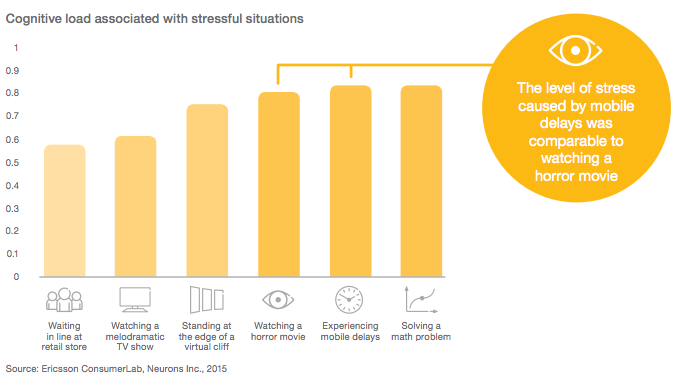
As marketers, that’s not the way we want visitors feeling when accessing our content or evaluating our product or service.
Visitors May Blame You for Their Bad Experience
In some cases, when website visitors experience a delay in loading time, they blame their cellular provider for bad service. But the longer the delay, the more the blame for the delay turns to you: the content provider.
In the same Ericsson study, the researchers ran a Net Promoter Score (NPS) survey for customers, which asked them at what point they transfer blame from their mobile service providers to the content provider.
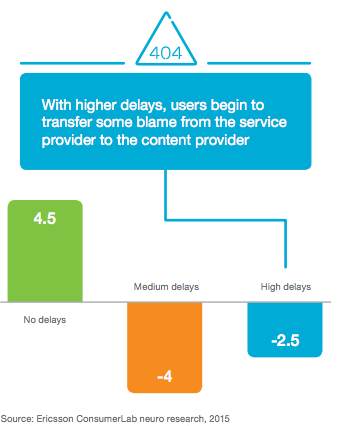
For customers in the study that experienced no delay loading a mobile website, their NPS score increased drastically (by 4.5 points) for their mobile service provider. But customers that experienced some delays started to place blame on the service provider; and the longer the delay, the less they blamed the actual provider, and the more they pointed a finger at the folks behind the website itself.
Slow Videos Seems to Be the Most Stressful
The use of large imagery and background video has become more common in website design lately. Videos are great assets and bring life to your content — but it turns out they can also be pretty stressful.
The researchers at Ericsson found that a YouTube video that had even a two-second delay in loading increased viewers’ stress levels by 3%; and once a video started playing, just a single pause caused stress levels to increase another 15%:
This added stress brings us right back to that horror movie — a feeling we certainly don’t want to leave visitors with.
Knowing how much load time delays can affect visitors physiologically, what can we do to make our mobile websites faster and give them a better experience?
5 Ways to Make Your Mobile Website Faster
There’s a lot that goes into website performance, but let’s cover the top five factors that play a role in your mobile website loading quickly.
1) Determine how your mobile website is setup.
Do you have a separate mobile website (such as m.exampledomain.com) or does your website use responsive design?
Google recommends using responsive design as their preferred methodology and based on how your mobile website is setup there are performance optimizations that your team can investigate. Read this blog post to learn how to test your website for mobile-friendliness.
2) Compress your images.
Remember that beautiful product or brand image I mentioned above that could actually be slowing down your website? If you compress that image, you could take seconds off your page’s load time. Because websites generally have a significant number of images, this is often the largest reason for slow load times — so we recommend addressing this first.
For example, let’s say your product image is displayed on a page as 500 x 500 pixels, but the actual size of the image file is 3500 x 3500 pixels. That image probably weighs a few megabytes (MB), and in many websites, the visitors browser will be forced to load the 3500-pixel version of the image first, and then resize it properly to its smaller version — all during the loading process. On desktop connections this happens constantly, but generally, it happens so quickly we don’t notice it.
But on mobile — especially on a cellular connection — the full-size image can take a long time to load, which can really frustrate users. To fix this, consider resizing, cropping, and then compressing your images. (HubSpot customers don’t need to worry about compressing their images — images uploaded to HubSpot’s software are automatically compressed. For non-HubSpot customers, tools like TinyPNG will help you reduce an image’s file size.)
We also recommending saving images in a format like JPG that’s relatively lightweight, good for your pages, and won’t bloat the user’s experience.
3) Minify all code, especially JavaScript.
“Minifying code” is the process of removing unnecessary characters without affecting the website’s functionality. It has a significant impact on time it takes for a website’s code to be processed, thereby making your website load faster across any device, whether desktop or mobile.
To minify your code, you’ll likely want to get someone from your website team or development team involved because it does involve directly changing the code on your website. It’s even better if you can remove some JavaScript (or other code) from the mobile versions of webpages to speed them up further. (To learn more about minifying code, check out these instructions from Elegant Themes.)
4) Load videos in the background (or not at all).
Videos are likely the largest resource on your pages, and will take the longest to load on mobile. If the video is not critical for the user experience, consider hiding it in the background — or not even loading it at all. By hiding videos in the background, they’ll loading will help with the perception of your website loading quickly but may not ultimately solve an issue of a slow-loading mobile website.
How do you make a video load in the background? You or a member of your development team could insert some CSS into the code so that the video won’t show up at all when the visitor lands on the website.
If your website includes long videos that describe your product or service, you could try using a call-to-action instead of putting the video directly on the website so mobile-specific visitors can, for example, email the video to themselves and view it later. This saves time in the near-term, and also makes the mobile experience vastly better for visitors.
(Note: If you choose to create CTAs for mobile users, think about the spacing around your text boxes and images to make sure your webpage is legible and easy to interact with, regardless of which device your visitors are using to access your page. Buttons that are difficult to interact with on a small screen could lead to a frustrating user experience.)
5) Take advantage of the cache and speed benefits of a Content Delivery Network (CDN).
Content Delivery Networks (CDNs) help cache and load content on servers in different locations so that, no matter where on the internet the visitor is coming from and which device they’re using, they’ll have a faster — and better — user experience. If your website isn’t on a CDN, you could be missing out on a number of performance benefits that we would strongly recommend.
(HubSpot customers: The HubSpot Website Platform uses responsive design, has automatic image compression, and is backed by our CDN for loading your website really quickly — so you don’t need to worry about these things. In fact, according to Yottaa, an independent Internet Performance company websites on HubSpot load faster than on other content management systems.)
There’s a lot at stake for marketers in ensuring our websites not only look great, but function and perform great as well. A fast-loading mobile site will ensure your visitors don’t bounce from your site, and that they won’t experience levels of stress similar to watching a horror movie. You can use the tips above right away to dive in and to start improving performance of your desktop and mobile website.
How to Create a Snapchat Geofilter for Your Event
Have you heard of Snapchat geofilters? Want to use them to promote an event or your business? Snapchat on-demand geofilters let you design custom filters people can use on their snaps based on a custom location you define. In this article I’ll explain how to create two types of Snapchat on-demand geofilters and explore several […]
This post How to Create a Snapchat Geofilter for Your Event first appeared on .
– Your Guide to the Social Media Jungle
from http://ift.tt/1SWI5HL
via socialmediaexaminer
Cómo conseguir Mejores Conversiones con Facebook Lead Ads + Email Marketing
No sé si has probado este reciente formato publicitario de Facebook, pero si no lo has hecho, te animo a que lo pruebes porque los resultados que vas a obtener pueden representar un cambio en tu forma de hacer publicidad.
Vas a entrar en un nicho en el que el Email Marketing bien hecho jugará un papel principal en tu estrategia de gestión y captación de usuarios a través de redes sociales.
Una campaña de éxito con Facebook Lead Ads
Para que veas un ejemplo de una campaña exitosa con Facebook Lead Ads, te muestro una que pusimos en marcha no hace mucho.
Invirtiendo únicamente 17,32 € conseguimos 152 suscriptores, lo que significa que cada lead nos costó solo 0,11 €, con un CTR de 0,5999% y un CPC de 0,04. Lo cual, aunque no esté bien que lo diga yo, no está nada mal.
Estos son los datos de uno de los anuncios de esa campaña:
En este caso te estoy mostrando la campaña de Facebook Lead Ads que pusimos en marcha para el Curso Gratuito de Email Marketing en 5 Días, que es un curso entregable por email basado en la herramienta GetResponse (y un buen complemento a tu estrategia de automatización de Facebook Lead Ads hacia tu email).
No hace falta que inviertas mucho dinero para tener éxito en tu propósito. A veces es más importante segmentar mucho y bien que querer alcanzar a millones de personas sin criterio.
Qué te descubrirá este post: puntos clave
En este post quiero explicarte lo siguiente:
- Ideas para crear un lead magnet efectivo para tu anuncio de Facebook Lead Ads.
- Cómo conectar esos anuncios con tu lista de email marketing de forma automática para no perder oportunidades de conversión (y te daré un par de herramientas para hacerlo).
- Cómo convertir a los suscriptores que has captado en clientes.
¡Pero espera! Primer paso: ¡no pierdas dinero!
Antes de hablarte de lo que puedes hacer con Facebook Lead Ads y cómo integrarlo en tu Email Marketing hay una cosa que debes tener clara para saber cómo convertir tu publicidad en ventas.
El truco del funnel de ventas
Tanto si eres marketer como si eres freelance en cualquier sector, dueño de una pyme o responsable en una gran corporación, cuando integres los medios sociales en tu estrategia tienes que pensar en dinero desde el primer momento. Lo dice siempre mi buen amigo Francisco Marco-Serrano, experto en ROI de esta casa, y tiene razón.
Para no perder dinero -especialmente en publicidad- debes entender tu funnel de ventas.
No, no es un tópico. Es una realidad.
Habrás oído hablar mucho de embudos de conversión, del modelo AIDA, de funnels de ventas (todo es lo mismo), pero pocas veces se plantea desde una perspectiva real, tangible, en la que tú acabas ganando dinero en la última parte del funnel, que a lo mejor convierte un 0,5% de la cantidad de tráfico que has atraído hacia tu web (si es que llega a eso).
Mucha gente pone publicidad para captar fans. Y eso suele ser un error estratégico.
¿Para qué captar fans si no sabes cómo les vas a vender lo que te gustaría que comprasen? Nadie se hace fan de una página para que le vendan un producto. Y tampoco para que le “vendan” conversación. Es como contratar a un Community Manager que te cueste un pastón y no te reporte el beneficio necesario. Mala inversión.
Este tipo de inversiones suelen empezar por el lugar equivocado del funnel.
Cuando pienses en un funnel de ventas, empieza por las ventas.
Y no pienses nunca en captar fans, sino en captar leads (entiende este anglicismo como usuarios que convierten).
Cómo estructurar tu funnel
Hace poco asistí a una conferencia muy interesante en Edimburgo en la que participó el mentor de negocio Donald Munro. Donald explicaba que tenemos que entender el proceso de negocio al revés de como lo solemos entender:
Primero la conversión y luego la captación.
Es decir, primero tienes que fijarte en los beneficios que obtienes y después ya construirás la parte superior del funnel.
Esta es una foto que tomé en su sesión:
De esta manera luego puedes calcular en qué porcentaje tienes que incrementar tu base de datos (la parte superior del funnel, ahora sí) y qué beneficios te va a reportar ese incremento.
Si no tienes claro el beneficio que vas a obtener con el producto que vendas, difícilmente sabrás cuánta gente te interesa atraer para que convierta.
Fíjate que no te estoy hablando de facturación, sino de beneficios, que es lo que te queda entre los ingresos y los gastos. El dinero que ganamos de verdad, vamos.
En el pasado trabajé en y para empresas importantes que lo único que miraban era los números. Luego revisabas el beneficio y te dabas cuenta de que muchas de ellas solo existían para mantener una estructura con muchos trabajadores y con cifras de facturación impresionantes, pero que eran poco más que eso: cifras que sostenían un esqueleto vacío.
Hace mucho que decidí que no quería competir en ese tipo de ligas…
Por eso vamos a la segmentación y al email, que tiene chicha.
Facebook Lead Ads combinado con tu Email Marketing
Si quería que leyeras la reflexión anterior era para que vieras que, si tienes claro dónde está tu objetivo de conversión, la segmentación de tu audiencia en la parte superior del funnel (Facebook Lead Ads en este caso) te resultará mucho más sencilla y ahorrarás mucho dinero.
Vamos a hablar, pues, sobre cómo sacar partido a este tipo específico de publicidad en Facebook.
Cada vez está más claro que la generación de tráfico porque sí tiene poco sentido. Conseguir miles de visitas sin un plan de conversión detrás no te va a ayudar a vender. Igual que conseguir miles de fans para “crear marca” sirve de poco para la mayoría de empresas y profesionales.
De ahí que todos estemos trabajando cada vez más en formas de llegar a audiencias más segmentadas.
Y Facebook Lead Ads es estupendo para segmentar:
- Por un lado, es un formato publicitario de Facebook, lo que significa que te ofrece todas las posibilidades de segmentación imaginables.
- Y, por el otro, te permite captar direcciones de email reales y personales (las que utilizan los usuarios de Facebook), con las que podrás conseguir una venta más efectiva y por mucho menos dinero.
No tendrás que invertir en publicidad constantemente para llegar al mismo público una y otra vez porque ya tendrás a ese público en tu base de datos.
¡Tendrás su email!
(El mejor espacio de conversión en comunicación online…)
Es decir, que solo tendrás que crear contenido de valor por email para esos suscriptores y conducirlos, a través de tu autorrespondedor, de forma automática, hacia la venta del producto que te interese. Y todo desde tu propia plataforma de email marketing.
# 1. Cómo crear un Lead Magnet efectivo para Facebook Lead Ads
Bien, este es el primer paso cuando vayas a crear una campaña.
En este post te expliqué cómo funciona Facebook Lead Ads, así que no voy a repetirlo aquí.
Solo te diré que es muy sencillo: funciona igual que cualquier otro tipo de anuncio que crees con Power Editor. La única diferencia es que aquí, en vez de llevar a tu usuario a una página de aterrizaje para que compre, recibes su email en tu página de Facebook para poder incluirlo en tu base de datos.
Es así de fácil:
Si solo utilizas Facebook Lead Ads no recibirás a los usuarios de forma inmediata, pero en el punto #2 te explico cómo llevarlos a tu base de datos automáticamente.
Si quieres crear un lead magnet efectivo, tienes que hacer lo siguiente:
Piensa en un tipo de producto que sepas que le va a encantar a tu público
Y ofrécelo gratis -huelga decirlo…- para captar a la gente hacia tu lista. Esto es lo que buscas con tu lead magnet:
- Buscas un target muy orientado. Una temática que toque la necesidad real del usuario es clave para convertir y que tu CTR sea más elevado. No utilices un lead magnet genérico. Segmenta en el propio contenido.
- Buscas engagement. El trabajo que hagas en tu email es el que va a llevar hacia las ventas. Un curso por email como el que te he explicado al principio es muy buena idea por varias razones. Lo que quieres con este lead magnet es que la gente se quede enganchada a tu lista, que te conozcan -piensa que muchos de los que lleguen por publicidad a lo mejor serán personas que no han oído hablar de ti-, y un curso por email, asociado a tu autorrespondedor, es una manera “automática” de crear engagement durante varios días y que te acaben comprando. Si regalas un eBook -que es también una idea estupenda- perderás engagement, ya que una vez lo descarguen, probablemente se olviden de ti -y es muy probable que ni lo lean…
Utiliza una imagen atractiva
Una imagen que no solo llame la atención, sino que además “describa sin palabras” lo que vas a ofrecer.
En la creación de contenidos todo tiene que ir relacionado, imagen, texto y vídeo, y un anuncio no deja de ser una pieza de contenido.
Agrega un cuestionario orientado en el anuncio
Bien, ya que vas a gastarte dinero en un anuncio, ¿por qué no hacerle una pregunta a tu público y conocerlo un poco mejor? Es parte de tu estrategia de segmentación si sigues poniendo publicidad. Y sin duda eso te ayudará a reorientar el contenido que le envíes por email.
Facebook Lead Ads te permite plantear hasta 3 preguntas una vez han dejado tu email.
Nosotros, por ejemplo, en el caso que aquí te explico, les preguntamos qué herramienta de email marketing utilizaban. Se lo pusimos en forma de lista, para que solo tuvieran que clicar -no escribir- y extrajimos información francamente interesante.
Crea una página de confirmación/agradecimiento atractiva
Cuando alguien te deja sus datos en Facebook Lead Ads, llévalo a una página de agradecimiento con la información necesaria.
Lo que es importante en esa página de aterrizaje es que les indiques que vayan a su bandeja de entrada para recibir lo que les has prometido, e incluso puedes incluir algo de información sobre ti, pero sin ningún tipo de llamada a la acción adicional ni pop-ups de ningún tipo (para que Facebook no te bloquee el anuncio).
Si no sabes cómo crear una landing atractiva, GetResponse tiene un creador de landings responsive integrado (perfecto para móviles en anuncios como los de Facebook Lead Ads) que te puede venir muy bien.
De hecho, tienen montones de páginas de aterrizaje para editar, y unas cuantas de agradecimiento que ya te vienen por defecto. Solo tienes que sustituir el texto por el que quieras y arreglado:
Lo bueno de utilizar una única herramienta es que podrás emplearla para todo: para crear la página de agradecimiento y para trasladar a tus nuevos suscriptores automáticamente a tu lista, y tenerlo todo centralizado en un mismo lugar.
# 2. Conecta Facebook con tu base de datos de forma automática
Por muy bueno que sea Facebook Lead Ads, Facebook no te deja conectar de manera automática a los usuarios que captas con tu base de datos.
Y eso es un GRAN PROBLEMA para la CONVERSIÓN.
¿Por qué? Porque no podrás enviarles inmediatamente a los usuarios captados el lead magnet por el que te han dejado sus datos.
Cuando uno se suscribe a tu página, es porque quiere recibir inmediatamente lo que le has prometido.
Y solo con Facebook Lead Ads no lo puedes conseguir.
Facebook Lead Ads funciona así: te deja los datos de los usuarios en tu propia página (no en la herramienta de publicidad), donde pone “Herramientas de Publicación”:
De ahí los descargas en un archivo .csv y luego los subes a tu herramienta de Email Marketing.
Pero, claro, no vas a estar comprobándolo cada 5 minutos si te ha llegado un nuevo lead para subirlo a tu base de datos de email… Y si lo haces una vez al día a lo mejor es demasiado tarde y el usuario ya no se acuerda del motivo por el que se ha suscrito a tu página desde tu anuncio.
La mejor solución para captar leads inmediatamente
En el post que te referenciaba antes sobre Facebook Lead Ads te decía que había aparecido una herramienta a finales de 2015, ConnectLeads, que te permitía dar este paso de forma inmediata.
Pues bien, acaba de salir otra que ahora mismo es 5 veces más económica y que te soluciona, sin duda, este problema: LeadsTunnel.
Digo AHORA MISMO porque esta oferta terminará el día 29 de febrero.
Además, ahora te ofrecen todos estos BONUS que encontrarás en la plataforma al adquirir la herramienta:
- Facebook Lead Ads Academy (un curso para sacar todo el partido a Lead Ads).
- Facebook Mastery Training.
- Email Masters Training.
- La Herramienta Creador de Títulos.
Y si la adquieres a través de nuestro enlace te regalaremos una sesión personalizada de 20 minutos para aclarar cualquier duda que puedas tener sobre la herramienta.
Los cursos que ofrecen ellos están en inglés, pero los puedes subtitular en inglés y sacar mucha información sobre cómo potenciar tus campañas.
Cómo funciona LeadsTunnel
Tanto ConnectLeads como LeadsTunnel funcionan de la misma manera: se conectan con tu cuenta de Facebook (debes estar como administrador) y, a través de la API, conectar las direcciones de email que has captado con tu herramienta de email marketing.
Estos son los pasos que tienes que seguir:
a. Integrar LeadsTunnel con tu cuenta de Facebook
b. Integrar LeadsTunnel con tu herramienta de Email Marketing
En el desplegable te ofrecen las principales herramientas de email marketing por defecto:
Un par de usuarios me preguntaron qué pasaba si utilizabas una herramienta que no estaba en la lista. Les trasladé la pregunta y me dijeron que por 40$ te la integraban. Si te interesa la herramienta, el precio y la integración sigue siendo muy competitivo.
Una vez seleccionada, buscas la API en la propia herramienta de email marketing (en GetResponse la encuentras en la configuración general):
Y luego copias el código en LeadsTunnel:
Le pones el nombre del autorrespondedor y arreglado.
Y puedes añadir todos los autorrespondedores que quieras entre los que están disponibles.
c. Crea tu campaña en LeadsTunnel
A partir de aquí te vas a ‘Campaigns’ y creas tu campaña rellenando todos los campos:
Lo guardas y ya tienes en marcha tu campaña en cuanto actives tu anuncio en Facebook.
Muy, muy sencillo.
d. Cómo crear una campaña en menos de 4 minutos
Aquí te explican cómo crear, en menos de 4 minutos (es un decir…), un anuncio de Facebook Lead Ads y conectarlo con tu autorrespondedor a través de LeadsTunnel (puedes activar los subtítulos en CC, pero es muy gráfico y verás que muy sencillo de manejar):
# 3. Cómo convertir a los suscriptores de Facebook Lead Ads en clientes
Vale, ahora ya tenemos a los suscriptores en nuestro autorrespondedor.
Según explican en el vídeo, consiguen un 32% de tasa de apertura del primer mensaje que envían inmediatamente después de que el usuario llegue a su base de datos.
Nosotros conseguimos un 41,49% de aperturas únicas en el tiempo que duró la campaña que te mostraba antes (no globales, que fueron del 86,88%). Estos son los datos:
Es decir, si la fase de captación es tan importante (volvemos a la reflexión inicial que te hacía sobre el funnel de ventas), sin duda la conversión al final del embudo te puedes imaginar que será mucho mayor que en otros tipos de publicidad. Y ya has visto antes el coste…
¿Qué muestra esto de cara a nuestra conversión a través de email? 2 cosas:
- En una primera aproximación, que nuestro suscriptor está satisfecho con el proceso de entrega y que está pendiente de su email personal (¡el de Facebook!). Lo abre inmediatamente.
- Incluso una tasa de clics del 7,45% cuando no era un email dirigido a la conversión inmediata (no tenían que descargar nada porque era un curso por email), indica también que hemos conseguido un target muy interesado en el producto que le ofrecíamos.
La conversión en el email
Aquí llegamos al punto más interesante.
Nosotros lo que solemos hacer es crear una serie de emails (automáticos, en forma de autorrespuesta), cada uno con una temática determinada, enfocados a distintos aspectos. Esto podría servirte de idea:
- Agradecimiento (por haberse suscrito) y tip en relación con lo que quieres vender
- Profundizar en los beneficios de la temática que tratas
- Conversión
Puedes alargar las autorrespuestas tanto como quieras y en función del tipo de producto que vendas: si tiene fecha de caducidad, si es demasiado caro para convencer al usuario a la primera…
Como te he dicho, nosotros utilizamos GetResponse, entre otras muchas razones porque las autorrespuestas las puedes ver muy claramente en un calendario con los días en los que tu suscriptor recibirá un email desde el momento en el que se ha suscrito o incluso según las acciones que ha realizado (ha abierto determinado mensaje, ha pulsado en un enlace en particular…).
Esta es una imagen de las autorrespuestas que tenemos en GetResponse en el Curso de Email Marketing del que te he venido hablando desde el principio como ejemplo (no se lo he enseñado a nadie todavía).
Ya ves que es muy visual y puedo controlar en todo momento, de forma muy ordenada, los días en los que envío un email de manera automática; incluso puedo arrastrar las autorrespuestas para cambiarlas de día o “encender y apagar” las que me interese en cada momento.
Si tienes curiosidad por saber a qué corresponde cada email y aprender tácticas de email marketing que te ayudarán a captar el interés de los suscriptores que has traído desde Facebook Lead Ads, accede al curso desde aquí. Es un complemento ideal para LeadsTunnel.
Conclusión: las 4 ‘C’
Insisto: la captación de leads debe empezar por saber cómo van a convertir esos usuarios una vez consigas que entren en tu lista.
Pero todos los elementos juegan un papel importante en cada punto de la cadena.
Estas son las 4 ‘C’ que debes recordar (y en este orden):
- La conversión (cómo y quiénes te van a comprar).
- La captación (cómo vas a atraer a esos suscriptores segmentados).
- La conexión (cómo conectarás Facebook con tu estrategia de Email Marketing).
- La conversación por email (cómo los llevarás hacia la venta en tu email).
¿Cómo lo ves? ¿Trabajas los funnels de esta forma? ¿Has probado Facebook Lead Ads? ¿Qué resultados has obtenido? Cuéntame lo que quieras al respecto y lo comentamos. Y, si te ha gustado, puedes compartirlo.
from Socialancer.com http://ift.tt/1Q3r2Ae
via
Can Computers Teach Us How to Write? How WriteLab Developed an Algorithm for Better Writing [Podcast]
Most of us know that learning to write can be a painful process.
You spend hours honing a piece that you hope and pray will be good. You get it to a point where you think it’s passable, and then pass it off to a friend or colleague for editing and feedback help.
They send back their comments. (Sometimes, they’re harsh … but you know it’ll make you a better writer.) You make changes to your piece. Then, you rinse and repeat with new pieces until you’re consistently producing high quality work.
This whole process isn’t easy — nor is it quick. But what if technology could speed it up — without sacrificing the quality of feedback needed to grow as a writer?
That’s precisely what WriteLab is trying to build. Using algorithms and machine learning, their tool analyzes someone’s writing and gives the writer tips on how to improve it.
On this episode of The Growth Show, WriteLab’s Co-Founder & CEO Matthew Ramirez joins HubSpot’s CMO Kipp Bodnar to talk about the lessons and challenges his company has encountered when addressing such an audacious — and important — problem.
To listen to the episode, click “play” in the player below, or download the episode on iTunes:
Check out the latest recaps of The Growth Show episodes by clicking here.
Apple working on stronger iCloud backup encryption and iPhone security to counter FBI unlock requests
In a conference call with reporters last week, an Apple exec said it was reasonable to expect the company to continue strengthening the security policies of its products in light of the Apple/FBI battle.
In complementary reports today, The New York Times and Financial Times are detailing that Apple engineers are now actively developing new encryption methods for iCloud backups and iPhone hardware, so that Apple couldn’t even hack itself … if it was asked to again like in San Bernardino iPhone backdoor/unlock case.
Not only would this counter the orders by the FBI in the current court case for future iPhone owners, it would also close a security hole in iCloud backups that various law enforcement institutions have exploited thousands of times before …
Right now, although iCloud backups are encrypted, the keys for the encryption are also stored with Apple. This means that law enforcement can ask for this data to be provided from Apple’s servers. In the San Bernardino case, Apple gave FBI iCloud backups for the iPhone until October 19th. It could have used the same technique to get access to even more recent backups, but the local county police in cooperation with the FBI reset the Apple ID password, which meant the phone could no longer authenticate with the backup servers.
The Financial Times report explains that Apple is developing a new backup strategy, where the keys would be tied to the local user device in some way. Apple could not decrypt these backups by itself and hence could not comply with law enforcement requests, uncovering no private user data. It’s unclear what impact this will have on user convenience — according to the report, such measures may mean that users who forget their iCloud authentication password may be permanently locked out of their data as well. Apple refused to comment on rumors and speculation beyond its public statements on the Apple/FBI case.
Similarly, for hardware, NYT says Apple is re-evaluating its iOS security with the mindset that it needs to be even impervious to Apple itself. This tenet had not been fully considered in the current iPhone security model, as the FBI request compelling Apple to create special OS software was unprecedented. With this now a real possibility, whether it passes through court or not, Apple does not want to risk a similar set of circumstances from arising again.
Although this would likely require hardware changes, leaving the existing 800 million iOS devices exposed, future iPhones and iPads which include the new security measures, would be truly secure … to everyone. The San Bernardino furore would not be a furore because what the FBI would want would be technically impossible. In a TV interview, Tim Cook called the software the FBI is ordering Apple create ‘the equivalent of cancer’.
One potential hardware solution would be for system storage to be configured to wipe itself when new firmware was applied, without a valid passcode. This would mean that Apple could still flash the firmware to resolve user technical issues but it would require explicit user authentication in the form of their passcode. If a passcode was not present, the device could still be wiped afresh but so would all private user data.
Apple’s willingness to make devices in this manner may cause a new round of legal disputes; governments or even countries may want to ban ‘unencryptable’ devices from the start. In terms of the current legal battle, Apple has until Friday to post a formal court rebuttal. Tim Cook said he is willing to take the matter all the way to Supreme Court, if necessary.
Filed under: AAPL Company, iOS, iOS Devices, Tech Industry Tagged: apple fbi, Encryption, iCloud backup, iPhone
For more news on AAPL Company, iOS Devices, and iPhone continue reading at 9to5Mac.
What do you think? Discuss “Apple working on stronger iCloud backup encryption and iPhone security to counter FBI unlock requests” with our community.
4 Little-Known Tools to Curate and Publish Content
Is curated content part of your social media marketing? Looking for new ways to collect and share curated content? New tools are changing the way marketers compile and deliver handpicked content to their social media audiences. In this article you’ll discover four unique ways to curate social media content on Medium, Twitter, SlideShare, and your […]
This post 4 Little-Known Tools to Curate and Publish Content first appeared on .
– Your Guide to the Social Media Jungle
from http://ift.tt/1KN0gNN
via socialmediaexaminer
Report: Apple manufacturer Foxconn acquires Sharp for $6.2 billion
Last month it was reported that Apple manufacturer Foxconn had bid $5.3 billion to acquire Japanese display maker Sharp, who has faced numerous financial and manufacturing difficulties over recent years. Now, Japanese news outlet Nikkei Asian Review reports that Sharp has accepted an offer from Taiwan’s Hon Hai Precision Industry, better known as Foxconn, for $6.2 billion.
It was initially reported last year that Foxconn was looking to acquire Sharp with an investment from Apple. That rumored deal proposed that Foxconn would hold a majority stake in the company, while Apple would be on the board as an investor. It’s unclear at this point if the deal Sharp accepted from Foxconn included an investment from Apple or not.
Sharp had faced a choice between Hon Hai’s takeover bid and support from the Innovation Network Corp. of Japan, a state-backed fund. The fund offered Sharp a 300 billion yen injection as well as a 200 billion yen credit line.
With Foxconn having now acquired Sharp, the company is put in a position where it can start to actually make iPhone components, going beyond its current role of assembling the devices.
Sharp’s Kameyama Plant No. 1 in Japan is solely dedicated to producing iPhone displays. Apple initially invested $987 million to transform the plant from an HDTV panel plant to a smartphone LCD factory.
Whether Apple is involved in the deal or not, it’s good news for the Cupertino company. iPhone displays are currently manufactured by Sharp, Samsung, and LG, with Foxconn handling the assembly process. For Apple’s part, it should no longer have to worry about one of its iPhone manufacturing partners going out of business and being unable to fulfill orders.
We should know more about Apple’s role in the deal when Sharp and Foxconn officially release details. Until then, it’s unclear how big of a role Apple played in the acquisition process.
Filed under: AAPL Company Tagged: Apple, displays, Foxconn, iPhone, Sharp
Check out 9to5Mac for more breaking coverage of AAPL Company, Apple, and iPhone.
What do you think? Discuss “Report: Apple manufacturer Foxconn acquires Sharp for $6.2 billion” with our community.
iOS 9.3 beta 4 fixes devices affected by 1970 bug, prevents issue from occurring in the future
Earlier this month an odd issue was discovered that could potentially brick any iOS device. Essentially, if you used the Settings app to change the date of your device to January 1st, 1970 and rebooted it, any 64-bit iPhone or iPad would be basically bricked. A handful of fixes floated around, but the general consensus was that visiting an Apple Store and getting your device replaced was the best way to solve the problem. Now, as spotted by MacRumors, Apple appears to have fixed the issue with the latest iOS 9.3 beta.
Users have noticed that if you have a device stuck in a boot loop due to this issue, you can successfully use iTunes to restore to iOS 9.3 beta 4 and your device will boot as normal. Previously, performing a restore via iTunes would not fix the issue.
Furthermore, iOS 9.3 beta 4 removes the ability to set a device’s date to anything prior to January 1st, 2001, ideally preventing people to cause this issue in the first place.
iOS 9.3 beta 4 was released earlier this week and includes small changes such as a new Nigh Shift icon and new star icons next to track names in the Music app. Also also announced earlier this week that the next beta of iOS 9.3 will bring back the ability to use Apple Pencil to navigate iOS.
Filed under: iOS Devices Tagged: 1970 bug, Apple, iOS, iOS 9.3
Continue reading more about iOS Devices, Apple, and iOS at 9to5Mac.
What do you think? Discuss “iOS 9.3 beta 4 fixes devices affected by 1970 bug, prevents issue from occurring in the future” with our community.
Happy Hour Podcast 055 | Apple Pencil changes, Siri Remote improvements, and the FBI encryption battle
This week Zac, Chance, Jeff, and Greg talk about updates for iPad Pro, Apple TV, and the controversy surrounding Apple’s situation with the FBI. The Happy Hour podcast is available for download on iTunes and through our dedicated RSS feed.
New episodes of Happy Hour are available every Wednesday. As mentioned, you can download this podcast via iTunes or plug in our RSS feed link into your favorite podcasting app. Send an email to listenermail@9to5mac.com (or click here) and your question/comment may be featured in an upcoming episode of Happy Hour.
Note: iTunes (web interface and app) may still be propagating the new episode which could take up to 24 hours. Subscribing to the podcast feed will guarantee the latest episode is downloaded.
Hosts:
Here’s what we discussed in this episode:
- Apple restoring full Pencil functionality on iPad Pro in next iOS 9.3 version
- Apple TV App Store gains app previews videos on tvOS
- A first look at app preview videos on Apple TV [Video]
- Apple TV 4 adds Disney Channel, Disney X D and Watch ABC to universal search + Siri
- tvOS 9.2 solves major user experience issue with Siri Remote for Apple TV
- Apple updates iOS 9.2.1 to restore iPhones affected by ‘error 53’, apologizes to customers
- Apple releases iOS 9.3 beta 4 with Night Shift, Touch ID Notes, & Verizon Wi-Fi Calling
- U.S. judge orders Apple to help FBI access data on San Bernardino gunman’s iPhone 5c
- Apple publishes letter responding to FBI iPhone unlock demand: ‘an unprecedented step which threatens the security of our customers’
- Should Apple comply with FBI request to bypass San Bernardino gunman’s iPhone? [Poll]
- Mark Zuckerberg sides w/ Apple in encryption battle as poll suggests public supports FBI
- Donald Trump calls for boycott on Apple … while tweeting from iPhone
If you missed our 54th episode last week, you can subscribe and find every episode or start off from the previous episode here.
Remember: Subscribe on iTunes to catch all of the episodes as they go live and send in your questions/comments to listenermail@9to5mac.com.
Filed under: Happy Hour Tagged: Apple, Apple Pencil, Apple TV, FBI, Happy Hour, iPad Pro, Podcast
For more news on Apple, Apple TV, and iPad Pro continue reading at 9to5Mac.
What do you think? Discuss “Happy Hour Podcast 055 | Apple Pencil changes, Siri Remote improvements, and the FBI encryption battle” with our community.
Apple shares Apple TV Tech Talk videos demonstrating how to build a tvOS app
Apple today has shared a collection of Apple TV Tech Talks in which Apple experts demonstrate to developers how to design and develop apps and games for the company’s fourth-generation Apple TV. Apple announced the availability of these talks on its Developer Portal.
Previously, developers had been learning how to make apps for the Apple TV during various demos around the world, but Apple hopes that the Apple TV Tech Talk collection will make it easier for everyone to learn the process.
Over the past few months, developers around the world learned how to design and develop apps and games for Apple TV directly from Apple experts. Now you can share in the experience by watching all the session videos from the Apple TV Tech Talks.
The collection consists of 11 different sessions. The sessions follow the entire process of creating a tvOS app, starting with designing the interface and continuing on with how to develop for the Siri Remote, handling media playback, implementing streaming video, fine-tuning the app, creating a Top Shelf interface, and distributing the app on the tvOS App Store.
All of Apple’s Apple TV Tech Talk videos are available on the company’s developer website and are free for anyone to view. They range in length from around 20 minutes to upwards of 40 minutes.
Filed under: Apple TV, Developers Tagged: Apple TV, developer, Tech Talks
For more information about Apple TV, Developers, and Apple TV continue reading at 9to5Mac.
What do you think? Discuss “Apple shares Apple TV Tech Talk videos demonstrating how to build a tvOS app” with our community.