
Welcome to My Blog
iDevices sells its iPhone-controlled iGrill and Kitchen Thermometer brands to Weber
iDevices, a company that makes many popular iPhone connected household products, today announced that it’s selling its iGrill and Kitchen Thermometer brands to Weber, a longtime leader manufacturing grills and grilling accessories. The two product lines include Bluetooth, smartphone-controlled thermometer, grilling, and cooking accessories and companion apps.
Weber is acquiring the brands and planning to release new version of the product later this year. iDevices isn’t exactly getting out of the space, however, as it sounds like the company will continue to work on the product lines under Weber’s control.
The iDevices Kitchen Thermometer products are probe cooking thermometers that can be monitored from both an iPhone and the hardware itself and range from $20-$80, while the iGrill is a similar product but made specifically for grilling.
New versions of the products are planned for the spring of this year, and we’re guessing they’ll include Weber branding to take advantage of the company’s 60 year history of selling grills and accessories.
iDevices will partner with Weber to release the next generation of the iGrill app which is expected to be available in Spring 2016. Until then, iGrill and Kitchen Thermometer users will be able to continue using their product through the iDevices Connected app.
CEO and Founder of iDevices, Chris Allen said, “I would like to take this opportunity to thank our customers for their support through the years. It’s because of them and the tremendous team here at iDevices that we have gotten to this point. As we go forward, I can think of no better home for iGrill than with the Weber family of products. This is just the first natural step in what we know will be a long and productive partnership.
iDevices said that the sale of the grilling accessory brands will allow it “to focus even more heavily on becoming a leader in the home automation market. iDevices’ growing line of Wi-Fi and HomeKit-enabled products.”
For now the company is continuing to sell the iGrill and Kitchen Thermometer products under Weber takes over.
Filed under: iOS Devices Tagged: Accessories, app, App Store, Apple, grills, iDevices, igrill, iOS, iPhone, kitchen thermometer, Weber
Continue reading more about iOS Devices, Apple, and iPhone at 9to5Mac.
What do you think? Discuss “iDevices sells its iPhone-controlled iGrill and Kitchen Thermometer brands to Weber” with our community.
How-To: Keep up with Swift’s mailing list easily with Hirundo for Mac OS X
If you’ve been following any of the Swift mailing lists and have begun to feel overwhelmed with the amount of conversations passing through, take a look at Benedikt Terhechte’s new beta app Hirundo. The app focuses on creating a comfortable reading experience for the multitude of mailing lists out there and allows users to easily find, bookmark, and mute messages they desire.
Since Swift was open-sourced a few months back, the Swift team has been taking active measures to open and drive the conversation in the direction as to where the programming language will go. They’ve placed the entire source code on GitHub, created multiple mailing lists to keep track of discussions, created a Swift bug tracking system using JIRA, and recently open-sourced Swift’s benchmarking suite.
While GitHub and JIRA both have their own platforms on which users can easily manage and track conversations, a mailing list proves to be a bit more difficult to sift through. There are multiple different mailing lists to which a developer could subscribe. Everything from general questions on Swift to discussing the evolution of Swift’s features and APIs.
One of the more annoying problems the mailing lists face is that navigating through and keeping up with the conversations can become cumbersome, and new subscribers can’t easily find past archives of the mailing list from before they subscribed. Terhechte’s app hopes to solve this annoyance with Hirundo.
Delving deeper into the technical details in his announcement post, Terhechte explains the motivation for building the app and the advantages of using it versus the classic mailing list’s web archive.
Upon initial launch of the app, you’re given the choice of which list you’d like to import first into Hirundo. In my case, I went ahead and imported the Swift Evolution mailing list as that one always presents interesting conversations around the programming language.
Once the initially selected list is imported, users are able to add further lists by selecting the ‘+’ button at the bottom left of the application’s window.
When the process of importing the archives completes, the app then goes to work organizing out the conversations in a readable format. The UI in the app presents the data in an almost mail and RSS reader hybrid design.
From this view here, users can search through the subjects and contents of the mailing list to find a particular topic they care about or want to review. Even set a timeframe limit to which they could search within.
All in all, Hirundo is a welcome addition to the growing community that is Swift development. Not only has Apple encouraged open conversation on the evolving language, but users have flocked to it and even begun to improve on the way the conversation is followed.
Hirundo is currently in beta and available for free. If you have any feedback, the developer encourages you to reach out to him @terhechte on Twitter.
Filed under:
How-To, Apps, Mac Tagged: Apps, Benedikt Terhechte, Hirundo, Mac, Mailing List, Swift
Visit 9to5Mac to find more special coverage of Apps, Mac, and Mac.
What do you think? Discuss “How-To: Keep up with Swift’s mailing list easily with Hirundo for Mac OS X” with our community.
Happy Hour Podcast 053 | Understanding Error 53, Apple TV gets even better, & 4-inch iPhone 7 thoughts
In this episode, Zac and Benjamin are discussing Error 53, some special updates to Apple TV, and some 4-inch iPhone theories. The Happy Hour podcast is available for download on iTunes and through our dedicated RSS feed.
New episodes of Happy Hour are available every Wednesday. As mentioned, you can download this podcast via iTunes or plug in our RSS feed link into your favorite podcasting app. Send an email to listenermail@9to5mac.com (or click here) and your question/comment may be featured in an upcoming episode of Happy Hour.
Note: iTunes (web interface and app) may still be propagating the new episode which could take up to 24 hours. Subscribing to the podcast feed will guarantee the latest episode is downloaded.
Hosts:
Here’s what we discussed in this episode:
- Apple acknowledges that third-party home button repairs to iPhone 6 can brick the device
- Jeremy’s 5: Rethinking Apple TV, Touch ID failures, Kimoji, Badland 2 + Real Boxing 2
- Apple faces ‘Error 53’ class action lawsuit in U.S., may also be in breach of UK law
- Apple launching new broken iPhone upgrade, screen protector installation programs
- Apple begins rolling out screen protector installation program to Japan retail stores
- Apple screen protector installation program officially rolling out to US Apple Stores and beyond from today
- How-To: Migrate notes from Evernote to Apple Notes
- tvOS 9.2 beta 3 w/ Dictation in text fields, iCloud Photo Library & much more hits Apple TV
- Feature Request: Apple TV dictation in search fields for all apps
- Apple TV gains Siri + universal search for Fox Now, FXNow, and Nat Geo content
- Opinion: Why Apple’s releasing an iPhone 5se, not a 4-inch iPhone 7
- Rose Gold coming to iPhone 5se like iPhone 6s, not ‘bright pink’, plus next iPads & MacBooks
If you missed our 52nd episode last week, you can subscribe and find every episode or start off from the previous episode here.
Remember: Subscribe on iTunes to catch all of the episodes as they go live and send in your questions/comments to listenermail@9to5mac.com.
Filed under: Happy Hour Tagged: Apple TV, Error 53, Happy Hour, iPhone 7, Podcast
For more information about Apple TV, Happy Hour, and Podcast continue reading at 9to5Mac.
What do you think? Discuss “Happy Hour Podcast 053 | Understanding Error 53, Apple TV gets even better, & 4-inch iPhone 7 thoughts” with our community.
10 Simple Productivity Tips to Accomplish More Work
To be productive means to be effective in one’s effort given a limited, specified time. A productive person is able to do more, do them faster, or needs less time to do them. And time is a constraint, because each one of us has only so many hours in a working day to accomplish our tasks. Moreover, there are days when we do not feel our best, when our energy is lacking, our motivation is missing, and our enthusiasm is wanting. What, then, can we do to get through the day positively?
Simple tips for increasing productivity while at work
In times when our enthusiasm, motivation or energy is lacking, we can make it up by having more of technique. With the following simple productivity tips, we can salvage an otherwise potential frustrating workday, and instead turn it around where we will feel accomplished and fruitful by the end of the day.
1. Prioritize the more important tasks.
Categorize tasks as either important, not important, urgent, not urgent, and focus on the important tasks first. Prioritizing important tasks will result in achieving major goals first, which puts you in a better frame of mind to handle the other tasks.
2. Tackle one task at a time.
Once you have your priorities set, focus all your concentration and strength in completing one task at a time. Multitasking distracts the brain to give its 100 percent, so it results in a harder and longer time to complete any one task.
3. Set a deadline and stick to it.
Another simple productivity technique is to organize the work day by setting a deadline for each task. You can allot a longer time for larger or more complicated tasks. However, as soon as a deadline has been set, you should treat it with utmost seriousness, because other tasks can be dependent on its completion.
4. Take regular breaks.
Break down work into smaller intervals, for example 25 minutes each, and have small 5 minute breaks in between. A work cycle can be composed of about four smaller work intervals, divided by several regular breaks that can help rest and recharge the mind, and provide the insight to solve a persistent and challenging problem.
5. Avoid checking email frequently.
Important tasks are seldom urgent, so it is better to work on set priorities than to constantly check email for any changes. Checking it every now and then takes your focus away from your work. An interruption to concentration will derail your train of thought and force you to start again the thinking process. So distractions like monitoring email wastes your time from completing important tasks and takes you longer to get back to important work.
6. Steer clear from social media.
Another simple productivity technique is to resist opening social media channels like Facebook, Instagram, Twitter and such, while working. It is harder to limit yourself from reading and viewing what your friends are posting, than simply to not open them at all. Telling yourself to give it a quick check can easily become a 15 to 20 minutes of wasted work time.
7. Clear and clean up your desk.
Aside from prioritizing and scheduling tasks, and maintaining focus on work that matters, it is also important to create a conducive environment that supports concentration and organization. It is easy to be distracted by what you see on your desk, and so it is important clear up items that are not related to work and to clean it up to further provide the mind with a tidy and organized view.
8. Dine away from your desk.
Sometimes, we feel the need to continue working even during lunch breaks, but there is very little benefit from doing this. As mentioned, taking breaks away from the work desk can provide a temporary respite and recharge the mind. Also, you avoid accidents of spilling drinks to the keyboard and other work documents. It can also be a chance to build rapport while sharing a meal with a colleague.
9. Eat healthy for sustained energy.
To have the stamina for long hours of work, as well as to have the alertness and focus while figuring out solutions to complex problems, you should be eating the right kind of foods that will provide long-term energy and protective nutrition. Salads, nuts and fruits provides more benefits than temporary energy boosters.
10. Exercise to stay fit.
Quality of work is dependent on how you feel on a daily basis. By being fit and full of energy, it is easier to jump into the challenges of work. Exercise does more than make the body stronger, because it also makes the mind sharper. When you sweat it out exercising, you also become more capable to manage stress.
Conclusion
We can take charge of our workday regardless of how we feel or how the circumstances change by following simple productivity tips and techniques. Productivity can be achieved by practising even small efficient actions and using the right tools.
How about looking for a tool to accomplish more work?
The points made above all demonstrate different aspects to how you can accomplish more work. There exist many tools/apps that can help in many of these and should be considered. Here are a few below that might set your projects on a successful path.
The post 10 Simple Productivity Tips to Accomplish More Work appeared first on Project-Management.com.
from Project Management Articles – Project-Management.com http://ift.tt/1Xj0dKY
via Project-Management.com
Hone Your Project Management Skills in Four Dynamic Ways
Being a project manager is extremely challenging. As a team leader, you have to make sure that your people understand the project and can accomplish everything within a particular period. The results are highly significant in your job because it allows you and your company to grow.
Apart from the work itself, you also have to develop your project management skills and keep your team motivated while on task. Juggling all of these is not easy, and can even lead to pitfalls at work.
Conversely, you can avoid failures from happening by managing your time and keeping your set of skills intact. Here are four ways to do it.
Build a Network of Project Managers
If you’re working in a small company or organization, it’s important to meet with a number of project management teams who can assist you in different tasks, as you get to share diverse ideas and thoughts.
If you have a small network and would like to improve on this, there are project management certifications that open managers to different practitioners with varied education and skills. By engaging yourself in this, you don’t only get to broaden your knowledge, but also allow you to meet people who work in the same area with you and build a network with other professionals.
Apart from this, they can also help you get through challenging projects and tasks. Take this as a small but progressive society that you own and grow with.
Remember the Basic Areas
Every project manager should know the basic areas of his work. If you think you still don’t know these elements, then it is time to remember and implement them on every project you will handle.
Here is a summary for your reference.
Define the task. Before you begin a project, it is important that you understand it completely by determining the task, its budget, and deadline. Aside from this, you also need to define the project’s framework to avoid missing any requirements.
Organize the team. Make a list of the people involved in the project. Gather them in a meeting and thoroughly explain the task and their assignments. There are times when you would need an outside consultant, so do not forget to pitch this person in.
Manage the project. This is where the real work happens. During the project, you have to lead all communication, analytics, and people who are working with you. Review all issues of the task and make sure that the workflow is running smoothly. Do not be afraid to measure progress and make additional assignments.
Report the results. Once the project is complete, it is important to prepare a formal report of the results. Present the cycle of the project and the findings that come with it to your senior and everyone involved in it.
Accept Projects You Aren’t Comfortable With
The only way to test your project management skills is by handling assignments that are new to you. Do not be afraid of managing challenging projects because the way you deal with them will greatly improve your character and skills.
Always challenge yourself with things you are not comfortable with, as this is the best way to learn new skills and sharpen existing ones. Apart from this, you will help your team grow, and your company develop.
People usually forget to consider their strengths and weaknesses while at work. When you cannot determine your skills, you usually have a hard time excelling at work, even if you know that you can. However, when you overlook your points of weaknesses, you tend to fail at tasks you should have already mastered before.
It is important to determine your strengths and weaknesses because this will guide you to the things you can do and the areas you should improve. Aside from helping yourself develop, this will allow your team members to be more productive.
When working on a project, play your strengths with your team and ask them for assistance when you know that a certain area is your weakness. This will encourage you to hone your talents and improve your career.
Even if you manage multitude tasks and handle all kinds of people, it is important that you give attention to your career and the skills that come with it. Allow yourself to learn and develop even while at work to not only improve your skills but also contribute to your personal growth.
The post Hone Your Project Management Skills in Four Dynamic Ways appeared first on Project-Management.com.
from Project Management Articles – Project-Management.com http://ift.tt/1Xj0aPn
via Project-Management.com
Feature Request: How Apple Stores could demo CarPlay to customers
One of the best parts about Apple Stores is the ability to try out Apple products out of the box in an environment superior to big box retail stores. While that’s mostly true of almost all Apple products including Apple Watches, there’s one really compelling Apple product that I haven’t seen on demo at any Apple Stores: CarPlay.
If you want to try out CarPlay for yourself right now before spending some serious money, the easiest way is to find a car dealer with a CarPlay model available and go for a test drive. But there are a few ways Apple could bring most of the experience to customers in its retail stores …
CarPlay is a feature hidden inside iPhones that requires special infotainment systems in new cars or aftermarket displays to be unlocked. Connect your iPhone to a Lightning cable in the car (or wireless eventually) and see important apps like Phone, Messages, Maps, and Music appear on the car’s display. CarPlay relies on Siri for almost all text input and relaying messages, and the iPhone ignores alerts from all other apps to create a distraction-free experience.
The most obvious way Apple could demo CarPlay is to do exactly what Best Buy already does: set up demo units of car displays that work with CarPlay. If you walk into the back of a Best Buy store to the auto department, you’ll likely find working aftermarket car displays from Pioneer and others on the wall where you can actually connect your iPhone and see CarPlay in action … sort of.
The problem with this solution is it’s only a little better than reading about CarPlay online or watching a video of it in action. A screen fixed to a wall at eye level running CarPlay isn’t a very compelling demo. And Apple doesn’t sell aftermarket displays directly either (although maybe it should!), probably because the best CarPlay experiences are in new cars with tighter hardware integration.
The more complex but less compromised solution is to actually have a car with a working CarPlay system in stores. We saw an Apple Store design with glass doors wide enough to drive a car through in Apple’s 60 Minutes spot in December, and the Apple Store in Dubai already features this design. If Apple’s work on an electric vehicle ever turns into an actual shipping product, Apple Stores could use the practice of working around a floor model car and the logistics of putting it on display.
Apple has plenty of CarPlay partners with real cars at this point, too, so finding a good candidate wouldn’t be too difficult. Apple Stores could even opt for a battery-powered vehicle like the Chevy Volt hybrid Seth and I tested at CES this year. Its 8-inch capacitive touch display offered a much better CarPlay demo than a screen fixed to a wall, and there’s the benefit of being battery-powered. Easy to maintain in a store setting.
But you don’t even need an entire car to properly demonstrate CarPlay to an iPhone user … just the driver’s seat and part of the dashboard. Apple could present an arcade-style driving simulator where you can actually get behind the wheel and see CarPlay in action … and make Apple Stores a little more fun in the process! Remember how exciting cars at WWDC 2014 were?
Modern Apple Stores are plenty large inside and could probably sacrifice an extra iPad table to draw more attention to the iPhone using CarPlay as a strategy, but even smaller Apple Stores in malls could potentially use real cars to demonstrate the iPhone feature.
Local auto dealers typically have floor models on display in malls for advertising. It’d be a complex, logistical hurdle to work through, but while we’re spit balling here, considering the possibility of Apple working with a CarPlay partner to park a car in view of the Apple Store where customers can see CarPlay in action in a real car you can buy today.
Obviously demoing CarPlay isn’t a top priority for Apple, but the feature is getting better with every iOS update, especially iOS 9.3 which adds full Apple Music support and much better Maps features, and the iPhone could use all the help it can get if Apple wants to maintain growth in the category. Parking a car in an Apple Store would certainly draw some new eyeballs, be good practice for the eventual Apple Car, and let customers try CarPlay in action just like iPhones, iPads, and Macs.
For more on CarPlay, check out my initial review plus my look at what changed with iOS 9 and roundup of CarPlay apps.
Filed under: CarPlay, Feature Request Tagged: Apple Store, CarPlay
For more information about Apple Store, CarPlay, and CarPlay continue reading at 9to5Mac.
What do you think? Discuss “Feature Request: How Apple Stores could demo CarPlay to customers” with our community.
Apple releases OS X 10.11.4 public beta 3, updated developer build
Apple has released the third OS X 10.11.4 public beta for non-developer testers. Public beta testers running the El Capitan pre-release can find the new software update through the Mac App Store. The latest public beta update follows the third developer beta of the same update earlier this week. Apple has also released a second OS X 10.11.4 beta 3 build (15E39c to 15E39d) for developers as well.
Changes coming with OS X 10.11.4 include support for viewing and sharing Live Photos taken on iPhone 6s and 6s Plus through iMessage using the Messages app as well as the ability to password-protect items in the Notes app for the first time.
Apple is also making it easier to import text files and data from competing take-taking apps like Evernote into Notes with OS X 10.11.4. A new ‘Import Notes…’ option lets you easily migrate from Evernote to Apple Notes in just a few steps, and also lets you add .txt and .rtf text files into the app with iCloud syncing the data back to iPhones, iPads, and the web.
Focus areas so far have included iBooks, Photos, Messages, and Notes. The update is also expected to resolve the issue with opening Twitter URL links in Safari.
Filed under: Mac Tagged: el capitan, Live Photos, Mac, notes, OS X, OS X 10.11.4
Check out 9to5Mac for more breaking coverage of Mac, Mac, and OS X.
What do you think? Discuss “Apple releases OS X 10.11.4 public beta 3, updated developer build” with our community.
Apple releases iOS 9.3 public beta 3 with Night Shift, Touch ID Notes, & Verizon Wi-Fi Calling
Apple has released the third iOS 9.3 public beta to non-developer testers today. iOS 9.3 public beta 3 follows this week’s third developer iOS 9.3 beta release as well. The latest beta cleans up issues introduced in the last version while adding some new features as well.
iOS 9.3, which is expected to be released to everyone next month, adds loads of new features for iPhones and iPads including Night Shift mode to change the display temperature for evening reading, Touch ID/secure passwords to protect Notes, new 3D Touch shortcuts on the iPhone 6s and 6s Plus, enhancements to the Health and Activity apps, iCloud for iBooks PDF syncing, and much more.
Changes in iOS 9.3 beta 3 included:
- Verizon Wi-Fi Calling
- Fixed Control Center icons in landscape
- Apple News settings in Sweden, possibly other countries (although no app)
- Tweaked Night Shift explainer in Control Center
- Tweaked Lock/Unlock toggle in Notes outside of the share sheet
Check out our initial hands-on video with the first iOS 9.3 beta below:
For CarPlay users, iOS 9.3 also adds the full Apple Music experience with For You and New sections as well as Nearby in Maps. iOS 9.3 also includes a major new education initiative with multi-user support and much more.
See our hands-on video of those new features below:
Filed under: iOS Tagged: iOS, iOS 9.3, iPad, iPhone, IPod Touch, Night Shift, notes, public beta, Touch ID
For more news on iPhone, iPad, and iOS continue reading at 9to5Mac.
What do you think? Discuss “Apple releases iOS 9.3 public beta 3 with Night Shift, Touch ID Notes, & Verizon Wi-Fi Calling” with our community.
9to5Toys Lunch Break: iPhone 6/s/Plus cases from $3, iPad Pro 128GB $850, Kindle Unlimited 6-months $45, more
Keep up with the best gear and deals on the web by signing up for the 9to5Toys Newsletter. Also, be sure to check us out on: Twitter, RSS Feed, Facebook, Google+ and Safari push notifications.
TODAY’S CAN’T MISS DEALS:
iPhone 6/s/Plus Cases from $3 Prime shipped: Dual-Layer w/ Screen Protector $8 (Reg. $16), 3,000mAh Battery Case $20, more
Save on Apple’s monster 12.9-inch iPad Pro: 32GB Wi-Fi $700 (Reg. $799), 128GB Wi-Fi $850 (Reg. $949), 128GB Wi-Fi + Cellular $950 (Reg. $1,079)
Best Buy just cut prices for Apple’s iPad mini 4 and iPad Air 2 by $100, deals start at $300 w/ free shipping
Apple iPad Air Wi-Fi 16GB $299 or 64GB $349 shipped (Reg. $399/$449)
Amazon offers rare 25% discount on Kindle Unlimited subscriptions: 6-months $45 (Reg. $60), more
Many Apple Watch models now $100 off at Target and Best Buy: 38mm Sport $249 w/ free shipping (Reg. $349), more
Apple 15-inch Retina MacBook Pro (Newest Version) 2.2GHz/16GB/256GB: $1,600 shipped (Reg. $1,999)
Heroes Reborn: Enigma for iOS goes free for the first time as IGN’s Game of the Month (Reg. $5)
Final Fantasy IX is now available for download on iOS/Android
The Martian official iOS/Apple Watch game goes free (up to $3 value)
Apple offering popular iOS video editing app ‘Videoshop’ for free ($2 value)
App Store Free App of the Week: Over graphic design & photo editing app ($4 value)
Final Fantasy II on iOS available free inside the FF Portal app ($8 value)
MORE NEW GEAR FROM TODAY:
Internal 2.5-inch Solid-State Drives: Samsung 850 EVO 1TB $280 (Reg. $300+), PNY 240GB $60 (Reg. $80)
- Games/Apps: Evolve $10, Splatoon pre-owned from $26, Shovel Knight $20, more
- Daily Deals: Logitech Harmony Home Control Universal Remote (newest) $100, more
- Samson Meteorite USB Mic for Mac/PC: $30 Prime shipped (Reg. $40)
- Get your engines ready: Rocket League is coming to Xbox One next week
- EAS Sports/Nutrition products up to 50% off: Lean 15 Protein from $12 Prime shipped, more
- Moto X Pure Edition 32GB Unlocked Smartphone: $375 shipped (Reg. $400+)
- Here’s how to upgrade to the full version of Runtastic Butt Trainer Workout on Android for free ($6 value)
MORE DEALS STILL ALIVE:
Luminid Touch light-up charging cable is ideal for plugging in at night: $10 (Orig. $20, CA Tax only)
A .edu email can get you the Sharp 32-inch 1080p HDTV for $150 shipped (Reg. $170)
Add 2TB of portable storage to your Mac, PC or Xbox One w/ this WD USB 3.0 Hard Drive for $73 (Reg. $90)
- Amazon’s 7-inch Fire tablet is on sale for $40 shipped (Reg. $50)
- Watch ‘Southpaw’ starring Jake Gyllenhaal & Forest Whitaker for just $0.99 (Reg. $5)
- SizeUp for Mac offers instant window control via keyboard shortcuts: $5 (Orig. $13)
- Sam’s Club Membership + $20 gift card + $21 food credits for $45 ($180 value)
- Free TV HD Digital Downloads at Google Play & iTunes
- Fitbit’s Aria Wi-Fi Scale tracks body fat percentage (open-box): $80 (Orig. $130)
- Rabbit Wine Aerator/Pourer $12.50 Prime shipped (Reg. $14+), more
- AmazonBasics 35-Mile HDTV Antenna $20 (Reg. $25)
- Aukey 15,000mAh Dual-USB Power Bank: $18.50 Prime shipped (Reg. $30)
- Xbox One 1TB Elite Bundle + $75 Microsoft Gift Card & game $499 ($600+ value)
- Bowers & Wilkins P3 Headphones (recertified) in multiple colors: $90 (Orig. $200)
- Media: $5 Blu-ray Sale – A Beautiful Mind, Seabiscuit, Knocked Up, more
- $100 worth of Xbox gift cards for $81 shipped
- Aukey’s Bluetooth 4.1 Sport Earbuds + Armband for $16 Prime shipped ($28 value)
- LG Google Nexus 5 32GB Unlocked 4G LTE (Refurb) $140 shipped
- ASUS Transformer Touch Laptop 1.6GHz/2GB/32GB: $179 shipped (Reg. $219)
- Kinda Deal – microUSB Flash Drives: Samsung 32GB $12 (Reg. $15)
- Beats by Dr. Dre Solo2 Wireless Headphones Active Collection: $230 (Reg. $300)
- Bluetooth Headphones: JayBird BlueBuds X $58 (Orig. $170), more
- Twelve South HiRise Apple Watch Dock $43 shipped (Reg. $50)
- Add two charges to iPhone 6s with this Poweradd 5,200mAh Power Bank: $5 (Reg. $12)
- 5 great video, 3D and music apps from Leawo, $8 (and rising! Orig. $150)
- Networking: TRENDnet AV600 Gigabit Powerline Kit $40 shipped (Reg. $53+), more
- Panasonic eneloop 4-pack Rechargeable AA Batteries w/ Charger $16 (Reg. $18)
- Toca Boca offers 4 of its popular kids iOS apps free (Reg. $3 ea)
- TechMatte’s approved USB-C cables are on sale right now: 1-ft $5 (Reg. $8), more
- Drive safely with these iPhone or Android device car mounts from $5 (Reg. up to $20)
NEW PRODUCTS & MORE:
3Doodler Start reimagines the popular Kickstarter project with a focus on children
BearTek’s new Smart Gloves offer iPhone/Android controls + GoPro support
- Review: Incase and surfer Kelly Slater team up for the ultimate GoPro-focused backpack
- Review: $13 GRDE Explorer Rugged 10,000mAh Solar dual USB Battery w/ 2 USB lamps
- LEGO strikes gold again w/ its latest Ghostbusters set based on the upcoming film
- Be a hero this Valentine’s Day w/ these best-selling Adult Coloring Books from $6
- Ubuntu’s first tablet offers a converged desktop PC experience as well
Filed under: Tips and Tricks
For more information about Tips and Tricks continue reading at 9to5Mac.
What do you think? Discuss “9to5Toys Lunch Break: iPhone 6/s/Plus cases from $3, iPad Pro 128GB $850, Kindle Unlimited 6-months $45, more” with our community.
Latest U.S. smartphone market numbers show Apple in the lead, but Samsung is catching up
According to the latest U.S. smartphone market share numbers from Parks Associates, Apple is still well in the lead compared to competing manufacturers, holding a beefy 40% of the smartphone market. But the latest figures also show that Android OEMs are gaining ground on the dominant Cupertino, California-based iPhone maker. Now, Samsung holds around 31% of the market and LG is next in line with 10%…
“Apple remains the dominant smartphone manufacturer in the U.S., but Samsung is catching up,” said Harry Wang, Director, Health & Mobile Product Research, Parks Associates.
In the United States at least, Samsung is clearly the Android OEM to beat. LG is less than one third the size of the Korean giant according to these numbers, and manufacturers like Motorola, HTC sit around 4-5% of the market. The “Other” category — which includes emerging manufacturers such as Huawei, OnePlus, and others — makes up about the same amount of the market as LG.
Also, while Apple is clearly in the lead among broadband households compared to any other hardware makers, it’s worth noting that the Android platform as a whole, which includes almost all manufacturers besides Apple, makes up around 60% of the pie.
The report also mentions a major shift in how people are upgrading their phones as carriers move away from two-year contracts.
“Operators are pulling out all the tricks to encourage phone upgrades,” Wang said. “The once-familiar two-year contract, which tied consumers to a two-year phone upgrade cycle, is gradually fading. U.S. carriers started to do away with two-year contracts in 2012, and by the third quarter of 2015, only 51% of mobile consumers had a contract, down from almost 70% at the end 2011.”
Market share looks a lot different when you look at the whole world, however. Q3 2015 numbers from Strategy Analytics show Apple in a distant second to Samsung, with marketshare at 13.6% and 23.7%, respectively. This is followed by Chinese electronics company Huawei at 7.5%, Lenovo at 5.3%, and Xiaomi at 5%.
Filed under: iOS Devices, Tech Industry Tagged: Apple, Market share, Numbers, parks associates, share, Strategy Analytics
Visit 9to5Mac to find more special coverage of iOS Devices, Apple, and Tech Industry.
What do you think? Discuss “Latest U.S. smartphone market numbers show Apple in the lead, but Samsung is catching up” with our community.
‘Tim Cook’ got as many votes in New Hampshire’s GOP primary as a former presidential candidate
Apple CEO Tim Cook already leads the most profitable company in history and holds meetings with powerful world leaders and heads of state, and now he can add to that list receiving several votes for President of the United States in yesterday’s New Hampshire primary.
Okay, technically not that Tim Cook, but his name did appear on the ballot yesterday and 50 New Hampshire Republican voters picked Cook as their guy. The Tim Cook whose name appeared on the ballot is actually a Republican from North Carolina who also qualified to be on the ballot in Arizona and Louisiana (but not his home state).
Speaking of Louisiana, ‘Tim Cook’ received as many votes in yesterday’s primary as former Louisiana governor and actual serious presidential candidate Bobby Jindal, which either speaks to the boost the North Carolina Republican got from sharing his name with the Apple CEO or Bobby Jindal’s chances for ever winning his party’s nomination. (Other GOP candidates who have since dropped out received more votes.)
Last night wasn’t the first time the North Carolina resident who shares Tim Cook’s name has ran for public office either; Tim Cook ran for Lt. Governor, Senate, and the House of Representatives in his home state before mounting his 2016 presidential campaign.
So far having the same name as the CEO of Apple hasn’t translated into winning elections, but there’s still two more states where people can technically vote Tim Cook 2016 … you can follow the election (and Cook’s progress) using these tips.
Filed under: General Tagged: GOP, New Hampshire, primary, Tim Cook
For more news on Tim Cook, General, and primary continue reading at 9to5Mac.
What do you think? Discuss “‘Tim Cook’ got as many votes in New Hampshire’s GOP primary as a former presidential candidate” with our community.
What Happens When Success is Your Only Option
What Happens When Success is Your Only Option
By Michelle LaBrosse, PMP, Founder, Cheetah Learning
When you run a small business, as small as even just yourself, does failure ever really occur? I hear often in the media about this or that business being “too big to fail” – but in reality isn’t it more like “Too […]
from Project Management Articles – PM Hut http://ift.tt/1Rpv73Y
via pmhut.com
Poll: Should future iPhones offer always-on or Watch-style motion-activated displays?
No, it’s not as dumb a question as it seems. While keeping the full iPhone display on full-time would quickly drain the battery, there are ways of keeping a partial display on all the time to display time and notification alerts – and LG has today confirmed that its upcoming G5 flagship handset will do just that.
LG hasn’t explained the technology, but the graphic it teased on Facebook shows a mono display, which raises a couple of possibilities that perhaps the iPhone could consider …
The first possibility is an e-ink display on the back of the handset. This is the approach that Yota took with its phones: white on black in the first generation, black on white in the YotaPhone 2. Yota’s solution isn’t ideal when most people use cases, but LG’s graphic shows a relatively small display – something that could be accommodated by a cut-out in the back of cases.
The second possibility is to use a low-power mode on an OLED display. An OLED uses no power to display black pixels, so devoting a small area to a low-light mono display when the phone is not in active use could be a viable approach. (While the tiny battery means it’s not always-on, this is the approach Apple takes with Power Reserve mode on the Watch.)
It’s long been rumored that Apple plans to switch from its existing IPS LCD displays to OLED, and while these have come to nothing so far, the company is said to be close to agreement with suppliers. The smart money, however, is on Apple not making the switch until 2018, so we shouldn’t expect OLED on the iPhone 7.
Apple could also use a similar approach to the Watch, which switches on the display when you turn your wrist to face you. It could leave the screen totally off when the light sensor indicates that it’s in a pocket or bag, but when the light sensor says it’s in front of you, any motion could immediately light up the mono display of clock and notifications. If you just wanted to check the time, or see whether you’ve missed any notifications, simply picking up the phone or nudging it on your desk would do the job.
Would an always-on or motion-activated time-and-notification display be a good move for future iPhones? Take our poll, and share your thoughts in the comments.
Filed under: iOS Devices Tagged: Always-on display, Apple watch, E Ink, iPhone, iPhone 8, Motion-activated display, OLED, poll
For more information about iOS Devices, iPhone, and Apple watch continue reading at 9to5Mac.
What do you think? Discuss “Poll: Should future iPhones offer always-on or Watch-style motion-activated displays?” with our community.
Apple Pay experiencing lengthy outage with adding Visa debit and credit cards
If you’re having trouble setting up Apple Pay this morning, it’s not just you. Apple is currently reporting an hours-long issue with adding credit cards and debit cards to the mobile payment service.
The issue only appears to be affecting Visa cards, not American Express, MasterCard, or Discover cards. Making payments with Apple Pay and Visa cards also appears unaffected as the issue is only with adding new cards to Apple Pay.
However, the issue is the first we’ve seen of its kind and has been going on for roughly five hours and counting. Apple acknowledges the issue began affecting “some users” around 4:15 am ET.
We’ll keep an eye on the situation and update when everything clears up. In the meantime, you’ll have to pay for your latte the old-fashioned if you’re setting up Apple Pay for the first time.
Filed under: Apple Pay Tagged: Apple pay, Visa
Check out 9to5Mac for more breaking coverage of Apple pay, Apple Pay, and Visa.
What do you think? Discuss “Apple Pay experiencing lengthy outage with adding Visa debit and credit cards” with our community.
Apple bringing more of its content delivery in-house, possible preparation for streaming TV
When you download or stream content from Apple – be it Apple Music, an app or an OS X update – that content is often delivered by a third-party Content Delivery Network, or CDN. The idea is to allow you to download it from a server close to you to maximize download speeds. It now appears that Apple is moving more of its content delivery in-house, as the company brings more data centers online.
Business Insider notes that Apple’s main CDN company, Akamai, has warned shareholders that it expects to see its combined revenue from Apple and Microsoft more than halved this year. Apple is the company’s largest client.
“Over the last two years, our two largest customers in particular, comprise about 13% of Akamai’s overall revenue. As we look ahead to 2016, we expect these two accounts to still be our largest media customers, and they will contribute about 6% of our overall revenue,” Akamai CEO Tom Leighton said during its earnings call […]
“This seven point change in contribution results from their increased do-it-yourself, or DIY efforts,” Leighton said.
BI cites this as a further hint that Apple is gearing-up for its own streaming TV service. While the move would make sense either way, recent reports have suggested that the company is hard at work on securing the necessary deals, NFL ‘Thursday Night Football’ among them.
Apple is reportedly preparing to build a second data center cluster in Reno, with a major new one in Ireland said to be on hold following community concerns. The company’s own CDN went live in 2014, and was first used to roll out iOS 8.
Filed under: AAPL Company Tagged: Akamai, Akamai Technologies, Apple data center, Apple data centers, CDN, Content Delivery Network, Data center
Visit 9to5Mac to find more special coverage of AAPL Company, Data center, and CDN.
What do you think? Discuss “Apple bringing more of its content delivery in-house, possible preparation for streaming TV” with our community.
10 Simple Edits That’ll Instantly Improve Any Piece of Writing
Editing copy boils down to two key things: recognizing weaknesses and knowing how to fix them. It’s a critical part of the writing process and yet, one that’s all too often overlooked. After all, if you don’t know that there’s an issue to begin with, how can you fix it?
That’s why, if you struggle with editing, you’re going to love this article …
Because by the end of it, you’ll be armed with 10 powerful, uber-specific editing actions that’ll make your copy more addictive, engaging, and compelling than it was before you got to work revising it. Whether you’re writing a landing page, a blog article, an email, or a web page, making the following changes will have a profound impact on your readers.
Namely, these edits will make them more likely to do what you want them to do — and that’s what great copy is all about.
10 Simple Edits That’ll Instantly Improve Any Piece of Writing
A mesmerized reader, for all intents and purposes, is an engaged prospect — and that’s exactly what marketers want. After all, engaged prospects are more likely to keep reading your copy, which makes them more likely to reach a call-to-action that’s irresistible.
Are you ready to edit your copy like a pro? Here’s what you gotta do …
1) Open with questions that get the reader to say “yes.”
Inertia, be it mental or physical, is a powerful force. In other words, whether it’s a long-term relationship or a boulder rolling down a hill, the longer it’s in motion the harder inertia makes it to stop. That’s why writers love using it, especially in their introductions.
The idea is that the longer you can get the reader to say “yes” to your honest, accurate statements, the more likely they are to keep saying “yes” and, ultimately, harmonize with your message. Why? Because they’ll feel like you understand them; like you know exactly what they’re going through.
Make them say “yes” enough and they’ll get the feeling that your product or service can help solve their problem. Hopefully, it can.
2) Double tap the “Enter” button every 1-3 sentences.
As you know, hitting “Enter” or “Return” twice leaves a space between paragraphs. But just because that space is void of words, does not mean it doesn’t serve a purpose.
Just as photographers and designers use negative space to create a focal point, writers can use white space to create emphasis and draw attention to something that’s important.
White space also makes copy appear less intimidating and more readable. It structures the message in a polished, elegant frame that invites readers to dive in.
3) Bold your key benefits.
Bolding the benefits will quickly point readers to the information you absolutely need them to know. In fact, in-text formatting of any kind — italicizing, underlining, capitalizing, back-linking — will help you capture and maintain a reader’s attention. That happens because our minds are hardwired to notice change.
Imagine watching a play go from a monologue to a dialogue in the same scene. Or a movie fade to a perfectly white screen. It gets your attention, right?
Something new, thinks your subconscious. Something that stands out. Let’s focus.
4) Isolate important information using bullet points.
As Kurt Vonnegut once wrote, “Pity the readers.” That means go easy on them when you write. Consider that they have to focus on and instantly make sense of every word and every little mark you put in front of them. And they have to do it all online, where attention is at a premium. So help them out.
Bullets and numbered lists will:
- Organize your text, making it more scannable and digestible.
- Highlight your key points and other important bits of information.
- Draw the most attention after your headline and subheads, making them an ideal vessel for benefits.
(Click here to learn 8 quick tips for writing bullet points people actually want to read.)
5) Start sentences with “Imagine,” “Remember,” or “Picture this …”
These words are triggers. They let readers know you’re about to tell them a story, jog their memory, or paint them a picture (the way I do here). People love that stuff. Always have. According to producer Steven Moffat, “We’re all stories, in the end.”
So think of it this way: The word “Imagine” at the beginning of a sentence or paragraph serves the same purpose as the title sequence of your favorite Netflix show. It signals to you that you’re about to experience something you enjoy. It yields an anticipatory sensation. It creates suspense. And that’ll keep you engaged in just about any situation, whether you’re watching TV or reading an email.
6) Incorporate the word “because” as often as possible.
“Because” is another trigger word. It lets people know they’re about to hear a justification — a reason why — which, according to renowned researcher and author, Dr. Robert Cialdini, is great at getting people to nod their heads:
“A well-known principle of human behavior says that when we ask someone to do us a favor we will be more successful if we provide a reason. People simply like to have reasons for what they do,” writes Cialdini in his bestselling book, Influence.
Why? Because science proved it.
(Note: The word “because” has the same effect on paper as it does in-person.)
7) Convert sentences to active voice.
Nothing kills writing quite like the overuse of passive voice. A simple way to combat this? Convert sentences to active voice.
Active voice means the subject of each sentence is doing the action rather than receiving it. The latter would be passive voice. For example:
- Active: Usain Bolt broke the world record.
- Passive: The world record was broken by Usain Bolt.
See how much stronger and more confident the active voice is? Its counterpart is comparatively weak and deflated. Passive voice is just, kinda … meh. It can make you sound like you’re playing a round of Clue. You can do better.
To passive-proof your text, start by doing a CTRL-F for the word “by.” That’ll quickly highlight sentences in which the subject may be receiving the action rather than doing it. Or you can let Hemingway Editor find them for you.
8) Rewrite everything in the second person.
Second person is the most engaging narrative mode because it’s the most personal. Pronouns like “you,” “your,” and “yours” will help the reader see themselves in your copy and, consequently, in the story your product or service is trying to tell.
Great writing speaks to readers on an intimate level. It connects with them, which is incredibly difficult to do. But writing in the second person makes it easier.
9) Count your adverbs and then cut that number in half.
Or, better yet, quarter it. In his memoir, On Writing, Stephen King wrote, “The road to hell is paved with adverbs.” Why so harsh? Because adverbs are very, very good at weakening your writing. See?
If you want your writing to grab people by the collar, replace that mediocre adverb-verb combo with a single punchy, potent verb. For example, instead of writing “she’s very mad” you could write “she’s irate.” Or instead of writing “adverbs are very, very good at weakening your writing” you can write “adverbs sabotage compelling sentences.”
10) Amend your call-to-action to be a call-to-value.
Before you publish that landing page or send out that email, you should double-check your call-to-action (you know, the essential end-piece that tells your reader what to do next). Make sure it’s clear and concise, bold and visible, urgent and compelling. Most importantly, make sure it communicates benefits (i.e., the value that awaits those who do what you’re asking).
For example, if you’re a travel agent, don’t let your copy read “Call now for a free quote” or something equally typical and uninspiring. Instead, drive them to take action with a sneak peak: “Call now and let the anticipation begin” or “Click today and be gone tomorrow.”
Let your prospects see themselves in the action and they’ll be more likely to take it.
Feeling Prepared?
Editing isn’t easy. It takes guts and character to amend creative work. But remember, you’re doing it for a reason: to make your writing stronger and clearer. In the end, making these edits will take time and effort, but they’ll yield more email opens, more shares, and more conversions.
And believe me, it’ll be worth it.
What are your best editing tips? Share them with us in the comments section below.
Bipartisan US bill sides with Apple/Google in seeking to outlaw proposed state bans on encrypted phones
Attempts by states like California and New York to ban the sale of encrypted phones could be overruled by federal law. The Verge reports that a cross-party bill is being introduced today in Congress by Rep. Ted Lieu (D-CA) and Rep. Blake Farenthold (R-TX).
The ENCRYPT Act of 2016, or by its longer name, the Ensuring National Constitutional Rights of Your Private Telecommunications Act, would preempt state and local government encryption laws. The two men said today they are “deeply concerned” that varying bills surrounding encryption would endanger the country as well as the competitiveness of American companies. The argument is that it wouldn’t be easy or even feasible to tailor phone encryption capabilities for specific states.
New York last month kicked off the attempt to ban the sale of encrypted phones in the state unless the manufacturer built in a back door, with a virtually identical bill proposed in California later the same month. The moves – which would effectively outlaw the sale of current iPhones in both states – followed similar proposals in the UK last year …
Apple’s strong stance on encryption – using strong encryption for data stored on iPhones and end-to-end encryption of both iMessages and FaceTime – has brought the company into conflict with numerous government and law enforcement agencies, among them the U.S. Attorney General, the FBI, the DOJ and the Homeland Security Committee and CIA.
Tim Cook has repeatedly pressed the White House to back the use of strong encryption to protect the privacy of its citizens, stating that we should not be frightened into giving up those rights. It’s a debate which has even seen Presidential candidates asked how they would respond to Apple’s stance.
As The Verge notes, there are competing bills on the way, so this is an issue unlikely to be resolved anytime soon. I made my own position clear in an opinion piece last year, outlining the three reasons I believe Apple is right to stand firm.
Filed under: AAPL Company, iOS Devices Tagged: Apple Inc, Congress, Encryption, FaceTime, House of Representatives, iMessages, iOS 8, iOS 9, iPhone encryption
For more news on AAPL Company, iOS Devices, and Apple Inc continue reading at 9to5Mac.
What do you think? Discuss “Bipartisan US bill sides with Apple/Google in seeking to outlaw proposed state bans on encrypted phones” with our community.
22 Handy Slack Hacks Everyone Should Know
A couple months ago, the HubSpot team made the switch to Slack (one of the hottest real-time messaging apps on the market).
Initially, it was hard to get used to uttering phrases like “Just Slack me” or “We were Slacking” in passing. But once we got more comfortable with the platform, we started to realize just how powerful it really is.
The more we used Slack, the better our discoveries got — GIFs, reminders, files … they were all just a click or two away.
But that’s just the thing: Slack is capable of so much that it’s hard to uncover what features you really should be using. To help, we put together some of the best Slack hacks below. From creating to-do lists to customizing your theme, these pro tips are worth showing off to your team.
22 Handy Tips for Using Slack
1) Conduct advanced searches.
One of the great things about Slack is that messages and files are easily searchable. Because channels move so fast, you can use these advanced search commands to pull up exactly what you’re looking for without wasting any time.
Channels and direct messages
- in:channelname – Searches only the messages and/or files in a specific channel.
- in:name – Searches your direct messages with a specific user.
Messages or files from a specific person
- from:username – Limits your search to messages from a specific person in any channel or direct message.
- from:me – Searches only messages you’ve sent, anywhere in Slack.
Links, starred items, and emoji reactions
- has:link – Narrows your search to messages that contain a specific URL.
- has:star – Pulls messages you’ve starred.
- has::emojiname: – Searches messages that contain a specific emoji.
Dates and times
- before: Use words like “yesterday” or “today.”
- after: Use words like “week,” “month,” or “year.”
- on: or during: Use specific dates and range keywords, such as “Monday,” “February,” or “2016.”
(Pro tip: To use very specific dates, use the MM/DD/YYYY (United States) or YYYY/MM/DD (International) format.)
For more on searching in Slack, check out this resource.
2) Use the /remind commands to create a to-do list.
Set a Slackbot reminder to help you keep track of what you need to get done. To get started, simply enter /remind into the text box, followed by your task. (Note: Only you will be able to see the command and the reminder.) You can schedule a reminder for a specific time or set a date using the MM/DD/YYYY format.
If you want to review your list of reminders, simply use the command /remind list. From there, you can mark certain tasks as complete or delete the ones you no longer need.
3) React with a GIF.
Let’s face it: We all love GIFs. And thanks to the Giphy integration, you can share hilarious GIFs with your coworkers using the /Giphy [emotion, word, or phrase] command.
To set up the Giphy app, visit this page. From here, all you’ll have to do is click “Install” next to your team name, then click “Add Giphy Integration.”
Note: Giphy can be a hit or miss … sometimes the GIFs are NSFW or not quite right for the situation. But, if you don’t mind gambling with the results, this hack is very easy to set up.
4) Use the /collapse & /expand commands to open and close files.
Weeding your way through a sea of GIFs to get to the comment you’re looking for? You can collapse all inline images and video by using the /collapse command. When you need to reference the visuals again, simply enter /expand to make them reappear.
5) Add text formatting to your messages.
Want to call out text, make edits, or share code? Reference the following syntax:
- Emphasis: To create bold text, surround your word or phrase with *asterisks.* To italicize text, place _underscores_ around a section.
- Strikethrough: To strike out certain words, use ~tilde~ to surround the text.
- Lists: To create lists, select “Shift” + “Enter” to add a new line. To add bullet points, select Opt+8 (Mac) or Alt+0149 (PC).
- Blockquotes: To add angle brackets at the start of your message for indents and quotes, type “>” to indent a single lines or “>>>” to indent multiple paragraphs.
- Code blocks: To display a section as inline fixed-width text, use single `backticks` around the selected area. To create a block of pre-formatted, fixed-width text, use triple “`backticks.“`
6) Toggle between statuses using the /away command.
Don’t leave your coworkers hanging. If you have to step away from your computer or head to a meeting, make it clear by adjusting your status. To quickly toggle between “away” and “active,” use the /away command.
7) Add notifications for keywords and phrases.
Whether you’re managing a specific project or trying to keep tabs on a certain department or activity, adjusting your settings to enable custom notifications can be a huge time saver.
To get notified when a specific word or phrase is mentioned, start by selecting your name from the top left corner, then clicking “Preferences” from the drop-down menu. From there, select “Notification Settings” and scroll down to “Highlight Words.” In the text box, add words or phrases that you’d like to be notified about (making sure to separate them by commas).
8) Quickly send a private message using the /msg command.
Sometimes we find ourselves with questions that warrant the attention of everyone in a specific channel. You know, important things such as, “Does anyone have a stapler?” or “Who is free for lunch?”
After you ask a question, avoid any further disruption by following up with people via a private message. For example, once you know Steve is free to grab a bite to eat, use the following command to quickly open up a private message to hash out the details: /msg @user [your message].
9) Edit messages you’ve already sent.
We’ve all said things we wish we could take back. And with Slack, you can … kinda. To quickly edit a message you’ve sent in a conversation, press the ↑ arrow key, edit your message, then press “Enter.”
This feature is especially useful when you do something terribly embarrassing, like use the wrong form of “their”:
10) Connect your Google Drive to Slack.
A lot of teams are already using Google Drive to create and store files online, so why not get the best of both worlds? When you connect your Google Drive with Slack, you have the ability to read and index imported files, and quickly search for them whenever you need them.
There are two ways to connect your Google Drive to Slack:
If you have a Google Drive link you want to share, simply paste it into a message box. This will prompt Slackbot to deliver the following message:
Click “Yes” to grant Google Drive permission to read the file.
If you don’t have a file you’re ready to share, but want to connect Google Drive for future use, visit the Google Drive app page. From here, click “Configure” next to your team name, then click “Authenticate your Google Drive Account” > “Allow.”
11) Customize your Slack theme.
Whether you use Slack for different groups and want to stay organized, or you just want to personalize the look and feel of your account, you can adjust your theme by selecting your name in the top left corner. From the drop-down menu next to your name, select “Preferences” > “Sidebar Theme.” From here, you can explore and select themes or scroll down to “Custom Theme” to put in your own HTML color values.
12) Connect IFTTT to Slack to automate tasks.
Serving like a universal adaptor, IFTTT is a handy tool that allows you to automate tasks between two services. And when you connect IFTTT with Slack, the possibilities are seemingly endless. To do so, start by signing up for IFTTT or signing into your existing account. Then, activate the connection here.
Once the two are hooked, you can browse “recipes” or create your own to begin automating tasks. To get you started, check out a few of our favorites:
(Or get notifications about assigned Trello cards.)
13) Create your very own emoji.
To get started, click on your name in the top left corner and select “Customize Slack” from the dropdown menu.
Fill out the form to create your custom emoji. First, you’ll need to provide a name for the icon — this is what you will enter to display the emoji. Next, upload an emoji image. Slack asks that you use a square image no larger than 128px in width or height, with a file size smaller than 64K. To remove the background from the image (as seen in the Ryan Gosling example below), check out this tutorial.
14) Create custom triggers for Slackbot responses.
Make Slack your own by customizing Slackbot’s automated responses to certain words or phrases. To do so, click on your name in the top left corner and select “Customize Slack” from the dropdown menu. Select the second tab from the left labeled “Slackbot” to access the message customization field. Insert one or multiple input phrases with commas, and then add a Slackbot response or responses by adding each one to its own line (“Shift” + “Enter”). If you insert multiple responses, Slack will call up one at random when it’s triggered.
For example, this automated Britney Spears response for the word “Oops!” turns mistakes into smiles.
15) Add custom loading messages.
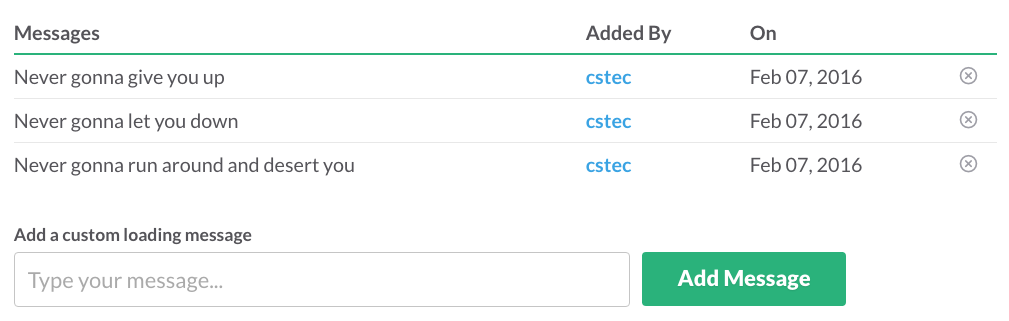
Ever notice the witty messages and tips displayed when Slack is loading? Well, you can add your very own loading messages for a fun, personalized experience. To start adding new messages, click on your name in the top left corner and select “Customize Slack” from the dropdown menu. Click on the third tab from the left labeled “Loading Messages,” add a message in the text box, and hit “Add Message.”
Pro tip: There’s never been a better opportunity to Rick Roll your coworkers than this.
16) Jump to any conversation in seconds using Slack’s Quick Switcher.
If you’ve got a really big team, it’s likely that you’re involved with quite a few Slack channels. To quickly and easily switch from a channel to a private message back to a different channel, simply hit ⌘ + K (Mac) or Ctrl + K (Windows and Linux). A popup will appear where you can begin typing a person or channel’s and select the correct option to open the conversation.
17) Pose as a celebrity to fool your team.
Troll your coworkers using Slacker — a handy tool that allows you to post funny replies as your favorite character. Slacker comes with a ton of built in characters, from Kanye West to Marge Simpson.
You can even add your own character by selecting the green “+” icon. Simply add a name, image URL, and default message to add them to your collection.
18) Use emoji reactions to take a quick poll.
Words are hard. Sometimes it’s a lot easier to let our coworkers know how we feel by reacting with an emoji. And on Slack, it’s easy. Simply hover over a message and select the smiley face icon with the plus sign to select an emoji.
Want to take things a step further? Reaction emojis make it really easy to quickly poll your team. Here’s a great example from the folks at BetterCloud:
Our office uses the reaction emojis in Slack for easy voting. What is your #SlackHack?@SlackHQ http://pic.twitter.com/RlXveBjgYY
— BetterCloud (@bettercloud)
February 8, 2016
19) Pull swatches using HTML color codes.
Collaborating with another team member on a design project? Make quick color suggestions using HTML color codes. When you type out a code — #F7761F, for example — you’ll see a tiny swatch appear, like this:
20) Created a to-do list using stars.
Starring an item on Slack is a way to mark a task as important. To star an item, simply move your mouse of a message or file and select the grey star to make it turn yellow. To view your starred items, click the star icon in the top right corner.
Starring requests and files that you need to work on makes it easy for you to create a to-do list on the fly.
21) Shake it off with a shruggie.
Don’t know the answer? Made a little mistake? Need to signal to your coworker that you actually have no idea what’s going on this meeting? Send ’em a shruggie.
Serving as the “default Internet feeling,” a shruggie will say everything you need to say … without saying anything at all. To pull it up, enter the /shrug command.
22) Edit your name in your profile to show when you’re OOO.
Whether you’re OOO on vacation or out on maternity or paternity leave, you can signal this to your coworkers by adjusting your last name on Slack. For example, I’d change my first name to “Carly Stec,” and add “OOO” in the last name field — as seen in the example below.
To edit your name, click your team name in the top left corner to open up the Team Menu. Then, select “View Profile & Account” to open the team directory and click “Edit” to open the profile editor.
What are your favorite Slack hacks? Share them with us in the comments section below.