
Welcome to My Blog
Learning SEO? The Beginner’s List of Resources to Get Started
You can’t get a degree in SEO. Books on SEO quickly become out-of-date.
Plus, there are hundreds of thousands of self-professed “SEO experts” out there, but far fewer people who actually understand what they’re talking about, and can apply it.
And you can’t swing a spreadsheet without hitting an article about SEO that’s either misleading, or just plain wrong.
So — how do you learn about SEO? Luckily, there are resources you can count on to always have trustworthy, valuable, and well-researched information.
To help you find them, I’ve put together a huge list of credible SEO resources in every category. If it’s on this list, you can trust what it says.
Please note: If you try to listen, read, or engage with every resource on this list, you’ll never have time for anything else. Think of it like a buffet — take a few things from the podcast section, enroll in a course or two, subscribe to three or four blogs … you get the drift.
SEO Podcasts
In the past few years, there’s been an explosion of high-quality SEO-focused podcasts — which is great for anyone with a commute, dog who requires walking, partiality for learning on the go, or all of the above.
1. Skill Up
HubSpot’s first season of Skill Up is all about SEO. In this series, HubSpot Director of Acquisition (and co-founder of Traffic Think Tank) Matthew Howells-Barby and Academy professor Jorie Munroe dive into everything a search-oriented marketer or SEO needs to know this year. They start with searcher intent, move to modern ranking and conversion strategies, review international SEO, share successful link-building plays, and end with the future of SEO.
Not too shabby for less than six hours of content.
2. SEO 101
This beginner-friendly show is designed to familiarize you with SEO concepts and best practices without overwhelming you with information. Each episode covers a few different topics. For example, episode 350 goes over image search, the validity of Moz’s Domain Authority score, and JavaScript and SEO.
It’s a good pick if you’re just getting your feet wet.
3. Experts on the Wire
On this podcast, SEO expert and consultant Dan Shure interviews big names and fresh faces in search. Former guests include AJ Kohn, Dawn Anderson, Marie Haynes, Barry Schwartz, Kevin Indig, and more. And as that lineup suggests, Experts on the Wire covers a diverse range of topics — from mobile-first indexing and structured data to unique link-building strategies and even SEO for the music industry.
The episodes typically run an hour to an hour and a half. There are currently more than 110 in the archive, so if you enjoy this show, you’ve got a lot to listen to.
4. Authority Hacker
Is SEO just one piece of the puzzle for you? Authority Hacker might be the podcast for you. The hosts, Gael Breton and Mark Webster, draw heavily on their own experiences running effective online businesses.
You’ll learn how to drive traffic to your store or website, nurture those visitors, and convert them into customers. Breton and Webster drop tons of SEO nuggets, but there’s also lots of general advice, like how to hire a solid team, pick an expanding niche, or set your own salary.
SEO Newsletters
1. Tech Bound
I’m always excited to see a fresh edition of Kevin Indig’s Tech Bound newsletter in my inbox.
Each week, Indig dissects a trend, idea, or piece of marketing news. To give you an idea, past newsletters have covered Google’s push into the online travel agency (OTA) market, how to hire a great digital marketing team, and takeaways from Google’s near-constant algorithm tweaks.
He also shares several links from around the web worth reading.
Indig has also started doing a lot of interviews (which he shares with the Tech Bound audience weeks before publishing them elsewhere). Previous interviewees include the former Director of SEO for eBay and Nick Eubanks, co-founder of Traffic Think Tank and FromTheFuture (there’s some list overlap here!).
2. SparkToro Trending
Here’s how it goes most weeks:
- 10 a.m.: I see a cool link on SparkToro Trending
- 11 a.m.: Someone shares the same link in HubSpot’s SEO Slack channel
- 12 p.m.: I log onto Twitter and see several people I follow have tweeted the same link
- 4 p.m.: Someone shares the same link in one of the SEO Slack channels I’m in
In other words, if something appears on SparkToro’s list of buzzy articles or tools, it’s usually something I should be reading — which makes sense, as links are algorithmically chosen based on their popularity with the SEO and marketing Twitter community.
If you don’t want to get addicted to refreshing Trending, subscribe to the email newsletter. You’ll get the top links in your inbox every Tuesday and Friday.
3. #SEOForLunch
#SEOForLunch, a weekly newsletter from Nick LeRoy, has a great format. LeRoy shares a timely link, tells you what’s important about said article, then gives you his take.
Following that, he recommends four to five posts from around the web worth your time.
4. tl;dr Marketing
In newsletter years, tl;dr Marketing has definitely been around a while — this one’s been going strong since 2015. It’s a curated collection of articles and resources that’s perfect if you’re short on time: each link has a straightforward explanation tagged by topic, so if you’re not interested in, say, social media, you can skip over anything with that tag.
Absorb information best when you’ve got some visuals? Good news, there’s plenty of screenshots in tl;dr.
SEO Courses
1. How to Build a Search Insights Report to Grow Organic Traffic to Your Blog
Want to learn how to recreate the process that helped HubSpot grow organic traffic to its blog by several million users per month in just a year? In this Academy course, I’ll walk you through the exact workflow we use, sharing examples and actionable tips along the way.
It’s broken up into two sections: the fundamentals of an effective content strategy, and building your own Search Insights Report.
Each lesson includes a few interactive exercises, making the process of putting together a Search Insights Report for your own property much simpler and more straightforward.
2. SEO Training
For a higher-level intro to SEO, try HubSpot’s free SEO course.
It takes a little over an hour and a half to complete. In that time, you’ll discover how to determine your site’s SEO potential and develop a strategy, create content that’ll rank, and build links to that content.
3. Serpstat Academy
You don’t need to use Serpstat’s SEO platform to take any of its short courses, which include Advanced Competitor Research, Backlink Analysis, How to Cold Pitch SEO courses, and more. While most of the lessons incorporate Serpstat, you can easily recreate the processes in the tool of your own choice.
4. Google Analytics Academy
If you’re in SEO, you’re almost certainly using Google Analytics. Google provides several different courses for getting yourself up to speed or taking your skills to the next level:
- Google Analytics for Beginners
- Advanced Google Analytics
- Google Analytics for Power Users
- Getting Started With Google Analytics 360
Successfully completing these courses will earn you certifications, which will boost your application during the job search.
5. Moz Academy
Each of Moz’s 16 paid courses cover a different fundamental aspect of SEO: local SEO, reporting, on-page optimization, backlinks, keyword research, etc. The price of each course ranges from $49 (SEO fundamentals) to $595 (also SEO fundamentals, but with a certificate for completion).
6. SEMrush Academy
Like the other options on our list, SEMrush offers both courses and certifications. The cool thing about the latter? If you don’t want to take the course before getting certified, you can take the exam immediately. This is a fun way of testing your knowledge in different areas of SEO — especially if you’re preparing for an upcoming interview.
But back to the courses. Along with the usual suspects of topics (keyword research, link building, rank tracking, and so on), SEMrush also has courses on social media fundamentals, reporting and project management, and PPC.
7. DistilledU
Distilled’s online “SEO university” encompasses two courses: an intro to SEO course that covers topics like information architecture, competitive research, and on-page SEO, and an intermediate one that goes over Excel skills, HTML, international SEO, and more.
Examples and exercises are weaved in throughout the videos, which makes the content more engaging and sticky.
Access costs $33 to $44 per month, depending on your plan. That might sound steep (especially considering many of the other courses on this list are free), but you also get to see every presentation given at SearchLove events — a well-regarded series Distilled runs. It’s like a conference ticket that never expires.
SEO Blogs
Starting my career in blogging may have biased me, but blogs are by far my favorite way to keep up on SEO trends, new strategies, and interesting case studies.
For better or for worse, there’s far more great content out there than you could possibly read — even if you did nothing else. Below are my favorite blogs (but please keep in mind, just because one isn’t on this list doesn’t mean it’s unworthy of your time):
1. Search Engine Land
Whenever I’m looking for “breaking news” in the SEO world, I head to Search Engine Land. This website always has the latest information on all things search, from algorithm updates (both confirmed and unconfirmed) to Google My Business updates and DuckDuckGo changes.
There’s also a good mix of evergreen content and opinion pieces.
One last note: You know a site is great when its founder decides to move on — and take a job as Google’s Public Search Liaison. If that’s not a sign of authority, I don’t know what is.
Recommended articles:
- The Periodic Table of SEO Factors (updated for 2019) (This is downloaded over 50,000 times a year)
- How to prioritize SEO tasks by impact
- Here’s what happened when I followed Googlebot for 3 months
2. Search Engine Journal
Search Engine Journal is another reliable source for the latest news in SEO, SEM, and social media. Several posts are published each day — typically one more timely article, such as “Chrome May Warn Users of Slow Pages Before They Click,” and two or three evergreen pieces, like “11 Reasons Your Website Can Have a High Bounce Rate.”
Recommended articles:
- How to Choose a Domain Name That Will Stand the Test of Time
- The Three Pillars of SEO: Authority, Relevance, and Trust
- 140 Top SEO Experts You Should Be Following in 2019
3. Search Engine Roundtable
Barry Schwartz — who also contributes frequently to SEJ — runs this forum coverage site. What does “forum coverage” mean? Schwartz reports on the most relevant, interesting SEO discussions happening around the web.
And it’s not just a recap. He connects the conversation to a larger trend or idea, so you always understand how it fits into the big picture.
There are also lots of fun pictures from the Google offices (it’s nice to remember there are people behind the algorithm!).
Recommended articles:
- Vlog #25: Danny Sullivan On Working At Google & What He Sees Differently Now
- Vlog #22: Eric Enge On SEO Testing, Structuring Content & Managing Client Expectations
- Google: There Is Nothing To Optimize For With BERT
4. Distilled.net
Distilled, an online marketing agency, has a reputation for running a fantastic advanced SEO conference where every session is valuable and fresh — and its blog is no different.
From in-depth posts on technical SEO best practices and tool tutorials to thoughtful opinion pieces, Distilled’s blog is a gold mine.
Recommended articles:
- Comprehensive Technical SEO Audit
- Search basics: the difference between URL structure and Information Architecture
- How to Present a Recommendation (these tips completely changed how I deliver recommendations both at HubSpot and with freelance clients!)
5. Blind Five Year Old
I try to read everything written by AJ Kohn, owner of SEO agency Blind Five Year Old. It’s just that good. His posts are thought-provoking, insightful, and meaty. As if that weren’t enough, he’s funny!
Kohn doesn’t publish too often — probably because each post is typically a mini-thesis — so I recommend going through the archives and then making sure you keep up with his new stuff.
Recommended articles:
- Algorithm Analysis in the Age of Embeddings
- The Invisible Attribution Model of Link Acquisition
- Analyzing Position in Google Search Console
6. Moz
Who hasn’t cut their teeth on the Moz blog? It’s a classic for a reason. Imagine you’re in a meeting with your developers, and they hit you with a question about hreflang tags. You have no idea what an hreflang tag is — sounds like an unsuccessful sneeze — but you also know this is a tough crowd, and if you’re clueless, you’ll lose valuable internal capital.
So you quickly search “what are hreflang tags”, find a Moz post, skim it, and glean enough in 15 seconds to look up and announce confidently, “Yes, we should use hreflang tags to help users searching in different languages find the localized pages on our site.”
That’s what Moz content does: it saves the day when you need to know something, ASAP. In addition to clear, comprehensive, trustworthy content, you should also check out Whiteboard Fridays. These weekly videos always break down interesting and relevant topics.
Recommended articles:
- Beginner’s Guide to SEO (If you haven’t read this, are you really in SEO?)
- Machine Learning 101 – Whiteboard Friday
- How to Create 10x Content – Whiteboard Friday
7. HubSpot
Our team has doubled down on posts about SEO in the past two years, and I’m proud of the results. Content falls into two main categories: experiments/case studies and best practices/foundational concepts.
This seminal post on topic clusters influenced an industry-wide shift in how websites organized their content, while this early post on updating old content helped marketers optimize their existing pages before that was a tried-and-true conference topic.
You can browse all of our SEO-related content — organized by level of expertise — on our SEO Topic Learning Path or check out the recommended articles below.
Recommended articles:
- How We Octupled Image Search Traffic to the HubSpot Blog in 1 Year
- The Ultimate Guide to Technical SEO
- The Ultimate Guide to Google Analytics
8. Seer Interactive
Seer Interactive, a digital marketing agency, publishes new posts nearly every day—and proving that quantity doesn’t need to come at the expense of quality, all the content is helpful, easy to read, and most importantly, well-researched.
Many of their in-depth guides are in my bookmarks.
Recommended articles:
- Data Studio Tips for Non-Designers (this helped me put together some stunning reports)
- How to Calculate Your Own Click-Through Rate
- Screaming Frog Guide to Doing Almost Anything: 55+ Ways of Looking at a Tool (if you’re new to Screaming Frog, this article is gold)
9. SparkToro
Officially, this is the SparkToro blog — but it’s called Rand’s Blog, and Rand Fishkin is the only one who posts.
Which is cool, because it means you get a lot of (thoughtful, well-argued) opinions in the mix, along with interesting data and case studies.
Fishkin shoots from the hip, and the industry is better for it.
Recommended articles:
- Less than Half of Google Searches Now Result in a Click
- Why Web Marketers Should Invest in Demand Creation
- Can You Still Blog Your Way to Visibility & Credibility?
10. SEO by the Sea
A lot of SEO blogs regurgitate the same ol’ tips and tricks that everyone else is sharing. Not SEO by the SEA.
On this blog, Director of SEO Research at Go Fish Digital Bill Slawski summarizes and explains SEO-related patents. I won’t lie, sometimes I have to read his posts a few times for the information to sink in, but it’s always worth it.
Recommended articles:
- 20 Ways Search Engines May Rerank Search Results
- How Google May Handle Question Answering when Facts are Missing
- Using Ngram Phrase Models to Generate Site Quality Scores
11. Google Webmaster Central Blog
To stay on top of all the latest announcements from Google, check out the official webmaster blog. Every time a big change comes out — like when Google decreed you could only use the stars review schema for businesses that weren’t yours — the SEO community publishes hundreds of hot takes, analyses, and predictions.
Follow-up posts are definitely worth looking at, but I recommend always going to the Google announcement first. Some takes are less accurate than others. If you’ve read the original post, you won’t be misled.
Recommended articles:
- Rolling out mobile-first indexing
- What webmasters should know about Google’s core updates
- The new evergreen Googlebot
12. Marie Haynes
I discovered Marie Haynes in the aftermath of the August 2018 “core update” — a.k.a. The MEDIC update. Haynes published an incredible analysis of MEDIC that was shared, well, everywhere.
She’s become one of my go-to sources for learning more about specific algorithm updates and changes.
Recommended posts:
- E-A-T and SEO
- What can Google’s Updated QRG tell us about quality in 2019?
- The June 3, 2019 Core Quality Update was a big one
13. Builtvisible
Digital agency Builtvisible’s blog posts always manage to demystify confusing and technical topics in just a few thousand words.
The team also has a knack for publishing primers on interesting topics just as I’m thinking, “It would be useful to know how to do X,” or, “I waste so much time on Y.”
If you want to work smarter, this blog will be invaluable.
Recommended posts:
- An SEO’s guide to XPath
- The Ultimate Guide to Log File Analysis
- How to use Google advanced search operators to find indexation and technical SEO issues
14. Search Wilderness
Paul Shapiro posts new content to Search Wilderness a few times a year. And I don’t blame him — he’s got a full plate! He’s head of SEO for Catalyst, co-runs /r/BigSEO, and founded the Online Geniuses Slack community.
His credentials probably give you a good idea why the posts that do come out are worth every minute of your time.
Recommended articles:
- How to tag your keywords 10X faster and beat your SEO competition on insights
- Calculate Keyword Growth Using Google Trends, Python, and the Slope Formula
15. Onely
Confused by the impact JavaScript has on SEO? Yeah, me too. Onely’s blog has been a lifesaver. The technical SEO agency publishes a lot of JavaScript-related content, from introductory guides to experiments and case studies.
Because Onely does so much work around JavaScript SEO, they have plenty of current data and examples to share.
Recommended articles:
- How Much Content is Not Indexed in Google in 2019?
- JavaScript & SEO Backfire – A Hulu.com Case Study
- Giphy’s Visibility Drops: Conspiracy or Consequence?
16. Siege Media
The Siege Media blog sure is easy on the eyes. But even if the design looked straight out of 2009, I’d still read it: because the content is also really, really good.
Posts range from detailed case studies and expert round-ups to best practices and guides. You’ll also find a lot of videos and podcasts (with transcripts and time stamps, in case you prefer reading to watching or listening).
Recommended articles:
- How to Get Image Snippets on Mobile
- When and Why the Skyscraper Technique Can Fail
- Why You Need 2x Content Not 10x Content (interesting countertake to the Moz post I recommended above)
17. Portent
Portent, a digital marketing agency, puts out a great range of content. From podcasting and link-building to Amazon and PPC, its blog will be useful to every type of marketer.
We’re here, however, for the SEO posts, and luckily, Portent has that in spades. Like the best SEO advice, it’s simple (to read) but sophisticated (in practice).
Recommended articles:
- A Developer’s Guide To SEO (this should be required reading for every SEO, designer, and developer)
- How to Choose the Right Attribution Model for Your Vertical
- SEO 101: Defining the long tail (a critical concept that I don’t hear talked about much)
18. Annielytics
To brush up on your analytical skills — or take them to the next level — beeline to Annie Cushing’s blog. Cushing just released a book series called Making Data Sexy, so rest assured she knows her stuff.
While her blog was fairly quiet while she worked on the book, the archives are chock-full of great resources.
Recommended articles:
- Regular Expressions: Don’t Use Google Analytics Without Them (Everyone in SEO should know RegEx)
- How To Pull Domains Out Of A List Of URLs In Excel [VIDEO]
- Excel’s INDEX MATCH Alternative To VLOOKUP For Marketers [VIDEO] (Not to be hyperbolic, but Index Match has changed my life)
19. Go Fish Digital
This digital marketing and reputation management agency has educated SEOs and marketers since 2009.
Bill Slawski, the agency’s director of SEO research (and author of SEO by the SEA, which is also on this list) publishes lots of great technical SEO content, like Contextual Knowledge Panels at Google and A Crowdsourcing Evaluation of Clustered Search Results. (There’s no overlap between Slawski’s articles for Go Fish Digital and his own blog — he’s just prolific.)
You’ll also find posts from other members of the team, from intern Kalina McKay (An Intro to Your First Link Building Campaign) to COO Daniel Russell (What Does Article 11 or “The Link Tax” Mean for SEO in the EU).
Many companies say they have a content-driven culture; Go Fish Digital actually walks the walk.
Recommended article (in addition to the ones linked above):
20. Sterling Sky
Joy Hakwins is one of the foremost experts on local SEO and Google My Business — and luckily for everyone who works in local search, she frequently publishes her wisdom to her agency’s blog.
You’ll appreciate Hawkins and her team members’ clear, matter-of-fact writing style as they demystify confusing, often contradictory Google My Business policies and local SEO best practices.
Recommended articles:
- How to Interpret Google My Business (GMB) Insights
- When Can Service-Based Businesses Have Multiple Google My Business Listings?
- [Quiz] The 2019 Local SEO Black Belt Quiz
21. DeepCrawl
I’ve never attended a Google Webmaster Hangout live, but I’ve read nearly every recap DeepCrawl has posted. The company has recapped nearly virtual Hangout for more than five years.
These recaps alone are worth the price of admission (or subscription), but you’ll also find interviews with experts, best practices, and explanations of fundamental SEO concepts.
Recommended articles:
- Webmaster Hangout recaps
- How Do Search Engine Crawlers Work?
- Ask the Expert: Hamlet Batista Answers Your Automated Text Generation Questions
22. Botify
Want technical SEO and nothing but technical SEO? You’ll appreciate the Botify blog. Apart from the occasional product-focused announcement, every blog post is tactical, in-depth, and data-backed.
Most articles include step-by-step instructions and screenshots, as well as handy breakdowns of relevant ideas or terms. Check this blog out when you’re looking for inspiration or experiment ideas.
Recommended articles:
- Orphan Pages and SEO: Stop Hurting Yourself
- Is Page Depth a Ranking Factor?
- From Crawl Budget to Render Budget: How to Be an SEO in the Age of JavaScript
23. Merj
Hat tip to Ahrefs for introducing me to this blog. Every month, Merj publishes a roundup of technical SEO news, such as, “New Features Described in Chrome 76 Beta,” and “Wayback Machine Adds Changes Feature.”
If you’re coming back from vacation, an intense, heads-down work period, or a cruise with no internet access, it’s a fantastic resource for catching up again.
Recommended articles (in addition to the monthly roundup):
24. Internet Marketing Driver
Glenn Gabe, who leads the internet marketing agency GSQi, started this blog in 2012. Impressively, since then he’s published at least once a month — usually more. His posts are in-depth, conversational, and packed with informative screenshots.
Gabe specializes in Google algorithm changes and SERP updates, analyzing victims and victors with a true zeal. He also shares SEO tool recommendations, improvements, and use cases.
Recommended articles:
- When The Hammer Falls – Analyzing Lyrics in the Google SERPs and Its Impact on Traffic [Case Study] (From 2015, but still incredibly relevant)
- Should You Remove Low-Quality Or Thin Content Versus Improving It? Seeing The Forest Through The Trees
- How To Use Scroll Depth Tracking, Adjusted Bounce Rate, and Average Time On Page As A Proxy For User Engagement and Content Quality
25. iPullRank
The iPullRank blog comes to you from the fine folks at the eponymous digital marketing agency. It has a healthy mix of marketing content, from local SEO and link building to UX and PR, and features custom videos, infographics, and visuals.
New posts go up approximately three times per month.
Recommended articles:
- Your Analytics Data Isn’t Real And It’s Only Getting Worse (the analytics apocalypse is here — get ready!)
- Mobile UX: 75 Best Practices For A Masterful Mobile Web
- 10 Ways Brands Forfeit Their Branded Search
SEO Slack Groups
SEO Slack communities are fantastic platforms for meeting other professionals, hearing about job opportunities and/or recruiting for your own team, sharing and discovering resources, and, of course, learning.
In my experience, there is too much of a good thing. If you’re a member of several active groups, you might be overwhelmed by all the information and discussion. I’d recommend being an active participant in one or two groups versus a somewhat silent member of three or four.
1. Women in Tech SEO
I’m a member — and ardent supporter — of the Women in Tech SEO Slack group. Areej Abuali, the founder and leader, does a great job leading virtual meetups, moderating conversations, and keeping the group active.
Channels include Coding, Events, Analytics, Jobs, and Motivation.
2. Traffic Think Tank
Traffic Think Tank is a private community of SEOs that’s available for a monthly or yearly fee. The content is designed to more than pay for itself — in addition to a network of marketers, consultants, and business leaders, you also get access to Q&As and webinars with the founders, as well as 300+ hours of tutorials, templates, and other resources.
3. Online Geniuses
This free SEO and marketing-focused community has more than 20,000 members. That scale can be both overwhelming and invaluable — while you may need to log off every now and again, the size means you can join local events, learn from hundreds of other people with your job title or facing similar challenges, and participate in AMAs with the likes of Nir Eyal and Guy Kawasaki.
SEO Subreddits
1. /BigSEO
More than 43,000 people belong to this subreddit, which, despite the name, encourages discussion and debate about all things inbound marketing. However, I’ve noticed most people tend to stick to SEO.
The most popular posts get anywhere between 20 and 300 comments; not bad for a more niche subreddit. While the quality of the advice can vary (as you’d expect from any open community), the AMAs are consistently excellent. Previous guests include Rand Fishkin, Aleyda Solis, and Bill Slawski.
2. /TechSEO
TechSEO is far smaller than /BigSEO, hovering around 6,500 members. Its focus is “the tech nerd side of SEO.”
This subreddit also hosts a lot of AMAs. There’s some overlap with the guests on /BigSEO; however, /TechSEO has also gotten Alexis Sanders, Gary Illyes, and John Meuller.
If you’re looking for a good place to find and share technical resources, ask advanced questions, and learn from the tech SEO greats, join this subreddit.
3. /SEO
At 113,000 subscribers, /SEO is the largest subreddit of the group. That’s both a blessing and a curse: the typical posts gets more engagement, but there’s more misinformation.
/SEO does not host official AMAs, although occasionally someone will do an impromptu one (like AMA: SEO’d a site from $0/mo to $30,000/mo in earnings within 3 years).
Newer SEOs will get the most out of this subreddit.
I hope this helps you as you continue to learn more about SEO. If you’ve discovered a helpful resource from the list, let me know on Twitter @ajavuu.

How to Retarget Video Views With LinkedIn Ads
Do you publish videos on LinkedIn? Wondering how to target ads to people who watched your LinkedIn videos? In this article, you’ll learn how to run video retargeting campaigns on LinkedIn. #1: Map Out Your LinkedIn Retargeting Ad Sequence Simply put, video retargeting on LinkedIn is about running ads to people who have already seen […]
The post How to Retarget Video Views With LinkedIn Ads appeared first on Social Media Examiner | Social Media Marketing.
from Social Media Examiner | Social Media Marketing https://ift.tt/3ktaK86
via socialmediaexaminer
How to Use Photoshop: The Bookmarkable Photoshop Tutorial for Beginners
When you open Adobe Photoshop for the first time, it’s easy to click around in confusion for a minute and then reach for your freelancer’s phone number instead. Trust us, you’re not alone in this.
It’s an incredibly powerful design software with a lot going on, including a wealth of tools that can seem overwhelming at times. But Photoshop isn’t just for the professionals.
With a little help, you can easily teach yourself how to use it to create beautiful, compelling graphics. All it takes is an introduction to core elements — in plain English.
To get you started, we’ve picked 12 of the most useful tools in Photoshop and explained what they do, where to find them, how to use them, and a few tips and tricks for getting the most out of them. We’ve also included some great resources in there in case you’d like to learn about a tool in more depth.
How to Use Photoshop
- The Layer Tool
- The Color & Swatches Tool
- Custom Fonts & The Text Tool
- Custom Brushes & The Brush Tool
- The Select Tool
- The Move Tool
- The Zoom Tool
- The Eraser
- The Crop Tool
- The Fill Tool
- The Eyedropper Tool
- Blending Options
1. The Layer Tool
What It Does: A layer can be used for an image, text, brush strokes, background colors, patterns, and filters.
I like to think of layers as sheets of glass stacked on top of one another that you’ll use to create a final product. Each sheet can be modified individually without affecting the project as a whole, which can save you tons of time when making edits to individual elements of your graphic.
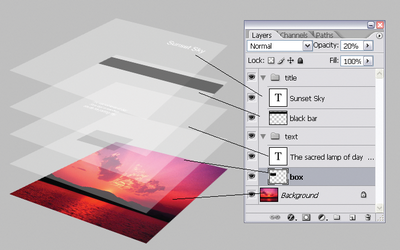
Image Credit: StackExchange
Layers are by far the most important element of Photoshop — and, in my opinion, they’re one of the reasons many people throw their arms up in frustration. But once you understand how they work, I promise they’ll make your life much easier.
Where It’s Located: It has its own module on the bottom right-hand corner of your Photoshop screen, by default. You can also access it by clicking “Layer” in the top menu bar.
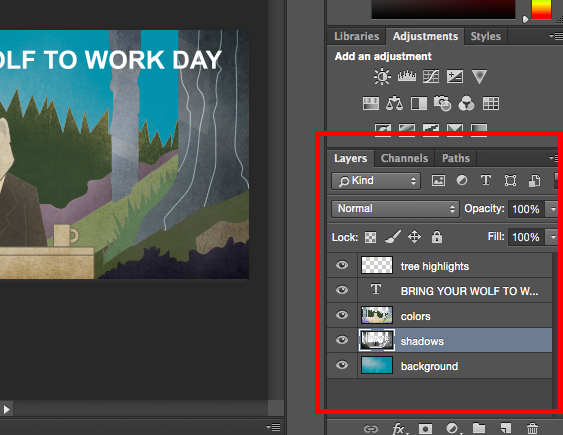
Pro Tip: Always name your layers. Keeping them organized will help keep you sane, especially if you find yourself working on a project with a large number of layers.
To add or delete a layer:
From the top menu bar, choose Layer > New > Layer…
To select a layer:
The selected layer is highlighted in blue. To edit a specific part of your image, you’ll need to select that specific layer.
You’ll also notice there’s an “eye” symbol next to each layer: Click that symbol to turn the eye on and off, thereby toggling the visibility of that layer as you work.
To duplicate a layer:
First, select a layer or group in the Layers panel. Next, either drag the layer or group to the Create a New Layer button, or right-click the layer to choose “Duplicate Layer” or “Duplicate Group.” Enter a name for the layer or group, and click OK.
Pro Tip: You can do all sorts of cool things with layers — and believe it or not, making animated GIFs is one of them. Check out our step-by-step tutorial here.
To learn more about adding, deleting, and duplicating layers in Photoshop, check out this video tutorial.
2. The Color & Swatches Tool
What It Does: The Color and Swatches tool lets you use, modify, copy, and save custom colors for your content. While this may seem like a pretty self-explanatory element, it actually has powerful features that will keep your visual content vibrant and unify your color schemes.
Where It’s Located: It has its own module on the top right-hand corner of your Photoshop screen, by default.
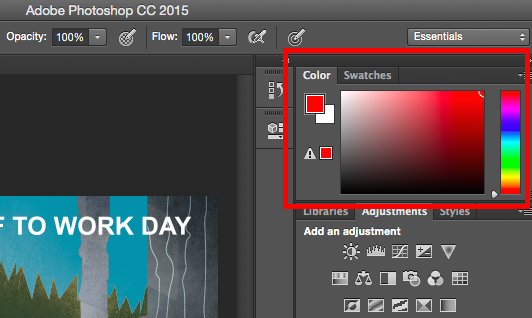
Another place to find the Color tool is at the bottom of the toolbar on the left, indicated by two overlapping boxes:
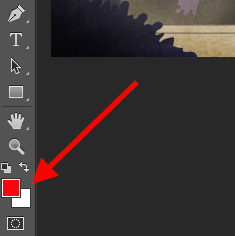
To create your own custom color:
Open the Color Picker by double-clicking on the top box either in the Color module, or in that menu on the left.
From there, you’ll see a vertical spectrum of color with a slider on it, which you can adjust to create your own custom color. Alternatively, if you already have a specific color of which you know the hex value (i.e. #1fb1ee), then enter it in the appropriate box to find that color automatically. You can also select your color swatch based on RGB or CMYK values.
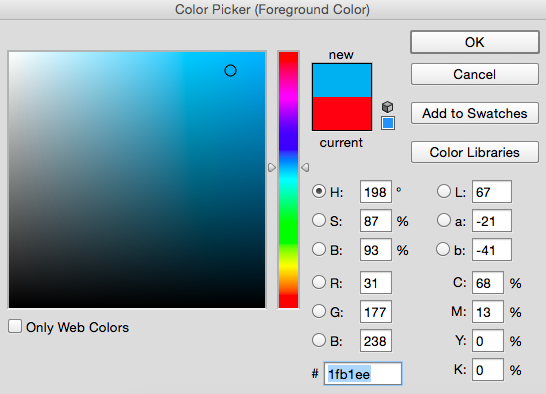
Any colors you create can be added to your “Swatches” if you click “Add To Swatches.”
Pro Tip: Take your company colors and save them as “Swatches” so that you can reference and reuse them whenever you’re designing your visual content.
3. Custom Fonts & The Text Tool
What It Does: The Text tool lets you add custom fonts to your database, and it gives you access to advanced font settings that give your text some serious style.
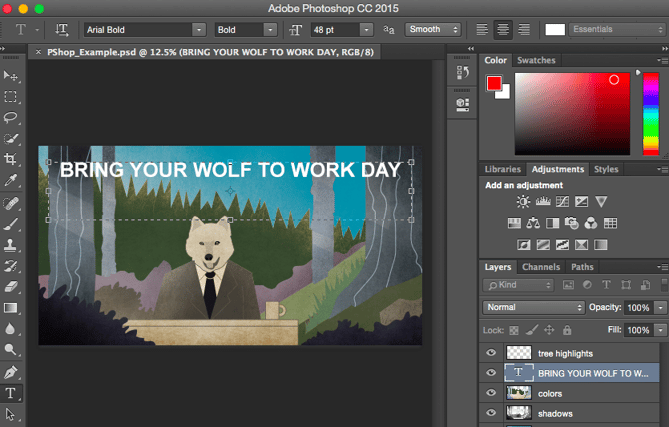
Where It’s Located: The toolbar on your left, near the bottom.
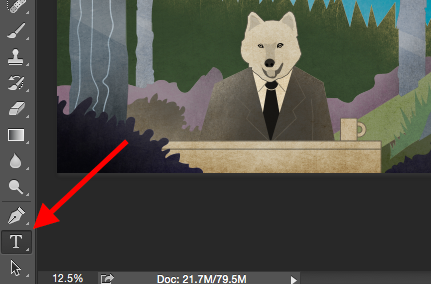
Once you click the Text tool icon, all of the settings and font options will pop up at the top of your screen. These settings let you change the font, font size, and spacing between characters, height, width, color, and style. Be sure to select the layer of your desired text to edit it.
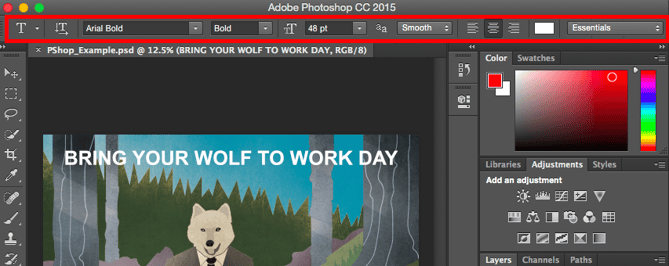
To add text to your graphic:
The text tool works like any other text tool you’ve used. Click the “T” icon on the left side bar, drag the text box over any particular area you want text to appear, and you’re set to go.
Whenever you create a text box, Photoshop will generate a layer for it. You can choose the color, size, stroke, font style, and a variety of other options to switch things up.
Pro Tip: While Photoshop offers a wide variety of fonts, you can also install your own fonts. Read this blog post for a list of 35 beautiful fonts you can download for free, and then read this post to learn how to install your new fonts in Photoshop so you can get to using ’em.
To learn more about fonts and the Text tool, check out this video tutorial.
4. Custom Brushes & The Brush Tool
What It Does: Just as with fonts, you can add your own, royalty-free, custom brush tips. With the brush settings, you can change the size, shape, and transparency of your brush strokes to achieve a number of different visual effects.
Brushes are a great way to add some visual accents to your content. Photoshop starts you off with a nice selection of brush tips that you can use to clean up your graphics and create some basic visual effects.
Where It’s Located: The toolbar on the left.
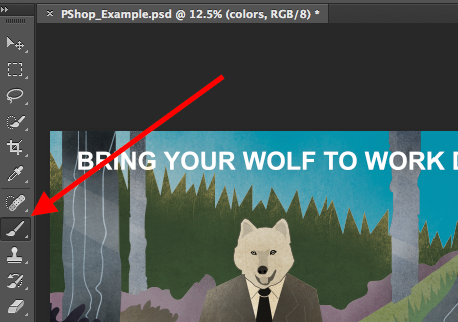
Once you click the Brush tool icon, all of the settings and brush options will pop up at the top of your screen. These settings let you change the brush size, opacity, flow, and so on. You’ll find a variety of pre-installed brush tips, as well as any custom brush tips you install to Photoshop. (You can find royalty-free brushes at www.brusheezy.com if you want to get really creative.)
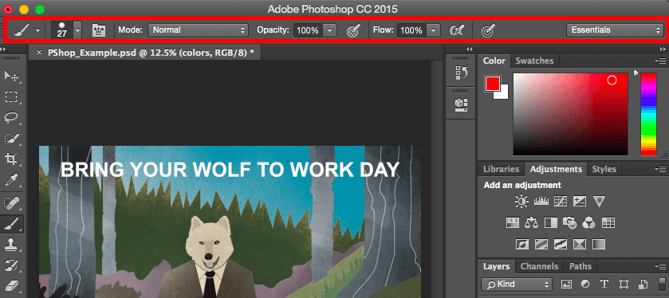
To use the brush tool:
The brush tool is perfect for adding design accents to your content content. When using the brush tool, I always suggest adding a new layer to work with so you don’t paint over any of your other elements. You can choose colors from your library of swatches, or use a custom color.
Changing the brush settings can give your brush a drastically different look and style. Don’t be afraid to play around a bit with all of your custom brushes.
5. The Select Tool
What It Is: When used correctly, this tool will let you select individual elements, entire graphics, and determines what is copied, cut, and pasted into your graphics.
Where It’s Located: The toolbar on the left.
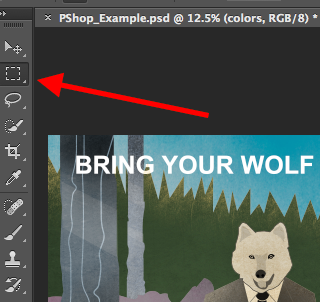
The Select tool is known as one of the most basic, yet frustrating tools to use in Photoshop. The first thing you should know is that it’ll only work if a layer is highlighted. So, if I want to cut or copy a piece of Layer 4, Layer 4 must be highlighted in my Layer’s tool bar. Highlighted areas are indicated by a flashing dotted line.
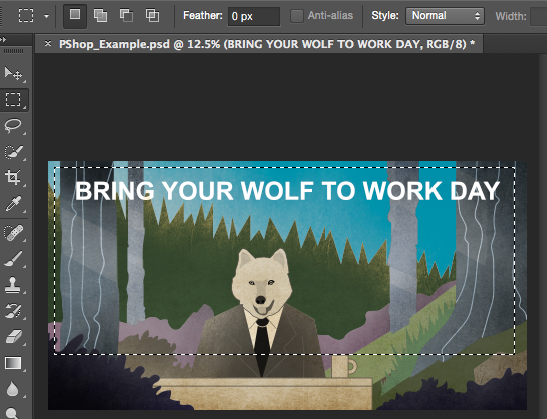
Once you remember to pay attention to which layer you are working with, the Select tool becomes much easier to use.
First, highlight your area of choice. Then, simply right-click and decide what you’d like to do from the pull-out menu. For example, you can cut out objects from a current layer and create a layer of your own.
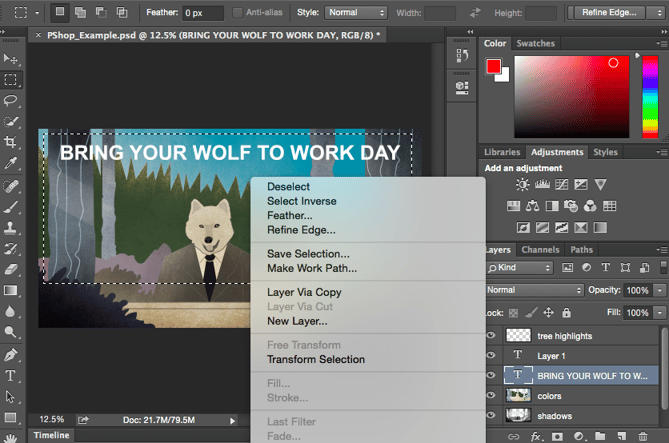
How to select an image to insert into your graphic:
Open the image you’d like to use in Photoshop, and use the Select Tool to determine how much of the image you want to copy. Once you’ve selected the area of the image, simply copy the area.
Next, open the tab for your current project and paste it in as a new layer. Highlight the layer of the object(s) you’d like to select. You can move multiple objects at once by highlighting multiple layers.
Then, right-click your selection, and then you have a few options, including:
A) Choosing “Layer via Copy” to copy the object(s) from this layer and create a layer of its own.
Pro Tip: To select your entire graphic and include all layers, highlight all layers and then use the Select tool. Once you’ve determined the area to copy, use the menu bar at the top and click “Edit” > “Copy Merged.” This will copy the entire graphic so you can paste it as its own layer.
B) Choosing “Free Transform” to scale, rotate, move, and flip your selections. (Refer to the Move tool in the next section of this post if you need more help on this.)
Pro Tip: One really nifty trick you can do with “Free Transform” is to overlay screenshots of a PDF to make a 3D-looking image, like the one below for our introductory Pinterest ebook. You can find a visual overview of the steps below, but read this blog post for the step-by-step tutorial.
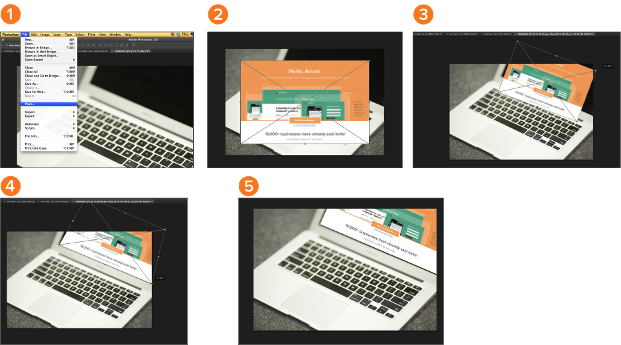
To learn more about all the Selection tools available in Photoshop, check out this video tutorial.
6. The Move Tool
What It Does: This is a fairly basic tool that allows you to move individual elements of your graphic.
The Move tool works on individual layers, and on the graphic as a whole — if (remember how to do this?) you highlight all of your layers. It comes in handy when you’re trying to reposition images, text, and other design elements.
Where It’s Located: The toolbar on the left, at the top.
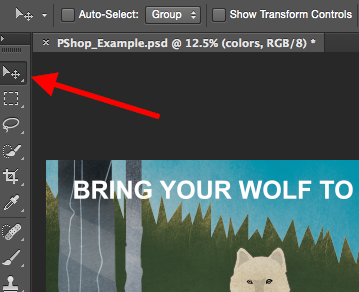
To use the Move tool:
Click the Move Icon from the left hand menu bar and simply drag the object(s) you would like to move. To move all objects in one layer, simply highlight the layer and use the Move tool. You can also right click the object for additional options.
To scale, rotate, move, and flip things:
The Free Transform tool lets you scale, rotate, move, and flip any element in your select layer or layers. Use the shortcut CTRL + T or Command + T (for Macs) to initiate Free Transform, and check out the options that pop up at the top of your screen. Hold the SHIFT key while transforming to maintain the proportions of your elements.
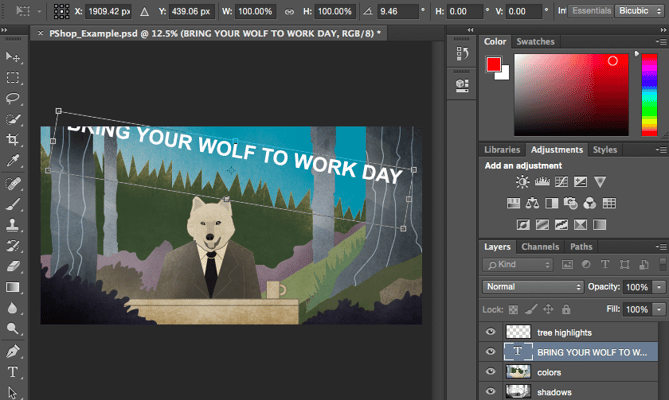
7. The Zoom Tool
What It Does: The Zoom tool lets you zoom in close to certain areas of an image, and zoom out to get more of a bird’s eye view of what’s happening.
Where It’s Located: In the top menu bar, choose View > Zoom In or View > Zoom Out.
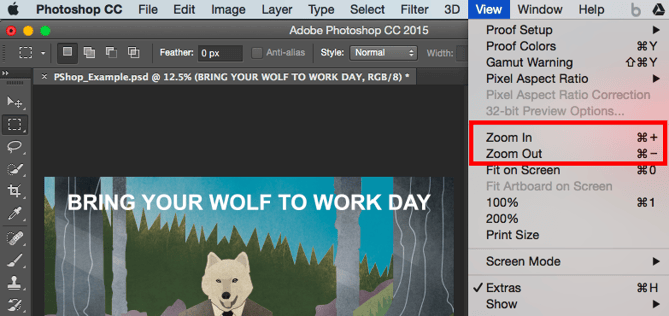
To use the Zoom tool:
Either select the zoom options from the “View” menu (as shown above). To use the keyboard shortcut, hold ALT (PC) or Command (Mac) and press + to zoom in, and ALT (PC) or Command (Mac) and press – to zoom out.
8. The Eraser
What It Does: The Basic Eraser functions a lot like the brush tool. You can change the size and hardness of the eraser tip to achieve a variety of effects, like blending and fades. The Background Eraser uses differences in color to help you erase unwanted background areas from your images.
The eraser is one of the most useful tools in Photoshop. Yes, I understand it’s technically just an eraser, but you’ve never used an eraser like this.
Where It’s Located: The toolbar on the left.
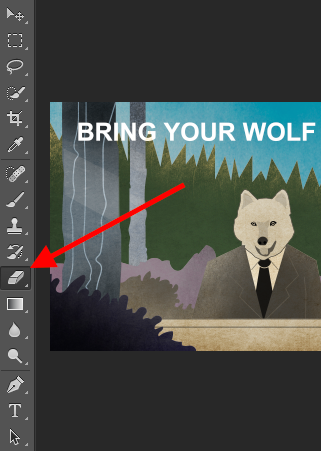
To use the Basic Eraser:
Once you click the Eraser icon, all of the settings will pop up at the top of your screen. These settings let you change the eraser size, hardness, and other aspects of the tool.
Like most tools in Photoshop, the eraser works only on a specifically selected layer. Make sure you’ve got the layer you want selected before you start erasing.
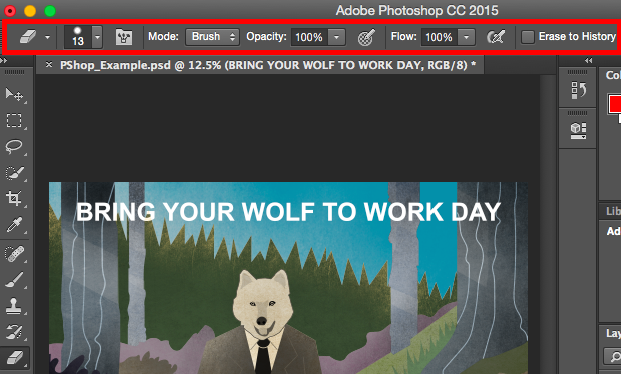
To use the Background Eraser:
This tool is a time-saving wonder. You can see how easily it eliminates background colors from images. This is especially helpful if you need an object with a transparent background.
To use the Background Eraser, click and hold the eraser icon until the slide out menu appears. Choose “Background Eraser.”
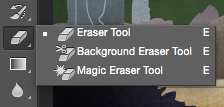
Now you’re ready to do some serious erasing. Adjust the size of the Background Eraser, and simply click the color you would like deleted from the selected layer. Remember to select the layer you want to erase on.
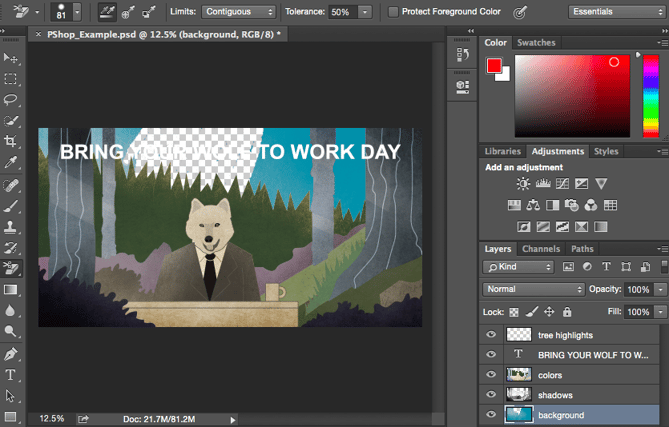
Pro Tip: Don’t be afraid to use an oversized eraser tip for the Background Eraser. Since it works by removing particular colors from the image, it won’t erase colors that aren’t selected.
To learn more about how to remove the background of a photo in Photoshop or PowerPoint, check out this step-by-step tutorial.
9. The Crop Tool
What It Does: The Crop tool lets you crop an image. It works like any crop tool you’ve ever encountered: Simply choose your area and crop it out.
I know this is a basic tool, but you’ll find yourself using this just as often as any other tool in Photoshop, especially when you’ve completed your graphic and need to clean up some of the free space around the edges.
Where It’s Located: The toolbar on the left.
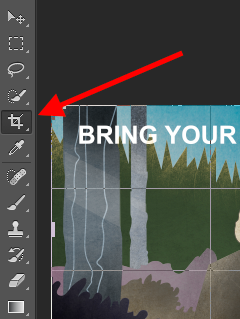
To use the Crop tool:
Select the icon indicated in the screenshot from the side menu bar, and drag the box over the area you would like to crop. To adjust the crop box, simply click and drag the small anchor boxes on the sides and corners of the crop box.
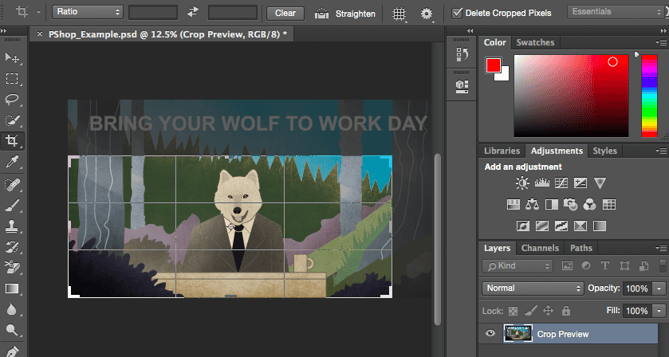
Pro Tip: You can make your canvas size larger than it needs to be so that you can give yourself more room to move your design elements, and crop it down to the proper size afterwards.
Read this blog post to learn how to crop images in Photoshop to a specific ratio. If you want to learn some cropping tricks — like how to rotate an image using the Crop tool — then check out this article from Digital Photography School.
10. The Fill Tool
What It Does: The Fill tool, formerly the Paint Bucket tool, fills any solid area with the color of your choice. It’s great for solid backgrounds or coloring large areas. It can also be used to apply patterns to your images. The Gradient tool within the Fill tool lets you create a nice, faded background effect of the color of your choice.
Where It’s Located: On the top menu bar, choose Layer > New Fill Layer. From there, you have the option to choose “Solid Color,” “Gradient,” or “Pattern.”
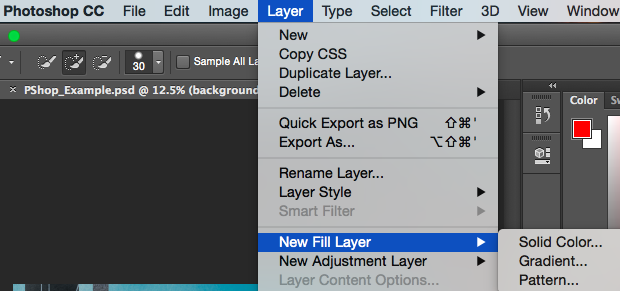
To fill a solid area with a color:
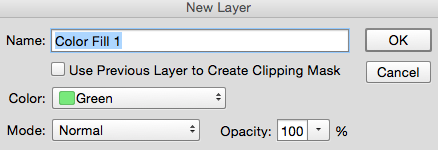
First, select the layer you’d like to fill with a solid color. Then, from the top menu bar, choose Layer > New Fill Layer > Solid Color… From there, a “New Layer” window will pop up and prompt you to name the new color fill layer. Don’t worry about choosing the color you want right then and there — simply name the layer and press “OK.”
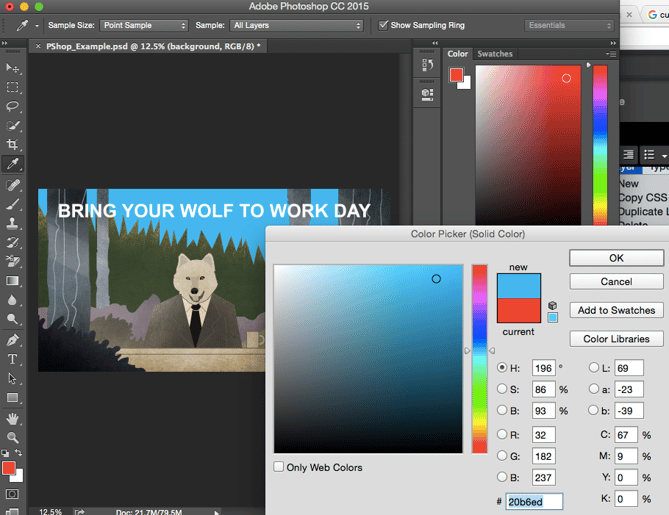
Next, the Color Picker window will pop up. Here, you can choose which solid color you’d like to fill. Since I’d selected my background layer to fill in (i.e. the color of the sky in my graphic), the color I select in the Color Picker dictates the color of the sky:
To apply patterns to your images:
These patterns can be manually created if you have the time and patience, or you can find a variety of royalty-free patterns available for download through a basic Google search.
To apply a pattern, first select the layer you’d like to fill with a pattern. Then, from the top menu bar, choose Layer > New Fill Layer > Pattern... From there, a “New Layer” window will pop up and prompt you to name the new color fill layer. Don’t worry about choosing the color you want right then and there — simply name the layer and press “OK.”
Next, you’ll see the “Pattern Fill” window pop up. From there, you can choose the pattern and its scale. Since I’d selected my background layer to fill in (i.e. the color of the sky in my graphic), the pattern I select in the Pattern Fill changes the sky:
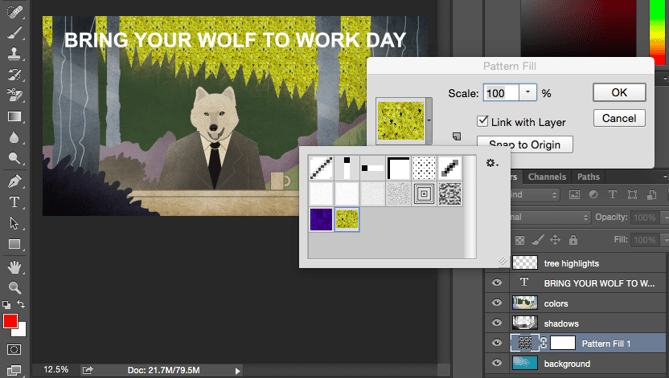
To use the Gradient tool:
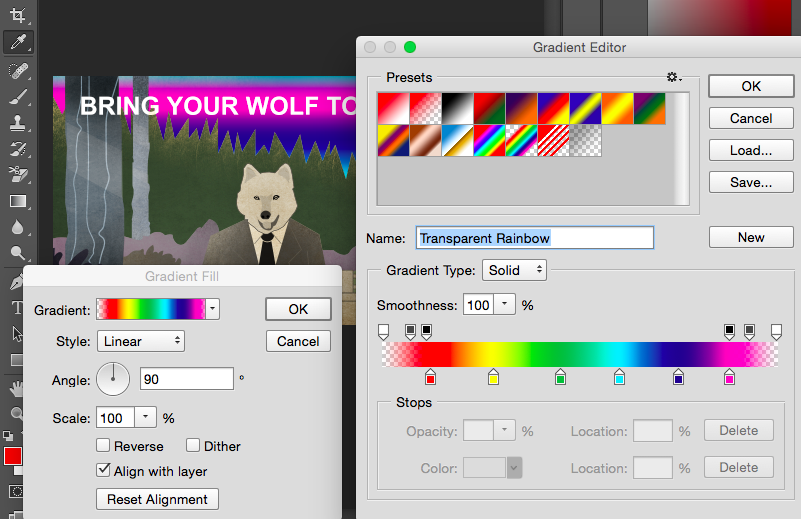
To apply a gradient, first select the layer you’d like to fill with a pattern. Then, from the top menu bar, choose Layer > New Fill Layer > Gradient... From there, a “New Layer” window will pop up and prompt you to name the new color fill layer. Don’t worry about choosing the color you want right then and there — simply name the layer and press “OK.”
Next, a “Gradient Fill” window will pop up. Play around with these options, including the style, angle, and scale. To choose a different gradient than the one offered by default, click the arrow on the right-hand side of the default gradient to open the Gradient Editor, shown below:
11. The Eyedropper
What It Does: This handy little tool lets you extract and use any color from any image in Photoshop.
Where It’s Located: The toolbar on the left.
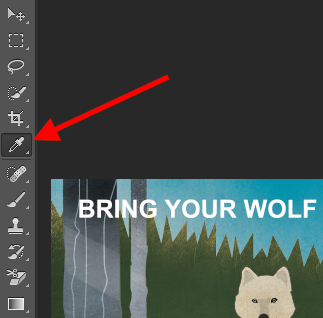
To use the Eyedropper tool:
Select the icon from the sidebar. Next, locate that color you would like to extract, and simply click that area to clone the color.
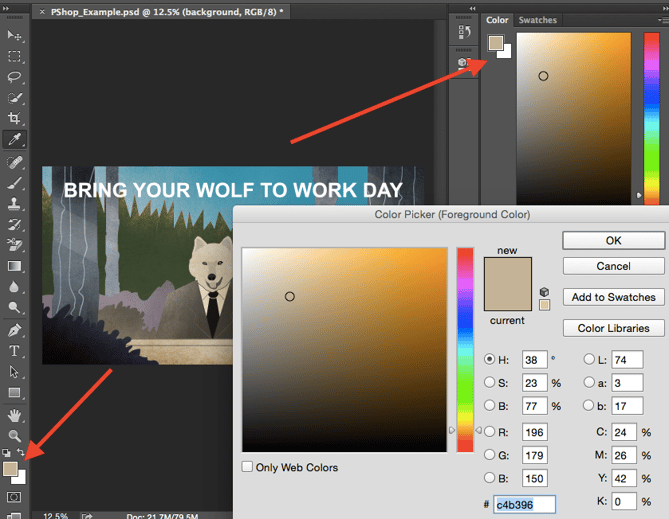
Once you’ve extracted the color, you’ll see it indicated both in the Color module at the top right of your screen, as well as the bottom of the left sidebar. You can double-click that color box to bring up the advanced color picker, where you can then adjust and save the color to a swatch for future use.
12. Blending Options
What It Does: Blending options include quite a number of features to enhance the look or your graphic. For example, you can use the “Outer Glow” effect to make letters appear like they’re glowing. Or you can use the “Drop Shadow” effect to add a shadow to your letters. Take some time to play around with all the layer effects and find out which ones tickle your fancy.
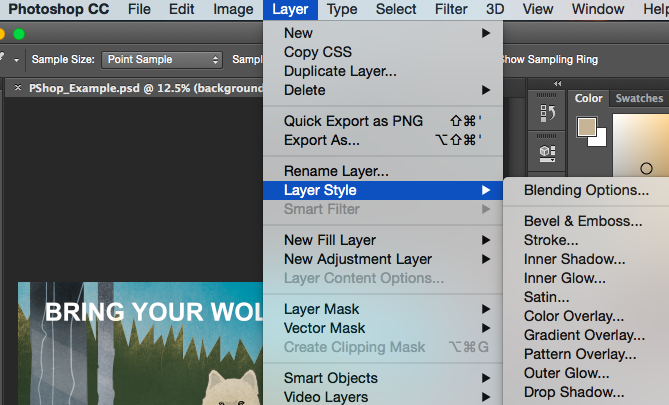
Where It’s Located: From the top menu bar, choose Layer > Layer Style > Blending Options… You can also double-click any layer to bring up the options for that particular layer.
To use Blending Options:
First, select the layer you want to apply your blending options and effects to. Then, open up your blending options and choose the one you’d like to apply. With the variety of options available, you can achieve a number of great effects to finalize your graphics. Have fun with these and experiment on different layers, images, and texts. Here’s a look at what’s offered:
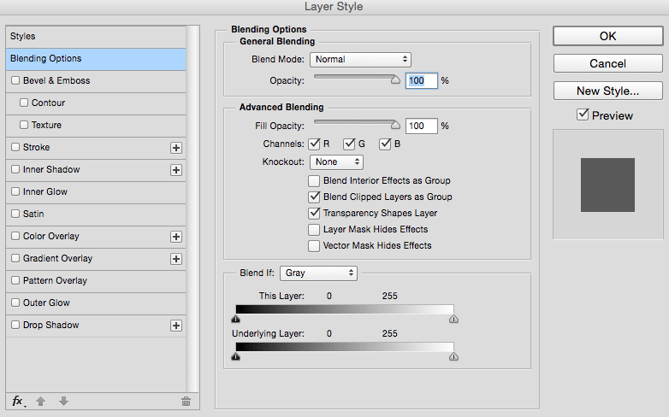
For example, in the image below, I selected my text layer and chose “Bevel & Emboss.” Looks pretty cool, eh?

Before we send you on your way, it’s worth noting that if you’re working with a limited budget and a tight schedule, you can save yourself tons of time and money by using free, royalty-free stock photos. Here’s a list of 17 of the best free stock photo sites you can look through.
Also, Photoshop offers a number of really helpful keyboard shortcuts for things like zooming in and out, changing canvas size, creating a new layer, and so on. Check out this blog post for a full list, including shortcuts for some of the tools mentioned above.
Now, it wouldn’t be realistic to guarantee that you’d be a Photoshop wiz at this point — but that isn’t what this guide designed to do. We hope we’ve provided you with the understanding you’ll need to use the powerful tools in Photoshop in a timely, efficient, non-hair-pulling manner, so that you can elevate your visual content game, like, today.
Happy Photoshopping!

11 of the Best Free Google Sheets Templates for 2020
Whether your marketing position requires you to send invoices to clients, track website analytics, or create budget and expense reports, you’ve undoubtedly found yourself working with spreadsheets in some form.
And if you’re anything like me, those spreadsheets can feel frustratingly tedious when you’re under a time crunch.
Fortunately, Google Sheets offers 26 pre-built templates, allowing you to create reports and analyze data in spreadsheets faster and more effectively.
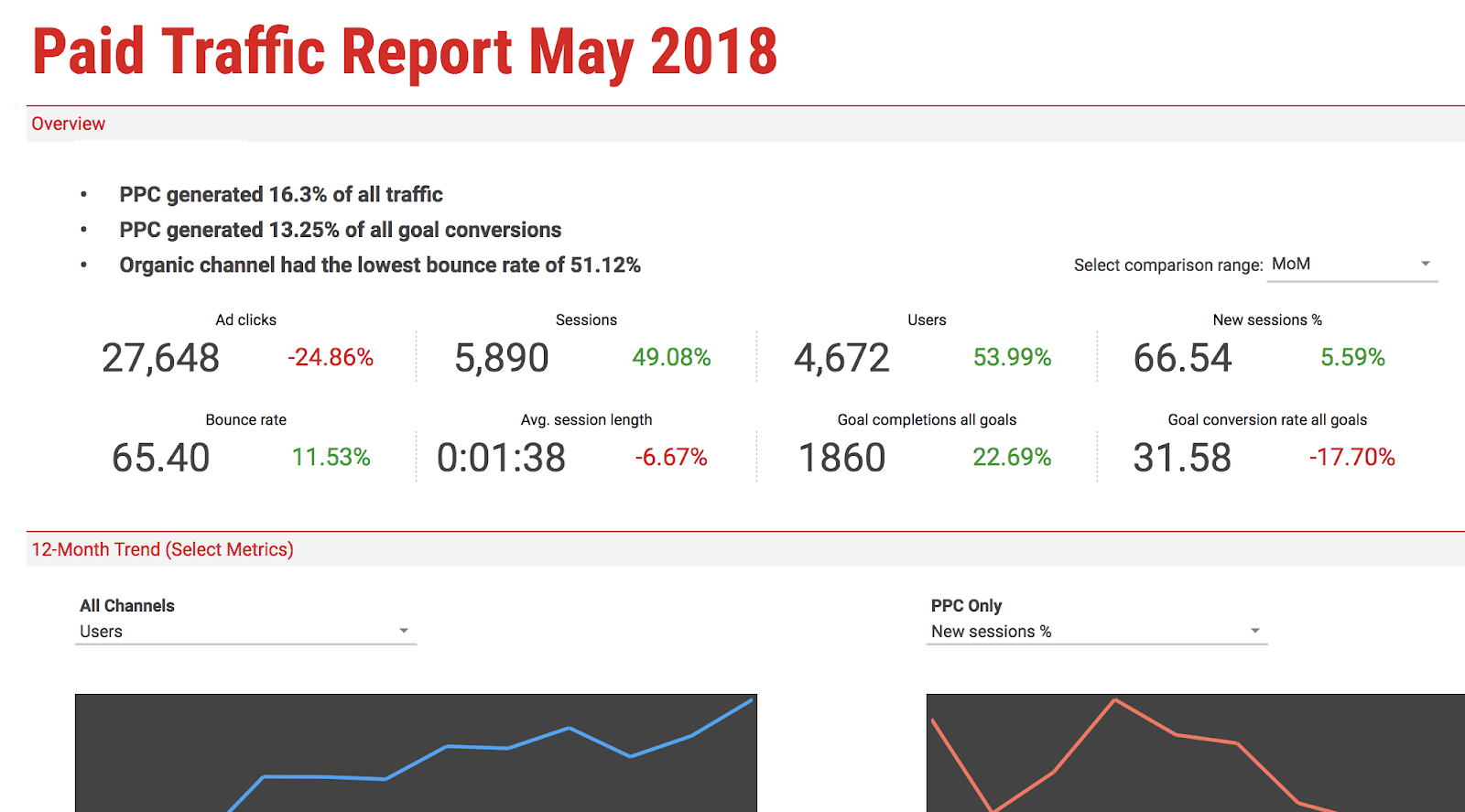
Best of all, Google Sheets templates cater to specific categories — if you click the Paid Traffic Report template, for instance, your spreadsheet is already organized into Overview, 12-month Trends, and Medium Breakdown categories. It knows what you need, and offers it without any manual input.
Here, we’ll delve into 11 of the best free Google Sheets Templates for any marketing role in 2018, so you can create better spreadsheets while saving valuable time to focus on more important things — like the data itself.
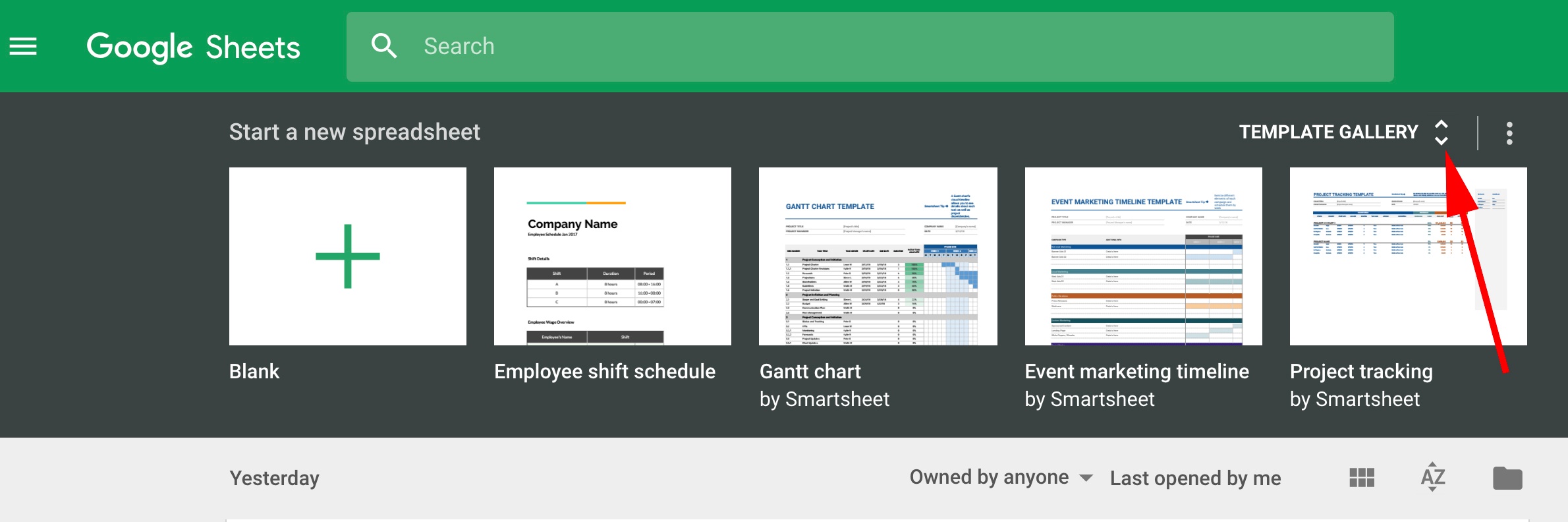
To find these templates in your Google Sheets, go to your email and click Sheets in the drop-down menu.
Then, click the up and down arrow beside Template Gallery. This will show you all your template options.
Google Sheets Templates for Finances
1. Invoices
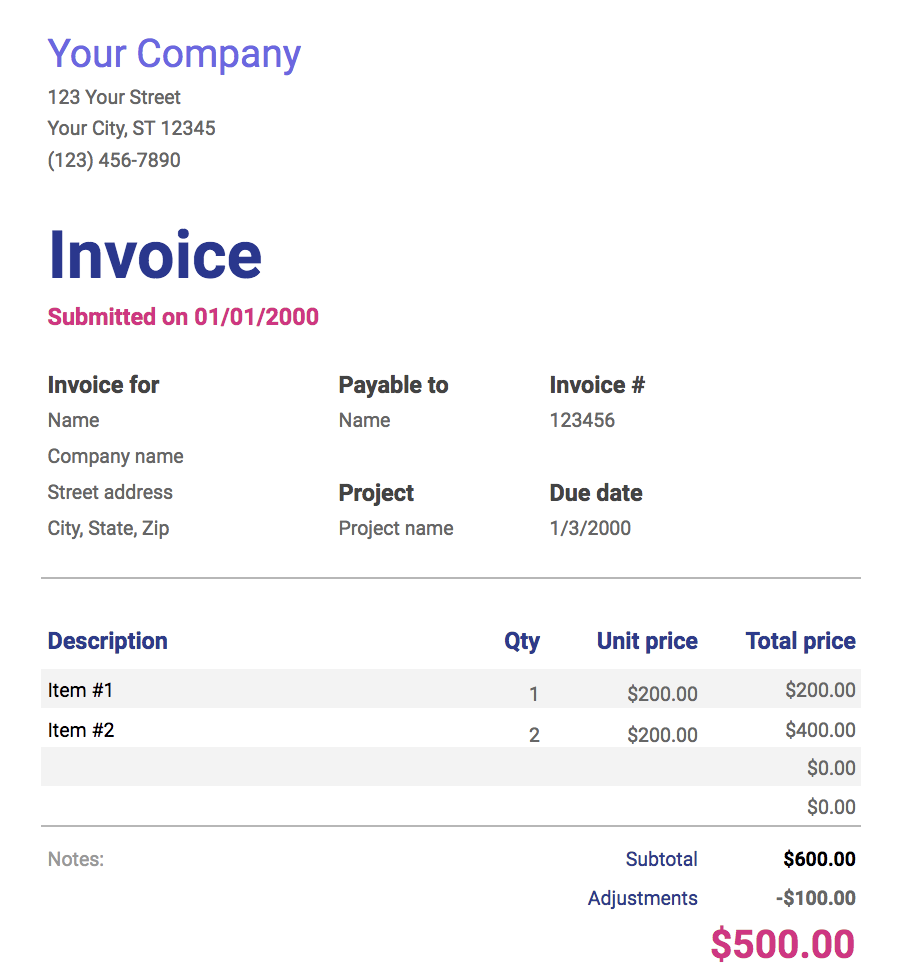
If you’re a freelancer or work for a small business, you probably use invoices to bill clients for services. This invoice template makes the process simple — it provides space for all the necessary information, and looks more professional than a plain spreadsheet. Plus, the template is customizable, so you can create a theme that aligns well with your brand image.
2. Annual Business Budget
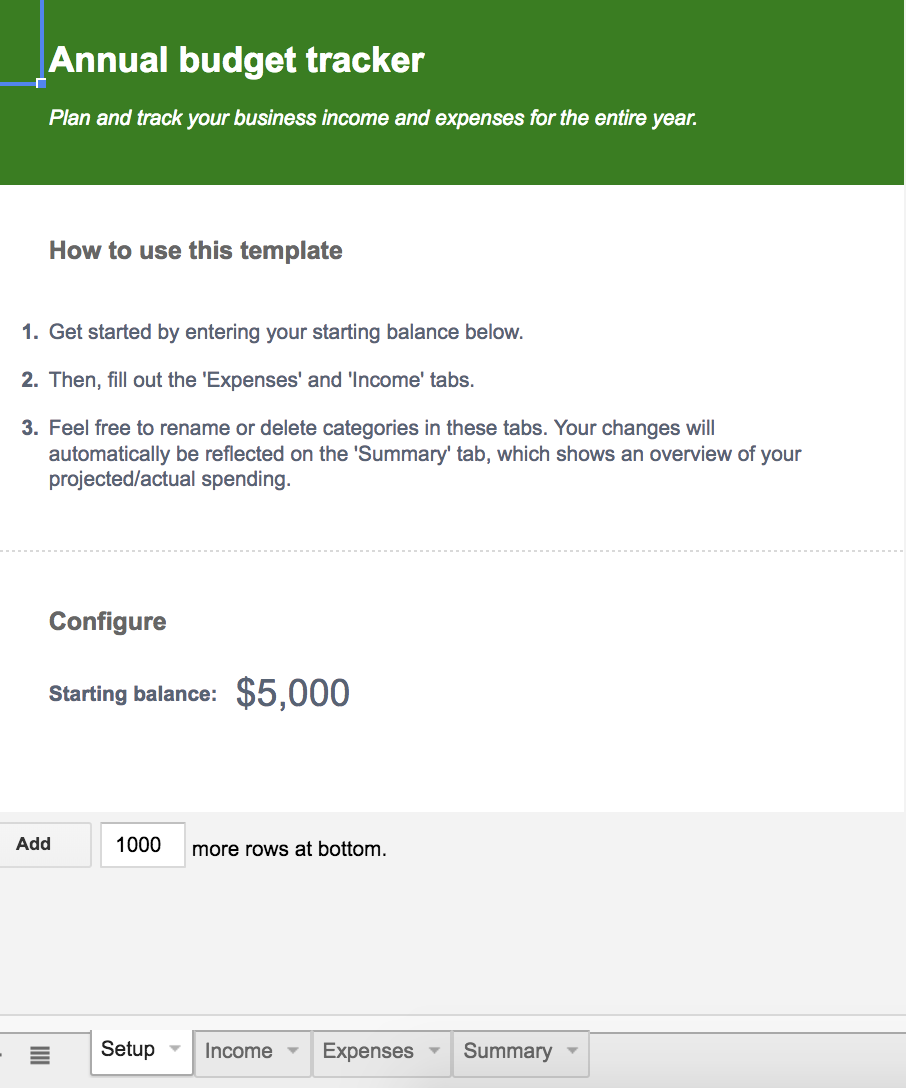
This template is more in-depth than it initially appears. There are tabs at the bottom — setup, income, expenses, summary — and each one includes a number of subcategories. “Expenses”, for instance, covers everything from taxes and insurance, to travel and customer acquisition. The final tab, “summary”, takes your income, subtracts your expenses, and automatically updates to display your ending balance each month. This template is a good option if your budget requires a lot of customization and has a lot of moving parts.
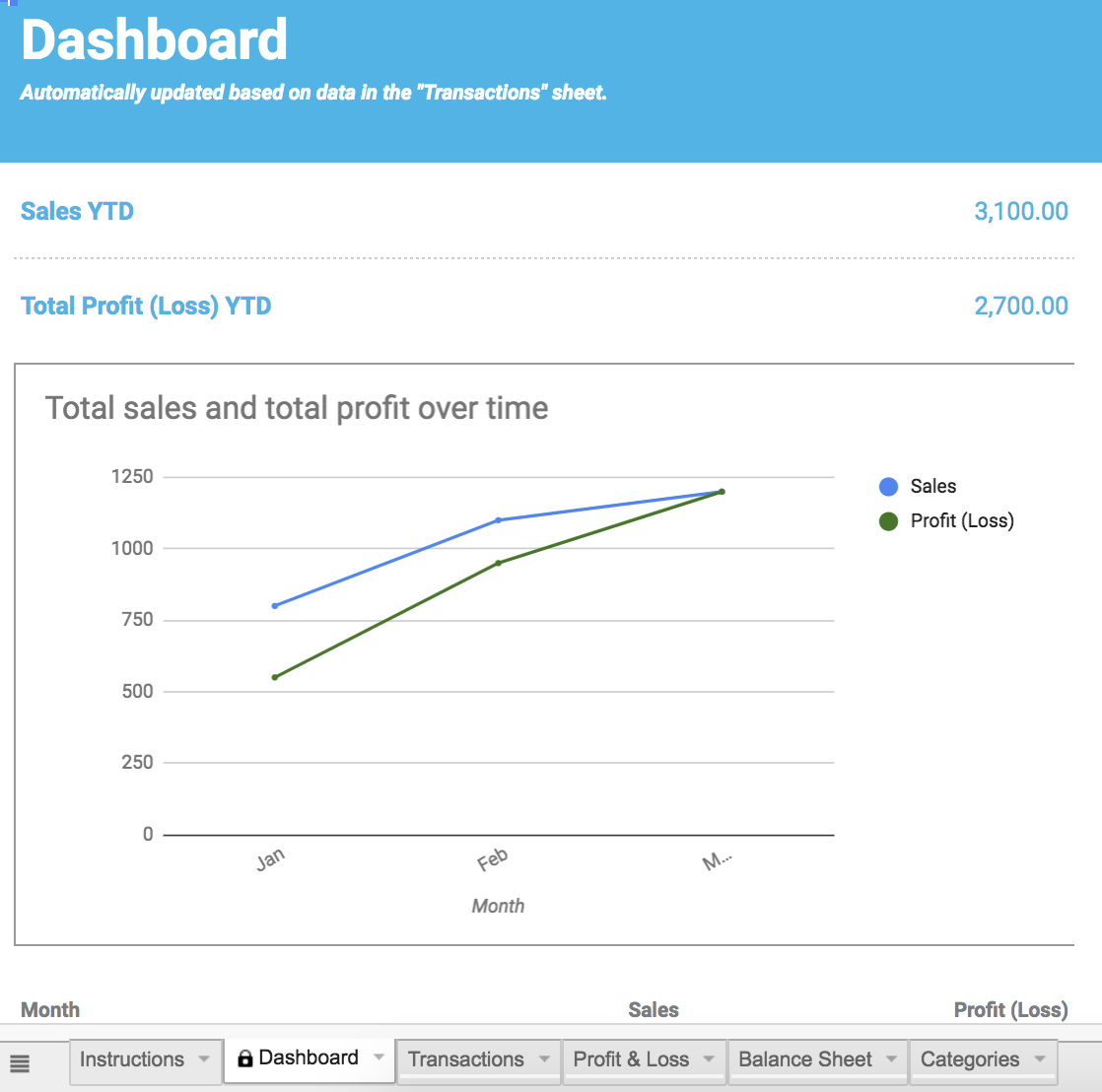
3. Financial Statements
The financial statements template truly is an all-in-one resource to keep track of business transactions, profits, and losses. The “profit & loss” tab automatically summarizes revenue, costs, and expenses for the year, and can display your growth rate percentage. If you work for a small business and need to manage much of your own finances, this template offers resources and guidance to make the process easier, and less prone to human error.
Google Sheet Templates for Reporting and Analytics
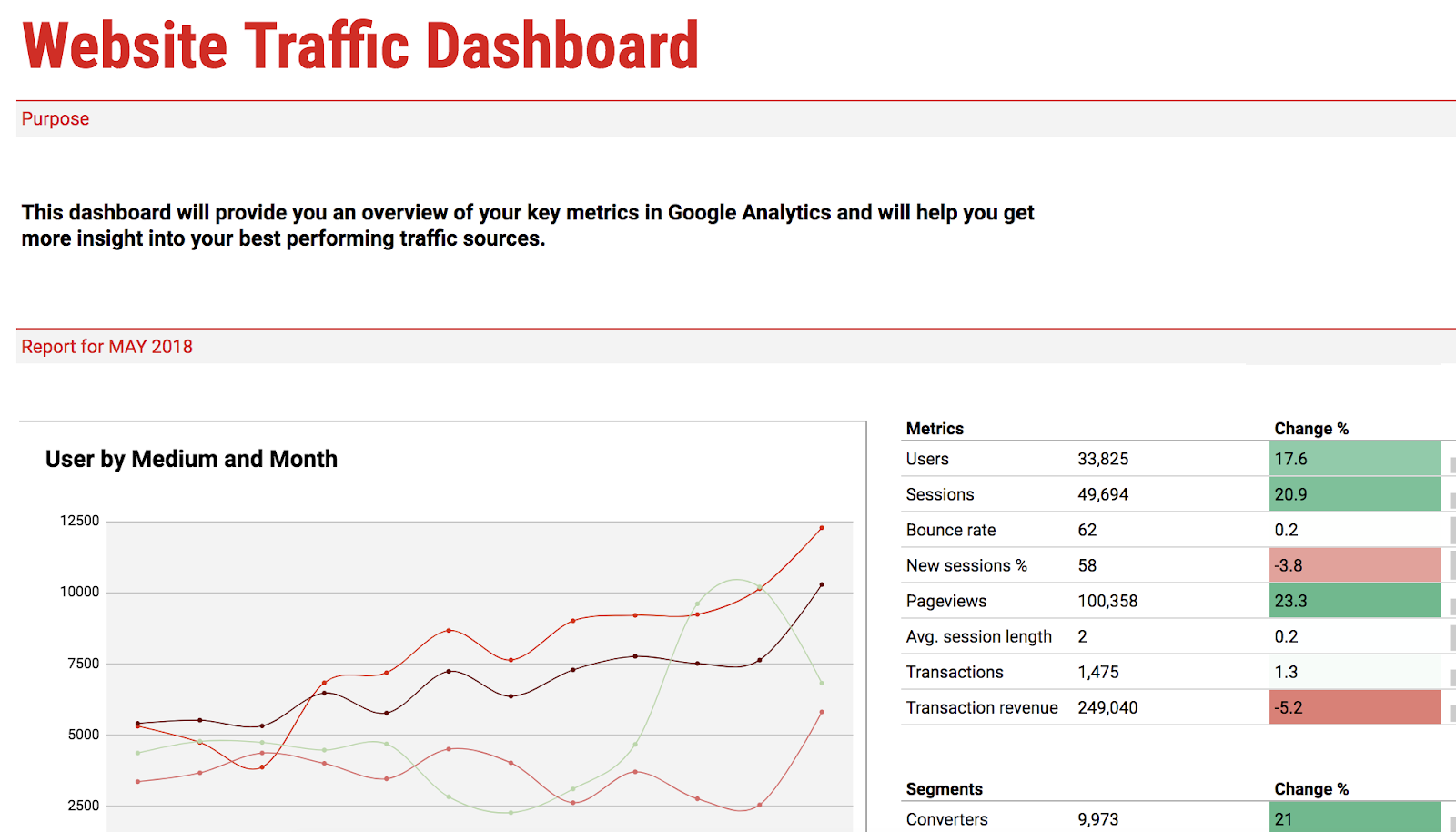
4. Website Traffic Dashboard
If your role requires you to analyze website traffic using Google Analytics, this template is a fantastic supplemental tool to pull that data into an organized report, saving you tons of time. Better still, you can use the template with Supermetrics Google Sheets add-on to monitor and analyze data from PPC, SEO, social media, and website analytics.
5. Website Paid Traffic Report
This template makes the process of analyzing and reporting on paid traffic relatively seamless. It automatically collects data on your paid sources from Google Analytics, and provides a clean chart with important information, including PPC’s percentage of goal conversions, total traffic, and bounce rate. You can also adjust it to compare different time periods, or different channels or segments. If you’re looking for a way to demonstrate paid’s influence on your business, this is the tool to do it.
Google Sheet Templates for Customers
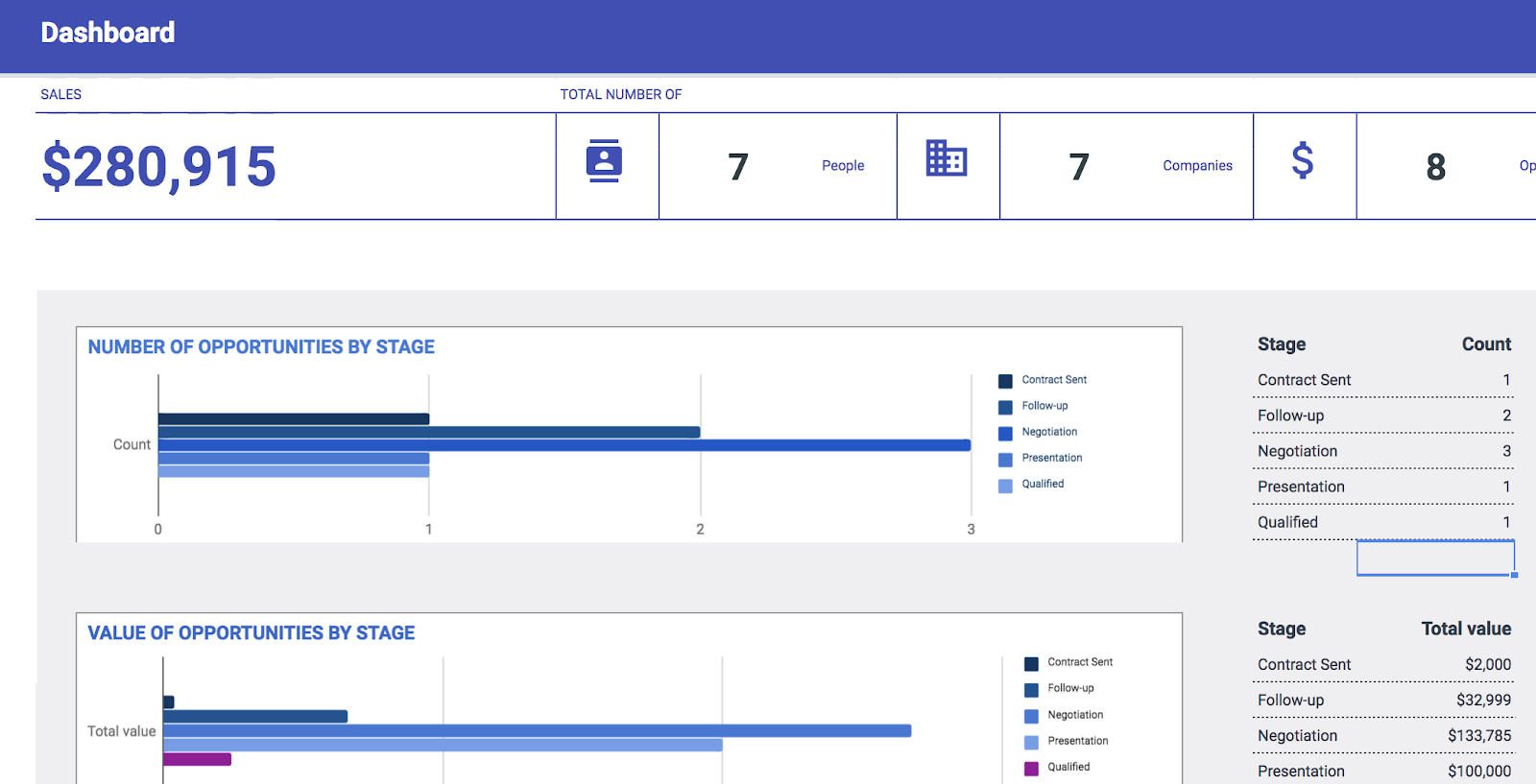
6. CRM
To organize your contacts and automate an effective sales and marketing process, it’s important you have a CRM — but if you’re a small company just starting out, you might not feel ready to implement a fully-established CRM with all the features. This CRM template is a great place to get your feet wet. It saves automatically so you never lose data, and the share feature allows you to work with coworkers within the CRM, which is helpful for encouraging collaboration between your sales and marketing departments.
Google Sheet Templates for Project Management
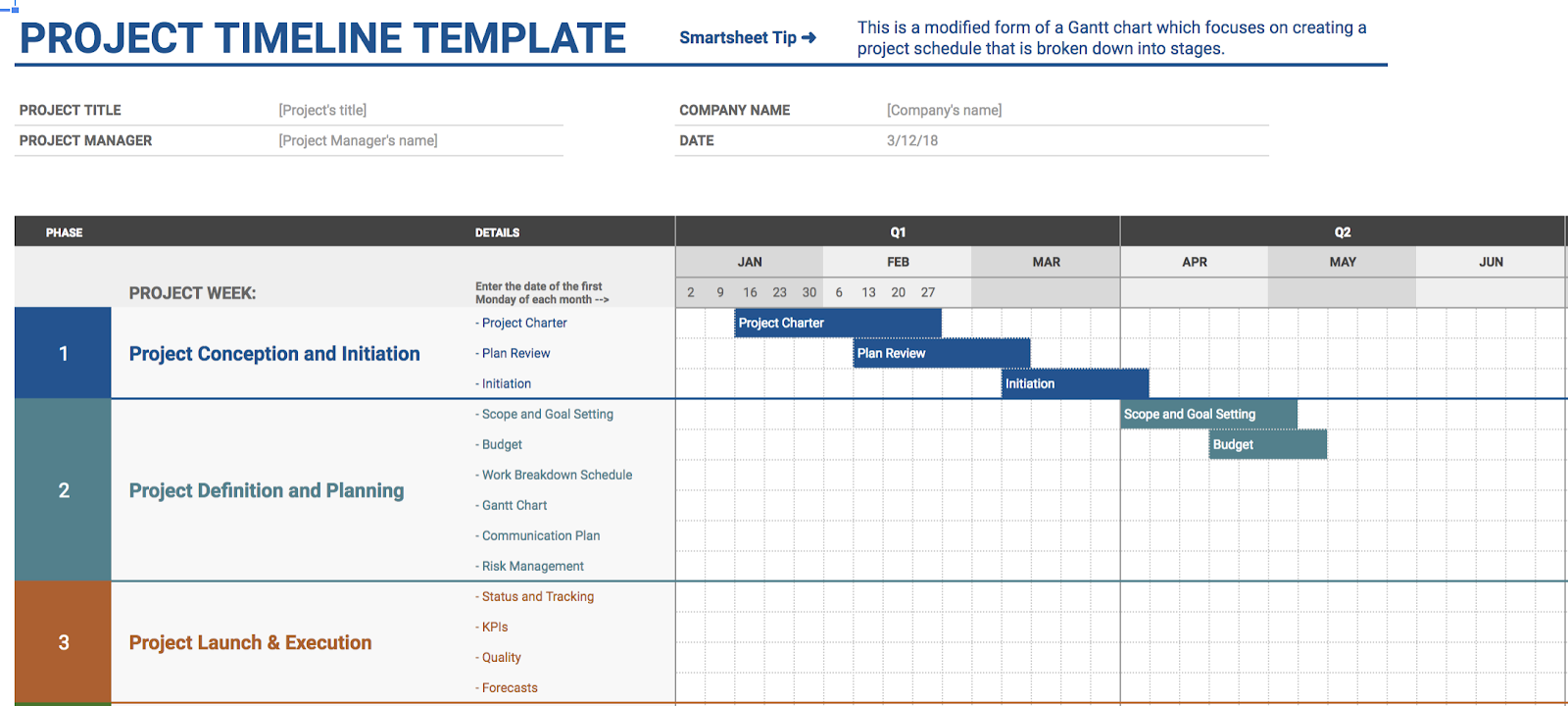
7. Project Timeline
Whether this is your first major project or you’ve been managing projects for years, the project timeline template is a useful tool for organizing and implementing each project step. The template helps you visually break-up a daunting project into smaller pieces, ideally making it easier and less stressful to organize and delegate tasks.
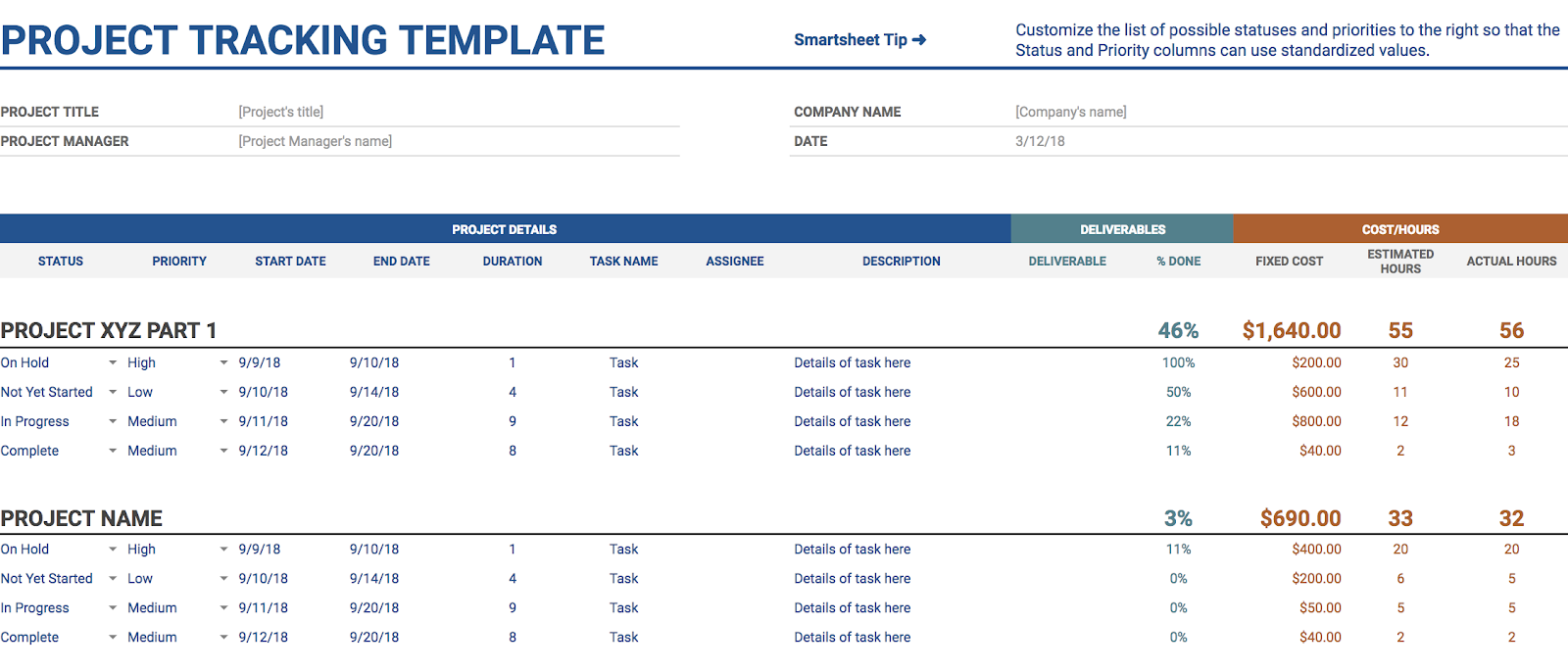
8. Project Tracking
If you’re juggling a bunch of projects simultaneously, this project tracking template could become your new best friend. It enables you to organize your projects into categories by date, deliverables, status, cost, and hours — best of all, it lets you prioritize your projects. Hopefully, simply visualizing what needs to get done first will alleviate time-management stress.
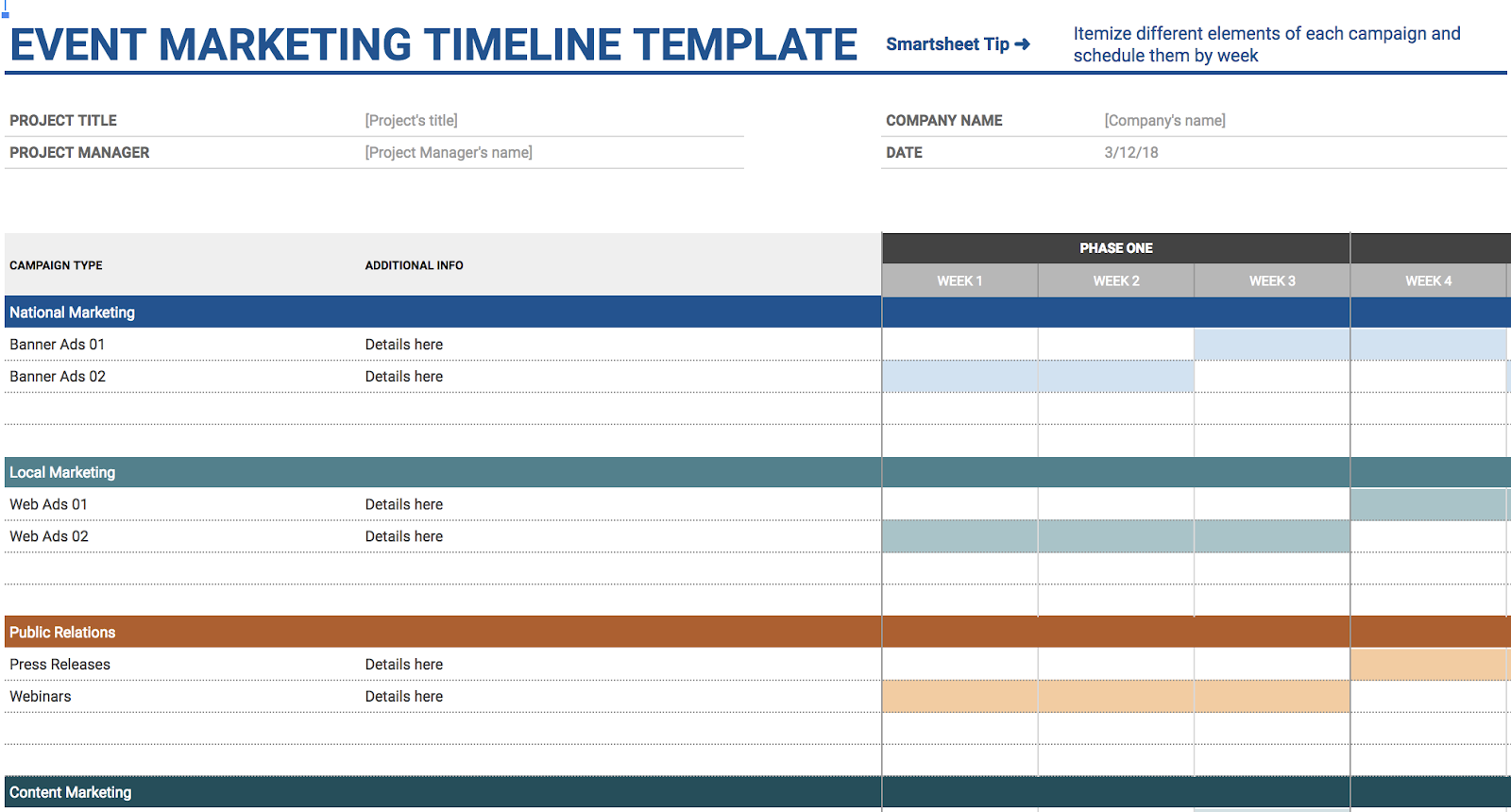
9. Event Marketing Timeline
The event marketing template offers organization and structure if you’re implementing an upcoming business event or campaign. It offers categories you might’ve forgotten to consider, including local and national marketing, PR, and web, with subcategories ranging from email newsletter to impact studies. The template is already organized with all necessary categories for planning an event, reducing the time you spend on tedious manual input.
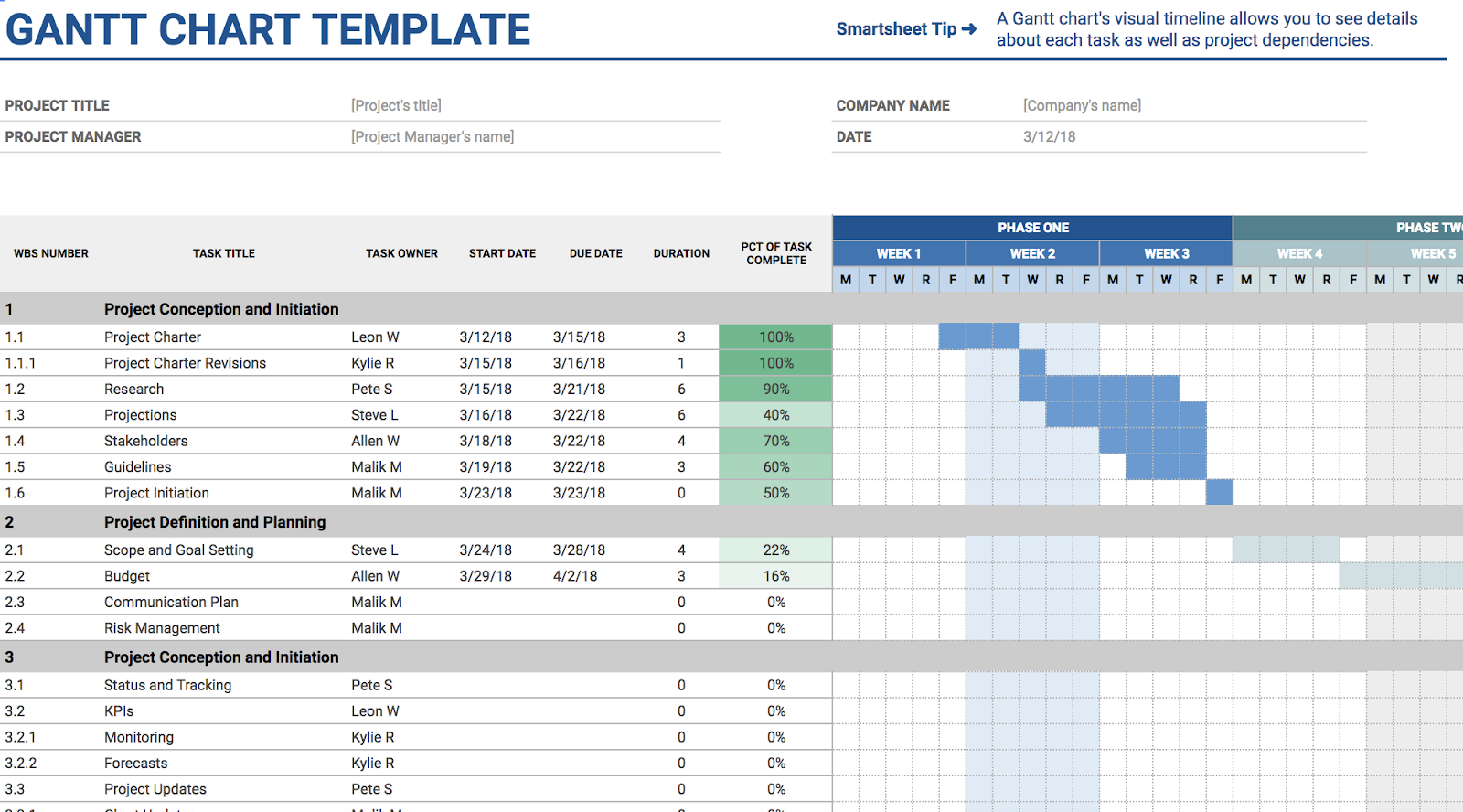
10. Gantt Chart Template
The Gantt chart template helps you alleviate any concern you might have over timing — and, when you’ve got a complex project with overlapping components, I’m willing to bet timing is one of your major concerns. Using the Gantt chart template helps you visualize all steps and delegate important tasks more efficiently — labelling the task with an owner on one chart is certainly easier than individually following up via email, and by sharing the template with coworkers, everyone is on the same page.
Google Sheet Templates for Leading a Team
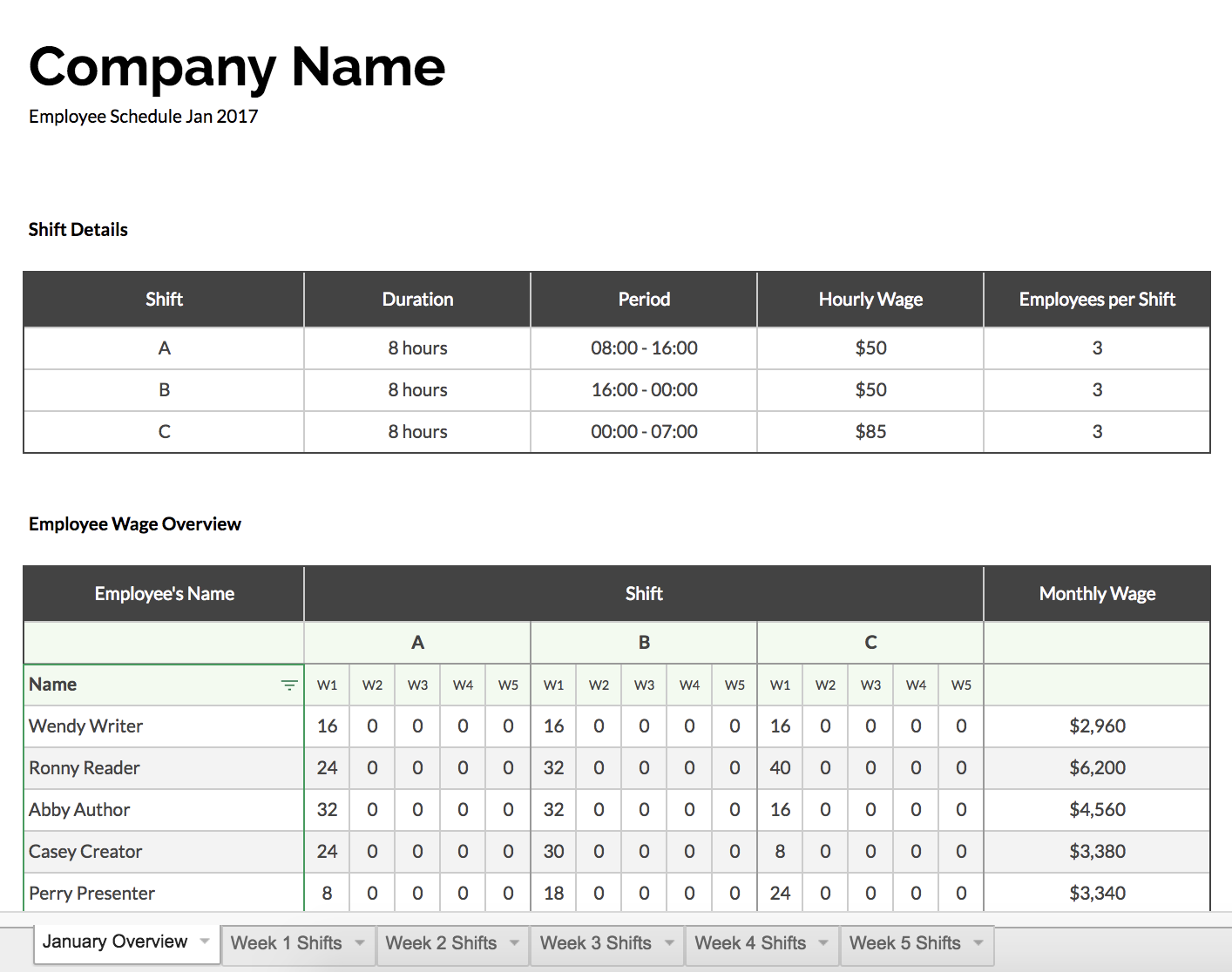
11. Employee Shift Schedule
Keeping track of who works what hours, and how much each employee gets paid, can feel confusing, especially if you lead a team of part-time contractors or seasonal interns. This template includes slots for employee’s names, hours worked, and monthly wages, making your paycheck process straightforward and organized.

24 About Us & About Me Pages + Templates to Make Your Own
Building a website is, in many ways, an exercise of willpower. It’s tempting to get distracted by the bells and whistles of the design process, and forget all about creating compelling content.
It’s that compelling content that’s crucial to making inbound marketing work for your business.
So how do you balance your remarkable content creation with your web design needs? It all starts with the “About Us” page.
For a remarkable About page, all you need to do is figure out your company’s unique identity, and then share it with the world. Easy, right? Of course not. Your “About Us” page is one of the most important pages on your website, and it needs to be well crafted. This profile also happens to be one of the most commonly overlooked pages, which is why you should make it stand out.
The good news? It can be done. In fact, there are some companies out there with remarkable “About Us” pages, the elements of which you can emulate on your own website.
By the end of this post, you’ll be introduced to:
- The best About Us page examples (and what makes them great)
- Tips on how to write your About page
- The best About page templates (across multiple platforms)
Best About Us Page Examples
- Yellow Leaf Hammocks
- Eight Hour Day
- Joe Payton
- Apptopia
- Moz
- Aja Frost
- Cultivated Wit
- Kero One
- Nike
- Refinery29
- Sara Dietschy
- Marie Catribs
- Marc Ensign
- Bulldog Skincare
- Doomtree
- Bold Xchange
- Ceros
- Marketive
- Sweet Loren’s
- TalEx
- SkinnyDipped
- LoveBug Probiotics
- Brown and Coconut
- Kuno Creative
1. Yellow Leaf Hammocks
Why the “About Us” Page Rocks: It tells us a story.
When you have a great story about how your product or service was built to change lives, share it. The “About Us” page is a great place for it to live, too. Good stories humanize your brand, providing context and meaning for your product. What’s more, good stories are sticky — which means people are more likely to connect with them and pass them on.
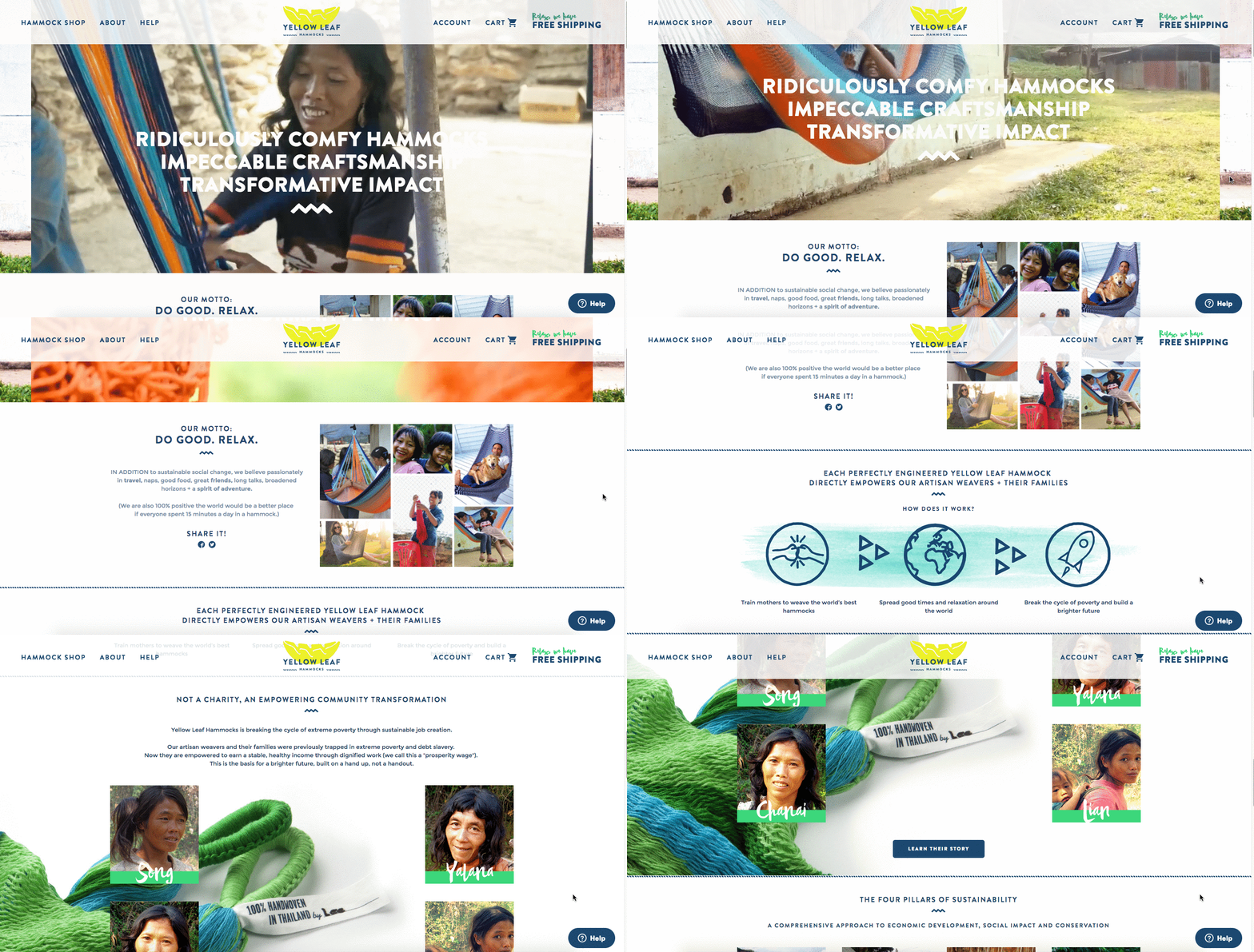
Yellow Leaf Hammocks tells users about its product by describing how the hammocks empower artisan weavers and their families. The company breaks down different pieces of the story into sections that combine words and easily digestible graphics, painting a picture instead of big chunks of text. They’re clear about why they’re different: “Not a Charity,” the page reads. And then: “This is the basis for a brighter future, built on a hand up, not a handout.”
Every company has a story to tell, so break out your storytelling skills from that random English class you took years ago and put them to work on your “About Us” page. Using descriptive and emotive copy and gorgeous graphics, an “About Us” page with a story works harder for your business than a generic one.
2. Eight Hour Day
Why the “About Us” Page Rocks: It’s human.
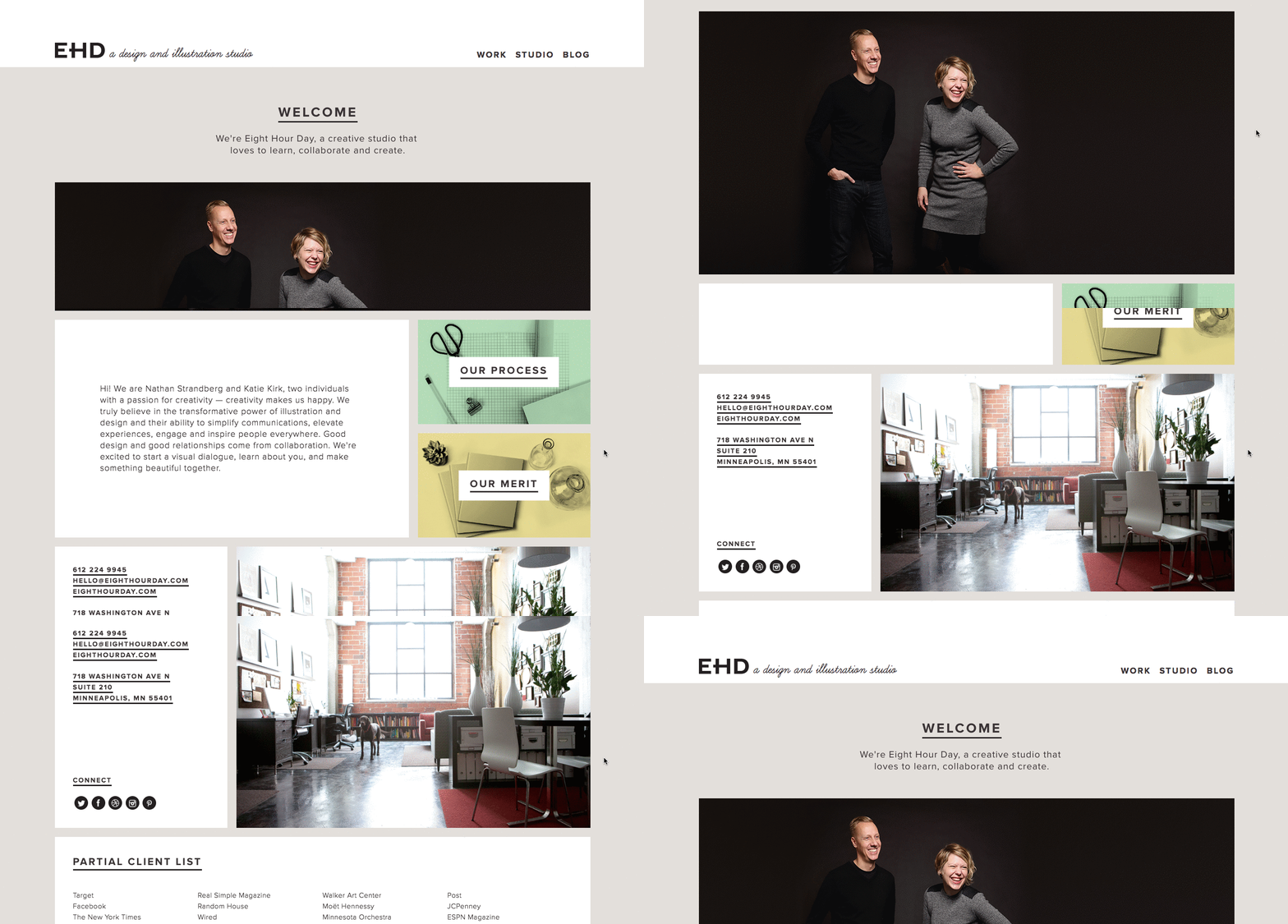
People tend to think that “About Us” pages have to sound formal to gain credibility and trust. But most people find it easier to trust real human beings, rather than a description that sounds like it came from an automaton. Trying to sound too professional on your “About Us” page results in stiff, “safe” copy and design — the perfect way to make sure your company blends in with the masses.
Instead, Eight Hour Day showcases the people behind the company and humanizes its brand. Introducing the founders by name and featuring the photos of them on the “About Us” page drives home the point that Nathan and Katie are — as they so astutely put it — “two individuals with a passion for creativity — creativity makes us happy.”
When you’re designing your “About Us” page,avoid industry jargon and replace it with an authentic voice — yours — to describe your product or service. Sure, it needs to be polished and free of errors, but it should always sound friendly and real.
3. Joe Payton
Why the “About Me” Page Rocks: It’s confident, creative, and easy to skim.
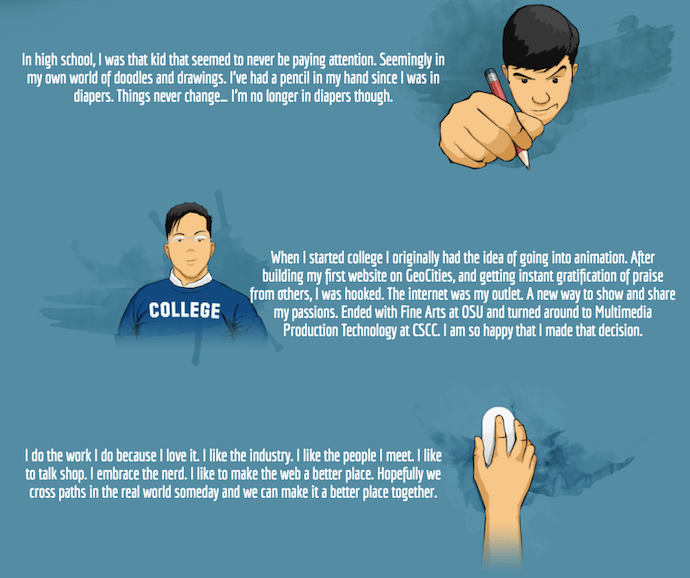
“About Us” pages might encompass the values of more than one person or entity, but they’re no more important to the image of a business than your personal about page. Take Joe Payton’s “About Me” page, below.
Not only does Joe’s illustrative self-portrait give him a personal brand that customers will remember, but it also demonstrates his expertise as a designer and animator. His website visitors can learn not just what he does, but why he does it, in an easily digestible way. Being able to express his values as a creative professional in such a well-organized page is something to be desired by anyone creating their own about page.
4. Apptopia
Why the “About Us” Page Rocks: It skips the business babble.
We know — no industry jargon. If you think it makes you sound super smart on your “About Us” page, think again. People want and appreciate straight talk about what your business does. After all, if people can’t figure out what you do, how will they know they need your product or service?
So, skip the industry lingo — that’s what Apptopia does on its “About Us” page. The startup’s simple but polished language effectively communicates the company’s offering while still allowing the Average Joe to understand it.
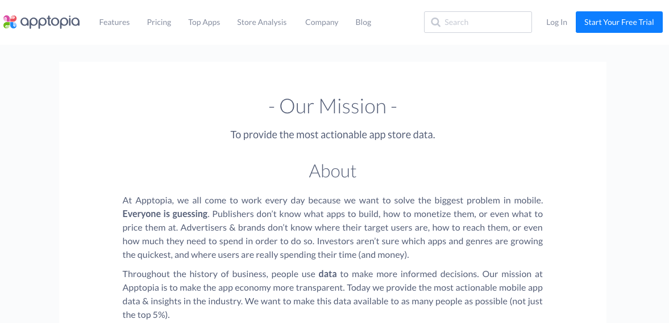
The moral of the story: Try to get rid of jargon on your “About Us” page whenever possible. Use short and punchy sentences to explain complex products and ideas in a way that isn’t patronizing, but rather, is empathetic.
5. Moz
Why the “About Us” Page Rocks: It’s humble.
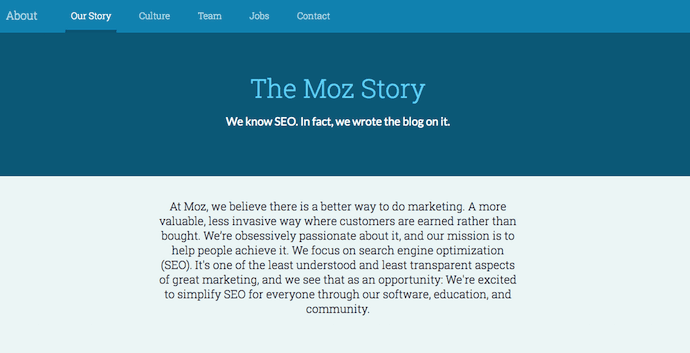
Instead of following the classic “About Us” script and writing a few paragraphs about the company’s mission and origins, try something different — there are plenty of ways to make your brand more compelling to someone who doesn’t know about you.
Take Moz, for example. A lot has happened since it was founded in 2004, so the company chose to share those milestones using a fun and clean design that incorporates clear headers, concise blurbs, and little graphics to break up the text.
We especially love the humble references to how Moz received funding, how it switched its brand positioning — and most importantly, how it switched back to its original model. This speaks volumes to the value honesty and humbleness can play to your customers. Don’t be afraid to talk about your ups and downs; your customers will trust what you say that much more.
6. Aja Frost
Why the “About Me” Page Rocks: It’s data-driven.
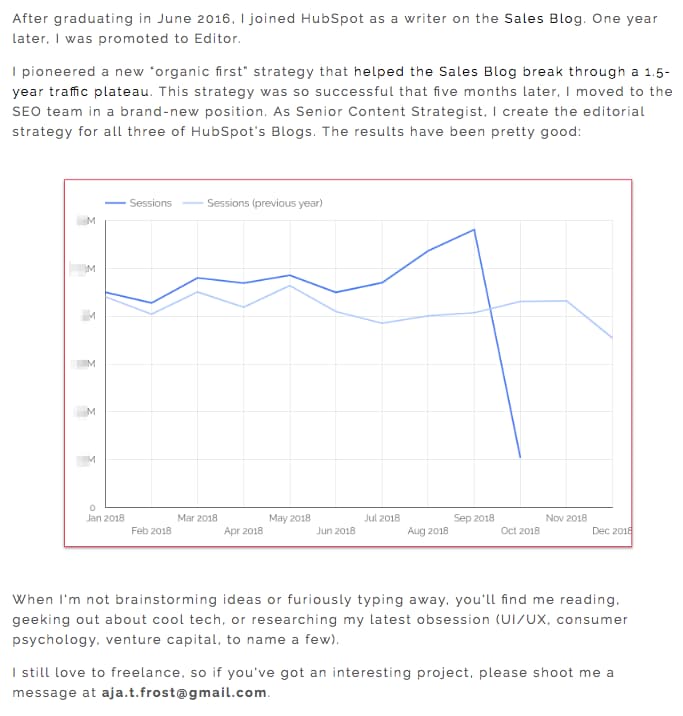
Alright, we might be biased in highlighting this professional, as Aja is our very own SEO strategist at HubSpot. Nonetheless, the ingenuity she brings to the company isn’t lost on her website’s “About Me” page.
Being a data-driven professional, Aja knows her own clients as a freelance writer and strategist don’t just want to see what she’s written — they want to see how her content has performed. With that in mind, her “About Me” page tells a story of her career growth, which peaks — no pun intended — at an impressive line graph showing the result of an SEO strategy she implemented for the HubSpot Blog. (The graph’s sharp decline at September simply indicates when she stopped collecting data.)
Following the impressive chart, Aja closes out her about page with a personal note on what she does in her spare time — always a good way to humanize yourself in the eyes of your potential customers.
7. Cultivated Wit
Why the “About Us” Page Rocks: It breaks the mold.
Yes, this post is about, well, “About Us” pages. But sometimes, you don’t always need to wait for users to get there in order to make a statement. That’s part of breaking the mold to showcase your company’s personality.
That’s exactly what Cultivated Wit — a creative agency and media company — does, with both an edgy name and an incredibly fun story told through video and parallax scrolling … right on its homepage.

Below is the actual “About Us” page, which is a gem once you get there. But it’s great to see a company embrace its own brand of quirk throughout the site.
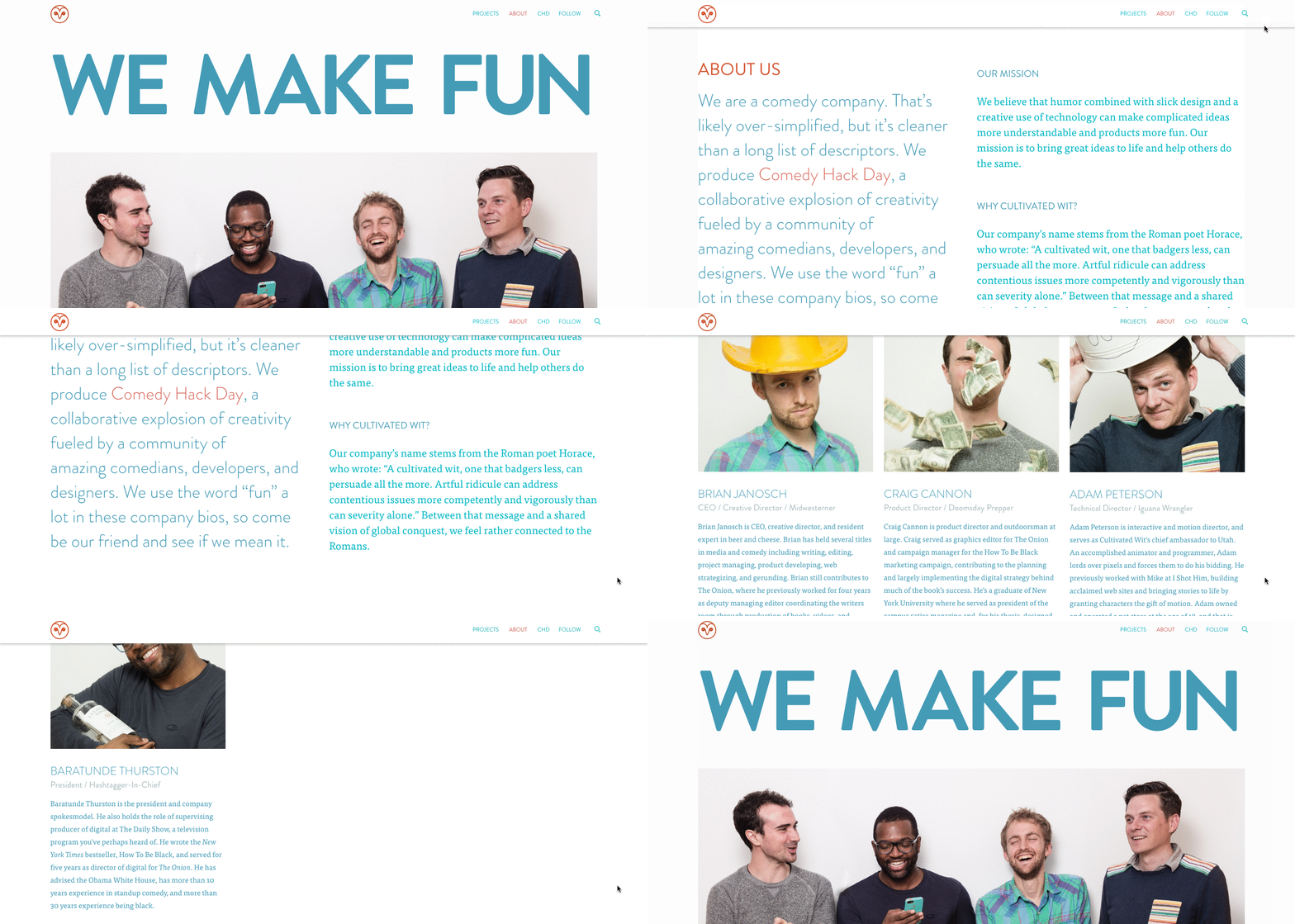
Even if you have a dedicated “About Us” page, there are plenty of ways to creatively showcase your company’s personality throughout your entire website. And yeah, that’s harder than filling a stock “About Us” template — but it can have a significant payoff for your brand.
8. Kero One
Why the “About Me” Page Rocks: It’s multilingual.
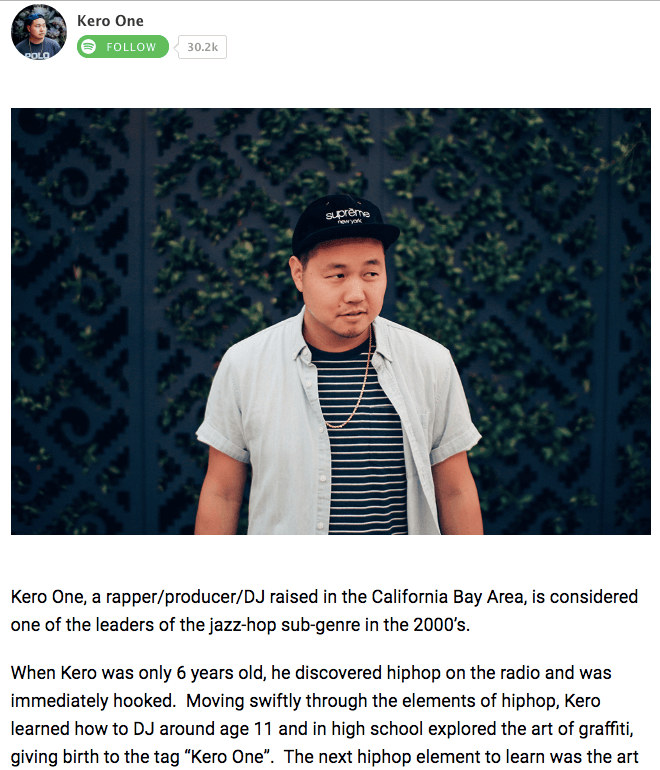
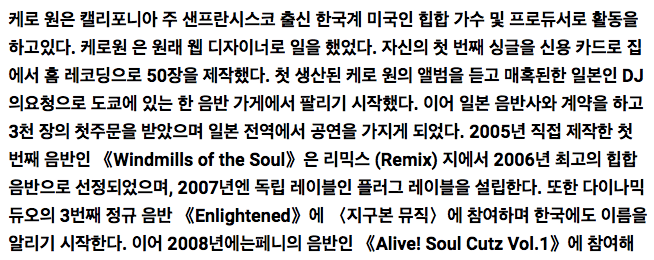
Kero One is a hip-hop artist and DJ from San Francisco, and his “About Me” page carries a valuable lesson to personal brands who cater to more than one audience — especially if those audiences speak different languages.
Kero One’s story starts at his childhood, when he was six years old and first discovered a passion for hip-hop. Knowing how old and genuine his love for the genre is adds tremendous value to his own music in the eyes of his listeners.
While this entrepreneur’s childhood interests help to deepen his audience, the second screenshot below helps Kero One widen it. His “About Me” page first tells his story in English, then in Japanese, then in Korean, then in Chinese. Accommodating these Southeast Asian audiences makes his brand more inclusive of all the audiences he identifies with.
…
9. Nike
Why the About Us Page Rocks: It knows its audience.
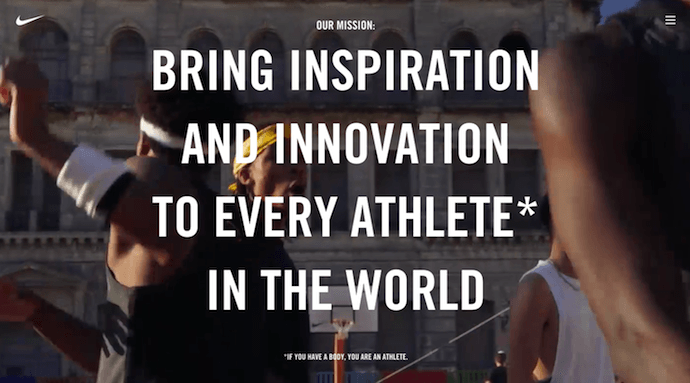
Nike might seem like a company that’s too big to inspire smaller businesses. You might even wonder if Nike even still has an “About Us” page. As a matter of fact, it does, and it hasn’t forgotten the company’s roots.
Nike began on the campus of the University of Oregon by the hand of the college’s track coach, Bill Bowerman. And even though he no longer works at the company, one of his beloved quotes still brands the bottom of Nike’s “About Us” page below: “If you have a body, you are an athlete.”
This bold sentence, referenced by the asterisked “Athlete” in the words right above it, sheds important light on Nike’s audience. The brand may be big today, but Nike is all about the rising stars — who Nike depends on to, according to the rest of its “About Us” page, “expand human potential.”
The takeaway for marketers? Know your audience, and make it obvious to that audience the instant they read about you on your website.
10. Refinery29
Why the “About Us” Page Rocks: It tells you what’s most important.
Here’s another instance where any area of your website — not just the “About Us” page — is an opportunity to break the mold.
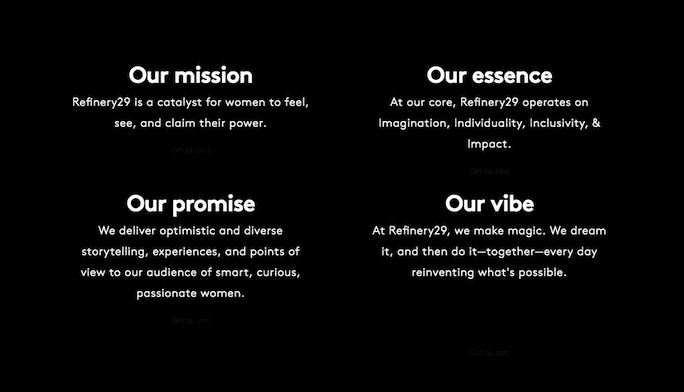
Many companies add just a simple mission statement or company profile, but people often don’t want to ready a wall of text explaining what you do. So, Refinery29 broke it down to convey the intangible qualities that are tough to include in a basic “About Us” page.
Although Refinery29 does introduce its page with a description of its business, its goes out on a bang — four bangs, to be exact. The organization is on a “mission,” sure, but there’s also an “essence” of Refinery29, a “promise” it keeps, and a “vibe” it gives off.
These aren’t company traits you’d think to include when starting out, but they’re what your customers often make gut decisions on when buying.
11. Sara Dietschy
Why the “About Me” Page Rocks: It has variety but still aligns with her personal brand.
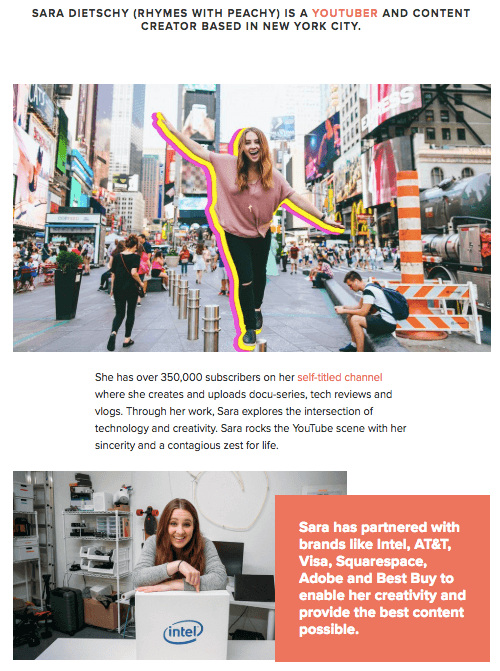
This professional YouTube content creator has an eclectic collection of videos related to technology and culture, and expresses that diversity all over her “About Me” page.
In addition to the vibrant self-portrait at the top of the page, Sara’s first sentence tells you just how many people subscribe to her channel: 350,000. This is an important number to know for her potential video advertisers and collaborators who want to know how much exposure they’d get by working with her or advertising on her channel.
The colored tiles lining the page — starting with the red one, as shown below — also do a terrific job segmenting her work by the types of projects she takes up and for whom she’s done them. That Intel logo in the second photo of Sara, below, is sure to turn some visitors’ heads as they’re perusing her website.
12. Marie Catribs
Why the “About Us” Page Rocks: It’s unexpected.
There’s a reason why these examples are exceptional — “About Us” pages aren’t always the most riveting parts of a company’s website. In fact, they often look like an afterthought. But even if you don’t have budget for juicy graphics, video, or parallax scrolling, there are other ways to make your “About Us” page unexpected with the copy alone.
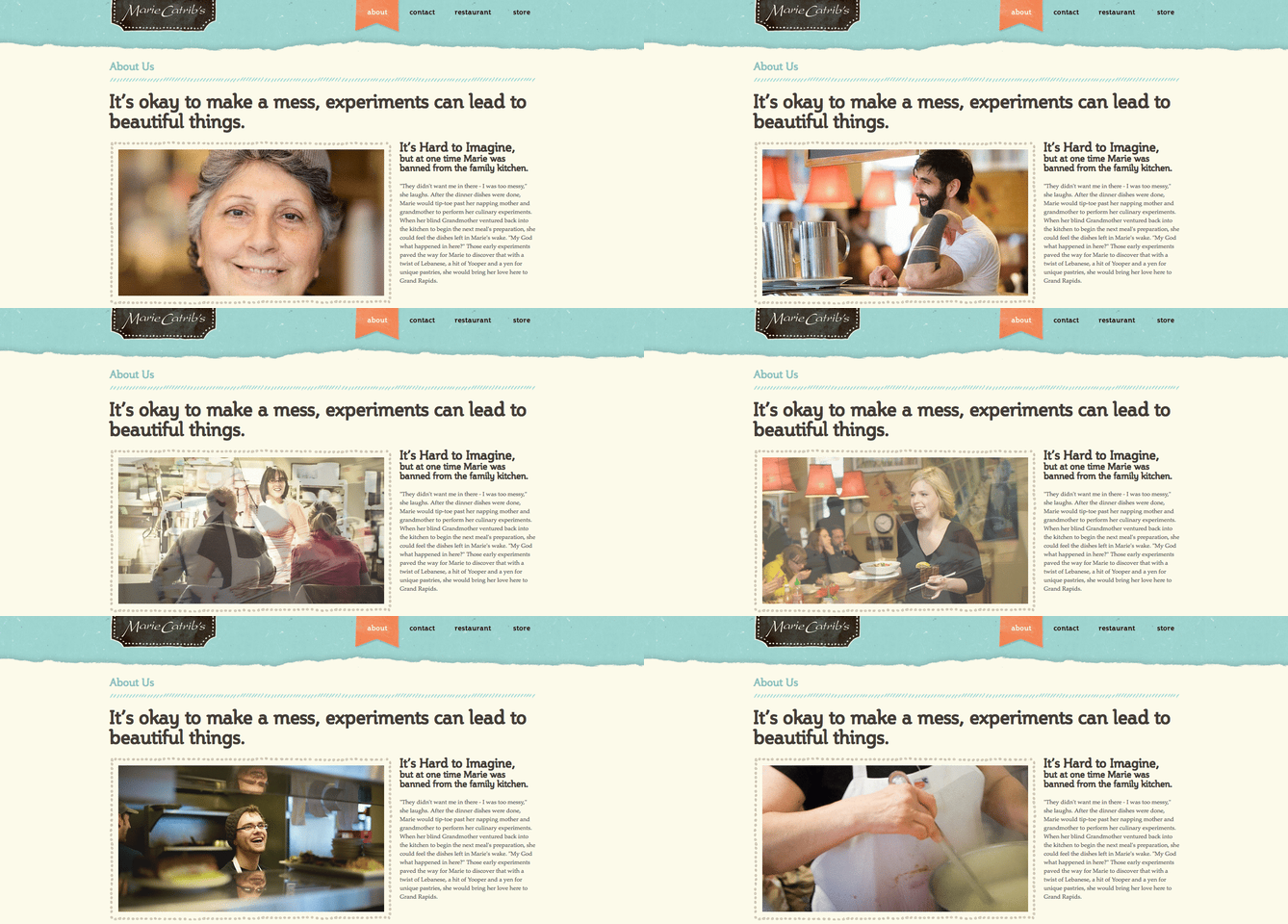
Marie Catrib’s is a restaurant, so you might think their “About Us” page would be your typical “here’s how we started, here’s what we believe in, and here’s our food” story. Marie Catrib’s “About Us” page does tells us that — but it does so in an unconventional way. Immediately, the user’s eyes are drawn to a header that says, “It’s okay to make a mess, experiments can lead to beautiful things.” Quite philosophical, for a place to have dinner.
But next comes the story about the owner, which starts in an unexpected way — “It’s hard to imagine, but at one time Marie was banned from the family kitchen.” A line like that draws in the audience, because we know it’s not going to be typical.
So, how will you use copy to really draw readers in? It’s amazing what impression you can make on site visitors just by creatively telling your story with words alone.
13. Marc Ensign
Why the “About Me” Page Rocks: It’s funny but professional.
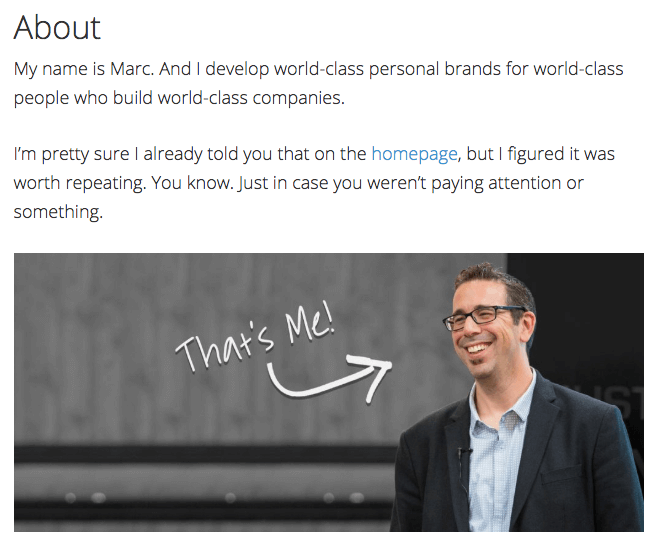
This branding expert does two things super well on his about page: He takes his work seriously, but doesn’t take himself too seriously. Marketers know there’s value to keeping a casual tone in the content they create, but in order to attract customers, you need to prove you have discipline and integrity. That’s a tough balance to get right.
Marc Ensign nails that balance between friendly and formal with a confident opening statement, followed by an amusing smiley photo of himself to set an inviting tone.
14. Bulldog Skincare
Why the “About Us” Page Rocks: It’s lovable and memorable.
What’s the difference between “average” marketing and lovable marketing? It’s the difference between creating generic webpages that provide great information, but in a straightforward, black-and-white kind of way — versus creating webpages that provide great information and are infused with color, personality, and stay true to a company’s unique brand voice. When you create lovable marketing, you can start a movement of brand evangelists and advocates who will help you grow.
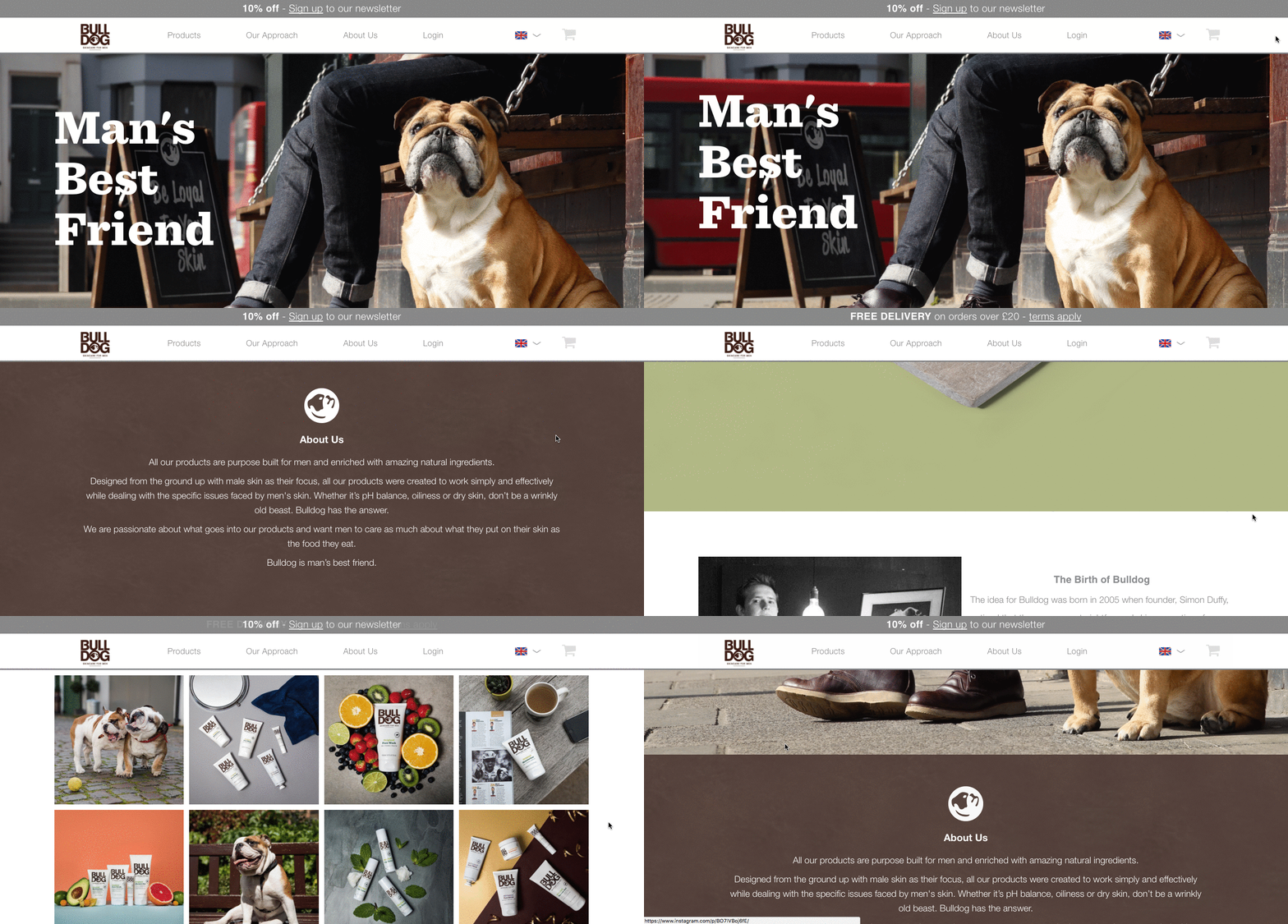
Where does this fit into a company’s “About Us” page? The folks at Bulldog, a men’s skincare company that was named for the colloquial “man’s best friend” — a dog — could have typed up a few paragraphs about where the brand came from and how they were one of the first in the space to redefine and eliminate stereotypes around men’s grooming. But that text alone would have been a bit, well, average.
Instead, the “About Us” page is pithy, colorful, and leads with the lovable mug of an adorable bulldog — fitting the name and the brand. And it states the purpose of the products — to help customers from waking up with the (admittedly adorable) wrinkly face you see when you visit Bulldog’s website.
Play on your own words — it’s okay to have fun and pun with your brand, as it helps to inject personality and humor into your “About Us” page. It primes visitors for a story in a way that makes them immediately feel something. That’s how you create memorable, lovable marketing.
15. Doomtree
Why the “About Us” Page Rocks: Its shows, tells, and has a soundtrack.
One minute of video is worth 1.8 million words, according to Forrester Research’s Dr. James McQuivey. But what about audio and visual, too, all combined with a really cool story? Well, that’s one way to tell your story in an engaging way — through multimedia.
Doomtree is built on a bit of an innovative concept: That a group of talented artists can each have thriving solo careers, but can still come together on a regular basis to create great music. It’s not a band — it’s a crew. It’s an unconventional concept with an equally interesting backstory that “started as a mess of friends in Minneapolis, fooling around after school, trying to make music without reading the manual.” And as soon as you arrive on Doomtree’s ‘About Us’ page, you’re greeted with big, bold photos of those friends.
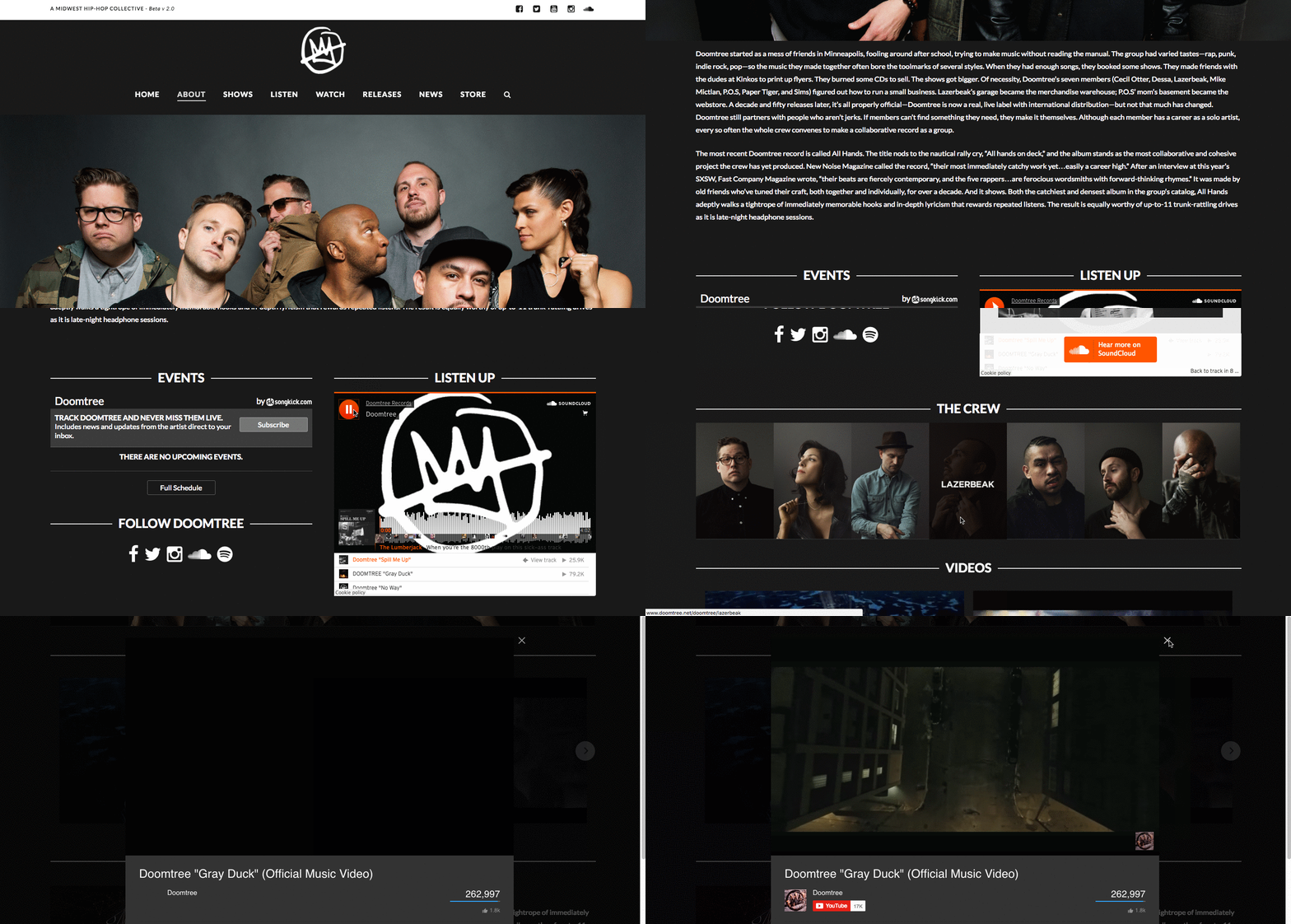
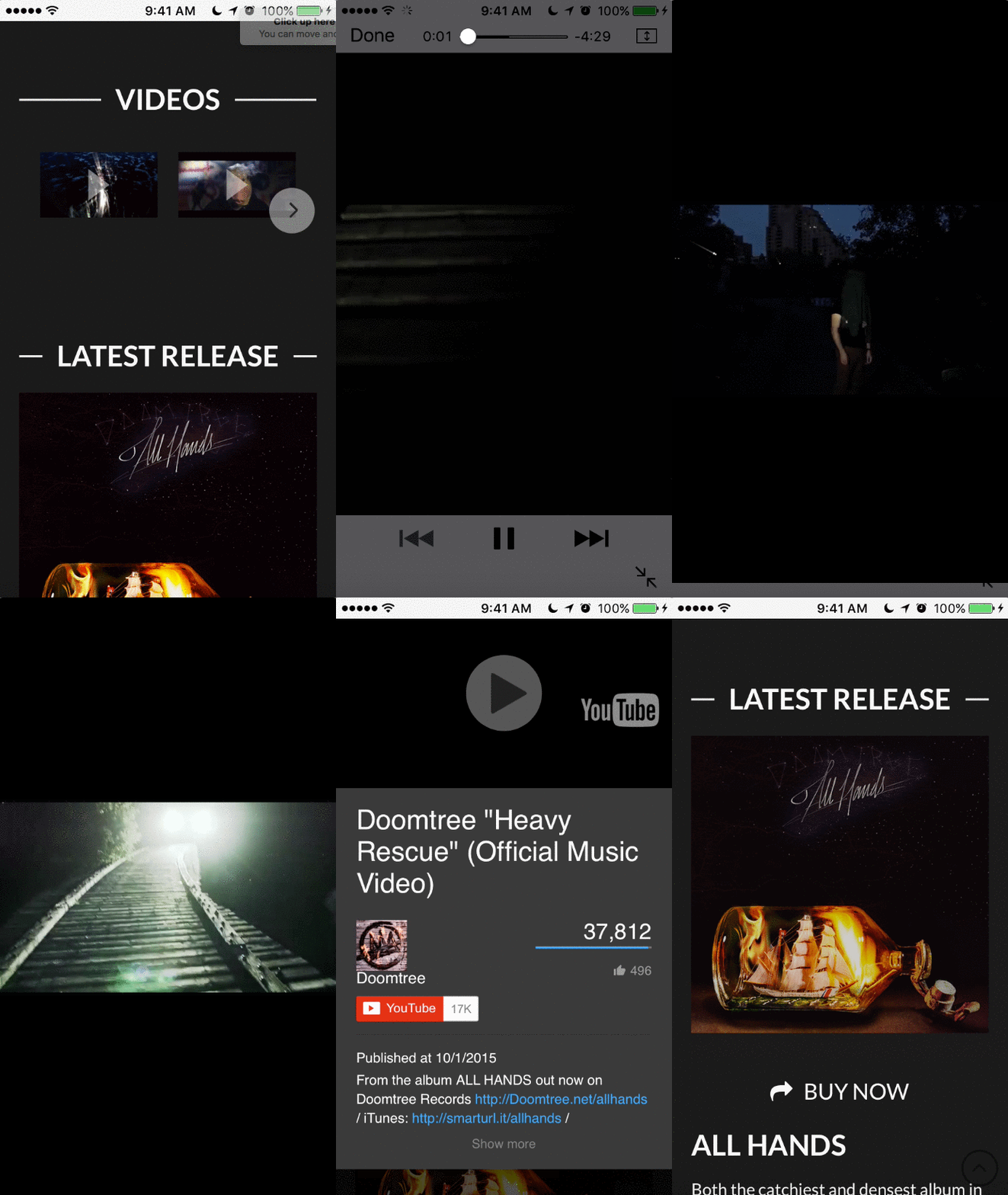
As you scroll down, users are treated to even more interaction with the crew’s tracks and music videos. That makes sense, because it gives visitors an instant sample of Doomtree’s product. What’s more, the entire “About Us” page is responsive, including the video. That’s important — not only because it offers site visitors a great mobile experience, but also for Google search ranking — especially now that such mobile usage has surpassed desktop.
16. Bold Xchange
Why the “About Us” Page Rocks: It’s sleek and focuses on the company’s mission.
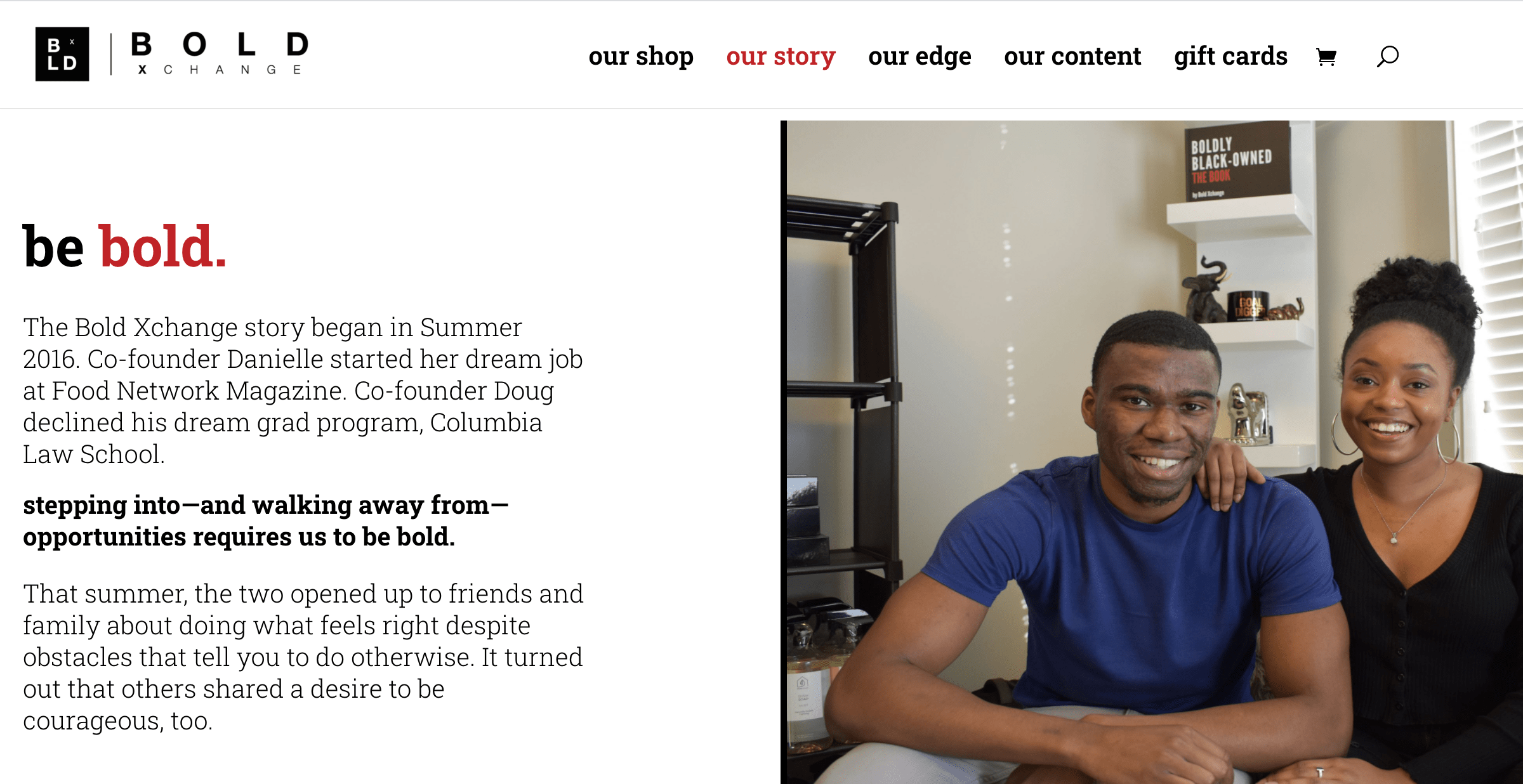
Bold Xchange’s About Us page starts with a story of the co-founder’s initial inspiration for starting the company: “That summer, the two opened up to friends and family about doing what feels right despite obstacles that tell you to do otherwise.”
Sound familiar? The introduction immediately jumped out at me because of how relatable it felt.
The About Us page continues in story-format and is separated into three sections: “be bold”, “stay bold”, and “share bold”. Along with a moving origin story, the page has a sleek design, with a red-and-black color scheme and authentic images to support each of the three sections.
What I like best about this About Us page is that it doesn’t focus on what the company sells — instead, it uses the space to showcase the company’s ultimate mission. When creating your own About Us page, consider how you might draw visitors in with an inspiring message upfront.
17. Ceros
Why the “About Us” Page Rocks: It’s interactive and funny.
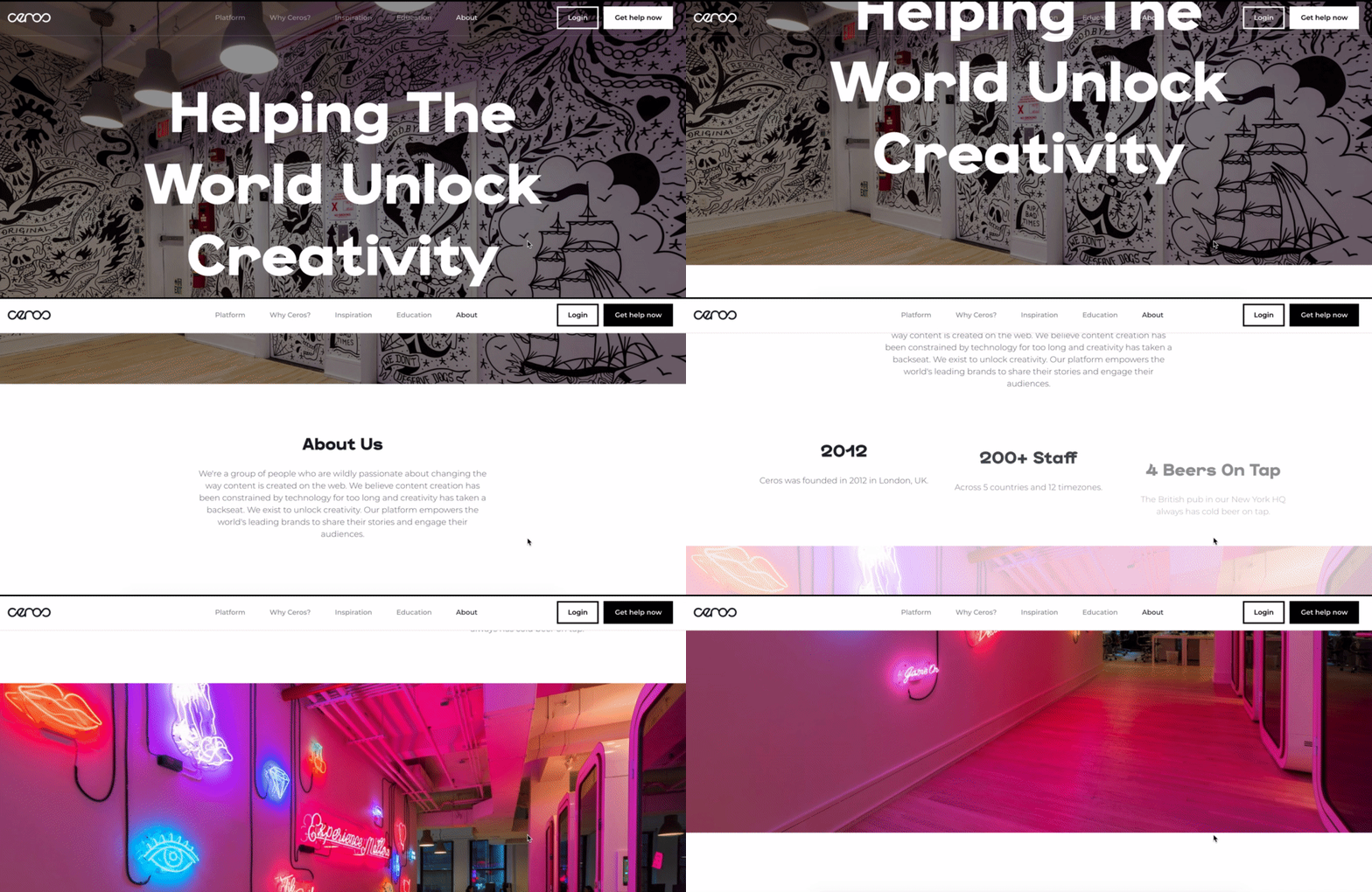
Ceros’ About Us page is interactive and engaging. As you scroll, the text slowly moves up the page, with bold — and humorous — statistics, like “4 beers on tap”. Additionally, Ceros’ uses images of their impressive, unique office space to further personalize the page.
Best of all, Ceros’ keeps the text on the page short-and-sweet, with powerful statements like “We exist to unlock creativity”. The Culture section further demonstrates Ceros’ playful brand voice, with core values like “We wear our chicken suits”.
18. Marketive
Why the “About Us” Page Rocks: It’s compelling, with fun scrollable features.
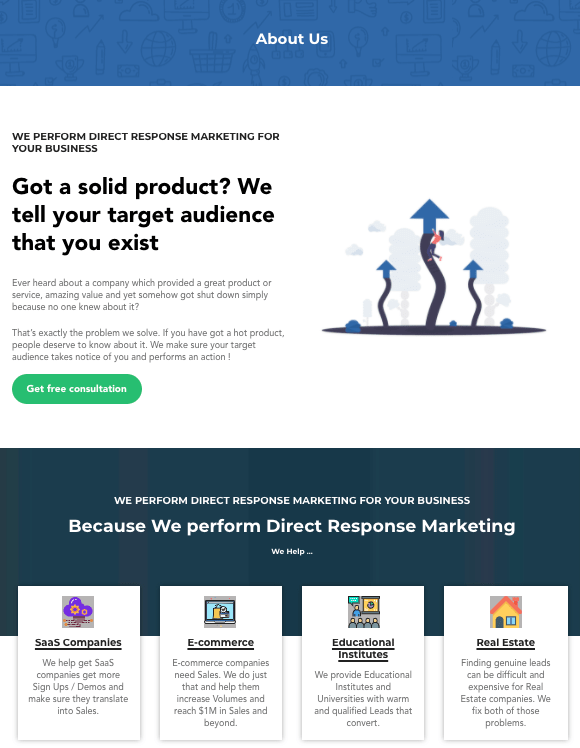
Rarely have I seen a more powerful opening statement than the one Marketive uses in their About Us page: “Got a solid product? We tell your target audience that you exist.”
Additionally, Marketive’s About Us page displays original designs rather than photos to support the text, and the page is simply fun to scroll through. Plus, I appreciated Marketive’s layout — starting with what they do, moving into which types of industries they help, and ending with the company’s earlier milestones.
The interactive milestone calendar at the bottom is especially impressive. It authentically represents some humble beginnings (including two unsuccessful startups that inspired present-day Marketive), and features a fun scroll element that highlights various dates throughout the calendar.
19. Sweet Loren’s
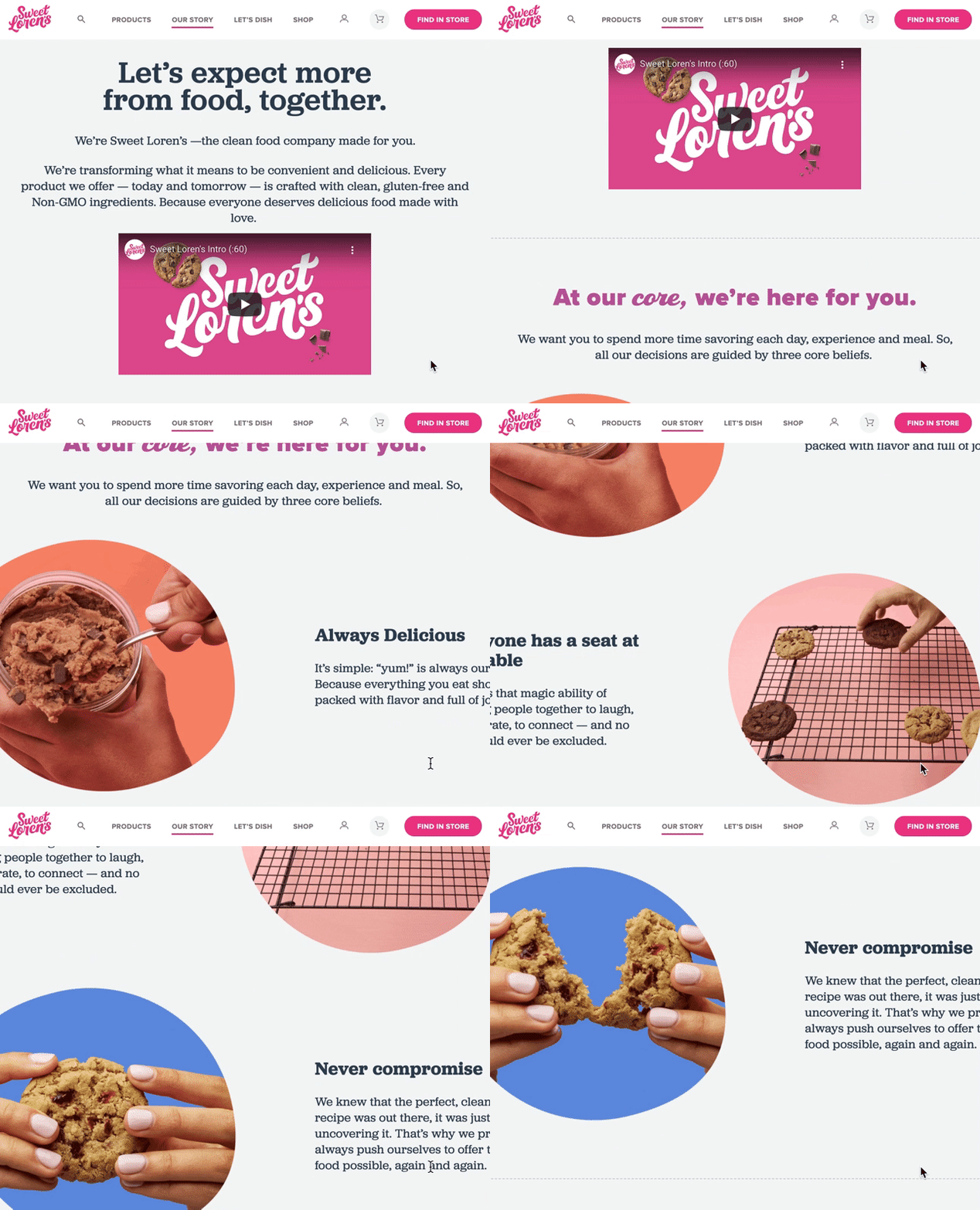
Why the “About Us” Page Rocks: It’s playful and reflects the brand’s personality.
Start-to-finish, Sweet Loren’s About Us page is playful, engaging, and colorful. The page starts with a 60-second video, and even incorporates cookie dough-scooping gifs. As you scroll, you’ll move through some of Sweet Loren’s impressive values, including inclusivity and refusing to compromise.
Best of all, Sweet Loren’s yummy products are last on the page, ensuring you’re fully primed to purchase only after learning about Sweet Loren’s mission and differentiating factor: creating non-GMO, gluten-free, plant-based, and delicious cookie dough.
20. TalEx
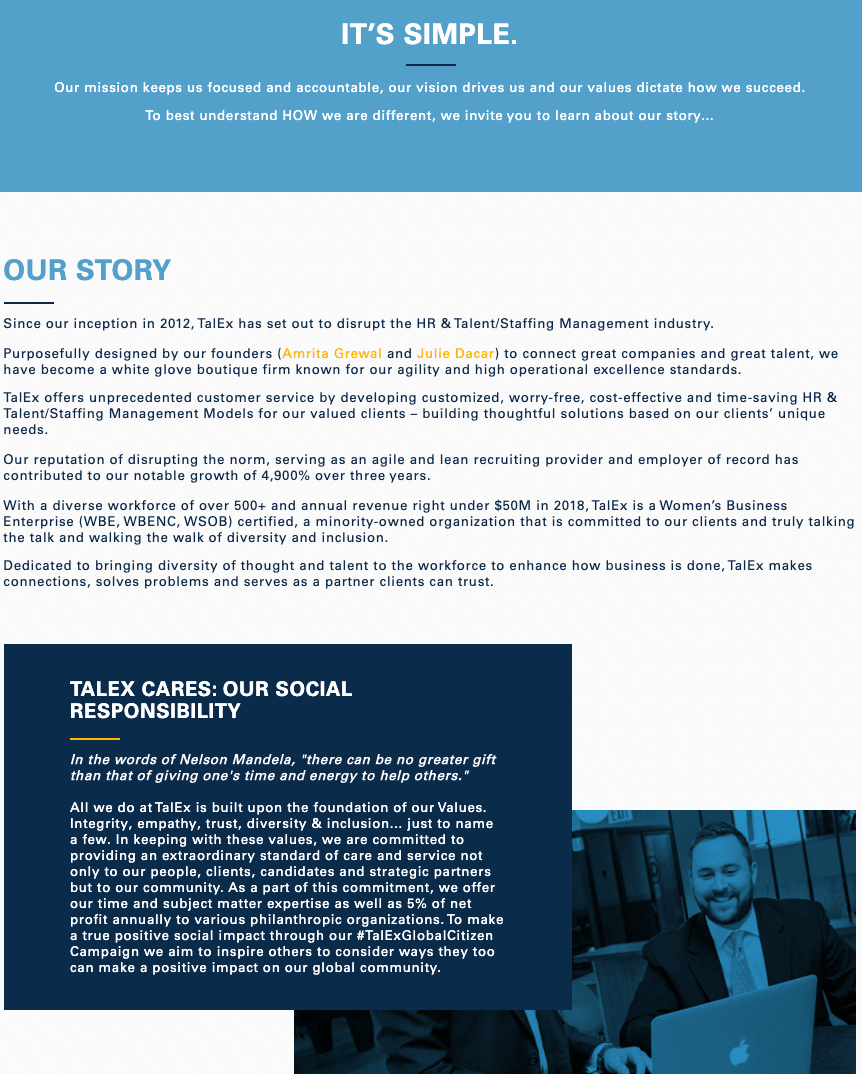
Why the “About Us” Page Rocks: It focuses on social responsibility.
TalEx has an interesting origin story, in which two women left a major recruiting firm to build their own and ended up landing AOL as a major client of theirs — which was previously their old employers’ client.
TalEx has since seen unprecedented growth at 4,900% in the three years since it began. You’ll learn all this and more on their About Us page, but what really makes their page stand out is the company’s emphasis on social responsibility, which takes up nearly half the page and explains the company’s dedication to giving 5% of its net profit annually to various philanthropic organizations.
21. SkinnyDipped
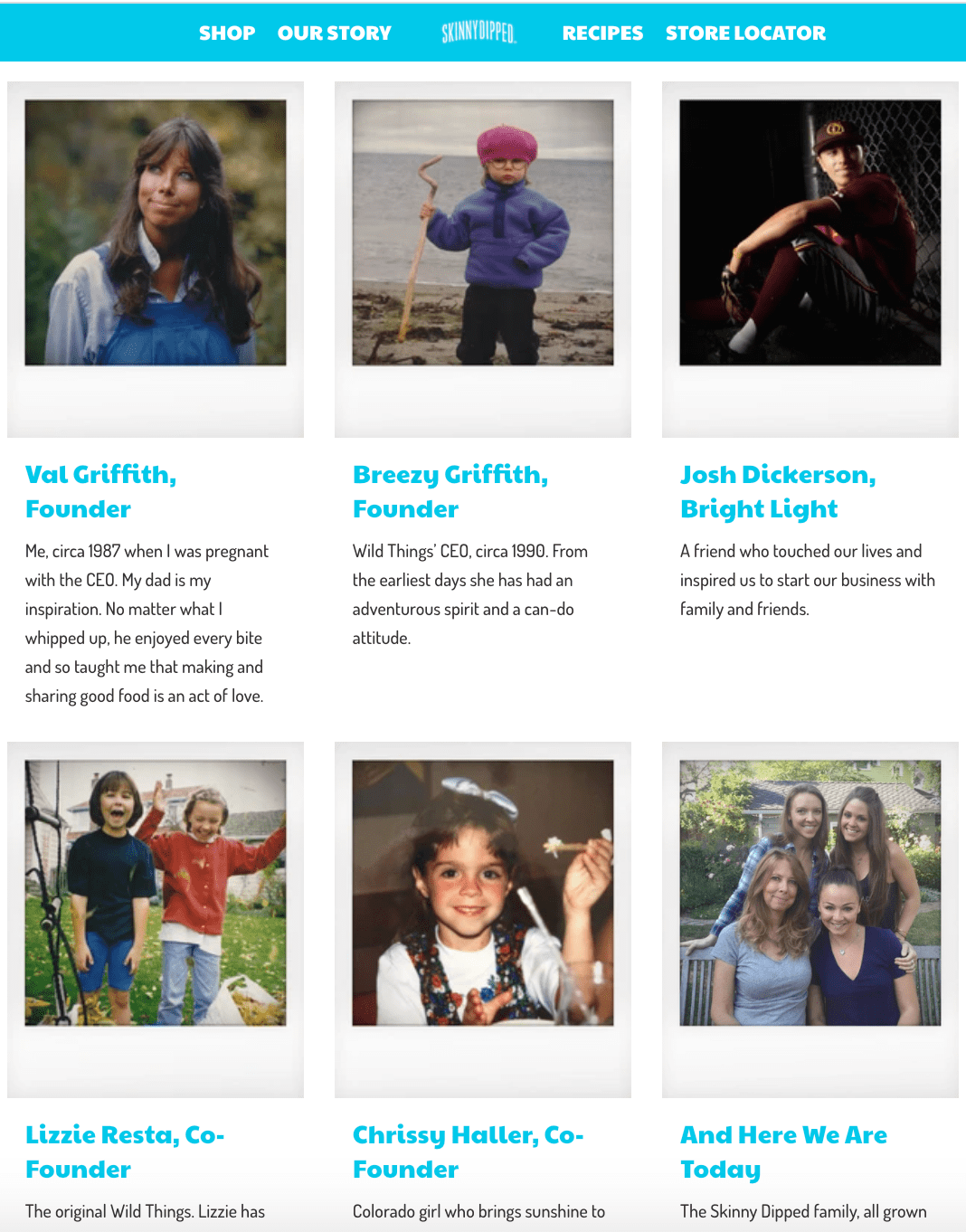
Why the “About Us” Page Rocks: It’s authentic and down-to-earth.
SkinnyDipped’s About Us page features a few sweet, polaroid images of the employees (including three of the co-founders as young children), and a moving nod to Josh Dickerson, a family friend whose death inspired the family to start the business.
Their About Us page is well-written and inspiring — for instance, they write, “We decided to start a business … That it would be centered around food was obvious. For us—family, friends, food and love are all tangled up.” By the time you finish reading their story (and the individual employee bios), you’ll be as impressed by SkinnyDipped’s brand values as you are by their delicious products.
22. LoveBug Probiotics
Why the “About Us” Page Rocks: It’s playful and informative.
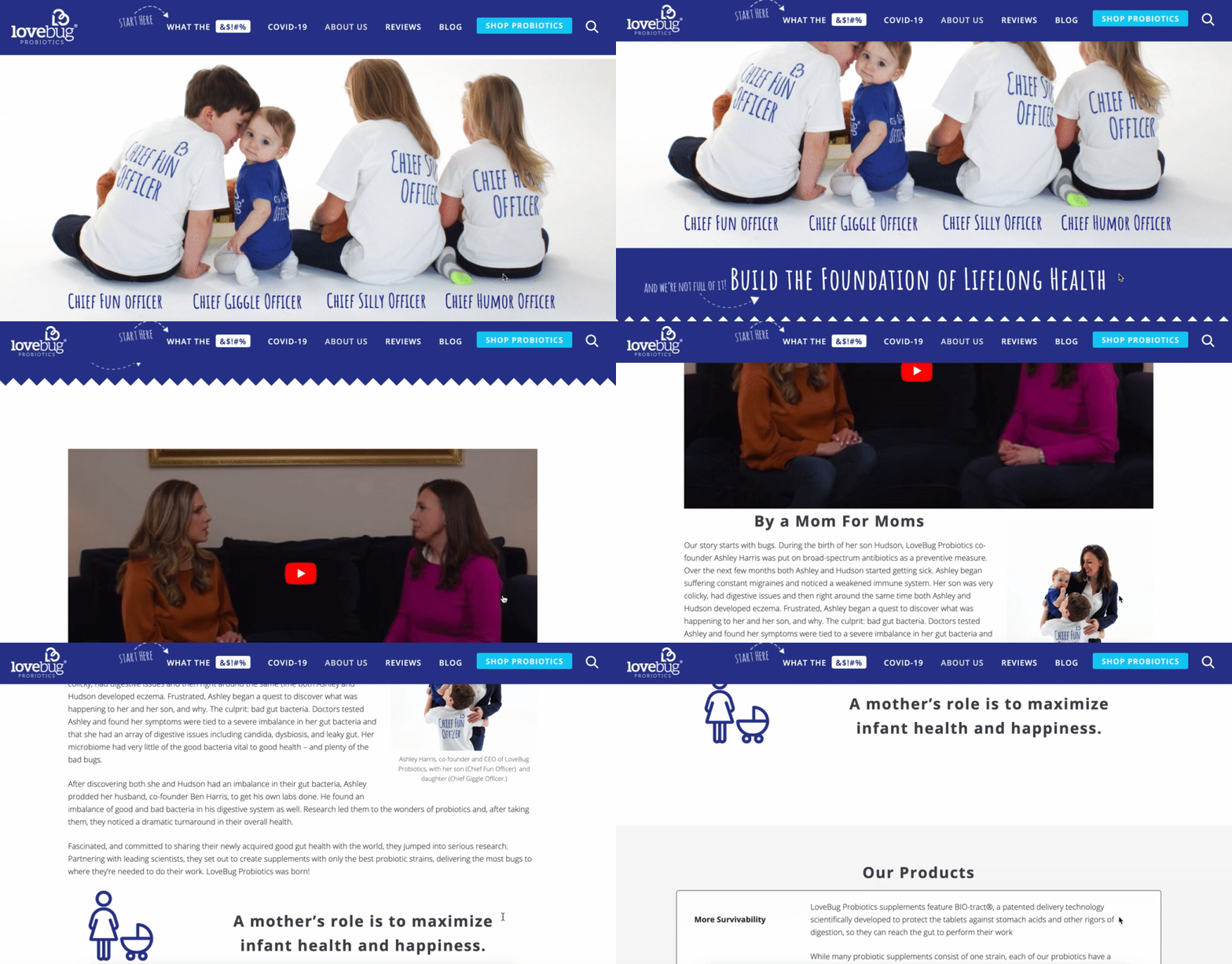
LoveBug Probiotics’ About Us page features an image of the founder’s four young children wearing “Chief Fun Officer”, “Chief Giggle Officer”, “Chief Silly Officer” and “Chief Humor Officer” t-shirts. I’ll admit — there aren’t many About Us pages with cuter introductions than that.
The page effectively includes all the information you’d need on the company to make an informed purchasing decision — including how the founder came up with the idea, her personal ties to her vision, the science behind her probiotics, and even an opportunity to find local stores that carry LoveBug probiotics.
Plus, while the products are science-backed, the About Us page doesn’t confuse visitors with difficult-to-understand facts: instead, the page is simple, straightforward, and helpful.
23. Brown and Coconut
Why the “About Us” Page Rocks: It’s simple and no-fuss.
Sometimes, simpler is better — as is the case with Brown and Coconut’s About Us page, which features a photo of the two co-founders alongside a few paragraphs of text, outlining the purpose and vision behind Brown and Coconut.
Plus, the opening sentence is incredibly relatable and draws the reader in: “After years of suffering from severe acne and frustrated by the lack of effectiveness and further damage they experienced with popular skin care products, Brown and Coconut founders and sisters, Letisha and Zeena Brown embarked on a journey to heal their skin from the inside out.”
What I liked best about this About Us page is the simple, no-fuss language they used to describe their business. Plus, rather than ending with a CTA directing visitors to their products, the co-founders instead choose to include a CTA to follow their business on Instagram, promoting a likely more effective, long-term lead generation strategy that starts with brand awareness.
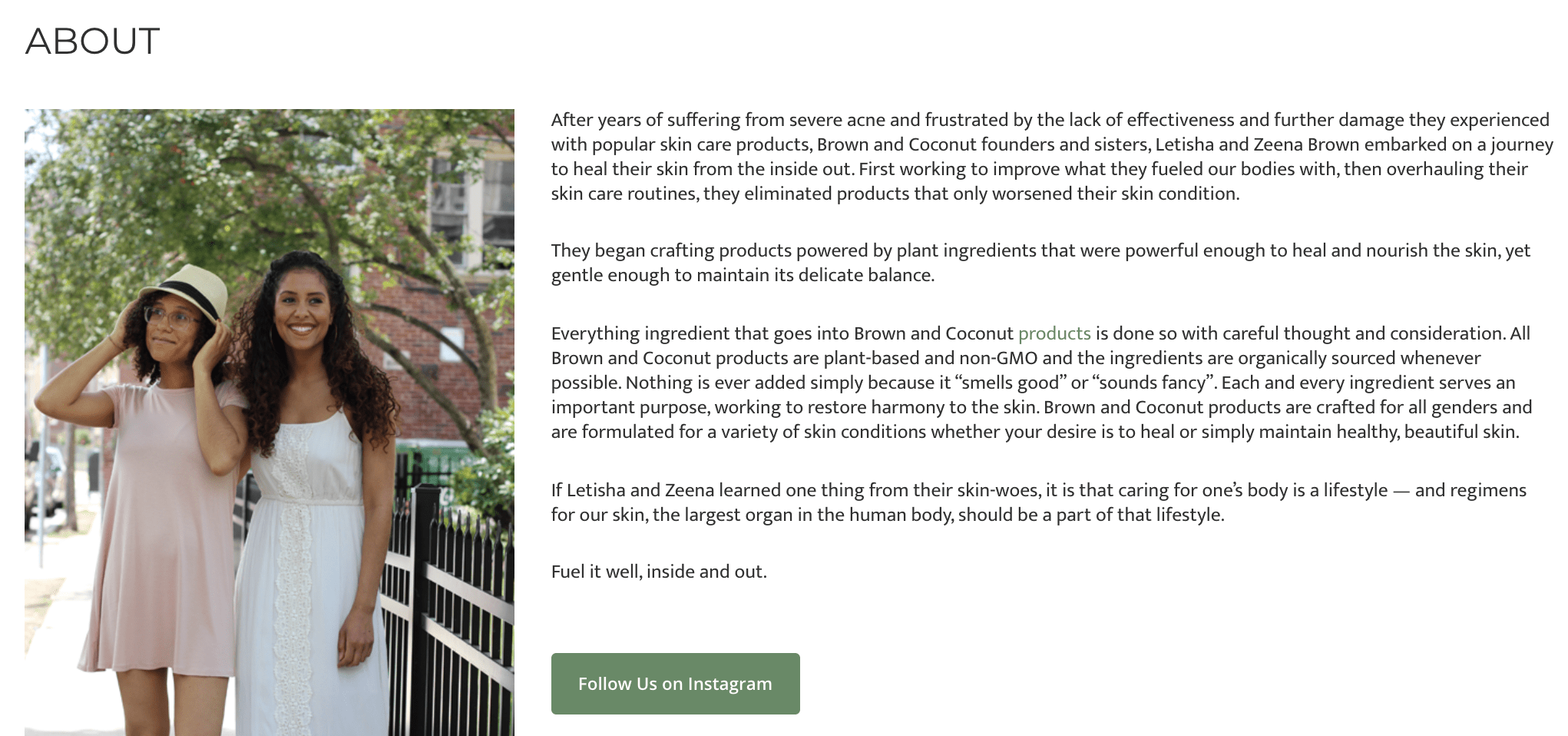
24. Kuno Creative
Why the “About Us” Page Rocks: It focuses on people rather than products.
Kuno Creative’s About Us page effectively focuses on what makes the company different: its people. While the first paragraph describes the origin of the digital marketing agency, the majority of the page is taken up by black-and-white shots of all its employees along with descriptions of each member, like a modern day yearbook.
Plus, the page looks sleek and clean, with plenty of white space and large blue lettering to draw attention without overwhelming visitors. If you’re unsure what you want to include in your About Us page, consider taking note of how Kuno Creative focuses on its people, rather than its product, in the About Us page — a great way to humanize your brand.
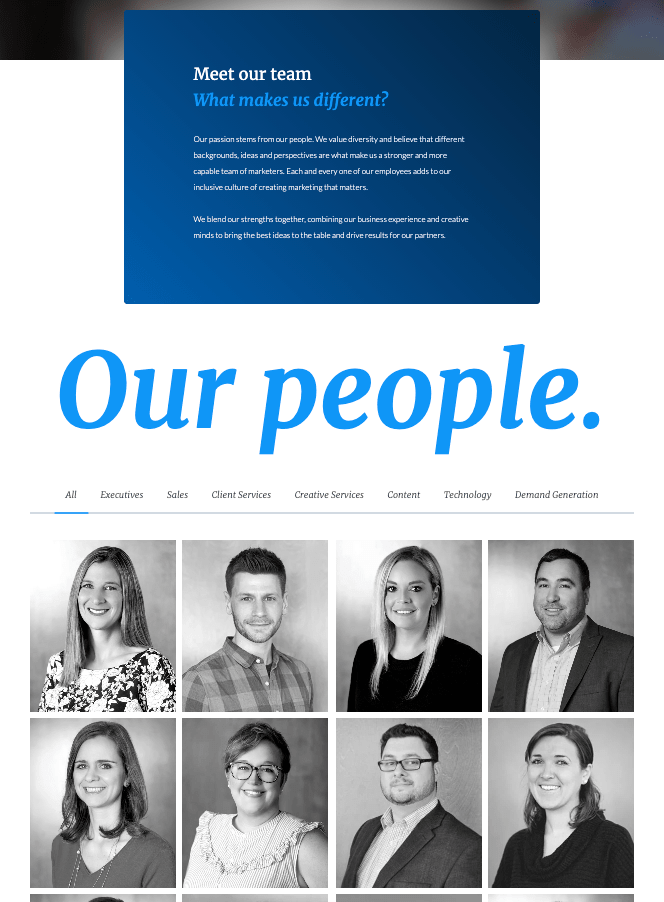
How to Write an About Page
- Establish a mission statement.
- Outline our company story.
- Reveal how you’ve evolved.
- State your “aha!” moment.
- Explain who you serve.
- Explain what you’re offering them.
- Cite examples of who you’ve served.
- Describe your values.
It’s tough to establish one all-encompassing template for your “About Us” page — there are just so many ways you can go about telling your company story. But, per the real “About Us” pages we’ve just highlighted, there are some steps you should keep in mind when getting started.
Here are five steps to writing an “About Us” page based on some of the things that impressed us about the examples above.
1. Establish a mission statement.
Your “About Us” page can and will be much longer than a single mission statement, but in order to draw people in, you need to succinctly state your goal in the industry up front. What are you here to do? Why should your website visitors care?
2. Outline your company story.
You might not have a long history of changes and growth your company has endured (yet), but it’s a nice touch to talk about where you came from in your “About Us” page. So, isolate the milestones prior your company’s founding, and use them to give readers some backstory on your current venture.
3. Reveal how you’ve evolved.
Even if you’re a young company, there’s no shame in admitting your business strategy — or even personal way of thinking — has changed since you began. In fact, in about pages, these evolutions can improve the story you tell to website visitors.
About pages are perfect spaces to talk about where you started, how you’ve grown, and the ideals that have helped your organization mature. Use these moments to further your company story and show people that you’re always ready to change and adapt to the needs of your industry.
4. State your “aha!” moment.
Every good company was founded on an idea — something the current marketplace might not yet offer. What was your idea? Use this “Aha!” moment as a pivot point when telling your company story. What was a challenge you faced while developing your company? How did this challenge or discovery shape what you are today?
5. Explain who you serve.
As much as you want as many eyeballs on your “About Us” page as possible, you won’t do business with every single one of them. That’s why it’s crucial that you identify and mention your core customer. Who should care you exist? Which eyeballs are you here to serve?
6. Explain what you’re offering them.
As you’re explaining who you serve, make it clear what it is you’re offering. Too often companies generalize their product or service in the language of their website, making it hard to understand what it is the customer is actually paying for. They’re afraid literal explanations of their products aren’t interesting enough, or will sound unappealing in writing. And that’s a fair concern.
However, by investing just a sentence or two into telling your potential customers exactly what they’ll receive can keep them on your website for longer and interested in learning more.
7. Cite examples of who you’ve served.
Got some loyal customers in your portfolio? Use your about page to let the world know who already trusts and benefits from your work.
Knowing about your company’s past successes can influence the purchasing decision of up to 90% of today’s B2B customers, according to Dimensional Research. Even if you don’t yet have case studies to expand on the problems you’ve helped buyers solve, it’s in your interest to briefly mention who you’ve done this for. And your about page is the perfect platform for it.
8. Describe your values.
Customers want to be treated like human beings. For that to happen, they need to feel that they’re being treated by human beings. When finishing your “About Us” page, describe who you are as a person or a team, and what your personal values are. What’s your company culture like? What bigger picture in life drives your business?
An LED lightbulb maker might sell 10 different lamp styles, for example, but that might not be the most important characteristic to its primary audience. Maybe this lightbulb developer was founded on a commitment to environmental protection, and every bulb the company makes was built by people who are dedicated to making the world more energy-efficient.
Keep in mind a secondary audience of your company’s “About Us” page consists of your future employees. This is another reason describing your personal values is a good idea — the key to your job candidates’ hearts is to show them you have one too.
About Us Page Templates That Rock
Copy is an important element of an About page. However, you’ll also want to keep user experience in mind as you showcase your brand story and identity to the world. Here are some of the top About Us and About Me page templates to use or draw inspiration from:
1. Sodium v2 (HubSpot)
Tell your prospects about you using bold color and by telling your story. This template can help with that with its bold color (that can be customized) and timeline-like layout. Website visitors will know where you’ve come and where you’re going.
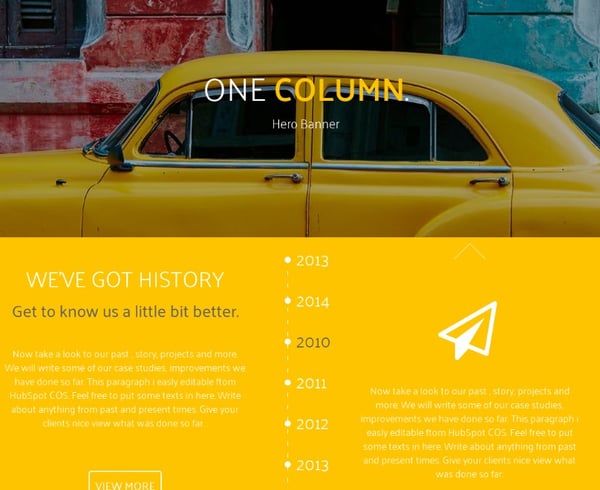
2. Touraza Template (WordPress)
If you want something with a little flavor, the Touraza template is a good choice. With the “meet the team” section near the top with geometric designs and striking typography, you’ll be able to showcase the humans behind your brand.
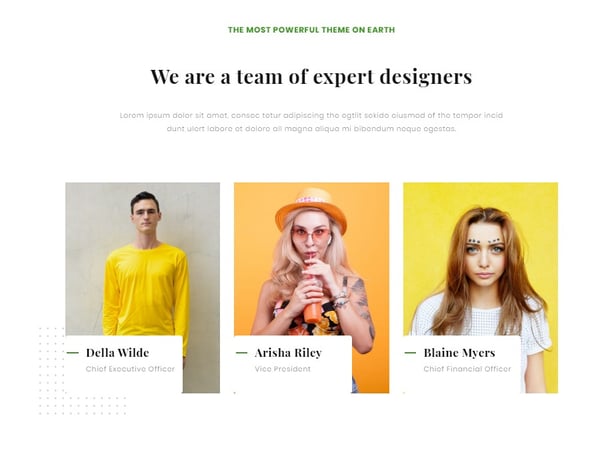
3. Logan Template (Shopify)
This template makes use of large images in a modern layout to break up the ample white space. The result: A clean and enjoyable reading experience. The top of the page puts the brand story (or other introductory text) first, supported by a large image that speaks for itself. The pops of color can be customized to your brand style, drawing emphasis to the most important elements you want to highlight.
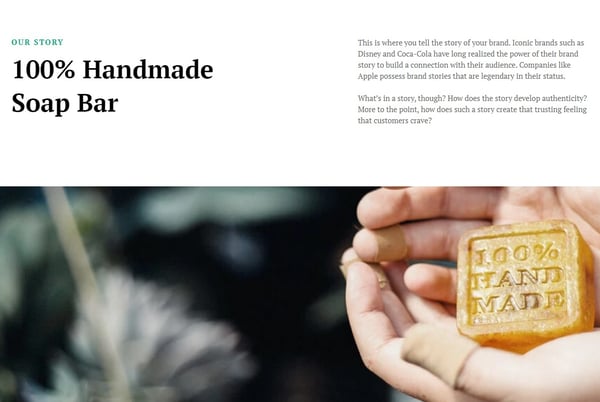
4. Mercuric Modular Premium (HubSpot)
Make a statement with a stylish slider and smooth 3D animations. This template can be edited using user-friendly modules and other effects to catch your website visitors’ attention. It comes with counter boxes, progress bars, and animated images for you to customize. There’s also a full template pack for the other pages of your site.
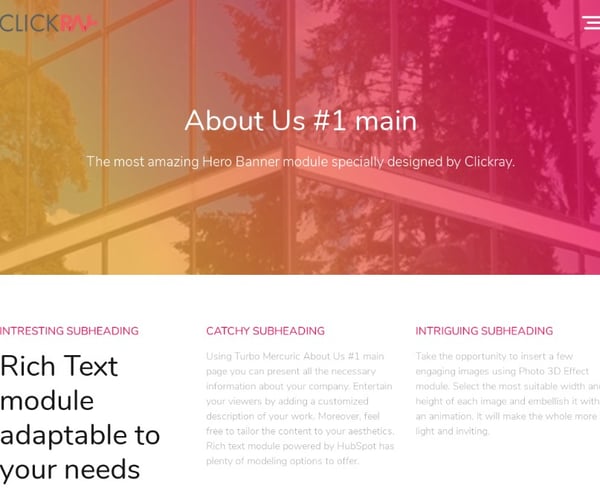
5. Coax Template (WordPress)
The advantage of the Coax template is that it’s powered by Elementor, a page builder that makes customization easy. Even if you want to keep some of the defaults, though, this template is beautiful, letting the typography and copy take center stage. Ideal for a personal brand, you can choose to lay out your content similarly to a resume with big subheads on the left and descriptive text on the right.
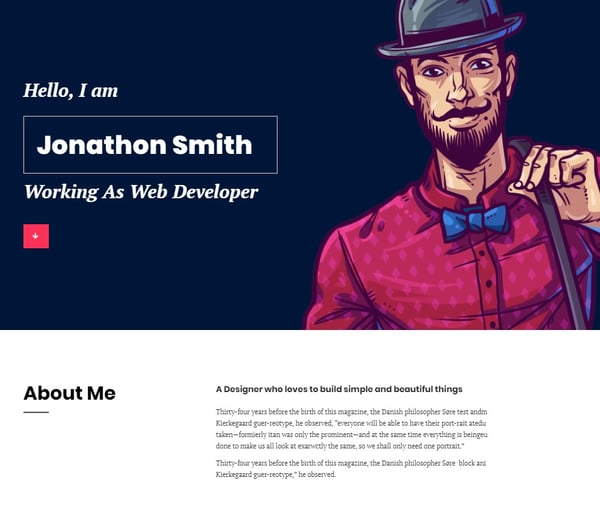
6. Clean (HubSpot)
This template is 100% drag-and-drop ready, making setup a breeze. With an elegant header and overlay, you’ll make a great first impression as you tell your brand story. Zero coding is required, it’s completely customizable, and it’s backed by a 100% happiness guarantee.
7. Negocis (HubSpot)
Do you think that your story is best told visually? This template supports icons and other elements that appeal to website visitors who want to understand your impact. It features image sliders, social sharing buttons, and more.
At this point, we hope that creating an “About Us” page doesn’t seem like a daunting task — rather, we hope you’re ready to have some fun with it. With a good story to tell, creative copy, humility, and digestible visuals, you’re on your way to an eye-catching user experience.
Even better? You’re becoming part of the exception — and standing out from a sea of “About Us” pages. What makes you different? We’re eager to learn more … about you.

Social Media Marketing: The Ultimate Guide
As I scroll through my Instagram feed every day (cough, cough…multiple times a day), I consistently notice new posts and stories by The Frye Company. I’ve always been a fan of their boots, clothing, and accessories, but I also love the content they share on their Instagram profile.
Their posts are on-brand, creative, and aesthetically pleasing. All of their photos have the same filter on them to ensure they match — this makes their Instagram profile look professional, artistic, and organized when visitors, like myself, browse their page.
Frye’s Instagram account also encourages interaction between the company and their followers by providing them with a specific hashtag to use so they can be featured on the account when they post a photo with a Frye product.
Frye’s Instagram account is a great example of successful social media marketing — it’s attractive, distinctly Frye, engages their 197K followers, and promotes their products.
But why is social media marketing so important? Why should you spend time creating social media accounts for your business? And how do you actually build a social media marketing strategy that’ll work for your specific type of business?
In this guide, we’ll cover the answers to all of these questions — but first, let’s define social media marketing.
Social media marketing is all about meeting your target audience and customers where they are and as they socially interact with each other and your brand.
While social media marketing as a whole is incredibly valuable and beneficial to your business growth (as you’ll see in the following section), your strategy will differ based on which social networks your audience spends their time on.
Before we dig deeper into social media marketing, let’s segment the strategy by platform.
- Users: 1.79 billion daily active users worldwide
- Audience: Generation X and millennials
- Industry impact: B2C
- Best for: Brand awareness; advertising
- Users: 186 million daily active users worldwide
- Audience: Primarily millennials
- Industry impact: B2B and B2C
- Best for: Public relations; customer service
- Users: 1 billion monthly active users
- Audience: Primarily millennials
- Industry impact: B2C
- Best for: Natural-looking media, behind-the-scenes, and user-generated content; advertising
- Users: 675 million monthly active users worldwide
- Audience: Baby boomers, Generation X, and millennials
- Industry impact: B2B
- Best for: B2B relationships, business development, and employment marketing
YouTube
- Users: Over 2 billion logged-in monthly users worldwide
- Audience: Millennials, closely followed by Generation Z
- Industry impact: B2C
- Best for: Brand awareness; entertainment, and how-to videos
Snapchat
- Users: 249 million daily active users worldwide
- Audience: Primarily Generation Z
- Industry impact: B2C
- Best for: Brand awareness; advertising
- Users: 416 million monthly active users worldwide
- Audience: Primarily older millennials and younger baby boomers
- Industry impact: B2C
- Best for: Visual advertising; inspiration
Now that we’ve detailed the fundamentals of each social media network, let’s discuss why social media marketing is beneficial for your business.
Benefits of Social Media Marketing
There are a variety of reasons why your company should use social media marketing. We’ve created a list of the four most beneficial reasons to consider.
Let’s dive in.
1. Increase Brand Awareness
In 2018, there were over 3.2 billion people on social media globally. Due to the sheer amount of people on social media, you can see why ensuring your business is sharing content related to your products as well as details about your company via a platform or two has the potential to help you improve brand awareness.
In fact, social media has been proven to boost brand awareness by driving up engagement. Social engagement includes things like comments, likes, shares, and re-posts. Social media also helps you increase brand awareness by directing traffic straight to your site. You can do this by including direct links to your website in your profile, bio, and posts.
Featured Resource
2. Generate Leads and Boost Conversions
Promoting and sharing your products on social media is a simple way to improve lead generation, boost conversions, and increase sales because you’re advertising to people who have opted to engage with you by following your account.
Here are some examples of ways you can use social media to generate more leads.
- Create contests for your visitors and followers to participate in on your social media profiles.
- Include links to your website and offers in the bio sections of your profiles.
- Host live videos to make announcements about products and provide updates or details about exciting news at your company.
- Implement a social media marketing campaign on one of your channels.
- Sell your products through your social profiles. For example, you can enable Facebook’s Shop Section or Instagram’s Shopping feature on your profiles. These features allow your visitors and followers to click on products you’ve shared in posts to view information such as price, material, and size. Then, visitors can easily proceed to checkout through the platform and buy the product directly from you.
3. Foster Relationships With Customers
By connecting and engaging with your social media followers, you’ll be able to build lasting relationships between them and your business. You can do this by interacting with them on your posts, responding to their questions and comments, and providing them with any help they may need.
You can also ask your followers questions about your products, their pain points, or create giveaways to help you build trust and show them how much you value their input and support.
4. Learn From Competitors
Social media is a great way to keep tabs on your competitors — whether that’s in reference to their social media tactics, the products they’re promoting, the campaigns they’re implementing, or their level of interaction with followers.
Social media allows you to get a look at what is and isn’t working for your competition, and therefore helps you decide what should or shouldn’t change in terms of your company’s approach. Lastly, reviewing the social accounts of your competitors can help you make sure your marketing stands out and is unique to your brand.
Learn how to conduct a competitive analysis to discover how you can beat the competition.
Now, let’s talk strategy — there are five steps to ensure your social media marketing plan is sustainable and positively impacts your business.
Let’s cover these steps in more detail so you can begin applying them to your business.
1. Research your buyer personas and audience.
The first step to creating a social media marketing strategy is to determine who your buyer personas and audience are so you can target their needs and interests appropriately. To do this, think about the people you’re trying to reach and why, and how you would classify them as a group. For example, if your company sells trendy leggings and joggers, you might classify your target audience as millennials who like to wear stylish athletic apparel regularly — a style known as athleisure.
By considering your buyer personas and audience, you’ll then be able to determine what content will attract the type followers and customers you hope to gain and how you can create engaging content to keep your followers interested.
Featured Resource
2. Determine which social platforms you’ll market on.
As a social media marketer, it’s crucial you determine which platforms you’re going to share your content on. There’s not necessarily a right or wrong answer when it comes to which social channels your business should use — it’s more about the needs of your target audience and where they tend to spend their time.
“It’s important to be where your audience of potential customers is today, and where they might be tomorrow. It’s better to be ahead of the curve than behind.” — Andrew Delaney, Social Media Marketing Manager at HubSpot
For example, if you are going for that target audience of athleisure-loving millennials, you may want to focus the majority of your social media efforts on Instagram — this is because millennials cover the largest portion of users on the platform.
Featured Resources
- A Marketer’s Guide to Snapchat for Business
- 50 Facebook Ad Examples We Actually Clicked
- YouTube for Business: A 30-Day Roadmap for Growth
- How to Use Twitter for Business (+ Follower Tracking Template)
- 12 Pinterest Templates for Business
3. Create unique and engaging content.
With the billions of social media users around the globe, there’s no question that at least some of your followers — or the people browsing your profile — have also seen your competitor’s content or that of other businesses in your industry. That’s why you must have engaging social media content that stands out and provides viewers with a reason to click that “Follow” button and interact with your brand.
To help you get creative, consider the content your competitors are sharing and how you can uniquely promote your products. Also, take advantage of the features offered by the platform you’re using. For example, you can create live videos on Facebook to share the latest details about a product launch or conduct a giveaway.
Lastly, use your current customers and promoters to help you generate content. You can do this by re-posting their content or encouraging them to use a hashtag to share their own experiences and pictures with your products (similar to Frye’s Instagram hashtag that I mentioned earlier).
4. Organize a schedule for your posts.
One of the easiest ways to ensure your content is shared as planned is to use a social media management solution. These tools allow you to write captions, prepare pictures and videos, and schedule posts in advance. They also automatically share your content on schedule and monitor all post interactions and engagement for you. Social media management solutions save you time and allow you to focus on your other tasks.
There are a number of solution options available — here are a few examples.
1) HubSpot
HubSpot offers a social media tool — as part of the marketing software — to help you publish and monitor your content and create real connections with your followers. You can schedule and publish your content in advance and compare in-depth reports on your posts’ engagement to understand the performance of various platforms, types of content, and posting times.
2) Sprout Social
Sprout Social is a social media marketing and management solution designed to help your team organize and plan content creation, manage campaigns, understand engagement, and review content reports and analysis.
3) Hootsuite
Hootsuite is a social media management platform for finding, scheduling, managing, and reporting on your content. You can schedule posts in advance on all of your channels at once and measure your ROI with comprehensive content analysis.
How often should you post on social media?
Now, you might be wondering how often you should post content on your social media channels.
As a rule of thumb, you should only post on social when you have quality content to share. Meaning, there’s a reason you’re posting the content. This is how you’ll strike the right balance when it comes to your posting frequency. If you post too infrequently, you’re bound to be forgotten by your followers. If you post too frequently, you’ll likely become annoying to your followers. Both situations could potentially lead to a loss in followers and a decrease in engagement.
To avoid this, there are plenty of studies and resources available explaining social media post frequency standards by industry and platform for you to follow. Every business is different, so find what works for your audience. Then, you can begin experimenting with more or fewer posts, as well as other factors such as the time of day you’re posting on social, to determine what provides the highest level of engagement.
5. Analyze your impact and results.
One of the most important aspects of social media marketing is ensuring your efforts are successful in helping you meet your goals. To determine this, you’ll need to keep track of all of your posts, on every channel. You can do this by reviewing and managing your social media metrics.
Social Media Metrics
Social media metrics are data related to the success of your posts and your impact on your audience and customers on various platforms. These metrics may include data about your level of engagement, likes, follows, shares, and all other interactions on each platform.
Here are 10 of the most important metrics for you to track:
- Engagement: This includes clicks, comments, likes, and replies on your social media posts. There are also platform-specific types of engagement such as “Saved” posts on Instagram and “Pinned” posts on Pinterest.
- Reach: The number of people who have seen any content associated with your page or profile is your reach.
- Followers: This is the number of people you have on your profile who have clicked your “Follow” button and see your content in their feeds regularly.
- Impressions: This is the number of times a post from your profile or page is seen, whether or not your audience members click on it. This is often what happens when someone is scrolling through their newsfeed, but not clicking on anything.
- Video views: On Facebook, Snapchat, Instagram, or any other social channel with video capabilities, this is the number of views each gets.
- Profile visits: The number of people who have opened your social media page is your number of profile visits.
- Mentions: This is the number of times your profile has been mentioned by audience members in their posts.
- Tags: This is when your audience adds the name of your company’s profile or your hashtag to another post.
- Reposts: This is when a member of your audience posts a piece of your content on their profile.
- Shares: These are the posts your followers and audience take from your profile and share with their network.
You can influence all of these metrics, increase your social following, and improve overall engagement on your profile by using the same tactics you would to generate leads and boost conversions. You can also interact with your followers more frequently by talking to them, tagging them in content, responding to their questions, liking their posts, encouraging them to use your hashtags, and share your content (and you can also repost user-generated content).
How to Measure Social Media Metrics
You can review social media metrics in a variety of ways, For example, you can use the analytics tools built into the various platforms you use. Here are a few examples:
You might also choose to use an analytics and tracking tool such as Google Analytics. This is a great option if you want to track your social media and website metrics. Lastly, many social media scheduling solutions — as we reviewed earlier — have monitoring and tracking features automatically built in. All of these metrics tracking tools will give you a better understanding of what your followers and audience respond well to and what you should consider modifying to improve engagement.
Now that we’ve reviewed the benefits of social media marketing and how to build your strategy, let’s talk about the various resources available to help you along the way.
Social Media Marketing Resources
There are a plethora of social media marketing resources you can use to build a social strategy for your company. You’re bound to feel more confident about working on your company’s social media marketing initiative with the help of the following courses, training, and books.
Social Media Marketing Courses and Training
Here are three ways to earn an education in the field of social media marketing if you feel it’s necessary for your specific business situation.
1. Earn a degree.
Although there isn’t necessarily a “social media marketing degree” for undergraduates, there are online courses offered at a number of different schools and institutions you can take to earn a certificate, MicroMaster’s or master’s degree in the field.
2. Use an online learning website.
Lynda is another great educational resource. This online learning website offers training, tutorials, and courses on a wide variety of topics within the field of social media marketing.
3. Earn a certificate administered by a company.
You might choose to earn a certificate from a company — such as HubSpot’s social media certification. This free certification teaches you how to engage with your customers and improve conversions. You’ll also get a better understanding of how to develop your strategy, extend your reach, and measure your social media ROI.
Social Media Marketing Books
Reading relevant content about social media marketing is another great way to learn more about the field. Here are a few examples of some highly-regarded books on the topic.
1. Likable Social Media: How to Delight Your Customers, Create an Irresistible Brand, and Be Generally Amazing on Facebook by Dave Kerpen
This New York Times Bestseller covers the reasons why being likable and engaging with followers on social media is one of the most powerful ways to grow your base of customers and promoters. The book teaches you how to make impactful content for your followers to interact with and share with their networks. Author Dave Kerpen also describes why you need to ensure you’re consistently delighting your followers to avoid losing them at any point in time.
2. Jab, Jab, Jab, Right Hook: How to Tell Your Story in a Noisy Social World by Gary Vaynerchuk
According to author Gary Vaynerchuk, the key to social media marketing success isn’t about pushing out a lot of content — it’s about pushing out specific content tailored towards your target audience and using the right platform to do so.
In his book, Vaynerchuk covers how to do this as well as connect with your followers and customers on a deeper level through social media. You’ll learn how to create memorable and unique content that stands out in comparison to competition’s content.
3. The B2B Social Media Book: Become a Marketing Superstar by Generating Leads with Blogging, LinkedIn, Twitter, Facebook, Email, and More by Kipp Bodnar
HubSpot’s CMO, Kipp Bodnar, writes about the ways B2B businesses can generate more leads and conversions through social media marketing. There are actionable methods you can take to increase your base of followers and drive leads as well as understand the ROI of various B2B social media marketing strategies.
Start Marketing on Social Media
Considering there are billions of people on social media today, it’s easy to see why so many businesses and marketers use the channel to promote their products and engage with customers.
Although determining your company’s social media course of action may seem daunting, you can avoid feeling overwhelmed by understanding social media marketing trends and using some of the many resources available about the topic. So, start working on your business’ social media marketing strategy today to increase your number of followers, improve engagement, and boost conversions.
Editor’s note: This post was originally published in March 2019 and has been updated for comprehensiveness.

The 9 Best Cover Letter Examples: What They Got Right
Let’s face it: A job search is, typically, anything but fun.
It’s almost as if it carries its own five stages of grief. At first, there’s denial of its demoralizing nature. Then comes the anger over either radio silence or rejection from prospective employers. Of course, there’s bargaining — “I promise to never complain about work again, if I can find a new job!”
That’s often followed by depression, and the idea that one is simply just unhireable. Then, there’s acceptance: “This is awful, but I have to keep trying, anyway.”
But we have good news. It is possible to have a little fun with your job search — and maybe even make yourself a better candidate in the process. The magic, it turns out, could be in your cover letter.
It may be true that only 26% of recruiters have deemed cover letters important, but that doesn’t mean yours has to contribute to that statistic. In fact, it might be that cover letters are deemed insignificant because so few of them stand out. Here’s an opportunity for you to exercise your creativity at the earliest stage of the recruitment process.
Personalization, after all, goes beyond replacing the title and company name in each letter you send to recruiters.
What does that look like in practice, and how can you make your cover letter stand out? We found six examples from job seekers who decided to do things a bit differently.
Note: Some of these cover letters contain real company names and NSFW language that we’ve covered up.
Best Cover Letter Examples
1. The Cover Letter That Explains ‘Why,’ Not Just ‘How’
We’ve already covered the importance of addressing how you’ll best execute a certain role in your cover letter. But there’s another question you might want to answer: Why the heck do you want to work here?
The Muse, a career guidance site, says that it’s often best to lead with the why — especially if it makes a good story. We advise against blathering on and on, but a brief tale that illuminates your desire to work for that particular employer can really make you stand out.
Source: The Muse
Here’s another instance of the power of personalization. The author of this cover letter clearly has a passion for this prospective employer — the Chicago Cubs — and if she’s lying about it, well, that probably would eventually be revealed in an interview.
Make sure your story is nonfiction, and relatable according to each job. While we love a good tale of childhood baseball games, an introduction like this one probably wouldn’t be fitting in a cover letter for, say, a software company. But a story of how the hours you spent playing with DOS games as a kid led to your passion for coding? Sure, we’d find that fitting.
If you’re really passionate about a particular job opening, think about where that deep interest is rooted. Then, tell your hiring manager about it in a few sentences.
2. The ‘We’re Meant for Each Other’ Cover Letter
This cover letter example is a special one because it was submitted to us here at HubSpot. What does the letter do well? It makes a connection with us before we’ve even met the letter’s author.
.png)
“Content Marketing Certified” indicates the applicant has taken the content marketing certification course in our HubSpot Academy (you can take the same course here). Our “records” indicate he/she did indeed give an interview with us before — and was a HubSpot customer.
The cover letter sang references to a relationship we didn’t even know we had with the candidate.
The letter ends with a charming pitch for why, despite him/her not getting hired previously, our interests complement each other this time around.
(Yes, the applicant was hired).
3. The Cover Letter with H.E.A.R.T.
HubSpot has a lot of H.E.A.R.T. — Humble, Empathetic, Adaptable, Remarkable, Transparent. Our Culture Code is the foundation of the company’s culture, the driving force behind our mission to help millions grow better, and serves as the scaffolding for our hiring practices. Recruiters at HubSpot look for applicants that demonstrate how they embody the Culture Code and job description, paying extra attention to cover letters that are super custom to HubSpot.
In another HubSpot submission, a HubSpot applicant writes about how she found out about HubSpot, why she likes the company, and how her professional experience aligns with H.E.A.R.T.
HubSpot’s recruiting team was impressed with her dedication to the company and how she went beyond what was asked for by link her portfolio in her closing paragraph.
Short Cover Letter Examples
4. The Short-and-Sweet Cover Letter
In 2009, David Silverman penned an article for Harvard Business Review titled, “The Best Cover Letter I Ever Received.” That letter contained three complete sentences, as follows:
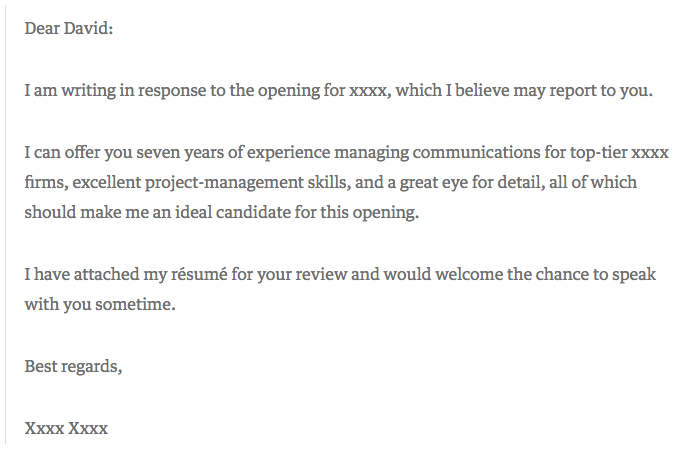
Source: Harvard Business Review
One might argue that this particular letter is less than outstanding. It’s brief, to say the least, and the author doesn’t go into a ton of detail about what makes him or her qualified for the job in question. But that’s what Silverman likes about it — the fact that the applicant only included the pieces of information that would matter the most to the recipient.
“The writer of this letter took the time to think through what would be relevant to me,” writes Silverman. “Instead of scattering lots of facts in hopes that one was relevant, the candidate offered up an opinion as to which experiences I should focus on.”
When you apply for a job, start by determining two things:
- Who might oversee the role — that’s often included in the description, under “reports to.” Address your letter to that individual.
- Figure out what problems this role is meant to solve for that person. Then, concisely phrase in your cover letter how and why your experience can and will resolve those problems.
The key here is research — by looking into who you’ll be reporting to and learning more about that person’s leadership style, you’ll be better prepared to tailor your cover letter to focus on how you provide solutions for her. Not sure how to learn more about a leader’s personality? Check out any content she shares on social media, or use Growthbot’s Personality Profile feature.
Insert incredible compelling writing here
5. The Bare Bones Cover Letter
In today’s job market, cover letters aren’t always necessary. Even though many recruiters won’t ask for or even read them, cover letters can still be effective and convey personality to a reader. Writing a strong cover letter can help you better convey your interest in the position and company.
This template from The Balance Careers puts together the essential components of a short cover letter: excitement about the position, your qualifications, and a call-to-action for the recruiter to follow up with you. Combining these central aspects in a well-written, compelling narrative will go a long way in convincing readers to hire you.
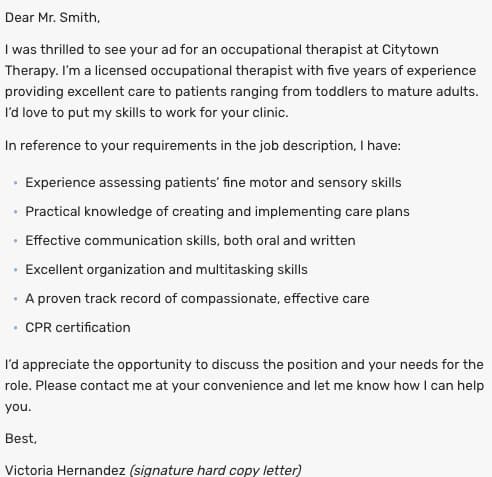 Source: The Balance Careers
Creative Cover Letter Examples
6. The Brutally Honest Cover Letter
Then, there are the occasions when your future boss might appreciate honesty — in its purest form. Livestream CEO Jesse Hertzberg, by his own admission, is one of those people, which might be why he called this example “the best cover letter” (which he received while he was with Squarespace):
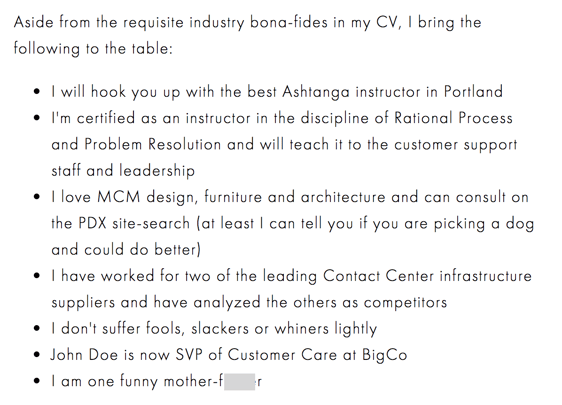
Source: Title Needed
As Hertzberg says in the blog post elaborating on this excerpt — it’s not appropriate for every job or company. But if you happen to be sure that the corporate culture of this prospective employer gets a kick out of a complete lack of filter, then there’s a chance that the hiring manager might appreciate your candor.
“Remember that I’m reading these all day long,” Hertzberg writes. “You need to quickly convince me I should keep reading. You need to stand out.”
7. The Straw (Wo)man Cover Letter
When I was in the throes of my own job search and reached one of the later stages, a friend said to me, “For the next job you apply for, you should just submit a picture of yourself a stick figure that somehow represents you working there.”
Et voilà:
I never did end up working for the recipient of this particular piece of art, but it did result in an interview. Again, be careful where you send a cover letter like this one — if it doesn’t match the company’s culture, it might be interpreted as you not taking the opportunity seriously.
Be sure to pair it with a little bit of explanatory text, too. For example, when I submitted this picture-as-a-cover letter, I also wrote, “Perhaps I took the ‘sense of humor’ alluded to in your job description a bit too seriously.”
8. The Overconfident Cover Letter
I’ll admit that I considered leaving out this example. It’s rife with profanity, vanity, and arrogance. But maybe, in some settings, that’s the right way to do a cover letter.
A few years ago, Huffington Post published this note as an example of how to “get noticed” and “get hired for your dream job”:
Source: Huffington Post
Here’s the thing: if the Aviary cited in this letter is the same Aviary I researched upon discovering it, then, well, I’m not sure this tone was the best approach. I read the company’s blog and looked at the careers site, and neither one indicates that the culture encourages this — or lowercasing proper nouns like “Google,” for which I personally cannot forgive the applicant …
However, Aviary was acquired by Adobe in 2014, and this letter was written in 2011. So while it’s possible that the brand was a bit more relaxed at that time, we wouldn’t suggest submitting a letter with that tone to the company today. That’s not to say it would go unappreciated elsewhere — Doug Kessler frequently discusses the marketers and brands that value colorful language, for example.
The point is, this example further illustrates the importance of research. Make sure you understand the culture of the company to which you’re applying before you send a completely unfiltered cover letter — if you don’t, there’s a good chance it’ll completely miss the mark.
9. The Interactive Cover Letter
When designer Rachel McBee applied for a job with the Denver Broncos, she didn’t just write a personalized cover letter — she designed an entire digital, interactive microsite:
Source: Rachel McBee
This cover letter — if you can even call it that — checks off all of the boxes we’ve discussed here in a remarkable way. It concisely addresses and organizes what many hiring managers hope to see in any cover letter: how her skills lend themselves to the role, why she wants the job, and how to contact her.
She even includes a “traditional” body of text at the bottom, with a form that allows the reader to easily get in touch with her.
Take Cover
We’d like to add a sixth stage to the job search: experimentation.
In today’s competitive landscape, it’s so easy to feel defeated, less-than-good-enough, or like giving up your job search. But don’t let the process become so monotonous. Have fun discovering the qualitative data we’ve discussed here — then, have even more by getting creative with your cover letter composition.
We certainly can’t guarantee that every prospective employer will respond positively — or at all — to even the most unique, compelling cover letter. But the one that’s right for you will. That’s why it’s important not to copy these examples. That defeats the purpose of personalization.
So get creative. And, by the way — we’re hiring.

The Ultimate List: 57 Online Local Business Directories
What is a business directory?
A business directory is an online list of businesses within a particular niche, location, or category. One way local businesses can get found by online searchers is through inclusion in business directories.
Today, Google is inserting itself between consumer and local business websites much more often.
You need look no further than Google My Business conversion points, AMP, and featured snippets for proof.
So it makes sense to get your local business information into the places people are already going to find businesses like yours, rather than simply hoping they’ll find you in search results.
Getting your local business’ NAP (Name, Address, Phone number) information listed on directories, online business listing sites, and citation sites helps to improve visibility, but backlinks from these sites can also have a benefit to SEO. Here are a few things to make sure your company listing has in it once you add it to a directory:
- Consistent NAP. If you add or update your business on multiple business listing sites, make sure you’re providing the same company information across each directory.
- A link to your website. Backlinks — also known as inbound links — are crucial to your company website’s domain authority. Consider adding a tracking link at the end of this URL as well, so you can see how much traffic your website specifically gets from the business directories that are linking to it.
- A company description. Make sure you have a detailed description of your business that reflects your organization’s mission, culture, and values.
- Multimedia. Give company searchers a visual taste of your business with a picture or video of your office, your employees, or your daily business operations.
There are plenty of location-specific directories and industry-specific business listing sites to which you can submit your data, but local businesses should start with the big guns and work their way toward the more niche directories.
With that in mind, we’ve put together a list of the biggest and most important business listings sites today (based on Domain Authority gathered from Moz Link Explorer in May 2018). Many of these directories are completely free.
Local Business Listings & Directories for Small Business Marketing
- Facebook (Domain Authority = 100)
- Apple Maps (Domain Authority = 100)
- Google My Business (Domain Authority = 100)
- LinkedIn Company Directory (Domain Authority = 98)
- Bing (Domain Authority = 94)
- Yelp (Domain Authority = 94)
- Better Business Bureau (Domain Authority = 93)
- Foursquare (Domain Authority = 92)
- MapQuest (Domain Authority = 92)
- HubSpot (Domain Authority = 91)
- Yellow Pages (Domain Authority = 91)
- Angies List (Domain Authority = 91)
- Yahoo! Local (Domain Authority = 91)
- Manta (Domain Authority = 87)
- Merchant Circle (Domain Authority = 86)
- Super Pages (Domain Authority = 84)
- Yellow Book (Domain Authority = 83)
- Thumbtack (Domain Authority = 82)
- Local.com (Domain Authority = 77)
- Kudzu.com (Domain Authority = 76)
- Hot Frog (Domain Authority = 76)
- Communitywalk.com (Domain Authority = 75)
- Brownbook.net (Domain Authority = 73)
- Tupalo.com (Domain Authority = 72)
- La Cartes (Domain Authority = 68)
- 2findlocal.com (Domain Authority = 67)
- ezlocal.com (Domain Authority = 67)
- ebusinesspages.com (Domain Authority = 67)
- Spoke (Domain Authority = 66)
- Chamberofcommerce.com (Domain Authority = 66)
- City Squares (Domain Authority = 66)
- Cylex USA (Domain Authority = 66)
- yelloyello.com (Domain Authority = 66)
- BOTW (Domain Authority = 65)
- worldweb.com (Domain Authority = 65)
- ibegin.com (Domain Authority = 63)
- Get Fave (Domain Authority = 63)
- Fyple.com (Domain Authority = 63)
- Company.com (Domain Authority = 60)
- Call Up Contact (Domain Authority = 60)
- Finduslocal.com (Domain Authority = 60)
- My Huckleberry (Domain Authority = 59)
- Hub.biz (Domain Authority = 59)
- where2go.com (Domain Authority = 58)
- City Insider (Domain Authority = 58)
- n49.com (Domain Authority = 58)
- My Sheriff (Domain Authority = 57)
- opendi.us (Domain Authority = 56)
- Bizhwy.com (Domain Authority = 55)
- Smartguy.com (Domain Authority = 55)
- Wherezit.com (Domain Authority = 55)
- DiscoverOurTown.com (Domain Authority = 54)
- Nexport.com (Domain Authority = 52)
- USdirectory.com (Domain Authority = 50)
- Wowcity.com (Domain Authority = 49)
- Bizadee (Domain Authority = 48)
- Wand.com (Domain Authority = 47)
Making sure that you have a presence everywhere your potential customers might find you is critical to any local marketing plan. Don’t wait — add your local business to some of these business listings and directories as soon as you can.

YouTube Ads for Beginners: How to Launch & Optimize a YouTube Video Advertising Campaign
You’ve spent months perfecting the script, storyboarding, finding the right talent, shooting, and editing. The end result? A blockbuster brand or product video.
With all that time invested, you can’t stop at just embedding the video on a homepage or sharing it on social media and hoping someone watches.
While great content is bound to be found, it’s also important to be proactive about gaining the attention of and educating prospects and those unfamiliar with your brand. Running a series of YouTube ads is one way to make sure more of your target audience finds the video content you’ve produced.
And with new formats and tracking capabilities, you can also use this information to report on its ROI.
The thing is, advertising on YouTube is very different from running a PPC or paid social campaign. There are specific creative constraints and a ton of options for this platform, and you need a base knowledge before you even scope out your next video project to make the most of the paid possibilities.
What’s New With YouTube Advertising
In January 2017, Google announced it would make changes to AdWords to allow advertisers to reach more viewers on YouTube — especially across mobile devices, where 50% of YouTube views take place. Among the changes it rolled out, possibly the biggest announcement was that advertisers will soon be able to target viewers based on their Google search history, in addition to their viewing behaviors YouTube was already targeting.
Marketers can now target ads at people who recently searched for a certain product or service to target the video ads they’ll be served on the platform. If the content of a video ad is closely related to a search the viewer has been researching, they might be more likely to watch the entire ad or click through the ad to the website.
Keywords are relatively less expensive to target on YouTube than in traditional Google Search: Views cost an average of $0.06 per click on YouTube, compared to the average Google Search cost per click, which is estimated to be between $1-2. When YouTube targeting includes search history, it may be a more cost-effective way to target your audience with a more engaging form of content — video.
The 3 Types of YouTube Video Ads
There are three key types of video ads in which you can invest on YouTube: TrueView, Preroll, and Bumpers.
1. TrueView Ads
TrueView ads are the standard video ad type on YouTube. Advertisers only pay for TrueView ads when viewers watch or interact with their ad (for example, by clicking on a call-to-action), and videos can be easily customized to share a variety of content.
Advertisers only pay when a user watches the ad for at least 30 seconds or until the end of the video or if the viewer takes an action, such as clicking on a call-to-action. YouTube requires that skippable TrueView ads be between 12 seconds and 6 minutes in length, and that non-skippable TrueView ads be 15-20 seconds in length.
There are two types of TrueView ads with which you can optimize your YouTube channel:
Video Discovery Ads (Previously Named In-Display Ads)
Video discovery YouTube ads show up on the YouTube homepage, search results pages, and as related videos on YouTube video watch pages.
These ads appeared after performing a YouTube search:
This display ad appears as a related video on the right-hand video sidebar:
Once a user clicks on the ad, the destination video page features a spot on the right-hand column where a companion banner display ad will appear.
In-Stream Ads
TrueView in-stream ads play before someone watches the video they’ve selected on YouTube. Viewers sometimes have the option to skip the ad after watching it for five seconds. You can also make them play anywhere in the Google Display Network (GDN) — or sites that purchased Google video ad space.
In-stream ads let marketers customize video ads with different CTAs and overlay text, as highlighted in the skippable in-stream ad example below from Grammarly.
Here’s what another skippable in-stream ad from Wix looks like. In this example, there’s another CTA from Wix on top of the right-hand video menu display:
What TrueView Videos Can Include
TrueView video campaigns can include people, dialogue, and music that was retrieved with permission — or is considered royalty-free. However, it’s best not to run a standard promotional commercial. Because these videos can be skipped, you need to give your audience a reason to keep watching, and product plugs historically don’t get the views you might expect.
Instead, tell a story with the time you have in this video. People love seeing case studies of those who faced a struggle that they can empathize with. It’s a source of entertainment that makes your brand memorable and less tempting to skip.
With TrueView ads, advertisers can gain a ton of information about the performance of their ads for optimization and testing purposes.
Using AdWords, YouTube account managers can collect data on an ad’s completed views, partial views, if the video drives channel subscriptions, clickthrough rates on CTAs, views sourced from a user sharing the content, and views on the brand’s other content that can be attributed to a person initially viewing a video ad.
These actions help advertisers better understand the full value of their video ad spend and where to allocate budget to increase results.
2. Preroll Ads
Some in-stream ads are non-skippable and can play before, mid-roll, or after the main video. These are called Preroll ads, and they can be 15 to 20 seconds in duration.
Here’s an example of a non-skippable video ad before the main content on YouTube:
There are also non-skippable, mid-roll video ads, which appear midway through a YouTube video that’s 10 minutes or longer in length.
Source: PC Daily Tips
What Preroll Videos Can Include
Preroll ads give you just as much freedom as TrueView ads in their allotted content. You can include people, dialogue, audio, and more elements that you find best represent your brand in 15 to 20 seconds.
Because preroll ads can’t be skipped, these videos are best created with a call-to-action (CTA) so you can optimize the attention you do have from the viewer. In other words, encourage viewers to click on your ad and receive something in return. Perhaps you’ve released a new product or promoting a major event this season and are looking for signups — use this preroll ad to get those clicks.
Keep in mind YouTube sells Preroll video space on a pay-per-click (PPC) basis. Make the click worth it.
3. Bumpers
Bumpers are the third and shortest type of YouTube video ad available to you. At just six seconds per bumper, these ad spots play before a viewer’s chosen video.
Bumper video ads obviously can’t tell a good-enough story in just six seconds, but they make terrific complements to larger video campaigns on a new product launch or event. Just be sure to use this six seconds wisely, and include only the components of your brand you want your audience to remember.
How to Set Up & Launch a YouTube Video Advertising Campaign
Once you’ve created a marketing video you want to advertise on YouTube, it’s time to create your video ad campaign. (If you haven’t made a video yet, here’s how to get started with Animoto or Wistia, along with a few great examples.) Then, upload your video to YouTube.
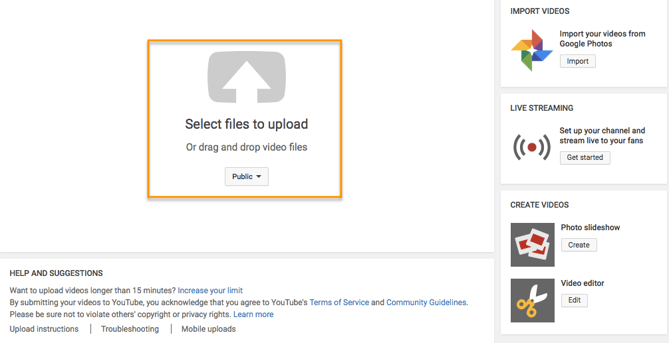
Now, you’re ready to set up your advertising campaign. First, go to your Google AdWords account to set up your campaign.
Campaign Type
Tap the drop-down menu on the right-hand side of the red “+ Campaign” button on your Google AdWords homepage and select “video.”
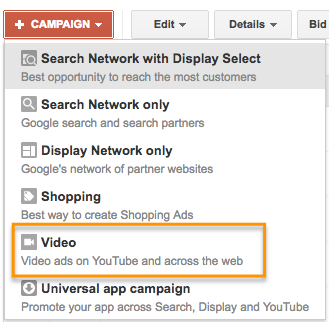
Campaign Name
Enter a name for your campaign, and make sure Video has been chosen from the Type drop-down menu.
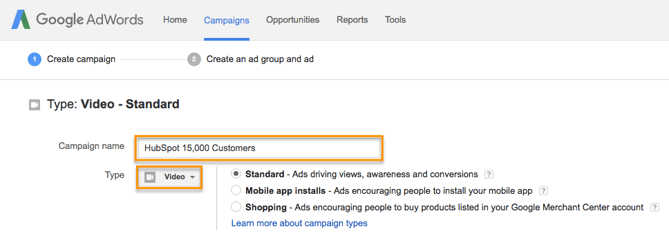
Video Ad Format
Select “In-stream or video discovery ads” to ensure your video ad will be in TrueView format (in the style of the examples outlined above).

Budget
Set your budget per day. You can also select a delivery method — either the standard delivery, which shows ads evenly during the day, or accelerated delivery, which drives views as quickly as possible. The latter would be useful if you want to capitalize on a trend or news item relevant to your brand’s video.
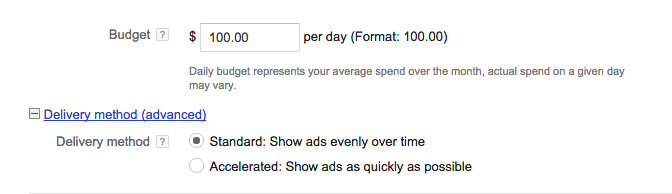
Networks
Decide where you want your ad to appear.
- YouTube Search: Your video ad will appear in results for searches and will appear on the YouTube home page, channel pages, and video pages.
- YouTube Videos: This runs TrueView ads that can appear in-display ads or in-stream ads. With this option, you can choose for your video ad to appear before or around videos shown across the Google Display Network.
You should create separate campaigns for YouTube Search and YouTube Video as this will help you to better track performance metrics. These ads are served to people performing very different activities and require a different amount of commitment from the viewer, so it’s best to monitor performance separately.

Locations
Define the location of users whom you want the ad to be shown to. You can also exclude certain locations.
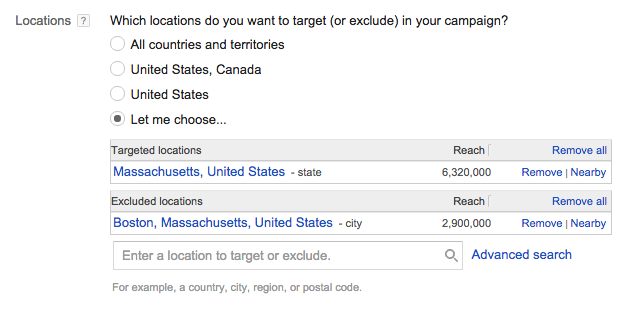
Language, Device & Mobile Bidding
AdWords will let you specify the operating system, device, and carrier for more advanced targeting. This is especially useful for mobile app ads, and there’s an option to increase or decrease your bid based on if the video ad is shown to someone on a mobile device.
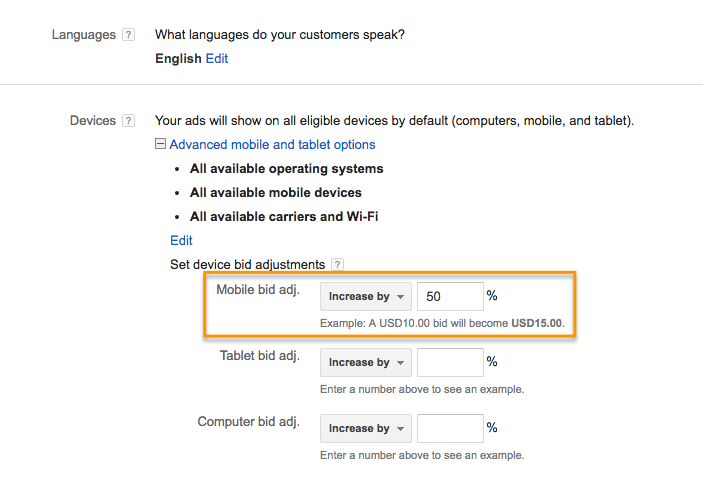
Advanced Settings
With the advanced settings section, you can set begin and end dates for your campaign, create a custom schedule for when your video ad should be shown, and limit the daily impressions and views for users. This all helps you to get the most return for your ad spend.
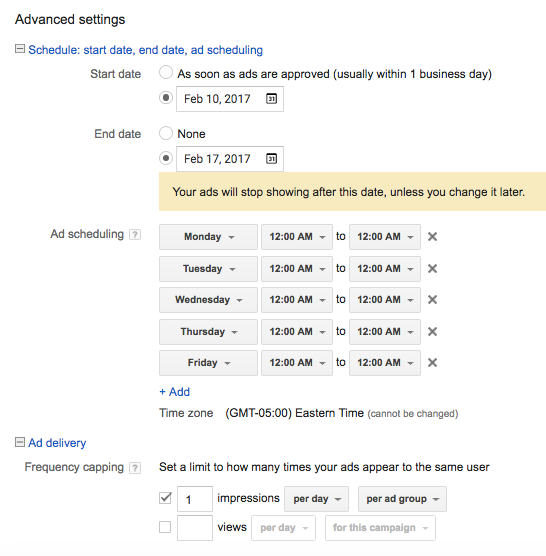
Creating the Video Ad Creative
Name your ad group, and then insert the YouTube link for the video you would like to run the ad for. You will then choose whether you want this to run as an in-stream ad or an in-display ad.
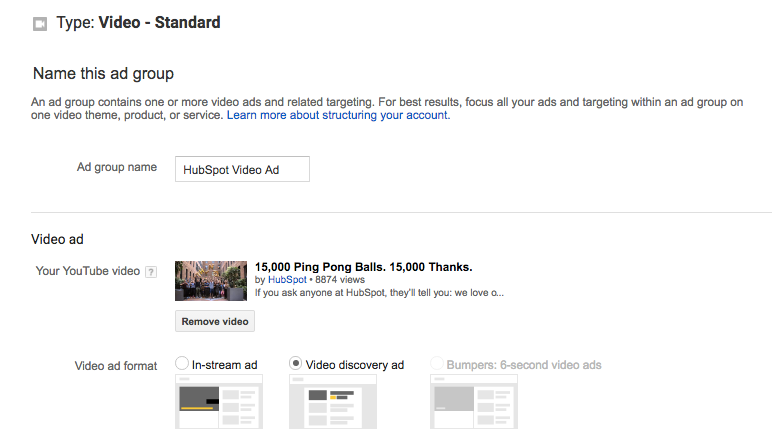
For in-display, you’ll need to include a title and short description, which is entered on two separate lines. Note: Titles are limited to 25 characters, and the description lines are limited to 35 characters each.
In-stream ads provide you with the option to overlap a display URL on top of the video. You should use a vanity URL that directs to another final URL to make it more memorable. You can include advanced URL tracking options. In addition, a companion banner made from images from your video will appear on the right side of the video ad.
Bidding
You’ll then determine the max price you will pay for each view, which you can adjust to increase the number of projected views your video may receive.
Targeting
Finally, you can further define the audience you would like the video to be shown — options include gender, age, and parental status. You can also target individuals by their interests, such as beauty mavens, cooking enthusiasts, horror movie fans, etc. Try running multiple campaigns to target different groups of users to discover who is most engaged, rather than including everyone you want to target in one campaign.
Advanced Targeting
You can also target individuals by keywords, topics, or websites where you would like your video ad to appear. Keyword targeting with in-display ads can be a powerful tool for finding individuals who are looking for a visual answer to a question. Be sure to do your research, and try testing out different groups of keywords to see which leads to more views, clicks, or conversions.
Additionally, you can use AdWords video ads to remarket to people who have been in contact with your brand already. This can help you to re-engage those who are already familiar with your brand.
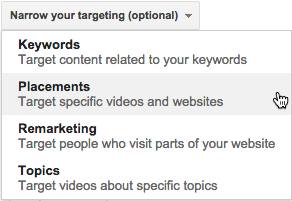
Linking Your Account
You should link your AdWords account to the YouTube channel where the video is hosted if you haven’t already. You can also click “finish” to begin running your video ad campaign.
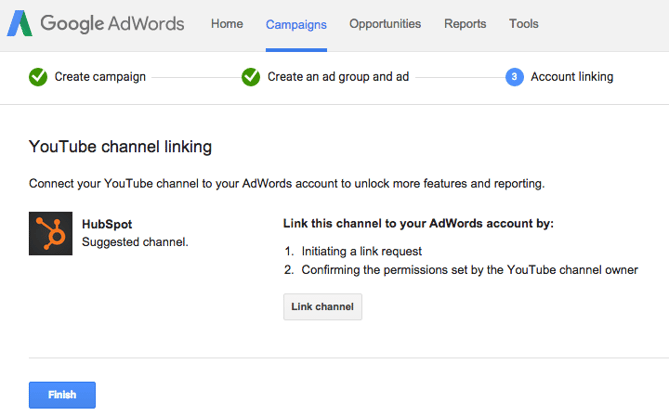
10 Tips for Optimizing Your AdWords for Video Ads
Launching a video ad campaign is a great step, but there are some things you should set up prior to starting to pay for views to make the most of your budget and to see the highest return for your client.
1. Define your metrics and goals.
When analyzing the results, there are four main categories of metrics you can track for each video. These are located under the “column” drop-down in your campaigns interface.
Views
Under the “views” category, you can better understand what percentage of the ad people viewed and understand how the ad drove earned views or views on your brand’s other videos.

Audience
This category can be used to track likes and shares for each video ad.

Branding
The view rate should signal if the creative and message are interesting or entertaining enough for people to watch the ad. By increasing your view-through rate (VTR), you will lower your cost per view.

Conversions
Conversions will help you better understand if your ad is driving leads and returning a high ROI for your brand.

Depending on the goals for the brand, you should determine a few goals based on these metrics and formalize a plan for optimizing creative and trying different targeting criteria to improve results. Your goals should also determine the type of content you will feature in the ad — some metrics are better for branding goals and others will drive leads and conversions.
2. Track low performing placements.
If you’re running in-display ads that will appear across the Google Display Network, you can review where the ad has appeared in by navigating to Video Targeting > Placements > Where ads were shown > Display network from your Google AdWords Campaigns dashboard. Review this list to see if any particular sites are contributing to poor performance for your desired metrics. Exclude these sites from your ad campaign moving forward to increase your average CPV.
3. Use a custom thumbnail image.
Design or use a high-quality still image from the video to entice a viewer to click on your video. Remember, this image needs to be legible by users on different devices, including mobile. If your image contains a person, make sure he or she is looking into the camera. If you are featuring a product, make sure the background isn’t distracting.
4. Drive people to buy with cards.
A YouTube card is teased with a small “i” symbol, which the viewer can click to expand. You can time this appearance so only users engaged with the video and content will see the notification.
With cards, you can feature a product related to or featured in the video to drive product purchases. You can also use cards to drive fundraising donations, traffic to a URL, or traffic to other videos as shown in the example below from Refinery29. Each format will allow you to customize the card with text, images, and other options.
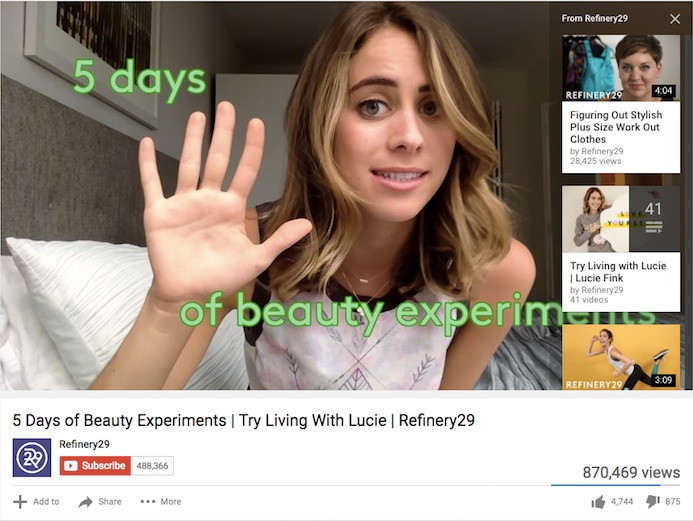
5. Create calls-to-actions.
When promoting a video on YouTube, you can include call-to-action overlays that link to a URL. You could link to a landing page, product page, information page, career page … whatever you’d like. You could also send people to a favorable report or interview featuring the brand.
Adobe highlights one of its live videos using a call-to-action overlay:
6. Create a YouTube end slate.
Create an end screen to drive subscribers to your channel, promote your social networks, or increase interest in your brand. If someone has watched a video until the end, it’s a good sign they enjoy your content and might be interested in subscribing to your channel for future updates. The Tonight Show Starring Jimmy Fallon‘s end slate uses this screen to drive subscribers and social media fans while also highlighting other interesting topics its host has featured. Once you build the image, you will be able to annotate the end screen in YouTube’s video editor.
7. Use negative remarketing.
If you are running a campaign for a longer period of time and want to only attract new users to a brand, consider creating a list of people who your ad will not be shown to. When viewing your AdWords Campaign screen, select “Shared library” on the lower left sidebar. Then select “Video remarketing” and “+ Remarketing List”. You can stretch your campaign budget and target only unique users by selecting to not show your video ad to someone who has previously viewed the specific video, who has visited your YouTube channel, or shared, liked, or commented on any of your videos on your channel.
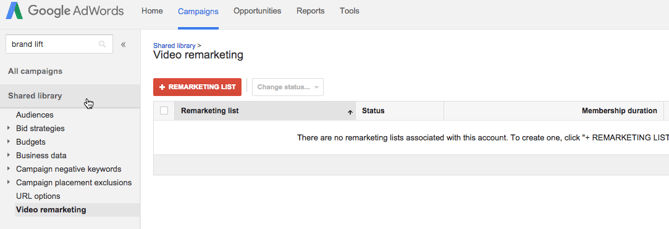
8. Use close captioning to cater to viewer’s needs and wants.
This tip applies to all YouTube videos — but it’s a general best practice that’s not followed by many brands. Include a quality video transcription you’ve generated and approved. Only user-uploaded transcriptions are indexed by Google because YouTube’s automatic captioning can be less than reliable. Depending on your target audience, you may also want to include transcriptions in various other languages. You can also offer users the option to download or visit a site page with the full transcription in your video description.
9. Qualify viewers.
Sometimes, your ad will be seen by people who have no interest in your product. Encourage them to skip the ad if the content isn’t relevant so you don’t have to pay for the view and they don’t waste their time watching irrelevant advertising.
10. Consider making your ad longer.
When it comes to TrueView ads, if the ad is under 30 seconds, you pay only if a viewer watches until the end. If the ad is longer than 30 seconds, you pay if the viewer watches it for at least 30 seconds. In both cases, you pay if the viewer interacts with your ad before it’s over. Consider this when you are coming up with ideas for content for the ad. You may want to put messaging at a certain point so uninterested viewers can skip the ad, or you might provide special offers towards the end of the video.
The Future of Video is Bright
We’ve told you before: Video content is a must-have part of your content strategy. This is even truer now that YouTube lets marketers target users based on their search histories. YouTube advertising is more targeted than ever, and it’s less competitive real estate than the world of Google Search because video content is newer to the content scene and less popular than blog posts.
Stay tuned for more from us about how to make great video ads for YouTube and social media, and where we think YouTube marketing is headed next.

How to Tweet on Twitter: 12 Templates to Get You Started
How to write and post a Tweet:
- Sign into Twitter.
- Begin compsing your Tweet above the feed, or click on the new Tweet button at the top of your screen.
- Compose your Tweet with less than 140 characters.
- Include a #hashtag so relevant followers can find your account.
- Tag a person using ‘@’ followed by their twitter handle.
- Follow a Tweet formula as a starting point for ideas.
Not sure what to tweet to get your followers to engage with you? Whether you’re just getting started with Twitter or you’ve been using it for a while, but feel like you’re in a rut, it can be hard to come up with new ideas for what to publish.
Sometimes, it can help to follow some tried-and-true tropes. Here are several Twitter “formulas” you can follow.
Just make the following changes to each one:
- Fill in the “blanks” where the [BRACKETS] are.
- Edit the #hashtag with the actual hashtag you’d like to use (e.g. #marketingtips). Hashtags make it easy for people to find your tweets when they’re tracking that hashtag, so you can find more relevant followers.
- Replace @TwitterHandle with a person’s real Twitter handle (e.g. @HubSpot).
Download our free guide to generating more Twitter followers here for even more helpful Twitter tips.
Note: Each audience is different, so you may find that some of these formulas work better than others to grow your following.
How To Tweet: Here Are 12 Templates You Can Customize
1. Use “The Basic Shared Content Tweet”
[ARTICLE TITLE]: https://ift.tt/1rf7FGW by @TwitterHandle
This go-to tweet style is the easiest to execute, but many times, people forget to include a relevant hashtag and the author’s Twitter handle. The hashtag could get your tweet more exposure to people following that hashtag. And always credit your information source (the author or the site you got the post from) on social media. It’ll show appreciation to the original content creator — and they might return the favor by sharing some of your content with their followers.
Example: 12 Tweet Formulas to Get You Started on Twitter: http://hub.am/Sgsvt5 #twittertips by @HubSpot
2. Try “The Shared Content Tweet With Commentary”
[YOUR OPINION] > [ARTICLE TITLE]: https://ift.tt/1rf7FGW by @TwitterHandle
[ARTICLE TITLE]: https://ift.tt/1rf7FGW by @TwitterHandle > [YOUR OPINION]
Like the basic shared content tweet, this tweet includes the article title (or a shortened version), a relevant hashtag, and the author’s Twitter handle. But in addition, you’ll add your opinion — whether it’s a quick “+1” or something a little more in-depth. Something personal like that might increase engagement rate with your tweet.
Example: Bookmarking this. > 12 Tweet Formulas to Get You Started on Twitter: http://hub.am/Sgsvt5 #twittertips by @HubSpot
3. Retweet With Commentary
Typically, when you want to retweet someone’s tweet, you’ll simply click the retweet button and share the content with your followers. But if you want to know how to retweet with a little flavor, we’re going to show you. There are two ways to add commentary to a retweet: using the “retweet with comment” feature or composing a new tweet and publishing it manually.
a) Using the “retweet with comment” feature.
[YOUR OPINION] #hashtag
[EMBEDDED ORIGINAL TWEET]
The “retweet with comment” feature allows you to embed an original tweet within your own message, and then comment on it in up to 116 characters. To do this, click the retweet icon at the bottom of the tweet. In the window that appears, add your comment to the “Add a Comment” section (and include a hashtag, if you so desire).
Example:
(For more details on how this feature works, read this blog post.)
b) Manually retweeting with commentary.
[YOUR OPINION] #hashtag – RT @TwitterHandle [ARTICLE TITLE] – http://url.com
To retweet with commentary in this way, simply copy and paste the person’s tweet into a brand new tweet, preface the tweet with RT @TwitterHandle, and add commentary to the beginning. If you modify their tweet at all (e.g. to make the tweet a bit shorter, allowing more room for your comment), use MT — which stands for “modified tweet” — instead of RT.
Example: #7 is important but often forgotten. – RT @mvolpe “10 Things Great Marketers Do Every Day” http://hub.am/1m6RPK4 by @kellykranz
4. Use “The .@TwitterHandle Tweet”
.@TwitterHandle [REST OF TWEET]
If you put someone’s Twitter handle at the very beginning of your tweet, Twitter assumes you’re @replying to that person — so they omit that tweet from showing up on your Twitter followers’ feeds. While this is usually a good thing (otherwise, your feed might get taken over by @reply tweets), there may be times when you want your followers to see that tweet on their feeds. To do that, simply add a period right before their Twitter handle.
Example: .@HubSpot redesigned their blog! Check it out here: http://blog.hubspot.com #webredesign
5. Try “The Problem/Solution Tweet”
Don’t let your [ASSET] [NEGATIVE RESULT]. Find out how to [GOAL] here: https://ift.tt/1rf7FGW
Fear is a powerful motivator. Nobody wants to suck, or fail, or flounder, or fall short, or whatever [negative result] you use. And if they do, they want to learn how to remedy the situation, fast — that’s where you can help them. Also, if there’s a relevant hashtag you can use here, don’t forget to include it!
Example: Don’t let your blog fall into a rut. Find out how to churn out new blog posts quickly: http://hub.am/1nD3y5M #blogging
6. Utilize “The Stat or Fact Tweet”
Did you know that [STAT]? https://ift.tt/1rf7FGW
Don’t just find any old data point here — find something that will really intrigue your target audience. Once they get this little preview, they could want to read the full story to understand (1) why this data point is true, and (2) what they should do about it. Just be sure your statistic is recent and from a reputable source.
Example: Did you know 6.5% of blog posts are published on the weekends & they get 18% of all social shares? http://hub.am/1otH7QF #blogging
7. Tweet “The Endorsement Tweet”
I loved this article by @TwitterHandle about [TOPIC] – http://url.com #hashtag
Lots of valuable info on [TOPIC] in this article by @TwitterHandle – http://url.com #hashtag
This tweet can take many forms, but instead of tweeting a basic shared content tweet, you’re adding your endorsement to the tweet and possibly including info on why you enjoyed the piece.
Example: I loved this article by @lkolo25 about how to not screw up your landing pages – http://hub.am/1p2LQwy #leadgen
8. Embed a SlideShare in a Tweet
[PRESENTATION TITLE]: https://ift.tt/1rf7FGW by @TwitterHandle
Did you know you can embed a SlideShare presentation directly into a tweet? That way, your followers can flip through the presentation without ever having to leave Twitter (or the page a tweet is embedded on).
To embed a SlideShare presentation into a tweet, all you have to do is link to the presentation and it will embed automatically. This is also true for documents and videos from SlideShare as well.
Example:
20 Facebook, Twitter, LinkedIn & Pinterest Features You Didn’t Know Existed: http://t.co/yLFzTr392P via @HubSpot #socialmediatips
— Lindsay Kolowich (@lkolo25)
April 27, 2015
9. Ask a Question in a Tweet
[QUESTION] #hashtag
[QUESTION] – https://ift.tt/1rf7FGW
Twitter, like all social networks, is a two-way conversion. You should regularly ask your followers questions. These can be tied to an article you’ve read or could be something a little more random (though still tied to your brand). Not every tweet needs to drive traffic to a website page.
Example: What tool do you use to schedule your social media posts? #socialmedia
10. Use “The Tip or Advice Tweet”
[YOUR OWN WORDS OF WISDOM] #hashtag
[QUESTION] #hashtag 1) [ANSWER #1] 2) [ANSWER #2] 3) [ANSWER #3]
Again, not every tweet needs to drive traffic to a website page — in fact, tweeting bits of advice that obviously aren’t traffic drivers is a great way to build credibility. Tweets like this are retweeted frequently and can get you more engagement and followers, so don’t look as a “sacrifice.”
Example: Do you pass reshare test? Be valuable on #socialmedia: 1) Provide information 2) Provide analysis 3) Provide assistance 4) Be entertaining.
11. Try “The Inspiring Quote”
“[QUOTE]” – @TwitterHandle #quote
“[QUOTE]” – [NAME OF PERSON NOT ON TWITTER] #quote
Everyone loves a daily dose of inspiration! It’s difficult to research quotes and find the perfect one, so inspirational quotes are best shared when you randomly come across them and get inspired yourself. So keep your eyes peeled for great quotes, takeaways, data, etc. Just make sure to give credit where it’s due!
Example: “Our time is limited so don’t waste it living someone else’s life.” – Steve Jobs #quote
12. Post “The Photo Tweet”
[PHOTO CAPTION] #hashtag [ATTACH PHOTO]
There are lots of ways to spice up your tweets with visual content. The simplest of them all is adding a photo to your tweet, using the text part of the tweet as a caption, and sharing that with your followers. This is great for sharing pictures of your office space and employees, or promoting events and webinars. Remember to include any relevant Twitter handles or hashtags.
Example:
Fantastic shot taken by yours truly from the 2014 @HubSpot Inbound Marketing Conference in Boston. #INBOUND14 pic.twitter.com/cRufJyTH7n
— David Roberts (@DavidatJDR)
November 17, 2014
Want to share this post? Here are some ready-made tweets:
Click to tweet: 12 Tweet Formulas to Get You Started on Twitter: https://ift.tt/1ds2mTp @HubSpot #TwitterTip
Click to tweet: Check out these fill-in-the-blank tweet formulas: https://ift.tt/1GEUF5O
Click to tweet: Running out of tweet ideas? Here are some fill-in-the-blank formulas – https://ift.tt/1GEUF5O
Editor’s Note: This post was originally published in June 2014 and has been updated for accuracy and comprehensiveness.

20 YouTube Tricks, Hacks, and Features You’ll Want to Know About This Year
When people talk about today’s most popular social sharing websites, YouTube often gets left out of the conversation in favor of sites like Facebook and Twitter.
But don’t be fooled: YouTube has a lot going for it. Although Facebook might be the largest social networking site, YouTube has the second greatest reach after Facebook in terms of general usage. It’s also the second biggest search engine behind its parent company, Google.
And there are a ton of cool things you can do with YouTube that you might not know about, whether you use YouTube to watch videos, post them, or both. For example, did you know YouTube has its own virtual reality (VR) setting to view any video in 360 degrees? Or that you can create a YouTube time link that brings viewers to a specific moment in the video?
Mind-blowing stuff, people. To help you make the most out of the still very popular platform, we’ve put together a list of 20 of the lesser-known hacks, tips, and features YouTube has to offer.
YouTube Tricks, Hacks, and Features
- Turn any video into a GIF.
- Create a YouTube time link to start a video at certain points.
- See the written transcript of a video.
- Get found in search by uploading your own written transcript.
- Use YouTube to make a written transcript.
- Create, share, and collaborate on video playlists.
- Save videos to watch later.
- Create your own custom YouTube URL.
- Add an end screen or cards to promote similar content.
- Browse and download from YouTube’s free sound and music library.
- Add creative effects with YouTube Enhancements.
- Play videos in the background on mobile devices.
- Live stream videos to YouTube.
- Upload and watch videos in 360 degrees and VR.
- Watch for a new YouTube ads algorithm.
- Remove ads from YouTube videos for $10/month.
- Use Google Trends to explore popular YouTube search terms.
- Turn on a ‘safer’ YouTube for your kids.
- Clear your watch history.
- Learn about YouTube’s copyrights in a new way.

20 YouTube Tricks, Hacks, and Features You’ll Want to Know About
1. You can turn any YouTube video into a GIF using the URL.
Everyone loves GIFs, but knowing how to make them isn’t common knowledge. Well, it should be, because all it takes is a little YouTube URL trick.
To create a GIF from a YouTube video: Select a video to watch on YouTube and find the URL at the top of your browser. Add the word “gif” right before the domain name so it reads, “www.gifyoutube.com/[your-video-tag].”
This will bring you to gifs.com, with your video already uploaded and ready for editing. Here, you’ll find a menu of options to the left-hand side with a timeline bar along the bottom of your video. You can set the GIF duration, crop its frame, add captions, and more.
Click “Create GIF” on the top-right and it’ll prompt you for a GIF title and set of tags. Then click “Next,” and you have a handy landing page from which to share your newly minted GIF. Keep in mind you can only download this GIF to an offline file by signing up with gifs.com.
2. You can create a link that starts a YouTube video at a certain time.
Ever wanted to send someone a YouTube video, but point them to a specific moment? Let’s say you’re trying to recruit your friends to learn the dance in Justin Bieber’s “Sorry” music video with you.
Instead of sending your friends the general YouTube link and instructing them to fast-forward to the 0:50 minute mark, you can actually send them a specific YouTube time link that starts the video at whichever time you choose. Click here to see what I mean.
Alright, here’s how to do it:
To create a link that starts a YouTube video at a certain time: Open up the video and click “Share” to the far right of the video title. Then, in the window of options that appears, check the box next to “Start at:” and type in the time (in hours:minutes:seconds) you want. Alternatively, you can pause the video at the time you want it to start and that field will autofill.
After a few moments, you’ll see a tag add itself to the end of the generic YouTube link (in this case, ?t=50s). Simply copy that link and paste it wherever you’d like.
It’s worth noting that you can’t embed a video so it starts at a certain time; you can’t only link to it.
3. You can easily see the written transcripts of people’s videos.
Did you know YouTube automatically generates a written transcript for every single video uploaded to its website? That’s right — and anyone has access to that transcript unless the user manually hides it from viewers.
I can think of a number of different situations where video transcripts can come in handy. For example, maybe you want to write down a quote from a video, but the tedium of pausing-and-typing, pausing-and-typing would drive you up a wall. Or perhaps you need to find a specific section of a video, but don’t want to rewatch the whole thing to find it. With a transcript in hand, you can find information like this without doing it all by hand.
To see a video’s transcript: Open the video in YouTube and press the “More” tab underneath the video title. Choose “Transcript” from the drop-down menu.
(If you aren’t seeing this option, it’s because the user chose to hide the transcript.)
This transcript will appear as a new module in the same window. In many cases, the user who uploaded the video will not have gone back and manually polished the transcript, so it won’t be perfect. But it’ll certainly save you some time and pain.
4. You can help your video get found in search by editing or uploading a transcript.
Both YouTube and its parent company Google look at a number of factors when ranking videos in search to determine what your video is about, and your transcript is one of them. (An even bigger ranking factor is your video’s description, which is why Digital Marketing Consultant Ryan Stewart suggests that you actually paste your transcript right into the description box, too.)
To add a transcript to your video: Open the video on YouTube, and you’ll see a row of icons just below the play button. Click the icon on the far right for “Subtitles/CC.” (CC stands for “Closed Captions.)
Set your language if you haven’t already. Then, you’ll then be prompted to choose among three different ways to add subtitles or closed captions to your video …
- Upload a pre-written text transcript or a timed subtitles file. (Learn more about the file types you can upload and more here.)
- Paste in a full transcript of the video, wherein subtitle timings will be set automatically.
- Type them in as you watch the video.
The folks at YouTube have done some great things to make that third option (typing as you watch) as painless as possible. For example, if you check a box next to “Pause video while typing,” it’ll make the whole process a lot faster. Here’s a GIF showing that in action:
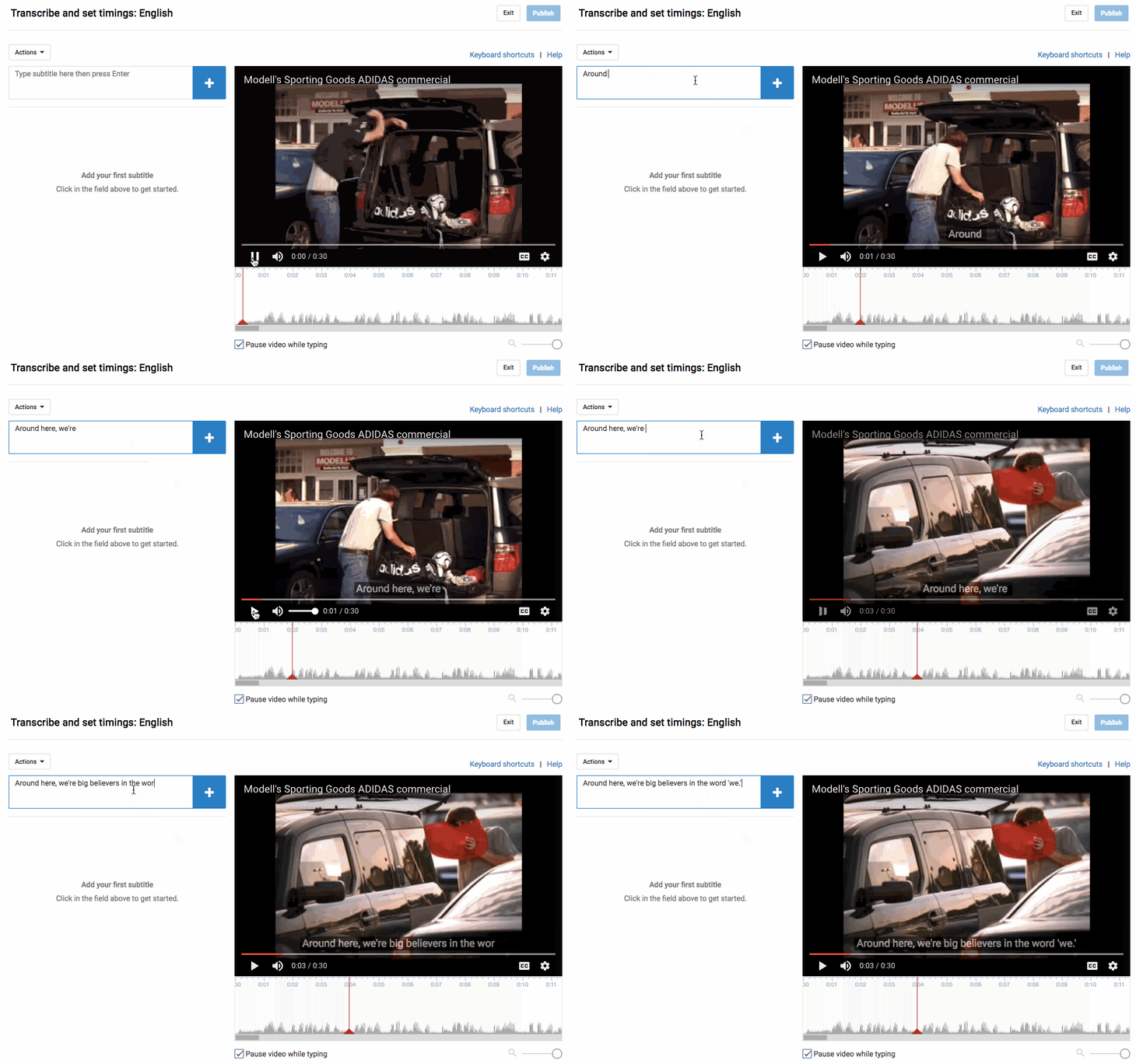
Learn more about optimizing your YouTube videos for search in the below video.
5. You can use YouTube to easily get free transcriptions of your videos and audio files.
This is the last one about transcripts, I promise — but I’ll bet you never thought about them this way. As you know from #3, YouTube automatically adds a transcript to every video. But if you’re looking for a one-off transcription of an audio or video file and don’t want to pay for a service, YouTube’s built-in captioning system isn’t a bad place to start. You can always clean it up later.
To get an automated transcription for a video: Simply upload your video to YouTube, open it on YouTube’s website, press the “More” tab underneath the video title, and choose “Transcript” from the drop-down menu. The transcript will appear as a new module in the same window. If you want to clean it up, follow the steps outlined in #3 for a user-friendly experience.
To get an automated transcription for an audio file: You’ll need to upload your audio recording to YouTube using a service like TunesToTube. It’ll take anywhere between 2–30 minutes for YouTube to upload it. Then, follow the instructions for getting an automated transcription for a video, outlined above.
6. You can create, share, and collaborate on video playlists.
Just like on your other favorite media sharing sites like Spotify and iTunes, you can create a “playlist” on YouTube — which is really just a place to store and organize the videos (your own and others’). You can keep playlists private, make them public, or even share them directly with others.
Playlists are useful for many different types of users, from an individual collecting cooking videos for their upcoming dinner party to a brand that’s segmenting its YouTube video content by topic. For example, Tasty’s YouTube playlists break up recipes by meal type, making it easier for people to browse and find what they’re looking for:
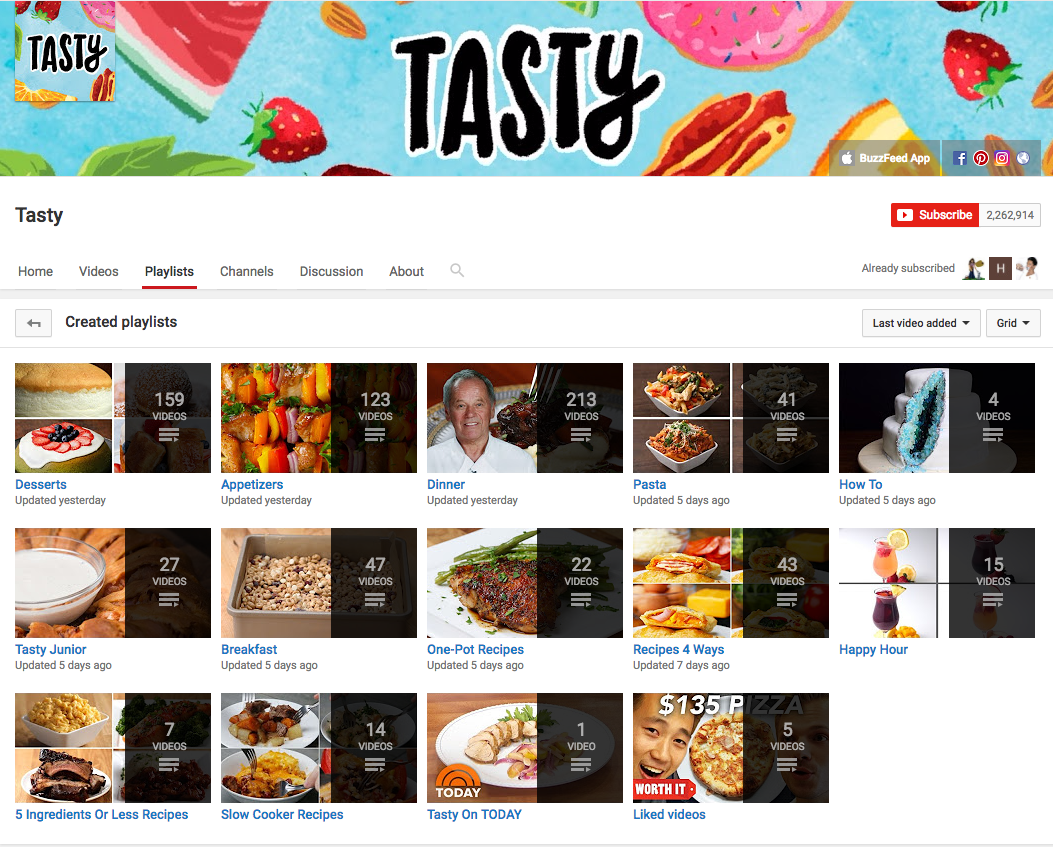
To create a playlist on desktop: Go to your Playlists page by clicking here or clicking your account icon in the top right, choosing “Creator Studio,” clicking “Video Manager” on the left, and choosing “Playlists.” Then, click “New Playlist” on the top right and choose whether you’d like to keep it private or make it public.
To create a playlist on mobile: Click here for instructions explaining how to create new playlists using your iOS or Android mobile devices.
To add a video to a playlist: If you’re adding a video to a playlist while you’re watching it, click the “Add to” icon below the video title and check the box next to the playlist to which you’d like to add it.
If you want to add a video to a playlist right from your Playlists page, simply click “Add Video” and either paste in a video URL, choose a video from your uploads, or search for a video on YouTube. Once you find the video you want to add, select the “Add to” menu from that video and add it to the playlist.
Your friends can contribute to your playlists, too. All you have to do is turn on the ability to collaborate on playlists. Once you turn it on, anyone you share a playlist link with can add videos to that playlist. (They can also remove any videos they’ve added, too.)
To add friends to a playlist: Go to your Playlists page again and open the playlist you want to collaborate on. Click “Playlist Settings” and choose the “Collaborate” tag. Toggle on the setting that allows collaborators to add videos to the playlist, and from there, you can send them a link where they can add videos to the playlist.
Once your friend’s been invited to a playlist, they’ll be able to add new videos to it and remove videos they’ve added in the past. They just have to follow some on-screen instructions first to confirm they want to be a contributor and to save the playlist to their own account.
When you add a video to a playlist you’re collaborating on, your name will appear next to the video in the playlist, and everyone who’s been invited to collaborate on that playlist will get a notification that a new video has been added.
(To learn more about how to manage contributors, stop accepting contributions to a playlist, and so on, read this YouTube Support page.)
7. You can save videos to watch later.
Ever seen YouTube videos you wished you could bookmark for later? Maybe you aren’t able to turn the sound on at the moment, or perhaps you just don’t have time to watch it. Well, YouTube took a page out of Facebook’s … book … by adding something very similar to Facebook’s “Save for Later” feature. On YouTube, you can save videos to a “Watch Later” playlist to access whenever you want.
The “Watch Later” playlist operates just like a normal playlist, so the instructions are identical to the previous step (except you can’t invite others to collaborate on your “Watch Later” playlist).
To add a video to your “Watch Later” playlist: Open the video on YouTube and click the “Add to” icon below the video title and check the box next to the playlist you’d like to add it to, just like you did in the previous step. The steps are very similar on mobile, but click here if you want the full instructions from YouTube’s Support page.
To access those videos: Simply go to your YouTube homepage and choose “Watch Later” from the menu on the upper left-hand side of your screen.
From there, you can watch the videos you were saving, as well as easily remove videos from that list that you’ve already watched.
8. You can create your own custom YouTube URL.
Want to give people an easy-to-remember web address to get to your YouTube channel? You can actually create a custom URL, which you can base on things like your display name, your YouTube username, any current vanity URLs that you have, or the name of your linked website. HubSpot’s, for example, is https://www.youtube.com/hubspot.
Important Note: Before you do this, make sure you’re positive this is the custom URL you want — because once it’s approved, you can’t request to change it, nor can you transfer it to someone else. Keep in mind that it’ll be linked to both your YouTube channel and your Google+ identity, too.
Unfortunately, not everyone’s eligible for a custom URL. To get one, you have to have 100 or more subscribers, be at least 30 days old, have an uploaded photo as your channel icon, and have uploaded channel art. If that sounds like you, keep reading.
To claim your custom URL: Open up your YouTube account settings and click “Advanced” in your name section.
If you’re eligible for a custom URL, you’ll be prompted to claim yours by clicking a link.
Select the box next to “I agree to the Terms of Service.” Then, once you’re absolutely sure it’s the URL you want (since you can’t ever change it), click “Change URL” to make it final.
9. You can add an end screen or cards to promote content.
In 2008, YouTube began allowing clickable links YouTube called “annotations” that you could insert into your videos. These annotations worked kind of like call-to-action buttons for directing people to subscribe to your channel, see merchandise or a fundraising campaign, visit another resource to learn more, and so on.
In order to make them more natural parts of the viewing experience, YouTube has replaced annotations with end screens, where you can display more visually pleasing call-to-action cards in the last 30 seconds of your content.
How to Add an End Screen
Do your favorite YouTube creators have a fancy closing screen that encourages you to keep watching their videos? For example, here’s one from Saturday Night Live:
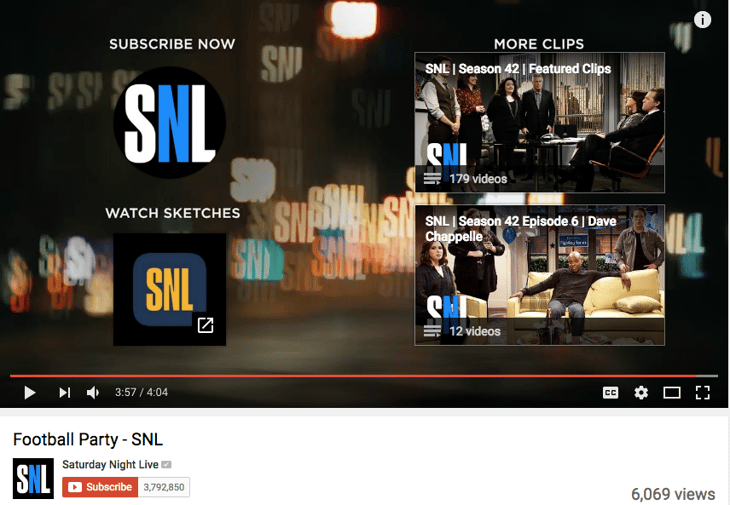
You can create a customized end screen, too. They help keep viewers on your channel by suggesting other videos and sites they can check out. Here’s how to do it:
Navigate to your Video Manager, tap “Edit,” and select “End screen & Annotations” from the drop-down menu:
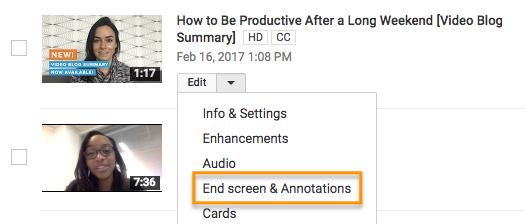
From there, you’re taken to the End screen creator studio, where you can play around with different templates and background to determine how you want your end screen to appear. Then, click the “Add element” menu to decide where you want to send viewers from your end screen.
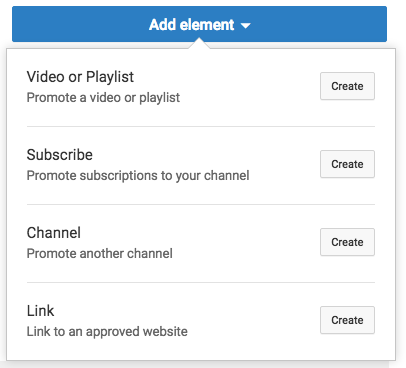
Any YouTube creators can add an end screen to customize their channels. Here’s an explainer article with more details and inspirational ideas.
How to Add a Card
You can use cards to advertise products used in your videos or links on your website you want to market on YouTube. If viewers tap the “i” in the upper-right hand corner of a video, the cards expand, as in the example below:
To add a card to a YouTube video, head to your Video Manager, tap “Edit,” and select “Cards” from the drop-down menu.
Then, choose where in the video you want cards to appear, and tap the “Add card” drop-down menu to choose what you want the card to promote. From there, customize the content that will appear to viewers when they tap the “i” while viewing your video:
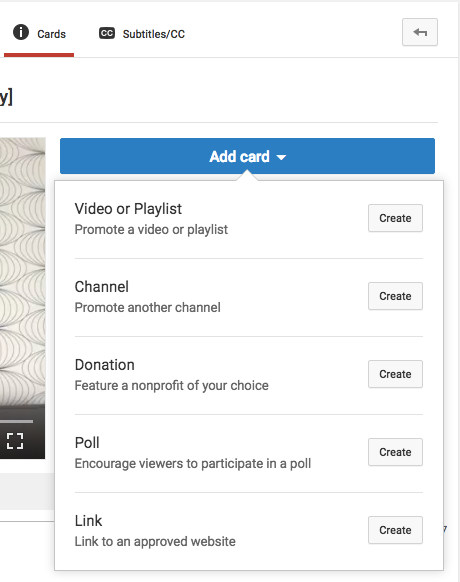
10. YouTube has a big library of high-quality, royalty-free sound effects and music you can browse and download.
Want to add some cool sound effects or music to your YouTube video (or any video)? YouTube is there for you. It has a whole library of high-quality, 320kbps audio tracks and sound effects that you can download royalty-free and add to your videos. (Or listen to in your free time. We won’t judge.)
To add music or sound effects to your video: Open YouTube’s Audio Library by clicking here or opening your Creator Studio, clicking “Create” in the menu on the left-hand side, and choosing “Audio Library.”
Now, the fun begins. By default, it’ll start you on the “Sound effects” tab. Here, you can search sounds using the search bar, like I did in the screenshot below for motorcycle sounds.
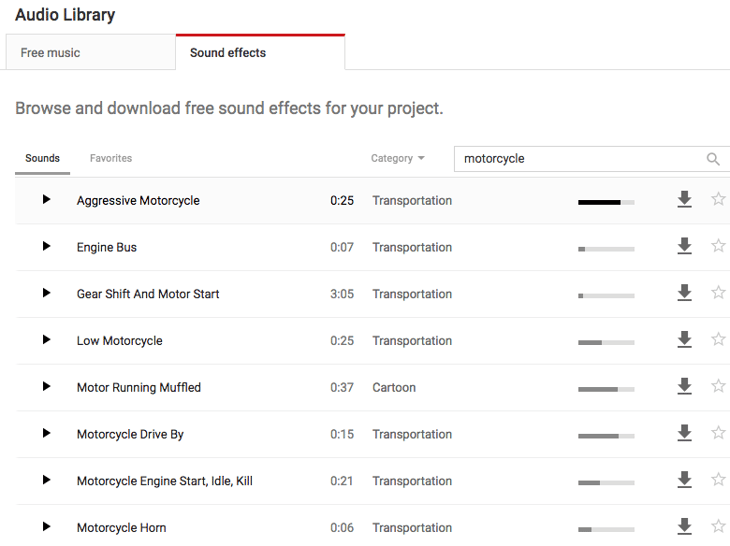
You can also toggle by category (everything from human voices to weather sounds) or scroll through favorites that you’ve starred in the past. For easy access in the future, select the star to add the track to your Favorites. The bars next to the songs show how popular a track is.
If you switch over to the “Music” bar, you can browse through all of its royalty-free music. You won’t find the Beatles in here, but you will find some good stuff — like suspenseful music, uplifting music, holiday music, jazz, and more. Instead of toggling by category, you can toggle by genre, mood, instrument, duration, and so on.
(Note: Some of the music files in there may have additional attribution requirements you have to follow, but those are pretty clearly laid out on a song-by-song-basis. You can learn more on YouTube’s Support page here.)
Once you’ve found a track you like, click the arrow to download it and it’ll download directly to your computer as an MP3 file. Then, you can do whatever you want with it.
If you want to source sounds for your videos outside of YouTube, you’ll just have to make sure to you’re following all the rules for sourcing them. Refer to this YouTube Support page for best practices for sourcing audio, and this one to learn YouTube’s music policies.
11. Add adjustments and creative effects with YouTube Enhancements.
YouTube has faded a number of features it experimented with at one time — including annotations and a not-so-popular slideshow creator — but one editing tool that remains quite handy is Enhancements. Nine effects you’d normally find on third-party video editing software, you can now take advantage of natively through YouTube:
- Auto-fix lighting and color
- Stabilize shaky camera motions
- Apply slow motion
- Apply time lapse
- Trim out parts of your video
- Rotate the view
- Apply filters
- Custom blurring
- Blur faces
To make enhancements to an existing video: Click into your Video Manager and find a video you’d like to edit. Select the drop-down icon next to “Edit” to the right of the video, and select “Enhancements.”
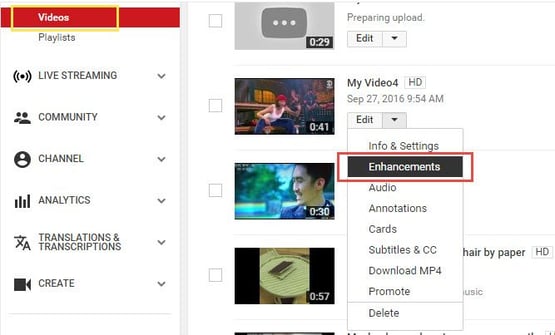
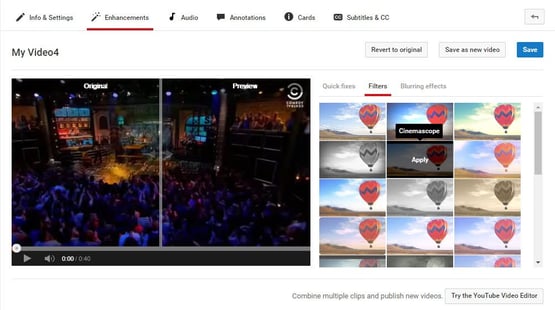
Images via filmora
If you’re editing on a computer, this button will open all nine tools to the right of your video, where you can add various fixes, filters, and blurring effects and see how they change the final product in real time.
Note that not all enhancements are available on mobile devices. On Apple and Android smartphones and tablets, you can only trim, add music, and apply filters. Read this article to learn more about YouTube enhancements.
12. Play YouTube videos in the background on mobile devices.
Sometimes, your own music playlist just isn’t cutting it. Or maybe you want to listen to your favorite artist’s performance at an awards show.
Either way, if you’ve tried listening to music on YouTube via your mobile device, you may have noticed one thing: You can’t navigate out of the app. You have to keep YouTube open, and you can’t use your phone for anything else, in order to listen to something on YouTube. Kind of frustrating if you’re trying to multitask on your commute home, right?
Now, there are hacks so you can listen to YouTube content in the background while still using your mobile device. Here’s what you do:
How to Watch YouTube Videos in the Background: iOS
Open Safari on your mobile device, and navigate to a video you want to watch on https://www.youtube.com. Start playing the video you want to listen to, then tap the Home button to close out of Safari. (I chose Katy Perry.)
Then, swipe up on your home screen to reveal the Action Center.
Then, swipe left to reveal the second screen on your Action Center. The details of the video you selected on YouTube should appear, and from there, simply tap Play to keep jamming.
How to Watch YouTube Videos in the Background: Android
Launch Firefox or Chrome on your mobile device, and navigate to a video you want to play on https://www.youtube.com. Then, tap the “Settings” menu in the upper right-hand corner (the ellipses) and select “Request Desktop Site.”
Image via DigitalTrends
Then, start playing the video on YouTube, and tap the Home button to return to your home screen. The audio will keep playing in the background as you use other apps.
13. You can live stream videos to YouTube.
Live streaming video has been a big topic of conversation for the past few years. It’s seen massive growth, especially in the past few years with the advent of Twitter’s Periscope, Facebook Live, and Instagram live videos.
Learning how to go live on YouTube is a little more complex (and confusing) than live streaming using similar platforms. On YouTube’s easier streaming option, there’s no simple “start” button; instead, you actually have to download encoding software and set it up to use live streaming at all. YouTube has identified 13+ encoders that are Live Verified.
If you’re streaming a live event, though, all you need is a webcam. We’ll get to that in a second.
Live Stream From Your Desktop Computer
Log in to YouTube and click the “Upload” button at the top-right of your screen. Normally, this is where you’d upload a pre-existing video — but instead, you’ll want to find the “Live Streaming” module on the right-hand side of your screen. Click “Get Started” in that module.
Before you go live, YouTube will first confirm that your channel is verified and that you have no live stream restrictions in the last 90 days. Once that’s all set, you have two options for streaming: “Stream now” and “Live Events.”
Stream Now
Stream Now is the simpler, quicker option for live streaming, which is why it’s YouTube’s default for live streaming. You’ll see a fancy dashboard like the one below when you choose “Live Streaming” on the left-hand Creator Studio menu:
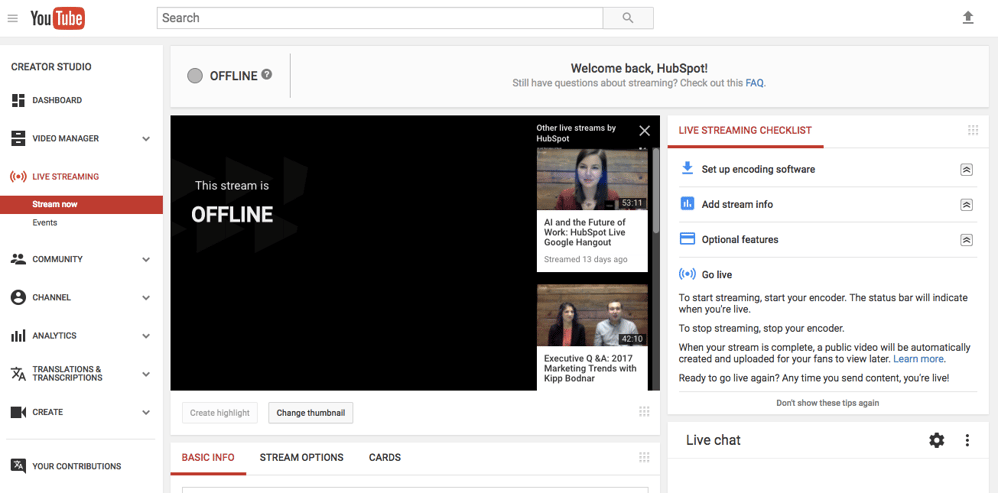
Again, you’ll notice there’s no “start” button on the dashboard. This is where you’ll need to open your encoder and start and stop your streaming from there. Here’s YouTube’s Live Streaming FAQ page for more detailed information.
Live Events
Live Events gives you a lot more control over the live stream. You can preview it before it goes live, it’ll give you backup redundancy streams, and you can start and stop the stream when you want.
Choose “Live Events” from your live streaming dashboard once you’ve enabled it. Here’s what the events dashboard looks like, and you can learn more about it here.
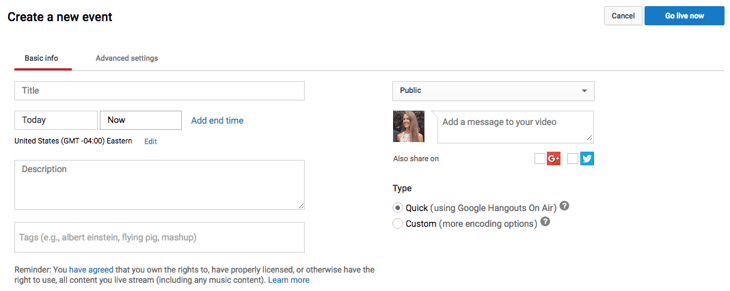
When you stop streaming, we’ll automatically upload an archive of your live stream to your channel. Note that your completed live stream videos are automatically made public on your channel by default as soon as you’re done recording. To make them disappear from the public eye once you’re done, you can select “Make archive private when complete” in the “Stream Options” section of your live dashboard.
Live Stream From Your Mobile Device
YouTube has also rolled out live streaming from mobile devices for YouTube creators with 10,000 or more subscribers (as of the date of this posting — that will be available to all creators soon, according to YouTube’s blog post).
Live streaming is more intuitive from mobile devices than on desktop computers. Qualified creators can simply open their YouTube app on mobile, tap the camera icon at the top of the screen, and choose “Go Live.”
From there, creators can enter details about the broadcast before immediately recording live for their subscribers, as shown below:
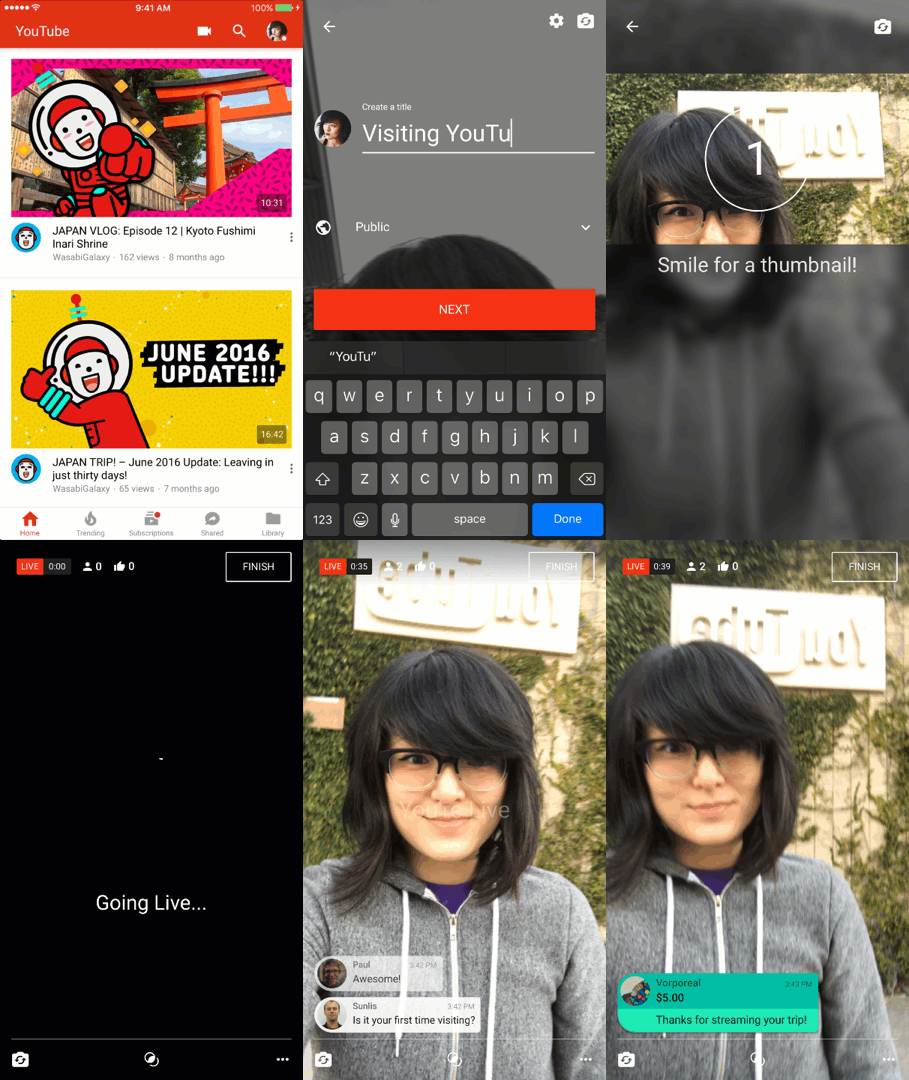
Image via YouTube
For more instruction on how to go live on YouTube across devices, YouTube published a Help article here. Want to see what live videos others are recording on YouTube? You can browse popular YouTube videos that are live right now by clicking here.
14. You can upload and watch 360-degree videos (live and pre-recorded) — and in VR.
YouTube first announced its support for 360-degree videos back in March 2015, and it was a total novelty — not to mention a game-changer. Since then, brands, athletes, and other users have created some awesome 360-degree content, like this video from Samsung:
As you can see, the experience as a viewer is really, really cool. On desktop, you can click around the video to see all the different angles while the video plays. On mobile, it’s even cooler: You can move your camera around to change the angle. You can browse the trending 360-degree and VR videos here.
How to Create a 360-degree Video on YouTube
For this, you’ll need some serious equipment. Cameras with 360-degree capability that are compatible with YouTube are listed here on YouTube’s Support page, along with how to create and upload a 360-degree video file.
What about live video in 360 degrees? That announcement would come a year after the first one, in April 2016 — the very same week Facebook announced its own design for a 360-degree camera. Luckily for the folks at YouTube, it beat out Facebook by supporting both live video and 360-degree footage all at once.
How to Watch Any YouTube Video in VR
The Verge called 360 live-streamed videos “the gateway drug to virtual reality” for YouTube. Other than the YouTube website or app, you don’t need any fancy equipment to be able to watch a 360-degree live video and feel like you’re basically there.
That doesn’t mean a headset isn’t an option — and an awesome one at that, since YouTube released its Cardboard feature. Cardboard is available on any YouTube video you watch or upload, and works with Google Cardboard (an actual VR headset by Google) and several other VR headsets available today.
To use Cardboard while watching a YouTube video via mobile: Select any video in your YouTube mobile app, then tap the three dots in the upper-right hand corner of the video. In the drop-down, select “View in Cardboard.” You may already see this option visible in the bottom-right of 360-degree videos.
This will prompt you to connect your mobile device to a compatible VR device. Once you do, prepare for a stellar experience, and just imagine what this could mean for the content with which you populate your own YouTube channel.
15. YouTube ads target you based on an algorithm similar to Google and Facebook.
How does the YouTube algorithm decide which ads play on the videos you watch?
Turns out it works a lot like Google and Facebook ads do. Like on other free sites, the advertisers help fund the YouTube experience in return for exposure to ads. You’ll see certain ads over others because of your demographic groups, your interests (which is judged in part by what you search on Google and YouTube) and the content you’ve viewed before, including whether or not you’ve interacted with the advertiser’s videos, ads, or YouTube channel.
YouTube’s algorithms also try to make sure people aren’t overloaded with ads while watching videos — so it actually sometimes won’t show ads on monetizable videos, even when there’s a demographic match.
Here are the five ad formats you can expect to see on YouTube, and how they work:
A. Display ads, which show up next to the video and only appear only on desktop and laptop computers. The advertiser gets paid when you see or click on the ad, depending on their selection.
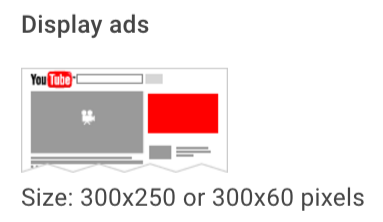
Image via YouTube’s Creator Academy
B. Overlay ads, which appear across the bottom 20% of the video window and currently only appears only on desktop and laptop computers. You can X out of the ad at any time.
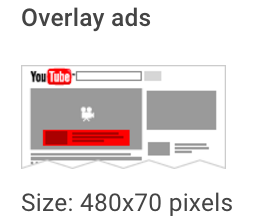
Image via YouTube’s Creator Academy
C. TrueView in-stream, skippable video ads, which are most common ads. These are the ones you can skip after watching for five seconds. Advertisers can put it before, during (yikes!), or after the video plays, and they get paid only if you watch at least 30 seconds of the clip or to the end of the video ad — whichever comes first.
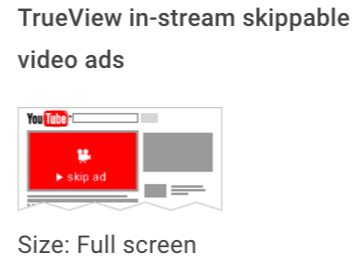
Image via YouTube’s Creator Academy
D. Non-skippable video ads, which are those longer, 15-or-more-second ads you see before plays and can’t skip after any period of time, no matter how much you shout at your screen.
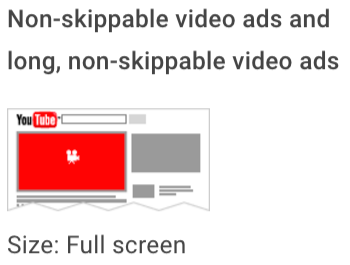
Image via YouTube’s Creator Academy
E. Midroll ads, which are ads that are only available for videos over 15 minutes long that are spaced within the video like TV commercials. You need to watch the ad before continuing through the video. How the advertiser gets paid depends on the type of ad: If the midroll is a TrueView ad, you’d have to watch 30 seconds of the end or the entire ad — whichever is shorter. If it’s a CPM-based ad, you have to watch the entire ad no matter how long it is.
Image Credit: YouTube’s Creator Academy
F. Bumper ads, which are short, non-skippable ads up to six seconds long that play before the video the viewer has selected. Bumper ads are optimized for mobile devices and must be watched in their entirety before viewers can progress to the video they want to view.
16. You can remove ads from YouTube videos (and watch videos offline) for 10 bucks a month.
Video ads are the reason you can watch videos for free on YouTube. It’s a fact many of us have come to accept. But with YouTube’s subscription service YouTube Red, that doesn’t necessarily have to be true anymore.
For $9.99 a month, you can watch YouTube videos … without any ads. And, in addition to ad-free videos, you can save videos on your mobile device and watch them in the background and/or offline, and you can use YouTube’s Music App (on iOS and Android) in the background, offline, and/or on audio mode. This is not a drill.
You’d think the lure of ad-free videos would have caused more of an uproar since its launch in late 2015, especially given YouTube’s domination in the music space. Surprisingly, I haven’t heard much noise about it. But YouTube hasn’t disclosed subscriber numbers (the service reportedly has around 1.5 million subscribers) so it’s hard to tell how well it’s doing. Either way, it’s good to know about — especially if you like collecting songs and music videos like I do, but don’t like when they get broken up by ads.
17. You can use Google Trends to explore and compare popular YouTube search terms over time.
You might already use Google Trends to look at the popularity of specific search terms over time. (It can be a great marketing tool for making smarter keyword choices, for instance.) But did you know you can use it to compare the popularity of YouTube search queries, specifically?
All you have to do is open Google Trends and type a search term into the “Explore topics” search bar at the top. Once that page opens up, click on “Web Search” to open a drop-down menu, and choose “YouTube Search” so it filters by YouTube searches specifically.
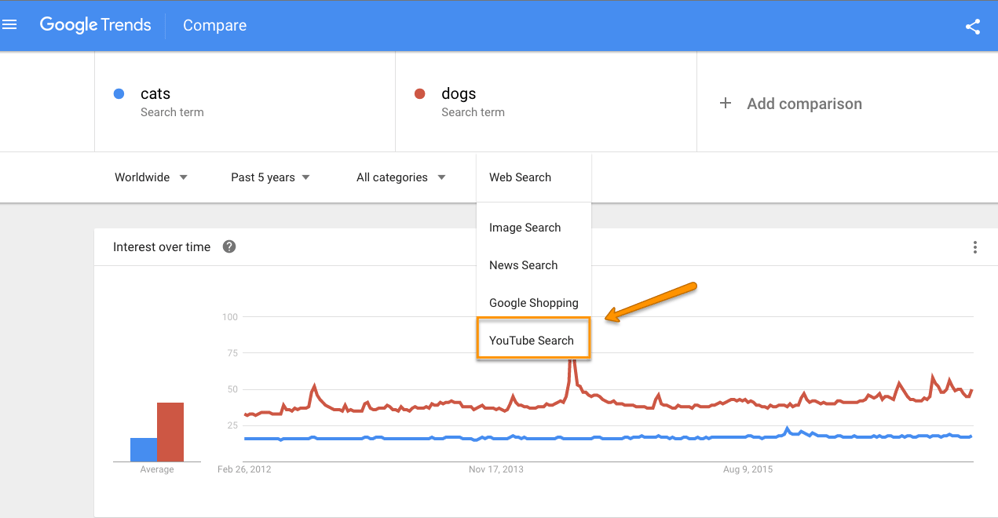
You might find that, for some search terms, the search trends are very different on Google (above) than on YouTube (below).
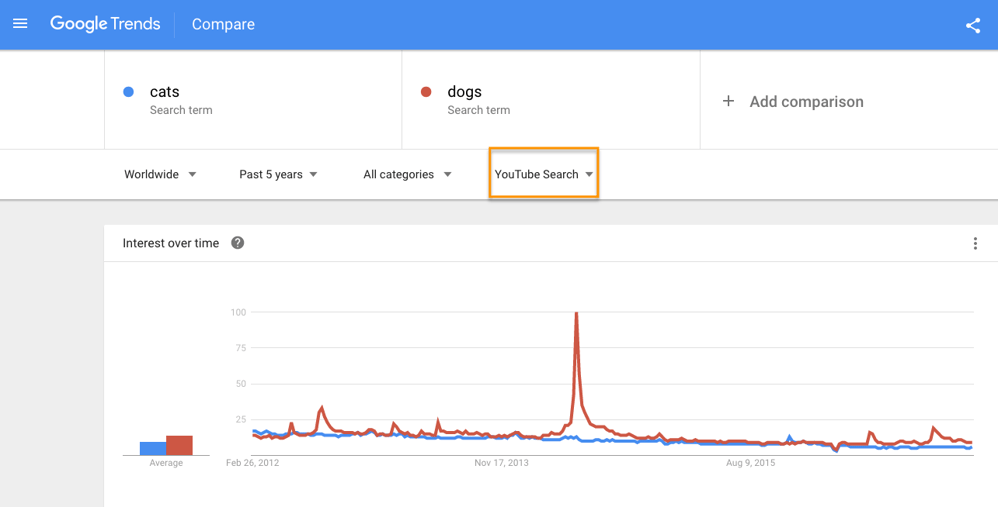
18. There’s a ‘safer’ version of YouTube available for your kids.
Any parent will tell you how scary it is for their kids to theoretically have access to everything public on the internet. But for your younger kids, there are ways to curb that access and have more control of what they’re watching and finding — including a kids’ version of YouTube called YouTube Kids.
The folks at YouTube call YouTube Kids “a safer version of YouTube.” It’s not a wide-open library of online videos like YouTube is; instead, it uses filters powered by algorithms to select videos from YouTube that are safe for kids to watch. It’s also totally free, thanks to ads (which are regulated as carefully as possible).
You can either turn the search feature on or off, depending on whether you’re cool with your kids searching for videos themselves — or if you’d rather limit them to a certain set of videos selected by the app, along with those the app recommends based on what they’ve watched already. You can set a timer to limit how much time a child spends on the app, which is music to many parents’ ears.
The algorithm is darn good — remember, Google is YouTube’s parent company — but, as it warns in its parents’ guide, “no algorithm is perfect.”
19. You can now clear your YouTube History.
You might eventually want to delete items from your YouTube search or watch history. YouTube lets you completely clear your history, pause your history so it stops recording what you search for and watch from that point forward, or go through your history and delete certain videos.
To delete your history on your desktop or mobile device: Navigate to the “Watch History” menu. Here’s where it lives on your desktop browser homepage and in your mobile app, respectively:
From there, you can “clear all watch history” (permanently delete the record of everything you’ve watched), “pause watch history” (stop recording the videos you watch going forward), or individually remove videos from your history by tapping the X or ellipses next to videos. Here’s what it looks like on desktop and on mobile, below:
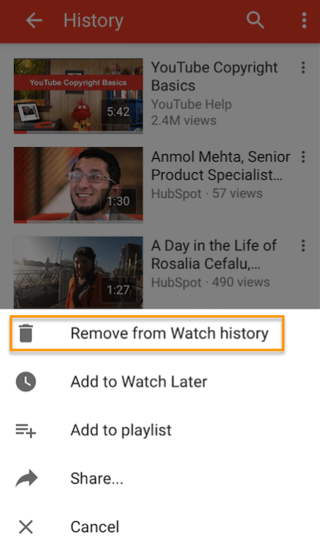
YouTube published a Help article if you need more instruction for deleting items from your YouTube watch history, too.
20. You can learn about YouTube’s copyrights terms from a cast of ridiculous puppets.
Made it this far? Here’s a little reward: YouTube’s “Copyrights Basics” FAQ page, which is, fittingly a YouTube video — and features a pretty colorful cast of characters. It’s actually super informative, and it looks like YouTube’s video team had a lot of fun making it.
My favorite line is probably, “You know there are links on this webpage, right? You don’t have to watch this.” Although the chorus of gorilla puppets was pretty great, too.
Enjoy.
We hope we’ve opened your eyes to some of the more awesome YouTube hacks, tips, and features out there that you may not have known about. Now log on to YouTube and do some exploring yourself. The platform certainly isn’t going anywhere.

Contenidos Audiovisuales del guión al producto final: cómo crear un video scribing con Doodly
¿Necesitas crear contenidos audiovisuales para tu estrategia de marketing?, ¿has escuchado hablar del video scribing pero sientes que es un tipo de video profesional solo al alcance de marcas con grandes presupuestos? En realidad, esto no es así.
Comenzaré por el principio. El video scribing es una técnica de animación en la que se expone una historia o proceso a través de dibujos sobre un fondo.
A ese fondo le llama pizzarra y normalmente es de color blanco, pero también puede de otros tonos o transparente (lo que se conoce como pizarra de cristal).
Lo más atractivo es que el hilo conductor del video es una mano que va dibujando, borrando o modificando elementos de la pizarra para hacer avanzar la historia.

Si has llegado hasta aquí es porque quieres aprender el proceso que tienes que seguir para crear contenidos audiovisuales de este tipo. Enseguida te lo cuento.
Para este post voy a usar una herramienta llamada Doodly que permite hacer videos de pizarra blanca en línea. ¡Comencemos!
>>> Programas para hacer videos animados: Doodly vs. Toonly
Contenidos Audiovisuales, ¿yo puedo hacer un Video Scribing?
Crear uno de estos contenidos audiovisuales, ya sea para tu negocio o para ti personalmente, no es en absoluto complicado.
Te guiaré a lo largo del proceso para que cuando termines de leer este artículo tengas las herramientas que te ayuden a ponerte manos a la obra.
Primero debes saber que el proceso de creación de los contenidos audiovisuales consta de tres partes: preproducción, producción y postproducción. Detallaré cada una.
>>> ¿Te interesan los videos interactivos tipo la película Bandersnatch? Lee este post.
Preproducción: la base de los Contenidos Audiovisuales
La preproducción de contenidos audiovisuales engloba toda la preparación previa a la creación del video scribing.
El objetivo de esta fase es dejar clara la estructura del video y el guión.
Quizá es la primera vez que escribes un guión o que intentas hacer videos online con estas características.
No te abrumes por tener que empezar desde 0. Vamos a ir poco a poco.
La estructura de toda historia, incluidos los contenidos audiovisuales, se divide en tres partes:
#1. Planteamiento. Es donde te presentas o presentas a tu empresa. Debes dejar claro de manera breve qué es lo que vas a contar o ayudar a resolver. La duración ideal es de unos 15 segundos y debería estar enfocada en conseguir que el espectador siga viendo el resto del contenido.
#2. Nudo. Aquí es donde va lo importante, el desarrollo del tema y los puntos clave. Esta parte es la más larga de los contenidos audiovisuales. Por ejemplo, en un video de 2 minutos se podría dedicar al nudo alrededor de un minuto y medio.
#3. Desenlace. Es el final del video scribing. Incluye una despedida y no olvides colocar CTA o Call to Action (llamadas a la acción) para que el espectador sepa qué hacer tras ver el video. Esto puede ser desde dar me gusta en YouTube hasta visitar tu página web o descargarse un libro electrónico… incluso, comprar. Tiene que estar al final del video, si es con voz y texto, mejor.
Te comparto un ejemplo para que te quede más claro el proceso anterior.
El planteamiento está desde el inicio del video al segundo 37. A partir de ahí y hasta el minuto 6:37 se desarrolla el nudo. Desde esa parte y hasta el final del video scribing, se expone el desenlace.
¿Cómo Hacer un Guión?
Una vez tengas clara la estructura anterior, puedes empezar con el guión de tu video.
Para hacerlo, te recomiendo comenzar contestando a las siguientes preguntas:
Para el planteamiento:
- ¿Quién va a presentar el video: tú, un narrador anónimo, un presentador, un cliente?
- ¿Va a haber voz o solo texto?
- ¿Cuál es la problemática de la que parte el video?, ¿que a la gente no le alcanza el tiempo, nunca pueden ahorrar, es muy difícil pelar papas con los utensilios tradicionales?
- ¿Qué audiencia quieres conseguir? Eso determinará al presentador. Si tu objetivo son los padres de familia preocupados por la salud de su hijo, tu presentador deberá ser un hombre en el rango de edad del padre de familia.
- ¿Con qué frase corta podrías describir la solución a la problemática planteada?
Para el nudo:
- ¿Qué objetivos quieres conseguir?, ¿que quede claro cómo funciona tu producto o servicio, explicar una oferta, detallar una solución?
- ¿Cuáles son los puntos clave que al espectador deben quedarle claros?
- ¿Qué información no debe faltar?
Para la conclusión:
- Determina en una frase cómo la información del video solucionó la problemática inicial.
- ¿Qué es lo que quieres que hagan los espectadores al terminar de ver el video? ¿comprar, dar like, aprovechar la oferta? Ese deberá ser tu CTA.
Si respondes a estas preguntas antes de empezar a redactar el guión tendrás una plantilla en la cual basarte.
Lo más importante es utilizar un tono natural, amigable, que no suene demasiado forzado y que conecte con los espectadores.
Escribe lo que dirá la voz en off del video y también lo que aparecerá escrito en la pizarra en cada parte del contenido.
Piensa también qué imágenes o situaciones utilizarás para explicar el contenido. Recuerda que la sencillez siempre funciona.
Considera igualmente dónde vas a publicar tu pieza. Si se trata de un video para redes sociales, asegúrate de que las frases sean cortas y directas.
Si es un video explicativo para tu página web o dedicado al eLearning, debería ser más detallado.
Ahora una recomendación:
Una vez tengas el guión escrito, léelo en voz alta. Hay cosas que quedan bien escritas, pero cuando intentas decirlas suenan antinaturales. Escúchate y corrige lo que sea necesario.
¿Ya has seguido todos estos pasos? ¡Entonces, es momento de comenzar con la producción de tus contenidos audiovisuales!
Aprende a usar Doodly para realizar contenidos audiovisuales
¡Enhorabuena! Has completado todos los pasos de la preparación previa y ya puedes comenzar con lo verdaderamente divertido: la creación de los contenidos audiovisuales.
Para hacer videos de pizarra blanca quiero hablarte de Doodly, una plataforma de pago que utiliza el sistema de soltar y arrastrar para editar videos online.
Si quieres ver en video la explicación que voy a desarrollar, te comparto la demo de Socialancer.
Para comenzar con tus escenas, lo primero que debes hacer es entrar a Doodly y seleccionar Create new video.
También deberás seleccionar si quieres pizarra blanca o negra para tu video scribing.
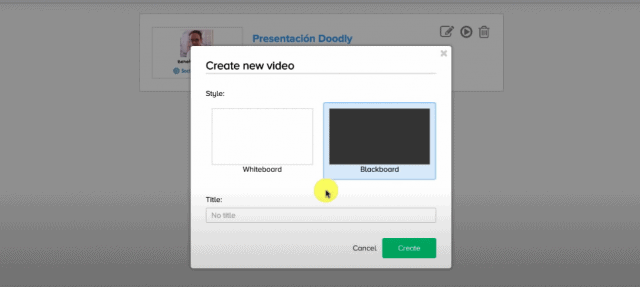
A partir de ahí entras al panel principal donde podrás armar las escenas.
Del lado izquierdo encontrarás los fondos disponibles, personajes, utilería, efectos de sonido y efectos de texto. Para ver las imágenes, haz clic en la flecha.
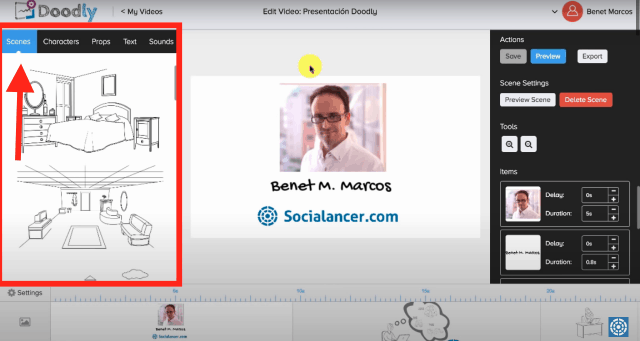
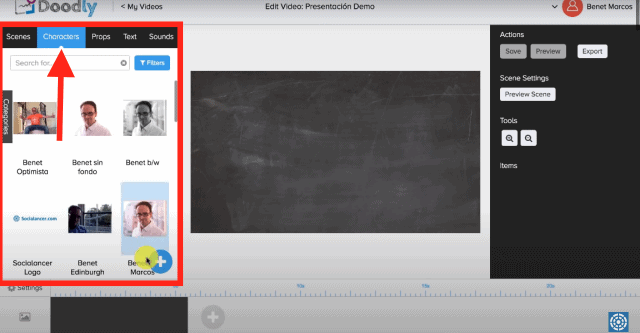
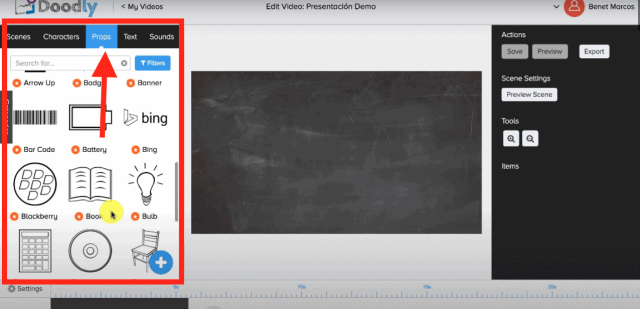
En el centro verás cómo se va armando la escena y del lado derecho tienes los movimientos que podrás imprimirle a cada elemento.
En la parte inferior estarán todas las escenas que necesitas para contar la historia dividas por segundos y los efectos de sonido.
Una de las cosas interesantes de Doodly es que puedes usar los dibujos predeterminados en la herramienta o subir los tuyos y hacer que la mano los dibuje.
Para crear una escena simplemente debes ir arrastrando al centro los elementos que necesites: fondos, personajes, utilería, etc.
Por ejemplo, para la captura de pantalla se utilizó la escena del auto y el personaje de la mujer.
Puedes mover a donde quieras todos los elementos de la escena o, incluso, eliminar partes de un fondo ya armado o tomar partes de otro.
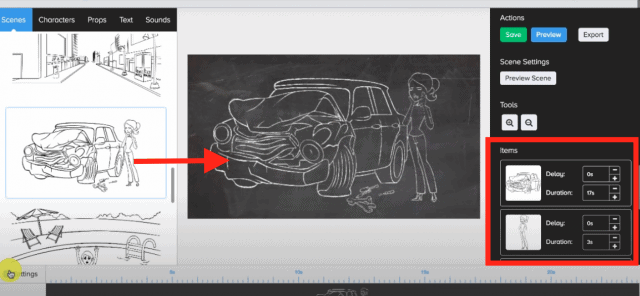
Después de eso, tendrás que elegir la mano. Hay una gran variedad tanto de hombre como de mujer e incluso, puedes quitarla, la escena aparece dibujándose sola.
En la parte de la izquierda deberás programar los segundos que tardará la mano en dibujar cada elemento. Haciendo un clic en la flecha verás las dos imágenes
Si subiste tus propias imágenes, fotografías o logos, tendrás que decirle al programa cómo quieres que la mano los dibuje.
Es muy sencillo, vas haciendo puntitos con el mouse marcando el recorrido. Mira en la captura de pantalla que hay un cuadrito donde se previsualiza la animación.
De esta forma, tendrás que ir creando escena por escena para contar tu historia.
Cada que montes una secuencia de dibujos, podrás añadir texto.
Un tip: si quieres dar la sensación de que el personaje está hablando, puedes añadir una burbuja de texto. Haz clic para ver las 2 imágenes.
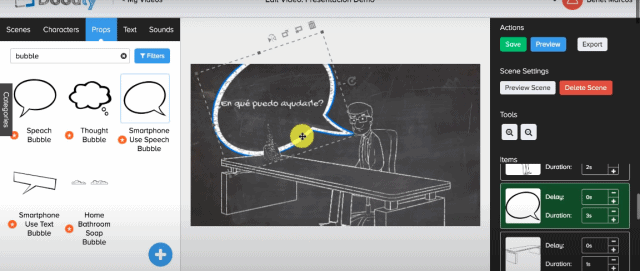
Ya que terminaste todas las escenas puedes buscar una pista de audio y si quieres que en tu video se escuche una voz, puedes grabar desde la plataforma o subir los archivos previamente grabados.
Cuando haces previsualización, podrás revisar el trabajo, ya sea para terminarlo o corregirlo.
¿Cómo exportar un Video Scribing en Doodly?
La exportación de los videos en Doodly es muy rápida y sencilla. Debes decirle al programa dónde quieres que se exporte el contenido audiovisual: por ejemplo, una carpeta de tu computadora o un disco duro externo.
Le indicas la resolución y pulsas en Continuar. Además de exportarlos, tus videos se quedarán guardados en tu plataforma de Doodly.
Si quieres ver cómo queda un video 100% hecho con Doodly, mira este ejemplo:
Esto es lo que necesitas saber para hacer un video de pizarra blanca. Como verás, se trata de hacer un guión, armar las escenas y exportar el producto final.
Conclusión sobre Contenidos Audiovisuales de video scribing
Hay un consenso de que los contenidos audiovisuales son más efectivos a la hora de hacer tu mensaje memorable.
Por su sencillez, el video scribing tiene más probabilidades de ser compartidos que otros estilos de video.
Piensa que si al espectador le queda claro un mensaje, es más probable que interactúe.
Si quieres implementar estas estrategias de marketing visual en tu marca, recuerda que siempre tienes la opción de contratar agencias de animación de videos profesionales como The Video Valley o utilizar alguno de los programas online que hay en el mercado.
¿Qué te ha parecido el artículo? ¿Te animas a crear tu propio video scribing?
from Socialancer https://ift.tt/3jrDOvz
via
7 of the Best Promotional Product Videos Ever
One of the wisest things I’ve ever read about product marketing came from the writer of a children’s book.
“If you want to build a ship, don’t drum up people to collect wood and don’t assign them tasks and work, teach them to long for the endless immensity of the sea,” said Antoine de Saint-Exupéry, creator of The Little Prince.
The goal in crafting a perfect product video is not far off. If you want your video to resonate, it should be about more than just the product. It should be about the problem, the solution, the experience, and the larger vision of what you’re trying to build.
Considering the right video can put a product on the map for the first time or reinvigorate a company that has long been stale, it’s important that marketers have a strong grasp on this. So to inspire your own efforts, we’ve collected a list of impressive product videos for marketing a product or new release.
What is a product video?
Product Videos Defined
A product video is one that explains and visually exhibits a product’s tangible benefits. A lot of product videos tend to emphasize a product’s unique features, but one chief thing that truly differentiates a good product video is its ability to exhibit how it solves problems.
What Makes a Good Product Video?
As a rule, remarkable product videos encompass the following:
- Engaging dialogue and narration
- Long enough to fully explain the product and its benefits, but short enough to keep the viewer’s attention
- Professionalism, without being “stuffy”
- Empathy and relatability
Want to see how these elements are put into action? Check out the examples below.
7 Promotional Product Videos That Make You Want to Buy
1) Blendtec: Will it Blend?
I’m digging into the archives for this one, but in the world of videos that add life to a product, few have done it better than Blendtec. The company’s CEO, Tom Dickson, became a YouTube icon back in 2006 with the introduction of his Will it Blend? series.
Since then, Blendtec has expanded the tremendous success of these videos to other channels, enabling viewers to suggest things to blend on Facebook. The company even has its own Wikipedia page dedicated to the series.
The success of this video comes down to two things: a clear, unwavering message and a company with a personality. In seven years, the series has never changed. The point of each video and the underpinning of the product positioning is essentially, “Why yes, it will blend.”
For years, we’ve been watching this product blend everything from glow sticks to an iPhone. The videos are minimally expensive, product-focused, and garner millions of views. In a recent interview, Dickson explained the history and success of the video series:
“‘Will it Blend?’ was developed accidentally by a new marketing director hired in 2006. I have always been one to try to break my blenders to find their fail points and determine how I can improve them. George, the new marketing director, discovered some of the wacky things I was doing to my blenders … With a $50 budget, George bought a Happy Meal, a rotisserie chicken, Coke cans, golf balls, and a few other items, and they made five videos. Six days later, we had six million views on YouTube. Six years, 120-plus videos, almost 200 million views later, ‘Will it Blend?’ has been named as the number one viral marketing campaign of all time [by Ad Age].”
Here’s Tom blending a Facebook request: Justin Bieber. The video earned 2.8 million views (and counting) on YouTube.
2) Dollar Shave Club: Our Blades are Great
Dollar Shave Club also made waves with their first product video. I’ll warn you now: they’re not shy with the F-bombs or referring to “your handsome-ass grandfather,” so you may want to throw in the headphones before pressing play. Having said that, what’s singular about this product launch video is how well the company knows its audience and the problem it’s trying to solve.
Dollar Shave Club was trying to crack into a demographic of young, professional men who habitually purchase big-brand razors at local stores. The problem they attempt to highlight is the absurdly high cost of store-bought razor cartridges. Thus, the company needed an absurdist, well-targeted product launch video to match.
CEO Michael Dubin, who studied improv with the Upright Citizens Brigade, wrote the spot himself and hired a comedian friend, Lucia Aniello, to produce the video. According to reports on Quora, the video cost approximately $4,500 — and yet, it got more than 11 million views and coverage on countless media outlets.
3) Purple Feather: The Power of Words
In tight marketing budgets, professional copywriting services are often the first to be cut. Instead of hiring professional copywriters, companies opt to take on the writing themselves, figuring it’s not all that different from other writing they do. They assume the words they choose won’t make much of a difference one way or the other. Based in Glasgow, Purple Feather is a copywriting agency that set out to prove that assumption wrong.
Words matter. In fact, they can change everything. Purple Feather made that point exceptionally clear in this powerful video:
4) Google Chrome: Jess Time
The best product videos focus not on the product itself, but on the stories of the people who use it.
Technology writer and NYU Professor Clay Shirky has a great chapter in his first book about the pervasiveness of communications tools in our lives. In it, he explains that technology doesn’t truly get interesting until it becomes so ingrained in our lives that it turns invisible.
No product video shows this “invisibility” of really good products better than Google’s “Loretta” Super Bowl commercial, which tells the story of a man reminiscing about the love of his life with help from Google.
The video below demonstrates how seamlessly Google and all of its products have melded into our lives and become a part of how we interact. It’s a video about an experience, not software, and that is arguably what the company truly creates.
5) Apple: The Only Thing That’s Changed
Launch videos like the Dollar Shave Club video above have a bit of an advantage when it comes to resonating with an audience. They represent a brand new company, product, or idea. But what if your company has been around for a long time? What if the announcement you’re making is really more of a set of enhancements to an existing product than a brand new launch?
This year, Apple tackled that challenge head-on with the following video. This video takes a collection of seemingly small enhancements and strings them together in a way that underscores just how advanced the total new functionality is. Take a look:
6) Google: Google, Evolved
This year Google introduced a new logo for the company and a new parent company, Alphabet. It was the perfect moment for retrospection. So the company took to video to show not only how much Google’s products have evolved, but how much progress those products have enabled in the world around them.
The brilliance of this video is that it uses others to tell the story. Whereas some companies may have pointed the camera at their own designers and developers (looking at you, Apple), Google put the focus on the users, media, and cultural leaders that have adopted and promoted the products along the way. The resulting video plays more like a historical chapter than a commercial.
7) InVision: Design Disruptors
I want to end this list with a bit of an anomaly, because it pushes at the boundaries of what can be considered a product video and, as such, opens up all sorts of opportunities.
InVision, a prototyping, collaboration, and workflow platform wants to empower designers — their primary users. Much of their content strategy is bent on this mission. This year, InVision will launch a documentary on the role of design in the modern business.
Design Disruptors looks at how 15 top businesses prioritize design in their products and overall user experience. Unlike traditional product videos, Design Disruptors will run in theaters and on Netflix. And unlike traditional product videos, Design Disruptors never actually promotes the product. The goal is bigger than the product.
“We’re trying to bring attention to the increased importance of design in a company’s success,” explains David Malpass, InVision’s vice president of marketing. “A lot of our work is based on doing things that’ll create a positive effect on the design community and that will elevate the role of the designer within their organization.”
Want more tips on creating visual content? Check out this list of the best websites for finding GIFs.
Editor’s note: This post was originally published in October 2017 and has been updated for comprehensiveness.


Copywriting 101: 6 Traits of Excellent Copy Readers Will Remember
Mad Men fans everywhere remember the pivotal first scene where we learn just how talented Don Draper is at his job.
Faced with an almost-impossible copywriting task, he rose to the occasion to solve a huge problem for his client, Lucky Strike. In spite of research warning customers of the dangers of cigarettes, Draper delivered the iconic slogan — “It’s toasted” — to differentiate the brand from its competitors.
Now, we definitely aren’t advocating for smoking cigarettes (or many of Draper’s health choices). But fictional or not, you can’t deny the memorability and catchiness of that tagline.
It’s easy to recognize good copywriting when you see it, but there are actually several characteristics that really separate outstanding writing from the rest of the pack. Want to know them? Read on below to find out.
What is copywriting?
Copywriting is one of the most critical elements of any and all forms of marketing and advertising. Copywriting consists of the words, either written or spoken, marketers use to try to get people to take an action after reading or hearing them.
Copywriting is like a call-to-action, but on a bigger scale: Copywriters are trying to get people to feel, think, or respond — or, ideally, to Google the slogan or brand to learn more about the campaign. And where a blog post like this one has the luxury of hundreds of words with which to make a case, copywriters only have a few words to make their case.
But short and sweet isn’t the only characteristic of good copywriting. Keep reading to learn more characteristics of truly memorable copy.
6 Traits of Good Copywriting
1) It tilts your perspective.
Sometimes, all a message needs to break through is a slight shift in angle. We’ve grown so accustomed to blocking out marketing messages, we don’t even see them anymore. One of the most powerful things a copywriter can do is break down a reader’s guard with an unexpected approach. Every story has a myriad of angles — your job as a copywriter is to find the one that resonates.

This ad from Sage Therapeutics pressing the importance of talking about postpartum depression works because instead of asking readers to care about something they don’t know, it puts them in the position of experiencing the struggle that mothers suffering do. Did they miss some readers who quickly passed by the ad thinking it was for adult pacifiers? Most definitely. But the ad resonated that much more thoroughly with those who read it.
The next time you sit down to write, try out this approach. Don’t take the topic head on. Instead, ask yourself why it matters. Each time you write down an answer, challenge yourself to push it further. Find the larger story happening behind your message.
2) It finds connections.
In 1996, Steve Jobs let the cat out of the bag. He was speaking with a journalist from Wired on the topic of creativity and explained:
“Creativity is just connecting things. When you ask creative people how they did something they feel a little guilty because they didn’t really do it, they just saw something. It seemed obvious to them after awhile.”
Let’s say you have to write an ad for a new pair of sneakers. You could take the assignment head on. You could write about the elasticity of the shoe’s sole or the lightweight design. Indeed, many have. Or you could put all of that aside and instead draw the connection between the product and the experience it evokes.
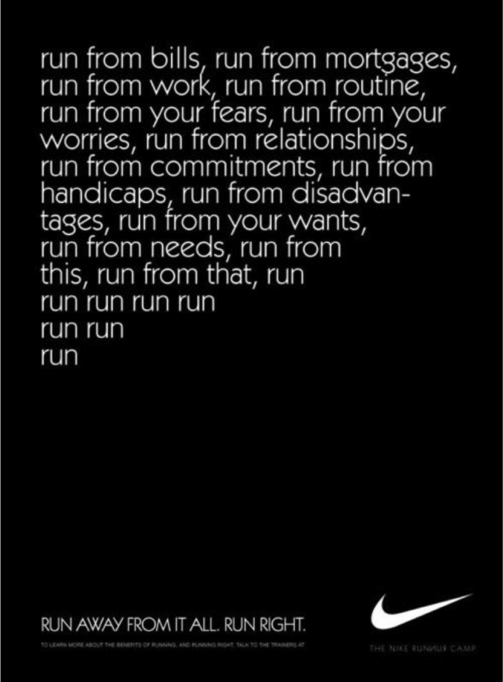
Source: Pinterest
Two things are happening in this ad. First, the copy recognizes that for many, running isn’t about running at all — it’s about solitude, peace, and restoring sanity to an otherwise hectic life. Second, not only does Nike connect the ad to the experience of running, it actually connects to the sound that those shoes make as they hit the pavement.
This ad is about the complexity of one’s life fading away and being replaced by simplicity and clarity. As the copy progresses, the sentences simplify and the copy’s complexity is slowly replaced by the simple and rhythmic pounding of words: run, run, run, run. The same rhythm one hears when all but their footsteps have faded away. That’s connection.
3) It has a stunning lead.
The following are all headlines or leading sentences from Urban Daddy, an email-based magazine drawing attention to new products, experiences, and eateries.
- “Six days. That’s how long you have until 65% of your body is turkey.”
- “There are 8,760 hours in a year. And just one hour in which a stand will be dispensing gratis latkes with homemade applesauce and sour cream in Harvard Square. Yeah, it’s not fair. But 60 minutes is 60 minutes.”
- “Ewoks. Talk about living.”
What’s common among each of these leads? They make us want to read the next line. I mean, seriously, how much do you want to know where that Ewok thing is headed?
There’s an adage in copywriting that’s loosely credited to copywriter and business owner Joe Sugarman, which roughly states that the purpose of the headline is to get you to read the first line. The purpose of the first line is to get you to read the second line, and so on. In short, if your first line doesn’t enthrall your readers, all is lost.
4) It is born out of listening.
Seeing its plans to launch yet another gym in the greater Boston region, an outsider might have called the Harrington family a wee bit crazy. The market was already flush with gyms, including a new breed of luxury ones that seemed to be in an arms war for the flashiest perks. Gyms across the region were offering massage services, smoothie bars, and fleets of personal trainers. And GymIt wouldn’t have any of that.
What did GymIt have? An understanding of its core audience. Before launching its new gym, the brand did a ton of listening to its primary market of gym-goers. For many in GymIt’s target market, the added benefits associated with luxury gyms were nice to have, but came with a lot of baggage — namely expensive rates and overly complex contracts.
GymIt decided to simplify the gym-going experience for people who predominately cared about getting in and working out. The copy in its launch campaign and across its marketing materials reflects that understanding.
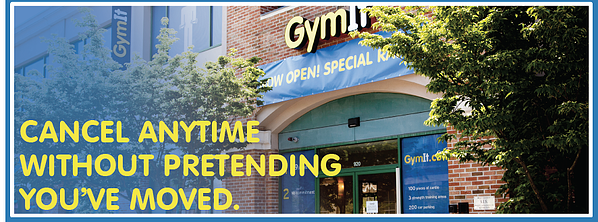
In an older blog post, Copyblogger‘s Robert Bruce put this nicely. “Humble yourself and truly serve your audience, listen to their needs and desires, listen to the language they use,” he said. “If you listen carefully, your audience can eventually give you everything you need, including much of your copy. Get out of their way.”
5) It avoids jargon and hyperbole.
Groundbreaking. Revolutionary. Business Solutions. Targetable Scale. Ideation. Evidence-based approaches. Industry-wide best practices.
Have I lost you yet?
When writers struggle to convey what is truly special about their company, product, or service, they sometimes fall back on jargon or hyperbole to underscore their point. The truth is, good copywriting doesn’t need dressing up. Good copywriting should speak to the reader in human terms.
This isn’t to say you should never celebrate awards or achievements. Just be direct in the way you explain that achievement. This homepage from Basecamp does a nice job of highlighting its popularity in concrete terms.
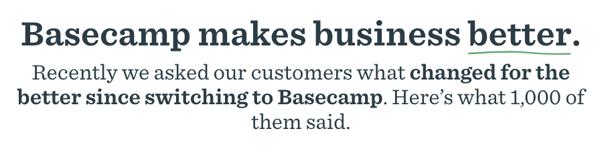
6) It cuts out excess.
Good writing gets to the point — and that means cutting out excessive phrases, and rewording your sentences to be more direct. In an ad celebrating its “academic” readership, The Economist playfully demonstrates this below.
How do you rid excess words from your writing? It’s half practice, half knowing where to cut. This article from Daily Writing Tips is one of the most effective summaries I’ve found on precise writing. Included in its tips:
- Reduce verb phrases: For instance, turn “The results are suggestive of the fact that” to “The results suggest.”
- Reduce wordy phrases to single words: You can change “in order to” into “to.” Another example: Turn “Due to the fact that” into “because.”
- Avoid vague nouns: Phrases formed around general nouns like “in the area of” or “on the topic of” clutter sentences.
- Read the full list of brevity tips here.
In general, if you can afford to cut without losing the meaning of a sentence, do so. Push yourself to strip down your word count. Turn 50-word homepage copy into 25, then push yourself again to make that 25-word sentence into 15 words. It’s not about brevity so much as it is about making sure every word counts in your writing.
Since my last point was about getting to the point, I’ll keep this brief: Words matter. Every time you sit down to write an ad, web page, video script, or other content for your company, you have the opportunity to break through to people. Find those opportunities in your marketing and make sure that you’ve made the most of them.
Editor’s note: This post was originally published in November 2017 and has been updated for comprehensiveness.


5 Brands That Won Australian Advertising Awards [+What Marketers Can Learn From Them]
With all the work marketing teams are responsible for, it can be hard to make time to get reinspired and capture a spark of creativity that leads to a new, marketing strategy. This can be even more problematic for brands in physically isolated areas.
Take Australia for example. Its distance from other English-speaking regions like America and Europe can make it challenging for marketers to spread brand awareness globally. Ultimately, to gain even regional awareness, Australian brands must build competitive and innovative marketing strategies to stand out and grab attention from audiences.
So, what do you do when you work for a brand in a place like Australia, and just can’t come up with a marketing idea that takes your company to the next level?
Look to award-winning brands for inspiration.
One great place to start could be country-specific award ceremonies. By following these competitions, you can learn more about how brands in your area are effectively working towards national or global awareness.
In Australia, one major advertising and marketing award competition that brands and agencies look to is The Effies.
The Effies is a marketing and advertising competition that includes regional and global ceremonies. Each year, brands are awarded for advertising strategies, rebranding tactics, effective marketing techniques, and innovative campaigns. Brands that win the Grand Effie in their region are also eligible for the global competition. Past global winners include major brands like Dove, Coca-Cola, and Microsoft.
While this year’s Global Effie Awards have already been announced, Australia’s 2020 Effie Winners will be revealed at the end of October.
To help inspire innovative strategies or campaigns from marketers, advertisers, and agencies in Australia or similar territories, here are five past Effie Award winners, plus two 2020 nominees to learn from.
5 Australian Effie Award Winners Marketers Can Learn From
Great Northern Brewing Co.’s 2019 Ads – Carlton & United Breweries
Awards: 2019 Gold and Grand Effie Award
Way back in 2015, Carlton & United Breweries’ team launched Great Northern Brewing Co. But, the young brand found it difficult to compete with beer brands that already had decades of Australian credibility and brand loyalty behind them.
But, after the new beer brand teamed up with Clemenger BBDO to launch ads targeting young adult adventurers and older Australian beer lovers — Great Northern became the top-selling beer in Australia.
Great Northern’s effective advertising strategy involved video content and commercials that embraced young and old beer drinkers, as well as Australia’s great outdoors. One of the most memorable pieces of content within the Great Northern strategy was a video called, “The Great ReCamp.”
The mini-documentary, which launched ahead of Father’s Day in 2019, tells the story of a real father and adult son who go camping after a life-threatening cancer diagnosis.
The video begins with the words, “For most of us, our first memories of the great outdoors begin with our fathers.”
After presenting footage of a young boy camping with his dad, the documentary flashes forward into the future where that boy, now an adult, talks about how he loved going camping but eventually lost touch with his family when he moved away to focus on his career.
After years away, the son explains that he rushed home when his father was battling life-threatening cancer. When his father recovered, the son says he decided to take him on the same camping trip they used to go on.
The documentary shows visuals of the father and son bonding by the fire, fishing together, swimming in rivers, and subtly drinking Great Northern Beer at multiple points.
As the camping montage comes to a close, the son narrates, “We don’t need everything we’ve got these days. Sometimes we need to remind ourselves of that. Camping does that. — You can’t bring everything with you.”
The video ends with the two men sitting at their campsite. The father passes his son a Great Northern and asks, “You know that happy place?” He looks out at the grassy Australian landscape before clinking beers with his son.
Text appears that says, “Sometimes you need to go far and wide to stay close. — Go camping with Dad this Father’s Day.”
With content like that above, Great Northern positions itself as a beer for Australian adventurers of all ages. By telling the story of a nostalgic father-son journey, Great Northern ties emotion, relatability, and Australian pride to its beer. This enables the beer to compete against major breweries that have decades of brand loyalty.
When the Grand Effie was announced, the Judges’ statement said, “This is a classic case of how good marketing and advertising can still build a minor brand into a market leader.”
“In 2015, XXXX Gold outsold Great Northern by a factor of six to one. Four years later, Great Northern became Australia’s top-selling beer. This was achieved through well-considered insight, strategy, and execution,” the statement added. “The Great Northern case study is a model for all students of advertising.”
“Help is Who We Are” – NRMA Insurance
Award: 2019 Gold Effie
After seeing customer decline since 2014, NRMA insurance, a home insurance policy company, teamed up with The Monkeys to create a campaign that brought a “new purpose” to its brand and product.
As Australian forest fires rendered koala’s nearly extinct, NRMA’s campaign aimed to market an initiative where the insurance company would plant a tree for every home insurance policy sold. Unsurprisingly, the campaign’s mascot was an adorable koala bear.
The title of NRMA’s campaign, which ran across TV, radio, print, and social media was, “Help is who we are.”

One of the campaign’s commercials, titled “Every Home Is Worth Protecting,” tells the story of a boy who befriends and tries to save an endangered koala.
At the beginning of the ad, the boy’s riding his bike down a street with no trees when he sees the scared bear holding a wooden powerline pole. After stopping, wondering if he should do something, and ultimately riding away from the bear, the boy lies awake at night with guilt as he stares at a picture of a koala in his bedroom.
When he returns to the powerline the next day with a wagon, he sees no koala and gets angry — assuming that it was hurt or killed.
Luckily, he turns around to find the koala peacefully sitting in his wagon.
The boy brings the koala to the wilderness, where multiple new trees are planted. The bear climbs up a fully-grown tree as the boy waves goodbye. A text overlay on the screen reads, “We’re planting a tree for every home insurance policy.”
By working with Conservation Volunteers Australia to plant trees in Queensland and New South Wales, as well as marketing the initiative on multiple channels, NRMA demonstrates that it’s an insurance company that cares about its clients as well as the environment.
Additionally, by planting a tree for every policy sold, NRMA gives prospects more motivation to choose its insurance company. When customers buy a policy, they protect themselves from home damage, but can also feel good about helping a koala in need.
“When it comes to reviving your brand, its original purpose can be easily overlooked. This is an important reminder that sometimes it’s best to go back to your roots, and that exceptional value can be unlocked by reinterpreting what made your brand great to begin with,” NRMA wrote in its Effie submission.
According to the submission, “NRMA Insurance reversed 8-years of declining customer numbers and reached customers for the first time since April 2014, despite a growing price premium.”
“For an insurance brand synonymous with helping Australians, it made so much sense when we landed on the idea of home insurance for koalas. A campaign dedicated to protecting the homes of our furry friends,” said Vince Lagana, executive creative director of The Monkeys, in a statement to Campaign Brief.
“Coolest Suit on the Planet” – M.J. Bale
Award: 2018 Gold Effie
Through market research, M.J. Bale, an Australian men’s fashion brand, discovered that 82% of male shoppers think of wool as a winter fabric. Because of this association, M.J. Bale feared that prospects might sacrifice a wool suit’s classic and professional look for more comfortable attire — especially in hot climates like Australia.
To prove that people can comfortably wear suits in any hot climate, M.J. Bale created a line of wool suits — called “Cool Wool” and teamed up with TBWA\Sydney to launch a partially immersive campaign called, “Coolest Suit on the Planet.”
Half of the campaign featured a video series that was aired in M.J. Bale stores and on its social media channels. This content followed Good Morning Britain weatherman Alex Beresford as he tracked and traveled to the hottest places on Earth wearing M.J. Bale’s Cool Wool suit.
As the weatherman traveled to areas like China, Africa, and India, which were often over 43 degrees Celsius, M.J. Bale shoppers in Australia could go into the brand’s shops, put on a Cool Wool suit, and stand in a heating chamber that enabled them to experience wearing the suit in hot locations around the world.
You can check out a reel that highlights the overall campaign by clicking here.
According to its Effie submission, ‘The Coolest Suit on the Planet’ campaign increased M.J. Bale suit sales by 78%, rose foot-traffic by 54%, and delivered a 344% ROI
This was a great example of how videos, influencers, and immersive marketing tactics can be used to address prospects’ concerns about a product and persuade them to buy it anyway. By combining in-store experiences and video content, M.J. Bale increased store visits that led to purchases.
Ultimately, If audiences aren’t persuaded to buy an M.J. Bale Cool Wool suit after seeing a weather expert comfortably travel through hot terrain in it, they might be convinced once they actually get to stress-test the outfit for themselves.
Dare Iced Coffee’s Nonsensical Ads – Lion Dairy and Drinks
Awards: 2017 Gold and Grand Effies
Have you ever felt confused and in a fog before drinking your coffee in the morning? This is a feeling that Dare Iced Coffee played up to extremes in a series of funny ads that led to Gold and Grand Effies.
Beginning in 2016, Dare Iced Coffee, and its owner Lion Dairy and Drinks, partnered with AJF to create commercials where everyday people do something completely nonsensical because they haven’t had their daily dose of iced coffee yet. Once the protagonists in each ad take a sip of the product, they instantly start thinking clearly again.
In one of the campaign’s funniest ads, a father named Dave carries his dog in a baby carrier instead of his infant.
When Dave’s friend sees him, waves, and looks confused, an Australian narrator says, “Uh oh. Dave’s got his fur child mixed up with his real child?” Dave looks down startled to realize the predicament he’s placed himself in. Meanwhile, the dog looks up at the camera and barks, “Dave-o!”
From there, the ad cuts to product shots of iced coffee being poured as the narrator explains the taste-related benefits of Dare’s product.
The narration ends with, “A Dare fix’ll fix it!”, as viewers see the father confidently drinking his coffee with his child back in the carrier.
Dare’s ads were short, sweet, and memorable for their humor. They also impressively manage to fill short 30-second slots with full comedic storylines and valuable facts about Dare coffee. Not only are the ads entertaining, but they also differentiate Dare from its many competitors.
“Dare successfully took on Australian iced coffee brands and international pick-me-ups by creating a new consumption occasion: becoming the habitual choice for whenever people are not thinking straight,” notes an article on the Effies’ official website. “Effie judges noted that the strategic challenge was significant given the breadth and strength of competition in the category. The objective was both clear and ambitious, and delivered outstanding growth and ROI.”
Narellan Pools’ Data-Driven Ad Campaign – Narellan Pools
Awards: 2016 Gold Effie
Because most of its customers only consider installing pools in the summer months, Narellan Pools wanted to create a marketing strategy that would increase conversion earlier in the year.
Narellan worked with Affinity, an Australian agency, to build a database of market research, their company’s conversion history, and weather data to determine the times of the year when interested pool prospects were getting serious about home installations.
Through the data-backed strategy, Narellan and Affinity discovered that the most optimal time for pool-related conversions was during the first two consecutively warm days of each calendar year. From there, Narellan increased ad spend and targeting of prospective pool buyers just before the weather started to get warm, with some of the heaviest spend being used during the first two consecutive hot days.
The content within the targeted ads emphasized the “bliss” one feels when diving into a pool. Here’s one of the ads, titled, “A Splash of Bliss.”
The short video shows a woman diving into a pool as a narrator describes how magical an early morning swim can feel — especially in a Narellan Pool.
Through Narellan and Affinity’s data-driven strategy, Narellan reduced its annual media spend by 30% while increasing sales by 23%.
Below is a video case study that describes how the paid ad strategy worked:
Narellan’s strategy is a great example of how brands can leverage data to learn more about prospective buyers and make their advertising tactics even more effective.
“Our data-driven targeting allowed maximized exposure of our insightful campaign to exactly the right audience – and only at their tipping point of purchase consideration – delivering game-changing results,” Affinity notes on its website.
Australian Effie Nominees
“You don’t need Australia’s Best Network — Until You Do.” – Telstra
In 2019, Telstra — a telecommunications brand used by millions of Australians — partnered with The Monkeys for a series of advertisements showing how people benefit from a strong network.
One of the campaign’s most emotional and inclusive ads follows a man coming out about his sexuality to his parents by telling them he’s engaged to his partner.
At the beginning of the ad, the couple sits in their car following a proposal. The man who was proposed to nervously wonders how he’s going to tell his parents as his supportive partner says, “You’ll have to tell them sometime.”
When the nervous man whispers, “I’m gonna do it,” and pulls out his phone, he sees he has no reception. His partner says, “It’s okay. Use mine.”
Using his partner’s smartphone powered by Telstra’s network, the man successfully reaches his parents and nervously reveals he’s engaged to a male partner. The parents happily congratulate and accept the son for who he is.
Telstra’s campaign and the commercial above is effective because it highlights the major milestones or moments when we all want or need our phone service to work properly. Not only does the ad show us how well the service works, but it also allows us to relate to the brand and its mission on a more human level.
“Whether it’s sharing big news, changing plans in a hurry, or quickly looking up something important, it’s nice to know that Australia’s best network is there for you when you need it,” said The Monkeys’ Creative Director Stuart Alexander in an interview.
“The Bedroom Report” – Bedshed
Working with the Australian agency Rare, Bedshed — an Australian bedding chain — launched a campaign that merged great video content with market research data.
The first portion of Bedshed’s initiative involved a two-year study where the brand surveyed consumers all over Australia about sleeping habits.
Once the survey was complete, Bedshed launched a web page — which looks like a large interactive infographic — to highlight interesting findings. Many of the facts revealed in this study explain how important sleep is to overall health, what gets in the way of it, and how purchasing a great bed and mattress can help prevent insomnia.
For example, Bedshed’s study found that “23% of men talk in their sleep,” while 66% of their partners lie awake listening to what they say. It also revealed that 1.7 million people wake up in the middle of the night due to bad pillows or mattresses.
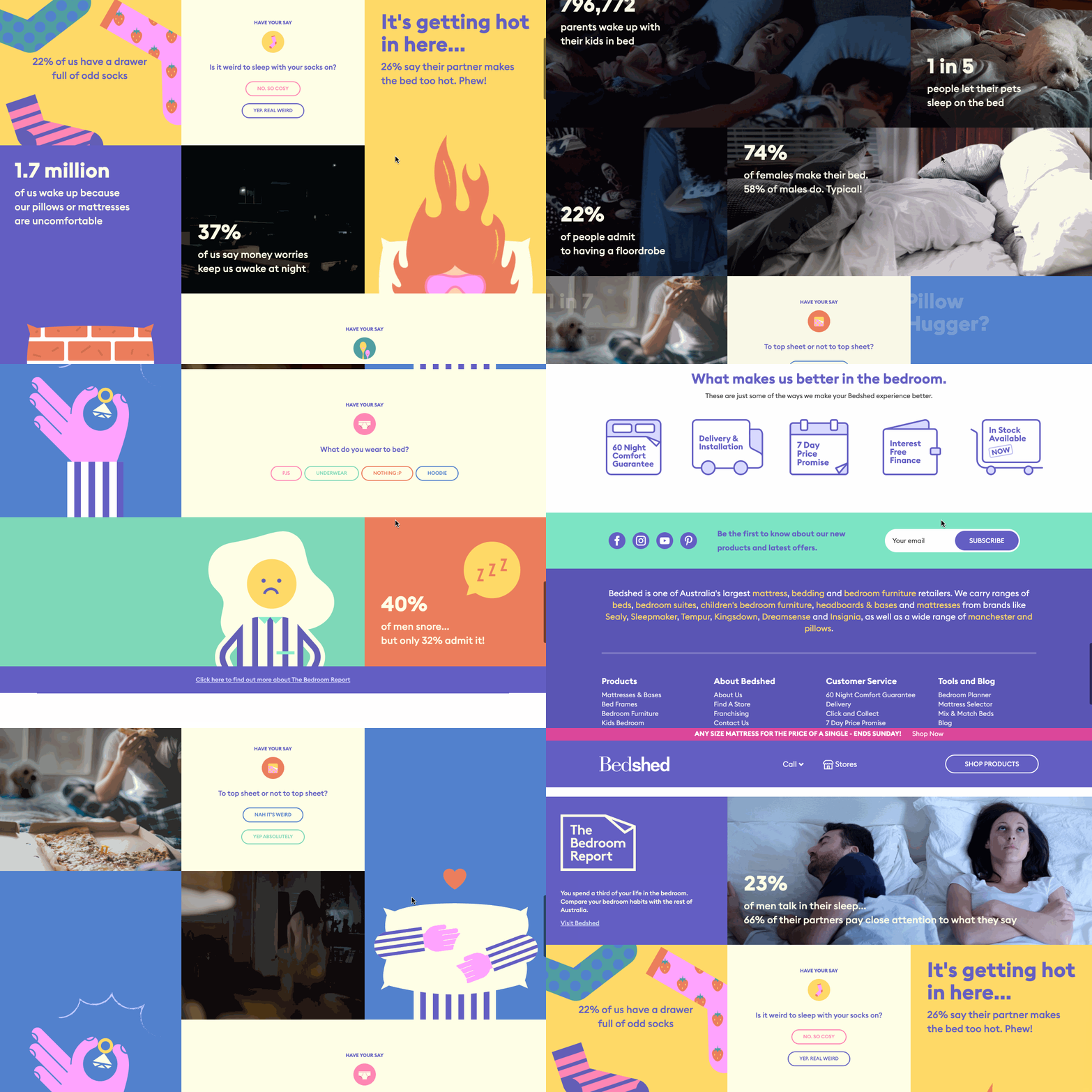 Along with creating a data-fueled web experience, Bedshed launched a series of ads that present key study findings and direct prospects to its store to learn more or try a new mattress:
Bedshed’s campaign is a great example of how a brand can draw audiences with data-driven content. Its detailed research also positions the brand as an expert in the crowded bed industry.
When a prospect is shopping for an expensive product — like a bed — they might want to get recommendations from a person who knows a lot about the product. After seeing Bedshed’s content, these prospects might think that a company that knows so much about its industry will sell good quality products.
What We Can Learn From Effie Winners
Even if you don’t have a huge budget or an agency to help you market your brand, here are a few strategies that any brand can use to spread brand awareness and engage new audiences — just like the companies above:
- Be human: While Great Northern Brewing embraced fatherhood and Australian Pride to market its product, Dare Iced Coffee made ads that were comedically relatable to coffee drinkers. When your brand’s content is relatable, it can also be memorable. Not to mention, people who find brands more relatable and authentic trust them more.
- Embrace a bigger purpose: Although NRMA sells home insurance, they realized helping the environment would allow them to fulfill an even greater purpose. And, through their marketing, people might trust their brand more because they care about something more beyond policy purchases.
- Leverage data: While M.J. Bale’s campaign was inspired by market research, Narellan Pools’ advertising strategy was fueled by analytics. While creativity is key to drawing attention from audiences, data can help you optimize your content and share it at just the right time.
To learn more about the latest Australian marketing tactics, check out this list of the country’s most innovative website designs, or these fascinating Australian Instagram stats. Or, download the offer below to get more expert tips on creating a winning campaign.

6 SEO KPIs Every Search Marketer Should Know
Ever since I was first introduced to search engine optimization (SEO), I’ve had to use it in every role I’ve had from editorial writing jobs to marketing blogging.
While SEO was never my sole focus, I had to learn how to measure the success of my efforts.
As a marketer, it’s important to look at key performance indicators (KPIs) to show how you’re doing.
Below, let’s look at SEO KPIs you should measure to track success.
Organic Search KPIs
1. Organic traffic.
Organic traffic is one of the most important metrics to track for SEO. However, keep in mind that this shouldn’t be the only metric you track. You’ll track this in combination with other KPIs.
Aja Frost, the head of SEO content at HubSpot, says, “Any metric—in isolation—can be misleading. For example, HubSpot’s SEO team used to obsess over organic traffic. And it seemed like our focus was paying off: Monthly organic sessions skyrocketed. However, we’d lost sight of the quality of those users… and leads and signups weren’t following sessions.”
So, while you’ll want to know what your organic traffic is doing and how it’s trending, it’s important to use the other SEO KPIs on this list in addition.
2. MRR-based metric.
Paired with your organic traffic, you should measure a monthly recurring revenue (MRR) based metric.
So, what does that mean?
According to Frost, “I recommend SEO teams pair organic traffic with one or two MRR-based metrics (if possible). You can figure out which MRR-based metrics are the right ones by talking to leadership and/or the other team(s) you support. What numbers do they care about? How does organic traffic feed into those numbers?”
A few examples include:
- Organic search
- Demo requests
Or:
- Organic search
- Purchases
Or:
- Organic search
- Percentage of chats that convert into customers
For HubSpot, we track content leads and user signups in addition to organic traffic.
Frost says, “If all three of those metrics are trending in the right direction, we know we’re generating the right type of traffic.”
Paid Search KPIs
3. Cost-per-click (CPC).
Cost-per-click (CPC) is the amount that you’ll pay for each click on your ad. You set your CPC at the maximum price you are willing to pay per click on your ad. What you actually pay is determined by the following formula: (Competitor’s Ad Rank / Your Quality Score) + 0.01 = Actual CPC.
Victor Pan, a principal marketer and technical SEO at HubSpot, says, “When you’re just starting to grow organic traffic and you just don’t have the full picture on what the return on investment will be, the average cost per click is a great KPI to use as a temporary replacement for average organic traffic value. For example, if there’s an average of 2400 searches for X/year and the average CPC is $20, then you can make projections on the advertising value gained from capturing 5%, 10%, or 20% of that traffic in a year to be $120, $240, or $480 per year respectively.”
He adds, “Average CPC is a KPI that can also be used to capture content strategy gaps. There are a lot of high purchase intent keywords where the ROAS (return on ad spend) in pay per click ads does not make business sense. These are golden opportunities to consider longer-term organic search tactics to win as a part of your overall content marketing strategy to become a trusted authority on a particular topic.”
Laura Mittelmann, a marketing manager on the paid acquisition team at HubSpot, says, “CPC tells me how much on average I’m paying for a click. This is important when setting bids and working within the constraints of a set budget, and can also help me decide which keywords and match types to bid on.”
4. Clickthrough rate (CTR).
Clickthrough rate reveals how often people who view your ad end up actually clicking it.
Mittelmann says, “There are many helpful paid search KPIs to watch depends on the goal of the campaign. CTR helps me to understand how effective and relevant my ad copy is, and if it matches the intent of the user searching for my keywords.”
5. Cost per acquisition (CPA).
Cost per acquisition is a great metric that can help you track how much you’re spending for each acquisition.
Mittelmann remarks, “CPA is typically the KPI I use most to optimize on a daily basis. CPA factors in other metrics and ultimately tells me how much I paid for a conversion.”
6. Return on ad spend (ROAS).
Return on ad spend is a metric that measures the revenue that’s generated compared to every dollar of an advertising campaign. For example, let’s say you made $10 for every $1 spent on an advertising campaign. That means your ROAS for that campaign is 10:1.
Mittelmann says, “While there are many KPIs to track and use for paid search optimizations, at the end of the day I measure the success of a campaign based on its return on ad spend. It’s important for me to know that the value of the conversions the campaign is generating outweighs the cost of the campaign.”
It’s important to keep in mind that any metric in isolation can be misleading. It’s critical to track several SEO KPIs to truly measure success. And if you need any help, you can use HubSpot’s SEO tool.

Instagram Filter Hacks: How to Tap Into Hidden Filters
Want to know how to find Instagram’s hidden filters? Looking for quick and easy access to your favorite filters? In this article, you’ll discover how to use Instagram filters on feed posts, stories, and reels. You’ll also learn how to use a different filter for each image in a carousel post and find out how […]
The post Instagram Filter Hacks: How to Tap Into Hidden Filters appeared first on Social Media Examiner | Social Media Marketing.
from Social Media Examiner | Social Media Marketing https://ift.tt/3ju1L5s
via socialmediaexaminer
The 9 Best Free Email Accounts and Service Providers of 2020
You need it for networking, job recruitment, downloading resources, transferring files, setting reminders, meeting with colleagues, and so much more.
Even with the rise of office chat platforms, you still depend on email for a surprising number of things. But unfortunately, not every email service is completely free. And even the free ones might not be the easiest to use or have all the features you need.
It can be a challenge to find an email service provider at no cost that balances the right features with usability. To help make your search easier, we put together a list of the different types of email accounts you can set up, followed by the nine best email service providers you can host your account on right now for free.
Types of Email Accounts
There are two main types of email service providers to choose from: email clients and webmail. When you use your provider to access your email from a different device or location online, you can use one of three major email protocols to do so: POP3, IMAP, and Exchange.
Let’s briefly go over these different types of providers and protocols.
Email Clients
Email clients are software applications that you install onto the computer itself to manage the email you send and receive. To access this email, the client interacts with a remote email server.
Email clients you’ve likely heard of include Microsoft Outlook, Mozilla Thunderbird, and Apple Mail.
If you want to access this type of email from the web, rather than the client’s computer application, the email client uses one of the email protocols described below. For example, although you might have Outlook installed on your computer, you can also log in to your email account via outlook.com using a specific email protocol.
Webmail
Webmail is a form of email you access exclusively from the internet, and therefore exists primarily on the cloud rather than your computer. Instead of an installed application fetching your email, you manage your inbox right from your internet browser.
Webmail providers you’ve likely heard of include Gmail, Yahoo! Mail, and AOL (all of which have made our list of best free email accounts, below).
If you want to access your webmail from a mail app on your mobile device, rather than your desktop web browser, your webmail provider can use one of the email protocols described below.
Now, before we get into the best free email accounts, let’s talk about those email protocols.
Email Protocols
Email protocols are the systems that actually retrieve your email for you. They can be used to fetch email client accounts on the internet, and fetch webmail accounts on a mobile app. Here are the three main types of email protocol your account can use.
POP3
POP stands for “post office protocol,” and is best suited for people who have just one email account and email client. POP3 is the latest version of this email protocol, and allows you to access email while offline. It therefore requires less internet bandwidth.
IMAP
IMAP stands for “internet mail access protocol,” and is one of the older email protocol available today. IMAP4 is considered the latest version, and unlike the POP protocol, you do not download your email to your offline email client. Instead, all your email stays online while you’re accessing and managing it.
IMAP is particularly useful for people who have more than one email account and access them from multiple devices or locations.
Exchange
Exchange is a Microsoft email protocol, and is pretty similar to the IMAP protocol explained above. This protocol allows you to not only access your email over the internet from multiple devices, but also tasks, calendars, and contact information tethered to that email address. For this reason, it’s particularly helpful to organizations whose employees share many types of information and collaborate remotely.
Now, take a look at seven of the best free email service providers you can get your hands on today — both webmail and email clients included. For each email service provider, we highlighted a unique feature to help you find the best fit.
Best Free Email Accounts
- Gmail
- AOL
- Outlook
- Zoho
- Mail.com
- Yahoo! Mail
- ProtonMail
- iCloud Mail
- GMX Mail
- Mozilla Thunderbird
- Yandex Mail
1. Gmail
Unique Feature: Native File Collaboration
Sign up here.
Type of email: Webmail
Who should use it: anyone who already uses and loves the rest of Google’s products.
It might seem like an obvious top pick, but Gmail is just too versatile to not award the first slot. Gmail has the second-highest email provider market share (behind Apple iPhone’s native email app), according to Litmus Labs. And ironically, one of the reasons Gmail has become so popular is because of all the communication options in your inbox that don’t involve email.
Gmail is an everyday email inbox you can sign up for by registering for a Google account. But it’s built into Google Suite, a group of free apps that allow you to chat, video-conference, and share files with the people in your contact list.
Google Hangouts, available from your inbox’s left sidebar (or the right — you can customize how you inbox is displayed), lets you text and video chat with other Gmail users for the things that might not warrant an email message. Like most other email accounts today, Gmail also has an intuitive calendar where you can set meetings and reminders.
Pro tip: You can also use a free product like HubSpot Meetings to easily schedule meetings without back-and-forth emails.
Unlike other email accounts, you can use your Gmail address to log into and manage your YouTube account, as well as collaborate on shared documents and spreadsheets right from a cloud-based Google Drive.
Offering a generous 15 GB of free email storage, Gmail does everything it can to make your inbox less chaotic, including advanced filters that automatically push emails into separate folders as they arrive. And none of these functions costs a dime.
2. AOL
Unique Feature: Unlimited Storage
Sign up here.
Type of email: Webmail
Who should use it: people who use email for most of their communication.
America Online (I feel nostalgic just typing those words) has quietly kept up with today’s standards for a good user experience. The classic AOL is now once again one of the best free email accounts available to you.
Purchased by Verizon in 2015, AOL delivers you email from its classic news-driven homepage, and comes with the contemporary spam filters and virus protection you’d expect from your email provider. You can also send text and instant messages from specific windows in your email inbox.
AOL does have something over Gmail, though: unlimited storage. Additionally, you can import email contacts from a CSV, TXT, or LDIF file so you’re not creating your “buddy list” (get it?) from scratch.
3. Outlook
Unique Feature: Multiple App Integrations
Sign up here.
Type of email: Email client
Who should use it: people who use many different platforms to connect with others.
If you ever cringed at the sight of a “Hotmail.com” email address, you can thank Outlook for this outdated domain name. But there’s good news: Microsoft has reinvented its longstanding email service, and your free Outlook.com email address has many progressive features waiting for you.
While it touts a calendar and message filter that is similar to Gmail, Outlook also integrates with a number of other popular communication apps. You can connect Skype, Facebook, PowerPoint, PayPal, and even task-management software such as Trello — making it very easy to reach and work with non-Outlook users without leaving your inbox.
Outlook offers 15 GB of free storage for each user, along with a super-clean interface.
4. Zoho
Unique Feature: 25 Business Addresses
Sign up here.
Type of email: Webmail
Who should use it: startups and small businesses.
This is the first of the lesser-known free email accounts to make our list, but it holds a lot of potential for businesses.
The first thing you’ll notice about Zoho is its user-friendliness. From integrating with Google Drive, Box, and other cloud-based file managers, to its built-in task manager, this email service offers a simple way to accomplish all of your daily tasks.
The real difference-maker, though, is the ability to customize the domain name for up to 25 connected email addresses. Want to replace “@zoho.com” with the name of your business’s website? You can do so under Zoho Lite, which gives you 5 GB for free — all under username@yourdomainname.com.
5. Mail.com
Unique Feature: 200 Custom Domain Names
Sign up here.
Type of email: Webmail
Who should use it: small businesses, freelancers, and the self-employed.
It doesn’t get more self-explanatory than “Mail.com,” does it? This email provider knows its audience — or should I say, audiences.
Right off the bat, you’ll probably notice Mail.com doesn’t have stellar storage space compared to the options above: only 2 GB. But what this webmail service lacks in gigabytes it makes up for with … drumroll … 200 free custom domain names. You can replace “@mail.com” at the end of your username with just about anything that describes you. Here are some options Mail.com has precreated for you to choose from:
- Bartender.net
- Musician.org
- Columnist.com
- Engineer.com
- Accountant.com
- Toothfairy.com (who knew she was online?)
Mail.com doesn’t rest on its 200 laurels, though, as the email provider also comes with a calendar for creating and tracking your events each week.
6. Yahoo! Mail
Unique Feature: Media and attachment history
Sign up here.
Type of email: Webmail
Who should use it: creatives and those who send and receive attachments frequently via email.
Yahoo! Mail, another well-known platform, sits just behind AOL in storage space with a whopping 1 TB (that’s a terabyte) for free, along with a few key social media integrations.
In addition to custom background themes and being able to search key information from your inbox, Yahoo! Mail also makes it easy to find every photo, video, and document you’ve ever attached or received via email in their own tabs on your inbox’s sidebar. This makes the platform especially appealing to those who share documents on a regular basis or simply want an album made of every photo they’ve ever had shared.
7. ProtonMail
Unique Feature: Encrypted email
Sign up here.
Type of email: Webmail
Who should use it: people who send and receive sensitive information.
ProtonMail offers just 500 MB of free space, but for the worthy trade of encrypted email, allowing you to send messages that nobody else can see, and disappear after a month.
What’s the catch? Is the service hard to use? As with most webmail platforms, ProtonMail is easy to use on any device without any software needed to encrypt your emails. Its inbox interface is as easy to understand at a glance as the other email services on this list, and offers quick color-coded labels to help you further organize which emails deserve the most care and protection.
8. iCloud Mail
Unique Feature: Label senders as VIPs
Sign up here.
Type of email: Webmail
Who should use it: people who use Mac and want everything on one system.
If you’re a Mac user, you may want to consider using iCloud Mail as your email provider. Their free email account comes with 5GB of storage that you can use to sync your photos, files, or email. It’s important to note that storage is shared between all of your apps and devices — so if you take a lot of photos on your iPhone, you may eat into your email storage allowance for the month. Upgraded plans start at $0.99/month and go up to $9.99/month.
One of the biggest advantages of using iCloud over other email providers on this list is the ease of integration. Apple builds its desktop and iPhone mail apps with all email clients in mind, but it pays special attention to making the experience delightful for iCloud users.
Some of the pros of iCloud Mail include an easy to use search functionality, easy-to-use rules, and an ability to label senders as VIP. When a contact is marked as VIP, new messages will automatically filter to a separate tab on the left, saving you both time and energy.
9. GMX Mail
Unique Feature: Alias email addresses
Sign up here.
Type of email: Webmail
Who should use it: people who need multiple emails with one central inbox.
While you may not have heard of GMX Mail, it’s been around for quite a while (since 1997) — and it has a bunch of features that make it worth considering. First off, GMX offers 65GB of storage. That’s a lot of storage for a free email service. In fact, they claim that allows you to keep nearly half a million messages in your Inbox!
Another feature worth noting is the ability to send large attachments. While many services have caps for your email attachments, GMX Mail allows you to send files up to 50GB. That’s great if you share a ton of photos, presentations, or other large files from your account.
But the feature of GMX Mail that really sets it apart is the ability to set up to 10 alias email addresses all from within one account. This can be useful in many situations — both personally and professionally. On a personal note, you could use one alias for all of your online purchases and logins — to keep marketing emails separate from your personal messages. From a business perspective, multiple email addresses can be useful for managing role based emails such as support@yourdomain.com or sales@yourdomain.com.
10. Mozilla Thunderbird
Unique Feature: Customization features, and the ability to open multiple emails in tabs
Sign up here.
Type of email: Email clients
Who should use it: anyone looking for a simple, but customizable email inbox.
Thunderbird, a free email application from Mozilla, known for Firefox, offers a quick email inbox setup and a simple, easy-to-use user interface.
The app offers customizable features, such as theme settings and app extensions that can improve your email experience. The email app also allows you to open multiple emails in tabs, similarly to how you would open multiple web pages in Firefox browsers.
11. Yandex Mail
Unique Feature: 10 GB of free cloud storage
Sign up here.
Type of email: Webmail
Who should use it: anyone seeking a free email with additional storage capabilities.
Yandex is a Russian web company that offers a global email tool. With the tool, you can sign up for a free account, link it to your Facebook, Twitter, or Gmail accounts, and personalize your email inbox.
:max_bytes(150000):strip_icc():format(webp)/yandex-mail-10d3b62f5ac342ee956fa9cdc1a551b0.png)
Like many of the other providers on this list, Yandex’s email inbox can be set to filter or prioritize emails so you see messages from real people. It can also recognize keywords in messages and subject lines and organize emails into categorized inboxes. Additionally, users who sign up for Yandex mail get 10 GB of free cloud storage.
Making the Most of Your Email
And with that, you have some of the best options for free email accounts this year. But who knows? Your next email address could be entirely different while giving you just what you need to succeed.
Once you’ve chosen an email provider and launched a new email address specifically for your marketing needs, you should also leverage apps, outside software, and APIs to add to your email strategy.
One powerful tool worth noting is HubSpot’s Free Email tool. The tool allows you to link your email address to the HubSpot CRM, while also allowing you to build email templates and send messages straight from the HubSpot software. Even more beneficial? The software even lets you track basic analytics and collect email subscriber contacts in your CRM — which can then be added to your email marketing lists.
To learn more about our free email tool, click here.
