
Welcome to My Blog
What Are YouTube Tags & Why Are They Important?
YouTube is the second largest search engine in the world, so keyword-optimizing your videos on the platform is just as important as keyword-optimizing your blog posts for Google. Even if you’ve just created the next “Charlie bit my finger” video, you must remember that an algorithm dictates which videos YouTube will serve to its audience — and which ones it won’t.
One of the best ways to keyword-optimize your videos for YouTube is leveraging tags. Below, we’ve put together a guide that will explain exactly what YouTube tags are, why they’re important, and some best practices to follow. We’ll also show you three YouTube tag generators that can help you discover the keywords that could rocket your videos to the top of the platform’s search results.
What are tags for YouTube?
YouTube Tags are words and phrases you can include in your YouTube videos’ description. They let your viewers, and YouTube, know what your videos are about and can help them rank higher in the platform’s search results.
Why Are YouTube Tags Important?
YouTube tags are important because they help YouTube grasp your video’s content and context. This way, YouTube can understand your video’s topic and category, and associate it with similar content, which can amplify your video’s reach.
YouTube Tags Best Practices
To leverage YouTube tags to their fullest potential, check out these tips and tricks.
1. Make your first tag your target keyword and order the rest by importance.
YouTube heavily accounts for your video’s first few tags when ranking content in their search results, especially the first tag. So make sure your first tag is the exact keyword you want to target.
2. Use some broad keywords that describe the overarching topic your video falls under as other tags.
Using broad keywords as other tags helps YouTube understand your video’s context. For example, if you’re creating a video called “How to Hit a Baseball”, you’d want to add “Baseball” as a broad tag to indicate to YouTube that your video’s overarching topic is about baseball.
3. Use some specific keywords that describe the topics you covered in your video as other tags.
Using specific keywords that describe the topics you cover in your video as other tags helps YouTube understand your video’s content. For instance, in the same “How to Hit a Baseball” video, adding “hitting off a tee” or “hitting batting practice” as specific tags would indicate to YouTube the exact topics your video covers.
Best YouTube Tag Generators
To discover the keywords you can tag in your videos and help them rank higher in YouTube’s search results, here are three of the best YouTube Tag Generators to try.
1. Keyword Keg

Using Keyword Keg, you can enter your target keyword into the tool and it’ll serve up its search volume, cost-per-click, competition, on-page difficulty, off-page difficulty, SEO difficulty, CTR scope, keyword power, trends, and suggested keywords. You can also filter your results by country and language.
2. Keywordtool.io
-3.png)
After plugging your target keyword into its YouTube search bar, Keywordtool.io will provide you with suggested keywords, their search volume, how they’ve trended over the past 12 months, and questions, prepositions, and hashtags that also include your target keyword.
3. VidIQ

VidIQ will display your target keyword’s related keywords, related score, search volume, search score, competition score, and overall score, which is a combination of a keyword’s related score, search score, and competition score.

8 Costly Facebook Ad Mistakes and How to Avoid Them
Are you making Facebook ad mistakes that could be eating away at your marketing budget? Are your ads helping Facebook more than they’re helping your business? In this article, you’ll discover the most common mistakes made with Facebook ads and how to resolve them from top Facebook advertising experts. #1: Testing Multiple Interests in a […]
The post 8 Costly Facebook Ad Mistakes and How to Avoid Them appeared first on Social Media Marketing | Social Media Examiner.
from Social Media Marketing | Social Media Examiner https://ift.tt/2EBtqA4
via socialmediaexaminer
YouTube SEO: How to Optimize Videos for YouTube Search in 2019
As recently as a decade ago, inbound marketing was a brand new idea. Marketers were learning that they couldn’t just publish a high volume of content — it also had to be high-quality and optimized in ways that made it as discoverable as possible through search engines.
That content was once largely limited to the written word. Today, that’s no longer the case.
Today, a comprehensive content strategy includes written work like blogs and ebooks, as well as media like podcasts, visual assets, and videos.
That last part — video — continues to be on the rise. According to the 2018 State of Inbound report, 45% of marketers are investing more in YouTube over the course of this year — more than any other marketing channel available to them.
And with the rise of other content formats comes the need to optimize them for search. One increasingly important place to do that is on YouTube, a video distribution website used by the masses — HubSpot included.
But how does YouTube SEO work? What are the steps you need to take to optimize your YouTube channel for search? We’ve outlined some major tips and tools below.
YouTube SEO Tips
- Rename your video file using a target keyword.
- Insert your keyword first in the video title.
- Optimize your video description.
- Tag your video with popular keywords that relate to your topic.
- Categorize your video.
- Upload a custom thumbnail image for your video’s result link.
- Use an SRT file to add subtitles & closed captions.
- Add Cards and End Screens to increase your YouTube channel’s viewership.
1. Rename your video file using a target keyword.
Just like you would when optimizing written content, you’ll use an SEO tool to first identify keywords you’d like your video to focus on (you can browse popular YouTube SEO tools below these tips, or just click that link earlier in this sentence).
With a keyword identified, the first place you should put it is your video file — before you even upload it to YouTube. Why? YouTube can’t actually “watch” your video to see how relevant it is to your target keyword, and as you’ll learn in the tips below, there are only so many places you can safely insert this keyword on your video’s viewing page once it’s published. But, YouTube can read your video’s file name and all the code that comes with it when it’s uploaded.
With that in mind, replace the “business_ad_003FINAL.mov” file name (don’t be embarrassed … we’ve all been there during post-production) with your desired keyword. If your keyword is “house painting tips,” for example, your video’s file name should be “house-painting-tips” followed by your preferred video file type (MOV, MP4, and WMV are some of the most common that are compatible with YouTube).
2. Insert your keyword first in the video title.
When we search for videos, one of the first things that our eyes are drawn to is the title. That’s often what determines whether or not the viewer will click to watch your video, so the title should not only be compelling, but also clear and concise.
Although your keyword plays a big part in your video title, it also helps if the title closely matches what the viewer is searching for. Research conducted by Backlinko found that videos with an exact keyword match in the title have a slight advantage over those that don’t. Here’s a linear representation of those findings:

Source: Backlinko
So, while “using your target keyword in your title may help you rank for that term,” report author Brian Dean explains, “the relationship between keyword-rich video titles and rankings” isn’t always a strong one.
Lastly, make sure to keep your title fairly short — HubSpot campaigns manager Alicia Collins recommends limiting it to 60 characters to help keep it from getting cut off in results pages.
3. Optimize your video description.
First things first: According to Google, the official character limit for YouTube video descriptions is 1,000 characters. And while it’s okay to use all of that space, remember that your viewer most likely came here to watch a video, not to read an essay.
If you do choose to write a longer description, keep in mind that YouTube only displays the first two or three lines of text — that amounts to about 100 characters. After that point, viewers have to click “show more” to see the full description. That’s why we suggest front-loading the description with the most important information, like CTAs or crucial links.
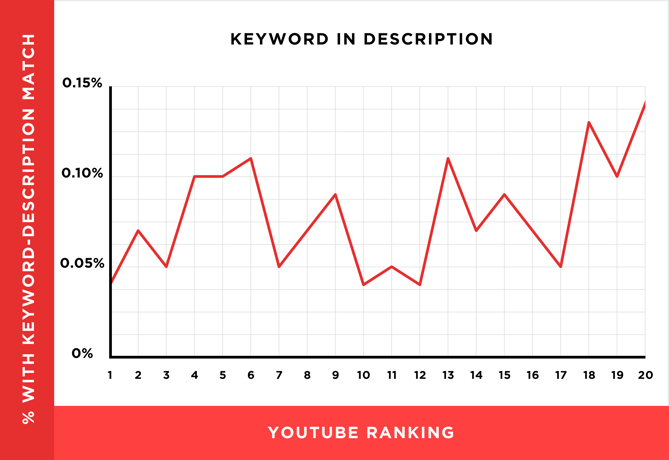
As for optimizing the video itself, it doesn’t hurt to add a transcript of the video, especially for those who have to watch it without volume. That said, Backlinko’s research also found no correlation between descriptions that were optimized for a certain keyword and the rankings for that term.
Source: Backlinko
Dean is careful not to encourage ditching an optimized description altogether, though. “An optimized description helps you show up in the suggested videos sidebar,” he writes, “which is a significant source of views for most channels.”
4. Tag your video with popular keywords that relate to your topic.
YouTube’s official Creator Academy suggests using tags to let viewers know what your video is about. But you’re not just informing your viewers — you’re also informing YouTube itself. Dean explains that the platform uses tags “to understand the content and context of your video.”
That way, YouTube figures out how to associate your video with similar videos, which can broaden your content’s reach. But choose your tags wisely. Don’t use an irrelevant tag because you think it’ll get you more views — in fact, Google might penalize you for that. And similar to your description, lead with the most important keywords, including a good mix of those that are common and more long-tail (as in, those that answer a question like “how do I?”).
5. Categorize your video.
Once you upload a video, you can categorize it under “Advanced settings.” Choosing a category is another way to group your video with similar content on YouTube so it winds up in different playlists and gains exposure to more viewers who identify with your audience.
It might not be as simple as it looks. In fact, YouTube’s Creator Academy suggests marketers go through a comprehensive process to determine which category each video belongs in. It’s helpful, the guide writes, “to think about what is working well for each category” you’re considering by answering questions like:
- Who are the top creators within the category? What are they known for and what do they do well?
- Are there any patterns between the audiences of similar channels within a given category?
- Do the videos within a similar category have share qualities like production value, length, or format?
6. Upload a custom thumbnail image for your video’s result link.
Your video thumbnail is the main image viewers see when scrolling through a list of video results. Along with the video’s title, that thumbnail sends a signal to the viewer about the video’s content, so it can impact the number of clicks and views your video receives.
While you can always pick one of the thumbnail options auto-generated by YouTube, we highly recommend uploading a custom thumbnail. The Creator Academy reports that “90% of the best performing videos on YouTube have custom thumbnails,” recommending the use of images that are 1280×720 pixels — representing a 16:9 ratio — that are saved as 2MB or smaller .jpg, .gif, .bmp, or .png files. If you follow those parameters, it can help to ensure that your thumbnail appears with equally high quality across multiple viewing platforms.
It’s important to note that your YouTube account has to be verified in order to upload a custom thumbnail image. To do that, visit youtube.com/verify and follow the instructions listed there.
7. Use an SRT File to add subtitles & closed captions.
Like much of the other text we’ve discussed here, subtitles and closed captions can boost YouTube search optimization by highlighting important keywords.
In order to add subtitles or closed captions to your video, you’ll have to upload a supported text transcript or timed subtitles file. For the former, you can also directly enter transcript text for a video so that it auto-syncs with the video.
Adding subtitles follows a similar process, however, you can limit the amount of text you want displayed. For either, head to your video manager then click on “Videos” under “Video Manager.” Find the video you want to add subtitles or closed captioning to, and click the drop-down arrow next to the edit button. Then, choose “Subtitles/CC.” You can then select how you’d like to add subtitles or closed captioning.
Find out how to add closed captions to your YouTube video in the video below.
8. Add Cards and End Screens to increase your YouTube channel’s viewership.
Cards
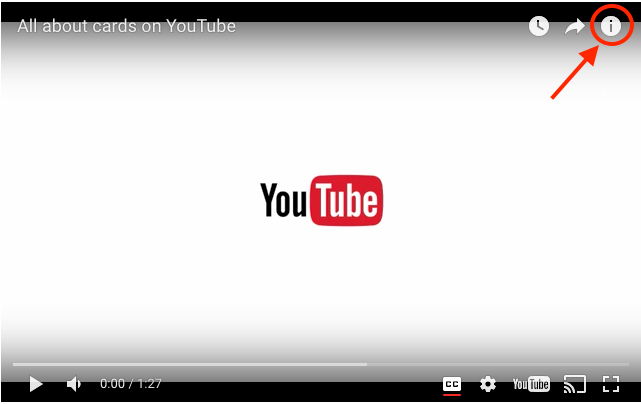
When you’re watching a video, have you ever seen a small white, circular icon with an “i” in the center appear in the corner, or a translucent bar of text asking you to subscribe? Those are Cards, which Creator Academy describes as “preformatted notifications that appear on desktop and mobile which you can set up to promote your brand and other videos on your channel.”
Source: Google
You can add up to five cards to a single video, and there are six types:
- Channel cards that direct viewers to another channel.
- Donation cards to encourage fundraising on behalf of U.S. nonprofit organizations.
- Fan funding to ask your viewers to help support the creation of your video content.
- Link cards, which direct viewers to an external site, approved crowdfunding platform, or an approved merchandise selling platform.
- Poll cards, which pose a question to viewers and allow them to vote for a response.
- Video or playlist cards, which link to other YouTube content of this kind.
For detailed steps on adding a card to your video, follow these official steps from Google, or check out the video below.
End Screens
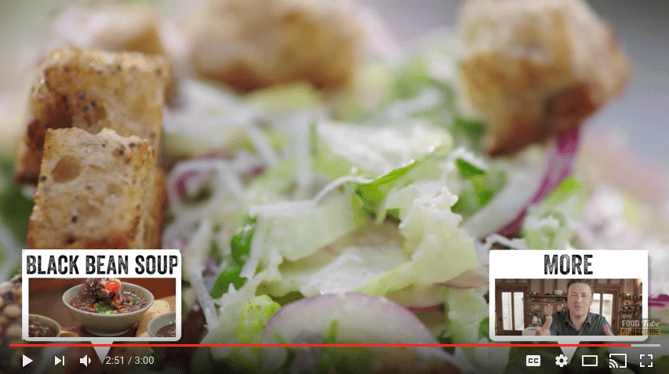
End screens display similar information as cards, but as you may have guessed, they don’t display until a video is over, and are a bit more visually detailed in nature. A good example is the overlay with a book image and a visual link to view more on the video below:
Source: Jamie Oliver on YouTube
There are a number of detailed instructions for adding end screens depending on what kind of platform you want to design them for, as well as different types of content allowed for them by YouTube. Google outlines the details for how to optimize for all of those considerations here.
It’s important to note that YouTube is always testing end screens to try to optimize the viewer experience, so there are times when “your end screen, as designated by you, may not appear.” Take these factors into account as you decide between using either cards or end screens.
These factors may seem a bit complicated and time-consuming, but remember: The time people spend watching YouTube on their TV has more than doubled year over year. There’s an audience to be discovered there, and when you optimize for YouTube, your chances of being discovered increase.
Now, most of the SEO tips above rely on you identifying a keyword and promoting your video correctly. And not all of those tips can be carried out through YouTube alone. To get the most bang for your videography buck, consider some of the tools below to optimize your video for search.
YouTube SEO Tools
- Ahrefs Keyword Explorer
- Canva
- HubSpot Content Strategy
- VidIQ Vision
- TubeBuddy
- Cyfe
1. Ahrefs Keywords Explorer
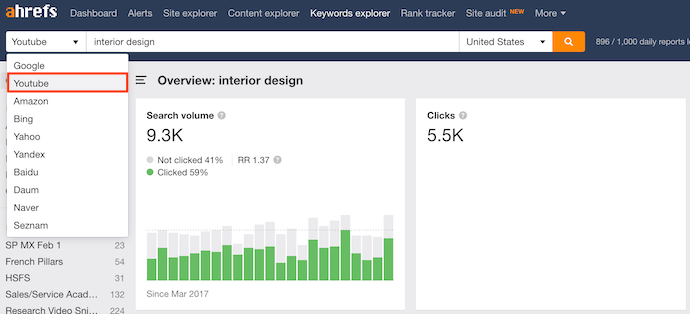
Ahrefs is a comprehensive SEO platform that allows you to monitor a website’s ranking, estimate the organic traffic you’d get from each keyword, and research keywords for which you might want to create new content.
One popular feature of Ahrefs is Keywords Explorer, which allows you to look up numerous details related to a keyword you’re interested in. And as you can see in the screenshot above, you can filter your keyword results by search engine — including YouTube.
Ahrefs Keywords Explorer gives you a keyword’s monthly search volume, how many clicks received by videos ranking for that keyword, related keywords, and more.
2. Canva
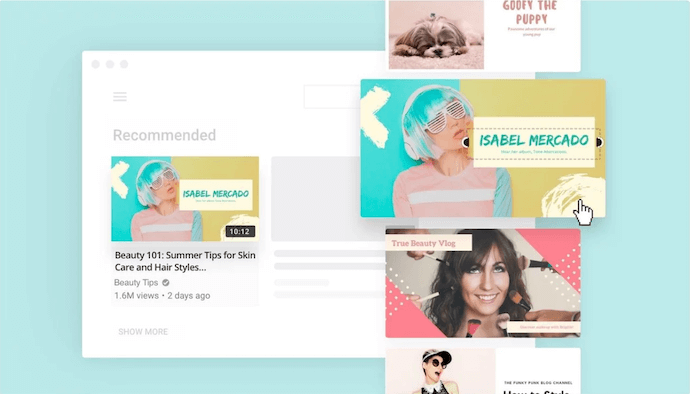
You might know Canva as a design template for creating all kinds of cards, photos, logos, and more. It just so happens this popular product has a Thumbnail Creator just for YouTube videos.
As stated in the tips above, thumbnail images are critical to promoting your content in YouTube search results and enticing users to click on your video. Using Canva’s Thumbnail Creator, you can create the perfect preview image for your video in 1280 x 720 pixels — the thumbnail dimensions YouTube requires.
3. HubSpot Content Strategy
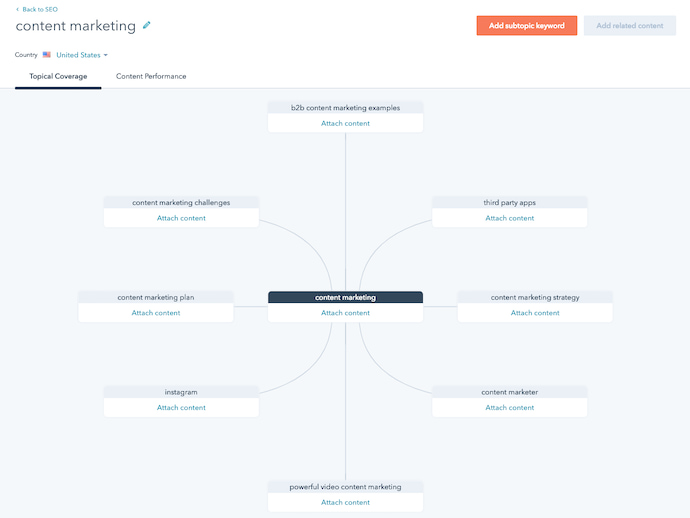 Our content strategy tool, developed here at HubSpot, allows you to find popular keywords for which to create content and then organize these keywords into groupings — what we call “topic clusters.” By sorting your content into topic clusters, you can oversee which pieces of content are related to one another, which types of content you have planned, and what you’ve already created.
While the keywords you discover in HubSpot reflect their popularity in a standard Google search, many of these topics will also produce videos on Google’s search engine results pages. In those cases, you can create topic clusters that have both blog and YouTube content belonging to them.
Clustering your content — and linking from videos to blog posts, and vice-versa — can give you more authority in the eyes of Google and YouTube, while giving you more ways to capture traffic from the people searching your topic.
4. vidIQ Vision
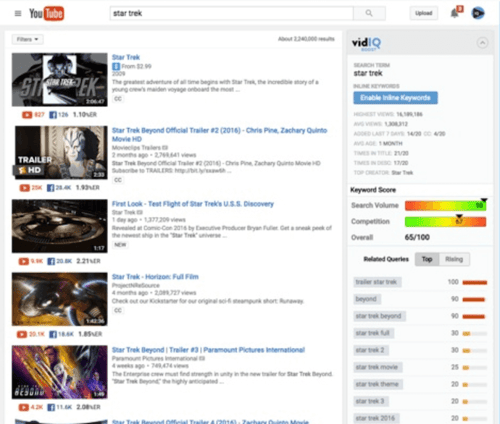 This is a Chrome extension, available through Chrome’s web store in the link above, that helps you analyze how and why certain YouTube videos perform so well. This includes the tags a video has been optimized for, its average watch time, and even how quickly that video might be gaining traffic.
The vidIQ tool then provides an SEO “score” you can use to create content that performs (or outperforms) the results you already see on YouTube.
5. TubeBuddy
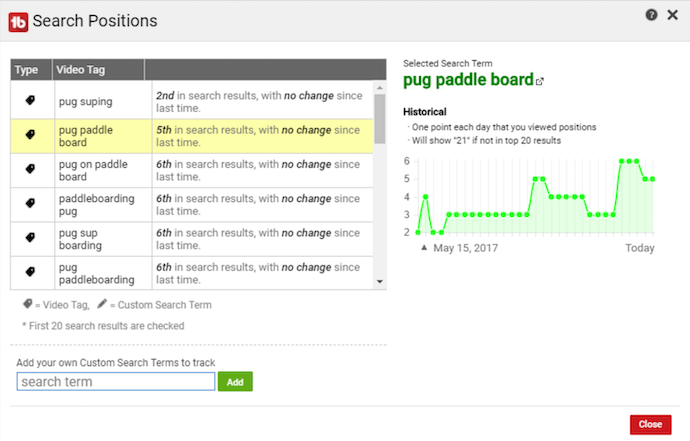
TubeBuddy is an all-in-one video platform that helps you manage the production, optimization, and promotion of your YouTube content. Its features include an automatic language translator (which helps you rank for non-English keywords), a keyword explorer, tag suggestions, a rank tracker for your published videos, and more.
6. Cyfe
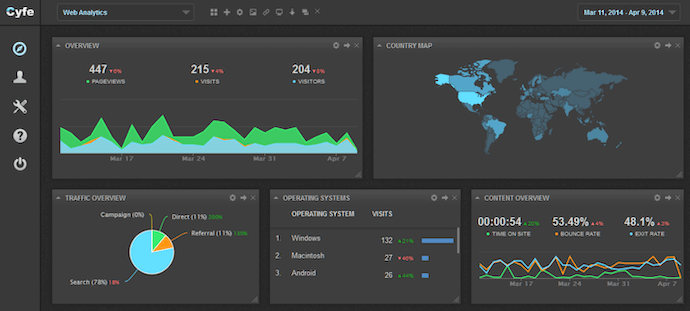
Cyfe is a large software suite that offers, among other things, a web analytics platform. On this platform, you can track page performance across every website property you have content on — including YouTube — and where each page’s traffic is coming from.
In addition to traffic analytics, Cyfe can show you which keywords you’re ranking for and which ones are most popular across various search engines. Sounds a lot like Google Analytics or Moz, right? That’s because Cyfe has data from both of those tools, and more, built into it.
No matter what SEO tip or tool you start with, a successful YouTube channel begins with good content. Make sure your viewers have something high-quality and relevant to watch when they find you. Want step-by-step help? Download our free guide on YouTube for Business below.

The Ultimate Guide to G Suite
As both an employee and small business owner, I adore G Suite. I’d consider it one of the best tools I have at my disposal, mainly because it’s so easy to use and incredibly multi-functional.
Whether I’m collaborating with my editor on a new HubSpot blog piece, scheduling time to chat with a new client, or emailing my friends a funny dog GIF, G Suite comes in handy for almost anything you’re doing on your computer — productive or otherwise.
Google entered 2019 with 5 million paying G Suite customers — a number that’s increased by 25% since the beginning of 2017. I’ll let that statistic speak for itself: G Suite is a highly valuable tool for individuals and businesses worldwide. Notable G Suite customers include Uber, BuzzFeed, PwC, and, of course, HubSpot.
If you haven’t tapped into the G Suite platform for your business, we encourage you to check it out. Read through this guide to better understand the G Suite platform, how you can optimize your account, and how you can use the tool to grow better. Better yet, bookmark this so you can reference it later.
G Suite was released 12 years ago as “Google Apps for Your Domain”. The initial launch included Gmail, Google Talk, Google Calendar, and Google Page Creator (now known as Sites). Google Apps for Education followed two months later.
Over the last 10 years, Google released various tools and updates as part of its application suite. Google Apps was rebranded to G Suite in September of 2016, and not long after, the company launched its first hardware product: Jamboard.
The G Suite platform also includes the G Suite Marketplace (which was originally released in 2010), through which you can install third-party cloud applications to use as part of your collection of G Suite tools.
Who uses G Suite?
Both businesses and individuals use G Suite.
Consumer accounts aren’t necessarily called “G Suite,” though. For example, when I’m signed into my personal Google account, the top right corner of the screen looks like this:

Alternatively, when I’m signed into my personal business Google account, the top right corner reflects this:

While G Suite services are free for consumers, businesses have to pay for enterprise features such as a custom email domain, unlimited cloud storage, additional administrative and marketing tools, and 24/7 support. (We’ll get into the G Suite pricing structure later.)
If businesses have multiple users on their G Suite, they also have to pay per person. Here’s what Google looks like when I’m signed into my HubSpot employee account:

Unlike other free consumer software, though, free G Suite users don’t see ads while using the services. Bonus: Google doesn’t use the information stored in G Suite applications and accounts for advertisement purposes.

The G Suite Products
Google offers a wide variety of products for both personal and enterprise use. Most are accessible with a Google account (by tapping the menu in the top right corner), though some need to be installed as Google Chrome extensions to gain full functionality.

Later, we’ll walk through how to set up and manage your G Suite account, but for now, let’s review the different tools available in your G Suite.
Gmail
Gmail is the G Suite email software. It was released in 2004 and now has over 1 billion users worldwide.
With a G Suite plan, businesses enjoy 30GB of storage space, custom company email addresses (yourname@company.com), unlimited Google Group email addresses, 24/7 phone and email support, and compatible add-ons available through the G Suite Marketplace.
Drive
Google Drive is the G Suite cloud storage platform and was launched in 2012. Drive manages all of your company’s content and supports collaboration across your entire organization. It also allows you to view various file formats so you don’t have to download additional software to your devices.
Depending on the G Suite plan, businesses enjoy 30GB, 1TB, or unlimited storage per user and audit and reporting insights for Drive content.
Docs, Sheets, and Slides
Google Docs, Google Sheets, and Google Slides are the G Suite word processor, spreadsheet, and presentation programs, respectively. They were added to the platform in 2006.
These programs allow real-time collaboration, save changes automatically, and track revision history. Users can insert comments, suggest edits, communicate through a built-in chat, and create templates for future use.
With a G Suite plan, businesses enjoy unlimited revision history among other perks.
Forms
Google Forms is the G Suite web form and survey tool. Also launched in 2006, Forms shares many of the same features as Docs, Sheets, and Slides, such as automatic saving, real-time collaboration, and template creation. To collect data through Forms, users can personalize surveys or quizzes, send respondents the URL, and review the data (that’s automatically collected in Sheets).
Download HubSpot’s Free Online Form Builder to convert your visitors into leads and start growing your business faster.
Calendar
Google Calendar is the G Suite online calendar. It was launched in 2006 and integrates with Gmail to manage schedules, appointments, meetings, and tasks (via Google Tasks).
With a G Suite plan, businesses enjoy smart scheduling (where employees can see open windows of time on coworkers’ calendars), calendars for Google Groups, calendars for meeting rooms and shared resources, public calendars so customers can view company events, and easy migration from external calendars (e.g. iCal, Outlook, or Exchange).
Google+
Google+ is the G Suite social network. It was launched in 2011, and as of October 2018, Google is planning to sunset Google+ for consumers in April 2019.
But, with a G Suite plan, businesses can still enjoy the service as well as restricted communities and enhanced privacy controls.
Sites
Google Sites is the G Suite website builder. It was added to the platform in 2008 and allows users to create websites with little to no coding knowledge or design skills. Landing page and project websites can be created using pre-made templates and published internally or publicly.
Hangouts
Google Hangouts is the G Suite communication and messaging tool. Originally launched in 2006 as Google Talk, Hangouts supports text, voice and video conversations (for up to 25 participants) and can be used between desktop and mobile devices. It’s also a common alternative to Slack.
With a G Suite plan, businesses enjoy a seamless integration with Calendar, screen sharing for participants, auto focus and intelligent muting features, public livestreams automatically saved in YouTube, and custom administrative controls.
Keep
Google Keep is the G Suite note-taking tool. The newest addition to the G Suite platform, Keep can be used to create, organize, and share memos, lists, images and voice notes across multiple devices. It’s available as a Chrome download and mobile application.
With a G Suite plan, businesses enjoy a seamless integration with Google Docs among other perks.
Need more hours in the day? Download our complete workplace productivity guide here.
G Suite for Business
There’s no doubt G Suite is a valuable tool for businesses of all sizes. It’s the digital equivalent of a pocket knife — it supports collaboration, organization, productivity, marketing, and sales.
Do you think G Suite would be a great addition to your company? Follow along this section as we discuss how to set up G Suite for business.
G Suite Pricing
Over the last ten years, G Suite has grown and expanded tremendously … without changing their prices. (How crazy is that?)
Since day one, Google has offered two G Suite business offerings: the G Suite Basic Edition (at $5 per user per month) and the G Suite Business Edition (at $10 per user per month). Read more about the G Suite Editions here.
On January 16, 2019, Google announced that, for the first time in a decade, they’d be raising the prices of G Suite (albeit by a fraction). Starting on April 2, the Basic Edition will increase to $6 per user per month, and the Business Edition will increase to $12 per user per month. Pricing for G Suite Enterprise Edition customers won’t change.
Despite the incremental increase, G Suite is still a fantastic investment for your business. The per-user pricing model presents a cost that’s proportionate to each business, regardless of size. Also, with the G Suite Flexible Plan, businesses can pay monthly and avoid long-term commitment.
Setting Up Your G Suite Account
Creating a G Suite account is simple. Head to the G Suite homepage and click “Get Started.”
Enter your company name and indicate how many employees you have. You can always change this number as your team grows.
Next, enter your contact information (or the information for whoever will be managing the G Suite account). Google will send a confirmation to the email address you insert here, so be sure it’s accessible.

The next screen will ask if you have a business domain name. If you already have one, insert it here. If you don’t, Google will help you find and purchase one — most domains are $12/per year if purchased through Google.

Enter your business address and contact information on the next screen.
Finally, choose a username and password for your G Suite account. You’ll use these credentials to sign into any G Suite tools in the future. Note: Your username will also be the first part (or local-part) of your business email.

To complete your account set up, you’ll be asked to review your account and check out. On this screen, you’ll see a summary of your monthly charges (after your 14-day trial) and any other one-time charges, such as a domain name. You’ll also be asked to review your account information and enter your payment method.

Lastly, you’ll see two choices to automatically renew your domain and keep your domain information private — we encourage you to keep those checked to simplify the domain purchase process.
Managing Your G Suite Account
Once you create your G Suite account, you’ll be directed to your G Suite Admin panel. This is arguably the most important part of your G Suite account — you’ll manage all of your settings from this page.

Let’s break down the sections and what you can do within each.
Users
This is where you add new users to your G Suite account. You can also manage your users and assign them various attributes, like Job Title and Department, as well as track their Last sign in and Email usage.
Company profile
This is where you update information about your company and personalize your G Suite account with your company logo. You can also create custom URLs to your various G Suite services for your users.

Billing
This is where you view your account charges and manage your G Suite license(s). You should see whichever Edition (plan) you chose for your business reflected here.

Reports
This is where you track the usage of your G Suite services and apps as well as user activity. Under Highlights, you’ll see an overview of usage activity per app, user status, storage statistics, and security. Under Reports, you’ll see options to run reports on specific services, devices, and users. You can also run audits to see what users are accessing what services and tools.
Apps
This is where you manage your G Suite services and their settings. Here, you’ll see how many G Suite core apps you’re using, what additional Google services you’re using, and any Marketplace or Security Assertion Markup Language (SAML) services you’ve connected to your account.

Device management
This is where you secure your company data on all devices connected to your G Suite account. You’ll see how many mobile and Chrome devices are connected as well as how many Google devices (like Jamboard) are linked to your account. There’s also a handy screen on which you can manage all your company-owned devices.

Security
This is where you manage all security features for your G Suite account. From password management and monitoring to setting up single sign-on (SSO), this page equips you to keep your G Suite account and users secure.
Support
This is where you access G Suite support, which is available 24/7 over phone or email. Before being directed to a live support line, though, you’ll be shown a Help for Admins pop-up box with recommended help content.
Data migration
This is where you import your company email, calendar, and contact data. Google makes it easy to bring over any company data you need to successfully organize and use your G Suite. You’ll need to run this tool for each type of data you migrate. To run a migration, you’ll need the migration source, connection protocol, and the credentials of an account to verify that you own the data.

Dashboard
This is where you see relevant insights about any business domains connected to your G Suite account.
Buildings and resources
This is where you manage and monitors any buildings, rooms, and company resources connected to your G Suite account. Here, you’ll plug in any meeting and conference rooms that you want to be available for your users to schedule on their Calendar. You can also access insights that tell you how and when your rooms are being used.
Groups
This is where you create groups and mailing lists. Groups are handy for communicating with entire teams or parts of your organization at once. You can also give each group its own calendar for scheduling events and managing team meetings.

Admin roles
This is where you add new admins and manage current admin roles and permissions for your G Suite account. You can also set admin permissions for specific groups, services, and devices. You’ll see what admins have what permissions, and you can change those accordingly.
Domains
This is where you can add or remove domains associated with your G Suite account. You can add a new domain or domain alias on this page, as long as you can verify ownership. You can also manage where your visitors are redirected when they visit your domain.

Note: I used my personal business G Suite account to pull example images for this section. You’ll see that there’s only one user on my account (me 🙋🏻♀️) … your account and admin panel will likely look much different if you have multiple users, groups, admins, and domains.
Six Ways to Use G Suite to Grow Better
G Suite is a valuable platform for your company. But how can you use it to grow your business better? Below, we cover seven specific strategies for making the most of your G Suite account.
Check out the G Suite + HubSpot integration today and see how it can benefit your business growth.
1. Create On-Brand Templates with Drive
Brand identity is crucial, and the cost of branding and logo design can be costly. Who wants to see their marketing dollars go to waste (i.e. see employees using off-brand documents, presentations, and graphics)? I sure wouldn’t.
Use your G Suite services to simplify the process of staying on-brand. Google Docs, Sheets, Slides, and Forms all have template capabilities — have a designer create on-brand design templates and save them to your Drive. Then, encourage your employees to use these templates instead of starting from scratch.
2. Collect Customer Feedback with Forms
Customer feedback is the lifeblood of a healthy, growing business. If you don’t know what you’re doing right, you can’t do more of it. If your don’t know what you’re doing wrong, you can’t fix it. Customer feedback should be a high priority for your company.
Google Forms makes it easy to gather and analyze data from customers and clients. Use the tool to create simple surveys that collect customer feedback, market research, your Net Promoter Score®, and more. You can also use Forms to conduct internal research or gather information from peers and coworkers.
3. Empower Remote Employees with Calendar
Take it from me — as awesome as remote work can be, there’s something to be said about working alongside your team every day. For one, it can be easier to collaborate if you see each other in person. But that’s not always possible for those who work remotely or internationally.
If you have remote employees, Google Calendar can help them feel connected and included in what’s going on at work. Calendar makes it easy to see coworkers’ schedules and book time in an open room by their desk — without ever having to step foot in the office. You can also set up dedicated calendars for company-wide events or extracurriculars like the gym or after-work book clubs. Employees can simply subscribe to those calendars to stay up-to-date.
4. Manage Team Tasks with Keep
The internet keeps us connected, but it can still be hard to collaborate remotely. If you’ve ever wanted a place to digitally jot notes, make lists, draw sketches, and save images, all while working in tandem with multiple people, Keep is the solution for you. Keep is a common Evernote alternative that’s super helpful even if you’re not using G Suite.
Use Keep to manage team tasks, outstanding projects, and ongoing collaborations. Create checklists to stay on top of assignments, and link a Collaborator so they can see what’s due. You can also save articles and websites to your Keep folder and add notes with important thoughts and ideas — making online research even easier.
5. See How Employees are Using G Suite with Reports
Not everyone uses G Suite equally. The Reports panel on your Admin Console can tell you how and how often your team is using the G Suite tools and apps. Use this insight to better educate your team on what G Suite has to offer. Also, the Reports panel can provide valuable security information — like what devices have been used to login and which users might need to install updates — so you can keep your team and data safe and secure.
6. Leverage New Tools on the G Suite Marketplace
The G Suite Marketplace is one of my favorite places to shop. Google has integrated literally hundreds of third-party tools that only serve to make your and your employees lives easier. Choose from tools for business, productivity, communication, education, and utility. Download apps like Zoom, Xero, Google Analytics, and Asana to link seamlessly to your G Suite account and integrate with other apps like Sheets, Calendar, and more.
Tip: Keep an eye on how your employees are using any new tools to see if they’re benefiting your business or not.
Check out and install the HubSpot app on G Suite Marketplace today.
Take Your Business to the Next Level with G Suite
For the last decade, G Suite has been helping businesses collaborate, communicate, and grow. Through simple tools and an even simpler on-boarding process, G Suite has become an indispensable tool for companies worldwide. Regardless of what industry you’re in, G Suite can only serve to help you improve your business processes, inside and out.
G Suite equips your employees to complete hundreds of tasks with ease — productive or otherwise. 😉

How to Become an SEO Expert, According to HubSpot’s SEO Team
Braden Becker’s journey to becoming an SEO specialist at HubSpot is a slightly unconventional one. In college, he studied Writing & Rhetoric, which helped him land his first job as a copy editor at a B2B trade publication. As he progressed through his career, Braden pivoted to content marketing, where he worked as an editor at a SaaS company and then as a content manager at the world’s largest environmental services firm.
You might think someone like Braden would continue to climb the creative career ladder in content marketing. But today he actually spends more time in SEMrush than he does in Google Docs. As the Historical Optimization Lead on HubSpot’s Blog Team, Braden’s main responsibility is to identify blog posts that are falling in organic traffic and optimize them for search engines to rank higher on Google. He’s even sharpened his SEO chops enough to co-create the SEO strategy for all of HubSpot’s blogs.
As a writer and editor for most of his career, SEO had always been in the periphery of Braden’s work — as it was a subject he had a solid grasp on but not necessarily a lot of expertise in. Today, though, SEO is his central focus. And he’s developed a reputation of being HubSpot’s own version of Rand Fishkin.
“Getting a job in SEO ideally requires two things: content creation skill and analytical skill. Most SEO professionals today have one of those and develop the other,” Becker says. “My background in writing and editing helped me get my foot in the door, but a willingness to focus on the structure, mechanics, and intent behind my writing is what I think secured my role as an SEO specialist for HubSpot.”
Braden’s story of pivoting from a creative career in content marketing to an analytical one isn’t as rare as you might think. Before Aja Frost became a Senior SEO Strategist at HubSpot, she was the Editor of HubSpot’s Sales Blog. And, similar to Braden, she credits her time spent in a more creative role as a crucial factor in transitioning to an analytical marketing role.
“I taught myself how to do keyword research and competitive analysis as an editor for HubSpot’s Sales Blog. The Sales Blog’s traffic had been flat for a year and a half — I noticed that the only posts that consistently generated views for us were getting all of those views from search. So I began looking for sales-related keywords we could rank for that would help boost organic traffic,” she says. “This led me to experiment with SEMrush, AnswerThePublic, Google Analytics, Google Search Console, and of course, HubSpot’s own SEO tools. I read a ton of blog posts and eventually got my Google Analytics certification.”
Braden and Aja have spent their entire careers in content marketing, so it makes sense that they could seamlessly transition from a role in content creation to SEO, especially since the two disciplines go hand-in-hand. But if you don’t have any experience working in the two departments or even in marketing, don’t fret. To build his fundamental knowledge of SEO, Victor Pan, the Head of Technical SEO at HubSpot, cites reading as one of the best habits he got into.
“I used to be a voracious reader on all publicly available information on SEO. I had an RSS feed of search-related blogs and news websites I would go through for a whole hour every day,” he says. “Mere exposure to ideas makes unknown problems in SEO easier to tackle when you have other people’s experiences or frameworks to build off from.”
For Victor, reading was one of the best ways to develop his SEO fundamentals. But even as an established SEO, the activity can still refine your expertise. According to Aja Frost, it’s how she hones her technical SEO skills.
“To refine my SEO expertise, I constantly read. I’m really interested in technical SEO so I look for blog posts, white papers, and research about site architecture and navigation, website speed and everything that goes into that, like structured data,” she says. “SEO by the Sea, Sistrix, and Blind Five Year Old are all great technical SEO resources, along with (unsurprisingly) the Google Webmaster Blog. I’m a member of a few SEO subreddits (/seo and /bigseo are the most active). And I follow a ton of SEOs on Twitter — they drop random factoids or insights all the time.”
To stay ahead of the curve in any industry, reading the latest news and research is hugely beneficial. But as an SEO, when everything is constantly changing, reading isn’t enough. To gain the practical experience that’ll truly take your SEO skills to the next level, you need to put theory into practice and constantly test industry assumptions and your new ideas.
“I test a lot of things to refine my SEO expertise. Should your brand be in your title tags? Are internal anchor text worthwhile to still do in 2019 to move rankings? What happens when you purchase fake social “signals” — do you see an increase in organic traffic?” says Victor Pan. “Failed experiments taught me just as much as successful ones, and it made me a much more confident SEO whenever I would make any improvements to content. What’s an improvement here could be worse off there — and that’s why we have to test and grasp causation over just correlation.”
Based on Braden’s, Aja’s, and Victor’s stories, becoming an SEO expert doesn’t mean you have to start and finish your career as an SEO. Pivoting from one role to an SEO role and developing your expertise from then on is entirely possible — you just need to be willing to learn and adapt.
How to Become an SEO Expert
To start developing your SEO expertise today, here’s a recap of the tips from HubSpot’s SEO team.
1. Read. SEO is always changing, so it’s crucial to keep updating your knowledge on the topic. Some of the best SEO resources recommended by Senior SEO Specialist, Aja Frost, are SEO by the Sea, Sistrix, Blind Five Year Old, Google’s Webmaster Blog, and the subreddits /seo and /bigseo.
2. Hone your creative and analytical skillsets. SEO is not only an analytical profession where you do ton of keyword research, competitive analysis, and run experiments, but it’s also a creative profession where you need to optimize your content for people just as much as Google’s search algorithm.
3. Test. Putting theory into practice arms you with the practical knowledge and experience needed to level up as an SEO. In this way, SEO is kind of like playing a sport. You can read all about hitting a baseball or throwing a football, but if you never practice, you’ll never reach your potential.

What Is a Blog, & Why Should You Create One
Even if you’re not sure what a blog is, you’ve no doubt come across one at some point in time. Perhaps you’ve stumbled across a blog when you’ve searched “healthy dinner recipes”.
Alternatively, maybe you used a blog to get more information on SEO strategies.
In fact, if you’re reading this, guess what? You’re on a blog. (Very meta, I know.)
If your business doesn’t have a blog, you might want to reconsider — B2B marketers who use blogs receive 67% more leads than those who do not, and blogs have been rated the 5th most trusted source for accurate online information.
At its most basic, blogs can help you develop an online presence, prove yourself an expert in an industry, and attract more quality leads to all pages of your site.
If you’re contemplating creating a blog for your business, or simply want to know what one is, keep reading.

Blog vs. Website
A blog is typically a section of your business’s website — but, unlike the rest of your website, you need to update the blog section frequently by adding new posts. Additionally, your blog is a tool that allows you to engage more with an audience, either by analyzing how many readers share your blog posts on social, or by allowing readers to comment on your individual posts. In this way, a blog is more like a two-way conversation than the rest of your website. However, a blog can also be an entire website, and often is, if the blog is for personal use alone — for instance, a travel blog.
What is a blog?
First, let’s go over a brief history — in 1994, Swarthmore College student Justin Hall is credited with the creation of the first blog, Links.net. At the time, however, it wasn’t considered a blog … just a personal homepage.
In 1997, Jorn Barger, blogger for Robot Wisdom, coined the term “weblog”, which was meant to describe his process for “logging the web” as he surfed the internet. The term “weblog” was shortened to “blog” in 1999, by programmer Peter Merholz.
In the early stages, a blog was a personal web log or journal in which someone could share information or their opinion on a variety of topics. The information was posted reverse chronologically, so the most recent post would appear first.
Nowadays, a blog is a regularly updated website or web page, and can either be used for personal use or to fulfill a business need.
For instance, HubSpot blogs about various topics concerning marketing, sales, and service because HubSpot sells products related to those three subjects — so, more than likely, the type of readers HubSpot’s blog attracts are going to be similar to HubSpot’s core buyer persona.
Alternatively, a woman named Kiki started a personal travel blog, called The Blonde Abroad, to document her travel experiences and provide readers with helpful tips and travel recommendations. Her blog doesn’t serve a larger company, but it does help her create a personal brand.
If a personal blog is successful enough, the writer can also make money off of it via sponsorships or advertisements. Take a look at 5 Strategies to Monetize a Blog to learn more.
What is a lifestyle blog?
A lifestyle blog is a digital compilation of an author’s personal interests, daily activities, or opinions on a subject. A lifestyle blog typically covers multiple hobbies or talents of the writer, rather than focusing on one subject alone. For instance, a lifestyle blog might include a section for fashion, health and wellness, travel, and relationships. A lifestyle blog is often highly personalized, so it can often feel like you’re reading a friend’s curated journal entries.
There are plenty of benefits to blogging — it helps drive traffic to your website, it enables you to better convert that traffic into leads, it allows your business to establish authority in an industry, and it continues to help your business grow and attract new customers months and even years after publication.
To learn more about the benefits of blogging, check out Why Blog? The Benefits of Blogging for Business and Marketing.
What is the difference between a wiki and a blog?
A wiki is a collaborative space where anyone who visits the site can edit, share, or publish content — Wikipedia is one of the most popular examples of this. On the other hand, there is typically only one person, or a team of people, with admin permissions to edit, share, or publish to a blog. Website visitors who come across the blog can potentially leave comments at the bottom of the blog post, but they cannot publish to the site or edit the posted material.
What is a blog post?
A blog post is an individual web page on your website that dives into a particular sub-topic of your blog.
For instance, let’s say you start a fashion blog on your retail website. One blog post might be titled, “The Best Fall Shoes for 2019”. The post ties back to your overall blog topic as a whole (fashion), but it also addresses a very particular sub-topic (fall shoes).
Blog posts allow you to rank on search engines for a variety of keywords. In the above example, your blog post could enable your business to rank on Google for “fall shoes”. When someone searches for fall shoes and comes across your blog post, they have access to the rest of your company’s website. They might click “Products” after they read your post, and take a look at the clothing items your company sells.
A blog post links back to your overall blog site. For instance, right now, you’re on hubspot.com/marketing/what-is-a-blog. The “what-is-a-blog” section of the URL is tied back to /marketing/, which is the blog as a whole.
What is a blog used for?
- To help your company rank on search engines.
- To share information about a given topic and become an expert in an industry.
- To attract visitors to your site, and turn those visitors into leads.
- To cultivate an online community and engage with an audience.
1. To help your company rank on search engines.
Typically, a business will use a blog to help the business’s website rank on search engines. You can absolutely employ SEO tactics, or use paid ads, to help your company homepage rank on page one of Google — but a more effective, long-term solution is blogging.
To consider how your company can rank on search engines via a blog, we’ll start with an example — let’s say you work for a web design start-up with very little online presence.
You decide to spend the first year writing and posting regular blog content that strongly relates to web design. Over time, your traffic increases and other companies link to your site for information regarding web design. When this happens, Google recognizes your company as a legitimate source for web design information. Eventually (with a lot of trial and error), your blog posts begin ranking on page one of Google for terms like “web design”, “website builder”, and “e-commerce website”.
Then, one day, you search “web design companies in X city” and find your company is now on page one. This is likely due, in large part, to your consistent blogging efforts.
Take a look at How HubSpot Uses Blogging to Rank #1 on Google to learn more about specific strategies you can implement to rank on search engines.
2. To share information about a given topic and become an expert in an industry.
In 2006, Boston-native Matt Kepnes quit his job and began traveling the world. He documented his travels in his now infamous blog, NomadicMatt.com.
After about a year, thanks to tireless blogging efforts and SEO strategies that enabled him to rank on Google, he began pulling in $60,000. Matt also created e-books, and used sponsorships and affiliate marketing to make money. Additionally, he wrote a New York Times best-seller, “How to Travel the World on $50 a Day.”
Now, Matt’s blog attracts 1.5 million visitors a month and grosses about $750,000 a year — and he’s become a well-known expert in the travel space.
If you want to become known as an expert in a topic that interests you, from fashion to blogging to fitness, you can — and, oftentimes, it starts with a blog.
3. To attract visitors to your site, and turn those visitors into leads.
There’s only so much traffic you can get from the homepage or About Us page of your company’s website. Of course, those pages are critical for leads who are already interested in your products — but they often won’t attract traffic from top-of-the-funnel. That’s where your blog comes into play.
Your blog can be a general resource to help your website visitors even before those visitors are ready to purchase from you. For instance, let’s say you sell products for e-commerce stores. You might attract some e-commerce owners who are already searching online for your products, but in most cases, the e-commerce owner isn’t going to be ready to buy right out of the gate.
Alternatively, if you begin blogging about tips to help the retail owner who is just starting out — like “How to start a retail website”, or “Benefits of e-commerce vs. physical store” — you’ll slowly attract an audience who enjoys your content and finds it useful. Then, when those site visitors’ e-commerce stores begin growing (thanks, in part, to your blog), they’ll already know about your brand and already trust it as a helpful source. That’s when they’ll check out your product pages.
4. To cultivate an online community and engage with an audience.
At the very least, you might create a blog to engage with an online community of readers with similar interests. Maybe you start a food blog and ask readers to share their own recipes with you.
Alternatively, perhaps you start a blog that focuses on DIY projects. You post the fun, DIY projects you’ve completed in your own home, and you ask your readers to share their own DIY tips in exchange.
With a blog, the sky’s the limit — and so are the benefits for your business. If you’re officially ready to get started with your own blog, take a look at How to Create a Successful Blog Strategy: A Step-by-Step Guide.
Alternatively, if you’re starting at the beginning and anxious about your first post, read How to Write a Blog Post: A Step-by-Step Guide [+ Free Blog Post Templates].


How to Write Instagram Captions That Improve Engagement
Do you want to improve your Instagram post engagement? Wondering how to write strong Instagram captions that move people to action? In this article, you’ll discover how to create appealing Instagram captions that clearly communicate your marketing messages and encourage people to act. Why Instagram Captions Matter for Marketers On occasion, you’ll see celebrities or […]
The post How to Write Instagram Captions That Improve Engagement appeared first on Social Media Marketing | Social Media Examiner.
from Social Media Marketing | Social Media Examiner https://ift.tt/2GMC9BT
via socialmediaexaminer
How to Block Websites on Chrome Desktop and Mobile
Let’s say you want to block certain websites, like Facebook or Pinterest, on your work computer to ensure those distractions aren’t inhibiting your or your team’s productivity at work.
Or, maybe you just want to guarantee all Google searches aren’t available to your six-year-old. Whatever the case, blocking a website on Chrome desktop or mobile is an easy and simple process. Best of all, it’s just as effortless to unblock those sites — so you can scroll through Pinterest, post-workday.

How to Block a Website on Chrome Desktop
1. Search for the “Block Site” Chrome extension, and add it to your browser.
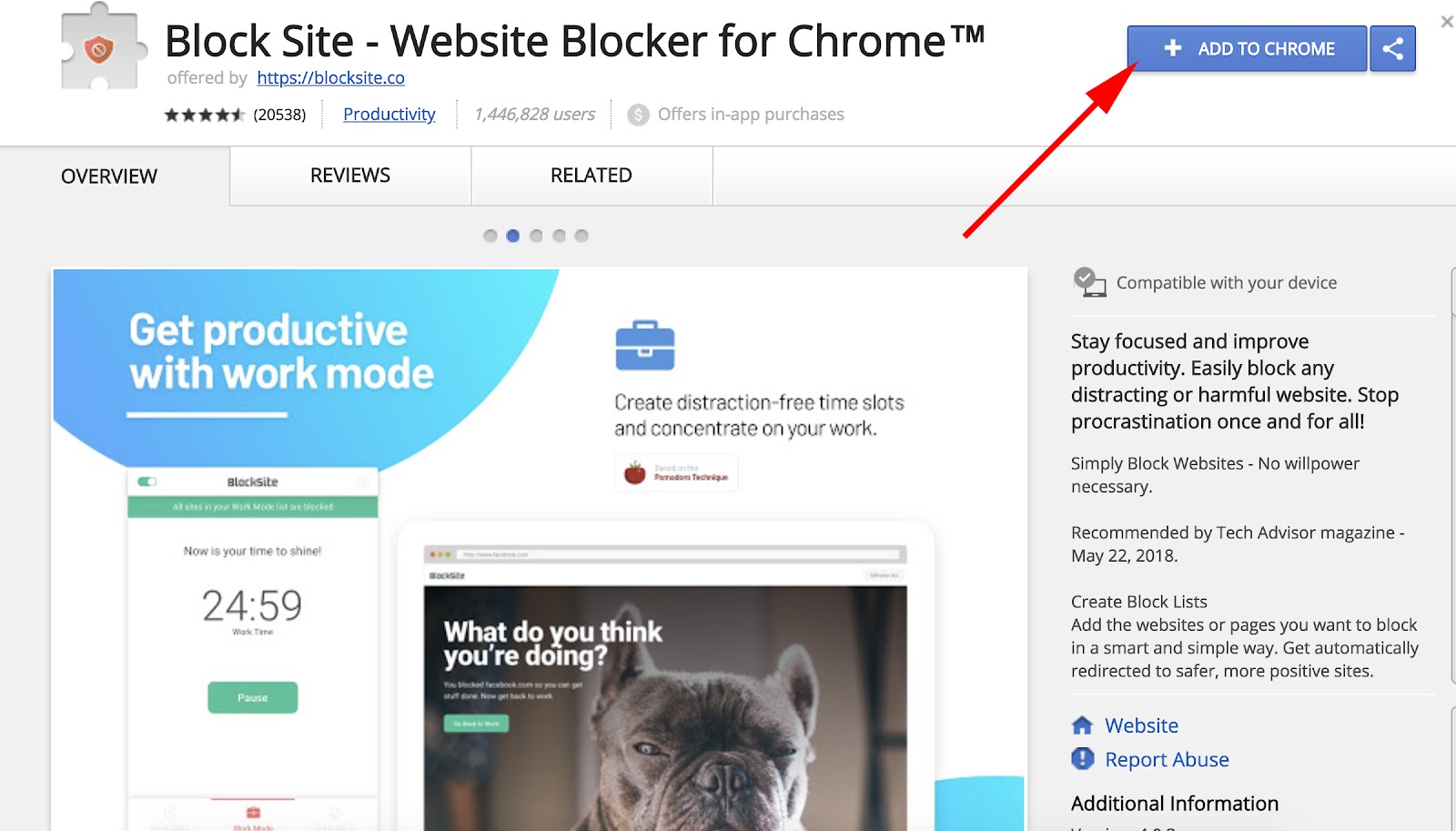
The easiest way to block websites users can visit through Google Chrome is to download a browser extension. We recommend “Block Site,” available through the Chrome web store.
Search for the Block Site extension, or a similar tool you trust, and select “Add to Chrome” in the top-righthand corner of your screen, as shown above.
2. Click “Add extension” in the pop-up box.
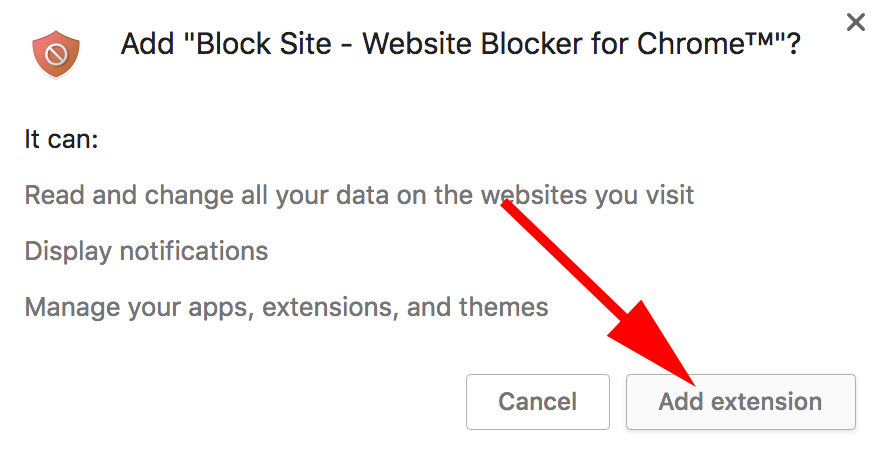
Once you click “Add to Chrome,” you’ll see a window appear that summarizes the extension’s main features. If you’re satisfied with your choice, click “Add extension” in this window to officially install the extension on your browser.
3. Check for the extension’s icon on the top-righthand corner of your Chrome screen.
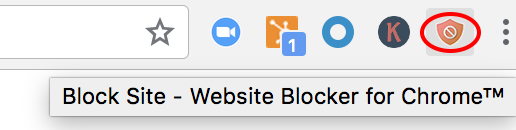
With your extension downloaded, you’ll see a new icon appear across the top of your Chrome browser — an orange shield with a circle and a diagonal line through the middle. Make sure this icon appears to confirm the extension has been installed.
4. Visit a website you want to block from then on.
Let’s say you’re feeling a little bitter from a recent World Cup loss, and want to block sports’ sites for a while. Simply go to a website, click that orange shield icon in the top right, and click “Block this site.”
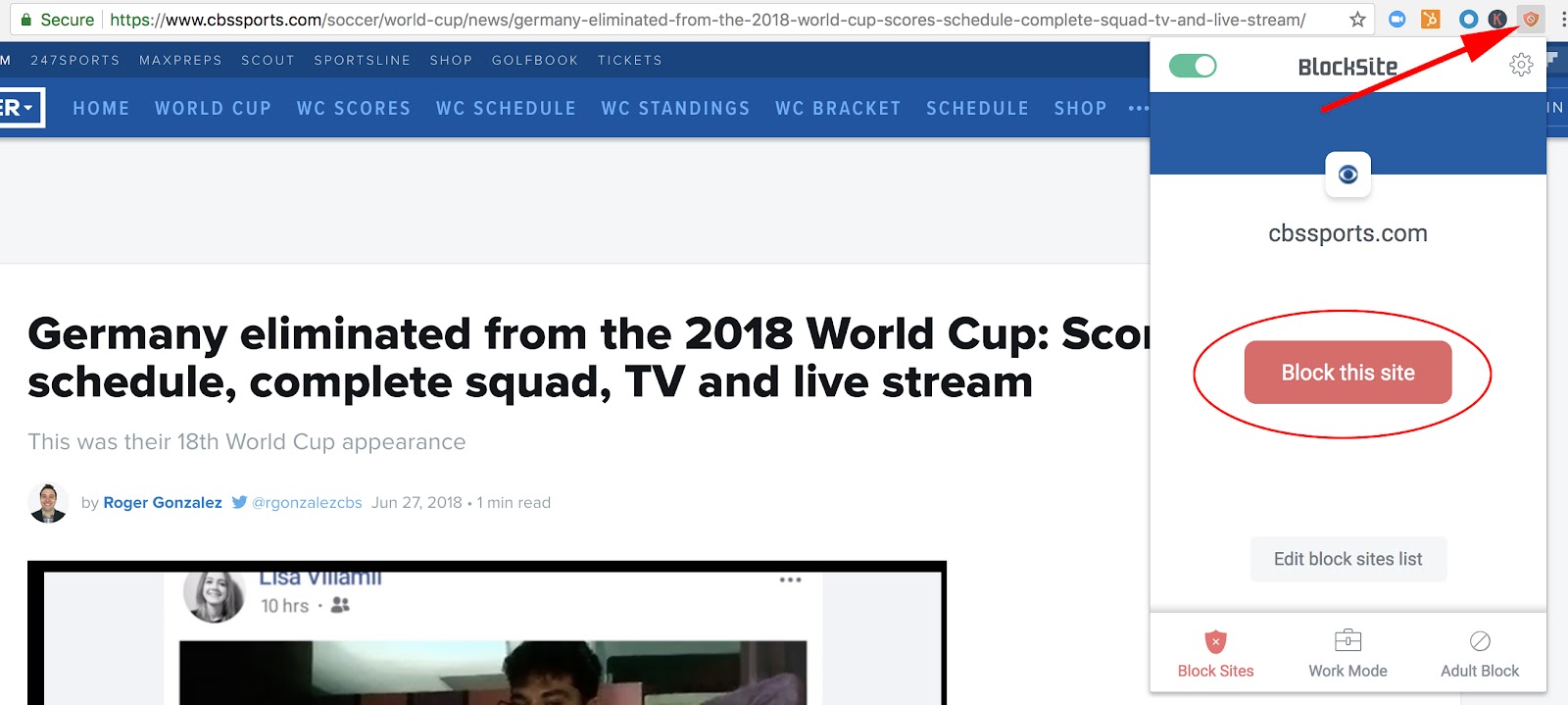
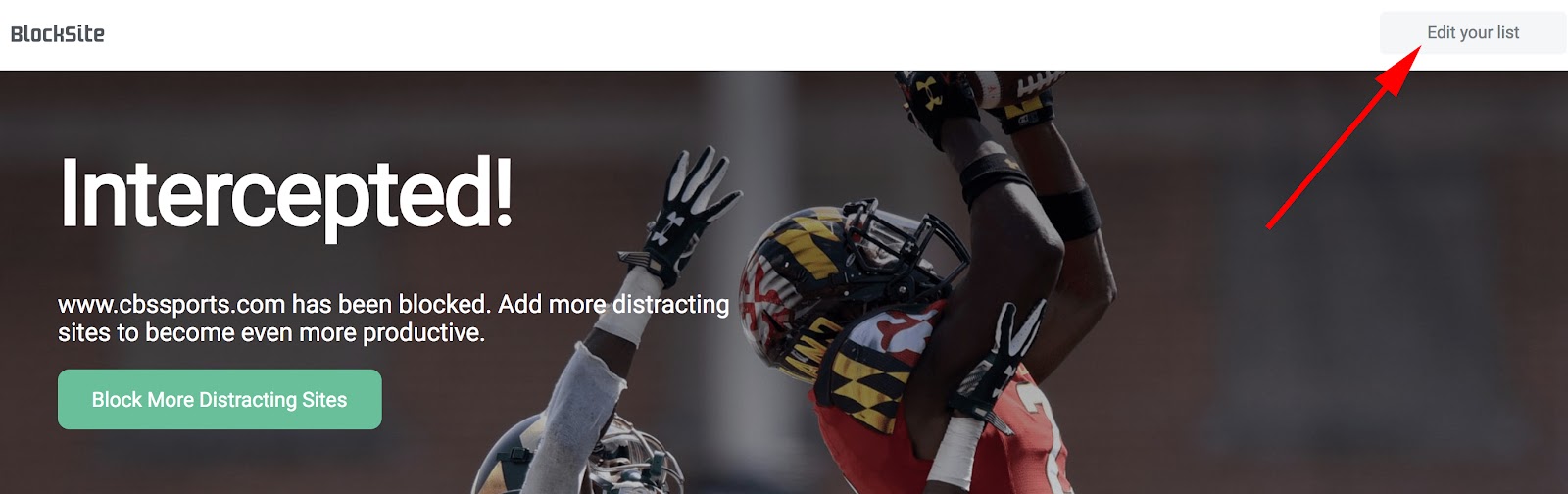
Now, you won’t be able to reach cbssports.com (or any other website you chose). You’ve successfully blocked it. To unblock the site, click “Edit your list” in the top right (or click the icon, and then click “Edit block sites list”).
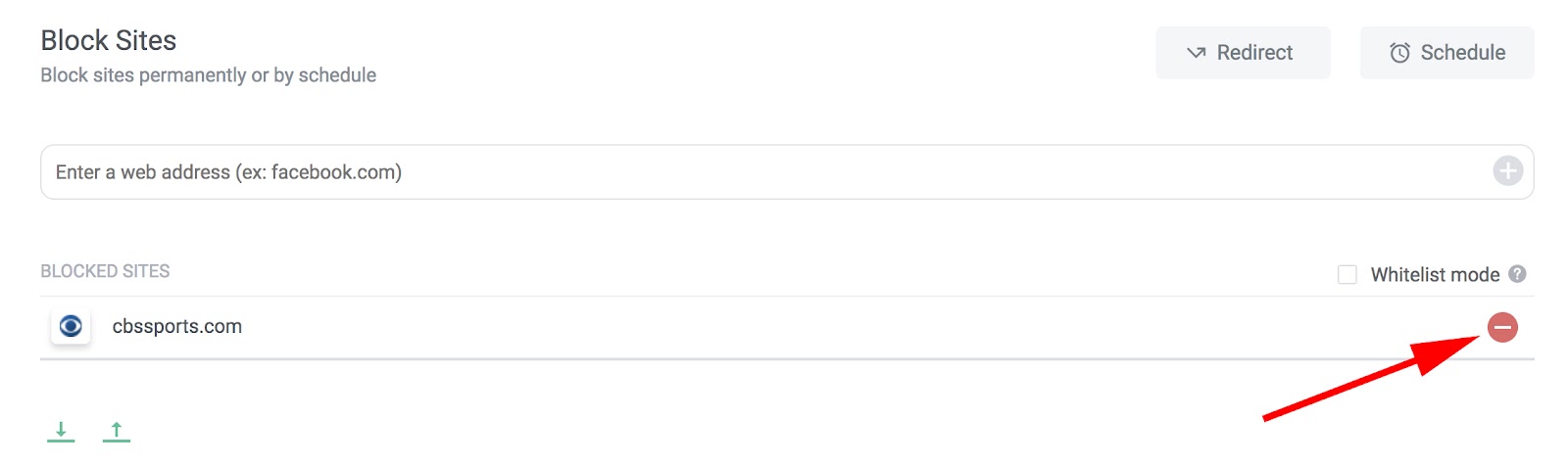
Each of your blocked websites will have a “minus” icon to the right — click that minus button, and your site will be unblocked.
How to Block Websites on Chrome Android (Mobile)
If you often surf the web via Chrome on your Android device, you might need to block certain websites to ensure increased productivity at all times of day.
Remember the “Block Site” browser extension from the desktop instructions earlier in this article? For mobile devices, this extension is also an app you can download. Here’s how to use it via mobile to block certain websites on your smartphone:
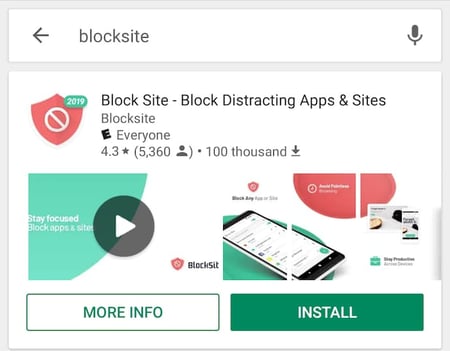
1. Open the Google Play Store and install the “BlockSite” app.
Your Android Device comes with a native app called Google Play — also known as the Play Store. This is a marketplace where you can download apps, both free and paid, onto your phone. Open Google Play and search for the BlockSite app (all one word), as shown below. You can view it here, too.
2. Open the downloaded BlockSite app.
Once you have this app downloaded, open it when the icon appears on your phone.
3. “Enable” the app in your phone’s settings to allow the app to block websites.
Open the BlockSite app on your mobile device and tap “Go to settings” when prompted. The app will take you to your phone’s app settings. You’ll need to enable the app for it to assume control of your browser and block the websites you don’t want to see.
Find this app in your settings list and tap on it. You’ll either be prompted to “Enable” the app or “Use service.” Tapping either one will activate the app for you.
4. Tap the green “+” icon to block your first website or app.
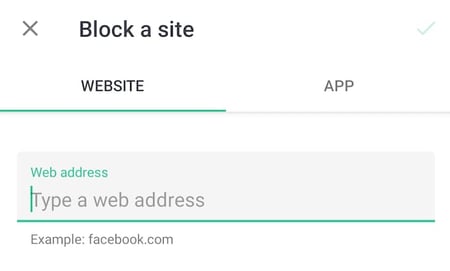
With the BlockSite app enabled, return to the app and tap the green “+” icon on the bottom-righthand corner of your mobile screen. This will open a page where you can block either a website or a mobile app by entering the name of each into the search bar. See the screenshot below; tap “Website” or “App” to set which type of content you want to block.
5. Tap the checkmark on the top-righthand corner to confirm the site has been blocked.
Enter the full URL of the website you want blocked and you’ll see a green checkmark on the top-righthand corner of your screen become available. Tap it, and you will have successfully blocked this website.
In the next screen that appears, you’ll be able to edit or remove websites and apps from your blocked list at any time.
How to Block Websites on iOS Devices (Mobile)
There are a few apps in the app store that allow you to block websites on your iOS device. Here are two options with similar functions:
- Zero Willpower: This app is $1.99, and lets you create an easy list of all websites you want to block from Safari on your iPhone. Even better, there’s a timer, so you can block a website for a limited period of time.
- Site Blocker: Similar to Zero Willpower, Site Blocker lets you block distracting or unwanted websites on Safari on an iOS device, and includes a timer and suggestions as well. This app is free.
Now you’re all set to block distracting websites from your Chrome browser on desktop or Android. If you find you’re still struggling with productivity, take a look at our Ultimate Guide to the Best Productivity Apps.
Blocking Websites by Rooting or Jailbreaking Your Device
At one point or another, you’ll hear about the possibility of “rooting” or “jailbreaking” your mobile device. Doing so has been known to give users administrator rights over the phone — letting them download apps and games they wouldn’t otherwise be able to, as well as change the phone’s settings in ways the typical end user can’t.
Another byproduct of rooting or jailbreaking your phone is blocking websites.
- Rooting: This is the action users take on Android mobile devices to access the “root” code of their phone, allowing them to control the device’s operating system and, as a result, choose which websites the phone can or can’t visit.
- Jailbreaking: This is the action users take on iOS devices such as the iPhone, allowing them to run and download software that Apple would normally prohibit.
This is the part where I explain how to use rooting and jailbreaking to block websites on your mobile device … Instead, I’m going to strongly advise against it. Rooting your phone might theoretically give you access to code in your smartphone that can bar certain websites from your browser, but according to Kaspersky, there are also a number of legal and security risks you can open yourself up to.
While different countries have their own laws against manipulating the operating system of a smartphone, the process itself can make your mobile device more vulnerable to viruses and malicious software. For that reason, many apps you might have or plan to download can become incompatible with your phone, and refuse to work on a “rooted” or “jailbroken” device.
When in doubt on how to block a website on your desktop computer, Android device, or iPhone, choose one of the Chrome apps above.


How to Blend Web Analytics and Digital Marketing Analytics to Grow Better
Measuring the effectiveness of digital marketing is one of the greatest challenges facing organizations today.
According to HubSpot’s 2018 State of Inbound report, 42% of marketers cited “proving the ROI of our marketing activities” as one of the biggest challenges they face within their company. Brands also say they plan to increase spending on marketing analytics by between 75 and 100 percent, says a study by VentureBeat.
The trouble is, when most marketers hear ‘digital analytics,’ they tend to think of the metrics you’d typically associate with a simple web analytics tool like Google Analytics — traffic, bounce rate, unique visitors, etc.
However, web analytics is only part of what encompasses digital analytics.
While web analytics can provide you with a wealth of insight and data into the performance of your website, marketers need richer data to understand the impact of their marketing campaigns on conversion rates and a buyer’s journey. Looking at top-level web analytics metrics like traffic is only the first piece of the puzzle.
Enter: digital marketing analytics, which offers a much more comprehensive view of what’s working when it comes to your marketing strategy — and what isn’t.
Regardless of how you fit into your company’s marketing puzzle, learning how to understand and leverage digital marketing analytics is incredibly important. Analytics data not only tells you if your marketing is working (or not), but it also tells you precisely how and where you can improve. This type of insight can benefit everyone.
That’s why we built this guide. We want you to master marketing analytics so your business can grow better. Below, we’ll talk about what marketing metrics to monitor, how to read and apply them to your marketing decisions, and how to leverage them to grow your business and bottom line.
Bookmark this guide for future reference and use the chapter links below to navigate through the content.
Digital marketing analytics is the translation of customer behavior into actionable business data. Today’s marketers can use digital analytics tools to examine the many online channels their buyers might interact with and identify new revenue opportunities from existing campaigns.
What is digital analytics?
Digital marketing analytics also give the creative, fluid side of marketing a data-driven foundation on which businesses can build a profitable, scalable marketing strategy. Analytics draw the line between opinion and fact.
Before we dive into how to use digital analytics for your business, let’s talk about what marketing metrics you’ll be measuring and analyzing.
Digital Marketing Metrics to Know
Digital marketing metrics are statistical measures that marketers use to determine the success of various marketing efforts as they relate to their overall campaign goals and industry standards.
You’ve heard of vanity metrics, yes? Vanity metrics are the surface level numbers that often tease you into thinking your efforts are working. Unfortunately, to get a clear picture of your campaign’s impact, you need to look at a wider variety of actionable metrics. We’ll be covering both in this section.
Here’s a comprehensive list of all the marketing metrics you need to know — and what they can tell you.
Digital Metrics for Websites
The following are digital marketing metrics associated with websites and web activity — a.k.a. web analytics.
Visitor
A Visitor (or User) is someone who visits your site. Visitors are tracked by a cookie placed in their browser by a tracking code installed on your site.
Page View
A Page View is when a page on your site is loaded by a browser. A page view is measured every time your tracking code is loaded.
Session
A Session is a series of activities taken by a visitor on your website, including page views, CTAs, and events. Sessions expire after 30 minutes of visitor inactivity.
Traffic
Traffic (or Visits) is the total number of site or page visits in a given time period
Traffic by Channel
Traffic by Channel is the total number of site or page visits per referral channel, e.g. social media, email, landing pages, etc.
Traffic by Device
Traffic by Device is the total number of site or page visits per device type, e.g. smartphone, tablet, desktop, etc.
Ratio of New Traffic to Returning Traffic
The Ratio of New Traffic to Returning Traffic is the percentage of net new site or page visitors you receive as compared to the total amount of returning traffic
Time on Page
The Time on Page is the average time each visitor spends on your site or page
Interactions per Visit
Interactions per Visit are what actions your visitors took did when on your site or page
Bounce Rate
The Bounce Rate is the percentage of people who visited your site or page but didn’t take any action or look at any other pages as compared to the total number of page or site visitors
Digital Metrics for Lead Magnets
The following are digital marketing metrics associated with lead magnets and content offers.
Call-to-Action (CTA) Click-Through Rate
The CTA Click-Through Rate is the percentage of total clicks on a CTA as compared to the total number of page or site visits
Submissions
Submissions is the percentage of total people who filled out and submitted your web form
Conversion Rate
The Conversion Rate is the total number of actions taken (e.g. a download, sign-up, etc.) on your lead magnet as compared to the total number of visits
Free Trial Conversion Rate
The Free Trial Conversion Rate is the percentage of free trial users who converted to customers
Pop-Up Conversions
Pop-Up Conversions is the percentage of total pop-up form completions who converted to customers
Ratio of Generated Leads to Marketing-Qualified Leads (MQL)
The Ratio of Generated Leads to MQL is the total number of “good fit” leads collected from your lead magnet as compared to the total number of leads generated
Leads to Close Ratio
The Leads to Close Ratio is percentage of leads converted to customers as compared to the total number of leads
Digital Metrics for Email Marketing
The following are digital marketing metrics associated with email marketing.
Open Rate
The Open Rate is percentage of opened emails as a proportion of the total number of emails sent
Opens by Device
Opens by Device is the total number of email opens per device type, e.g. smartphone, tablet, desktop, etc.
Click-Through Rate
The Click-Through Rate is the percentage of total clicks on an email link, or CTA, as a proportion of the total number of email opens
Bounce Rate
The Bounce Rate is the percentage of undeliverable emails as a proportion of the total number of emails sent
Unsubscribe Rate
The Unsubscribe Rate is the percentage of people who unsubscribe from your email list over a given period of time
Digital Metrics for Content and Social Media
The following are digital marketing metrics associated with content and social media.
Engagement Rate
The Engagement Rate is the total number of engagements (e.g. comments, clicks, likes, etc.) as a proportion of the total number page or post views
Follows and Subscribes
Follows and Subscribes is the total number of people who’ve shown interest in your content and want to receive updates when new posts or pages are published
Shares
Shares is the total number of times a post or page has been shared on social media, a website, or a blog
Digital Metrics for Product and E-Commerce
The following are digital marketing metrics associated with e-commerce.
Shopping Cart Abandonment Rate
The Shopping Cart Abandonment Rate is the total number of online shoppers who put items in their shopping cart but don’t complete a purchase as a proportion of the number of people who complete a purchase
- Tip: We’ve found that you can improve your e-commerce conversion rates by changing your shipping options
This section serves as a high-level review of the most important marketing metrics per channel. Depending on what software you use or marketing channels you pursue, you may see different metrics.
So, why exactly do digital marketing analytics matter? Let’s take a look at what makes digital analytics so important today, and how they compare to (and improve on) the insights offered by more basic web analytics.
Digital Marketing Analytics vs. Web Analytics
Quite simply, web analytics (like many of the metrics we defined above) just isn’t enough. The data that web analytics provides alone doesn’t cut it for marketers who need to understand how their work makes an impact throughout the entire marketing and sales flywheel.
Let’s face it: Today’s marketing extends well beyond the bounds of your website. It also includes how your marketing channels interact, the insight you gain from those outcomes, and the progress you track through your reporting.
This perspective provides the foundational data you need to structure your flywheel — delighting your existing customers enough to attract and engage new ones.
Web analytics measure things a webmaster or technical SEO specialist cares about, like page load speed, page views per visit, and time on site. Digital marketing analytics, on the other hand, measure business metrics like traffic, leads, and sales, and allows you to observe which online events determine whether leads will become customers.
Digital marketing analytics include data not only from your website, but also from sources like email, social media, and organic search.
How Digital Marketing Analytics Connects Every Business Activity
With digital marketing analytics, marketers can understand the effectiveness of their entire marketing strategy, not just the effectiveness of their website. Using digital marketing analytics allows marketers to identify how each of their marketing initiatives (e.g., social media vs. blogging vs. email marketing, etc.) stack up against one another, determine the true ROI of their activities, and understand how well they’re achieving their business goals.
The central question is: How can you structure an appropriate business goal to visualize your marketing team’s efforts in the most accurate way possible?
As a result of the information they can gather from full-stack digital marketing analytics, marketers can also diagnose deficiencies in specific channels in their marketing mix, and make adjustments to strategies and tactics to improve their overall marketing activity.
You can spend hours and hours slicing and dicing data in web analytics tools, comparing new vs. repeat visitors month over month. But when it comes down to it, you’ll come up short of a truly comprehensive view of your marketing performance.
There’s no doubt that marketers are aware there’s a deficiency in how they’re able to measure the effectiveness of what they do; here’s how full-stack digital marketing analytics makes up for that deficiency.
The ‘Full Picture’ of Digital Marketing Analytics
Digital analytics can be used to structure a business goal into outcomes based on three broad categories:
- The relationship between different marketing channels
- People-centric data on the buyer’s journey
- Revenue attributed to specific marketing efforts
Download our free ebook on inbound marketing analytics — the key metrics your executives really want to see.
Let’s highlight these main differentiators.
1. The Relationship Between Marketing Channels
Digital marketing analytics provides a good, solid look into the direct relationships between your marketing channels. It’s great to be able to see how each of your individual channels (e.g., social media, blogging, email marketing, SEO, etc.) are performing, but the true power of analytics comes into play when you can easily tie the effect of multiple channels’ performances together.
For instance, let’s say you sent an email to a segment of your database. Digital marketing analytics not only tells you how many people clicked through from your email to your website but also how many of those people actually converted into leads for your business when they got there.
Furthermore, you can compare the impact of that individual email send with other marketing initiatives. Did that email generate more leads than the blog post you published yesterday? Or was the content you shared via Twitter more effective?
2. People-Centric Data on the Buyer’s Journey
As we mentioned earlier, a key differentiator between web analytics and digital marketing analytics is that the latter uses the person — not the page view — as the focal point.
Digital marketing analytics enables you to track how your individual prospects and leads are interacting with your various marketing initiatives and channels over time. How did an individual lead first come to find your website? From Google? Facebook? Direct traffic? Is that lead an active part of your email subscriber base, clicking and converting on marketing offers presented via email? Do they read your blog, and have they downloaded any content offers that could indicate an interest in your products/services?
Full-stack digital marketing analytics can tell you all of this and more, providing you with extremely valuable lead intelligence that can help inform the direction of your future campaigns.
Looking at all of this information in aggregate can help you understand trends among your prospects and leads and which marketing activities are valuable at different stages in the buyer’s journey.
Perhaps you find that many customers’ last point of conversion was on a certain ebook or white paper. Having this data makes it possible to implement an effective lead management process, enabling you to score and prioritize your leads and identify which activities contribute to a marketing-qualified lead (MQL) for your business.
3. Revenue Attributed to Specific Marketing Efforts
One of the most useful functions of marketing analytics is its ability to attribute specific marketing activities to sales revenue. Sure, your blog may be effective in generating leads, but are those leads actually turning into customers and making your business money? Closed-loop marketing analytics can tell you.
Download our free ebook on closed-loop marketing and take your digital marketing analytics to the next level.
The only requirement here is that your digital marketing analytics system is hooked up to your customer relationship management (CRM) platform.
Having this closed-loop data can help you determine whether your individual marketing initiatives are actually contributing to your business’ bottom line. Through it, you can determine which channels are most critical for driving sales.
Perhaps you find that your blog is your most effective channel for generating customers, or conversely, you find that social media is really only powerful as an engagement mechanism, not a source of sales.
By measuring the relationship between marketing channels, tracking people-centric data, and analyzing what revenue is linked to which efforts, you’ll be equipped to set goals that support your bottom line. Now, let’s talk about how to use these marketing analytics effectively.
How to Use Digital Marketing Analytics Effectively
Most marketers know they need to be looking at more than just traffic and website performance to get the insights we’ve talked about so far. But why do so many of us still struggle to measure the impact and prove the ROI of our online marketing activities?
Probably because:
- We don’t have solid goals in place for our campaigns, or
- We don’t have the means to measure our success.
Quite often, you’ll find it’s a combination of the two.
Master SMART Marketing with our free, goal-setting Excel template.
S.M.A.R.T. Goals
One way to mitigate this is to have an actionable business goal combining your marketing team’s priorities. Typically, this can be achieved using the S.M.A.R.T. format. In this strategy, each goal you create must be:
- Smart
- Measurable
- Attainable
- Relevant
- Timely
A good business goal will inherently organize your team’s tasks towards producing specific outcomes or metrics to measure their progress. For marketing teams, this can be broadly summarized into three major categories:
- Web traffic and diversity of sources
- Conversions generated from traffic to produce leads and (eventually) customers
- Identifying net new revenue as a direct result of certain marketing efforts, laying a roadmap for further growth and cost-effective marketing investments
The fact is, in order to gain the insights needed to understand their marketing performance and make sound decisions, most marketers balance a number of different digital analytics platforms. (Remember how many categories of marketing metrics we reviewed above?)
For example, they gather data about their email marketing through the analytics provided by their email service provider, information about their social media performance through their social media monitoring tool, blog analytics from their blogging platform … and the list goes on.
But this fragmented approach to reporting makes it really difficult to connect the dots and make informed decisions about the future of your digital strategy.
The ideal solution is to implement an all-in-one marketing and reporting platform that offers end-to-end visibility on your marketing activities, allowing you to measure everything in one place.
Campaign-Based Reporting
Rather than just looking at canned reports for each traffic source you can use custom reporting capabilities to construct data charts that depict an entire marketing campaign’s progress, not just how certain content is doing through certain channels.
Here’s how you can configure your digital analytics to capture this holistic view, showing you where a potential buyer came and where they are going. We’ll use HubSpot’s Marketing Hub as an example. Here are some of the types of analytics you can see in a quality marketing tool:.
Web Traffic by Original Source
This is an easy report that you can configure by date range and/or original source to show what marketing channels you can capitalize on to turn more of that traffic into leads and customers. You can use HubSpot’s Traffic Analytics tool to get access to this.
First Conversion by Original Source/Persona
This report quantifies your impact by the number of new contacts you’re able to create based on the first content offer or form submitted, and tie that back to the original source of that lead.
Another way to look at this is to segment your contacts by a particular persona to show which ones are giving the most return for which your team is creating content.
Contacts Funnel Report
This calculates the conversion rates down the marketing and sales funnel, showing new leads that become marketing qualified leads, sales qualified leads, and, ultimately, new customers.
Marketing Contribution to Revenue
This custom report depends on your use of the marketing qualified lead lifecycle stages, visualizing those that converted into customers and their relative value in terms of revenue generated.
Customer Acquisition Cost
This can be seen in HubSpot by using calculated fields or custom properties to depict the amount of money spent by your marketing team to attract, engage, and delight your buyer persona.
These closed-loop reports are just some of the capabilities available to depict your progress towards your business’s bottom line.
All of the insights, information, and data you can gather from your digital marketing analytics tool(s) is really only useful if you do something with it. The true value of analytics isn’t just to prove the value of marketing to your boss; it’s also to help you improve and optimize your marketing performance — on both an individual channel-by-channel basis as well as an overall, cross-channel machine.
With digital marketing analytics, you should also be able to implement closed-loop reporting, making it easier to prove how your marketing efforts are positively impacting your sales team, who are being fed much higher quality leads.
Grow Better with Digital Marketing Analytics
The most important takeaway from this article is: If you’re relying solely on top-level web analytics, you’re missing out on a lot of powerful data that can help inform your marketing strategy and better connect with your audience and customers. So, when evaluating digital analytics tools for your business, be sure you’re looking for evidence of digital marketing analytics, not just web analytics.
While web analytics provide a rosy picture of your top-line activity, digital marketing analytics can help you turn your business objectives into measurable outcomes that support your bottom line. Prioritize the data that reflects people — not page views — and you’ll be growing better in no time.

15 Quotes About Social Media to Inspire Your Marketing Strategy
With all the algorithm updates, changing content preferences, and memes sprouting up on social media, it can be more challenging to adapt your marketing strategy to the channel than it was acclimating to the awkwardness of puberty.
Despite its perpetual evolution, though, social media will always have one constant — people. For the most part, human behavior has stayed the same for thousands of years, which means the principles of psychology are unwavering. So if you want to succeed on social media, you need to focus more on the people using it than the trends changing it.
To help you develop an audience-centric social media strategy, we’ve compiled 15 insightful quotes about social media from executives, marketers, and even celebrities. Read on to get inspired.
Social Media Quotes
- “People want to go on the Internet and check out their friends so why not build a website that offers that? Friends, pictures, profiles, whatever you can visit, browse around, maybe it’s someone you just met at a party. I’m not talking about a dating site. I’m talking about taking the entire social experience of college and putting it online.” – Jesse Eisenberg as Mark Zuckerberg in The Social Network
- “It’s a dialogue, not a monologue, and some people don’t understand that. Social media is more like a telephone than a television.” – Amy Jo Martin, author of Renegades Write The Rules
- “We get to live in a time that we get to use social media as a tool. It’s not just a face on a piece of paper, and that’s what makes you someone’s favorite model. We can have a very similar sense of humor as someone, and that’s why we’re their favorite model, or our personal style, off the runway, is why we’re their favorite.” – Gigi Hadid, fashion model
- “I’m very active on social media and see the huge impact it has on engaging with fans and being able to have a voice.” – Stephen Curry, professional basketball player for the Golden State Warriors
- “A lot of people who are ‘social media’ stars aren’t considered to be ‘real’ stars, and people underestimate the amount of work it takes to edit and upload a video every single day and document your life like that.” – Shawn Mendes, singer
- “When I hear people debate the ROI of social media? It makes me remember why so many businesses fail. Most businesses are not playing the marathon. They’re playing the sprint. They’re not worried about lifetime value and retention. They’re worried about short-term goals.” – Gary Vaynerchuk, CEO of VaynerMedia
- “A large social-media presence is important because it’s one of the last ways to conduct cost-effective marketing. Everything else involves buying eyeballs and ears. Social media enables a small business to earn eyeballs and ears.” – Guy Kawasaki, Chief Evangelist, Canva
- “Facebook is a discovery model platform. Its primary goal is to make the audience happy. So you’ll only get ROI if you create quality content for your audience.” – Kelly Hendrickson, Facebook Lead at HubSpot
- “Instead of getting discouraged when a promising tweet doesn’t rack up the likes and retweets, pay attention to the clicks and check how long people stay on the page after coming from social. If your post is generating strong engagement, don’t worry so much about the superficial stats.” – Tallie Gabriel, Producer at Unthinkable Media
- “When pitching to press outlets, you need to help drive traffic through social to make it worth the effort of PR professionals. In addition to traditional outlets, publications are now generating traffic from native content within social platforms. So if you want to engage with members of the press and PR professionals today, you need to analyze their social media pages to learn what kind of content they’re sharing — before pitching.” – Ryan Bonnici, CMO at G2Crowd
- “What happens on social media stays on Google forever.”
- “Being famous on Instagram is basically the same thing as being rich on Monopoly.”
- “Tumblr is currently the only social media network that your parents haven’t ruined.”
- “I log off because I’m bored. I log back on in five minutes because I’m bored.”
- “For every action, there is an equal and opposite reaction, plus a social media overreaction.”
1. “People want to go on the Internet and check out their friends so why not build a website that offers that? Friends, pictures, profiles, whatever you can visit, browse around, maybe it’s someone you just met at a party. I’m not talking about a dating site. I’m talking about taking the entire social experience of college and putting it online.” – Jesse Eisenberg as Mark Zuckerberg in The Social Network
2. “It’s a dialogue, not a monologue, and some people don’t understand that. Social media is more like a telephone than a television.” – Amy Jo Martin, author of Renegades Write The Rules
3. “We get to live in a time that we get to use social media as a tool. It’s not just a face on a piece of paper, and that’s what makes you someone’s favorite model. We can have a very similar sense of humor as someone, and that’s why we’re their favorite model, or our personal style, off the runway, is why we’re their favorite.” – Gigi Hadid, fashion model

4. “I’m very active on social media and see the huge impact it has on engaging with fans and being able to have a voice.” – Stephen Curry, professional basketball player for the Golden State Warriors
5. “A lot of people who are ‘social media’ stars aren’t considered to be ‘real’ stars, and people underestimate the amount of work it takes to edit and upload a video every single day and document your life like that.” – Shawn Mendes, singer
Social Media Marketing Quotes
6. “When I hear people debate the ROI of social media? It makes me remember why so many businesses fail. Most businesses are not playing the marathon. They’re playing the sprint. They’re not worried about lifetime value and retention. They’re worried about short-term goals.” – Gary Vaynerchuk, CEO of VaynerMedia
7. “A large social-media presence is important because it’s one of the last ways to conduct cost-effective marketing. Everything else involves buying eyeballs and ears. Social media enables a small business to earn eyeballs and ears.” – Guy Kawasaki, Chief Evangelist, Canva
8. “Facebook is a discovery model platform. Its primary goal is to make the audience happy. So you’ll only get ROI if you create quality content for your audience.” – Kelly Hendrickson, Facebook Lead at HubSpot

9. ‘Instead of getting discouraged when a promising tweet doesn’t rack up the likes and retweets, pay attention to the clicks and check how long people stay on the page after coming from social. If your post is generating strong engagement, don’t worry so much about the superficial stats.” – Tallie Gabriel, Producer at Unthinkable Media
10. “When pitching to press outlets, you need to help drive traffic through social to make it worth the effort of PR professionals. In addition to traditional outlets, publications are now generating traffic from native content within social platforms. So if you want to engage with members of the press and PR professionals today, you need to analyze their social media pages to learn what kind of content they’re sharing — before pitching.” – Ryan Bonnici, CMO at G2Crowd
Funny Social Media Quotes
Quick Note:
We found these quotes on Pinterest. The authors are unknown, but they’ll still give you a good laugh.
11. “What happens on social media stays on Google forever.”
12. “Being famous on Instagram is basically the same thing as being rich on Monopoly.”
13. “Tumblr is currently the only social media network that your parents haven’t ruined.”

14. “I log off because I’m bored. I log back on in five minutes because I’m bored.”
15. “For every action, there is an equal and opposite reaction, plus a social media overreaction.”

The Top 7 Pinterest Categories & How to Decide Which to Pin to
More than likely, your company’s social media strategy revolves primarily around Facebook, Instagram, and Twitter. Perhaps, if you’re trying to attract a younger demographic, you use Snapchat, too.
But sticking to those platforms alone could mean a major missed opportunity — Pinterest.
Pinterest now attracts 150 million people per month. Additionally, its growth supersedes traditional social network success stories — millennial use of Pinterest in particular has increased more than any other social network, even Snapchat.
There are a few categories that people often turn to Pinterest for before looking anywhere else — hairstyles, for instance, or healthy dinner recipes. Additionally, if you search “Motivational quotes” and then click “Images” on Google, you’ll find yourself bombarded with a myriad of intricately designed quotes from Pinterest’s website.
In short, there are certain topics that do exceptionally well on Pinterest, and it’s critical you know which categories those are, so you can enact a brand strategy that enables your business to find success on the platform.
Keep reading to learn the seven most popular Pinterest Categories of 2019, and which ones your business should pin to.

Pinterest Categories
1. Travel
Whether you’re looking for a tourist-free island to visit or need fall weekend getaway ideas, it makes sense you’d start with Pinterest. And, in fact, most people do — two times more travelers use Pinterest vs. top online travel agency sites.
On Pinterest, Travel + Leisure has 7.3 million monthly viewers, and the Travel Channel has 2.9 million monthly viewers. Whether you’re a travel agent or blogger, you can likely attract a good deal of brand awareness by posting envy-inducing images of faraway destinations on the site.

2. Health and wellness
One of Pinterest’s most popular categories in 2019 can likely be attributed, at least in part, to the new buzz around self care, the success of boutique fitness studios like SoulCycle, and the rising popularity on Instagram of hashtags like #healthyliving. Whether a user is searching for organic smoothie recipes, yoga clothing, or weight-lifting exercises, Pinterest is a viable opportunity to showcase your products or services related to health and wellness. In fact, the search for “healthy habits” increased on Pinterest within the last year by almost 500%.
3. DIY home renovation projects
In 2018, 83% of home-related searches on Pinterest were “day-to-day DIY projects”. Nowadays — perhaps in part due to the rising popularity of HGTV shows, which prove how minor adjustments on a home can have major impact — people are more inclined to make home improvements themselves, and turn to Pinterest for home décor inspiration. If you’re in the business of interior design or home renovations, you might consider posting design tips, color themes, or simple DIY projects on Pinterest.
4. Women’s style
If you own a retail boutique or design your own clothes, it’s critical you take advantage of Pinterest’s audience — which, while there are increasing sign-ups from men, is still primarily women. For instance, Jo-Lynne Shane, a lifestyle and fashion blogger, took advantage of Pinterest to promote her brand by creating a “30 Days of Fall Fashion” special series of posts. She found her traffic quickly doubled, and she now has 5.9 million monthly viewers on Pinterest. From tortoise earrings (+679% in search volume in 2019) to biker shorts (+1323%), it’s undeniable women’s fashion is still as relevant on Pinterest as ever.
5. Beauty
I, like many of my friends, research all my new hairstyles on Pinterest before entering a hair salon. If you’re a hairstylist, makeup artist, or manicurist, then, it’s a major missed opportunity not to post photos of your clients’ before-and-after shots on Pinterest. Additionally, the Pinterest community is 2.4x more likely to experiment with different makeup vs. women on other platforms, and searches like “standout lip color” and “powder dip nails” increased by over 400% in the past year. Along with posting your own images, you might consider using Pinterest to keep up-to-date with trends in your industry, and see what type of looks clients could want in the future.

6. Food and drink
Sometimes, the easiest way to decide what you want to cook for dinner is to peruse images of recipes online — which is why Pinterest is an incredibly popular avenue for food and drink-related content, with over 23 billion recipes and dining ideas posted. You’ll find everything from food blogger’s recipes to a restaurant’s signature dish. If you work in the food industry, it’s critical you use Pinterest as an opportunity to connect and engage with other foodies, and to share recipes (or find inspiration for yourself).
7. Motivational quotes
Type “Motivational quotes” into Google, and then click “Images”. My guess is, plenty of your results come from Pinterest. And, while I’m willing to bet “motivational quotes” isn’t your business in-and-of-itself, this is still an interesting opportunity for increased brand awareness.
For instance, let’s say you’ve written a blog post about successful women in leadership positions. You might consider taking some of those women leadership quotes, and designing them on a template before posting them to Pinterest. Now, they’re likely more easy-to-uncover in Google’s Image Search, and could lead users back to your site. Additionally, offering fun, inspiring quotes is a good way to make your brand seem more helpful.

Most Popular Pinterest Categories
- Travel
- Health and wellness
- DIY home renovation projects
- Women’s style
- Beauty
- Food and drink
- Motivational quotes
Featured image courtesy of Refinery29.com

How to Build a Successful Instagram Ad Campaign With Only $5 a Day
Want to do more with Instagram ads? Wondering how to create an affordable Instagram ad campaign that runs automatically? In this article, you’ll discover how to create and run a self-sustaining Instagram ad sequence that converts followers into customers for as little as $5 per day. #1: Identify Your Most Engaging Instagram Posts Let’s dive […]
The post How to Build a Successful Instagram Ad Campaign With Only $5 a Day appeared first on Social Media Marketing | Social Media Examiner.
from Social Media Marketing | Social Media Examiner https://ift.tt/2Ew0yJs
via socialmediaexaminer
When Is the Best Time to Post on Instagram in 2019? [Cheat Sheet]
In high school, one of my friends was determined to find the perfect time to post her Instagram photos to maximize the amount of likes she got. She was surprisingly scientific about it, posting at different times of the day and jotting down each of her posts’ “likes per minute.”
After weeks of testing, she figured out which post time raked in the most likes, and, from then on, she could easily get 200 likes on all her Instagram posts.
My friend’s rather scientific method to maximize her Instagram likes still makes me chuckle to this day. But since I’m a marketer now, her desire to build a strong Instagram presence also resonates with me.

To build a sizable Instagram following, you need to create compelling content that your audience actually craves. But if you don’t post your content at the right time, most of them will never see it.
So how do you figure out the optimal post time for your specific audience?
The best way to find an ideal posting time is by testing the timing of your posts to see which post time generates the most audience engagement.
But if you don’t have enough resources or time to conduct your own tests, Sprout Social, a social media management platform with over 24,000 customers, has you covered. Last year, they analyzed their customer data to see what time and day their social media posts generated the most engagement. They also segmented the data by social network and industry.
Looking at their aggregate customer data for Instagram, you can see that the following days and times — in Central Daylight Time (CDT) — are ideal for generating the most engagement on the social network:
When Is the Best Time to Post on Instagram?
On average, the best time to post on Instagram is between 2 PM and 3 PM CDT. However, the level of engagement you get can change dramatically depending on what day of the week you post. The best day to post on Instagram is Thursday, not just at 3 PM, but at 5 AM, 11 AM, and 4 PM as well.
As stated above, although 2 – 3 PM is considered the best time of day to post on Instagram, the day of the week on which you post can change how much engagement you actually get at 2 – 3 PM.
Why? Think about the little differences in your daily mood and routine — the ones you might not realize you have — and how they affect your behavior. The same goes for everyone following your Instagram account. Here are some additional insights about optimal post timing from data by Sprout Social to show you what I mean:
- Posting at 5:00 AM CDT from Tuesday to Friday generates some of the highest engagement — people usually check their phones right when they wake up.
- Posting from 11:00 AM to 3:00 PM CDT during the weekdays also generates a lot of engagement — people usually check their phones during lunch or when they start to run out of mental energy toward the end of the work day.
- If you want to post on the weekends, post on Saturday around 11:00 AM CDT when people eat brunch or hang out with their friends.
So, when Instagramming, don’t go by this time range alone. Consider both the day of the week and the industry you’re in (we’ll talk about the latter in just a minute).
Best Time to Post on Instagram for Each Day of the Week
On average, here are the best times to Instagram during the week:
- Sunday: 10 AM – 2 PM CDT
- Monday: 11 AM – 5 PM CDT
- Tuesday: 5 AM, 9 AM – 6 PM CDT
- Wednesday: 5 AM, 11 AM, *3 PM CDT
- Thursday: *5 AM, *11 AM, *3 – 4 PM CDT
- Friday: *5 AM, 9 AM – 4 PM CDT
- Saturday: 11 AM CDT
* = particularly high levels of engagement
Want some easy marching orders based on this data? Post to Instagram between 9:00 AM and 6:00 PM CDT from Tuesday to Friday. You’ll get the most consistent engagement that way.
The general data above about optimal post timing is a great starting point for growing an engaged Instagram audience. But if you want to get more granular, here are the best times to post on Instagram if your organization is in the technology, B2C, education, healthcare, and non-profit industries, according to Sprout Social’s research.
Best Times to Post on Instagram for Technology Companies
- Best Time: Wednesday at 10:00 AM CDT
- Most Consistent Engagement: Wednesday to Friday from 10:00 AM to 5:00 PM CDT
- Best Day: Thursday
- Worst Day: Sunday
Best Times to Post on Instagram for B2C Companies
- Best Time: Saturday at 11:00 AM & 1:00 PM CDT
- Most Consistent Engagement: Everyday from 10:00 AM to 3:00 PM CDT
- Best Day: Wednesday
- Worst Day: Monday
Best Times to Post on Instagram for Educational Organizations
- Best Time: Monday at 8:00 PM CDT
- Most Consistent Engagement: Weekdays from 11:00 AM to 4:00 PM CDT
- Best Day: Monday
- Worst Day: Sunday
Best Times to Post on Instagram for Healthcare Companies
- Best Time: Tuesday at 1:00 PM CDT
- Most Consistent Engagement: Tuesday to Friday from 9:00 AM to 4:00 PM CDT
- Best Day: Tuesday
- Worst Day: Saturday & Sunday
Best Times to Post on Instagram for Non-Profit Organizations
- Best Times: Tuesday at 3:00 PM & 9:00 PM, Wednesday at 3:00 PM & 4:00 PM, Thursday at 2:00 PM & 3:00 PM, and Friday at 10:00 AM & 2:00 PM,
- Most Consistent Engagement: Weekdays from 12:00 PM to 5:00 PM
- Best Day: Tuesday
- Worst Day: Saturday
Every brand’s audience is different. To build a sizable, engaged Instagram audience, you need to know who your followers are. And one of the best ways to get to know your audience and capture their attention is by knowing exactly when they like to surf the app.

New Facebook Group Management Tools
Welcome to this week’s edition of the Social Media Marketing Talk Show, a news show for marketers who want to stay on the leading edge of social media. On this week’s Social Media Marketing Talk Show, we explore new Facebook group management tools with special guest, Bella Vasta. Watch the Social Media Marketing Talk Show […]
The post New Facebook Group Management Tools appeared first on Social Media Marketing | Social Media Examiner.
from Social Media Marketing | Social Media Examiner https://ift.tt/2Sljm1B
via socialmediaexaminer
The 61 Best Marketing Tools for Every Business & Budget [2019 Guide]
In the world of marketing, it seems like there are always new tools, tips, tricks, and trends to discover and incorporate into your marketing strategy. How is it possible to keep up with them all?
As a marketer myself, I often wish I had a better sense of all of the tools available to me — and what sets each of them apart — so I can make more informed decisions on how to create and optimize content.
Luckily, I have the privilege of working on a team of 150+ other marketers who specialize in different functions than I do. And because of that, I was able to curate this list of the top 61 tools every marketer should know about and use in 2019.
The list of recommended tools below is sorted into different sections so you can get a better sense of what tools are available for different functions of the job. At the end, you’ll see the whole list of 61 tools that you can skim and bookmark for later. Nearly 50 of them are free marketing tools, which means the product offers either a free version with limited resources or a select group of tools inside the product that are yours to use at no charge.
Enjoy!
Your List of the Best Marketing Tools to Build Your Strategy in 2019
Marketing Automation
Automation is nothing new to marketers. Whether you want to save time doing marketing tasks or simply cut time wasted doing those daily tasks like saving emails and files to spreadsheets, having a tool that makes your life easier and saves you time is ideal.
While there are lots of automation tools out there for specific fields or verticals (for example, the HubSpot workflows tool for marketing automation), there aren’t many tools that allow you to automate the various different tools you use throughout all aspects of your life.
Wouldn’t it be nice to link lots of tasks between different apps together? Like posting your Instagram photos to all your social networks or linking your app reminders together. With IFTTT you can!
IFTTT (IF This Then That) is a service that allows you to create chains of simple conditional statements, called applets. These “if this then that” applets are triggered by a wide range of other web-based services at the choice of the user. Some of the web-based services that work with IFTTT include Gmail, Google Drive, Facebook, Twitter, Fitbit, and much, much more.
Sounds great, right? Check it out.

Data Reporting
Most tools that automate some of your marketing strategy will also provide reports that allow you to see and present your campaigns’ performance to other employees in your company. What if you want a more holistic look at the health of your marketing?
From the efficiency of your content calendar to the effectiveness of your lead-generation methods, Digital Marketing Tuner offers a helpful overview of all of your latest marketing activities.
Developed by OverGo Studio, an inbound marketing agency and HubSpot Agency Partner, Digital Marketing Tuner guides you through a brief survey where you can submit basic information about your company’s content volume, email open rates, website traffic, and more. The tool then sends you a detailed report in which you can better visualize your team’s strengths and weaknesses so you can make even better decisions for your company moving forward.
Closing Deals and Tracking Relationships
You and your sales team want to sell your product or service — not fight with messy spreadsheets, cluttered inboxes, or clunky tools that slow you down. That’s why using a Customer Relationship Management System — also known as a CRM — is essential. Not only will it help your sales team manage relationships, but a CRM will also give you a place to deliver those leads you generated to your sales team.
CRMs are such an essential part of any good marketing and sales team that we think everyone should have one. That’s why the HubSpot CRM is completely free.
HubSpot CRM automates the tasks salespeople hate and takes minutes to learn — not months. That means doing more deals and less data entry.
Check out the HubSpot CRM Now
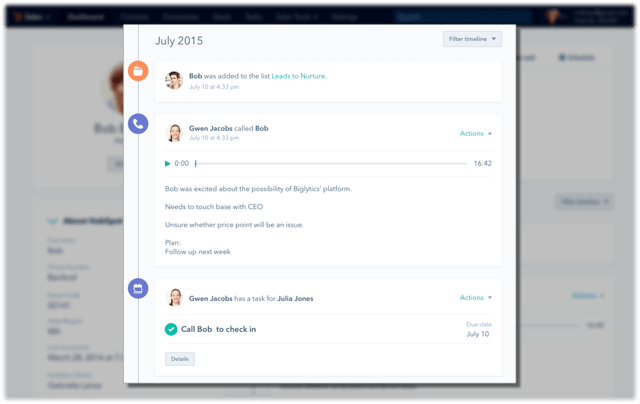

Collaboration
In any marketing team, the inevitable happens: there’s a million files and pieces of content between everyone on your team without one place to keep it all. Organization on any team — let alone a marketing team — is essential. That’s why it’s important to have a collaborative organization tool to keep you sane.
Dropbox is the perfect tool to keep your team organized and your files under control. With cloud-based software to keep your files accessible anywhere at anytime, Dropbox helps your team store all of its files in a central location. Dropbox makes it easy to collaborate, too. With tools like Dropbox Paper, which allows you to write and collaborate in real time on the same doc — and sharing tools for shared folders and files, you’ll be organized and ready for any project that comes your way.
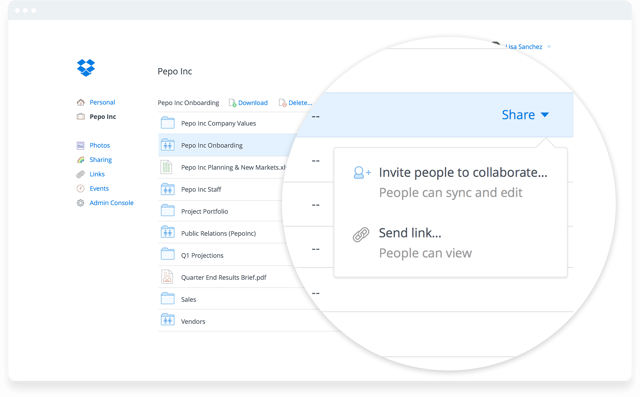

Other Collaboration Tools:
- Google Drive
- Box
- Trello
Content Creation
In the world of content creation, there are admittedly tons of different tools you could use to create various types of content. Whether it’s social images, logos, blog posts, or ebooks — the options and tools are endless.
That said, a newcomer among the Adobe Suite of tools is winning the hearts of many marketers, including this one, for its ease of use to create stunning webpages, awesome videos, and eye-catching graphics. The best part? It’s completely free and impossibly easy.
Adobe Spark is a suite of three web or mobile apps – Spark Page, Spark Post, and Spark Video — that allows marketers to easily create graphics, webpages, and videos in a variety of themes in minutes.
You can completely avoid the hassle of page layout, video editing knowledge, or a CMS and start creating content that looks remarkable immediately. For example, we use Spark Page at HubSpot to create some of our online guides and promote them with Spark Videos and Posts. You can too!
Check out Adobe Spark

Other Content Creation Tools:
- Venngage
- Piktochart
- Canva
- Recordit
- Kap
- Adobe Color CC
Video Marketing
It’s 2017 — haven’t you heard? Video is the thing everyone is talking about. But how do you actually implement it into your marketing?
Maybe your strategy is just to put a YouTube video embed on one of your blog posts or landing pages. But then what happens? Someone else’s ad plays on your landing page before your video even begins. That’s bad for your conversion rates, brand, and your user. Luckily, there’s a solution.
Wistia is a powerful video hosting platform that allows you to host your videos on your website — ad free — with a guaranteed smooth playback and responsive player. Wistia also helps you prove the ROI of your video efforts by offering you video analytics and key metrics to fine-tune your video marketing efforts over time. Ready to take your video marketing to the next level?
Try Wistia for Free Now

Other Video Tools:
- Vidyard
- Vimeo
- YouTube
Content Distribution and Brand Awareness
While it might seem like a given, when it comes to getting your content distributed online, there really is king that we’d be remiss if we’d different mention:
I know, I know. Google isn’t “exactly” a new or a fascinating tool that you didn’t already know about. That said, within the same parent company is another important distribution channel that many marketers often forget when they’re strategically distributing content for the sake of brand awareness.
YouTube is becoming more and more important to marketers lean more heavily on video-based content. While, of course, you should continue to optimize your text-based content for search engine optimization, don’t forget to consider YouTube as an important channel as well. Not only is YouTube great for hosting your videos and getting them shared across social networks, it’s also important to optimize your videos for search to get found on YouTube as well.
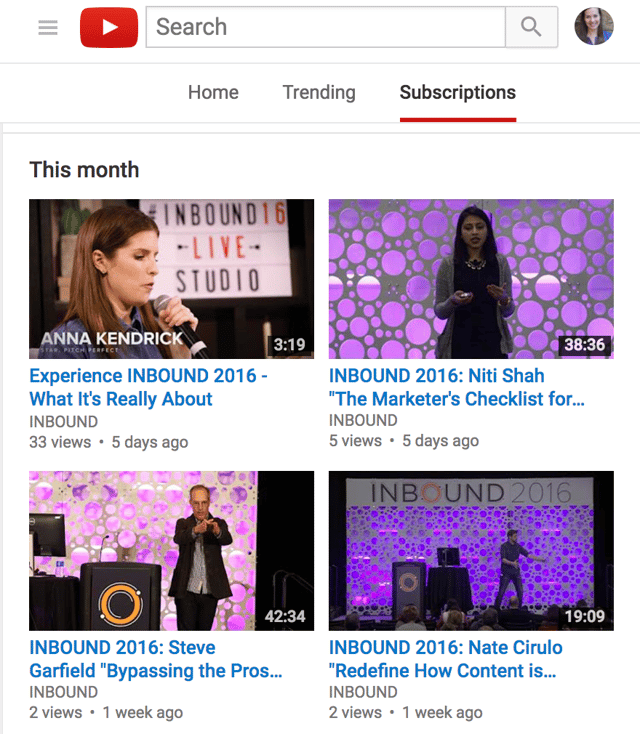

Other Distribution and Brand Awareness Channels:
- Product Hunt
Continuing Education and Learning
A challenge all marketers face is the need for continuous learning over time. With new tools and methods changing all the time, it’s essential to stay on top of the trends and changes. Luckily, there aren’t a shortage of tools and platforms for you to learn new tactics or techniques and take necessary classes.
HubSpot Academy, for example, is a great place to go anytime you need to get up-to-date information on the latest marketing best practices, find answers to your questions, get certified in a new area of expertise, or renew certifications on subjects that you’re a little rusty on.
Bookmark your HubSpot Academy portal today

Other Ongoing Education and Learning Tools:
- Lynda.com
- Udemy
- Codecademy
- Skillshare
- General Assembly
Conversion Rate Optimization (CRO)
When it comes to your bottom-line goals, you probably want a few tools for not only attracting prospects to dedicated marketing campaigns, but just as importantly, converting those visitors into leads and customers.
Thanks to a drag and drop interface, Unbounce lets you quickly build mobile responsive landing pages without developer assistance. The tool also integrates with a number of different CMS platforms and tools.
With Unbounce Convertables, you can also launch targeted overlays on top of any web page, each with a dedicated call to action. Customizable triggers and targeting rules give you control over who sees your offers and when, so you can serve the most relevant offers to the right audience.
Try Out Unbounce Now
 Other CRO Tools:
- Hotjar
- Optimizely
- Leadpages
- HubSpot Landing Pages Tool (try it below)

Event Marketing
Whether your team holds monthly customer and prospect events, yearly conferences, or just occasional community outreach parties and events, it’s important to have the best event marketing tool up your sleeve when the time comes to use it. After all, in-person events are some of the best ways to interact with potential customers and create a brand experience that prospects, customers, and your community will remember.
Eventbrite is an efficient, easy-to-use tool tons of marketers rely on not only to manage the logistics (like ticketing) of events but also to promote their events. Eventbrite lets you create an event landing page and allows you to set up your ticketing and payment for the event all within the same platform. The best part? Eventbrite is always free if you’re hosting a free event!
Check Out Eventbrite Now

Other Event Marketing Tools:
- Picatic
- AddEvent
Innovation and Efficiency Tools
If you’re on the search for new marketing tools, chances are you’re not just looking for the hammer and the nail in your toolkit. Instead, you might be looking for new and innovative solutions to try out and experiment with in your marketing. Sound about right?
As marketers, you’ve probably used forms — whether on your site or in a survey — more than a few times. But have you ever started to get bored with the same old, robotic form type?
Typeform is the tool you need to try if you’re looking for new ways to interact with your prospects and customers while giving them a positive, human-centered experience. Typeform isn’t just another survey tool. It’s a conversational, interactive typeform that feels more interactive than a standard form. Use it to host survey content, lead forms, or even create content with it by putting together quizzes and more.
Try Using Typeform in your Marketing Today


Other Innovative Tools to Try:
- Giphy
- Todoist
Keeping Up with the Latest Industry News Tools
Reading this post alone won’t end your career-long pursuit for the latest tools, trends, and marketing techniques. That’s why keeping up with the latest industry news is a full part of your job as a marketer.
Product Hunt, a tool meant for finding the latest tools and products, is a must for any marketer trying to stay on top of the industry and find new channels to promote their own product launches. Product Hunt is a daily feed of launched tools, letting people upvote what they think is interesting. Pro tip: when you sign up for Product Hunt, set it as your homescreen in your browser so you’ll always have a reminder to keep an eye out for what’s new. Who knows? You might even decide to use some of the featured tools yourself!
Sign Up for Product Hunt Now

Other News and Timely Tools:
- Your choice of online news sources or magazines
Lead Generation
If you’re in the mood for demand generation, you probably have you eyes on the prize: converting anonymous website visitors into contacts with email addresses that you can successfully nurture. While landing pages are a must for some things, sometimes you want a shorter, simpler user experience to capture lead information.
HubSpot’s free marketing tools can help do just that. The moment a lead shares their email, you’ll know who they are, where they work, and what pages they visited — all in real time. When they view an offer or check your pricing, you’ll be ready to follow up right away.
And with simple but powerful analytics, you’ll learn more about what’s working and what’s not — like which traffic sources or pieces of content are driving the most conversions. It’s a risk-free way to find out what inbound marketing can do for you. No budget necessary.
Try HubSpot’s Free Marketing Tools
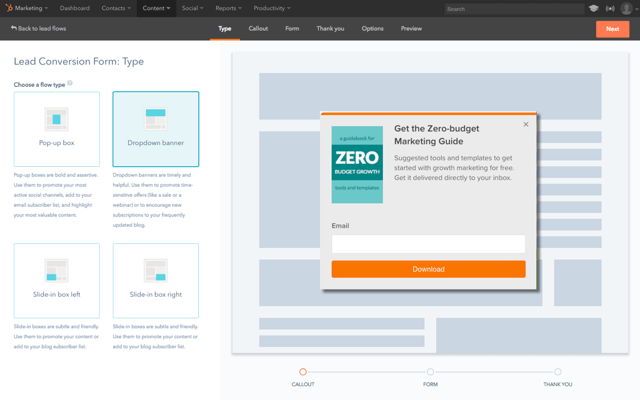

Lead Nurturing
In the world of lead nurturing, the tools and techniques used are constantly involving. While some aspects of nurturing remain the same, like using email to nurture contacts down your funnel, for example, the content and positioning you use is ever-changing. It would be easy for us to introduce a set of standard workflow and automation tools (like HubSpot’s, for example) you can use to nurture your contacts down the funnel. But if you’re looking for something a little more innovative for actually creating nurturing content, we have a new tool for you to try.
Vidyard is a great tool for creating and hosting awesome video content in your nurturing flows and otherwise. At HubSpot, for example, we’ve even started using Vidyard to create unique, customized nurturing videos specific to our audience and product. What makes Vidyard so great is its variety of video tools that you can use to create remarkable content.
From Vidyard’s live feature to its studio content creation products to its free tool – ViewedIt — Vidyard is an excellent tool if you’re a marketer looking to jump on the video bandwagon and start integrating video into all of your content.

Online Advertising
If your team is making investments into PPC ad campaigns on platforms like Google, Bing, Facebook, Twitter, or LinkedIn, it’s probably a bit of a hassle to manage all the different ad campaigns you’re running across each different network. Besides just managing them, you then have to try and report on the results of all of them. What a struggle. Luckily, there’s a tool for that.
AdStage takes the hassle out reporting on all of the PPC campaigns you’re running and puts it all in one place. AdStage helps you automate, create, and manage your campaigns across all of the major PPC platforms, then allows you to report on your results. With visual features and powerful automation tools, AdStage is a must for PPC experts and newbies alike.
Check out AdStage
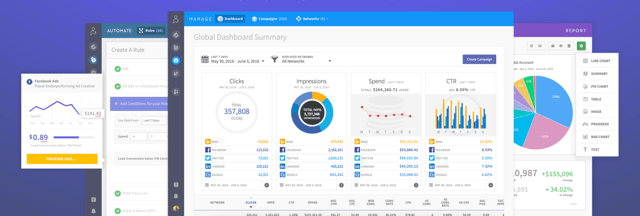
Other Online Advertising Tools:
- HubSpot Ads Add-On
- Perfect Audience
- Google Ads
- AdRoll
Project Management
File management and organization is one thing, but how do you manage all of the moving pieces of a marketing campaign or project? There are many different tools you can use for project management, but only one sticks out when it comes to the number of integrations and features at the price of — oh yeah — free!
Trello is a great project management tool for small teams and individuals. With it’s Kanban-style setup and fun user interface, Trello lets you set up to-do lists and tag individual cards with due dates, members, labels, and more. You can attach files, links, images, and more to your cards and easily get a full-view of any project that you’re working on. At HubSpot, we use Trello daily to manage our team campaigns and individual to-do lists. Want an example of how we do this? Check out our guide to managing marketing campaigns in Trello.
Get Trello — It’s Free!
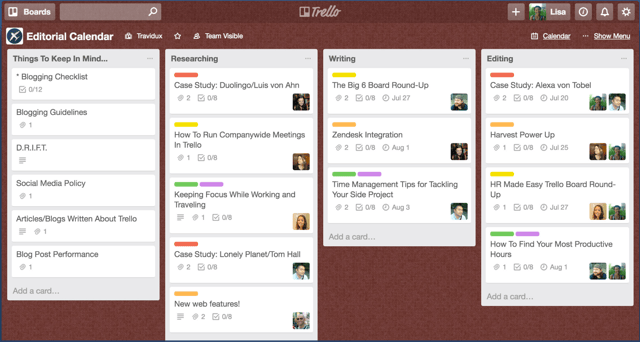

Other Project Management Tools:
- HubSpot Projects Tool (one of many tools in the HubSpot Marketing Platform)
- JIRA
- Asana
- Airtable
Search Engine Optimization
Whether its keyword research, content optimization, or checking your current page rankings, every marketer needs a go-to tool for planning what content to create and how to optimize it for SEO. Google Analytics and SEMrush our great tools for planning which keywords to rank for, but how do you make sure the content you create actually meets your goal once it’s created?
Ryte is the ideal tool marketers can use to make sure their SEO efforts are having a real impact on their marketing strategy.
Check out Ryte now


Other SEO Tools:
- HubSpot Content Strategy Tool
- Google Analytics / Keyword Tool
- Keywords Everywhere Chrome Extension
- Ahrefs
- SEMrush
- Moz
Social Media
Social Media Managers know the pain of posting that perfect social media post only to have a follower find a typo a minute later and call you out. For marketers, using a social media tool to schedule all of your posts (so you catch those typos beforehand) is a must. But it also helps to get the right analytics from your social posts, especially on channels where it can be hard to get that information.
Iconosquare is the perfect tool for marketers to grow their brand on Instagram with easy-to-use analytics. It’s not always easy to know what’s working and what’s not on Instagram. But, as the second most popular social channel and one that’s quickly approaching first most popular among some age groups, it’s a channel that marketers can’t afford to miss out on. Try Iconosquare now to maximize your Instagram analytics and optimize your brand Instagram channel for success.
Try Iconosquare Now

Other Social Media Tools:
- Buffer
- Hootsuite
- HubSpot Social Inbox (one of many tools in the HubSpot Marketing Platform)

Team Communication
Where would your work day be without accessibility and communication between you and your colleagues? Probably pretty frustrating. Marketers can’t shy away from communication when it comes to aligning with team members and across the company, so having the right team communication tools is necessary every single day.
I’d be given a lot of slack if I didn’t make the world aware of this tool.
Slack is a powerful messaging app that allows you and your teammates to quickly message back and forth without the hassle of email. But it’s not just AOL instant messenger 2.0. Slack has powerful features and integrations that make it possible for you to integrate all of your other daily tools — like Trello, Gmail, Giphy, and so many more — right where you’re already communicating. You can start channels between different teams or just chat with specific colleagues. Slack makes remote and in-person work possible and easier than ever.
Get Slack today. Seriously. Do it.
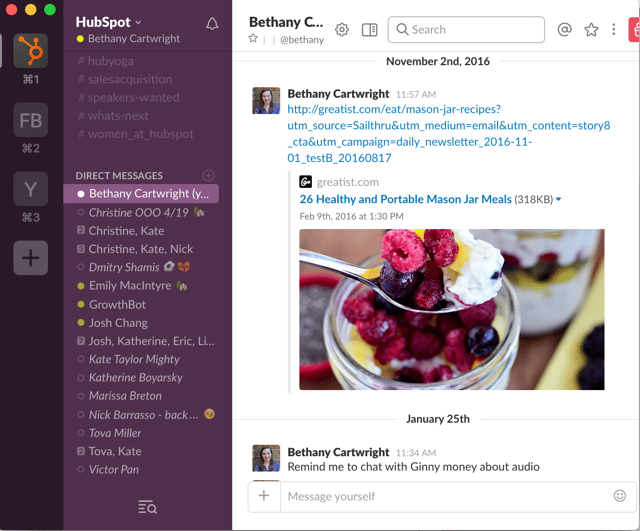

Another tool to mention, though slightly different in purpose, is Shift. If you’re running multiple email account and multiple extensions and applications, this is a great way to organize everything.
A cool part of Shift is that, in addition to compiling your email inboxes, it also allows you to manage other applications, such as HubSpot Sales, Grammarly, and Asana.
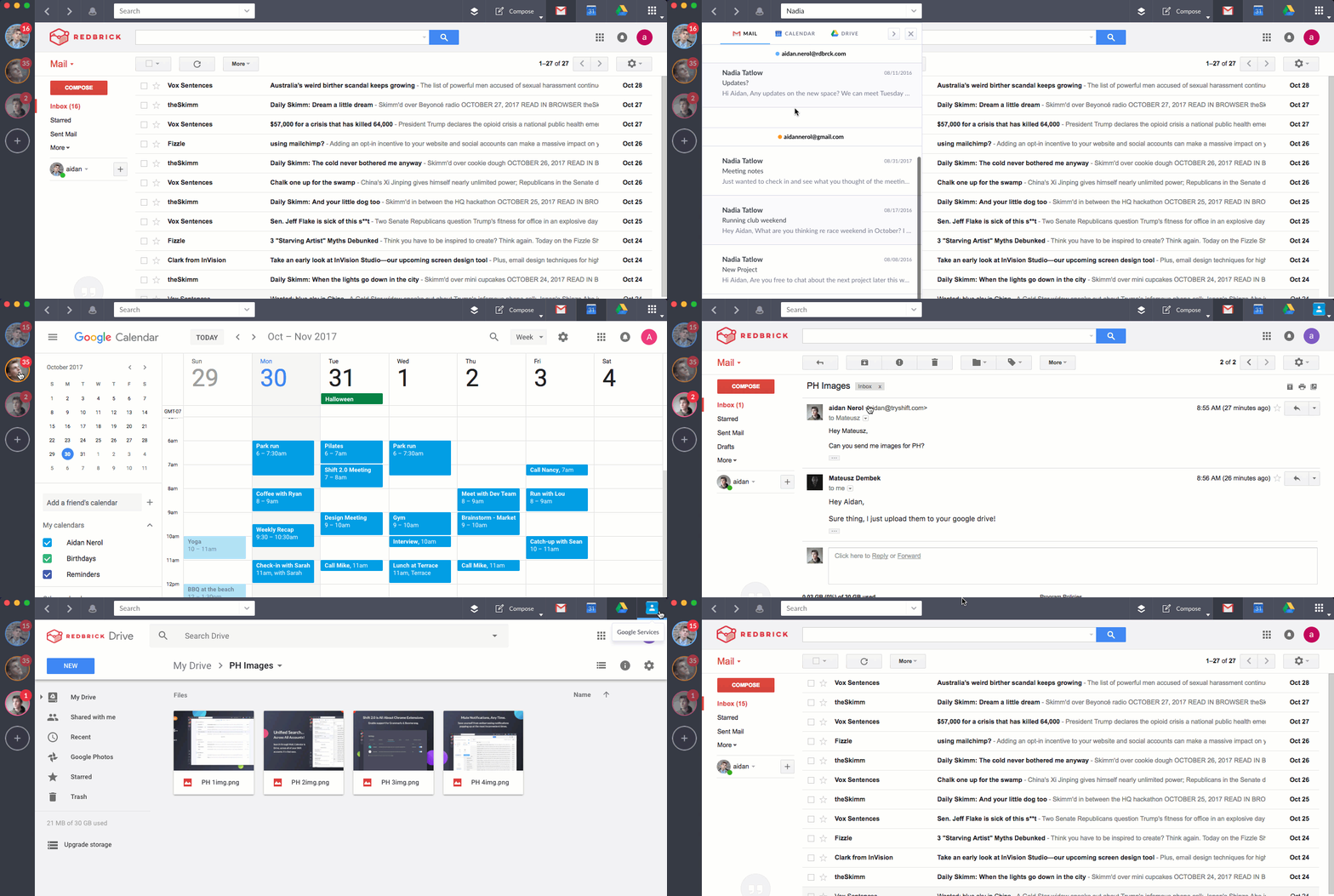
Other Team Communication Tools:
- HipChat
- Google Chat
- Join.Me
- Zoom
- Skype
Website Optimization
As marketers, sometimes it feels like we’re constantly making educated guesses about how our site visitors are going to interact with our content. While we might design a page to draw our user’s eye to a spot on a page, how do we ever really know where their focus is so that we can improve that experience?
Hotjar is a new and easy way to truly understand what your web and mobile site visitors are looking at when they interact with your site. WIth its visual heatmap tools, you can understand what users want, care about, and interact with on your site. Hotjar visually represents visitors’ clicks, taps and scrolling behavior, giving you the ability to find hot areas for growth and conversion rate optimization.
Convinced? Try Hotjar. It’s Free!

Other Website Optimization Tools:
- HubSpot Website Platform
- Optimizely
- Unbounce
Get the Full List of Tools
* = Free Marketing Tools
We’ve covered a lot of tools for every part of your job on this page. But sometimes, it’s just helpful to see the full list. Here is our list of the top 61 marketing tools you need to know about. You’ll see an asterisk (*) next to each free marketing tool that has either a free account with limited features or a select group of free functions within the product.
Top 61 Tools Every Marketer Should Know About |
||
| AddEvent | Hootsuite* | Piktochart* |
| Adobe Color CC* | Hotjar* | Product Hunt* |
| Adobe Spark* | HubSpot Academy* | Recordit* |
| Adroll | HubSpot CRM* | SEMRush* |
| Adstage | HubSpot Marketing* | Skillshare* |
| Ahrefs | Iconosquare | Skype* |
| Airtable* | IFTTT* | Slack* |
| Asana* | JIRA | Todoist* |
| Box | Join.Me* | Trello* |
| Buffer* | Kap* | Twitter* |
| Canva* | Keywords Everywhere* | Typeform* |
| Codecademy* | Leadpages | Udemy* |
| Dropbox* | LinkedIn* | Unbounce |
| Eventbrite* | Lynda.com | Venngage* |
| Facebook* | Moz* | Vidyard* |
| Flipboard* | OnPage.org | Vimeo* |
| General Assembly | Optimizely | Wistia* |
| Giphy* | HipChat* | YouTube* |
| Google Ads | Pocket* | Zoom* |
| Google Analytics* | Picatic* | |
| Google Drive* | ||
| Digital Marketing Tuner* | ||
You’ve got all the tools you need, but are you looking for a place to start putting them all together? Check out our free marketing blueprint. It’ll walk you through creating your own marketing plan and teach you how to use all of these tools together.

Google Cache: How to View Cached Pages
Cached pages is an undeniably useful tool when you come across a web page that is performing poorly, or temporarily down for some reason.
At its most basic, Google crawls web pages and then makes raw HTML copies of them — a cached page. This can enable you to view a website that is slow or not responding, and it can also help SEO experts figure out indexation issues with a site.
What is a cached page?
When Google crawls a web page, it will take a screenshot of that page and index the content for future reference, in case the current page becomes unavailable. The cached page is essentially a back-up of the raw HTML of a page. Additionally, Google will provide the date of the last time the page was indexed on the cache page, i.e. “This page is a snapshot of the page as it appeared on Feb 20, 2019”.
If you’ve come across a page that isn’t responding, or if you want to make sure your site is being properly indexed, keep reading to figure out how cached pages can help you solve both.
How to view cached pages
- In Google’s search box, type the website or page you’re trying to see.
- Beside the green URL, click the down arrow.
- Select “Cached”.
- You are now viewing the cached page.
- Alternatively, type the word “cache” in front of the web page’s URL. i.e. “cache:https://examplesite.com“.
1. In Google’s search box, type the website or page you’re trying to see. Beside the green URL, click the down arrow. Select “Cached”.
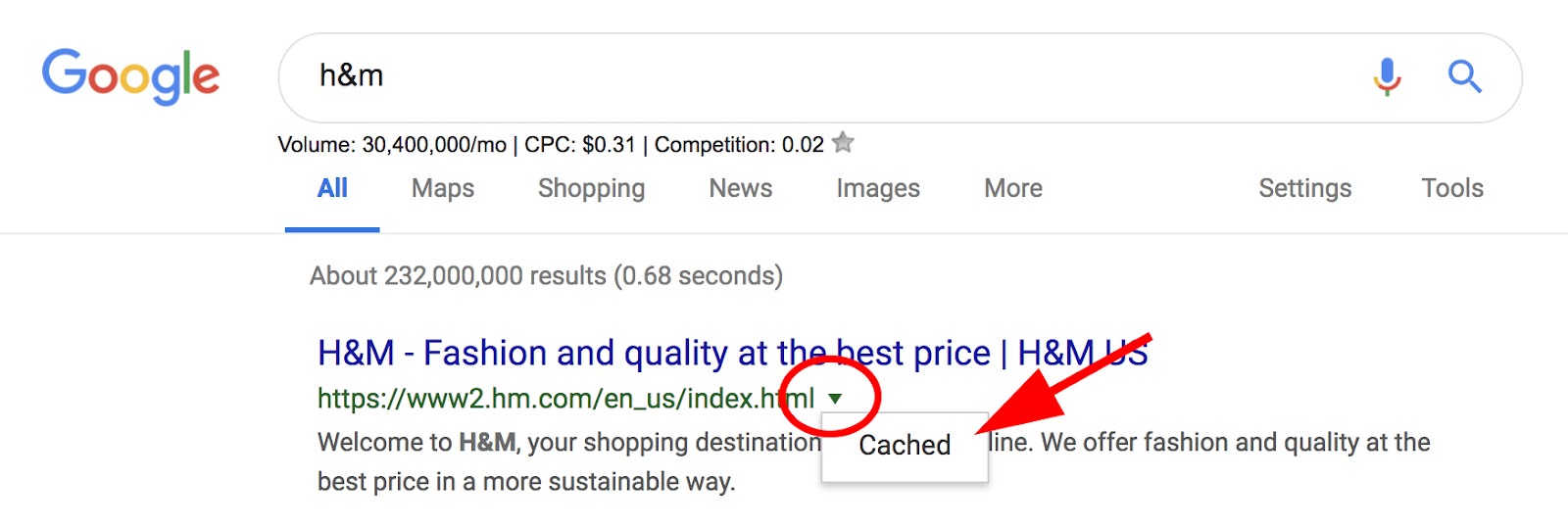
2. You are now viewing the cached page.

2. Alternatively, type the word “cache” in front of the web page’s URL. i.e. “cache:https://examplesite.com“.

It’s important to note, the cache is the part of the website written in plain HTML — it doesn’t also save JavaScript. Webmaster Trends Analyst at Google, John Mueller, verifies this, stating on his Twitter:
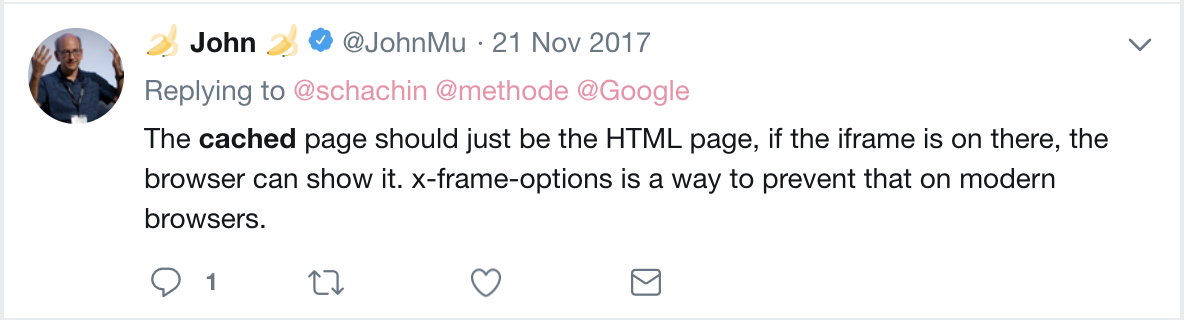
JavaScript content is typically inaccessible from the cache, but that doesn’t mean it wasn’t indexed — to check how a Google bot views your website, try using the Fetch and Render tool in Google Search Console instead.
Next, let’s explore how you can use Google Cache.
How to use Google Cache
- Use Google Cache if you’re on a web page that is slow or unresponsive.
- Use Google Cache to check when a particular page was last visited by a Googlebot.
- Check how your website is indexed online.
1. Use Google Cache if you’re on a web page that is slow or unresponsive.
If you’re trying to find information on a website but it seems the page is down (or just slow), you might try alternating to the Google Cache version. Of course, the page might not look aesthetically identical, but you’ll be able to see the HTML from the last time a Googlebot crawled the page.
2. Use Google Cache to check when a particular page was last visited by a Googlebot.
If you want to know the last time a Googlebot visited a certain page, but don’t have access to server logs, you can now see when the page was last visited by checking out the Cache version of the page. It can be helpful to see the last time the page was successfully fetched by a bot — if you’ve made changes that make the page unresponsive, you might need to know which changes you need to un-do.
3. Check how your website is indexed online.
You might be curious to see whether your website is cached online. If it’s not cached, there are a few potential reasons — first, you’ll want to check there is no content=”noarchive” attribute in the source code of the page. If the page is non-indexable or blocked from crawling, it won’t be cached. Alternatively, if a page is new, it might take a little while for the cache to become available.
If it’s not able to be cached, it’s still visible online. But if you want your site viewers to have the option of viewing it in a cache-version if your site is slow or unresponsive, you might consider digging deeper to figure out what the problem is.

The 8-Step Process HubSpot Uses to Optimize Google Advertising Costs
With over 3.5 billion search queries on Google everyday, paid Google search — where you pay Google to advertise your content on SERPs for relevant keywords — is one of the most popular and effective types of online advertising. However, there’s enormous demand for the top ad rankings for a lot of keywords, and all your competitors are duking it out to win the top keywords in your industry. So are you supposed to compete?
Over the past three years, HubSpot has spent millions of dollars and ran over 1,200 controlled experiments on acquiring free CRM users through Google advertisements. We’ve gleaned a ton of new insights and processes along the way, so we want to share them with our fellow marketers to help everyone save their time, budget, and frustrations.
Read on to learn the eight-step process we use to optimize Google Advertising costs. And if you’re new to Google ads, check out the basics of Google Adwords in the section below. If you already know the fundamentals, feel free to skip it.
Google Adwords 101
Keywords
From a fifty-thousand foot view, you win ad impressions on Google by bidding on keywords. In other words, you’re asking Google to show your ad to a user when they type a specific search query into their search engine. These search queries are called “keywords”.
For example, if you’re advertising a free CRM, you might want your ad to show up on Google when users type “free crm” into the search engine. Every other brand who wants to win those impressions will set their bids, and based on that and various other factors, Google may choose to display your ad to its users.
Ad Groups
An Ad Group organizes your keywords into different groups. For example, if we had a “Competitors” campaign, we’d have a “HubSpot Marketing Competitors” ad group and a “HubSpot Sales Competitors” ad group. Within each of these ad groups, we might bid on keywords that consists of our competitors’ brand names plus each product we both sell.
Quality Score
Aggressively bidding on keywords is not enough to win impressions. You could bid $10 per click while your competitor bids $5 per click, and you could still lose that auction if they have a high enough quality score.
Your quality score is a metric that measures how positive and relevant of an experience you are creating for the searcher. A lot of signals are taken into account, a few of which are your landing page experience and click-through rate. This means organizations can’t acquire the top ranking for any keyword they want just because they have the biggest ad budgets. Their content has to be relevant.
Google’s top priority is providing their users with a great user experience, so they’d rather give an impression away for free than make $100 per click if the loss in revenue means they can provide a better user experience to their users.
Match Types
Google Ads offers four types of match types: broad match, modified broad match, phrase match, and exact match. Here’s a rundown of each of them.
Broad Match: With broad match, the user just needs to type in one of the words within your keyword or a “variant” of it, which can sometimes be somewhat irrelevant, and your ad could show up on their results page. For example, if you bid on “free crm software”, your ad could only show up for “crm software” and “adobe software.” Be careful with broad match, though. Bidding on these type of keywords is the easiest way to burn through a ton of cash without producing substantial results.
Modified Broad Match (MBM): MBM allows you to lock in specific keywords within a phrase. For example, bidding on “free +crm +software” will display your ad on a Google search for “no cost crm software” and “easy crm software”, but not on “adobe software”.
Phrase Match: With phrase match, your ad will appear when Google users search for the phrase that you’re bidding on, as well as instances where your phrase is before, after, or in between other keywords in the search query. For example, if you bid on “free crm software”, your ad will show up on Google for “free crm software for small business”, but not for “free software crm.”
Exact Match: Exact match is exactly what it sounds like. If you bid on “free crm software”, your ad will only show up if users search for “free crm software” on Google, in addition to other close variants.
Now that we know the basics of Google Adwords, let’s get back on track.
The 8-Step Process HubSpot Uses to Optimize Google Advertising Costs
1. Pick your keywords.
When you first launch your Adwords campaign, start small. Come up with a list of 5-10 keywords and start bidding using modified broad match. For example, if you’re working on a campaign for a free CRM, the keywords “Free CRM”, “CRM Software”, “CRM Reviews”, “CRM Comparison”, and “Best CRM” would be good to start with. Modified broad match will be more expensive than exact match, but it gives Google greater flexibility to display your ads on more search queries than exact match will.
In addition to building a “unbranded” keyword list, like the one above, you’ll also want to build a “branded” keyword list (i.e. “HubSpot CRM”). You should do this for two reasons:
- More clicks: You’re probably thinking, “HubSpot already has the #1 spot on Google for the keyword ‘HubSpot CRM.’ Why would they pay for it?” What you’re thinking is true, but studies show if you also win the top ad spot on the SERP where you’ve already won the top organic ranking, you’ll receive significantly more clicks. And given the amount of ads Google displays above the fold these days, I have no doubt in my mind this is accurate.
- Competitor blocking: If we don’t bid on and win “HubSpot CRM”, one of our competitors will. Even if we bid aggressively, our competitors can still sneak a win, like the example below.

2. Set up your campaigns.
There isn’t a cookie cutter approach to campaign structure, but I’m a strong proponent of a 1:1:1 campaign to ad group to keywords setup. In other words, I like to put one keyword in each ad group and one ad group in each campaign. Setting up your campaign like this can clutter your account from an organization standpoint, but here are two reasons why it’s worth it:
- When you use Adwords, you usually set daily budgets at the campaign level, so this type of campaign set up allows for more flexible spending, which is important because your keywords’ ROI can get maxed out. Adwords is an auction, so if you want to win more impressions, you have to bid more. At a certain point, the Cost-Per-Click (CPC) required to win more impressions won’t be worth it anymore, so you’ll want to allocate your budget elsewhere, which you can do more precisely if you categorize each keyword into its own campaign.
- Since Google sets your quality score at the keyword level, you’ll want to set up an ad group for each individual keyword, which are sometimes referred to as swim lanes. By setting up swim lanes for each keyword instead of putting them all in the same ad group, you’ll avoid the unfortunate situation of a few underperforming keywords dragging down the quality score of the entire ad group. If each keyword has its own ad group or swim lane, you can just pause the underperforming keywords’ campaign and no harm will be done anywhere else.
3. Craft your ad copy.
One of the most effective levers you can pull to boost your quality score is Click-through-Rate (CTR). And one of the most effective levers you can pull to boost your CTR is crafting compelling ad copy. One of the most important principles of writing Google Ads copy is that you need to signal to Google and their users that your ad is relevant to what they’re searching for. For example, if you’re bidding on the keyword “CRM Software”, you’re going to design a completely different ad and landing page than if you’re bidding on the keyword “CRM Reviews”.
4. Set up your ad extensions.
There are a lot of useful Google ad extensions, but if there’s one you should always launch with, it’s sitelinks. Sitelinks are the 4-6 links under most Google ads. They take up a significant amount of real estate, boost your CTR, and, best of all, you don’t have to pay any extra money when people click on them.

5. Setup “negative” keywords.
Negative keywords inform Google that you don’t want to bid on a keyword if the user enters a specific word alongside your keyword. There are a lot of different use cases for setting up negative keywords, but here are three big ones to look out for:
- Irrelevance: I helped market a pre-workout at my last company called “volcaNO”. Needless to say, I didn’t want our ads to show up on Google for the keyword “volcano lava”, so I tagged “lava” as a negative keyword.
- Competing with yourself: Remember, Adwords is an auction. So if you have one campaign bidding on “CRM Software” on MBM and another bidding on “Free CRM Software” on exact match, you’ll be competing with yourself if a user searches for “free crm software”. Tag “free” as a negative keyword in the “CRM Software” campaign to avoid cannibalizing your own clicks.
- Low quality: To understand who your business’ ideal buyer is, talk to sales about the type of people who aren’t good fits for your products or services and try to filter them out.
6. Find your top performing keywords.
After you run your campaigns for a while, it’s time to optimize them. The most important Adwords tab in regards to optimizing your campaigns is the “search term report”. The search term report lists out the exact search queries that you’ve paid for for a given keyword. Remember, if you bid MBM on “free crm”, you’re going to show up on Google for the keywords “free crm for SaaS companies”, “best free crm”, “free crm to replace excel”, and potentially thousands of others. The search term report will help you filter out your top performing keywords.
If you notice a specific search query performing particularly well, tag it as negative keyword so you don’t bid it against your other keywords, and then break that keyword out into its own campaign. This is the time to double down. You’ll give that keyword its own budget, it’s own ads, it’s own display URL, and if you have the bandwidth, even it’s own landing page.

7. Look for negatives on demo data.
Most people know about negative keywords, but they often overlook negatives on demo data. For example, maybe you notice men under 25 or woman over 60 aren’t converting (all of this data is available in Adwords). You can exclude these segments by adding negatives or bid modifiers to them, which we’ll explain below.
8. Setup bid modifiers.
A bid modifier lets you adjust your bids for specific criteria without having to change the targeting of your campaign or ad group. For example, if you see mobile converting 50% worse than desktop, you can add a -50% bid modifier on mobile clicks. That’ll lower your ad’s bid on mobile impressions, lead to less placements of your ad on mobile, and optimize your budget. Other cool bid modifiers include:
- Age & gender
- Locations
- Hours of the day
- Days of the week
- If someone has visited a page on your site in the last X days
- If someone is on a lead list
The only silver bullet to Google Adwords is testing and learning.
While the process above is what has worked best for HubSpot’s paid acquisition team, the only way to know what works best for your business is to test and learn. So feel free to implement our strategy as a starting point, but we highly recommend you monitor your data closely and develop a process that’s more tailored to your own business.

How to Create Long-Form Videos That Sell
Want to improve your video marketing? Wondering how to make marketing videos that people enjoy watching? To explore how to create long-form video that sells, I interview Daniel Harmon. Daniel is the chief creative officer at Harmon Brothers, a business that specializes in using video to brand and sell with humor. Their work can be […]
The post How to Create Long-Form Videos That Sell appeared first on Social Media Marketing | Social Media Examiner.
from Social Media Marketing | Social Media Examiner https://ift.tt/2GZmONt
via socialmediaexaminer