
Welcome to My Blog
What Is an API? The Answer in 300 Words or Less
When the marketing industry first shifted from outbound to inbound marketing, many marketers dropped their old roles of content interrupters for new ones as content creators.
But that shift is still producing aftershocks, and to keep up with your competitors today, you need to understand what APIs are, how they integrate with your content strategy, and the social insight they bring to your website.
Don’t worry — APIs might seem complicated, but by the end of this post, you’ll know how they work and what using them entails. Here’s a brief definition of an API, followed by some key information on how to make one work for your business.

What is an API?
An API, short for automatic programming interface, is a series of rules. To be even clearer, it is an information middleman. APIs allow for an application to extract information from a piece of software and use that information in their own application, or sometimes for data analysis.
In the plainest terms, an API is a blueprint that enables “your stuff” to talk to and work with “their stuff.” Your stuff, in this case, is known as the “API endpoint.”
What is an API endpoint?
An API endpoint is the destination of the API requested by a website owner. If a content management system (CMS) requests access to an API, the CMS serves as the API’s endpoint. It’s important for websites to function well so they can become secure and supportive endpoints for developers looking to share their data.
Why are APIs important?
One of the first questions many marketers ask is: Why do all of these businesses share their data openly, for free?
Normally, the answer is: scale. As software companies grow, the staff within those companies quickly realize they have more ideas than they have time and resources to develop them.
By creating APIs, companies let third-party developers create applications that can improve usage and adoption of the main platform. In that way, a business can build an ecosystem that becomes dependent on the data from their API — a dynamic that often leads to additional revenue opportunities.
How to Use an API
Understanding the value of a particular API is essentially about understanding what information is available through an API and how it can be accessed. To find out what a particular API can do for you, you can do one of two things.
- Ask a web developer to look at an API and discuss it with you.
- Do the research on your own. If you don’t have access or budget to use a web developer, this is an appealing option. But don’t panic — many online services have good API documentation.
API Documentation
Let’s take a quick look at Twitter’s API reference index as an example:
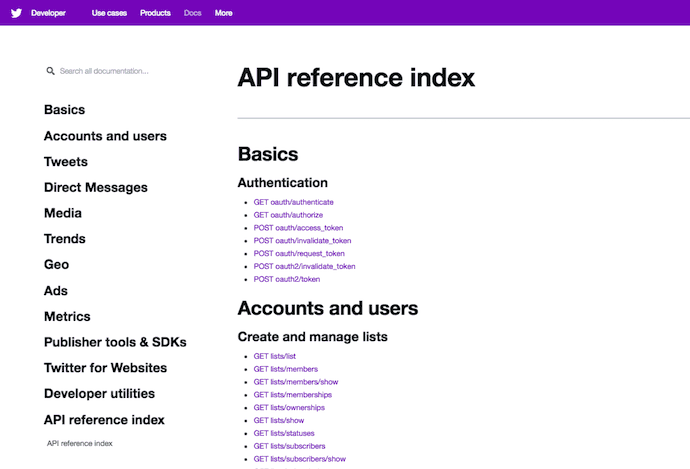
Much of Twitter’s growth has been because of outside developers, and the first Twitter API started as a basic wiki. Since then, it has evolved into a detailed index of APIs that a savvy marketer can use to determine what information might be available to a developer in the form of an API — and how to include this API on your website.
Looking at the screenshot above, you can see there are multiple categories of information available to outside developers. Once you select an API you’re interested in, you can click on it to see what information is available through this API. Check out Twitter’s Tweet Timeline API, below.
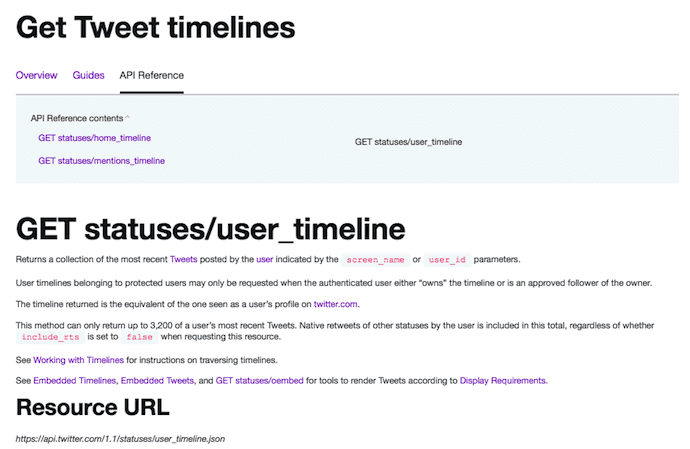
In the API documentation above, Twitter’s Tweet Timeline API explains how you can take a brief collection of recent tweets from a specific user’s timeline and display them, in clickable form, on your own website. The API documentation includes tweet volume limitations, the API’s resource URL, as well as what you can and cannot choose to display through this API.
Applying the API to Your Website
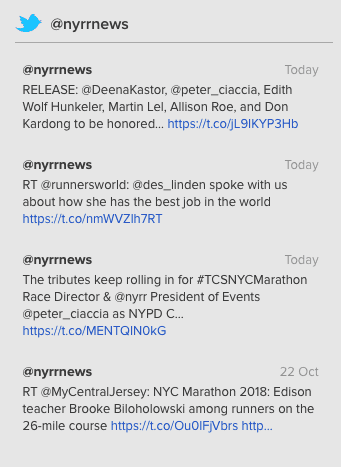
If you add the API’s resource URL to the backend of your website, it’ll return the information you called for to the frontend of your website. Here’s what this looks like on the New York Road Runners website, helping them promote the New York City Marathon (with a few custom design modifications):
You can also check out the HubSpot API documention to see how you can build applications and integrations using data from HubSpot.
One last caveat: In order to officially use a developer’s API, you might also need to be assigned an API key.
What is an automatic programming interface (API) key?
An API key is the unique identifier assigned to an API user, indicating they’re allowed to use the automatic programming interface on their website. Many developers require you to request this key before using the API, while others may assign it to you upon your first API request.
Think of your API key as your authentication token, declaring you a member of a developer’s community. In effect, this token identifies what you’re using the API for, and verifies that you’ve been given permission to carry out this project by the API’s owner.
Rest assured, your API key does not give the developer access to personal information about you.
APIs As a Marketing Platform
Marketing in an inbound world is about companies developing useful applications and services to sustain customer retention. Brands will need to move away from intermittently dropping in advertisements to become conduits of consumer communications.
In that process, APIs facilitate the data needed to provide solutions to customer problems.
API Examples
Understanding what information is available through an API will help your determine if it is worth working with a developer to pursue the project further. Here are two examples:
Twitter Mentions
If you wanted to show tweets on your website that included mentions on Twitter to articles from your blog, you’d need to understand if you could request tweets with only specific URLs from the Twitter API.
YouTube Video Embedding
When you right-click a YouTube video on youtube.com, and select “Copy Embed Code,” you’re essentially requesting to use YouTube’s API on your website. YouTube makes it easy for the public to embed YouTube videos to play directly on other websites.
API Terms of Service
No matter the project, it’s critical that you actually read and understand the terms of service for an API you’re considering for your website. Most APIs have certain usage restrictions. If you don’t take the time to understand the restrictions of an API you’re interested in, you could invest more time and money in developing a marketing asset that’s rendered useless once the API provider determines you’ve violated the API’s terms of service (and revokes your access).
For this reason, most APIs have “call limits.”
What is an API call?
An API call, also known as an API request, is an instance of a website owner “calling” for the use of a developer’s API. Saving the API, logins to the developer’s website, and queries about the application all count as API calls.
With this in mind, an API call limit is the number of times you can request information about an API from a web service within a given time period. Again, please read the terms of use for any APIs you are thinking about using. These documents should clearly detail any limitations as well as appropriate use of the program.
Developing on the APIs of existing web services is only the beginning. We live in a world that now expects open and available content for all — the natural progression of this is for publishers themselves to release their own APIs, so that their customers can develop applications as a result.
API sharing applies to all businesses — not just those that are web-based, but rather anyone who has a web-based tool or component of their organization. Obviously, this concept could cause hurdles for some organizations, especially from the legal department. It’s up to you to find out which APIs are most valuable and how you can lawfully and sustainably use them.



25 of the Best WordPress Plugins for Marketers
Did you know there are over 56,000 WordPress plugins available today?
WordPress plugins allow you to enhance your website’s functionality by adding features and capabilities that don’t come standard with the system.
From writing tools to SEO tips to analytics, WordPress plugins will help you arrive at any solution you’re seeking, all while keeping your website as speedy as possible and saving you time along the way, too.
But with so many options available, it’s tough to figure out the best ones to use.
That’s why we’ve done the work for you. Below you’ll find a list of the 25 best WordPress plugins (not in any specific order) that every marketer should explore.
25 Essential WordPress Plugins for Marketers
These 25 plugins have been reviewed by some of the top marketers in the industry. They’ll also keep both you and your WordPress website running efficiently and effectively. If you want more, check out the official WordPress plugin page.
1) Jetpack
Source: WordPress
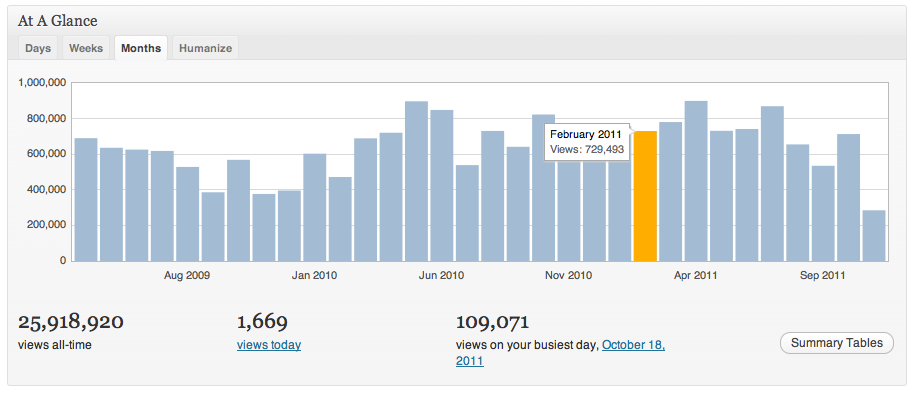
Jetpack is an all-in-one WordPress plugin that offers advanced features such content tools, mobile themes, and more. You can take advantage of all of Jetpack’s features to enhance your website, or pick and choose just what you want to activate based on your unique needs. Some of these features include automated social media posting, site statistics and analytics, and different SEO tools to help you measure and promote your website success.
2) The SEO Framework
Source: WordPress
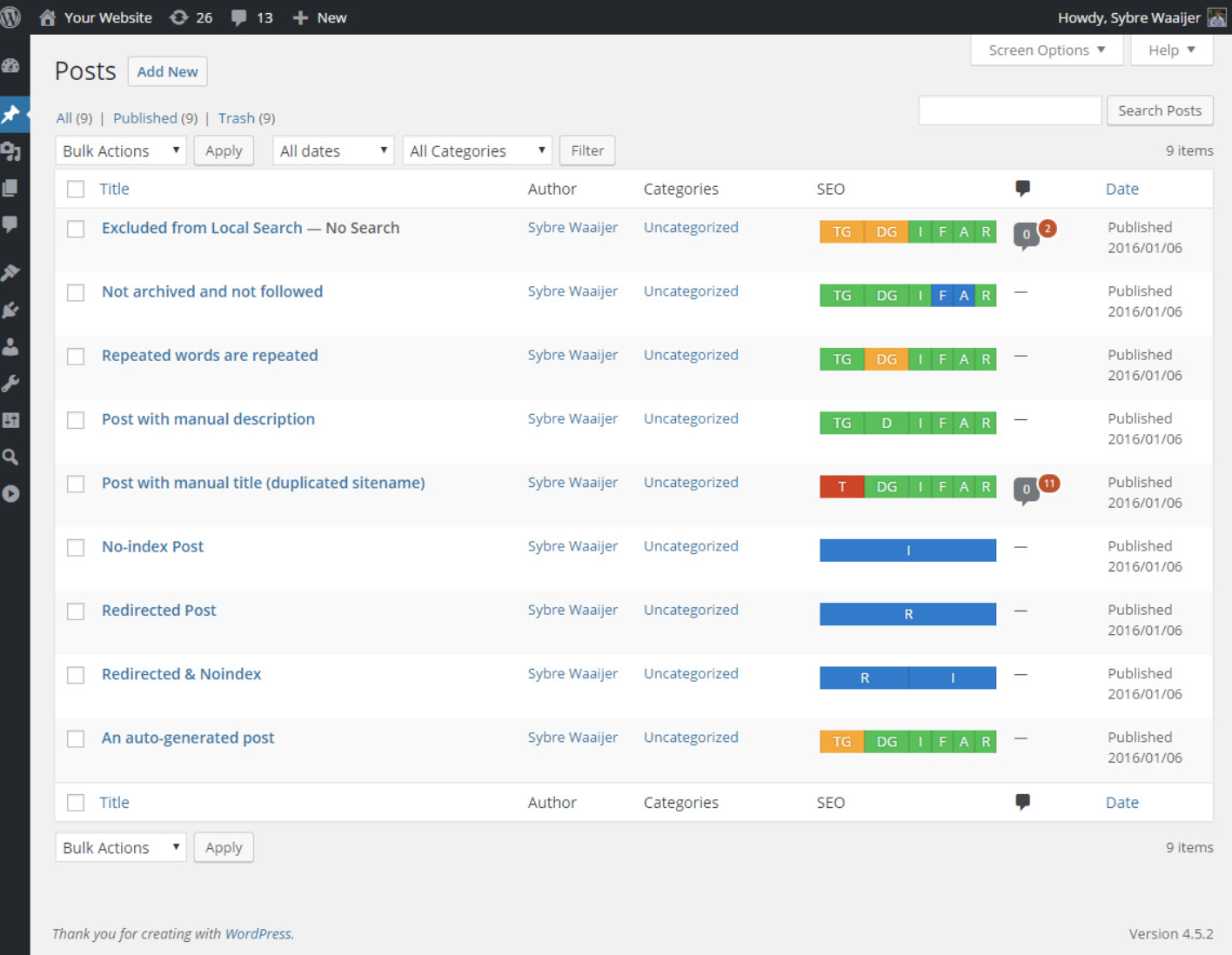
With The SEO Framework, your website’s search rankings will improve drastically with the help of the plugin’s numerous, automatic optimization features. These features have the ability to optimize every page, post, and term on your website so it is not only easier to find on the internet, but it is also more searchable on all social sites such as Facebook and Twitter. No matter if you’re new to SEO or an expert in API, The SEO Framework will help you optimize your website.
3) Just Writing

Source: Just Writing
Just Writing takes WordPress’ Distraction-Free Writing Mode (DFWM) to a whole new level. This plugin introduces important features like spellcheck and paragraph styling to help you focus on your words without having to constantly drop out of DFWM to implement basic formatting.
4) Pretty Link
Source: Pretty Link
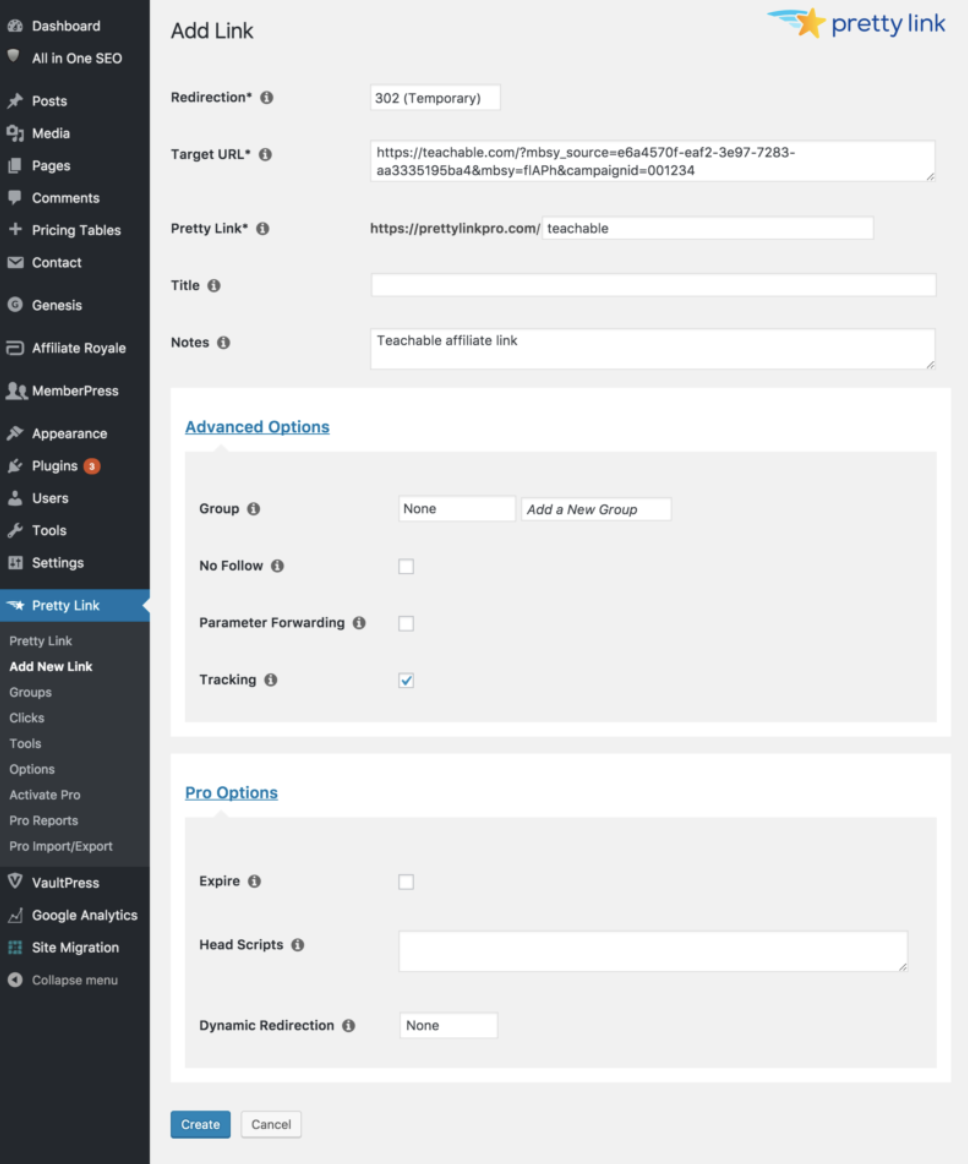
Pretty Link makes it easy to manage and track your internal website links. You can shorten links (the way you would on a site like bit.ly), track the number of hits to a link, discover traffic sources, and find out the browser and host provider of your site visitors. You can also use the plugin to easily create redirects (301, 302, and 307s).
5) Google XML Sitemaps
Source: WordPress
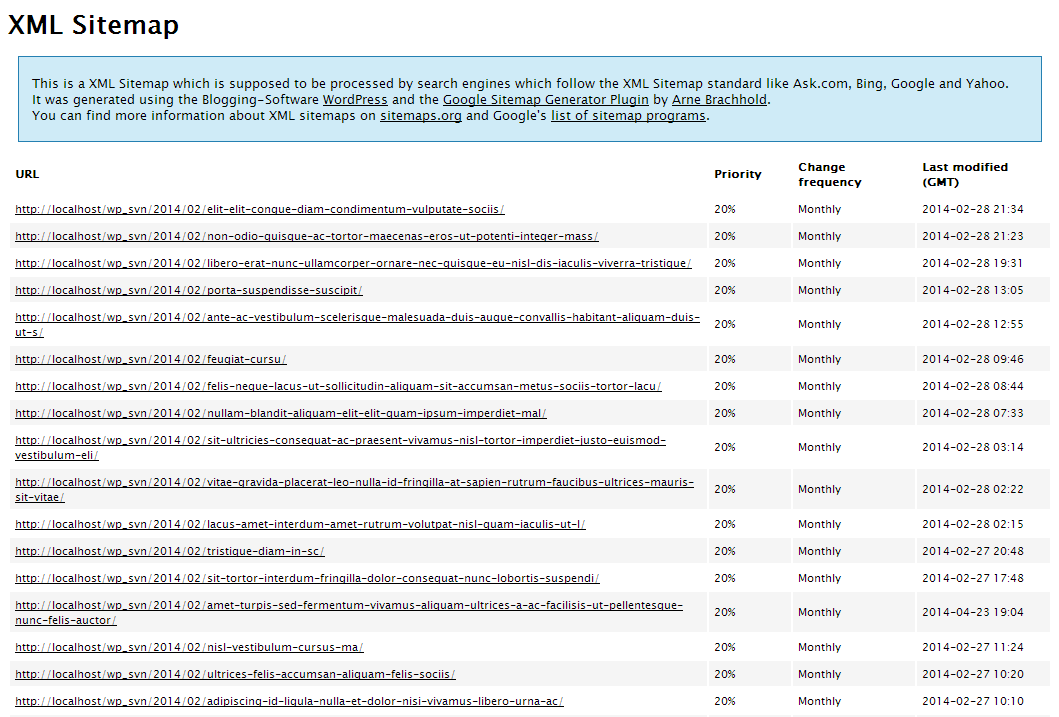
The Google XML Sitemap plugin makes it easier for search engines, like Google and Yahoo, to crawl your site and retrieve information. It will also notify search engines when you create new content so you don’t have to manually submit changes to search engines.
6) Pixel Caffeine
Source: WordPress
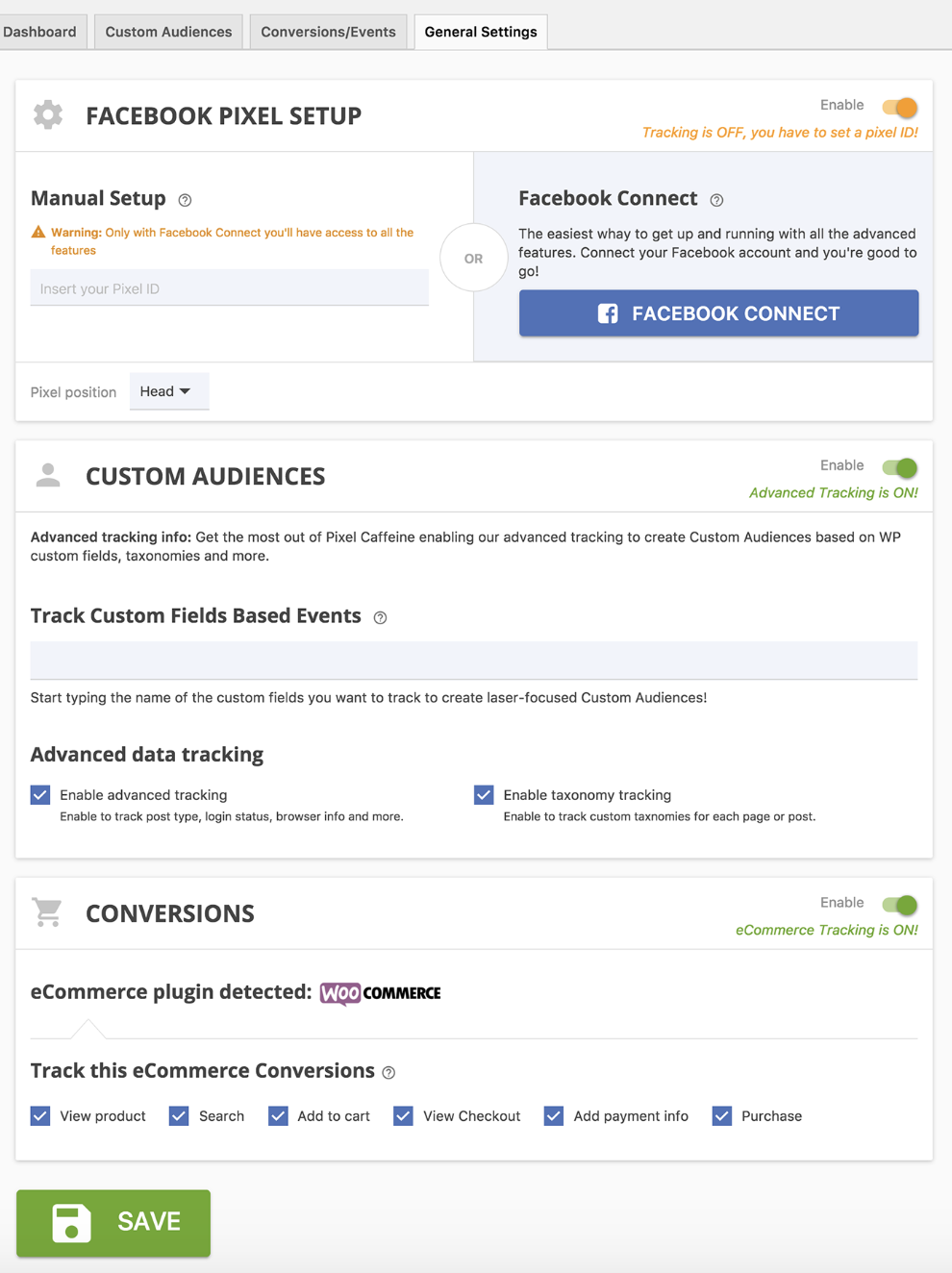
Pixel Caffeine allows you to manage Facebook Pixel and Facebook Product Catalog all within the plugin. Tony Capetola of Sales Orders says Pixel Caffeine is a great plugin because “marketers can make use of some more advanced features like the ability to track Facebook Ad conversions within WordPress’s dashboard, the ability to create custom audiences based on last visit time (retention window), WordPress taxonomies (categories, tags, etc.), and previous customers behavior (works with WooCommerce), etc.”
Added bonus: Pixel Caffeine automatically keeps up with Facebook’s latest updates so you don’t have to.
7) Broken Link Checker
Source: WordPress
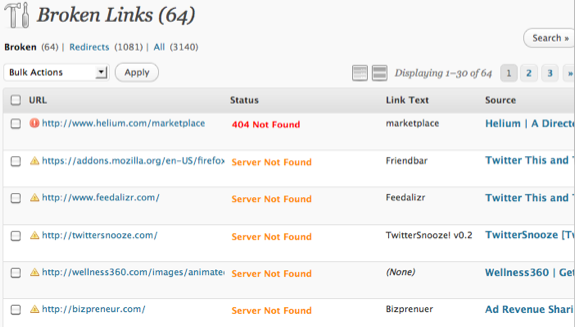
Want to prevent Google from following broken links on your website? Broken Link Checker parses your posts to identify broken links and notify you when they surface. To save you time, the plugin makes it easy for you to edit a broken link from the plugin page, eliminating the need to manually go into each post to make changes.
8) Calculated Fields Form
Source: WordPress
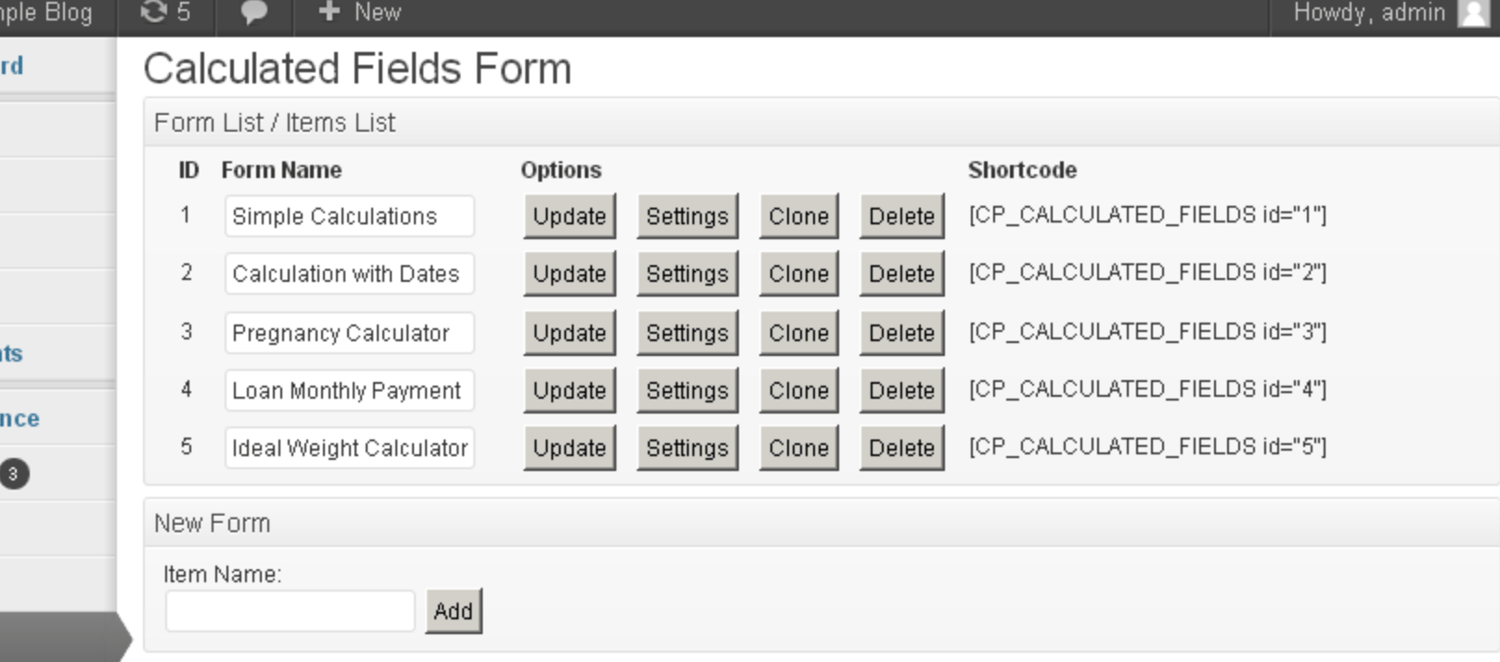
“[Calculated Fields Form] allows you to create simple calculators for your WordPress site. You can easily build finance calculators, quote calculators, booking cost calculators, health/ fitness calculators, and other link-worthy tools,” says Roy Harmon of Advertoscope.
With this plugin, you can also create forms with automatically calculated fields and use predefined form templates that will save you time and ensure accuracy.
9) Akismet
Source: Spider My Web
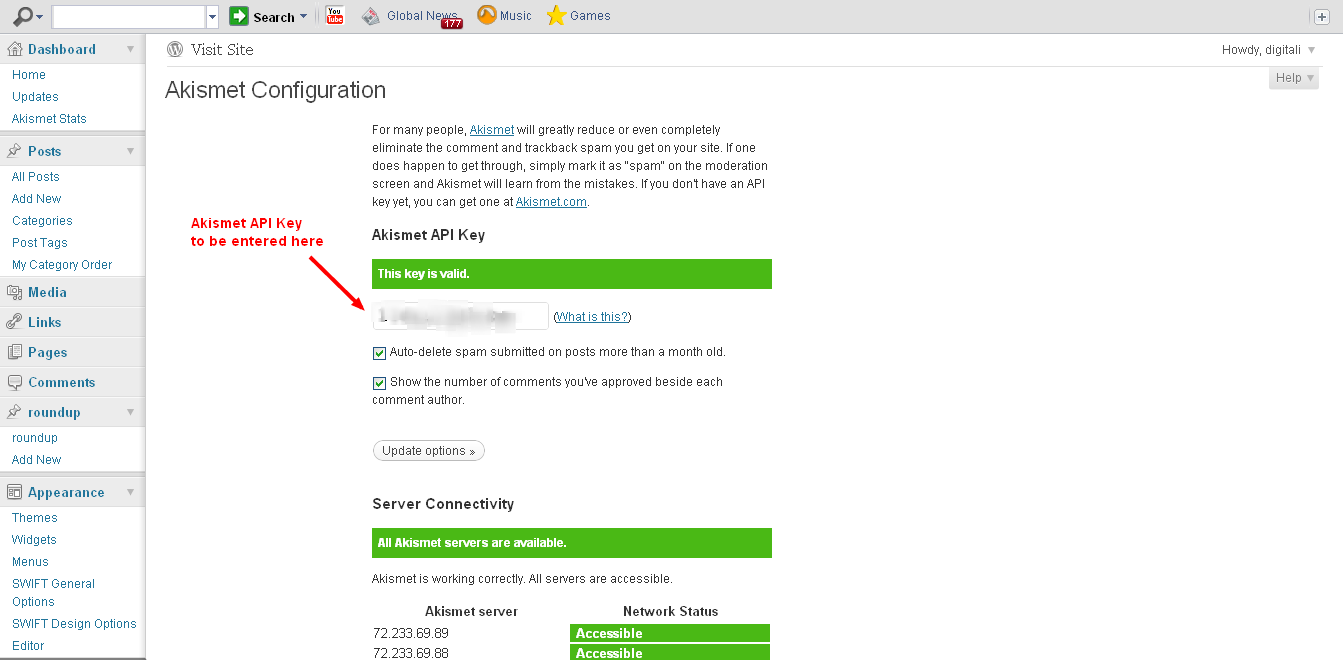
Akismet helps you avoid (and eliminate) spammy comments on your blog. The plugin automatically reviews and filters comments when it detects any signs of spam. You can easily keep tabs on which comments are caught or filtered to maintain control over what’s being displayed on your site.
10) All in One SEO Pack
Source: WordPress
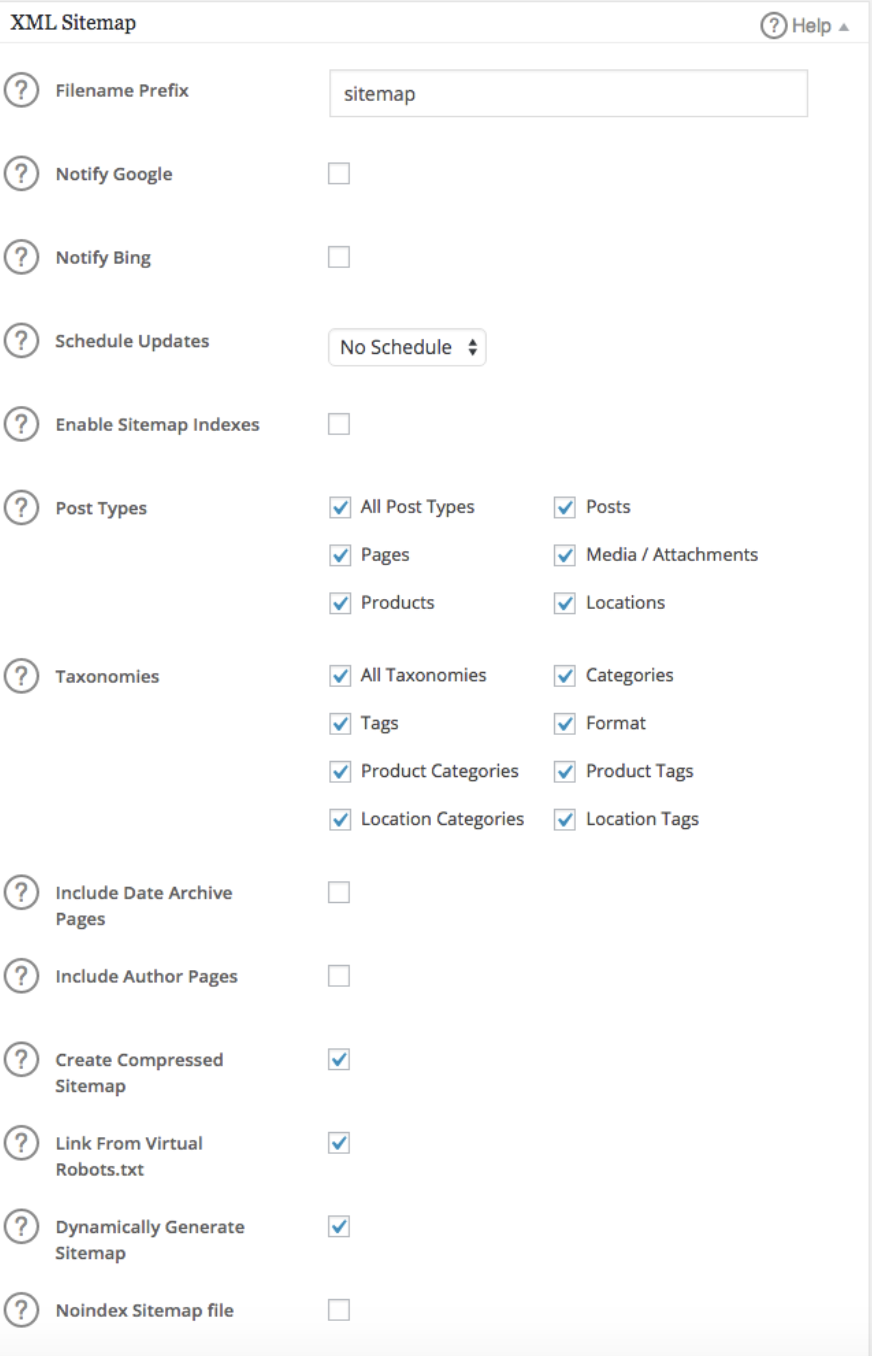
All in One SEO Pack helps you optimize your WordPress website for organic search. The plugin works for people with varying levels of SEO experience, from the non-technical to the coders.
Kim Smith of GoodFirms says, “The plugin supports content as well as image XML sitemap while providing advanced canonical URLs. It supports key Google SEO tools such as AMP and Analytics and notifies search engines about the updates and changes”.
The plugin has XML sitemap and image XML sitemap support (which is what informs Google about the URLs on your website that are available for crawling), and it also provides you with support in other areas including Google Analytics and custom post types, which is helpful for marketers who are working to measure the success of their campaigns or SEO work and goals.
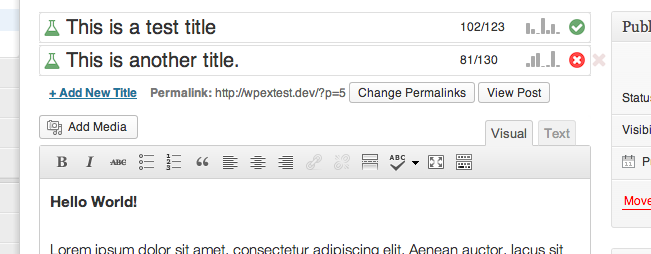
11) Title Experiments
Source: WordPress
The title of a blog post has a direct impact on click-through rates (CTR). Title Experiments makes it easy for you to A/B test one title against another so you can track what converts best and increase your CTR.
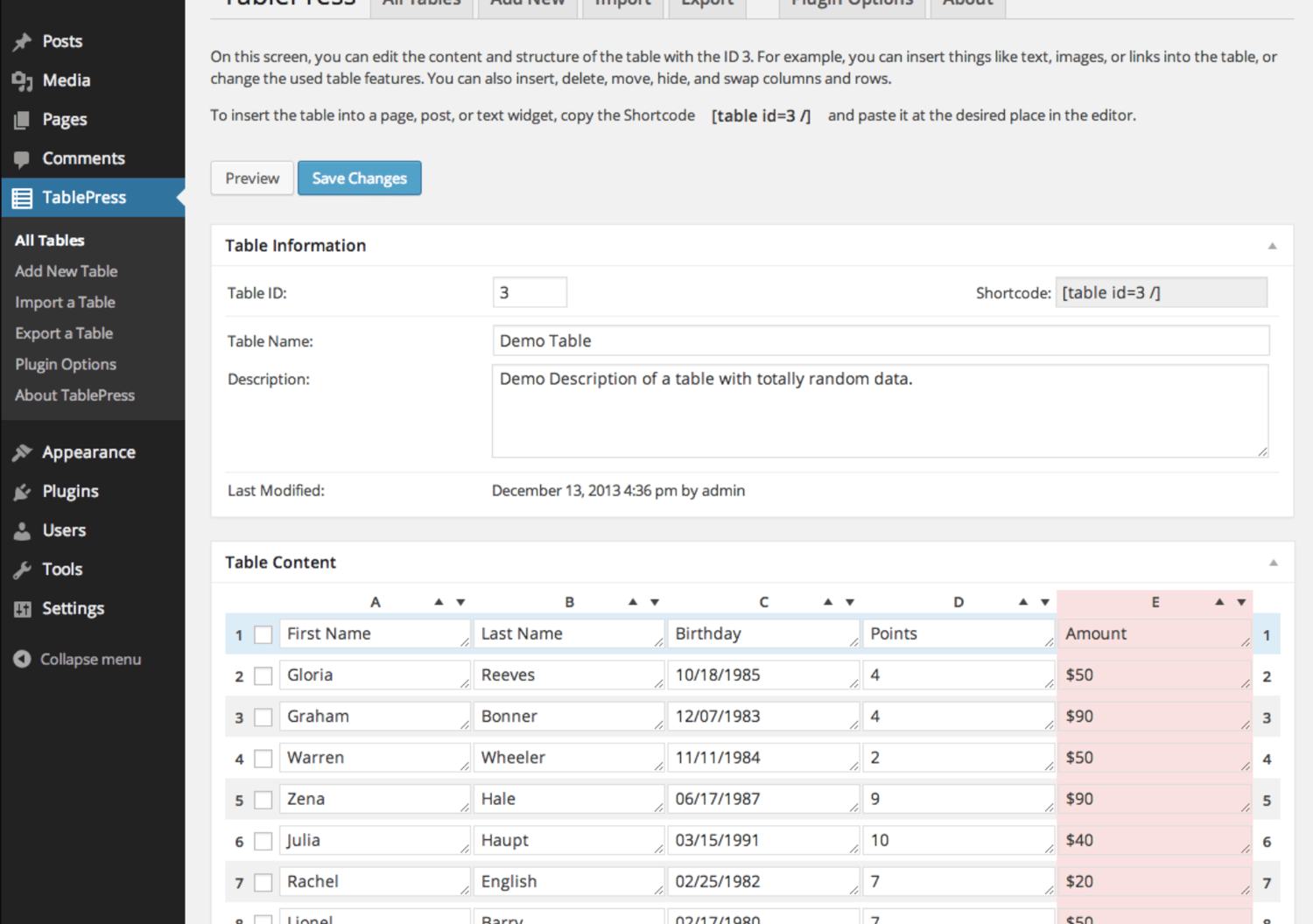
12) TablePress
Source: WordPress
TablePress is a plugin that helps you create, customize, and embed beautiful and unique tables on your WordPress site. Your tables can include all types of data and be placed anywhere on your website. Swadhin Agrawa of DigitalGYD.com says, “TablePress makes it insanely easy for anyone to create a customizable and responsive table on their blogs.”
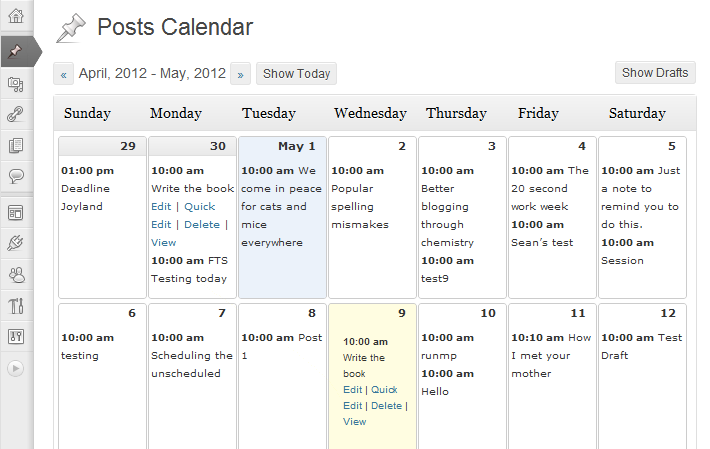
13) Editorial Calendar
Source: WordPress
Keep your blog organized with the help of this plugin. Editorial Calendar uses a drag-and-drop functionality to simplify the way you schedule and manage your blog content. You can also manage posts from multiple authors, quickly edit titles and publishing times, and manage drafts within the plugin.
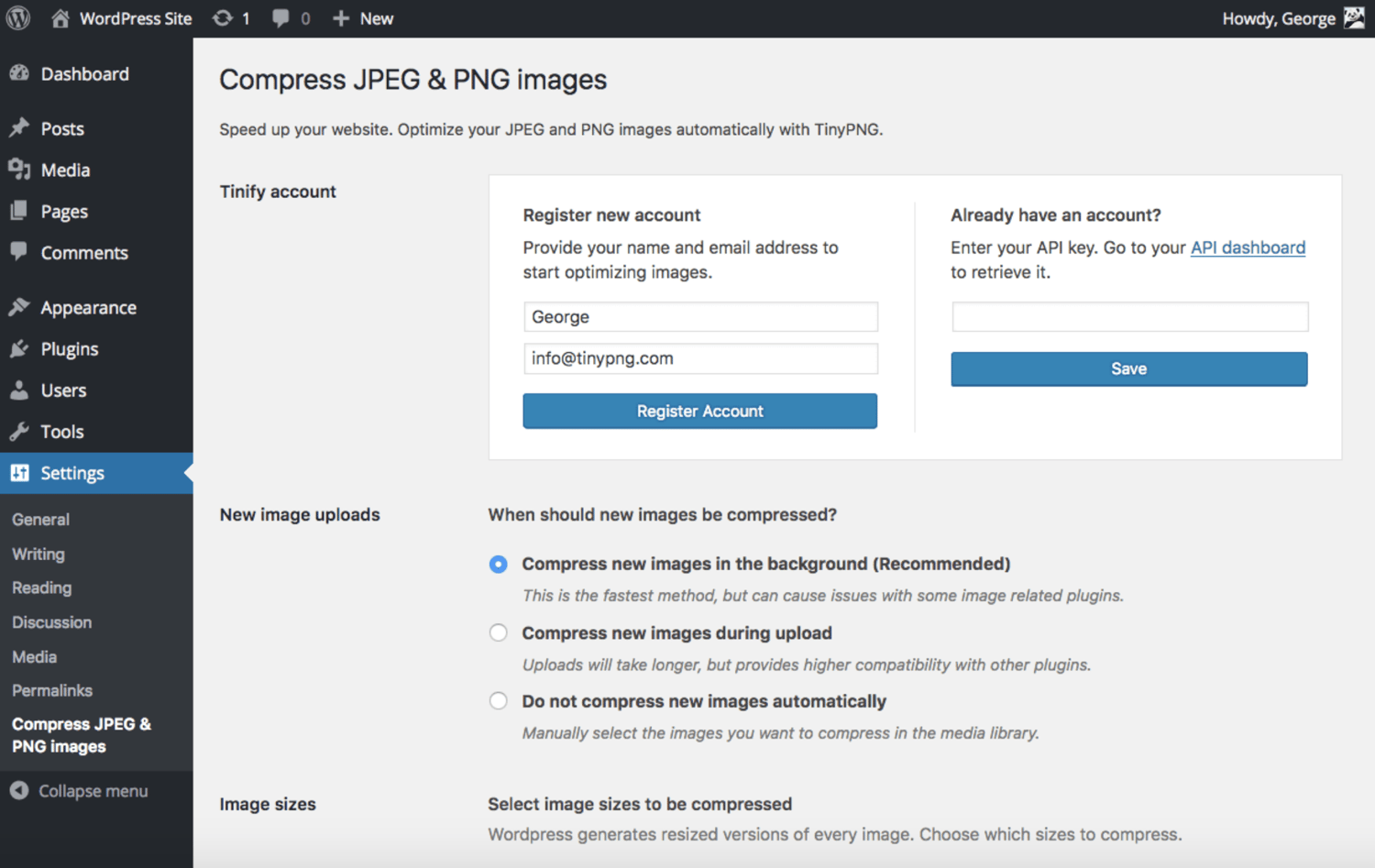
14) TinyPNG
Source: TinyPNG
“This free plugin allows you to quickly compress images so they load faster. This is important for SEO value and ensuring people don’t bounce off your pages due to slow load times,” says Todd Kunsman of EveryoneSocial.
TinyPNG will make your website faster by automatically optimizing your JPEG and PNG images upon upload, renaming them to TinyPNG and TinyJPEG. Images are analyzed, and then the plugin compresses them appropriately. Once this happens, the image is then sent back to your WP website to replace the original image. The plugin will make your website load faster while saving you storage space.
15) Smush
Source: WordPress
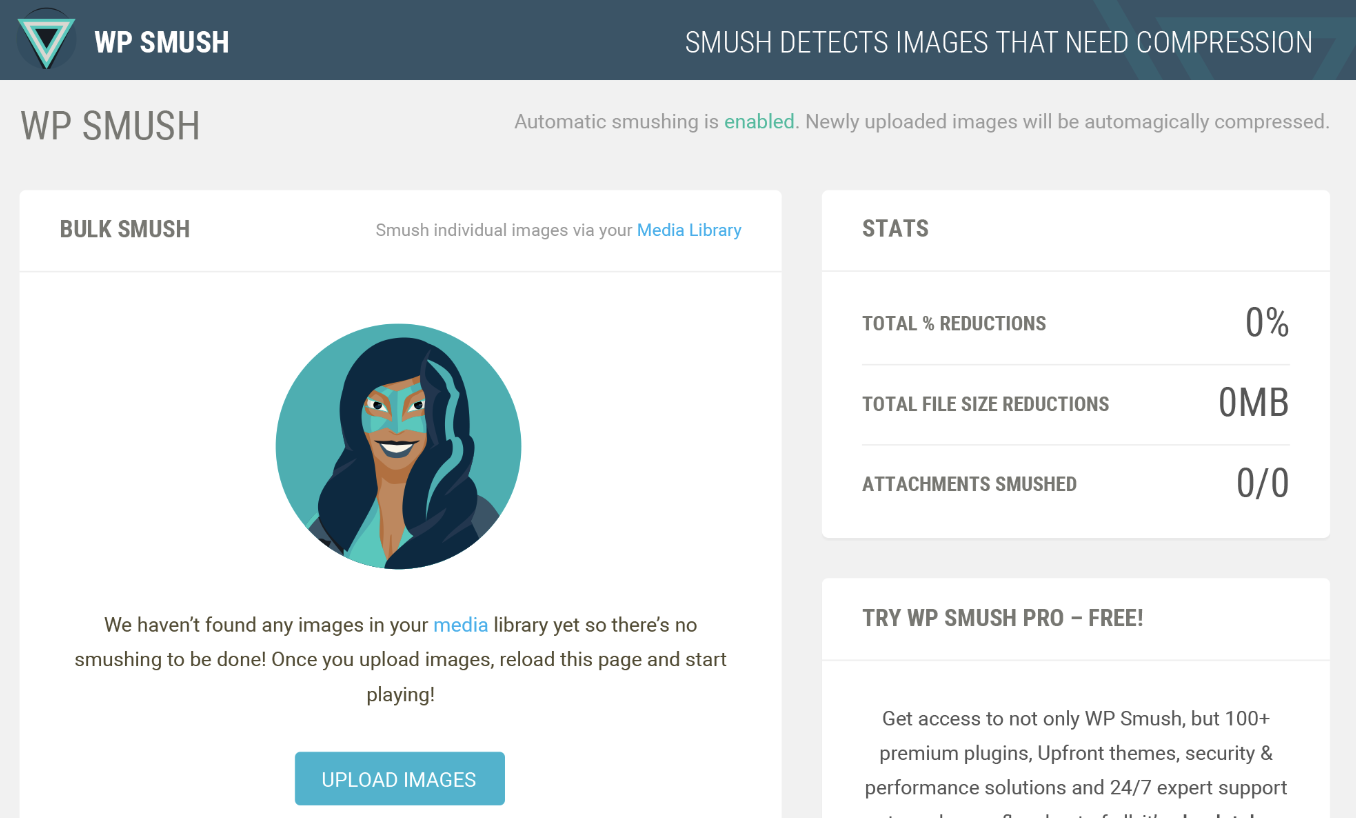
“Smush quickly compresses and optimizes images in bulk, letting you focus on other things,” says Izaak Crook of AppInstitute. Smush servers do all of the work for you, meaning your images will remain high-quality while reducing their file size. This frees up space on your server so your website will be significantly faster.
16) W3 Total Cache
Source: WordPress
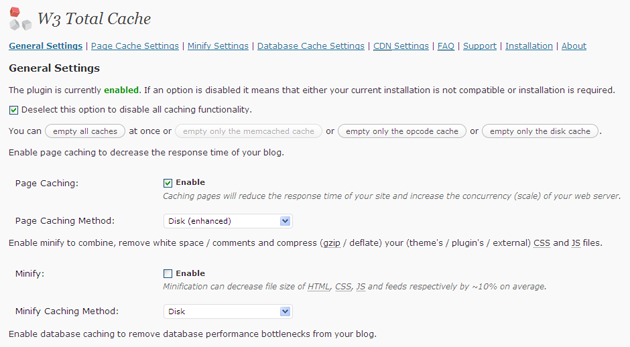
Looking to improve the performance of your website? This optimization plugin helps all marketers deliver a better user experience by increasing server performance, reducing load times, and providing CDN integration (which increases your website’s performance and decreases loading time to enhance user experience).
17) Imsanity
Source: Imsanity
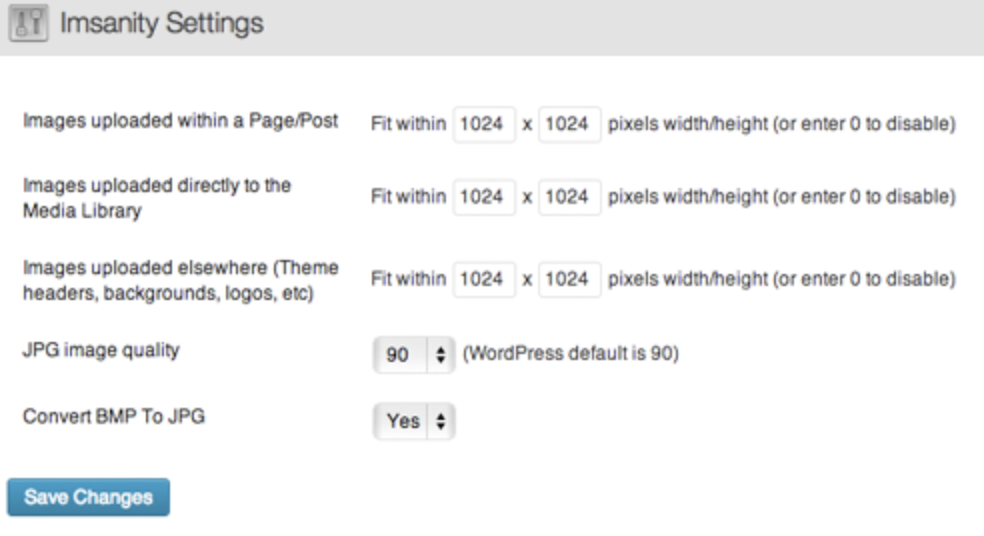
“Imsanity is a popular, free WP plugin for managing image file size. It automatically resizes images without loss of quality and saves you from having to manually scale them before upload,” says Marina Dolcic of MorningScore.
The Imsanity plugin matches the size of your images with the display in a browser. It resizes previously uploaded images by automatically scaling them down and replacing the original images with the new versions, which saves you time as all of the work is done for you.
18) OptinMonster
Source: WordPress
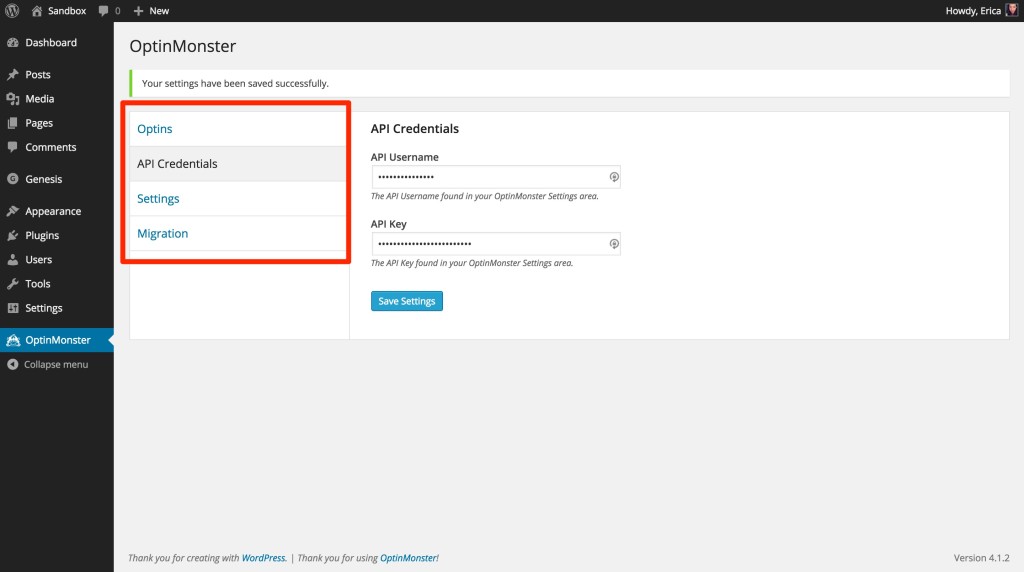
Looking to grow your email list? This plugin comes with an easy-to-use form builder to help you create opportunities for your visitors to convert. From popups to slide-ins to sidebar forms, OptinMonster offers a variety of different templates for lead generation forms. The plugin also integrates with several email marketing providers, such as MailChimp, HubSpot, AWeber, Infusionsoft, Constant Contact, and Campaign Monitor.
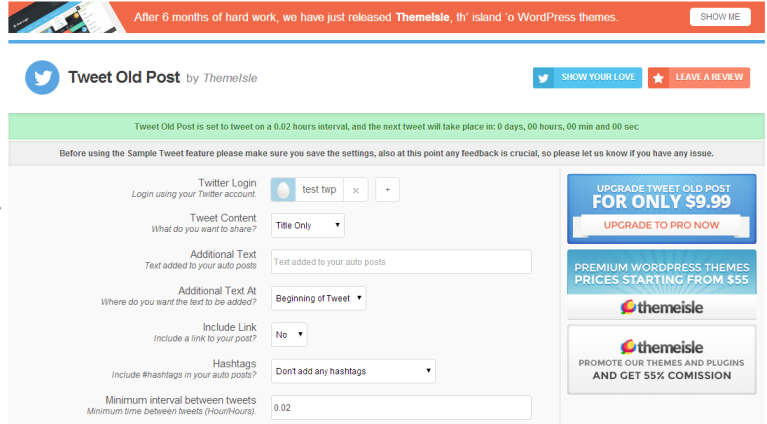
19) Revive Old Post
Source: WordPress
Formerly known as Tweet Old Post, this plugin helps marketers extend the life of their old social posts by automatically re-sharing them to social networks, including Twitter, Facebook, and LinkedIn. You have the ability to schedule posts and manage multiple accounts so you can easily drive more traffic to your content.
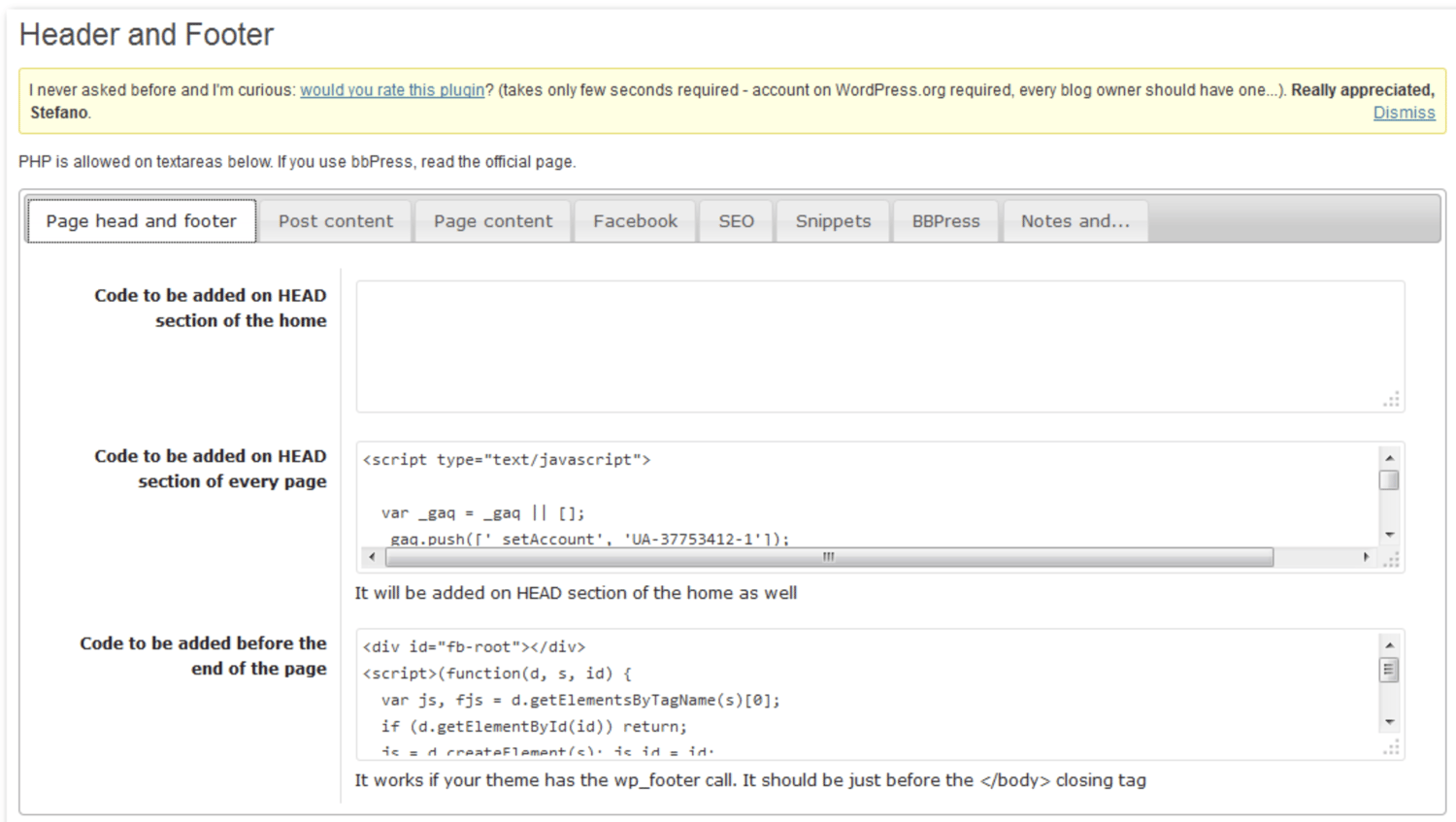
20) Head, Footer and Post Injections
Source: WordPress
Most WordPress users end up needing to use several plugins — some people even use dozens. Head, Footer and Post Injections is a plugin that allows you to copy any unique code that you use for other plugins, keep it in a centralized and organized location, and easily insert it wherever needed. The plugin is theme-independent, meaning you’ll never lose your data (no matter how many times you change your website theme).
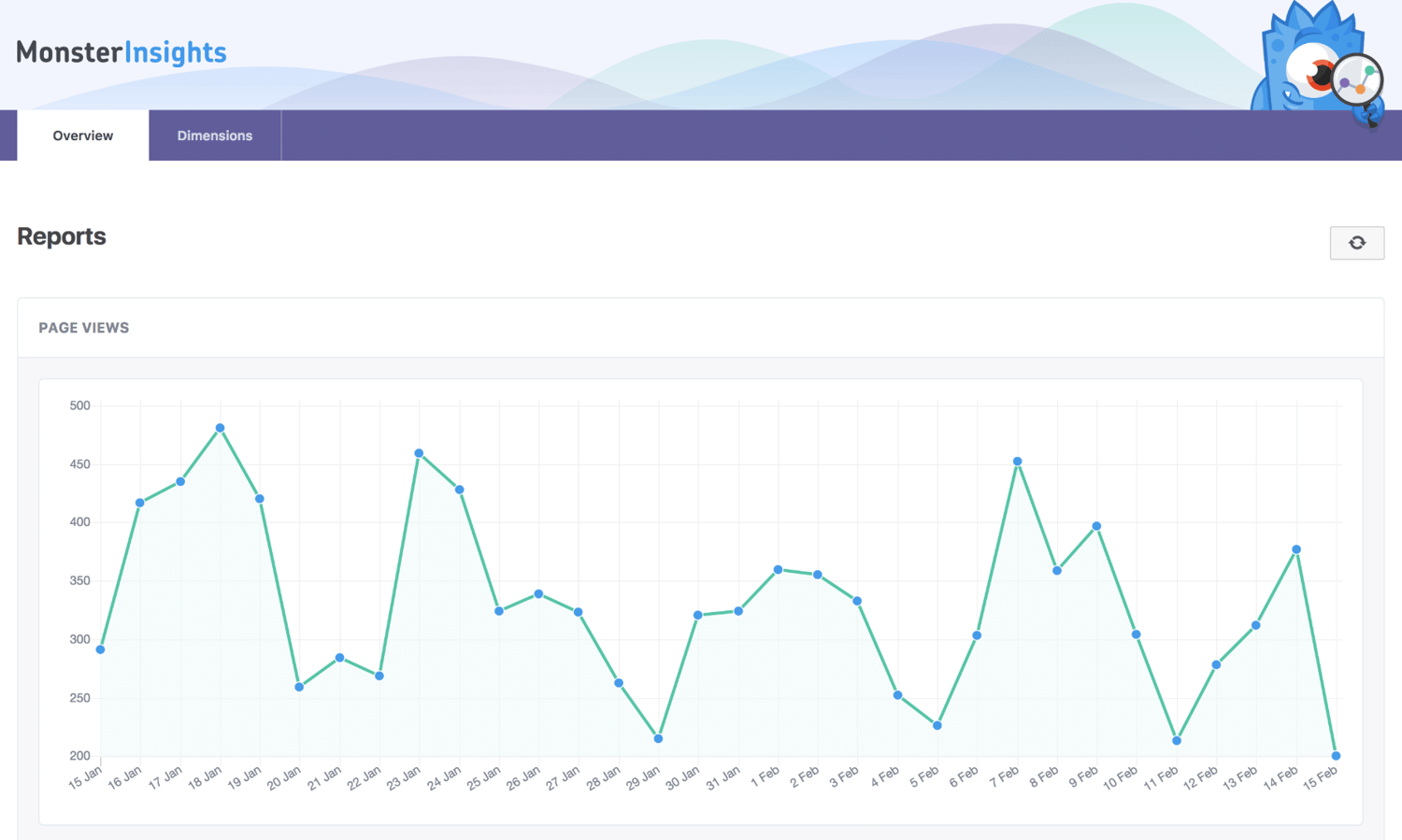
21) Google Analytics by Monster Insights
Source: WordPress
This plugin uses an API with Google Analytics that makes it easy for you to track the performance of your blog directly from your WordPress account. With added data for search result pages and error pages, Google Analytics by MonsterInsights makes performance reporting easy.
22) HubSpot Contact Form Builder and Conversion Tools

Source: WordPress
HubSpot’s drag and drop form builder allows you to easily build contact forms to use on your WordPress website. The plugin also includes a pop-up creator, live chat widget, contact database, and previously-written code for you to simply copy and paste into WordPress.
HubSpot’s Contact Form Builder plug-in is unique because it’s an all in one plugin — it helps you stay efficient by keeping all of its features in a single location. Christine Kilbride of Majux Marketing says having a large number of “plugins can slow down your site.” But because HubSpot provides everything in one plugin, the tool keeps your site fast and responsive.
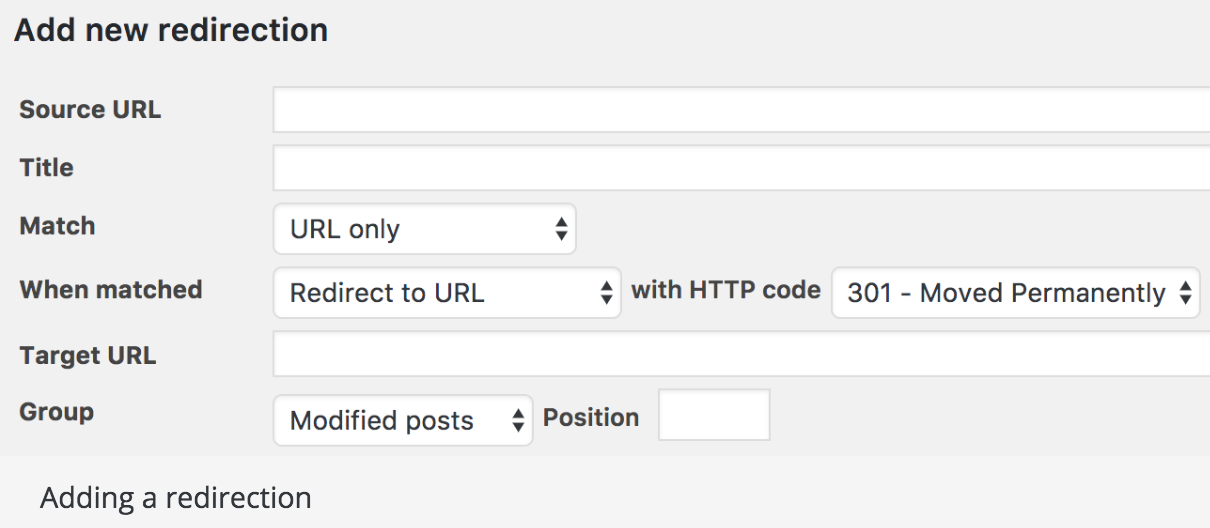
23) Redirection
Source : Redirection
Redirection is a free redirect manager that allows you to set up your 301 redirects and manage 404 errors. There is a logging feature so you can see all of the redirects on your site as well as information about each visitor that is redirected.
24) Yoast SEO
Source: Yoast
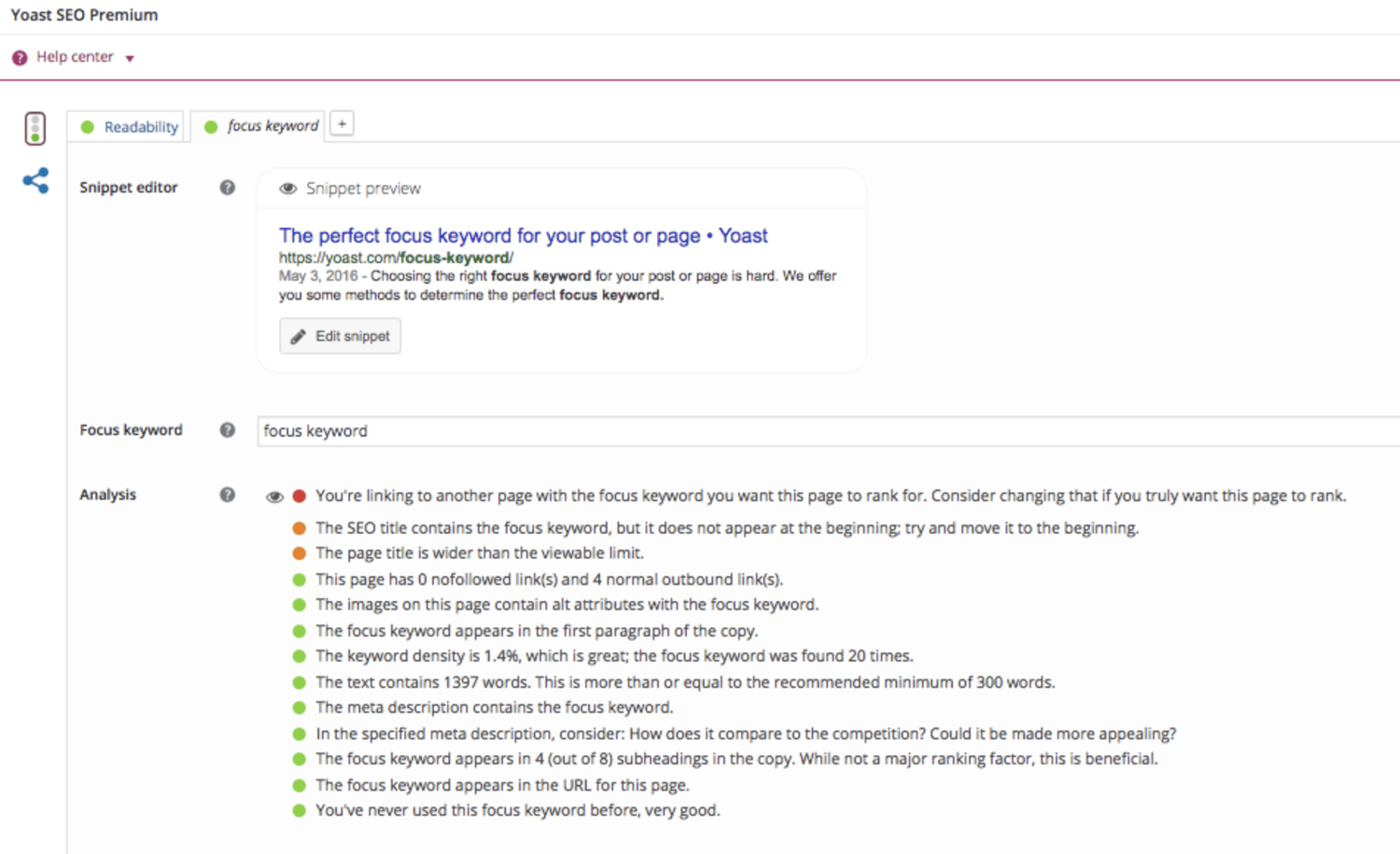
Yoast is your all in one SEO plugin.
“This highly effective WordPress plugin makes the process of delivering SEO improvements on a site much easier,” says Sean Flannigan of coolblueweb.
Yoast helps you get the most out of your website SEO with straightforward XML Sitemaps, breadcrumb navigation control, content analysis, snippet previews, and several integrations that show you how your website performs in different search engines. Nicolas Straut of Fundera , says, “This plugin identifies and suggests solutions for potential SEO problems in your content, identifies what you’ve done well and helps you easily edit your snippet, keywords, and other post details.”
25) Autoptimize

Source: StackPath
“[Autoptimize] makes it easy for non-technical marketers to make their sites lightning fast. We all know how important it is to have a fast website — without it, our Google rankings suffer and potential customers will go somewhere else,” says Jon Nastor of Hack the Entrepreneur.
This plugin aggregates and caches (a.k.a. stores) scripts and styles, which enhance your site’s overall performance. Autoptimize also has extensive API available so you can tailor the plugin to your website’s needs.
Final Thoughts on the Top Essential WordPress Plugins
These are only 25 of the thousands of WordPress plugins available to marketers. WordPress plugins can help you improve your site, whether it’s speeding up your page load time, improving your site’s functionality, or tracking metrics. These powerful tools are often free, have features tailored to individuals and businesses of all sizes, and are fairly easy to use. Give a plugin or two a try and see how much it enhances your day-to-day WordPress experience — and your business.

The Ultimate Guide to Using Emojis for Marketing
Emojis are fun, right? They can add a blip of color and a dash of personality to even the most boring email. They can spruce up a social media post. They can even convey certain messages and emotions better than words.
They’re a great tool to have in your pocket … literally.
(Ha. Or should I say 😂)
What if I told you that these little guys could make a big difference in your click-through rates, open rates, and general engagement levels — that they could breathe life into your brand? That kind of changes the game, huh?
That’s why we’ve compiled this guide. We’re going to cover why to use emojis, how to use them for business, and some popular combinations you can employ in your marketing. Let’s get started! Keep reading, or use the chapter links below to jump around.
What are Emojis?
Emojis are small icons and images created using Unicode Standard. They’re used in text messages, on websites, and as part of other digital communication. The word “emoji” comes from the Japanese e (絵, “picture”) and moji (文字, “character”).
Emojis can take the form of well-known yellow smileys or common objects like weather, food, animals, and more, and they’re used on desktop and mobile devices.
But, emojis are not emoticons. What’s the difference there?
A Brief History of Emojis
Emojis haven’t been around forever. They’ve barely been around twenty years … 😲
The first emoji was created in 1999 by a coder employed by NTT DoCoMo, a Japanese mobile service provider. He created the first 180 emojis, which were then used by multiple Japanese providers for text messaging and other communications.
In 2010, emojis were incorporated into and standardized by Unicode, allowing them to be used outside of Japan. Throughout the following six years, thousands of emojis were added to the “language”, including Zodiac signs, sports equipment, places of worship, and a variety of skin colors.
As of June 2018, there were over 2,823 emojis on the Unicode Standard list, with 157 new ones introduced this year.
How to Add the Emoji Keyboard
Since you can’t create emojis using your typical text keyboard, you have to download a separate one. It’s actually quite easy. Here’s how.
On Your iPhone
Conveniently so, iPhones have the emoji keyboard built into the operating system. To add the keyboard:
- Open Settings
- Tap General > Keyboard > Keyboards
- Tap Add New Keyboard… > Emoji
To access the keyboard, open your Messages or Mail. Tap the 🌐 next to the microphone, which should change your keyboard. If you have any other keyboards added, you might have to tap the icon a couple times.
This process works for iPads, too.
On Your Android
If you have a newer Android phone, you’ll find your emojis built into your keyboard. But if you have an older model, you’ll need to download a third-party app like Kika, SwiftKey, or Textra.
From there, to apply the new emojis to your keyboard, you’d go to Settings > Language and Input > Virtual Keyboard > Manage Keyboards. Then, select the keyboard you’d like to download.
On Your Mac
To use emojis on your desktop, you can always Google them and then Copy + Paste them into your message. If you use them often, though, this process can get clunky.
Thankfully, there’s an easier way. If you’re typing on your Mac and want to insert an emoji, simply tap Control + Command + Spacebar to pop open the emoji keyboard. Tap the emoji you want to use, or drag and drop if it doesn’t insert automatically.
You can also turn on the emoji keyboard on your Mac by tapping the Apple icon in the top left corner. Then, open System Preferences > Keyboard and click Show Keyboard and Emoji Viewers in Menu Bar.
This places a shortcut in the menu bar, and with one tap, you can access all emojis and symbols.
How nifty is that? 👍🏼
On Your Windows Desktop
The emoji options for Windows are very similar to that for a Mac. For one, you can simple Copy + Paste.
On the other hand, the keyboard shortcut for Windows is Windows Key + Period or Windows Key + Semicolon. This shortcut brings up the built-in keyboard, from which you can tap the emoji you want to use.
Why Use Emojis?
So, you know how to use emojis … but why should you bother? Isn’t it easier just to type out what you want to say? More importantly, aren’t emojis for teenagers and texters?
Not quite.
Here’s why you should use emojis.
Emojis Boost Engagement
Repeat after me: Emojis = Engagement.
It might be a new mantra for you, but it’s true nonetheless. Emojis have been proven to boost engagement levels, click-through rates, and open rates.
Take a look at these 📈(… statistics):
- Tweets with emojis saw 25% more engagement, and on Facebook, emojis result in 57% more likes, 33% more comments, and 33% more shares
- In a recent study, more than 50% of brands saw an increase in email opens when subject lines included emojis
- Push notifications with emojis saw 85% increase in open rates and 9% bump in conversions
Emojis help drive engagement on all variety of digital media: email, mobile, and social media.
Emojis Convey What Words Can’t
Have you ever received a text message that ended with a period? Now, imagine the same sentiment expressed with an exclamation point … or better yet, an emoji.
“I can’t wait.” vs “I can’t wait!” vs “I can’t wait 😁”
The feelings you experience from those three messages are a little different, right? The sentiment is the same, but the conveyed feelings vary.
While emojis can’t necessarily replace words (and we’ll talk about why later), they can definitely give them that little extra umph needed to excite, persuade, or intrigue. They enforce the meaning of your message. They’re the 🍒 on top.
Emojis Give Your Brand Personality
Brands are more than the products they sell or the design of their logos. They’re akin to people, with personality and unique character — which helps consumers connect with and be loyal to them.
Using emojis in your marketing and communications gives your brand personality and identity. Whether you’re fun and youthful or risqué and witty, emojis can help humanize your brand’s identity.
Defining and using that personality in your marketing can also help you boost your brand awareness. Fun brands are known brands. 🎉
Your Guide to Emoji Definitions and Uses
We’ve talked about where emojis originated and why you should use them. Now, we’re going to discuss which ones you should use and how you should use them. Take notes 📝… you never know when some of these may come in handy.
Popular Emojis
Whether you’re using emojis at work or with friends, there are some that everyone knows. We cover a few below.
Laughing Face Emoji 😂
According to EmojiTracker, the 😂 emoji is the most commonly used emoji on Twitter. It’s also the most used emoji based on Apple’s data. It’s official name is “Face With Tears of Joy”, and it’s typically used in conjunction with humor or comedy posts.

Heart Emoji ❤️
Next on Apple and EmojiTracker’s lists: ❤️… aptly named the “Red Heart”. This emoji is used in a myriad of ways, most commonly to express affection and love, and it also comes in other shapes and colors. Red is the most popular, though.

Crying Face Emoji 😭
According to Apple, 😭 is the third most used emoji. It’s also the sixth on EmojiTracker. Officially named “Loudly Crying Face”, it’s one of those emojis that has a dual meaning. Sometimes, we see it used “appropriately” — in a sad or negative setting. Other times, though, it can be used ironically or in a “so happy I’m crying” way.

Heart Eyes Emoji 😍
This emoji is fourth on Apple’s and EmojiTracker’s lists. The “Smiling Face With Heart-shaped Eyes” emoji is commonly used when, well, you like what you see. Lots of people use it when responding to pictures they like or people they love.

Thumbs-Up Emoji 👍🏼
The “Thumbs Up Sign” emoji isn’t ranked on Apple or EmojiTracker, but we’re including it anyway. The 👍🏼 is a universal sign for “OK”, and it’s now being used on Facebook, LinkedIn, iMessage, and Slack as a way to confirm receipt or acknowledge a message.

Commonly Misused Emojis
Just because emojis are used often doesn’t mean they’re always used as they were intended or as their title describes. This is where using emojis to communicate might get a little confusing. We cover a few commonly misused emojis — and their proper usage — below.
Dizzy Emoji 💫
At first glance, the “Dizzy” emoji looks like a shooting star. But 💫 actually represents being dizzy or the phenomenon of “seeing stars”.
Hug Emoji 🤗
The “Happy Face With Hugging Hands” is typically mistaken for jazz hands or extreme joy. But if you look closer, 🤗 is actually trying to give you a hug!
Information Desk Emoji 💁
Look closely … the “Information Desk Woman” emoji looks a little sassy. That’s how people typically use 💁, but it’s actually supposed to represent someone holding out their hand asking how they can help.
Tired Emoji 😩
The “Tired” or “Weary” emoji is often used to represent whining or confusion. But it’s actually intended to be the face of someone who’s very tired or sleep-deprived … which, if you look closely, makes a lot of sense.
Bowing Emoji 🙇
The first impression of the “Person Bowing Deeply” emoji is that he’s napping or thinking hard about something. But 🙇 actually represents dogeza, the Japanese practice of kneeling and bowing to express an apology.
Emojis To Try in Your Marketing
There are literally thousands of emojis that you could use in your marketing and communications. But, according to our own research, there are some that might be more effective than others. Take a look and try them out for yourself.
Emojis to Boost Engagement
- 🙆(Person Gesturing OK Emoji)
- 🍒(Cherries Emoji)
- 🐠(Tropical Fish Emoji)
- 💃(Woman Dancing Emoji)
- 🌤(Sun Behind Small Cloud Emoji)
Emojis to Encourage Click-Through
- 🐙(Octopus Emoji)
- 🐴(Horse Face Emoji)
- 👖(Jeans Emoji)
- 🍒(Cherries Emoji)
- 🚂(Locomotive Emoji)
Why have these emojis worked? We’re not sure, although these lists come from a study of 19,617,281 HubSpot-published posts across LinkedIn, Facebook, Twitter, Google Plus, and Instagram … so it seems they’re quite effective.
Using Emojis for Business
We’ve established that emojis are valuable 🛠tools to keep in your marketing toolbelt. They boost engagement, humanize your brand, and extend your communication beyond words. But how can you employ these visual messages? Let’s talk strategy.
Emojis in Social Media
It’s easy to toss an emoji or two into a tweet or Instagram comment, and you should. But how can you use emojis to intentionally drive engagement, click-throughs, and conversions? The answer is simple: Encourage your audience to use them, too.
Here are a few ways to add emojis to your social media strategy and encourage your followers to partake:
- Tell your audience to comment with an emoji: “Respond with 👍🏼 if you agree or 👎🏼 if you disagree.”
- Ask your audience to describe something using emojis: “Describe your plans for this weekend using only emojis!”
- Give your audience an emoji message to decode: “Translate these emojis and be entered to win a prize.”

It’s easy enough to include emojis in your social media posts, but telling your followers to use them too can help boost your overall audience engagement. Emojis are easy to use and require little to no work on behalf of your audience.
For example, instead of having to type out their weekend plans, they’d just have to drop in a ⛳️or 🏕or 🛌 emoji … and you’d still get an engagement.
Emojis in Advertising
Advertising is just as public-facing as social media, but it’s more formal and much more expensive. For that reason, businesses have been slower to adopt emojis into their advertising efforts.
But most of today’s consumers, especially millennials, have had enough of the in-your-face, impersonal advertising. They respond better to subtle, personal and emotional messages. Businesses have learned that emojis — despite their size and lack of words — can actually communicate a lot.
How can you employ emojis in your next advertising campaign? Here are some top tips.
1. Make them relevant, and don’t force it. If an emoji (or emojis in general) doesn’t fit with your campaign or brand, don’t use it. Does your audience use them? (Use social intelligence tools to see what your audience is using online.) Have you used them in other communications, such as social media or on your blog? They’ll be easier to immerse in your advertising if they’re a natural fit for your brand.

2. Use them clearly, and don’t leave room for misinterpretation. Emojis are sometimes used outside of their intended purpose, as we’ve seen in this article. That’s OK, but make sure you know the purpose of the emoji you’re using. Ask co-workers if they understand your message. Consider organizing a focus group, or run the advertisement past a sample audience. Be absolutely sure your message communicates exactly what you want it to.

3. Get creative! If your emojis fit with your brand, are used by your audience, and can’t be misinterpreted, have fun with them. Better yet — consider having your own emoji designed, too.

Emojis in Emails
Email marketing, despite its one-to-many communication ratio, should still be personalized to its recipient. Because of this, emojis should be used sparingly and only when you know your audience will receive and respond to them positively.
For example, try not to use emojis for first-time or one-time customers, such as “Welcome!” or “You Left Something in Your Cart!” emails. These consumers might not be familiar with your brand and might be put off by random emoji use.
Emojis in email subject lines have been proven to work about 60% of the time … and by “work”, we mean they boost open rates by about 25%. But when they don’t work, they actually hurt open rates — by the same 60%. So, use emojis sparingly in subject lines, and choose emojis that are relevant to your brand or message.

As we’ve said before, don’t use emojis in your emails if they’re not also on your social media and other digital marketing efforts. Emojis are more natural in email communication if your audience has also seen them elsewhere.
In terms of one-on-one email communications, save emojis for personal, known interactions. If you’ve never met your recipient in person, don’t include an emoji. Don’t use emojis to replace real or authentic messages or emotions. In this case, professionalism always trumps personality.
Emojis in Service
Service is a critical component of the flywheel. It keeps customers happy, encourages them to stick around, and inspires them to talk about your business. Another thing about service? Service is all about connecting with the customer, sharing their burden, and solving their problem.
Emojis can help you do this. Since emojis amplify emotion and feelings, they can help convey authentic service to your customers — if used correctly. For customer service interactions, it’s helpful to include an accurate emoji (i.e. 😄 for “Hello!” or 😲 for “Oh no!”), but don’t rely on the emoji alone. Use it alongside other company-approved messages.
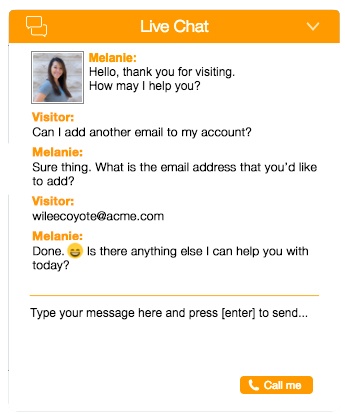
Emojis can help create personal connections to customers and accurately express what you’re thinking and feeling — and how you’d like your customers to feel, too.
Emoji Resources
There are a ton of resources available to learn more about emojis and explore which ones you can use in your marketing. Check out a few of our favorites below.
The Emojipedia
The Emojipedia is the ultimate encyclopedia of emojis. It includes every possible emoji, it’s shortcodes and brief history, and how it looks on various operating systems. It also ranks the current most popular emojis and provides emoji news.
Emojisaurus
Emojisaurus turns phrases and sentences into “emojigrams”. For example, “Barbership quartet” is 💈💈💈💈, and “Strong thoughts” is 💪💭. If you want to post an emoji sentence for your followers to decode, this is a helpful tool.
Get Emoji
Get Emoji is similar to The Emojipedia in that you can find emojis to Copy + Paste. All emojis on Get Emoji work on iOS, Android, Mac and Windows and can be copied onto any social network or website. If you don’t feel like using the emoji keyboard on your device, this is a great tool to bookmark.
Over to You
Emojis are a simple and easy way to add personality to your marketing, advertising, and official communications. From any device, you can add a pop of color or dash of sass to a tweet, Facebook post, email, or customer service live chat response. If you’ve been looking for ways to incorporate more emotion or humanize your brand, emojis are the way to go. 🙌🏼

How to Use the Facebook Split Testing Feature to Identify Your Most Profitable Audiences
Do you want to improve your Facebook ads? Wondering how the Facebook split test audience variable feature can help? In this article, you’ll discover how to split test audiences and reveal which ones deliver the best results for your Facebook ad campaigns. What Is the Facebook Split Testing Feature? The Facebook split testing feature lets […]
The post How to Use the Facebook Split Testing Feature to Identify Your Most Profitable Audiences appeared first on Social Media Examiner.
from Social Media Examiner https://ift.tt/2SgVo8S
via socialmediaexaminer
How to Repost on Instagram: 4 Easy Ways to Reshare Content
Most social media feeds are almost distractingly busy — full of photos, videos, and text updates from friends and brands you follow. Instagram is different — you can only look at one post at a time.
And while Instagram’s simple, clean interface makes to easy to focus on users’ beautiful photography and interesting videos, it also leaves something to be desired: the ability to easily repost other users’ content.
But fear not: for every problem, the internet has afforded a solution. We tested out four different ways to repost content on Instagram in a few simple steps. All of these methods are free, but some require you to download an app from the iOS App Store or Google Play first.
Disclaimer: Pursuant to Instagram’s Terms of Use, you must first reach out to the Instagram user whose content you want to reproduce and obtain written permission to do so. You can do this by commenting on the image and asking, or by sending them an Instagram Direct Message, which can be accessed by tapping the paper airplane icon in the upper right-hand corner of the app.

How to Repost on Instagram
To repost someone else’s Instagram post, you first have to obtain that person’s permission to re-use their content. Then, you can use an external app such as Repost for Instagram, Instarepost, or DownloadGram. You can also take a screenshot of the photo with your mobile device.
Using Repost for Instagram
1. Download Repost for Instagram.
Download Repost for Instagram for either iOS or Android. Both devices are compatible with this app, which integrates directly with Instagram so you can share content from other Instagram users from your mobile device.

2. Identify a photo or video to repost.
Open your Instagram app and find a photo or video you’d like to repost from your own Instagram account. Tap your chosen photo from the original poster’s photo gallery to see its full view, as shown below.

(Psst — do you follow HubSpot on Instagram?)
3. Copy the post’s share URL to your clipboard.
Once you’re on the photo’s or video’s landing page, tap the “…” icon in the upper-righthand corner of the post. Then, tap “Copy Share URL” (the button will look the same on Android devices).
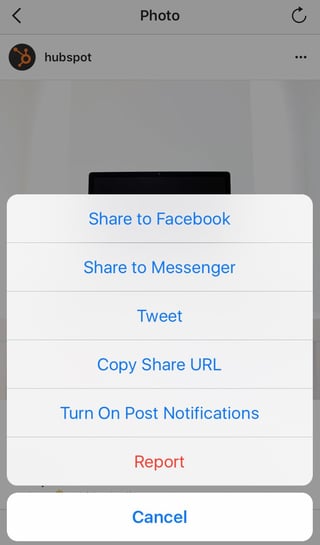
4. Open Repost for Instagram.
Once the photo is copied to your phone’s clipboard, open Repost for Instagram. The post you copied will automatically be on the app’s homepage, as shown below.

Tap the arrow on the righthand side of the post. There, you can edit how you want the repost icon to appear on Instagram.

Tap “Repost.” Then, tap “Copy to Instagram,” where you can add a filter and edit the post.


5. Edit the post’s caption and share your repost.
Tap “Next.” If you want to include the original post’s caption, tap the caption field and press “Paste,” where the original caption will appear with a citation that credits the original poster with your reposted photo.

When you’re ready to share the post, tap “Share” as you would a regular Instagram post. Here’s how the post appears on your Instagram profile:

Using InstaRepost
1. Download InstaRepost.
Download InstaRepost for iOS or Android devices to share content from other Instagram users from your own Instagram account via your mobile device.
2. Give InstaRepost access to your Instagram account.
Open InstaRepost, log in using your Instagram credentials, and authorize it to access photos, friends, and similar content associated with your Instagram account.

3. Use InstaRepost to look up the original poster’s username.
InstaRepost will only show you a small selection from your Instagram feed. If you know what post you’re looking for, tap the magnifying glass icon on the bottom toolbar of the InstaRepost app to access the Explore tab. Enter the username of the person whose photo you want to repost.


4. Save the photo to your phone’s camera roll.
Once you’ve found a post you want to reshare, tap the arrow in the lower righthand corner. Then, tap “Repost,” then “Repost” again. This will first save the photo your mobile device’s native camera roll, where you can retrieve it in the Instagram app.



Navigate to your Instagram app and tap “Library.” You’ll see the post saved to your phone’s camera roll. Tap the photo to pull it into Instagram.

5. Add a filter and a citation, and share your repost.
Add a filter and edit the post as you would any other. Then, select “Next” and tap the caption field to paste the original caption. The repost won’t automatically include a citation, so we suggest adding one by typing “@ + [username]” to credit the content’s original poster. Then, press “Share.”


Here’s how the post appears on your Instagram profile:

Using DownloadGram
DownloadGram lets Instagram users download high-resolution copies of Instagram photos and videos to repost from their own accounts. Luckily, there isn’t an app you need to download to repost using this process. Here’s how to do it:
1. Open Instagram and find a photo or video to repost.
Open your Instagram app and find the post you want to repost. Tap the “…” icon in the upper righthand corner of the post and click “Copy Share URL” (this button will be the same for both iOS and Android mobile devices).

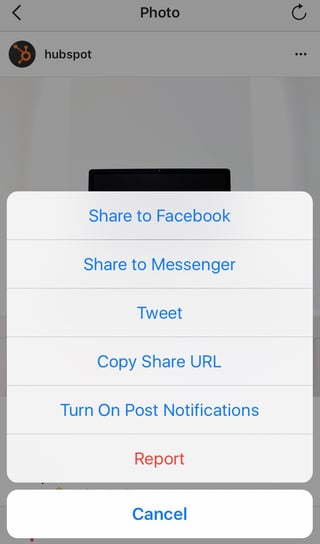
2. Paste the post’s share URL into DownloadGram.
Open your mobile internet browser and navigate to DownloadGram — or simply, downloadgram.com. Paste the URL into the text box that appears on the website’s homepage. Then, tap “Download.”

Tap the green “Download Image” button that appears further down DownloadGram’s homepage.

3. Download the post.
You’ll be directed to a new webpage with the content ready to download. Tap the download icon — the box with an upward-facing arrow, as shown below — then tap “Save image.”


4. Open Instagram and find the photo or video in your camera roll.
Return to your Instagram app. The image will be saved to your phone’s native camera roll, so edit it as you would any other Instagram post.

5. Add a caption and share your repost.
The repost won’t include a citation, so we suggest adding one by typing “@ + [username]” to credit the original poster with the photo or video. Then, press “Share.” Here’s how the post appears on your Instagram profile:

Taking a Screenshot
This method doesn’t require any or other websites to repost on Instagram. It’s worth nothing that this method only works for reposting photos, not videos. Here’s how to do it:
Find a photo on Instagram you’d like to repost, and take a screenshot with your phone.
- For iOS: Press down on the home and lock buttons simultaneously until your screen flashes.
- For Android: Press down on the sleep/wake and volume down buttons simultaneously until your screen flashes.
Tap the new post button in the bottom-center of your Instagram screen. Resize the photo so it’s properly cropped in the Instagram photo editor.

Edit and filter the post like you would any other Instagram post. Keep in mind that your phone will take a screenshot of everything on your screen, not just the photo you want to repost. So, be prepared to crop the sides of the screenshot to capture just the image you want to share with your followers.

The repost won’t include a citation, so we suggest adding one by typing “@ + [username]” to credit the original poster with the photo you’re reposting. Then, press “Share.” Here’s how the post appears on your Instagram profile:

Now that you’ve learned how to repost on Instagram, you can diversify your profile with content sourced from friends, family, and brands. Use the methods above — being sure to cite the source of the original post — to quickly and easily reshare your favorite content.
Looking for more ideas for sourcing and creating Instagram content for your brand? Download our free guide to using Instagram for business here.



What Does a World Without Facebook Look Like for Content Marketers? (Hint: It Looks Kind of Good)
Once upon a time, on a fateful day in August, the world witnessed 45 minutes without Facebook.
According to a spokesperson, “a technical issue caused some people to have trouble connecting to Facebook,” which was resolved within the aforementioned 45 minutes. For that brief period, however, visitors to Facebook.com merely saw this blank display:

Source: Business Insider
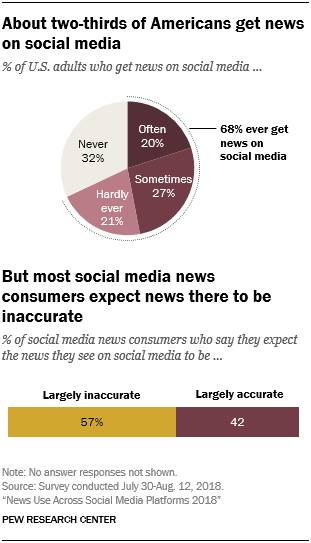
But during that time, something interesting happened. Without Facebook as a discovery source for news — something for which 68% of Americans use the platform — where did users go to seek information?
Content intelligence company Chartbeat decided to dig into that question — and here’s what it found.
Where People Go Without Facebook
As previously mentioned, over two-thirds of Americans get their news on social media at least once in a while. Which begs the question: Without Facebook, where do people find information, especially news content?
Source: Pew Research Center
According to Chartbeat’s findings, users went directly to the source (of information). When Facebook wasn’t available as an information aggregate, direct traffic to publisher websites went up by 11% — and use of their mobile apps skyrocketed by 22%.

Source: Nieman Lab
Search referral traffic to publishers was also slightly elevated, by about 8%.
What’s interesting is that this spike in traffic was not exactly an isolated incident. Rather, what happened during the “Facebook blackout” actually reflected an overall upward trend in referral traffic from non-Facebook sources — news aggregator apps that are built into mobile operating systems (e.g., Apple news), publishers’ own apps (e.g., the New York Times mobile app), and other content aggregators like Flipboard.

Source: Nieman Lab
All the while, referral traffic from Facebook has been on a somewhat steady decline.
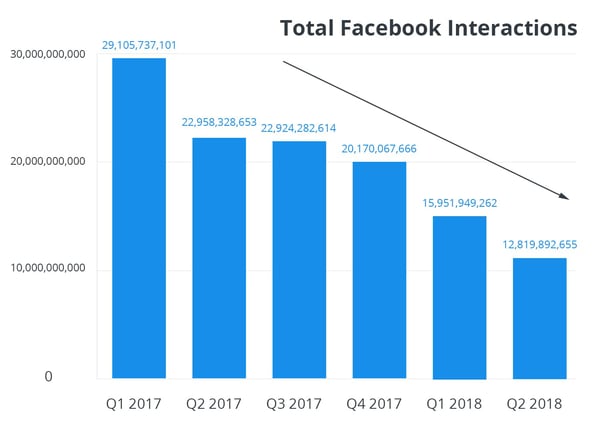
This tidal shift in sources of traffic to publishers could reflect an overall downturn in engagement with brands on Facebook. Since overhauling its News Feed algorithm in January to prioritize content from users’ friends and family (over that from brands), business Page engagement has reportedly dropped by as much as 50%.
Source: Buffer
Even before the algorithm change, referral traffic from Facebook to many content publishers was already reportedly declining — by about 17% in 2017.
But if that sounds like bad news for content creators, don’t panic: It’s actually a plus. Here’s why.
What Marketers Can Do in the Face of Declining Facebook Referrals
Consider the fact that Chartbeat says that this behavior was almost “instantaneous,” and that it was only a matter of seconds before users pivoted to other distribution sources for news and other content.
We’ve previously discussed the hesitancy among Facebook users to stray from the network, and the reasons they might not leave despite the company’s many issues — for example, an easy way to stay connected to a broad range of friends and family.
What this immediate reaction to the Facebook blackout — the near-instantaneous fleeing of users directly to publishers or aggregates — could indicate is that while there might remain a demand for Facebook itself, there also remains a demand for real-time information.
So while we wouldn’t exactly advise abandoning Facebook altogether, given this user loyalty to the network, it might be worthwhile for marketers to begin brainstorming other ways to raise brand awareness on Facebook — for example, through compelling, easy-to-consume visual content.
“Facebook has been dwindling as a referral source for most publishers as increasingly users prefer to consume content wholly on the platform,” says HubSpot VP of Marketing Meghan Keaney Anderson. “Marketers should shift their content strategy on Facebook to be less focused on driving traffic, and more focused on driving engagement on the network itself.”
Which raises the question of how publishers can best drive traffic to their content. That’s why an important next step for content marketers to take is exploring content distribution channels — and partnerships — that aren’t quite as traditional for B2B publishers.
“I think this study is a good reminder to businesses that it’s a bad idea to relay solely on Facebook for traffic or distribution,” says HubSpot Principal Marketing Manager Marcus Andrews, “and that exploring untraditional distribution channels like co-marketing, partnerships, or aggregator sites is a great idea.”
But in addition to those sources of referral traffic, it’s important to remember that during the Facebook blackout, a fair amount of users also turned to publishers’ own standalone mobile apps to discover information.
“If you can create your own, owned property like a great app, and market it as a ‘break from the News Feed’,” explains Andrews, “you may be able to steal some of that attention that people have such a a habit of giving to Facebook.”
In other words: No content distribution strategy is static. As platform algorithms, discovery channels, and user preferences continue to evolve, so should the way publishers and marketers raise awareness of their brands and content.
“This study shows however that routes into publisher websites aren’t closed,” says Keaney Anderson. “But we need to think about the path of least resistance to the consumer.”

The Ultimate Guide to Google Sheets
Saying that marketers are data-centric people is an understatement: Between return on investment, cost per acquisition and more, they’re always looking at different metrics and reporting on progress.
It can be tricky to keep all of those numbers straight, though. That’s where spreadsheets come in handy. With a well-organized spreadsheet, marketers can quickly analyze robust data sets and make smarter, more informed decisions about their efforts.
Originally introduced by Microsoft in 1987, Excel was the go-to tool for years for building spreadsheets. But when collaborative, cloud-based tool Google Sheets was introduced in 2012, many users made the switch over to this new (free!) resource.
If you’re also looking to get started with Google Sheets, you’re in the right place. In this guide, we’ll be looking at the benefits of Google Sheets and walking you through some of the basics so you can get up to speed quickly and efficiently.
The Benefits of Using Google Sheets for Marketing
First things first: Let’s talk about the benefits of using Google Sheets for marketing purposes before we discuss more traditional options (like a standard Excel spreadsheet).
- It’s cloud-based. Cloud-based spreadsheets are automatically saved, stored, and maintained via a remote server. That means that you can access it online from anywhere, any time. Plus: Google Sheets is also available offline.
- It’s free. No expensive software required — Google Sheets is always 100% free.
- It works across devices. Modern marketers switch between devices throughout the day — and Google Sheets accommodates that behavior. You can access and edit Google Sheet data from a wide variety of devices (like your smartphone, tablet, and computer).
- Add-ons are available. We’ll get into the specifics of add-ons for Google Sheets a bit later, but the increased functionality and flexibility of these additional features makes this spreadsheet tool even more versatile and powerful.
You might be wondering: What’s the difference between Google Sheets and Excel? The short answer is: price, collaboration, and flexibility.
While Excel requires a software subscription (which costs about $130), Google Sheets is free for all Google account holders. In terms of collaboration, Excel requires you to save and send a new version when edits are made, while Google Sheets automatically updates a single shared file for all team members. And lastly, because Google Sheets has the ability to accommodate many different integrations, it’s often more flexible than a standalone software solution like Excel.
Common Google Sheets Terms to Know
Next, let’s get familiar with some of the language and common terms used when referencing data within Google Sheets.
- Column: Columns are vertical cell sets.
- Row: Rows are horizontal cell sets.
- Cell: Cells are the single data points within a Google Sheet.
- Range: Range refers to a selection of cells across a column, row, or both.
- Function: Function refers to built-in operations for the Google Sheet that can be used to quickly calculate values, to manipulate data, and more.
- Formula: Formulas combine functions, rows, cells, columns, and ranges to generate a particular end result.
How to Use Google Sheets
Now we’re ready to dive into the more advanced how-to’s and lessons on using Google Sheets.
Understanding the Google Sheets Toolbar
One of the very first things to do is master the icons located in the Google Sheets toolbar. Doing so will help ensure you’re getting the most out of its abilities and that you’re saving time with shortcuts. Take a look at the screenshot below to identify some of the basic icons and their purposes within the toolbar.

How to Create a New Spreadsheet
When you’re ready to create a new spreadsheet, you’ll just need to follow a few quick steps to get started. Open Google Sheets and click “File” > “New” > “Spreadsheet”.

Once you create your new spreadsheet, you can start adding data. If you want to work with an existing spreadsheet from Excel instead, you’ll need to import that data into your new Google Sheet.
How to Convert Excel to Google Sheets
When you need to import an Excel spreadsheet into Google Sheets, go to “File” > “Import” > “Upload” and then select a file that’s in one of the non-password protected formats (such as .xls, .csv, or .txt for example).

From there, your file will be uploaded and automatically converted into a Google Sheet.
Sharing and Protecting Your Data
Once your Google Sheet is set up and populated, you’ll want to think about how to share and protect your data. Data is automatically saved, so you don’t need to worry about that part. You can select who you share your file with and whether they have edit, comment, or view permissions. You can also protect specific data within your sheet so that those who have access can only edit certain cells.
To share a file:
- Go to “File” > “Share” (or just click the blue Share button in the top right corner)
- Enter the email address of who you’ll be sharing the spreadsheet with
- Assign permission levels (such as “View only” or “Can edit”)
- Click “Advanced” and select any additional privacy conditions needed
To protect data:
- Navigate to “Data” > “Protected Sheets and Ranges”
- Choose “Range” or “Sheet” (to protect an entire sheet)
- Select the data you’d like to protect
- Click “Set Permissions”
- Choose to show an error warning to anyone who attempts to edit or customize editing permissions for certain people.
Organizing Data in Google Sheets
Google Sheets is a powerful tool that can hold a ton of data. That means the more data you have, the harder it becomes to find it — that’s when filtering comes in handy. Google Sheets has several filters that allow you to select the data you want to see and hide what you don’t.
How to Hide Data
Google allows you to hide entire rows or columns. This becomes useful when you want to restrict views for sharing, or when you’d like to control the amount of data you’re viewing at any given time. To hide a column, right-click the column you want to hide, then select “Hide Column”. When you hide a column, two arrows will appear on the previous and subsequent columns. Click these to restore the column to full view.=

How to Freeze Rows and Columns
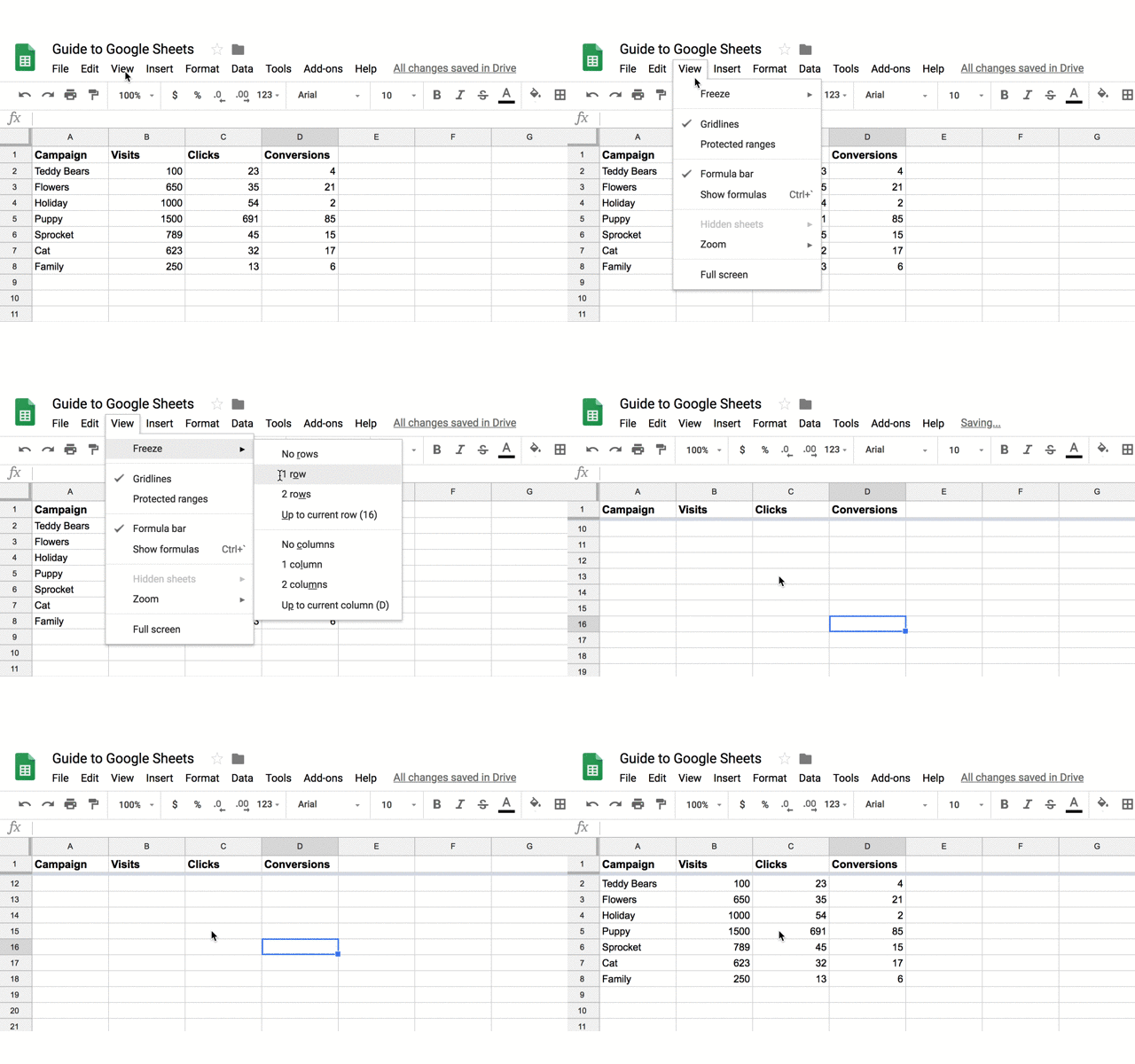
Freezing will create a floating row or column as you scroll and keeps the data in those fields within your line of sight. For example, if you use the first row to label your columns, you can freeze that row so you don’t have to remember what each column is as you scroll.
To freeze a row, select “View” > “Freeze” > “1 row” (or up to X rows).
How to Filter Data
What if you’d like to view all of the data in a single column that fits a certain criteria? Apply a filter. Filters allow you to select a criteria and how that criteria applies to your data. For example, you can filter your ‘Site Visits’ column to show all values greater than 1000, or filter your sheet for all cells that have the word “cat”.
To set up a filter, select “Data” > “Create a Filter.” Click the funnel icon that appears in the column, then choose to filter by condition, value, or alpha or numeric order. Your sheet will only display data that satisfies your criteria.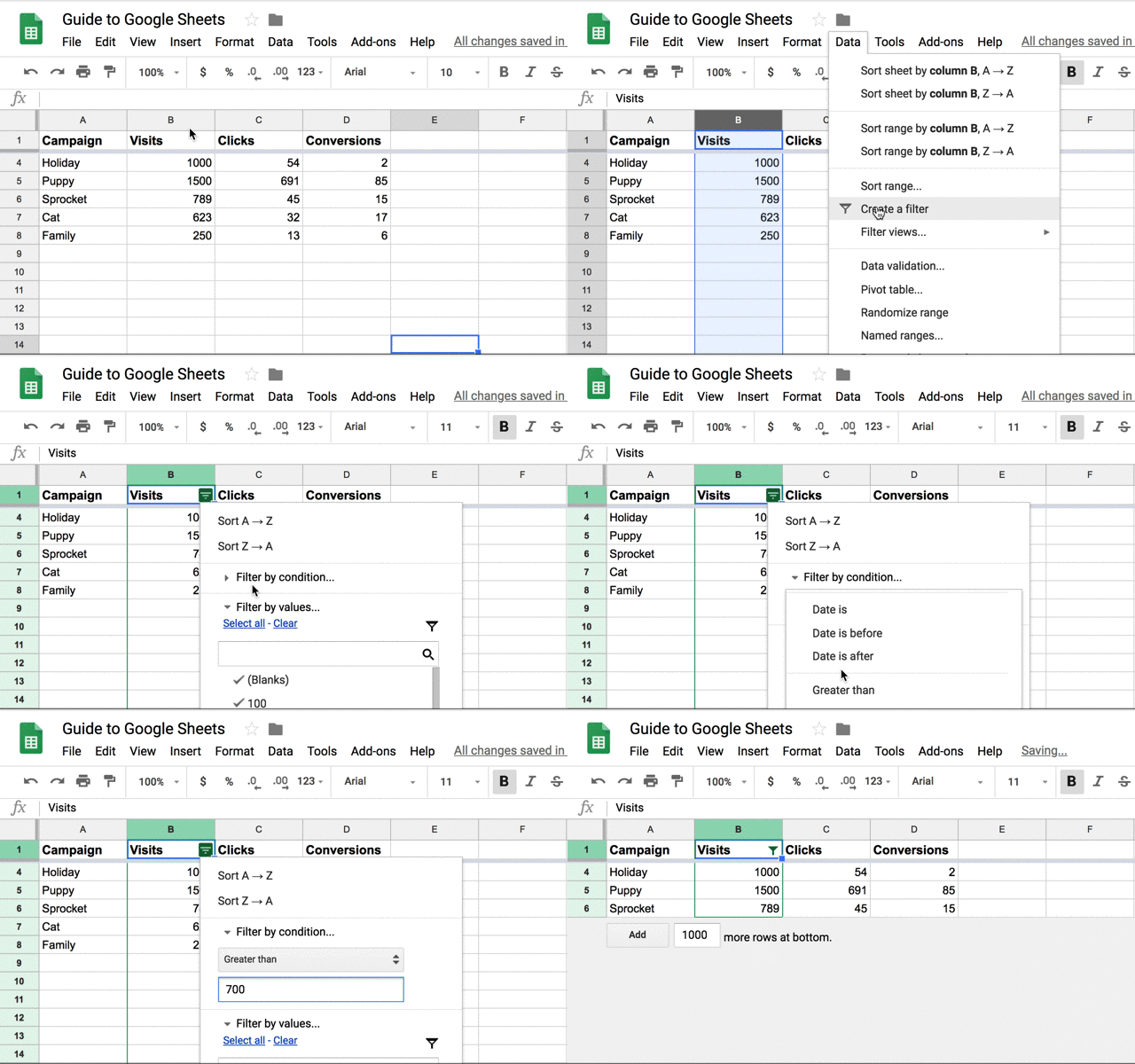
Learn about other filtering options below.
How to Setup and Use Google Sheets Offline
If you need to use Google Sheets offline, just follow the steps outlined here to turn on offline access to your spreadsheets.
Keep in mind:
- You must be connected to the internet.
- You’ll need to use the Google Chrome browser (don’t use incognito mode)
- You’ll need to install and enable the Google Docs Offline Chrome extension.
- Make sure you have enough free space on your device to save all your files.
From there:
- Open Chrome and make sure you’re signed in.
- Go to drive.google.com/drive/settings.
- Check the box next to “Sync Google Docs, Sheets, Slides & Drawings files to this computer so that you can edit offline.”
- To work on files offline from a computer, learn how to install Backup and Sync.
Advanced Google Sheets Tips
Now that you understand the basics of Google Sheets, let’s get into some advanced tips so you can start using Sheets like a pro. These tips are helpful to have in your back pocket … even if you don’t need them just yet.
Conditional Formatting and Heatmaps
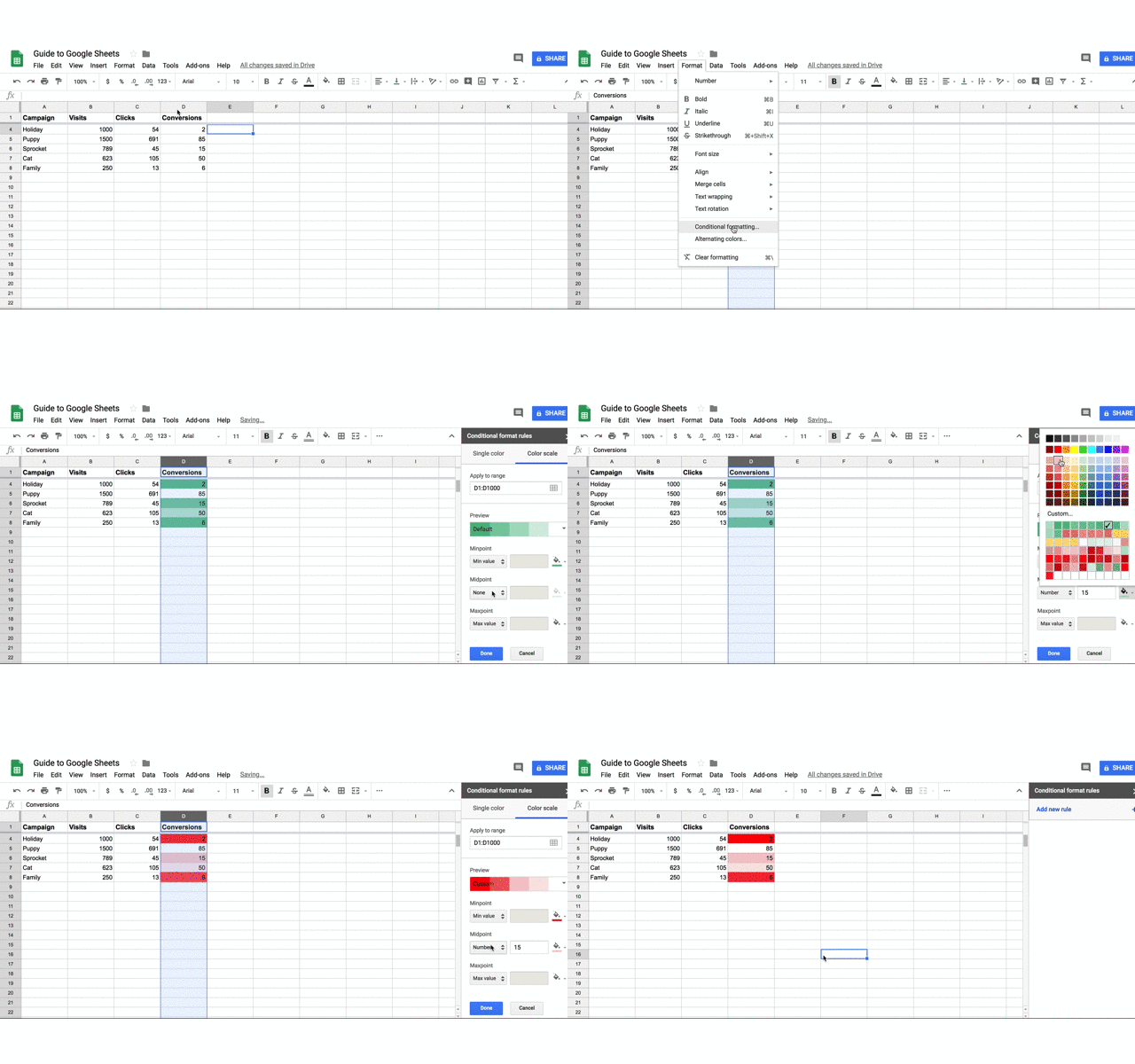
Conditional formatting will automatically apply formatting to a cell based on a preset condition. For example, you can select to highlight a cell in red if the value entered is below 100 or reads “Error”.
Heatmaps work similarly in that they apply a color scale to cells based on a median criteria (values greater than the median will appear darker while values lesser will appear lighter). This helps you view values on a gradient and identifies areas of concern on which to focus your attention.
Array Formulas
Array formulas can perform multiple calculations at once and output a value based on those calculations. Whereas most formulas require you to perform each step independently (e.g. sum one row then add it to the sum of the subsequent row), arrays make calculations much more efficient. This helps when working with large amounts of data.
Macros
The Macros feature records a series of steps that you’d like Google Sheets to repeat on command. For instance, if you work with a new data set each month, and need to manipulate that data in the same sequence each time, then you can record a Macro, and have Google do the work for you.
10 Must-Know Google Sheets Formulas
When you’ve entered your data and you need to do some quick number-crunching, basic formulas can help you find the answers you need. Here are a few commonly used Google Sheets formulas to speed up your data analysis.
1. SUM
This formula adds all values within a selected range.
=SUM(range)
2. AVERAGE
This formula calculates the average of values within a range.
=AVERAGE(range)
This formula returns a filtered version of the source range, returning only rows or columns which meet the specified conditions. This is helpful when segmenting data by year or month.
FILTER(range, condition1, [condition2])
4. FIND
This formula returns the position at which a string is first found within the text. The Find formula is case sensitive.
FIND(search_for, text_to_search, [starting_at])
5. COUNTIF
This formula returns a conditional count across a range.
=COUNTIF(range, criterion)
6. CONCATENATE
This formula allows you to combine values of multiple cells into one cell, e.g., first and last name.
=CONCATENATE(Value1, “ ”,Value2)
7. VLOOKUP
This stands for vertical lookup. This formula searches down the first column of a range for a key and returns the value of a specific cell in the row found.
=VLOOKUP(search_key, range, index, [is_sorted]).
Learn how to do a VLOOKUP in less than a minute.
8. SPLIT
This formula divides text around a specified character or string, and puts each fragment into a separate cell in the row. Use this when you want to break up first names from last names in a list of customers or prospects.
=SPLIT(text, delimiter, [split_by_each])
9. SUBSTITUTE
This formula replaces existing text with new text in a string. For example: You could replace a product name with a new one in a sheet of ad copy.
=SUBSTITUTE(text_to_search, search_for, replace_with, [occurrence_number])
10. PROPER
This formula edits text within a cell to title case so you don’t have to format each entry manually.
=PROPER (text)
For more formulas you can use in Google Sheets, use the search tool on the spreadsheet functions list and find the one you need.
Google Sheets Functions & Skills You Should Know
How to Create a Pivot Table
- Select the cells with source data you want to use in your pivot table. Note: Each column will need a header.
- In the menu at the top, click “Data” > “Pivot table.” Click the pivot table sheet (if it’s not already open).
- In the side panel, next to “Rows” or “Columns,” click “Add” and then choose a value. Note: Sometimes you will see recommended pivot tables based on the data you’ve selected. To add a pivot table, under “Suggested,” select a pivot table.
- In the side panel, next to “Values,” click “Add”, then choose the value you want to see over your rows or columns. You can change how your data is listed, sorted, summarized, or filtered.
- Next to what you want to change, click the down arrow.

How to Remove Duplicates
- Select the cell in which you’d like to remove the duplicated info.
- Enter the function =UNIQUE(
- Select the cells you would like to pull data from
- Close the parentheses. Your function should look something like this: =UNIQUE(A:A)
How to Create a Drop-Down List
- Next to “Criteria,” choose an option:
- Click “Data” > “Data validation”.
- Select the cell or cells in which you want to create a drop-down list. List from a range: Choose the cells that will be included in the list.
- List of items: Enter items, separated by commas and no spaces.
- The cells will have a down arrow. To remove the arrow, uncheck “Display in-cell button to show list”.
- If you enter data in a cell that doesn’t match an item on the list, you’ll see a warning. If you want people to only enter items from the list, choose “Reject input” next to “On invalid data”.
- Click “Save”. The cells will show a drop-down list. To change the color of a cell based on the option, use conditional formatting (refer to section above).
How to Make a Graph
- Select the cells you want to include in your chart. To label your chart, add a header row or column.
- Click “Insert” > “Chart”.
- In the side panel, click “Data” > under “Chart type,” choose a chart.
- To edit your chart, click “Customize.”

How to Merge Cells
- Highlight or select a range of cells.
- Right-click on the highlighted cells and select “Format Cells”.
- Click the “Merge” button in the toolbar, then select the merge option you need.

Where to Find the Best Google Sheets Templates
Building new spreadsheets from scratch can be extremely time-consuming, so don’t reinvent the wheel if you don’t have to. Instead, look for pre-existing Google Sheets templates that you can customize and use for your own efforts. Let’s look at a few different places where you can find ready-to-use templates for your marketing efforts.
HubSpot
We’ve created eight different customizable marketing budget templates you can use in Google Sheets to better track your spending on product marketing, content, paid advertising, and more.

Buffer
Buffer has a variety of “report card” style templates for Google Sheets that can help track your marketing efforts on different social media channels like Twitter, Facebook, and others.

Google Template Gallery
By installing the free Chrome add-on, you can access dozens of different Google Sheets templates, like this paid traffic reporting template:

Smartsheet
Smartsheet also offers free marketing templates like a social media content calendar that can help you better plan your posts and monitor results.


How to Download Google Sheets
If you want to use Excel or another tool for analyzing data sets with your file, you can easily export the file. Go to “File” > “Download as”. Then decide which format you need.

If you need more help getting started, the quickest way to get a crash course in using Google Sheets is to access the free Google Sheets Cheat Sheet, which outlines the basics on:
- Customizing spreadsheet data
- Working with rows, columns, and cells
- Sharing/collaborating within your spreadsheet
- Saving and protecting your information
- Utilizing key functions
You can also access the Tips Library for more advice on using Google Sheets.
The Best Google Sheets Add-Ons
To boost your efficiency in Google Sheets, consider using add-ons. Here are a few suggestions:
Adstage
Pull your paid search and social advertising data into one spreadsheet.
DataEverywhere
Share data between Excel, local databases, Salesforce, and Google Sheets, without importing or exporting.
XLMiner Analysis ToolPak
Do statistical analysis with functions.
Power Tools Add-On for Google Sheets
Streamline routine operations.
SuperMetrics
Create a business reporting system for SEM, SEO, web analytics and social media.
Clearbit Sheets
Create targeted email lists and qualify leads quickly.
Google Apps Script
Work through an API that allows you create, edit, and read your Google Sheet through an integration with other Google apps.
Conclusion
This quick guide to Google Sheets should help you get a running start as you leverage it for your marketing efforts. From more efficient tracking of different metrics to better planning around your content to easier collaboration with your team, this tool can help you make smarter, more data-backed choices that drive meaningful results for your brand.

What a Swarm of Honey Bees Taught Me About Virtual Reality
You know, I’m beginning to think that the key to virtual reality’s success might not be getting into the hands of as many consumers as quickly as possible.
True: That goes against some of what I’ve previously written about virtual reality (VR). I’ve shared Facebook CEO Mark Zuckerberg’s goals of getting one billion people using VR (by when, we don’t know). I’ve covered the appeal of what it’s like to use an Oculus Go headset. I’ve discussed why the latest Oculus headset could be a game changer, and I’ve confessed my fears of what life might be like should VR go fully mainstream.
And despite all the time I’ve spent using, thinking, and writing about VR — it seems there was something important I was missing all along. Something that could be key to marketers successfully adding VR to their strategies. Something about making VR relevant, even to those who see no need or place for it.
So, how did I come to this revelation? It all started when I attended a VR demo at Oracle OpenWorld this week. Here’s what happened when I went, and what I learned about the potential power of VR in marketing.
The “Nature of Data”
In partnership with the World Bee Project, an organization dedicated to the preservation of bees and pollination ecosystems, Oracle Analytics created a VR experience to help users understand seasonal bee behavior.
Within the experience, users can pick up virtual “honeycombs” to learn different facts about about the behavioral patterns of bees, with a combination of videos and three-dimensional charts to help represent what’s happening before, after, and during pollination season.
Here’s a look at one of those visuals: a graphical representation of the amplitude of sound emitted by bees at various points in the season.

Buzzing around with the “Nature of Data” VR experience at Oracle OpenWorld
By physically looking around, the user is guided through a number of charts measuring things like this amplitude, the colonization volume of bees throughout the year, and more. It was interesting — and a new way of looking at data about an endangered insect population.
There were two things that struck me about the experience. First, as someone who works through data quite a bit in the day-to-day of her job, one of the most challenging aspects is figuring out how to make that data relevant to the audience I’m trying to reach. It’s possible that an organization like the World Bee Project is working on something similar: getting important data about the global pollinator crisis into the hands of the people most likely to act on it.
But how can such an organization accomplish that goal? Well, that’s where my second key realization came in.
Bringing VR to the Audience First
Most, if not all, Oracle OpenWorld attendees don’t sign up for the event to learn about pollination patterns and bee population endangerment. Rather, most are there to learn about analytics, automation, data security, and other business tools.
But by partnering with a seemingly unrelated business — Oracle Analytics — the World Bee Project was able to communicate its mission and work to an audience that it may not have otherwise been able to reach.
That’s one of the core tenets of experiential marketing: to create a way for users to experience your brand in a tangible way. And notice, if you re-read what I’ve written about VR, that I describe the various apps and games for which I’ve used it as experiences.
Aha. So maybe that’s the key to successfully integrating VR into a marketing strategy: to create a way for users to experience what your brand does and represents in a seamless, low-barrier way that brings your organization to them, and not the other way around.
The #NatureOfData with @worldbeeproject #OOW18 #analytics #dataforgood pic.twitter.com/CmzIiTtAfd
— Barry Mostert ☁ (@Oracle_Barry)
October 22, 2018
So, what does that look like in practice? Well, take the example of the World Bee Project’s partnership with Oracle Analytics. Not only was the former able to amplify its purpose before what was likely a new audience, but also, the latter was able to illustrate a use case for its products and services in an immersive, mission-driven way.
That challenges marketers to ask four key questions:
- How can I create a VR experience in a way that amplifies my brand’s mission, in a way that reaches an audience that doesn’t already know about me?
- Who can I work with to create and promote this experience?
- Who can I partner with to create a VR experience that shows what my product is capable of doing for an interesting organization, in a way that surprises and delights users?
- Where does it make sense to distribute or demonstrate this experience?
Notice that none of these questions aim to figure out how to quickly get more VR headsets into the hands of as many consumers as possible. Instead, the focus is getting the right audiences to immersively experience your brand in VR — which raises awareness not only of you, but also of VR technology’s potential.
Companies and organizations of all sizes “should absolutely be paying attention to these developments, not only to prevent themselves from being left behind, but also to potentially put a stake in the ground,” says POP Director of Interactive Paul Mealy, “and really differentiate themselves from competitors early on by capturing their corner of the world with these technologies.”
The VR Experience Itself
As for building the actual VR experience, it doesn’t require a ton of bells and whistles. Finding the right talent could be a product of whichever partnership you choose, or you could work with a freelancer, depending on what sources you each have available.
Take the Nature of VR experience, for instance. While interesting and immersive, it wasn’t anything fancy — rather, it was a combination of three-dimensional charts representing the bee behavior that was portrayed in the videos also being displayed. And just by turning my head, I could look at what the entire experience had to offer.
.@worldbeeproject founder Sabiha Rumani Malik discusses the role of #OracleAnalytics in saving bee colonies. #natureofdata #oow18 pic.twitter.com/WgmbTTqem4
— Oracle Analytics (@OracleAnalytics)
October 22, 2018
Of course, it seems as though there are plans to make the experience even more interactive. One way of doing that, explained Oracle Solution Engineer Jeff Dodson during the demo, would be allowing users to dig into the actual charts to enlarge or get more details on specific data points, explained. Again, here’s a solution to the omnipresent challenge of figuring out how to make data relevant to a given audience.
And because of the way today’s experience was able to do that, I’ve walked away with a newfound interest in protecting the world’s bee population, as well as a new perspective on how marketers can use VR — in a way that could contribute to the technology’s widespread success.

The Ultimate Guide to Google Sheets
Saying that marketers are data-centric people is an understatement: Between return on investment, cost per acquisition and more, they’re always looking at different metrics and reporting on progress.
It can be tricky to keep all of those numbers straight, though. That’s where spreadsheets come in handy. With a well-organized spreadsheet, marketers can quickly analyze robust data sets and make smarter, more informed decisions about their efforts.
Originally introduced by Microsoft in 1987, Excel was the go-to tool for years for building spreadsheets. But when collaborative, cloud-based tool Google Sheets was introduced in 2012, many users made the switch over to this new (free!) resource.
If you’re also looking to get started with Google Sheets, you’re in the right place. In this guide, we’ll be looking at the benefits of Google Sheets and walking you through some of the basics so you can get up to speed quickly and efficiently.
The Benefits of Using Google Sheets for Marketing
First things first: Let’s talk about the benefits of using Google Sheets for marketing purposes before we discuss more traditional options (like a standard Excel spreadsheet).
- It’s cloud-based. Cloud-based spreadsheets are automatically saved, stored, and maintained via a remote server. That means that you can access it online from anywhere, any time. Plus: Google Sheets is also available offline.
- It’s free. No expensive software required — Google Sheets is always 100% free.
- It works across devices. Modern marketers switch between devices throughout the day — and Google Sheets accommodates that behavior. You can access and edit Google Sheet data from a wide variety of devices (like your smartphone, tablet, and computer).
- Add-ons are available. We’ll get into the specifics of add-ons for Google Sheets a bit later, but the increased functionality and flexibility of these additional features makes this spreadsheet tool even more versatile and powerful.
You might be wondering: What’s the difference between Google Sheets and Excel? The short answer is: price, collaboration, and flexibility.
While Excel requires a software subscription (which costs about $130), Google Sheets is free for all Google account holders. In terms of collaboration, Excel requires you to save and send a new version when edits are made, while Google Sheets automatically updates a single shared file for all team members. And lastly, because Google Sheets has the ability to accommodate many different integrations, it’s often more flexible than a standalone software solution like Excel.
Common Google Sheets Terms to Know
Next, let’s get familiar with some of the language and common terms used when referencing data within Google Sheets.
- Column: Columns are vertical cell sets.
- Row: Rows are horizontal cell sets.
- Cell: Cells are the single data points within a Google Sheet.
- Range: Range refers to a selection of cells across a column, row, or both.
- Function: Function refers to built-in operations for the Google Sheet that can be used to quickly calculate values, to manipulate data, and more.
- Formula: Formulas combine functions, rows, cells, columns, and ranges to generate a particular end result.
How to Use Google Sheets
Now we’re ready to dive into the more advanced how-to’s and lessons on using Google Sheets.
Understanding the Google Sheets Toolbar
One of the very first things to do is master the icons located in the Google Sheets toolbar. Doing so will help ensure you’re getting the most out of its abilities and that you’re saving time with shortcuts. Take a look at the screenshot below to identify some of the basic icons and their purposes within the toolbar.
How to Create a New Spreadsheet
When you’re ready to create a new spreadsheet, you’ll just need to follow a few quick steps to get started. Open Google Sheets and click “File” > “New” > “Spreadsheet”.
Once you create your new spreadsheet, you can start adding data. If you want to work with an existing spreadsheet from Excel instead, you’ll need to import that data into your new Google Sheet.
How to Convert Excel to Google Sheets
When you need to import an Excel spreadsheet into Google Sheets, go to “File” > “Import” > “Upload” and then select a file that’s in one of the non-password protected formats (such as .xls, .csv, or .txt for example).
From there, your file will be uploaded and automatically converted into a Google Sheet.
Sharing and Protecting Your Data
Once your Google Sheet is set up and populated, you’ll want to think about how to share and protect your data. Data is automatically saved, so you don’t need to worry about that part. You can select who you share your file with and whether they have edit, comment, or view permissions. You can also protect specific data within your sheet so that those who have access can only edit certain cells.
To share a file:
- Go to “File” > “Share” (or just click the blue Share button in the top right corner)
- Enter the email address of who you’ll be sharing the spreadsheet with
- Assign permission levels (such as “View only” or “Can edit”)
- Click “Advanced” and select any additional privacy conditions needed
To protect data:
- Navigate to “Data” > “Protected Sheets and Ranges”
- Choose “Range” or “Sheet” (to protect an entire sheet)
- Select the data you’d like to protect
- Click “Set Permissions”
- Choose to show an error warning to anyone who attempts to edit or customize editing permissions for certain people.
Organizing Data in Google Sheets
Google Sheets is a powerful tool that can hold a ton of data. That means the more data you have, the harder it becomes to find it — that’s when filtering comes in handy. Google Sheets has several filters that allow you to select the data you want to see and hide what you don’t.
How to Hide Data
Google allows you to hide entire rows or columns. This becomes useful when you want to restrict views for sharing, or when you’d like to control the amount of data you’re viewing at any given time. To hide a column, right-click the column you want to hide, then select “Hide Column”. When you hide a column, two arrows will appear on the previous and subsequent columns. Click these to restore the column to full view.=
How to Freeze Rows and Columns
Freezing will create a floating row or column as you scroll and keeps the data in those fields within your line of sight. For example, if you use the first row to label your columns, you can freeze that row so you don’t have to remember what each column is as you scroll.
To freeze a row, select “View” > “Freeze” > “1 row” (or up to X rows).
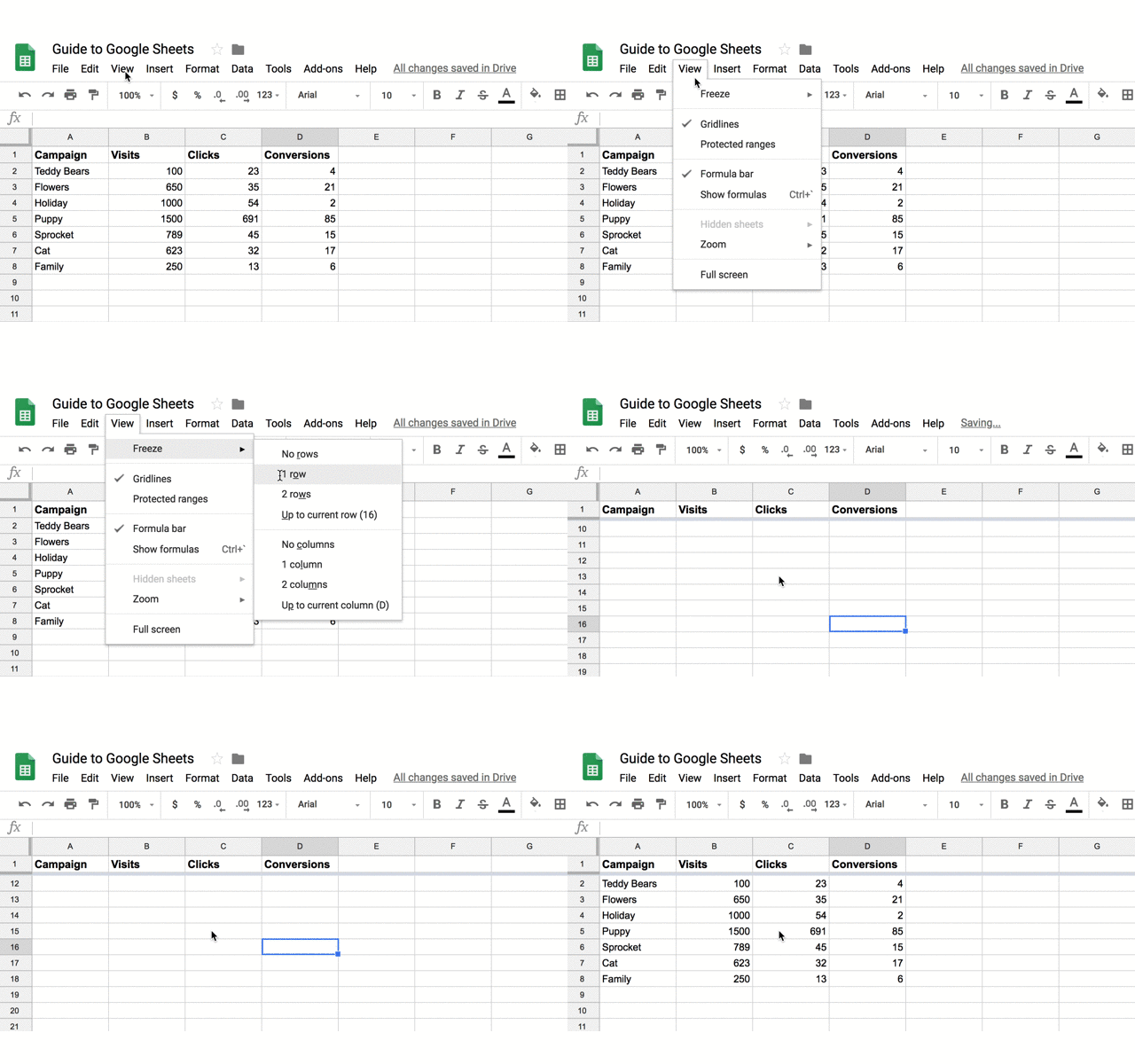
How to Filter Data
What if you’d like to view all of the data in a single column that fits a certain criteria? Apply a filter. Filters allow you to select a criteria and how that criteria applies to your data. For example, you can filter your ‘Site Visits’ column to show all values greater than 1000, or filter your sheet for all cells that have the word “cat”.
To set up a filter, select “Data” > “Create a Filter.” Click the funnel icon that appears in the column, then choose to filter by condition, value, or alpha or numeric order. Your sheet will only display data that satisfies your criteria.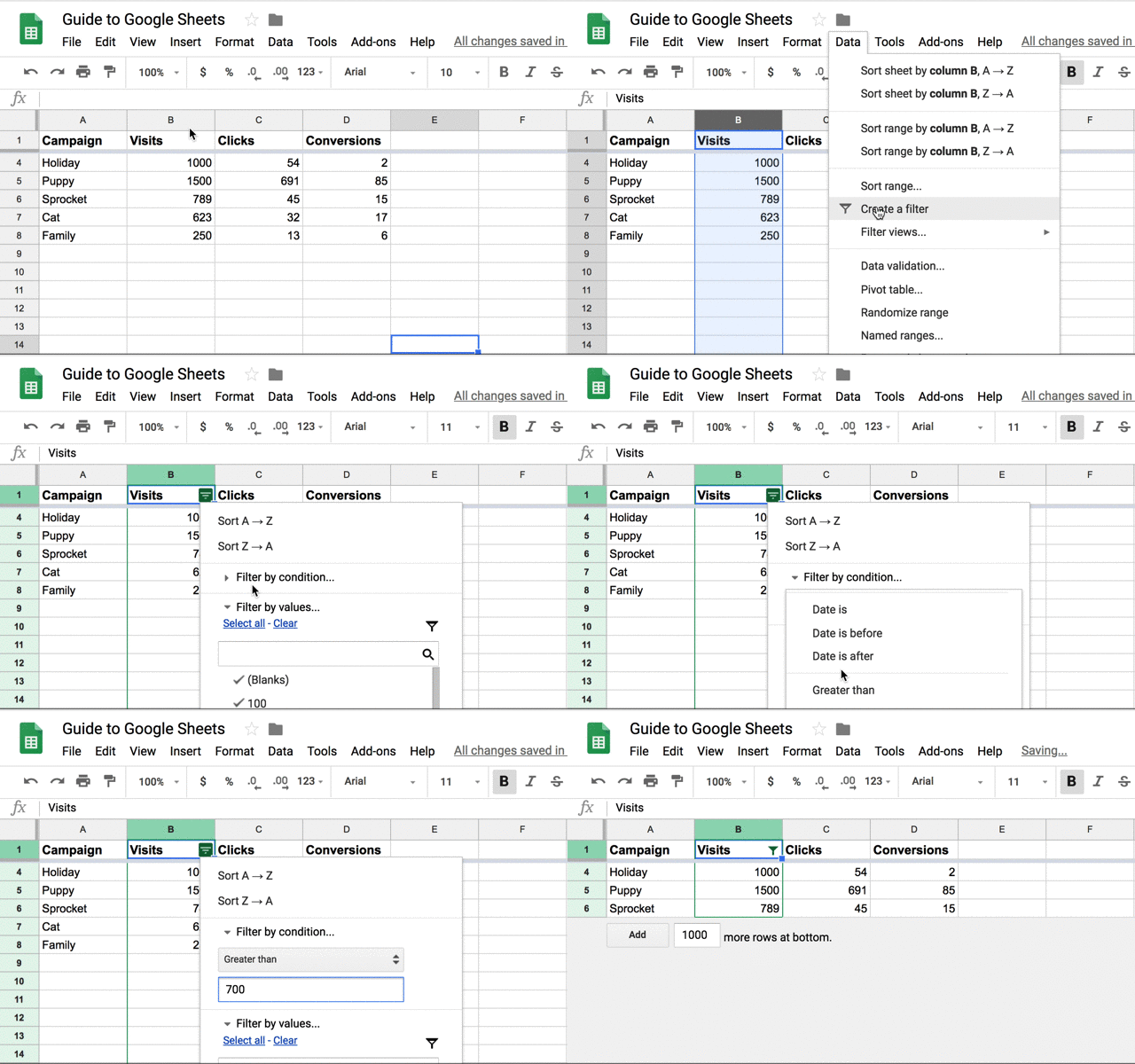
Learn about other filtering options below.
How to Setup and Use Google Sheets Offline
If you need to use Google Sheets offline, just follow the steps outlined here to turn on offline access to your spreadsheets.
Keep in mind:
- You must be connected to the internet.
- You’ll need to use the Google Chrome browser (don’t use incognito mode)
- You’ll need to install and enable the Google Docs Offline Chrome extension.
- Make sure you have enough free space on your device to save all your files.
From there:
- Open Chrome and make sure you’re signed in.
- Go to drive.google.com/drive/settings.
- Check the box next to “Sync Google Docs, Sheets, Slides & Drawings files to this computer so that you can edit offline.”
- To work on files offline from a computer, learn how to install Backup and Sync.
Advanced Google Sheets Tips
Now that you understand the basics of Google Sheets, let’s get into some advanced tips so you can start using Sheets like a pro. These tips are helpful to have in your back pocket … even if you don’t need them just yet.
Conditional Formatting and Heatmaps
Conditional formatting will automatically apply formatting to a cell based on a preset condition. For example, you can select to highlight a cell in red if the value entered is below 100 or reads “Error”.
Heatmaps work similarly in that they apply a color scale to cells based on a median criteria (values greater than the median will appear darker while values lesser will appear lighter). This helps you view values on a gradient and identifies areas of concern on which to focus your attention.
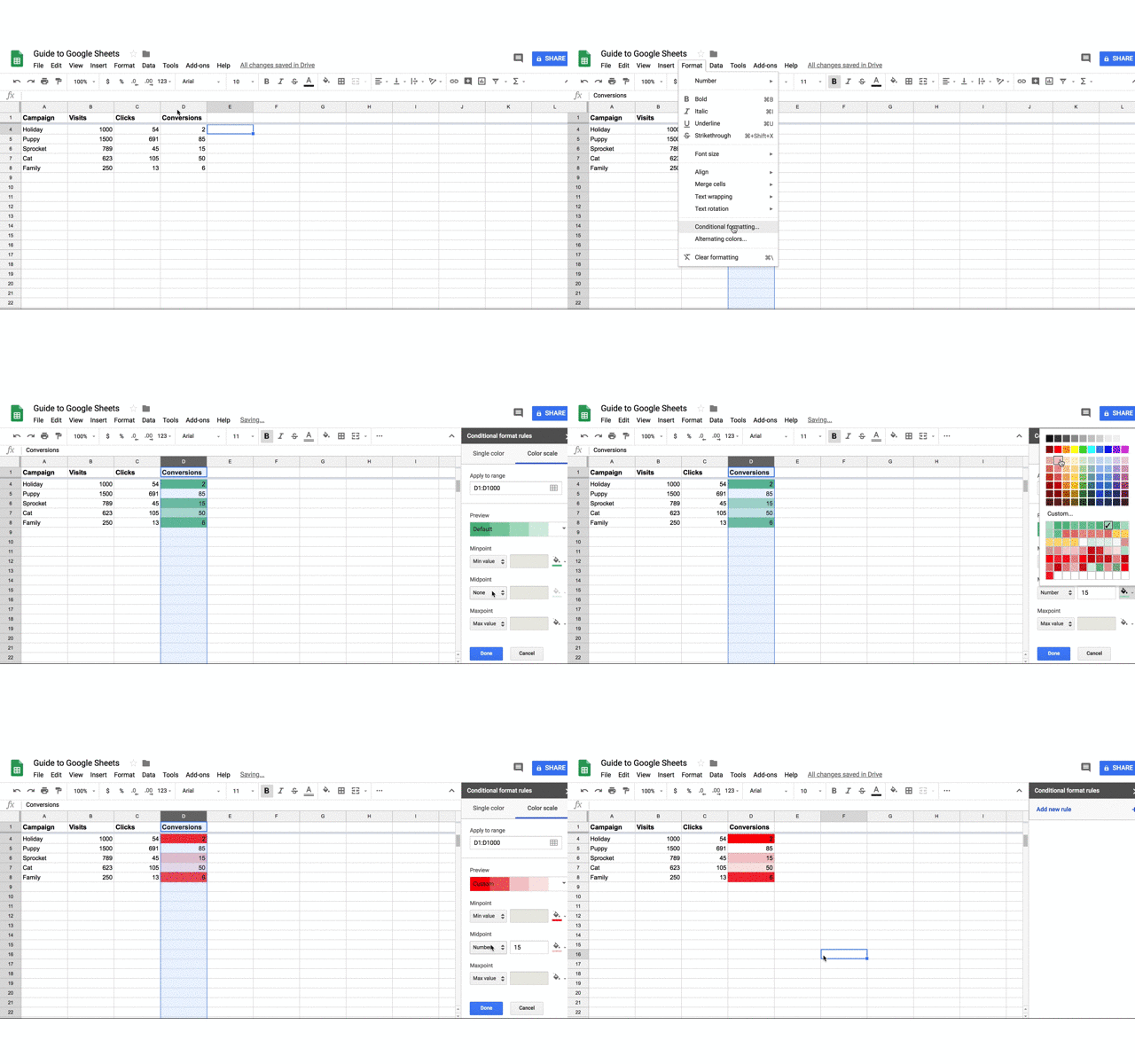
Array Formulas
Array formulas can perform multiple calculations at once and output a value based on those calculations. Whereas most formulas require you to perform each step independently (e.g. sum one row then add it to the sum of the subsequent row), arrays make calculations much more efficient. This helps when working with large amounts of data.
Macros
The Macros feature records a series of steps that you’d like Google Sheets to repeat on command. For instance, if you work with a new data set each month, and need to manipulate that data in the same sequence each time, then you can record a Macro, and have Google do the work for you.
10 Must-Know Google Sheets Formulas
When you’ve entered your data and you need to do some quick number-crunching, basic formulas can help you find the answers you need. Here are a few commonly used Google Sheets formulas to speed up your data analysis.
1. SUM
This formula adds all values within a selected range.
=SUM(range)
2. AVERAGE
This formula calculates the average of values within a range.
=AVERAGE(range)
This formula returns a filtered version of the source range, returning only rows or columns which meet the specified conditions. This is helpful when segmenting data by year or month.
FILTER(range, condition1, [condition2])
4. FIND
This formula returns the position at which a string is first found within the text. The Find formula is case sensitive.
FIND(search_for, text_to_search, [starting_at])
5. COUNTIF
This formula returns a conditional count across a range.
=COUNTIF(range, criterion)
6. CONCATENATE
This formula allows you to combine values of multiple cells into one cell, e.g., first and last name.
=CONCATENATE(Value1, “ ”,Value2)
7. VLOOKUP
This stands for vertical lookup. This formula searches down the first column of a range for a key and returns the value of a specific cell in the row found.
=VLOOKUP(search_key, range, index, [is_sorted]).
Learn how to do a VLOOKUP in less than a minute.
8. SPLIT
This formula divides text around a specified character or string, and puts each fragment into a separate cell in the row. Use this when you want to break up first names from last names in a list of customers or prospects.
=SPLIT(text, delimiter, [split_by_each])
9. SUBSTITUTE
This formula replaces existing text with new text in a string. For example: You could replace a product name with a new one in a sheet of ad copy.
=SUBSTITUTE(text_to_search, search_for, replace_with, [occurrence_number])
10. PROPER
This formula edits text within a cell to title case so you don’t have to format each entry manually.
=PROPER (text)
For more formulas you can use in Google Sheets, use the search tool on the spreadsheet functions list and find the one you need.
Google Sheets Functions & Skills You Should Know
How to Create a Pivot Table
- Select the cells with source data you want to use in your pivot table. Note: Each column will need a header.
- In the menu at the top, click “Data” > “Pivot table.” Click the pivot table sheet (if it’s not already open).
- In the side panel, next to “Rows” or “Columns,” click “Add” and then choose a value. Note: Sometimes you will see recommended pivot tables based on the data you’ve selected. To add a pivot table, under “Suggested,” select a pivot table.
- In the side panel, next to “Values,” click “Add”, then choose the value you want to see over your rows or columns. You can change how your data is listed, sorted, summarized, or filtered.
- Next to what you want to change, click the down arrow.
How to Remove Duplicates
- Select the cell in which you’d like to remove the duplicated info.
- Enter the function =UNIQUE(
- Select the cells you would like to pull data from
- Close the parentheses. Your function should look something like this: =UNIQUE(A:A)
How to Create a Drop-Down List
- Next to “Criteria,” choose an option:
- Click “Data” > “Data validation”.
- Select the cell or cells in which you want to create a drop-down list. List from a range: Choose the cells that will be included in the list.
- List of items: Enter items, separated by commas and no spaces.
- The cells will have a down arrow. To remove the arrow, uncheck “Display in-cell button to show list”.
- If you enter data in a cell that doesn’t match an item on the list, you’ll see a warning. If you want people to only enter items from the list, choose “Reject input” next to “On invalid data”.
- Click “Save”. The cells will show a drop-down list. To change the color of a cell based on the option, use conditional formatting (refer to section above).
How to Make a Graph
- Select the cells you want to include in your chart. To label your chart, add a header row or column.
- Click “Insert” > “Chart”.
- In the side panel, click “Data” > under “Chart type,” choose a chart.
- To edit your chart, click “Customize.”
How to Merge Cells
- Highlight or select a range of cells.
- Right-click on the highlighted cells and select “Format Cells”.
- Click the “Merge” button in the toolbar, then select the merge option you need.
Where to Find the Best Google Sheets Templates
Building new spreadsheets from scratch can be extremely time-consuming, so don’t reinvent the wheel if you don’t have to. Instead, look for pre-existing Google Sheets templates that you can customize and use for your own efforts. Let’s look at a few different places where you can find ready-to-use templates for your marketing efforts.
HubSpot
We’ve created eight different customizable marketing budget templates you can use in Google Sheets to better track your spending on product marketing, content, paid advertising, and more.
Buffer
Buffer has a variety of “report card” style templates for Google Sheets that can help track your marketing efforts on different social media channels like Twitter, Facebook, and others.
Google Template Gallery
By installing the free Chrome add-on, you can access dozens of different Google Sheets templates, like this paid traffic reporting template:
Smartsheet
Smartsheet also offers free marketing templates like a social media content calendar that can help you better plan your posts and monitor results.
How to Download Google Sheets
If you want to use Excel or another tool for analyzing data sets with your file, you can easily export the file. Go to “File” > “Download as”. Then decide which format you need.
If you need more help getting started, the quickest way to get a crash course in using Google Sheets is to access the free Google Sheets Cheat Sheet, which outlines the basics on:
- Customizing spreadsheet data
- Working with rows, columns, and cells
- Sharing/collaborating within your spreadsheet
- Saving and protecting your information
- Utilizing key functions
You can also access the Tips Library for more advice on using Google Sheets.
The Best Google Sheets Add-Ons
To boost your efficiency in Google Sheets, consider using add-ons. Here are a few suggestions:
Adstage
Pull your paid search and social advertising data into one spreadsheet.
DataEverywhere
Share data between Excel, local databases, Salesforce, and Google Sheets, without importing or exporting.
XLMiner Analysis ToolPak
Do statistical analysis with functions.
Power Tools Add-On for Google Sheets
Streamline routine operations.
SuperMetrics
Create a business reporting system for SEM, SEO, web analytics and social media.
Clearbit Sheets
Create targeted email lists and qualify leads quickly.
Google Apps Script
Work through an API that allows you create, edit, and read your Google Sheet through an integration with other Google apps.
Conclusion
This quick guide to Google Sheets should help you get a running start as you leverage it for your marketing efforts. From more efficient tracking of different metrics to better planning around your content to easier collaboration with your team, this tool can help you make smarter, more data-backed choices that drive meaningful results for your brand.

7 Ways You Can Use Google Trends to Bolster Your SEO Efforts
If you bought a fidget spinner last year, you could attract and hold people’s attention better than a Livestrong bracelet could in the mid-2000’s. But if you bought one today, you’d be a cliche. People would most likely give you a harsh glare and mentally patronize you for being “so 2017”.
In digital media, this is exactly how your audience feels when you spit out articles about fading trends. If the story isn’t juicy anymore, they won’t care to read it. Plus, they’ll probably categorize you in the same group as their dad — outdated and embarrassing.
Fortunately, marketers have access to a powerful tool that can solve this problem. It’s called Google Trends. And along with providing you current trends to freshen up your content, it can help you rank for more keywords and boost your organic traffic.
Google Search Trends
Google Trends is a free tool that gauges a query’s relative popularity, which is a single query’s search volume divided by all possible queries’ search volumes, on a scale of zero to 100.
To provide the most accurate relative popularity, Google Trends doesn’t account for repeat searches from the same person over a short period of time. The tool can also show you a query’s search popularity over certain time frames.
Since a query’s search popularity is a relative measurement, it’ll change when the query’s search volume or the total number of Google searches changes.
7 Ways You Can Use Google Trends to Bolster Your SEO Efforts
1. Create and optimize content for seasonal trends.
Seasonal trends are some of the most reliable and consistent topics to cover. They provide a deep bank of articles you can write about each year.
To take advantage of the surge of searches certain keywords will attract, you can create new content or optimize existing content about these topics when their popularity peaks.
But how do you know exactly when your query’s popularity will peak and avoid missing out on a surplus of searches?
If you run a baseball blog, for instance, you know baseball fans treat Opening Day as a sacred holiday. And after plugging the keyword “Opening Day” into Google Trends, you’ll see that its search popularity peaked during the week of March 25 – 31, the week of Opening Day.
With these insights, you’ll know which specific week you should publish Opening Day content.

But if you dive deeper into the Google Trends data and set your time frame as Opening Day week, you’ll see the keyword’s popularity doesn’t peak until March 29, the exact day of Opening Day.
Now, to garner as much organic traffic as possible, you know you should publish your Opening Day content on Opening Day, instead of a few days before or after.

2. Find trending topics to cover.
Covering current events keeps your audience informed. And the more knowledgable your audience is, the better they can do their jobs. They’ll also start relying on you more for their fix of timely stories.
To find trending topics, use Google Trend’s trending search tool. It’ll show you which queries people have searched for the most during the last 24 hours. You can also filter theses stories by category, like Business, Entertainment, Health, Sci/Tech, Sports, and Top Stories.

Since there will be a lot of stories about trending topics, though, you shouldn’t just take the same angle as everyone else. You won’t be able to stand out from the crowd. So try taking a contrarian view on a topic you know most of your competitors will cover with the same point-of-view. Your unique and refreshing spin will attract more of your audience’s attention and earn their clicks.
3. Make sure popularity spikes aren’t skewing a keyword’s search volume.
The problem with monthly search volume is that it calculates the average amount of times people search for a keyword every month. This can be problematic because outliers in data can heavily skew averages.
For instance, in 1985, the average starting salary for a geography major at the University of North Carolina was well over $100,000. Even today, that’d be one of the best starting salaries for any major.
But here’s the thing — Michael Jordan, a geography major at UNC, left the university in 1984 to sign a $1 million per year contract with the Chicago Bulls. If you take Jordan out of the equation in 1985, the average starting salary for geography majors at UNC was actually around $25,000.
Popularity spikes can impact a keyword’s monthly search volume just like Michael Jordan’s lucrative contract affected the average starting salary of a geography major at UNC.
Rebecca Black, for example, who is notorious for uploading one of the most disliked music videos in the history of YouTube, Friday, has a monthly search volume of 1,900.

But if you examine the search popularity of the keyword “Rebecca Black” in Google Trends, you’ll see that a huge popularity spike in early June has actually skewed the keyword’s monthly search volume. The current amount of people searching for Rebecca Black each month is probably much lower than 1,900.

In June of 2018, Rebecca Black competed on Fox’s The Four: Battle for Stardom. After keeping a low profile for seven years, her unexpected appearance on a nationally syndicated show, hosted by musical superstars like Fergie, P-Diddy, Meghan Trainor, and DJ Khaled, naturally prompted the explosion of searches for her name during this short time frame.
But after her elimination, the search popularity for the keyword “Rebecca Black” dropped back down to normal.
Keywords with high monthly searches are more realistic and valuable if their search popularity trend is steady or increasing. With this in mind, if you want to write an article about the current whereabouts of infamous one-hit wonders, Rebecca Black might not be your best subject.
4. Gauge the demand for your product or services in specific regions, cities, and metropolitan areas.
Your product or service won’t appeal to everyone, but if you can target the people whose living situation makes it more of a necessity, you’ll be able to spend your time and resources more efficiently.
For example, if you sell outerwear, checking the popularity of the keyword “winter jackets” in a specific region, city, and metropolitan area over a certain period of time will help you understand which audiences you should target.

And after finding the locations where your keyword is most popular, you can run Google AdWords campaigns in each location or optimize keywords in your content for each audience during times of high demand.

5. Pinpoint the root cause of a dip in organic traffic.
Sometimes, if one of your blog post’s organic traffic drops, it’s not always your content’s fault. The keyword it’s ranking for could’ve lost popularity amongst your audience. To accurately determine what’s causing your post’s organic traffic to slide, Google Trends can paint a clear picture for you.
By plugging the top keywords your post ranks for into Google Trends and checking its popularity trend over time, you’ll know whether you need to update your post or whether your audience lost interest in the keywords.
For instance, if the post’s top keywords’ popularity is steady or increasing, you need to update your post with fresher and more comprehensive information. If the keywords’ popularity is decreasing, your audience lost interest in the overarching topic. In that case, there’s not much you can do to boost your post’s organic traffic.

To learn more about salvaging your Google rankings before it’s too late, check out this blog post written by one of HubSpot’s senior SEO specialists, Aja Frost.
6. Find new, relevant long-tail keywords.
With its related queries feature, Google Trends is not only a keyword research tool but also a tool for developing your entire content strategy. After plugging in your keyword, Google Trends will display the top 20 trending related queries and the 25 most popular related queries.
You can then plug these related keywords into an SEO software, like Ahrefs or SEMrush, to check their keyword difficulty, search volume, and find even more related keywords. Ultimately, this process will help you cover trending and popular topics that can attract a ton of organic traffic.
Trending Related Queries for “Storytelling”

Most Popular Related Queries for “Storytelling”

7. Determine if a topic lends itself better to video.
If a keyword’s popularity on web search dips, it doesn’t necessarily mean you need to scrap it from your entire content mix. A keyword that loses popularity on web search can actually gain popularity on YouTube search.
For instance, if you look at the Google Trends graph for “content marketing”, you’ll see its popularity on Google search has waned over the past year.

But if you plug “content marketing” into Google Trends for YouTube search, you’ll see that its popularity has climbed over the past year.

Only looking at the Google Trends graph for web search might make you think the keyword “content marketing” lost popularity in general, but its popularity just moved from Google to YouTube. In other words, “Content marketing” is still a valuable topic to cover. You should just make a video series about it, instead of writing articles about the topic.

How to Use Instagram Nametags for Marketing
Want a quick and easy way for people to find you on Instagram? Have you heard about Instagram Nametags? In this article, you’ll discover how to find and customize your Instagram nametag so people can quickly follow your Instagram account. What Are Instagram Nametags? Nametags on Instagram are very similar to Snapchat’s snapcodes and Facebook […]
The post How to Use Instagram Nametags for Marketing appeared first on Social Media Examiner.
from Social Media Examiner https://ift.tt/2yS32h6
via socialmediaexaminer
The Ultimate Guide to Instagram for Business
More companies are using Instagram in 2018 than ever before — there are now over 25 million businesses on Instagram, most of which are small businesses.
To capture a new audience and engage with your existing customers, it’s critical you consider using Instagram for your business. With over 800 million Instagram users, Instagram is one of the most popular social media tools at your disposal. Instagram has proven a worthwhile investment for marketing purposes. You’re able to market your products to a more targeted and engaged audience, and it’s cheaper than more traditional forms of paid advertising.
Plus, it’s an undeniably powerful tool to spread brand awareness — in fact, 70% of Instagram users have reported looking up a brand on the platform.
But using Instagram for business purposes can seem daunting, particularly if you’ve only ever used it for personal use. Here, we’re going to explore how to leverage the power of Instagram for all your business needs.
How to Use Instagram for Business
Let’s delve into the five strategies you’ll need to employ to get the most out of Instagram.
1. Add Value With Your Content
First and foremost, Instagram is a visual platform. To attract an audience, it’s critical you spend time delivering high-quality, thoughtful content.
Instagram has the highest engagement rate, surpassing Facebook and Twitter. To succeed on Instagram, it’s essential you create valuable content that attracts an audience and encourages them to engage with your business. Consider how you can delight your customers while staying true to your brand.
You don’t need to just post images of your product to spread brand awareness and increase sales. In fact, in some cases, it’s better if you don’t. For instance, Hot Pockets sells microwaveable pocket sandwiches. Admittedly, I wasn’t much of a fan of Hot Pockets — until I began following their business’s Instagram account.
There are only so many times you can post a picture of a sandwich. Hot Pockets goes in a different direction. Instead, they appeal to their audience through humor, often posting relevant memes or funny quotes.
For instance, in response to @ShallowDivers’ claim that Hot Pockets aren’t sandwiches, Hot Pockets responded with this:

Ultimately, it might take trial and error to find the content that works best for your business.
While Hot Pockets relies on humor, other brands like The North Face use impressive adventure images to appeal to their demographic.
The point is, brands need to add value to Instagram’s community, rather than using the platform for advertisements alone. This is critical for your long-term success.
2. Maintain a Consistent Theme
Imagine each Instagram post as an individual page of your website — while each post should be good on its own, ideally, you’ll need to create a cohesive theme to maintain an audience’s loyalty.
It’s important to note, I mean “theme” in the broad sense, as it relates to everything from hashtags and captions to Stories and photos. You’ll need to create a consistent tone of voice, and unified feed aesthetic. Ultimately, the more specific and consistent you are with your posts, the more likely you are to attract your most authentic audience.
You might think it’s better to appeal to more people through various themes, but ultimately, staking your claim in a specific niche will help you create stronger, more genuine connections.
For instance, consider MVMT. Their feed is undoubtedly consistent, with similar filters and color palette, and an emphasis on darker, edgier images:

Their consistency is equally obvious in their captions, with phrases like “Create a life you can’t wait to wake up to”, and “Unexplored paths lead to undiscovered stories”. In every post, you’ll see the same hashtag — “#jointhemvmt”.
Undoubtedly, their followers both expect and prefer this type of content, or they wouldn’t have followed them in the first place. To continue delighting customers, it’s essential MVMT keeps true to their theme.
3. Engage With Your Audience
Engaging with your audience helps your followers feel valued and, as a result, more connected to your business.
There are plenty of ways to engage with your audience. You might reply to comments on your posts, participate in comment threads, run contests or giveaways, use Instagram Stories polls feature, or give shout-outs to followers on your Stories, particularly if they post something relevant to your brand.
Halo Top Creamery does a fantastic job engaging with their audience. They frequently post cute ice cream pictures with the caption “Ice cream is better with friends. Tag a friend you’d like to eat this with.” A simple “tag a friend” caption is an effective strategy for growing your audience, since your followers will then tag friends who might not know about you yet.
Additionally, Halo Top often does contests and giveaways, like this one:

By tagging winners in their posts, Halo Top incentivizes other followers to engage with their brand in the future. Additionally, Halo Top’s giveaways demonstrate their genuine commitment to connecting with their audience.
4. Consider Influencer Marketing
As a consumer, you’ve likely seen the recent influx of influencer marketers on Instagram — and for good reason. By leveraging the power of an influencer, who is already authentically connected with her audience and is seen as a trusted source of information, you’re able to spread brand awareness and drive sales.
Micro-influencing in particular is a strong opportunity for brand endorsement. In fact, one survey found 82% of consumers are highly likely to follow a recommendation made by a micro-influencer. That number surpassed the amount of consumers who are willing to follow a recommendation from an average person, like a family member or friend.
You could use your budget and resources to invest in traditional advertising, but it’s often easier to create a more targeted, effective marketing campaign through influencer marketing. Ultimately, influencers have already cultivated an engaged, loyal following — by identifying the right influencers for your niche, you’re much more likely to find followers who will truly enjoy and support your products or services.
5. Implement an Instagram Ad Campaign
There are two reasons you might use Instagram ads — to spread brand awareness, or to increase sales.
It’s critical you focus on one goal when creating an effective ad campaign. An Instagram ad aiming to sell a product will look vastly different from one intending to attract followers.
For instance, consider this Greenchef ad that showed up on my Instagram feed today. With various images of delicious food and an enticing “$40 OFF” discount, it’s likely a high-converting ad. It’s very clear what Greenchef’s goal is — to get people to buy their product.

YouTube, on the other hand, invested in Instagram ads for an entirely different reason. Their advertisements, featuring well-known singers like Camila Cabello, entice followers to simply follow YouTube Music’s Instagram channel (and, ideally, YouTube’s music channel itself).

To implement an effective campaign, it’s essential you decide what you’re hoping to achieve before you begin creating it.
Once you’ve chosen a goal, you’ll want to create the ad creative. Similar to what we discussed in strategy one, you’ll need to create high-value visual content if you want your ad to be successful. Take a look at other ads on Instagram and consider how you might emulate them.
Additionally, A/B test multiple variations of the same ad (changing the copy, image, or targeted audience for each version), to figure out what works best for your business.
When you’re ready to create your ad, you’ll need to use Facebook Ads Manager. Among other things, Ads Manager lets you narrow in on your target audience (including location, age, and various interests of your ideal demographic), choose your ad objective, and analyze ad performance.
Instagram Business Profile
A business profile legitimizes your Instagram account, and enables you to add critical information like your company’s business hours, location, and phone number.
Additionally, you must have a business profile to get metrics on how your Stories and posts perform throughout the day, and track how your followers engage with your content.
Plus, you’ll need to switch to a business profile to create ad campaigns or add links to your Instagram Stories.
When you’re ready to switch to a business profile, follow these six easy steps:
1. Click the “Settings” gear on your profile.
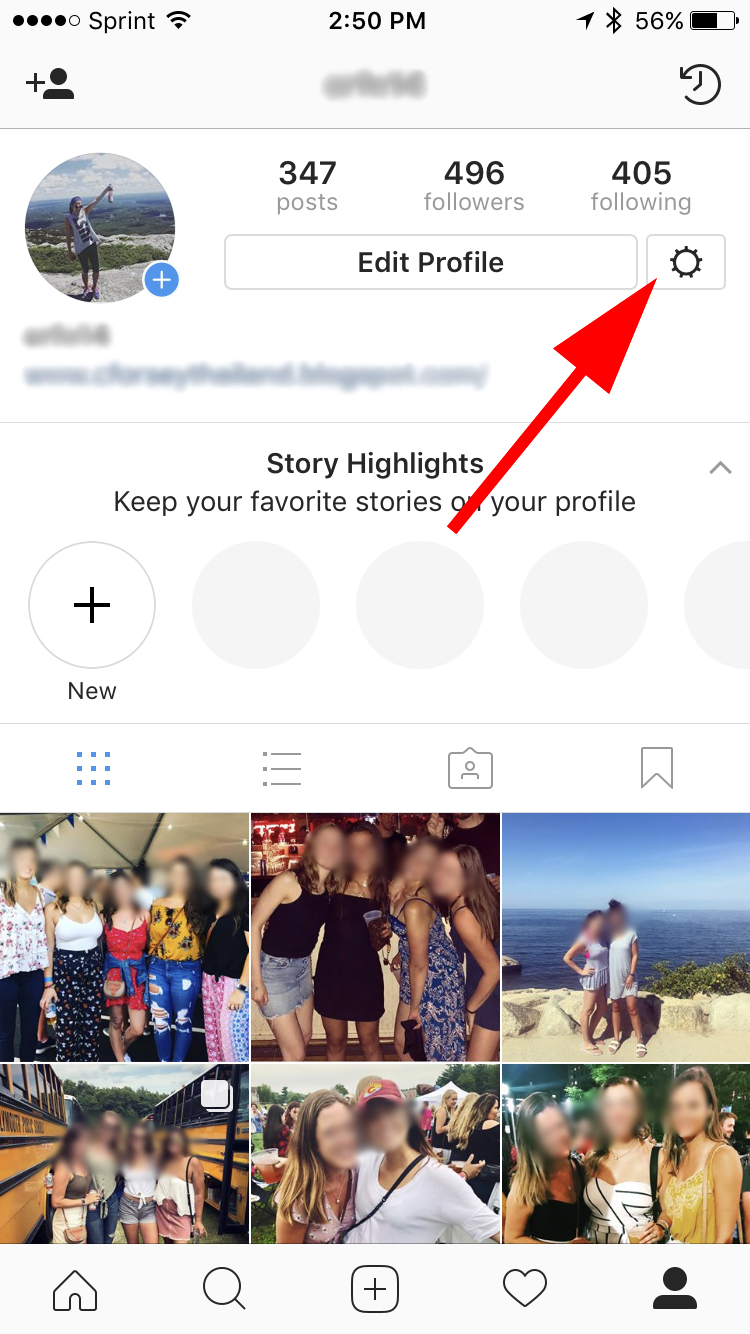
2. Scroll down and click “Switch to Business Profile”.
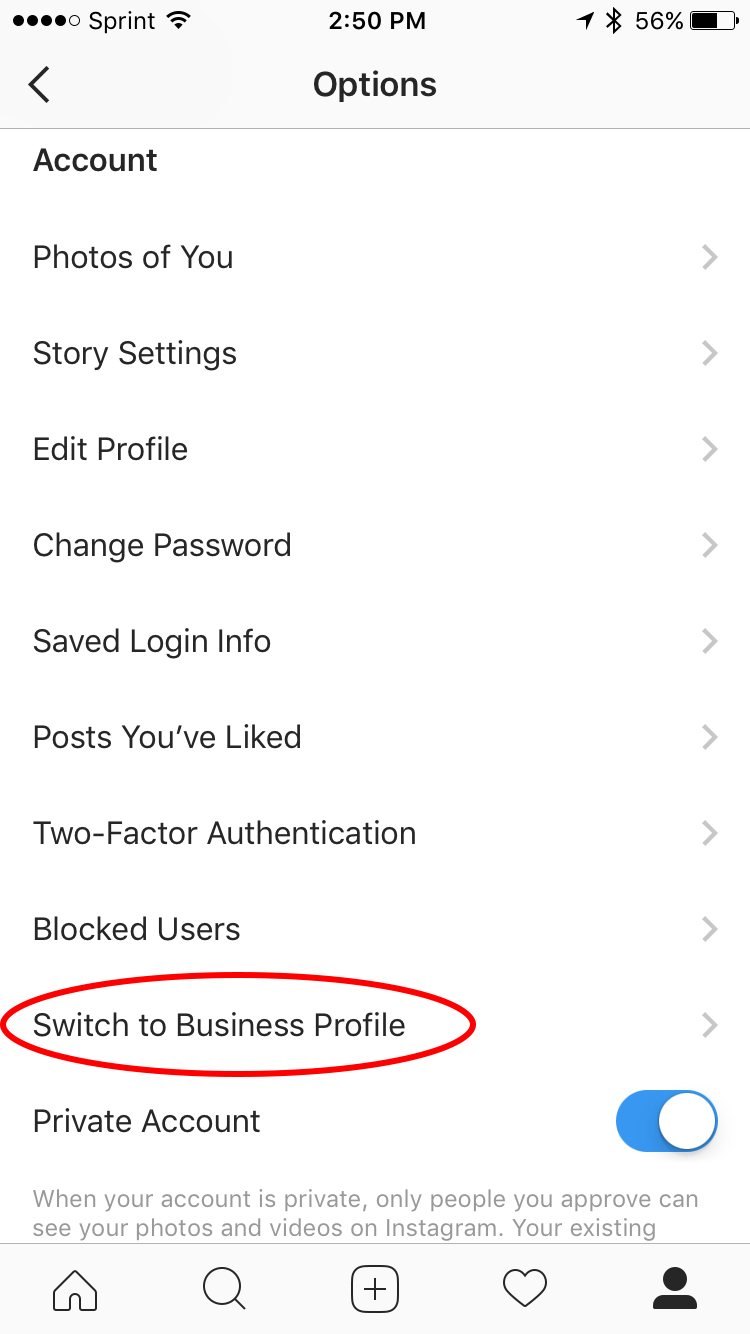
3. Here, you’ll need to connect to your business’s Facebook Page. If you don’t have one, here’s how to set one up. If you do, select “Choose Page”.

4. Ensure your business’s Facebook page is selected, then click “Next” in the top right. Alternatively, if you don’t already have one, you’re given the option to create a page here by clicking “Create a Page”.
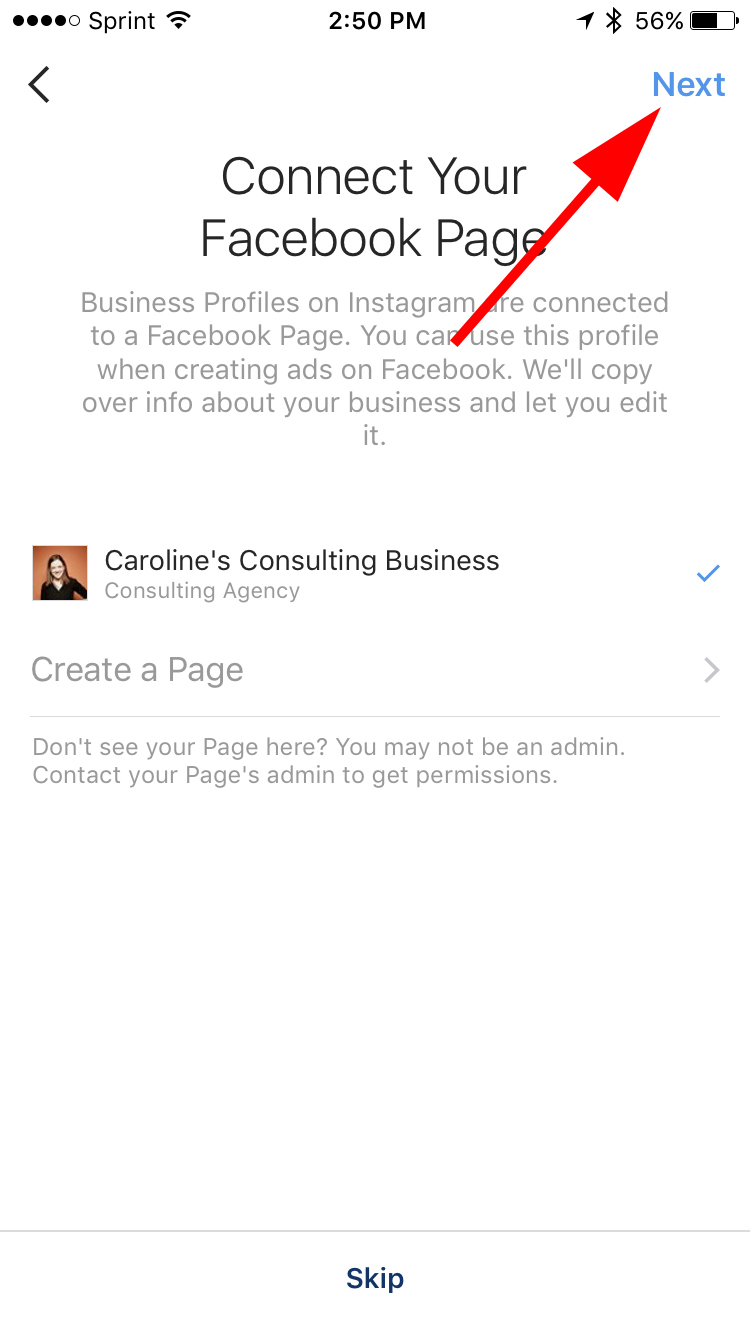
5. Input your business information, including your business’s telephone number, email, and address. Finally, you must un-select “Private Account” to have a business account. When you’re ready, press “Done” in the top right.
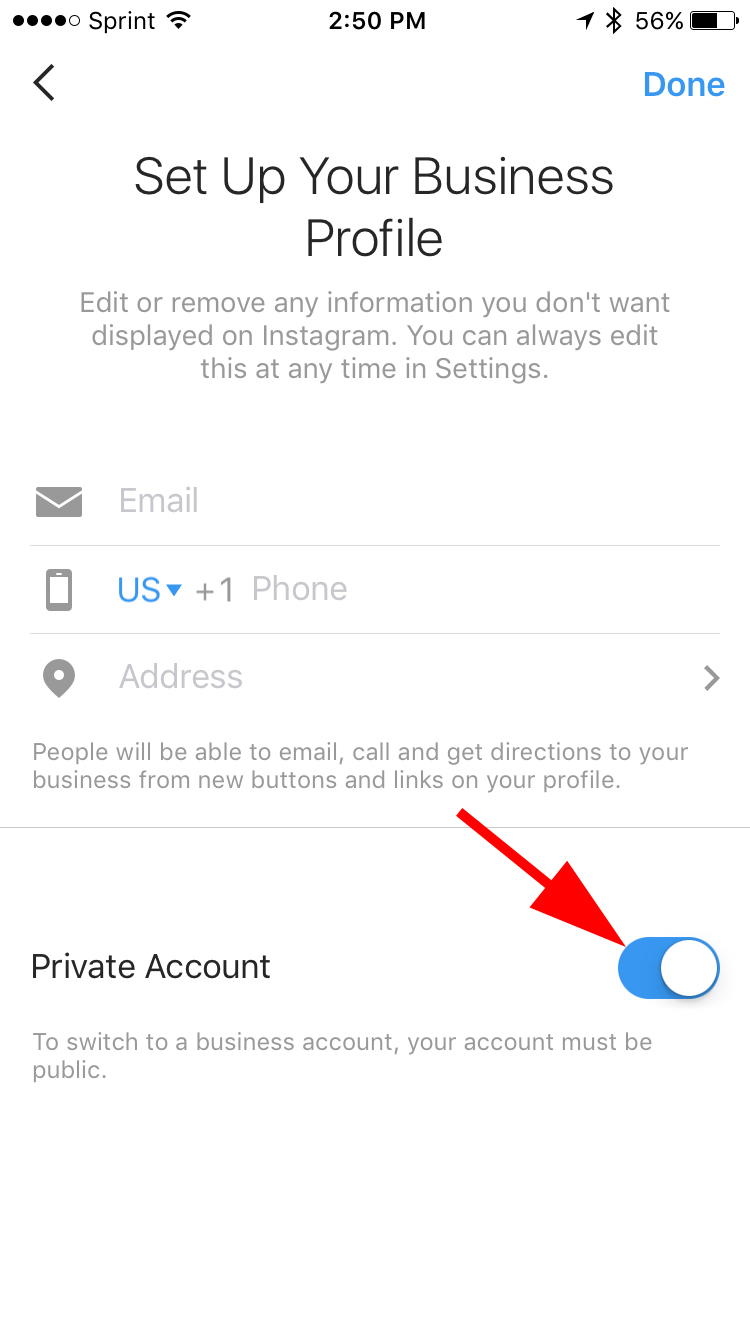


The Ultimate Guide to Google Ranking Factors in 2019
More than 3.5 billion searches are made every day on Google, a company that holds over 85% of the desktop search engine market share.
Needless to say, Google is popular, and marketers looking to perform well in organic search results need to know what factors Google takes into account when ranking content.
With as much effort as we put into optimizing content for search engines, you’d think we’d know by now exactly what Google’s ranking algorithm considers when crawling pages on the internet. But we don’t, and we can’t — mainly because Google has never publicly listed all of the factors it takes into account when ranking content.
What Google has confirmed is that it uses about 200 ranking signals when determining organic search page rankings. There are domain-related factors, on-page factors, off-page factors, site-level factors, and numerous technical SEO factors that contribute to where your website falls on Google’s search engine results pages (SERPs) for the various keywords related to your industry.

Two-hundred ranking factors is quite a long list. How are you supposed to remember all of them? Luckily, Single Grain and Backlinko have scoured the internet to find all of the known Google ranking factors and created an all-inclusive infographic that categorizes them based on their role in Google’s ranking algorithm.
But, this begs the question: Is every ranking factor equal in importance? Nope. Although this criteria is all relevant to where you end up ranking on Google, there are a handful of universal best practices that publishers should focus on first before solving for the rest.
To make prioritizing your SEO efforts easier over the next year, we’ve isolated nine of the most important ranking factors for you below.
Google Ranking Factors
There are 200 known Google ranking factors. The most important factors are related to the URL, inbound links, meta tags, the intent of a keyword, how your content is structured, how fast your page loads, and numerous technical SEO specifications that vary in importance based on the topic.
1. Website Architecture
Importance: Important
There are factors that have a greater impact on your Google ranking than this one, but website architecture is the first thing you should get right upfront — especially when launching (or relaunching) your website.
By organizing your website into subdirectories, and having clear strings of text (or “slugs”) at the end of each URL, you’ll make it much easier for Google to understand who you are and what topics you want to be an authority on. (We’ll talk more about topics in just a minute).
For example, if you want to launch a blog on gardening — and plan to publish content specifically about produce, watering, and pests — it’s in your interest to organize your website content into those three subdirectories. A good blog post URL might look like this:
https://ift.tt/2Jb0DmB
2. Domain Security
Importance: Very Important
Notice the “https” at the beginning of the example URL, above? This is how Google identifies secure websites from non-secure ones. Hint: You want your site to be secure.
HTTP stands for HyperText Transfer Protocol — a virtual process that transfers information from a website to the visitor’s browser. HTTPS is the secure version of this protocol, and it ensures Google that the information it’s indexing is safe to the searcher. The “S,” as you’ve likely guessed, stands for “secure.”
To secure your website domain, you’ll need what’s called an SSL certificate. Learn more about getting this certificate in this blog post.
3. Inbound Links
Importance: Crucial
Inbound links, also known as “backlinks,” are all the hyperlinks that direct back to your page from elsewhere on the internet. They can make a major difference in where you rank — even which number page you rank on.
Why do these links matter to your Google ranking? You don’t rely on these referral sources for all your traffic, so why does Google care who links to you? Inbound links from other websites tell Google that people trust what you have to say — enough to link to it from their own websites. Trust is huge in the eyes of Google, and the more trustworthy the source linking to you is, the greater the impact their inbound link has on your ranking.
Inbound links don’t work the same way if you’re simply linking to your blog post from another one of your blog posts. The influence of these backlinks comes almost entirely from outside domains.
For this reason, “link building” has become an important (but delicate) process for earning backlinks from other publishers. Some publishers, who have the same perceived authority, agree to trade backlinks from each other. Others write a guest post on this publisher’s website and link back to themselves. Learn more about link building in this blog post.
4. Topic Authority
Importance: Very Important
Topics are the bread and butter of your Google ranking — they help lay the foundation for the page authority you’ll need in order to rank highly over the long term.
In their simplest form, topics mean: The more content you publish on a particular topic, the higher each piece of content belonging to that topic will rank in Google’s SERPs.
Remember our gardening example from the first ranking factor, above? Let’s say this website has 20 articles all about garden pests. By now, Google knows this website is probably an authority on the topic of pest prevention. The website therefore has a much better chance ranking highly for a blog post about plant-friendly pesticides than it would for an article on, say, Google’s ranking factors — even if this article is keyword-optimized and incredibly well written.
Learn more about topic creation in this post.
5. Keyword Intent
Importance: Crucial
Topics might be more important in the long term than individual keywords, but that doesn’t mean keywords aren’t still a ranking factor. In fact, when done right, keyword optimization is one of the most important factors you can address in your website’s SEO strategy.
The earliest iteration of Google simply looked for the most instances of a keyword, phrased verbatim, in a webpage or blog post. This was known as “exact match.”
Today, “exact match” means something much different, and the website that carries the most instances of a keyword doesn’t rank the highest for that keyword. Rather, it’s the website that best matches the intent behind that keyword.
Let’s once again consider our gardening example from the first ranking factor on this list. If this website wants to rank for the keyword, “best organic pesticides,” it won’t rank well by simply including this three-word phrase several times throughout the article. Instead, it should include the keyword at least once, followed by real examples of organic pesticides, their ingredients, where you can buy them, why they’re so highly rated, and perhaps even what makes these pesticides organic.
Because this is the information readers are looking for when they enter their search term, websites that serve it to them will receive more engagement by website visitors. Google then interprets this increased engagement as a good answer to the visitor’s question, ranking the URL higher as a result.
6. Content Structure
Importance: Important
It’s not enough to just serve your website visitors the info they’re looking for. As more websites give visitors good answers, how that answer is structured becomes a major tie-breaker when ranking content under more competitive keywords.
Good content structure includes a variety of headers and sub-headers to make an answer easier for a person to digest and understand. It might also include bullet points, numbered lists, supporting images, and clearly cited research — all of which help keep readers engaged with your content.
The more engaged a reader is with your content, the longer they’ll stay on your website — increasing what is known as their “session duration,” another relevant Google ranking factor that comes as a result of creating good content.
7. Meta Tags
Importance: Important
A meta tag sounds like something that is best left to a programmer, but meta tags are easy and often underused aspects of your content management system (CMS). They also happen to be linchpin SEO maneuvers to rank well in Google results.
Meta tags help Google identify the specific purpose of a page and what role each component of that page plays to the topic and target keyword. There are several types of meta tags that should be filled in, either with the target keyword or details related to that keyword:
Title Tag
The title tag is usually the title of your article, represented in the HTML of that article. This helps Google create the blue, clickable headline you see on the SERP itself. Title tags are helpful to non-article webpages that don’t have natural, article-style titles by which to describe themselves. In these cases, you can go into the webpage’s HTML and add a keyword-optimized title tag that serves the same purpose as an article title.
Image Alt Text
Google can’t read or “crawl” images the same way it crawls text. And that’s a shame, because images can help blog posts and webpages rank quite well in organic search results. To help Google read images, content creators are encouraged to give their images alt text (or “alt tags”) that best describe the image in context of the webpage on which the image is published.
Meta Description
A URL’s meta description is the brief string of text that appears underneath each blue link on Google’s SERPs, summarizing the content inside. A meta description doesn’t have to include specific keywords, but having it filled in is an important box to check off according to Google. Most CMSs have a dedicated field where you can populate your meta description.
Language Attribute
The language attribute tells Google which language a webpage — or section of content — is in, so that it knows to crawl this content in that specific language before ranking it. Domains can automatically add an English language tag that applies to their entire website. For international websites — or those that switch to and from various languages, having these tags added to your HTML is important.
8. Page Speed
Importance: Important
Page speed refers to how fast your webpage loads when a searcher clicks on it from a Google search result. Several on-page factors contribute to how fast your page loads, but in general — the faster the website, the higher it can rank on Google.
In general, pages that load in less than three seconds are considered fast enough for their visitors. However, this can vary based on the purpose of the website and the type of visitors it attracts. For example, ecommerce websites are encouraged to be a bit faster — fully loading in as little as two seconds, according to Google.
Different font types and sizes can weigh your site down somewhat, but one of the biggest causes of slow page speed is uncompressed images.
Websites with lots of heavy, complex types of media on the page can cause the website to take longer to load, and thus decrease your website’s page speed. Sometimes this is hard to avoid, but one thing you can control is the file size of each image on the page. Compress your images before uploading them to your CMS using websites like compressor.io or, for compressing images in bulk, tinypng.com.
Ready to dive into the full list of Google ranking factors? Check out the exhaustive guide below and make sure to save it as a reference for your future SEO needs. Just remember that the inclusion and importance of these factors changes over time.




How to Adapt Your Communication Style to Every Type of Colleague
Growing up, you most likely didn’t talk to your parents the same way you talked to your friends. If you casually slipped in some of your teen lingo during a conversation, it wouldn’t register with them and they wouldn’t be able to understand what you were trying to express. They probably would’ve grounded you, too.
In the working world, a variation of the teen-parent communication dynamic still exists. All your colleagues have different personalities, and different personalities require different communication styles.
Fortunately, according to Mark Murphy, a best-selling author and expert on organizational leadership and employee engagement, most personality differences can be categorized into four fundamental personality types: analytical, intuitive, functional, and personal.
And if you learn how to communicate the way each personality type prefers, your colleagues will be able to understand your ideas better and collaborate with you more effectively.
To learn how to effectively communicate with each one, check out the insights below.
How to Adapt Your Communication Style to Every Type of Colleague
Analytical Types
People with analytical personalities tend to think in terms of facts, data, and numbers. Any claim with no hard evidence upholding it always seems suspect to them.
To prove their own points, analytical types primarily rely on data and rarely try to appeal to people’s emotions. They also tend to be extremely logical, so they’re often able to detach their emotions from most decisions and make, what they see as, the most objective, rational choice.
Analytical types usually have a high level of competence, but they can also seem aloof and clash with colleagues who have warmer personalities or rely more on emotional resonance to green light their projects.
To effectively communicate with analytical professionals, don’t lead with small talk, just start with the logic behind your conversation. When pitching an idea to them, grab their attention with the facts, and support all your arguments with compelling data.
The most effective persuasion tactic for winning over analytical types is the scientific method. If you can run an experiment or regression that proves your team has a pressing problem, they’ll more willing to support you.
Personal Types
Personal types value connection and relationships with their colleagues more than anything else. They’re skilled at reading people’s emotions and would rather learn about how their colleagues feel at work rather than how they’re maximizing their performance.
As generally friendly, outgoing, and upbeat people, they like to listen to their colleagues, mediate conflict, and maintain the health of all their relationships.
Personal types also tend to command a lot of influence on their team — they can develop deep, personal relationships and collaborate with almost everyone. But, sometimes, they can seem overly sensitive, caring, and optimistic — especially to analytical types.
Naturally, they don’t always get along with people who solely focus on a project’s rationale and results without considering the human factors at play.
To effectively communicate with personal types, build some rapport with them, especially at the beginning of your interaction. The more inviting and personable you are, the more comfortable they’ll be.
During your interaction, you should also let the conversation naturally flow — personal types love expressing their ideas and emotions, regardless of the topic.
Emotions tend to drive personal types’ decision making too. So if you want to pitch an idea to them, illuminate your project’s purpose or tell them a story about how your project will solve a pressing problem.
Intuitive Types
Intuitive professionals focus on the big picture over everything else. They tend to think concentrating on a project’s granular details will slow them down and make it more difficult to reach their larger goals.
They’re also generally results-driven and prefer to cut to the chase. So presenting broad overviews and overarching visions will appeal to them a lot better than addressing each detail of a project. The latter will quickly exhaust their patience and frustrate them.
Since intuitive types are usually obsessed with pursuing big ideas, they love tackling challenges. But intuitive types can also be impatient, so they don’t like working on projects that progress at a slow rate or require a lot of attention to detail.
Unsurprisingly, working with people who prefer to focus on the process and meticulously work on projects step-by-step is their worst nightmare.
To effectively communicate with intuitive types, don’t beat around the bush with small talk or constantly veer off into tangential topics. Cut right to chase and stay laser-focused on the subject of discussion.
You should also be able to immediately answer their questions about your ideas — intuitive types will most likely be blunt, curious, and decisive during your interaction. To effectively answer their follow-up questions and increase the odds that they’ll approve your project, try to anticipate and prepare for them the day before your meeting.
And if you do successfully pitch a project to them, don’t promise them overly ambitious results just to please them. Intuitive professionals are incredibly results-driven. Anything short of their expectations will disappoint them and make them lose trust in you.
Functional Types
Functional types are usually all about the process. They thoroughly plan projects with precise details, so there’s no chance of anything going wrong. Their colleagues also rely on them to implement most projects because they’re confident they won’t miss a single detail.
Since functional types are so detail-oriented, though, they can lose their colleagues’ attention when they explain their plan or vision. They can also clash with people who gloss over a project’s details to focus on its overarching strategy and results.
To effectively communicate with functional types, you need to prove that you’re organized — or else they won’t want to work with you. Actively listen to functional types describe all the project’s details and understand how each moving part works together to produce an outcome. This is what will earn their respect.
When pitching an idea to them, provide as many details as possible, give them a clear goal, and don’t rush their decision-making. They prioritize accuracy over speed and will gladly triple-check things.
Be a Chameleon
Whether its data, emotions, the nitty-gritty details, or an overarching strategy, knowing what appeals to your colleagues — and what doesn’t — will help you effectively communicate with your team and command more influence at work.



Flat Design: Everything You Need to Know in 5 Minutes (+ Examples)
Flat design is a user interface style that uses simple two-dimensional elements, minimal textures, and bright colors.
There are plenty of benefits to flat design — the simple elements allow for faster load time and easier user navigation. Plus, it looks modern and clean.
Windows 8 is a good example of flat design:

As you can see from the Windows 8 interface, the large, colorful blocks are effective elements for easy usability. Plus, the flat design ensures optimal user experience on various devices, since the simple shapes and lack of texture easily scale for different devices’ screen sizes.
If you think flat design is just a short-term trend, think again — Usabilla surveyed 100 professionals and found 68 percent believe flat design will affect how we design for the web, long-term.
Here are the major elements of flat design:
- Illustrations
- Bright colors
- Uncomplicated shapes
- Functional
- Simple typography
- Minimalist
- Intuitive
- More use of negative space
- Absence of three-dimensional depth
Here, we’ll take a look at the top websites using flat design, so you can decide whether flat design is the right style for your business.
Flat design colors
- Spiced Nectarine (#ffbe76)
- Pure Apple (#6ab04c)
- Pink Glamour (#ff7979)
- Turbo (#f9ca24)
- Greenland Green (#22a6b3)
- Alizarin (#e74c3c)
- Wisteria (#8e44ad)
- Midnight Blue (#2c3e50)
- Clouds (#ecf0f1)
- Concrete (#95a5a6)
Top Websites Using Flat Design
1. Wistia

2. The Hype Agency

3. Intercom

4. Stripe
5. Apple iOS 7

6. Taasky
7. Operativnik Website Design by Felix Baky




How to Use Custom Facebook Frames for Facebook Dynamic Ads
Want to add branding to your Facebook dynamic ad campaigns? Did you know you can use Facebook frames in your ads? In this article, you’ll learn how to add a custom Facebook frame to your Facebook dynamic ad campaigns. Why Customize the Appearance of Your Facebook Dynamic Ads? When it comes to Facebook dynamic ads, […]
The post How to Use Custom Facebook Frames for Facebook Dynamic Ads appeared first on Social Media Examiner.
from Social Media Examiner https://ift.tt/2yXmWro
via socialmediaexaminer
29 Office Costume Ideas for Marketing Nerds & Tech Geeks
Halloween is a fun holiday, and it doesn’t get the attention it deserves. It doesn’t have recognizable songs or vacation days associated with it, and it falls on a busy time of year for most people in the workforce.
But that doesn’t mean you should skip the festivities at your office Halloween celebration.
 How many days of the year are you encouraged to dress up and goof around at work? Probably just one — Halloween — and even then, it can be hard to know what’s office-appropriate.
We want you to have fun this Halloween, so we’re taking the work out if it for you. We’ve compiled a list of DIY Halloween costume ideas that are easy to put together, inexpensive, and perfect for the digital marketer or tech professional.
If your family and friends don’t get your costume, your colleagues definitely will.
25 Office Costume Ideas for Marketing Nerds & Tech Geeks
Computer Costumes
1. Alt Text
Alt text isn’t just the metadata of an image published on the web — you could also say it’s an “alternative” fashion statement with the text to describe the era. This was HubSpot Director of Content Corey Wainwright’s office Halloween costume a few years ago. It’s great because you don’t even look dressed up if you have a casual office dress code, so you can just blend in.
To dress as alt text this halloween, break out your best 90s alternative garb — our coworker Corey went with black jeans, combat boots, and a flannel. Then, tape hyphenated text that best describes what you’re wearing, much like an image of your outfit would do online to help search engines read the file.
We edited a sash of alt text on to the alternatively dressed girl below, just to help you picture your awesome costume.
 Source: That’s Life
2. SEO Ninja
Speaking of dorking out on SEO, you could be everyone’s favorite LinkedIn title — the SEO ninja. Dress in all black, buy a black ski mask, and tape keywords all over yourself. Voila … you’re an actual ninja — just one much more concerned with search engine optimization than lurking in the darkness.
 Source: Pinterest
3. Mobile App
Wander around holding an appetizer — candy, cheese and crackers, chips and dip … whatever you have on hand. Boom. You’re a mobile “app.”
This costume also doubles as a great way to introduce yourself and make friends at a party.
 Source: Opportunity Max
4. Instagrammer
Want another way to turn handing out food into a costume? Dress up like a hipster and hand out graham crackers. You’re an “instant” “gram” cracker server — or, for short, an Instagrammer. Pun absolutely intended.
5. Ghostwriter
Have you ever written something for somebody else’s byline? Such is the life of a “ghostwriter.” Turn your author-less accomplishment into this year’s office Halloween costume.
To dress up as a ghostwriter, grab a white sheet and cut a hole for your head and arms. Dob some black ink spots on the sheet, get a book and one of those feather quills (or just get a feather, I suppose), and boo — you’re a ghostwriter.

6. Whitespace
Whitespace on the internet might just denote all the blank space you use to help your design stand out, but on Halloween, “whitespace” isn’t just the absence of space.
Dress in all white — add white face paint and a white wig if you’re ultra-committed. Then add a hint of color somewhere on the outfit, like a colored tie or scarf, or even a paint splotch. That color splotch will make the white space more prominent, transforming you into “whitespace.”
7. Error 404 Code
You’ve most likely encountered a funny error 404 page before, and you can make it a funny costume, too. Grab a sheet of paper, write “Error 404: Costume Not Found,” and tape it to your outfit.
8. (Monty) Python
If you’re into programming code, British comedy, and low-effort costumes, being (Monty) Python is perfect. Dress up in anything remotely snakelike in your closet: olive green clothing, snakeskin accessories, and fake vampire teeth that can serve as your fangs.
Then, to amp up the dork factor on this costume, add two coconuts or a gold chalice to embody Monty Python on his quest for the Holy Grail.
9. Facebook
Grab face paint or eyeliner and write “book” across your cheeks. Just like that, you’re the world’s biggest social network for Halloween.
And for your sake, we hope your colleagues actually get it:
 Source: AndPop
10. Unicorn
Here’s another tech-friendly, double-entendre costume: Be your own version of a tech unicorn. Here at HubSpot, we love this tech icon, and you can easily make your own version of a unicorn horn with help from this article.
 Source: WikiHow
11. Phishing Emails
Phishing emails are nothing to joke about — they can seriously threaten your technology and data security. But on Halloween, you can dress up as a play on phishing emails for an easy DIY costume. All you need are a stick, a piece of string, and an envelope. Bonus points if you own a bucket hat and vest to complete the ensemble. Check out an amusing version of this costume below.
 Source: Car and Driver
12. Copycat
“CNTRL + C” is the popular keyboard macro allowing you to copy items from one place to another on your computer. Well, here’s a technology spin on a classic Halloween costume. All you’ll need are cat ears, eyeliner-drawn whiskers, and a sheet of paper. Write “CNTRL + C” on the paper, tape it to your outfit, and you’re a “copycat.”
 Source: BuzzFeed
13. The Blue Screen of Death
You know the screen, even if you don’t know the morbid nickname the tech world has given it. This classic error screen is known for signaling the end of a computer’s useful life, and you know it when you see it. It causes so much stress on site, in fact, that the color alone is scary enough for October 31.
Believe it or not, there are official T-shirts you can get with the blue screen of death copy printed on them. Want to make your own? All you need is a royal blue t-shirt and a printed version of this horrifying error message to pin to it.
 Source: Spreadshirt
Emoji Costumes
14. Information Desk Girl
This genius professional found a golden (or, rather, purple) opportunity to be the “information desk emoji, the many gestures of whom we’ve all come to know, love, and use at some point in a text conversation.
The best part about this awesome tech reference is that you don’t need to alter your regular attire to make it work. As Naomi shows us below, it’s all in the hand gestures.
15. Dancing Girls Emoji
If you’re the owner of one of the nearly more than 1 billion Apple iPhones sold worldwide, you’re probably familiar with the dancing girls emoji, shown below.
The easiest version of this costume is to find a buddy and dress all in black together. If you’re committed to emoji authenticity, buy black bunny ears to complete the look.
 Source: Brit + Co
16. Heart Eyes
Are you just in love with Halloween? Prove it with this passionate emoji face. You don’t have to paint your entire face, chin to hairline, to get the Heart Eyes Emoji just right, but it certainly helps. It’ll also disguise your stress when you’re at your most focused during the day.
“This employee just seems to love her job, I can’t put my finger on why,” your manager will think … See how to paint this emoji onto your face below (you’ll need some help for this one).
Topical Office Costumes
17. Fully Vested
At work, “fully vested” usually refers to one’s ability to earn all matching funds of a 401(k) retirement plan. But for some, you just can’t help but picture someone wearing lots of sleeveless jackets at the same time. Now’s the time to personify that image.
If you work in a company where people would get the joke, put on a bunch of vests (at least three, but even more is encouraged), and that’s about it. You’re fully vested.
18. Nerd
What I love about the nerd costume is that it’s effortless and always unique — there are many ways to be a nerd in this day and age. Are you a tech nerd, a video game nerd, or a book nerd? The sky is the limit with this costume. Show up wearing glasses with your favorite accessories, such as a magic wand, book, or lightsaber, to complete the effect.
19. A Solar Eclipse
Last year, the solar eclipse took over the internet — and the country. As millions of people flocked to the path of totality to (hopefully) catch a glimpse of this rare event without burning their corneas, millions more made jokes about it on social media.
To dress up as a solar eclipse for Halloween, you’ll need a work pal to dress up as the sun and the moon with you. One of you wears black, the other wears yellow, and you both wear dark sunglasses. Then, at the Halloween party, the one dressed in black spends the whole time standing in front of the one in yellow.
 Source: Pinterest
20. The ‘Evil Kermit’ Meme
If you haven’t heard of this mega-popular meme this year, you’ve probably seen it somewhere: It features Kermit the Frog, face-to-face with his evil twin, Evil Kermit. Evil Kermit looks identical, except for the black cloak.
For this costume, you and a coworker can keep it simple: You both wear green shirts, and one of you wears a black hoodie or jacket on top. If you really want to commit to the costume, you’ll spring for some green face paint to complete the ensemble. Walk around the party together, facing one another, for maximum effect.

21. Eleven from Stranger Things
Eleven from Netflix’s hit series Stranger Things is universally beloved, and it’s a bonus that her signature look is a comfortable and easy-to-assemble costume. Rock your best Eleven with a dress, a denim jacket, and a box of Eggo Waffles.
 Source: Business Insider
22. Pokémon GO Trainer
Pokémon GO had roughly 45 million people walking around in cities glued to their phones last summer (I, among them). To pay homage to the explosion of this tech trend, you’ll need a t-shirt that’s red, yellow, or blue. Using fabric paint or permanent marker, write Valor (for red), Instinct (for yellow), or Mystic (for blue) on your shirt.
Spend Halloween walking around pointing your phone at objects, and you’re the spitting image of a Pokémon GO trainer. Gotta catch ’em all, right?
Group Office Costumes
23. Google Algorithm Update
Find a couple of office buddies for this one — one panda, one penguin, and one pigeon. You might be thinking, “what the heck is the pigeon algorithm update?” 1) It’s a thing, and 2) we checked Amazon for hummingbird costumes and there aren’t any cheap ones available.
 Source: Opportunity Max
24. Black Hat and White Hat SEO
This is another SEO-related costume, and I think you can figure this one out on your own. I recommend wearing a black hat for one, and a white hat for the other, and having “SEO” embroidered on each one — which you can easily custom order.
 Source: SEO-Hacker
25. Series A Round of Funding
Get a bunch of people together, write the letter “A” on your shirt, and line up. (You could do subsequent funding rounds using the same principle, too.)
26. Snapchat Filters
Here’s another group costume idea that pays tribute to Snapchat’s filters feature.
There are numerous options that you and your team can choose from to embody this costume. You could dress up as vomiting rainbows, cat and dog ears, a flower crown, or a face swap, and this could be as DIY or store-bought as you’re interested in pursuing. For example, here’s some inspiration for a couple of the dog filters:
 Source: PopSugar
27. Snapchat Ghosts
Put a marketing spin on a classic Halloween costume by arriving as a Snapchat ghost. You’ll all need a white sheet and to pick which ghost you like the most.
 Source: YouTube
28. PAC-MAN and Company
Here’s yet another awesome ghostly costume idea your whole team at work can get in on. Have your team lead wear the yellow pie-shaped garb of PAC-MAN, with each team member dressed as the multi-colored ghosts that roam the screen in this vintage arcade game.
Just make sure the team lead doesn’t actually try to eat the ghosts — you’re in an office, and you’re all technically on the same team.
 Source: Meningrey
29. Instagram Filters
For this group costume, you’ll need white t-shirts and fabric markers. Draw an Instagram photo frame on the front of your shirts, and each team member can write a different Instagram filter‘s name inside the photo frame. Or, create frame props with different filters on them like the group did below:
 Source: Nails Magazine
The clothes don’t make the marketer, but the costume can certainly make the culture at your company. Find out what it takes to hire and train the best fits for your open roles in the free ebook, available below.



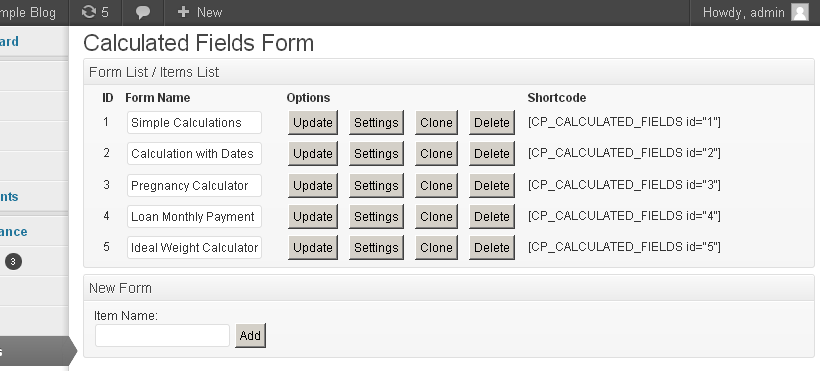


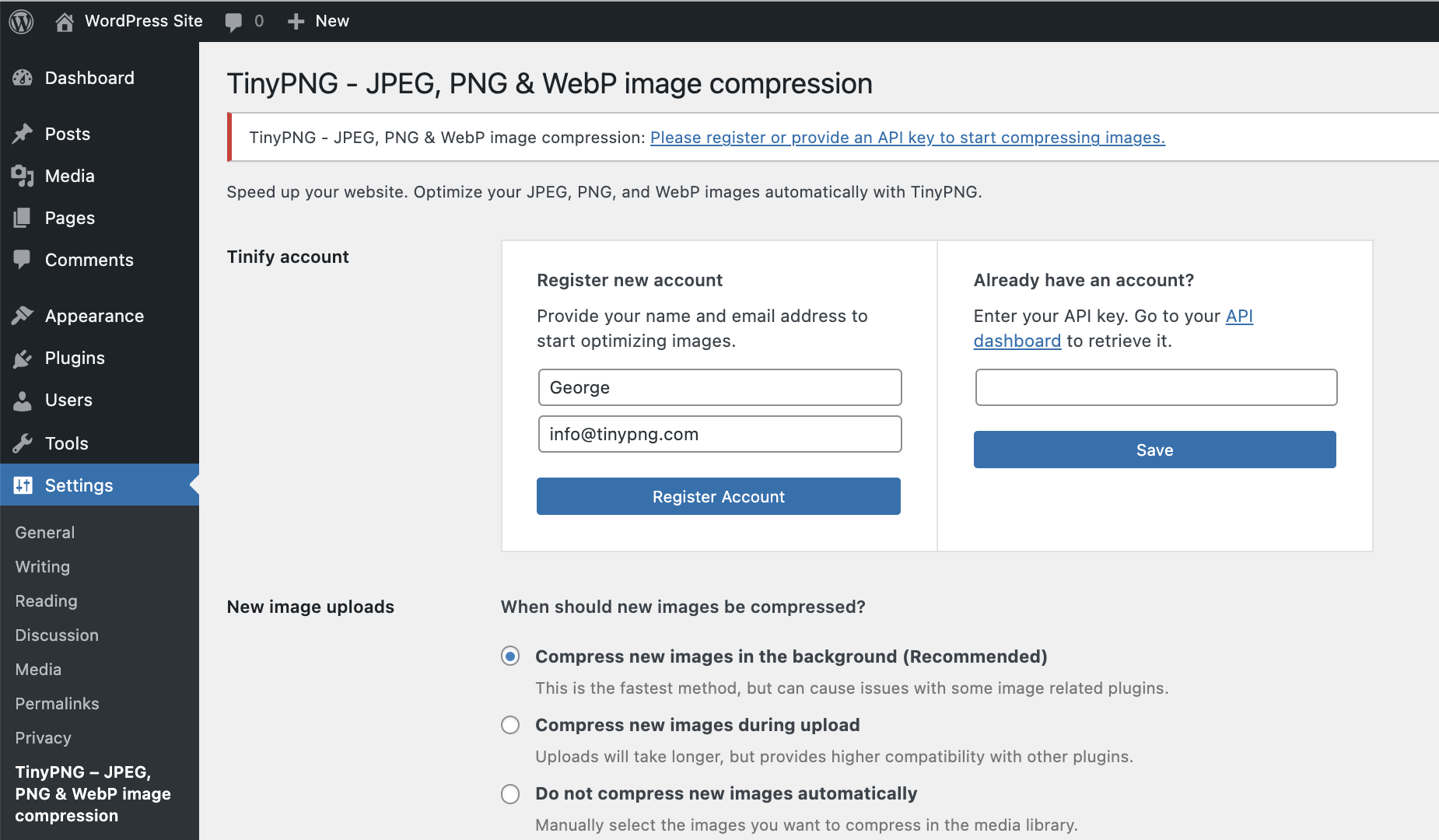
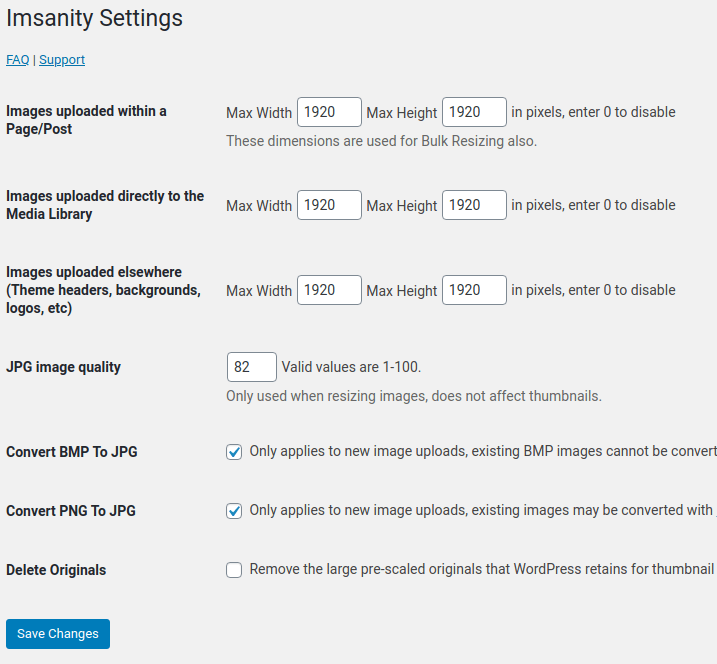
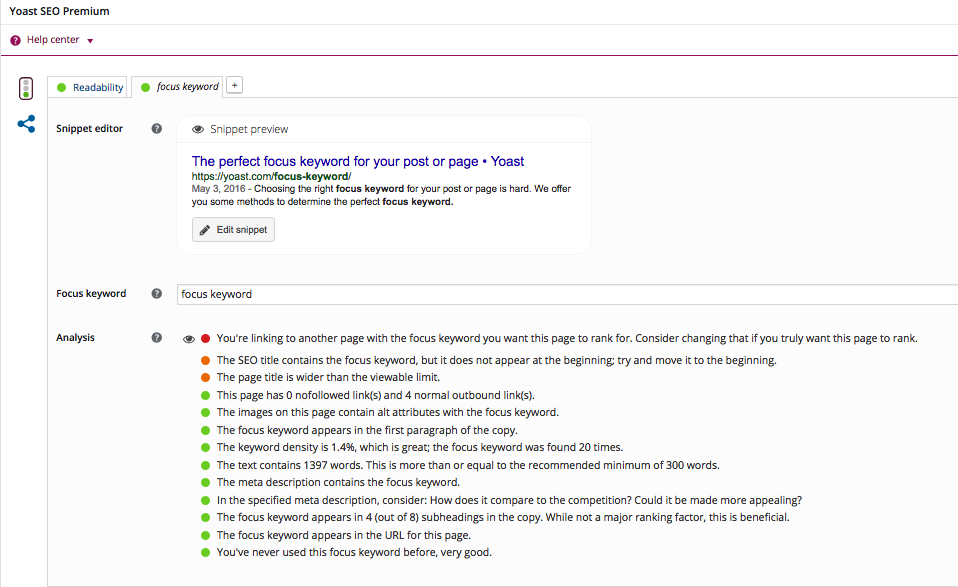

Is Facebook Long-Form Video Dead?

Welcome to this week’s edition of the Social Media Marketing Talk Show, a news show for marketers who want to stay on the leading edge of social media. On this week’s Social Media Marketing Talk Show, join us as we discuss Social Media Examiner’s reasons for pulling three shows from Facebook with Michael Stelzner. Plus […]
The post Is Facebook Long-Form Video Dead? appeared first on Social Media Examiner.
from Social Media Examiner https://ift.tt/2NOppJP
via socialmediaexaminer