
Welcome to My Blog
What It’s Really Like to Work for Elon Musk
All eyes are on Elon Musk. The billionaire SpaceX and Tesla mogul has gone from commended CEO and thought leader to one of the most controversial news topics of late. Musk recently came under fire for his involvement in the Thailand cave rescue. Musk’s attempt to aid the recovery of a boys’ soccer team stuck in a cave backfired after the rescue team and the media questioned whether Musk’s mini-submarine was intended to help the children or Musk’s public image. Musk went on to engage in a Twitter rant that raised eyebrows.
In June, Tesla laid off 9 percent of its employees while reportedly pushing remaining workers to the limit to meet slipping production quotas. The workplace demand became so intense Musk reportedly took to sleeping on the floor of the Fremont, California factory and fueling exhausted workers with Red Bull.
While colleagues have voiced their discontent with Musk’s behavior and work demands, the CEO says the complaints about him are exaggerated and issues in the workplace were swiftly resolved. As Musk reminded Glassdoor in an interview in 2017, “Your title makes you a manager but your people make you a leader.” So what’s it really like to work for Elon Musk? We turn to employee reviews for SpaceX and Tesla to get the scoop.
Musk was rated #49 in Glassdoor’s 2018 Top CEO’s list for his role at SpaceX, and currently holds a 97% approval rating – one employee even dubbed him “Uncle Elon.” He dropped from his position at #8 CEO in 2017, when he received a 98% approval rating. Musk has a slightly lower approval rating in his role at Tesla at 84%.
Currently, SpaceX employees give the company a 4.4 rating in Q2 2018 (based on a 5-point scale: 1.0=very dissatisfied, 5.0=very satisfied). Tesla employees, however, give their company a 3.4 rating in Q2 2018.
We’ve seen the numbers. But what’s behind an employee’s day to day? Read recent anonymous employee reviews to see workers’ opinions on their jobs and their CEO.


The bottom line from employees is that while the work environment is intense and demanding, Musk is an inspiring leader in spite of his public antics. Employees are motivated first and foremost by the missions of Tesla and SpaceX, and are less focused on anything outside of disrupting the industry. Looks like Elon’s innovation trumps his public persona.
Featured Image via Wikimedia Commons.

How to Research Buyer Personas for More Successful Marketing Campaigns

Do you market to multiple buyer personas? Wondering how to be sure you’re marketing to each audience segment in the right way? In this article, you’ll learn how to research buyer personas to reveal preferences and behaviors that will help you deliver successful, targeted social media campaigns. How Researching Buyer Personas Improves Marketing Campaigns The […]
The post How to Research Buyer Personas for More Successful Marketing Campaigns appeared first on Social Media Examiner.
from Social Media Examiner https://ift.tt/2wm354i
via socialmediaexaminer
The Free Instagram Analytics Apps You Need in 2018
Using Instagram for marketing purposes is rapidly growing in popularity, with over 70% of companies using the platform in 2017, compared to less than 50% in 2016.
It’s important that you leverage Instagram for your own business, but once you start, it can be difficult to discern whether you’re truly successful. Without the right metrics, you’ll never know if you could be doing more to engage your audience or grow your following.
There are plenty of Instagram analytics apps to help you keep track of your progress and discover areas for improvement. Here, we’ll focus on the best free Instagram analytics apps, so you can focus your money and efforts on the Instagram content itself.
Free Instagram Analytics Tools
1. Instagram Insights
If you have a business account on Instagram, you automatically have access to their free analytics tool, Instagram Insights. The Insights tool can show you when your audience is on Instagram, which of your posts are most popular, and your account’s impressions and reach.
Additionally, you can compare your original post with a promoted version of the post to figure out if your paid efforts are working. Unfortunately, you can only use the tool within the app (there’s no desktop version), and it’s not the most user-friendly, but it provides a good basic overview of your Instagram analytics for both individual posts, and your account as a whole.
2. Squarelovin
Squarelovin’s free Instagram Insights tool provides most of the information you’d need to conduct an analysis on your progress over the year — for instance, you can obtain a monthly analysis on your posts, or a history of your posts broken down by month, day, or even hour. Additionally, the tool offers insights into your followers’ interests, and how to drive further engagement to your posts. You can even figure out the best time to post, depending on when your followers are most likely on the app.
3. Pixlie
Used by Kenneth Cole, Sonos, and plenty of other big brands, Pixlie offers an impressive free tool. It allows you to create shareable reports that you can distribute to your entire marketing team, and analyze metrics to figure out how to drive more engagement and attract new followers. Additionally, the tool helps you find influencers or brand advocates promoting your products, so you can create more effective influencer campaigns.
4. Union Metrics
While it doesn’t provide its Instagram Analytics tool for free, Union Metrics does offer a free monthly Instagram checkup. The checkup tells you which hashtags will increase your engagement, which posts resonate best with your audience, and what time your followers use the app. While the tool can’t give you analytics beyond 30 days, it’s a useful option for taking a look at short-term themes and patterns, and learning how you can quickly improve your metrics.
5. Socialbakers
While admittedly not the most visually appealing tool in the list, Socialbakers still offers critical information, including your most liked and most commented on posts, and your top performing filters. Additionally, Socialbakers offers an Instagram Report, which compares your own Instagram account to your competitors’, to see where you fall in the industry and what you can do to improve.

Get a piece of Apple history as an alleged first-gen iPhone prototype hits eBay auction
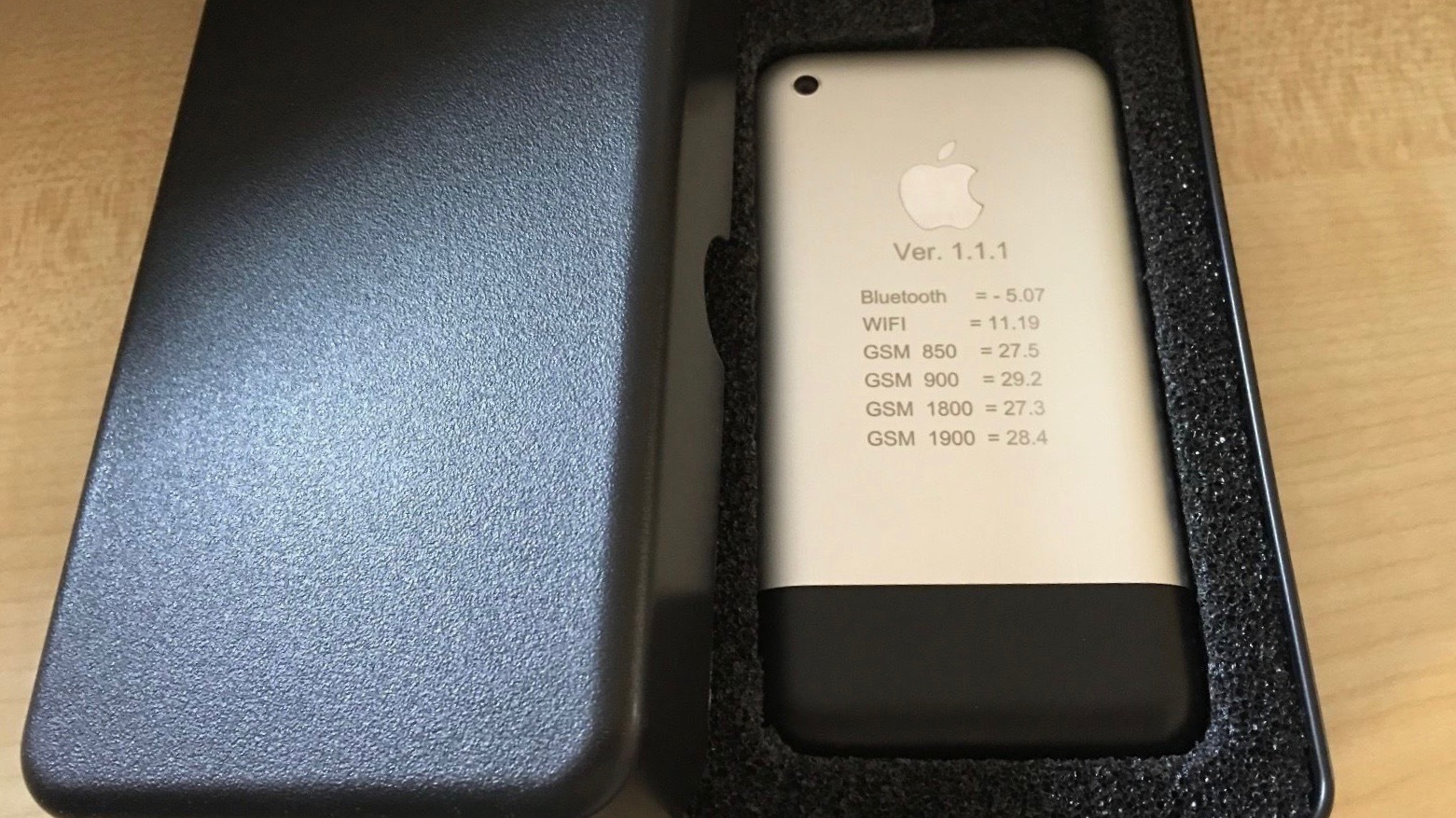
Apple prototypes going up for auction has become common over recent years, but something we don’t see as often are prototype iPhones. Today, a prototype first-generation iPhone has hit the auction block through eBay – and it’s already above $1,000…
How to Set Gmail as Your Browser’s Default Email Client for Mailto Links
Fellow Gmail users … ever click on a “mailto” link to share web content via email, only to have your browser attempt to open the wrong email client?
For instance, my computer always used to try opening up Outlook, even though I’m a Gmailer. So annoying.
“Mailto” links are hyperlinks that use mailto instead of http://, so when someone clicks them, a new email compose window pops up instead of a link to a website. If you want to learn how to create these “mailto” links for your own marketing, this blog post walks you through exactly how to do it.

Suffer no more. Here’s how to fix it so your preferred browser uses Gmail as its default email client for mailto links. Just click the jump-to link to find instructions for your browser of choice.
Jump to instructions for: Chrome | Firefox | Internet Explorer | Safari
How to Make Gmail Default Email in Chrome
- Open Chrome and navigate to “Settings.”
- Click “Content settings” under “Privacy and security.”
- Select “Handlers” and switch on the Ask protocol.
- Open Gmail in Chrome and click the Protocol Handler icon.
- Allow Gmail to open all email links.
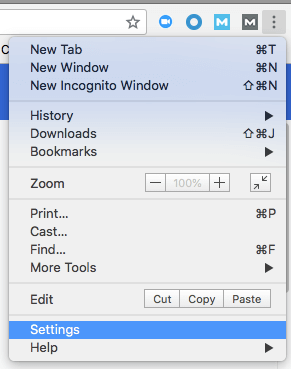
1. Open Chrome and navigate to “Settings.”
Before you can actually set Gmail as your default email client, you need to allow Gmail to ask you permission. To do so, open a window of your Chrome browser and click the three-dots icon next to the URL address bar. Then click “Settings,” second from the bottom.
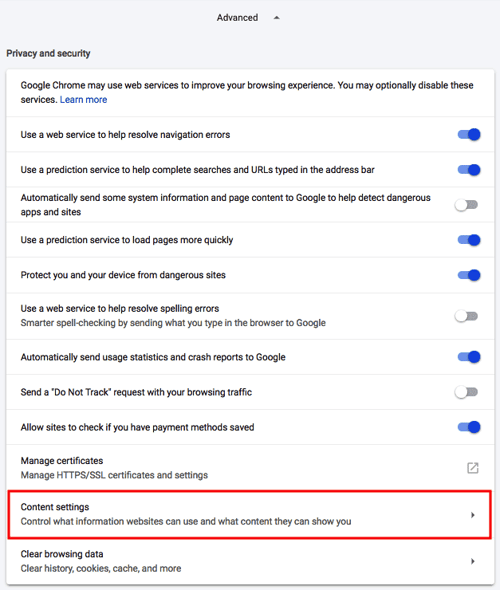
2. Click “Content settings” Under “Privacy and security.”
In the Settings tab that appears in your Chrome browser, scroll down to the bottom and click “Advanced.” This will expand your settings options. In the first group that appears, “Privacy and security,” click “Content settings” second from the bottom.
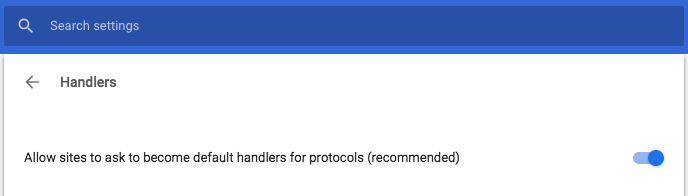
3. Select “Handlers” and switch on the Ask protocol.
In the next group of options that appears, find the “Handlers” setting near the bottom of the list. It’ll look like this:

Click this setting and you’ll see at least one horizontal switch where you can allow any website you visit to ask you if it can become Chrome’s default “handler.” Switch this setting to the on position, as shown below. (If it’s already switched on, switch it off and on again — this can prompt Gmail to re-ask you to become your default handler, if you’ve been asked before and want to change your answer.)
4. Open Gmail in Chrome and click the Protocol Handler icon.
Once your Ask protocol has been switched on for default handlers, open Gmail in a new tab and make sure you’re signed in.
5. Allow Gmail to open all email links.
At the end of your URL’s address bar, you’ll see a new icon that looks like two gray diamonds intertwined with each other. Click this icon and you’ll see the following dropdown menu:
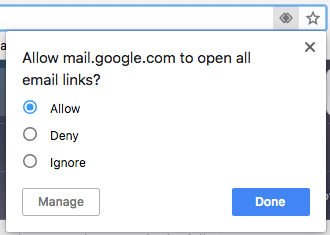
Click “Allow” in response to the question Chrome asks you, as shown above, and then hit Done. You’ll officially have all “mailto:” links open in Gmail if they come from your Chrome browser.
Note: If you’re still having trouble (for example, your “Protocol handlers” window appears blank with no options), try installing Google’s Mailto Extension for Chrome instead.
How to Make Gmail Default Email in Firefox
- Open the Firefox menu on the upper-righthand corner of your browser.
- Select “Preferences” and scroll down to “Applications.”
- Find or search for “mailto” in the search bar.
- Next to “mailto,” open the dropdown menu and select “Use Gmail.”
1. Open the Firefox menu on the upper-righthand corner of your browser.
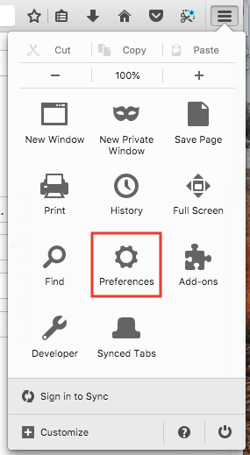
Launch Firefox and look to the upper-righthand corner of your browser for an icon consisting of three horizontal lines on top of one another. Click this icon and a dropdown menu of 11 different browser settings will appear.
2. Select “Preferences” and scroll down to “Applications.”
Select the “Preferences” icon from this dropdown menu, and you’ll see a full page of settings filed under a “General” tab to the lefthand side. Staying on the General settings page, scroll down until you see the “Applications” section.
3. Find or search for “mailto” in the search bar.
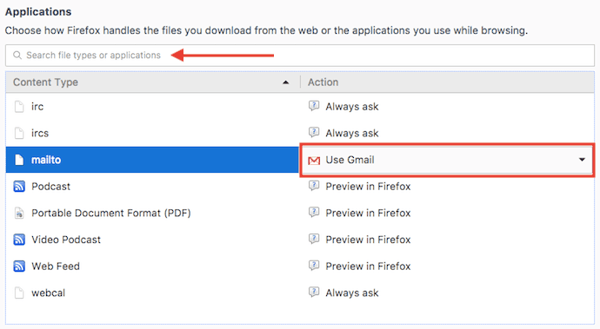
Under the “Applications” settings of Firefox, you might see a list of previously used applications depending on how you’ve used Firefox. Look for the “mailto” application in the lefthand column (if you don’t see it listed, search for it in the “Applications” search bar above the list).
4. Next to “mailto,” open the dropdown menu and select “Use Gmail.”
In the righthand column of the applications list, click on the “mailto” row and select “Use Gmail.” This will set Gmail as your default email client for all mailto links that come from Firefox. No need to save your settings — Firefox does this automatically.

Note: You also might see the option to “Use Chrome” if you also have the Chrome browser downloaded on your computer. If you see both Chrome and Gmail as default options, stick with Gmail. If not, verify that you’re signed into Gmail and load these settings again. If all you see is the option to use Chrome, select this as your default email client.
How to Make Gmail Default Email in Internet Explorer
- Open Internet Explorer and download the Google Toolbar.
- Click the wrench icon on the upper-righthand corner of your browser.
- Scroll down to the “Web-browsing tools” section and select “Use Gmail for ‘Mail To’ links.”
- Click “Save.”
1. Open Internet Explorer and download the Google Toolbar.
There’s actually no native setting in Internet Explorer to set Gmail as your default email client. To do so using this browser, you’ll first download the Google Toolbar, available here.
2. Click the wrench icon on the upper-righthand corner of your browser.
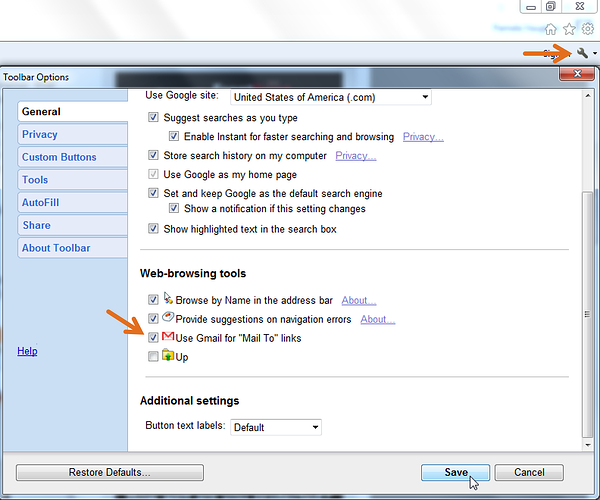
Once the Google Toolbar is installed on your Internet Explorer browser, find and click the wrench icon on the upper-righthand corner of your browser. Depending on the version of Internet Explorer you have installed, the icon will look something like this: 
3. Scroll down to the “Web-browsing tools” section and select “Use Gmail for ‘Mail To’ links.”
The wrench icon will open up your Toolbar Options, starting with General settings according to the tab on the lefthand side, as shown below. Scroll down to the section called “Web-browsing tools” and check the box labeled “Use Gmail for “Mail To” links.
4. Click “Save.”
Save your new Toolbar Options using the button to the bottom-right of the options window, and you’re all set.
How to Make Gmail Default Email in Safari
- Open Safari and download Google’s Mailto Extension.
- Click the arrow at the top right of your Safari browser and select your downloaded file.
- Click “Install” in the pop-up window.
- Select Gmail from the list of options.
- Restart your browser.
1. Open Safari and download Google’s Mailto Extension.
Similar to Internet Explorer, you’ll need a third-party plugin to make Gmail your default email client in Safari. To do so, download Google’s Mailto Extension, available here.
2. Click the arrow at the top right of your Safari browser and select your downloaded file.
Once Google’s Mailto Extension has been downloaded to Safari, find it using the downward-facing arrow on the top-right of your browser, next to your address bar.
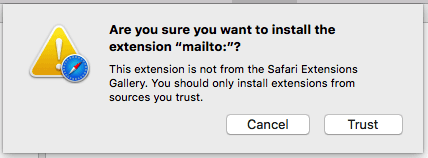
Because this extension was downloaded from the internet, your Mac computer might ask you to trust this application, as shown below. Click “Trust” and the extension will start installing to your browser.
3. Click “Install” in the pop-up window.
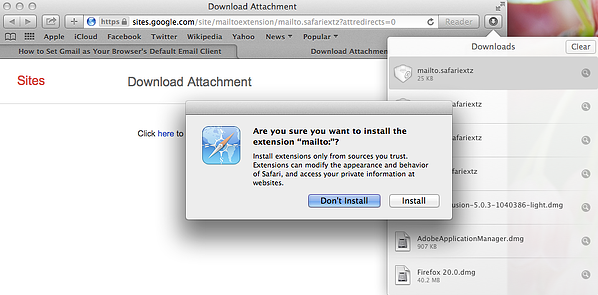
If after selecting “Trust” from Apple’s file warning, the Mailto extension doesn’t begin downloading, it might simply need your cue to do so. Below is another possible window that might appear after selecting your downloaded file from the “Downloads” list. Select “Install.”
3. Select Gmail from the list of options.
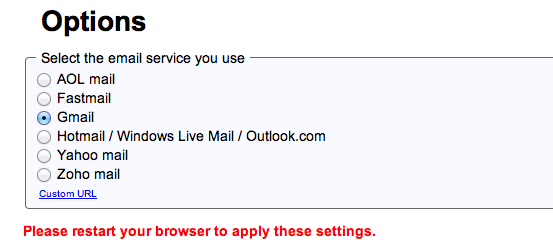
Below is the simple list of options your new Mailto Extension will display to you in Safari. Check “Gmail” from this list and Safari will automatically save your new settings.
4. Restart your browser.
Restart your Safari browser to officially make Gmail your default email client.
Whichever browser you work in most often, gone are the days of closing unwanted applications to send a simple email through a hyperlink. You can now enjoy the ease of opening mailto links in Gmail, automatically.



Facebook deletes all statuses that were originally cross-posted from Twitter

Facebook has seemingly removed all tweets that users had published to their Facebook profile through cross-posting from Twitter. As first noticed by TechCrunch, Facebook’s removal of the shared tweets comes following the deprecation of an API that blocked the cross-posting feature from working.
How to use AirPort Express for AirPlay 2 with existing router
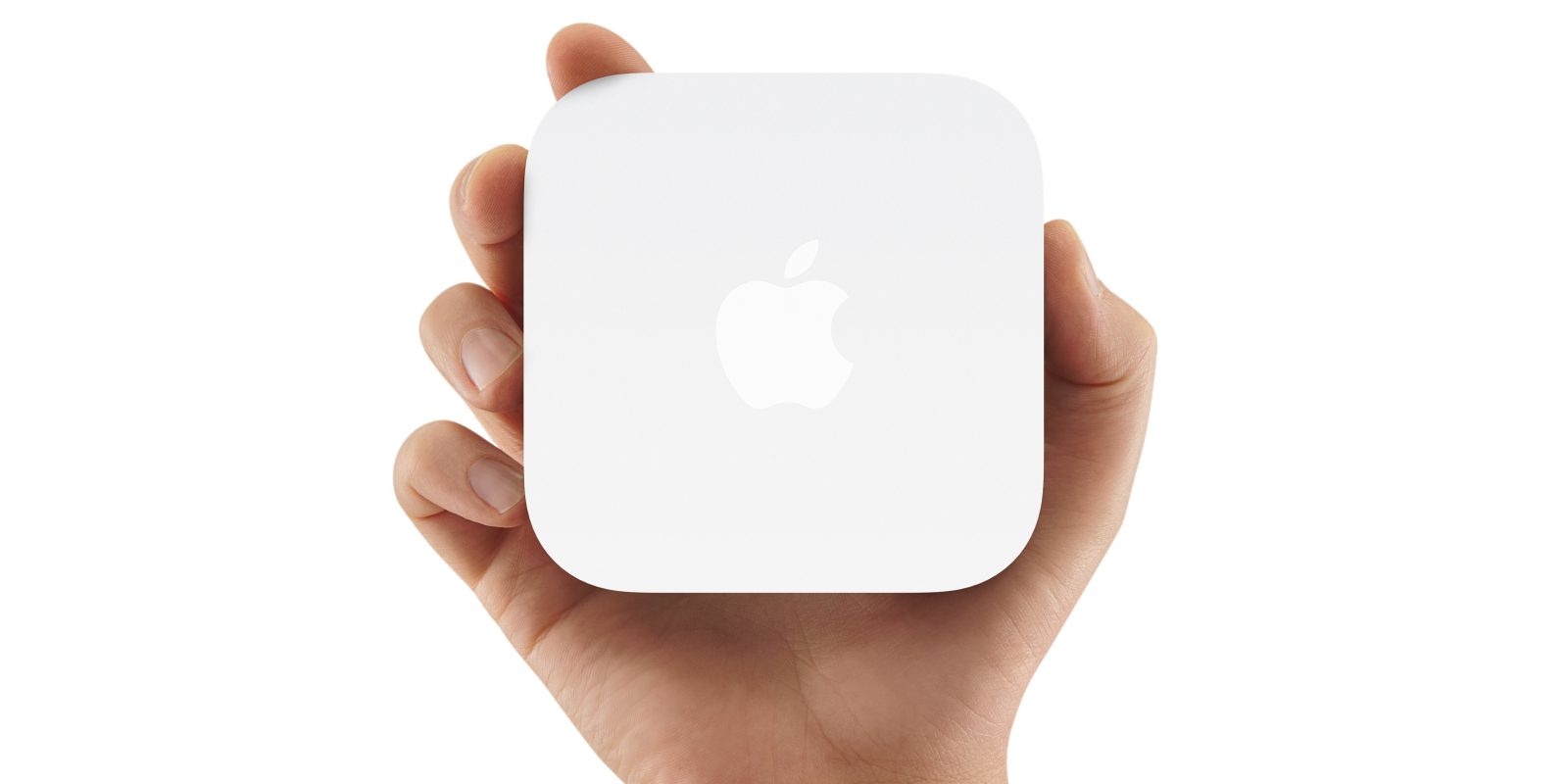
As we reported earlier this afternoon, Apple today pushed an update for its discontinued AirPort Express. Within the update, it included support for AirPlay 2, which lets you create a multi-room audio system.
Tim Cook sells $57.8M worth of AAPL shares following performance award

Last week, it was reported that Tim Cook was set to receive 560,000 shares of AAPL – valued at some $125 million – as a performance award. Since then, Cook has received that award and sold off $57.8 million worth of AAP.
Intel’s latest CPUs tout up to 16 hour battery life & could power new MacBook & MacBook Air
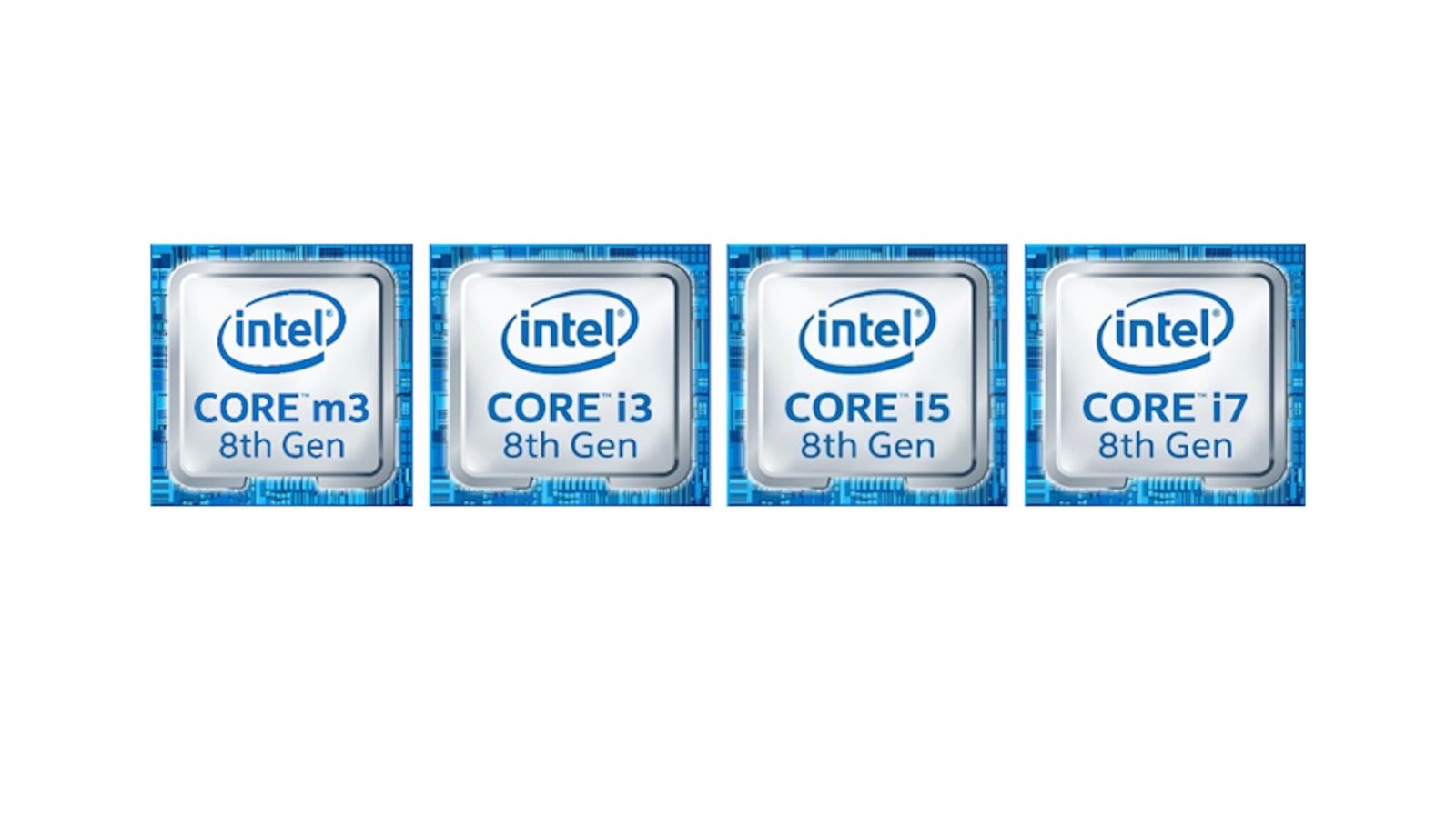
After much speculation and teasing, Intel today officially announced its new eighth-generation U-series and Y-series processors. The former was originally code-named Whiskey Lake, while the latter was referred to as Amber Lake. Both are optimized for use is “thin, light” laptops, according to the chipmaker.
Across the board, Intel touts that its new processors focus on providing “ultimately mobile performance and long battery life” for thine and light laptops, as well as 2-in-1s.
Gartner: Huawei overtakes Apple in smartphone sales as consumers hold out for 2018 iPhones

Gartner today is out with its latest market data for the smartphone industry during Q2 2018. Joining several other analysts in doing so, Gartner highlights that Huawei has overtaken Apple as the world’s second biggest smartphone maker…
iPhone & iPad: How to customize Podcasts app settings
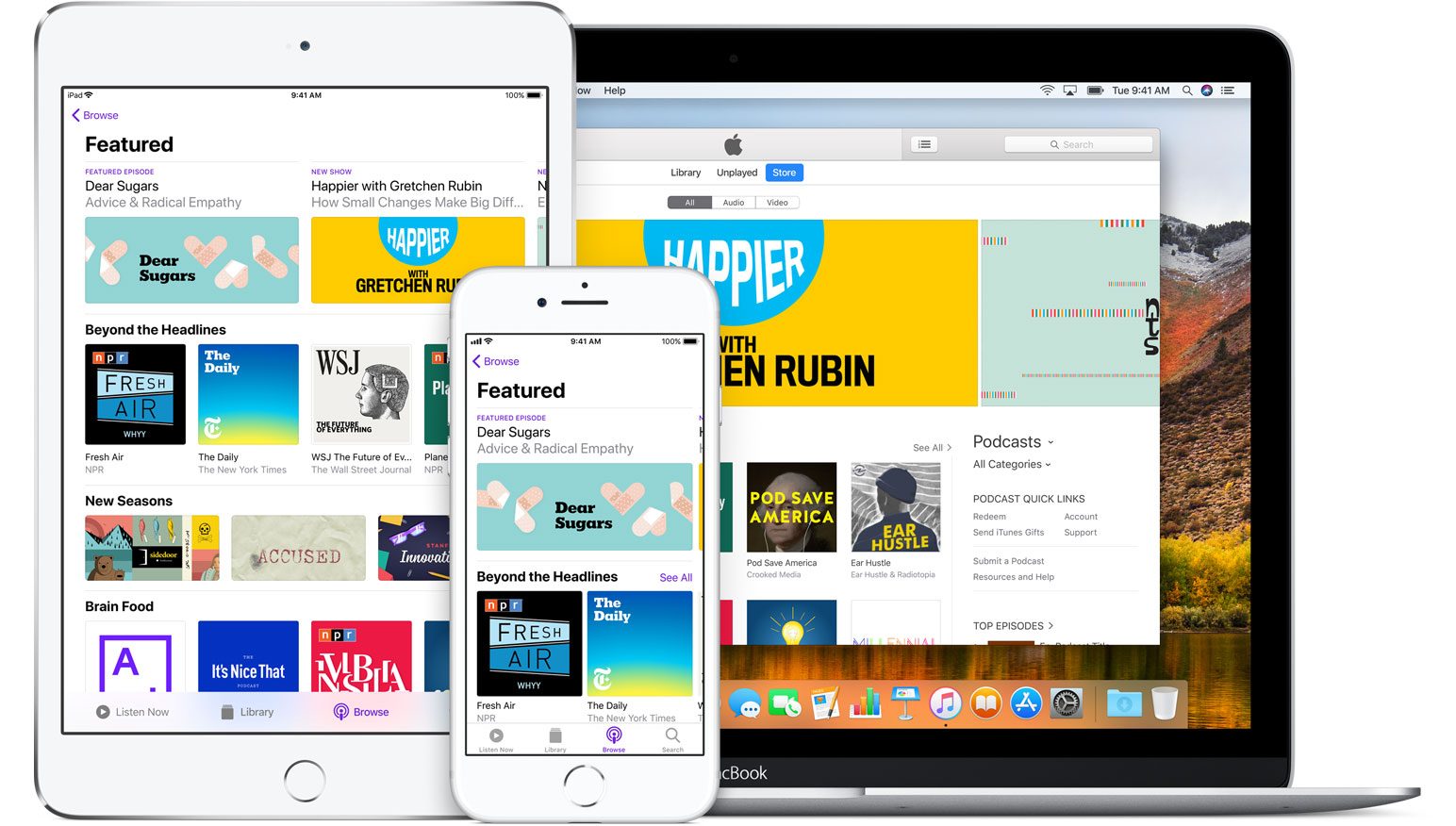
Whether you’re just getting into podcasts, or haven’t dialed in your preferences yet, follow along for how to customize the Podcasts app settings.
9to5Mac Daily: August 28, 2018

Listen to a recap of the top stories of the day from 9to5Mac. 9to5Mac Daily is available on iTunes and Apple’s Podcasts app, Stitcher, TuneIn, Google Play, or through our dedicated RSS feed for Overcast and other podcast players.
The best Apple deals from eBay’s 1-day sitewide sale

This morning, eBay kicked off its latest sitewide sale, offering 15% off through 1AM EST tonight. There’s a wide range of deals to sort through and we’ve been working tirelessly over at 9to5Toys to bring your our favorite offers. We’ve highlighted all of the best Apple-friendly deals below. Be sure to note that this coupon is limited to one use per customer. More details on this landing page.
Tesla launches portable Qi charger compatible with your iPhone
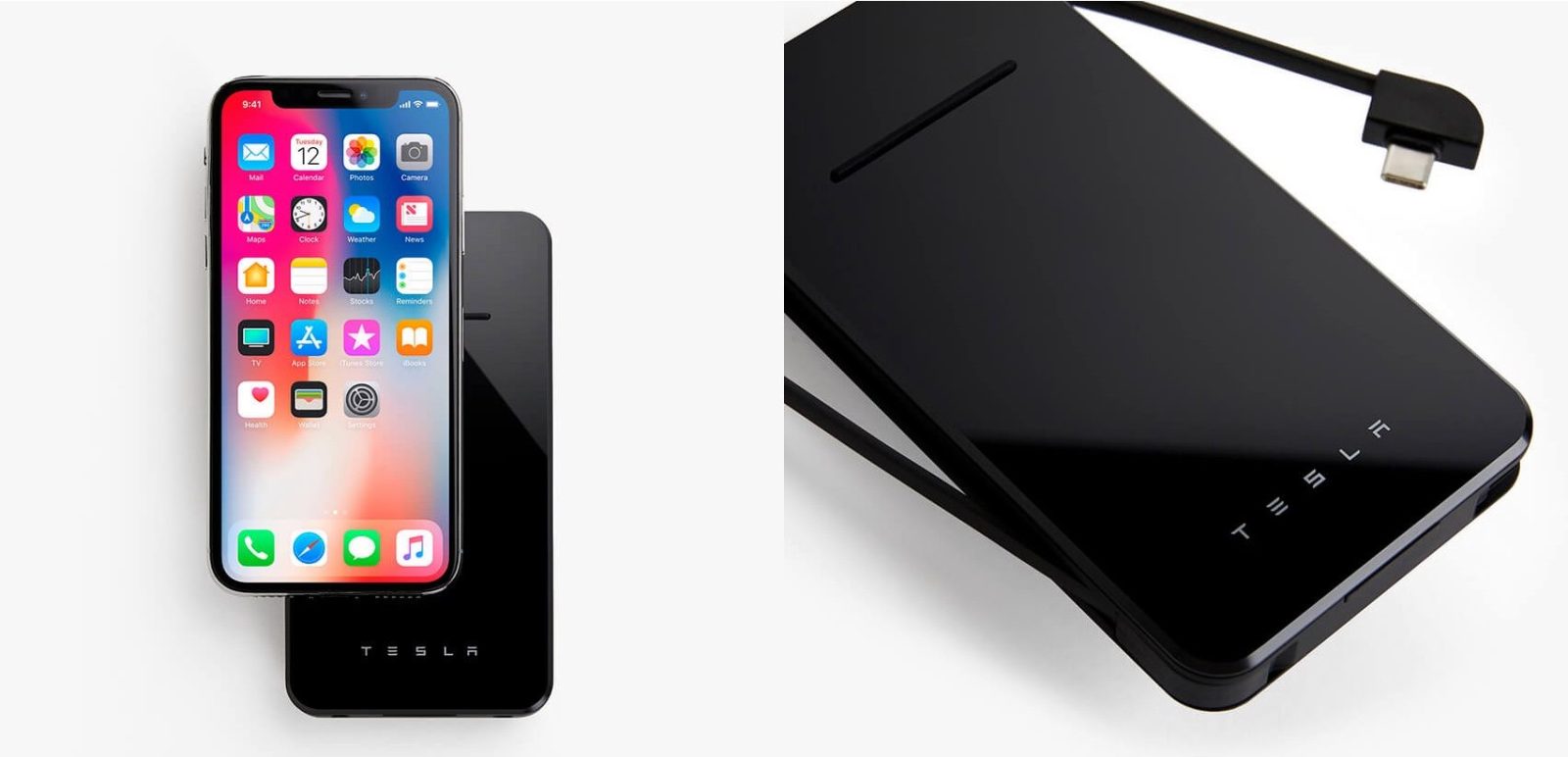
Tesla is launching a new product today: the ‘Tesla Wireless Charger’.
Surprisingly, the product is not for your Tesla vehicle, but for your smartphone. more…
Exclusive Ed Sheeran documentary ‘Songwriter’ now available to watch on Apple Music

Apple bought the exclusive rights to an Ed Sheeran documentary earlier this year. The documentary, Songwriter, has now been released. With an active Apple Music subscription, you can find the 1 hour, 24 minute film in the TV & Movies section in the Music app’s Browse tab, or in iTunes on the desktop.
Apple begins offering one-on-one Photos training for US customers over the phone
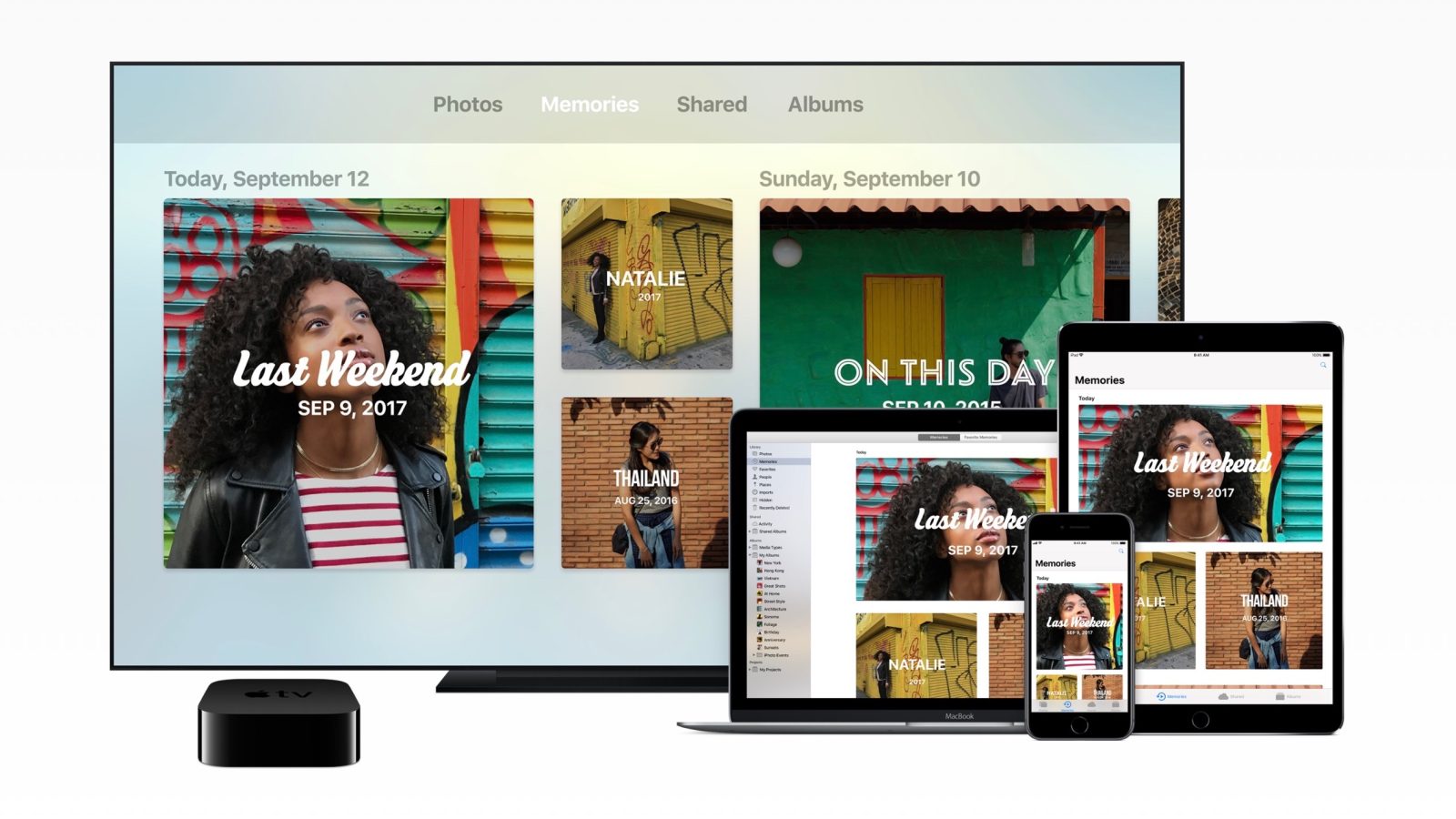
Apple retired its One to One customer training program several years ago, and replaced it with its free workshops and Today at Apple program. Now, the company is offering free one-on-one sessions over the phone for training on its Photos app.
AirPort Express firmware update adds AirPlay 2 and Home app support in iOS 12
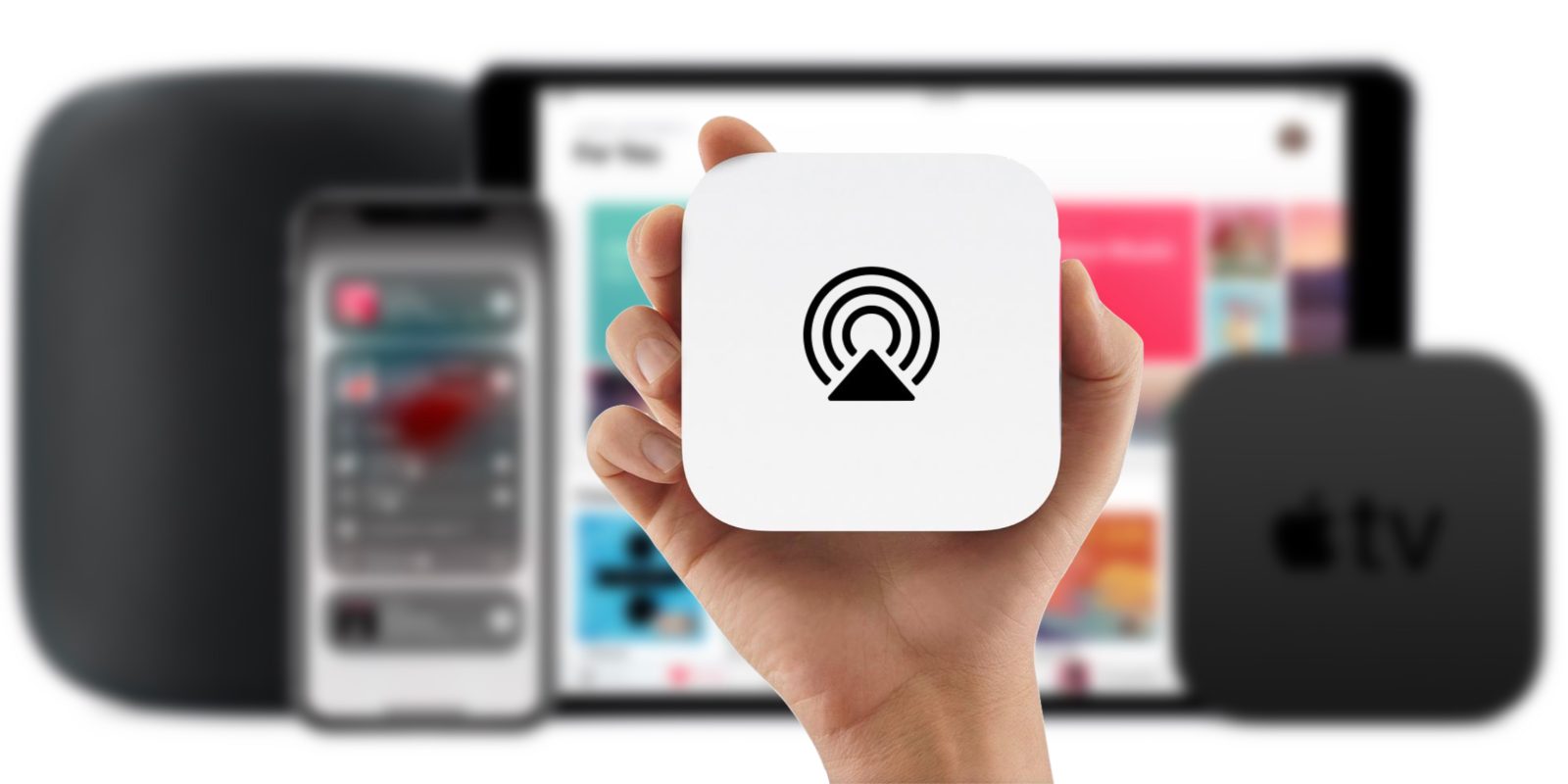
Apple’s AirPort line may be discontinued, but AirPort Express got one heck of an update today. Firmware update 7.8 for the latest AirPort Express hardware (no longer sold) adds support for AirPlay 2 and Apple’s Home app on iOS 12. The teaser for support has been present since iOS 11.4 beta, but support hasn’t been live before today’s version 7.8 firmware update.
Apple releases second supplemental update for 2018 MacBook Pro owners running macOS 10.13.6

Apple has today released the second supplemental update for 2018 MacBook Pros running macOS High Sierra 10.13.6.’