
Welcome to My Blog
OS X/macOS now older than Classic Mac OS

Older readers might still remember when Macs made the transition to OS X, more recently rebranded to macOS. But if you still kind of think of that as the ‘new’ OS, as of today it’s actually now been around for longer than all the preceding versions – collectively and colloquially known as Classic Mac OS …
Latest Apple Pay promo offers free delivery on first food order from Postmates

Facebook Business Manager: The Ultimate Guide
It’s likely you’ve heard of Facebook Business Manager, which Facebook describes as their tool to “manage ad accounts, Pages, and the people who work on them — all in one place.”
If you haven’t heard of it, or if you don’t know much about it, Facebook Business Manager is a useful tool if you have more than one ad account, if you need to track separate clients’ ads or pages and create reports for them, or if your company uses Facebook for different services related to your business.
What is Facebook Business Manager?
Facebook Business Manager is a tool to help you create, publish, monitor, and report on various business-related assets, including your business’s Facebook Pages, or your Facebook advertisements. Business Manager allows you to grant partial or full access to different employees, and assign them different roles within the platform.
Essentially, Facebook Business Manager helps your team stay organized and focused while monitoring, creating, and publishing ads, pages, and other business assets on Facebook.
Here, we’ll delve into how to create a Facebook Business Manager account, how to add your business pages, ads, and people, how to use the analytics tools in your account, and how to extract the most value from the ads manager tool.
For the purpose of keeping this article easy to follow, we’re going to assume your business is interested in using Business Manager for your own pages and ads, rather than for your client’s pages and ads.
Is Facebook Business Manager different from your Facebook account?
Facebook Business Manager isn’t tied to your personal account. You don’t need a personal Facebook account to use Facebook Business Manager, and Facebook Business Manager only shows you your business assets, including ad accounts, pages related to your business, and advertising or social media analytics. It doesn’t have a newsfeed and won’t send you notifications from your personal account.
How to Set Up Facebook Business Manager
How to set up Facebook Business Manager
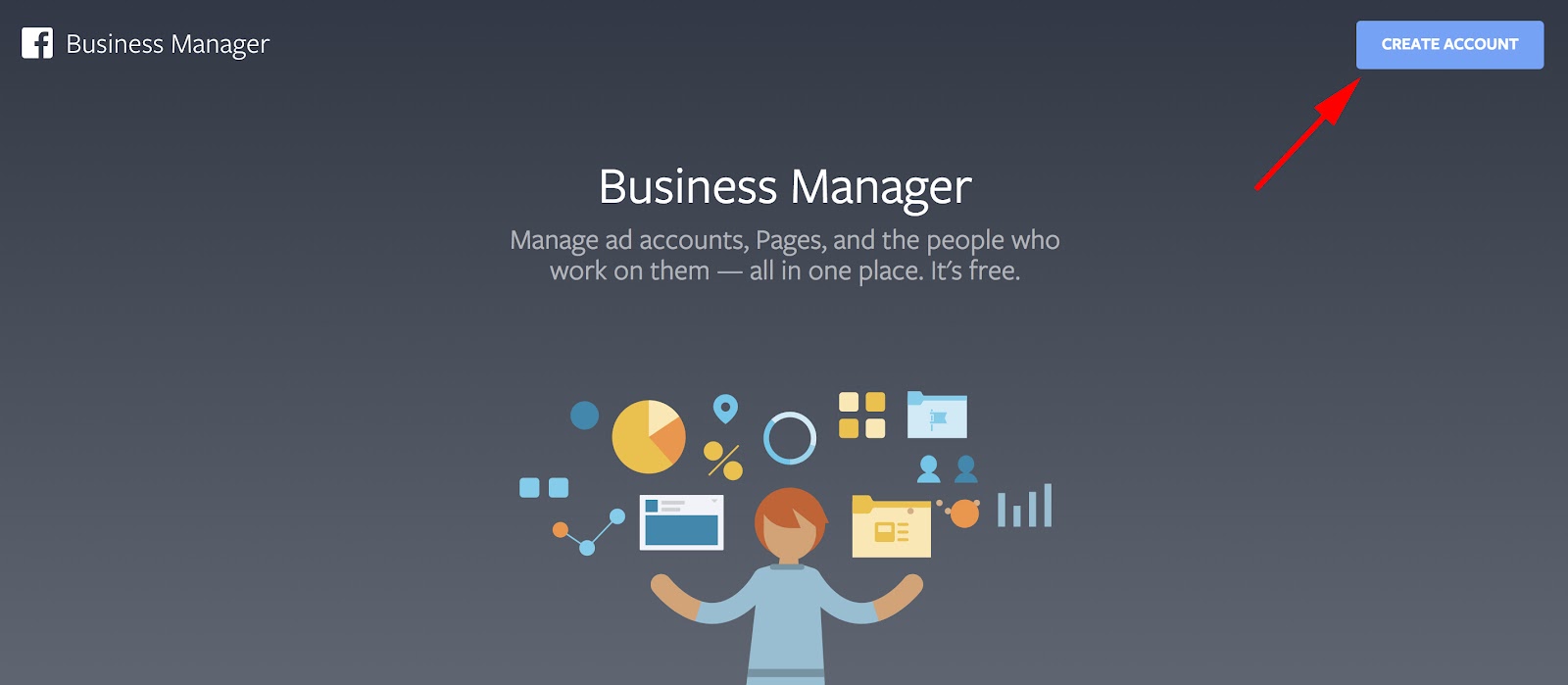
- Go to business.facebook.com and click the blue “Create Account” button in the top right corner
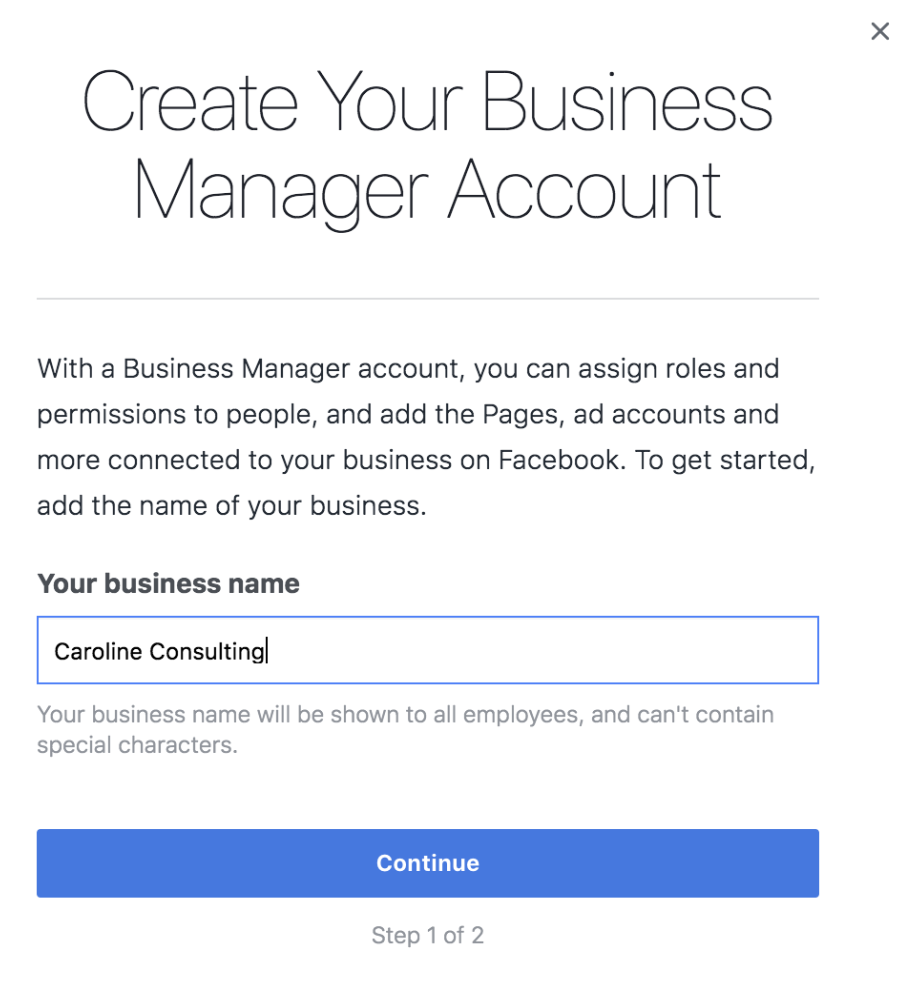
- Fill in your business name in the pop-up screen, and click “Continue”
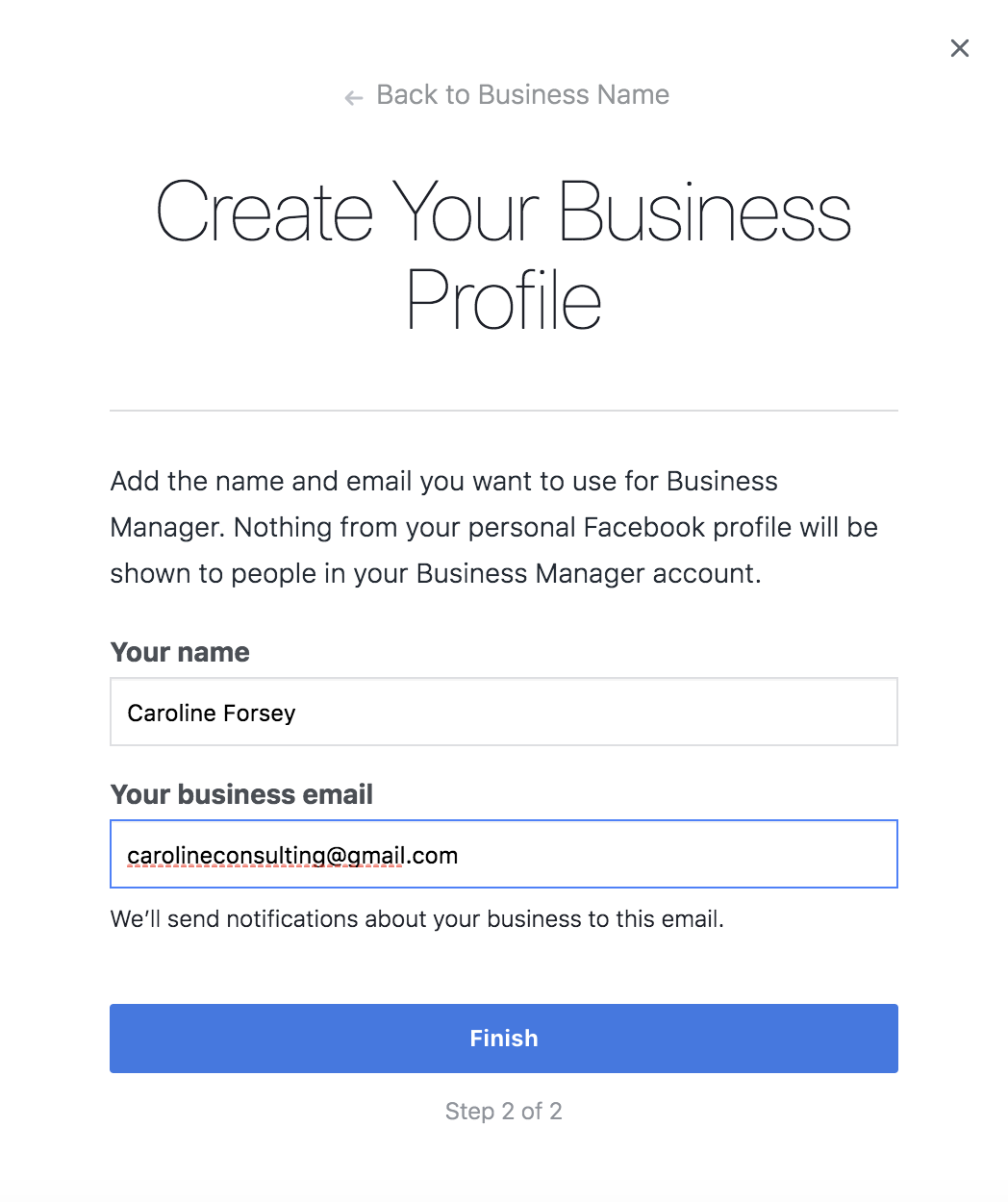
- The pop-up screen will then ask for your email. Type it into the box, and click “Finish”
When you’re setting up your Facebook Business Manager account, it doesn’t matter whether you already have a personal Facebook account or not. The Facebook Business Manager account is a different set-up process, and simply requires your business name and email to begin. It’s an easy three-step process that took me approximately two minutes.
Here’s what you do:
1. First, go to business.facebook.com and click the blue “Create Account” button in the top right corner.
2. Next, fill in your business name in the pop-up, and click “Continue”.
3. The pop-up screen will then ask you for your email in the box. Type it into the box, and click “Finish”.
This is your Facebook Business Manager account. If it looks intimidating at first glance, don’t worry, it’s actually pretty intuitive.
Let’s delve into how to add pages and ad accounts to your Business Manager account.
How to Add Facebook Business Pages to Your Business Manager Account
On your Facebook Business Manager homepage, you’ll immediately see the buttons to “Add Page”, “Add Ad Account” or “Add People”.
1. First, let’s click “Add Page”.
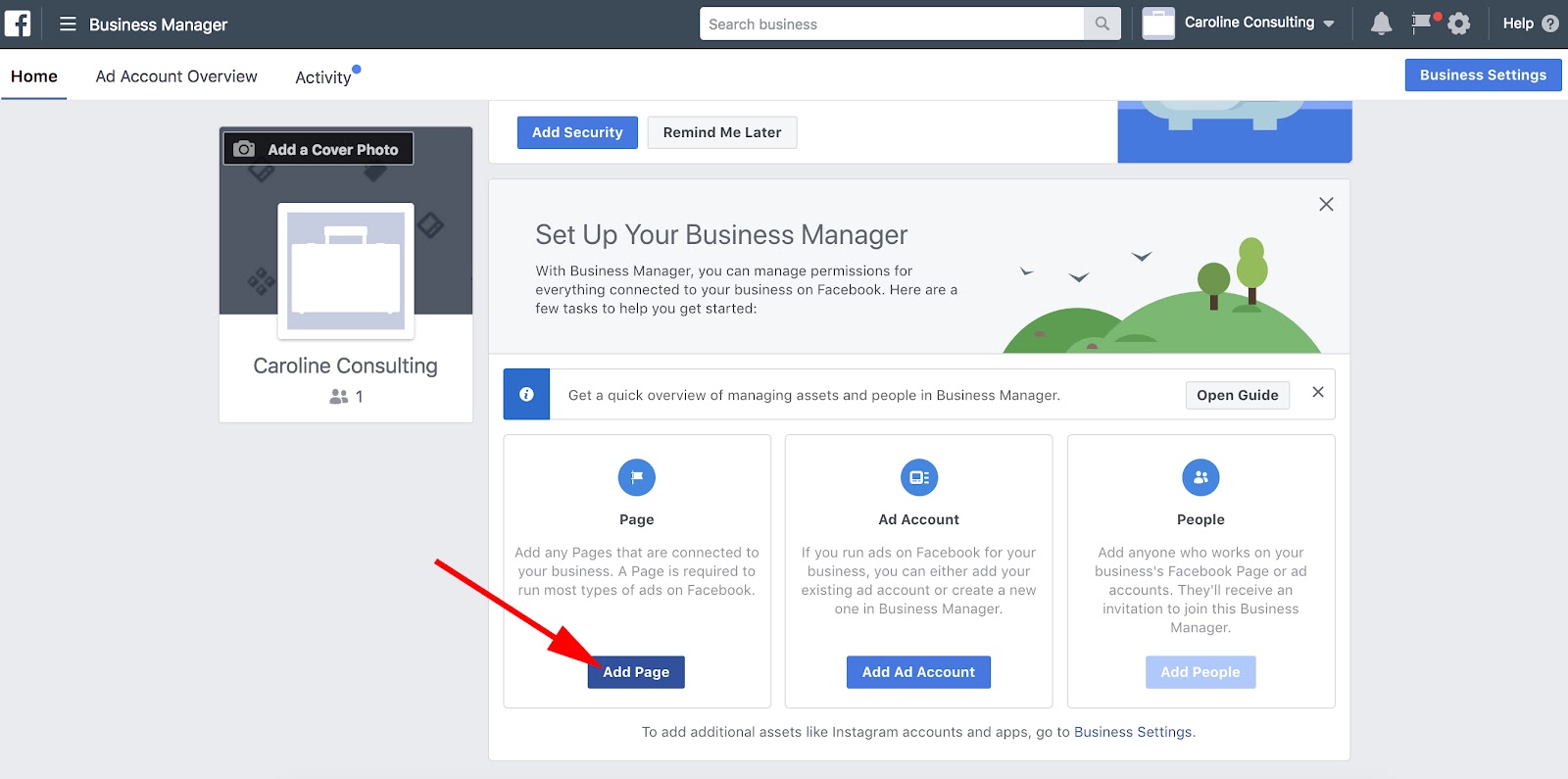
2. Click “Add Page” on the pop-up screen.
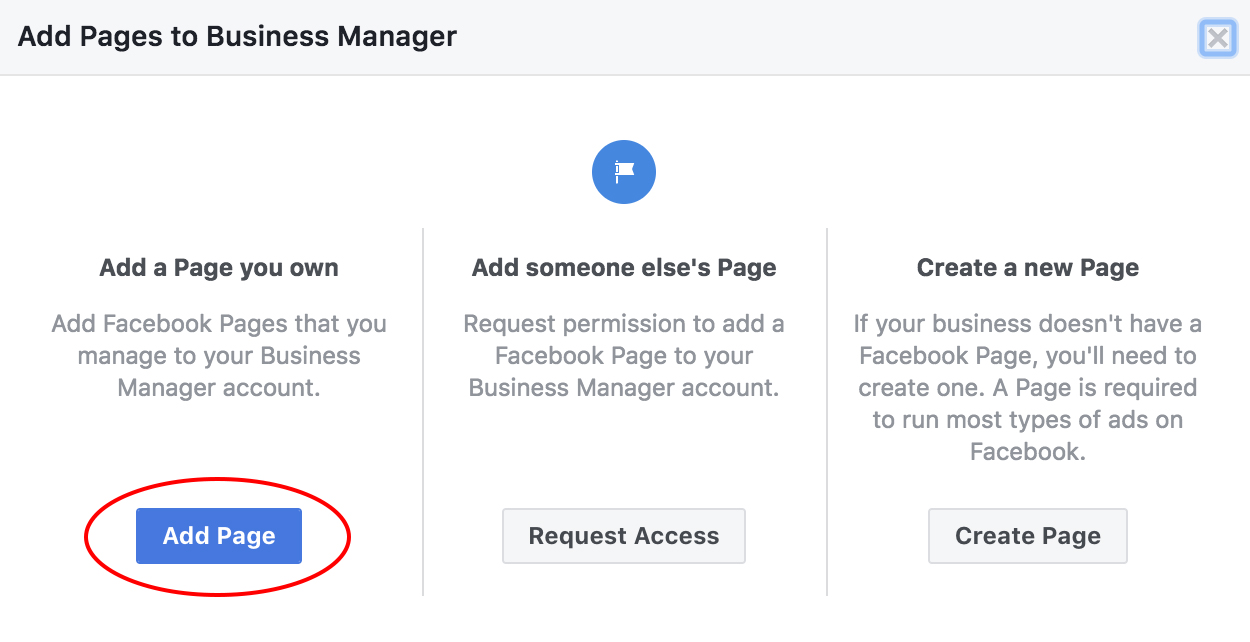
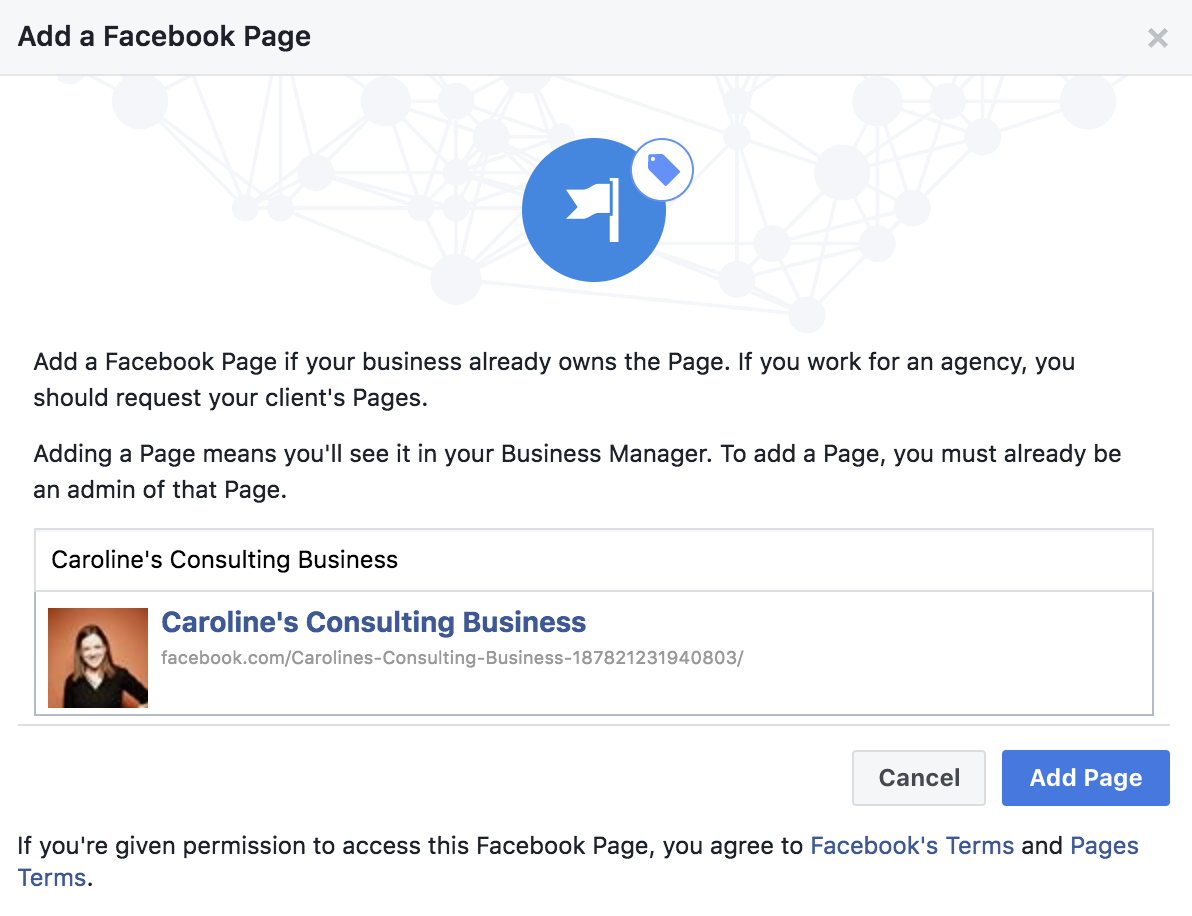
3. On the next page, type your page into the search bar. If it’s a pre-created Facebook business page, it should pop right up. Click the blue “Add Page” botton.
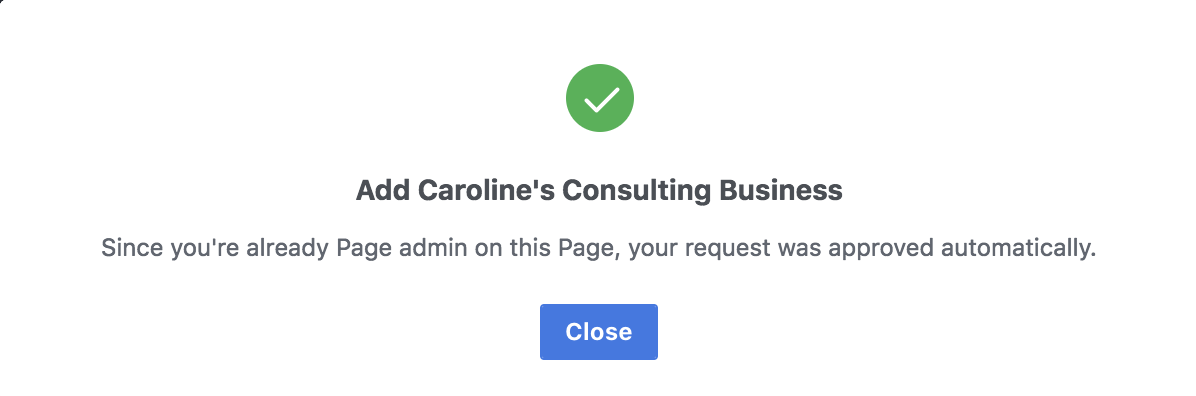
4. If you see this pop-up with a green check mark, you’re all set! Your page is successfully added.
How to Add Your Facebook Ad Accounts
Adding your Facebook ad account is an almost identical process to adding a page, but I’ll walk you through the steps here so you can see them in action.
It’s important to note you can only add one ad account at first, and then you’ll be able to add additional ad accounts once you start spending money in your first ad account.
However, you can’t host more than five ad accounts at any one time.
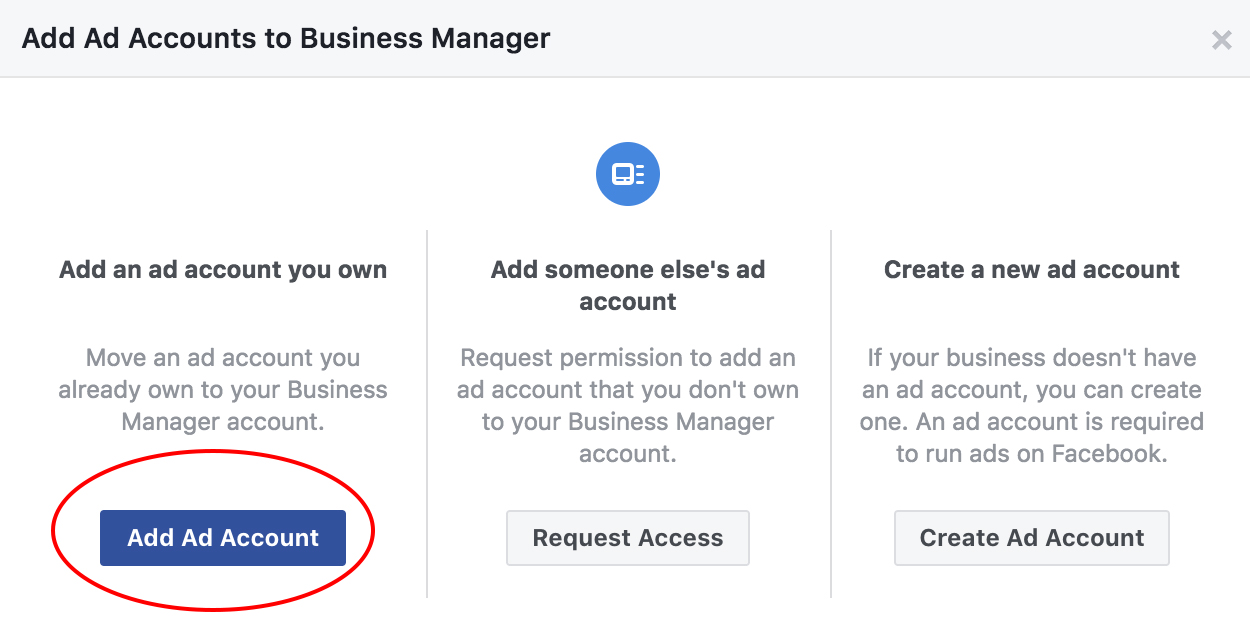
1. Click the blue “Add Ad Account” button on your homepage.
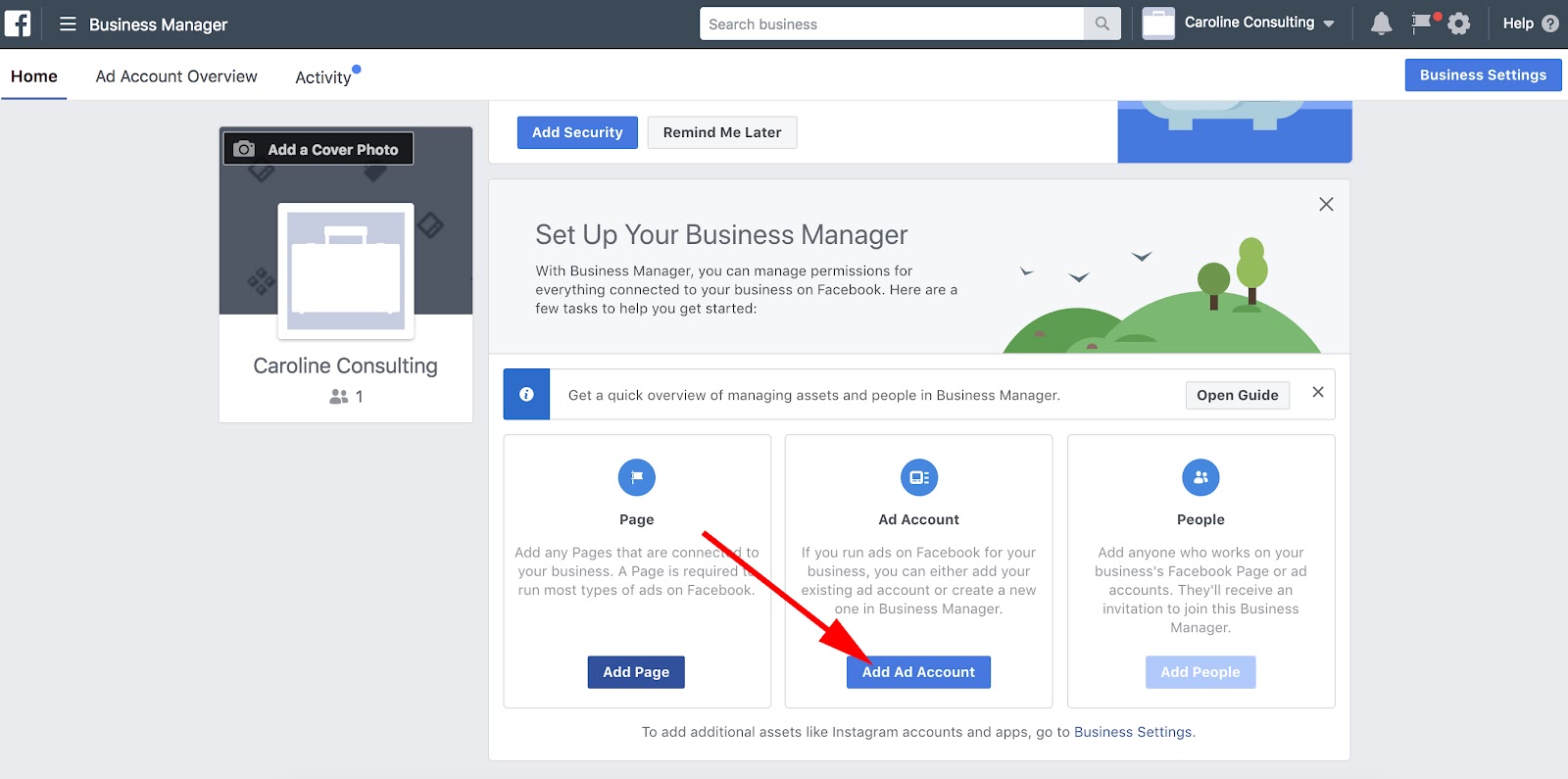
2. Select “Add Ad Account”.
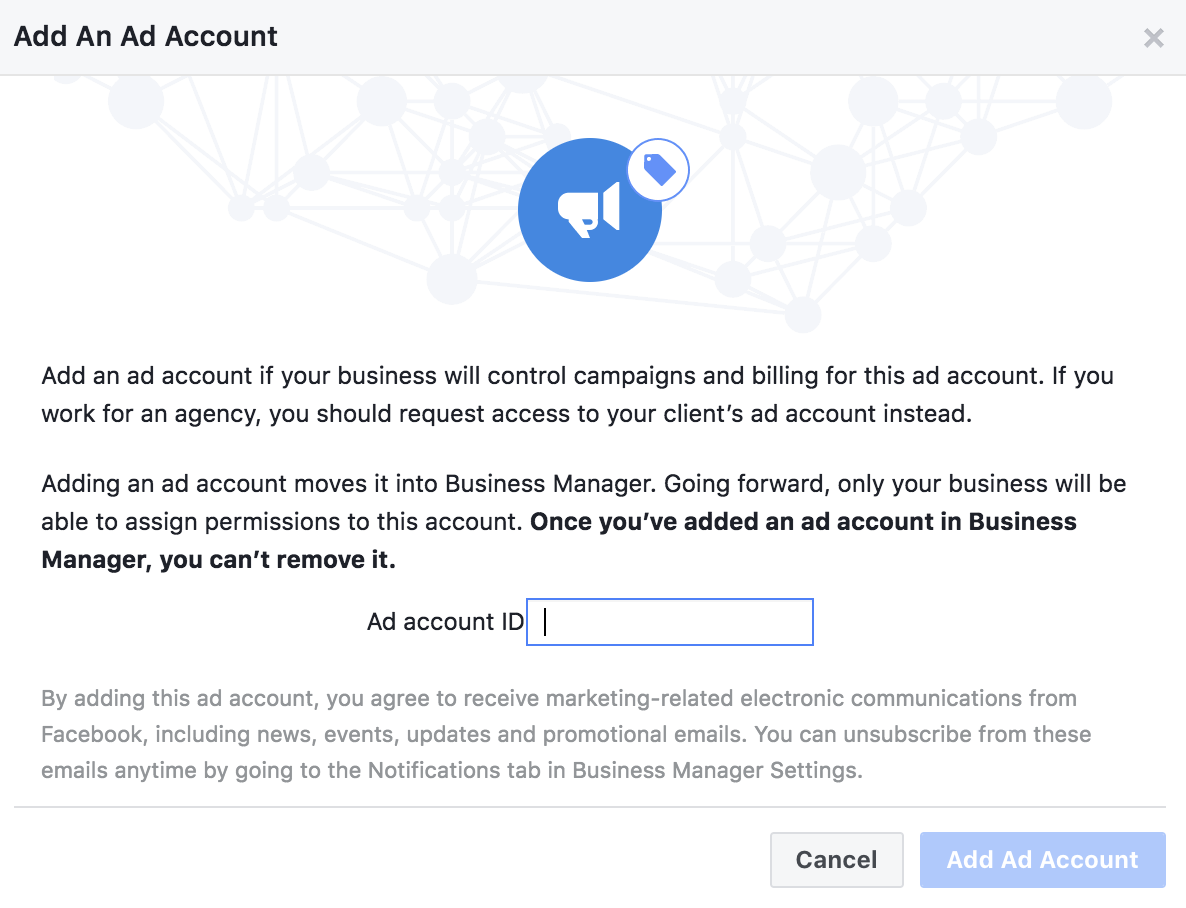
3. Enter your “Ad account ID” into the box. When you’re finished, click “Add Ad Account”.
How to Add People to Your Business Manager Account
For this example, we’ll focus on adding internal employees to your Business Manager Account, not clients or external advisors.
Adding people to your account is easy, and you can limit the amount of access each employee gets.
Limiting access to “employee only” is useful if, for instance, you want to assign one employee to handle your Instagram account and monitor those analytics, but then you want another employee on the team to handle your ad accounts and those analytics.
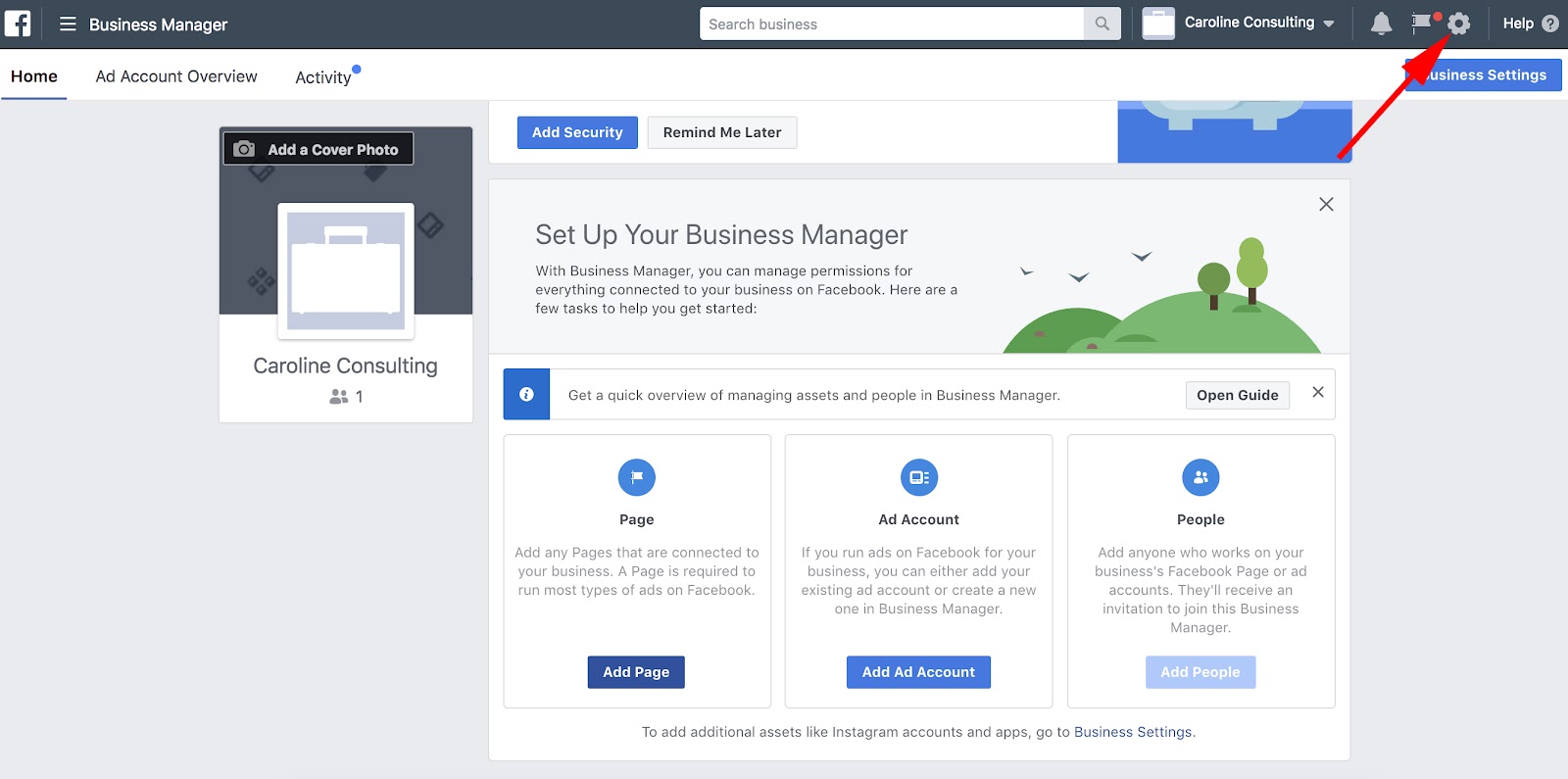
1. First, go to your “Settings” icon in the top right corner.
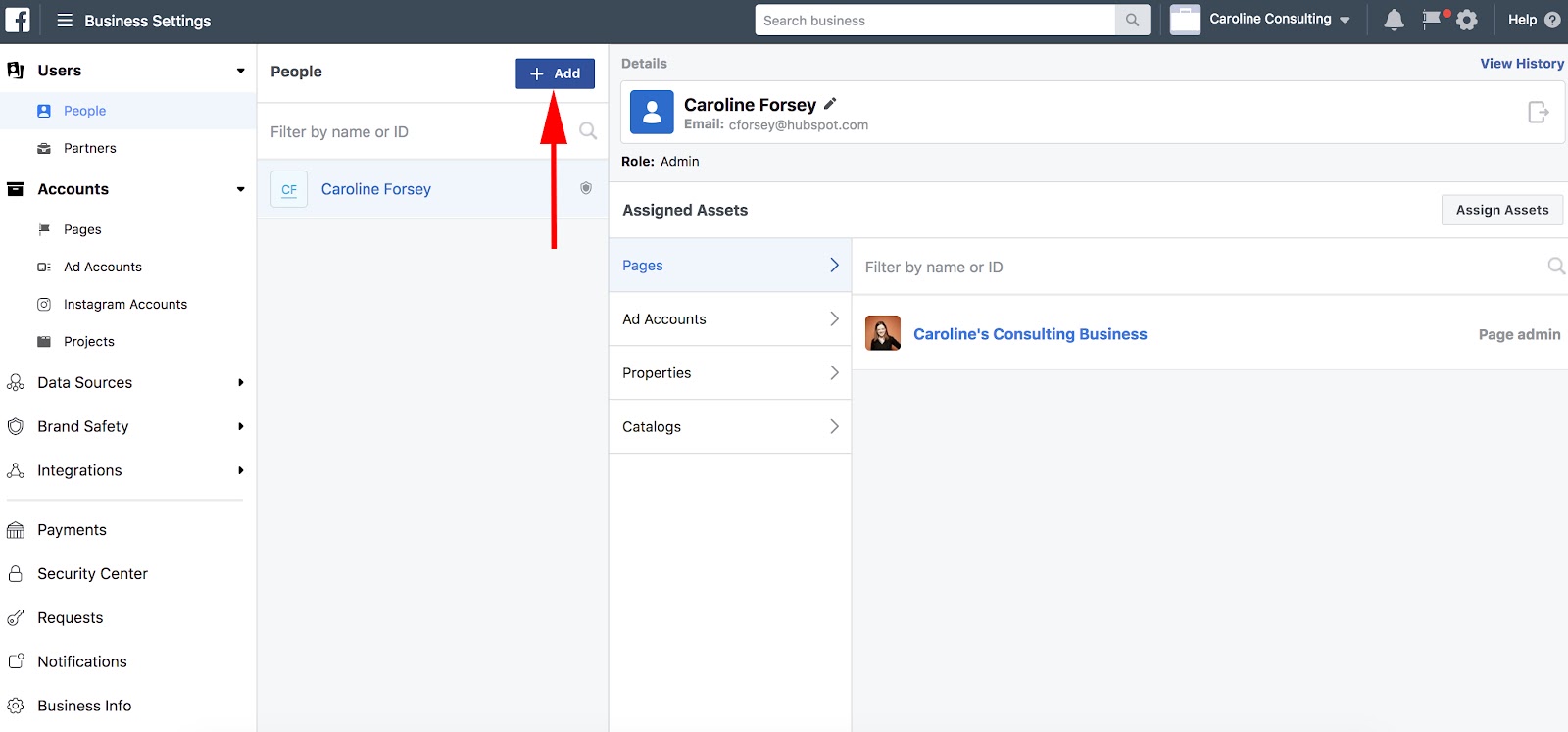
2. Next, click the blue “Add” button, highlighted below.
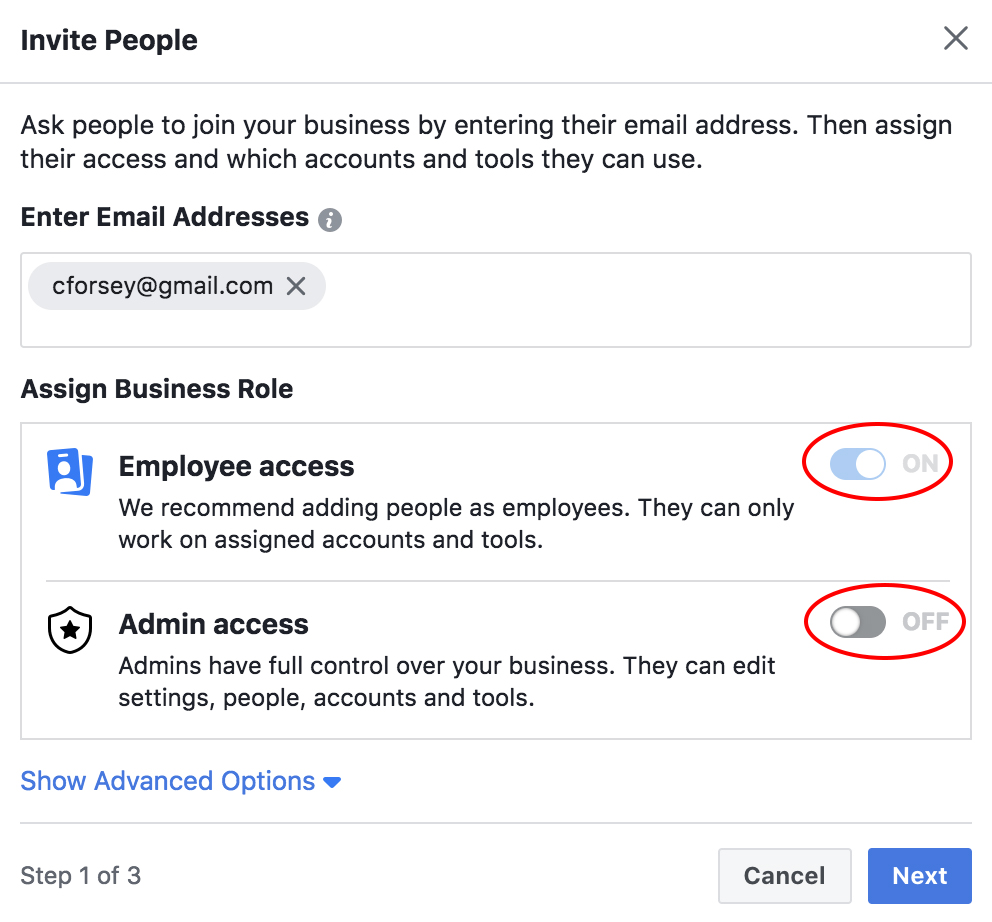
3. Type in an employee’s email address (so Facebook can send them an email with access permissions), and then select “on” for either “Employee access” or “Admin access”. Then, click “Next”.
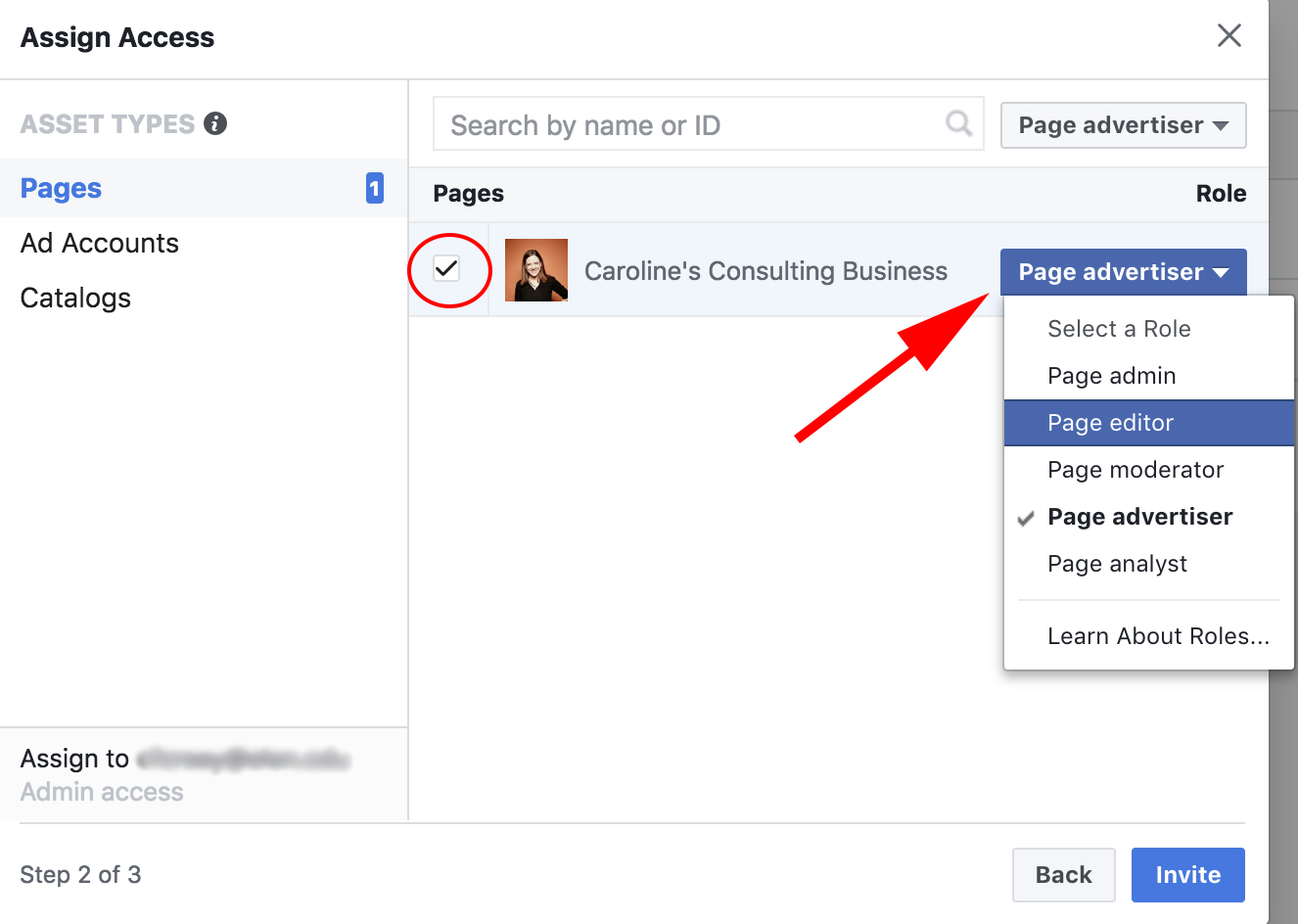
4. Here, you have a couple different options. You can assign your employee to any of the assets on the right (Pages, Ad Accounts, or Catalogs). Then, check off the box of the Page, ad, or catalog you want them assigned to. Next, select a role for your employee (like “Page advertiser”). Once you’re satisfied, click “Invite”.
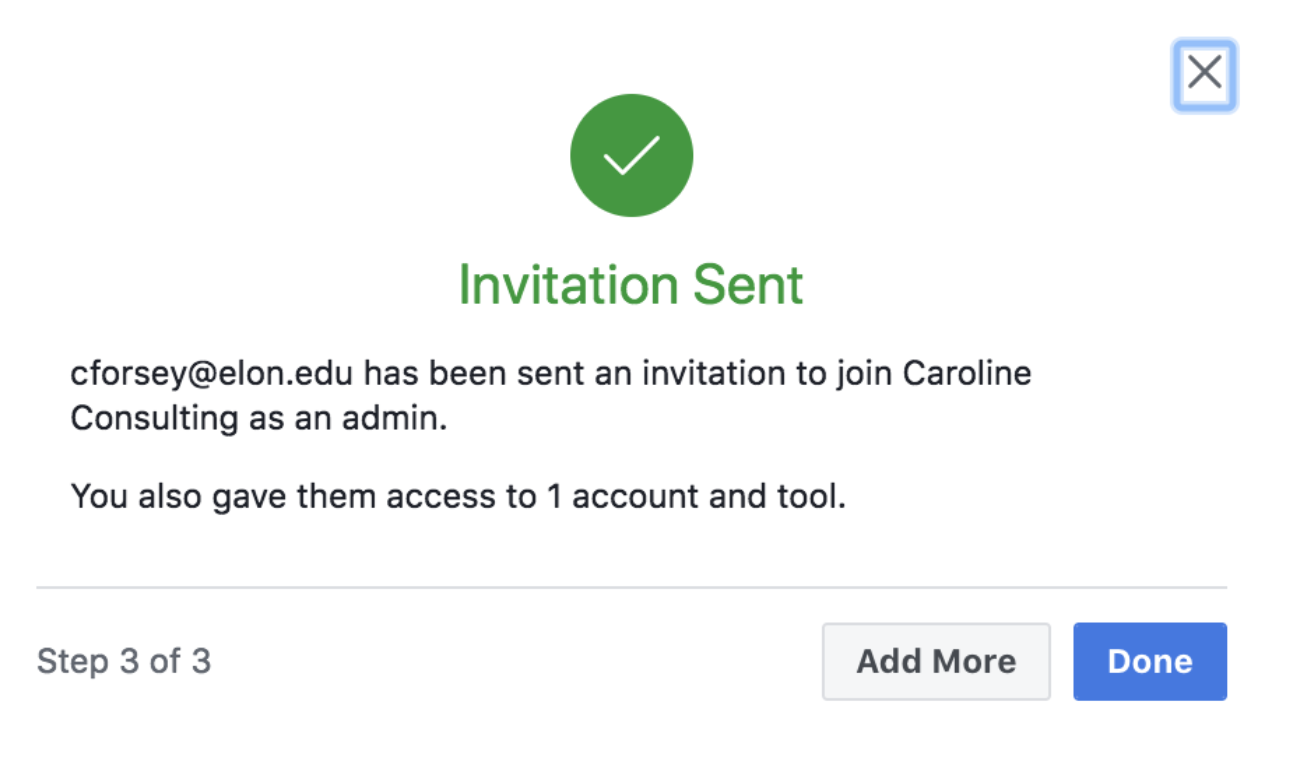
5. Now, your employee has been sent an invite, granting her permissions to 1 account and tool.
How to delete Facebook Business Manager
- Go to “Settings” in Facebook Business Manager
- Select “Business Info”
- Click “Permanently Delete Business” on right side of page
Ads Manager Tools
Now that we’re all set up, you might be curious about some of the additional benefits of creating an ad inside your Business Manager.
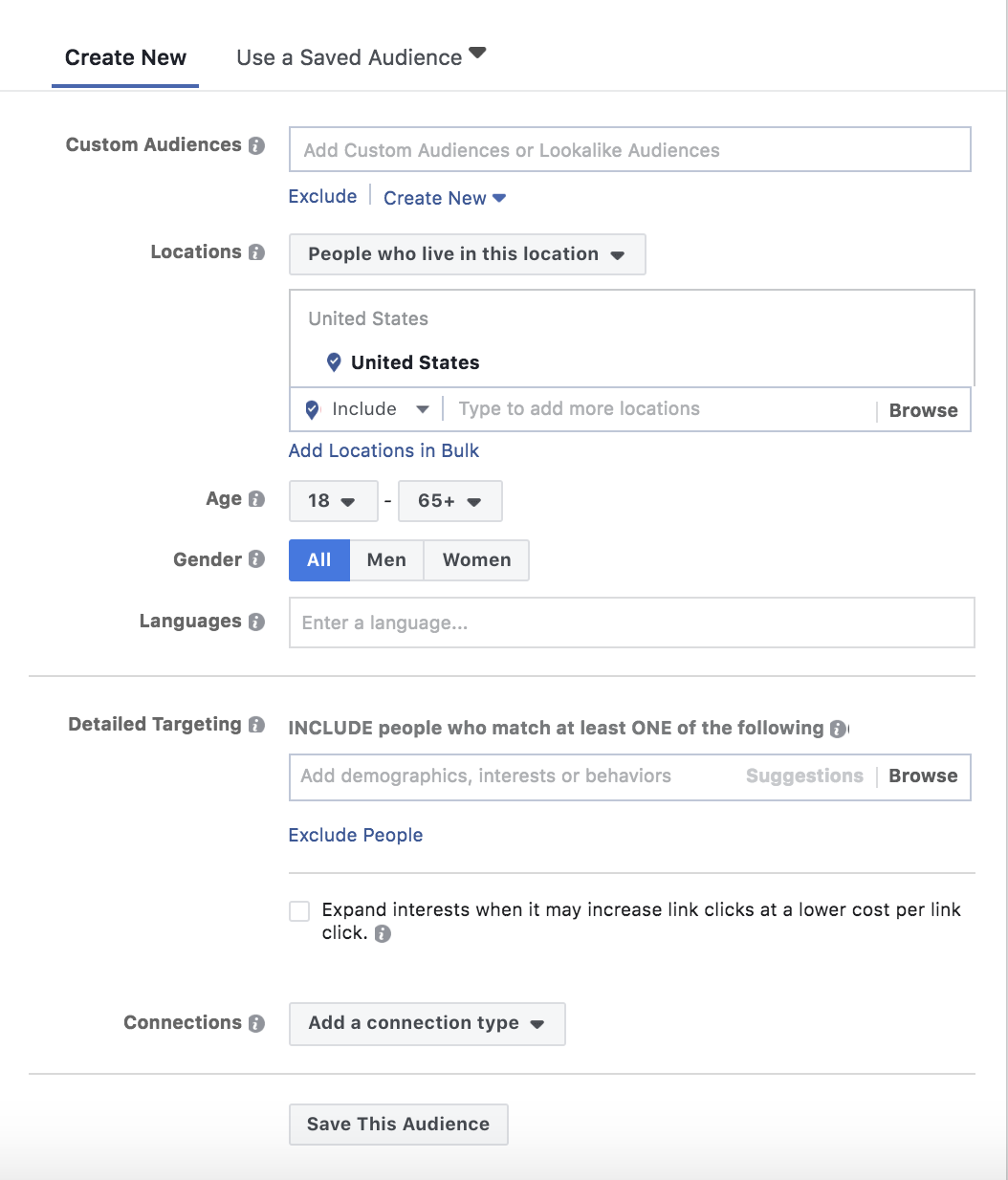
When creating an ad in Ads Manager, one of the best advantages (as you’ll soon see) is the ability to create a highly-targeted core demographic group with the “create new audience” feature.
You can choose a gender, age, region, and language to reach, and even dive into specific interests you want your audience to share.
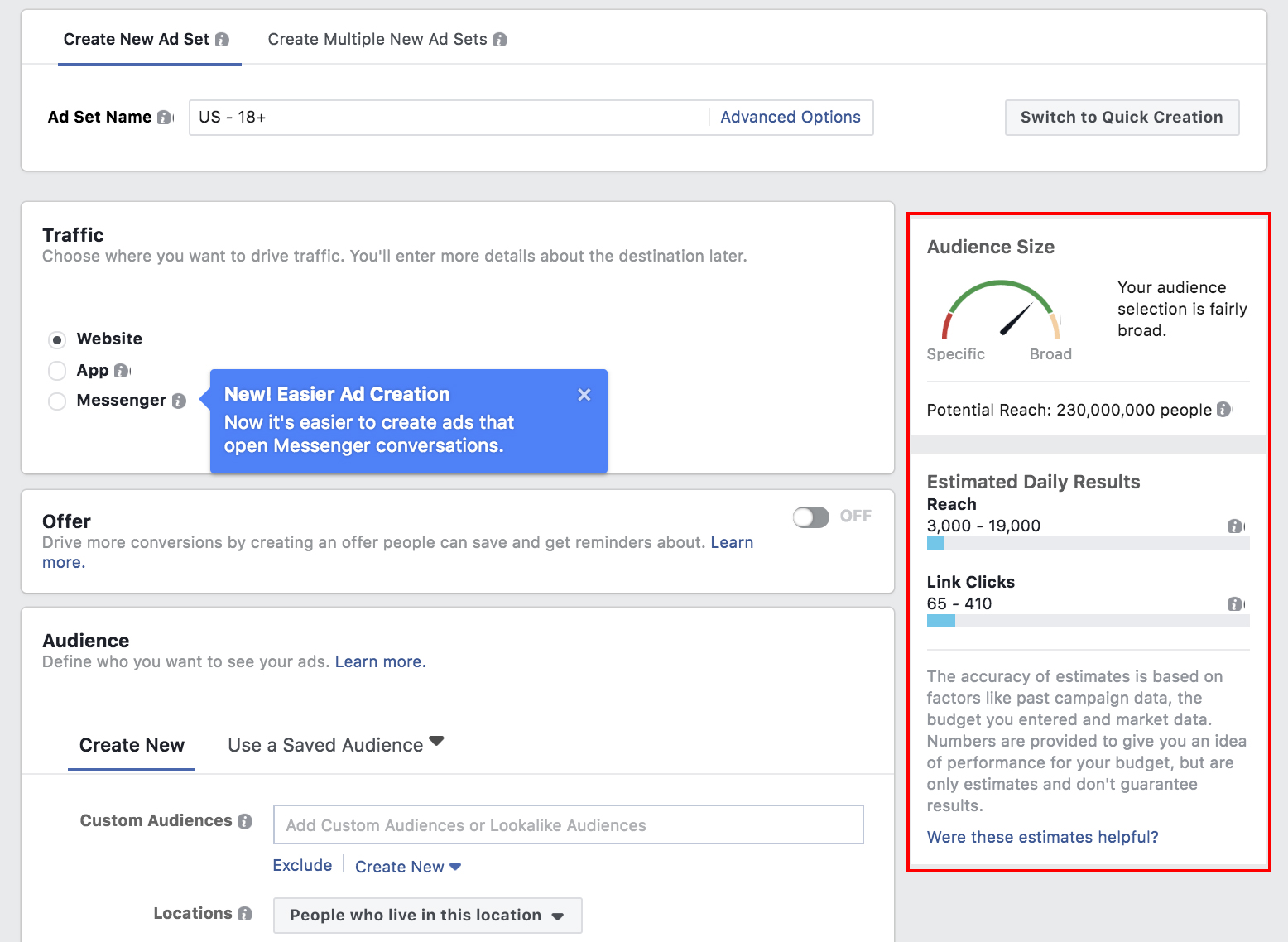
Then you’re given estimates based on your audience and budget, like how many people you’re expected to reach daily, and how many people will click your link. Those performance evaluations are critical to deciding whether to increase or decrease audience size, or whether your budget is big enough.
Here’s how to create an ad in Ad Manager:
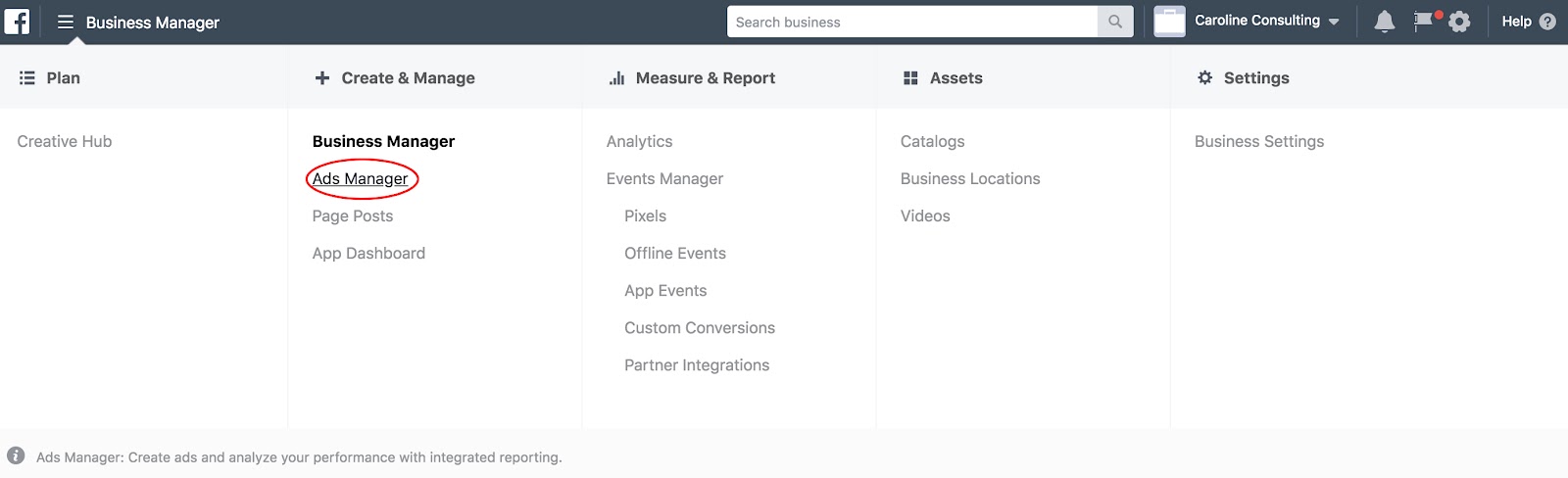
1. Click the “Business Manager” three line icon in the top left, and then select “Ads Manager”.
2. Select “Create New” under the “Ad Account” category on the left-hand side, and input basic information, like country, currency, and time zone for your ad. Then click “Continue”.
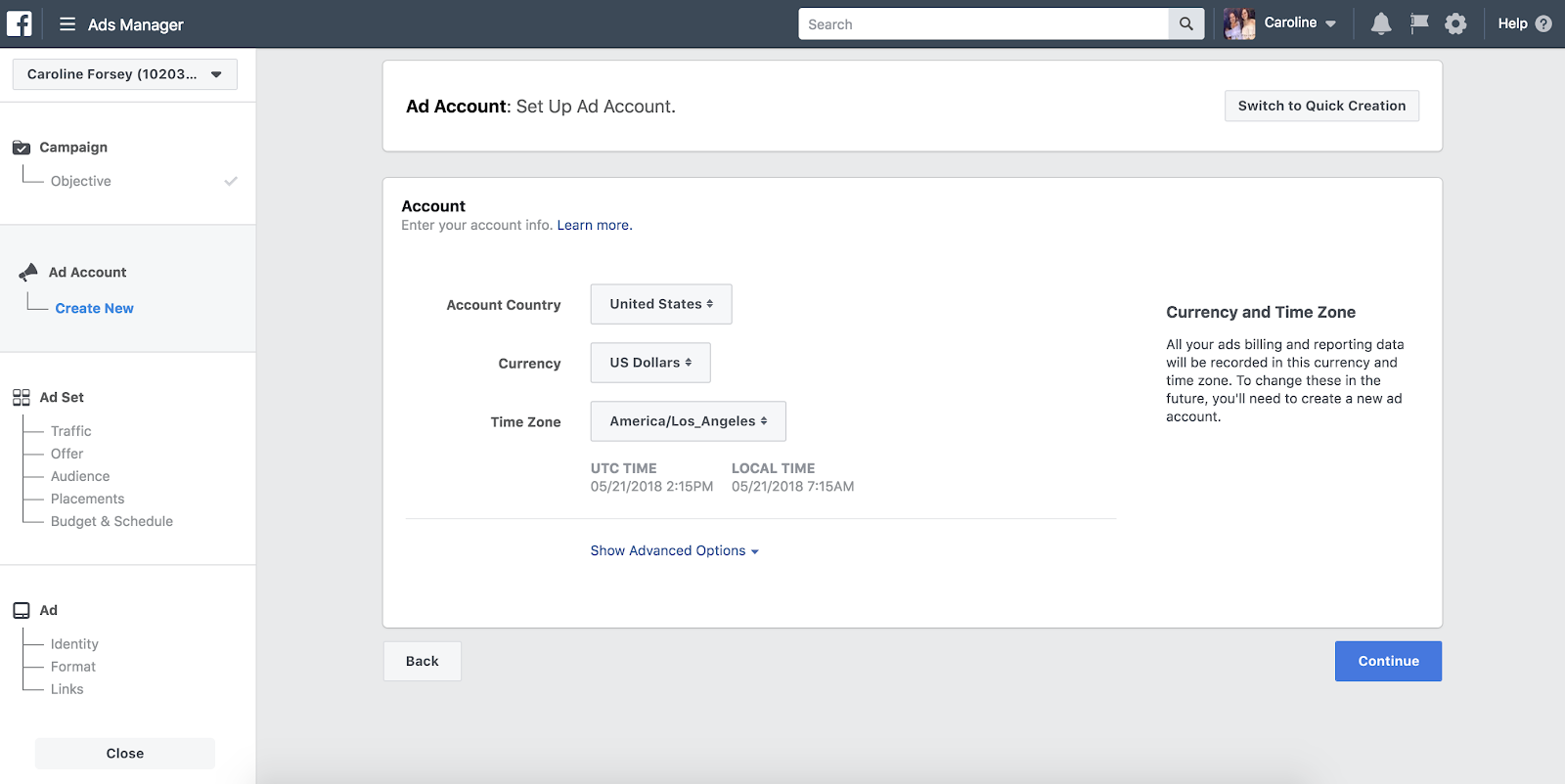
3. If you’ve already created an audience for another ad, you could “Use a Saved Audience”. If not, you will input information about your new desired audience here — you don’t need to include all the information, but the more you include, the more likely you are to reach your target demographic with your ad.
4. As you fill out the information, you’ll see an “Audience Size” chart on the right. This gives you estimates for how many people you might reach daily, and how many clicks you’ll get. While it’s not guranteed, it’s a good tool for evaluating whether you should narrow your audience or, if possible, increase your budget.
5. Once you’ve created an ad, you’ll find it in your Ads Manager homepage by clicking “Ads Manager” or searching facebook.com/adsmanager. Along with your ads, you’ll also find Ad Sets, Campaigns, or a general Account Overview. The Ads tab in particular provides you with analytics such as reach, impressions, cost per result, and relevance score.

Facebook Business Manager Analytics
Lastly, here’s a general overview of your “Analytics” tab and what the Analytics page looks like:
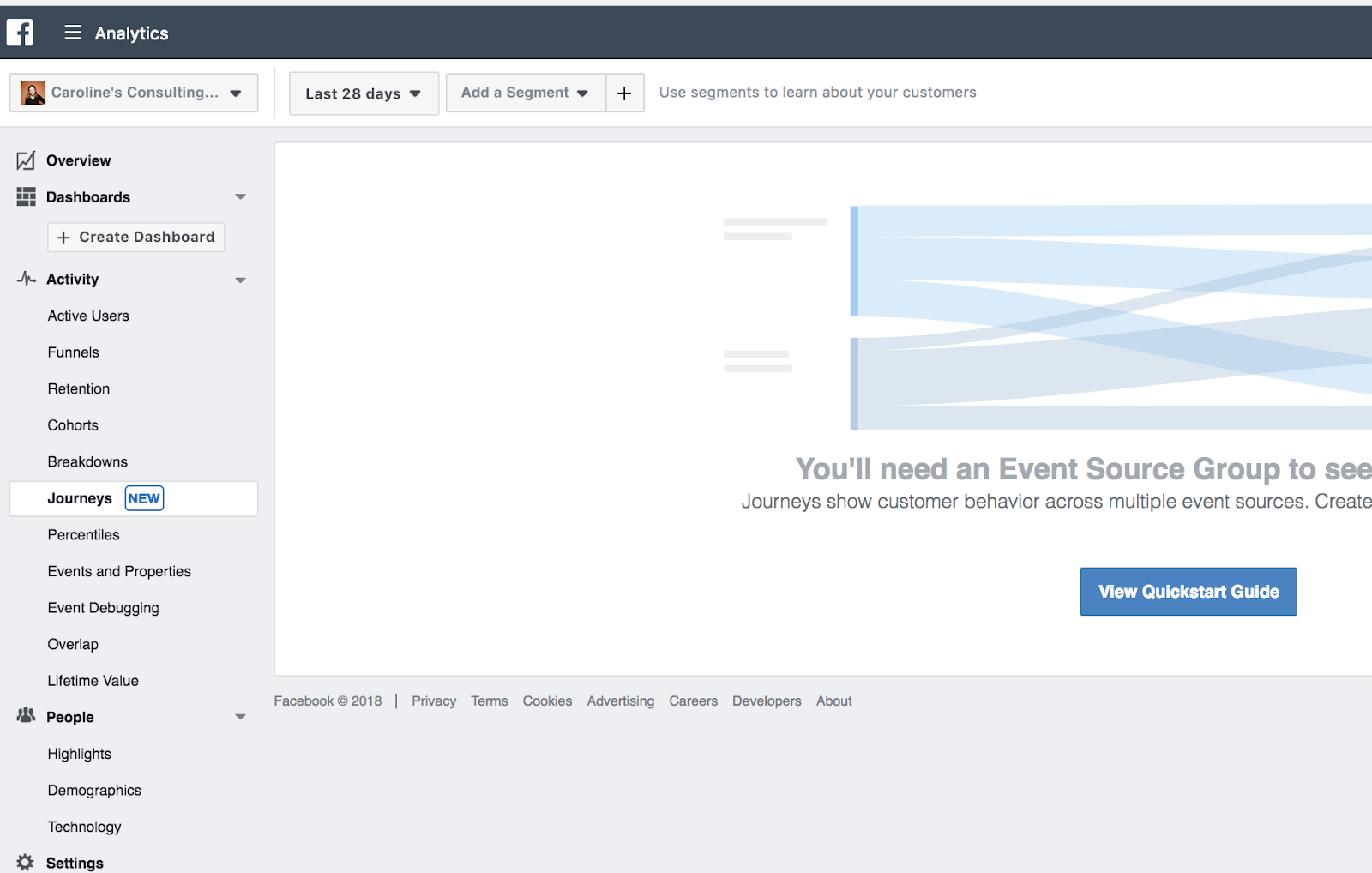
We won’t go too in-depth with analytics, since it’ll vary drastically depending on your business’s advertising goals, budget, and audience.
However, it’s important to note a few major components of Business Manager’s analytics, to ensure you understand the tool’s most impressive functions.
5 Business Manager Analytics Functions You’ll Want to Know About
- Facebook Pixel: If you install Facebook Pixel, your website can reach people with ads on Facebook after they’ve visited your site
- Split testing: Use A/B testing to figure out which ads lead to the highest conversion rate
- Conversion lift: Use this tool to ensure your ads are actually generating conversions and sales
- Mobile SDK: If your business has an app, use Mobile SDK to see what actions people are taking within your app, and use that information to improve ad campaigns across devices
- Brand lift: Find out how your ads are impacting your brand image to optimize ads for better brand awareness
Check out Facebook Business’s advertising information page to learn more about Facebook ad functions, read success stories for industry-specific businesses, and get inspiration and ideas to improve your own ads.

How to Create a Facebook Ad With Business Manager
Want to use Facebook for advertising? Wondering how to create your first Facebook ad using Business Manager? In this article, you’ll learn how to create a Facebook page post ad using Facebook Business Manager. #1: Set Up Facebook Business Manager If you don’t already have a personal Facebook profile, creating that profile is your first […]
The post How to Create a Facebook Ad With Business Manager appeared first on .
from https://ift.tt/2IJ7rGS
via socialmediaexaminer
Growing number of iPhone X users report easily cracking camera lens

Instapaper says it will temporarily go offline in Europe due to GDPR

Instapaper, the popular read-it-later application, revealed today that it will temporarily suspend service in Europe. Instapaper says it will be unavailable beginning tomorrow, Thursday, May 24th, as it continues to make GDPR-required changes…
How to Make Quotes for Instagram: 9 Apps to Try This Year
When you come across a beautiful sight — be it a beach, a mountain, or your pet’s face — sometimes, it inspires you to think bigger about what certain sights and experiences mean.
For those moments, you might consider posting a photo on Instagram with an equally inspiring quote as the caption. But you could take it even further — and save characters — by posting the photo with the quote.
You’ve likely seen quotes on Instagram posts before, but you may never have created one for your brand’s account. Here’s a recent Instagram quote we shared here at HubSpot:
See what we mean?
Posting quote images on Instagram can diversify your content on the platform and humanize your brand a little, too. Everyone could use a motivational quote during a busy Monday morning or a slow Tuesday afternoon, so try out an Instagram quote for your next post with the help of these free apps.

9 Instagram Text Apps to Make Inspiring Quotes
1. FaceGarage
Web App

FaceGarage is a browser tool that helps you create Instagram images with quotes overlaid in just a few simple steps. You can upload an image of your own or use one of the site’s stock background images, type in your quote, adjust the font, text size, color, and formatting, and voila — you generate your image and download it to post on Instagram.
Our favorite thing about FaceGarage is the images don’t come with a watermark, so you can create more beautiful posts that don’t have a logo in the corner.
2. Canva
iOS, Android, or Web App

Image via Google Play
Canva’s many features extend beyond text-based pictures and, for that matter, social media. But the mobile app and its gorgeous pre-made templates make it perfect for Instagram quotes.
Using the Canva’s social media post setting, you can draft banners, flyers, cards, and posts of all shapes and sizes using one of hundreds of pro-level backgrounds. Of course, feel free to snap a photo on the go, as well. One you select your image, you can choose from more than 100 fonts, adjust the size and color, and publish.
3. ReciteThis
Web App

ReciteThis is another quick and easy browser tool you can use to create quotes for Instagram. Its two-step process involves selecting one of the ready-made background themes, typing in your quotation, and pressing “Create.” From there, you can upload the image to a variety of social networks (not including Instagram) or download the image to upload and post on Instagram.
The downside to ReciteThis’s ease of use is the highly visible watermark in the bottom-center of each image, but you might be able to crop it out using your phone’s photo editor before uploading to Instagram, depending on the design you choose.
4. Word Swag
iOS or Android

Image via Word Swag
Listed in iTunes’s top 100 apps in the Photo & Video category, Word Swag helps you create text images that are as edgy as the app’s name sounds. The app uses a special typing engine to create fresh quote designs based on the background picture you’re working with.
Just select (or shoot) your picture, type your quote into the app’s plain text editor, select one of nearly 50 styles, and shuffle through the diverse choices that appear. Word Swag has literally thousands of quote and image options to choose from through a handy integration from Pixabay, a free image gallery.
5. InstaQuote
iOS or Android

This free app offers a lot of options to customize your quote image, font styles, and color schemes. You can use your own photos or one of InstaQuote’s, and it allows you to automatically upload your image to Instagram so you don’t have to download it and then upload it.
The downsides to many free apps — including InstaQuote — are the prevalence of ad interruptions, and that many features are locked unless you upgrade to the paid version.
6. Text2Pic
iOS or Android

Text2Pic stands out from the crowd in a couple of ways. It has the widest variety of font style and formatting options — including 3-D and shadowing capabilities to add more effects to your text. It also auto-connects to Instagram for seamless uploading and posting on the platform.
The biggest downside we’ve noted is the inability to upload your own photo as a background image, but Text2Pic makes up for that with a ton of different background options to choose from.
7. Quotes Creator
iOS or Android

Quotes Creator has a neat feature that suggests quotes to use — including their attributions — to take the work out of creating an inspirational post for you. We also like how subtly transparent the watermark is to make it as distraction-free as possible. This is another easy-to-use app that creates quotes for Instagram in just a few simple steps — with an easy tap to upload to the platform.
Quotes Creator’s stock background options are a little cheesy, so we recommend finding your own and uploading them.
8. Quote Maker
iOS or Android

Quote Maker is another free app that tries to upsell its Pro version to unlock more background and style options, but you can always upload your own background if you feel too limited. Where Quotes Maker takes the cake is its cool font styling and effects. You could add neat decals to your brand’s name or a stamp-like effect to a company motto or mission statement.
We recommend exploring the app, but another warning — it can be glitchy if your design and editing actions get more complex. It’s best for simple images, like the one above.
9. Text on Photo Square
iOS only

Text on Photo Square is only available on iOS devices (for now), but its distinction from the rest of the pack is that users can add quotes to videos, in addition to photos. You can upload your videos and add quotes to create a neat audio and visual experience for your Instagram followers. A cool quote-video might distract from the watermark, which is admittedly one of the larger ones on this list.
Some of these apps might be worth investing in the paid version to create more unique images — without the watermarks — to post quotes on Instagram. But for now, try out these free options during the next social media holiday to see if your audience is ready to be inspired.


Apple Watch: How to turn off Nightstand mode

Apple Watch is designed to be charged on a nightly basis. However, a small subset of users prefer to charge Apple Watch throughout the day to track sleep at night.
Facebook streamlines two-factor setup, adds support for home services to Marketplace

Facebook has today announced a pair of new features for its platform. The company is rolling out support for finding home service professionals via its Marketplace platform and is also making two-factor authentication easier to set up.
Report: After failed talks w/ Mercedes & BMW, Apple reaches self-driving car deal with Volkswagen

Apple has continued to ramp up its self-driving car testing over the last few months, and now a report from The New York Times says the company has inked a deal with Volkswagen. As part of the deal, Apple will turn Volkswagen’s T6 Transport vans into self-driving shuttles…
Apple Watch: How to always show last app used on wake screen

Depending on your preferences and what app you’re using at any given time, it can be useful for your Apple Watch to always show your last used app on the wake screen. Follow along for how to set this up.
9to5Mac Daily 080: May 23, 2018

Listen to a recap of the top stories of the day from 9to5Mac. 9to5Mac Daily is available on iTunes and Apple’s Podcasts app, Stitcher, TuneIn, Google Play, or through our dedicated RSS feed for Overcast and other podcast players.
Review: Case-Mate’s convertible 9W Qi Power Pad lets you easily use iPhone while wirelessly charging

Case-Mate released its Power Pad Qi wireless charger last month and we’ve been testing it out for the last few weeks. With a unique design that allows it to stand or lay flat while in use, Power Pad is worth checking out. Read on for our full review.
FruityLoops digital audio workstation makes Mac debut after 20 years on PC

iOS 12 concept reimagines Notifications, with an emphasis on app-based grouping

We’re not expecting radical changes in iOS 12. However, many users are wanting a revamped, smarter notifications system with the update. As is currently implemented, iOS notifications sort by time, with no grouped notifications, whether smart or not.
Apple Watch LTE defining wearables market with 60% of global sales, likely higher in the US

New data from Canalys today sheds some light on how Apple Watch sales stacked up against the competition during the Q1 2018 (Apple’s Q2). While maintaining its top spot as the most popular wearable maker, Apple also dominated cellular smartwatch sales.
9to5Toys Lunch Break: iOttie iPhone Car Mount $20, MFi Apple Watch Charger $22, HP Envy Printer w/ AirPrint $40, more

Keep up with the best gear and deals on the web by signing up for the 9to5Toys Newsletter. Also, be sure to check us out on: Twitter, RSS Feed, Facebook, Google+ and Safari push notifications. more…
Apple will give $50 credit to customers who paid full price for iPhone battery repairs in 2017

Apple is offering a $50 credit to iPhone customers who paid for an out-of-warranty battery replacement in 2017, who would be affected by the battery performance throttling saga but had already had their battery replaced before #batterygate happened at the end of the year.
Before the discount, Apple battery replacements cost $79, so a $50 credit matches the current $29 price.