
Welcome to My Blog
Urban Armor Gear prepping case for 10.5-inch iPad Pro, with June availability
The Scarcity Principle: How 8 Brands Created High Demand
If you took the same Introduction to Economics class that I struggled through in college, you might remember this key lesson:
The law of supply and demand states that a low supply and high demand for a product will typically increase its price.
Why am I telling you about basic economic rules? Because changes in the supply and demand of products can result in the scarcity principle coming into play.
This psychological principle of persuasion coined by Dr. Robert Cialdini means the rarer or more difficult to obtain a product, offer, or piece of content is, the more valuable it becomes. Because we think the product will soon be unavailable to us, we’re more likely to buy it than if there were no impression of scarcity.
Brands can use the scarcity principle to persuade people to fill out a lead form, purchase a product, or take another desired action. Here’s an example: On many air travel booking sites, such as KAYAK, flight listings are displayed with a note that only a few seats are left at a certain price. Check it out below:
We know that airfare pricing is incredibly volatile — that’s why some of us wait until certain times or days of the week to make purchases — so the knowledge that only one seat is available at that price makes me think I should buy it now, instead of waiting and running the risk of paying more later.
Now that we’re all up to speed on scarcity, we wanted to highlight 10 other brands that successfully have successfully used the principle to market and sell different products.
8 Brands That Used the Scarcity Principle to Promote and Sell Products
1) Snap Inc.
Source: Spectacles
Ephemeral social media app Snapchat’s parent company, Snap Inc., unveiled Snapchat Spectacles in September 2016: sunglasses that could record 10-second videos from the perspective of the wearer. But instead of selling the new gadget online or at a storefront, Spectacles were initially only sold via Snapbots — smiling, Snapchat-themed vending machines that were randomly dropped in cities around the United States.
Source: Phandroid
There were never announcements in advance of the arrival of Snapbots — most awareness was generated on social media channels, and huge lines of people would queue hoping to purchase Spectacles before the Snapbot ran out of stock for the day.
Now, Spectacles are sold online or at a few more permanent pop-up locations, so there’s no need to line up outside a vending machine if you don’t want to. But for the initial launch, the Snapbots were a unique approach to the scarcity complex. Spectacles were available for a limited time only — just the day the Snapbot was in your city, and you had to beat everyone else trying to buy Spectacles before the machine sold out.
Plus, the product’s scarcity meant nobody — ourselves included here at HubSpot — could stop talking about the Spectacles. Blog posts and social media comments about the unique selling approach helped fuel even more interest in the products. And although we don’t have hard numbers about how the Spectacles are performing, MediaKix projects Snap will achieve $5 billion in Spectacles sales by 2020.
2) Google
Source: OptimiseWeb
If you still remember the brief time when we were all obsessed with joining Google+, you might recall that its summer 2011 launch was by invite-only: Users had to be invited by Google or by friends who shared an invitation with them. Under this system of exclusivity, 10 million users joined Google’s social network in just two weeks. By September 2011, Google+ was open to all Google account holders, and 400 million people signed up within its first year. Over 100 million of these were daily active users, and Google started competing with other popular social networks for users’ attention.
Google+ isn’t as popular nowadays — and in recent years, Google started rolling back Google+ from the rest of its more popular products, such as YouTube and Gmail. But the low supply of Google+ invites back at the time of the launch resulted in high demand and a massive number of signups.
3) Nintendo
Source: TechCrunch
If you weren’t a big gamer back when Nintendo released the Wii gaming console in 2006, you might not remember that the Wii was one of the hottest commodities on the market. When it was officially released in November 2006, people lined up to get their hands on the Wii as soon as possible, but the mania didn’t end there. For nearly three years, the Wii was flying off the shelves and gaming stores couldn’t keep shelves stocked — despite Nintendo increasing its supply to 1.8 million and then 2.4 million units of production per month.
Supply eventually caught up with demand — 48 million Wiis sold later. By starting out with a low monthly production number, Nintendo ensured that customers would be clamoring to buy more right off the bat. The scarcity complex here made people desperate to buy a Wii whenever they could — especially after a Nintendo executive advised shoppers to “stalk the UPS driver” and to figure out when Wiis were being delivered to stores to get their hands on one.
4) Starbucks
Coffee lovers recently decried Starbucks for adding the “unicorn frappuccino” to its menu — made of ice cream, fruit flavors, and sour candy — but people couldn’t get enough of the brightly colored, highly Instagrammable drink. After stating on its website that the specialty drink would only be available for a few days, Starbucks was flooded with unicorn frappuccino orders — which quickly sold out within the first day. There are no sales numbers available for the specialty drink yet, but there are nearly 160,000 #unicornfrappuccino posts on Instagram.
Starbucks gets a lot of orders — and social media engagement — during another of its notorious limited-time offers: the Starbucks Red Cups. During the holiday season in December, Starbucks starts serving coffee in red cups for a limited time only to drive people into cafes and to get them sharing #RedCups photos on social media. In this case, scarcity + food and drink is the magic equation.
5) Girlfriend Collective
Girlfriend Collective’s offer was simple: For a limited time, if you paid for the cost of shipping, the brand would send you a pair of $100 leggings for free. All you had to do was share a link to its website on Facebook.
Girlfriend Collective had just launched its website, and it was asking its female consumers to spread the word about the leggings so it could dedicate 100% of its advertising budget to leggings production. And if you think about it, that was a smart approach. After all, which are you more willing to trust: a Facebook ad offering free leggings, or half of your friends in your News Feed advocating for the offer?
Using this model, Girlfriend Collective “sold” 10,000 pairs of leggings just on the first day of the campaign — in addition to the myriad of fans and buzz it scored as a by-product. The one-two punch of “limited supply” and “free” made this offer irresistible — even to me.
6) Groupon
Source: Groupon
Groupon partners with different businesses to offer discounted services in exchange for new customers — and a split of the revenue. The site often uses a limited time remaining warning (pictured above) to encourage visitors to buy quickly at the risk of missing out on a good deal.
For some deals, Groupon uses a few marketing psychology persuasion tactics to encourage you to buy. Check out the deal below:
This deal uses the scarcity principle and social proof to encourage you to buy it — it’s only available for a limited time, and almost 600 other people have already purchased it and rated it highly. These strategies work well — Groupon made more than $3 billion last year.
7) Spotify
Source: Geek
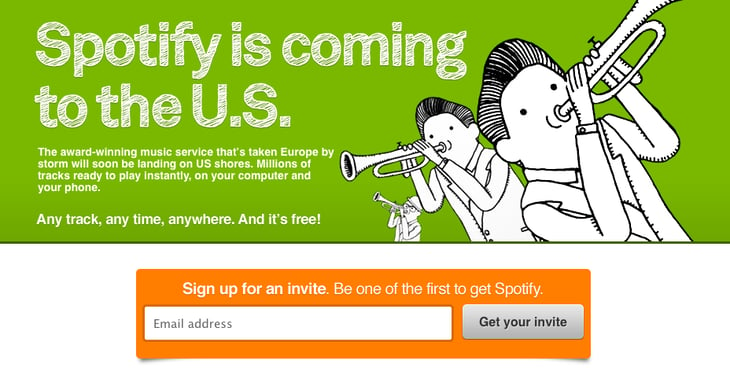
When music streaming service Spotify was first launched, the United Kingdom were the only countries that didn’t require an invitation from a friend or from Spotify to sign up. But due to high demand, Spotify U.K. actually had to start requiring invitations to manage all of the news users. The caveat to the invitation-only launches of Spotify around the world? Anyone could sign up for a premium, paid Spotify account. Using the scarcity principle, Spotify managed high levels of consumer demand by offering them a way in — for a price. Now, half of Spotify’s 100 million users are paid subscribers.
8) TOMS
Source: TOMS
The beloved TOMS shoes offer a great value proposition beyond comfort and style: For every pair of shoes purchased, TOMS donates a pair to a child in need. TOMS takes that a step further by partnering with other advocacy organizations to share sales revenue to benefit other worthy causes.
Because the brand knows its customers are already philanthropic, it’s a safe bet they’ll want to purchase shoes benefiting other causes (such as pandas in the example above), but they still might need a push. So TOMS created this neat mini-site about why TOMS and WildAid are partnering, along with some fun facts about pandas and unique panda-themed shoe designs.
Then, once the visitor has read the entire compelling site and started browsing the vegan, panda-friendly footwear options, TOMS subtly lets them know that the shoes are only available for a short period of time. In other words, helping cute pandas is only an option for a limited time, too.
TOMS approach of using the scarcity complex to encourage shopping and philanthropy works here — in fact, I might be buying a pair of these myself.
Sometimes, Less Is More
Invoking the scarcity principle to promote and sell a product can be an effective persuasion strategy, but you have to do it correctly. If you phrase the product scarcity as if there used to be a large supply, but due to increased demand, only a few products were left, consumers will be more receptive. But if you phrase the product scarcity as if only a few units of product were ever available, the principle of scarcity won’t be as effective at generating sales.
For more persuasive ideas for effective marketing messages, download our introduction to marketing psychology here.
Are there other brands you buy from that use the scarcity principle? Share with us in the comments below.
How to Research Your Competitors on Instagram
Wondering what your competitors are up to on Instagram? Want to compare their marketing efforts to yours? Researching how your competitors market on Instagram can help you find new ways to reach your shared customer base. In this article, you’ll discover how to research your competitors on Instagram. #1: Identify Industry-Wide Trending Topics and Hashtags To […]
This post How to Research Your Competitors on Instagram first appeared on .
– Your Guide to the Social Media Jungle
from http://ift.tt/2qS6vKL
via socialmediaexaminer
Apple updates Support app w/ rich notifications, authorized service provider appointments, more
Apple this evening has started rolling out an update to its Apple Support app on iOS that adds a host of new features. The update brings the app to version 1.1 and introduces new features such as rich notifications, additional country support, and more.
iPhone 8 images based on leaked factory CAD drawings show all glass design, thicker body
We’ve seen a variety of iPhone 8 leaks over recent months and now a new set of renders has emerged, this time courtesy of Onleaks. These renders are based on leaked CAD images and may offer the most accurate look yet at what the iPhone 8 could look like…
Hands-on: iOS-compatible LaMetric Time clock is like a status board for your desk [Video]
The LaMetric Time is a highly-customizable Wi-Fi-enabled clock that can be configured via its free iOS companion app. The app allows you to customize the clock face, and load apps for displaying personalized information — things like Twitter followers and realtime YouTube subscriber numbers, for example.
Although the LaMetric Time includes a clock, it’s more of a smart dashboard that can be fed information from a seemingly endless amount of Internet-connected sources. The device, which includes Bluetooth-enabled stereo speakers, makes for a good desktop companion that keeps you up to date with details on everything from Instagram followers to stock updates. Have a look at our hands-on video walkthrough for more details. more…
Apple acquires popular Apple Watch sleep tracking app Beddit
Apple has acquired popular iOS sleep tracking app Beddit. While specific details of the acquisition are unclear at this point, Beddit has updated its privacy policy on its website to announce the change and note a change in privacy policy.
Pinterest updates Lens feature w/ QR code support, multiple object recognition, more
Earlier this year, Pinterest introduced a new Lens visual discovery feature, allowing users to easily find design inspiration using their iPhone camera. Now, the company is adding new features to its Lens tool, as it announced in a blog post earlier today.
KGI: There’s a ‘rising probability of worst-case scenario’ for iPhone 8 shortages
Martin Hajek iPhone 8 Concept
Reports of delays and production difficulties have been plentiful for to the iPhone 8, and it doesn’t seem like things are going to get much better. KGI’s Ming-Chi Kuo is out with a new report this evening in which he says that there’s a “rising probability” of the “worst scenario” for production and shipments of the device…
Apple bought new battery cell lifecycle testing machines developed by Tesla’s battery research partner
On Electrek today, we reported that Tesla’s battery research partner announced that they managed to double the lifetime of the batteries in Tesla’s products 4 years ahead of time.
They achieved that through a new method to test battery cell longevity and we now learn that Apple also bought the same machines developed through the method. more…
Exclusive Harry Styles documentary coming to Apple Music May 15th
As Apple Music continues to feature more exclusive content, former One Direction member Harry Styles is the latest that will be releasing his musical documentary exclusively on Apple Music on May 15th.
The documentary, aptly named Harry Styles: Behind the Album is a behind the scenes look at Styles’ first solo album. From the already released singles, the album will be a departure from the British boy band member’s earlier sounds. As Styles puts it, “I kind of wanted to see if I could write something that people liked without knowing everything about me.”
How to Use Facebook Live: A Step-by-Step Guide
In April 2016, Facebook launched Facebook Live, a live video streaming service that lets anyone broadcast from their mobile devices straight to their Facebook News Feed.
Since its launch, live streaming video has grown in popularity, with 16% of marketers broadcasting it in 2016. Facebook Live is particularly popular — videos see 3X the engagement of traditional videos shared on the platforms, and millions of users live stream on Facebook around the world.
Why are marketers getting so excited about Facebook Live? Because it’s a fun and simple way for them to use the power of video to communicate their brand stories and build authentic relationships with fans and followers — in real time.
However, for such a simple concept, Facebook Live has a lot of little nuances that marketers will need to learn if they want to get the most out of the platform. This guide will help you learn the best tricks and tricks that can make a big, big difference in how many people see your live broadcast, how they engage with it, and how it performs.
In this post, we’ll walk through how to broadcast on Facebook Live, how to analyze your live video’s performance, and several tips and tricks for getting the most out of the platform. (Click here to skip down to the tips.)
How to Broadcast on Facebook Live
Facebook Live started as a mobile-only broadcasting feature, but now, Facebook Pages can broadcast from either mobile devices or desktop computers. We’ll go over how to broadcast from mobile and desktop devices in the sections below.
How to Broadcast on Facebook Live via Mobile
To get started, get out your mobile device and open up the Facebook app.
Step 1: Go to the News Feed, and tap the “Live” option denoted by the  icon.
icon.
You can also go live from your own Facebook profile. Open up the status bar by tapping the text that reads “What’s on your mind?” Then, select the “Live Video” option from the menu.
Step 2: Give Facebook access to your camera and microphone when prompted.
You’ll stop receiving these prompts after the first time you use it.
Step 3: Choose your privacy setting.
If you’re posting for a brand, you’ll probably want to make it public. If you’re posting as yourself, you might want to reserve your broadcast for friends. But if you’re new to Facebook Live and want to test it out first, or want to see what something will look like, then switch the privacy setting to “Only Me.” You can find the “Only Me” option by clicking “More” and scrolling all the way to the bottom.
Step 4: Write a compelling description.
Give your broadcast a description, which will show up on people’s News Feeds like a status update above the video. To get people to tune in, write an attention-grabbing headline and help them understand what your broadcast is about. Check out the example below from The White House’s live broadcast.
Image Credit: Facebook
Step 5: Tag friends, choose your location, or add an activity.
Tap the icons at the bottom of your screen to tag people who are in the Facebook Live video, add the location from where you’re shooting, or share what you’re doing in the broadcast. These touches can add more personalization to your video, increase discoverability, and make people want to tune in.
Step 6: Set up your camera view.
Before you click “Go Live,” be sure your camera’s pointing in the direction you want it to. The background of your setup screen will show you what your camera sees. If you want to change the camera view to selfie or vice versa, simply click the rotating arrows icon in the upper right-hand corner of your screen.
The video will be a square, so it doesn’t matter whether you hold your mobile device vertically or horizontally.
Pro tip: You can choose if you want the image to be horizontally or vertically mirrored, too. Tap the magic wand icon in the upper right-hand corner of your screen, then tap the tools icon at the bottom of your screen to film from a different view or to adjust the video’s brightness.
Step 7: Add lenses, filters, or writing and drawing to your video.
Tap the icon in the upper right-hand corner of your screen, and choose if you want to add lenses to your face, change the filter of the camera, or write or draw to make the video more whimsical.
Step 8: Click the blue “Go Live” button to start broadcasting.
Once you click it, Facebook will give you a countdown — “3, 2, 1 …” — and then you’ll be live. As soon as you start streaming, your live video will appear in your News Feed — and others’ News Feeds — just like any other post.
Your broadcast can be up to 90 minutes long. Keep in mind that the longer you broadcast, the more people who are scrolling through their News Feeds on Facebook will stumble upon your post.
Step 9: Interact with viewers and commenters.
To keep your viewers engaged, encourage them to interact with your live video (which will help your ranking in others’ News Feeds). You can also interact with them both by speaking directly to them in your video and, if you want, by having someone else respond to comments from a desktop computer elsewhere.
Where can you see these comments? While you’re broadcasting, you’ll see the time elapsed on the top left along with the number of viewers, and comments will show up live on the bottom of your feed. They’ll appear in reverse chronological order, like on Twitter, so keep in mind that the earlier ones may be farther down.
Image Credit: Facebook Newsroom
Note: You can also block viewers during a live broadcast by tapping the profile picture next to a viewer’s comment and then tapping “Block.” You can unblock someone you’ve previously blocked, too.
Step 10: Click “Finish” to end the broadcast.
Once you do this, the video will stay on your Timeline or Page like any other video post.
Step 11: Post your reply and save the video to your camera roll.
Once you finish your broadcast, you’ll be met with a screen similar to the one I’ve screenshot below. If you want to post it, that will enable others to view your video once you’ve stopped broadcasting. Then, tap the download button to save the video to your camera roll so you have a copy of the original for safekeeping.
Step 12: You’re done.
You can always go back to the post on your Timeline or Page and edit the description, change the privacy settings, or delete the video, just like you would any other post.
How to Broadcast on Facebook Live via Desktop
If you’re an admin or editor of a Facebook Page for your brand, you can also broadcast live from a desktop computer. This isn’t as spontaneous as broadcasting from a mobile device (and, obviously, isn’t as mobile), but this could be a good option for filming more static broadcasts. For example, we recently broadcast a Facebook Live panel in celebration of International Women’s Day. The panelists and interviewer sat in place the entire time, an example of when broadcasting from a steadier device could be more effective.
Step 1: Go to your Page and tap the “Write something” box, as if you’re writing a new post.
Tap the menu option to “See All,” and click on “Start a Live Video.”
Step 2: Write a compelling description of your video that will appear on your Page’s Timeline and in the News Feed.
Choose a descriptive and enticing summary to draw viewers in and make them unmute your Facebook Live to start watching.
Then, click “Next.”
Step 3: Give Facebook permission to use your computer’s camera and microphone.
You won’t be prompted for this again once you do it for the first time.
Step 4: Check to make sure your description and video view are final before starting your broadcast.
From here, you also have the option to share live video from an external device, such as a video camera or other recording device. Tap “click here” to set up that connection.
Step 5: Press “Go Live” to start your broadcast.
Facebook will give you a “3, 2, 1 … ” countdown before going live. Tap “Finish” when you’re ready to end the broadcast.
Step 6: The broadcast will appear in the News Feed and on your Page’s Timeline, where you can edit it by tapping the drop-down arrow in the upper right-hand corner.
From here, you can change the description, change the date of posting, or create a new Facebook post featuring the broadcast. If you want a video to garner more engagement, you can also pin it to the top of your brand’s Page so it’s the first post visitors see when they visit.
Now that you know how to broadcast from all devices, let’s dive into how to analyze Facebook Live videos.
How to Analyze Your Live Video’s Performance
How to Access Video Analytics on a Facebook Business Page
To get started analyzing your Facebook Live broadcasts, head to the “Insights” tab at the top of your brand’s Facebook Page:
Then, head to the “Videos” section of your analytics on the left-hand side of the screen.
From there, scroll down to the “Top Videos” section, and either choose a video from that menu to look into, or tap “Video Library” to look at all of the videos your Page has ever posted.
Now, let’s dive into the nitty-gritty.
The performance analytics available for Facebook Live videos are similar to those of normal videos on Facebook, with some neat additions.
- For Pre-recorded videos: Facebook lets you analyze minutes viewed, unique viewers, video views, 10-second views, average % completion, and a breakdown of reactions, comments, and shares.
- For Facebook Live videos: Facebook lets you analyze all the metrics listed above, plus peak live viewers, total views, average watch time, people reached, and the demographics of who watched your video.
In addition to all of these static numbers, you can click in to each metric to see how it changed over time when the video was live. For example, if we click into “Peak Live Viewers,” we’ll see this interactive graph of video viewers over time:
You can even see who your typical viewer was during your broadcast, based on their Facebook profile information:
Now that you’ve got the steps down, let’s get into some tips and tricks.
14 Tips & Tricks for Getting the Most Out of Facebook Live
There are a lot of little things you can do to squeeze the most out of your Facebook Live videos. Below is an example of one of the earliest Facebook Live videos from Refinery29. This was the first video of a five-part live video series called “Chasing Daylight,” showcasing a typical night out for women in five different cities around the world. My colleague, HubSpot Marketing Manager Lindsay Kolowich, tracked this one down, and we refer to it in some of the tips below.
Warning: Some NSFW language.
1) Test out live video using the “Only Me” privacy setting.
If you want to play around with live broadcasting without actually sharing it with anyone else, you can change the privacy setting so you’re the only one who can see it — just like with any other Facebook post.
To switch the privacy setting to “Only Me,” follow steps 1–4 in the instructions above.
2) Space out live videos with other Facebook posts.
Here’s a tip from HubSpot’s Social Video Manager Chelsea Hunersen. Because Facebook ranks Live videos higher than other videos and other types of posts, Hunersen recommends spacing out your Facebook Live videos with other Facebook content you post.
“Wait at least two hours before or after you post a Facebook live video,” she says. “Otherwise, your Facebook Live video may cannibalize additional traffic.”
3) Keep reintroducing yourself.
When you first start the video, take a minute to introduce yourself and what the video’s about. But keep in mind that when you first start live streaming, you may have zero people watching. Even a few seconds in, you could only have a handful of viewers. As people find your video on their News Feeds, they’ll join in — but that means you’ll want to reintroduce yourself a second, third, and even a fourth time to catch people up.
For example, in the Refinery29 video above, the host Lucie Fink introduces herself three times in the first few minutes, and several more times after that.
One second in:
Hello, Facebook Live! Hey! Lucie Fink here. I don’t know if we have anyone on the broadcast yet, so I’m going to wait about one minute to see who joins us.”
One minute in:
Hello to the 309 viewers in here right now. I’m Lucie Fink from Refinery29. Just to recap what’s happening right now, this is Episode One of Refinery29’s new global initiative, ‘Chasing Daylight.'”
A few minutes in:
Just to give a quick recap on who I am, in case you guys don’t know — I’m Lucie Fink. I work at Refinery 29. Today, I’m doing this whole new series, and this is essentially giving you guys a glimpse into the lives of women all over the world.”
15 minutes in:
So now that we have 3.5 thousand people in this broadcast, let me just start from the top because some of you might not know what is happening. I’m Lucie Fink from Refinery29, and you might know me from some videos, you might not. Either way, it is nice to meet you. Today, we are starting a new video series on Refinery’s Facebook Live platform. It’s called ‘Chasing Daylight,’ and it’s gonna be on every night this week.”
25 minutes in:
That’s what I think is so cool about ‘Chasing Daylight.’ For the people who are new and don’t really get why I’m sitting on my toilet, the answer is, I am Lucie Fink, and [this is] Episode One, the New York version of ‘Chasing Daylight,’ which is Refinery29’s new live Facebook series that’s starting right now.”
4) Make the video visually engaging.
Although all videos on Facebook auto-play in people’s News Feeds, they’re on mute until the viewer manually turns the volume on. That means you have to be visually engaging — not just at the very beginning of your broadcast (although that’ll be important for when folks view the video later), but throughout the video as more and more people join in.
The more visually engaging you can be, the more you can entice people to stick around. That means keeping the camera moving and not just sitting in one place — something Lucie did really well in that Refinery29 video.
Not only will you get more viewers this way, but you’ll also get your broadcast ranked higher in other people’s News Feeds. Facebook started monitoring signals of video engagement — like turning on the audio, switching to full-screen mode, or enabling high definition — interpreting that as users enjoying the video. As a result, they’ve tweaked the algorithm so videos that are engaged with in these ways will appear higher up on the feed.
5) Make it spontaneous.
What makes a live video special? The spontaneous, interactive nature of it.
“People love the ability to interact,” says Hunersen. “They love the novelty of viewing someone in a live moment when anything could happen. It’s the new reality TV.”
A big part of what makes Refinery29’s live video so great is how much Lucie and her friends embrace the “live,” spontaneous nature of it. For example, at one point, Lucie calls on her friends to reenact a scene from the Broadway show Hamilton. It was scrappy, unrehearsed, and really funny. Her other friends were laughing at her. It reminded me of a fun night with my own friends. “This is literally what we do at the office,” Lucie said about the performance through laughs.
These moments are what make live video special, and they’re exactly what differentiates it from scripted, edited, or otherwise pre-recorded videos. Embrace the platform. Banter is always, always good.
6) Don’t worry about mistakes or stutters.
Spontaneity works — even if your Facebook Live doesn’t go according to plan.
Let’s face it, we’re all human. And when humans and technology mix, there can sometimes be technical difficulties.
If you’re recording a live video, things might go wrong — your equipment could malfunction, you could lose your train of thought, or you could get photobombed by a random passerby. You can’t call “cut” if things happen — you have to roll with them and keep filming and talking.
The good news? These things help keep your broadcast human and real. If you wobble your phone while filming, laugh and call it out. If you forget what you were saying, make a joke. The key is to keep the broadcast like a fun conversation, so if mistakes happen, keep it light and keep the lines of communication open with your viewers.
For example, if you make a mistake during your Facebook Live, ask viewers to write in the comments if they’ve made the same mistake, too.
7) Encourage viewers to Like and share the video.
One of the primary ways Facebook’s algorithm ranks a post is by how many people Like and share it. The more people who Like and share your live broadcast, the more it’ll show up in people’s News Feeds.
But when people are watching a video, they may be more distracted from Liking and sharing it than they would a text or photo post. (That’s something the folks at Facebook noticed about video content early on, which is why they began monitoring other video engagement signals as well, like turning on the volume.)
In Refinery29’s video, you’ll notice Lucie explicitly asks viewers to Like and share the video many times throughout. Here are a few examples:
- “If you like this broadcast and share it right now, you guys will be part of this brand new series that’s starting right now on Refinery29.”
- “If you guys share this broadcast, you’ll be part of history. And what’s better than being part of history?”
- “Thumbs up if you like Hamilton.”
- “Thank you guys for all these Likes. My screen is absurdly blue right now because I’m getting tons of thumbs up.”
- “Share this with your best girlfriend who you think is strong and powerful.”
I like the last example the best because she’s asking viewers to share it with a specific type of person — in this case, a best girlfriend. This might prompt viewers to think, “Hey, she’s right, my friend Stacy might like this” and then share it with that specific friend.
8) Engage with commenters, and call them out by name.
The number of comments on your broadcast is another way to get Facebook to give it a higher relevancy score, making it more likely to show up on people’s News Feeds. So encourage your viewers to comment, and engage with people who are commenting by answering their questions and calling them out by name. Not only will it get more people to comment, but it’s also a fun way to include your viewers in the live experience, which could make them stick around longer.
“Your audience will be thrilled to hear you mention their name and answer their questions when you are live,” says Hunersen.
In the Refinery29 video, Lucie was constantly engaging with viewers and commenters. At one point, for example, she said, “We’re so excited to see you guys! Do you have any questions for someone who lives in New York City?” Then, she read a few of the comments that came in and responded to them — using commenters’ first names.
We do this here at HubSpot with our Facebook Live broadcasts, too. Check out all the chatter in the comments — we used those questions to keep our discussion going.
9) Have someone else watching and responding to comments from a desktop computer.
When you’re the one holding the camera for a Facebook Live video, it’s really hard to see the comments popping up on the mobile screen. If the comments are coming in fast, it’s especially easy to lose sight of them as they disappear below the fold. Plus, you’re probably occupied by recording and entertaining viewers.
Because of this, it’s always a good idea to have an additional person logged into the primary account to monitor the comments on a desktop computer. That way, they can take care of responding so the person recording the video can concentrate on creating a great experience.
10) Subtitle your broadcast in the comments section.
Your viewers may be tuning in and out to watch your video during the work day, or they might simply be watching your video without sound. Either way, periodically subtitling the video in the comments section is a great way to keep people engaged. This also allows people who are tuning in late to catch up on what’s going on.
Take some inspiration from Refinery29 — it captioned the video with some of the most snackable one-liners and quotes from the broadcast in the comments section:
11) Ask viewers to subscribe to live notifications.
In addition to asking for Likes, shares, and comments, ask viewers to subscribe to live notifications. To do that, all viewers have to do is click the small, downward-facing arrow in the top right-hand corner of the live video post, and choose “Turn On Notifications.”
You can also ask them to Like your brand on Facebook, which will make it more likely that they’ll be notified of your next live broadcast. Lucie does this in the Refinery29 video.
12) Broadcast for at least 10 minutes.
As soon as you begin recording your live video, you’ll start slowly but surely showing up in people’s News Feeds. The longer you broadcast — especially as Likes, comments, and shares start coming in — the more likely people are to discover your video and share it with their friends.
Because timing is such an important factor for engagement in these live videos, we recommend that you go live for at least 10 minutes, although you can stay live for up to 90 minutes for a given video.
13) Say goodbye before you wrap up.
Before you end your live broadcast, be sure to finish with a closing line, like “Thanks for watching” or “I’ll be going live again soon.”
Lucie from Refinery29 checked a few other engagement requests off the list at the end of her broadcast:
So, we are about to sign off. It’s been such an amazing first episode of ‘Chasing Daylight.’ . . . Don’t forget to share this to your friends right now so you can always find this series and go back to it. . . . We’re so happy that you tuned into our episode in New York. . . . Goodnight from New York City!”
14) Add a link to the description later.
Once you’ve finished the live broadcast, you can always go back and edit the description, change the privacy settings, or delete the video, just like you would any other post.
Here’s where you can add a trackable link to the description in the post, which can direct future viewers to your live video series page, the site of whatever campaign you’re using the video to promote, or somewhere else.
To edit the description of a video: Find the video on your Timeline or Page and click the downward-facing arrow in the top right-hand corner of the post. Choose “Edit Post” from the dropdown menu, and edit the description accordingly.
We hope this has been a helpful guide. We’ll keep you posted with any new developments and tips for connecting with your audience in more cool ways.
What strategies have brought you greatest success using Facebook Live? Share with us in the comments.
Editor’s Note: This post was originally published in May 2016 and has been updated for freshness, accuracy, and comprehensiveness.
Apple sends press invites for WWDC 2017, officially announces keynote event for June 5 10AM PT
Apple today sent out invites to press for its upcoming WWDC 2017 event scheduled for June, confirming that it will host a keynote address as usual on June 5 to kick off the event.
Snapchat update adds ‘limitless snaps’ and new creative tools
Snapchat is introducing new features in an update today including the option to create “limitless snaps” with a new “infinity” setting on the timer, a “Magic Eraser,” and a new “Loop Tool.”
Photo captures 5th Ave Apple Store with iconic glass cube removed
Apple’s flagship 5th Avenue retail store has been undergoing renovations all year, and today Gothamist has shared an eery shot from above the scaffolding that shows the iconic glass cube totally removed. We learned last month that Apple was granted a permit to fully remove the existing glass structure as it plans to replace it for the third time.
How-To: alter the macOS Dock autohide animation for a more responsive experience [Video]
Full screen apps on macOS are great, because they automatically hide the dock and menu bar, providing users with maximum screen real estate for work. Yet, some apps, like those in Adobe’s Creative Cloud Suite, have yet to adopt proper full screen behavior in macOS.
When using apps that don’t allow proper full screen usage, hiding the Dock is a viable option for gaining additional screen real estate. Unfortunately, the Dock’s autohide feature comes bundled with an animation that results in a perceivable delay.
The animation is minimal and probably won’t bother most people, but I find it annoying. For this reason I use a simple terminal command to alter the autohide delay for the Dock. It’s one of the first things that I do on a new macOS installation.
more…
Here’s how Apple’s HomeKit feature is an accessibility advantage
New houses being built with HomeKit-enabled appliances are becoming more accessible to consumers thanks to homebuilders incorporating Apple’s home automation technology, and HomeKit isn’t just a convenience or neat demo. NBC News shares the incredible story of how Todd Stabelfeldt who is a “complete quadriplegic with no movement below his shoulders” has been empowered by HomeKit.
9to5Toys Lunch Break: 9.7″ iPad Pro w/ LTE 32GB $530, Bose SoundLink Headphones $229, Blue USB Mic $160, more
Keep up with the best gear and deals on the web by signing up for the 9to5Toys Newsletter. Also, be sure to check us out on: Twitter, RSS Feed, Facebook, Google+ and Safari push notifications.
TODAY’S CAN’T MISS DEALS:
Apple 9.7-inch iPad Pro Wi-Fi + LTE 32GB $530 ($200 off, tax NY/NJ only)
Apple’s 9.7-inch iPad Pro $100 off in all capacities/colors, starting at $500
Apple’s new 9.7-inch iPad 32GB in Silver, Gold or Space Gray $299 shipped (Tax NY/NJ only)
Bose SoundLink Around-Ear Wireless Headphones II $229 (Reg. $279)
Blue Raspberry USB Microphone for Mac/PC/iOS $160 (Reg. $200)
Apple’s Touch Bar-enabled 13-inch 512GB MacBook Pro $299 off
Apple Watch Series 1/2 $70 off in nearly every style, priced from $200
Vintage Apple Fans: Grab a new, unlocked iPhone 4 8GB for $65
 "9to5Toys Lunch Break: 9.7 iPad Pro w/ LTE 32GB $530, Bose SoundLink Headphones $229, Blue USB Mic $160, more")
Amazon lowers its minimum free shipping threshold!

Moodnotes for iOS now free for very first time (Reg. $4)
- Caterzillar iOS platformer gets very first price drop: $1 (Reg. $3)
- Block Fortress titles for iOS hit lowest price in years: $1 ea
- App Store Free App of the Week: Zip-Zap iOS puzzler goes free for very first time (Reg. up to $2)
- Brothers A Tale of Two Sons for iOS drops to just $3
Review: LeEco Super4 4K Ultra HDTVs look great, but aren’t without troubles
10 reasons why the Panasonic Lumix GH5 might be my next camera [Video]
9to5Rewards: Waterfield Designs’ popular Bolt Briefcase [Giveaway]
MORE NEW GEAR FROM TODAY:

Amazon Echo Show is now available for pre-order, save $100 off a two-pack
- Smartphone Accessories: Bestek Surge Protector with 4 USB ports $14, more
- Parrot intros new prosumer drones focused on commercial features
- Nike takes an extra 20% off all clearance: Dri-FIT, Tech, Jordan, more!
- Framed Tweets turns anyone’s Twitter speak into a work of art
- Bring an app-controlled ECOVACS Robo Vacuum Cleaner home for $325
- Today’s Amazon Gold Box includes up to 60% off fashion from Lee, Calvin Klein, more
- Graco Car Seats, Strollers and more from $39 in today’s Amazon Gold Box
- Sony Xperia 16GB Unlocked Android Smartphone $150, more
- Today’s Best Game Deals: Mafia 3 from $20, Titanfall $7, more
- Today’s Best iOS & Mac Game/App Deals: LIMBO, Farm Mania 2, more
- Krashlander for iOS hits lowest price in over a year: $1
- Philips Sonicare Electric Air Flosser drops to just $35 shipped today
- ProGear Foldable Magnetic Upright Bike $28 (Reg. $64)
- Dremel Rotary Tool Kit hits Amazon all-time low at $42 (best-seller)
NEW PRODUCTS & MORE:
Beyerdynamic teases Xelento wireless earphones with high-end aluminum design
Mokase turns your iPhone or Android into an on-the-go coffeemaker
SNOOZ brings white noise machine into the 21st Century with iPhone control
- Harman’s Echo competitor features Cortana virtual assistant and Skype calling
- Fender releases new Mustang GT iOS/Android-connected amps [Video]
- Degreeº is an in-ear thermometer for kids that beams continuous stats to your iPhone
- Weber’s Summit Charcoal Series hits with mouthwatering features, big price tag
- Reigning Champs x adidas release French Terry Collaboration
- AirBuddy is the “smallest and lightest” diving gear on the market
- Momo smart hub sports facial recognition and works with Hue, Nest, more
- GE Sol smart lamp coming this fall with HomeKit and Alexa support
- Aero is the portable eBike that folds in 3 seconds, has a 45 mile range
- Battle Bay for iOS/Android from the makers of Angry Birds available now
- Loewe bild 9 OLED 4K UHDTV combines mid-century design, high-end tech
- Tregren T-series is the “true” smart garden for your kitchen
- Target launches World of Inspiration Collection in time for Summer
- Acer’s newest 32-inch 4K display is definitely built for professionals
- DJI sees new competitors: Bolt Drone w/ VR hits Kickstarter under $175
- Monoprice unveils Strata Home: affordable Sous Vide cookers, robo vacs and more
- Dreamscreen adds reactive backlighting to your 4K TV and home theater setup
- Zara’s New Beach and Picnic Collection is full of color
- Dreamscreen adds reactive backlighting to your 4K TV and home theater setup
- WaterField drops new Bolt waxed canvas/leather Microsoft Surface bag
- Kobo Aura H20 is a waterproof eReader perfect for days at the beach
- BatteryPro charges your Apple Watch & iPhone on-the-go, save 20% on pre-orders