
Welcome to My Blog
Jessica Alba latest star signed to Apple’s upcoming ‘Planet of the Apps’ reality TV series
We learned at the start of the month that actress Gwyneth Paltrow would serve as a mentor on the upcoming Apple-produced ‘Planet of the Apps’ reality TV series, and today we can add Jessica Alba’s name to the growing list of star power behind the show. Variety reports Alba will also serve as a mentor on the series:
Filed under: Apple
Belkin launches $99 PowerHouse Charge Dock for iPhone and Apple Watch
Ahead of the iPhone 7 announcement at Apple’s event next week, and the Apple Watch 2 expected this fall, Belkin today launched a new charging dock that accommodates both devices in a single stand.
more…
Filed under: Apple
How to Improve Your Projects with Technology
As a project manager, all the tasks you must accomplish everyday may be overwhelming as you have to deal with your own workload, plus your team’s needs. So it’s no surprise if technology has to become your best friend. It can provide you with tools and services ready to improve your management skills. They can make you more productive, automate tasks, and support your communication with your team.
Why Use a Project Management System
To keep everything organized and in one place, from your goals to workflow, you should adopt a project management system. They are easy to use, straightforward, and won’t compromise your budget. And Basecamp is one of the most robust solutions available, a favorite of project managers worldwide. Basecamp creates a secure online space where you can create and manage tasks, add deadlines, to-do lists, and files, discuss the topics in question, and follow the progress of your team. And all this is in real time. Other reliable alternatives are Asana, Wrike, and Active Collab.
Promote Collaboration
If your project requires that your team work on the same task together, you should use tech solutions to increase collaboration. Wikis, for instance, are an excellent way to create the necessary environment for it, along with Google Apps for Work. PB Works also creates a secure platform for sensitive files and documents and let people collaborate no matter where they are in the world. Your files will be reachable across platforms and on any device, and they can be easily shared. You’ll also receive push notifications about any update that is made to the collaborative files.
Make Sharing Files Easy
Sharing a high number of files can be very time-consuming, especially if they are large. But adopting tools such as Google Drive or Dropbox will make it much easier for you. All you need to do is upload what you want and share the link with your team. Then they can visualize, edit or download it, accordingly to the level of permission you give.
Get Feedback from Customers and Employees
To ensure that you’re on the right track, you will need to get feedback from your customers and employees. And the best way to do this is by using one of the online solutions available to collect opinions and reviews, such as Hively, OpinionLab, and Promoter.io. They will provide you with real-time information and also insights regarding the best way to take action.
Learn Anywhere
You and your team can acquire and update any skills in no time by using technology, and that doesn’t mean googling your doubts. There’re several online learning platforms ready to teach you anything you need for free or for an inexpensive price. You will find an extensive list of options on Lynda, Udemy, Future Learn, or Coursera, for example, but you should try providers specialized in certain skills – Udacity is considered as a top-class online platform for IT courses, for instance.
Hire New Employees and Freelancers Online
The internet is also the best place to find and hire new talents. You can just post your job on Monster, Indeed, Simply Hired, or any other job search platform. Or you can use LinkedIn to filter candidates by skills and education to save you time. And if all you need is a one-time support, you can also hire a high-skilled freelancer on Upwork or Guru.
Automate Tasks
You really should automate any task you can. It doesn’t require much of a brain to get it done, be rest-assured that you’ll find a tech solution to do it. What you need is a time tracker, for instance – forget about your watch – and move to Toggl. Have too many tickets to track? Lighthouse can help. Need to do a survey, try Survey Monkey. And if you have to update your project status on social media regularly, test Hootsuite features. These are just a few examples that you can use to automate online.
Improve Internal Communication
Several tools help you leave emails in the past and improve your internal communication and your team’s motivation as a result. They will allow you to chat with your team in private and in real time, just as if you were using Whatsapp or Facebook Messenger – but with much more privacy and security. One of the options available is Slack, a messenger app that allows you to chat with your team anytime you want. You can also create channels to discuss different topics, to keep the conversation better organized. Private channels are also made possible on Slack, and invite only the team members you want there. It’s also possible to send direct messages and to share files: integrate it with Google Drive, Box, or Dropbox.
Keep your Finances in Order
To keep you on track, use an accounting software to manage your finances, such as Less Accounting. It is much simpler than Quick Books and other competitors, but it still can generate all the reports you need, for example, payables and receivables, wages, and expenses tracker. It also integrates with Basecamp software. A perfect way to make things easier for you.
The Bottom Line
As you can see, technology can help you to improve many project management tasks. It is your virtual management tool if you chose to use a software like Basecamp. Or it can allow you to automate tasks, improve internal communication, hire employees and contractors, and much more. And all you need to do is test the options and decide which one meet your needs and expectations. Thankfully, many of them come with a free trial or used for free with limited features. This way, you can check what really works for your project and your team before buying an app or a subscription.
The post How to Improve Your Projects with Technology appeared first on Project-Management.com.
from Project Management Articles – Project-Management.com http://ift.tt/2cbRWec
via Project-Management.com
Sonos gaining voice control through Amazon Echo in 2017, integrating with Spotify app soon
Earlier this month we mentioned that Sonos is hosting a media event in NYC today, and now we’re hearing wha the speaker company is announcing. It turns out it does have something to do with voice as I suspected: starting in 2017, Sonos speakers will work with Amazon Echo. Alexa voice control is gaining Sonos support to “play, pause, skip, or control the volume on any Sonos home sound system using the power of their voice.”
Filed under: Apple
Alleged prototype device info sticker reaffirms 32 GB base storage for iPhone 7
An alleged photo of a prototype info sticker for a device codenamed ‘D10’ has appeared online, via The_Malignent on Twitter. As previously reported, the ‘D10’ corresponds to a prototype iPhone 7 device. As seen by the other information in the sticker, this particular prototype has 32 GB of storage. This is obviously new for the iPhone lineup and corroborates other reports that Apple will finally end production of 16 GB flagship iPhones this year.
Filed under: Apple
iPads as effective on kids as sedatives at calming them before surgery – medical study
If you’re a parent who’s ever wished you could just give your kids a sedative to calm them down, apparently you can – handing them an iPad has exactly the same effect.
A French medical study reported at the World Congress of Anaesthesiologists in Hong Kong found that using iPads to reduce anxiety levels in children prior to surgery was every bit as effective as the sedative midazolam. Midazolam is normally administered prior to a general anaesthetic …
Filed under: Apple
Opinion: Why Apple’s statement on Irish tax ruling seems tone-deaf, but nothing will happen anytime soon
Tim Cook has today posted an open letter regarding today’s ruling that the company must pay €13B ($15B) in back tax after Ireland broke the law in offering the company a sweetheart deal. In it, he states that Apple is ‘confident that the Commission’s order will be reversed’ on appeal.
It’s honestly hard to see where such confidence comes from. The letter effectively makes three arguments, only one of which is relevant to the case …
Filed under: Apple
Papa John’s now lets you order pizza straight from your Apple TV (and save 25%)
Apple has been saying the future of TV is apps since it launched the Apple TV 4 last fall, and now Papa John’s is delivering on that pitch by letting you order pizza straight from your TV. The pizza restaurant is celebrating being the first national chain to bring food ordering to the Apple TV by offering customers an automatic 25% when using the new tvOS app to checkout.
Filed under: Apple
Leaked SIM trays suggest 5 color options for iPhone 7, including glossy Space Black
With the iPhone 7 (or whatever it ends up being called) set to be launched next week, we already know a lot about Apple’s new phone. The iPhone 7 will largely look the same as the iPhone 6s with tweaked antenna lines and new cameras (dual cameras on the larger 5.5 inch phone). It also seems like Apple is preparing to add a new color option to the lineup, a ‘Space Black’ color variant.
A photo from Macotakara suggests that Apple will not be replacing the Space Grey color but instead add a glossy ‘Space Black’ shade as an additional color option. This would mean Apple would sell a total of five different coloured iPhone 7 units.
Filed under: Apple
Apple’s anticipated switch to OLED iPhone screens could be temporary, argues Innolux
While Apple is widely expected to switch from LCD to OLED displays for future iPhones from either 2017 or 2018, one company is suggesting that the move made be a purely temporary one.
Digitimes quotes Innolux chairman and CEO Wang Jyh-chau arguing that OLED is not suitable as a permanent replacement for LCD. While the company – an LCD manufacturer – might be expected to make this case, Innolux is not suggesting that Apple will return to LCD, rather than it will adopt a third display technology: microLED (mLED) …
Filed under: Apple
How to Live Stream Successfully: A Preparation Checklist for Marketers
Raise your hand if you’d rather watch a video to learn something new than read about it.
Go ahead — you’re not alone. 59% of executives say they’d rather watch a video than read text, too. And really, that number makes sense — we are a society of video streamers. (I mean, hello, Netflix.)
That’s great for entertainment value, but what about business? Well, it turns out that video — especially the live streaming kind — has a serious positive impact on the brands that use it. According to Tubular Insights, 73% of B2B marketing professionals say that using video has shown a positive ROI.
But if you’re not sure where to begin, fear not — we’re here to make sure you don’t just hit the “Live” button on Facebook and stare at the camera like a deer in headlights. Instead, we’ve come up with a comprehensive checklist to help you plan your first — or next — live stream.
How Live Streaming Works
Live streaming is a way to broadcast your events to an online audience. It’s a digital alternative to something like selling tickets to an in-person event, and allows you to reach people near and far with live video.
Brands use live streaming for a few different reasons, but according to a Brandlive survey, 71% of businesses use it to more authentically interact with an audience. So instead of being the proverbial “man behind the curtain,” you’re allowing viewers to put a face (or faces) to your organization’s name, all in real time.
Live streaming can be used for a number of different event types, as well. Everyone from the White House, to fashion houses, to chefs have live streamed videos of economy briefings, runway shows, and cooking demos, respectively. Here at HubSpot, we’ve used it for things like interviews with thought leaders. So feel free to be creative — just make sure you’ve got your bases covered.
How to Live Stream Successfully: A Preparation Checklist for Marketers
1) Plan your live stream like you would any other event.
Think about some of the most popular talk shows. Can you imagine if the guests, sets, lighting and schedules for something like “The Tonight Show” weren’t planned in advance? To say the least, it might be chaotic.
You’ll want to put the same thought and due diligence into your live stream that you’d put into an in-person event of its kind. And you’ll want to have your goals in mind as you begin to make those plans; those will dictate a lot of the logistics.
Who
Knowing your target audience will determine a few pieces of the planning process. If it includes an international population, that should factor into the date and time of your stream — be sure to think about time zones or holidays that might not be top-of-mind in your home country.
What
Then, think of what category your live stream falls into, and create a title for your event. In case you don’t find any of the above examples fitting to your business, we’ve got some ideas for ways businesses can use live videos.
HubSpot’s Social Media Marketing Manager, Chelsea Hunersen, stresses the importance of thoroughly researching the topic of your live stream in advance.
“Decide important points or stats to hit,” she says. And if you’re going to feature guests, “designate a moderator/host who can make sure these points are hit and can wrap up the conversation if necessary.”
Where
The platform you use — which we’ll get to in a bit — can also be dependent on who you want to view the stream. Different audiences use different channels, so you’ll want to pick the one that’s most likely to draw the crowd you want.
Finally, pick an optimal location from which you’ll broadcast your stream. A poor quality video can make someone 62% more likely to have a negative perception of the brand that produced it — so make sure your setting is conducive to a positive viewing experience. Does it have good lighting? Is it prone to a lot of noise? Is there a chance that your dog walker will barge in yelling, “Who’s a good boy?” loud enough for the entire audience to hear? (Not that that’s happened to me.)
Think of these contingencies, then pick a streaming venue that insulates you from them.
2) Choose your platform.
Here’s where you’ll really need to have your goals in mind, since different platforms can achieve different things.
YouTube Live
YouTube Live Events tend to have “two goals,” says Megan Conley, HubSpot’s Content Marketing Strategist. “Registrants and attendees.”
So, if you’re looking to generate leads — which 57% of marketing professionals are using video to do — YouTube Live is one of the best platforms to use.
Here’s how that works. First, if you don’t have one already, you’ll need to create an account on Google, which you’ll then use to create one on YouTube.
Once that’s done, you can use YouTube’s Live Streaming Events dashboard to schedule a future stream — just click on “Enable live streaming,” if you haven’t already set it up.
Then, click “schedule a new event.”
You’ll need to indicate if you want your event to be public or private — here’s where you’ll decide how you want to use your live stream to generate leads.
In the image above, I’ve selected “unlisted.” That option accomplishes two things:
- I’ll be able to generate a link that attendees will get only after they fill out a registration form.
- It won’t stream directly onto my YouTube page.
You also have the option of choosing which type of live stream you want to use:
- Quick
- Custom
Custom is a better option if you want to get more advanced and have more control over the technology. It lets you use more than one camera, choose your own ingestion bitrate and resolution, and use your own preferred encoding equipment (there’s a pretty good breakdown of your options here).
We’ll talk more about encoding later, but for the purposes of this blog, we’ll be working with the quick option. Quick uses the Google Hangouts On Air technology, which is probably better if you don’t want to get too technically advanced. It lets you use your computer’s camera and microphone, though you do have the option of using an external camera, if you want.
Once you’ve added some tags that describe what your event is about, click “Create Event.”
You’ll be taken to your events page — any live streams that you’ve scheduled will be listed here. It’s also where you’ll get that link to keep behind the form on your landing page. First, click on the title of the stream.
The image above shows your Watch Page, which is the place where your stream will broadcast. Click “share,” and that will generate your event’s URL — as I mentioned above, you can keep that behind a landing page where attendees fill out a form to register.
Conley says that, generally, this type of live stream is embedded on a thank-you page behind a landing page form. But with this platform, that’s a little trickier — YouTube doesn’t generate embed codes for live streams unless you have an approved AdSense account linked to your YouTube account.
But fear not — if you use the HubSpot COS, all you’ll need is the link, and the system will generate the embed code for you.
Just click “insert media,” paste the link you copied from the Watch Page, and you’re done.
If embedding isn’t an option, you can still just put a link there — the embed code just creates a seamless design that you can place right on your thank-you page. Either way, be sure to use the thank-you page as a place to remind your attendees of the date and time of the event.
There’s also the option to make your YouTube Live Event completely open to the public. That’s a good option, Conley says, for a major event that you “want anyone and everyone to be able to find.” But if you make your stream public, she points out, make sure you use the event to promote gated content you want your audience to download.
“An image CTA would do,” she notes, as would holding up clearly-printed short links throughout the stream. (Make sure you have those printed out in advance!) In the image above, you’ll also see that you can add a message to your video — you can mention your gated content there, too.
Facebook Live has been making quite a few headlines lately, and businesses stand to benefit from it — the average time spent watching Facebook Live video is three times more than the pre-recorded kind.
This platform is a good choice if you want to use your live stream to generate buzz. In fact, because these videos have been so popular, Facebook is making them appear higher up in people’s News Feeds while streaming live.
Even without pre-registration, you can definitely promote streams on this platform in advance, which we’ll touch on later. In the meantime, if you haven’t used it before, check out my colleague Lindsay Kolowich’s overview of Facebook Live.
The live streaming options certainly don’t end there — major brands have also used platforms like Periscope, Livestream, and Ustream. They all have their own sets of features and advantages, so definitely take the time to look into which one best suits your needs.
3) Choose your equipment.
When it comes to the actual hardware required for your live stream, some of it is fairly intuitive: A camera is pretty standard, for example, or a device with one installed (like a laptop or phone).
But if you do use your phone, Conley says, be sure to use a tripod. “There’s nothing worse than recording a Facebook Live and having your arm start to fall asleep five minutes into the recording,” she advises. “Use a phone tripod to give your live streaming a professional look.”
Consider how professional you want your sound quality to be, too. Your camera might have its own microphone, but if your setting is more prone to noise, body mics might not be a bad idea, either.
And when you’re using an external camera, says Hunersen, you’ll also need some sort of encoding software (Facebook has a great step-by-step guide to that). That’s what converts the camera footage into a format that your streaming platform understands and can broadcast to viewers. The software you use might depend on your budget, but to get started, check out this one from Adobe.
Also, think about setting up a professional backdrop, like one with your logo. That can help to brand your videos and give them some visual consistency, which is a particularly good practice if you plan to do a lot of live streaming in the future.
Want to take that a step further? “Set up a makeshift studio in your office to speed up the prep time for all of your future recordings,” Conley says. “A beautiful, branded backdrop could be just what your Facebook Live needs to help grab the attention of someone quickly scrolling through their News Feed.”
4) Promote your live stream.
Congratulations! You’ve now completed a lot of the major planning and setup for your live stream. Now, how do you get people to watch it?
As we’ve covered, using a landing page is a good way to get enrollment on a platform like Hangouts On Air (or, as of September 12th, YouTube Live). Here’s an example of how we recently used one at HubSpot:
There’s a clear CTA here — “View The Video” — which, when clicked, takes the visitor to a registration form. (And check out this rundown of which channels drive the best conversion rates — it’s got some tips on getting people to your landing page in the first place.)
Once someone fills out the form on your landing page, it should lead them to a thank-you page, where you can share some promotional information about the live stream.
HubSpot’s Co-Marketing Demand Generation Manager, Christine White, suggests creating a “Next Steps” section here with actionable items like “add this event to your calendar” and “check back here on [the date of your event],” to remind viewers that’s where they’ll go to view the live stream.
And once you have contact information for your registrants, Conley reminds us, “you can email the people on that list on the day of, and remind them when it’s going to go live.”
But to promote your Facebook Live stream, says Conley, “It’s really about doing a social image and spreading the word that you are going live at a specific time.”
Don’t rule out using social media to promote live streams on other platforms, too. Some of them, like YouTube, allow you to link your social accounts and push content in multiple places. And if your guests are active on social media, leverage that — include links to their handles in any related content, and ask them to promote the event with their own networks.
5) Do a dry run.
There’s a reason why we do dress rehearsals. When I was in a high school show choir — a humiliating but factual piece of history — it was to make sure I didn’t trip over my dance partner in high-heeled tap shoes.
In the world of live streaming, though, we do dry runs to avoid more technical, but equally embarrassing missteps. Improv can be hilarious, but not when it means you’re verbally unprepared, or your equipment stops working and you don’t have a backup plan.
6) Prep any guest speakers.
Is there anything worse than a moment of awkward, dumbfounded silence?
As part of your dry run, make sure your guests are prepared for any questions they might be asked. Don’t over-rehearse, but do what you can to prevent catching them off-guard.
“It may help to give some questions in advance to a potential guest,” says Hunersen, “but save some follow-up or in depth questions for on-air, so that you’re able to let them be both prepared and react in the moment.”
7) Test your audio and internet connection.
You might want people to talk about your live stream, but not if all they’re going to say is, “We can’t hear you.” Make sure all of your audio equipment is working — both during your dry run and on the day of the stream. Having an extra microphone and batteries on hand probably won’t hurt, either.
Make sure your network can handle a live stream, too. If you’re streaming high quality video, for example, you’ll need both a wire connection and a 3G/4G wireless connection, according to Cleeng.
In other words, make sure your WiFi is working, but also, “grab an ethernet cord,” says Conley. “One thing you can’t help is if your internet connection unexpectedly goes out.”
We know — even the sound of “ethernet” seems terribly old school. But if your WiFi suddenly drops, you’ll be glad you busted that cord out of storage.
8) Set up social media monitoring.
One great thing about live streaming is your audience’s ability to join the conversation and comment in real time. But try watching any Facebook Live feed, and you’ll see that the comments roll in fast. So while it’s awesome to invite and answer viewer questions — especially if you personalize your responses — it can be overwhelming.
That’s why it’s a great idea to dedicate someone to monitoring social media, comments, and questions during the live feed.
That task can made a bit easier with something like a branded hashtag created specifically for this live stream. For platforms with built-in comment feeds, for example, you can ask your viewers to preface any questions with it — that can help qualify what needs to be answered.
You could even take that a step further and use the hashtag throughout the planning process, making sure to include it on your landing page, thank-you page, and promotional messages leading up to the event. That helps to create buzz around the live stream. And if you use HubSpot’s Social Inbox, here’s a great place to take advantage of its monitoring feature, which lets you prioritize and reply to social messages based on things like keywords or hashtags.
After Your Live Stream
It’s always nice to follow up with your attendees after your live stream has ended. Thank them for their time, give them a head’s up about your next event, and invite them to download a piece of relevant content. If you’ve followed these steps, you’ve probably done a great job of using your live stream to generate leads — so keep up the momentum and nurture them.
Have you experimented with live streaming? What have you learned? Share your tips in the comments below.
Tim Cook responds to Irish tax ruling in public letter: ‘we are confident that the Commission’s ruling will be reversed’
Tim Cook has posted an open letter on Apple.com for customers, in response to the European judgement that Ireland must recover 13 billion euros in tax revenue from Apple, covering the period 2003-2014. In the public posting, Cook lambasts the judgement as having serious consequences on European business. It says the ruling suggests Apple received a special deal on our taxes which has “no basis in fact or in law”. Cook says Apple is being compelled to pay back taxes to a government that states Apple does not owe any additional money.
Filed under: Apple
Apple formally responds on Australian banks’ Apple Pay demands, says doubly harmful
A month after Australian banks demanded the right to have their own apps access the NFC chip used for Apple Pay, Apple has issued a formal response to the Australian Competition and Consumer Commission (ACCC). The company argues that giving Australian banks what they want would be doubly harmful to consumers.
A fortnight ago, the ACCC denied the banks an interim ruling, but said that it would be considering the matter more fully.
Apple initially dismissed the idea on security grounds, also claiming that the banks were acting as an illegal cartel. It has now made a 21-page formal submission to the competition authorities, explaining the two additional reasons it believes such a move would be detrimental to the interests of consumers …
Filed under: Apple
Email Marketing for Schools [New Ebook]
Choosing a school is a big decision that’s grounded in education and research.
Controlling this discovery process that drives someone to select your school is no easy task. There’s a wealth of information available on the internet, not to mention the mass of communications that prospective students and parents receive daily.
Email has been a game-changer in the admissions process, helping schools to further inform prospects by placing helpful information right in front of their eyes. That said, the amount of email being sent is on the rise, and it takes some serious skill to really wow readers nowadays.
So, how do you create an effective email marketing plan that boosts enrollment for your school?
We’re excited to share a new complimentary ebook, Email Marketing For Schools, designed to help you exceed your admissions and enrollment goals. In it we’ll share:
- How to grow your email list (the right way)
- Tips for segmenting your database of prospective students and parents
- A breakdown of which emails you should send throughout the enrollment journey
- Email design and copy best-practices
- An interactive checklist to ensure each and every send is your best one yet
- Examples of emails we love from both independent and higher education schools
- And more!
You can download your copy of Email Marketing for Schools here >>
Like what you read? Let us know in the comments or feel free to share on Twitter.
Trademark filings indicate iPhone 7, multiple Apple Watch models and ‘AirPods’ wireless headphones on the way
Apple’s September product unveiling event is now confirmed as being held on September 7 at a keynote in San Francisco. Rumors are expecting a new iPhone 7 to be launched, largely resembling an iPhone 6s with dual cameras as a new flagship feature. Russian trademark filings discovered by mobiltelefon.ru confirm that Apple is readying new iPhones with model numbers A1778 and A1784.
The filings also describe a series of new Apple wearable devices, which appear to be different versions of Apple Watch 2 and maybe tweaked Apple Watch 1 hardware too. Most interestingly, it also confirms the existence of ‘AirPods’ – official wireless headphones to be used in tandem with the iPhone 7 …
Filed under: Apple
EU regulators order Ireland to recover 13 billion euros in illegal tax benefits from Apple
EU antitrust regulators have today ruled that Ireland’s tax arrangements with Apple are illegal. It is demanding that the country get Apple to pay back up to 13 billion euros in back taxes, around 15 billion dollars. Last night, it was reported to be in the region of 1.1 billion dollars so this is a substantial increase in the final ruling. The bill is probably subject to appeals but a ruling in the order of billions is a huge deal, even for Apple.
Filed under: Apple
25 Tools for Social Media Marketers
Want to simplify your daily social media marketing tasks? Looking for a list of helpful apps and tools? The right apps can make a world of difference in the life of a busy social media marketer. In this article, you’ll discover 25 of the top tools and apps shared on the Social Media Marketing podcast. […]
This post 25 Tools for Social Media Marketers first appeared on .
– Your Guide to the Social Media Jungle
from http://ift.tt/2bO38dd
via socialmediaexaminer
How to Get Caught Up on Email After Vacation: 9 Helpful Tips
There’s nothing that squashes vacation bliss quite like coming home to a crazy inbox.
One minute, you’re reminiscing about the stunning sunset you caught on your last night. The next, you’re scrolling through an overwhelming number of unread emails, desperately trying to discern which ones you actually need to read and wondering why on earth you thought it was okay to take vacation in the first place.
But taking quality time away from the office — and away from work email — is actually good for you. It’s good for your physical health, your mental health, and your productivity and creativity when you actually get back to work.
In fact, a study from the University of California, Irvine found that the very act of checking email increases our heart rate and stress level — and that spending just five days email-free makes us objectively calmer.
The key to recovering a healthy inbox quickly comes down to planning your time and organizing smartly. Read on for nine tips for cleaning up your inbox after vacation.
How to Get Caught Up on Email After Vacation: 9 Helpful Tips
1) Set up a filtering system before you even leave.
While most of the tips on this list are about how to deal with your email after vacation, there are things you can do to set yourself up for success before you leave that can make a big difference. My favorite? HubSpot’s Director of Marketing Rebecca Corliss‘ awesome email filtering system on Gmail that she sets up before every vacation, which you can read about in detail here.
Here’s the short version: Before she leaves for vacation, Corliss creates a whole bunch of filters that sort her incoming emails into specific folders as they come in. For example, one filter puts all of the emails sent by her immediate team members into a single folder so she can find and read those first. She also has filters that delete automated emails she doesn’t need to read, like daily traffic and leads dashboards.
The result? She’s effectively ensured that when she gets back from vacation, her immediate inbox will be at or near zero.
2) Set expectations with an out-of-office auto-reply message.
If you don’t already set up out-of-office auto-replies when you go on vacation, you should start now. Whenever someone sends you an email when you’re out of town, they’ll receive an automated email you’ve written that lets them know you’re out of the office and won’t be checking email until a certain date.
Your message could be as simple as:
Hey there,
Sorry I missed your email. I’m currently [traveling/celebrating my friend’s wedding/hiking in the Alps] and won’t be checking email until [date]. If it’s urgent, please reach out to [name] at [email]. Until then, why not check out [link to piece of interesting company content]?
Thank you!
If you want to really set expectations for the people while also making your life easier when you return, then I recommend adding a short paragraph similar to the one below, which I borrowed from my colleague Sam Mallikarjunan:
If you want to make sure your message gets a response ASAP when I return, please send it again on [date]. I recommend using this free email scheduling tool to schedule it now, while you’re thinking about it.
Not only does this help set expectations, but it’ll mean the most important emails will be at the top of your inbox when you get back.
If you’re looking for different wording, here are a few other auto-reply templates to try.
Pro Tip: Leave your auto-reply message on for an extra day while you’re catching up on email. It’ll help prevent an influx of requests the day you get back, while also keeping people’s expectations of a response to a minimum while you’re working through everything.
3) Block 2–3 hours for going through your inbox on your first morning back.
This is something you should book on your calendar before you leave for vacation. Go into your online calendar and block off at least two or three hours on the morning of the first day you’re back at work. Since mornings tend to lend fewer distractions, it’ll be easier for you to crank through your emails without multitasking, which can really hurt your productivity. (See #4 for more on how to stay distraction-free.)
I usually name that block of time something like “Hold for catch-up” so people know not to book me.
4) Use the Pomodoro technique to get through emails faster.
When it finally comes time to clean your inbox post-vacation, the best way to stay productive is to hone in on those emails — and only those emails. But you have to be realistic about how long you can concentrate at any given time before you start getting distracted. That’s where a time management technique like the Pomodoro technique can come in handy.
The Pomodoro technique is one of my favorite time management techniques. It’s based on periods of distraction-free work followed by short breaks. To easily monitor time, I recommend using desktop timers like Pomodoro One for Mac or Tomighty for Windows. To use the technique, it’s as easy as pressing “start” and “stop.”
Pro Tip: To get the most out of your distraction-free work, turn your cell phone on silent and remove email and social media notifications and other distractions from your computer and work atmosphere.
5) Organize your emails into folders.
Creating folders (or labels, if you use Gmail) within your inbox can help you categorize the various types of emails you receive on a daily basis so that you can more easily sort and see who is emailing you and what it is about. Having a place to put archived emails will make you much more likely to actually archive them, and having a system in place will help you get through an overwhelming inbox a lot quicker.
If you use Gmail, I highly recommend Andrea’s Klinger’s “inbox zero” methodology, which I live by when it comes to maintaining a healthy inbox. The methodology uses two built-in features in Gmail: “special stars” (a slightly fancier labeling system than Gmail labels) and multiple inboxes.
Here’s what your inbox will look like once you get through them all:
Don’t be intimidated by the unfamiliar set-up — it’s actually quite easy to do. Since publishing this step-by-step guide to his methodology last year, many people have told me it’s changed the way they use email — and has made their lives a lot easier.
If you don’t use Gmail or you’d rather stick to a more classic labeling system, take the time to actually think about the emails you receive and how you might sort and categorize them efficiently. Focus on creating folders based around the various roles you take on at your job, the automated emails you receive, and the people you work with. For example, you might have a folder dedicated to all the email exchanges you have with your direct reports.
6) Delete and archive ruthlessly.
Some people hoard household items — clothing you haven’t worn in years, for instance. You know you probably aren’t going to wear it, but you keep it anyway on the off-chance someone throws an ’80s-themed party.
It’s the same way with emails. A lot of people have a strange attachment to emails solely because they’re afraid to “let them go” — i.e., move them to a folder, archive them, or (gasp!) delete them. (That’s why it pays to have some sort of system for organizing your emails. See #5.)
But when you get back from vacation, you’re probably facing hundreds, maybe thousands of new emails in your inbox. The hardest part is figuring out which ones of those are actually important, and which ones you really don’t need to respond to — and can either archive or delete. Ruthlessly. Trust me, once you get started, it’ll actually feel good.
Pro Tip: If you have a little more time, you may want to unsubscribe as you delete automated emails. After all, the easiest way to have a cleaner inbox after time away is simply … to get less email in the first place. Use a free tool like Unroll.Me to mass unsubscribe from every single newsletter that doesn’t provide you with value on a regular basis. (In fact, my recommendation is to unsubscribe from everything. Take a few days to let it sink in, and then re-subscribe only to the newsletters you really, truly miss.)
7) Don’t try to respond to everything.
As tempting as it might be to be the most selfless, helpful, and perfect version of yourself 100% of the time, it’s important for your inbox (not to mention your sanity) to think of email messages not as precious, but as perishable, as Merlin Mann once put it. As “[p]erishable, time-stamped milk that becomes a little less fresh every day until it smells kind of funny and just needs to be dumped.”
There’s simply no way you’ll be able to respond to every single email that arrives in your inbox — let alone even read them all. This is especially true when you come back from a vacation and are dealing with hundreds of unread emails.
So archive emails. Delete them. Whatever you do, don’t respond to every single one.
8) Reply faster using canned emails and templates.
For some of the emails that do require a response, you might be able to make the process of responding more efficient. For example, do you ever find yourself typing out very similar email responses to different people over and over again? This happens to me a lot — like when people ask me how to submit a guest post to the Marketing Blog. I used to manually type out my responses to these emails, which required finding and copying the link to our guest blogging guidelines page, crafting a few sentences, and so on.
Then, I discovered “canned responses,” a features in Gmail, Outlook, and several other email clients, which has probably saved me hours of time copying-and-pasting over the course of a few years. Here’s how to set that up in Gmail and Outlook.
To Set Up Canned Responses in Gmail:
- Click the gear icon in the upper right-hand corner and choose “Settings.”
- Click the “Labs” tab, find Canned Responses at the top, and click “Enable.” Scroll down and click “Save Changes.”
To create a canned response, compose a new email and click the little arrow in the bottom right-hand corner of the new email. Choose “Canned responses,” and then “New canned response.” From there, you can name your new canned response, write it, and save it. Anytime you want to use it, simply go back to that little arrow, choose “Canned responses,” and click on the one you’d like to use. (Learn more on Google’s website.)
To Set Up Canned Responses in Outlook:
In Outlook, the best option I could find was to set up your canned responses as “Signatures.” That way, when you reply to an email, you can choose the appropriate “signature” and the whole canned reply will appear. Here’s how to do that:
- On the Outlook menu, click “Preferences.” Under “E-mail,” click “Signatures.”
- Click the plus icon to add a new signature.
- A new signature will appear under “Signature name” with the label “Untitled.” Double-click “Untitled,” and then type in a new name for your canned response.
- In the right pane, type the text that you want to include in the signature — in other words, type in your canned response.
Once you create the canned response as a signature, you can add it to a new email by clicking in the message body, choosing the “Message” tab, clicking “Signatures,” and choosing a signature from the list. (Learn more on Outlook’s support page.)
Or, if you use HubSpot CRM, you can use the built-in email templates to easily send personalized emails right from your email tool.
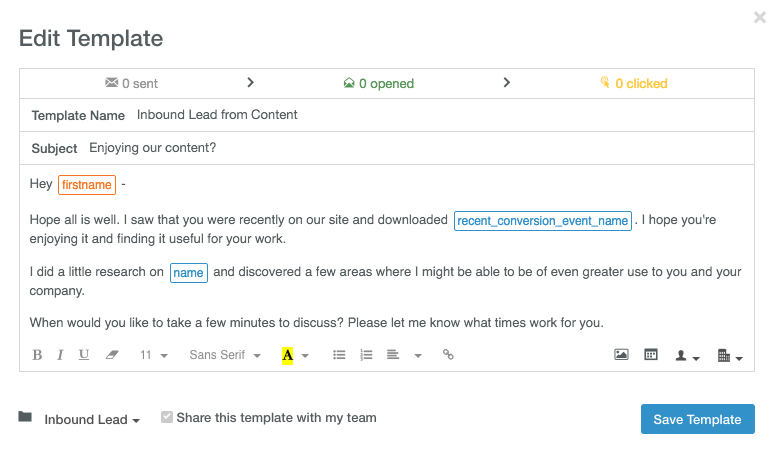
9) Use Boomerang to resurface emails when you need them.
As for those emails that will need a response eventually, but just not right now … When you’re dealing with a full inbox, it can be easy to forget about them entirely. (Or, worse, accidentally get rid of them.) That’s where a free tool like Boomerang for Gmail can be really, really helpful.
Boomerang lets you archive an email, but choose the exact date and time you want it to re-emerge in your inbox — as an unread message. In other words, it removes messages from your inbox until you actually need them. All you have to do is click the “Boomerang” button when you have an email open and choose when you need it again. It’ll archive your email until the time you choose.
(Read this blog post for a list of 14 email organization tools including Boomerang that’ll help you keep a clean inbox.)
Remember: A full inbox is inevitable after you take some time off. You don’t have to let it overwhelm you; you just have plan for it. Set up that out-of-office auto-reply message, create filters to organize your incoming messages more clearly, and block off time on your first day back to clean your inbox. When it comes time to dig in to all those unread emails, trust your instincts and be ruthless about archiving and deleting.
Until then, relax and enjoy that well-deserved vacation.
How do you recover from your post-vacation inbox? Share your tips with us in the comments.