
Welcome to My Blog
How to Spend Less Time on Email: 12 Tips for Keeping Your Inbox Under Control
Managing your email inbox can feel like playing a never-ending game of whack-a-mole. Just when you think you’ve gotten to inbox zero and start doing your little victory dance … up pop another email. And another one.
What’s worse, the sheer volume of email we get often exceeds the time we can afford to deal with it. This becomes a bigger issue when we let our guilt get the better of us — the guilt that comes with not responding right away, responding curtly, or not responding at all.
But the fact is, there are more important things on our to-do lists than email. Want to spend less time living in your inbox, and more time doing the stuff that actually matters? Here are 12 tips to get you started.
12 Tips For Better Email Management
1) Unsubscribe. Ruthlessly.
The easiest way to maintain inbox zero? Get less email. The very first step to achieve an emptier inbox is unsubscribing from every single email list that doesn’t provide you with value on a regular basis.
In fact, my recommendation is to unsubscribe from everything. Take a few days to let it sink in, and then re-subscribe only to the newsletters you really, truly miss. In this step, you might consider converting any daily digests you used to follow to weekly ones.
While unsubscribing manually from tens — hundreds? — of newsletters one by one sounds tedious, there are tools out there that can help you do it in just a few clicks. Unroll.me is my personal favorite: It’s a free tool that lets you mass unsubscribe from all the newsletters you don’t read. You can either unsubscribe from everything at once (my recommendation), or you can pick and choose. Read this blog post to learn more about how it works.
2) Remove yourself from any internal company and business threads you don’t need to be on.
Once you’ve unsubscribed from external newsletters, it’s time to evaluate the internal emails you receive on a regular basis. Do you really need to get email notifications every time the sales team closes or deal, or every time someone on the marketing team reports a bug?
If the answer isn’t a definitive “yes,” do yourself a favor and remove yourself from whatever alias or list you’re on. If that makes you wildly uncomfortable, compromise by creating a folder in your email client and send those emails to that folder automatically. (To set at up, you can create filters in Gmail or rules in Outlook.)
3) Understand — and embrace — that you can’t respond to everything.
Part of maintaining a manageable inbox — and your sanity — is to change the way you think about email a little bit. Only you can decide what deserves your very limited time and attention. When it comes to email, understand that there’s simply no way you’ll be able to respond to every single email that arrives in your inbox, let alone read them all.
I love the way Merlin Mann puts it: “Stop thinking of emails like precious family heirlooms, and start treating ’em like pints of milk. Perishable, time-stamped milk that becomes a little less fresh every day until it smells kind of funny and just needs to be dumped. Believe me, there will always be more coming.”
So if you’re looking at an email and know in your heart of hearts you’re never going to respond to it, archive it. Better yet, delete it. As Mann says, “Trust your instincts, listen to them, and stop trying to be perfect.”
4) Keep your replies brief whenever possible.
When you do have to reply to an email, you’ll find that in most cases, you don’t need to craft the perfect response. Often, a few sentences will do; in some cases, a few words. If you let an email with an action item sit for a few days, a quick “Do you still need this?” email might end up saving you a lot of time.
Don’t feel guilty about sending succinct emails. If you’re concerned your brevity will be taken the wrong way, give a heads-up to the folks you exchange emails with the most. Tell them that, in your effort to spend less time on email and more time on your actual work, you plan to cut down word count in your emails.
The better you get at deleting emails you don’t need to read or respond to, the more time you’ll have to write the emails that warrant those long responses.
5) Use pre-written replies.
Which types of emails do you find yourself typing out over and over, without really needing to customize them?
I, for example, often find myself referring people to HubSpot’s guest blogging guidelines page. I used to write one-off emails to folks, meaning I’d have to craft a few sentences, find and copy the link, and so on. Now, I give myself ten minutes back in my day by sending pre-written replies via Gmail’s “canned responses” feature.
Gmail, Outlook, and other email clients offer canned responses. Below are instructions for setting up and using them in Gmail.
To Set Up Canned Responses in Gmail:
- Click the gear icon in the upper right-hand corner and choose “Settings.”
- Click the “Labs” tab, find Canned Responses at the top, and click “Enable.” Scroll down and click “Save Changes.”
To create a canned response, compose a new email and click the little arrow in the bottom right-hand corner of the new email. Choose “Canned responses,” and then “New canned response.” From there, you can name your new canned response, write it, and save it. Anytime you want to use it, simply go back to that little arrow, choose “Canned responses,” and click on the one you’d like to use. (Learn more on Google’s website.)
To Set Up Canned Responses in Outlook:
In Outlook, the best option I could find was to set up your canned responses as “Signatures.” That way, when you reply to an email, you can choose the appropriate “signature” and the whole canned reply will appear. Here’s how to do that:
- On the Outlook menu, click “Preferences.” Under “E-mail,” click “Signatures.”
- Click the plus icon to add a new signature.
- A new signature will appear under “Signature name” with the label “Untitled.” Double-click “Untitled,” and then type in a new name for your canned response.
- In the right pane, type the text that you want to include in the signature — in other words, type in your canned response.
Once you create the canned response as a signature, you can add it to a new email by clicking in the message body, choosing the “Message” tab, clicking “Signatures,” and choosing a signature from the list. (Learn more on Outlook’s support page.)
6) Employ a one-click rule.
This rule might seem simplistic, but it’s a huge time-saver. The “one click” refers to a single click to open an email once. Once it’s open, decide exactly what you want to do with it right then and there: Reply, forward, send to a folder, archive, and/or delete.
The point here is to not open an email, read it, and then decide to deal with it later and move on. That’s the bad habit that’ll guarantee you a clogged inbox and more stress down the road.
7) Triage emails using “special stars” in Gmail.
If you use Gmail and your goal is to get to inbox zero and maintain it, then I’d like to direct you to the email system that’s changed the way I do email. Here are the full instructions. This works great in conjunction with the one-click rule we just talked about.
The premise is this: In Gmail, you’ll set up multiple inboxes and give each of them a name, like “Needs Action/Reply” and “Awaiting Response.” Your general inbox will then appear on the left, and your labeled inboxes (which Gmail calls “panes”) will appear on the right, like so:
You’ll use what Gmail calls “special stars” — kind of like Gmail’s labels, but better — to categorize every single email that comes into your inbox.
Every time you get a new email in your inbox, you’ll want to:
- Reply to the ones you can right away.
- Label the emails you need to deal with later by marking them with the appropriate special star.
- Archive or delete any emails you don’t need to deal with.
In the end, you’ll archive everything. Your inbox will stay at zero, and everything else will either be in its designated pane, archived, or deleted.
Use Outlook?
SimplyFile is a free organizational tool that’ll help you categorize emails using folders. When an email comes in, all you have to do is drag it into the appropriate folder. You can organize both messages you’re receiving in your inbox, as well as messages you’re sending — which you can file as you send them.
Image Credit: SimplyFile
8) Delegate emails to others using a collaboration tool.
Sometimes, you might find that you receive emails that are better handled by someone else. In these cases, you could either forward the email, or you can streamline the process by quickly sharing the email with someone on your team using an email collaboration tool.
There are a number of email collaboration tools out there to choose from. If you use Gmail, Hiver is a great choice: It lets you share Gmail labels (and therefore share folders) with other users, which you can use to assign tasks, delegate emails, and even track their status if you want to. If you need to add a quick note explaining what’s going on in an email thread, you can do that right in the tool.
Image Credit: Hiver
9) Use the “yesterbox” approach.
“Yesterbox” is a methodology for managing your inbox created by Zappos CEO Tony Hsieh. This approach is kind of like inbox zero, except you’re working off all the emails from yesterday and treating them like today’s to-do list.
The basic premise is this: Every morning, you have a fixed number of emails to answer instead of an endless flood of new emails coming in. Once you finish dealing with yesterday’s emails, you’re done with email for the day. Here are the full instructions.
Like Klinger’s methodology from #7, you’ll categorize incoming emails into folders labeled “Yesterbox,” “Today,” “Action Required,” “Awaiting Response,” and so on. As new emails come in, you’ll label them accordingly. But as for actually dealing with these emails — that’s left for a specific time on your calendar that you’ve designated for handling yesterday’s emails. In the end, your Yeseterbox is a to-do list with static tasks.
It’s that freeing sense of completion that makes this method so appealing — but be wary that if your job requires you to tackle emails as they come in, this may not be the best method for you.
10) Set up filters when you go on vacation.
Vacations are awesome, but coming back to a jam-packed inbox is … not so awesome. One way to manage your email workflow while you’re gone for long periods of time is to set up filters.
This is an approach HubSpot’s Director of Marketing Rebecca Corliss found worked really well for her when she went on her month-long sabbatical. Corliss was working in Gmail, but you can adapt this method for most email clients. In short, here’s what she did:
- She created a new folder for her vacation (“Spain Sabbatical 2015”).
- She set up a filter that recognized any emails being sent to *@hubspot.com. By putting the asterisk there instead of her actual email, she was able to capture not only emails that were sent to her work email address, but also emails sent to the company aliases she was on.
- She added a second filter that deleted irrelevant emails — for example, all the daily and weekly digests she expected to receive, like metrics updates.
- When she returned, she strategically handled all her unread emails. For example, she searched for emails she wanted to respond to first by conducting key searches for her manager’s email address.
Once these more time-sensitive messages are addressed, she blocked time to go through the remaining emails and respond only to the ones that were absolutely necessary. Here are the full instructions.
11) Block time to get back to inbox zero.
Dedicating specific chunks of time to get back to inbox zero isn’t just for when you return from vacation. It should be something you tackle in short batches on a daily basis, and in larger chunks every week or so, depending how much new email you receive.
The purpose of batching email? So you aren’t handling emails as they arrive. That can be a serious productivity killer, and can pull you away from projects and tasks that are more important than a perfectly clean inbox.
On a daily basis, limit yourself to dealing with new emails during fixed periods each day. For example, HubSpot Demand Generation Manager Amanda Sibley physically blocks off an hour in the morning and an hour in the evening on her calendar for getting her inbox in order. Do what works for you.
12) Use keyboard shortcuts.
To make the process of reading, replying to, archiving, and deleting emails a lot faster (and generally more enjoyable), take advantage of any keyboard shortcuts your email client offers. Here are tips for keyboard shortcuts in Gmail and Outlook. If you use a different email client, do a quick Google search for the name of your email client + “keyboard shortcuts.”
Keyboard Shortcuts in Gmail:
First thing’s first: You’ll need to activate keyboard shortcuts. To do this:
- Click the gear icon in the upper right-hand corner and choose “Settings.”
- Click the “General” tab, find “Keyboard shortcuts,” and select “Keyboard shortcuts on.” Scroll down and click “Save Changes.”
- Then, go back to “Settings” via that gear icon, click on the “Labs” tab, and find “Custom keyboard shortcuts” (by Alan S). Choose “Enable.” Scroll down and click “Save Changes.”
Once custom keyboard shortcuts are turned on, a new tab will appear in your Settings called “Keyboard Shortcuts.” Head over there to learn the default keyboard shortcuts and customize them if you’d like.
Keyboard Shortcuts in Outlook:
Outlook doesn’t let you customize keyboard shortcuts, but they have a heck of a lot to choose from. Here’s the full list, and below are some favorites:
- Create a new message: ⌘ + N (Mac); Ctrl + N (PC)
- Send an open message: ⌘ + Return (Mac); Ctrl + Return (PC)
- Save an open message and store it in Drafts: ⌘ + S (Mac); Ctrl + S (PC)
- Forward a message: ⌘ + J (Mac); Ctrl + J (PC)
- Display the next message: Control + ]
- Display the previous message: Control + [
- Delete the selected message: Delete
- Mark selected messages as read: ⌘ + T (Mac); Ctrl + T (PC)
Looking for more ideas for gaining and maintaining control of your email? Here are 11 inbox organization tools to try, as well as four solutions to getting “inbox zero” based on your personality.
What other ways have you gotten to inbox zero? Share with us in the comments.
Toptal – Find Freelance Jobs for Software Developers and Designers
Thousands of software developers, designers and engineers are graduating every day from universities world wide. For this reason, it is becoming harder and harder every day to locate a job that pays as much as you’re worth as an engineer. If you believe you are a talented and adequately skilled engineer caught in a crowd of less skilled graduates, you will still find it hard to land a job in the market as this fact is not easy to prove as a person with no formal experience to show. This is where Toptal comes in.
Introducing Toptal
Toptal is an online marketplace that links freelance engineers/developers with clients. The company was founded in 2010 by Taso Du Val and Breanden Beneschott in San Fransico. The site gathers up the top engineers in the world. With its vigorous approval process, if you join the company, you can be sure that you will be working with the best engineers from around the world. Actually, only 4% of those who attempt to join the company as freelancers make it through. As a skilled engineer, this is one place where you can be sure to get well paying jobs. The website allows you to adjust your pay rates as well as your working hours. In addition, Toptal is always on time with it’s payments.
Selection Process
Being the high level company that it is, Toptal takes its members through a thorough vetting process. This does not only apply to the developers but also the clients, meaning developers in the company get to work with top notch employers. As a developer, you will go through an interview with the HR or your recruiter. You might have to show what makes you a good fit for the company – your experience, education and skill. This will also include the pay you expect and time available to work. Then you will take a few timed tests, and finally, they will need you to develop a test project. Additionally, you will have to present the project to an interviewer and answer a few targeted questions on the project. If you successfully go through this process, you can join the top 3% freelance engineers and developers around the globe. It is important to also note that Toptal requires all its freelancers to be fluent in English. Of course, the company has a default pay rate, but, following their guidelines and terms, you can shift it to the amount you find suits you.
Join the League of Amazing Developers/Designers
Toptal recruits freelance experts in a large number of computer science fields, and being an online based company, it gets it freelancers and clients from almost all locations in the world. It is a top marketplace for developers/engineers and clients. If you get selected to join their team of freelancers, you are definitely working with the best people out there. Not only do you get a good timely pay, but you also get to sharpen your skills as you’ll be working with the best engineers and developers that are out there. That’s why, they make you go through an extensive and time-consuming screening process, but if you have enough skills, that should not be much of a problem.
Work for the Best
The company also does not accept just any clients. Just like the freelancers, clients are taken through a vetting process and for a freelancer, this simply means that you will not be working with problematic or con clients. Some of the company’s big and established clients include Axel Springer AG, Art.sy, Zendesk, Airbnb and KDDI Laboratories America. In addition, you can expect to work for many startup companies as well. As an expert software developer, designer or engineer, this site is definitely worth signing up with. For more info, check out their Facebook, Twitter, Google+ and LinkedIn profiles.
The post Toptal – Find Freelance Jobs for Software Developers and Designers appeared first on Project-Management.com.
from Project Management Articles – Project-Management.com http://ift.tt/1mXZtOF
via Project-Management.com
Patent application shows Apple Watch band that transforms into a case, stand and Mac accessory [Poll]
An Apple patent application published today reveals an idea for an interesting variation on the magnetically-closed Milanese Loop band that allows it to do much more than simply secure the Apple Watch on your wrist.
By using a careful arrangement of magnet orientations, the band can transform itself into a protective case when travelling, a stand on a bedside table or desk – or a Mac accessory …
In the standard band configuration, the band would be held closed in a similar way to the Milanese Loop. But it would also be possible to roll the band to form an upright desk stand, or to wrap the band around the Watch itself to serve as a kind of protective case for use when the Watch is packed away.
Finally, it could also be magnetically attached to other devices, the patent illustrating it attached to a MacBook, an iMac and a fridge.
As Macs are aluminum, a magnet would not normally stick to it, so the Mac attachment concept would also need matching magnets or a ferrous metal plate in the Mac to make it work.
As always with Apple patent applications, there’s no way to know whether Apple has serious plans to make such a band or is simply exploring an interesting idea.
Would this type of multi-function band appeal to you? Take our poll to let us know.
Via Patently Apple
Filed under: Apple Watch Tagged: Apple patent, Apple watch, Apple Watch band, Apple Watch case, Apple Watch magnetic band, Apple Watch stand, milanese loop, Patent
Continue reading more about Apple watch, Apple Watch, and Patent at 9to5Mac.
What do you think? Discuss “Patent application shows Apple Watch band that transforms into a case, stand and Mac accessory [Poll]” with our community.
The Anatomy of a Profitable Ecommerce Rewards Program [Infographic]
85% of ecommerce brands are looking to add value to customers beyond discounts and promotions. Yet, 97% of rewards programs are transaction-based.
Giving discounts to attract customers is often a knee-jerk reaction to boost sales. But competing on price is a race to the bottom. Most ecommerce businesses can’t survive by giving deep discounts to one-time customers. To succeed in the long term, you have to shift your focus to customer retention.
Loyalty programs can drive high margin repeat business, but most programs fail to add value to the customer experience. To get real value from your customer loyalty program, you need to go beyond the discounts.
Rewarding your customer for engagement or shared values creates a powerful connection that results in loyalty and repeat business.
The infographic below from Selfstartr shows that loyalty programs are often misunderstood by brands. The anatomy of a profitable rewards program is one that avoids discount hunters and focuses on building relationships.

Marketing Must-Do’s For Helping a New Educational Program Take Off
Launching a new program at your school is a huge and exciting undertaking. Yet it isn’t merely about creating the new curriculum, or finding the right faculty to deliver the program. Your biggest responsibility is finding students for it and getting them to enroll.
You’ve been thinking a lot about how to market this new program. The good news is you’ve got building blocks already in place that you can leverage. All it takes is uncovering them and suddenly you’ve got a launching off point for your marketing efforts.
Here’s our list of inbound marketing priorities so you can make the most of these building blocks as the foundation of your new assets designed to promote the new program.
Marketing Must-Do’s Checklist for Promoting a New Program
Build Personas Specific for the Program
A new program is definitely one of those events that should trigger new persona development. Start with some of the information you already know about the persona of your institution’s general ideal student. Then do your research to refine the personas for this program. Talk to:
- The program director or manager who created the program and got it approved. They will certainly have an on-the-ground view of the type of student the program was created for and what their needs and priorities are.
- The admissions officer responsible for the program, who can provide perspective on what questions potential applicants are asking and what factors loom largest as they make their enrollment decision.
- Academic and career counselors who are steering prospective and current students into the right programs suited to their interests, abilities, and strengths. These can be counselors both at your school and at some of your feeder schools.
Don’t overlook the students themselves, or their parents! Research social media to hear from students enrolled in similar programs, or talking about enrolling. Visit relevant blogs and forums to read through the comments section. Note the language they’re using, as well as the concerns and preferences they express about researching and selecting the right school or program. For more info on creating personas for your school, check out this post.
Craft Messages that Resonate with your Personas
Personas in hand, you job now turns to content creation. Here’s how to take the personas you’ve developed, and put them to work:
- Clarify where your new program fits in your school’s current landscape. Does it fill a gap? Or expand a popular study area that needs fresh, new challenges?
- Use how the program is related to, or different from, other school programs, to give prospective students a context that’s appealing to them. For example, let’s say you have two different programs you want to feature, astronomy and history. Your messages would be different for each. You could tout technology in the classroom for one, and access to online research tools for the other.
- Review what you’ve learned about your past messaging for related or similar areas. Now you’re not starting from scratch wondering what language, style, and content will engage prospective students.
- Align your new, very specific messaging for the new program, with the established message priorities you’ve set for the school at large. In other words, make sure the two messages don’t conflict or contradict each other. If one of your key messages for the school is to tell the stories of your instructors’ real-word expertise and experience, then show how that applies in your new program.
- Outline the flow of the main messages you want to deliver at each stage of the enrollment cycle, including the messages designed to draw prospective students into the next phase.
Develop Unique Content that Drives Eyes and Enrollments
Put your new personas and messaging at the center of all the content developed specifically for this program.
- Select your primary persona. Do you need to quickly start showing enrollment? Then select the persona most likely to be looking at your initial enrollment date.
- Build your smart lists criteria so you know exactly what information you want to capture about website visitors showing interest in this program.
Create Content For Each Stage in the Enrollment Journey
Generate Awareness
- Research and create your working list of SEO keywords
- Will you run a PPC campaign to raise awareness?
- Set up program page within school website
- Does any aspect of the program lend itself to a creating a microsite? If it’s filling a gap, what gap is it filling? Does it prepare students for a field expected to have high job growth over the next decade? A microsite exploring an issue that attracts people interested in the area of study — and provides an opportunity to get them into your contact database — may be worth the investment.
- Write up a list of blog topics and create your editorial calendar. Use your research from the persona stage for keywords to create your topic list, and consider setting up a category tag for the program.
Convert Strangers into Leads
- What is your key piece of premium content that will convert visitors into contacts? Look to your persona research to find the most compelling question to answer.
- Set up the download form on the program’s webpage. Do you want to create a separate landing page for the premium content offer as well?
- Outline an email nurture campaign that will move contacts into actors. What different actions do you want them to take? Read about the practicums available in the program? Set up an interview appointment? Go to a “meet and greet” with the program faculty?
- What criteria move a contact to the smart list ready to receive application CTAs?
- Develop your follow-up sequence to move accepted applicants to enrolled student.
You can find some email tips for the admissions process here.
Leverage Existing Assets and Channels
There are lots of ways you can take existing content and re-use it, again and again, as well as ways to draw people’s attention to your programs. Here are three sure-fire cost-effective ways to do that:
- Add special announcements on every relevant asset with a link to the program webpage or landing page:
- Website homepage
- Community newsletter(s) to students, faculty and alumni → get your word of mouth network going!
- Rotate announcements focusing on your different messages through your social media channels. What fun, attention-grabbing content can you create specifically for social media? Does your school have an active Snapchat channel? Have one of the program faculty or student in a related program create a Story showing their day on campus.
Freshen up some older blog posts that will interest these personas.
- Insert a program keyword into the text.
- Tag it with the program’s category.
- Add a new CTA offering premium content related to the program for download.
- Add a link to the program’s webpage.
- Re-promote and distribute these posts with applicable keywords and hashtags.
Audit your existing content to find repurposing material
- Look at content for a related area of interest or addressing similar concerns and priorities expressed by this program’s personas; prioritize content with a track record of success
- Re-promote and distribute content as-is with new hashtags and headlines
- Re-work the content, or pieces of it, customizing it as a new piece of content for the program
Our “must-do” checklist is part to-do list/ part issues to consider. Step through the entire list to design a campaign plan that will attract the attention of the right applicants and hook them in with awesome, informative content they can’t bear to ignore.
23 Tools and Tips for Social Media Marketers
Do you need to streamline your daily social media tasks? Looking for tools to increase visibility? The right apps can make a world of difference in the life of a busy social media marketer. In this article you’ll discover 23 of the top tools and tips shared on the Social Media Marketing podcast. #1: BuzzSumo […]
This post 23 Tools and Tips for Social Media Marketers first appeared on .
– Your Guide to the Social Media Jungle
from http://ift.tt/201SmTQ
via socialmediaexaminer
Are Your Employees Happy? Here Are 10 Feedback Tools to Help You Find Out
This post originally appeared on Agency Post. To read more content like this, subscribe to Agency Post.
Having trouble attracting and retaining top talent? You’re not alone.
With competition for talent increasing, a lot of businesses are renewing their focus on company culture and employee engagement. But for a company culture to exist, management must be focused on employee happiness — and this isn’t an easy task.
Deloitte outlined 20 engagement factors companies need to consider and excel at to keep employees engaged. And most organizations are starting from a place of weakness: Gallup found in 2014 that 13% of all employees are “highly engaged” and 26% are “actively disengaged.”
To start, businesses need a better idea of how happy, fulfilled, challenged, and dedicated employees are. They need to understand the health of their company culture and how employees perceive the organization. They also need a system for eliciting feedback and tracking satisfaction and issues over time. Only with this information can leadership address issues, make changes, and improve their employee engagement.
To get you started gathering this information, we’ve put together a list of some of the best employee feedback and culture tools. Check them out to see which one might help you make improvements in your own office.
10 Employee Review & Feedback Tools to Consider
1) 15Five
Employees take 15 minutes to answer a survey from their managers, and managers need five minutes to review: That’s the basic idea behind the platform. But the tool provides a lot of other useful features. Managers can create custom survey questions (15Five provides a library of valuable question prompts), set different reviewers for different employees, and send along answers to other people in the organization who need to see the feedback or would be responsible for enacting change, such as a hiring rep. You can create groups within the system if you manage multiple teams, which allows you to ask company-wide while also team-specific questions. The app also has a section for goals and accomplishments so that employees can list out the important tasks they plan to accomplish by next week, helping to keep people accountable.
2) Culture Amp
Culture Amp provides tools to run performance reviews and pulse and culture surveys, and managers can review data based on the lifecycle stage of their employees — from candidates to onboarding to exit — or by demographics or time frame. It also has a reporting feature that performs a driver analysis, so you can see the most important “drivers” for engagement and happiness. Account managers of the system can set up teams, so that personalized questions are sent to specific employees and only the right managers have access to the reports.
3) TinyPulse
TinyPulse makes it easy to create staff pulse surveys so that you know exactly how engaged and happy your team members are. The platform sends out one question per week — they recommend sending yes or no, scale or NPS, or open-ended questions. Answers are anonymous, and managers can pull insightful reports by teams. In addition, employees can send colleagues “cheers” to show their appreciation and send suggestions for improvements to the company and its policies. It’s a simple app, but it’s all you need to stay current on the health of your company culture. (Full disclosure: HubSpot is a TinyPulse customer.)
4) Weekdone
Weekdone is an advanced employee feedback and progress tracking platform. The default is to have employees fill out information about their plans for the week, progress on projects, and problems. It can also be customized with specific questions and prompts. Weekdone integrates with Asana, Basecamp, and JIRA, allowing managers to better analyze the progress and productivity of team members. It also provides reporting on alignment between the employee’s objectives and the company’s goals.
5) Subcurrent
For those teams that ignore email but have plenty to say on Slack, this integration is an easy way to quickly get an opinion on a company event or policy. You simply log in with Slack, type the poll command, and then you receive a unique URL to customize your poll. There are paid options for turning anonymity off, asking open-ended questions, or for allowing users to select more than one option.
6) Impraise
This is a full-featured employee review, feedback, and peer praise platform. Impraise can help managers set up reviews and ask key employees for quantitative and qualitative feedback on a staff member, as well as gather feedback on their own management performance from their direct reports. A unique feature is its key strengths dashboard, where employees and managers can list out the skills for the employee’s role and then track feedback on that skill and measure the proficiency of the employee over time, providing them with a roadmap for professional development.
7) RoundPegg
RoundPegg is a custom survey tool that polls your team members on eight areas — such as job fit, expectations, growth and development, trust, etc. — that have been shown to align with employee engagement. It then provides you with recommendations to improve your score in weak and failing areas based on the culture types of your employees. You can use the tool to send short pulse surveys for feedback on an initiative or to gauge happiness and satisfaction. The company also offers products and services aligned with hiring for culture fit and determining your company’s individual culture.
8) Reflektive
Managers can conduct yearly, quarterly, or even monthly performance reviews through the platform. It also has a feature where you list company and team goals so that your direct reports always know what they should be working towards. Employees can provide feedback to other team members through Reflektive, in addition to being able to provide responses to manager-controlled morale polls.
9) 6Q
Washington-based agency BAM Creative designed this tool that lets managers ask six questions each week. Supervisors can choose from a question bank or add their own prompts. Employees can send virtual “high fives” to their peers to recognize a job well done, and the platform lets you pull reports on past survey questions to get a better idea of how employee engagement is trending.
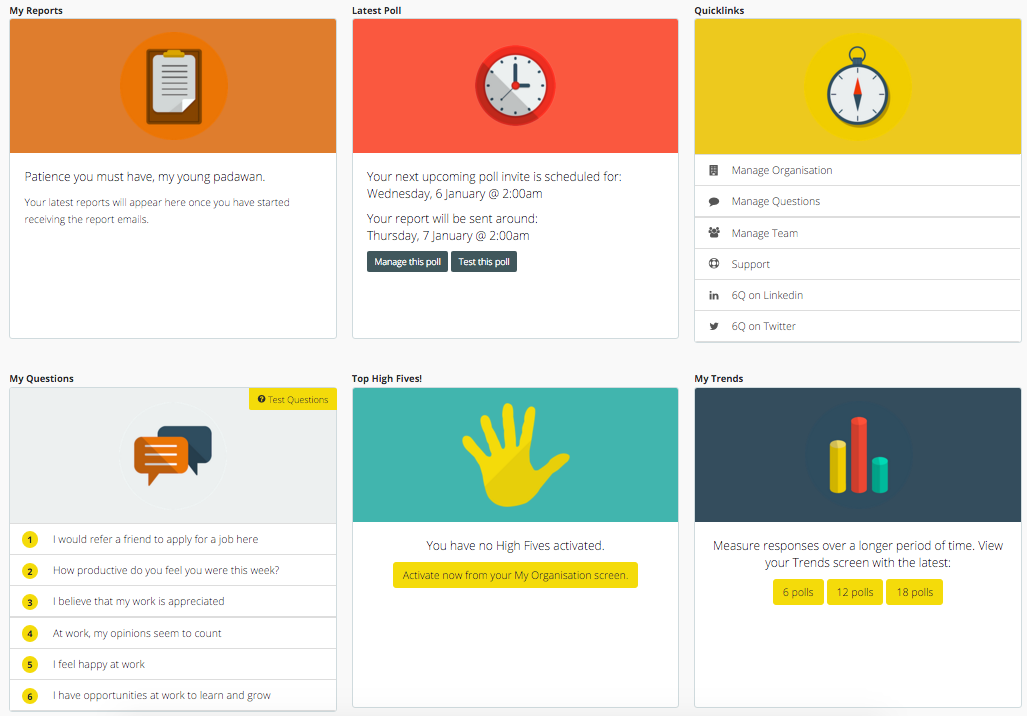
10) Hppy
Hppy helps you understand what factors are affecting your employees’ moods and tracks them over time. Managers can customize questions, but users can only reply with on of three moods: happy, ok, or sad. Managers can request meetings from the app if they notice a downward or worrying trend in an employee’s responses, and you can send thank-you cards to staff to motivate and inspire their work. Managers can also calculate their team’s or company’s HppyIndex or happiness index and use this in reports or display it on a screen in your office.
How do you collect employee feedback? Share your best tips in the comments section below.
Interact is a new iPhone & iPad contacts app for power users
If you’ve ever wanted a little something more out of the Contacts app on iOS, you may be in for a treat with the latest app from Agile Tortoise, which makes the popular Drafts text actions app. Interact is a new contacts app on the iPhone and iPad made for power users. The app includes an iOS extension for creating contacts from information found in other apps, a scratchpad feature for parsing details you jot down for creating new entries, better group management than the built-in contacts app, and much more. Check it out below:
Interact works by pulling in your current contact database already available on your iPhone. There’s no need to create a new account or use a foreign syncing service. Contacts that you add to Interact will show up in your contact database elsewhere, and the same is true of groups you edit as well. At first glance the app doesn’t appear as easy to use as Apple’s Contacts app, but once you’re familiar with the functions it’s plenty more capable as certain tasks like editing groups and bulk email/messaging is much easier.
Testing with the iPhone 6s Plus, you can optionally view your contacts list in either portrait or a two column landscape view with sort order settings just like Apple’s Contacts app and a toggle for viewing profile photos. Thumbing up and down the right side of the app lets you scrub through your whole list alphabetically, or you can search manually.
One unique feature in Interact is a tool called Scratchpad. This lets you turn plain text into a contact entry by parsing out important details. You can even access the Scratchpad outside of Interact once it’s installed on your iPhone or iPad by using the action extension. Drafts users will likely be very familiar with this way of doing things with text.
Interact also features 3D Touch quick actions from the Home screen as well as peek and pop interactions within the app when using the latest iPhones. Visually, Interact is themed similarly to the popular Overcast podcast player with mostly orange and white design throughout. For me personally, Interact’s value isn’t in replacing the Contacts app but instead adding extra utility to it around managing groups and, well, interacting with them as well.
Interact is available for both the iPhone and iPad for $4.99 (limited price) from the App Store. If you’re curious about what a power user contacts app can offer, I recommend checking it out while it’s at its launch price.
Filed under: Apps Tagged: Agile Tortoise, contacts, Drafts, Interact, Power user, power users
Check out 9to5Mac for more breaking coverage of Apps, contacts, and Drafts.
What do you think? Discuss “Interact is a new iPhone & iPad contacts app for power users” with our community.
OS X 10.11.4 beta adds support for viewing and sharing Live Photos in Messages
Sharing and viewing Live Photos shot on the iPhone 6s and 6s Plus on the Mac has been tricky if not impossible until now. Previously the enhanced photos could only be viewed in Apple’s Photos app on the Mac, which limited sharing to iCloud Photo Sharing. Starting with the new OS X 10.11.4 beta released earlier this week, Live Photos can now be shared and viewed over iMessage using Messages on the Mac for the first time.
Before now Live Photos were diluted into still images, losing their audio and video. With the latest El Capitan beta, however, Live Photos can be sent from Photos on the Mac when synced from the latest iPhones, or viewed on the Mac when sent from iPhones.
Just like on other platforms, Live Photos are denoted by a special icon in the top left corner. Opening the preview with Quick Look adds an expanded button that lets you view the Live Photo in action.
Dragging and dropping the Live Photo to the desktop reduces it back to a still image, and copy and paste from Photos does the same.
But using the native share buttons preserves the Live Photo. All in all, it’s a much better implementation than before. A few iOS apps including Tumblr and Facebook have rolled out or started testing Live Photo sharing on iPhones and iPads as well.
OS X 10.11.4 is available as a developer beta and should be available to everyone later this year. For more on Live Photos, check out my initial hands-on with the enhanced image format.
Filed under: Mac Tagged: el capitan, Live Photos, Mac, OS X, OS X 10.11.4
Continue reading more about Mac, Mac, and OS X at 9to5Mac.
What do you think? Discuss “OS X 10.11.4 beta adds support for viewing and sharing Live Photos in Messages” with our community.
App Store games bring in $1B in revenue during December as Clash of Clans tops the charts
December is always one of Apple’s biggest months of the year thanks to the influx of new devices people receive as gifts during the holiday season. The company often reports its highest device sales during this month, and as you can figure, the more people who are using iOS devices, the more people who are downloading apps from the App Store. App Store analytics company Sensor Tower has today shared its figures for the month of December 2015, and it was another record-setting month for Apple. Sensor Tower says that revenue for games in the App Store during December was nearly $1 billion.
According to the report, games in the App Store brought in nearly $1 billion in revenue during the holiday month of December. This is an 18 percent increase over the $847 million reported in November. Likewise, downloads also increased. The games category as a whole in the App Store in the United States saw 179 million downloads, up from 143 million in November. That’s an increase of 26 percent. Worldwide, 614 million games were downloaded from the App Store in December, up from 510 million in November.
The most downloaded game during December was the popular Piano Tiles 2. This app is free-to-play with in-app purchases also available. Cut The Rope 2, Monument Valley, Temple Run 2, and Geometry Dash Meltdown rounded out the top 5 most downloaded apps in the United States.
As far as the apps earning the highest revenue go, Clash of Clans topped the charts both in the United States and world-wide. Game of War, Candy Crush Saga, Madden NFL, and DoubleDown Casino rounded out the top 5 in the United States. Clash of Clans brought in $59.7 million in revenue during December, while Game of War brought in $31.7 million.
The full breakdown of the charts during December can be seen below:
Filed under: Apps Tagged: App Store, Apps, clash of clans, December, iOS
Continue reading more about Apps, iOS, and App Store at 9to5Mac.
What do you think? Discuss “App Store games bring in $1B in revenue during December as Clash of Clans tops the charts” with our community.
A proposed bill in New York would force Apple to allow backdoor access to user data, or be fined
A new bill proposed in New York could see that all phone manufacturers be required to implement a way for law enforcement agencies to access and decrypt user devices. This bill is somewhat similar to the Investigatory Powers Bill currently being debated in the UK, which Apple has voiced its opposition towards. Apple and Tim Cook have repeatedly stated that government agencies should not have any access to user devices or data, whether be through a built-in backdoor or other means.
The bill making its way through the New York state assembly specifically states that “any smartphone manufactured on or after January 1, 2016, and sold or leased in New York, shall be capable of being decrypted and unlocked by its manufacturer or its operating system provider.” Should a phone manufacturer neglect to implement such a tool, the assembly would impose a $2,500 fine for each infringing device (via On The Wire).
While this bill theoretically doesn’t give government agencies direct access encrypted data, Apple implementing such a measure would force it to compromise its stance that there should not be a sacrifice in privacy for national security. In the past, Tim Cook has stated that any decrease in encryption, which this bill would require, would lead to unintended people gaining access to user data.
The Investigatory Powers Bill in the UK is similar and has the support of UK Prime Minister David Cameron. Like the New York bill, the Investigatory Powers Act would also mean that Apple would have to stop encrypting iPhones, iMessage, and FaceTime and hold a key with direct access to user data, again creating a backdoor.
Just last week, Tim Cook and other Silicon Valley executives met with White House officials to discuss the use of social media and technology in the fight against terrorism, radicalization, and propaganda. During the meeting, Cook again voiced his stance that there should be in no way, shape, or form, a backdoor to user data. The Apple CEO urged that it is up to the White House to make that ruling and enforce a “no backdoor” policy.
In the past, Apple has said that it has no way to access data on devices that are passcode protected by the user. In response to that, the Department of Justice came out and said that Apple should be required to unlock any encrypted data because iOS is “licensed, not sold” to customers.
The next step for the New York state bill would be a move to the floor calendar, followed by votes in the assembly and senate. Part of the bill reads as follows:
“The safety of the citizenry calls for a legislative solution, and a solution is easily at hand. Enacting this bill would penalize those who would sell smart- phones that are beyond the reach of law enforcement.
The fact is that, although the new software may enhance privacy for some users, it severely hampers law enforcement’s ability to aid victims. All of the evidence contained in smartphones and similar devices will be lost to law enforcement, so long as the criminals take the precaution of protecting their devices with passcodes. Of course they will do so. Simply stated, passcode-protected devices render lawful court orders meaningless and encourage criminals to act with impunity.”
Filed under: AAPL Company Tagged: Apple, Encryption, iOS, legal, New York, Tim Cook
For more information about AAPL Company, Apple, and iOS continue reading at 9to5Mac.
What do you think? Discuss “A proposed bill in New York would force Apple to allow backdoor access to user data, or be fined” with our community.
Report: Apple says it sucks at selling ads, will soon let publishers do the hard work but keep all the revenue
Apple’s rocky iAd advertising platform is about to see some major changes, says Buzzfeed’s John Paczkowski. According to the report, Apple plans to dismantle its iAd sales team and stop its role as a middleman between publishers and customers:
While iAd itself isn’t going anywhere, Apple’s direct involvement in the selling and creation of iAd units is ending. “It’s just not something we’re good at,” one source told BuzzFeed News. And so Apple is leaving the creation, selling, and management of iAds to the folks who do it best: the publishers.
Apple is phasing out its iAd sales force entirely and updating the iAds platform so that publishers can sell through it directly.
The big news, Buzzfeed notes, is publishers that play ball will take home 100% of the ad revenue generated rather than a 70/30 split with Apple.
The timing for the shift makes the change a bit of a New Year’s Resolution as the report claims Apple could execute the change as soon as this week. From the start, Apple’s iAd business has been a struggling effort with various moves intended to make it more attractive and automated for publishers.
Besides the apparent lack of overall success with iAd in general, my first thought on Apple reducing its role in the iAd space is how the advertising business conflicts with Tim Cook’s effort toward user privacy. Remember the iAd exec that said privacy was holding the platform back? Being good at advertising typically requires a wealth of user data, although Apple obviously isn’t totally ending its effort here.
Apple’s Eddy Cue actually hinted at the change earlier this week in a story ran by the WSJ around Apple’s News app glitch with counting views on stories.
Mr. Cue said he was surprised by the extent to which publishers call on Apple to handle ad sales. He said Apple has accelerated the development of its iAd network and expects to launch a self-service ad-buying platform in the next two months to help increase ad spending.
So while it may end up being more work for publishers on the front end, the move sounds like a long overdue development if iAds are ever going to really take off as a proper revenue source on the iPhone and iPad. In the short term, iAds will play a role in monetizing content viewed through the Apple News app when using Apple’s own format.
Prior to Apple News, Apple’s iTunes Radio service optionally presented iAd advertisements to listeners with the free tier, although Apple Music has changed that aspect of the product. iAd still plays a part in monetizing free iOS apps, although the method is far less common than the use of in-app purchases.
Filed under: AAPL Company Tagged: Advertising, Apple, apple news, design, Eddy Cue, IAd, iAds, News, privacy, sales
For more news on AAPL Company, Apple, and Eddy Cue continue reading at 9to5Mac.
What do you think? Discuss “Report: Apple says it sucks at selling ads, will soon let publishers do the hard work but keep all the revenue” with our community.
Apple Watch political oopsies: Jeb Bush’s ‘Batphone’ interrupts interview, Nancy Pelosi’s makes SOTU cameo
It’s no secret that former Florida governor Jeb Bush is a huge fan of his Apple Watch. Since the Apple Watch launched, the Republican presidential candidate has gone after the youth vote by showing off his Apple Watch and calling it a better option than Obamacare, despite labeling it unintuitive and power-hungry a few months later.
Jeb’s “iWatch,” as he often calls it, wasn’t dead earlier this week during an interview with the Des Moines Register’s editorial board, USA Today points out, as the presidential hopeful accidentally either placed or answered a phone call on it unknowingly. Jeb explained it away to the Iowa paper by declaring that he’d never had his “bat phone” turn on. Thankfully there’s video of this genuinely amusing moment.
And on the other side of the political aisle, Democratic Congresswoman Nancy Pelosi gave her own Apple Watch an equally entertaining product endorsement during President Obama’s State of the Union address last night …
The former Speaker and current Minority Leader of the US House of Representatives was caught on camera glancing and tapping her Apple Watch during the President’s last SOTU address to Congress. As Jeb would likely point out, Pelosi’s Apple Watch not needing a recharge after 9 pm at night is impressive on its own. My guess is this was a stand alert toward the end of the hour and some odd minutes long speech, but give us your best guesses too.
And while Washington DC’s finest are thumbing around their Apple Watches this week, Apple CEO Tim Cook met behind closed doors with President Obama in a private meeting among White House officials and Silicone Valley execs to discuss national security and encryption. Cook’s position is unsurprising for anyone keeping up with this debate as we learned last night that he’s holding his position on strong encryption and no back doors despite government pressure to make exceptions for law enforcement officials.
Now back to those fantastic Apple Watch uh-ohs from Jeb Bush and Nancy Pelosi:
Filed under: Apple Watch Tagged: Apple watch, iWatch, Jeb Bush, Nancy Pelosi, Tim Cook
Visit 9to5Mac to find more special coverage of Apple watch, Apple Watch, and Tim Cook.
What do you think? Discuss “Apple Watch political oopsies: Jeb Bush’s ‘Batphone’ interrupts interview, Nancy Pelosi’s makes SOTU cameo” with our community.
Happy Hour Podcast 049 | Apple’s latest feature-packed beta releases
Apple has released new betas across the board for all things. Today, we’ll discuss what new features come along with them and how they may impact your usage, new details about the rumored 4-inch iPhone and upcoming iPhone 7, plus much more.
The Happy Hour podcast is available for download on iTunes and through our dedicated RSS feed.
New episodes of Happy Hour are available every Wednesday. As mentioned, you can download this podcast via iTunes or plug in our RSS feed link into your favorite podcasting app. Send an email to listenermail@9to5mac.com (or click here) and your question/comment may be featured in an upcoming episode of Happy Hour.
Note: iTunes (web interface and app) may still be propagating the new episode which could take up to 24 hours. Subscribing to the podcast feed will guarantee the latest episode is downloaded.
Hosts:
Here’s what we discussed in this episode:
- Apple releases first iOS 9.3, OS X 10.11.4, tvOS 9.2, & watchOS 2.2 betas
- iOS 9.3 adds multi-user support for iPads in schools, new Classroom app, more
- iOS 9.3 adds Night Mode, upgraded Health, Notes & News Apps + CarPlay Music
- Photos: With tvOS 9.2, Apple TV adds Podcasts app, Folders, Bluetooth keyboard support, new app switcher and more
- iOS 9.3 Gallery & Feature List: Night Shift, New 3D Touch features, updated Health app, Notes Touch ID, more
- iOS 9.3 Preview: First look at updated Apple Music + Maps apps in CarPlay [Video]
- tvOS 9.2 Preview: First look at Apple TV’s new Podcasts app, folders & switcher UI, Bluetooth keyboard support, more [Video]
- iOS 9.3 Preview: First look at Night Shift mode, Touch ID Notes, new 3D Touch quick actions, much more [Video]
- Apple developing revamped, cord-free Beats with charging case ahead of iPhone 7
- Unlikely report claims upcoming 4-inch hardware will be called iPhone 5e, not 6c, and get lower spec
If you missed our 48th episode last week, you can subscribe and find every episode or start off from the previous episode here.
Remember: Subscribe on iTunes to catch all of the episodes as they go live and send in your questions/comments to listenermail@9to5mac.com.
Filed under: Happy Hour Tagged: beta, betas, Happy Hour, iOS, Podcast
Check out 9to5Mac for more breaking coverage of iOS, beta, and Happy Hour.
What do you think? Discuss “Happy Hour Podcast 049 | Apple’s latest feature-packed beta releases” with our community.
The Top 8 Design Trends to Watch This Year [Infographic]
The past few years have been exciting ones for great design.
Some of the web design trends from last year have proven themselves popular enough to stick around in 2016, like flat design, background videos, and robust mobile app design. More importantly, we’ve seen the rise of a few new trends that marketers and designers alike need to stay on top of, such as card-based interface design.
Which design trends should we be keeping an eye out for this year? Catch up on what’s popular in the design world — and what’s shaping up to be the next big thing — with this infographic from Coastal Creative.
9to5Toys Lunch Break: LG 34″ QHD Monitor $570, Motorola Refurb Cable Modem $40, 10-ft. Lightning Cable $11, more
Keep up with the best gear and deals on the web by signing up for the 9to5Toys Newsletter. Also, be sure to check us out on: Twitter, RSS Feed, Facebook, Google+ and Safari push notifications.
TODAY’S CAN’T MISS DEALS:
34-inch UltraWide Displays: LG w/ Thunderbolt $570 (Reg. $700+), Dell Curved $675 (Reg. $750)
It’s 2016, stop renting your cable modem: Motorola refurb DOCSIS 3.0 deals from $40 (Orig. up to $220)
MFi Apple-Certified Lightning Cables: 10-ft. Braided $10.50 (Reg. $17), Dual-Port Car Charger + 3-ft. $12, more
A Dark Room for iOS goes free as IGN’s Game of the Month (Reg. $1)
LAST CHANCE!!! Giveaway: 1-yr. subscription to Apple Music, Beats Pill+ and Solo 2 Over-ear Headphones ($549 value)
You can finally use a Bluetooth keyboard with your Apple TV. Here are our favorite options: wp.me/p1xTlR-IWM https://t.co/00cM9VJc1I
—
9to5Mac (@9to5mac) January 11, 2016
MORE NEW GEAR FROM TODAY:
Daily Deals: VIZIO 38-inch 2.1 Bluetooth Sound Bar w/ Wireless Subwoofer (refurb) $90, TOURO 1TB USB 3.0 Portable Drive $50, more
- Audio-Technica ATH-M40x Headphones + Blue Microphones Snowball Mic $105 ($150 value)
- Games/Apps: Animal Crossing amiibo Festival Bundle $29 (Reg. $60), iOS freebies, more
- LG G4 Smartphone w/ 32GB flash GSM 4G LTE (factory unlocked): $350 shipped (Orig. $600)
- NetSpot Pro helps you improve the coverage of your Wi-Fi network: $19 (Orig. $149)
MORE DEALS STILL ALIVE:
Quick Review: SoundPEATS’ Q9A Bluetooth earbuds offer solid value at less than $20, exclusive discount
Lenmar MFi Apple-Certified 3,000mAh Battery Case for iPhone 6/s: $20 Prime shipped (Reg. $30)
- iPhone 5s 16GB in Silver or Gray (No-Contract) from $100 shipped (Reg. $300)
- Bluetooth speakers: Inateck Aluminum ultra-portable $30 (Reg. $43), more
- View-Master Virtual Reality Starter Pack for iPhone/Android: $20 Prime shipped (Reg. $30)
- USB Power: Lumsing 16,000mAh Dual-USB Power Bank $20, more
- Kingtop Waterproof Solar Powered Motion Sensor Light $10 Prime shipped (Reg. $16)
- Audio-Technica’s ATH-M50x headphones + Apogee Groove headphone amp $329
- Google Play offers 21 Classic Rock Favorites for Free: Santana, Boston, Meatloaf, more
- Game pre-orders for Amazon Prime members – Final Fantasy XV, more: $48 ea (Reg. $60)
- Motorola Nexus 6 factory unlocked 32GB in blue/white: $250 shipped (Reg. $330)
- Pick up a copy of Moby Dick as a Kindle download and audiobook for free (Reg. $6+)
- iPhone 6/s/Plus and Android Cases from $1: Dual-Layer $4.50 (Reg. $10), more
- iPhone 6/s/Plus Accessories w/ Prime shipping: Dual-layer Cases from $3 (Reg. $8+)
- Anker Tech Prime shipped: 13,000mAh Dual-USB Power Bank $25, more
- NES30 Bluetooth controller gives the latest titles a retro twist: $37 shipped (Orig. $50)
- Hawkeye-I remote controlled quadcopter drone w/ 720p HD cam $46 shipped (Reg. $79+)
- FitBit’s Charge HR fitness tracker available for just $110 shipped (Reg. $150)
- Download the iPad at Work for Dummies eBook for free (Reg. up to $17)
- Your Choice of 10 Top-Rated Mac Apps for $20 (up to $500 value), more
- Keep your Macs running smoothly with a CleanMyMac two-pack: $36 (Orig. $60)
- Add Bluetooth capabilities + a dual-port USB charger to your car for $16 (Reg. $28)
- 1-month free Marvel Unlimited comic subscription plus an exclusive digital starter pack
- Grab a free MP3 download of Elvis Presley’s 30 #1 Hits, more
- Fitbit ZIP Wireless Activity Tracker $30 shipped (Orig. $60)
- Get in shape this year w/ huge savings on home workout gear
- Lightning 3600mAh Aukey Portable Battery Pack + MFi cable: $10 shipped
NEW PRODUCTS & MORE:
LEGO did everything right with its new 2,500-piece vintage Batman set
- This new touchscreen Smart Remote controls your devices just by pointing at them
- Report: Amazon planning to launch smaller, more portable version of its Echo speaker
- Segway and Intel got together to create a futuristic robot butler
- Activeon’s new 4K action camera uses solar power to provide six hours of recording
- Satechi adds pass-through charging to its USB-C hub
- Bang & Olufsen releases a new aluminum soundbar with AirPlay and a big price tag
- Reddit has compiled the best AMA sessions into a limited edition book, order now
- Nostalgia runs high on Kodak’s modern take of the Super 8 camera
- Polaroid’s new Snap+ is the beneficiary of a touchscreen display
- Sony takes to CES 2016 with new 4K HDR Ultra HDTVs, multi-room audio, more
- Nikon jumps into the action camera fray with its new Keymission 360
- LG drops new ultra-slim OLED 4K UHDTVs at CES that focus on HDR capabilities
- DJI introduces new 4K drone with a more affordable price, updates Inspire 1 PRO
Catch up on our CES 2016 coverage: DJI 4K Drones, new 4K UHDTVs, action cameras, more bit.ly/1mL10rd https://t.co/zcclfFgilU
—
9to5Toys (@9to5toys) January 08, 2016
Filed under: Tips and Tricks Tagged: 9to5Toys, Amazon, app deals, Best Buy, Cable Modem, Daily Deals, free apps, Gold Box, LG UltraWide, Lightning Cable, video games
Continue reading more about Tips and Tricks, 9to5Toys, and Daily Deals at 9to5Mac.
What do you think? Discuss “9to5Toys Lunch Break: LG 34″ QHD Monitor $570, Motorola Refurb Cable Modem $40, 10-ft. Lightning Cable $11, more” with our community.
Feature Request: It’s time for an official Apple Watch 2 Upgrade Program
If everything goes as planned, Apple is set to hold a spring event in March to introduce the Apple Watch 2 along with some other new hardware and software goodies. That’s only about a year after the original Apple Watch went on sale, but roughly 18 months since the first-gen model was actually announced.
As a mostly satisfied Apple Watch 1 customer, March or April doesn’t strike me as being too soon for the Apple Watch 2. Personally, I’m excited to see if the next model can handle apps better with a needed speed boost and maybe lose a little overall thickness and display bezel.
But while I’m basically already lining up to buy the next Apple Watch, I probably won’t spend the extra $200 on a stainless steel model this time if it’s is going to be an annual product upgrade. And for most Apple Watch customers, buying a new model will probably be an every 2 or 3 year event if that.
Apple Watch has a lot of opportunity to get better over the next few years, though, just like the original iPhone advanced dramatically between iPhone 1 to iPhone 4. A proper Apple Watch Upgrade Program could easily encourage current owners to buy the latest hardware every year (everyone using the latest generation helps the overall product’s reputation) and encourage new customers to splurge on higher-priced models. There would be other benefits as well …
When Apple Watch was first shown off in September 2014, the idea of upgradable internals was widely suggested. If you buy a $10,000 to $17,000 gold Edition model, should it really be technologically obsolete in just a few short years? My guess is if you can reasonably afford one Apple Watch Edition then the next one probably won’t be a big deal either.
But it’s the environmental impact and prospect of wasted materials on all models that convinces me that some method of upgrading the S1 chip to the S2 chip and so on is a good idea. Despite Apple being a relatively good citizen to the planet, Apple letting even an Apple Store Genius tinker with the internals of the Apple Watch as if it’s an old Mac Pro being upgraded just doesn’t seem likely at this point.
An official Apple Watch Upgrade Program, however, could help here, and the company has already created an infrastructure for something like it with the iPhone Upgrade Program introduced last September.
Finance or lease a new Apple Watch every year, trade-in your old one to Apple and receive credit toward the new model, and put Apple in charge of an official market for very affordable, refurbished Apple Watches that don’t go to waste while responsibly recycling the bad parts.
You can even apply the concept of the Upgrade Program to any Apple product. My colleague Ben Lovejoy expressed interest in a potential version for the Mac, although with higher upgrade periods than 12 months, when I suggested an Apple Watch program. And I think it all lays the groundwork for a future Apple Car leasing program, something that’s already popular with other electric vehicles like Tesla and pricier traditional cars alike.
Apple’s iPhone Upgrade Program is modelled similarly after what the major carriers started first, but it could even remove the financing angle for the Apple Watch and just make it a pure trade-in offer while still encouraging regular upgrades and incentivizing buying higher-end models.
What do you think? Would an official Apple Watch Upgrade Program encourage you to buy the latest version more often and possibly even a pricer model?
For Apple, selling more stainless steel models than aluminum models also means more opportunity for selling pricier second and third watch bands. Overall, I think the program is one worth investing in and something Apple is likely considering if not planning already. Let us know your thoughts in the comments.
Filed under: Apple Watch, Feature Request Tagged: Apple, Apple watch, Apple Watch 2, Apple Watch Upgrade Program, iPhone, iPhone upgrade program
Visit 9to5Mac to find more special coverage of Apple, iPhone, and Apple watch.
What do you think? Discuss “Feature Request: It’s time for an official Apple Watch 2 Upgrade Program” with our community.
iOS Outlook app adds Skype integration to automatically schedule & join Skype meetings
With a growing number of business meetings these days taking place via Skype, Microsoft has made it easier than ever to schedule and join a Skype call in the Outlook iOS app. Version 2.1.3 of the iOS Outlook app adds Skype integration.
Make any meeting a Skype call simply by flicking a switch, then access the call when you need to with just a tap. Now when you say “I’m joining the call now”, you’ll actually mean it. To give it a try, simply turn on the “Skype Meeting” switch when creating or editing an event.
The update also adds a new view designed to provide a clearer sense of your schedule …
Tapping the icon in the top-right corner of your calendar lets you see a new three-day view, as a compromise between the detail of a single day and the overview of a whole week.
Outlook is a free download from iTunes. The app is compatible with iPhone, iPad and Apple Watch, and recently gained support for 3D Touch.
Microsoft appears to be on something of a Skype push at present, the company announcing yesterday that it’s bringing free group video calling to iPhone and iPad.
Filed under: Apps Tagged: iPad, iPhone, Microsoft, Microsoft Outlook, Microsoft Outlook for iOS, Microsoft Outlook for iPhone, Outlook, Skype
Check out 9to5Mac for more breaking coverage of Apps, iPhone, and iPad.
What do you think? Discuss “iOS Outlook app adds Skype integration to automatically schedule & join Skype meetings” with our community.