
Welcome to My Blog
Apple details CarPlay partners by year and model on new webpage
In addition to unveiling iOS 9.3 with new CarPlay features, Apple today has launched a new webpage detailing all of the cars in which its infotainment system is available. On the page, Apple touts that CarPlay is or will soon be available in more than 100 different vehicles models. The list consists of 2016 and 2017 car models only, from a variety of different companies.
The full list of manufacturers featured on the page includes Audi, Buick, Cadillac, Chevrolet, Citroen, DS Automobiles, Ferrari, Ford, GMC, Honda, Hyundai, Mercedes-Benz, Mitsubishi, Opel, Porsche, Peugeot, Seat, Skoda, Suzuki, Volkswagen, and Volvo. Apple’s list excludes aftermarket options for installing CarPlay, such as Pioneer and JBL head units.
iOS 9.3 saw the introduction of a couple of new CarPlay features. CarPlay can finally take advantage of the “New” and “For You” Apple Music features, introduced last summer alongside Apple Music. There’s also a new “Nearby” feature in Maps that shows the closest gas, parking, restaurants, coffee, and more.
CES 2016 saw the announcement that Ford would be integrating CarPlay at long last, and that announcement is reflected on Apple’s webpage. What’s not reflected, however, is that Ford will make a software update available to 2016 car models that will add support for CarPlay.
Apple’s new detailed list of CarPlay manufacturers is available here. Apple’s launch of CarPlay-dedicated list of manufacturers could reflect that the company finally feels as if its infotainment system is available in an apt number of vehicles.
Filed under: CarPlay Tagged: Apple, CarPlay, webpage
Check out 9to5Mac for more breaking coverage of Apple, CarPlay, and CarPlay.
What do you think? Discuss “Apple details CarPlay partners by year and model on new webpage” with our community.
iOS 9.3 Gallery & Feature List: Night Shift, New 3D Touch features, updated Health app, Notes Touch ID, more
Earlier today, Apple announced iOS 9.3, a fairly significant point update to iOS 9. The new operating system adds new features for the Health, Wallet, Notes, and Settings apps, in addition to a Night Mode and new 3D Touch shortcuts. This gallery below shows off all of the new features, and here’s a bulleted list of everything new in the first beta:
- Night Shift mode to adjust colors based on time of day and location of device
- Password protecting (with Touch ID support) notes in the Notes app
- Ability to jump to corresponding apps from Apple Pay and passes in Wallet app
- iPhone Landscape support + more personalization in the News app
- New 3D Touch shortcuts from Home screen for Weather, Settings, Compass, Health, App Store, iTunes Store
- Siri Support for Hebrew and Malay (not available yet on the Apple Watch)
- Feedback app (in the beta only)
- Taptic Feedback when accessing multitasking via 3D Touch
- Activity app data in the Health app
- New Workout data section in the Apple Watch Activity app
- iOS Education upgrades
- Enhanced Apple Music support in CarPlay
Filed under: iOS Devices
For more news on iOS Devices continue reading at 9to5Mac.
What do you think? Discuss “iOS 9.3 Gallery & Feature List: Night Shift, New 3D Touch features, updated Health app, Notes Touch ID, more” with our community.
Photos: With tvOS 9.2, Apple TV adds Podcasts app, Folders, Bluetooth keyboard support, new app switcher and more
With the new Apple TV tvOS 9.2 beta, Apple has added a whole host of new features to the tvOS platform. This includes support for pairing Bluetooth keyboards, Folders organisation for apps on the home screen, a new App Switcher UI and a native Apple Podcasts app.
There are also some enhancements to Siri and other improvements. Apple has added support for two new Siri languages: US Spanish and French Canadian. More images after the break …
When moving app icons, you can now drag and drop apps into Folders just like on the iPhone or iPad Home Screen. Pressing the Play/Pause button now brings up a series of options and controls for further management, including quick moves to folders or deletes.
The app switcher has also been overhauled to mirror the iOS 9 appearance. Rather than tiled screenshots, the apps now overlap and use the same blur effect seen on iOS.
The Podcast app carries over almost identically from the iPhone app, with tabs for Unplayed, My Podcasts, Featured, Top Charts and Search. Just click on podcast artwork to start playing.
Filed under: AAPL Company, Apple TV, iOS Devices Tagged: Apple TV, Bluetooth keyboards, iOS 9.3, podcasts app
For more news on AAPL Company, iOS Devices, and Apple TV continue reading at 9to5Mac.
What do you think? Discuss “Photos: With tvOS 9.2, Apple TV adds Podcasts app, Folders, Bluetooth keyboard support, new app switcher and more” with our community.
iOS 9.3 adds Night Mode, upgraded Health, Notes & News Apps + CarPlay Music
Besides a new suite of enhancements for educational uses, Apple’s upcoming iOS 9.3 release, which went into beta this morning, adds several consumer-facing features. Apple highlights these on a website previewing the update. Notably, the update adds a system-wide Night Mode that uses the device’s time and location to present certain colors around the software optimized for darker environments:
Many studies have shown that exposure to bright blue light in the evening can affect your circadian rhythms and make it harder to fall asleep. Night Shift uses your iOS device’s clock and geolocation to determine when it’s sunset in your location. Then it automatically shifts the colors in your display to the warmer end of the spectrum, making it easier on your eyes. In the morning, it returns the display to its regular settings. Pleasant dreams.
Notes is one of those apps you use all the time for all kinds of things. Now you can secure the notes that contain your most personal data — such as financial details, medical info, or website logins — with a password or fingerprint. You can also sort notes by date created, date modified, or alphabetically.
The articles in For You are now better tailored to your particular interests. And to help you discover new Favorites, For You suggests trending topics and Editors’ Picks. When a story contains video, you can play it right from your feed. On your iPhone, you can view everything in landscape. And when you check for updates, the latest stories appear much faster — so you can catch up on the day’s events quickly and easily.1
The Health app now bundles in information from the Apple Watch’s activity app:
It’s simpler than ever to find third-party apps to track your health and wellness. Categories such as Weight, Workouts, and Sleep have a new slider menu that reveals great apps you can easily add to your Health dashboard.2The Health app also now displays your move, exercise, and stand data, as well as your goals, from Apple Watch. So you can see all your health metrics in one place and easily share your data with third‑party apps.
Lastly, CarPlay has improved Apple Music integration:
With iOS 9.3, CarPlay adds even more useful features. New and For You from Apple Music — with songs, artists, and albums handpicked by experts, plus selections based on your preferences— are right at hand on your screen. And the Nearby feature in Maps lets you find gas, parking, restaurants, coffee, and more with a tap. So you’ll know the best places to stop, whether you’re on your daily commute or an epic road trip.
As we highlighted in our earlier article, iOS 9.3 also adds Hebrew support for Siri and support for more than one connected Apple Watch per iPhone.
Filed under: iOS Devices
For more news on iOS Devices continue reading at 9to5Mac.
What do you think? Discuss “iOS 9.3 adds Night Mode, upgraded Health, Notes & News Apps + CarPlay Music” with our community.
iOS 9.3 adds multi-user support for iPads in schools, new Classroom app, more
Apple is rolling out a lot of new features with iOS 9.3, which just hit beta. Most notably, for students a single iPad can now be shared amongst multiple people. This means that each student can log in and access their own personal data. Multi-user support has been a big request for iPad owners for some time, and it seems Apple is finally answering the call … at least for the education market.
Apple is also launching a new Classroom app. This is a digital teaching assistant app, which can present quizzes, load AirPlay content onto an Apple TV and much more.
There is also the addition of bulk Apple ID creation, which should help schools get up and running faster with iPad deployments.
Apple is also adding a new Apple School Manager service. This centralized location enables school administrators to do a complete end-to-end deployment. This collates existing Apple Education features as well as adding some new functionality.
All of this launches with iOS 9.3. Apple is providing an early preview today to get education market ready for the new capabilities.
Filed under: AAPL Company, iOS, iOS Devices
For more information about AAPL Company, iOS Devices, and iOS continue reading at 9to5Mac.
What do you think? Discuss “iOS 9.3 adds multi-user support for iPads in schools, new Classroom app, more” with our community.
Apple releases first iOS 9.3, OS X 10.11.4, tvOS 9.2, & watchOS 2.2 betas
Apple has just released the first beta versions of new software updates for each of its platforms: iOS, OS X, tvOS, and watchOS. iPhone and iPad get iOS 9.3 beta 1, the Mac gets El Capitan 10.11.4 beta 1, Apple TV can test tvOS 9.2 beta 1, and Apple Watch users can try watchOS 2.2 beta. Interestingly, iOS 9.2.1 and OS X 10.11.3 are both still in beta so we’re seeing multiple betas running at the same time.
We’ll check out each new release and update with any significant changes. Each new version is available through the Developer Center. Be sure to shout our way if you discover anything new and experience any issues with the pre-release software.
- iOS 9.3 and watchOS 2.2 will allow iPhones to pair with multiple Apple Watches for the first time
- Siri now supports Hebrew
- Xcode 7.3 beta and Apple Configurator 2.2 beta are also now available for developers
iOS 9.3 can now pair multiple Watches to one iPhone? Who needs battery life anyway? 😀
—
Steve T-S (@stroughtonsmith) January 11, 2016
Oh wow tvOS 9.2 is a significant update. Folders, Bluetooth keyboard support, MapKit?
—
Steve T-S (@stroughtonsmith) January 11, 2016
Filed under: Apple Watch, Developers, iOS, Mac
For more news on iOS, Apple Watch, and Mac continue reading at 9to5Mac.
What do you think? Discuss “Apple releases first iOS 9.3, OS X 10.11.4, tvOS 9.2, & watchOS 2.2 betas” with our community.
Why GM Created A Team Of 8,000 Programmers
Why GM Created A Team Of 8,000 Programmers
By Jim Anderson
So IT manager, how many people are on your team? How hard is it to keep track of them and what they are currently working on? I’m willing to bet that it probably takes up most of your available time. Over at GM they just hired […]
from Project Management Articles – PM Hut http://ift.tt/1W057vN
via pmhut.com
9to5Toys Lunch Break: 13,000mAh Battery Pack $25, iPhone 6/s cases from $1, WD 5TB External Hard Drive $110, more
Keep up with the best gear and deals on the web by signing up for the 9to5Toys Newsletter. Also, be sure to check us out on: Twitter, RSS Feed, Facebook, Google+ and Safari push notifications.
TODAY’S CAN’T MISS DEALS:
Anker Tech Prime shipped: 13,000mAh Dual-USB Power Bank $25, Wireless Network Camera $60, LED Desk Lamp $26, more
iPhone 6/s/Plus and Android Cases from $1: Dual-Layer in Gold or Space Gray $4.50 (Reg. $10), more
iPhone 6/s/Plus Accessories w/ Prime shipping: Dual-layer Cases from $3 (Reg. $8+), Sport Armband $3.50
WD My Book 5TB USB 3.0 External Hard Drive: $110 shipped (Reg. $140)
A Dark Room for iOS goes free as IGN’s Game of the Month (Reg. $1)
MORE NEW GEAR FROM TODAY:
FitBit’s Charge HR fitness tracker available for just $110 shipped (Reg. $150)
- NES30 Bluetooth controller gives the latest titles a retro twist: $37 shipped (Orig. $50)
- Media: iTunes Digital HD sale from $8 – Wolf of Wall Street $10 (Reg. $20), more
- Hawkeye-I remote controlled quadcopter drone w/ 720p HD cam $46 shipped (Reg. $79+)
- Games/Apps: POWER A amiibo Display $18, Sunset Overdrive from $15, iOS freebies, more
- Daily Deals: Canon AirPrint Laser Printer $110, TiVo Bolt 4K DVR + $50 Gift Card $286
- Belkin’s best selling WeMo Insight Switch smart electrical outlet $40 shipped (Orig. $60)
- Fashion Clearance Events: Banana Republic up to 75% off – Hoodie $22 (Orig. $65), J.Crew, Levi’s, more
MORE DEALS STILL ALIVE:
Your Choice of 10 Top-Rated Mac Apps for $20 (up to $500 value), free video training course on how to prevent hackers
Keep your Macs running smoothly with a CleanMyMac two-pack: $36 (Orig. $60)
Download the iPad at Work for Dummies eBook for free (Reg. up to $17)
Add Bluetooth capabilities + a dual-port USB charger to your car for $16 (Reg. $28)
- Save 50% at Busted Tees – Star Wars, House of Cards, Seinfeld shirts from $10
- 1-month free Marvel Unlimited comic subscription plus an exclusive digital starter pack
- Grab a free MP3 download of Elvis Presley’s 30 #1 Hits, more
- Fitbit ZIP Wireless Activity Tracker $30 shipped (Orig. $60)
- Over 100 audiobooks priced at $5 each to help motivate you in 2016
- Apple 27-inch Retina 5K iMac (Late 2014) 3.5GHz/8GB/1TB Fusion: $1,699 (Orig. $2,499)
- Apple is giving away Pixite’s Union image blending iOS app ($2 value)
- DJI Phantom 3 Standard Quadcopter w/ 2.7K Camera: $500 shipped (Reg. $699)
- Fashion: L.L. Bean Winter Sale up to 50% off, more
- Get in shape this year w/ huge savings on home workout gear
- Lightning 3600mAh Aukey Portable Battery Pack + MFi cable: $10 shipped
NEW PRODUCTS & MORE:
Segway and Intel got together to create a futuristic robot butler
- Activeon’s new 4K action camera uses solar power to provide six hours of recording
- Satechi adds pass-through charging to its USB-C hub
- Bang & Olufsen releases a new aluminum soundbar with AirPlay and a big price tag
- Reddit has compiled the best AMA sessions into a limited edition book, order now
- Nostalgia runs high on Kodak’s modern take of the Super 8 camera
- Polaroid’s new Snap+ is the beneficiary of a touchscreen display
- Sony takes to CES 2016 with new 4K HDR Ultra HDTVs, multi-room audio, more
- Nikon jumps into the action camera fray with its new Keymission 360
- LG drops new ultra-slim OLED 4K UHDTVs at CES that focus on HDR capabilities
- DJI introduces new 4K drone with a more affordable price, updates Inspire 1 PRO
- Harman Kardon releases a new HD audio multi-room speaker line with outdoor functionality
- Jaybird slates Freedom, X3 Bluetooth 4.0 athletic headphones for Q2 2016
- Parrot’s new DISCO drone hits the skies with 50MPH speeds and extended flight times
Catch up on our CES 2016 coverage: DJI 4K Drones, new 4K UHDTVs, action cameras, more bit.ly/1mL10rd https://t.co/zcclfFgilU
—
9to5Toys (@9to5toys) January 08, 2016
Filed under: Tips and Tricks Tagged: 9to5Toys, Amazon, Anker, app deals, Best Buy, cases, Daily Deals, free apps, Gold Box, iPhone 6/s/Plus, video games
Check out 9to5Mac for more breaking coverage of Tips and Tricks, 9to5Toys, and Daily Deals.
What do you think? Discuss “9to5Toys Lunch Break: 13,000mAh Battery Pack $25, iPhone 6/s cases from $1, WD 5TB External Hard Drive $110, more” with our community.
Budget Planning, Hiring, Training & More: The Ultimate Kickoff Toolkit for Marketers [Free Download]
Ah, the start of a fresh quarter — a time when setting realistic and attainable goals is at the top of every leader’s to-do list.
To help you stay organized and focused through all of your January priorities, we’ve gathered a complete collection of executive tools in our latest guide: 2016 Kickoff Kit for Marketing Leaders.
Included in this guide, the Growth of Inbound Report will help you communicate your goals with valuable insight from a diverse collection of global marketers. Once you determine the year’s targets, use the 8 Budget Templates to manage your marketing spend at a monthly and quarterly level. In this offer, you’ll have access to the templates in both Microsoft Excel and Google Sheets.
As you build out your budget, you may begin to see some holes in your team. Use our 29 Job Descriptions for Hiring Excellent Marketers to identify what positions you might be missing and easily copy-and-paste descriptions into your next job listing.
Finally, start this year with a commitment to higher quality training for your team. In our Top Training Needs for Marketing Teams report, we’ve compiled the questions marketers miss most from our Inbound Marketing Certification test and provided a refresher for the sections that proved most difficult. As you prepare your decks for the training sessions, use our beautiful PowerPoint templates to ensure your presentations are engaging and impactful.
Sounds too good to be true? It’s not. For access to all of these resources, download our 2016 Kickoff Kit for Marketing Leaders today.
1Password for iOS adds 3D Touch shortcuts, new security tools, more
AgileBits has updated its popular login manager app 1Password to include new features for the iPhone 6s and iPhone 6s Plus as well as other security and function enhancements for all users. 1Password 6.2 for iOS adds 3D Touch quick actions from the Home screen icon plus Peek and Pop for previewing items within the app. Pressing the app icon firmly on the latest iPhone models lets you quickly search for items, jump to your favorited passwords, or create new entries. Once you open the app, 3D Touch lets you preview items and swipe up to access popular functions like copying usernames and passwords or opening the 1Browser within the app. There are also a few new security and convenience enhancements for all iPhone and iPad users…
For example, 1Password users with multiple vaults can now easily copy and move items between vaults from iOS. 1Password’s Watchtower feature also informs you of any security vulnerabilities with accounts that you should know about. AgileBits says the new version includes improvements to search too so finding items is easier and more reliable.
1Password also features a number of other modern features like Apple Watch support for iPhone users, Split View multitasking on the latest iPads, Touch ID support, and app extensions on iOS. If you’re looking for something more robust than iCloud Keychain to manage your logins and passwords as well as other secure data, 1Password is an easy recommendation. The highly detailed release notes are below:
What’s New in Version 6.2
= The Resolution Edition =
Welcome to the new year! The holiday season is behind us and now it’s time to examine our priorities and set goals. At the top of our list: continue to make improvements to 1Password so it can always be a simple, reliable, fun way to help you stay secure. 1Password 6.2 for iOS is chock full of mini-resolutions to help us reach that goal.
== TL;DR ==
– Improvements to search, including the added ability to find items from the Favorites and Organize tabs.
– Find out if any known security vulnerabilities might affect your accounts using Watchtower.
– Copy and move items from vault to vault.
– 3D Touch Quick Actions are available for compatible devices! Initiate search, view your favorites, or add an item from your iPhone 6S or 6S Plus home screen.
– Peek, Pop, and preview items in 1Password.== We resolve to find what you need, fast ==
Now you can search all of your items from the Favorites, Categories, or Organize tabs. If speed is most important to you, you can search only item names; if thoroughness is your cup of tea, you can search items in their entirety. We’ve also made tweaks to speed, added a clear button, improved sorting order, and made other enhancements to our search capabilities.== We resolve to keep you informed ==
Watchtower is here! This optional service has been in our Mac app for quite a while, and we’re thrilled to bring it to iOS. Watchtower monitors the latest security vulnerabilities from around the web and alerts you when your own accounts might need attention. To start using Watchtower, go to Settings > Security and tap the switch. If an item has a potential vulnerability, you’ll see it in the item’s details view.== We resolve to help you stay organized ==
If you use 1Password for Teams or have more than one vault, you’ll be pleased to hear that it’s now easy to copy or move items from one vault to another. Just view the item’s details, then tap “Move and Copy”.== We resolve to help you Peek at life’s details ==
If you have an iPhone 6S or iPhone 6S Plus, these features are for you! If you want to quickly bring up search, view your favorites, or add a new item, 3D Touch the 1Password icon on your home screen and select the Quick Action you want to perform. When you’re in 1Password, find the item you’re looking for and press lightly on it to Peek at its details. When you want to see the full details view, press deeper to Pop into it. Want to copy the contents of certain fields, paste, or open an item in 1Browser? Press lightly on the item, then swipe up!We value your workflow too much to prompt you for a review. If you feel generous or have a couple of minutes, please take some time to leave a rating and review on the App Store. It makes a huge difference to us. Thank you so very much.
We love hearing from you! Get in touch with us at discussions.agilebits.com, @1Password on Twitter, and http://ift.tt/1iTaYAA and tell us your resolutions for the new year!
1Password is available for free for iPhone (plus Apple Watch) and iPad from the App Store. An optional $9.99 in-app purchase unlocks pro features within the app, and the Mac version goes for $49.99 to complete the suite.
Filed under: Apps Tagged: 1Password, 3D Touch, AgileBits, iPhone 6s, iphone 6s plus, Password Management, passwords, Productivity, Security
Visit 9to5Mac to find more special coverage of Apps, iPhone 6s, and Security.
What do you think? Discuss “1Password for iOS adds 3D Touch shortcuts, new security tools, more” with our community.
AT&T brings back unlimited data plans, but there are some major catches …
If you’re feeling jealous of any friends grandfathered into an existing AT&T unlimited data plan (especially since ‘unlimited’ was redefined from ‘5GB before throttling kicks in’ to ’22GB before throttling if congested’), the company has good news: it is launching a brand new version of unlimited data tomorrow.
Pricing starts at $100/month for a single line, plus $40 for each individual line. Unfortunately, there’s bad news too. As The Verge notes, there are some pretty big catches – the biggest of which is that you need to be a DirecTV or U-Verse subscriber to even be eligible, which of course adds to the cost if you don’t already have a subscription …
It’s clear where the company is going here: it’s leveraging its new DirecTV acquisition and existing U-verse TV services to promote video streaming on the go. While the plan itself doesn’t bundle in specific home TV packages, it’s designed to work hand-in-hand with DirecTV and U-verse’s out-of-home streaming apps. It just so happens that watching lots of video quickly burns up your data allowance — and AT&T’s more than happy to offer an unlimited plan to fix that problem.
The plan is also limited to smartphones. If you want to use it on your iPad, you’ll need to fork out a further $40/month to add a tablet so this plan can quickly get pricey.
If you want the plan but don’t currently have a qualifying TV subscription, the cheapest deal is a DirecTV package at $19.99/month. Alternatively, if you’re racking up the data mostly from streaming video, you may want to check out T-Mobile’s Binge On program, which doesn’t count data usage from a growing number of streaming video services.
Filed under: iOS Devices, Tech Industry Tagged: AT&T, AT&T U-verse, AT&T unlimited data plan
For more news on iOS Devices, Tech Industry, and AT&T continue reading at 9to5Mac.
What do you think? Discuss “AT&T brings back unlimited data plans, but there are some major catches …” with our community.
Belgian ruling increases likelihood that AAPL’s sweetheart tax deal in Ireland will be ruled illegal
The European Commission has ruled that tax breaks offered by Belgium to multinational companies are illegal, and that the companies concerned must pay the full rate of tax due in the country, reports VentureBeat. This follows similar decisions in Luxembourg and the Netherlands.
While none of these rulings directly impact Apple, they do make it look extremely likely that the Commission will reach the same decision in Ireland, where Apple pays just 2.5% corporation tax instead of the normal 12.5%.
The Irish government offered Apple the special deal in order to encourage the company to choose the country as its European headquarters. The European Commission has been running a lengthy investigation into the legality of this arrangement, and has recently extended and expanded its scope.
If Ireland is indeed found to have broken the law, Apple will have to pay the difference in tax for up to ten years time. The total amount was estimated last year at $2.5 billion. Apple warned shareholders at the time that it may face ‘material’ back taxes should the decision go against it.
The EC isn’t the only entity unhappy with Apple’s tax arrangements in Ireland either. The Italian government accused Apple of failing to declare more than $1.3 billion of corporation tax in the country as a result of funneling profits through to Ireland. Apple, which has 16 retail stores in the country, recently agreed to pay the full €318M ($347M) claimed by the Italian tax office.
Photo: AP Photo/Rick Rycroft
Filed under: AAPL Company Tagged: Apple Inc, Apple tax, Europe, European Commission, European Union, Ireland, Irish tax, Tax
For more information about AAPL Company, Apple Inc, and European Union continue reading at 9to5Mac.
What do you think? Discuss “Belgian ruling increases likelihood that AAPL’s sweetheart tax deal in Ireland will be ruled illegal” with our community.
Poll: Do you want a thinner iPhone 7 at the expense of the 3.5mm headphone jack?
If all the recent reports turn out to be true, it looks like Apple might actually ditch the 3.5mm headphone jack for the next-generation iPhone later this year. It’s been a long-time coming, not just since Apple started preparing for the transition with audio over Lightning for headphone makers a couple years back, but also since wireless Bluetooth headphones have become good enough in recent years to replace wired solutions that rely on the 3.5mm jack we’ve used for the last century or so.
Apple is no stranger to being first to ditch old technologies while ushering in the new (think floppy drive, optical drives, and everything on the new 12-inch MacBook, as a few examples), but how do you feel about this particular transition?
Removing the headphone jack is thought to allow for an overall thinner profile for the device, but it’s unclear exactly how Apple plans on presenting the change that will inevitably be a big topic of conversation if an iPhone without a headphone jack ultimately launches. In fact, Apple fans are already voicing their concern with a new petition gathering over 200,000 signatures from those against Apple’s reported plans.
It’s likely Apple will have a few partners showing off some slick new Lightning/Bluetooth headphones if it does introduce an iPhone without a headphone jack. It’s already been working with partners over the last year through its MFi program and adding products to its retail channels. We also reported this week that Apple is developing revamped, cord-free Beats with a charging case, and Apple will likely bundle some new Bluetooth and/or Lightning EarPods (or AirPods) to get you started.
But, really, will a thinner iPhone 7 be worth having to upgrade your headphones or buy an adapter to use over Lightning?
Filed under: iOS Devices Tagged: 3.5mm jack, Beats, Bluetooth, heaphones, iPhone, iPhone 7, Lightning, Wireless
Continue reading more about iOS Devices, iPhone, and Bluetooth at 9to5Mac.
What do you think? Discuss “Poll: Do you want a thinner iPhone 7 at the expense of the 3.5mm headphone jack?” with our community.
Unlikely report claims upcoming 4-inch hardware will be called iPhone 5e, not 6c, and get lower spec
An unlikely report from Chinese site MyDrivers accompanied by an even unlikelier-looking graphic claims that Apple’s new 4-inch phone will not be named the iPhone 6c, as expected, but will instead be dubbed the iPhone 5e. The letter ‘e’ supposedly stands for ‘enhanced.’
Now, the latest news shows, this new machine might be called iPhone 5e (I did not expect), as the letter “e” represents enhanced [referring to] the addition of Apple Pay, NFC and VoLTE Features.
The report also claims that the spec of the phone will be lower than previously rumored, having an A8 processor and 1GB RAM rather than the expected A9 and 2GB. This would essentially give it the same internals as the latest iPod touch …
This is the third suggested name for the device, after some speculation that it might be named the 7c to fit into the iPhone 7 lineup to be launching later during the same year.
KGI’s Ming-Chi Kuo, a source with significantly greater credibility than MyDrivers, said back in November that the 4-inch device would get an A9 chip and 2GB RAM, and also hinted at a metal casing versus the plastic shell around the iPhone 5c.
The sketchy nature of this report does throw into doubt earlier reports from MyDrivers. These suggested that the 4-inch phone would get a significantly bigger battery, and that the same would be true of the iPhone 7 Plus, which would also get a 256GB storage option. We’ll have to see how this one plays out to accurately judge the source in the future.
We’re expecting the 4-inch phone – whatever it ultimately gets called – to feature rounded edges to match the look of recent models, potentially sold in a range of colors like the iPhone 5c. We recently shared some mockups of how it could look if that rings true.
The good news is we shouldn’t have to wait until the fall to find out: back in December, Mark Gurman exclusively revealed that Apple is planning an Apple Watch 2 event which may also be used to launch the updated 4-inch iPhone.
Filed under: iOS Devices Tagged: 4-inch iPhone, Apple Inc, iPhone, iPhone 5e, iPhone 5s, iPhone 6c, iPhone 7c, IPod Touch
Visit 9to5Mac to find more special coverage of iOS Devices, iPhone, and Apple Inc.
What do you think? Discuss “Unlikely report claims upcoming 4-inch hardware will be called iPhone 5e, not 6c, and get lower spec” with our community.
20 Fascinating Things You Didn’t Know About Your Facebook News Feed
The feature TIME once compared to “a glitzy laundry list” is now the crux of Facebook’s success.
Facebook’s News Feed launched in September 2006, about a year and a half after the launch of the site. At first, people thought of it as a timeline of mundane details about their friends’ lives. But it’s evolved into what TIME has more recently called “the most valuable billboard on Earth” — for brands, publishers, celebrities, and the rest of us.
In an effort to provide the best experience possible, the algorithm behind the News Feed has grown increasingly complicated over the years. In a nutshell, it scans and collects every single post put out by your Facebook friends, the people you follow, the groups you belong to, and the pages you’ve Liked. Then, it does its very best to rank posts according to each user’s preferences.
The result? Facebook’s best estimation for what you actually want to see on your feed.
That explanation barely skims the surface, though. There’s a lot of cool stuff out there about Facebook’s News Feed, including how it’s changed, what Facebook’s doing to improve it, and all the neat features they’ve added along the way.
Check out these 20 facts about and features of Facebook’s News Feed you may not have known about before, and get ready for your mind to be blown.
Facebook Facts You May Not Have Known
1) People really, really didn’t like it when it first came out.
Before the News Feed, Facebook spent a little over a year and a half as basically a cleaner-looking version of MySpace for college and high school students. You had a profile photo, profile information, groups, and walls you and your friends could write “Hey, what’s up?” on — to which your friend could respond back on your wall, “Not much, you?” in an entirely disjointed series of posts. But I digress.
It wasn’t until September 2006 when Facebook introduced the News Feed and the Mini-Feed: places where all your own and your friends’ latest activity on the site was collected in a single timeline.
And people hated it. Consider this quote from TIME, published the week Facebook first rolled out the News Feed:
On Tuesday morning the popular social networking site unrolled a new feature dubbed the “News Feed” that allows users to track their friends’ Facebook movements by the minute. For many of Facebook’s 8 million-plus student users, it was too much. Within 24 hours, hundreds of thousands of students nationwide organized themselves to protest the new feature. Ironically, they’re using Facebook to do it.
Soon after its launch, Facebook CEO Mark Zuckerberg was compelled to write an open letter to users, apologizing for failing to build in proper privacy controls around the new News Feed features.
“We really messed this one up,” begins Zuckerberg’s letter. And later, after reassuring users his team coded “nonstop for two days” to give them better privacy controls: “This new privacy page will allow you to choose which types of stories go into your Mini-Feed and your friends’ News Feeds, and it also lists the type of actions Facebook will never let any other person know about.” And so began the development of the News Feed algorithm.
Image Credit: Shareaholic
2) The Like button didn’t show up for 6 years after Facebook’s launch.
The concept of “liking” something — a post, a photo, a video — has become so ubiquitous that it’s hard to imagine social media without it. And yet, Facebook went a whole six years without it. While Facebook was first launched in 2004, it wasn’t until April 2010 that Zuckerberg introduced it at the F8 Developer Conference in San Francisco.
Image Credit: Adelagent Blog
Before the Like button, there was no real way for Facebook’s engineers to measure user’s interest in certain friends’ posts or certain types of posts. In those days, the News Feed algorithm was a crude calculation based mostly on the intuition of Facebook’s engineers. The team would tweak those assumptions and test how the changes influenced the time users spent on the site.
The Like button blew the doors wide open for figuring out which posts were delighting users, boring them, offending them, and so on. Now, it’s the epicenter of Facebook’s user experience — not only because it’s what they see when they first log in, but also because it allows people to personalize their own experience … and influence everyone else’s.
3) Facebook pays people to surf Facebook for News Feed research.
With over 1 billion daily active users all over the world, Facebook has a pretty hefty sample size of people surfing their News Feeds, reacting to stuff, clicking on stuff, and so on. And while the company does a great job of requesting feedback from users right within the site, they also get their feedback by paying people to do it in a controlled environment.
Facebook launched the program back in 2014, at which time they paid over 700 contract workers to go into a room and use a desktop computer to scroll through their own News Feeds. Participants then reported on how well the site placed stories relative to their personal preferences — information that was then fed back to a team of engineers and data scientists in California, who used it to improve the News Feed algorithm.
4) Facebook had to change the algorithm because people were using the News Feed like email.
If you’re still skeptical as to why Facebook launched a program using control groups to solicit feedback about the News Feed, consider this: The folks at Facebook discovered that a small subset of Facebook users were treating the News Feed more like an email inbox. How? Folks were interpreting the “hide” button beside each post like the “delete” or “archive” button in an email inbox. In other words, once they were done reading a story, they would “hide” it.
This posed a problem for Facebook because the “hide” button was created with the intention that users could click it if they found a post particularly annoying or bothersome. To Facebook’s algorithm, those users who were hiding every single post after reading it looked like they just hated everything they read.
Data scientists at Facebook discovered the problem because they found that 5% of users were doing 85% of the hiding. Within that 5%, an even smaller subset (what Facebook calls “superhiders”) were hiding almost every single story they saw.
To address the problem, the folks at Facebook published a blog post explaining that they made a small update to the News Feed so that, for that small subset of people only, they don’t take “hide” into account as strongly as for others. They also added the text “See fewer posts like this” to clarify what hiding a post does.
Never stop learning, folks.
5) Each post in your feed was given a “relevancy score” to compare it with thousands of other posts.
Many people think the News Feed algorithm is all about predicting whether users will Like a post. In reality, though, it takes into account literally hundreds of variables — and can predict whether a given user will Like, click, comment, share, hide, or even mark a post as spam.
Not only that, but the algorithm predicts each of these outcomes with a certain degree of confidence — and then combines them all to spit out a single relevancy score that’s specific both to you and to that post. Once every post that could potentially show up in your feed has been assigned a relevancy score, Facebook’s sorting algorithm ranks them and puts them in the order they end up appearing in your feed.
In other words, that post you see at the top of your News Feed was chosen over thousands of others as the one most likely to make you react and engage.
Ads are given relevancy scores, too. That way, Facebook can show users only the ads that could matter most to them — which allows for a better experience for both those users and the businesses who are paying for the ads. It’s calculated based on the positive feedback (video views, conversions, and so on) and negative feedback Facebook expects an ad to receive from its target audience. Learn more about relevancy score for Facebook ads here.
6) Facebook pays attention to how you watch videos on your feed.
In summer 2015, Facebook surveyed users on how they interacted with video on their News Feeds and found that that many people who were interested in a given video didn’t necessarily Like it, comment on it, or share it with their friends. Since engagement is one of the primary ways Facebook measures people’s interest in posts, they had to come up with other ways to figure out whether people enjoyed the videos they were seeing.
To help do that, they started monitoring other forms of video engagement — like turning on the audio, switching to full-screen mode, or enabling high definition. So if you turn up the volume on a video or make it full-screen, the News Feed algorithm will take that as you enjoying the video, and will show you similar videos higher up in your feed.
It’s not perfect, but it’s another way for Facebook to do their darndest to give users the most interesting and relevant News Feed experience possible.
7) Facebook updated their algorithm for folks with bad internet, and now holds “2G Tuesdays” to help simulate browsing Facebook with bad internet.
In many parts of the world, mobile users still use a 2G connection for their internet use. But connecting with users in regions with really slow networks is a huge potential area of growth for Facebook — so in October 2015, the company updated its algorithm to improve the News Feed experience for the millions of mobile users with slower internet connections. Now, when Facebook detects users with a really weak connection, they’ll bring up previously loaded News Feed or cached stories. It’ll also focus only on the stories and posts those users are actively looking at, instead of loading multiple stories simultaneously.
If that’s not cool enough, the folks at Facebook paired this algorithm update with the launch of an optional program called “2G Tuesdays” to help their employees experience what Facebook is like on a 2G connection. This weekly program, which only lasts an hour, gives employees the chance to put themselves in the shoes of those who may be using Facebook differently as a result of slow internet.
8) More people are turning to Facebook’s News Feed to consume news.
The ways in which people are finding and reading news stories has changed radically in recent years. Today, Facebook is one of the biggest sources of stories and videos on the internet, alongside Twitter and Google.
How big? Research from the Pew Research Center found that 63% of Facebook and Twitter users used those social media sites as news sources in 2015, up from around 50% in 2013. This cuts across nearly every demographic group. For example, news use on Facebook grew among both men (44% to 61%) and women (49% to 65%). When it comes to age, though, they found that younger users place greater importance on finding news via social media sites like Facebook.
Facebook Features You May Not Have Known About
9) You can search for old posts, pictures, and more using keywords.
A few years ago, the only things you could find using the search bar at the top of a Facebook page were people, pages, groups, events, and apps. Since 2014, you’ve been able to type in keywords to search for old News Feed posts in a feature called Graph Search.
Now, if want to check out pictures from your cousin Patrick’s wedding, you can search for something like “Patrick wedding” or “Patrick wedding pictures,” and Facebook will spit out results for those terms.
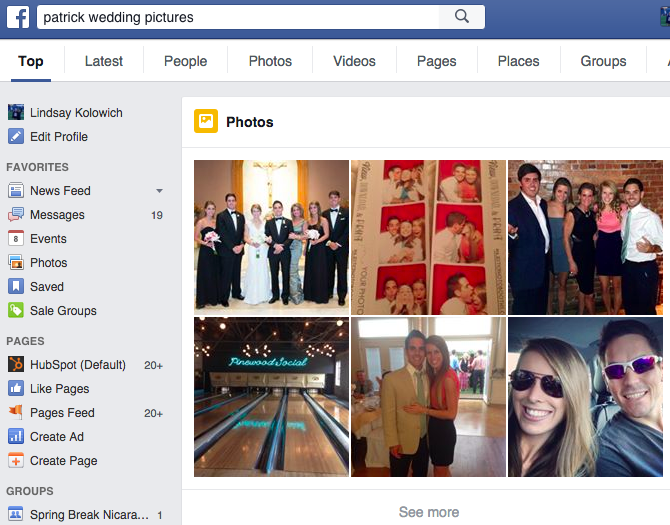
Boom: Exactly what I was looking for.
You can also search for friends who Like specific pages, or are talking about different celebrities, and so on. Learn more about how Graph Search works by reading this blog post.
10) You can browse popular articles by looking at “what’s trending.”
One way to read the news on Facebook is by browsing the articles that are trending. On the right-hand side of your News Feed and under event invites and birthdays, you’ll find a list of articles that are trending on Facebook. It looks like this:
(Note: Trending is currently only available in English in select countries.)
The articles Facebook shows you are based on a number of different factors, including engagement, timeliness, pages you’ve Liked, and your location. They’re also divided into five different topics: all news, politics, science and technology, sports, and entertainment.
While you can’t turn trending off, you can customize your list of trending articles by toggling by topic. To toggle by topic, click on the icon that corresponds to whichever topic you’d like to see, which are located to the right of the word “Trending” in the “Trending” section.
11) You can save stories to check out later.
Ever seen articles in your News Feed you wished you could bookmark for later? Facebook realized that many users who were browsing the News Feed simply didn’t have time to drop what they were doing to read an article.
That’s why they added a feature that lets you save links to articles, events, TV shows, music, and more to revisit later.
To save a story to read later: Click and then select Save link.
12) You can switch from seeing top posts to seeing most recent posts.
When you first log on to Facebook, your News Feed will default to showing “Top Stories”: popular stories and posts from your favorite friends and pages, many of which have gained a lot of engagement. But you can also choose to have the stories on your feed sorted by recency.
To toggle between the two: Go to your Facebook homepage. In the column on the left-hand side of your home screen, you’ll see “News Feed.” Click to the right of “News Feed,” and choose either “Top Stories” or “Most Recent.”
13) You can override the algorithm by handpicking whose updates show up first in your feed.
When Facebook learned that many users were concerned they were missing important updates from the friends they cared about most, they changed the News Feed algorithm so that updates from close friends would appear higher in the News Feed. Then, even more recently, they decided to give users the option of handpicking people and pages whose updates they want to appear first on their feeds, rather than having that decision fall back on the algorithm.
Now, when you select a person or page to “see first,” their posts will appear at the top of your News Feed. Selecting people to “see first” is different than selecting them as a close friend: When you select a person as a close friend, you’ll just receive notifications when they post something new.
To select people or pages to “see first”: First, click in the top-right corner of any Facebook page and select “News Feed Preferences.”
In the window that appears, click “Prioritize who to see first.” Then, select the people or pages you’d like to, well … see first on your feed.
(P.S. If the phrase “Prioritize who to see first” makes your blood boil, then you’re probably kind of a grammar nerd. It’s okay. We are, too. Here’s a list of jokes about grammar to help you return to a healthy baseline.)
14) You can “unfollow” people or pages so you never see their posts.
We’re not gonna name names, but every one of us has a few people we’re “friends” with on Facebook who’ve made a hobby out of posting daily gym selfies, love proclamations, and political rants. Let’s be honest … we could all do with fewer of those.
Luckily, you can unfollow people to hide their posts. FOREVER. (Er, at least until you reconnect with them later. We’ll get to how to do that in a second.) Better yet, they won’t know if you’ve chosen to unfollow them. There are two ways to unfollow a person, page, or group.
a) To unfollow directly from the News Feed: Click on the top right of their story, and select “Unfollow.”
b) To unfollow from your News Feed preferences: Click in the top-right corner of any Facebook page and select “News Feed Preferences.” In the window that appears, click “Unfollow people to hide their posts.”
To reconnect with a person, page, or group that you unfollowed in the past: Click in the top-right corner of any Facebook page and select “News Feed Preferences.” In the window that appears, click “Reconnect with people you unfollowed” and select whomever you’d like to reconnect with.
15) You can find out why you’re being targeted for different ads.
Ever wondered why you’re seeing certain sponsored posts in your News Feed? Businesses can choose ad targeting options like location, age, gender, interests, and people already connected to their page, event, or app — and for every sponsored post you see, you can actually find out why you’re being targeted.
To find out why you’re seeing an ad: Click on the top right of their sponsored post, and choose “Why am I seeing this?” from the dropdown menu.
A small window will appear with an explanation. In the case below, one reason I’m seeing that ad from Dollar Shave Club is because they’re targeting women aged 18 years and older in the United States who Like their page.
(If you’re on the business side of things, click here to download an ebook on how to create Facebook ads that actually work.)
16) You can hide ads so you never see them again.
While you can’t block Facebook ads entirely — they help keep Facebook free, after all — but you can opt out of seeing a specific ad or any ads from a single advertiser.
To hide a specific ad: Click on the top right of their sponsored post, and choose “Hide ad” from the dropdown menu.
In the window that appears, give Facebook feedback on why you want to hide the ad, and press “Continue.”
Click “Done” in the thank-you window that appears. You can undo hiding an ad as long as you don’t refresh the page.
To hide all ads from a single advertiser: Follow the same steps above by clicking on the top right of their sponsored post, and choose “Hide ad” from the dropdown menu. In the window that appears, choose “Hide all ads from [advertiser],” and you’re done.
In some cases, when you click on the top right of a sponsored post, you’ll be given an option to let Facebook know you already own the product that’s being advertised. Simply choose that option to let them know, and you’re done.
On the contrary, you can also let Facebook know when you come across an ad that’s useful. After all, one of their major goals is to make ads as interesting and valuable to users as the organic content they’re finding on their News Feed.
To tell Facebook an ad is useful: Click on the top right of their sponsored post, and choose “This ad is useful” from the dropdown menu. Nothing else will happen, except that you’ll see a check mark next to that option if you click the dropdown menu again. You can undo it by clicking on that option a second time.
17) You can create a Facebook ad for any reason, no matter who you are.
Want to put yourself out there for a new job? Get more exposure to your blog? Advertise your neighbor’s daughter’s Girl Scout cookies campaign? Turns out anyone — not just businesses — can run ads on Facebook, and for any reason.
One cool use case is if you want to get a job at a specific company: You can create a Facebook ad campaign that advertises your skills and expertise, and then target that ad at specific people or people who work at specific companies.
- If you’re applying to a larger, more well-known company like Apple, you might make your audience “people who work at Apple.”
- If you’re trying to target people who work at a small company, though, then that may not show up on Facebook as an option. In that case, you can create a custom audience using Facebook’s power editor. The power editor lets you handpick the people who see your ad campaign using their Facebook IDs, which you can find using this tool. So if you know the names of, say, 20 specific people you want your ad to be shown to, then you can go find each user’s Facebook ID, add them all to your custom audience, and then pay to serve your ad to that audience.
To create an ad campaign: Go to http://ift.tt/19Ir8sj, or go to the Ads Manager and click “Create Campaign.” You’ll be taken to a window that looks like this:
From there, you can choose your objective, name your campaign, choose your audience, set your budget and ad schedule (or set a manual bid), choose your images, add text and links, and place your order. (Click here for detailed instructions from Facebook.)
18) You can get notified when your favorite people post.
There may be a handful of people in your life — your brother, spouse, good friends, etc. — whose Facebook posts you wanted to know about right away. All you have to do is add those people to your Close Friends list and turn on notifications, and you’ll receive a notification whenever they add a photo, post a status update, change their profile picture, and so on.
To get notifications when certain people post, you’ll have to add those people to your Close Friends list. To do that, go to your friend’s Facebook Page and click the left-most dropdown menu located over their cover photo. Choose “Close Friends” from the dropdown menu.
To get notifications for people on your Close Friends list: Click in the top-right of any Facebook page and choose “Settings.” Then, choose “Notifications” from the column on the left-hand side of your screen.
Click “Close Friend Activity.” (If notifications are already on, you’ll have to click “On Facebook” and then “Close Friend Activity.”) Select “On Facebook” to enable notifications, or “Off” to turn off notifications.
19) You can get notified when things happen in the groups you like.
Sick of missing out on all those fun local alumni events? I have good news for you: Just like getting notifications when close friends post, you can also choose to get notifications when people post to certain groups you’ve joined.
To get notifications for groups: Click in the top-right of any Facebook page and choose “Settings.” Then, choose “Notifications” from the column on the left-hand side of your screen. Select “Group activity,” and a window will pop up listing all the groups you’ve currently joined. You can choose from the corresponding dropdown menus whether you’d like to receive notifications for all posts, just friends’ posts, or no posts at all.
20) You can follow events, even when you haven’t committed to going.
It used to be that when you were invited to an event, you RSVP’d by choosing “Yes,” “No,” or “Maybe.” But in November 2015, Facebook replaced the “Maybe” button with “Interested,” which indicates to the event organizer that you’re interested in going but can’t decide yet. If you RSVP as “Interested,” then it’s kind of like “following” the event: You’ll get notifications and updates from the event anytime something is posted.
So there you have it: 20 awesome Facebook facts and features you might not have known before. Sure, it’s a little creepy to think about how much Facebook knows about us; but it’s that level of detail that allows them to get closer and closer to delivering the best experience possible. Pretty fascinating, right?
What other helpful facts or features do you know about Facebook’s News Feed? Share with us in the comments.
Apple now opening four new Apple Stores in China this month alone, as it announces #31 and #32
Apple is looking very comfortably on-track for its goal of 40 retail stores in China by October as it has announced that two more stores will open this month. That will bring the total in China to 32, four of them opening this month alone …
First up, on January 16, will be Apple’s second store in Nanjing, this one in the IST mall at 100 Zhongshan Road in the Xuanwu District. Apple also has a flagship store in Shanghai on the East Nanjing Road. This will be followed on January 28 by the company’s first store in Guangzhou, at Parc Central, 218, Tianhe Road in the Tianhe District.
Nanjing is the second-largest city in East China, with a population of a little over eight million. It is a historically important city in China, having served as the capitals of a number of dynasties, kingdoms and republican governments dating back to the 3rd century.
Guangzhou is the third-largest city in China, with a population of 13M, with good transport links to both Hong Kong and Macau.
Apple is clearly continuing to bet big on what is expected to become its largest market worldwide despite concerns about the economy of the country.
Photo: Guangzhou skyline from themostperfectview.com
Filed under: AAPL Company Tagged: Apple Inc, Apple retail stores, Apple Store, china
For more news on AAPL Company, Apple Inc, and Apple Store continue reading at 9to5Mac.
What do you think? Discuss “Apple now opening four new Apple Stores in China this month alone, as it announces #31 and #32” with our community.
Aaron Sorkin and Kate Winslet pick up Golden Globes for Steve Jobs; Michael Fassbender misses out
The movie Steve Jobs last night won two of the four Golden Globes awards for which it was nominated. Aaron Sorkin picked up the award for Best Screenplay, and Kate Winslet won Best Performance by an Actress in a Supporting Role. However, Michael Fassbender lost out to Leonardo DiCaprio in Best Performance by an Actor. Daniel Pemberton, who wrote the score for the movie, was also beaten by Ennio Morricone for The Hateful Eight.
Fassbender being beaten to the best actor award by DiCaprio had a certain degree of irony: DiCaprio had previously been offered and turned down the title role in Steve Jobs.
Despite claiming to be lost for words, Sorkin managed a wry acknowledgement of the fact that the movie bombed at the box office …
The title of the movie changed to ‘Box Office Failure Steve Jobs’ after its third week. It took some of the air out of the pride that we were feeling. We didn’t want that to be the epithet of the movie. This is just very, very nice.
The movie almost certainly lost a lot of money, Variety estimating total production and marketing costs at around $60M, meaning that (once the theater share was taken into account) it would have needed to gross $120M to break even. It has so far earned just $17.7M in the USA, reports the Guardian, with only a handful of theaters still showing it.
Sorkin said that his favorite reaction to a screening by someone close to Steve had been key Macintosh system software designer Andy Hertzfeld.
When we screened it for him, he said: ‘This is unbelievable – not all of that happened, but it’s all true.’
Hertzfeld had previously said that the movie “deviates from reality everywhere” but “exposes deeper truths.” Tim Cook and Jony Ive notably didn’t share this view.
Filed under: AAPL Company Tagged: Aaron Sorkin, Golden Globe Award, Golden Globes, Leonardo DiCaprio, Michael Fassbender, Steve Jobs
Visit 9to5Mac to find more special coverage of AAPL Company, Steve Jobs, and Aaron Sorkin.
What do you think? Discuss “Aaron Sorkin and Kate Winslet pick up Golden Globes for Steve Jobs; Michael Fassbender misses out” with our community.
How B2B Marketers Use Facebook to Reach Customers
Is your business struggling to connect with other businesses on Facebook? Need some ideas to spark your imagination? In this article you’ll discover nine ways B2B marketers can use Facebook to connect with customers. Why Facebook for B2B? LinkedIn is often the B2B platform of choice. However, there are plenty of opportunities to connect with […]
This post How B2B Marketers Use Facebook to Reach Customers first appeared on .
– Your Guide to the Social Media Jungle
from http://ift.tt/1P2siQr
via socialmediaexaminer