
Welcome to My Blog
Review: OWC’s Drive Dock turns your Mac’s old internal hard drives into plug-and-play storage
Mechanical hard drives will continue to be available — though decreasingly important — into the foreseeable future. New drives are cheaper and higher-capacity than increasingly popular solid state drives, and old drives pulled from computers are hard to throw away, even if they’re past their prime. Most people would seek out an external hard drive enclosure, which is ideal if you want to commit to repurposing one internal drive for an extended period of time. But what if you want to swap multiple internal hard drives in and out on an as-needed basis?
Sporting a substantially metal chassis with Thunderbolt 2 and USB 3.0 ports, OWC’s new Drive Dock ($245) is a premium solution for people who want high-speed, on-demand access to internal hard drives. The top has two SATA-compatible drive bays, each capable of holding 2.5″ laptop drives or 3.5″ desktop drives, while the bottom holds a power supply capable of safely powering both drives as plug-and-play volumes…
|
Key Details:
|
There’s no question that Drive Dock carries a substantial design and electronics premium over functionally similar alternatives from companies such as Sabrent — this, like OWC’s Mercury Pro optical disc burners (reviewed here), is a fancier, Mac-matching option with features that will be of disproportionate interest to professional users. The thick aluminum and equally sturdy black plastic chassis are arguably the least important of these features, though they do a very nice job of matching everything from iMacs and Mac minis to MacBook Airs and MacBook Pros; they also enable Drive Dock to remain stable on your desk when you’re connecting or disconnecting drives from its bays.
On the functional side, OWC bundles Drive Dock with a Thunderbolt 2 cable, which is fairly uncommon for accessories of this type, as well as dual Thunderbolt 2 ports so Drive Dock can sit in the middle of a Thunderbolt chain rather than at its end. You’ll also get a USB 3.0 cable and a power cable in the box; a power switch on the back controls the entire unit, while individual power buttons on the top can power each drive on or off as preferred.
Using Drive Dock is as simple as plugging your internal drive into one of the bays, SATA plugs facing downwards in the lower left corner. You’ll hear a soft click when the connection is made, and at that point, the drive will be ready to show up as a volume on your USB- or Thunderbolt-connected Mac. No drivers are necessary, and the user experience is literally indistinguishable from using a dedicated external enclosure… except for one thing. Once you press the Eject button on OS X, Drive Dock enables you to just physically pull the internal drive out at will and swap it with another if you want. With standard external hard drive enclosures, that feat is either impractical or impossible.
If you’re planning to use Drive Dock with recent, fast SATA III drives, the speed benefits will be more obvious than with older, slower SATA I and SATA II drives. As my personal collection of spare internal hard drives is limited, and doesn’t include anything with SATA III, I wasn’t able to push Drive Dock to its theoretical limits. Using both Thunderbolt 2 and USB 3 connections, my single SATA II drive tests tapped out at around 125MB/second for both reads and writes, below the Drive Dock’s Thunderbolt 2 (477-522MB/second) and USB 3 (347-427MB/second) peak single drive benchmarks. OWC notes that it is also capable of running two drives in a RAID 0 configuration at speeds of around 371-378MB/second, varying only slightly based on your choice of Thunderbolt 2 or USB 3 interface. With a SATA III mechanical hard drive, you can expect up to 180MB/second speeds; a SATA III SSD will come closest to pushing Drive Dock’s capabilities.
As Mac peripherals go, Drive Dock is quite clearly designed to appeal to a very specific audience: professional Mac users who have need for a high-performance, quick-swap adapter for internal hard drives. It isn’t cheap, but it isn’t flimsy, and it looks very much in the right place next to a desktop or laptop Mac. The ideal customer for such an accessory is someone who either has a lot of internal hard drives — say, a video professional or huge fan of multi-drive backups — or a need to frequently switch between several drives that aren’t better placed inside discrete external enclosures. Drive Dock’s pricing, finish, and features make it a good choice for creative professionals who care about speed and aesthetics.
| Manufacturer: Other World Computing |
Price: $245 |
Compatibility: Mac |
|---|
More From This Author
Check out more of my editorials, How-To guides, and reviews for 9to5Mac here! I’ve covered a lot of different topics of interest to Mac, iPad, iPhone, iPod, Apple TV, and Apple Watch users. I’ve recently discussed how to safely prepare and wipe your iPhone for resale or trade-in, and how to get the best iPhone trade-in price to help buy an iPhone 6s, amongst many other topics.
Filed under: Mac, Reviews Tagged: Drive Dock, hard drive enclosure, OWC, SATA, Thunderbolt 2, USB 3
For more information about Mac, Reviews, and Thunderbolt 2 continue reading at 9to5Mac.
What do you think? Discuss “Review: OWC’s Drive Dock turns your Mac’s old internal hard drives into plug-and-play storage” with our community.
How Homebuilders Can Leverage Houzz, Pinterest and Instagram to Generate More Business
The odds are you or someone you know has searched for a home recently. Something magical happens when you find the right one. Your heart starts racing, your palms get clammy. Are you about to buy a house?
You may not realize it from the consumer side of this deal, but there is an enormous amount of heavy-lifting that comes from the homebuilder side, especially with the availability of social media at consumers’ fingertips.
Imagine the complexity behind drawing in people from all walks of life who are about to make one of the largest purchase decisions of their lives. Maybe they’re newlyweds, looking for their first home purchase ever. Maybe they found out their family is growing and they need a bigger home, but they’re conscious of the energy efficiency and want to be near particular landmarks. Maybe they’re retiring and are looking to downsize or buy a vacation home in another state.
How can homebuilders speak to all of these people at once effectively? Social media done right.
Houzz is an increasingly effective tool to speak to home buyers
There are several aspects of Houzz that allow a homebuilder to communicate directly with interested home buyers. For example, homebuilders can post pictures and statistics of projects they are working on or have completed. This gives the home buyer a taste for what a project could look like when the idea of building a new home seems very daunting.
Homebuilders can also use what Houzz refers to as Ideabooks, allowing them to collaborate with home buyers online. They can post images of their own designs, décor, or floor plans allowing a potential client to transition from collecting their own ideas to actually seeing what options could be viable.
Houzz also allows the home builder to accumulate comments and reviews, encouraging past customers to engage with potential clients who are in the process of looking. According to a Zendesk survey, 90% of customers say buying decisions are influenced by online reviews, making this aspect of Houzz undeniably critical.
Pinterest can be used in innovative ways to aid homebuilders in selling
At conception, Pinterest seemed to be the land of fitspiration, recipes, crafting, DIY ideas, and other visually motivating ideas. Now, Pinterest is accessible to anyone, including people like me who end up with dyed skin or glitter stained clothes just by looking at a crafty project. For homebuilders, Pinterest is an avenue to reach those who are searching for specific keywords related to their industry and then engaging this audience with related boards.
Pinterest allows for users to invite other users to share a board and “pin” ideas to it together. While similar to the Houzz Ideabook function, Pinterest takes this interaction to the next level by allowing “pinners” to add their own information, including images and blogs from their website.
Pinterest also creates the opportunity to build boards and pin trending topics, catching any viewers who may be interested in related topics but are currently searching trends. For example, plenty of home-makers could be interested in remodeling their kitchens, but as the holidays are approaching they are more interested in searching for “creative table settings for Christmas.” By building a board around “decorating for the holidays,” a homebuilder could catch the eye of anyone who is looking for ideas on how to decorate their own homes for the holidays.
While building SEO through social media and gaining credibility for resonant and relevant posts a homebuilder can greatly increase traffic and potentially sales on their website. In a world where 88% of pinners purchase something they have pinned and 49% purchase 5 or more products they pinned, homebuilders must join the movement.
Instagram offers more than just pretty pictures for homebuilders and home buyers
Instagram has a lot more to offer than initially meets the eye. Its initial use was as a platform for pushing pictures with relevant and trending hashtags to sort conversations. Those discovering these pictures through hashtags can then like the pictures and, in a sense, organize the feed they subscribe to with certain images that they want to see.
Now, Instagram is an opportunity for homebuilders to follow up on those who are interested in their posts and then to follow them and see what else they are interested in. Using information like this and collecting personas can be very helpful data in the long run. Discovering, from lead to customer, what a typical BUYER persona is on social media can greatly alter the strategy a homebuilder can use to target the right audience.
Instagram also offers the unique opportunity to post short video clips. For example, new home builders can use this option to give a tour of a new build or a walk through a construction zone as led by the president of the company herself. These kinds of insider looks help build integrity and emotional connections with those who are serious about their home buying search and are evaluating their options of brands. It is a well-known fact that “[people] are not thinking machines…[but] are feeling machines that think” – so cater to the emotional side of a big decision.
Are you more likely to buy a new home from a builder who has a 10 second video of a woman buying a new house, getting help from the builders to make it just right, and then ending with a soldier in uniform walking up to the door finally seeing his new home or from a brand that isn’t even on Instagram?
These three social media channels have changed the strategy of selling over the past couple of years. Cold calls won’t cut it when your competitor is researching buyer personas based on trends on their own social media sites and is interacting directly with interested consumers from the comfort of their own homes and smartphones.
It’s time to change your strategy and find what works for you. The biggest risk you can take in 2016 is to keep doing what you were doing in 2015.
Infuse video playback app makes its way to the new Apple TV
Infuse, a popular video library and playback application for the iPhone, iPad, and iPod touch, is making its way to tvOS on the new Apple TV today. As with its iOS counterpart, Infuse on the Apple TV will serve as a way for users to store multiple video file types in a single library.
The application can stream video content from a computer, external wireless storage drives as well as apps like Plex, Kodi, and Servioo. This differentiating feature is handy for users who want a single view of all their video content stored across numerous devices and services.
Because the tvOS version of Infuse is tied to the iOS counterpart, the download is free for users of Infuse 3 on iOS devices. The tvOS version is labeled as Infuse 4.0, and the iOS client will be upgraded to the new version later this year, the developers tell us.
Infuse 4.0 on tvOS (and in the upcoming iOS version) adds automatically downloaded artwork and movie ratings, support for syncing how far along a user is into a video between devices, and support for downloadable subtitles.
Filed under: Apple TV, Apps Tagged: app, Apple TV, icloud, infuse, iTunes, movies, sync, tvOS, Video Playback
Continue reading more about Apps, iTunes, and Apple TV at 9to5Mac.
What do you think? Discuss “Infuse video playback app makes its way to the new Apple TV” with our community.
9to5Toys Lunch Break: Jabra MOVE Bluetooth Headphones $60, Quadcopter w/ HD Camera $39, more
Keep up with the best gear and deals on the web by signing up for the 9to5Toys Newsletter. Also, be sure to check us out on: Twitter, RSS Feed, Facebook, Google+ and Safari push notifications.
TODAY’S CAN’T MISS DEALS:
Bluetooth Headphones: AUSDOM M04 Over-Ears $30 (Reg. $43), Jabra MOVE On-ears $60 (Reg. $90), more
Daily Deals: 6-axis Gyro RC Quadcopter w/ HD Camera $39, Energy Bookshelf Speakers pair $100, more
Monument Valley for iOS goes free for the first time (Reg. $4)
$100 iTunes Gift Card for $80 with email delivery from PayPal (20% off), more
MORE NEW GEAR FROM TODAY:
Knock out a huge chunk of your Xmas list with Razor sale at Amazon, scooters start at $14, electric ride-ons $19, go carts, more
Host a Christmas party that doesn’t suck with these rowdy adult board games
- Altec Lansing The Jacket Bluetooth Speaker $20 shipped (Reg. $50)
- Games/Apps: Metal Gear Solid Phantom Pain $35, Nintendo NFC Reader from $16, more
- Fashion 50% off sales: The North Face, PUMA, Patagonia, more
- Lenovo IdeaPad Touchscreen Chromebook $170 shipped (Orig. $330)
A year of BJ's for $18? You aren't dreaming, just being a perv wp.me/p1xTlR-KVI https://t.co/6dQ098aout
—
9to5Toys (@9to5toys) December 03, 2015
MORE DEALS STILL ALIVE:
TextExpander 5 for Mac, award-winning productivity app now $22 (Orig. $45)
Free PS Plus Games for December: Far Cry 3, Gaunlet Slayer Edition, more
Free Xbox Live Gold Games for December: Thief, Adventures of Van Helsing, Sacred 3, more
- Apple 12″ 256GB MacBook $1,100 (Reg. $1,299)
- MoKo Apple Watch charging stand $5 or dual iPhone/Watch stand $12
- Caseology iPhone 6/s/Plus and Android Cases from $4 shipped
- Free MP3 Christmas albums from Mariah Carey, Blake Shelton, Josh Groban
- Anker USB Power Deals: 4-port 36W Wall Charger $14 (Reg. $20), more
- Networking: HooToo 802.11n Travel Router $15 (Reg. $20), more
- Kindle First Books for December: Out of Sorts, A Death in Sweden, more
- Apple’s Amazing Apps & Games sale 50% off: Threes!, Transistor, PAC-MAN, more
- OtterBox Commuter Series iPhone 6/6s Case for $19 shipped (Reg. $28+)
- Kindle tablets 25% off for Amazon cardholders: Paperwhite $90, more
- Audio-Technica Headphones + Amp $180 shipped ($258 value)
- Monoprice MHD Sport 2.0 Action Camera w/ Live View Remote $150 (Reg. $180)
- Anker iPad Accessories: Bluetooth Folio Keyboards for iPad Air 2, mini 4, more from $20
- eBay Gift Card Roundup: Toys R Us $100 for $85, Lowe’s $200 for $175, much more
- These men’s luxury watches are on sale for Black Friday & Cyber Monday
- GoPro HERO4 Cameras: Session $229 (Reg. $300), Black 4K $349 (Reg. $500)
- Pixelmator for Mac gets a 50% discount today: $15 (Reg. $30)
- Apple AirPort Extreme 802.11ac Wireless Router (refurbished): $100 shipped (Orig. $199)
- Herman Miller takes rare 15% off world’s best office chairs + desks
NEW PRODUCTS & MORE:
Mounts for the new Apple TV (4th gen) keep your HDTV setup looking super clean
Sugr Cube enters the fray of Wi-Fi speakers with touch-based controls & a myriad of sources
- MiTagg slims down its NuDock Mini for iPhone & Apple Watch plus adds USB-C
- Review: Star Wars Battlefront limited edition PS4 is out of this galaxy [Video]
- Mohu launches a “high-end” speaker with built-in Android display, save 10%
- Leica introduces a new low-cost M series camera, but don’t expect bargain pricing
Filed under: Tips and Tricks Tagged: 9to5Toys, Amazon Gold Box, Amazon Prime, app deals, apple deals, Apple TV Mount, Black Friday, bluetooth headphones, Cyber Monday, Daily Deals, Deals, eBay Daily Deals, free, Free App of the Week, free apps, Freebies, gift guide, holiday gifts, iPad, iPhone, Jabra MOVE, Lunch Break, MacBook, New Toy of the Day
Check out 9to5Mac for more breaking coverage of iPhone, iPad, and Tips and Tricks.
What do you think? Discuss “9to5Toys Lunch Break: Jabra MOVE Bluetooth Headphones $60, Quadcopter w/ HD Camera $39, more” with our community.
Verizon giving away 2GB to upgraders, T-Mobile discounts iPhones and Apple Watches to AT&T switchers
The carrier wars in the US are heating up as we head further into the winter, and that’s generally good news for consumers. Verizon is currently adding 2GB of data for new and current subscribers that upgrade to certain plans over the next few weeks. T-Mobile is targeting switchers by offering AT&T subscribers that jump carriers the chance to buy the 128GB iPhone 6s at the price of the 16GB model and save as much as $125 on financed accessories including Beats headphones and the Apple Watch. Read on for details…
For current or future Verizon subscribers, here’s what you’ll want to know. Starting now through January 6th, the carrier will add 2GB of monthly data for each phone upgraded or added that uses an XL or XXL data plan.
Those are Verizon’s 12GB/$80 and 18GB/$100 plans effectively making these plans 14GB and 20GB for the same monthly price. The offer applies for up to 10 lines and sticks around as long as the upgraded or new phone is on the XL or XXL plan. Data can also be shared with others on the same family plan including tablets.
Meanwhile, T-Mobile is doing the usual thing and targeting switchers. AT&T customers that move lines to T-Mobile can pick up the 128GB iPhone 6s at the price of the $200 cheaper 16GB model. The entry level storage is generally a bad experience, and the offer makes the high-end model a better deal than the mid-tier 64GB model. The offer starts tomorrow and runs through December 13th.
T-Mobile notes that its current $200 credit promo for Sprint switchers runs through December 6th, and a deal for Verizon customers moving to T-Mobile will come next week.
Finally, T-Mobile is also offering AT&T switchers discounts up to $125 off of financed accessories including Beats headphones, Apple Watches, Guitar Hero Live for iOS, and much more. The offer also extends to AT&T’s GoPhone and Cricket Wireless subscribers as well. Read all the fine print here.
Filed under: Apple Watch, iOS Devices, Tech Industry Tagged: Apple watch, AT&T, Beats, Data, iPhone, Sprint, T-Mobile, Verizon
For more information about iOS Devices, iPhone, and Tech Industry continue reading at 9to5Mac.
What do you think? Discuss “Verizon giving away 2GB to upgraders, T-Mobile discounts iPhones and Apple Watches to AT&T switchers” with our community.
Apple’s Swift programming language is now open source
As promised earlier in the year, Apple’s Swift team has now posted source code for the Swift compiler and standard library functions and objects. Open-sourcing Swift is a big win for the developer community as it means Swift can now be setup to run on a server and many other use cases, bringing Apple programming talent and expertise beyond ‘just’ making apps iOS devices and Macs.
Making Swift open-source also gives the developer community as a whole more confidence in the language. Theoretically, if Apple ever decided to move away from Swift (which is unlikely), the language could be picked up by others and continue development and existing codebases could continue to be supported.
By open sourcing the language, Apple is also inviting the community to help make Swift better, by contributing to the language itself. It is yet to be seen how open Apple approach accepting significant community pull-request however. The Swift site says the project prefers ‘small incremental improvements’.
For those interested in finding out more, check out the documentation on the Swift.org site. The code itself is hosted on a GitHub repository. The repo is currently 404ing but the code should be up shortly.
Apple is publishing code for the raw language compiler as well as the Swift standard library and parts of Foundation, which many developers did not think would happen. Frameworks like AppKit and UIKit remain exclusive to Mac and iOS app development as expected. The published ‘core libraries’ include some of the most important components from AppKit and UIKit, like a networking stack, threading, and common data types, however. Apple says these features are actually planned for official release in the as-yet-unannounced Swift 3, but is including them now for feedback in the early development stages.
Filed under: Developers, iOS, iOS Devices, Tech Industry Tagged: developers, Open source, Swift
For more information about iOS Devices, Tech Industry, and iOS continue reading at 9to5Mac.
What do you think? Discuss “Apple’s Swift programming language is now open source” with our community.
Yahoo Messenger gets a new life w/ redesigned mobile & web apps
Yahoo Messenger has long taken a back seat to other Yahoo products on mobile devices, but today the company is finally unveiling a revamped app that brings its messaging platform into this decade with a completely redesigned user experience and new features.
Launching today across platforms— iOS, Android, web, and within Yahoo Mail on the desktop— the new Yahoo Messenger experience aims to integrate features from Flickr, Tumblr and Xobni while providing access to the usual messaging and contacts features.
For photo sharing in the new app, Yahoo notes that users can “send hundreds of photos at a time and they appear to everyone in the conversation almost instantly.” Users can also download images in their original full resolution, while not having to worry about photo storage as images are loaded on the fly when needed.
Other new features include the ability to “unsend” a message, deleting it from the conversation for all participants, “likes” for individual messages, and the ability to search for and send GIFs from Tumblr.
The app also works when offline (messages will be sent when you next connect to the internet), and a new “Smart Contacts” feature powered by Xobni offers smart suggestions when searching contacts.
You can check out the new Yahoo Messenger app for iOS (and on the web) today.
Filed under: Apps Tagged: App Store, Apps, iOS, iPad, iPhone, Messenger, redesign, update, Yahoo
Check out 9to5Mac for more breaking coverage of Apps, iPhone, and iPad.
What do you think? Discuss “Yahoo Messenger gets a new life w/ redesigned mobile & web apps” with our community.
KGI: New 4-inch iPhone will resemble iPhone 5s, expect A9 chip and NFC for Apple Pay
KGI’s Ming-Chi Kuo, who has a good track record on what if not when, says that Apple’s new 4-inch iPhone will “resemble an upgraded iPhone 5s,” but will get some new internals. Externally, he suggests the main visible difference will be similar curved-edge glass to the iPhone 6/6s.
Beneath the hood, he says the phone – expected to be dubbed the iPhone 6c – will get an A9 processor and NFC chip to support Apple Pay. The camera will, however, be identical to that in the 5s. Kuo’s investment note also supports recent reports that the 6c will get a metal case, stating that it will be available in at least 2-3 colors.
Kuo expects the phone to hit in the first quarter of next year, but does think that it may generate relatively modest sales …
The note estimates that the new model – expected to be priced at $400-500 – will account for 8-9% of next year’s iPhone sales, but says that there is still good reason for Apple to launch. There is still demand for 4-inch phones, and it will help Apple extend its penetration into emerging markets and consumers on tighter budgets. Supporting Apple Pay will also strengthen the Apple ecosystem.
Kuo believes that while the usual seasonal effect will see iPhone sales slowing early next year, the new model could reduce the scale of that slowdown.
The note supports the theory we expressed yesterday that the new phone will replace the iPhone 5s in the line-up.
Filed under: iOS Devices Tagged: 4-inch iPhone, a9, Apple pay, iPhone 5s, iPhone 6c, Ming-Chi Kuo, NFC
Check out 9to5Mac for more breaking coverage of iOS Devices, Apple pay, and iPhone 5s.
What do you think? Discuss “KGI: New 4-inch iPhone will resemble iPhone 5s, expect A9 chip and NFC for Apple Pay” with our community.
Authors and booksellers back Apple in ebook appeal to Supreme Court, say Amazon should be investigated instead
While the ebook trial may seem like old news now, the case is not yet finally settled. Apple was found guilty of anticompetitive behavior in its ebooks pricing and practices back in 2013, and lost a subsequent federal court appeal – despite some judges expressing sympathy with Apple’s position.
Apple then decided to take the case to the Supreme Court, and today got the backing of both authors and distributors, reports The Bookseller.
A group of authors and booksellers have filed a motion in the US asking for the […] decision against Apple’s role in a 2010 conspiracy to fix the price of e-books to be overturned […]
The Authors Guild, along with Authors United, the American Booksellers Association, and Barnes & Noble filed an “amicus brief” in the US which asserts that the government’s focus on Apple’s “allegedly anti-competitive activities” was “misplaced” …
An amicus brief is a motion filed by parties not directly involved in a case, but who wish to express a view as ‘a friend of the court.’
Apple said when it lost its federal court appeal that it still believed it had done nothing wrong and might therefore continue to fight for the “principles and values” involved. The amicus brief supports that position, saying that history proved Apple was right – and that if anyone was guilty of anti-competitive behavior, it was Amazon.
It said Apple’s entry into the market increased competition, “as demonstrated by the fall of Amazon’s market share from 90% in 2010 to around 60% two years later”. The brief went onto say the Department of Justice should instead apply anti-trust scrutiny to Amazon over its past anticompetitive behaviour in the e-book marketplace.
Publisher’s Weekly notes that the Author’s Guild argued that Apple had a positive impact on the ebook market by breaking Amazon’s near-monopoly at the time.
“With a 90% market share, nearly every customer who wanted to purchase an e-book had to do so through Amazon,” the brief states. […] “Amazon controlled what e-books were promoted on its home page, what e-books were recommended to consumers, and what books appeared at the top of a consumer’s search results when she searched for e-books on the Amazon.com website.”
The Department of Justice has not yet responded to Apple’s petition to the Supreme Court. If it intends to do so, it doesn’t have long to do it, with a deadline of January 4th, just a month from now.
Via CoM
Filed under: AAPL Company Tagged: AAPL, Amazon, Apple, ebook trial, ebooks, Supreme Court
For more information about AAPL Company, Apple, and Amazon continue reading at 9to5Mac.
What do you think? Discuss “Authors and booksellers back Apple in ebook appeal to Supreme Court, say Amazon should be investigated instead” with our community.
The Anatomy of an Optimized Marketing Email [Infographic]
For email marketers, the inbox is a battlefield.
Chances are, the folks on your email lists are receiving promotional emails not just from you, but from a lot of different businesses. Whether they open your emails depends on a lot of things, including your subject line, how well they liked your past emails, and so on.
But with 91% of consumers checking email every day, it’s still one of the best places to reach your target audience. To inspire them to open and click through your emails, you’ll need to make sure you’re consistently sending great marketing emails that warrant your recipients’ time and attention.
So, what does a great marketing email include? Check out the infographic below from QuickSprout to learn the anatomy of an optimal marketing email, including how to optimize your subject lines, body content, and calls-to-action.
Download our free guide here to learn how to create awesome email newsletters of your own.

Is There Anything Wrong with an Alpha Project Manager?
Is There Anything Wrong with an Alpha Project Manager?
By Kiron D. Bondale
Multiple articles have been written about the evils of being a weak project manager. The unwillingness of such individuals to challenge poor decisions, to confront unhealthy conflict, or to shield their team members from unnecessary interference impacts team morale, forces other stakeholders to step […]
from Project Management Articles – PM Hut http://ift.tt/21y5cuN
via pmhut.com
How to Use Photoshop: The Ultimate Photoshop Tutorial for Beginners
When you open Photoshop for the first time, it’s easy to click around in confusion for a minute and then reach for your freelancer’s phone number instead. Trust us, you’re not alone in this.
It’s an incredibly powerful design software with a lot going on, including a wealth of tools that can seem overwhelming at times. But Photoshop isn’t just for the professionals.
With a little help, you can easily teach yourself how to use it to create beautiful, compelling graphics. All it takes is an introduction to core elements — in plain English.
To get you started, we’ve picked 12 of the most useful tools in Photoshop and explained what they do, where to find them, how to use them, and a few tips and tricks for getting the most out of them. We’ve also included some great resources in there in case you’d like to learn about a tool in more depth.
Click here to download our free guide for more do-it-yourself design tips.
Table of Contents
Click on a section name to scroll automatically to that section.
How to Use Adobe Photoshop: A Photoshop Tutorial for Beginners
1) The Layer Tool
What It Does: A layer can be used for an image, text, brush strokes, background colors, patterns, and filters.
I like to think of layers as sheets of glass stacked on top of one another that you’ll use to create a final product. Each sheet can be modified individually without affecting the project as a whole, which can save you tons of time when making edits to individual elements of your graphic.
Image Credit: StackExchange
Layers are by far the most important element of Photoshop — and, in my opinion, they’re one of the reasons many people throw their arms up in frustration. But once you understand how they work, I promise they’ll make your life much easier.
Where It’s Located: It has its own module on the bottom right-hand corner of your Photoshop screen, by default. You can also access it by clicking “Layer” in the top menu bar.
Pro Tip: Always name your layers. Keeping them organized will help keep you sane, especially if you find yourself working on a project with a large number of layers.
To add or delete a layer:
From the top menu bar, choose Layer > New > Layer…
To select a layer:
The selected layer is highlighted in blue. To edit a specific part of your image, you’ll need to select that specific layer.
You’ll also notice there’s an “eye” symbol next to each layer: Click that symbol to turn the eye on and off, thereby toggling the visibility of that layer as you work.
To duplicate a layer:
First, select a layer or group in the Layers panel. Next, either drag the layer or group to the Create a New Layer button, or right-click the layer to choose “Duplicate Layer” or “Duplicate Group.” Enter a name for the layer or group, and click OK.
Pro Tip: You can do all sorts of cool things with layers — and believe it or not, making animated GIFs is one of them. Check out our step-by-step tutorial here.
To learn more about adding, deleting, and duplicating layers in Photoshop, check out this video tutorial.
2) The Color & Swatches Tool
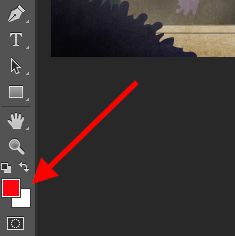
What It Does: The Color and Swatches tool lets you use, modify, copy, and save custom colors for your content. While this may seem like a pretty self-explanatory element, it actually has powerful features that will keep your visual content vibrant and unify your color schemes.
Where It’s Located: It has its own module on the top right-hand corner of your Photoshop screen, by default.
Another place to find the Color tool is at the bottom of the toolbar on the left, indicated by two overlapping boxes:
To create your own custom color:
Open the Color Picker by double-clicking on the top box either in the Color module, or in that menu on the left.
From there, you’ll see a vertical spectrum of color with a slider on it, which you can adjust to create your own custom color. Alternatively, if you already have a specific color of which you know the hex value (i.e. #1fb1ee), then enter it in the appropriate box to find that color automatically. You can also select your color swatch based on RGB or CMYK values.
Any colors you create can be added to your “Swatches” if you click “Add To Swatches.”
Pro Tip: Take your company colors and save them as “Swatches” so that you can reference and reuse them whenever you’re designing your visual content.
3) Custom Fonts & The Text Tool
What It Does: The Text tool lets you add custom fonts to your database, and it gives you access to advanced font settings that give your text some serious style.
Where It’s Located: The toolbar on your left, near the bottom.
Once you click the Text tool icon, all of the settings and font options will pop up at the top of your screen. These settings let you change the font, font size, and spacing between characters, height, width, color, and style. Be sure to select the layer of your desired text to edit it.
To add text to your graphic:
The text tool works like any other text tool you’ve used. Click the “T” icon on the left side bar, drag the text box over any particular area you want text to appear, and you’re set to go.
Whenever you create a text box, Photoshop will generate a layer for it. You can choose the color, size, stroke, font style, and a variety of other options to switch things up.
Pro Tip: While Photoshop offers a wide variety of fonts, you can also install your own fonts. Read this blog post for a list of 35 beautiful fonts you can download for free, and then read this post to learn how to install your new fonts in Photoshop so you can get to using ’em.
To learn more about fonts and the Text tool, check out this video tutorial.
4) Custom Brushes & The Brush Tool
What It Does: Just as with fonts, you can add your own, royalty-free, custom brush tips. With the brush settings, you can change the size, shape, and transparency of your brush strokes to achieve a number of different visual effects.
Brushes are a great way to add some visual accents to your content. Photoshop starts you off with a nice selection of brush tips that you can use to clean up your graphics and create some basic visual effects.
Where It’s Located: The toolbar on the left.
Once you click the Brush tool icon, all of the settings and brush options will pop up at the top of your screen. These settings let you change the brush size, opacity, flow, and so on. You’ll find a variety of pre-installed brush tips, as well as any custom brush tips you install to Photoshop. (You can find royalty-free brushes at www.brusheezy.com if you want to get really creative.)
To use the brush tool:
The brush tool is perfect for adding design accents to your content content. When using the brush tool, I always suggest adding a new layer to work with so you don’t paint over any of your other elements. You can choose colors from your library of swatches, or use a custom color.
Changing the brush settings can give your brush a drastically different look and style. Don’t be afraid to play around a bit with all of your custom brushes.
5) The Select Tool
What It Is: When used correctly, this tool will let you select individual elements, entire graphics, and determines what is copied, cut, and pasted into your graphics.
Where It’s Located: The toolbar on the left.
The Select tool is known as one of the most basic, yet frustrating tools to use in Photoshop. The first thing you should know is that it’ll only work if a layer is highlighted. So, if I want to cut or copy a piece of Layer 4, Layer 4 must be highlighted in my Layer’s tool bar. Highlighted areas are indicated by a flashing dotted line.
Once you remember to pay attention to which layer you are working with, the Select tool becomes much easier to use.
First, highlight your area of choice. Then, simply right-click and decide what you’d like to do from the pull-out menu. For example, you can cut out objects from a current layer and create a layer of your own.
How to select an image to insert into your graphic:
Open the image you’d like to use in Photoshop, and use the Select Tool to determine how much of the image you want to copy. Once you’ve selected the area of the image, simply copy the area.
Next, open the tab for your current project and paste it in as a new layer. Highlight the layer of the object(s) you’d like to select. You can move multiple objects at once by highlighting multiple layers.
Then, right-click your selection, and then you have a few options, including:
A) Choosing “Layer via Copy” to copy the object(s) from this layer and create a layer of its own.
Pro Tip: To select your entire graphic and include all layers, highlight all layers and then use the Select tool. Once you’ve determined the area to copy, use the menu bar at the top and click “Edit” > “Copy Merged.” This will copy the entire graphic so you can paste it as its own layer.
B) Choosing “Free Transform” to scale, rotate, move, and flip your selections. (Refer to the Move tool in the next section of this post if you need more help on this.)
Pro Tip: One really nifty trick you can do with “Free Transform” is to overlay screenshots of a PDF to make a 3D-looking image, like the one below for our introductory Pinterest ebook. You can find a visual overview of the steps below, but read this blog post for the step-by-step tutorial.
To learn more about all the Selection tools available in Photoshop, check out this video tutorial.
6) The Move Tool
What It Does: This is a fairly basic tool that allows you to move individual elements of your graphic.
The Move tool works on individual layers, and on the graphic as a whole — if (remember how to do this?) you highlight all of your layers. It comes in handy when you’re trying to reposition images, text, and other design elements.
Where It’s Located: The toolbar on the left, at the top.
To use the Move tool:
Click the Move Icon from the left hand menu bar and simply drag the object(s) you would like to move. To move all objects in one layer, simply highlight the layer and use the Move tool. You can also right click the object for additional options.
To scale, rotate, move, and flip things:
The Free Transform tool lets you scale, rotate, move, and flip any element in your select layer or layers. Use the shortcut CTRL + T or Command + T (for Macs) to initiate Free Transform, and check out the options that pop up at the top of your screen. Hold the SHIFT key while transforming to maintain the proportions of your elements.
7) The Zoom Tool
What It Does: The Zoom tool lets you zoom in close to certain areas of an image, and zoom out to get more of a bird’s eye view of what’s happening.
Where It’s Located: In the top menu bar, choose View > Zoom In or View > Zoom Out.
To use the Zoom tool:
Either select the zoom options from the “View” menu (as shown above). To use the keyboard shortcut, hold ALT (PC) or Command (Mac) and press + to zoom in, and ALT (PC) or Command (Mac) and press – to zoom out.
8) The Eraser
What It Does: The Basic Eraser functions a lot like the brush tool. You can change the size and hardness of the eraser tip to achieve a variety of effects, like blending and fades. The Background Eraser uses differences in color to help you erase unwanted background areas from your images.
The eraser is one of the most useful tools in Photoshop. Yes, I understand it’s technically just an eraser, but you’ve never used an eraser like this.
Where It’s Located: The toolbar on the left.
To use the Basic Eraser:
Once you click the Eraser icon, all of the settings will pop up at the top of your screen. These settings let you change the eraser size, hardness, and other aspects of the tool.
Like most tools in Photoshop, the eraser works only on a specifically selected layer. Make sure you’ve got the layer you want selected before you start erasing.
To use the Background Eraser:
This tool is a time-saving wonder. You can see how easily it eliminates background colors from images. This is especially helpful if you need an object with a transparent background.
To use the Background Eraser, click and hold the eraser icon until the slide out menu appears. Choose “Background Eraser.”
Now you’re ready to do some serious erasing. Adjust the size of the Background Eraser, and simply click the color you would like deleted from the selected layer. Remember to select the layer you want to erase on.
Pro Tip: Don’t be afraid to use an oversized eraser tip for the Background Eraser. Since it works by removing particular colors from the image, it won’t erase colors that aren’t selected.
To learn more about how to remove the background of a photo in Photoshop or PowerPoint, check out this step-by-step tutorial.
9) The Crop Tool
What It Does: The Crop tool lets you crop an image. It works like any crop tool you’ve ever encountered: Simply choose your area and crop it out.
I know this is a basic tool, but you’ll find yourself using this just as often as any other tool in Photoshop, especially when you’ve completed your graphic and need to clean up some of the free space around the edges.
Where It’s Located: The toolbar on the left.
To use the Crop tool:
Select the icon indicated in the screenshot from the side menu bar, and drag the box over the area you would like to crop. To adjust the crop box, simply click and drag the small anchor boxes on the sides and corners of the crop box.
Pro Tip: You can make your canvas size larger than it needs to be so that you can give yourself more room to move your design elements, and crop it down to the proper size afterwards.
Read this blog post to learn how to crop images in Photoshop to a specific ratio. If you want to learn some cropping tricks — like how to rotate an image using the Crop tool — then check out this article from Digital Photography School.
10) The Fill Tool
What It Does: The Fill tool, formerly the Paint Bucket tool, fills any solid area with the color of your choice. It’s great for solid backgrounds or coloring large areas. It can also be used to apply patterns to your images. The Gradient tool within the Fill tool lets you create a nice, faded background effect of the color of your choice.
Where It’s Located: On the top menu bar, choose Layer > New Fill Layer. From there, you have the option to choose “Solid Color,” “Gradient,” or “Pattern.”
To fill a solid area with a color:
First, select the layer you’d like to fill with a solid color. Then, from the top menu bar, choose Layer > New Fill Layer > Solid Color… From there, a “New Layer” window will pop up and prompt you to name the new color fill layer. Don’t worry about choosing the color you want right then and there — simply name the layer and press “OK.”
Next, the Color Picker window will pop up. Here, you can choose which solid color you’d like to fill. Since I’d selected my background layer to fill in (i.e. the color of the sky in my graphic), the color I select in the Color Picker dictates the color of the sky:
To apply patterns to your images:
These patterns can be manually created if you have the time and patience, or you can find a variety of royalty-free patterns available for download through a basic Google search.
To apply a pattern, first select the layer you’d like to fill with a pattern. Then, from the top menu bar, choose Layer > New Fill Layer > Pattern... From there, a “New Layer” window will pop up and prompt you to name the new color fill layer. Don’t worry about choosing the color you want right then and there — simply name the layer and press “OK.”
Next, you’ll see the “Pattern Fill” window pop up. From there, you can choose the pattern and its scale. Since I’d selected my background layer to fill in (i.e. the color of the sky in my graphic), the pattern I select in the Pattern Fill changes the sky:
To use the Gradient tool:
To apply a gradient, first select the layer you’d like to fill with a pattern. Then, from the top menu bar, choose Layer > New Fill Layer > Gradient... From there, a “New Layer” window will pop up and prompt you to name the new color fill layer. Don’t worry about choosing the color you want right then and there — simply name the layer and press “OK.”
Next, a “Gradient Fill” window will pop up. Play around with these options, including the style, angle, and scale. To choose a different gradient than the one offered by default, click the arrow on the right-hand side of the default gradient to open the Gradient Editor, shown below:
11) The Eyedropper
What It Does: This handy little tool lets you extract and use any color from any image in Photoshop.
Where It’s Located: The toolbar on the left.
To use the Eyedropper tool:
Select the icon from the sidebar. Next, locate that color you would like to extract, and simply click that area to clone the color.
Once you’ve extracted the color, you’ll see it indicated both in the Color module at the top right of your screen, as well as the bottom of the left sidebar. You can double-click that color box to bring up the advanced color picker, where you can then adjust and save the color to a swatch for future use.
12) Blending Options
What It Does: Blending options include quite a number of features to enhance the look or your graphic. For example, you can use the “Outer Glow” effect to make letters appear like they’re glowing. Or you can use the “Drop Shadow” effect to add a shadow to your letters. Take some time to play around with all the layer effects and find out which ones tickle your fancy.
Where It’s Located: From the top menu bar, choose Layer > Layer Style > Blending Options… You can also double-click any layer to bring up the options for that particular layer.
To use Blending Options:
First, select the layer you want to apply your blending options and effects to. Then, open up your blending options and choose the one you’d like to apply. With the variety of options available, you can achieve a number of great effects to finalize your graphics. Have fun with these and experiment on different layers, images, and texts. Here’s a look at what’s offered:
For example, in the image below, I selected my text layer and chose “Bevel & Emboss.” Looks pretty cool, eh?
Before we send you on your way, it’s worth noting that if you’re working with a limited budget and a tight schedule, you can save yourself tons of time and money by using free, royalty-free stock photos. Here’s a list of 17 of the best free stock photo sites you can look through.
Also, Photoshop offers a number of really helpful keyboard shortcuts for things like zooming in and out, changing canvas size, creating a new layer, and so on. Check out this blog post for a full list, including shortcuts for some of the tools mentioned above.
Now, it wouldn’t be realistic to guarantee that you’d be a Photoshop wiz at this point — but that isn’t what this guide designed to do. We hope we’ve provided you with the understanding you’ll need to use the powerful tools in Photoshop in a timely, efficient, non-hair-pulling manner, so that you can elevate your visual content game, like, today.
Happy Photoshopping!
What other Photoshop tips do you have to share — whether they’re for beginners, for more advanced users, or anywhere in between?
Editor’s Note: This post was originally published in January 2013 and has been updated for freshness, accuracy, and comprehensiveness.
Nuance releases new Dragon Anywhere app on iOS w/ continuous cloud-based dictation
Earlier this year, popular speech recognition company Nuance announced that it was launching a new iOS app with a plethora of new voice recognition. We covered the new app in detail in August, but now, Nuance’s Dragon Anywhere app is available on the App Store.
Dragon Anywhere on iOS offers incredibly accurate dictation, all based in the cloud. Nuance touts that the app allows for full documents to be composed on the go, all with your voice, and subsequently shared via services like Dropbox and Evernote.
With the required cloud-based subscriptions, your transcriptions are constantly syncing to the cloud and are always update to date on all of your devices. There’s no time limit on dictation and users can talk uninterrupted throughout the process.
One of the new features of the app is auto-text. This is essentially pre-set document formats. Nuance has demonstrated this with corporations especially. For instance, an insurance company could share a text setup of a claim form with all of their employees. Then, employees could seamlessly dictate the claim into the pre-developed form without having to take anytime to format the document itself.
Dragon Anywhere is available now on the App Store. There’s a one week free trial, after which you’ll need to register for a subscription. Subscriptions range from $15/month to $150/year. The app currently supports US English, although it will be updated “later this year” with UK English and German support.
Nuance Dragon Anywhere Now Available for iOS
iPhone and iPad Users Can Leverage Cloud-Based, Professional-Grade Dictation for Mobile Productivity
Burlington, Mass. – December 3, 2015 – Nuance Communications, Inc. (NASDAQ: NUAN) today announced the availability of Dragon Anywhere for iOS mobile devices. Already available for Android devices, Dragon Anywhere offers continuous, cloud-based dictation – no time or length limits – robust voice formatting and editing, and synchronization of custom features with supported Dragon software for PCs and Macs.
Ideal for field workers, lawyers, social workers, public safety officers, and other professionals who often work outside of an office, Dragon Anywhere allows full documents to be composed, edited, formatted, and distributed via voice, directly from a mobile device. Completed or drafted documents can be shared via email, a cloud-sharing service like Dropbox, or as a note through Evernote, all by voice.
With nearly three-quarters of the total U.S. workforce driving towards mobility by 2020, as forecasted by IDC, maintaining consistent workflows across devices like PCs and Macs with smartphones and tablets will remain central to mobile workforce productivity. Dragon Anywhere offers individuals who need to document and report on-the-go simple ways to continue working, while synchronizing custom words and auto-text commands with desktop devices running Nuance’s Dragon software. Workers who often dictate specialized words, phrases, and customer and product names specific to their business will have the ability to add customized terminology on all of their supported devices, be it a PC, a Mac or an iOS or Android device.
“We are excited to expand the availability of Dragon Anywhere to iOS, further empowering the mobile workforce to more easily complete time-consuming documentation and achieve greater levels of productivity away from the office,” said Peter Mahoney, senior vice president and general manager of Dragon.
Availability
Dragon Anywhere is available as a subscription service in the United States and Canada on the Nuance online store, with multiple subscription options available, including a one-week free trial. Subscriptions range from $15.00 per month to $150.00 per year.
Once Dragon Anywhere is purchased through the Nuance online store, the app can be downloaded from the App Store.
Dragon Anywhere is currently available in US English and will be available in UK English and German on iOS and Android devices later this year.
Dragon Anywhere requires iOS 8.1or higher (iPad 3+, iPhone 5+, iPad Mini 1+) or Android 4.4+ phones and tablets.
Media information and multimedia collateral are available via the Dragon Press Kit.
Join the conversation by liking Dragon on Facebook, following Dragon on Twitter at @DragonTweets and @NuanceInc, and subscribing to the What’s next blog.
About Nuance Communications, Inc.
Nuance Communications, Inc. is a leading provider of voice and language solutions for businesses and consumers around the world. Its technologies, applications and services make the user experience more compelling by transforming the way people interact with devices and systems. Every day, millions of users and thousands of businesses experience Nuance’s proven applications. For more information, please visit www.nuance.com.
Nuance and the Nuance logo are trademarks or registered trademarks of Nuance Communications, Inc. or its subsidiaries in the United States of America and/or other countries. All other company names or product names may be the trademarks of their respective owners.
Filed under: Apps Tagged: app, App Store, Dragon Anywhere, iOS, Nuance
For more news on Apps, iOS, and App Store continue reading at 9to5Mac.
What do you think? Discuss “Nuance releases new Dragon Anywhere app on iOS w/ continuous cloud-based dictation” with our community.
Conquering the Free Shipping Conundrum: How to Make Money Without Forfeiting Margins
Millennials are discount-hungry. Blame it on the economy in which they launched their careers or attribute it to their digitally savvy shopping habits. Either way, a new report from Mindshare North America shows that this generation will do just about anything to buy goods at the lowest possible cost. Just look at these stats for proof:
- 47% of millennials will purposely leave items in their shopping cart in hopes that the retailer will reach out with a promotion.
- 39% of millennials clear their online search history to get better prices from online sellers.
- 26% of millennials have purposely entered a fake birth date to receive a discount.
- 70% of millennials search for promo codes online before purchasing.
Another study conducted jointly by Forbes and Elite Daily mimicked similar findings, and found that 57% of millennials report they will not change their spending habits.
Millennials Move Towards Mobile
But there’s more: Millennials are also depending on their mobile devices as necessary comparison tools when shopping both in-store and online. Continuous access to the internet allows 59% of shoppers to simultaneously search competitor’s product listings or even access barcode scanner apps to find the same product for the cheapest possible price online. And, with 66% of millennials using new mobile payment services, the process of mobile purchasing isn’t only seamless — it’s becoming commonplace.
This shift in consumer shopping habits (increasingly ecommerce, and even within that segment, increasingly mobile), has forced many retailers to pivot their pricing and marketing strategies. And top of the list for most online stores is free shipping –– and the ability to offer it, or not.
The Free Shipping Question
For many retailers, free shipping simply cuts too far into their margins, eliminating any possibility of profitability. Even Amazon is among those –– the company reported net shipping costs were more than $1 billion per quarter in 2014. Amazon made a strategic decision to subsidize shipping heavily as part of their growth strategy.
And in the ecommerce industry, when one behemoth brand does something the consumers like, most others must follow suit. Indeed, consumer perception of shipping costs now weighs heavily on their purchasing decision. Pitney Bowes published their 2015 Holiday Shipping Survey and it makes for an interesting read. Here are some of the more relevant and poignant points:
- 93% of consumers say shipping options are an important factor in their online shopping experience (up a massive 24% from 2014)
- 88% said that free shipping with 5-7 day delivery time is more attractive than paying a fee for 1-2 day faster delivery
- 3 in 5 consumers have increased their total spend in the past to qualify for free shipping
- 68% have used a free shipping coupon code
In all, free shipping has essentially become a marketing tactic to help you close sales. Below are tips from shipping expert Karen Baker on how you can use free shipping as a marketing channel, while still maintaining your margins.
1) Consider Your Industry
As a merchant, you need to think about your market sector, your competition and the space in which you play. You might not need free shipping. This is especially true in the B2B space, where what might be more important is accurate dimensional based pricing.
If you have loyal customers, they will appreciate you passing on your negotiated rates to them and giving them the choice over urgency of delivery. If you are competing based on product price, then it may be that you have no ability to absorb free shipping costs. It’s all about information accuracy, and using multiple carriers where required so you can offer the best and cheapest service.
Be transparent, be honest. Customers appreciate it.
2) Offer Free Shipping to Limited Regions
As a starter, in the U.S. you should limit free shipping to the U.S. 48 contiguous states. Alaska, Hawaii, Puerto Rico –– sorry, you are out of luck. People in those places expect to pay extra for shipping.
APOs and PO Boxes are other areas for which you can switch off free shipping. If you take a look at Jet.com, they follow this policy. Copy it.
3) Surcharge Your Expedited Rates
We know how this works. We go to a store advertising free shipping. We shop. Then, we get to checkout and find out it’s going to take 10 days to deliver. Amazon is the master of this. They will purposely hold the shipment back for a few days if its free.
The reasoning is that, by this point, we are committed to the sale. We’ll then think, “Oh, another $10 bucks I could get this faster.” This is where your opportunity lies. Surcharge the expedited. There will be a segment of customers (especially as the holidays get closer) that will pay extra to get it faster. This surcharge can offset the free shipping you are offering other customers.
4) Take a Monthly View
Some merchants want to look at every single order and ensure they make a profit. In some cases, that’s necessary. In most cases, taking a monthly view is a better option.
You win some, you lose some. It’s an iterative process. You should understand your shipping rules and be able to correlate what’s happening with your charges against your own policy. At the end of the month –– are you happy with the results?
5) Show Delivery Time
People are becoming more and more impatient. And, more and more used to having readily available information. Having an estimated number of delivery days, or an expected delivery date, is becoming more important.
Once you have that, you can then have more leverage around upselling faster services. Remember: people are much less tolerant now, and they have greater choice to shop elsewhere.
6) Offer Free Shipping After Conditions Met
Try pushing up your minimum order price to qualify for free shipping. Does it affect sales? Maybe. Run an A/B test to see what the impact is.
You can advertise free shipping on your site, but qualify that it only applies on your small goods, a certain category or maybe you want to just offer it on your big ticket items. Free shipping on your site doesn’t have to be universal.
7) Use Promotions
We all love a promotion. Does it need to be free shipping? Maybe you publish list rates for UPS, but then offer 20% shipping discount to your returning customers via an email campaign. Or, just charge shipping on the highest value goods. For example, if I buy a kayak, I might pay shipping for that, but any other goods in the store ship for free. There are many, many combinations you can do here which give customer reward and encourage a higher dollar price.
The New York Times Gives Us a Lesson in Community-Building
When you read an article on the New York Times, the experience doesn’t stop at the end of the article. Keep scrolling down, and you’ll find some of the most thoughtful comments that you’ll ever see on a news site.
Since the publisher’s earliest days online, The New York Times has been well-known for its robust online community. It’s one of the few news sources known for sparking rich conversations—and where audiences care enough to chime in and share their thoughts.
In terms of building a digital community, few publishers have ventured into territory that The New York Times has. Many media companies will install a commenting plug-in–and leave their community strategy at that.
But an online community is more than just a ‘feature.’ As The New York Times example reveals, an on-site community can quickly become a core part of your brand’s experience. It’s also something that you can monetize, grow, and utilize to build your long-term revenue strategy.
Why?
The heart of community is engagement, and media companies that are able to inspire just that will have a competitive edge in tomorrow’s landscape. Here’s what we can learn from the New York Times—one of the earliest pioneers in digital community-building.
Loyalty Pays Off in the Long Run
A competitive advantage that the Times has is that its readers are loyal. While many media companies focus on attracting as many unique visitors as possible, The New York Times has created an on-site experience that emphasizes engagement. In addition to high-quality content, the site’s community and commenting features are a core part of this experience.
What’s interesting to note is that, as of 2015, the Times has surpassed 1M paid digital subscribers, and 12% of its readers deliver 90% of its digital revenue. This number represents a stark contrast to the media industry at large: data from HubSpot’s recent Benchmarks report points out that only 10.9% of surveyed media companies cite subscriptions as their greatest source of revenue.
You can download the full report here >>
With this foundation, growth remains an important priority for the Times. Rather than doubling down on attracting more eyeballs, the company is focused on on bringing new audiences into the community. Loyalty has and will continue to play an important role in the media leader’s monetization strategy.
User Experiences Need Upfront Planning
The importance of mobile in digital publishing is self-evident. But few companies have a strategy in place to deliver a comprehensive, cohesive mobile-experience. This article in AdAge has a good discussion on the topic and challenge and cites the Times as an example case study.
According to ComScore, mobile constituted 60% of time spent on digital, representing a 53% increase in 2013. At the Times, for instance, more than half of its digital audience comes from mobile, but only 10% of its digital ad revenue comes from these devices.
Like many companies in the media industry, the Times still has a long way to go. But the company has realized that a strong community-experience will be important to the solution. Just take a look at the company’s ‘new subscribers’ landing page as inspiration: the #1 value proposition that the media leader emphasizes is its cross-platform capabilities. Readers can create their own personalized journalism from any device. Even more importantly, readers can chime into and actively steer conversations on the site.
The Times has taken careful time to research the needs of its audience base and map out a user experience that meets those needs, exactly. Its community plays a central role in that vision.
Experimentation Is Crucial
What does the strong community features of the New York Times have to do with your own monetization and growth strategy?
This question is tough to answer. According to HubSpot’s recent Digital Publishing Benchmarks report, media companies are dealing with extreme option overload, with media companies making a range of investments in different marketing practices.
The key takeaway from this trend is that publishers are still deciding where to dedicate their efforts. Publishers who have stuck to the status quo are now re-evaluating their monetization streams and advertiser value.
Now is a better time than ever to experiment. With the publishing industry in flux, the smartest minds in the space are carving out new revenue opportunities. The most important trend that’s surfacing? Everyone is on equal footing to find their own, potentially game changing, opportunities.
In Keeping With The Times…
When building your own digital communities, don’t be afraid to think out of the box and test opportunities that are unique to your unique audience and media ecosystem. A crucial first step is to understand what your audiences care about and find example communities that they’re engaging in. Are they B2B readers who are spending time on Inbound.org, as an example? What features are they using, and what features are they passing over? This research will be crucial to the success from your future campaigns.
Take a lesson from the New York Times, and don’t be afraid to build a completely new solution from the ground up. Be patient, and commit to change for the long-haul.
How to Retarget With Instagram Ads
Are you retargeting people with Facebook ads? Want to know how to retarget Instagram users? Serving relevant Instagram ads to people who’ve visited your website helps increase sales and conversions. In this article you’ll discover how to retarget your website visitors using Instagram ads. #1: Install the Facebook Pixel on Your Website Before you can […]
This post How to Retarget With Instagram Ads first appeared on Social Media Examiner.
Social Media Examiner – Your Guide to the Social Media Jungle
from Social Media Examiner http://ift.tt/1lZaGhC
via socialmediaexaminer
Ford retrospectively adds Siri Eyes Free to 5M older cars, still says CarPlay is on the way
Ford may be taking its time to equip its vehicles with CarPlay, but the manufacturer has good news for owners of older Fords: it has today announced a software update to add Siri Eyes Free support to more than five million vehicles dating back to 2011. The update is for vehicles equipped with Ford’s own infotainment system, SYNC.
Ford today is releasing a new software update for more than 5 million SYNC-equipped vehicles dating back to the 2011 model year, adding more convenience for Apple iPhone users with Siri Eyes-Free capability.
Ford Electronics director Sherif Marakby said: “Siri Eyes-Free is another great voice-activated feature that not only adds convenience but helps our customers keep their eyes on the road and hands on the wheel.”
While Siri Eyes Free has been rather eclipsed by Apple Play, it’s still a useful halfway house …
It allows drivers to use a button on the steering wheel to activate Siri and carry out a limited number of functions, while the iPhone screen remains off to avoid the temptation to look at it whilst driving.
Siri Eyes Free allows drivers to call people in their Contacts, dictate and listen to text messages, check & add calendar appointments, check the weather, set reminders and of course play music, all via voice.
Via Engadget
Filed under: CarPlay Tagged: CarPlay, Ford, iPhone, Siri Eyes Free
Visit 9to5Mac to find more special coverage of iPhone, CarPlay, and Siri Eyes Free.
What do you think? Discuss “Ford retrospectively adds Siri Eyes Free to 5M older cars, still says CarPlay is on the way” with our community.
The Secrets to Becoming a Radically Honest, Passionate & Audacious Leader [Podcast]
Kai Kight doesn’t have a typical career path.
He began learning violin at just three years old. Because of his incredible talent and dedication, he went on to perform all over the world in places like the White House and the Great Wall of China.
Then, he decided to pivot.
He earned an engineering degree from Stanford University’s d.school, where he was entrenched in the entrepreneurship community of Silicon Valley.
Today, he’s used these diverse experiences to build a new career: teaching people at top companies like Disney and Coca-Cola how to become better leaders and managers.
On this episode of The Growth Show, we sit down with Kai to learn his secrets to becoming an insanely honest leader, building (and sticking to) healthy habits, and growing a career around your passions.
Click the play button below to listen to this episode in your browser, or subscribe on iTunes to download episodes directly to your phone:
Check out the latest recaps of The Growth Show episodes by clicking here.