
Welcome to My Blog
Want More Web Traffic? How I Used the ‘Skyscraper Technique’ to Drive 70K+ Page Views
Finding it increasingly difficult to capture the attention of your target audience? Can’t seem to actually deliver on their expectations? In today’s marketing landscape, the competition is heating up.
As a result, marketers are getting more creative, experimenting with new content mediums, and varying their approaches to bringing in targeted new customers. From listicles to infographics to video content, those who are taking action to find out which type of content resonates best with their audience are coming out on top.
What can you do to stay in the game? Try the Skyscraper Technique.
Designed to help you create content that actually drives traffic, this method has helped me earn over 70,000 page views from just one post. To help you get started, I’ll walk you through the technique below, show you how I’ve used it, and provide a helpful checklist to ensure you don’t miss a beat.
What’s the Skyscraper Technique? (And Why Does It Work)
Created by Backlinko’s Brian Dean, the Skyscraper Technique is a system for turning content into high quality backlinks.
Here’s how it works: You start by researching popular trends, topics, and already well-received pieces of existing content across the topic areas your business typically covers. Then, you look for new and unique ways to create content that communicates a similar message — with a twist. This might mean that you leverage a new, more engaging medium, update the statistics, or employ a better design.
Once you’ve created a new and improved piece of content, reach out to the folks that have already linked out to similar content to put your piece on their radar … and hopefully earn a link.
This technique works really well for a few reasons:
- There’s already demand. By discovering existing successful content, I’ve already established that there’s proven demand in the marketplace for content around the topic I’m considering addressing. From here it’s important to examine why that individual piece of content was so successful. Did it solve a problem for the readers? Was it particularly entertaining?
- You’re dealing with a primed audience. If you can create something even better than the original resource you come across, you’ll have the potential to really excite the existing audience for that piece. If the topic you select is timely, I recommend simultaneously building out a target list of brands, publications, and influencers who either shared the previous piece or linked to it so you can reach out right away.
- There’s serious ranking potential. Google has likely already indexed the existing resource well. In creating something that’s even better, you have the potential to topple that older piece of content, outrank them, and drive in more traffic — especially if you win those high quality backlinks by reaching out.
How I Used the Skyscraper Technique to Drive 70K+ Page Views
Earlier this year, I saw Fast Company post an article about a new freelance hourly rate calculator that was making its way through the freelancing community. In just a matter of weeks, it had been written about or mentioned by almost every online publication, brand, and influencer that weighs in on freelancing-related topics.
The Fast Company article already had thousands of shares and was the clear winner in terms of search rankings. Because this specific niche topic aligned well with much of the business content we produce over at CreativeLive, this was a great opportunity to piggyback off of the proven demand and clear success of that existing piece of content.
I hypothesized that presenting the same solution to freelancers — helping them calculate the hourly rate they should charge for their services — in a more visually appealing manner, could be a big hit.
To take advantage of this, I worked with our design team to develop a high quality infographic on calculating your freelance hourly rate and strategically built many distribution opportunities into the design of the infographic. I made sure to mention several notable online tools and services that are useful for freelancers, with the intention of asking them to share once the infographic went live.
We also quickly put together an ebook on the essentials steps to launching a freelance career. This was done the week before the infographic was published so that we could tie a topically relevant call-to-action to the bottom of the post and capture more leads for our freelance-related classes.
After publishing, the infographic was an instant success with our existing audience. From there, I used BuzzSumo to identify all of the other brands and blogs that publish and share content related to ‘freelance hourly rates’ and reached out to each of them, asking if they’d be up for sharing or republishing a uniquely written post featuring our infographic.
The result? This post has been shared over 8,200 times and we’ve now outranked the Fast Company article for our key search term of ‘freelance hourly rate.’
We’ve driven a total of 72,000+ page views and 3,648 new email subscribers from this post since it was published, not to mention the dozens of valuable backlinks and re-published versions of our infographic that continue to go up on freelance-related sites around the web.
6-Step Checklist for Using the Skyscraper Technique
Ready to try the technique out? Here’s a quick checklist to guide your execution.
1) Research and uncover opportunities.
Set up Google Alerts for keywords related to topics you want to cover, use BuzzSumo to research the pieces of content that have been most-shared around specific keyword phrases, and analyze opportunities based on search volume with HubSpot’s Keyword App or Google’s Keyword Planner.
2) Build a list of potential distribution partners.
Start with who you know. Are there any brands, blogs, or influencers you know that would genuinely find this piece of content interesting? From there, jump back into BuzzSumo add the other websites and people that have published or shared content like yours. Chances are, they have an audience that would love to hear about your great new piece of content.
3) Create better content.
If you stumble upon a blog post from a competitor on a topic that you’d love to cover, perhaps you could make an infographic, video, or even a more in-depth guide that could deliver more value. Consider which content medium your audience engages with most, and start by relying on the skills your organization is best at.
4) Promote to your audience.
Getting that initial buzz going with your own audience is essential to showing social proof before reaching out to other brands and influencers. Share on all of your social channels, with your email list, and internally with your employees.
5) Reach out to the right people.
Now that you have some momentum picking up with your great new piece of content, it’s time to spread out and start sharing with your list of targeted influencers, brands, and bloggers who publish and share related content. In your reach out message, be sure to show genuine interest in them, make your ask very clear, and provide them with sample copy they’ll be able to copy/paste.
6) Stay current.
Over time, the usefulness of your amazing piece of content will decline. Others will publish new content on the topic, the industry will change, and new alternatives will arise. Updating your content so that it stays relevant to your audience is crucial to maintaining the value you worked so hard to create.
Have you tried the Skyscraper Technique? Share your experiences in the comments section below.
How to Post Curated Content Across Multiple Social Platforms
Do you manage several social media accounts? Are you having trouble keeping them all active with fresh content? Content curation plays a key role in keeping your social profiles and pages active, and your audience satisfied. In this post I’ll show you how to quickly and efficiently post curated content across all of your social […]
This post How to Post Curated Content Across Multiple Social Platforms first appeared on Social Media Examiner.
Social Media Examiner – Your Guide to the Social Media Jungle
from Social Media Examiner http://ift.tt/1QdJuGW
via socialmediaexaminer
Apple debuts new iPhone 6s ads highlighting ‘Hey Siri’ and power advances
Apple today has debuted two new TV ads for the iPhone 6s and iPhone 6s Plus. These ads come just a week after the company unveiled its new holiday ad featuring Stevie Wonder and Andra Day. The two new iPhone ads are entitled “Hey Siri” and “Ridiculously Powerful,” and focus on exactly what you would expect them to.
“Hey Siri” centers around the iPhone’s support for always-listening support for Siri. The ad shows a variety of different use cases for the feature, including asking Siri for restaurant recommendations, trivia questions, to play a song, and much more. Apple continues to use its “The only thing that’s changed is everything” tagline with this ad.
The second ad, called “Ridiculously Powerful” is a 1-minute long spot that showcases the improved performance of iPhone 6s and iPhone 6s Plus. The ad showcases a variety of third-party apps, as well as Apple’s own apps like Garageband and iMovie. Apple even showcases professional gamers competing in ESport tournaments using iPhone. The ad also touts that the improved A9 chip found in the iPhone 6s and 6s Plus improve performance across the board, including every day tasks like iMessaging, Mail, and Maps.
Both of Apple’s new iPhone 6s and iPhone 6s Plus ads can be seen below. “Hey Siri” is a 30-second spot, while “Ridiculously Powerful” is a 1-minute clip.
Filed under: iOS Devices
For more news on iOS Devices continue reading at 9to5Mac.
What do you think? Discuss “Apple debuts new iPhone 6s ads highlighting ‘Hey Siri’ and power advances” with our community.
Briton sues Apple over lost iPhone 5 photos and data, wins £1,200 ($1,810) compensation
What’s the monetary value of honeymoon photos, 15 years worth of contacts, and other data stored on your iPhone? Following a successful U.K. lawsuit against Apple by Deric White, the answer is “at least £1,200 ($1,810).” According to a report in the Standard, White took his iPhone 5 to the Apple Store on Regent Street to resolve an apparent error message, receiving the phone back — wiped of its prior content, without having asked White for his consent.
The Mirror reports that a lawyer for Apple laid the blame at White’s feet, noting that by coming to the store for repair service, “he made the decision to hand the phone over to them knowing the iPhone was not backed up and the pictures and videos were therefore at risk… It is something we inform all customers of before they carry out any action on phones or iPads.” Regardless, the judge found that Apple’s “employees were negligent in the treatment of the claimant’s telephone, causing the claimant loss of photographs of particular sentimental value and the loss of all his contacts.”
Valuing his loss at £5,000 ($7,540), White said that his “life was saved on that phone,” including his “favorite video of a giant tortoise biting [his] hand on honeymoon in the Seychelles.” White won a £1,200 judgment against Apple, plus £773 in court costs, after Apple refused settlement offers of £7,000 or a new computer screen and printer worth £1,000.
Filed under: iOS Devices
Continue reading more about iOS Devices at 9to5Mac.
What do you think? Discuss “Briton sues Apple over lost iPhone 5 photos and data, wins £1,200 ($1,810) compensation” with our community.
Gift Guide: The best stocking stuffers for the Apple lover on your list
There’s no need to go straight to stuffing your stockings with socks and other boring go-to but boring gifts. If you have an Apple lover on your list, there are a ton of great must-haves for Mac, iPhone, iPad, and Apple Watch users that can be had for under $10, $25, or $50. And if you’d rather let them decide, stick with a gift card that any Apple product user can take advantage of from places like iTunes and Amazon.
Head below for our roundup of the best stocking stuffers for Apple lovers at every price point:
Under $10 |
Spigen’s Apple MFi certified Lightning cable (from $4.99). Or find other Lightning cables.
Aukey Apple MFi certified 3600mAh portable battery w/ Lightning cable & Lightning port ($9.99)
Styli from $5.99 – If you’re inspired by what Apple is doing with iPad Pro and Apple Pencil but don’t want to spend $100 on a stylus for the occassional drawing or note, Amazon has styli from $5.99 that will get the job done.
Cables Management: Everyone could use these $10 waterproof, roll-up sleeves and velcro cable ties for organizing cables when at home or traveling.
MacBook decals as low as $3 on Amazon. Or on Etsy from $5.
Belkin Screen Cleaning Kit ($9). Or shop other screen cleaning kits as low as $1.99.
And Tempered glass screen protectors for iPhone and iPad from $2.99
MFi Apple Certified Micro USB to Lightning Adapter for iPhone/iPad ($8)
AmazonBasics In-Ear Headphones with Microphone ($7.99). Well reviewed, these are proving to be some of the best in-ear headphones around for under $10.
Under $25 |
Belkin SurgePlus 3-Outlet Swivel Charger w/ Dual USB Ports ($15)
Skylanders Trap Team figures (from $8)
LaCie PetiteKey 16GB USB Flash Drive ($15)
Moleskine Evernote Smart Pocket Notebook ($17)
Tile (Gen 2) iPhone finder item tracker (1 for $25, 4 for $70)
SoundPEATS Lightweight Bluetooth headphones ($24.99). Everyone has good things to say about these Bluetooth in-ear headphones that offer decent sound and a slick design for much less than most of the competitors.
Under $50 |
8Bitdo Bluetooth Wireless Classic NES Controller for iOS/Mac ($35)
iHome SmartPlug w/ Apple’s HomeKit ($39). I really liked testing out Apple’s HomeKit platform with this $40 smart plug from iHome when I reviewed it earlier this year.
Leef iAccess MicroSD Card Reader w/ Lightning connector ($49). I recently reviewed this product that makes transferring and streaming content from an SD card (think your camera or drone) directly to or between iOS devices easy.
Gift cards:
Shop iTunes gift cards (9to5Toys currently has $100 gift cards for $80 and discounts on other amounts.)
Send an Amazon gift card online.
Or send an Amazon gift card in a physical gift card (from $25) or in a gift box (from $50) with one day shipping.
Filed under: Buying Guides, iOS Devices Tagged: Amazon, best, gift guide, highest rated, holiday, itunes gift cards, stocking stuffer, top sellers, under $10, under $25
Continue reading more about iOS Devices, Amazon, and itunes gift cards at 9to5Mac.
What do you think? Discuss “Gift Guide: The best stocking stuffers for the Apple lover on your list” with our community.
ConnectSense Smart Outlet lets Siri control two HomeKit Wi-Fi wall sockets, USB charge iPads
Leapfrogging the one-device HomeKit “smart plugs” previously released by iHome, ConnectSense has debuted the Smart Outlet with Apple HomeKit ($80), which combines two Siri-controlled wall power outlets with a 2.4-Amp USB port. Using Wi-Fi, the Smart Outlet lets you separately monitor and control each of the three-prong outlets, while the side-mounted USB port has enough power to refuel any iPad — including the iPad Pro — or iPhone at full speed.
Designed with a subtle light bar running across the top, bottom, and front, the Smart Outlet easily replaces a single three-prong outlet, plugging in and covering the existing wall plate with no need for special wiring. ConnectSense notes that Apple’s HomeKit provides end-to-end security for its monitoring and control features, enabling you to safely use Siri or a free app for iPhone, iPad, or iPod touch to turn off lights or activate connected devices from afar. When paired with other accessories, HomeKit also enables you to create “scenes,” simultaneously turning off your lights, locking your door, closing your garage door, and setting your thermostat. A gallery is below…
Filed under: HomeKit Tagged: ConnectSense, homekit, iPad, iPhone, IPod Touch, Siri, Smart Outlet, USB
Visit 9to5Mac to find more special coverage of iPhone, iPad, and IPod Touch.
What do you think? Discuss “ConnectSense Smart Outlet lets Siri control two HomeKit Wi-Fi wall sockets, USB charge iPads” with our community.
How to Figure Out What Keywords Your Potential Customers are Using
A big piece of the inbound marketing puzzle is SEO and content. At the center of those pieces are keywords. But when I – as an Inbound Marketing – am putting together campaigns, strategies, and content calendars, I’m often asked, How can you tell people are using or searching for certain keywords?
There’s a plethora of blogs on SEO and keywords out there – but not much on this specific topic, hence this blog. And because I’m a “the more details the better” kind of girl – I’m going to take a few steps back and start at the beginning, so you’re equipped with as much knowledge as possible.
So, What is a Keyword?
Technically speaking, a keyword is “an informative word used in an information retrieval system to indicate content of a document.” Thanks, Google. Now, in English; a keyword – in HubSpot’s words – is most often, “a word or phrase that is a topic of significance.”
Seems pretty simple, right? It is – although you should know there are four different kinds of keywords:
- Broad Keywords are shorter words – most often one word on its own. Although these keywords are easily applied to your industry or company, they are likely easily applied to many companies within your industry.
- Fat Head Keywords are similar to broad keywords but are usually made up of two or three general, broad keyword.
- Chunky Middle Keywords are where those keywords that are most competitive and least competitive cross over. Jabez LeBret describes them as the “keywords and phrases that real potential customers are typing into search engines everyday.”
- Long-Tail Keywords are typically longer phrases or a series of words that are a bit more specific to who you are – both your company and within your industry.
Here’s a few examples:
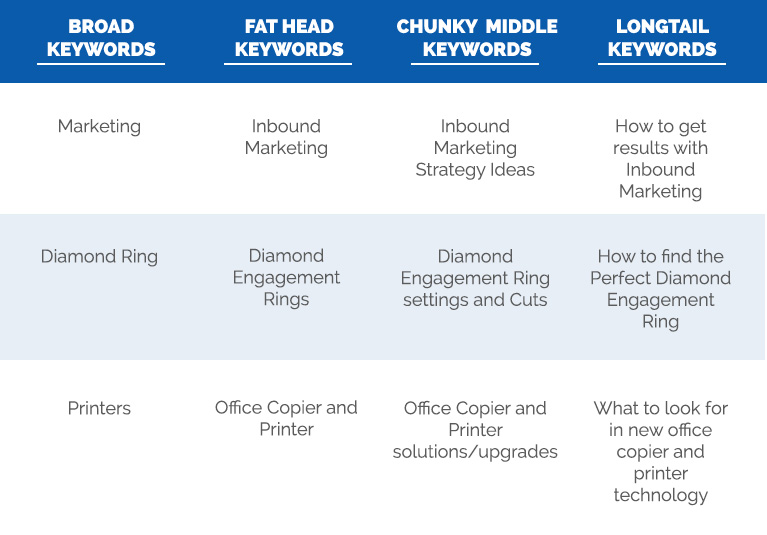 Ok, What is the Importance of Keywords?
Keywords are important because they’re the key (see what I did there?) to gaining insight into your potential customers’ – or your ideal buyer personas’ – questions, pain points, or interests. As searchers, your target audience use keywords when they verbalize topics in the form of online searches as they seek more information.
HubSpot, narrows down the answer to Why do I Need Keywords? to three simple reasons…
1) Keywords = Content Foundation
Each page of content (or blog, or offer, or email) has a main topic, and that topic generally ties back to a keyword or keyword phrase. Keywords help establish the foundation of your content and give your visitors an understanding of the page.
2) Keywords Give Purpose & Understanding
When reading information they find, visitors are quick to scan content for keywords or phrases they originally searched for. Keywords = gold, in this case.
3) Keywords Help Search Engines
As search engines crawl your site, they index pages based on the keywords they find to help determine the purpose of the content.
As Wendy Boswell puts it, “Whether you’re looking for just the right keywords to target in an article or site content, gauging what popular keyword searches are at any given moment, or getting a good idea of what future keyword searches might be, keyword search tools can help you accomplish all these goals and more.”
Five Ways to Figure out What Keywords People are Using
When it comes to figuring out what keywords potential buyers, clients, and customers are using, there’s a whole lot of due diligence to be done, and it’s something I take very seriously. Lucky for you, I’m here to loan you a few keyword research secret weapons so you can DIY, if need be. Below are a few tried and true ways to gain some insight into what keywords people are using.
1) Use Your People
Yes, your people. Who qualifies as “your people?” Your customers, potential buyers, staff, etc. Anyone who is familiar with your business, uses your product, purchases your goods… even those who choose a competitor – those are your people. So, do some homework – what questions are they asking? What are ‘hot topics’ or trends?
These notes will be big players in your keyword game. When you’re doing this, be sure to remove yourselves from the process and put yourselves in your persona’s shoes – use the words and terms they use, ask questions in the way they ask them, etc. Oftentimes, the keywords a business thinks they should rank for or talk about are not the terms their customers are actually using.
2) Get Social
Don’t overlook your social media channels – especially when it comes to trying to figure out what your people are talking about, asking, or complaining about. Advancements and updates to social channels have brought with them a look into trending topics and more, including:
Facebook: Facebook has made a whole lot of updates to their graph search tool, which allows you to search pretty much anything your connections might be talking about. Take a few minutes to learn more about Facebook Graph Search and how to best use it. They also have a Trending toolbar on the right side of their newsfeed that show popular topics, and the option to narrow into Politics, Science & Technology, Sports, and Entertainment.
Twitter: Twitter actually has two different ways to get an inside look at what people are talking about. And the good news is, you don’t actually have to tweet yourself to see them (although you will need to follow others from an account.) On the left sidebar of Twitter’s homepage, you can see trending topics; these can be tailored based on location and interest. You can also use Twitter’s search functionality for trending topics, keywords, and hashtags.
Google+: When you login to your Google+ account, you can head to the Trending page – similar to Facebook and Twitter – to see who is talking about what on Google+.
YouTube: Like its social media platform friends, YouTube also has a Trends Dashboard – right here – that will show what the most popular videos and topics are. You can narrow in on these trends by selecting a city, state, or country, an age group, and gender. According to YouTube, “Trending Topics are algorithmically-generated topics from keywords in the title, tags, and description of the video within sets of videos that are currently rising in popularity. Trending videos are based on embedded video views and views on YouTube.”
3) HubSpot Keyword Grader
HubSpot’s Keyword Grader allows users to get real time information and statistics on keywords that are most relevant to their business and industry. You can compare keywords, search volume, rank, and more – all in one place – and, in a way that integrates with the rest of your content.
4) Google Tools
It probably comes as no surprise that Google has a whole suite of tools to help you get to the bottom of the keywords and phrases. And in this case, they have a few golden tickets to keyword insight…
Google Trends: This tool is one of my favorites – it fascinates me. This allows you to get an inside look at Google’s databases of searches. You can look at Google searches by regions, categories, languages, and set the time and search properties (image, etc.). You can look at one single keyword, or compare multiple terms.
Google Autocomplete: You know when you go to search for something, and Google starts to finish your question or thought? That’s autocomplete. Google explains, “Autocomplete predictions are possible search terms … The search queries that you see as part of Autocomplete reflect what other people are searching for and the content of web pages.” Pretty cool.
Google AdWords Keyword Planner: The great thing about the AdWords planner is that you don’t need to actually spend any money on AdWords – you just need a Google account. With an account, users can access the Keyword Planner and enter a keyword and Google will populate search volume (how often it is used) and the competition of that word (how many people or businesses want to rank for that word). Because Google is great, this tool lets you filter by language, location, and mobile or desktop use. My fellow expert, Travis, dives into how AdWords works and the many benefits
here.
5) Wordtracker
Wordtracker is a tool that gives insight as to whether or not a keyword or particular keyword phrase is worth content efforts. This tool gives users an estimate of how many times a keyword or keyword phrase is searched each day, plus any related phrases or keywords. Wordtracker does require a membership, but you can try it a few times for free.
Even the biggest questions can be answered with some time and tools. And despite what you might think about SEO, nothing is impossible – not even keywords. But especially not keywords, when it comes to using your resources and being savvy. Although you’ll have to jump in and use a little elbow grease, there’s a lot of knowledge out there to harness … happy keywording!
Have additional questions about keywords, content, or SEO? Comment below and let me know – I’d love to help answer them!
9to5Toys Lunch Break: 256GB Retina MacBook Pro $1,250, Lightning car charger $10, 128GB SD card $40, more
Keep up with the best gear and deals on the web by signing up for the 9to5Toys Newsletter. Also, be sure to check us out on: Twitter, RSS Feed, Facebook, Google+ and Safari push notifications.
TODAY’S CAN’T MISS DEALS:
Apple 12″ 256GB MacBook $1,100 (Reg. $1,299), 13″ 256GB Retina MacBook Pro (newest) $1,250 (Reg. $1,499), more
Anker USB Power Deals: 4-port 36W Wall Charger $14 (Reg. $20), 12W Car Charger w/ Lightning Cable $10 (Reg. $14), more
Storage Deals: PNY 128GB SDXC Flash Card $40, PNY 64GB Flash Drive $15 Prime shipped, more
$100 iTunes Gift Card for $80 with email delivery from PayPal (20% off), more
Apple’s Amazing Apps & Games sale 50% off: Threes!, Transistor, PAC-MAN, Sworkit Pro, iTranslate Voice, more
MORE NEW GEAR FROM TODAY:
Games/Apps: The Order 1886 under $10 (Reg. $20), Borderlands Handsome $30, iOS freebies, more
- Networking: HooToo 802.11n Travel Router $15 (Reg. $20), more
- ClamCase Pro Keyboard Case for iPad mini $70, DEWALT Cordless Combo Kit $299
- Kindle First Books for December: Out of Sorts, A Death in Sweden, more
- Acer 1.5GHz Chromebox w/Keyboard+Mouse, more: $120 shipped ($60 off)
- Audio-Technica ATH-M50x Pro Headphones + FiiO ALPEN Dual DAC Headphone Amp $180 shipped ($258 value)
MORE DEALS STILL ALIVE:
Free PS Plus Games for December: Far Cry 3, Gaunlet Slayer Edition, more
Free Xbox Live Gold Games for December: Thief, Adventures of Van Helsing, Sacred 3, more
OtterBox Commuter Series iPhone 6/6s Case for $19 shipped (Reg. $28+)
- Blue Condenser Mics: Spark Digital Lightning from $128 (Reg. $200)
- Anker iPad Accessories: Bluetooth Folio Keyboards for iPad Air 2, mini 4, more from $20
- eBay Gift Card Roundup: Toys R Us $100 for $85, Lowe’s $200 for $175, much more
- These men’s luxury watches are on sale for Black Friday & Cyber Monday
- Grab extra MFi Apple-Certified Lightning Cables from Anker, Spigen & Mpow from $4
- GoPro HERO4 Cameras: Session $229 (Reg. $300), Black 4K $349 (Reg. $500)
- Yamaha 7.2-channel 4K Wi-Fi Network AV Receiver: $300 shipped (Reg. $400)
- Take 50% off any album purchase from Google Play
- Pixelmator for Mac gets a 50% discount today: $15 (Reg. $30)
- Apple AirPort Extreme 802.11ac Wireless Router (refurbished): $100 shipped (Orig. $199)
- iTunes HD Movies: Godfather Trilogy $10, Rocky Collection $30, more
- Panasonic Sound Rush Plus On-Ear Headphones $15 shipped (Reg. $60)
- Herman Miller takes rare 15% off world’s best office chairs + desks
- Implosion – Never Lose Hope for iOS goes free for the first time ($10 value)
NEW PRODUCTS & MORE:
Unboxing and Review: Star Wars Battlefront limited edition PS4 is out of this galaxy [Video]
Mohu launches a “high-end” speaker with built-in Android display, save 10%
- Leica introduces a new low-cost M series camera, but don’t expect bargain pricing
- D-Link takes all the smart things and puts them together in one Komfy light switch
- Curate With Me, Win A Prize: 2015’s Most Coveted Holiday Tech Gifts List!
- The ultimate 4K set-top box battle [Video]
- GENII’s CAST streaming box skirts copyright rules to beam your content to friends
Filed under: Tips and Tricks Tagged: 9to5Toys, 9to5Toys Lunch Break, Amazon Prime, apple deals, Best Buy, Black Friday, coupon codes, Cyber Monday, Daily Deals, Deal of the Day, eBay Daily Deals, free apps, free shipping, iPad deals, itunes deals, itunes gift cards, playstation 4, Retina MacBook Pro, xbox one
Visit 9to5Mac to find more special coverage of Tips and Tricks, 9to5Toys, and Daily Deals.
What do you think? Discuss “9to5Toys Lunch Break: 256GB Retina MacBook Pro $1,250, Lightning car charger $10, 128GB SD card $40, more” with our community.
How to Create Sales Presentations That Close Deals [Free Ebook]
As a marketer, you work hard every day to generate, qualify, and deliver leads to your sales team. You can’t afford to let your leads flounder after you hand them off.
Unfortunately, thanks to today’s hypercompetitive sales landscape, prospects are inundated with more information and content than ever. In other words, your dry, jargon-filled deck isn’t going to cut it anymore.
That’s why we’ve partnered with Prezi to bring you this free guide on creating sales presentations. It’ll walk you through how to build a dynamic sales presentation, provide tips and best practices, and introduce suggested layouts.
Here are a few things you’ll learn:
- How to create an intro that commands attention
- Why social proof is so important
- How to make your ideal price point stand out
- The best approach to competitive analysis, and how to use it to your advantage
- How to seal the deal with a call-to-action
- And even more about how to create a persuasive sales deck
 Click to Tweet:
“Learn how to build a persuasive #sales deck & close more deals with this ebook from @Prezi & @HubSpot http://hubs.ly/H01q7k90”
Ready to start turning prospects into customers? Click here to download the free guide.
Chrome for iOS adds 3D Touch shortcuts, better hardware keyboard support
A few weeks ago we noticed that Google has started testing pre-release versions of Chrome through Apple’s TestFlight beta distribution service, and today the version in testing then has been released to everyone through the App Store. The latest version of Chrome for iOS takes advantage of Apple’s new pressure sensitive iPhone 6s displays and offers even more hardware keyboard shortcuts that will benefit iPad users.
Update to the latest version of Chrome for iOS on iPhone 6s or 6s Plus and press firmly on the Home screen icon to reveal quick access to voice search within the app as well as private browsing in incognito mode and opening a new tab for regular browsing. There’s not as much 3D Touch support as Apple’s Safari browser yet, but it’s a solid start.
Voice search also makes an appearance in the new update with a new keyboard shortcut for Bluetooth and Smart Connector hardware keyboards. Google has added additional keyboard shortcuts that make using Chrome on iOS more like using the browser on the desktop with new options for changing tabs, opening tabs, and closing tabs also included. These make working on an iPad with a connected keyboard much easier for users skilled on notebooks and desktops.
Below you can find the full list of Chrome hardware keyboard shortcuts now available on iOS (and a wider list here). You can hold the Command (⌘) key to prompt Chrome to display this shortcuts within the apps as a quick reminder, or bookmark this cheat sheet for future reference.
- ⌘ T — New Tab
- ⌘ shift N — New Incognito Tab
- ⌘ shift T — Reopened Closed Tab
- ⌘ L — Open Location…
- ⌘ W — Close Tab
- ⌘ D — Bookmark This Page…
- ⌘ F — Find in Page…
- ⌘ R — Reload
- ⌘ left arrow — Back
- ⌘ right arrow — Forward
- ⌘ Y — History
- ⌘ shift . — Voice Search
Chrome also works with iOS 9’s new Split View feature for viewing two apps side-by-side on iPads. Safari can’t view two tabs side-by-side yet, so Chrome is a free solution for users needing to reference two web pages.
The latest version of Google Chrome for iOS, version 47.0.2526.70, is available for free on the App Store for iPhone and iPad.
Filed under: Apps Tagged: 3D Touch, Browsers, Chrome, force touch, Google, hardware keyboards, keyboard shortcuts
Visit 9to5Mac to find more special coverage of Apps, Google, and Chrome.
What do you think? Discuss “Chrome for iOS adds 3D Touch shortcuts, better hardware keyboard support” with our community.
Sketch joins parade of developers abandoning Mac App Store in favor of direct sales
The developers of the UI design tool Sketch have announced their decision to exit the Mac App Store, following in the footsteps of many other software makers, such as Panic.
The company cited a number of factors that contributed to this decision, including strict limitations placed on apps sold through the digital storefront—the same reason Panic gave for Coda’s removal.
So as not to leave its customers hanging without the ability to update, Sketch will allow App Store customers to move to the direct-sale version of the app.
Sketch owners who want to continue receiving updates will need to download a copy of the app from the company’s website and use a new built-in tool to transition their App Store license to the new version of the software. A new license number will be emailed to the user to allow them to run the app on any other computers they want.
While some iCloud features are reserved solely for App Store apps, iCloud documents for Sketch are stored in iCloud Drive, so they’re accessible to any Mac app, including the direct-sale version.
This move probably won’t come as a big shock to many people, given how little Apple appears to value the Mac App Store over the mobile version. Many problems have plagued the store, most recently a certificate bug that completely broke many apps for some users.
Another issue highlighted by Sketch as having affected their final decision is the review process employed in both of Apple’s software distribution outlets. App review can last up to a week (or longer in some cases) before a piece of software becomes available to download. This greatly hampers developers’ ability to push out rapid bug fixes and leads to a slow pace of development from the users’ perspective.
While some developers will always have concerns about sandboxing or other potentially limiting safety features, it’s not likely Apple will make changes in that area to accommodate app makers at the expense of security.
Where Apple can make changes, it just doesn’t seem interested in doing so. Developers have waited since iOS 9 was announced at WWDC this year for App Bundles to arrive on the Mac App Store, but Apple has made no indication that this feature will ever arrive.
Other features, like paid upgrades or temporary demo versions, have been called for on both Mac and iOS, but so far Apple hasn’t obliged, leaving developers to get creative with their upgrade pricing schemes instead.
While iOS developers don’t have a choice in how they distribute their apps, Mac developers do, and it’s not surprising to see more and more of them taking the route that allows them to skip paying Cupertino’s 30% cut while simultaneously gaining the ability to charge for upgrades, offer app trials, and operate outside the sandbox while pushing updates as often as they want with no week-long review process. Don’t expect Sketch to be the last app to do so.
Filed under: Apps Tagged: Mac App Store, sketch
Visit 9to5Mac to find more special coverage of Apps, Mac App Store, and sketch.
What do you think? Discuss “Sketch joins parade of developers abandoning Mac App Store in favor of direct sales” with our community.
Microsoft charms ‘old friends’ at 5th Ave Apple Store with ‘Peace on Earth’ performance [Video]
While Apple’s Christmas ad brought Stevie Wonder and Andra Day together this year for a warm performance of ‘Someday at Christmas’, Microsoft decided to take to the cold streets of New York City this year for their holiday commercial … right in front of the iconic 5th Avenue Apple Store. Taking a rather cheeky approach to celebrating the season while naming the competition, Microsoft Store employees from a nearby location traveled down the block to sing ‘Peace on Earth’ to “some old friends” decked in red shirts … Apple Store employees.
Some look a bit cold and others maybe bored, but most of the Apple Store folks appeared to be good sports about the whole stunt. It doesn’t hurt that the Microsoft Store employees delivered the song quite beautifully. Maybe there’s a future career on Apple Music or Beats 1 calling?
Of course, the rivalry between Microsoft and Apple is a lot more complicated than the old days of Steve Jobs versus Bill Gates. Now iPads are displayed in Apple Stores with Microsoft Office apps installed and the Office team took Apple’s stage at the last big event. Still, Apple CEO Tim Cook doesn’t hold back when talking about Microsoft’s iPad+MacBook competitors with the “compromised” Surface tablet and Surface Book hybrid.
Check out the full ad below (you can even watch it in 4K if you’ve got a new iMac!) and let us know what you think. Too cheesy or a class act?
Filed under: iOS Devices Tagged: 5th Ave, Apple, Apple Store, christmas ad, Holiday ad, Microsoft Store
Continue reading more about iOS Devices, Apple, and Apple Store at 9to5Mac.
What do you think? Discuss “Microsoft charms ‘old friends’ at 5th Ave Apple Store with ‘Peace on Earth’ performance [Video]” with our community.
Apple turns store logos red and promotes (RED) products for World AIDS Day
Apple is lending its usual support to World AIDS Day, turning its store logos red and promoting (PRODUCT)RED items on its homepage (below). The company also notes its own role in fundraising for the charity, which works to eradicate AIDS within a generation.
When you buy (PRODUCT)RED™ merchandise, you’re supporting the fight for an AIDS-free generation. So far, over $320 million has been raised for the Global Fund — more than $100 million by Apple alone — to provide education and medical care to those most affected.
A number of special (RED) versions of Apple products are featured on the RED.org website as well …
In addition to the red iPhone 6s leather case noted yesterday, the project features a (RED) version of the Beats Solo2 headphones as its headline product. The technology section also includes (RED) models of the iPod shuffle, nano and touch, plus iPad Air Smart Cover and iPad Air 2 Smart Case.
Apple’s website currently has (RED) as the first of five features in its homepage carousel, the others being its Christmas ad, gift-finder, iPad Pro and iPhone 6s.
If you’re confused by the various versions of (PRODUCT)RED and (RED) brandings, it’s all to do with a compromise reached with Steve Jobs …
It’s not just the Apple Store either. The iPhone and iPad App Store is also featuring a collection of Supercell games, namely Boom Beach, Clash of Clans, and Hay Day, with (RED) packs to raise money for the initiative.
Top photo: Chochise Taylor
Filed under: AAPL Company Tagged: AAPL, ProductRED, red, World Aids Day
Continue reading more about AAPL Company, AAPL, and red at 9to5Mac.
What do you think? Discuss “Apple turns store logos red and promotes (RED) products for World AIDS Day” with our community.
What Is the Data that Drives Performance?
What Is the Data that Drives Performance?
By Joe Hessmiller
Research indicates despite everything we’ve tried, project success rates have hardly budged in 30 years.
A McKinsey & Company study of 5,400 large scale IT projects (projects with initial budgets greater than $15M) found that the well-known challenges with IT Project Management are persisting. Among the key findings […]
from Project Management Articles – PM Hut http://ift.tt/1LLq6Ld
via pmhut.com
British Airways reports near-quadrupling of Apple Watch app usage, will soon handle bag-drop too
British Airways has revealed that use of its Apple Watch app rose by 386% between June and October, and the airline is responding by introducing new scanners to allow Watch owners a faster way of dropping any hold bags, reports Advance.
Customers will be able to slide their wrists under the new ‘Scan and Go’ devices to scan their boarding pass, print their own bag tags and speed through the airport. A total of 136 of the new gadgets are being installed at check in desks across Heathrow’s Terminal 3 and 5, and will be ready for use on 15 December.
The scanners can also be used with the smartphone app.
BA’s app provides access to real-time flight status, gate information, a countdown to the departure time and the weather at their destination, as well as displaying a QR code that can be used at both Security and the gate.
The airline is planning an update to the iPad version which includes Highlife entertainment listings, allowing customers to peruse the in-flight movies prior to boarding.
Via Gizmodo
Filed under: Apple Watch, Apps Tagged: Airlines, Apple watch, Apple Watch apps, BA, British Airways, Scan and Go, Travel
Continue reading more about Apps, Apple watch, and Apple Watch at 9to5Mac.
What do you think? Discuss “British Airways reports near-quadrupling of Apple Watch app usage, will soon handle bag-drop too” with our community.
Apple rolls out Personal Pickup to six more European countries as of today
Apple’s Personal Pickup service – where you place your order online but can pick it up from a local Apple Store as early as an hour later – just hit six more European countries today: France, Germany, Italy, the Netherlands, Spain and Sweden.
Long limited to the U.S. only, it made its way to Australia and Canada a couple of weeks ago, and the UK a few days later. German site Macerkopf first noticed its availability in Germany, before updating with the additional five countries.
Personal Pickup can be a useful option if you’re in a hurry, allowing you to get your hands on a product the same day while minimizing the amount of time you spend fighting the crowds in an Apple Store.
Filed under: AAPL Company Tagged: Apple Retail Store, Apple Store, Gifts, online store, personal pickup, Shopping
Continue reading more about AAPL Company, Apple Store, and Apple Retail Store at 9to5Mac.
What do you think? Discuss “Apple rolls out Personal Pickup to six more European countries as of today” with our community.
Add a World AIDS Day geofilter to a snapchat photo today to help (RED) raise $300M from Bill Gates
Add a World AIDS Day sticker – or geofilter – to a Snapchat photo today, and The Bill and Melinda Gates Foundation will donate $3 to (PRODUCT)RED. The LA Times reports that it hopes to raise as much as $3M from the initiative – something that could be achieved if just 1% of Snapchat users joined in.
You can also raise $3 by sharing a themed video clip on Instagram.
If you’re willing to part with a little cash, donating to the cause will buy you entry into one or more of a range of competitions with prizes like a bike ride through Central Park with Bono, a trip to the Games of Thrones set and meeting Snoop, Jimmy Kimmel, George Clooney, Matt Damon and more.
Apple is also joining in, with an iPhone 6S leather case in (what else) red.
Via Engadget
Filed under: Apps Tagged: Bill Gates, ProductRED, Snapchat, World Aids Day
For more news on Apps, Snapchat, and Bill Gates continue reading at 9to5Mac.
What do you think? Discuss “Add a World AIDS Day geofilter to a snapchat photo today to help (RED) raise $300M from Bill Gates” with our community.
How to Reduce Your Website’s HTTP Requests
Every time you surf the web, there’s a whole world of technical stuff going on behind the scenes. Developers and engineers are usually the ones living and operating in that world, while some marketers — especially those who aren’t super confident in their technical expertise — tend to shy away from it.
But marketers need to have, at minimum, a general understanding of what’s going on behind the scenes of their website.
Why? For one, metrics marketers tend to be responsible for can depend heavily on the back-end development of a website. For example, the number of HTTP requests your webpage requires affects page load time, which ultimately influences user experience, bounce rate, and other key metrics.
What is an HTTP request? How does it affect user experience? And what can a marketer do to reduce their website’s HTTP requests? Let’s go through each of these questions one by one. By the end, you’ll have a better grasp on why these response protocols matter, and what you can do to give your website visitors a better experience.
To see how strong your website is, check out our Website Grader tool for a detailed report of your website’s overall performance.
What is an HTTP Request?
Each time someone visits a webpage, here’s what typically happens: That person’s web browser (Chrome, Firefox, etc.) pings the web server that hosts the webpage they’re trying to visit — in this case, a webpage on your website. It requests that the server send it the files containing the content for that site. These files contain any text, images, and multimedia that exist on that webpage.
That request is called an HTTP request. HTTP stands for “Hypertext Transfer Protocol,” which is just a fancy name for a web browser sending a request for a file, and the server sending (or “transferring”) that file to the browser.
Once your server receives an HTTP request from a user’s browser, your server then responds and delivers the files to that user’s browser. The user’s browser then renders the webpage.
Here’s the thing: The browser needs to make a separate HTTP request for every single file on your website. If your website doesn’t have many files, then it won’t take very long to request and download the content on your site. But most good websites do have a lot of files. Large, high definition images are usually the culprit.
How HTTP Requests Affect User Experience
In a nutshell, the more files on your website, the more HTTP requests your user’s browser will need to make. The more HTTP requests, the longer your site takes to load. And larger files will take even longer to transfer.
A long load time can be a disruptive and frustrating experience for your users. Mobile users will have a particularly bad experience, as most of them will have to wait until every asset on a webpage is downloaded before the page will even begin to appear in their mobile browser.
And research shows load time matters when it comes to website performance. According to KISSmetrics, 47% of consumers expect a webpage to load in two seconds or less, and 40% abandon a website that takes more than three seconds to load.
So, what’s the magic number of HTTP requests a website should aim for? The answer is not “one.” Some people think they can solve the problem by only using one JavaScript file to control their entire website. But remember: File size affects load time, too. For complex websites, that one file will be insanely long.
While there isn’t necessarily an optimal number of files your webpage should be reduced to, HubSpot’s principal product marketing manager Jeffrey Vocell suggests aiming for between 10–30 files. For most top-performing websites, getting there is difficult and generally requires dedicated engineering resources. Steve Souders, an internet performance expert formerly at Yahoo! and Google, tweeted last year that the average number of page requests is actually 99+ per page.
How to Reduce Your Website’s HTTP Requests
1) Check how many HTTP requests your site currently makes.
Google Chrome’s Network panel makes it easy for anyone to check how many HTTP requests a site makes. It’s a really cool way of seeing what’s on your page and what’s taking a long time to load.
Basically, it shows you all the files that a browser had to request and transfer in order to download the page — and it also shows a timeline of when this happened. For example, the API can tell you precisely when the HTTP request for an image started, and when the image’s final byte was received. It’s a really cool way of seeing what’s on your page and what’s taking a long time to load.
To see the Network panel for a given webpage, open the webpage in Google Chrome. In the main Chrome menu at the top of your screen, go to View > Developer > Developer Tools.
The Network panel will open in your browser. Since it records all network activity while DevTools is open, the panel may be empty when you first open it. Reload the page to start recording, or just wait for network activity to occur in your application.
Here’s an overview of what everything in the Network panel means:
Image Credit: Google
Curious how many requests your website requires? The Network panel will tell you that, too. Take a look at the very bottom left of the screenshot above and you’ll see the total number of requests; in this case, 25 requests.
To learn how to read the panel and evaluate your network performance in more detail, read through this Google Chrome resource.
2) Remove unnecessary images.
At this point, you should have an idea of which files are taking longest to load, including image files. The easiest way to reduce the number of requested files? Eliminate unnecessary images.
Images are a valuable webpage asset because they make for a strong visual experience on your webpages. However, if you have images on your page that aren’t contributing much value, it’s best to just cut them out altogether — especially the ones that are really large.
3) Reduce the file size for remaining images.
For the images you do keep, use high-quality photos that have a compressed file size. This will help reduce the time it takes to make a HTTP request, thereby reducing load time.
If you’re a HubSpot user, you don’t have to worry about compressing images — the HubSpot COS will automatically resize and compress your images. Otherwise, use a tool like TinyPNG or Compressor.io to reduce file size.
4) Evaluate other parts of your page that are contributing to page load time.
Cutting and compressing images are a great first step to reducing HTTP requests and page load time. But what else did you see on the Network panel that’s adding requests? For example, you might find that a video or Twitter integration adds an entire second or two to your load time. That’s good to know. From there, you and your team can decide whether those assets are worth keeping.
5) Make JavaScript asynchronous.
If you have JavaScript on your page that’s not asynchronous then you’ll want to take it to your developer to make it asynchronous — or remove it from the webpage altogether, if possible.
Why? It all comes down to user experience. When a person’s browser loads a webpage, it loads the page’s assets from top to bottom. When it hits a JavaScript file and wants to load it, if that JavaScript is not asynchronous, then the browser will stop loading everything else on the page until it loads that JavaScript file in its entirely.
If that JavaScript is asynchronous, then the browser will load it at the same time as it continues loading other elements on the page. Asynchronous JavaScript files make for a better user experience.
To learn more about making JavaScript code asynchronous, I recommend checking out this presentation by Steve Souders and this blog post by Visual Website Optimizer.
6) Combine CSS files together.
Every CSS file you use for your website adds to the number of HTTP requests your website requires, thereby adding time to your page load speed. While this is sometimes unavoidable, in most cases, you can actually combine two or more CSS files together. (You may have to get help from a developer for this.)
Why? Because CSS code can be anywhere on your site or in any number of files, and it’ll still works just as well. In fact, often the only reason a site has multiple CSS files in the first place is because the site’s designer found it easier to work with separate files. (To learn about combining CSS files in more detail, take a look at this front-end website performance guide.)
If you want a more detailed report of your website’s overall performance, check out HubSpot’s newly redesigned Website Grader. You’ll receive a free, personalized report that grades your site on key metrics including performance, mobile readiness, SEO, and security.