
Welcome to My Blog
The Ultimate Smarketing Glossary: 67 Common Sales Terms Explained for Marketers
Sales and marketing teams are both responsible for the growth and revenue side of the business — and yet, many of them still tend to operate like two opposing teams.
The goal of “smarketing” is to help bring sales and marketing together as one team, which involves constant, effective communication.
It’s pretty critical that sales and marketing teams learn how to speak each other’s language. But while both teams have some shared vocabulary, there are plenty of terms salespeople throw around that, let’s be honest, may as well be gibberish.
So we’ve put together a glossary of sales terms for marketers you can reference each time you encounter sales speak you’re unfamiliar with. Keep on reading to brush up on your sales knowledge.
Definitions of Common Sales Terms
- ABC: Always Be Closing
- AIDA: Attention, Interest, Desire, Action
- BANT: Budget, Authority, Need, Timeline
- Commission: The payment a sales rep gets when they successfully sell something
- Discovery call: The first call a sales rep makes to a prospect
- Quota: A sales goal; a set amount of selling a sales rep is expect to meet over a given time frame, usually a month and/or quarter
- Value proposition: A benefit of a product or company intended to make it more attractive to potential buyers and differentiates it from competitors
62 Definitions of Common Sales Terms
ABC
“Always Be Closing.” An antiquated sales strategy that basically says everything a sales rep does throughout the sales process is in pursuit toward the singular goal of closing a deal. The implication is that, if a sales rep doesn’t close the deal, then everything they did regarding that opportunity was a failure. In the inbound methodology, the preferred ABCs of selling are: Always Be Connecting. Even better, “Always Be Helping.”
Adoption process
Another way of saying “the buying process.” The stages a potential buyer goes through, from learning about a new product or service to either becoming a loyal customer or rejecting it. The potential buyer may or may not end up purchasing/adopting that product or service.
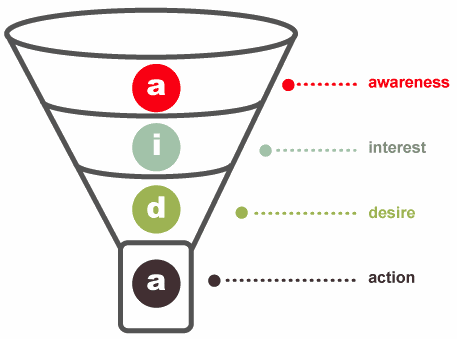
AIDA
An acronym used in Sales that stands for Attention/Awareness, Interest, Desire, Action. They are the four steps of the now somewhat-outdated Purchase Funnel (although most agree the funnel is much more complex than what is represented in this traditional model), wherein customers travel from awareness to purchase.
ARR
Annual Recurring Revenue. For recurring revenue companies, ARR provides a high-level look at how recurring revenue or subscription business is growing over time. It’s a good metric for models that have longer term subscription durations. It’s also great for long-term planning. See also MRR.
B2B
Business 2 Business. B2B is a term that describes the transactional relationship between provider and client where the provider is a business and the client is another business. e.g. “Our B2B marketing strategy targets organizations in the manufacturing niche.” See also: B2C.
B2C
Business 2 Consumer. B2C is a term describes the transactional relationship between provider and client where the provider is a business and the client is an individual consumer. e.g. “Our B2C marketing strategy targets new moms.” See also: B2B.
Benefit
The value of a product or service that a consumer of that product or service experiences. Benefits are distinct from features, and sales reps should sell based on benefits that are supported by features.
Bad Leads
Leads that are unlikely to become paying customers — and a sales rep’s worst nightmare, because they are a waste of time. A tough challenge for most marketers is how you separate good, high-quality leads from the people who are just poking around your site. Learn more about lead scoring here.
BANT
An acronym used in sales for lead qualification that stands for Budget, Authority, Need, Timeline. It’s a famous tool for sales reps and sales leaders to help them determine whether their prospects have the budget, authority, need, and right timeline to buy what they sell.
- B = Budget: Determines whether your prospect has a budget for what you’re selling.
- A = Authority: Determines whether your prospect has the authority to make a purchasing decision.
- N = Need: Determines whether there’s a business need for what you’re selling.
- T = Timeline: Determines the time frame for implementation.
The BANT formula was originally developed by IBM several decades ago. We don’t think BANT is good enough anymore, though: Learn more here about the better qualifying formula, GPCTBA/C&I.
Bluebird Sales
A “bluebird” is a sale that came seemingly from nowhere or with unexpected ease. A sales rep might say, “Fortunately, a bluebird flew right in at the end of the quarter, helping me reach my goal.”
One thing to keep in mind with inbound sales is that many of these sales may not be true bluebirds since your inbound engine is actively building awareness and helping prospects along a buyer’s journey. With high-performance sales organizations, you’ll want to have some control over your pipeline forecasting and be able to look at lead attribution, so it’s best not to rely on bluebirds.
Bottom of the Funnel (BOFU)
A stage of the buying process leads reach when they’re just about to close into new customers. They’ve identified a problem, have shopped around for possible solutions, and are very close to buying.
Buyer Behavior
The ways a consumer identifies, considers, and chooses products and services. Buyer behavior is often influenced by the consumer’s needs, desires, aspirations, inhibitions, role, social and cultural environment.
Buyer Persona
A semi-fictional representation of your ideal customer based on market research and real data about your existing customers. While it helps inbound marketers like you define their target audience, it can also help sales reps qualify leads. Learn more about developing buyer personas here.
Buying Criteria
All the information a consumer needs to make a buying decision. It can be written or unwritten, and often answers questions like, “what is it?; “why should I buy it?”; “what is the price?”; “why do I need it?” and so on.
Buying Process/Cycle
The process potential buyers go through before deciding whether to make a purchase. Although it’s been broken it down into many sub-stages to align with different business models, it can universally be boiled down to these three lifecycle stages:
- Awareness: Leads have either become aware of your product or service, or they have become aware that they have a need that must be fulfilled.
- Evaluation: Leads are aware that your product or service could fulfill their need, and they are trying to determine whether you are the best fit.
- Purchase: Leads are ready to make a purchase.
Buying Signal
A communication from a prospect indicating they are ready to make a purchase, either verbal or non-verbal. An example would be them asking the sales rep, “When can it be delivered?”
Churn Rate
A metric that measures how many customers you retain and at what value. To calculate churn rate, take the number of customers you lost during a certain time frame, and divide that by the total number of customers you had at the very beginning of that time frame. (Don’t include any new sales from that time frame.)
For example, if a company had 500 customers at the beginning of October and only 450 customers at the end of October (discounting any customers that were closed in October), their customer churn rate would be: (500-450)/500 = 50/500 = 10%.
Churn rate is a significant metric primarily for recurring revenue companies. Regardless of your monthly revenue, if your average customer does not stick around long enough for you to at least break even on your customer acquisition costs, you’re in trouble.
Closed Opportunities
An umbrella term that includes both closed-won and closed-lost opportunities, although some people use it to mean only closed-won opportunities.
Closed-Won
When a sales rep closes a deal in which the buyer purchases the product or service.
Closed-Lost
When a sales rep closes a deal in which the buyer does not purchase the product or service.
Closing Ratio
The percentage of prospects that a sales rep successfully close-wins. This ratio is usually used to assess individual sales reps on their short-term performance, but it can also be used to evaluate profits, forecast sales, and so on. Improving a closing ratio usually requires efforts to bring better-qualified leads into the funnel.
Cold Calling
Making unsolicited calls in an attempt to sell products or services. It’s also a very inefficient way to find potential customers.
Commission
The payment a sales rep gets when they successfully sell something; usually a percentage of sales revenue. If you want more info on sales compensation, check out this article.
Consumer
A person who uses a product or service. They may not be the actual buyer of that product; for example, if I buy my brother a pair of basketball shoes, then my brother is the consumer of those shoes, not me.
Conversion Path
The “events” on a company’s website that help companies capture leads. In its most basic form, it’ll consist of a call-to-action (typically a button that describes an offer) that leads to a landing page with a lead capture form, which redirects to a thank-you page where a content offer resides. In exchange for his or her contact information, a website visitor obtains a content offer to better help them through the buying process.
Conversion Rate
The percentage of people who completed a desired action on a single web page, such as filling out a form. Pages with high conversion rates are performing well, while pages with low conversion rates are performing poorly.
Cross-Selling
When a sales rep has more than one type of product to offer consumers that could be beneficial, and s/he successfully sells a consumer more than one item either at the time of purchase or later on. An example is when Apple sells you an iPhone and then successfully sells you an Apple iPhone case or a pair of Apple headphones. In this case, a sales rep identifies a need the customer has, and fulfills that need by recommending an additional product. (Cross-selling differs from up-selling; see up-selling.)
Customer Acquisition Cost (CAC)
This is your total Sales and Marketing cost. To calculate, follow these steps for a given time period (month, quarter, or year):
- Add up program or advertising spend + salaries + commissions + bonuses + overhead.
- Divide by the number of new customers in that time period.
For example, if you spend $500,000 on Sales and Marketing in a given month and added 50 customers that same month, then your CAC was $10,000 that month. (Learn more here.)
Customer Relationship Management (CRM)
Software that let companies keep track of everything they do with their existing and potential customers. At the simplest level, CRM software lets you keep track of all the contact information for these customers. But CRM systems can do lots of other things, too, like track email, phone calls, faxes, and deals; send personalized emails; schedule appointments; and log every instance of customer service and support. Some systems also incorporate feeds from social media such as Facebook, Twitter, LinkedIn, and others. The goal is to create a system in which sales reps have a lot of information at their fingertips and can quickly pull up everything about a prospect or existing customer.
Data Entry/Processing
The process of obtaining, recording, and maintaining information you can retrieve and use later. In Sales, this usually mean inputting potential buyers’ information into a Customer Relationship Management (CRM) tool to track activity, correspondence, and progress on open opportunities.
Decision-Maker
The person who, or role that, makes the final decision of a sale. They are often “guarded” by a gatekeeper.
Discovery Call
The first call a sales rep makes to a prospect, with the goal of asking them questions and qualifying them for the next step.
Feature
A function of a product that can solve for a potential buyer’s need or pain point; usually a distinguishing characteristic that helps boost appeal.
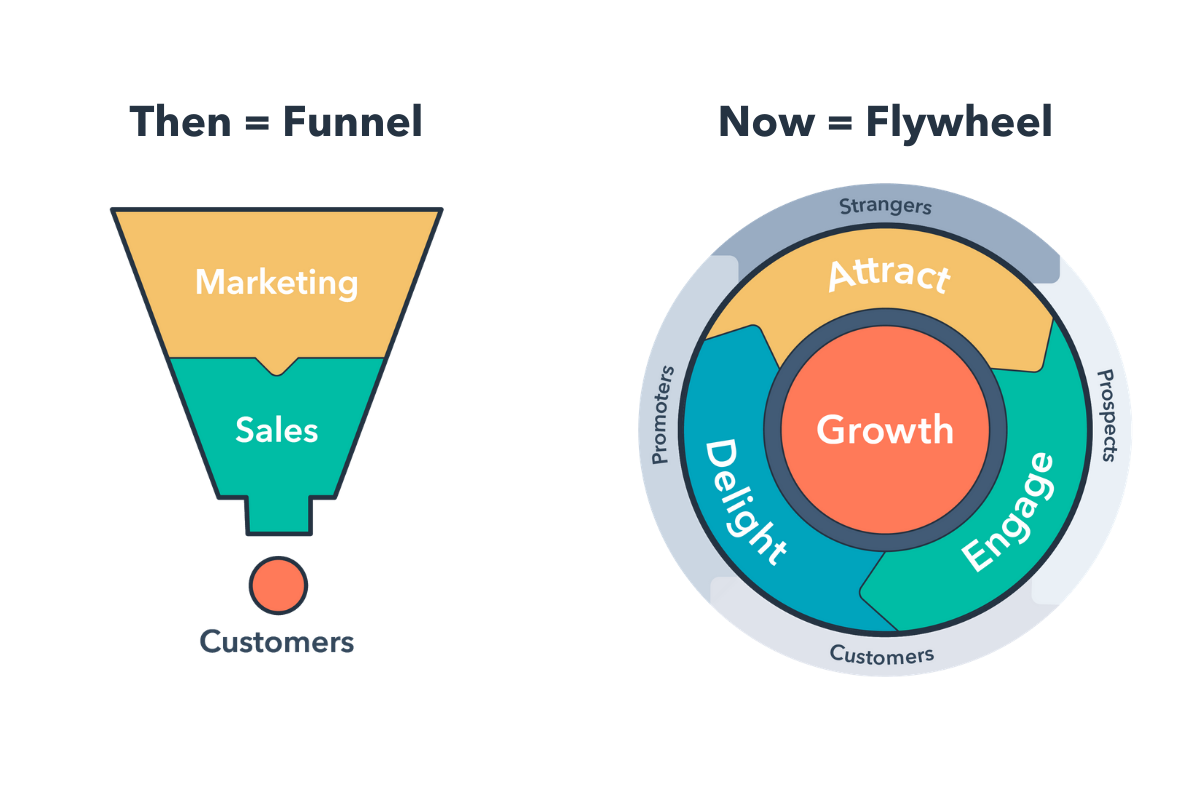
Flywheel
The flywheel is a new way of conceptualizing the sales process, replacing the funnel where customers are thought of as an output. The flywheel demonstrates that awareness, engagement, and delight can happen at any point during the customer journey and that the best way to achieve growth is to apply force and remove friction in each stage.
Forecasting
Estimating future sales performance for a forecast period based on historical data. Forecasted performance can vary widely from actual sales results, but helps sales reps plan their upcoming days, weeks, and months, and helps high-level employees set standards for expenses, profit, and growth. Learn more about sales forecasting here.
Gatekeeper
A person who, or role that, enables or prevents information from getting to another person(s) in a company. For example, a receptionist or personal assistant.
GPCTBA/C&I
Goals, Plans, Challenges, Timeline, Budget, Authority, Negative Consequences, Positive Implications. The lead qualification criteria sales reps should use to qualify prospects — it’s a better tool than BANT to help sales reps and sales leaders to determine whether their prospects have the goals, plans, challenges, and right timeline to buy what they sell.
- G = Goals: Determines the quantifiable goals your prospect wants or needs to hit. An opportunity for sales reps to establish themselves as an advisor by beginning to help prospects reset or quantify their goals.
- P = Plans: Determines the prospect’s current plans that they’ll implement in order to achieve those goals.
- C = Challenges: Determines whether the sales rep can help a prospect overcome their and their company’s challenges; ones they’re dealing with and ones they (or the sales rep) anticipate.
- T = Timeline: Determines the time frame for implementation of their goals and plans, and when they need to eliminate their challenges.
- B = Budget: Determines how much money a prospect has to spend.
- A = Authority: Determines who in the organization will help champion and/or decide to make a purchase.
- C = Negative Consequences: Discusses the negative things that’ll happen if a prospect doesn’t meet their goal.
- I = Positive Implications: Discusses the positive outcomes that’ll happen if a prospect meets their goal.
Read about GPCT in more detail here.
Lead
A person or company who’s shown interest in a product or service in some way, shape, or form. Perhaps they filled out a form, subscribed to a blog, or shared their contact information in exchange for a coupon.
Generating leads is a critical part of a prospect’s journey to becoming a customer, and it falls in between the second and third stages of the larger inbound marketing methodology, which you can see below.
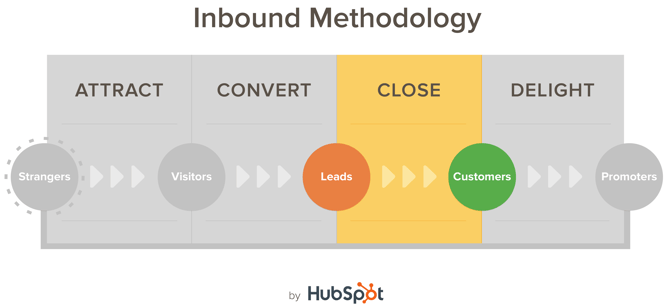
Landing pages, forms, offers, and calls-to-action are just a few tools to help companies generate leads. Learn more about lead generation here.
Lead Qualification
The process of determining whether a potential buyer has certain characteristics that qualify him or her as a lead. These characteristics could be budget, authority, timeline, and so on. Popular lead qualification criteria acronyms are GPCTBA/C&I and BANT.
Lifetime Value (LTV)
A prediction of the net profit attributed to the entire future relationship with a customer. To calculate LTV, follow these steps for a given time period:
- Take the revenue the customer paid you in that time period.
- Subtract from that number the gross margin.
- Divide by the estimated churn rate (aka cancellation rate) for that customer.
For example, if a customer pays you $100,000 per year where your gross margin on the revenue is 70%, and that customer type is predicted to cancel at 16% per year, then the customer’s LTV is $437,500. (Learn more here.)
Loss Leader
Used in retail to refer to a product sold at a low price (either at break-even or at a loss) for the purpose of attracting customers into the store. The goal is for customers who go into the store to buy other items that are priced to make a profit.
LTV:CAC
The ratio of lifetime value to customer acquisition cost. Once you have the LTV and the CAC, compute the ratio of the two. If it costs you $100,000 to acquire a customer with an LTV of $437,500, then your LTV:CAC is 4.4 to 1.
Margin
The difference between a product or service’s selling price and the cost of production.
Mark-Up
The amount added to the cost price of goods to cover overhead and profit.
Middle of the Funnel (MOFU)
The stage that a lead enters after identifying a problem. Now they’re looking to conduct further research to find a solution to the problem. Typical middle of the funnel offers include case studies, product brochures, or anything that brings your business into the equation as a solution to the problem the lead is looking to solve.
MRR
Monthly Recurring Revenue. For recurring revenue companies, MRR provides a month-to-month look at how recurring revenue or subscription business is growing. Includes MRR gained by new accounts (net new), MRR gained from up-sells (net positive), MRR lost from down-sells (net negative), and MRR lost from cancellations (net loss). MRR may not be ideal for longer term subscription models since there will be natural fluctuation over shorter time periods, but it can be a better metric for recurring revenue companies that aren’t ideal for long-term subscriptions. It’s also great for short-term planning. See also: ARR.
Net Promoter Score (NPS)
A customer satisfaction metric that measures, on a scale of 0-10, the degree to which people would recommend your company to others. The NPS is derived from a simple survey designed to help you determine how loyal your customers are to your business. To calculate NPS, subtract the percentage of customers who would not recommend you (detractors, or 0-6) from the percent of customers who would (promoters, or 9-10).
Regularly determining your company’s NPS allows you to identify ways to improve your products and services so you can increase the loyalty of your customers. Learn more about how to use NPS surveys for marketing here.
Objection
A prospect’s challenge to or rejection of a product or service’s benefits, and a natural part of the sales process. Common objections often have to do with budget, authority, need, and timing (see BANT). How sales reps handle objections plays a big role in determining whether a prospect will buy. Learn how to tackle common B2B sales objections here.
Opportunity
Though every company has different processes for defining what criteria make someone an opportunity, it’s basically when a qualified lead is being worked by Sales. See Qualified Lead for more information.
Pain Point
A prospect’s pain point, or need, is the most important thing for a sales rep to identify in the selling process. Without knowing a prospect’s pain points, they can’t possibly offer benefits to help resolve those pain points.
Performance Plan
Also “Performance Improvement Plan” or “PIP.” A sales rep is put on a performance plan if s/he doesn’t make a certain percentage of quota over a certain period of time. Performance plans vary from company to company, but it usually starts with a written warning and further disciplinary action, including termination if necessary. The purpose of performance plans is to set clear and specific performance goals, provide a means for feedback, and develop sales skills.
Pipeline
The step-by-step process sales reps go through to convert a prospect into a customer. The sales pipeline is often divided into stages for each step in the sales process, and the sales rep is responsible for moving opportunities through the stages. It can also refer to a visual representation of the sales process, where every open opportunity is arranged based on the sales stage they’re in.
Positioning Statement
Statements and questions that sales reps use when opening a sales call to engage the prospect in conversation around their pain points. Many sales reps are trained to start off every sales call with these statements. Here’s an example of positioning statements on a sales call from Advanced Marketing Concepts:
- Sales Rep: I help marketing leaders who are frustrated with the inability of the sales team to differentiate their products in a crowded market.
- Buyer: Yes, that’s always been a problem. (If you’ve done your job well and targeted the buyer effectively with that first positioning statement, then you’ll get an engaging signal like this one.)
- Sales Rep: I talk to a lot of marketing leaders, and lately I’m hearing the two biggest problems are weak sales pipeline and an inability to differentiate from competitors. Do these problems sound familiar?
Learn more about positioning statements here.
Profit Margin
A ratio of profitability that measures how much money a company actually keeps in earnings. It’s calculated either as a) net income divided by revenues, or b) net profits divided by sales.
Prospecting
The process of searching for and finding potential buyers. Sales reps (or “prospectors”) seek out qualified prospects and move them through the sales cycle.
Qualified Lead
A contact that opted in to receive communication from your company, became educated about your product or service, and is interested in learning more. Marketing and Sales often have two different versions of qualified leads (MQLs for Marketing, and SQLs for Sales), so be sure to have conversations with your sales team to set expectations for the types of leads you plan to hand over.
Quota
A sales goal; a set amount of selling a sales rep is expect to meet over a given time frame, usually a month and/or quarter. It’s very, very common for sales reps to have quotas, also the form they take can vary from company to company and from role to role.
Sales Methodology
“The ‘how’ of selling as a skill set,” according to John Kenney of Sales Benchmark Index. There are many sales methodologies out there, a few of which are particularly popular, and sales leaders often choose one and use it to teach and motivate his or her team. Popular sales methodologies include SPIN selling, Conceptual Selling, SNAP Selling, The Challenger Sale, Sandler Sales, and CustomerCentric Selling. Read more about these sales methodologies here.
Service Level Agreement (SLA)
For salespeople, an SLA is an agreement between a company’s sales and marketing teams that defines the expectations Sales has for Marketing and vice versa. The Sales SLA defines the expectations Marketing has for Sales on how deeply and frequently Sales will pursue each qualified lead, while the Marketing SLA defines expectations Sales has for Marketing with regards to lead quantity and lead quality.
SLAs exist to align Sales and Marketing. For companies to achieve growth and become leaders in their industries, it is critical that these two groups be properly integrated. Learn how to create an SLA here.
Smarketing
Used to refer to the practice of aligning Sales and Marketing efforts. In a perfect world, marketing would pass off tons of fully qualified leads to the sales team, who would then subsequently work every one of those leads enough times to close them 100% of the time. But since this isn’t always how the cookie crumbles, it’s important for Marketing and Sales to align efforts to impact the bottom line the best they can through coordinated communication.
Social Selling
When sales reps use social media to interact directly with their prospects. They provide value by answering prospects’ questions and offering thoughtful content until the prospect is ready to buy.
Sound Bite
A series of words or phrases sales reps use to respond to and overcome a customer objection.
Stage
Parts of the sales pipeline representing each step in the sales process. It’s the sales rep’s responsibility for moving opportunities from stage to stage. Different companies define their sales stages differently, but each one has behind it a set of requirements that need to be completed in order for an opportunity to move from one stage to the next. Names for sales stages are usually things like “Prospect,” “Qualified Lead,” “Demo,” “Proposal,” “Closed.”
Top of the Funnel (TOFU)
The very first stage of the buying process. Leads at this stage are identifying a problem they have and are looking for more information. At this point, marketers create helpful content that aids leads in identifying this problem and providing next steps toward a solution.
Up-Selling
When a sales rep sells an existing customer a higher-end version of the product that customer originally bought. For example, if you bought a cell phone plan and a sales rep successfully persuaded you to upgrade to a plan with more minutes or data, then that’s an up-sell.
Value Proposition
“Value prop” for short. A benefit of a product or company intended to make it more attractive to potential buyers and differentiates it from competitors.
Weighted Pipeline
A more detailed version of a sales pipeline, in which each opportunity is given a specific value based on which stage they’re in in the sales process. For example, potential buyers in the prospecting stage could be assigned a 10% chance of closing the deal, demo stage buyers 60%, closed-won 100%, and so on. A sales rep could say that, instead of having 10 prospects in her pipeline, she has 10 opportunities at 50% or greater likelihood of closing with a weighted pipeline value of $50,000.
As you get familiar with the common sales terms and how to apply them to your business, you’ll better be able to manage your organization’s sales strategy (or create one).
Editor’s note: This post was originally published in November 2014 and has been updated for comprehensiveness.

Project Crashing in Project Management: Definition & Best Practices
How to Add a Link to Your Instagram Bio
Every social network makes it clear how to put a link in your bio on their platform — except Instagram.
Twitter lets you tag other handles in your bio. LinkedIn gives you the ability to link yourself to your employer’s official page. Facebook allows you to tag a number of different businesses, interest pages, and people in your “About” section, so you can let friends know who you work for, what brands you like, your alma mater, your relationship status, and so on.
What about Instagram?
Until recently, Instagram didn’t give you a ton of space to brand your profile with hashtags and profile handles — you could only link to their respective pages in photo captions. Websites were the only types of links you could put in your bio (hence the common phrase “link in bio”).
“Link in bio” is essentially a call to action, promoting more information available outside of Instagram’s parameters.
But Instagram recently gifted us two new features: linkable profiles and hashtags, right in your bio. You can now add them alongside the link to your website.
How to Add a Link to Your Instagram Bio
- Open your Instagram mobile app.
- Visit your profile by tapping the person icon on the bottom right.
- Tap “Edit Profile” at the top of the screen.
- Write a custom description in 150 characters or less.
- Add a brief link to your website in the form of yourdomain.com.
- Add links to other profiles by tapping “@” followed by the profile’s handle.
- Add hashtags by tapping “#” followed by the hashtag you associate with.
- Tap “Done” to save your bio.
Note: The instructions above apply to the latest version of Instagram — 37.0 on iOS. You can also edit your bio on Instagram’s website by navigating to your profile and clicking “Edit Profile” next to your name.
On the screen to the left, below, you can see how Instagram suggests popular hashtags as you edit the bio text field, just like it would when you add a hashtag to a picture’s caption. On the screen to the right, you’ll see the profile of a person who uses hashtags, profile links, and websites in her bio.
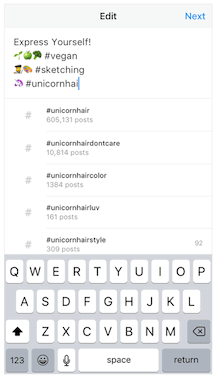
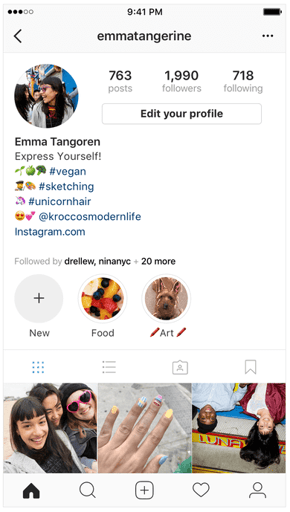
Images via Newsweek
Things have changed at Instagram as of late, and you now have options to link to other pages you identify with right beneath your Instagram profile picture. But keep in mind that users who don’t want their profile tagged in others’ bios can opt to untag themselves.
It’s best to reserve this space for the accounts you know would agree with the association you’re making.
Editor’s note: This post was originally published in March 2018 and has been updated for comprehensiveness.

Is Instagram Reels Worth Pursuing? Pros and Cons for Marketers
Reels or TikTok? Wondering if creating Instagram Reels could work better than Instagram Stories or TikTok? In this article, you’ll discover the pros and cons of using Instagram Reels for marketing. Instagram Reels: The Case for Early Adoption Instagram Reels offers a new way to share short video clips of up to 15 seconds inside […]
The post Is Instagram Reels Worth Pursuing? Pros and Cons for Marketers appeared first on Social Media Examiner | Social Media Marketing.
from Social Media Examiner | Social Media Marketing https://ift.tt/35FDDJD
via socialmediaexaminer
15 Key Performance Indicators to Help Improve Your Marketing
When I was cooking steak the other day, I had to use a meat thermometer to check and see if the meat was cooked all the way through.
In other words, I had to look for an indicator to see how the cooking process was coming along.
Marketing is fairly similar.
As a marketer, instead of a meat thermometer, you’re going to use key performance indicators (KPI) to measure success.
Below, let’s learn more about KPIs and review some examples of marketing KPIs that can help you improve your marketing.
Essentially, KPIs are measurable metrics that gauge overall performance over time. A great way to analyze and report on your KPIs is to create custom dashboards in your automation software.
So, now that we understand what a KPI is, let’s look at some examples.
For today’s purposes, we’ll focus on marketing KPIs, but to learn more about sales metrics, check out our ultimate guide.
1. Customer Acquisition Cost (CAC)
Customer acquisition cost (CAC) measures the amount of money it takes to convert a potential lead into a customer.
This metric can be used to improve your marketing because it helps you make important budgetary decisions.
For example, you don’t want to spend too much money acquiring a customer if it won’t result in a profit. Basically, this helps businesses decide how much money to spend on attracting customers.
2. Lifetime Value of a Customer (LTV)
Another metric that can help determine how much money to spend on marketing is the lifetime value of a customer. This metric indicates the total amount of revenue a business can expect to make from a single customer.
This is a useful metric to compare to CAC. For example, if your CAC is higher than your LTV, then you’re probably spending too much money acquiring your customers.
3. Return on Investment (ROI)
Return on investment in marketing refers to the amount of money you gain compared to the marketing cost.
To calculate this, you’ll subtract marketing expenses from sales growth and then divide that by marketing cost to get the return on your investment.
In marketing, keep in mind that it can be hard to directly attribute sales growth to a marketing campaign. If that’s the case, you can subtract your average organic sales growth and marketing cost from your sales growth and then divide it by your marketing cost.
4. Return on Ad Spend (ROAS)
Return on ad spend is a more specific KPI that you can use to determine the success of your ad campaigns.
This metric measures the revenue that’s generated compared to every dollar you spend on an advertising campaign. It’s usually a ratio.
For example, let’s say you made $10 for every $1 spent on an advertising campaign. That means your ROAS for that campaign is 10:1.
5. Marketing Qualified Leads (MQL)
An MQL is a lead that has engaged with your company and could become a more serious prospect if you nurture that relationship.
This is a great KPI to measure because it helps your marketing team understand how many leads they’re bringing in.
Additionally, when compared to sales qualified leads (see below), your marketing team can measure how many MQLs become SQLs and then customers.
6. Sales Qualified Leads (SQL)
If an MQL is nurtured correctly, then eventually they become a sales qualified lead. An SQL is a prospective customer that’s ready to talk to someone on your sales team.
Usually, these leads have been researched and vetted by your marketing department.
Again, this KPI is helpful because it can help your marketing team understand how many of their leads are talking to your sales team.
7. Follower Growth
As a marketer, one of your duties might be to manage social media accounts for your company. If you work on the social team, a helpful KPI to track is follower growth.
Most likely one of the goals of your social media team is to increase brand awareness and interact with your audience. Increasing your followers is a great way to measure success for those goals.
To grow your follower base, you might consider running sponsored campaigns. One brand added 36X its typical number of followers each day during the 4 days it ran a set of sponsored posts on Instagram, increasing its follower count by 18.15%.
8. Conversion Rate
Conversion rate is the percentage of visitors who complete a desired action. The desired action could be anything from completing an online form to signing up for a service or purchasing a product.
This is a helpful KPI to track because it can let you know how successful you are at attracting leads.
For example, if the desired action was filling out a web form, measuring your conversion rate could let you know that your web page isn’t converting many leads. If that’s the case, then you could start to rethink your strategy.
9. Website Visitors
As a marketer, attracting people to your company is the main goal. A great way to do that is to attract website visitors.
Website visitors is an important KPI because it could track the success of several campaigns.
For instance, if you’re tracking organic web traffic, then you’ll be measuring the effectiveness of your SEO team.
On the other hand, if you’re tracking web visitors from social media, then you could use web visitors to see how many referrals your social team sends to your site.
10. Social Media Engagement
Not to reiterate, but a major role in marketing is social media. One of the main KPIs for social media is engagement.
You could track likes, shares, comments, messages, tags, or mentions. Any way that a customer or lead is interacting with you, you can count as engagement.
Measuring engagement can help you analyze the success of your social media posts.
11. Referral Traffic
Referral traffic is a KPI that can help you understand where your web visitors are coming from.
This is a great KPI to track because it helps you understand how most people find your company. This could be useful information when building your overall marketing strategy.
12. Net Promoter Score (NPS)
Net Promoter Score is a way to measure customer satisfaction. This KPI measures how likely your customers are to recommend your business to a friend.
When you calculate your NPS, you’ll most likely leave additional space for comments. This metric can give you direct, actionable feedback and insights from your customers.
As a marketer, it’s important to listen to your customers and truly understand them. This KPI will help you do that.
13. Organic Traffic
It’s important to measure the success of your SEO efforts. To do that, you’ll likely track the KPI of organic traffic and keyword performance.
With an SEO tool, you can see how well your company is ranking on search engines for certain keywords.
This KPI will inform your overall organic and SEO strategy.
14. Event Attendance
As a marketer, you’ll have KPIs for every campaign you’re operating.
If you’re running an event, for example, then you’ll most likely track event attendance. This KPI will let you know how well your marketing team did at attracting people to your event.
15. Customer Retention
While you might think customer retention isn’t a marketing KPI, it actually is important to consider.
Customer retention is a great KPI to track for marketers because you can use the information in your messaging for your marketing campaigns.
Additionally, this metric helps you better understand your customers, so you can market to them better.
Ultimately, KPIs are important because they’re how you measure success as a marketer. You’ll use KPIs in almost every situation because you’re going to need to track success for short and long term campaigns.

The Best Time to Send an Email (Research-Backed)
Here’s a little exercise for you: Check the timestamps on the emails you’ve gotten in the past day. What have you found? For me, I noticed that most of my emails, especially my subscription emails, were sent between 9-10 AM, or 5-6 PM.
This isn’t a coincidence, either.
While the answer to “What’s the perfect time to send an email to my customers?” isn’t an exact science, there are some key findings we’ve discovered through heavy research, and those times listed above are right in line with what we found. Keep reading to find out the best time to send an email, according to our findings.
Why Email Matters For Your Business
Automated email marketing provides a chance for you to improve sales conversions — maybe even by 14%. It’s a way to send customers unique offers — such as product sales or newsletters updates — with information your reader can’t get anywhere else.
Emails should be personalized with what your customers want to see, allowing you an instant way to communicate with them. Your emails should contain information your customers are interested in learning more about, such as discount offers, business updates, or product/service launches.
HubSpot‘s marketing email tool allows users to create and send automated emails for free. It also gives you the option to schedule your emails according to the preferences you’ve set. Then, your emails will then be sent to the list(s) of contacts you select.
-4.png)
When you reach this option in your automated email tool, you probably spend some time wondering when exactly your audience would like to receive your email, especially if it includes a limited-time offer. You want to make sure the highest number of customers possible are reading your emails.
How to Measure the Performance of Your Email Sends
If you’re wondering about the best time to send a marketing email, there’s something you should know first. There’s a lot of data out there on the subject that provide differing answers, and one reason is because it depends on your audience and, more importantly, how you’re measuring success.
For example, the best time for people opening your emails could differ from the best time for people to take action. Here is a breakdown of the most important email metrics:
Click-through rate
Click-through rate refers to the number of people who open a link or image in an email. This number will always be smaller than the total number of emails opened, since some people will open your email but then abandon it without engaging with it any further.
Click-to-open rate
When comparing the number of people that opened your email and the number that clicked on any links, that data is called click-to-open rate. This metric helps you identify which information in your emails is relevant to consumers. Finding CTOR is done by diving CTR by the open rate and multiplying it by 100%. For example, if your email receives 200 clicks and 120 opens, your click-to-open-rate is 60%.
Open rate
The open rate, then, is the percentage found from the number of subscribers who opened your email campaign. Emails that have great open rates have short, effective subject lines. Plus, they’re optimized for previews and preheader text.
Best Time to Send Emails
If you’re sending emails that include a sale or promotion, try sending them during the times your audience tends to take their lunch breaks simply because they may be more likely to check their emails at this time.
If you want something more specific when it comes to what time and day you should send an email, we found some researched-backed best practices.
The following numbers are from GetResponse, an email marketing software that combed its data to compile a report of email marketing benchmarks. They analyzed 4 billion emails from 1,000 active senders.
-5.png)
The highest line of the graph represents the open rate. The purple line (i.e., the one below it) represents the click-to-open rate. Below that, the dark blue line, represents the click-through rate. The almost transparent data counts the number of messages sent in percent value.
This gets into the best day to send through an email. CampaignMonitor collected data from millions of emails used on their service. They put together the best day as it pertains to data collection.
-3.png)
From this data, it looks like the best days for seeing a good blanket of success fall during the workweek. People are mostly opening and reading through emails in the middle of the week. It’s also good to keep in mind the lowest unsubscribe rate: during the beginning of the week.
Keeping your audience in mind is a good tip for figuring out the time to send your emails. If your buyer persona is a professional with a nine-to-five job, sending emails during their ideal downtimes are the best. For instance, HubSpot sends emails between 8-9:30 AM ET to match our audience’s daily routines.
Entrepreneur concurs with the above broad strokes recommendations but breaks it down further based on audience type:
The big take-away here is that you’ll want to segment your B2B audience down even further, perhaps by job function or seniority, to accommodate different behaviors and modes of working with your email sends. You may even find that other times work better for your list.
B2B is great and all, but does the time you send an email matter when marketing consumer and personal goods?
Again, keep in mind that studies differ, consumer behavior is always changing, and performance varies based on which metric you’re using as your ultimate goal. Continue experimenting and seeing what works best with your audience. One way to do this is by using an automation tool like Seventh Sense which will fine-tune your email sends using artificial intelligence.
Email marketing can be a tricky subject. There are so many industries taking advantage of it in their own way and making an impact. How do you measure up?
Your subscribers are already interested in your content. They appreciate what you are offering as a company, and as long as you’re sending them emails that relate to that, you have a good chance of obtaining great metrics.
Editor’s note: This post was originally published in November 2019 and has been updated for comprehensiveness.

23 of the Best Email Newsletter Templates and Resources to Download Right Now
If you had to guess, how many email newsletters do you think you’re subscribed to? Ten? Twenty? Fifty?
To be honest, I’ve lost count — and I know I’m not alone. Email marketers have a lot to compete with in their subscribers’ inboxes. That’s why a solid newsletter template is crucial to designing an email that people are encouraged to click through.
Best Email Newsletter Templates
- Pook by Litmus
- Sonata by Web Canopy Studio
- ZURB Ink
- Wire by HubSpot
- 99designs
- Webinar Invite by WorkCast
- ThemeForest
- Resonant by HubSpot
- Antwort
- Useful Notifications by TemplateMonster
- Sonata by HubSpot
- Themezy
- Email on Acid
- Ridge by HubSpot
- MailPortfolio by SliceJack
- Magazine Email by 24-7 inc.
- Material Design by Paul Goddard
- Briar by SliceJack
- EmailOctopus
- Root by HubSpot
- Postcards by Designmodo
- Feshto by Liramail
- HubSpot Template Marketplace
If done well, though, email newsletters can do wonders to help you build an engaged subscriber base, keep your business top-of-mind, and nurture leads that are already making their way down the funnel.
However, “done well” means more than just serving up great content. In fact, an often overlooked component of the newsletter creation process is the design.
Don’t have time to build out a custom template from scratch? We’ve scoured the internet for the best resources for email newsletter templates and compiled them below. Many of the templates have also been pre-tested for compatibility with major email service providers (ESPs) via Litmus — a web service that allows you to preview the way your email will look on different email clients and devices.
Once you find one you like, download the template and customize it to fit your needs.
1. Pook by Litmus
Price: Free
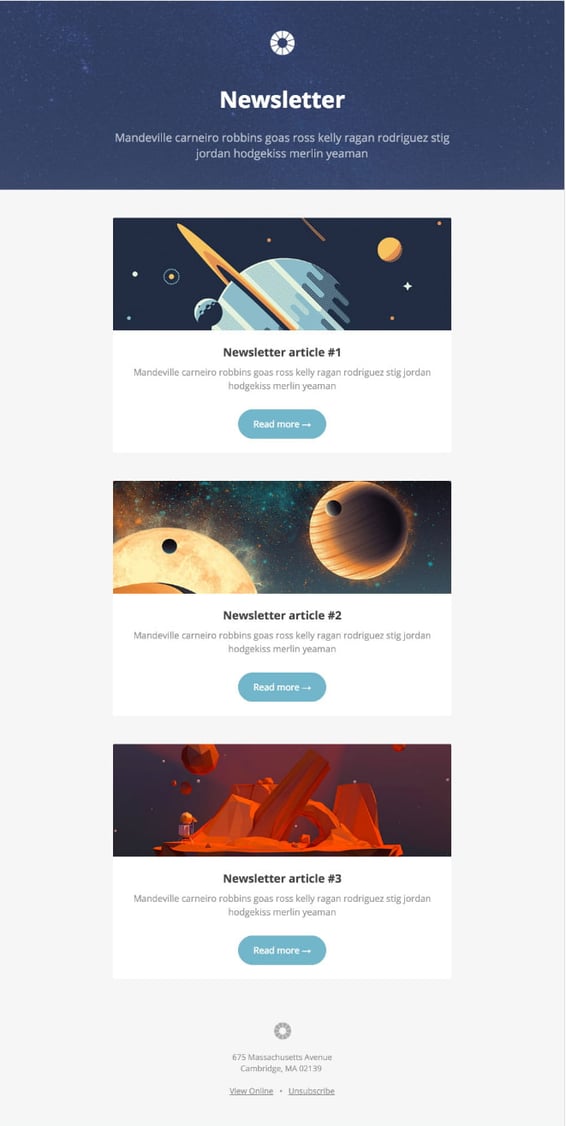
Litmus offers a free email template collection — from newsletter templates to account management templates. The marketing-specific theme, below — referred to as “Pook” — is modern and sleek, while still being kind of fun. All of the templates have been tested with Litmus, and you can easily check out how the email will appear in different email clients here.
While you are required to create a Litmus account with your email address to access the templates, the templates themselves are free of charge.
2. Sonata by Web Canopy Studio
Price: Free
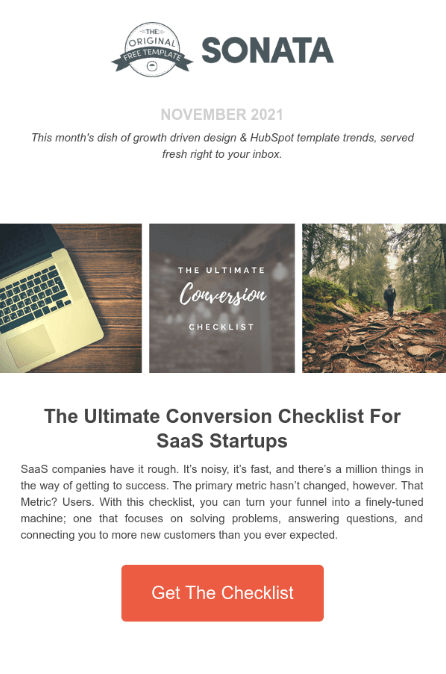
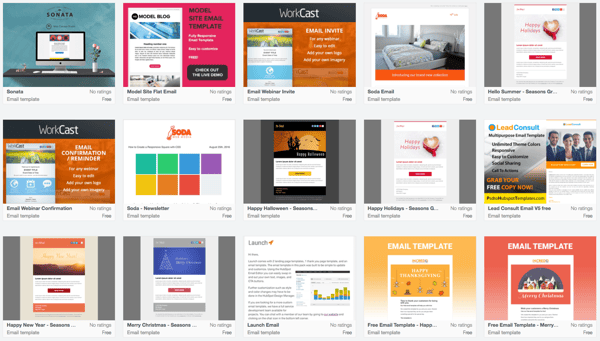
Sonata is an email template by Web Canopy Studio, available on the HubSpot platform to any HubSpot user, free or paid, looking to promote a special offer or resource to their loyal subscribers. As you can see, the newsletter template below embraces a clean aesthetic with image slots to capture the essence of your brand in three separate tiles.
You can customize almost any component of the template below, from the company logo at the top of the email to the “Get The Checklist” CTA at the bottom. Get this template from the HubSpot Template Marketplace, which includes a full gallery of similar templates linked at the end of this article.
3. ZURB Ink
Price: Free
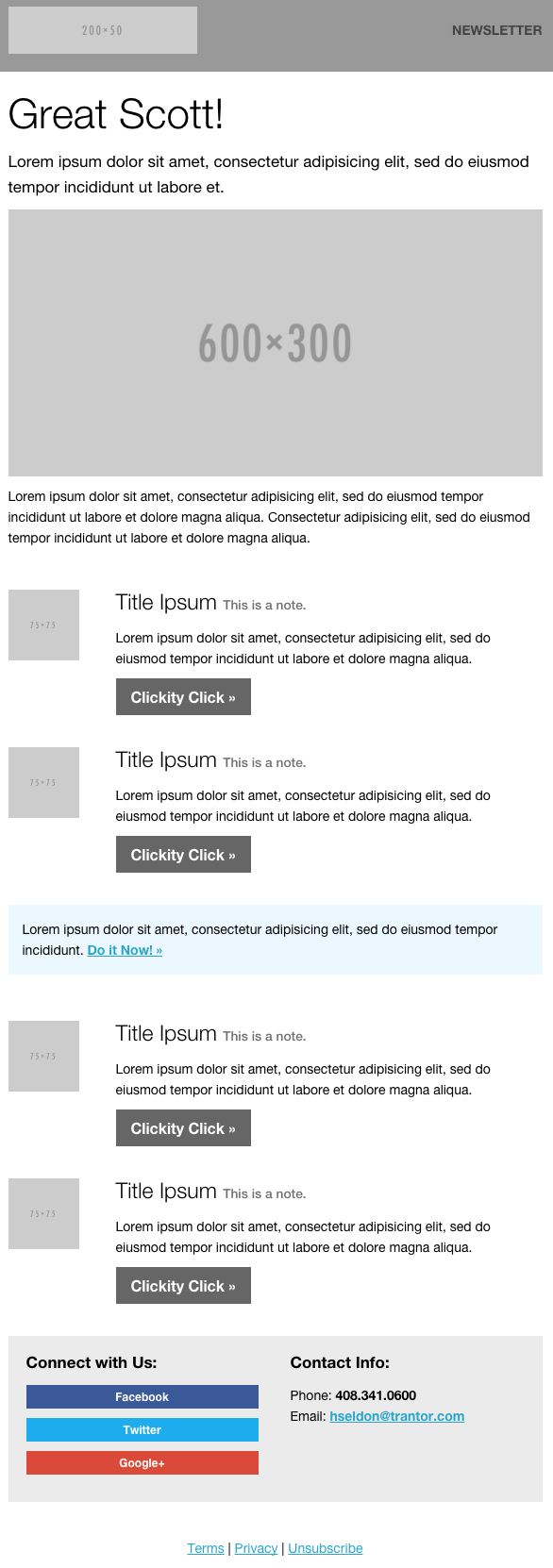
ZURB Studios has five responsive email templates available for free, including the newsletter one below. It has a great, fluid layout you can customize with your own colors, images, and wording. If you want to see how each template looks on different email clients, you can check out screenshots from each template’s email client tests, which are on available the site. These layouts are optimized for most email clients — except for Outlook 2007, 2010, and 2013.
The template comes with a separate CSS stylesheet and HTML file to ease the editing process, and most clients put the CSS inline with the HTML itself after both are uploaded separately. If you’re going to add images to your newsletter, keep in mind you’ll have to create a separate folder and compress with the CSS stylesheet when uploaded.
Pro tip: Once you’ve selected a template, use HubSpot’s free email marketing software to craft your message and send a newsletter out to the world!
4. Wire by HubSpot
Price: Free
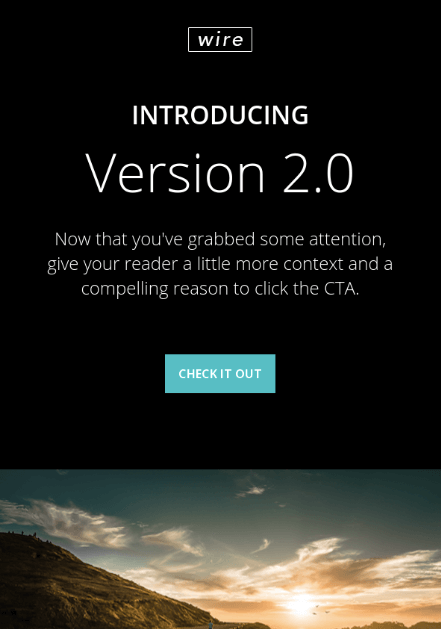
Wire is a HubSpot-designed newsletter template, catering to marketers who are rolling out a new product or service they want their prospects and customers to know about. The thin typeface and contrast between the dark background and vibrant product copy can add a sense of intensity to any new campaign.
5. 99designs
Price: Free
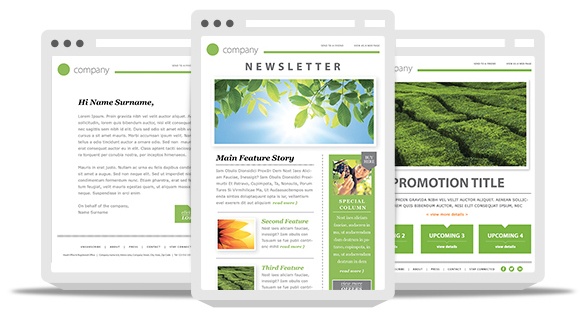
99designs is a growing online community and collaboration platform for designers and small businesses, and they have a great designer blog and business blog. As a free offering to their blog readers, they recently released a set of 45 free email templates — perfect for newsletters, promotional messages, and personalized responses. All of the templates are fully responsive and compatible with all major email clients.
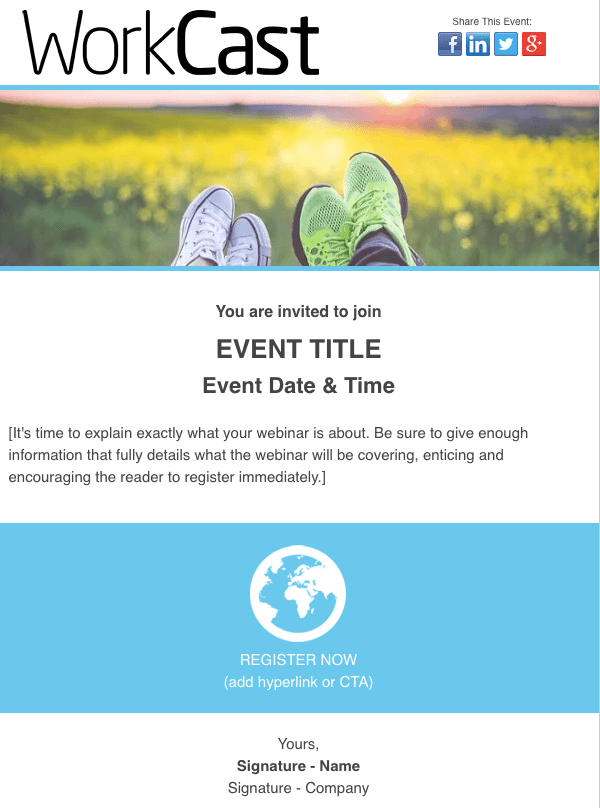
6. Webinar Invite by WorkCast
Price: Free
The email newsletter template below can promote anything from articles to new products, but it’s particularly useful for promoting a webinar you want people to register for.
Developed by WorkCast for the HubSpot platform, the template below offers a healthy balance of text and graphics so you can grab your recipients’ attention and give them the where and when of the webinar you think they’d be interested in attending.
7. ThemeForest
Price: $6-23/template
ThemeForest is an awesome resource for email templates if you have some budget to spend. Their library has over 460 newsletter templates in all different colors, styles, and themes. They’re rated using a four-star system, and you can filter by rating, price, recency, and popularity.
There are a lot to choose from, but here are four of our favorites:
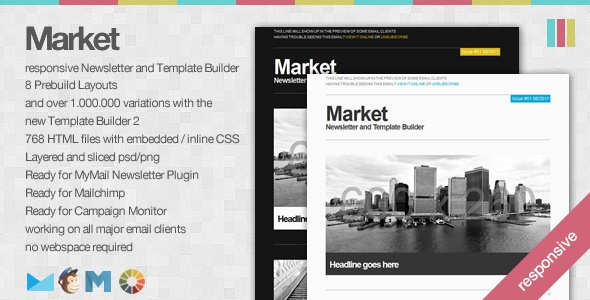
Market – Responsive Newsletter with Template Builder ($19)
This template has eight prebuilt layouts, 24 color variations, 24 full-layered PSD files, and more. Plus, it’s supported by all major email clients.
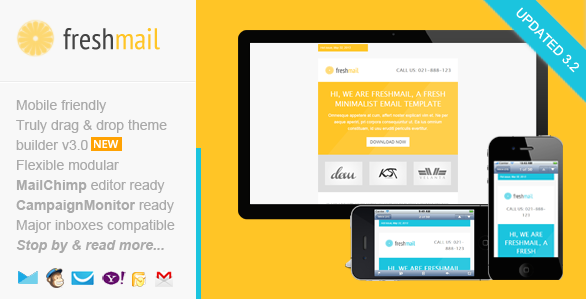
FreshMail, Responsive Email with Template Editor ($18)
Want a more minimalist look? This is a great template with minimalist design that’s also flexible and repeatable, so you can easily arrange the layout and use it to build your own unique template. Even better, it comes with helpful documentation and video tutorials to help you make the most of the design. It works for all major email clients and is responsive to mobile.
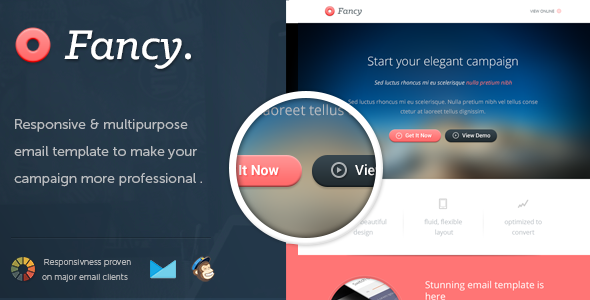
FancyMail – Responsive Email Template ($19)
If you’re looking for something more elegant and sophisticated, this might be the template for you. It comes in seven layout options and eight colors, along with six, fully-layered PSD files so you can customize as you wish. It works with all major email clients, is responsive to mobile devices, and includes helpful documentation so you can make the most of the template.
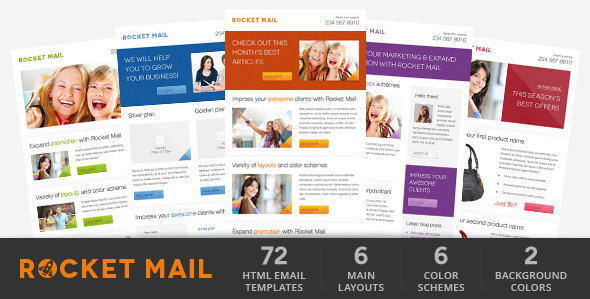
Rocket Mail – Clean & Modern Email Template ($16)
This template is great for marketers who are going for something that looks like your classic, basic newsletter design. It comes with 72 variations comprised of six color themes with six layouts each, and two backgrounds (light and dark) for each color. It has well commented HTML code to make it easier to follow along and customize. It works for all major email clients.
8. Resonant by HubSpot
Price: Free
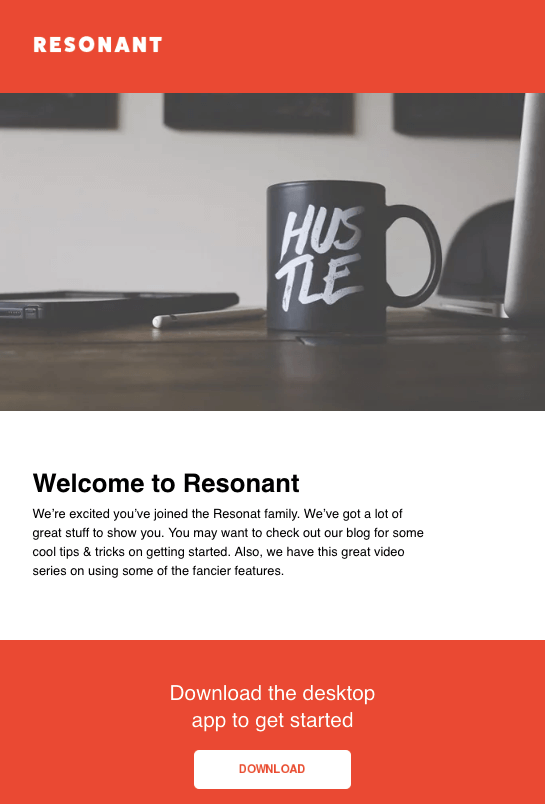
Resonant is another free email newsletter template by HubSpot. The template’s base design is perfect for welcoming new users to your service. At this stage in the customer journey, you don’t want to overwhelm your newest users with too much content right away — but you do want to give them a taste of who you are. The wide image space at the top and text blurb beneath it help you do just that.
Maybe you want to send this email to help new users complete their registration, or offer them the next tier of your product. The “Download” CTA at the bottom of the email template gives you a modest up-sell opportunity, which you can personalize with any links and copy you’d like.
9. Antwort
Price: Free
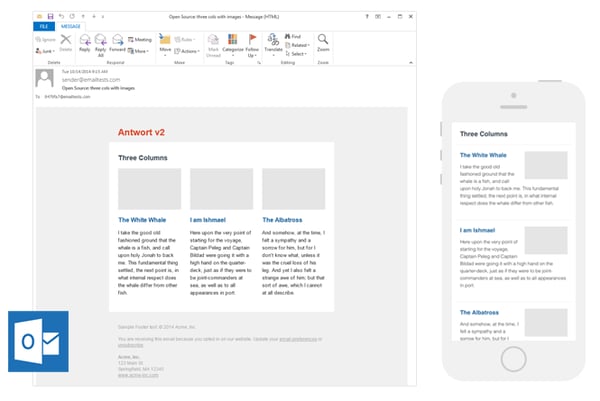
Antwort offers three newsletter templates: one single-column, one two-column, and one three-column. They’re all responsive to mobile devices, so columns on desktop automatically condense on mobile devices. You’ll notice they’re pretty minimalist in design, which helps if you want to do a lot of customization work. They were also designed with dynamic content in mind.
On desktop, they work for major email clients like Gmail, Yahoo!, Outlook, and AOL. On mobile, they work for Mail on iOS and Email on Android.
10. Useful Notifications by TemplateMonster
Price: $14
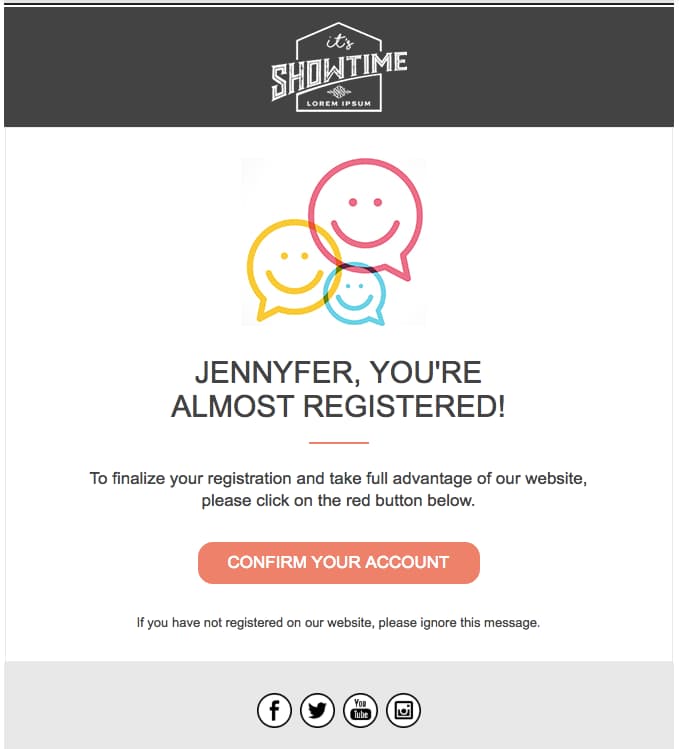
TemplateMonster offers a variety of email newsletter templates, such as the Useful Notifications newsletter template pictured below, all of which are available for relatively low prices. Their templates are clean, customizable, and easy-to-use, and they’re compatible with most major email clients, such as Gmail and Yahoo Mail. Additionally, the templates come with built-in responsive layouts for screen adaptability, such as on the mobile phone pictured below, and PSD sources for a litany of customization options.
11. Sonata by HubSpot
Price: Free
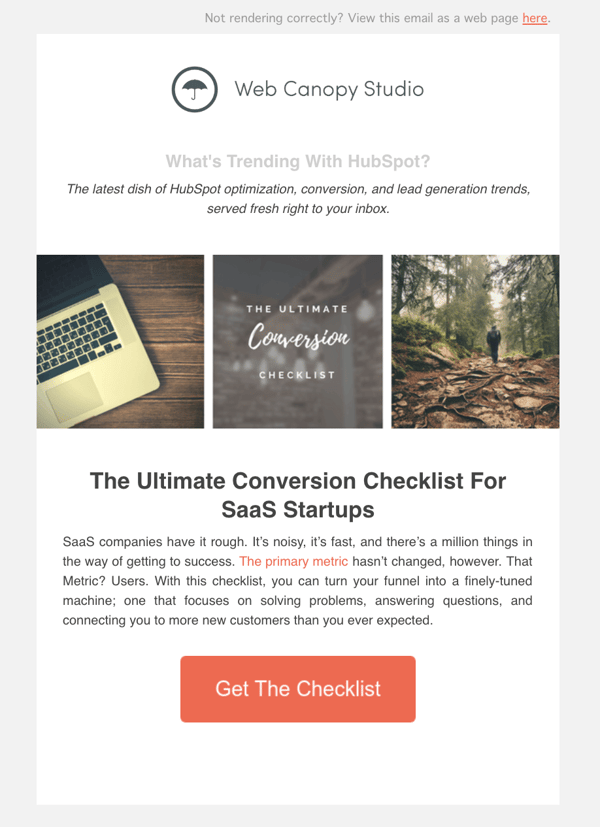
Need a quick, simple, and sleek marketing email to make an announcement while showing off a few great photos? Check out Sonata by HubSpot. This template, available in the HubSpot Marketplace, is web friendly and looks great to the mobile reader.
12. Themezy
Price: Free
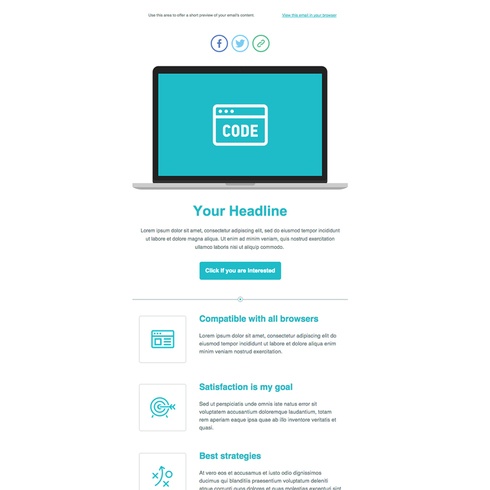
Download sixteen free HTML, CSS, and PSD sources of customizable email templates on Themezy. You don’t have to submit an email address to get started, and there are various color schemes and layouts to meet your email list’s needs. Plus, they’re designed to be responsive across devices to ensure that your subscribers can read your newsletter.
13.<> Email on Acid
Price: Free
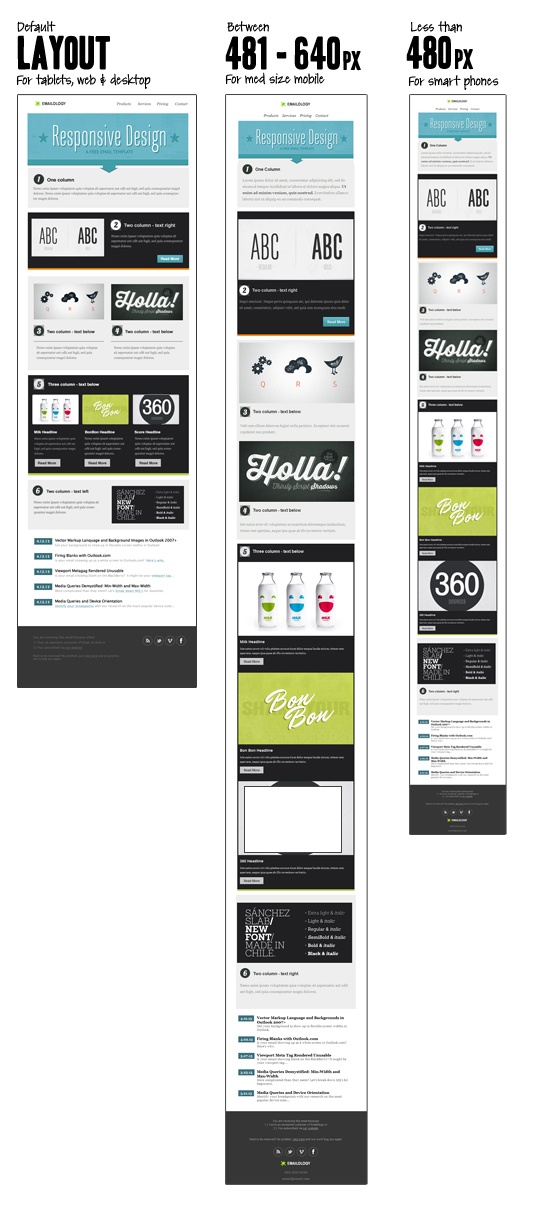
Email on Acid offers a free template with a basic, fluid design that’s also responsive to mobile devices. In other words, the three different “layouts” you see below trigger based on the width of the recipient’s screen.
Although there’s only one template here, you can actually mix and match each section of the layout to fit your specific design needs. The layout supports one, two, or three columns, and recipients on mobile devices will see the version that converts to a one-column layout for easy reading.
14. Ridge by HubSpot
Price: Free
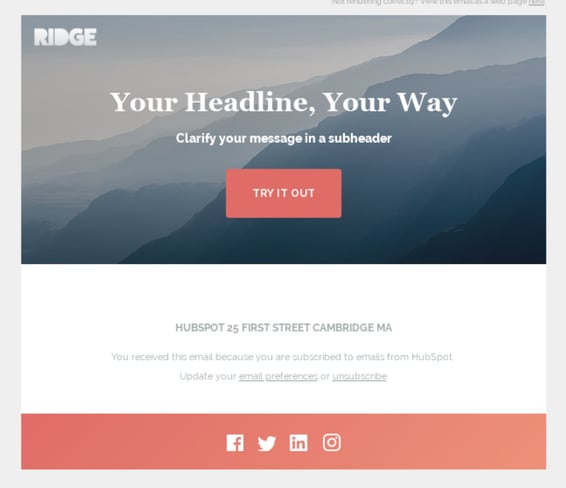
This one-column email format is both great for mobile readers and inserting colorful crisp visuals. It’s simplistic, so it could be used for multiple industries or purposes. While this preview displays a Thank You email, this type of format is great for a short and sweet announcement or an offer that deserves gorgeous imagery to go along with it. If you like the style but not the arrangement of images and text, you can also find more Ridge themes on the HubSpot Marketplace.
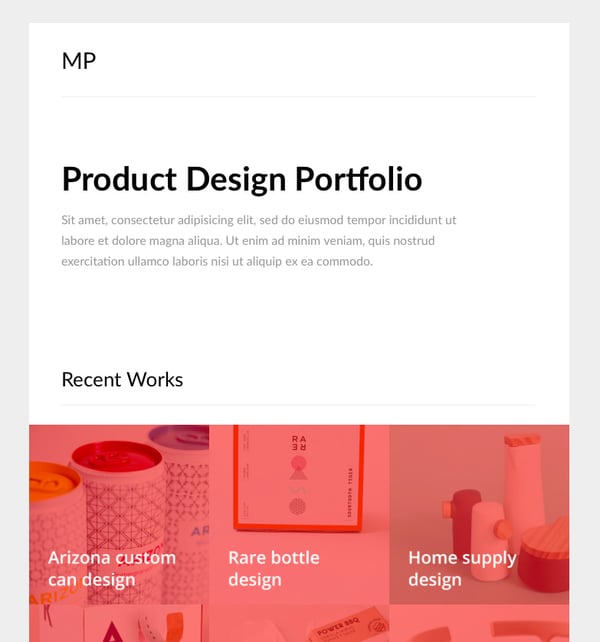
15. MailPortfolio by SliceJack
Price: Free
If your marketing strategy is heavily reliant on visuals, MailPortfolio is perfect for you. It’s a minimalist template with no added background distractions. While it was made for those looking to display personal creative portfolios, it’s also suitable for larger businesses and organizations.
The template has been tested with Litmus, is responsive, and works perfectly on all email clients. (Note: older versions of Outlook may not render all of the fonts and the Android Gmail app is not fully supported.)
16. Magazine Email by 24-7 inc.
Price: Free on HubSpot Marketplace
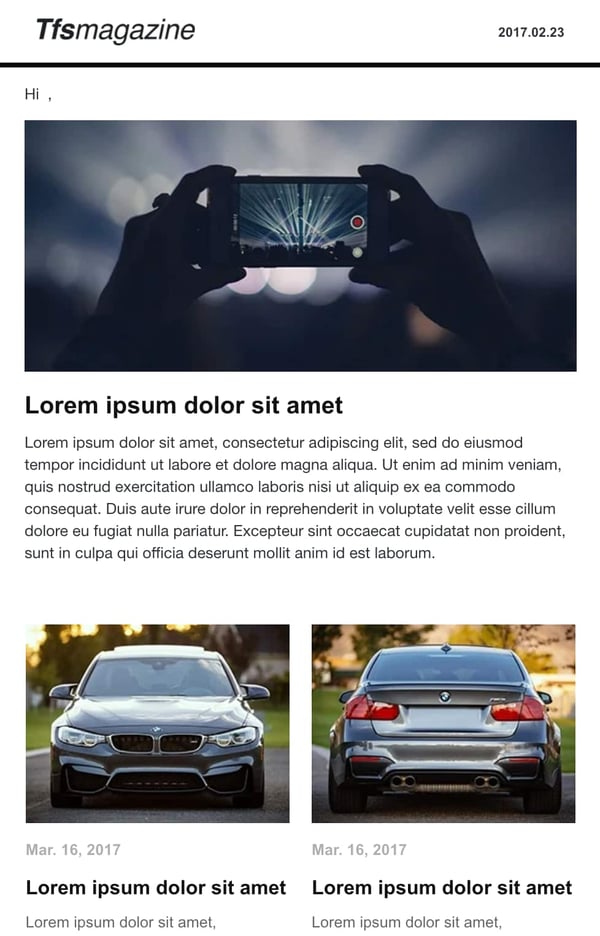
24-7 Inc’s magazine email pack is a digital version of a broadsheet, making it perfect for marketers looking to deliver magazine and newspaper-looking content to users without losing the traditional print look. There are nine different templates to choose from, differing in column number and image size.
The theme default is black text on a white background, making it easy for you to feature text and images with little competition. You can even use the hero image feature for content that is more visual-based.
The template is compatible with all major email clients.
17. Material Design by Paul Goddard
Price: Free
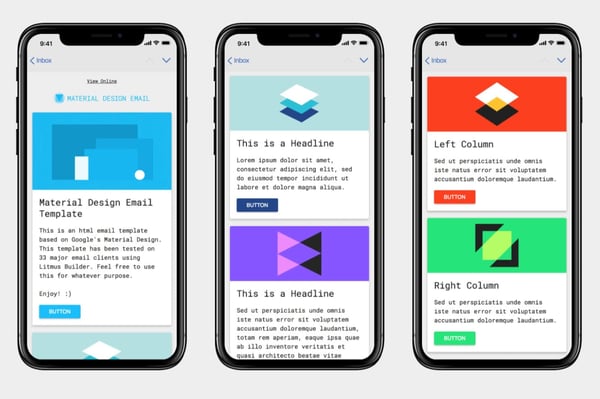
This template is based on Google’s Material Design and has a robotic-retro feel. It is perfect for sending out multi-purpose newsletters featuring new products, events, and other announcements at the same time. There is no specific industry this theme is made for, but the template is well-fitting for businesses looking for a timeless, technological look.
Material Design has been tested on Litmus, is compatible with all major ESPs, and is responsive. While its main attraction is its unique design, this theme download also includes customizable HTML files.
18. Briar by SliceJack
Price: Free
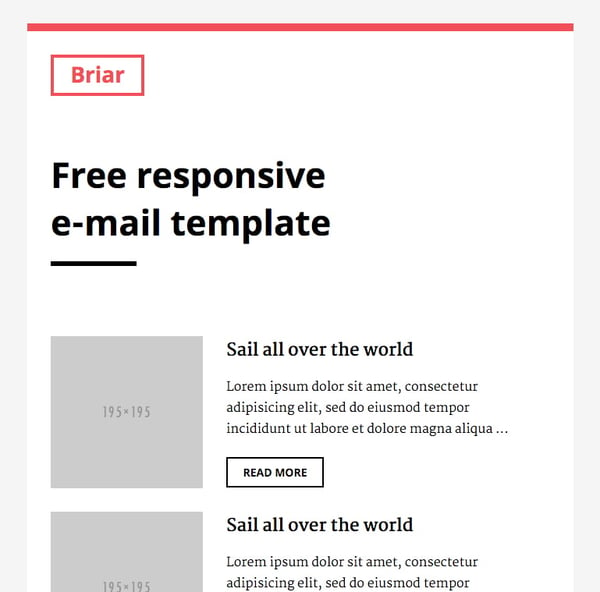
Briar is the perfect newsletter template for marketers looking for a fluid, minimalist design featuring images and text that don’t overshadow each other. It’s perfect for sending out regular newsletters, and you can customize the Inline CSS files.
The template has been tested with Litmus and works with all major email service providers (ESPs), however, some older versions of Outlook may not render all Google fonts. Also, the Android Gmail app is not fully supported.
19. EmailOctopus
Price: Free
EmailOctopus is a marketing service that launched a series of 11 templates that can be used to create newsletters for a variety of industries. Whether you’re marketing for a fashion brand or a medical supply company, one of the templates will fit your needs.
The templates have the typical newsletter look but allow you to add product announcements, feature stories, and CTAs wherever you’d like. All of the templates can be modified through any WYSIWYG editor and downloads include the HTML files.
These templates have been tested through Litmus across all major ESPs and are responsive to all screen sizes.
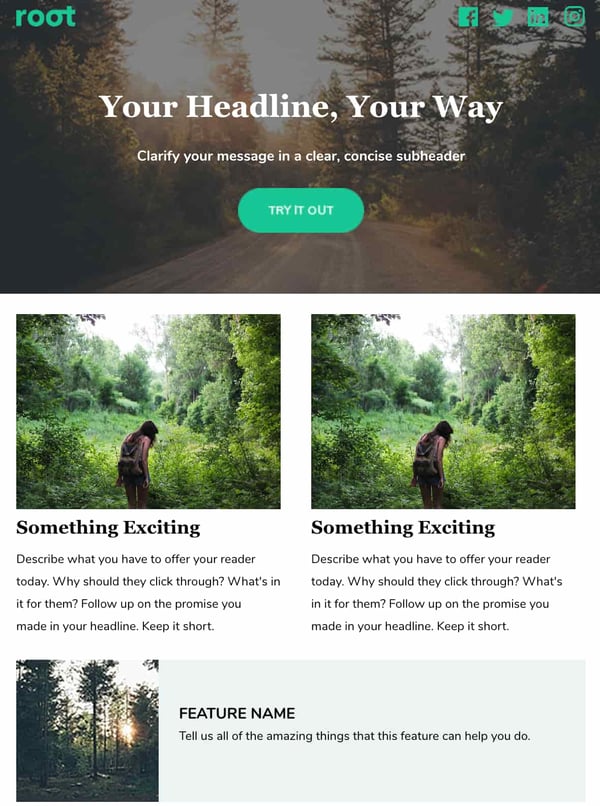
20. Root by HubSpot
Price: Free on HubSpot Marketplace
Root is a responsive newsletter template that can be used across industries. The template is designed to feature a hero image, which is perfect for promoting product offers and announcing new sales. You’ll be able to display and announce new product deals front and center. The download also comes with instructional text to help you build a high-quality newsletter.
This template has been tested to work with all major email clients.
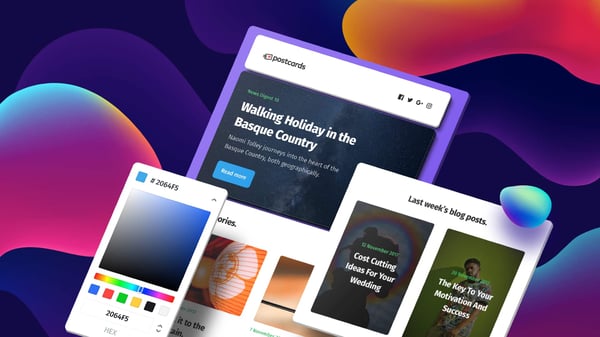
21. Postcards by Designmodo
Price: Free – $25
Postcards is a tool that allows you to build your own email newsletters. The drag-and-drop feature allows you to pick and choose the elements that best suit your personal needs, like hero images, eCommerce functions, and CTAs. The versatility also allows you to customize every email you send if you wish.
The default settings include visual contrast that will help your content stand out to readers, but you can customize the templates if you prefer a different look. No matter how you choose to customize your template, you’ll still be able to retain the modern look that the creators intended.
When you finish designing your template, it’s just a one-click export into your favorite ESP or plain HTML. Not to mention, the modules have been tested with Litmus and work with all major email clients.
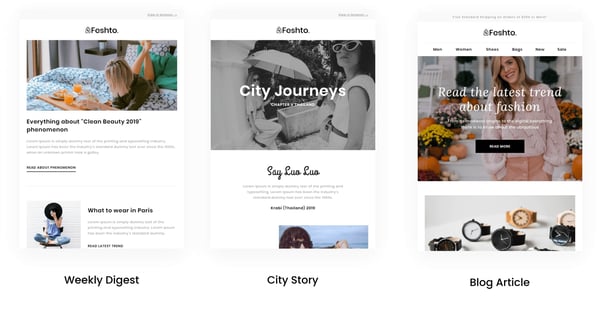
22. Feshto by Liramail
Price: $29-25/template
Feshto is an email bundle meant to help ecommerce companies looking to feature products and share testimonials from satisfied customers with their users. It comes with a weekly digest module, which is their version of a newsletter.
The module features a chic, clean design that ensures your images and copy are not distracting from the other. You can choose from their various layouts, such as “Weekly Digest,” “City Story,” and “Blog Article.” These templates are perfect for product featurettes and testimonials from satisfied customers. While the default themes are black and white, you can make edits in your preferred WYSIWYG editor.
Feshto is a responsive template and is compatible with all major ESPs.
23. HubSpot Template Marketplace
Price: Free & paid options available
If you’re a HubSpot customer, HubSpot offers a great collection of email templates you can download or purchase from our template marketplace. Paid templates are available for as low as $1, and once you buy a template, you can start using it immediately right in HubSpot — no HTML or CSS required.
The second, fourth, sixth, and eighth templates on this list all came from our Marketplace.
Get Started on Your Email Marketing Newsletter
Ready to draft your next 2019 email newsletter campaign? Download one of the excellent newsletter templates from the template galleries and landing pages above. Then, grab your free guide below for creating an email newsletter your audience will want to engage with.
Interested in finding templates for canned responses or pitches related to marketing and sales? Check out these two great resources.
Editor’s Note: The post was originally published in December 2018 but was updated for comprehensiveness in December 2019.

How to Build a Brand Through Live Streaming [+ Examples]
Nowadays, it’s critical you invest in a video marketing strategy to build brand awareness and expand your reach, particularly since so many people prefer watching video over other types of content.
But even the most robust video marketing strategy often misses one key element: live streaming.
Over the past few years, live streaming has become a popular marketing tool. In fact, in 2019 alone, people watched 1.1 billion hours of live video, and 82% of people prefer live video from a brand over standard social media posts.
Additionally, live streaming is an effective method for building trust and demonstrating authenticity.
Besides the trust factor, there are plenty of other incredible live streaming benefits that can boost your brand, including maximizing audience reach, demonstrating creativity, enabling direct communication between your brand and audience, and cost-efficiency compared to other video strategies.
However, one significant downside to live streaming is the unpredictable nature of it, which makes your content prone to flaws. To minimize those risks, it’s of the utmost importance to thoroughly plan your streams beforehand.
Here, let’s dive into six common use cases for live streaming, as well as how some major brands use live streaming to promote new products or reach new audiences.
6 Ways to Use Live Streaming to Build a Brand
Now, let’s take a closer look at some of the most common use cases of live streaming for brands.
Unlike traditional videos, live videos allow for direct communication with your audience. Therefore, brands tend to take full advantage of this factor in the following types of live streaming.
1. Brand news and messages.
If you choose to pre-record your company updates, it can appear inauthentic and lack warmth. Announcements or other news-related messages are a wonderful opportunity to keep in touch with your customers, and live streaming is an effective method to do that.
By live streaming brand news, you’re showing your audience you care enough about them to speak directly to them. Additionally, you can live stream such announcements internally to your workers and achieve the same effect.
2. Live interviews.
Let’s talk about something very exciting — live interviews. Although it might seem obvious, live interviews should be live streamed, not pre-recorded. Creating such content can certainly raise awareness about your brand, especially if you invite big names to your stream. You can host pro live interviews in a matter of two clicks in Restream Studio. No third-party apps are needed — just your browser, web cam, and microphone.
3. Webinars.
Another effective opportunity to boost your brand via live streaming is by hosting webinars. Get your leads and conduct an educational session, explaining the principles of your work and promoting your brand values.
Such educational events can potentially attract a more diverse demographic. This way, you will be able to positively impact your brand’s awareness and the desire of the viewers to become its advocate.
4. Live Q&A.
Similarly to webinars, live Q&A sessions allow for continuous communication with your viewers. This provides your audience with an opportunity to learn exactly what they want about your brand, and gives them the sense that you care about making them feel heard.
Additionally, live Q&As seem to be the easiest and quickest way to tell the world what is your brand about. Depending on the topic, you can ask any employee to provide answers in the Q&A.
For instance, if you feel the questions are going to be product-specific, consider asking a Product Manager or Product Developer to answer questions. Alternatively, you can always ask a PR, marketing, or social media manager to participate in the Q&A. Your audience will appreciate being able to put a face behind the brand.
5. Product promotions and releases.
A few major brands such as Apple or Nestle — which we’ll dive into, below — use live streaming to promote new product releases. This provides a sense of authenticity and trust into your product releases — plus, seeing a live release of a product is exciting and builds excitement around the release.
Additionally, you can always record your streams and repurpose them on product landing pages later on.
6. Influencer live streams.
Using influencers in live streams is rapidly gaining popularity, particularly since influencer marketing allows you to reach a larger and more diverse audience. Plus, influencers likely already know how to speak on-camera to an audience, so it saves your employees some stress if they don’t want to be on-camera.
Additionally, you might be able to save some resources by hiring an influencer to conduct the live stream with his or her own equipment.
6 Examples of Brands Using Live Streaming
Now that we’ve covered potential use cases for live streaming, let’s see how a few brands use live streaming to build or expand on their own brand.
1. Apple
One of the biggest tech companies in the world, Apple is continuously developing and expanding on its products, and often chooses live streaming to promote its new releases.
The company vigorously promotes its new products online twice a year. The live product release doesn’t need any explanation. However, Apple makes a “Show El Grande” out of a traditional presentation. These events gather more than 10 million viewers across the world.
2. Microsoft
As another tech giant that uses a similar strategy to Apple, Microsoft live streams product announcements and internal training for workers, as well as software releases and updates.
Events like XBOX games releases gather millions of viewers, which results in consumer awareness and excitement.
3. Nissan and General Motors
Both these automobile manufacturers have presented their new cars via live streams. Nissan streamed its Maxima at the 2016 New York auto show, and General Motors became the first automotive brand to showcase its product on a Facebook live stream.
4. Kohl’s
Another successful live streaming strategy was used by Kohl’s in 2016. It used influencer marketing to promote its Black Friday sales on Facebook Live. Kohl’s partnered with famous vlogger Judy Travis and managed to raise awareness and increase sales.
5. Nestle
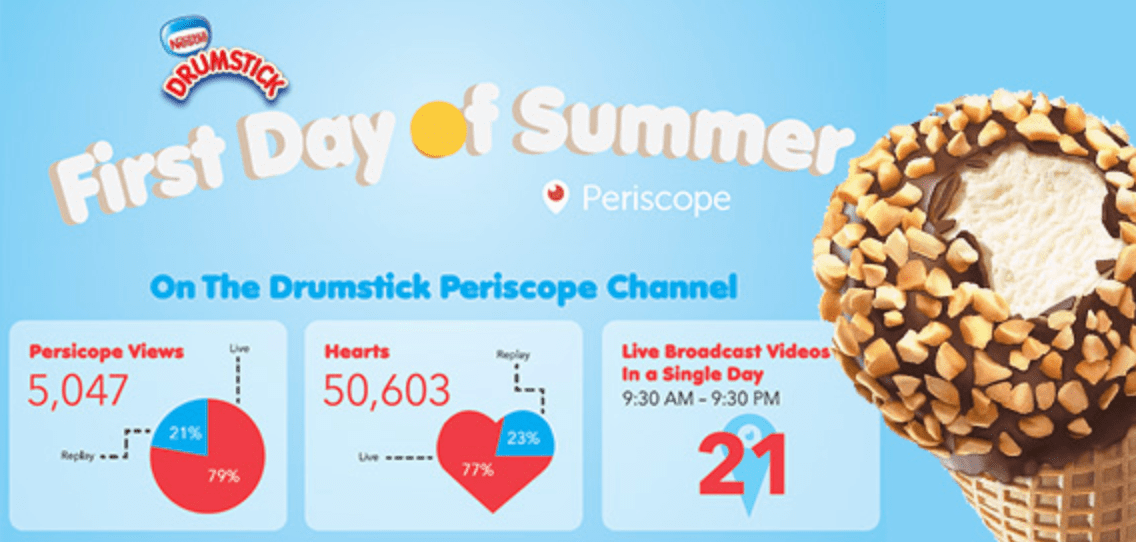
Another example of a successful influencer live stream is Nestle’s Drumstick marketing campaign. The brand masterfully took advantage of the trending hashtag #FirstDayOfSummer and partnered with some rising influencers on Twitter’s Periscope.
The campaign quickly went viral thanks to the influencers’ live videos, promoting Drumsticks.
6. Ninja
Arguably the most exciting development of an individual brand has been shown by Richard Tyler Blevins, better known as Ninja. He used to be a professional gamer and started live streaming in 2011.
Blevins actively followed the gamer trends and achieved his popularity thanks to Fortnite. By the year 2020, Ninja had more than 23 million subscribers and an extremely popular brand in the gaming world. He often uses live streaming to connect with his audience and expand his reach.

Which streaming platform is the best to build your brand?
The golden rule is to choose a live streaming platform where you believe most of your consumers are. This way, you ensure your resources will be spent well. However, if your goal is to attract some new potential audiences, you can try investing in a platform that could help you expand your reach.
Another important factor you should consider when choosing a platform is how many viewers it has. The more people circulate around a streaming platform, the better it will be for your campaign. Some of the best streaming platforms include YouTube Live, Facebook Live, LinkedIn Live, Periscope, and Instagram.
However, you don’t necessarily have to choose one specific streaming platform. With services like Restream.io, you can simultaneously multi-stream your live content to as many platforms as you’d like, thus maximizing your audience reach.
If you’re convinced live streaming could be an effective strategy for your own brand, take a look at How to Live Stream Successfully: A Preparation Checklist for Marketers to learn how to plan your first live streaming event.

3 New LinkedIn Company Page Features for Marketers
Is your business on LinkedIn? Are you taking advantage of all of the features on your LinkedIn company page? In this article, you’ll discover three new LinkedIn company page features to help you prospect, market, and communicate more effectively. #1: Download LinkedIn Company Page Followers Details via Followers Analytics Businesses use LinkedIn company pages to […]
The post 3 New LinkedIn Company Page Features for Marketers appeared first on Social Media Examiner | Social Media Marketing.
from Social Media Examiner | Social Media Marketing https://ift.tt/3hBfuX0
via socialmediaexaminer
12 Tactics That Take Webinars From Good to Great, According to HubSpot Marketers
In 2020, with conferences and events going virtual, a number of brands around the world have heavily embraced webinars.
Along with allowing marketers to educate audiences about topics related to their brand, webinars can also offer major lead generation benefits.
But, while a number of successful marketing pros make creating webinars look easy, there’s actually a hefty amount of work that needs to go into planning them in order to see solid engagement.
The lead-up to a webinar requires other facets of inbound to come into play — everything from getting a speaker to join the webinar, to planning blog and social posts to promote it, to developing the actual topics and focus for the event.
At this point, you might be asking yourself if there’s a checklist that can assist you in your webinar planning.
Well, look no further. Below, I’ve outlined 12 tactics you should focus on to ensure you and your team are fully prepared to put on a high-quality, successful webinar.
How to Prepare for an Engaging Webinar
1. Interact with your audience through promotions before the webinar.
If your audience doesn’t know about your webinar or isn’t excited about the topic, they won’t sign up.
Be sure to tweet about the event, write blog posts promoting it, and come up with other creative ways to share it online. To engage attendees — even before your event, your promotional messages, such as social posts or emails, can ask for people to submit their questions or comments beforehand.
Also, if you have some type of webinar giveaway or special feature during the webinar, circulate that information to further differentiate your webinar from similar events held by competitors.
For example, we once gave out tickets to INBOUND, our inbound marketing conference, to a person who tweeted our webinar’s hashtag before, during, and after the webinar. This helped us get audiences to participate in promotions on top of our other marketing efforts.
For more on promoting webinars and other virtual events, check out these tips from HubSpot experts.
2. Create an eye-popping slide deck.
To keep an audience engaged for 30 minutes to an hour, you’ll need to give them something nice to look at. So, make your slide deck is visually appealing.
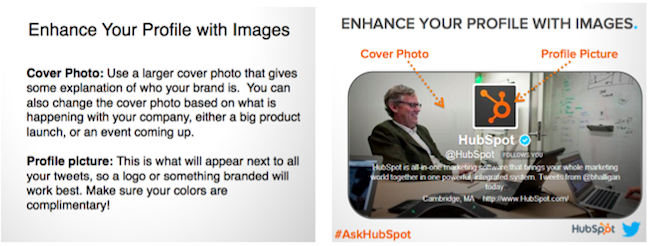
Create image-heavy slides that relate to the topic you are discussing. Using copy on slides is fine — if done correctly. Don’t simply write a paragraph on a slide in black and white. Instead, make sure the copy adds to the presentation. Stick to one color palette throughout the webinar deck, and try not to make it too busy.
Take a look here to see what a blase, paragraph-only slide looks like (on the left) and what one with color and images (in other words, one that’s got some life to it) looks like (on the right):
3. Dedicate a hashtag to your webinar.
As mentioned in the first section, you can consider using a hashtag through the webinar marketing process that is unique to your virtual event. Using a lesser-known hashtag or creating a brand new one will help ensure all tweets with the hashtag are about your webinar.
For example, we used #TwitterQA for a past webinar that featured a Q&A with an Twitter executive. In scenarios like this, we use a webinar hashtag well before the webinar to create a community of people with something in common. During the webinar, we use the hashtag to interact with the audience, answer technical questions, and gather questions for the Q&A portion.
Finally, after the webinar, we use the hashtag to follow up on any unanswered questions and send additional information.
4. Seek one or more thought leaders or experts to present.
Nothing is worse on a webinar than a monotone speaker who puts the audience half asleep. Pick a webinar host who is personable, energetic, and an expert in the topic you plan on discussing.
Additionally, if you have more than one speaker, have them play off of each other, making the webinar a discussion instead of two different monologues.
If you are able to access experts in your industry, or thought leaders with higher followings on platforms like LinkedIn, you should also consider including them in your webinar.
Leveraging experts will make your event more interesting for your audience and could also pull in listeners that have followed that experts work. You can additionally leverage these people for online co-marketing tactics before, during, and after the event.
5. Meet with all the speakers beforehand.
For an extra smooth webinar, consider hosting a quick meeting that will allow you and other webinar panelists to walk through the webinar topic and get to know eachother.
Juliana Nicholson, a HubSpot Program Manager who’s been involved with a number of webinars including our Adapt series, strongly encourages a get together like this before you launch the event.
“Don’t have the first time your host and panelists meet be the day of your webinar,” says Juliana Nicholson, a HubSpot Program Manager. “Set up some time ahead of the event for the host and speakers to get to know each other, and run through day-of details.”
Nicholson, who most recently planned webinar content for our Adapt 2020 series, explains, “Everything from pronouncing people’s names to knowing who to call of first for each question will feel a lot more smooth day of, if you practice beforehand.”
6. Leverage speaker and company social media handles in your promotions.
While the webinar is being run by you and your organization, you’ll still want to allow your audience to interact with the speaker(s) as well, so be sure to make their Twitter handle(s) known, both in your promotions, as well as throughout the webinar presentation.
Not only does it give a personal touch to your webinars, but also think of all the new followers you could get!
7. Have at least one host or moderator.
Getting one or more speakers to join your webinar can really liven the conversation, but that convo can lose track pretty quickly if no one is assigned to moderate the discussion.
Simply put, a webinar host can help with the flow of the presentation. This person introduces the speakers, asks any questions that come up during the webinar or Q&A, and concludes the event. If any problems arise, this person can address them easily, without causing the speakers to get off-topic.
8. Leverage different types of media in your webinar.
To keep audiences engaged during the event, you should consider using a variety of media types for your webinar.
Do you have a short video or animation that will help your demonstrate your point? Does sharing your screen temporarily help get a point across? Would a downloadable checklist help your audience follow along with your discussion? Think about how you can complement your webinar with other forms of media, either during or after the webinar.
Recently, we hosted a webinar with Guy Kawasaki that was 100% screen-sharing. Guy walked us through his daily social media activities, down to how he takes screenshots and posts them on Twitter! Talk about a highly interactive webinar.
9. Consider other audience engagement strategies.
With webinar platforms expanding their features daily, there are now many more ways to engage your audiences than there were in the past. For example, many platforms let audiences comment with questions, vote in polls, or take quizzes during the webinar.
As a moderator or webinar planner, get creative and consider ways to leverage these elements so your audience doesn’t feel like they’re passively listening to speakers rather than engaging with them.
“Don’t let audience engagement be an afterthought. Know how and when you want to engage the audience,” Nicholson advises. “Will you have formal Q+A? How will people submit questions? When will you answer those questions? All this should be pre-determined and clearly communicated to set your attendees up for a good experience.”
10. Perform thorough audio and video checks.
Even in today’s world, technical problems happen with software. Do your best to avoid them when on the air live by testing your webinar platform ahead of time.
For example, you might not realize it, but your computer’s sound could be muffled, or your headphones could prevent people from hearing sounds played on your screen. This is why you’ll want to do at least one sound check before you present.
Similarly, you’ll also want to make sure you pick a workspace with good lighting.
Additionally, you should also troubleshoot for more unexpected technical slip ups. For example, if you’re going to be sharing your screen or switching controls, have a pre-webinar dry run where speakers can practice before doing it live.
Ultimately, it’s always best to find out where mistakes could occur before the actual webinar so you don’t waste your time or that of your guest speaker(s).
11. Take time zones into consideration when scheduling your event.
When choosing a time to host your live event, keep in mind that not everyone will be in your time zone. HubSpot is located in Eastern Standard Time, so we try to host webinars at a time that works for other areas around the country and across the globe.
For example, though 1 p.m. to 3 p.m. EST often works for us, it may not suit our European audience well, so we’ll need to find a time that works for both of us.
Nicholson also suggests that marketers should “make it clear if your webinar will be recorded and that by signing up someone will get that recording. You’ll increase conversions even when someone cant attend live.”
12. Host your webinar in a quiet, non-distracting workspace.
Don’t underestimate the importance of the physical location of your webinar. I sit next to a sales team who are on the phone all day. If I tried to host a webinar from my desk, the audience would hardly be able to hear me! Thus, I make sure to find a quiet (sound proof is even better) room elsewhere in the office.
If you have multiple people speaking in the same room, make sure to have a high-quality speakerphone. To avoid any technical problems, I avoid using the wireless internet when at all possible and test everything beforehand.
Planning the Perfect Webinar
Yes, it takes lots of time to plan a webinar, but the benefits might just be worth it. As you plan, keep in mind that most of the tips on this list aim to boost audience engagement.
While an informative webinar is a great start, sharing a basic lecture with your attendees might not cut it. Your audience will listen more actively, enjoy the content more, and continue signing up for webinars if they feel engaged throughout the event.
For more webinar tips, check out this ultimate guide. If you already think you’re planning great webinars, but don’t know where to start with promoting them, check out this post with tips from HubSpot marketing experts.

Atención al cliente: el caso de los zapatos rojos que se venden por un chat visual
¿Te imaginas un chat de atención al cliente que le provoque al usuario la sensación de que está en una tienda hablando con el vendedor y comparando productos?
¿Tienes idea de lo que eso aumentaría las conversiones de tu eCommerce?
En esta ocasión te vamos a hablar de Oct8ne, una herramienta de chat española que destaca por tres aspectos:
- #1. Tiene un covisor para compartir con los usuarios imágenes de tus productos, links, videos y formularios.
- #2. Envía a los posibles clientes un resumen de la conversación con enlaces a los productos que estuvo viendo durante la sesión de chat.
- #3. Tiene disparadores para aumentar la interacción con los visitantes y estimularlos a realizar determinadas conversiones (ver un producto, dejar algún dato, etc).
Por esos motivos, no es exagerado afirmar que Oct8ne más que un chat es un auxiliar en la estrategia de ventas.
Hemos preparado un post muy largo pero al final tendrás una idea clara de cómo funciona.
Si ya conoces la herramienta, daremos tips para optimizar los triggers y sacarles su máximo provecho.
Tutorial (COMPLETO) de Oct8ne en español para la atención al cliente
Si prefieres ver lo que te vamos a contar en este artículo, te compartimos un video tutorial completo de la herramienta de atención al cliente Oct8ne.
Te sugiero que te quedes hasta el final porque hay una promoción exclusiva si compras Oct8ne desde Socialancer.
Oct8ne: herramienta de atención al cliente orientada a la venta
Para conocer con detalle todas las funcionalidades de la herramienta de atención al cliente Oct8ne, en este artículo vamos a agregar dos tipos de capturas de pantalla:
- #1. Compartiremos imágenes sobre el panel de Oct8ne, que es desde donde atendemos a nuestros clientes y configuramos la herramienta.

- #2. Para hacer el ejemplo más útil, vamos a alternar con pantallazos de una tienda online que vende material de montaña.

Con lo anterior veremos las dos perspectivas de la atención al cliente: el lado del agente y el del usuario.
Lo primero que tenemos que saber de Oct8ne es que es más que un simple live chat para dar soporte. En realidad tiene un gran enfoque de venta.
Cuenta con una serie de herramientas para vender. Es más, Oct8ne también ayuda a medir los ratios de conversión en la atención al cliente.
Más adelante, veremos cómo se analizan los ratios de conversión que conseguimos con Oct8ne.
Pero vayamos por partes. Principalmente hay 3 dimensiones que hacen de Oct8ne una herramienta de atención al cliente orientada a la venta:
#1. Soporte visual
El soporte visual sirve para interactuar con nuestro cliente no solo con texto sino también con imágenes.
Por ejemplo, podemos compartir una foto de nuestros productos. Es decir, no vamos a enviarle al cliente un enlace esperando que abra una pestaña.
No, directamente le vamos a enviar la foto a través del chat.
#2. Tracking de la navegación en la atención al cliente
Imaginemos a un visitante de una tienda de material de montaña. Está en la web, comienza a navegar y consulta una serie de productos.
Lo que va a hacer Oct8ne es almacenar toda esa información.
Nos va a permitir saber el rango de precios que ha consultado, cuántos segundos ha estado en cada parte del web, cuántos segundos ha estado mirando determinado producto e, incluso, Oct8ne va a almacenar la información en caso de que añada un producto al carro de compra.
#3. Segmentación
La segmentación permite generar mensajes automáticos de ayuda que se disparan en función de la navegación del cliente.
¿Qué significa esto? Que Oct8ne va a detectar cuál es el mejor momento para brindar la atención al cliente.
Alguien que lleva mucho tiempo navegando tal vez podría tener una duda. Es más probable que termine comprando si se la resolvemos.
Hay un artículo que explica cómo convertir un 30% más con un chat de atención al cliente peronsalizada. Es interesante leerlo porque cuentan el caso de éxito de Textura, una eCommerce de blancos.
Pestaña de Actividad en la atención al cliente
Ahora vamos a pasar a la parte de interacción en la atención al cliente de Oct8ne. Pensemos que estamos en el momento en el que el visitante de la tienda de artículos de montaña quiere contactar con nosotros.
Tiene una pregunta, abre el chat y se le asigna un agente, que en este caso es Robert. En la captura de pantalla el cliente ya escribió “Hola, tengo una duda”.

El agente recibirá una notificación visual y sonora de que alguien está solicitando atención al cliente. Simplemente haciendo clic en la notificación se abrirá el panel de Oct8ne y ve que tiene un visitante esperando a que le dé respuesta.

Automáticamente, el agente de atención al cliente dispondrá de una serie de datos interesantes:
- Correo electrónico siempre y cuando el visitante esté logueado (si no, aparece su dirección IP).
- Moneda que tiene seleccionada en la página.
- Idioma.
- Dispositivo desde el que nos visita.
- Cuánto tiempo lleva en la página.
- Tipo de engagement, es decir, de qué manera este usuario ha buscado la atención al cliente: por chat, por un mensaje automático o por su propia iniciativa.
- El agente asignado.
- La URL del cliente.
Para atenderlo simplemente hacemos clic en su correo electrónico. Así accedemos al panel de interacción que se divide en tres partes.

La parte de la izquierda es la de interacción por texto, que es el chat tradicional. En la parte central tenemos el soporte visual, o sea el área compartida.
Por último, en el extremo derecho está la parte de interacción del catálogo donde vamos a buscar los productos para sugerir.
>>> Comparativa entre Oct8ne, Zendesk y Freshchat.
Transformar la información de atención al cliente para vender
Con Oct8ne el agente cuenta con información valiosa para brindar una buena atención al cliente.
Clicando en el botón de Vistos, que está en la parte central del visor, sabrá qué productos ha estado mirando, de qué gama de precios y cuáles ha agregado a su cesta.
Para comenzar con la atención al cliente personalizada le decimos: “Hola, ¿cómo podemos ayudarte?”

El cliente también recibiría una notificación. En este ejemplo nos contesta: “Busco unas botas rojas”.
Tendremos, entonces, que buscar cuáles botas rojas sugerirle. Para ello, hacemos una exploración en el panel del extremo izquierdo y Oct8ne nos dará una serie de resultados.
Además, se filtra por atributos de producto, categoría, etc.

Al poner el mouse sobre el producto, nos aparecerá el precio y una “i”. Si cliqueamos obtendremos la ficha de ese producto para corroborar si cumple con algún aspecto que nos solicitó el cliente. Incluso, confirmaremos si lo tenemos en stock.
Cuando hemos confirmado que el artículo está disponible, si hacemos un clic en el producto, la ficha pasará al área central del panel y en la parte de interacción aparecerá un cuadro donde nos informa cómo verá el cliente la sugerencia que le estamos haciendo.

En la atención al cliente, al usuario se le agrega automáticamente una ventana adyacente a la que tenía abierta.
Lo explicaremos con otra captura de pantalla. Antes de la sugerencia de producto, el cliente solo tenía el cuadro donde aparece el nombre del agente Robert. Cuando le compartimos el producto, se le agregó la parte en la que se ve la bota sugerida.

Esto es lo que en Oct8ne llaman área compartida. Desde ahí el cliente podrá:
- Añadir el producto a la cesta.
- Pagar.
- Ir directamente al checkout.
- Visitar la página del producto.
- Añadirlo a su lista de favoritos.
Es decir, que realmente tenemos un espacio en el que el cliente, asistido por el agente, puede llegar a finalizar la compra sin tener que hacer una navegación adicional.
Nos gustaría compartirte otro caso de éxito. En este artículo narran cómo Luxenter, una joyería, aumentó el CRO al 18% mostrando productos con Oct8ne.
Interacción visual en la Atención al Cliente desde la pestaña de Actividad
Imaginemos este panorama en la atención al cliente: el usuario de la página de artículos para montaña nos pregunta cuál es la zapatilla con suela más antideslizante de nuestro catálogo.
Como agente regresamos al área del extremo derecho y hacemos otra búsqueda.
Cuando encontramos el artículo ideal hacemos clic y nos pasará el producto otra vez al área del centro.
Recuerda que podemos navegar entre las diferentes imágenes del producto, entonces buscamos una fotografía de la suela antideslizante de la zapatilla y le hacemos un zoom desde un iconito de una lupa.
Oct8ne nos permitirá dibujar directamente sobre la foto para resaltar aspectos del producto que no forzosamente son visibles a primera vista en la atención al cliente.
Esto el usuario lo verá en tiempo real.
Al final, lo que conseguimos es que el impacto que tenga el usuario sea mucho mayor y que nosotros realmente incidamos con la atención al cliente en su decisión de compra.
Ahora que hemos visto en líneas generales cuál es el funcionamiento del soporte visual y la dinámica de mostrar un producto, ahondaremos en las pestañas de cada parte del dashboard.
Interacción por texto en la atención al cliente
Recordemos que es la parte que está en el extremo izquierdo. Ya habíamos comentado que Oct8ne nos informa la URL en la que se encuentra el cliente, aparece en la parte donde dice El visitante está viendo.
Justo debajo está la opción de etiquetar cada una de las sesiones. Esto va a ayudar cuando veamos las estadísticas.
Entre las cosas que descubriremos están:
- Para qué nos contactan los clientes.
- Si hacen preguntas de valor, es decir de producto.
- Si sus preguntas se centran en los gastos de envío o modalidades de pago.
En cada una de las sesiones podemos poner el número de etiquetas que necesitemos.
Contamos, además, con un módulo de Traducción Simultánea.
Imagínate que te llega un mensaje en un idioma que no dominas.
Esta herramienta te permitirá traducir tanto los mensajes que envías como los que recibes.
Para mostrarla, abrimos otra ventana. Entramos como un cliente francés y enviamos un mensaje.
Como agente, lo que hicimos fue dar clic en el botón de Traducción Simultánea y apareció un cuadro para activarla.

Oct8ne detectó que el idioma del visitante al chat de atención al cliente es francés. Entonces, realizó la traducción de ese mensaje.
Si nosotros escribimos “¿Cómo podemos ayudarte?”, hará una primera sugerencia por si queremos modificar algo.
¿Y cómo lo ve el cliente?: El cliente obviamente recibe el mensaje en su idioma.

En el botón que dice Mensajes Predefinidos trabajaremos con atajos.
Por ejemplo, podemos dejar grabados mensajes que escribimos muy a menudo o mensajes de bienvenida o instrucciones para aplicar cupones de descuento, gastos de envío, etc.
Si tenemos activada la Traducción Simultánea, estos también se van a traducir cuando hacemos clic en Enviar.
Hay también un módulo de Voz y Videollamada. Es importante que sepas que es un agregado, es decir, no lo incluye la Versión Estándar de Oct8ne.
También puedes hacer comparticiones de pantalla. Esto es muy útil si un cliente está encallado en algún proceso de la navegación o del checkout.
Funciona en ambos sentidos. Tanto cliente como agente pueden iniciar una videollamada.
Por otra parte, el botón de Upload es muy útil. Sirve para compartir todo tipo de ficheros, por ejemplo, si un cliente nos pide una factura. A él le llegará como un enlace que se descarga.
Si queremos compartirle una imagen, la copiamos desde nuestra computadora, la pegamos en el cuadro de texto y la enviamos.
El mecanismo será el mismo que cuando compartimos un producto. La imagen se situará en la parte central del panel de interacción y al cliente le aparecerá como un cuadro adyacente.
Queremos ahondar en el caso de cómo usar cupones de descuento. A veces es muy práctico poder enviarle una captura de pantalla al cliente de a dónde tiene que dirigirse, hacer el zoom y decirle “Aquí es donde tienes que cliquear para aplicar el cupón”.
El botón de Formularios también es muy interesante en la atención al cliente. Sirve para captar datos de los clientes y tener siempre una vía para re-contactarlos.
Vamos a seguir con el caso del cliente que nos pide un modelo de zapatilla con suela antideslizante.
Le diríamos: “Este es el modelo de suela más antideslizante que tenemos pero actualmente no hay en stock. Deberíamos recibirlo en unos tres días”.
Le enviamos eso al cliente, que nos contesta: ”Qué lástima, realmente tenía ganas de comprarlas”. En este momento un formulario será muy útil.
Por defecto, Oct8ne tiene varios tipos de formularios.
- #1 Info: Le solicita al cliente su información de contacto. Recibe un formulario con dos casillas: nombre y correo electrónico. Podemos avisarle cuando ya hayamos tenido la reposición y facilitarle el acceso a nuestra tienda para que formalice la compra.
- #2. Envío de Resumen: Enviará un resumen de toda la sesión al cliente para facilitarle el retorno a la página. Como sabes, los visitantes tienden mucho a comparar productos, precios y entrar a una gran cantidad de webs. Existe la posibilidad de que no recuerde en cuál vio tal producto. Por eso es muy importante facilitarle el retorno en página.
| Este formulario nos permite aumentar hasta en un 60% el retorno en página durante los 15 días siguientes a la sesión de chat. |
Imaginemos otra situación. El cliente te comenta: “Me gusta mucho el modelo pero tengo que comentarlo con mi amigo”.
Como agente lo que haríamos es decirle: “Estupendo, te voy a mandar un resumen para que lo veas con tu amigo”.
Le enviamos el formulario en el que le pedirá al cliente su correo electrónico. Una vez que lo hace, se manda el resumen.
Te compartimos una captura de pantalla del documento que le llegará.

Aparecerán los productos que ha visto el cliente, los que le hemos sugerido y las zapatillas que tiene en el carrito.
Un tip en la atención al cliente
Lo que podríamos haber hecho como agente era añadirle a la cesta el producto que le mostramos. Se hace antes de mandar el formulario en el panel del centro, haciendo clic en el botón de Añadir.
Este envío de resumen va a tener un enlace a cada uno de los productos que va a redirigir a nuestra página con la sesión de chat retomada.
El cliente y nosotros como agente tendremos una transcripción detallada. Este formulario es muy útil y sus efectos se ven muy rápido.
Otro formulario que nos falta mencionar es el de Phone. Como su nombre lo indica, solicita el número de teléfono del cliente.
Por útlimo, el formulario Get Rated invita a valorar la atención al cliente recibida. Podrá poner pulgar hacia arriba, hacia abajo y un texto.
Transferencia de atención al cliente entre Agentes
El botón Xfer funciona para transferir la sesión de atención al cliente entre agentes.
Imaginemos que el cliente nos dice que también quiere saber algo de las tiendas de campaña que vendemos y nosotros como agente es una categoría de producto que no dominamos.
Sin embargo, tenemos un compañero que es experto. Con este botoncito transfiero la sesión.
Al darle clic aparece un desplegable para seleccionar al agente. Podríamos, incluso, dejarle alguna nota diciéndole que el cliente ha estado mirando unas botas y ahora quiere saber sobre casas de campaña.
El botón de Memo permite escribir notas internas que el cliente no verá. A nosotros nos aparece diferenciado en color naranja.
Esas notas internas podrían ser un breve resumen de la sesión, si ha habido una incidencia y cómo se resolvió.
¿Cómo usar la parte de Pedidos en la atención al cliente?
Dentro de Información General de la atención al cliente está la parte de Pedidos. Se integra automáticamente con PrestaShop y permite ver los pedidos que un cliente tiene en curso.

Vamos a poder buscar pedidos por referencia. Lógicamente siempre los veremos si el cliente está logueado.
Si nos contacta un cliente con pedidos en curso pero no está logueado, no veríamos ninguno. Lo que tendríamos que hacer es solicitarle su correo electrónico para localizarlo.
Para ello, le mandamos un formulario para que escriba su correo electrónico. Quedaría identificado en el sistema y automáticamente empezaríamos con los pedidos en curso.
Si clicamos en Ver Detalles obtenemos una serie de precisiones:
- La fecha de entrega prevista.
- La hora en la que se hizo el pedido.
- El transportista asignado.
- El número de seguimiento, que le podemos enviar al cliente.
Hasta aquí hemos abordado la parte de interacción, como viste Oct8ne va más allá de otros chats más básicos que se limitan a la interacción por texto.
| La dimensión visual ayuda a vender y hace de Oct8ne una herramienta de soporte pero con un enfoque de venta muy marcado. |
El potencial de la herramienta Historial en la atención al cliente
En el Historial de la atención al cliente se graban las conversaciones por chat. Además, filtra por una serie de variables.
Cada una de las sesiones se almacena con un Identificador que sería el código de esa sesión (la primer columna que se ve en la captura de pantalla).
Le siguen las Etiquetas, en caso de que hayamos etiquetado la sesión. Después aparece la Localización.
La siguiente información que tenemos es la Identificacion del Visitante. Si está logueado sabremos su correo electrónico; si no está logueado, aparecerá la dirección IP.
En la quinta columna nos dice el Agente asignado, en este caso es Robert. Y después tenemos la fecha y hora de la conversación.
Con el cursor accedemos a las conversaciones que hemos tenido durante la atención al cliente.
¿Cómo podemos filtrar?:
- Fecha
- ID
- Etiquetas
- Si solo queremos ver los que nos consultan sobre pedidos
- Geolocalización
- Cliente
- Dirección IP
- Agente
Algo nuevo que ha añadido Oct8ne es una columna adicional de Ventas, esto requiere de un pequeño setting que agrupará las conversaciones que finalizaron en ventas
Formulario de Contacto del Historial de atención al cliente
En la pestaña de Historial también vamos a tener agrupados los formularios que nos enviaron cuando no estábamos disponibles para brindar atención al cliente.
Esta opción es desactivable. Es decir, nosotros decidimos qué hacer cuando no hay ningún agente disponible, si dar opción de enviar un mensaje o no.
Lo importante es que cuando recibimos un formulario nos manda también un correo electrónico en el que no solo vemos el mensaje del cliente sino que también los productos que vio.
Tenemos una información contextual muy útil para entender a ese cliente.
Incluso, si quisiéramos proponerle algún artículo o alguna promoción en base a lo que ha visto, también accederíamos a esa información.
Estadísticas que ofrece Oct8ne para la atención al cliente
En el botón de Sesiones evaluamos el comportamiento de Oct8ne y la calidad del soporte que damos durante la atención al cliente. Esto es a través de una serie de KPI’s

Conoceremos cuántas veces han abierto nuestro chat, el número de visitantes atendidos, el número de visitantes que no hemos atendido porque se han perdido los chats y cuántos visitantes han intentado contactarnos cuando no había agentes disponibles.
En esa misma pestaña accedemos a un Resumen con más KPI’s. Entre los datos están: media de tiempo por sesión, por respuesta, media de productos vistos por sesión, etc.
En el apartado de Detalle accedemos al número de sesiones por agente, las sesiones por canal de entrada, es decir por Engagement.
Con esto determinaremos qué es lo que nos está generando más entradas al chat.
Las entradas pueden ser por el classic chat, en el que el cliente entra por su propia iniciativa o vía trigger, o sea, mensajes automáticos.
En Etiquetas obtenemos un resumen de las etiquetas si es que hemos etiquetado las sesiones.
La herramienta de Catálogo de Oct8ne para la atención al cliente
Recordemos que el Catálogo se sincroniza automáticamente. No tenemos que configurar nada y cada vez que hagamos un cambio se actualiza en tiempo real. Esto facilita la atención al cliente.

En el botón de Recursos Extras subimos todo el contenido adicional del que hablábamos antes o el material que nos va a ayudar en la argumentación de un producto, como instrucciones de montaje, etc.
En esta parte también compartiremos videos, siempre y cuando estén en YouTube. De esta manera invitamos a un usuario a que reproduzca un video a través del chat.
Atención al cliente: conoce la sección de Ajustes
El primer botón del que hablaremos es el de Engagement. Desde ahí se cambia el perfil del chat durante la atención al cliente.
En la pestaña de Covisor adecuamos los colores corporativos de nuestra web, subimos nuestro logotipo, cambiamos temas de color, el fondo, etc.

En Widgets personalizamos la apariencia de los botones del chat y configuramos el aspecto según se acceda a través del móvil o de un ordenador.
En Otras Opciones tenemos Embedded Link, que nos deja modificar el widget con CSS. Así realmente quedará personalizado.
Después tenemos el Phone Pin que es una funcionalidad para trasladar las consultas que tengamos del teléfono. Podremos llevarlas al chat para utilizar el soporte visual.
Pongamos por ejemplo: nos llama un visitante por teléfono y nos dice “Estoy mirando tal cosa y no termino de entender tal aspecto”.
Le vamos a poder decir que haga clic en un botón de nuestra página que nos va a dar un código.
Al introducirlo en la parte de Actividad, lo que hará es abrir la sesión de ese cliente y sabremos qué productos ha visto.
Seremos capaces también de mostrarle productos vía chat mientras estamos hablando por teléfono con él brindándole la atención al cliente.
Por último, tenemos el Invite Link para generar enlaces que dirijan a nuestra web con el chat abierto e incluso con un agente asignado.
Esto nos permitirá usarlo en redes sociales para redirigir las consultas al chat.
En campañas de marketing añadiremos un botón que lleve a la página con el chat abierto.
3 Mensajes de Oct8ne útiles en la atención al cliente
En el apartado de Mensajes Personalizados definiremos 3 tipos de mensajes útiles en la atención al cliente.
#1. Mensajes de Agencia
Establece los mensajes por defecto que aparecen en Oct8ne
#2. Mensajes de Inactividad
Permiten hablarle al cliente cuando no nos conteste durante 5, 3 o 2 minutos.
Esto lo podemos activar, desactivar, hacerlo lento o más rápido.
#3. Frases Comunes
Creamos los atajos que veíamos antes. Cada agente puede definir los suyos o establecerse frases comunes a toda la empresa.
Integraciones disponibles: atención al cliente
Oct8ne se integra principalmente con tres herramientas: Google Analytics en el botón de Analítica Web, Google Translate y Zendesk. Esto te permite brindar mejor atención al cliente.

En Analítica Web vamos a poder enviar todos estos eventos a Google Analytics:
- Visitante abre el livechat
- Visitante atendido por agente
- Visitante abre o envía el formulario de contacto
- Visitante escoge un departamento
- Añadir al carrito
- Producto mostrado
- Rating Positivo
- Retorno de Visitantes
Esta información puede cruzarse con otros datos de comportamiento de Oct8ne.
| Con Oct8ne podemos medir cuánto estamos convirtiendo cuando mostramos un producto durante la atención al cliente |
Podríamos medir también cuánto convertimos por agente o cuánto convertimos cuando simplemente atendemos a un visitante y ver realmente cuál es la diferencia de mostrar producto o no.
Pestaña de Management de atención al cliente
En la parte de Agentes tenemos el menú de gestión de agentes. Desde aquí daremos de de alta a usuarios que estarán involucrados en la atención al cliente.

En Ratings activamos o desactivamos los ratings. Definimos también un Temporizador de Inactividad De Agente.
Esto lo que hará será transferir la sesión cuando como agente no demos respuesta en el tiempo que escojamos.
El sistema nos desconectará o no cuando no hayamos contestado en un lapso de tiempo.
En la pestaña de Departamentos se trabaja de dos maneras. La primera es invitar a que el cliente seleccione un departamento antes de hablar con nosotros.
En ese caso, cuando entra a nuestra web le diríamos: “¿Quiere usted hablar con un agente del departamento de facturación o soporte técnico?”.
Cuando el cliente elige, se le asignaría el agente adecuado.
La otra manera que de trabajar es con Asignaciones Automáticas, esto requeriría de un pequeño setting.
Por ejemplo, de acuerdo al dominio, se automatiza que se asigne un agente que hable el idioma del país desde donde nos visita un cliente.
Las asignaciones también son en función de categorías de productos. A los agentes expertos en Jardín se le asignarían los clientes que contacten desde esa sección.
En función del cliente, lo que hace Oct8ne es asignar la sesión a su comercial.
Si quieres ahondar en el tema, te compartimos un artículo sobre la importancia de la atención a los clientes visual en los negocios B2B.
Los triggers para impulsar la interacción en la atención al cliente
Los Triggers son los disparadores o mensajes automáticos que se usan en la atención al cliente.
Un trigger sencillo sería que el que se activa después de que el cliente lleva 10 segundos navegando. En ese caso le enviamos un mensaje ofreciéndole ayuda.
Otro trigger sería el de Productos Vistos. Se disparará cuando el visitante lleve más de 3 productos vistos.
Estos mensajes son de más calidad que los anteriores. Lo más probable es que un visitante que ha visto más de 3 productos tenga una intención de compra. Es probable que cuando responda a ese trigger, nos hará preguntas de productos.
El trigger de Inactividad en Checkout nos va a ser muy útil para la recuperación de carro. Esto es muy importante en un proceso de atención al cliente orientado a la venta.
Se va a disparar cuando el cliente lleve más de equis segundos en la página de checkout. Lo que haremos será tratar de adelantarnos a una posible duda o problema en pos de conseguir que el visitante cierre la venta.
Para retomar el ejemplo de la página de artículos de montaña, si tenemos una promoción de tiendas de campaña, con un trigger le informamos al visitante de esa categoría que hay una promoción.
Un ejemplo de un trigger más avanzado es el de Valor del Carro. Lo que nos permite es crear un mensaje en función del valor del carro de compra del cliente.
En ese caso, disparamos el chat cuando el valor del carro de compra del visitante esté situado entre 50 y 79 euros porque nuestros gastos de envío son gratuitos a partir de pedidos de 80 euros.
Con esto intentamos que el cliente concrete su compra y además reciba un envío gratuito.
| Una buena configuración de los triggers de Oct8ne acompañada de objetivos claros incide en aspectos tan importantes como el tiquet medio del cliente. |
¿Cómo se crea un trigger para la atención al cliente?
Primero pinchas en el botón azul de Añadir Nuevo. Defines un título, una descripción y vas a la parte de Condiciones.
Estableces la condición que se tiene que cumplir para que se dispare la acción. Le diríamos al sistema si necesitamos todas las condiciones o una sola.
Las condiciones son:
- Según el tiempo: tiempo total en el sitio y tiempo total en una página.
- Según páginas: URL de la página actual y diferentes páginas vistas.
- Según productos: número de productos.
- Customizables: condición personalizada
La condición puede ser: Igual a, Diferente, Superior a, Inferior a, Contiene, No Contiene, Mayor o igual, Menor o igual, Empieza por, Acaba por, No empieza por, No acaba por, Existe, No existe.
Si la condición es disparar el chat cuando el visitante está mirando un producto de más de 400 euros, lo que haremos es potenciar la venta de productos de ese valor.
Así se usa el botón de Etiquetas en la Atención al Cliente
En el botón de Etiquetas podrás crear las etiquetas para agrupar tus sesiones. También definirás si es obligatorio o no etiquetar la atención al cliente.
En Control de Acceso bloqueamos IP’s para que no tengan acceso al chat. Es decir, permitiremos que entren en la web pero que no accedan al chat, por el motivo que sea.
Vamos a poder bloquear países. Por ejemplo, evitar el contacto de las naciones latinoamericanas si es que no haces entregas a esa región del mundo.
Conclusión de chat para la atención al cliente y Agradecimiento
Sabmos que este ha sido un post largo, por eso, si has llegado hasta el final, te lo agradecemos.
Nuestro objetivo era que descubrieras realmente el potencial de Oct8ne como una herramienta de atención al cliente pero también de ventas.
¿Qué te ha parecido, crees que podrías implementarla en tu negocio online?
from Socialancer https://ift.tt/2E2augs
via
How to Get Higher-Quality Leads From YouTube: 5 Ways
Wish there was a way to get high-quality leads from YouTube—without ads? Wondering how to collect contact info from people who watch your YouTube videos? In this article, you’ll discover five ways to generate warm leads from your YouTube channel. Why Collect Lead Info From YouTube Video Viewers? Smart marketers are using YouTube to get […]
The post How to Get Higher-Quality Leads From YouTube: 5 Ways appeared first on Social Media Examiner | Social Media Marketing.
from Social Media Examiner | Social Media Marketing https://ift.tt/2Fv0yN3
via socialmediaexaminer
How to Learn Social Media Marketing: 39 Resources for Beginners
Social media is no longer an optional marketing channel — it’s a necessary one.
But that doesn’t mean results are a given. When it comes to social media, you’ll either have a lot of success interacting with your customers, or you’ll see little results — and that depends on the level of effort you put into it.
For every business that has found success in social media marketing, there are at least two more spinning their social wheels with no tangible results. It’s time to change that trend.
For many, social media is simply a place to post links to content they’ve created in hopes that thousands will see it, click through, and share with their followers. So they have profiles on every network, and every network looks exactly the same; line after line of self-promotion.
This is not going to bring results. In fact, Facebook‘s algorithm now penalizes link-based content, and Instagram has made it all-but-impossible to share a link.
Half-heartedly sharing your content on social media is not social media marketing. It’s spamming.
Social marketing is a lot of work, and it takes time listening and responding. After all, it’s social, and anything social takes an investment of effort and skill.
To hone these skills, check out these resources that will help you develop the skills needed to be effective on social media. (You may want to bookmark this post so you can easily refer to it again later.) Click the links below to jump to each section of resources in this article:
- Social Media Marketing Blogs
- Social Media Publishing Templates
- Social Media Marketing Ebooks
- Social Media Marketing Courses
- Social Media Marketing Videos
- Social Media Podcasts
- Slideshows & Infographics About Social Media
- Social Media Marketing Books
- How to Start Social Media Marketing
How to Learn Social Media Marketing: 40 Free Resources
Social Media Marketing Blogs
Social marketing is a science involving special communication skills. And the landscape changes constantly.
One of the best ways to develop your social media prowess and to stay up-to-date is to follow experts in the field. These blogs are always fresh with actionable information you can use to improve your marketing:
1. Social Media Explorer
SME is both a strategic services agency and a blog with a bevy of social media and marketing experts. The SME blog is consistently considered one of the most insightful in the industry, and several of its authors have written popular books on several aspects of digital and social marketing.
2. Scott Monty
Monty is a marketing guru who covers a ton of subjects. However, his social media articles are always eye-opening. If you haven’t heard of him yet, check out his “this week in digital” posts — these will keep you up-to-date with all the news on social, and every other aspect of digital marketing as well.
3. Social Media Examiner
Not to be confused with Social Media Explorer, the Examiner is one of the top blogs in the world for social media. Its social media reports are filled with all the important data social marketers want, and the blog posts are filled with valuable tips, as well. If I had to pick just one social media blog to follow, this is the one I would choose.
4. HubSpot Marketing Blog
Right here on the HubSpot Marketing Blog, you can find breaking news and actionable how-to guides on every social network there is.
Social Media Publishing Templates
5. Social Media Content Calendar Template
Before you load your social media content into a publishing tool (HubSpot has one, when you’re ready for it), you’ll want to organize it all in an offline calendar. The free template linked above allows you to sort your social media content in a spreadsheet that’s designed to help you track the day, time, and social media channel on which everything you create is being promoted.
6. Social Media Calendar Templates
This social media template helps you track your social media campaigns not just by social network, but by how much engagement they get, which holidays they’re aligned with, and which ones have paid promotion behind them.
7. Airtable’s Content Calendar
Once you’ve organized your social media calendar into a spreadsheet — like the one linked to #6, above — you might also want to load this content into a project management platform so you can track its progress in real time. Airtable is one such platform to help you do that, and it comes with a content calendar format so you don’t have to shoehorn the platform around your business.
8. Social Media Image Templates
It’s well-known that visuals get more engagement on social media than just text. Get your designs off on the right foot with this collection of social media image templates.
9. Instagram Templates for Business
Instagram is the most image-focused social network out there, and because of that, not just any image will reach your audience. To cut through the crowds, use this collection of Instagram templates to create brand-aligned posts that resonate with your audience.
Social Media Marketing Ebooks
These ebooks will provide deeper information on specific networks and topics.
10. How to Use Instagram for Business
This step-by-step guide explains the reasons to create a business Instagram account and how to execute on Instagram to drive results.
11. A Visual Guide to Creating the Perfect LinkedIn Company Page
If you’re building a company page for the first time, or trying to upgrade your page, this guide will show you exactly how to do everything from crafting an engaging company description to creating an eye-catching banner image.
12. How to Attract Customers with Facebook
This multi-page ebook will show you how to use Facebook to drive real business results for your organization.
13. How to Get More Twitter Followers
HubSpot partnered with the experts at Twitter to provide actionable tips for social media managers starting new accounts to build a following, and fast.
14. The Beginner’s Guide to Social Media
Here’s an amazing guide from Moz. The 12 chapters in this book are filled with valuable information that every marketer absolutely needs to know. Bookmark this guide, you’ll refer to it more than once.
15. How to Create High-Quality Videos for Social Media
Like images, videos drive a ton of engagement on social media. And although the idea of shooting a quality video for your social channels sounds daunting, it’s actually easier than you think. Grab the free guide above to learn how to quickly turn your office into a production studio.
Social Media Marketing Courses
16. Developing an End-to-End Instagram Marketing Strategy for Your Business
This free course in the HubSpot Academy will teach you how to stand up an Instagram marketing strategy in just 95 minutes. The course consists of 3 lessons, 13 videos, and 3 quizzes.
17. Putting Social Media to Work for Your Coaching Business
Even consultants need consultants to learn how to, well, be a consultant. The free Udemy course linked above will teach you how to use social media to market your business as a coach or consultant in your industry.
18. Developing an End-to-End Facebook Marketing Strategy
Opposite the Instagram marketing course linked in #16, above, take this hour-long course to learn the basics of Facebook marketing.
19. Social Media Influencer Course
You’ve probably heard of influencer marketing — it’s particularly common in the context of social media. Take this course by Captevrix to learn how to work with an Influencer who resonates with your audience to promote your brand.
Social Media Marketing Videos
Videos are my second favorite medium to learn, behind books. Being able to glean from the brightest minds on any subject as if you’re face-to-face is powerful. These videos will give you valuable insights, just how to do social media, but you’ll get insights into the why and what as well.
20. The #AskGaryVee Show
You can’t talk about social media without talking about the speaker, author, and social expert Gary Vaynerchuk. On the Gary Vee Show, he takes questions from his audience and answers them as only he can. If you have a burning question on social media marketing, send it to him.
21. TED Talks: Social Media Marketing
If you aren’t in love with TED, you might want to check your pulse. This is a playlist of videos from TED Talks on social media. There may not be that much actionable advice in these videos, but if you want to become an expert on social media, these videos will give you insight into the deeper subject like “the hidden influence of social networks.”
22. Learn Social Media Marketing
If you’re really new to social media, and you want to learn through a structured lesson experience, consider Lynda’s massive library on social marketing courses.
23. Free Social Media Certification
HubSpot Academy has a breadth of video courses across inbound and digital marketing. Their free social media course is an eight-step video curriculum that teaches you the fundamentals of managing a social media campaign for your business. It also earns you a fresh Social Media Certification.
Social Media Podcasts
If you like to learn while you chill, work out, or commute to and from work, podcasts are one of the best ways to do it. And these podcasts will help you develop your social media expertise.
24. Social Media Marketing Podcast
Michael Stelzner, from Social Media Examiner, brings you success stories and expert interviews from leading social media marketing pros.
25. The Social Toolkit
If you like to stay up-to-date on digital tools, apps, and software for social media marketing, this is the podcast for you.
26. The Social Pros Podcast
Every episode of the Social Pros Podcast shines the light on real pros doing real work for real companies. You’ll get insights from Jay Baer of Convince and Convert when you tune in.
Slideshows & Infographics About Social Media
If you’re a visual learner, these slide decks and infographics provide great ways to learn social media.
27. The B2B Social Media Palette
This SlideShare walks you through the channels and tools you’ll need to be most effective at B2B social media marketing. Sometimes, success can be found by using the right tools and channels for the right audience.
28. The Complete Guide to the Best Times to Post on Social Media
Timing is very important when it comes to social media. Post it the wrong time, and your update can go completely unnoticed because of the flood of updates in your audience’s feeds. Being able to master the timing of social media is critical to effective marketing.
29. 58 Social Media Tips for Content Marketers
This slideshow is from the folks at Content Marketing Institute. This deck shows the proper methods for promoting your content over social media. This is a must-read for any social marketer who wants to use those channels to promote content.
30. The Best and Worst Times to Post on Social Media
Again, timing is everything. This infographic lays out the best and worst times to post on each major network. You should save this infographic for referencing when you schedule your social media posts.
Social Media Marketing Books
Books are my favorite way to learn. Many experts agree that if you read a book a week, on your area of expertise, for 5 years, you will have the equivalent of a Ph.D. on the subject. That may or may not be true, but reading books from the experts definitely doesn’t make you a worse marketer. Here are some books to get you started.
31. The B2B Social Media Book
This book covers the specific application of social marketing to B2B companies, to leverage social media to drive leads and revenue.
32. The Art of Social Media: Power Tips for Power Users
You’ve got to read this book by the legendary former Chief Evangelist of Apple, Guy Kawasaki. He’s one of the pioneers of social and content marketing, and this book is filled with expert advice from one of the best.
33. The Tao of Twitter
This book is supposed to be for busy marketers who need to get the basics of Twitter down quickly. It shows you how to connect and start creating meaningful connections in less than two hours.
34. The Ultimate Guide to Facebook Advertising
Facebook is one of the most effective advertising and PPC platforms available. You can target a plethora of metrics, allowing you to drill down and advertise to a very specific audience. This book will show you how to optimize your Facebook ads.
35. Jab, Jab, Right Hook: How to Tell Your Story in a Noisy Social World
Gary Vaynerchuk gives insight into how he uses a conversational, reactionary approach to engaging his audience. He gives concrete, visual examples of great social marketing, as well as not-so-great ones.
36. The New Rules of Marketing and PR
David Meerman Scott’s book on digital marketing is an international bestseller, and worth every penny. Some argue that it should be required reading for any marketer — and in this marketer’s opinion, “Just read it.”
37. Likeable Social Media
Dave Kerpen claims the secret to viral social marketing is to be likable. When someone likes you, they’ll recommend you. But being likable on social networks is easier said than done. This book will help you crack that code.
38. Social Media Marketing for Dummies
One of my mentors taught me to read children’s books on a subject if I just couldn’t grasp a concept. That principle gave way to movements like “Explain It Like I’m 5.” And, sometimes you just need it broken down like you’re, well, less than an expert on the topic, to put it gently. If that’s you, this book is valuable. Go ahead and buy it — we won’t call you dummy.
39. Contagious: Why Things Catch On
This book by Jonah Berger provides a strong foundation to understand how content goes viral — and how to create ideas on social media that are so catchy, your audience won’t be able to help but click them.
Now that you’ve reviewed the top social media marketing resources, it’s time to create your action plan for getting out there and actually doing it.
1. Go where your customers are.
You don’t have to be on every network. It’s a common mistake when starting out to overextend across platforms. If you’re running short on marketing resources, identify which platform (or two) your audience is most likely to be found and then double-down on creating meaningful content and experiences on that platform. You can always expand your efforts into different platforms later.
2. Be helpful. Period.
Audiences watch TV to be entertained, get informed, or unwind, not to view commercials. The same is true for social media users. Chances are, if you do nothing except promote yourself, you won’t get far with social media because signing into social media is not indicative that they’re ready to be sold to.
So how do you meet audiences on their turf in a way that’s earns you meaningful awareness and engagement? The 80/20 Rule.
This “rule” states that successful social media marketing means providing something for the audience 80% of the time and promoting your brand 20% of the time. If your audience is hungry for your content, they’re much more willing to also accept promotional messaging as long as it’s not too overwhelming or obtrusive.
3. Set realistic and measurable goals.
If you begin your social media marketing efforts with no destination in mind, you may find yourself floundering. Get clear on what you need from your efforts so that you can set goals and measure your progress towards them.
For example, you might be using social media to increase your brand awareness, which means you’d look at your posts’ reach and how your audience is growing. On the other hand, if you want to drive traffic from your website, you might measure click-throughs.
It’s important also to begin with a benchmark so that you can set realistic goals. Shooting for the moon is nice, but you’ll also want to measure against achievable milestones to gauge performance and make accurate (within reason) predictions for strategic planning.
4. Maximize your existing resources.
Sit down and decide on a publishing schedule that is appropriate for the network you’ve chosen and the resources you have for content creation. Creating content can be arduous, even if you choose just one or two platforms, so it’s important not to overtax your resources. Instead, consider ways that you can utilize, adapt, and repurpose existing content to make your resources stretch even further.
5. Have conversations.
Don’t forget the “social” in “social media.” Social media marketing isn’t about broadcasting; it’s about communicating. By interacting with your audience online, you can increase brand awareness by increasing engagement. In addition, this engagement tends to be more memorable and delightful than non-personalized interactions.
6. Listen to your audience.
Customer feedback, direct mentions of your brand, and even industry chatter can all inform your social strategy. By listening to the conversations your audience has on social media, you can come up with new ideas for content based on real-time industry trends, shifting your social media marketing strategy to fit their needs. Social listening tools such as HubSpot and Sprout Social can streamline this process and lead to amazing insights.
7. Don’t get trapped by #followback loops.
You may notice trends such as #followfridays as you’re establishing your platform. It may be tempting to participate, but these follow chains can often lead to a large audience of unengaged followers who aren’t interested in your brand. This isn’t an ideal way to grow. The best thing you can do is check out these follow trains and see if there are any individuals that you or your business wants to follow based on their perspectives rather than simply as a reciprocal act of increasing numbers.
8. Focus on quality, not quantity.
This tip can be applied to so many things in the social media space:
- Quality, not quantity, of followers
- Quality, not quantity, of posts you create
- Quality, not quantity, of promotions
The fact of the matter is, even though it may seem like slow growth over time, quality matters on social media and will drive more meaningful results and better ROI, which is the foundation of successful social media marketing.
9. Never copy/paste the same message into every social profile.
If you’re on multiple platforms, it’s best to adhere to best practices for that specific platform. While it may be tempting to create the same message and promote the same way to save time, this can actually hurt the experience for social media users. Each platform has different native browsing behavior, image thumbnail formats, character counts, best practices for hashtags, and more. For optimal experience (and performance), understand what works best on each social media channel and tailor your messaging to fit.
10. Never stop learning.
No matter how many social networks you set out to master, or how long you work in the social marketing field, there is one secret that will ensure you’re successful: Never stop learning.
Social media constantly changes, so it’s impossible to master this topic with a once-and-done approach; it requires continual education.
The list above is massive, I know, and there’s no way to consume all these resources in the next week. But if you set yourself to learning every day, every week, every month, every year, you’ll eventually be the one writing the books that help others learn social marketing.
It all begins with learning.
Editor’s note: This post was originally published in April 2019 and has been updated for comprehensiveness.

27 Striking Examples of Minimal Design That’ll Kickstart Your Creative Process
If you’ve been on the internet, chances are you’ve come across stark, simple websites or ad creative. In fact, this design sensibility — known as minimalist design — has been rising in popularity, though it’s far from a passing trend.
What is minimalist design?
Minimalism is a design aesthetic that embodies the phrase “less is more.” With minimalist design, you push an idea by stripping it down to essential (sometimes bare) elements, using clean, modern, and minimal aesthetic, font, and color choices.
Whether you’re curating an Instagram feed or designing a web page, there are plenty of advantages to minimalist design.
Minimalist Graphic Design
Rather than bogging your audience down with vibrant patterns or paragraphs of text, a minimalist approach allows you to focus on a few key components of your brand you feel are truly important.
However, minimalist isn’t as simple as white space. To avoid creating boring or uninspiring designs in your attempt to become minimalist, it’s critical you take a look at some successful examples of minimal design, ranging from posters to logos, to kickstart your creative process.
1. Braga Da Cruz
These Braga Da Cruz jewelry store business cards, designed by Luke Halota, are a good example of how minimalism can help brand name stand out on the page. Halota uses grids to center the company name on one side, with a small, unobtrusive logo placed above. On the back, he makes sure to use simple white space to make Francisco Cruz the focal point.
2. Visme

Minimalism doesn’t have to be boring. Here, Visme created a pop-up ad where the primary focus remains on the “Join us!” blue button, which contrasts nicely against the orange background. Additionally, to grab the viewer’s attention, Visme placed a large lion’s head image on the left side of the ad.
3. Heather Shaw Book Design
Heather Shaw ensures true simplicity in her Ocean Conservancy book, which grabs the reader’s attention with minimal text and colors. The information is plainly outlined and easy-to-follow. Additionally, there’s a lightly outlined sketch of an ocean behind the text — while not overbearing, it adds texture to the design.
4. Helix Sleep by Stefanie Brückler
These Helix Sleep referral cards look both sleek and helpful. Stefanie Brückler uses contrasting colors and clean font to ensure the cards can do their jobs without seeming unoriginal.
5. Pixite by Peter Komierowski

On his page, Komierowski explains, “I was asked by Pixite to create a set of nature-inspired shapes for their app Fragment.” Ultimately, his design is aesthetically-pleasing and fun, with simple, cohesive lines that form the shape of a fox.
6. Mastercard by Pentagram

One of the most iconic minimalist designs, Mastercard’s financial design is undoubtedly a staple of the brand. The simple red and orange circles signify connectedness and seamlessness. The circles are recognizable enough that Mastercard can use the icon in place of any brand text, and still convey its ownership.
Minimalist Web Design
You can take the tenets of minimalist design and apply them to brand websites, resulting in clean interfaces that guide users where you need them to go. Here are great examples of minimalism used on the web:
1. Huge Inc.

Huge Inc.’s homepage is clean and polished, with minimal text to ensure a new viewer doesn’t feel overwhelmed by the page. Additionally, the small details — like the black that appears in the logo as well as the second half of realtor.com, and the small jagged line in the bottom right corner — signify a sense of cohesiveness.
2. Bedow
Bedow, a Stockholm-based design studio, knows its viewers priorities, and thus doesn’t waste time with a busy homepage — instead, they include a short blurb about their studio, and then leave a section of white space before displaying some of their designs.
3. Reducing the Obvious
One of the more simple designs in the list, Reducing the Obvious’s design is compelling and mysterious, with little information displayed on the homepage. However, the page is still helpful and inviting, with a small “Use buttons to navigate!” command in the bottom left.
4. Jorgeriera Flores
Jorgeriera Flores’ page is fun and inviting, with a blinking, life-like design and a clean navigation bar. Additionally, the creature’s nose serves as a “J”, demonstrating Flores’ attention-to-detail.
5. Design Co.
Oftentimes, minimalist design enables a brand to convey its purpose more powerfully than it could with a busier page. Design Co., for instance, is able to capture the viewer’s attention with its compelling message — spreading the creative spirit across 7,107 islands — by ensuring its background, while colorful, is devoid of distracting add-ons. Additionally, the small white logo serves to reinforce their main point.
6. Evoulve
It’s impossible to see a page like this and not find yourself curious to explore further. Evoulve does a good job expressing a sense of innovation and sleekness — with its world-icon and bright, futuristic design — without needing any additional text or imagery to compel the user to explore further.
7. Tim Brack

Brack’s use of white space and overlapping elements serves to create a clean and inviting homepage. Additionally, the photo of himself with a pig highlights a sense of playfulness and humor, and you’re able to obtain most relevant information — including Tim’s title as art director — instantly, without any distraction.
8. Tinker
Minimalism is often accomplished best when a brand knows exactly why a visitor might come across their website. In this case, Tinker understands its viewers are looking to browse and potentially purchase a watch, so it aims its design-elements to drive attention toward that single purpose.
9. ETQ Amsterdam
The close-up of the shoe offers a new viewpoint, making ETQ’s homepage intriguing and original even in its simplicity. Additionally, the small white font looks simple and clean against the photo background.
Minimalist Logo Design
The logo is one of your most important elements in your design arsenal. You don’t want a beautiful minimalist design to be supported by a clunky and overdone logo. These brands used minimal logos to support the feel of the rest of their brand:
1. UBAR

The bold block text and black-and-white contrast lends itself well to Simon McWhinnie’s UBAR design. The simplicity allows the text to dominate the logo and evokes a sense of power and strength.
2. Cloud Bed by Michael Spitz

If you have one product you sell well, why complicate it? This logo, designed by Michael Spitz, communicates the brand’s product — bedding — without text. Additionally, it’s clean and calming, particularly with the use of light blue and white, which ensures a sense of calmness for the viewer.
3. Varnom Ross by Bibliothèque
Varnom Ross’s logo is bold, powerful, and striking. Additionally, the replicated box shape around the Varnom, used again as the “o” in Ross, signifies a sense of cohesiveness.
4. The Row Apartment Homes by PurdyLogo

This logo looks retro and funky, but it uses plenty of white space, as well as white lines within the letters, to maintain simplicity. Additionally, the colors work well together, ensuring “Row” stands out most prominently in the logo.
Minimalist Poster Design
Posters need to say a lot in a finite amount of space. That’s why minimalism works so well in poster design. Here are some great examples that support this idea:
1. Miselu
Miselu’s graphic design undoubtedly supports the notion that less is more. On their page, Miselu explains the design as “simultaneously edgy, approachable, and clearly expresses our core business: music”. Ultimately, these posters, along with their other designs, reinforce their core products while remaining simple enough to be adaptable as their brand changes over time.
2. Ilmars Rumpeters

Ilmars Rumpeters created multiple simple covers for Jauna Gaita magazine, and this one in particular stands out as attention-grabbing and bold, with its vibrant colors and intriguing font. With minimalism, you want your focus to be on one or two elements — in this case, Rumpeters succeeded in drawing primary attention to the apple, and then to the magazine title itself.
3. Paul Rand

Paul Rand, a famous logo creator and graphic designer, created this poster to advertise the International Design Conference in Aspen, 1966. Ultimately, the piece is intriguing and complex even in its minimalism, causing viewers to likely pause and wonder over the significance of the black splatters or egg-shape in the background.
Minimalist Text Design
You’ll notice in each of the designs above, the text is chosen intentionally and displayed in a way that adds rather than detracts from the visual elements. With a minimalist design, one of the first things you’ll want to consider is the font choices used throughout the website or marketing collateral. You’ll want to choose fonts that are:
- Crisp
- Clear
- Legible
- Easy to read (even at small sizes)
- Simple
- Consistent
- Geometrical
Here are some examples of fonts used in minimalist design:
1. Open Sans
Because serifs can be more difficult to read, especially on the web, minimalist designs often use sans-serif fonts. Open Sans is the quintessential sans-serif font (except perhaps Arial) and is easy-to-read and modern. The body text in particular is particularly crisp, making it ideal for long-form text in a minimalist setting (like a blog).
2. Libre Baskerville
Even though sans-serif fonts are a staple of minimalist design, serifs still have their place. Libre Baskerville does a great job of providing an air of elegance and class without sacrificing readability. The body text is just as easy on the eyes as Open Sans, and even the italicized subeading text is legible (though you wouldn’t want to rely on it too much).
3. Montserrat
 Montserrat has some lovely rounded lines, making the letter shapes easily recognizable, and the italicized subheading provides a more dynamic look when paired with the bold headers and clean body font.
4. Poppins
Minimalist text design certainly doesn’t mean devoid of personality, as you can see from the graphic, web, and poster designs above. Poppins is a great font family that adds a bit of fun to the minimalist style with overly rounded and almost cartoonish letters. At the same time, it looks modern and professional.
5. Overpass
Overpass provides a more industrial look with its narrow letter shapes and sharp corners.
Now that you’ve seen several iterations of what minimalist design looks like in action, you can begin to create your visual marketing strategy and design marketing materials that supports your brand in a clean and modern but still attractive way.
Editor’s note: This post was originally published in February 2019 and has been updated for comprehensiveness.

YouTube for Marketing: What Marketers Need to Know
Wondering if YouTube can help your business? Looking for tips to generate leads and sales on YouTube? To explore YouTube for marketing, I interview Nick Nimmin on the Social Media Marketing Podcast. Nick is a YouTube expert. His YouTube channel has more than 650K subscribers and is dedicated to helping YouTube content creators thrive on […]
The post YouTube for Marketing: What Marketers Need to Know appeared first on Social Media Examiner | Social Media Marketing.
from Social Media Examiner | Social Media Marketing https://ift.tt/3bKDUw2
via socialmediaexaminer
14 PowerPoint Presentation Tips to Make More Creative Slideshows [+ Templates]
I like to think of Microsoft PowerPoint as a test of basic marketing skills. To create a passing presentation, I need to demonstrate design skills, technical literacy, and a sense of personal style.
If the presentation has a problem (like an unintended font, a broken link, or unreadable text), then I’ve probably failed the test.
Even if my spoken presentation is well rehearsed, a bad visual experience can ruin it for the audience.
Expertise means nothing without a good presentation to back it up. For starters, grab your collection of free PowerPoint templates below, and use the tips that follow to perfect your next presentation.
No matter your topic, successful PowerPoints depend on three main factors: your command of PowerPoint’s design tools, your attention to presentation processes, and your devotion to consistent style. Here are some simple tips to help you start mastering each of those factors, and don’t forget to check out the additional resources at the bottom of this post.
How to Make a PowerPoint Presentation
A presentation is made up of multiple slides, and now that you know how to make one, you can delve deeper into PowerPoint’s capabilities.
1. Open a blank presentation again or start from one you’ve already created.
If you’ve already created a presentation, double click the icon to open the existing file. Otherwise, open Microsoft PowerPoint, click “File” in the top left corner, and click “New Presentation.” From there, you can follow the prompts to set up a new presentation.
2. Choose a “theme” or create your own.
Microsoft offers built-in themes and color variations to help you design your slides with a cohesive look. To choose from these pre-built themes, choose the “File” tab again, select “New”, choose one of the options, and click “Create.”
Otherwise, you can use PowerPoint elements, your design sense, and your brand’s color palette to make your own “theme.”
3. Create a variety of slides for different purposes.
You don’t want to present the same exact slide, just with different content on it. This would bore your audience. Ensure that you create multiple variations, accommodating some of the common uses for slides. At minimum, you’ll need:
- A title slide
- An agenda or table of contents slide
- A slide that introduces the speaker
- Various content slides (create different layouts considering what kind of multimedia you’ll use)
4. Use the Duplicate Slides feature to save you time.
There’s no reason to create these designs over and over again. Now that you have a few to draw from, you can simply duplicate them before inputting your content. Here’s how to do that:
- On the left pane, right click the thumbnail of the slide you want to duplicate.
- Choose “Duplicate Slide” from the pop-up menu.
This will automatically add a copy of this slide to the presentation. From there, you can customize it for your needs.
5. Add transitions to your slides (optional).
Done well, transitions can add a little bit of movement and showmanship to your presentation. PowerPoint has several transitions built in for you to choose from.
To access them, select the “Transitions” tab from the top ribbon. From there, you can select a transition for it to preview on your screen. To customize it further, click “Effect Options” and play with the features to find something that suits your liking. To remove a transition, select “Transitions” and click “None.”
6. Add animations to your slides (optional).
Like transitions, animations can add movement, reveal information, and help you underscore the points you want to hit during your speech. To animate an element, follow these steps:
- Select the element you want animated by clicking on it.
- Choose “Animations” from the top ribbon.
- You’ll have the option to choose from several effects displayed in the ribbon.
- Clicking on one will give you a preview.
- To customize the animation, select “Effect Options.”
- To remove an animation, click “None” in the ribbon.
Some of the ways to customize animations include:
- On Click
- With Previous
- After Previous
- Duration
- Delay
These describe how you want the effect to behave, so play around with them until you find an effect that suits your liking.
You’ll also have the option to move animations around as you edit your slides with the “Reorder Animation” function in the top ribbon.
7. Save your presentation.
Click “File” and “Save”, making sure to specify which folder or destination you want your PowerPoint to be stored.
8. Run your presentation.
It’s always good to do a trial run to ensure that your slides are set up properly and your animations fire they way you expect them to.
To present your PowerPoint, go to the “Slide Show” tab and click “Play from Start”. The slide will cover your whole screen, blocking out your desktop and PowerPoint software. This is so your audience (in this case, you for the trial run) is solely focused on the visual elements of your presentation.
9. Advance the slides.
When you’re done with one slide and want to show the next in your sequence, click your mouse in presentation mode. This will advance the slide.
PowerPoint Presentation Tips
- Don’t let PowerPoint decide how you use PowerPoint.
- Create custom slide sizes.
- Edit your slide template design.
- Write text with your audience in mind.
- Make sure all of your objects are properly aligned.
- Use “Format Menus” to better control your objects’ designs.
- Take advantage of PowerPoint’s shapes.
- Create custom shapes.
- Crop images into custom shapes.
- Present websites within PowerPoint.
- Try Using GIFs.
- Keep it simple.
- Embed your font files.
- Save your slides as JPEGs.
- Embed multimedia.
- Bring your own hardware.
- Use “Presenter View.”
PowerPoint Style
1. Don’t let PowerPoint decide how you use PowerPoint.
Microsoft wanted to provide PowerPoint users with a lot of tools. But this does not mean you should use them all. Here are some key things to look out for:
- Make sure that preset PPT themes complement your needs before you adopt them.
- Try to get away from using Microsoft Office’s default fonts, Calibri and Cambria. Using these two typefaces can make the presentation seem underwhelming.
- Professionals should never use PPT’s action sounds. (Please consider your audience above personal preference).
- PowerPoint makes bulleting automatic, but ask yourself: Are bullets actually appropriate for what you need to do? Sometimes they are, but not always.
- Recent PPT defaults include a small shadow on all shapes. Remove this shadow if it’s not actually needed. Also, don’t leave shapes in their default blue.
2. Create custom slide sizes.
While you usually can get away with the default slide size for most presentations, you may need to adjust it for larger presentations on weirdly sized displays. If you need to do that, here’s how.
- In the top-left corner, choose “File.”
- Select “Page Setup.”
- Type the height and width of the background you’d like, and click “OK.”
- A dialogue box will appear. Click “OK” again.
- Your background is resized!
Tip: Resize your slides before you add any objects to them or the dimensions of your objects will become skewed.
3. Edit your slide template design.
Often, it’s much easier to edit your PowerPoint template before you start — this way, you don’t have design each slide by hand. Here’s how you do that.
- Select “Themes” in the top navigation.
- In the far right, click “Edit Master,” then “Slide Master.”
- Make any changes you like, then click “Close Master.” All current and future slides in that presentation will use that template.
4. Write text with your audience in mind.
A significant part of a PowerPoint’s content is text. Great copy can make or break your presentation, so evaluating your written work from a few different angles could make you seem more persuasive. Thinking about how your text is received differentiates good presenters from the best.
Typography:
Many people underestimate the influence of typeface, but choosing the right font is important — the perception of your font type could influence your audience’s impression of you. The right font is an opportunity to convey consistent brand personality and professionalism.
Some fonts are seen as clean and professional, but this doesn’t mean they’re boring. A common mistake is thinking your font isn’t “exciting” enough, which could lead you to choose a font that distracts from your overall message.
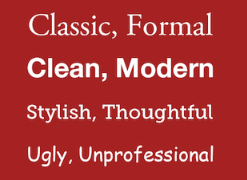 Source: Workfront
That said, you can still use fun and eccentric fonts — in moderation. Offsetting a fun font or large letters with something more professional can create an engaging presentation. Above all, be sure you’re consistent so your presentation looks the same throughout each slide, so your audience doesn’t become distracted by too many disparate fonts.
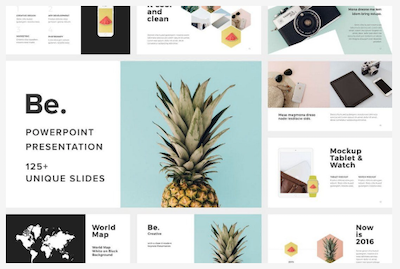 Source: Design Shack
5. Make sure all of your objects are properly aligned.
Having properly aligned objects on your slide is the key to making it look polished and professional. You can manually try to line up your images … but we all know how that typically works out. You’re trying to make sure all of your objects hang out in the middle of your slide, but when you drag them there, it still doesn’t look quite right. Get rid of your guessing game and let PowerPoint work its magic with this trick.
How to align multiple objects:
- Select all objects by holding down “Shift” and clicking on all of them.
- Select “Arrange” in the top options bar, then choose “Align or Distribute.”
- Choose the type of alignment you’d like.
How to align objects to the slide:
- Select all objects by holding down “Shift” and clicking on all of them.
- Select “Arrange” in the top options bar, then choose “Align or Distribute.”
- Select “Align to Slide.”
- Select “Arrange” in the top options bar again, then choose “Align or Distribute.”
- Choose the type of alignment you’d like.
PowerPoint Design
6. Use “Format Menus” to better control your objects’ designs.
Format menus allow you to do fine adjustments that otherwise seem impossible. To do this, right click on an object and select the “Format” option. Here, you can fine-tune shadows, adjust shape measurements, create reflections, and much more. The menu that will pop up looks like this:
Although the main options can be found on PowerPoint’s format toolbars, look for complete control in the format window menu. Other examples of options available include:
- Adjusting text inside a shape.
- Creating a natural perspective shadow behind an object.
- Recoloring photos manually and with automatic options.
7. Take advantage of PowerPoint’s shapes.
Many users don’t realize how flexible PowerPoint’s shape tools have become. In combination with the expanded format options released by Microsoft in 2010, the potential for good design with shapes is readily available. PowerPoint provides the user with a bunch of great shape options beyond the traditional rectangle, oval, and rounded rectangle patterns, unlike even professional design programs like Adobe Creative Suite or Quark.
Today’s shapes include a highly functional Smart Shapes function, which enables you to create diagrams and flow charts in no time. These tools are especially valuable when you consider that PowerPoint is a visual medium. Paragraphing and bullet lists are boring — you can use shapes to help express your message more clearly.
8. Create custom shapes.
When you create a shape, right click and press “Edit Points.” By editing points, you can create custom shapes that fit your specific need. For instance, you can reshape arrows to fit the dimensions you like.
Another option is to combine two shapes together. When selecting two shapes, right-click and go to the “Grouping” sub-menu to see a variety of options.
- Combine creates a custom shape that has overlapping portions of the two previous shapes cut out.
- Union makes one completely merged shape.
- Intersect builds a shape of only the overlapping sections of the two previous shapes.
- Subtract cuts out the overlapping portion of one shape from the other.
By using these tools rather than trying to edit points precisely, you can create accurately measured custom shapes.
9. Crop images into custom shapes.
Besides creating custom shapes in your presentation, you can also use PowerPoint to crop existing images into new shapes. Here’s how you do that:
- Click on the image and select “Format” in the options bar.
- Choose “Crop,” then “Mask to Shape,” and then choose your desired shape. Ta-da! Custom-shaped photos.

Learn more about creating images for your marketing channels in the video below.
10. Present websites within PowerPoint.
Tradition says that if you want to show a website in a PowerPoint, you should just create link to the page and prompt a browser to open. For PC users, there’s a better option.
Third party software that integrates fully into PowerPoint’s developer tab can be used to embed a website directly into your PowerPoint using a normal HTML iframe. One of the best tools is LiveWeb, a third-party software developed independently.
By using LiveWeb, you don’t have to interrupt your PowerPoint, and your presentation will remain fluid and natural. Whether you embed a whole webpage or just a YouTube video, this can be a high-quality third party improvement.
Unfortunately, Mac users don’t have a similar option. Agood second choice is to take screen shots of the website, link in through a browser, or embed media (such as a YouTube video) by downloading it directly to your computer.
11. Try Using GIFs.
GIFs are looped animated images used to communicate a mood, idea, information, and much more. Users add GIFs to Powerpoints to be funny or quickly demo a process. It’s easy to add GIFs to your slides. To do so, simply follow these steps:
- Download and save the GIF you want.
- Go to the slide you want the GIF on.
- Go to the “Home” tab, and click either “Insert” or “Picture”.
- From the “Picture” drop-down menu, choose “Picture from File”.
- Navigate to where you saved your GIF and select it. Then, choose “Insert”.
- To play the animated GIF, click the “Slide Show” tab and then “Play from Current Slide”.
PowerPoint Process
12. Keep it simple.
PowerPoint is an excellent tool to support your presentation with visual information, graphics, and supplemental points. This means that your powerpoint should not be your entire presentation. Your slides — no matter how creative and beautiful — shouldn’t be the star of the show. Keep your text and images clear and concise, using them only to supplement your message and authority.
If your slides have dense and cluttered information, it will both distract your audience and make it much more likely that you will lose their attention. Nothing in your slides should be superfluous! Keep your presentation persuasive by keeping it clean. There are a few ways to do this:
- Limit bullet points and text.
- Avoid paragraphs and long quotes.
- Maintain “white space” or “negative space”.
- Keep percentages, graphs, and data super basic.
13. Embed your font files.
One constant problem presenters have with PowerPoint is that fonts seem to change when presenters move from one computer to another. In reality, the fonts are not changing — the presentation computer just doesn’t have the same font files installed. If you’re using a PC and presenting on a PC, then there is a smooth work around for this issue. (When you involve Mac systems, the solution is a bit rougher. See Tip #11.)
Here’s the trick: When you save your PowerPoint file (only on a PC), you should click Save Options in the “Save As …” dialog window. Then, select the “Embed TrueType fonts” check box and press “OK.” Now, your presentation will keep the font file and your fonts will not change when you move computers (unless you give your presentation on a Mac).
14. Save your slides as JPEGs.
In PowerPoint for Mac 2011, there is no option to embed fonts within the presentation. So unless you use ubiquitous typefaces like Arial or Tahoma, your PPT is likely going to encounter font changeson different computers.
The most certain way of avoiding this is by saving your final presentation as JPEGs, and then inserting these JPEGs onto your slides. On a Mac, users can easily drag and drop the JPEGs into PPT with fast load time. If you do not use actions in your presentation, then this option works especially well.
If you want your presentation to appear “animated,” you’ll need to do a little tinkering. All you need to do is save JPEGs of each “frame” of the animation. Then, in your final presentation, you’ll just display those JPEGs in the order you’d like the animation to appear. While you’ll technically have several new slides in place of one original one, your audience won’t know the difference.
An important consideration: If your PPT includes a lot of JPEGs, then the file size will increase.
15. Embed multimedia.
PowerPoint allows you to either link to video/audio files externally or to embed the media directly in your presentation. You should embed these files if you can, but if you use a Mac, you cannot actually embed the video (see note below). For PCs, two great reasons for embedding are:
- Embedding allows you to play media directly in your presentation. It will look much more professional than switching between windows.
- Embedding also means that the file stays within the PowerPoint presentation, so it should play normally without extra work (except on a Mac).
Note: Mac OS users of PowerPoint should be extra careful about using multimedia files.
If you use PowerPoint for Mac, then you will always need to bring the video and/or audio file with you in the same folder as the PowerPoint presentation. It’s best to only insert video or audio files once the presentation and the containing folder have been saved on a portable drive in their permanent folder. Also, if the presentation will be played on a Windows computer, then Mac users need to make sure their multimedia files are in WMV format. This tip gets a bit complicated, so if you want to use PowerPoint effectively, consider using the same operating system for designing andpresenting, no matter what.
16. Bring your own hardware.
Between operating systems, PowerPoint is still a bit jumpy. Even between differing PPT versions, things can change. One way to fix these problems is to make sure that you have the right hardware — so just bring along your own laptop when you’re presenting.
17. Use “Presenter View.”
In most presentation situations, there will be both a presenter’s screen and the main projected display for your presentation. PowerPoint has a great tool called Presenter View, which can be found in the “Slide Show” tab of PowerPoint 2010 (or 2011 for Mac). Included in the Presenter View is an area for notes, a timer/clock, and a presentation display.

For many presenters, this tool can help unify their spoken presentation and their visual aid. You never want to make the PowerPoint seem like a stack of notes that you use a crutch. Use the Presenter View option to help create a more natural presentation.
Pro Tip: At the start of the presentation, you should also hit CTRL + H to make the cursor disappear. Hitting the “A” key will bring it back if you need it!
With style, design, and presentation processes under your belt, you can do a lot more with PowerPoint than just presentations for your clients. PowerPoint and similar slide applications are flexible tools that should not be forgotten. With a great template, you can be on your way to creating presentations that wow your audience.
Editor’s note: This post was originally published in August 2019 and has been updated for comprehensiveness.

How to Create a Professional Email Address [+ Examples]
News flash — your email address from high school won’t cut it in the real world. Even if “baseballbro25@aim.com” serves as a nostalgic reminder for your peak athletic years, it’ll look like an eyesore on your resume and prompt any recruiter or hiring manager to press delete.
That said, there’s probably at least one person who has the same name as you, so the email address with just your first and last name has most likely been taken by now.
Fortunately, though, a professional email address isn’t limited to just your first and last name. There are plenty of ways you can choose one that any recruiter or hiring manager would consider professional.
1. Choose your email host.
When you first get started with your business, you’re going to purchase a domain and hosting site.
One way to create a business email address is to look for the hosting package that includes business email. It’s usually an additional cost, but many users choose to set up their business email this way because of the ease.
If you choose this way of creating a business email, you’ll need to go to your hosting site and set up your email. Usually this means going to the “Email” section of your hosting site and choosing an email (tips and examples below).
However, another way to set up email is to go through G-Suite instead of your hosting platform (this is what we do at HubSpot). Google will walk you through this process, so it’s usually as simple as 1, 2, 3.
2. Connect your email to an email client.
Next, if you chose to host your email through your hosting platform, you’ll need to connect your email address to an email client.
To do this, you’ll log in to your hosting platform, go to the “Email” section, and find a button that says “Set up Mail Client” or something to that affect.
This will walk you through the process of setting up your email with Outlook, Gmail, or any mail app.
3. Connect your email to your marketing automation software.
Finally, you’ll want to make sure that your marketing automation platform has access to your email.
To do this with HubSpot, you can follow these instructions.
Usually, this process will include going to your settings and looking for a “Domains” or “Email Sending” button.
Once you’ve found this in your automation software, it should walk you through the process of connecting your email.
Now that you know how to set up your business email, let’s review some ideas and examples to help you choose your naming conventions.
Professional Email Address Ideas and Examples
Combine your names.
- First name + last name = cliffordchi@domain.com
- First name . last name = clifford.chi@domain.com
- First name – last name = clifford-chi@domain.com
- First name . middle name . last name = clifford.douglas.chi@domain.com
- First name – middle name – last name = clifford-douglas-chi@domain.com
- First initial + last name = cchi@domain.com
- First initial + middle name + last name = cdouglaschi@domain.com
- First initial + middle initial +last name = cdchi@domain.com
Shorten your names.
- cliffchi@domain.com
- cliffdougchi@domain.com
- cliffdouglaschi@domain.com
- clifforddougchi@domain.com
Combine your name with your profession, city, or degree.
- cliffordchiwriter@domain.com
- cliffchiwriter@domain.com
- cchiwriter@domain.com
- cliffordchiboston@domain.com
- cliffchiboston@domain.com
- cchiboston@domain.com
- cliffordchimfa@domain.com
- cliffchimfa@domain.com
- cchimfa@domain.com
Surprisingly, choosing a professional email address can be quite challenging, especially since you can’t spice it up like you can with your personal one. But, as you can see, there are still plenty of ways for choosing a strong professional email address, and, hopefully, we helped you find one.
Editor’s note: This post was originally published in October 2018 and has been updated for comprehensiveness.

Objetivos de Ventas: aprende a establecerlos y darles seguimiento con un CRM
Las transacciones no dependen únicamente de la capacidad que tengan los comerciales. Hay que determinar una serie de acciones y uno de los primeros pasos es establecer los objetivos de ventas.
Debes tener en cuenta que una gran parte del trabajo se realiza antes y después de la conversión. Por eso, lo ideal es crear un protocolo efectivo, pero que sea sostenible en el tiempo.
Esta es la razón por la que es muy útil contar con un CRM. Estos programas informáticos permiten llevar un seguimiento de los objetivos, hacer reportes, entre otras cosas.
En este artículo te enseñaré a determinar los objetivos de venta de tu emprendimiento y te daré sugerencias de cómo se podrían integrar a tu CRM.
>>> La versión Enterprise del chatbot Oct8ne te permite hacer integraciones a medida con CRM.
Fórmula SMART: ¿Cómo establecer los objetivos de ventas?
Los objetivos de ventas son como una brújula que indica al comercial si está avanzando en el camino correcto.
Para fijarlos, la teoría debe encajar con la práctica. Tienen que ser congruentes con el día a día real de las ventas.
Un tip: será más fácil seguirlos si están redactados de forma breve y clara. Empieza con el verbo en acción, por ejemplo: Aumentar un 10% la base de datos de leads en un mes.
Además, debes planificarlos escuchando las recomendaciones del equipo de ventas.
La fórmula SMART te ayudará a redactarlos para que su cumplimiento sea realista.
Cada letra de la palabra SMART tiene un significado:
S de Específicos
Evita los objetivos generales. Todos queremos vender más. Para que los objetivos de ventas sean reales, deben estar lo más acotados posible.
Redacta una línea por cada objetivo:
- Aumentar la presencia en el mercado.
- Lanzar un producto.
- Disminuir el abandono de carrito, etc.
Cada objetivo, además, debe tener las acciones que ayudarán a alcanzarlo.
M de Medibles
Siempre especifica con números el resultado que quieres conseguir: aumentar un 10%, disminuir un 15%, etc.
A de Alcanzables
Tienes que poder realizarlos con tus recursos disponibles.
Por ejemplo: si pides a tu equipo que aumenten las llamadas de prospección en un 15%, asegúrate de que tengan el tiempo para hacerlo.
R de Realistas
El objetivo realmente debe ayudarte a lograr la conversión que proyectas.
Retomemos el ejemplo anterior: tal vez quieres aumentar las llamadas de prospección porque crees que así se incrementarán tus ventas concretadas.
Entonces deberás ajustar el objetivo porque no precisamente sucederá así. Tendrías que planear más acciones.
T de basados en el Tiempo
Siempre determina el periodo de tiempo para llevar a cabo los objetivos de ventas. No se trata de un proceso infinito sino acotado y dinámico.
La tecnología te puede ayudar en la definición de los objetivos. Los sistemas CRM pueden ser clave para que detalles al máximo, establezcas parámetros de medición, marques tiempos determinados, etc.
Por ejemplo, una app como ForceManager es muy útil para ello. Te muestra gráficas a partir de tus objetivos semanales o diarios. También puedes ver los del equipo en conjunto.
Una vez definidos los objetivos SMART, el siguiente paso será hacerles seguimiento, coordinarse con el equipo y analizar los resultados para ir mejorando.
Sistema CRM: ¿qué es y cómo ayuda en los objetivos de ventas?
Los software CRM son un aliado muy importante para determinar, ejecutar y evaluar tus objetivos de ventas.
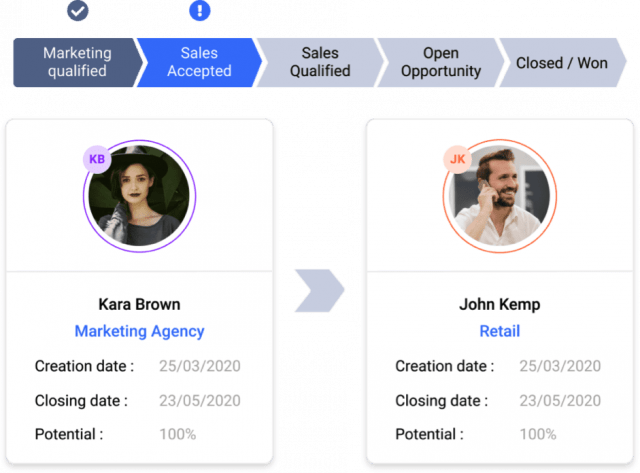
Por sus siglas en inglés (Customer Relationship Management), son sistemas de gestión de relaciones con el cliente.
Permiten administrar procesos como:
- Gestión comercial (la venta en sí).
- El marketing.
- El servicio de post venta o de atención al cliente.
- Coordinación del equipo de ventas.
Herramientas de los CRM para alcanzar los objetivos de ventas
Los CRM trabajan a través de bases de datos inteligentes que vinculan diferentes informaciones del cliente. Esto es muy útil durante todo el proceso de los objetivos de ventas.
Por ejemplo, muchos CRM cuentan con un botón para enviar un email al contacto o permiten añadir una tarea asociada a él: enviar un correo cuando está por cumplirse el plazo de pago, por citar un ejemplo.
También suelen integrar funcionalidades de ventas y de marketing.
Esto permite una coordinación de todos los departamentos en torno a un mismo contacto. Desde que se convierte en lead hasta que es cliente y se fideliza.
En algunos casos incluyen opciones de visualización y edición en diferentes dispositivos, como PC o smartphone. Suelen añadir a un asistente personal virtual para no perderse ninguna cita.
Ahora veamos cómo usar un CRM para darle seguimiento a los objetivos de ventas. Hay varias herramientas para ello, por ejemplo: Forcemanager y Holded.
Objetivos de Ventas: dar seguimiento a clientes con un CRM
Dar seguimiento a los clientes es uno de los objetivos de ventas más importantes. Recuerda que la transacción es un camino de venta, reventa y posventa.
Cada vez que tengas un nuevo cliente potencial, te recomendamos agregarlo a tu software de CRM.
Conforme tengas más datos de él o ella y avance la venta, tendrás que ir actualizando el estatus.
Te recomendamos que lo hagas a través de una herramienta porque no es fácil recordar ni organizar todos los datos.
Esta información será útil a la hora de volver a visitar a un potencial cliente. Causa muy buena impresión si siente que recuerdas su nombre y lo que te explicó.
El chat de Oct8ne, por ejemplo, le informa a los agentes qué productos vio un visitante de su página, cuánto tiempo lleva navegando y si tiene algún producto en su carrito de compra.
Cuando el agente hace contacto, puede darle al posible cliente una orientación súper personalizada. Esto ayuda a incrementar hasta en un 30% las conversiones de las tiendas online.
Sin importar cuál CRM uses, la clave es que puedas tener siempre un acceso completo y fácil a la información que previamente obtuviste de los clientes.
¿Qué datos es valioso agregar a la ficha de un cliente?
Además de los datos concretos prácticos, para cumplir los objetivos de ventas debes incluir curiosidades de la persona. Ya sea que te explique algo importante que le gusta o le preocupa.
Sin duda, conocer los deseos, intereses, valores y miedos de las personas es prioritario para la venta.
Puedes redactar algo que ayude a contextualizar a ese posible cliente, por ejemplo:
“Ana es una persona muy preocupada por su familia. Tiene mucho interés en el producto porque desde hace tiempo se plantea comprarlo. Lo que más le preocupa es que es caro, pero tiene solvencia. Lo más importante será convencer al marido, que parece que viaja mucho y cuesta que pueda estar presente en las visitas”.
Los Objetivos de Ventas y la rentabilidad: CRM de facturación
En los objetivos de ventas no se puede descuidar nunca el aspecto económico, tanto desde el punto de vista de la rentabilidad como de la burocracia.
Vuelvo a decirte: no solo debes plantearte vender más sino los cómos, los qué y a quién.
Los resultados en términos económicos de las ventas realizadas tienen mucha importancia.
No basta con hacer X ventas por mes, sino que cambia en función de la cantidad vendida y de si se trata de un pago único o recurrente.
Para que lo entiendas mejor, pondré dos ejemplos.
Pensemos en una empresa que vende sistemas de tecnología con pago mensual.
De acuerdo a la inversión en marketing y publicidad, a dicha empresa le cuesta 25 euros conseguir cada cliente.
Si un cliente contrata un servicio mensual que cuesta 100 euros, la empresa tendrá un ROI de 75 euros el primer mes. A partir del mes siguiente, obtendrá puros beneficios de este cliente conseguido.
Por lo tanto, el objetivo de ventas de esta empresa debe enfocarse en vender planes de pago por periodos más prolongados.
En cambio, pongamos el ejemplo de un eCommerce que vende muebles.
Si su coste comercial es de una media de 20 euros por comprador en la tienda online, no es lo mismo si logra que compren un producto de 50 euros que uno de 150 euros.
Ahí jugará un papel importante la técnica del Upselling. El objetivo de ventas deberá consistir en comercializar un producto más caro a un cliente para rentabilizarlo al máximo.
Para ambos casos, te servirá tener un CRM con buenos modelos de factura.
Holded tiene varias prestaciones que, además, se integran entre ellas para ayudarte a incrementar la inteligencia de tu negocio:
- Te permite personalizar la factura en función de la línea de negocio de la empresa o del tipo de producto, servicio o cliente.
- En plena venta tienes la posibilidad de enviar al cliente con agilidad un presupuesto a medida que ofrezca una imagen profesional.
- Otro punto clave es que podrás establecer fechas de cobro, evitando el riesgo de morosidad entre tus ventas.
Reportes de los objetivos de ventas: cómo analizarlos con un CRM
Un buen CRM debe proporcionarte herramientas de analítica que te permitan hacer seguimiento de tus objetivos de ventas.
La visión global de tu negocio deberá incluir información sobre:
- Evolución de las ventas mes a mes.
- Los productos más vendidos.
- Las zonas geográficas con más ventas.
- La diferencia de ventas del mes en curso y el mes del año anterior, etc.
Esta información te ayudaría detectar, por ejemplo, que estás haciendo ventas más cualificadas en España que en América Latina, pese a que tus campañas de marketing apuntan a ambos mercados.
Es frecuente que el coste de visitas y leads sea bastante más bajo en América Latina, pero a menudo se traduce en menos conversiones o ventas menos cualificadas.
Si te ocurre esto, detectarlo pronto puede marcar la diferencia en los resultados de tus ventas futuras.
Coordina a tu equipo en torno a los objetivos de ventas
Otra función importante del CRM es coordinar a las personas durante el proceso de los objetivos de ventas. Esto facilita mantener una buena comunicación interna.
Imagina por ejemplo que hay un cliente potencial que ya escribió por email preguntando por un producto, pero en otra ocasión llama por teléfono y le vuelven a tratar como si fuera un primer contacto.
La imagen que se llevarán los clientes será mucho mejor si ven que la empresa cuenta con una ficha suya. Valorará que se le trate por su nombre y no le pregunten los datos que ya proporcionó.
Además, coordinar a los trabajadores mediante el uso adecuado de un CRM también es clave.
Permite al equipo de ventas trabajar de manera organizada y alineada con el marketing.
El CRM provoca que los contactos captados en las campañas aterricen en la base de datos de la empresa. Después se debe trabajar rápido para lograr la conversión.
No podrás obtener un buen ROI si tu equipo de marketing capta muchos leads, pero después el departamento de ventas no los gestiona con rapidez; con el tiempo, un lead deja de ser cualificado.
¿Cómo integrar los objetivos de ventas Online a tu CRM?
En teoría, las ventas son ventas, sin importar si son presenciales u online. En la práctica, el marketing digital tiene un funcionamiento de embudo. El CRM es una pieza esencial para marcar los objetivos de ventas en cada fase del funnel.
>>> Conoce la diferencia entre Embudo de Ventas y Landing Page.
En cualquier CRM que uses, por ejemplo MailChimp, deberás dividir a tu audiencia.
Puede ser en función de si son potenciales clientes o clientes. También en qué fase del funnel de ventas están, qué producto o servicio les interesa, entre otras características.
Así, en un primer contacto, puedes recopilar datos en un formulario simple que tenga lo básico.
Después puedes hacer una campaña de email marketing que incluya aportación de valor.
Por último, diseña estrategias de ofertas para impulsar la conversión.
Una vez que cierres la venta, no deberás descuidar el CRM porque seguirá siendo muy provechoso.
Fidelizar clientes es básico para optimizar todos tus esfuerzos comerciales y de marketing.
En este sentido, el CRM puede ser esencial para que sigan en contacto con tu marca.
Por ejemplo, puedes realizar campañas de upselling o acceso a un webinar.
Una buena idea es anotar en el CRM la fecha de cumpleaños del cliente y enviarle un cupón de descuento.
Conclusión de Objetivos de Ventas
Como ves, un CRM puede marcar la diferencia a la hora de perseguir objetivos de ventas y conseguir cumplirlos.
Recuerda seguir las principales estrategias que ofrece esta herramienta online, desde hacer seguimiento de tareas hasta revisar los reportes.
Sobre todo, sigue el funnel de principio a fin.
Por último, te recomendamos mantener siempre a tu equipo conectado desde todos los departamentos para maximizar los esfuerzos.
¡Mucha suerte con tus objetivos de ventas y a triunfar! Cualquier duda, te leo en los comentarios.
from Socialancer https://ift.tt/33gIsX1
via