
Welcome to My Blog
Best Construction Project Management Software of 2019

How to Create a Wikipedia Page for Your Company
If you’re anything like me, you probably mainly consider Wikipedia a good source for a behind-the-scenes look at the production of Game of Thrones, or a collection of random facts on Zebras.
In short, you likely haven’t given it much thought as a channel for brand awareness.
But, if you think about it, Wikipedia is one of the best third-party sources for ranking on page one of Google. Typically, when you search an intended keyword, you don’t have to scroll far before you see its accompanying Wikipedia page:

Additionally, it’s a recognizable website, so it’s often one of the first pages someone will click on if they want to learn more about what your business does.
If you want to increase brand awareness and visibility online, take a look at this quick guide so you can create a Wikipedia page for your company, today.
1. Create an account.
Go to Wikipedia’s homepage and click “Create account” in the top right.

Enter the necessary information, including username and password, then click “Create account”.
2. Get promoted to an autoconfirmed user.
When you first join Wikipedia, you’ll see a box pop-up that reads, “Help improve Wikipedia” with a link to start editing an article:
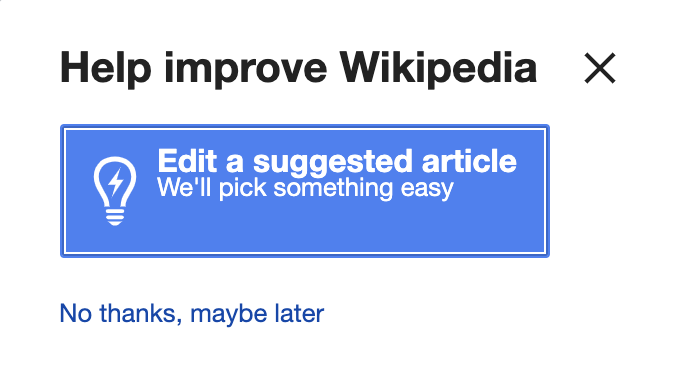
Before creating your page, you’ll need to become an autoconfirmed user.
These are Wikipedia’s typical guidelines for an autoconfirmed user: “Although the precise requirements for autoconfirmed status vary according to circumstances, most English Wikipedia user accounts that are more than four days old and have made at least 10 edits (including deleted ones) are considered autoconfirmed.”
Here, you’ll need to practice patience — spend the first couple days once you open an account editing other people’s pages. Once you click “Edit a page”, there are links on the top right of every paragraph with the word “Edit”, so it shouldn’t be too time-consuming.
Once you’re autoconfirmed, proceed to the next step.
3. Create the page.
Now we’ve reached the most challenging part — creating the page.
First, go to Wikipedia’s “Writing an article” page. As you scroll down the page, you’ll see a blue button that reads, “Article wizard: an easy way to create articles.” Click this button (as long as you’re autoconfirmed):
Next, you’ll be redirected to Wikipedia’s Article Wizard. Here, you have two options — immediately begin creating your page by clicking “Next”, or practicing editing your page in Wikipedia’s sandbox, first.
For our purposes, we’ll click “Next”:
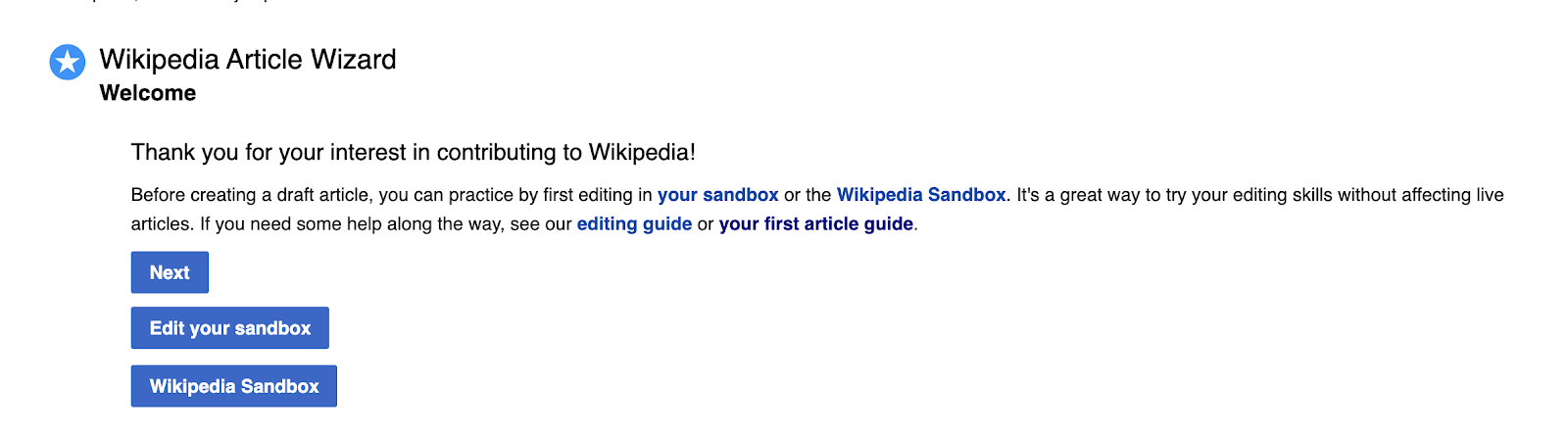
It’s important to note — since there’s likely no Wikipedia page already available for your company, you can include as much or as little information as you want. Additionally, you’ll want to structure the page for easy readability, featuring some of the most important and basic information (like what your company does), first.
For instance, take a look at how HubSpot’s Wikipedia page is structured:
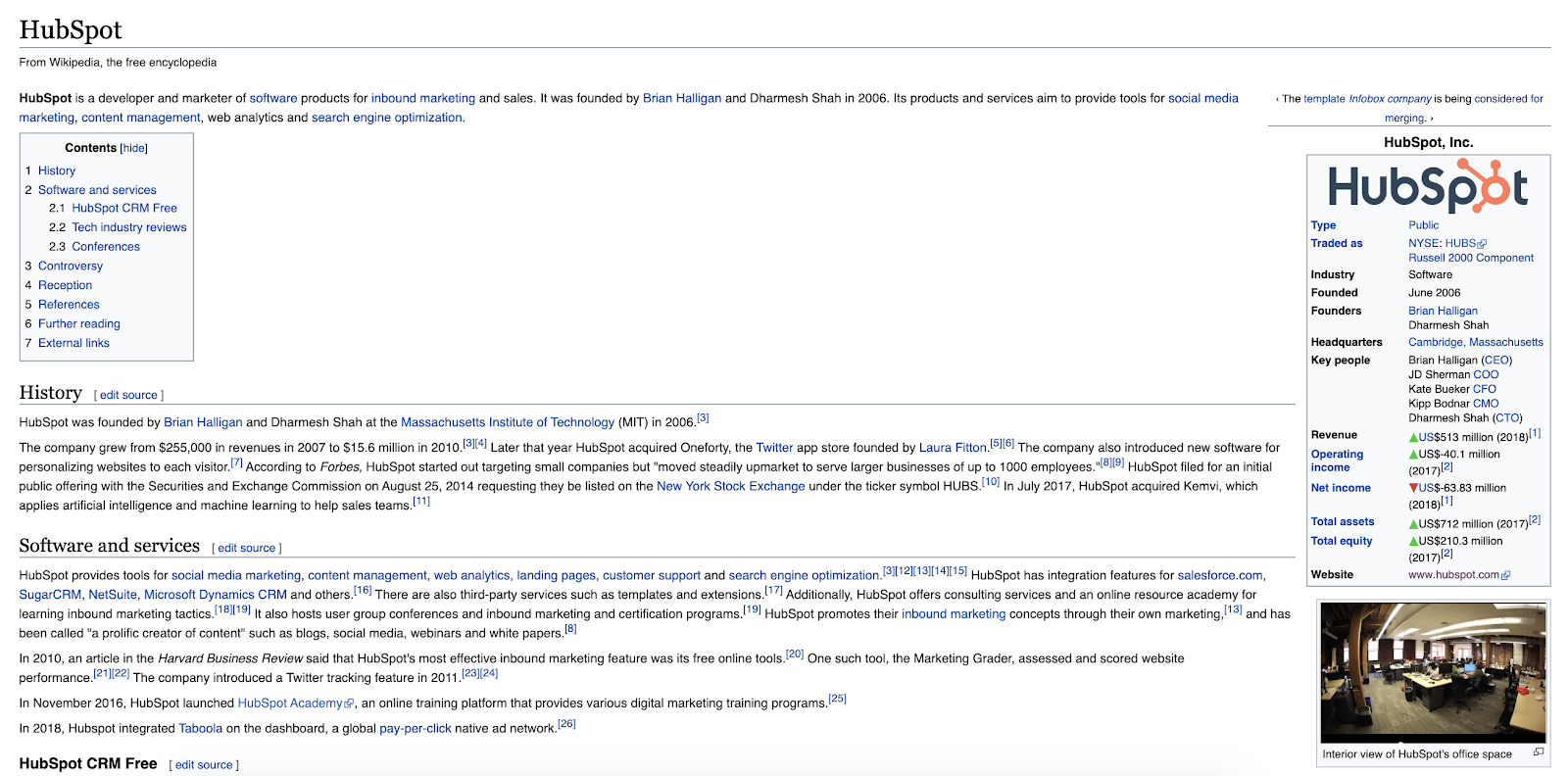
The page starts with a two sentence overview of what HubSpot does, followed by a table of contents on the left, and a “fact sheet” on the right. Below the table of contents you’ll first find HubSpot’s history, followed by a description of HubSpot’s software and services.
On HubSpot’s Wikipedia page, the information that is above-the-fold is likely most useful for a new visitor who hasn’t heard of HubSpot before — a quick glance at the page can tell her, for instance, what HubSpot does, how much revenue HubSpot makes, what third-party sources such as Forbes say about HubSpot, and who HubSpot’s founders are.
While readers can continue scrolling for more product-specific information, it’s critical Wikipedia is mainly used as a broad brand awareness platform.
4. Provide citations.
Wikipedia is ultimately an encyclopedia, so to prove the validity of your topic, you must include citations to various articles and third-party sources.
Before you begin creating your page, Wikipedia warns you of this, stating — “the topic of an article must already be covered in reliable sources that are independent of the subject. These include journals, books, newspapers, magazines, and websites with a reputation for fact checking. Social media, press releases, or corporate/professional profiles do not qualify”:
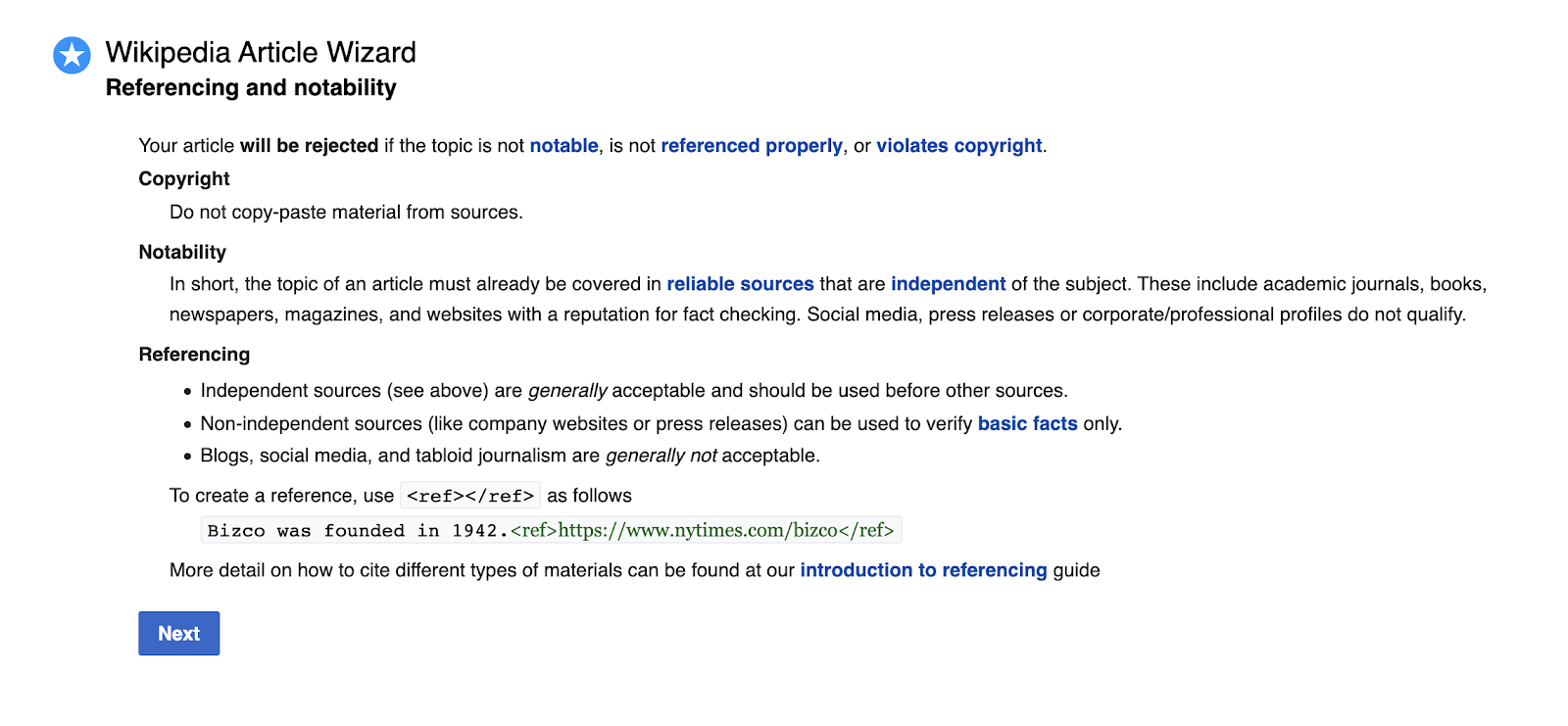
Ultimately, citations give your business credibility and allow the reader to trust your company is real. Look for magazine or newspaper articles that mention your company, other websites that backlink to your website as a resource, or directories that link to your company’s profile.
5. Submit the page for review.
When you’re finished with your page, submit it for review. Once Wikipedia deems it a credible source, it will be uploaded as an official Wikipedia page.
6. Update it regularly.
Remember — the hard work isn’t over, just yet. As your Wikipedia page begins ranking on page one of Google for your company name, it’s vital you regularly update it to ensure it provides the most up-to-date information regarding your products or services.
Additionally, by updating it regularly with company developments, you’re maintaining transparency, which is comforting for both your customers and leads.
Nowadays, a quick Google search provides us with an abundance of information — including social media profiles, directories, and press releases — on a given subject. By ensuring you have an up-to-date Wikipedia page, you’re covering your bases and giving viewers a trustworthy source of information related to your business or brand.

27 Ways to Drive Traffic to Your Website
You know you’re a marketer when you’re sitting in traffic on the highway, it’s completely bumper to bumper, and all you can think about is “Why can’t I drive traffic to my website like this?“
If you’ve struggled with driving traffic to your website, you’re not alone. According to 2019 research done by Content Marketing Institute, 61% of content professionals are challenged with knowing what is most important to their audiences, 50% are challenged with knowing the goal of the audience at a particular stage of the customer’s journey, and 49% are challenged with knowing the steps in the customer’s journey.
Between writing a new blog post, posting on social media, and strategizing for a new email campaign, it’s hard to look back and see what’s driving traffic to your site and what isn’t.
The list below will help you increase the traffic to your website, generate more leads, and improve ROI.
1. Content creation
Inbound marketing focuses on attracting the right people to your company. One of the best ways to do this is by creating content through blogging.
To come up with content that will attract the right visitors to your website, you should know your buyer persona. Once you know your audience, you can create content that will attract them to your website.
But how do you write a good blog post that will attract the right audience? Follow these five steps:
- Identify your buyer persona: Find out more about your audience, from job title to pain points.
- Conduct SEO research: Learn what your audience is searching for on search engines so you provide the right content.
- Write a draft: Begin by drafting a post that answers your audience’s questions.
- Publish: Publish your post on your blog.
- Promote: Promote your blog post on social media and email newsletters to generate traffic. The more traffic your post generates, the higher it will rank in search engines.
You can learn more about how to implement a blogging strategy here.
2. Topic expertise
Ranking higher in Google will increase the organic traffic to your site. At HubSpot, we do this by using the pillar/topic cluster model. Google favors sites that are known to be topic experts on the subject matter they’re writing about.
To be seen as an expert, you can create a pillar page, which is essentially a longer blog post that broadly covers all aspects of a topic. Then, you write “cluster content,” or supporting blog posts, targeting long tail keywords that show you’ve covered a topic exhaustively. Focusing on long-term traffic will help you rank higher on search engines
Christina Perricone, team manager of HubSpot’s pillar page content, says, “The pillar cluster model organizes content on your site around a single topic and search term through internal linking. This organization helps search engines easily crawl and categorize all of the content that you have on a particular topic, thereby making it easier for you to rank for that search term. When the model is done right, it also helps visitors navigate your site and move through related pages, boosting traffic for all of the pages in your topic cluster.”
Want to get started on pillar pages for your company? Learn more here and here.
3. Paid advertising
You can drive traffic to your website quickly with paid advertising. With search engines, you can run pay-per-click or retargeting ads. With social media you can run display ads or sponsored posts. Your strategy will most likely include a combination of different types of advertising.
In fact, according to the 2019 CMO survey of 341 executive-level marketers conducted by Deloitte, American Marketing Association, and Duke’s Fuqua School of Business, spending on social media will rise by nearly 90% in the next five years.
The same study found that companies making 10% or more of their sales online will increase their social media spend by even more, allocating 27.6% of their marketing budget to social media by 2024.
Getting started with paid advertising can be a simple process. Learn more about it here.
4. Organic social media
Organic social media is not a new strategy, but it’s still something marketers should pay attention to. Besides posting on social media platforms, you can also use Instagram Stories (Hello, swipe up feature!), live video, IGTV, or Facebook Messenger. The key with organic social media is to be an early adopter of new features
For instance, Facebook is releasing an automated lead generation feature on Messenger, allowing businesses to create an automated chatbot experience within Messenger to link to content offers on your site. This is a great feature for sending traffic to your website.
It’s also important to have a diverse social media strategy and use the right social media platforms — not just Facebook, Instagram, and Twitter. Platforms like YouTube or Pinterest generate a lot of traffic. Pinterest has great engagement rates — 66% of Pinterest users make a purchase after seeing a brand’s Pins.
Henry Franco, a brand marketing associate at HubSpot, recommends two things regarding organic social media. “First, don’t spam your audience — it costs a user nothing to scroll past your post, and if you don’t offer them any value, that’s exactly what they’ll do. Know your audience, and craft content that speaks directly to them,” Franco says. “Second, stay active with community management. People love when brands like and reply to them — it’ll humanize your business, and keep people coming back for more content.”
Check out our ultimate social media marketing guide to learn more.
5. Website analysis
Let’s do a little reverse engineering of our thought process. Before you drive traffic to your website, it’s important to learn about your audience. To do this, there are platforms that will analyze your website, such as Crazy Egg, to see where you’re losing visitors. With this information at your disposal, you can create the right content to drive the right traffic to your website.
6. Contests/giveaways
A simple way to drive traffic to your website is through contests and giveaways. This can give you a quick boost, while also rewarding your followers. You can host giveaways on social media, through your email list, or both.
Implementing a strategy like this can be simple. Just follow these six steps:
- Decide what platform on which to host your giveaway (can be multiple)
- Choose a prize (free tickets, discount, etc … )
- Select the criteria (website comments, email sign up, etc … )
- Write ad copy
- Create graphics
- Post and promote
7. Influencers
Influencer marketing isn’t a passing fad. In fact, it’s a budget-friendly option to drive traffic to your website. According to Think with Google, collaborations with YouTube influencers are four times more effective at driving brand familiarity than those with celebrities. When influencers post discount codes, links, reviews, or giveaways, you are tapping into their audience to drive traffic to your website.
Remember Brian Halligan’s INBOUND 2018 keynote speech? Customers are more likely to buy from organizations with excellent word of mouth. How do you create great word of mouth? First, delight your customers. Second, work with influencers.
8. Email list building
Using your current readers and customers is a great way to drive traffic to your website. When you post a new blog or content offer, you can promote it to your followers/subscribers for a quick traffic boost. With content-heavy websites, having repeat readership is helpful for traffic goals, conversions, and lead generation.
To get started with this, build an email list or grow your current list. Below are a few strategies you can use:
- Content offers (see #23 for more information): Generate gated content for visitors that requires them to provide an email address to receive. Include CTAs (calls to action) for your content offers on your website.
- Easy-access newsletter sign-up: Include sign-up forms on your website, from your homepage to your about page. If a visitor had a delightful experience on your site, they might want to sign up for a newsletter. Make this an easy process.
- Social media: Promoting your email newsletter on social media, whether through a post or contest/giveaway, is a great way to convert your current followers into subscribers.
Learn how to build an email list from scratch here or grow your email list here.
9. Community engagement
The more brand recognition you have, the more traffic you will drive to your website. One way to achieve brand recognition is to be active and engaged in your community. You can implement an engagement strategy today by participating in Facebook group discussions in your industry, answering questions on public forum websites, and interacting with your followers on social media.
One of my favorite brands on social media is Taco Bell. Taco Bell engages with users on social media to delight their customers every day. See a couple examples from Twitter below.

Image source: Twitter

Image source: Twitter
Just remember to be helpful and human. No one likes spammy links when they’re asking a quick question online.
10. Guest posting
In that same vein, writing guest posts can generate traffic to your site. Guest posting shows you’re active in your community, while also linking to your website — more on generating backlinks below.
To implement a guest posting strategy, you need to find a site that would be a good fit for your company, draft a blog post, and then write a pitch. Caroline Forsey, staff writer on the HubSpot Marketing Blog, says, “I’m always particularly intrigued with a guest pitch if it shows me the writer has done their research ahead of time.
For instance, I’d pay much closer attention to a pitch if it tells me how this piece could appeal to my readers. Additionally, I’m impressed when a writer can recognize gaps in our content and how their piece will fill those gaps, rather than competing with existing content.”
11. On-page SEO
On-page SEO can help your website rank higher in search engines and bring in more traffic. Some on-page SEO elements include page title, header, meta description, image alt-text, and the URL (plus more). Showing up in search engines will generate more traffic for your site. To get started with on-page SEO, check out our ultimate guide on on-page SEO here.
12. Quality backlinks
In order to drive traffic to your site, you need to rank high in search engines. In order to rank higher in search engines, you need to be an authority in your industry. One way to do that, besides the topic/cluster model described above, is by acquiring quality backlinks. If websites with high authority link to your site, that gives you more credibility.
Irina Nica, senior content strategist at HubSpot says, “There are two main ways in which high-quality backlinks can help drive more traffic to a website: boosting ranking and driving referral traffic. On the one hand, backlinks are one of the most important ranking factors for every major search engine out there. By constantly earning high-quality backlinks from relevant websites, you’ll improve your rankings in SERP and, as a result, see a lift in your organic traffic.”
Nica adds, “On the other hand, backlinks can also drive a substantial amount of referral traffic. That’s something to be expected if you get a mention in popular news website. You can also see referral traffic coming through if you’re mentioned (and linked to) in an article that’s already ranking well for high search volume keywords and is getting a constant flow of traffic.
Want to learn how to earn backlinks? Find out more here.
13. Video marketing
It’s time to add video marketing to your content strategy. According to a report by Cisco, video will account for 82% of traffic by 2022. Start implementing video marketing into your strategy as soon as possible because this is the content people are clicking on.
You can create video for Instagram or Facebook Stories, live videos, IGTV, Facebook Watch, news feed videos, YouTube, etc. Want to get started today? Learn everything you need to know in our ultimate guide to video marketing.
14. Content repurposing
Need content to drive traffic to your site but struggling to come up with ideas? I get it. A great way to overcome this hurdle is to repurpose old content. Take a well-performing blog post and repurpose that into a video. Or if you have a podcast that did really well, write up a blog post on that topic. Using content that has already performed well will continue to drive traffic to your site.
15. SEO tools
To drive traffic to your website, it’s important to be a student of SEO. Learning SEO tools such as Google Analytics, Ahrefs, and SEMrush will help you develop a strategy to generate traffic to your website.
These tools will help you learn and analyze what’s working on your site and what isn’t. Plus, these help you come up with ideas for content that has potential for high traffic. Check out our roundup of the best SEO tools to monitor your website.
16. Historical optimization
Historical optimization is the process we use at HubSpot to update old blog content and generate more traffic and leads. If you’re anything like us, a majority of your monthly blog views and leads come from older posts.
Pamela Vaughan, a principal marketing manager on HubSpot’s Web Strategy team, a.k.a. the woman who introduced us to the concept of historical optimization, has written about this extensively.
She says, “Historical optimization is a tactic best-suited for a blog that’s been around for several years, because you need to be generating a significant amount of organic search traffic, have built up a critical mass of blog subscribers and social media followers, and you need a sizable repository of old posts at your disposal.”
Vaughan adds, “Historical optimization should be a piece of your overall blogging strategy — not the whole strategy.”
Here, she lays out her step-by-step process to historical optimization.
17. Voice search optimization
Remember in “The Little Mermaid” when Ariel wanted to go where the people were? That same principle applies to digital marketing. In order to drive traffic to your website, it’s important to show up where people are searching.
Voice search is an increasingly important area in which to rank. In fact, according to PwC, 65% of 25- to 49-year-olds speak to their voice-enabled devices at least once per day. That’s why optimizing your content for voice search is essential.
Here are a few tips to get started:
- Research long tail keywords: When people use voice search, they speak in full sentences. To optimize for voice search, start researching longer tail keywords.
- Write answer-focused content: The content you write should answer your audience’s questions.
- Optimize for snippets: Smart speakers like Alexa and Google Home look for short, concise answers. Writing quick summaries in your posts make it easier for search engines and smart speakers to find the answer they need.
18. Local SEO
If your company is a brick and mortar store, local SEO is an important factor to consider. My colleague, Kelsey Smith, wrote about it in this blog. She says, “To gather information for local search, search engines rely on signals such as local content, social profile pages, links, and citations to provide the most relevant local results to the user.”
For example, when someone types in “best pizza near me” on Google, the results are generated by the user’s location. Tools such as Google My Business and Moz Local help businesses manage their directory listings and citations so they show up in local searches.
To rank for local search:
- Ensure your name, address, and phone number (NAP) is consistent on your Google My Business and social media pages.
- Use a directory management tool to monitor directories like Yelp, Foursquare, Best of the Web, etc.
- Research and use location-based search terms on sites like Google Trends, which analyzes popular search terms across various regions.
19. A/B testing
Besides driving traffic to your website, you know you’re a marketer when your motto is “Test, test, and test again.”
A/B testing is a split test that helps you determine what version of a campaign performs best. These tests can give you key information about your audience so you can create tailored content and offers that drive traffic to your site. There are a lot of tools you can use to get started. Check out our roundup of the best A/B testing tools here.
20. Internal linking
When a visitor comes to your blog, your goal is to get them to continue reading on other pages of your website. That’s why internal links — links to other pages on your site — are very important. When visitors continue to other pages of your website they’re more likely to convert and become a brand enthusiast.
For example, you can create an internal linking structure using the pillar/cluster model described above. Pillar and cluster pages link back and forth, which boosts your site’s credibility on search engines, while also increasing the likelihood of a conversion.
21. Technical SEO
Technical SEO focuses on the backend of your website to see how the pages are technically set up and organized. Factors include elements like page speed, crawling, indexing, and more. Matthew Howells-Barby, HubSpot’s director of acquisition, has written about technical SEO in this blog. In it, he says, “Don’t underestimate the power technical SEO changes. [Technical SEO] resulted in us growing our organic traffic by more than 50% in just one month.”
To get started with your technical SEO, use some of the tips from Howells-Barby’s article, including:
- Fix broken links and redirects
- Create an XML sitemap for your subdomains
- Set up language meta tags
- Add custom H1 and introductions to topic pages
22. Community building
Building a community of brand enthusiasts is a great way to continuously drive traffic to your website. You can build a Facebook group, Twitter chat, LinkedIn Group, or Quora Space specifically for your followers and others in your industry where you create value, while also linking back to your site.
A great example of community building comes from career coaching business CultiVitae. They have a closed Facebook group where Emily, the founder, answers questions and provides networking opportunities. With over 3,000 members in this group, CultiVitae creates value for its followers, while also promoting its product.

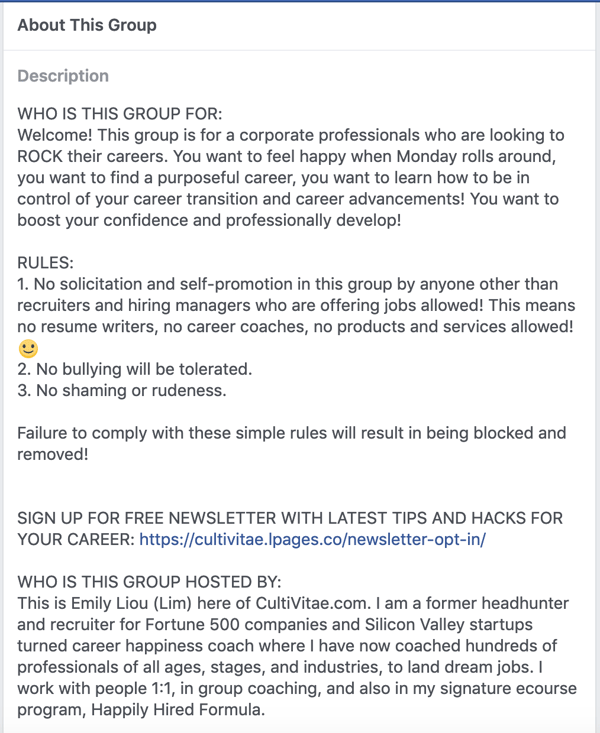
Image source: Facebook
These types of communities keep you top of mind in your customer’s eyes. Plus, it’s a great way to engage with your followers and learn more about your audience as they evolve over time.
23. Content offers
Content offers, sometimes referred to as lead magnets, are a way to use content to drive traffic to your site and generate leads. Content offers vary depending on what stage of the buyer’s journey your customer is in, but can include webinars, guides, reports, trials, demos, checklists, and more. You can learn about different types of content offers here and how to create content for every stage in the buyer’s journey here.
24. Media coverage and public relations
Earned media coverage is a great way to drive brand awareness for your company and traffic to your website. If your marketing and public relations teams work together, you can generate traffic to your site and create excellent word of mouth.
Ellie Flanagan, a senior corporate communications manager at HubSpot, says, “Although most outlets these days try to stay away from including backlinks in their stories (it’s usually against their editorial guidelines), that doesn’t mean that a good story won’t drive folks back to your site. Media coverage provides great third-party validation for your company. Stories about new products or services, your company culture, or even industry thought leadership can all be great drivers for a reader who maybe hadn’t heard of your company before and wants to learn more.”
25. Social share buttons
Social share buttons are links that make it easy for your readers to share your content on social media. When your readers become promoters of your content, your traffic will increase. Here’s a quick cheat sheet on creating social share buttons.
Once you’ve created your social share buttons, how do you get people to share your content? Here are a few tips to get started:
- Ask people to share on social media
- Create strong content
- Include quotable content
- Add multimedia such as images, videos, infographics, etc.
26. CTR optimization
Once your content is posted and you begin ranking on search engines, make sure people are clicking through to read your posts. Your click through rate (CTR) measures who clicked on your post and read it against the number of people who viewed the link to your post (e.g., the landing page, email, or advertisement) in total.
A great tool to measure your organic CTR is Google Search Console. To get more people to click through and drive traffic to your site, it’s important to write compelling and apt meta descriptions and titles. To write quality meta tags that are click-worthy, make sure your titles are short and snappy, and your description leaves visitors wanting more. This ties into on-page SEO, described above.
27. Academy/knowledge base posts
One form of content that can drive traffic to your website is educational content. If you create courses, certifications, or knowledge based posts that are helpful to your audience, you’ll likely see an increase in traffic.
For example, HubSpot uses HubSpot Academy to generate content that is helpful to our audience. We provide videos, certification courses, and knowledge base articles to answer questions. See an example of a knowledge base article below.
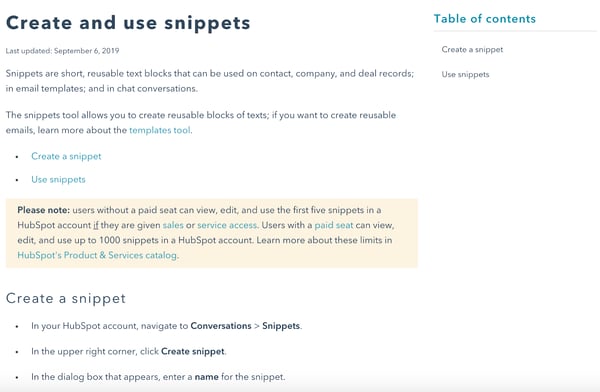
Image source: HubSpot
If you’re struggling to get traffic to your website, you’re not alone. Implementing the tips above can help you increase your traffic as soon as possible. Once your traffic has started to improve, it’s time to think about conversions. Learn more about conversion rate optimization here.

How to Get Started With TikTok: A Guide for Marketers
Thinking of putting your business on TikTok? Wondering how other brands are using TikTok successfully? In this article, you’ll discover how to create TikTok video and find examples to inspire you to use TikTok in your own marketing. Why Consider TikTok? TikTok’s growth is fascinating on many levels. For starters, it’s the first major social […]
The post How to Get Started With TikTok: A Guide for Marketers appeared first on Social Media Marketing | Social Media Examiner.
from Social Media Marketing | Social Media Examiner https://ift.tt/310SDvQ
via socialmediaexaminer
15 of the Best Free Website Builders to Check Out in 2020
It’s almost impossible to maintain a successful business without a fully functional, responsive, SEO-compatible website — but you don’t have to shell out the big bucks to afford one.
There are plenty of options for building and designing a website for free, many of which require little to no coding knowledge. And these website builders are often comparable in quality to their paid alternatives, particularly for small businesses or personal brands.
The free website builders we’re sharing today offer SEO benefits, embedded analytics systems, mobile optimization, and professional-looking templates. If you’re on a tight budget and can’t quite swing the paid builders, these are the next best thing.
Read on to check out 11 of the best free website builders, so you can build a website for free without forfeiting quality.
Best Free Website Builders
- Wix
- Weebly
- WordPress
- WebNode
- Jimdo
- Mozello
- WebStarts
- Webflow
- IM Creator
- SITE123
- Strikingly
- Duda
- Squarespace
- GoDaddy
- Strikingly
1. Wix
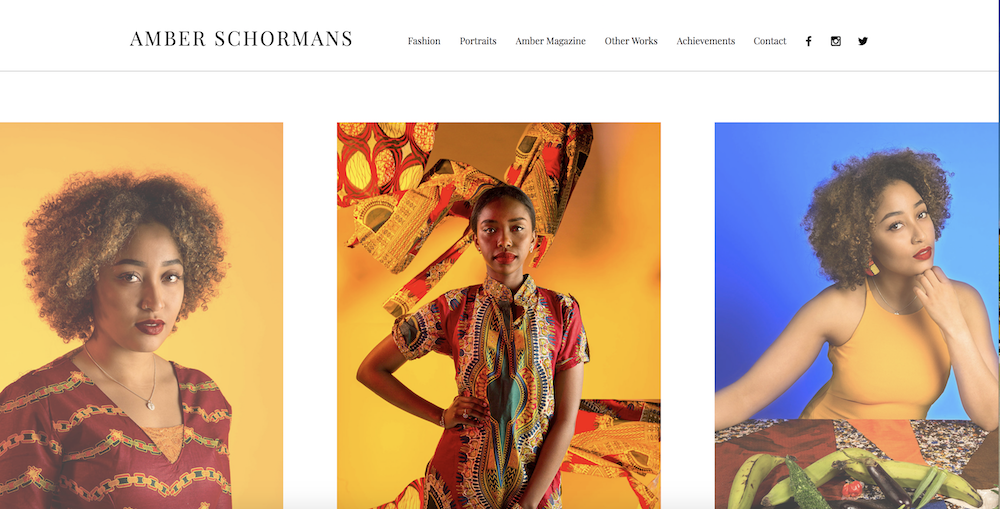
Wix is one of the most popular free website builders out there, with 110 million users. The fully hosted platform offers an easy drag-and-drop editor, and a large collection of professional-looking templates that are well-suited for small businesses, online stores, restaurants, or personal portfolios.
Wix supplies built-in Google Analytics to monitor your site, and even offers additional apps for individual preferences. If you want, Wix can even design your site for you. The biggest downside of Wix’s free version is it doesn’t come ad-free, and each page of your site will have a prominent Wix ad. Ad-free is only an option if you pay for the premium version.
2. Weebly
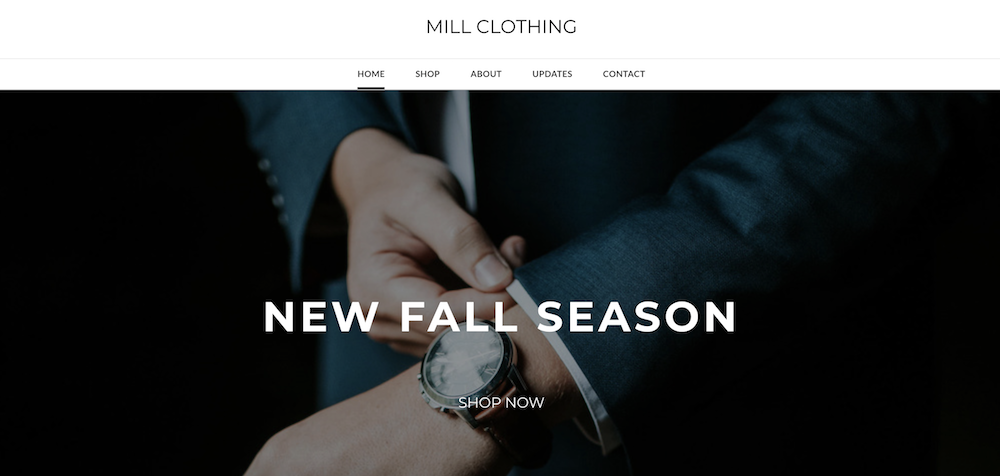
This open source SaaS offers web hosting, domain registration, web design, and even ecommerce functions, making it suitable for businesses and startups. Weebly’s a particularly flexible website builder, compatible with every device and platform, and easy to use.
Like Wix, Weebly has drag-and-drop functionality, as well as an integrated CMS solution, and hand-coded HTML files. The in-house editor comes with SEO tools and Google Analytics. With PayPal integration, an automatic tax calculator, digital gift cards, and more, Weebly is a smart choice for ecommerce businesses. And unlike some of its other free competitors, Weebly is ad-free.
3. WordPress
WordPress is a commonly used free website builder that also allows you to buy a web domain. For those who don’t want to pay for a domain, you can also run your site live with a WordPress-owned URL.
Like Wix and many of the other builders on this list, you can create visually stunning websites, blogs, and landing pages with WordPress. You can also place assets like contact forms, videos, and embedded content on to many WordPress pages.
For those who are less experienced in webpage building, WordPress offers and easy-to-understand backend interface with minimal to no coding needed.
WordPress is especially great for web editors with less design experience. When creating sites on this platform, you can build one from a professionally predesigned template or theme, or you can get more technical and personalize your own website. Below is an example of one of its pre-designed templates:
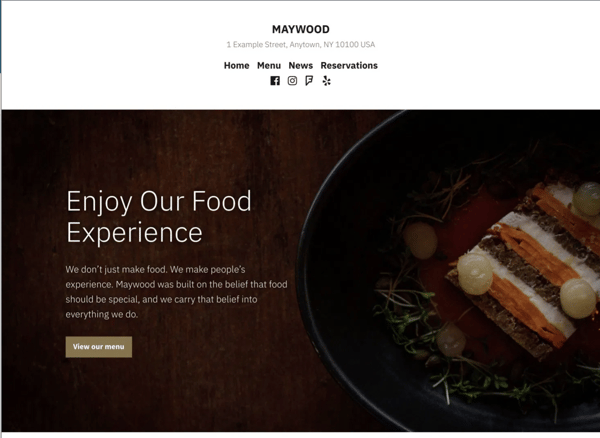 When you first get started, WordPress will show you a variety of themes which you can preview and test out. Then, once you select a theme, WordPress will give you a tutorial of how to edit your website. You can then change your theme at any time fairly quickly.
If a theme or the WordPress platform doesn’t have something you’re looking for, like an intricate customer relationship management system, you can easily get a plugin. A plugin is like an add-on feature that is compatible with WordPress but usually managed by another company.
For example, HubSpot offers a great WordPress marketing plugin which allows you to capture contacts through WordPress and send track them in HubSpot’s free CRM. You can learn more about the plug-in here.
4. WebNode
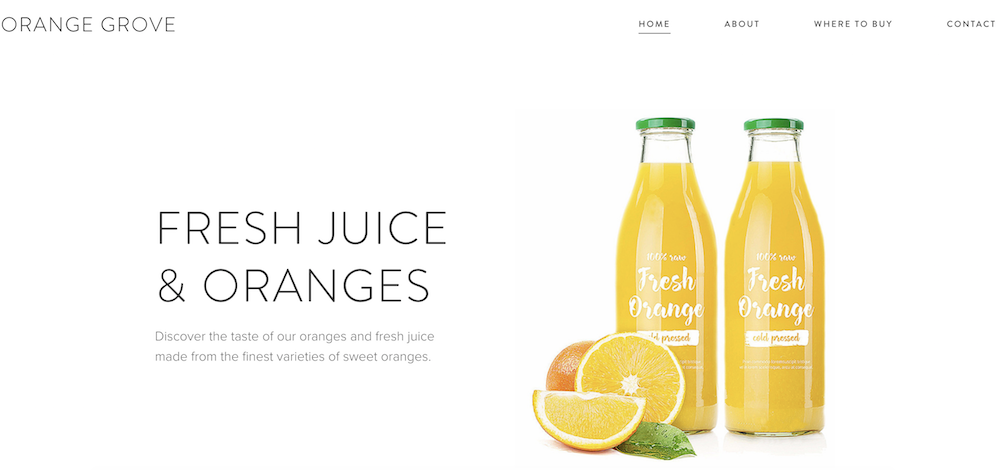
WebNode is a popular choice for both personal brands and professionals — it’s easy to use, and you can create a website in a different language or on a different platform to suit your business’s needs. WebNode supports ecommerce stores, and the sites are compatible with Android, Mac, and IOS devices. WebNode will provide statistics to track your site’s success, free of charge, and even with the free version, you won’t have ads.
5. Jimdo
Based in Germany, Jimdo is a valuable option for international companies, with options to create a site in more than nine different languages. The builder is compatible with smartphones and tablets, and there’s a mobile app you can use to build a mobile-optimized site, as well.
With no page limit and 500 MB of space, you’ll likely have more than enough space to build your site, and it even provides HTTPS/SSL encryption, meaning your visitor’s information will be kept safe. Plus, you’re able to integrate your site seamlessly with social media accounts. If you do decide to use Jimdo, beware of one thing: the builder prevents free websites from being indexed by search engines.
6. Mozello
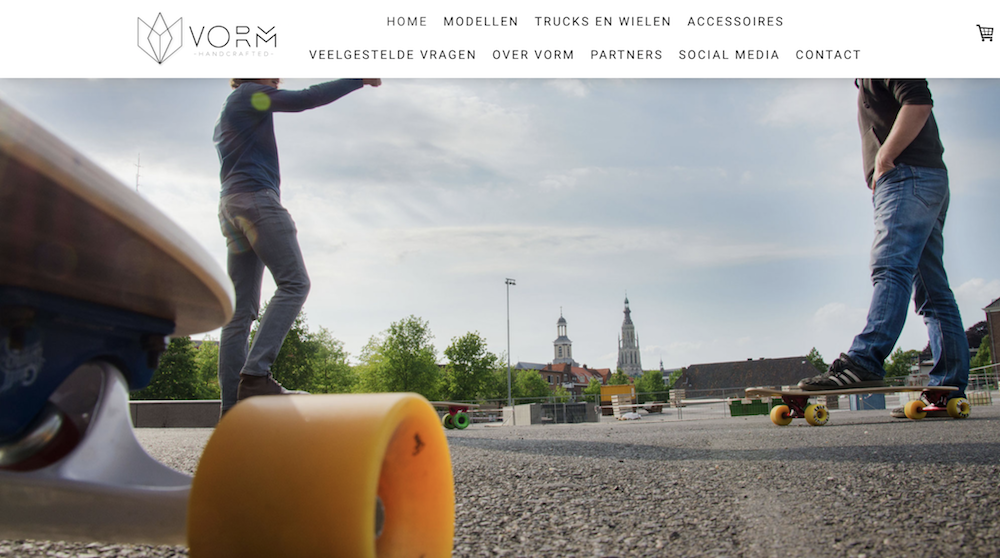
One of the biggest selling-points for this Latvian-based company is the builder allows you to create a multilingual site for free — something unmatched by other website builders.
Mozello’s features include a blog, online store, SEO options, and 500 MB of storage. There is an advertisement, but it’s just a link in the footer, so most visitors won’t see it. The only drawback is the drag-and-drop system isn’t as intuitive or complex as some other options, and there aren’t a ton of design customization options.
7. WebStarts
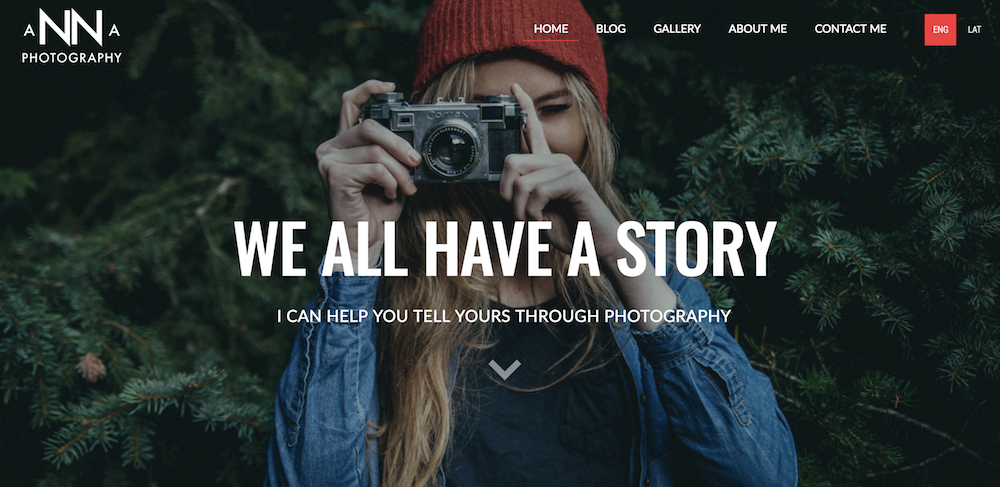
With a wide collection of beautiful templates and a user-friendly drag and drop functionality, WebStarts makes building a website as simple as possible: best of all, whatever you see when you’re designing is exactly what your visitors will see when you publish the site. This can take some of the guess-work out of the process.
8. Webflow
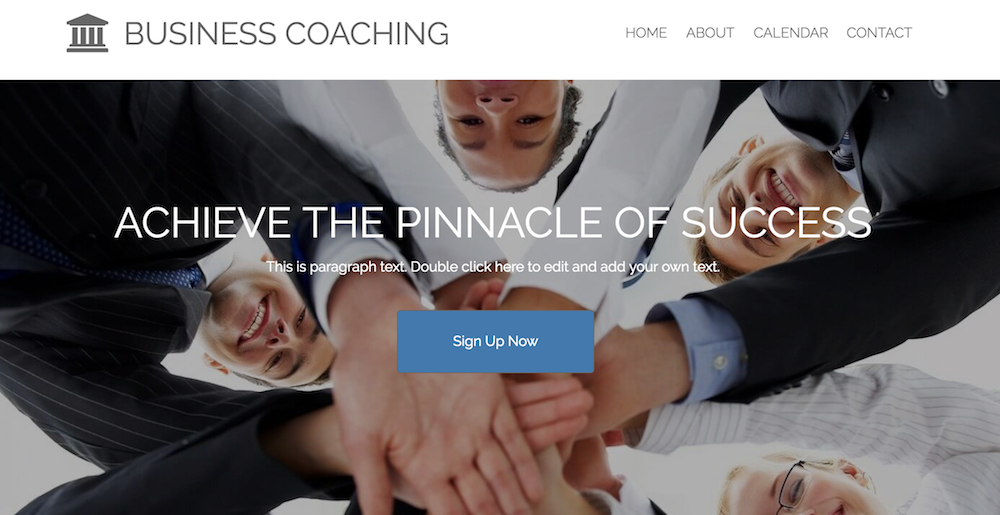
While most of the other builders in this list are for people without a ton of coding knowledge, Webflow is specifically for designers and agencies who build sites for clients — this means the HTML and CSS is entirely in your control.
After you’ve built a site on Webflow, you will need to transfer it to a content management system. There are some features, like drag-and-drop widgets for adding social components, maps, and videos, that don’t require coding knowledge. But if you want the full benefits of Webflow, you’ll need to know HTML or CSS. There’s a limited set of themes, a responsive interface, and your Webflow site can be customized for desktop, tablets, or smartphones.
Apart from the necessity of knowing code, one other drawback of Webflow is you can only have two pages, and there’s a limit of 500 visits for free users.

9. IM Creator
With more than 11 million sites built on IM Creator, it’s a popular option for a few reasons: there’s an easy point-and-click interface, an extensive range of templates and images, and unlimited web hosting and domain services. Plus, the platform is scalable, and you can have either single or multipage layouts. This builder is unique for its built-in ecommerce tools, and offers SEO and Google Analytics to fully optimize your site for search engines.
10. SITE123
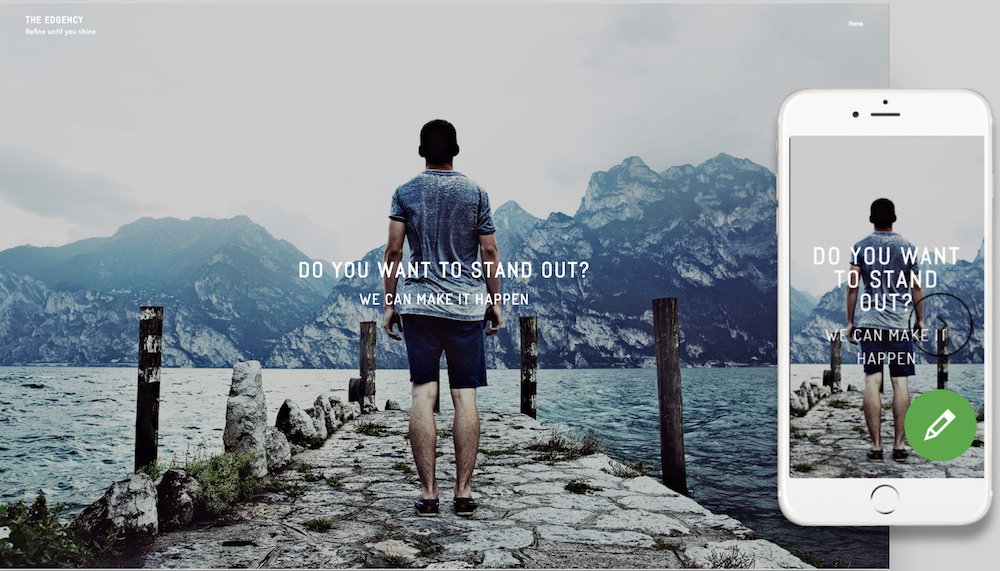
Arguably one of the most flexible and easy-to-use builders, Site123 lets you customize anything and offers a one-click installation wizard with graphics and templates. Site123 stands out as particularly helpful with its free images library, professional fonts to add visual elements to your site, and creative DIY plans for creating multiple pages (which are unlimited). Plus, since it offers web hosting domain registration, 500 MB storage space, Google Analytics, and is ad-free, you won’t feel pressured to switch to a paid plan.
11. Strikingly
Strikingly prides itself on helping its users build a website with no programming skills required. Thousands of sites have been launched through this website creator, and users can start designing their own by selecting from countless templates contributed by site owners around the world. You can find website designs suited for startups, ecommerce stores, blogs, events, product launches, and personal branding.
Strikingly’s free offering comes with unlimited free sites but a modest 5 GB of monthly bandwidth. You’re also limited to a strikingly.com domain unless you upgrade to a paid plan, which starts at $8 per month.
12. Duda
Duda is a feature-rich website creator with numerous site widgets and media files, allowing you to piece together a website to fit your specific needs. On top of site templates and a lengthy content library, Duda comes with a team-collaboration tool and basic analytics to show you how visitors are engaging with different parts of your website.
Duda offers a free trial, as well as plans that start as a low as $14 per month billed annually.
13. Sqaurespace
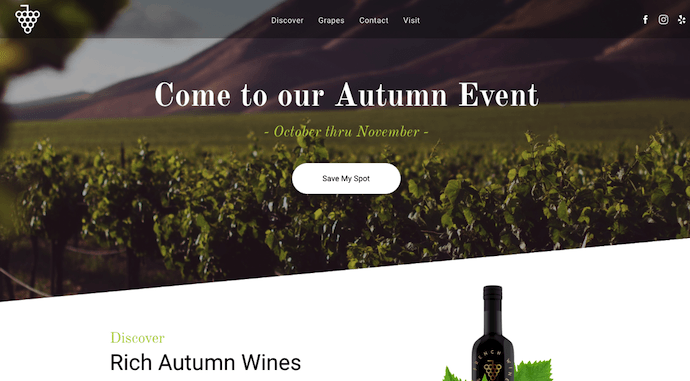
Squarespace is fairly similar to WordPress and Wix in that it allows you to work off of pre-designed themes or build a site from scratch with its wire-framing features. Squarespace claims to require no plugins while offering 24/7 service to its users.
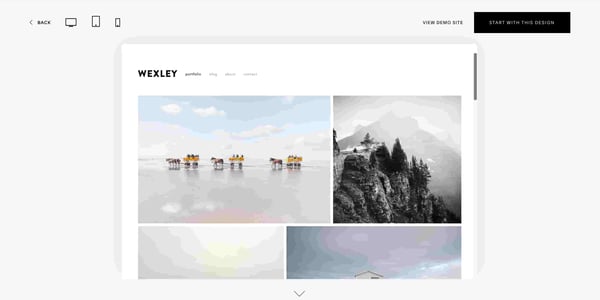
Squarespace’s pre-designed themes usually emphasize imagery or video, so it might be great for people in visual media, entertainment, dining, or fashion industries. Many templates, such as the one below, are both simplistic and mobile optimized. While simplicity might be difficult for a software company or a business which offers many services, it could be great for consumer facing companies that sell products related to one major industry:
14. GoDaddy
While GoDaddy is known as a website where you can go to buy cheap domains, it also has its own website builder for website owners that want to purchase domains and design their site at the same time.
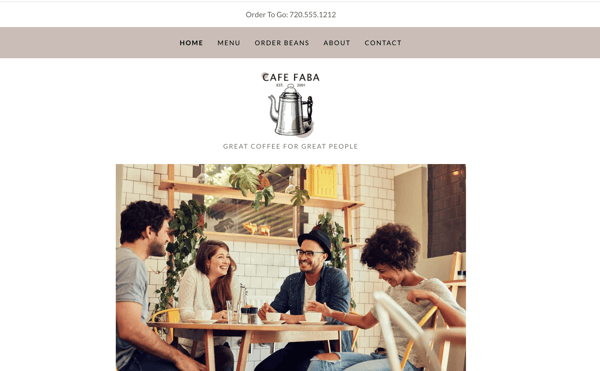 GoDaddy’s website templates are simple, clean, and effective. They can also be uploaded to WordPress sites for those who prefer to use WordPress’ software.
15. Strikingly
Strikingly is another easy-to-use and code-free website builder that allows you to create a website using templates that are optimized for different sizes of screens. It also offers basic image editing features to make your photos look crisp and clean.
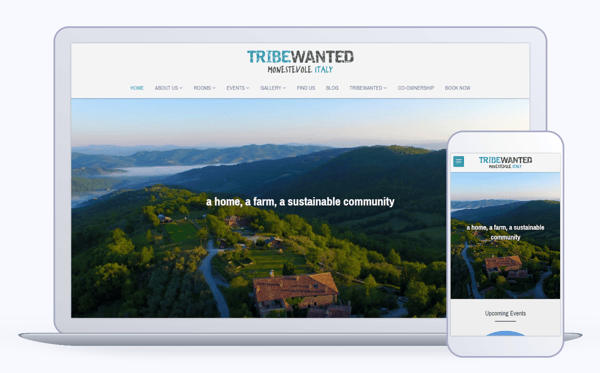
Because of its simple interface, Strikingly and its customer testimonials claim you can build your site within an hour on the platform.
Picking Your Website Builder
There you have it! Since all of these website builders are free, try out a couple if you’re unsure of the best fit. In particular, take note of what you really want to get out of your site to ensure your needs will be met by one of these free builders.
Editor’s Note: This post was originally published in November 2018 but was updated in October 2019 for comprehensiveness.

How to Design a Logo [Step-by-Step Guide]
I think most of us can agree there are generic logos in the world that we easily forget, and then there are great logos that we’ll always be able to recognize (even without the brand’s name attached).
But what is it about a logo that makes you recognize it? What is it about the design that can elicit a memory or even a specific emotion?
If you’re in the process of creating a logo for your company, you’re in a unique position to make a powerful impact on how consumers perceive your brand.
Everything you do, say, and, display as part of your new business will tell your prospects more about your company’s identity. It’s vital to ensure from the beginning that you present a cohesive and clear statement regarding your company’s message.
And while a logo may seem quite simple to create, designing a great one isn’t always easy. It involves a lot of market research, a deep knowledge of your buyer personas, and thoughtful consideration of the principles of logo design. Often, designers find themselves creating many iterations of a single logo before getting it “just right.”
So, where do you even begin to design a logo? Right here. We’ve broken down the nine key steps (with a few tips thrown in) you’ll need to take to create a logo that not only you love, but your prospects will too.
How to Design a Logo for Free
- Start With Your Story
- Brainstorm Words That Describe Your Brand
- Sketch Ideas Based on These Words
- Test Your Top Sketches With Your Buyer Persona
- Refine Your Chosen Sketch
- Develop Your Logo’s Layout on a Free Design Platform
- Pick Versatile Color Options
- Choose a Font
- Ensure Scalability
How to Design a Business, Company, or Personal Logo
1. Start With Your Story
Companies are created to make money — it’s not the most poetic statement, but it’s the one you need to start with. And in order to make a profitable business, you need to be able to sell yourself just as well as your product. Marketers today tend to agree that buyers connect much more strongly to stories than they do to the basic facts of your product. What does this mean to you? There needs to be some story in your logo.
Before you even think about what this logo will look like, take some time asking yourself what the story behind your company is. When we look at Coca-Cola, we don’t see a brown, carbonated beverage — we see polar bears and thick, white script letters.
 Image via Coca-Cola
Step outside of what your company does and convey why you do it. That “why” is the root of your story, and it should come through in the color, shape, and typeface of your logo. If your logo were the title of a movie, what would it look like?
2. Brainstorm Words That Describe Your Brand
Now that you have your story, it’s time to take your logo draft from story to setting. Open Thesaurus.com and enter a term that best describes your product into the search bar.
For example, if you’re in the clothing industry, you might simply type in “clothing.” You’d be surprised by how descriptive the synonyms are that appear. You can even click these results to start new searches and dig deeper as you zero in on the words that best capture your brand.
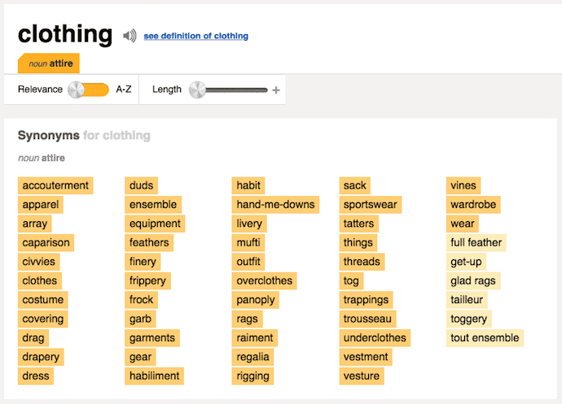 Image via Thesaurus.com
Find five to 10 words that describe not only what you do, but the why from the previous step. Each of these words can fit like pieces in a puzzle and help guide you to refining a concept.
3. Sketch Ideas Based on These Words
Armed with your why and a few keywords for direction, grab a pencil and paper and start sketching every idea that comes into your head. Allow each new concept to evolve on its own. Don’t get frustrated if the first few aren’t right — keep refining, using previous sketches to influence the outcome of new ones. You might focus these sketches on a shape, the name of your brand, or both.
As you’re sketching the concepts for your logo, keep these tips in mind:
- Keep the shape simple. If you can sketch the most symbolic components in seven seconds or less, you’re in good shape. You should absolutely avoid any popular clip-art artwork or generic symbols like a globe, star, or similar icons that people too easily identify from other places. These are easily forgotten at first glance. The more creative you are at this stage, the better your final logo. Your logo is what your consumers will remember the most. Be honest in this artwork.
- Colors can either be your best friend or your worst enemy. You need to include color with your logo, but be selective on which colors you use. Be mindful of current color trends already being used today and in your target market. As a general rule, don’t choose more than three colors. Choose a color or group of colors that will make you stand out from your competition. But please, for the love of marketing, don’t use the whole rainbow!
4. Test Your Top Sketches With Your Buyer Persona
Once you’ve got a handful of different sketches on paper, take a step back and pick the top three concepts. Don’t think too hard about this — consider the designs your eyes keep going back to, and select them to show to others.
Share these drafts with your friends, family members, and a colleague you trust. If possible, bring these sketches to someone who best fits your buyer persona — or your ideal customer profile. This gives you the most productive opinion on your artwork because it can indicate how customers will receive your brand — not just the people close to you.
Be prepared for honest feedback and don’t take any negative comments personally. These criticisms will only make your final logo better. Use their feedback to select one final concept to develop into a design.
5. Refine Your Chosen Sketch
Congratulations, you’re well on your way to having an awesome logo! Once you’ve identified a sketch to run with, it’s time to refine it and perfect the story you started with in Step 1.
To begin refining your logo, look back at the terms you identified when you first used Thesaurus.com in Step 2. Now look at your chosen sketch and ask yourself: Which terms does this sketch not yet capture? Use them to develop your sketch further, and add back the traits you liked best about the designs you didn’t end up choosing for refinement.
6. Develop Your Logo’s Layout on a Free Design Platform
Now, it’s time to get technical and turn your paper drawing into a usable digital format. To bring this design to life, you have many free design platforms available to recreate your sketch in digital format. Here are a few free solutions:
The platforms above can help you put your sketched logo in digital format, but bringing your concept to life for a business audience requires a bit of technical direction. One of the most important things to get right is the layout. Make sure all of your text and shapes are perfectly spaced and the logo itself is aligned with its surroundings.
Your logo doesn’t have to be symmetrical, but it should be aligned in different contexts. Chances are, you will encounter situations when your logo sits against different vertical and horizontal borders, and it should appear even with these surroundings no matter how you might repurpose your logo and where you might publish it.
7. Pick Versatile Color Options
Your logo’s color scheme might look great against the color of the canvas on which you designed it, but eventually, your logo will be placed on backgrounds whose colors you didn’t start with.
Let’s revisit our Coca-Cola example from Step 1. As you can see below, the company’s logo can work across any colored can it sells.
 Image by Jay Moye
Always be sure to have logo color variations for both dark and light backgrounds. That might mean only having to change the color of your font. Or, in some cases, you might have to change the color of your entire logo.
Create one of each option to make sure you’re prepared when ordering promotional products that will display your logo. T-shirts, stickers, notepads, and coffee mugs are just a few of the many items for which you’ll have different color variations of your logo.
8. Choose a Font
This is the time to combine text with imagery. If you’re chosen sketch is primarily a shape or symbol, rather than text, begin to factor in the written name of your company. Consider the typeface this text will carry if your company name ever stands on its own without the symbol.
Believe it or not, your font choice can say a lot about your business. You can choose a font that’s either serif (with stems on each letter) or sans serif (no stems) — also known as classic or modern, respectively.

Stay away from generic fonts that come standard on every word processor. Some examples of generic fonts are Times New Roman, Lucida Handwriting, and Comic Sans. These fonts will only work against you and your company by making you less memorable.
9. Ensure Scalability
Logos are meant to represent your company on multiple platforms — in print, on your website, on each of your social media business pages, and across the internet as your business grows. You want a logo that can be blown up super large for a billboard, but also scaled down for screening onto the side of a pen.
Every part of your logo should be legible, regardless of the logo’s size.
Whew — still with us? We know this might seem a little overwhelming, but take it slow and don’t rush yourself. It’s better to follow the process through to completion and end with a remarkable brand than to start over a few months later due to a design error or change of heart.
Once you’ve completed your logo, how can you tell if you scored a winner? Easy: Use our Logo Grader to assess the sustainability and effectiveness of your new logo.
Co-authored by: Rachel Begg, Julie Hruska, and Britt Schwartz

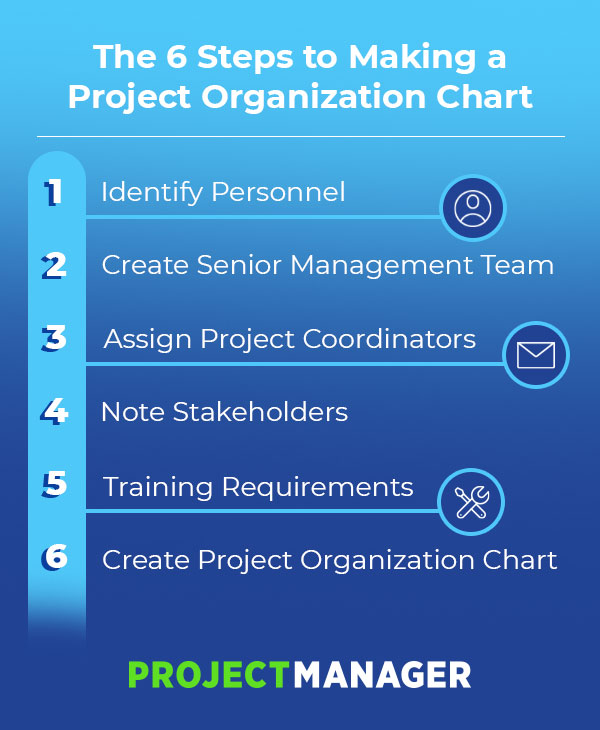
Project Organization 101: How to Structure Your Project
How a Visual Language Can Spell Success for Your Next Marketing Campaign
Whether you’re bingeing an original series on HBO or scanning your Instagram feed, high-quality visual content is now easier to find than ever.
Which means visual content is now an absolute necessity for marketing success.
In fact, 94% of first impressions of your brand are based on design. So if your marketing content doesn’t delight and engage your audience at very first glance, they’re likely to move on to the next thing — in a matter of seconds.
I’m willing to bet you’ve already developed a variety of visual content, ranging from videos to infographics, related to your brand.
However, if you’re following your company’s brand guidelines to the T for every marketing campaign or visual you create, you might not be reaching your full marketing potential.
While your brand guidelines are critical for providing general direction, each campaign is different, so each campaign needs its own visual language.
To help you take your visual marketing content to the next level, let’s explore what a visual language is, and how you can develop one for your next campaign.
What Is a Visual Language?
A visual language essentially serves as a set of brand guidelines for your campaign.
It’s important to note — a visual language doesn’t replace your brand’s visual identity. In fact, it keeps that identity very much in mind, but makes small changes or additions as necessary to optimize for your campaign goal(s) and target audience.
When done well, a visual language achieves three things:
- It makes sure all the visual content you produce for your campaign has a united look and feel.
- It considers the goals of your campaign, then drives the kind of visual content that can help you achieve those goals.
- It takes into account the target audience for your campaign, optimizing each piece of content to speak to and connect with that audience.
A visual language will define a number of parameters for your campaign, including:
- Illustration style
- Icon style
- Color palette
- Typography
Since every campaign is different, the visual language you use for each campaign will be different. For instance, if you plan to incorporate photography or live video footage, you’ll want to make sure to include usage guidelines.
While it might seem like extra, unnecessary work, it’s actually an incredibly useful tool for ensuring your team continues to create high-quality marketing materials.
Once your visual language is defined, it sets a standard of quality for all the materials you produce. It ensures that every piece of visual content for a campaign will be on-brand, and can help you drive higher conversions.
With all that said, it’s no easy task to ensure the visual language you create will truly be optimized for your campaign. To help you combat this challenge, let’s explore some strategies you can implement to ensure your visual language aligns with your marketing goals.
How to Create Your Own Visual Language
1. Identify your goals.
You may already have a clear idea of what you want your marketing campaign to achieve. If you do, the very first step you should take in any campaign is to write those goals down.
It sounds obvious, but you’d be surprised how many marketers either don’t define their goals clearly, or lose sight of them over the course of a campaign.
If you’re not sure what your goals should be, there’s a lot you can learn with a little market research. Take a look at what your competition has achieved in recent campaigns, or do a brand-potential analysis to define where your brand stands in the marketplace.
Keep in mind, though, that while a visual campaign can have more than one goal, each individual piece of visual content you create should have only one goal.
That’s because, when you try to achieve sometimes-conflicting goals with a single piece of content, you risk not optimizing for any of those goals.
2. Define your target audience.
Part of your goal-setting should be clearly defining the target audience for your campaign. This audience may be distinct from your brand-wide audience.
For instance, perhaps you’re working at a shoe company that makes all sorts of shoes — everything from hiking boots to high heels — but you’re about to launch a new line of running shoes. As you design a campaign around that launch, you don’t need to target the hikers who wear boots or the office workers who wear heels.
Ultimately, that means the visual content you produce for this campaign may have a very different look, feel, and tone from the other content you’ve produced in the past.
You’ll want to do some research, too, on how that audience likes to communicate. What types of visual content do they most engage with? What are their preferred platforms?
If they’re part of a particular age group, you’ll want to familiarize yourself with research on how different generations interact with content.
3. Determine the right visual language for your campaign.
Once you’ve clearly defined your goals and audience, you’re ready to define the visual language for your campaign.
As I’ve said already, every campaign is different, which means I won’t be able to make specific recommendations for design styles or other aesthetic choices here. It all depends on your brand, who you want to reach, and what you’re hoping to achieve.
Still, I can offer up an example of what a visual language might include based on one brand personality that many organizations hope to project.
For instance, imagine that you want your campaign to channel a modern, sophisticated ethos.
Here’s a mood board featuring some of the characteristics you might choose for your visual language:

The illustrations are minimal, often abstract, and textural. Additionally, the photography and color palette are cool and neutral, with small pops of color. The typography includes a classic Serif font.
These elements communicate a brand that’s innovative and forward-thinking. This is a
visual language designed to connect with an audience of young and mid-career professionals.
If your goal is to establish thought leadership in your industry, connect with decision-makers, and/or build consumer trust in your brand, this visual language is likely to achieve all these goals.
Ultimately, a visual language ensures consistent quality and messaging across your campaign. What’s more, it saves you money by ensuring that all that planning occurs just once, rather than with every new visual asset you create for each individual campaign.

5 Ways to Humanize Your Instagram Business Account
Want to make your business more memorable on Instagram? Looking for tips to boost brand loyalty with your audience? In this article, you’ll discover five tips to ensure your Instagram account stands out. #1: Give Your Instagram Copy Personality When developing an Instagram business profile, most companies focus on the visual aspects of their brand. […]
The post 5 Ways to Humanize Your Instagram Business Account appeared first on Social Media Marketing | Social Media Examiner.
from Social Media Marketing | Social Media Examiner https://ift.tt/2os5KJd
via socialmediaexaminer
How to Make a Video: a Step-by-Step Guide
In 2019, video marketing is being used more than ever. A whopping ;87% of businesses say they use it as part of their overall inbound strategy.
Despite its success, creating a video may seem daunting if ;your company has ;never done it before.
Why are we so afraid of doing video? Most of us get ;paralyzed by the “no time, too hard” fallacy. We convince ourselves that we need fancy camera equipment and editing software to make video work — and that there’s no way that’s happening with our current budget. We’re also trying to juggle many other marketing activities. Video just seems like a luxury we can’t afford. ;
But ;creating a video doesn’t have to be hard or time consuming. If done right, videos can be made quickly and easily — all while supercharging your engagement and click-through rates.
Videos are easy to digest. They let you inject personality into your message. When it’s genuine, a video can make people smile and laugh. This makes them more likely to share your message with their friends.
To help explain why video is so crucial to your ;strategy and give you tips for getting started today, Wistia ;has teamed up with our friends at HubSpot to film the video below;
Ready to dive into your first video? There ;are five quick action items that will help you get your very first video out the door. This time next week, you could have your very first video up! So let’s dive right in.
5 Quick Tips for Producing Video
1. Define your audience.
Before you start to script or shoot anything, establish who you want to reach. Are you trying to attract certain buyer personas? New visitors or returning leads? Or are you trying to engage your evangelists, who may never buy your products at all? Knowing who you create videos for is crucial to your success down the road.
2. Define your goal — and limit yourself to one! ;
Decide whether you’re trying to bring the audience you defined in Step 1 into the top of your funnel, engage with them in the middle of your funnel, or close them at the bottom of your funnel — and then create your videos to help accomplish that goal.
3. Pick a topic that’s done well in a different content format. Then turn it into a video. ;
Repurpose content that you’ve already created, like a blog post or presentation, and turn the main ideas into a one- or two-page script.
Practice reading it out loud. As you read, look for places that don’t sound right coming out of your mouth and edit them to sound more conversational. Share the script with others and peer edit.
4. Record yourself reading your script.
Use a webcam, iPhone, or whatever tools you already have — most people will forgive production quality if you have great content.
5. ;Display the video on your blog, website, and/or social networks.
Use your analytics and get feedback from your target audience to find out what people liked and what they found confusing. Then, you can use your metrics and feedback to make your next video even better.
Realistically, you could achieve these five wins in a ;few days. Just get your first video out into the wild — then iterate your process in future videos. You’ll be a video pro in no time. ;
To learn more about Wistia and how to use it, check out this blog post.

How to Scale Facebook Ad Results With a Tiered Bid Cap and Lookalike Audiences
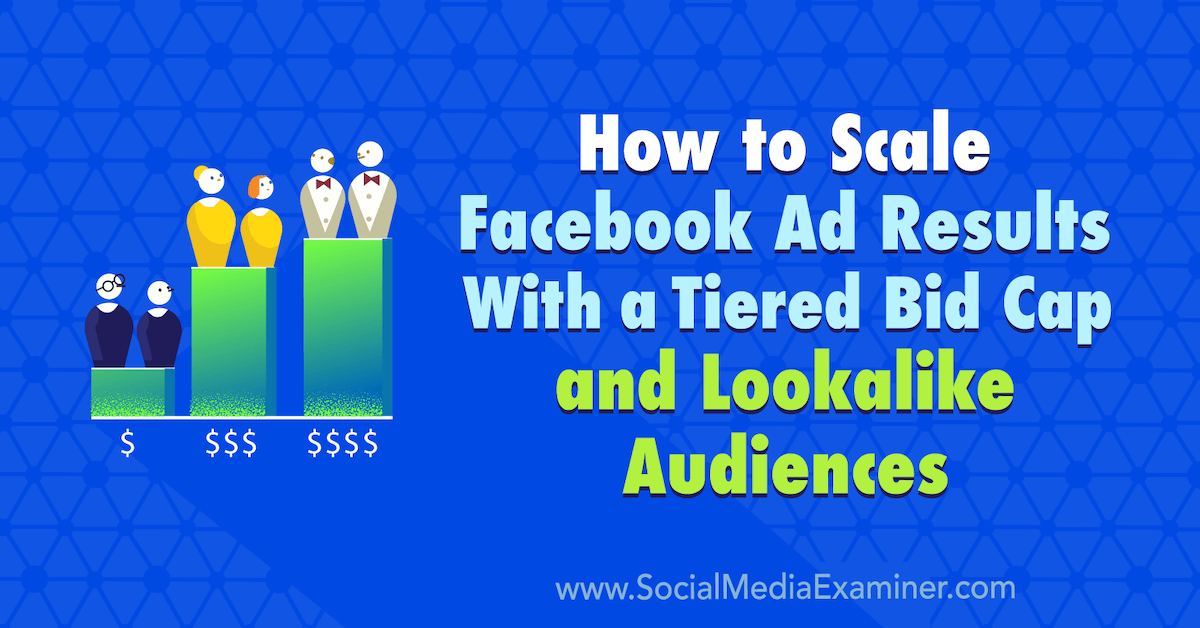
Want a better way to scale your Facebook ad campaigns? Wondering how best to allocate ad spend to your Facebook lookalike audiences? In this article, you’ll learn how to scale Facebook ads by combining strategic bid capping with Facebook lookalike audiences. Why Scale Facebook Lookalike Audiences With a Tiered Bid Cap? Imagine the following scenario. […]
The post How to Scale Facebook Ad Results With a Tiered Bid Cap and Lookalike Audiences appeared first on Social Media Marketing | Social Media Examiner.
from Social Media Marketing | Social Media Examiner https://ift.tt/2ARCo9Q
via socialmediaexaminer
Podcast Advertising: 5 Experts Reveal Their Secrets
Are you one of the 150 million Americans who commute to work every day? If so, I’m guessing you’ve listened to a podcast or two. You’re not alone. According to Infinite Dial, U.S. podcast audiences listen to an average of seven podcasts per week.
The podcasting industry has continuously grown since 2013. In fact, Infinite Dial reports that in 2019, 20 million more people were listening to podcasts than in 2018.
That’s why it’s important to consider podcast advertising for your brand.
Podcast ads have produced excellent results for sponsors. According to Midroll, 61% of podcast listeners say they bought something after hearing an ad, and podcast ads drive two to three times more engagement than radio ads.
Here, you’ll learn everything you need to know about podcast advertising — from top podcast advertising strategies to advertising rates and networks.
Podcast Expert Advertising Strategies
Before you get started with podcast advertising, consider this advice from the experts.
Use podcasting for brand awareness, not lead generation
Rebekah Bek: As a writer for Ahrefs, Bek was recently put in charge of podcast sponsorships. She writes her advice for podcast advertising strategies in this Medium post. Here are the key takeaways:
- Rather than being a tool for lead generation, podcast advertising is a tool for gaining exposure and brand awareness.
- It’s not always about measurable ROI.
- Organic, not scripted, mentions perform best.
Understand your audience may have eclectic tastes
Midroll: Midroll, a company that matches podcasters with advertisers, writes about their advice to advertisers. Here is the key takeaway:
- It’s wise not to adhere too strictly to a category. Don’t assume that comedy audiences aren’t also entrepreneurs or that listeners to a sports podcast aren’t interested in a comedy special. You may be surprised at how broad and eclectic your audience tastes and needs are.
Ads read by the host perform better than third-party ads
Jason Hoch: Chief Content Officer at HowStuffWorks, Hoch revealed what type of ads work best for their brand in an interview with DigiDay. Here are the key takeaways:
- Ads read by the host perform better than scripted, third-party ads placed in the podcast.
- Listeners feel like they are being shouted at with third-party ads.
- Consider producing organic mentions for better results.
Test and measure the success of your campaigns
Kurt Kaufer: Partner and CMO at Ad Results Media, a podcast advertising agency, Kaufer wrote a survival guide for podcast advertising in this Forbes post. Here are the key takeaways:
- Measurement is the key to determining success in a podcast advertising campaign. Use promo codes, custom links, and post-checkout surveys to track success.
- Be comfortable knowing not every ad will work at first and that a breadth of shows will need to be tested to figure out what works and what doesn’t.
You don’t need to sponsor the biggest podcasts, you can reach the same people on smaller shows
Sam Balter: A podcast marketer at HubSpot, Balter wrote about his podcast advertising learnings in this post. Plus, I spoke with him about his top podcast advertising strategies. Here are the key takeaways:
- Pre- and post-roll ad spots are generally cheaper than mid-roll and tend to take less time. Most ads have some sort of call-to-action that prompts listeners to go to a specific URL or use a discount code to get a discount.
- Podcast popularity and listenership will only continue to rise and so will the opportunity to connect with people in a new and novel way.
- When sponsoring podcasts, trust the host to deliver a message in their own voice.
- It’s better to go for frequency over reach. Pick a podcasts where you can purchase three to five ads versus one ad on a large podcast.
- Podcast listeners are millennials, well educated, and more affluent. You don’t need to sponsor the biggest podcasts, you can reach the same people on smaller podcasts.
Podcast Advertising Rates
The amount you pay for podcast advertising will vary depending on the length and type of the ad.
It’s also important to take into consideration that podcasts offer different pricing structures. Ads can be sold on a cost per mille (CPM) or cost per acquisition (CPA) rate. CPM is the cost you’ll pay per 1,000 impressions or downloads. CPA is the cost you’ll pay to acquire a customer. Most ads are sold on a CPM model.
During my research for this piece, I found the current average cost of podcast advertising rates is a CPM of about $25.
For example, according to AdvertiseCast, the average CPM for 30-second ads is $18, and the average CPM for 60-second ads is $25.
On the other hand, Balter concludes the CPM generally ranges from $20 to $50.
Kaufer reports CPM prices typically range from $15 to $25.
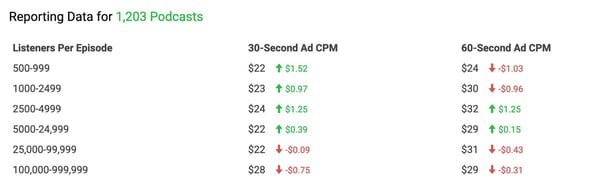
Image source: AdvertiseCast
Podcast Advertising Network
A podcast advertising network is an agency that connects companies or brands with respected podcasts on which to advertise. The goal is to take away the friction in podcast advertising by helping brands promote their products on podcasts and helping podcasters monetize their projects. A few examples include:
1. Midroll
Midroll can connect advertisers with 300+ shows downloaded more than 150 million times a month. In their advertisers portal, you have access to your campaign’s metrics and airchecks (demonstrated recordings) 24/7. For pricing information, you can contact them through their contact page.
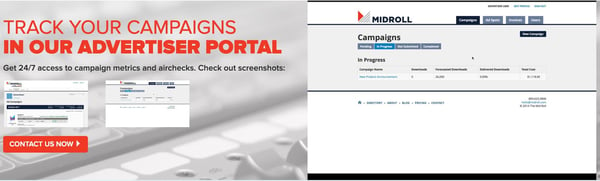
Image source: Midroll
2. Podcast One
Podcast One sees more than 2.1 billion downloads annually across 350 episodes produced weekly. They provide data on how many people hear your ad and how many times the podcast is downloaded. Raw data is downloaded from Edgecast, quantitative and qualitative data from Edison Research, and digital ad injection and verification by WideOrbit. For pricing information, you can fill out the contact form at the bottom of their about page.
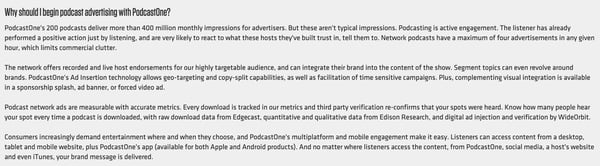
Image source: Podcast One
3. AdvertiseCast
AdvertiseCast boasts 1,500 podcast listens, a 30,000,000 monthly listener reach, and 7,500 available ad spots. They also offer an end-to-end service where they can manage your campaigns for you. In their advertising portal, you can research the shows you want to sponsor, manage your ad campaigns, and access your reporting metrics. For pricing information, you can contact them through their podcast advertising form.
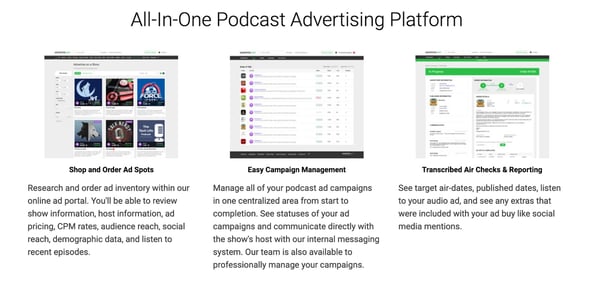
Image source: AdvertiseCast
Podcast Advertising Statistics
1. 70% of US population is aware of podcasting (source: Infinite Dial, 2019)
2. Podcast advertising revenue is forecasted to exceed $1 billion by 2021 (source: Interactive Advertising Bureau and PwC, 2019)
3. Brand awareness and branded content campaigns continue to make up a larger part of how advertisers choose to reach their audience. (source: Interactive Advertising Bureau and PwC, 2019)
4. 51% have listened to a podcast (source: Infinite Dial, 2019)
5. Host-read ads continue to be the preferred ad type, representing a little less than two-thirds of ad types in 2018. Announcer-read/pre-produced ads make up most of the other one-third. (source: Interactive Advertising Bureau and PwC, 2019)
6. Cost per thousand continues to be the dominant pricing method in 2018. Cost per acquisition is no longer significant. (source: Interactive Advertising Bureau and PwC, 2019)
7. 32% have listened in the last month (source: Infinite Dial, 2019)
8. 60-second advertising spots were the most popular spot length in 2018. 90-second advertising spots were not far behind. (source: Interactive Advertising Bureau and PwC, 2019)
Podcast advertising is a marketing tactic that is continuing to grow. As a majority of people have listened to a podcast, and engagement rates are increasing, brands can no longer ignore podcast advertising.
Want to learn more about podcasting? Check out our blog, Everything You Need to Know About Starting a Podcast in 2019.

LinkedIn Enhanced Ads Targeting Tools: What Marketers Need to Know
Welcome to this week’s edition of the Social Media Marketing Talk Show, a news show for marketers who want to stay on the leading edge of social media. On this week’s Social Media Marketing Talk Show, we explore enhanced LinkedIn ads targeting tools, as well as Pinterest business profile and shopping updates with guests AJ […]
The post LinkedIn Enhanced Ads Targeting Tools: What Marketers Need to Know appeared first on Social Media Marketing | Social Media Examiner.
from Social Media Marketing | Social Media Examiner https://ift.tt/2ImDzlt
via socialmediaexaminer
53 Facebook Statistics to Know for 2019
As a marketer, it’s useful to keep track of social media sites by the numbers. Statistics help organize where to invest your ad dollars in content and which areas to avoid. Whether you’re interested in where to begin the buyer’s journey on Facebook or the cost of paying for ads, find the Facebook statistics you need to know for 2019.
Our Facebook stats are organized into five categories:
1. Facebook has 39,651 employees. (Source: Facebook, 2019)
2. Facebook revenue for twelve months ending in June 2019 was $62 billion. (Source: MacroTrends, 2019)
3. In 2018, Facebook had an annual growth rate of 41%. (Source: MacroTrends, 2019).
4. 56% of people visit Facebook to get information. (Source: Facebook, 2019).
We all know Facebook is big, but let’s look at exactly how expansive it is by employee numbers and growth rate. As a marketer, knowing where Facebook is and where it’s going gives you information about how your brand can fit into the ecosystem and how to best serve your customers on the platform.
1. In 2018, Facebook reported Q4 ad revenue of $16.6 million, a 30% increase from 2017. (Source: Martech Today, 2019)
2. The average price for an ad saw a 2% decrease while ad impressions grew by 34%. (Source: Martech Today, 2019)
3. 94% of ad revenue in Q2 was represented by mobile ads, a 3% increase from Q1. (Source: Facebook, 2019)
4. Facebook’s ad revenue as $16,624 million in Q2. (Source: Facebook, 2019)
5. The U.S. and Canada made up $8,115 million of Facebook’s ad revenue in Q2. (Source: Facebook, 2019)
6. There are 7 million advertisers on Facebook. (Source: Statista, 2019)
7. Facebook video ads have a low CPC, at $1.86. (Source: Fit Small Business, 2019)
8. The potential reach of advertising for Facebook is 1.9 billion. (Source: We Are Social, 2019)
9. The average cost-per-click on Facebook is $1.72. (Source: Wordstream, 2019)
10. Facebook’s total ad revenue is expected to reach $39.4 billion by 2021. (Source: Statista, 2019)
Now that you know Facebook ads by the numbers, how does your brand fit in with long-term ROI? Are you spending too much or too little?
1. 69% of Americans use Facebook. (Source: Pew Research Center, 2019)
2. Facebook is used by 51% of U.S. teens. (Source: Pew Research Center, 2019)
3. 43% of U.S. adults get their news from Facebook. (Source: Pew Research Center, 2019)
4. 74% of U.S. adults visit Facebook every day. (Source: Pew Research Center, 2019)
5. 96% of Facebook users access the app on mobile. (Source: Statista, 2019)
6. Facebook reported that 3-4% of profiles for monthly active users (MAUs) were fake and removed them in 2018’s Q1. That’s 88 million accounts. (Source: Facebook, 2018)
7. Daily active users (DAUs) on average for Q2 were 1.59 billion, an 8% increase year over year. (Source: Facebook, 2019)
8. The number of MAUs for Q2 was 2.41 billion, also an 8% increase year over year. (Source: Facebook, 2019)
9. In 2018, 35% of Facebook’s audience was under 25. (Source: We Are Social, 2019)
10. Facebook users aged 65+ is 41%. (Source: Pew Research Center, 2019)
11. In 2018, it was reported that 1.1 billion Facebook users speak English. (Source: We Are Social, 2019)
12. Facebook’s total number of desktop active users is 1.47 billion. (Source: We Are Social, 2019)
It’s important to know how much of your audience is on Facebook, to position your marketing strategy. If your target audience uses Facebook every day, consider beefing up content for lead generation. Optimizing content for desktop and mobile based on active users will also make your content more attractive to potential customers.
1. Women between the ages of 25-34 make up 13% of Facebook’s global active users. (Source: Statista, 2019)
2. Men between the ages of 25-34 make up the biggest demographic group, at 19%. (Source: Statista, 2019)
3. India is the country with the most Facebook users, with 300 million. (Source: Statista, 2019)
4. Facebook users are 57% male and 43% female. (Source: We Are Social, 2019)
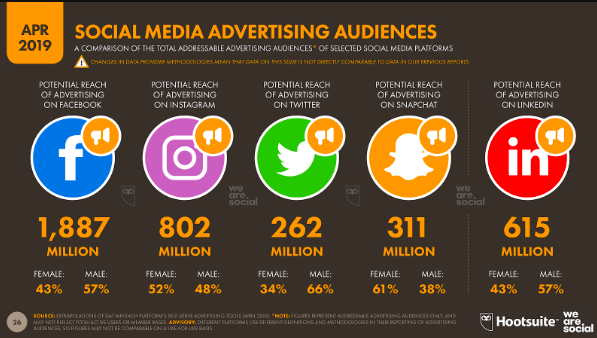
Image Source: We Are Social
5. There are 1 billion users from Asia on Facebook. (Source: Facebook, 2019)
6. There are 385 million Facebook users in Europe. (Source: Facebook, 2019)
7. Over 80% of Facebook’s daily active users (DAUs) come from outside of the US and Canada. (Source: Omnicore Agency, 2019)
8. Facebook has 2.41 billion monthly active users (MAUs). (Source: Facebook, 2019)
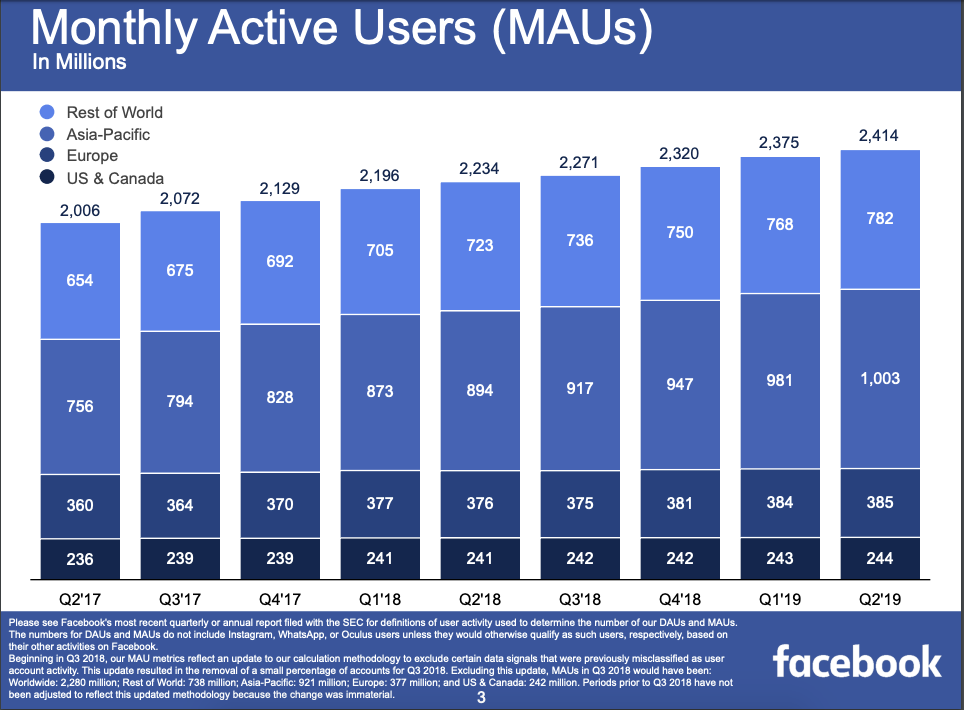
Image Source: Facebook
9. 65% of Facebook users are under 35. (Source: Statista, 2019)
Facebook’s monthly average users are climbing. That means more of your audience is continuously checking Facebook, and your potential audience of over 1.8 million is growing. Your content is seen by a multitude of other countries as well, so it’s a good idea to keep that in mind when strategizing campaigns.
1. In 2018, 78% of US consumers made purchases through discoveries on Facebook. (Source: Kleiner Perkins, 2018)
2. 93% of businesses are active on Facebook. (Source: Buffer, 2019)
3. Images make up 18% of Facebook posts. (Source: Buffer, 2019)
4. Link posts receive 76% less engagement than video posts. (Source: Buffer, 2019)
5. The median engagement rate across all industries on Facebook is 0.09%. (Source: Rivaliq, 2019)
6. The average person spends 37 minutes on Facebook. (Source: Marketing Land, 2019)
7. More than 2.7 billion people use Facebook’s family of services every month. (Source: Facebook, 2019)
8. Facebook Stories has 500 million daily viewers. (Source: TechCrunch, 2019)
9. 4.6% of marketers use Facebook video ads. (Source: Buffer, 2019)
10. 35% of marketers report successful influencer campaigns on Facebook. (Source: Buffer, 2019)
These stats provide more direction about where your strategy should head in order to earn more numbers on Facebook. For example, if you have a video of your company’s weekly Waffle Wednesday event, post that instead of the link to your blog post, which you can save for Twitter Cards.
1. In 2018, users aged 18-24 have 75% less of an attention span for video ads than users who are 65+. (Source: Facebook, 2019)
2. 75 million people use Watch at least one minute each day. (Source: TechCrunch, 2019)
3. Users are 1.5 times more likely to watch a video on their phone. (Source: Facebook, 2017)
4. 62% of people have reported being more interested in a product after seeing it on a Facebook video. (Source: Facebook, 2018)
5. Video promotions are equally as important as photo promotions. (Source: Social Bakers, 2019)
6. 81% of businesses prefer video marketing on Facebook. (Source: Buffer, 2019)
7. Facebook is the second most popular video property, behind Google. (Source: Statista, 2019)
8. Politics is the highest category of Facebook Stories, at 36%. (Source: Statista, 2019)
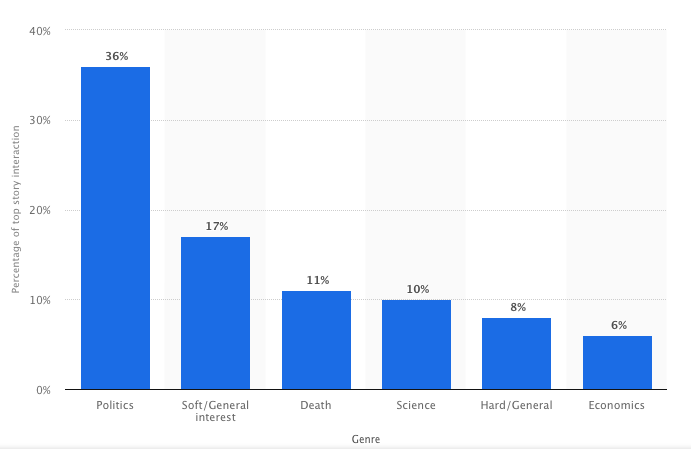
Image Source: Statista
Facebook videos are massively popular and have a large appeal to younger users of the site. If you have products to promote, videos have your back and your target audience.
Keeping up with Facebook is an important factor in planning strategy. Not only because Facebook owns other platforms, like Instagram, but they also influence more than one channel of your planning. For more information on using Facebook in your social media planning, check out our ultimate guide here.

How to Use Snapchat: A Detailed Look Into HubSpot’s Snapchat Strategy
Back in 2011, Snapchat was synonymous with risqué teen behavior. News coverage repeatedly warned parents of the damaging effects the platform might have, and as a result, Snapchat’s success wasn’t looking good.
Since then, Snapchat has evolved into something so much more. And while it’s certainly not the cornerstone of every marketing strategy just yet, the channel has earned a reputation for fast growth and innovation.
Snapchat is now known as a platform for individuals and brands — one that allows users to create quick, lighthearted, and even educational video content without using valuable production resources. For brands, this means a new opportunity to show off their company culture, share their industry knowledge, and connect with their audience in a new and exciting way.
Get our guide to using Snapchat for business here.
After reporting more than 100 million daily active users and 8 billion video views a day, we decided to give it a go: The official HubSpot Snapchat account launched in March 2016. Since then, we’ve learned a lot about executing and iterating a successful Snapchat business strategy.
To help you get started, we’ve detailed everything we’ve learned below. In this guide, we’ll go over:
- How to set up your Snapchat account.
- How to make, send, and view Snapchats.
- How to use Snapchat Lenses and Geofilters.
- How to add and acquire friends or followers.
- How to perfect your use of Snapchat for Business.
How to Set Up Your Snapchat Account
The first thing you’ll need to do is download the Snapchat mobile app — available for iOS and Android — and create an account by entering your email, a username, and a password. This will be your personal account, and you can ultimately use it to create a Snapchat Business Account.
1. Sign up on Snapchat’s home screen.
Once you’ve downloaded the Snapchat mobile app, open it and you’ll see the screen below.
Tap “Sign Up” and the app will take you to the sign-up page, starting with your first and last name.
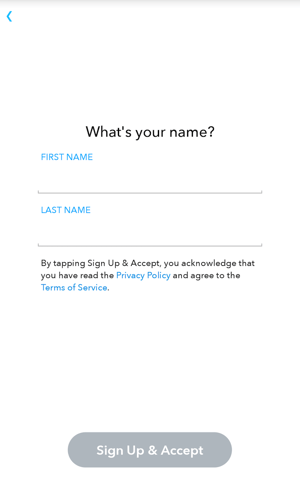
Then, you’ll enter your:
- Birthday.
- Username and password.
- Email address.
- Phone number.
- Friends to add.
Adding friends from the signup screen will help you find friends on Snapchat who are also in your phone’s contact list. You can skip this for now if you wish — we’ll talk more about adding friends in Step 4.
When creating a username, however, keep in mind that you’ve only got one shot: Snapchat does not allow you to change your username once you set it.
2. Create a profile picture using Bitmoji.
Once your account is created, you’ll want to take care of a few housekeeping things. The first is your profile picture — this picture will be how people identify you when sending and receiving snaps to and from you.
To create your profile picture, tap the  icon to the top-left of the camera screen. Then, tap “Create Bitmoji,” as shown below:
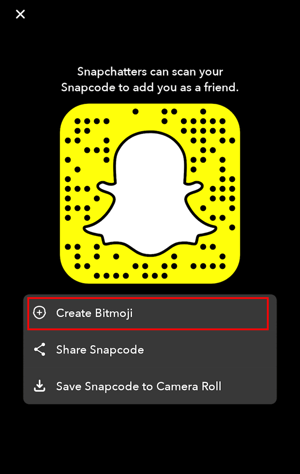
Bitmoji is a free, separate app that integrates with Snapchat and allows you to create a fun, illustrated avatar of yourself. Once you select this option through Snapchat, you’ll be able to download the Bitmoji app and personalize your profile picture. Here’s what that personalization process looks like:
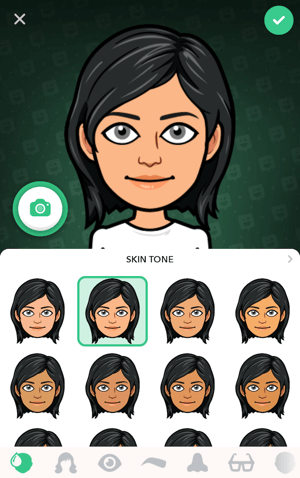
Once you’ve designed a Bitmoji that resembles you, follow the prompts to connect your Bitmoji to Snapchat. The screen below will indicate that your Snapchat profile picture has officially been set:

3. Adjust your privacy settings.
In Snapchat, tap your new Bitmoji icon at the top of the camera screen to visit your profile page. Then, tap the gear icon to access your settings in the top-righthand corner.
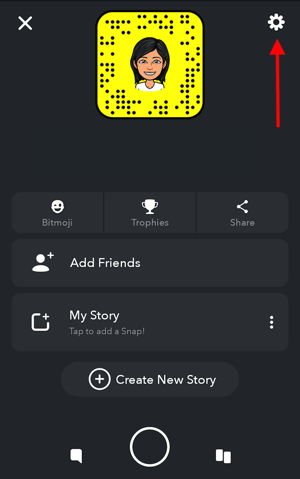
Under the “Who Can…” section, adjust your preferences accordingly. You’ll be able to modify which people can contact you, view your Story, and even see your location. In most of these sections, your options for who can do these three things are:
- Everyone, whether or not your friends with them on Snapchat.
- My Friends, indicating that only those you’ve added as a friend can see your snaps.
- Custom, where you can select specific users to include and exclude as viewers of your content.
4. Add your friends.
Adding friends in Snapchat allows you to see these users’ Stories (a feature we’ll talk about in just a minute), and alerts these users that you’ve connected with them so that they might add you as a friend in return.
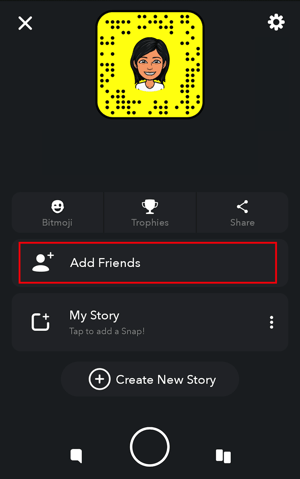
To add friends, tap your Bitmoji at the top of the camera screen to visit your profile page. Then, tap the “Add Friends” option, as shown above. From here, you’ll have the option to add friends by:
- Username. To add a friend by their username, simply type in their username using the search bar at the top of your screen.
- Contacts. To add friends based on your phone’s address book, tap the “Contacts” tab at the top of your screen and select “Continue” at the bottom. Allow Snapchat to search your contacts in Snapchat by the phone number you have saved on each person, and the app will begin pulling contacts into Snapchat for you to send friend requests to.
- Snapcode. Your Snapcode is contained in the yellow background surrounding your Bitmoji, as you can see in the screenshot above (believe it or not, those black dots embedded in the yellow frame are in a pattern that’s unique to your account). To add someone as a friend by their Snapcode, you’ll need to have a picture of this Snapcode saved in your phone’s camera roll. Once you’ve captured this photo, turn it into a Snapchat friend by selecting “Snapcode” at the top of your screen and selecting the photo.
How to Make, Send, and View Snapchats
A snap is a direct message from one account to one (or several) other accounts. These messages disappear immediately after viewing, and can contain photos, videos, or images uploaded from your phone.
To send a photo Snap, open up the camera screen and tap  or the anywhere on the screen to capture the photo. To send a video Snap, hold . By holding down the and quickly swiping left, you can run the recording without holding down the button.
How to Make and Send a Snap
Once you’ve got a photo or video, you have 10 options before you hit send. See an explanation of each numbered icon below the following screenshot.
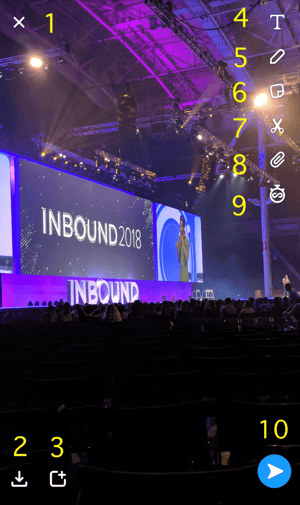
1. Discard your snap.
Tapping icon #1, as shown above, simply returns you to the camera screen, where you can take a new snap.
2. Save the snap to your memories.
All Snapchat content is ephemeral, meaning the snap either disappears after 24 hours — if it’s added to your Story — or it’s deleted after the friends you sent it to view it. Saving a snap to your Memories, however, allows you to keep the snap permanently and view it in your own private photo gallery.
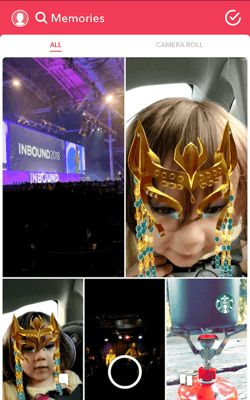
3. Add the snap only to your Story.
A Snapchat Story is a photo or video that is viewable to all of your friends for 24 hours. You can create multiple photos/videos shown in succession to create a longer story. Most brands use this feature, as it allows you to reach a larger audience.
To create a Story on Snapchat, follow the process for creating a Snap in the steps above. When you’re ready to send it, tap icon #3, as shown just above Step 1. This will present you with the option to save your snap to “My Story,” which makes it visible to just those who have added you as a friend; or “Our Story,” which adds it to a collection of Stories from other Snapchatters who are in the same location or at the same event.
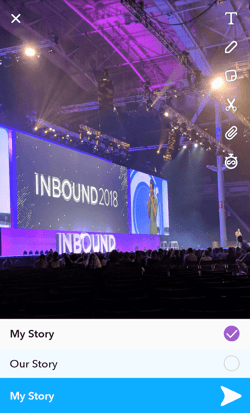
4. Add text to your snap.
Tapping the “T” icon lets you add text to your snap, pulling up your phone’s keyboard where you can create a caption for your photo in any font, color, or size. Check out an example from our event, INBOUND:
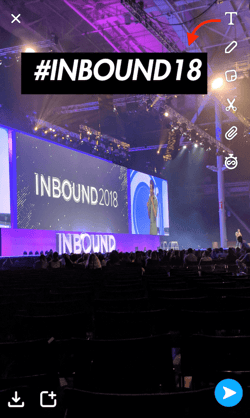
5. Draw on your snap.
Tapping the pen icon provides you with a digital pen, which you can use by dragging your finger across your screen. Change the color of this pen by sliding your finger across the color meter on the top-right of your snap, as shown below:
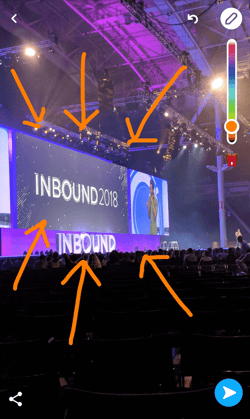
6. Add stickers to your snap.
Tapping the notepad icon pulls up a gallery of fun, illustrated images. You can use these “stickers” to annotate your snap, as shown below:

7. Create a sticker from your snap.
Tapping the scissors icon allows you to cut out a section of your snap and paste it to this or other snaps you might take in the future. See what creating a sticker looks like below:
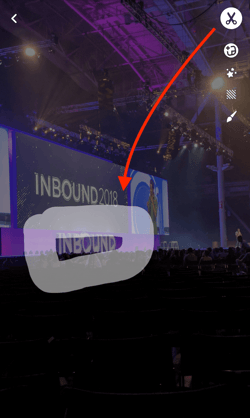
8. Attach a hyperlink to your snap.
Tapping the paperclip icon gives you a URL search bar. Type in any website’s URL, and attach this URL as a hyperlink to your snap for your friends and viewers to click on. This is a great function for businesses to use when promoting content that originates on their blog or website.
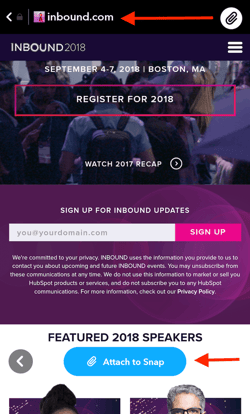
9. Change the duration of your snap.
Tap the stopwatch icon to adjust how long your snap stays on your friend’s screen (or plays if it’s a video). Your timing options range from one to 10 seconds — or infinity, which keeps the snap on your friends’ screen until they swipe away from the snap. For videos, the stopwatch icon lets you set how many times the video will loop on your friends’ screen before the snap closes.
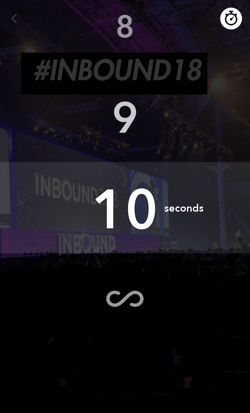
10. Send your snap to your friends.
Once you’re happy with your snap, tap the  icon on the bottom-right of your snap. This icon will show you a list of all your friends, where you can select to whom you want to directly send your snap. Then, tap the white arrow on the bottom-right of your friends list to officially deliver your photo or video. This will notify each friend you send it to that they’ve received a snap from you.
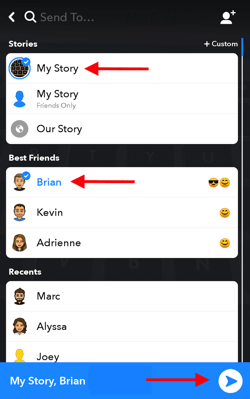
How to Add Snapchat Filters to Your Snap
Want to add filters, the time, the weather, or your current speed to a Snap? Swipe left or right on the preview screen to browse your options.
Add Lenses
Want to experiment with Snapchat Lenses? These are animations that can be overlaid on top of your selfie. To use them, simply press and hold your face with the camera directed toward you until the Lens option appears below. You can then swipe left to browse through the options, like this one:
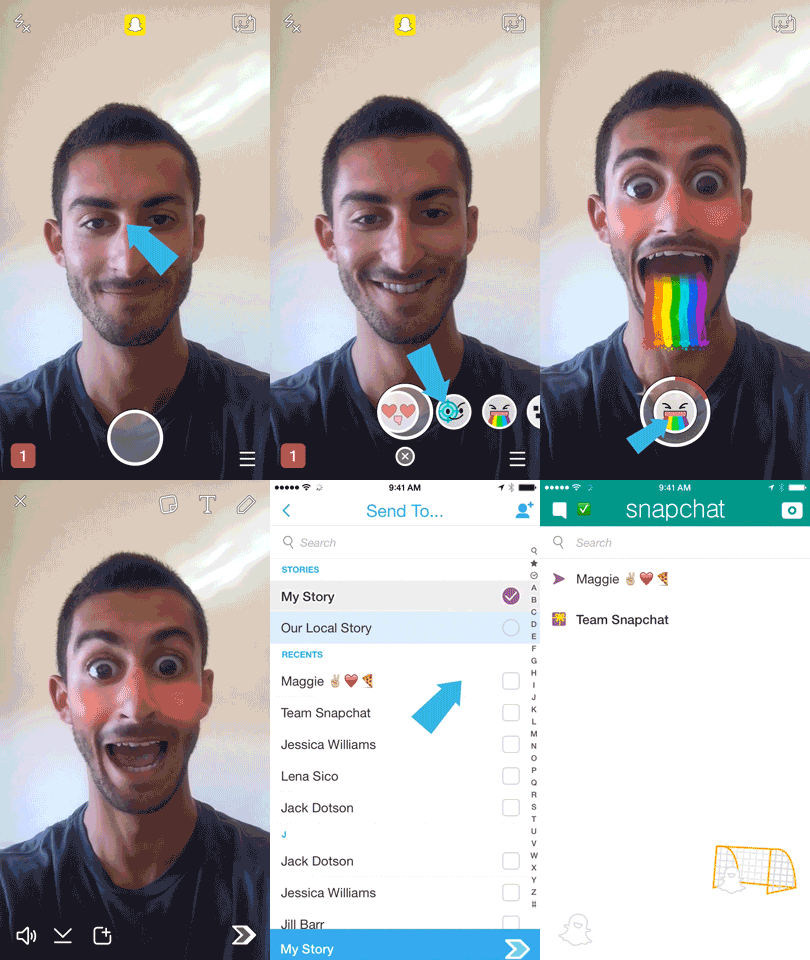
Image Credit: Snapchat
(Note: Snapchat also offers Sponsored Lenses — like the Gatorade one featured in #4 on this list — but it’ll cost you. According to Financial Times, a Sponsored Lens could cost up to $750K in certain situations.)
Add Geofilters
You’ll also notice something called Geofilters appear as you swipe through. On-Demand Geofilters are available to businesses and individuals for purchase.
These special filters can be use for an event, business, or specific location — brand logos and trade-marks are permitted. Here’s one made for the city of Boston, which we used on a snap from our event, INBOUND 2018:
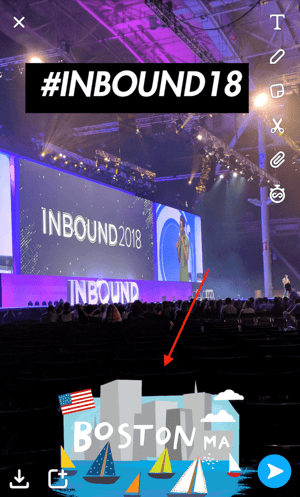
How to View a Snap a Friend Sent to You
To view a Snap that has been sent to you, swipe right on your camera screen to see your Friends list. Snaps you’ve received directly from a friend will have a red (still photo), purple (video), or blue (text message) square to the right of their name. Tap this square once to see or play the Snap. If you have several Snaps from the same friend, they’ll play like a flipbook.
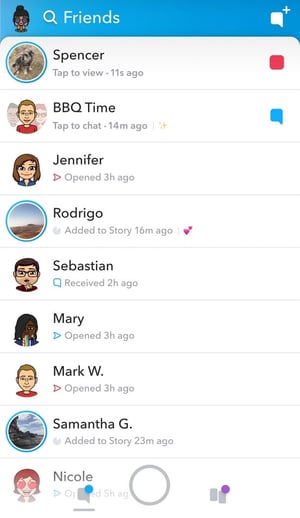
Image Credit: Elite Daily
Here are some helpful tips for viewing other users’ snaps:
- To skip a Snap, tap the screen once.
- To exit, swipe down.
How to View a Snapchat Story
There are two ways to view Snapchat Stories: from your Friends list or from your Discover page.
From Your Friends List
To view a user’s story, swipe left on your camera screen to see a list of your friends. Friends whom you recently interacted with will appear near the top. If they’ve posted a Story, you’ll see it in place of their Bitmoji to the left of their name.
Tap the circular icon next to a user’s name once to open their story. To view your own Story, tap your profile icon on the top-left on your Friends list.
From Your Discover Page
To see Stories from everyone you’ve added as a friend, regardless of your interactions with them, swipe left twice to your Discover page. Each friend who has an active story will appear at the top in a small, portrait-shaped rectangle, as shown below:
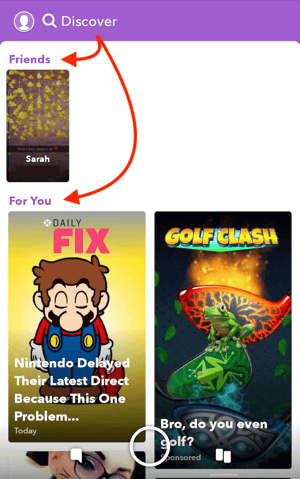
Stories are available for 24 hours (unless they are deleted). During that 24-hour period, you can watch the Story as many times as you want.
Below your friends’ Stories, you’ll see a section called “For You.” This is where you can view branded Snapchat Stories, recommended to you from Snapchat and created by companies with Snapchat Business accounts. In the section below, we’ll talk more about how businesses can use their accounts to garner the most views and appear on their customers’ Discover pages.
Here are some helpful tips for viewing others’ Snapchat Stories:
- To skip to the next Snap in a Story, tap the screen once.
- To skip to the next Story, swipe left.
- To exit, swipe down.
- To save a Story, follow the instructions here.
How to Use Snapchat for Business: 7 Tips From HubSpot’s Snapchat Playbook
1. Create a personal Snapchat account.
Before you invest in Snapchat marketing for your brand, you’ll need to create a personal account. Follow accounts your audience might follow. Add your friends and family. Just start using it. Your personal Snapchat account can help you understand the intricacies and nuances of how real people use the platform — which will ultimately help you make better decisions and create better content.
At HubSpot, we’ve found the best performing content looks and feels like the native content being created by the average Snapchat user. So use your personal account to play around with the front facing camera, explore different filter options, and dress up your Snaps with doodles and emojis. The more Snaps you send and engage with, the better your understanding of how the platform works will be.
2. Register for your Snapchat Business account.
Once you know the ins and outs of your personal Snapchat account, it’s time to create your Business account. To do this, log into Snapchat online and fill out this form.
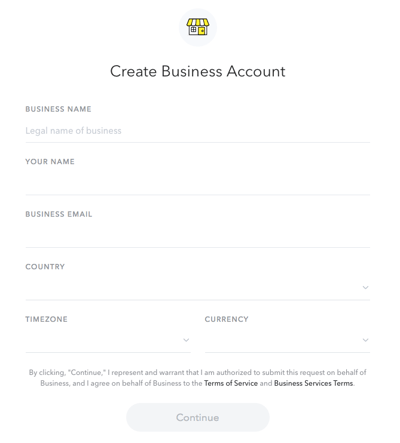
As shown above, this registration form is where you can enter your business’s name, your name, your business email, the company’s location, and its main currency (e.g. dollars, pounds, etc). Press “Continue” at the bottom and follow the prompts to tether your Business account to your personal Snapchat account and officially launch your page.
3. Create a plan for measurement.
Here’s the truth: Talk to any social media manager and they’ll tell you Snapchat analytics are a pain in the rear. At the end of the day, you’re limited to views ( ), screenshots (
  ), and replies. That’s it.
You can’t even get a total follower count: Snapchat replaces what would be your follower count with a score that reflects the sum of the messages you send and receive.
All this aside, you can use context to put things into perspective. Here are a few tips we’ve picked up along the way to help us better understand our Snapchat performance:
- Looking at your retention rate (what percentage of people watch each frame of your story) will allow you to compare stories to each other. Which are performing better? We’ve learned there’s a sweet spot around 90 seconds — any longer than that, and people start to lose steam.
- Looking at the percentage of people that dropped off after the second Snap will help you gauge general interest. If 30% of our audience dropped off after the second Snap, we probably missed the mark.
- Reviewing qualitative feedback can help you better understand your success. If people are sending you chats telling you they love your latest post, you’re probably on the right track.
Another tricky part about Snapchat analytics? In order to accurately collect numbers, you need to log in and write them down or screenshot them exactly 24 hours after you took the first Snap. Otherwise, they disappear forever. (We learned this the hard way. A few times.) You can find your views & engagements on the “Stories” screen.
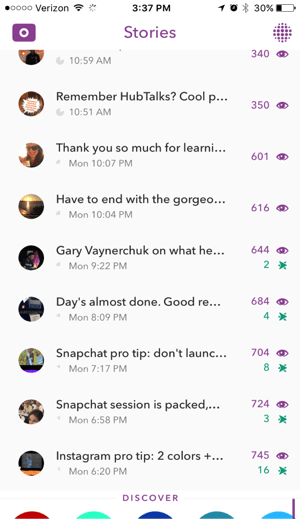
At HubSpot, we record the following information on each Story:
- Story Title: What are you calling this Story?
- Number of Snaps: How many individual Snaps are in your Story?
- Length of Story: How long is your Story from start to finish?
- Views on first Snap
- Views on last Snap
- Retention rate: What percentage of people who start your Story view through the end?
- Engagements: How many people screenshot a Snap and send a direct message in reply?
4. Source content and ideas from your team.
Finding the time to come up with creative, engaging content ideas for Snapchat can be a big challenge — especially if you’re the only person on the job.
To combat this, we turned to our collective team to gain perspective and source ideas. This is an especially interesting tip if you work at a company with global offices, as it can help you piece together interesting stories from all over the world.
Here’s how we approached this outreach:
- First, we sent out a company-wide email asking for anyone who wanted to be featured on Snapchat. This gave us a massive list of people who were interested in being on camera or creating Stories themselves.
- We then created an internal Slack channel for all those who were interested. We used this platform to ask for volunteers for specific shoots and to source general ideas.
If you’re struggling to gain internal support, you might want to consider explaining how certain teams could benefit from getting involved with the company Snapchat account. For example, our social media team is working closely with the culture team to highlight our company culture. By creating stories that showcase what life is like at HubSpot, they can get the word out about our culture, while also helping us lighten our daily content load.
5. Focus on variety.
If you want to maintain an engaged audience, it’s important that you commit to consistently posting great Snapchat content. What makes a Snap or Story great? For starters: Variety. Snapchat users like to consume stories and information in different formats, and the app provides a lot of room for creative application.
For example, here are a few ideas and formats we’re currently testing:
- Video vs. stills
- Graphics/drawing/emojis
- Selfie cam style video vs. point and shoot
- Sound vs. no sound
By testing different types of content, we can start setting up some best practices that we can share across the company. Here are some early findings:
- Short videos rule. Our highest performing videos are all under 60 seconds long.
- Pay attention to timing. Things like newsjacks or live coverage of major company events tends to perform well.
- Cast a wider net. We’ve incorporated content from our Sydney and Dublin offices, which helps us build out a global perspective. This initiative has been really well received by our Snapchat audience.
Looking for inspiration? Check out what 10 of the best brands on Snapchat are doing to engage their audience.
6. Look for creative ways to build your audience.
On most social networks, it’s easy to browse around and find stuff that might be interesting to you. For example, on Instagram you might search for a particular hashtag or look for photos tagged with a specific location. Snapchat, however, does not make “discoverability” easy. And as a result, building an audience requires you to get a little creative.
When we launched HubSpot’s Snapchat account, we leveraged other company channels — blog posts, social media, etc. — to attract followers. As a result, we got some momentum going. Trouble is, keeping that growth moving has proved to be a challenge.
To avoid stalling out once the initial excitement has faded, we recommend developing a long-term promotional plan to keep your audience up-to-date on what’s to come.
Some more tips for increasing your reach:
- Leverage partners or influencers. Invite others to be featured on your account, and ask them to spread the word to their network.
- Newsjack. We’ve done a few “HubSpot Hot Takes,” which is essentially our version of a quick reaction to industry news. This has gotten our account mentioned by people on other social platforms, which helps spread the word.
- Join the conversation. Find an opportunity to get involved in a relevant event and leverage that audience. We recently did a takeover from Social Media Marketing World, highlighting some speakers, sessions, and key learnings from the conference. In 2016, we posted about the takeover using the #SMMW16 hashtag and saw a noticeable spike in followers that day.
7. Don’t get too caught up with perfection.
This one is hard for many content creators to stomach: We like to edit, adjust, tweak until the last second. But if you’re doing Snapchat right, it’s not gonna be perfect.
Stories should feel quick, off the cuff, and not overly produced. In fact, one of our highest performing stories was just a quick video of me sitting in a chair reacting to a Facebook platform announcement in real time. I saw the press release, ran to an empty room, and fired off a few quick snaps explaining the change. That’s it.
Keep in mind that the photos won’t be professional-grade … and they don’t have to be. Your focus should be on finding a way to create authentic, compelling moments and stories, so try not to overthink it.

KPI Dashboards & How to Use Them in Your Marketing
The life of a business leader is all about juggling your priorities — and a big part of keeping everything moving is making sure that existing initiatives are on-track, while creating space for smart new strategies.
Fortunately, there’s a tool to help you succeed: KPI dashboards. KPI dashboards can help you check-in with various aspects of your business and make sure everything’s running smoothly.
Every department from sales to operations needs a dashboard, and dashboards are especially helpful when it comes to marketing. Between about a dozen online channels to consider (plus offline marketing efforts), there are countless elements that go into creating and sustaining a healthy marketing ecosystem.
A KPI dashboard helps marketers and business executives identify what’s going on with the elements of their marketing strategy that matter most, where to make changes if things start to go awry, and how to identify opportunities for new initiatives that can spur even greater success.
Getting your dashboard right takes time, but the pay-off is immense. Executives who successfully implement an effective dashboard can get better results and create a more rewarding, enjoyable work atmosphere in which the team has more room for creativity and experimentation.
Let’s take a closer look at what KPI dashboards are and what they can do to help your marketing team succeed in 2020 and beyond.
The KPIs you choose should be related to your strategy and include a mix of forward-looking and backward-looking variables.
While it’s tempting to cram every metric you can think of into these reports, that’s a big mistake. When you’re confronted with a mountain of data, it’s nearly impossible to give the most important numbers the level of scrutiny they deserve.
For that reason, the best dashboards include only five to nine KPIs. These should, after all, be your key performance indicators behind your business playbook.
If you’re not sure which data points to focus on, think of it this way: what handful of things could totally tank your business if they went south? Framing it that way can help you sort the vanity metrics, like the number of monthly social media impressions, from the things that matter, like cost-per-acquisition.
Here are a few examples of KPI dashboards in action. Notice that they’ve honed in on only the most critical metrics and are displaying the information in clear, concise, easy-to-digest visual formats.
1. Subscription Model Dashboard
Subscription-based businesses are cropping up all over the place. From razors to clothes to meal prep kits, just about anything you could want or need in your daily life can be delivered to your doorstep on a regular basis.
The subscription model is great because it guarantees businesses recurring revenue — a subscriber locks into your service for a set period of time, meaning regular monthly income for the term of service.
This leadership team has chosen to focus on metrics that give them a sense of how well they’re doing at attracting new attention (monthly unique visitors and free trial sign-ups), how well they’re doing at converting those newly interested parties (free trial pay-up rate), and how well they’re doing at growing their membership and retaining existing members (paying members and purchases).
The dashboard is only looking at six metrics, but from that handful of data points, leadership can easily identify any potential issues before they become mission-critical.
Say, for example, the leadership team noticed a drop the following month in paid members. That would go against the trend for the first three months of the year, where they experienced month-over-month growth. From there, they could start digging deeper. Are new member sign-ups dropping, or are retention numbers slipping? If retention is the issue, what changes could they make to entice more of their existing customers to renew their membership?
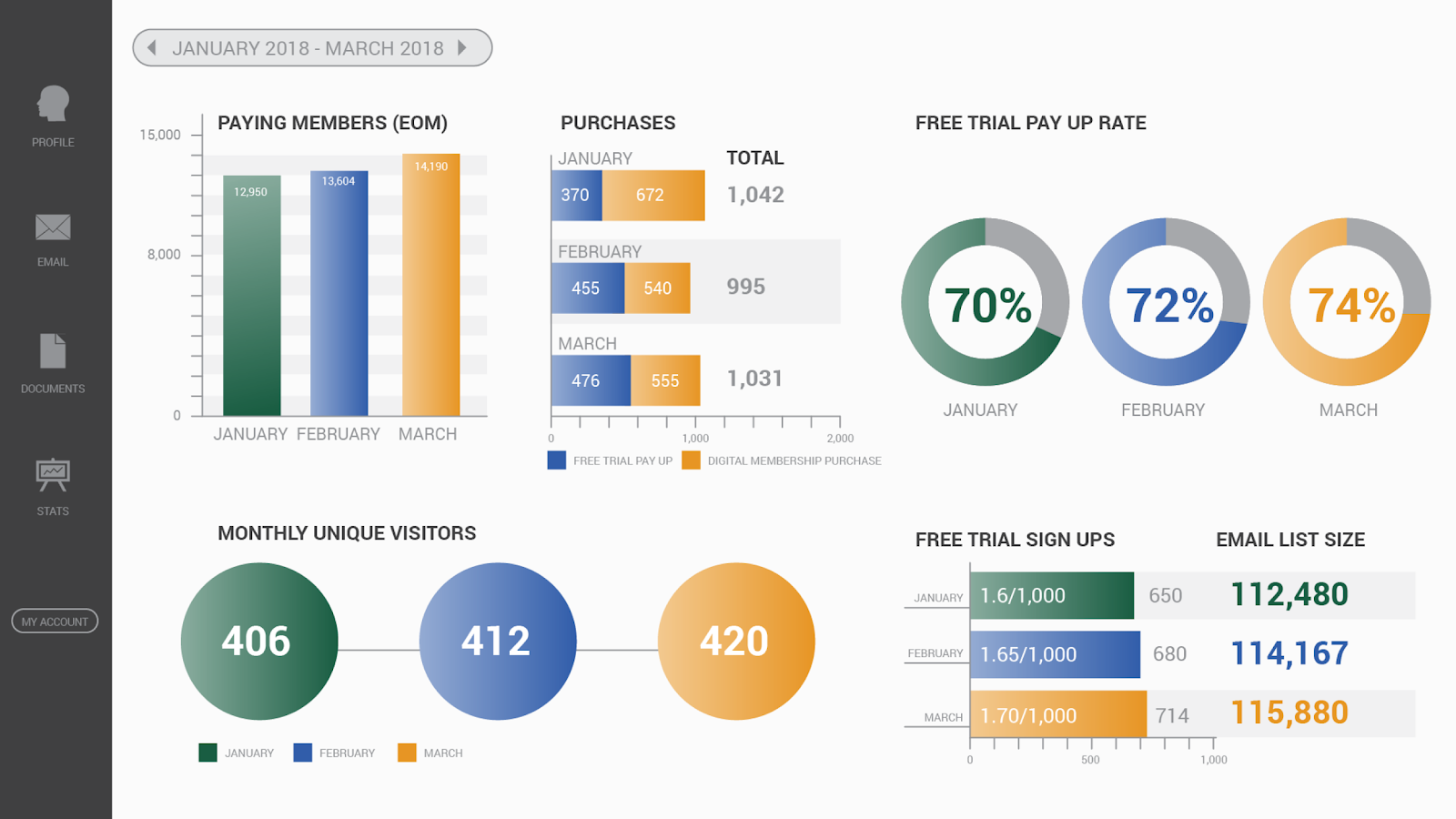
2. Large Ticket Item Dashboard
This dashboard from DataPine is the kind that could be useful to a marketing team in just about any industry that has a high price point — and, therefore, a high customer acquisition cost. Their focus is on nine of the biggest metrics that give them insight into how successful their strategy is.
Rather than focusing on granular numbers, like Twitter followers gained or number of likes on each piece of content shared on Facebook, they’re measuring numbers that are linked directly to their budget and that tie in with the sales team’s efforts.
Understanding acquisition numbers and cost-per-acquisition provides insight that’s valuable far beyond the reaches of the marketing department. Issues with poor cost-per-acquisition can be indicative of a need to cut ad spend, but they might also be hinting at a need to change the pricing structure for your offerings. Or they might mean that the sales team needs to shorten lead time in order to increase the number of acquisitions per month.
No matter what is ultimately identified as the source of the problem, having a dashboard empowers all of your teams to have informed, collaborative discussions about challenges facing your business that are backed up by actual data and numbers.
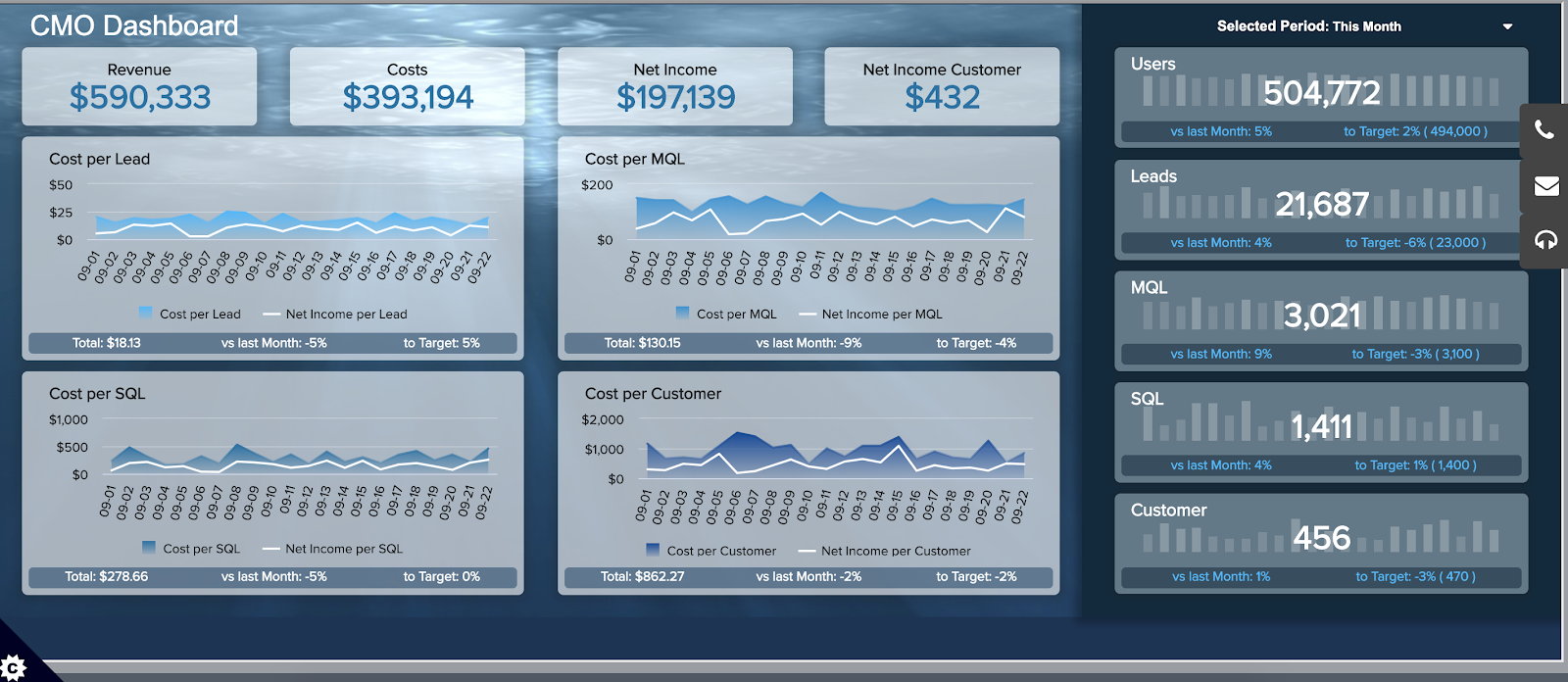
3. Deals Closed Dashboard
Epec Engineered Technologies uses HubSpot’s reporting features to create a sleek KPI dashboard with all the most critical information, including “Form to MQL” and “First Page Seen”.
This is an undeniably useful KPI dashboard to see whether your marketing strategy is on-target with your goals. The “First Page Seen” section shows you which pages your visitors initially interact with — if that page hasn’t been updated in a while, consider optimizing it for higher conversions.
Additionally, the “Marketing qualified lead” vs. “Sales qualified lead” categories, shown in chart-form under “RFQ to MQL”, will help you tailor your strategy and determine which leads convert at the highest percentage, and what you might do to even out any disparities.
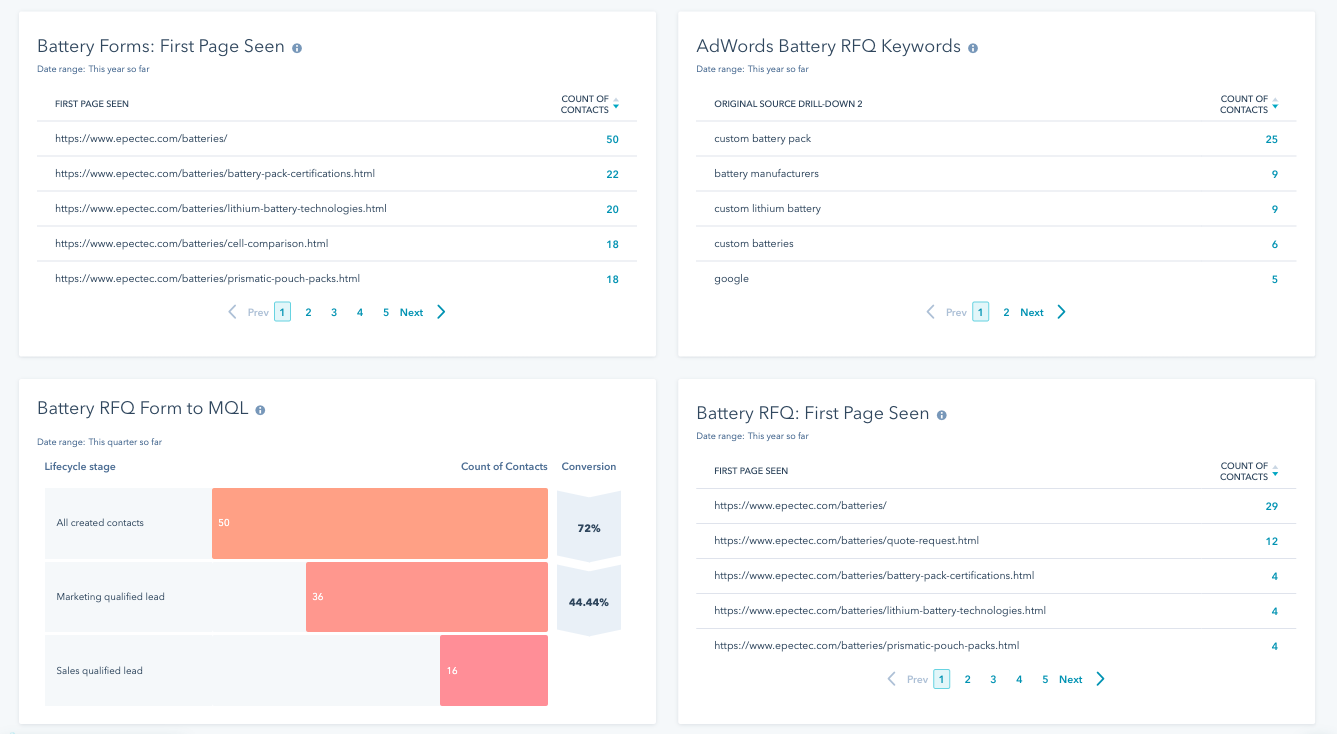
4. Marketing Leads Template
This dashboard made by Geek Dashboard is a fantastic example of how your marketing team can use a KPI dashboard to measure your team’s performance, particularly through leads and conversions.
It’s clear and concise, focusing on the major factors that matter for marketing — leads, and percent of conversions compared to goal. Additionally, the visuals help your team stay focused on the most important aspects of your strategy to ensure you’re on-track to hit your monthly or yearly goals.
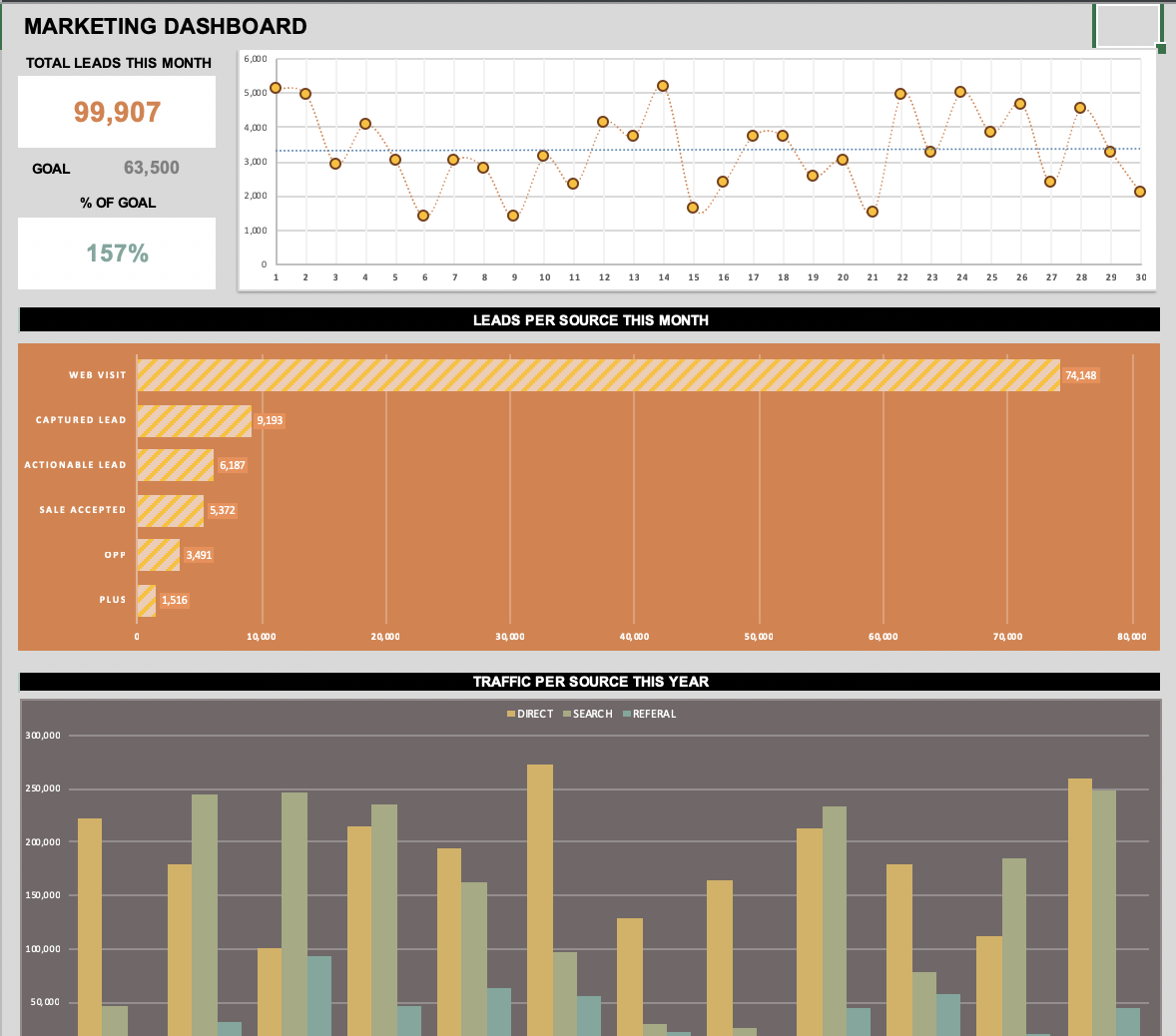
KPI Dashboard Excel Templates
If you’re ready to start creating your own KPI dashboard, the good news is that there are tons of resources out there to help you get it done.
1. Smartsheet
Smartsheet provides Excel templates for a variety of marketing dashboards. Whether you’re looking for a broad template for tracking big KPIs, to more specific templates for social media marketing, Smartsheet has you covered. Best of all, the templates are free to download on their website.
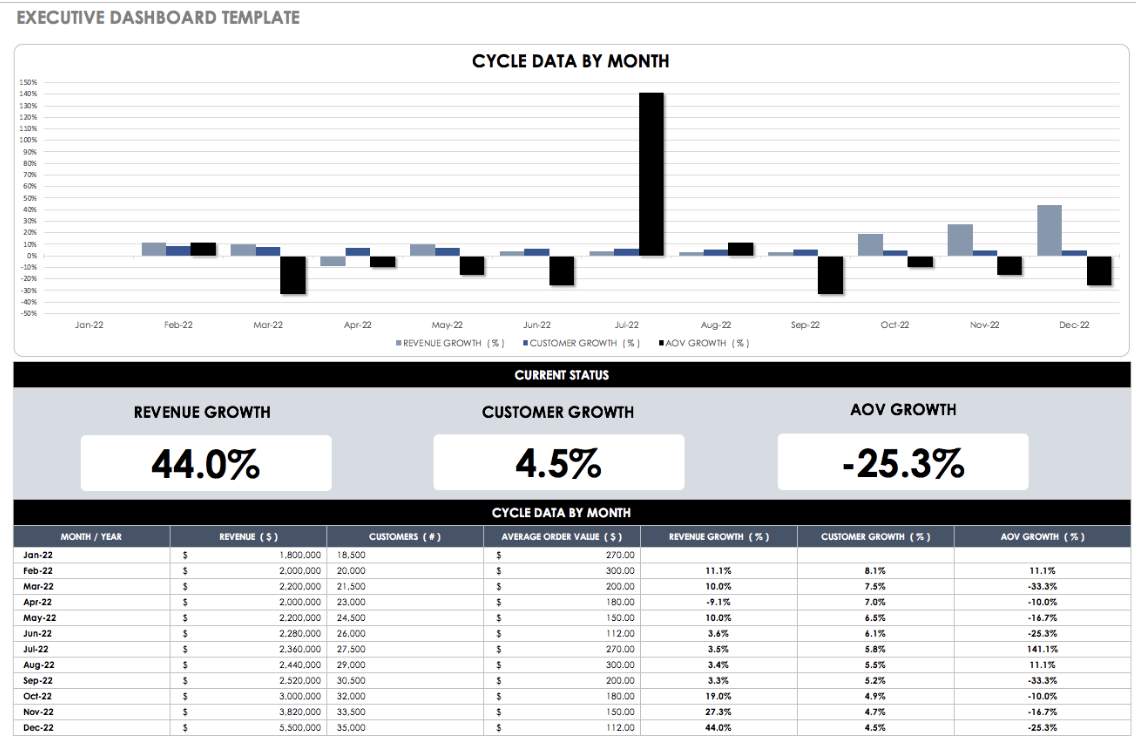
2. Eloquens
Eloquens offers a marketing dashboard template with metrics that they’ve broken down into seven major categories. These categories include sales effectiveness, customer metrics, and budget metrics, and each category has a number of KPIs that you can choose to track.
3. HubSpot
HubSpot offers dashboard templates that integrate with Excel, Google Drive, and PowerPoint, so you can easily track those all-important metrics within the program that works best for you and your team.
I Created a Dashboard, Now What?
Once you’ve gotten your first marketing dashboard up and running, the real fun begins! Start pulling the numbers on a regular basis — weekly or monthly, depending on how quickly things move in your business. Review it regularly and start to look for patterns.
When a number crops up that surprises you, it’s time to examine the cause. Having all of your marketing information displayed in this simple dashboard makes it easier to identify the source of the potential issue, and get feedback from the most relevant parties about what could be behind the startling data point.
Once you think you’ve identified the source of the change, it’s time to do some experimenting. If you missed your goal, try a new approach. If your numbers exceeded expectations, tweak things to lean into whichever existing strategies are most responsible for the high numbers.
Make changes slowly, so that you’re able to see how every shift in approach influences your results. Additionally, keep tracking those KPIs on a regular basis so that you can understand the effects of each new tactic.
No matter what, you want to keep returning to your dashboard. This document should become your North Star, guiding your shifts in strategy and providing you with the information you need to understand which strategies drive the best results.

Video Marketing Strategy: The Power of Video During the Customer Journey
Want to use video marketing more effectively? Looking for a proven video strategy? To explore how to develop an effective video marketing strategy, I interview Ben Amos on the Social Media Marketing Podcast. Ben is a video marketing expert and host of the Engage Video Marketing Podcast. He coaches video marketers and video producers and […]
The post Video Marketing Strategy: The Power of Video During the Customer Journey appeared first on Social Media Marketing | Social Media Examiner.
from Social Media Marketing | Social Media Examiner https://ift.tt/2LJunty
via socialmediaexaminer
What Are SOPs & How Do You Write Good Ones?
Imagine this: You’re a project manager at a boutique marketing firm tasked with training the new PM and getting them up to speed on how to do their job to meet expectations. To fulfill this request, you probably had to learn a series of actions already set in place. That series of actions is called a standard operating procedure (SOP), and they help to routinize job functions.
A good SOP is clearly worded and easy to read. Well-written SOPs have steps that are short and simple and are usually presented in a flow chart or clearly labeled document.
 Image Source: Process.it
If you’ve never written an SOP before, take a look at how to write a great one.
1. Create a list of processes
To begin, come up with an in-depth list of functions employees perform for their jobs that need SOPs. Some departments that could benefit from SOPs include finance, legal, HR, customer service, and IT. Think about those jobs that have a strict protocol; where not missing one step is vital.
For example, a new public relations professional would need to know the processes of writing press releases and securing press for their company. This is a great reason for creating an SOP.
2. Format your process
You can get creative with how you present SOPs. As long as they are easy to understand, there are no bounds to how a workflow can be created. The most widely seen SOP formats include: Step-by-step documents, workflow diagrams, organizational charts, detailed instructions, and checklists.
What kind of format would the public relations professional best receive their SOP? Most likely a workflow diagram. This would allow them to see why they must complete one step in order to get to the next. From writing the headline at the top to including correct hyperlinks, every step would be clearly notated.
3. Communicate
Make sure the process you write is accurate. Talk to the employees who will be using it every day. Ask for their feedback and advice. If they can provide useful edits or tips that would make the SOP easier to understand, include them.
For example, a reliable source for an SOP on how to write a solid press release would likely be a senior publicist or manager at the company
3. Write
Write the SOP by using the method that works best for your situation. Think about who you’re writing the SOP for and how the information will best be presented. This is also a good time to figure out who will be responsible for updating the SOP as needed.
A public relations professional would most likely benefit from an SOP about how to write press releases that give specific directions about format. For example, “Paragraph one must be 50-60 words introducing the album, the band, and their concept for the record cycle,” and “Paragraph two must be 30-40 words and include short descriptions of 2-3 songs.”
4. Implementation
SOPs should be updated at least once a year after implementation. They should always reflect the needs of the organization at that time. Maintaining them is important so employees always have the most up-to-date information about what’s expected from their day-to-day.
SOPs aren’t the quickest or shortest guides to write. But they can become a time-consuming project. Software can help speed up the writing process, and we’ve rounded up a couple of superstars:
(was a little unsure about the formatting for the list)
1. Trello
Price: Free, $10 a month for Business Class Subscription, $20.83 per 100 users per month
Trello is a scheduling tool that allows its users to see their collaboration using “cards,” that are like virtual sticky notes for each board. Trello can be used for organization; from editorial calendars to SOPs.
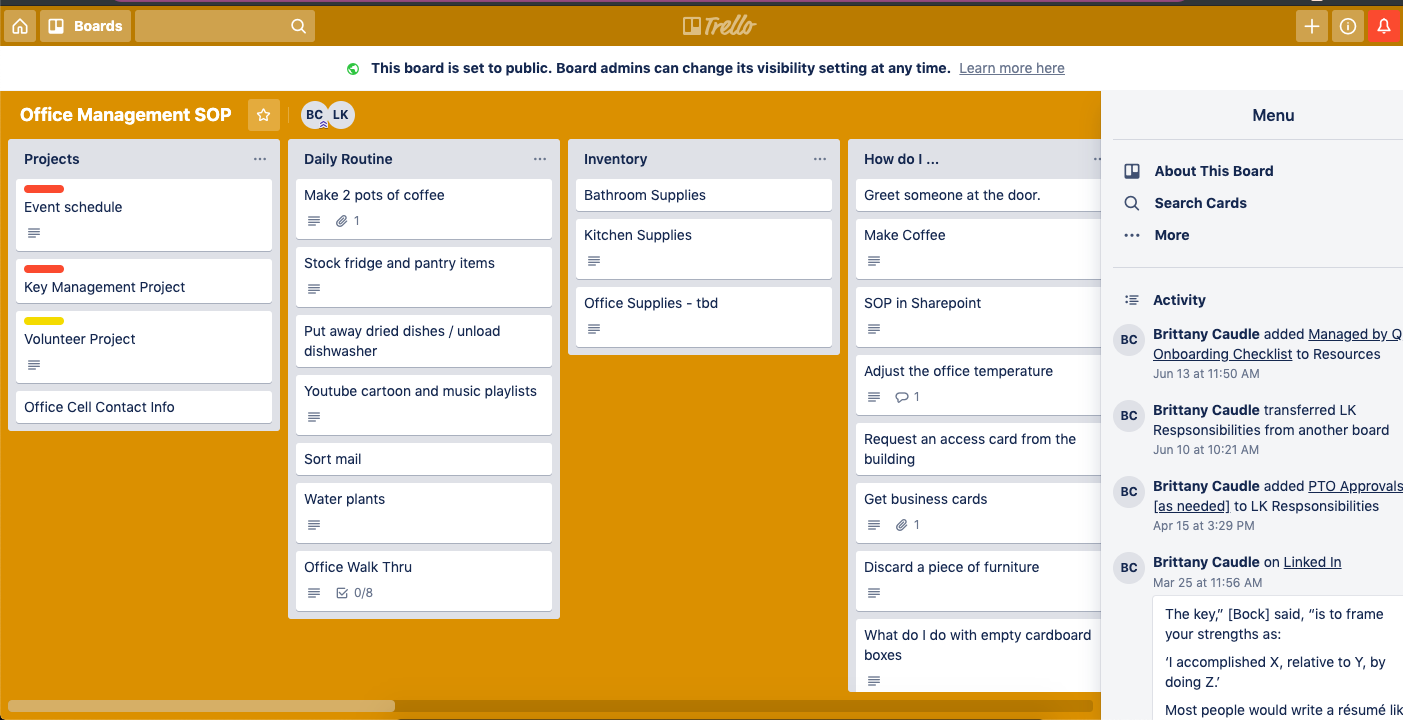 Image Source: Trello
We like Trello for its ease of having all documents in one place. If you scroll through this Office Management board, you can see a list of responsibilities for certain employees.
2. HubSpot workflows
Price: Included with Marketing, Service, and Sales Service Hubs with Professional and Enterprise subscriptions.
HubSpot’s CRM includes the workflows tool, which allows users to use marketing automation technology within their business. Workflows turn actions and/or commands into customizable flow charts.
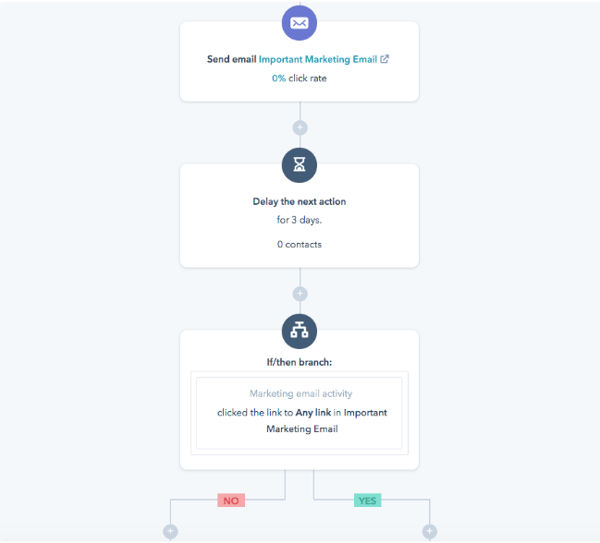 Image Source: HubSpot
We like the workflows tool for SOPs because it has the option to write out lists into a visual chart.
3. Evernote
Price: Free plan, then $7.99 per month for Evernote Premium, and $14.99 for Evernote Business.
Evernote is a popular note-taking app that lets you do a lot more than take organized notes. It offers numerous organization, collaboration, and administration functions. The app also has a number of templates, including one for SOPs.
 Image Source: Evernote
We like Evernote because of the compatibility with different operating systems and organization capability.
4. Pipefy
Price: Free plan, then $9 per month for Professional Plan, $18 per month for Business Plan, and contact-based for Enterprise Plan
Pipefy offers resources and tools for process management. Choose from an assortment of templates (seriously, there are so many), most of which are offered for free. There are a number of SOP templates that specify your organization’s needs, such as “Team Member Onboarding.”
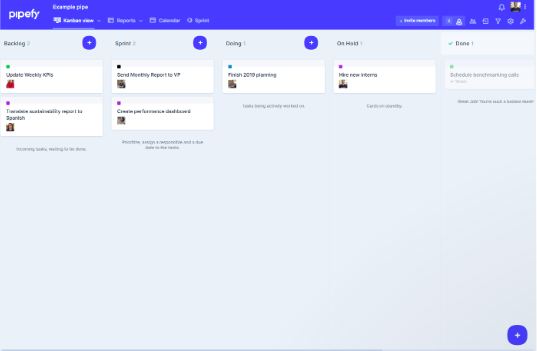 Image Source: Pipefy
We love Pipefy because of its abundance of templates available and easy-to-understand template titles.
5. SweetProcess
Price: 14-day free trial, then $82.50 per month for a team of 20 members, plus $4.17 for each additional user.
SOP writing is SweetProcess’ main jam. Their tagline is, “Who said writing SOPs have to be painful?” so you can guarantee an easy-to-follow experience.
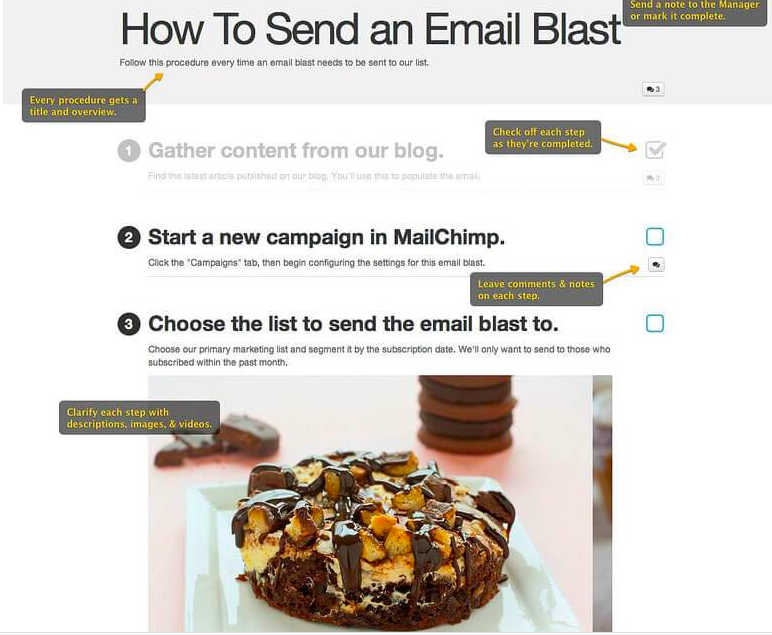 Image Source: SweetProcess
For more free inspiration, check out HubSpot’s section of easy-to-use templates.
