
Welcome to My Blog
The Ultimate List of Marketing Tips
Googling “marketing tips” is like looking up a #MondayMotivation quote to post on Instagram … there are so many, and they all think they’re the very best.
If you think about it, though, finding the “best” marketing tip is relative — to your audience, resources, and marketing goals. What works for one business might not work for another. The same thing goes for #MondayMotivation quotes … and that’s why there are so many to choose from. We’re all different, and we’re all motivated by different things. And that’s a good thing.
But, how do you, as a marketer, consolidate those differences and find a new practice or process that works for you, your audience, and your product or service? Well, you experiment. You try new things. You learn from the experts and those who’ve come before us.
That’s why we’ve compiled this “ultimate list.”
We reached out to a bunch of INBOUND18 breakout speakers and asked them to share their very best marketing tip. Some responses have to do with their personal work, others are relevant to the company of which they’re apart, and a few are just really cool and new perspectives on tried and true marketing practices.
The best part about this list? It’s diverse — in terms of the answers and the people who gave them. There’s lots of great stuff in the responses below, so take your time combing through and take a few notes along the way. You never know what you’ll learn from your peers in the field.
The Ultimate List of Marketing Tips (From Marketers Just Like You)
On prioritizing your target audience …
“The best way to make sure things resonate is to put the audience at the center. The things we want to tell our audience, and the way we want to reach them, may not be the same as the things they need to know and the way they want to be reached. If we start with our audience’s needs, preferences and questions first, and build our marketing plans around that, we’ll likely be met with much greater success and we’ll see better results!”
— Melanie Deziel, Keynote Speaker and Founder of StoryFuel
On personal branding on LinkedIn …
“Stop writing in the third person when it comes to your (or your business’s) LinkedIn summary. Your summary is not a boring bio; it’s your introduction to the person viewing your profile, it’s a handshake. Make it warm, personal, and don’t be afraid to sprinkle your personality into it. It’s your first impression — make it a lasting one!”
— Michaela Alexis, Espresso-Fueled Expert on LinkedIn Personal Branding, Michaela Alexis
On the value of customer trust …
“I define sales as a meaningful transaction between two human beings, so before asking for anything, a customer’s trust must be earned. Brands need to build narratives that align with their organization’s values and then communicate those values to their customers. This leads to increased trust which then translates to brand advocates. Look at the passion of Beyoncé fans or Harley Davidson riders — those brands have created an identity that makes people feel like they’ve added value.”
— Amanda Slavin, CEO & Founder of CatalystCreativ
On creating memorable marketing messages …
“Lots of marketers aspire to create memorable messages. Making something distinct increases the likelihood that it will be better remembered. If you have cereal in your kitchen on most mornings, pizza served in bed will be distinct. To create distinct, memorable messages, first detect pockets of similarity in your industry. You need some similarity in order for the brain to detect distinctiveness. Second, ensure that your distinct message fits within known mental models and then play off of them. Returning to the breakfast example, “having a snake for breakfast” would be too provocative and wouldn’t fit within existing mental models. Change the question of “How do I create a distinct message?” to “How do I twist an existing mental model?” to increase the chances of becoming memorable.”
— Carmen Simon, Cognitive Neuroscientist, Author, and Founder of Memzy
On using events to set your business apart …
“In 2019, businesses will utilize event strategies more than ever before as human experiences will be how companies choose to differentiate themselves, especially those that can’t do so through technologies. The key to any great event strategy is very simple — identify the memory you want attendees to walk away with and work backwards. “
— Kenny Nguyen, CEO of ThreeSixtyEight
On creating a dual content strategy …
“All content consumption is driven by two things: active search and passive discovery. Search takes place on channels like Google, YouTube, and voice. Discovery is driven by word-of-mouth, social algorithms, and media coverage. Consider splitting your content strategy into two — developing one strategy that optimizes for all search algorithms (not just Google) and one geared toward social algorithms and influence-driven channels. Youtube is a fascinating channel in that it is both the world’s second biggest search engine and a leader in passive discovery-mode viewing. When tackling YouTube, consider crafting your content to solve for one of those roles. Create highly findable, how-to content for your area of expertise or a truly engaging editorial series of videos, perhaps on two separate channels.”
— Meghan Anderson, VP of Marketing at HubSpot
On investing in paid social …
“Everything has gone paid on social media. Gone are the days of brands organically growing audiences. Facebook and Google want your money, so give it to them. Never before has data and targeting been so deep and effective. Brands that nail paid social take control of their future.”
— Travis Chambers, Chief Media Hacker and Founder of Chamber Media
On customer experience before the purchase …
“In 2019, customer experience initiatives will become inseparable from marketing strategy. Today’s customer wants a consistent, multichannel experience with a brand, and as marketers, we have to make sure we’re meeting customers where they are. By making valuable connections throughout the buyer’s journey, we build a positive long-term relationship. Customer experience is no longer something that happens after the sale: it’s an integral part of the buyer’s journey.”
— Patrika Alis, Customer Experience Marketing Manager at Hanzo
On the importance of consistency …
“SELF is a nearly 40-year-old brand competing in the buzzy and crowded health and wellness space. In order to stand out, we had to lean in to what really makes us special. That meant clearly honing our mission and values: We help people make the best choices for their personal health and wellbeing. And we do that by adhering to the values of inclusivity, accuracy, empathy, and autonomy. From there, it’s all about making sure that everything we do ladders up to that greater vision. That consistency is key to our success.”
— Carolyn Kylstra, Editor in Chief at SELF
On repurposing content …
“As both content marketing as a standard practice and your own content marketing program mature, it becomes more and more detrimental to ignore your old content. Having tons of old, outdated, and unoptimized content on your site is like forgetting to untag the most embarrassing pictures from college on your Facebook profile. Even though may not think about them anymore, they’re still there, and people can find them and use them in creating their first impression of you. The more content you have, the more time you need to be spending monitoring, updating, and repurposing old content instead of creating new stuff.”
— Brittany Berger, B2B Content Marketing Strategist at BrittanyBerger.com
On using data to connect the dots …
“Identifying, precipitating and connecting metrics that have a real business impact are arguably the most important things a data-driven marketer can do. It’s critical to step back and ask, “Are we closing the loop between marketing activities and actual sales data?” What further separates the great marketers from the good ones is the ability to connect the dots in time to maximize customer impact. If you take too long to apply what your data is telling you, your customer will likely move on to a competitor. As marketers, we’re lucky to be swimming in a sea of data and technology solutions, but make sure that your technology solutions allow you to quickly link your marketing efforts with results you can take to the bank!”
— Sahil Jain, Co-founder & CEO of Adstage
On building a story around your product …
“As a product marketer, stories have become a crucial part of my day-to-day. Twenty years ago, a company could launch a product with simple messaging, and advertising. Over time, buyers have been exposed to so many messages they now filter out overly promotional ones. So, as you consider launching a new product, or an update to an existing product think about these two tips. First, it’s not about your company. Your team built that product for a reason that matters to consumers, so ensure your messaging is squarely focused on them. Second, look at changes happening in the broader world. Tie your product message into a story with that overall narrative and show them how they can lean-in to that change to find success. It’s a formula we’ve used at HubSpot, and our team continues to use for product launches.”
— Jeffery Vocell, Senior Product Marketing Manager at HubSpot
On how to properly analyze events …
“Treat your live event portfolio just like you would any other marketing channel, rather than just something you manage for your sales team. Events need to be assessed with hard metrics, rather than just ‘gut-feel’ opinions and feedback forms to rate the coffee. Measure attendee engagement, rather than simply counting who registered and who showed up, as this is a great proxy for the effectiveness of the event. Finally, integrate this data into your CRM, so marketing is driving event follow up (and keeping those sales teams happy at the same time!)”
— Mike Piddock, Founder of Glisser
On telling visual brand stories …
“Attention is at the heart of marketing — getting it and keeping it. Arresting, powerful visuals are your key to capturing people’s attention, and storytelling is going to keep and help you turn that attention into something you can use. There isn’t a brand flourishing now without beautiful visual language and a compelling story. Google, Apple, Dropbox, Slack, Nike … you name it. As for Prezi, we wouldn’t even exist without both of these factors being absolutely vital in any brand’s success.”
— David Hooker, Head of Creative Services and Evangelism at Prezi
Over to You
Did you learn something new from our ultimate list? How about a new perspective on an old methodology? We compiled such a diverse list in hopes of providing a piece of advice for everyone. Now, go forth and use these marketing tips to grow your business in 2019 and beyond.

Do Image Carousels Kill Conversions?
There’s a common misconception about attention that most marketers love to reference nowadays: the average human has a shorter attention span than the average goldfish. But if you really think about this claim, it can’t possibly be true. People watch two and half hour long movies and binge entire seasons of TV shows every day. If the human attention span is shorter than eight seconds, the Marvel Cinematic Universe wouldn’t exist and Netflix would be out of business.
However, in regard to dwindling human attention, there is something that’s actually shrinking: our ability to concentrate on given tasks. With all the dopamine hits that social media, email, and Slack notifications provide, we crave instant gratification more than ever before. And as our world becomes more digitally connected, these distractions will only worsen, ravaging our ability to concentrate.
In the conversion rate optimization community, image carousels, which are auto-rotating banners that sit above the fold on a website’s homepage, are a controversial topic because of our withering capacity to focus. Oftentimes, they distract users from the task at hand since their movement continuously draws attention — and this could plummet your website’s conversion rate.
So in an age where people’s ability to concentrate is lower than ever before, why do brands still use image carousels despite their potential to distract visitors? Well, according to Rebecca Hinton, a Website CRO Strategist and Copywriter at HubSpot, brands sometimes implement image carousels on their website because they can’t agree on a hero image, which is the single, featured image on a website’s homepage.
“Image carousels can result from stakeholders disagreeing on what they should feature in the hero image,” she says. “For example, a stakeholder who has to achieve a certain goal will argue to feature their specific slide as the hero image while another stakeholder will argues for hers. As a result, they’ll split the difference by including both slides in a carousel.”
If your website’s image carousel resulted from this exact predicament, it can feel frustrating. However, there’s no need to fret. You might need keep an image carousel on your website, but there are still plenty of ways you can optimize the space for maximum impact.
“If you have an auto-rotating carousel on your website, my advice is to turn off the auto-rotation. Once you do that, determine how you can optimize that space on your website. Generally speaking, leading with a single message is better than using a carousel, but you should always run tests before changing your website,” Hinton says. “I’d recommend running a series of A/B tests to answer the following questions: what’s the best carousel ordering? Could we replace the carousel with a single image? What copy, image, or CTA performs the best? Additionally, don’t forget about personalization. Consider how you could alter your carousel or hero image for different groups of people, like new users, returning users, different device types, regions, past purchasing behavior, etc.”
In our world, people crave instant gratification and get distracted more easily than ever before, so image carousels might not seem ideal for converting visitors on your website. But, sometimes, you need to keep an image carousel on your website because of a compromise between stakeholders. And the only way to prevent your conversion rate from plummeting is getting creative and A/B testing and personalizing your carousel.

How to Successfully Negotiate Your Salary (Script Included)
You’ve done it — after countless informational interviews, phone calls, and in-person interviews, you’ve finally landed your dream job.
But as you peruse the contract, you find yourself a little hesitant about what they’re willing to offer you.
You’re torn. You know you’re going to love this job. Shouldn’t you just accept their first offer?
Unfortunately, your inability to negotiate now won’t just affect the next year or two of your life — instead, it will create a snowball effect that could result in major losses down the road. In fact, you could lose anywhere from $1 million to $1.5 million over the course of your lifetime if you don’t negotiate early.
For instance, let’s say your employer offers you 55K for a role. You were hoping for 60K, particularly since you’re currently making 55K, but you accept. Then, after a year, your manager puts together a promotion package for you — with a 10% raise.
10% out of 55K is $5,500, but 10% out of 60K is $6,000. This means, year two, you could be making $60,500 or $66,000 — see why negotiating matters?
However, negotiation can feel awkward and intimidating, particularly if you’ve never done it before. Here, we’re going to explore the best way to negotiate a salary to ensure you receive what you deserve.
How to Negotiate Salary in Person or Over the Phone
It’s important to note, whether you need to negotiate your salary in person or over the phone, the following tips will be largely applicable to either situation.
However, if at all possible, avoid negotiating over email. Olivia Chin, a HubSpot Tech recruiter, told me, “I usually strongly prefer phone or in person over email/writing because there’s a benefit to on-the-fly adjustments and questions — it makes for a more fluid conversation.”
Take a look at the following five tips, as well as the sample script, to learn how to negotiate your salary.
1. Do your research ahead of time.
If you need to negotiate your salary in person, it’s critical you come to the meeting prepared with various business-related reasons you’re worth a certain amount. First, you’ll want to research the salary range for the type of role you’re offered.
Additionally, it’s critical you ensure you’re researching salary in the correct industry. A social media manager for a non-profit will have a different salary range than a social media manager at a major software company, so it’s important you focus on the salary range for roles in the correct industry.
Finally, it’s important you seriously weigh the worth of the skills and experiences you bring to the table.
For instance, let’s say you’ve received an offer letter for the social media manager role at a software company, which offers the same starting salary as your current role. However, in your current position, you’ve significantly exceeded expectations — rather than increasing the company’s Instagram traffic by 50%, you increased it by 125%. This is important information for proving you’re worth the additional investment to your new employer.
2. Come to the meeting with a collaborative attitude.
A negotiation is not an argument, or a chance to offer an ultimatum.
Instead, a negotiation is an opportunity to have a productive, collaborative conversation to reach a compensation package that feels fair to both you and your employer.
For this reason, come prepared with your non-negotiables, but remain flexible on the final result. For instance, perhaps you decide if the company can’t match your highest-range salary, you’ll accept additional vacation days or 100 more units of Restricted Stock allotment.
3. Come prepared with evidence based on research and market value.
When you arrive at the meeting, you should come prepared with notes on the research you’ve conducted — if you’re nervous, this can help you stay on-track. Additionally, you might forget numbers in the moment, so it’s important you have them written down.
You’ll want to make sure you know how much you can earn on the job market, and you want to convey to your employer that your data is grounded in reality. Begin the statement by saying, “Based on my research … ” so the employer knows you’re not just asking for a higher salary for the sake of it.
Additionally, include any information you might have regarding the value you’re providing your new employer. If you earned your last company an additional $50,000 through a new campaign you spearheaded, your new employer might see the necessity of offering you an additional 5% on top of your current offer.
4. Don’t say “I need” or “I want”. Say “I would be more comfortable with X. Is that number flexible at all?”
It’s a turn-off to employers if you begin the negotiation with a phrase like, “I need 5K more.” It’s critical you handle the conversation with tact. An employer will be much more open to the phrase, “I would be more comfortable with an additional 5K.”
To further demonstrate a level of empathy for your employer, add, “Is that number flexible at all?” This phrase provides the employer with an opportunity to tell you how much more they can offer, or alternative benefits they might increase, while maintaining a sense of collaboration, which is key.
5. Say “If you can offer X, then I’m on board.”
Your employer doesn’t want an endless negotiation, and neither do you. Using the phrase “then I’m on board” signifies to your employer that if they offer you something, you’re willing to accept the role, and negotiations can come to an end.
Of course, you want to be fair to your employer. If they tell you they can’t offer you 60K, you don’t want to say, “Offer me 60K, and then I’m on board.” Instead, you might say, “I understand the best you can do is $55,000. If you can do $55,000 and an extra week of paid vacation each year, then I’m on board.”
Here’s a full script to get you started:
Thank you so much for the offer. I’m very excited about this opportunity. Over the phone, you offered $50,000. Based on my research, I’ve seen the salary range for this type of role in the industry is typically between $55,000 and $65,000. Additionally, I feel I’m able to offer unique value to your company — in my prior position, I earned my company an additional $10,000 with a campaign I launched.
For these reasons, I would be more comfortable if we could settle on $60,000. I feel my qualifications and experience reflect this salary.
If you’re able to move the pay to $60,000, I’d be eager to accept.”
Remember — if you offer a range, you want to start at the higher end of the range, but you also should expect the employer to try to meet you more in-the-middle. In response to the script above, an employer might say, “Okay, how about $55,000?”
If they counter with a little less than what you’re asking for, you might respond with the following statement, based on an employee benefit or perk you feel is important to you:
“I understand the best you can do is $55,000. If you can do $55,000 and increase the Restricted Stock Unit allotment to 100 units, then I’m on board.”
Lastly, if you’re not sure whether you want to accept the offer, it’s acceptable to say — “Great. Do you mind if I take 24-hours to think it over?”
Regardless of how the conversation ends, it’s critical you thank your employer for taking the time to negotiate with you. This conveys a level of professionalism and shows the employer you respect them and their time — which is more likely to get you what you want, along with being the right thing to do.
Remember Your Worth — Regardless of Gender
In a study at The University of Texas, men and women were asked to negotiate a starting salary for themselves, and then for someone else. When women negotiated for themselves, they asked for an average $7,000 less than the men — but when they negotiated on behalf of someone else, they asked for the same amount of money as the men.
This concept is known as “communal orientation”. Essentially, women succeeded in negotiations when they felt it wasn’t about them — it was about helping someone else. Succeeding in negotiations, then, might be easier if you can reframe the very concept of negotiation.
For instance, perhaps it helps when you’re negotiating to consider how you are an asset to the company. If you focus on reminding the company how you’ll support the organization and help them, you can make the conversation feel less about you.
Oh, and one last thing — with job offers, 90% of employers have never, ever reneged because someone tried to negotiate. So what do you really have to lose?
How to negotiate salary
- Remember it’s common to make a counter-offer, so be prepared to do it. Know what you expect to receive before you even receive the offer letter.
- Do your best to avoid verbally committing to a set salary during interview conversations. Instead, if you’re asked directly, say you’re open based on the range.
- Research the salary range for similar roles in the industry. It’s critical you know how much your skills and experience are worth — this will help you answer the question, “Why do you deserve this salary?”
- Keep it professional. Don’t use personal financial needs like student loans as your reason for negotiating. Instead, use your resume to exemplify why you deserve a certain amount.
- You can negotiate more than salary — consider which employee benefits and perks might be negotiable, if salary isn’t.
- Take your time. It’s okay to ask for 24-hours to think it over.
Take a look at 6 Negotiation Strategies Every Marketer Should Know to further strengthen your negotiation skills.

4 Facebook Ad Techniques That Deliver Results
Want to improve your Facebook advertising results? Looking for successful examples you can model? In this article, you’ll discover four ways to generate clicks, leads, and conversions using Facebook ads. #1: Offer Free Content at Each Stage of the Sales Funnel People who aren’t familiar with your brand are unlikely to convert on your core […]
The post 4 Facebook Ad Techniques That Deliver Results appeared first on Social Media Marketing | Social Media Examiner.
from Social Media Marketing | Social Media Examiner https://ift.tt/2JaZlvE
via socialmediaexaminer
27 Instagram Hacks, Tips, & Features Everyone Should Know About
Instagram has become the favorite social network of many — and not just for teens and Millennials. In fact, according to the Pew Research Center, 35% of online adults use Instagram — up 3% from 2016. Compare that, for example, to 24% on Twitter.
Plus, folks don’t just use Instagram casually, as 38% of them use it several times each day.
But for those who have never used the platform before, or those who just want to take their usage to the next level, Instagram has some lesser-known tricks, settings, hacks, search options, and comment features you should know about. That’s why we set out to find them and list them all in one place.
Whether you’re a recruiter looking to showcase your company’s culture, a marketer in the ecommerce industry, or an individual who’s just looking to use Instagram in the best ways possible, there are tips and features here for you.
And for a quick overview of these hacks, check out this rundown from HubSpot Content Marketing Strategist Megan Conley.
Note: Before getting started, make sure you’re operating on the latest version of Instagram. At the time of publishing this guide, the latest version is 84.0 on iOS and 83.0 on Android. Please also note that although this article might demonstrate each tip below using an iPhone or Android device, all items on this list are available for both operating systems and can be enjoyed using the same step-by-step instructions.
27 Hidden Instagram Hacks, Tips, and Features
1. Get notifications when your favorite people post.
Never want to miss an Instagram post from your favorite influencers again? You can choose to get a notification every time a specific user posts a new photo. All you have to do is turn on notifications for each user individually.
To turn on these notifications, visit a user’s profile, click the three dots in the upper right-hand corner of the post, and choose “Turn on Post Notifications” from the menu that appears.
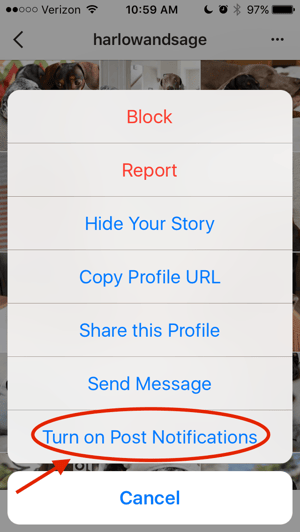
Want to turn post notifications off? Just follow the same steps. It’s important to note that you must enable notifications from the Instagram app in your phone’s settings — here’s how.
- To allow notifications on iPhone/iPad: Go to “Settings,” then “Notifications.” Choose “Instagram” and then turn on the setting to “Allow Notifications.”
- To allow notifications on Android: Go to “Settings,” then choose “Apps,” then “Instagram.” Select the option to show notifications.
2. Add special fonts to your bio.
Here’s an Instagram bio hack that can truly make your profile stand out. You can already add emojis to the bio beneath your profile photo, but your keyboard limits your creativity right there.
Using a couple of basic third-party websites, you can copy over some more special fonts not often found in the Instagram community. Here’s how.
To Add a Special Font to Your Bio via Mobile:
Add a new font to your Instagram bio via your mobile device using a website like LingoJam. Open the site on your phone, type your desired bio text in the lefthand text box, and you’ll see the same bio text in different typefaces appear on the right.
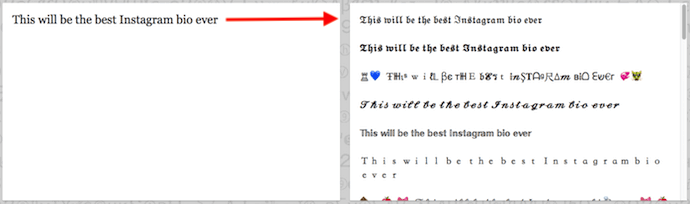
Carry your chosen font over to your Instagram bio by tapping it and selecting “Copy.” Then, open your Instagram app, navigate to your profile, select “Edit Profile,” tap the “Bio” section and paste your chosen font into the empty field.
To Add a Special Font to Your Bio on Desktop:
If you’re editing your Instagram profile on your laptop or desktop, Font Space has a library of fonts you can download and copy into your bio in seconds. To do so, Find a font you like and select “Download” beneath the font’s sample image, as shown below.
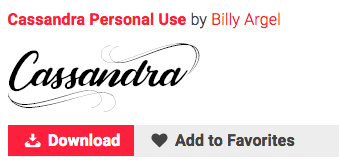
Downloading this font will open a folder on your desktop where you can pull a “.ttf” file that carries the various versions of this font. The file will look something like the screenshot below.
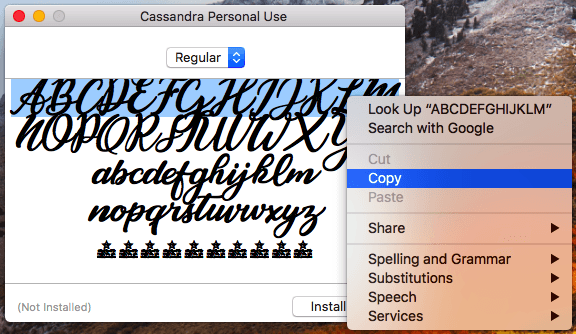
Once you have this font copied to your computer’s clipboard, open your internet browser and log onto Instagram.com. Select “Edit Profile” and paste your downloaded font into your bio field. You can then edit the sample text that came with your font to write your new bio as you see fit.
3. Add special characters to your bio.
Not only can you customize your bio with a special font, but you can also add atypical characters that distinguish you or your brand — but that you wouldn’t find on your smartphone’s normal keyboard. These include §, †, or even ™ if your Instagram name features a trademarked product name.
To Add Special Characters From Mobile
Using your mobile device, install a free mobile app like Character Pad, which catalogs nearly every character and symbol you might need but won’t find in the 26-letter English alphabet.
Open the app and find the character you want to add to your Instagram bio. In Character Pad, you’ll simply double-tap the picture of your chosen symbol to paste it into a text box, as shown below. Then, copy this character to your phone’s clipboard.
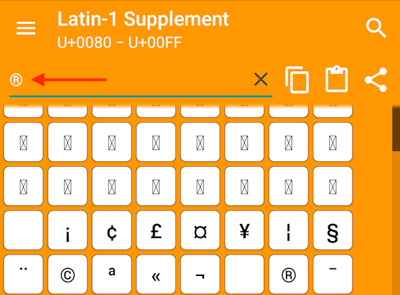
Once you have your symbol copied to your clipboard, open Instagram, navigate to your bio, and tap “Edit Profile.”

Hold down your finger on the field of your bio you want to insert your special character until “Paste” appears as an option, as shown below. Tap “Paste” and you’ll be all set.
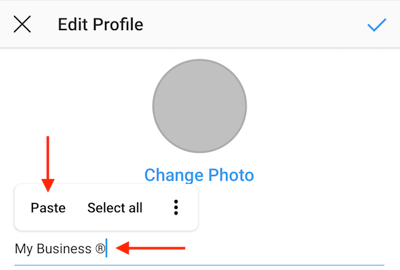
To Add Special Characters From a PC
You can also insert special characters and symbols through Instagram’s web client on a desktop or laptop computer. The easiest way is to use Microsoft Word’s “Symbol” insertion icon, as shown below.

Select your desired symbol or character and copy it to your computer’s clipboard. Then, navigate to Instagram.com and follow the steps above to paste your character into a particular part of your bio.
You might be tempted to simply Google search the special character you want, and at times it might work just as well as the steps above. But keep in mind not all special characters you copy from the internet are “clean” when you paste them into Instagram — some of them might become corrupted or not show up correctly.
4. Search Instagram users without an account.
As much as Instagram would like to see you ultimately create an account for yourself or your business, you can peruse the beautiful brands, people, and dogs that are waiting for you without an account to see if it’s worth signing up.
There are two ways to search for people on Instagram without logging in:
Entering a Username at the End of the Instagram URL
The first way to search users without an account is by using an Instagram username you already know, and adding it to the end of “www.instagram.com/.”
For example, if you were to start with our Instagram username — which is simply “HubSpot” — you can enter the following into your browser’s address bar: www.instagram.com/hubspot. This will bring you to our Instagram profile as well as the elusive search bar at the top of the page:
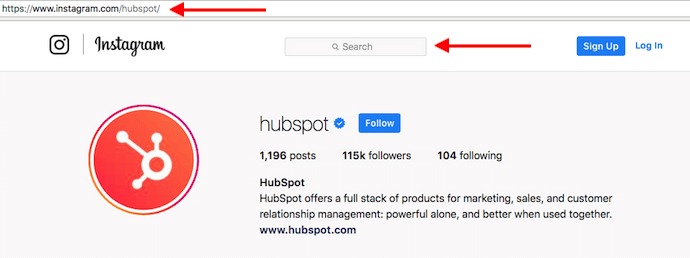
Once you’ve reached this page, you can use the search bar to the left of the “Sign Up” button to browse users who are already active on the platform.
Googling Them in an Instagram Site Search
A slightly “hackier” way of looking up users without an Instagram account of your own is to simply search their name in a Google site search. This means telling Google to only look up search terms on a website of your choice (in this case, Instagram).
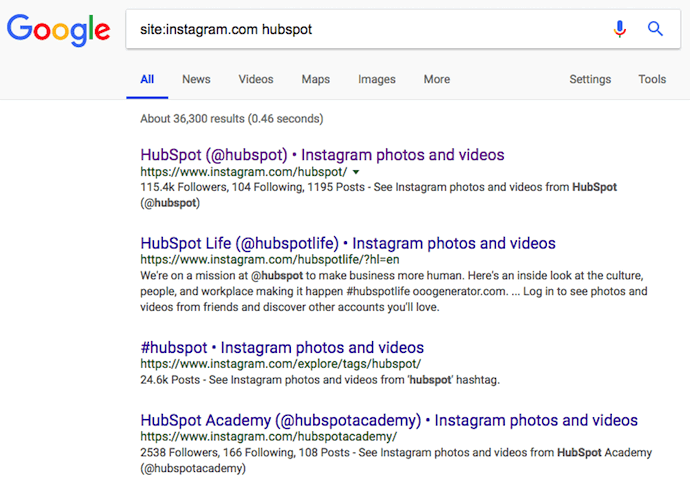
To site search a user, open a Google search and type the following: “site:instagram.com [name of user].”
By keeping all the text prior to the brackets in your search bar, you can shuffle through names of people and businesses and Google will produce results that live only on Instagram. Here’s what a site search looks like for HubSpot, below. As you can see, Google produces our main profile, our culture-focused HubSpot Life profile, Instagram posts that include the #hubspot hashtag, and our HubSpot Academy Page.
5. See all the posts you’ve liked.
Ever wanted to see the posts you’ve Liked, all in one place? All you have to do is go to your own profile and click the “Options” button — a gear icon on iPhone/iPad, and three dots on Android — then, click “Posts You’ve Liked.”
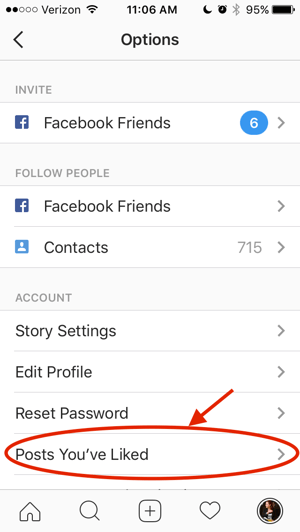
To un-Like any of the posts you’ve Liked, simply go to the post and deselect the “heart” icon below it. Don’t worry — the user won’t be notified that you’ve un-Liked the post.
6. Add and manage multiple accounts from the same device.
Have a separate account for your dog? Don’t be embarrassed; stand by your puppy profile. In fact, whether it’s a pet account or a business account, you can add and manage this one right alongside your personal account. Here’s how:
- From your profile, tap the gear icon. To find this icon on an Android device, you’ll first need to tap the three horizontal lines to the top right of your screen.
- Scroll to the very bottom and tap “Add Account.”
- Add your other account by username and password, and you’re all set.
To toggle between both profiles, hold down your profile picture in the navigation bar to view all connected accounts. You can also switch to a different account through the Settings page mentioned earlier. See what this screen looks like in the next Instagram feature, below.
7. Schedule posts in advance.
Instagram being a mobile app, you’re probably in a routine of taking photos and posting them to your Instagram Story on the fly. But, you can also pre-post them from your computer for a set day and time in the future.
This feature is available with a social media scheduling tool, as well as HubSpot if you have an Instagram business account. If you have this business profile, switch to it via the Instagram mobile app and follow the prompts to connect it to Facebook.
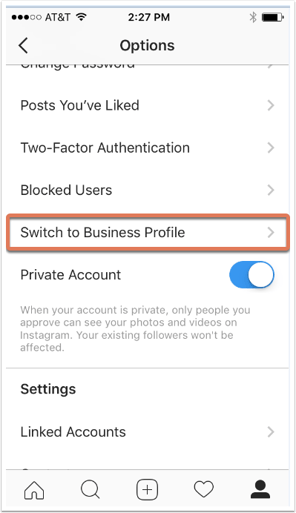
Depending on the social scheduling tool you use, you might not include this step. Once you’ve toggled to the right account, however, you’ll launch your scheduling tool, navigate to your current connected profiles, and see Instagram as an available integration.
8. Optimize your Instagram bio to appear in the Explore tab.
Your friends, family, and coworkers might be your first group of Instagram followers, but growing your audience takes more than the people who already know you. One key way to do this is to get your profile to appear in Instagram’s Explore page.
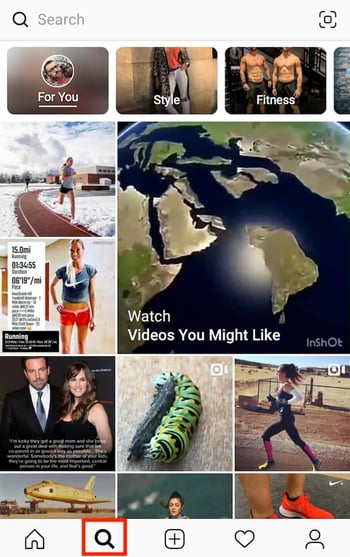
The Explore page, accessible using the magnifying glass icon shown above, is a browsing page that sorts the entire Instagram community by topic and keyword. These include “Fitness,” “Style,” “Science,” and more.
Hashtagging your posts with these words can expose your content to the people browsing these topics, but you can also use them in your Instagram name and bio to promote your profile. If Jane Doe is a marketing consultant, for example, she might want to make her Instagram name “Jane Doe Marketing,” rather than simply “Jane Doe.” Then, in her bio, she can include all of her specialties, such as “SEO,” “blogging,” “email marketing,” etc.
9. Create a collection of saved posts.
In addition to being able to view all of the posts you’ve liked, Instagram also has an option to save or bookmark certain posts in collections that you create.
Start by going to your profile, and tapping the bookmark icon on the top-right menu above your photos.
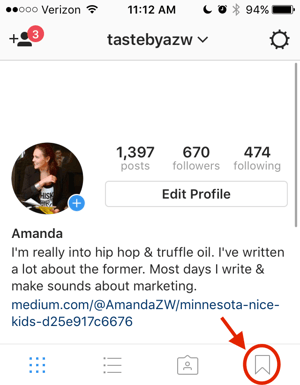
Select the “Collections” tab, and tap “Create Collection.” Below, I’ve created one for food-related posts I particularly like.
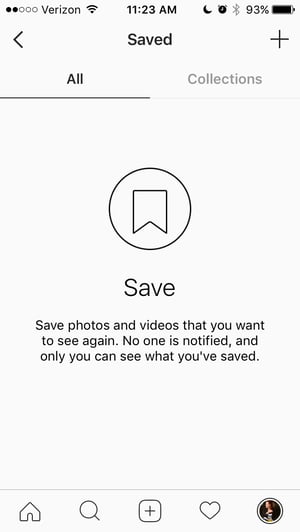
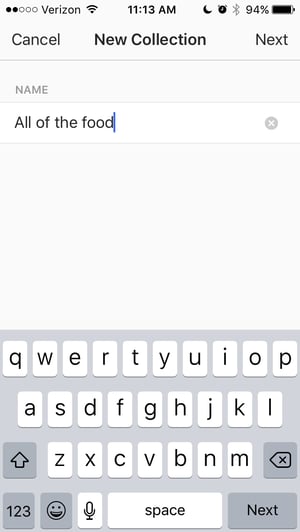
Hit “done,” and you can start adding photos to your collection. To do so, tap the bookmark icon below the post you want to add.
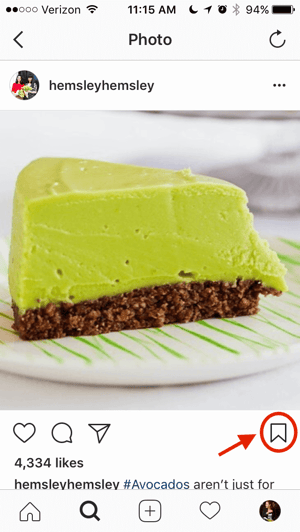
Then, go back to your saved photos by following the previous steps. You’ll see the photos you’ve saved — to add them to your collection, select the collection you want to add to, and tap “Add to Collection.” From there, you can add any of your saved photos.
10. Use ‘Type Mode’ to enhance your Instagram Stories.
Instagram Stories is a feature of Instagram that allows you to post ephemeral photos that show up separately from your profile and only last 24 hours. It’s a great function for helping like-minded users discover your profile on Instagram’s homepage.
But since its beginning, Stories have become quite creative, and it takes more than a pretty filter to stand out to your audience. Enter “Type Mode,” an option similar to Snapchat that gives you the power to caption Stories that need extra context to resonate with someone. Here’s how to use it:
Open Instagram Stories by swiping right from your Instagram feed. This will launch your smartphone camera. Then, take a photo or video and press the “A” icon to the top-right of your screen, as shown below:

This “A” icon will open Type Mode, where you have five fonts to choose from: Modern, Neon, Typewriter, Strong, and Classic. Here’s what a sample Story looks like with Modern font:
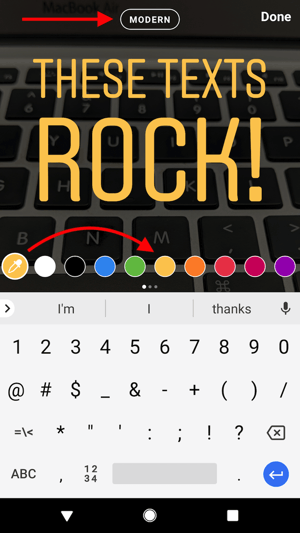
11. Create Stories Highlights to show Stories for longer than a day.
Like in Snapchat, posts to your story only stick around for your followers to see for 24 hours. But sometimes, you have a story that deserves more daylight to be told.
That’s where Stories Highlights comes in, a feature by Instagram that allows you to save stories together in the same space on your profile page. If you ever wondered what that “New” button with the “+” icon was below your profile image, this explains it.
To make a Stories Highlight, tap this New option and select any number of past stories in your album:
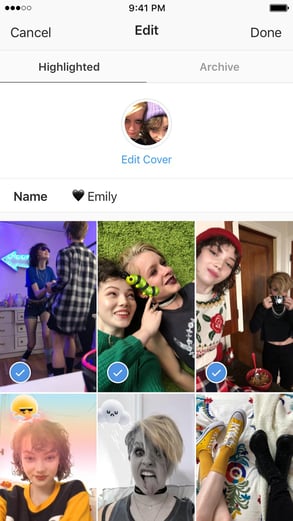
Image via
Instagram
Then, give it a cover photo and a name to display as its own Instagram Story on your profile page. You can remove Stories Highlights at any time by tapping and holding down this story.
12. Post content from other users to your Instagram Story.
Although Instagram Stories are a great way to give your content exposure on your followers’ homepages, you might not always have something Story-worthy. In those times, you can share an inspiring post from someone else through your Instagram Stories. Here’s how:
Find a post you want to share in your Instagram Stories and tap the paper airplane icon, as shown below.
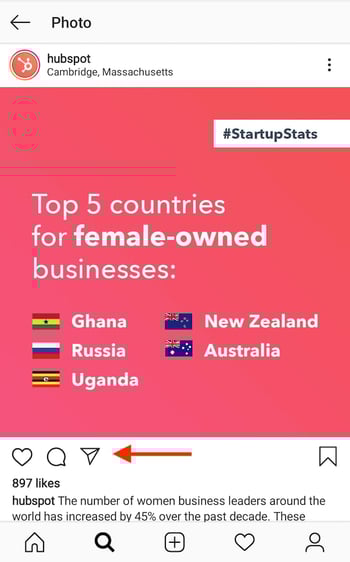
This icon will open a screen allowing you to send this post to specific followers, or add to your Story. Tap the latter option, as shown below.
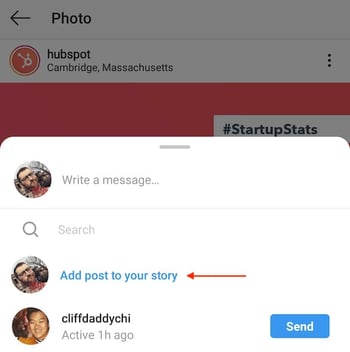 Tapping this option will automatically turn the post into an Instagram Story, which you can edit and design to your liking the same way you would any other Instagram Story.
13. Upload and browse video content on IGTV.
IGTV is one of the biggest new features by Instagram to date. This acronym, as you might assume, stands for “Instagram TV,” and it’s basically an Explore page just for users’ video content. The main benefits of IGTV? You can upload videos more than 60 seconds long, and you can create your own channel with, perhaps, a video series that can be broadcast across other video platforms like YouTube.

Navigate to IGTV by tapping the icon shown above. A page will appear featuring topics and videos by some of the most prolific IGTV video creators on the platform today. As you view more videos, the topics you see on the IGTV homepage will begin to adapt to your interests and serve you more content around those interests. And, naturally, the same goes for your target audience.
Create an IGTV channel by tapping the circular icon to the right of your screen, as shown below.

With an IGTV channel created, you can then upload videos directly from your smartphone’s camera roll to your channel.
14. See the posts your friends recently liked or commented on.
When you’re looking to discover new people to follow on Instagram, there’s nothing like asking your friends. There’s a quick way to do that — by viewing the recent liking and commenting activity of the people you follow.
To do that, click the heart icon at the bottom of the home screen — the first thing that should appear is a list of likes and comments on your photos. Choose the tab near the top that says “Following,” and you can see the activity of users you follow.
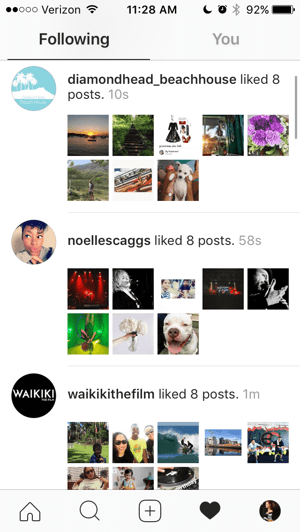
15. Look through pictures without accidentally liking them.
It’s pretty easy to learn how to like something on Instagram — so easy, in fact, that people do it accidentally: It’s just a quick double tap of the photo once you’ve entered its full view.
The thing is, it’s so easy to do quickly by mistake. So, here’s a quick Instagram cheat for you: To look through someone’s photos without “double-tap paranoia,” scroll through Instagram feeds with your phone set to airplane mode. Without internet access, you won’t be able to Like a photo, even if you accidentally double-tap it.
The pictures won’t load in the first place if you start on airplane mode, though. You’ll have to go to the feed first to load the posts, then turn on airplane mode, then start scrolling. When you reach the end of the first rows of posts and want to load more, simply turn airplane mode off, let more load, and then turn it on again. Cumbersome? Maybe a little, but it could be worth the paranoia mitigation.
- To turn on airplane mode on an iPhone/iPad: Swipe up from the bottom of the screen and click the airplane icon. Or, go to “Settings” and then “Wi-Fi,” and switch “Airplane Mode” on.
- To turn on airplane mode on an Android device: Swipe down from the top of the screen. Then, swipe from right to left until you see “Settings,” and then touch it. Touch “Airplane Mode” to turn it on.
16. Hide, delete, or disable comments on your posts.
Twitter may carry a more “anything goes” culture of commentary, but your Instagram is your domain — and it’s much easier to control who says what on your content. This is especially important if you manage a business account.
To Filter Comments by Keyword:
In the Instagram mobile app, navigate to “Options” and select “Comments.” From here, you can toggle on “Hide Inappropriate Comments” and even enter specific keywords you’d like the app to police within each comment.
To Delete Comments:
Tap the speech bubble icon below the comment you’d like to delete, and swipe lightly to the left over this text. Select the garbage can icon that appears to delete this post. You can also do this to your own comments.
To Disable Comments Entirely:
To clarify, you can’t turn off comments across your entire profile; you can only disable them for individual posts.
To do so, start posting an image on which you’d like nobody to comment. When you reach the page to add a caption, tags, and location, tap “Advanced Settings” at the very bottom. This will open a screen where you can easily switch on an option labeled “Turn Off Commenting.”
17. Clear your Instagram search history.
We swear — this blog post isn’t all about how to convince people you’re not an Instagram creeper. But many of us can relate to the desire to clear our online search history everywhere, including on this particular social channel. Luckily, you can.
To clear your Instagram search history, go to your own profile and click the “Options” button (a gear icon on iPhone/iPad and three dots on Android). Scroll down and click “Clear Search History.” When prompted, click “Yes, I’m sure.”
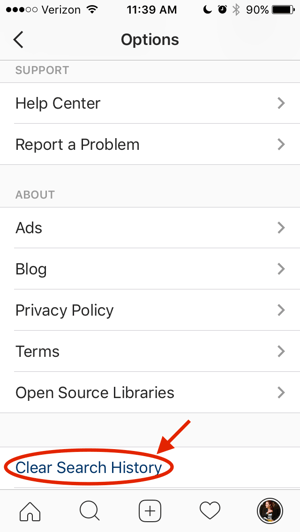
18. Reorder filters and hide the ones you don’t use.
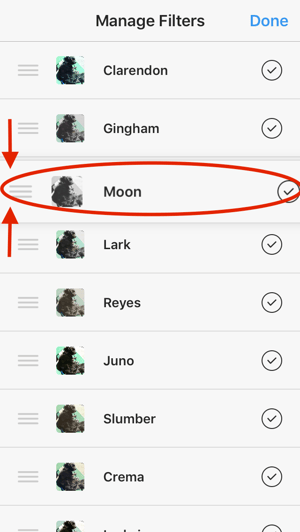
If you use Instagram a lot, chances are, you have a few favorite go-to filters, and others you never touch. To make editing photos easier, you can reorder the filters in your editing window, and hide the ones you never use.
To reorder or hide filters, add a new post and begin editing it. When you get to the filters page, scroll to the very far right of your filters options and click “Manage.”
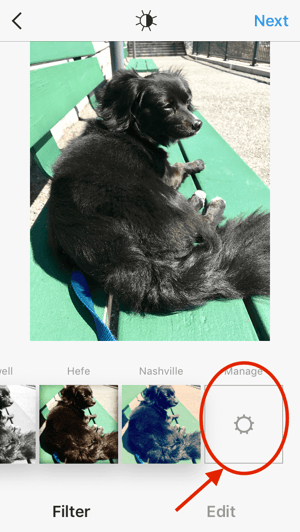
To reorder filters, hold your finger down on the three grey lines on the far right of the filter you’d like to move, and drag it to reorder. To hide them, deselect the checkmark to the right.
19. Use Instagram as a photo editor (without having to post anything).
Perhaps you love Instagram’s filters and editing capabilities, but aren’t quite ready to post the photo to your account — right now, or ever. To use Instagram as a photo editor without posting anything, all you need to do is publish a picture while your phone is on airplane mode.
First, be sure you have “Save Original Photo” turned on in your Instagram settings.
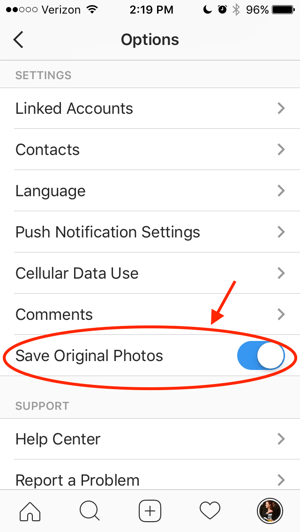
Then, turn on airplane mode — see instructions in #5.
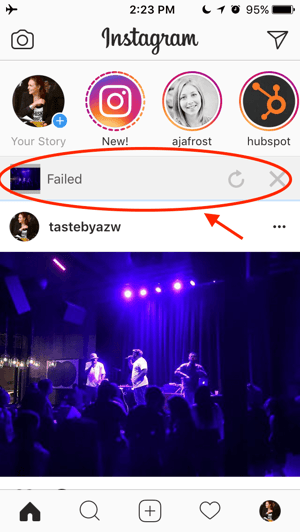
Next, follow the normal steps to post a photo to Instagram: Upload the photo, edit it, and press “Share.” An error message will appear saying the upload failed, but you’ll be able to find the edited image in your phone’s photo gallery.
20. Insert line breaks into your bio and captions.
When you write a caption in Instagram, you’ll see the keyboard doesn’t give you an option to press “Enter” or “Return.” The same is true for your bio. So how do all those people put line breaks in there?
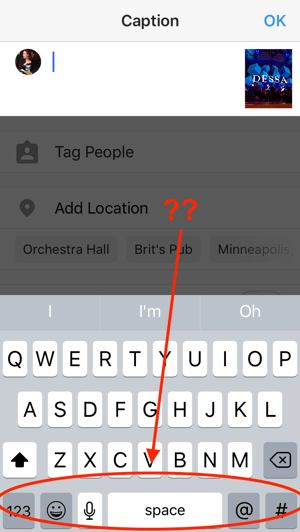
It turns out that all you have to do is press the “123” key in the bottom lefthand corner of the keyboard, and the “Return” key will appear on the bottom right.
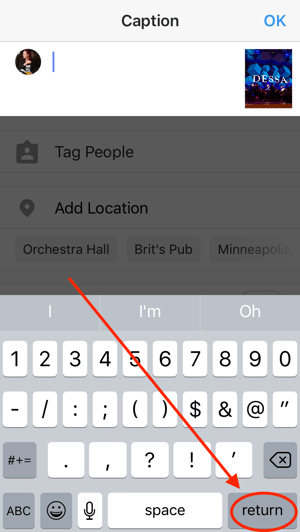
I know this tip sounds simple, but a lot of people miss it — myself included, until a colleague clued me in. We’ve seen some elaborate solutions out there for hacking through this problem, like writing the caption copy in another app, then copying and pasting it into Instagram. Thankfully, it’s much simpler than that.
21. Hide Photos You’ve Been Tagged In
When someone tags you in a photo or video on Instagram, it’s automatically added to your profile under “Photos of You,” unless you opt to add tagged photos manually (see the next tip).
To see the posts you’ve been tagged in, go to your own profile and click the person icon below your bio.
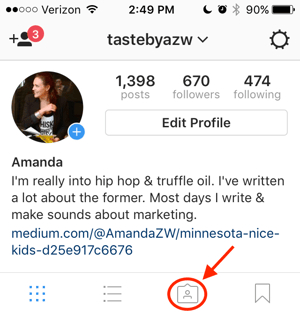
Then, to hide the posts you’ve been tagged in from other users, click the three dots in the top right of your screen and choose “Hide Photos.” Select the posts you’d like to remove from your profile, and when you’re done, tap “Hide Photos” at the bottom of your screen. When prompted, tap “Hide From Profile.”
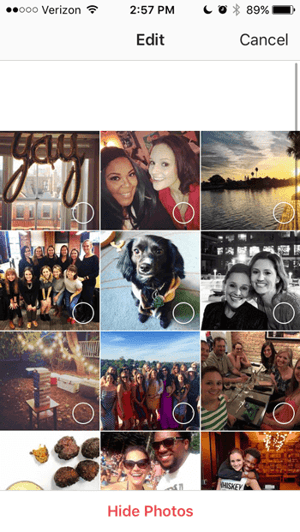
This won’t remove the posts themselves from Instagram, but it will remove them from your profile, so you and others can’t access them.
22. Adjust your settings to approve tagged photos before they show up in your profile.
As we mentioned in the previous step, when someone tags a photo or video of you on Instagram, it’s usually added to your profile automatically. But, you can change your Instagram settings to enable manually selecting which photos you’re tagged in that show up on your profile.
To add tags manually, follow the same steps above to get to the photos in which you’ve been tagged, and click the three dots in the top right of your screen. Tap “Tagging Options,” and select “Add Manually.”
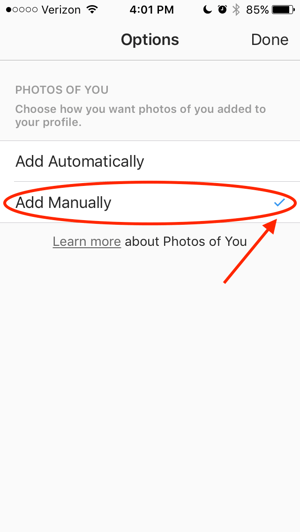
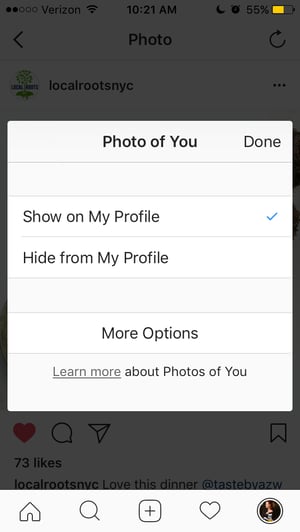
You’ll still be notified when someone tags you in a photo. Once that happens, to manually add a tagged photo to your profile, tap the photo you were tagged in, then tap your username and select “Show on My Profile.” And if you’d rather it not be visible, choose “Hide from My Profile” instead.
23. Browse posts from certain locations.
One fun thing you can do on Instagram is browse photos and videos from a specific location, or taken near your current location. I like to do that when I’m planning a trip somewhere, or want to check out a new restaurant and scroll through the pictures taken there.
Here’s how to do both of these things.
To Browse Posts From at a Specific Location:
You can either search for a specific place, or you can click into a geotag on an existing photo.
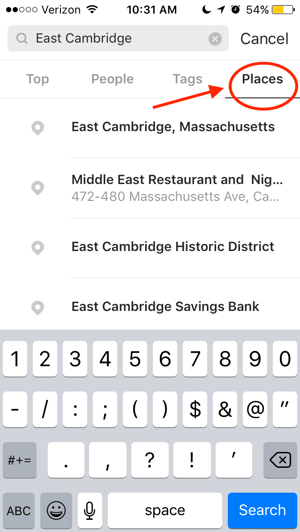
To search for a specific place: Tap the magnifying glass icon at the bottom of your home screen, which will bring you to the general search page. When you click into the search bar at the top, four tabs will appear. Choose “Places,” and type in the name of a place. When you press “Search,” it’ll show you all the top and recent posts that were geotagged with that location.
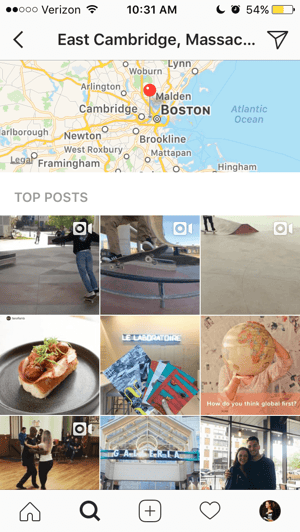
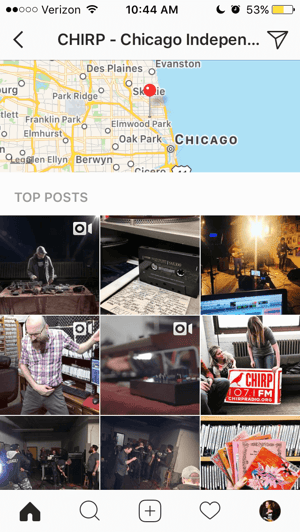
To look at posts with a certain geotag: Go to the photo that’s geotagged with that location, and click the geotag. It’ll show you all the top and recent posts that were geotagged with that location.

Browse Posts Near Your Current Location:
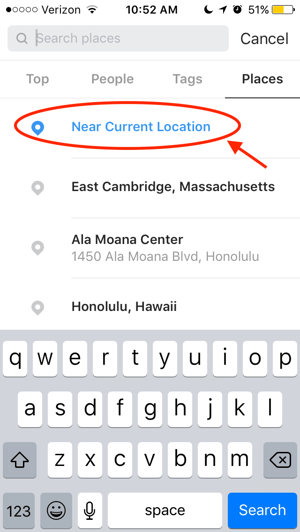
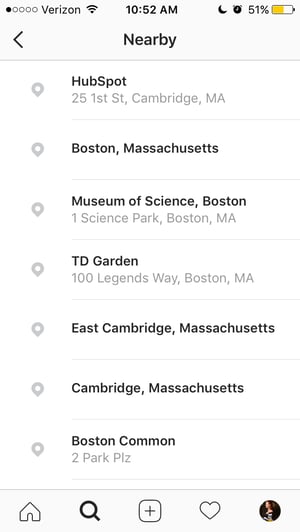
Follow the same instructions above to get to “Places.” Tap the search bar, and select “Near Current Location.”
Choose which geotag you’d like to browse from the options that appear. Let’s say I chose to browse posts with the Museum of Science geotag. When I click “Museum of Science, Boston” on the menu, I’ll see the top and recent posts that were geotagged at that location.

24. Drive traffic to an external website.
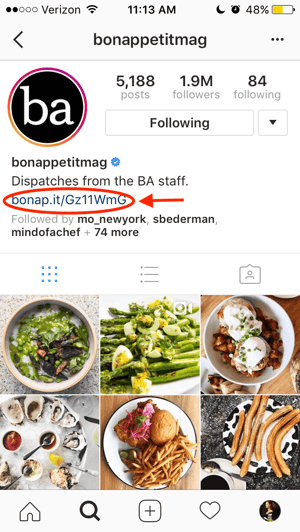
One of the biggest frustrations people have with marketing on Instagram is that clickable URLs aren’t allowed anywhere except the single “website” box in your bio. If you put a URL in a photo caption it’ll appear as plain text, meaning users would have to painstakingly copy the URL, open a web browser, and paste or type it in there.
One sneaky way to get people to visit your Instagram profile, which is where that one clickable URL is allowed, is to use your photo captions to encourage people to visit your profile for a link. Then, update that URL frequently to point to your latest blog content, YouTube video, product, or offer.
Check out the example from food magazine Bon Appétit below. This photo’s caption provides a text call-to-action to visit the user’s profile so you can click the link related to the post.
Then, in Bon Appétit‘s profile, you’ll see the link itself. Update this link frequently to point to your latest content or offer.
Plus, if you have a verified Instagram account, you can also add links to your Story. Read more about this feature here.
25. Sell products from Instagram using Shoppable Posts.
You might already know you can tag people in your Instagram posts as (or after) you post new content. Now, you can tag products — and direct your viewers to a product page to buy what they saw.
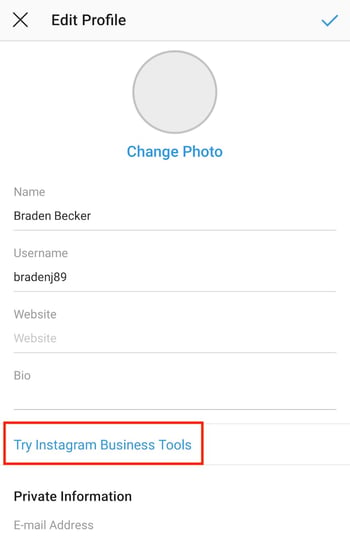
To Add an Instagram Business Account
You’ll need an Instagram Business account to publish shoppable posts. You can get one by selecting “Edit Profile” on your Instagram profile and tapping “Try Instagram Business Tools,” as shown below.
To Tag a Post With Products
Once you’ve launched an Instagram Business account, you’ll need to enable product tags to use them on a post that depicts a product. Navigate to your settings using the gear icon from your profile page, and select “Products.” Tap “Continue” and follow the prompts to connect a “product catalog” to your business profile.
With product tags enabled on your Instagram Business account, you can now upload new posts and tag your photo with products you find from your product catalog. Here’s what a shoppable post can look like:
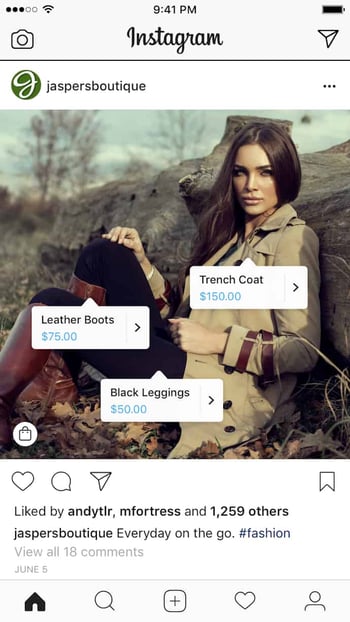 Image via Instagram
26. Pin your Instagram post to Pinterest.
Instagram doesn’t have a natural integration with many social networks (except Facebook, its parent company) for publishing Instagram posts to other social accounts.
But with respect to Pinterest, image-loving platforms stick together. Here’s a backdoor way to Pin your latest Instagram Story to Pinterest:
On the Instagram mobile app, tap a post to view it in full, then tap the three dots to the top-right of the image. Select “Copy Share URL” to attach the picture’s link to your clipboard.
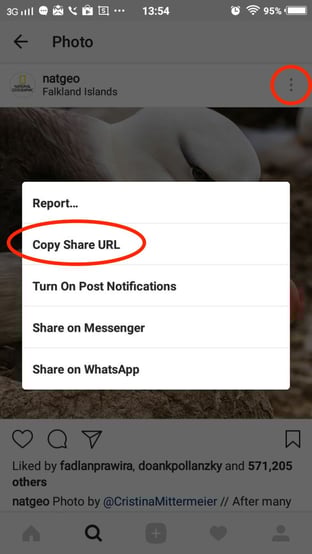
Image via Boleh.com
Open the Pinterest mobile app — or download it; you’ll need it for this step — and navigate to your profile page. If you have the latest version of Pinterest downloaded, it might ask you as soon as you open the app if you’d like to produce the image from your clipboard.
If not, select the “+” icon to the top right to add a new pin, and you’ll see a menu of options where you can add your “Copied Link” to a new Pin or board on your profile.
27. Hide ads you don’t find relevant.
Instagram tries to show you ads that are interesting and relevant to you. You might see ads based on people you follow and things you Like on Instagram, or the third-party websites and apps you visit.
If you see sponsored posts you don’t find relevant, though, you can let Instagram know and slowly teach its algorithm what you like and don’t like to see.
To hide ads on Instagram, tap on the three dots to the right of a post labeled “Sponsored,” and choose “Hide This.”
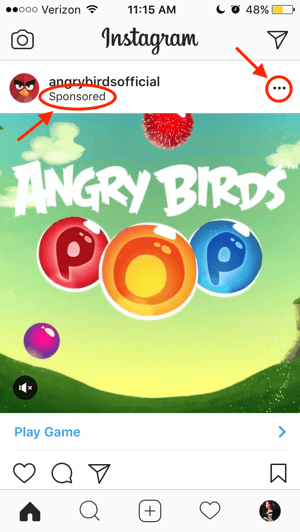

From there, it’ll ask you to share why you don’t want to see the ad anymore.
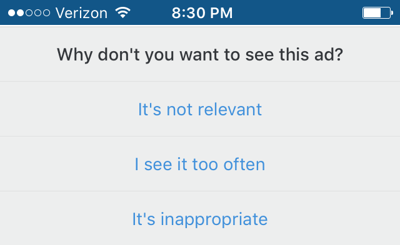
You can also opt out of seeing ads based on sites and apps off of Instagram and Facebook from your device’s settings. Note that even if you choose to opt out of seeing these types of ads, you’ll still see ads based on your Instagram and Facebook activity.
- To limit ad tracking on an iPhone/iPad: Go to “Settings” and choose “Privacy,” then “Advertising.” From there, choose the option to “Limit Ad Tracking”
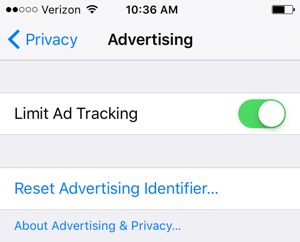
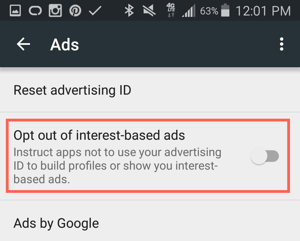
- To turn off interest-based ads on Android: Go to “Google Settings,” then “Ads.” From there, choose the option to “Turn off interest-based ads.”
28. Send photos privately to your friends.
Posting photos with all of your followers or with the public isn’t the only way to share content on Instagram. You can also share them with individual or multiple users, kind of like a Facebook message or group text message.
You can either send a new photo to friends, or send a photo that you or someone else has already posted.
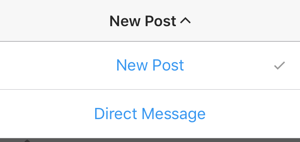
To send a new photo privately, upload a photo and begin editing it, as you would when editing a new post. When you get to the “Share” page, tap the top where it automatically says “New Post,” but when prompted, select “Direct Message.” From there, you can pick and choose whom you’d like to send the photo to.
You can access your direct messages at any time by clicking the mailbox icon at the top right of your homepage.
To send an existing photo privately, start by opening the post you want to share — it can be your own or someone else’s, as long as the latter has a public account. Next, click the paper-airplane-like icon below the post, then select who you want to receive it when the “Send to” box appears.

Insta-Hacks
I might be biased, but Instagram is one of the most fun (and visually appealing) social apps around. And now, with these tricks, you can use it to an even fuller extent.
Plus, many of these features can help to enhance your brand’s presence on Instagram. Now, you know how to use the app more efficiently, to make sure you’re only tagged in photos you want to appear on your profile, and have even more ways to engage with the people by whom you’d like to be discovered.

What Is the Definition of Done for Agile Teams?

10 Compelling Above the Fold Content Examples to Inspire Your Own
In copywriting, there’s an old adage that states the purpose of your first line of copy is to compel people to read your second line of copy. In web design, the same principle applies. But instead of crafting a compelling first line of copy, you need to design gripping website content that sits above the fold.
Above the fold content is what your visitors see right when they land on your website. If it’s clear, engaging, and persuasive, it can convince them to explore the rest of your website. If it’s jumbled and uninspiring, however, they’ll bounce off your website faster than they’d exit out of a pop-up ad.
With only 15 seconds to engage the average website visitor, designing compelling above the fold content is crucial for making a great first impression, lowering your bounce rate, and retaining attention. Below, we’ll show you some of the best above the fold content examples to get your creative juices flowing, so read on to get inspired.
Above The Fold
Above the fold content is what your visitors see right when they land on your website, and it’s arguably the most important part of your homepage. By clearly conveying what your organization does and its associated benefits, above the fold content can inspire your visitors to explore the rest of your website.
10 Compelling Above the Fold Content Examples to Inspire Your Own
1. Wistia

As one of the most creative brands in the MarTech industry, the fact that Wistia’s above the fold content is a video of a woman dancing around with a pink video camera in her hand shouldn’t be a surprise to anyone.
This makes their homepage feel casual and inviting, and coupled with a simple line of copy that encourages visitors to watch their company overview video, their homepage’s low-pressure vibes most likely convinces more people to watch their video than some of the best homepages could.
2. Airbnb

By featuring a vivid photo of one of their more adventurous bookings in their above the fold content design, Airbnb gives their website visitors a sneak peek at a possible experience they could take part in if they book one of their homes. And by planting this image in their visitors’ mind, searching for accommodation on their website is a natural next step.
3. Velocity Partners

Unlike most above the fold content design, Velocity Partners, a B2B marketing agency, doesn’t try to persuade their website visitors to watch their company overview video or try out their product. Instead, they encourage them to engage with a fascinating interactive slideshow that explains why innovative marketers need to leverage new content formats to tell more refreshing stories.
By sparking their website visitors’ curiosity with thought-provoking copy and capturing their attention with a graphic that looks like it belongs in Tron, Velocity Partners can convince them to find out why innovators need innovative storytelling, and, in turn, Velocity Partners’ services.
4. VeryGoodCopy

VeryGoodCopy is a creative agency that crafts articles, landing pages, web pages, and emails for brands, but their homepage doesn’t harp on their services, like most companies do.
Instead, they immediately offer the opportunity to learn how to persuade — a skill every marketer wants to master — by leveraging ample white space, an enticing headline, a brief description of their content topics, social proof, and a vivid call-to-action. This simple and engaging above the fold design ensnares their visitors’ attention and convinces them to check out their micro-articles.
5. Shopify

Since humans can process visual information four times faster than the blink of an eye, Shopify decided to rely more on visuals than copy when crafting their above the fold content. To do this, they included artistic images and an alluring video that could instantly capture their website visitors’ attention. But even though they sparingly use any copy on their homepage, their tagline is packed full of purpose and can compel visitors to get started with their software.
6. Ann Handley

By highlighting her impressive accomplishments of being a Wall Street Journal best-selling author and a partner at MarketingProfs, Ann Handley instantly conveys her impressive marketing prowess to her website visitors. She also leverages white space, a welcoming picture of herself, a catchy tagline, compelling copy, and a vibrant call-to-action to persuade her visitors to consider working with her.
7. Mint

Mint’s simple and professional above the fold content design can effectively attract its target user — people who meticulously manage their money. They also include a photo of their app in action and contrast bright colors, like orange and green, to catch their website visitors’ attention. Additionally, their copy is clear and concise and conveys the tool’s main benefit — effortless money management.
8. Drift

Drift’s above the fold content design features captivating images of their product in action, a refreshing picture of a real person, and attention-grabbing copy that injects excitement into their website visitors. By blending all three of these elements into their homepage while still leveraging a ton of white space, Drift can hold their website visitors’ attention and convince them to sign up for a free account.
9. InVision

One of the more sleek above the fold content designs, InVision’s homepage overlays sharp copy on top of dynamic, professional grade footage of their company overview video. This gives their website visitors a glimpse of the video and entices them to watch it. They also include a vibrant CTA that conveys they offer a freemium version of their software, which is an easy first step to take with the company.
10. Animalz

Similar to VeryGoodCopy, Animalz is a content marketing agency that doesn’t bombard their website visitors with messaging about their services in their above the fold content design. Instead, they offer visitors the opportunity to learn about some of top SaaS brands’ marketing strategies. They also leverage white space, feature visual appealing images, craft a simple yet potent tagline, and include a convincing customer testimonial to encourage their visitors to subscribe to their newsletter.

The 15 Best Lead Generation Tools in 2019
Online lead generation is difficult. There’s no way around it.
There are tons of companies competing for the attention of a finite group of website visitors, and the content marketing world is only getting noisier.
So this leaves you with three broad options:
- Bring in more valuable and relevant traffic
- Create better, more enticing offers
- Optimize your lead generation pathways on your site
The first two topics have been touched on many times before. This article will cover lead generation software and tools that help you reduce friction and increase the conversion rate of website visitors to leads. This will include both paid and free tools.
Let’s take a look at 13 of the best overall tools first (many of which have free options available), and then we’ll cover some great strictly free options.
The 13 Best Lead Generation Tools in 2019
- HubSpot Marketing
- Intercom
- Proof
- Mailshake
- Qualaroo
- HotJar
- Turnstile by Wistia
- Survey Anyplace
- Formisimo
- Clearbit
- Datanyze
- Hull.io
- TypeForm
1. HubSpot Marketing
HubSpot Marketing, which starts out free, has tons of lead generation that make it easy to capture, store, and nurture leads, including
… and more. It all plugs naturally into HubSpot’s free CRM, or you can easily integrate with your CRM, email tool, or customer data platform of choice.
Using HubSpot Marketing help you build an inbound marketing flywheel from start to finish. You create content that allures visitors, capture leads through one of several tools available, and then nurture them through kickback emails.
Eventually, your sales team will have full visibility of the previous touchpoints and can close leads with the full context of their previous touchpoints with your brand. Finally, you can create happy customers with features like free ticketing.
It’s a full suite lead generation machine.
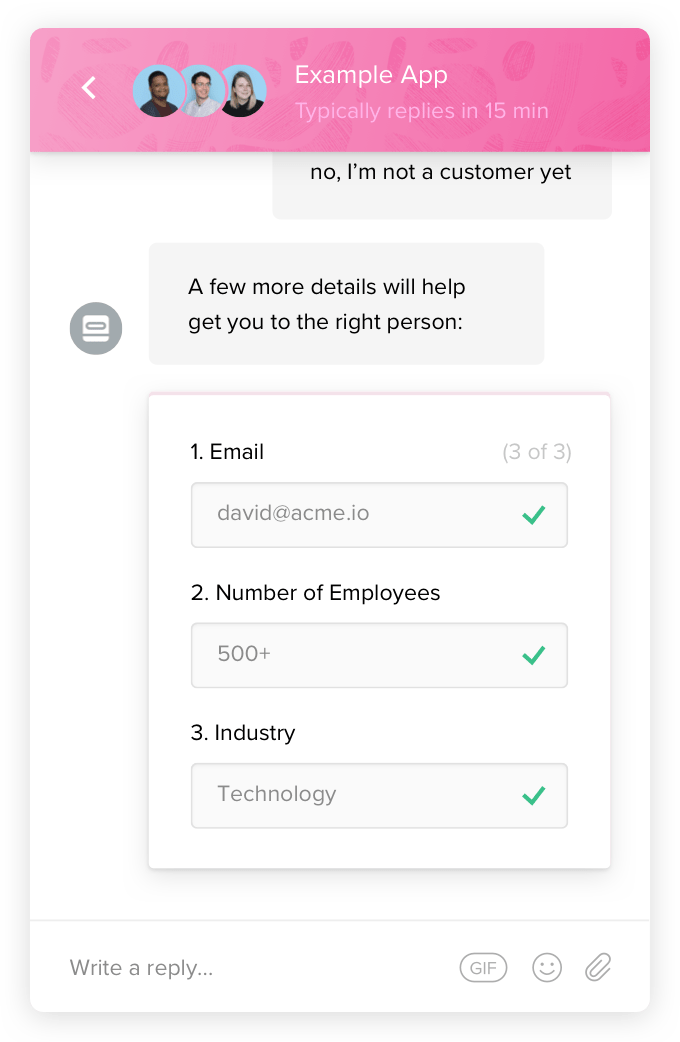
2. Intercom
Intercom is another product with many components and use cases. You can use their on-site messaging and chat feature to engage with on-site visitors and collect their information.
Once in the system, you can analyze their on-site or in-app behavior and create message triggers to help with onboarding, support, or retention.
They also have an integrated help desk and knowledge base to provide support for current customers.
This is another great tool when you want to accomplish marketing, sales, and support features under one roof.
3. Proof
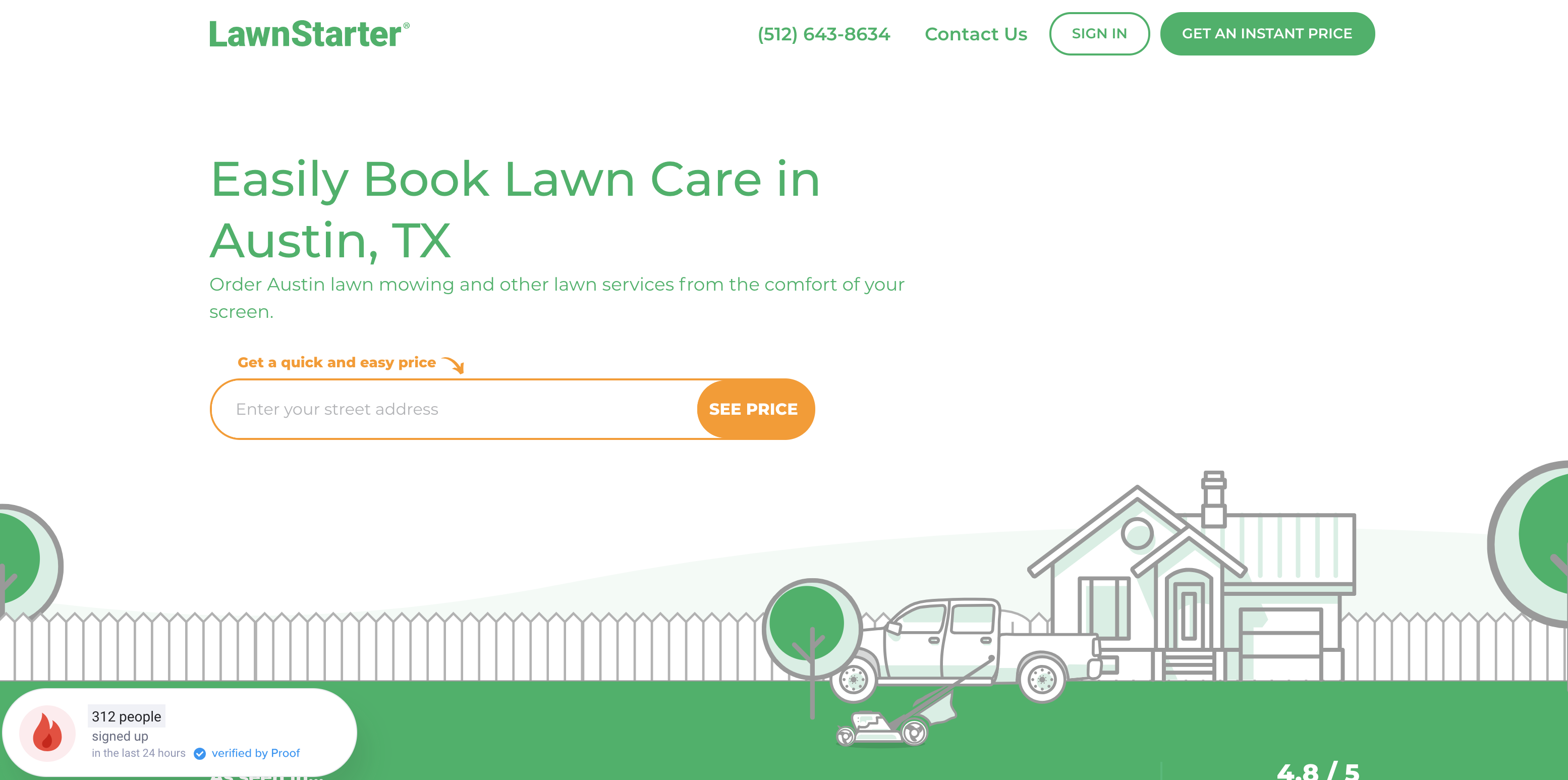
Proof is an early stage SaaS startup based in Austin, Texas. They make software that helps you rev up your website’s conversion rate using social proof, personalization, and A/B testing.
Have you ever tried to book a trip on a site like booking.com or Airbnb and seen a message that reminds you, “three people have booked this hotel in the last 24 hours?”
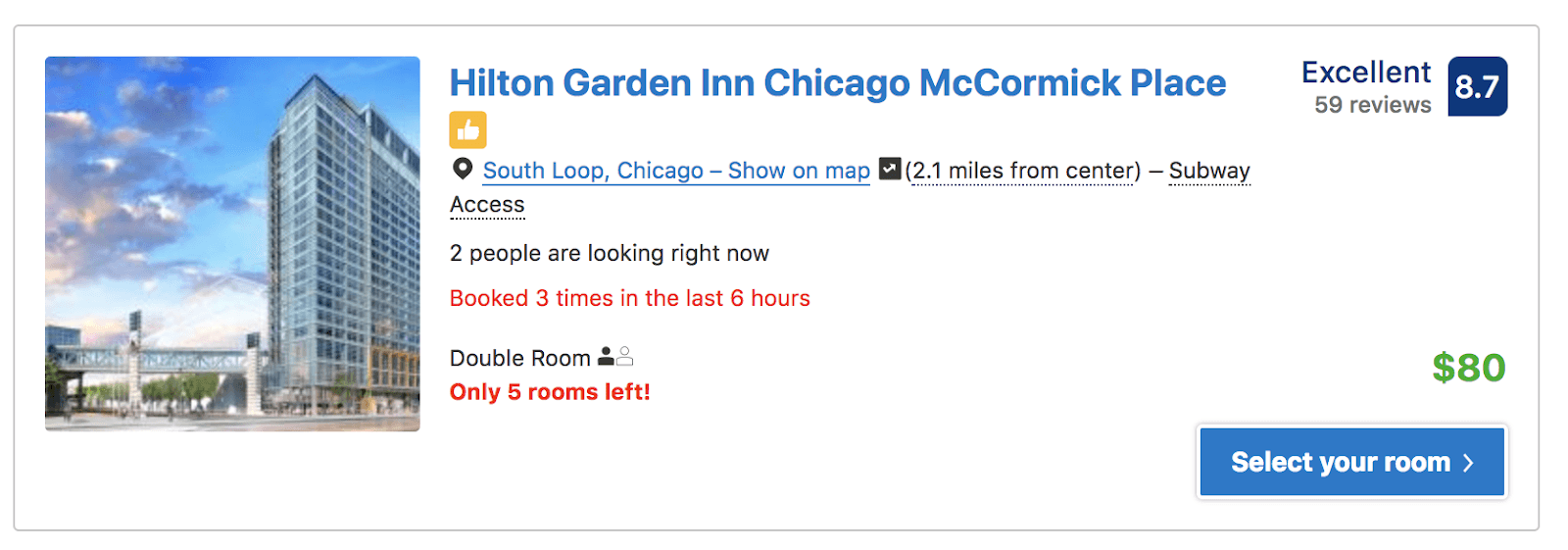
Proof helps you implement social proof messaging on your own website. Here’s a great example of the product in use by LawnStarter (another great Austin-based startup):
4. Mailshake
Mailshake is one of my favorite solutions for email outreach. Basically, it helps you automate, personalize, and optimize your cold emails.
This is great for many purposes, of course:
- Sales development
- Content promotion
- Link building
- Public relations
- Fundraising
But it’s also great for lead generation.
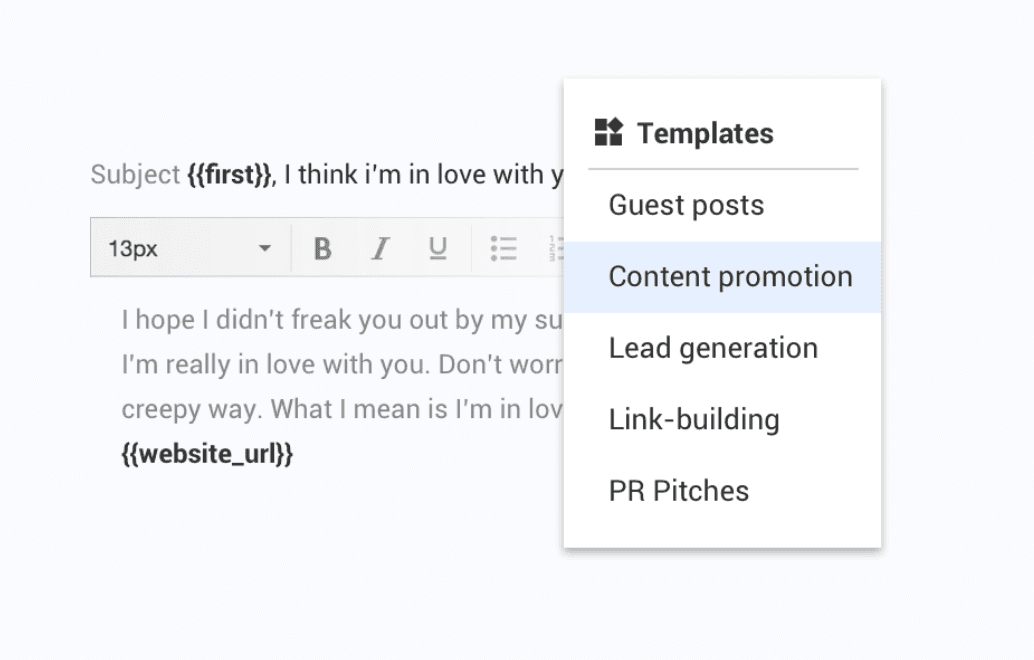
One of my favorite parts about the tool is that you have tons of ready-made templates. So even if you’re not a world-class copywriter, you can still get responses.
5. Qualaroo
Qualaroo is an on-site polling tool that can not only collect user feedback (that can be used to improve any part of your product and marketing experience), but you can also collect leads using the tool.
In the best case, you can use Qualaroo to do both.
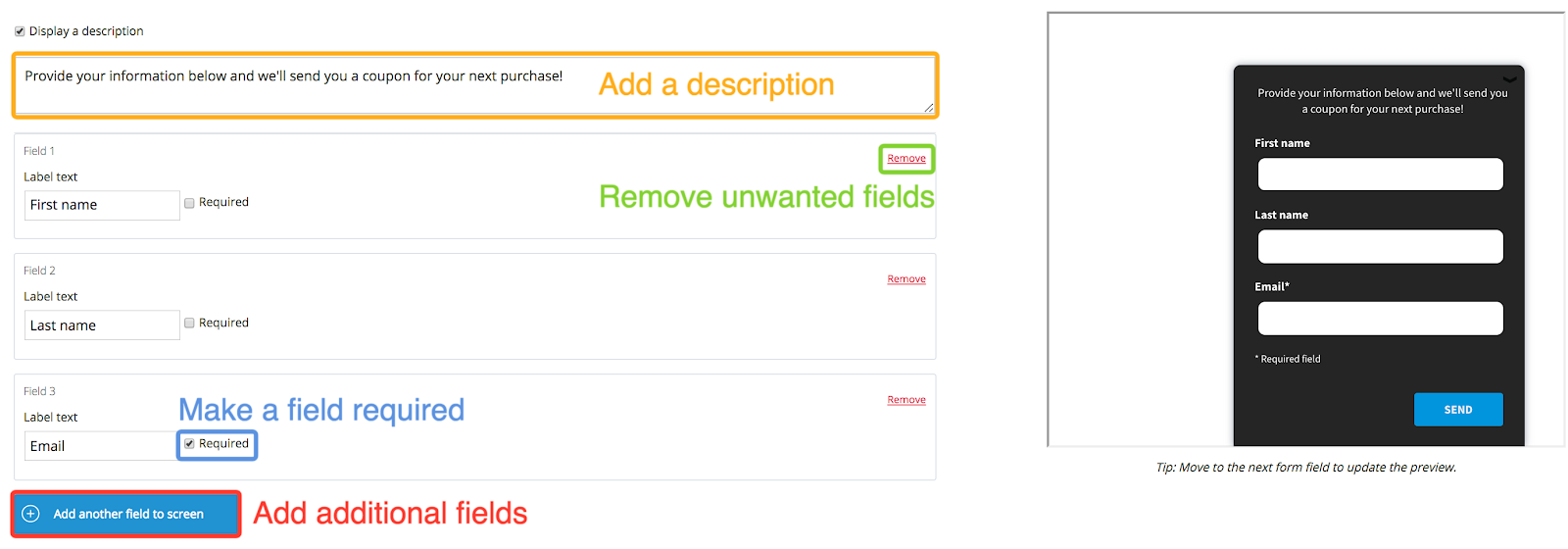
In this way, your customer feedback tool can double up as a sort of popup form.
Even if you don’t plan on using Qualaroo for lead generation, I’ve found the tool to be invaluable for collecting user experience and conversion optimization insights.

6. HotJar
HotJar is a customer experience analytics platform with many helpful tools. They’re one of my go-to solutions for conversion optimization research. Some of their features include:
- Form analytics
- On-site polls
- Heat maps
- Session replays
Like Qualaroo, their on-site polls can double up as conversion points. Basically, you can use the opportunity to collect feedback as a double opportunity where you can also collect an email address:

7. Turnstile by Wistia
Video is a big focus for marketers right now, and I can only see that focus increasing with time. As such, it helps to look at video as a direct lead generation channel in addition to a brand building channel.
Wistia makes a really cool product called Turnstile that allows you to gate videos after a certain time period has elapsed. At this point, the visitor has to enter their email to continue watching.
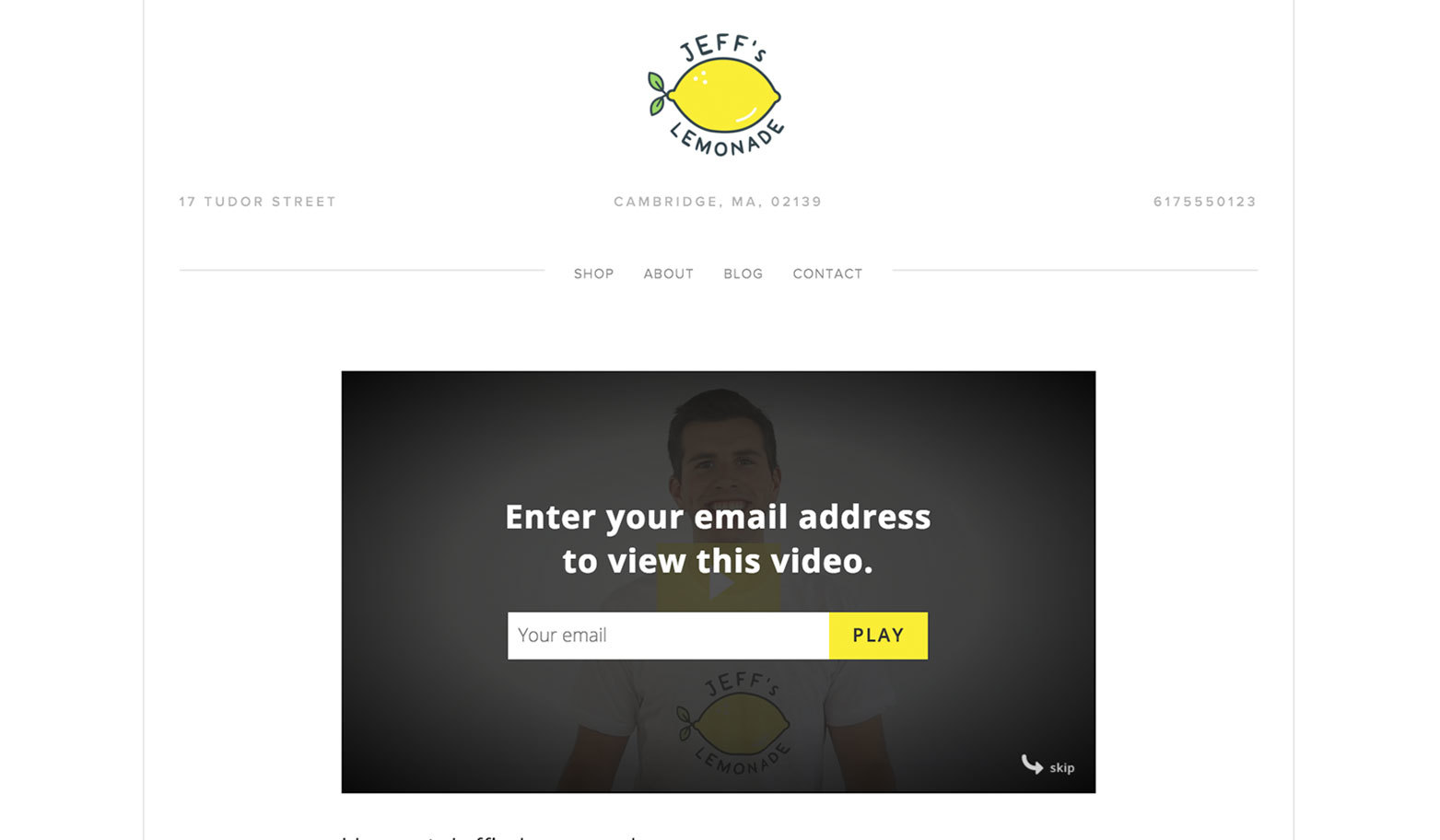
8. Survey Anyplace
Forms are one way of collecting lead information, but surveys and quizzes are a way to make that collection process fun and engaging for the visitor.
Survey Anyplace, a complete survey building solution, is a great tool to help you do this. You can not only create things like customer satisfaction surveys, but you can also build quizzes for lead generation.
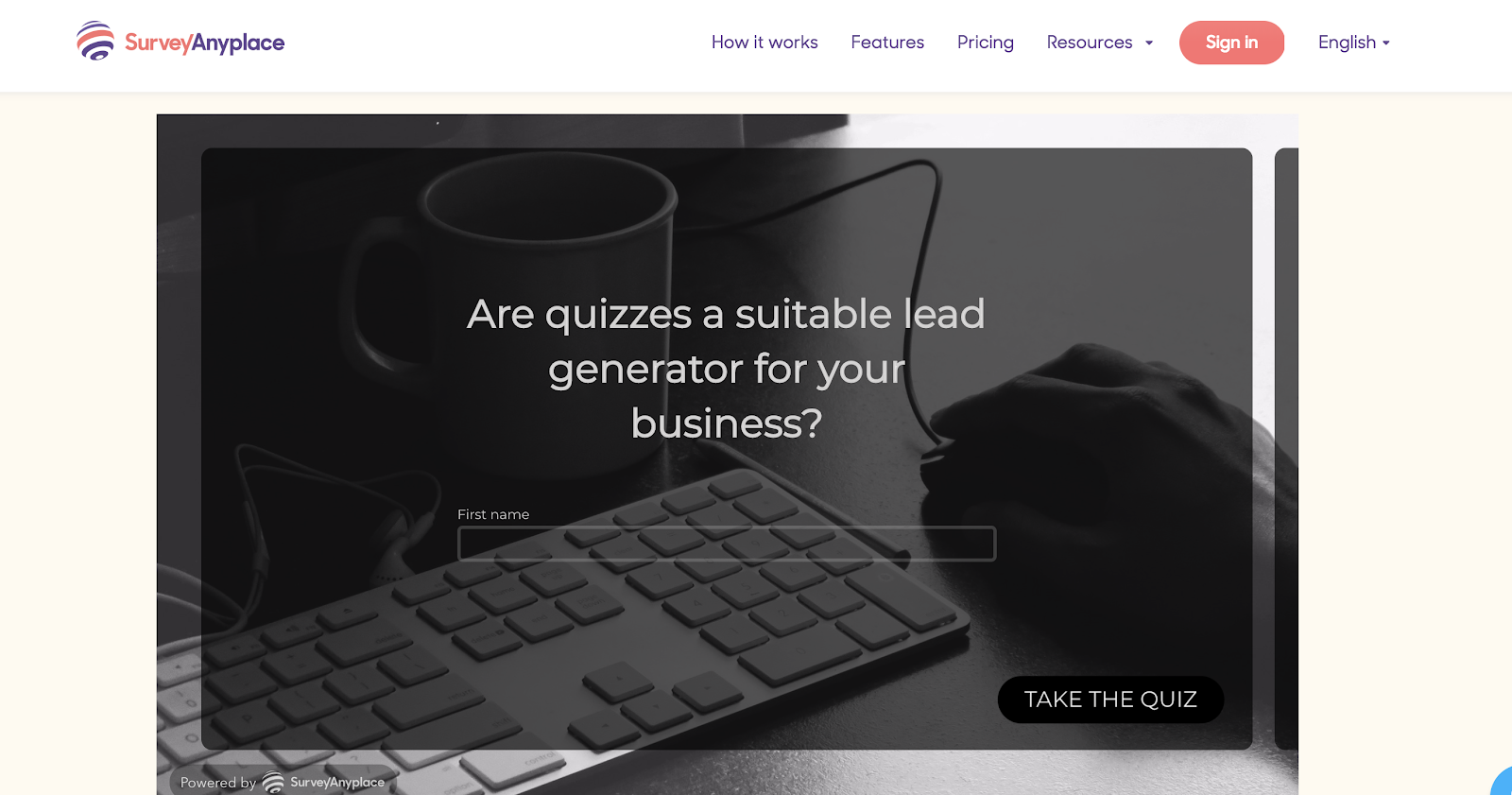
They integrate smoothly with your existing marketing stack, so you can easily transport leads through to your CRM or email marketing tool and start building nurturing campaigns. Bonus, you can use answers given during quizzes to personalize the follow up.
9. Formisimo
Formisimo isn’t lead capture tool, but it helps you optimize your lead generation forms.
They provide form analytics that, in my opinion, are the most robust in the industry. They work with pretty much every form, and their reports include:
- Form Overview
- Field Drop Off Report
- Most Corrected Fields
- Real Time Report
- Completion Time
- Problem Fields Report
- Fields Before Submission
- Field Times Report

You can also segment reports based on device, such as desktop, mobile, or table. Additionally, the tool actually gives you ideas and tips for how to improve your forms. You can export and share this data with additional systems so it can be used by other team members.
As for installing it, it’s a lot easier than doing form tracking manually in something like Google Tag Manager. You simply copy and paste the provided source code on the page, and Formismo starts tracking immediately.
While they don’t offer a free plan, they have a 7 day trial where you can try out the product.
10. Clearbit
Clearbit has a forms tool, but they have a broader use case for lead generation no matter which form or lead capture tool you use. They help you enrich contact profile data, which means you don’t have to ask for every little piece of information in a mile-long form.
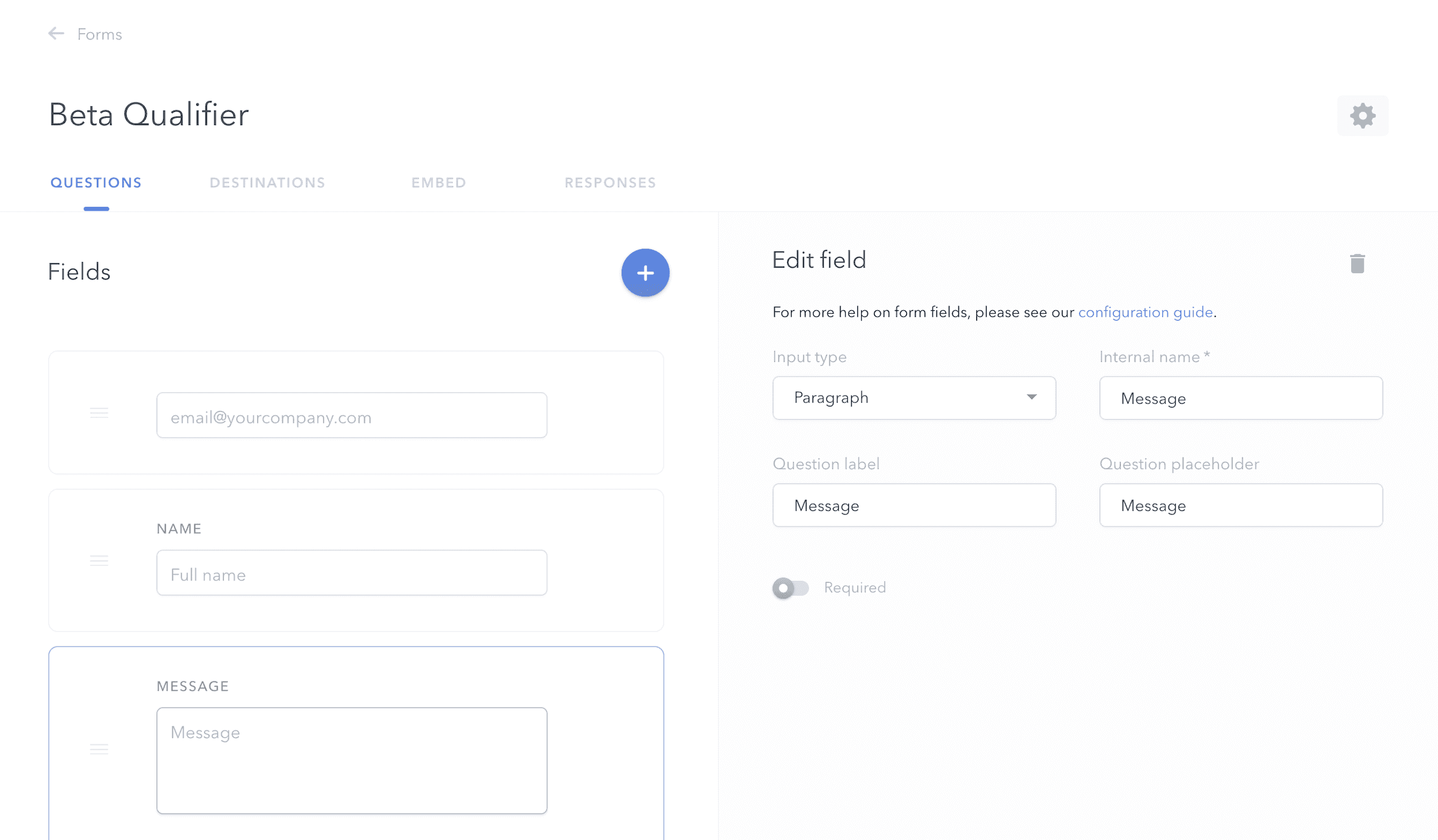
All you need is an email address or corporate domain, and Clearbit Enrichment fills other important data (like company size and industry) and appends it to your CRM records, in your product, or anywhere else you need them.
11. Datanyze
Datanyze is another data company, though they focus on “technographics.” What’s this mean? Basically, Datanyze helps you discover what other software tools your website visitors, prospects, or customers are using.
The lead generation purposes for this are unparalleled if you have a way to personalize your website experience.
Imagine if you knew a website visitor was using a direct competitor. You could change up the copy on a landing page or an offer to reflect that.
Or if you had a WordPress plugin, and if you knew your visitor was using WordPress, you could design a custom CTA to let them know about your plugin.
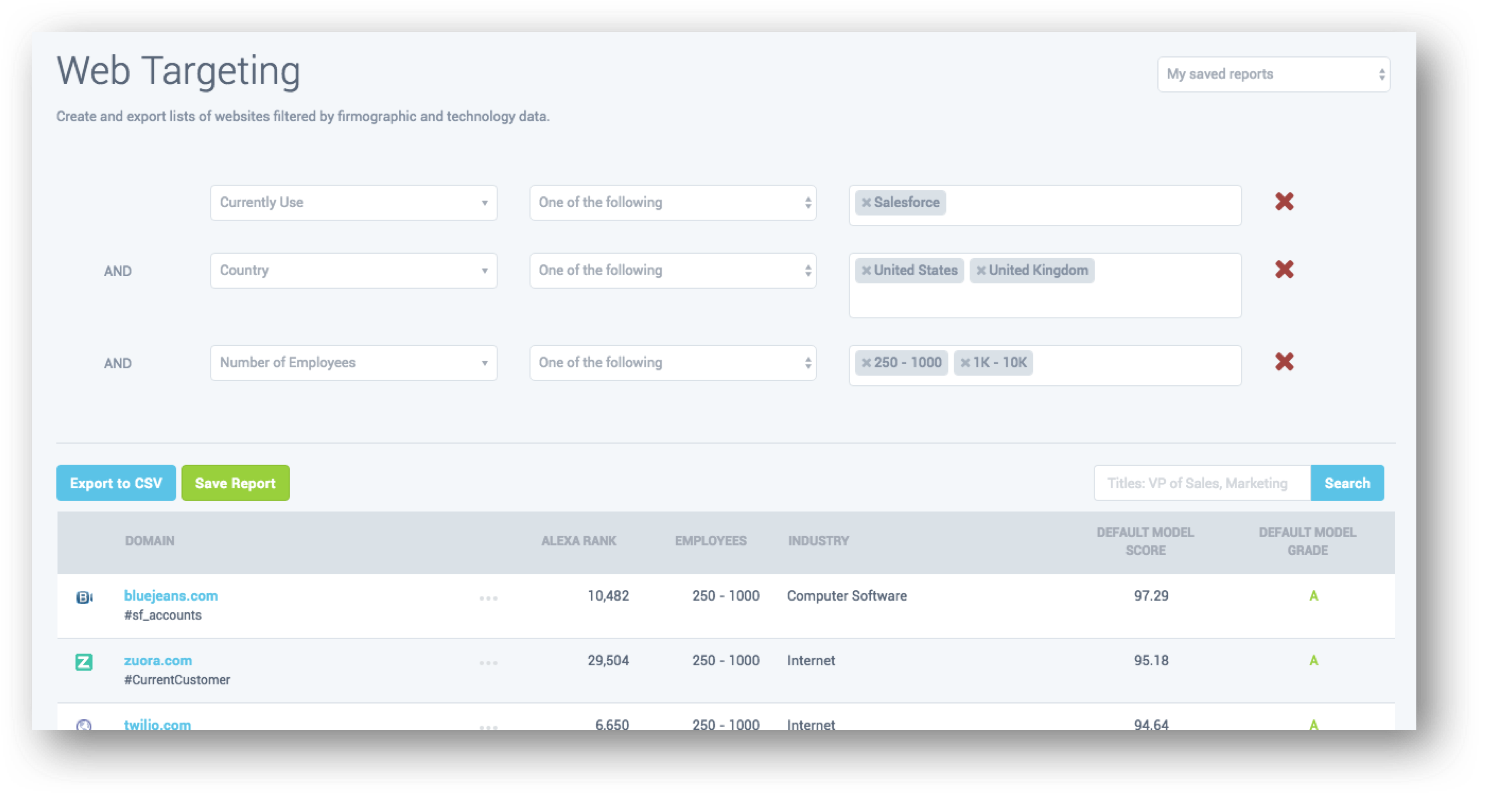
12. Hull.io
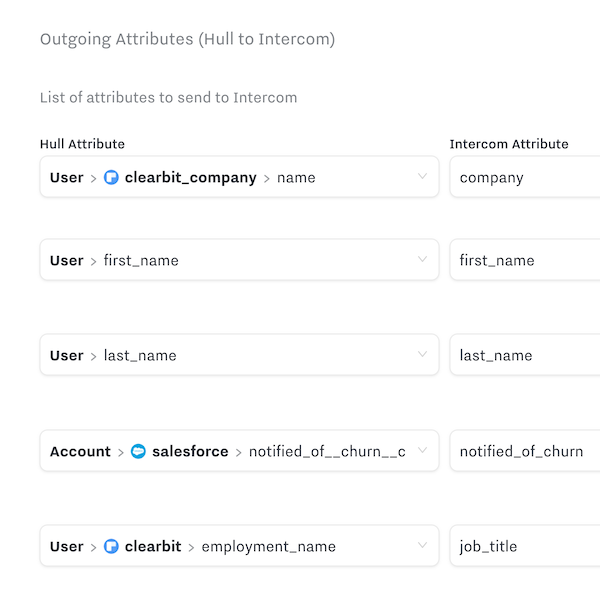
Hull.io is a customer data platform that helps you collect and centralize all the data you have from different marketing tools. It also helps you push that data out to your marketing tools so you can operationalize it and personalize experiences in real time.
I look at customer data platforms as a core component of a personalization strategy, since you generally need three components to make personalization work:
- Good user data
- An ability to deliver experiences
- Content (the experience itself)
Hull.io, and other customer data platforms, help you collect data and deliver experiences.
When you combine this with a tool like Clearbit, which can give you tons of data points to use, you can really ramp up your personalized lead generation campaigns.
13. TypeForm
TypeForm is a survey tool, but it’s got many real world use cases. It’s also got a beautiful user experiences. When I take a survey using TypeForm, I actually enjoy the experience.
While I’ve mostly used TypeForm to send customer surveys to get conversion research insights, I’ve also used it in the context of lead generation.

These are the top lead generation tools, but not all of them are free to use. Now we’ll cover the best free lead generation tools (some of which are on the above list).
The Best Free Lead Generation Tools in 2019
- HubSpot Marketing
- HotJar
- Survey Anyplace
- Hello Bar
- Hunter.io
- Discover.ly
Since we already covered HubSpot Marketing, HotJar and Survey Anyplace above, I’ll describe the remaining three in detail here.
13. Hello Bar
Hello Bar is a CTA and lead capture tool, but it’s got a very specific use case and user experience. Instead of a static web form embedded on a landing page, or an exit intent popup that appears when a visitor is leaving your site, Hello Bar gives you a sticky banner that appears on the top or bottom of the browser.
It looks just like the one on Hello Bar’s home page:
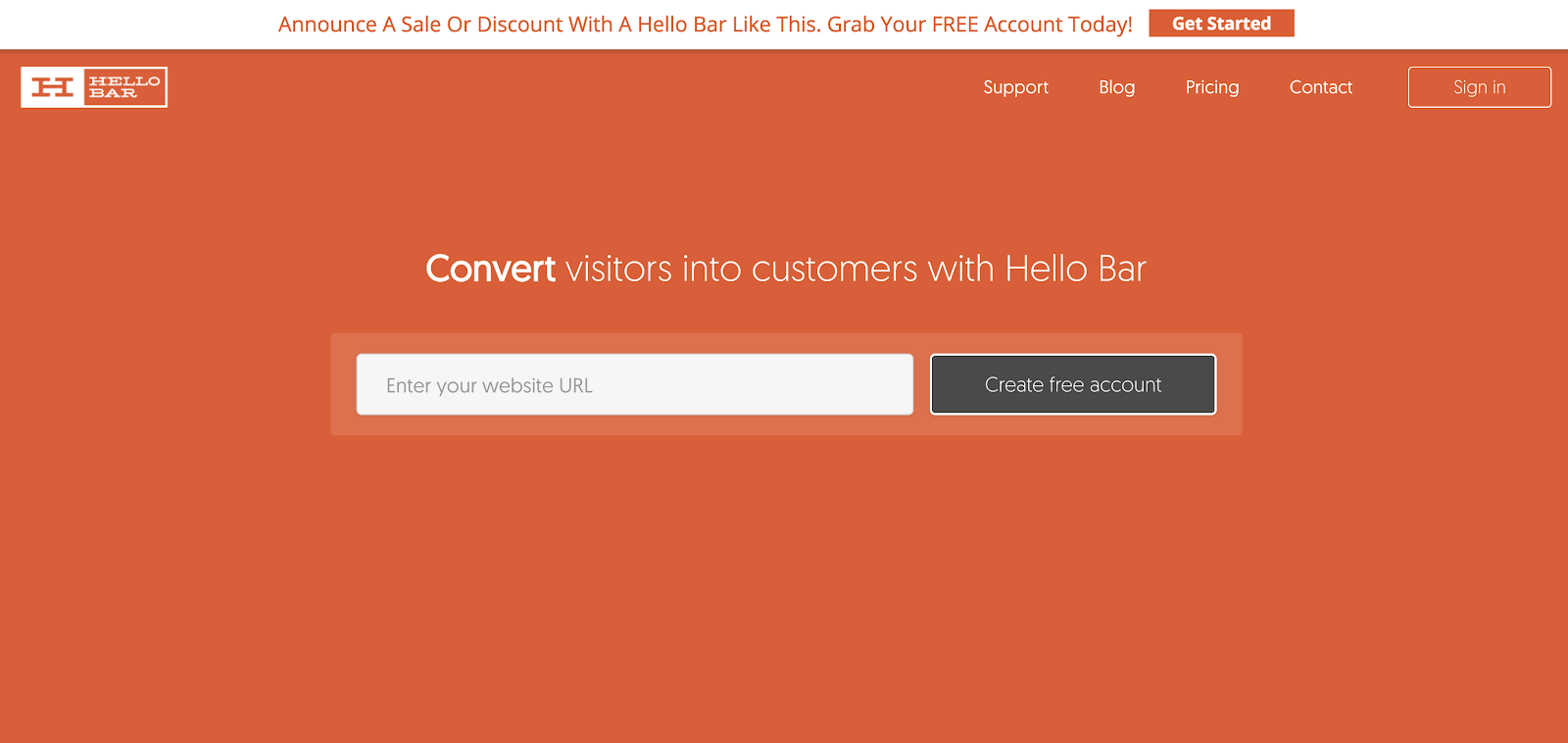
I find these types of CTAs are great for general campaigns and promotional announcements. Therefore, they’re good for short term lead drives, for things like a webinar coming up shortly or a new product feature announcement.
14. Hunter.io
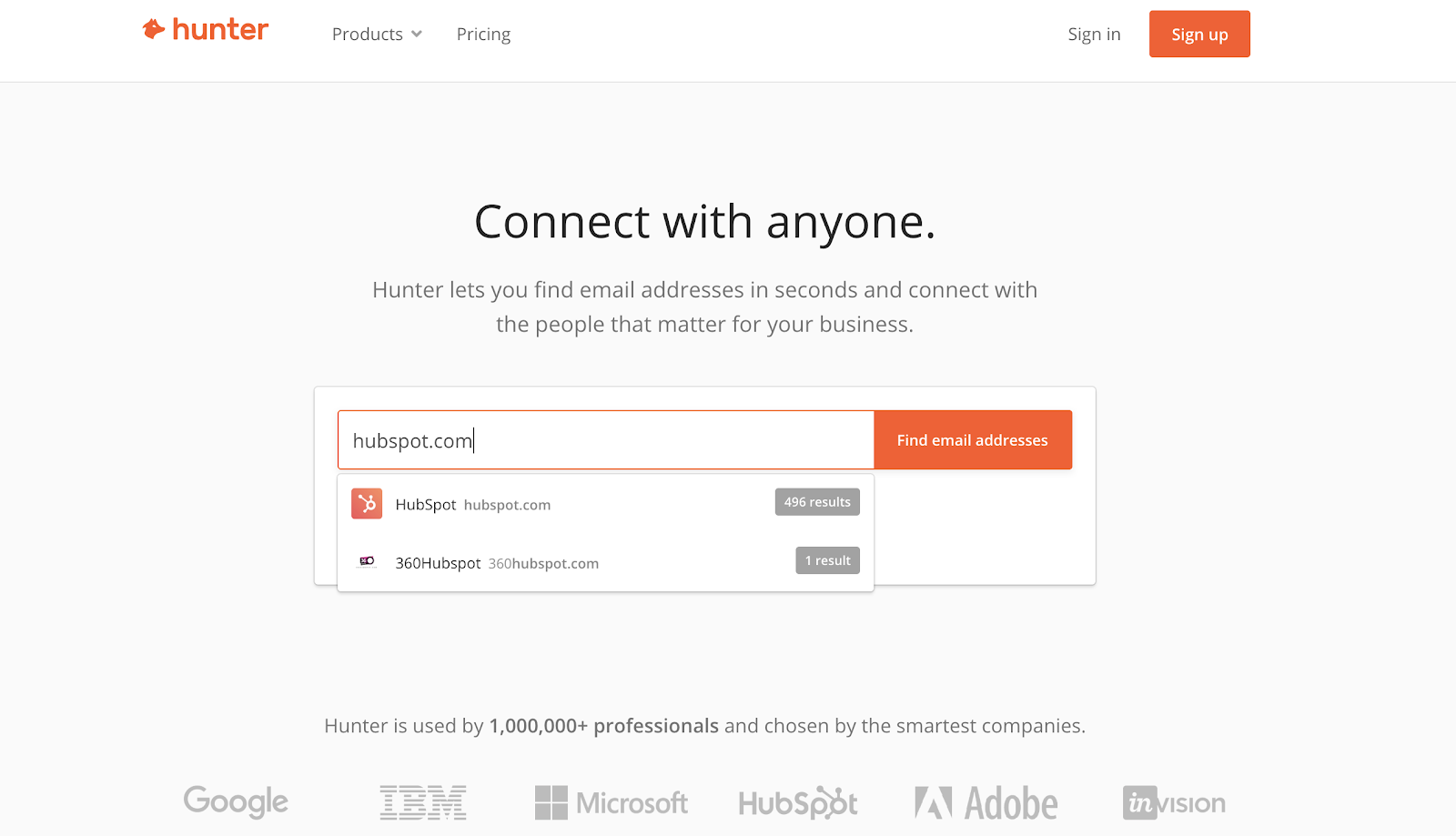
Hunter.io isn’t exactly a lead generation tool, but it helps you find and validate email addresses. If you’re looking to reach a particular person, Hunter is a good way to find their information. It’s not always perfectly accurate, but it’s free to use, and it’s a good tool to have in your toolkit when you need it.
15. Discover.ly
Discover.ly is a lead generation tool that gives you additional information on social media profiles. For that reason, it’s a great complement to other tools on this list, particularly Hunter.io.
When you want to learn more about specific prospects, this free Chrome extension can give you a lot of additional details like their connections and other social profiles.
I don’t want to add to the noise, so this list is limited to those I’ve found particularly useful or impressive.
Lead generation software is a big category.
If you want the best lead generation software for your particular business, you may have to try a few of them out.
In my experience, it’s best to have a comprehensive solution like HubSpot to bear the brunt of the workload.
Then you can add in other tools like Survey Anyplace or Hello Bar to mix things up, and of course, some optimization tools like Clearbit and Formisimo to help you crank up the volume on your results.

The Ultimate Guide to Company Culture
Nowadays, we hear about a company’s culture a lot — including perks like free beer, ping-pong tables, and fitness classes at the office.
Company culture is a critical factor for acquiring and retaining top talent. Additionally, a good company culture can help your business succeed. In fact, companies with strong cultures saw a 4x increase in revenue growth.
But culture is more than just workplace benefits. At its core, a company’s culture is the shared set of values, behaviors, and shared vision of that workplace.
What is company culture?
Company culture is the values, behaviors, and shared vision that contribute to the environment of an organization. An engaging, enjoyable company culture can attract talent, and can also inspire employees to perform at their best. Additionally, a company culture clearly outlines your workplace’s values, and ultimately drives your entire company under a common vision.
In a Deloitte study, 87 percent of organizations cite culture and engagement as one of their top challenges. If you feel your culture can be improved but aren’t sure where to begin, keep reading to learn about the different types of company cultures, and get ideas on how you might improve your own culture.
Types of company culture
- Team-first corporate culture
- Elite corporate culture
- Hierarchy/traditional corporate culture
- Horizontal corporate culture
- Clan culture
1. Team-first Corporate Culture
As the name implies, a team-first corporate culture is one in which team bonding and cross-department collaboration is considered top priority. In a team-first corporate culture, you’re likely to find both formal and informal events planned to encourage strong employee relationships, including regular team outings or after-work drinks.
Additionally, a team-first corporate culture typically offers flexibility and a level of autonomy to ensure employee happiness. For instance, Netflix provides its employees with a full year of unlimited family leave, which allows employees the opportunity to decide what works best for them.
Netflix also encourages independent decision-making, and a culture in which information is shared openly. These aspects of the culture are inherently team-first, as they emphasize the importance of collaborating and communicating with team members to ensure the company stays on track to hit goals without sacrificing an employee’s individual needs.
2. Elite Corporate Culture
You’ll want to consider companies like Google or Facebook when you think of an elite corporate culture, which is a culture in which innovation and forward-thinking are not only encouraged, but expected. An elite corporate culture hires only the best, and values fast growth — ultimately, the employees of an elite corporate culture aim to become the trailblazers in their industry.
For instance, Gainsight, a SaaS company, demonstrates its culture’s emphasis on innovation on its About Us page, where they state: “To change the world of business, you’ve got to have great captains”. Additionally, one of their five values is “Stay thirsty: we believe in a totally internally-driven strive for greatness.”
You might have an elite corporate culture if your company encourages each employee to think outside the box, and push the boundaries of the status quo on a daily basis.
3. Hierarchy/Traditional Corporate Culture
In a hierarchical or traditional corporate culture, you’ll find the bottom-line is always highest priority — meaning a company with a traditional corporate culture likely makes risk-averse and data-driven decisions, and typically doesn’t take too many risks. A traditional corporate culture likely enforces a dress code, and has a clearly defined hierarchy. Additionally, a more traditional culture has an established practice, which makes it difficult to implement new technology.
Bureaucratic organizations like the Department of Motor Vehicles, or Burger King, are good examples of a hierarchy culture. These organizations follow corporate procedures to ensure consistency and results.
4. Horizontal Corporate Culture
A horizontal corporate culture is typically more popular with small start-ups — as the name implies, it’s a culture in which everyone pitches in and collaboration is critical. Since the company is typically young, a horizontal corporate culture is flexible in nature and encourages employees to use market research to refine their strategy.
For instance, take a look at some of these employees’ reviews of Acorns, a software company with digital investment products — “[People in leadership positions] are great! I always received help from them when needed” and “Every person in the company is engaged and you’ll get help from any person that you reach out to”.
These are the types of reviews you’d expect to see for a horizontal culture.
5. Clan Culture
Last in our list, clan culture refers to a company with a “family-like” atmosphere. Typically popular with smaller companies and startups, clan culture suggests a high level of employee engagement and collaboration, and a strong emphasis placed on teamwork. Additionally, with clan culture there’s typically fewer levels of management between employees and leadership — which means communication tends to be more informal and candid.
For instance, on Smile Brand’s Glassdoor review, you’ll see one employee wrote, “I’ve worked for Smile Brands for close to 12 years. I enjoy the family atmosphere and collective focus on supporting the practices and optimal patient care.”
Company culture ideas
- Offer impressive workplace benefits, like an on-site gym or unlimited vacation.
- Focus on diversity initiatives.
- Plan team-building activities.
- Give back to the community.
- Take action to help your employees’ health and wellness.
- Create a company culture manifesto or slide deck.
- Collect employee feedback.
1. Offer impressive workplace benefits, like an on-site gym or unlimited vacation.
Typically, one of the first aspects you’ll hear about when you discuss workplace culture is the benefits — but free beer isn’t enough to implement a truly impressive company culture. Instead, you’ll want to ensure the benefits you offer exist to increase your employee’s happiness, and align well with your values. An on-site gym, for instance, shows your company’s commitment to health and wellness. Alternatively, unlimited vacation makes sense if your company values autonomy.
If you’re unsure which benefits are appropriate for your company culture, take a look at The Comprehensive List of Employee Benefits.
2. Focus on diversity initiatives.
A strong office culture can’t exist without focusing on diversity. For instance, a survey by Glassdoor found 67% of people consider diversity an important factor when deciding where to work — to attract top talent, then, it’s imperative you incorporate diversity into the workplace.
Additionally, diversity can foster innovation, and diverse teams perform better. To learn more about the benefits of diversity in the workplace, check out 5 Awesome Benefits of Diversity at Work.
3. Plan team-building activities.
To create a fun and engaging company culture, it’s critical you implement both formal and informal events to cultivate stronger relationships among members of your organization. You might consider monthly team outings, or informal happy hour drinks after a campaign kickoff.
To ensure everyone feels included in the outings, vary the types of experiences you have with your fellow team members — for instance, one month you might commit to a charity event, and another month you might create an office fitness challenge.
Ultimately, a strong office culture can only exist once employees begin feeling more comfortable with one another. Additionally, it’s important your company offer opportunities for employees to engage with coworkers from different departments, for better company alignment.
4. Give back to the community.
To improve employee morale and give employees another reason to feel proud to work for your organization, consider offering employees the opportunity to volunteer for a local charity. Charity events enables employees to bond with one another, and can also ensure your employees see first-hand how your company’s values play out in real life.
For instance, ExxonMobil awards a $500 grant to a non-profit once a team of five or more employees volunteer for a combined total of at least 20 hours — this allows employees to focus on teamwork and strengthen employee relationships, while giving back to the community.
5. Take action to help your employees’ health and wellness.
Having healthy employees has proven to result in better productivity, lower healthcare costs, and less turnover rates — all critical components to a good workplace culture. Additionally, healthy employees are happier, which will likely lead to a more engaged workforce.
There are plenty of opportunities, varying in cost, to create a stronger workplace wellness program. You might invest in standing desks, create lunchtime yoga sessions, provide healthy snacks, or offer personalized nutrition counseling. Alternatively, you might simply offer employees more flexible hours, so they can arrive at work early and leave at 4 p.m. to catch a cycling class, or arrive late after a morning meditation session.
Essentially, any steps you take to help employees feel better will pay-off in the long run. And, ultimately, you’ll create a culture in which health is considered a top priority — which is certainly a place I’d like to work, wouldn’t you?
6. Create a company culture manifesto.
A few years ago, HubSpot founder Dharmesh Shah created this Culture Code slide deck, with the purpose of answering the following questions for viewers — “What do we believe? What makes us tick?”
A powerful company culture manifesto or document is critical for attracting top talent, and can be used as a resource for recruiters and HR. Additionally, a manifesto enables you to clearly outline what your culture is, as well as what you want it to be — essentially, it can work as a road map, guiding employees when making decisions regarding behaviors and values.
For instance, HubSpot’s slide deck states one simple rule: “Use good judgment.” This is a memorable statement internal employees can use when decision-making.
7. Collect employee feedback.
You’ll never fully know whether your company has a strong and compelling culture if you don’t regularly collect employee feedback. By asking your employees how they feel, you’ll be better equipped to recognize strengths in your current culture, as well as areas for improvement. For instance, maybe you’ll find employees are unhappy with the lack of training programs your company offers.
This information can help you create a more targeted and unique workplace culture down the road — one that focuses less on free beer, and more on long-term employee happiness.
If you need further assistance developing your company’s culture, consider checking out Delivering Happiness, an organization that offers workshops and online resources to help companies improve their workplace culture.
Words to describe company culture
- Trust
- Integrity
- Fairness
- Learning opportunities
- Collaboration
- Teamwork
- Autonomy
- Accountability
- Fun
- Challenging
- Innovative
- Motivating
- Comfortable
- Rewarding

How to Set Up a YouTube Ads Campaign
Wondering how to advertise on YouTube? Looking for a guide to creating a YouTube advertising campaign? In this article, you’ll learn how to set up and optimize a YouTube ads campaign. #1: Set Up YouTube Advertising With the newly redesigned Google Ads interface, managing YouTube ads is now easier than ever. If you have experience […]
The post How to Set Up a YouTube Ads Campaign appeared first on Social Media Marketing | Social Media Examiner.
from Social Media Marketing | Social Media Examiner https://ift.tt/2TKrihU
via socialmediaexaminer
11 Free Microsoft Excel Templates to Make Marketing Easier
Many of us can recall a time in high school when we were sitting in math class and thinking, “When am I ever going to use this stuff in the real world?”
And then we suddenly find ourselves in the real world, only to realize that numbers actually do play a pivotal role in what we do — especially in digital marketing.

The trouble is, many marketers are right-brained, meaning Excel spreadsheets riddled with numbers and formulas aren’t all that inviting. Making them from scratch can be especially intimidating.
While we won’t argue with that, we will say that the advantages of leveraging Excel’s functionality to organize information and streamline tasks are unparalleled. To help those of you looking for a way to sharpen your skills, we’ve put together a detailed list of ways you can start using Excel to simplify your marketing tasks. Complete with templates, these suggestions will have you making strides in no time. Know what’s even better? You can download this full collection of Excel templates in one fell swoop.
Free Excel Spreadsheet Templates That Make Marketing Easier
1. A Marketing Budget Template
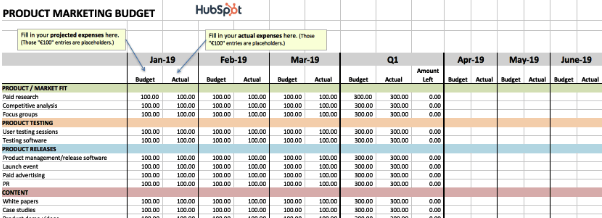
While marketing budgets vary from business to business, the need for structure and a clear sense of alignment between your goals and your spending is critical across the board. To ensure you’re always prepared for unanticipated costs, it’s important that you’re not only allocating your budget thoughtfully and properly, but that you’re also keeping tabs on how closely you’re sticking to your projected expenses.
If you want to avoid a mess at the end of the month or quarter, take a look at this collection of 8 marketing budget templates, designed to help you organize your marketing spend better. From product marketing, to website redesign, to content marketing, to events, these templates serve as a guide for marketers to visualize and track their expenses to avoid overspending.
The collection also contains a master marketing budget template that’ll help you generate a high-level visualization of your marketing budget on both a month-by-month and quarterly basis.
Download the marketing budget templates here.
2. Social Media Posting Schedule
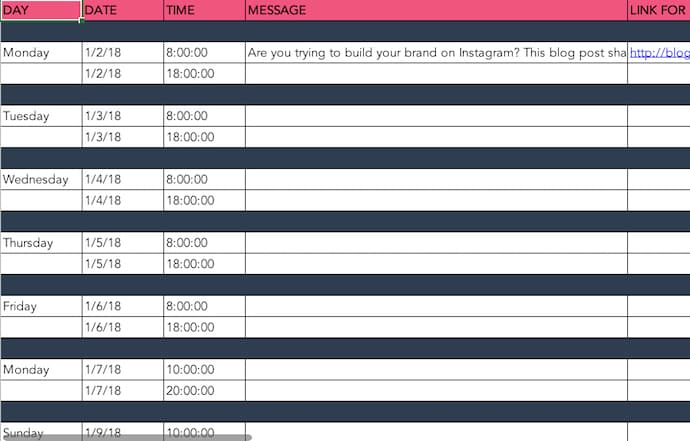 You might already use a social media scheduler to manage and publish your posts every week, but you still need a place to draft your social copy and decide which posts will go to which social networks.
And because most social media schedulers allow you to upload social post copy in bulk, from a spreadsheet, it behooves you to have an Excel template designed for this purpose. With that in mind, we created the Excel template shown above.
This social media posting schedule allows you to draft each social post, the date/time it is to be posted, the message you want to publish, and any link you want to accompany your message (that link could be a blog post, registration page, an ebook landing page, you name it).
Once you’ve drafted all of your social posts for the week, month, or quarter, you can sort them by social network and upload your Excel file into your social media platform of choice.
Download the social media posting schedule here.
3. A Blog Editorial Calendar

Blogging plays a significant role in your ability to attract visitors and leads to your website. But managing a blog is one of those responsibilities that’s easier said than done.
Whether you’re struggling with ideation, consistency, or simply just lacking organization, an editorial calendar can often serve as the solution you need to refocus your blogging efforts and generate even more traffic and leads from your content. Visualize the blog posts you plan to publish in a given week or month makes it easier to define overarching themes, keep track of ideas, manage contributions, and prioritize strategic distribution.
Use this editorial calendar template as the starting point for keeping track of all of your business’ content. It’ll help you be more mindful of topic selection, buyer personas, keyword inclusions, and CTA alignment.
Download the blogging editorial calendar template here.
4. A SMART Goal Matrix
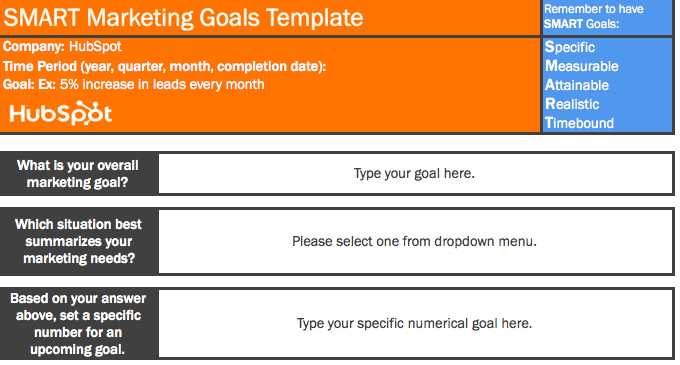
Whether you’re planning for a new year, quarter, or month, defining a clear set of goals is critical for driving the direction of your marketing efforts and priorities.
Do you need help not only setting marketing objectives, but actually achieving them? Start with these SMART goal planning templates. Rooted in specificity, measurability, attainability, relevancy, and timeliness, these templates will help you set your team up for success while providing you with a tool for identifying your greatest marketing needs.
Download the SMART goal planning templates here.
5. An On-Page SEO Template
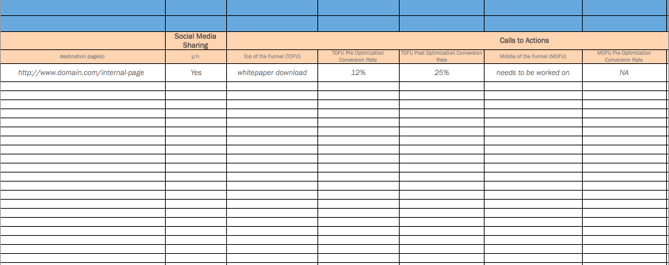
When it comes to SEO, there’s a lot for marketers to remember in order to see results. (Put another way, there’s a lot for marketers to forget.) With search engines evolving and algorithm changes turning your existing strategy on its head from time to time, it can be easy to feel overwhelmed and push off revamping your SEO strategy. However, SEO should never be treated like an afterthought.
If you’re looking for the light at the end of the tunnel, pull up this handy SEO template created in Excel. Designed to make the process of managing your SEO efforts a whole lot easier, marketers can use this template to guide their strategy step-by-step or pass it off to their webmaster to serve as a helpful guide. It focuses on not keywords and SEO best practices while providing tips and tricks to identify nuances and increase productivity.
Download the on-page SEO template here.
6. A Google Ads Campaign Tracker
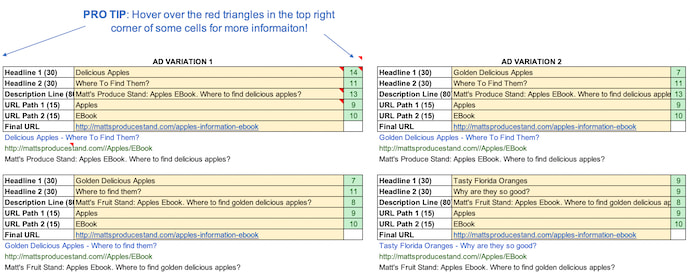
If you’re doing your Google Ads campaigns right, they probably aren’t exactly walks in the park. That’s because to get the most bang for your buck, you’ve set up multiple campaigns with multiple ad groups and have variations of your campaigns — all with different content. Not only that, you’re (hopefully) also keeping track of those campaigns to determine which ones to shut off, add more money to, or tweak.
Sounds like a lot to keep track of, right? But take a deep breath. This Google Ads tracking template can keep you on top of your Google Ads game. It’ll help you catch mistakes and implement best practices across all the different campaigns and ad groups you’re running — for the top, middle, and bottom of the funnel. Not to mention, it’s a perfect complement to that SEO template you’ve started using.
Download the Google Ads tracking template here.
7. A Social Media Content Calendar
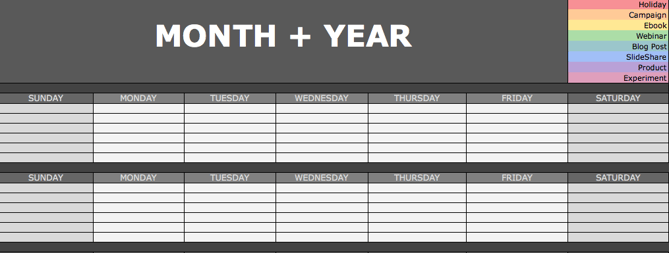
Since you’re probably generating tons of clicks from your Google Ads campaigns and writing awesome content thanks to your blogging editorial calendar, you’re going to need some help figuring out how to spread the love on social. We’ve got just the thing.
The social media calendar template is the perfect resource for helping you scale and streamline your social media marketing. When you use Excel to break out separate worksheets for each social network you’re using, you’ll be able to keep a repository of content ideas so you’re never struck by writer’s block, and always have something to post.
It’s also worth mentioning that Excel really comes in handy when it comes to Twitter, as it has the ability to count your characters to help you write tweets that stay within the 140 character limit.
Download the social media content calendar template here.
8. A Service-Level Agreement (SLA) Template
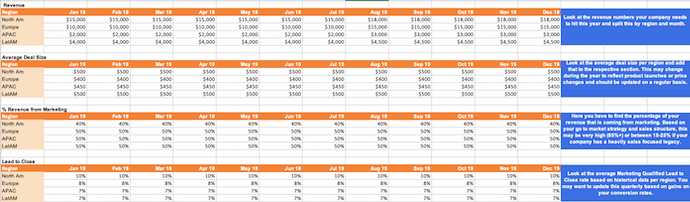
It’s no secret that sales and marketing are known to have a pretty rocky relationship history. Sales might think marketing isn’t generating enough leads, while marketing might think their sales reps aren’t capitalizing on the leads they’re sending over. When it comes down to it, though, finger-pointing doesn’t grow a business.
In an effort to better align your sales and marketing teams, turn to this template for creating a service-level agreement (SLA). Generally speaking, an SLA is a contract that defines the expectations sales has for marketing leads (both quantity and quality), as well as the expectations that marketing has for how sales will act on qualified leads.
With this customizable SLA template in your toolbox, you’ll have the information you need to reduce tension, define a concrete monthly lead generation goal, track and measure the success of specific lead generation channels, and keep close tabs on your current sales close rates.
Download the service-level agreement (SLA) template here.
9. A Leads and Traffic Goal Calculator
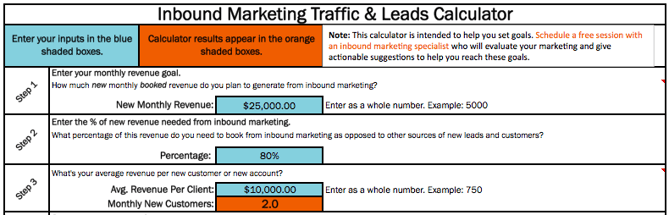
You have to set a leads goal, but you don’t know where to start. Then, once you finally figure that out, you have to determine how much traffic you need to hit that goal … but you’re not sure what approach to take there, either.
Sounds like you could use hand calculating your leads and traffic goals. Luckily, there’s an Excel template for that. Rather than try to sort of these numbers on your own, this template is designed to take care of the math and leave you with a clear picture of what you need to accomplish in order to achieve your traffic and leads goals and ensure the health of your inbound marketing strategy.
Download the leads and traffic goal calculator here.
10. Your Monthly Marketing Metrics
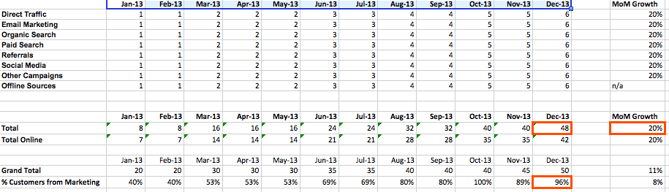
Is there a feeling sweeter than hitting all of your goals for the month? How about communicating your success to your boss? Excel spreadsheets can be used to prepare comprehensive reports of your marketing metrics to send off to your boss — and there’s no need to work from scratch. (After all, you’ve already so worked hard this month.)
To simplify your reporting, check out these monthly marketing metrics templates (and the corresponding PowerPoint template). Each, month, you can update them quickly and easily to reflect your monthly visits, leads, customers, and conversion rates. From there, you’ll have everything you need to accurately track and report on which channels are performing best. Every boss loves to see ROI, so you can’t go wrong with these templates.
Download the monthly marketing metrics templates here.
How do you use Excel to streamline your marketing? Share your favorite techniques, tips, and templates in the comment section below.
11. Essential KPI Tracker
If you’re a fan of the monthly metrics template — item #10 on this list — you might want to grab a copy of this template as well. The essential KPI tracker, shown above, takes the metrics your marketing team has agreed to track and describes them in more detail.
KPI stands for “key performance indicator” — they’re basically your most important metrics, each with a unique purpose and place in your marketing strategy. Using this template, you can assign specific employees to each KPI, define the frequency at which you’ll monitor each KPI’s performance, and assign each KPI a color that reflects the quality of that KPI’s performance.
If one of your KPIs is organic traffic, for example, you can set up your template such that 100 page views per month is red (poor performance), 500 page views/month is yellow (stable performance), and 1000 page views/month is green (great performance).
Download the essential KPI tracker here.
Want more Excel tips? Check out these Excel formulas, keyboard shortcuts, and tips.

31 Call-to-Action Examples You Can’t Help But Click
Think about all the times you’ve signed up for things in your life. Did you once download Evernote? Dropbox? Spotify? Maybe you’ve even taken a class on General Assembly.
Each one of these signups is likely a result of an effective call-to-action (CTA).
And it’s really important to guide your visitors through the buying journey using strategic CTAs. Think about it: If you hadn’t been drawn in by the copy or design of the CTA, or been guided so eloquently through your sign-up process, you would probably use a lot fewer apps and websites than you do now.

To help you identify what’s effective and what’s not, we’ve listed out 31 examples of CTAs that totally rock. These call-to-action examples are broken out into three categories:
- Simple and effective CTAs
- CTAs with great call-to-action phrases
- CTAs that balancing multiple buttons on one page
Simple & Effective Call-to-Action Examples
1. Evernote
CTA Button: Sign Up
“Remember Everything.” Visitors can immediately understand that message the moment they land on this page. The design on Evernote’s website makes it super simple for users to see quick benefits of using the app and how to actually sign up to use it. Plus, the green color of the main and secondary CTA buttons is the same green as the headline and the Evernote logo, all of which jump off the page.
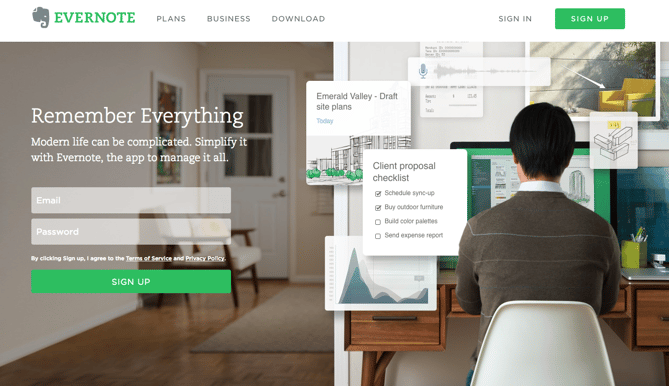
2. Dropbox
CTA Button: Sign up for free
Dropbox has always embraced simple design with a lot of negative space. Even the graphics on their homepage are subtle and simple.
Thanks to that simple design and negative space, the blue “Sign up for free” call-to-action button stands out from everything else on the page. Since the CTA and the Dropbox logo are the same color, it’s easy for the visitor to interpret this CTA as “Sign up for Dropbox.” That’s one effective call-to-action.
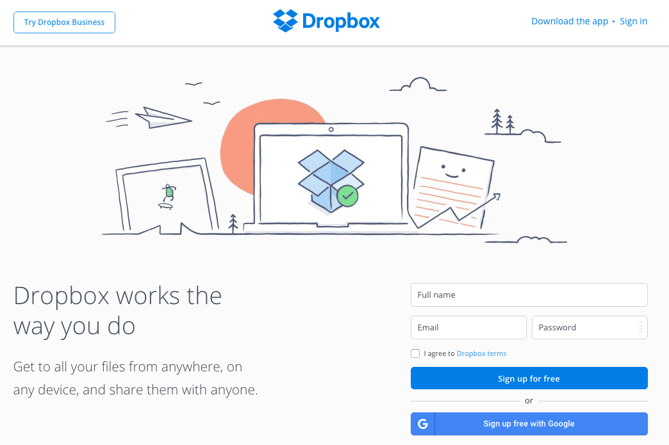
3. OfficeVibe
CTA Button: Subscribe
Here’s a slide-in call-to-action that caught my attention from OfficeVibe. While scrolling through a post on their blog, a banner slid in from the bottom of the page with a call-to-action to subscribe to their blog. The best part? The copy on the slide-in told me I’d be getting tips about how to become a better manager — and the post it appeared on was a post about how to become a better manager. In other words, the offer was something I was already interested in.

Plus, I like how unobtrusive slide-in CTAs are — as opposed to what my colleague Rachel Sprung calls the “stop-everything-and-click-here-pop-up-CTA.” I find these CTAs offer a more lovable experience because they provide more information while still allowing me to continue reading the blog post.
4. Netflix
CTA Button: Join Free for a Month
One big fear users have before committing to sign up for something? That it’ll be a pain to cancel their subscription if they end up not liking it. Netflix nips that fear in the bud with the “Cancel anytime” copy right above the “Join Free for a Month” CTA. I’d venture a guess that reassurance alone has boosted signups. Also, you’ll notice again that the red color of the primary and secondary CTAs here match Netflix’s logo color.

5. Square
CTA Button: Get Started
To achieve effective CTA design, you need to consider more than just the button itself. It’s also super important to consider elements like background color, surrounding images, and surrounding text.
Mindful of these additional design components, the folks at Square used a single image to showcase the simplicity of using their product, where the hovering “Get Started” CTA awaits your click. If you look closely, the color of the credit card in the image and the color of the CTA button match, which helps the viewer connect the dots of what to expect if/when they click.
6. Prezi
CTA Button: Give Prezi a try
The folks at Prezi are also into the minimalist design look on their website. Other than the green dinosaur and the dark brown coffee, the only other color accompanying the predominantly black-and-white design is a bright blue — the same blue from their main logo. That bright blue is strategically placed on the homepage: the main “Give Prezi a try” CTA, and the secondary “Get Started” CTA, both of which take users to the same pricing page.
7. Full Bundle
CTA Button: Our Work
Full Bundle is another company that uses negative space to make their primary CTA pop. The white “Our Work” call-to-action stands out against the dark greys of the background. Their choice of CTA is strategic, too. Given that they primarily exist to build out clients’ online presences, it’s important for them to showcase their work — and that’s what most folks are going to their website for.
8. Panthera
CTA Button: Join
The folks at Panthera are looking for users who really care about wild cats around the world and want to join a group of people who feel the same way. To target those people in particular, we love how they use language that would speak to big cat-lovers: “Join the pride today.” The page itself is super simple: an on-page form with two, simple fields, and a button asking folks to (again) “Join.”
CTAs With Creative Call to Action Phrases
9. Huemor
CTA Phrase: ‘Launch (Do Not Press)’
If you went to a website and saw a “Launch” CTA accompanied by the copy “Do Not Press” … what would you do? Let’s be honest: You’d be dying to press it. The use of harmless reverse psychology here is playful, which is very much in keeping with Huemor’s brand voice.
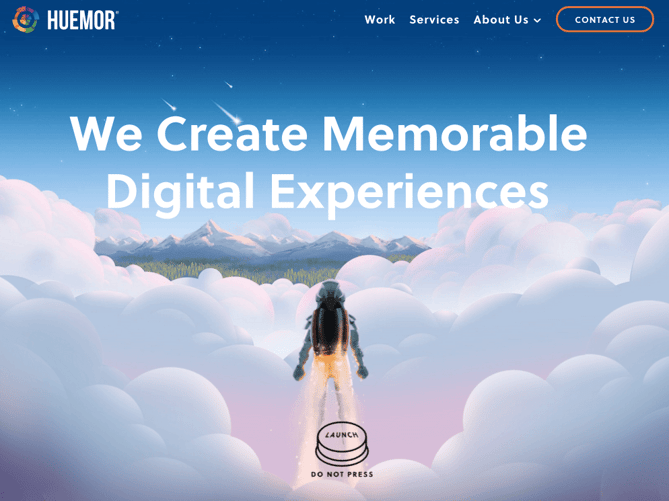
10. Aquaspresso
CTA Phrase: ‘Send Me Specials Now!’
The whole point of a call-to-action is to direct your site visitors to a desired course of action — and the best CTAs do so in a way that’s helpful to their visitors. The folks at coffee company Aquaspresso really nailed that balance here with the pop-up CTA on their main blog page.
Here, the desired course of action is for their blog readers to check out what they’re actually selling (and hopefully buy from them). There are many ways they could have done this, including putting out a CTA that urges people to “Check out our most popular products!” or something very direct. But we love what they’ve done instead: Their CTA offers blog readers something much more helpful and subtle — an offer for “today’s specials” in exchange for the reader’s email address.
Adding that the specials are for today only is a great example of a psychological tactic called scarcity, which causes us to assign more value to things we think are scarce. The fear that today’s specials are better than tomorrow’s might make people want to fill it out and claim their offer while they can.
(The call-to-action above was created using HubSpot’s free conversion tool, Leadin. Click here to learn how to easily create CTAs like this one using Leadin.)
11. QuickSprout
CTA Phrase: ‘Are you doing your SEO wrong? Enter your URL to find out’
No one wants to be wrong. That’s why a call-to-action button like QuickSprout’s slide-in CTA on their blog is so clickworthy. It asks the reader, “Are you doing your SEO wrong?” Well, am I? All I have to do is enter my URL to find out — seems easy enough. It’s language like that that can really entice visitors to click through.
Plus, having the CTA slide in mid-blog post is a great tactic for catching readers before they bounce off the page. Traditionally, many blogs have CTAs at the very bottom of each blog post, but research shows most readers only get 60% of the way through an article. (Click here to learn how to add slide-in CTAs to your blog posts.)
12. Grey Goose
CTA Phrase: ‘Discover a cocktail tailored to your taste’
Here’s a fun, unique call-to-action that can get people clicking. Whereas site visitors might have expected to be directed to product pages or press releases from the homepage, a CTA to “Discover a Cocktail Tailored to Your Taste” is a pleasantly surprising ask. People love personalization, and this CTA kind of feels like an enticing game. The play button icon next to the copy gives a hint that visitors will be taken to a video so they have a better idea of what to expect when they click.
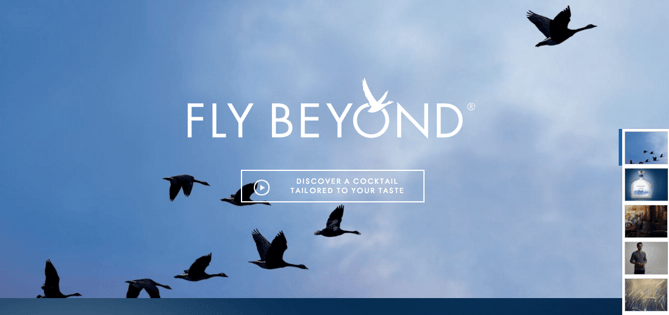
13. Treehouse
CTA Phrase: ‘Claim Your Free Trial’
A lot of company websites out there offer users the opportunity to start a free trial. But the CTA on Treehouse’s website doesn’t just say “Start a Free Trial”; it says “Claim Your Free Trial.”
The difference in wording may seem subtle, but think about how much more personal “Claim Your Free Trial” is. Plus, the word “claim” suggests it may not be available for long, giving users a sense of urgency to get that free trial while they can.
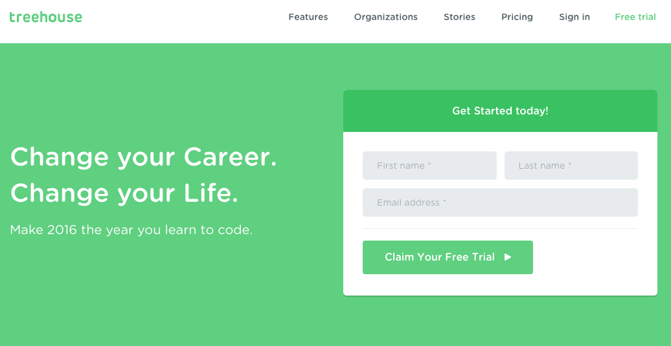
14. OKCupid
CTA Phrase: ‘Continue’
OKCupid’s CTA doesn’t seem that impressive at first glance, but its brilliance is in the small details.
The call-to-action button, which is bright green and stands out well on a dark blue background, says, “Continue.” The simplicity of this term gives hope that the signup process is short and casual. To me, this CTA feels more like I’m playing a fun game than filling out a boring form or committing to something that might make me nervous. And it’s all due to the copy.
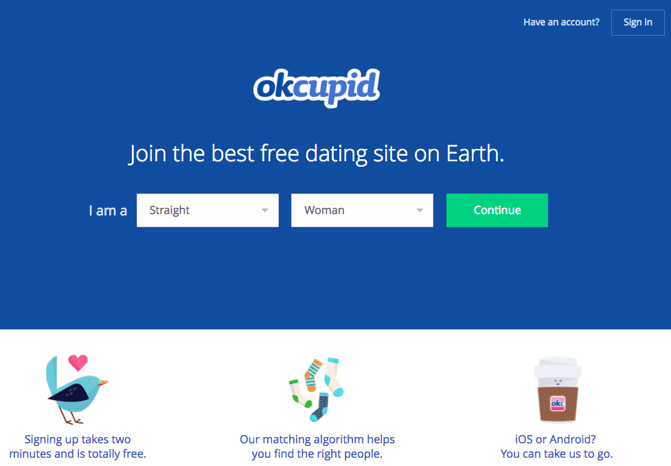
15. Blogging.org
CTA Phrase: Countdown Clock
Nothing like a ticking timer to make someone want to take action. After spending a short amount of time on blogging.org’s homepage, new visitors are greeted with a pop-up CTA with a “limited time offer,” accompanied by a timer that counts down from two minutes.
As with Aquaspresso’s example in #10, this is a classic use of the psychological tactic called scarcity, which causes us to assign more value to things we think are scarce. Limiting the time someone has to fill out a form makes people want to fill it out and claim their offer while they can.
Curious, what happens when time runs out? So was I. Hilariously, nothing happens. The pop-up CTA remains on the page when the timer gets to zero.
16. IMPACT Branding & Design
CTA Phrase: ‘What We Do’
CTAs can feel really pushy and salesy if the wrong language is used. I like IMPACT‘s educational approach, where they challenge visitors to learn what the company does before pushing them to take any further action. This call-to-action is especially intriguing to me because they don’t even use an action verb, yet they still manage to entice people to click.

17. EPIC
CTA Phrase: ‘Let’s start a new project together’
The folks at the agency EPIC use their homepage primarily to showcase their work. When you arrive on the page, you’re greeted with animated videos showing some of the work they’ve done for clients, which rotate on a carousel. While there plenty of other places users might click on their site — including their clients’ websites — the main call-to-action stands out and always contrasts with the video that’s playing in the background.
I love that it features friendly, inclusive language — “Let’s start a new project together” — which gives a hint to users looking for a creative partner that they’re an especially great team to work for.
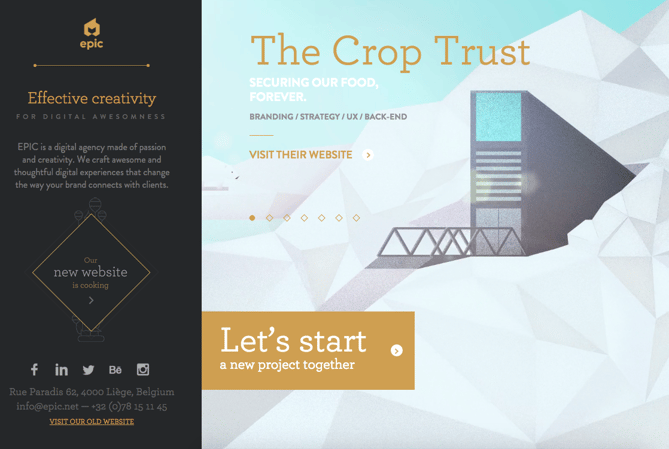
18. Brooks Running
CTA Phrase: ‘Find out when we have more’
How many times have you hotly pursued a product you love, only to discover it’s sold out? Well, as you might know, it’s no picnic for the seller either. But just because you’ve run out of an item doesn’t mean you should stop promoting it.
Brooks Running uses a clever call to action to ensure their customers don’t bounce from their website just because their favorite shoe is out of stock. In the screenshot below, you can see Brooks touting an awesome-looking shoe with the CTA, “Find out when we have more.” I love how this button turns bad news into an opportunity to retain customers. Without it, Brooks’ customers would likely forget about the shoe and look elsewhere.
When you click on the blue CTA button depicted below, Brooks directs you to a page with a simple code you can text the company. This code prompts Brooks to automatically alert the visitor when the shoe they want is available again.
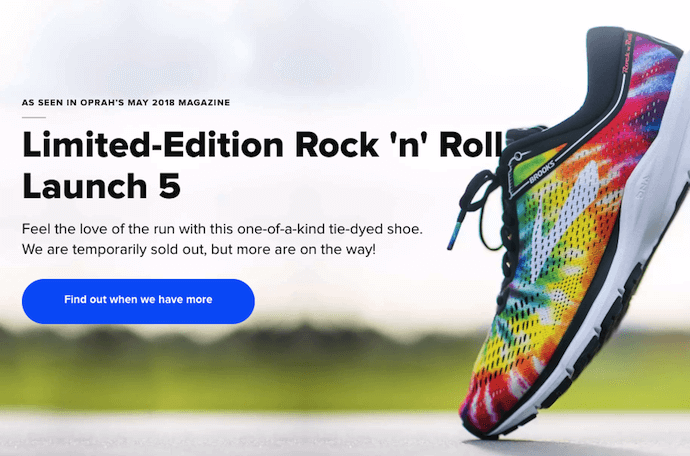
19. Humboldt County
CTA Phrase: ‘Follow the Magic’
Humboldt County’s website is gorgeous on its own: It greets you with a full-screen video of shockingly beautiful footage. But what I really love is the unconventional call-to-action button placed in the bottom center, which features a bunny icon and the words “Follow the Magic.”
It enhances the sort of fantastical feel of the footage, making you feel like you’re about to step into a fairytale.
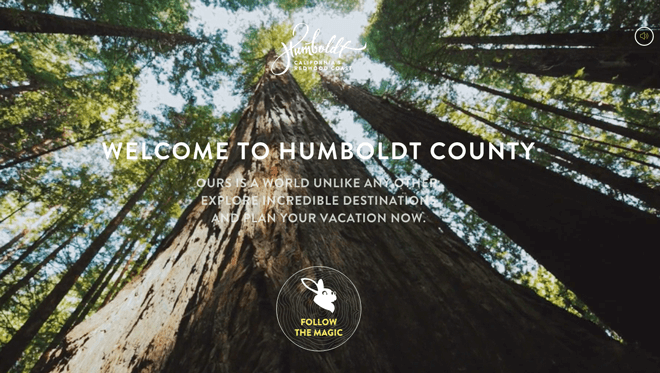
What’s more, once you click into that CTA, the website turns into a sort of choose-your-own-adventure game, which is a fun call-to-action path for users and encourages them to spend more time on the site.

Balancing Multiple Call-to-Action Buttons
20. Uber
CTA Buttons: Sign up to drive | Start riding with Uber
Uber’s looking for two, very distinct types of people to sign up on their website: riders and drivers. Both personas are looking for totally different things, and yet, the website ties them together really well with the large video playing in the background showing Uber riders and drivers having a good time in locations all over the world.
I love the copy of the driver CTA at the top, too: It doesn’t get much more straightforward than, “Make money driving your car.” Now that’s speaking people’s language.
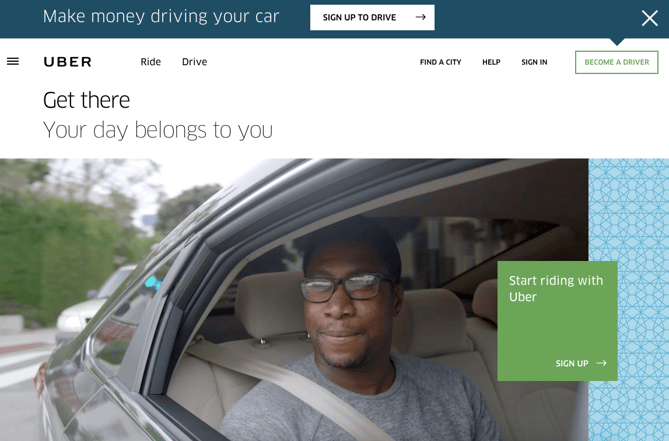
21. Spotify
CTA Buttons: Go Premium | Play Free
As soon as you reach Spotify’s homepage, it’s pretty clear that their main goal is to attract customers who are willing to pay for a premium account, while the CTA for users to sign up for free is very much secondary.
It’s not just the headline that gives this away; it’s also the coloring of their CTA buttons. The “Go Premium” CTA is lime green, making it pop off the page, while the “Play Free” CTA is plain white and blends in with the rest of the copy on the page. This contrast ensures that visitors are drawn to the premium CTA.
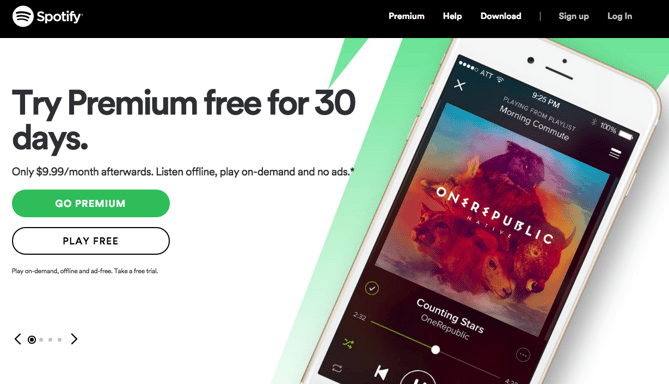
22. Ugmonk
CTA Buttons: Send me the coupons | I’m not interested
Exit CTAs, also known as exit intent pop-ups, are different than normal pop-ups. They detect your users’ behavior and only appear when it seems as though they’re about to leave your site. By intervening in a timely way, these pop-ups serve as a fantastic way of getting your reader’s attention while offering them a reason to stay.
Ugmonk has a great exit CTA, offering two options for users as a final plea before they leave the site. First, they offer a 15% discount on their products, followed by two options: “Yes Please: Send me the coupon” and “No Thanks: I’m not interested.” It’s super helpful that each CTA clarifies what “Yes” and “No” actually mean, and I also like that they didn’t use guilt-tripping language like “No Thanks: I hate nature” like I’ve seen on other websites. Finally, notice that the “Yes Please” button is much brighter and inviting in color than the other option.
23. Pinterest
CTA Buttons: Continue with Facebook | Sign Up
Want to sign up for Pinterest? You have a couple of options: sign up via Facebook or via email. If you have a Facebook account, Pinterest wants you to do that first. How do I know? Aesthetically, I know because the blue Facebook CTA comes first and is much more prominent, colorful, and recognizable due to the branded logo and color. Logically, I know because if you log in through Facebook, Pinterest can pull in Facebook’s API data and get more information about you than if you log in through your email address.
Although this homepage is optimized to bring in new members, you’ll notice a very subtle CTA for folks with Pinterest accounts to log in on the top right.
24. Madewell
CTA Buttons: Take me there | What’s next?
Madewell (owned by J.Crew) has always had standout website design, taking what could be a typical ecommerce website to the next level. Their use of CTAs on their homepage is no exception.
When you first arrive on the page, you’re greeted with the headline “I’m Looking For …” followed by a category, like “Clothes That’ll Travel Anywhere.” Below this copy are two options: “Yes, Take Me There” or “Hmm… What’s Next?” The user can choose between the two CTAs to either browse clothes that are good for travel, or be taken to the next type of clothing, where they can play again.
This gamification is a great way to make your site more interesting for users who come across it without having a specific idea of where they want to look.
25. Instagram
CTA Buttons: Download on the App Store | Get it on Google Play
Since Instagram is a mainly mobile app, you’ll see two black CTAs of equal size: one to download Instagram in Apple’s App Store, and another to download it on Google Play. The reason these CTAs are of equal caliber is because it doesn’t matter if someone downloads the app in the App Store or on Google Play … a download is a download, which is exactly what Instagram is optimizing for. If you already have Instagram, you can also click the CTA to “Log In” if you’d prefer that option, too.
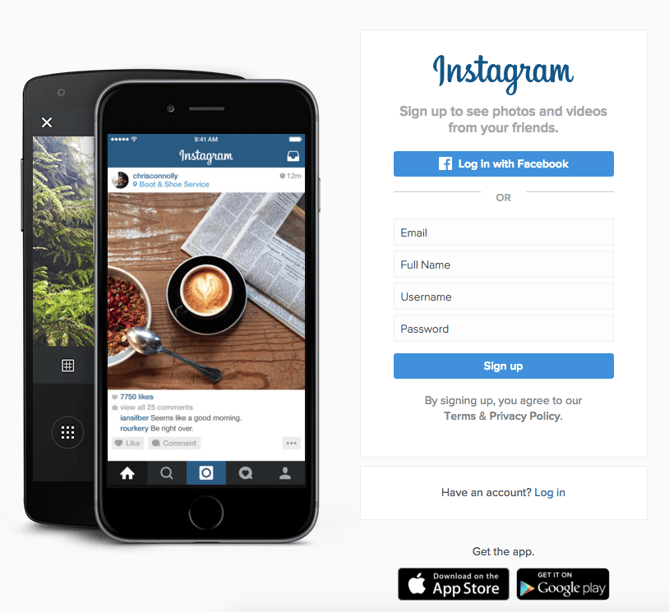
26. Barkbox
CTA Buttons: Get Started | Give a Gift
The two CTAs on Barkbox’s homepage show that the team there knows their customers: While many people visiting their site are signing up for themselves, there are a lot of people out there who want to give Barkbox as a gift. To give those people an easy path to purchase, there are two, equally sized CTAs on the page: “Get Started” and “Give a Gift.”
As an added bonus, there’s an adorable, pop-up call-to-action on the right-hand side of the screen prompting users to leave a message if they’d like. Click into it, and a small dialogue box pops up that reads, “Woof! I’m afraid our pack is not online. Please leave us a message and we’ll bark at you as soon as pawsible.” Talk about delightful copy.
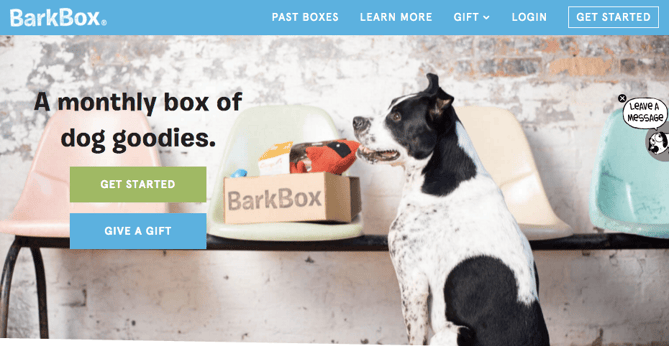
27. t.c. pharma
CTA Buttons: Find out more | View products
Turns out Red Bull isn’t its own parent company: It’s owned by Thailand-based t.c. pharma, a company that makes popular energy drinks, electrolyte beverages, and functional drinks and snacks.
Its homepage features two call-to-action buttons of equal size: “Find out more” and “View products” — but it’s clear by the bright yellow color of the first button that they’d rather direct folks to “Find out more.”
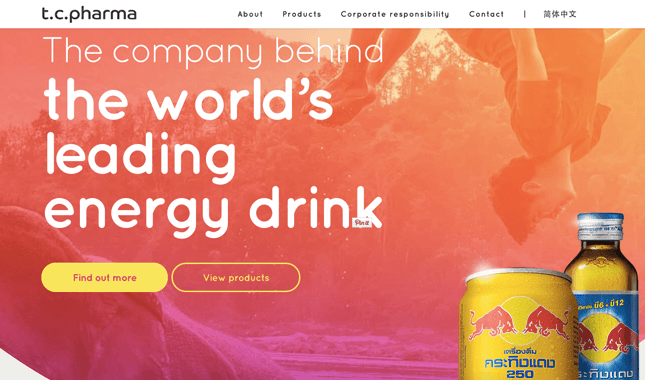
28. General Assembly
CTA Buttons: View Full-Time Courses | Subscribe
As you scroll through the General Assembly website, you’ll see CTAs for various courses you may or may not want to sign up for. I’d like to point your attention to the CTA that slides in from the bottom of the page as you’re scrolling, though, which suggests that you subscribe to email updates.
Although this feels like a secondary CTA due to its location and manner, I actually think they try to sneak this in to become more of a primary CTA because it’s so much more colorful and noticeable than the CTAs for individual classes. When you create your own CTAs, try using bolder colors — even ones that clash with your regular stylings — to see if it’s effective at getting people’s attention. (Click here for a tutorial on how to add slide-in CTAs to your webpages.)
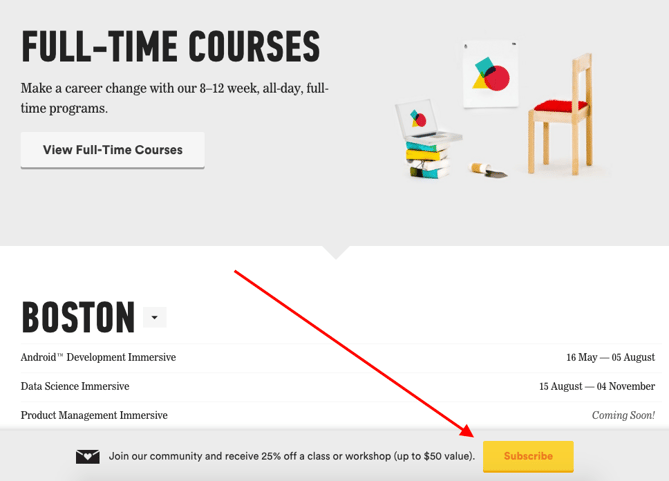
29. charity: water
CTA Buttons: Give by Credit Card | Give by PayPal
Charity: water’s main goal is to get people to donate money for clean water — but they can’t assume that everyone wants to pay the same way.
The CTAs featured on their homepage take a really unique approach to offering up different payment methods by pre-filling $60 into a single line form and including two equally important CTAs to pay via credit card or PayPal. Notice how both CTAs are the same size and design — this is because charity: water likely doesn’t care how you donate, as long as you’re donating.
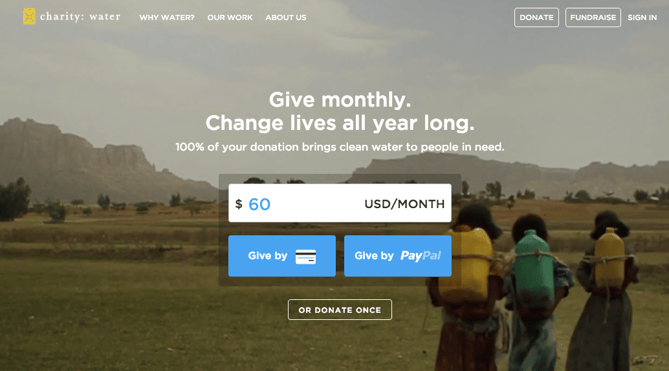
30. Hipmunk
CTA Buttons: Flights | Hotels | Cars | Packages
When you land on the Hipmunk site, your main option is to search flights. But notice there are four tabs you can flip through: flights, hotels, cars, and packages.
When you click into one of these options, the form changes so you can fill out more information. To be 100% sure you know what you’re searching for, Hipmunk placed a bright orange CTA at the far right-hand side of the form. On this CTA, you’ll see a recognizable icon of a plane next to the word “Search,” so you know for sure that you’re searching for flights, not hotels. When you’re on the hotels tab, that icon changes to a hotel icon. Same goes with cars and packages.
31. MakeMyPersona
CTA Buttons: Grab the template! | No thanks
Here’s another example of a great pop-up with multiple calls-to-action — except in this case, you’ll notice the size, color, and design of the users’ two options are very different from one another. In this case, the folks at MakeMyPersona are making the “Grab the template!” CTA much more attractive and clickable than the “No, I’m OK for now, thanks” CTA — which doesn’t even look like a clickable button.
I also like how the “no” option uses polite language. I find brands that don’t guilt-trip users who don’t want to take action to be much, much more lovable.
There you have it. By now, we hope you can see just how important little CTA tweaks can be.
Full Disclosure: We don’t have data to know if these are all scientifically successful, but these examples all follow our best practices. If you decide to recreate these CTAs on your site, please remember to test to see if they work for your audience.
Want more CTA design inspiration? Check out some of our favorite HubSpot call-to-action examples.

8 of the Best Professional Bio Examples We’ve Ever Seen [+ Bio Templates]
Is your professional bio as good as it can be?
In this article, we have eight real bio examples you should definitely compare yours to — and a series of free bio templates you can use to perfect it.
Most people don’t think about their professional bio until they’re suddenly asked to “shoot one over via email,” and have approximately one afternoon to come up with it. That’s when we scramble, and our bio ends up reading like this:
Rodney Erickson is a content marketing professional at HubSpot, an inbound marketing and sales platform that helps companies attract visitors, convert leads, and close customers. Previously, Rodney worked as a marketing manager for a tech software startup. He graduated with honors from Columbia University with a dual degree in Business Administration and Creative Writing.”
Woof, that was dull. Are you still with me? I swear, not even adding a tidbit about his cats would liven that bio up.

To be fair, in certain contexts, your professional bio does need to be more formal, like Mr. Erickson’s up there. But in many cases, writing a bio that’s readable — even conversational — is actually a really good thing. That means dropping that traditional format of listing your accomplishments like a robot and cramming as much professional-sounding jargon in there as you can.
How to Write a Bio
- Create an ‘About’ page for your website or profile.
- Begin writing your bio with your first and last name.
- Mention any associated brand name you might use.
- State your current position and what you do.
- Include at least one professional accomplishment.
- Describe your values and how they inform your career.
- Briefly tell your readers who you are outside of work.
- Consider adding humor or a personal story to add flavor to your professional bio.
1. Create an ‘About’ page for your website or profile.
Before you can publish your professional bio, you need a living space for it. Here are a few to consider (some of these you might already have in place):
- Facebook Business page
- LinkedIn profile
- Instagram account
- Personal website
- Personal blog
- Industry website
- Industry blog byline
As you’ll see in the professional bio examples below, the length and tone of your bio will differ depending on which of the above platforms you choose to be on. Instagram, for example, allows only 150 characters of bio space, whereas you can write virtually as much as you want on your personal website — or even your Facebook Business page. But once created, this bio should represent who you are in the eyes of your audience.
2. Begin writing your bio with your first and last name.
If your readers don’t remember anything else about your bio, make sure they remember your name. For that reason, it’s a good idea for your first and last name to be the first two words of your professional bio. Even if your name is printed above this bio (hint: it should), this is a rare moment where it’s okay to be redundant.
For example, if I were writing my own bio, I might start it like this:
Lindsay Kolowich
Lindsay Kolowich is a Senior Marketing Manager at HubSpot.
3. Mention any associated brand name you might use.
Will your professional bio represent yourself, or a business you work for? Make sure the brand you want to be associated with is mentioned in your bio. If you’re a freelancer, perhaps you have a personal business name or pseudonym you advertise to your clients. Here are a few examples:
- Lindsay Kolowich Marketing
- SEO Lindsay
- Kolowich Consulting
- Content by Kolowich (what do you think … too cheesy?)
Maybe you founded your own company, and you want its name to be separate from your real name. Don’t be afraid to keep it simple: “Lindsay Kolowich is the founder and CEO of Kolowich Consulting.”
4. State your current position and what you do.
Whether you’re the founder of your company or a mid-level specialist, use the next few lines of your bio to describe what you do in that position. Don’t assume your audience will naturally know what your job title entails. Make your primary responsibilities known for the reader, helping them paint a picture of who you are during the day and what you have to offer the industry.
5. Include at least one professional accomplishment.
Just as a business touts its client successes in the form of case studies, your professional bio should let your own audience know what you’ve already achieved. What have you done for yourself — as well as for others — that makes you a valuable player in your industry?
6. Describe your values and how they inform your career.
Why do you do what you do? What might make your contribution to the market different than your colleagues? Better yet, what values do you and your colleagues share that would make your business a worthwhile investment to others? Start to wrap up your professional bio by simply explaining what gets you up in the morning.
7. Briefly tell your readers who you are outside of work.
Transition from describing your values in work to describing who you are outside of work. This may include:
- Your family
- Your hometown
- Sports you play
- Hobbies and interests
- Favorite music and travel destinations
- Side hustles you’re working on
People like connecting with other people. The more transparent you are about who you are personally, the more likable you’ll be to the people reading about who you are professionally.
8. Consider adding humor or a personal story to add flavor to your professional bio.
End your professional bio on a good note — or, more specifically, a funny note. Leaving your audience with something quirky or uniquely you can ensure they’ll leave your website with a pleasant impression of you.
It’s important to follow the steps above when writing your bio, but don’t obsess over any one section. Remember, the people reading your bio are suffering from information fatigue. If you don’t hook ’em in the first line, you’ll lose them quickly.
Alright, I know what you may be thinking … So what? It’s just a bio.
(P.S. Want to give your professional brand a boost? Take one of HubSpot Academy’s free certification courses. In just one weekend, you can add a line to your resume and bio that’s coveted by over 60,000 marketers.)
Why Good Bios Are Important for a Professional
I mean, how many people actually read professional bios, anyway?
The answer: A lot of people. More importantly, though, there’s no way to tell exactly who is reading it — and you always want it to be ready for when the right people to come across it. And when they do, you want it to catch their eye. In a good way.
You see, while your resume is only useful for when you’re actively applying for specific positions, your professional bio is much more visible. It can live on your LinkedIn profile, your company’s website, your guest blog posts, your speaker profiles, your Twitter bio, and many other places.
And, most importantly, it’s the tool that you can leverage most when you’re networking.
Bottom line? People will read your professional bio. Whether they remember it, and whether it makes them actually care about you, is a matter of how well you present yourself to your intended audience.
So, what does a top-notch professional bio look like?
Below, we’ve curated some of the best real professional bio examples we’ve ever seen on Twitter, Instagram, Facebook, LinkedIn, and the various websites where you might describe yourself.
Check ’em out, and use them as inspiration when crafting your own.
Best Bio Examples
- Ann Handley
- Rebecca Bollwitt
- Mark Gallion
- DJ Nexus
- Lena Axelsson
- Mark Levy
- Corey Wainwright
- Marie Mikhail
8 of the Best Professional Bio Examples We’ve Ever Seen
1. Ann Handley
Bio Platform: Personal Website
If you’re a marketer, you’ve likely heard of Ann Handley. Her list of credentials is lengthy, and if she really wanted to, she could go on and on and on about her accomplishments.
But when people list out all their accomplishments in their bios, they risk sounding a little egotistical. Sure, you might impress a handful of people with all those laurels, but many people who read your bio will end up feeling either intimidated or annoyed. Think about it: Is that how you want the majority of your readers to feel when they read your bio?
To minimize the egoism that comes with talking about yourself, think about how you can list out your accomplishments without sounding like you’re bragging. Ann does this really well, choosing a tone in her bio that’s more approachable.
It starts with the excerpt in the footer of her personal website. Give it a quick read, paying close attention to the opening and closing lines:
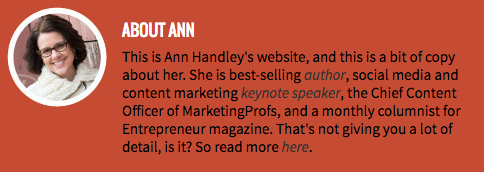
“This is Ann Handley’s website, and this is a bit of copy about her … That’s not giving you a lot of detail, is it? So read more here.” This is the kind of simple, friendly language that invites the reader in rather than shutting them out.
Follow the link and you’ll be led to a page dedicated to a fuller bio, which she’s divided into two parts: a “short version” (literally a bulleted list of key facts) and a “long version,” which includes traditional paragraphs. There’s something in there for everyone.
2. Rebecca Bollwitt
Bio platform: Instagram
Instagram is a notoriously difficult platform on which to write a good bio. Similar to Twitter, you simply don’t have room for a professional bio that includes everything about you. And because Instagram is primarily a mobile app, many viewers are reading about you passively on their mobile device.
Instagram’s limited bio space requires you to highlight just your most important qualities, and blogging icon Rebecca Bollwitt does so in her own Instagram bio in an excellent way.
Rebecca’s brand name is Miss604, and cleverly uses emojis in her Instagram bio to tell visitors exactly what makes her a valuable content creator. Take a look in the screenshot below.
Starting with a trophy emoji, Miss604 says she’s won more than 30 awards for her blogging services. I haven’t even looked at her pictures yet and the introduction of her bio has already sucked me in.
The rest of her bio follows suit, breaking up the text with an appropriate emoji and a perfect collection of nouns to tell me who she is as a person. She even links out to her husband’s Instagram account after the heart emoji (an adorable addition), and assures her followers that all of her pictures are authentically hers.
Take a lesson from Miss604, and show your personal side. Just because you’re branding yourself as a professional doesn’t mean you have to take your human being hat off. Often your most personal attributes make for the best professional bio content.
3. Mark Gallion
Bio Platform: Twitter
As a venture capitalist and an executive at several start-ups, Mark Gallion has different versions of his bio all over the internet. You can imagine some are more formal than others. But when it comes to his Twitter bio, he carefully phrased his information in a way that helps him connect with his audience — specifically, through the use of humor.
Why would he choose humor when he runs four start-ups and constantly seeks funding for them? Well, Mark’s tactic is totally intentional: it’s a lever he pulls to refresh his brand while maintaining his already impressive and established identity as an entrepreneur.
Mark leverages his Twitter bio because it’s place where he can be human. And it helps him relate to his followers and potential investors.
When crafting your own Twitter bio, consider your audience and the personal brand you’re trying to create for yourself. Use it as an opportunity to be relatable. (And check out this list of amusing Twitter bios for inspiration.)
4. DJ Nexus
Bio Platform: Facebook
This New England-based DJ has single-handedly captured the Likes of more than 2,000 people in and beyond Boston, MA. And even if you don’t listen to the type of music he produces, it’s hard not to listen to his compelling Facebook bio.
Stage-named DJ Nexus, Jamerson’s professional bio makes use of nearly every Page field inside the About tab. Right away, his audience knows which genres he plays in, where he’s from, and who else he’s worked with. The latter — under “Affiliation,” as shown in the screenshot below — is unique and seldom mentioned in professional bios today.
Our favorite part about DJ Nexus’s bio? His tagline, under “About” — “Quiet during the day. QUITE LOUD at night!” DJ Nexus tells you when he works in an awesome way. I got goosebumps just imagining a dance club he might play his music in.
DJ Nexus’s bio brilliance doesn’t stop there.
The great thing about Facebook Business Pages is that you can write as much as you want without overwhelming your Page visitors. For those who just want Jamerson’s basic info, they have the four categories shown above. For those who want to learn more about him, he tells an excellent story of his career. Here’s just a preview of his story, below:
In this story, DJ Nexus describes both when he “became known as DJ Nexus” and a company he founded shortly afterward — all before going to college. This is a terrific lesson for Facebook Businesses today: customers want to learn about you, and as Facebook increasingly becomes a place for meaningful interactions, there’s no better place to tell your story than on your Facebook Business Page.
5. Lena Axelsson
Bio Platform: Industry Website
When it all comes down to it, your professional bio is no different than any other piece of persuasive copy — no matter where it lives. One of the most common mistakes people make is thinking of it as its own beast, separate from other pieces of writing. If you think about it that way, you’re far more likely to write something painfully uninteresting.
When you sit down to write your professional bio and you’re watching that cursor blinking on the screen, think about how you would introduce a blog post. You don’t just dive right into the meat of the thing, now, do you? No. You start with an introduction.
The best bios are often concise (around 200–300 words), so you don’t have a lot of room to play around. But a single sentence that tees your reader up and provides context for the accomplishments that follow could make the rest of your bio that much more persuasive.
Take Lena Axelsson’s bio, for instance. She’s a marriage and family therapist — a job where empathy and compassion are a big part of the job description. That’s why she chooses to open her bio with a great introductory sentence: “When human beings experience trauma or severe life stressors, it is not uncommon for their lives to unravel.”

Then, she goes into why she’s passionate about her job, how she helps her clients, and how she caters her approach to each individual patient. The necessary educational information is left for the end, after the reader has been hooked.
Your bio doesn’t have to be super serious, nor does it have to start with a joke. This bio shows how you can capture your reader’s attention by being empathetic and showing how that empathy shapes a valuable professional.
6. Mark Levy
Bio Platform: Personal Website
Mark Levy is a small business owner who’s taken a more traditional approach to the professional bio on his website — but in a way that takes care to speak to his intended audience.
What we love about his bio is the way he’s set it up: On his business’ “About” page, he’s listed two biographies, which he’s labeled “Mark Levy’s Biography #1” and “Mark Levy’s Biography #2.”
Click here to see the full version.
Like Ann, Mark’s given his readers two different options. The first biography is a “short version,” which includes a combination of bullet points listing his credentials and a few short paragraphs.
The second is the “long version,” which is actually even more interesting than the first one. Why? Because it reads like a story — a compelling one, at that. In fact, it gets really funny at parts.
The second sentence of the bio reads: “He was frightened of public school, loved playing baseball and football, ran home to watch ape films on the 4:30 Movie, listened to The Jam and The Buzzcocks, and read magic trick books.”
Here’s another excerpt from the middle:
Of course, the fantastic copywriting isn’t a surprise, given that this guy wrote several books. But the conversational tone and entertaining copy let his quirky personality (and great writing skills) shine.
7. Corey Wainwright
Bio Platform: Blog Byline
Finally, we have Corey Wainwright, who’s the director of content here at HubSpot. She’s written content for HubSpot’s Marketing Blog for years, and her blog author bio has caught my eye since before I ever started working for HubSpot. (Back then, it started with, “Corey just took a cool vacation.”)
What I love most about Corey’s bio is that it’s a great example of how to deliver information about yourself without taking things too seriously. And in this context, that’s totally appropriate.
Despite having a number of impressive accomplishments under her belt, she simply doesn’t like displaying them publicly. So, she prefers making her author bio a little more “light.”
Her bio (pictured below) reads, “Corey is a Bruce Springsteen fan who does content marketing, in that order.”
It works in this particular context because, at HubSpot, our blog authors often prefer to make themselves as friendly and approachable as possible — while letting the content speak for itself.
It helps that authors’ social media accounts are located right below our names and above our pictures. For folks who really do want a list of Corey’s credentials, they can click the LinkedIn button to go to her LinkedIn page. (You can read this blog post to learn how to create social media buttons and add them to your website.)
8. Marie Mikhail
Bio Platform: LinkedIn
Marie Mikhail checks off nearly every box for what makes an excellent bio. A professional recruiter, she expresses her “passion for recruiting” upfront, in the first sentence, while using that sentence to hook her profile visitors into a brief story of her background.
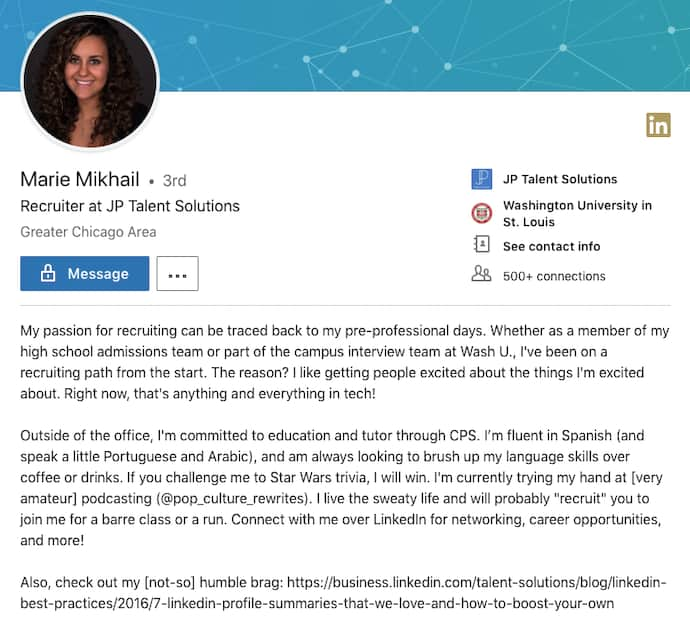
But there are a lot of recruiters out there, and Marie knows that. So, to differentiate herself, she closes the first paragraph of her bio explaining that she likes “getting people excited about the things [she’s] excited about.” It’s a well-put value proposition that sets her apart from the rest of the HR industry.
Marie Mikhail finishes off her bio by including a smooth mixture of professional skills, such as her Spanish fluency; and personal interests, such as podcasting and Star Wars (she mentions the latter with just the right amount of humor).
Want more? Read How to Write a Cover Letter That Gets You the Job [Bookmarkable Template + Examples].

The Ultimate Social Media Holiday Calendar for 2019 [Template]
Whether it’s International Cat Day, Pizza Day, or Talk Like a Pirate Day, it seems like almost every day, the internet is celebrating a holiday.
Whenever I log onto Twitter, I quickly scan what’s trending on the lefthand side of the screen.
Have you ever had this experience — when you see an obscure holiday or observance day trending, and you think to yourself “Yup, I’m celebrating that”?
Some of these holidays might be simply too silly for your brand to engage with (and we certainly don’t suggest sharing content on social media and then tacking on a completely irrelevant hashtag for the sake of traffic — that’s just plain annoying). But others might not be. You could be missing valuable opportunities to take advantage of trending topics with fun and relevant “holiday” content on social media.
From food to politics to animals and everything in between, there is a plethora of observance days worldwide during which marketers can share content relevant to their industries, get involved in a movement, or simply generate more awareness.
To help you plan for trending holidays, we created a list that you can bookmark, as well as a downloadable calendar so you can get automatic reminders. The list isn’t exhaustive (there are a lot of food-specific holidays out there) and these dates and hashtags may still be subject to change. But this is a great starting point for social media marketers who want to learn more about what’s trending and how they can plan their content in a way that will be fun and engaging on Twitter and other social platforms.
Want to finish out your 2018 calendar with some upcoming holiday posts? Tap the “+” symbol in the lower righthand corner of the calendar below to add it to your own Gmail calendar.
Downloadable Holiday Calendar
National & Global Holiday Calendar: 2019-2020
- January 2019
- February 2019
- March 2019
- April 2019
- May 2019
- June 2019
- July 2019
- August 2019
- September 2019
- October 2019
- November 2019
- December 2019
January 2019
1. Tuesday, New Year’s Day #NewYearsDay
2. Wednesday, Science Fiction Day #ScienceFictionDay
4. Friday, National Trivia Day #NationalTriviaDay
5. Saturday, National Bird Day #NationalBirdDay
11. Friday, Human Trafficking Awareness Day #HumanTraffickingDay
13. Sunday, National Sticker Day #NationalStickerDay
14. Monday, Clean Off Your Desk Day #CleanOffYourDeskDay
15. Tuesday, National Hat Day #NationalHatDay
17. Thursday, Get to Know Your Customers Day (third Thursday of every quarter) #GetToKnowYourCustomersDay
20. Sunday, Cheese Lovers Day #CheeseLoversDay
21. Monday, Martin Luther King, Jr. Day #MLKDay
21. Monday, National Hugging Day #NationalHuggingDay
23. Wednesday, National Pie Day #PieDay
24. Thursday, National Compliment Day #NationalComplimentDay
25. Friday, Opposite Day #OppositeDay
28. Monday, Community Manager Appreciation Day #CMAD
28. Monday, Data Privacy Day #PrivacyAware
February 2019
2. Saturday, Groundhog Day #GroundhogDay
2. Saturday, World Wetlands Day #WorldWetlandsDay
3. Sunday, Super Bowl LIII #SBLIII
4. Monday, World Cancer Day #WorldCancerDay
5. Tuesday, Chinese New Year #YearOfThePig
5. Tuesday, Safer Internet Day #SID2019
5. Tuesday, National Weatherperson’s Day #NationalWeatherpersonsDay
7. Thursday, National Send a Card to a Friend Day #SendACardToAFriendDay
8. Friday, National Boy Scouts Day #BoyScoutsDay
9. Saturday, National Pizza Day #NationalPizzaDay
11. Monday, Inventors Day #InventorsDay
13. Wednesday, World Radio Day #WorldRadioDay
14. Thursday, Valentine’s Day #ValentinesDay
17. Sunday, Random Acts of Kindness Day #RandomActsOfKindnessDay
18. Monday, National Battery Day #NationalBatteryDay
18. Monday, Presidents Day #PresidentsDay
20. Wednesday, World Day of Social Justice #SocialJusticeDay
20. Wednesday, Love Your Pet Day #LoveYourPetDay
21. Thursday, International Mother Language Day #IMLD
March 2019
1. Friday, National Peanut Butter Lover’s Day #PeanutButterLoversDay
1. Friday, National Employee Appreciation Day #EmployeeAppreciationDay
2. Saturday, National Read Across America Day #ReadAcrossAmerica & #DrSeuss
3. Sunday, World Wildlife Day #WorldWildlifeDay
4. Monday, National Grammar Day #NationalGrammarDay
5. Tuesday, National Pancake Day #NationalPancakeDay
5. Tuesday, Mardi Gras #MardiGras
6. Wednesday, National Dentist’s Day #DentistsDay
7. Thursday, National Be Heard Day #NationalBeHeardDay
7. Thursday, National Cereal Day #NationalCerealDay
8. Friday, International Women’s Day #BeBoldForChange
8. Friday, National Proofreading Day #NationalProofreadingDay
8. Friday, National Day of Unplugging #NationalDayOfUnplugging
10. Sunday, National Pack Your Lunch Day #NationalPackYourLunchDay
10. Sunday, National Women and Girls HIV/AIDS Awareness Day #NWGHAAD
10. Sunday, Daylight Savings #DaylightSavings
11. Monday, National Worship of Tools Day #WorshipOfToolsDay
11. Monday, National Napping Day #NationalNappingDay
12: Tuesday, National Girl Scout Day #GirlScoutDay
14. Thursday, Popcorn Lover’s Day #PopcornLoversDay
14. Thursday, Potato Chip Day #NationalPotatoChipDay
14. Thursday, Pi Day #PiDay (To go the extra mile, post this at 1:59, as Pi equals 3.14159…)
15. Friday, World Consumer Rights Day #WCRD2019
15. Friday, World Sleep Day #WorldSleepDay
16. Saturday, National Freedom of Information Day #FreedomOfInformationDay
17. Sunday, St. Patrick’s Day #StPatricksDay
18. Monday, Awkward Moments Day #NationalAwkwardMomentsDay
19. Tuesday, National Let’s Laugh Day #NationalLetsLaughDay
20. Wednesday, International Day of Happiness #InternationalDayofHappiness
20. Wednesday, World Storytelling Day #WorldStorytellingDay
20. Wednesday, First Day of Spring #FirstDayofSpring
21. Thursday, International Day for the Elimination of Racial Discrimination #RacialDiscriminationDay
21. Thursday, World Poetry Day #WorldPoetryDay
22: Friday, World Water Day #WorldWaterDay
23. Saturday, National Puppy Day #NationalPuppyDay
25. Monday, Tolkien Reading Day #TolkienReadingDay
26. Tuesday, National Spinach Day #NationalSpinachDay
26. Tuesday, Purple Day #PurpleDay
26. Tuesday, American Diabetes Association Alert Day #AmericanDiabetesAssociationAlertDay
30. Saturday, Doctor’s Day #NationalDoctorsDay
30. Saturday, Earth Hour Day #EarthHour
30. Saturday, National Take a Walk in the Park Day #NationalWalkInTheParkDay
31. Sunday, World Backup Day #WorldBackupDay
31. Sunday, Transgender Day of Visibility #TDOV
April 2019
1. Monday, April Fools Day #AprilFools
2. Tuesday, World Autism Awareness Day #WAAD
3. Wednesday, Find a Rainbow Day #FindARainbowDay
3. Wednesday, National Walking Day #NationalWalkingDay
4. Thursday, Hug a Newsperson Day #HugANewsperson
7. Sunday, World Health Day #LetsTalk
9. Tuesday, Equal Pay Day #EqualPayDay
10. Wednesday, National Siblings Day #NationalSiblingsDay
10. Wednesday, Encourage a Young Writer Day #EncourageAYoungWriterDay
11. Thursday, National Pet Day #NationalPetDay
12. Friday, International Day of Human Space Flight #InternationalDayOfHumanSpaceFlight
15. Monday, National Tax Day #TaxDay
16. Tuesday, National Stress Awareness Day #StressAwarenessDay
16. Tuesday, National Wear Your Pajamas to Work Day #PJDay
17. Wednesday, Haiku Poetry Day #HaikuPoetryDay
18. Thursday, National Columnists’ Day #NationalColumnistDay
18. Thursday, Get to Know Your Customers Day #GetToKnowYourCustomersDay
18. Thursday, National High-Five Day #NH5D
20. Saturday, National Look-Alike Day #NationalLookAlikeDay
22. Monday, Earth Day #EarthDay2018
23. Tuesday, National Picnic Day #NationalPicnicDay
23. Tuesday, World Book Day #WorldBookDay
24. Wednesday, National Administrative Professionals Day #AdministrativeProfessionalsDay
24. Wednesday, Denim Day #DenimDay
25. Thursday, National Telephone Day #NationalTelephoneDay
25. Thursday, World Malaria Day #EndMalariaForGood
25. Thursday, National Take Our Daughters and Sons to Work Day #COUNTONME
26. Friday, Arbor Day #ArborDay
29. Monday, International Dance Day #InternationalDanceDay
30. Tuesday, National Honesty Day #NationalHonestyDay
30. Tuesday, National Adopt a Shelter Pet Day #AdoptAShelterPetDay
30. Tuesday, International Jazz Day #JazzDay
May 2019
TBD: Red Nose Day #RedNoseDay
1. Wednesday, May Day #MayDay
1. Wednesday, International Workers Day #IntWorkersDay
2. Thursday, World Password Day #WorldPasswordDay
3. Friday, World Press Freedom Day #WPFD2019 #PressFreedom
3. Friday, Space Day #SpaceDay
4. Saturday, Star Wars Day #StarWarsDay & #Maythe4thBeWithYou
4. Saturday, International Firefighters Day #InternationalFirefightersDay
5. Sunday, Cinco de Mayo #CincoDeMayo
6. Monday, National Nurses Day #NursesDay
7. Tuesday, World Asthma Day #WorldAsthmaDay
7. Tuesday, Thank a Teacher Day #ThankATeacher
8. Wednesday, National Receptionist Day #NationalReceptionistDay
9. Thursday, Europe Day #EuropeDay
12. Sunday, National Limerick Day #NationalLimerickDay
13. Sunday, Mother’s Day #MothersDay
15. Wednesday, International Day of Families #FamilyDay
16. Thursday, Love a Tree Day #LoveATreeDay
17. Friday, International Day Against Homophobia and Transphobia #IDAHOT2019
17. Friday, National Bike to Work Day #BTWD
17. Friday, Endangered Species Day #EndangeredSpeciesDay
21. Tuesday, National Memo Day #NationalMemoDay
24. Friday, National Scavenger Hunt Day #NationalScavengerHuntDay
27. Monday, Memorial Day #MemorialDay #MDW
28. Tuesday, Hamburger Day #NationalHamburgerDay
29. Wednesday, Paperclip Day #PaperclipDay
31. Friday, World No-Tobacco Day #NoTobacco
31. Friday, Heat Awareness Day #NoFryDay
June 2019
1. Saturday, Global Day of Parents #GlobalDayOfParents
1. Saturday, International Children’s Day #ChildrensDay
2. Sunday, National Cancer Survivor’s Day #NCSD2019
3. Monday, Leave The Office Early Day #LeaveTheOfficeEarlyDay
5. Wednesday, World Environment Day #WorldEnvironmentDay
6. Thursday, Higher Education Day #HigherEducationDay
7. Friday, National Donut Day #NationalDonutDay
8. Saturday, World Oceans Day #WorldOceansDay
8. Saturday, Best Friends Day #BestFriendsDay
14. Friday, World Blood Donor Day #GiveBlood
14. Friday, National Flag Day #FlagDay
16. Sunday, Father’s Day #FathersDay
20. Thursday, World Refugee Day #WithRefugees
21. Friday, National Selfie Day #NationalSelfieDay
21. Friday, World Music Day #WorldMusicDay
21. Friday, International Yoga Day #InternationalYogaDay
21. Friday, First Day of Summer
21. Friday, Take Your Dog to Work Day #TakeYourDogToWorkDay
27. Thursday, National Sunglasses Day #NationalSunglassesDay
27. Thursday, National Handshake Day #HandshakeDay
30. Sunday, Social Media Day #SMDay
July 2019
1. Monday, National Postal Worker Day #NationalPostalWorkerDay
2. Tuesday, World UFO Day #WorldUFODay
4. Thursday, Independence Day (United States)
7. Sunday, World Chocolate Day #WorldChocolateDay
11. Thursday, Cheer Up the Lonely Day #CheerUpTheLonelyDay
12. Friday, Malala Day #MalalaDay
15. Monday, Give Something Away Day #GiveSomethingAwayDay
17. Wednesday, World Emoji Day #WorldEmojiDay
18. Thursday, Nelson Mandela International Day #MandelaDay
18. Thursday, Get to Know Your Customers Day #GetToKnowYourCustomersDay
26. Friday, Talk in an Elevator Day #TalkInAnElevatorDay
30. Tuesday, International Day of Friendship #DayOfFriendship
August 2019
1. Thursday, Respect for Parents Day #RespectForParentsDay
2. Friday, National Coloring Book Day #NationalColoringBookDay
8. Thursday, International Cat Day #InternationalCatDay
9. Friday, National Book Lovers Day #NationalBookLoversDay
10. Saturday, National Lazy Day #LazyDay
11. Sunday, National Sons and Daughters Day #SonsAndDaughtersDay
12. Monday, International Youth Day #YouthDay
12. Monday, World Elephant Day #WorldElephantDay
13. Tuesday, International Lefthanders Day #LefthandersDay
15. Thursday, National Relaxation Day #NationalRelaxationDay
16. Friday, National Tell a Joke Day #NationalTellAJokeDay
19. Monday, World Photo Day #WorldPhotoDay
19. Monday, World Humanitarian Day #WorldHumanitarianDay
20. Tuesday, National Lemonade Day #NationalLemonadeDay
26. Monday, National Dog Day #NationalDogDay
26. Monday, National Women’s Equality Day #WomensEqualityDay
September 2019
2. Monday, Labor Day #LaborDay
4. Wednesday, National Wildlife Day #NationalWildlifeDay
5. Thursday, International Day of Charity #CharityDay
6. Friday, Read a Book Day #ReadABookDay
8. Sunday, International Literacy Day #LiteracyDay
8. Sunday, National Grandparents Day #NationalGrandparentsDay
11. Wednesday, National Day of Service and Remembrance #911Day
12. Thursday, National Day of Encouragement #DayOfEncouragement
12. Thursday, National Video Games Day #NationalVideoGamesDay
13. Friday, Stand Up To Cancer Day #KissCancerGoodbye
19. Thursday, Talk Like a Pirate Day #TalkLikeAPirateDay
21. Saturday, International Day of Peace #PeaceDay
21. Saturday, Miniature Golf Day #MiniGolfDay
21. Saturday, Civic Day of Hacking #HackForChange
22. Sunday, Car-Free Day #CarFreeDay
22. Sunday, Hobbit Day #HobbitDay
23. Monday, First Day of Fall
25. Wednesday, National Women’s Health and Fitness Day #FitnessDay
26. Thursday, European Day of Languages #EDL2019
27. Friday, World Tourism Day #WTD2019
28. Saturday, World Rabies Day #WorldRabiesDay
28. Saturday, National Good Neighbor Day #GoodNeighborDay
30. Monday, International Podcast Day #InternationalPodcastDay
October 2019
1. Tuesday, International Day of Older Persons #UNDOP
1. Tuesday, International Coffee Day #InternationalCoffeeDay
1. Tuesday, World Vegetarian Day #WorldVegetarianDay
2. Wednesday, International Day of Nonviolence #InternationalDayOfNonviolence
3. Thursday, National Techies Day #TechiesDay
4. Friday, World Animal Day #WorldAnimalDay
4. Friday, National Taco Day #NationalTacoDay
4. Friday, World Smile Day #WorldSmileDay
5. Saturday, World Teachers Day #WorldTeachersDay
7. Monday, World Habitat Day #WorldHabitatDay
10. Thursday, World Mental Health Day #WorldMentalHeathDay
10. Thursday, World Sight Day #WorldSightDay
11. Friday, International Day of the Girl #DayOfTheGirl
13. Sunday, National Train Your Brain Day #TrainYourBrainDay
14. Monday, National Dessert Day #DessertDay
15. Tuesday, Global Handwashing Day #GlobalHandwashingDay
16. Wednesday, World Food Day #FoodDay
16. Wednesday, Bosses Day #BossesDay
17. Thursday, International Day for the Eradication of Poverty #EndPoverty
17. Thursday, Get to Know Your Customers Day #GetToKnowYourCustomersDay
20. Sunday, World Statistics Day #StatisticsDay
21. Monday, Reptile Awareness Day #ReptileAwarenessDay
24. Thursday, United Nations Day #UNDay
25. Friday, Greasy Foods Day #GreasyFoodsDay
30. Wednesday, National Publicist Day #NationalPublicistDay
30. Wednesday, Checklist Day #ChecklistDay
31. Thursday, Halloween #Halloween
November 2019
1. Friday, World Vegan Day #WorldVeganDay
1. Friday, National Authors Day #NationalAuthorsDay
1. Friday, National Cook For Your Pets Day #CookForYourPetsDay
3. Sunday, National Sandwich Day #NationalSandwichDay
3. Sunday, Daylight Saving Time Ends #DaylightSavings
4. Monday, National Candy Day #NationalCandyDay
8. Friday, National Cappuccino Day #CappuccinoDay
8. Friday, Science, Technology, Engineering, and Medicine (STEM) Day #STEMDay
11. Monday, Veterans Day #VeteransDay
13. Wednesday, World Kindness Day #WKD
14. Thursday, World Diabetes Day #WDD
15. Friday, Clean Out Your Refrigerator Day #CleanOutYourRefrigeratorDay
15. Friday, America Recycles Day #BeRecycled
16. Saturday, International Day for Tolerance #ToleranceDay
17. Sunday, International Students Day #InternationalStudentsDay
19. Tuesday, International Men’s Day #InternationalMensDay
19. Tuesday, National Entrepreneurs Day #EntrepreneursDay
20. Wednesday, Universal Children’s Day #UNChildrensDay
21. Thursday, World Hello Day #WorldHelloDay
26. Tuesday, National Cake Day #NationalCakeDay
28. Thursday, Thanksgiving Day #Thanksgiving
29. Friday, National Day of Listening #DayOfListening
29. Friday, Electronic Greeting Card Day #ElectronicGreetingCardDay
30. Saturday, Computer Security Day #ComputerSecurityDay
30. Saturday, Small Business Saturday #ShopSmall
December 2019
1. Sunday, World AIDS Day #WAD2019
2. Monday, Cyber Monday #CyberMonday
3. Tuesday, International Day of Persons with Disabilities #IDPWD
4. Wednesday, National Cookie Day #NationalCookieDay
5. Thursday, World Soil Day #WorldSoilDay
6. Friday, Microwave Oven Day #MicrowaveOvenDay
8. Sunday, Pretend to Be a Time Traveler Day #PretendToBeATimeTravelerDay
10. Tuesday, Human Rights Day #HumanRightsDay
10. Tuesday, Nobel Prize Day #NobelPrize
11. Wednesday, International Mountain Day #InternationalMountainDay
13. Friday, National Salesperson Day #SalespersonDay
21. Saturday, Crossword Puzzle Day #CrosswordPuzzleDay
21. Saturday, First Day of Winter #WinterSolstice
30. Monday, No Interruptions Day – Last Work Day of the Year #NoInterruptionsDay
31. Tuesday, New Year’s Eve #NYE
Sources: National Day Calendar, Sprout Social, TrackMaven, Holiday Insights, Brownielocks, National Peace Corps Association, Sparkflow


7 Sample Business Plans to Help You Write Your Own
Ask any successful sports coach how they win so many games, and they’ll tell you they have a unique plan for every single game they coach. To have a fighting chance against any of their opponents, they need to prepare a specific game plan tailored to each of their opponents’ strengths and weaknesses. Otherwise, they’ll get crushed.
The same logic applies to business. If you want to build a thriving company that can pull ahead of the competition, you need to prepare yourself for battle before you break into a market. Because companies who can find gaps in your business model will quickly learn how to fill those gaps and solve your customers’ problems better than you can. The business world moves fast, and it’s full of ambitious companies scrambling to gain the majority of their industry’s market share. So how do you keep up? Writing a viable business plan and following it religiously is one of the most important first steps.
Business plans guide you along the rocky journey of growing a company. Referencing one throughout your voyage will keep you on the path toward success. And if your business plan is compelling enough, it can also convince investors to give you funding.
But how do you actually write a viable and convincing business plan? To find out, we scoured the web for the top sample business plans around. Here’s the seven best we found.
7 Sample Business Plans to Help You Write Your Own
1. Panda Doc’s Free Business Plan Template
Panda Doc’s free business plan template is one of the more detailed and fleshed out sample business plans on this list. It describes what you should include in each of its sections, so you don’t have to come up with everything from scratch.
Once you fill it out, you’ll fully understand your business’ nitty gritty details and how all of its moving parts should work together to contribute to your business’ success.
2. HubSpot’s One-Page Business Plan
The business plan linked above was created here at HubSpot, and is perfect for businesses of any size — and no matter how much strategy they still have to develop.
Including fields such as Company Description, Required Funding, and Implementation Timeline, this one-page business plan gives businesses a framework for how to build their brand and what tasks to keep track of as they grow. Then, as the business matures, it can expand on its original business plan with a new iteration of the above document.
3. ThoughtCo’s Sample Business Plan
If you want to reference an actual business plan while writing your own, ThoughtCo’s got you covered. They created a fictional company called Acme Management Technology and wrote an entire business plan for them.
Using their sample business plan as a guide while filling out your own will help you catch and include small yet potent details in your business plan that you otherwise might not have noticed.
4. BPlan’s Free Business Plan Template
One of the more financially oriented sample business plans in this list, BPlan’s free business plan template dedicates more than half of its pages to your business’ financial plan and financial statements.
After filling this business plan out, your company will truly understand its financial health and the steps you need to take to maintain or improve it.
5. Harvard Business Review’s “How to Write a Winning Business Plan”
Most sample business plans teach you what to include in your business plan, but this Harvard Business Review article will take your business plan to the next level — it teaches you the why and how behind writing a business plan.
With the guidance of Stanley Rich and Richard Gumpert, co-authors of Business Plans That Win: Lessons From the MIT Enterprise Forum, you’ll learn how to write a convincing business plan that emphasizes the market demand for your product or service and the financial benefits investors can reap from putting money into your venture, rather than trying to sell them on how great your product or service is.
6. HubSpot’s Complete Guide to Starting a Business
If you’re an entrepreneur, you know writing a business plan is one of the most challenging first steps to starting a business. Fortunately, with HubSpot’s comprehensive guide to starting a business, you’ll learn how to map out all the details of your business by understanding what to include in your business plan and why it’s important to include them. The guide also fleshes out an entire sample business plan for you.
If you need further guidance on starting a business, HubSpot’s guide can teach you how to make your business legal, choose and register your business name, fund your business, gives information about small business tax, and provides marketing, sales, and service tips.
7. HubSpot’s & General Assembly’s Business Plan Template
In 2017, HubSpot partnered with General Assembly, an educational organization that teaches individuals and companies tech skills through on-campus and online classes, to create a business plan template for entrepreneurs.
The template is designed as a guide and checklist for starting your own business, so you’ll learn what to include in each section of your business plan and how to do it. There’s also a list for you to check off when you finish each section of your business plan.
Strong game plans help coaches win games and help businesses rocket to the top of their industries. So if you dedicate the time and effort required to write a viable and convincing business plan, you’ll boost your chances of success and even dominance in your market.


How to Write a Memo [Template & Examples]
A memo (also known as a memorandum, or “reminder”) is used for internal communications regarding procedures or official business within an organization.
Unlike an email, a memo is a message you send to a large group of employees, like your entire department or everyone at the company. You might need to write a memo to inform staff of upcoming events, or broadcast internal changes.
If you need to inform your employees of official internal business, here’s an easy-to-follow business memo template, as well as examples for further guidance.
Business Memo Template
MEMORANDUM
TO:
FROM:
DATE:
SUBJECT:
I’m writing to inform you that [reason for writing memo].
As our company continues to grow … [evidence or reason to support your opening paragraph].
Please let me know if you have any questions. In the meantime, I’d appreciate your cooperation as [official business information] takes place.
Header:
In your header, you’ll want to clearly label your content “Memorandum” so your readers know exactly they’re receiving. Then, you’ll want to include “TO”, “FROM”, “DATE”, and “SUBJECT”. This information is relevant for providing content, like who you’re addressing, and why.
Paragraph One:
In the first paragraph, you’ll want to quickly and clearly state the purpose of your memo. You might begin your sentence with the phrase, “I’m writing to inform you … ” or “I’m writing to request … “. A memo is meant to be short, clear, and to-the-point. You’ll want to deliver your most critical information upfront, and then use subsequent paragraphs as opportunities to dive into more detail.
Paragraph Two:
In the second paragraph, you’ll want to provide context or supporting evidence. For instance, let’s say your memo is informing the company of an internal re-organization. If this is the case, paragraph two should say something like, “As our company continues to grow, we’ve decided it makes more sense to separate our video production team from our content team. This way, those teams can focus more on their individual goals.”
Paragraph Three:
In the third paragraph, you’ll want to include your specific request of each employee — if you’re planning a team outing, this is the space you’d include, “Please RSVP with dietary restrictions,” or “Please email me with questions.”
On the contrary, if you’re informing staff of upcoming construction to the building, you might say, “I’d appreciate your cooperation during this time.” Even if there isn’t any specific action you expect from employees, it’s helpful to include how you hope they’ll handle the news and whether you expect them to do something in response to the memo.
Downloadable Memo Template
Want to see the the above memo format in its final form? Download HubSpot’s free business memo template, shown below. The document gives you a framework that sorts your memorandum into subtopics to help employees better digest the information and understand what’s expected of them after reading it.
Memo Examples
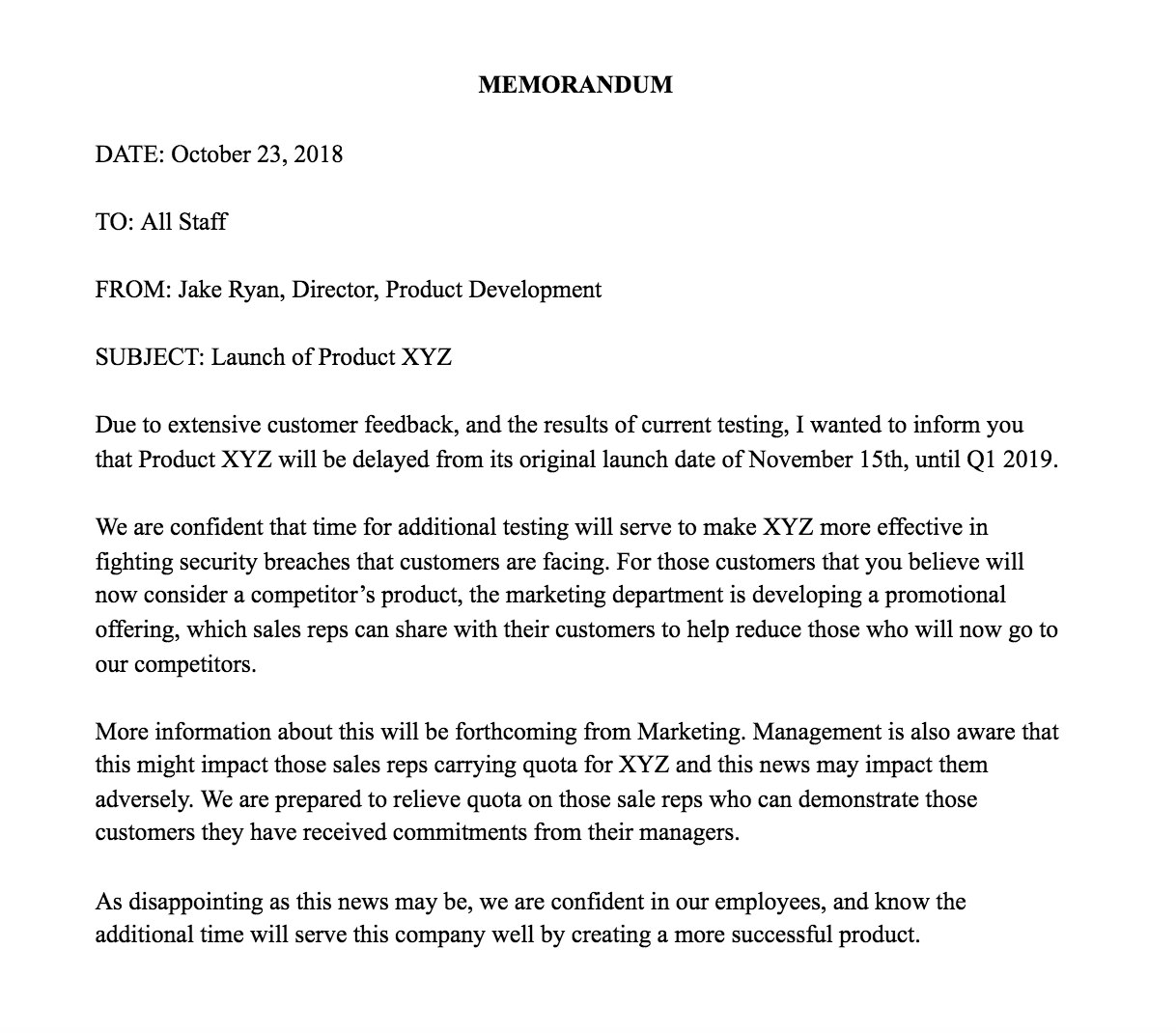

13 Free Templates Every Small Business Needs in 2019
Owning or working for a small business can be extremely rewarding.
You have a good view of the business operations, your work is visible, and you have an opportunity to make a big impact during the company’s critical growth years.
But then there are the less glamorous aspects — from tight budgets and limited resources to lack of direction and leadership — that can really start to weigh on you.

It would be nice if someone would throw you a bone every now and then, right?
That’s why we took some time to round up 13 completely free templates that you can lean on to streamline your workflow, save time, and get more done.
Free Templates Every Small Business Needs in 2019
1. Professional Bio Templates
Let’s face it: Writing about yourself can feel, well, awkward.
The good news is we’ve created 40+ fill-in-the-blank bio templates that you can use to put together an impressive, professional narrative that you’ll want to share.
Use these professional bio templates to give your team page a refresh. We recommended collaborating with a couple of colleagues you work closely with as you fill these out to ensure you’re speaking to all of your awesome skills.
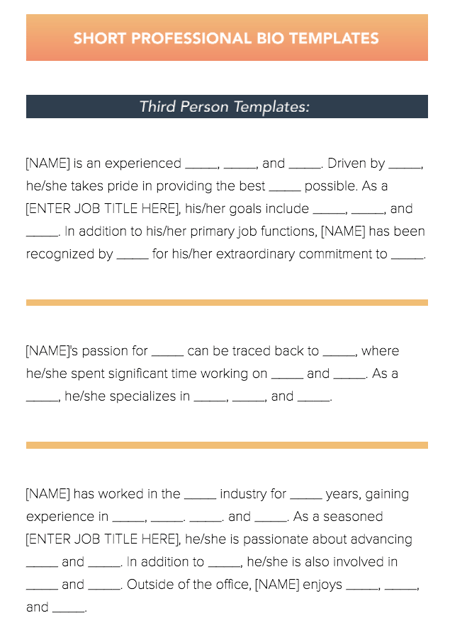
2. Business Plan Template
The idea of a business plan can seem daunting, especially if you don’t have a long-term strategy fully fleshed out. The one-page business plan above helps you check off the main boxes of an organization: what business opportunity you’re taking advantage of, the state of your industry, your target market, and more. These are the pillars of your business. Use the document above to set them up.
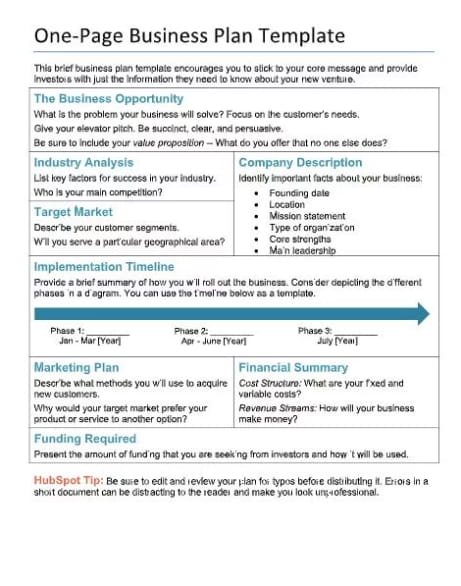
3. Invoice Templates
For larger businesses, investing in paid invoicing software is a good way to keep your payments organized, but for small to mid-sized businesses, paying for a solution isn’t always an option.
If you’re looking for a cost-free way to stay on top of your billing, check out these free invoice templates for Microsoft Word. These invoice templates come in different colors and styles, so you can pick one that best suits your business.
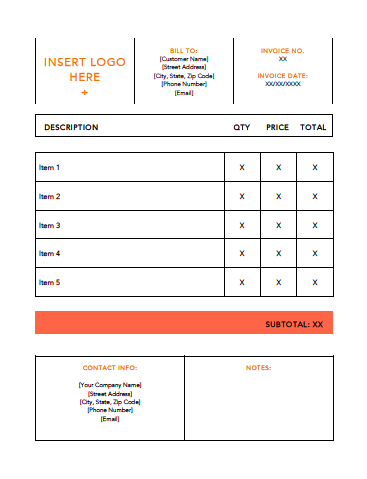
*Bonus* We also just launched a free invoice template generator that allows you to create professional invoice PDFs in just a few clicks. Check it out here.
4. Company Newsletter Template
Want to keep your contacts and customers engaged and informed about your business? Try sending a monthly company newsletter.
This clean and concise template makes it easy for you to plug in things like updates, accomplishments, awards, and upcoming events to share with your community.
You can also adapt this template to use internally for an employee newsletter featuring new hires, promotions, culture events, and changes in existing policies.
5. Executive Summary Template
An executive summary can introduce a business plan, product announcement, marketing strategy, and similar business-critical documents. The template linked above — and shown below — offers a standard summary format along with tips from HubSpot to help you perfect your messaging throughout the summary.
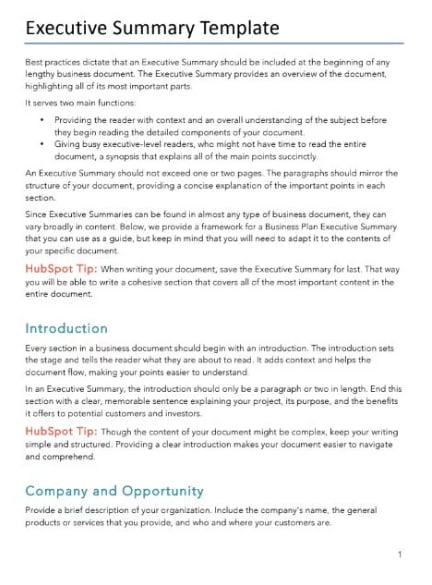
6. Employee Timecard Template
Keeping tabs on employee hours is a really important part of running a business. Aside from ensuring your employees get paid (and get paid on time), having a log of hours can also help to resolve conflicts, evaluate employee engagement, and plan quotes in service-based industries.
With the help of this timecard template, you can keep all of your employee hours organized by week, month, and year. And don’t worry about busting out that calculator: the template takes care of totaling each line for you.
7. Dashboard Templates
Part of running a successful business hinges on your ability to use data to drive decisions. Trouble is, pulling the right data can often be a hassle.
That’s why, if you’re a HubSpot customer, you’ll want to know about these handy dashboard templates from Databox. These templates provide you with the campaign clarity you need — whether you’re looking to pull performance numbers for a landing page or figure out where you best leads are coming from.
8. Business Letterhead Templates
An on-brand letterhead, while it may seem like a small detail, can go a long way when it comes to establishing credibility and trust through written communications.
In many cases, your letterhead serves as a first impression to potential customers, so you want to make sure it represents your business well. Additionally, your letterhead typically houses valuable contact details, so you’ll want to convey that information in a really clear and concise way.
9. Email Templates
Think about how much time you spending crafting emails on any given day. One hour? Two hours? More than five hours?
Aware that email can be a serious time suck, we created 15 email marketing templates to simplify all of your marketing and sales needs — from PR and blogging outreach to customer reference emails.
These fill-in-the-blank templates are especially helpful when it comes to reducing the time you spend on emails that you’re sending on a repeat basis.
10. Meeting Agenda Template
We’ve all been in our fair share of meetings that have gone off the rails. But unproductive meetings suck up valuable time that could be better spent on impactful projects.
To keep things on track, try using a simple meeting agenda template.
Fill out this template a few days ahead of your meeting and send it out to all of the participants. Doing this in advance will give folks time to prepare for the meeting accordingly — and ultimately eliminate any confusion.
11. Infographic Templates
When you work at a small company, design resources can be hard to come by. But that doesn’t mean your content creation efforts need to suffer as a result.
These free infographic templates can be used by designers and non-designers alike to create quality inforgraphics right in PowerPoint or Illustrator.
Use these infographic templates to visualize your latest research report, create a shareable blog post, or promote a piece of gated content on social media.
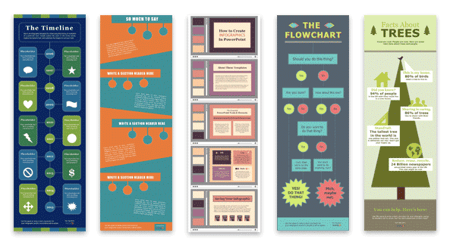
12. Social Graphic Templates
With the help of these Canva templates, you can create stunning social media images for Facebook, Instagram, Twitter, Pinterest, and more.
These templates are designed to meet the dimension requirements for each network, so you can spend less time hunting down accurate aspect ratios and more time boosting your social media engagement.
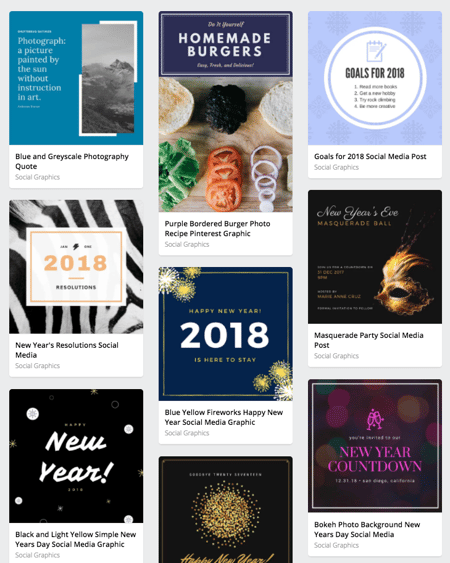
13. Small Team Status Board Template
If you’re working on a really small team — let’s say 1-10 people — you might find this status board template useful.
The template provides a column for each member of your team where they can add high-level status updates. This can be updated daily, weekly, or monthly to keep everyone on the same page about priorities, progress, and opportunities for collaboration.
Not to mention, the handy color-coding system allows you to determine the current standing of the task (good, needs attention, waiting on someone, etc.) at a quick glance.
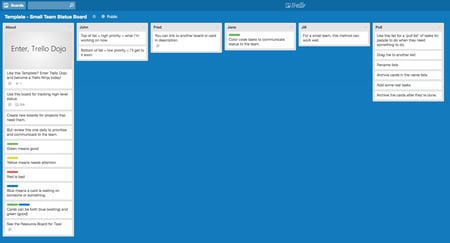
There you have it: 13 incredibly useful business templates that will help you save time and hit the ground running next year. If you love these free resources that save time and money, check out these recommended free apps for startups.
Can you think of any other templates you lean on for support? Share them with us on Twitter @HubSpot.


Professional Invoice Design: 16 Samples & Templates to Inspire You
Invoices and infographics may seem like two entirely different business materials, but they actually have one key thing in common: they both exist to convey information.
However, while infographics are known for employing colorful designs and data visualizations, invoices are typically pretty straightforward.
Of course, conveying important payment information in a clear and concise way is the name of the game — but that doesn’t mean you can’t add a little brand personality to them.
To help you get a sense of the possibilities, we put together a collection of impressive invoice samples that may inspire you to rethink your current design. Many of them are free to download and customize.
16 of the Best Professional Invoice Samples and Templates
1. Pascale Dufour
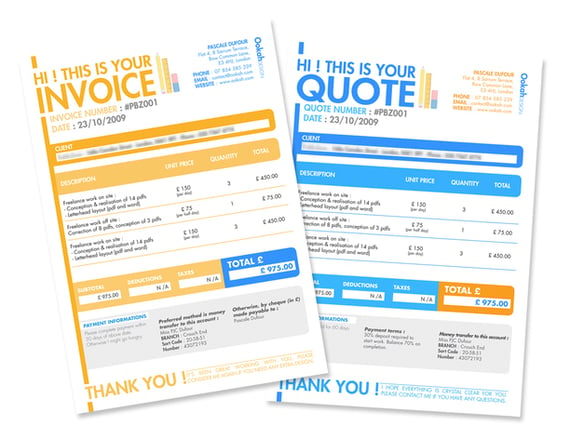
This bold invoice sample is perfect for brands that boast a playful personality. The friendly copy —“Hi! This is your invoice” — catches your eye and helps to lead you through the statement.
Not to mention, the color choices on the taxes, deductions, and totals line creates just enough contrast to ensure you can’t miss the end amount.
2. Basic Invoice
 No frills, just business. This basic invoice template, developed here at HubSpot, gives you all the necessities of paper billing without the written fields that more complex business services might want distinguished.
The template above offers space for your name, your client’s name, invoice date, and a base of 10 itemized services. You can add more as needed.
3. Blue Service Invoice
This soft-colored, service-based invoice template allows you to include multiple jobs and how much each one cost your client.
Download this template together with a pack of 10 free templates using the link in the header above the image — each design conveniently opens in Microsoft Word.
4. Fabio Basile
Business in the front. Party in the back.
This double-sided invoice sample offers an interesting twist on an otherwise standard design.
We especially love the “handcrafted for” language on the design side, which side helps to make the customer feel valued by the business they’ve worked with.
5. Commercial Invoice
Selling a variety of products and services? The commercial invoice above might be just what you need. Developed here at HubSpot, this template allots space for product origin, manufacturing origin, discounts offered to your client, and more. Download it for free by clicking the header above.
6. Front and Center
Put your final price to the client “front and center” using this design by Ari Krzyzek. Contact this designer using the link in the header — her project comes with matching letters and business cards. Or, simply use her concept as inspiration to create an invoice of your own.
The document makes great use of contrast in font color, allowing the red price to really pop against the thin black text surrounding it.
7. Green Shipping Invoice
This green template can be downloaded using the link in the header above the image. Dedicated to shipping-based services, the vibrant document is perfect for transactions that involved the transportation of goods.
8. JPWTemplates
This is a more specific invoice sample, focused on billing for services — in this case: photography.
This invoice uses an actual photograph in the header to highlight the quality of their services. This is a clever idea that can be leveraged for multiple services such as graphic design, illustration, interior design, and so on.
If you want to further personalize your invoice, you can use a photo or design from the customer’s specific project to give it a custom look and feel.
9. Classic Designs
Here’s an example of a straightforward invoice design that clearly details all of the important invoice criteria — contact information, itemized purchases, payment information, and so on.
The design leverages pops of red to call out key pieces of information to make the statement feel less overwhelming.
10. Orange Standard
It doesn’t get much more basic than the orange standard invoice template, shown above. Download this template for free using the link in the header above the image. It opens in Microsoft word, allowing you to insert your logo in the top-righthand corner and add additional service rows to match how many services you provided your customer.
11. Bold Stationary
This invoice sample uses a split design to divide contact information and payment information. This approach is free of any distractions or fancy elements, yet it still feels intentionally designed.
If your business is a bit more traditional, this sample serves as a great guide.
12. Novomatic
This invoice sample uses various shades of yellow to chunk out different parts of the invoices into digestible sections.
This invoice also leverages the footer of the statement to point customers towards the company’s social media channels as a way to offer a lasting connection.
13. Blue Minimal Standard
The minimalist invoice template shown above caters to services that are hard to describe in individual lines of services. Using the large “Notes” tile in the center of the document, you can put the focus on the nuances of your business, so it’s clear why you’ve charged your client the price you’ve charged. Download it for free using the link in the header above the image.
14. Yellow Minimalist
There’s something about yellow that makes a document friendlier. Vibrant but unaggressive, this template emphasizes your price in large font on the bottom-righthand corner, with a yellow border to make sure it doesn’t get forgotten in a pile of other white sheets of paper on your client’s desk.
15. Victory
This invoice template offers space for a logo on the bottom-lefthand corner, rather than the top, for professionals who want to make it clear right away that this document is a bill to be paid (hence “INVOICE” listed on the top-righthand corner).
The invoice’s midsection allows the sender to include a thorough description of each individual service provided — a helpful billing format if your business spanned multiple projects over a long period of time.
16. Soft Banner
Professional designers, here’s an invoice concept just for you. Showing your clients a colorful, brand-aligned invoice is a surefire way to get clients remembering you and rehiring you for more work. The centered price banner in this design uses a soft green background to make steep costs look a bit less frightening to the customer.
How to Write an Invoice
Want to make your own invoice? We’ve got you covered. Check out HubSpot’s Invoice Template Generator to create a professional invoice PDF in just a few clicks. Here’s how to use it:
- Click this page to visit the Invoice Template Generator.
- Click the dotted square on the top-righthand corner of the template to upload an image file of your logo. Or, drag and drop this image file into the square.
- Use the circular wrench/paintbrush icon to the left of the template to change the invoice’s color scheme.
- Hover your cursor over the “Item Description” section to “Add More” rows if you’re billing your client for more than one product or service.
- Hover your cursor over each individual field to customize details such as invoice number, company name, item quantity, and relevant notes to the recipient.
- When you’ve finished customizing your invoice, click “Download Now” just below the template. Your invoice will download as a
The generator offers a ton of customizable elements, so you can be sure the design meets your exact business needs.
