Welcome to My Blog
How to Post on Instagram: a Step-by-Step Guide
With over 800 million active users, Instagram is undoubtedly one of the most far-reaching social media networks you can use for marketing purposes.
Instagram has proven a viable advertising option for businesses today, and shows no signs of slowing down — in fact, eMarketer estimates worldwide Instagram ad revenues will exceed $10 billion by 2019, an exponential increase from 1.86 billion in 2016.
If you’re not already using Instagram for your business, you’re missing out on a ton of opportunity to grow brand awareness and reach a wide audience. Fortunately, adopting an Instagram strategy can be relatively easy with enough time and effort.
However, if you’ve never used the app, you might be daunted by the first question likely to cross your mind — How can I post my first image?
If you’re ready to post an image to Instagram, we’ve got you covered. Here, we’ve cultivated a quick-and-easy guide to posting on Instagram, to ensure you can begin attracting some of those 800 million users today.

How to Post on Instagram
1. Open the Instagram app. Click the “+” icon at the bottom of your screen.

2. Instagram will show you the photos already saved to your phone. Choose one of those to post. Alternatively, you can click “Photo” or “Video” in the bottom to take a photo or video within the Instagram app itself, if you don’t already have an image you want to use.
Once you choose an image, click “Next” in the top right.

3. Instagram offers 25 filters — scroll to the right to peruse your options, and click on one to preview how it will look on your photo. (Take a look at our Ultimate Guide to Instagram Filters to learn more). You can click “Edit” at the bottom right to adjust contrast, brightness, etc.
When you’re ready, click “Next” in the top right.

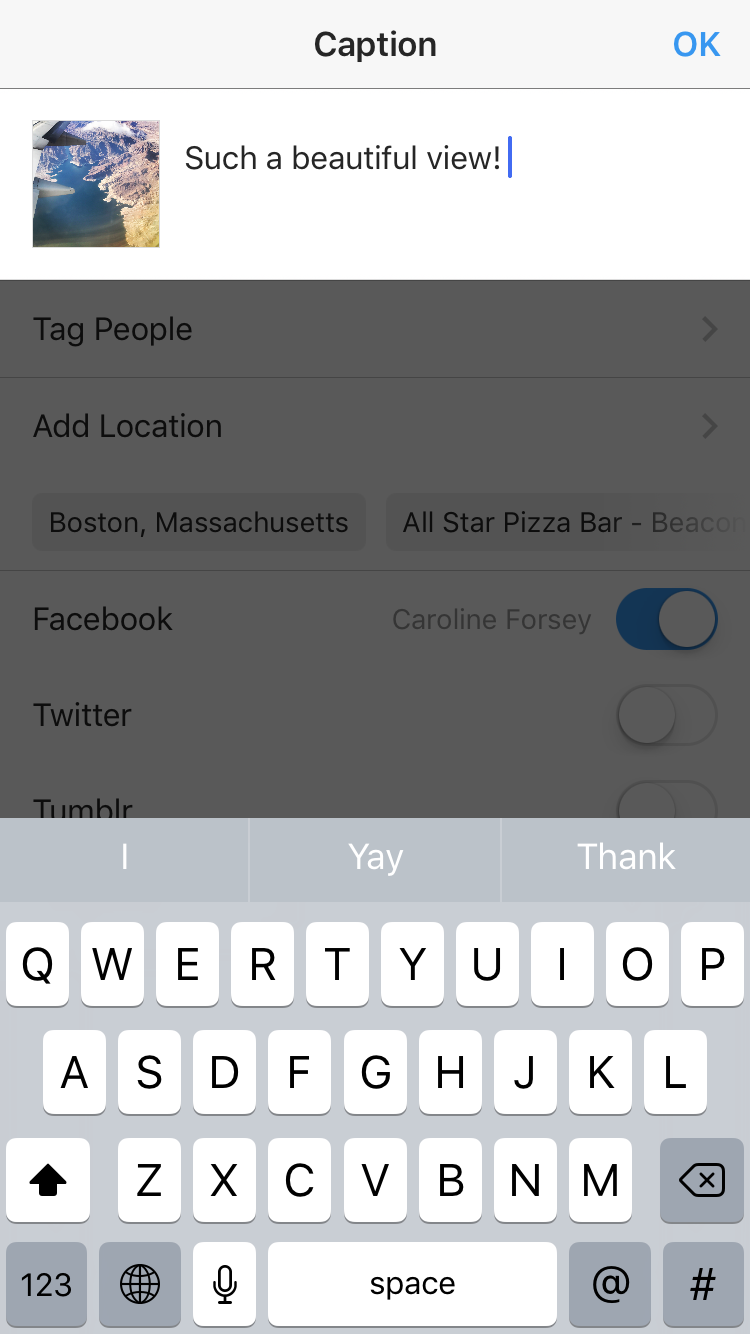
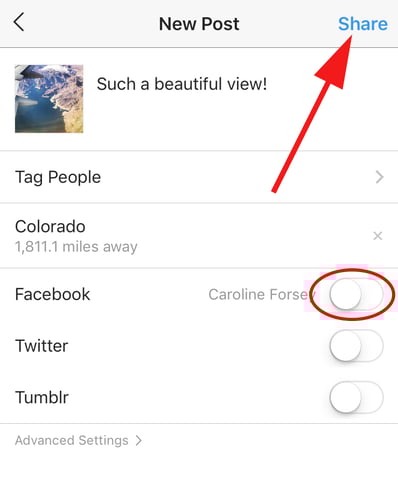
4. In the text box at the top, type your caption. Additionally, you can click “Tag People” to tag other Instagram accounts in your post, and “Add Location” to put a location on your image (which makes it easier for people to find your post).
Finally, if you want to share your content on your other, connected social media sites (like Facebook or Twitter), simply slide the bar from the left to the right.
When you’re ready to post, click “Share” in the top right.
How to Use Instagram: A Beginner’s Guide.

How Google Analytics Attributes Traffic From Facebook
Want a better understanding of Google Analytics? Wondering why Facebook and Google Analytics sometimes report different results? In this article, you’ll learn how Google tracks traffic and conversions and how to resolve discrepancies between Google Analytics and Facebook Ads Manager. What Is Traffic and Conversion Attribution? To understand what attribution is and how it works, […]
The post How Google Analytics Attributes Traffic From Facebook appeared first on Social Media Marketing | Social Media Examiner.
from Social Media Marketing | Social Media Examiner http://bit.ly/2Mq2fdK
via socialmediaexaminer
The Straightforward Guide to Twitter Analytics
When it launched in 2014, Twitter Analytics marked a solid (if long overdue) move toward greater transparency and measurement abilities for all its users.
Since then, Twitter has continued to make upgrades to the tool, having created a standalone analytics app called Engage in 2016 and launching analytics for Twitter Moments.
Though users now have more insight into their Twitter account metrics, you might not be using this data to its full potential.
Perhaps you’ve poked around the Twitter Analytics homepage and figured out you can track impressions and metrics by promoted or organic activity … and that’s about it. The good news is there’s much more you can discover in your Tweet activity dashboard — you’ve just need to know where to look.

Beyond the basic metrics, here are some incredibly important things you can discover about your Twitter account and audience using Tweet Analytics. Then, take a look at some of the free third-party analytics tools that give you a deeper dive into the Twitter performance metrics you want more information on.
How to Use Twitter Analytics
You can access Twitter Analytics by tapping your profile and selecting “Analytics” from the dropdown menu:
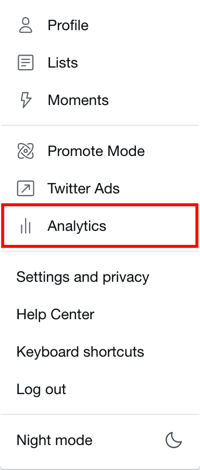
Now, find out how to use every element of your Twitter Analytics by jumping to each section listed below:
- Twitter Engagement Rate
- What are Twitter Impressions?
- Tweet Activity
- Track Twitter Followers
- Twitter Ads (Worth the Money?)
- Free Twitter Analytics Tools
Twitter Engagement Rate
Twitter engagement refers to the retweets, follows, replies, favorites, and click-throughs your tweets get — including the hashtags and links those tweets include. Your Twitter Engagement Rate is equal to your tweets’ engagement divided by the number of impressions those tweets have made.
Understanding which types of content and topics your audience members most enjoy can help drive your social marketing and content strategy. What’s the point in sharing content no one cares about or enjoys?
On the “Tweets” tab, you can see Impressions, Engagements and Engagement Rate (Engagements divided by Impressions) for each tweet — both for paid and organic posts. As stated above, Engagement includes all activity on the tweet: retweets, follows, replies, favorites, and all clicks from within the tweet.
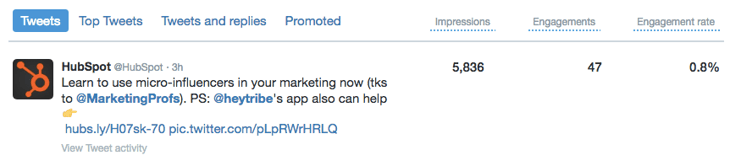
In the example above, we see a tweet from HubSpot received an engagement rate of 0.8% — or 47 engagements divided by 5,836 impressions. We found that to be particularly high: According to 2018 industry benchmarks by Rival IQ, the median Twitter engagement rate across every industry is .046%. Use this as a point of comparison when managing your own Twitter Analytics to determine how your tweets are performing.
For a more granular view of the volume of each type of engagement, you can click on the specific tweet:
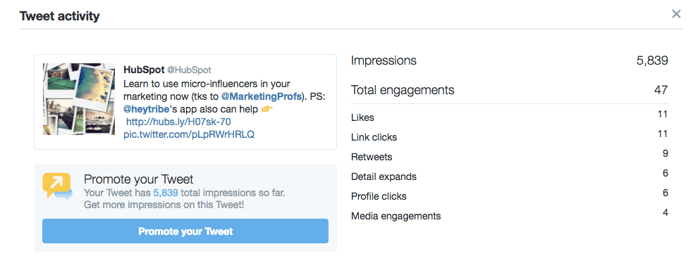
Understanding which content items get the most engagement on Twitter is huge. If you can even commit 10 minutes a week to recording your top five or 10 tweets by engagement so you can start seeing trends over time — and then applying those insights to future tweets — you’ll be able to better connect with your audience.
What are Twitter Impressions?
Twitter Impressions are the number of times a tweet appears on a user’s timeline. A tweet’s impressions are not limited to users who follow you, but this number also doesn’t filter based on who has interacted with the tweet. Impressions are not to be confused with reach.
In the previous section, I mentioned that a tweet’s engagement rate is equal to its total likes, replies, clicks, follows, and retweets divided by impressions. Your Twitter Analytics dashboard lists each tweet’s total impressions, but what are impressions, exactly?
As stated above, a new impression is counted on a tweet every time that tweet shows up on a user’s Twitter feed (also known as their “timeline”). So, if 30 of your followers logged on Twitter and saw your tweet, that tweet has made 30 impressions.
The impressions metric doesn’t consider how, or if, those users interacted with your tweet. Therefore, impressions alone should not be a key performance indicator (KPI) for your social media activity. But, because they are divided into the number of engagements your tweets have gotten, impressions are still an important number to know when examining your Twitter Analytics.
Impressions vs. Reach
“Reach” is a term you might hear when analyzing your Facebook Page’s performance. Well, you can also measure reach on Twitter, and it has an interesting relationship with impressions.
While Twitter impressions tell you how many times a tweet has actually appeared on someone’s timeline, “reach” tells you how many people, in total, have the potential to see it. This includes those users who don’t follow you but follow someone who follows you. Reach is typically a higher number than impressions. Here are two examples:
- If you have 300 followers, but only 190 of them saw your tweet, your impressions will be at 190 while your reach sits at 300. Why? Although you made 190 actual impressions on your followers, your tweets have have the potential to reach as many people as follow you — in this case, 300.
- Here’s a tougher one — let’s say you have 300 followers, 190 of them saw your tweet, one of those people retweeted you to 50 of their own followers, and 10 of those followers saw the retweet. Drumroll please … Your impressions will be at 200 while your reach sits at 350. Why? You got 190 impressions from the original tweet, as well as 10 more people who don’t follow you but saw your follower’s retweet (190 + 10 = 200). However, your tweet had the potential to reach your own 300 followers as well as the 50 people who follow the user who retweeted you (300 + 50 = 350).
Based on the examples above, you can probably tell that reach indicates potential, whereas impressions indicate actual performance. Does that mean a tweet’s reach is less important than impressions? Not necessarily. Sure, you might not see your reach displayed on your Twitter Analytics dashboard, but knowing how much exposure your Twitter account is capable of can help you draft accurate goals for the year and adjust your social media strategy to, well, “reach” them.
Tweet Activity
Tweet Activity is a section of your Twitter Analytics dashboard that allows you to see various metrics related to your tweets’ performance in chart form. You can see Tweet Activity for all of your tweets over a set time period, or for a specific tweet since it was published.
This is a really common question among social media marketers and brands: What made my tweet take off?
Some tools can analyze your Twitter followers and recommend the best day of the week for you to tweet. There’s also research out there showing when people are most likely to be active on Twitter. But of course, the best way to get to know your own audience is from your own account data.
You can analyze tweet activity two different ways: in groups of tweets during a set date range, or by specific tweets since their creation. Here’s more information on each method.
Tweet Activity Based on Date Range
In the Tweets tab of your Twitter Analytics, you can customize the date range you want to analyze to see when you published your highest-performing tweets:
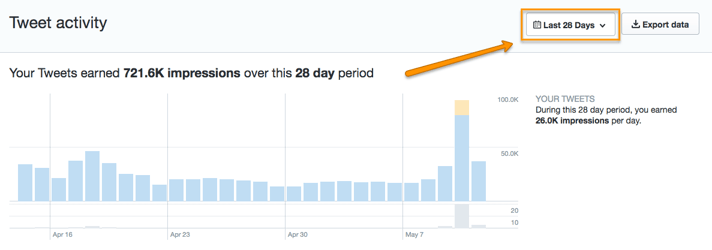
Then, to the right of the graph shown above, you’ll see how your engagement rate, total link clicks, and total retweets progressed over the that time period. These three graphs are shown below.
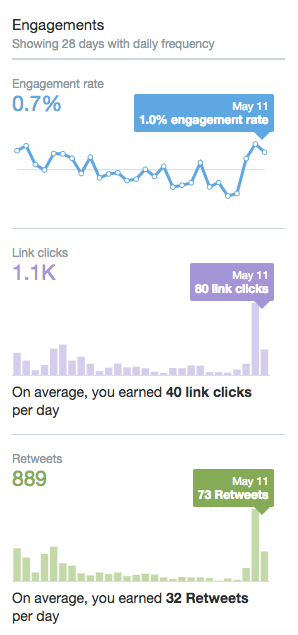
In the charts above, each bar or point on the graph considers the total from each day. Consider the green Retweets graph directly above this paragraph. If that Twitter account received 73 retweets total on May 11, it’s considering every tweet posted that day. Perhaps three tweets were posted — the morning tweet earned 10 retweets, the afternoon tweet earned 37, and the evening tweet earned 26. This makes the 73 retweets listed at the end of that graph.
Because these graphs consider daily totals, it’s important to tweet at a consistent volume every day, or your tweet activity might become misleading. For example, if you tweet three times a day for the first two weeks of the month, and only twice a day for the last two weeks, your activity graphs might show a steady decline in impressions and link clicks because you’ve had less output in the latter half of the month. (This is why engagement rate is so helpful — getting a percentage of engagement adjusts automatically for changes in tweet volume that might occur over the course of a month.)
Twitter used to allow you to view a tweet’s engagement over the course of a day, and I personally think it was a mistake to remove that feature. I hope they bring it back in an update soon so users can analyze the best time of day to tweet from their account.
Tweet Activity Based on Specific Tweet
Nonetheless, you can also visualize the activity of just a specific tweet. To access this data, click the small bar graph icon in the bottom-righthand corner of the tweet you want to analyze, as shown in the screenshot below.
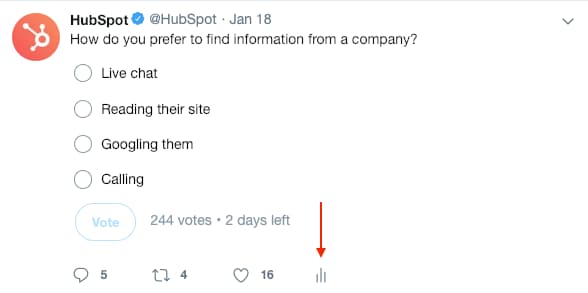
Clicking this icon will open a window showing you this single tweet’s total impressions, engagements, likes, link clicks, and more since the tweet was first posted.
This data might just be for one tweet, but don’t underestimate its importance. Examining these individual results, tweet by tweet, can give you insight into which types of tweets work and which don’t. For example, if you find tweets that promote videos from your YouTube account tend to get more impressions than others, you can invest more into video content as a result.
Track Twitter Followers
Twitter’s audience data in the “Followers” tab contains a ton of valuable and useful insights. This is where you can really get to know the people who follow you.
You’ll find answers to questions like: Are your audience members more likely to be male or female? Which countries and cities are the majority from? What are their top interests? You can also see who your followers follow as well as your follower’s top five most unique interests. Answering these questions can help you better identify what content to create and share on Twitter — and when to share it.
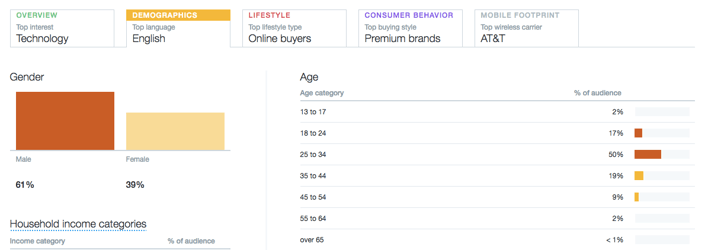
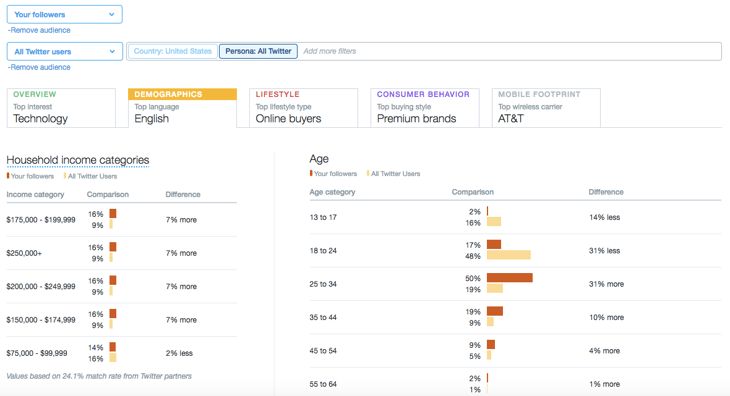
You can also compare your Twitter followers to different segments — for example, to all Twitter users total:
See Whether Your Follower Base Is Growing (or Shrinking)
I’d call myself a Twitter power user now, but it wasn’t always so. For several years, I slowly grew my following up to about 8,000 followers. In the past few years that I’ve really focused on my Twitter presence, I’ve picked up another 704,000.
Now, Twitter allows you to track your follower growth. Twitter Analytics shows you how many followers you had on any given day with the interactive timeline pictured below. Hovering over various points on the timeline will show you the exact follow count on that day. It dates back to the day your account was started.
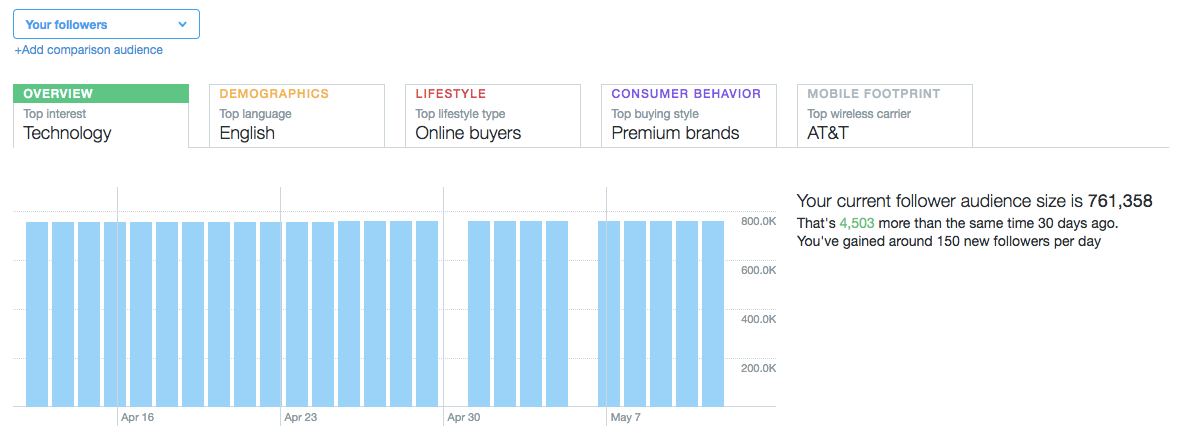
If you’re seeing blips in your follower count over time, it’s important to revisit your activity in those periods and see if you can learn from it. How often were you posting then — and what were you posting about? Were you taking the time to reply to folks, too? Answering questions like these can help you explain these blips — and avoid the same mistakes in the future.
Twitter Ads (Worth the Money?)
I’ve been experimenting recently with paid promotions on Twitter. After reviewing my own data in Twitter Analytics, I realized my ads weren’t as effective as I thought they would be.
In the Tweets tab, right at the top, there’s a chart that gives an overview of your paid and organic tweet performance. Like other Twitter Analytics charts, this one is interactive, so hovering over specific parts will show you more precise numbers, as in the example below. Keep in mind that the data only goes back 91 days, so take advantage of the ability to export it regularly. You can make comparisons over longer periods of time in another program.
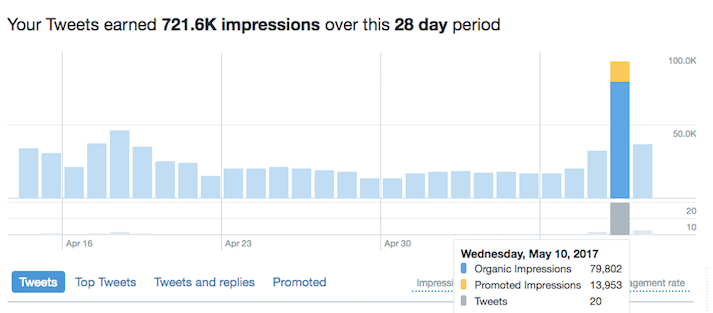
I’m not spending a ton on paid promotions — around $100 a day when I use them — but at a glance, I can see that compared to organic posts, they’re not having a huge effect. If I were running specific promotions, I’d be interested in the Conversions information available in Twitter Analytics. But for getting more impressions on my content, it doesn’t seem worth it because I could get that exposure for free by just tweeting a few extra times per day.
Obviously, this will vary for every user, but this panel in Twitter Analytics is a pretty simple way to see what you need to make that decision.
Just below that chart, you can click “Promoted” to see all of your paid promotions in chronological order. This shows you how many engagements and impressions each one earned, helping you pinpoint which paid promotions are working (and which ones aren’t).
Free Twitter Analytics Tools
- TweetReach
- Klear
- Keyhole
- Twitonomy
- Tweet Binder
- RiteTag
- Mentionmapp
- Hashtagify
Still other third-party analytics tools can help you do a deeper dive into content properties that Twitter Analytics won’t give you as much data on. Want specifics on hashtag performance? Maybe you want more information on the most influential Twitter handles in your industry. These are the metrics you’ll need outside help to find.
Below are some of the most widely used Twitter analytics apps and the types of data they’re best for reporting on. Although most of them have paid plans that afford you multiple features, each of these tools offer free services that can give your Twitter game a boost of intelligence.
TweetReach
User, Keyword, and Hashtag Analytics
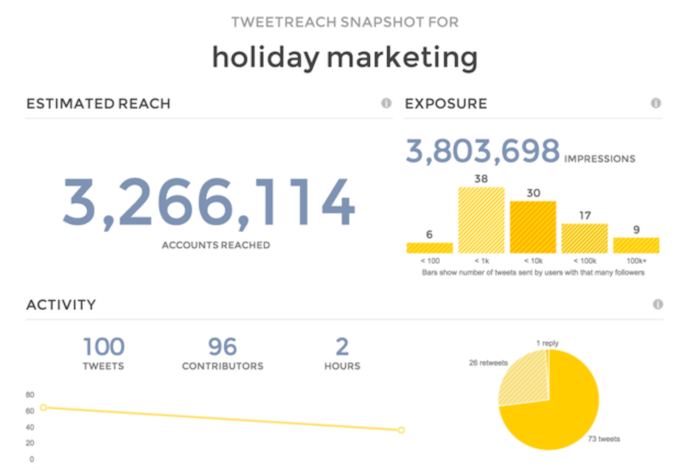
TweetReach is a free reporting tool that allows you to see how far your tweets and hashtags have traveled and who’s engaged with them. You can also get “snapshot” reports of any user, hashtag, or tweets with certain keywords in them so you can understand what’s being talked about in your industry in real time.
Klear
Influencer Analytics
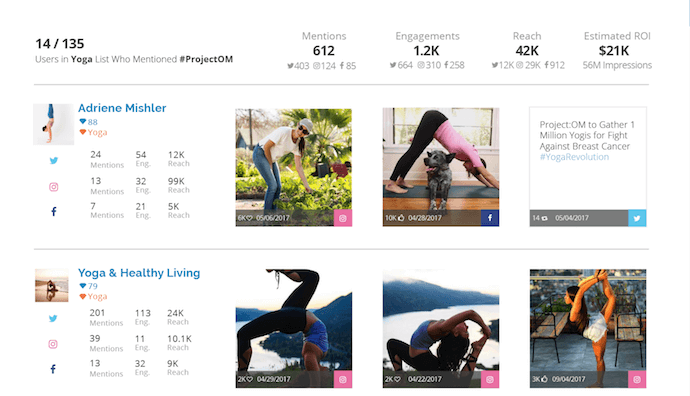
Klear focuses specifically on influencer marketing, tracking Twitter’s most influential users and helping you determine who’s making the most noise and greatest impact on certain topics of conversation. Compatible with Instagram, YouTube, and Twitter, the tool makes it easy to find, analyze, and manage your relationships with the people you want your brand to be associated with on social media.
Keyhole
Hashtag Analytics
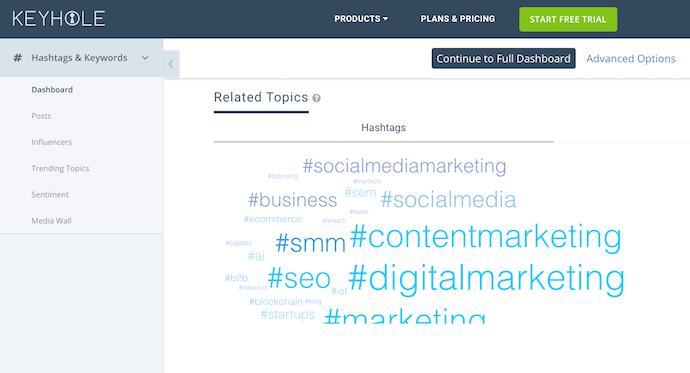
Keyhole takes Twitter users on a deep dive into the hashtags and topics they might like to create entire social media campaigns around. Start by performing free searches for hashtags, accounts, and topics you want to track. Then, for a paid subscription, use these insights to set up monitoring programs so you can find out who’s saying what about you, your event, or your market.
Twitonomy
User, Keyword, and Hashtag Analytics
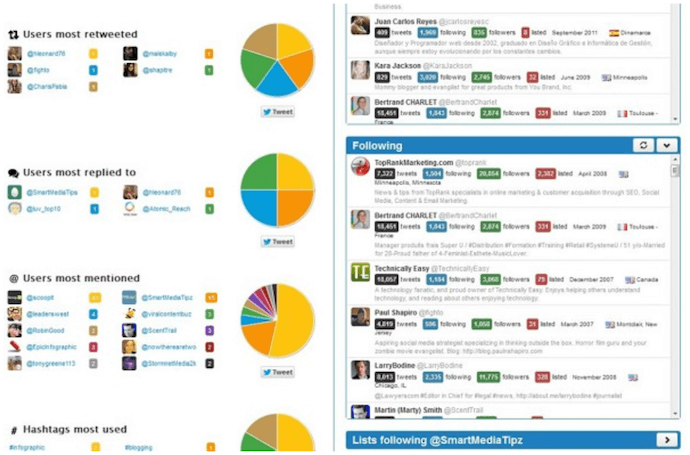
Twitonomy offers a full portfolio of data about the content you tweet and the users you follow. Most of this data is completely free, and you have multiple ways to visualize and report on this information. You can track posts from specific users, get smarter insights about your own followers, and more by signing into Twitonomy through Twitter directly.
Tweet Binder
Campaign Analytics
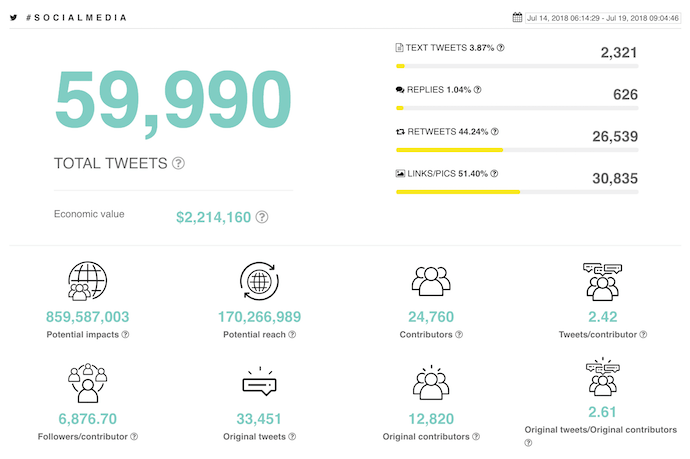
Tweet Binder is a campaign-focused analytics tool that allows you to view activity behind any hashtag, user, or keyword for free. Under its paid plans, the product gives you both Twitter and Instagram “walls” where you can see the impact of your own campaigns, making you a smarter promoter and event marketer over time. Tweet Binder’s free hashtag report, shown above, gives you an idea of just how easy it is to see the data behind various Twitter trends.
RiteTag
Hashtag Analytics
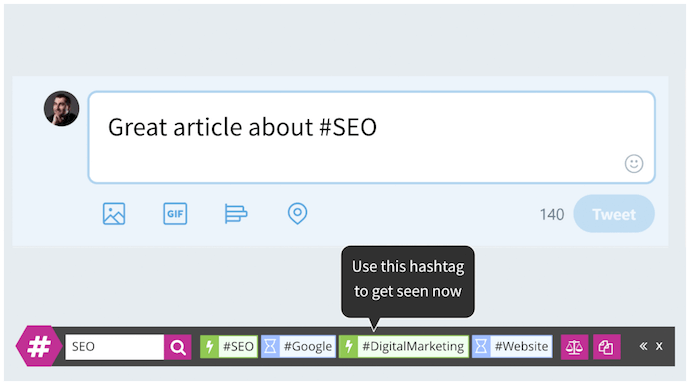
RiteTag doesn’t just give you engagement metrics behind a hashtag — it uses that data to give you real-time suggestions for which hashtag to use in each tweet you create. The platform integrates with a variety of marketing tools and social networks, allows you to create “tag sets” to refer back to, and recommends hashtags based on both text and visual media you want to post.
Mentionmapp
User, Mention, and Hashtag Analytics
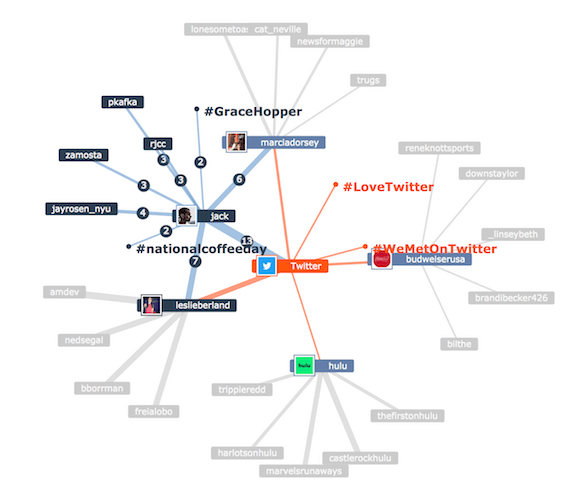
Mentionmapp is one of few Twitter analytics tools that presents conversation data in “map” form. Most of the tool is free to use under the “Seeker” platform, showing you not just who’s talking to whom, but who’s expanding on which topics and where a topic began. The map you create stays updated to Twitter trends as they happen.
Hashtagify
Hashtag Analytics
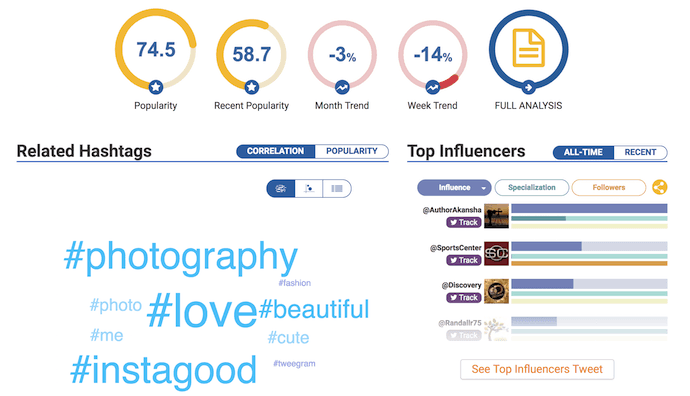
Hashtagify, as you might’ve guessed from its name alone, is a hashtag analytics tool that serves up a dashboard of information related to any hashtag you search. The product works for both Twitter and Instagram, organizing its data into various visual categories so you can properly decide with hashtags and topics you should get in on. As with each tool on this list, the free version of Hashtagify offers the dashboard above and a lightweight version of the full suite of analytics — which is available through paid plans.
Exporting Data: How to Discover Even More Trends in Twitter Analytics
No matter where you track your social media performance, marketers now have access to increasingly granular data about their Twitter account. The most useful feature I’ve found in Twitter Analytics is the ability to export data from the Twitter API as a CSV file.
Even power users with a ton of account activity can fairly quickly export their Analytics data right from their Twitter account.
To export your data from Twitter, select the timeframe you’d like to use, and click the “Export Data” button in the top right corner of your Twitter Analytics Dashboard.
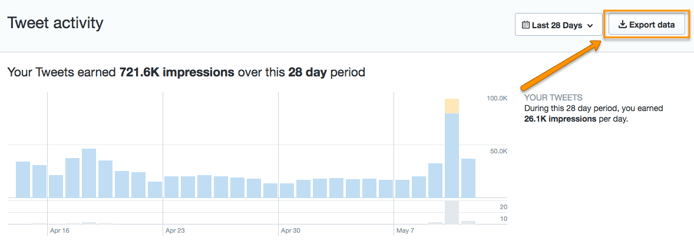
You can then sort through your exported data using Excel in ways not possible within the platform itself. For example, I extracted the time of day of my last 2500 tweets and plotted the tweet engagement rate vs. time of day, as shown here:
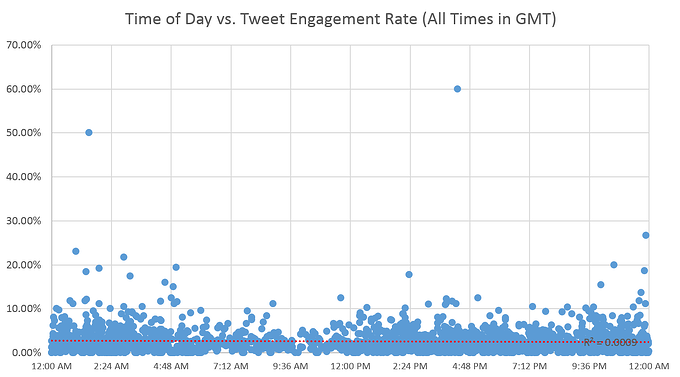
What I found was that the engagement rate (i.e. the # of engagements/impressions) held steady (on average) regardless of the time of day — possibly because I have a ton of international followers. It got me thinking that I really ought to be scheduling my content for all hours of the day, not just during business hours in my local time zone. Sure, fewer people will see my updates at 2 a.m. local time, but those who do are just as likely to engage with the content as those who see it during business hours.
There are so many other columns of data in the CSV export, including the number of favorites, retweets, link clicks, replies, URL clicks, follows, etc. So you can do this kind of customized analysis on whatever metrics you care most about.
Ultimately, the best data is your own, so make time to check out Twitter Analytics and see what you can learn and do with it. Figure out which tweets resonate and why. Then, work those insights into your social media marketing strategy for a more successful way forward.
For more ideas, download HubSpot’s guide to getting more Twitter followers.

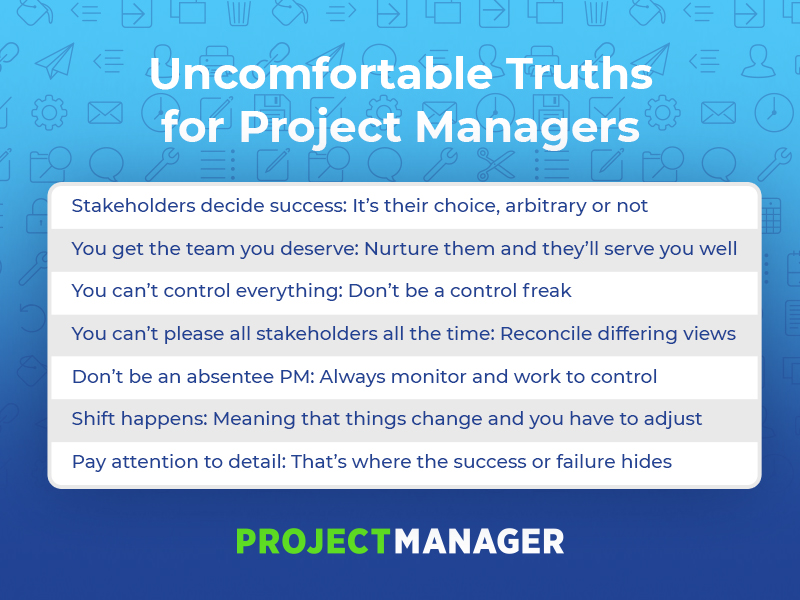
7 Uncomfortable Truths for Project Managers
3 Habits to Boost Creativity & Become a More Prolific Marketer
Maya Angelou once said, “You can’t use up creativity. The more you use, the more you have.”
Oftentimes, this couldn’t feel further from the truth. Imagine, for instance, the moment you finish your quarterly marketing campaign. You’re ecstatic — the campaign launched without a hitch, and you’ve already seen impressive conversion results.
But you’re also exhausted. You feel you’ve used up so much of your creative energy already — how will you ever come up with a new idea for the next quarter?
In these instances, it can feel like creativity is finite, and maybe even rare. But as marketers, we’re tasked with both the burden and the joy of using creativity to succeed in our roles every day.
Fortunately, there are tactics you can employ to begin building the right habits to become more prolific in your role. Henneke Duistermaat, writer and creator of Enchanting Marketing, created the following hand-drawn infographic to help boost creativity, improve focus, and minimize self-doubt to become a better, more creative marketer. Take a look.


The Best Programming Languages to Learn, According to HubSpot Software Engineers
When Liam Harwood, a Software Engineer at HubSpot, was in elementary school, he loved playing video games. But unlike most kids his age, he also created them. As a 10 year-old, Liam would spend hours hunkered over an old computer in his basement, coding simple games in QBASIC or Quick Beginner’s All Purpose Symbolic Instruction Code.
Liam quickly mastered QBASIC and created the most advanced games he could in the rudimentary language. But coding basic games didn’t scratch his creative itch anymore. He had visions for more sophisticated games and projects he wanted to develop, so, at the age of 13, he decided to teach himself as many programming languages as possible, like HTML, Javascript, Java, and Python, among others. By the time Liam graduated high school, his insatiable curiosity and unwavering passion helped him earn a full computer science scholarship to attend Marist College.
Today, Liam is a software engineer on HubSpot’s Design Platform team, where he works on the backend of our Design Tools, Template Marketplace, and other design-related services.
Now — who says video games just rot your brain?
If you aspire to become a successful software engineer like Liam, but you haven’t learned any programming languages yet, don’t feel pressured to follow his exact path and learn every language under the sun. In fact, if you’re a beginner, Liam recommends only learning three.
“For anyone who wants to dive head first into the technical side of things and really understand how their programs work, I would start with C. It keeps things simple and straightforward, and is the closest a beginner would want to get to writing pure machine code. It also forms the basis for most modern programming language syntax, giving you the skills that can easily be applied to other languages,” he says. “On the other hand, Python may be a good choice for beginners because it has a very simple and digestible syntax, as well as extensive libraries that can help simplify complicated computations. Lastly, Java is another good choice because it’s one of the most widely used languages — I use it here at HubSpot — and similar to C, it teaches you fundamental skills that can be applied to other languages.”
Like Liam, a lot of software engineers agree that C, Python, and Java are the best languages to learn as a beginner — they can help you grasp the fundamental coding skills needed to pick up other, more robust languages.
But some software engineers argue that honing your programing skills requires an even more foundational understanding of computer science. According to Josie Barth, a Software Engineer on HubSpot’s Big Data Infrastructure team, learning the principles of computer science — not specific languages — is what will sharpen your programing skills the most.
“While it’s common to get started learning on an object oriented language, like C++ or Java, I think it’s less about learning a specific programming language and more about learning the foundations of computer science, like data structures, algorithms, discrete math, operating systems, computation theory, and more,” she says. “I also wouldn’t necessarily bucket programming languages as beginner, intermediate, or advanced. You choose programming languages based on the kind of tasks you want to do. But there are definitely easier languages to get started on. For example, Java might be easier to get started on than C++ because Java abstracts certain concepts away, but if you needed to program within finer control of the machinery in mind, you’d likely use C++ over Java.”
So while learning specific languages will help refine your programming skills, mastering the fundamentals of computer science will help you reach your potential more than anything else. Because before Liam Hardwood was coding the backend of HubSpot’s Design Platform, he was programming simple video games on a dusty computer in his basement, building his foundational skills with an old language that was considered outdated, even back then.
However, this still begs the question …
Which programming language should you learn first?
If you’re a beginner, most software engineers recommend learning C, Python, or Java first. Below, we’ll give you a rundown of each of these programming languages, describing what they’re used for and how much demand they have in the software engineering labor market.
5 of the Best Programming Languages to Learn
- Java
- Python
- JavaScript
- C/C++
- C#
1. Java
The Java Virtual Machine lets Java run on virtually any hardware and operating system, making it the most widely used programming language by businesses in the world. And with over 90% of Fortune 500 companies using Java to develop the backend of their applications and 62,000 Java programming jobs posted on Indeed.com last year — the most out of any language — Java will be in high demand for a long time.
2. Python
Python has a very simple and digestible syntax, as well as extensive libraries that can help simplify complicated computations, allowing you to hit the ground running when you want to learn other languages.
As a general programming language, Python is mostly used for web development and support for software engineers, but it’s also used a lot in machine learning, which helped it become the second most sought after programming language on Indeed.com, with 46,000 jobs advertised on the online job board.
3. JavaScript
Used to develop the front end of most business’ applications, JavaScript is one of the most popular programming languages out there. With over 80% of developers and 95% of all websites using JavaScript, it’s easy to understand why there were over 38,000 JavaScript jobs posted on Indeed.com last year.
4. C/C++
C is the most simple and straightforward programming language around, and it also forms the foundation for most modern programming language syntax, giving you fundamental skills that can easily be applied to other languages.
A successor of C, C++ is an object oriented language, which aims to represent real-life objects as code and is more equipped for developing sophisticated applications, like system or application software, video games, drivers, client-server applications, and embedded firmware. Last year, over 31,000 C++ programming jobs were posted on Indeed.com.
5. C#
Another successor of the C programming language, C# is an object oriented language that’s intuitive to learn, making it the fifth most popular programming language for building software. Microsoft developed C# to run on their .NET platform, and it’s heavily used in video game development. Last year, over 28,000 C# programming jobs were posted on Indeed.com.

How to Turn Fans Into Engaged Superfans
Do you want to improve your fan engagement? Wondering how to turn fans into superfans? In this article, you’ll discover how to encourage your fans to engage with your business in deeper, more meaningful ways. Why Does Fan Engagement Matter to Marketers? Most definitions of brand engagement agree that it represents a relationship between a […]
The post How to Turn Fans Into Engaged Superfans appeared first on Social Media Marketing | Social Media Examiner.
from Social Media Marketing | Social Media Examiner http://bit.ly/2FHfeqP
via socialmediaexaminer
13 Businesses With Brilliant Global Marketing Strategies
Guess what? Global marketing is no longer reserved for brands with deep pockets, nor is it a huge hassle for already over-burdened marketing managers.
In fact, a global presence is possible for any business with a creative strategy and an understanding of world markets.
What Is Good Global Marketing?
Global marketing is the act of focusing a product on the needs of potential buyers in other countries. Typically, a global marketing strategy requires a business to do new market research, identify countries where the business’s product might be successful, and then localize the brand to reflect the needs of those communities.
Easier said than done, right?

Like most types of marketing, though, a global marketing strategy comes down to one thing: audience. Knowing who needs your product, in what form to deliver it to them, and how to do it in a way that strengthens the brand are core ingredients of awesome global marketing.
To give you an idea of what a great global marketing strategy looks like, we’ve compiled a list of brands that totally “get it.”
From adapting their social strategies to translate across multiple languages to adjusting their menus to appeal to the cravings of a diverse group of people, these brands are taking positive steps toward creating a solid presence across the globe.
So, if you’re looking for inspiration on how to craft a successful international marketing strategy and expand your business’ reach, check out these examples from 13 successful companies.
Global Marketing Strategies
- Red Bull
- Airbnb
- Dunkin Donuts
- Domino’s
- Rezdy
- World Wildlife Foundation
- Pearse Trust
- Nike
- McDonald’s
- Innocent Drinks
- Unger and Kowitt
- Coca-Cola
- Spotify
1. Red Bull
Austrian company Red Bull does such a great job with global marketing that many Americans assume it’s a local brand. How?
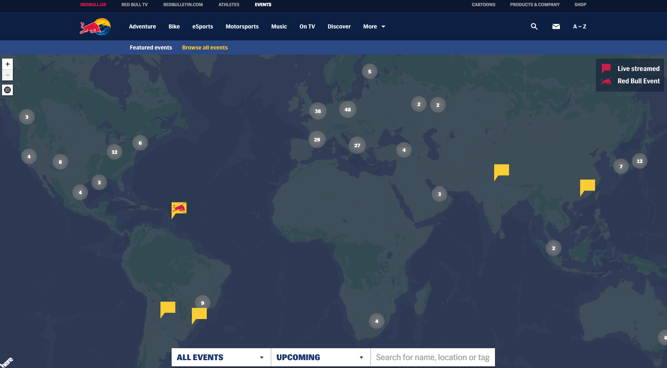
One of its most successful tactics is to host extreme sports events all over the world. From the Red Bull Indianapolis Grand Prix to the Red Bull Air Race in the United Kingdom to the Red Bull Soapbox Race in Jordan, the brand’s powerful event marketing strategy takes them here, there, and everywhere.
Aside from events, Red Bull’s packaging also plays a part in its global appeal.
“Red Bull really looks like a product from a global economy. It doesn’t look like a traditional American soft drink — it’s not in a 12-ounce can, it’s not sold in a bottle, and it doesn’t have script lettering like Pepsi or Coke. It looks European. That matters,” explains Harvard Business School professor Nancy F. Koehn in a 2001 article. Though it’s since diversified its product selection since that article was published, the fact remains that Red Bull’s consistent packaging has helped this brand go global.
2. Airbnb
Airbnb, a community marketplace for people to list and book accommodations around the world, was founded in 2008 out of San Francisco, California.
Since then, Airbnb has grown to 1,500,000+ listings in 34,000+ cities worldwide. A large contributor to the company’s explosive global success? Social media.
In January 2015, Airbnb launched a social media campaign around the hashtag #OneLessStranger. The company referred to the campaign as a “global, social experiment,” in which Airbnb asked the community to perform random acts of hospitality for strangers, and then take a video or photo with the person and share it using the hashtag.
Just three weeks after the launch of the campaign, over 3,000,000 people worldwide engaged, created content, or were talking about the campaign.
3. Dunkin Donuts
In case you missed it, National Donut Day was last June. And while we were getting our hands dirty with a Boston creme (or two) here in the states, Dunkin Donuts China was serving up a fresh batch of dry pork and seaweed donuts.
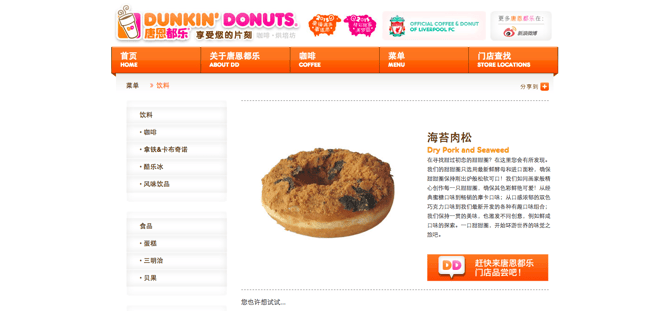
With over 3,200 stores in 36 countries outside of the U.S., Dunkin Donuts has evolved its menu to satisfy the sweet tooth of its global customers.
From Korea’s Grapefruit Coolata to Lebanon’s Mango Chocolate Donut to Russia’s Dunclairs, it’s clear that Dunkin Donuts isn’t afraid to celebrate cultural differences in an effort to strengthen its international presence.
4. Domino’s
Similar to Dunkin Donuts, Domino’s has prioritized menu innovation as a means of increasing international interest and awareness.
“The joy of pizza is that bread, sauce, and cheese works fundamentally everywhere, except maybe China, where dairy wasn’t a big part of their diet until lately,” explains Domino’s CEO J. Patrick Doyle.
“And it’s easy to just change toppings market to market. In Asia, it’s seafood and fish. It’s curry in India. But half the toppings are standard offerings around the world.”
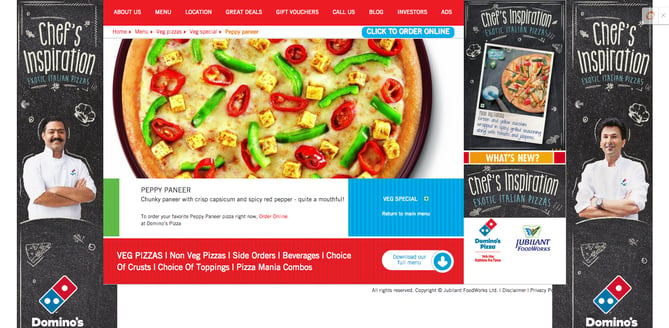
By making a conscious effort to gain a better understanding of the preferences of the markets it’s trying to break into, Domino’s can deliver pies diverse enough to gain international attention.
5. Rezdy
Some companies may not be trying to attract global markets directly, but if their clients are, they better know how. Rezdy is an Australian-based reservation software designed to make online booking smoother for tourists and agents alike.
Though Rezdy’s clients are Australian-based, the company needs to cater to its clients’ international visitors. Click on the screenshot to check out this fun video on Rezdy’s homepage:
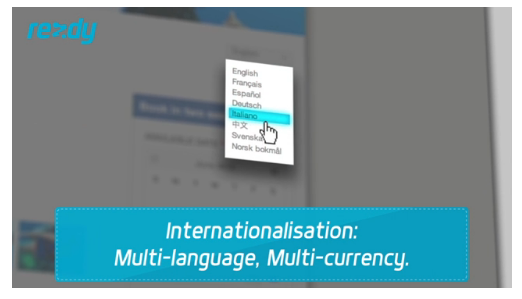
The first feature the video spotlights is “Internationalisation.” The video walks us through how easy the service is for users, but is sure to emphasize the language and currency customization tool upfront. Even if your company is marketing to other regional companies, consider their global customers as if they were your own.
6. World Wildlife Foundation
WWF took its Earth Hour initiative — a voluntary worldwide event where participants turn off their lights for an hour to show how easy it can be to battle climate change — and brought it to Norway’s mobile audience.
Scandinavian countries like Norway experience extreme daylight hours in different seasons, making the country a prime candidate for WWF’s Blackout campaign. Using digital agency Mobiento, the nonprofit placed the Blackout Banner across Norway’s top media sites to promote Earth Hour. With one tap of the banner, the screen went black. Finger swiping the black screen slowly revealed the Earth Hour countdown. The banner attracted roughly 1,000,000 impressions and the campaign received three MMA Global Mobile Marketing Awards back in 2012.
Have a cool idea? Don’t be afraid to try it out on one international market — just make sure it’s the appropriate audience. (Also, don’t be afraid of the dark.)
7. Pearse Trust
With offices in Dublin, London, Vancouver, Atlanta, and Wellington, Pearse Trust has grown to be an international authority on corporate and trust structures. But it takes more than offices all over the map to reach an international audience.
That’s why Pearse Trust keeps content flowing on its Facebook page that engages its various markets. In this screenshot below, you can see Pearse Trust posts lots of content featuring international affairs relating to the company’s practice.

It also levels out external articles with Pearse Trust content, featuring news from places like Germany, Ireland (where it has a Dublin office), and the U.K. (where it has a London office). This is a great example of focusing on common interests shared among your company’s various markets while also making the content relatable to customers by region.
8. Nike
Nike has been able to evolve its global presence through the careful selection of international sponsorships such as its previous long-standing relationship with Manchester United.
Although sponsorship spending can be fairly unpredictable — demand costs tend to surge due to triggers like championships and tournaments — these partnerships have certainly helped the brand capture the attention of a global audience.
Nike’s NikeID co-creation platform serves as another strategy that the company is using to appeal to international markets.
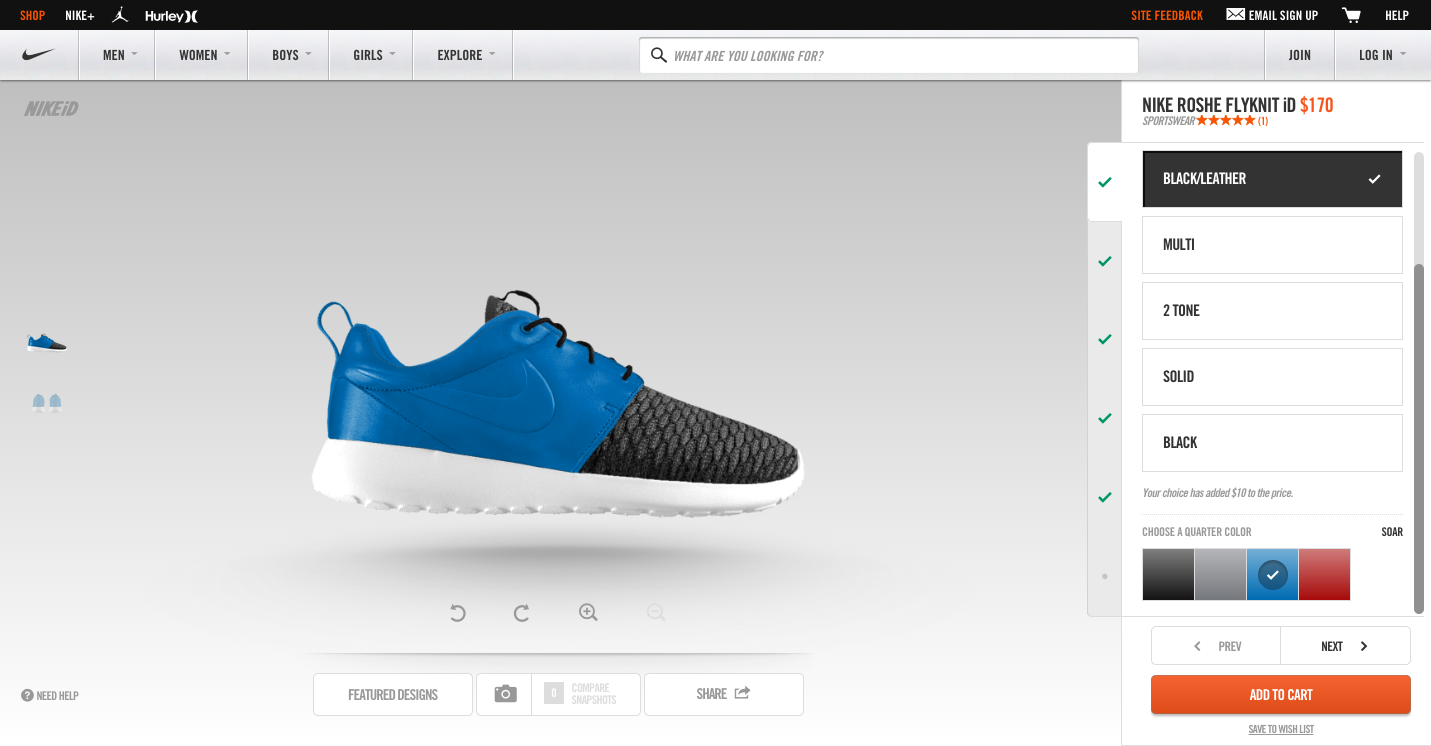
By putting the power of design into the hands of the consumer, Nike is able to deliver customized products that align with different cultural preferences and styles.
9. McDonald’s
We all know McDonald’s is a successful global brand, so unlike its menu, I’ll keep it light.
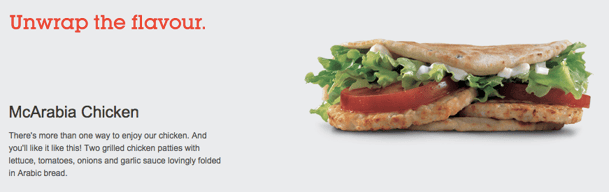
While keeping its overarching branding consistent, McDonald’s practices “glocal” marketing efforts. No, that’s not a typo. McDonald’s brings a local flavor, literally, to different countries with region-specific menu items. In 2003, McDonald’s introduced the McArabia, a flatbread sandwich, to its restaurants in the Middle East.
McDonald’s has also introduced macaroons to its French menu:

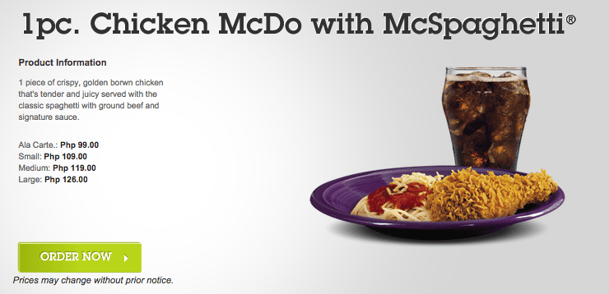
And added McSpaghetti to its menu in the Philippines:
This “glocal” approach has helped put McDonald’s at
#9 on Interbrand’s Best Global Brands 2014.
10. Innocent Drinks
Innocent Drinks is the leading smoothie company in the U.K., but that’s not the only place you’ll find its products. In fact, Innocent products are now available in 15 countries across Europe.
And despite its widespread reach, the company’s “chatty branding” remains consistent across the board. For instance, the website is very bubbly, with contact information that reads “call the banana phone” or “visit the fruit towers.”
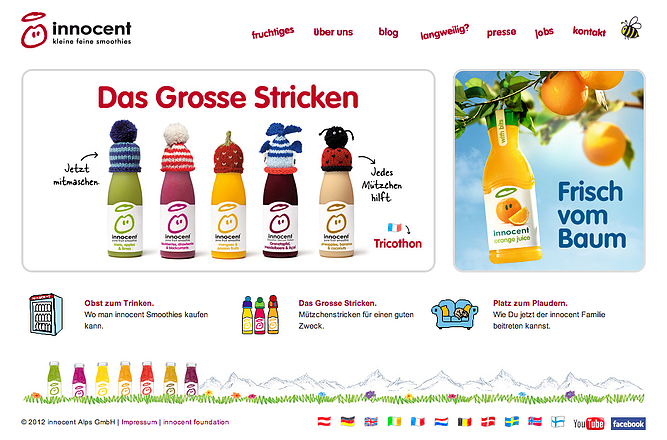
While global expansion and rapid growth can sometimes distract a company from consistent branding, Innocent Drinks has managed to remain true to itself. By ensuring that the brand’s voice is interpreted the same way around the world, Innocent is able to create a more recognizable brand.
11. Unger and Kowitt
The phrase “glocal” can be defined as “Think Globally, Act Locally.” But what happens when you switch the two around.
Whoa, fasten your seat belts — literally. Unger and Kowitt is a traffic ticket law firm based in Fort Lauderdale defending drivers in the state of Florida. Not very global, right? Well, Unger and Kowitt understands that America is a melting pot and that Florida is bursting at the seams with different cultures and languages.
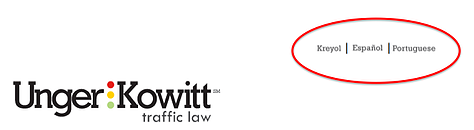
Though a domestic service, the firm’s website is available in English, Spanish, Portuguese, and Creole. With these options, Unger and Kowitt can cater to Florida’s nearly 3.5 million Floridians who speak Spanish, Portuguese, or Creole. Don’t miss out on expanding your client base — sometimes you don’t have to look far to attract international business.
12. Coca-Cola
Coca-Cola is a great example of a brand using international marketing efforts. Though a large corporation, Coca-Cola focuses on small community programs and invests a lot of time and money in small-scale charity efforts.
For example, in Egypt, Coca-Cola has built 650 clean water installations in the rural village of Beni Suef and sponsors Ramadan meals for children across the Middle East. In India, the brand sponsors the Support My School initiative to improve facilities at local schools. Not to mention, the brand sticks with selling an emotion that can’t get lost in translation: happiness. Now, tell me this doesn’t look like fun:
13. Spotify
As of 2018, Spotify was newly considered one of the best global companies in the world, according to Interbrand. We’ve all heard of Spotify (no pun intended), but how did it suddenly, and so quickly, expand from Sweden into other countries?
Spotify’s business model is focused on helping you find something new.
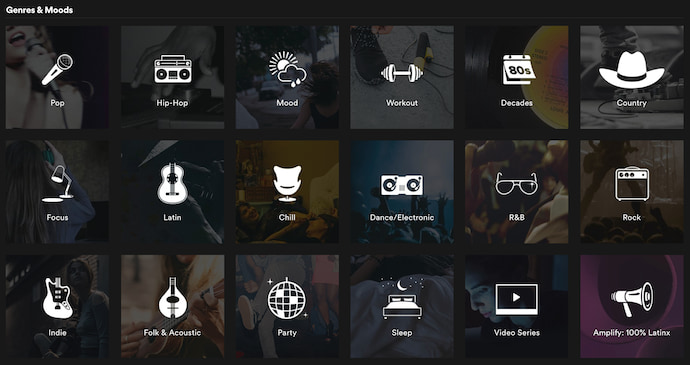 It’s one thing to select a genre of music to listen to — it’s another thing to select a “mood” to listen to. The screenshot above is part of Spotify’s “Browse” page, where you can listen not just to “country” and “hip-hop,” but also music that carers to your “workout” or “sleep” preferences.
By changing how they describe their content, Spotify gets users to listen to music that goes beyond their favorite genres, and instead satisfies habits and lifestyles that people share all over the world. This allows international artists to access listeners from other countries simply because their product is being categorized a different way.
Spotify now has offices in 17 countries around the world.
If you have global aspirations for your business, you need to find out what customers in different communities have in common — and how to localize your product for these different markets. Your first step? Take inspiration from one of the 13 businesses above.
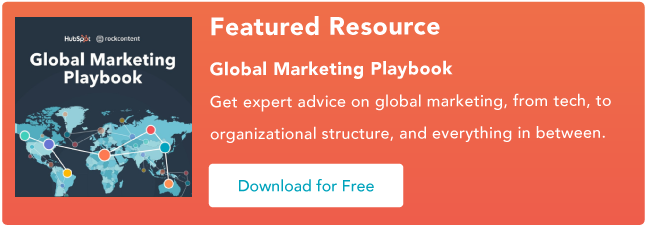


IT Risk Management Strategies and Best Practices
9 YouTube Channel Ideas to Help You Choose Your Own
Starting a YouTube channel is a lot of work. Not only do you have to spend time scripting, producing, and editing videos, but you also have to find a topic you’re passionate about and make sure it resonates with people.
To help inspire you, we found nine popular YouTube categories that you can start a channel about. Read on to learn why viewers love to engage with these types of YouTube videos, and start ideating your YouTube channel today.
YouTube Channel Ideas
- Comedy Sketches
- Web Series
- Music
- Tutorials
- Self Help
- Cooking
- Training and Fitness
- Style
- Travel
1. Comedy Sketches
When you’re in the midst of a two hour YouTube binge fest, you can probably blame the endless amount of funny videos that flood the platform. Some of the most successful YouTubers create comedy sketches, like Jenna Marbles, a blogger turned YouTube sensation who has over 19 million subscribers, and Jimmy Tatro, a college kid who made hilarious videos for fun, but ended up turning it into a career, amassing over 3 million subscribers to this day.
Jenna and Jimmy both built their YouTube followings with low-production videos, but they completely nailed the humor and storytelling in most of their videos, too. With this in mind, if you can write a funny script, building a successful comedy channel with a low budget is definitely possible.
2. Web Series
The human brain is wired to respond to well-crafted narrative. Neuroscience proves that storytelling is the best way to capture people’s attention, bake information into their memories, and forge close, personal bonds. We’re programmed to crave and seek out great stories — that’ll never change.
If you can structure your YouTube channel like a season of television and weave your videos into a narrative-driven series, then you can get viewers hooked on your content — just like your favorite Netflix show.
3. Music
Covers of songs are some of the most entertaining videos on YouTube. People love listening to aspiring artists’ personal twists on their favorite songs. So if you can sing or play instruments, consider covering your favorite, trending, or hit songs and upload them to YouTube. Who knows, maybe you could even get discovered and become the next Justin Bieber or Tori Kelly.
4. Tutorials
Whether they’re guitar lessons, beauty lessons, or how-to videos about making popsicle stick houses for your hamster, people love learning how to enjoy their lives more. If you can cover topics that people are passionate about and teach them how to get better at these things, they’ll be able to live better lives. This’ll grow your channel’s brand loyalty and sentiment, retaining your viewers’ attention and attracting their friends’ attention by way of word-of-mouth marketing.
5. Self Help
Another way you can grow your channel’s brand loyalty and sentiment is by helping people solve their personal problems. Whether it’s about their career or personal life, you can give people advice about common issues that you’ve experienced or that they ask about. But make sure you have extensive knowledge, education, or personal experience surrounding these topics. Otherwise, people will think you’re a quack and lose trust in you.
6. Cooking
Humans’ love for cooking is primal. I mean, we need food to survive, so it makes complete sense that people are always trying to master certain dishes and learn about new ones. To help them do this, guide them through your recipes, delve into the techniques you use, and show them what their food should look like at each stage of your recipe. This will help them make the best dish possible.
7. Training & Fitness
Personal trainers are expensive. Fortunately, though, you don’t need one to stay in shape. People are starting to resort to free personal trainers or yoga instructors on YouTube to stay active. So if you have a lot of expertise on weight lifting, yoga, or other fitness methods, consider creating workout videos for specific goals, like losing weight, gaining muscle, or improving cardiovascular health.
8. Style
Everyone wants to look good. And by evaluating new clothing, keeping people updated on new trends and styles, and teaching them how to always look their best, you can build a dedicated YouTube following. If your YouTube channel is popular, you can also attract sponsors who will pay you to review their clothing and offer deals to your audience.
9. Travel
Humans are biologically driven to investigate the world rather than respond to it. That’s why people love exploring so much. But before they shell out thousands of dollars to travel someplace they saw on Instagram, people like to do a little research first. So if you have the funds to travel, consider recording your adventures in destination cityscapes or landscapes. Your viewers can actually get an inside look at the location, helping them decide to take a vacation they’ll never forget or save money on a trip they’d regret.

How to Take a Sabbatical, According to 6 People Who Did
Imagine this — you spend an entire month backpacking throughout Southeast Asia, drinking from coconuts on the beaches of southern Thailand, hiking the mountains in Vietnam, and seeing Angkor Wat at sunrise.
Best of all? You’re getting paid to do so, and you have the same job waiting back home that you had when you left.
Surprisingly, that type of experience just might be possible with a sabbatical.
Whether you’re hiking the Appalachian trail or spending the month learning a new skill, a sabbatical is often a critical opportunity to regain focus and clarity, relax, or check off a bucket-list item. If your employer offers you the option to take a sabbatical, it’s a good idea to take one.
However, a sabbatical can seem daunting, and “wasting” your sabbatical on a bad decision can seem more frustrating than not going at all. To combat these challenges, I spoke with six employees at HubSpot who each took a month-long sabbatical at their five-year anniversary. Keep reading to get some ideas for how you want to spend your sabbatical.
But first — what’s a sabbatical?

How long is a sabbatical?
It depends on the stipulations provided by your employer, but typically, a sabbatical can last anywhere from one month to two years. Of course, you will likely have a shorter sabbatical if it’s a paid sabbatical, and a longer one if it’s unpaid.
What’s a sabbatical?
Unlike vacation, a sabbatical is an extended break from work. Employers can offer either unpaid or paid sabbaticals, but typically guarantee an employee’s position remain open until the employee returns from their leave.
The length of a sabbatical is up to the discretion of your employer, as are the terms and conditions. Many companies encourage higher retention rates by offering sabbaticals to employees only after a certain period of time — at Adobe Systems, an employee is eligible for a four-week sabbatical after five years, and a six week sabbatical after fifteen years.
Some companies incentivize employees to pursue professional development by offering a paid sabbatical only if an employee uses the time in a certain manner. For instance, Deloitte offers both paid and unpaid options. A Deloitte employee can choose to take an unpaid one-month sabbatical at any time, or a three-to-six month sabbatical that “can be taken to pursue personal or professional growth opportunities in the areas of career development or volunteerism.”
Employees at Deloitte who choose the three-to-six month option will receive 40% of their pre-sabbatical base salary.
At HubSpot, employees are eligible for a four-week paid sabbatical, but only once they’ve been at HubSpot for five years — however, this might look different at your company.
It’s important to note, sabbaticals can be incredibly effective solutions to turnover rates at your company. Oftentimes, people will work in certain roles until they’re exhausted, and then feel they need some time off from work, or even a career-change, to recharge. A sabbatical is an alternative solution to this problem, and allows your employees to return to their roles happier and more productive.
Additionally, your employees will likely gain fresh ideas and perspectives during their sabbaticals. Perhaps they’ll observe new potential markets, learn a new skill, or observe how a competitor in another country is successfully solving a problem with which your company has struggled.
Sabbatical Ideas
To get ideas for your sabbatical, take a look at the diverse experiences of six different HubSpot employees.
1. Inbound Marketing Specialist Dan Sally’s Sabbatical to Rio de Janeiro
“In July of 2014, I started learning Brazilian Portuguese and, after about five months, got to the point where I was proficient enough to take lessons entirely in the language. I was lamenting the fact that, with a wife and four kids, I’d probably never get the chance to get the immersion I needed to bring my skills to the next level, when HubSpot announced our sabbatical program.
I had just hit my five year anniversary, so the timing was perfect.
My family and I rented an apartment in Rio de Janeiro for the month of July, one block from the beaches at Ipanema. We spent the month swimming, visiting all the sites of Rio, and ate red meat and churros pretty much every day.
Leaving work behind wasn’t a huge issue, as I was working in sales for our Dublin office at the time and Europe shuts down in the summer. Even if it were, being in Rio with four kids would be enough of a distraction to keep my mind off things.”
2. VP of Marketing Meghan Keaney Anderson’s Sabbatical to Her Hometown
“You may think sabbatical and immediately have your imagination jump to exotic locations or wild adventures. Mine did not. For my sabbatical I rented a quiet house by the harbor in my hometown of Marblehead, Massachusetts. I spent the entire time taking long walks with my dog and sitting in a rocking chair on the front porch.
Above all, I wanted some time to clear my head. Going somewhere familiar and watching my dog sleep in the sun was that precise thing. I am so grateful I did.”
3. Senior Director of Customer Selling Corey Beale’s Sabbatical to Costa Rica
“For my 31 days I elected to rent a house in Costa Rica and live the surfing life as if I was retired and just doing my thing. I ended up renting this incredible house just minutes from the beach. As you’d expect when you send an open invite to friends and family saying you’ve rented a beach house and there are open bedrooms available, people are more than happy to take you up on the offer. We had a fun rotation of guests coming and going each week, which meant there were always laughs and adventures to be shared. It was also rewarding that I was able to pay a vacation forward to my parents, and host them for once.
I’m a big fan of earning good karma on trips, so I decided to donate some of the HubSpot provided money to a local school and I ended up bringing home a stray dog! Once his paperwork was all set, I brought him stateside. Best of all, he was adopted by a fellow HubSpotter and he’s already been in the office and gotten plenty of HubSpot love.
Hopefully everyone who becomes eligible for a sabbatical takes advantage of it and does something on their bucket list, or several things on their bucket list, with the time off. It’s well worth it, and I for one am incredibly thankful that HubSpot provides the opportunity to partake.”

4. Principal III Customer Success Manager Kate Gillette Horne’s Sabbatical to California
“There are so many directions you can take for your sabbatical and the best direction to go can also be very dependent on your current lifestyle and living situation. My husband and I threw around a ton of ideas as there are many things on my bucket list, but we also had a baby that was about to turn one and no local family (or any that would take a baby for over two weeks).
Traveling the coast of California was always on our list, and we decided that option would be very baby-friendly. Preparation at work was fairly easy because my team has a customer facing team alias for emergencies, which we can put in our out-of-office. So during any time out of office, the team picks up your slack and you pick up their slack when they are out.
The great thing about HubSpot is that since everyone has the opportunity to take a sabbatical (and any vacation), no one minds helping out and supporting the current person who’s out, so I never felt like I was burdening anyone and also don’t feel like it’s a burden to support others who are out — which makes the month off 10x better. The only major source of stress of the whole process was making sure I picked the absolute best path up the coast.”
5. Product Editor-In-Chief Beth Dunn’s Sabbatical at Home
“I think the most important thing about planning your sabbatical is that you don’t bow to pressure to make it amazing in some traditional way. If you’re truly desperate to go on a month-long trek across vast empty landscapes, then by all means do it. But if secretly you’d rather stay home with your cats and knit by the fire (which is what I did), then you should do that instead. Nobody’s grading you on your sabbatical. You shouldn’t ‘do it for the ‘gram.’ This is for you — to rest and recharge, whatever that happens to mean for you. Maybe mix a little travel with some downtime at home. Or indulge in nonstop travel if that’s right for you. Or don’t budge from your home turf, and really revel in that.
Just pay close attention to which ideas for your sabbatical make your heart sing, and which ones make your stomach hurt. And follow the song.
Whatever you do, it’s not a bad idea to focus on something tangible you’ll take away with you as a souvenir of the event.
One friend of mine wanted to collect a jar of sand from a particular hidden cove on the Mediterranean Sea. Now it sits on her desk and reminds her of the promise she made herself when she finally got there.
I knitted myself a sabbatical sweater, which actually has a secret message woven into those cables that only I can read. (Knitters will understand what I mean.) It isn’t so much about ‘having something to show for it’ as much as it is about crafting your sabbatical so that it gives you the space to remember something about yourself that you might have forgotten, or to resolve something new that you want to recall. Try to come out of your sabbatical with some sort of message to your future self, something your sabbatical self would want you to remember.”
6. Marketing Team Manager Al Biedrzycki’s Sabbatical Building a Guitar
“I wanted to spend my sabbatical doing something creative and something that aligned with my hobbies. I also wanted to ensure it was something that would also only be available to me if I were to have a month of time off. I did some research (and deferred to Andrew Quinn, who had built a guitar already) and ended up booking a two-week intensive course with Charles Fox in Portland, Oregon.
The process of leaving work wasn’t too difficult — I had my current direct report holding down the fort while I was out and it also was the summer (June) so the work cadence was a bit lighter. Once I got back, it took me a few days to adjust and get back into the swing of things — mostly catching up on what happened and working through my inbox.”


How to Take a Sabbatical
If your company offers a sabbatical program, you’ll likely need to follow certain guidelines to submit the request for a sabbatical. You can probably find the rules and regulations listed on your company’s website.
However — what if your company doesn’t have a fully-fledged sabbatical program? Perhaps you can still take one, by following these steps:
- Consider how your sabbatical might contribute to the company’s bottom-line down the road. Perhaps you’re hoping to expand into new markets, in which case you might propose a month-long sabbatical to visit the city in which you want to expand to get to know the local culture and language. Alternatively, maybe you feel burnt out after five years in a role. You might need a break to recharge, get some fresh perspectives, and come back refreshed and ready to take charge once again.
- Once you’ve figured out how your sabbatical could truly make a difference for your company or team, draft a proposal. Then, schedule a meeting with your manager or director.
- Begin by saying something like this — “I’ve been thinking about how I can bring more value to my work, and I believe taking a sabbatical to learn XYZ will help me succeed. I’ve drafted a proposal for you to review.”
- Alternatively, you might say, “After [recent accomplishment or promotion], I’m feeling a little burnt out. I think a sabbatical could be an effective opportunity for me to recharge as I prepare to lead our team this fall. I’ve drafted a proposal for your consideration.”
Once you get approval from your manager or director, you might still be nervous about taking the time off, unpaid. Fortunately, there are a few grants and scholarships for which you can apply, to help you successfully finance your sabbatical.
Here’s a list of resources to look into:
- The National Academies of Sciences Engineering Medicine
- Louisville Institute Sabbatical Grant for Researchers
- The Healing Trust Sabbatical Grant
- Julie L. Rogers Sabbatical Program
- Professional Fellows Program

How to Use the Instagram Countdown Sticker for Business
Want to promote time-sensitive events and offers on Instagram? Wondering how the Instagram countdown sticker can help? In this article, you’ll learn how to set up the Instagram countdown sticker in stories, and find four ways to use the sticker for marketing. What Is the Instagram Countdown Sticker? Instagram has long been known for sharing […]
The post How to Use the Instagram Countdown Sticker for Business appeared first on Social Media Marketing | Social Media Examiner.
from Social Media Marketing | Social Media Examiner http://bit.ly/2S0VMez
via socialmediaexaminer
How to Use the Instagram Countdown Sticker for Business
Want to promote time-sensitive events and offers on Instagram? Wondering how the Instagram countdown sticker can help? In this article, you’ll learn how to set up the Instagram countdown sticker in stories, and find four ways to use the sticker for marketing. What Is the Instagram Countdown Sticker? Instagram has long been known for sharing […]
The post How to Use the Instagram Countdown Sticker for Business appeared first on Social Media Marketing | Social Media Examiner.
from Social Media Marketing | Social Media Examiner http://bit.ly/2S0VMez
via socialmediaexaminer
The Ultimate Guide to Embedding Content on Your Website
Whether you want to add social proof to your content, support a blog with real examples, or extend your website’s reach with a newsfeed, embedding content from other platforms can add a lot of value to your website.
But figuring out how to actually embed this content can be tricky.
In this post, you’ll find a step-by-step guide to embedding social media and related content onto your website from Twitter, Facebook, Instagram, Pinterest, Google Calendar, YouTube, and SlideShare.

(Unfortunately, LinkedIn still doesn’t allow embedding capabilities for specific posts — although it does offer plugins so you can embed your LinkedIn profile or page.)
Click on a section name to scroll automatically to that section.
- How to Embed a Tweet
- Embed Facebook Post or Video
- Embed Facebook Feed
- Embed Instagram Feed and Posts
- Embed Pinterest Pins
- Embed Pinterest Boards
- Embed Google+ Post
- How to Embed Google Calendar
- How to Embed a YouTube Video
- Embed SlideShare Presentations and Infographics
How to Embed a Tweet
- Find the tweet you’d like to embed.
- Click the downward arrow on the top-right of your tweet.
- Choose “Embed Tweet.”
- Copy the code that appears and paste it into your website’s HTML editor.
- Add ‘tw-align-center’ after the words “twitter-tweet” in the embed code.
1. Find the tweet you’d like to embed.
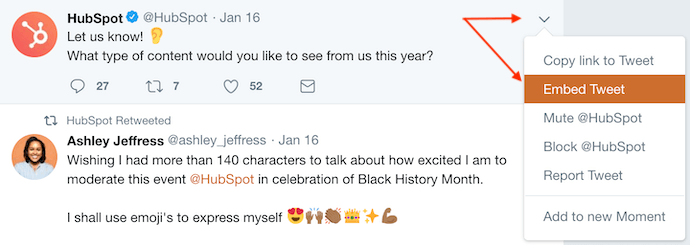
To embed a tweet onto your blog or website, you’ll need to first find the tweet you want to display in its natural habitat — Twitter. Locate the tweet in your Twitter newsfeed or on the Twitter user’s profile. For this example, we’ll embed a tweet from HubSpot’s Twitter feed, as shown in the screenshots below.
2. Click the downward arrow on the top-right of the tweet.
Once you’ve found the tweet you want to embed, click the downward-facing arrow icon, located on the top-right of the tweet, as shown below.

3. Choose “Embed Tweet.”
Clicking this arrow icon will reveal a dropdown menu of options, including one called “Embed Tweet.” Click this option.
 4. Copy the code that appears and paste it into your website’s HTML editor.
Clicking “Embed Tweet” from the dropdown menu shown above will open the code box shown below. Under “Embed this Tweet,” you’ll see a string of text highlighted in blue. Use Command+C on your keyboard (or Control+C, if you’re using a PC) to copy this code to your clipboard.
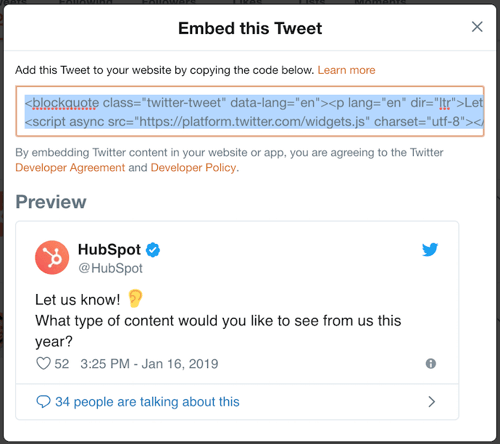
With this embed code copied to your clipboard, return to the website where you want to embed this tweet. Open the source code of this website (some content management systems have a “</>” icon where you can access this source code). Here, you’ll paste the tweet’s embed code into your HTML precisely where you want the tweet to appear.
5. Add ‘tw-align-center’ after the words “twitter-tweet” in the embed code.
Once you pasted this code into your HTML, however, you’ll want to center-align this tweet so it doesn’t automatically appear pushed up against the left or right side of your webpage. To correct this, add the text, ‘tw-align-center’ (without quotation marks) directly after “twitter-tweet” in the embed code. You can learn more about this method here.
Here’s what the final code should look like:
<blockquote class=”twitter-tweet” tw-align-center data-lang=”en”><p lang=”en” dir=”ltr”>Let us know! 👂<br>What type of content would you like to see from us this year?</p>— HubSpot (@HubSpot) <a href=”https://twitter.com/HubSpot/status/1085634067679322114?ref_src=twsrc%5Etfw”>January 16, 2019</a></blockquote>
<script async src=”https://platform.twitter.com/widgets.js” charset=”utf-8″></script>
That’s it! This is what your embedded tweet will look like when you’re done:
Let us know! 👂
What type of content would you like to see from us this year?— HubSpot (@HubSpot)
January 16, 2019
Embed Facebook Post or Video
1. Find the Facebook post you’d like to embed.
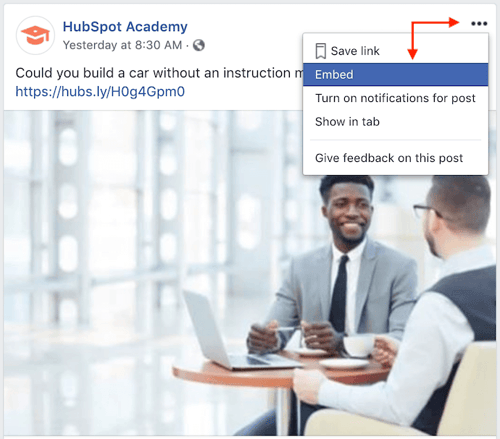
Similar to the steps to embed a tweet (listed above), embedding a Facebook post onto your blog or website starts on Facebook. Navigate to the post you want to embed from Facebook, on the Facebook user’s profile page or your newsfeed. For this example, we’ll embed a Facebook post from the HubSpot Academy, as shown in the screenshots below.
2. Click the ellipsis (“…”) icon on the top-right of the post.
On the top-right of the Facebook post you want to embed, you’ll see an ellipsis icon consisting of three small dots. Click this icon, as shown below.

3. Click “Embed.”
Clicking the ellipsis icon shown below will reveal a dropdown menu of options, including one labeled “Embed.” If the post you want to embed is a video, a similar option labeled “</> Embed” will appear further down on this menu. Click either option.
If you don’t see an option to embed the post, then the post is not public and is not embeddable.
4. Copy the code that appears and paste it into your website’s HTML editor.
Clicking the “Embed” option shown above will open the box shown below. At the top of this box, just above the “Hide Preview” and “Advanced Settings” buttons, you’ll see a line of coded text. Highlight and copy this code onto your computer’s clipboard.

With this embed code copied to your clipboard, return to the website where you want to embed this Facebook post. Open the source code of this website (some content management systems have a “</>” icon where you can access this source code). Here, you’ll paste the Facebook post’s embed code into your HTML precisely where you want the post to appear.
5. Add <center> and </center> tags around the entire HTML snippet to center-align your post.
Once you pasted this code into your HTML, however, you’ll want to center-align the post so it doesn’t automatically appear pushed up against the left or right side of your webpage. To correct this, wrap the code with ‘<center>’ and ‘</center>’ tags so the Facebook post displays in the center of your article or webpage.
Here’s what the final code should look like:
<center><iframe src=”http://bit.ly/2DoHMU0″ width=”500″ height=”448″ style=”border:none;overflow:hidden” scrolling=”no” frameborder=”0″ allowTransparency=”true” allow=”encrypted-media”></iframe></center>
That’s it! Here’s what it’ll look like when you’re done:
Embed Facebook Feed
Believe it or not, embedding a Facebook profile’s entire feed onto your website is as easy as embedding a single post or video. And there’s more than one way to do it.
Using a WordPress Plugin
The first way is to install a plugin or widget into your content management system (CMS). WordPress users, for example, have several Facebook feed plugins at their disposal. Here’s how to use one:
- The Custom Facebook Feed, by Smash Balloon, is one such WordPress plugin you can download through your WordPress account. You can download this plugin here.
- With this plugin downloaded, log into your WordPress account and activate this plugin from within the “Plugins” menu.
- Use the “Facebook Feed” settings of your CMS to select and configure the specific Facebook feed you want to display on your website.
- Enter the text, ‘[custom-facebook-feed]’ in the HTML editor of your website to generate your chosen Facebook feed.
Using Facebook’s Page Plugin
Facebook has its very own Page Plugin, allowing you to produce embed code for any profile’s individual Facebook feed and enter it into the HTML of your website. Here’s how to use it:
1. Open Facebook’s Page Plugin tool.
To embed a Facebook feed into your blog or website, open Facebook’s native Page Plugin tool here. Scroll down on this page until you see the section shown below.
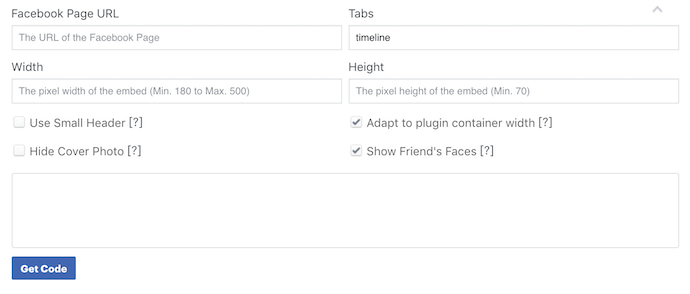
2. Enter the URL of the Facebook Page you want to embed.
With this tool opened, create a new tab in your web browser and navigate to the Facebook profile whose feed you want to embed. Press Command+C on your keyboard (or Control+C, if you’re using a PC) to copy the URL of this page to your computer’s clipboard.
Return to the browser tab that has Facebook’s Page Plugin open. Paste the URL from your clipboard into the top-left field, as shown in the screenshot below. For this example, we’ll embed the Facebook feed of HubSpot’s Facebook Business Page.
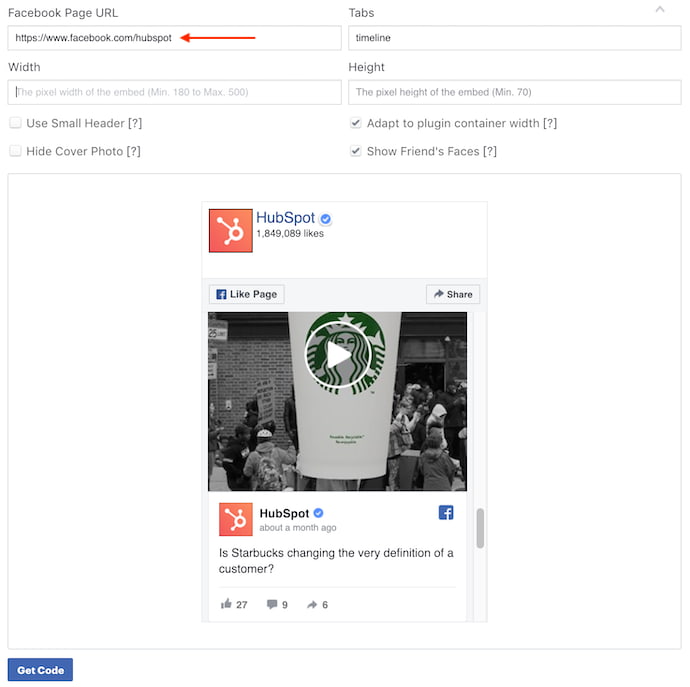
3. Add the tabs you want displayed alongside your embedded feed.
In addition to showing a profile’s entire timeline, Facebook’s Page Plugin also lets you display tabs to that profile’s Events and/or Messenger account. By default, the Page Plugin tool will have “timeline” entered by itself.
To add either Events or Messenger tabs to your embedded Facebook feed, click over to the “Tabs” field on the top-right of the Page Plugin tool, as shown below. Add the words “events” and/or “messages” next to the word “timeline,” all separated by commas.
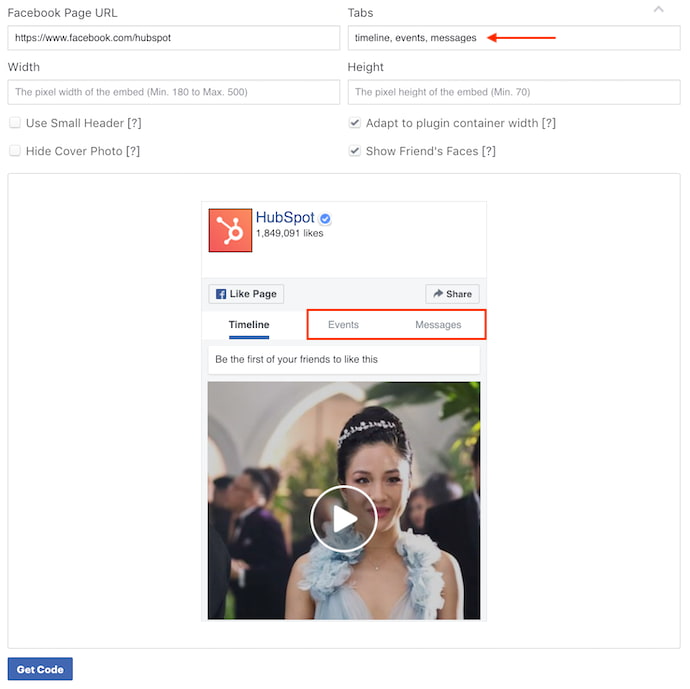
4. Customize the dimensions of your Facebook feed.
If your website has specific dimensions that restrict the size of the media you embed, and you know what these dimensions are, enter them into the bottom two fields of the Facebook Page Plugin tool. You can enter a specific width in the left field and a specific height in the right.
By default, your Facebook feed will display at roughly 340×500, although you’ll see recommended dimensions in the tool’s preview text.
5. Click “Get Code.”
With all four of these fields filled in, simply click the blue “Get Code” button at the bottom of the tool, as shown in the screenshot above. This will open the code box shown below.
6. Click the ‘IFrame’ tab.
Be careful which code you select, though … unless you’re coding your website from scratch, the first tab (labeled “JavaScript SDK”) does not have the code you want. Toggle over to the tab labeled “IFrame,” as shown below. This text is ready-made for embedding into your blog or website’s HTML editor.
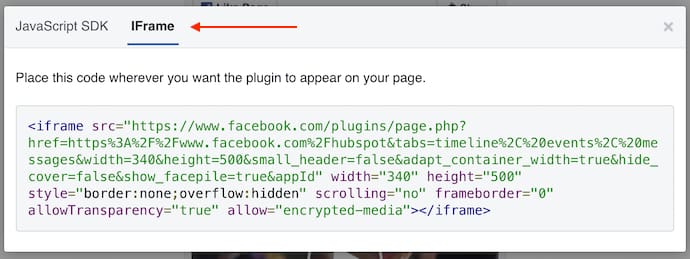
7. Copy and paste this embed code into your website’s HTML editor.
Copy the code shown above to your clipboard. Then, navigate to the website where you want to embed this Facebook feed. Open the source code of your website (some content management systems have a “</>” icon where you can access this source code). Here, you’ll paste the feed’s embed code into your HTML precisely where you want it to appear.
8. Add <center> and </center> tags around the entire IFrame snippet to center-align the feed.
Once you pasted this code into your HTML, however, you’ll want to center-align the post so it doesn’t automatically appear pushed up against the left or right side of your webpage. To correct this, wrap the code with ‘<center>’ and ‘</center>’ tags so the Facebook feed displays in the center of your article or webpage.
Here’s what the final code should look like:
<center><iframe style=”border: none; overflow: hidden;” allow=”encrypted-media” xml=”lang” src=”http://bit.ly/2U4aaQM” width=”340″ height=”500″ frameborder=”0″ scrolling=”no”></iframe></center>
That’s it! Here’s what it’ll look like when you’re done:
Embed Instagram Feed and Posts
Instagram is a favorite among marketers, but embedding an entire Instagram feed can be difficult. Here’s how to embed an Instagram feed as well as individual posts to your website.
The Instagram Feed WordPress Plugin
From the makers of the Custom Facebook Feed comes the Instagram Feed. Developed by Smash Balloon, this WordPress plugin makes it easy for WordPress-based websites to embed entire Instagram feeds from specific Instagram accounts. Here’s how to use it:
- Download the Instagram Feed plugin for WordPress here.
- With this plugin downloaded, log into your WordPress account and activate this plugin from within the “Plugins” menu.
- Use the “Instagram Feed” settings of your CMS to select your Instagram Access Token and user ID.
- Enter the text, ‘[instagram-feed]’ in the HTML editor of your website to generate your chosen Instagram feed.
According to this plugin’s instructions on WordPress, you can display multiple Instagram feeds at the same time by entering text in the format of: ‘[instagram-feed num=6 cols=3]’. In that example, you would effectively embed
six images each for
three separate Instagram feeds.
Instagram’s Embedding Feature
To embed individual Instagram pictures, you need not look further than the native features of Instagram. Here’s how to do it:
Important: In order to embed specific Instagram posts onto a blog or website, the Instagram account it belongs to cannot be set to private. To set an account to public, navigate to this profile and click “Edit Profile” > Privacy and Security. From this page, uncheck the “Private Account” option and you should be all set.
1. Click on the Instagram image you want to embed.
Navigate to the Instagram post you want to embed onto your website and click on it to enlarge the image. For this example, we’ll embed an image from HubSpot’s culture account, hubspotlife, as shown in the screenshots below.
2. Click the ellipsis (“…”) icon on the bottom-right corner of the post.
With the post in its full view, look to the bottom-right of the comments section. Click the ellipsis icon, consisting of three small dots, as shown below.
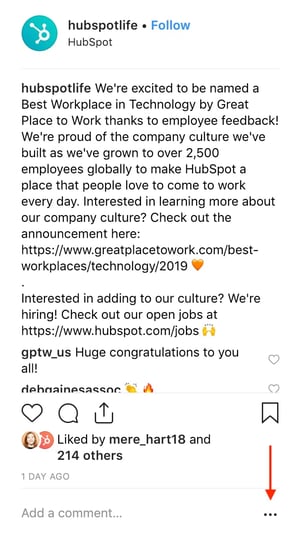
3. Select “Embed.”
Clicking the ellipsis icon shown above will open the box of options shown below. In this menu, select “Embed,” the third button from the top.
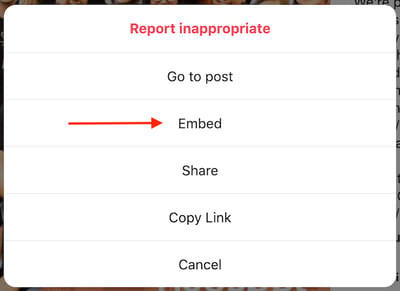
4. Copy and paste the embed code into your website’s HTML editor.
Much like the instructions for Twitter and Facebook (listed above), this “Embed” button will produce another box carrying a sting of coded text. Once this box opens on your screen, highlight the code at the top, as shown below. Then, click the blue “Copy Embed Code” button at the bottom to copy this text to your computer’s clipboard.
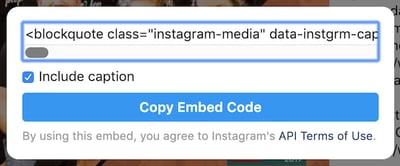
5. Add <center> and </center> tags around the entire HTML snippet to center-align the post.
Once you pasted this code into your HTML, however, you’ll want to center-align the Instagram post so it doesn’t automatically appear pushed up against the left or right side of your webpage. To correct this, wrap the code with ‘<center>’ and ‘</center>’ tags so the image displays in the center of your article or webpage.
That’s it! Here’s what your embedded Instagram post will look like:
Embed Pinterest Pins
1. Open Pinterest’s widget builder.
To embed pinned content from Pinterest onto your blog or website, open Pinterest’s widget builder, available here.
2. Select “Pin Widget” in the left-hand column.
Scroll down until you see the Pin Widget option, as shown in the screenshot below.
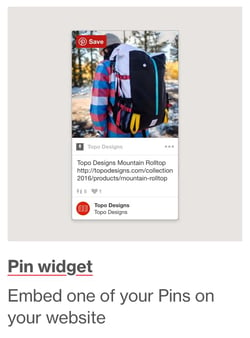
3. Paste in the URL of the pin you’d like to embed.
Start by filling in the “Pin URL” field at the top of the tool with the URL of the pin you want to embed onto your website, as shown below.
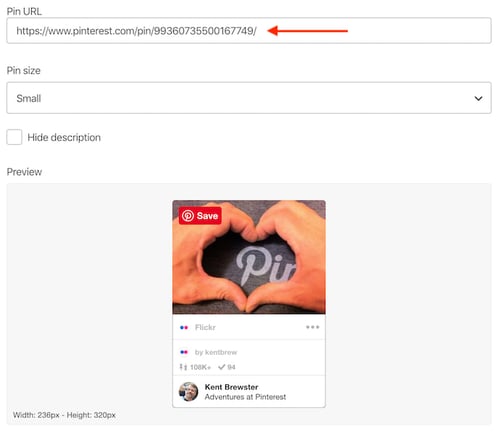
4. Copy and paste the code from this section into your website’s HTML editor.
While in Pinterest’s Pin Widget, scroll down to the section just beneath the preview image of your pin, where you’ll find two lines of coded text — as shown below.
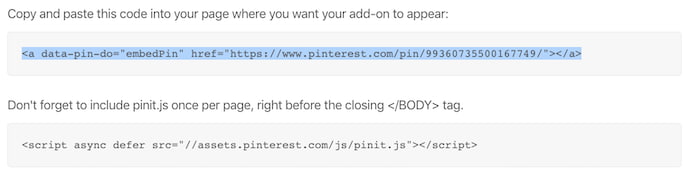 Open your website’s HTML editor, and copy and paste the first line exactly where you’d like your Pinterest pin to appear on the page. Then, copy the second line of text and paste it into your website’s HTML editor at the very bottom of the page.
Be careful not to paste this entire snippet more than once on a single webpage. If you want the pin to appear multiple times, you just need to copy the first line of code and paste it wherever you’d like it to appear on the page. And don’t forget to repeat the following steps in each instance of the pin you decide to embed.
5. Copy the snippet of code provided below.
<!–pinterest–>
6. Paste that snippet of code between the opening <a> tag and the closing </a> tag.
The code should look like this:
<a data-pin-do=”embedPin” href=”http://bit.ly/1efNJe9″><!–pinterest–></a>
…
At bottom of page:
<script type=”text/javascript” async src=”//assets.pinterest.com/js/pinit.js”></script>
7. Add <center> and </center> tags around the entire HTML snippet to center-align the pin.
Here’s what the final code should look like:
<center><a data-pin-do=”embedPin” href=”http://www.pinterest.com/pin/99360735500167749/”><!–pinterest–></a>
<!– Please call pinit.js only once per page –>
<script type=”text/javascript” async src=”//assets.pinterest.com/js/pinit.js”></script></center>
That’s it! Here’s what it’ll look like when you’re done:
Embed Pinterest Boards
To add Pinterest Boards, the steps are generally the same as they are to embed individual pins — explained above. Here’s how it’s done:
- Open Pinterest’s widget builder.
- Select “Board Widget” in the lefthand column, just beneath the “Pin Widget” builder.
- When the Board Widget open, follow the same steps as you would for adding pins, listed above.
Copy and paste the bottom two lines of code into your website’s HTML editor, and that’s it! Here’s what an embedded board looks like:
Embed Google+ Post
1. Find the Google+ post you’d like to embed. Hover your mouse over the top right corner and click the grey arrow that appears to pull down more options.
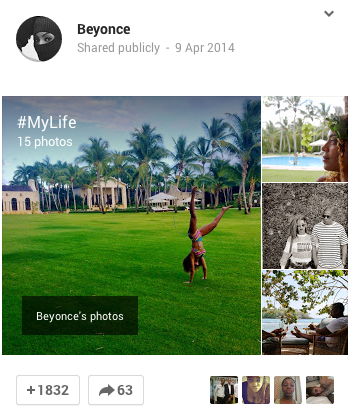
2. Choose “Embed Post.”
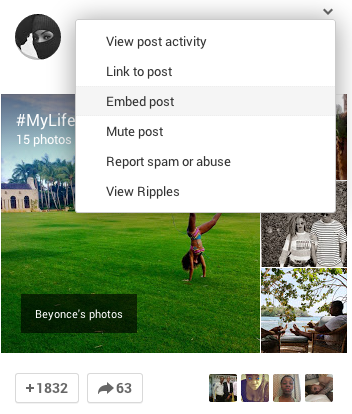
3. Copy the entirety of the code that appears, and paste it in the HTML view of your website.
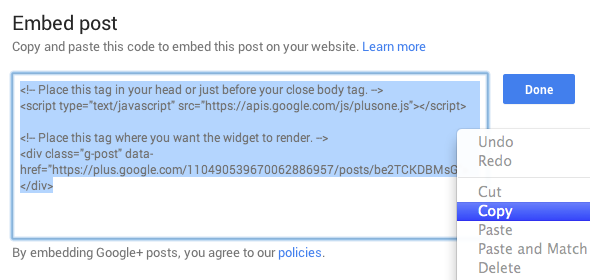
4. Center the embedded post by adding <center> and </center> around the whole HTML snippet.
Here’s what the final code should look like:
<center><!– Place this tag in your head or just before your close body tag. –>
<script type=”text/javascript” src=”https://apis.google.com/js/plusone.js”></script>
<!– Place this tag where you want the widget to render. –>
<div class=”g-post” data-href=”https://plus.google.com/110490539670062886957/posts/be2TCKDBMsG”></div></center>
That’s it! Here’s what it’ll look like when you’re done:
How to Embed Google Calendar
To embed a particular Google Calendar onto your blog or website, you’ll need to use the web version of Google Calendar, rather than the mobile app.
Got it open? Let’s embed it.
1. Click the gear icon to open your settings.
At the top of your Google Calendar, click the gear icon and select “Settings,” as shown below.
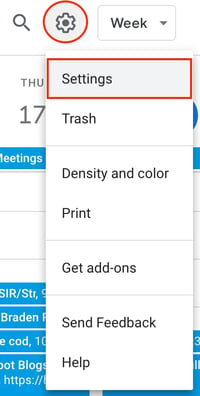
2. Select the calendar you want to embed and scroll down to “Integrate calendar.”
Once you’re in your calendar settings, look to the lefthand sidebar for the specific calendar you want to embed onto your website. For this example, we’ll embed HubSpot’s National Holidays calendar.
Once you have your calendar selected, look to the right side of your settings and scroll down until you see the “Integrate calendar” section. (You can also simply click the option of the same name on the lefthand side under your chosen calendar.)
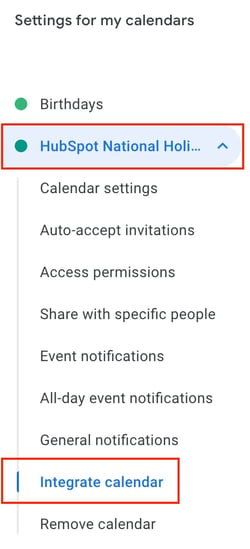
3. Click “Customize” and configure the size and color of your calendar.
In the “Integrate calendar” section of your settings, find and click the “Customize” button, just above the “Embed code” line of text. This will open a larger window of options where you can change the size and color scheme of your calendar before embedding it.
If you’re happy with how the calendar currently looks and don’t need to make any aesthetic changes, you can simply copy this embed code to your clipboard.
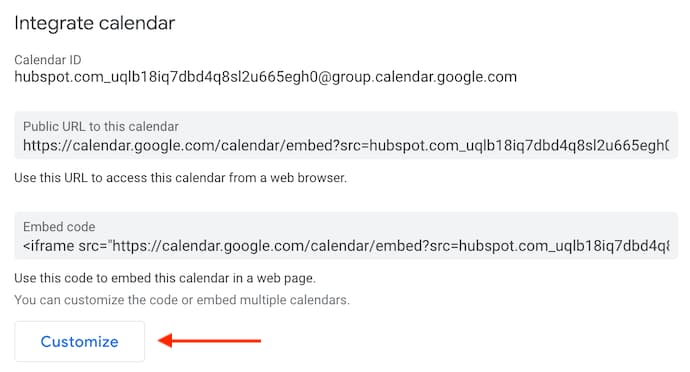
4. Copy your embed code at the top and paste it into your website’s HTML editor.
Copy your embed code, from either inside the Customize window or from the Settings page, and paste it into your website’s HTML editor. If you’d like, you can wrap this embed code in <center> and </center> tags to center-align your calendar within the margins of your website.
How to Embed a YouTube Video
- Find the YouTube video you’d like to embed.
- Under the video, choose “Share.”
- In the menu that appears, choose “Embed.”
- Copy the code that appears and paste into your website’s HTML editor.
1. Find the YouTube video you’d like to embed.
Embedding a YouTube video onto your blog or website is incredibly easy. To start, open YouTube and navigate to the video you want to embed. For this example, we’ll embed a video about inbound marketing from HubSpot’s INBOUND YouTube channel — as shown in the screenshots below.
2. Under the video, choose “Share.”
Beneath the video itself, look for the “Share” button, as shown below.

3. In the menu that appears, choose “Embed.”
Clicking the “Share” button below your chosen YouTube video will open a small menu of options where you can share the video to various social networks. To the far left of these options, however, you’ll also see a circular “Embed” button. Click this button.
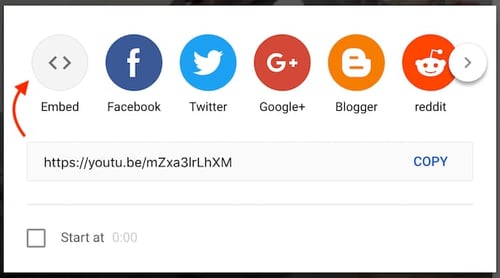
3. Copy the code that appears and paste it into your website’s HTML editor.
The next window to appear will produce a large of box of coded text, as well as a few options to customize your video before you embed it. Under the embed code, for instance, you can set whether you want your video to start at a particular timestamp.
Once you have your settings exactly the way you want them, highlight the coded text at the top of the window. Then, click “Copy” on the bottom-right.
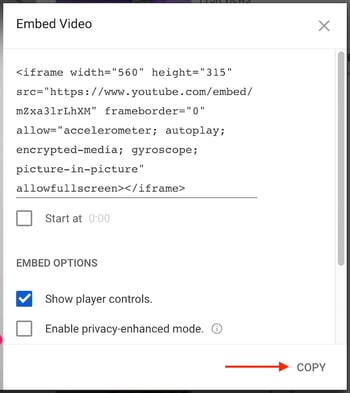
4. Add <center> and </center> tags around the entire HTML snippet to center-align your video.
Here’s what the final code should look like:
<center><iframe width=”560″ height=”315″ src=”https://www.youtube.com/embed/mZxa3lrLhXM” frameborder=”0″ allow=”accelerometer; autoplay; encrypted-media; gyroscope; picture-in-picture” allowfullscreen></iframe></center>
That’s it! Here’s what it’ll look like when you’re done:
Embed SlideShare Presentations and Infographics
1. Find the SlideShare presentation or infographic you’d like to embed on SlideShare.net.
2. Click “Embed” in the navigation bar at the top.
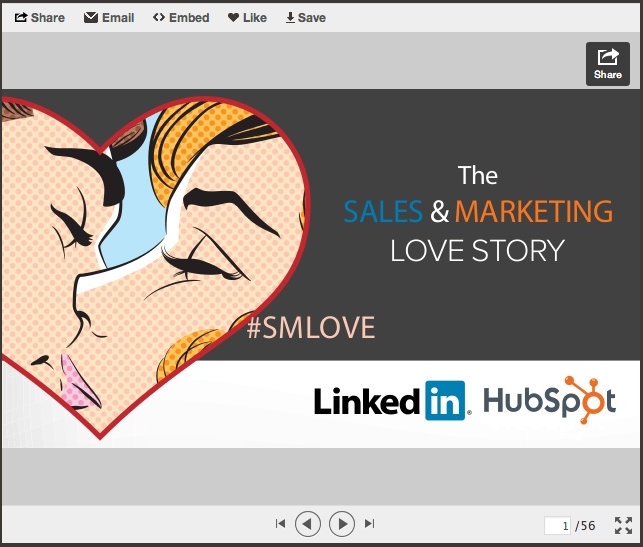
2. Click “Customize.”
If you want to customize your embedded SlideShare presentation or infographic, click “Customize” and the following options will appear, shown below. Choose the options you’d like, then copy the code in the “Embed” section and paste it in the HTML view of your website.
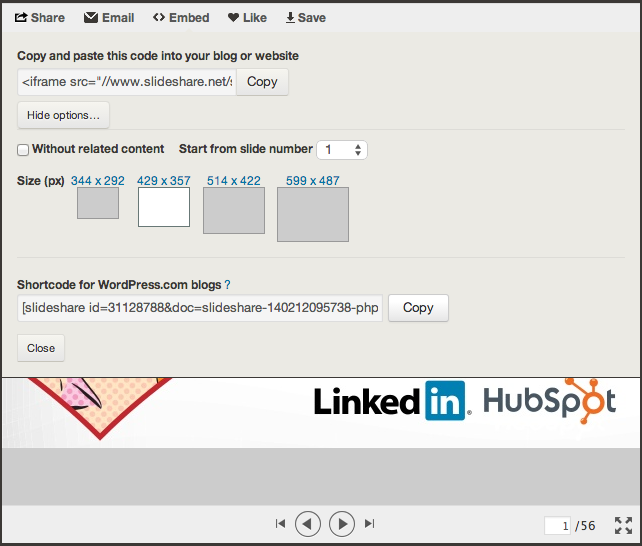
3. Center the embedded Slideshare by adding <center> and </center> around the whole HTML snippet.
Here’s what the final code should look like:
<center><iframe src=”//http://bit.ly/1eZSFsj” width=”427″ height=”356″ frameborder=”0″ marginwidth=”0″ marginheight=”0″ scrolling=”no” allowfullscreen> </iframe> <div> <strong> <a href=”http://bit.ly/1ey2t8v” title=”A Sales and Marketing Love Story” target=”_blank”>A Sales and Marketing Love Story</a> </strong> from <strong><a href=”http://bit.ly/uYvaA2″ target=”_blank”>HubSpot</a></strong></div></center>
That’s it! Here’s what it’ll look like when you’re done:
Some of these embed codes may need a little tweaking to look perfect on your blog or website, but using these steps, you should be off to great start. Happy embedding!


Twitter Publisher Dashboard Improves Audience Insights
Welcome to this week’s edition of the Social Media Marketing Talk Show, a news show for marketers who want to stay on the leading edge of social media. On this week’s Social Media Marketing Talk Show, we explore Twitter announcing new publisher tools, a beta program for upcoming features, and more with special guest Madalyn […]
The post Twitter Publisher Dashboard Improves Audience Insights appeared first on Social Media Marketing | Social Media Examiner.
from Social Media Marketing | Social Media Examiner http://bit.ly/2RV53EP
via socialmediaexaminer
The Quick & Easy Guide to Fixing HTTP Error 405 (Method Not Allowed)
In a world hooked on instant gratification, one of the worst things a brand can do is not give their audience what they want. If your website visitors see an error page when they’re looking for help or information to do their jobs better, they could get annoyed and lose trust in your brand, permanently damaging your reputation.
Unfortunately, 405 Method Not Allowed Errors are rather mysterious. They indicate what happened to your website, but they don’t tell you why it happened, making it challenging for you to pinpoint its cause and correct the issue.
To help you fix your 405 Method Not Allowed Error and avoid losing brand trust, we’ve fleshed out exactly what the issue is and its most common solutions.

405 Method Not Allowed
A 405 Method Not Allowed Error is an HTTP response status code that indicates a web browser has requested access to one of your web pages and your web server received and recognized its HTTP method. But, unfortunately, your server has decided to reject that specific HTTP method, so the web browser can’t access the requested web page. When this happens, your website will serve an error web page to your site’s visitors, like the photo below.

Image Credit: Testing Nook
Fortunately, there are three common and effective solutions for fixing most 405 Method Not Allowed Errors.
How to Fix 405 Method Not Allowed Errors
1. Comb through your website’s code to find bugs.
If there’s a mistake in your website’s code, your web server might not be able to correctly answer requests from a content delivery network. Comb through your code to find bugs or copy your code into a development machine. It’ll perform a thorough debug process that will simulate the exact situation your 405 Method Not Allowed Error occurred in and allow you to see the exact moment where things went wrong.
2. Sift through your server-side logs.
There are two types of server-side logs — applications logs and server logs. Application logs recount your website’s entire history, like the web pages requested by visitors and which servers it connected to. Server logs provide information about the hardware running your server, revealing details about its health and status. Sift through both types of server-side logs to uncover any alarming information about your server or website.
3. Check your server configuration files.
The last way to find out what’s causing your 405 Method Not Allowed Error is by taking a look at your web server’s configuration files. You can usually find instructions for solving unintentional redirects there.


Phrases That Sell: 8 Copywriting Tips
Want to write marketing copy that moves people to take action? Looking for tips from an expert copywriter? To explore how to create phrases that sell, I interview Ray Edwards, one of the world’s leading copywriters. He’s the author of How to Write Copy That Sells and hosts a podcast called The Ray Edwards Show. […]
The post Phrases That Sell: 8 Copywriting Tips appeared first on Social Media Marketing | Social Media Examiner.
from Social Media Marketing | Social Media Examiner http://bit.ly/2HioQtL
via socialmediaexaminer
14 Copywriting Examples From Businesses With Incredible Copywriters
You all know the Old Spice guy, right?
The years-old “The Man Your Man Could Smell Like” campaign was memorable for many reasons, but one of them was that it gave Old Spice a voice — voice that came through in every video, commercial, tagline, Facebook update, tweet … you name it.
And do you know who is behind all of that marketing collateral?
Copywriters. The ability to find the exact right words to tell your company’s story isn’t an easy feat, and it’s even harder to do so consistently.

So when we come across companies that are doing it successfully, we think their copywriters deserve a pat on the back (and a raise?). Take a look at some of the companies we think have stellar copywriting, and if you’re looking, maybe get some inspiration for your own brand, too.
Copywriting Examples
- UrbanDaddy
- Articulate
- Moosejaw
- First Round Capital
- Trello
- Velocity Partners
- Intrepid Travel
- Cultivated Wit
- Cards Against Humanity
- R/GA
- innocent
- GymIt
- ModCloth
- Ann Handley
1. UrbanDaddy
UrbanDaddy has mastered the art of getting me to open emails. And when I click into them, they don’t disappoint.
Below is the copy from an email they sent me with the subject line, “Fun.”
There are a couple things in this email that caught my eye.
First of all, there’s no long preamble. The writers get straight to the point — a wise choice for something as simple as a rubber band gun lest the reader feel cheated reading sentence after sentence for something so common.
Secondly, take a look at the purposeful sentence structure. This copywriter eschews conventional grammar rules by combining run-on sentences and traditional product promotion copy in sentences like:
Lock and load with Elastic Precision, a Kansas City-based workshop that manufactures high-powered weaponry except not at all because they actually just shoot rubber bands, now available online.”
Keep reading, and you see a conversational tone that mildly mocks the silliness of the product, but also loops the reader in on something kinda fun.
And then, of course, they close with badgers. And how can you go wrong with badgers?
Best of all, UrbanDaddy’s unique tone is found in every single piece of copy they publish — from emails, to homepage copy, even to their editorial policy:
This company clearly knows its audience, which jokes to crack, and has kept it consistent across all their assets.
2. Articulate
Articulate, a HubSpot Agency Partner based in the U.K., is an inbound marketing agency, and their website copy is full of witty, confident copy on pages where you wouldn’t think you’d find it. Here’s exhibit ‘A’:
 The copy above introduces Articulate’s “Meet the Team” page — not a page you’d think can pull off witty copy, right? Well, Articulate’s page goes beyond employee photos and their job titles.
In addition to the playful header, “not the usual blah blah,” the copy above takes on a farm theme, assuring visitors that employees aren’t simply “caged hens.” Rather, they’re a “free-range, artisanal, cruelty-free team.” Funny on the surface, but helpful to job seekers who, much like food, want to know where their work comes from and how it’s made.
3. Moosejaw
Not many brands are brave enough to touch the products they’re selling with unconventional copy … but Moosejaw isn’t afraid to have a little fun.
The outdoor apparel outlet store uses humor as a way to sell their products without being overly forward about it. By appealing to people’s emotions, they’re more engaging and memorable.
Here are a few examples:
Same goes for the call-to-action buttons that show up when you hover your mouse over a product photo — like this one, which reads, “Look This Cool.”

Does their brand voice carry over to the product descriptions, you ask? See for yourself:

If you think the brilliant copy stops at their homepage, think again. They extend it to their return policy, too. Here, they do a great job of not sacrificing clarity for humor. Their copywriters successfully made people laugh while still being helpful.
4. First Round Capital
While a sign of great copywriting is making people smile, another is making people feel understood. The copywriters at First Round do a phenomenal job at letting the value of their offerings for their customers sell themselves.
For example, they hold over 80 events every year connecting their community together. Instead of just explaining that they have events and then listing them out, they begin that section of their website with a simple statement that hits close to home with many entrepreneurs: “Starting a company is lonely.”
Using words like “imperfect,” “safety net,” and “vulnerable” encourages readers to let their guards down and feel understood by the brand and their community.
Plus, you’ve gotta love that last line about stick-on name tags. Those things get stuck in my hair.
5. Trello
Do you know what Trello is? If the answer is no, then behold the copywriting on their website. Their product description — like most of the copy on their site — is crystal clear:
And then check out how clear this explainer content is:
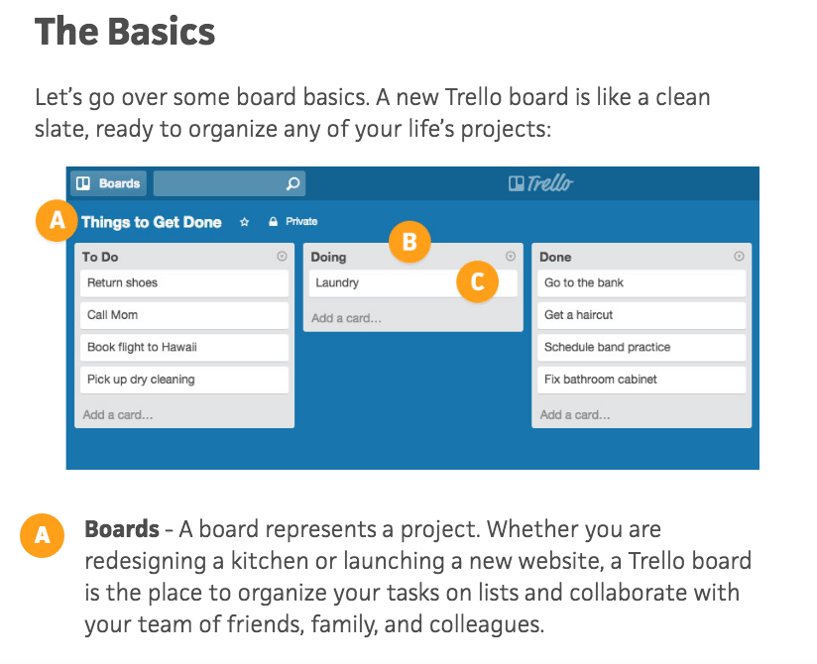
Some of the use case clarity can be attributed to how smart the product is, but I think copywriters deserve some credit for communicating it clearly, too. They call it like it is, which ultimately makes it really easy to grasp.
And I couldn’t write about the copywriting talent at Trello without including the clever references in the microcopy of their login page:
Each time you refresh the login page, you see a different, equally clever example email belonging to a fictional character, like Ender from Ender’s Game and Dana Scully from The X-Files — a great example of nostalgia marketing. This is a small detail, but nonetheless a reminder that there are real humans behind the website and product’s design. Delightful microcopy like this kinda feels like I just shared a private joke with someone at the company.
6. Velocity Partners
No post from me about excellent copywriting would be complete without mentioning the folks at Velocity Partners. A B2B marketing agency out of the U.K., we’ve featured co-founder Doug Kessler’s SlideShares (like this one on why marketers need to rise above the deluge of “crappy” content) time and again on this blog because he’s the master of word economy.
What is “word economy”? It’s taking care that every word you use is the right word. It means getting your point across concisely and not dwelling on the details when you don’t have to. In a world of shortening attention spans, this is the ultimate goal when communicating your message.
And since we’re talking about word economy, I’ll shut up and let you check out one of Kessler’s SlideShares for yourself:
Whereas SlideShares are typically visual, Kessler’s is heavily focused on copy: The design stays constant, and only the text changes. But the copy is engaging and compelling enough for him to pull that off. Why? Because he uses simple words so his readers understand what he’s trying to say without any effort. He writes like he speaks, and it reads like a story, making it easy to flip through in SlideShare form.
The copy on Velocity Partners’ homepage stood out to me, too. Check out, for example, how humble they are when introducing their case studies:
I also like how casual and honest they kept their email subscription call-to-action. The header is especially eye-catching — and it plays off of the popular SlideShare about crappy content we mentioned earlier.
In fact, Velocity Partners’ Harendra Kapur recently wrote a blog post on what goes in to great B2B writing — starting with this disclaimer, of course.

7. Intrepid Travel
The copywriters at Intrepid Travel, a Melbourne-based adventure travel company, are on this list because they’re at the intersection of interesting and informational.
I love seeing copy that is totally and utterly functional — that delivers critical information, but is so pleasant to read that you actually keep reading. Quite a feat on the internet these days.
Take a look at their company description, package names, and package descriptions below for some examples of this fantastically functional copywriting in action:

Of course, they do benefit from quite a lovely subject matter, but still — hats off you to, Intrepid Travel.
8. Cultivated Wit
The copywriters over at the “comedy company” Cultivated Wit do a great job of embracing their own brand of quirk throughout their site. They already have one of the best “About” pages in the game, but their delightful copy is spread throughout their site — sometimes in the most unexpected of places.
For example, take a look at the copy around contact information at the very bottom of their homepage:

This section of the homepage is an afterthought at best for most companies. But for these folks, it was an opportunity to have a little fun.
They also have two, unique email subscription calls-to-action on different pages of their website. They’re very different, but both equally funny and delightful. Here’s one from the homepage:

And one from the “About” page:
9. Cards Against Humanity
You may or may not be familiar with Cards Against Humanity, the self-declared “party game for horrible people.” It’s a card game — one that’s simultaneously entertaining and inappropriate. The copywriting on the cards themselves are guaranteed to make you laugh.
The brand voice is very distinctive, and can seem a little abrasive, and even a little offensive. But that’s their whole shtick: They’re not trying to appeal to everyone, and that’s perfectly okay. What they do do a great job of doing is appealing to their target audience.
One look at their FAQ page and you’ll see what I mean:
Here’s a sneak peek into some of the answers to these questions. You’ll see they make fun of both themselves and the reader — which is exactly what the card game is about.
10. R/GA
With the exception or UrbanDaddy, I’ve been focusing a lot on site copy so far, so I wanted to check out some examples of excellent social media copywriting.
I know you all like to see some more B2B examples in here, too, so I surfaced one of the best examples of the holy grail: Twitter copy, from a B2B company, that’s funny. Behold, some recent highlights from the R/GA Twitter account:
HOW CAN I RELAX WITH ALL THESE WEEDS pic.twitter.com/T1x78HnPhr
— R/GA (@RGA)
May 24, 2016
Your extended family going all caps with the Facebook posts like, hey we’re all just people here and I’ve got some OPINIONS
— R/GA (@RGA)
May 24, 2016
Imagine living in a time when horrible music wasn’t pumped into every square inch of public/commercial space.
— R/GA (@RGA)
May 19, 2016
Just saw a list of top tech talent referred to as “poachables,” which sounds delicious. Like sophisticated Lunchables.
— R/GA (@RGA)
May 16, 2016
If only audience segments knew how they were referred to in strategy decks.
— R/GA (@RGA)
May 11, 2016
11. innocent
Check out U.K.-based drink makers innocent, and you’ll see a language, style, and tone that matches their philosophy, product, and even their branding and design. It’s all just clean, straightforward, and simple. And believe it or not, simple is a really, really hard thing to nail in copywriting.
This stands out best on their “Things We Make” page. (Isn’t that page name even beautifully simple?)

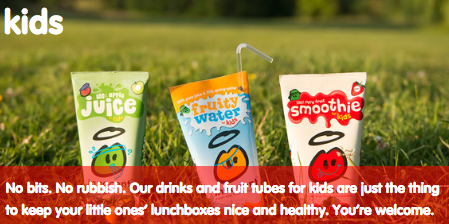
This same straightforward-but-charming copywriting philosophy extends to their site navigation:

Their meta description is pretty awesome, too:

And my personal favorite:
12. GymIt
I’ve always loved the copy at GymIt. In fact, I check their site and social profiles all the time to see if they’ve freshened anything up. Luckily, they’re no one-trick pony. They continue to keep their site fresh with captivating copy.
Here are some of my favorites, all of which hit on the pain points of gym-goers that they try to solve — and actually do solve with their customer-friendly policies.
I can vouch for that one. I know how much of a hassle it is to move far away from your gym — and how refreshing it must be to be able to walk in and just … quit.
All of this rolls up to their philosophy, espoused eloquently on their “About” page, that gyms should just be about working out:

Talk about having an understanding of their core audience. The copy both in its value proposition and across its marketing materials reflects a deep understanding of their customers.
And how did their copywriters choose to make sure everyone knew what this new gym franchise was about if they didn’t read that “About” page? This tagline:
Doesn’t get much clearer than that.
13. ModCloth
ModCloth is a brand that has always had an excellent grasp of their buyer persona, and it comes through in their pun-filled copywriting. All of their products are silly plays on words — check out this screen grab of some of their new arrivals, for example:
Dive into their product description copy, and it’s equally joyous, evocative, and clever — just like their customers. Often, it’ll also tell the story of what you’ll do while wearing their items:
After reading their descriptions, one can imagine what their life would be like if they owned this product. That’s Copywriting 101, but so few brands can actually pull it off like the folks at ModCloth do.
14. Ann Handley
When it comes to building up your own personal brand, it can be easy to get a little too self-promotional. That’s where the copywriting on your site can make a big difference.
On Ann Handley’s personal website, she added bits of microcopy that shows, despite her many accomplishments (like being a best-selling author and award-winning speaker), that she still doesn’t take herself too seriously.
Check out her email subscription call-to-action, for example:
 Anyone can be a successful copywriter with the right brand voice — and a little editorial guidance along the way. Want to learn how to write awesome copy for your business? Grab the free ebook below.