Welcome to My Blog
The Ultimate Guide to Cryptocurrency
When I first heard of cryptocurrency, I thought it was similar to PayPal or Venmo … a simple, digital exchange of money. You can imagine my surprise when I learned that cryptocurrency wasn’t only a digital exchange, but an exchange of a completely new currency.
I could hardly wrap my mind around it. I was this emoji personified: 🤯.
How could a brand new (albeit invisible) currency work? What could you buy? Did people actually accept it? What stopped people from not believing in it?
I had lots of questions … and I still do. Cryptocurrency is a complex, ever-changing topic that affects consumers, investors, and business owners alike. Below, we tackle some of those questions and highlight the most important aspects of cryptocurrency. By the end, you should have enough of an understanding to chime into those dinner party conversations with a fact or two.
Bitcoin was the first cryptocurrency. Since its conception in 2009, which occurred in response to the banking crisis and housing market crash, hundreds of other cryptocurrencies have been created … and have failed.
Your Cryptocurrency Dictionary
Before we dive into the world of cryptocurrency, let’s review a few key terms frequently used in this guide and when discussing the concept.
Altcoins
Altcoins is slang for “alternative coins.” Altcoins refer to every other cryptocurrency besides Bitcoin.
Blockchain
All cryptocurrency transactions are recorded on the blockchain, a public record used to verify digital currency transactions and prevent scams. Transactions are recorded on blocks, and a new block is added to the chain roughly every 10 minutes. We explain blockchain further in the video below.
Cryptography
Cryptography refers to the act of writing in or deciphering a code. Cryptography (where we get the “crypto” in cryptocurrency) is a type of mathematics that creates secure transactions and online environments, i.e. “encrypted” accounts or currency.
Fiat
Fiat currency is paper money like the US dollar or Euro.
Mining
Cryptocurrency mining is a proof-of-work (PoW) system where miners solve math problems to validate every cryptocurrency transaction. These minters get cryptocurrency in exchange for their time and resources. These complicated mathematical calculations also increase the security, transparency, and value of cryptocurrency. Mining is only one way — the hardest way — to obtain cryptocurrency. The reward for solving these math problems varies per currency but is more profitable than any other method (besides an outright purchase).
Nodes
Nodes are computers that are part of the global cryptocurrency blockchain network. They serve to verify transactions recorded on the blockchain. Even if one node attempted to validate an incorrect transaction, the transaction wouldn’t go through as they require multiple validations (and that node would be disconnected) … making cryptocurrency a virtually incorruptible network.
Private Key
A private key is a secure “password” that gives cryptocurrency owners access to their wallets. Each wallet has its own private key, and without it, users couldn’t access their coins.
Public Address
A public address is similar to an email or physical house address. (It looks like this: 1GV5Vye4LCfpkM9V5oFSQsZk8kq2vBxvCK.) To send cryptocurrency, you simply need the recipient’s public address. It’s the only public-facing piece of data on the blockchain, and each transaction uses a unique address.
Benefits and Drawbacks of Cryptocurrency by Feature
Both support and speculation exist in the world of cryptocurrency. Some hate it, some love it, and most are confused by it. It’s a brand new concept that sparks a whole barrage of questions and concerns.
Below, we explain the core features of cryptocurrency and the positive and negative perspective of each.
Feature |
Benefits |
Drawbacks
|
| Security | Cryptocurrency transactions are secure and private, creating valuable anonymity despite their very public (yet non-identifying) validation method on the blockchain. | Security, privacy, and anonymity make it easy to use cryptocurrency for less-than-legal purposes. |
| Affordability | Cryptocurrency has low transaction costs and in-between fees you might find at banks or payment gateways. | Cryptocurrency isn’t accepted by everyone, which could cancel out its affordability altogether. |
| Volatility | The volatility of cryptocurrency can yield a high-reward (high-risk) investment. | Due to its volatility, cryptocurrency turns many people off from investing … which could lower its value over time. |
| Decentralization | Cryptocurrency isn’t regulated or valued by a financial institution or central government, which eliminates the middleman, a penchant for corruption, and creates a truly global currency. It’s monitored by a peer-to-peer internet protocol. | Many people relate cryptocurrency to the Silk Road … such a decentralized, deregulated asset couldbe used for both legal and illegal purposes. There’s also no way to recover lost coin. |
| Digitalization | Cryptocurrency doesn’t deal in physical coin or paper money, leaving little room for loss, theft, or misuse. | Cryptocurrency is purely digital, and you can’t recover lost coin or repeal validated transactions. The “invisibility” of cryptocurrency can also make it hard to trust. |
| Inflation |
Cryptocurrency isn’t inflationary — there’s a set amount that can be mined and circulated. |
Cryptocurrency will likely never become a central currency because of its non-inflationary, inflexible elements. |
| Creation | Cryptocurrency is released through mining, which anyone can do with the proper resources — a computer and internet. | Cryptocurrency mining consumes a ton of energy and resources.. (In fact, miners are on track to use more energy than Argentina.) |
How is Cryptocurrency Created?
Cryptocurrency is released into the economy through the process of mining, as we defined above. But how do these digital coins become a legitimate currency in the first place?
Cryptocurrency creation depends on three main things:
- A community of people who believe in the purpose of the coin and network … and who will eventually mine and evangelize it
- A code to create and encrypt the software and blockchain network on which the currency will operate (which is relatively easy as most cryptocurrencies are based on the open source code of Bitcoin available on Github)
- The confidence of merchants to value and do business with the currency, further building trust among consumers, investors, and the general public
There’s obviously a lot more that goes into creating a cryptocurrency, but these are the main three elements that lead to its legitimacy and acceptance. Third parties like WalletBuilders also offer to create cryptocurrency for you.
Creating Your Own Cryptocurrency
Nowadays, a lot of businesses are creating their own cryptocurrencies — through a crowdfunding process known as an initial coin offering (ICO). ICOs are when startups raise money by creating their own digital token that can be spent on current or future products or services.
Companies who participate in ICOs exchange their token for established cryptocurrencies like Bitcoin. Some ICO investors keep their tokens for future use or trade them on cryptocurrency exchanges as they would stock.
To learn more about creating or investing in an IPO, check out our guide here.
Types of Cryptocurrency
As of today, there are over 2,500 active cryptocurrencies, most of which serve as more than a simple payment system. Below we’ll review a four of the most popular, listed from oldest to newest.
1. Bitcoin
Bitcoin (BTC) is the first and most famous cryptocurrency. It’s been around for almost 10 years and has been hailed as the “digital gold” of the industry.
Today, 1 BTC is equal to $4,087.63 USD. There are currently 17,433,962 BTC in circulation, and the max supply is 21 million BTC.
Psst. Read more about Bitcoin in our ultimate guide here.
2. Litecoin
Created in 2011, Litecoin (LTC) was introduced as the “silver” to Bitcoin’s “gold.” It was intended to be used as a lighter, more nimble currency for everyday transactions. Litecoin is a replica of Bitcoin, just on a much smaller scale — it’s faster to mine, holds a smaller value, has a greater market cap, and operates on a much more flexible algorithm.
Today, 1 LTC is equal to $32.42 USD. There are currently 59,665,588 LTC in circulation, and the max supply is 84 million LTC.
3. XRP by Ripple
XRP is the cryptocurrency released by Ripple. Founded in 2012, Ripple was formed to expedite and improve cross-border payment transfers and the global payments system as a whole. The company itself is more of a network to process IOUs, and XRP serves as a currency transfer tool and token against spam — the currency itself holds no real value ( meaning you can’t buy anything with it).
Ripple designed XRP to function on a unique blockchain that validates its transactions over 200 times faster than Bitcoin. XRP also requires no mining — the only way to attain the currency is to purchase it on a cryptocurrency exchange.
Today, 1 XRP is equal to $0.370595 USD. There are currently 40,762,365,544 XRP in circulation, and the max supply is 100 billion XRP.
4. Ether by Ethereum
The Ethereum network hosts both a decentralized computer system and payment system, through its main token, Ether (ETH), along with a handful of others. Ether can be traded as a cryptocurrency, but it’s more commonly used to pay for transaction fees and services on the Ethereum network.
Launched in 2015, Ethereum uses blockchain to replace centralized computing systems (like Google, Apple, and Amazon) that regulate, censor, and control user data on their applications. A decentralized network gives power back to the users and removes the security risk of a centralized system. Along with payment transactions, Ethereum also processes and validates programs and contracts, such as insurance payouts. Ethereum’s average block mining time is 12 seconds.
Today, 1 ETH is equal to $117.59 USD. There are currently 103,925,546 ETH in circulation, with no set limit on its total coin supply.
Other top cryptocurrencies include Bitcoin Cash (price: $207.34 USD), EOS (price: $2.66 USD), Stellar (price: $0.124446 USD), and Tether (price: $1.02 USD).
How to Get and Store Cryptocurrency
Cryptocurrency can either be earned or purchased. You can earn cryptocurrency, by mining it or completing tasks in exchange for it.
You can purchase cryptocurrency in a few different ways. For one, you can invest in an ICO (as we explained above). You can also purchase cryptocurrency from another individual through sites like LocalBitcoins.
The easiest (and arguably most secure) way to buy cryptocurrency, though, is on an exchange like Coinbase or GDAX. Cryptocurrency exchanges simply require fiat money to make the purchase, typically from a debit card. You can also seek out a Bitcoin ATM, which operates just like your typical bank ATM.
So, what do you do with your cryptocurrency after you earn or purchase it?
Well, all cryptocurrency technically lives on the blockchain. But individual owners keep track of and manage their cryptocurrency through wallets.
Your wallet stores your private key and public address. Without your private key, you cannot access or verify purchase of your cryptocurrency, so it’s essentially the most valuable piece of your cryptocurrency ownership.
The most popular type of wallet is a software wallet like Coinspace (which also serves as an exchange). You could also use a desktop or paper wallet, which we explain further in our guide to Bitcoin here.
Note: Cryptocurrency is a largely unregulated and tumultuous market, and it’s notorious for scams. That being said, we highly recommend doing plenty of research before investing in any cryptocurrencies.
Cryptocurrency Resources
This guide simply scratches the surface of the cryptocurrency world. If you want to learn more about mining, purchasing, or investing in cryptocurrency, check out the resources below:
- Coindesk, a trusted news outlet on cryptocurrencies
- Coinmarketcap, a live ledger of the current market value of cryptocurrencies
- The Cryptocurrency Reddit, an online forum discussing cryptocurrency news, trends, and analysis
- Online Cryptocurrency courses on Udemy and Coursera
Over to You
Between mining, blockchain, and wallets, there’s a lot that goes into cryptocurrency. It’s well-established in our economy, but it sure hasn’t triumphed every marketplace and merchant.
If anything, cryptocurrency is a sign of how advanced and open-minded our economy is. We’re willing to take new risks and try new things in order to businesses, bank accounts, and futures secure. Is cryptocurrency guaranteed? Absolutely not. But it might be something worth exploring you’re looking to spice up your portfolio or try something new.

How to Plan a Successful Influencer Marketing Campaign in 9 Steps

Wondering how to implement an influencer marketing campaign? Looking for a plan to follow? In this article, you’ll discover nine steps to plan and execute an influencer marketing campaign. #1: Create an Influencer Marketing Brand Brief Brands strive to create value for their customers, and as with any form of advertising, influencer marketing content should […]
The post How to Plan a Successful Influencer Marketing Campaign in 9 Steps appeared first on Social Media Marketing | Social Media Examiner.
from Social Media Marketing | Social Media Examiner http://bit.ly/2T9x0pq
via socialmediaexaminer
The Social Media Content Calendar Template Every Marketer Needs [Free Template]
“We have a 9 a.m. meeting? Hold on — let me just click around the internet like a maniac to find something for the morning tweet.”
Sound familiar? Scrambling for social content is nothing new. We have meetings. We run late. Things come up. And it’s really hard to get any meaningful amount of work done when you have the next social media update looming over your head every 30, 60, or 90 minutes. It all moves so fast that you might periodically feel a case of the vapors coming on, which is why pre-scheduled social media content should be your new best friend.
To make social media content easier for companies to plan and schedule across the accounts they manage, we created a social media content calendar template. And recently, we updated to be better, faster, stronger, and just generally prettier.
You can fill it in at the same day and time every single week to prep for the following week’s social media content. That means when you burst through the office doors at 9 a.m., you won’t be in panic mode looking for something to push out to your Facebook fans — you already took care of that last week.
This blog post will walk you through exactly how to use the template to stay on top of your social media content planning for Facebook, Twitter, LinkedIn, Instagram, Pinterest, and Google+.
Note: HubSpot customers can also schedule content through Social Inbox, or use this spreadsheet to organize their content and subsequently upload it to Social Inbox. Detailed instructions for doing this exist in the cover sheet of the template.
How to Use the Social Media Calendar Template to Plan Your Content Schedule
When you open up the social media content calendar template, you’ll notice the bottom of the Excel spreadsheet has several different tabs, most of which are dedicated to a specific social network.

The reason you’ll want a different worksheet for every social network is simply that every social network is a little bit different. You can’t just craft one, single social media update and use it across LinkedIn, Facebook, Twitter, Instagram, Pinterest, and Google+. You can certainly promote the same piece of content across all six of those networks, but that doesn’t mean you’ll craft your update in the same way for every single one of them. (In fact, you may even want to add additional tabs if you’re active on other networks, like Quora or YouTube.)
This following sub-sections will walk you through how to fill out each of the four tabs you see in this template — the updates for Twitter, Facebook, LinkedIn, Instagram, Pinterest, and Google+. But before we get to that, let’s just walk through the “Monthly Planning Calendar” so you know what that’s for.
Monthly Social Media Schedule
The tab “Monthly Planning Calendar” provides an overall snapshot of your monthly social media campaigns. It’ll help you coordinate better with other stakeholders, not to mention keep all the moving parts straight in your own mind. Here’s what it looks like:
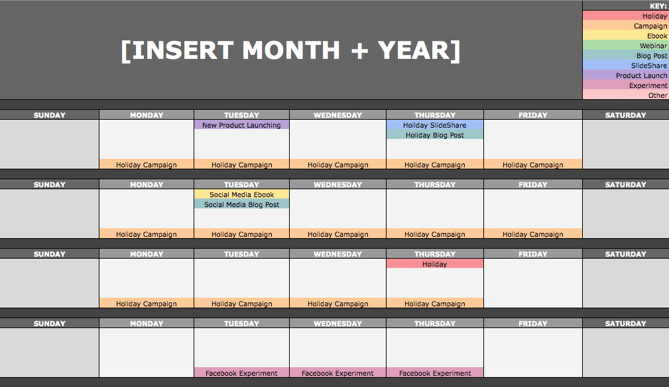
There are three sections to take note of when you edit this template for your own purposes. First, the color-coding key: These are the types of content or campaigns around which you might coordinate, like ebooks, webinars, blog posts, product launches, and so on. Though only some of these might be relevant to you, they’re there to indicate what you may want to put in there — so be sure to edit these categories to align with your own campaigns.
The other two sections you’ll need to edit are the Month and Year at the top of the calendar (duh), as well as the cells below each day of the week. In those cells, you should enter the type of content you’ll be promoting that day and color-code it to align with the campaign it’s supporting.
Instead of deleting all the content in this spreadsheet each month, I recommend copying this worksheet twelve times over, and creating a separate sheet for each month. (If that gets to be too overwhelming, you can always save those tabs as a separate file.)
Planning Your Twitter Content Calendar
Alright, now let’s get to the social media content. This section will be the lengthiest, because all subsequent sections will draw on the instructions we go through here. So if you read one section in this whole post, make it this one.
Let’s say you want to add some tweets to your scheduling template. Skip over to the “Twitter Updates” tab, where you’ll see this:
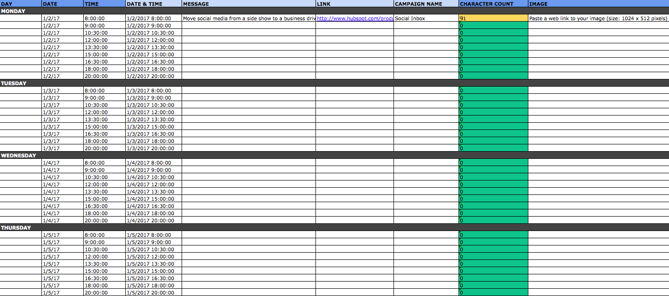
The first four columns, “Day,” “Date,” “Time,” and “Date & Time” are there for your convenience, and if you choose to use a third-party app for pre-scheduling your tweets (like HubSpot’s Social Inbox), then these columns will be useful. For now, just fill in the date on which you’d like your updates to publish to Twitter, and the time at which you’d like them to go out. The “Date & Time” column will automatically change based on what you input in the previous two columns.
Now, let’s move over to the “Message” column. Here, input the copy you’d like to appear in your tweet, bearing in mind you should cap it at 116 characters to allow enough room for a link, and at 115 characters to allow room for an image. (Read this blog post for a full character count guide.) This spreadsheet will auto-calculate the number of characters you’ve entered to keep you on-point, turning yellow when you’ve reached 95 characters, and red when you’ve reached 116 characters.
After you’ve composed your tweet, paste the URL you’d like to include in your tweet in the “Link” column. Be sure to include UTM parameters so you’ll know whether all of these tweets are actually driving traffic, leads, and customers. This is an important step to remember if you’d like to be able to demonstrate ROI from social. You can also use the “Campaign” column to add an associated campaign, which helps which more robust tracking and reporting.
Finally, in the “Image” column, attach the tweet’s image (if you have one). For Twitter, we recommend images that are 1024 x 512 pixels. (Click here for a full cheat sheet of social media image sizes.) If you’re having trouble attaching your image to the spreadsheet, follow these steps:
Step 1: Right-click the cell in which you’d like your image.
Step 2: Click “Hyperlink,” then click the “Document” button, and finally, click “Select” to choose your image.
Step 3: In the “Choose a File” window, select the image from your computer and click “Open.”
Step 4: You’ll now see the image attached to the “Insert Hyperlink” screen. Feel free to edit the “Display” text to change the file name, then click “OK.”
Note: This process is simply for organizational purposes. If you decide to upload the spreadsheet to your social media publishing software, it will not attach — you’ll have to do that with your marketing software. If you’re a HubSpot customer, details for how to bulk upload your Twitter content to Social Inbox can be found within the downloaded template.
Planning Your Facebook Content Calendar
Now, let’s talk about how to plan your Facebook marketing in advance with the template. Navigate on over to the tab in your template labeled “Facebook Updates.”
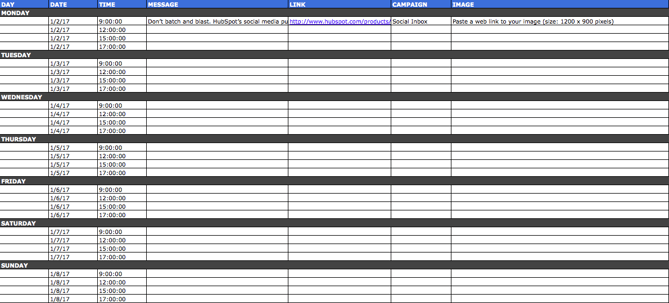
Facebook updates work similarly to Twitter updates, with the exception being bulk uploading your content is not possible in Social Inbox.
The first three columns, “Day,” “Date,” and “Time” are there for your convenience. Head on over to the column labeled “Message” and input the copy you’d like to appear in your status update, corresponding to the days and times you’d like those updates to run. Then, move to the “Link” column and input the link you’ll be, you know, linking to in the update. (Don’t forget that tracking token.) If you’d like the update to be tagged to a certain campaign, include this in the “Campaigns” column. Finally, attach an image just like you did with your Twitter updates — if you’re using one, we suggest you edit it to be 1200 x 900 pixels. (Click here for a full cheat sheet of social media image sizes.)
Planning Your LinkedIn Content Calendar
LinkedIn updates are the most unique, because you have both Company Pages and Groups to consider. To demonstrate the difference between Company Page updates and Group updates, let’s navigate over to the column labeled “Title (For Group Discussions Only).”
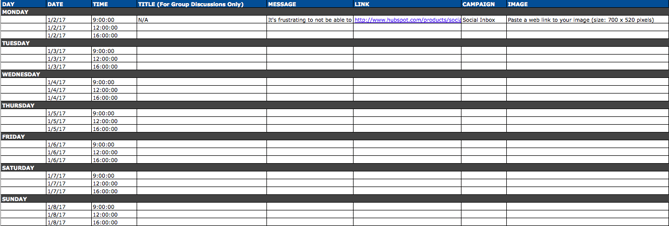
LinkedIn Groups let you post a few kinds of updates, one of which is called a “Discussion.” You will only fill out the “Title (For Group Discussions Only)” column if you’re looking to post a Discussion to your LinkedIn Group — because Discussions are the only update you’ll be posting that requires a title. If you’re not posting a Discussion to a LinkedIn Group, you don’t need to fill out this field, because your update will not have a title.
You’ll fill out the next column, “Message,” for every type of update you post, whether it’s for a Company Page or a Group. Simply input your copy into this column, and then navigate to the next two columns, “Link” and “Campaign” to input the URL to which you’re directing readers with the tracking token you’ll use to track activity, and the associated campaign if one exists. If you’d like to use an image for an update, attach it per the instructions laid out in the “Twitter” section. We recommend editing the image to 700 x 520 pixels.
Planning Your Instagram Posting Calendar
Now, let’s move on to how to set up your Instagram photos and videos in advance with the template. Navigate on over to the tab in your template labeled “Instagram Updates.”
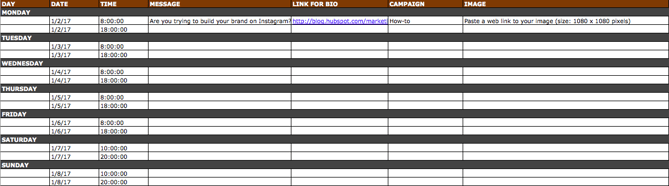
Instagram updates work similarly to Facebook updates, in that content can’t be uploaded in bulk to Social Inbox like it can with Twitter.
The first three columns, “Day,” “Date,” and “Time” are there for your convenience. Head on over to the column labeled “Message,” and input the copy you’d like to appear in your post’s caption, corresponding to the days and times you’d like those updates to run. Keep in mind that although Instagram captions can be up to 2,200 characters long, they cut off in users’ feeds after three lines of text. The exact length of these three lines depends on the length of your Instagram handle. (Read this blog post for a full character count guide.)
Next, move to the “Link for Bio” column and input whichever link you plan to put in the bio when you publish the accompanying Instagram post. (The reason you’d put a link in your bio and not the photo caption itself is because clickable URLs aren’t allowed anywhere except the single “website” box in your bio. See #13 in this blog post for more on how that works.) Oh, and don’t forget that tracking token.
If you’d like the update to be tagged to a certain campaign, include this in the “Campaigns” column. Finally, attach an image just like you did with your other social media updates — we suggest you edit it to be 1080 pixels x 1080 pixels. (Click here for a full cheat sheet of social media image sizes.)
Planning Your Pinterest Content Calendar
Alright, now let’s go over how to set up your Pinterest pins in advance with the template. Navigate on over to the tab in your template labeled “Pinterest Updates.”
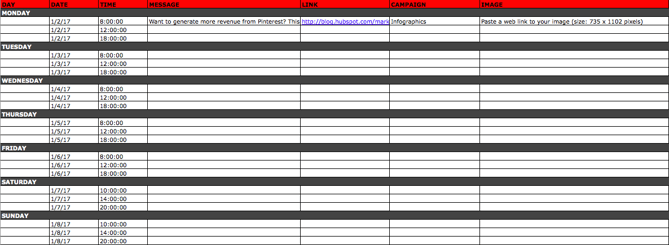
Pinterest updates work similarly to Facebook and Instagram updates, in that content can’t be uploaded in bulk to Social Inbox like it can with Twitter.
The first three columns, “Day,” “Date,” and “Time” are there for your convenience. Go to the column labeled “Message,” and input the copy you’d like to appear in your pin’s description, corresponding to the days and times you’d like those updates to run. Then, move to the “Link” column and input the link you’ll be, you know, linking to in the update. (Don’t forget that tracking token.)
If you’d like the update to be tagged to a certain campaign, include this in the “Campaigns” column. Finally, attach an image like you did with your other social media updates — we suggest you edit it to be 735 pixels x 1102 pixels.
Planning Your Google+ Posting Calendar
Finally, we come to Google+.
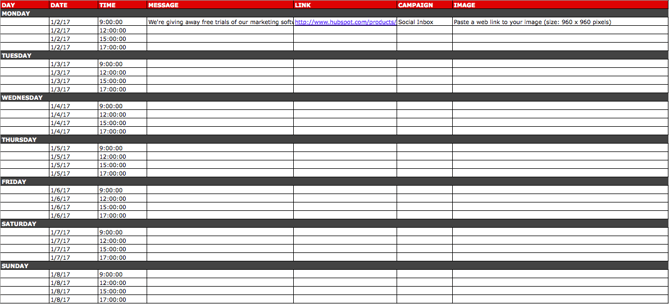
Update: Google recently announced it is shutting down its Google+ platform. Please consider using the template and instructions below for any potential social networking platform Google launches in the future, and check back with us for an updated template that reflects this rollout.
Start in the “Message” column, and input your status update. Then move over to “Link” column, where you’ll input the link to which you’re directing readers. If you’d like the update to be tagged to a certain campaign, include this in the “Campaigns” column. If you’re attaching an image, you could use multiple different sizes, but 960 pixels x 960 pixels works best. (Click here for a full cheat sheet of social media image sizes.)
Content Repository (Or, Where to Source Social Media Content)
This template also provides you with a tab called “Content Repository,” which should help you keep track of all your content and maintain a healthy backlog of fodder to make sourcing social media content easier.
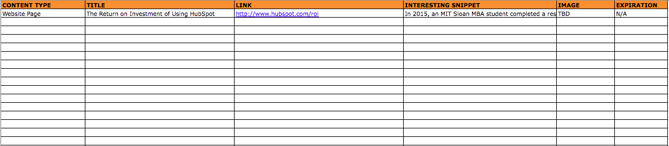
As you create more assets, you’ll likely want to resurface and re-promote those pieces down the line, too. To ensure you don’t lose track of all of that content, record it on this tab so you’re never at a loss for what to publish on social. If the content you’re promoting isn’t evergreen, be sure to include an expiration date in the column marked “Expiration” so you don’t promote it when it’s jumped the shark.
This tab will also help you maintain a healthy balance of content: A mix of your own content and others’, a mix of content formats and types, and mix of lead generation content vs. MQL-generating content vs. traffic-friendly content.
Don’t Forget to Interact With Your Followers
Whether you use this spreadsheet to plan your content out in advance or upload to a third-party app, you’ll still need to supplement these updates with one the fly content. Breaking news hits? Whip up a quick update to share it with your network. Someone in your network tweets something interesting? Give it a retweet with some commentary. Got a fascinating comment on one of your updates? Respond with a “thank you” for their interaction or an additional follow-up comment.
Coming up with and scheduling your social media content in advance is a huge time-saver, but it should go without saying that you still need to monitor and add to your social presence throughout the day.
Finally, we encourage you to experiment with your social media publishing. This template provides publishing dates and times for each social network, but you may find those are way too many updates for you to fill, or perhaps too infrequent for your booming social presence. You should adjust your social media publishing frequency as needed.



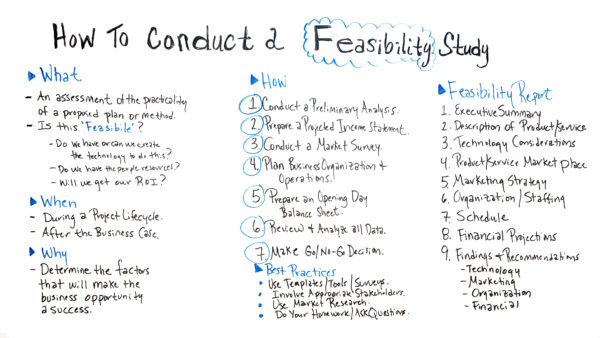
How to Conduct a Feasibility Study
How to Lower Your Facebook Ad Spend

Do you want to reduce your Facebook ad costs? Wondering how to spend less to convert cold audiences? In this article, you’ll find four tips for reducing the cost of acquiring and converting new customers with Facebook ads. #1: Use Relevance Score to Optimize for Message Match AdWords has a quality score to control ad […]
The post How to Lower Your Facebook Ad Spend appeared first on Social Media Marketing | Social Media Examiner.
from Social Media Marketing | Social Media Examiner http://bit.ly/2EN1RoG
via socialmediaexaminer
Instagram and LinkedIn Rising: How Social Media Marketing Changed in 2018
Welcome to this week’s edition of the Social Media Marketing Talk Show, a news show for marketers who want to stay on the leading edge of social media. Join us for this special “year in review” episode of the Social Media Marketing Talk Show, where we explore the major Instagram and LinkedIn marketing news of […]
The post Instagram and LinkedIn Rising: How Social Media Marketing Changed in 2018 appeared first on Social Media Marketing | Social Media Examiner.
from Social Media Marketing | Social Media Examiner http://bit.ly/2EDkWJ6
via socialmediaexaminer
Mobile Form Design: A Beginners Guide to Converting Mobile Users
Think about a time when you were on the train, walking to work, sitting in the airport, or simply laying on the couch, and you had to complete an online form of some kind (an order form, shipping form, survey, etc.) on your smartphone or tablet. Did you have a positive or negative experience? Did the mobile form you completed function properly? Was it easy to read and submit on your mobile screen?
Due to their convenience, as well as the fact that most of us are almost always carrying a device, mobile forms may be something you complete frequently. If the online form you’re completing has a mobile-friendly design, then this process really is a convenient one. However, if the form you’re trying to complete is not mobile friendly, you might quickly become frustrated, angry, or ditch the site completely.
In this guide, we’ll review the most effective ways to design your business’s mobile form to help you boost conversions and create a great user experience. There are a variety of ways to achieve this, including obvious action buttons, clear form fields, minimal form fields, automated actions, a beautiful design and layout, and more.
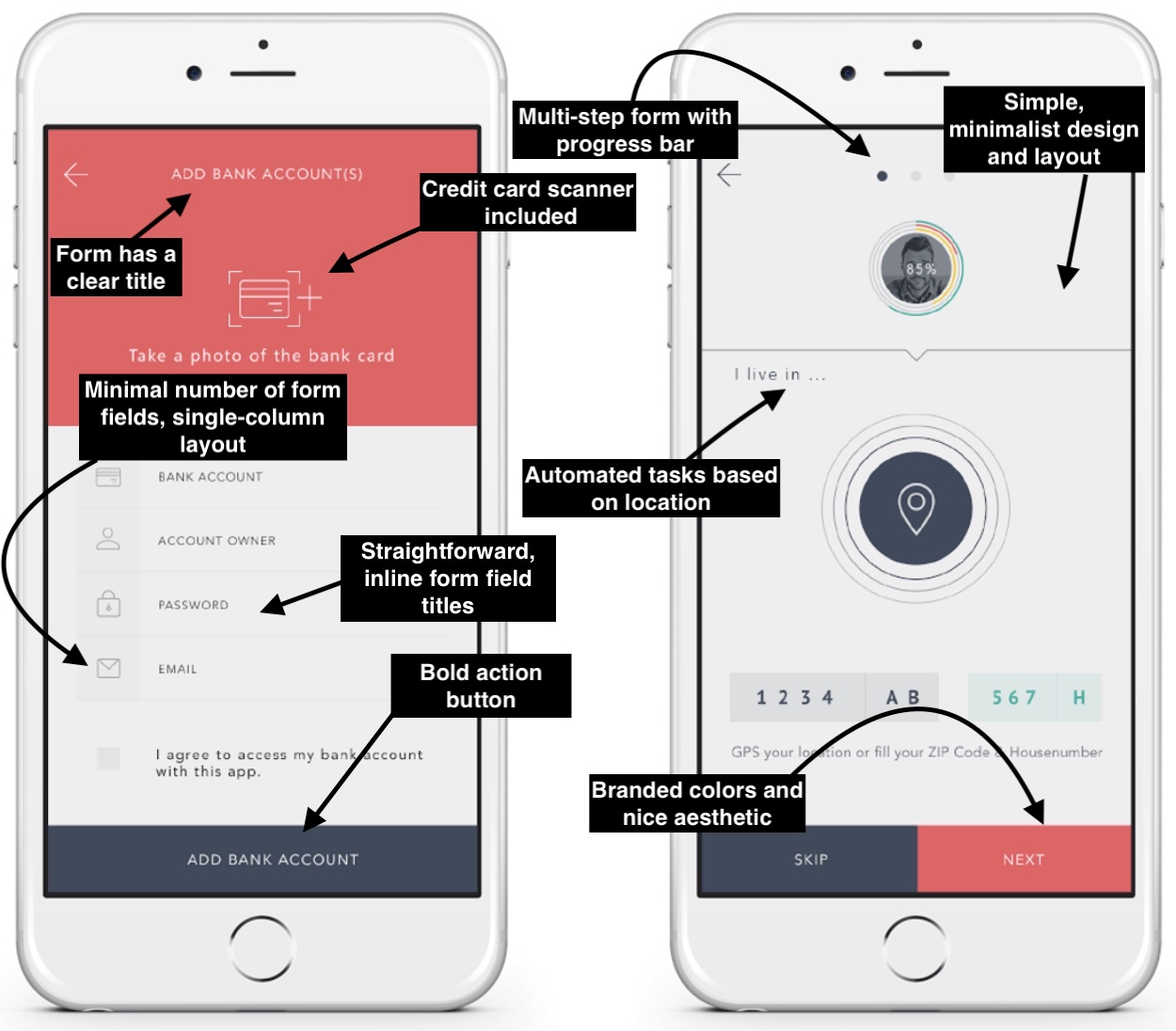
But before diving into all of those details, let’s first define mobile form design to better understand the concepts and guidelines we’re about to review.
Mobile vs. Desktop Form Design
Today, your website visitors aren’t just browsing your site, viewing your content, and completing your forms from their desktop computers — they’re also completing these tasks from their mobile devices. That means it’s absolutely critical for your form to be simple to review, complete, and submit via a mobile device.
Why Is Mobile Form Design Important?
Great mobile form design allows for a positive user experience which ensures a happy website visitor who’s more likely to convert to a customer and become a returning user.
The design, layout, and functionality of your mobile forms play a large part in your website’s overall user experience due to the number of people who browse items, make purchases, and shop via their mobile devices every day. If your forms aren’t mobile-friendly, you may experience fewer conversions, a loss in mobile site traffic, and an increase in unhappy and frustrated customers. And who wants that?
Why Should Mobile Form Design Differ From Desktop Design?
Think about the difference in the display or screen size between a mobile device, such as an Apple iPhone, which typically ranges from 4.7” to 6.1” in size, and an iMac desktop computer, which typically ranges from 21” to 27” in size. Clearly, it’s safe to assume a form that fits an iPhone screen wouldn’t fit a desktop screen perfectly.
If your mobile visitors cannot easily read, complete, and submit your form, you may lose their business. So creating a mobile-friendly form that fits the screen of any mobile device is crucial to creating a great user experience in order to leave a lasting impression on your visitors and help you boost conversions.
What Is Responsive Web Design?
If you want to take mobile form design a step further and ensure your entire website is functional on all types of devices, you can implement a responsive website design.
Responsive web design takes the user’s screen size, platform, orientation, and environment into consideration. This is a simple and effective way to create a great user experience since so many people are constantly visiting and browsing different websites on a variety of devices.
There are a number of ways you can make sure your site has a responsive design. For example, if you’re a WordPress user, there are several responsive WordPress themes that you can install and use to design your site. Additionally, if you’re building, or have built, your site with software such as Squarespace, your site may automatically come with responsive web design.
Today, responsive web design is a popular choice for businesses due to the sheer number of people visiting websites via a variety of different mobile devices. But for now, let’s get back to discussing mobile form design.
Mobile Form Design: 10 UX Guidelines
When creating a mobile-friendly form, there are some steps you’ll want to take to provide the best user experience possible for your visitors. Let’s review 10 of these UX guidelines that you can begin implementing in your own forms today.
1. Minimize the Number of Form Fields
Ever heard the saying, “less is more”? Well, that’s exactly what you should be thinking while creating your mobile form.
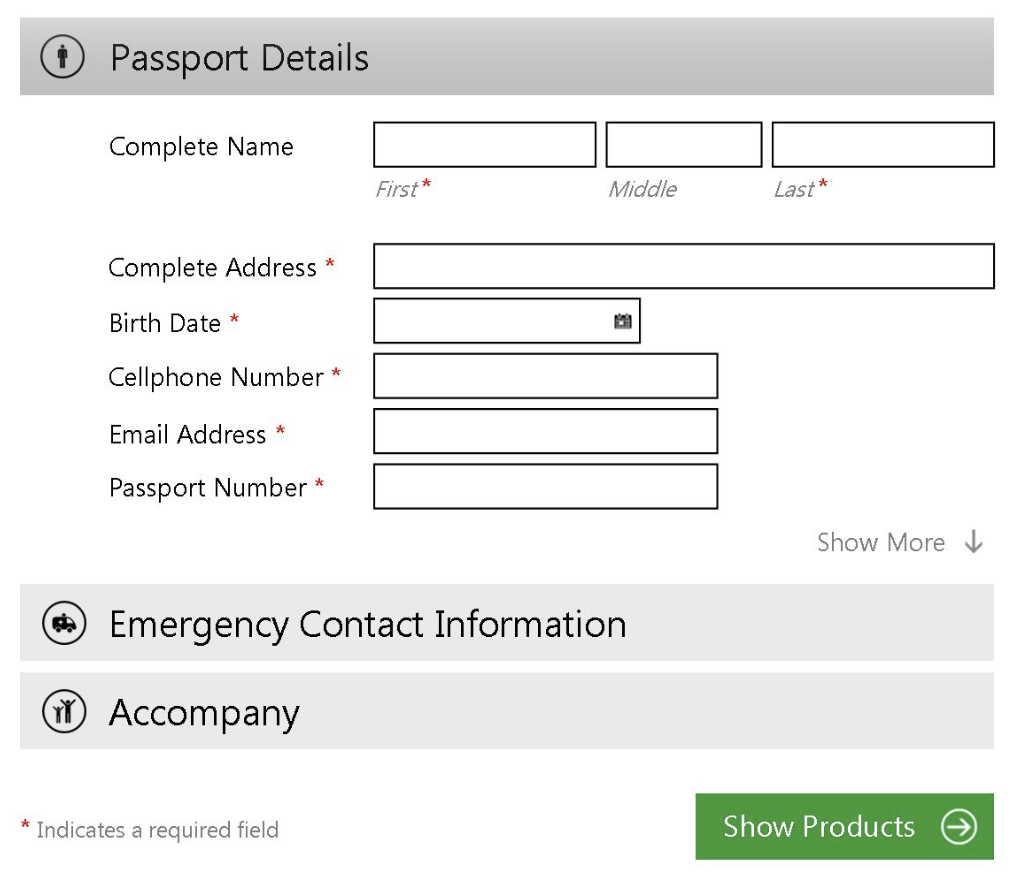
Between the size of a mobile device’s screen, the amount of content you need to place in your form, and the number of form fields (form fields are the boxes in which your visitors add their responses), it’s easy to accidentally make your form feel cluttered. Remember to remove all unnecessary fluff and only keep the form fields for information that you absolutely need.
In addition to narrowing down your number of form fields to only the necessary, you’ll also want to make sure your form fields are labeled clearly with the fewest words possible. You should also mark the optional form fields as “optional” or include an asterisk next to the required form fields to streamline the process.
2. Automate Actions When Possible
If you accidentally mistype your street address and the form corrects the spelling for you, the form autocorrects your response.
If you begin typing your shipping address and a box pops up with the rest of your address asking you if you want to “autofill” the rest of the form fields with your saved address, then your form is autocompleting your response for you.
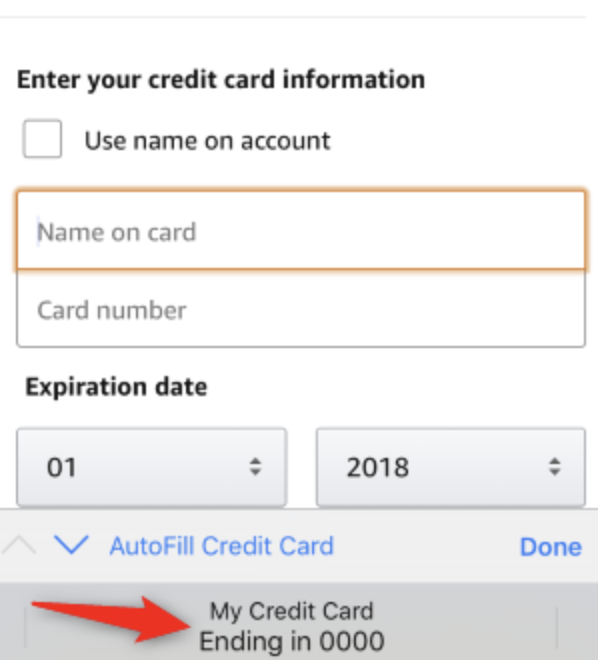
By implementing autocorrect and autofill features on your mobile forms, you’ll improve user experience through a quick, efficient, and straightforward process.
3. Use a Single-Column Layout
When you’re completing a long or multi-step form, list all of your content in a single-column layout.

This is true for forms on both desktop and mobile devices for a few reasons — single-column form layouts are:
a. Easier to read
Placing all of your form fields in a single-column format allows your visitors to focus on only one item at a time, making your form easier to read.
b. Less daunting
If you look at a form, especially in a tight space as you would on a mobile device, and see a large amount of content smushed together, you may feel overwhelmed. That’s why separating your content by rows and placing your form fields in a single-column format make your content look and feel less daunting.
c. Quicker to complete
When you place your multi-step form in a single column, leads are able to complete it more quickly than they would a multi-column form. That’s because the format makes the form easier to read and work through step-by-step.
4. Use Input Constraints for Form Fields
If your mobile form includes short or long responses, you should enable input constraints. Input constraints place a limit on the number of words or characters a person can type into your form field.
Writing long responses on a mobile device isn’t always easy due to the size of the keyboard and screen. And if a visitor is unsure about the amount of detail required for a response, they may over-explain, which could end up being a time-consuming process for you and your visitor.
An input constraint will typically say something like, “You’ve exceeded your maximum of ___ characters”.

There are other types of input constraints that limit input options, like dates on your forms. For example, if someone was trying to make a reservation for a table at your restaurant and accidentally selected a date in the past, your constraint would prevent them from actually being able to select and confirm that date. By setting input constraints, you’ll save your lead time while completing your form fields, and you’ll also prevent yourself from having to review a long-winded or invalid answer.
5. Create Clear Action Buttons
After taking the time to complete a mobile form, it’s likely that a lead will want to make sure their form is submitted properly to ensure you and your team are able to receive and review their information.
By using large, bold, and visible buttons labeled with clear actions on them, such as “Submit”, “Next”, or “Complete”, your lead will feel confident about their form submission. These action buttons help you streamline the form completion and submission processes for your leads to avoid any unnecessary confusion or concern.
6. Provide Scanners For Payments
Have you ever tried entering your credit card details in a form via your smartphone? Typing a bunch of numbers on such a small screen with a small keyboard can be a tedious process.
Card scanning apps, such as BlinkID and card.io, have become increasingly popular for that exact reason. When making a purchase, your visitors can click a button that takes them to a screen where they can use their mobile device’s camera to take a secure photo of the front and back of their card, whether that be their license or credit card.

With just a couple of pictures, your leads will be finished with one of the most time-consuming parts of your mobile form completion process. These card scanning apps keep your visitors efficient as well as frustration and error-free.
7. Explain Need For Specific Information
While completing a simple email signup or a registration form, have you ever been asked to provide personal information that has nothing to do with the signup form itself?
This is a common phenomenon in all types of forms (not just mobile). Asking someone for personal or other sensitive information without explaining your need for it can be a bit sketchy.
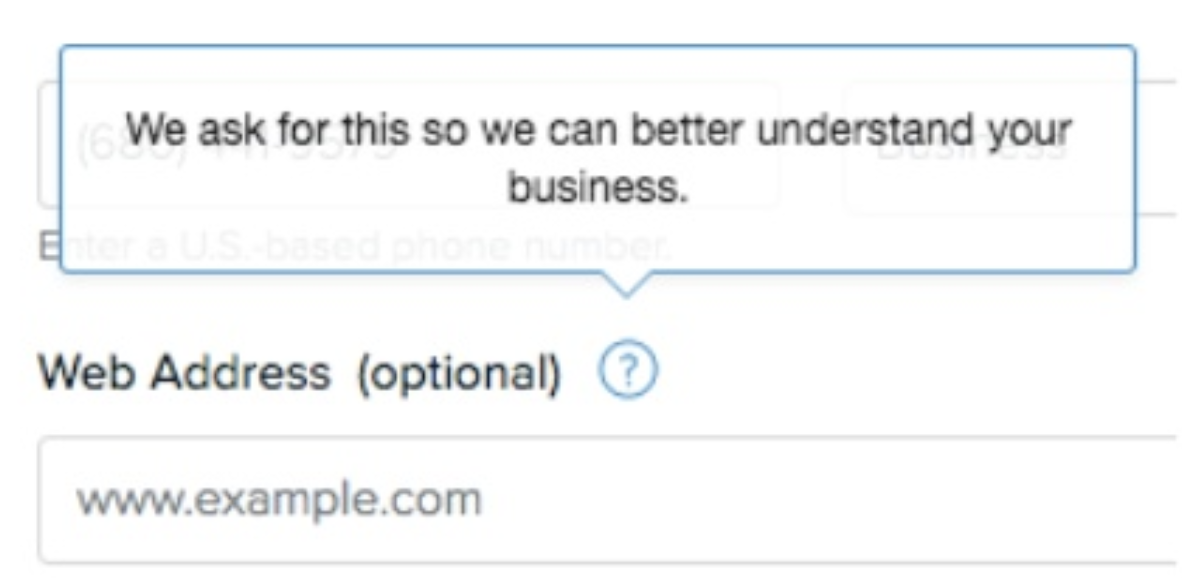
If you’re asking a question that doesn’t necessarily relate directly to the reason your visitor is filling out the form (whether the field is required or optional), then you should create some type of summary box or notification that they can click on to read a short description of the reason why you’re asking for this information. This way, your form will feel professional and thoughtful.
8. Provide State of Success or Completion
No matter what type of mobile forms you have on your website, you should provide your visitors and leads with their current state of progress, success, or completion while they work through them.
If you have a long, multi-step form, you should include a progress bar at the top of your form so your visitors are aware of how much longer they’re going to be working through the form.

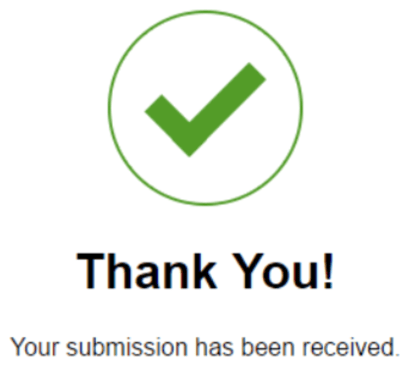
Additionally, once your leads submit their forms, you should direct them to another screen or page that says something like, “Success!” or “Thank you for submitting the form!” so they know their submission worked.
9. Include Error Messages
While completing your mobile forms, your visitors are bound to make a mistake here or there. Your mobile forms should flag these errors in real-time so your leads can remain efficient and accurate.
For example, if someone adds the incorrect zip code alongside their street address, make sure your mobile form flags that error so there is no time wasted and your business is sure to receive accurate information.

In your message, give your lead applicable, easy-to-understand information that clearly shows the exact location of the error as well as how they can fix it.
10. Consider the Form’s Appearance
Appearance and first impressions in business always matter. That goes for your mobile forms, too, because nobody wants to complete a dark, difficult to read, cluttered, and unattractive form.
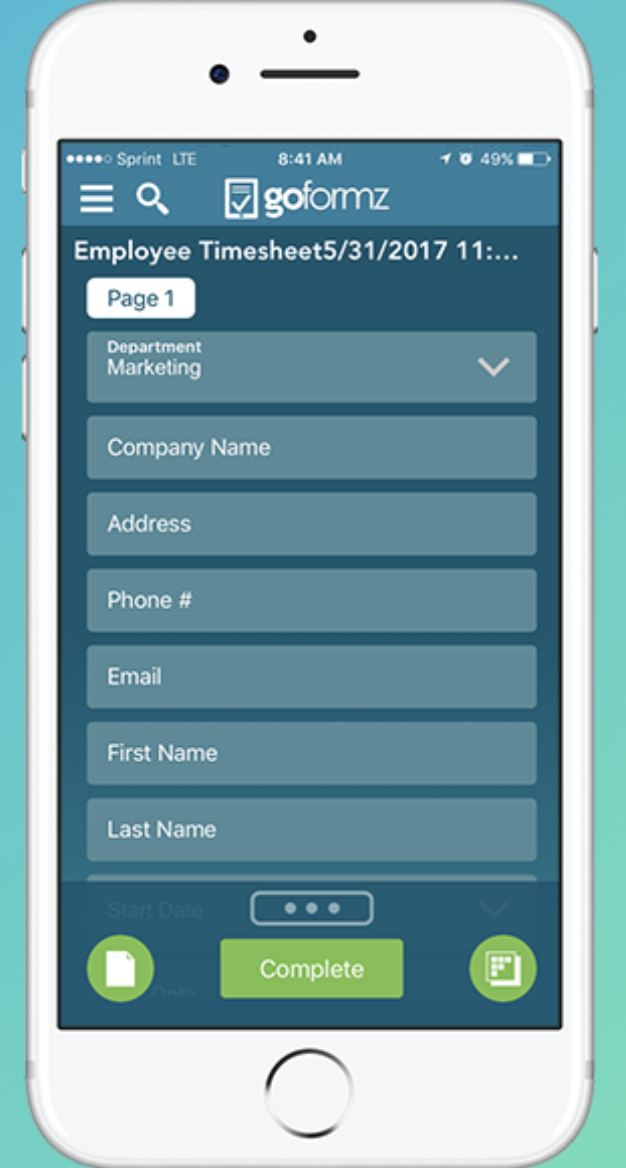
You want your mobile form to be highly functional as well as aesthetically pleasing. You can create a professional-looking form by branding it with your logo and colors. Your mobile form’s appearance should contribute to its readability and positive user experience.
To achieve this look, use:
- Simple, easy-to-read typography
- Minimal form fields
- Bright and bold action buttons
- Single-column layout
- A color palette that doesn’t feel overwhelming
Back To You
It’s no secret that, today, your website visitors are completing and submitting your web forms via their mobile devices. That’s because it’s convenient and efficient, as most people carry some type of mobile device with them everywhere, making it crucial for your forms to be mobile-friendly. Otherwise, your forms will be difficult to read, complete, and submit, which may frustrate your leads or cause you to lose their business completely. By considering your mobile form design and implementing these guidelines, you’ll enhance your mobile form user experience, build positive relationships with your leads and customers, and boost your conversions.

13 Influencer Marketing Campaigns to Inspire and Get You Started With Your Own
You can’t go anywhere these days without hearing about the elusive, purportedly mystical powers of influencer marketing.
But is this buzzword-laden tactic actually worth your time and energy?
According to a recent study comprised of marketers from a variety of industries, 94% said influencer marketing was an effective campaign strategy. That’s great news for marketers — right?
Not so fast. Even though a majority of marketers believe influencer marketing is a viable tactic, it’s still incredibly challenging to report accurately on influencer campaign ROI. In fact, 78% of marketers said that determining the success of influencer marketing campaigns would be a top challenge this year.
So even though the tangible benefits of influencer marketing — follower engagement, driving traffic, and creating more authentic content — seem clear-cut, there’s still a lot of progress to be made in making this form of campaign measurable for agencies and marketers.
Influencer Marketing
Influencer marketing is designed to tap into an existing community of engaged followers on social media. Influencers are specialists in their niches. These individuals have influence over an audience you might be trying to reach, and can be helpful marketing to those buyers.
Let’s back up for a minute. How exactly do you perform influencer marketing, and how does it differ from the traditional celebrity spokesperson advertising model?
There is some overlap between celebrity endorsements and influencer marketing campaigns. But fans of influencers trust that their endorsement of a product or brand comes from a well-researched, more holistic place, rather than something as simple as a signed contract between a brand and a person of influence.
And while there is often a formal agreement in place between both parties, influencers tend to be more selective about their affiliations, choosing to partner with brands that reflect their unique personal brands and won’t alienate their followers.
With that in mind, here are four things you need to keep in mind when launching an influencer marketing campaign:
- Expertise: Would the content of your campaign be appropriate coming from this influencer, given what he or she is famous for?
- Reach: Can this influencer engage your audience? Does she specifically have reach on the social media channels where your audience spends its time?
- Demographic: Is this person’s following similar to your company’s buyer persona? Does he or she affect the same people?
- Notoriety: Is this influencer well liked? Is his/her fame split between admiration and condemnation, or are they a person of mass appeal? (The latter is what you want, so as to not alienate potential customers.)
In other words, celebrity product endorsements are less about engagement and more about attaching a person’s fame and name recognition to a particular brand — regardless of who specifically follows their career. For brands, this type of campaign is much more about grabbing the attention of a wide audience than tapping into a very specific niche.
To give you an idea of how brands — both big and small — are leveraging the power of influencers in their marketing efforts, we’ve put together a list of ten influencer-driven campaigns. Check them out below and decide for yourself: Is influencer marketing worth the hype?
Influencer Marketing Examples
- Sprint: #LiveUnlimited
- Old Navy: Boys & Girls Club of America
- Fiji Water: “Bodyworewhat”
- Kaikatsu Club: NETCafe VR
- H&M: Fall Studio Collection
- Sperry: Boat Shoes on Instagram
- Samsung: Note 7 Launch
- Diageo: My Tales of Whiskey
- GAP: Styld.by
- Stride Gum: Mad Intense Gum
- Naked Juice: Sponsored Instagram Posts
- Loeffler Randall: LR Ambassadors
- Glossier: Regular Women
1. Sprint: #LiveUnlimited
Influencers: Lele Pons, Gerard Adams, Prince Royce, Bradley Martyn, Rachel Cook
Not only did Sprint cause Verizon’s famous “can you hear me now?” guy to switch to Sprint, but the company has collaborated with musicians, entrepreneurs, and actors to gain the attention of a massive young audience.
Its latest influencer campaign uses the hashtag #LiveUnlimited, and features people who have massive social media presences. The best part is these people naturally embody the appearance and lifestyle of #LiveUnlimited. Elite Daily founder Gerard Adams and internet personality Lele Pons are just two of them.
Sprint introduces all five influencers (listed above) in this video ad:
2. Old Navy: Boys & Girls Club of America
Influencer: Alex Rodriguez
Old Navy is a veteran of influencer marketing, having partnered with fashion and lifestyle bloggers all over Instagram to promote various lines of Old Navy clothing. For Black Friday, the company doubled down on this strategy by partnering with New York Yankee retiree Alex Rodriguez to raise money for the Boys & Girls Club of America (BGCA). Being an alumnus of the BGCA, Rodriguez’s promotion helped Old Navy raise $1 million as part of sales during Black Friday alone.
3. Fiji Water: Bodyworewhat
Influencer: Danielle Bernstein
You know the water brand, Fiji, but you might know its campaign partner better by the Instagram name, weworewhat.
Danielle Bernstein’s fashion blog, We Wore What, recently joined Fiji Water to create Bodyworewhat, an influencer marketing campaign offering eight-minute workout videos with Bernstein and personal trainer Eric Johnson.
This campaign was meant to demonstrate Fiji’s commitment to hydrating those who want to look and feel as fit as Bernstein, while helping her fans get there with all the right motivators.
4. Kaikatsu Club: NETCafe VR
Influencer: Enakorin
Not all influencers are based in sports, fashion, or entertainment — not in Asia, anyway. The cafe chain, Kaikatsu Club, recently launched a virtual reality feature across its Japan locations, where customers can play various VR video games while enjoying a drink or a meal. And who better to help spread the word than Japan’s popular TV personality and cosplayer, Enakorin.
Enakorin is well known by fans of anime, a Japanese artform responsible for many comics and TV shows across the country. Enakorin is also known for her love of video games, making her a perfect choice to represent Kaikatsu’s new VR entertainment platform. Both of them teamed up with TimeLine Japan on YouTube to talk about it.
5. H&M: Fall Studio Collection
Influencers: Julie Sariñana, Ela Velden
H&M has one of the largest Instagram followings of any fashion brand on social media today, due in large part to its influencer campaign with women who reflect H&M’s style all by themselves.
Fashion blogger Julie Sariñana and model Ela Velden are two influencers with whom H&M partnered for its fall 2017 catalogue. Sariñana loved the clothing so much, she promoted it from her own Instagram account:
6. Sperry: Boat Shoes on Instagram
Influencers: Sperry Enthusiasts
Toward the end of 2016, the boat shoe brand, Sperry, began working with more than 100 micro-influencers on Instagram to create engaging content for its followers. Sperry identified fans of the brand on Instagram who were already sharing high-quality photos of its products, and started inviting these users to develop visual content for its official Instagram account.
7. Samsung: Note 7 Launch
Influencer: CyreneQ
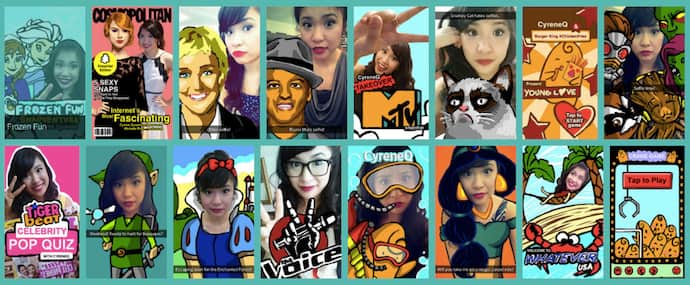
New smartphones are unveiled everyday. So, when Samsung released its Note 7 in 2016, it set out to make sure people knew about it. The company partnered with CyreneQ, a professional Snapchat artist and designer with a huge subscriber base, to broadcast its launch to a mobile audience that it wanted buying its new product.
Cyrene used her Snapchat account to document her journey to the event and ultimately give her audience a sneak peak of the new device. Using Snapchat’s 10-second video format, she posted clips showing her followers some of the device’s new features. See how CyreneQ’s Snapchat designs look for the brands she’s worked with here.
8. Diageo: My Tales of Whisky
Influencer: Nick Offerman
Diageo, the parent company of Scottish whiskey brands Lagavulin and Oban, was awarded a Shorty Award for Best Influencer Marketing Campaign for this yule log video starring Parks and Recreation’s Nick Offerman.
The 44-minute video shows Offerman sitting by a crackling fireplace, staring broodingly into the camera, and occasionally savoring a sip of his drink. Thanks to the simple seasonal premise and Offerman’s unique brand, the video was a viral hit.
9. GAP: Styld.by
Influencers: Refinery29, Celebrity Blogs
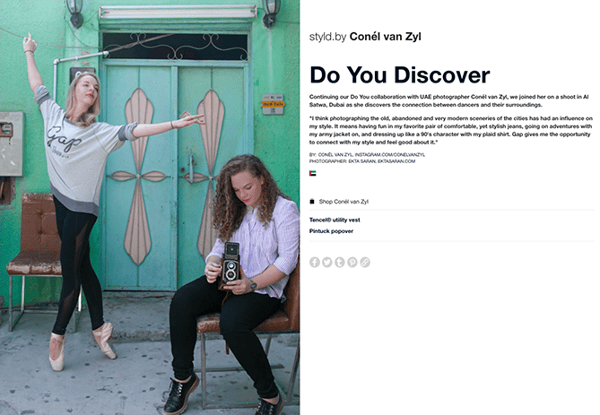
GAP’s successful Styld.by campaign featured a number of influential social media personalities from blogging giants like Refinery29 and WhoWhatWhere, showing how they incorporate GAP clothing into their personal wardrobes. Users viewing the influencers’ posts on social media were given options to “Shop this Look” conveniently in the caption of photos.
Thanks to the involvement of multiple influencers from different niches, GAP’s campaign had enormous reach.
10. Stride Gum: Mad Intense Gum
Influencer: DJ Khaled
If anyone has figured out how to gain a loyal following on Snapchat, it’s hip-hop artist and producer DJ Khaled. Once a minor figure in the music world, Khaled has enjoyed an unprecedented level of success on the ephemeral photo-sharing app, with each of his snaps garnering over 3 million views on average.
“DJ Khaled has completely cracked the platform,” said Emmanuel Seuge, senior vice president for content at Coca-Cola, one of Snapchat’s major advertisers. “He’s the king of Snapchat.”
His “King of Snapchat” status means Khaled is in high-demand for influencer campaigns with brands. He regularly takes part in “Snapchat takeovers,” where a brand hands over the reigns of their corporate Snapchat to Khaled for a brief period of largely unfiltered antics.
Working with W+K London, Stride Gum launched a Snapchat takeover campaign with Khaled last year to promote its “Mad Intense Gum” campaign. The brand called the takeover “an unpredictable, fun day for all his followers.”

Source:
W+K London
11. Naked Juice: Sponsored Instagram Posts
Influencer: Kate La Vie
This bottled smoothie brand is edging its way into the beauty, fashion, and health scene on Instagram with help from key influencers in the space. Lifestyle bloggers like Kate La Vie (below) share sponsored posts featuring snapshots of their daily outfits and beauty essentials — including a strategically placed Naked Juice in the mix.
12. Loeffler Randall: LR Ambassadors
Influencers: Creative Businesswomen
High-end accessory and footwear brand Loeffler Randall has become a favorite among artists, bloggers, and fashion insiders, thanks in big part to the company’s commitment to involving social media influencers in its marketing campaigns.
The brand’s “LR Ambassadors” include a diverse group of writers, painters, florists and other creative businesswomen “leading dynamic lives.” In the brand’s own words, their LR Ambassadors are “cool girls doing cool things.”
In addition to profiling its LR Ambassadors on the company blog, Loeffler Randall shares pictures of its ambassadors wearing LR shoes and accessories on Instagram, using the hashtag #LRambassador.
13. Glossier: Regular Women
Influencers: All Women
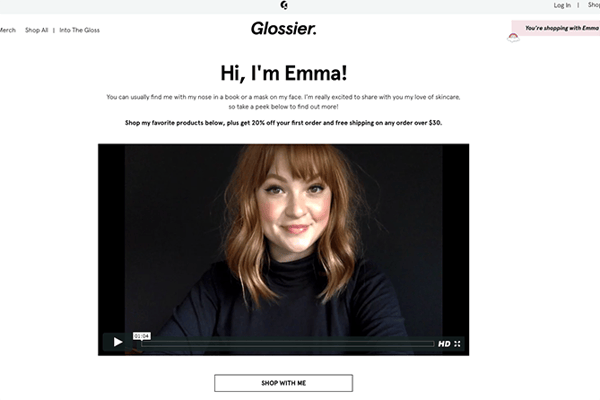
This Manhattan-based beauty startup (which was recently named one of Fast Company’s Most Innovative Companies of 2017) owes much of their seemingly overnight cult status to their ever-expanding network of super fans and micro-influencers — those people who may have high influence, but low individual reach.
Instead of paying a few big names to promote their minimal skincare and cosmetics, the brand relies on “regular women” to spread the word.
“What’s very motivating to us is this idea of every single woman being an influencer,” Glossier CEO Emily Weiss told Quartz. Glossier recently introduced a referral program to enable its more influential followers to offer product discounts and other incentives to their unique networks.



The 5 Best Ways to Send Large Files
We all know the frustrating feeling — maybe you’ve finally finished the script for your next marketing video, or you’ve collected all the images you need for your next campaign. But when you go to press “Send” you’re told, “Sorry. File too large.”
Unfortunately, our email accounts can’t carry as much storage as you might think. Gmail, for instance, can only hold files up to 25 MB.
Additionally, large files can eat at your storage space, even if it’s just sitting in your Sent folder.
If you’ve got a file you can’t send the traditional way, don’t worry — we’ve got five easy and cheap alternatives, to ensure the largest of files can be sent to whoever, within minutes.
Best ways to share big files
- Upload your files to a cloud storage service, like Google Drive, Dropbox, or OneDrive, and share them or email them to others
- Use file compression software, like 7-Zip
- Purchase a USB flash drive
- Use a free online service, like Jumpshare or Securely Send
- Use a VPN
1. Upload your files to a cloud storage space.
Using a cloud storage space like Google Drive, Dropbox, or OneDrive is one of the easiest and most popular methods for sending large files. Depending on your email provider, you’ll likely be able to use a corresponding cloud storage — like Google Drive for Gmail, or OneDrive for Outlook.com. If you’re sending an attachment within a provider like Gmail, you’ll see the Google Drive button already integrated. Simply press it, choose your file, and then send it like a regular attachment.
Alternatively, Dropbox allows you to upload large files and then send a web link via email or text to your recipient. With Dropbox’s free tier, you’ll receive 2 GB of storage space. For $9.99 per month, you can increase your storage to 1 TB.
2. Use file compression software, like 7-Zip.
If you have multiple files, you might consider using a free compression software like 7-Zip, which can compress an entire folder of files at once. Zip files in general support lossless data compression, and are good for saving time and space while ensuring your files remain intact. Most operating systems can extract Zip files easily, without additional software.
7-Zip is available for Windows, Mac and Linux. You can also provide a password for your files with 7-Zip, to ensure they’re safe to send online.
3. Purchase a USB flash drive.
If you want to collaborate on a project or video with a large storage size, you might consider uploading it to a USB flash drive, which can range in size from 2 GB to 1 TB. This might allow you to pass your files more easily between coworkers, or back your files up for additional protection. Best of all, if you use a USB you can take some strain off your computer, extending its data storage.
4. Use a free online service, like Jumpshare or Securely Send.
There are plenty of free online services that make uploading and sending large files both easy and incredibly quick. Jumpshare, for instance, lets you send up to 250 MB worth of files with a free account — simply upload a file or folder, and Jumpshare provides you with a link to share the files. Plus, you can download the Jumpshare icon to your desktop. When you drag and drop files onto it, a link will be copied to your clipboard, which you can send to anyone, even if they don’t have their own Jumpshare account.
Securely Send is another fantastic option. You can send your files to an email recipient within Securely Send’s platform — simply input an email, upload your file, and click “Send It”. Securely Send lets you send 2 GB worth of files for free, and even lets you track deliverability, so you know when your files have been received and reviewed.
5. Use a VPN
A VPN, or Virtual Private Network, is a service that protects your data and provides you with more privacy when you’re online by routing your internet connection through a server. A VPN can protect you from hackers, or even online ads, and is a secure option, particularly if you’re often using public wi-fi.
Some internet service providers (ISP) use broadband traffic management to moderate upload bandwidth — if this is the case for your ISP, you can use a VPN, which will prevent your ISP from recognizing how large your files are, enabling you to send them.
However, this isn’t the best option in our list for two reasons — one, the large file could slow down your VPN connection, and two, your files aren’t guaranteed to be intact upon delivery. To ensure a high-quality delivery, you might want to try an alternative option, like a Zip compression.
How to send large files via email
- Store your files in a cloud storage service, like Google Drive, Dropbox, or OneDrive.
- When you want to send the file, simply share the file with someone, and then notify them via email that you have done so.
- If you use Gmail or Outlook.com, you’ll find a Google Drive or OneDrive integration. When attaching your file to an email, you can click the Google Drive or OneDrive button to share the file.
- When the recipient receives your email, they can download your file to their computer, or open it online through the cloud storage service you used to send it.

How to Make Better Marketing Decisions: Unthinkable Wisdom

Do you need to make better strategic decisions? Wondering how to change your decision-making process? To explore how to make better marketing decisions, I interview Jay Acunzo. More About This Show The Social Media Marketing podcast is an on-demand talk radio show from Social Media Examiner. It’s designed to help busy marketers, business owners, and […]
The post How to Make Better Marketing Decisions: Unthinkable Wisdom appeared first on Social Media Marketing | Social Media Examiner.
from Social Media Marketing | Social Media Examiner http://bit.ly/2QKkwYL
via socialmediaexaminer
How to Print Your Screen in 3 Easy Steps
If you’re a new adopter of a Mac or Windows 10 and need to print your screen, we’ve got you covered. Whether you need to include a picture of your computer screen in a blog post or a powerpoint presentation, here’s an easy three-step guide for printing your screen on a Mac or Windows 10.
How to Print Your Screen on a Mac
- Take a screenshot of your entire screen by holding the “Command”, “Shift”, and “3” buttons on your keyboard all at the same time.
- Double-click your screenshot, which can be found on your desktop. It’ll open in Preview.
- Press “File” and then you’ll see the “Print” option at the bottom of the menu.

How to Print Your Screen on Windows 10
- Take a screenshot of your entire screen by holding the “Windows” and “PrtScn” button on your keyboard at the same time.
- Open the “Pictures/Screenshots” folder in your user profile and double-click your screenshot.
- Press “File” and then “Print”.


The Short & Sweet Guide to Google Keep
I have a confession to make: organization does not come naturally to me.
To give you a better idea of what exactly we’re talking about here, this is what my phone home screen looks like on any given day:
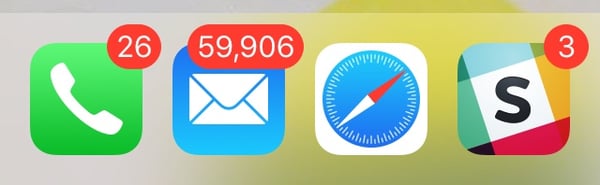
Not too pretty.
In fact, the above screenshot gave a few of my more inbox-zero-inclined, Evernote-addicted co-workers a good fright (Sorry, Braden!).
I love the idea of being a person who can take joy in meticulously structuring and optimizing my day via an elaborate bullet journal system, but realistically, I’ll never be. I just go where my Google Calendar tells me to go. I send myself one-off reminders via cryptic email and Slack messages (“email that person you talked to in hall”). I keep track of meeting notes in a series of disconnected spreadsheets. I bookmark Gmail conversations I need to respond to. And when all else fails, I write stuff on my arm.
This (reckless) combination of messages and documents has served me (surprisingly) well, but there’s always room for improvement.
To see if I could structure my work life with a bit more intention, I recently started using Google Keep, Google’s free note-taking app.
: What is Google Keep?
Google Keep is a free note-taking application developed by Google. Launched in early 2013, the service can be used to create, manage, and share text-based memos, lists, images, and voice notes across multiple devices. Currently, Google Keep is available on the web and as a mobile application on both Android and iOS operating systems.
The biggest draw of Google Keep compared to other popular note-taking apps is its simplicity. The interface is minimal and intuitive, enabling you to start taking and organizing notes with little (if any) learning curve.
While more robust applications like Evernote offer third-party integrations and additional features for curating advanced databases of notes, Google Keep’s clean, straightforward system is ideal for someone looking to simply keep track of their daily tasks and collaborate with small teams. For users interested in building out a serious archive of content across a larger organization, Google Keep’s capabilities will likely be too limited for anything beyond personal use.
If you’re interested in giving Google Keep a whirl, this guide will walk you through getting started, along with some helpful tips to get the most out of the app.
Getting Started With Google Keep
First things first: you can access Google Keep right here (just make sure you’re logged into your Google account).
Once you log in, you’ll see an area to create notes:
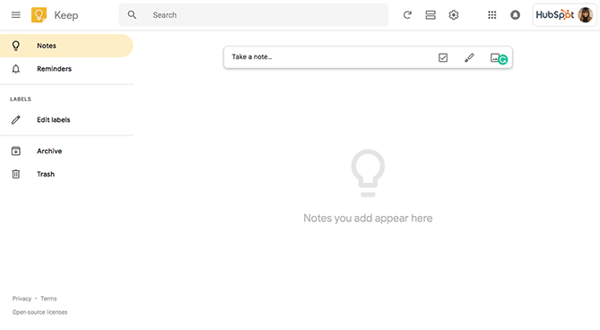
To add a new note, let’s take a look at the “Take a note…” bar at the top of your screen.

Clicking into the box will automatically start a text note. The paintbrush icon on the left will start a drawing note, and the image icon will start an image-based note.
Once you decide on the type of note you want to create, at the bottom of the note-taking area you’ll see options to:
- Set a reminder for a specific time or place
- Add a collaborator
- Change the color of the note
- Add an image to the note
- Archive the note
- “More” = add a label, add checkboxes, add a drawing
- Undo
- Redo
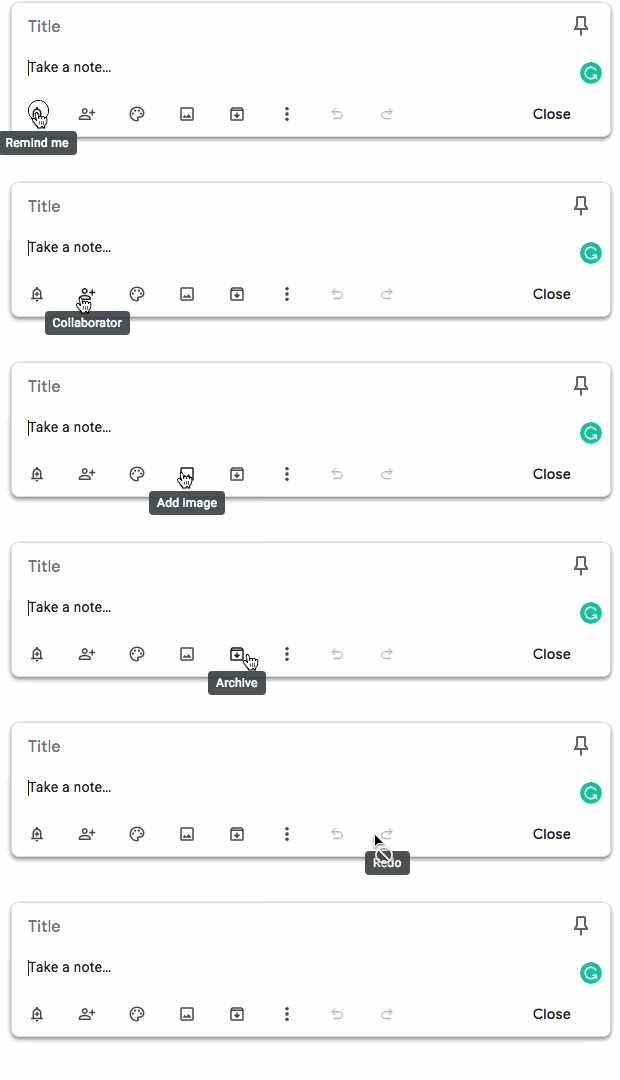
Pretty simple, right? Once you click out of the note-taking area, your note will be automatically added to the Google Keep screen and synced across any devices where you’re using the same Google account and logged into Google Keep.
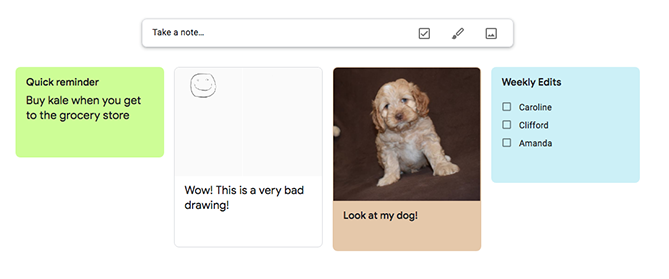
Although these features are fairly bare-bones compared to other applications, they enable you to curate a wide variety of different tasks, to-dos, and reminders.
You can edit any type of note at any time simply by clicking into it.
Let’s take a deeper look at how these features can be used to organize your tasks and improve your overall efficiency.
Google Keep Tips
- Pin your notes to prioritize your most important tasks.
- Break up smaller tasks into larger tasks.
- Share notes with team members to keep everyone in the loop.
- Add annotations to images. Great for creative teams.
- Use date-based reminders to keep yourself on track and structure your day.
- Set location-based reminders.
1. Pin to prioritize.
When it seems like you have a million things on your to-do list, tackling each task in the order you added them to the list isn’t usually the most effective approach. Some tasks are simply more pressing or time-sensitive than others, and your to-do list should reflect this.
With Google Keep, you can keep your tasks prioritized using the “pin” feature. Hover over any note, and click the pin icon that appears in the upper right hand corner of the note.
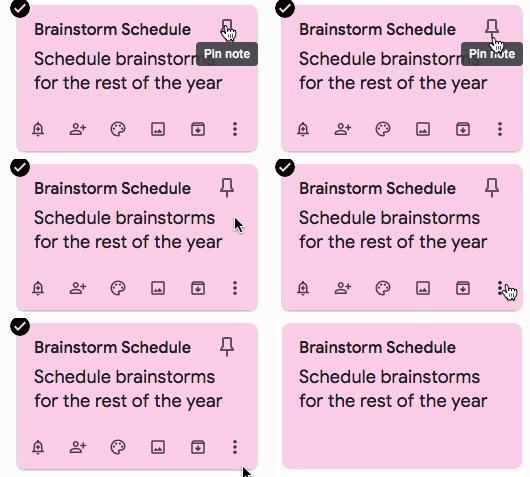
This will add the note to a separate “Pinned” section above the rest of your notes. Pinned notes will remain in this section until you delete or unpin them. It’s certainly a humble organization feature, but I’ve found that pinning my most important tasks at the beginning of each day has helped me prioritize my time more effectively.
2. Break up larger tasks into smaller tasks.
Got a particularly big, complicated, or just plain tedious task you need to tackle? Break it up into little parts.
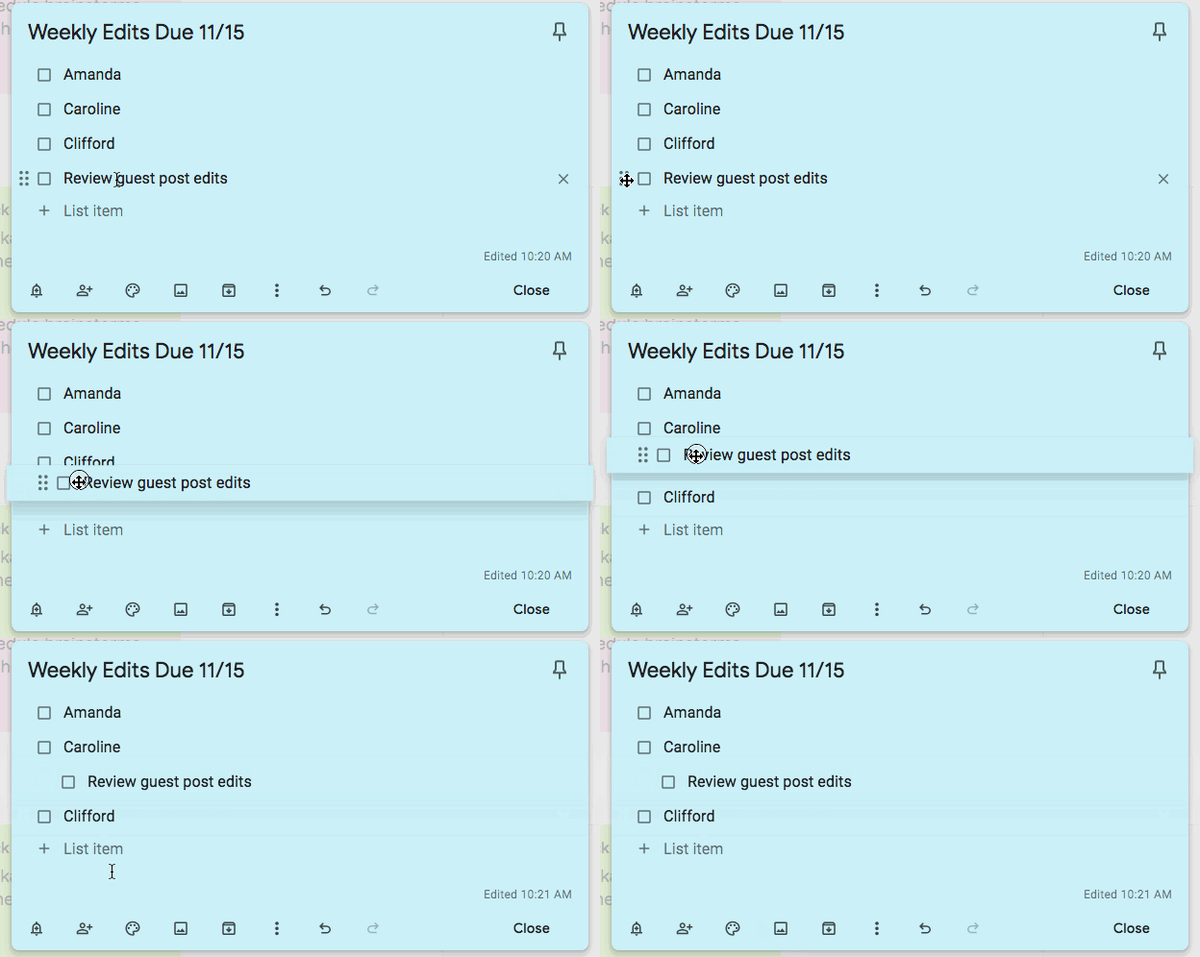
This is one of my absolute favorite ways to make it through my more complex to-do list items or group related tasks together in one bucket. Using Google Keep’s list feature, I create a new “list” note card, which creates a little checklist inside a single note. To create a hierarchy of checklist items, you can drag items to nest them under other items.
3. Share notes with team members to keep them updated.
Google Keep has a useful collaboration feature that allows you to share a note directly with another Google user. I’ve found this tool to be particularly helpful when you need to keep a colleague up to date on your progress or send someone a friendly reminder.
To add a colleague to a note, just click on the “+” person icon at the bottom of any note. Collaborators have the ability to make changes once you add them to the note.
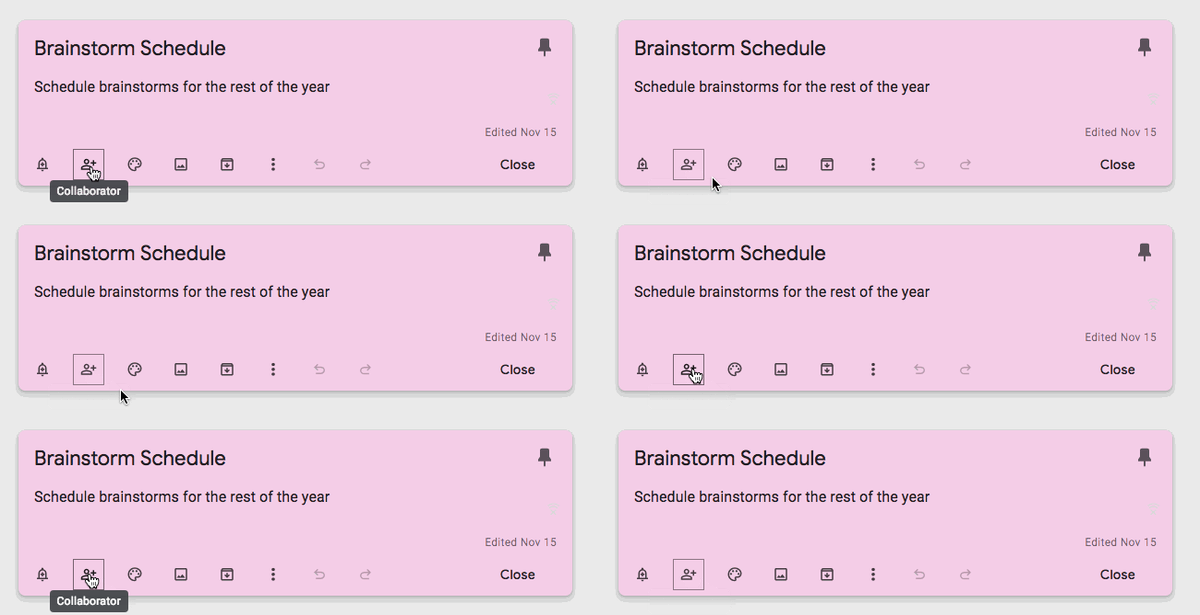
If your team is already using other Google tools, the collaborate feature in Google Keep can be easily integrated into other areas of your team’s processes without having to adopt a new tool to stay connected.
4. Add annotations to images.
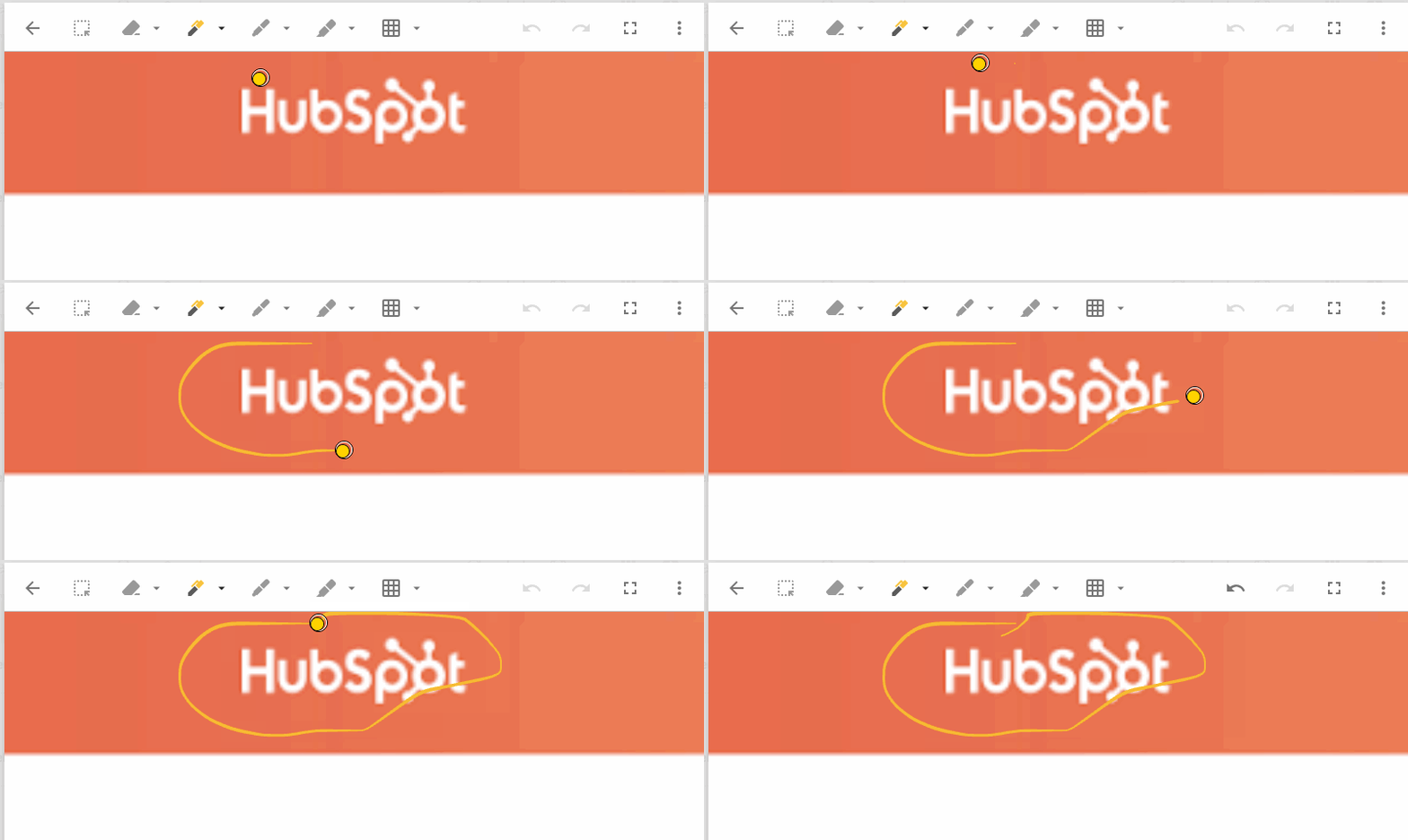
Google Keep allows you to add annotations directly to images — a valuable time-saver if you work on a creative team that regularly deals with visual content. This can save time when you need to make a comment about a particular aspect of an image, since you don’t need to describe it — you can draw directly on the area you want to highlight.
To add an annotation to an image, click on your image note in Google Keep to expand. In the upper right corner of your screen, you’ll see a pen icon (right next to the printer icon):
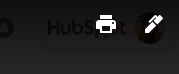
This will take you to a separate screen where you can select a pen width and color, and draw directly on the screen.
5. Use date-based reminders to keep yourself on track and structure your day.
Need to keep track of a big deadline? Or maybe you just need some little reminders to keep you on track throughout the day? I use Google Keep’s date and time-based reminders as a helpful nudge when I need it — for both larger projects, and smaller things I need to remember to get done.
To set one up, click on the alarm bell icon at the bottom of any note, and you’ll get a menu to select a time and date to get reminded.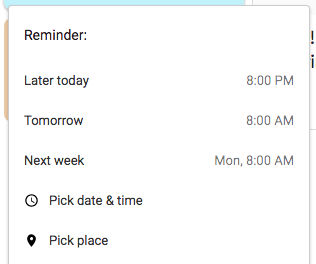
6. Set a location-based reminder.
If you move from place to place throughout your day and want reminders when you get to a specific location, you can set that up in Google Keep. Just from the same menu in the previous step, just select “Pick Place” and select the location you want to get a reminder at.
I’ve found this feature is useful for a wide variety of errands — like reminders to buy something when you get to the grocery store, or a reminder to check up on an outstanding work task when you get into the office the next day. Just remember to have your Google-connected device with you, and location settings turned on to receive these reminders.

15 Funny Out of Office Messages to Inspire Your Own [+ Templates]
When it comes to the final days before vacation, people tend to fall into one of two camps: 1) those who watch the clock incessantly, and 2) those who are so busy before they leave, they might even forget to put up an out-of-office email message.
If you’re anything like I am, you probably fall into team two. That doesn’t leave a lot of time to get creative. But if you plan ahead, you might be able to craft some hilarity.
Out-of-Office Message
An out-off-office message is an automatic email sent by an email account that is temporarily not being checked by its owner. Every new email to this account will trigger the out-of-office message, which is sent directly to the original email’s sender. Most email service providers today allow you to activate this option and customize your message.
Also known as “autoresponder emails,” out-of-office (OOO) messages run the gamut. From funny, to clever, to snarky, we’ve come across some of the best — from Google, and from colleagues.
Here are some of the gems we found. But first, grab our full collection of out-of-office email templates below.

Once you’re ready to write your own out-of-office email, try our free OOO email generator for some help drafting a message that perfectly captures who you are and where you’re going.
Funny Out-of-Office Messages
- The Not-So-Tropical Getaway
- The Sorry-I’m-Not-Sorry
- The Popular Film Reference
- The Scavenger Hunt
- The Blunt Approach
- The Third Person
- The Twitter Method
- The Liquid Update
- The Guessing Game
- The Warning Signal
- The Thank-You Card
- The Survey
- The Thankfulness Template
- The Movie Binge
- The Sensitivity Template
Out-of-Office Messages for Vacation
1. The Not-So-Tropical Getaway
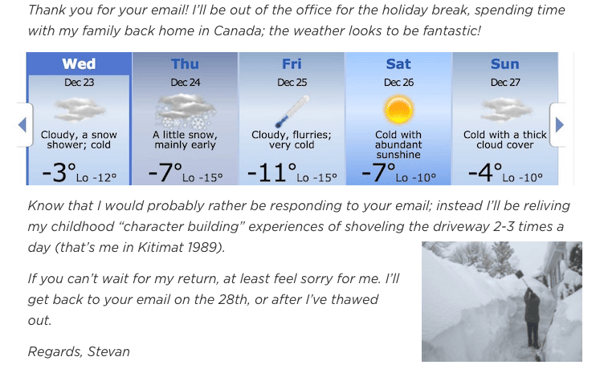
We’ll give this guy first place, since we almost feel bad for him. Almost. Rather than using an out-of-office message for a tropical vacation, he used one to explain his absence during what would likely be a snowstorm. Not only did it give us a chuckle, but it also generated a certain amount of empathy — which is often the key to good content.
Source: New Relic
2. The Sorry-I’m-Not-Sorry
If your email client allows it, you could always just use an image to express your out-office-sentiment, like this one. After all, they say that a picture is worth a thousand words — and, visual content is still essential to successful marketing.

Source: Barry Moroney
3. The Popular Film Reference
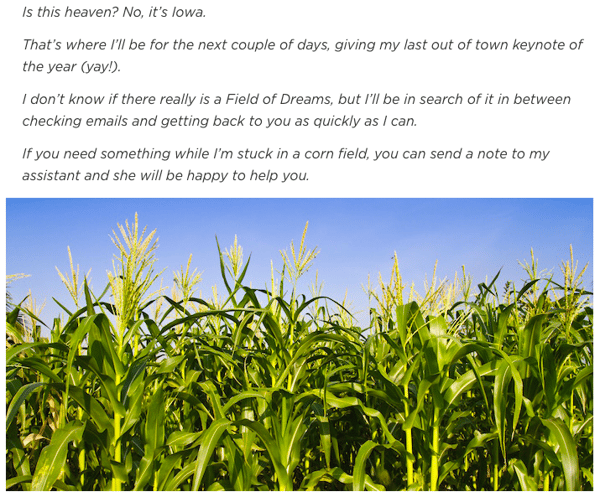
Are you familiar with the film Field of Dreams? If not, allow us to fill you in. It centers around baseball and a family in Iowa, but saying any more might spoil the plotline.
Movie synopses aside, the opening line of this out-of-office message was taken directly from the Field of Dreams script — fitting, given the sender’s travels to Iowa. So before you leave, research some famous quotes about the place you’re visiting. It might test the recipient’s knowledge, but more likely, it’ll just make them smile.
Source: New Relic
4. The Scavenger Hunt
When my colleague Sam Mallikarjunan went on vacation, he set an out-of-office message that was both clever and smart. First, he sent the recipient on an imaginary scavenger hunt to “the highest peak of the tallest mountain.” He used humorous absurdity to make it clear that he would not be checking email while he was away.
Plus, he incorporated a delightful technique to let people know that if they really wanted him to read their emails, they should probably send them again after his return. Not only does that keep the sender accountable by saying, “If this is really important, you know when to reach me,” but it also helps Mallikarjunan truly vacate his work while he’s away. And that’s hard to do — And if you struggle with it, check out these tips.

Source: Sam Mallikarjunan
5. The Blunt Approach
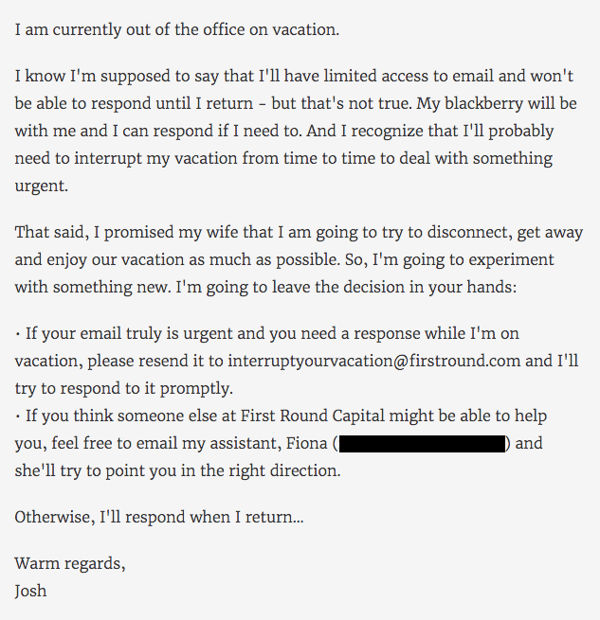
Josh Kopelman, we salute you.
Not only did Kopelman manage to turn his out-of-office message into an epic poem of sorts, but also, he actually went through the trouble of creating a delightfully snarky, vacation-specific email address for his recipients.
Giving the option to contact an email address containing “interruptyourvacation” provides two things — 1) A dose of humor, and 2) discouragement from actually doing what the name suggests. Plus, he prefaces it with a request for empathy, by explaining that he promised quality time to his family.
Here’s where honesty is a helpful device. Sure, Kopelman is truthful about the fact that he’s on vacation, but he also lets the recipient know that he or she would be interrupting important family time if the first option is chosen. It states a point simply, and uses humor to avoid making it sound like he wants the reader to feel guilty.
Source: Gizmodo
6. The Third Person
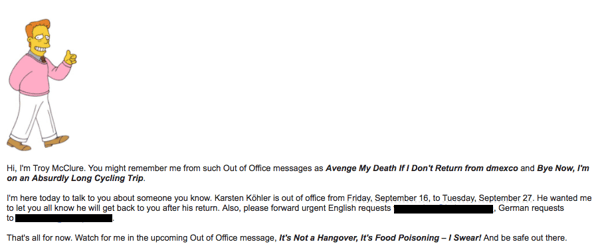
When HubSpot Marketing Manager Karsten Köhler is out of the office, he doesn’t mess around. In fact, he’s turned his auto-responses into a running series of commentary for fictional cartoon character Troy McClure.
Each time McClure makes an appearance in these out-of-office messages, he “speaks” on behalf of Köhler and alludes to the previous auto-responses in which he starred. It’s a mild form of self-deprecating humor — as if to say, “I know, I’m out of the office again” — made only funnier by the made-up teaser title included in the last line.
As with the Field of Dreams example, don’t be afraid to use a pop cultural reference that audience would recognize. Instead of bemoaning your absence, they’ll have something fun and familiar to laugh at.
Source: Karsten Köhler
7. The Twitter Method
… and then, there was the out-of-office tweet. We’re not entirely sure where it originated, but it has two sides.
If you actually want people to be able to reach you, and you’re more likely to be checking Twitter than email while out of the office, it might be an effective way for people to reach you.
But if you tend to use social media during vacation and really do want to be left alone, we would suggest offering a different communication method in your auto-response.
I’m not in the office right now but if it’s important, tweet me using #YOUAREINTERRUPTINGMYVACATION pic.twitter.com/SgL97nof8L
— Philippe Khattou (@Phil_Khattou)
August 14, 2015
8. The Liquid Update
We wish we could find the original source of this one. It’s made several lists, and its author is likely a legend within his or her network.
That said, even though we’ve been preaching honesty as the best policy, be careful with messages that are this transparent. Make sure you’re familiar enough with your audience — and your boss, for that matter — to know that this sort of out-of-office message will be met with a snicker, and not with concern.
“I am currently out of the office and probably out-of-my-mind drunk. Enjoy your work week.”
9. The Guessing Game
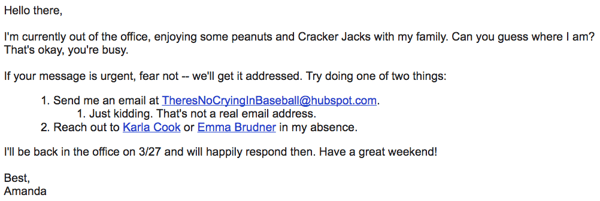
There’s a term that we like to use around here called “snowbirds,” which is used to describe those who once resided in the northern part of the U.S., only to flee to warmer parts of the country during the winter.
And although my colleague had mixed feelings about her own parents joining that population in Florida, she couldn’t be too upset when her dad suggested flying down from Boston for a Red Sox spring training game.
Naturally, she had to take the day off — and couldn’t let folks know with any old generic auto-response. Instead, she made a guessing game of it in her out-of-office email, below.
Out-of-Office Messages for Holidays
10. The Warning Signal
Not only can colleges get in on the fun of an OOO message, but they’re talking to way more people — and can use the message as an opportunity to deliver tongue-and-cheek announcements to their students.
Here’s an out-of-office tweet by Acadia University, using Canada’s Civic Holiday on August 6 to remind students not to get too comfortable this month …
Acadia Students!! We will be out of the office Monday due to the holiday, but back on campus Tuesday!! We will be in training all day Tuesday and Wednesday though so you may experience a delay in response to your emails! Side note Its almost time for move in day hehe 😏 pic.twitter.com/pLPAavgToT
— Acadia Res Life (@residencelife)
August 3, 2018
11. The Thank-You Card
This holiday out-of-office email is definitely on theme, if not a little passive aggressive. If you’re getting emails during the holidays, why not treat everything you receive that season like the present it is, and send a thank-you note?
My snarky colleague sure did in his out-of-office message below. We send thank-you letters in response to holiday gifts, so it’s only natural to expect the same gesture in our work inboxes …
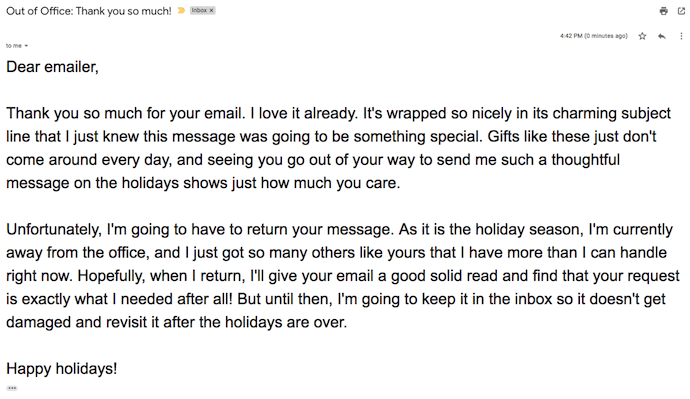
12. The Survey
Rachel Smith from Collective Hub stumbled across this message from one of our employees, and it certainly turns the tables on the email sender. Right when you thought you were the one requesting action, the recipient sent back an assignment — a fun one, at least.
While the sender waits for your response to their email, take the sting out of your absence by involving them in a holiday survey, like the one below.
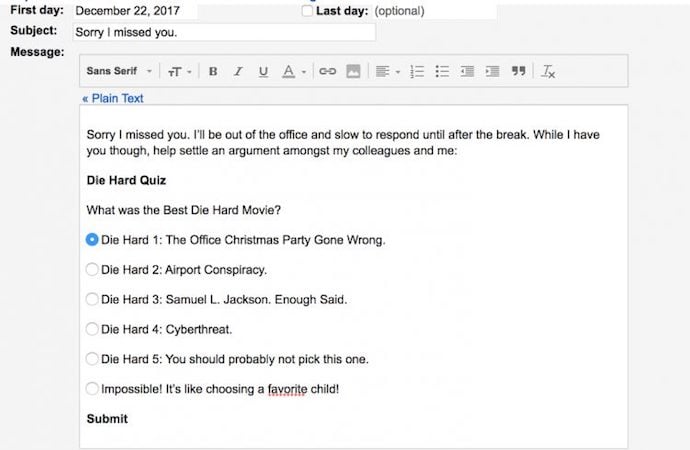
13. The Thankfulness Template
This email comes out of our own collection of out-of-office email templates, which you can get at the end of this blog post. The purpose of this email is to intercept messages during Thanksgiving, and the way in which is does so is, well, with thankfulness.
The funny and charming email template below keeps the confidence of your colleagues with a list of things anyone who works in an office is thankful for. Of course, feel free to customize this list according to the quirks of your own workplace. Thanksgiving is the perfect time to reveal them.
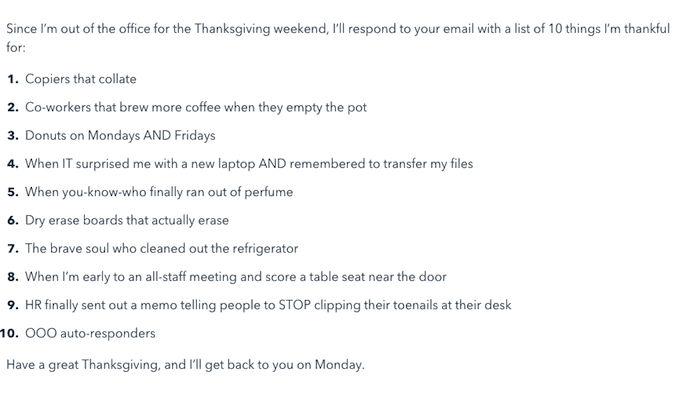
14. The Classic Movie Message
There’s no shame in using Christmas to indulge in your childhood movie tastes, but there is shame in not sharing that adorable side of yourself when people are trying to reach you during the holidays.
So, take a lesson from @courtwhip, editor at PEDESTRIAN.TV, who wrote this hilarious out-of-office email, fully stocked with mentions of the best movies from the 1990s. (By the way, “Splinter” is from Teenage Mutant Ninja Turtles, and as we all know, he loves pizza).
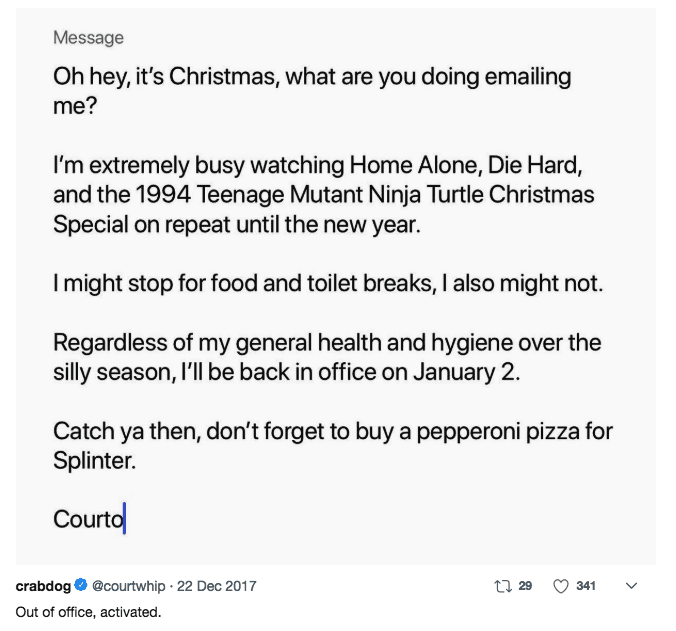
15. The Sensitivity Template
This last out-of-office message is another template available to you within the full collection of fun out-of-office templates at the end of this article. And if it does anything particularly well, it’s respect the differing views and opinions of your coworkers — while amusing so many others.
Your HR department would be proud, or perhaps playfully irritated, at this email’s stereotypical impression of your most sensitive coworkers. Read it below.
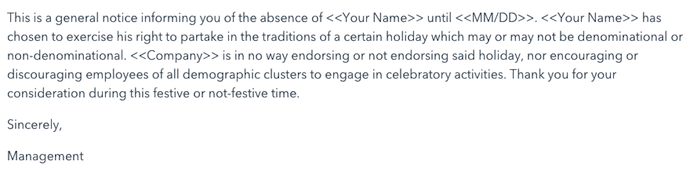
Are you fully inspired by the creative out-of-office messages above? It’s time to write your own — your upcoming vacation depends on it. Try HubSpot’s OOO Email Generator here, and grab your free collection of email templates below.

The 15 Best WordPress Themes for Podcasters in 2019
Over one-third of Americans between the ages of 25-54 listen to podcasts every month. Podcasts provide a source of convenient and intimate entertainment that’s only continuing to grow in popularity. While today’s most popular podcasts may vary significantly in terms of their content and hosts (among other things), they all share at least one thing in common — they each have their own website where fans can check out their latest episodes and seasons, info about live shows, biographies about the podcast’s hosts, and more details.
If you’re a host or producer, chances are you’re busy managing your podcast — and building your own website may sound like a daunting task. However, creating your site can be quite simple with a WordPress podcasting theme that allows you to easily share your episodes, seasons, host bios, and any other content you want to provide your visitors and fans.
The 15 Best WordPress Themes for Podcasters in 2019
We’ve curated this list of our favorite podcasting themes to help you share your content on your site and make lasting connections with your fans. To determine which theme best suits your needs, review these 15 options, their unique features, and our key takeaways. Afterward, check out the WordPress Theme Directory if you’d like to explore more podcasting themes.
1. Viseo

Viseo is a podcast theme with a “latest show” section for your site pages so your fans can quickly locate and listen to your newest content. You can also easily upload and add high-quality videos to the theme’s Locally Hosted Video Player feature. Customizing your site pages and sections requires no coding knowledge due to the theme’s drag and drop builder.
Key Takeaways:
- “Latest show” section for new content
- Locally Hosted Video Player feature to share high-quality video content
- Drag and drop page builder
2. Audonic

Audonic supports several commonly-used audio players so importing your podcasts is a hassle-free process. The theme offers dark and light colored layouts and audio players to help you achieve your desired look. Your visitors can also check out your site while on-the-go since the theme is mobile friendly.
Key Takeaways:
- Supports several audio players
- Dark and light layout and audio player designs
- Automatically mobile friendly
3. Podcaster
Podcaster is specifically made for broadcasting and managing podcasts — it has an unlimited number of podcast episode archive pages so you can maintain your shows and seasons over long periods of time. The theme’s homepage contains an audio and video player feature which allows visitors to experience your latest content the moment they enter your site. There are also a variety of color palettes to customize your site with to match to your branding.
Key Takeaways:
- Unlimited podcast episode archive pages
- Audio and video player feature on site’s homepage
- Variety of color palettes to customize pages
4. Remix
Remix is compatible with over 100 different audio-related plugins to make managing and designing your podcast’s site as straightforward as possible with increased functionality based on your specific needs. The theme’s Live Customizer feature allows you to edit and update your site pages and review the changes in real-time prior to publishing them. Remix’s audio player has a “share” feature that visitors can use to send to their peers the podcast episode they’re listening to with just one click.
Key Takeaways:
- Compatible with over 100 audio-related plugins
- Live Customizer feature to edit pages in real-time prior to publishing them
- “Share” content feature on the audio player
5. Promenade
Promenade’s homepage offers two types of formats: a static web page where the same content remains in one place unless you manually change it and a dynamic web page in which your latest content is moved to the top of the page so your visitors automatically see your latest posts. The theme has grid layouts for your audio and videos to keep your content organized.
Key Takeaways:
- Two homepage format options — static or dynamic
- Grid layouts for audio and videos
- Custom navigation and menus
6. Life Coach
Life Coach is a podcast theme with an e-commerce store where you can sell your merchandise — the theme has WooCommerce integration to make managing your store simple. It includes an events calendar feature where you can highlight the dates for your latest episode releases, live shows, and more. Life Coach also offers MP3 (coding format for digital audio) support so you can easily import and manage your podcasts.
Key Takeaways:
- WooCommerce Integration
- Events calendar feature
- MP3 support for your audio files
7. Vice
Vice gives you the ability to incorporate video backgrounds on your web pages to create an interactive and fun experience for your visitors. The theme’s responsive design automatically changes your site’s format to fit the screen it’s being viewed on, whether that’s desktop, mobile, or tablet. Vice also has pre-made podcast page templates with players that support Soundcloud, MP3, and Mixcloud audio so you can import and share your podcast in a matter of seconds without having to change its format.
Key Takeaways:
- Video backgrounds on site pages
- Responsive design changes site’s format depending on the device it’s being viewed on
- Podcast page templates with audio players
8. Dixie

Dixie is a multilingual theme — it contains code files so you can automatically translate your entire site into one of several available languages with the click of a button. There is an unlimited number of custom color combination options to achieve any look you desire on your website. If you run into any roadblocks while building your podcast’s website, then you can take advantage of Dixie’s expert support, which is available to all users.
Key Takeaways:
- Website auto-translation available with the click of a button
- Unlimited custom color options for site pages
- Expert support available
9. Satchmo

Satchmo is ideal if you’re looking for a podcasting theme where you can also share blog content in addition to your audio. Whether you’re an experienced blogger or someone who simply wants to share information about your podcast in a personal and accessible way, then Satchmo’s blog template pages will come in handy.
You can add icons in your headers and footers that direct your visitors to your social media accounts to promote your content and increase your follower base. There are also over 700 different Google Font options for you to choose from and customize the typography on your pages.
Key Takeaways:
- Podcast and blog theme
- Social media account icons in headers and footers
- 700+ Google Font options to customize your typography
10. Castilo
Castilo has a contact form template that you can add to a site page so your visitors can easily get in touch with you. The theme offers a podcast stats feature to help you determine the short and long-term success and popularity of each of the podcasts on your site as well as monitor who’s listening to your podcasts. Your custom logo will also be placed in the header and footer of your pages to make for a professional and branded look and feel.
If your theme does not come with a contact form plugin and you’re looking for a simple way to add a form to your site, check out HubSpot’s WordPress Contact Form builder.
Key Takeaways:
- Contact form template included
- Podcast statistics feature
- Custom logo located in web pages headers and footers
11. Sonus
Sonus has a customizable audio player that you can design to include buttons that fast-forward and rewind episodes, skip episodes, share episodes, change episode speed, or skip to a specific time in an episode. The theme’s pages are all formatted in a grid to keep your audio and written content organized. Sonus has responsive audio players that automatically change formats to match any screen and device.
Key Takeaways:
- Customizable audio players
- Grid format on all site pages
- Responsive audio players change their format to work for any device
12. Castpod
Castpod includes a MailChimp integration so you can manage all of your email-related content for your fans and subscribers in an organized fashion. With Castpod you can submit your podcast to an external service such as iTunes or Google Play with the click of a button. The theme’s Retina-ready design ensures all of your images are high-definition and look professional.
Key Takeaways:
- MailChimp integration to manage emails
- Submit your podcast to external services like iTunes and Google Play with one click
- Retina-ready design ensures a high-definition and professional look
13. Onair2
Onair2 is a podcast and music theme with an e-commerce store feature where you can sell your merchandise to fans. Managing your online store is also straightforward due to the theme’s WooCommerce integration. There is a customizable podcast page template that you can implement on your pages with an audio player that’s integrated with YouTube, Mixcloud, Soundcloud, and more. Social sharing icons are customizable and give your visitors the ability to find and follow your accounts in a matter of seconds.
Key Takeaways:
- Podcast and music theme with e-commerce store feature
- Podcast page template with YouTube, Mixcloud, and Soundcloud integration
- Social sharing icons
14. Audioatro
Audioatro has a unique, full-width audio player, called the “Audio Visualizer”, that’s placed on top of a full-width, background image on your page. The audio player includes a bunch of 3D bars that run across the bottom of your page to show listeners their timestamp in the podcast. These bars also rise and fall with the podcast’s volume levels to add another entertaining and interactive visual element. Audioatro also has two podcast-specific templates to choose from and expert customer support in case you run into a challenge that you need help troubleshooting.
Key Takeaways:
- Unique, 3D, video-like audio player
- Two podcast themes to choose from
- Expert customer support available
15. Bolden
Bolden has “podcast network” pages that support multiple shows, episodes, seasons, as well as videos and music content. The theme requires no coding knowledge and includes a drag and drop page builder so you can quickly and simply design your sections in any way you want. Your site will be more likely to organically rank with Bolden since the theme is SEO-friendly which means greater amounts of traffic on your site.
Key Takeaways:
- “Podcast network” pages for shows, episodes, seasons, video, and music content
- No coding knowledge required
- SEO-friendly
Back To You
WordPress podcast themes will help you share your hard work on a website that you’re proud of. These themes make it easy to, manage your seasons and shows, include descriptions about your hosts, stay in contact with fans, and share the latest information about live shows and events all in one location.
With a wide variety of features, layouts, and customization options, you can achieve virtually any look and design you want with podcasting themes on your WordPress website no matter your level of web development knowledge. Download and install a podcasting theme today so you can begin sharing your content and building lasting relationships with your fans.

Using Emotions to Sell: The Journey: Season 2, Episode 14

Want more customers from a shrinking audience? Then watch the Journey, Social Media Examiner’s episodic video documentary that shows you what really happens inside a growing business. Watch The Journey This episode of the Journey explores how Social Media Examiner improves their conversion rate by using emotional messaging. Watch as they interview customers, hire an […]
The post Using Emotions to Sell: The Journey: Season 2, Episode 14 appeared first on Social Media Marketing | Social Media Examiner.
from Social Media Marketing | Social Media Examiner https://ift.tt/2LrdT7K
via socialmediaexaminer
How to Measure Your Facebook Return on Ad Spend

Are your Facebook ad campaigns working? Wondering how to accurately report on Facebook ad performance? In this article, you’ll discover how to measure your return on ad spend (ROAS) for Facebook ad campaigns. What Is Return on Ad Spend (ROAS)? Return on ad spend (ROAS) is the online advertising equivalent of return on investment (ROI). […]
The post How to Measure Your Facebook Return on Ad Spend appeared first on Social Media Marketing | Social Media Examiner.
from Social Media Marketing | Social Media Examiner https://ift.tt/2BvuCSP
via socialmediaexaminer
What Is Phishing and How Can You Protect Your Business From an Attack?
Last year in August, staff at MacEwan University, a school in Edmonton, Canada, received an email from a major vendor stating they had recently changed their electronic banking information and needed payments to be sent to a new account.
Assuming their trusted business partner was just going through some changes, the university complied and transferred three payments to the new bank account within a span of 10 days.
But two weeks later, MacEwan University received a phone call from this same vendor asking them why they hadn’t paid their fees yet. Perplexed by the call, the university told them they had just transferred the payments to their new bank account.
The vendor had no idea what they were talking about.
Unfortunately, this bank account didn’t actually belong to MacEwan’s vendor. It belonged to cyber criminals in Canada and Hong Kong. And MacEwan University just transferred them $11.8 million.
The initial email asking MacEwan University to transfer their payments to the new bank account looked exactly like their vendor’s usual emails. But, ultimately, the message was fraudulent and a prevalent form of cyber attack that thousands of businesses fall victim to every year — phishing.
What is phishing?
Phishing is the most common type of cyber attack. Criminals impersonate brands, banks, executives, and trusted business partners to manipulate people into downloading malware or ransomware, or visiting fake websites that trick them into handing over confidential credentials, like company passwords, credit card details, bank login information, and social security numbers.
Most cyber criminals deploy phishing attacks through email, like the picture below, but some have also started to exploit social media, messaging apps, and text message to steal people’s personal information.

With over 135 million phishing attacks attempted every single day and 97% of people not being able to identify a phishing email, this cybercrime could wreak havoc on your brand and bottom line.
Last year, the FBI proposed phishing attacks costs U.S. businesses $5 billion per year, and according to Deloitte, 33% of consumers would end their current relationship with businesses who fall victim to cybersecurity breaches, even if they don’t personally affect them.
So how do you defend your customers and employees from phishing without making them your brand’s first line of defense? Here are three shields you can leverage to protect your brand from these prevalent attacks.
How to Protect Your Business From Phishing Attacks
1. Build a DMARC record.
DMARC (Domain-based Message Authentication Reporting and Conformance) is a cutting-edge email authentication protocol that leverages two other authentication protocols, SPF (Sender Policy Framework), and DKIM (DomainKeys Identified Mail) to verify legitimate messages sent from your domain and block fraudulent emails that appear to be sent from your domain.
These email authentication protocols are rather technical, so in a nutshell, SPF is a record of IP addresses that are authorized to send emails on your behalf that email service providers check against, and DKIM is a verification process that leverages cryptographic authentication.
DMARC is the only technology that can ensure your “header from” address (what your users usually look at first when they see your emails), is trustworthy. To do this, they’ll only authenticate email messages that pass SPF authentication and SPF alignment or DKIM authentication and alignment. If an email message fails SPF authentication or alignment and DKIM authentication or alignment, it’ll fail DMARC.

Picture Credit: Return Path
DMARC also allows you to tell email service providers what they should do with any fraudulent mail that appears to be sent from your domain. You can either monitor all of your emails, move unauthenticated messages to users’ spam folders, or decide not to deliver this type of mail at all to inboxes on your server.
Additionally, email service providers will regularly send you forensic DMARC reports, showing you which emails are authenticating, which ones are not, and why. To build your DMARC record in 15 minutes or less, check out this guide from Return Path, an email marketing optimization software.
2. Train customers and employees to spot an attack.
According to PhishMe, a phishing defense solution, companies who train employees to identify and report attempted phishing attacks only have a 5% susceptibility rate to phishing, even though phishing attempts grew 65% last year.
To help employees and customers spot one of these attacks and better defend your business, teach them these common phishing markers:
Poor Spelling, Grammar, or Writing
A lot of amateur cyber criminals don’t take the time to craft clear and convincing emails, which brands always seem to do, and foreign cyber criminals will usually rely on Google Translate to translate their messages. So if you receive a poorly written email from a seemingly legitimate sender, take caution.
Suspicious URLs
Most phishing emails lure people into clicking through to a malicious or fake website. To do this, cyber criminals will usually spoof the website’s URL by creating a lookalike one, or they’ll mask their dodgy URL by shortening it. Whenever you see a weird or shortened URL, make sure you hover your mouse over it to see if the landing page’s web address is different or fake.
Mismatched Sender Address
Even if a cyber criminal can perfectly imitate your brand’s voice, formatting, logo, address, and contact email address in their phishing email, there’s still a trait of yours they can’t copy — your sender address.
Cyber criminals will usually create a lookalike sender address or just use a string of characters in hopes that you won’t check it. To verify a brand’s sender address, check out the sender’s domain in the email’s “from” header and see if it matches the brand’s domain.
Here’s a legitimate email from HubSpot to help you see where the sender address can be found in Gmail:

3. Invest in email security software.
If your company has the funds, email security software like Proofpoint and Barracuda are the most reliable and effective lines of defense against phishing. Well-versed employees can still fall victim to cleverly-crafted phishing emails and cyber criminals constantly refine their malicious tactics, like sending phishing emails from the legitimate domains of compromised websites.
But since email security software can identify unusual traffic patterns and monitor fishy URLs, it can effectively detect, block, and respond to these sophisticated threats before they reach your customers and employees’ inbox.
Don’t Get Snagged
76% of organizations experienced phishing attacks last year, so it’s likely that cyber criminals will try to lure your brand in, too. But if you can arm yourself with DMARC, thorough employee training, and the best-fit email security software for your specific systems and situation, you can shield your customers, employees, and brand from these attacks, no matter how enticing their bait is.

How HubSpot Academy Grew YouTube Subscribers by 25% in Just Two Months
YouTube is the second largest search engine, with over 1.8 billion users per month. If you’re looking to revamp your marketing strategy in 2019, YouTube is a critical place to start.
And yet, despite its massive audience, only nine percent of small businesses are taking the time to use YouTube for marketing purposes — and even fewer are creating a strategy for their video content.
It’s not just small businesses, either. In fact, for a long while, it was us, too. But at the beginning of 2018, we recognized the major losses our team would face down the line if we didn’t begin investing in a powerful YouTube marketing strategy.
It wasn’t easy, and it wasn’t always pretty, but fortunately, our efforts paid off, big-time. Through various endeavors, we managed to increase HubSpot Academy’s YouTube channel subscribers by 25% in just two months — without spending a cent.
To help you rank on YouTube, create a brand identity, and provide an outstanding user experience, take a look at the free strategies we implemented to achieve sustainable growth on the platform.

1. Develop an SEO strategy for YouTube specifically.
When you hear the term “search engine”, what comes to mind? I’d be willing to bet it’s Google.
From there, you might think of Yahoo or Bing. But, as some of you savvy marketers might know, this is actually a trick question — you’re right to think of Google first, but if your brain flips to Yahoo or Bing next, that should change, today.
The second largest search engine globally is YouTube. With more and more content being added each day — as much as 400 hours of video per minute — optimization is not only best practice, it’s critical, and must be the foundation for any effective YouTube strategy.
When developing an SEO strategy for YouTube, start with keywords. Do some monthly keyword search volume research, so you can identify a keyword that speaks to your video, has substantial search volume, and isn’t too competitive.
Once you’ve chosen a target keyword, make sure you incorporate it into your title. Additionally, you’ll want to add tags to your videos, and order them by importance — always leading with the target keyword. Plus, it’s important you repeat the target keyword in your video description.
Finally, make sure your target keyword is said out loud in your video so that it gets transcribed in the SRT file. SRT files are critical, as they make video content “readable” by search engines, and they make videos accessible to a hearing-impaired viewership — a win, win.
Bonus best practices include adding your target keyword to the raw video file name and custom thumbnail file name before you upload to YouTube. All of these tactics will give your video a better chance of driving organic traffic and ranking on YouTube.
2. Engagement is the key to your video’s success, so focus efforts on increasing viewer interaction.
Keyword strategy is not enough to rank on YouTube. Human behavior — particularly interaction with videos — greatly influences the YouTube algorithm.
View duration, comments, likes, shares, and even dislikes, all increase a video’s authority.
Why?
YouTube sees engagement as a stickiness factor. If a viewer is engaged, they are more likely to spend increased time on YouTube, which means more revenue for YouTube. The best videos, then, deliver high quality content and stimulate interaction.
One way to encourage viewers to stay on YouTube is to organize your videos into playlists. Placing videos in relevant, topical playlists will entice viewers to spend more time watching videos in sequence, increasing their total time spent on YouTube.
Another strategy is to ask for engagement. Pin a conversation-starting question in the comments section to encourage viewers to outline their thoughts, feedback, questions, and insights. In your video, ask viewers to leave comments, and don’t be afraid to pose questions — it works.
For instance, in this HubSpot Academy YouTube video we posted in October, we made sure our host asked the viewers questions within the video itself, with a “Leave a comment below” directive. We also pinned a question in the comments section directly:
As you can see from the comments section, our viewers were eager to share their thoughts and engage with one another through the platform — we just gave them a starting point to do so.
3. Build a unique brand identity on YouTube.
If you look at major influencers and brands on YouTube, such as Brian Dean, Neil Patel, Vox, and Netflix, you’ll notice something similar about all of them — their theme, topics, and brand identity are clear, no matter which video you watch.
Elements like custom thumbnails, channel banners, a custom URL, logos, and a channel trailer all exist to establish a channel brand. Take advantage of these opportunities.
In particular, video thumbnails are a key strategy for distinguishing a brand. Research from Netflix suggests that thumbnails can even drive clicks and influence engagement behavior on videos, which can help videos rank.
In their findings, Netflix concluded: “Images that have expressive facial emotion […] do particularly well.”
We decided to test this research for ourselves, by providing up-close, emotive, human faces on each one of our relevant thumbnails:
When building your thumbnails, it’s critical you put the title text on the left side of the video thumbnail, as YouTube places a time card on the right, bottom corner by default, which can cut off visuals. Remember to write short, impactful titles on the thumbnail, as thumbnails can be quite small, so too much text will render the words blurry and illegible.
Finally, when creating your thumbnails, keep color top-of-mind. YouTube’s color palette is red, white, and black, so it’s important to choose bright colors that stand out against the platform’s interface, and against your competitor’s thumbnails.
Beyond thumbnails, take the time to build other brand assets. A channel trailer is a short video that is shown to new visitors of a channel. It’s intended to promote and succinctly educate viewers on the value of your channel. Similarly, you might consider adding a branded banner, and a custom URL.
Ultimately, every personalized touch will add a level of professionalism to your channel, and set you up to succeed against competing channels.
4. Create a Stellar User Experience
Would you watch this video?
Does our channel look inviting and professional?
Is our content consistently providing value to our viewers?
If you didn’t answer “yes” to all three of those questions, you need to revise your YouTube channel to ensure you’re prioritizing the user experience.
Although free, YouTube provides a subscription service, and subscription services survive and thrive by creating an amazing user experience.
For instance, take Dollar Shave Club, a popular subscription box of shaving and grooming products. You wouldn’t pay money to subscribe to the service if you had no idea what type of products were going to arrive, or when. People invest in subscription services for convenience, quality, and reliability — all of which add up to a solid user experience.
Similarly, if you are using your YouTube channel to drive leads or develop brand awareness, your free service should mirror the excellence all your business has to offer.
If you’re unsure where to start, take the time to plan an upload schedule. YouTube subscribers seek dependable, fresh content. At HubSpot Academy, for instance, we put new content on the channel every Monday and Friday morning at 8:30 AM ET, so our subscribers are guaranteed to get new, educational, exciting content at the same time, twice a week.
If you don’t have the bandwidth to put content up every week, that’s okay, too. High-quality content on a consistent schedule, even if that’s only once a month, is better than mediocre content published weekly.
Our Results After Two Months of Implementing These Four Strategies
If you’re wondering whether a purposeful YouTube strategy really works, the answer is yes — a YouTube strategy has real payoffs.
For instance, prior to implementing these strategies, our HubSpot Academy channel existed for three years with minimal growth.
Once we implemented the four strategies I shared above, we drove subscribers from 6.7K to 8.4K, a 25% increase in just six percent of the channel’s total lifetime on YouTube. We saw these results in just two months.
During this time, we did not invest any money in paid advertising. This growth was purely organic. Best of all, our subscriber number wasn’t the only metric that grew. Every single metric tracked by YouTube’s analytics tools — views, comments, likes, shares, videos in playlists, average view duration, total watch time, etc. — moved up, and to the right.
Now, yours can too.