Welcome to My Blog
The State of Voice: Looking Ahead to 2019
The word “voice” has taken on many meanings over the years.
At its core, “voice” is the audible sound made by humans to utter the spoken word. But it can also describe how something feels. How you imagine a written word to sound, in your own mind. It can describe unification.
Whatever definition the word “voice” conjures for you, know this: It’s likely to becoming increasingly used and important over the next year.
Around here, we most frequently use the word “voice” to describe the way people search for information or execute tasks that, thanks to artificial intelligence (AI) and other technology, can now be completed digitally. Rather than going to an online browser bar and entering a search query, we can now press a button on our mobile devices or speak a command to a voice assistant to get the information we want.
 Source: Google
You might even be on a first name basis with some of these voice assistants — “Hey Siri,” “Alexa!” and “Okay, Google” have become part of the daily vernacular for many of us (present company/author included).
But looking ahead to 2019, how many of us are really taking advantage of this technology — of using voice assistants, buying the hardware (like such smart speakers as the Amazon Echo or Google Home) that they equip, and even gifting others with them? And where we do use our voices in this capacity, what are we using them to do?
We asked over 3,400 people across the U.S., UK, and Canada to weigh in. Here’s what we learned.
The State of Voice: Looking Ahead to 2019
The Prevalence of Voice Assistant Use
Most People Say They Don’t Use a Voice Assistant
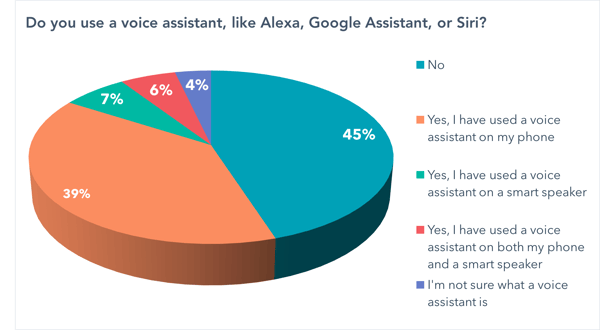
In response to the question, “Do you use a voice assistant, like Alexa, Google Assistant, or Siri?”, there was a close split between those who indicated that they do use a voice assistant (52%) and those who do not (45%).
 Data collected with Lucid
Out of those who do use voice assistants, most do so on their phones, suggested that the smart speaker market has a but of a road ahead in terms scale or becoming mainstream.
There also still remains some confusion about what defines a voice assistant, with about 4% of people answering that they aren’t sure what it is.
That awareness somewhat informs use cases for voice assistants, which is what we examined next.
The Privacy Issue
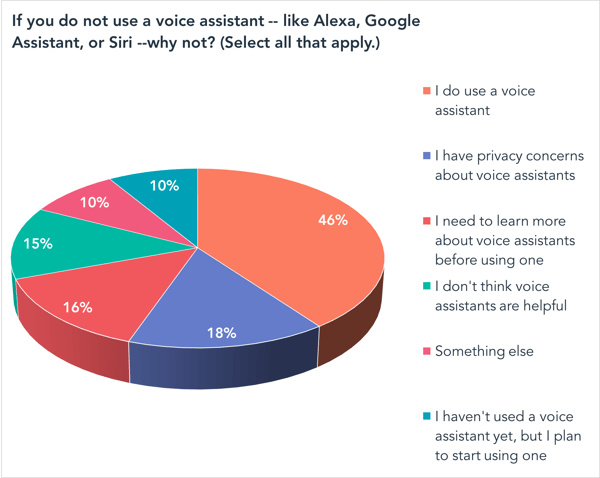
One barrier to scaling voice assistant use could be privacy. When we asked survey respondents what their reasons are for not using a voice assistant, most answered that they have privacy concerns about the technology.
 Data collected with Lucid
The issues of privacy and personal data protection have been front-and-center in 2018, with headline after headline appearing about how personal details from users’ online accounts have have been either improperly harvested or otherwise misused.
Where that particularly manifests in the realm of smart speakers became particularly relevant when Facebook — who faced one privacy-related crisis after another this year — launched a video smart speaker, Portal, which came equipped with a camera.
How People Use Voice Assistants
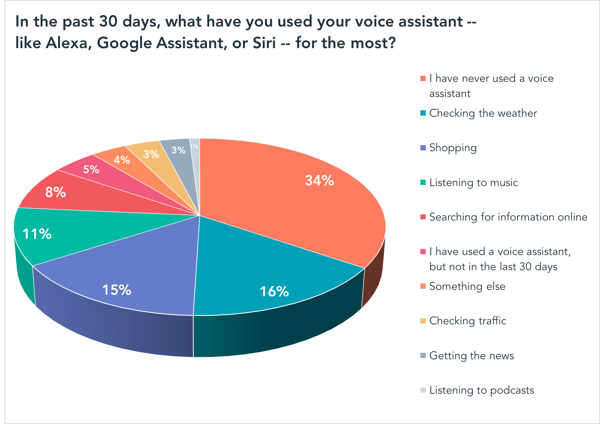
Then, we asked survey participants: “In the past 30 days, what have you used your voice assistant — like Alexa, Google Assistant, or Siri — for the most?”
Here, fewer respondents indicated that they don’t use a voice assistant (about 40%).
 Data collected with Lucid
As for the use cases among those who do enlist the help of voice assistants, they were somewhat fragmented, with a fairly small percentage of users falling into each category. The highest number, however, said they use the technology to check the weather, with shopping following close behind.
The State of Voice Shopping
Given that shopping was one of the highest-indicated use cases for voice assistants, we want to drill down into that behavior and find out just how prevalent it was among users.
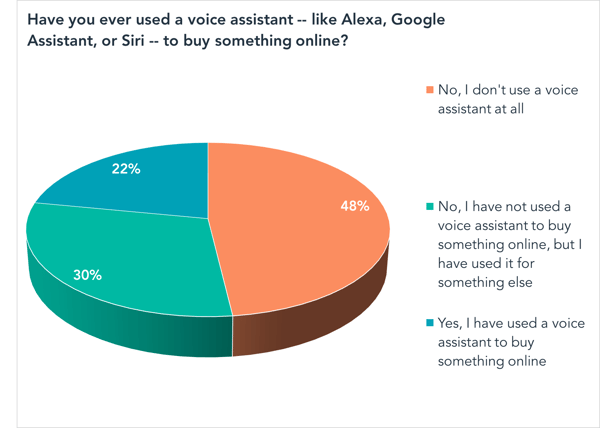
We asked: “Have you ever used a voice assistant — like Alexa, Google Assistant, or Siri — to buy something online?”
 Data collected with Lucid
While nearly half of respondents said that they don’t use a voice assistant at all, nearly a quarter of those who do said they have used the technology to make a purchase online.
When Amazon’s virtual assistant, Alexa, and the hardware it supports, Echo, first launched, that was one of the key selling points in the company’s narrative: Got your hands full? Now you can reorder dog food on Amazon, just by asking this speaker to do it for you.
The Future of Smart Speakers
Finally, we wanted to know what people’s plans are for purchasing a smart speaker: the hardware that’s supported with various voice assistants to execute commands much like the ones we asked about in our use case question.
 Data collected with Lucid
Exactly half of respondents indicated that they have no foreseeable plans to buy a smart speaker. Out of those who do, most said they plan to buy one for themselves — not someone else — within the next six months.
The Year Ahead
Looking ahead to 2019, voice search shows some promise for growth. Over two years ago, Search Engine Land reported that 20% of all Google search queries are made by voice. With the amount of Google-Assistant-equipped devices — like the Google Home and Home Hub — having launched since then, that number is likely to have increased in the time following that statistic’s publication.
The same could be true of a mainstream presence of smart speakers. After all, our above research shows that 37% of people plan to buy a smart speaker either for themselves or someone else within the next 6-12 months — and about 14% of people said they have already made such a purchase.
What’s key to remember about the growth of both voice assistant use, as well as the hardware it will support, is how it will inevitably be used for marketing purposes as the technology permeates more households.
The New York Times recently published an article titled, “Marketing Through Smart Speakers? Brands Don’t Need to Be Asked Twice,” which explores ways that businesses are creating user experiences on these speakers — not to be confused with creating paid ads on them, since neither Google Home nor Amazon Echo will run them (yet).
To think about the best experience to create, have another look at the data on use cases. First, where does your audience fit in — and second, how can you help users who are new to or unfamiliar with voice assistants navigate this technology? As many predict, voice commands could feasibly go toe-to-toe with actions executed on desktop computers and mobile devices.
“These are still early days for marketing on voice devices,” writes Sapna Maheshwari, author of the aforementioned New York Times story. “But over time … voice interactions will begin to replace many of the activities that people are conducting on screens.”

The Meeting Agenda Sample That’ll Help You Run Productive and Efficient Meetings
A week without at least one pointless meeting is like getting accepted into Hogwarts. It’d be a dream come true, but sadly, it’ll probably never happen (don’t ever stop waiting for that owl to drop you your letter, folks!)
Pointless meetings infest the workplace. In fact, Atlassian estimates that you’ll waste 31 hours in unproductive meetings each month. And these lost hours will cost U.S. businesses more than $37 billion this year.
Needless to say, unnecessary or unorganized meetings are maddening. They waste the time you need to get your work done — work that you might have to finish during your own time.
Fortunately, there’s a solution for unproductive meetings — agendas. Agendas force attendees to prepare for the meeting beforehand, set clear expectations, keep people focused during the meeting, and budget the allotted time effectively.
To help you create a meeting agenda that’ll help you run a productive and efficient meeting, we’ve designed a sample meeting agenda that’s based off the meeting agenda that Roger Schwarz, an organizational psychologist, a leadership team consultant, and CEO of Roger Schwarz & Associates, uses to run his team meetings.
Meeting Agenda Sample
| Topic | Preparation | Structure |
|
1. What are the current issues with our blog’s email subscription strategy? Time: 15 Minutes Purpose: Analysis Leader: Cliff |
Read the attached memo that includes images of recent emails we’ve sent out and our email subscription and engagement data. |
1. Review data and highlight the key issues and insights extracted from it Time: 5 Minutes 2. Go over why you think email engagement has suffered Time: 5 Minutes 3. Ask team why they think email engagement has suffered Time: 5 Minutes |
|
2. How should we enhance our blog’s email subscription strategy? Time: 15 Minutes Purpose: Brainstorm Leader: Tova |
Come up with three ideas to boost the blog’s email engagement. |
1. Propose possible solutions for boosting email engagement Time: 5 Minutes 2. Ask team what they think of your proposed solutions Time: 5 Minutes 3. Ask each team member to propose one of their own solutions Time: 5 Minutes |
|
3. What are the next steps that we should take? Time: 15 Minutes Purpose: Decision Leader: Karla |
Think about how you could practically implement each of your ideas into our blog’s email subscription strategy. |
1. Decide on a proposed solution or multiple solutions Time: 5 Minutes 2. Explain why we’re going to pursue that specific path Time: 5 Minutes 3. Divvy up responsibilities to each team member Time: 5 Minutes |
As you can see, we segmented our agenda into three sections — topic, preparation, and structure. Here’s an analysis of why modeling your meeting agendas like the one above will help you run productive and efficient meetings.
Topic
When you design your meeting agenda, segmenting it by topic will set clear expectations and keep you on track during the meeting. Before you decide on the topics, though, consider asking your attendees what they’d like to discuss and why.
If someone suggests a topic that isn’t relevant to all the people attending the meeting, don’t include it on the agenda — discussing an issue that’s only of interest to a small part of the group will disengage the rest of the attendees and make them feel like they’re wasting their time. But, before the meeting occurs, remember to tell the person who suggested that topic the exact reason why you aren’t including it on the agenda.
Framing your topics as questions will also lead to productive and efficient meetings. Doing this prepares people for the meeting’s particular talking points and forces them to stay focused on them. For instance, which topic do you think you could better prepare and provide a solution for — “Email Subscription Strategy” or “Which types of posts should we send through our email subscription?”
Additionally, setting an allotted time frame for each topic will help each attendee cover all their speaking points, answer questions, come up with solutions, and approve next steps without wasting too much time.
Finally, stating the topic’s intent will clarify what needs to get accomplished during the allotted time frame. This keeps attendees laser-focused on achieving a goal and minimizes the amount of time wasted trying to figure out the point of discussing a specific topic.
Preparation
If you send your agenda to attendees before the meeting and identify how they can best prepare for it, you’ll get everyone up to speed and ready to discuss their thoughts when the meeting starts. You’ll also have deeper, more insightful conversations because no one will need to waste time sorting through their initial questions about a subject they’ve already prepared for.
Structure
Structure adds a concrete set of steps to each of your agenda’s topics, streamlining your meeting. By assigning particular talking points and allocating specific time frame to each topic, your attendees will know exactly what to expect and discuss during each segment of your meeting.
Meetings Shouldn’t Be a Waste of Time
Unproductive or unorganized meetings are as beneficial to you as procrastinating on the web — they’re timesucks. Fortunately, the sample agenda above can help you design and structure a productive and efficient meeting that will make people feel excited, focused, and ready to get to work.

The Essential Introduction to Google Merchant Center
Imagine this — you’re having friends over for a dinner party, and your recipe (which you found on Google) calls for spiralized zucchini noodles.
On your smartphone, you Google “spiralizer” and find this:

Among the first results you see are Williams-Sonoma’s spiralizer products. You click one, and are immediately taken to the product page on Williams-Sonoma’s website, where you can order your spiralizer within minutes.
Admittedly, this type of instant shopping is hardly new. We’ve seen an incredible rise in ecommerce over the years — today, ecommerce influences 56% of in-store purchases, and 10% of all U.S. retail sales. That number is expected to grow by 15% each year.
Ultimately, if your product doesn’t appear in search engines, you’re missing out on a large majority of your potential consumers.
However, you might not realize that Williams-Sonoma is a loyal customer of Google Merchant Center, a platform with tools that allow your business to create smart ads for Google, Google Images, and YouTube, reach your ideal customers globally, and use analytics to get better at reaching people already searching for your products.
If you’ve never used Google Merchant Center, you might be feeling overwhelmed. Don’t worry — here, we’re going to cover all the fundamentals of getting started with Google Merchant Center, to ensure your products are online and easy-to-find for those who need them.

Set Up a Google Merchant Account
It’s easy enough to set up a Google Merchant Account — in fact, there are only four steps before you’ll have a Google Merchant Account of your own. Here’s how:
1. Go to the sign-up form for Google Merchant Center. Fill in the required information about your business, including which country your business is based, the name of your business, and your website URL. When you’re finished, click “Continue”.

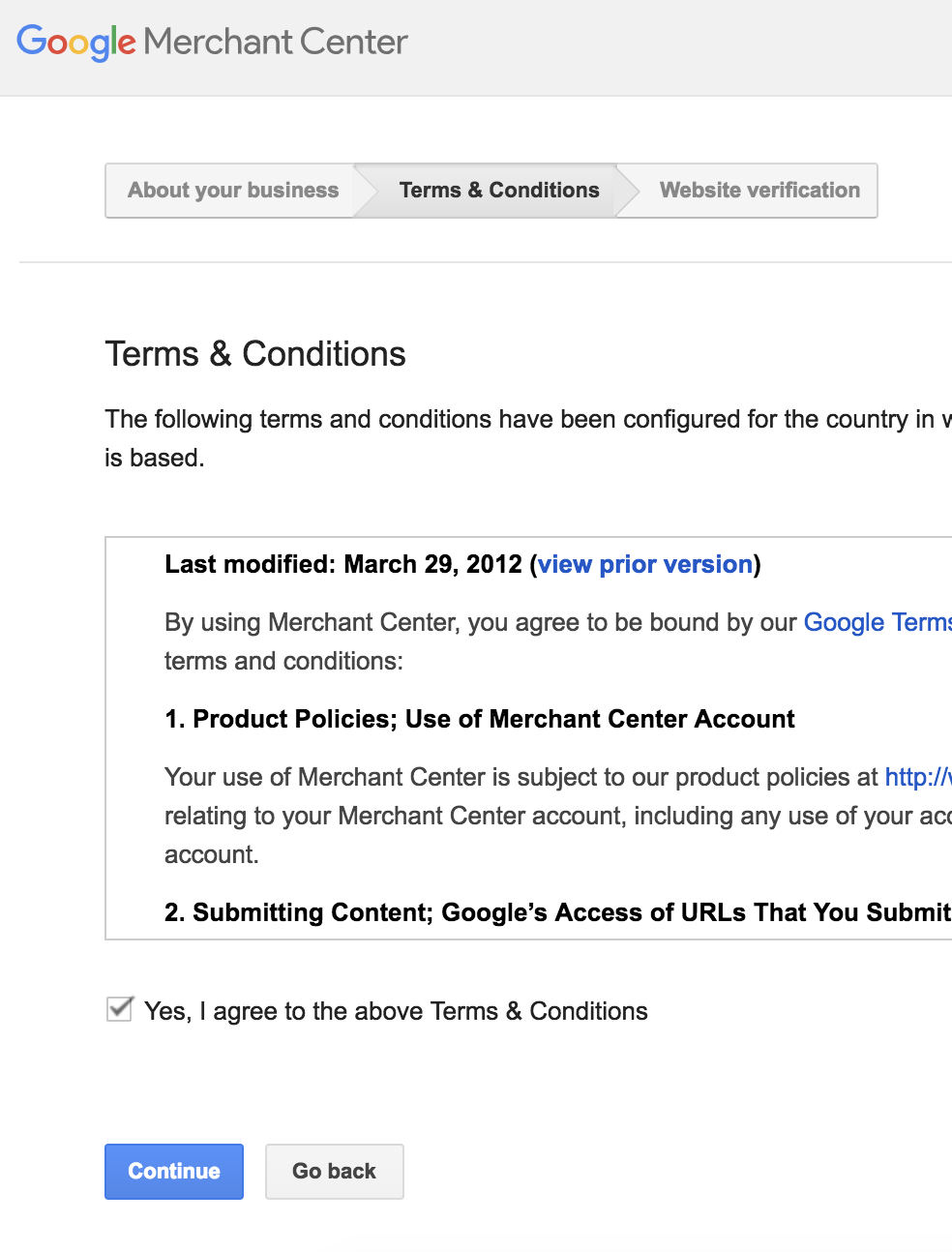
2. On the next page, read the Terms & Conditions. Check the box marked “Yes, I agree …” when (and if) you agree, then click “Continue”.
3. Enter your website URL into the box, then click “Save” and “Finish”.

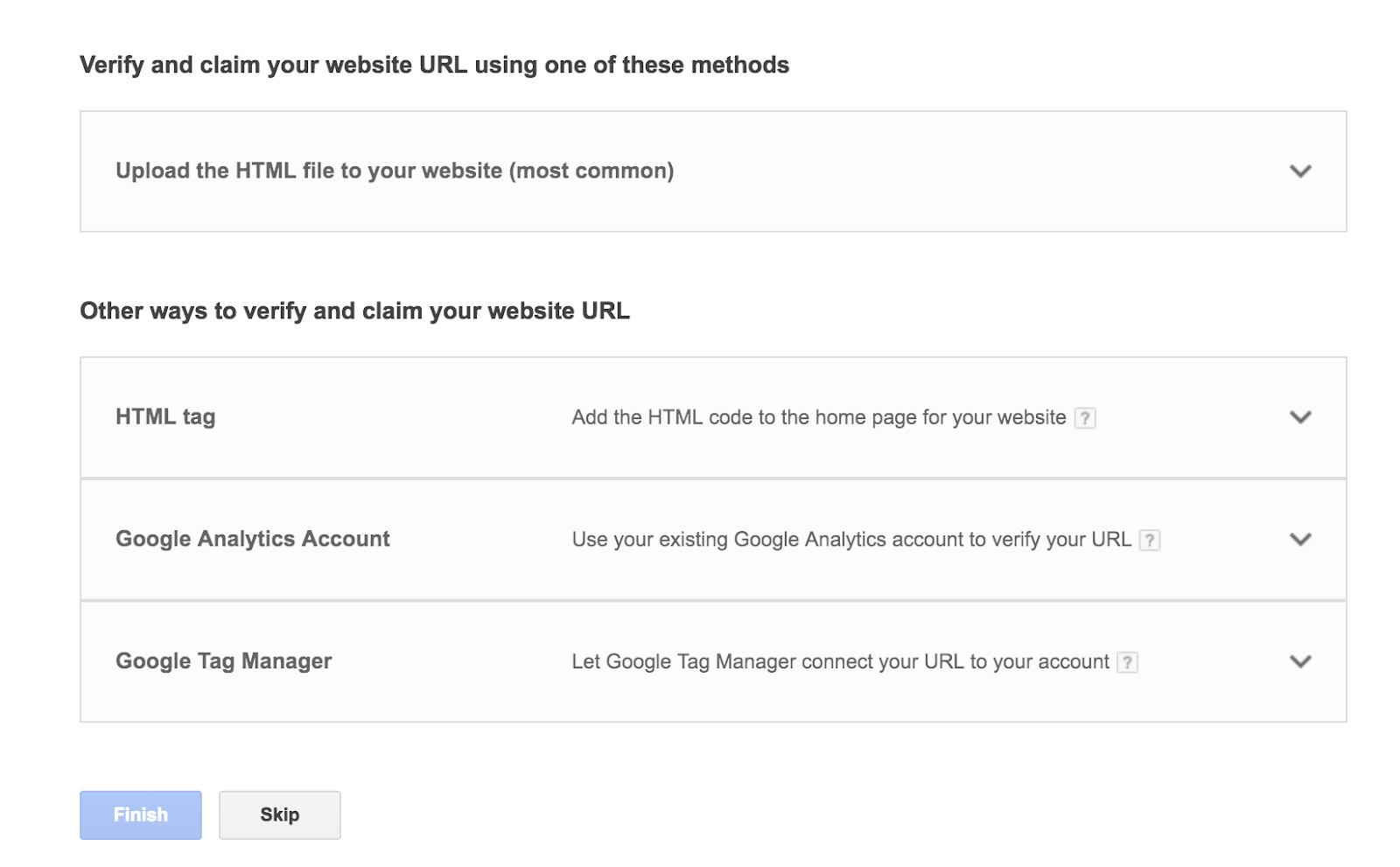
4. This step is optional, but if you don’t complete it now, you’ll have to complete it later within the Merchant Center dashboard — if you want to wait, click “Skip”. Otherwise, use one of the four offered methods to verify your website URL, then click “Finish”.
5. Voila! You’ve officially set up your Google Merchant Center.

How to Use Google Merchant Center
To manage your shopping ad bidding strategy, create advertising campaigns, and track ad performance, you’ll use Google Ads and Analytics — not Google Merchant Center.
Why, then, should you use Google Merchant Center?
Essentially, Google Merchant Center can help you do three things:
- Notify Google you have products to sell
- Give Google information to create a targeted ad for your products
- Provide Google with information necessary to ensure Google will showcase your products to users who are the best fit for your products
Let’s dive into how you can set up your Google Merchant Center to ensure you accomplish all three.
To ensure Google has all the correct information to find your products, create targeted ads, and showcase your products to the right people, it’s critical you upload a complete product inventory to Google Merchant Center.
Fortunately, Google Merchant Center allows you to upload straight from their own, pre-designed Google spreadsheet template, making it incredibly easy.
To upload your product inventory, follow these steps:
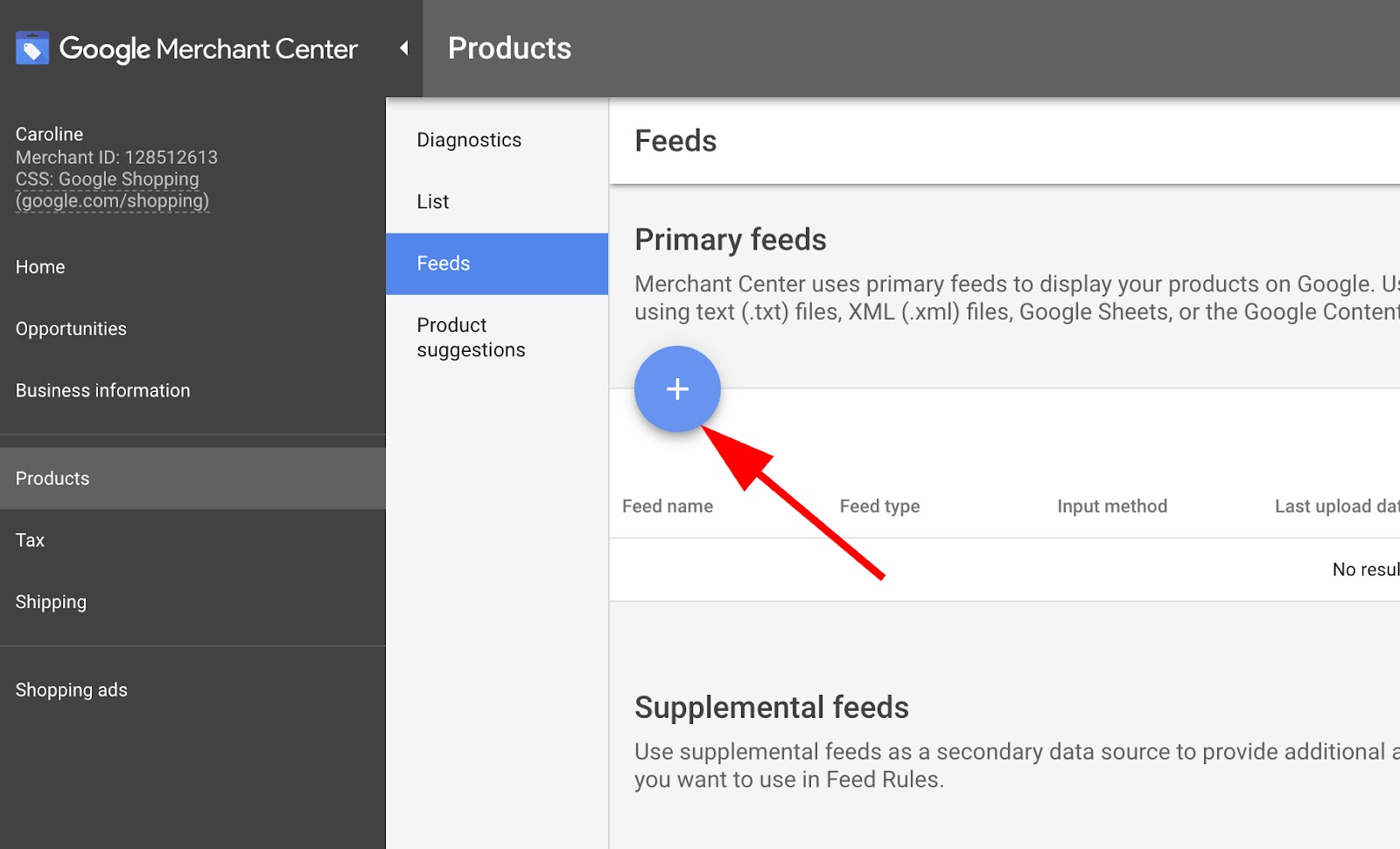
1. Go to “Products” within your Google Merchant Center, then select “Feeds”. Click on the big blue “+” icon to add new products.
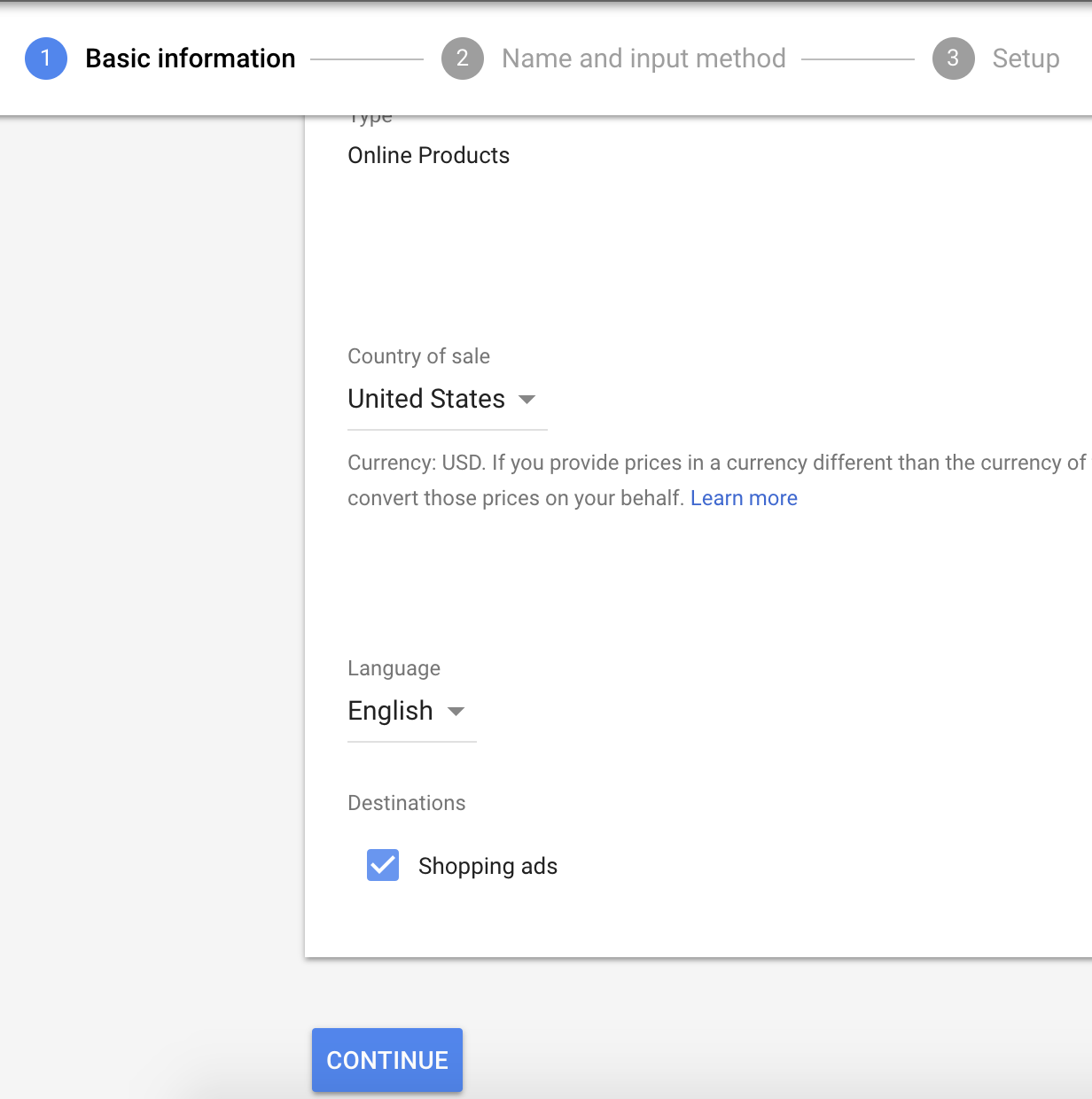
2. Fill in Basic information, including the country you want to sell products to, and the language. This will help Google ensure your products appear to your ideal demographic, in both the language and currency most appropriate. Then, click “Continue”.
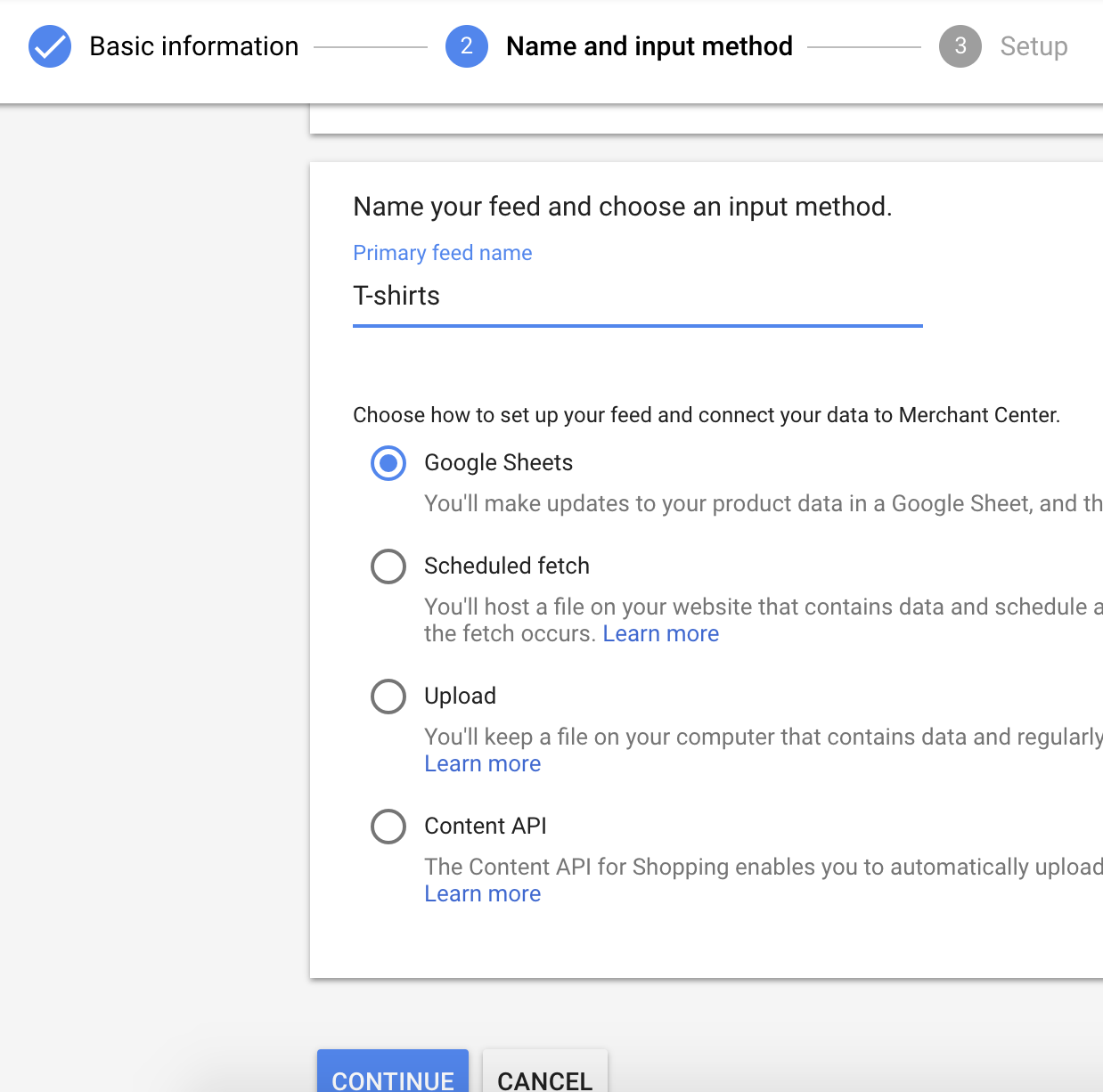
3. Name your feed and choose your input method. For our purposes, I chose “Google Sheets”. Then, click “Continue”.
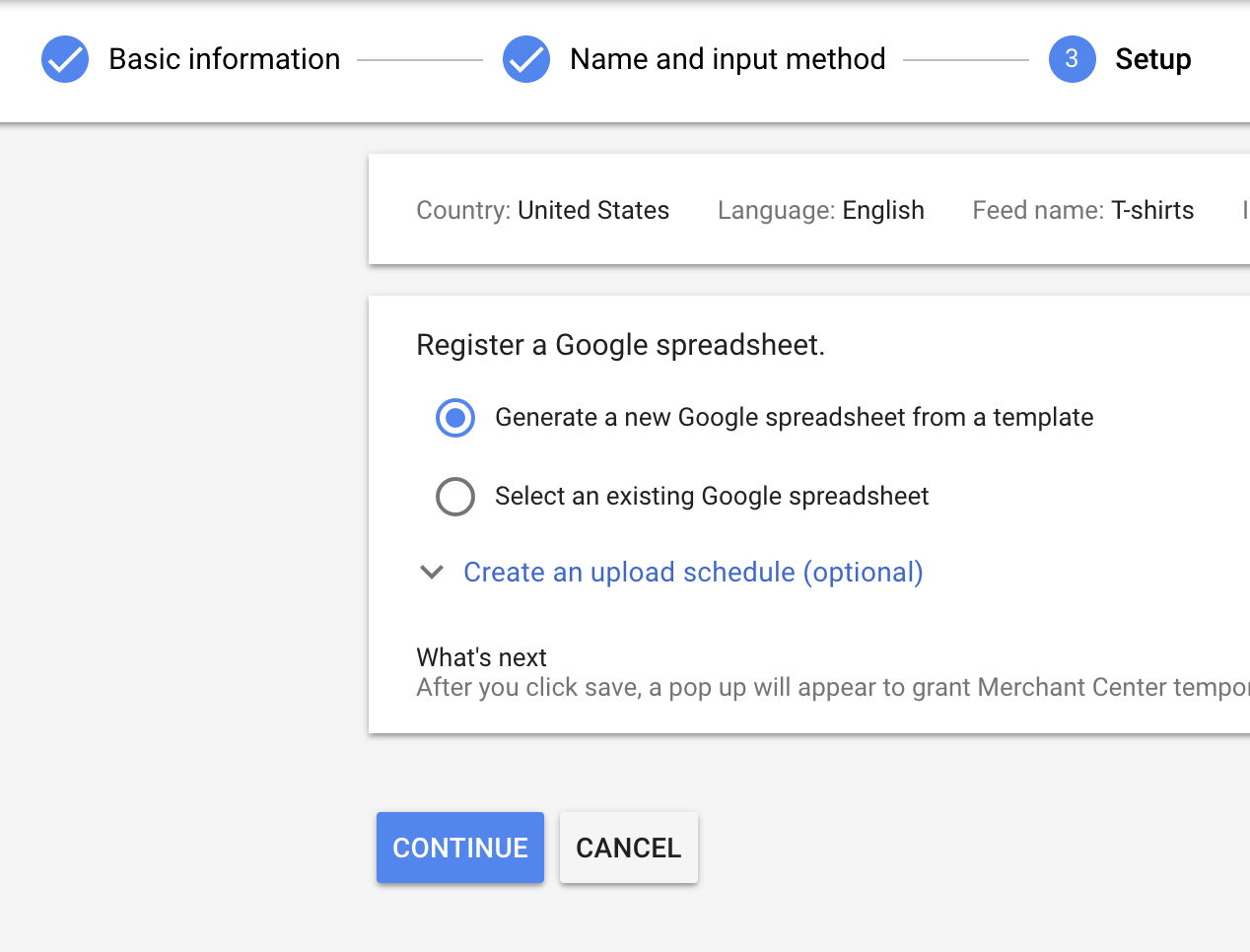
4. If you choose to upload with a Google spreadsheet, you can either choose an existing spreadsheet or use Google Merchant’s spreadsheet template.
To use Google Merchant’s pre-made template, I chose “Generate a new Google spreadsheet”. You also have the option to select an upload schedule, i.e. daily or weekly, depending on how often you update your inventory. Then, click “Continue”.
5. Within the spreadsheet, fill out the necessary columns, including “id”, “title”, “description”, “link”, “condition”, “price”, “availability,” etc. Be as specific as possible, especially in the “description” column, to ensure your products are correctly advertised.
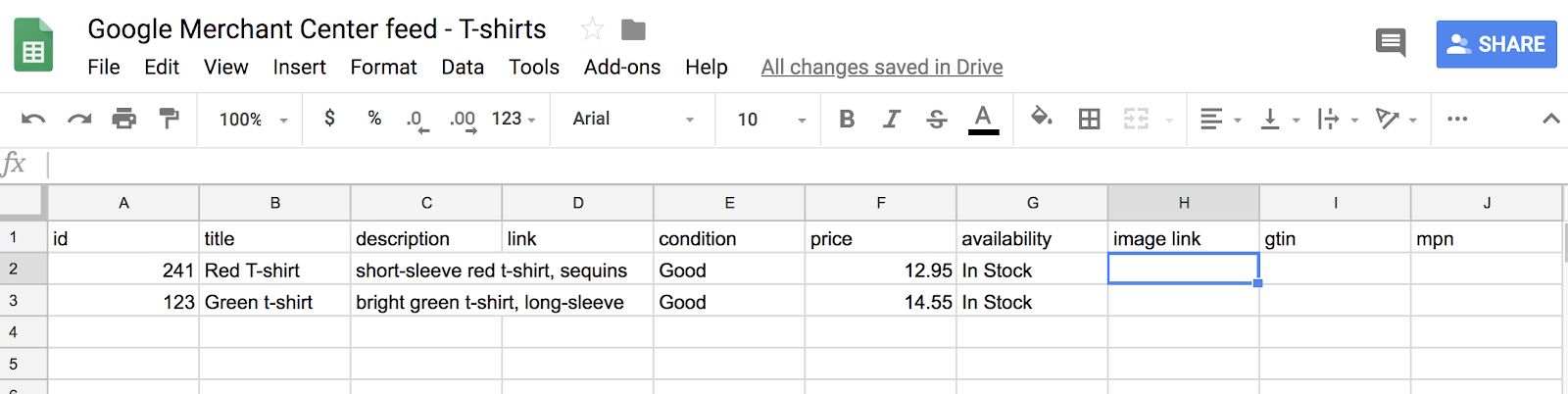
6. When you’re finished and ready to import, go to “Add-ons”, “Google Merchant Center”, and then “Upload sheet”.

If you’re unsure of what any of these columns mean, such as “id” or “gtin”, take a look at Google’s Product Data Specification page for details.
It’s important to note, what you type into your inventory is exactly what will appear when a user clicks on your product in Google Shopping, so it’s critical the information is both specific and accurate. You’ll want to make sure information such as “price” matches exactly what is on your website.
For instance, here’s how a spiralizer appears in Google Shopping, with a full description, price, and title that matches the information on the product’s website.

How to Make Changes to Your Merchant Center Product Feed
If you need to make changes or update your feed (i.e. inventory), you don’t have to register or upload a new spreadsheet. Instead, you can use “supplemental feeds”, which allow you to provide additional data that can be integrated with your existing data in the primary feed.
A supplemental feed can’t be used as a standalone feed — instead, its purpose is to update existing product data in your primary feed, so you don’t have to create a new primary feed every time your inventory information changes.
To create a supplemental feed, go to the “Feeds” section and click “Add a supplemental feed”. Follow the prompts and provide information including your supplemental feed name, input method (i.e. Google Sheets, Scheduled fetch, etc.), which primary feed you want to link to, and a scheduled fetch for your product data so you don’t need to manually upload it.
Alternatively, you might use Feed rules to resolve errors or help Google Merchant Center correctly interpret your primary feed’s data, if it seems it isn’t working or needs to be adjusted.
To do this, go to the “Feeds” section, click the feed you want to fix, and select the “Rules” tab. Choose the country to which you want to apply the rule (if you have more than one country of sale), then click “Create Rule”.
Finally, select the attribute you’d like to impact, configure your data sources, and click “Save as draft”. Then, select “Test changes” to ensure you’ve made the correct changes to your product feed. If you’re happy with the changes, click “Apply”. If you don’t want to apply the changes after all, click “Discard”.
Next, take a look at How to Optimize Your Google Shopping Data Feed.

How to Reduce Your Facebook Ad Spend With Smart Targeting

Want to lower your Facebook ad costs? Looking to improve your Facebook ad targeting? In this article, you’ll discover three ways to build highly targeted Facebook audiences based on niche interests. How Researching Audiences Improves Ad Conversions Facebook is one of the biggest drivers of consumer spending/purchases online. In fact, the power of Facebook for eCommerce […]
The post How to Reduce Your Facebook Ad Spend With Smart Targeting appeared first on Social Media Marketing | Social Media Examiner.
from Social Media Marketing | Social Media Examiner https://ift.tt/2EjfFq3
via socialmediaexaminer
Email Marketing Nightmares: The Journey: Season 2, Episode 13

Are your email marketing messages working as well they used to? Then watch the Journey, Social Media Examiner’s episodic video documentary that shows you what really happens inside a growing business. Watch The Journey This episode of the Journey explores what happened when the Social Media Examiner team was faced with a dilemma. Delete 150,000 […]
The post Email Marketing Nightmares: The Journey: Season 2, Episode 13 appeared first on Social Media Marketing | Social Media Examiner.
from Social Media Marketing | Social Media Examiner https://ift.tt/2Lj7TOs
via socialmediaexaminer
Canonicalization 101: Everything You Need to Know About Canonical URLs
Every marketer wants their content to rank well in search engines, which is why we invest so much time into our websites’ Search Engine Optimization (SEO).
While many aspects of SEO are pretty straightforward — like headings, meta descriptions, and link building — other aspects of SEO can be a bit trickier. But that doesn’t mean you can afford to ignore them.
One of these trickier elements is canonicalization — and it can play an important role in how search engines evaluate the quality of your pages.
You can think of canonical tags as the technical SEO version of including a citation, as it gives credit to the original material and prevents duplicate content penalties.
On the surface, the concept of using canonical tags to avoid duplicate content issues might seem pretty straightforward. After all, even middle schoolers are taught that you can’t just copy and paste content from a website and call it your own. But leaving duplicate content issues up to chance shouldn’t be an option. Your SEO strategy should include a plan for managing potential duplicate content issues with canonical tags.
Duplicate content can create problems when you consider that search engines and humans look at content in very different ways. For example, we, humans, may think of http://www.hubspot.com and http://hubspot.com as the exact same page. After all, we built it as a singular page, not two separate pages, and the difference in the URL is just a matter of how someone arrives at the page.
Even though users on your site know that the page is the same even if it’s loaded under one of these conditions, search engines perceive a distinct URL for each version, and therefore think that they are each unique pages. As a result, we’re in a tough spot where there are several pages that have the exact same content. If we look at these pages from Google’s perspective, we’ve got a case of plagiarism.
Much like your high school English teacher, Google frowns on plagiarism, and your SEO will be negatively impacted due to duplicate content.
Luckily, canonicalization offers a solution to this.
When are Canonical URLs necessary?
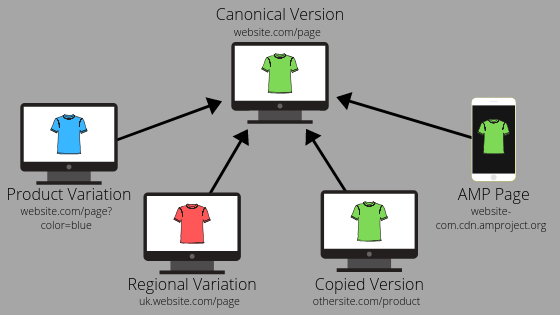
The previous example of the same content being at https://www.hubspot.com and https://hubspot.com is just one of the situations in which it is important to include a canonical URL. Each of the following situations is a commonly occurring instance of when you’ll want to make sure you’ve added a canonical URL:
URLs that Identify Variations of the Same Product
Especially on e-commerce platforms, it’s quite common for URLs to adjust depending upon the specifics of the product that a customer is looking at. For example, let’s say you’re selling dog toys, and have a popular chew toy that comes in three separate sizes and has color options as well. The main page for that product may be www.example.com/product, but you likely also have pages URLs like https://ift.tt/2CaOiNw.
Mobile-Specific URLs, Such as AMP Pages or a Mobile-Specific Subdomain
Creating content with mobile in mind is a marketing must — just be sure to remember to set your canonical URLs when you have pages that are specific to mobile but have the same content as a page on the desktop version of your website. For AMP pages specifically, Google also provides detailed guidelines on how to correctly differentiate your Accelerated Mobile Page from your standard webpage.
Region or Country-Specific URLs
Geotargeting is another great way to cater your content to your viewers based upon where they live. If you do this by adding a regional slug or using a regional subdomain (e.g. https://ift.tt/2LdMciv or https://de.example.com), you’ll want to make sure these region-specific pages point back to the master version of the page. It’s important to note that if you’re translating your page (for example you have the master version in English and have another version that’s entirely in Mandarin), this wouldn’t be a case of duplicate content. When it comes to region-specific content, you’ll want to include the canonical tag if most of the on-page content is the same and in the same language.
Self-Referential URLs
Most CMS platforms do this automatically, but it’s important to not overlook it. When you create a page, you can set it as its own canonical URL. This is known as a “self-referential canonical URL.” The usefulness of self-referential canonical tags has been widely debated until recently when Google confirmed that this can help your pages perform well in search results.
How to Set the Canonical URL for Your Page
When it comes to setting Canonical URLs for your pages, there are a few different approaches you can take. Each approach has its own benefits and disadvantages, and some may make more sense for you than others depending upon your overall web strategy. That being said, there isn’t one method that’s uniformly “better” or more SEO-friendly than the others. When it comes down to it, each method has its own situation where it’ll be most appropriate, and the bottom line is that across the board it’s better to have a canonical URL set than to not.

Specifying the Preferred Domain
One option for setting canonical URLs requires using Google Search Console to specify your preferred canonical domain. The primary benefit of this approach is that it is quick and easy to implement, and is ideal for sites that have the same content living at the same URL paths but at different domains. For example, you may have a main office and a branch office that have the same “About Us” page at two separate domains. With this method, you can set https://ift.tt/2CaOjky as the canonical variation of https://ift.tt/2LgTqCk without making any in-depth adjustments to your website.
The downside to this approach is that specifying the preferred domain in Google Search Console is only going to correctly set the canonical variation for Google, and not for other search engines. Additionally, your URL paths have to be identical for this to work. This method can correctly identify the canonical version for two pages ending in “/about”, but if one is “/about” and the other is “/about-us/,” this method won’t work.
Using rel=”canonical” <link> tag
Perhaps the most common option for specifying the canonical version of a page is to use the rel=”canonical” <link> tag. With this approach, you’re adding metadata to the page head and specifying the appropriate URL to be used as the canonical address. This tag is added within the page’s head tags (not to be confused with the page’s header) and is formatted as: <link rel=”canonical” href=”[canonical URL]”>.
The primary benefit to this approach is that it can identify the canonical URL for an infinite number of pages, and you don’t have to worry about specific URL paths like you do with the preferred domain method. Plus, many content management systems, including HubSpot, will automatically set and update the canonical tag in your pages’ metadata.
As far as drawbacks go, this approach can add to the size of your page, which may affect loading speeds on weaker internet connections. Additionally, if your CMS doesn’t automatically update this tag, it can be difficult to maintain accurate canonical tags if your website’s URLs are updated with much frequency.
Using rel=canonical HTTP header
Functioning similarly to the rel=”canonical” <link> tag, you can set a canonical link in your HTTP header response to identify the correct canonical version of your content. This method is particularly useful if you have PDFs or other non-HTML content on your website that you need to correctly identify, as the <link> tag metadata only works with HTML pages.
Like the canonical <link> method, this approach can be used to map an infinite number of pages, but because it isn’t loaded onto the page as metadata, it doesn’t increase the size of your page.
The challenge with this approach is that it can be a bit more difficult to set up correctly than the other approaches, and it can also be difficult to maintain for very large websites or sites where URLs change somewhat frequently.
301 Redirects
A 301 redirect is a permanent redirect that forwards one URL to another. For example, you may type “example.com” into your browser and automatically be redirected to “www.example.com.” 301 redirects tell Googlebot and other search engine crawlers that the URL to which a page gets forwarded needs to be considered the canonical variation.
It’s best to use this approach only when you’re deprecating one version of a page for another or when you’re forwarding the root domain to a subdomain. Using it in other situations can create issues for the clarity of your sitemap, and can also cause issues if you decide to reuse a URL for different content.
Canonicalization is Key
Setting the canonical URL for your pages is a great way to ensure that search engines and visitors alike understand where your content is coming from, and that your website is performing as well as possible in search rankings. By leveraging canonicalization, you can indicate the structure and organization of your content in a way that shows that it is as unique as your business and your customers.


A History of PMI & Its Role in Project Management

How to Create An Incredibly Well-Written Executive Summary [+ Example]
Whether you’re an entrepreneur looking for investors for your small business, or the CEO of a large corporation, a business plan can help you succeed and is a critical component for long-term growth.
In fact, one study found companies that use business plans grow 30% faster than those that don’t.
A business plan includes a company overview, your company’s short-term and long-term goals, information on your product or service, sales targets, expense budgets, your marketing plan, and a list including each member of your management team.
While a thorough business plan is necessary, it’s equally critical you provide readers with a short, attention-grabbing executive summary, as well. A CEO or investor might not have the interest or time to read your full business plan without first getting the general gist of your company or goals through a brief synopsis.
Essentially, an executive summary is the back cover of your book, convincing readers that it’s worth their time to read the whole thing.
Executive Summary
An executive summary is a brief overview at the beginning of your business plan. It’s a section that grabs the reader’s attention, and summarizes critical information regarding your company overview and upcoming short-term and long-term goals. Ultimately, the executive summary is meant to inform readers of the most important information in your business plan, so they don’t have to read it all and can get caught up quickly.
To write an impressive executive summary that effectively embodies all the important elements of your business plan, we’ve cultivated a list of necessary components for an executive summary, as well as an example to get you started.
What to Include in Your Executive Summary
Your business plan should convey your company’s mission, your product, a plan for how you’ll stand out from competitors, your financial projections, your company’s short and long-term goals, your buyer persona, and your market fit.
To create a business plan, take a look at our business template.
An executive summary, then, should be a short, maximum two-page synopsis of the information provided in your business template.
Ultimately, an executive summary should provide a preview for investors or CEO’s, so they know what to expect from the rest of your report. Your executive summary should include:
- The name, location, and mission of your company
- A description of your company, including management, advisors, and brief history
- Your product or service, where your product fits in the market, and how your product differs from competitors in the industry
- Financial considerations, start-up funding requirements, or the purpose behind your business plan — mention what you hope the reader will help your company accomplish
To understand more tactically how an executive summary should look, take a look at the following example:
Executive Summary Example
Our Mission
Maria’s Gluten Free Bagels offers delicious gluten-free bagels, along with various toppings, other gluten-free breakfast sandwich items, and coffee. The facility is entirely gluten-free. Our team expects to catch the interest of gluten-free, celiac, or health-conscious community members who are seeking an enjoyable cafe to socialize. Due to a lack of gluten-free bagel products in the food industry currently, we expect mild competition and are confident we will be able to build a strong market position.
The Company and Management
Maria’s Gluten Free Bagels was founded in 2010 by Maria Jones, who first began selling her gluten free bagels online from her home, using social media to spread the word. In 2012 she bought a retail location in Hamilton, Massachusetts, which now employs four full-time employees and six part-time employees. Prior to her Bagel Shop, Maria was a chef in New York and has extensive experience in the food industry.
Along with Maria Jones, Gluten Free Bagel Shop has a board of advisors. The advisors are:
- Jeni King, partner at Winding Communications Ltd.
- Henry Wilson, president of Blue Robin, LLP
Our Product
We offer gluten-free products ranging from bagels and cream cheese to blueberry muffins, coffee, and pastries. Our customers are health-conscious, community-oriented people who enjoy gluten-free products. We will create a welcoming, warm environment, with opportunities for open-mic nights, poetry readings, and other community functions. We will focus on creating an environment in which someone feels comfortable meeting a friend for lunch, or working remotely.
Our Competitive Advantages
While there are other coffee shops and cafes in the north shore region, there are none that offer purely gluten-free options. This restricts those suffering from gluten-free illnesses, or simply those with a gluten-free preference. This will be our primary selling-point. Additionally, our market research (see Section 3) has shown a demand for a community-oriented coffee and bagel shop in the town of Hamilton, MA.
Financial Considerations
Our sales projections for the first year are $400,000. We project a 15% growth rate over the next two years. By year three, we project 61% gross margins.
We will have four full-time employees. The salary for each employee will be $50,000.
Start-up Financing Requirements
We are seeking to raise $125,000 in startup funds to finance year one. The owner has invested $50,000 to meet working capital requirements, and will use a loan of $100,000 to supplement the rest.

Unriddled: The Great Ride-Hailing Rush, the Latest Troubles for Facebook, and More Tech News You Need
“Unriddled” is HubSpot’s weekly digest of the tech headlines you need to know. We give you the top tech stories in a quick, scannable way and break it all down. It’s tech news: explained.
1. Ride-Hailing IPO Season
A day after ride-hailing app Lyft said that it had filed its S-1 last week, the Wall Street Journal reported that the company’s top competitor, Uber, had followed in its footsteps and filed for an initial public offering (IPO) of its own. While the timing of Lyft’s IPO is somewhat uncertain (some are predicting a spring date between late March and early April), Uber’s filing signals that the company could go public as early as Q1 2019.
i am extremely excited for uber and lyft racing to beat each other to market, likely in the spring (end of march to April)
what would be especially exciting is if they both went public on the same week
story nub below, more cominghttps://t.co/NeNCQOb7V8
— rat king (@MikeIsaac)
December 8, 2018
Uber, meanwhile, has resumed testing and limited operation of its self-driving cars after a tragic accident involving one of its autonomous vehicles took place earlier this year. Read full story >>
2. British Parliament Publishes Internal Facebook Emails
UK Parliament last week published over 250 redacted pages of internal Facebook documents, including emails. The documents were previously sealed in California, where Facebook is being sued by a company called Six4Three — the founder of which put the materials into the possession of UK lawmakers during a trip to London. While the contents of the documents contain what some call “lacking in anything crazy damning,” they do point to Facebook’s approach to competition. Read full story >>
3. Amazon Will Crowdsource Alexa’s Answers
In a classic case of, “How could this possibly go wrong?”, Amazon says it will launch Alexa Answers: a program that invites a number of users to help Alexa answer questions for which the voice assistant might not have sufficient information.
“Once in a while, customers throw curve balls at us with various questions,” writes Alexa Information VP Bill Barton in an official blog post. “We’re involving the Alexa customer community to help us answer questions Alexa can’t quite answer yet.”
The program, which Barton says is “invitation-only,” will allow select customers to contribute answers and details to questions that Alexa has been unable to answer. Read full story >>
4. Amazon’s Go Stores Are Expanding
In other Amazon news, the company says that it will expand its cashierless Go stores in both size and location. Last week, TechCrunch reported that the ecommerce giant is testing the cashierless technology in larger store formats, leaving many wondering if it’s planning to bring this feature to Whole Foods — a natural grocery chain that it owns. Now, according to Bloomberg, Amazon is also exploring the possibility of opening Go stores in airports, “to win business from hungry, time-pressed travelers.” Read full story >>
5. Curated News From Google Assistant
As Google itself pointed out in a recent announcement, radio is almost a purely “in-the-moment” medium that allows users to tune into whatever the current programming might be, regardless of context. Now, the company says that it has partnered with a number of news organizations, ranging from local NPR stations to the New York Times, to create personalized news playlists for users. With the help of Assistant’s AI, the playlists will be created based on when the user asks for it to be played, as well as her listening interests. Google says it has built an an open specification for news organizations that want to create audio programming for this feature. Read full story >>
6. What Happened When Google’s CEO Testified Before Congress
Google CEO Sundar Pichai testified yesterday before the U.S. House of Representatives Judiciary Committee. Here are the key questions he faced, and the themes that echoed throughout the hearing. Read full story >>
7. The State of Virtual Reality: Where We Are, and What’s to Come in 2019
Where do things stand with virtual reality, and the immersive technologies inspired by it? At VRX, here’s what the experts have to say. Read full story >>
8. Google Lens Comes to iOS
iPhone users, rejoice (maybe): Google’s Lens object recognition technology has finally arrived in the company’s iOS app.
ICYMI: Google Lens now works on iOS! https://t.co/KcI7IbhkI8 pic.twitter.com/8XGtM6mkIp
— Barry Schwartz (@rustybrick)
December 11, 2018
Lens first made its debut at Google’s 2018 I/O developer conference and was initially released on a number of Pixel devices, prior to becoming available on a broader range of operating systems. Read full story>>
9. What’s the Business Case for Virtual Reality?
Also at last week’s VRX conference, after we got a taste for the state of virtual reality, we next examined how this technology can be used in business. Read full story >>

6 Ways to Use IGTV for Business

Wondering how to add IGTV content to your marketing mix? Looking for creative ideas for your Instagram TV videos? In this article, you’ll find six ways to use IGTV to grow your brand’s visibility with a new Instagram audience. #1: Reach a New Audience With Previously Published Video Content IGTV provides the perfect opportunity to […]
The post 6 Ways to Use IGTV for Business appeared first on Social Media Marketing | Social Media Examiner.
from Social Media Marketing | Social Media Examiner https://ift.tt/2QMceP7
via socialmediaexaminer
YouTube Algorithm: The Constantly Updated Guide to YouTube’s Updates & Changes
Since marketers are at the mercy of algorithms on nearly every publishing channel, knowing how each of these unique algorithms work is crucial to attracting and maintaining an audience. Luckily, while some channels are rather reserved about the secrets of their algorithms, YouTube, the most popular video platform, has been remarkably transparent.
In 2016, YouTube published a research paper that provides a high-level overview of their recommendation system’s architecture, and they also launched a course for creators about getting discovered on their platform.
Naturally, we wanted to read the paper and take the course to help you understand exactly how to boost your rankings on YouTube. Read on to learn what we discovered and how you can bolster your presence on the video platform.
How does the YouTube algorithm work?
YouTube’s algorithm serves the most relevant, personalized videos to their users on five different sections of their platform: search, home, suggested videos, trending, and subscriptions. By helping users find the videos they’re most likely to watch and enjoy, YouTube can keep viewers on the platform for as long as possible and get them to visit their site regularly.
To figure out which videos and channels that users are most likely to enjoy watching, YouTube “follows” their audience, which means they track their users’ engagement with each video they watch. More specifically, they pay attention to which videos each user watches, what they don’t watch, how much time they spend watching each video, their likes and dislikes, and their “not interested in” feedback.
Since their algorithm rewards engagement instead of vanity metrics like views and clicks, YouTube incentivizes creators to produce videos that they’re audience actually enjoys watching, discouraging them from trying to game the system.
But YouTube’s algorithm also uses different signals and metrics to rank and recommend videos on each section of their platform. With this in mind, let’s go over how the algorithm decides to serve content to users on their search, home, suggested videos, trending, and subscriptions section.
Search
The two biggest factors that affect your videos’ search rankings are its keywords and relevance. When ranking videos in search, YouTube will consider how well your titles, descriptions, and content match each users’ queries. They’ll also consider how many videos users’ have watched from your channel and the last time they watched other videos surrounding the same topic as your video.
Home & Suggested Videos
No two users will have the same experience on YouTube — they want to serve the most relevant, personalized recommendations to each of their viewers. To do this, they first analyze users’ activity history and find hundreds of videos that could be relevant to them.
Then, they rank these videos by how well each video has engaged and satisfied similar users, how often each viewer watches videos from each channel or other videos surrounding the same topic, and how many times YouTube has already shown each video to users.
YouTube has also noticed users tend to watch more content when they receive recommendations from a variety of channels, so they like the diversify their suggested videos feed and users’ homepages.
Trending
The trending page is a feed of new and popular videos in a user’s specific country. YouTube wants to balance popularity with novelty when they rank videos in this section, so they heavily consider view count and rate of view growth for each video they rank.
Subscriptions
YouTube has a subscriptions page where users can view all the recently uploaded videos from the channels they subscribe to. But this page isn’t the only benefit channels get when they acquire a ton of subscribers.
To determine rankings on their platform, YouTube uses a metric called view velocity, which measures the number of subscribers who watch your video right after it’s published. And the higher your video’s view velocity, the higher your videos will rank. YouTube also accounts for the number of active subscribers you have when they rank your videos.
How to Optimize Your Videos for YouTube’s Algorithm
To rank on YouTube, the first thing to consider is optimizing your videos and channel for popular search queries. To do this, place relevant keywords in your videos’ titles, tags, descriptions, SRT files (which are transcriptions), video files, and thumbnail files.
You should also check out the most popular queries guiding viewers to your videos, which you can find in YouTube’s Search Report. If these queries are slightly different than your video’s topic, consider updating your video to fill these content gaps and add the keywords to your metadata. If there’s a stark difference, consider making new videos about these popular queries.
The next thing to consider when ranking on YouTube is optimizing your videos and channel for engagement. To generate engagement, though, you first need to attract users’ attention. And one of the best ways to instantly grab users’ attention is by creating vibrant thumbnails for each of your videos.
Thumbnails, the small, clickable snapshots that viewers see when they search for videos on YouTube, can be just as important as a video’s title. They preview your video and entice viewers to click through. The brain is also programmed to respond to striking visuals, and this can help you differentiate yourself on a platform clogged with standard thumbnails all screaming for attention.
To create a striking thumbnail, consider including a talking head. People are naturally drawn to human faces because it’s an ingrained survival mechanism to help us quickly gauge someone’s emotions and determine if they’re a threat or friend. Research Gate also discovered that Instagram photos with faces are 38% more likely to receive likes and 32% more likely to receive comments. Additionally, consider contrasting the colors of your thumbnail’s foreground and background to really make it pop.

Once you’ve attracted users’ attention, you can engage them by creating a bingeable series or show. You can also create playlists about a certain topic that start off with the videos that have the highest audience retention rate. This will increase the odds that users will watch most of the videos in your playlists, boosting your channel and videos’ watch time.
Another way to refine your overall video strategy is measuring your videos’ performance against engagement metrics, like watch time, average watch percentage, average view duration, audience retention, and average session duration. If you can figure out which topics and videos generate the most engagement, and you solely focus on creating those types of content, you’ll be able to shoot up YouTube’s search results page and suggested videos feed.

How to Create a Pivot Table in Excel: A Step-by-Step Tutorial (With Video)
The pivot table is one of Microsoft Excel’s most powerful — and intimidating — functions. Powerful because it can help you summarize and make sense of large data sets. Intimidating because you’re not exactly an Excel expert, and pivot tables have always had a reputation for being complicated.
The good news: Learning how to create a pivot table in Excel is much easier than you might’ve been led to believe.
But before we walk you through process of creating one, let’s take a step back and make sure you understand exactly what a pivot table is, and why you might need to use one.
What Is a Pivot Table?
A pivot table is a summary of your data, packaged in a chart that lets you report on and explore trends based on your information. Pivot tables are particularly useful if you have long rows or columns that hold values you need to track the sums of and easily compare to one another.
In other words, pivot tables extract meaning from that seemingly endless jumble of numbers on your screen. And more specifically, it lets you group your data together in different ways so you can draw helpful conclusions more easily.
The “pivot” part of a pivot table stems from the fact that you can rotate (or pivot) the data in the table in order to view it from a different perspective. To be clear, you’re not adding to, subtracting from, or otherwise changing your data when you make a pivot. Instead, you’re simply reorganizing the data so you can reveal useful information from it.


How to Use Pivot Tables
If you’re still feeling a bit confused about what pivot tables actually do, don’t worry. This is one of those technologies that’s much easier to understand once you’ve seen it in action. Here are seven hypothetical scenarios where you’d want to use a pivot table.
1. Compare sales totals of different products.
Say you have a worksheet that contains monthly sales data for three different products — product 1, product 2, and product 3 — and you want to figure out which of the three has been bringing in the most bucks. You could, of course, look through the worksheet and manually add the corresponding sales figure to a running total every time product 1 appears. You could then do the same for product 2, and product 3, until you have totals for all of them. Piece of cake, right?
Now, imagine that monthly sales worksheet of yours has thousands and thousands of rows. Manually sorting through them all could take a lifetime. Using a pivot table, you can automatically aggregate all of the sales figures for product 1, product 2, and product 3 — and calculate their respective sums — in less than a minute.
2. Show product sales as percentages of total sales.
Pivot tables naturally show the totals of each row or column when you create it. But that’s not the only figure you can automatically produce.
Let’s say you entered quarterly sales numbers for three separate products into an Excel sheet and turned this data into a pivot table. The table would automatically give you three totals at the bottom of each column — having added up each product’s quarterly sales. But what if you wanted to find the percentage these product sales contributed of all company sales, rather than just those products’ sales totals?
With a pivot table, you can configure each column to give you the column’s percentage of all three column totals, instead of just the column total. If three product sales totaled $200,000 in sales, for example, and the first product made $45,000, you can edit a pivot table to instead say this product contributed 22.5% of all company sales.
To show product sales as percentages of total sales in a pivot table, simply right-click the cell carrying a sales total and select “Show Values As” > “% of Grand Total.”
3. Combine duplicate data.
In this scenario, you’ve just completed a blog redesign and had to update a bunch of URLs. Unfortunately, your blog reporting software didn’t handle it very well, and ended up splitting the “view” metrics for single posts between two different URLs. So in your spreadsheet, you have two separate instances of each individual blog post. In order to get accurate data, you need to combine the view totals for each of these duplicates.
That’s where the pivot table comes into play. Instead of having to manually search for and combine all the metrics from the duplicates, you can summarize your data (via pivot table) by blog post title, and voilà: the view metrics from those duplicate posts will be aggregated automatically.
4. Get an employee head count for separate departments.
Pivot tables are helpful for automatically calculating things that you can’t easily find in a basic Excel table. One of those things is counting rows that all have something in common.
If you have a list of employees in an Excel sheet, for instance, and next to the employees’ names are the respective departments they belong to, you can create a pivot table from this data that shows you each department name and the number of employees that belong to those departments. The pivot table effectively eliminates your task of sorting the Excel sheet by department name and counting each row manually.
5. Add default values to empty cells.
Not every dataset you enter into Excel will populate every cell. If you’re waiting for new data to come in before entering it into Excel, you might have lots of empty cells that look confusing or need further explaining when showing this data to your manager. That’s where pivot tables come in.
You can easily customize a pivot table to fill empty cells with a default value, such as $0, or TBD (for “to be determined”). For large tables of data, being able to tag these cells quickly is a useful feature when many people are reviewing the same sheet.
To automatically format the empty cells of your pivot table, right-click your table and click “PivotTable Options.” In the window that appears, check the box labeled “Empty Cells As” and enter what you’d like displayed when a cell has no other value.
How to Create a Pivot Table
- Enter your data into a range of rows and columns.
- Sort your data by a specific attribute.
- Highlight your cells to create your pivot table.
- Drag and drop a field into the “Row Labels” area.
- Drag and drop a field into the “Values” area.
- Fine-tune your calculations.
Now that you have a better sense of what pivot tables can be used for, let’s get into the nitty-gritty of how to actually create one.
1. Enter your data into a range of rows and columns.
Every pivot table in Excel starts with a basic Excel table, where all your data is housed. To create this table, simply enter your values into a specific set of rows and columns. Use the topmost row or the topmost column to categorize your values by what they represent.
For example, to create an Excel table of blog post performance data, you might have a column listing each “URL,” a column listing each URL’s “Post Title,” a column listing each post’s “Views to Date,” and so on. (We’ll be using that example in the steps that follow.)
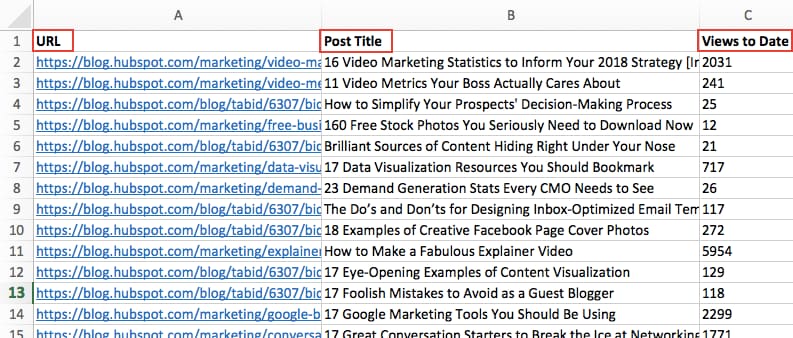
2. Sort your data by a specific attribute.
When you have all the data you want entered into your Excel sheet, you’ll want to sort this data in some way so it’s easier to manage once you turn it into a pivot table.
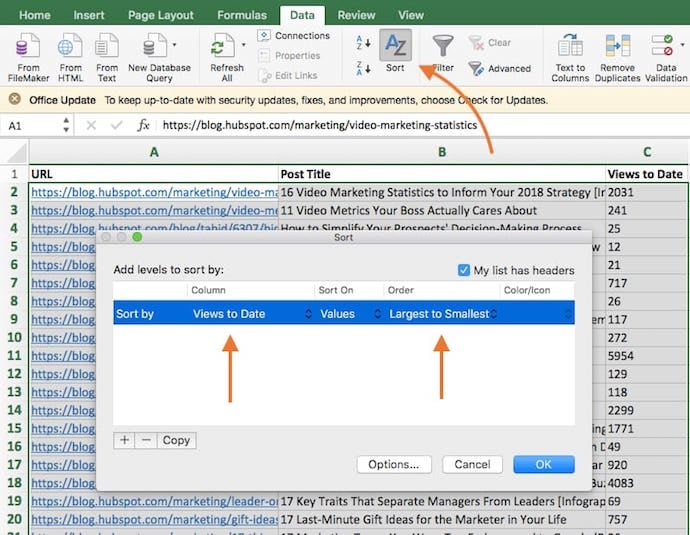
To sort your data, click the “Data” tab in the top navigation bar and select the “Sort” icon underneath it. In the window that appears, you can opt to sort your data by any column you want and in any order. To sort your Excel sheet by “Views to Date,” for example, select this column title under “Column” and then select whether you want to order your posts from smallest to largest, or from largest to smallest.
Select “OK” on the bottom-right of the Sort window, and you’ll successfully reorder each row of your Excel sheet by the number of views each blog post has received.
3. Highlight your cells to create your pivot table.
Once you’ve entered data into your Excel worksheet, and sorted it to your liking, highlight the cells you’d like to summarize in a pivot table. Click “Insert” along the top navigation, and select the “PivotTable” icon. You can also click anywhere in your worksheet, select “PivotTable,” and manually enter the range of cells you’d like included in the PivotTable.
This will open an option box where, in addition to setting your cell range, you can select whether or not to launch this pivot table in a new worksheet or keep it in the existing worksheet. If you open a new sheet, you can navigate to and away from it on the bottom of your Excel workbook. Once you’ve chosen, click “OK.”
Alternatively, you can highlight your cells, select “Recommended PivotTables” to the right of the PivotTable icon, and open a pivot table with pre-set suggestions for how to organize each row and column.
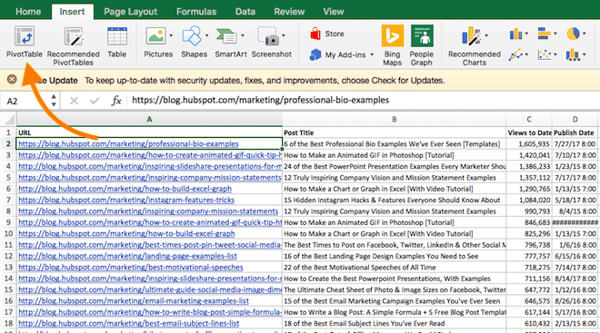
Note: If you’re using a version of Excel earlier than Excel 2016, “PivotTables” may be under “Tables” or “Data” along the top navigation, rather than “Insert.” In Google Sheets, you can create pivot tables from the “Data” dropdown along the top navigation.
4. Drag and drop a field into the “Row Labels” area.
After you’ve completed Step 1, Excel will create a blank pivot table for you. Your next step is to drag and drop a field — labeled according to the names of the columns in your spreadsheet — into the “Row Labels” area. This will determine what unique identifier — blog post title, product name, and so on — the pivot table will organize your data by.
For example, let’s say you want to organize a bunch of blogging data by post title. To do that, you’d simply click and drag the “Title” field to the “Row Labels” area.

Note: Your pivot table may look different depending on which version of Excel you’re working with. However, the general principles remain the same.
5. Drag and drop a field into the “Values” area.
Once you’ve established what you’re going to organize your data by, your next step is to add in some values by dragging a field into the “Values” area.
Sticking with the blogging data example, let’s say you want to summarize blog post views by title. To do this, you’d simply drag the “Views” field into the Values area.

6. Fine-tune your calculations.
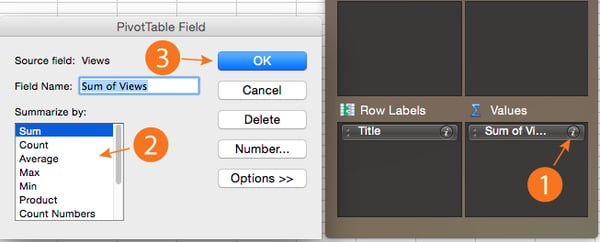
The sum of a particular value will be calculated by default, but you can easily change this to something like average, maximum, or minimum depending on what you want to calculate.
On a Mac, you can do this by clicking on the small “i” next to a value in the “Values” area, selecting the option you want, and clicking “OK.” Once you’ve made your selection, your pivot table will be updated accordingly.
If you’re using a PC, you’ll need to click on the small upside-down triangle next to your value and select “Value Field Settings” in order to access the menu.
Digging Deeper With Pivot Tables
You’ve now learned the basics of pivot table creation in Excel. But depending on what you need your pivot table for, you might not be done.
For example, you may notice that the data in your pivot table isn’t sorted the way you’d like. If were the case, Excel’s Sort function can help you out. Alternatively, you may need to incorporate data from another source into your reporting, in which case the VLOOKUP function could come in handy.
To take a deeper dive into the world of Excel and learn about its various functions, download our comprehensive guide, How to Use Excel.
Want more Excel tips? Check out these design tips for creating charts and graphs.


What Happened When Google’s CEO Testified Before Congress
Google CEO Sundar Pichai today appeared before members of the U.S. House of Representatives Judiciary Committee, in a hearing titled “Transparency & Accountability: Examining Google and its Data Collection, Use and Filtering Practices.”
Some topics dominated lawmakers’ questions for Pichai more than others, with some viewers experiencing a sense of déjà vu and seeing some parallels April’s hearings with Facebook CEO Mark Zuckerberg.
In both hearings, the subject of how likely users are to truly understand terms of service or privacy policies — or whether or not they would even read them — arose. In both hearings, there were allegations of bias in the way each company handles content. And in both those hearings, many observers called into question whether or not those conducting the hearings were prepared with the best questions to ask.
Here are four key themes from today’s hearing.
1. Dragonfly
In August, The Intercept reported on plans within Google to launch a controversial new search engine in China: an internal project that was codenamed Dragonfly.
The reason for the secrecy and controversy around the project was likely due to the fact that this search engine would be censored, so as to align with policies in China to block websites and search queries pertaining to topics like democracy, human rights, and protest.
Questions about Dragonfly were asked by several members of the committee today, with Pichai reiterating the same answer every time: that Google has no search engine product, and has no plans to launch in China … “right now.”
Every time Pichai answered a question regarding Dragonfly, it seemed, he was sure to use the words “right now,” perhaps implying that the company could have future plans to build a search engine product in China — although the company did at one time have over 100 people working on one.
Google had 100+ people working on its controversial Chinese search product, CEO Sundar Pichai revealed. More from @ashleyrgold on @POLITICOPro: https://t.co/Ow7wZ3MNi9
— Cristiano Lima (@viaCristiano)
December 11, 2018
Issie Lapowsky of Wired transcribed one particular exchange on Dragonfly between Pichai and Representative David Cicilline, highlighting the definitive language used by the former to describe Google’s potential plans to launch a search engine product in China.
I transcribed this whole exchange between Rep. Cicilline and Sundar Pichai on China, because Pichai’s evasive responses are so, so telling. #googlehearing pic.twitter.com/CAhP27i9kP
— issie lapowsky (@issielapowsky)
December 11, 2018
2. Alleged Bias in Search Results
As was the case with many of the year’s hearings with tech executives, several lawmakers today asked questions and made accusations of Google’s “anti-conservative bias.” At times, certain representatives alleged that because employees within the company might have left-leaning political views, that it would motivate them to tamper with search results to suppress content from conservative outlets.
While you were watching the Google hearing, @sarafischer was digging into the evidence of bias cited by conservative members. An important read: “Republican lawmakers cited less-than-authoritative sources to back their charges of political bias by Google.”https://t.co/2DIMN879Hn
— David McCabe (@dmccabe)
December 11, 2018
At the same time, other lawmakers from the opposite side of the aisle made reverse accusations of Google, such as Representative Steve Cohen, who pointed to a search for his name yielding results mostly from known conservative outlets.
At times, accusations from right-leaning lawmakers alleged that search results for their names or legislation yielded nothing but negative coverage, sometimes labeling critical news reports of these topics as “attacks” on or “trashing” of their politics.
Pichai repeatedly denied that Google’s search algorithm is programmed to lean in one political direction or another — with many journalists pointed out throughout the hearing that this algorithm is designed to prioritize quality content from reliable sources.
Representative Ted Lieu was arguably the most vocal with his take on the questions regarding Google’s alleged “anti-conservative bias,” calling it a “waste of time” and remarking, “If you want positive search results, do positive things.”
3. Content Moderation
While the topic wasn’t as front-and-center as others, Google’s approach to content moderation was on the minds of some representatives at today’s hearing.
Many asked about the company’s approach to curbing the spread of both misinformation and violence-inciting content on its platform, often with an emphasis on conspiracy video channels and content creators on YouTube (which is owned by Google).
Pichai noted that “it’s our [Google’s] responsibility” to control and curb such content, but provided few other details on how the company will do that — blaming the difficulty of stopping the spread of such content on the high volume and rate of video uploads (about “400 hours of video every minute“).
4. Data and Location Tracking
Finally, one area of concern that seemed to resonate among representatives from both parties was the type of user data collected by Google, the extent to which that data is collected, and how much control users have over it.
One idea that seemed to repeatedly arise in lawmaker remarks was the possible option of requiring users to proactively opt-into data collection — rather than making that collection the default setting, then giving users the option to opt-out.
Not only does the question arise in light of not one, but two security breaches taking place on Google+ this year — but it also follows yesterday’s New York Times report that explores the extent to which a plethora of apps, even beyond Google, collect location data.
This data, according to the report, is sometimes provided it to advertisers to boost targeting. That story follows one from earlier this year where it was revealed that Google recorded location data on some users, even after they had turned off Location History tracking on their devices.
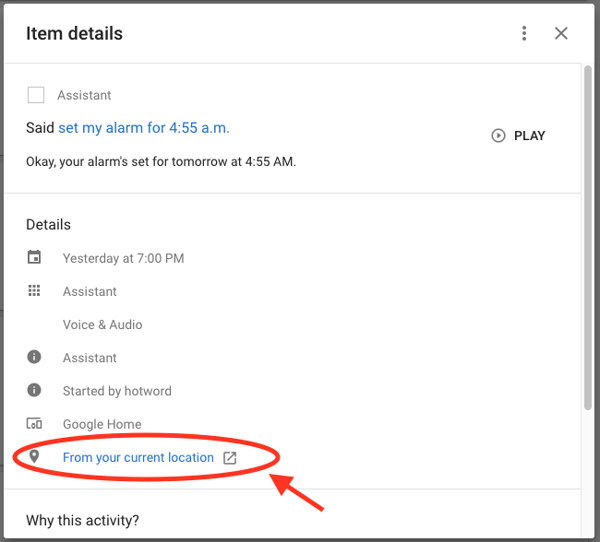
When asked about the possibility of building a system that did not automatically enroll users in data tracking, Pichai remarked that he believes in a system that that provides “transparency, control, and choice and a clear understanding of the choices they need to make” to consumers.
At present, Google does offer a somewhat comprehensive Privacy Checkup to users, which guides them through the step-by-step process of turning certain controls on or off, such as recording search and location history.
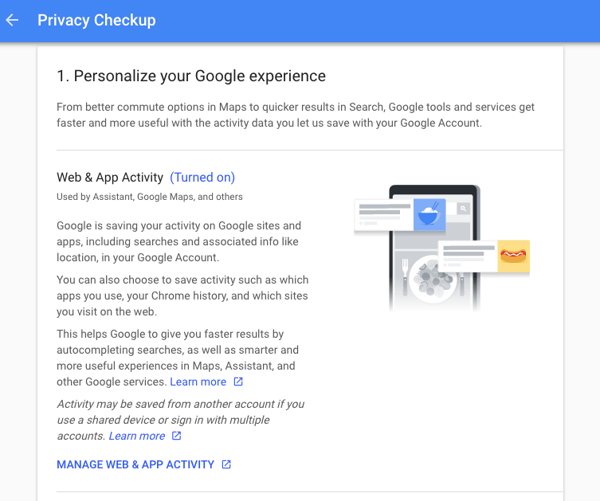
However, it was also this line of questioning where the lack of knowledge on the tech industry became more salient, with many lawmakers asking about features and tracking capabilities on their iPhones, which Google does not make.
iPhones are manufactured by Apple and run on the same company’s iOS operating system, whereas Google makes the Android operating system that runs on non-Apple phones, as well as its own Pixel mobile devices.
At one point, Representative Ted Poe demanded a “yes or no” answer to the question of whether or not Google could track and obtain information on his location from his iPhone if he moved from one side of the room to the other.
Rep. Poe (R-TX): “I have an iPhone.* If I go and sit with my Democratic friends over there, does Google track my movement?”
*(Google does not make iPhones.)
— Kevin Roose (@kevinroose)
December 11, 2018
That question cannot be answered with a simple “yes” or “no,” as — again — Google does not manufacture iPhones or their operating system. Rather, the answer the question depends largely on whether or not the user has Google apps installed on his or her iOS device.
Looking Ahead to 2019
Looking ahead, it’s likely that this hearing is not the last we’ll see of those involving high-profile tech executives. As new members of the House of Representatives (as well as the Senate) assume office next month, it will be particularly interesting to observe any shifts in these lines of questioning.
It could also be important to note if lawmaker focus on the tech industry shifts to a harder line on the possibility of regulation, with many leaders within the tech sector calling for regulation themselves.
We’ll see what 2019 holds.

The Ultimate Guide to Affiliate Marketing
If you’ve ever came across Tim Ferriss’ iconic book on how to just work four hours per week, you’ve probably dreamed of sipping a Mojito on a beach while your money worked for you in the background while you sleep. One of the main ideas he constantly talks about is the concept of passive income.
After all, having an income chart like this is the main goal of many online entrepreneurs:

For many entrepreneurs looking to build an online business, or marketers looking to monetize their web traffic, affiliate marketing is often how they got started with generating income.
Affiliate marketing is one of the world’s most popular methods of generating passive income online, and there are many tried & tested strategies when you are just starting out.
If you’re looking for a complete guide to affiliate marketing, read more to find out how you can promote products as an affiliate to create an additional source of income.
What is affiliate marketing?
Affiliate marketing is a performance-based marketing tactic in which a retailer, typically an online one, rewards a website with a commission for each customer referred via the website’s promotional activities. The website, often called an affiliate, will only get paid when their promotion results in a transaction.
There are typically four parties involved in affiliate marketing:
- The affiliates – the promoters of the product
- The product creators – the creators of the product
- The networks – the networks managing the affiliates
- The consumers – the end users of the product
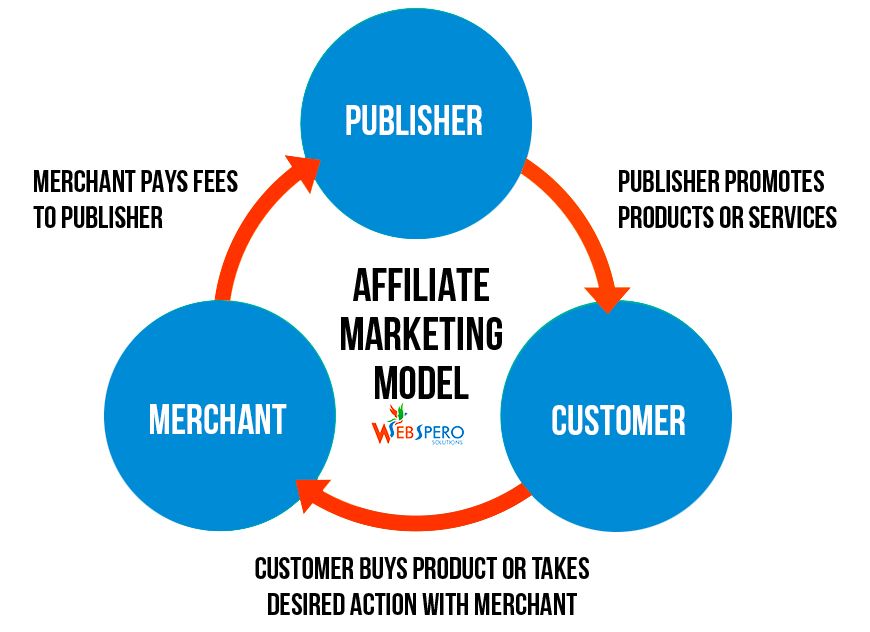
Image via Digital Ads Online
You don’t always need a network to become an affiliate, but the other three parties (the affiliates, the product creators, and the consumers) form the core of an affiliate program.
Who are the affiliates?
An affiliate, also known as a publisher, can be an individual or a company. Typically, these are other bloggers or content creators operating in the industry of the product they are creating.
They help promote the product or service by creating content like blog posts, videos or other media.
They can also promote their content to get transactions by putting up ads, capturing search traffic from SEO, or building an email list.
When one of their visitors creates a transaction, which could be a purchase or submitting a lead form, the affiliate gets a commission. How much commission is structured depends on the affiliate program terms.
Who are the merchants?
A merchant, also known as the product creator or advertiser, is typically the creator of the product or services. They offer revenue sharing and commissions to people or other companies (affiliates), which have a significant following on their brand.
The merchant can be a company like HubSpot, which offers a commission to every affiliate who’s able to get their visitors to make a purchase.
Or it can be an individual like Pat Flynn, who offers an affiliate program with his podcasts.
The merchants can be anyone from a solopreneur to a big company, as long as they are willing to pay their affiliates to help them gain a transaction.
Sometimes the merchant does not even have to be the product creator, as in the case of the Amazon Associates Program.
Who are the affiliate networks?
An affiliate network acts as an intermediary between the merchants and their affiliates. In some cases, a network is not necessary, but some companies choose to work with a network to add a layer of trust.
The network manages the relationship and provide third-party checks and balances. Third-party checks can be important because they bring down fraud rates.
Some popular networks include ClickBank and ShareASale.
Some merchants choose to work with an affiliate network because they lack the time or resources to track, report, and manage payments to the affiliates. They might also choose to work with multiple affiliates or publishers within the affiliate network.
Who are the consumers?
The consumers or the customers are the one who makes the transaction. They are the ones who purchase the product or submit the lead form in order for the affiliate to gain the commission.
How does affiliate marketing work?
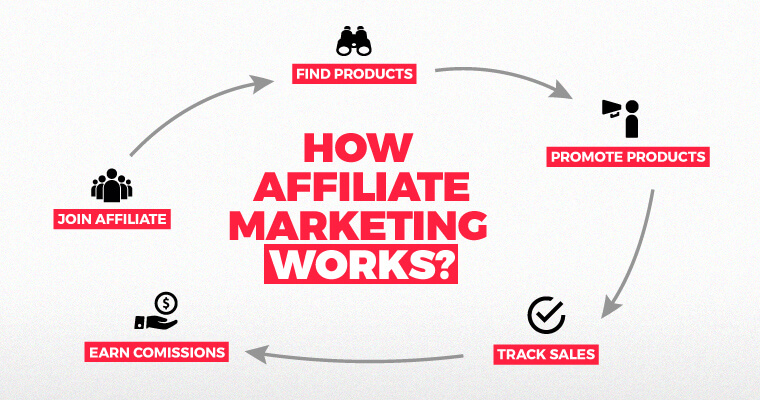
Image via Digital Ads Online
As an affiliate, you are typically paid whenever your visitor creates a transaction. The transaction could be anything from a click, lead form submission, or a sale. In the majority of cases, affiliate marketing is performance-based, which means you only get paid as an affiliate if your visitor takes an action.
Here are some common affiliate marketing models:
Pay-Per-Click (PPC): The affiliate gets paid for all clicks that were generated, regardless of whether a lead or sale happened. This is fairly rare, since all the risk is on the product creator.
Pay-Per-Lead (PPL): The affiliate gets paid for every lead they generated. This could be an online form submission, trial creation, or any pre-purchase. This is a shared risk on both the merchant and the affiliate.
Pay-Per-Sale (PPS): The affiliate gets paid for every sale they generated. This is the most common model, since all the risk is on the affiliate.
To become an affiliate, you first need to sign up for a program like the Amazon Associates or HubSpot Affiliate Program. After signing up, you will get an affiliate link which contains a unique ID. You can then use this link in your promotional content.
Whenever your visitor clicks on your unique affiliate link, a cookie is inserted in their browser to track actions.
When they make a transaction that is a qualified action (could be a sale or lead form submission, depending on the terms of the program), the merchant is able to record this action and attribute it to you as an affiliate so they can make a payout.
There are different structures when it comes to payout, which varies based on affiliate program terms.
Commission payouts by the company are usually given on a monthly basis, but this varies depending on the affiliate program terms.
It could be a weekly payout or a monthly payment for all the leads or sales you’ve made.
You’ll want to pay attention to the payout structure when choosing an affiliate program to join, which ultimately depends on the goals you have.
Do you need to pay to join an affiliate program?
There are typically no upfront costs when it comes to joining an affiliate program, but your variable ongoing costs will depend on how you want to promote the products.
When it comes to affiliate marketing, most people think it’s a process of earning a commission by promoting other people’s or company’s products.
While affiliate marketing can seem straightforward — just find a product you love, promote it, and earn a piece of profit with every sale you make — there are actually a few moving parts you need to take note of.
For instance, you might want to understand the commission structure of the company or product creator. Are you looking for commission per sale or commission per lead generated? Are you looking at recurring commission or a one-off payment?
Depending on your goals, this will affect which product you choose, how you plan to promote the product as well as how much time & resources you want to invest.
For instance, if you choose to promote your content via paid ads, then that’s a cost you have to account for. You will have to compare how much you’ve spent to promote each piece of content or to generate each purchase against how much commission you’re getting for each referred sale.
Or, if you have a blog and website, then you will have to pay for hosting. In this case, this should be a flat fee spread out across all your referred sale.
Use this marketing plan generator to calculate how much you need to invest to get a basic marketing plan up and running.
How much can you make from affiliate programs?
You might be wondering, what are established affiliates earning? (established affiliates are those working full-time.)
A poll was held on the STM Forum on “How much do you earn in a year?”:
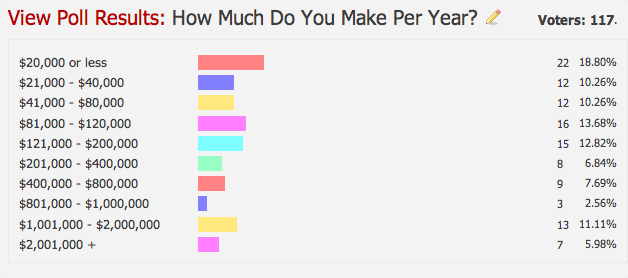
Almost 20% of established affiliates report making more than $1 million per year. While this seems like an unattainable figure, reporting on revenue is only one side of the story.
Making money from an affiliate program is more about the profits than the revenue you’re getting.
An affiliate making $5000/day might be worse off than another affiliate making $500/day with no cash outflow because the former might be spending most of his revenue on paid acquisition.
At the end of the day, before becoming an affiliate, you have to align your expectations to your earning potential. What kind of industry or niche you operate in, and what kind of work you do depends a lot on how much you want to make.
If you focus on ads like Adwords or Facebook to promote your affiliate products, how much money you invest is as important (if not more) as how much you make.
How do you choose an affiliate program?
I commonly hear two misconceptions when it comes to affiliate marketing.
- Affiliate marketing is dead.
It seems like every year in the world of online marketing, people have mentioned some variant of X is dead (SEO, Ads, Mobile). The test of time is a pretty good test — if something has stayed around for a while, there’s a better chance of it still staying around for a while.Everything evolves, and there are tactics that don’t work the exact same way as they did before. Affiliate marketing, of course, is no exception to that rule.
Affiliate marketing has evolved from a get-rich-quick scheme into something that requires affiliate to build real trust with their audience in order to reap the rewards of the work that’s been put in.
- Affiliate marketing is easy to do.
According to Three Ladders Marketing, only 0.6% of affiliate marketers surveyed have been around since 2013, which means that affiliate marketing takes time and effort to build and make money.Choosing the right product to promote, working with the right company, fostering relationships and updating content are all core essentials of excelling at affiliate marketing.
According to Pat Flynn, one of the pioneers of creating passive income through providing value to his audience, there are two important rules when it comes to affiliate marketing:
- Only recommend products as an affiliate that you’re extremely very familiar with. If you are not confident in the product and do not feel it will help people, do not promote it.
- Never tell anyone to directly buy a product. Always recommend products based on your experience and in the context of what you’ve done.
When it comes to choosing the right products, David Gonzalez — founder of an affiliate management agency, suggests that you should think about these 3 components when choosing a product to promote:
- Your audience – will the product resonate with them and make them grateful you promoted it?
- Product quality & value – would you advocate your best friend buying it?
- Profitability – does the offer have highly competitive conversions & payouts?
At the end of the day, become successful at affiliate marketing requires you to nail down the fundamentals of marketing. Authenticity is hard to fake, especially when it comes to building your own personal brand.
A brand that promotes products incessantly without any regard for bring real value to its audience will find affiliate marketing to be a short-lived source of income. Choosing the right products to promote, stemming from a true passion for what the product does, forms the basis of all your promotional activities.
While there are many tactics to scale your promotion, the golden rule of affiliate marketing stays the same: only promote products you love & treat your audience like humans.
Build your own brand, choose products that you love, create authentic content and you will be on your way to building a real source of passive income.
In the past year we’ve really invested into our solutions to make it worthwhile for solo-bloggers, solo-preneurs to tap on our software and educational content to grow their audience and business.
For instance, we’ve introduced a free tier as well as a $50/month option for people who are just getting started to utilize email marketing, forms on top of their blog.

17 Recruiter-Approved Skills for Your Resume That’ll Help You Get the Job
When I graduated college, I didn’t have much prior work experience, besides a high school gig at a chocolate shop and a college internship at a publishing firm.
However, I had something I believed made up for it — hard and soft skills.
Admittedly, some of these skills likely didn’t stand out to recruiters as particularly impressive. “Facebook”, for instance, is probably a skill I didn’t need to include, seeing as I wasn’t even applying for a social media position.

However, other skills, like “ability to work under pressure” and “proficient in Adobe Creative Suite”, did help me, particularly when I tailored my skills to fit the job description.
It’s critical you provide applicable and exceptional skills in your resume to show recruiters you’re an ideal candidate.
To help you create an impressive resume and demonstrate your unique qualifications, I spoke with HubSpot recruiters to consolidate 17 recruiter-approved skills (and useful tips) that’ll help you get the job.
Skills for Resume
- Ability to Work Under Pressure
- Leadership
- Graphic Design
- SEO Marketing
- Copywriting
- Ability to implement Social Media campaigns
- Data Analysis
- Foreign Languages
- Editing
- Proficient in Java Programming
- Quick Learner
- Detail-oriented
- Teamwork
- Adaptability
- Communication
- Creativity
- Proficient in Microsoft Office, including Excel and Powerpoint
The Difference Between Hard and Soft Skills
There’s a difference between soft and hard skills, and most recruiters I spoke with emphasized the importance of hard skills in a resume. Hard skills are skills required for the job, and are acquired through education, training, or experience. They are quantifiable skills that can be measured or tested, such as web design, computer programming, or finance.
Soft skills, on the other hand, are more abstract and less easy to measure. They are attributes and personality traits that demonstrate how you’ll interact with others within the company. For instance, “strong communicator”, “detail-oriented”, or “self-motivated” are soft skills that are not necessarily required for the role, but could nonetheless help you succeed in the role.
I spoke with Johanna Fleming, a Services Recruiter here at HubSpot, about hard and soft skills and which are more critical for a resume. She told me, “Mostly, hard skills stand out. Soft skills don’t add a ton of value to resumes because they can be very objective. For example, many people add that they have things like ‘strong communication skills’ … but it’s a bit fluffy because who is evaluating their communication skills? That said, hard skills definitely are more important to highlight — especially technical skills and experiences. If someone is familiar with certain platforms or applications, it’s also definitely important to highlight those!”
Additionally, to demonstrate the validity of the skill, it’s important you incorporate real metrics. Holly Peterson, a Senior Recruiter here at HubSpot, told me it’s critical you include “a track record of metrics-driven performance, and/or the impact you’ve had in each role. This could be something like, ‘Increase sales leads by 25%,’ or ‘Drove new users in thousands’.”
Noah Gilman, a Recruiting Team Lead at HubSpot, agrees. He said, “If you claim to have done really well in your last role but don’t put any numbers behind it, that really weakens your message.”
Along with including metrics in your work experience section, Noah suggests sticking to hard skills as much as possible — “Stick to … things that you can answer questions about from a recruiter, like ‘What have you built using java?’ or ‘Talk to me about a cool report you built in Tableau’, instead of something a recruiter would never ask … like ‘Talk to me about when you had strong communication skills'”.
Additionally, Glory Montes, an Associate Campus Recruiter, mentioned a few other hard and soft skills that stand out as particularly impressive, including “presentation skills — it’s a big green flag if a resume mentions a time the candidate had to present to senior managers or present on work they did. I also look for collaboration skills, like if a candidate mentions they worked with co-workers in other departments. Being able to communicate across disciplines shows adaptiveness and strong communication skills. Finally, showing project work outside of your day-to-day responsibilities shows me that you are passionate about your discipline.”
It’s also important to avoid vague or general statements, which could seem untrue, particularly if other applicants often use the same phrases. To avoid this, Roshan Shah, a HubSpot recruiter, told me specificity is key — “I don’t think many recruiters like seeing general statements like, ‘improved X process’ or ‘built relationships with stakeholders’. I strongly prefer more explicit details, like how much you improved a process or how you built relationships, and with which stakeholders.”
How to Add The Right Skills to Your Resume
Each time you send your resume to a company, you want to slightly alter or tailor your skills to match the job description or the requirements for the role.
To create a role-specific list of skills, begin by looking at the job description itself. For instance, take a look at this role description for the Senior Communication Designer position on HubSpot’s Careers page:
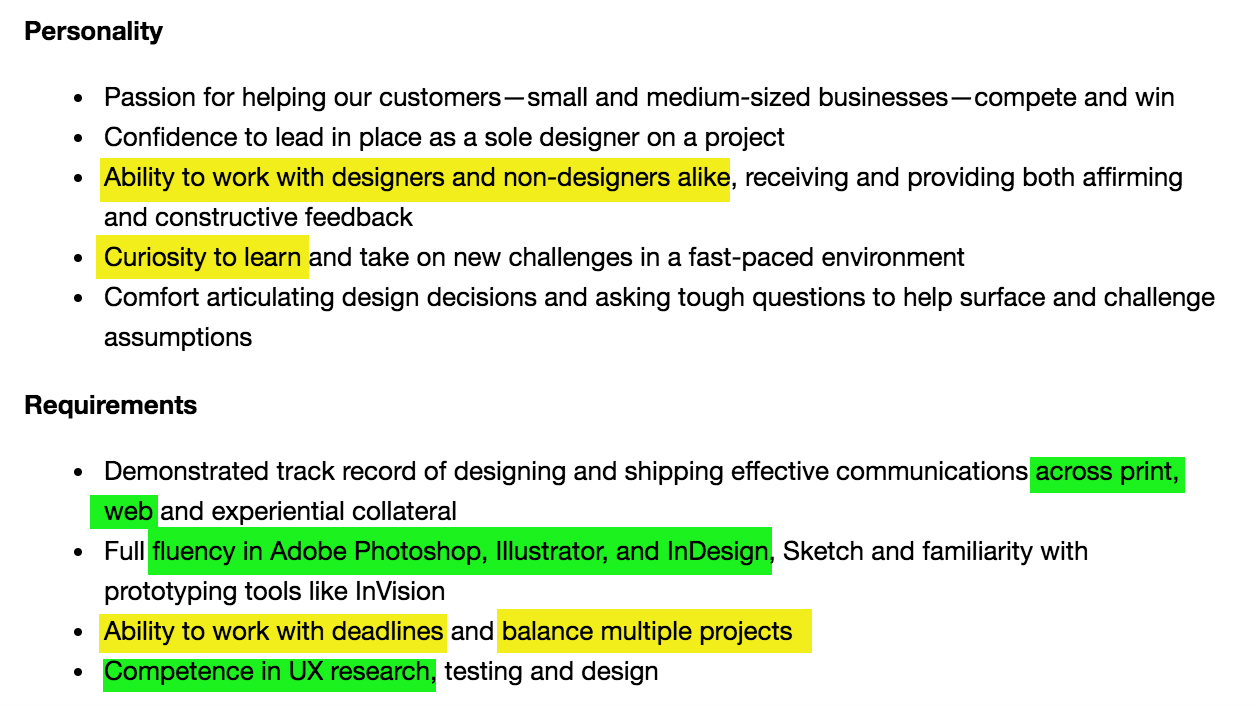
From these sections, we can glean a few hard and soft skills you’ll need to include.
I’ve highlighted the soft skills you’ll want to emphasize in yellow — including an ability to work under pressure, strong time-management skills, a desire to learn, and an ability to collaborate well with diverse team members.
Alternatively, the hard skills you’d want to emphasize are in green — including fluency in Adobe Creative Suite, proficiency in UX design, and an ability to design products for both web and print.
Of course, it goes without saying — don’t list any skills you don’t actually have.
Roshan Shah echoes this, telling me, “Candidates should use their actual skill set as the barometer for how many things to list on their resume, rather than just the job description. They should list things they’re actually proficient in — if you say you’re comfortable using AdWords because it’s on the job description, but then we test you and you end up being pretty novice with it, that’s going to look much worse than if you’d just left it off your resume in the first place.”
After you’ve looked at the job description, do some research on job sites like Glassdoor or Monster to see qualifications other companies include for similar positions. This enables you to include skills the hiring manager hasn’t listed, demonstrating your potential to bring something unique to the role.
Paulina Valdez, a Senior Recruiter at HubSpot, told me, “It’s important to highlight the technical skills that the role requires. For my Spanish Translator role, I look for CAT tools in a resume, like MemoQ and SDL Trados. Soft skills are more buzz words than anything, so I prioritize hard skills related to the role.”
Finally, consider a list of soft skills you believe truly reflect your personality and work ethic. Include these if you believe they’re relevant for the position to which you’re applying. For instance, in my skills section of my resume, I’ve included “passion for learning”. While this attribute might not be listed for a specific role, it’s an authentic description and highlights in which type of work environment I do well, so it felt necessary to include.

24 Little-Known Google Drive Features That’ll Boost Your Productivity [Infographic]
Odds are, you store all of your documents, spreadsheets, and presentations for work in Google Drive. As a cloud-based tool that lets you access any of your files from any device, it’s arguably the best digital asset management system out there.
If you’re an avid Google Drive user, you probably know your way around the tool. But even if you use Google Drive more than Elon Musk uses Twitter, the tool still has some relatively unknown features that you can leverage to boost your productivity.
To help you find and use these features, NetCredit created a handy, bookmarkable infographic that you can reference whenever you’re on Google Drive. From translating a document to another language to creating a QR code in a spreadsheet, this infographic will show you the little-known features that will help you become a power user of the tool.

.png)


How to Better Manage Social Media Teams: 3 Useful Tools
Looking for tools to improve your marketing team’s social media workflow? Wondering which tool will best fit your needs? In this article, you’ll find three social media management tools with valuable features for marketing teams. #1: Review Your Team’s Social Media Posts Before They Publish With Statusbrew Once you’ve registered and added your team members […]
The post How to Better Manage Social Media Teams: 3 Useful Tools appeared first on Social Media Marketing | Social Media Examiner.
from Social Media Marketing | Social Media Examiner https://ift.tt/2RKsPjE
via socialmediaexaminer
7 Types of Organizational Structure & Whom They’re Suited For [Diagrams]
The following article includes an excerpt from our free resource, An Illustrated Guide to Organizational Structures. If you’d like to download the full resource, click here.
Choosing the best organizational structure for your company, division, or team is a lot like picking out a new car.
At the most basic level, you’re always looking for something road-worthy — something that can take you (and your passengers) from point A to point B without a hitch.But beyond that, there are a lot of options to consider. Automatic or manual? Four-wheel drive or two? Built-in GPS? Leather interior? Flux capacitor? (Only if you’re going back in time, of course.)
In the world of organizational structures, the options you have to choose from include things like chain of command (long or short?), span of control (wide or narrow?), and centralization (centralized or decentralized decision-making?), just to name a few.
Organizational Structure
An organizational structure is a visual diagram of a company that describes what employees do, whom they report to, and how decisions are made across the business. Organizational structures can use functions, markets, products, geographies, or processes as their guide, and cater to businesses of specific sizes and industries.
What’s the point of an organizational structure? As a business leader, do you even need one? As I said, org structures help you define at least three key elements of how your business is going to run. Here’s what each of those elements means to an organization:
Chain of Command
Your chain of command is how tasks are delegated and work is approved. An org structure allows you to define how many “rungs of the ladder” a particular department or business line should have. In other words, who tells whom to do what? And how are issues, requests, and proposals communicated up and down that ladder?
Span of Control
Your span of control can represent two things: who falls under a manager’s, well, management … and which tasks fall under a department’s responsibility.
Centralization
Centralization describes where decisions are ultimately made. Once you’ve established your chain of command, you’ll need to consider which people and departments have a say in each decision. A business can lean toward centralized, where final decisions are made by just one or two entities; or decentralized, where final decisions are made within the team or department in charge of carrying out that decision.
You might not need an org structure right away, but the more products you develop and people you hire, the harder it’ll be to lead your company without this crucial diagram.
(To dive deeper into what all of these different organizational structure components are, check out my earlier post, “The 6 Building Blocks of Organizational Structure.”)

In this post, we’ll explore how you can combine those components to form different types of organizational structures. We’ll also highlight the benefits and drawbacks of different structure types so you can evaluate which is the best option for your company, division, or team. Let’s dive in.
Mechanistic vs Organic Organizational Structures
Organizational structures fall on a spectrum, with “mechanistic” at one end and
“organic” at the other.
Take a look at the diagram below. As you’ll probably be able to tell, the mechanistic structure represents the traditional, top-down approach to organizational structure, whereas the organic structure represents a more collaborative, flexible approach.
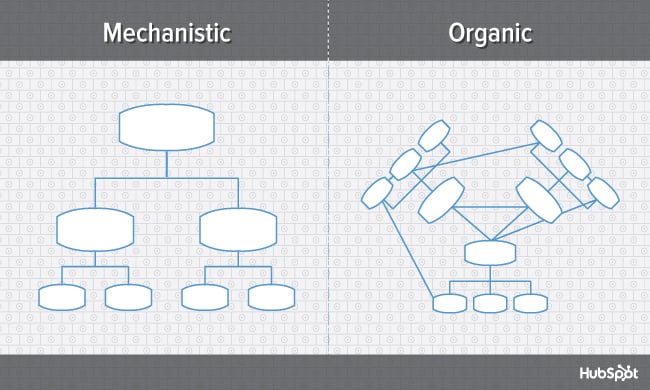
Here’s a breakdown of both ends of the structural spectrum, their advantages and disadvantages, and which types of businesses are suited for them.
Mechanistic Structure
Mechanistic structures, also called bureaucratic structures, are known for having narrow spans of control, as well as high centralization, specialization, and formalization. They’re also quite rigid in what specific departments are designed and permitted to do for the company.
This organizational structure is much more formal than organic structure, using specific standards and practices to govern every decision the business makes. And while this model does hold staff more accountable for their work, it can become a hindrance to the creativity and agility the organization needs to keep up with random changes in its market.
As daunting and inflexible as mechanistic structure sounds, the chain of command, whether long or short, is always clear under this model. As a company grows, it needs to make sure everyone (and every team) knows what’s expected of them. Teams collaborating with other teams as needed might help get a business off the ground in its early stages, but sustaining that growth — with more people and projects to keep track of — will eventually require some policymaking. In other words, keep mechanistic structure in your back pocket … you never know when you’ll need it.
Organic Structure
Organic structures (also known as “flat” structures) are known for their wide spans of control, decentralization, low specialization, and loose departmentalization. What’s that all mean? This model might have multiple teams answering to one person and taking on projects based on their importance and what the team is capable of — rather than what the team is designed to do.
As you can probably tell, this organizational structure is much less formal than mechanistic, and takes a bit of an ad-hoc approach to business needs. This can sometimes make the chain of command, whether long or short, difficult to decipher. And as a result, leaders might give certain projects the green light more quickly but cause confusion in a project’s division of labor.
Nonetheless, the flexibility that an organic structure allows for can be extremely helpful to a business that’s navigating a fast-moving industry, or simply trying to stabilize itself after a rough quarter. It also empowers employees to try new things and develop as professionals, making the organization’s workforce more powerful in the long run. Bottom line? Startups are often perfect for organic structure, since they’re simply trying to gain brand recognition and get their wheels off the ground.
Now, let’s uncover more specific types of organizational structures, most of which fall on the more traditional, mechanistic side of the spectrum.
Types of Organizational Structure
- Functional Organizational Structure
- Product-Based Divisional Structure
- Market-Based Divisional Structure
- Geographical Divisional Structure
- Process-Based Structure
- Matrix Structure
- Circular Structure
1. Functional Organizational Structure
One of the most common types of organizational structures, the functional structure departmentalizes an organization based on common job functions.
An organization with a functional org structure, for instance, would group all of the marketers together in one department, group all of the salespeople together in a separate department, and group all of the customer service people together in a third department.
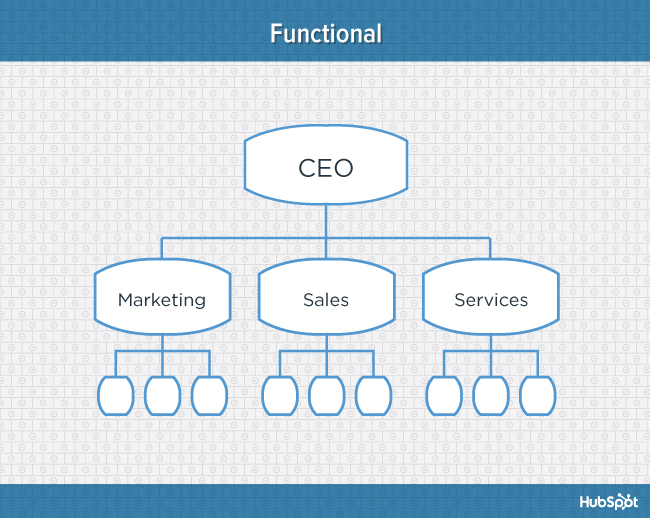
The functional structure allows for a high degree of specialization for employees, and is easily scalable should the organization grow. Also this structure is mechanistic in nature — which has the potential to inhibit an employee’s growth — putting staff in skill-based departments can still allow them to delve deep into their field and find out what they’re good at.
Disadvantages
Functional structure also has the potential to create barriers between different functions — and it can be inefficient if the organization has a variety of different products or target markets. The barriers created between departments can also limit peoples’ knowledge of and communication with other departments, especially those that depend on other departments to succeed.
2. Product-Based Divisional Structure
A divisional organizational structure is comprised of multiple, smaller functional structures (i.e. each division within a divisional structure can have its own marketing team, its own sales team, and so on). In this case — a product-based divisional structure — each division within the organization is dedicated to a particular product line.
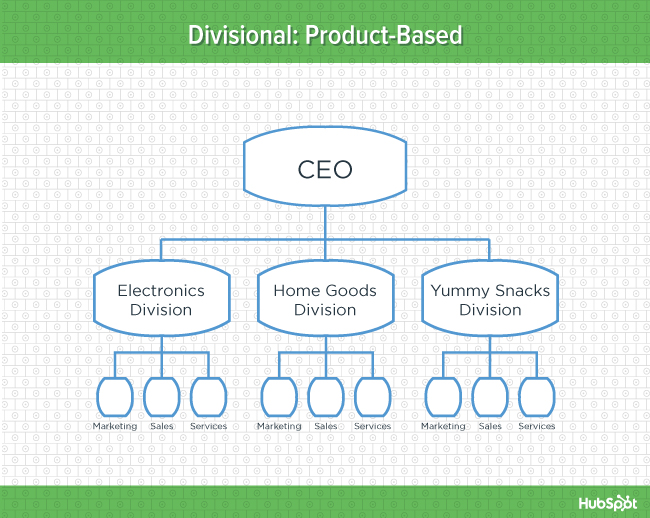
This type of structure is ideal for organizations with multiple products and can help shorten product development cycles. This allows small businesses to go to market with new offerings fast.
Disadvantages
It can be difficult to scale under a product-based divisional structure, and the organization could end up with duplicate resources as different divisions strive to develop new offerings.
3. Market-Based Divisional Structure
Another variety of the divisional organizational structure is the market-based structure, wherein the divisions of an organization are based around markets, industries, or customer types.
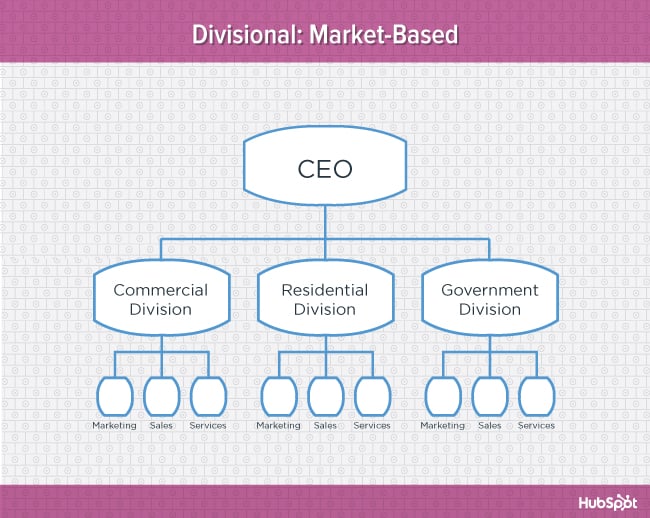
The market-based structure is ideal for an organization that has products or services that are unique to specific market segments, and is particularly effective if that organization has advanced knowledge of those segments. This organizational structure also keeps the business constantly aware of demand changes among its different audience segments.
Disadvantages
Too much autonomy within each market-based team can lead to divisions developing systems that are incompatible with one another. Divisions might also end up inadvertently duplicating activities that other divisions are already handling.
4. Geographical Divisional Structure
The geographical organizational structure establishes its divisions based on — you guessed it — geography. More specifically, the divisions of a geographical structure can include territories, regions, or districts.
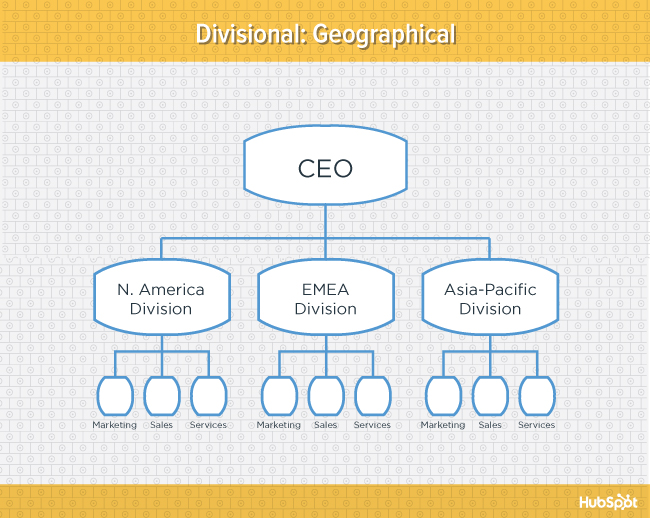
This type of structure is best-suited to organizations that need to be near sources of supply and/or customers (e.g. for deliveries or for on-site support). It also brings together many forms of business expertise, allowing each geographical division to make decisions from more diverse points of view.
Disadvantages
The main downside of a geographical org structure: It can be easy for decision- making to become decentralized, as geographic divisions (which can be hundreds, if not thousands of miles away from corporate headquarters) often have a great deal of autonomy. And when you have more than one marketing department — one for each region — you run the risk of creating campaigns that compete with (and weaken) other divisions across your digital channels.
5. Process-Based Structure
Process-based organizational structures are designed around the end-to-end flow of different processes, such as “Research & Development,” “Customer Acquisition,” and “Order Fulfillment.” Unlike a strictly functional structure, a process-based structure considers not only the activities employees perform, but also how those different activities interact with one another.
In order to fully understand the diagram below, you need to look at it from left to right: The customer acquisition process can’t start until you have a fully developed product to sell. By the same token, the order fulfillment process can’t start until customers have been acquired and there are product orders to fill.
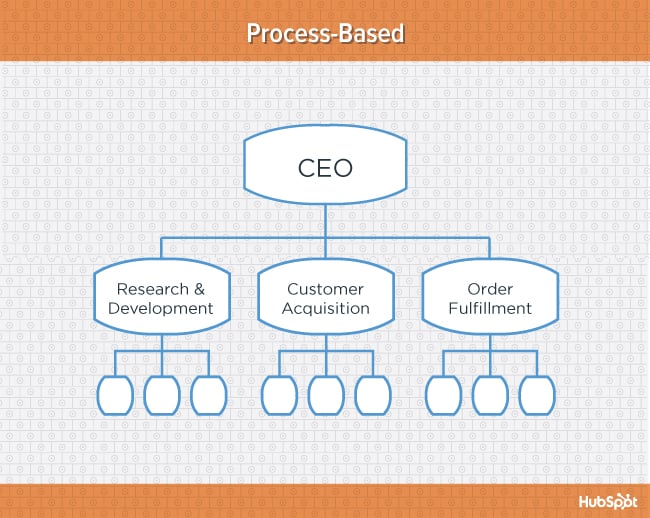
Process-based organizational structure is ideal for improving the speed and efficiency of a business, and is best-suited for those in rapidly changing industries, as it is easily adaptable.
Disadvantages
Similar to a few other structures on this list, process-based structure can erect barriers between the different process groups. This leads to problems communicating and handing off work to other teams and employees.
6. Matrix Structure
Unlike the other structures we’ve looked at so far, a matrix organizational structure doesn’t follow the traditional, hierarchical model. Instead, all employees (represented by the green boxes) have dual reporting relationships. Typically, there is a functional reporting line (shown in blue) as well as a product- based reporting line (shown in yellow).
When looking at a matrix structure org chart, solid lines represent strong, direct-reporting relationships, whereas dotted lines indicate that the relationship is secondary, or not as strong. In our example below, it’s clear that functional reporting takes precedence over product-based reporting.
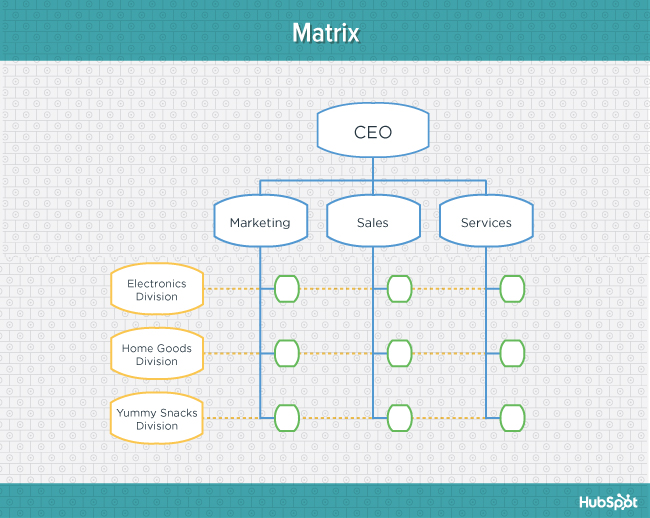
The main appeal of the matrix structure is that it can provide both flexibility and more balanced decision-making (as there are two chains of command instead of just one). Having a single project overseen by more than one business line also creates opportunities for these business lines to share resources and communicate more openly with each other — things they might not otherwise be able to do regularly.
Disadvantages
The primary pitfall of the matrix organizational structure? Complexity. The more layers of approval employees have to go through, the more confused they can be about who they’re supposed to answer to. This confusion can ultimately cause frustration over who has authority over which decisions and products — and who’s responsible for those decisions when things go wrong.
7. Circular Structure
While it might appear drastically different from the other organizational structures highlighted in this section, the circular structure still relies on hierarchy, with higher-level employees occupying the inner rings of the circle and lower-level employees occupying the outer rings.
That being said, the leaders or executives in a circular organization aren’t seen as sitting atop the organization, sending directives down the chain of command. Instead, they’re at the center of the organization, spreading their vision outward.
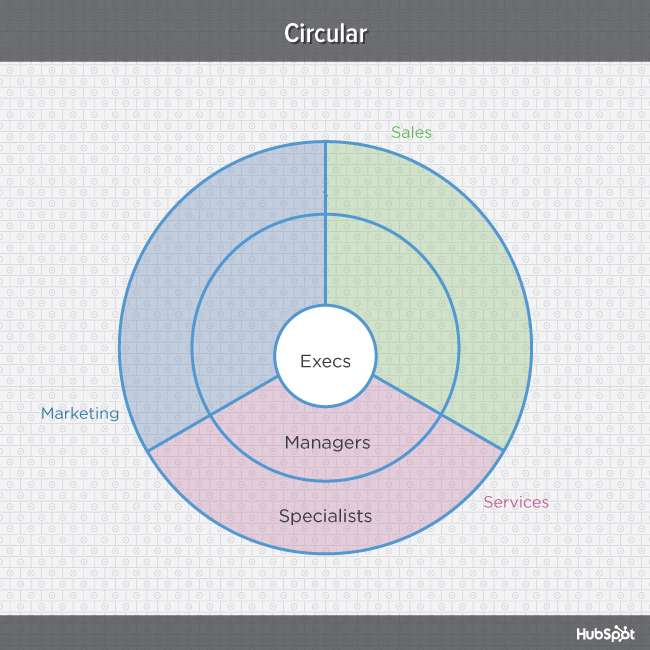
From an ideological perspective, a circular structure is meant to promote communication and the free flow of information between different parts of the organization. Whereas a traditional structure shows different departments or divisions as occupying individual, semi-autonomous branches, the circular structure depicts all divisions as being part of the same whole.
Disadvantages
From a practical perspective, the circular structure can be confusing, especially for new employees. Unlike with a more traditional, top-down structure, a circular structure can make it difficult for employees to figure out who they report to and how they’re meant to fit into the organization.
That concludes our exploration of different types of organizational structures. Keep in mind that what we’ve just looked at are simply archetypes — in real-world applications, organizations often use hybrid structures, which can borrow elements from multiple structure types.
Want to see some real-world examples of marketing team org structures from companies like GitHub and Rue La La? Download the complete resource, An Illustrated Guide to Organizational Structures.
To learn more about working on a marketing team, check out the 6 Building Blocks of Organizational Structure [Diagrams].