
Welcome to My Blog
Arlo expands its home security lineup w/ smart wireless Audio Doorbell
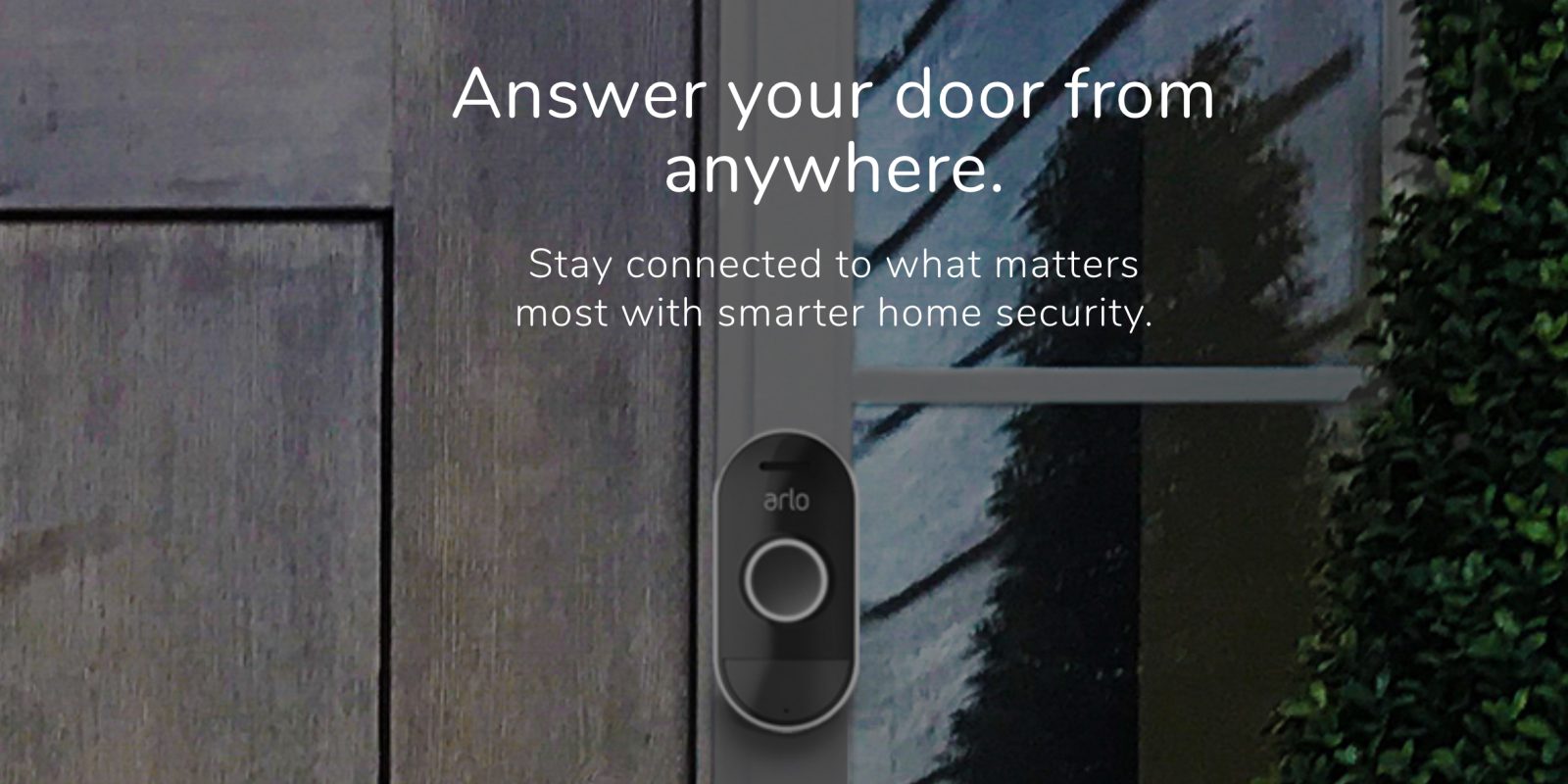
This morning, Netgear announced that its Arlo sub-brand is going to add a new smart doorbell to its expansive lineup of home security products. Today’s news comes on the heels of Apple’s decision to remove the entire smart doorbell category from its HomeKit accessories list for the time being. Netgear’s consumer-focused security lineup has enjoyed great success in recent years as it has expanded to include a wider range of competitively priced products.
Officially called the Arlo Audio Doorbell, Netgear is skipping the video-conferencing features made popular by Ring in favor of a slimmer design and improved battery life. As expected, you’ll be able to speak directly via your smartphone device to anyone at the door. More details below.
3 Ways to Improve Your Digital Project Management
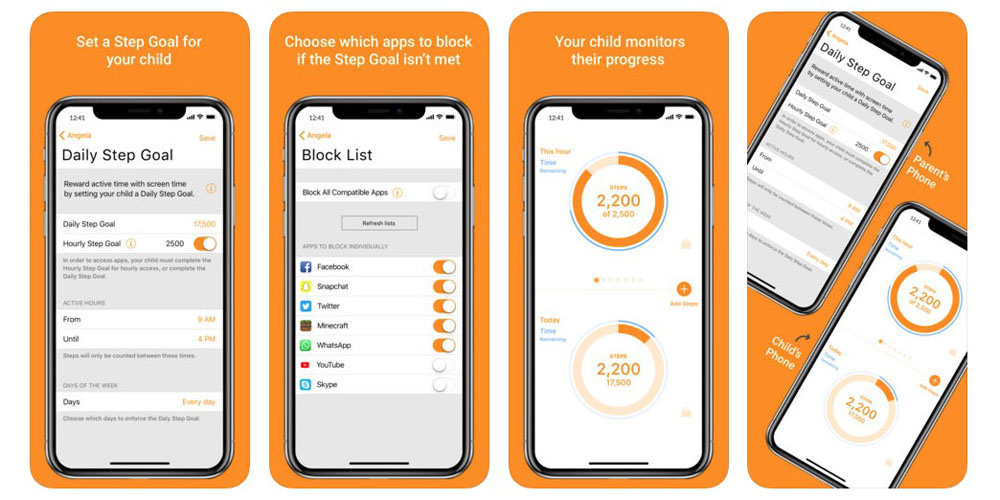
Interesting parental control app requires kids to exercise to earn screen time
One of the iOS 12 features to generate a lot of buzz has been Screen Time – a way to monitor app usage and set limits to reduce the amount of time spent staring at your phone.
You can use it yourself, of course, but parents can also use it to limit the time their kids spend using particular apps, like games or YouTube. One company, though, thinks it has an even better idea: require kids to exercise to earn app time …
iPhone X sets new record for resale value, averaging 85% of retail price

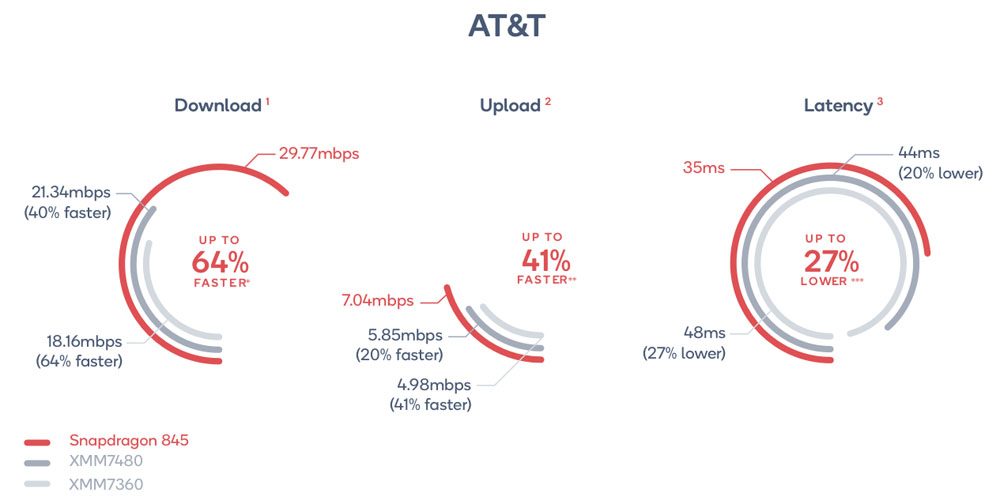
It’s not just Samsung – now Qualcomm is bashing iPhone specs …
Qualcomm reveals breakthrough 5G millimeter wave antenna designated for smartphones

When it comes to rolling out a new network standard like 5G, there are a lot of moving parts involved, and just as many obstacles. One of the biggest challenges to the upcoming move to 5G cellular technology is producing eligible millimeter wave antennas that are small enough that can fit inside modern smartphones. Qualcomm has been hard at work at producing an antenna module, the QTM052, capable of operating at the high frequencies required for 5G. The production of such a small antenna means that one of the biggest hurdles to making next-generation 5G technology a reality has been cleared. more…
This year’s iPhones may require an official USB-C charger for fast charging
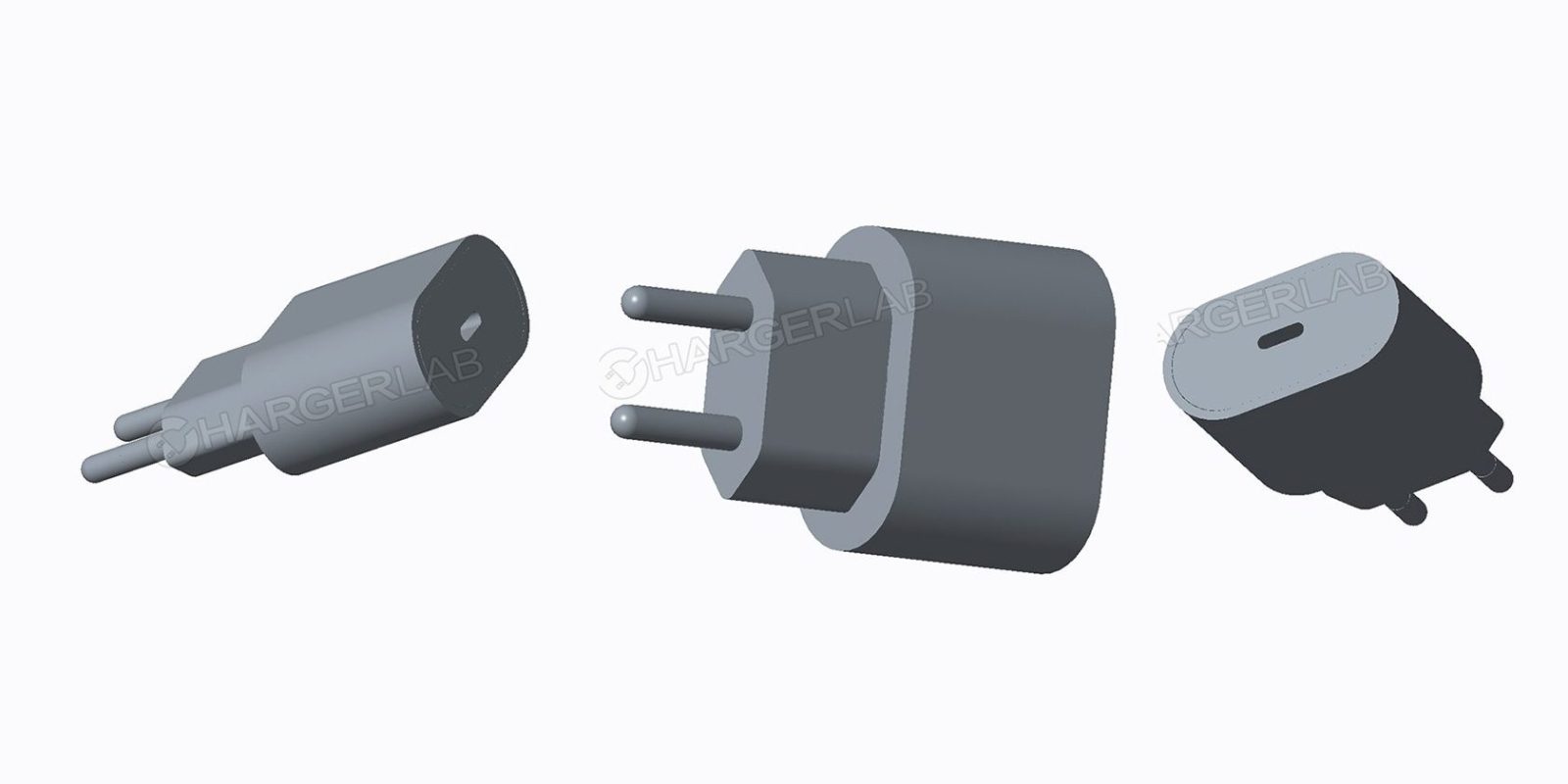
If you were hoping to benefit from fast charging of this year’s iPhones, that may not be possible with many third-party chargers …
Sony shows clever 48MP smartphone camera sensor that could be used in future iPhones

Snapcash closing, likely due to competition from Apple and others – and sketchy usage

Sending money direct from your phone to a friend or family member has made the shift from a geeky thing back in 2014 to a relatively mainstream activity today. But increased competition is seeing one player exit the business …
How to Recognize and Overcome Facebook Ad Fatigue
Are your once-successful Facebook ad campaigns no longer effective? Wondering if ad fatigue is responsible? In this article, you’ll learn how to recognize the signs of ad fatigue and tweak existing Facebook ads for better performance. Determine Whether Ad Fatigue Is Impacting Campaign Performance Ad fatigue is an issue that will affect even the most […]
The post How to Recognize and Overcome Facebook Ad Fatigue appeared first on Social Media Examiner.
from Social Media Examiner https://ift.tt/2LIQxtw
via socialmediaexaminer
11 Virtual Reality Apps That You Won’t Be Able to Put Down
A few weeks ago, I experienced virtual reality for the first time. One of my colleagues brought her Oculus into the office and let our whole team try it out. I picked the VR mini golf experience, which I wasn’t initially excited for — I’ve never really liked mini golf. But when I slid on the Oculus, I was pleasantly surprised.
Entering the realm of VR mini golf was refreshing. Instead of playing on a grimy, green mat in a dingy amusement park, I was enjoying a round of putt-putt on a clean, sleek golf course floating in the clouds.
Even though the environment and obstacles on the VR golf course were obviously not realistic, I still felt like I was there. After my first putt, I tried walking toward the ball. I ended up slamming into a pillar in the office. When I dangled my foot over the platform, I freaked out. I thought I was going to fall for a split second.

After too many double bogeys in a row, I slid off the Oculus and returned to reality. I felt like I was just transported to a different world. I couldn’t believe how well VR played to my senses and tricked my brain into thinking I was on a mini golf course in the sky, even though I knew I was in an office.
The experience made me want to try to it again. Heck, I even thought about buying an Oculus.
But before you drop $400 on a VR headset like I almost did, you should know you can have nearly as much fun playing VR mini golf as you can interacting with VR apps that you can download on your iPhone or Android.
Below, we’ll list 11 of them, most of which are free and work with affordable headsets like Google Cardboard.
11 Virtual Reality Apps That You Won’t Be Able to Put Down
- VirtualSpeech
- Jaunt VR
- NYT VR
- Orbulus
- Discovery VR
- Google Arts & Culture
- Inside Abbey Road
- InCell VR
- Minos Starfighter
- Romans from Mars 360
- VR Street Jump
1. VirtualSpeech
Practicing a speech without an audience can be helpful, but the experience doesn’t emulate the pressure of an evaluating crowd. You can nail a dry run ten times in a row on your own, but when you actually step on stage and see your audience, the nerves can debilitate your abilities.
Fortunately, VirtualSpeech can help you hone your public speaking skills — the app places you on a virtual stage with a virtual crowd, where you can practice your speech or presentation in front of an audience that imitates the mannerisms and sounds of real people. Their movements and sounds are fully customizable, so you can ramp up the distractions and virtual judgement as much as possible. And at the end of your virtual speeches, the app will analyze and score your verbal and nonverbal communication.
You can also add your own slides into your virtual presentation, practice for job interviews, learn how to network, and sell in a wide range of sales situations.
So far, people mostly use virtual reality to entertain themselves. But VirtualSpeech stands out as one of the first VR apps that can actually train you to become a better professional.
Available on: IOS and Android for Free
2. Jaunt VR
Jaunt VR wants to make immersive storytelling the future of entertainment. The app offers hundreds of 360-degree films, shows, documentaries, tours and concerts, all in virtual reality.
When you put your headset on, you’ll transport to a virtual room where you can choose from a massive collection of immersive experiences, segmented by 20 different channels. At the touch of a button, you can tour the awe-inspiring Redwood National Park, go through the San Francisco Giants pre-game routine and take the field with them during opening day, or sit back and enjoy Emmy winning documentaries.
Jaunt’s content is already engaging on its own, but in virtual reality, you’ll actually feel like you’re experiencing the events they’ve documented.
Available on: IOS and Android for Free
3. NYT VR
For years, journalists have written articles and created videos about events that most of the world could never experience on their own. Their job is to be a surrogate for the general public. And in 2015, the New York Times wanted to truly take on that role by making journalism more immersive.
They started experimenting with virtual reality as a news format, and since then, they’ve created over 300 VR news reports. The NYT VR app tells some of the publication’s most captivating stories — virtual reality has a knack for evoking empathy and interest in audiences. By placing the public into a life they might never experience but definitely need to see for themselves, like the lives of three refugee children from Ukraine, Sudan, and Syria, audiences will be more willing to help people who are truly in need
Available on: IOS and Android for Free
4. Orbulus
Teleporting to a destination at the press of a button is probably a long way from becoming a reality, but, in virtual reality, it’s, well, a reality. If you want to visit a location before you pay for an expensive vacation, or if you just want to see more of the world but don’t have the funds, check out Orbulus. You can experience the sights and sounds of various cityscapes and landscapes — ranging from Paris at night to the northern lights in Scotland.
Available on: IOS and Android for Free
5. Discovery VR
Have you ever wanted to swim with sharks? Or play with pandas? Well with the Discovery VR app, you still can’t really do those things … but you can get pretty close. When you put on your headset, the app immerses you in the habitat of different animals, landscapes, and cityscapes. This is the most fun you’ll have learning about science since watching Bill Nye the Science Guy in middle school.
Available on: IOS and Android for Free
6. Google Arts & Culture
Google Arts & Culture partnered with more than 1,200 international museums, galleries, and institutions from 70 countries to create the most accessible and immersive art and history experience in the world. By offering guided virtual tours of the world’s most famous museums and curated exhibits, you can learn about the artwork, artifacts, and stories that have molded the many unique cultures of our world.
Available on: IOS and Android for Free
7. Inside Abbey Road
Legendary artists — like The Beatles, Queen, and Oasis, among many others — have all recorded their best hits at Abbey Road, and the music created in the famous studio will continue to impact our culture for many years to come.
Google and Abbey Road decided to create Inside Abbey Road to guide the public through a virtual tour of the studio, allowing you to explore the origin place of some of the most popular songs in the world.
The tour starts with a nine-part series of the studio’s history from the 1930s until now. After that, you can explore different recording rooms that famous musicians have used, and even enter a mixing studio to try your hand at producing music.
Available on: IOS and Android for Free
8. InCell VR
Most of us probably vowed to never touch a book about the human cell after suffering through high school biology class. But would you be willing to learn about it again if you could shrink down to microscopic size and explore an actual cell? Better yet, would you do it if you could race a virus in it?
InCell VR let’s you do just that. When you play the game, you’ll speed through a human cell with a robot assistant who helps you protect it from malicious viruses.
InCell VR is a traditional racing game and an educational lesson blended into one experience. You have to gain points and dodge obstacles to save the cell before the virus can destroy it, and you’ll learn little tidbits about biology along the way.
Available on: IOS and Android for Free
9. Minos Starfighter
Minos Starfighter is like the modern, first-person version of the arcade game Galactica. By just tilting your head, you can maneuver a spaceship and blast your enemies in space battles, leveling up to face more challenging enemies as you destroy each wave. The game has never-ending play, so you can upgrade your ship and weapons to fend off your enemies as they become stronger.
Available on: IOS and Android for $0.99
10. Romans from Mars 360
Playing Romans from Mars 360 might be the perfect training session for combating an alien invasion. Endless waves of martians bent on world domination are attacking your castle, and since you’re a roman soldier, you can only defend your castle with a crossbow. As you earn more points, you can upgrade your crossbow to shoot flaming arrows and summon earth’s elements like fire, earth, ice, and lightning to squash your enemies.
Available on: IOS and Android for Free
11. VR Street Jump
Remember Frogger? Well, VR Street Jump is the modern, first-person version of the classic game that almost feels too realistic — you’ll think you’re actually dodging traffic. Remember to look both ways, though. Or else a car might just send you soaring across the road.
Available on: IOS and Android for Free



How to Start a Competitive Analysis: 57 Questions You Need to Ask [Free Kit]
When was the last time you ran a competitive analysis for your brand?
If you’re not sure, or if the last “analysis” you ran was a quick perusal of a competitor’s website and social media presence, you’re likely missing out on important intelligence that could help your brand grow.
To help you get started with competitive analysis the right way, we’re breaking down everything you’ll want to look for below.
Download the full competitive analysis kit from HubSpot and Alexa.com here.
Every brand can benefit from regular competitor analysis. By performing a competitor analysis, you’ll be able to:
- Identify gaps in the market
- Develop new products and services
- Uncover market trends
- Market and sell more effectively
As you can see, learning any of these four components will lead your brand down the path of achievement. But before you get too excited to start, we need to nail down a few important basics.
How to Identify Your True Competition
First, you’ll need to figure out who you’re really competing with so you can compare the data accurately. What works in a business similar to yours may not work for your brand.
So how can you do this?
Divide your “competitors” into two categories: direct and indirect.
Direct competitors are businesses that offer a product or service that could pass as a similar substitute for yours, and that operate in your same geographic area.
On the flip side, an indirect competitor is one that provides products that are not the same but could satisfy the same customer need or solve the same problem.
It seems simple enough on paper, but these two terms are often misused.
When comparing your brand, you should only focus on your direct competitors. This is something many brands get wrong.
Let’s use an example: Stitch Fix and Fabletics are both subscription-based services that sell clothes on a monthly basis and serve a similar target audience.
But as we look deeper, we can see that the actual product (clothes in this case) are not really the same; one brand focuses on stylish everyday outfits while the other is workout-centric attire only.
Yes, these brands satisfy the same need for women (having trendy clothes delivered right to their doorstep each month), but they do so with completely different types of clothing, making them indirect competitors.
This means Kate Hudson’s team at Fabletics would not want to spend their time studying Stitch Fix too closely since their audiences probably vary quite a bit. Even if it’s only slightly, this tiny variation is enough to make a big difference.
Now, this doesn’t mean you should toss your indirect competitors out the window completely.
Keep these brands on your radar since they could shift positions at any time and cross over into the direct competitor zone. Using our example, Stitch Fix could start a workout line, which would certainly change things for Fabletics.
This is also one of the reasons why you’ll want to routinely run a competitor analysis. The market can and will shift at anytime, and if you’re not constantly scoping it out, you won’t be aware of these changes until it’s too late.
What Exactly Are We Comparing?
Once you identify your true competition, you’ll need to determine what metrics you’ll be comparing across the board.
There are three specific categories to focus on: business (the products), sales, and marketing.
Business (Products)
At the heart of any business is its product or service, which is what makes this a good place to start.
You’ll want to analyze your competitor’s complete product line and the quality of the products or services they’re offering.
You should also take note of their pricing and any discounts they’re offering customers.
Some questions to consider include:
- Are they a low-cost or high-cost provider?
- Are they working mainly volume sales or one-o purchases?
- What is their market share?
- What are characteristics and needs of their ideal customers?
- Are they using different pricing strategies for online purchases versus brick and mortar?
- How does the company differentiate itself from its competitors?
- How do they distribute their products/services?
Sales
Running a sales analysis of your competitors can be a bit tricky.
You’ll want to track down the answers to questions such as:
- What does the sales process look like?
- What channels are they selling through?
- Do they have multiple locations and how does this give them an advantage?
- Are they expanding? Scaling down?
- Do they have partner reselling programs?
- What are their customers reasons for not buying? For ending their relationship with the company?
- What are their revenues each year? What about total sales volume?
- Do they regularly discount their products or services?
- How involved is a salesperson in the process?
These helpful pieces of information will give you an idea of how competitive the sales process is, and what information you need to prepare your sales reps with to compete during the final buy stage.
For publicly held companies, you can find annual reports online, but you’ll have to do some sleuthing to find this info from privately owned businesses.
You could find some of this information by searching through your CRM and reaching out to those customers who mentioned they were considering your competitor. Find out what made them choose your product or service over others out there.
To do this, run a report that shows all prospective deals where there was an identified competitor.
If this data is not something you currently record, talk to marketing and sales to implement a system where prospects are questioned about the other companies they are considering.
Essentially, they’ll need to ask their leads (either through a form field or during a one- on-one sales conversation) to identify who their current service providers are, who they’ve used in the past, and who else they are considering during the buying process.
When a competitor is identified, have your sales team dive deeper by asking why they are considering switching to your product. If you’ve already lost the deal, be sure to follow up the with prospect to determine why you lost to your competitor. What services or features attracted the prospect? Was it about price? What’s the prospect’s impression of your sales process? If they’ve already made the switch, find out why they made this decision.
By asking open-ended questions, you’ll have honest feedback about what customers find appealing about your brand and what might be turning customers away.
Once you’ve answered these questions, you can start scoping out your competitor’s marketing efforts.
Marketing
Analyzing your competitor’s website is the fastest way to gauge their marketing efforts. Take note of any of the following items and copy down the specific URL for future reference:
- Do they have a blog?
- Are they creating whitepapers or ebooks?
- Do they post videos or webinars?
- Do they have a podcast?
- Are they using static visual content such as infographics and cartoons?
- What about slide decks?
- Do they have a FAQs section?
- Are there featured articles?
- Do you see press releases?
- Do they have a media kit?
- What about case studies?
- Do they publish buying guides and data sheets?
- What online and offine advertising campaigns are they running?
Then, take a look at the quantity of these items. Do they have several hundred blog posts or a small handful? Are there five white papers and just one ebook?
Next, determine the frequency of these content assets. Are they publishing something new each week or once a month? How often does a new ebook or case study come out?
Chances are, if you come across a robust archive of content, your competitor has been publishing regularly. Depending on the topics they’re discussing, this content may help you hone in on their lead generating strategies.
From there, you should move on to evaluating the quality of their content. After all, if the quality is lacking, it won’t matter how often they post since their target audience won’t find much value there.
Choose a small handful of samples to review instead of tackling every single piece to make the process more manageable.
Your sampler should include content pieces covering a variety of topics so you’ll have a fairly complete picture of what your competitor shares with their target audience.
When analyzing your competitor’s content, consider the following questions:
- How accurate is their content?
- Are spelling or grammar errors present?
- How in-depth does their content go? (Is it introductory level that just scratches the surface or more advanced topics with high-level ideas?)
- What tone do they use?
- Is the content structured for readability? (Are they using bullet points, bold headings, and numbered lists?)
- Is their content free and available to anyone or do their readers need to opt-in?
- Who is writing their content? (In-house team? One person? Multiple contributors?)
- Is there a visible byline or bio attached to their articles?
As you continue to scan the content, pay attention to the photos and imagery your competitors are using.
Do you quickly scroll past generic stock photos or are you impressed by custom illustrations and images? If they‘re using stock photos, do they at least have overlays of text quotes or calls-to- action that are specific to their business?
If their photos are custom, are they sourced from outside graphic professionals or do they appear to be done in-house?
When you have a solid understanding of your competitor’s content marketing strategy, it’s time to find out if it’s truly working for them.
Content Engagement
To gauge how engaging your competitor’s content is to their readers, you’ll need to see how their target audience responds to what they’re posting.
Check the average number of comments, shares, and likes on your competitor’s content and find out if:
- Certain topics resonate better than others
- The comments are negative, positive, or a mix
- People are tweeting about specific topics more than others
- Readers respond better to Facebook updates about certain content
- Don’t forget to note if your competitor categorizes their content using tags, and if they have social media follow and share buttons attached to each piece of content. Both of these will a ect engagement activity.
Content Promotion
From engagement, you’ll move right along to your competitor’s content promotion strategy.
- Keyword density in the copy itself
- Image ALT text tags
- Use of internal linking
The following questions can also help you prioritize and focus on what to pay attention to:
- Which keywords are your competitors focusing on that you still haven’t tapped into?
- What content of theirs is highly shared and linked to? How does your content compare?
- Which social media platforms is your target audience using and the most active on?
- What other sites are linking back to your competitor’s site, but not yours?
- Who else is sharing what your competitors are publishing?
- Who is referring traffic to your competitor’s site?
- For the keywords you want to focus on, what is the diffculty level? There are several free (and paid) tools that will give you a comprehensive evaluation of your competitor’s search engine optimization.
Social Media Presence
The last area you’ll want to evaluate when it comes to marketing is your competitor’s social media presence and engagement rates.
How does your competition drive engagement with their brand through social media? Do you see social sharing buttons with each article? Does your competitor have links to their social media channels in the header, footer, or somewhere else? Are these clearly visible? Do they use calls-to-action with these buttons?
If your competitors are using a social network that you may not be on, it’s worth learning more about how that platform may be able to help your business, too. To determine if a new social media platform is worth your time, check your competitor’s engagement rates on those sites. First, visit the following sites to see if your competition has an account on these platforms:
- Snapchat
- YouTube
Then, take note of the following quantitative items from each platform:
- Number of fans/followers
- Posting frequency and consistency
- Content engagement (Are users leaving comments or sharing their posts?)
- Content virality (How many shares, repins, and retweets do their posts get?)
With the same critical eye you used to gauge your competition’s content marketing strategy, take a fine-toothed comb to analyze their social media strategy.
What kind of content are they posting? Are they more focused on driving people to landing pages, resulting in new leads? Or are they posting visual content to promote engagement and brand awareness?
How much of this content is original? Do they share curated content from other sources? Are these sources regular contributors? What is the overall tone of the content?
How does your competition interact with their followers? How frequently do their followers interact with their content?
After you collect this data, generate an overall grade for the quality of your competitor’s content. This will help you compare the rest of your competitors using a similar grading scale.
SWOT (Strengths, Weaknesses, Opportunities, & Threats)
As you evaluate each component in your competitor analysis (business, sales, and marketing), get into the habit of performing a simplified SWOT analysis at the same time.
This means you’ll take note of your competitor’s strengths, weaknesses, opportunities, and threats any time you assess an overall grade.
Some questions to get you started include:
- What is your competitor doing really well with? (Products, content marketing, social
media, etc.) - Where does your competitor have the advantage over your brand?
- What is the weakest area for your competitor?
- Where does your brand have the advantage over your competitor?
- What could they do better with?
- In what areas would you consider this competitor as a threat?
- Are there opportunities in the market that your competitor has identified?
You’ll be able to compare their weaknesses against your strengths and vice versa. By doing this, you can better position your company, and you’ll start to uncover areas for improvement within your own brand.
How Does Your Business Currently Stack Up?
Before you accurately compare your competition, you need to establish a baseline. This also helps when it comes time to perform a SWOT analysis.
Take an objective look at your business, sales, and marketing e orts through the same metrics you use to evaluate your competition.
Record this information just like you would with a competitor and use this as your baseline to compare across the board.
Ready to get started with the full ebook and template? Click here to access the complete Competitive Analysis Kit.


The Definition of a Buyer Persona [in Under 100 Words]
A buyer persona is a semi-fictional representation of your ideal customer based on market research and real data about your existing customers.
When creating your buyer persona(s), consider including customer demographics, behavior patterns, motivations, and goals. The more detailed you are, the better.
Buyer personas provide tremendous structure and insight for your company. A detailed buyer persona will help you determine where to focus your time, guide product development, and allow for alignment across the organization. As a result, you will be able to attract the most valuable visitors, leads, and customers to your business.
Ready to put this definition into practice? Learn how to create a detailed buyer persona for your business.


How to Make an Instagram Story Like a Pro
These days, social media is all about documentation.
Where you go, what you eat and drink, who you see, and what’s most memorable: These are the typical fodder of Instagram Stories — seconds-long glimpses of people’s lives, shared on Instagram for only 24 hours.
The Instagram Story feature allows Instagram users to share photos and videos to their “Story” — which is visible to followers of the user’s Instagram account — and to specific users the Story’s sender follows. Like in Snapchat, Instagram Stories are ephemeral, meaning they vanish after 24 hours. Stories are published separately from the photos and videos found in the tiled gallery of one’s Instagram profile.
You might know the basics of sharing Instagram Stories, but there are hidden tools within the app that can make the photos and videos you share more creative and more engaging.
Below, we’ve created this guide to how to share Instagram Stories, and how to make those Stories are compelling and cool as possible. In this post, we’ll cover:
- Why Share Instagram Stories in the First Place
- How to Post Instagram Stories (The Basics)
- Instagram Stories Tricks and Hacks for Awesome Instagram Stories

Why Share Instagram Stories?
Instagram Stories can drive a ton of engagement and value — whether you’re sharing a Story from a brand account or your own personal profile.
Since launching back in August 2016, a total of 250 million Instagram users have started sharing disappearing content on Instagram Stories — contributing to the huge jump in time spent in-app every day from 24 minutes to 32.
What’s more, a lot of brands have already seen success publishing content to this platform. Instagram Stories have fueled the growth of brands like Teen Vogue, Insider, and Bustle. Whether publishers are trying to grow brand awareness, grow traffic to videos or newsletter outside of Instagram, or share sponsored content, publishers are flocking to Instagram to publish fun disappearing content that infuses brand voice and personality without taking up too much of the average techie’s dwindling attention span.
What’s more, Instagram Stories are credited with fueling the massive growth of Instagram Direct — private one-to-one messaging between users within the app. Instagram Direct has grown into one of the most popular messaging apps in the world with a staggering 375 million users. Even more impressive, TechCrunch reports that one in five Instagram Stories shared by a brand receives a Direct reply — giving brands a direct line to connect with their audience and learn more about them.
How to Make a Story on Instagram
- Open Instagram, and tap the camera icon in the upper left-hand corner of your phone.
- Share a photo or video you’ve already captured by swiping up on your screen to browse your gallery.
- Or, choose a camera lens to capture a photo or video in the app.
- Once you’ve edited your photo or video, tap “Your Story,” or tap “Next” to share it to your Story and to other friends at the same time.
You can make Instagram Stories this successful too — but it requires a few more hacks and tips to make them look like the Stories big brands and influencers share. (Some of my favorite Instagram Stories are shared by chef Chloe Coscarelli, actress Busy Phillips, mattress brand Casper, and interior design app Hutch — and don’t forget to check out HubSpot‘s Instagram Stories, either.)
But first, let’s review the basics of how to share an Instagram Story:
1. Open Instagram, and tap the camera icon in the upper left-hand corner of your phone.

2. Share a photo or video you’ve already captured by swiping up on your screen to browse your gallery.
Disclosure: Yes, I did a photoshoot featuring my cats. Can you blame me though?

3. Or, choose a camera lens to capture a photo or video in the app.

You have a few different options to choose from:
1. Live
If you toggle your screen to the “Live” option, you’ll start filming and broadcasting live on Instagram. Like Facebook Live, friends can follow along and leave comments, and when you’re done with the broadcast, you’ll have the option to let the video disappear, save it, or share it Instagram Stories for an additional 24 hours.
2. Normal
It means what it says: Tapping once will capture a photo, and holding down will record a video. Instagram Stories can be 15 seconds in length, so if you want to share a video that’s longer, film in 15-second stints, or use CutStory to split your longer clip into 15-second installments.
3. Boomerang
Boomerang mode films looping GIFs up to three seconds in length.
4. Superzoom
Superzoom is, on the surface, a video recording lens that zooms in closer and closer on your subject. But turn up the volume, and you can use Superzoom to create a dramatic soundtrack to accompany your video.
As my friend Marissa put it, “It’s like it’s BUILT for cats.”
I will forever be in love with this Insta lens!!!! pic.twitter.com/HvU6rarmNa
— Sophia Bernazzani (@soph_bern)
November 17, 2017
5. Rewind
Use the rewind lens to film a video in reverse.
6. Stop Motion
Use this lens to film cool stop-motion videos: several different still images woven together in one seamless video. Think of it like the video version of a flip book (like this example below):
Stop-motion artist Alex Unger spends months creating incredibly detailed pieces. pic.twitter.com/m6R4MNLIQj
— Business Insider UK (@BIUK)
November 14, 2017
7. Hands-Free
Use hands-free mode if you want to set up your camera to film a video for you. Make sure you prop it somewhere stable before you call “Action.” We’ll talk more about this feature in a minute.
4. Once you’ve edited your photo or video, tap “Your Story,” or tap “Next” to share it to your Story and to other friends at the same time.
You can also save your edited photo or video to your gallery by tapping “Save” in the lower left-hand corner.

Now that you know the basics, let’s run through tips and hacks for producing high-quality, clickable Instagram Stories.
11 Instagram Story Tricks and Hacks
1. Use stickers.
Once you’ve captured a great photo or video, it’s time to jazz it up with some fun stickers. You can access these by tapping the smiling sticker icon in the upper right-hand corner of your screen once you’ve captured a photo or video — or swipe up from the bottom of your screen.
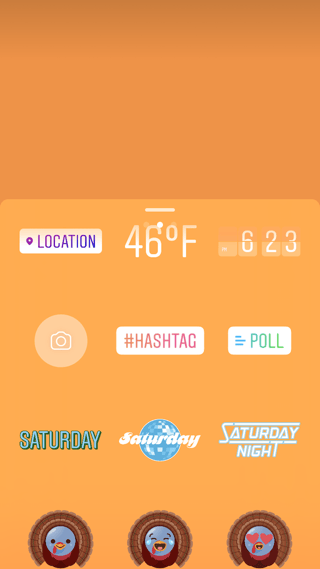
Change the size of your stickers.
You can pinch the sticker once you’ve added to your story to increase or decrease its size. You can also tap and drag it around the frame to change its position.

Check stickers every day for new and unique ones.
Instagram releases unique Story stickers often — whether it’s Monday, a holiday, or a season. Check this section every day for new and timely stickers to add to your Story.

Add location, hashtag, poll, and selfie stickers.
Boost the engagement on your Instagram Story by opening it up to other people doing the same things you are. Open up the stickers section, and tap any of these buttons to customize your story:
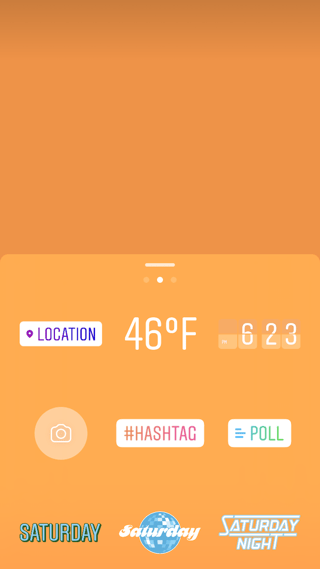
Location Stickers
Start typing in wherever you are, and you’ll be able to pull in a geographically-specific sticker to show where you are.
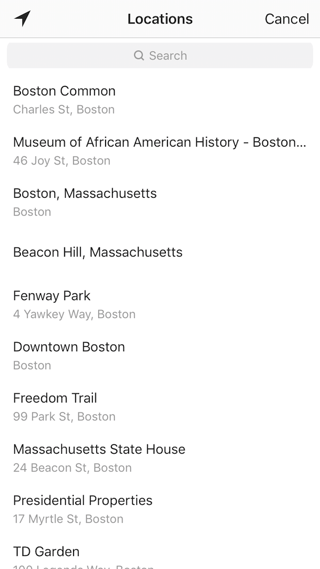
When people view your Story, they’ll be able to tap the location sticker and see other photos and Stories happening around the same place.

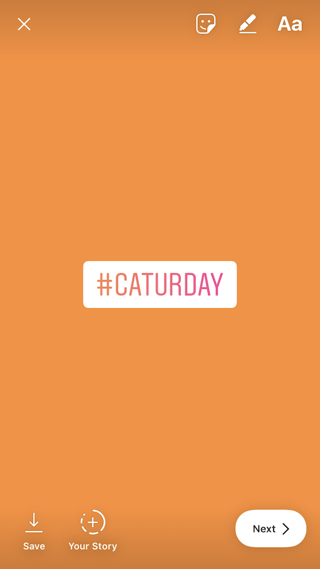
Hashtag Stickers
Same concept here: If you add this sticker and type in a hashtag, your Story will appear in searches for that hashtag, and viewers will be able to click it and see who else is using it. #MotivationMonday, amirite?
Poll Stickers
You can add a two-option poll to your Instagram Story, and you can even customize the possible answers so they’re more unique than “Yes” or “No.” Use a poll sticker to gauge if people are really engaging with your content.

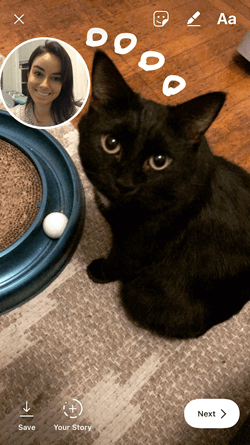
Selfie Stickers
Open up the Stickers menu, and tap on the camera icon.

Then, take a selfie — or take a picture of anyone else’s face (that will work too). Then, you can use that face to decorate your Instagram Story. Somewhat creepy, but very memorable and funny, too.
2. Record a hands-free Instagram video.
If you’re a frequent video-recorder on Instagram, you know you need to hold your thumb against the record button for as long as you’re recording. This can make it tedious when attempting dynamic and interesting videos that require more hand mobility.
But did you know you can record these videos “hands-free“?

The hands-free video feature can be found in the carousel of camera lens options beneath the record button, as shown above. Simply tap the record button once to start the video, and again to stop it after you’ve gotten the footage you want.
3. Let viewers share your Stories.
Increase engagement and views of your Instagram Story by letting viewers share them with their friends — as Direct Messages.
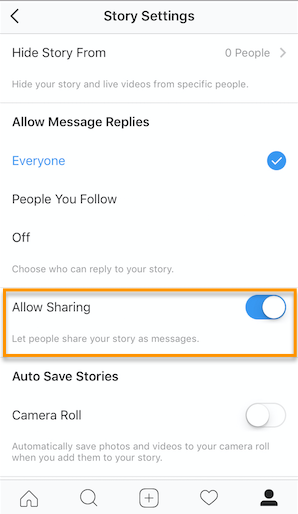
Go to your profile, tap the gear icon, and navigate to “Story Settings.”
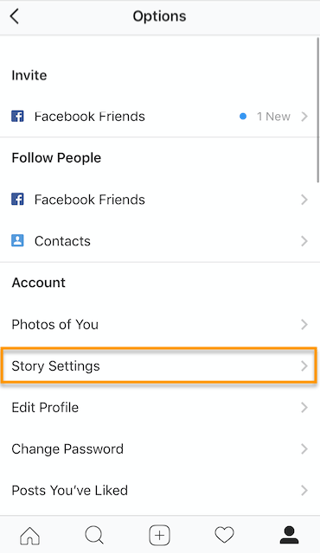
Toggle on “Allow Sharing” so viewers can DM your Story to friends to increase your audience reach. Voila!
4. Use the pen.
Use the pen to add embellishment, symbols, or more text to your Story. If you tap the pen icon in the upper right-hand corner of your screen once you’ve captured a photo or video, you’ll open up your options.

From there, you can adjust the thickness of your pen stroke or change the color you’re writing with (more on that later).
I like using the highlighter pen (the third option) to add emphasis to words — or even the highlight of my photo or video.
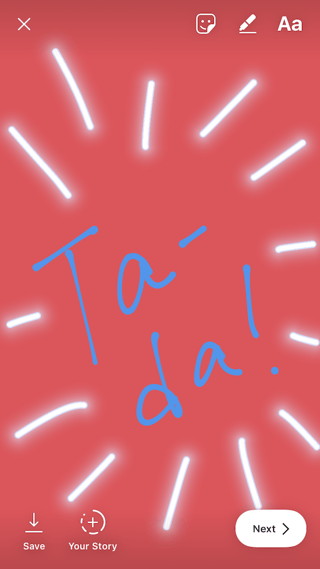
5. Add a background color.
If you want to share a Story with a background color — like the images I’ve shared above — you can actually select it from the color palette.
Take a picture (it doesn’t have to be a picture of anything in particular), and then tap the pen icon to open up the color palette. (Here’s Leela again — my unwitting cat model.)
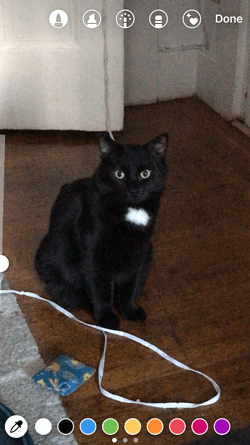
You can choose one of the colors from the three available menus, or if you want a specific shade of one of those colors, you can open up the full color spectrum by pressing and holding one of the colors.
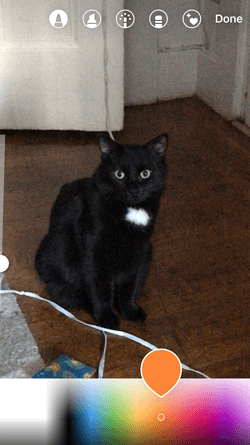
Then, scribble anywhere on the screen, and hold your finger down until you get the background color you want to appear.
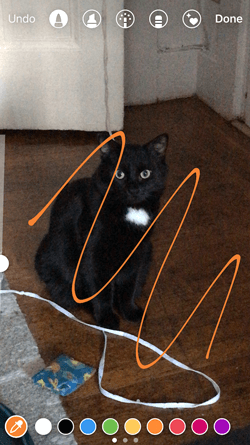

If you want to get really crazy, you could use the eraser tool (the fourth option) to create new words or shapes from the background, too.

6. Mention another Instagram account in your Story.
Sometimes, it’s just not enough to send an Instagram Story to a particular person — you need to give them a shoutout in the photo or video itself. In these cases, Instagram allows you to tag up to 10 specific handles directly in your Story’s photo or video.
To mention an Instagram account in your Story, shoot a photo or video and then tap the square “A” icon in the upper righthand corner of the screen. Enter the account you’d like to tag, starting with the “@” symbol and the account’s first letter. Scroll through the suggested accounts that appear below your cursor until you find the account you have in mind, and tap it. See what these options look like below.

Once you post this Story, the person or account you’ve tagged in the photo or video will receive a notification of your shoutout, regardless of whether or not you send the Story to them.
7. Make your text funkier.
The text on Instagram Stories is pretty basic — jazz it up with these tricks.
Customize your colors.
If you’re unsatisfied with the color palette Instagram offers, create your own from one of the colors in the photo or video you’ve captured.
Open up the text icon, and tap the eyedropper icon in the lower left-hand corner of your screen.
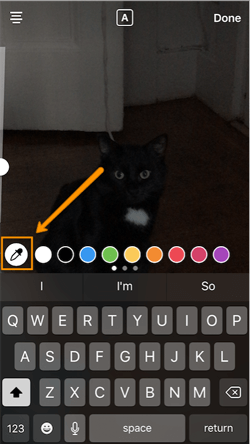
Use the dropper to sample a color from somewhere in the image you’ve captured, and use it when typing out text or using the pen tool.

Add a drop shadow to your Story’s text.
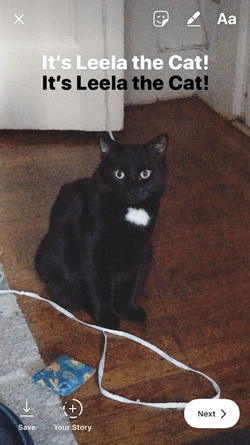
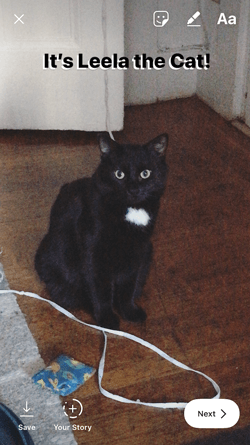
If you want to add some extra drama to your text, add highlighting or shadowing by retyping or rewriting your text in a different color. I recommend choosing black or white to add emphasis to a bright color you’ve picked. Then, move the text above or underneath the brighter text to add some drama to your words.
Turn your text into a rainbow.
This one’s tricky, but you can actually turn your text into a gradient rainbow.
Tap the text icon, and type out your message to add to your Story. Then, highlight your text.
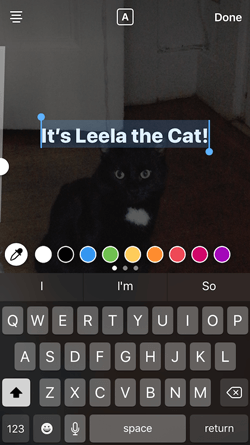
This is where it gets tricky: Turn your phone to the side so you can hold one finger down on the right side of your text, and with another finger, tap on a color and hold until the color wheel pops up.

Then, slowly drag both fingers across both the text and the color wheel from right to left to create rainbow text. Go slowly, letter by letter until you’ve created a rainbow. (This one took me several tries before I nailed it, and I succeeded using both thumbs to highlight the text and the color wheel.)
I wonder if Leela knows she is my model for when I write step-by-step instructions in blog posts pic.twitter.com/OgcKhmIdNV
— Sophia Bernazzani (@soph_bern)
November 19, 2017
Gradually add text to a Story.
Sometimes, you might want to add text or stickers to an image to build on it — perhaps to promote a content offer or event, or to encourage viewers to swipe up to read a link you’ve shared (this is only available to verified accounts).
Start editing the photo you want to share, post it, and save it to your camera roll. Then, swipe up on your screen to add the screenshot to the next installment of your Story — adding new text or stickers on top of the first photo. Keep doing this for as long as you want the Story to last — just make sure to keep taking screenshots of your latest photo so you can add to it.



8. See who has viewed your Instagram Story.
Snapchat users have always been able to see which of their friends have viewed their snapped Stories over the 24-hour period that the Story is visible. Well, Instagram Stories can do the same thing — in exactly the same way.
To see who has viewed your Instagram Story, navigate to the homepage of Instagram on your phone and click on the circular icon denoting your Story. See what this looks like in the screenshot below.
 Image by Mari Smith
Click on “Your Story” from the Instagram home screen and swipe up from the bottom of your open Story. This will pull up a list of all the accounts that have viewed this content.
Seeing who’s viewed your Story might be an ego boost to personal Instagrammers, but business users can learn a lot about what their followers are interested in this way. By looking at which users view which Stories, you can figure out which types of photos and videos you should keep posting.
9. Center your text and stickers.
When you’re moving around text and stickers on your story, you’ll see blue lines appear vertically or horizontally in the frame. These are guiding lines you can use to make sure you’re keeping everything centered.
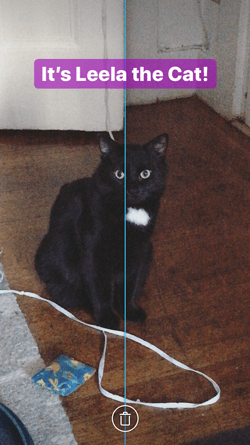
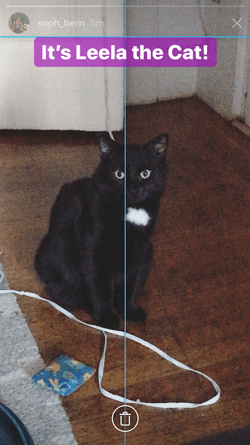
Don’t put your text too high or too low on the screen.
That said, make sure you don’t add anything to your Story too high or too low in the frame — or it will be cut off when viewers scroll through your Story, when Instagram adds things like your name and how long ago your story was posted that could block out your carefully-crafted text.
10. Add music to a Story.
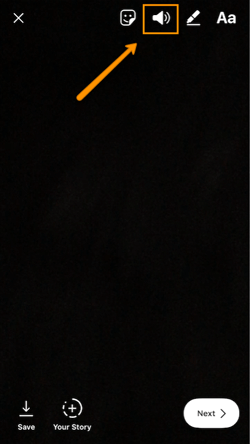
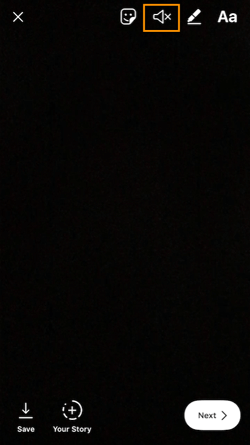
This one’s easy: Turn on music using your phone’s native streaming app, and record a video Story. Once you get ready to edit and share, make sure the sound icon isn’t muted so your viewers can jam with you.
Alternatively, if you’d rather your video be muted, tap the sound icon so an “X” appears over it.
11. Upload Instagram Stories from your phone’s camera roll.
Great Instagram Stories aren’t just created through the Instagram app. You can also upload photo and video content from your mobile device’s native camera roll.
To upload a photo or video for use as an Instagram Story, open your Instagram Story’s camera lens and tap the little square icon on the bottom lefthand of the screen. See what this looks like below.

Tapping the icon shown above will call up your phone’s native media gallery, where you can select any photo or video to publish as an Instagram Story. It’s that easy.
We hope these tips help you post killer Instagram Stories your audience won’t be able to stop following. There are lots of hidden ways to take your Stories to the next level — some we may not even have covered here. Our best advice? Keep clicking around and see what you can do with the latest updates from the app. Happy ‘gramming!

HomePod OS 12 private beta reportedly includes Siri multiple timers, make and answer phone calls, more

Apple has seeded a private beta for HomePod to Apple corporate and (some) retail employees for a while. iGeneration is reporting that the HomePod OS 12.0 beta, presumably set to be released alongside iOS 12 in the fall, has several major new features for Siri on the HomePod.
The beta reportedly includes phone call features, allowing the user to start and answer calls from the HomePod, as well as Find My iPhone Siri command, and perhaps most dramatically — support for multiple timers are apparently on the cards.
Apple said to be investigating growing iTunes credit card fraud in Singapore

A pair of reports today explain that Apple customers across in Singapore are noticing a high number of fraudulent credit card charges being made via iTunes. According to the ChannelNews Asia, Apple has said it is investigating the complaints, but specifics remain unclear…
What’s the best podcast app for iPhone?
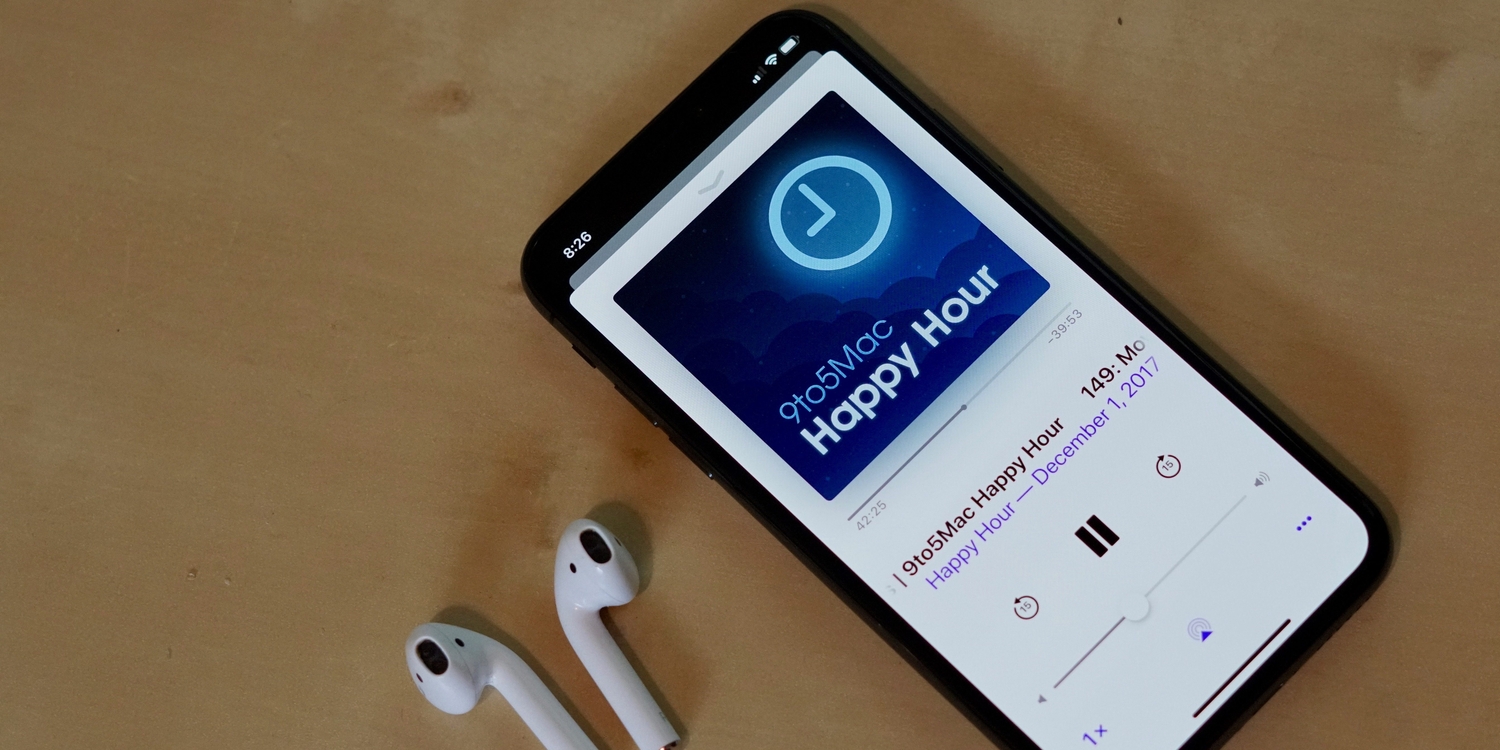
When it comes to listening to podcasts on iOS, there are so many great options. The Apple Podcast app comes built into every iOS device with syncing. It’s certainly a great app, but is it the best? On iOS, users have countless third-party options as well. My goal for this article is to break down some of the major podcast apps, and then determine which is best. more…
China looks to increase advanced manufacturing by supplying OLED displays to Apple

Apple currently relies exclusively on Samsung for its supply of OLED displays for the iPhone X. According to a new report from The Wall Street Journal, however, China is pushing to become a supplier of OLED displays to Apple as part of its efforts to increase advanced manufacturing…