
Studies show that 76% of consumers research a business online before visiting in person. That means having a website is as necessary for companies today as having a phone number.
Maybe you’re starting a new business venture or developing your personal brand. Or, maybe you’re looking to update your company’s outdated website. Whatever the case, creating a new website can feel overwhelming, particularly without technical expertise or a budget for web developers.
We’ve put together a comprehensive, step-by-step guide to creating a website. Best of all, you won’t need a coder, web designer, or big budget to create one — you’ll just need to follow the steps below.

In general, you’ll carry out these steps before launching your site. But before you get started, you’ll need to choose a platform.
We’ll walk you through the two options you have: a website builder or a content management system (CMS).
Start Building Your Website By Choosing a Platform
The first thing you’ll need to decide is whether you want to create a website using a website builder or a CMS.
Let’s take a look at the definitions of each below.
| Website Builder | Content Management System (CMS) |
|
A website builder is a solution that offers domain names, SSL certificates, and templates in one package, typically at a monthly or yearly subscription fee. |
A content management system is a platform where you place your website’s content and media files. Domain names, SSL certificates, and hosting is typically purchased separately. |
Both website builders and CMS platforms provide the out-of-the-box features, pre-designed templates, and extensions required to create a custom site without coding, but they offer different experiences for creating and managing a website. Below, we cover some of the differences you should consider before making a choice.
Website Builders vs. Content Management Systems
| Website Builders | CMS Platforms |
|
|
Website builders provide everything you need to launch a site. You get website building tools, hosting, domain registration, SSL certification, templates, and support in one place, often for a low monthly rate.
This ease of use and pricing appeals to many site owners; however, free website builders, as well as the more expensive alternatives, tend to be limited in flexibility. For example, you can’t add your own custom code, or drag and drop elements anywhere on your posts and pages.
If you want more control over the functionality and appearance of your site, use a CMS. A CMS will provide the content management features, advanced functionality, and customization options required to build larger, more complex sites.
If you decide that a CMS is the best option for your business, consider the software, ease of use, customizability, security, and pricing of different platforms to narrow down your selection.
Let’s look at some examples of both website builders and CMS platforms you could potentially use.
| Website builder examples | cms systems examples |
|
|
Here are some resources comparing some CMS systems with popular website builders:
- HubSpot vs Drupal vs WordPress vs Joomla: Which Is the Right CMS for You?
- WordPress.org vs WordPress.com: What’s the Difference?
- Which Should You Use, Wix or WordPress? Things to Know
- A Head-to-Head Comparison of Weebly vs. WordPress
- The Most Critical Differences Between Squarespace & WordPress
- Shopify vs. WordPress: Where Should You Set Up Shop?
Below, we’ll walk you through the steps to build a website using both a website builder and a CMS.
How to Build a Website with a Website Builder
Have you decided that you’d like to use a website builder? Excellent! This is the easiest way to start for most beginners.
You won’t need to know how to code, and everything you need is typically included in one convenient package — so if you don’t want to go through the hassle of finding a hosting service, domain name, and SSL certificate, this is the option for you. Let’s go through the process of creating your site using a website builder.
1. Choose a website builder.
First up, choose a website builder that fits your needs and budget. You’ll need to consider the following:
- Cost: Your budget will be by far the most important factor when choosing a website builder. Most require a paid subscription to include premium features such as domain names and increased storage.
- Features: Website builders typically offer different features depending on their target market. Shopify, for example, is specifically designed for ecommerce websites, while WordPress.com is primarily known for blogging.
- Extensions: Check out the extensions and add-ons library for each website builder you’re considering. If they don’t offer something you need for your site, skip that builder.
- Themes and Templates: Some website builders provide more themes and templates, while others provide less variety but more well-designed choices. Check out the template library so you can see what your site could potentially look like once it’s finished.
- Ease-of-use: All website builders are designed to be easy to use: simply sign up on the platform and start building. But some are more intuitive than others. Play around with different builders to find out which one you prefer.
- Support: Is the website builder’s support team known for its responsiveness? Do some research beforehand to ensure the premium subscription will also get you premium support.
No matter what, you’ll want to start with a free trial — that way, you can give the platform a test run before committing. While most website builders come with a free subscription tier, it doesn’t offer a free domain name or the features you need to build a strong website. Our recommendation is to opt for a paid subscription once you’ve decided on a platform.
Below, we break down some of the most popular website builders you could choose.
| Website Builder | Plans | Good Fit For: |
| WordPress.com | $4 to $8/month | Blogs |
| Wix | $14 to $39/month | General Websites |
| Weebly | $6 to $26/month | General Websites |
| Shopify | $29 to $299/month | Ecommerce Stores |
| Squarespace | $12 to $40/month | Creative Websites |
Here are a few more resources to help you choose a website builder:
- Best Website Builders Today and How to Choose One
- Best Free Website Builders to Check Out This Year
- Top Ecommerce Website Builders
And here are some posts listing alternatives:
2. Sign up for a subscription plan that meets your budgets and needs.
As we mentioned above, you won’t want to go for a free plan because those typically don’t include enough features to launch a professional website. You’ll want to upgrade, but you’ll need to take a close look at the features included in each tier to choose the right subscription for you.
Consider the following questions before choosing a subscription plan:
- How much storage will you need?
- Do you want ads to be removed from your site?
- Will you be setting up an online store?
- Will you want a professional email with your domain name?
- Will you want to customize the site using CSS and HTML?
- How much support do you expect you’ll need?
Here’s an example of a feature comparison chart from Weebly’s pricing page:
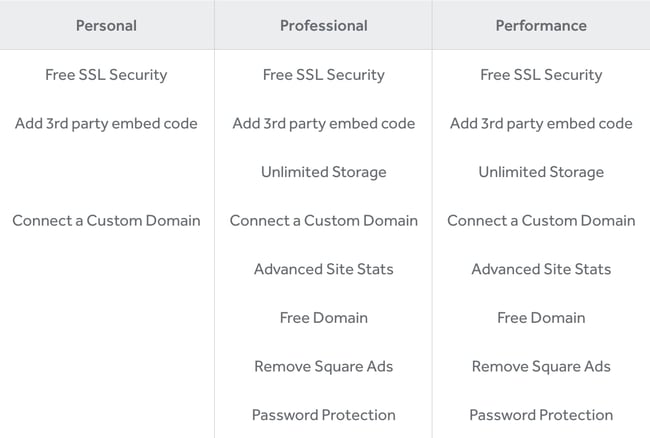 Most website builders have a pricing page that lays out the differences between plans in an easy-to-scan list. The best part is that you can start with the simplest subscription, then upgrade as you require more features and functionalities.
3. Choose a short and catchy domain name.
Some website builders offer a free subdomain for your site, but you’ll want to upgrade to a paid subscription to get a custom domain.
A custom domain name is one of the easiest ways to appear more professional and legitimate as a company. Imagine you were looking for a freelance writer. Are you more likely to hire me if my website address is carolineforsey.weebly.com or carolineforsey.com? An extension like “weebly.com” can confuse visitors and dilute your brand identity. Worst case scenario: a visitor might assume you can’t afford a premium hosting service or custom domain, and draw conclusions that your business is not fully established.
The good news is that after you upgrade, your premium website builder subscription will include a domain name for free, at least for the first year. You’ll be able to choose it as you’re setting up the site, or do it later.
When choosing a domain name, pick something short and descriptive. The .com top-level domain will work for most websites, but if you’re planning on launching an organization, you can also consider the .org domain.
Domain names are a surprisingly complicated art — you must choose something memorable that doesn’t yet exist. As you make your choice, avoid the following:
- Including dashes
- Using numbers
- Using a trademarked name
Before signing up on your website builder platform, consider looking up available domain names using a service such as GoDaddy. That way, you can make sure the domain you want is available before you pay for a subscription on the website builder platform.
Here are some more resources for picking the perfect domain name.
- The Plain-English Guide to Domains & Domain Names
- Tips for Choosing the Perfect Domain Name
- .net vs. .com, and More: What’s the Best Domain Extension?
4. Pick a premade website template.
During your setup process, the website builder will take you to a template library, where you can choose a premade layout to set up your site.
Squarespace lists its templates publicly so you can get a taste of the websites you can set up using its services.
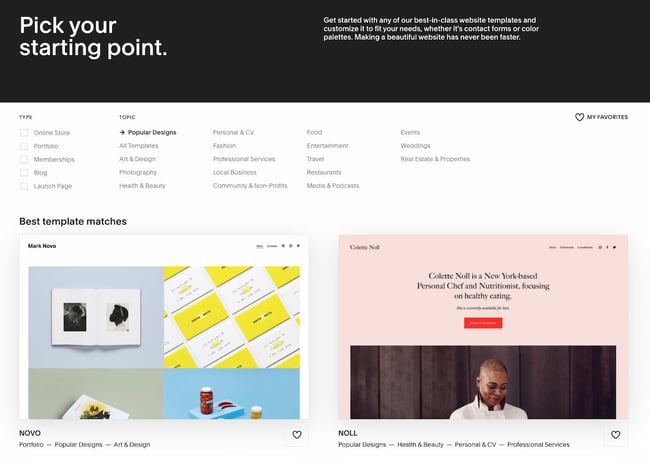
Most website builders will create a different template depending on the type of business or brand you run. For instance, you can choose a template that’s specifically made for:
- Freelancers
- Bloggers
- Local Businesses
- Creatives
- Resume Websites
Every template should have essential features such as a built-in responsive setting and drag-and-drop page editor. Your website builder should also allow you to import demo data, so that you only have to replace the images and text and not tinker with anything else during the setup process.
5. Customize the template.
You don’t want your site to look like anyone else’s, so you’ll need to customize the template to your liking.
On most platforms, you’ll be able to change the color palette, replace the images, insert social media icons, add personalized forms and menus, and change the size, colors, and fonts of buttons.
Have fun, and don’t forget to use your brand colors. This will be the best part of building your website: making it look like you want it to.
6. Add pages to the site.
Next, it’s time to add pages to your site. You’ll need to create, at a minimum:
- A home page
- An about page
- A contact us page
- A services page, if you’re offering any
- A product page, if you’re selling any
- A blog page
You’ll also want to create specific service pages. For instance, if you’re selling “Digital Marketing Services,” you’ll want to create pages titled “Social Media Marketing Packages” and “Search Engine Marketing Services” under the digital marketing services umbrella.
Our top suggestion would be to put the topic of your page — or your target keyword — in the title of these new pages. Instead of having a page titled “Services,” you would title it “Digital Marketing Services.” You’ll want to do the same thing for your home page. You don’t want it to be titled “Home.” Instead, title it “Freelance Digital Marketing Specialist – Your Name.”
Your title shows up in the search results, so it plays an important role in telling visitors what you do.

Here are more resources on creating great page titles:
- What’s a Website Title (Title Tag) & Why Does It Matter for SEO?
- How to Write the Perfect Page Title With SEO in Mind
7. Write optimized content.
This is arguably the most important step. Now that you have your pages set up, what will you put on them?
It’s time to write optimized content to put on all of the pages you’ve created. Get content ideas from your competitors, and don’t forget to aim for at least 800 words per page. Remember, however, that you can always come back later to write more content. So if you have to write short pages at first, it’s totally fine. Set a date for when you’ll return and add more copy.
Write your content in an editor such as Google Docs and use a grammar checker such as Grammarly to ensure your copy is error-free. When you upload images, be sure to compress them beforehand with a tool such as Toolur or TinyJPG.
These steps will ensure your content helps you rank on Google and other search engines. Check out the following articles on how to write optimized content:
- The Ultimate Guide to Content Creation
- What Is Content Writing? Plus Tips to Take Your Content to the Next Level
- The Ins and Outs of Writing Long-Form Content
- The Ultimate Guide to On-Page SEO
- How to Do Keyword Research for SEO: A Beginner’s Guide
8. Fill in general settings.
Before pushing your site live, you’ll want to fill in general settings. It’s the same list you would run through if you were setting up your site on a CMS platform.
Here’s what you’ll want to adjust:
- Page titles
- Headings
- Meta descriptions
- Image alt-text
- Structured markup
- Page URLs (or slugs)
- Internal linking
- Mobile responsiveness
- Site speed
Make sure you include a site title and tagline in the “Settings” of your website builder. Go through, and check out the URLs — are those optimized for search?
Any website builder you’re using to build your site should make it easy to optimize these elements on every post and page. With Wix, for example, you can add image alt-text, meta descriptions, headings, and custom URLs right in your content editor.
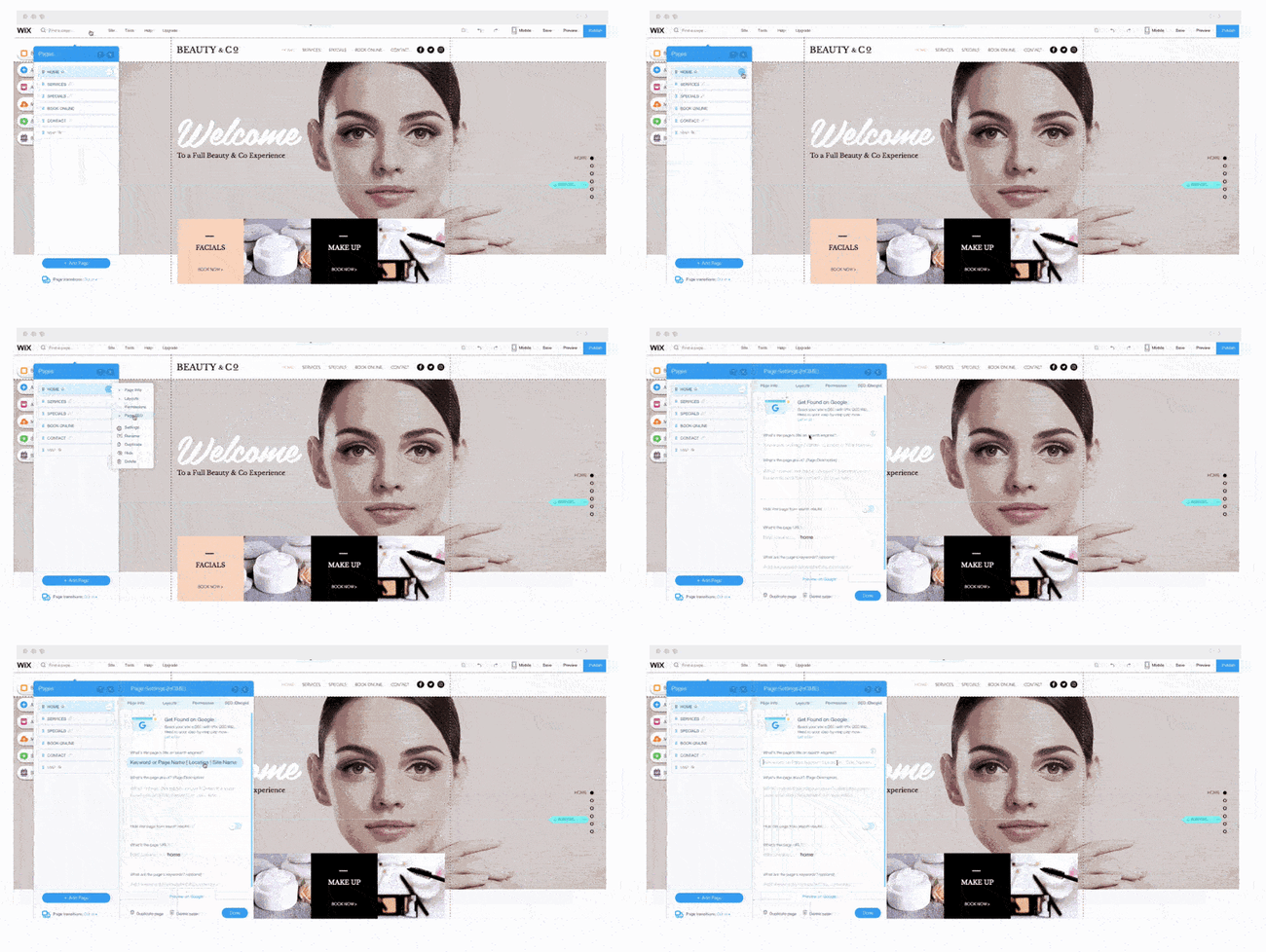 Image Source
9. Install extensions and apps.
Last but not least, install add-ons that will increase your website’s functionality. Each website builder typically has a library of extensions and add-ons that you can choose from. For instance, in the Shopify app store, you can install an Instagram slider that shows an Instagram feed in each product page.
Take a look at the add-ons you have access to on the following popular website builders:
- Squarespace Extensions
- Weebly App Center
- Wix App Market
- Shopify App Store
- WordPress Plugins (Available for both WordPress.com and WordPress.org websites)
Once your pages, content, and plugins are in place, it’s time to push your site live. The website builder will typically have a button you can click to launch your site into the web. After, simply watch your organic traffic grow. And remember: if your website builder doesn’t work for you, you’ll always be able to switch over to a CMS.
How to Build a Website with a CMS
Have you chosen to go with a content management system instead?
The process of building a website with a CMS is a little different than setting up a site with a website builder — mainly because you’ll have to buy a domain name and web hosting on your own. But the process is just as simple, and the powerful customization options make the extra steps worth it.
Below, we cover the process of building your website using a CMS from start to finish.
1. Choose a CMS.
The best CMS system for your business will align with your site’s needs and goals.
WordPress, for example, is a popular open-source CMS that provides thousands of themes, plugins, and modules for customizing your site. In exchange for this flexibility, you will have to spend more time and money downloading, installing, and maintaining the extensions.
On the other hand, WordPress alternatives like the CMS Hub provide more built-in functionality, app integrations, and security features so you can focus on creating web content and attracting leads.
Below, we break down some of the most popular website builders you could choose.
| CMS | Plans | Good Fit For |
| CMS Hub | $270/month or $900/month | Growing Businesses |
| WordPress.org | Free | General Websites |
| Adobe Experience Manager | Custom Pricing | Enterprise Businesses |
| Joomla | Free | General Websites (Recommended for Advanced Users) |
| Drupal | Free | General Websites (Recommended for Advanced Users) |
It’s worth noting that while WordPress.org, Joomla, and Drupal are free, you’ll have to pay for domain names, SSL certificates, hosting, and premium themes and templates, adding to your set-up costs. You might also need the help of a developer if you opt for Joomla and Drupal.
It’ll be hard to choose, but you can narrow it down with a few questions. For instance, do you need a platform that allows you to add your own custom code or one that supports multiple languages? Would you like a proprietary CMS to help share the responsibility of protecting and maintaining your site, or would you prefer an open-source CMS? You might also narrow your list by comparing the selection of templates and add-ons offered by each system.
Here are some resources to get you started:
- The Best CMS Systems Today and How to Choose One
- Features Your CMS Absolutely Needs
- The Best Content Management Systems for SEO & Why
- CMS 101: The Beginner’s Guide to CMS Hub
- 8 Things You Need to Know to Get Started With HubSpot’s CMS
Here are some comparison and alternatives posts:
- Drupal vs WordPress vs Joomla vs HubSpot: Which Is the Right CMS for You?
- Sitecore vs. WordPress: Which CMS is Best for Your Business?
- WordPress Alternatives & Why You Might Want Them
- Drupal Alternatives to Check Out This Year
- Joomla Alternatives & Why You Might Want Them
- Adobe Experience Manager Alternatives to Check Out
Once you’ve chosen the best CMS platform for your needs, continue to step two.
2. Select a hosting plan.
Web hosting is a service that enables individuals or businesses to run a website on the Internet. The service provider, known as a web host, will store your website files on a secure server that it keeps up and running, and then deliver and display that web content to visitors who type in your URL in their browser.
Website builders include hosting in their packages. Content management systems, however, don’t work this way. You’ll have to find your own hosting provider, which will take time and lots of research. There are hundreds of web hosts on the market. Each one might offer different types of hosting, including shared hosting, VPS, and dedicated hosting. Let’s briefly look at the differences below.
- Shared Hosting: In shared hosting, your website shares the same server and resources with other websites. It’s the most popular type of hosting, particularly among new site owners, because it’s the cheapest option.
- VPS Hosting: If you go for a Virtual Private Server hosting solution, your site will sit on the same server as other websites; however, it will isolate server resources for your site specifically. That means your site will be able to handle higher volumes of regular traffic. It’s a pricier alternative to shared hosting.
- Dedicated Server: With a dedicated server, your site will sit on a server whose resources and space is reserved for your site only. If you’d rather not share a server with any other website, you can upgrade to dedicated server hosting.
Virtually every web host offers shared hosting. However, because your website has to share the same server with many other websites, it can’t support high volumes of traffic and is most vulnerable to hackers and other security threats.
Once you’ve decided what type of hosting you need, you can pick a provider. DreamHost, HostGator, and Bluehost are among the most popular third-party providers and offer free domain registration for the first year. That will simplify the next step in building a website.
Here are resources about hosting you’ll want to check out:
- The Ultimate Guide to Web Hosting
- What Is VPS Hosting? Why It Might Be the Best Option for Your Site
- The Best WordPress Hosting Providers This Year
- Best Free WordPress Hosting Providers This Year
- Bluehost Review
And some comparisons to help you choose the best one:
- SiteGround vs. HostGator Review: Which Is Better for Your WordPress Site?
- Bluehost vs. HostGator: Which Is Better for Your Website?
3. Get a domain name from a domain name provider.
No matter what type of CMS you chose to build your site, you’ll likely have to purchase a domain name.
Purchasing a domain name is typically inexpensive — even for those who sign up for a hosting plan that does not include free domain registration for a year. There are two different approaches you can take.
You can visit a domain site, purchase and register a domain name there, and then connect it to your hosting account. Both Godaddy.com and Namecheap.com are cheap, secure, and effective options for buying a domain name, with added benefits such as SSL security and Office 365 inboxes.
Or you can complete the entire domain name search and registration process on your hosting provider’s site. For example, after signing up for a Bluehost plan, you’ll be taken to this page to sign up with a domain name.
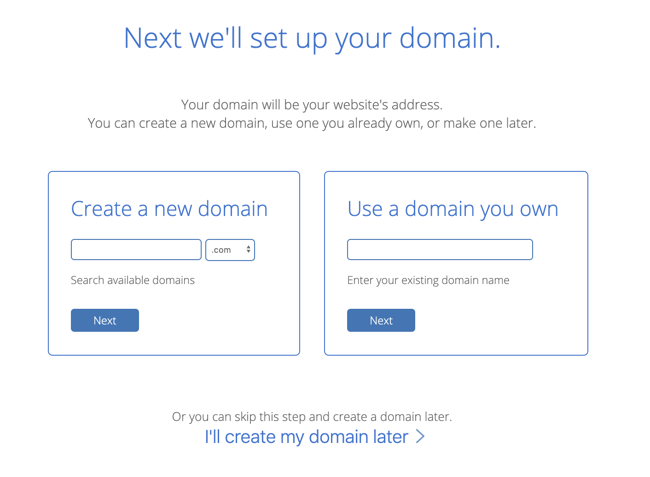
Here’s where it gets tricky. You’ll need to choose a domain name as similar as possible to the name of your company, but with over billions of websites out there today, your company’s name might already be taken.
If your ideal domain name is already taken, consider using a different extension. Use one of the three most common extensions if you can: .com, .net, or .org. However, if it makes sense for your business, you might want to check out an alternate extension like .us or .shop.
As we covered in the previous section, avoid using dashes, numbers, or trademarked words. Play around with it. Once you’ve chosen and paid for a domain name, you’ll usually also get personal email accounts attached, so make sure you’re happy to use your domain name as your main online identity.
Below you’ll find some resources about choosing and buying a custom domain:
- Best Domain Registrars to Consider This Year
- How to Choose a Domain Name
- Everything You Need to Know About Custom Domains
- The Simple Guide to Transferring a Domain to Another Registrar (Good read if you’ve already purchased a domain name)
4. Choose a theme for your site.
Now, for the fun part.
Themes allow you to easily change the look and feel of your site without having to code HTML and CSS from scratch. Themes are made up of templates, modules, images, and global content that control your site’s overall design.
On whatever content management system you chose, take the time to browse through the selection of themes available. Many will come with a directory of free themes, where you can use filters or the search bar to find themes related to your industry, with a specific layout, and more.
Tip: It’s important your theme is responsive, so your site will look the same on all devices.
Other considerations will be specific to your business and site. You might be looking for a static header or a slideshow header, for example. Or you may need a theme that comes with a front-end builder. Below are some questions you can answer to find the right theme for your site:
- Do you need a variety of layouts or just one?
- Are you looking for a theme with built-in social media widgets or any other functionality?
- Would you like to install a demo site or start from scratch?
- Do you want to purchase a theme that includes its own theme builder?
Ultimately, no one knows your business better than you. Take the time to consider which theme would best represent your brand and most likely appeal to your ideal demographic.
You’ll have a wealth of choices right in your CMS. Take a look, for instance, at the theme marketplace in CMS Hub:
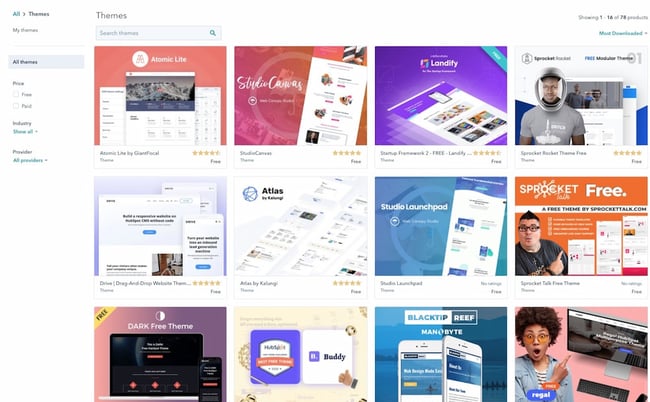
You’ll want to stay away from hard-to-read fonts or flashy backgrounds that could distract a consumer from understanding your core message. When in doubt, you can’t go wrong if you choose something clean with straight lines and a limited amount of text.
If you can’t find a free theme that meets your exact specifications, try looking for premium themes in third-party marketplaces.
Below are some resources to get started if you’ve opted for the WordPress CMS:
- The Ultimate Guide to WordPress Themes
- Best Small Business WordPress Themes
- How to Use Multiple WordPress Themes on Your Web Pages
- Best Clean WordPress Themes
Once you’ve selected and installed a theme on your site, move on to the next step.
5. Customize your theme and templates.
Once you’ve chosen a theme, take the time to customize it and its individual templates. Your site’s design and functionality is your chance to persuade an audience to take a closer look. It’s imperative your design makes sense to your ideal consumer and works to enhance your product’s success rather than hinder it.
That’s why you should think of your theme and templates as a starting point, rather than the final look. Depending on the website platform you’ve used to build your site, you’ll have different degrees of control over your site’s appearance.
On more flexible platforms like CMS Hub, you’ll be able to edit your theme’s global settings to make sitewide changes. That means you can make changes to your font and other elements in one place and they’ll be implemented across all pages on your site.
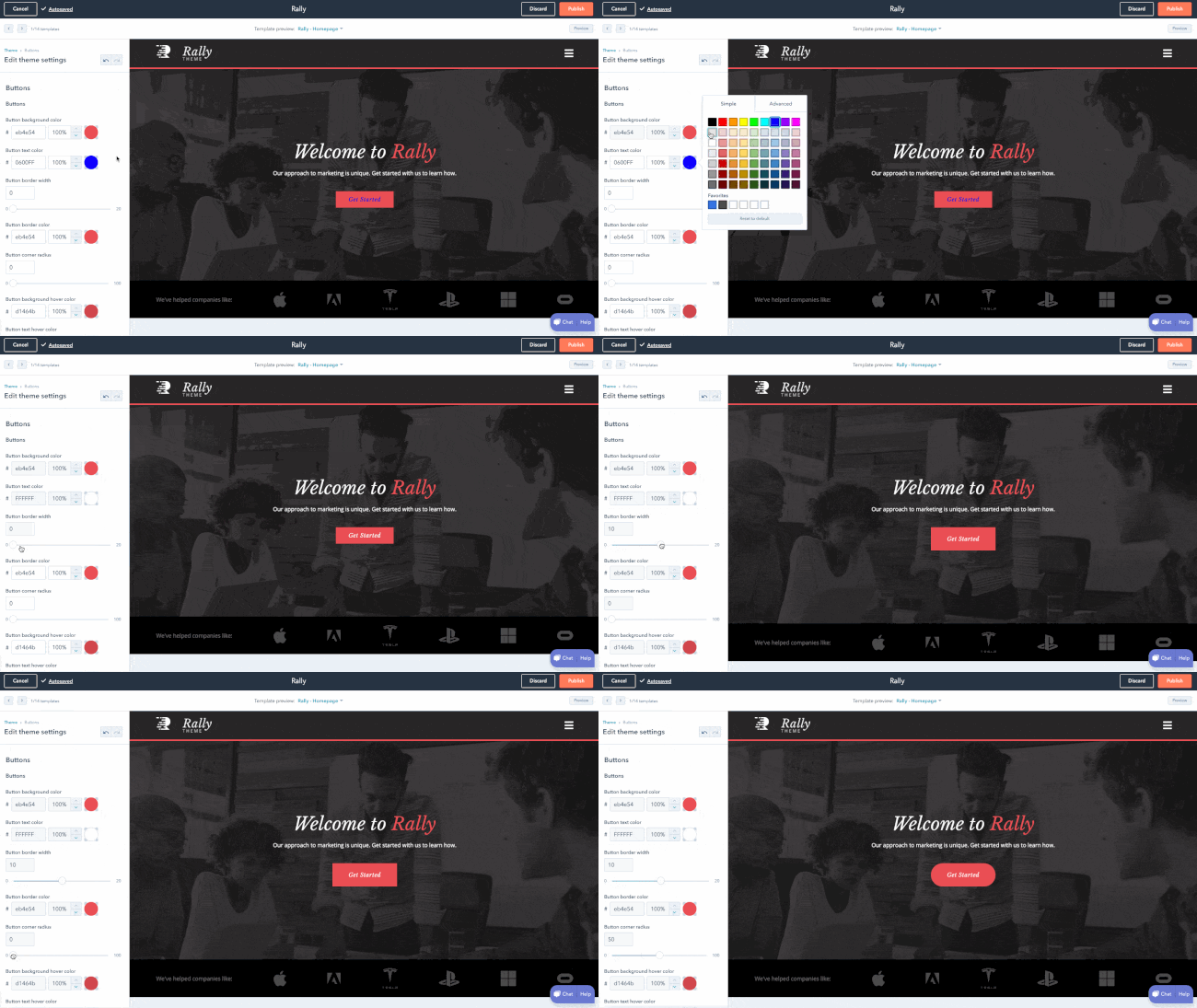 Image Source
Here’s a great resource if you’re using WordPress:
6. Add pages to your site.
It’s important to plan exactly which pages you’ll need to include in your site. While it varies business to business, you’ll need at least a homepage, an “About Us” page, a “Services/Product” page, and a “Contact Us” page.
You should also add a blog homepage. There are serious benefits to business blogging.
While every CMS is different, it’s typically easy to add and remove pages on whichever platform you use. Let’s take a closer look at the process on WordPress, for example.
- Start by logging into your WordPress dashboard.
- On the left side of the screen, click Pages > Add New.
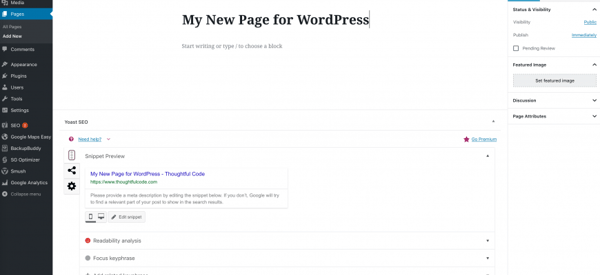
- You can add text, insert images, embed videos, and make any other changes you like.
- When you’re ready, click Publish.
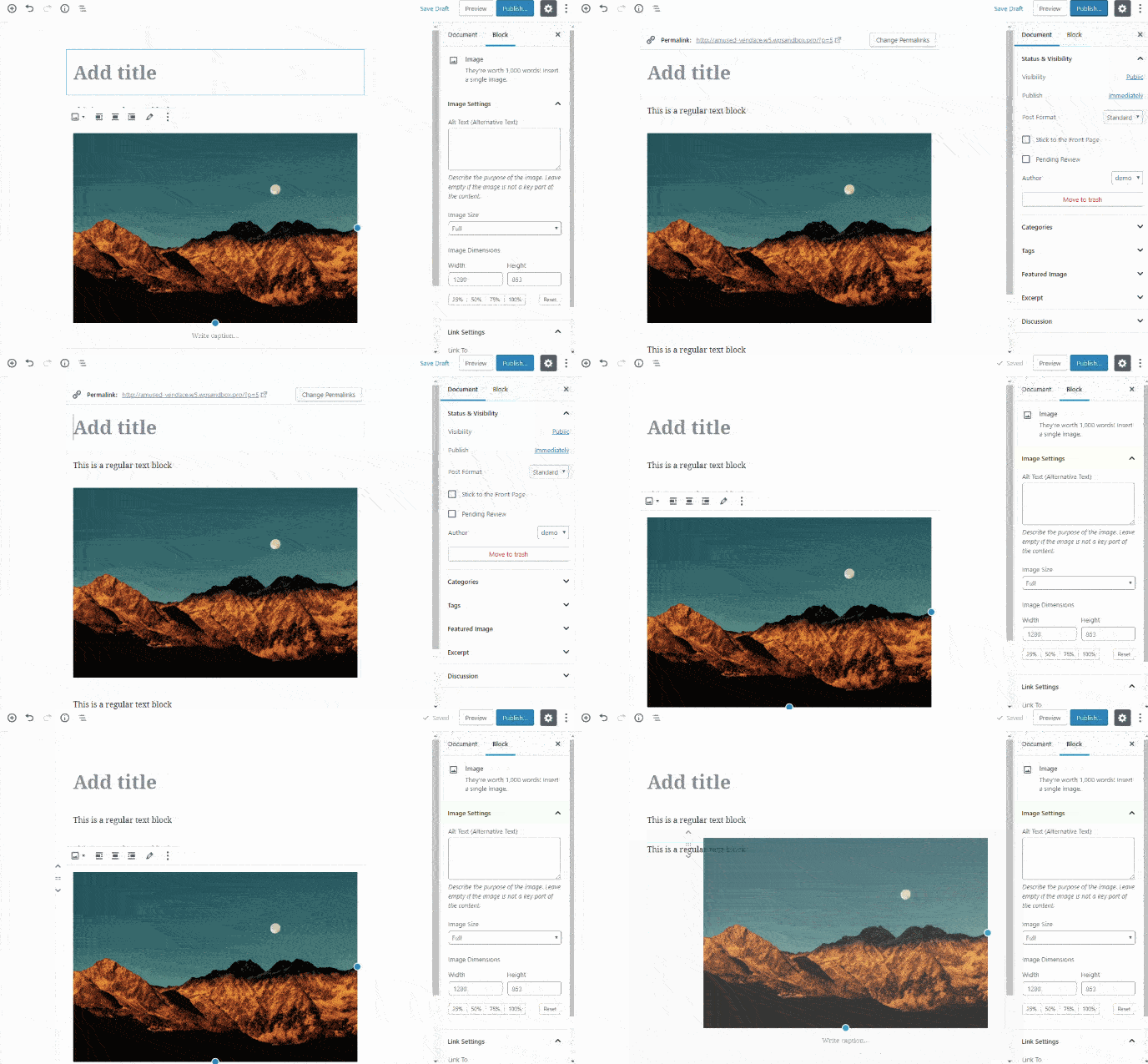
Once you’ve decided what pages you need on your site, make sure to add them to the navigation bar. You can rearrange page topics any way you want, or combine them.
You can visit other company websites within your industry to get ideas for how to organize your navigation bar, or which pages to include and exclude if you’re unsure.
7. Write content.
You guessed it: It’s time to write the content you’ll put on your site.
Write rough drafts for pages like your “About Us” page and landing page. Talk with coworkers and stakeholders — what message do you want to put out there? What tone do you want to set? Should you make jokes and be funny, or aim to be more inspirational?
If your online audience stumbled across your site, what questions would they have first?
Imagine your website is your only chance to have a full conversation with a potential customer.
The home page is the preliminary introduction: “Hey, we do XYZ.” Your “About Us” page digs deeper: “We are XYZ.” And your products or services pages are your big push to the finish line: “You want to work with us? Great, here’s how you’ll benefit.”
During this stage, it’s imperative you do your keyword research.
For instance, if you’re selling eyeglasses, and you notice “retro eyeglasses” is a more popular search term than “vintage eyeglasses,” you might use this research to steer the direction of the content on your site.
If you’re stuck, check out competitor’s websites to gauge what other companies in your industry are doing.
We’ve compiled a few more resources to help you get started:
- The Ultimate Guide to Content Creation
- What Is Content Writing? Plus Tips to Take Your Content to the Next Level
- The Ins and Outs of Writing Long-Form Content
- The Ultimate Guide to On-Page SEO
- How to Do Keyword Research for SEO: A Beginner’s Guide
8. Fill in general settings.
Once you’ve filled in your pages with optimized content, it’s time to fill in the general settings. By adding or adjusting the SEO elements, you can increase your search visibility.
It’s the same as if you were building your site on a website builder. On your pages, you should include:
- Page titles
- Headings
- Meta descriptions
- Image alt-text
- Structured markup
- Page URLs (or slugs)
- Internal linking
- Mobile responsiveness
- Site speed
Each of these elements are essential to your on-page SEO. They not only help to tell Google about your website and how you provide value to visitors and customers — they also help optimize your site for human eyes as well as search engine bots.
9. Install add-ons.
Lastly, take a look at your site and figure out what you’re missing. Ideally, your platform will offer all the add-ons you need to extend the functionality of your site.
It’s important to note these add-ons might be called apps, extensions, modules, integrations, or plugins, depending on the platform you use.
If you’re running an ecommerce site on HubSpot, for example, you might use HubSpot’s Shopify extension. Or, maybe you want to ensure your WordPress website is secure, to protect client data. In that case, you might download the Wordfence Security plugin for firewall protection against attacks, malware, and other threats.
If you’re lacking out-of-the-box features for security, SEO, image compression, and social media, check if your platform offers an app or integration to add that functionality to your site. It’s much easier to do all this work in one place rather than having to log on to several disconnected platforms.
How to Make a Website with HubSpot
Let’s take a look at how to make a website with CMS Hub. If you’re already using HubSpot’s CRM, it probably makes the most sense to build a website within HubSpot to integrate all your sales and marketing needs in one place.
CMS Hub offers a variety of plugins and extensions, themed templates, and sophisticated tools for SEO analysis.
If you want to build a website with CMS Hub, it’s easy and intuitive. Don’t forget to get a domain name and hosting before starting to build your site. Here’s how:
1. Create a homepage.
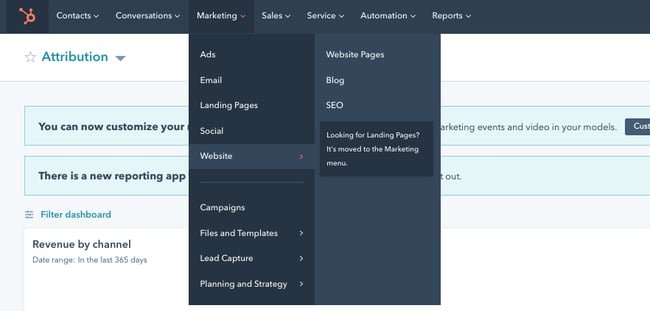
Within your HubSpot portal, click “Marketing” on the dashboard at the top of your screen. Navigate down to “Website,” then click “Website Pages.”
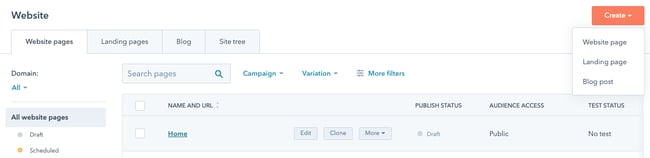
 After that, click the orange “Create” button and choose “Website Page” from the drop-down.
2. Select a theme.
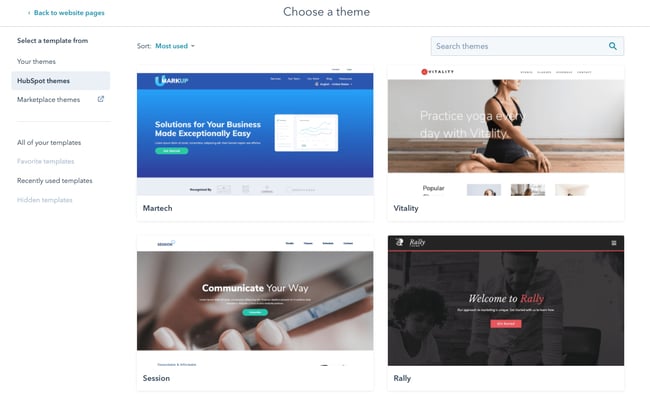
Now, you’ll be taken to this “Choose a theme” page. Scroll through your options, search page templates, or check out the Marketplace. When you’ve found a template you like, select it.
3. Edit the modules.
This is your page. You can scroll over text boxes, images, or other modules to edit them. In the below picture, I scrolled over the “Practice Yoga” Banner Text, and when I click it, it allows me to edit that text.
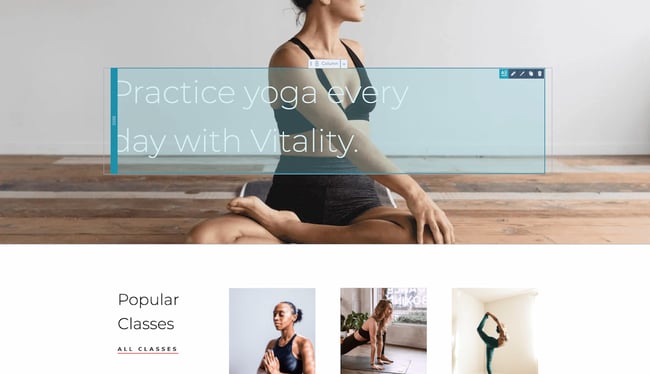 You can also click the “Contents” tool on the left side of your screen and edit from there. For instance, I selected one “Rich Text” option, which directed me to the “Vinyasa” paragraph on the page.
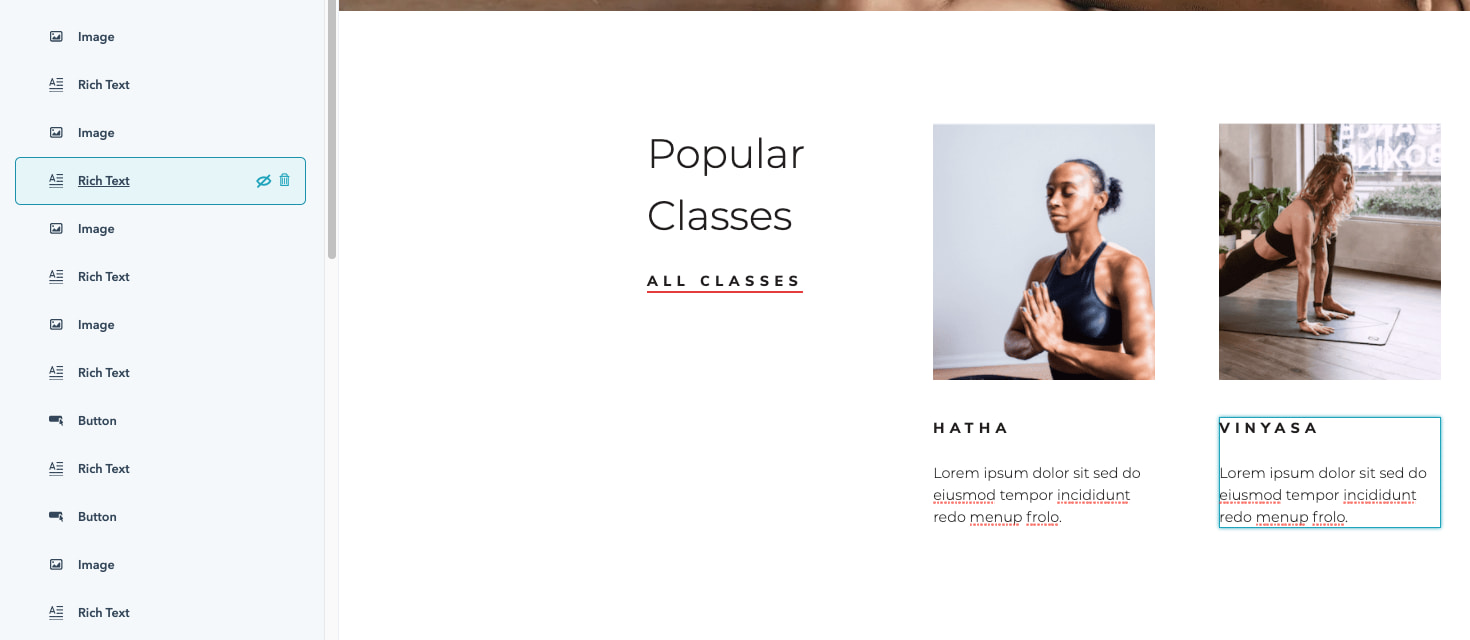 You can then add text, images, sections, forms, and more when you edit it in “Expanded” view.
4. Create other pages on your website.
When you’re happy with your landing page and want to move on, go back to your dashboard and click “Marketing” at the top of your screen, and then “Website Pages” again.
Here, you’ll click the orange “Create” button and name your page, just like your home page. Then, you’ll be taken through a similar process of choosing a template and adding content. If you want a more in-depth tutorial, check out a quick tour of website pages.
5. Incorporate social media accounts.
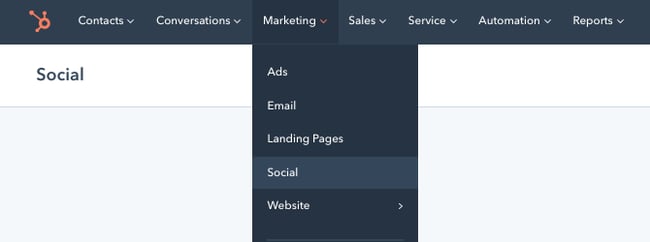
If you want to incorporate your social media accounts, go to “Marketing,” then “Social” on your dashboard. You can monitor all your social media accounts and also publish tweets, Facebook statuses and comments, Instagram pictures, and other content straight from your HubSpot dashboard.
6. View analytics.
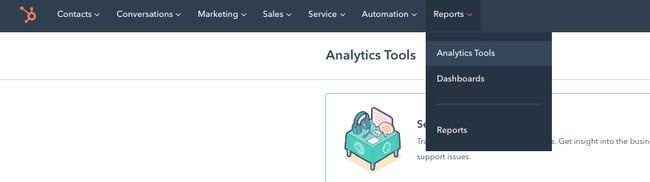
If you want to check out your site analytics, go to “Reports” and then “Analytics Tools”. You’ll need to install the tracking code, which is easy to do within the HubSpot platform by clicking the orange “Install the tracking code” button. If you’re still unsure, check out how to install the HubSpot tracking code.
7. Add a blog to your site.
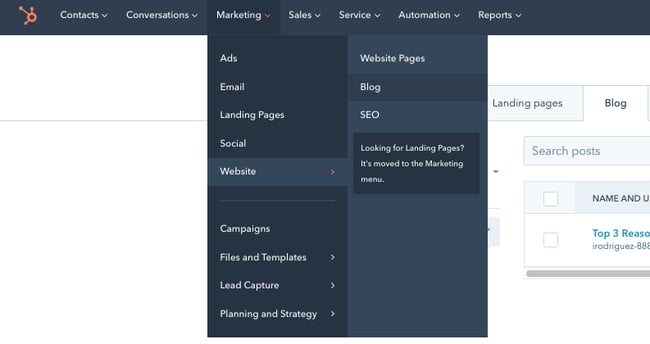
If you want to write blog posts, go to “Marketing” > “Website” > “Blog” on your dashboard to create, publish, and monitor your website’s blog posts.
8. Install add-ons.
Last, it’s time to install an app from the HubSpot marketplace to extend the functionality of your website. Here’s how.
- In your HubSpot account, click the Marketplace icon in the main navigation bar.
- Under Manage, select Connected apps.
- Click Visit App Marketplace.
- Use the filters in the left sidebar to browse for an app.
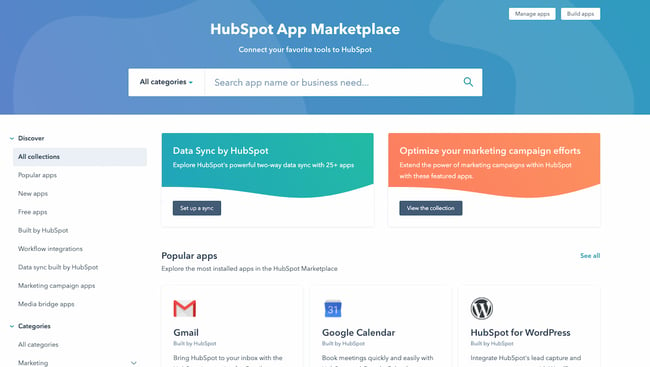
- Click on an app to see more information.
- On the right, you can review the details of the app. Under Requirements, check whether or not the app is compatible with your HubSpot subscription, and see if there are any app-side subscription requirements.
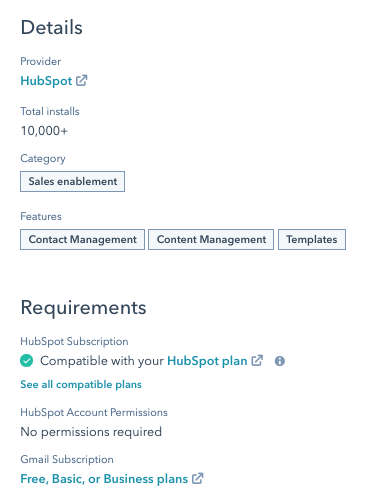
- When you’re ready, click the Install app button in the top right corner of the screen.

Once you’ve completed these steps, just click “Publish” and your site is ready for use.
This is a fairly broad and general overview to get you started building a website with CMS Hub, but there are plenty of more in-depth features and tools you might want to explore with a HubSpot specialist, or by checking out some courses on academy.hubspot.com.
Once you’re done building a website via CMS Hub, it’s important to check that you’re not missing any crucial elements or going live with any glaring errors. Once you’ve gone through this list above and feel like you’re close to a website launch, check out your website launch checklist for a detailed list of things to check before you go live.
Build a Website: FAQs
Below, we cover some frequently asked questions about building a website.
How much does it cost to build a website?
The cost of building a small business website can range from $500 to $2,500, but the price can be higher if you’re working with a developer. You should also take into account recurring costs such as hosting, domain name registration, and SSL certification.
Here’s a resource to help you gauge costs:
How hard is it to build a website?
Building a website isn’t hard at all, especially if you opt for a website builder that packages everything for you. In general, you won’t need to touch a single line of code.
How do you create a website for free?
You can create a website for free by signing up for a free subscription on a website builder platform such as Wix or Weebly. However, you’ll have a branded subdomain from the provider (e.g. yourname.weebly.com). You’ll also have the branding on your website, and free websites are often limited in design, features, and functionalities. We recommend avoiding it unless you’re a hobbyist or only wanting to practice before launching your site.
How do you build a website from scratch?
You can build a website from scratch using HTML, CSS, JavaScript, and sometimes, PHP. You compile these files and then upload them to your web host’s file manager. (You’ll still need to purchase a hosting service and register a domain.)
How much does it cost to hire someone to build a website?
Thumbtack reports that a freelance web designer costs from $640 to $1,000. Upwork reports a $15 to $30/hour range for hiring a web developer on their platform. This is on the low end and accurate pricing for building a small website. For hiring a web developer for a custom or long-term project, you can expect to pay in the $8,000 to $25,000 range.
Here are some more resources:
- How to Hire a Freelance Web Developer
- Web Designer vs. Web Developer: What’s the Difference & Who Should You Hire?
How long does it take to build a website?
A website takes, on average, three to six months to build if your brand is small or just getting started. If you’re creating a custom or complicated project, you can expect your website to take a year or longer before it is up and running.
Build Your Website: Tips
Ready to build your own site? Let’s take a look at tips you can use to guide the creation of your site.
- Choose a one-page design if you want to launch your site more quickly.
- Include a high-contrast button on the top right of your navigation bar telling visitors to contact you.
- Use Lorem Ipsum text to preview what the written content will look like as you adjust the layout. That way, you don’t have to write all the content right away.
- Buy an SSL certificate if your CMS doesn’t include one already.
- Make good use of white space to keep your site as simple and easy-to-read as possible.
- Set your domain and hosting subscriptions on auto-renew to avoid service interruption.
- Create Terms of Use and Privacy Policy documents if your site gathers user data.
- Double-check that your website is responsive by accessing it from your mobile device. Most CMS systems and website builders will automatically make your site responsive, but you always want to double-check.
- Resize your browser window to test what the elements look like at different browser sizes.
- Access your site from different browsers (Safari, Chrome, Opera, Microsoft Edge) to see how the elements render depending on the browser.
- Learn basic HTML and CSS so you can more easily customize your site later.
- Include high-contrast buttons throughout the page that allow visitors to get in contact with you.
- Stick to five navigation bar items at most.
- Ensure your navigation bar shows up in all pages.
- Create submenus for your navigation items to effectively group your subtopics.
- Create an XML sitemap for search engine crawlers to find and index your site.
- Submit your website to Google Search Console once you’ve launched it. That way, Google can crawl it much more quickly.
- Use an analytics tool such as Google Analytics to see who’s accessing your site and from where.
- Link internally from page to page so that search engines understand how the pages are related to each other.
- Use keyword-rich anchor text when linking to internal pages.
- Link to other strong sites in your niche to signal relevancy to Google.
- Add your business or personal brand to social media sites and link back to your website.
- Research other sites in your niche and get content ideas from them.
- Compress all images to under 250KB. The smaller, the better.
- Publish and maintain a blog — we’re serious about that. Try to post once a month.
- Aim for a minimum of 800 words per page and per blog post.
- Use a grammar-checker such as Grammarly to ensure your copy is error-free.
- Avoid duplicate and boilerplate content — even one paragraph can be enough to hurt the credibility of your page.
- Recheck your site architecture to make sure that your page hierarchy makes sense.
- Create a backup of your site whenever you make major changes.
- Seek guest posting opportunities and link back to your site in your author bio.
- Join industry organizations and link back to your site from your member profile.
- Avoid duplicating pages to use the same layout. If you do, double-check that your slug doesn’t read .com/original-page-copy. This happens more often than you think. If it happens, change your slug. Here’s how to change your slug in WordPress, in case you’re using that CMS.
- Keep your page URLs short and user-friendly. If the title of a blog post is “50 Ways to Conquer Your Fear of Heights and Fly Worry-Free,” don’t have a URL that reads example.com/20XX-03-25/blog/50-ways-to-conquer-your-fear-of-heights-and-fly-worry-free. Consider instead: example.com/conquer-fear-of-heights.
- Add breadcrumbs to your website to clarify your site structure. Here’s how to add breadcrumbs in WordPress.
Build a Website to Grow Your Online Reach
Building a website is a must-do for anyone who wants to be online. Without it, you won’t be found at all, and it can help you look more professional and established. Using this guide, you’ll be sure to publish a site that helps your business or your personal brand grow better.
Editor’s note: This post was originally published in May 2018 and has been updated for comprehensiveness.


It’s very straightforward to find out any matter on web as compared to books, as I found this
post at this web page.
Yes! Finally something about restaurant.
Howdy! Do you know if they make any plugins to safeguard against hackers?
I’m kinda paranoid about losing everything I’ve worked hard on. Any suggestions?
Hi! I could have sworn I’ve been to this website before but after looking at
many of the posts I realized it’s new to me.
Anyhow, I’m certainly delighted I came across it and I’ll be bookmarking it and checking back frequently!
Spot on with this write-up, I really believe this web
site needs a lot more attention. I’ll probably be
back again to see more, thanks for the advice!
Do you mind if I quote a few of your posts as
long as I provide credit and sources back to your website?
My blog site is in the exact same niche as yours and my users would truly benefit from some of the information you present here.
Please let me know if this alright with you.
Regards!
I have to thank you for the efforts you’ve put in penning this website.
I’m hoping to see the same high-grade content from you in the future as well.
In truth, your creative writing abilities has inspired me to get my very own website now 😉
Heya are using WordPress for your blog platform? I’m new to the blog world but I’m trying to get started and set up my own. Do you require any coding
expertise to make your own blog? Any help would be greatly appreciated!
Hey very interesting blog!
Does your website have a contact page? I’m having a tough time
locating it but, I’d like to shoot you an email. I’ve got some ideas for your blog you
might be interested in hearing. Either way, great site and I look forward to seeing it expand over time.
Good day! Do you know if they make any plugins to safeguard against hackers?
I’m kinda paranoid about losing everything I’ve worked hard on. Any suggestions?
That is a really good tip particularly to those
new to the blogosphere. Short but very accurate information… Thanks for
sharing this one. A must read article!
Outstanding post however , I was wondering if you could write a litte more on this topic?
I’d be very thankful if you could elaborate a little bit
further. Thank you!
Hi there, its pleasant paragraph concerning media print, we all be
aware of media is a impressive source of data.
Saved as a favorite, I like your blog!
Thank you a bunch for sharing this with all people you actually
recognize what you are speaking approximately! Bookmarked.
Please additionally seek advice from my web site =).
We may have a hyperlink trade contract among us
Aw, this was an extremely good post. Taking the time and
actual effort to produce a really good article… but what can I say… I put things off a
lot and don’t seem to get nearly anything done.
This paragraph is really a pleasant one it helps new web visitors, who
are wishing in favor of blogging.
Woah! I’m really enjoying the template/theme of this blog.
It’s simple, yet effective. A lot of times it’s
challenging to get that “perfect balance” between user friendliness and appearance.
I must say you’ve done a awesome job with this. Also, the blog loads
very quick for me on Opera. Exceptional Blog!
whoah this weblog is fantastic i love studying your posts.
Stay up the great work! You know, many people are hunting round for this
info, you could aid them greatly.
Great post. I was checking constantly this blog and I am
impressed! Very useful info specifically the last part :
) I care for such info a lot. I was looking for this
certain information for a long time. Thank you and best of luck.
Can I simply just say what a relief to discover a person that actually understands what they are discussing
over the internet. You definitely understand how to bring an issue to light and make
it important. A lot more people should check this out and understand this side of the story.
I was surprised you are not more popular since you
most certainly possess the gift.
Sweet blog! I found it while searching on Yahoo News.
Do you have any suggestions on how to get listed in Yahoo News?
I’ve been trying for a while but I never seem to get there!
Appreciate it
Great blog! Do you have any hints for aspiring writers?
I’m hoping to start my own blog soon but I’m a little lost on everything.
Would you recommend starting with a free platform
like WordPress or go for a paid option? There are so many
choices out there that I’m completely confused .. Any
suggestions? Cheers!
Please let me know if you’re looking for a author for your blog.
You have some really good posts and I think I would be a good asset.
If you ever want to take some of the load off, I’d really
like to write some articles for your blog in exchange for a link back to mine.
Please shoot me an email if interested. Many thanks!
If some one wishes expert view about blogging and site-building afterward i recommend him/her
to pay a visit this blog, Keep up the nice work.
It’s fantastic that you are getting ideas from this article
as well as from our dialogue made at this
place.
I’m extremely impressed with your writing skills as
well as with the layout on your blog. Is this a paid theme or did you customize it yourself?
Either way keep up the excellent quality writing, it is rare to see a great blog
like this one today.
Interesting blog! Is your theme custom made or did you download it
from somewhere? A theme like yours with a few simple adjustements would really make my blog jump
out. Please let me know where you got your theme. Thank you
Pretty nice post. I just stumbled upon your blog and wished to say that I’ve truly enjoyed browsing your blog posts.
After all I will be subscribing to your rss feed and I hope you write
again soon!
It’s very effortless to find out any matter on web as
compared to textbooks, as I found this post at this web site.
I savor, cause I found just what I was taking a look for.
You have ended my four day long hunt! God Bless you man. Have a
nice day. Bye
I love your blog.. very nice colors & theme.
Did you make this website yourself or did you hire someone
to do it for you? Plz reply as I’m looking to create my
own blog and would like to know where u got this from. appreciate it
hey there and thank you for your information – I have
certainly picked up something new from right
here. I did however expertise several technical issues using this website, as I experienced to reload the
web site a lot of times previous to I could get it to load correctly.
I had been wondering if your hosting is OK? Not that I’m complaining, but slow
loading instances times will often affect your placement in google and can damage your high quality score if ads and
marketing with Adwords. Anyway I am adding this RSS to my e-mail and could look out for a lot more of
your respective intriguing content. Ensure that you
update this again very soon.
you’re in point of fact a good webmaster. The web
site loading speed is amazing. It kind of feels
that you’re doing any unique trick. In addition, The contents are masterwork.
you’ve performed a wonderful job on this subject!
Hey there terrific website! Does running a blog such as this require a great deal
of work? I have virtually no understanding of computer programming
but I had been hoping to start my own blog in the near future.
Anyway, should you have any suggestions or tips for new blog owners
please share. I understand this is off subject however I simply
needed to ask. Thank you!
It’s remarkable to go to see this site and reading the views of all mates regarding this article,
while I am also keen of getting familiarity.
No matter if some one searches for his essential thing, therefore he/she wishes
to be available that in detail, therefore that thing is maintained
over here.
I don’t know whether it’s just me or if perhaps everyone else encountering problems
with your blog. It appears as though some of the text on your content
are running off the screen. Can someone else please provide feedback and let me know if this is happening to them too?
This could be a problem with my web browser because I’ve
had this happen previously. Cheers
Howdy! I just want to offer you a big thumbs up for your excellent information you’ve got right here on this post.
I am coming back to your web site for more soon.
I am not sure where you are getting your info, but great topic.
I needs to spend some time learning more or understanding more.
Thanks for excellent information I was looking for this info for my mission.
I always used to read paragraph in news papers but now as I am a
user of web thus from now I am using net for posts, thanks to web.
What’s up colleagues, how is the whole thing, and what you would like to say regarding this paragraph, in my view its actually amazing in favor of me.
constantly i used to read smaller posts that as well clear their motive, and that is also happening with this post which I am reading now.
Hi, i feel that i saw you visited my website thus i got here to go back the favor?.I am attempting to to find
issues to enhance my site!I suppose its good enough to make use of a few of your concepts!!
Hmm it seems like your site ate my first
comment (it was super long) so I guess I’ll just sum it up what I submitted and say, I’m
thoroughly enjoying your blog. I too am an aspiring
blog writer but I’m still new to the whole thing.
Do you have any tips for inexperienced blog writers? I’d certainly
appreciate it.
Undeniably believe that which you said. Your favorite
justification seemed to be on the net the easiest thing to be aware of.
I say to you, I definitely get annoyed while people think
about worries that they just do not know about.
You managed to hit the nail upon the top and also defined out
the whole thing without having side-effects , people could take a signal.
Will probably be back to get more. Thanks
Touche. Solid arguments. Keep up the amazing work.
I think the admin of this site is really working hard
in support of his site, for the reason that here every material is quality based material.
Hello, i believe that i saw you visited my site thus
i came to go back the favor?.I am attempting to to find things to improve my website!I
suppose its ok to use some of your concepts!!
I am not positive the place you are getting your info, but good topic.
I needs to spend a while studying more or figuring out
more. Thanks for great info I used to be searching for this
information for my mission.
Hi, i believe that i noticed you visited my blog thus i came
to return the choose?.I am attempting to to find issues to enhance my site!I
assume its good enough to make use of a
few of your concepts!!
I’m extremely inspired along with your writing abilities
as neatly as with the structure on your weblog.
Is that this a paid theme or did you customize it your
self? Anyway keep up the nice high quality writing, it is
rare to look a great weblog like this one today..
Thanks very nice blog!
I am actually happy to glance at this blog posts which consists of tons of useful facts, thanks for providing such statistics.
This post will assist the internet users for creating new weblog or even a weblog from start to end.
When someone writes an piece of writing he/she keeps the plan of a user in his/her brain that how a user can know it.
So that’s why this post is amazing. Thanks!
What i do not realize is in fact how you’re no longer actually much more well-appreciated than you might be now.
You’re very intelligent. You already know therefore significantly on the subject of this matter, produced me individually imagine it from numerous numerous angles.
Its like men and women aren’t fascinated except it is one thing to do with Lady gaga!
Your individual stuffs nice. Always deal with
it up!
It’s a shame you don’t have a donate button! I’d
most certainly donate to this excellent blog! I suppose for now i’ll settle for bookmarking and adding your RSS feed to my Google account.
I look forward to fresh updates and will share this site with my Facebook group.
Talk soon!
Nice post. I was checking continuously this blog and I’m impressed!
Extremely helpful information specifically the last part 🙂 I care
for such information a lot. I was seeking this certain info for a very long time.
Thank you and good luck.
What a material of un-ambiguity and preserveness of valuable experience regarding
unexpected feelings.
I’ve been browsing on-line more than 3 hours nowadays, yet I never found any attention-grabbing article like yours.
It is beautiful worth enough for me. In my
opinion, if all webmasters and bloggers made good content as you
did, the net will likely be a lot more helpful than ever before.
It is perfect time to make some plans for the
future and it’s time to be happy. I have read this post and if I
could I desire to suggest you some interesting things or advice.
Perhaps you could write next articles referring to this article.
I desire to read more things about it!
This is a topic which is close to my heart… Thank you!
Where are your contact details though?
This design is incredible! You most certainly know how
to keep a reader entertained. Between your wit and your videos,
I was almost moved to start my own blog (well, almost…HaHa!) Excellent job.
I really enjoyed what you had to say, and more than that, how you presented it.
Too cool!